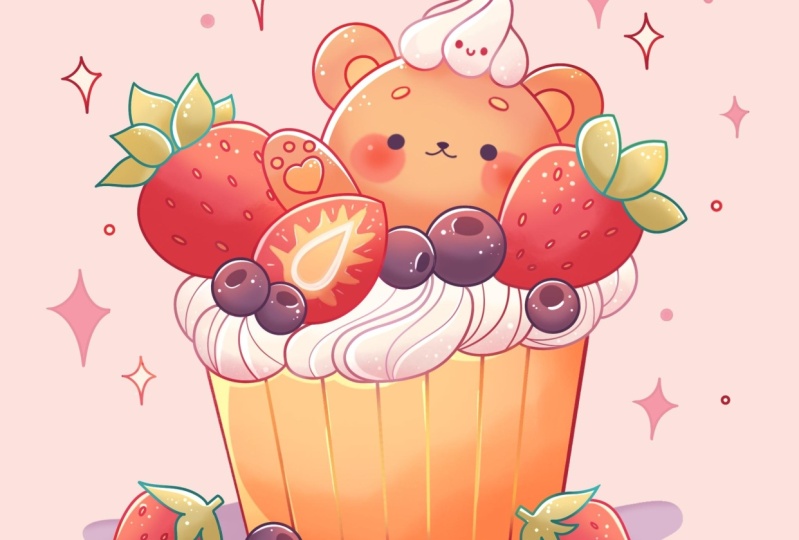
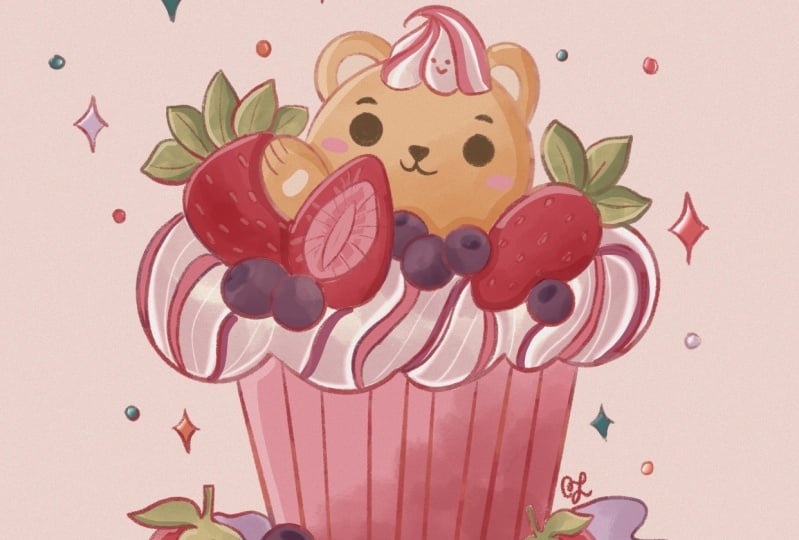
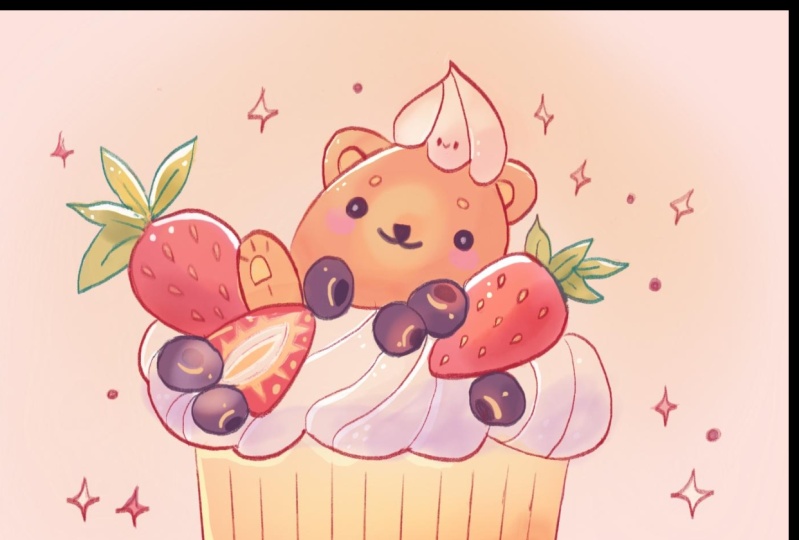
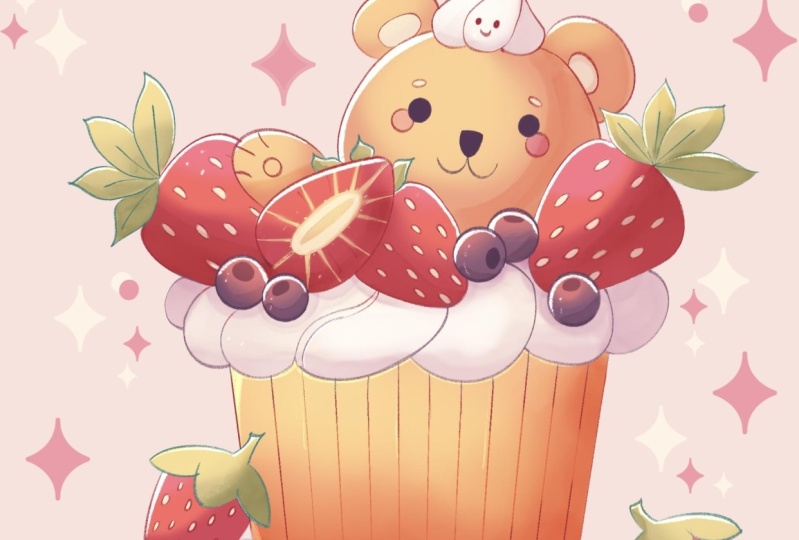
Transcripts
1. Introduction: Hello everyone. I'm Uni. And into this class
we'll draw acute muffin. This class doesn't require any prior experience
or fancy tools. We'll start from
scratch and we'll be using simple techniques
throughout the process. Everything you'll see will
be happening in Procrit. However, if you
have other software or want to try
traditional materials, you are welcome to join. If you are ready to start, let's jump right into it.
2. Base Scheme: Let's start our
class by deciding what kind of canvas we
are going to be using. You can see it is a very simple standard square
canvas that you can find. In procreate, both
pixel width and pixel hide are set at 2048 pixels. If you would like to use
any other dimensions for your canvas, just go for it. As for DPI, we are using 300. And as for the color profile, it is set as SRGB
with the slow number. When it's all done,
let's just get done and will be redirected
to our new canvas. Now we will need to decide
what kind of colors and what kind of materials we are going to be using
throughout the whole class. You can go to the
Project and Rester Stop, and you can download
everything that you will see throughout the
class when you did it. Let's just go straightly to our color palettes and let's
check out what we have here. Here we have two options of
how we can use our colors, the compact and the cards. We'll go straight to the cards, because here we have
all the colors, names and it will be easier
for us to navigate through our colors while we are still here into
our color palettes. Let's select some tras, color that we will use
for creating our scheme. For example, let's
just go either with dark pink or dark pink red. Select the color, and
when you are done, we will go to our brush library. And again, if you
downloaded the brush, let's just go and select it. We'll be using dull flat pencil when we have our brush and
when we have our color. All that we need
to do is to go to our list and change the
color of our background. We are going to our
background color layer. We are selecting it here
into our color palette. We are selecting the color
with the name background. When we did it,
let's just get back to our canvas and
let's start creating our scheme That later on will help us to build up the
whole illustration. What we need to do, firstly, is to create a few ships. And we will start
by creating a ship of the rectangle very easily. Let's just go to our canvas. We'll go to the
bottom part of it and we will start creating our ship. We will do just with one line. Let's just go and start
creating our lines. Going across our sheep. We will hold our apple
pencil at the end of the line and we will snap
the ship to a better one. When you are satisfied
with the size, we will go over the top to
this option that popped up. For me, it is polyline. For you, it might be
something different. This is editing mode. If you have the
option rectangle, you are welcome to select it. If you don't have the
option rectangle, you can go to the
nodes that you see on your screen and you can
just go and adjust them. What we need to do is to create a pretty
straight rectangle. Let's just go and make
the lines straight. We will go to one of the nodes that we have on
one of the sides, for example, to the middle one. And we will just drag it down so our rectangle is straight. If you need to
adjust other nodes, you are welcome to
go and do that. When we have
something like that, we are ready to get away
from our edited modes. And we can do it by
tapping on our screen, either with our pencil or
with one of our fingers. When you have the sheep, we will need to make
sure that it is right in the center of our canvas.
How can we do that? We will go to our top left part where we have our arrow
key. Let's just tap on it. On the bottom, you can
see that we have a panel. And we will need to
go under snapping. And we will need to select
snapping into this menu. When you did it, we will
get back to our canvas. We will hold our apple
pencil at some blank space. And what we need to see is this line that is going
through the center. When you have it, we are right in the center
of our canvas. Now you can position your
element in a way that you like. Basically what we
need is to put it to the bottom when you have it. Let's just go and
deselect everything by heating our arrow
key. One more time. When you did it, let's
just get back to our layers and we will
create one more layer. It will be easier
for us to create our shapes on separate
layers and later on we will just merge them
together and we will create one layer for
our whole scheme. Now just tap on the plus icon and onto this new
layer we will go to the top of our
rectangle and we will create a triangle again
the same way as before. We will just go with one
line without lifting up our apple pencil and
we will create our ship. At the end of the line,
hold your apple pencil, and then we will go over the
top to our option triangle. Or maybe for you it's
something different. Basically we are going
to our editing mode. What we need to do is to put the top node over
our bottom nodes. So we will have the
straight triangle. We need to make the even sides. When you have it, we
will just need to go and combine this little nodes that we have on the
sides together. Let's just go and move the whole shape more
toward the center. We will go to some blank
space on our canvas. We will hold our apple pencil, and we will just move this shape if it's not very straight, we can just go away from
our editing mode and we can go again to our arrow
key on the top left. And we can adjust this
shape from here if you want to make the
shape a little bit smaller or if you want
to make it bigger, we will go to one of the nodes
that we have on the sides, for example, to the top right. And we can just drag it
up if we want to make it bigger and if we want to make it smaller
we will drag it down. We are using uniform method
onto our panel on the bottom. For now let's just
make it a little bit bigger than our
recto Then again, we will go under snapping. If it's not turned on, if you want, you can
go and turn it on. Then we just need to go and put it right in the
middle of our canvas. What we are doing is going
to some blank space. We are holding our apple
panel at some blank space, and we are finding
this line that is going through the middle
part of our canvas. When you found it, let's just
go and deselect everything. And we will need to go and
create one more shape. Now let's just go to our
okey on the top left. And then we will get
back to our layers. And we will create
one more layer on which we will create an ellipse. We will go right between
these two shapes and we will create our ellipse
the same way as before. Just go in there and creating the shape just with one line. Hold your apple panel at the end of the line to snap
it to a better shape. Try to make it straight. If you move your apple pantel
in a circular movement, you will see that
you are changing the position of your elements. When you are done,
we will just go over the top to
our editing mode. Try to make it straight. If you need, go to the nose on the sides and try to
position it correctly. When you have
something like that, we'll combine our
shapes on the sides. And when you have
it in that way we will get away from
our editing mode. Let's just tap on our screen to get away from
our edited mode. And then we'll go again to
our key on the top left. And we will try to position this element right in the
middle of our canvas. Again, holding our apple
pantel at sampling space. And then moving until we see this line that is going through the center
when you have it. In that way we will go again to our air key on the top left and we will
deselect everything. Now let's just go to our layers. And let's combine all of
these three layers together. What we need to do is to go
to the layer on the top, tap on it, and
select Merge down. When we did it, we will
do it one more time. Let's just tap on this
layer on the top. And we will select
Merge down from the list when we did it. Let's just go again
to our arrow key. And we will position this element a little
bit differently. We will put it more
toward the center again, when the snapping is on, we are holding our apple pantel and we are dragging
it a little bit up. If you want, you can go and make the whole shape
bigger or smaller. It's all up to you. This
scheme we are going to be using for creating
our whole illustration. When you're satisfied
with everything here, let's just go to our
arrow key one more time and let's deselect
everything now. We will get back to
our list and we will rename this layer as
a scheme to do so, we will need to tap on
the layer and choose to rename from the list
when we have it. We will also go and change the capacity level
of this layer. We want to see what's happening onto our layer with the scheme, but we don't want it
to be very bright. We will make it a little
bit more transparent. Let's just go to our layer
with the scheme and we will tap on this little icon
near the check box. You can see that we
have the slighter capacity and we can grab it and move it toward the left until we still can see
what's happening here. But when it's not that bright, when you're satisfied
with the capacity level, let's just tap on our layer with the scheme to
close this window. Now we are ready
with our scheme. So let's move on
to our next part, where we are going to
be aiding our skitch.
3. Sketch: Let's start the sketch and
part by going to the layers. And we will create one
more layer for this part. Let's just step on the plus icon and let's rename this
layer as Sketch. When we have our new layer, you can decide whether
you want to go to your color palettes and
select some contrast color. You will see what's
happening onto your canvas, or if you want to continue
with the same color that you were using for your
scheme. Either way works. When you are done
with this task, let's just get back to
our canvas and we will firstly go and increase
the size of our brush. Our brush is a
little bit softer. When you are done, we
will roughly start figuring out what
we are going to be doing for the
whole illustration. First, let's just go to the
bottom part where we have our rectangle and we will adjust the shape so it will
look like a muffin. We are firstly going
over one of the sides and we will go and create
a diagonal line like that. You can play around with
the angle on this line, you can make it very angular. Or if you want, you can just make a little bit of an angle. When you have the
line that you like, we will need to go to
the opposite side and we will need to do
something similar there. Let's just go and create another line that is
going toward the center. We are holding our line at
the end so it is straight. When we have our
sides like this, let's just go to the bottom and let's combine our
shape together. We will need to go and other ellipse and we will need
to merge the shape. Firstly, let's just go
to the bottom part. And the same way as before, we are just creating
our shape just with one line and
holding it at the end. When you are done, try
to make it straight. And then we will go over the
top to our editing mode. Now you can decide how big
you want your muffin to be. You can just move
the shape higher or lower When you've decided
on the size of your muffin, let's just go and try to make the whole shape more straight. Our nodes on the side should be on one line when you have it. In that way, let's just get
away from our editing mode. So we will need to tap
on the screen either with our apple pencil or
with one of our fingers. Now let's just grab an eraser tool and we will erase all the lines
that we don't need. We don't need these
lines on the sides, and also we don't need the whole curve that
we have over the top. Let's just go and erase
everything that we don't need while
we are still here. Let's just get back to
arm brush and we will go to these corners that
we have on the bottom. And we will soften them. Instead of the very
straight corners, we will create the curves. When you are done
with the first side, do the same on the opposite one. And then we will grab
our eras or too, and we will erase these
parts that we don't need when we have our
sheep on the bottom. We will need to go inside of
it and we will need to add a few lines so they
will represent the paper that we
have on our muffin. Let's just go and create a
couple of lines like that. Later on we will work on them
and they will look better. Now when we have
something like that, let's just move on
to the bottom part. And we will add a
little shadow here. What we need to do
is to go underneath our little shape on the muffin and we'll create a
wobbly shape like that. You can play around
with its size, you can play around with
the curviness of it. You can play rounds
with everything that you want to
play around with. When you are done,
let's just go over the top and we will start
aiding the feeling here. Firstly, let's just go to this line that
we have right here, which is the bottom
part of our ellipse. And we will use this line to
start creating some cream. What we need to do is to roughly find the
place for the cream. Let's just go over this line and we will create the lines
going in that way. We are going a little bit beyond the frames of our
muffin on the bottom. And we will create the curves going on the top in that way. When you have it in that way, let just go and add some fruits. Firstly, going over
our left side, and let's just add a
little strawberry here. Let's first go to the left part, and we will create a line
going in that direction. If you want, you can play
around with the angle. And this line will represent
the center of our element, so it will be easier
for us to create it. When we have it, we will
just go to the top of it. And we will start by
creating a shape like that. When you have the
curve like that, we will go to the
bottom and we will go and create a
shape in that way. If it's easier for you, you can start by creating
an ellipse and then cut the bottom part and create the shape
of the strawberry. If you want, you can play
around with the whole shape. You can make it more
curvy, or if you want, you can go and make it very
slender. It's all up to you. When you have the ship, we will go to the top of it
and we will start by adding some guiding lines that will
help us to add the leaves. We are going to
this line that we have in the middle
of our strawberry. And from this line we will go and create a few more lines. Going in that way, you can go with three lines or four lines. When you have it, let's just
go and add some leaves. These lines that we have
created are guiding lines, and they will be in the
center of our leaves. Let's just go to the
first one, for example. Let's go to the right part, and let's just go and start creating the leaves in that way. You can overlap them with
the shape of the strawberry. If you don't want
to overlap them, you are welcome to
grab an eraser tool and erase the bottom part. And when you have
this first leaf, let's just go and add
three more of them. You can play with their size, you can play with
their position. If you want to play around
with something else, you are welcome to go
and play around with. Remember that now we are
creating just a cage. So you are roughly
figuring out what we are doing here and you don't
need to be perfect. If you want to go and grab an eraser tool and erase the
lines that you don't need, you are welcome to
go and do that. If you want to go and add more details or maybe
more leaves again, you are welcome to
go and do that. Just find what works
for you and always take a look at your
picture from the distance. When you have the
strawberry that you like, let's just go inside it. Let's just add some seeds. We will need to go and add
little elements like that. Let's just go over
the whole shape of our strawberry and let's
add the rows of our seeds. When you are ready, let's continue adding
different elements. For example, let's just go
a little bit underneath this first strawberry and we
will add another strawberry, but this one it will
be cut in half. We are going to be creating a half of the strawberry here. We can always go to our lies and we can
create one more li, on which we can
add other details. Later on, we can go and merge all of these
layers together. When we are creating
different layers, it will be easier for us
to adjust the elements. Maybe go and at
empires that we don't need and then we can
just merge them. Now on the layer, let's just go a
little bit underneath this little ship and we will
create another guiding line. In that way, what we need
to figure out here is that we are adding the details
on the top of our cream. Our elements are not floating, they are inside these shapes. What we need to do with this guiding line is
to go to the top. And we are going in
the editing mode. And we will need to make
sure that we will be putting our half of
strawberry on the cream. We will need to go and move it a little
bit in that way and maybe adjust the angle when
you have something like that. Let's just tap on our screen to get away from
our editing mode. Now let's just go and create a similar shape that
we had right here, and then we'll add
the details inside. Firstly, we are
going to the bottom and we are creating
this rounded shape. When you have it, we are
going to the top and we are creating the
half of the strawberry. Adjust the shape to your liking. You can repeat what you had on your first strawberry or maybe
find something different. It's all up to you. Let's just end up with the
sheep and when you have it, we will just go inside and we
will add some details here. What we need to do is to go
to this line that we have in the middle and we will need to create a
shape like that. We are stepping from the top and we are creating a
line in that way. When we have it, we
will go a little bit to the sides of it and we
will repeat the whole shape. Later on when we are going to be recoloring everything,
it will look better. Now we will need to
go to the sides and we will need to create
some lines like that. Later on we will turn them
into these little peaky parts. Let's just go through
the whole shape, and when we have
something like that, we will go and adjust
the whole shape. In general, what we
need to do is to go to our arrow key
on the top left. Firstly, let's just go and make this whole shape
a little bit smaller. We are going to one of the corners and we
are dragging it down. Also, we can position
it differently, we can rotate it.
It's all up to you. To rotate the shape, we will need to go
to this green node that you have on the top. We will need to hold
our apple panel there and make a
rotational movement. Find the angle that
works for you if you want to make sure that it
is laying on the cream, we can adjust the perspective on this element.
Just a little bit. To adjust the perspective, we will need to go
to the bottom panel and we will need
to choose distort. When we are choosing distort, we can go to the
nose that we have on the sides and we can
adjust the perspective. Firstly, let's just go over the top right node and we will drag it more
toward the center. You can see how our
shape is changing. We just need to
go and figure out how we want to position
this whole shape. Either we want to make the bottom part a
little bit bigger and that will make it look
like it is in the perspective. If you want, you can go and
play around with this nodes. If you don't want to do that, you can skip this little part. In general, we will need to
have something like that. Our bottom part is a little
bit bigger than our top part. If you need to make this
element a little bit different, if you want to make it
smaller or bigger again, you can go to the uniform method and adjust it to your lichen. Find the rotation and the
position that works for you. Take a look at your
illustration from the distance. And when you are done,
let's just go and deselect everything by hitting our
arrow key one more time. Now when you're satisfied with the position
of this element, let's just get back
to our layers. And we will go to our
layer with the sketch. We will grab our eraser too, and we will erase these
overlapping parts. Now if you want, you can
get back to your layers. Go to the layer where you have this half of the strawberry, tap on it and choose Merge Down. Now we have all of our
sketch elements on one layer and we are ready to move on and add more details. Firstly, let's just go between these two elements and
let's add two more berries, but this time they
will be blueberries. Again, if you want,
you can go to the layers and create
one more layers so it will be easier for
you later on to erase these little parts
that we don't need. We just will go to these
little parts right between these two ships
and we will add a circle. In that way we are
overlapping our shapes. If you want to create a
perfectly round circle without lifting up
your apple pencil, when you're holding it
at the end of the line, you will need to hold one of
your fingers on the screen. You can adjust the size by moving your apple pencil
from side to side. And if you want to change the
position of these elements, we will lift up everything
that we are holding right now. And we will go over our
top to the editing mode. Let's find the position
that will work for us. We will go, for example,
with something like that. And then we will
tap on the screen to get away from
our editing mode. Now if you are satisfied with the
position of this element, let's just go and add
one more element. We will go with
another blueberry. Let's just go and add it a little bit underneath
the first one. Again, the same way as before. We are creating our
shape just with one line and we are
holding it at the end. If you want a perfectly
round circle, hold one of your
fingers on this screen. You can adjust the size
of these elements, make it bigger or smaller
than your first one. And if you want to
change the position, go to the 18 mode and find
the placement that you like. When you are positioning
your elements, it's always best to go and
overlap them rather than put them in that way where you have your elements
touch each other. When you are touching elements, it makes a little bit of
attention between them. And your eye is looking at this place and it feels
like something is wrong. When you're creating
your elements, it's always best to overlap
your ships, for example. Let's keep it in that way. And then we will go right
between these two ships and we will decide which
element is in front of us. We will grab our eraser to, and we will erase the
lines that we don't need. For example, let's just go to this little part
and we will erase it from our front elements
When you have it in that way, take a look at your
illustration from the distance. If you want to change something, it's good that we are
on the separate layer. You can always go to
your arrow key on the top left and you can just
go and move your elements. Find the position that works for you if you want to
adjust the size, if you want to
adjust the rotation, you are welcome to
go and do that. When you are satisfied with the position of your elements, let's just deselect everything
by hitting our arrow key. Now let's just get
back to our layers. We will get back
to our layer with the main sketch we will
grab our eraser to, and we will go and erase
these overlapping parts. When we are done, we are getting back to our layers
one more time. We are going to the top layer, we are tapping on it, and we
are choosing merged down. When we are done,
let's just go and create one more
layer on this layer, we will go and create a cookie
in the shape of the bear. Firstly, let's just go between these two strawberries
that we have on the top. We will step a little bit from this little crack and we
will go and create a shape. In that way, we are creating
half of the circle. You can play around
with the size of it. It's all up to you. What we need to do next is
to go to our top, to the editing mode. Let's just go and adjust
the ship to our liking. And you can see how our
scheme is helping us. We are not going too much beyond these frames and we are
creating a nice composition. Now, play around with your ship. If you want to make it smaller
from the editing mode, you will need to go
right between the nodes. Hold your apple pencil there and drag it down, for example. Let's keep it in that way. And then when we are ready, we will tap on our screen to get away from our editing mode. Now we will go right to the left side where we
have this little gap. And into this gap we will
add a little hand here. Let's just go and create
half of the ellipse here. The same way as always, we can start by creating a
guiding line if you need to. If you don't need to, just go straightly and create
half of the ellipse here, hold your shape at the end. And when you are done, let's just go over the
top to our editing mode. And let's just make it
look more like a poll. What we need to do is to
move it a little bit to the left so we have some
space here on the face. And if you want to make
it a little bit wider, you are welcome to go
to the side nodes. And you are welcome to
adjust them the same way as if you would like to change
the size of this element. You can go and change
the rotation of it. Again, will need to go
right between the nodes, hold your apple pencil there, and make a rotational movement. Find the position on this
element that works for you. And when you are
done, let just up on the screen to get
away from this mode. When we are done, let just
go over the top of our head. And let just did
aid in some ears. If you want, you can go and
help yourself by creating the guiding lines going through the center on the
shape, for example. We can just go and create the guiding line
going in that way. In that way, we will know where is our center, the vertical one. When we have it, we can
just go to the soap and we will go over
our left side firstly. Let's just go and add
a little ear element. In that way, we will create
half of the ellipse here. We will hold it at the
end, and if we need to, we will go over the top to our editing mode and
we will adjust it, find the position and
size that works for you. The rotation should
work for you too. When you have it, we will go to the opposite side and we
will do the same thing here. Again, try to keep the distance from the center
similar on both sides. If you need to, you just
need to go and make a little mark down from
where you need to start. As you can just go and create
the line going in that way so you will know
where you need to finish your little
ear when you have it. Let's just go and create a
similar shape as always. Hold it at the end, Go to the editing mode and
adjust it if you need to. Also, let's just put this little cookie a little
bit in the perspective. Again, when we are talking
about perspective, some elements that are closer to us will look a
little bit bigger. We will need to put this second
ear that is closer to us, a little bit closer to us. What we need to do is to
grab our little ear and move it more toward the
right side when you have it. We also will need to
go and make sure that this ear is a little bit
bigger than the previous one. We are going right
between our nodes and we are dragging
it a little bit up. Try not to overdo it when you have it in
the way that you like. Let's just go and
adjust other elements. Firstly, we will go inside
our little ears and we will add these inner parts of the ears the same way as before. We are going inside
the ear and we are creating a similar shape
that we have on the top. When you have it, we will do the same on the opposite side. You can play runs
with these elements. You can make them very
small or very big. It's all up to here when you
have something like that. Let's just go and add
the facial features. We have this line that
we have in the middle, and let's just go from
it to one of the sides. And we will start by
creating the shape of the circle that will
represent the eye. Let's just go somewhere here. Let's create our shape
when you have it. We will go inside of it
and we will shade it. When we have our eye
on the first side, let's move on to
the opposite one. And let's do the
same thing here. We just need to go to
the side and we will need to create the eye a little bit bigger than we
have it on the left. Let's also go a little
bit further away from our middle part,
just a little bit. Let's just go on the same line and let's create our eye here. You can see that the distance from the center is a little bit bigger and our eye is a
little bit bigger itself too. Shade it when you're ready. And if you feel that maybe you
want to adjust some parts, for example the ice, we can go and select them
and we can adjust only them. What we need to do is to go to our S ribbon icon
on the top left. We will use free hand methods. With this method, we will
just go and select our eyes. We will just go around them
and we will create the shape, we will loop it around and we
will select only our eyes. You can see when only
these shapes are selected, you will see them more clearly than the whole illustration. When you did it, we will need
to go to our transform too, which is our air key. Again, on the top left, we are using uniform
method and we can just go and adjust
these little elements. For example, if you want, you can go and make them bigger. Let's just go to one of the nodes that we
have on the sides. And let's just go and adjust
these elements again, if you want to tate it, go to the green nodes. If you want to move
the eyes, for example, a little bit more to the left, you are welcome to
go and do that. Take a look at your
illustration from the distance and when
you're satisfied with it, let's just go and
deselect everything by hitting our ribbon
icon on the top. When you are done, let's just go and add the nose
and the mouth. So we have this little part that is going from our middle line. Let's just go and erase it. We will go to the same line
that we have our eyes on, and we will start by
creating a little nose. Let's just go right
in the middle. And let's create a
very soft triangle like that when you have it. We'll go inside and
we will shade it. When you have the nose, let's just go underneath it and let's create little
shapes like that. You can play around
with their size. You can play around
with everything that you want to
play around with. Let's just go and create
these two shapes. Again, we are thinking about our perspective and we are
making this line on the right, a little bit bigger than
our line on the left. If you want to go and add
some additional elements, maybe browse or
maybe little cheeks, you are welcome to
go and do that. For example, let's just
go right above the eyes. And let's create two little
shapes like that that will represent our eyebrows
when you have them, we will go underneath our eyes and we will add
little cheeks there. Let's just go with ellipses like that when you have it
on the first side, let's move on to
the opposite one. And let's do the
same thing here. When you are done, let's just
go to this little gap that we have on our left and let's
connect it with our poor. When we have
connected our sheep, Let's just go to the pore and we will add a
few lines here. When you have it. If you want, you can go and add some
additional elements here too. For example, you
can go underneath this little lines and add a
little shape in that way. If you don't want to add it, you are welcome not
to when we have it. Let's just go to our layers. If you're satisfied with the position of this
element with everything, you don't want to
adjust anything here. You are welcome to
go to the layers and you are welcome to merge
these two layers together. But before that, we will need to go to earlier with the sage, grab our eraser tool and erase these
overlapping elements. When you are done
erasing the elements, we are welcome to
go to the layers. We are welcome to go
to Li with the bear. Tap on it and choose Merge Down. Now when we are
done with our bear, let's continue
adding more details. Again, we will go and
create one more lier. And onto this lier, we
will go to our right part and we will add one
more strawberry again. Let me just go firstly
and create the guideline. In that way, if you want to adjust the angle, you
are welcome to do it. If you don't want to adjust it, let's just continue creating our shape of the
strawberry again. Firstly, we are going
over the top and we are creating this
shape in that way. When you have it,
we will continue by creating the rest of the shape the same way as we did before. If you want to add some
additional elements, for example, play with the whole shape, maybe add a little
dent or something. You are welcome to
go and do that. Also, if you want to go and add other fruits
or other berries, you are welcome to go and do that when you have
the basic shape. Let's just go over the top and let's add the leaves again. If you want, you can go and start by creating
the guiding lights. When you have the guiding lines, let's just go and
add three leaves. Take a look at your
illustration from the distance. If you want to
adjust some parts, just go and adjust them. When you are ready,
grab an eraser two and erase the parts
that you don't need. Now let's just go
inside our strawberry and let's add the
rows of our seeds. Now, when you are generally satisfied with your strawberry, let's just go and adjust it. Firstly, we will go to
our K on the top left, and we will plead with the
position of the element, with its size, with its
rotation, with everything. Let's just find
what works for us. So find what works for you. And when you are done, let's
just deselect everything by hitting our arrow
key one more time. Now let's just get
back to our layers. Let's just go to
earlier with this cache and we will erase the
lines that we don't need. All these overlapping
lines should be gone. Now let's one more time
get back to our layers. We will go to
earlier on the top, we'll tap on it and we
will choose merge down. Now let's just go and create one more layer on which
we'll add more elements. For example, let's just go and add three more berries
that are blueberries. Again, we are starting by going to some blink space and we are starting to create our
shapes the same way as before, just with one line and
holding it at the end, If it a perfectly round Beery. Hold your apple pencil and hold one of your
fingers on the screen, adjust the size, and go to the editing mode to find a better placement
for the elements. When you are done
with your first bear, let's just tap on the screen to get away from
the editing mode. And let's add two more berries. If you want to play with the position of this element, you know what you need to do. You will need to go to your
Roche on the top left. Use uniform method and find the placement
that works for you. For example, let's go
with something like that. We will select everything by hitting our arrow
key one more time. Then we will need
to go and decide what parts are
overlapping other parts. Let's just grab our eraser tool and as the parts
that we don't need. When you are done, we are getting back to our
layers and we are going to our layer with this sketch again
with an eraser tool. We will go through
the parts and we will erase something
that we don't need. When you are done, let's
just go again to our layers. We are going to the
top layer and we will merge these two
layers together. Now let's just go again to our layers and let's
create one more layer. Firstly, we will go to this part that we
have for the cream, and let's just go
and add some lines. In that way, we are creating some swirls and we will need to add a few lines
going in that way. Later on we will
make them better. Also, we can go to the
bottom parts where we have the swirl elements and we can add some little
curves there. Basically what we need to
do is something like that. When we have it, we
will get back to lies. We are going back to
lie with the sketch, grabbing our eraser
two and erasing the lines that we don't need. When you are done, let's
just get back to our layers. Go into the top one and merge
these two layers together. Now let's create one more layer on which we will
add more details. Firstly, let's just
go to the top part, to the head of our bear, and we will add a little
cream element here too. Firstly, let's just go
right between our ears. And we will create two
died in a lines like that. Basically we are
creating a triangle. And we are using this
line that we have in a center, as a center line. When you have these two lines, we will go to the bottom. And what we need to
think about here is that we are putting these
elements on the heat, and this heat is not flat. We will need to
follow the sheep. What we need to do is to create
a line going in that way. Now let's just go and turn
this into the cream element. What we're going to do
is to go to our layers. One more time we are going
and creating one more layer. Let's first go to
the bottom left. And from here we will
create a shape in that way. When you have it, we will step more toward the
right side again. We will create another curve and it will go again to the top. When we have the second curve, we will do the same going
toward the right part, even more, again, stepping a bit and then
creating our curve. Now let's just go to the corner, and from here again we will create another curve going up. You can make the segments
more protruding. So for example, if we go to the second
segment right here, let's just go and create
the curve on the top. And then we'll grab
our eraser two and we'll erase these parts
that we don't need. Also, we can go
to the left side, right here, and add
another curve in that way. Also we can go to the very tip of our
little part right here, and add it in that way. Now let's just go
through the whole shape and make it more even
and more rounded. And then we will move
on to the bottom part. Now for the bottom, let's just go and connect
our lines with the curves. When you have these curves, let's just go and make these corners right between
them, more round it. Now if you want to go and make this shape a
little bit smaller, let's just go to our arrow key. Let's just go to the
uniform method and let's adjust it if you want to
find a different placement. If you want to play around with the rotation again,
it's all up to you. Go and find what works for you. Also, if you want, you can adjust the shape
even more drastically. Firstly, let's just deslect everything by hitting
our arrow key. Then we will go to our magic
one tool over the top left. On the bottom on this list, we will select liquefy. You can see on the bottom
we have a lot of options. We will go and select Push. You can go to the bottom and adjust the size of the brush. When we are using
liquefied tool, we can just go to some places
and we can adjust them by moving them toward the center or toward the side, for example. Let's just go to one
of the sites and just move it more
toward the center. You can just go and
liquefy everything. You can make it more rounded. You can play around with
the whole shape in general. Just find what works
for you when you spend some time playing with this shape and when you
found that works for you. Let's just go and
deselect everything by hitting our magic one
to one more time. Now let's just get
back to our layers. We will firstly go to the lier, where we have our
additional scheme. We can just go and erase it. What we need to do is to swipe the layer from right to
left and choose the lead. When we are done with this part, let's just go back to our
layer with the sketch. And if you are satisfied
with this shape that you have on the top of
the head of your bear, when you don't want
to adjust it anymore, you are welcome to go
and grab an eraser to and erase all of
these overlapping parts. And again, remember that this
is not the final render, the final illustration that
we are going to be having. If you're not quite satisfied with what
you have right now, you have the chance to
adjust it later on. Now when we have
everything in that way, let's just get back
to our layers and let's combine these
two layers together. Go into the top
one, tap it on it, and choose and merge
down when we have it. Let's just get
back to our brush, and let's just go to
our cream on the top. And let's add the facial
features here too, for example. Let's just go to the
middle section here. Let's add some ice in that way. And then we will add a
little smile right between our little ice if you want to add some
additional elements. Some cheeks, brows. Anything that you
want to add here, you are welcome to
go and do that. Now we are almost done with
the whole illustration. Let's just go and add some additional
elements to the bottom and some elements that are floating around
the whole shapes. Let's just go firstly
to the bottom left and let's add
a strawberry here. Again, we will go to
this intersection that we have between this element
that is a blobby shape here. We will one more
time go to our lis, create one more layer, and onto this layer we will
create a strawberry. If you want to add a different
berry or different object, you are welcome to go
and do that as always, let's just start by
creating a guiding line. Then we will turn it
into a strawberry. You can play with the shape. You can make it very
peculiar or very generic. It's all up to you when
you have the shape. Let's just go over the top and let's add some leaves This time, let's just add the leaves
with a little stem. Firstly, we are going
over the top and we are creating a
stem in that way. Then we will go to the
sides and we will repeat the shape of our beer
that we have on the top. Let's just go and create
the shapes in that way. Now let's just go and add
our leaves if you want, you can go and create
the guiding lines and then turn them
into the leaves. Play around and
add a few of them. When you are done, erase the
parts that you don't need. Now lets just go
inside our strawberry, and let's add rows of our sets. When you are done
with this task, let's just get back to
our archey on the top left and let's play around with the
position of the shape. If you want to play
more with the shape and maybe work a little bit
on the perspective, you are welcome to go to
the distort option and play with the whole
shape when you are done. Let's just go to our
key on the top left. Let's deselect everything when you're satisfied
with everything. Here we are ready to
get back to our layers. We are going to our lie with
the sketch we are grabbing our eraser to and erasing the
parts that we don't need. Now let's get back
to our layers. Let's merge these two layers together and let's
create another layer. We will go to the opposite side, and we will add a few
more elements here. For example, again you can
go and add some berries, Strawberry or maybe
some blueberries. You are welcome to go and
play around with this part. For example, let's create
the second berry the same way that we have
put it on our left side. Then we'll add one
more blueberry. When you are done
with your berry, go to the transform tool and find a better
placement for it. When you are satisfied
with the position, go to your previous
layer with the sketch, grab an eraser tool and erase the parts that
you don't need. Now let's just get
back to our layers and we'll merge these
two layers together. Go into the top one, tapping, and select, and merge down. Also, we will go and create one more layer on which
we'll add more details. For example, let's just go to this blank space that we
have on the bottom left, and let's add a few
more blueberries. You can go with one or
a multiple of them, for example, let's just go
and start with one of them. As always, hold
your apple pencil. Hold one of your fingers on
the screen A, just the size. Adjust the placement by
going to the editing mode. When you are satisfied, just tap on the screen to get
away from the editing mode. Decide whether you
want to add more on these elements and
if you don't want to, please go to the layers. Go to the layer with the Skage and erase the parts
that you don't need. Now let's one more time, get back to our layers. Let's merge all the
layers together. All the layers that
belong to our skate. We are going to the top one, select and merge down. Now let's just take a look at our illustration
from the distance. If we like it, we are
ready to go and create one more layer on which will add some additional
miscellaneous objects. For example, let's just go over our whole shape and we will
go and add some sparkles, some dots, maybe some little flowers, some
miscellaneous objects. Let's just go and
add a few of them. When you are done
with this part, let's just get back
to our layers and we will hide our layer
with the scheme. We are going to the
little chat box near our icon and we
are tapping on it. Now let's take a look at the whole illustration from
the distance one more time. If you're satisfied
with the position of all of your
miscellaneous objects, let's just go and merge
these two layers together. Again, go into the top one, taping, and select
and merge down. Now when we have all of our sketched elements
on one layer, let's just take a look
at them one more time. And we will need
to decide whether we want to adjust
something here. For example, if you feel maybe that your bottom part of
the mapping is too big, we can go and adjust it. For example, let's just
go to our ribbon icon. We will select this bottom part and we will try to
make it smaller. Select the bottom part. Loops around when only
the element is selected, and then we'll go to ou
4. Clean Lines: Let's start this part
by going to our layers. And firstly, we will
go to our layer with the Skage will
change its capacity. We are going to our icon, We are going to the
Opacity slider. And we are dragging it
toward the left side until we still can see what's
happening onto this layer. But when it's not that bright, find the capacity level
that works for you. And when you are
done, just tap on your layer with the Skage
to close this window. Now when we have our lay with the sage with a
different capacity, let's just go and
change the color of it. Because later on when we are going to be aiding
our clean lines, we will be using the same color that we used for our Skage. It might be a bit confusing. When the layer with the
sketch is selected, we are going to our magic
one tool on the top left. When we are into
our adjustments, we are going under hue
saturation and brightness. Now let's just go to our hue slider and let's
find some quantrastclor, For example, something
blue will work perfectly when you found the
color that works for you. Let's just deselect
everything by hitting our magic 121 more time. Now when we've
prepared our sketch, let's get back to our layers. And let's create
one more layer that we will rename as lines. And when we have our new layer, we will be using the same brush that we were using
for our sketch. If you want, you
can go and select other brush and create very
smooth and very clean lines. But we will be using
the same sketchy brush, but we will need everything
to be pretty neat. What we are going to be doing is creating the lines
in a very neat way. Now we are using the same color that we were using
for our sketch. Before we changed it, it is our red color. Now let's just go
and start creating our lines from the
bottom of our muffin. Let's use one option that
procreate has and it will help us to create these lines inside
this little shape. Firstly, let's just go to our range icon over
the top plate. We will go under canvas and we will turn on drawing guides. When you did it, you
will see the cells that are going through the
whole shape of your canvas. That's exactly what we need, but we will need to
adjust one option. We are going under
aided drawing guides. And on the bottom first, let's just go and
change the grid size. You can see that we
have the slider and let's adjust it to 75 pixels. When we are done with
adjusting the grid size, let's just go to the bottom right and we will total
assisted drawing. When we did it, we are going to the top right and we
are tapping down. Now we are ready to go
and recreate the ship. When we have this drawing
assist turned on, we are able to create
only the straight lines. Firstly, let's just go
over our left side and we will go to the top point
where we have our line off, the bottom part of the muffin. From this line, we will go
down with the straight line. You can see how easily
we can create this line. When we have this line, we will go on the opposite side and we will do the
same thing here, going to the top and creating
the line going down. Let's just go to the lines
that we have on our grid. And let's just go and create a few more lines,
just recreating them. When we have our straight lines, we will need to adjust them
and we will need to make these diagonal elements
that we have on the side. And also we will need to follow the lines inside to firstly, let's just get back to our ranch and let's turn off
drawing guide. But if we now go back to our canvas and if we try
to create something, you will see that we are still managing these lines
that are straight. What we need to do is
to go to our layers. We will see that our layer
with the lines is now assisted and we will just need to go and turn it off manually. From here, let's just
stop on our layer with the lines and we will choose Drawing Assist from the list. Now we can go to our canvas
and create our lines freely. What we need to do right now is to create these diagonal lines. When we have this layer
with the lines selected, we will go to our Ero key on the top plate and we
will go under this sort. When we have selected
our distorted option, we will go to the bottom
nodes that we have on the sides and we will just drag them more
toward the center. Let's just go firstly
over our right note. And we will just
drag it following the line that we
have on our sketch. When you have it, we will do the same on the opposite side. If you need to
adjust the lines to match what you have
onto your sketch. You are welcome to go
to the top notes or some other nodes and do
it when you have it. Let's just go and tap
on our error key one more time and we are
ready with this part. Let's just go to the bottom. We will grab our
eraser tool and we will erase all these
lines that we don't need. Now we can get back to
our brush and we can recreate this line that
we have on the bottom. When we are creating
our clean lines, we can use all the tools
that we use before. If you want to hold your line at the end to make a
more straight line, or if you want to
create a better curve, you are welcome to go
and use this option. If you need to adjust your line, go to the top to
the editing mode. Now in the same way, let's just go over all of our objects and let's
create these clean lines. Remember that you don't need to recreate everything with
100% of similarity. If you want to
adjust some parts, you are welcome to
go and do that. Now very quickly,
let's just go and recreate our objects and
maybe add more details. When you are done recreating
your main elements, let's just get back
to our liars and we will hide our lie
with the skitch. We will then go to our lie with the lines and we will check out whether everything is
nice and smooth and clean. If you need to
adjust some parts, please go and adjust them. If you want to add some
details, go and end them. Also, while we are using this brush for creating
our clean lines, we also can use the same
brush for our eraser tool. When your brush is selected, just go to the eraser tool
and hold your apple pencil. There you will see
a little option on the top that tells you that now your eraser is the same brush that you are
using for your main brush. Now let's just go all
over our places and let's go and adjust the
tos and add some of them. And when you are satisfied
with your lines, let's move on to
our next part where we are going to be
adding the base colors.
5. Base Colors: Let's start our basic color, in part by going to the layers. And first we will go underneath our layer with the lines to
our layer with this gauge. And from here we will
create a new layer. We will be creating
a new layer for every new color that we
have onto our illustration. For example, if we
want to recolor all of our strawberries with red
color, we will create a layer. We will rename it as red. And we will add this red
color onto this layer. And we will do it with all the elements that we have here, green on green, white
and white and et cetera. Now let's just get back to
this layer that we have just created and let's rename
it as Muffin Bota. As we have created our lines
in a very sketchy way, it will be quite hard for us to just drag and drop
the color inside. It might leak out
or it might not recolor all of the areas
that we want to recolor. We will use a
different technique in this class to recolor
our elements. When this layer is selected, we are going to our S ribbon
icon over the top left. And we are using
free hand method. With the free hand method, we will just go along
the lines and we will select this area
that we want to recolor. Let's just go and select it. When the whole area is selected, we are getting back
to our color palettes and let's select the color
with the name, Dark Beach. When we have the
color, we will just drag and drop it to
this selected area. When we are done, we will
go and deselect everything by heating our ribbon
icon one more time. Now let's just get back to our lis and let's
create one more layer. Let's rename it as cream. Now in the same way, we will go and select
these two areas, one in the middle and one on the top of the head of our bear. And we will just add the color the same way as we did
with our muffin bota. Firstly, when the
layer is selected, we are going back to
our ribbon icon using free hand method and firstly selecting one on these areas. Let's just go and
very quickly do that when the first
area is selected. Let's move on to the top, and let's select this
little part here too. But firstly, make sure
that on the bottom panel, you have the option selected when both of our
areas are selected, we are going back to
our color palette and we are selecting the
color with the name white. And we will just drag and drop
it to our selected areas. When you are done,
let's then select everything by hitting
our S ribbon icon. Now one more time where I
getting back to our layers and let's create a new
lier for our strawberries. The same way as before. We will just go to our S
ribbon icon and we will select the bodies of all of our
strawberries very quickly. Let's just go and do that. When all the cherries
are selected, we are getting back to our
color palette and you can decide what color you want
to use for these parts. For example, we can go
with cherry red or rat. Select the color and
when you are ready, just drag and drop it
to the needed places. When you are done,
we will deselect everything by heating
our S ribbon icon. Again, we are getting
back to our layers and we are creating the layer
for our green parts. Let's just rename it as leaves. Again the same way as before. Selecting our S ribbon
icon freehand methods. And we are going over our
leaves and we will select them when all of our
leaves are selected. One more time, getting
back to our color palette and let's select this color
with the name, Pale Green. We will just go all over
these places that we have selected and we will drag and drop the color to time. When you are done,
we will select everything by heating
our ribbon icon. Now let's just get
back to our layers. And let's create the layer
for our blueberries. And the same way as before, we will go to our ribbon icon. And we will select all of our objects that
are blueberries. When you are done going
back to our color palette and let's select the color
with the name, Magenta, Pink. We will go and drag and drop the color to the
selected places. When you are done, let's
deselect everything, and let's just go and create
one more Lia for our bear. Again, the same way as before, selecting the whole shape
and then we will recolor it. When the bear is selected, we are getting back to
our color palettes and we are selecting the color
with the name Bear, Orange. Let's just drag and
drop it to our beer. Now let's just get back to our S ribbon icon To
deslect everything. We will take a look at the
whole illustration and we will need to recolor the additional elements
that we have here. Again, let's just go
and create one more Lia and we will rename
it as miscellaneous. Now let's just go and select all of these little
elements on the top. And also we will select
this element on the bottom, which is our little shadow, when all the needed
areas are selected. Let's just get back to
our color palettes. And as for these
elements on the top, let's use two colors, white and some pink color. Let's just go
firstly with white, and let's recolor
some of our elements. When you are done
with the white color, let's get back to our
color palette and let's select this pink to
color with this color. We'll go to the rest of
the elements that we have on the top and
we will recolor them. As for the elements
on the bottom, let's get back to our
color palette and let's select the color with the
name, grayish, magenta, pink. We will just drag and drop it to this place that is selected. Now take a look at
your selections and make sure that you
recolored all the objects. And if you need to drag and drop the color to
some of the places, please go and do that. When you are done
we will deselect everything by heating
our S ribbon icon. And now you can see that we are done with
our base colors. And in the next part we will fix some of the places where we have some blank little places and we will add some
little details.
6. Adjustments: Let's start this little part
by going to our canvas. We will zoom it in
and we will see that some elements have
little white borders. We will need to go and manually adjust them by adding
the similar color. For example, let's start
with our blueberries. You can see when
we're zooming it in, we have these little
white gaps that we will need to go
and manually adjust. Firstly, let's just get
back to our liars and let's just go to our
li with blueberries. When we are at our layer, we will need to select the
same color that we were using. For these blueberries,
we can either go to our color palettes and
select the color from here, but as we already have the
color onto our canvas, let's invoke the
Eye Dropper tool and select the
color in that way. What we need to do is to
go to the unit color. And we will need to
hold one of our fingers on the screen until we
see this little too. If you move it,
you will see that the top part of this tool
is changing its color. And that's exactly what we need. We will need to go to
the color that we need when we have it on
the top of the tool. We will just unhold our finger. Now we have the new colors. So let's just go through all of these little
miscolored places and let's recolor them when we are
done with our blueberries. Let's do the same with
the rest of our layers. Zoom in your canvas, find these little white gaps. Find the layer where you need
to add the color, manually. Go to this layer,
select the color, and fill these areas. And when you are done
adjusting this little parts, let's just go and
add some details. Firstly, we will go
to our layer with strawberries and we will add
the additional colors there. Firstly, let's just go to the half of the strawberry
and we will then go to our color pallet and
select the pale beige color. Or if you want, you can
select light greyish orange. You can try out one color, and if you don't
like it, you can get back and select another one. What we need to do is to select the first color and go
inside this little part. Let's just go entry color it. When we are done,
we will get back to our color palettes and we
will select the white color. When we have this
color selected, we will go entry color
this area that is outside. When you are done, we will go even more outside omnes
elements and we will go along these lines and
create the shape in that way. We are using the same color
that we're using inside and you can play around with the thickness omnis elements. When you are done
adjust in this line, we will need to go
through the whole shape of our strawberry with
the lines like that. Just follow the sheep, and when you have
the guiding lines, we will need to turn them
into very soft triangles. Let's just go and
create something in that way to make
them even better. Let's just grab our smug
tool and we will go and blend the colors just a little bit with a very small brush. We will go around these elements
and we will smash them. Smash these elements nicely. Try to make the corners
not that peaky. If you want to make
it even fancier, you can get back to
your color palette, select the white color, and add it to the
little pick elements. If you want to blend
these elements even more or if you want
to add more details, you are welcome to go and do that then with the strawberry, let's just go and add the color to the
sets one more time. Where are getting back to
our color palettes and you can decide what
color you want to use. White or peel beach, or maybe dark beach
or light gray orange. You can select one
of these colors and then go to the sets
and recolor them. Now with the same color. We will get back to our li
with the beer and we will add our details on the
inner parts of the ears, on the eyebrows, and on the paw. Let just go and recolor
these little parts. If you want to select
a different color, you are welcome to
go and do that. Also, as you can remember, we had little cheeks
on our skitch. Let's just go and add that. If you need to
find a place where you put your cheeks
on the sketch, you can do the following. We will need to get back
to our layers and we will need to find our
layer with this sketch, we will hold it and
we will drag it above all of the layers that
we have when you did it. Let's just go and hide it. Now you have your little
sketch so you can get back to your layer with the beer and add the cheeks on these places. Firstly, let's just get back to our color palette and let's select one of these pin colors. When you are done
adding the cheeks, let's just get
back to our liars. And let's hide the
layer with the skitch. Let's check out how our
cheeks are looking. If you need to
adjust some places, you are welcome to
go and do that. Remember that we are working on the same layer where
we have our fur. If you need to
adjust some parts, don't use the eraser tool, just select the
color that you need. For example, this color
with the bear color. We will just need to invoke the Eye Dropper tool,
select the added color, and go to these places
that we need to adjust when you are done adding the additional
elements to your bear. Let's just get back to our
layer with blueberries. Onto this layer, we
will get back to our color palette and we will
select some darker color. Dark magenta will work
perfectly with this color. We will go to some places
onto our blueberries, for example, to the top
parts or to the bottom ones. And we will be adding these
elements in that way. Basically, we are adding
little ellipses and you can decide how big they want to be and where you
want to place them. If you need to
adjust some parts, go grab the same color that
you were using before. If you want to make the elements
a little bit more soft, you can grab the smash
tool and smash them. When you are satisfied
with everything here, when you have added
all of the details, we are ready to move
on to our next part, where we are going to
be adding some shadows.
7. Shadows: Let's start our shadows part by deciding where we need
to put these shadows. To do so, we will need firstly to decide where is
our light source, because we don't want to be
random with our shadows. And later on with
our highlights, we want to be consistent and we want the whole
illustration to be nice. Firstly, we will need to decide where we need to
put this light source, because objects that are closer to our light
source are lighter, and objects that are
farther from it, they are in the dark. Firstly, let's just get
back to our layers. We'll go above all the
layers that we have here. From here, we will create one
more layer onto this layer. We will go above
our illustration either to the left
side or to the right. You can decide. And we
will need to create a little arrow that will show us the direction of our lights. So for example,
let's just go over the left side and let's create this little arrow in that way. Now later on when
we are going to be eight in R shadows
and highlights, we will take a look at this
arrow and we will know where we need to put them
when we have this arrow. Let's just go to our
layers one more time. And we will start
from the bottom. We are going to our li
with muffin bottom. And from here, we will create one more layer that will
clip to a previous layer. Firstly, let's tap
on the plus icon. Let's rename this
layer as Shadow. We will need to clip this
layer to a previous one, because we only want
to add the details on the existing areas that we
have on the previous layer. We don't want to add more details going
outside of the shape. To do this, we will need
to tap on our layer with the shadow and we will
need to choose clipping mask. Also, as we are
creating our shadows, we will need to take
a darker color. And we want everything
to be very nice. So we will just need to go and change the blending
mode on the layer. Blending modes are
different ways your layers can interact
with each other. And by changing blending modes, you can add different visual
effects for our shadows. Let's just go to our icon, and we will need to select
multiply blending modes. As for the opacity for now, let's keep it at 100%
If it will be too much, we can get back to
this option one more time later on and
we can adjust it. Now let's just tap
on our lie with the shadow one more time
to close this window. And then we will get back to our color palettes and we will select some darker orange color. For example, let's just go and select this color
with the name orange. When we have the color, we will go and change the brush. You can find the brush that
we are going to be using for this part in a
project and reser, stop. This brush is dark
edge water color. When we have this brush, we are taking a
look at our arrow. And we are going to
the bottom right part of our bottom part
of the muffin. And we will start adding
our shadows here. Let's increase the
size of our brush. And very easily, let's just
go to the bottom part. And we will add the
shadow in that way just without letting up
our apple pencil when you have
something like that. And if you want to
add more shadow here, you can go with the next layer of this brush, for example, to some places in the bottom, you can go and add
a few more strokes if you want to create
some nice pattern, you are welcome to
go and do that too. If you over did something, you can grab the
smash tool and smash the elements that you need
to smash as a final result, let's end up with
something like that. When you did it with
the muffin bottom, we will need to go and add some shadows to other elements. Firstly, let's just get back to our lies and let's go to
our li with the cream. And the same way as before, we will just go and
tap on our plus icon. And we will create the new layer which will rename as Shadow. Let's clip it to a previous
one. We will tap on it. We will choose Clipping Mask. And then we will go
to our icon to change the blending mode to multiply
again for the opacity. Let's keep it at 100% for now, when we are done tapping on the layer to close this window. And then we will get back to our color palette and we will
select some darker color. For example, let's go with
grayish, magenta, pink. If you want to use
some other color, for example pink two or
maybe light grayish orange or some other color, you are welcome to
go and do that in the same way as we did
with our muffin bottom. We'll go to the bottom
part of our cream shapes, so the one in the middle
and one on the top. And we will go and start adding some shadows the
same way as before. Let's just go and start adding the shadows just without
lifting up our apple pencil, just one layer of this shadow. And if you need more, let's
just go and add more. We also can go underneath
some of our objects, some of our fruit,
some of our berries. And we can add the
shadows here too. Always take a look at this
arrow that we have on the top to make sure that you're adding your shadows
in the right way. Again, if you
overdid some parts, you are welcome to grab the smash tool and
blend these elements. When you are done with
this part in the middle, let's move on to the top. And let's add the
shadows here too. One more time, taking
a look at our arrow. And we will go more to the right side to
add the shadow here. If you need to blend some parts, please go and do that. If you feel that maybe your shadows are too
dark to these elements. Let's just get back
to our layers. We will go to our
layer with the shadow. We will tap on the icon and we will go to
the opacity slider. We will grab it and we
will drag it toward the left side until we are
satisfied with our results. In the same way, we will go
through all of our elements. For now, let's just go to
left R with strawberries. Again, we will create
one more lier. We will rename it as Shadow. Let's clip it to a previous one. And then we'll go to our icon and change the blending
mode to multiply. When we have it, we
are getting back to our color palettes and let's select some darker red color. For example, dark pink, red. With this color, again, we're taking a look at our
arrow on the top left, and we are creating our shadows
in accordance with that. Let's just go through all of our strawberries and
let's add our shadows. If we need to blend
some elements, let's grab the smash tool
and let's blend them. If you feel that you need
to go back to your lis and adjust the capacity of
this li with the shadow, you are welcome to go and do
that when you are satisfied. Let's just get back
to our layers. Let's just go to the next
layer with our leaves. And again, we will
create one more layer above and we will
rename it as shadows. Let's clip it to a previous one, and let's go to our icon to change the blending
mode to multiply. When we have it, we
will get back to our color palettes and we will select some darker green colors. For example, yellow green. When we have it, we will
take a look at our arrow on the top left and we will go and create the shadows in
accordance with it. We are going mostly to
the bottom right parts and we are adding our shadows
again with the same brush. If you need to blend some parts, grab this match tool
and blend them. If you need to
adjust the opacity on this layer, go to the layers. Go to the layer with the shadow, go to the M icon and adjust
the opacity from the slider. When you are done, let's
get back to our layers. Let's get back to our
Blueberry Slayer. And again, we will create
one more layer above. Let's rename it, let's clip it, and let's change the
blending mode to multiply. Now let's get back to
our color palettes, and let's select this
dark, magenta color. Again, we're taking a
look at our arrow and we are aiding our shadows
in accordance with it. If you need to blend
some parts, blend them. If you need to
adjust the opacity, go to the layer, go to the M icon and adjust
it from the slider. When you are done, let's just get back to our
lay with the beer. And again, we will
do the same thing. Let's create one more layer. Let's rename it, let's clip it. And let's change the
blending mode to multiply. Now let's get back to
our color palette. And let's select this orange
color with this color. One more time, taking
a look at our arrow on the top and aiding our
shadows blend the colors. If you need to and
if you need to adjust the capacity, you
know what you need to do. You will need to get
back to your layers. Go to the layer with the shadows and adjust it from this slider. Now when we are done
with our shadows, we are ready to move
on to our next part where we are going to be
aiding our highlights.
8. Highlights: Let's start our highlights part one more time by
going to our layers. And as always, we will
start from the bottom. Let's just find our layer
with muffin bottom. We will go and select our
earlier with the shadow on it. From here, we will
create one more layer that will rename as highlights. Let's also clean this layer to a previous 11 more time typing on it and
selecting clipping mask. Then we will go and
change the blending mode, but this time to overly for now, let's keep it at 100% later
on if we need to adjust it, we always can get
back to this option. Now when we have our new
layer and when we set it up, we will get back to our color
palette and we will select the color with the name
pale bag when we have it. We also will need to go back to our brush library and we will go to the air brushing folder. We will select
medium blend brush. With this brush, we will go to the opposite side
from what we have our shadows on and we will start adding very soft
highlights very easily. Let's just go over the top part and let's start adding
our highlights. You can go a little bit to the shadow that you have
in the middle part, but try not to overdo it. If you feel that
maybe it's too much, you can always get
back to your layers. Go to this lier with
the highlights, Go to the icon and adjust
the capacity from here. When you have
something like that, when it's not too bright, we are ready to add more
highlights onto the parts. We will need to go and create one more layer that we will
rename as Highlights to. As always, let's clean this
layer to a previous one. And this time we will go to our icon and we will
change the blending mode. For now, let's keep
the capacity at 50% We will go with
the same color, but we will change the brush. We will go to the inking folder and we will select
Technical Pen. With the technical pen brush, we will go to the left side and we will start by
adding the highlight. Going through the whole shape
that we have on our left. Let's just go firstly and
create this little curve. And then we'll go
to these places on our left and we will
shade it if you want, you can go underneath
this little cream part, and you can add little
highlights here too. Also, you can go to the little lines that we have
in the middle of our shape. And you can add a few
highlights to them too. Now let's just take a look
at our illustration from the distance and let's decide whether these highlights
are too bright. If they are, we can always
get back to our layers. We will go to our layer
with highlights two, We will tap on the icon and
we will adjust our capacity. Let's make these highlights a little bit more transparent. Something like 25, 30% will work perfectly when you
have these highlights. Let's move on to
our next objects. Again, we will start by going to our layer
with the cream. We will select our layer
with the shadow on it. We will create one
more layer from here and we will rename
it as highlights. Let's clip it, and let's change the blending
mode to overly. Now we will go one more
time to our brushes. And to make sure that we are just using the same
brushes all over again, we can go to the top of our brush library and
we will go to reset. Here we have all the brushes
that we were using before. We can easily change
them from here. Now let's get back to our medium blend brush and let's just go and select
some brighter color. For example, let's just go
with white or background, or light greyish orange. When we have it, we will go
to the opposite sides from our shadows and we will add some bright elements
on our cream. When you are done, we can get
back to our list and we can create one more liya for highlights two. And
again, let's clean. This led to a previous one, and let's go to our icon to change the
blended mode to add. For now, let's keep
the capacity at 100% We will use the same color, or we will get back
to our color palette and select the white
color When we have it, we will go back to
our brush library and we will select
technical pen. Now let's just go and add
a few more highlights. For example, let's just go to this middle part and
let's go over this line, and let's add the
highlight in that way, it's mostly seen on the areas where we have
our little shadows. Let's just go over them
and let's add a few dots, a few highlights in that way. Remember that we are not aiding
our highlights randomly. We are always taking a look
at our arrow on the top left. And when we are done
with highlights here, one more time going back to our lays and going
to our next layer. Our next layer is our
layer with strawberries. So let's just go and
select each shadow. And let's create one more layer here which will
rename as highlights. Let's clean this layer
to a previous one. And let's go to our icon to change the blending
mode to overlay. Now let's just get back to our color palettes and let's
select a different color. So for example, you can go
with some pinkish color, or if you're feeling brave
and a little bit fancy. Let's just go and select
one of these yellow colors. For example, dark
beach or peach. When we have it, we are one more time going back to
our brush library. We are going to our
medium blend brush. And we will take a look
at our arrow and we will start adding our highlights
in accordance with it. If you want to change
the color in a process, when you are creating
this highlights, you are welcome to
go and do that. In that way you can
create something interesting when you're
satisfied with your result. Let's just get back to our
layers and let's create one more layer that we'll
rename as highlights to. As always, let's clip it to a
previous layer and let's go to our icon to change the
blending mode to add. For now, let's set it at
50% When we are done, we're going back to
our brush library, where I go in to the
technical pan brush. And we will go back to
our color palettes. To select white color
with the white color, we will go and add the
prominent white highlights. Again, take a look at
our arrow on the top left and we will add the highlights in
accordance with it. If you want to go and add some additional
elements such as dots, maybe some little
lines or sparkles, you are welcome to
go and do that. If you want to go and change the brightness on this layer, you are welcome to go to
your layer with highlights. Go to the icon and adjust
the capacity on this layer. Find what works for you,
and when you're done, let's continue with our lives. Go into the shadow layer that we have clipped on our lives. And from here we will
create one more layer. Let's rename it as
Highlights One. Let's clean this layer
to a previous one. And let's go to our icon to change the blending
mode to overlay. Going back to our brush library, selecting medium blend brush. And then we are going to our color palette to select
some different color. For example, let's go with
some yellowish color, and let's go with pale
beige or a dark beige. With this color, we are
taking a look at our arrow on the top and we are
aiding our highlights. Let's just go over the top of our leaves and let's add
little highlights there. When you are done going
back to our layers and creating one more layer for
the more bright highlights, let's run in this layer
as highlights two. Let's clip it and change
the blending mode to add. You can go either with 50% of
opacity and then change it, or straightway go with 100% When you are done getting
back to our brush library, selecting technical pan and going to some color
that we used before, either peel green or white. Again, taking a look
at our arrow on the top and adding
our highlights, our sparkles, our dots, everything that we
want to add here. When we are done, again,
go into our layers. Go into our next layer
with blueberries. Go into the shadow and creating our new layer that we'll
rename as highlights. Let's clip it, and let's go to our icon to change the
blending mode to overlay. Then let's just get back
to our brush library. Select medium blend brush and we will go back to
our color palettes. And this time let's select either some pinkish color or
again, some yellowish color. For example, let's
go with dark beach. With this color,
we will decrease the size of our brush
Just a little bit. We'll take a look at our
arrow and we will go over the top parts of our blueberries to add the additional color. If you want to
change the opacity on this layer with highlight, you are welcome to get back to the layers and
adjust it from here. If you feel that maybe this yellow color is
not working for you, you can always get
back to your magic. One tool over the top left, go to the hue satration
and brightness, and find the hue
that works for you. When you are done
adjusting your hue, let's just deslect everything by hitting our magic one
tool one more time. If you one more time want to adjust the opacity
of your layer, please go and do that. If you don't want to do that, you are welcome to go and create one more layer for
highlight two. As always, let's clip
it to a previous layer. And let's select the
blending mode again. You can play run
with the opacity straight away or you
can do it later on. Now let's just get back again to our brush library technical pen. And then we are going
to our color palettes to select the white color, taking a look at our arrow, and aiding the highlights
in accordance with it. When you are done
with these elements, if you don't want to adjust
your opacity on this layer, let's just go to our
lay with the beer. We will select our shadow layer, and from here we will
create one more layer. Let's rename it as
Highlights 11 more time. Let's clean this layer
to a previous one. Let's go to our icon to
change the blending mode to overly keep the opacity at maximum or adjusted
straightaway. When you are done,
let's just go back to our color palettes and let's
select some yellowish color. So for example, let's
just go with pale base. We are getting back
to our brush library, selecting medium blend brush, taking a look at our
arrow and aiding the highlights on the top
left parts blend it nicely. If you need to go
back to your list and adjust the capacity
on this highlight, please go and do that. If you want to adjust the whole color, you know
what you need to do. You will need to get back
to your adjustments. Hue, attrition, and brightness. Find the hue that works for you when you are satisfied
with your hue. Let's tap on our magic, one tool one more time
to deselect everything. Then we will get back to our brush library to
select technical pan, and then we will get back to our color palettes to
select the white color. When we did all of this, we are getting back to
our layers and we will create one more layer that
will rename as highlights two. As always, let's clean this
layer to a previous one. Let's go to our icon to change
the blending mode to add. If you want to play with
opacity straight away, please go and do that when you are satisfied
with everything. Here, let's just go over
the top parts of our beer. We are taking a
look at our arrow and we will add our highlights. And when you are satisfied
with your highlights, we are ready to get
back to our lies and hide our lie with
our little arrow. And now let's move on to
our next little part, where we are going
to be recovering our lines and adding some
additional visual effects.
9. Final Beutification: Let's start this little part
by recoloring our lines. Firstly, we will need to get
back to our brush library. And we will go and select
medium blend brush. When we did it, we
are getting back to the layers and we will fight
our layer with the lines. We will select it, and from here we will create
one more layer. If you want, you can rename it. If you don't want, you
can keep it as it is. What we need to do is to tap on this layer and clip
it to a previous one. Now let's just go and start
recoloring our lines, for example, to
these green parts. Let's go to our color palettes and select this
color with the name. With this color, we will go over our leaves and we will go
and recolor the lines. We will do the same with
other elements too. For example, let's go to the
strawberry that we have got. Let's just go select this color that we
have in the middle. And we will recolor these lines that we have in the middle. We will do the same
with the white element. Again, let's select
this white color and let's recolor this area. You can see that when we
are recoloring some lines, we might end up with
little colored gaps. All that we need to
do is to get back to the layer where we have
these little parts, so it is our strawberry lier. We will just go and manually
adjust these parts. When we are done, we will get back to our new
layer where we are recoloring our lines
one more time and we will continue recoloring
other objects. If you want to go over your strawberries and add
different color to the lines, you are welcome to
go and do that. For example, you can go and
select some reddish color. Or if you feel that you want
to add a different color, you are welcome to
go and do that. Let's just go and
recolor our blueberries. Next, we will go to
our color palettes, and we will select the
dark, magenta color. And we will go over
our blueberries. And we will add this color to the lines also with
the same color. We can go to our facial
features on the bear, and we can recolor them too. Now let us go to our
muffin and we will select this color that
we have on a shadow. Let us go and invoke our eyedropper tool and
select a middle color. We will go and increase the size of our brush just a little bit. And we will go over our lines and we will just mute
them a little bit, just randomly go there and
add a color to these lines. If you want to recolor
the cream parts, you are welcome to go and
do that for this part. Something like magenta pink or dust pink will
work perfectly. If you want to go and recolor the lines on the
miscellaneous parts, you are welcome to
go and do that. Let's do the same with
our sheep on the bottom. First we'll evoke
the eye dropper tool to select the color that
we're using inside. Then we'll just go over our outlines and we
will recolor them. If you have some tiny gaps between your object
and the outlines, you are welcome to get
to the layer where you have this object and
adjust this little part. Also, if you want
to go, for example, to the eyes of your beer and add the highlights
with a brighter color, You are welcome to
go and do that too. Now take a look at your
illustration from the distance and decide whether you want to change some other lines too, if you want to go and do
that, if you don't want to. Let's do one more thing. We will add a bit more
of the visual effects. What we first need to
do is to go back to our layers and go to our
layer with the lines. When this layer is selected, we will go to our S ribbon
icon on the bottom menu. We will select
Automatic Selection. With the automatic selection, we will go outside our shapes, so we will go to our
background color and we will tap on it. What we need is
something like that. When you have the
areas selected, what we need to do is to go to our bottom panel
and select Invert. We will need to select only all these areas
that we have created. Now when they are selected, we will get back to our layers. We will go above our layer where we were
recoloring our lines, and we will create
one more layer. Rename this as highlights, or you can keep it
as it is right now. What we need to do is
to go to our icon. And we will change our
blending mode overly, again, we will get back to our
color palettes and we will select some yellowish or some
other color that you like. For example, let's
go with Pale Beach. When we have this color, we will get back to
our brush library. We will make sure
that we are using medium blends and we will go to some other places and we will add our
visual effects there. For example, let's
just go randomly and add a few more
highlights if you want. You can go to your color
palettes and select different colors and add different visual effects
with this color. When you are done, we
will deselect everything by hitting our ribbon
icon one more time. And if you feel that
maybe you overdid something or if you want to adjust the capacity
of this layer, you are welcome to go back to your layers panel and adjust
the capacity if you want. You always can get back to your adjustments,
saturation and brightness. And play with the
colors here too. Play with these highlights. And when you're satisfied, take a look at your
illustration from the distance. If you like it, we are
done with our class. Thank you for
watching this class liver review if you liked it, and consider subscribing for more Cai videos in the future. Looking forward to
seeing your projects.
 Uni Corn, ⭐Kawaii Art Enthusiast⭐