Transcripts
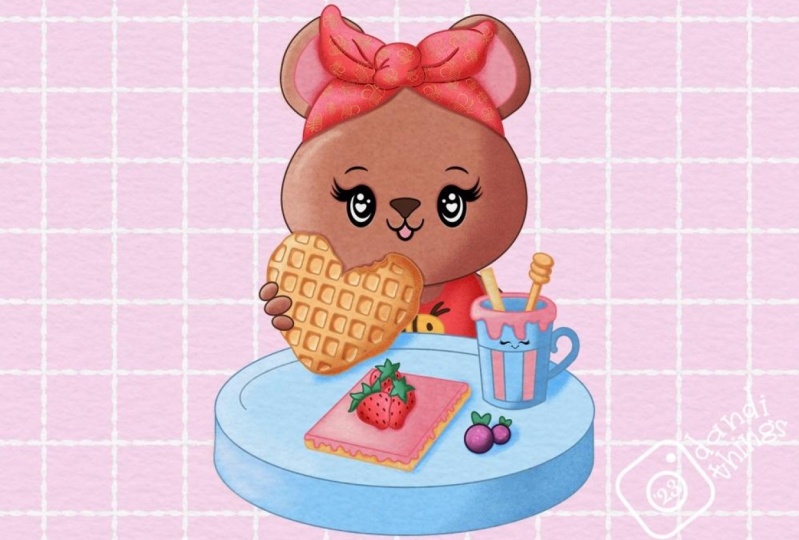
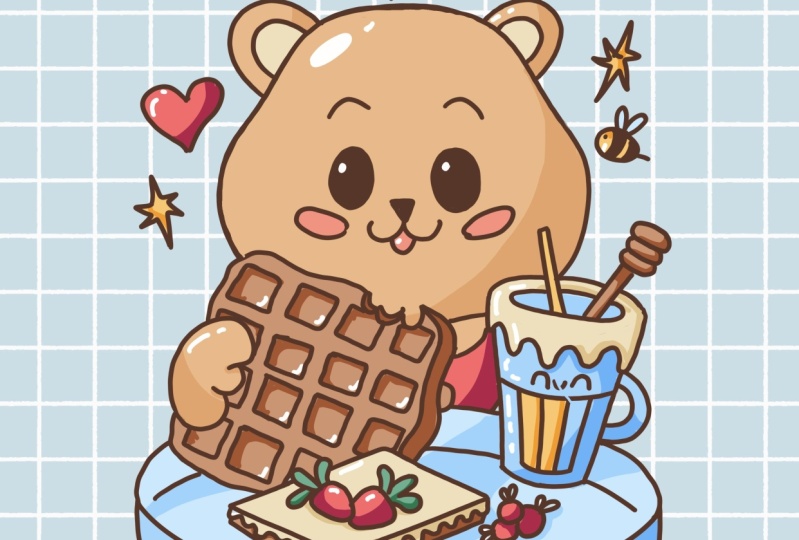
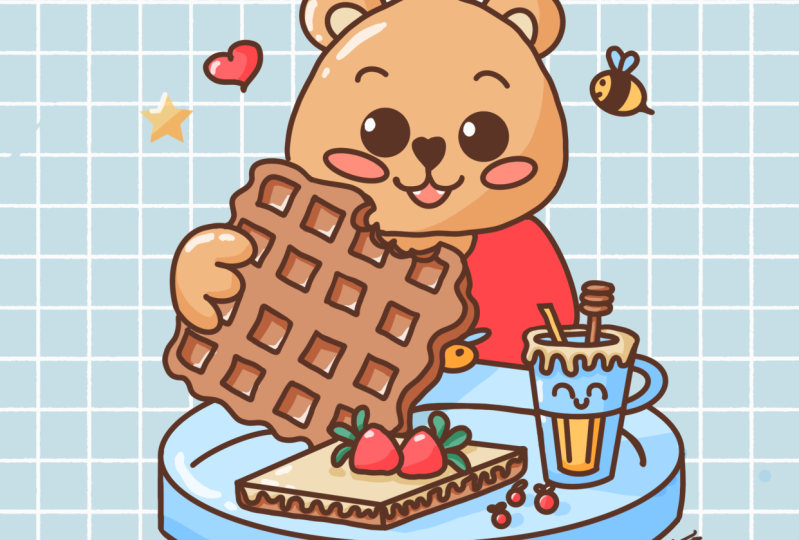
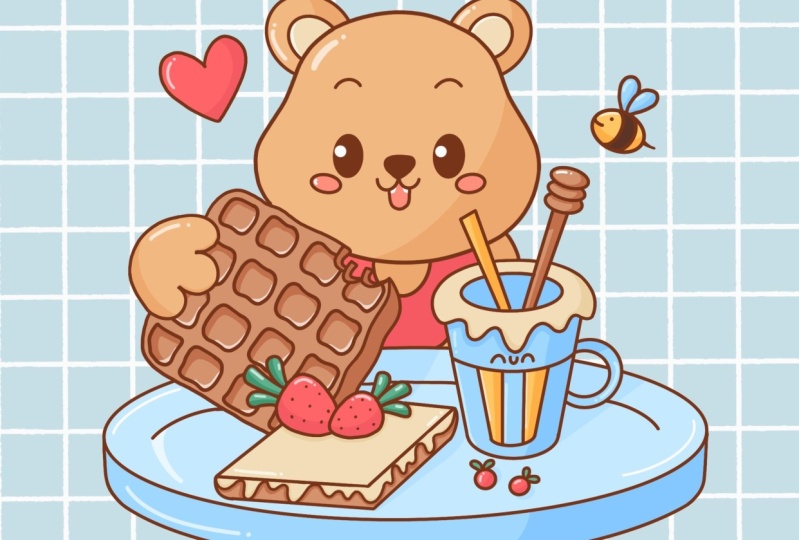
1. Introduction: Hello everyone, I am uni. And if this class, we will draw a cute bear eating waffles. This class doesn't require any prior experience or offensive jokes will
start from scratch, and we'll be using
simple techniques throughout the process. Everything you'll see will
be happening in Procreate. However, if you
have other software or one to try
traditional materials, you are welcome to join if
you are ready to start, Let's jump right into it.
2. Making a Sketch: Let's start our
class by deciding what kind of Canvas we
are gonna be using. You can see it is a very simple standard square canvas because both big sepal width and
pixel height are 2048 pixels. If you would like to use any other dimensions
for your canvas, just go for it. As for DBI, we are at 300
and aesthetic color profile. We are using sRGB
with this low number. When it's all done, let's
hit Done and it will be redirected to our new canvas. Now, if you would like to use the same colors that you will see throughout the whole class. And if you would like to use this same additional
brush later on, you can go to the project and
resources tab and download all the materials when you
are ready with this task, Let's just get straight to our color palettes
and lead checkout. What we have here. Here we have two options of
how we can use the colors, they come back to
you and the cards, we will go to the cards because here we can see all the colors, names, and it will
be easier for us to navigate through
our color palettes. Well, I still here into
our color palettes. Let's just go and
select our first color, and this color will be lines. So I just tap on this
to select and you will see that your eye can own
the top-right changed. Now when we have our new color, we will go and select the
brush for our sketching part will go to the Brush Library and we will go to this
kitchen folder. In this kitchen folder, we can select any brush that you like. Try it out onto your Canvas. Find the brush that
works for you. If you want to select
another brush, go and tickets when you're done, we will start very easily by
creating a little scheme. We are starting by creating
little Alice that will go through the whole shape of our canvas and it will
be aligned vertically. So just with one line, Let's just go to our Canvas and we will create these sheep. We are doing it
without lifting up our Apple Pencil
and end the end. We will hold it to snap
it to a better shape. You can see that you snap
your shape to a better one. If you need to adjust it, make it bigger or smaller, you will need to move
your Apple pencil from side-to-side. And if you want to rotate it, you will move your Apple pencil
in a circular direction. For now, let's leave it at very straight angle onto our canvas and let's
make it that big. When you are done, we
will go to the top to aid it and we will adjust
our shape a little bit more. We firstly, we'll
need to move it somewhere in the
center of our canvas. And to do that, we
will need to go to any blank space that we
have onto our canvas. We will hold our Apple
pencil there and we will move our shape where
the approximate center. When you are done, you can see that we have this blue nodes. These blue nodes can help
you to adjust the sheet. So e.g. ledgers go to this
nodes that we have in a meter. And we will drag them a little bit more
towards this side. So we will make this shape
a little bit more open. Ledgers go first, let's
note on the right, we will hold our Apple pencil on it and we will drag it
towards the right side. You can see you are
making your shape bigger and we will do the
same on the opposite sex. So again, we're arguing
to our blue node, we are holding our
Apple pencil there and we are moving it
toward the left side. When you have the
results like that, ledgers get away from
our editing mode. We will need to tap on
the screen either with our Apple pencil or with
one of our fingers. Now when we have this ellipse, we will go to our
layers and we will rename the layer with
this Alice as a scheme, let you step on the layer
and we will go into rename. Let's rename it as scheme. When we did it, we
will get back to our Canvas and we will
need to go and find an approximate center
of the shape by creating a vertical line going
through top to the bottom. So let's just go
firstly ordered soap and we will create a
straight line going down. And the dance, we
will hold our line. And you can see that we can move it and adjust the angle of it. Holding our Apple pencil, Let's try to make
it very straight. And when you are done, if you need to move your line a little bit more
toward the sensor, we will go again over the
top to the editing mode. Here again, you can see
that we have two nodes, and that means that we can go to any blank space to our Canvas and we can hold our line and move it toward the
approximate center. When you are done
with this task, we will get away from the
editing mode by tapping on our Canvas just with our Apple pencil or with
one of our fingers. When we have this
scheme like that, we are ready to move on. And we firstly, we'll
go to our layers and we will make this scheme a
little bit more transparent. We will change the opacity
level of this layer. Sea level is how
transparent and how bright your objects are onto
this layer selected. Let's go to the layers
and we will go to this little icon near the
checkbox on our layer with this scheme on
the top you can see we have a slider
with opacity and we can grab it and move it
toward the left side until we still can see what's
happening onto earlier. But when it is not bright, when it is very comfortable
for us to work on it. So when you have the
result that you prefer, just tap on early with a
scheme to close this window. And we will go and create one more layer for
our next elements, Let's just tap on the plus icon and we will rename
this layer as plates. When we had this new layer, we will get back to our
Canvas and we will go to the bottom part of our ellipse and we will
create another ellipse, but this time it will be
aligned horizontally. So let's just go somewhere
a little bit lower than the approximate center of our sheep and total create
another ellipse here. Let's create
something like that, the same way as we did before. We are doing it just with one
line holding it at the end. Make it as big as your shape, adjust its placement
if you need to, adjust its size and also
play with the rotation, tried to make it very streets when you have the
result that you need. Let's just go over the top two are editing mode and we will try to feed these new
Arabs in the whole shape. Again, we're arguing to
our notes and we are making the whole shape
a little bit bigger. Tried to make it straight. And if you want, you can go and play with the openness
of these elements. Now we are creating
a plate and you can play around with the
shape to your liking. E.g. let's make it a
little bit more open and we will try to again
feed it into our scheme. When you are satisfied
with your sheet, lie, just tap on the screen to get
away from the editing mode. Now we will need to go and make a copy on this layer
with this new shape. So we will add some
thickness to our plates, ledgers, do it in that way. We will go back to our layers. We will go to earlier
with the plate and we will swipe this
layer from right to left. We will choose Duplicate. You can see that now we have two layers with the same name. We will go to the
layer on the top, and then we will
move this layer a little bit lower than
our previous objects. We won't need to
do the following. We will need to go to our
arrow key on the top-left, which is our transform
tool on the boards, we will need to go and
select uniform methods. You will see that we have the bounding box
around our element. That's exactly what we need, but we will also need
to do one more thing. You can see that we have
the option snapping. Just tap on it and
we will select snap in here in the
settings window. When you toggle to it, we will get back to
our Canvas and we will drag these new sheet down. You can see that we
have these blue lines, one on each side and
one in the center. And that will mean that we
are moving our next shape, this bottom shape, on the same line that we have
our previous object on. That's exactly what
we need to position your next element right
underneath the previous one, you will need to move in accordance with these
three blue lines. When you see them,
you are good to go. So for now, let's just leave
it at somewhere like that. You can play around with the
thickness of your plate. If you want, you can
make it very thin. If you want, you can
make it like a bowl or something when you're
satisfied with the thickness, we will go again to
our arrow key on the top-left and who will tap on
it to deselect everything. Now, on the same layer, we will go to our sites and who will connect
them with straight lines? Firstly, let us go
over our left side. We will grab our brush, we will go to our top sheep. From it, we will create
another line going down, hold it and the answer, try to position it nicely to connect two shapes with
a smooth connection. If you need to adjust the angle, go and adjust it. If you need to
adjust it even more, go over the top to edit shape when you are done
with the first line, let's move on to
the opposite side and let's do the
same thing here. So we are going to the
top shape and we are starting from here and creating a straight
line going down. We are adjusting our angle. We are trying to make
a smooth connection. If we need to adjust
it even more, where I go in over the top
to the editor and modes. And now let us go and
work onto our sheep. We don't really need this line on the bottom shape
that we have. On the top, we will grab our
eraser and very accurately, we will go above this
line and we will erase it when indeed it, we will grab our
brush one more time and we will go to
the top part of this whole shape
and it will create another line that will be recreating the line that
we have right here, but we will make this room
a little bit smaller. So let's just go and create the curve the same
way as before, just with one line. Try to repeat this
line that you have on the top step a little bit from
it and create this curve, hold it and the yen. And if you need to
adjust the angle, hold your Apple
Pencil and adjust it. If you need to
adjust it even more, or play with a curvature, ledgers go over the
top to edit modes. You can play with the nodes. You can go e.g. to
denote that we have in the middle and you can adjust
the curvature of your line, play around with it. If you want to make it
a little bit bigger, you are welcome to do it
when you're satisfied. Let just tap on the screen to get away from our editing mode. And now we have this
shape for our plate. And we will need to go to our layers and we
will need to merge these two layers
together because we don't need more layers than one. Let's just give it to our layer. On the top. We will tap on it and we
will choose Merge Down. Now, everything that belongs to our plate is on one layer. Now, let us go and
create another layer, which we will use for creating our character, our Bear Lake. Just go tap on the plus icon and let's rename
this layer as bare. Now we will need
to go to the soap, all this whole scheme, and we will create
a little circle. We will go and do it
the same way as before, just with one line without
an holding our Apple pencil, we will create our shape. Let's just go and
try to do that. At the end of the
line, we will hold it. And you can see that now we snapped are shaped to analysis, but we will need to have
a perfectly round circle. Without an holding
your Apple pencil, hold one of your
fingers on your screen, and you will see
that you snapped it to a perfectly round circle. If you need to adjust the
size of your elements, move your Apple pencil from side-to-side while holding
one of your fingers on the screen adjusted
to your liking with the sheep we agreed
on ahead of our beer. So find what works for you. And when you are done, Let's unfold everything that
we are holding right now. Now when we have these
sheep for r hat, we will go and use one
option that Procreate has to create a better shape for it and to add
additional elements. So what we need to do is
to go to our orange icon over the top-left and we
will toggle drawing guide. When you do that, you will
see that you have the cells going through the whole
shape of your canvas. And this is not the
option that we need. We will need to go under
edit drawing guide. And on the bottom you will
see that you have a panel. On this panel, we will
go under a symmetry. When you are under symmetry, you will see that you
have just one line going from top to the bottom. And that's exactly what we need. We will need to drag
this line right in the center that we
have for our scheme. So if you are a little bit of jazz guilty this
blue node that you have on this line and drag it to this
shape that you have, this line that we have
created as our guiding light. And when you're done positioning your symmetry line ledgers go to our top-right corner
and we will hit done. Now, we will go to our
sheep and we will be creating a different
shape for our hats, e.g. ledgers, guilt it
one of the sides, either side will
work and we will start by creating a
little jump here. Let just give it a
little bit higher than our approximate
center of the sheep. And we will start by
creating a dent like that. You can see that everything
that we are creating on one side is recreated
on the opposite side. You can play around
with this dance. You can make it big or small. You can find a different
placement for it. If you don't want
to do that, you can skip this part for now, just create something like that. If you want to play more
with this shape, e.g. shorten the bottom part of it. We can go and create
another curve. So e.g. let's connect this
then that we have created with the line that
we have on the bottom, we will just go a
little bit higher and we will create
another curve. All you need to pay
attention to is the smoothness of the
line in the center. Can English ship in a nice way? And if you need to adjust
the curvature is just go and adjust it by
creating another curve. Work on the whole
shape in general, try to make it as
smooth as you can. If you want to play
around with the top part, you are welcome to do it too. When you have the
shape like that, let's just grab our
eraser tool and we will erase all the lines
that we don't need. Work on the shape and try
to make it smooth and soft. When you are done
with this shape, we will go over the
top of it and we will start by creating our
little ears there. Let's just go firstly
to one of the sides. Again. Either will work, we will go and create the shape of the
half of the circle. Ledgers go firstly
to one of the sides and we will create
the shape like that. We will hold our Apple
Pencil and the end, we will snap it to
a better shape. And if we want to adjust it, we will go to our editor mode. If you want to change
the placement, all your elements
just go and do that. If you want to make these
elements more circular, you can go to the top and
select it from these options. If you want to make your
shapes a little bit bigger, you will need to go right
in between the nodes, hold your Apple pencil there
and move it to the site, adjust it to your liking. If you need to rotate it, you will do the same thing. You will go to your middle
part between the nodes, hold your Apple pencil there and move it in a circular direction. So find what works for you. And when you are done, we will tap on the screen to get away from our editing mode. When we are done with the
basic shape of our ears, will go inside of the ears and we will
add the inner parts. Basically what we are doing, we are doing inside the shape and we are
repeating the shape, but we are making it
a little bit smaller. Then just tap a little bit
from our size only ear, and we will create
the same shape that we have right here. Let's just hold
it and the Yan's, we will snap it to
a better shape. And if we need to adjust it, we will go to the editing
mode. Play with the notes. If you want to play
with the position, play with the size
on this elements, find what works for you. When you are done,
we will just tap on the screen and we will get
away from our editing modes. Now when we are
done with the ears, Let's move on to our
facial features. Firstly, we will go
and create the ice. If it's easier for you, you can go and start by creating a guiding line that this time will be horizontal
and going through the approximate
center of our sheep. Or if you want to go
without guiding lines, ledgers go boldly to
one of our sites. We will give a summary to the
middle part of our shape, going firstly to one on the
sides and we will create an ellipse here the
same way as before. Hold your line and
Lean's adjusted, try to make it straight
on a horizontal axis. And when you are done, ledgers go over our adsorb
to the editing mode. We will find a better
placement for it. If we want to make it
bigger or smaller, we will play with our nodes. So find what works for you. Try to position them nicely. If you want to make a
very cute illustration, you will position
your eyes a little bit to the lower
part of our hat. If you are satisfied with
the position of your eyes, ledgers tap on the screen to get away from our
edits and modes. Now, we will go inside the shape of our eye
and we will shade it. Now when we are
done with our eyes, ledgers go above them and we will create a little eyebrows. What we need to do is to create just a little shape like that. If you want, you can go and
play with the position, play with the size of it, play with a curvature, play with what she
wants to play. Just find what works for you. When you are done
with the eyebrows, we will go underneath the ice and we will add little cheeks. So firstly, let
us go over one of the sides and we will
create another Alice, but this time we will
align it horizontally. You can play with this size. You can hold your
life and the hands. You can adjust the
placement of your elements. If you need to go to
the editing mode and go and adjust your
shape to your liking. When you are done,
ledgers tap on the screen and let's get
away from our editing mode. And when we're done
with this task, we are ready with
our Symmetry tool. So what we need to do is to go to our orange icon one more time and we will need to toggle
Drawing Guide from here. But if we get back to our canvas and if we try
to create something, you will see that we are
still using this option. We will need to turn it
off manually by going to our layers and go into
our layer with the bear. You can see that under
our title there, we have a little other title
that is called assisted. That's what we need to turn off. Let's just tap once earlier. And from this list we will
select Drawing Assist. Now, if we do the
same thing as before, if we try to create
some line on one side, you will see that you are
creating just a singular line and it is not mirroring
on the opposite side. That's exactly what we need. Now, let us go and finish
up our facial features. We will firstly go between the eyes and we will
create a little nose. You can go right in the
middle or you can play with the position of these
elements to your ligands. What do we need to do is to create a little triangle here. So let's just go to this
middle part and let's create a triangle the same
way as we have created all of our other shapes. We will hold our line and the ends and we will
snap it to the sheep. When you have it, we will
go to our editing mode. And if we have the
option triangle here, we will select it. If we have the
option polar line, it will work too. But if you don't have
these two options, just try it out one more time until you have
these options. So now let's just play
around with our shape. We will make it a
little bit smaller. We will position it
may be differently. We will just find
what works for us. And it's when you are done
positioning your shape layers, tap on the screen and let's
work on it a little bit more. We will go and we will
soften our corners by creating the curves instead of the various
straight lines. Let's just go and do that. Ethan, you to grab your brush and adjust the corners
by erasing them. You are welcome to do it. And when you have the
shape that you like, let's again get
back to our brush. We will go inside of this
shape and we will shade it. Now we will go underneath our little nose and
we will start by creating two half of the circles or half of the ellipsis
go into their sites. Let's start from the first one. We will go right underneath our nose and we will create
this shape like that. Hold it at the end, adjust its size,
adjust its placement. If you need to go and
adjust it even more, we will go to the top, to the editing mode. Let's position it nicely
and when you have it, we will do this same thing
on the opposite side. So again, given underneath the nose and creating
the similar shape, hold it and the ends. If you need to adjust it, if you need to
make it similar to the shade that you
have on the left side. Let's just go to
our editing modes. Play around with your notes
and when you are done, we are tapping on our
screen with one of our fingers or with
our Apple pencil. Now when we have this
top part of our mouth, let just go and create another Alice that will
be right in the center. So we will need to create
something like that. Cool this line at
the end as always. And if you need to adjust the placement ledgers
go to the top. We will try to put this
shape right in the center. If you want to play
with the size of it, play with your nodes, find what works for you. When you add down leg, just tap on our screen and we will get away from
our editing modes. Now let's just go and add
the highlights to the eyes. Let's make these eyes a
little bit less creepy. We will go grab our eraser tool. We will adjust the
size of our brush. And first of all, we'll
go to one of the eyes. So e.g. let's just
go to the left one. We will go to the
quarter that we have on the left or
on the top-right. And we will put
just one dot here. If you want to play with the
size of your highlights, go and play with the
size of your brush. When you have the
first highlight, Let's move on to the opposite
eye and we will try to put the second highlight
on this same place. So we are going to
the same side and we are going to the
same quarter ends. When you are done, let's work on the shape of our hat
a little bit more. We will go to our arrow key on the top-left
and on the bottom, we will go to the warp option. You can see that we still
have our bounding box here, but also we have some
intersection in the middle. We will go to any place that we have on this bounding box
and we can adjust it. So e.g. let's just
go to the middle of our bottom part and let's hold our Apple
pencil on the line. We will drag it a little bit up, the same we will do on the top. So e.g. we can go to our middle part on
this bounding box, hold our Apple pencil
there and drag it down. So we're squishing our
hats just a little bit. And also we can play with the different parts
of our element here. You can go and try
it out by yourself. If you want to go and put your face more toward
the bottom part, we will go somewhere
in the middle on the whole band
in books will hold our Apple pencil there
and we will just drag our sheep a
little bit down. So find what works for you. Play with the shape. If you want to squish
it more, go for it. If you want to adjust
it in a different way, just go and do that. Just spend some time playing
around with your sheep. But while playing, also tried to keep both sides similar
to one another. So if you're changing
something on one side, try to do the same on
the opposite side. When you are ready playing
with your sheet ledgers, get back to our uniform methods. And if you want to make this
shape bigger or smaller, we can go to one of the
nodes on this side. So e.g. we can go to our nodes on the soap that we
have in the middle. We will go hold our
Apple pencil there and we will drag it toward the
right to make it bigger, toward the center,
to make it smaller. So adjust the size of your
element to your liking. And when you are done with this, ledgers, drag it a
little bit lower. And again, we will
go in accordance with this blue line that
we have in the middle, the orange line
will show you where the center of your canvas is. So it is very useful. So find the position that
you like when you are done, we will go and
deselect everything by hitting our arrow
key one more time. Now when you have the shape
that you like for the hat, Let's just go and continue
by creating a little light on the size that will represent
some body of our bear. We won't see them later on because we will create
other elements there. But still, we want to make sure that we have some
body for our beer. So let us go to
the bottom part of our heads and we will create
two curves like that. When you're done with this part, we will go and create one more
layer for other elements. Let's start creating our waffle. So firstly, we'll go to
our layers and we will create one more layer that
will rename as waffles. Let's just tap on the plus icon and let's rename this layer. Now when we have this new layer, we will get back to our Canvas. We will go to any blank
space that we have here, because now it actually
doesn't matter. We will start by creating a simple shape of the rectangle. Will do it the same
way as before, just by creating one line. And we will hold this
line at the ends. Latest guilt and try it out. Hold your line and the ants. And you might try to hold one of your fingers
on the screen. It might snap to a
perfect rectangle, but also it might not. So we will need to
go over our job. And here, if we have the option square or rectangle,
we will use it. But if we have the
option polyline, we can work with that too, but it will be a
little bit harder. So probably it'll be easier
for you to go and try it out one more time until you have this option rectangle or square. Basically what we need right now is just a square or a rectangle. And when you have this sheet, we will just tap
once to our screen. We will go to our arrow
key on the top-left, which is our transform tool, and we will work on the shape. So let just tap once
to our arrow key. We will go and use
uniform method. And firstly, we will go and find the position
for our elements. So let's just go
over our left side and we will position it
somewhere right here. Now, let us go to this node
that we have on the top, which is a green node. We will hold our Apple
pencil there and we will rotate our shape
just a little bit. You can play around
with the position. You can play around with
a tilt of your elements. It's all up to you. But watching it to
pay attention to is when you have a
few elements, e.g. the cheek and this little
shape for the waffle. Try not to connect them together by creating
one line between them. If you have the option, just overlap two shapes, it will be looking better. Now, if you want to play
around with your Tilton, if you want to play around with the size of your elements, go and play with it. Find a position
that works for you. And when you're satisfied, let just tap on our arrow
key to deselect everything. And it's when you are done Lynch's go and work
onto this shape. Firstly, we will go to our corners and we
will soften them. Incentive the various
street corners. We will create the curves, ledgers go L on all
of these corners. And let's create our curves. When your eye down ledgers, grab our eraser tool and we will erase everything
that we don't need. Now when we have the basic
shape of our waffle leg, just go and create
the pattern of the waffle on the inside part. So what do we need to do? We will grab our
brush and we will go and find the
approximate center of our shape just by creating one line vertical and
one line horizontal. Ledgers go and create that. Hold your line, tried
to make it straight. If you need to put it
more toward the sensor, go over the editing mode. When you have the
vertical line ledgers go and create another line, but this time horizontal again going through the approximate
center on the sheep. And when we have
these two lines, we will need to have the
parts one more time. So we won't go firstly, our shape on the left
and we will create another line that will be
going from top to the bottom. We will put it in the
center of this rectangle, a jazz the angle. Try to make it parallel
to the line that you have in a center
when you have it, if you need to adjust that
you're already talked. Editing mode. If you don't need to
do something with it, let just go to our
right part and we will create another
vertical line. So again, going over our
top part and creating this line that will go through the center of this rectangle, a jazz the angle, if you need to position it
differently, go over it. It's up to Edit and melt. And now let's do the same
with our horizontal lines. So firstly, we will go
over the top and we will have this part
with another line. Let me just go and do that. When you have this line, we will go to the
bottom part and we will do the same thing here. When you aren't, then we
have this weird shape and maybe it is a little bit too hard to see what's
happening on it. So we can go to our
layers and we can hide all of our layers except
earlier with waffles. To do so, we will need to go
to earlier with a bare head. We will go to our
little checkbox near the icon n and
we will tap on it. We will do the same
with our pleat. So now we have only our
waffle on to our Canvas. And we will go inside this little rectangles that we have created just right now, and we will create another
rectangles inside that. This time, you can play
around with your shape. You can play around with the roundness or with
their stiffness. It's all up to you. Basically, what we need
to do is to create 16 rectangles inside
this little parts. Let's just go and
very quickly do that. When you are done, let us go over the top of the ice sheet and let's make
it a little bit interesting. Firstly, we will go to
one of the sides, e.g. more closer to our bear, and we will make
sure that our beer is actually eating these waffle. So let's just make a
little mark on the teeth. We will go to these
elements right here, and we will create three curves. They could be of
different sizes. Basically, what we need to do is to create something like that. When you have the
shape like that, let's just grab our
eraser tool and we will erase this top elements. And when you have
this little mark on the teeth legis work
on the whole shape, on the waffle a little bit more. We can go and make some
imperfections on it. We can make some curves, we can make it not that steep. So let's just go along
the whole shape of our waffle and let's
soften our alliance. So e.g. let's start
from this mark on the teeth and we will go and
create the curve like that. If you need to erase some parts, go grab your eraser
tool and erase that. So basically what
you need to do is to create a nice and
interesting shape. When you are done, grip your eraser tool and erase all the lines
that you don't need. When you are done
with your waffle alleges go and add
some thickness to it. Firstly, we will go
to our right side and we will add this same line
that we have right here, but we will step a
little bit from it. So basically what
we are doing is just repeating the
line like that. When you have
repeated your line, ledgers go to the board, Sam, to this corner that we
have right here on the right. And we will create
another curves to connect these two elements. Try to make it very soft. And when you have it, we will go over the
top and we will create another connection here. So let's just go to
this corner that we have on the top right. From it, we will create
another soft connection. When you have it, we will need to work on
to our little teeth mark. So let's just go and add
a thickness to it too. We will need to add
this thickness on the opposite side from
what we have on our right. So we will go to the
left side of our bikes and we will create
the same curve that we have right here, but we will connect it
with our little waffle. So basically we are making these little curves a
little bit smaller. And when you have the first one, ledgers go and
create another one. You can start by creating
a little line like that. And from it, just
create a curve. When you are done
with the second one, do the same with the third one. Eating it to erase some parts, grab your eraser
tool and erase it. And when we've added the thickness to the
top elements ledger, zoom out our Canvas
and take a look at our element
from the distance. That way you will
see clearly what you need to erase or adjust. And if you want to areas
or adjust some things, just go and do that. So e.g. we can work on to this
corner that we have on the top-right and we can
soften it a little bit more. Let's just create another curve. And when you are done with it, Let's grab our eraser tool and we will erase this top part. Take a look at your illustration
and if you liked it, we are going to continue
with another elements. Let us get back to our layers. And firstly, we will get back our layers with other elements. So we will go to the
layer with a beer, we will go to our
little check mark. We will tap on it and we will
do the same with the pleat. Now, let just get back to
our layer with the bare. Make sure that you are on
the layer with the bear. When you are added, we will go and we will add another element to
the body of our beer. We will create a little pore
that is holding our waffle. So let's just go
to our left side. We will go to the
middle of our waffle, grab your brush, and let's
create a little pore. So we are starting by
creating a digit three, and then we are doing down and create an
another digit three. We accurately ingest
three fingers, but if you want to play
around and add more, you are welcome to do it. When you have the
sheep like that, we will go and continue this shaped by creating a
curve on the left side. So let's just go and create
something like that. Again, you can play around
with the curvature. If you need to adjust it, go to the editing
mode and adjust it. When you aren't done. If you think that maybe
it's too big or too small or you want to change the position
of these elements, we can do the following. We can go to our S ribbon icon. On the top-left, we will use
freehand method and we will just go around the
shape and we will select it, loops around. And when only this
area is selected, we will go to our arrow
key on the top-left, which is our transform tool. We will use uniform method and we can play around
with the shape, make it bigger or smaller, irritated, find the
position that you like. And when you are done, we will continue with the
rest of the elements. When you are done, Let's
deselect everything by hitting R S ribbon icon. And we will go back
to our layers. We will go to earlier
with the beer and we will start erasing the
parts that we don't need. When we are in the
layer with the beer, we don't need this part on the head that is
overlap by a waffle. So lets just grab
our eraser tool and we will go and
erase this part. The same thing we will do on
the layer with the waffle. We will go to this
area where we have our little hands and we
will erase this part. When you are done, we are going back
to our layer with the plate and we will
do the same thing here. We will areas the power that
is overlapped by a waffle. Now when we are done, Let's get back to our layers. We will go to hourly,
a width waffle, and we will create
one more layer. This time we will create a sandwich with
two strawberries. So let just tap on the layer and let's rename it as sandwich. We will start the
same way as before by creating a shape
of the rectangle. So let's just go
and do that just with one line by
holding it at the end. Try to hold one of your
fingers on the screen. Maybe you will snap it straight
away to the better shape. If it's not happening for
you, you can go already. It's up to the editing mode. If you have the option rect
3. Adding Clean Lines: In this part, we
will be creating the clean lines and we'll
start by going to our layers. And firstly, we will change the opacity level off
earlier with this sketch. We know how to do that. We will need to
go to R and I can go into the opacity
slider and we are grabbing it and
dragging it towards the left side until we are
satisfied with the opacity. You still want to see what's happening once a year earlier, but you want to make it less disturbing when you are done, we will tap on earlier with this gauge one more time
to close this window. And we will create
one more layer that we will rename
as clean lights. Once this layer
and on this stage, we will need to go
and change our brush. So let us go to
the Brush Library. We'll get into the
calligraphy folder and we will choose monoline brush. We would want all of our
lines to be very smooth. So we will go to this brush and we will adjust one option. Let's just tap on it and
onto our brush studio, we will go under stabilization. You can see on the top
we have the option streamline and we have
this slider with amounts. When the amount is low, we can go to our drawing
pad and we can start creating some lines to
check out how it looks. Let's go and try it out. You can see it is following
your natural flow of the hands and your
line is quite jagged. If we want to adjust it, if we want to make
it very smooth, we will go to this
slider and we will increase the amount of
our streamline ledgers, go to our drawing pad and
try it out one more time. Now as you can see, you are creating a
very smooth line. So you can play
with the amount of streamlined find
what works for you. And when you're done
with this task, ledgers just go
and he'd done over our top-right corner
when we have our brush, Let's just go and increase
or decrease the size of it. You can play around
with the size. You can make your lines
very thick or a very thin. It's all up to you. Our main goal into
this stage to create smooth lines with
nice connections and they should be closed. We should repeat what we have on some earlier with this gauge, but we can do it not
with 100% of similarity. If you want to
adjust some parts, you are welcome to do it. Remember that the main goal is to create the close lights. This is not closed
and this is closed. You don't need to have any
gaps between your lines. So now let just go and repeat what we have once
earlier with the sketch. If you want to use some
options that we used before. So e.g. you want to create this hat with the symmetry tool. You are welcome to do it. You would need to go to the
wrench icon and turn on Drawing Guides and adjusted
in the drawing assist. Now let us go and very quickly
create our queen lengths. If you have some
overlapping elements, such as the strawberries, It might be easier to go to your layers and create
one more layer, make this elements
onto this layer, and then you're back
to your LEA with clean lines and erase all the
lines that you don't need. And then merge these
two layers together. When you have only the ice left, alleges go and create
one more layer. We will tap on the plus icon. We will go and
recreate the shape of our eye again the same
way as we did before, just with creating our ellipse. Adjust the size,
and let's just go inside the shape
and let's shade it. When you add down, lets
just grab our eraser. Let's adjust its size and we
will go to the similar place that we had onto our sketch and we will put our
highlight there. When you have your I finished
ledgers go to our layers. Let's create one more
layer of this eye. We will need to
duplicate this layer. Let's wipe it from
right to left leg. Choose duplicate, and we will go to our arrow key
on the top-left, we are using uniform method
and we turn on snapping. We will grab this little
element that we have right now, and we will drag it
towards the left side by following these
three blue lines. And that's easy. We just put another I
own this same line. Now, let us go to our layers. Let's combine all of our
layers with the lines. And we will go and turn off
our layer with the sketch. We will need to make
sure that all of our lines are closed and clean. So ledgers go grab our
eraser tool and do that. And when we've made sure that all of our lines are closed, when we soften them up, we are done with our part
with the clean lines. In the next chapter, we
will be adding the colors.
4. Adding Base Colors: Let's start our coloring part by changing the color
of our backgrounds. We will go to our layers. We will do it too early
with background color. We will tap on it and we will go to our palettes and
select the color with the name backgrounds when they have changed the
color of our background. Let's do one more. I think we will add the
grid to their backgrounds. To end the grid, you will
need to go to the project and resources tab and download
the brush when he did it. Let us go back to our
layers and we will create one more layer underneath our
layer with a clean lines. To do so, we will need to go
to earlier with this gauge. And from it, we will tap on the plus icon when we
have this new layer, Let's rename it as greet. Now let's just go to
our color palettes and we will select the
color with the name right? When we have our color, Let's go and select
our grid brush. Now, you can go to
your sliders with opacity and the
size of your brush, you can adjust them
to your liking. And when you are done with this, ledgers go and just with one line without lifting
up our Apple pencil, we will create our grid going across the whole
shape of our canvas. And now we are done
with Eddington grids. So let's just go and
change our brush to the brush that we use
before our monoline brush. When we have changed our brush, we are ready to start
adding the colors and we can add the colors in
a few different ways. We can go to our layer with the lines and we can
add the colors here. But what if we want to add the different color
for our lines, or if we want to
adjust something here. So this first option is
not very useful for us. Let's just go and create another layer for
our coloring parts. Let us go to the
layers with, again, we'll go underneath earlier with a clean lines and we will
tap on the plus icon. We can rename this
layer as coloring. And now we have two options of how we can add
the calories here. We can go manually and create
the colors in that way, but it is a little bit
too time-consuming. We will use the option
that Procreate hats. We will go and we will
be adding the colors to this new layer by using
the lines that we have on our layer
with the green lines. But if we do just
as it is right now, if we try to add the color to some area that we want
to add the color, nothing good will happen. We will recolor
the whole Canvas, so we will need to do one more. I think ledgers get
back to our layers. We will go to R allele
with a clean lines. We will tap on it and from the list we will
select reference. Now, if we get back to
our coloring layer, and if we try to add
the color to some area, we will have the results. Now in that way we will be
eight and our colors ledgers, Guilford's, it's our
color palettes and let's select the
color for our bear. It will be the color
with the name bear. We will be going to our top-right corner
and we are gonna be aiding the color by dragging this color to the
needed polices. So let's firstly go to
our corner and we will drag the color to the
main shape of our beer. You can see on the top
we have the option continue feeling
and we can use it. So we will need to drag
the color firstly, then we will tap on continued
feeling and we will need to go to other areas that we want to recolor
with this color, we will just need
to tap on that. So e.g. let's try it
out with another ear. We will go to this inner part
and we will just tap on it. And we will do the
same with our arm, and we will do the same with
our little area of the body. So now in that manner, we will be agent our
colors and we will be creating a new layer
for each color. So ledgers go against our layers and we will
create one more color. Let's tap on the plus icon
and let's rename it as red. When they have this new layer, we will go back to
our color palettes and we will select the
color with the name rat. With this color, we will
recover our hearts, our berries, ants are beep. Let's firstly drag
the color to one of these areas and then we
will continue with feeling. When you're done, let us
go to the top and we will tap onto this little check
mark on to the color drop. When we are done, we are going
back to our layers and we will create another LEA that
we will rename as blue. Now let's get back to our color
palettes and let's select the color within they see
on blue with this color, we will recolor the
bottom part of our plates are a little mark and
maybe some other elements. Let us go and add this
color to these areas. When you are done, again, we're arguing back to
Arles and we will create one more layer that will
rename as light blue. We will go back to our
color palettes and we will select the color with the
name light c and blue. With this color, we will recolor our main shape of the plates. When you are done, again, we're going back to our layers and let's create another layer. We then named Brown, going back to our
color palettes and selecting the color width and named Brown with this color, we will recolor our waffle. We will recolor the
bottom part of our tools. And maybe these
spoon that we have for the honey in our MAC layer, just go and do that. If you have some areas that are hard to recolor with color drop, just grab your brush and
recolor these areas. When you are done with
this task, one more time, let us get back to
our layers and let's create one more color
with the name cream. We will get back to
our color palettes and we will select the
color within inquiry. We will recolor this
area on the top, on the Mac, on the
top of the toast. And with this color, we will recolor the
inner parts on the ears. And again, if you
have some places that were not recolored
with a color drop, just grab a brush and
recolor them manually. When you are done
one more time where eigenvector Aurelius and we will create the layer with
the name yellow. Let's get back to our
color palettes and let's select the same color
with the name yellow. With this color, we will recolor the inner part of our
mug or a little spoon, some stripes on to our little b. We will recolor our sparkle
and our little star. So let's just go and do that. When you are done,
let us get back to our layers and let's
create one more layer. We will go with miscellaneous. Firstly, we will go to our
color palettes and we will select the color we
the name blue-green. We will recolor our
leafs than lunches, go and tap once to our
little check mark. And then we will one more time, get back to our color
palettes and we will select the color
within the pink. With this color, we will recolor the inner part of the
mouth, our little cheeks. And two last thing that
we will need to recolor is our little
elements in the eyes, our highlights and this
inner part of the b's. Firstly, let us go back
to our color palettes and we will select the
color with the name whites. With this color, we will go
to our little highlights and we will add the
color here, S for the B. Let's add the same color
that we had for our lines. We can go back to our color palettes and
select the needed color. Or we can select
the color that we already have onto our canvas. We can do it by invoking
the eyedropper tool. To do so, we will
need to hold one of our fingers on are needed color. And when you have this little too and when the
color on the top has the same color that you need ledgers and
hold our finger. So you will see that
the color on the top-right changed and that's
exactly what we need. Now we'll need to
go and drag and drop the color to
this needed place. And now take a look
at your illustration. And if you're recovered
all of the objects, we are done with
the basic colors. In the next part,
we will be adding some highlights and shadows.
5. Adding Shadows & Highlights: Before starting this part, let's decide what is
our light source. Light source could
be assigned or some lamp or anything
that radiates light. Depending on the light
source position, some parts of our
illustration will be exposed to the light and some of
them will be in the shadow. We want to be consistent
with lights and shades. So we will have a
neat illustration. We can help ourselves by drawing a little arrow that will show
the direction of the light. So let just go and do that. We will firstly go to our
layers and we will go above all the layers that we have and we will
create one more layer. Let's just tap on the
plus icon and you can leave it as it is with
that general knee. And now when we have this layer, we will go above our illustration
to the top parts of it, and we will create
a little arrow either on the left
or on the right. You decide, Let's just
go and do that. So e.g. in that case, alleges go to the left side and we will
draw this arrow here. And in accordance
with this arrow, the elements that are closer
to it will be lighter and the elements
that are farther from it will be in the shadow. So when you are a bit confused, where you need to put your
shadow or your highlights. You can look at this arrow
and it'll be clear for you. And now when we know what is our light source and
where it is alleged, just go and start
eating our shadows. We will be go into every
layer that we have our color on and who will be creating one more
layer above it. So firstly, let us
go to the board and too early with coloring, which is our color for the beer, we will select this layer and we will tap on the plus icon. We will go and rename
this layer as shadow. We will need to do
two more, I think. Firstly, we will need to clean this layer to a previous one. So everything that we are
creating on this layer will be appearing only on
the existing areas that we have on the
previous layer. So let's just do that. We
will go to this layer shadow. We will tap on it and we
will choose clipping mask. Let me demonstrate
you how it works. So we can go to this layer. We will go to our Canvas and we will start
creating some lines. You can see that I am
adding the lines only on the areas that I already
have on the previous layer. That's exactly how
clipping mask works. So now let's just go and do one more last thing
to this layer. So we are ready to
add our shadows. We will need to go and
change the blending modes. Blending modes are
different ways your layers can interact
with each other, so you can add different
visual effects. For the shadow, we will be aiding them multiply
blending mode, multiply blending
mode multiplies the colors of the blending
layer and the base layer, and the resulting color
is always darker, so it is good to create
an Irish shadows. Let's just go to this icon
that we have near the chat box and we will go and find multiply blending mode
through this list. As for the opacity for now, we can leave it at 100%, but if we feel that maybe it is too dark or
if it's too light, we can always go to this opacity slider and we
can change our opacity. So now we have prepared earlier, let us get back to our
color palettes and let's select the same color
that we use for our beer. This is the color
with the name bear. So now we are using monoline
brush that we used before, and we will go in
accordance with our little arrow that
we have created before. We will go to the
opposite side from it and we will start
creating our shadows. So in case with our little hat, let just go to the
bottom right part and we will start by
creating a curve. So just go there and create
the curve like that. You can play around with it. You can hold it at
the end to adjust it. You can go or it's
up to Edit and modes and adjusted from here to basically what we need
to do is to repeat the shape that we
have for our heads. So e.g. you've added
the curve like that, alleges get away from
our editing mode and we will go increase
the size of our brush. Manually recolor this
area on the bottom. Also we can straight away, go to this little part on the skin that we have
on the body and recolor it to because our hats will be overlapping these elements
and it will be in the shadow. If you want to have more control
over your brush ledgers, get back to our brush library. We can go to our
monoline brush and we can adjust our amount
of streamline, lower their value, and ledgers go and continue
recoloring this part. Now we will go to the
rest of the elements with this color that we have
for our main shape. And we will add other shadows. Again. We are looking
at our arrow and we are adding the shadows
to the opposite sex. Let's just go
firstly to our ears. Let's decrease the size
of our brush and we will go to the opposite
from our arrow sets. Let's just add the
shadow with the curves. When you have the first curve, you can adjust it to your
liking and we will go underneath it and manually
recolor the rest of the area. And let's do the same
thing with our other ears. So we will go to the opposite
side from our arrow and we will add a little shadow
on the top of the ear. Now let us go to our little hands and we will
add the shadow here too. Again, we are looking
at our arrow and we are eating our shadow
to the opposite side. Let's just give it
to the bottom and let's create our first curve. When you have it's late, just go and manually recolor
the rest of the area. If you want to add little
shadows to the fingers, you are welcome to do it. You will need again to go
to the bottom part of them. If you need to adjust
your shadows in any way, you can grab your eraser
tool and adjust them. Now, let us get
back to our layers. We will go to our
layer with the shadow and we will adjust the opacity. So we go into our icon, we go into our
opacity slider and we will find the opacity
that will work for apps. So e.g. something between 45, 50 per cent will work best. Find what works for you. And let's continue by
going to our next layer, which is our layer
with red colors. Again, we will do
the same thing here. We will create one more layer, we will clip it and we will change the blending
mode to multiply. When you have
prepared your layer, we are getting back
to our color palettes and we will select
the same color, red, or we can play around
with a different color. So e.g. we can select the
color within the magenta. With this color. We will do the same thing
as we did with our hats. We will go to the
opposite side from our arrow and we will
add our shadows again, mainly go into the bottom
right parts, ledgers, Gill, and at our shadows to this color is for
the beep elements, we can go and add the
shadow to the whole area. When you are done,
let us get back to our layers and we will adjust
the opacity on this layer. When you are done with this task ledgers get
back to the layers. We will go to the next layer, which is our blue, and we will do the
same thing here. We will add one more
layer, we will rename it, we will clip it and we will
change the blending modes. Now let's get back to the
color palette and select the same color that we used
for our blue elements. So see on blue ledgers go to the bottom part of our plate and we will add the shadow here. E.g. alleges go to our bottom right corner and we will add a
peculiar curve there. We will go somewhere
to the middle part of it and we will step more
toward the right side. Let's just create
a curve like that. You can play with it. You can adjust the
curvature to your liking. And then let us go to the rest of the area on the right side. And manually, we
will recolor it. Now we will do the same
thing with our Mac. Let's decrease the
size of our brush. And firstly, we will
go inside our MC and we will recolor
the whole area here. Now, we will go underneath this element that
we have on the top, and we will need
to add the shadow of these elements
on our little mark. Just going underneath this
green part and just aiding the shadow on the same shape
that we have on the top. So just going alone
it and creating this same lights when we have this shadow underneath
this top part, ledgers go to the right side and we will add our main shadow. So again, just
starting with a curve, play around with it, and then manually recolor the rest of the
area on the right. We also can go to
our little handle and fully recover
it with this color. When we are done, we
know what we need to do. We are getting back to
our layers and we go into the next layer
with our next color. This is our light blue layer. So let's just go above it. Let's create one more layer, rename it lipids, and
change the blending modes. Now, again, we can get back
to our color palettes and select the same color that
we used for our main shape, light c and blue. If you want to play around
with your shadow color, you are welcome to do it. Now, let's just use our area
that we have for the soap on the plate and let's decide
where our shadows will be. If we have our light
source on the top-left, sum, all the elements
will cast the shadow. We will need to show
it onto our plates. Let's start by going to
our mock and we will add the shadow underneath it and a little bit toward
the right side. So we will do
something like that. When you have the first
shadow like that, we will need to repeat
it under other elements. So let just go under our waffle and we will add the
same shadow here. So we will need to repeat
the direction of x. When you have it, we
will get underneath our toast and we will
do the same thing here, just going underneath it
and adding a little shadow. And also we will add little shadows underneath
our little berries. So again, go into the
right side from them and agent the similar
shape of the objects. Now, if you want to
go to our layers, if you want to go to our
shallow and adjust the opacity, you are welcome to do it. Also, you can get back to the previous layer
with the shadow and adjusted to when you are
done with the blue layers. Let's get back to our
layer with brown. Again, we are doing
the same thing. We are creating one more layer. We are clipping it, we are renaming it and
changing the blending modes. Let's select the same color that we used for our main shape. So it was our brown color. And firstly, we will go to this right area that is
creating the thickness. We will go there and
fully recolor this area. We also will go to the
top and will recolor this area that we have for
the mark on the teeth. When we are done
with these ledgers, go to our tools and fully recover the area that we
have on the right parts. We also can go to our
left part and we can add a little shadow underneath
this drooping parts. So we can just do entropy
the lines that we have here. The same thing we will do with our little tool for the honey. We will go to our right part, to the bottom part mostly, and we will add our shadows, repeating the shape
of these elements. Let just decrease the
size of our brush. And we will start by going
to the top elements. We will create the
first curve and we will recolor the rest of the
area underneath it. We know that this top part is overlapping art
boards and parts, so we will need to
add a little shadow underneath this first elements. Let's just go and start from the top and create
the curve like that. We will add this similar
shadow to the bottom elements. As for this tick, we will just go underneath this top elements and we
will create the shadow here. And then we'll go to
our right parts and add a little shadow to
these rights sites. And now we will
need to go and add the shadows to each
cell that we have, ones that are waffle. But this part is a little
bit tricky because these elements are
inside of our waffle. This part that we have on
the top is overlapping them. We will need to add the
shadow to the opposite side. Let us go to the top-left area, and here we will add our shadow. Let's start from the top cell. So now in that way
we will go through all of our cells and we
will add the shadows, play around with
the thickness on the shadows inside the cells. The bigger the shadow is, the more inside
these shapes are. So when your eyes and let just go and change the
opacity on this layer. Find what works for you
and when you are done, ledgers go to our layer with cream and we will
start all over again. We are creating one more layer. We are renaming it, clipping it, and changing the blending modes. Let's get back to our
colored palettes and let's select the color
with the name cream. We will start again by going to the Watson parts
of our elements and we will be age
and our shadows in accordance with our
little arrow on the top. As for the sandwich, let just go firstly underneath
our little berries here, and we will add the same shadow that we have added
for our pleat. We will be repeating
this same angle. And it's also we can
go to our right parts, to this draping parts and we can recolor them fully
when you are done, again, we're going
back to our layers. We go into our yellow
layer and again, doing the same thing, create a new layer, rename it lipids, and
change the blending modes. Let's select the yellow color
from our color palettes. And let's go to all of
the yellow elements, and let's add the shadow. And the last layer that
we have is our layer with green elements and with
our facial features, we will just go to
the green elements and we will add the
shadows to that. So again, creating one
more lake leaping, it's changing the
blending modes. Let's go to our
color palettes and let's select the same
blue-green color. And again, we will go to the
bottom parts of our elements and we will add the shadows
in accordance with our arrow. Let's go and change the
opacity level on this layer. So again, go into the m Eigen, playing with the opacity slider. And if you miss
some layers before, you can go and play
with them too. And when you are
done with this part, we are ready to start
adding the highlights. So let's just go
to our plus icon. Let's create one more layer and let's rename it as highlights. We will need to go and change the blending mode so we
are going to are an icon, and this time we will be
selecting screen blending mode. Screen blending modes,
inverse the base colors and multiplies with the
colors on the blending layer. So it creates the
opposite effects of the multiply modes and the resulting color
is always brighter. So now let's just go and select the color that is
white or cream. It's all up to you. We just need to select
a bright color. With this color, we will go to the opposite sides
from our shadows, the parts that are closer
to our error on the top, and we will start
agents some highlights. You get ends up with some peculiar shapes
or with just a line. So e.g. let's just
start from R hat. We will go to this part on the top-left and we will create
some highlights like that. If you want to add some
additional elements, may be some dogs or
something like that. You are welcome to do it. When you hand the
first highlight layer, just go to all of the elements that we have closer
to our arrow. And let's add our highlights. Remember that the
highlights are on the opposite side
from the shadows. And S4, these cells that
we have, all our waffle. Again, we will go to the
opposite side and we will add our highlights
to every cell. When you are done, let us
get back to our layers and let's decrease the
opacity of this layer. So again, we're going
to our S icon near the chatbox and we are playing
with the opacity slider. Find what works for you. And the very last thing
that we will add, we will be adding onto our
little mouth elements. Let's just go and
find this layer. We will go and do one more. I think we will add
little teeth here. So let us go to this layer. And we can do just very
easily by going to this area by selecting the
same color that we are using right
now, white color. And we will go to the
sides and we will add just little
elements like that. And when you're done, let us get back to our layers. Let's hide our layer with the arrow and we are done
with our illustration. Thank you for
watching this class. Leave a review if you liked it, and consider subscribing for more Kawhi videos in the future. We're looking forward to
seeing your projects.
 Uni Corn, ⭐Kawaii Art Enthusiast⭐