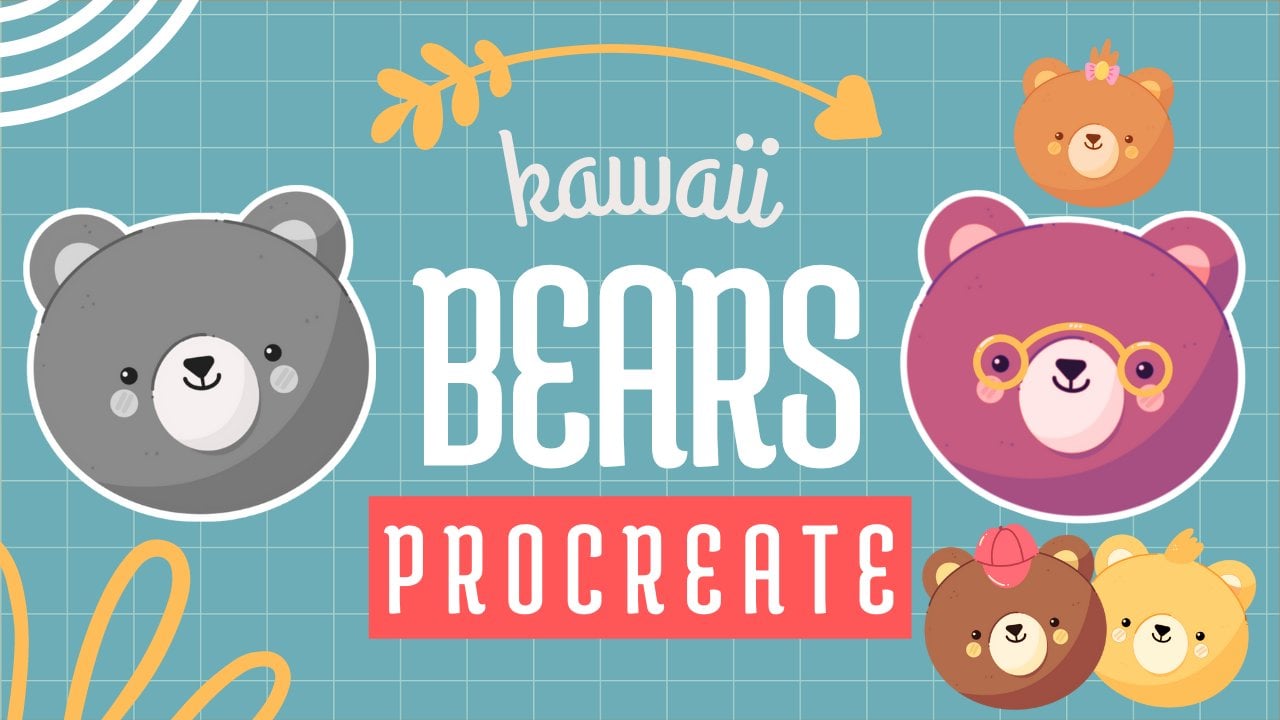
Transcripts
1. Introduction : Hello everyone, I am uni, and into this class, we'll
draw a few cute puppies. This class doesn't require any prior experience
or fancy tools. We'll start from scratch
and we'll be using simple techniques
throughout the process. Everything you'll see will
be happening in Procreate. However, if you have other software or one to
try traditional materials, you are welcome to join if
you are ready to start, Let's jump right into it.
2. Making a Puppy Scheme: Less than our class by deciding what kind of Canvas we
are gonna be using. You can see it is a very
simple square canvas because pixel width and pixel
height are 2048 pixels. As for DPI, we are using 300
and S for the color profile. We are at SRGB with
this low number. When it's all done, let's
hit Done and it will be redirected to our new canvas. And now when we have
our new canvas, we can continue with the preparations if
you would like to use the same colors that you could see throughout
the whole video. Go to the project and
resources tab and download your color palettes
and when needed it, Let's go straightaway
to our color palettes and let's check out
what we have here. Here we have two options of
how we can use the colors, they come back to
you and the cards. Let's go strictly to the
cars because here we have all the names
and it will be easier for us to follow along while we are still here into
our color palette. Let's select our first color today when I started
in bigquery to Alito scheme that will help
us to make our puppies. So let's just get
to the bottom on this panel and let's
select some bright color. You decide which
color it will be. E.g. ledger step on CAN blue. And you will see that the icon
own the top-right change. And that means that
now you will be making your lines
with this color. When you have your
color selected, Let's go and select
the brush again. As mentioned before, we are
starting from the sketch. So let's just go and select
the Sketch Brush ledgers. Go to our brush library. So we are tapping
on our icon within brush and we are going to
the sketch in the folder. In this folder, we're
selecting procreate pencil if you would like to use any other brush for
your sketching part, for this scheme part, you are welcome to do it. Now when we have our
brush selected and when we have our color ledgers, go back to our canvas and let's start by creating a
perfectly round circle. Don't worry, it's not
that scary as it sounds. Let's just go back to our Canvas and we
will start creating the shape just with one line without lifting up
our Apple Pencil. So let's just go and try it out. When you reach the
ends of your shape, hold your Apple pencil
and you will see that now you snap your
shape to a better one, but it looks like an ellipse. And we will need to have
a perfectly round circle. Without lifting up
your Apple pencil. Hold one of your
fingers on the screen, and you will see that now you snapped it to a
perfectly round circle. If you move your Apple
pencil from side to side, you will see that you are changing the size
of your object. For now, let's just leave it at something not too big
and not too small. And when you are satisfied
with your result, Let's unhook everything that
we are holding right now. Now when we have our base, we can continue
adding the details. We will need to find an
approximate center of the shape. And we can do it very
easily by creating one line that is going
from top to the bottom, which is vertical,
and another line that is going from side to
side, which is horizontal. So let just start from the top, we will go a little bit above average shape and we
will just create a line. Hold your line and the
end and you will snap to a straight line if you
need to adjust the angle, move your Apple pencil, just try to keep it very street. If you see that your land
is not in the center and you would like to change it and hold your Apple pencil. And let's go over
the top where we have a little title, a dateline. Let's tap on it and
enter this mode. You can see that you
have to note one, the top one on the bottom. And that means that we
can adjust this line. So firstly, ledgers go and hold our Apple Pencil at some
blank space onto our Canvas, and we will move our
line toward the center. If you need to adjust the angle, go to one of these nodes, hold your Apple pencil
there and adjust it, tried to make it straight. And when you are satisfied
with your results, Let's just tap on the
screen with one of our fingers or with
our Apple pencil. Now we have this
line that is going vertically and we will need
to repeat the same thing, but this time we will need
to create a horizontal line. It's alleges go over
one on this side. And let's do the same
thing as we did before. Just go in there and
creating a line, hold your line and the ends. Snap it to a straight line. If you need to adjust
the position and hold it and go over
the top to the line. Now we are adjusting the line, so let just move it to the center and when
you have the position, correct, Let's just tap on the screen to get
away from this moot. Now when we have found
our approximate center, we will need to create
a few more lines. So let's just go
to the bottom of our Ellis and we will create
another horizontal line. So again go into
one of the sides and we are creating
this horizontal line, Julian, and the ends
and ledgers get 4D, it's up to line. And here we will need to make
this line straight firstly, so if your line
isn't very straight, ledgers guilt and age as the angle and we
will need to move it right to the bottom part of our lives and connect
it with this line. So let's just move it and we
will touch these two lines. When we have
something like that, Let's just tap on
the screen and we will create another
horizontal line. But this time we will go between these two lines that we
already have onto our screen. We will just go between them. We will find an
approximate center and we will create
another horizontal line. Let's just go create this line, hold it and the ends. If you need to put
it in the middle, Let's just go over the
top to a deadline, find the position that
is working for you. And when you're satisfied, Let's just tap on the screen
to get away from this belt. Now we have this
scheme like that, and that means that we
can continue adding more lines that will help us
later to create our puppy. So now let just go to our color palettes
and we will select another color so we know
which line is which. Let's just go and select
this magenta color. When you did it, we will go to this intersection that
we have right here. And from this intersection, we will go up with
two diagonal lines. Firstly, let's just go
over our left side, go into this intersection
and creating this line going
up at 45 degrees, hold your line and the ends. And when you are satisfied
with and hold it. And let's move on to
the opposite side. And we will try to recreate
the same line here, but this time we
are mirroring it. Again, starting from
this intersection and join up with this line, try to make it
similar to the line that we have over our left side. And hold your Apple pencil and let's go over the top to line. Now, we will make
this line very big. Ledgers give to this
intersection that we have in the center and we will continue making this
line going down. Try to keep the same angle. When you have
something like that, Let's just tap on the screen to get away from these modes. Now when we have this
scheme like that, Let's just go and
select another color. So again, going back
to our color palettes, selecting this
vibrant green color. And now we will go to
the sides and we will adjust our little
shape of the ellipse. So firstly, we will go to this
line that we have over the top and we will need to
create a better curve. That curve that will represent
our cheek or their puppy. And we will just
go from this line to this line that we
have on the bottom. You can adjust the angle, you can adjust the curvature. It's all up to you. Basically what we need to do is to go and create
something like that. Again, at the end of the line, you can hold your
Apple pencil and you can adjust the curvature
to your liking. You can make it smooth, you can make it very big. You can make it very
prominent to this side. It's all up to you
if you need to adjust it over the
top to age it. When you are editing a curve, you will see that you have three dots and you can
adjust them individually. So e.g. if we go to this
node in the middle, we can make this thing
a little bit bigger. So for our cheek leg, just leave it at
something like that. It's up on the
screen and plasma to the opposite side and
do the same thing here. So again, go into this
intersection with the 45-degree line and going down to our intersection
on the bottom, hold your line and the
ends go to Edit and try to make it similar to the one that you have over
your left sides. When you are down leg just tap on the screen and
let's continue, agent, a few more lines. So now, if you would like, you can continue with the same color or if
you want to choose another one due back to the color palettes and select
the color that you like. So now what we will do next, we will go to this line
that we have right here. And from it we will create another horizontal line
going over the right side. So we will go to
this corner that we have over our left
part and we will create another horizontal
line that will be parallel to the lines that
we already have right here. Let's leave it at
somewhere here. And we will need to go over our right side to this line
that we have in the middle. And we will need to
mark down two thirds. So let's just go
and just by eye, we will make a little mark here. From this mark, we will
go down and we will connect these little mark
with our line on the bottom. Tried to make this
line straight. And when you are satisfied, we can continue and
create one more light. We will go to our left side to this triangle
that we have here. We will step a little
bit aside from this corner and we will create
a little curve like that. These will represent
our little tail. So play around and find the
curve that will work for you. And when we have this
scheme like that, we are done with this scheme. But for convenience we
can go and write down what all of these lines
are representing. So e.g. we can go to this line
that we have right in the middle and we
can write down ice. So under this line, we will create our ice. On the next line that
is underneath it, we will be creating our mouth. So let's just write down mouth. The line underneath it will represent the
bottom of the face. These are our cheeks, these are our ears. This is the tail. And here's our body ends. When we have this
scheme like that, let just go and make it
a little bit smaller. So it will be easier for
us to create our puppy. To make this scheme smaller, we will need to go to
this little arrow icon or the top-left. And here you can
see that we have a little panel on the bottom. We will use this
uniform methods. And if you take a
look at your Canvas, you will see that you
have a bounding box. If you go to one of the corners, you can drag them
down and it will be evenly adjust your
size of the shape. Let's just go over
one of the corners. So e.g. over the top-right. And we will drag it
a little bit down. When you are satisfied with
the size of your scheme, ledgers put it in a center or somewhere
around the center. And ledgers get away from
this mode of our selection. Let's just go and tap
on the arrow key. And now we are done
with our scheme. Now, we will go to our layers, and we will go to this
layer where we have our scheme on and
we will rename it. So let just tap on it
and let's choose Rename. Let's write down scheme. And now when we
have this scheme, we can continue by
creating our first puppy. So in the next part, we will do that.
3. Blue Puppy: Sketch: As promised in the previous
part of our class, we are starting to create our
first sketch of the puppy. So let's just go and we will change the
color of our brush. Firstly, going back to our color palettes and we will select the
color with the name, dark brown lines. Tap on it. And when he did it, if you want to change the
size of your brush, go over your left side, go to this first slider
over the top and adjusted. Try it out onto your
Canvas and when you are satisfied with the
size of your brush, Let's just go and
create one more layer we are doing to
our layers panel. And we will tap
on the plus icon. When we have a new layer, we will need to rename it. So just tap on it. Let's choose Rename and let's
name it Puppy Number one, when you are done with
this task and while we are still into
our Layers panel, Let's get back to earlier with this scheme and we will
make it a little bit more transparent
so it's not that bright and it's not
that disturbance. Let us get back to this layer. We will tap on it to select, and we will go to
this little icon near the chat box.
Let's tap on it. And when you do that, you
will see that you have a slider with the title opacity. So we will go to it and we will move it more toward
the left side. Find what works for you. You still need to see the lines, but you don't need to
be disturbed by them. So when you are satisfied
with the results, Let's just get back to earlier
with Puppy Number one. When you did it, we
will need to go to our Canvas and we will need
to start by creating ahead. And we would want our head
to be similar on both sides. We can do it manually, but it will be a little bit laborious and it will
be time-consuming. We don't need to
do that manually. Actually, we can go and use one of the options
that Procreate has, which is called symmetry. So we will be using
assisted draw it. Now, let us go to
our wrench icon over the top-left will go under Canvas and we will toggle
drawing guide here. When you did it, you
will see that you have the cells going through the
whole shape over Canvas. And it's the only
option that we need. We will need to
go and adjust it. So we add tapping on
Edit Drawing Guide. And when you are in this
drawing guides menu, you have this bottom panel. And onto this bottom panel we will need to select symmetry. When you did it, you
will see that you have the line and this
line has two dots, one blue and one green. We will need to put this line in the center of our
scheme we did before. So let's just go to this blue dot and we will
just move it to the center. When you are done with
this task ledgers he'd done over the top. And we can go and
try out what it does so easily go and
create a line on one side. You can see that it is
mirroring on the opposite side. And that's exactly what we need. So now let us go over
one of the sides of our hats and let's
create our head. So you can start
going over the top and you can recreate the lines that you
have on this scheme. Or if you want to play around just a little bit,
you can do that. Let's just start by repeating the lines that we have
over this scheme. You can hold your line and the ends and snippets
to a better line, better curves, and then just go over the top and
adjusted manually. You can see how easily
we can do it with this mirroring tool,
with this symmetry, if you need to
adjust some lines, if you need to erase some parts, just grab an eraser tool and go or the lines that you
don't need and erase that. If you want to leave the head
shape as it is right now, you are welcome to do it. If you want to play
around with the shape, you are welcome
to do it as well. So e.g. we can grab our
brush one more time and we can go and make this shape
a little bit differently. So e.g. we can go and make
the cheeks more prominent. So we will go and create
a little dance like that. You can pay more
attention to these parts. You can make them
more triangular. Or if you want more
rounded, It's up to you. If you don't want to do that, just get back to
your main shape. If you want to
edit as the shape, if you need to erase and lines, just grab an eraser
to erase that. Let's just find the shape
on the hat that we like. And then we will continue by
aiding the other elements. When we are done with the hands, we don't really need this
symmetry tool anymore, so let's just go
and turn it off. We will go back to our wrench
icon over the top-left will go under Canvas and we will toggle drawing guide here. But actually, it's not enough. If you go back to your layers, you will see that this layer
poppy one is now assisted. That means that even though you don't have this line that is
going through the center, if you go and create the
line onto your Canvas, it will be mirroring
on the opposite side. So we will need to go and
turn on this option manually. Ledgers go to our layers. We are going to earlier
puppy number one, which is now assisted. We will tap on it and from this list we will
select Drawing Assist. Now, if we get
back to our canvas and if we scribble
anything on one side, it will stay only
on these sites. So we are not mirroring this
line on the opposite side. That's exactly what we need. So now when we have just a singular line
going on onto our canvas, we can continue by
creating the ears, e.g. let's just go over
our right side. We will go to this line that
we have created for the ear. And we will create a very soft, very rounded triangle here. Let just go there and we
will create the sheep. So this line that we
have as a guide will be right in the middle
of our new shape layer. Just go and create our triangle. When we have this triangle
meet with very straight lines, we will need to turn
them into the curves. So let's just go over
these lines above them. We will create the curves there, play around with the size, play around with the curvature. It's all up to you. When you have the
curve on one side, move on to the opposite side
and do the same thing here. When we have the
ear that we like, we will grab our eraser
tool and we will erase this triangle that
we don't need anymore. So let's just go over
this shape and erase it. Now when we have our
ear that we like, if you don't like
it yet adjusted, take your time, play around, find what works for you. When you are done, we
will just go inside of this shape and we will
add the inner part. Here. We can play around, we
have a few options. We can just go and repeat this same shape that we
have for the main shape. Make it smaller, put it inside
and then just go with it. Or we can play
around and we can go and adjust the shape
by creating e.g. half of the circle
or some other shape. Let's just go and
do that. So e.g. lead, just stand with
this option where we are repeating our main shape of
the ear, just going inside, go into this line that
we have in the middle, trying to keep it
in the middle and create an elliptical shape
there when you aren't down ledgers grab
our eraser tool and we will erase all the
lines that we don't need. So e.g. we will go and erase
these lines right here. All we are trying to do is to
keep our sketch very clean, as clean as we can. Now when we have our first year, let's move on to
the opposite side and let's create another year. You can try out this similar
sheep on the opposite side. Or if you feeling playful, we can just go and
create another sheet. Let's just get
back to our brush. We will go to this line
that we have diagonally and we will create
the shape that is going inside of R hat. Not like inside, but
hanging above r hat. So let's just go there
and we will create a very smooth triangle here. We will step a little bit aside from this
shape of art has, we will repeat the
curve when you have it. We will go down and we will try to create the
shape of the triangle. If it's easier for you, you can start by creating
the triangle with very straight lines and then soften them up with the curves. Play around with the
size on this object, play around with the curves, play around with these elements, tried to combine them with
the sheep on the hat. So it's not looking weird. It's not like it is
just glute here. It is a part of the hats. If you need to soften it up, just go and soften it up. When you are done
with this shape, by just grab our eraser tool and let's erase all the
lines that we don't eat. If you want to adjust
the shape in any way, just go and do that. And when we have
our ears leg just continued by creating
the facial features. So getting back to our brush and we will start by
creating the ice. We have our line for the eyes. You can go and start creating the I over
one of the sides. So e.g. let's just go
over our left side. We will stop a little
bit from the center. We will go there, wanted
this line and underneath it, we will create a little circle. Again. You can create this shape by holding your Apple pencil
at the end of the line, or just manually create
some kind of the circle. Play around with the size, play around with the placement. You can move it more
towards the center, or on the contrary, more to the site. It is up to you when you
have your first shape. Let's move on to the
opposite side and we will try to repeat the
same shape there. We will need to
keep the distance from this shape to this center. So arrogant is
balanced on our face. Let's just go there and try
to create the same shape. Try to keep this similar size. Tried to keep the
distance from the center. And when you have two
objects like that, Let's just go inside
them and shade them. Now we'll grab our eraser tool and erase all the lines
that we don't need. If you have them,
then we will make it a little bit
smaller size-wise, and we will go and create some highlights inside
of our ice, e.g. we can go over one on this side, maybe to that left side and more toward the top
part of our eye. And we will just put
a little dot here. When we have these
dots on one eye, we will do the same thing
on the opposite side. So let's just go to
the same place on the other eye and we will
do the same thing here. You can make this highlight
smaller or bigger. It's again up to you
when you have the eyes. Let's just go and create
other facial features. Now, we will move
on to the notes, getting back to our own brush, going right in the
middle of our fees. And we will start by creating a very soft shape
of the triangle, similar to what we
have right here, but a little bit smaller. Let's just go right between the eyes and we will
create the shape here. You can play around
with the shape. If you feel that it's
not in the center, we can leave it as it is for now and later on
when we are going to be creating our facial features more in a clean line style, we can adjust it, but you need to
remember that it's not right now in a center. Or you can adjust it
from here by going to the S ribbon icon
or the top-left. By choosing free hands method
with a freehand method, we will just go above the shape. We will loop it around
and we will select it. When it is selected, you will see that you
have the moving lines everywhere except your shape
that you just select it. And when you have
this part selected, we will need to go to the
arrow icon or the top-left, which is our transformed using a uniform method and just dragging this shape
toward the center. Again, while we're still here, you can make the shape
smaller or bigger. Try out different options if you need to move
other objects. Again, you can start by
going to the selection tool, select your object, go into the transform tool and move it. Now, if you are satisfied
with the ear ledgers, get back to our top left corner and we will tap on
the Selection tool, which is our S ribbon icon. We will deselect everything. We will get back to
our brush and we will continue creating our
nose by shading it. If you want to adjust
it in any way, just go and adjust and grab the eraser tool and erase the
parts that you don't need or try out to do that with your brush when you have
the nose that you like. Let's just go and create
our little mouth. So we will go
underneath the nose and we'll start by creating a
little line going down. When you have this line, we will go to this side, firstly over one of the sides, and we will create half
of this circle here. So let's just go and try it out. You can play around
with this size. You can play around
with the curvature. You can hold your
Apple pencil at the end of the line and adjust
the size and curvature. If you want to
adjust it even more, go over it, it's up to age it. Here you have your notes, you can play around with them, find what works for you, and when you're satisfied, tap on the screen,
and let's move on, on the opposite side. And let's repeat
this same line here. So again, just go in there
and creating the curve. Tried to make it similar to the one that you have
owned the opposite sex. Now when you have
your facial features, the main ones ledgers go
and add our little cheeks underneath the ice that will
make our puppy more cute. So firstly, let's just go
over one on the sides, e.g. the left one. And let's create a little
ellipse under the Act. You can play around
with this size. You can hold your
Apple pencil at the end on the line if you want, you can go over the top to aged, play around with the shape of your ellipse with its position. When you are satisfied, we will go over
the opposite side and we will repeat
the same thing here to make sure that you are creating
this similar shape, you can go over the right side, create your Alice, hold your Apple pencil at
the end of the line. Then go over the
top to edit shape. Then you can just go and
move this new shape to your previous one and adjust its size when you're satisfied, when it's matching,
we won't just go to the opposite side and we
will move this shape around. When you are done,
we will tap on the screen and we
will continue by creating a little
differently colored shape over the nose area. We are creating some kind
of the snout length. Just go there and we will
create a wobbly sheep. You can play around and find the pattern that works
for you when you have the sheet that
she like ledgers go and add one more
feature over the top. We will go and create
a little brow here. So e.g. let's just go
over our right side. We will go above
the eye and we will create a wobbly little
shape like that. Again, you can play around and find the shape that
works for you. If you think that maybe your face is too
small or too big, you can do the following. One more time. We can get
back to our S ribbon icon and we can select all of our
elements on the facial features, loop it around,
select this shape, and then we'll get
back to our arrow key. And here you can make it bigger, you can make it smaller. You can find a
different placement. Just play around and
find what works for you. Zoom your Canvas IN OUT to check out whether you like what
you're doing or not. Because sometimes eat
looks better from the distance and you can see
clearly what you are doing. Now, if you're satisfied
with your results, ledgers get back and deselect everything by hitting
R S ribbon icon. Now we are done with our fees. So let's continue by going
to the body and creating it. Firstly, we will go
to our brush tool, grab it, and we will
go over our left site. Now we are going to this line and we will just
make it very soft. So we are repeating the
line that we have here. We are turning it into
the curve instead of the various tree plants
ledgers go and try it out. You can play around with
the size on this slide. You can play around with the
curvature with everything. And when you have
something like that, ledgers go over our right side and we will add the
first leg here. We are going to the
line right here. We are giving to
the intersection of this line with our
heads and from it, we will create a
curve in that way. Firstly, if you're
feeling brave, you can just go and create
the curve manually. Or if you need a
little guidance, you can step a little bit
aside from this site. You can create a
little line like that. When you have this slide, we will need to
connect it with R hat. So let's just go and create
a little curve there. Now we will go to the middle on this line and we will
turn it into a curve. So we are going above
this line that is very straight and we
created a curve like that. You can play around with where you want to
make this dance. You can make these
shape on the top a little bit more rounder
or less rounder. It's again up to you. When you have the
curve like that, Let's just grab an
eraser to and we will erase our straight line. And now when you have it, we will go to the middle part. And from this middle part, we will create a little
triangle going up. Firstly, we will start by creating a line going
up in that way. So two-thirds on the
whole line that we have for our body will
be just a straight line. From this straight line, we will go up and we will
create a little triangle here. You can play around with
the size of this triangle. You can play around with
the angle on these lines. And when you have this triangle, we can continue by
creating our little pause. So firstly, we have
this shape right here. We have two lines on this side. So that means that we can easily go and create our bottom line, which will be a curve that
will represent the ports. So let's just go and create
a very rounded shape here we are connecting it with our
triangle or the top part. And when you have
the first poor, we will need to go over our
left side and repeated here, let just repeat
the same distance that we have right here. We will just go and make this little mark right
here on the opposite side. When you have it, we will go and create this very rounded shape. Now when you have it, we will need to go over
the top and we will need to create a
similar line here. So let us go and try to
create these curves going up. And then when you
are at the top, we are creating some
of these sheep. We can just go and create
this line in that way. And then when you know
where it needs to go, we can just go and
adjust it. So e.g. let's just go and
make it a little bit more smooth and not that Dante's ledgers go and create it a little bit
in a different manner. So just softening it up
when you are done grabbing our eraser tool and erase
in this line that we don't need to play
around a few times. If you need to play around
with this little triangle, play around with the connection. It's all up to you. Just find what works best
for your illustration. If you want the
Software Alliance, just go and make them softer. If you don't want them, just go and leave it as it is. Now when we have these shapes, Let's continue by
creating our last pore. So we will need to go to this part and we will need
to create another curves. Ledgers go there and we will
just continue the line that we have for our little booty
tried out a couple of times. If you want, you can
go a little bit beyond this line that you have
right here on this scheme. If you don't want to, if you feel that is not
working for you, you can just repeat this line and then soften up the corner, erase the lines that you don't
need with an eraser tool. And when he did it, we will need to
add one more pull. Let just go to this slide. We will find the center of it. Just mark down
electrons are what. We will go a little bit
underneath these dots and we will go to the left side and
create another curve here. When you have
something like that, Let's just grab the eraser to erase all the lines
that we don't need. And let's continue by going to this triangle that we have here. We will create
some for elements. We will turn this very straight
lines into little curves. We will go and create a wavy
line over the left sides. You can play around with
the curvature of this line. And when you are done with it on the one side less we wanted
to the opposite side. And let's do the
same thing here. When you are done, Linda's grab the eraser tool and erase or a triangular lines. If you want to work on
the shape even more, just go for it. And now when we are
done with this part, what we need to do
is to add that seal. So let's just go over
our left side to this little element that we
have created onto our scheme. And let's repeat this
line on to our sketch. You can play around
with the curvature. As always, you can play around with the angle of this line. And when you have it, we will need to create a
little peculiar shape. So firstly, go in over our bottom part and creating
the curve like that. Little bit chunkier
on the board Sam, and a little bit
softer on the top. When you have this shape, we will need to go on the opposite side and we will
need to recreate it here. But this time it'll be
a little bit smaller. And we are starting from
this tail that we have on the top and we are creating the curve going in
that direction. And then just doing
softly to the bottom by creating another curve
adjusted to your liking. Play around with it, find what works for you and
then erase all the lines that you don't need when you have
the tail that she like, let just go to the tip of it and we will create
a wavy line here. Just step a little bit from
the top and create something similar to the thing that you
have right here, the chest. Now one more time, ledgers, grab our eraser tool and we will erase all the lines
that we don't need. Just go along the whole shape
or your sketch and play around with your eraser tool to make it even more productive, we can go back to our layers and we can
hide our layer with this scheme so that
way we can see clearly what is happening
onto our canvas. So then just go to
earlier with this scheme, we will go to this little
checkbox and we will tap on it. Now take a look at
your sketch and try to make it as
clean as you can. And if you want to add more
details, just go for it. E.g. alleges go to the paws and we will
add a few lines there. Now let's just zoom
out our Canvas. Take a look at our sketch
from the distance. And if we want to
change some parts, we can go and do that. Let me show you
that tool that can help you to adjust your sketch when you already have
the sketch and you don't want to redraw
some elements. We will need to go
over our top-left to the magic one to
lie, just tap on it. And each of these adjustments, we will go to the bottom of the list and we will
select liquefy. You can see that we have
the bar on the bottom, which is a little
bit too overwhelming because it has a lot of options. Don't worry. All we need here is push. You can select this option
and you can see that we have two sliders,
size and pressure. We just need to go firstly to our Canvas and try
out these sides. That is right now, if it's too big or too small, we can always get
back and adjust it. So what we need to do here, e.g. you can see that one poor
is a little bit too low. It is not similar
to the one that we have over the left leg. Just grab this push
option and we will go to this board that we
have over the right side. And we can just push
this poor little bit up. Maybe these sides on the brush
is a little bit too big, so let just go and adjust it, and let's try it
out one more time. So you can see you
are kind of sculpting your sketch without
making other lines, just adjusting what
you already have. If you want to go over
some of the places, just go with this
tool and adjust them. Make the sketch that you like. Remember that you always see things more clearly
from the distance. So you can just go and zoom out your Canvas to check out how
it looks from the distance. If you like, what you see, you can just go and deselect everything by heating
your magic wand tool. And when you are done
with the Liquify tool, when you are like your sketch, we are done with
the sketching part, and in the next chapter, we will be adding our colors.
4. Blue Puppy: Coloring Part: In the previous part, we have finished our sketch. So that means that in this chapter we will
be adding the color. Let's start with
it by going into our color palettes and
select another color. This time, it will be this color with the
name light blue, green for Let's tap
on it to select. And when you have
your new color, we will need to go and
change them brush. So go into our brush library, and this time we'll go into the folder that is
called calligraphy. Into the calligraphy folder, we will choose monoline brush. When you finish this task, we will need to go to our
layers and we will need to create one more layer
for the coloring part. Let's just tap on the plus icon. And when you have a new
layer straightaway, Let's rename it as coloring. We are tapping on the layer
and we are choosing Rename. Well, we, I still here
into our Layers panel. Let's do one more thing. We will need to go and
put this layer with color and then you want answered
earlier with the sketch. To do so, when this
layer color is selected, we will need to hold our
Apple pencil on it and we will just drag it under our
layer with Bobby number one. When it's done, we
will work on to our layer with the sketch
by changing its opacity. We know how to do that. We will need to get back
to earlier with Bobby, where our sketch is. We will need to tap
on this little icon. When you did it, you
will see that you have a slider with opacity and you will need to move it to
where the left side until you find the option that
is working for you, you still need to see what's happening once a year
earlier with this gauge, but also it doesn't
need to be very bright when you're
satisfied with the opacity. Let's just get back to
our layer with coloring. When we have our brush and
when we have our new color, I just go back to our canvas. And what we need
to do here is to recreate the outlines that
we already have here. We're just go in there
and we are recreating everything that we see on
the earlier with the sketch. Just go in there and
creating the outline. All we need to think about that this outline should
turn out very close, but we don't need to have
any gaps because later on we will be using the color
drop method to recolor it. And if we have some gaps, it might leak out and
it won't make sense. So now just go in there. If you need to adjust the size of your brush, go and do that. Find what works for you. And all you need to do is
to recreate the outline. When you have created
a big outline layer, just make sure
that it is closed. We are go into our
layers and just for 1 s, we will hide our layer
with the sketch. So we will go to earlier with this gauge and we will go
to this little checkbox. Let's tap on it. Let's get back to our
layer with a color and let's make sure that
everything is closed. When you ensure it is closed, alleges go to our top
right corner and we will drag our icon with the
color inside of this shape. Now you can see that
you have recolor the whole seal it and that's
exactly what we need. Now you can spend
some time figuring out whether you want to
change some parts. So e.g. you want to make some
connections smoother, or on the contrary, you want to make some
parts pointer or sharper. It's all up to you. If you would like to
erase some parts, go for it, grab your eraser
tool and erase them. And when you're satisfied
with the whole silhouette, we will just get
back to our layers, and we will get back our
layer with the sketch. So let's just go to earlier with Bobby number one to
this little checkbox and we will tap on it that way we know what we
need to do next. And next, we will be adding a different color to some areas. We will be adding the white
color for this part on the face to the little
brown to the ears. Do this further that we have on the chest and to the
tip of the tail. And that means that we
don't want to create other details going beyond the frames that we already
have colored here, we will need to do
one more thing to do that ledgers go to our
league with coloring. We will tap on it and we
will choose alpha lock. When we have
selected Alpha lock, we will be working only on the existing areas that
we have on this layer. So now ledger, I'll get back to our color palettes and we will select the color
with the name White. And when you turn on the Alpha Lock ledgers go
and check out how it works. We will start by
going to the tip of the tail and we will
recreate this part here. So let just go grab our brush and create
the first outline. We are not going
beyond the frames. Maybe white on white,
isn't that visible? So let me show you how it works with the background color off. So you can see that we
are not going beyond the frames and that's
exactly what we need. You can get back your
background color one more time and we need to continue
recolor in these areas. You can do it in a
few different ways. You can create the outlines
and add the color the same way as we have edited
to our main shape. Or you can recolor
them manually. Ledgers, you're manually
with this tip of the tail. For the chest ledgers, go and create the outline. When you have
created the outline, let just go to
earliest and we will hide our layer with the
sketch just for 1 s. We will go to our top right corner once earlier with
the coloring and we will try to color drop our color to this area that we
have just created. Let's just go and
try to do that. You can end up with
a result like that. Don't worry, we can fix it. We don't need to lift
up our Apple Pencil. And if you take a
look at the top, you will see that we are
using color drop and it has some threshold and you have a little blue bar
over the top too. So e.g. we can move our Apple Pencil
toward the left side. And you can see that we are
recovering only this area. But at the same time, if we go a little bit
too far to the left, you will end up
with a little line between your outline
and this area inside. So we will need to find
the precise amount that work for us. So we don't have this little blue line and
it's not leaking outside. So for that case, 26 per cent work for me. If it's more for you, you are going until you
don't see this line. Or if you have this little line, you will need to zoom
in your Canvas and take a look if you have it
and manually recolor it. Now when we have these
four recolor it, we can work on it a little bit. What we need to do is to grab the same color that
we had before. We are not using the
eraser tool here because we will be just erasing
the pairs that we have. We are selecting the same
color as before. So e.g. let's just go to
this top area of this firm and we will make
this line more smooth. To select the same color, we can go back to
our color palettes and select it from here. But if we have this color, once our canvas, we don't
really need to go there. We can use the eyedropper tool to invoke the eyedropper tool, you will need to hold
one of your fingers on the screen until you
see this little too. You can see if you move it, it change its color. So we will need to
go to the color that we need to
pick, this green, blue, and we will hold our finger when we
have the needed color. Now, if you take a look
at your top right corner, you will see that the
color here changed. That means that we can go to airline on the top
and adjust it. When you are done with it, alleges get back
to our layers and we will unhide our
layer with the puppy, and let's add other elements. So again, we are going back to our color palettes and selecting the white
color from here. Or we are invoking our eyedropper tool and
selecting the needed color. We are selecting the white
color and we are going to our facial features and we are aging the white color
to the middle part, to the little brow, to the ear, and to the
inside part of the ear. Ledgers go and very
quickly do that. When you are done with it, ledgers get back to our layers
and we will hide our layer with this gauge to check out whether everything
is looking okay. If you need to adjust
some parts one more time, grab the same color that we
have for the main shape and adjust your lights if you're
satisfied with your result. Ledgers get back earlier
with this sketch and we will add one more
detail onto this layer. We will firstly go to our
color palettes and we will select the color with
the name red, cheeks. With this color, we will go and add the color to the cheeks. So ledgers go and
very quickly do that. And now we are done
with our main coloring. In the next chapter, we will create some
very fancy lights.
5. Blue Puppy: Outlines & Details: Let's dive inspired by
selecting a different color. So we are going back to our
color palettes and we will select the color with the
name dark brown lines. When we did it, we will need to get back to our layers and we will need to
create one more layer above earlier with coloring, Let's just tap on the plus icon and let's rename this
layer as length. That's happened on the layer and choose Rename when we did it, we will need to start aiding
the color to the eyes, to the nose into early till mouth ledgers will and put
two dots for our eyes. Let's increase the size
of our brush to maximum. And let's go over one
of the sides and let's try out to put this first dot. If you see that the size of
your brush, the maximum one, isn't enough to cover the area that you
have on your sketch. Don't worry, we can fix it. We will go back to
our brush library and we will tap once
our monoline brush. That way, we will go inside
the brush studio and we will need to find out
properties over the left menu. When you tap on it, you will see that we
have the block within the brush behavior
and we will need to change the amount
of maximum sets. So let us go to the
slider and we will put it a little bit more
toward the right side. When you're satisfied, lie, just tap on Done, and let's explore what size
works for us right now. Find the amount that
works for you and just put these two
dots for the eyes. When you add them, ledgers
decrease the size of our brush and let's add other lines for our
facial features. So we will just go and recreate
our nose and the mouth. When you are done
with this task, ledgers put our little
highlights to the eyes. So let just select
this white color by invoking our eye dropper Tzu, Let's increase the size of
our brush and we will do the same thing that we had
earlier with the sketch. We will go or one
of the sides, e.g. to the left one, and we
will put the dot here, find this size only highlight
that works for you. And when you have
the first highlight, move on to the opposite eye
and add it on the same place. And when you are done, let us go and have a
little bit of fun. Firstly, we will get back to the color that we
had for the lines. And we will go along
the whole shape of our body and to some
specific areas here too. And we will be working with a very peculiar
shape of our brush. Firstly, let us
go and adjust it. We are going back to
our brush library. We'll go to our
monoline brush and we will go inside the brush
studio one more time. We will go to the Stroke Path. We will change the spacing here. So e.g. let's just go
and set it at 65%. Now you can see on the drawing pad that's
your line isn't solid, it consist of a few dots. So now with this line, we will go and
create our outlines. Let's adjust the size of
our brush to something similar to the line that
we have onto our sketch. And we will go along the
whole shape and we will create this outline
with this dotted line. When you are done with
the main outline, Let's continue
adding some details. So e.g. we will divide our hat just a little
bit from the body. We won't be creating
the whole line here. Just go to the sides and we
will add little lines there. We will do the same thing
for the ear on the right. And now let us continue agent this dotted outline
to some places. We will divide the ear on the right with the
same dotted outline. We will add the
outline for the brow. For this little chest elements, we will divide our
legs and we will put some little details here
with this dotted line two. So let's just go and
very quickly do that. If you want to add more
details with this dotted line, you are welcome to do it. So now when you are finished, ledgers get back
to our layers and we will hide our layer
with the sketch. And let's just check out how it looks and whether you want
to change some parts, adjusted, maybe add some color into some misc leaked places. Or if you are satisfied, we will need to
do the following. We will need to clean everything up and we will need to go and put all of these
layers that belong to our puppy into a group. To do so, we will need to go and select all of these layers. One layer is already selected, it is earlier with the lines. Now we will go to earlier with the coloring and we will
swipe it from left to right. You can see that now it is
selected to and we will need to go to earlier with the sketch and do
the same thing here. When all three
layers are selected, we will go and hit Group. Now let's rename this group by going to the new group side toe, tap on it and we
will choose Rename and we will call it
Puppy Number one. The last thing that we will add here will be a little shadow underneath the
puppy where you can consider it is
Alice or rub here. We will go to earlier
with coloring. We will create one
more layer above it, and we will put this layer underneath earlier
with the color and so on my time lead just hold this layer and we
will drag it down. Now we will need to get back to our brush library
and we will need to go to our monoline
brush and make it the same way
as it was before. So we will go to
the Stroke Path and we will change the
spacing to zero. Now when we did it,
we will just get back to our color
palettes and we will select the color with
the name read or in tracts. Let just select it
and we will go to the bottom part of our
puppy just underneath it. And we will create
the shape like that. It won't be just as simple. Ellipse. Hold it and the end. Adjust its size if you need
to adjust it even more. Or if you need to adjust the
placement of these elements, go over the top to edit, find a position
that works for you. And when you are done, ledger step on the screen
to get away from them. Edit mode. And now we will go and pulling the color
inside of this shape. So one more time
we're arguing to our top-right corner and we add dragging and
dropping the color. And now if you see some places that you
would like to change, ledgers, go to the layer with the coloring and change them. And when you're satisfied
with everything, when you're satisfied
with your first puppy, we are done with our
first illustration.
6. Yellow Puppy: Sketch: Let's continue our
class by creating the second sketch of
our second puppy. So firstly, let's
just go and select a different color for
our sketching part, we will do to our color
palettes and we will select the color with the
name dark brown lines, the color that we used before. So I just tap on it
and when he did it, we will need to
get back our brush that we were using for
our sketching part. So again, we are going
back to our brush library. We are going into
discussion folder and we isolate in
Procreate pencil. If you're using a different
brush, just select it. Now, when we have
selected our brush, when we adjusted
the color of it, let's just go back
to the layers. Firstly, we will collapse the group with our
puppy number one, we will need to go to
this little v icon near the checkbox and
we will tap on it. When you have
collapsed the group, we will hide it so
it will be easier for us to create another sketch. I go into this little checkbox
and we add tapping on it. Now you have a blank canvas and that's exactly what we need. Now we'll need to go to the
skin layer and we will unhide it if it's easier for you or if you want to
adjust your scheme, just create a copy of
this layer and use it. So now when we have our scheme, Let's just create another
layer for our sketch. So tap on the plus
icon and straightaway, rename it as Puppy Number two. When we have a new
live for our sketch, we will be using the
same technique that we used in the first sketch. So we will turn on Drawing Assist ledgers
guilty are arranged I can over the top-left and we will go under Canvas and
toggle drawing guide. You can see that
our symmetry line is in a center because
we didn't move our scheme and we
will need to make sure that our layer is assisted. So let's just go
back to our layers and we need to make
sure that our lay a poppy number two has a little title assisted
under the title. So we will need to
turn it on manually. Let's just tap on it. And from the list, we will
select Drawing Assist. Now you have this little side. So that means that if we
go to one of the sides, it will be mirroring
on the opposite sex. So now let's just go and
create our first shape. And again, the shape
will be r hat. You can repeat the
same shape that you used for your first
illustration or e.g. you can play around and maybe make these has a
little bit smaller, maybe more squishy,
maybe a little bit more longer or more rounded. It's all up to you. Let's just go and create
this shape of the hat. Remember that you can always
hold your Apple pencil and the end of the line
to create a better curve. Play around with the sheep. And when you found what
works for you, lead, just grab our eraser
tool and we will erase all the lines
that we don't meet. And now when we have the shape
of the head that we like, ledgers continue by
adding the ears. This time, let's create the floppy ears so we can
use the same method with the symmetry line
and just create one ear and it will be mirrored
on the opposite sides. So firstly, let us go
or one of the sides, which one that you
prefer ledgers go above are aligned what
we have for the year. And from this line, we will go down and create a very rounded shape like that. You can play around
with its size. You can play around with how
rounded you want it to be. You can play around
with the connection of this ear with the whole
shape of the body. You can make it smoother or you can make it more prominent. It's up to you. Find what looks best. When you're satisfied
with the result ledgers, grab our eraser tool and we will erase all the lines
that we don't need. And while we're still here
and using our symmetry line, Lynch's go inside of the ears
and add the inner parts. And this time let's just
make them fluffy. So e.g. let's just go over one of our sites for the left
one, if you want to. Let us go to this line
that we have for our hats. And from this line we will go to this site and we will create
a few loops like that. You can play around with
the amount of this loops. You can make a few of them if you want them not
to be connected, just go and do that. If you want them to
be more rounded, go and do them rounded. If you want to make
them more triangular. Again, you are welcome to do it. Now, when we have
this inner part, lay, just go and add the ice. Again still while using
our Symmetry tool, we will go a little bit above this line that we
have for the eyes. And we will add the ice here. So let's just go over one
on this side, the left one. We will start by creating
our first circle. Step a bit aside from the line that we have in a center and
create the first circle, you can hold your Apple pencil
at the end of the line. You can hold one
of your fingers on the screen to snap to a
perfectly round circle. You can adjust the
size to your liking. And when you're satisfied, we can just go and
shade this circle. If you want to adjust
the placement, go over the top to
circle and just move it. And when you're done adjusting
your circle, ledgers, tap on the screen and go inside of this
shape and shade it. And when you are
done with the eyes, let just go and turn off
our assisted drawing. Again, when I go into
our wrench icon, we are going under Canvas and we are toggling
drawing gets. Now let's make sure that
our layer is not SEC. So go into the layers and if we have this little
title, as he said, we will need to tap on the
layer and we will need to turn off drawing
assist from this list. So now when we have everything
set ledgers continue, agent, our facial features. And this time we will go and add our nose ledgers go
right between the eyes, maybe a little bit above them, and we will add the same
shape that we did before, a little rounded triangle. If it's easier for you, you can start with
a simple triangle. Just repeat the lines that
you have on your skin. Then just turn this very
straight lines into the curves. Play around with the size and play around
with the position. And when you're satisfied, let just go inside of this
shape and let's just shade it. When you are done with the nose, let just go and add
our little mouth. So again, we are going
underneath our nose and we are creating a little
line going down like that. When we had this line, we will go over
one on this side. And we will start by creating
half of the circle there. Hold your Apple pencil to
snap it to a better shape, adjusted if you need to by
going over the top to age it. When you're satisfied with the results tab
on the screen and move on to the opposite side and repeat the same line there. And when it's done, let just go underneath our mouth and we will
add a little tongue. So let's just go over one of our sites and we will
step a little bit from the center and we will go down and create a
little shape like that. It is the bottom
part on the ellipse. So you can hold your
Apple pencil at the end of the line
and adjust it. Now when you have
something like that, ledgers go and
continue this line, which is the vertical and
that we have for our mouth. So we will just move it
down and we will split our tank when we have
something like that led, just add the beautification. We will go under the ice
and we will add our cheeks. So firstly, going over one of the sides and creating
a little ellipse there. Play with the size and play with the openness of these shape. If you need to adjust it, go over this up to Edit Shape, find the position
that works for you. And when you're
done adjusting it, tap on the screen and move on to the opposite side to
create the similar sheep. And again, to make
sure that this shape on the opposite side is
similar to the one that you have on the other side holds your Apple pencil and the ants and go over the top to edit. Now, move this shape towards
your first shape and adjust it when they are
similar to one another. Just move it back to
the needed place. And when your arms and legs
just tap on the screen, Let's go above our eyes and we will add a little
browse. This time. You can play with
the shape and e.g. create little hearts there. We are almost done
with the whole hat. Ledgers go above r hat and we will add a little
peculiar shape there. So again, we will
repeat the same shape that we had for our brows, but this time we
will connect it with the line that we
have for the hat. You can choose any side that you like and just create
a shape like that. Play with the size, play with the position. And when you are done, ledgers grab the
eraser tool and we will erase all the lines
that we don't need. And also while we are
using our eraser, we can go to the eyes. We can add our highlights. So again, similarly to
what we did before, we will go to one of
the sides on the eyes and we will just put one
dot for the highlights. E.g. alleges go over our left top part and we
will just put this dot here. You can play with the size and when you have the
first highlight, just move on to
the opposite side and do the same thing here. Try to put the highlight
on the same place. The last thing that we
will add for our fees, we will just go and create a little snouts before we were creating the
sheep on the face. So let us now that
we're covering only the nose and
our mouth this time, let us do the following. Firstly, we will go over one
on this side and we will start from this side and create a peculiar
shape going up. In that way, you can play
around with this wobbly shaped. You can go beneath the ice, you can go beneath the cheeks. It's all up to you. Just find what works for you. And now we are done
with the fees. So let's continue by going
down and creating their body. Firstly, let us go
over one on this side, e.g. the left one. And we will turn this very
straight line into a curve similar to the way that we did it with the
first illustration. So again, just go into this intersection
that we have between the head and this guiding line and going down and
creating the curve. You can play around with
the cabinets of your puppy. Just create the line. And when you are done,
Let's move on to the opposite side and let's
create another line there. So here we will just go to this intersection and from
it we will create a curve, go into these intersection
on the WhatsApp. Let's just go and create
this very long, Tommy. And again, you can play
with the cabinets. When you I've done defining
the puppies belly, let us go and create
the first pore. Firstly, we will go over this right side
where we just added our curve and we will go and create one
more guiding line. So we will go and create
a line like that. When you hand this line, all you need to do is
to create the pore. So we will go and create
a shape like that. It is the bottom
part on the ellipse. And when you have it, we will need to connect
it with the body. So let's just go
over the right side and we will make a smooth
connection right here. You can play around
with this shape. And when you are done, ledgers grab our eraser tool and erase all the lines
that we don't need. Now when we have our
first poor lead, just move on and
create another one. We will go to this
middle line and we will step a little
bit as side of it. Let's just mark it down. When we have this little mark, we will create another
line that will guide us where we need to put
our poor one more time. Let's create a line like
that when you have it, all we need to do is to recreate the shape that we have
on the opposite side. But this time it will
be a little bit longer. When you have this
shape like that, we will need to go
over our left side to this intersection and we will need to turn
it into a curve. So let's just create a
smooth curve like that. Play around with the shape of your poor and when you are done, let just go and connect
it with the belly. And now when we
have the front legs let just go and wounded
leg right here. So again, we are just going and creating this straight
line right here. And then we'll turn
it into a curve. When you're iodine, let's erase all the lines
that we don't need. Now we have the body. So let just go and
work on the details. So firstly, we will go
and add this chest area. We will go to this
leg right here. And from it we will create
some fluffy elements. You can repeat the same things
that we have on our ears. If you need to
adjust some shapes or if you need to
erase some elements, just grab the eraser
tool and erase that. When you are done
with the chest, let just go and add our tail. So again, we can start by
creating the guides in line. You can play around with
the shape or of your tail. You can just go and create
the similar shape that we had before or play around and
create another shape. So e.g. let's
repeat our pattern. Let's make it a more fluffy, connected nicely to the body. And when you are done, Let's grab our eraser tool and erase everything
that we don't need. And if you want to add more
details, just go for it. E.g. let us go to the paws and we will
add a few lines there. Now Lincoln's get back to our layers and we will hide
our layer with this scheme. With a fresh eye. We will take a look at
our sketch and we will decide whether we want to
change some places, e.g. to change everything, we can go back to our magic one tool, we can go to liquefy. We will be using push and we can play around
with the shapes. Just spend some time
playing with the shapes. And when you're satisfied
with your result, led just tap on the magic 12 and we are done
with our sketch. In the next part, we
will add the colors.
7. Yellow Puppy: Coloring Part: Less satisfied by
changing our brush, we are going back to
the brush library. I go into the
calligraphy folder and we are choosing mono line brush. When we did it, we will go
back to the color palettes, and this time we will
select the color with the name a
light yellow for. Let's select it. And when we did it, we
will go back to the layers and we will create one more
layer for our color in part. Led just tap on the plus icon and let's rename it as coloring. We will need to put this layer underneath our layer
with this gauge. So when this layer is selected, we will hold it with
our Apple Pencil and we will move it underneath
our layer with the sketch. And now we will need to change the opacity level of our
layer with the sketch. So let's just go
back to this layer. We will tap on it and
we will go to the icon. Now we will change the opacity
from this little slider. Find the amount that works for you and when
you're satisfied, let us get back to earlier with the coloring and we will do the same thing as we did with our first illustration
with just one color. We will go alone our shapes and we will
create the outline. Remember that these
outlines should be closed. Ledgers go and very
quickly do that. When you're done with
your outline leg, just go back to our layers. And just for 1 s, we
will hide our layer with the sketch layer
checkout whether everything is closed
and when it is, we will just go over our
top-right corner and we will drag and drop the
color inside of our shape. Let's make sure that
everything is nice and smooth. And if we need to
change some parts, let just go and change them. When you are ready. Let's get back to
our layers panel and we will unhide our
layer with the sketch. Now, we will get back to
our earlier with coloring. We will tap on it and we
will choose Alpha Lock. With alpha lock, we
will be drawing only on the areas that we already
have onto this layer. And with the Alpha
Lock turned on, we are ready to start
adding our details ledgers, get back to our color
palettes and we will select the color
within the white. With this white color, we will add our snouts
are little browse, our chest area, and
a part of our tail. So let's just go and do that. Remember that you can create
just the outlines and then try to drop the color
in sudden these areas. If you're having
something like that, just don't hold your Apple
Pencil and move it to the left until you have only this area that you
want to be recolored. Recolored. If you already did some parts, don't use the eraser
tool because you will be erasing everything that
you have onto this layer. Just select the
same color that you need by using the
eyedropper tool. Hold one of your fingers on the screen until you
have this little tool. Select the color and adjust the areas that
you need to adjust. When you are done
with the white color, Let's get back to the color
palettes and we will select the color with the name
dark red, orange ears. With this color, we will go to our ears and we
will recolor them. When you are done with
the base on the ears, Let's select the
same white color that we used before
and weigh the scholar. We will add our inner parts. When you are done
with the inner parts, Let's get back to the
color palettes and we will select the color
within the red cheeks. And with this color, we will add our color to the cheeks
and to our little tank. When you aren't done, ledgers get back
to our layers and we will hide our layer
with the sketch. Now let's just take
a look at everything that we have on to
earlier with coloring. And if we need to
adjust some parts, ledgers, go and adjust that. And when everything
is looking fine, we are ready to move on to the next part where we are
going to be aiding the lines. Before doing that,
let us get back to our layers and we will unhide
our layer with the sketch.
8. Yellow Puppy: Oultines & Details: Let's start this file by going
to our color palettes and we will select the color with
the name dark brown lines. When we did it, we will need to go back to our layers and we will need to create
one more layer above our layer with coloring. So again, we are tapping on the plus icon and straightaway, Let's rename it as lines. Now when we have a new layer, we will start by creating
the shapes of our eyes, the nose, and our mouth. So ledgers go firstly, increase the size of our brush and put two dots for the eyes. When you aren't done, decrease the size of your brush and create the nose
and the mouth. When you are done, Let's select this white color
that we had for our snouts. We will put our
highlights to the ax, increase the size of your
brush and try to put these highlights
on the same areas that you had on the sketch. When you're done
with the highlights, let's select the same color
that we used for the lines. So again, we are invoking
our Eyedropper Tool, selecting the color
and when needed it. We will go back to our brush library and we will
adjust our monoline brush. So let just tap on it. Let's go under Stroke Path and we will change the
spacing option again. We will set it at 65%. When you add Dan, he'd
done and ledgers go and add our dotted
lines to the outlines. Similarly to the way that we did it in the first
illustration. When you are done aging the
outlines for the main shape, let us get back to
the layers and we will hide earlier
with this kitsch, let's check out how it looks and whether we want to
add more details. So e.g. we can go to
this chest area and we can add a few more loops to
show that they are fluffy. And now when we have the
full outline ledgers, take a look at our illustration and only places that
we want to change. Firstly, let us get
back to our brush, to the Brush Library and we
will adjust our spacing. We will put it to zero. Now when you're done, hit Done. Now, let us get back
to our layer with coloring and we will
adjust our outlines. So lets just grab
the eraser tool and work onto this places, eating it to recolor some places just
grabbed and brush big. They needed color
and adjust them. And the very last thing that
we will add here will be eligible Iraq or maybe
it is just a shadow. So firstly, ledgers get back to our layers and we will
create one more layer. Ledgers hit R plus icon, and we will need
to drag this layer underneath our layer
with the coloring. You can rename it as rack
and now onto this layer. Firstly, we will get back to the color palettes and we will select the color within
the red, orange drugs. We will go underneath our puppy and we will create a
little ellipse there. Hold your Apple
pencil at the end. On the land, a jazz your shape. If you need to
adjust it even more, go over the top to ellipse, find the size and the
position that works for you, and lead you step on the screen to get
away from this mode. And we will put the
color inside the shape. So again, go into our top right corner and
dragging and dropping the color. Now, if you have some places
that you need to adjust, get back to your
layer with coloring, grab your eraser tool and
erase them is colored places. When you are done one more time, Let's get back to our layers and clean everything up here. So we will select all the
layers that belong to our second party and we
will put them in the group. One layer is selected. Now when I go into
the rest of them and we as wiping them
from left to right. When all the layers of
these puppy are selected, we will just hit Group and we will rename this
group to pop it to. Now you can collapse
the group BY go into this V icon and we are done
with our second puppy. In the next part, we will be creating this page
for our three doc.
9. Orange Puppy: Sketch: Let's say this very similarly
to how we did it before. Firstly, we will go
and change our brush. So go into the brush library, go into the Sketching folder and select in Procreate pencil. When you have it, we will
go to the color palettes and we will select
the color with the name dark brown lines. Let's tap on it and when
we have our new color, we are going to the layers. Firstly, we will hide our
group with Puppy Number two just gives you this little checkbox
and we will tap on it. When you did it, we will need
to turn on our skin layer and we will firstly
make a copy of it because we are going to be
changing it a little bit. So let's just go to
earlier with this scheme. And to make a duplicate, we will need to swipe
this layer from right to left and
choose duplicate. Now we have two layers
with similar titles. So let's just go over the top
one and we will unhide it. So let's just go to this
little checkbox, tap on it. And when we have our
scheme on our Canvas, ledgers go and adjust it. Firstly, we will flip
it horizontally. And to do so, we will go to our top-left corner and we
will select the arrow key. Now you can see on the
bottom you have a panel and here you have the option flip horizontal leg, just tap on it. And now you can see
that it is flipped. We will adjust it just a
little bit more by going over the bottom part and making the whole bounding box
a little bit longer. To do so, we will need to select the free form method
onto this panel. And when he did it, we will go to the middle
node on the bottom and we will drag it a little bit done when you have
something like that. Ledgers desolate ARAF scene
by heating our arrow key. And one more thing that
we will do here is Ellen Gates in the
body of our puppy. So let's just go to the bottom line that
we have right here. And just with this color
that we already have, ledgers go and create
another horizontal line. Just tap a little bit aside
and create this line. So in that way you will know where you need to
put the legs and the tail and everything
that belongs to this little puppy that we
are going to be created. Now when we have this scheme, we know what we need to do. We will need to get
back to our layers. We will firstly select R
group with Puppy Number two. When it is selected,
we will tap on the plus icon to
create a new layer. And straightaway, Let's rename this layer as Puppy
Number three, tapping on the layer
and choose rename. And now when we
have our new layer, let just start
creating our puppet. And as always, we will
start by creating the hat. Firstly, let's just zoom
in our Canvas and we will go and turn on
assisted drawing. So go into the wrench icon, go and under Canvas and firstly,
toggling drawing guides. Now you can see that
our symmetry line is not in the center
of our scheme, so we will go and change it. We are going under
Edit Drawing Guide. We're going under symmetry. And we will go to this
blue node that we have on this line and
we will just move it toward our scheme and
we will position it right in the center
ledgers go and do that. When you have an
inner center ledgers he'd done over our
top right corner. Now let's make sure that
our new layer is assisted. So we are going back to
our layers and if we have this little title as
they said, it is okay. If we don't have it, we will tap on our
layer and we will choose Drawing Assist
from the list. Now when we are prepared, let us get back to our
Canvas and we will start creating our
heads for a slit. Ledgers go and select what
we're going to be doing. Let's make this a little bit
smaller and more rounded. So firstly, going over one of the sides and starting
to create this shape. Remember that you can
hold your Apple pencil to adjust the curvature
to make your land very smooth and just go and
create some shape that you would like when you found a shape that
is working for you. Let just grab the
eraser tool and we will erase all the lines
that we don't need it. When you have the sheet that you like and when you clean it up, ledgers go and turn off
our drawing assist. So again, we are going
firstly to arrange I can over the top-left and we are toggling
Drawing Guide from here. And we will need to
make sure that it is turned off onto earlier. So go into the layers
and if we have this option assisted under
the Puppy Number three title, Les, just tap on our layer and select Drawing Assist
from the list. Let's make this Fabius
a bit different from the ones that
we have already. And who will go and adjust
the shape of the hat. When we have our shape of the head ledgers go to our
arrow icon over the top-left, we will tap on it and we will
select free-form method. Firstly, we will
make the Hat more elongated and then we'll
adjust it with the word. Firstly, let us go over the bottom node in the center
and we will move it down. When you have this
shape like that, we can move or one
of the sides and squish they had in
the horizontal axis. So e.g. going over our left side and just moving it more
toward the right side. Now, I had is looking
more like a circle. And Lynn, just go over
these in green node over the top and we will rotate
it just a little bit. We will need to go to this node. We will need to hold our
Apple pencil there and move our Apple pencil in
a circular direction. When you have
something like that, ledgers go under work. And when we have
this Warp option, we will go over
the bottom nodes, both on left and on the right. And we will adjust them firstly, go in or are left to go into
this nodes on the bottom. And we are making
it in that way. When you have it on the left, Let's move on to the right
and do the same thing here. Just moving into more toward the right side and
more to the top. When you have the
shape like that's led, just deselect everything
by hitting our arrow key. Now when we have the shape
of the head that we like, we will need to go and create another line that will represent
the center on the hat. Because we have tilted
adjust a little bit. And this line that we have onto our scheme is not
correct right now. Now r hat is looking more up and that means that we are creating
some kind of perspective. So we will go above our
heads and we will go toward the center part and
create the curve going from top to
the bottom, right. Just go and try to
do that very easily, just with one line. And we will hold this line
over our bottom parts. We can adjust the angle and if you want,
we can go over it. It's up to Edit Shape. Putting this line more
toward the center as we are creating a little
bit of the perspective, we will need to understand that one of the parts of
the head will be closer to us and in our eyes it will be
a little bit bigger. So we are not putting this curve right in
the middle on the hat. We are shifting it a little
bit toward the left parts. When you have the
result like that, when one of your part is a little bit bigger
than the other, we will tap on the screen and
get away from this modes. And now these lines will
represent the center of the hat. We will create all
the objects that we need to create
according to this line. So firstly, let us go
and create the ears. We will go firstly
over the left side. We will go to this line that we have right here for the ears, and we will shift it a little
bit toward the right parts. Let's just start by creating
a very rounded ear. So go to the line that
we have for the hat. And let's create half of the circle or half
of the ellipse here, you can hold your
line and the end to make it more smooth. And if you want to
adjust it even more, Let's go over the top to edit. We will just move it
more toward the right. Set. The angle on the ear will go quite parallel to the line
that we have in a center. When you have this first year. Let's move on to
the opposite side and let's add another ear. We will try to recreate
the same shape, and we will need to make this ear just a
little bit bigger. If you want to put the ear on the similar place on
the opposite side, we can do one more trick. We will go and try to put this hat that we
have on the screen, right, in a position
that will be easier for us to
create another year. And we will go to the ER
that we already have and we will create the line that is going to the opposite sex. That way we will know where we need to start to create our ear. And we will do the same thing
with our boards and parked, go into this intersection and creating the land go
into the opposite sex. Tried to make this line parallel to the line that you
already have on the top. When you have this
little scheme, we will go over our
right side and we will try to recreate
the shape of the ear. Hold your line and the ants. And if you need to
adjust it even more, Let's go over the top to edit. Make it just a little
bit bigger than the previous year when
you aren't down leg, just tap on the screen and let's erase these lines that we
just created for this scheme. When we add down,
let's go inside the ears and we will
add the inner parts. We can start just by creating the shape
that we already have, just making it a little
bit smaller on both ears. And if you want, you can
adjust them to your liking. So e.g. you can
add some further. If you need to erase
some parts lead, just grab the eraser
tool and erase that. Now let's get back
and create our notes. We will go to this
intersection that we have right here with
our new line that is going through the
center and the line that we have for the
ice onto this line, we will create the
shape of the notes. You can play around
with the shape. You can play around
with the size. When you are done
creating the nose, let's just go and create
our little mouth. So again, we are going to the bottom part of
the nose and we are doing with the direction of the line that we
have in a center. So let us firstly create a line that will
go from the nose. And when we have this line, we will create two
parts of the mouth. One part will be a little
bit smaller than the other. When you have it's led, just go and create our eyes. So we will go to this
line for the eyes, but we will need to follow
the direction of the hats. Ledgers go and
create one more land that will go through
the shape of our hats. This time we will
create the curve, but it will go horizontally. Ledgers go somewhere
above the nose, and we will create this curve. If your curve is turning out as a straight line when you're
holding it at the end. Don't worry, we
will just add hold our Apple Pencil and we
will go over the soap. We will tap on to this little triangle and
we will select arc here. Now let's just adjust it. We will try to put it on to our nose and we
will try to adjust the angle so it will go through the whole shape on the hat and it will be in that perspective. When you have it
in that way, lead, just tap on the
screen and we will go and use this line
to create our ice. Firstly, going over
our left side and putting the first
dot for the step a little bit aside from
the center and create a sheep when you
had the first eye. Let's move on to
the opposite side. We will keep the same distance
from the center and we will make this just
a little bit bigger. Shade the inner
part on the eyes. And when you're done, let just grab our eraser tool and we will put
little highlights. Again, you are welcome to go
to either part of the eye and put the highlights when
you have it on one eye. Let's move on to the
opposite side and let's try to put it on
the similar place. When you are done
with this task, let's just go over our eyes and we will
add little browse. This time, ledgers create
the shapes of the ellipsis. And again, the eyebrow that
is closer to us will be just a little bit bigger when we are done
with our eyebrows, Let's move on
underneath the ice and we will add our little
cheeks firstly, going over one of the sides and creating the
cheek there, e.g. going over the left part, hold your line, create
this shape on the olives. And if you want to adjust your over-the-top to age
it, when you are done, Let's move on to the
opposite side and we will put another ellipse
there this time, it'll be a little bit bigger. When you are done
with the cheeks, let's add a little mask
and a little snout thing. So again, we are going
over our left side, we are going
underneath the cheek. Or if you want, you can find the placement
that works for you. And we will start by creating
the shape like that. You can play around
with the whole shape in general and find
what works for you. When you find what
works for you, ledgers, grab our eraser tool and we will erase all the lines
that we don't need. And now we are done
with the face. So let's move on to the body. Let's start by creating
another ellipse. We will go to this bottom part and we will
create a shape like that. Hold it at the
ends to adjust it. And we will need
to go over the top to edit shape to make sure that these new olives
feed into our scheme. So let's just go and adjusted
in a way that it will fit. You can play around with the
choppiness of your puppy. And when you're satisfied
with this ellipse lie, just tap on the screen and we will get away from this mode. Now when we have this shape, we will need to
adjust it even more. So firstly, let us go over our right side and we will
create a little booty here. So firstly, we are
going right here and we will need to create
a little neck line. So let's just go to
our line on the hat and we will create a
little dent like that. We will go down
and we will try to create very rounded
shape right here. Try to make it very smooth and grounded just a little bit. So that means that the bottom part will
be more on the line. When you identify, just
grab the eraser tool and we will erase all the lines that we don't need from these sites. When you are done, Let's move
on to the opposite side. And again, we will go firstly to this intersection
and we will need to create another curve that will connect our heads with the body. We are creating some
kind of the neck. Let just go and
create the curve. Just go to this ellipse that
you have on the boards. And from it create
the line going up, make a smooth connection. And when you are
done, if you want, you can play around on the
roundness of the tummy. So e.g. you can
make this part more flat or on the contrary,
more around it. When you are done, Let's grab the eraser tool and erase all the lines
that we don't need. Now, when we have this
shape on the body, we are ready to start
adding the legs. Firstly, let us go and create the diagonal line that
will go in that direction. When we have it, we know
where we need to put the leg. So let's just go to this
line and we will create the similar lag that we
had on our second dog. You can start by
creating the bottom part on the ellipse and then
adjust it to your liking. Make a smooth connection
between this leg and the chest. When you are done
with the first leg, Let's move on to
the opposite side and let's add another leg. We have our direction, so let just go and create another shape similar to the
one that we already have. Let's Ellen Gates it and
we will go just more closer to our hats and we will
create the line like that. On the opposite side, we will need to make
the connection in that way and we will need
to work onto the back leg. Now for the back leg leg, just go firstly and create
the dense like that. So we are going toward the right part and
we will continue by creating another shape and
connected with the booty. When we have this shape, we will go to this line
that we have created for our leg and we will
create another dent here. So going up with a
curve like that, now let's work on this line
and we will flatten it up, grab the eraser tool and erase all the lines
that you don't meet. And now let's work onto the shape and make
it more rounds it. When you hand the
shape that you like, Let's just grab the
eraser tool and erase all the lines
that we don't need. Now let us go and
create the tails. So we will go to the right
side and we will firstly start out by creating the line that will help
us to create this sale. So our guiding light, let us go and create a
shape like that where new habits we will go and create
a peculiar shape like that. You can play around
with its size. You can play around
with its curvature. It's all up to you. When you are done with the tail, Let's add a little
element for the chest. We will go to this
line that we have on the r hat that is
connecting to the neck. And we will go
from this line and create a few curves like that. So in that way we will add
a bit of further here. If you want, you can
go to the chest and add a few lines like that. Now, let us get
back to our layers and we will hide our
layer with this scheme, we will take a look at our puppy and if we want to
change some parts, we will go to our liquefy too. So let just go to
the magic one tool. We will select liquefy. We will be using
push and ledgers, work onto the whole shape. Spend some time
adjusting your shape. And when you are done, ledgers deselect everything
by hitting our magic one x2. And now we are done
with our sketch. In the next chapter, we will be adding our colors.
10. Orange Puppy: Coloring Part: Let's start this fight
by changing our brush. So we are going to
the brush library. I go into the
calligraphy folder and we are choosing mono line brush. Now, let's get back to
the color palettes and we will select the color
within the same yellow for. When we have a new color, we are going back to
our layers and we will create another
layer for the coloring. So tapping on the plus icon, enter renaming this
layer as coloring. Let's put this new layer underneath our layer
with this gauge. So we are holding it with our Apple pencil and
just dragging down. Now we will get back to our layer with
Bobby number three, This gauge, we will go to the icon and we will
adjust the opacity. Find what works for you
and when you aren't done, let's get back to our
layer with coloring. And again, we're getting
back to our brush and we are going along the sides and we
are creating the outline. We will need to make it closed. So let's just go
and very easily, very quickly do that. When we have our outline, let's just go back to the layers and we will
hide earlier with this gate to check out whether
our outline is closed. If it is, we will go and drag and drop the color
inside of this area. Now, when we have the
color ledgers go through our shape and let's
make sure that everything is looking
nice and smooth. If we need to adjust some parts, we will go and do that. When you add down with
your silhouette ledgers, get back to our
layers and we will unhide our layer
with the sketch. Now we know what we need to do. We will go back to our
layer with the color and we will tap on it and we
will choose alpha lock. With this Alpha Lock turned on, we will get back to
the color palettes. We will select the white
color and we will work on the areas that we would
want to recolor white. So it will be all this
area with the chest and the snout inner part
on the ears and the brows lay just go and
quickly recolor them. When you're done eating
the white color ledgers, get back to our layers
and hide our layer. With this case, we
will check out whether everything is
looking quite good. If we need to adjust some parts, we will go and adjust them. When you are done
with this part, Let's get back our
layer with the sketch. We will go back to our
color palettes and we will select the color
within the red cheeks. With this color, we
will add our cheeks. When you are done one
more time checkout whether everything is looking, alright, bye, go into the leaves and hide in your layer
with the sketch. If you're satisfied
with the results, get back your layer
with this gauge. And let's move on
to the next part where we will add our lights.
11. Orange Puppy: Outlines & Details: Let's begin by selecting
our lines colors. So we are going back to
our color palettes and selecting the color with
the name dark brown lines. When we have it, we will get back to the
layers and we will create one more layer above
earlier with the coloring. So tapping on the plus icon, go into this layer,
it's happening, it's entry, naming
it as lengths. And now with the same brush, let just go and add our eyes
and the nose or the mouth. Increase the size of your brush, go over one of the sides and put the first
dot for the eye. Remember that you
don't need to repeat everything with 100 per
cent of similarity. If you think that maybe a
bigger I will work best. Go for it. If you think that you need to shrink some parts down, again, you are welcome to do it when
you're done with the ice. And to remember that one eye is a little bit bigger
than another, we will go and decrease
the size of our brush and we will work on the
nose and the mouth. When you are done with the
facial features ledger select the white color and we will go and put the highlights
to the eyes. Let's invoke our
eyedropper tool by holding one of our
fingers on the screen. When we have the white
color on the top, we will unfold it and we will go over one of our side on one of our eyes and we will put our first highlights when you
have it on the first eye, Let's move on to the opposite
side and let's try to put the highlights on the similar
place when you are done, let's get back to our
color for the lines. So again, we are invoking
our eye dropper tool, selecting the color
and when we have it, we will need to go
and change our brush. So again, going back
to our brush library, go into our monoline
brush, tapping on it, and go into this piece
and we will set it at 65 per cent when you have it, let just go and decrease
the size of our brush. And let's go alone, are shaped and we will
add this dotted outline. When you are done with
the main outline, ledgers get back to our layers and we will hide our
layer with the sketch. And we will check out
whether we want to add some details or a
jazz some parts. Let's just go through
the whole shape of our poppy and check out whether we want to
change some parts. If you're satisfied
with your lines, let just go and get our
brush to the normal view. We are going back to
the brush library. I go into the monoline brush and we are changing spacing to zero. When we are done,
Let's hit done. And if we need to adjust some parts on the
coloring layer, Let's just go and do that. So go into our Layers, go into our coloring layer, grabbing our eraser
tool or our brush, and changing their places
that we need to change. When you are done
adjusting your shapes, let just go to our layers and we will need to
create one more layer for Iraq or our little
shadow underneath the puppy. Let's just hit R plus icon. We can rename this layer or
you can leave it as it is, and we will need to put it underneath earlier
with the puppy. So let's just go
and drag it down. When you have it's ledgers. Get back to our color
palettes and we will select the color
with the name red, orange rock, ledge as gill
underneath the puppy. And let's create a
little ellipse here. Hold it and the ends, a jazz this shape,
adjust this size. If you need to
adjust it even more, go over it, it's
up to Edit Shape. Find the placement that works for you and when
you're satisfied, lie, just tap on the screen
to get away from this mode. And let's just go and drag and drop the color inside
of this shape. When you are done, if you see that you have some places that you
need to change, e.g. erase some little pirates, go to the needed layer
and adjust that. And when you did it, We are done with our
last illustration. But before finishing up, let us get back to our layers and clean
everything up here. Ledger select all the layers that belong to
this little puppy. And we will group them. When they all are selected, we are heating group and let's rename it as Bobby number three. Now when we have all
of our puppies done, ledgers go and position
them onto our canvas.
12. Positioning & Beautification: Firstly, let's
collapse that group with our pop in number three, and we will unhide
the groups with Bobby number one
and puppy number t. Ledgers go to this checkbox
and let's unhide that. And now we will need to
position them once our canvas. Let's start with
Puppy Number three. When this group is selected, we will go to our
heirarchy on the top-left. We will use uniform method and we will drag it to some place. E.g. alleges move it so
worried that so price, if you want, you can make this
pop is smaller or bigger. It's all up to you. When you found this
size and when you find the placement that
works for you lead, just deselect everything
by heating our arrow key. And now let's just get back to our layers and we will
select another group. So this time it will
be Puppy Number two. When the group is selected, we are going to our arrow key and doing the
same thing as before. Let just use uniform methods and make these shapes smaller. Let's find a
different placements. And when you are satisfied to allege as deselect
everything by heating our arrow key when you aren't done doing this one more time, go into our Layers, select an R-group with Puppy Number one
when it is selected, going back to our arrow
key uniform method, making it smaller and
finding the place. When you are done,
Let's deselect everything and let us
get back to our layers. We will go to our
background color layer and we will change it. We can use our color
palettes here as well. So let's just go to the bottom
panel and choose palettes. And let's select the color
within the orange backgrounds. If you would like to use any other color for
your background, you are welcome to do it. Now, we have all of our
puppies onto our canvas. We have the backgrounds. Let's just go and add
a few beautification. We will go above all of our groups and we will
create another layer. Let's just tap on the plus icon. And if you want, you can rename this layer as miscellaneous lie. Just tap on it and let's choose Rename and onto this layer. Firstly, we will go back to our color palettes and we will select the color either
white or light yellow. And you can go to
the project and resources tab and
download the brush. We will add a few stars going through the whole
shape of our canvas. With this brush,
Let's just go and add a few stars and the ends. If you turn off your
background color and if you see that
you have some places, again that you can change, adjust, you can go to the
needed places and adjust them. So e.g. with this last puppy, we have a little white line that is going beyond the frames. So let's just get
back to earlier. Puppy number three, go
into our coloring layer, grabbing our areas are two areas in the parts
that we don't eat. And when you are done adjusting all of your miscalled places, we are done with this class. Thank you for
watching this class. Leave a review if you
liked it and consider subscribing for more Kawhi
videos in the future, looking forward to
seeing your projects.
 Uni Corn, ⭐Kawaii Art Enthusiast⭐