Transcripts
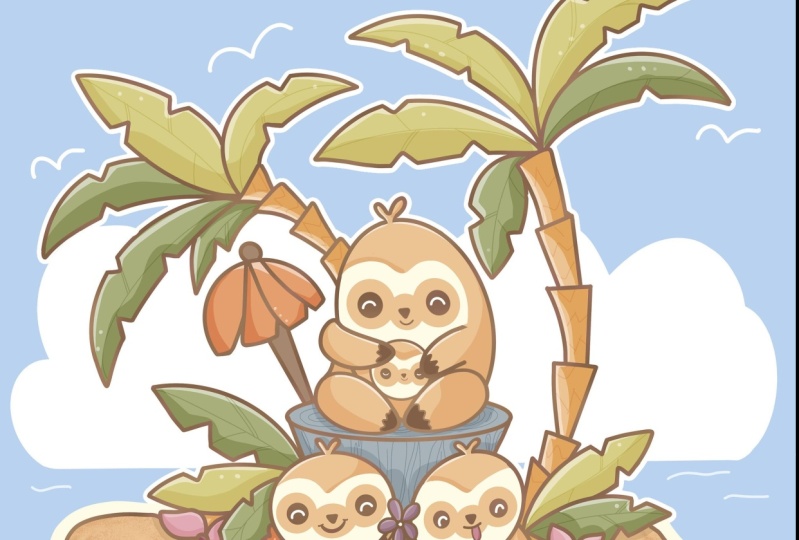
1. Introduction: Hello everyone, I'm uni and into this class we'll draw
a cute sloth family. This class doesn't require any prior experience
or fancy tools. We'll start from scratch
and we'll be using simple techniques
throughout the process. Everything you will see will
be happening in Procreate. However, if you
have other software or want to try
traditional materials, you're welcome to join if
you are ready to start, let's jump right into it.
2. Basic Scheme: Let's start our
class by deciding what kind of Canvas we
are gonna be using. You can see is a very simple
standard square canvas that you can find in Procreate. Both pixel width and pixel
height are set at 2048 pixels. If you would like to use any other dimensions for
your canvas, just go for it. S for a DPI, we are using 300 and S for the color profile. We are setting it at RGB
with this low number. When it's all down, I
just hit Done and it will be resurrected to
our new canvas. And now we will need
to decide what kind of colors where are gonna be using throughout
the whole class. You can go to the
verdict interest herself and download all the materials. And when he did it, Let's
just go straight to our color palettes and let
check out what we have here. Here we have two options of
how we can use our colors. They come back to
you and the cards, we will go to the cars because here we have
all the colors, names, and it'll be easier for us to
navigate through them. And why don't we, I still
here into our color palettes. Let's select our first
scholar that we'll be using for our Scheme
and for our Sketch. And this guy will be magenta. When we have our color, we will need to go
and select the brush. So we are going to
the brush library, we are going to this
cation folder and we isolated any brush that
you like from here. You can try every brush here. You can find what works for you. And 20 I satisfied with
your brush ledgers, get back to our
Canvas and we will start by creating
a little Scheme. We will need to go
and create a shape on the triangle that we will put in the middle of our canvas. So how can we create our
sheep on the triangle? Very easily, we will just go to our Canvas and just
with one line, we will go and create the shape. So let's just do something like that and they end on the line. We will hold our Apple Pencil
and he will say that you snap your shape to a better one if you want to
rotate it in any way, just move your Apple pencil
in a circular direction. And if you need to
adjust it in any way, we will go to the top where we have this popped up option, which for me says
polyline for you. It might be triangle. If you have the
option triangle when you tapped onto this
oxygen editing Modes, you can just go and select it. So now let's just go
and adjust our shape. You can see when we are
add the editing mode, we have some blue nodes. We can just go to them, we can drag them and we
can adjust our sheep. So firstly, let's
just go and make the whole shape a
little bit bigger. We can go to one of the nodes
that we have in the middle. So let's just due to
the right one and we will drag it more
toward the right side. We will do the same
thing with our left one. So again, we're arguing
to this node and we are again dragging it more
toward the left side. Now let's just try to
make an even triangle. And when you have, as we will need to put it
more toward the center. So to do so, we will need to go to any blank space that we have, ones that are Canvas. We'll hold our Apple
pencil there and we will drag this shape
to the needed place. If you need to adjust
your shape in any way, you are welcome to
go and do that. All that we need right
now is to create an even sheep tried to keep the distance
from all the sides, even on all the sex. When you're down,
we will need to get away from our editing mode. And we can do it very easily
just by heating our screen, either with our Apple pencil
or with one of our fingers. So let's just go away
from the editing mode and let's continue
creating our Scheme. So now we will need to go
and create a vertical line that is going through
the center of our sheet. Let's just go over our
triangle and we will try to create our line
the same way as before, just with one line
we are creating it and at the end we
are holding it. If you are holding
your Apple pencil, you can see that you can
adjust the angle on this line. For now. Let just
keep it very streets. If you need to adjust
it in any way, if you need to adjust
the angle or if you need to put it more
toward the sensor, you know what you need to do it. You will need to go
to the editing mode. We, I go into this top option, which now says line. And again we have
our familiar notes. If you need to adjust the angle, go to one of them and adjusted if you need to move
it more toward the sensor, again, go to a blank space
that you have on your canvas. Hold your Apple
pencil and try to put your rights in the
middle on the shape. And when you haven't lie, just tap on the screen and we will need to create
two more lines, but this time they
will be horizontal. So we will need to find three of these sheep and we will just go easily and firstly,
create Markdown. So you are going just by your eye and A1 Alito
marks down like that. You don't need to
be very precise. Just try to make the three shapes that will be
quite equal to each other. When you have this Markdown, let just go and create
our horizontal lines the same way as we have
created our vertical line. We are going a little bit beyond the shape
of the triangle. And then we're ago with
across the whole shape, we are holding our
life and the ends. We are adjusting our anger. We are trying to make
a very straight line. If you need to put it more to this mark down that
you have created, we'll go into our editing
mode to Art soap line. We are tapping on it
and we are moving more toward these little parts. When you habits, we are tapping
on our screen and again, we are creating one more line that will represent
another third. So again, we're
arguing and creating the line going across
the whole shape, adjust the angle, try
to make it straight. If you need to position
a differently, go to the editing mode and
position it differently. Try to make these
thirds quite equal. When your eye down
the leg, just tap on the screen and we are
done with our Scheme. The next thing that we will
need to do is to go to Arles entry name this layer
that we have for our Scheme. To do so we will need to tap on the layer and choose Rename. Let's just go with
a title Scheme. And when we rename this layer, if you take a look at
your Canvas right now, you probably will say that airlines for the Scheme are
a little bit too bright. And if we were to create
other elements there, it will be Elizabeth
confusing for us. A little bit hard to
see everything that's happened in onto this layer
through all these slides. Just go and make this layer a little bit
more transparency. What we need to do is to go
to earlier with this scheme, we will go to our little N, I can nearly check
box and you will see that we have a slider opacity. We can grab it and we
can drag it more toward the left side until we still can see what's happening
in, onto this layer. But when it's not that
bright and disturbance, so find a level
that works for you. And when you are done,
let just tap on our layer with the Scheme one more
time to close this window. And when we are done, we will continue agent
Art details and we will need to create some
layout that will help us to create the
whole illustration. Let's just go and
create one more layer, tapping on the plus icon and we will rename this
layer as layout. Now we the same brush and
we're the same color. We will go to this third
that we have on the bottom. We'll go to the
middle part of it and we will create
another sheet. This time. It will
be Eric tingle, and we will do the
same way as we did with our triangle
jazz with one line. So let just very boldly go
there and create our sheet. At the end of the line. We will hold our
Apple pencil and you will see that we snapped
it to a Beta sheet. If you need to rotate it, go with your Apple pencil
in a circular motion. If you need to make it bigger, just drag it more
toward this side. Then we will go or our
top to the editing mode. If you have some options
there, for example, rectangle or quadrillion
or something like that. You can go and select it
if you don't have it, we will go manually
and adjust our sheet. All that we need is to remain the shape to look
like a rectangle. Wages go and adjust
it if we need to. And now we will go and move this shape more
toward the center. So what we need
to do is to go to some blank space that
we have on our Canvas. Hold our Apple pencil there
and just drag this sheet, try to put it in a middle. So this line that we have
going from top to the bottom is going through the
center of our new shape. And also we will do and drag
this shape a little bit up. The line on the
bottom is floating above our ally of the triangle. When you have something
like that led just tap on the screen and we will get
away from our editing melt. Now when we have this shape, we will go to the bottom and we will create
a little paddle. Today we are creating
an illustration with this loss and the I sit
in on a little eyelet. So what we need to do is to go along the shape that we have on the bottom and create a very blobby shape
of the paddock. We're just going there and we
are creating some feel like that you can play with the sheep in any
way that you like. You can make it very rounded. Or if you want, you can go with a wavy lines adjusted
to your liking, find what works for you. Then we will go and create
a few more elements. So now let just go between these little paddle
that we have just created and this
little elements, that is our rectangle. And on the sides of it, we will create two ellipses. One is a little bit bigger and what is a
little bit smaller? So firstly, let us go over our left side and we will
create a shape like that. Again, you can go and
create it manually. Just very basically,
if you want, you can go and hold
your Apple pencil at the end of the line and
snap it to a better shape. These LH should be
also be tilted. When you have
something like that. If you want to adjust
it in any way, go to the editing
mode and adjusted. So for example, we can go and drag it more toward the sensor. When you have the sheep. In that way, Let's just tap on the screen and we will get
away from our editing mode. And now we will go to the opposite side and we
will create another ellipse, but this time it will
be slightly smaller. So again, the same
way as before. We are creating our
shape either manually or holding our Apple Pencil
and they end on the line. We are adjusting its angle. And if we need to
adjust it even more, we are going to
our editing Modes. Let's position it in
that way and let's keep our size a little bit smaller
than our previous elements. When you have it, we
will tap on our screen and we will get away
from our editing Modes. And now we will go on top of our rectangle and we will
adjust, adjust a little bit. We don't need this line
that we have on the top. We will need to turn it into another ellipse tool and just grab our eraser tool and we will erase this line on the top. When you did it, we will
go grab our brush one more time and we will
try to fit another, an ellipse right between
these lines that we have of our rectangle. So what we need to do is
to go the same way as before and create this shape
at the end of the line. We will hold it and then we
will go to our editing mode. Now, let's play with
our nodes on the side We will try to fit it in. When you have it, we
will need to make the whole shape a
little bit more closed. So that means that we
will need to go either to our soap note or
to the bottom one, and we will need to
drag it more toward the center when you have the
flat elements like that, if you need to drag
it alphabets app, let just go and drag it. Basically, what we need
is something like that. When you have it's
alleges tap on the screen who will get
away from our editing mode. And we will add one more ellipse on top of this ellipse
that we have just created. What we need to
do again is to go there and create a
shape like that. Hold it and the ends
if you want to, if you want to adjust it and
maybe make it more rounded, you're welcome to
go to the in Modes. If you want to adjust the size, again, you are welcome
to go and do that. These elements will
represent our slots. So the size of the elements will be
the size of the slots. So when you're satisfied
with the size, own this element
like just SAP on our screens to get away
from our editing mode. Now, we will need to go and
add a few more guiding lines. Firstly, let's just go over our right side and we will go to this intersection that
we have right here between our little islands
and our rectangle. From this intersection, we will go up with a curve like that. You can play with
this curvature. You can play with its size. These little elements will be our pump Eating it's adjusted. Ledgers go to the editing
mode and you can adjust the curvature by moving
these little notes. For now, let's leave
it as it is right now. Let's just tap on the screen and get away from the editing mode. And then we will add one
more line like that, but on the opposite side. So we will go to
our left sides to some intersection here if
you have it right here, and from here we
will just create another line going in
the same direction. If you want it,
adjust it in any way. You are welcome to do it. If you want to make
it smaller or bigger, you are welcome to do it. If you want to adjust
its position or if you want to
adjust the curvature on this element, again, you're welcome to do
it when you are done Sabbath on the screen and getting away from
our editing Modes. Now, we will go to the sides from our Alito elements
for this loss. And we will add a
few more guidelines that later on we will
turn into some leaves. Let's first go over
our left side. We will go to this
intersection that we have between our lives and
our little islands. And from here, we will create
a few lines in that way. You can play with their size. You can play with the direction, you can play with the
curvature on the slides. You can play with the amount of this elements.
It's all up to you. All that we need is to
create a few guys in life that later on we
can use for our leaves. When you have these elements, we will go or our right side and we will do
something similar here. Again, you can go and
create three lines, two lines play with the direction and find
what works for you. When you have
something like that. Ledgers get back to Arles. We will go to earlier
with the layout and we will change
the opacity again. We will tap on this
icon and we will drag this slider with the opacity
more toward the left side. When you have something
like that led us continue in the next part where we'll
be creating our Sketch
3. Mama Sloth Sketch: Let's say disbarred by going to early years and we will create one more layer for our escape. So we are tapping on the plus icon and we
will rename our layer. Now when they have are new
layer with the same brush, we will go to our color palettes and who will select
some contrasts color. In that way, we will know
what is happening in onto earlier with
the Sketch Layer. Select dark red. When we have our new color, we will zoom in our Canvas to this object that we have in
the middle of our Scheme, and we will start
creating the first slot. So what we need to do firstly, we will go to the sides from our ellipse and we will create two diagonal
lines like that. When we have these two lines, we will go to the
bottom and we will connect them together.
We the curve. Again, you can do it
manually or if you want, you can hold your
Apple pencil at the end of the line and
creates a better sheep. When we have this curve, ledgers go to the corners
that we have just created and we will turn
them into the soft corners. So instead of this
very straight angles, we will just need to go
and create the curve. Let's just do it
on the first side and then we'll move on to the opposite side and we will do the same thing here,
creating the curves. When we are done, we will grab our eraser tool and we will erase all the layers
that we don't need. Now when we have the
shape like that, we will go to the soap and we will start creating the head. What do we need to do firstly, is to find an approximate
center on the whole sheet. So we can just go there and
create a little markdown. When we have it, we will
go on top of it and we will create a sheep of
the circle or an ellipse. Let's just go and create
something like that. You can play around with
this size on this element. This is what we need for
creating the shape of the hats. If you want a bigger Hat, go with a bigger shape. If you want a smaller head. On the contrary, go
with a smaller shape, is always you can hold your Apple pencil and
the end of the line. And if you need to
adjust the shape, go to the editing mode
and adjusted from here. So for example, we can go with
the sheep or miss circle, and we can go and make
it a little bit bigger. So it will go a little
bit beyond their frames on the Alice that we
already had on our Scheme. When we have
something like that, ledgers get away from
our editing mode and let's continue
adding some details. So firstly, we will
go to them what Sam, and we will start
creating some legs here. Let's go to the left
side of our shape, and we will firstly need to find an approximate sense or
own the whole curve. So when my time I go into
this line that we have on the left and we are
making a little mark down. We will go underneath
this little mark down and we will start
creating our leg here. We will use an egg shape. If it's easier for you, you can start by creating an ellipse and then
manually adjusted. What we need to do is to
create something like that. You can go a little bit beyond your initial shape. It's okay. If you want to adjust
the sheep even more, you can go and
adjust it manually. When you have the
sheep like that, we will go to the
opposite side and we will create something
similar here, but this time it will
be a little bit bigger. So let's just go and
create a similar shape. You can make it as
big as you like. You can overlap your shape. You can make them apart, you can make them touch. It's all up to you. When we have the second shape, ledgers grab the
areas are two and we will erase all the lines
that we don't meet. Now when we have the
shapes for our legs, Let's continue by making
the shapes of our irons. So firstly, we will
go to our right side, right above our leg, and we will create
another egg shape. This time Elis
little bit smaller. So again, let just go and
create something like that. When you have this
arm on our right, Let's move on to the left side and let's create another arm. But this time we will create
a slightly different shape. We will firstly go
a little bit above our leg here and we will
make a little more exam. When we hand this markdown, we will go and create
the shape like that. So it won't be a very
LNG did ellipse. You can make it a
little bit thicker from the left side than
it is from the right. And when we have this shape, we will go and create a
little dance on the top. So it right from the
middle part of our arm, we will go and create a
curve going in that way. When you have it, we will grab the eraser tool and we will erase the lines
that we don't meet. When we are done with this part, ledgers go over the top and we will work once in our heads. So firstly, we have
this knowledge that we have created for
this shape of the hat. Let just go and create a
little mask that sloth have. So what do we need
to do is to go to this intersection that we have right here between
these two lines. And from here, we will
go to both sides. We will create the
shapes like that. They will be just the curves. When you have these curves, if you need to adjust something grand the eraser
tool and ingested. After that, we will go and
create our facial features. So what we need to do is
to go a little bit lower than we have this little line
that we have just created. And we will need
to create the ice. What we need to do is to go to the middle part of this shape. So let's just go and
make a little markdown. When we had this
little minds-on, we will go to this side of it. You decide whether
you want to go to the left side, where
to the right side. What do we need to do
is to create a sheep of the circle ledgers go and
create something like that. You can always adjust the size. You can hold your
Apple pencil and the ends and snap it
to a better shape when you're holding
your Apple pencil and when you snap your
shape to an ellipse, you can go and hold one of your fingers on the
screen and you will snap your shape to a perfect circle when you hand the
size that you like, ledgers go to the opposite side. And let's make this eye on the opposite side a little bit bigger if you went
to the left side. Firstly, we're a little bit smaller if you went
to the right side. Firstly, what we
need to do is to create slightly
bigger shape here. The same way as before. Hold your Apple pencil
and the underlying, hold one of your
fingers on the screen. And let's just go to the
editing mode to make sure that our shape on the
right is slightly bigger. We will just go to our
editing Modes and we will move our shape
toward our left side. Make sure that it is bigger. If it's not, you can go between the nodes and you can
adjust the shape. Now, let's just get it
back to our right side. And you can see that we have
this line in the middle. What we need to do is to make a little bit of
perspective here. So we will need to drag this little circle that
we have just created, the bigger one a little bit
closer to the right side. We are just making a slight difference
between our middle part. So let just take it and ledgers move it
more toward direct. So you can see that
the distance from the middle part is
slightly bigger. And when you are done, alleges tab on our screen to get away from
the editing mode. Now we will go inside this little shifts and
we will shade them. When you are done. Very conveniently, we
have this little mark down in the middle and we
will turn it into a nodes. So let's just go a little
bit above it and we will create a little very
rounded triangle. Let's shade this shape again. And we will go grab
an eraser tool and we will erase this
markdown that we had. And now let just go and create a little shape
above our elements. What do we need to do firstly, is to go right in
the middle and we will create a little
shape like that. So the same, it is our
shape over the circle. We are holding our Apple
Pencil at the end of the line. We are holding one
of our fingers and we are adjusting this size. So it is just a little bit bigger than our eye on the left. When you have it, we will
go to the left firstly, and we will create another
shape of the circle. This will be that big. We are holding it at the ends. We are holding Apple
Pencil and we are trying to put it
right in the middle. So our iris that we have for the eye is right in
the middle of the sheep. If you need to adjust
the placement, go over your top to the editing mode and
adjusted when you have it, we will go to our right side and we will do the
same thing here. So let just go and
create another circle. Again. It will be a
little bit bigger. And we are holding
our Apple Pencil at the end of the land. We are holding one of our
fingers on the screen. And if we need to go
to our editing mode, we will go and adjust
the placement of these elements so our eye
is right in the middle. When we are done, we
will tap on our screen. We will get away from
the editing mode. We will grab our
eraser tool and we will go and erase
this part in-between. Now we have this peculiar shape. And if you want,
you can go right above the sheet that you
have under the nose. And we can go and create
a little smile here. Now, we will go inside
the shapes of our eyes. We will grab the eraser tool and we will add some details here. So what do we need to do is
to go in the middle part of it and we will create a
little curve like that. When you have it on the first I, Let's move on to
the opposite side and let's do the
same thing here. You can adjust the
size of your eraser and make this element
bigger or smaller. When you have
something like that, Let's continue
adjusting our shapes so it looks more like a Sloth. What we need to do firstly, is to go to our right
part and we will create a curve going down and it
will continue our sheep, and it will connect
it with our leg. So we will need to create a
pretty big curve like that. Try to make it very smooth. If you need to adjust it, hold your Apple pencil and the ants go to the
editing Modes, add more volume on the bottom. And when you're done
with your right part, alleged, just work
on to the left one. So firstly, we will go
to this line that we have on the top that
we have for our hat. And we will continue with
this line going down. When we have the
curve like that, we will go to the bottom right in between our arm and leg. And we will continue creating this line just the same way
as we have it on the top. So we don't need this
line that we have right between our arm and leg. And what we need to do
next is to go and smoothen up our shapes on the
leg and of our Art. So we will just go to the side, to the left one and we will
try to make it smoother. So let's just make
them less protruding. And when you did it, we
will grab the eraser tool and we will erase all the
lives that we don't need. We also will go to
overwrite parts and we will erase this part
that we have on the leg. You can continue
erasing it until you have this dance on the top. And also we will go
to the bottom part of our arm and we will erase
this line here too. If you still have
the lines that you need to erase you
and erase them. And when you are
done with this part, we will just go and continue
creating another elements What we need to do right now
is to go to the top part of our sloth and we will
add a little hair here. What we need to do is to
create a shape like that. So you can think of it as it is a little heart or you can just go and create
a few petals here. Try to make them very
tiny and very nice. And when you have
something like that, let just take a look at the whole Illustration without
the lines of our Scheme. So we won't go to
Arles and we will hide these two layers,
layout and Scheme. To do so, we will need to go to our little check marks and
we will need to tap on that. So let's just take a look at the whole Illustration and
less adjusted if we need it. And we can adjust
our shapes very easily with a tool
that Procreate has, what we need to do is
to go to our magic one tool over the top-left
and select the option, Liquify one the bottom we have this panel and here we
need to select push. You can adjust the
pressure and you can adjust the
size of the brush. With this brush,
we can go alone, are elements and we can
push them in or out. So let just spend
some time there and let ages are shaped
to our ligand. Remember that now is just as Sketch and it doesn't
need to be perfect. All that we need right now is to translate a general idea. Later on, we can adjust all the details on
the furthest digits. When you're satisfied
with your sketch, ledgers continue by
adding more details. So firstly, we will need to get away from our Liquify tool. We will go to our magic 121 more time and we will tap on it. When you are done with this
part one more time where I getting back to our layers and we will get back earliest width, layout and Scheme back. What we need to do is to go to this part that we have between
our legs and the arms. And we will add a
little slot there to just add a baby slope. We will firstly go and create
a curve going in that way. This will be just the
head of our little buddy. If you want to adjust
it in any way, go to the editing Modes and adjusted when you hand
the shade that you like, Let's just tap on the screen and get away from our editing Modes. Now what we'll need to
create something similar to the facial features that
we have on the big sloth. So let just go and start
by creating the ice. Firstly, we will go again
to our left side firstly, and we will create the
shape of the ellipse. If you want to create a circle, hold one of your
fingers on the screen, age as the size. And we will go inside this shape and we will shade
it when we have it, we will go to the opposite side and we will do the
same thing here. Let's create another
shape of the circle. Let's position it more
toward the left side so it's not touching our arm that
we have on the right. When you have the
shape, one more time, we will go inside it
and we will shade it. Now, we will need to continue by creating a little nose
right between the eyes. So let's just go
to the middle part and let's create a similar knows that we have on our
main elements of the sloth. When we have it, we will need to recreate this little mask. So let just go and create
this shape in that way. So again, we are
creating two curves. It probably won't
be seen later on, but we still need to add it. And also we will go
underneath it and we will add another curve to end
up the whole mask. Later on, we will be Recoloring this object in different colors. So it'll be really helpful
for us to have this line. When we are done with this line, we will need to go and recreate these shapes that we
have above our eyes. So let's just go again
and create the circle. Hold it at the end snippet to better shape and try to put
it right in the middle. When you have it,
we are going to the opposite side and we are doing this similar thing here. And now let just go above
our nose and let's create another circle position
and differently if you need to and when you are satisfied with its position, ledgers grab the
eraser tool and we will erase all the lines
that we don't eat. We also will go to this
lines that we have overlapping our arms
and we will erase them. So now we have Elizabeth Sloth. If you want to check
out how it looks without the layout
and Scheme lines, you can go to the layers
and hide these two layers. If you want to
adjust some parts, you are welcome to go to the Liquify tool
and adjust them. And the last thing that we
will need to add here is this little elements inside the eyes and just
grab the eraser tool. Let's adjust its size and ledgers go and create
these two curves. And now we can say
that we are done with our first Sloth solidous. Get back to our list and we will unhide our LEA with
layout and Scheme. And we can continue by you and
encourage into more slots.
4. Scarf Sloth Sketch: Let's continue
making our slopes by going firstly to our
ellipse on the left. We will do the same thing as
we did with our first slot, but this time it will
be a different pose. So firstly, let just go to
this right part on this Alice. And we will create a diagonal
line going down like this. When we have it, we will create a little curve on the bottom to connect this
new curve with our ellipse. So let's just go and
create a smooth corner the same way as we did with
our first illustration. When you have the
curve like that, let's just turn it into a leg. So the same way as before, we are creating a shape of
the leg that we used before. And it was some kind
of an egg shape. Again, you can play
around with its size, you can play around
with its position and with everything that she
wants to play around with. So for example, let's end up
with something like that. And then we'll go to the
opposite side and we will create another leg. This time. Let's make this legs a little
bit apart from each other. So we will go to our left side, right two are
aligned only Alice, and from here we will
create another egg shape, this a little bit smaller. Let's create
something like that. As always, if it's easier
for you to start by creating an L it and then
adjusting it to an egg shape. You are welcome to
go and do that. When you have the
second leg ledgers go and create this
little bump part. We will go between our little legs and we
will create another curve going Elizabeth upfront airline that we have on our ellipse. When we have
something like that, we are ready to create our arms. So firstly going
over our left side, going above our little leg, and again creating the shape
of the arm with the shape of the egg Lynch's go and
create something like that. You can overlap the shapes
you always can play with the size and the placement when you're satisfied
with its position, ledgers go to the opposite side and let's create another arm. Again, we are doing above our leg and we are creating
a similar shape here. Now, if you want to
clean everything up, let Jazz rep are
areas or two and we will erase all the
lines that we don't need. We don't need this
overlapping lines that we have on the top. So let's just go and erase. Now, we also don't need the whole line that
we have for our legs. So let's just go to the
right part on our right leg. And let's erase this little line and we will do the same
thing with our arm. So just go in there and erasing
this part on the right. Now, when you have
something like that, allege us go to the
top and we will create the hats the
same way as before. We will start by creating the shape of the
circle or an ellipse. And to make it very clear, let us go and find an approximate center
of the whole shape, making a little mark down. And when we have it, we will go above it and
we will create our shape. Let's just go and create
it the same way as before by holding
our Apple pencil at the end of the line. Or if you want to
create it manually, you are welcome to do it. If you need to
adjust your sheep, always go to the editing mode
and adjust it from here. When we have our shape, we will need to go
inside of it and we will need to create
this mask elements. So let's firstly go a little
bit to the top and we will create the shape that we
had before with two curves. The curve on the left
will be a little bit smaller than the
curve on the right. Let's just add a little bit
down from our top curve. And here we will create our
two curves for our mask. When you have
something like that, Let's just go and add the facial features the
same way as before. We are creating our first
ellipse on the left leg. Just go to the middle
part of our heads. If you need to, you can go and make a little mark down here. And from this my exam, we will step aside and we will start by creating the
shape of the ellipse. Just hold your Apple pencil at the end of the line
snapping to a better shape. And if you want to
snap it to a circle, hold one of your
fingers on the screen. When you're satisfied with
the size of your elements, Let's unfold everything that
we are holding right now. If you need to adjust it, you can always go to
the editing mode and adjust the placement
or size or anything. When you are satisfied, let just go inside this
shape and let's shade it. And now we will do the same
thing on the opposite side. And this time it will be a
little bit bigger ellipse. So let just go and
create our first shape. We will hold our Apple pencil if you want to snap
it to a circle, hold one of your
fingers on the screen. Make sure that it is L is bigger than the
sheep on the left. And to make sure, we will need to go to our
editing mode and we will need to drag our new shape
to the opposite side. And we will adjust our
size just a little bit. It is a little bit above
our main shape on the left. When you're done with
resizing your elements, we will move it
back to our right. Let's position it a little
bit farther from the center. And when you're satisfied
with your elements lead, just go inside it
and let's shade it. When we are done, we will go to this little mark
down that we've made in the center and we will
turn it into our Alito knows. So again, I go in a
little bit above it and we are creating a very
rounded triangle, shaded streets
away, and then grab an eraser tool and erase the
lines that we don't need. And now let just go above our eyes and we will start creating our little
mask elements We will go to our left side. Firstly, we are creating
our shape of the circle, holding our Apple pencil
at the end of the line, holding one of our fingers. And we will go to the
editing mode and we will try to position it
right in the center. When you have it, we will go and create the same
sheep on our right parts. This time it will be
a little bit bigger. And when we are done
with their eyes ledgers go and create another
circle for our nose, the same way as before
holding our Apple pencil at the end of the line
and hold in one of our fingers on the screen, position it right in the middle. And when you are done, we will go away from our
editing mode and we will grab the eraser tool and
erase these lines that we have in-between
our objects. And as we still have our
Eraser tool turn on, ledgers go inside the eyes and we will add our
additional elements there. So if you want to repeat the same shapes that you
had on your first law, if you are welcome to use, if you want to
experiment a little bit and maybe find
something different, you are welcome to do it too. So let just go inside the eyes and add our additional
elements there. And when we are done, we will grab our brush one
more time and we will go underneath the nose and we
will add our little math here. We can repeat the same
shape that we had before, or we can experiment a little bit and find
something different. So for example, let's just go to this line that we have on the mask and we will
create a line like that. We are creating a very
big and Smiley mouth. If you want to erase and parts
or adjust them in any way, grab the eraser tool
and adjust them. Now with the same brush. Allege us go over the
top and we will add our lead cell element that
we have for our hair. So let's just go
over the top and we will add these two
little petals. As always, you can experiment
with their size and with their position
and with their angle. You are welcome to do
whatever you want here. Just create this
little hair elements. When we are done, we will go between our
little phase and the arms, and we will add a
little scarf here. So what we need to
do is to go right underneath this line that
we have for the face. And we will go firstly
over our left sides. So let just go near this line
that we have as our scheme. And we will just
go and repeat it. Firstly, when we have it, we will need to add some
volume to our little scarf. So we will need to create a line that will look like that. So we are creating some
kind of a fault here. Ranges go near our
top part and we will create the line going down and then it will create
a little dent here. You can play with the
position of this dance. It's again up to you. When we write down what,
we'll grab the eraser tool and we will erase the
lines that we don't meet. Now when we have this
on our left side, let's move on to
the right and we will do something similar here. We will stop a little
bit from this side of our sloth and we will go and
create a similar line here. You can repeat this same dance, or you can play around and
find something different. When you have your
little dance led, just go and create a little triangular
shape on the bottom. So what do we need to do is to go and create
something like that. We are just connecting
our lines on the sides and we are creating these triangular
shape on the bottom. When we have it, we will go or that soap
and we will create a curve right underneath our head
or a little bit above it. And again, with this curve, we are connecting our sites. When you are done
alleged just grab an eraser tool and we will
erase all the lines that we don't need to pay more attention to these
intersections that we have on our arms because we want our arms to be a
bath or a scarf. Let's just go and
erase the lines that we have on our arms. Now let us go over
r right parts, and we will erase this line
that we have for our scarf, but we will need to
create a different shape. So it is still S-curve
and it is above our arm. So let just go between these two objects are
armed and our scarf, and we will create
another line here. So it is kind of
lean on our arm. When you have it, we will
grab our eraser tool one more time and we will continue areas in the lines
that we don't need. Now we can go and
create our faults. So we can go to this little
dance that we have on our sites and we can create a few lines going in that way. If you want to add some pattern on your
sketch on this curve, you are welcome to do. So for example, just to know what we are going
to be doing next, we will go and create a few
little flowers on our scarf. We also will go to
our right parts, right where we have
our scarf bonded soap. And from this little scarf, Let's just go and create
one more elements. That will be a little flower. We will go and create
the stem first list. So just go there and create
a little curve like that. When you have it, we
will go on top of it and we will create a
few petals there too. Let's just go firstly with one flower and then
maybe add a few more. Linda's go to the tip of our stem and we will
create a few petals. If you want to add more flowers, you are welcome to do it. Remember that now we are
creating just a sketch, so it doesn't need
to be perfect. If it's a little bit
messy, it's okay. You just need to know
what you are putting here and later on be
able to recreate it. So now we are almost done
with this sketch layer. Just go to our right
part and let's turn this very straight line that we have on the right into a curve. We're just going
there underneath our scarf and we are
creating a curve there. Let's erase the lines
that we don't need. And when we are done
with this part, ledgers go to our liquefy tool and let's adjust our elements. Firstly, we will go to
our leaders and we will hide our leaders with
layout and scheme. Then we will go to our
magic one tool over the top-left and we
will select liquefy. We are using push and we
can adjust the size of our brush and we
will just go and adjust our elements
to our ligand. So for example, let's just go to this arm that we
have on the left, and let's push it a little
bit toward the center. Just spend some time here
and adjust your elements. And when you are
done with this part, we will move on
to our next slot.
5. Sleepy Sloth and Background Sketch: For our last Sloth, firstly, let us get back
to our layers and we will unhide our layers with the Scheme and layouts we are still at earlier
with this gauge. And we will go Zoom in our
Canvas to our last ellipses. What do we need to
do here firstly, is to go to our left side on this ellipse and create
a curve like that. When you have it, we are
ready to create our leg here. We will need to connect
this big curve on the bottom with an
egg shape of our leg. Then just go and
create this shape. This time, let's create
a very relaxed sloth. So you can just go and create
a very elongated egg shape. When you have it, we will go to the opposite side and we will need to
create another leg. But this time let's make
this legs very close to each other and we will need
to create the similar shade, but it will look like that. So I go into our right
part and we are creating another Alice that
we'll look in that way. We don't really need are
two part openness elements. So let's just grab
an eraser tool and erase this little parts. If you have the
overlapping shapes, you can go and erase. Then to what we need
to do next is to go to this little lag that
we have on the right. Create a little
dance on the top. We're just going and create
an outline like that. When you have it, we are ready to move on to our right part. And here we will
add a little Tommy, let just go to this line that we have on our adsorb that
we had just created. And from here we will go to the top and create
a curve going up. You can repeat the
same line that you have on your Scheme. But if you want to
make it less curvy, you're welcome to do it. When we have the Tommy elements, we are ready to move on again
to the right part firstly, and create a little arm here. So let just go and create
a shape like that. You can always start with an ellipse and then erase the parts that
she was own needs. When you have the first
arm on the right, Let's move on to
the left side and let's grade something
similar here. Let's just put this
little arm on our leg. We will just go and create a very elongated
shape like that. Let's grab our
eraser tool and we will erase all the lines
that we don't need. And again, we are ready to go and start creating our hats. So first the ledgers go and find an approximate center
own the whole shape. We are making L itself Markdown. And from it we will go above and we will add our ellipse here. So let just go and
create our sheep. As always, you can
hold your line and the ends hold one of your
fingers on the screen. If you want to make a circle. If you want to adjust
the whole shape, go to the Edison
Modes and adjust it. When you have
something like that, Let's just tap on
this screen and let's continue making our
facial features. Firstly, we are
stepping a bead from the top part and we ask starting by creating our
little mask here. Again, we are
creating two curves. One curve that is on
the left will be a little bit bigger than
the curve on direct. When you have it, we can go straightaway
to the top part and we can add our little
hair element here. When you are done,
we are going again N creating our facial features. So one more time, Let's find an approximate center of this circle that
we have on the top. Let's make a little markdown. Then we will go towards
one of the sides and we will create our
ellipse for the eye. Firstly, let just go over R right part and let's
create our shape here. Hold your Apple
pencil and the ends. If you want to create a circle, hold one of your
fingers on the screen. If you need to adjust the shape. If you need to adjust the
placement on this element, go to the editing Modes
and adjusted from here. When you're satisfied
with your shape, ledgers get away from
editing Modes and ledgers go inside our
eye and let's shade it. And now we will go
to our Write bytes and we will add a
similar element here. Let's just make it a
little bit smaller. When you are done, we will do inside this shape and
we will shade it. Now, let's just go to this
little mark down that we have. We will go about it and we
will add a little nose. Red areas are two and erase
this little mark down. And we, the same eraser tool
alleges go inside the eyes. And let's add our
additional elements here. The same way as before. You can play around
with the sheep's. Now when you're done
playing with these sheets, alleges grab our brush
and let's create a little smile so we won't
go underneath the nose. We will go right
between the eyes and we will create a big
smile like that. If you want, you
can go to one of the sides and creates
a little tongue. When you have it
alleges go above our eyes and we will
create this mask elements. Again, we are create
an array Shapes, and then we'll erase the
parts that we don't need. When we it down with
the facial features, let just go and add
a little tiny line. We will go a little
bit down from our facial features and we will create a
curve in that way. Now, let us get
back to our layers. We will hide the layer with
the layout and Scheme we will do to our Liquify tool and
we will adjust our slope, spend some time here and
find what works for you. If you want to adjust
these elements separately. Firstly, we can go to
our S ribbon icon, select freehand method,
and select these objects Loop it around until only
these elements is selected. And then we can get back
to our magic one tool to Liquify tool and adjust
only these elements. The same way if you want to rotate your object, for example, or maybe find a
different placement for it with the same selection, we can go to the Transform tool, which is our arrow key. On the top-left, we will use
uniform methods and we will just find a different placement or rotation of this object. To find the different placement, we will just need to go
to some blank space, hold our Apple pencil there and move it to the
needed plates. If we want to rotate the object, we will go to this green
node over the top. We will hold our
Apple pencil there and we will make a
circular movement. So find what works
for you if you want to play around with
these elements. And when you are done, alleges Gill and
deselect everything. To deselect everything,
we will need to get back to the first option
that we have selected. This was our S ribbon icon. Select, just tap on it and
we will deselect everything. Now, if you want to go and
adjust some elements manually, you are welcome to
go and do that. For example, if you want
to erase some parts, just guilt and erase that. If you want to go through
your elements three slots, for example, and adjust
some parts manually. Again, you are welcome
to go and do that. It's always good to
adjust your elements on the stage with a
sketch because you can just lay out your
elements and you will just know what you
are doing later on. So for example, if you have some places that
you need to adjust, go and adjust them
on the Sketch. And when you're in a
jazz singer elements, Let's deselect everything. We are going to our
magic one tool, one more time tapping on it. And we will just get back
to earlier is and we will unhide earliest with
layouts and Scheme. Let's get to our layers
and we will create one more layer for the
rest of our elements. In my town, we are
tapping on the plus icon. And if you would like to rename
this layer as Sketch to, you are welcome to do it. If you don't want to do that, you can keep it as it is. Because later on we will merge
these two layers anyway. So they would be as one and they will have
the name Sketch. So for now, let us go to
our Canvas and we will start by creating a trunk
of our pump on the right. What do we need to do firstly, is to define the highest point where we will start
creating our lease. So let's just go to the
top third that we have here to this curve that
we have on our Scheme. We will just make a little mark down right in the middle of it. So this is the point where we will start creating
our list from. And now let's just
go underneath it and let's work on to our trunk. So we will go firstly to the
bottom part and we will need to create similar lines
that we have on our Scheme, but we will need to
keep in mind that our trunk of the
palm is Elizabeth, wider on the bottom
than it is on the top? So we will need to make the
curve a little bit different. Let's firstly go to
the bottom and we will step a little
bit from this side, all these line that we
have on this scheme, we will try to repeat
the same curvature, but we will adjust,
adjust a little bit. Let's just go and create
something like that. Julian. And the ends. If you need to adjust
the curvature, go to the editing
mode and adjust it. Now, let's just go to the
opposite side from this line that we have any center and we will do the
same thing here. Remember that we will need to
make it a little bit wider on the bottom rather
than it is on the top. One more time stepping
a little bit from the line and we are going
up with our curves. Hold your line and the hands. And if you need to
adjust the curvature alleges go to the editing
mode and adjust it. So when you have
something like that, Let's just get away
from our editing mode. And now we will need to
work once our trunk, because we will need to have some segments that
will make it a pump. What do we need to do firstly, is to go and create
these segments. So very easily, let just go and create a few
lines like that. Try to get the distance between these lines equal and just go along this line that you have any center and on the set. So we will need to make sure
that this line that you are creating are following
the direction of this Lines. And when you have all
of your segments, we will need to work on
them a little bit more. What we need to do is to go to every segment that
we have here and make sure that it's top part is a little bit wider
than its bottom part. So again, let just go to
the top one and we will go and create the line going
more toward the center. So what we need to do is to
create the shape like that. When you're done with the sheep, you can grab the eraser tool
and areas this lines that you don't need anymore
and witnessing method, we will go through all of these segments and we will
create similar shapes. So remember that we will
need to have our shape, Elizabeth wider on the top and a little bit
narrower on the bottom. So let us go through all of these segments and create
these little parts. When you're done
with these bytes, ledgers go to the opposite
side where we have a similar curve and we will
do the same thing here. We will need to create a
few segments here as well. Let's firstly go
and again define where we will start
creating our leaves. So let just go to this
intersection that we have between our
triangle and this curve. And here we will make a little
mark down from this line. We will go and create two more
guys in lines going down. So that will be our
segments of the pump. So just create two
curves and when you have them alleges go and
create two segments. We will just go and create
one line like that. And then we will turn
these two segments into something that we were making
Owens error right parts. And now when you're
done with the trunks, alleges go and start
creating the leaves. Firstly, we will go
to our right part and we will create a
few more guiding lines. What do we need
to do is to go to the center on this
segment that we have, go into this line on the top. And from this slide, we will go to the
sides and we will create a few lines going
in different directions. So let's firstly go and create
a curve going like that. Then we'll go to the opposite
side and we will create a few more on this lines going
in different directions. So when you have a few
of these guiding lines, Let's start turning
them into their leaves. The leaves of the palm have
a very peculiar a sheep. So it will have a
very rounded shape on the top and almost
straight line on the bottom. So they just go to the firstline that we have as a guide in here. And we will need
firstly to go to the top and create
a curve like that. When you have this curve, we will go underneath
this line that we have in the middle and we will create almost a straight line there. We will connect it with
our line on the top. And with the same technique, we will go through all of this Lines and we will
create our lease. So let's continue by
going to this line that we have one the top
of the previous leaf. And we will do the
same thing here, go into the top end, creating a big curve like that. You can almost make
it triangular. And when you have it, we will go to the bottom. And again, we are creating almost a straight line,
connect them nicely. And let's move on to
the opposite sex. We will go to this big curve
that we have on the left. And if you want to
adjust the curvature, if you want to adjust
the size on the leaf, you are welcome to do. So for example, you have
this curve that size. Let's just go and maybe make
it a little bit bigger. You can play around with everything that you wanted
to play around with. You can play around with the
curvature of the leaves, with the size, with its
position, with anything. When you have the first curve, Let's move on to the bottom and let's create almost
straight line. And now let just go through all these remaining lines and let's turn them
into the leaves. Try not to go beyond the
frame of your canvas. If you want to
adjust some parts, you can go and do it manually. Or you can always go to
your magic one tool to Liquify tool and adjust
it with this option. Now we can go to the bottom parts of
our leaves and we can create this peculiar shape of the leaf by creating some cuts. What we need to do is to go to the bottom end, create
little triangles. Just go and create a few of
them on every leaf ends. When you identify Eating
these little triangles, let just go to the
bottom part of them and we will erase
these little parts. And now when we're
done with this leaf, Let's move on to our next fan, and let's add a few
more leaves on its two. So again, we're starting
by creating guiding lines, going in different direction. As we have a smaller palm here, let just create five of
these guiding lines, the same way as before. We are starting to
create our lease, similarly to how we did
it with the first palm. Alleges go to the top
of our guiding line and we will create a
very rounded curve here. You can try to
make it triangular or if you want to
soften up the corner, you are welcome to go
and create a curse. When we have the
first-line like that, we will go to the bottom
and we will try to create a very straight line
with the same technique. Ledgers go through all of these lines and let's turn
them into the leaves. If you need to
overlap some leaves, you are welcome to
do it than just grab an eraser tool and erase the
lines that you don't need. When you're done adjusting
your sheep ledgers go and add this little
cut out on the leaves. So again, where I go into
the bottom parts and we are adding a few triangles. When we are done where I go
into the bottom parts of these triangles and we
are erasing these lines. And now we are done
with our pumps. If you want to add some
additional elements, for example, some coconut
or maybe bananas, you are welcome to do it when
we're done with our pumps, lead, just move on to the bottom part and
let's add some leaves. We already have
these guiding lines that we have on this scheme. Saline just turn
them into the leaks. You can play around with
the sheep's own beliefs. You can find what works for you. But basically, we will
go and create the shapes on the lemons and we will
make some cuts in them. So firstly, let's just
go over our left side, and from here, we will
start creating our lease. Let's firstly go with
a curve like that, and then we'll go to
the opposite side and finish the shape
with a similar line. Now when we have it alleges
go to this side and we will do the same
things as we did with our leaves on the palms. So we will just go
and make some cuts. Let's create a few triangles
going along the lines. When you are done, ledgers, grab an eraser tool and erase this little lines
that we don't need. If you have some overlapping
lines on your own objects, ledgers go and erase them. Tea Now let us go inside this leaf and we will create a
line in the middle. When we have it, we
will go to the sides and we will add a few
more lines like that. Now when we have our first leaf, lead, just go and create
a few more of them. You can vary the
size of your leaves. You can vary their
distance from each other. You can vary their position. You can vary wherever
you want to vary here, and we will just need to go
and create a few more leaves. Let us go underneath this
firstly that we have, and for now let's just go with a similar shape that
we have on our pump. So we will have a
very rounded shape on the top and pretty straight
sheep on the bottom. If you have some
overlapping parts, you will need to decide what
leaf you want on the top. So for example, if you want
this leaf on the bottom to be on the top from this
leaf that you have behind, you can just go
grab an eraser tool and erase this little
lines that you have here. Now let's work more
wanted the sheep. So we will go to the bottom
parts and we will create some cuts one more time
creating some little triangles. When you have your
little triangles lead, just grab an eraser tool and erase this little parts
that we don't need. Now, let us go and create
a few more leaves. Spend some time here and
play around with the shapes. When you are done
with your left side, Let's move on to
the right part and we will do something
similar here. So again, we will create
a few more leaves. Lynchers go and use these lines that we
have on our Scheme. We are going to the top
part of our line and we will just create a similar shape to the
shape of our pump. Let's again go and
create this big curve. Only soap, you can
vary its size. You can make it very
big or very small. It's all up to you. When you have it, we will
go to the bottom and we will connect the shape
with more straight line. Now we don't need
these lines that we have one trunk of our palm. So let's just grab an
eraser tool and erase them. Now let's just go and add
some cuts to our leaves, again doing to the sides and
creating little triangles, erasing the board some parts. And then we will go inside
the leaf and we will add this line that is going through the middle of our leaf. When you have this line, let just go to the
size and we will add a few more lines like that
with the same technique, LHS go and add a few more
leaves on the bottom. When you're done
with the leaves, let just go and add
a few more details. For example, ledgers due to some blank spaces that
we have on the bottom, right, underneath our leaves, on the left and right
between our two sloths. Let's add more details here. So for example, lynchers go to this place that we
have on the left. And let's add some flower here. For example, let's just go and create a very simple flower, just a little circle
in the middle and some petals on the sites. You can play around with
the size of this object. You can play around
with its position, with everything that you
want to play around to it. If you want to add more details, more flowers or more leaves, you are welcome to date. When we have our flowers
on the left leg just go between our sloth and let's
add a little grass elements. What we need to do is to
create a few lines like that. So firstly, let's just go and create a triangular
shape in that way. And then we'll go to
this side and we will add a few more of
these elements. Then we will just
grab our eraser tool and we will erase all the
lines that we don't need. We can get back
to our layer with this case where we
have our sloths. So let just select it from our layers and let's
just go and erase these lines that we
don't need that are overlapped by our grass. When you already alleges, get that to our layers
and we will one more time go to our LEA with our
additional elements. We will need to work once
they are a rock here. So what do we need to do is
to create a different shape, just a little bit different. What we need to do is
to go to the sides. Firstly, we will turn this very straight
lines into the curves, going more toward the center. Let's firstly step a little bit from our line on the left, and let's create a
curve like that. When you have it, we will do the same thing on
the opposite sex. When you have it, we
will need to connect these lines on this side
with another ellipse. So again, let just go and create an LS either with one
line or with two lines, that will be just the curves. So for example, they just
get with the curves. We will create one that is connecting our shape
on the bottom. If you need to adjust it, you to the editing mode. If you don't need to adjust it, lay just go over the top and
let's create another curve. Go into connect our sheep. Try not to make the
sides very pointy. If you have them very pointy, you can just go and
create the curves here on the sides if you need
to erase some parts, for example, the overlapping
line that you have, one your slot, you
can go and erase it. And now let's just add a bit of texture of the rock
to this elements. So what do we need to do
is to go to this line that we have on the boards and
that is connecting our sites. And we will make a
little chip here. So again, we will create
a little triangle there. And also we can go through
the whole shape and add a few more lines
that will make a texture What do we need to do is to create some lines
going in that way. Later on, we will just turn them into
something different. We will add some color here
and it will look like a rock. And as always, if you need
to adjust some parts, go and adjust them
manually or use the Liquify tool to adjust
them with this tool, if you need to erase some parts that are overlapping something, you can grab an
eraser to erase them. And now we're almost done. Let us go to the bottom and we will add a few
more details here. So this part that is very rounded on the boards
and it is our islands, lynchers go inside it. And let's another layer on this. And let just go and
repeat the shape, but we will make it a
little bit smaller. You don't need to
copy it precisely. Just go and create another
layer of these elements. If you need to erase some parts, you know what you need to do. You will need to
grab an eraser tool and erase the parts
that you don't need. And now lynchers go
to this part that we have just created and we
will add a few more details. So for example, ledgers
go and add some rocks. We will go to some blank spaces, but we don't need to
overdo everything. Let's just go and
add three rocks. So for example, let's
balance everything out and we will add
one little rock on our left side
because here we have some elements To little
rocks on the right side. So firstly, let just
go over our left side. We will step a little bit from our elements and we will firstly create a
shape like that. So pretty similar
to what we were doing with our
leafs on our palm, we are creating a very
rounded shape here. When you have it, we will go to the bottom and we will
create just a straight line. When you are done
with this part, Let's move on to our right part. Here. We don't have
much of the elements, so let just create
two more rocks here. We will put them very
close to each other and one of them will be
bigger than another, the same way as before, just creating a
rounded shape on the top and straight one
on the WhatsApp. Let's position it very
close to each other. So let just go and create a little rock near
the first one. If you want to add
more elements, you are welcome to do it. If you don't want to create
more elements, lead, just go and create
the last element that we have, SR
Composition here. And it'll be a little umbrella. We will put it right between our little pump and the leaves
that we have on our left. And for convenience, alleges go to earliest and we will
create one more layer. This layer, we will
create this umbrella. And it'll be easier
for us to rotate this object if we
need to later on. So what we need to
do firstly is to go there and create a
stick like that. We will just go with
a line going down. You can go and create
a very straight line, or you can go and create a menu, a line like that, that is a little bit query. When you have it, we will go to the top
part and we will need to create a similar shape to the rock that we
have just created. So again, we are creating a very rounded shape on the top, but this time, let's make it
a little bit more pointed. So it is more like
a triangular shape. Let's just go and create
something like that. When you have it, we
will go to the bottom and we will create
a curve like that. If you want to
adjust your sheep, go and adjust it, you can go to the sides and make this element more sloppy. It's all up to you. If you need to erase
some Lines leg, just go and erase them. Now we will go and we will
create some segments. So we aren't going to the top point that we
have for our umbrella. And we are going with the
lines like that going down. Let us go and create a few
segments, three or four. When you are done
with this task, let just go to the
intersections between our bottom part of the
umbrella and these segments. And we will make little cats out there to the same way as before, just creating little triangles. When you're done with just grab an eraser tool and let's
erase the bottom parts. If you need to adjust something, just go and adjust it. And now let just go
to the top part of our umbrella and we will add
a little elements like that. So it is just a very simple
shape of the ellipse. When we are done, ledgers go and adjust our
elements if we need to. For example, we can go
to our Transform tool, which is our arrow
key on the top-left. And we can position it
differently by rotating it. We can go to this green
nodes over the top and we can rotate it in a
direction that we like. If you want to move it
to a different place, you are welcome to do it. Just hold your Apple Pencil at some blank space and
position it to your liking. You can always take a look at your illustration
from the distance. And that way you will see more
clearly what you're doing. And if you like it, if you want to make
this illustration of the umbrella bigger or smaller, you can go to one of the corners that you have on
the bounding box. Hold your Apple pencil
there and move it more to this side
to adjust the size. Find the position of this
elements that you like. And when you are satisfied, ledgers go and erase the
parts that we don't need. So we don't need this line
that is overlapping Art sloth. So let's just grab an
eraser tool and erase it. And then we will go
and we will need to decide what we want to overlap. What if we want our umbrella? Overlap the leaves. Let's just go and erase this little leaf part that we
have right here on the top. We are still on a
different layer. So we will just need to
get back to our layers and to this layer that we
have our details on. When we are in this layer, we will go and erase our parts. And the same way we will do with this leaf that we
have on our pump. We will need to decide
what we want to overlap and then to erase the
parts that are overlapping. So for example, let us put our umbrella to the front ground and we will just go and erase this leaf that we
have overlapped. And now it was our
last element here, but we will need to work
more on the background. Let's just go grab our
brush one more time. And we will go to the second
segment that we have here, and we will add
some clouds here. What we need to do is to go to this line that we have on
the bottom of this segment. And firstly, to repeat
this line on both sex, then just go and do that. Now when you hand this line, we will go on top of it and we will create
a shape like that. If it's easier for you, you can go and create
the Alex shape. Hold it at the end the
same way as we did before. If it's not what you want to do, ledgers go and create the same
shape on our right parts. You can vary the
size of the clouds. It's all up to you. If you need to adjust some parts ledgers,
go and adjust them. If you need to erase some parts, ledgers go and erase this
part is that we don't meet. And now when we're
done with our clouds, alleges go to some blank spaces and we will add a few birds. For example, let's
start from the top. We will go right between these little leaves
that we have here. And we will just need
to create a shape like that very easily. We will go and add a few
more of these lines. Ledgers go to the right
part where we have this blank space and we will add a similar shape
of the birds. The same way we will
do only boards, ampicillin just go and create a few more birds
there if you want to position them differently
or if you want to add more on these birds,
you are welcome to. The very last thing that we will do to our Sketch is go into our layers and combine all the layers that we have
for our Sketch together. But firstly, let us
go to our layers with layout and Scheme and
we will hide them. Now, let's just take a look at the whole illustration
in general. And if we don't want
to erase some parts, if you don't want to
adjust something, we can just go and merge
these three layers. So firstly, we are going to
earlier with the umbrella, we're at Sabbath and it's, and we are choosing
merge down from the list and we will do the
same thing one more time. Ledgers tap on our layer and
we will select Merge Down. Now we have our sketch
just on one layer, and that's exactly what we need. All that we need to do
right now is to position iris gauge rights
in the middle of our canvas and make it
a little bit smaller. Cylinder select all the
leaves that we have here and we will go to
our Transform tool. We will have this option
snapping on the Watson ledgers, go there by tapping on it. And we will need to
turn on snapping from the settings
led, just toggle it. And then we will do and make the whole shape
a little bit smaller. So Lynches go to one of the nodes that we have
in the middle part, on the top or on the bottom, and we will drag it down or up. When you have this
is like that ledgers make sure that we are putting
it right in a center. Make sure that we are putting our illustration in a center. We will need to hold our Apple Pencil at
some blank space. And we will need to find these two guiding
lines that are orange. When you have these two lines, you are sure that
you are in a center. When we are done,
Lynches go and deselect everything by heating our
arrow key one more time. And now we are
ready to move on to our next part where we are
going to be aging airlines
6. Clean Lines: Left side Erlang in part
by going firstly to early years and we will change the opacity level of
earlier with this Sketch. To do so, we will need
to go to our Eigen, go into our opacity
slider in changing the value until we still can see what's happening
onto this layer. But when it's not that
drastic and disturb it. So find what works for you
and when you are done, we will just tap on earlier with this gauge one more time
to close this window. When we are done,
we will need to create one more layer
for our Lights. So let just go underneath
early with this gage. We will select early
with the layout. And from here, we will
create a new layer. Let's just tap on the plus icon and let's rename
this layer as Let's, now when we have a new layer, we will go and change the brush. So we are go into
the brush library and we will go to
the inking folder. In the inking folder, we will find technical pen. And while we're still here
into our brush library, Let's just go and adjust our
brush just a little bit. So we will need to tap on
Ahrefs technical pen brush. And here in the brush studio, we will go under stabilization and we will see the
option streamline. It has the slider amount. And if we go to our
Drawing Pad with a lower amount of
amount of streamline, you will see that we have a
lot of control over our line, but our line is a
little bit jagged, so it is not that smooth. And we want all of our
allies to be very smooth. So if we go and change
the amount of streamline, you will see that
you are losing a bit of control over your line, but Your line is
getting smoother. You can play with this option and find what works for you. If you don't want
to use this option, you're welcome not to use it. So find what works for
you and when you are done ledgers he'd done
over the top right? When we are done, we will go back to our color
palettes and we will select the same color that
we're using for our Scheme. It was magenta. So when we have our color, we will get back to our Canvas and we
will firstly go over our slots and we will start recreating the lines that
we have on our sketch. We don't need to
be very precise. If you want to go and
adjust something, if you want to add some details, or maybe you want to
experiment with the lines, you are welcome to do it. Or that we need to do is to recreate the lines over kinds. And we will need to
create the close lines. So firstly, we will need to go alone our first slot
that we have on the top. We will just recreate the
lines that we have outset. We will recreate the
whole silhouette, and we will also recreate
the facial features. The eyes, the nose
and mouth is for these elements that we have for the mask alleges leave them
as they are right now. Later on when we are gonna
be aiding the color, we will recolor them to. For now, let just go and create our lines
that we have outset, we will need to create
the close Lines. And when I'm saying close, I mean that we will need
to have all the outlines close like that so we don't have any gaps between airlines. So later on we can recolor
everything easily. Now, very easily religious guilt and create this outlines. If you need to adjust
the size of your brush, please go to the left, to the first slider
that you have on the top adjusted
to your liking. And with our brush prepared ledgers go and
create our outlines. If you need to use some
options that we used before, if you want to hold your Apple pencil at
the end of the line, you are welcome to do it, or that we need to
do right now is to create smooth enclosed Lights. When we have our
outlines, Deanne Lynn, just get back to our
layers and just for 1 s, we will hide our layer
with this sketch. We will take a look at
the whole outlines that we have without these
lines on this gauge. And if we need to
adjust some part, we will just go grab an
eraser tool or our brush, and we will go and
adjust these parts. Now when you have these shapes in that way that you
can see right now on your screen link just go and end the same color inside
our eyes and the nose. So we will just go to
this icon that we have on the top-right and we will just drag and drop it to
they needed, please. And if you have the
result like that, so you have a little white
line between your elements. Don't lift up your Apple
pencil and just move it so we're the right side until you don't have this little line, you will see that
you are adjusting the option threshold on the top. So you would need to go and find the amount of threshold
that will work for you when you don't have this little line
between your elements. When you are satisfied
with the isolate, just add the color to the
nodes in the same way. And now when we did it, ledgers get back
to our list and we will unhide our layer
with this sketch. As you can remember, we had this little elements on the eyes and we now
don't see that. We can just go to earlier with this gauge
and we can change the colors so it will be easier for us to see our objects. Let's just select this
layer and we will go to our magic one tool
over the top-left, we will go under hue,
saturation and brightness. Here you can see that we have this sliders on the
bottom and we can just go and tweak them until we can see our details on
these new color For example, changing hue and brightness will
help us very much. When you're satisfied
with your colors ledgers, you can deselect
everything by hitting our magic 121 more time. Now Lynch's get back
to our layers and we will go back to our
layer with the lens. We will continue
agent re details. So let's just go and
add our little mouse. When you are done
with this task, we will go to the top
part and we will erase this little line
that we have between our hair elements and the hats. If you want to keep it, You are welcome to do it. Now, let's just go and add some details with
the same Lights. We will go to our arms, into the legs and we will add the elements like that later on we will
colored differently. Now, when we are done
with our first Sloth, let just go alone that Sue
of the remaining ones. And we will do the
same thing schemes. We will just go along the lines and we
will recreate them. Don't create the lines
inside the face. We will just need to create the facial features, the eyes, the nose, and the mouth, and we are not touching
the mask elements. So very quickly, lead jazz
go and recreate dislikes. When you're done
with the outlines. One more time, we're arguing
back to our layers and we will hide earlier
with the sketch layer, just go and check out whether everything is looking
nice and smooth. And if we have some LMS that
we need to adjust ledgers, go and adjust that. When you are done one more time, we're going back to
the leaves and we are unhide in earlier
with this sketch, you can see that we
have our bottom part not closed because here we
have the overlapping elements. So let's just go and
recreate these elements. Again, grabbing our brush
and creating the lights, make sure that your
lines will be close. So when you are done
with this grass element, lead, just go and add the
additional elements to Art. Pause the same way as we did with our first Sloth ledgers. Go to the tips of
our elements and lay just add this
little adjustments. We also have these elements
of the flower on it, so price, so let's just
go and recreate it. And now in the same way, let just go and the lines to
the rest of our elements, we will start with the sloth, then we'll move on to the
leaves and our little elements on the board Time such as
flowers and with the rocks. Then we'll move on to our
palms and we will finish up by aiding the lines
to our little umbrella. Firstly, let just go to some tricky plays that we
have on our little sloth. We have our arm and it is
overlapped by our Elise here. It will be a little bit
hard for us to go and erase this little parts
and do it very neatly. So we can trick it by going to Arles and creating
one more layer. Above. On this layer, we will go and recreate our R. And then I will just
grab our eraser tool and erase this little
places that we need to erase it down. We can just get
back to our leaves and we can merge these
two layers together. So we will need to tap
on earlier with our arm. We will select our
merge down and everything will be on one
layer with our Lines. Now let's just go around all of our objects and let's
add our lengths. And when we are done with aiding the lines to
our mean own jigs, let just go to this little rock that we have our
Sloth sitting on and leg just add
the lines only to the sides and two are
aligned on the back. When this is done, we
are getting back to our layers and we
will hide earlier with this gauge to
check out whether everything is smooth,
glean and closed. If we need to adjust some parts alleges go and adjust them. When you identify
adjusting your lines, we are ready to move
on to our next part where we are going to
be agents are Colors
7. Basic Colors: Let's start our colored part by changing the color
of our backgrounds. What we need to do is
to go to our layers and we will go to our
background color layer. If your panel looks like that, when you have very
small elements, you always can get back to the palette on the bottom right, and from here, select the color with the
name backgrounds. When we have recolored
our background, let's get back to
our layers and we will start creating the
layers for our coloring. We will start by aiding
the layer for our slots. We will need to go under
our layer with the lines. So let's select the
layer with layout. And from here we will create one more leaf that we
will rename as slopes. And now to make sure that we can use the lines that
we have and M, the color inside these
lines on a separate layer, we will need to do
one more thing. We will need to get back
to earlier with the lines. We will need to tap on it and we will need to choose reference. When we're choosing reference, we can use this layer
with the Lines and end the color inside this
Lines using this lines. But we can do it on
a separate layer. So let's just get back to
earlier with sloths and we will go and select a
different color that will be agents for their skin. Changes. Go back to
our color palettes and Pula select the color
with the name beige body. With this color, we
will just drag and drop the color to
one on the sloth. Firstly, you can see that on the top we have the
option continue filling. So you can use it and we
can use it in that way that we argue into the places
that we want to recolor. And we're just tapping with our Apple pencil on this places. So let's just use this
option entry color all of our slots. When you are done
with this color, we will go again to the
top part where we have our color drop and we will
tap on this little checkmark. When we did it, we are ready to get back to our
color palettes and select a different color to recolor the tips of our paths. So we won't go and select the color with the name magenta. And the same way as before, we will just go to all of these places and we
will recolor them. When you are down one more time, go into our top part where
we have colored drop. We are tapping on our
little checkmark. And Nao Lynn, just go and add this mask elements that we had on earlier with the sketch. We will need to get back
to our layers and we will unhide earlier
with the Sketch. We will go against
our slots layer, and from here we will
create another layer. Let's just tap on the
plus icon and let's rename this layer as
mask to make sure that we are aging our new color to the same places that we already have once a previous layer, we will need to clean this
layer to the previous layer. So we are not add additional elements
outside the frames that we already have will be aiding the colors only on
the existing areas. What we need to do is
to tap on earlier with the mask and we will need
to choose Clipping Mask. Now, if we go with some color and if we try
to create something, you will see that we are
aiding the colors only inside the existing colors
that we already have. So now let us get back to
our color palettes and let's select the color with the
name light greenish, yellow. When we have this color, we will need to go and
select a different brush. We will go to Art Brush Library, will go to the
calligraphy folder and we will choose
monoline brush. If you want to play around with the stabilization
and streamlined, please go and adjust
the amount to your liking when you are
satisfied leg just tap done and ledgers go to these areas that we have
marked down before. And let's add the color here. Let's just go and decrease
the size of our brush and lay just create this element
that we have on our sketch. We will start by recreating
the outlines and then manually we will
recolor the inside parts. As always, you don't need to repeat everything with 100% of similarity to watch you have on your layer
with this gauge, you are welcome to adjust
the elements to your liking. Maybe add some details
or erase some details. Just play and find
what works for you. And also, if you want to go and use the options
that we used before, for example, the
QuickShape tool. It's when you're holding your Apple pencil at
the end of the line, you are welcome to do it. If you want to go to
the editing mode, again, you are welcome to do it. When you have the outline, we will do it and manually
add the color inside. But if you don't want
to do that manually, you can go and close this outline and then
you need to go to your layers and go to layer with the lines and turn
off reference. Because when you are
using reference, only the lines that you have
on the layer with a Lines, we'll work into the
Recoloring parts. So if you want to use
the menu Recoloring, you are welcome to do it. If you don't want to use it, just go and adjust the
reference from the Lines. Now when we're done agent this
element lenses get back to the layers and we
will hide our layer with this case the
checkout, how it looks. If you're satisfied with it, we can get back earlier with and we can grab
our eraser tool and erase this part that we have right underneath the
eyes and above the eyes, and this little part
where we have our notes. So let's just go repeat this part by using
the eraser tool. When you're done one more time, Let's just get
back to our layers and hide our layer
with this gauge. Take a look at how it all looks. If you want to adjust anything, just go and adjust it. Now in the same way, we will firstly
go to our leaves. We will unhide earlier with
this gauge and we will go and add them masks
to all of our slots. So very quickly
alleges go and do that When you are done with
Eating this mask elements, lend just go and edit
tiny elements so we can go to every slowed
that we have here, rights to the tummy area. And we can add this little
elements to the, for example, let's just go and start from this law that we have
on the bottom right. And we will recreate this
element that we have on our Sketch the
same way as before, just creating the
outlines firstly and then aiding the
color insights. When you are done with the first Sloth
ledgers go to the rest of them and let's recolor
that Sammy areas on them too. When you are done, Linda's getting back to our layers and we
will hide our layer. We this gauge to check
out how everything looks. If you're a satisfied, we are ready to move
on to our next part. If you are not, if you
want to change some parts, just go and adjust
these elements. When you're satisfied with
everything that you have here. Let's just get back to
our Layers and let's add the additional
elements to our slots. So we will need to recolor
the scarf element, this little tongue and maybe something else
religious get back to early years and we will create one more layer above our
layer with the mask. We'll rename this layer
as Sloth details. And now we will go back
to our color palettes and we will select
the color with the name Orange details. With this orange details color, we will go and add the
color to our scarf. When we have it, we will tap on our little
check mark on the top. Then we'll get back
to our color palettes and we will select the
color within in pink. When this color,
we will go inside our little mouth to
recolor this little tank. And witnessing color, we will go entry color our flower petals. When you aren't down. Let us get back
to our Layers and let's select the color
with an aim light greenish yellow to add the little color inside this little flower
on the middle part. When you have it,
we will get back to our color palettes and we will select a light green color. With this light green color, we will go entry color our
little leaves on the Flower. Now to finish up
with our slots leg, just going back to our layers, we will select our layer with the Lines and we will create
one more layer above it. We will rename this
layer as is highlights. When we hand this new layer, we are unhide and earlier
with this sketch. And then we are getting back to our color palette to
select the white color. We, this white color, we will go inside the eyes and we will recreate
these lines that we have their leg just go through
all of our sloths eyes. And let's add these
elements there. When we are done
with these elements, one more time we are
getting back to our layers and we are hiding
earlier with the Sketch. Take a look at how everything looks without the sketch lines. And if you are satisfied, ledgers go and continue aging the basic Colors to the
rest of the elements. Now we are going
back to our Sloth, the details layer, and we will create one more
layer from here. Let's rename this
layer as leaps. If you were turning off the reference from
the Lines Layer, please go and turn
it on one more time. If it's okay with you, if you have it on your
layer with the lines, Let's just get back to
our color palettes and let's select the color
with the name green leaks. With this color, we
will go and recolor all of our lives that
we have on the bottom. When your eye than
we are tapping on our little checkmark on to our top where we
have our color drop. Then we are getting back
to Arles and we will create one more layer that
will rename as pumps. And firstly, we will get back to our color
palettes and we will select the same color that
we use for our sloths body. So it was beige by with
this bee's body color, we will go entry color
the trunks of our pumps. When you are done,
we are tapping on our little
checkmark on the top. And if you want, you can go and create one more
layer for the pumps leaps. If you don't want, you can
keep going on this same layer. Now, we'll need to again back to our color
palettes and we will select the color
within the light and green we this slide
and green color, we will go and recolor
our leaves on the parts. When you add down, we are tapping on our little checkmark. And again, we're going
back to our Layers. And let's create one more layer that will rename
as miscellaneous. And onto this layer we will go entry color or a
rock wiggle recolor, our umbrella and all of these little elements that
we have on the bottom. So firstly, let us get back
to our color palettes. We will select our
orange details color. And with this color, we
will recolor the umbrella. When you are done, we will get back to
our color palettes and we will select the color
with the name magenta. With this color, we will recolor Aristide of our little umbrella. When you are done
tapping on the top, on the little checkmark. And then we're in getting
back to our Colors and we will select the color
with the name stone. Agree with this color. We will recolor our stone. When you aren't done
with this part, ledgers get back to our bottom part where we
have our little stones and let's recolor them to when you're done
tapping on the top. And we are getting back to our color palettes to
recolor our little flowers. You can play around
with this color. You can find what works for you. Just Gil entry color
these two elements. Now when we have the baseline that we will get
back to our layers We will go firstly to
earlier with the Lines and we will turn off
reference from here. Just tap on the layer, and let's choose
reference from the least. We don't need it anymore
because we will need to add more elements to the backgrounds and
to the bottom part, and we will need to use
this color drop methods. So now let's just get back
to earlier with this gage, we will unhide it and we will add the rest of the
elements manually. So what we need to
do is to think about the position on this elements. We will need to go to the boards and part of our layers panel, we will need to go
underneath earlier with the slots and we will need to
create the layer from here. Let's select early with the
layout and we will tap on the plus icon to create
the LEA within the beach. Now when you have this layer, remember that on our layer with the Scheme or on our
layer with the layout, we had another little
blobby element like that. So let's just go to earlier with layout and we will unhide it. We will go and select the color with an aim, light
greenish, yellow. And we will recreate this
big blobby elements. So let just go and recreate it. Again. If you want to adjust
the amount of streamline, go to the brush studio
and adjusted from here, all that you need to do
right now is to create this blobby shape
and make it closed. When you have this shape layer, just drag and drop
the color insights. Now we can get back
to our layers and we can hide our layer
with the layout. And we will need
to go and create these little wobbly shapes with another color on the same layer. Or by creating another
layer, It's up to you. We can go and select the color
with the name beige body. And we will just go and recreate these parts One more time. Start from the outline and then drag and drop
the color insect. Nao Lynn, just get back to
our layers and we will hide earlier with this gauge to check out how everything looks. If you want to
adjust some parts, please go and adjust them. When you are done, we will
get back to our leaves and one more time we will unhide
our layer with this sketch, we will just go and
recreate our clouds. So again, we can go above
early with the beach and we can go to our color palettes and select the color with white. With this color, we will go and recreate our clouds the
same way as always, we are starting from our outlines and then
adding the color in set. Make sure that your
shape is closed. And when you are sure alleges go and drag and drop the
color inside these parts. And also we will go and recreate our birds
with this same color. So let's just go and add these elements also to
creating the birds. We can go and change our brush. So let's just go to
our brush library, will go to the inking folder and we will find our technical pen. If you want to adjust
the streamline, please go and adjust it. And with this brush we will
go and recreate our birds. If you want to add
more elements, you are welcome to do it when you are done with
aiding the birds, ledgers get back
to our layers and we will hide our layer
with this sketch. We will check out how
everything looks and if you're satisfied with
your result right now, we are ready to move on
to our next part where we are going to be agents are
shadows and highlights
8. Shadows: Let's try this byte by
aging Irish shadows. But before starting
with an eye shadows, we will need to decide where we want to
put in the shadows. And when we are deciding where he wants to
put our shadows, we will need to decide
what light source we have and where
it is positioned. So we will need to go above all the layers and we will
need to decide where we want to put our light source because we want to be
consistent and we want to add our shadows and highlights in accordance
with this light source. Lenders go to our layers. We will go above
all the layers that we have and we will
create one more layer. They just have one,
the plus icon. If you want to rename
this layer, rename it. If you want to keep it as
it is, keep it as it is. We will go above all
of our elements to the top area that we
have on our Canvas. You can decide whether
you want to go on the left side or
on the right side. Here, we will just go and
create a little arrow. This arrow we'll show the
direction of the Lights and the restaurant on
the light source in accordance with this arrow, we are going to be aging
are shadows and highlights. Objects that are closer to the light source
will be lighter, so they will have highlights and objects that are farther
from our Lights. Words will be in the shadow. So now when we know where
is our light source alleges get back to our layers and we will start from the very bottom. We will start agent is shadows to our area
with the beach, whether you have one
layer or two layers, we will go and create
one more layer above that we will
rename as shadow. We also will need to clean this layer to a
previous one so we are not adding any more details
to some other elements. We want to add the details
only on the existing parts. Learn just tap on this layer and let's select Clipping Mask. And also we will need to go and change the blending
mode on this layer. Blending modes are
different ways your layers can interact
with each other. And when you're a change
in Blending Modes, you can change visual
effect on this leaf. So to create the shadows, we will need to select
Multiply Blending Modes. And we can change Blending Modes by going to Arles or an icon, selecting it from this list. So let's just select
Multiply Blending Modes and S4, the opacity. For now, let's leave it at 50%. If we want to
adjust it later on, we can go and adjust it anytime. And now when we hand
this new layer laid, Just getting back to our
color palettes and Tool, select the color within
the orange details. Also, we will get back
to our brush library. We will go to the
calligraphy folder and we will choose
monoline brush. If you need to
adjust them Brush, please go to the
brush studio and adjust the amount of streamline. And now we will need to take a look at our error on the top. We will need to put the
shadows in accordance with it. So firstly, we will
just go underneath our slots and we will
add the shadow here. We are taking a look at our
arrow and we are putting our shadow right underneath the leg that we
have on our sloth. So let me just go and
create the first shadow. And then we will
continue by going into the second leg and adding
the shadow in that way too. Now we will go to our next Sloth on the left and we will do
the same thing here. We will put a little shadow
underneath this leg on our right and even smaller
shadow on our left. When you have these shadows, Let's just go underneath are the objects that we
have, one or sand. We will pull the shadows
underneath them. So firstly, let's just go
underneath our leaves. Again, taking a look
at our arrow and putting our shadow in
accordance with it, we're just repeating the lines that we have for our objects. When you are done
with the first side, Let's move on to
the opposite side, and let's do the
same thing here. We will go underneath
our leaf here and we will put a big
shadow right here. We will also get back to our little elements
such as flowers here, and we will add the shadows in accordance with our
arrow on the top. And also we will go underneath our little rocks and we will
add the shadows here too. When you add down, we
are ready to move on to our next layer and add
the shadows there. Let us go to our slots, and let's add the
shadows to them. So we will firstly go to
earlier with the slots. We have our mask on
this layer clipped. So we will go and
select the layer with a mask and above it will
create one more layer. One my time, we
are renaming it as shadow and who will clip
it to a previous layer. We also will go back to our an icon and we will choose
multiply Blending Modes. Further opacity, we will go
with 50 per cent for now. And if we need to
change it later on, we will go and
change it anytime. Now let just select the same color that we
are using right now are orange details and we will go and change the
brush one more time. We are going into
the intake as we are selecting our technical
pen with this brush one time where it's taking
a look at our arrow and we are putting these shadows in accordance with this arrow. So are objects that are farther from our error will
be in the shadow. So let's just go
to our first Sloth that we have on the top. And we will take a look
at our arrow and we will put our shadows on
the right part. So firstly, it lenders go
to our leg that we have on our right and we will
create a curve like that. When we have it, we
will go further up and we will need to start eating
the rest of the shadows. But also we can go
and start eating the details with the
shadow so we can recreate The first link
just go to the top and we will create a
few lines like that. So when you have
something like that, ledgers go to our right parts and we will add the
shadow to the whole area. If you want to add different elements on
the shadow on the leg, you are welcome to do it. Now Lynch has go to our leg
on our left and we will add a little shadow to
the bottom parts to start from a little
curve like that. If you want, you can add
different elements to. Now we will go to
our arm on the left, and again, we will add a
little shadow on the WhatsApp. Let's just go and
create the first curve. And then if you want to
end the for element, you and create a few lines. When you have your
outline ledgers go to the bottom part and let's
create the shadow here. We also would need
to go underneath the objects that
are overlapping. So for example, R hat
will be a little bit protruding and it will have a little shadow
underneath it. So let just go to
the bottom part of our unmask elements and let's create a
little shadow here. Again, we will start by creating a little
curve like that. You can adjust the curvature. You can put it right
on the white elements. Or if you want, you can go underneath it and
create the curve. When you had the
first curve, lead, just go and add the shadow to the bottom part and we will
be a1 it manually like that. If you have some parts
that you need to adjust or if you want
to add more shadows, you are welcome to
go and do that. Now, let us go underneath
this arm that we have on our left and we will add
a little shadow here too. We can add the shadow to this whole area that
we have on the tummy. And then we'll go to our
little slot that we have. And we will put the shadow on the top where we have our arm. And also we will add a
little shadow underneath. They had the same way as
we did with our big slope. When we have the first curve, we will just go and add the
rest of the shadow manually. If we need to adjust some parts, we will grab our
eraser tool and we will adjust the elements
that we don't meet. Now that way we added the shadow to our
first Sloth ledgers, go to the rest of them and
let's do the same thing here. So firstly, let just
go to our Sloth to our left and we will take a
look at our air on the top. In the same way we will go to our right part and we will
start eating the shadow here, less time Bedouins right leg. And again, we will start by adding a little curve
going up in that way. When we have it, we will go to our arm and we will start
creating the shadow here. And we also will add
some lines as a firm. When we have this area, we will go and manually
recolor it to add the shadow. If you want to add more details, you are welcome to do it when we are done with these
shadows on our right, Let's move on to the
left and let's add the shadow here to the
same way as before. Taking a look at our
error on the top and at in the shadow
in accordance with it. Going firstly to our leg and adding a little
shadow there. If you want to add the elements, you are welcome to do it. When you are done with the leg, Let's move on to the arm and let's add the
shadow here too. We will go to the
bottom left part and we will create a
big shadow like that. The same way as before. If you want to add different
elements, go and add them. When you have the area
that you need to recolor, let's just go and recolor it. Now we will need to put the shadow underneath
our little scarf. So let's just go and
repeat the shadow here. We also can go to
the bottom part of our autonomy and we can add
the shadow to this area to, for example, we can go and
create the shadow in that way. If you don't want your shadow to go to this part on
the tip of our paths. You can go and grab an
eraser tool and erase that. Now whether we are done with
this Sloth, if you want, you can go to the
top part of the hat and add a little shadow to the right part if
you don't want. So you can keep it as it is when we are done
with this slot, we will move on to
our right part and we will add the shadow
to our last slot. Again, the same way as before, starting by looking
at our arrow on the top to know where we
need to put our shadow. Let's just go to the
bottom part of our leg on the left and we will go and create this big
shadow like that. When you have the whole curve, let just go and add the shadow manually to the bottom part. If you want to add different
elements, go and add them. Now let's move on to our second leg and we will
add the shadow in that way. We will put the
boards and part in shadow so we won't go and create the first curve in that way, we will go to the
Tommy and we will add a little shadow
right underneath it. The whole area on the bottom. We will recolor it. Again. If you need to
adjust some parts, if you want to add the for
element go and add them. If you want to erase this
part from our pause, you are welcome to go grab an
eraser tool and erase them. Now, when we're
done with our legs, Let's move on to the arms. And we will go
firstly to our arm. On the left, we will go
to this top of the line that we have on the left and we will create a shadow like that. When we have our first outline, we will go entry color
the rest of the area. If you want to add
different elements, Let's go and add them For the arm that we
have on the right, we can put the whole
arm in the shadow. So let just go and
recolor the area. Now, let just go
underneath our ahead. And let's add the shadow here to the same way as
with our first Sloth. Alleges go and start by
creating a little curve. When you have the first curve, you can go and create another curve going a
little bit further down. And then when you
have these curves, you can just go and recolor the rest of the area manually. If you want to adjust
it in any way and grab an eraser tool
and adjust it. And now we are done with adding
the shadows to our Sloth. If you want, you can go to your layers and adjust
the shadows opacity. To do so, we will need
to go to our icon and we need to drag our slider
to find what works for us. If you want it to be more
appeal. Go to the left. If you want it to be
brighter, go to the right. Find what works for you
and when you are done, Let's continue by adding the details to our
Sloth details layer. Firstly, let us go and recreate this little flowers that we had on our sketch on this card. Let's just go to this layer with Sloth details and we will
need to do one more thing. We will need to tap on the layer and we will need to
choose Alpha Lock. Alpha Lock works pretty similar to what
Clipping Mask does, but we are working
on the same layer, so we are adding the
details only on the existing here is we are not
going beyond the frames, but we are at the same layer. Now when we have
Alpha Lock turned on, Let's just get back to
our color palettes and let's select the color
with the name whites. And now if you want, you can get back to your layers and you can unhide
the layer with this gauge to know where you need to put your little flowers. And we will just go
to these areas and we will add this little flowers
with our white color. When you are done, we can get back
to our layers and hide our layer with the Sketch if you like how it
looks and if you don't want to adjust
anything here, we can get back to
earlier with details and we can turn off
our Alpha Lock, tapping on the layer and select an Alpha Lock
from the least. Now we will need to
create one more layer above this layer
with Sloth details, and we will need to add the
shadows to it. One more time. We are tapping on the
plus icon entry name and delay as shadow. Let's clip it to a previous
layer and we will go and choose multiply blending
mode for the opacity. Let's go with 50 per cent. We will also get back to our color palettes and we
will select the color within the orange details
and we will go and sadly shadows to
our little faults. And now firstly, let
us go underneath the hat and we will
add this big shadow, go in through the whole shape. When you have it,
we will go right underneath this first Ford. We will add the shadow here too. And in the same way, we will go to our right part, right where we have this
little line and we will start aging the shadow here by
going to the bottom part. Just create a very smooth
shadow in that way. And when you have
the first outline, just go to the bottom part, entry calorie, this area. You also can go to the top part of this fault and add
a little shadow here, two ends when we I ready, let us move on and let's start aging the
shadows to our leafs. So selecting the layer with the leaves and creating
one more layer above it, renaming it as
shadow. Let's clean. This leads to a previous one, and let's go and change the blending mode to
multiply the opacity, keeping it at 50 per cent. Now, let us get back to
our color palettes and we will select the color
within the shadow leaks. When we have this new color, we will take a look
at our arrow and that way we will know where
we need to put our shadows. We are putting our shadows
to the bottom part of our leaves and to the Father
parts from our little arrow. So firstly, land just
due to our right part. And let's start adding
the shadows here. We will go to this leaf that
we have on the boards them, and we will fully put
it in the shadow. When you're done with this leaf, Let's move on to the top and we will start adding
the shadow here too. We have this big leaf, overlapping leaf on the boards. And so we will need to cast the shadow on this leaf
that we have underneath. So let just go and create a
little shadow in that way, just repeating the shape
of our leaf on the top. When they have it, we will go entry color this
area on the top. And now we will take a look at our error one more
time and it will help us to put the shadow on the boards and
part of this leaf. You also can go to this
line that you have any middle and you can create a little shadow underneath it. When you're done with this leaf, Let's move on to the top and let's add the shadow
to this big leaf. Again, we're taking a look
at our arrow and we are putting the shadow to the
boards and part of this leaf. In the same thing with our
last live on our right leg. Just go more to the right part and let's start adding
the shadow here. When we are done
with our right part, Let's move on to the left and let's do the same thing here. Taking a look at our
arrow and thinking what parts of our leaves are farther from
our light source. That way, we will
add our shadows. And when we are done
with this list, Let's just go right between our two slots that are
sitting on our beach. And let's add the shadow to
this little grass elements. So again, taking a
look at our arrow and thinking what parts
are in the shadow. So firstly, let just go to
this leaves that we have one more time and we
will put the shadow here Then we will go to the
rest of the lease and we mostly we'll put our shadows
to the bottom parts on that. When you are done
with the leaves, Let's move on to our
Layers and let's add the shadows to
our pumps trunks. So again, I go into our layers we are
finding earlier with the palms and we will create one more layer above it
that will rename as shadow. Let's clip it to
our previous layer, and let's just go and find the multiplied Blending
Mode to select. We will change our
opacity to 50 per cent, and we also will go to our color palettes and we will select orange details color. Taking a look at the
arrow and we are trying to put the shadows
in accordance with it. So mostly we will go and add our shadows to the right parts. Let's start from the top. And here you can
see that we have our leafs on the palm
overlapping the trunk. So completely the first element, the first segment, will be in the shadow ledgers
Gil entry, color it. As for the second segment, alleges go more to the
bottom right part, and let's create the
shadow in that way. When you have your first curve, lead, just go and recolor
the rest of the area. If you want to add
some texture here, you are welcome to do so. For example, you can go and
create the lines in that way. Now, let's just go to
the rest of our segments and let's add the shadow
in a similar way. The very last segment, we can put in a shadow completely when they're
done with the first trunk. Let's move on to the second one and let's do the
same thing here. The first one segment will
be completely in the shadow. So let's just go entry color it. As for the second one lane, just take a look at our
arrow and we will see that here we will need to add the shadow more toward
the left sides. So let's create the first curve. And then if you want to
create some texture elements, let just go and create them. Now, let's just get
back to our layers. And if you want to play around
with the shadow opacity, you are welcome to do it. For example, let's make it
a little bit more breaths. When you're done,
let just go and add the shadows to our leaves
of the pump. One more time. We are going into our
layers and we are finding earlier
with palm leaves. But before adding the shadows, lead just vary the color of our lives just on the same
layer that we have here. So let's just go to
Arly with palm leaves. We will tap on it and we
will choose Alpha Lock. We will firstly go to
our brush library. It will go to the calligraphy
folder and we will choose monoline brush if you need
to adjust the streamline, go and adjust it. And then we'll go back to
our color palettes and we will select the color with
the name Greenleaf's. With this color, we will
go to some of our leaves, mostly to that ones that are more Father from
our light source. And we will add
the color to that. If you've made a little
mistake and if you've Recoloring some areas that
you didn't want to recolor. Don't use the eraser tool here, you will need to select
the same color that you need to add to this
little recovered areas. And you will need to
recolor them manually. So for example, if you
have something like that, we will need to invoke the eyedropper tool to select the same color that
we already have here. Do so we will need to go to
the color that we want to select and we will need to
hold one of our fingers here. You will see a little too. And we will need
the same color that we want to have on our top. So if we move, you will see that we are
moving the top color. When you have the
color that you need, just an hold your finger and
you will see that you change the color here on our
icon on the top-right. When you're done with this part, let just go and manually recolor these areas that
you need to recolor. Now let us continue, agent, they different color
to some of our leaves. So one more time
alleges go and invoke our Eyedropper Tool and
select this darker color. So go into this scholar
holding one of our fingers, selecting the color
that we need. And then we argue into some
of our leaves on our palm, on the left, and we will
recolor some own this leaps. And when you are
done with this task, we will get back to our layers. We will go to our layer
with palm leaves. We will tap on it and we will
turn off our Alpha Lock. Now we won't go above this
layer and we will create one more layer that
will rename as shadow. Let's clean this layer
to a previous one. So tapping, selecting
Clipping Mask. And then we'll go to
our an icon to change the blending mode to
multiply for the opacity. Let's go with 50
per cent for now. If you want to get back
to your brush library and change the brush to
your technical pen. You are welcome to
go and do that. Then we will need to go to our color palettes and we will need to select a
different color. This time it will
be shadow leaks. When we have this color, we will go and take a look
at our error on the top, and in accordance with it, we will go and
create our shadows. So firstly, let us go to the lease that we
have on the bottom, and we will start eating the shadows to the
bottom parts of that. So just go in there and
starting by creating our outlines and then Recoloring the parts
that we need to recolor When you are done
with the first leaf, move on to the next one and add the shadow to it to always take a look at your arrow and find the places that you need
to put your shadow on. Where we have our lease
overlap by other leaves. We can put them in a
shadow completely. If you want to go through your leaves and
add some texture, you are welcome to do it. And when you're done, when the leaves ledgers get
back to the leaves and we will add the shadows
to our miscellaneous objects. So firstly, we are
selecting earlier and we are creating one
more layer above it. Let's rename it as shadow. Let's clip it to a previous one. And again, we're arguing to our an icon to change
the blending mode, to Multiply blend, just go and set the opacity at 50 per cent. Now we the same brush
and with the same color, we will go to our
stone and we will start adding the shadow
and some texture here. So firstly, ledgers get
back to our layers and we will unhide our
layer with this sketch, you can see that we have
some textured lines there and we will just go with our shadow and we will
try to recreate that. Firstly, we are taking a
look at our error on the top-left and we are getting
back to our Canvas, to the left part of our stone. We will just go there and start creating some wobbly
textured lines. Then just go firstly
over our left and let's create
the line like that. We're just go into some
of our lives that we have on our Sketch and
we are recreating that. So just go along
the whole shape, own this tone and
create a very wobbly, very textured line like that. When you have something
like that ledgers due to the bottom part of our shadow and let's
recolor it manually. Now let us go to this little
cheap that we have on our right part and let us go and recreate it with our brush. We also will need
to go underneath our sloth and we will need
to add the shadow here. So let's just do entropy in the lines that we
have for our sloth. Now, lenders get back
to our layers and we will hide our layer
with this sketch, we will take a look
at how our stone, Luke's and for me, our shadow is a little
bit too bright. So let's just go to our icon and let's make the opacity
a little bit lower. So for example, 30, 35% will work better. And if you want to go and
add some texture lines, more of them, you are
welcome to go and do that. We also can go to our
color palettes and we can select the color
with the name line leaves. With this color, we will
go to some of our shadows, to some of our
texture elements and we can add a little Lines there. So for example, ledgers go
more to the left parts, all these lines and very tiny, very easily we will go and create little
lines in that way. When this Lines we are adding some depth and try not
to overdo this part. If you don't want
to add these lines, you are welcome not to do that. And now when we have
something like that, led jazz continue agent are shadows to the rest of our
miscellaneous objects. So firstly, let us go to our little umbrella
and we will go back to our color palettes and select either orange details
were some red color. For example, you can
go with dark reds, been grad, or even pink
with this color. Select it. We will just go and
add the color to the bottom parts
of our umbrella. We also can go to our SDK and we can add a little shadow
to these elements suit. Now we the same color. We can go to our flowers and we can add the
shadows to them. Or if you want, you can
leave them as they are. But we will need to go to our little rocks and we will need to add the shadow to them. And when we are done with
this little elements, we are done with our shadows. So in the next part, we will add some highlights
9. Highlights: To start with our highlights, let's just get back to
our layers and we will go and create just one
layer for our highlights. So we are here at our
miscellaneous objects. We are here at our
shadow about lenses. Create one more layer that
will rename as highlights. We are not Clipping it, but we are go into RNI can end. We will change the
blending mode to overlay. We will keep the opacity
at maximum for now, but later on, if we
will need to adjust it, we will go and adjust it. Now, Linda, get back to
our color palettes and let's select the color with the name light greenish, yellow. When this color, we will
go to the opposite sides from our shadows and we
will add the highlights. Let's start from our
leaves on the pumps. Ledgers go to the top part
of our leaves and let just go very boldly and add
our highlights in that way. If you feel that
it is too bright, you can just get
back to your Layers, go to your layer
with a highlights and adjust the opacity. If you want to add
more highlights, if you want to add some details, maybe you want to
add some stripes. You are welcome to
go and do that. So now let's just
go above all of the top parts of our leaves
and let's add our highlights. If you have some of the leaves
completely in the shadow, don't add the
highlights to them. When we are done with beliefs, Let's move on to the trunks. We will again go to the
opposite sides from our shadows and we will
add some lines there. So let us go to our left part of the second segment on
our pump on the right. And we will add a
little line like that. If you want to add some
texture with your highlight, you are welcome to do it. And in the same way, let
just go above all of our elements and let's add the highlights to
the trunk elements. Now, in the same way, we will go to the
rest of our elements and we will add our
little highlights. So let's move on to
our little umbrella and we will go again
to the opposite side from our shadows and we will add some lines to make
the highlights. As always, take a
look at your arrow on the job to make it right. When you're done with your
little umbrella ledgers, go to the leaves and let's add the highlights to their
highest points of them. If you want to add
some maybe for elements to your Sloth with
your little highlights, you are welcome to
go and do that. If you don't want to
add different elements, you are welcome to go
to the top parts of your slots and you are welcome to add little
highlights there too. In the same way, we will go to our little grass
elements right here, right between our slots. So we will go to
the top parts of our grass and we will add
our little highlights. We can go to our rocks and to our little elements of the flowers and add our
highlights to them to. When we're done with this part, we will need to go
to our stone and we will need to add the
highlights to its to. Firstly, let us get
that to Arles and we will unhide our
layer with the sketch. We will just go
above this line that we have on the LEDs on the top. And we will just recreate
it with our highlights. When you are in country
in the pirates, where you have your shadows, you are not eating
the highlights there. You can also vary the amount of pressure that you are putting
on your Apple Pencil. And in that way you will
create an even line, and in that way you will
create a better highlights. Now, when you have this
highlights on the top part, ledgers get back
to our layers and we will hide our layer
with the sketch. We will go to the
opposite sides from our very dark lines on
this little chiefs. And we will add little
highlights there too. So let's firstly go and
decrease the size of our brush. And with very tiny lines, we will just go there and
add our little highlights. And again, try not to overdo it. You just need a very tiny lines. So you are not
creating some stripes, you are creating very
tiny highlights. And when they have
something like that, we are almost done with
the whole Illustration, but we will need to add
some additional elements. So let's move on to the next
part where we will be agenda
10. Final Beautification: The very first
thing that we will do into this little part will be going into
our layers and Haydn earlier with
our little arrow. So let's just go to
this little checkmark and let's tap on it. Then we will go back
to our bottom part. We will find earlier with the clouds and we
will go and we will start adding some elements here that will
recreate some water. What we need to do is to use this same brush that
we used before, technical pen and
the same color, the color was white with this
color and with this brush, we will go underneath our clouds and we will start eating
some lines there. If you want to add some doors or some additional elements, you are welcome to
do it genuinely, what we need is
something like that. Let me just go alone our sites and we will add a few
of these elements. And when we are done with
these little elements, we will go alone, the sheep of our islands, and we will add a few
of these lines to. So firstly, let's just go and increase the size of our brush. And we will just go and try
to recreate the same shape. But we also can add some
additional elements there. So let's just go and create
something like that. When you're done eating your
additional water elements, all that we need to
do next is to go to Arles entry color are lengths. So firstly, let us
go to our Layers and let's find our
layer with the lungs. We will select it and we will create one more layer above it. Let's rename it as Recoloring. We will need to clean this
layer to a previous ones. So tapping on it and
selecting Clipping Mask. Then we will get back to our brush library
and we will go to the calligraphy folder
and we will choose monoline brush also
for this part, you can do to airbrushing
and select media and blend. You can try both of these options and find
what works for you. So select the brush and then we'll go to our color palettes. And firstly, we
will go and select the color with the
name dark green. With this color, we will
go to our green elements and we will go along the lines
and we will recolor them. When you're done
with the leaves leg, just getting back to
our color palettes and let's select dark red color. Ms. Keller, we will
go entry gallery, the lines on our trunks
also with the same color. We will go and recolor our umbrella and
the scarf elements. If you want to recolor the
lines on our little flowers, you can go to color palettes
and select been grad color. For this stone, we will get back and we will select line leafs. Issue I, using the
medium blend brush, you can go and increase the size of this
brush and go over some of the leaves and add some gradients to the
color of your lines. Now when we are done with
Recoloring are Lines, let's do one more. I think we will add a little sticker effect to
the whole illustration. What we need to do is to go to our layers and
we will need to select every layer that
belongs to our front part. So we are not selecting
the layer with our clouds and with our islands. To select multiple layers, you will need to go and
select one of the layers. And then you will need
to go to the rest of them and swap them
from left to right. So let's just go and
select all the layers that we have for our front grounds. When we have all of
this layer selected, we will go over the top
right and we will hit Group. Now, let us give it to the
top of our group and let's rename it as islands with slots. Now let just go and collapse that group so we will
see what we are doing to do so we will need to go to this little icon near the chatbox and we will
need to tap on it. Now when we have this group, we will need to
make a copy of it. Let's wipe this group from right-to-left and we
will choose Duplicate. Now we will go to this
group that we have on the second place and we
will need to flatten it. We will need to tap on it, and we will need to choose
flatten from the list. Now we have everything
here on one layer, but we will need to
do the following. We will need to
tap on this layer and we will need
to choose, Select. When it is selected, we will use white
color and we will turn on color field on
the bottom panel. Now, if we take a
look at our leaves, we will see that the whole area that we have here is white. Now, that's exactly
what we need. The next step to do will be going into our magic one tool, we will go under Gaussian
Blur and you can see that we have this option
Gaussian blur on the top. Now it is zero per
cent if we hold our Apple Pencil and if we move it more toward
the right side, will be adjusting the
amount of blur and we will just stop at
something like five or 8%. So for now, you can see that above your elements
alone of them, you will see a little glow in, and that's exactly what we need. Now. We will need to go to our S ribbon icon and we will need to use
automatic selection. We also will need to
use Colorful later on, but for now, let us turn it off. Now with automatic selection, we will zoom in our
Canvas and we will go to these areas
that have bluer. We will tap on them
with our Apple pencil. You will see that now we
have this black outline. That's exactly what we need, but we also will
need to go inside these objects and we will need
to do the same thing here. So we are going
inside our objects and we are adding these
little lines here. When we have them all, we will need to turn
on color field. You can see that now we
have this white outlines. We can just go and
deselect everything by hitting R S ribbon icon. If we zoom in our Canvas, we will see that we
have some blank gaps. So let's just go and
manually adjust them. We will firstly go to
our brush library. We can go either to the
calligraphy folder and choose monoline brush or to the inking folder and
select technical pen. And we will just go and fill these areas with white color. When you're done filling
the gaps, lead jazz, grab our eraser tool and we will go to the
bottom part where we have our islands and we will erase this little
Lines completely. So we're just going to this intersection that we
have with our islands. And underneath it, we are
just erasing everything. Now, let just zoom out our illustration to look
at it from the distance. And if you like it, we are done with our class. Thank you for
watching this class. Leave a review if you liked it, and consider subscribing for more Kawaii videos
in the future, looking forward to
seeing your projects.
 Uni Corn, ⭐Kawaii Art Enthusiast⭐