Transcripts
1. Introduction: Hello, everyone. I'm
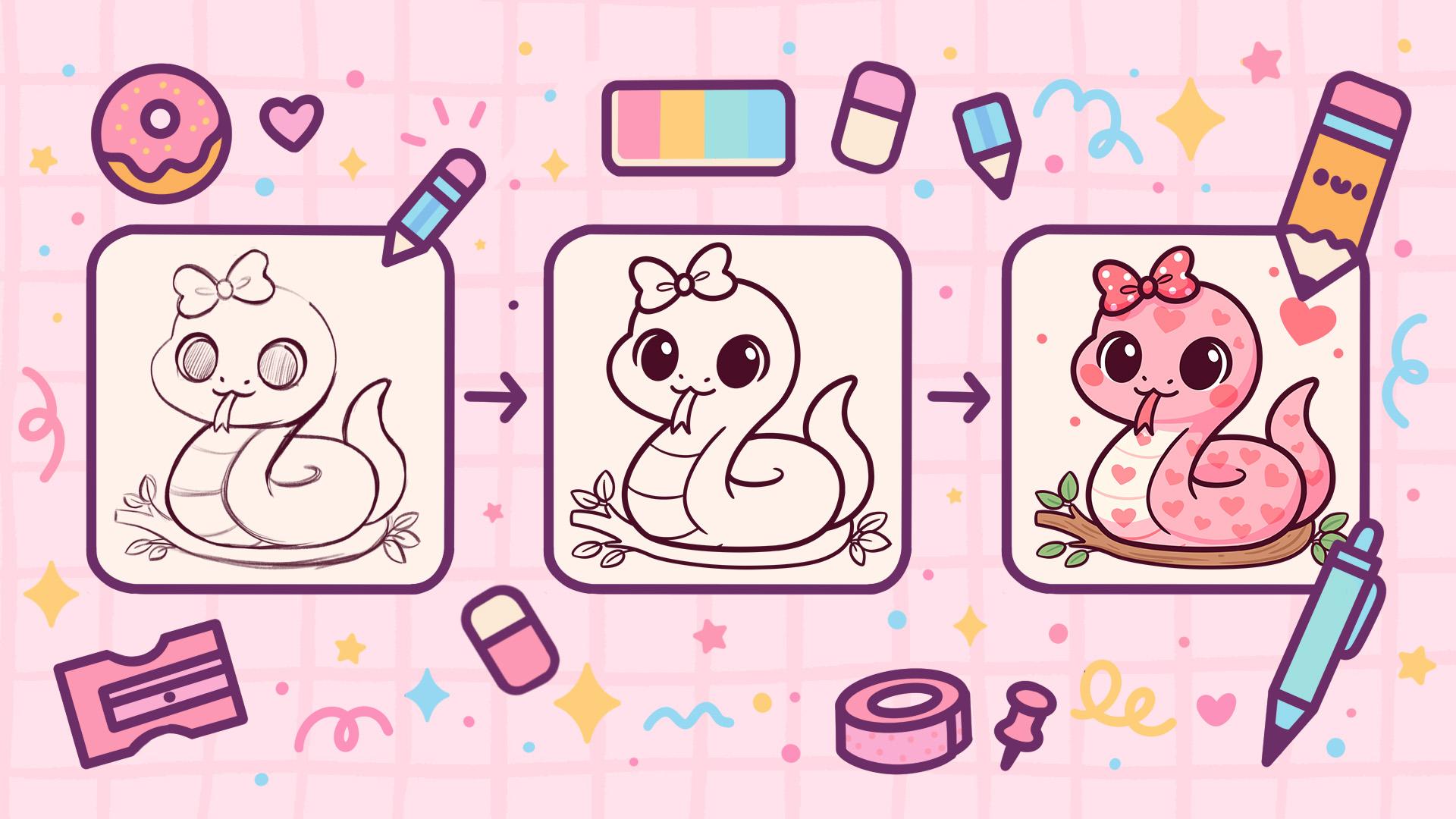
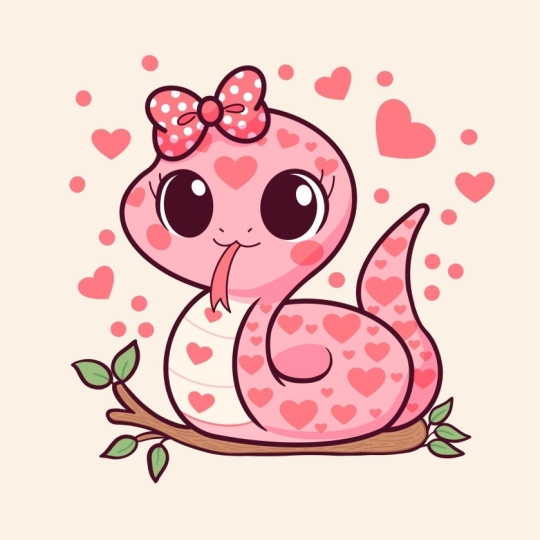
Uni, and in this class, we are going to draw
this cute cow why illustration of an adorable
snake in Procreate. During this class,
you'll get familiar with a lot of useful features
like Quick Shape tool, recoloring with reference,
clipping masks, and blending modes, and learn the basics of drawing
in procreate. By the end, you'll not only draw an adorable illustration
you'll be proud of, but also feel super
confident using procreate. And now let's spend
some time drawing.
2. Scheme & Body Sketch: Begin our class by firstly deciding what kind of
canvas we are getting sing. So today, we're using a standard square canvas from
Procreate with Pixel weed and Pixel
hat the 2048 pixels. DPI at 300 and our color profile is at
SRGB with this low number. When it's all done,
let's hit down. Let's take a look
at our New Canvas. And before starting to work
onto our illustration, let's first go to the
project and rezo stop and we will download all the materials
mentioned for this class. When you did it, let's
begin by picking the brush. So go into the
brush like go into this brush that you downloaded
with the title Dow so. Of course, if you don't
want to use this brush, if you don't like it, you're
welcome to go, for example, to the sketching
folder and explore this folder and find
the brush that you like and use the brush for
our future sketch part. When we are done with
picking the brush, let's continue by
going to our layers. We'll go to the background color to the color palette
that you downloaded, and we will go to the palette on the bottom and
to the cards on the top to select the color with the title light grayish orange. When we have it, we will go to our actual color
palette and again, go on under palettes and undercards to see
the colors names, and we will select
this dark pink color. When we are prepared like that, we will need to do
one more thing. We are starting by creating a little scheme that will help us to build up our illustration and we will need to have
the grid rate here. So let's go and turn it on. Going toward the range
icon over the top left, go under Canvas, and we
will toggle drawing guide. We will use these cells, but we will need to make
them slightly bigger. So let's go and adjust it. Go into our dded drawing guide, and onto the bottom, we will go under grid size, and we will set it
to 130 big cells. We have the result like
that, let's hit down over the top and let's start working
onto our little scheme. Firstly, with one line, we'll go to our
canvas and we will create a shape of the rectangle. Let's go like that,
and with one line, as I mentioned before,
we will create it. We will hold it at the end, and we will go to the popped
up option on the top, and we will go and select
rectangle right here. What we need to do right here
is to have the size of it, so we will have three cells on three sides and four
cells onto the left. When you have the
result like that, we will tap on the screen
to accept the changes. Now, when we have
our first shape, let's go toward the middle of
it and through the middle, we will create a
horizontal line like that. You can hold your
line at the end to create a straight line,
and when we have it, let's go toward the tube area and we will step from
the right right here, and we will create another line, but vertical on the point of
2.5 cells from the right. When we have the
result like that, we are done with our scheme. So let's start working
onto our R sketch. For this sketch, firstly, we will go toward
our as and we will go to the layer where
we have our scheme. We will tap onto the icon, go into the apaste ladder, and adjust in the apaste
so it's not that bright. Find the level that
works for you, tap onto the lea
when you are ready, and then create one more layer by tapping on the plus icon. We have the results
like that, let's start working onto our
sketch and we will start by going towards this
area onto the top left. Go on right here
and with one line starting to create a
shape of the ellips, holding our line in the end and go into
this popped up option editing our ellips and going into the nodes
to adjust the shape. What we need to do
right here is to create a pretty rounded shape, but it doesn't need to touch
the top right here and we will need to go a
little bit lower than this line that we
have in the middle. We will go and sculpt it a little bit by going
to the nodes and adjusting it with
something going in that way and creating the shape positioned
in that way. When we have the
shape like that, let's tap inside the screen, and let's go more
toward the left toward the bottom part of the slat we'll create another
shape right here. To go on with the
shape of the elope, hold your line at the end, and let's again go
to our editing tool to adjust the placement of it. So we will need to have a
shape going in that way, so it is a little bit
protruding onto the side. You can go to the notes
and play around with it. All that we need to do
right here is to have a bit of the difference
between these two shapes. So with the shape on the bottom, we are creating some kind
of the cheek right here. So play around and create
something in that way. When we have the
result that we like, let's grab our eraser and we will erase all the lines
that we don't need. Going like that and
starting to work onto our ships and getting rid of the lines
that we don't need. When we have the result
that is clean enough, we will get back to
our brush and we will go toward the bottom part
and work onto the body. For the body, we will go and create a shape
of the ellipse. Again, with one line, creating our shape, holding
it at the end, trying to make it straight, and then going toward
our editing tool to adjust it slightly. To go in from the right and
making it slightly smaller, so we will have the
cell right here and we will be
able to add a tail later going towards this side and starting to create
the line go in that way. In the bottom, we will
need to move the shape so we are not going
beyond the frames. And when we have the
results like that, we also can tap on the screen
to accept the changes. Now when we have the
result like that, let's go toward the
top part and we will start to connect
our elements right here. Let's go toward the head and we will start by going
from right here, so it's a bit closer to the
left than the middle part, and from here, we will go and start to create a line
going in that way. Try to create it in
a very rounded way, and when you have it, let's go toward the
bottom and adjust our shaped slightly by making
it not that egg shaped. We will need to have a bit
more weight over the bottom, so we are going like that and starting to add this
weight right here. With the very rounded element going like that and starting
to create our details. If you need to have a couple
of attempts right here, you're welcome to have as
many as atoms as you need. Go with your erasa
if you need to clean up your ship and erase
everything that you don't need. Now, when we have
this side done, let's go toward
the opposite side and let's create something
similar here too. Again, going toward
the bottom part right here and starting to create a bit more rounded chip and more weight right here. So flatter ship onto the very, very bottom because our
snake is sitting onto something and making a very rounded chip
right here onto this. Going like that with our
brush and with our eraser to erase all the lines
that we don't need and adjust our shape. When we have the
result like that, let's go toward the middle
part and we will create the neck right here and the
little tail right here. Firstly, going toward
this part where we have our shape of the head
firstly, going like that. We can define the
shape a little bit. When we have it, we will
need to have a bit of the back of the head
right here and from it, we will go down and create
a shape going down in that. So trying to repeat the overall shape to what we
have on the opposite side, trying to make it
quite parallel to this line and creating a bit of the continuation of the shape right here with a bit
of the step right here. So going like that, starting
to create the shape. Take a look at it
from the distance to decide whether you like the amount of
thickness right here or whether you want to maybe
try it out one more time. Go and create it not too
far beyond the shape. And when we have something
going in that way, let's go toward this
part and we will create a little curve right here that will define our
shape of the snake. We will go slightly
higher and we will create a shape
going down in that way. When we have it, let's
continue by going toward this area and we
will create a little till. So firstly, let's find out
where we want to finish it. So we will go toward this part, one cell up from
this middle part, and from it, we will go and start to create
a little till. So let's go with the curve going in that way,
and when we have it, we will go from the bottom, a little bit higher than the bottom part of our
cell system right here. So one cell up, and we will start to create a tail
going in that way. Trying to create a very
nice looking element. And as for the like
tip right here. We will need to create it
in a bit of the cuter way, so we are not creating
a very pointy element, but creating a bit of
the rounded element. Again, if you need to go along the whole shape and maybe
adjust it slightly, you are welcome to
go and do that. Make it thicker, make it
thinner, it's up to you, create a very nicely looking
element for your tail. If you want you can
go toward this area and create a cleaner and
smoother connection, so it's not very upright
here onto the side. Adjusted to your liking. When you are done,
you also can wrap your eraser and erase
this line to see clearly what you are doing when we have the cleanly
looking elements, let's continue by going toward
this neck part and we will create one more line right here to define the tummy right here. So we will step a bit from the line that we have
onto the right and again, create something similar
to what we have on both sides and create the continuation of the
shape going in that way. Going to the bottom and starting to add the line go right here. So trying to remain the same thickness all
over this whole shape. And when we have the
result like that, let's go towards
it inside of it, and we will create
some lines right here. So go like that with very, very soft curves and starting to create the lines
go in that way. Create a couple of them, try to create them
in a way that we are looking to the rounded
element right here. So we are not creating
them in a straight way. We are trying to create the
pattern going in that way. When we have the
result like that, let's finally go and work a little bit onto the
facial features.
3. Facial Features & Details Sketch: The official features,
let's first go and define where we
want to put them. Let's go one cell higher
from this middle line and we will start to create
a little langon in that way. We are creating it in a
bit of the angular style, so we have a bit of the angle
right here going like that, and when we have it, we will
do the same onto the top. We will go slightly lower than
two cell point right here, creating it in that
way and creating the langon in that
way like that. This line should be parallel to the line that we have
onto the bottom. When we have it, let's also
go towards the sit right here and create where we are going to ending our little
eyes right here. Going in that way and starting to create the lines like that. When we have it,
we will go towards the middle part that we've created for this little
shep and we will need to have two eyes
and we will need to have the distance between them
in 1.5 cells right here. So let's go and
create something. In that way, we can go
and make these cell alta bits smaller than the cell onto the right when we have it, let's go and create
a circle right here. Holding line and the end go
into our editing tool and starting to adjust the overall
shape for these elements. Going with the shep like that
going slightly lower than our little sheet that we've created our little
box right here, when we have it tapping on
the screen and going to the opposite side to create a similar looking
element right here. This time we will
create it a little bit higher as our box
suggesting right here. Hold your line at the end and go to the editing tool here too. We also will rotate it
slightly differently by creating more like an ellipse
shape than the Circe ship. We will position it a little
bit on a diagonal axis, and when we have the
result like that, let's tap on RScreen
to accept the changes. Now when we have the
result like that, we don't need our books anymore, so let's go and erase this extra lines
that we don't need to see clearly
what we are doing. Go alone all of these elements and starting to
clean up our space. And when we have the
result like that, let's go toward the inside parts that we've created
for our future eyes, and we will create another shape of the ellipse here
onto the right first. Create the shape, go toward the editing to and make
it slightly smaller. We will have the
space over the top. We will need to match it
right here on the left side, the inner part, and
when we have it, let's tap onto our screen
to accept the changes. Straightaway, let's go toward
the top and we will create some kind of the lashes
element right here. We are thickening
up this little part and go alone this overall
sheet that we've created, going like that and starting to create the element
go in that way. You can go with more thick
element and more thin element. You can add more elements
at all right here. You can go with some lashes. You can go with something that you would like
to see right here. You can go and create
something different. Decide on your own
whether you want to thick it up or make it
else a bit thinner. When we have the
result like that, we can straightaway go toward this little part and
add the shading here. When we have it, let's go toward the opposite side and create
something similar here too. Again, starting by creating
the shape of the ellipse, holding it, going toward
our editing tool, and adjusting the overall sheet. Again, matching it with this part over the
inner corner and making it a little bit
rounded and having more space toward
the outside part. When we have it, let's tap
on the screen and let's go toward the top and we will
create this lashes area. Creating something
similar to what we have on the opposite side, trying to make a nice connection right here between
these two shapes, going towards the outside part and adding a bit of
thickness right here. Again, try to make it similar to what you have onto
the opposite side. So if you made it thick, go and make it thick, similar to what you have
onto the opposite side. Straightaway, let's go toward this part and we will shed it. Now when we have it, let's
go towards the middle part right between our little eyes and we will add the
nostrils firstly. Again, we are moving onto
the diagonal axis and we are going to this light that we have for ourselves, for our grid. We will start by creating
a little nostril gone in that way and another one onto the opposite side will
be a little bit lower. When we have it,
let's go towards the bottom part from it and we will create
a little mouth. Let's go and create a kiddy
mouth looking like that, creating a first
curve like that, going toward the opposite
side and creating the second part of
our mouth here too. Can go with a more thick
shape, a thinner shape. It's again up to you,
create it in a nice way. When we have it, let's go to the middle part and we will create a little
tongue right here. For the tongue, stepping a
bit from this little done that we have and starting to create a line going
down in that way. Let's firstly erase
this part that we have right here onto the
bottom of our head and then we'll finish up
creating our tank by creating the triangular
looking element like that. You can make it bigger, you can make it smaller, it's up to you. You can go with a different
direction for this element. When we have the
result like that, let's take a look
at everything and decide whether we need to
adjust some parts or not. If you want to adjust
something, go and adjust it. If you are satisfied
with everything here, let's go and add
some beautification. For the beautifications,
let's first go over the top and we will create
a little bow right here. Let's again do the same
as we did with our eye. We will create a
little box right here, firstly to then add
our little detail. Let's start by going and creating the element
going like that, and we will create the
box going like that. You can go with a bigger size with a smaller size,
it's up to you. When we have this box created, let's go and turn it into a bow. For the bow, we will need
to have the inner part. Let's go with the
rounded chip like that, and when we have
this rounded chip, we will go toward the sides. Firstly, creating the
element going like that, a little element of the curve and then going toward the bottom and creating
something similar here too. On the middle part
onto the side, let's create a little dent, and then we will connect everything with the very
rounded shapes right here. So when we have it,
let's clean it up with our eraser to
define the shape more. If you want to erase all the
lines that you don't need, even the box ones, you are welcome to go and erase
everything that you don't need. And then we will go toward
the opposite side and create something similar
to what we have on the RR. So starting with this
element on the top, going toward the bottom
to repeat the shap, going toward the
middle part onto the side to create
a little dent and then creating the curves onto the top to finish
up with our shape. Again, adjust it
if you need to go toward the eraser and erase everything
that you don't need. Erase the lines of the box because we don't
need them anymore. We've made it for
constructional part. Erase it very easily and
let's see what we've done. Let's take a look at this bow. Decide whether you
need to adjust it, make it even on both sides. If you see that some parts
are a little bit too small, go with your brush,
go with your erasa and adjust the parts
to your lichen. When you have the
result like that, when you are satisfied
with everything, let's go toward the
middle part of our bow and create a little
element going in that way. When we have the
result like that, let's go and position
something right here onto the bottom on what our
little snake is sitting on. Let's create a
little tree branch. What we are going to be doing? We will go toward
the bottom and we will create the line
going like that, a little bit lower than the body shape of
our little snake and going towards the bottom part to finish up with a rounded
element right here. When we have it going toward
the opposite side and let's create a little
line going like that. When we have it, we will create a little bit of thickness to it, go like that and repeat
in the overall shape, and then you can go
and create some of the protrudon part like that so everything looks
like it is a branch. If you want to go to some
other areas and maybe add a few more of these
branches going outside, you are welcome to
go and do that. To finish up to
make it even cuter, let's go and add a
couple of leaves. Very easily, let's go
and create the line first then we will go and create a leaf going in that way. You can go and create a
couple of these elements. So for example,
again going toward this first leaf that
we've created and creating another little
leaf right here too. You can overlap them. You can make them bigger. You
can make them smaller. It's up to you. When you have the first
leaves right here, let's go toward the bottom and create something
similar here too. For example, let's go
with a leaf like that, and we will create one
more leaf on the bottom. If you want to add more
elements and more details, maybe some fruits or
something like that, you're welcome to
go and do that too. When we have the
first side done, let's go toward
the opposite side and create a couple
of leaves here too. So start with a little
stem and add a leaf, add a few of them here to
finish up with our sketch. Now when we have the
results like that, let's take a look at everything without our lines of the grid. So let's get back
to our list and hide our L with the
grid right here. Tapping onto the checkmark, taking a look at everything, and deciding whether we want to maybe go and adjust something. When we already have the lines, we can do it very easily by
using one of the options that Procrite has to
adjust everything here. So we can go to
the magic 12 over the top left and we can
use the option liquefy. We will use the option
push and the size slider can go and adjust the size of the brush that we're
going to be working with, and we can go to some
of the areas and sculpt the elements in a
different way if we prefer. We can spend some time here and adjust everything to our liking. I decided to go with a bit
of the bigger size for the board here onto the top and adjust the next slightly to
make it a little bit thicker. If you are satisfied with
everything here after you've created all the changes
with your liquefied tool, let's tap onto our
magic que tool twice to get away
from this mode, and let's continue by going
to our clean lines part.
4. Clean Lines: Begin working on our clean lines firstly by going
to a wrench icon, canvas, and we will toggle drawing guide because we
don't need it anymore. Then we will go
back to our layers. We will tap onto the N icon onto our layer with this sketch and we will adjust the opacity. Find the level that works
for you when you are done, tap onto this layer, and let's create
one more layer on. With the same color, but with a different brush.
Let's go and pick it. We will go and start
working OSR lens. Let's go to the ink and folder and who will select
Studio Pan brush. We will tap OSR brush
and we will go to the brush studio toward our stabilization right
here onto the left, and we'll be playing
with amount of string line and amount
of stabilization. You can send the settings
to the level that you like. You can go and try
it out right here. You can set the settings
the same way as you see them right
now onto your screen. Find what works good for you. When you are done,
let's hit done, and let's start
working tar lines. Let's set the size of the
brush to, for example, 15% and we will go outside the shapes to the outlines and we will start to work Ota them. Let's add enough pressure to our lines that we are
going to be working with, and we will start to add these details that
we need to add. We can work with the same
tools that we used before. You can hold your line at the end to create a nicer shape. You can go to the
editing tool to adjust the curvature by going
to the notes right here. Go towards the bottom part and start to recreate the
lines that we have right here. You are not supposed to
create the lines with only one line lone everything
that you have right here. Let's create the
lines partially, and we will need to
pay attention to the connections that we are
creating our lines with. So we will need to work
with our brush and with our eraser to create very
nice and smooth connections. Let's continue by going
toward the bottom part. Let's create the line right
here and let's go alone the whole shape and
start to finish up working on our shape
and creating the outlines. Work onto the connections, try to make the line
as if it was seamless. Go like that, if we need to make the roundness
nicely right here, you are welcome to go
with the brush and with the eraser and adjust
everything right here. Going toward the next elements and starting to
create them here too. Again, trying to use
the full amount of pressure to this brush to create a nicely looking element, go along the whole shape and starting to
create the details. Again, pay attention
to the connections. If you need to work onto them, go and manually add the color or erase the
elements that you don't need. Now when we have this line, let's go and work on s the
next line that we have. For example, let's
go and start to work onto our little
bow right here. Erase the lines that you
don't need and go over the lines that you need
to create right here. Go toward the middle
part and then go and do the same that you did onto
the left on the right side. So go on like that,
starting to create our bow, go onto this little
part onto the bottom. Again, holding our
line at the end to create a very nice
looking element. Continue to go toward our heads and creating
the line right here. Hold your line at the end
to create a nicer shape, make sure that the
connection is looking nice and go toward the next elements to
create them here too. Don't need this line
that we have right here onto the bottom
part of our sneak. So let's go from the
bottom of our neck and we will start by using very little
pressure right here. We will need to
create a little tip, and then we will add
the pressure and we will continue creating
the neck going up. If you need to have a couple of atoms to these little elements, go and have as many
as atoms as you need. When we have the result
like that, again, pay attention to the connection, try to make it seamless
and similarly on weight. When you have it, let's go
and add the color right here, so we will have
the closed shape, so we don't need to have any
gaps into our lines too. Work onto the connection here, make it nice, make it smooth, and when we have the
result like that, let's go toward this little
part and recreate it too. Go in with one line
like that, and again, we are reducing the amount of pressure to create
this nicely looking. When we have it,
let's continue by going to the tail
and recreate it too. So again, using full pressure
right here, creating lines, going toward the connection right here and making it very, very soft and continuing to create the shape going
toward the bottom. Again, you don't need to
repeat everything with 100% of similarity to what
you have onto your sketch. If you see that maybe you want to go and create something
different right here, you're welcome to
go and do that. If you feel that it will look better than it is
onto your sketch. Work onto the weight
of the lines if you are creating a couple
of them at some place, try to make them
even everywhere, try to make nice connections. Finish up creating the
tail and then let's go and adjust the size of the brush
to create other elements. So when we have the
result like that, let's go with the size
of the brush of 10%, and let's continue by going
toward this line that we have for our little tummy part
and we will recreate it too. Let's not go toward the
very bottom right here, but we will stop to create
a line somewhere here. Again, we are
starting with a tip. So we are adding the little
pressure onto our brush onto the bottom and we are adding full pressure
right here onto the top. As for this little part,
we don't need it here too, so let's go and erase it. And with the same
size of the brush, let's go toward other elements, our facial features and everything that we
have right here, and let's recreate it too. Let's first go toward our eyes. Let's recreate them.
Creating the shape like that, holding
it at the end. If you want to maybe rotate
it or do something else from what you have onto your schedule, welcome
to go and do that. And the color inside when you
are ready and let's go over the top to create this
nicely looking lash effect. Again, you don't need to
create it with one line. You can go and start to
create it from right here. Hold your line in the end, create a nice connection
right here onto the side, and then continue creating the line around the whole ship. Try to make a nice and
rounded connection, and when you have the
result like that, decide whether you want to go thicker with the ship or
thinner with the ship. If you want to go thicker, go thicker and add
the second line on the bottom or on the
top, whether you prefer. Again, you can use
all the options that we use before I use your editing tool over the top and when we have the
result like that, let's work a little bit
onto the tip right here. Let's get to our eraser and let's make this tip a
little bit more tippy. Again like that, starting to
erase the part right here, but try to make it
not very pointy, but a little bit pointy, so everything is
still looking cute. When we have the
result like that, let's start to do the same
onto the opposite side. Or firstly, you can work onto
the connection right here if you see that you have some
bumps or on the contrary, you have some lines that
you need to work on with your brush to add
some elements right here, go and do what you need to do
to achieve a smooth result. When we have the first done, let's continue by going
to the opposite side and creating the IRS firstly. Repeating what we have
onto our sketch or adjusting it if you want
to rotate it slightly, go to the editing tool if
you need to adjust it, and then add the color
inside when you are ready. When you have it,
let's go over the top. Again, we will start partially, creating the first curve
going up in that way. If you need to adjust
it to match it with the previous shape or
adjust it in any way, you can go to the editing
tool and adjust it from here. If it's easier to start all
over again one more time, go and do what you
need to do right here. When you have this first tip, let's go from the
bottom part and let's create another
little curve right here. Match it with the first shape, take a look at everything
from the distance and decide whether
you need to go and add more thickness
toward this part. If you added more thickness toward this part onto
the opposite side, go and do something similar onto this side too and then grab your erasa and start to work onto the tip here
onto the bottom. When we have the
result like that, let's get back to our brush, and let's go and work
on our little nostrils. We are repeating what
we have on our sketch, and then let's continue by creating a little
mouth right here. So going like that and
starting to create our mouth, you can go to the editing
tool to adjust it, try to make it a little bit smiley like that, and
when you have it, let's go toward our little tank and let's recreate it here too. You can touch this little shape that we have right
here on the side. You can cover it with
the tongue, for example, or you can try to avoid creating a bit of
the tension right here by creating the line going a little bit
more toward the right. Can decide on this on your own, and when you have the
result that you like, let's go and finish
up with our tank by creating the rest of
the elements of it. Again, use all the options
that we used before, editing to holding Yoline, go toward the eraser
if you need to erase some parts and erase the
parts that you don't need. Now when we have it,
let's go towards the bow right here onto the top and with the
smaller size of the brush, we will go and create these
little details in the middle. When we have it, we also will go toward these little parts
that we've created are little segments and we
will go and recreate them too with the smaller
size of the brush. Again, take a look and then from the distance
if you need to, go towards these little
parts right here onto the bottom two and
add the details here. When we have it, let's
go with the same size of the brush toward
our little branch, and let's create it here too. Repeating what we have onto our sketch or creating something different
if you want to. Let's make the ship closed, and we will go toward
the opposite side to recreate what we
have right here. Let's create all of these
details that we've created onto earlier with the
sketche. Let's repeat them. Or, again, if you
want to experiment, create something
different right here, create the closed shape, pay attention to the
connections even here. So if you need to
work onto some of the elements manually
with your brush, go and do that and finish up the shape by creating the
last element right here. Let's create the
leaves here too. Firstly, let's go with a very small amount of pressure
toward the middle parts, and then we will go with
a bit bigger amount of pressure toward the
actual leaves right here. Let's go towards all of the leaves that we
have right here and let's recreate them. If you have some overlapping
parts, work onto them. If you need to work
onto some connections, go to these parts and
work on them too. And when we have the
result like that, we can take a look at everything without our
lines on the sketch. Let's go to our list and hide our layer with the sketch by
tapping onto this checkmark. When we have the
result like that, we are done with our lines, so let's move on
to our next part where we'll start
to add our colors.
5. Colors & Final Touches: Start with our colors, firstly, let's go to our layer
where we have lines. We will tap on it and we will
use the option reference. That we will be able to use these lines and add the
colors on separate layers. Now when we have the
layer set as reference, let's go underneath
this layer with lines and from here we'll
create one more layer. Onto this layer, let's go to our color palettes and let's select the color
with the title body. With this color will go to our body and we will recolor it. Go like that to all of
the areas that we need to recolor with this color and
we will go and recolor them. When we have it, let's
continue by going to our list and we will create
one more lay on top. We will change the color to Tammy and we will go
toward these little parts, the segments that
we have right here, and we'll recolor them. Some of them won't be recolored because we don't have
lines right here, so we'll need to go manually and add the color toward
these places. So go on like that, starting
with the lines firstly, the outlines and starting to
add the details here too. You can go a little bit
lower right here to what we have for our belly and create a little
line going like that. When we have it, we
also will go toward this part and we will
add the color here too. We are following the direction of this line that we
have right here for the outline and then adding the colour toward this
area that we've created. Manually going like that and
starting to add the colors, you can go with the bigger
size of the brush with a smaller size of the brush
to achieve the result that you need right here
and the color toward all of these eras where you
have the little timing. When we have the
result like that, let's continue by going toward our lays and we will create
one more layer on top. We will change the color
to checks and hearts and we will go toward the
tank and we will recolor it. With the same color,
we can go toward our little bow and recolor 82. When we have it, let's continue by going
toward our layers. We will create one
more layer on top. We will go to our color palettes to select this orange color. With the orange color,
we will recolor our little branch and
we also will go to some smaller elements if we have them where we need to
add our little color. If we don't have them, we
will switch the color to green and we will add the color
to the leaves one by one. Now when we have the
result like that, let's start working ont
San beautifications. Firstly, let's get
back to our list. We'll go to Alaa where
we have our lines. We will tap on the y and we will choose the option
reference to turn it off. Now, let's go to Alya where
we have our mean shape. We will create one
more layer here and we will switch
the color to white. With slightly smaller
size of the brush, let's go toward the
eyes right here, and we will add the
white color toward these areas that we have
right here onto the side. So going like that, going
toward the opposite side here too and starting to
add the whites of our eyes. You manually, if we need
to adjust something with our eraser or with our brush,
we will go and do that. When we have the ice done, let's go and add the additional color
towards some other parts. Firstly, let's go toward our les and we will create
one more layer on top. Onto this layer, let's go toward our color palettes
and we will select the color with the title
checks and hearts. With this color, we will
go underneath our eyes, and we will create little
checks right here. Let's first switch the size of the brush to
something smaller, and then we will go
toward these parts underneath the ice and we will
create our little checks. Create it in that way, go toward the editing
tool to make it cuter and smaller and maybe
find a different placement. When you are ready
with the outline, drag and drop the color inside, and let's go toward the opposite are something similar here too. Creating the ellipse like that, holding it at the
end or editing to, finding the placement for it, finding the size for it, finding everything for it. When we are done with the tap on the screen and add
the color inside. If you want to move
the shapes when you already have them
onto your screen, you can go to the Stran
icon free hand method, select the shape that
you want to change. When only this
element is selected, we'll go to our Aoki
uniform method and we can go and adjust the placement or rotation of these elements. If you want to rotate it, we are going to the green note, holding our Apple
Pencil there and rotating it in a way
that we want it to be. Find the placement
for this when you add tap onto the first
icon that you used, it was our S ribbon icon. And when we have the
results like that, let's go and add some
beautifications. So for the beautifications,
let's go and again, create one more layer on top, and we will go to this
folder that you downloaded. Let's go and find the
simple Stems folder, and we will be using the hearts
that we have right here. So for example, let's go
with heart number two, and we will go and start
to add the hearts to everything that we have right
here for our SNAC. Snake. So firstly, let's go
toward our tummy and let's start working on it
with our little heart. So you can decide onto
the size of the brush. You can go and vary
it right here. So let's go and go along the whole shape
that we have right here and start to
add the details. We also need to make
sure that this lay that we've created is above
our layer with our tummy. So we'll be able to
see everything here. When we have it like that, let's go and try it
out one more time. So probably with the
bigger size of the brush, let's start to add the
little heart right here. Again, we will need
to rotate our canvas to match diagonal axis right here or the
round axis right here and create the hearts
in accordance with it. Let's go right here underneath
this element here too. If you want to go maybe
with a smaller size, so it's not overlapped by the tank you are
welcome to go and do that. Try to position the hearts somewhere in the middle and try to use enough pressure right here so you have
the solid outline. When we have it, let's also go and start to add the colors inside to go on one by one and starting to add the
colors in that way. When we have it, let's
go toward the body and let's start to add
the details here too. Again, you can go with
a different size of the brush and start to add the pattern with
these little hearts. Probably with slightly
smaller size, it will look a little bit nicer. Again, we will need to
rotate our canvas to match the nicely looking elements right here. Let's go like that. Let's go and vary the size of the brush to start
to add the pattern. Let's start to add
bigger hearts, smaller hearts all over our
little snake right here. And the pattern here
on the back to, you can go again with
the bigger size of the brush with a smaller
size of the brush, go toward the tail two and
add a couple of details here. Again, we are going
along the sheep, so we are adding our details
in accordance with it. Again, go with the
bigger size with the smaller size and create
these elements right here. If you want, you
also can go toward the head and add a couple
of hearts here too. For example, you can go right
here toward the middle, maybe with slightly
bigger size of the brush and put a
little heart right here. Again, try to
rotate your canvas, so it's matching with the overall look of
the illustration. If you want to go
outside and maybe add a couple more
hearts right here, maybe in a smaller size, you are welcome to
go and do that too. If you want to go to
the opposite side and add a couple
of details here, again, welcome to
go and do that too. For example, we can go and maybe add a couple of
hearts right here, so it's matching with
this little part. When we have the
result like that, let's go and start to add
the colors inside the heart. So go into one of them,
drag in the color, and then we'll use the option continue filling on the top. So we will use it and we will go to all of these hearts
and we will start to tap Ota inside of them to
add the color inside Oda. When we have the
results like that, you can decide whether you
like the amount of apasi or whether you want
to go maybe with a little bit less of
apace right here. We can go to our last
tap onto the icon and adjust it from here
to create a softer look. When we have it, let's go toward our brush
that we used before. It was our ink and
folders TD pan brush. And let's go and work a
little bit onto our boo. So let's create
one more lay here. Let's go and select
the white color, and we will go inside the shapes with slightly bigger
size of the brush, and let's go and create some
pattern here on the bow too. So you can create
something different. You can create the
dots like that. When we have it, let's go and add a bit of the
shadows right here. So for the shadows, let's
go toward our layers. Let's go above the layers
where we have our hearts, and we will create
one more layer here. Let's tap onto the in icon, and we'll change the
blending mode to multiply, and we will set the apasit to
something around 60% 60 65. If we need to adjust it,
we will adjust it later. When we have it set in that way, let's get back to
our color palette and select this pink color. With the pink color, we will
start to add our shadow. Firstly, let's go underneath
our little bow right here and we will start to repeat the shape that
we have right here. You can go with a thicker shadow or with a thinner
shadow, it's up to you. If this amount of
opacity straightaway is not working for us, we can go and adjust it
by going to our layers, tapping on the Mon
adjusting it from here. Let's, for example, go with 40% and we will continue
adding our shadows, going underneath our
little head right here. Let's go like that, start
to add a little shadow, going toward the bottom part, starting to add the
shadow goon like that, going toward the
right side first and starting to add a big
shadow goon in that way. If you want, you
can go and create a little shadow goon like that. You can soften up the corners
to create a nicer look. You can go underneath
the tan right here to create the
shadow here, too. When we have it on this side, let's go and add some of the
shadows onto the bottom. So going from this
little part right here and starting to add
the shadow goon like that, trying to put everything that
we have on the bottom in a shadow to create a nicer
looking element right here. So you can go even
higher right here onto the side and create
the shadow going like that. With the shadows, we can use all the options that
we used before, so you can go to the
editing tool and add the different
curvature to your lines. When you have it,
let's go toward the inner parts and let a
bit of the shadow here too. When we have it, let's go toward our tail and add
the shadow here. So we can go toward the bottom and create
something going in that way. If you want to
adjust some shadows, you are welcome to
go and do that. Find what looks good to you. When you are done with
eating the shadows, let's go and work a little
bit onto our bottom part. Firstly, we'll go and find the layer where we have
our little branch. We'll create one
more layer here. When we have a new layer, let's go toward
our color palettes and let's select the
red orange color. Let's change the
size of the brush slightly and we will go
inside the shapes and we will start to add
some lines right here to create some quirk
pattern right here. Let's go along the whole
shape that we've created and let's create some additional looking
lines right here. G on like that
with thinner lines with some peculiar
shapes right here, starting to create the
details on in that way. We have the result like that, let's also go toward
our little bow and create some little
shadows here too. We can go either to the
layer with the bow or as we've created a little polka
dot pattern right here, we can go above this layer. We can change the
blending mode to multiply one more time and change the opacity to something
around 40% again, changing the color to the
same pink color and going toward the inside parts right
here to add the shadow, going toward the
middle part onto the bottom and add in
the shadow here too, going toward the
actual bottom part and add in the shadows here too. Going to both sides and trying to repeat the
overall shape that we have. If the amount of
opacity is not enough, we will get back right here
to our layers and adjust it from here on the R slided with opacity
underneath this layer. When we have the
result like that, let's go and add a bit of the highlights toward the
eyes to make it even cuter. Going toward our lays, above all the layers that we have creating one
more layer here, changing the color to
white and let's go toward our eyes to create
the big highlight here. Let's go with slightly
bigger size of the brush, go toward one of the
sides and start to create the highlight right
here in the shape of the circle or a little
bit of an p shape. Adjust it, go toward
the opposite side, create something
similar here, too. You can hold the
line at the end, go toward the editing to
and adjust it from here. Try to position it
on the same level and under the same side. And when we have the
result like that, we can go and soften up some of the lines by
changing the color of that. So let's go toward our layers, find the layer with our lines, and we'll create one
more layer on top. We'll tap onto this layer and we will use the
option clipping mask so that we will be able to recolor only the lines
that we have right here. Now, let's get back to
our color palettes, and let's select the color
with the title Tammy lines. And very accurately with slightly smaller
size of the brush, we will go toward these
lines that we have, and we will recolor them. So go one by one to these elements and we are starting to
recolor these lines. If you overdid it, you can grab your erasa and work onto
the connections right here. Very easily, let's
go toward all of the lines and let's
recolor them in that way. On the bottom, you can change the color to something
slightly darker. For example, either pink or cheeks and hearts
and with this color, go toward these lines
and recolor them too. By using the same technique, we can go to our
color palette to switch the color to dark
green and we can go toward these little
veins that we have inside our little leaves and recolor these
lines right here. And when we have the
result like that, let's do one more thing by
going outside the shape, and we will add a couple of
details floating around. Let's get back to our list. Above all the layers
that we have. We will create one
more layer here. We'll change the color
to, for example, chicks and hearts
and we will go to this folder that you download
it with the simple stamps. So let's go and select the
similar hearts to what we have onto our sneak and let's go and add a big heart, for
example, right here. You can rotate your
canvas to match it with the overlook
of your illustration, add the color inside, go towards some
other elements and maybe add some hearts here too, or you can go with simple
shapes right here. For example, we can go to
our calligraphy folder, select Monan brush,
make the size of it slightly bigger and go and maybe add some
dots right here. You can go and add a couple
of details going in that way. You can go and create
something different. You can explore the folder that you downloaded to
create something. Outside here, too, and when
we have the result like that, we are done with
our illustration. Thank you for
watching this class, review if you liked
it and can tinue subscribing for Mokai
videos in the future. Looking forward to
seeing your projects.
 Uni Corn, ⭐Kawaii Art Enthusiast⭐