Transcripts
1. Introduction: Hello, everyone. I'm
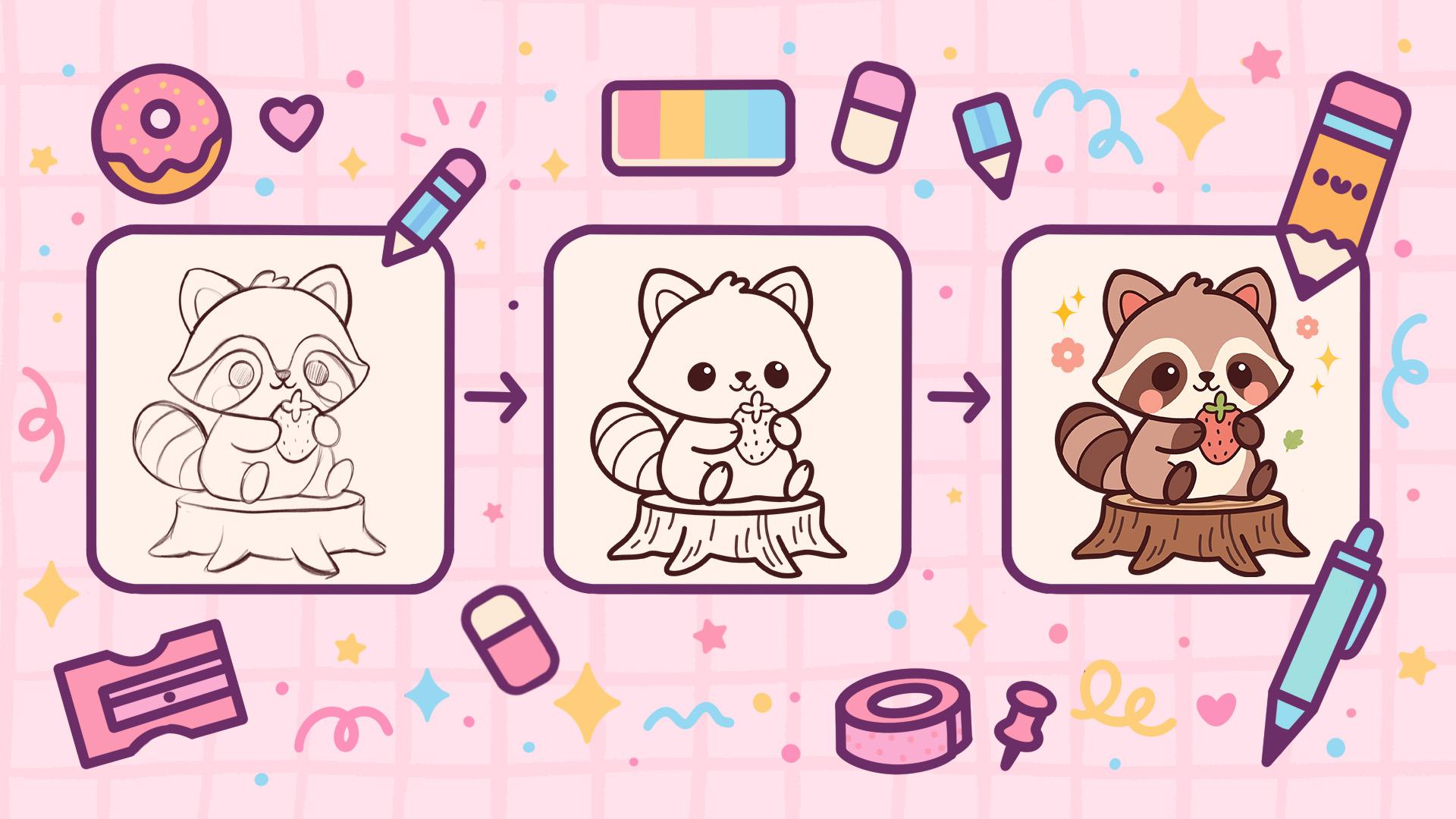
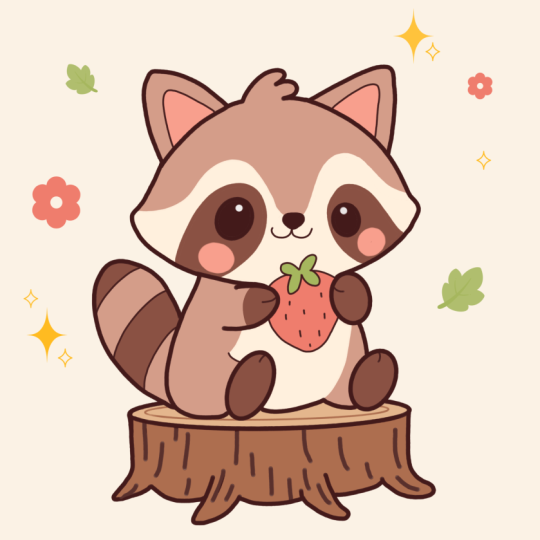
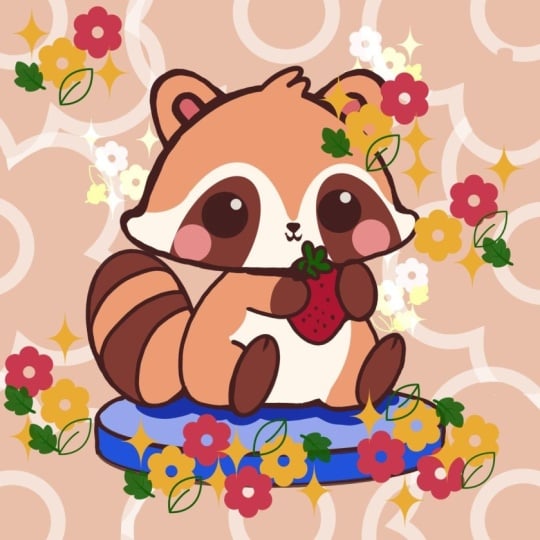
Yuni, and in this class, we are going to draw this
cute Kawhi illustration of an adorable
raccoon in procreate. During this class,
you'll get familiar with a lot of useful features
like Quick Shape tool, recoloring with reference,
clipping masks, and blending modes, and learn the basics of drawing
in procreate. By the end, you'll not only draw an adorable illustration
you'll be proud of, but also feel super
confident using procreate. And now let's spend
some time drawing.
2. Scheme & Head Sketch: Begin our class by first deciding what kind of canvas
we are going to be using. Today we are using a tender, square canvas from Procrite
with pixel weights and pixel heats the 2048 pixels. DPI are a 300 and our color profile is at
SSGB with this low number. When it's all done,
let's hit down. Let's take a look at
our new canvas and before starting to work
onto our illustration, let's go and do some
preparational parts. Firstly, we'll need to go under the project Arousap and we will need to download
all the materials mentioned for this class. When we did it,
let's first go and select the brush that we are
going to be working with. Let's go to the brush library. We will go to this
brush that you downloaded with the
title Doll Flat Pencil. Of course, if you want
to use any other brush, you are welcome to
go, for example, to the sketching
folder and select any brush that will
be quite sketching. When we are done with
selecting the brush, let's go to our as and we will go to the
background color. We will go to the color palette that you downloaded
and we can go under palette on the bottom and under cards on the top to
see the colors names, and we will select
the color with the title light grayish
orange for our background. When we did it, let's also go to our actual color palette. Again, we are going
under palette on the bottom and under
cards on the top, and we will select
the dark brown color. When we are all
prepared like that, let's go and do one more thing. We will start by creating
a little scheme and we will need to have the
grid to help us with it. Let's go to the wrench
icon over the top plat. We'll go under Canvas and we
will toggle drawing guides. We will use these cells, but we need to make them
a little bit bigger. So let's go under 18 drawing
guides, and on the bottom, we will go to the grid
size slider and we will set it to 130 pixels. When we are done with it, let's hit down over our top right, and let's start by
creating a little scheme. So firstly, we'll
go to our canvas and we will create a
rectangle like that. So let's go with one line and create the shape
going in that way. In the end, hold it, and let's go toward the
top option that popped up, which is calling quadrillion. Or if you have any other option, you are welcome to select it. We will need to go
with rectingle here, and we will go and
adjust it slightly. So we will need to
have four cells on the sides and onto the bottom
and two cells onto the top. We have the result like that, let's tap onto our screen
to accept the changes, and let's create a couple
more lines right here. Firstly, let's go
towards the top and we will find the center and create a vertical line like that. We are going and holding it in the end to
make it straight. And when we have the
result like that, let's go and create
two more lines. Firstly, we will go
towards the middle part. We will count 24, and we will create a straight
line going like that. When we have it, we will do
the same onto the bottom. So either go from the bottom
and count to four or go and count two cells from
the first line that you've created and create another straight line like that. When we have the
result like that, we also will go to the
bottom and we will go and make a little
line right here, so that will help us later on. When we have the
scheme like that, we are ready with our scheme, so we are ready to start
to work on our sketch. So firstly, let's get
back to our layers. We will go to this layer
where we have our scheme one. We'll tap onto the
icon and go to the opacity slider to
reduce the opacity. Find the level
that works for you when you still can see
what's happening here, but when it's not
that bright and when you are satisfied
with this level, let's tap onto the layer
to close this window, and then we will tap
on the plus icon to create a new layer on top. Now when we have the
result like that, let's start working onto
the top of our raccoon. Firstly, we will go toward the middle
and from the middle, we will start to create a little line going
down in that way. When we have the
result like that, let's also go from this
line towards the bottom, and we will start to create a rounded shape
going in that way. So with this line, we are going mostly toward
this line that we have as our first line in the middle and we are creating a very
rounded shape like that. If you need to create
a couple of lines, go and create as many
lines as you need. If you want to create
a cleaner shape, go with your eraser and erase the part that
we don't need. When we have it on one side, let's do the same onto the
opposite side and if it's easier for you to rotate your
canvas to create this line, go and do what you need to do. All that we need to do
right here is to create a similar line to what we
have onto the opposite side. Try to make it very, very rounded and when we have
the line that we like, if you want to clean it, go with your eraser and erase the
part that you don't need. Now when we have the
result like that, let's get back to
our brush and go toward this line that
we have on the bottom. We will start by going to the middle of this
shape that we have in the middle and from it from the middle of
this middle shape, we will go toward
the opposite side and create a langon in that way. Hold your line at the end, and let's go toward our editing tool over
the top to adjust it. So you can see in
the editing mode, we have these nodes,
so we can go to them. We can hold our Apple
pencil and we can adjust the placement and the curvature of the whole elements
that we have right here. So let's go and
adjust it slightly by creating a more rounded
shape over the bottom. Spend some time here and create something
new in that way. When we have the
shape like that, let's tap on the screen
to extend the changes, and then we will go toward
the side where we have these little middle elements and we will connect them
with the shape on the top. For this part, let's go with
a little protruden part like that and we will create the
very nicely looking curve, and then we will go to
the top and connect it nicely with the element
that we have right here. If you again want to go with your eraser and
clean up the shape, you are welcome to
go and do that. When you are ready
with the first side, go toward the opposite side and create something
similar here too. Let's go toward this tip and create an element
going in that way. Again, if you need to
work onto your lines with your brush and with eraser
to create a nicer shape, you are welcome to go and do what you need
to do right here. When you clean the shape, let's get back to a brush and let's go and work
onto the top part. For the top part,
let's first go toward the middle and we will create a little bit of a
comp right here. We will step a bit from
the middle part and create the fluffy element
going in that way. You can experiment, you
can make it bigger, you can make it smaller,
it's up to you. You can make a different
direction for the element again. Play runs with it and when we
have the results like that, let's go and create the ears. For the ears, firstly, let's go and map where we are
going to be putting them. Firstly, going toward the left
and we will step one cell to the top from this middle line and we will create a
little markdown like that. Then we will go to this comb that we've created and we will step just a little from it to create a little
markdown like that. When we have it, let's
connect these two shapes, two mark downs with the shape of the very, very soft triangle. So go like that and create
a shape going in that way. If you want you can go
bigger with the shape, smaller with the
shape, it's up to you. You can go with a
different direction. You can try it out a couple of times to create the
shape that you like. If you again want to go and maybe clean it up
with your eraser, you are welcome to
go and do that. When we have the first ear, let's go toward
the opposite side and do something similar here. Again, let's start by
creating little markdowns. Let's go toward the comb area. We will create a little
markdown right here, stepping a bit from
it to the side, and then we will go toward the bottom part and we will create a little
markdown right here. When we have it,
let's go and create another little ear following the same shape that we have
onto the opposite side. Again, if you need to try
it out a couple of times, you are welcome to
go and do that. Try to make it similar
to what you have onto the opposite side and create
a similar shape of the ear. Try to make it cute
and not too pointy. So if you have a
very pointy little right here, go and soften it up. And when we have it, let's go
toward the middle part and create the inner
part of the ears, repeating the shape that we
have onto the outside part. Now when we have it,
let's continue by going toward the face and we will create
the facial features. For the facial
features, firstly, let's go toward this area
that we have in the middle. We will go firstly
toward the top and we will step a bit
from this top line. So we will stay
at the same cell, and we will create a
triangular shape like that. You can go with a bigger
shape with a smaller shape. Try to create a very,
very soft triangle. If you need to adjust it,
go with your eraser and adjust the parts to the
way that you want it to. So you can try it out
a couple of times. You can shade it
straight away like that. And when we have the nose, we will go towards
the bottom from it, and we will create
the mouth right here. So let's go from the middle and create a little hook
going in that way. You can go again with a bigger shape with a smaller shape. It's up to you. When you are
done with the first side, go to the opposite side and create something similar here. Again, if you want to adjust
something straightaway, you are welcome to
go and do that. Work with your brush,
work with your eraser, and create the shapes that you would like
to see right here. So for example, we
can go and make this whole thing a little bit smaller and position
it differently. When we already have the
details onto our sketch, let's go to the ribbon icon, and we will use the
free hands method. For example, let's
go toward the mouth. We will select it like that. When only the elements of
the mouth is selected, we will go toward our
Aoki on the top left. We'll use the option
uniform and for example, let's go and make it
slightly smaller. We are dragging
one of the corners for example, from the bosom, and then we can
reposition it by moving this shape to the
center of our nose. So find the placement
if you want to adjust it the same way,
you are welcome to do it. If you are okay with
what you had before, you are welcome to keep
it as it was before. So when you are satisfied
with everything here, let's tap onto the first
option that we were using. It was our ribbon icon. And then if you want to
adjust something manually, let's go and do that with our
brush and with our erasa. So for example, let's go
with something like that, and when we have the
result like that, let's go and work onto our eyes. So for the eyes, firstly, let's go toward the left and we will find the
placement for it. Let's go and step a bit from the center line and make a
little markdown right here. When we have it, we
will go and create a shape of the circle or
an ellipse like that. You can hold it at the end, and let's go to this option. Editing on the top and we will
adjust the overall shape. If you want to make
the rounded eyes, you can go to the nose
that you have right here and select everything in a
way that you want it to be. So find the placement
for this element, rotate it if you want
to make it bigger, make it small find the different placement
if you want to go closer to the
nose, for example, when we have the
result that we like, let's tap on the
screen and let's go to the opposite side to create
something similar here too. Again, we are stepping
a bit from the nose. You can make a little
mark down like that. You will have a similar distance to the opposite eye
onto the opposite side. Again, we will create a shape of the circle or an ellipse if you are creating the
ellipses right here. Let's hold our line in
the end and let's go to the editing tool over
the top to adjust Rh. For example, let's
make it a little bit similar and let's drag it a little bit more
toward the right. We will have the similar
distance from the center. When we are ready with it, let's tap on the screen, and let's go straight away
toward these eyes and we will shade them so we will know what we
need to do later on. When we have the
results like that, let's continue working onto our official features by adding
a little mask right here. So for the mask, firstly, let's go toward the top
and we will get one cell up from this line that
we have our eyes on. And from here, we will again make a little
markdown like that. From this mark down,
we will go toward the side and we will start to create a shape
going like that. Go very rounded with the shape and do the same onto
the opposite side too. So when we have these two
shapes onto the sides, let's connect them nicely
onto the middle part. So to the nose and starting to create a
shape going in that way. If you want, you can go a little bit bigger onto the left side, then you have it onto the right. If you want to clean it
up with your eraser, go and do what you need to do to achieve a nice
result right here. So play around with
this little sheet that you are creating to
create it in a nice way. And when we have the
result like that, when you are satisfied with
let's go toward the side, and let's connect our
sp onto the side. So go into these little
tips that we've created, and from the middle o it or from the high points of it,
you can decide on this. Let's create a little
curve going up and connect it with the shape that we've created on the top. Again, if you want to go over your lines one more time
to create a nicer shape, you are welcome to
go and do that. Define it nicely. And when we have the
result like that, let's go to the opposite side and create something
similar here too. So again, going
toward the side and starting to connect
our sheep right here. You can go a little bit
higher onto this side, so we will have the
result in that way. Again, if you want to
clean it up even more, you are welcome to
go and do that. And when we have the
result like that, let's get back to our
brush and continue working onto our facial
features right here. Firstly, let's go
toward the left side. We will go to the
middle part from the eye and this little
mask that we've created. So you can go and
create similar shape to what you have on the top, so a very rounded
curve like that. And when we have it, we
will go from it down and we will start to create
a shape going in that way. So you can try it out
again, a couple of times. When we have it, we will go toward the opposite
side and we will start to create the shape
going down in that way. So basically, we are creating some kind of the drop shape. If you need to create
it a couple of times or define the
lines even more, you are welcome to
go and do that. When we have the first shape, let's go to the
opposite side and create something
similar here too. So onto this side, let's go a little bit
closer to the eye. So we are starting from the edge that we have onto the left, and we will start by creating a little curve going
up in that way. And we have it going
a little bit higher repeating the shape that we
have on the top right here, so it will be quite parallel
to this ship and then going down to create a similar shape to what we have onto
the opposite side. Now, when we have it,
let's go to the left and let's create the continuation of the shape right here, too. Again, creating
something similar to what we have onto
the opposite side, and if we need to create
it in a different way or maybe define it
in a different way, you are welcome to go and do what you need
to do right here. When we have the
result like that, let's get back to our
brush and let's go underneath the ice and we will create the shapes
for the cheeks. Very easily, let's go with
the shape of the circle. You can go with the bigger
shape with a smaller shape. You can go and adjust the
placement of it if you need to find what looks good to
you and when you are done, go to the opposite side and create something
similar here too. So now when we have
the result like that, decide whether you want to
maybe adjust something. So for example, we can
go and make the nose even cuter by creating
it in a smaller way, so you can go and erase the
parts slightly from the side. And when we have the
result like that, if you want to add more details, for example, some eyebrows
or something like that, you are welcome to
go and do that. If you are okay with the fish, let's move on to the battery.
3. Body & Stump Sketch: So for the body, firstly, let's go and create
a little bum here. So we are going closer to this little intersection that we've created for the
second part of the mask. So from it, you can go and
make a little man down, and we will go toward
the bottom and we will start to create a shape
going down in that way. So we will need to
have more space and more volume onto the bottom. So we are creating a
curve going in that way. When we have it, let's go closer to this line that
we have in the center, and from this line, we
will create a little pull. So for the poor, we will need to go and create a shape of
the ellipse like that. So you can go manually and create a couple of
lines like that, or you can create
one element and hold it at the end to snap
it to a better shape. So for this element, you can go a little bit
lower than the shape that you've created
for the grid system. And when we have the
result like that, let's go and connect it with this bomb area that
we've created onto this. Let's go with a simple line in that way and when we have it, let's continue by going
to the opposite side. For the opposite side, firstly, let's go towards this area right here and we will create
the second port. For the port, let's go and
create it going in that way. We will again create a
shape of the ellipse. We will hold it and we will
drag it slightly higher than this first pod that we create it onto
the opposite side. You can hold your line
in the end and go to the editing
tool to adjust it. We will need to maybe rotate it. If you want to rotate it
from the editing mode, you can hold one of
your notes right here and with your Apple pencil
make a rotational movement. If you want to adjust
it in any other way, go and do what you need to do. For example, let's
position it in that way, a little bit far from the cell that we have right
here when we have it, let's tap on the screen and let's go and work onto
this bottom part. For the bottom part, let's
first go toward the poor. If you need to adjust
it in any way, maybe make it slightly smaller, you are welcome to
go and do that. When we have it, let's go to
the line that we have right here and we will create a
little line going in that way. When we reach the middle, we will go a little bit
higher with this line, so we will create a little
bit of the dent right here. Let's go and create
something in that way. When we have it,
let's go towards this area and let's create
a little pull on the top. We are going again,
closer to the cheek right here and let's go and create
a shape going in that way. Hounded in the
end, you can go to the editing tool if
you need to adjust it, make it bigger, make it smaller. Take a look at it from
the distance if you want to see clearly what you
are doing right here. So when you have the
shape that you like, let's go toward the area that we have between these two pose. And let's create a
little tummy right here. So for the Tammy let's go more toward the center of
these two shapes, and we will create a
langon in that way. If you want, you can experiment a little bit and create
something different. If you are okay with everything, let's continue by going
to the opposite side and we will finish up
with the pose right here. Firstly, let's go toward this pot that we
have on the bottom, and we will go slightly higher than the element that
we have on the top, and we will go and create a
little langon in that way to create some of the fold that
we have to this back pole. When we have it, let's
go toward the top and let's create the
pole right here too. Firstly, we are going closer to the shape that we
have for our head, and you can decide
whether you want to go a little bit higher
than the shape of the head or a little bit closer
to the bottom part of it. What we need to
create right here is the shape going in that way. Creating a very nice
looking curve right here, going a little bit toward the
side from this middle line, and when we have it going up
and deciding whether we want to overlap the shape onto the top or whether we
want to go underneath it. Work more onto this pull. Try to make it very nice. If you need to adjust it with your erase or
go and adjust it. If you want to erase
the overall shape that you have for this little
bottom part of the hat, you are welcome to erase
it to your liking. When we have the
result like that, let's go and create a little strawberry right
here in the middle. Firstly, we'll go and get rid of this line that we
have in the middle. And when we gotten rid
of the little line, let's go toward the
top and we will create a curve going
up in that way. When we have this curve, make sure that you are
connecting everything nicely and creating a
very, very soft curve. When we have it, let's go toward the bottom between
these two little posts, and we will continue
creating a very, very nicely triangular
looking shap. Let's create something.
In that way, if you need to work a little bit more onto
the top element, so it matching the bottom part, you are welcome to
go and do that too. When we have it, let's
go toward the top and we will create this greenish
element onto our strawberry. For example, let's
grab our eraser firstly erase the
part on the top. Let's create a very cartoony
looking little greenish part of our little strawberry. Let's create four petals or
five petals or three petals, as many petals as
you prefer it here. Erase all the parts
that you don't need. Define the shape even
more if you need to. And when you are
ready, let's also go toward the middle part
of our strawberry. Let's add some seeds right here. So go along the shape and creating something
going in that way. Now, when we have the
result like that, let's go toward this area
where we have a little dip and we will go and create a
line going up in that way. That way, we are creating some kind of the
timing right here. If you want to
adjust some parts, you are welcome to
go and do that. So for example, we can go right here toward the bottom and create a more seamless element
right here for our paw. When we have something
going like that, let's go and create
a little til. So for the tail, firstly, let's go toward this
area on the top, and we will create a line
going down in that way. When we have a curve like that, going toward the bottom from the bottom part of our
little bump right here, and from this bottom
part, we will go up and create a rounded
curve going like that. You can decide on the
size on your own, you can go with a bigger
size with a smaller size, try to make it pretty rounded and when we have the
result like that, let's see whether we need
to adjust something or not. For example, we can
make this curve on the top little bit curvier and maybe create a nicer
shape right here on the bottom so it's not
that rounded on the bottom. So work with your
brush and work with your eraser to create
the nice sheep. If you see some elements
need your attention, you are welcome to
go to them, too. So, for example,
we can go toward this line on the bottom
and make it a little bit flatter because
our little raccoon is sitting on something, something that we
will create later on. And when we have it,
we will go towards this little teal and we will create a couple
of lines right here. So we are creating the stripes and we are going along the ship, so we are not creating
the street lines, but creating the little
curse like that. When we have it, let's go
toward the bottom and create this mysterious little thing that we will put our raccoon on. So let's first go
toward the top part. We will go to this line
that we have it sitting on, and from it, we
will go and create a little shape of the
ellipse like that. Hold your line at the end, and if you need to adjust it, go to the editing
tool over the top. Let's make it slightly smaller
right here on the side, we will sometimes position it inside this little
box that we have as our guidanlines or maybe going a little bit
farther from it. When we have it, let's
tap on the screen. Go to the eraser if you have some les that you need to erase. When we have the
results like that, we probably will need
to go right here onto the top and make it
a bit less open, so we will have a believable
little shape right here. Go a little bit higher and
erase this bottom part, so we will have less
space onto the top. And when we have it,
we will go toward the sides and we will continue working onto our little stem. So let's go to the sides and start to create the
lines going in that way. And when we have it,
let's go towards the middle part right
here of our stamp, and we will go from these
elements that we've created and create some kind of the
root system right here. So going like that, firstly starting to create a
line going like that, going toward the inside part, create a couple of little
lines going like that, and we can go toward
the bottom and create a couple of these roots going
in that direction, too. For example, let's go
something like that. Let's continue by going
toward the inside part, go toward the opposite side and start to create
some elements here too. For example, let's go with another little protrudon
part and then go toward the side right
here and starting to finishing up everything
that we have for our stamp. Let's create a similar
detail to what we have onto the opposite side and connect it nicely with all the elements
that we've created. Define the lines even more. Try to make the bottom
parts pretty flat. And if you need to
adjust something else, you are welcome to
go and do that. For example, we can again
go toward the top and maybe make it even more less open. We can go with our erasa and
eras this part even warm, so everything looks believable. And when we have the
results like that, let's take a look at
everything that we have right here and decide whether we want to adjust
some parts or not. For example, when
we already have our ships and everything
sketch wise onto our screen, we can go and adjust some parts very easily by using
the Procrit too. So let's go to our Metric 12 over the top left and
let's go under liquefy. On the bottom, we will go under push option and side slider, and we can go with this rush
for the side slider for the push option and we can adjust everything that
we have right here. For example, we can make
the hat a little bit more rounded or adjust
some other elements. Let's spend some time here
and adjust something if you, of course, want to
adjust some parts. So I decided to move the pool
a little bit more toward the right to have
more space right here and work a little
bit ta this time. When you are satisfied
with everything here, let's tap ta our matri Q two
over the top left twice, and we will get away
from this mode. And when we have the
result like that, we are done with our sketch, so let's move on to
the clean line spike.
4. Clean Lines: We can this part firstly
by going to our layers, and we will go to
the layer where we have our little sketch on. We will tap onto the icon and
adjust the opacity of it. Let's make it around 35%, and we also don't need our
little scheme anymore, so we can go to the
little checkmark onto the lay and tap on
it to get rid of it. Also, if you don't want to
have the cells anymore, you are welcome to get back to your range icon
over the top left, Canvas and togo
drawing guid here. When we have the
result like that, let's get back to list and create one more layer on top of layer with the skeuge then we will go to our brush library. We'll go to the
calligraphy folder and choose monoline brush. Let's make the line a little bit more interesting to work
with and easy to work with. Let's tap onto this brush and
go inside the brush studio. On the left, we go
under stabilization, and we will be playing
with amounts of streamline and amount
of stabilization. You can go to drone pad
and try it out right here. You can send the gents the same way as you see them
right now onto your screen or adjust it in
any way that you prefer. So when you found what
feels good to you, go and heat down over the top right and
win the same color. And with the size of
the brush of 13%, we will start to go to
all the elements that we have right here and we
will start to create them. So let's go to the head first and let's start to create the lens
going right here. We are working with what
we have onto our sketch, and we don't need to create everything that we have
right here with one line. We can go with the partial lines right here and create the
elements in that way. We can use all the options
that we used before. We can hold our Apple Pencil
at the end of the line. We can go to the editing
tool if we need to if you see that you've created something not very
nicely looking, you can go to the eraser and
erase everything like that. So what we need to achieve
right here is very smoothly looking lines and the lines that look
pretty seamless. So we also need to pay
attention to what we are creating a meaning that we will need to have no gaps
into our lines. Let's continue by going
towards the opposite side and starting to create the elements here too.
Let's go like that. You can hold your
line and the ends, as I mentioned before, and then continue to
work onto the rest of the elements to
create a nicer shape. Can try to work onto the evenness of the lines,
go with your brush, go with your eraser, and erase
the parts that you don't need and work onto the
smoothness of the lines manual. Let's continue by going to the bottom and create
the element here too. We can go along the
whole shape with the curve the same way
as we had it before, or again, we can
go partially and create the elements in that way. Continue by going to the opposite side and create
the element here, too. Let's also work on our corners right here
that we are creating. We don't want them
to be very pointy. So either go manually and
create the langon like that or start from the beginning and don't create the very
pointy elements right here. Let's go along
these corners that we've created on the
opposite side too, and let's go and
soften them up by creating the very nicely
looking corners like that. Go inside too to
soften up the corner. And when we have the
result like that, let's continue by going
toward the bum area, and again, we will create the
line going up in that way. For now, let's work only on the outside parts with this
big size of the brush. And then when we reached the
middle part with our brush, we will go and change
the size of it. So for now, let's focus
only on the outside parts. And again, try to avoid
creating very strong corners. So if you need to work
manually onto the corners, go and do what you
need to do right here. Continue by going to the next element that
you have right here. For example, let's go
toward this little till. Again, don't go with one line. You probably won't create the shape that you
need right here, so go partially and create the elements going in that way. When we have it, let's continue by going to
the leg right here and either by creating the shape and
creating it manually, you can create a
shape like that, or you can go and hold
your line in the end and create the nicer
shape right here. Go and use these options
that we used before or go manually and create the elements that won't
look too rounded. When we have the pool, let's continue by going right here, going outside, creating this
little line right here, trying to create a little
bump right between these two elements that we
are going to be creating, so the leg and the tummy. And when we reached
the opposite pole, let's go and create
it here, too, the same way as we did
onto the opposite side. So again, if you need to adjust it, go to the editing tool. Try to create something similar to what you
had on the skege. When you have it, let's go towards pour it
here onto the top, and let's recreate it too. So hold your line at the end, try to create a nice
connection on the top. So if you need to
go and adjust it, go with your editing
tool and adjust it. Rotate it if you need to try to match what you
had onto the sage. Go toward this little part
and create a line here too. Again, you can hold your line in the end to create
a nicer element. You can take a look
at everything that you're creating from
the distance to see whether you are doing
everything right or whether you want
to adjust something. When we have it, let's tap
on the screen and let's go and continue creating this
little pull onto the top. So again, decide
whether you want to go a little bit
higher than you have the line on the head
or whether you want to adjust it in any
way by moving it down or in any other place. Adjust the line to your liking, and when we have the
result like that, let's go towards
our facial features and let's create them too. So first, let's go toward
the eyes with one line. We will recreate them. Hold your line at the end. If you need to adjust
it, go and adjust it. Make it a circle, make an
ellipse, find what looks good. When you have the
shape, straightaway, let's drag and drop
the color inside, and we will do the same
onto the opposite side too. So let's recreate the shape, hold the line in the end, adjust it if you need to
match it with what you had onto the sketch and drag
and drop the color inside. Go toward the nose
and recreate it too. So again, you can go and
create the shape with parts right here to go on
like that and starting to create a nose
looking in that way. When we did it, let's go and change the size of the brush to something slightly smaller. For example, 6% and with
this 6% of the brush, let's try to create
our official features. So going toward the sides and starting to
recreate our mouth, you need a couple of atoms right here to create
a nicer shape, go and have as many
atoms as you need, go toward the opposite side and recreate the mouth here too. Adjust it through editing
tool if you need to take a look at everything
from the distance to decide whether
you like it or not. When we have it, let's
go towards the ears. I forgot to recreate
this ear right here, so I will go and very quickly do it with a bigger
size of the brush. Again using all the options
that we used before, creating an ear, holding
our lines and the ends, and working on side the
smoothness of the lines, either with the editing
tool over the top or with the brush
and with our reysm, trying to avoid our corners
right here and trying to soften up everything by
creating the lines manually. So when we have the ears done, let's get back to
the previous size of the brush of 6% and we will go toward the
middle parts right here and we will recreate
the details here too. You can go with one
line like that, hold your line in the ends, and go to the opposite
side when we are done with the first ear
onto the opposite side. So adjust it, try to make
it even on both sides, try to make it similar
to the shapes outside. And when we have
it, let's go with the smaller size of the brush and create some other
lines right here. Firstly, going toward
this little port here, let's recreate it. Go like that, creating a line. You can go and try out different
directions right here. For example, let's go
with something like that. Then we also can go toward
these little parts right here and create the lines here too with the smaller
size of the brush. You can go with the
similar directions that you have onto your skege or try out something
different to create maybe a different
looking pattern. And when we have the
results like that, let's also go toward the
strawberry and created, too. So very easily, again, working with the parts, go and Andre creating everything
that we have right here. Try to create nice connections where you have the connections, and if you need to work onto them with your brush
and with your eraser, go and do what you need to. Continue working onto
the strawberry by repeating the lines that
you have onto your sketch. If you need to have a couple
of attempts right here, you are welcome to have as
many attempts as you need. Go toward the opposite side
when you are already with the first one and create
the element here, too. Let's continue by going toward the bottom part and create
the curve right here. So again, we can hold our line at the end, and when we have it, let's go toward the
inside part and create a couple of
seats right here. You can repeat
what you have onto your skage or create something
different right here. And with the same
size of the brush, let's also go toward the pause, and let's create
some lines right here to create some kind of the definition inside the hands
and the pause right here. When we have the
results like that, let's get back to the
bigger size of the brush of 13% and let's go and recreate the stamp that
we have right here. Let's go toward the top
firstly and with one line, we will create our shape. So going like that, holding
our line in the end, you can try to hold one of
your fingers on the screen to create the shape that we
will position horizontally. Hold it, try it. Go toward the editing tool or the top if you need to adjust
it in any way. When you are satisfied
tap on the screen, make sure that you don't
have some overlapping parts. You have them go
with your eraser and erase the parts that you don't need by remaining the same lines that
you had before. Have something in that
way where you have not a pretty connection or
a little parts that you need to add the color
to go with your brush and add the color to this part
to create a seamless night. When we have it, let's
continue by going toward the sides and recreating the shape that we
have for our roots. To go in the same way as we have it onto our
skage or creating something slightly different to create a nicely looking element. To go on like that, going toward the next element and starting to create
the details here too. We can go toward
the inside part and create the lines going
slightly towards the inside part
if you want to or create the elements that
will look only like that. It's up to you. Continue
creating these elements, go toward the opposite side, pay attention to the
connections that you are creating with
your elements right here and go toward the
opposite side to finish up with the whole
shape of the stamp. Now, make sure that the
connections look pretty. So if you need to go and work on them with your brush
and with your eraser, go and do what you
need to do to them to create a very
seamlessly looking lines. And when you have the
result like that, let's get back to our brush
and change it again to 6%. Let's go inside the stamp and by following the
direction that we have, the general direction
of our stamp. Let's go and start and
at a couple of details. Try to create the curves inside the very straight corners and straight lines and create
something going in that way. Go along the whole
shape that you have for your stamp and create a couple of details
going in that way. Not to overdo it, you can also go not only with the lines, but with some dots or peculiar little details
if you want to try to create a couple of
details like that to create a believable texture
of the stamp. So let's finish up creating these elements over
the opposite side too. And when we have the
result like that, let's take a look at
everything that we have without the
lines of the sketch. To go toward our lays and
finding the layer with the sketch and tapping onto
the check mark right here. Decide whether you like
everything that you've created or whether
you want to go to some areas and
maybe adjust them, clean them up, or
create something else. When you're satisfied
with everything here, let's move on to our next part, we will start to add the colors.
5. Colors: Begin our color in part firstly
by going to our layers, and we will tap onto our
a with our clean lines, and we will use the option
reference from the list. That way we will be
able to add the colors on separate layers by
using these lines. Now, also, let's get back to our ya where we have our
sketch. Let's select it. Let's hold it, and let's draw it above our ya with
our clean lines. When we have the
placement like that, let's get back to Aa
where we had this scheme, and from here we will
create a new layer. Now when we did it, let's get
back to our color palette, and let's pick the beach color. With the beach color, let's
go and start recoloring everything that belongs
to our little raccoon. So let's go like that and recolor every detail
that we have read here. So even going
toward the tail and towards the stripes
that we have red here, recoloring everything that we
see for our little raccoon. When we have it, let's
get back to our las. Let's create one more lay here, go in toward our color palette, and let's select the color
with the title red orange. With this color, we'll go to the bottom of our stamp
and we will recolor it, and then we will change
the color to orange. And with this color, we'll go toward the top and recolor this little
element here too. Also let's go toward our las and create one more le on top to switch the color to
either dark pink or pink, and we will go with
this color and recolor our little strawberry. When we have it, go toward our color palette to
select yellow green color, and we will recolor this little greenish part over the top. Now when we have
the base like that, let's continue by going to
our layers and we will first go toward our layer
where we have the base for our little raccoon. We will create one
more layer on top, we tap on this layer and we will use the
option clipping mask. Then we will change the
color firstly to dark pink and we will recolor
the inside parts of our little ears right here. Furse, if you want to use the pink color to
make it even softer, you are welcome to use it. When we have everything
set in that way, let's also go toward
our color pellets to select the brown color. With the brown color, we will go toward the pose like that, and we will recolor them. So one by one, go to
them and recolor them, and then go toward this little pod that
we have right here. And with the help of our brush, let's first go and create
the outline going like that. Then with the bigger
size of the brush, we will go toward this area and we will recolor
everything right here. When we have it, let's go toward the tail and we will recolor
the stretch right here. So let's go like
that and recolor two of them going in that way. Now, when we have the
result like that, we are done with this
brown color so let's go toward our lays and create
one more layer on top. Again, we will tap into this layer that we've created and use the
option clipping mask. By using the option
clipping mask, we could stay inside
the colored areas on the previous layer without
going outside the sheeps. So onto the stew layer, let's get back to
our color palettes and select the off white color. Let's get back to our layers and unhide our layer with
the sketchy lines. And when we have it, let's go to this new layer
that we've created. We will grab our size of the brush of
something around 6% and firstly we'll go
toward this area right here onto the tummy and we will go and recreate this line. So when we have
this line created, let's go over this whole
thing that we have, and we will go and create the seamless line
go in that way. Going toward this little part and starting to create
a line right here, going like that and finishing
to close this sheep, and we need to make
sure that we don't have reference onto our
layer with the line, we will need to get
back to it, tap on it, and turn off reference
from this layer. When we have it, getting back to this layer that we have
for the tummy and we easily going toward
this area and recoloring it by dragging and dropping the
color to this part. When we have the result like
that with the same color, let's go toward the mask that
we've created on the top, and let's recolor it too. So again, go and repeating the lines that we
have right here, go in with a brush
of the smaller size, so it will be easier
for us to work with it. Go toward these elements
and starting to recreate them the same way as we have them onto our sketch, or if you want to experiment a little bit and maybe
create something different, you are welcome to create
something different, of course. Going toward the outside
part right here on this side and going along the whole shape
that we have right here. To make the shade that
won't have any gaps in it, so we will be able
to add the color inside when we have
the shape created. So when we have
the seamless line, drag and drop the color
toward this area. And when we have the
result like that, let's first take a look at it without the lines
of the sketch. So go again to List and
hide in R with the sketch. If you want to go and
adjust it in any way, go and do what you need to do. So for example, we can
go right here and maybe create a nicer looking
element right here. If you need to work with
your brush and with your eraser onto the
smoothness of the shapes, you are welcome to go and
do what you need to do. When we have the
result like that, let's get back to our layers. And again, we will unhide
our layer with our sketch. When we have it, let's
create one more layer on top of this layer
with this white mask. We will tap on it, and we will use the option clipping mask. One more time, go into our list and selecting
brown color, and we will go and recreate
these elements that we have for our second
part of the mask. So go in the same way as before, recreating the elements
that we have onto our eye. Again, you don't need to
recreate it with one line. You can go partially and create the line
going in that way. Try to make the
outline smooth and pay more attention to
the outside part of the outline than onto
the inside part. To finish up,
creating the shape, make it without any gap, so close it at the
bottom and drag and drop the color inside
when you are ready. When you have it, go
to the opposite side and create something
similar here too. Again, starting to
create a line like that, going towards the outside
part and starting to finish up the whole shape
that we have right here. When we have the closed shape, let's drag and drop
the color inside, and let's work onto
our outline with our eraser and with our brush
if we need to smooth it up. When we have it,
let's take a look at it without the lines
of the sketch. Take a look at it,
decide whether you need to go and
adjust some parts. If you need to soften
up some of the lines, you are welcome to
work with your brush, with your eraser,
adjust it to your. When we have it, let's also
go again to our layers and unhide y with the cage to see
where we our little cheeks. And when we have this layer, let's create one
more layer on top of this layer with our
additional little mask. Again, tapping on the layer using the option clipping mask, and then we will switch
the color to pink. With our brush and with
the bigger size of it, let's go toward these areas where we had our little checks. If you need a couple of attempts to select the right
size of the brush, go and find the size
that works for you. For example, we can go with slightly smaller element right
here or slightly bigger. It's up to you.
When you have it, go to the opposite side and put the second check toward this
area where it needs to be. When we have the result
like that, one more time, let's hide our layer
with the sketch, decide on the position
of the checks. If you want to go and try
it out one more time, you are welcome to
go and do that. Find what looks good, and when you are
satisfied with it, let's get back to our layers. Go above all the
layers that we have. We will select the color
with the title white, and with this color,
we'll go toward the ice and we will put
the highlights here. Let's make the size of the
brush slightly smaller. We will test it a
couple of times. We will go toward the top and we will put the
dots like that. When we have it, we also
can work a little bit onto our stump by going towards
it, find the layer, create one more layer on top, tap on it, use the
option clipping mask, and let's go towards
the bottom part and we will create some of
the line right here. So going with red orange color with a smaller
size of the brush, going toward this area and starting to create
the lines right here, some kind of the rings that
we have onto our stump. If you want, we also can
soften up some lines. So, for example,
the lines that we have right here onto the stamp. So we can do it very easily by firstly finding the layer
where we have our lines, creating one more layer on top, tapping on it using the
option clipping mask. You can change the
color to, for example, this dark red on the bottom, and go over some of the lines. So, for example, the lans that
we have inside the stamp, and very easily, we can soften them up with a different color. So let's go over all
of them that we have right here and recolor
these little lines. If you want to soften
up some other lines, you are welcome to
go and do that. And to finish up with
our illustration, let's go to our list, and again, above all the lists
that we have, we will create one more layer, and we will finish up by going to this folder
that you downloaded with simple stamps and
we can go and add some flying elements
outside the. So, for example, let's
go with some flowers. Let's go with these flowers
that we have on the bottom. So for example, flower is six. We can go and select
the different colors. For example, let's
go with pink color, go towards some of the areas, change the size of the
brush if you prefer. Go and add some additional
little details right here. Beside unta the different
color if you want to, for example, you can go with
some yellow green color. You can explore the folder
and find some other elements. You can go with a leaf, for
example, or something else. You can go and test
it out a couple of times to create that nicely
looking elements right here. Ratche canvas, whether
you are using the leaves, for example, right here, go and find the direction
that you like. You can again switch the
color to, for example, yellow orange and go
with some sparkles. So for example, sparkle, thin full and go outside
the shape and add a couple of sparkles to finish
up with our illustration. And when we have the
results like that, we are done with
our illustration. Thank you for
watching this class. Le review if you
liked it and continue subscribing for Mirka why
videos in the future. Looking forward to
seeing your project.
 Uni Corn, ⭐Kawaii Art Enthusiast⭐