Transcripts
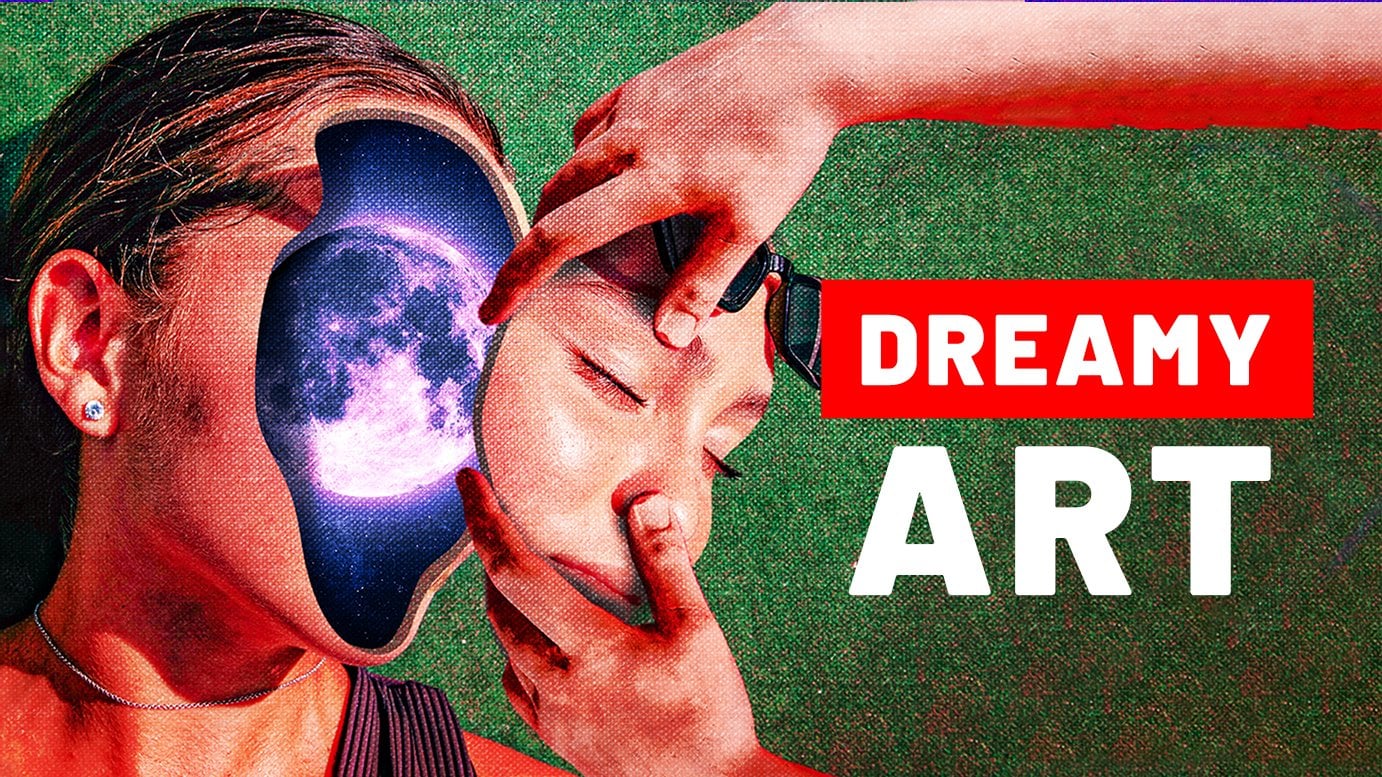
1. What will you learn and create?: Hey, what's up? Welcome to the class where we're going to create this standing artwork and animation. Look at that, look at this lines. Isn't that fantastic? I now what do you think are my God, that looks difficult, but now, trust me, I'm gonna make it easy for you. This class consists of two parts. First part is we're just going to create a static version of this artwork using Arab Photoshop. For that you just need to have some basic and operation of knowledge and then you're good to go. Second part of the class is where we actually take our artwork and start animating it. And we're going to use Adobe After Effects for that. And I know right now you're thinking, oh my god, I have no idea what the hell is Adobe After Effects and I don't know how to use that thing. Don't worry, I will help you. This class AB doesn't specifically so that even if you have 0 experience with Adopt After Effects, you will still know what to do. First, we will have to cut out the face and put a really nice gradient XHR. Afterward I will show you techniques that I call 3D lines and we will create some really nice color full lines. Later we will have to separate the face, put it on the top. And also MT, when we're done with this stating version of the artwork, will go to After Effects tiny mated. In our tiny method, we will use a tool called puppet paint tool. This tool helps you to create points on the lines and then click and drag them to the left and right. And by that you can actually animate anything, not only this lines. How crazy is that? And the last step in animation would be to change its colors. Basically, we're going to animate the colors using hue saturation. Hue saturation is going to constantly change and the colors will get animated as well. Why? If you're still worried that this is going to be difficult, you should know that. Always just, you know, leave your comments and questions and I will answer you like almost the same day. Maximum. Then like statement that that's the maximum. Okay? And then at the end, I will teach you how to destroy the universe. Oh, did I say that out loud? Let's forget about that part. Okay. I mean, just go to the next lesson and start learning like what I waiting for.
2. Creating the Face Shape: Hello, my idea, Photoshop magicians. How's your life? I hope you doing great because today you will start to journey into the magical world of stunning artworks and animations with me. Thank you. So the first thing we need to do is of course, to create the project soldiers go to polish up and click Create New. And here, just whenever you follow this much clauses, just always make sure all of your settings are exactly like mine. For example, make sure you have your pixel selected with 11000 height, 1250, presumption, 300 kilometers GB. Artwork is not elected. And logistical things that sweet create Barn, Theatre. Good, good, good s. So the first thing we need to do is we're going to import our image. And you'll be able to download this image, which is this standing image where sway, okay, my computer's going crazy. It can not even openness to pre-image things happen. Sign. So this is the image and it's already a very, very beautiful image, but you're going to make it even more amazing. It's an image by Cyrus Denise, our theorem. Just, just to credit the photographer, if you just write her name and, and splash, you will find her aunt's.bash_profile where we will be able to see all of her beautiful images. So now let me just impulses to Photoshop. Boom. And let's now make this bigger or it's placed it here, make sure there are no empty spaces on the left and right. I want to make it even bigger. Moved over to the right. Probably bigger, yeah. Like that. Okay. Let's make it even bigger. Yeah, this is fine. Something like that. And let just click that. Sweet. Ok. Wow. It's now first of all, let's go to background and let's do this thing we don't need. It always ends so stupid, useless. Okay? And now I actually want to change for size a bit and I'm just gonna go to Edit and Free Transform. And sometimes we need to reduce your things. And just to make sure it's really, really nice. This is good to this fine. Let's click OK. And for you is a site is not that important. It just, if you like it, then you can leave it as it is. Good. The first thing that we're going to do is we are going to actually create the shape inside her head. And let me show you what I mean by that. So this is a static version of that artwork and we integrate this gradient shape, first of all, on her face. For that, we're going to go here, click that button and here we introduce curvature pentose. So not the normal quantile but courtship mantle. And if you don't have it, that means I do quatro bees like really, really, really out. Okay. So and you need to update it. And yeah, let's just select it. But again, you can also use normal parental if you know how to use it. Let's like furniture 0.2. And here before we start doing anything, first of all, make sure yep here, selected shape because we introduce shape. And make sure you have here this Mueller. And let's go to fill. You can just actually, we can just leave it as this for now. Fill some color elements of stroke just go too strong. We don't need any stroke. Click on the stroke and click here in order to make sure you don't have any stroke. Good. So now let's start drawing the shape and we'd go around her face kinda but also leaving some borders. So basically, if you look here, you see we have some borders here. That's what we need to live. And I'm going to start from here if you just click boom. So let us explain what is curvature point on how to use it. As you can see, I click here once and they have 1. Now for example, if I click here again, boom. Now you have two points. And now if I create a salt point curvature parental is going to automatically curve my lines. That's why it's called curvature 0. For example, if I just go and click here, for example, of what's going to happen. Boom. It automatically curved this lines. So basically it makes it adjust to make sure that you are the best, the softest curves. And let's click here. And this is kind of files go up ultimate here. Let's click here. So we just need to go around her face like that. Like that. Okay. So let's say you click somewhere wrong and you want to go back. Only need to do is just if you just go to aids it and you can just do under which is control or common cause that home. And as you can see, I can go and click here. And yeah, like this, I'm gonna click here, here. Let's do this. Baby's looks so odd. So let's do this poem. And as you can see, I don't see really we have to click, but let's just click here just accidentally. And if not, we can always change this later. I will show you how. Let's click here and let's click here two clauses. So now once you have curvature parental selected, you can actually go to this point. You can click on the mannequin, drags him. And when you do that, as you can see, all the other points also adjust automatically to create the perfect curve for you, my dear friend Sita. So, and let's just go like this, like this. Boom out with smaller. This looks nice. Okay? And you can also go on your own and try to adjust all the other stuff that you think you need to adjust. So now let's go here and I want to add a gradient to it, you know, and I don't want to have justice is grey color for this, I will go to gradients. And here again, if you have the newest version of Photoshop, then this how your gradient finals going to hold. You won't have her many, many different folders of gradients and so on. And if I just click on them, I will see some basic gradients, some blue gradient and so on. But if you are fortunate with older, then you're going to see here they are different gradients. So that's why we're going to create that gradient by herself, because I don't know which version of Photoshop you have. So just make sure that everyone can get it right. First of all, I want to make this bigger. This is too small. I'm just gonna make my final bigger. Okay? And now let's just go to basics and let's just click on the like some black and white gradient. You're going to have it also. Ok. And now I want to change this color. So Isaac Asimov, you have white and black. If I want to change this course, first of all, I want to go here to the ones that are located below these arrows. And I will click here, boom, boom, right. I need to make the first one actually kinda orange, so dark orange or something like that. And as you can see, I move the arrows, announces the circle. And if you want to get the exact color like I have here, you can always just copy this code and put it in your Photoshop. And that's it. Let's click OK. Now let's go here again. Double-click, boom, boom. So now let's go and have some violet colors and bring it here. And they are perfectly spherical cave in case you have something weird going on here. And let's say you don't see some of the colors. There are few things that you need to check. First of all, make sure you have here lie near linear gradient, ok. And make sure you have both of them black. These arrows, these are basically opacity arrow. So if I click here as you can to opacity is activated and I can just go to make this 0. We don't see any color, but if I make it a 100, we see the color fully. Make sure bosses, I'm a 100%. And now the angle, the angle is not that important, but I'm going to do it like that. As you can see now it's changing the angle. It's fine. It's good. So basically more than fine like this. This is good, good. And now let's see if I just click somewhere here. As you can see, we don't see the points anymore. So let's now along with this tutorial, okay, still sometime. Okay, now we have to do a really small part. Actually, you know what? Living this pores are. Next lesson because I want to give them really, really short so that you don't get tired and you have some break for tea or coffee if you like coffee. And that's it, my dear friend. Seat. On the next lesson, we're going to add some depths. As you can see, we have here the shadows, which actually make it realistic that no other phases cotton. And also we're gonna get rid of these lips and eyes because we don't need them there. We need to get rid of them. I know this sounds horrible, but trust me, it's going to be pitiful.
3. Adding Shadows: Hello my dear, for incidence, how are you? Let's continue. So in this class we're going to add some chartreuse incisors shape to make it look like the shape is really insightful phrase basically, it's really cotton. So for that, let us go to this shape and go somewhere here on the empty space and just click that button and go to a Blending Options. And then let's go to two Inner Glow. Okay? So integral helps us to add shadows from every side. And of course, I will get that, you know, like in real life, we would have more shadows from one side unless startups from other side. But it's going to work fine for our specific needs. Okay, so first of all, let's go to this coil is click here and let's make this black Gottlieb like nouns go to anymore, makes its normal. And as you can see we have here applies to, let's also make it a little bit higher. Make sure noises 0, not go to the 510K, just off the technique source edges. And let's start decreasing talk EBIT and also a size, just okay. Decreased chalk habits. So you're going to play visits to make it realistic and maybe add actually relatively low opacity. Let's see. And the size. Let's try precise. Softer, definitely works better. Ok, this is fine for now. We will, we can change it later if you don't think that it looks good. Let's click. Okay. So now let's just click, create a new empty. And now we need to get rid of this lips and eyes. And it's going to both be time-consuming and probably dealt with difficult. Don't worry, we'll get through this, okay? And if you don't understand something during the lesson, then just rewatch that part and you will understand it. Now seriously, it usually works like that. So let's first of all go here. I'm going to click right button and choose bottling rational. And I will try to remove the ellipse using sat. And we will see if it actually possible or not. And also make sure you have your content diverse selected, mod normal, sample layer, selected variant, very important. And you can also change the brush size, hardness, everything here. There is a why I'm telling you that because I'm going to lead automatically during their class by automatically, I mean using different hotkeys. But you can just go and do it here. And I'm not going to show you the hotkeys because Photoshop has like thousands of hotkeys and we cannot go through all of them right now, of course. So yeah, I'm just gonna make number shows with smaller. And let's see if I can draw with this and see if it's vanishes. Wow, it's gone. Good. Say.9c, Kansas is still helps us to deal with the unwanted the object. And its actually works pretty well in expected to work so good, but it's, it's, it's done. Well, what can I say? It can go a few more times. Ours is. Okay, this is looking good. Now let's go to xy and try to do the same with I. Let's see. Okay, as you can see, it reside, we don't get the same results, so I can just go back, back, back, back ups. So that means that we should try something else. So first of all, we try to get rid of this. I splashes, I don't houses called Yet. As you can see, I can get rid of these things on the ice. And now I'm gonna go to psi itself. For that. I'm gonna use actually a stomped through stamped o. And let's go here whether it's, let's see here, click that button, choose clone stamp tool. This was obsessed to clone some areas and then place them in different places. For example, I can clone her skin and I can paste it on her eyes like this. We can get rid of XYZ. But now to do that, first of all, you need to make sure a sample alerts is selected. Here. Boss is a 100 more normal, and that's the debate. Let's go here. And now in order to copy, let's say is displace by actually I'm alone. I'm going to copy more for straight plays, which is this one. For example, let us hold Alt or option. If you're using Mac, if you're using Windows, it's old, you hold it. And then as you can size, this is goal icon. And I can just click, boom, an iPhone release my Alt or option. Now for example, whenever I go, I will be able to draw resist parts here. So now if I just click and drag, as you can see I'm drawing. And also we see here, if you look to the left where we copy it, we will also see a plus icon. This icon shows us what exactly we are copying right now. So if you just look at them, boom, so now I'm gonna go and copy this again, because right now you need to hear this. Good. It looks kinda find. Now let's go and copy this place because I wanna get rid of this line here. And now what I want to do is I want to, again, maybe copy this place and try to have something like that. So as you can see the problems that we see here, some really edges like harsh edges. We can see that this is a different causes, different color. What we want to, we want to have some smooth transition. For that. I'm gonna go to opacity and we're gonna make it 20% around, also flow around 20%. This will help us to have a smooth transition. So for example, let me show how this is going to work. First of all, make sure your hardness is 0. I'm gonna copy this place. And I, for example, if I start drawing here, you just click and draw, draw, draw, draw. Because what happens is Photoshop is not drawing all of the colors at once, is drawing it smoothly, so one by one. And like this, we can actually make a smooth transition from this to this. So again, just draw like that and boom, much button. Now there is transition also introduce something like this here. Copy to some nice transition. Okay? And if you don't know, if you still don't understand how this happens, you can go and watch what is flow and how it works because I cannot dive into this right now. It's going to take lots of time, but you can do go and do it on your own if you really want to. But I don't think it you need to, but I mean, depends on your mood. Okay. And the last thing we have here still eyebrows sang. I'm going to try to remove them from the easy way with bottling brush tool. And let's see if we can do it. Just go over the eyebrows and their Walla. Amazing. I didn't expected to actually works as well. Good, good, good. Let's see if I turn this off and on. It looks actually pretty nice. So you might think, well, but we have here some weird lines and so on. Don't worry about that because we are not going to see them in the final artwork. Let me just show you here. As you can see, we have also a 1s here. So we're going to see them. And in fact the mass, well, why did we remove the things? Anyway if you don't see him? Well, it all depends on how you're going to build your lines. You can build them so that you actually go on to seize this part. So that's why I was like, okay, let's remove it just in case you do differently so that you don't have any problems, okay? And that's it basically with this lesson, it means not that long. And next time we're going to continue and we're actually going to start creating these lines. Ooh, I have no idea why did that, sorry. Well, you guys bye-bye.
4. 3D Lines Technique: What's my differentiators? How is your life? So let's continue, right? Okay, so during our last lessons, we carved out her face. We put this gradient here, added some chartreuse inside to make it look more realistic. And this time we're actually going to create this monster thing is, so let me just show you. So we're going to create this things that come out of her face. Okay? So how are we going to do that? So first of all, we integrate any m2 or I'm just gonna go ahead and click plus boom. And now we have a new empty layer. So now when we have it, lets go here, click that button and choose smashed. Oh, this will helps us to take and drag things. For example, when I chose it, as you can see, and make sure you have here sample are selected. And let's now go here. Make size ultimate bigger. And this is fine, but also most likely your brush is going to be different. You're going to have here a circle brush. And as you can see, I have here a different brush. And in order to change your brushes, what you can actually do if you go to Window and brush settings here, as you can see now my brush things here and here I can see a different brush tips and we can try many of them. So for example, let's just start first of all with the normal circle one was go with this one with, let's mix spacing less and Hardness 0% and size out with bigger. So now what is going to do if I just click and start drawing? What's going to happen? I'm actually dragging What I have here up as you guys can drags this part, I can drag I can again thing I want to drink. And, but the problem is that first of all, we want to write only this color, say we wanted to, we don't want to drag, you know, the image itself on is the colors here. And we also want it to be stronger. So let's now go back and you can just go to aged and undo or you can use like hotkey. And I'm just going to back, back, back put. So now first thing in me to do is let's turn of this image here, this one. Boom. And as you can see it's gone. I also want to turn off this edits here that we made before. So now we need to have only this shape and this layer turned on. Now again, let's go to brush settings, this template, start to choose this brush here, and let's see how it works out. Ok. And so if I just start drawing what's going to happen? Ok? It looks kinda nice, but it's not strong enough. So let's go back. What I want to do is I want to take string. I want to uproot it almost to 90%. Also, I want to go to my brush and I want to change its direction. So for example, we look here, I want to change its direction. So now it's looking up. So if I go, you see now it's looking up. The brush before it was like this, knots like that. And I can just click and drag to create this really nice, basically monster thing is here. Say if I just do like that, boom, critique UA and now just to compare ls again, go back because right now we're just experimenting. Let's now try to go to brush settings and try to choose normal brush, let's say with hardness a 100%, again, megabytes is small and this is too big. I'm gonna make my brush out with smaller. And then let's see how it works because this one out. Okay, it's nice, but I think the other one was better. And let's go to the previous brush. And luxurious changes direction like that and also its mixed string alphabet less like 80. So now let's start drawing. And we're just going to start here with this really nice lines like this once formed. And we introduce a few of them. So let's start with three. I'm just gonna go here, do this lines. Let's start with three lines 12. And let's say three. Let's also makes him different shapes. Just so they are not the same shapes. Basically. Good. Now we have three lines here. So now let's just if you turned this on, we see that it's kinda nice. And we actually need to create new layer again. So what's going to happen is we're going to have in total, let me just check how many allies, like 12345678, okay, so let's eight lines, and we need to have three different layers. So basically this is this two lines. I want this layer. Now we integrate and other lines which are going to be are located on a different layer. So let's just go to this layer and let's turn off this 1s. And let's also turn off Zai image. And let's now do, do different lines. Now we need to try to make them from different places. For example, let's say this one is coming from here. So like that, it's going up like that. Boom, looks nice. Let's make another one that comes, let say from here, like from variable border. And now this one, let's just make this my ultimate more crazy like it's going to the left, right, and so on. It's nicely turns them on, as you can see now, the kind of overlapping and creating good dimension, almost like oh, this one's are below as other ones are like in front of them and so on. So now let's create another layer and what's turns it off unless try to do some from here because we saw that we have here, but they don't have any lines coming from here. So I'm just gonna do a few from here. Like I'm just gonna do something crazy like this saying here, like it's going now up, rise like a phoenix. And now we need to have, let's say more from here, like that. And let's say one more from here. It's knife, return all of them on and turn on the image. And wallah, it looks nice. I mean, it's totally different, but still it looks nice. If you want your life to be like different, of course you can do with them and do them again. So now what we need to do now is we need to create the face. So we need to, not great, but we need to put the face from here to the top because that she's because she needs to hold their face inherent. So let me just show you here. You see the face. It needs to be in her hands. And we're going to do this in the next lesson, of course, because right now we already created this things, this already looks good. Let's see. How long was this tutorial? Eight minutes. Totally fine. See you guys in the next lesson. Bye, bye. Don't forget to say.
5. Separating the Face: Whatsapp, dear friends, he does Welcome to another class. I excited IOP are because I'm so excited. Thank you. So this time we need to basically put her face on the top so she can hold her praise enhance. So let me just show you an example. So something like that. Okay, how are we going to do? This is a very, very quick question. So first of all, I want to basically make a copy of this image, the original image, okay? And I'm just gonna click right button here, some groans, empty space and a go to duplicate layer and click OK. And now we have a copy. I'm just gonna put it on wary, worried. So now we need to cut out her face. And we're going to do it in the same shape. Like we have this shape here and there. How are you going to suffer it amplify turns off, we see this cutoff, right? So we're going to use exactly these two cut out her phrase, let me turn this back on. How are we going to do this? Okay? And if you click right button on the shape, like on the SAM, they'll not here, not here, but exactly here on the some nail. And now you're going to have here select pixels if you click it. Okay, forget about, forget about that, sorry, little mistake. What do you need to do is okay. So what you need to do it if you hold control or comment. And again, for Windows, it's control for markets common. If you hold it and then you go here. When you hold it, you going to see near your hand a little box? If I don't hold control, accommodate, I don't see the boss. If I hold it, I see the books knife, I click here. Boom. As you can see now, we have this selector. So basically what happened is Photoshop automatically selected this shape by its borders. Nine go to this image, and now I'm going to do is click create mass. And if I do that, now I have the mask that is exactly this side of the shape of the shape here. So now if I take this image and I just bring it higher, boom, you see, now we can move their face. Really. That's pretty simple. If you didn't understand this, then that means that you don't know how math works and you need to go and learn how mask actually works. Okay, sorry my friend sitter, but this is the truth. I mean, this class is for people who know, who know at least some basics or Photoshop. So I would also advise you to watch this again if you didn't understand some parts. Because when you rewatch it, you know, you start understanding things better. Usually it works like that. And now I have to put it here. So now what I want to do is I want to make it so that she's holding her phrase in her hand, hunger, and that is a very wary interessante equation. So let me turn off all this monster lines under 90 to create basically selection of this hands here. So what I'm gonna do is, first of all, I will, I will come here and click on Group. And as you can see, I have created a group that doesn't have anything inside. And I want to take this image and put it inside the group. So I'm just gonna take this, then I get here. And the rule is anoxic and sits inside the group. If I close it and often this is inside. So now what I want to do is first of all, let me turn up the image. And I want to go here and select Quick Selection Tool. And I want to make dealt with smaller my brush and I want to select the fingers basically. So this is good. This is looking nice. Obviously, I want to make sure that I don't like this place here. So I'm gonna take the minus 2l and just disliked it from. And now if I just create this mask on the group, so make sure it's a group of selected you click Create mask. Boom. So what happens now if I just turn this on? As you can see now we see the face only on the selected area, basically only on this mask. But we needed to be actually reversed. So I'm going to click on this mask. And now you can click Control or common plus i2 invert the mask. So again, if you're using Mac, it's common eye. If you're using Windows, it's control plus i. And if I just go here to properties, you counsel go to properties, or there are different ways to do it. I can click invert here as well. So if I just do it from, let me just quote, As you can see now it's inverted and I say I it everywhere except the fingers. Of course we need to adjust. It's not perfect, but it's fine. So let's now go to this multiplets like brush tool. And now the first thing we need to do is I want to make Cm Guan 1%. I want to make hardness non-zero, but let's say around 70%. Ok. And now we need to pay attention to that. So this finger here, it's behind. So it kinda needs to be behind the phase because that is the finger that is holding the face from behind. And all the other ones are holding the phrase from the front. So I'm going to use black color. Make sure black color here selected. And I'm just going to start, oops, sorry, mistake. Meat, white color. And I'm just gonna start drawing it here so that the phase here as well. And we're just gonna do it like x_hat. And boom. Yep, that's exactly what it needs to be like. So now let me zoom in. I'm gonna make my birth small and I just need to go. But when you draw, make sure you draw on the mask, not dismissed, but the group mask managers need to draw what these places make sure we don't have any emptiness here. No blue colors and stuff like that. Okay, now this small place. Good. Ok. This looks already pretty nice. So let's how long is this? Whoops, how long is this tutorial? Several minutes. So what I want to do now is I want to add some shadows, basically behind the fingers. Because if you're holding something, then inside here it needs to be darker. And I'm gonna do that is a very unwilling to Santa equation. Well actually it's not that complicated. I'm just gonna go through this group. I'm going to click on the image ends and I'm gonna click create new air so that delay is located above the image and inside the group. And I'm just gonna take my brush tool, make sure Black House elected. So now for example, I'm not going to make my brush Hardness 0 psi delta bigger if I just start drawing here, you see, and during black color, and it's located exactly behind the fingers and on case exactly what we need, but this doesn't look like a shadow. So let me just go back. And what I'm gonna do is I'm gonna make opacity around 20. I'm going to make flow around 20. And this basically helps us to make things smoother and to create a really smooth shadow. So now if I start drawing here, look what's going to happen. You see, it's, it's very, very smooth and I can actually create a shadow manually. So I just need to make these places a little bit darker, not too much, and maybe a little bit more. Ok, I think this looks nice, good. And with that, I would like to stop here and let's save this. Okay. Now let's how long is this? Yeah, nine minutes. That's fine. So and I mean, we we actually almost stands in pretty close to finishing this state part at least because we also need to be animated later, but that's a different story. Okay, don't worry, we're gonna get to that. You guys love you. Bye-bye.
6. Finishing the Lines: Let's go. We're almost done. So during last lesson, we created this phase pianos added some shadows, and this time we're going to do some adjustments. First of all, let me turn on our monster lines. We need to put this monster lines behind the face icy cancer right now, not all of them are behind the face. So first of all, let's go with this one. Let me just click on it and I want to rotate it a bit. So let's try. If we go to Edit and Free Transform, let's see if I can rotate this like that and put it here. Ok, maybe a bit more and pull it a little bit to the left, click, OK. Ok. So to be honest, I don't like this. Let me do it. Did. And if I don't like this and if you don't like it as well as ends, but if you do it again, so what does this mean? Let me just create anywhere. Okay, again, we go to smudge tool. This time again, we're into turnovers a image, okay? And let's try to create the Laertes again, but I'm going to turn off this ones. And I'm going to just do it from here. And, but, but we internalize a phase as well unfortunately. So just remember those faces somewhere here. Approximately how you put your fingers so that you know how long your lines need to be. And let's start doing this like teens to go from here. Z is form. That's basically where the phase ends. So we reached the top. And now I'm just going to create a few more lines, like maybe something more fancy, like this stuff. And let's see. The, I think it looks fine. Good. So now, first of all, we see for this line it's not, is not long enough. Ok. We definitely need to make it longer. So again, let's try to turn off image and this, and inside and quotient the first time I'm just going to make this longer. And voila, now it's good. So now we said sounds, the lines are too long and this is not good. So we want to delete that part, but before we do that, we will get there. Don't worry. Let's try to figure out this thing. So if you look here, it says this is supposed to be behind the Soyuz. Try to pull it behind and see if it works. Ok, much better, right? And if for some reason you see that some of them don't work well, you can just use Mask and doing them. So for example, this is this part. You can just click on. You can create them mask. You can use brushed ALL black color and you can try to make sure this is 100. This is also, and you can just try to get rid of, you know, the harsh parts here. The same goes to here. I don't know if that is. Okay. Which one is that the as this one, let's create a new empty layer and tried to make it software basically. Good. So now this looks nice. And what I want to do is, first of all, I want to start, I want to create a shadow for them. So because if you look here, you will see that they have some chartreuse inside that makes it look more realistic, basically more like a 3D. So for that one, let's just start from this one. Yeah, this one's we actually don't need shovels force at once because they're like really, really behind. I'm gonna go here. If you just click that button and click to go to Blending Options. And here you can select drop, shadow and voila. And let's first of all make size less nicely preserved distance. And let's also change the angle. So it's going outward to the right. And also it needs to be a less strong, maybe more softer or this is good. Let's click OK. Now let's go to the top one again right button and click Blending Options. And again drop shadow. The same idea. Maybe you know a little bit more for distance. And let's click OK. And as you can see, this already looks more like a 3D stuff. So it looks more realistic, which is good. Now, we need to combine all of them into one layer. So if you just click here and then called tripped, and I click on the last one. As you can see, all of them are selected. I can click right button and choose Convert to Smart Object. And one night altogether. So now we actually can create a new wear, a mask, sorry, not a new Isaac as I create here to create a mask, I can go to brush tool that color, and I can get rid of this because we don't need it there. Good. Ok. How long does is that lunch so we can continue. So what we need to do now is we need to make sure that the phase is also melting. So if Loci IC cancels phase is going down, that's what we need to do. For that. Let's click on the phase. Okay, let's create anywhere. Let's select smudge tool because you're going to learn using smudge tool and let's make it like around 50. Okay? And what I want to do is actually need to turn off the image and also the monster lines. And I can just make as big and I can just go and make this lines here. Likes that. Just something small. Even rotate the angle. Yeah, like this. It's much better. You can just go back and forwards if you don't like how it looks, I'm going to do something like that. Okay. Not too much. Maybe filled with here. Just note it here. Just for some fanciness. And this should be alright, let's have a look yet. I think it's good. Actually. Let me do a little bit more here. Okay. Because they have a mass. It's not going to, but yeah, it's fine. Anyway, this is good. So now what we need to do is actually if you look here to find author, we have here this cute dots that make it look really nice. So how are we going to that? First of all, it meets clauses. Let's go to Monster lines first of all. And the most Alliance actually, actually, they need to be combined with this. I'm shape here. And let's also enforce, let's actually save this first of all. So let's look at the monster lines. Let's go to filter noise and let's click add noise. From. As you can see, we have some noise here and it's too much. Let's go to five. Maybe 77 looks closely. Okay. Now again, let's go to the shape. Let's click right button, choose Convert to Smart Object. And let's do the same filter. Noise and add noise. 70 is fine, good. And now we also need to add LT bit offered on the phase actually faces pretty noisy. I don't think we need to add anything on the face. So how long is this? Yeah, so this is for this tutorial. Next tutorial, we're actually going to finish the artwork at least as tight as a static version of it. The static version not stating what we're going to, we're going to add some shadows on the lines. And also we're going to change the colors of the image a bit to make it more interesting. Ok. Love You guys. See you in the next lesson, final lesson for the static, static version of this artwork. And then we're going to start the animated version.
7. Editing the Colors: So in this episode we're going to experiment a bit with scholars because actually seems horrors are really nice. Alexander waves they are. But we can just experiment to see maybe we can find something better. Okay? And what we're going to do first villages click on this image. And I'm gonna go here and create hue saturation. And we'll start by changing the issue to see maybe there's something that I think it's cool or maybe it's something that I think we could change. So first thing that I notice is a wall. So maybe they can add sound other colours to the background wall. And the way we're gonna do it, first of all, let's click here basically to make everything to 0. And what I want to do if I click here, this tool helps us to select the colors, specific colors and tangent is M. So for example, if I click here and then say I click on this colors. And now if I'm going to change this, look what's going to happen. It's changing only that fat groundwater because that's mainly we're the opposite sign colors. So I'm gonna make it dealt with pinky. Let me close this. Now what I want to do is I actually want to have it half and half Pinky. So what I'm gonna do is I'm going to use gradient two. Okay? I'm gonna make sure I'm on the mask. I also need to make sure that I have here black and white gradients. So if you go to basics, you will just have here black and white gradient as the first one in almost any version of Photoshop. And click on it, make sure you have the linear gradient. This is all like Aleppo settings are like mine and I, if I just click, make sure you're on the Mask. Click and drag Walla. Well, actually, I think we should do it the other way around so I can just click and drag from here to have this pinky colors here. I think it looks nice, but maybe it's too strong so I can go to opacity and make adults with less to give it. Yeah. Okay. I think it looks neither can turn to our panel to see if you like it or if you don't like it, and so on. So now let's continue. Again. Let's create another hue saturation layer. This time I'm going to click here. And I'm going to choose this like pinky colors of her jacket. I don't know what's it. And let's try to change this colors and see if it's, if it's nice or not. If I just click here, turns off and on, it kinda looks nice. I think. Zone and things that I don't want this to affect her face. So what I'm going to do, I'm going to click on them, ask, I'm gonna select brush tool because if I turn this off and and look at her face, her face is also getting Pinky. So I'm going to select my brush tool with black color on the mask. And I'm just going to delete the hue saturation layer from this places basically because I don't want it to affect her body or her face and her hands as well. And if I now just turn off both of them, nobody can see, oh, is this nice or not? Just some small changes? I think it looks nice. I don't really think so. One last thing I want to do is I want to go, I want to open this layer where we have the face. I want to connect the face and the smudges basically into one. So if I just select both of them, actually I want to connect this whole group basically into one object. So if I just go to the group, I click that button and click Convert to Smart Object nights one group. And now what I can do is I can again go to image adjustments, hue, saturation. There isn't I do it from here this time because I don't need a mask. And when I do it from here, we don't get the mask. So as you can see, for example, I can just a bit just make it a bit kinky maybe, and a little bit less sick. Okay, so nice. As you see, we don't have a separate layer with a mask, but she's titration is just attached to the layer and not on separate layer. Anyway. This is like we went ultimate officer corps because the course is not about adjustment layers. So I but I just wanted to let you know in case you didn't know when you credit adjustment layer from here and when you create it from here itself to be different. So now this looks good. And voila, that's it guys. For the static version of this artwork, congratulations, might differentiate as you made it. And in the next chapter we're going to start animating this. Okay, make sure to save this. We are going to after effects and we will learn alphabet of aftereffects, just some basics in order to show you how you can animate this, okay? And don't worry, it's not going to be difficult because we're only going to learn only the things that we need. And it's gonna take maybe like three or four license, that's it. So it's not that much lager guys. Here's the next chapter.
8. Exporting the Files for Animation: What's up front sitters? Welcome to the lesson. Today we're finally going to start animate this thing. And I, you can't see right now I'm in a different place. I'm in my kitchen actually, but it doesn't matter too much because you are here for the knowledge, not for the place, right? The first thing that we need to do here is actually we need to basically separate the files because before we start animating them, we actually need to export them and then we will use them in Photoshop, in After Effects. I mean, so how is this going to work? First of all, let's start with the face mean to export the face as a separate object. So this one, and if you just go to the phase, will just double-click here to call it phase. And I can just right-click and choose the Quick Export as PNG. And now let's just create a new folder. And we're just going to I all of the parts into this folder. So an animation parts. And yeah, there's going to be called phase. And now for example, if we go to that folder just to see what we did actually. So this is what basically we exported and it looks exactly like we need good. So now let's go to the next thing we need to export our lines. So the problem here is that the export them separately, not together so that we can animate them separately as well. And here the first thing is that, as you can see, we have here add noise and it's working on the whole object together. Basically, what we need to add it separately on every line so that we can export it separate last fall. Another thing is that for example, if I go to this pass that belongs to this lines, click that button and choose disabled layer mask. We will see that here we have some things that we don't need actually. And that means that we will need to delete them as well in the lines. So now let's go click that button and enable lemmas. So what we're going to do, you may belt with confused right now, but just watch what we're going to loop and you understand what I mean. First of all, we have to open this object. So if I just double-click on it, just boom, boom. It's going to be open in a separate layer as you can see in a separate project. And here we see all of our lines. And as you can see, they're separated into three layers. 123. Now let's find this one. This is the one that is on the top, and this is basically the one that we use the mass for that was, you know, covering their fingers. And that's why we have to crop it a bit so that it doesn't go on the face. So let's choose it must create click Mask. Click Create mask. Would go to brushes, write-back snatches, brush tool. Let's make this smaller. Change the color to black, make it even smaller. And now for example, I can just draw here and delete this point. Sizing night looks good. Say, I mean, if you know how math works, then you will understand what is going on here anyway. So now when we have done this, that's already looks good. And we have to convert them separately into smart objects. So right button Convert to Smart Object. Pride buttons Convert to Smart Object. Right button come into smart objects. Now we need to convert them into noise. Not a convert but adds noise to them. Because as you can see, we have noise here, but it's affecting the whole ledger lines. But we need them separately. That's why we need to add them separately. So let's just go to the original project. I will double-click here on that noise to Shamma chaff here seven. And also let's actually turn this off here because we're already going to have noise on the, on the lines itself. Let's go here again. So now let's go to filter noise and add noise. Let's do it seven, Okay, let's do this to the every layer. Basically, filter noise, add noise seven and the same. And the filter noise and noise could not. When we have this, we can actually start exporting this separately. So click that button and chose quick expert as PNG. And let's go again to that folder. We just see. Okay, I'm gonna call it lines 01. Let's go here. Lines hero too. As we go here, lines zeros, three. Good. So now when we did that, if you go and look, as you can see, the exporter already has separate lines. Perfect. And now we need to do is just let us save this file, save. And it's going to be saved automatically, and it's going to be saved inside this project. So for example, now I can close it. And whenever I just want to open it, I can just double-click here and it's going to open bone. Certain just calls it now. So now we need to export the whole image, but without the face online. So let me turn off the face and other turnips, the lines and export on resistance also go to File Export and quick expert SPN Jeep. And I'm just gonna call this back ground. Good. And let's now turn them on and let's just save this now, just in case. So that's it with Photoshop is next lesson. We will actually open aftereffects and dive into it. Bye-bye.
9. Exploring After Effects: What's up, my dear friend sitters, welcome. Finally, Today we're going to explore After Effects and start the creation of our beautiful animations. So let me just give you some information. In general, the animation itself is not that difficult to create. It's actually pretty easy once you get to know some basics of aftereffects. And this tutorial In this video, I'm just gonna show you some of the basic stuff that you need to know in order to create that. Okay? So first of all, I opened after effects and the first thing we're going to see is just a window, project creation window, just like in Photoshop, and just going to click New Project. So when you look at this, this looks scary. I get it. Because when first time I opened After Effects, I was like, what the hell is that? I'm going to kill myself now. Yeah, but as you can see, I'm still alive and doing well. So let me explain what is going on here. First of all, if you don't understand some of the panels, just don't pay attention to them. Most likely you will not need them. Let's start here. Here we're going to have basically our files. So it's like a folder. Basically, you know, we're going to drop our images, videos, and stuff so that we can use them later. Here, we are going to have layers, just like in Photoshop. When you have layers, we're going to have our layers here. Basically. Here we're going to have the image itself. So we're going to see actually is a video, how it plays out and so on. So basically this is the screen and this stuff. We don't need to pay attention to this here, we just have some effects and so on. So let's get started. The first thing we need to do is we need to drop this images. So if we just take them, we can just take and drop them here. And as soon as we do that, voila, now as you can see, you can see them and if I click on them, I can see them here in this small window. So this is basically our files. Now I need to actually create a composition. Composition is basically like a project. When you create a project in Photoshop, you can see actually something. Here. We have to create a composition tags. We see something in this window. To do that, all you need to do, you can just take an image and you can drag it here. Let's do it. And as you can see, as soon as I drag it, I see here this composition. Now, let me just talk about something. It what if you don't have this panel here just in case because we're stuff can happen, you know, so let me just clauses, just click here on this clause. So as you can see, let's say you have this kind of weird situation. I don't have the composition panel below. You can always go to Window and find here, let me see where that composition, where are you? Our timeline, sorry, I'm so stupid and just the you need to turn on the timeline and voila, now you get it. So anyway, now we imported this image and as you can see, it's too big. We cannot say anything. You can just go here and click feet. And voila. Now we can see it. As you can see, a competition will automatically created, which is exactly the size of our image and it fits our image. So what do we have here now? First of all, we see our layer. It's only one right now we can turn off and on. Click on the I just like in Photoshop. You can also take this timeline and you can move it to the left and right. Let me see if I'm recording. As always, I'm gonna kill myself if I don't. Okay, i am because sometimes I start talking eyes and I actually don't record the video. So anyway, what do we see here you go, you see here seconds, you see second number 2, second number 4681012 and so on. And the IC can see automatically created a 30-second video, which right now just has one image and doesn't do anything. So it basically readers that consists of one image and is not doing anything when we just played, you know, take this timeline, I'm over to the left and right, nothing happens. So now let me show something else, very important. And we can actually zoom in and zoom out from this seconds. That means that for example, if I click here, you see Islam. This is going to zoom out, but right now we have maximum zoomed out. You actually want to zoom in. For example, if I click on this mountain smoked, and now we actually see ultimate moreVC actually is a seconds like every second ones first, second, number 2 second and ML3 because before, if I go back, you see we only see every second second. So two c 2468. But now if I zoom in, I see 1234. So it's basically when you zoom in, you see the little stuff. You know, if I zoom in even more, I will start seeing here as the F letters. So let's actually zoom to the maximum inside and just make it to the max. So that makes 20 waters f now, Ms. frame, every second has 30 frames in it. At least. That's how it's done in our case because you can change it, but I will second has 30 frames. What does it mean? That means that, for example, when you shoot a video, every segment of that video has sorted pictures in it. And when it places is 30 pictures one by one, you get a video. So for example, it's like first frame, second, third, fourth, 56, and so on. And when you put it all together, it just goes like that, like a smooth video. Okay, now let's see if this is frame number 123. And now in order to get 1 second, we need sorted frame size. You can see we go, we go with Sony here, 18 frames. That means we need to continue. And what you see now we see here framed on the 28th, frame number 29. And when we get to frame number 30, they actually see 0100. That means that it's now second number one because 30 frames means 1 second village to second number one. And I can continue again, we see frames 1214 and so on. And when I go here, you see 29 for MSNBC second number two, because we already have per second now at second, second. So if I click here also, we will see here timeline, you see this method we're on second number one, frame 29. If I click here, for example, we are second number two, frame three. So let's actually zoom in Back to the meme on basically wherever we see only the second, not the frames. And that's it basically for this lesson. Let's just go to File and click save so that we have this saved so we can continue then. And whereas my animation parts, so I'm going to call this monster inside animation and click Save. And when you want to open the oily food, just double-click on that file and it's going to open this. Okay, see you guys in the next video. Bye bye.
10. Creating our Animation Composition: What's our dear friend, T.DIST, Welcome to another ration of aftereffects. So this time we all will almost going to finish this or maybe completely, I don't know. Let's see. So the first thing we need to do less now or import all the rest of the other objects and worth less than risk face. Actually, now, let's start with lines. We can just select all of them. You know, if you just click on the first, you can just do like that. Babies, they select them and put them here. We need to place them above background as against racism here. Now, they're located not exactly where we want them to be. And I want to move them out with higher. And also just to tell you if you want to zoom in and zoom out from your project, you can, if you have a mouse, you can use this scrolling thing here on the mouse. Or you can just use this like zoom-in parameters. Or you can, if you have a touch for the I am sure you can just maybe use your two fingers. I'm not sure about that, but just try it out. And what I want to do now also, when you zoom in, let's say now you want to plan, go up, left, and so on. You can just click space. And when you click space, you activate the hand icon, Hansel. Click with your mouse and drag it where you want to drag. Or you can just use this to here. If you just click on this soap, it can also just use that. Okay, so now let's again go to the moon. So now we need to move them out with higher. So once all of them are selected, I can just do this is Muslim here and just need to find a good place for them. I think this is good. Let me zoom out a bit. So now I need to bring an E2E and rearrange. Basically this is going down. This is going to be number three and this is number 32, so 123. Perfect. And now it looks really, really nice. Let's see if you want to, you can just click on them basically here or here. Nitric acid not selected, I can just move them. But I want to move them or if they look good enough. Yeah, I since I looked fine, good notes go with a face like the face, and let's put it here on the top. And now we need to make sure it fits exactly the hand. So again, let's like the hand tome of up. Let's lay this tall and let's bring it higher. So the phase needs to be, let's domains. Yes, something like that. So now we see that we still have here problem. This line is not supposed to be on this finger. Let's see if this is line number three. No, probably one. Yeah. Land number one. So that means that I will need to delete it. And of course you could go to Photoshop, you know, deleted and then come back here. But that is too much work. What you can do instead is actually pretty easy. You can create a Matzke as well, just like when in Photoshop, you create a mask or hide something. You can do the same here. How it's done does just like this. Now when selected, make sure you have the image selected. Because when you have the image selected now so one of the two slits is square upon two, then it will automatically create a mask when you draw. So for example, now if I zoom in Elizabeth and I draw here just a square. So basically just to capture this thing here. And what we see is that now it's showing only this basic logic and see it's not showing the rest of it showing only this place here, because now we are basically told aftereffects shown is this place, but we need to invert it. So basically make sure that it shows everything except this. So now we go to lines. As you can see, we have automatically mass created. As soon as we created this mask is rectangle. This automatically popped up here and Vicki features causes or open. As you can see, we can click on this arrow. We will see here masks. We can also open them and so on. So now when we open mass, we see here this mass MVC here inverted if you just click on it via. Now let's go to Selection Tool knife. I zoom out as you can see. It looks nice. Good, good, good, good. This is fine. And let us now go to File and Save, just to save our progress, let's say R1 because this tutorial, okay. Not that long so we can still continue action. I would I will stop here because I feel like your head will export because you're learning a new program. So let me just stop here and I will continue in the next lesson where I will show you how to animate the rise. More Go moves him, left, right, and so on. So it's going to be really amazing.
11. What is Puppet Pin Tool?: Good. So now we have this here and this is recording, yes, lifted my videos also recording. Perfect. Everything is a recording. Good. And now in order to animate them, move them left and right, we're going to use a tool called puppet position P2. So you may be familiar with similar tool in Photoshop, which is called puppet pin. It helps you to create pins on objects and then decays into left and right. For example, let me show you, let me move this ultimate down. So let's actually take this arrow and go to second number 0 because we need to start from the beginning. And now let's select one of the, like, the selection tool, that's like one of the lines, let's say this one. Now, let's select the one which is in front the number three. Let's like the packet pinto. Now when I have selected that, I need to create pins on these lines. So basically let's actually turn off the other lines so we don't make sense this two lines. So I'm gonna start from the bottom. If we just click here. Now let's create another one here. Boom. Now it's go here. Another one, another one here, and another one here. So now the thing is that I can just take this and move it to the left and right. Look how cool this is. You see, wow, so let's actually go back, edit, undo. And I want to do the same to the second line as well so that when I move one of them, the other one is not moving. So again, click here, click here, here, here, and here, and maybe even here. Now for example, if I move this one, as you can see, the other one is not moving. That's exactly what we need. Again, let's go back. So now we have taught After Effects that, okay, on second number 0, this is the position of this point we need to go to. Let's say, I'm not even sure. Let's second number seats to an outsider loci on second number two, the position should be different. Let's say we want to take this and moves to the left. We want to move this, let say here as well. We want to take this, move this to the right, and this here. So now we're basically telling after effect, okay? Second number two, this is going to be their position and after afraid will automatically take the positions on second number 0, nanosecond number two, and animate between them. So let me show you, for example, if I take this line, this arrow here and I can just move it. What, what is going on? This is crazy, it's getting animated. So also a few things to note here. If in case your Photoshop is a, your computer is really, really slow and it likes. I would advise you to go here. You see full and do, let's say here sort for example, this is going to make sure that it's, it takes a little bit less effort from your laptop, but also has a Kansas, a quality now is worse. But don't worry when you export this, when you save this as an animation, the quality is going to be the highest, basically a 100% quality. The quality is going to be like this for and not like this. So again, if your computer is leggings and I would advise you to use sort. But for me I'm gonna go with for now, at least. So now when we did that, we also see here two points created. So if I just move my arrow, you see 1.2nd. This is basic laughter friends recording the position of this lines. Second number 0 and too good. And now let's continue. You also see here lots of weird stuff created that is automatically created by aftereffects. Don't worry about that one, okay, it's going to drive you crazy if you just go and see what is all of this, just don't worry, just do what I say. Okay? And everything is going to be good at it. So let's now go second number four. And I want to change the position again. And also one thing, when you go to seconds, always make sure here you exactly on the second that you need. For example, as you can see right now, 0-4 00. That's exactly what I need. If you go to the left, let's say you see it 0328, that's not second number four, we're still missing two frames, right? So if you want to be sure, you can zoom in and zoom in. And then I can click here, boom, a node's differently, frame number 4. Second number four, let's go back now. And I want to animate this again. Maybe do something like that, like that this time. So just move with some somehow differently, is to something interessante. Good. Ok. And now I have three points. So this is number 123. It's getting animated in every point. And now for second number six, I'm just gonna go and copy the original positions here. And there isn't why it does that is because I want this to be a loop. So basically when switching second number six, it should go back to its original position. So let me show you what I mean by that. So when I have the puppet here, here we have mesh. Let's open this. When we open mesh, we're going to see here deform. And also before you open this, if, if your panels too small, you can just go here and make it bigger. Now it's again, click on the form. And now when we did that, we see here all these different pins. That's basically every single pin that we created. And this is utter face recording the position of every single pin. Now let's go here to second number 0. Now we need to copy the position of this pins and we need to place them on second number six. Okay? This could be ultimate difficult, especially if you're just starting out with aftereffects. But if you don't understand something or if it gets stuck, just watch this video over and over. And you will understand what I mean by after some time, after watching it few times basically. And let's select all of them. So basically just click here, hold shift, and click here. And as you can see, all of them are selected now. And I can just click them and open them. Now when all of them are opened, I want to copy this points. So I'm just gonna go and I can just select this just like you select multiple files on your laptop and go down, down, down, down, well, okay, so as you can see, I've reached the bottom with all the points. Add them here. So now let's go to aged. Let's go to copy. Okay. Now it's got 2 second number six. Make sure I'm second number six here. And that's notated and paste. Voila, nice guys. It's copied it from here to here. And now what is happening on second number 0 starting like that then is going to a different position than to a different position. And then the second number six, it's going back to the original. And then we're going to loop that basically. Now let's go to file and save this. Let's how long does this, okay, pretty long. So in the next lesson, we're actually going to do the same for all the other lines and also for the face. Bye, bye, love you. Yeah.
12. Finishing the Lines Animation: Hello, hello. Let's continue. I want to get down with this already. I'm sure you do. So now we're just going to do the same likelihood during last lesson to all the other lines as well. So let me just check if I'm recording just in case. And let's start now let's turn on other lines as well. So I'm going to turn on line number one. Let's go here. And I what I wanted to first of all, I want to turn off line number three because anytime you made them one by one, let's select it. Let's go to Puppet Pinto. And let's start creating the body, basically the points. So I'm just going to click here. So it looks like it was too off. Let's also actually turn off the background so we can't see where exactly as aligns. Good. So now in order to create puppet Pinto on this lines, this thing here is that if I just use a handy file, grew up, as you can see on this lines, we have a mass here. That's why we won't be able to create a puppet tool just like on the clients, just like that because you have a mask. So what we can do is something interesting. We can basically, let's select this tool. We can convert it into another object. So if I click right buttons here, I can't choose pray comforts, and just move walls attributes into the new composition transition. And let just causes lines 01. And let's click. Okay. So nice against these changes the color. But now when I click it, I don't see the mask anymore. I mean, the mask is inside this object basically. That's why now for example, if I just go down, I can select my Puppet Pinto. And if I click here, voila, now I can start creating points. And I'll just go and create this here. The same here as well. Boom, boom, boom, boom. Again. Good. So now again, just go here to second number two. And let's start moving. And so I think if we don't do the coins right now, but if I just select puppet into, I will say that points and I can just click and drag them. Let's say to the left is dealt with like that. And I can do this. And I can do this, you know, I can do this now. Then go to second number four. And I can move it out and get up, let's say with lived. So you just have to play with them, you know, just to give them some interesting positions, you can actually move it even further. You can move this here. So like that basically. And now when you go second number six, we just need to copy the original position basically is the partitions that wash on second number 0. So again, let's just go to a puppet pinto. Let's go two meshes here, and let's just start opening them. And now we see that we have here three lines. So we have to do this for all the three lines. So again, let's open the form. Now it's upon this mesh. Let's open deform. Now. So pansies mesh, let's open deform. And now we'll have to open all of them. I know this sounds complicated, but just Open everything that's going to be fine. Again, you can just walk away if you don't understand something. So I'm just going to basically click here, hold Shift, and then click here. And then click OK. You have to do it like one-by-one soil hold Shift. And then click here and then open. Click on this one hold Shift and then click compete number one and open. And the same goes to the last one. Opened. Gas. Well click here, hold Shift, Click on the last one, everything is selected. Now click Open. Boom. Now we have to copy all of this so you can just start selecting. Okay, aged copy. Let's go to second number six, aged paste. Boom. And now it's all good. Let's close this. Now Stone is hope as well as go to second number three. Oh, wait, we did already do that. No, yeah, we did. Let's go second number two, lines number two. So now again, let's go second number 0, let's puppet position toll, and let's start creating the lines. Boom, boom, boom, boom, boom, boom. Okay, again, do the same signal number to start changing their position a bit. Exist, some weird stuff. Goes second number four. And now that second number six. Let's open this deform. Let's open this mesh deform. Let's open this mesh deforms a bill basically again, just need to copy everything. Again. You click here, you hold Shift, and then boom, open everything you click here, you hold Shift, Click on the number one, open everything. Click on pin number five, hold Shift, Click here, open everything. Analogist. Start copying all of this again. Good. And edit. Copy. Make sure you know second number six, aged, paste and spacing is o here. Voila, knife-like clauses. All of them on and turn the background knife. I just go and look at this animation. We did guys. Wow, crazy, right? How long is this? Eight minutes, it's enough. So in the next lesson, we will change the position of the face. We will animate the phase basically using again puppet Pinto's. And also we will change. Well actually we can build some additional stuff. For example, we can animate the colors of this so that the colors are changing as well. We will see few guys in the next lesson. Bye bye.
13. Animating the Colors: Whatsapp, for instance, Fred here. So in this lesson we're going to animate phase. And we also want to make it move just like these things here. And again, let's just select the face here. Let's go and select our puppet tool. Okay, but let's actually first zoom in. Like the hand tool called which highlights the puppet Kindle. And now start creating the skeleton. Basic is appoints. So just here, 1 here, here. Let's do sum here, for example. Like that. Just kinda around her face in order to be able to control it like this. Now let's go to second number two and animate it a bit. For example, movies to the left. Moves to the right, down and up, down, down. I said, yeah, lots go to second number four, do something different like zis. Yeah, you don't wanna move this point because as you can see, this one's let me, It's actually responsible for these parts of the face so that we can store it goes perfectly around their fingers. That's why some places it's backing up. Like this. It can go down even further. I mean, this could go down. You could do some of this stuff. Maybe even move this a bit. This is a bit higher. Okay, announced like a number six, we need to go back to basically we need to copy the position from second number 0 to second number six. Again, let's go to our phase puppet mesh. Let's open this on the form. And now we need to open all the puppet Pintos. Let's click here and then let's hold shift and click on this one. But it's open all of them. And let's just go and copy them. You can just select them. Okay, perfect. Let's go to edit. Copy. Second number six. Edit, paste. Good. Lets me now close this. Okay, so now let's like the selection to nine. If I just move it to see, oh baby, it's also animated. Wow. That's already pretty cool. And we can see here, for example, this line. Let's see which one is it? Yeah, it's number three. So let's see why is it going there? Just a little bit. Okay. And I just think we could have some mass to it, and that's it. Basically you just add vCloud mass here is to make sure we don't see the line here. And for that again, you can just select the line. You can go select the Rectangle tool. You can go and just draw over here. And now we introduce when to invert the mask. So if I say can see mascot was automatically added here. And if you don't see it, you can just for example, opens this. And then you will see masks. You open it again, you see mass one as image just click inverted and wallah a knife. I animated it factor. Ok. And, and thinking that, that should be it pretty much. And now what's going to happen? This is just going to be a really nice look of monster animation. Now let's go and save this. So in order to color change their colors, first of all, we need to change basically the Hue, okay? And what we need to do here is let's go and select this lines. So line 123, we'll add a hue saturation effect to all of them. Okay? Because our exam for just click here and then hold shift and click here, everything is selected. I can click that button and choose prayer Campos and make sure you have this selected. We don't causes lines. The name was click. Okay, so now say basically altogether, and if I just move it, as you can see, it's animated perfectly. Now we need to go to effects. And as you can see, you see all these weird panels here that we don't need. So let's see where go here, click and it causes this panel. We don't need libraries. We need only affects and presets in case you still don't see it. What you can do is you can go to Window and find effects and presence here. Just click on it and to open. Now let's type here hue saturation as he had been a few, I see her color collection, hue saturation effect. Make sure you Alliance is selected. And if I just double-click, boom, boom, when I double-click it automatically getting added two lines. Or you can also just take this grabbed and pull it over here. I'm not gonna do it because I already habit. Ok, so now when we select lines, if you own the project, you can go to Effect Controls panel. This is going to automatically open and you will see this hue saturation effect here. Again, if you don't, if you don't see this for some reason, you can go to Window and find here Effect Controls lines. So whenever you don't find any counter, can always just find it here. Now let's go to second number 0. As you can see here, we have master here, and if I change it, you see the colors are getting changed as well. So let's bring this to 0 in our tiny made them we need to click on this clock. When we click on this, what happens is that after flex remembers that, okay, on circle second number 0, because the animation is like 00, basically the colors are like that. And if I just opens this arrow, if I just click on it, and if I click on effects, let's me just move. You see we have here this circle. That means that aftereffects remembered the position of the scholars on second number 0 by position, I mean this numbers here, 0 x 00 angle. So let's now go for example to number. Let's say we go to number three. Okay, and let's say here. What I'm gonna do is I'm just going to take this and change like that. And let us try to. Isaac has another cost of change. And after phase we automatically animate from 0 angle to angle 294. And by angle I mean this is actually just changing the colors. So if I just move it as you can see, it's getting, I might, for example, if I start with here, boom, and so on. So as you can see, this looks pretty cool that costs are getting animated. Now we need to animate them back to normal color. So basically to original position, let us go to second number six. Okay, as you can see, I'm not on six, so let me just zooming out wit and move it here. And now let's just makes is 0, so it's getting back to original colors. Now the problem is that when I do that, as you can see, this thing is not getting any metadata. We can clearly see that this lines and these are different things. That means that we also need to animate this part as well. Okay? And in order to do that, we're going to do something very, very interesting. And I will say, let me just zoom in a bit. Let's now turn over the lines. Looks like selection tool turnover lines. Okay, so now in order to change the colors of this shape, we actually need this shape from Photoshop to remember when we were doing political credits is shaped. So now when you talk on Photoshop, okay, so now let's select this shape, which was this one. And this is the shape on her face, like just click this button here and choose Export quick expert as PNG and animation parts. That's where we are saving every singles. And I'm going to call this phase shaped. Good an IPC. If we go to our folder where we have animation parts, this is the thing that we need, poem, chuckle aka bomb. Now it's actually clauses because we don't need anymore do it by my lab. Good natural go-to After Effects. I can go to Projects and I can actually import this face shapes here. And while I was here, and let's just take this and put it above the background. And let us just try to make sure it fits perfectly where we wanted to fit. So if I eliminate it, let's see. I think it's good, almost a bit to the left, a council move. You can also use your arrow keys on the keyboard to move them to the left and right. If I now turn us off, yeah, it's good. Maybe outwit up. Let's go to the lines. Ok, let's turn them on. And when we have the last slice it, let's go to Effect Controls and only introduce me to copy this effect from lines to face shape, because we already have all the needed points and colors in this effect, we just need to basically copy it to another layer to have it on the other layer as well. So if I just go to edit copy and I go to face shape and goes to the aged and the pace. And look what's going to happen now. Now for example, let me zoom out. So now for example, if I turn off the lights and on the face shape first, you can see changing colors. Now if I turn on the lines as well, it's changing colors together with the lines. Oh my gosh. This is so amazing. Is looks pretty cool, right? The other thing is that if we look at the lines, if at some point you kinda feel like they look weird that they don't belong here. Tried to move them out with down or you know, for example, maybe, let's see. Okay, maybe not all of them. You can, for example, just double-click on the lines. And if you sinks, for example, let's say this one's don't feed, that means you need to move them. Let's say a little bit, maybe let's see. Maybe dealt with down here, maybe I'll to down to fit more. For example, this is a, this is the front ones. This is exactly the ones that we need. The main belt with. Yeah. Now they fit much better. Good. And voila, now we need to do is we need to export these. Okay, wait, let's me save this. Let's go now to age it. Sorry, composition. Let's go to settings. And here for example, we see all the settings for our current composition, which is this one. And so with high frame rate and so on, we need duration. The duration needs to be six seconds, so that means 0-6 00. And while you are not on a six seconds, that's exactly what we need. Now when we did that, we need to export this as a video. To do that we have will actually, so you can export this as a reader in After Effects as well. Okay? But I'm gonna do it through a different software which is called adopt made encoder. There isn't wise because when you export it in Adobe After Effects, it's going to be huge. File size. I gets going through, I don't know, like 300 or 500 megabytes in like, but in reality it needs to be like maybe five or ten megabytes. So it's going to be a 100 times the size. And that's because After Effects, anyways, there are many reasons for that, but you just need to know that that's why I'm going to use a different software also from adopt in order to export this. And if you still want to export it in After Effects, you can just go on YouTube and type how to export videos in After Effects and look. I'm going to use a different software called adopt Media Encoder. And if you plan to work with aftereffects often, then you definitely need that software to export stuff. So I will just go and open that media. And ha, okay, I don't have it where I did I do it too. Okay, anyway, let's leave us for the next lesson. I will install it and then come back. Okay, that's stupid. Yeah.
14. Saving our Animation ! :): Ok, so apparently I did have it, but it was just not in the start menu. And this is basically the software it's adopt made the encoder, and it's only used to export videos and stuff. So it's basically only for exporting. Don't worry, you don't need to learn it. There's nothing to learn. Okay. Like almost. So. Now when we, again, we still have to bear to recede of aftereffects open. And you also need to have adopt MSI encoder opened as well. So basically to open both of them. Now when we have this measure you on the background composition, where you can actually rename this as go to Compositiones, secondary settings and legis names is monsters inside, inside and animations and slick. Okay, so let me show you now. Now we need to basically add this composition third of Media Encoder in order to be able to export it. And there are two ways to flood. The first time, the usual ways if you go to composition and click Add to a dog Media Encoder cube, it's going to automatically added here. But there's also a second variation in case this doesn't work well because for example, for me, when I click here, it doesn't work. It happens, you know, if it doesn't work for you, I will show you what to do. If it works for you, that means that like in a few minutes, for example, when you click on this, let me just show you as soon as you click on this, you just need to wait a few minutes, I would say. And in few minutes you're going to see here if your composition actually are basically okay. And let me show you what to do if, let's say it doesn't work for you. So there's the second version to do it. And if you want, you can just do this way. It's also works perfectly. But I'm gonna do, I'm just gonna click pause here. And now I need to find my animation projects. So it was here. The monster animation inside, basically the after-effects project. If I click here and just click open, I need to wait. It's importing the compositions basically. As you can see it found them and I need composition monsters inside animation, this one, let's select it and click OK. It's added. I can see it here now. So one important thing is that when you do that, before you do that, you need to make sure that you have here full selectors equality. Otherwise the quality is not going to be maximum. Okay? So before you start exporting, make sure you have four unknowns, then add your composition to adopt Bayesian color. Now when we have it here, make sure you appear much source high bitrate. So first of all, let's go here. Matriarchy H dot 264. That's like the standard, but in case you don't have it, you can just click here. To white and then match source. Make sure it's much source high betrayed. Ok. Now, output file, you just click here. I can choose where I want to save this. I'm going to save this just to like my animation parts folder. And now we need to do is just click play in order to start exporting is going to go pretty quick. I mean, usually it's pretty quick, so I'll see you guys against it's going like really, really quick because it's a small animation and it also depends on the power of your computer. Good. So now let me open the folder. You can just click here in order to open the output files in the same. And let's see what happened. What was go, I want to put this on repeat. And ours have worker deaths. In this amazing look at this. So beautiful. In case you want to speed this up. Let's say you think this is too slow. I mean, I think it's okay, but let's say you think it's too slow, it's actually not that difficult to do that. Let me show you how it looks amazing and we actually finished, but let me show you something additional in case you want to do it. You can go to After Effects. And here, so let me close this one. So here when you have this composition upon, what we can do is actually we can create a new, basically put all of them into a new composition. So for example, I can click here, I can hold Shift, and I can click here to select all of them right button and choose prayer Campos. And I'm going to call this o. And let's click OK. And as you can see, all of them are inside this composition here. So it's basically the same animation. You just put them in the inside another composition. What we can do is so if you click here, you will see stretch open. This basically the speed. If I click on it. As you can see right now, duration is six seconds, but I can make it, let's say 200, stretch factor, oops, sorry, 50. And as you cans, duration is three seconds only. So it's basically going to be twice faster because before it was a 100 nights, 50 is twice faster. That means let's click okay. And now for example, if I just start playing, it is going to be twice faster. And now again, you just need to go to composition settings. Change duration 2-3 seconds because now it's three seconds, our animation and voila. And if you want to explore this, you will have to do again the same thing, you know. Make sure to save this. First of all, go, make sure I have here full go to edit video coder click plus and then imported here and an export, just like we did with this one. So it's basically the same process. I don't know really because I mean, you know what to do. I already showed it to you. And That's it. Visits less than guys. I hope you enjoyed this. I know this is class not listen, I know this was a long way to go. It was probably difficult for you as well. But if you did that then, I mean, now you have so many things that you can actually create quizzes like style. So many coatings. That said, Make sure to check out other classes as well. I do create precedent classes and in pretty often. So thank you guys. Love you. I know you all mature. Bye-bye.
 Photoshop Classes By Fred, I will help you get PRO at Photoshop