Organize Your Procreate Classes in Procreate | Trena Brannon | Skillshare

Playback Speed


1.0x


  • 0.5x
  • 0.75x
  • 1x (Normal)
  • 1.25x
  • 1.5x
  • 1.75x
  • 2x

Organize Your Procreate Classes in Procreate

teacher avatar Trena Brannon, advocates kindness inclusion positivity

Watch this class and thousands more

Get unlimited access to every class
Taught by industry leaders & working professionals
Topics include illustration, design, photography, and more

Watch this class and thousands more

Get unlimited access to every class
Taught by industry leaders & working professionals
Topics include illustration, design, photography, and more

Lessons in This Class

    • 1.

      Intro

      2:24

    • 2.

      Tour of My Organization

      3:51

    • 3.

      Inside a Procreate File

      2:01

    • 4.

      Summary with Key Takeaways

      2:32

  • --
  • Beginner level
  • Intermediate level
  • Advanced level
  • All levels

Community Generated

The level is determined by a majority opinion of students who have reviewed this class. The teacher's recommendation is shown until at least 5 student responses are collected.

84

Students

7

Projects

About This Class

In this class, I will show you how to organize your Procreate classes in the Procreate app. I’ll provide ideas and suggestions for helping you organize your classes in a way that helps you take notes, capture what brushes you used, and what important information you want to remember from the class. 

As much as I love teaching here, I love being a student. I am a lifelong learner, and I use Procreate to capture notes with words and drawings from the classes I take. Having the information in Procreate helps me track my classes and quickly find lessons I’ve learned. 

In this class, I’ll share:

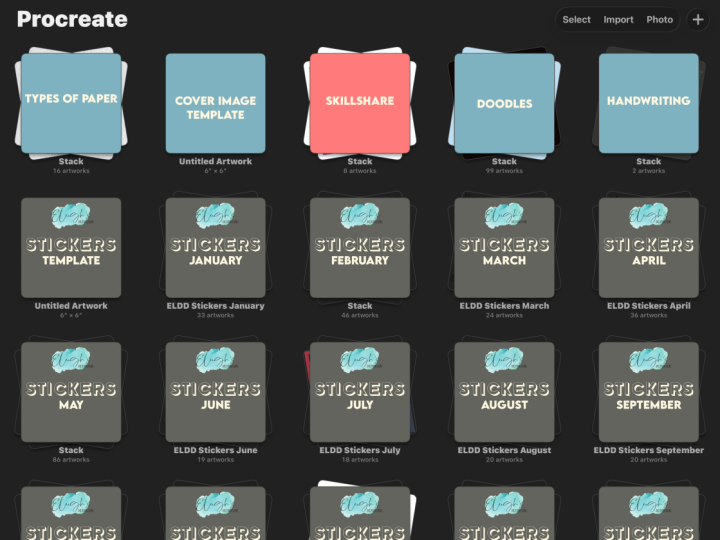
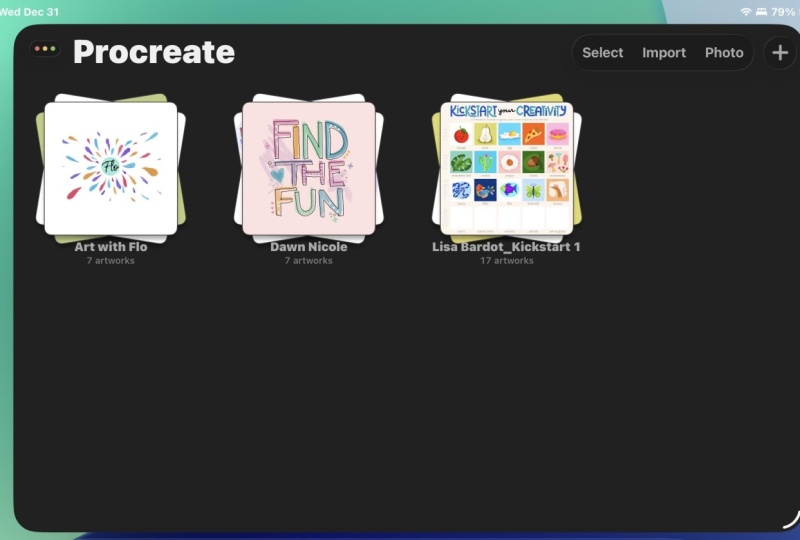
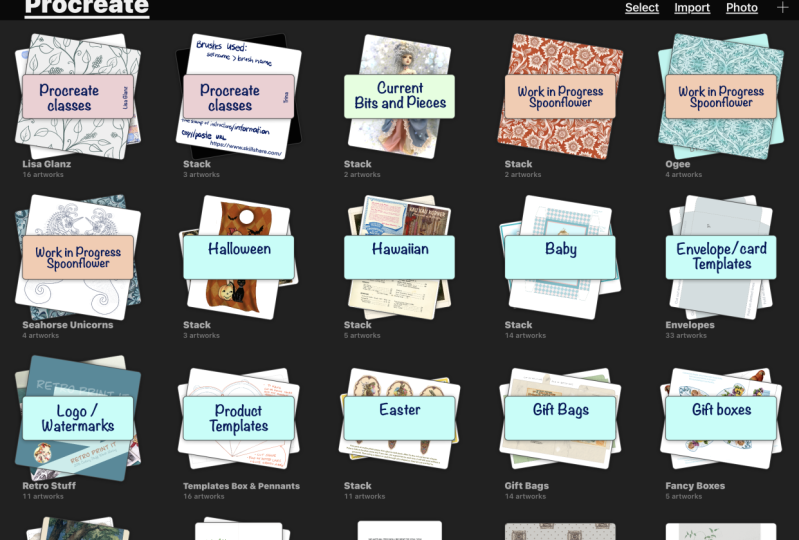
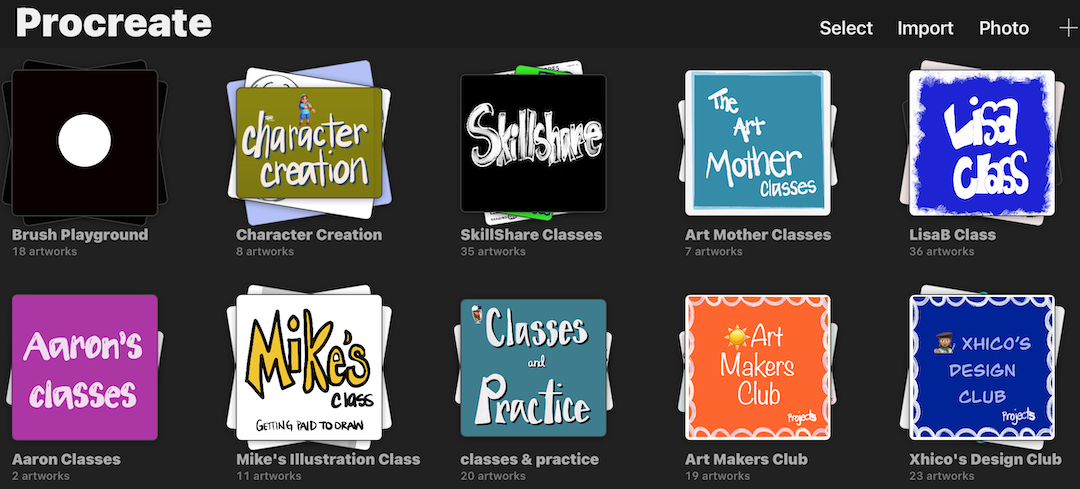
  • A tour of my organization with suggestions on how to organize, which includes stacks and inside a stack.  
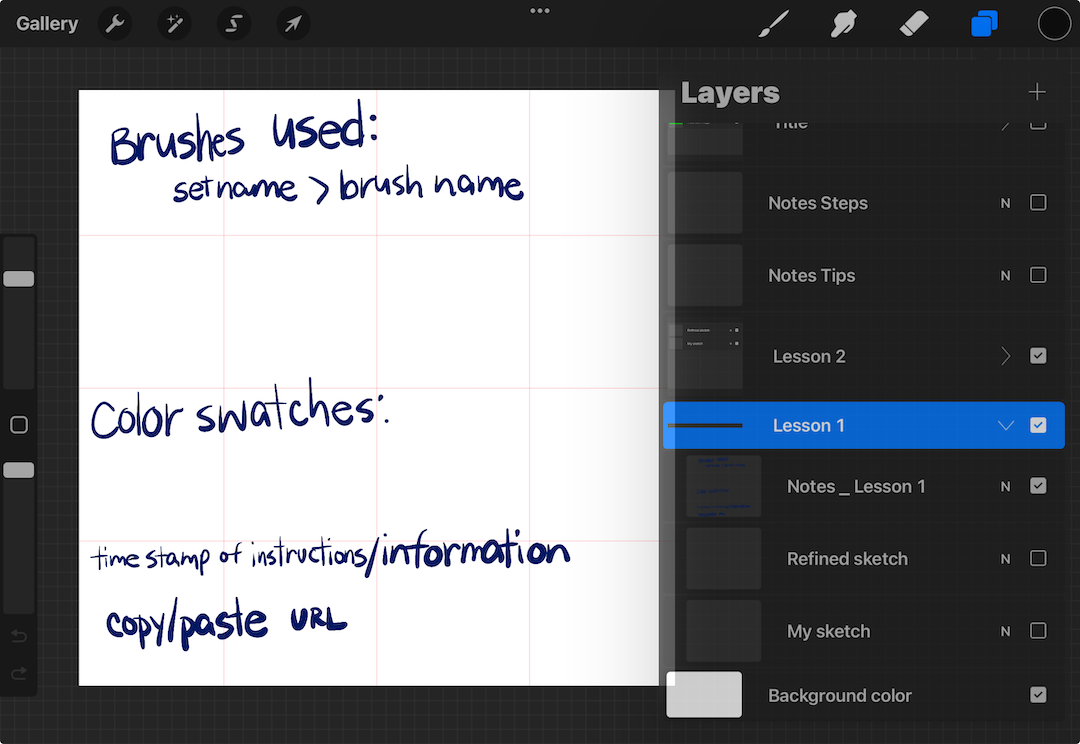
  • How to use layers inside a Procreate file to capture the information you want from a class.
  • A summary with key takeaways.
  • Two procreate files you can customize to help you organize.
For the project, I’m asking you to use the steps you learned in class to update the Procreate Class Template file (available in resources) in a way that is meaningful for you and share a snapshot in the class Project & Resources section.   You can even use this class for the project.

This class is for anyone who uses Procreate and seeks ideas for organizing notes. The supplies needed for a class are an iPad and the Procreate App. I’ll use an Apple Pencil, but you don’t need one. Let’s get started!

Others classes I teach that may interest you:

Meet Your Teacher

Teacher Profile Image

Trena Brannon

advocates kindness inclusion positivity

Teacher

Hello, I'm Trena. I like to talk about possibilities!

I have a passion for color and a passion for people - teaching art is that crossroad. I am an illustrator, mixed media artist, and surface designer who is excited to make art! I love to create interesting pieces that will result in rich color, contrast, texture, and movement. I find inspiration everywhere and use a variety of supplies to develop a piece that makes my heart smile.

My experience includes owning The Brannon Factory, LLC greeting card business, children's book illustrator, serving in various roles in the Arts & Crafts industry including Founding Contributor of the Alcohol Ink Art Society, and a design team member for Art Impressions, Crafters Companion, and Sunday International. I completed product certifi... See full profile

Level: Beginner

Class Ratings

Expectations Met?
    Exceeded!
  • 0%
  • Yes
  • 0%
  • Somewhat
  • 0%
  • Not really
  • 0%

Why Join Skillshare?

Take award-winning Skillshare Original Classes

Each class has short lessons, hands-on projects

Your membership supports Skillshare teachers

Learn From Anywhere

Take classes on the go with the Skillshare app. Stream or download to watch on the plane, the subway, or wherever you learn best.

Transcripts

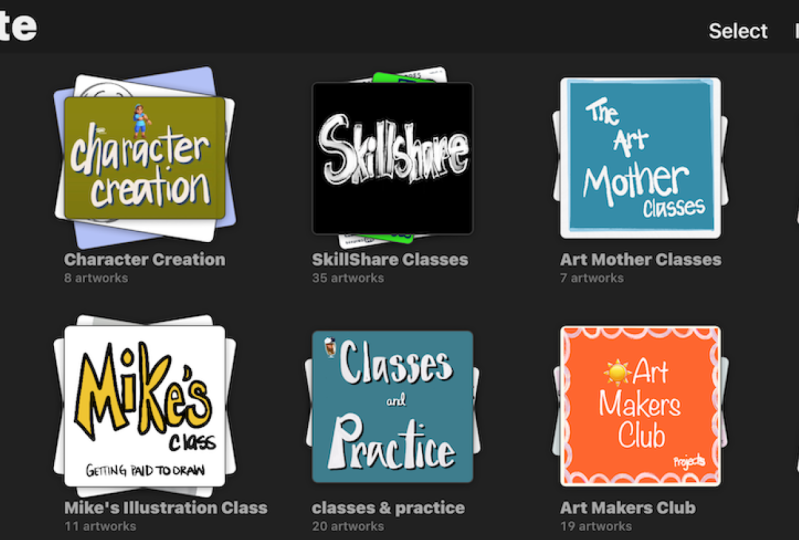
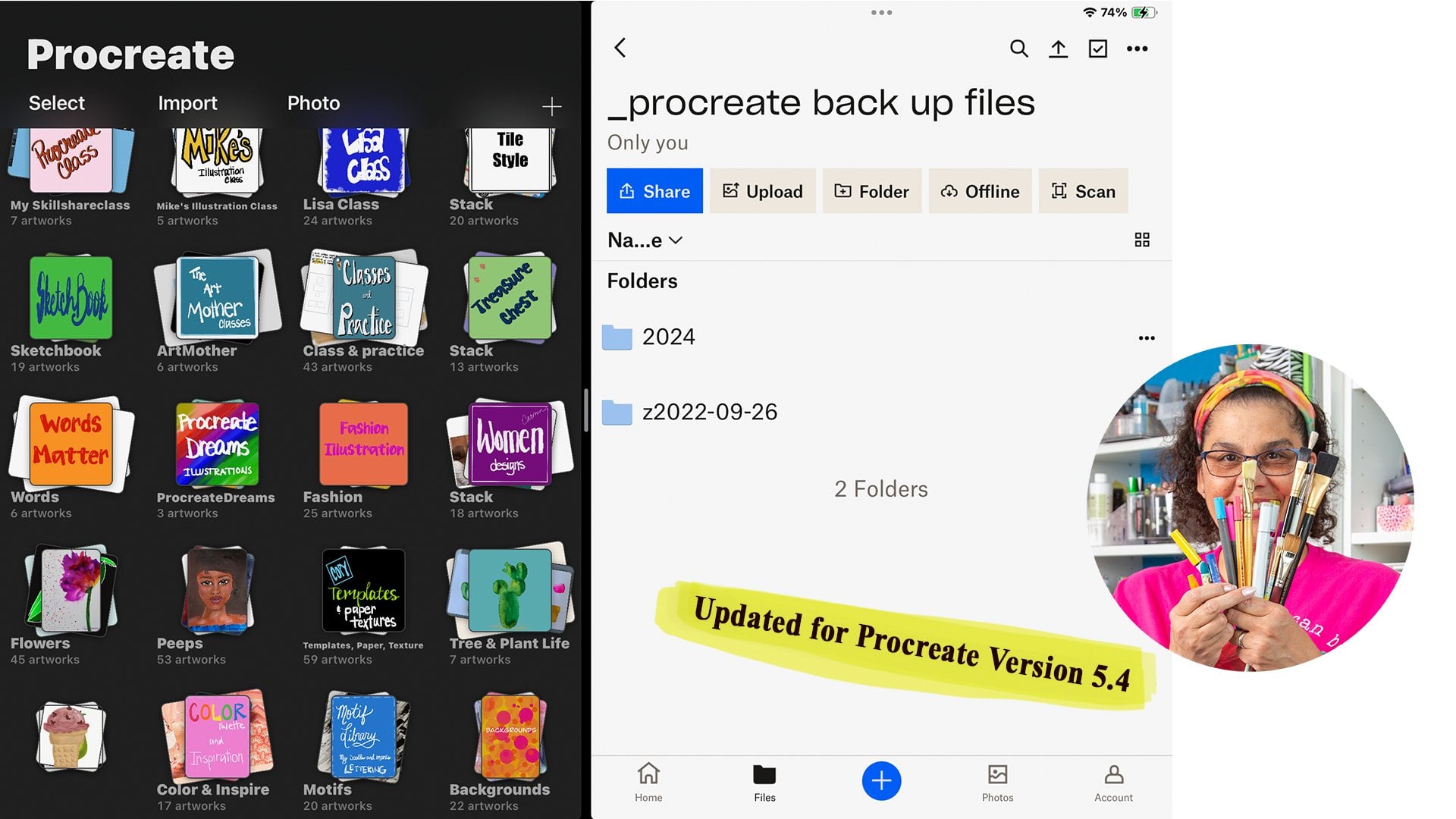
1. Intro: In this class, I will show you how to organize your Procreate classes in Procreate. As much as I love teaching here, I love being a student. I am a lifelong learner and I use Procreate to capture notes with words and drawings from the Procreate classes that I take. I use this method in two ways. One, to refresh valuable information, tips and techniques that I have learned, and two, I use my artwork from class as an inspiration or even for a project I'm working on. Hello, beautiful people. My name is Trina Brandon. I have a passion for color and a passion for helping others. That's why I'm excited to teach here on skill share with you. I have many identities. Among them, I am a children's book Illustrator. Currently, I draw and color all my illustrations and procreate. I'm also a surface designer. I license my artwork I dig traditional and digital creating. I'm also a founding contributor to the Alcohol Ink Art Society. During this class, I'll provide ideas and suggestions for helping you organize your classes. Having the information in procreate means you'll always have the information available when you have your iPad. The class is broken into three parts. A tour of my organization with suggestions on how to organize, which includes stacks and inside a stack. How to use layers inside a Procreate file for capturing the information you want from class, a short summary with key takeaways. In the projects and resource area, I give you two files to help you organize. You can customize these files. There's a link on the projects page of this class with an example, instructions on how to download the files and bring them into Procreate. For the project, I'm asking you to use the steps you've learned in this class to update the Procreate class template file that I provide for you in a way that is meaningful for you and share a snapshot of that in the class projects and resources. You can even use this class for the project. Supplies needed for class are an iPad and the Procreate app. I'll use an ample pencil, but you don't need one. You can just use your finger. Let's get started. Next, I'll give you a tour of how my files are organized. 2. Tour of My Organization: I have been using this organization method for quite some time and find it helpful while taking a class and when I want to go back and look for information that I learned in class. As you can see in my Procreate app, I have several stacks. The top two rows are classes and communities. If you have taken my, be sure to back up your Procreate files class here on skill share, you know that I am visual, and I like to see a visual that identifies the content inside the stack. So I have covers for all my stacks. Here you can see, I have a variety of ways to organize my classes. For example, this character creation stack contains classes around character designs by platform. Skill share by teacher. There are certain teachers that I take many classes from, and so they have their own stack. I also have a classes and practice stack that contains miscellaneous classes and YouTube tutorials, any information that I want to save. When I go into a stack such as Skill Share, which is my favorite teaching and learning platform, I have a clear labeling method for the classes. I organize the files by class name and teacher because I find it easier to remember what class is associated with what teacher. May want to organize by subject. For example, drawing may be a subject, acrylic painting, watercolor painting, maybe another subject on business. Think about how you like to organize. You would have a title for each section so you can quickly go to that section to continue a class or look back for information you learned. I use a file separator with multiple procreate files, or I use a title at the top of the file to identify the teacher and the class. This way of labeling helps me quickly find the class I'm looking for, so I can continue that class. I don't know about you, but I sometimes take more than one class or try to remember the last class I started. I put my most recent classes at the top, including classes that I want to take, so I'll remember. The skill share history view does not always work for me because every time I get that skill share email with suggested classes, I have to go look at the intro so my history fills up. A couple tips, use the actual name of the class or at least the first couple of words when the name is long. That way you can find the class in skill share. One quick way that I have learned to label my stacks, as well as my layers is to use the microphone. For example, this class is called drawing Ideas. Initially, I just put drawing, but I want the title of the class to match the class name. So when I select the title, I can select the end and instead of typing in ideas, I can use the microphone. Ideas. And then select Done. Now it's updated and I didn't have to type it in. I found that speaking slowly gives the best results for the words you want to get in your title. Next, let's go inside Aprocreate file. 3. Inside a Procreate File: Let's open stamp brushes in Procreate. This is by Claire Makes Things. The second file I provided is an example of different ways you can name your layers to help you get started. Let's select Layer. You can see that I have several layers in this file. The class that I'm taking will determine the amount of layers and how I separate them. At the top, I always have the label frame and then the title. The consistent layers I include are notes with steps and tips from the teacher. On those layers, I capture the important information that I want to remember. I write the brush set and name on the drawing layer or on the notes layer, just so long as I capture it. So let's look at the notes layers. I will turn off the illustration layers and the title and turn on the notes. As you can see, my notes are messy. I just write them by hand as long as I can read them later. That's the most important thing. So in this case, I captured some information at the top that was important to me for actually changing information about a brush. I also included the steps for making the stamp and some other tips that Claire included during the class. In this group, I included all the layers of the illustration to help me remember the process I used to create that illustration. For longer classes where there's a lot of new information for me, I group by lessons. Next is a summary and key takeaways. 4. Summary with Key Takeaways: In the class, we covered a tour of my organization with other suggestions on how to organize how you can use layers inside a Procreate file for capturing the information you want from class. The key takeaways from the class. Organize your stacks in a way that works for you. For example, subject or platform or particular technique like watercolor. On your notes and drawing layers, add the most important information for you. Whatever that teacher says that resonates with you or that's new information you want to make sure you remember, then you want to capture that. The number of layers and how they are grouped are determined by the amount of new information. Again, what's important for you to remember? You want to organize your layers in that way. A couple of tips that I shared. Use the microphone to name your titles and your layers. For example, the title in the tour video. This last tip is something I remembered after I did the filming, but I have found it helpful. I don't use it very often, but it comes in really handy. When a teacher shares some information that has many steps or that's complicated, sometimes it's hard to capture that in your notes. Something that may be helpful is to record the timestamp in your notes. And that way, when you want to see the steps again or you want to practice the steps, you'll know exactly where it is in the class and what lesson it's in and what timestamp that important information or that lengthy information is there for you. Please share a snapshot of how you decide to organize. I would love to see that, as well as it may help others get ideas for how they can organize. Also, kindly leave me a review. I'd appreciate knowing what you thought about the class, and the class reviews, let others know what to expect in a class. And last but not least, please follow me here on skill share so you'll hear about my upcoming class. I have other procreate classes which you may be interested in. Thank you so much for joining me. See you next time. Take care and stay positive. Oh