Transcripts
1. Nomad Sculpt Crash Course for Absolute Beginners! (2026): Welcome to 2026 and
welcome to Nomad Sculpt. I'm Dave Reed, AKA, the Bob Ross of Nomad
Sculpt. You're go. And it's time for an updated, absolute beginner
tutorial in Nomad Sculpt. The artist's landscape
is changing rapidly, as you all know. But personally, I believe
there will always be space for creating
your own content, your own creatures
and characters. With the surge of AI, as
polarizing as it may be, can only be an extension
of your vision. It can never be exactly
what you want to create. This'll be some good slap. So having skills like
drawing, design, sculpting will only
serve to make you a stronger creative mind and
keep your visions relevant. Creating with nom sculpt is a powerful way to turn your
ideas into T D sculpts, which you can then
render, The D print or bring into other
applications to animate. And it's just fun. It opens up brand new avenues
for creative output. We'll start at the
very beginning, and I'll walk you
through a complete, basic sculpt, essentially,
just to show you all the tools that I use
in my daily workflow. These are the things that I use every day when I'm sculpting. So you'll learn by doing, but you'll also
hear the reasoning behind the decisions
that I'm making, which I think is
even more valuable. I know I should go harder
trying to sell you this course, but I just don't have it in me. We just had a baby, and it really changes your
perspective on life. I love teaching. And honestly, I
just want to teach people that love to learn, that want to learn and
love character design. So if that's you, then we're both in the right place.
And that's all I got. Keep drawing, keep sculpting, and I look forward
to seeing you in class. You on Skillshare.
2. Class Project: Alright, welcome. So,
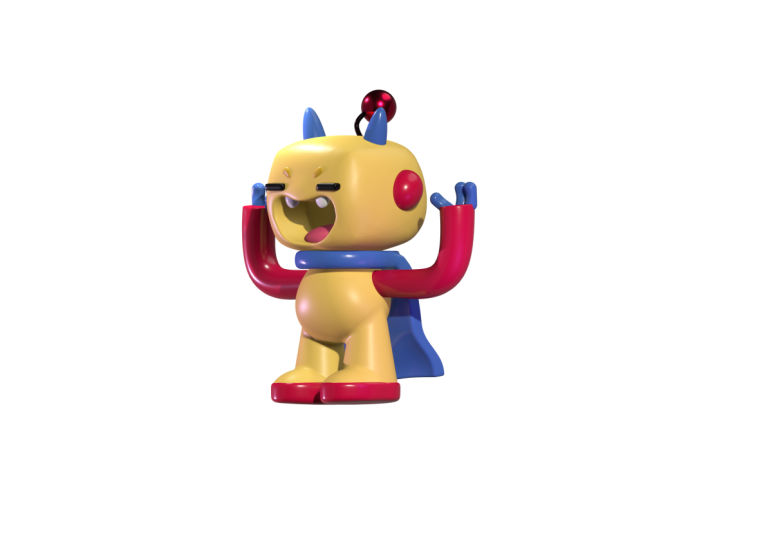
today's class project will be this sort of wacky
looking robot type thing. Essentially, I just
made it because I wanted to be able to
use specific tools, and I wanted to be
able to tell you and show you everything
that you need to know, I think, to be able to build
whatever it is you need. So, of course, you're
gonna have to do a lot of playing, a lot
of experimenting. But essentially, you know, it's the tube tool, bringing
in primitives. Primitives are just three D shapes, organizing those shapes, moving them around, adjusting
them. That's the basis. That's really the core of
what three D sculpting is. Always be creative during
class or after class. You can change the colors. You can change the size
of the scale of things. You can make this
creature character, whatever you want it to be. There's no wrong answers. This is your artwork. I'm just showing you
how to use the tools. And what I really look
forward to is when people kind of just
go crazy and do whatever they want and
make it really unique and cool and awesome,
that's what I love to see. Or if you just want to do
the same thing that I do, that's fine, too. So
there's no pressure. This is going to be a fun class, relax class, hence
the Bob Ross thing. That's from my
YouTube folks, too. I didn't like make
it that up myself. Extra Points to whoever has the weirdest creature
after we're finished. It has to I mean, I want to be able to see that you
did the tutorial, but I also want to see that you changed it and
really made it your own. That's essentially the
best way to learn. Once you know the tools,
once you start to play and experiment
and feel comfortable, that's when you really
are in the money. Alright, so let's get started. Let's jump to the next
video getting started. Let me say that again.
Alright, so let's jump to the next video
getting started.
3. Getting Started: Alright, welcome all
you new sculptors. So let's dive right in. So when you open nomad sculpt, it's pretty much
gonna look like this. Yours might look a
little different. So I just want to
touch on a few things so we can kind of get
on the same page. Okay, so obviously, I have a
different color background, and it may look a little bit different, but
first things first. So see this little camera. If you tap that, I'm
on orthographic. And next we'll go to this
little sun icon up here, and your environment
might look different. So your sphere might look
a little bit different. Essentially, what this is is the ambient light that's
hitting our sphere. So I'm just gonna
go down to this, which is what I use normally. And this image file will be available in your
projects and resources. And here's how to load
your environment. You just tap your
little sun here, go down to environments. You can tap on the image, import photos, and
then you would find it here unless
it's saved as a file in which you
would go files. You could probably go to recens and then you
would have it here. And we scroll down, and
here we have both of them. Now, my background is
purple, so you can go here, and you tap this color, and then you can
change it pretty much to whatever color that
you want to change it to. It doesn't really
make a difference. You can also play around
with the settings. There's settings here and here. So if you wanted to change this menu or the colors
or things like that, that's where you would find that's where
you would find it. Let's tap the
little sphere here. Let's go down to smooth shading. You see, mine is on auto. My Auto is on. So if you want to
make smooth shading automatically on or off, all you need to do is tap this little cog here
and then tap this. See the display settings,
see how it switches. So that's all you have
to do. So essentially, I keep smooth shading on. That just keeps
everything looking smooth as we're sculpting. So if we go up here, let's save. So if you tap this little
folder, you'll see files. This is where you can save and open projects and
things like that. So let's just name it and save. So I'm just going to save
because I've already named it But if you try to save it, it'll ask you to put in a name. It probably already prompted
you to put in a name. Save often in nomadic
because sometimes you can be working for an
hour and you don't save, and it crashes and you lose your progress. You
don't want to do that. It hurts a lot, trust me. So if you go next to the
folder, so here's the folder. If you go next to that,
this is your scene menu. So this is our scene,
this is our project. So this is the default sphere, so this is the quad sphere, and I'm just going to I'm
just gonna rename it. So I always tap these
three dots here, tap name, Default
default sphere. You can name it
anything you want. You might hear a lot
of resolution talk and low resolution
and high resolution, and why that's important. All resolution means is how dense the surface
of the three D meshes. So however dense the surface of this sphere is, that's
the resolution. I'll go down here
and hit wireframe. So now with the wireframe,
you can see the surface. So this sphere is made up of
all these little squares, and then within them is
more little squares. So this makes up the
resolution of the sphere, and you can see it's very dense. This is how you add a
primitive or add a shape. So you go to the scene button. And the reason why I say
primitive is because here in SN you could go to add and these are called primitives. Primitives are just
simple shapes. So I know that there's
all these different words and it can be very confusing. Primitive, it's just a shape. So the next thing
we want to do is bring in our reference image. So you can bring in any image just by tapping this
little image icon. We're going to tap
reference image, and then you tap on
this little image here, then you want to import from wherever you
have that image. So photos. So we'll tap the photo Okay. And now the image is there.
So I'm going to close this little window with
the little import window, and now you can see
our image there. So here it is. So let's say you need to adjust this image or you wanted to make it the whole background
or something. This is how you do it. We go back into our background and our reference
image settings. You tap transform. So now that we're
on this transform, you can see this is
all blacked out. You can just take
two fingers and let's say you wanted to
bring in a background image. You could do that. But all I want to do is make it smaller and kind
of post it right here. And then you just tap with one finger to bring
everything back, and now you can do your
sculpting and everything. So that's how you bring
in a reference image. The Gizmo is the most
used three D tool. So if we tap our tools
here, you'll see the Gizmo. Yours might be in a different
spot. So this is our Gizmo. So this is like our controller. If we were playing a video game, the Gizmo would be
the controller. By default, the gizmo goes to the very center of our object. First, you see this big
orange ring, that's scale. So now we have these
arrows, so you have red, which goes left and
right, green up and down. So when you turn it,
then you see the blue, which is back and forward,
forward and back. I guess that's the same. So this is how you move it
left and right, up and down. And then we have these rings, so the red ring, blue
ring, green ring. All this does is rotate it. And I'm gonna wait to
show you that after I show you these spheres here. So this just squashes it in
whatever direction you want. So let's say we squash it like this and then we
want to rotate it, we would use the
blue ring to rotate. Okay, so I'm just going to undo. So it might be a little confusing with the
Gizmo at first. It looks very complicated, but just remember
that the arrows just move it in that direction. The orange is the scale. If you need to squash it,
you just use the sphere. But now, when you look
at the grid again, you can see that I'm off center. So, of course, we could undo. You undo with two finger tap. So, of course, you could
undo until it goes back. But if for some reason, you can undo or something like that, what you can do is
make sure you're on the gizmo and go up here. So if we go to the left icon, you have reset and move origin. They both will bring
it to the center. See, move origin brings
it to the center. Reset also brings
it to the center. The only difference is, let's say we shrunk it really small
and moved it over here, and now we just want
it on the center. Move origin will move it without resetting
it to its default. So if we just do move
origin, it moves it. If you do reset, then it
makes it the default size. I'm going to go ahead
and turn the grid off. Let's go ahead and delete
this default sphere. So let's go to our scene menu, and we're just going to
hit Delete right here. Et's add a box. So just remember down here, you have the gizmo, and then you have the
particular settings for whatever shape
you just added. And you'll see that we can't use most of our tools.
They're all grade out. Once you validate, then
you can use your tools. So the reason I
bought in the box is you can see our
reference image. I kind of is circular, but it's more of a
box than a circle. The main thing about
three D sculpting is you want to think of
everything in shapes, whether it's a human face, a cartoon face, a toy, everything is made of shapes. So you might have to use a few shapes put together to make the
shape that you want, or you might have to alter or adjust one shape to get to
the shape that you need. Don't think of it as taking
a block of granite and then, like, chiseling and
sculpting something away. It's actually building
things shape by shape until you have the
end product that you want. So when I look at this drawing, all I'm seeing is the
shapes that I'm going to need and the most efficient
way to get there. So what we're going
to do right now is block this whole thing out.
4. Character Blockingg: Let's add a box. So just remember down here, you have the gizmo, and then you have the
particular settings for whatever shape
you just added. And you'll see that we can't use most of our tools.
They're all grade out. Once you validate, then
you can use your tools. So the reason I
bought in the box is you can see our
reference image. It kind of is circular, but it's more of a
box than a circle. The main thing about
three D sculpting is you want to think of
everything in shapes, whether it's a human face, a cartoon face, a toy, everything is made of shapes. So you might have to use a few shapes put together to make the
shape that you want, or you might have to alter or just one shape to get to
the shape that you need. Don't think of it as taking
a block of granite and then, like, chiseling and
sculpting something away. It's actually building
things shape by shape until you have the
end product that you want. So when I look at this drawing, all I'm seeing is the
shapes that I'm going to need and the most efficient
way to get there. So what we're going
to do right now is block this whole thing out. So let's tap our scene menu, add, and then we'll
find cylinder. And you can always play
around with these options. You'll quickly see what they
do for each of the tools. I'm going to tap Undo
just so it's even again. So all we're gonna do, let's
tap the gizmo down here. We'll shrink it a little bit. And now you can see it's
actually inside the square. So let's just use this green
arrow and bring it down. Okay, so we can see that it's
pretty much under the head. So we're gonna squash it. We can move it down
some. We'll just squash it with this
little green sphere. So maybe something
like that, and we'll just leave
it there for now. So next, let's do the belly. So the belly is just a sphere, so we'll go to our scene menu. A quad sphere. We'll tap our little
gizmo down here. We can go ahead and validate it. And then we'll just use the
green arrow to bring it down. Okay, it looks like
it's supposed to be a little bit
smaller than the head, so let's use the larger
orange ring and just shrink it to maybe there, and
we'll move it up some. So what I like to do is since we already
brought in our sphere, we can clone it over here and then use
the Gizmo to move it up and let's shrink it, and
that'll be the small one. So maybe we have that
right around here. Let's clone it again. And let's take the red arrow and
move one over here. And let's make
that even smaller. So we want this to be a
mirror on the other side, so we can add a mirror. So let's go to our scene. Add. So instead of primitive,
we're going to go down to these repeaters and
we'll find mirror. So now it's mirrored
to the other side. So now in your scene
menu, right here, you can see that
we have a mirror, and let's just call these Let's
rename these to whatever. Okay. I'm not really
sure what they are. I was gonna call
them an antenna, but I think the middle
thing is an antenna. And normally when I'm
working with mirrors, I rename the mirror
cause eventually, if I want to collapse
all these together, it's gonna take the
name of the mirror. So I just name the mirror, whatever the object is. So let's rename
the rest of these. I like to call
this housekeeping, just so we keep everything
nice and organized. So this quad sphere, we tap these three dots. We rename This is going
to be antenna ball. This quad sphere is the
belly or mid section. Maybe that's more
professional. I like belly. This cylinder is the collar
and this box is the head. Okay, so now's a
great place to save. Okay, so let's take
these little spheres here. Now, these
are in a mirror. So whatever we do with this one is gonna happen on
the other side, as well. So we can stretch this with
this little green sphere. We can stretch it like this. And then let's bring it down. And that pretty much
looks like what our reference looks like. Maybe we want to make it a
little bit smaller perhaps, or maybe we want to make
it a little bit more thin. You can pull it. So obviously, you can adjust this to look how you like. But I
think that's pretty good. So for the ears,
you can either use spheres or you can
use a cylinder. You can be creative and shape
it how you want it to look, because it's kind of you can't really tell what the
shape actually is. So you actually just have to use your creativity and make
it look however you want. I'm going to do the
simplest thing. I'm going to use well, I'll use I'll use this. I'll just clone it,
move it down and over maybe make it a little bit
bigger. And then I can add. Remember we added the mirror, so I can just add a mirror, and now it's on the other side. But I just want to rename
these rename the mirror hers. Okay. So next, he has a
little cape in the back. So let's go to our scene menu. We'll add a box. Okay, let's turn it to the left, and you can tap left
here on the snap cube, just to kind of make
it nice and perfect. I'm going to use the gizmo. So now we want to move it over to the left or behind
him, actually. We'll use this blue sphere
to squash it like that. I'll just turn it so you can
kind of see what I'm doing. We'll bring it down. So the legs are going
to be cylinders. So we'll go to our scene.
We'll add a cylinder. We'll go to our gizmo. So now we're going to move these cylinders to
where the legs are. Whoops. And here's a good example of something that might happen
when you're sculpting. So I moved the cylinder down, and then I moved it to the left, and you notice it
was already mirred. So that means that
you probably put your cylinder into
a different mirror. So if we go to our scene, we can see that for the ears, we actually put the ears
actually have the antenna ball, the box, so the cape
and the cylinder. So what we did is we
must have been on ears, and then we added
those two shapes, so they went into that mirror. So if that happens, let's just take our box
and move it out. See how I just long press
on it and move it out. Okay? So the
cylinder is the leg. So let's tap here, rename. This is going to be leg.
And this box was the cape. So we'll tap the three
dots, name, cape. So that can be confusing if
you don't check your scene. But if ever something mirrors
and you didn't mirror it, it probably just went
into another mirror. You just need to drag it out. So back to the legs, we're
going to tap the legs. So even though with
the other ones, we had to mirror manually. Let's just make it smaller, maybe around there, and
we'll move it to the place. So while you can go to
scene and mirror something, see how you can add a mirror. Since we haven't validated
this cylinder yet, all we have to do
is hit mirror here, and then it
automatically shows up. It's the same exact
thing that we did. It's just we haven't validated, so you can just mirror
from this menu. So that's all. So next, we just want to
match up how this looks. So we would usually use the Gizmo where we
stretch it this way. But again, since we
have invalidated, we have access to
a few more tools, so we can tap this, and we can actually just
stretch it this way. And let's say you wanted
to, for some reason, make this bigger,
you could do that. Smaller. Maybe we'll make
it a little bit bigger, actually, for funzies, and we'll make the top
a little bit smaller. So let's add the feet. So usually an easy
way to do feet is to just add spheres and
then slice them in half. So let's just use these spheres. If we go to our scene
menu, see these ears here, so we can just select everything
and then just clone it. And then we can change
the mirror name. Let's just change this to feet and then we want to go to the actual ball we don't want
to move the mirror. We want to make sure
we go to the shape. And then we'll just bring them down to where the feet are. Okay, so, something
like that, maybe I'll make them a
little bit bigger. We'll move them forward. So maybe just
something like that. So your trim tool, rectangle. And what rectangle means is
that you make a rectangle, and anything in this white
section will be trimmed. Make a rectangle. I'll do
it a little bit lower. And then it's trimmed. Now, of course, these are
still in a mirror, so you can still adjust them to make them look
exactly like you want. So we'll just kind
of shift them, maybe move them
back a little bit. Like, so like that. That's a little more
than a blockout, but since I was
talking about trim, I just figured I
would just trim it. Now you know how to use
the trim tool as well.
5. Character Blocking Complete: Yeah. So if the feet are here, then we see we have to make
the cape much smaller. So I'm just gonna
shrink it this way, maybe shrink it this way,
and then just move it up. Okay, that seems a bit better. You can slide it in a bit. Let's make sure
we're saving also. Alright, so let's do the arms. We're going to use
tubes for these. So let's go to the tube tool. Let's go to path. Let's just tap on the screen here
and then we're going to drag to our body. So we'll tap down
on the screen and then drag to the body
and then let go. So the way that you
would curve this is you would just touch
the line and add nodes. So if I wanted this to curve, I would just touch and just
drag down these nodes. If you wanted them
to be an angle, you could press
here, see how it's a harder angle and
the node is black. If you want to get rid of
them, all you have to do is drag one node
into another one. You'll see the red dots, and then you have just one node so we can go back
to the beginning. But usually, I'll just press
this little green sphere, and then you can
actually see your tube, and you can do all the
same exact things. Okay, so you can
see that it's not really lined up
how it should be. So I'm going to tap
this and bring it over, and you might have
to flip your sculpt around a lot to kind
of get it right. Okay, so something like this. So the arm comes out
and then it curves up. So we want to add a node there, and then take this
one and move it up. So it's going to
be something like this. This looks pretty good. Like, it works pretty
well. But if you wanted to add more of an angle,
you can just add two. So then you can have
more control over, you know, over the corner. Okay, I think that
looks pretty good. You notice I have Snap. So what Snap is trying to do is going to try to keep our tube on the outside of another mesh rather than
go through that mesh. So if I take the arm and
I try to drag it in, you notice it's kind of
snapping to the surface. So let's turn snap off, and then you'll see
I'll be able to easily just move
this into the body. And also another really
cool option is radius. So right now, we just have
this one little orange node, so we can make the whole
arm bigger or smaller. You can tap it once and see
these little two orange. That's the beginning and end. So you can make one side
bigger than the other. So if you tap again, and then
you have access to all of these nodes where you can really adjust the shape and make
it exactly how you want, you can add a bunch
of these and make them bigger and
smaller as you need. Now, let's say you
wanted to make this into a square or
a different shape. So if you were doing,
like, the ninja turtles and say you were making
their bandanas and you wanted the bandana
to kind of have a rectangular look and flowy,
tube is perfect for that. So you would just hit
profile down here, and you see that
now it's a square, and you can actually shape
it to whatever you wanted. So let's say we wanted to add, you know, like, a divot
in it or something. So you can shape it
however you want to shape it, which is really fun. So if you were going to
make it thinner, Whoops. Make it into a rectangle, and see now you
have a rectangle. So that's just another
fun thing that you can do with the tubes. You also have things like twist. So you see the pink. It's the same thing as radius, one, two, and then you
can do all of them. So this is if you wanted to
twist it in certain spots, you can twist it really fun
and really, really useful. So let's just go back
to regular Okay. So again, we've
created our tube, but we haven't validated it. So let's just hit mirror. So now we can go
ahead and validate. Let's save. So next, these fingers here, I
might actually just use I might add spheres. So you can see that when
I added this sphere, it added into the arm mirror. Let's go ahead and
name that mirror. So that's arms. So let's
just go ahead and use our gizmo and we'll
move it over like this. So we'll make it really
small. We'll bring it down. Sometimes it might be a little distracting to
have both of them. So you can just take
your quad sphere and your scene and just
move it out of that mirror, and then you can only work
with one, and then later on, you can just drag it right
back in, and it mirrors. Okay, so with a little
finger like this, you could stretch it,
but notice how that makes the top and
makes the ends angled. And I'll just show you a quick, really easy way to kind of
make it more of a pill shape. So let's validate the sphere so that we can use all
of our other tools, and let's use the select mask. So we'll use select mask, we'll use rectangle again. So all we want to do is
make our rectangle and kind of put it in the
middle of the sphere. So now we can use the gizmo, and then we can just use the arrow and just move
the bottom part down. Like so. You have to go back to
selec mask to clear it. So now the mask is cleared. If we go in, you
can see that it's a little funny looking. And here's a really cool
way to smooth things out. We're gonna use this a lot. You go to this little beaker, smooth and you just
drag to the right, and you'll notice that
it starts to smooth out. So maybe we only
need a little bit, maybe something like
that, and it looks great. Okay, so now that
we have this little finger we can move it here. We might want to
use the move tool. So the move tool is great for kind of pushing and pulling. We want to give it a little bit of a curve. We can do that. Maybe we want to move it. So move is great for
just pushing and pulling things and just manipulating
your three D meshes. So now we're back to the Gizmo. And you'll notice since we
moved the Gizmo is off center. If you ever need to move the
Gizmo back to the center, go to pivot, Auto or center. And pivot. So now it's a little
bit easier to handle. So let's say we want to rotate this and have
one finger here, maybe a little smaller. And let's say we clone it. And you can do this
at your own pace. So we just cloned it. I feel like I might have done that
a little too fast, huh? So now we'll go back
up here to clone, and then we'll use our gizmo
to move the cloned one over. We'll rotate just so it feels kind of natural
in the little hand. So we'll rotate like that. And then let's say we
cloneed it again and make a thumb. And I'm gonna cheat. See this little orange
circle right in the middle. You can actually just cheat and just drag kind of freestyle. I'll rotate and
maybe rotate this way and then maybe
bring it down here, so it looks like a little thumb. Next, let's do this
little tiny tube for the little ball antenna. So let's use tube. And there's a really cool option
that you can do here. If you tap the grid,
let's hit left. So let's take path.
So I'm going to tap here and then
drag down to here. And then we'll grab or tap
this little green sphere. Let's tap this little magnet, and then we'll take
the bottom one and we'll just rotate it over, and you can see it's
trying to fight. It's trying to fight
going into this box. So let's turn snap off. So then it's not trying
to snap to the surface. Okay, so we have the magnet, which means that it's going
to snap to this grid. So that makes it a lot easier. So now we can turn
it to the left, and we can just make
sure that it's straight. So now we can use our Gizmo. And anytime you want to move
something straight back or up or down, you tap a line. So now we can just use the blue and we can just
bring this over. Okay, so now it's there. And I think for the tube, I'm going to go to the
tube options down here. We can bring this
ball up a little bit and go back to the tube. So I think what I want to do is let's hit Xray so we can see
through everything else. So I want to give
the tube a curve, so I'm going to
move the top back, and then I'm going to
add a node like that. I think that looks pretty good. So I'll turn to the front, make sure it's straight,
and it looks perfect. So we'll turn Xray off. I want to grab this sphere
and just move it back and up so it looks
so it looks good. So the only thing is now I
want this to be smaller. So we're just going to use this little orange node, whoops. I'm not sure what I did and
make it a little smaller. So maybe something like that. I'm going to turn the grid off. I'm going to take this and stretch it a little
bit like this. So we pretty much have
our pieces together. I think this was
a good blockout. So this is exactly how
you want to block out most of your characters
and things like that. Let's finish off our blocking
by taking these fingers. So here we have all
these quad spheres. So we're going to
go to take these and drag them into the arm. So now they're all into the arm. They're all together,
and they're mirred. So let's do a quick save. I think that's a
great first blockout. We have some details
to do with the face, but for now, this
is a great start.
6. Shaping Tools: Wow. Alright, so let's start with the head.
Let's smooth this. So you can use this
little beaker up here and see these options.
So you can just smooth it. You can just drag this
and it'll smooth. You can also inflate it
here. So, let's do that. Let's inflate it some and make it about as big
as we want to make it. So I think maybe
something like that. And I'll use the gizmo just
to move it up a little bit. Like, so I think
that looks good. So take a moment and adjust
all your other pieces. So now I have to take
all these other options. And remember, you can always hit Xray if you want to
see through things. So I'm going to move these U. And what's fun is, let's say we want to let's turn Xray off, and let's say we want to move both the antenna and the tube. If we want to move
those together, what we can do is tab tube and we can connect
it to the ball. So now when you move the ball, the tube will go with it because that's
called a hierarchy. So that's really
useful when you want to move things at the same time. So now you can just position it. I think I maybe wanted
something like this. Okay, so if we go
back to the head, also, when I turn it, I kind of want it to
be bigger this way, but just the back of the head. So let's take move. We'll make it kind of big, and now we can use
the move tool. Now, we have symmetry on. Let's tap the symmetry button here and then go
down to show line. So now we can see
our symmetry line. So we see these two dots, that means whatever I do here is going to be mirrored
on the other side. If I turn that off, now we
only see one dot, one side. Okay, so let's keep symmetry on. And now if I want to
pull the back out, I can pull this out like this. So the only problem is, it's pulling out, but
it's only the top part. So let's say we wanted
to also make it even and pull the
top and the bottom. So we not only need
this symmetry line, but we need one that goes across this way that will do
the top and the bottom. So we go back to
symmetry and we see X. That's the default,
that's the red. But we can also use Y. So now when we turn Y on, it's a little hard to see, but now there's a green line here. Now, the only issue now is you notice the green line isn't
in the middle of the sphere. So anytime you're working
with symmetry and things like that,
and you notice this, it's probably because if we tap the grid, see how
it's lining up. It's lining up with this line. But right now the
symmetry is set up for our whole project, and that's what we
call the world. So that's why left and right is perfectly fine
because our sphere, remember I wanted
everything in the center. Our sphere is the
same left to right. But since we move the sphere up, and even if I move it up now, you'll see that green
line stays there. And that's because the
symmetry is set to world. So anytime that you don't
want it set to world, you want to set to the object. The object is always local. So if we go here and tap local, now you see that the
green line is in the middle of this sphere. So the symmetry is based
on this sphere now. So you can set this for
each and every mesh. You don't have to worry
about it too much right now, but I just wanted to
kind of explain it because you're going
to come up with these issues a lot where
you're trying to do things, and symmetry can be tricky, so I just wanted to touch on it. So at least you'll
kind of have an understanding of
what's happening. So now we have the green
line and the red line. All we have to do is hit left, use the move tool, and now
it will match on the bottom. So I think something like
that looks pretty good. So let's say I want
to turn this off, so I'll go to symmetry,
turn it off why. And, you know, if I just wanted to just adjust the bottom, just adjust the bottom, maybe pull this part out, make it a little straighter, things like that. Perfect. I think it looks
great. Let's save. Okay, so now let's just
adjust the body a little bit, and maybe we'll move it up. Maybe we can make it
a little bit bigger. Maybe we can even take move and just adjust it
up a little bit. It may be a little bit wider. I think the legs are
a little too high, so we'll take the
legs, but let's move the feet with the legs. So remember, we go back
to the leg and the feet, and now they'll both go down. Perfect. So let's take the body, and I just want to match it
up to this little part here. All use move, and I'll just stretch the sphere
until they kind of match up. That just makes it look better. If we go back to the collar, another cool thing
about that, I'll just hit solo so we
can just see that. You can hit hole, and then you can make a
hole in the middle. And see this blue, you can
adjust it as you like. So I want this to be a little
bit higher resolution. So I'm going to tap these
three dots and just put the post subdivision up to maybe two, and we'll
just leave it there. And I think we're
going to validate. So let's hit solo again. Front. Let's turn around to the cape. Let's tap these three dots and just raise the
resolution a little bit. So maybe we'll just tap
it. Let's do twice. So there's two options
of things we can do. We could always maybe use
move and maybe, like, pull this and maybe pull this, push and pull and
kind of adjust it until it's like
exactly how we want it, maybe make it smaller. So there's always that which I actually have a
fun time doing. It kind of it feels like actual like sculpting when
you're using the move tool. So it's just kind of fun. A lot of times it just takes
a lot of push and pull, maybe even using the
gizmo a little bit, and you can move it in to your collar,
something like that. So that's one way to do it. And that actually
looks pretty good. And another way to
do it, let's just pretend that I didn't move this. You can take trim
with, let's say, line. So line is the same as rectangle as far as anything in the white
will get trimmed. So you could just make let's do it a little bit down here. You can do something like
this and then just trim it. We have symmetry on, so it
trims the other side as well. So that's another
way that you can kind of shape your cape. I'm going to undo
it because I think this actually looks better. And I'll just use move,
and I'll just drag these two edges
into the cylinder. Maybe I'll make it a little
bit smaller and kind of pull push and pull
until it looks decent. You can take your smooth tool, make it a little bit
bigger, and you can smooth this out a little. So let's say now we want to combine the collar and the cape. If you go to scene,
we have the collar. So let's just long
press and drag this up. So now we have the
collar and the cape. So we can always tap
them both and hit join. So now they're together, but it's more like
they're grouped. They're not actually one piece. So I'm going to
undo. And group is good if you have a bunch of things that
you want together, but you might want to separate them later or things like that. But with collar and cape, we want them to be one piece, so that will be voxel remshing or just
remshing them together. So if you go here,
voxel Remesh right now, the resolution is 965. If it's in the red, so
that's really high. So what we want to do
is bring this down to maybe 165 or so 170. Sometimes I use 200
as my baseline. But if I want things
to be really smooth, I'll maybe go to, like, 150. All we're doing is changing combining these two
resolutions, these two objects. So they're gonna wind up
being either high resolution, kind of the same
resolution that they are or lower resolution. But if I want to put them
together and smooth it and I want it to be really smooth
and just look like one piece, then you don't want
to go too high, 'cause if I remesh it
at like 300 then it's going to be fairly stiff and it might not smooth that well. If you need things to be
smooth and more malleable, stick to around 150. If you want something
fairly soft but still firm enough to kind of keep
some details, maybe 200. If you really want to
keep all the details, then maybe 300, 350. I usually don't do
more than that, but you got to get the idea. Random number of
let's go back here. The random number of 165. So we'll click Remesh. We'll click Okay.
And one little note, you'll notice in a
lot of my tutorials, boxy remesh from down here. So this is just a shortcut.
This is exactly the same. You'll notice the
numbers stay the same. So in order to put this
shortcut down here, just go to these three lines. Shortcuts. And then you
would add this voxel. See, it goes away,
and now it's back. So Voxel 150 remesh. Multi resolution would
be lost. That's okay. And just hit Okay, so now we see that
these are one piece. So we can take smooth and
we can smooth this out. Or what I like to do a lot now, let me turn the wire frame off. What I like to do
now is just use the beaker and smooth
it this way, as well. So you can see which
one works better. I think that's pretty
good. I think that's fine. I might smooth I might do both. And here's another quick tip. I think I might have
mentioned it before when the pivot doesn't
seem like it's centered to your object,
pivot auto pivot. So let's say we want
to just squeeze this a little bit
on his little Oops, on his little body. Like so. Or you can just take move
and you can just move the parts that you want to move to kind of make it a
little more flush. But I think that's
fine. Alright, so let's save great
job with the cape. We know how to axle remesh now.
7. Body Building: And always add little details if you see something that you
just want to add details to. See how? It's just like I just want the bottom, like, flush. So I'm gonna use the move
tool, make it pretty big. The reason why I use move,
and the reason why I make it really big is so that
it moves in, like, nice, big, swooping
smooth movements. You might want to know what
the difference is with drag. Let's say this was
a water balloon. Move is like using
your whole hand to, like, slowly guide
the water balloon. Drag would be like,
using your finger and, like, pushing the water
balloon like this. Move is like grabbing the water balloon and kind
of coaxing it this way. Drag would be like pinching the water balloon
and pulling it. I usually wind up using move for the
majority of the time. Let's go ahead and ox
we'll remsh these two. So now we have the feet. So let's take both of these, validate yes. Whereas
the legs here. We'll take both of
those, validate yes. So let's take the
legs and the feet, and we'll just
join them together because eventually we're
gonna box remsh them. So we can just
join them for now. I think I want to add
them to the body. Well, maybe we want to add
the body to the head, too. Let's take the head and the midsection and hit
solo. So they're touching. Perfect. So now we can
take the mid section, the head the feet. This may seem like
a small thing, but I just learned
this recently. Notice how this is highlighted more than the other ones that we have selected. This is the last
one that we took, so everything is gonna close into the feet and
just be the foot. I'd rather it be the head because the head
is in the center, and I know the
symmetry is perfect. So I'm going to uncheck the head and then
check head again, and it moves to the head. So now let's just box
will remsh them together. Box will remesh Let's do 200. Remesh. Okay? So now
everything is lined up, you can see the symmetry line, and all of our body
is now one piece. So now you'll see the head, and I'm going to rename it main because it's the main
part of the sculpt. Great. So let's save. Do we want the fingers to be connected or do we want them
to be separate? So let's just say
we want the fingers to be separate because we don't want them to be
the same color as the arms. So let's take the fingers and join them together and
just rename them fingers. And I'm going to
drag the fingers out and then add another mirror. So now the fingers
have their own mirror, we're just going to
rename the mirror. And then we're just
going to select and validate, and validate. We have the arms. We can
validate that, as well. So now the arms are in place. Let's do pivot auto pivot just to bring the gizmo
down where it should be. So let's go to our scene, and let's long press on the fingers and connect
them with the arms. So now we can move the
arms back a little bit. And you can always experiment and rotate them a
little bit if you want. And let's say see how
this is not really right. If you want to fix that,
you can tap pivot, and you can actually move this down and then tap pivot again. So now you've moved
to the gizmo, and the arms will
now be a little bit easier to control where
they're rotating. So now we have the ears. And again, with the ears, you
can experiment with them. You can make them
as big or as small. You can stretch them. You can do whatever you want
to do with the ears. That's completely up to you. I think I might just rotate
mine back a little bit, and I'll just use a line, and now I'll just move them until they're exactly
where I want them. Maybe I'll rotate them this way, maybe just a little stretchy. I don't usually use
these little arrows, but you can play around with
them and see what they do. So I think that's good. I'm going to move them
back a little bit, just so they're
right by the hand. And I like it. Good. Oh, we're
missing the other pieces. So let's get the antenna tubes, ears. Oh, head nodes. So let's grab that sphere and
just bring those back up, and maybe we'll separate
them and maybe we'll rotate them a little bit. So we'll take the
head nodes, validate. We can take the ears,
let's validate. So this tube is the antenna
tube, so let's validate that. And now let's save. Okay, so everything's looking
pretty great. So the next thing,
let's just work on the details of the face.
8. Face Details: Alright, so this is
all looking great. Let's go ahead and
do the eyes and the mouth and these
little tiny dots that I always put
on my characters. So first, I want the
face to be fairly flat, which it is. It
looks pretty good. But I might use
the move tool and just tap on the face and just
flatten it up a little bit. Okay. Let me smooth out the
head a little bit. So let's add a box. So we'll use our gizmo. We'll move it up. Let's use
the big orange ring shrink. Whoops. We need to
move it forward a bit. We can flatten it, then
we can move it up. And to the left, maybe we'll
stretch it a little bit. Maybe we'll make it a little bit thicker, something like that. We can tap mirror down here. Okay? I do like the
space that's in between, so I want to make sure that I match that space in between. That's really important with the overall look
of the character. Okay? So I'm going to
go ahead and validate that and then use the
beaker to smooth it out. Okay? That looks pretty great. And now we can just move
them into the face. So you'll notice they don't
really move in perfectly. There's two things that
I would normally do. I would either adjust the head to bring the ends
out a little bit more as one way to
kind of fix that, or I would take the eyes
and just rotate them. So I would tap Gizmo and
just rotate them a bit. So at least they look natural, or they sit naturally on
the curve of the face. Alright, so let's add. So now we have a
mirror in the box. Let's just name
this mirror eyes. And then we can
add a quad sphere. Notice it went into the eye, so we'll just long press
it and bring it up. And I usually call
these eye dots. These are kind of my
thing that I always do. They're kind of reminiscent
of those, like, really cool little
dots that like big cats or any cats have in, like, the corner of their eyes. That's kind of what
the origin of it is. So I'm moving this sphere now, even though we
couldn't see it. I'm just gonna make
it really small. I'm going to move it
over to where this is. So maybe around here, make
it a little bit smaller. We'll go ahead and hit mirror. We'll tap the little
hidden gizmo. We'll bring it back to the face. Maybe I'll squash it
a bit and rotate it, so it kind of sits on the
face. And that's good. So now I'll validate
and I'll just use drag. Now, these are
really small shapes. So notice now I'm using drag. So I just have a little
bit more of a finer grip. So it's sort of like this, it's a little bit bigger
up here and just round. So, sort of like a tear drop. They're a little bit big still. So now you would just
use your gizmo and just kind of fix them up so
they're exactly how you want. Okay, so let's go
ahead and save. And now, if we like these, we can just validate these. So notice it took mirror, so I'm gonna change
this to i dots. Eyes will just validate those. So now we have the eyes.
Save it really quick. So I want to show you
how to do a boolean cut. So let's do that for the mouth. So let's add a cylinder. Let's take Gizmo and
move it forward. Let's uncheck a line. We don't need that.
Let's hit Snap. It should be on
90, and then we're going to rotate 90 degrees. See how it snaps to 90 degrees. That's perfect. We can
turn that off for now. I'm just going to
squash it a little bit. I'm going to make it a bit
smaller, maybe around there. Okay, so let's validate this. Let's go to symmetry.
Let's do local. And then we want to
take the X and the Y. So now we can see our
green line is here. Normally, green would
be top and bottom. But remember, we flipped this. So what we can do, I'm
actually going to take the Gizmo and make it
a little more thin. I'm going to take move,
and I'm just going to shape the mouth exactly
like I want it. Maybe I'll adjust stretch it out a little bit or adjust
the size if you need. But I think that
looks pretty good. So now I'm going to
stretch this out again and I'm going to
slide it into the face. Now, of course, the
depth that you put this, if you stretch it
out more, that's how deep the mouth
is going to be. So now what we're
going to do is use this shape to cut out
an opening in the head. So we want to select
this and this together. So we'll select
cylinder and main, and we want to tap the eye for the part that we want to be
cut, which is the cylinder. Now, if this doesn't
work, you have to go to advanced and uncheck
sink visibility. Because if you
have that checked, then it won't let it
won't let you hide one. And you'll be frustrated. So now we have both of these selected. We have the eye for
the cylinder hidden. We can tap Boolean and Boolean. Okay? There we go. So
we have the mouth. It's very, very clean. Normally, I voxel remesh after
I do any sort of cutting, trimming, or boolean.
But let's see. So if I smooth it,
you can see that it's very it's very malleable. So I don't actually like that. So that's why I
might voxel remish. Let's say even like
300. Let's go to 300. Voxl remesh. And now
when I smooth it, it's still pretty soft, but it's holding its
shape a lot better. I might voxel remesh
again at 300. Okay, so I think that
looks pretty good. So it's very close. We
lost some shape there, but you can just use move, and then you can kind of adjust this to be the
size that you need. So some of the things
that I would do just for funzies is I might expand
this a little bit. And then, of course, it always
makes my life difficult because then I have to adjust everything else
that's, like, with it. But sometimes things
can't be helped. I might even take
the bottom part and adjust that, as well. And then take the sides of the mouth and maybe pull
them back a little bit. So just little things that
you can sort of play around with whatever you think looks
good for your character. Another fun thing to
do is take flatten, make it a little bit bigger, and you can actually
flatten the edges of this. Sometimes that might
look a little bit nicer. And just give it more
of a cleaner feel. Okay, I'm gonna go
ahead and save. Looks nice. So now with teeth, super simple, all we're going to
do is add a sphere. We're going to name it teeth, even though I always do that. Let's mirror it and then
name the mirror teeth. I always wind up
doing things twice. Now let's go to the
tooth part, validate. We can use our gizmo.
We'll move it forward. We'll shrink it with the
orange sphere, move it back. Let's get a nice view, and then we can
separate the two teeth. And then all we have to
do is smush them this way. And push them up. Now, what I like to do
is bring them towards the surface and then curve them with the
curvature of the mouth. You can see. Like so. Maybe you want them
a little bit bigger. You can always flatten them if you want them a little nubbier. But I think that looks
pretty good. So let's save. So now let's just make sure that everything
is smoothed out. Let's use the smooth
tool, and as we zoom in, you can see that we
just need to smooth out of these some of
these parts here, so we'll smooth out the legs. And as long as you
have symmetry on, then it's gonna the other
side will be taken care of. Another little
trick that I always do that I think is really fun, I'm going to take select
mask with rectangle, and I'm just going
to make a rectangle underneath the feet. Like there. I'm going to invert and
then take gizmo and just pull this down and flatten it with
this little sphere. I'm just going to
pull that down so it'll flatten the bottom part. Okay, so let's do it
right around there. So let's go back to
the mask and clear it. So now let's take split, and we're going
to use rectangle. And we're gonna
make it rectangle. So split is different
than trim because split gives you both parts. So now we have the top, and we have this bottom part. So this bottom part,
I'm gonna voxel remsh. So I'm going to pull that up, and I'll probably do
about 1:50 or so. And I might just use the beaker and this smooth to just
smooth it all out. So here's main split. So let's just name that main. And then the part that
we split is called main, but I want to rename
that to soles. This is going to be
the soles of the shoe. If we use the Gizmo, we can
see that we're not going to be able to move them like we would if we had mirrored them. So we'll just get rid of
one, so let's use trim. Let's turn off symmetry. And we can just use rectangle
and we'll just trim one. So I'll go back to Gizmo. I'll tap on my sole
pivot auto pivot. So now we can just
work with this one, and then we can
just add a mirror that will give us our second. And then we can resize it. I'm going to use my Gizmo and just make it a
little thinner there, maybe a little thinner this way. So when you're happy
with your soul, we can go to the scene
menu, add a mirror, and then it's on the other side, and we can go ahead
and take this mirror, validate it, and
then name it souls. And while we're at
it, we can take teeth, and we can validate that.
9. Lighting & Post Process: Let's adjust this color so
everything is not white. It's more of a neutral color. So this will make it easier to add lights when
everything is white, it's a bit difficult
to see correctly. So all we need to do
is go to our scene, highlight everything,
and then go down to this little rounded cube with the line through
it. We'll tap that. And then let's go
to a neutral color. So that's sort of grayish. I'm going to go down
to a warm grayish, maybe something like this. That's what I usually use. I'll turn the roughness up. So this will make it less
glossy. And then hit paint all. So that paints everything.
Okay, let's save. So next we'll add
our first light. So what you want to do first is turn off
the ambient light. That's how we're
seeing the model now just with the ambient light. So let's turn that
off so then we can focus on just the lights
that we're adding. So we'll go to this
little sun icon. We'll turn the environment off, and then we'll add a light. Okay? So let's tap
this little pencil. And let's call this key. The key light is your
main light in the scene. And here's the
same options here. So you can tap them here,
and it's also here. Okay, so let's go
into our options, and you can move
this window around. I'm going to move it over
here. And let's tap camera. And then let's turn the
intensity up to about 2.5. It doesn't have to be perfect,
somewhere around there. So that's our first light.
It's a directional light. So back over here,
let's hit Clone. And let's touch the pencil
and rename this edge. So let's go back to key. Let's tap this
little gizmo here, and let's hit a line. That way we can easily
move these lights around. So this key light is
coming from here. So I just like to put
the light in this area. Now for directional lights, it doesn't matter where you
move them with these arrows. The only thing that matters
is how you rotate it. See this white arrow? That's where the
light is pointing. So if you rotate that, the light moves and undo. So now we'll go back
to our lights to edge. We'll move this over. So now we're going to rotate
with this green ring. We're going to rotate until
we see a crisp edge of light on the side of
this creature's body. And we can raise this
up to maybe five. Of course, you can always
slide the slider or you can tap it, or you can go like this. Alright, so we added
our two lights. I think the next
thing we need to do is turn on post process. So post processing will show you a better idea
of what your sculpt, what your final sculpt
will actually look like. So let's tap this little shutter here and we'll tap post process. Now, you can actually
save settings here. So I have my little DFD. This is the render resolution, so I usually just put
this all the way up. The frame sampling is at 3:50. So when you're rendering,
you're going to notice that it's going to
process so many images. That's the number of images. Reflections on, global
illumination is on, and the strength
is all the way at the top. And then
I have this here. And that's pretty much it for
my post process settings, so we can go back
to our lights now. So we have the key, the edge, and let's clone the edge. And let's go to our Gizmo. Oops. And if you ever want to adjust your lights and you
don't see them, you can tap this little icon
here in the light menu. So let's go back to the
edge that we cloned. We'll bring this over.
And let's rename it. Let's just rename it R two. Oops. Tape the little pencil. So we'll rename that R two. I'm gonna rotate it so that light is coming
from behind it, but from the opposite direction. So maybe something like that. I'll sew a little
more than an edge, and I'm going to bring
the intensity down. And since I have a
purple background, maybe I'll change the color to something a little closer
to the background. Okay, looks great. So let's go back to our lights, and let's add a different
light just for fun. And we'll call this
D two or two D two. So let's use A. So here's our lights. Directional spot. Let's go with. Now let's go with spot. So
you can adjust them here. You can go here and
adjust them, as well. So, let's do point. So when you move a point light
around, it doesn't matter. The rotating doesn't really
matter with a point light. The only thing that matters
is where the light is. It kind of looks
cool right in front. We'll just leave it
there for now or we can just hide it for now,
but I kind of like it. Let's save. So we
have our lights. You know how to add them,
remove them, and adjust them. But we also want to turn
back on the environment. You can turn the exposure
down on your environment. And obviously, you can rotate
the environment, as well. Okay, so there's I was just thinking that we
should give him a tongue. I just I can't help it, so I'm just gonna add a sphere. We're just going to do it really simple I'll add a sphere. We still have the
same color here, so I'm just gonna
paint it that color. Let's use our gizmo, and it's actually already
in the right place. So I'm just gonna squash it, make it a little
bit bigger, squash, and then move it
down a little bit, maybe move it forward so
we can kind of see it. Maybe even, like, tilt
it a little bit forward. Yeah, there we go. Sometimes you just got to add in
the little details. So let's just color, I don't know if I want
to color it, though. I kind of want you
guys to color it, whatever you want to color it.
10. Color Demo: Okay, so I'll just
do some coloring so you guys can see how
to color it and the difference between
glossy and roughness and things like that.
Let's just color it. So we're gonna tap our
little color cube here, and whatever mess
you're tapped on, that's what we're gonna color.
So we'll tap on the head. We'll tap this
little color cube, and let's say we go with Okay, we'll go with a yellow. So we'll paint it
yellow with paint all. These let's see, we do a
let's say we do a red, but, like, a dark red. Maybe we want them shiny, so we'll make them shiny by
turning the roughness down. You can also turn the
metalness up if you want. Then it looks like a
Christmas ornament. Okay, so maybe the arms, maybe they're the same color, the same shiny red.
So we'll paint those. The fingers. Mmm. Maybe they're a nice blue. Maybe the cape is also blue. Oh, I don't know if
I want it shiny, so let's turn up the roughness. We'll paint all, and
we'll change the fingers. We'll paint all. And we need
another blue detail up here. So maybe we'll do those blue. This would obviously be red. So if we want to choose this color red that
we already did, there's a little eyedropper, and then you can just scribble
over whatever color you want. And it'll take that color. So now, since I'm already
on that little sphere, I can just go back
here and do paint all. We'll take this little stem, and maybe that's just black. Maybe it's black, but a
little bit more roughness. Maybe you want to throw in a
little metalness in there, maybe, you know, you can
play around with that, get something you like,
so I'll paint that. We'll take the eyes. Maybe
that's the same color. The teeth can be I guess
they should be white. We'll turn the metalness down. Maybe we'll turn the
roughness down a bit. So the teeth can be white. The tongue can be I feel like it shouldn't
be human colored tongue. Maybe a little bit
of a darker yellow. We'll turn the roughness
up a little bit. Paint that. Ooh, and
these little guys, maybe we'll match that color. Ooh, in the bottom of the feet. Oh, maybe they should have
been that yellow color. Let's try this yellow color. Okay. I think I like that. So once you have your colors, just do a quick save. And one quick little
tip that I always do, once I have everything colored, I usually will go
into my lights, and I'll just make sure
that I like how it looks. So I might turn some
of the lights off. And I always tend to do
this just to make sure that I like what is happening. So I might want to, you know, I might like this
sort of dramatic look where I can use that, and I might want
to turn that light off and see how it
looks just normal. This edge, I might want to do more of an edge
or less of an edge. Is loud. I might want to
change it to be let's change it to be purple
or maybe an orange. Looks nice. I can turn
the exposure down a bit. And these are all
things that it's just good to experiment with. You can rotate. You can see the difference that
a rotation makes. Now, so it's really fun just
to dial in your lights, get it to a place
where you're happy, and also just experiment with the textures and
things like that. I'd say this is one of
the most fun aspects of Nomad when you finished
your sculpting, and then you can just
experiment and figure out how to get things
exactly where you want them. Make it shiny. You can
adjust the colors, make sure that the colors are
the colors that you want. Kind of like red
for some reason. I mean, that's a lot of red, but I kind of like it. Kind of like it. I do like the yellow, but maybe I'll make it the
ears yellow and this yellow, and the arms yellow. But as you can see,
you can have a lot of fun experimenting with
colors and things like that. I hope that you use
different colors. Don't use the colors
that I'm using. I want to see some
creative robot people experiment with the
sizes of things, make the arms different,
really have fun with it. That's the key. That's
where you're going to learn most of what you learn. I Nomad it's just through
experimenting and really remembering
that you can be as creative as you want to be. You can do anything
that you want to do with your characters. Either it's going
to work or it's not going to work.
You can always undo. Let's just do a quick rendering. So we want to go back to
our little folder here. And I'm going to
do a quick save. So now we go to the Render tab, which is right next to
it. So we tap render. And then I usually
just do screen, and I might do a
transparent background because I just want it to
be just the character. So then I hit Export. And remember, I told you
about the samples, the 350. So now it's going
to count up to 350. Sometimes this is
a slow process. I think 350 is fine. When you go too much higher, I don't really see too
much of a difference. It just takes a long
time to get to 350. So once it gets to 350, then it'll just pop up where
you can save the image. So I'm going to save this so we'll finish off with
a nice turn table. So just go to this
little Nomad icon up here on the top left. Okay? Make sure it
looks like this, pretty much, and then
just hit turntable. And actually, I'm on iPad iPad. And I'm on iPad, so I'm going to swipe here
on the corner, start my screen record. And then I'm going to tap this little button here
and we have our turntable. We can get rid of
the reference image. Tap the Nomad button
again, go to your image, and then just untap that, and then we can go
right back into it. Looks great. So
hopefully that helped. Hopefully you got a lot
of good tips and tricks, and you're on your
way to building anything that you want
to build in Nomad. Keep drawing, keep sculpting. I'll see you all
in the next video.
11. Thank You!: Alright, welcome back. Thank you for spending some time with me and learning nomad sculpt with me. I hope that
you've had fun. I hope it was relaxed and chill, and I hope that you
learned a lot and how to use all the tools and nomad. There's a lot more tools, but I think these
are the essentials. I think you'll be able
to build most things or even get started with most things with the information that you've
learned in this class. Please be sure to rate and review. That's what
keeps me going. I have a lot of
classes planned that I want to do this
year for Skillshare. So I'm really glad that people are actually here and taking the classes and enjoying them because that really motivates
me and keeps me going. And don't forget to upload to the projects, no. Did
I say that right? Upload to projects
and resources. So once you finish, once you've
rendered out your image, upload it. I can't
wait to see it. If you want to upload it on Instagram or
something like that, tag me at Drug Free Dave. I love to share your
work on my stories. Anyway, if you can't get
enough and you want to see more nomad sculpt content
and things like that, check out my YouTube,
keep drawing, keep sculpting, and I'll see
you all in the next video. Cut. Alright, this is the first test. See how we do. And it's time
for a brand new updated? No. And it's time for an updated, brand new The artist but I
artist The artists landscape. The artists landscape.
The artist's landscape is changing Mm for you to
create your own content. Mm. So having basic
skills like drawing, design, sculpting
will only serve to. The artist. He turned
towards a light. It will only serve to make
you a more creative mind and keep your visions
relevant. That's Oh, my God. And it's just fun. I have to stop ceiling
stops making noise. Oh. Let's do it. How I So, yeah? That's Sir helper. Yeah, so helper, right now. That Is incredibly
helpful. Thank you. Oh, my. I just had a new baby, which changes your perspection. Pp. What is perspection?
What is perspection? Oh, my God. Cut.
 Dave Reed, 2D & 3D Illustrator - Brooklyn, NY