Transcripts
1. Introduction: [MUSIC] Hi, I'm Elaine Vitikainen. I'm an illustrator and an
entrepreneur from Helsinki. I have been journaling
for many years now. For those who have
been journaling, you know how it feels. Being able to plan
the days, the weeks, and the months is
so satisfying and also designing our
journals is really fun. However, last year
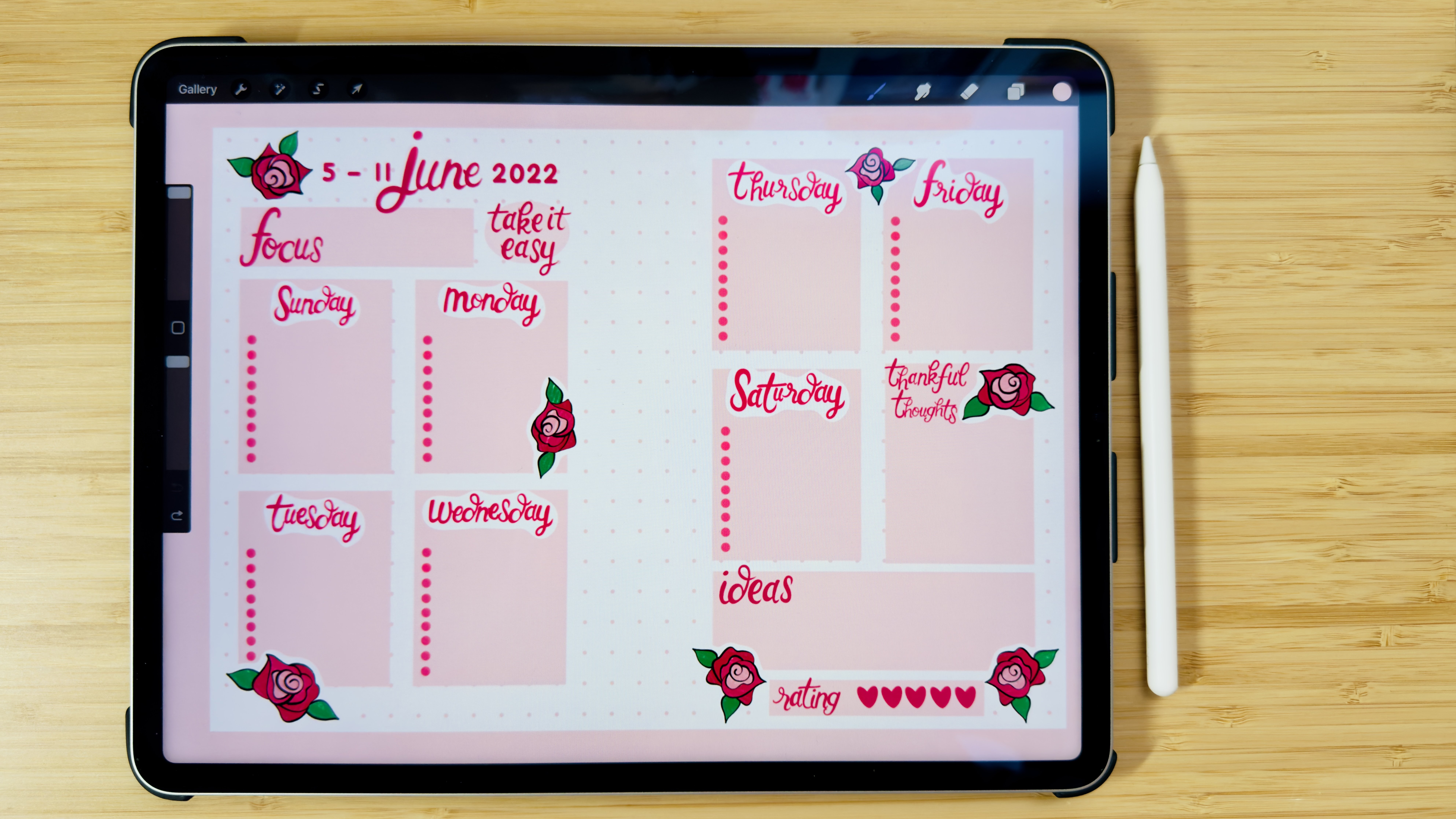
I decided to try journaling on my iPad
using the Procreate app. And I fell in love with the process. Just because I can
plan the entire setup, add digital stickers, and washi tapes
that I've created. I can move things around. I can also easily correct my writing mistakes
and even more, I can rearrange the page by the end of the month
to however I like. But then this year I thought, how about combining
these two together? I can create
templates on my iPad, print them out, then
journal on paper. I also wanted to have a more coherent theme
and color palette. So I created templates
for the whole year. But of course, I can
continue working on my iPad and print it out
by the end of the month. That way, I can rearrange
when I have to, maybe even add a
photo of the month or just to make the setup
more put together. This class is for anyone
who would like to design a monthly bullet
journal template on Procreate. Once you have
learned the skill on how to design this template, you will be able to create a unique template
that fits your needs. You can include all
the elements that you like to make it your very own. For the class project, we will take the
time to think about the elements that
we would like to include in our template. We will create these elements and then we will combine them together to create a monthly
bullet journal template. This template can be used digitally or it can be printed
out to journal on paper. I really hope that I
will see you in class. [MUSIC]
2. Class Project: [MUSIC] For the class project, first, we will take the
time to think about the elements we want to
include in our template. For example, the
name of the month, a small calendar, and
the different sections. We will create these elements, then combine them together into a monthly bullet
journal template. To help you get started, I'm sharing with you some
of my stamp brushes, the link to the fonts
that I've created, a font with all the
months of the year, and a yearly calendar. You can find all of this in
the class resources section. Please don't forget to
share your progress and the journal templates in the
project gallery section. For the next lesson, we will think about
the elements we want to include in our template.
3. Journal Elements: [MUSIC] Before we dive into designing a bullet
journal template, it's important to consider three things: the
size of our journal, the color palette, and
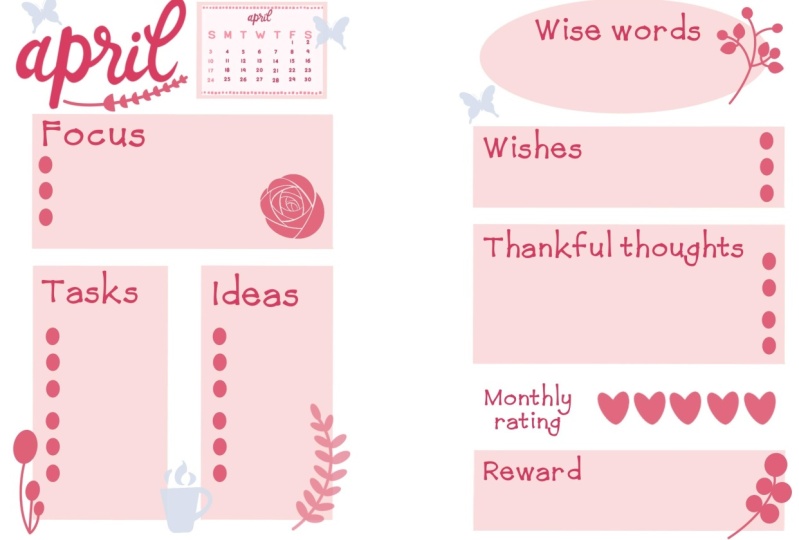
the sections to include. For my basic design, I will include the name of the
month, a monthly calendar, and a section for the
following: focus, task, ideas, wishes, wise words, thankful thoughts, monthly
rating, and reward. I've also created a
simple color palette that I will use for my template. Now let's take the
time to think about what you would like to include
in your bullet journal. What sections would
be helpful for you? What is the size
of your journal? What is the color palette? For the next lesson, we will start creating
these journal elements. [MUSIC]
4. Creating Journal Elements: [MUSIC] Now it's time to gather the elements for
our template but first, let's create our canvas. For my Canvas, I'll be using an
A5-sized journal, which is the most
common journal size. Let's open Procreate. Hit the plus sign and let's create our canvas. I will set it at 2,480 pixels by 1,748 pixels at 300 DPI for a good quality
printing. Hit create. This canvas will be two pages that we fold
when printed out. As a digital journal, this gives us a full view
of the entire month. But let's leave it
as it is for now. First, let me show you how to use the file with the
names of the months. Download the file from the
class resources section, click Actions, then Add. This will depend where
you save the file. For me, I save it in
my photo gallery, so I will insert a photo. Once I have the file, I will choose the
selection tool, Freehand, and we'll start cutting the month
that I will use. For my case, I'll be working
on the month of April. [MUSIC] Swipe three fingers and the Copy and Paste
panel will appear. Then choose Cut and Paste. Now you have the
month of April in another layer ready to be used. Let's do the same
for the calendar. You can also do the cut
and paste method for this, but for me, the
easiest is to move this file to the corner to
cut out what I don't need. [MUSIC] Now the April calendar
is ready to use. It's also important to
prepare your color palette. I will be using a
cherry blossom theme, as it is the month of April. I will now start writing
the texts for my section. I will use a darker
red for my texts. Let's go to Actions
and Add Text. You can choose the
font that you like. I will be using my
own font called, Blue Hour font, and we'll start writing. Remember to always go to
the action panel and add text so that each of your texts will be in
a different layer. [MUSIC]
5. Creating More Journal Elements: [MUSIC] For the background shapes, I will be using a lighter color. I will be creating a square, a rectangle, a
circle, and an oval. Let's create each shape
in different layers. Let's also put the
grid by clicking "Action" "Canvas" and
activate the drawing guide. This will help us in
creating the shapes. I will take the
monoline pen from the calligraphy section
in the brush library. I will start with a square. Remember that when you
hold the pen in place, it will create a straight line. Check for gaps before dropping the color from
the color palette. Add another layer to
create another shape. [MUSIC] Let's also download
the stamp brushes that I've created to
decorate your journals. Let's see what they are by stamping them on
different layers. [MUSIC] Now, we have all our elements. For the next lesson, we will be combining these
elements together to design our monthly
bullet journal template.
6. Placing Journal Elements Together: [MUSIC] Now it's time to put together
the elements we've created. Let's open our canvas. Remember to mark the gutter so that if you will
print this template, you will have the
space for binding. Let me download my guide. [MUSIC] Now we are ready to put
these elements together. As we put them together, remember that it's all
about experimenting different placements and see how everything will go together. Don't forget to
enjoy the process. [MUSIC]
7. Bonus: Making a Quick Stamp Brush : How to make a quick stamp
brush on Procreate. First, draw a picture of what you want to make
a stamp brush of. I drew this in a 15
by 15 inches canvas. It's important to
draw it in black. We need to save this drawing with a transparent background, so I unchecked the
background color. [MUSIC] Then go to
the Action panel, share in JPEG to export it, and save the image. Let's put back the
background color and uncheck the drawing. Now we choose where
we want to make this brush stamp in
the Brush Library. Hit the plus sign, and this will bring us to the Brush Studio
to shape and edit. In the Shape Editor, import the photo and tap two fingers to
remove the background. Then hit "Done". Let's go to the properties and choose the Use
stamp preview. Hit "Done". But you can see that the
stamp is quite small, so let's choose the brush again. In the Properties panel, change the brush behavior
to the maximum size. So now we can go back to the brush. We can see that the
brush size has changed. Let's go back to
the brush to add information in About
this brush panel. Let's write our name
in the Made by section. [MUSIC] I'm also adding
an image from my photos. Also, I would like to
name this stamp brush. I'm calling it Plant. Let's hit "Done" and let's try our stamp in another layer. [MUSIC] There it is. I hope you enjoyed
this quick guide. [MUSIC]
8. Thank You: [MUSIC] Thank you for joining
me in this class. I hope you enjoy designing your bullet journal template by thinking about the
elements that you like, creating these elements
and putting them together into your unique template that
you can call your very own. Now you can design
more templates. Don't forget to post
your progress and your template design in the
project gallery section. Thanks again, and I
hope to see you soon. Bye. [MUSIC]
 Elaine Vitikainen, Illustrator from Helsinki