Create Chrome Text in Adobe After Effects - A Short Motion Graphic Design Class | Tyler Bennett | Skillshare

Playback Speed


1.0x


  • 0.5x
  • 0.75x
  • 1x (Normal)
  • 1.25x
  • 1.5x
  • 1.75x
  • 2x

Create Chrome Text in Adobe After Effects - A Short Motion Graphic Design Class

teacher avatar Tyler Bennett, Motion Graphics Designer & Photographer

Watch this class and thousands more

Get unlimited access to every class
Taught by industry leaders & working professionals
Topics include illustration, design, photography, and more

Watch this class and thousands more

Get unlimited access to every class
Taught by industry leaders & working professionals
Topics include illustration, design, photography, and more

Lessons in This Class

    • 1.

      Introduction

      0:25

    • 2.

      Getting Started

      0:26

    • 3.

      The Main Lesson

      6:42

    • 4.

      Outro

      0:09

  • --
  • Beginner level
  • Intermediate level
  • Advanced level
  • All levels

Community Generated

The level is determined by a majority opinion of students who have reviewed this class. The teacher's recommendation is shown until at least 5 student responses are collected.

2

Students

1

Project

About This Class

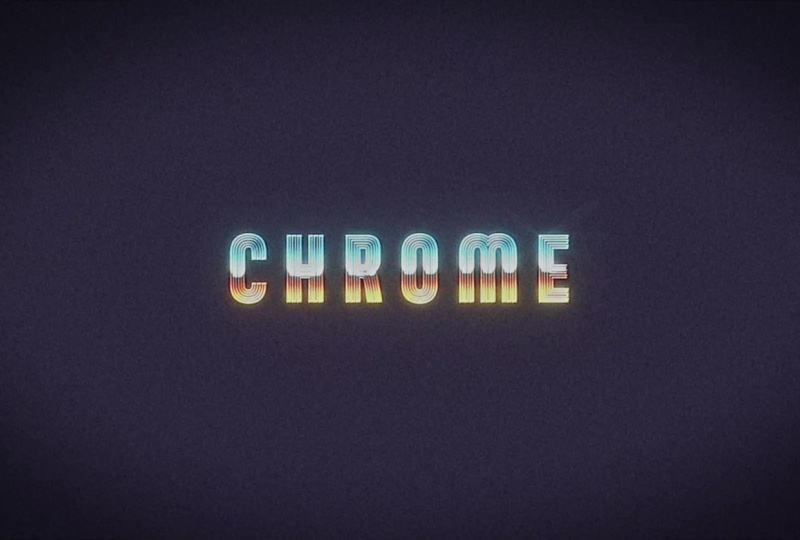
This short class will teach you how to create a chrome text effect in Adobe After Effects. All you need to follow along is the software itself. We will jump right into the project, so if you are looking for a more comprehensive guide on how to use Adobe After Effects, please check out my beginner classes: Basics of Motion Design: Start Animating in Adobe After Effects or The Easiest Motion Graphics Class You Will Ever Take—A Perfect Intro to Adobe After Effects.

In this class you'll learn:

  • How to create a retro chrome text look using a combination of effects, including Gradient Ramp, Colorama, Glow, and more.
  • Give the composition a retro/vintage film look using some additional effects

You’ll be creating:

  • A chrome text using the techniques taught in this class

Adobe, After Effects, and Media Encoder are either registered trademarks or trademarks of Adobe Systems Incorporated in the United States and/or other countries.

Meet Your Teacher

Teacher Profile Image

Tyler Bennett

Motion Graphics Designer & Photographer

Teacher

Hello, I'm Tyler. I'm a motion designer & photographer based in Ottawa, Canada. I make simple and easy to follow classes for beginners.

You can find me at tylerbennettvideo.com/

Connect with me at @tytyttheguy or @learnmotionwithty

or on YouTube: @tylerbennett3601

See full profile

Level: Beginner

Class Ratings

Expectations Met?
    Exceeded!
  • 0%
  • Yes
  • 0%
  • Somewhat
  • 0%
  • Not really
  • 0%

Why Join Skillshare?

Take award-winning Skillshare Original Classes

Each class has short lessons, hands-on projects

Your membership supports Skillshare teachers

Learn From Anywhere

Take classes on the go with the Skillshare app. Stream or download to watch on the plane, the subway, or wherever you learn best.

Transcripts

1. Introduction: The miss episode of earned five we'll be creating a vintage chrome look in Adobe After Effects. To achieve this look, first, we'll be creating a black and white gradient over a text layer, and we'll be remapping that gradient's colors using an effect called colo rama. Then we'll tie the whole thing together with a few additional effects. Can't wait to see your creations. 2. Getting Started: To get started with this class, you'll need Adobe After effects to follow along. Your class project is to create your own Chrome text. As usual, I'll provide a completed version of the project file on the project and resources page. It might help if you get stuck on one of the lessons, and as usual, feel free to post your projects to the project gallery. I always love seeing the things you create. 3. The Main Lesson: We'll start off by creating a new composition. I'm gonna use a preset social media landscape HD, 30 frames a second. We'll head up here and we'll grab our type tool, and we'll type out some text. We'll align it to the center of the composition. Now we can start manipulating our text layer to get our chrome look. The first thing we'll look for is a gradient ramp effect. We'll add that to our layer, and we'll change our start and end ramp to just above and below the text. There we go. And while this chrome look is going to be driven by two main effects, our gradient ramp and the colorama effect, we're also going to have to add a few additional effects to get it to work the way that we want it to. One of those effects is the solid composite effect. So we'll search for that, add it to our layer, and that'll fill in all the negative space on our layer. We're going to have to duplicate it with the control D key, and we'll place one of them over our gradient ramp effect. We'll change the top solid composite to 50% because we don't want it to be completely black. And now we can search for our colorama effect. As you can see, it's already changing the colors of our layer. But before we do anything with colorama, I'm going to search for a set mat effect, and what that'll do is glue our Cloama effect to our text layer. Now we can start manipulating our colama effect to get the colors that we want. Under the output cycle tab is where we will find our color wheel that will allow us to remap the colors of our gradient. I've already got a color palette chosen out. I'll put the color codes on screen to make it easier for you to type in the codes. Essentially, what is going on is this color wheel represents our gradient in a clockwise motion. And as we double click on these tabs and type in our color codes, it will change the colors of our gradient based on where they are in relation to our color wheel and our gradient. For the last color, we will need to create a new tab on our color wheel. We can do that by double clicking. Now that we've plugged in our colors into our tabs, we can move the tabs on the color wheel to change where the colors show up on our gradient. As we rearrange our color tabs on our color wheel, you'll see a chrome look is starting to take effect, but it's still looking a little bit flat. To make it look more chromi, we're going to have to do some additional things. The first of which is adding a fast box blur effect. We'll add that to our text. I'm going to change the blurriness value to 5% and we'll put it right above our colorama effect. And as you can see, that blur softens out our gradient a little bit and reshapes our gradient, giving it a more chromi look. To bring in even more texture, we can look for the fractal noise effect. After we add it to our layer, we'll have to bring it above the colorama effect. And right away, you can see that it's completely destroyed everything we've created. That's because we'll have to dial in these settings to get it to look the way we want it to. First thing I'm going to do is change the blending mode to color burn. We can turn the opacity way down. I'm going to go with 35%. Complexity we can also take down to 1%. I'm going to turn down the contrast to zero. Noise type, we can leave at soft linear, and for fractal type, you can really go with anything you want. As you go through the list, you can see how it affects the text. I'm going to go with dynamic twist, and there we have it. Part one of this tutorial is finished. In part two, we're going to add some additional effects to really tie everything together. Now let's add some additional effects to really tie it all together. But first, I'm going to create a background. I'll go to Layer, New, solid. I already have a color chosen out. I'll zoom in so you can copy the code. We'll move our background layer to the bottom of the composition. Now let's create a new adjustment layer. Right click New Adjustment layer. We'll rename the adjustment layer to grain and glow effects. The purpose of the first three effects we're adding is to give our composition a more filmic look. The first effect I'll look for is noise HLS auto. We'll change the noise type to grain, and we'll change the lightness to five. Next effect we'll look for is Gaussian blur, and we'll change the percentage something really subtle, like maybe 3%, just to soften out our composition a little bit. To resharpen it we'll add an unsharp mask effect. We'll change this number to something really high, like maybe 300. And what all these effects do together is really brings in that vintage look. And finally, chrome text wouldn't look the same without a glow. So we'll search for the glow effect. We'll dial in these numbers. I'm going to change the threshold to 80%, the glow radius to 25, glow intensity, I'll change to 0.5. And now to intensify the glow a little bit, I'm going to duplicate it with Control D, and the only thing I'm going to change on the second glow is change the glow radius to 125. There we go. You can see the difference all these effects make when you turn the effect layer on and off. And finally, as a final touch, I thought, why not add some light rays? We'll create a new adjustment layer by right clicking New Adjustment layer. We'll rename our adjustment layer to light rays. We'll put it under our grain and noise effects. In effects and presets, we'll search for CC light rays, a very niche effect that I don't use very often, but for something like chrome text, it works perfectly. We'll dial in these numbers, change the radius to 15, and warp softness to 15. We'll move our light ray over one of our letters. And as you can see, when we put it over our layer, it gives a nice radiated light effect. Can animate it by changing our intensity to zero, pressing the stopwatch. We'll bring up our key frame with the key. Now let's move maybe 20 frames over on the timeline, change our intensity to 100%, and then we'll animate it out. We'll move over another 20 frames, change our intensity to zero. Now we can duplicate our light rays with Control D, and we'll move it over to a different letter. Duplicate it again. You can do it for every letter if you would like, but I'm only going to do it for a few. And then we'll bring up the key frames with you, and we can offset our key frames so that they don't all animate at the same time. There we go. And that just about concludes our class. I want to thank you for taking this class, and hopefully I'll see you in the next one. 4. Outro: Congratulations, and I would like to thank you for taking my class. Now you can feel free to post your projects to the Project Gallery. I always love seeing what you create.