Transcripts
1. Introduction: An expression is a line of
code that will help you animate more efficiently
in Adobe After effects. In this class, I'll give you an introduction to what I think are three of the most
helpful expressions in Adobe After effects. And then you can apply
these expressions to your own projects. Can't wait to see what
you come up with.
2. Getting Started & Class Project: To get started with this class, you'll need Adobe After
Effects to follow along. Your class project can
be as simple as using any of these three expressions in one of your own projects. You can download the
example project files on the project and
resources page and feel free to post your projects
to the project gallery.
3. Linear Expression: The easiest way to explain the linear expression is
that it remaps two values. I'm going to show
you what I mean by using one of my
favorite examples. We're going to use
a slider control to change the text
on a text layer, and then we're going to
remap the two number values. But before we do that,
let's break down how we would go about writing
the linear expression. The linear expression in its
most basic form is typed out linear with brackets and
four commas in the middle. But just like any expression, we'll need to put
some numbers inside these commas to actually
use the expression. So a more detailed explanation, we would start out by
typing out linear, and in our first comma, we would type out our
variable that we created, or we would type
out the code for the property that we want
to take our numbers from. The minimum number of our variable source,
the maximum number. And then in our next two,
we're going to write the numbers that
we want to remap our minimum number and
our maximum number two. This will make more
sense when we go to actually use the
expression in an example. But here, I've created
an adjustment layer and added our slider
control to it, and I made a very
basic animation of 100 to zero on
the slider control. And I've also created
a text layer. And in the source text is where we're going to
write our expression. The first thing we
want to do is connect the source text to
our slider control. We can do this by creating a variable and then connecting our variable
to our slider. Let's go over how we would
write out a variable. We would start by giving
our variable a name. This name could be anything
you want it to be. I like to keep my names
short and easy to remember for when we go to
write our expression later, then we would hit the space bar, the equal symbol, hit
the space bar again. And here is where we would type the code for the property
that we want to link it to. Most often we'll be
using the expression PiChip to fill out
the code for us. And then if you're using more than one variable
in an expression, always good measure to end the
variable with a semicolon, because what this
is telling after effects is that we've
done this variable. Now we're writing
out a new variable. In our case, I'm going to
write out slider for the name, nice and easy to remember. Hit the space bar, equal
symbol space bar again. And we're going to use
the expression PIChip to grab the code for
our slider control. And since we're only using one variable in our expression, we don't need to end this
one with a semicolon. This one, I named it slider, but really you can name
it anything you want. And just like I
mentioned earlier, to grab all this code here, all we have to do is drag the expression pick whip
over to our slider control, and after effect will fill out all this code for us
without us doing any work. On the second line
is where we have our actual linear expression. We start out by typing
linear bracket. And then we type out slider, which is a variable that
we just typed out earlier. And what we're saying in
these two fields is we're remapping zero to 100
on the slider control. As you can see,
we're going 100-0. And we're remapping those
numbers to zero to 1,000. And the two fixed part isn't actually a part of the
linear expression. What it's there for
is it's telling after effects that we only want two
decimals after our number. So as you can see, when we
change these two numbers, I'm going to change
this one to 100. Now our text animates 1000-100. So hopefully you
are beginning to understand what the
linear expression does. It's essentially taking the
numbers that we have on our slider control and changing those numbers to
whichever numbers we put in our expression. I'll change this number as
well to further explain. As you can see, now our
number gets bigger. Just like I mentioned earlier, this dot two fixed part of
the expression is here to help us control the amount of decimals we have
after our number. If we type in zero, it'll take away our decimals. If we remove the two fixed part of the expression completely, we'll get a crazy
amount of decimals. That's why I keep this
in the expression. Of course, using a
slider control is only one example
of how you can use the linear expression
to remap numbers. In this example here, I'm using the rotation of the pointer and remapping the rotations negative
90 to 90 to zero to 200. So it's all about getting
creative and using the linear expression to change values in
your own projects.
4. valueAtTime Expression: Mm hmm. Base of our value at time expression is written
out dot value at time, and in brackets, time. And it's important
to note that the V in value has to be lower case, and the A in at
should be capital, and T in time should also be capital because expressions
are case sensitive. For a more detailed explanation of how our expression works, we would type out our
variable or the code for the property that
we want to link our value at time to
dot value at time, bracket, time, and in
this field is where we would add or subtract
from the current time. And then we would end
that with a bracket. This will make more sense when
we go to see our example. Here I have created this
wiggly line animation. This could be a snake or a worm or it could even be hair
blowing in the wind, anything you would
like to imagine. Now, I'll break down how I use the value of time
expression to create this. To create a line,
I get my pen tool, draw out a line, make
sure there's four points. I'll get rid of that fill. I'll turn up the stroke width, toggle down the layer,
contents, shape one. And under stroke one, we'll
change it to round cap. Now, to get these null layers, which is what's
controlling our line, head up to the Window tab, and under the Window tab, we can find create
nulls from Path. First, we got to make sure
that our path one is selected, or else it won't work properly. Now we'll click
Points Follow Nulls. What that does is it creates four null objects that are connected to our points
on our line layer. And on these nulls is where we're going to
put our expression. As you can see, when I change the position of
the null objects, it changes the line animation. I'll undo that and delete it. I'll toggle down
this null object, and you'll see where
I put the animation. I separated the position
on our null floor. You can right click, go
to separate dimensions, and I put in animation
on the Y position. And in our null
three is where we put our first value
at time expression. I started out by
writing a variable. P equals and using
the Pick Whip. I connected it to the Y
position on our null four. Skip a line, and here's where I wrote the actual value
at time expression. I typed out P, which is
the variable we just defined value at time,
bracket time -0.5. And what that means
is 0.5 of a second because expressions always use seconds when referencing time. So what this means is that
this null three is going to animate one half of a
second after our null four. And for the rest of
the null layers, I put the same expression. Except in null two,
I wrote minus one, which is minus one full second. And in null one, I
typed in time -1.5, which is 1.5 seconds. So each null layer is animating at half a
second difference. And as a final touch, I
went to add round corners, and I up this number. And what that does
is it gives it a little bit smoother
of an animation. And of course, this is only one use for the
value at time expression. Another great way
to use the value at time expression is for when you want different objects to share the exact same animation. Or another popular
use for the value at time expression
is creating a trail. So get creative and
think about how you can use the value at time expression
in your own projects.
5. if/else Expression UPDATED: And if else expression in its most basic form is written out I followed by parentheses, followed by curly brackets. On the second line, we type
out else curly brackets. And just like our
other expressions, we have to put stuff inside these brackets to
actually do anything. So in other words,
if else expression is saying to After Effects, if this is true, do this, else, do this. For my example, I created
a pointer animation that rotates from negative
90 degrees to 90 degrees. And once our pointer
passes zero, we have our circle
changing color. And I'll break down
to you how we use the IL expression to do this. See, we've created an animation on our rotation for our pointer. I looped it with a loop
out ping pong expression. I created an adjustment
layer and put a fill effect on it,
made the color red. And on the circle layer under fill in this field here is
where we put our expression. First, I wrote out a variable
C one for color one. Using the expression pick whip, I connected it to our color
on our adjustment layer. The second variable I have
written out, R for rotation, I again used the pick whip, connected it to the
rotation for our pointer. Then I skip a line, and here is where we write
out our actual Is expression. And in our expression, I type out I R, which is our variable for our rotation is greater
than zero C one, which is our color on
our adjustment layer. Then on the second line,
I type out se value. When you type out value
in an expression, it means the current value
on the layer that we have. In our case, it's
the green color. So, in other words, what
this expression is saying is if our rotation is
under zero degrees, be the value of this layer. If it is above zero degrees, be the color that we have
on our adjustment layer. So as our pointer animates, as soon as it crosses
zero degrees, it'll change to our red color, and then back to our
green color once we go back below zero degrees. Just thought I'd better make
a second example for the Is expression because it is the most complicated in this class. So here I have a simple
animation of yes to no, and it's just animating
back and forth. And what I did to create
this was I created an adjustment layer and
added a checkbox controller. And all a checkbox controller
is is just a checkbox. You can check it on and
off. That's all it does. And I connected everything to this checkbox controller
using an L expression. I'll toggle down the X to
show where the expression is. So I created a variable
called checkbox, connected it using the
pick whip to the checkbox. And here's the
expression I wrote. If checkbox is equal to one, which means one means checked when we're
referring to a checkbox, and you have to write
out equals twice in the expression because that's
just how expressions work. Always remember, you have
to type out equals twice. So when the checkbox
is equal to one, zero, which means zero opacity, se 100, which means
100% opacity. And that is for the X. And what I did for
the checkmark was I typed in the exact same
expression, except it's reversed. In this box, I put 100, and in s I put zero. So that's how we have the X and the checkmark how I created the text animation
is a little bit different. First, I typed out yes and
no on separate layers, and I connected it to this yes no layer using
the source text. And this is where I
put the expression. Again, I put checkbox equals and connected
it to the checkbox. And then I made another
variable for yes, and I connected it to
the source text for yes, using the pick whip, and I did the same thing
for the no variable, but I connected it
to the no layer. And here we go with our
ifelse expression right here. If checkbox is
equal to one, yes, which is our yes variable, else, no, which is referring
to our no variable. So all of these layers
are connected to the checkbox controller
using the ILS expression. So when it checks on and off, our layers all change, and all of this is created
using one expression. So get creative and
think about how you can use this expression
in your own animations. But keep in mind, things get a little bit more
complicated when you go to use this expression on
something such as the scale. I thought I'd go ahead
and create lesson, explaining what I mean by things can get
complicated when you use the IL on something
like a scale or a position. So I created another
checkbox animation. It's just a checkbox
animating on and off, and I connected it to the scale property using a variable, checkbox, connected it
with the pick whip again. And in our IL expression, when using something like scale, because it comes in two parts an X X property
and a Y property, in the expression,
you'll need to write what we call an array. And when you write
out the property, you'll need to write out the X property and the Y property. And we would write that
in square brackets. And if you want to
add animation in between keyframes using
an ifelse expression, things get even more
complicated because we'll have to use another expression
to make that happen. So in here, I've got a slider control animation animating 0-1 and
then back to zero, and how to add animation
actually in between the keyframes over here
in our Ise expression. I've written out if the slider, which is our variable for the
slider is greater than one, do this, which is
X equals linear, which, by the way, this is another great example
of how we can use a linear expression that
we learned about earlier to give the quickest possible rundown of what is
happening here. We are saying X, which is
referring to the scale, the scales X property. We want that to equal the linear expression using the slider controls zero to one, we're remapping those
numbers to the value zero. The value zero is
referring to the X scale. In an expression, when
we're saying value zero, we're referring to the X, and value one would be
referring to the Y property. So what we're saying is we're remapping the
sliders zero to one to the X property to the
X property times 1.5, which is 1.5 times the to
finish the whole thing off, we would skip a line and
we write square bracket X, X because what this is telling After Effects
is that we want both the X property and the Y property to
be the same value. We both want them
to be the X value. I know it's very difficult
to wrap your head around, especially when
you're a beginner. Well, as I said, things get
way more complicated with this expression when
you start to use it on stuff like the
scale or the position, which is why in this
beginner level class, I suggest using it on something more simple like the opacity of a layer or turning a layer on and off or changing
the color of a layer. Perhaps down the road, I'll make a more advanced
expressions class where we can go into more examples of how to use this expression. Let me know on the
class discussion page if this is something
you'd be interested in.
6. Get Creative Examples: In this bonus lesson,
I would just like to further explore these
examples to give you ideas of how you
can get creative and use these expressions
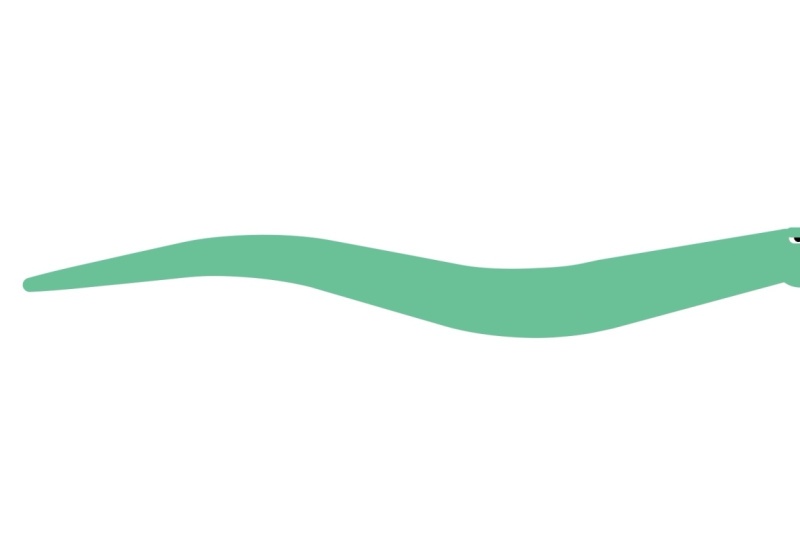
in your own animations. In my first example, I created a snake using our
value at time expression. I took that same line that we created in our
earlier lesson. I added a taper, and I changed these
settings to get this look. Then I added a fill to our line. Then I went ahead and I created
all of our face elements. I parented these face elements to our line path one, null. So now all these face
elements follow our null, and that's essentially it. In my next example, I created a car speedometer using
the linear effect. As you can see in our
expression field, I'm taking the rotation
from negative 90 to 90, and I'm remapping those
numbers to zero to 200. And once again, I put a two
fixed to round those numbers. I also changed my
font to a monofont. And what a monofont does is
as our number increases, you see as our number increases, it doesn't change the
spacing between our numbers. You'll see that our first
number stays in place, which is exactly what we want. And then in our color
field, just like earlier, I used an FL expression, and as our rotation goes
above 100 or zero degrees, it changes color to red. Again, I'm not sure if any
cars actually do this. Your examples don't
need to make sense, but it's all about getting creative and using
these expressions. I've provided a copy of
this project file on the project and
resources page so you can download it and have
a look at these examples.
7. Outro: Congratulations and thank
you for taking my class. I'm interested to see
how you integrate these expressions into
your own projects. So feel free to post a project
to the project gallery, and please let me
know how you use these expressions to
create your animations.
8. Bonus Lesson(for beginners) How to Add an Expression: So my course is all complete and I'm reviewing
all my lessons, and I just realized
that never once did I explain how to
add an expression. I'm assuming most intermediate
users already know this, but just in case there's some beginners
taking this class, to add an expression, you would go to
the stopwatch for the property that you would like to add
the expression to, and you would hold the Alt key while clicking on the stopwatch. And then in the field over here is where you would
write your expression.
 Tyler Bennett, Motion Graphics Designer & Photographer