Create A Pattern Using The Circle Shape In Procreate | Mrunmayee Das | Skillshare

Playback Speed


1.0x


  • 0.5x
  • 0.75x
  • 1x (Normal)
  • 1.25x
  • 1.5x
  • 1.75x
  • 2x

Create A Pattern Using The Circle Shape In Procreate

teacher avatar Mrunmayee Das, Artist and Surface Designer

Watch this class and thousands more

Get unlimited access to every class
Taught by industry leaders & working professionals
Topics include illustration, design, photography, and more

Watch this class and thousands more

Get unlimited access to every class
Taught by industry leaders & working professionals
Topics include illustration, design, photography, and more

Lessons in This Class

    • 1.

      Class Intro & Project

      1:28

    • 2.

      Create The Pattern & Test It

      9:32

    • 3.

      Next Steps

      0:24

  • --
  • Beginner level
  • Intermediate level
  • Advanced level
  • All levels

Community Generated

The level is determined by a majority opinion of students who have reviewed this class. The teacher's recommendation is shown until at least 5 student responses are collected.

221

Students

8

Projects

About This Class

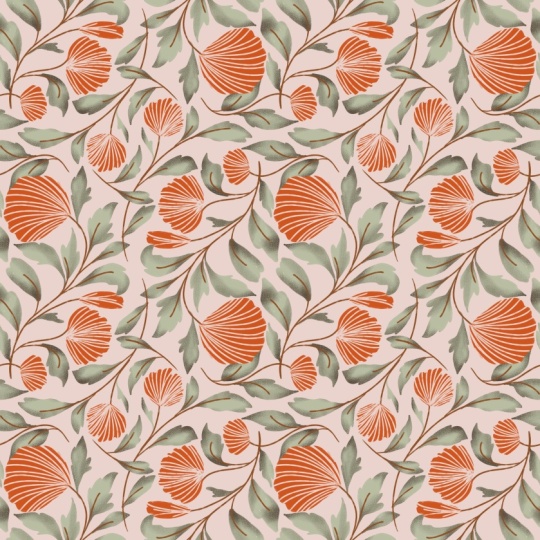
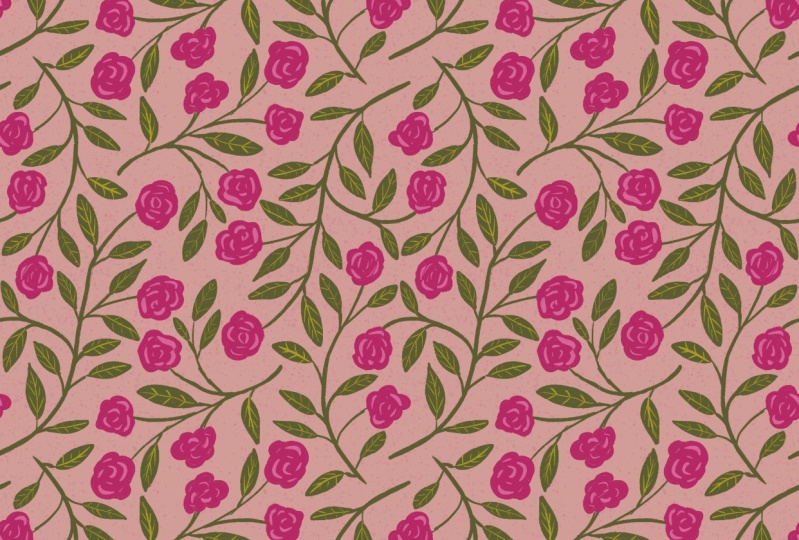
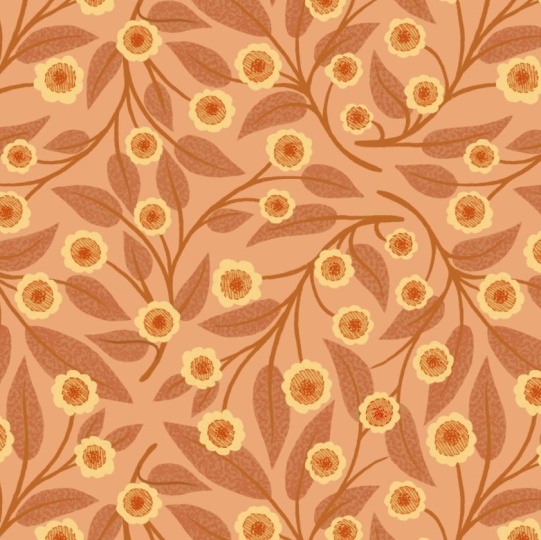
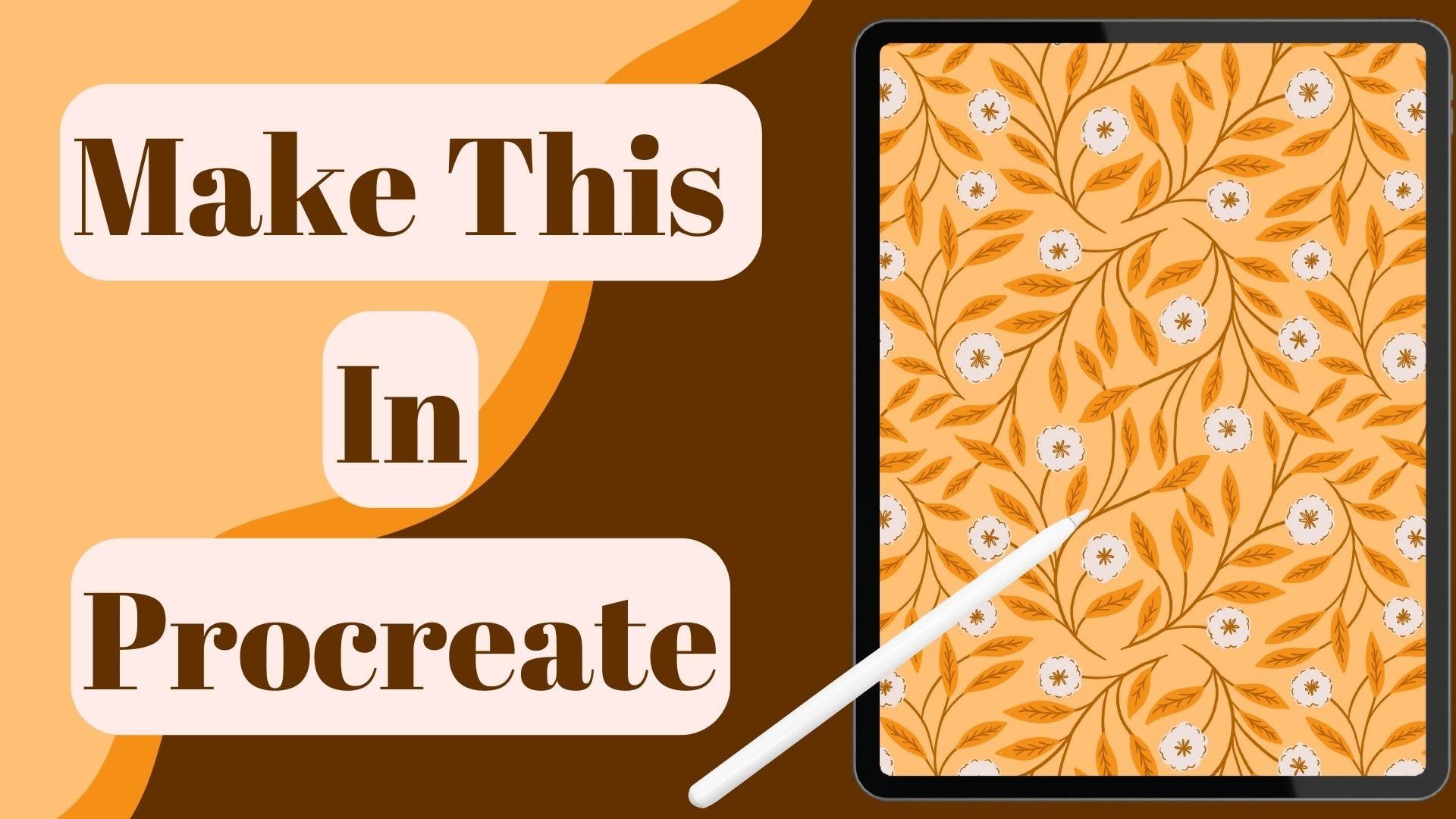
Have you ever wanted to create a pattern that looks intricate and professional, but is surprisingly simple to design? In this class, I’ll guide you step by step through creating a beautiful intertwined pattern in Procreate using just a circle layout and the symmetry tool.

We’ll start by setting up the layout, sketching the layout using the symmetry options in Procreate and then creating the pattern using the Pattern Creation Canvas.

By the end of this short class, you’ll have a completed seamless pattern that looks detailed and polished, ready to use on fabrics, wallpapers, or digital designs. Plus, you’ll have the confidence to create more geometric shape based layouts on your own.

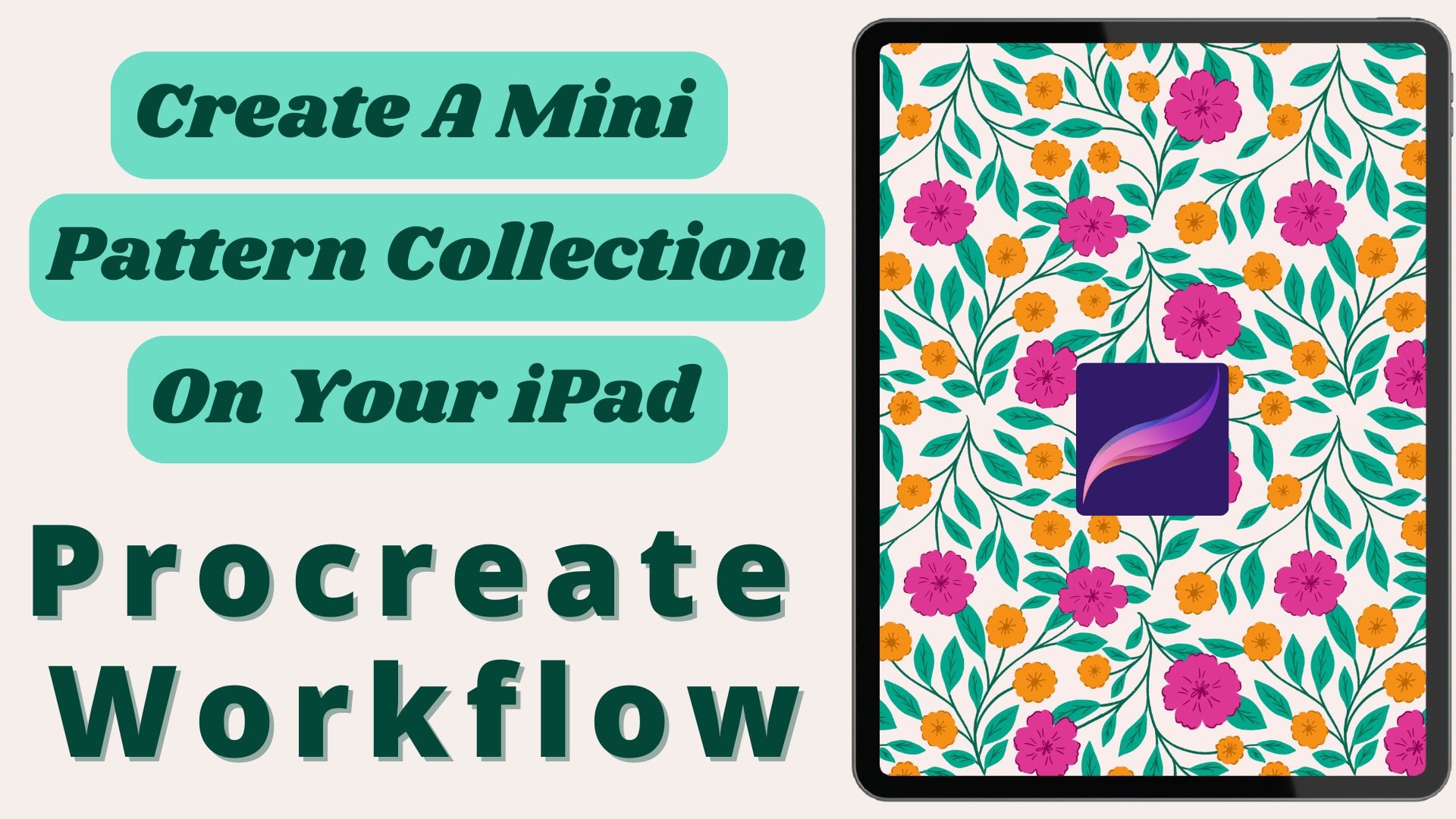
If you enjoyed learning how to create a mini pattern collection in my previous class, this one will feel like the perfect next step. While that class focused on building collections with grid, half-drop, and half-brick repeats, in this lesson we’ll dive into a fresh workflow where we'll design an intricate intertwined pattern using a simple circle layout and Procreate’s symmetry tool.

So grab your iPad and let's dive straight into it.
Meet Your Teacher

Teacher Profile Image

Mrunmayee Das

Artist and Surface Designer

Teacher
Level: All Levels

Class Ratings

Expectations Met?
    Exceeded!
  • 0%
  • Yes
  • 0%
  • Somewhat
  • 0%
  • Not really
  • 0%

Why Join Skillshare?

Take award-winning Skillshare Original Classes

Each class has short lessons, hands-on projects

Your membership supports Skillshare teachers

Learn From Anywhere

Take classes on the go with the Skillshare app. Stream or download to watch on the plane, the subway, or wherever you learn best.

Transcripts

1. Class Intro & Project: Have you ever wanted to create a pattern that looks really complex, but is actually super simple to build? In this class, I'll show you exactly how to do that using just a circle layout and procreates symmetry tool. This is a short and fun class where you learn how to create an intertwined pattern that looks professional using a simple circle shape, and the symmetry tool inprocriate. If you have already taken my previous class about creating a mini pattern collection inappropriate, you'll find this class to be the perfect next step. It gives you even more ideas for using simple shapes to create unique pattern layouts. To make things easier, I've included a free circle layout template you can download from the projects and resources section. But if you prefer, you can also create one yourself. Your class project is to share a finished pattern created with this circle shape Azure layout. For this class, I'll be using the pattern creation Canvas, which I explained in details in my appropriate workflow class. Don't worry if you haven't seen that class yet. I'll leave a free download link for the canvas in the projects and resources section so you can grab it and follow along with me. So let's jump right in and get started. 2. Create The Pattern & Test It: So first, I'll take the circle layout brush and stamp it once on the screen. You can download this layout for free, too, or if you want, you can just draw a circle while tapping one finger on the screen so that you'll have a perfect circle. Then tap on the move tool and tap on fit to Canvas so that it covers the whole canvas. Then I'll tap on the layers and decrease the opacity of this layer by tapping on N here and sliding this blue circle I'll also keep the blend mode on multiply. Then I'll create a new layer below the layout layer by tapping on the plus sign here and drag and drop a background color onto it. We will laid this layer to create our pattern. Now I'll tap on the action menu, then tap on Canvas and toggle on the drawing guide, tap on Edit drawing guide, and then on options here toggle on rotational symmetry and assisted drawing if it's not active already. Choose vertical symmetry here, and then tap on done on the top right corner. Now taking a sketching brush like the six D pencil and black color, I'll start sketching the layout first. I'll create a new layer, tap on it once, and tap on drawing assist so that the symmetry option is activated. As I start drawing, you can see everything is getting reflected diagonally because we had toggled on the rotational symmetry. This will give you more variety. I'll try to place these branches following the shape of the circle so that everything flows nicely. I'll place the flowers in such a way that they are not in a line and are more scattered all over the layout. I'll fill the rest with leaves. Here I'm also trying to overlap some of the leaves to make it look more complex. Depending on which branch I want on the top, I'll erase the portion that is on the bottom so that the overlapping is more prominent. After sketching the layout, I'll group everything and then I will make it repeat using the selections. So to group it, I'll tap on the first layer and select the others by swiping on them towards the right, and then tap on group. You can duplicate this group once by swapping it towards the left so that you have a backup. While this group is selected, I'll tap on the selection tool, then tap on save one load at the bottom, and then tap on selection one. Now I'll tap on the move tool and then on flip horizontal flip vertical at the bottom. I'll deselect and tap on the selection tool again and then on savenoad at the bottom. Now I'll tap on the selection two, then on the move tool and then tap on flip horizontal and flip vertical. I'll repeat these steps for selection three and selection four. Now I just have to fill the gap in the middle here and the pattern will be ready to test. I'll toggle off the drawing guide and start sketching. Here, also, I'm trying to place the flowers in a more scattered way so that they are not in a straight line. Now, I'll test the pattern to see if it repeats properly or not. So with three fingers, I'll swipe downwards on the screen and tap on copy all. Swipe down again and tap on paste. This will give me a flattened image, which I will duplicate three more times so that we have four in total. Then I'll tap on the first layer, then tap on the move tool, and then on the blue.in the top left corner. And here I will type the size that is half of the canvas size, which is 3,600 pixels. I'll type 1,800 here. I'll go to the layers and select the next layer, then tap on the move tool and then on the blue.in the top right corner and type 1,800. I'll tap on the next layer, then on the move tool, and then on the blue.in the bottom left corner and type 1,800. I'll do the same for the last layer by tapping on the blue.in the bottom right corner. Now I'll merge all the layers by pinching with two fingers and the pattern repeats perfectly. Now I can draw the motives. Here, if you want, you can start drawing or you can flip all the four selections again so that you can go to the point from where you had started. But it won't make any difference to your pattern. Just go with whatever feels good for you. I don't flip the canvas again and just move forward from here. Here I'll decrease the opacity of the sketch layer first, and I'll recollect the background. Then I'll create a new layer on top of it, tap on it again, and then select drawing assist here. I usually duplicate this assisted layer a few times so that I don't have to do it for each new layer again and again. Now I'll start drawing I'll be using the dry ink brush from the inking section and this palette, which you can download for free in the sources section. I'll keep each color on a separate layer by drawing them in different layers so that it'll be easy for me to recolor anything I want. After drawing all the motives here, I'll duplicate the whole group ones by swiping it towards the left so that I'll have a backup. Now I'll flip the selection slide I had done before. And then draw the rest of the mops. Now I'll test the once more, like I had shown before. To save it, tap on the Actions menu, then tap on share. And here you can tap on JPEG and then save it as an image to your camera roll or save as a file to the files folder on your iPad, which you can then share in the project section. 3. Next Steps: You want to go deeper into how to create a mini pattern collection, then do check out this class where I have shared everything in details. Also do check out the free patent creation kit and follow me on YouTube for more search tutorials. See you in the next class. Bye.