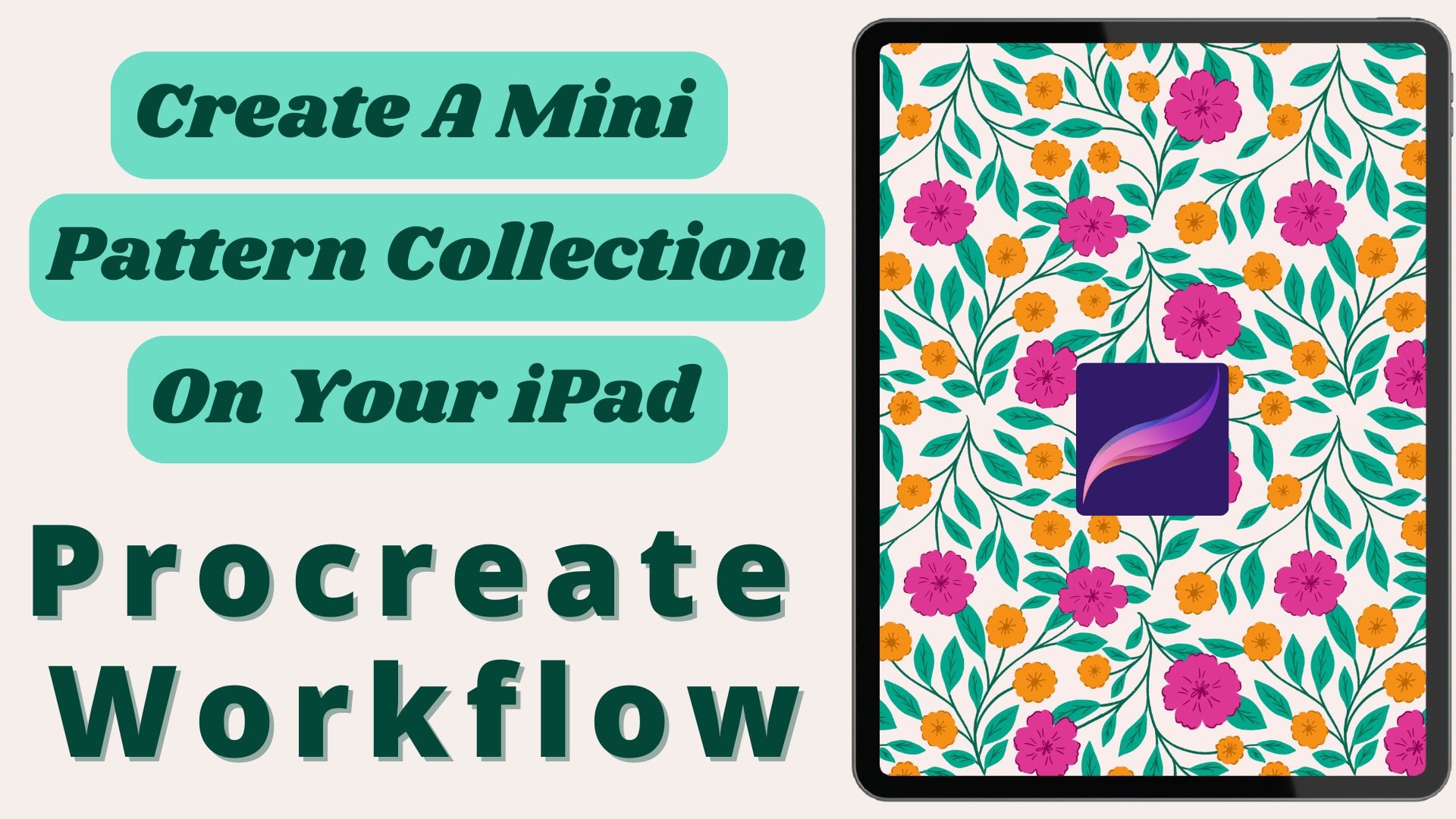
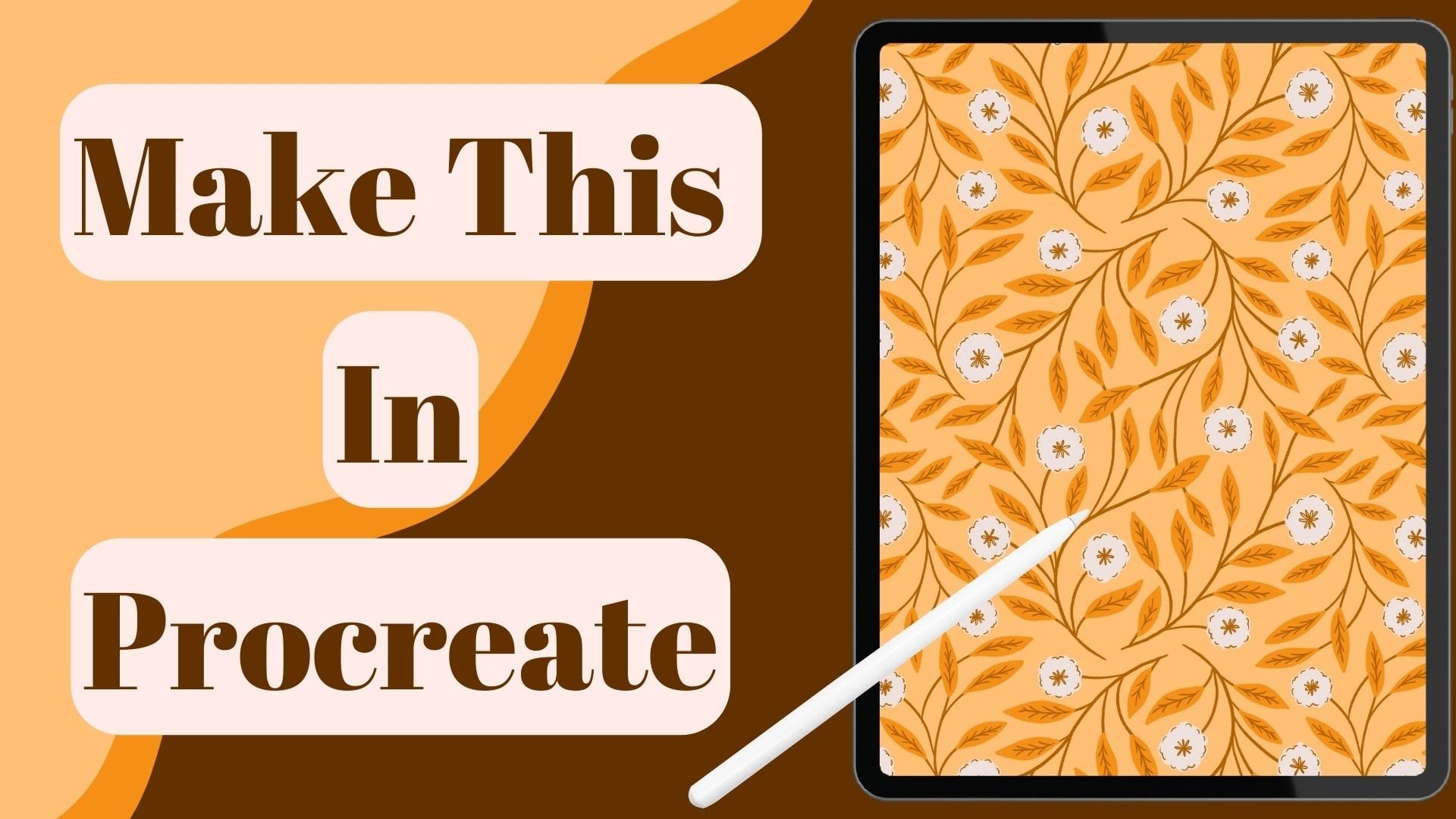
Transcripts
1. Intro: I completely agree
that making patterns in Procreate is so
much fun and easy, but it also has its
own limitations. Sometimes the number
of layers are limited and sometimes
the canvas size. Also, what if a client
wants an AI file? Hi, I'm an artist and
surface designer from India. Many others. I also learned making patterns in
Adobe Illustrator, and I loved every bit
of the design process. But then procreate came into my life and it
changed everything. Now, I was able to
draw my elements with so much textures and also make patterns in
Procreate itself. Still, I could not forget Illustrator because I could
do so much more in there. So I decided to create
a workflow to integrate both procreate and
Adobe Illustrator in my design process. In this class, I will show you my workflow from
preparing an exporting the fines from Procreate to image tracing and vectorizing
it in Adobe Illustrator. Then making patterns
in two different ways. One, the manual way and the
other using the pattern tool. This is a beginner
friendly class, but having a basic
knowledge of Procreate and Adobe Illustrator
will be really helpful. You will need your iPad and your computer
to take this class. If you're ready and
excited like I am, then let's get started and
make some beautiful pattern.
2. Project And Downloads: Your project for this
class is to vectorize your Procreate elements and then make a pattern in
Adobe Illustrator. And then you can upload
the JPEG images of both your Procreate elements
and the finished pattern. How fun making patterns and
encourage each other by submitting your projects to the project and
resources section. I have provided with some
procreate stamp brushes, along with an outliner
brush and a texture brush, so that you can quickly create some elements and make some patterns to
test this workflow. If you have created
your own elements, you can use that. But if not, then download
these brushes and quickly create some elements so that you can
test this workflow. Download these brushes, go to the Projects and
Resources section and in the description you will find the link to download
these brushes. Also, create a project. You can click on Create Project, give a project title, and the project description. Upload your image and
click on Publish. So don't forget to submit your project in the projects and
resources section.
3. File Prep In Procreate: Welcome back to the class. So let's see how we are going to prep our procreate file so that when we take it to Illustrator for image
tracing and vectorizing, it will become very easy. So first of all, what I'll do is I have drawn
my elements in Procreate. So if I open this Layer panel, you'll see I have
drawn all of my, not all the elements of different colors in
separate layers. So like these things
are on separate layers. So everything is on
a separate layer. I'm in all the colors, especially this will
help you image, trace it and vectorize it very
easily and you don't have to separate it in
Illustrator again. So this step is
really important. And you can see
the outlines also. I have drawn on a
different layer and the leaf outline here. And the line works also. Also keep in mind to
recolor your line work or the details on our
elements in a darker color. If it is in white as Illustrator
own, dress it properly, Illustrator own dress, any white or very light
colors very properly. So make sure to recolor
it darker color. Then you can later
recolor in Illustrator, like I want all the, all of these details
to be in white, so I'll do that in Illustrator
after vectorizing it. But for now it is
in a darker color. You can also name your
layers to keep it organized. And also, I usually
keep a palette. Here. As you can see. I have made a palette. So this will help me to make a palette in
Illustrator also. I have it. This one also also
grew pure elements. Like you can see, I have grouped all my flowers and the
leaves have rubbed it. So it's better to
keep it separate. So all of this prep
work is necessary at this stage because this is going to make your workflow more smooth and easy going forward. The last thing you want to do is removing the background
at this stage by toggling off the
background color here, so that you don't have to go to the extra task of removing
the background later. So I'll do it now. And for the time being, I'll also keep the color palette off, will export it later as a JPEG. So now this file is
ready to be exported. So you can export it
as a PNG or as a PSD. I'll show you if you
click on this wrench tool here and click on share. You will find all these
sharing options you can use for this workflow. Particularly you can
either take it as a PNG, PNG files in there
Share Layers option, or you can take it as a PSD. My, I prefer taking it as a PSD file because it
solves two purposes. One, you can later use the file in Photoshop if you want to, until you will have
the layers separate, which makes the vectorizing part in Illustrator
really, really easy. So I will take it
as a PSD file here. But of course you can try both ways and see which
one you like more. The problem with taking it
as a PNG file I have seen is that each layer will be
exported as a separate file. So what happens is
when you vectorize it and then arranging part will become a tedious task because everything
will be on a separate, everything like this
will be a separate file. This will be a
separate file and you have to bring all the files, place one-by-one, all the files, and then arrange it on top
of each other however you want to make your
elements to look like. So that is longer process,
so I don't like that. That's why I like taking it as a PSD file because everything, as you are seeing here, the same thing
you'll see there and everything will be
arranged properly also. And you did not do it again. So when I click on the wrench tool and
I'll click on Share. And here I will click on PTSD. And it will start
exporting your file. Here. You can either, if
you have Dropbox, you can take it to Dropbox
or Google Drive or you are, if you're using Mac, then you can just AirDrop it. So I will be working on a PC. So that's why I take my
elements to my Google Drive. So I will click on Drive. And if you want to
name it something you can name it, can upload. The file will be uploaded. I would also suggest to
click on save files. So click on BSD and here, click on save files and
save it to your iPad also, because later in a bonus lesson, I will also show you how you
can easily vectorize it in the iPad version of Illustrator
or the Illustrator app, which will be helpful
if you are on the iPad for the majority
of the time like me, or if you're traveling. So do this step now so
that you don't have to come back to
this later again. So I'll choose any
folder and I'll save it. Now what I'll do is
I will toggle off everything except for
my color palette. Now here it's okay to have your background because we will be exporting a JPEG image. So I will export a JPEG image
of this color palette by clicking on this wrench tool
again and click on JPEG. And again, I'll store
it on my drive. Okay, so now that our
file is uploaded, Let's move to Illustrator, where we will vectorize the
elements using image tracing. Let's meet in the
next lesson then.
4. Getting Started In Illustrator: When you open Illustrator, you will see the screen, which is the homepage
of illustrator. I work on the latest
version of Illustrator. But even if you are in a previous version,
then don't worry, you'll be able to
follow along with me as whatever I will
show you in the class, you'll find everything in your
version of Illustrator to. Now this class is going to
be very beginner friendly as I will walk you through the process in an easy
to understand manner. But still, if you know the
basics of Illustrator, then it will be super helpful. So now the first thing
we're going to do is bring our PSD file
to Illustrator. And to do that, I
will click on Open. Then this window will
pop up and you can select the file wherever you
have saved your PSD file, you can select it
and click on Open. Then this window will pop up. So by default, the
Convert layers to objects will be selected. But if not, then select
this and click Okay. Depending on the speed
of your computer, this may take some time. If you're looking at
Illustrator for the first time and your workspace doesn't
look the same like mine, then don't worry, because I have set everything or customized according to my working style. You can do that later when
you find your own workflow. But don't worry, I
will walk you through the process slowly
and tell you about all the required tools and features that we
need for this class. There are a lot of tools
available here in illustrator, but you don't need a lot of them for this class
particularly. But if you're not finding
any of these tool that you are seeing on
this left-hand side here, just click on these three dots and you will find all
the tools present here. And whatever you want, you can just click on that. And you will find the tool
also if you click on it. And for some reason
you're not able to find work on a particular tool. Then if you hover over these tools and it will show
you where it is located. Also, if your screen is not
looking all white like mine, then you can change that also by clicking on Edit
on the top here. And then go to Preferences, and then go to user
interface. Click on it. And here you can change
the color, canvas color. So you can do that
if you want to. And to move this
canvas on your screen, just hold the space bar. And then you see this hand here. So by clicking with your mouse, you can move it anywhere on your screen and to
zoom in and zoom out, hold Control or Command. And then click the Plus to zoom in and click Minus to zoom out. So these are just model
shortcuts that I frequently use. And there are lots of
other shortcuts also, which you can also find. If you hover over these tools, you'll see v is the
shortcut for selection tool and Y for the magic wand tool. So similarly, there are different shortcuts
for all the tools. So I'll keep on telling you whatever shortcuts I'll be
using throughout the class. So here, if you click
on this Layer panel, which is available
here, I have it here, but if you don't see it here, then click on Window and you'll find all the features here, all the panels available here. So if it is ticked, that means it is
showing on the screen. If it is not, then you can just click on it and
it will show up. I wanted to show you that how all the layers just
make it a bit bigger. So you can click
on these 3 bar and then click on panel options
and make it smaller, large, which you want to. So as you can see, I have my outlines
on different layer. So whatever I had showed
you in on Procreate, everything is present here on a different layer in
the same order also. So this is why I like
taking it as a PSD file, which becomes really
convenient later. So now let's bring
our color palette also and make a
swatch out of it. I like doing it first
before image tracing it. So I will click on phi
and click on Place. I'll find my color palette. Click on Place. And now you can either just click once
on your screen or you can click once and drag it
to the size you want it. And now what I'll
do is I'll click on this rectangle tool and
while clicking and dragging, I'll try to make a rectangle. Then if I hold the Shift key, then it will make
a perfect square. Now it is, the color is
white so it is not visible. So what I'll do is I'll click on this Eyedropper tool or
just type I on my keyboard, which is the shortcut for eyedropper and
click first color. So if the eyedropper
is selected, then you cannot do
anything with it. You can just drop colors. So I need the selection tool to doing any kind
of other actions. So to toggle between
the eyedropper and the Selection tool, you can just press Control if
you're on a PC or command, if you're on Mac, and if you press the Control
key or the Command key, then you'll see this
selection tool. And what I'll do
is I'll just drag. So I'll click on the
Selection tool again, or type V on my keyboard
for the shortcut. And while holding the Alt
key and just drag it, click and drag it
towards my right. And then if I hold
the Shift key, then it will keep it
aligned with the first one. And then before leaving
your keys, drop it there, and then you can remove
your hands of the Alt key, otherwise it won't
make a duplicate. Now what I'll do is
I'll hold Control or Command and then I'll
keep on pressing deep. So what it will do
is it will keep on duplicating the
previous action. Then I select everything and then while holding
the Alt key, again, I will drag everything towards down and then I'll hold
the Shift key to keep it. And so now we have to just
drag and drop our colors. So to do that, I have
the first color. Then I'll click on the second squared and click on Eyedropper. I'll just press I and click
on the second color then to toggle between the
selection tool and the Eyedropper tool, you have to click Control
on PC or Command on Mac. Now while you have
the selection tool, click on the next square, then leave the Control key, and then click on
the next color. Again, hold the control key, select on the next square, and click on the next color. And keep on doing this till you fill all the squares
with your swatch colors. Okay, so now once I'm
done filling it with my colors and select everything
using the selection tool. And then I'll click on the swatches panel
here on the right. But if you don't have it here, you can click on Window and
you'll find the swatches. Here. What I'll do is while it
is, everything is selected, I'll click on this folder or it is written
new color group. Click on it and you can make your new color palette, name it, and click on, Okay, and you have your
color palette here. Now if you want,
you can delete it. But this, if you
want to delete it, you can or if you don't want to, you can just let it be.
I will group everything. So to group it cold or Control
on PC or Command on Mac, and then press G and everything. This will be grouped. So now we are done with
our color palette.
5. Image Tracing The Elements: So now let's start with
image dressing it. So to do that,
first of all, I'll, I'll blank bring the
layers panel here and I will keep on
choosing everything, are selecting everything
from my layers panel. That is more easy because
when you click on this, you don't know which
one is getting selected to undo anything. You have to press Control
or Command and z. So let's bring our
image trace panel. I have it here, but
if you don't have it, then you can go to Windows
and then we can image trace. We're going to do
is, let's click on the line work now I
have a preset setting, but if you are doing
it for the first time, then obviously you
won't have it. So you can't use
any of this option. Let's go with black
and white logo. And this box will appear
and you have to click on, Okay, and it will
dress it for you. So this is what
Illustrator is giving us. So if you're not happy with it, you can increase the threshold. You can play with the path here, reduce the noise, and
click on ignore white. So do it however you want
your artwork to look like. It depends on your style. So you can play with
all these options. Let's say you don't want
this to be really dark, then you can decrease
the threshold. You can increase it to once you're happy with the settings, let's say you keep on doing the same adjustments for every, every image or every element. Then once you're happy
with the settings, you can save it by clicking
on this Manage Presets. And you can click on
Save as new preset. So next time we don't have to keep on doing this adjustment. You just have to click on your preferred
settings and then you can do small adjustment to
have the desired results. So let's go with my settings here and here
also you can see how, what is the number
of parts here and combines and the color
you can play with. This also it will want to, I'm just toggling the
visibility off so that you can see how
it is getting dressed. So I'm quite happy with
how it is looking. So I will click on
Object, expand. This option will come and
you have to click on, okay, So these are now vectors. I don't do anything
at this point. I first try to vectorize
everything and then I will go with the recoloring
or whatever I want to. You can, if you want, you can recolor at this point before vectorizing everything. So click on those objects. Now these are the anchor points. If you don't want to see this, then you can go to View
and click on hide edges. So you won't see those
anchor points, the color it, just click on it and
click on your swatches, then click on the
color you want to, and then I'll click
on the Live Outline. Now again, go with your preferred settings or start from scratch
whatever you want to. If you want to play with
colors, you can do that. You can go with three colors or maybe with the
high fidelity photo. You can play with all
these options and see which one you
like in the most. But for me, this works fine. So I will go with this option. And here also, I'm
quite happy with this. So I'll just click object
and expand and expand this. Then I can recolor it if I
want to nowadays selected. The disadvantage is that you can see if the selected or not, but it is selected. That's why sometimes
I like to keep the edges visible so that I
know that this is selected. And I'll go to the swatches and maybe I'll get this color
for the time being. And then I'll keep on doing this for all
the other elements. Now one thing I wanted to
show you, as I was saying, since it was in a
very light color. So that's why it is not
dressing it properly. So I have to increase the
threshold a little bit. So that's why I was telling
to have everything in a very, in a bit darker color
so that it will get traced in Illustrator and later you can recolor it to the
color of your choice. Also, you can click
here to expand it. If you don't want to go
to Object and Expand. You can also click
here to expand. As you can see, now everything is vectorized and expanded. So now the next step is to group every
elements separately. So for that we need
the Lasso tool, or you can type Q on your
keyboard for the lasso tool. And then what you're
going to do is just draw around the element. You want to group together. And once it is selected, press Control or Command
and G to group it. So if this message appears, that means some of the
elements are already grouped. So since I had
grouped data here, so what I'm going to do is
I'll click on everything. I'll select everything and
hold Control or Command, Shift and g. So
this will ungroup everything or else you can select everything
and go to object. And here also you
can click on Group. So as you can see,
everything is separate now. These will be millions
of parts here. So we have to group it again. So to do that, we'll
click on the lasso tool. Draw around the element
that you want to group together and then press Control or Command G. And you can see this one
is group together. Similarly, you have to group
all the other elements. Because if you don't do that, then if you try to move, then it will move as
separate elements, which you obviously don't want. So we're going to
group everything. So this step may take
little bit of time, but when you get the hang of it, it becomes really easy. Then the pattern-making
becomes more convenient. So don't hesitate to spend
some time at this stage, so that later when you
make your pattern, everything will be easy. Once you've grouped everything, if you want, you can
also name your groups, maybe name it, flower one
floor to whatever you want to. You can do that at this stage to keep
everything organized. So after you're done with all
your naming and organising, you make sure to save your
elements so that by mistake, if anything happens
with your file or your Illustrator
classes or something, you can have your elements safe. So to do that, I'll click on File. And then you can save as. You can click on Export. I'll click Save As and name it, whatever you want
to name it here. Choose your folder and then
click on C. Also in-between, keep on pressing
Control or Command S, so that you can keep on
saving your files in-between. This window will pop up and you can choose to save
it on your computer, or you can choose to save
it on your Creative Cloud. So I usually save it
on the Cloud because it becomes very convenient to access it anywhere I want to. I can access it from my
iPad also if I want to. And I will click on Save. So this is how you can image, trace your elements from
procreate and vectorize it. In the next class, we will see how we will make a pattern using both the manual
method and then we will see how to make a pattern
using the pattern tool. Then see you in the next class.
6. Basic Repeat Part 1: So now all of my elements or
image traced and vectorized, and also I have grouped
them separately. So at this point, if I want
to re-color something, then I can do that. Let's say I wanted
all these details inside the flowers and the line work here to
be in white color. So to do that,
what I can do is I can double-click
on that element. And this will take us
into isolation mode. Now this flower is selected. I'll click on one line, then I'll go to Select, and then I'll come to see him and I'll click on Fill color. Now this color is selected, and now I'll go to my Swatch Library and
click on this color. Similarly, you can click
and hold here and take the direct selection
tool and we can select a particular element like
this line or this dot, so this color is selected. Now I'll again go to select
and I'll go to Same, and I will go to Fill color. Or you can click on Fill and
Stroke if there's a stroke, But I click on Fill and
all of the elements with this particular
color will be selected. And you can re-color
it in this way. Either you can go into
isolation mode and re-color it, or you can use this
method to re-color it. So everything is recolored now. We can also later if
I change my mind, I can recolor it again. So let's start with
making our pattern. So first of all, I will
make a new canvas. So I'll click on file
and I'll click on New. And here you can make a new canvas of
whatever size you want. At this point, it doesn't really matter because everything
is vectorized. So you can expand it or make it as much
larger as you want. So just take any size that
you want to make it simple. Let's take 1,000 thousand
Excel square canvas. And since I work usually
with the print-on-demand, I change my colors here, but you can also change it while exporting it. It doesn't matter. Let's keep the PPA high or 300 and we will
click on Create. You can also choose
ingest if you like, to work in inches. So we've got our canvas
here are the art board. So another thing I like to do is I like to save my swatches first into my library so that I can access it
from anywhere I want. So to do that, you have to
click on this 3 bar and then click on Save Swatch Library as ASE or you can save Swatch
Library as AI also, and you can name
it and click on, Save and click on. Okay. Now if I create a new canvas on so I can access it from there. So first of all, what I'll do is I'll click on the first color, hold the Shift key, and click on the last one and just delete
everything from here. And then I'll click
on this 3 bar here again and come to
Open Swatch Library, then go to user-defined. And here you'll
find your palette. This is the one
that I just saved. So once I have my palette here, now it's time to
bring our elements. Either you can
copy it from here, so I'll just select everything and hold Control or
Command C to copy it. Here. Control or Command F
to paste in front. And at this point, you can choose to decrease
the size of your elements. So I'll select everything and from this corner by
holding the Shift key as I drag it down to
make it smaller and bring it outside of this
canvas or the artwork. So the basic rule of making
a pattern is whatever grosses the edges should
repeat on the opposite side, which means whatever
crosses left side of this art board should
repeat on the right side. And whatever it
crosses on the top of this art board should repeat at the bottom
of this art board. So first we'll see how
manually we can do that. So I just try to arrange
my flowers. I like. You'd see this bounding box. Now when you hover your
cursor near the corner, you will see the arrow changing
to something like this. And here you can rotate it. And also if you hold the
Shift key from the corner, you can make it
smaller or larger. So at this point, I'll
just try to place my leaves and flowers in such a way that it will
look good as a pattern. I place some of the
elements at the edges also. Now if you want to
duplicate something, then just click on that element. And while holding
the Alt key on PC, just drag it and you'll get another element so
you can rotate it a little bit to make it
different from this. And at this point
sometimes what I do is I changed the colors. So what I'll do is
I click on this, go to isolation mode. And while holding the shift key, I'll select everything for which I want to
change the colors. Select Same and Fill and Stroke. And I will choose a
different color here. So like this, I will
sometimes change the colors here so that
it look a bit different. And all the flowers
will not look the same. And if for some reason
some of your elements or you want the leaf
to be in the back, but it is for some reason
appearing on the front. Then you can just
click on that leaf, right-click on it
and go to arrange. And then click on bring to front or send to back
whatever you want to. And that way you can arrange your elements or
else you can go to the layers and manually arrange it by dragging the
leaves like this. You can do it. So at this point, I'm just trying to
arrange everything at the top and the left
side of my Canvas. Nothing should cross your right
side edge or your bottom. Now if you want, you
can flip this also. If you click on your keyboard, you'll get this and click
anywhere you want to. And now, just move
this like this. And as you can see, this is the rotated a version of this leaf. This way you can flip it also. Okay, So at this point, Let's first repeat our elements and then we can fill up
the rest of the space. So to do that first, let's repeat whatever is on the top of the canvas
to the bottom. So this is the basic rule of
making anything seamless, pattern seamless, that it should repeat on
the opposite edge. So I'll click on the
elements by holding the Shift key and
click everything that I want to bring two down. And now there are different ways to bring
the transform panel. One is you can click on Object and then
click on Transform, and then click on Move. Or you can right-click and click on Transform
and click on Move. And also you can
just double-click on the selection tool and
this panel will appear. Now, our canvas or art board is thousand
by thousand pixel. We're not moving
it horizontally, we're just moving
it vertically now. So horizontal would
be zero and vertical, or B plus thousand. And we'll click on Copy. Or duplicate will be, will come down and
it will be repeated. Now, do the same thing
with the left edge. So I'll click on all
the elements that are crossing the edge by
holding the Shift key, and then double-click
on this selection tool. So now we're moving
it horizontally, so we'll type plus thousand and vertically,
we're not moving. So at zero and click on Copy. And then it is
repeated here also.
7. Basic Repeat Part 2: So now what we're going
to do is I'll just try to fill up the
rest of the space. Also remember if you want to
move something like there's, this space here is really less. So I want to move
this butterfly. So to do that, you have to
move both of these elements. You cannot move one.
If you're moving one, then you have to
delete the other one and then again to repeat it. Because otherwise you will
not get a seamless pattern. So I'll just click
on this butterfly and holding the Shift key and click on this and
then move both of them. So whatever is inside
the canvas and is not crossing the edge, you can move it
however you want. There's no problem in that. So let's say this leaf is
crossing the right age, the right side of the art board. So I have to repeat it
on the left side also. So to do that, I'll click on that leaf and then again
double-click here. And this time we're
moving it horizontally, but we are moving in
the opposite direction. So I type in -1,000. If you come from
left to the right, you have to type in plus. But if you go to the top in the opposite direction than you are to type in minus
and vertically, we're not doing anything. So I type in zero
and click on Copy. So you have to keep in
mind whatever you are repeating or by mistake. Let's say you are, you can't remember if you have repeated
everything or not. So one of the best
practice is to delete everything on this graph, what that whatever
is crossing on the right edge and also
whatever is causing the bottom and repeated as a final
step so that you will be sure that your pattern
is repeating seamlessly. Similarly, if you're moving anything from the
bottom to the top, then for the horizontal I'll type in zero and
for the vertical, I'll type in -1,000 since we're going in
the opposite direction. Okay, So I would definitely take some more time to
make this pattern. But for the sake of this class, let's say I'm happy with this. And now we will test our pattern if it is
repeating or not. But before that, to make
it a repeat as a pattern, what you have to do
is, first of all, let's make a background box. To do that, select this rectangular tool and
tap anywhere on the screen. Here. You take the size
of your art board. In this case it is
thousand by thousand. So I'll click on, Okay. On the top of this panel, you will see this align others. You can click on Window. And here also, you will
find the align tool. So what I'll do is making sure that Align
to Artboard is selected. Click on Horizontal
Align Center, and Vertical Align Center. Now it is on top
of our art board. Now, I'll make it a different color and I'll
right-click on it. The selection tool,
right-click on it. Click on Arrange. And now while it is selected, click on Control or
Command C to copy it, and then Control or Command
V to paste it in back. And this time we'll
remove the fill color. There should be no stroke and there should be no fill color. If I go to the Layers
panel to double-check it, come to the very bottom. Here you will find
two rectangles. So if you click on this, on the top rectangle, you'll find there is
a fill color here. But if you click on
this bottom rectangle, will find there is no
fill and no stroke. So this is very important for you to make it
as a repeat pattern. So you should have
this bounding box. And now what I'm
going to do is I open the swatch panel and I'll select everything along with the
bounding box and just click and drag it to the swatch
panel and let's test it. So while holding the spacebar, I'll move it to the side. Again, take our rectangle tool. I'll select our
new pattern swatch and just drag and
make a rectangle. And as you can see, it is repeating perfectly. Now to scale it, right-click on it and
click on go to transform, and then click on Scale. So I'm take the transform
objects and click on Uniform. Here. If you change the scale, here, you can see
how it is repeating. So I usually like to make
it 50 per cent or even smaller to see if there
is any gap or not. So as you can see, there is some gap here. So now if I place it here, then I'll have to repeat it on all the four
corners because it is crossing both the left
corner and also the bottom. So let's move it up first, which means zero for horizontal and minus
thousand for vertical. And I'll click on Copy. While this one is
selected, again, click the Move tool.
Then horizontal. We are moving it by
thousand and vertical. We're not moving it. So
zero and click on Copy. And while it is selected, again, click on the smooth tool, and this time horizontal
and vertical. So be thousand and
click on Copy. So what I'm going to do is select everything
again and again, drag it to the swatches panel. And this time, if I select on R-square and select
the second swatch. So as you can see, this portion is filled up
now where there was a gap. So if I select the first one, as you can see,
there's a gap here. But if I select this,
now it is printed up. So at this point, I'm happy with this
pattern, how it is looking. You can take your own time
and play with the elements rotated and reflect it to have a variation
in your pattern. So at this point you
can do many things like you can change
the background colors. You can add textures,
whatever you want. But this is the basic
pattern making process. So this is how you can make a pattern manually
in Illustrator. Now, in the next class, we will see how we
are going to make a pattern using
the pattern tool. This was a basic repeat
or a full drop repeat. In the next class, I will
show you a half drop repeat using the pattern
tool in Illustrator. So see you in the next class.
8. Pattern Tool In Illustrator: Welcome back to the class. Now, we have made a pattern
using the manual method. And in this lesson I will
show you how we can make a pattern using the pattern
tool in Illustrator. So first of all, let's
make a new document. And I'll click on File
and click on New. And I'll take the same
size and click on Create. I have drawn some more
elements in Procreate, which I have already Image,
Trace and vectorized. So I take some of
these elements, control or command C
to copy it and go to our file and control or Command
F to paste it in front. And now what I'm going
to do is if you want to re-color at this stage,
you can do that. So if everything is grouped, then to recollect a
particular color, you have to take the
direct selection tool. I'll go to my swatches panel. And here, again, I have
this swatch already here. But if you don't have it, then just click on this
three lines over here and go to Open Swatch Library
and go to user-defined. And here you will
find your swatches. If you're not finding it here, then go to Open Swatch Library
and go to other library. And you can choose your
file from your system. So I have it here now. To add it to the swatch,
just click once. And here you can see
our swatches added. Now I can delete
everything that I don't want in the
swatch library. So now what we're going to do is I will select everything. Now we need our selection tool, so I'll click V on
my keyboard and I go to object pattern. Make a few opening this pattern tool for the
first time on your system, then another box may pop up
where it will be returned, that the swatch will be added
to the swatches library. So just click on OK
and you can proceed. Now let's see how we
can make a half drop. A half-drop pattern is basically what the
name exactly suggests. That means it drops
half the size of the canvas or your art board. Let's say this is 1,000
pixel canvas or art board. So first, anything that
is repeated on this side, it will move across the
horizontal length and then it will drop
halfway down the height. So let me show you. So this is by default
in the grid option, which is the basic repeat that I showed you in the
previous lesson. Where whatever was repeating, whatever that was crossing
the edge on this side was getting directly repeated
on the other side, which you can see here. But we want half-drop, which is brick by column. You can try other options
also like the Brick by Row or the Hex by Column, and Hex by Row. But since this lesson
is about half drops, so we will go with
brick by column. Now here you can see you can
make some more adjustments. Maybe you want everything to be more closely
packed to do that, I can make some
adjustment to them. So if I'm increasing
the width here, you can see it is
going further away. So I can decrease the
width a little bit. And here I can decrease
the height also. So you can see whatever you
want for your pattern style. And here if you click on
the pattern tile tool, you can manually also try to move this bounding box
or this repeat box. So you can manually do
that if you want to. So everything is grouped. So I'll go to Object and
Ungroup so that I can move the individual elements on so you can make your
adjustments like this. And try to make your
pattern over here. Now if you want to
see more copies, you can click here and
increase the number of copies so that you can
see the full pattern here. I like to dim the copies
because otherwise, while making the pattern it
becomes really confusing. Because if it is
100% and you cannot move any of these that
is outside of the box. So that's why I like
deeming the copies a little bit so that I know
which one I'm moving. Now, if you're happy
with the pattern, then just click on Done. You'll see automatically
a swatch will be saved here in your
swatches library. So let's test our pattern. And so I'll take the rectangle tool and
I'll draw a rectangle. Or if you want a
square, just hold the Shift key and you'll
get a perfect square. And I'll click on my pattern. Now here, I can also scale it. So just right-click and go
to Transform and Scale. I take the transform objects because I only want
to transform the pattern. And here, you can increase. Or decrease the scale to
see how it is looking. Now, you can see while
zooming in and out, you'll find this very fine
white line appearing here. So this is not an error. It will not appear
on your final file. This is a bug in Illustrator. So if you keep on zooming in and out and you'll see
this line disappearing. That means there is no
problem with their design. Now let's give a background to a pattern because
as you can see, there's no background
on our pattern. It's transparent. So
let's give a background. So I'll just delete this square. And from my swatches library, I'll drag my pattern
onto my canvas. Now, I'll right-click
and click on Ungroup. Now the bounding boxes separate. So if you click on
the bounding box, you can see this is a no
stroke and no fill box, like we used to do with
a manual method also. So this is Illustrator's
way of making a pattern, even if we did not make
this bounding box, but illustrator made it. So this is required to make a pattern
seamless in Illustrator. What we're going to
do is we'll click, double-click on the
bounding box and then we'll give it a fill color. We have to again create
a new bounding box because without that it
will not repeat properly. So I'll just click
on my background to be sure you can
go to your Layers. Now, as you can see, the background was not completely
behind all the objects. So checking in the
layers is a good habit. You should always
double-check that your background is
behind all the objects. And also your bounding box
is the bottom most layer. So now I'll click
on the background. Now I'll click on Control
or Command C to copy it. Control or Command
V to paste it in the back and revise
it is still selected. I will remove the fill also. So I'll click on this none. Let's double-check it
in our layers panel. So as you can see, this is our background
box as it is. The fill color is here. And the last layer
is the bounding box. Now I'll open my swatches panel. So whatever I'm
showing over here, if anything, you're not
finding on your screen. Just go to Windows and
you'll find everything. Over here. I'll select everything again, and I'll drag it to
the swatches panel. Now let's test it if there
is a background or not. So I'll make a rectangle and I'll fill it with
our new pattern. Now I'll show you a time-lapse
of how you can make a complex pattern also
using the same pattern. This was only one motif, but what if you
have many motives? So I'll just show you a
time-lapse of how I did it.
9. Exporting The Files: First save my original AI file. So to do that, I'll click on
file and I'll click Save As. And then either you can save it to your
cloud, give it a name, or you can also click
on your computer at the bottom here and save it to the computer,
whatever you want to. So I would say just save
at both the places, There's no harm in it, and
you can click on Save. So if you want to
export it as a JPEG, click on file and
here, click on export. And you can either
export for screens, show it on Instagram or on your website
or somewhere else. You can export for screens. You can export as. And here, you'll get other
options like PNG or JPEG, Photoshop file, TIF, et cetera. So you can choose any of these options and click
on Use Artboards. Here I'm having
only one art board, so it is okay if I
don't click on it. But if you are having many
boats on the same workspace, then click on Use Artboards. Either you can use
all and it will be saved as separate images. Or you can click on range and here you can
choose the range. So now let's see how we
can export our pattern. So there are many ways
to export a pattern. Select your bounding box first from the layers and go
to the Artboard Tool. Over here on the left side. You can just press Shift to
bring on the Artboard tool. Click on it. Now go to
Object and go to add boats. Here. Click on Fit to Selected Art. And here I have selected
the bounding box. So it will fit to the, and now I can export it. So click on File, go to Export and Export As
I will export it as a JPEG, you can name it and remember
to click on Use Artboards. And you can choose a
folder and export it. And this window will open. Now we wanted RGB. If we're exporting
it for Instagram, then just click
on Art Optimized. And 72 ppi resolution is okay. And this also you can keep on baseline optimized
and click on Okay. But if you're exporting it for maybe Spoonflower
or something else, then do check their
specification, then you can click
on to export it. Now another method is what
I do is I make a square. So to do that, I will
take the rectangle tool, click on the screen. So I'll just type in 3,600. And click Okay. Now when I have my square here, I'll go to the swatches and fill the square with my pattern. Click on the square copied
by typing Control plus C, and then paste it in
the back by control. And B. Once it is pasted into the bag, click on the Artboard Tool. Now go to Object artboard and
go to Convert to add boats. Or you can just type in
Control or Command nine. And this will be
converted to art board. Now, you can go to File and Export As exported as a
JPEG and use art board. And here you have
to do because we had another art board
which is number one. So type in number two
and click on Export. And again, all these
options will appear. You can increase the quantity
you want to add here. I will change it to 150. And always remember to type, click on the Art Optimized
and click on, Okay.
10. BONUS: Image Trace On iPad: Welcome to this bonus lesson. Let's see in this
bonus lesson how we can also vectorize
our elements drawn in procreate in Illustrator
app on the iPad. So when you open the
Illustrator app on iPad, you will see this screen. You will see these options
on the left side like home, which is the current
screen we're seeing. Then you have learn
where you will find videos to learn
about this app more. Then you have discover your files to
whatever you work on. It will be stored on this page. Here. If you click on create new, you can create a
new canvas here, like we were doing on
our Desktop Illustrator. So you can do it here also. By, you can take
pixels, oranges, whatever you want to change
the width and height here, and the orientation, and
also the color mode. You can click on Create file, but we're not going to
create any file here. One very helpful feature
about this app is that whatever files you
are working, like, you see in your files, whatever files you're working
on will be stored here. And also you can access the same files from your
desktop illustrator. Also, I will show you in the end of this lesson
how you can do that. So now I'll tap on
import and open. And here I will find, and as I had told
earlier in the class, to save the file on her iPad. Also. If you've done that, then go ahead and
tap on your file. But if not, then go
back to Procreate, save the file as a
PSD on your iPad, and come back to this tip, I'll just quickly search my
file here and tap on it, and this window will pop up. So make sure it is on
Convert layers to object, like we were doing on our
Desktop Illustrator also. Now you can click on, Okay, so this time I have taken
a very simple motif, but I have used a textured
brush as you can see. And I think I have drawn this
using the little pine brush from the drawing section of the breast library in Procreate. Now here you'll get some of the same tools as you have seen already on
the textile version. So if you tap on this question
mark here on the top. Now here you can take a tour. Now here you feel click on Take a tool that
Illustrator will show you what is the work of each of these features
available here. But for this lesson we will
need only a few tools. So let me show you. So now if we tap on
this layer panel, this is the layer panel. And as you can see, how every layer is separated, like I have drawn in Procreate. So my flower is on a
different layer and the leaves are also
on different layers. And I have kept it
separated so that I can vectorize and recolor
them separately. If you have not done
that, then don't worry, you can printed later
using an eraser tool. Maybe I like to
keep it separate. As you can see,
there's a gap here. Now, I'll tap on the top layer. So this is the leaf layer, and you'll see these features appearing below the elements. So now we will tap on
this first option, which is the image
trace options. So when I tap on it, as you can see, Illustrator
has emerged, rested. If you're okay with this, you can go with it, but if you don't like it, now, we'll start playing
with the options. So if you click on the
source here, Let's see. Let's click on painting and
let's see what it does. You can see this
is how it appears. Now, you can do one thing. You can also click on the color mode and click
on black and white. And you'll find this. Maybe you can play with the
threshold a little bit. You can try increasing the path. So I would suggest to play with all these options and find that perfect setting
that suits your style. So maybe I'll reduce
the noise a little bit. And here, don't forget to
click on ignore white. And I'm quite happy with this. What I'll do is I'll click
on Expand vectorization. At the bottom here. Objectives expanded now. Now at this stage, you can either color it by
clicking on this circle here, and then maybe choose
a color that you like. So this is the fill
and the stroke. So you can do that or you
can also do it later. Because whatever I'm working on, I'll also be able to
access on my desktop. So I won't worry about
the coloring thing now, but you can do it
if you want to. And now again, I'll
tap on the layer. Also, if you have
lots of colors, lots of shades in your element, you can try increasing or
reducing the colors here also, I'll just click on black and white and I'll increase
the threshold here. So I took a very
textured brush to show you how Illustrator
exactly image traces it. Of course they don't
look that natural, but if you'd like this look, Then you can go with it and you can click
on ignore white. And I'll expand
the vectorization, give it a color here. So when you're done with
vectorizing all your elements, you can either export
it by tapping on this rectangle with an
arrow on the top here. And you can click on Publish
and Export your yogurt, getting many options like
you can export it as a PNG, this window will appear
and you can save it. You can quick export as an AI. Sometimes I store
it as an AI also in my iPad to be
on the safe side, always saved the
original AI file. So let's click on save to files. And I have this Illustrator
folder and you can name it here and
you can save it. But even if you don't save it, it will be auto saved
to the Cloud so you can later access
it from your desktop. Save it however you
prefer to save it as. And then you can later open it on your desktop and
make your pattern. As you can see here. When I open Illustrator
on my desktop, now I can find my file that I had created in
Illustrator, Apple. So this is the same element
that I just vectorized. And we can access it here. If I click on it. And you can make any changes you want
on your desktop also. So this is how easy it is. Whatever you vectorize
on your IPE, your Illustrator app, you can access it on your desktop
illustrator also. If I go back to home again and you'll see all the files
are getting saved here. So this was the bonus lesson, and I hope this will be
helpful for your workflow. Thank you so much for
taking this class. So in the next one.
11. Thank You!: Thank you so much for
taking this class. I hope this class
was helpful to you and you were able to
create your own workflow. Please do leave a review if
you found this class helpful. And also don't forget to upload your projects to the project
and resources section. You can follow me on Skillshare, where I also have a detailed
class on web designing. You can also follow me on
Instagram at color by man-made, or visit my website, www.collabimeanby.com to
see more of my work and also subscribe to
my newsletter to access my freebie library
full of resources. See you in the next class.
 Mrunmayee Das, Artist and Surface Designer