Transcripts
1. Intro & Class Project: If you have ever
drawn a bunch of beautiful motives and then
arranged them into a pattern, only to feel like
something is just off, it's usually not your motives. It's your layout.
A layout template gives your pattern a
strong foundation, and when that foundation
has good flow, everything you place on
top of it just works. Hi, everyone. I'm Rm, an artist and surface
pattern designer from India. In my last class, we used
a circle layout to create an intertwined pattern using
Procreate's symmetry tool. And so many of you loved how a simple geometric
shape could give the whole pattern such a
natural flowing structure. So in this class, we are
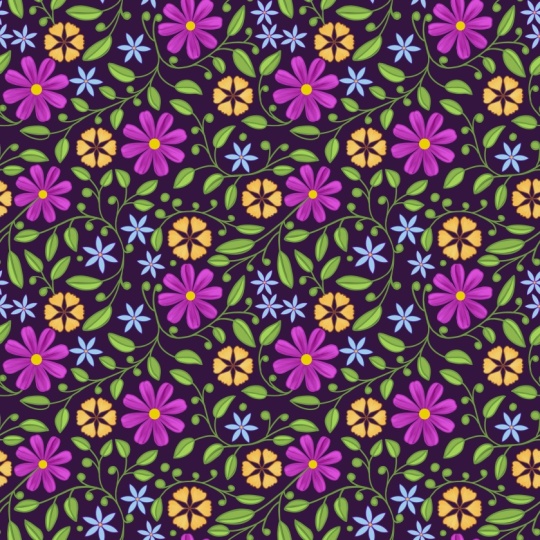
taking that idea even further. I'm going to show you how to use a quaified layout template
to create a hero pattern. Because once you
understand how to use a layout as your foundation, you can use any geometric shape, and your patterns will
always have that sense of balance and flow that makes
them look truly professional. And if you have already taken my previous class on creating a mini pattern
collection in Procreate, then this class is going to
feel like a wonderful bonus, giving you even more ideas about how geometric shapes can transform your approach
to pattern design. This is a short class, but
if you would like a more in depth work through of
my complete workflow, I'll link that class
in the projects and resources section
below this video. You'll also find the
quarterfi layout template that you can download for free, or if you'd like to
create it yourself, I'll show you how, and I'll
add a download link for my patent Creation
Canvas as well in case you would like to
use the same setup. Your class project is to create
a finished pattern using the quatrefoil layout and share it in the project gallery. I would love to see what you make with it. Let's get started.
2. Sketch Layout & Draw The Motifs: Okay, so first of all,
let me show you how you can create a quatrefoil
layout by yourself. The size of my Canvas
is 3,600 pixels by 3,600 pixels at 300 DPI. You can use the pattern creating Canvas that is free
for you to download, which is also 3,600 pixels. So I'll just take
the black color. So double tap on this
corner of the color wheel, and you will get a
true black color. You can take any dark
color that you want, and then just take any
brush that you want. Now go to the Actions menu
and toggle on Drawing Guide. And tap on edit drawing guide, and then in the options,
select radial symmetry. Keep the assister
drawing toggled on, but not the rotational symmetry. And then tap on the
blue tick here. And now starting from the
middle of this diagonal line, I will start drawing a
semicircle like this. And then you'll get this
option where you can tap on Edit arc and maybe adjust the shape a little bit like this and you've
got your quatrefoil layout. Then tap on the move
tool here and tap on fit to Canvas so that it
covers the whole canvas. So this is one way if you want
to create your own layout. But if you want to use the Sam brush that
I have given you, then you just have
to download it from the projects and
resources section. Select the Sam brush,
take a dark color. I'll just take the black color. Tap on the screen once and
then tap on the move tool and then tap on fit to Canvas so that it covers
the whole canvas. And now I'll create
another layer and bring it below the
template layer. Take this color
from this palette, which is also free
for you to download. You can use this palette or any other palette
that you like. And then I'll just drag and
drop the color like this. You can also tap on the layer once and then tap on fill layer to fill it with
the background color. Then I will tap on N here on the layout layer and
decrease the opacity, and then I'll create
another layer on top of the background layer where
I will create the sketch. Now, taking the
six B pencil from the sketching section
in the classic library, I will start
creating the sketch. So here I will try to draw some clusters of flower
or bouquet of flowers, and first of all, I'll place the
bigger flowers and then the medium sized flowers and then the smaller flowers. So one trick I always use is to place the bigger
flowers in odd numbers, like three, five, and so on, so that it will
create a good flow, and it always works for me. So you can try this
trick for your pattern also and see how
it works for you. Now, after placing the flowers, I will place the leaves
in between the flowers. First I will place
some bigger leaves, and then I will place some smaller size leaves or a different type of leaf
to fill the spaces. Now, as you can see, I'm making use of the shape of
this quatrefoil and trying to place the leaves in different direction so that our pattern will
have a good flow. Also curve your
leaves like this so that it is not pointing in
a particular direction, and it feels as if it's flowing
in different direction. Also, don't worry to cross the edges of this layout
because that will help you to break the rigidity
of the shape and you'll get a good
balanced pattern. So at some places, I'm also crossing the edge of the quatrefoil layout,
as you can see here. Now, after making this sketch, we can then move on to
drawing the motives. So to draw the motives, I'll be using the drawing
brush from the inking section, which is also inside
the classic library, and I'll be using this palette, which you can download for free inside the projects
and resources section. So first of all, I will
tap on the sketch layer, then tap on N here and reduce the opacity and keep the
blend mode on multiply. Then I'll create
one layer on top of the background layer and then
start drawing the motives. I will keep each color
separate on a different layer so that it will be easier for me to recolor later if I want to. So first of all, I will recolor the background because I want to create a darker background, so I will take this dark
green color and then tap on this layer again and then tap on fill layer to fill it with
the background color. And then I will start
drawing the motifs. I'll draw three
different types of flowers and also two
different types of leaves. Since this is a hero pattern, I'm trying to vary the motives and also include different
types of motives, which will make this
pattern look more balanced and also stand out from the rest of the patterns
inside my collection. Now here, as you can see, I have drawn each flower and each leaf that is
a different color on different layers so that I can quickly recolor
it if needed. And now I'll add some
very simple details to my flowers and the leaves, and then we can move to repeating the canvas
to create our pattern. So here you can see I have kept all the details also separate
on different layers, and this is just to make the recoloring process
easier for me. So everything I have
kept on separate layers. And now we are ready
to create the pattern.
3. Create The Pattern & Test It: So first of all, I
will group everything, and to do that, tap
on the first layer, select all the other
layers by swiping it towards right and
then tap on group. Then rename this
group as original and then swipe it towards the
left to duplicate it. Now, make the original
group invisible. And while the duplicate
group is selected, you can also rename
this group so that you understand which
is the original. And while the duplicate
group is selected, I will tap on the
selection tool, then tap on Seven load. He and then tap
on selection one, then tap on the move tool, and then tap on flip horizontal and flip
vertical to flip it. Then deselect the
selection tool, select it again,
tap on seven load, then tap on selection two, then tap on the move tool, and flip it horizontally
and vertically. Deselect it, select it again, tap on seven load, tap on selection three, then tap on Move tool, and flip horizontal
flip vertical. Deselect it again,
select it again, and then tap on seven load. And then on selection four, and tap on the move tool and flip horizontal
flip vertical. Now, at this point, every time the pattern is
always upside down. So if you want to face it
the correct direction, then just tap on
the move tool and flip it horizontally and
vertically once again, and it will face the
correct direction. Now, you just have to fill up this middle portion and
the pattern will be ready. So similarly, first, I will
sketch the motives so that I understand where to place the flowers and the leaves
and how to arrange them. And then I will draw it. Okay, so now I have
drawn all the motives, and we can now test the pattern. So first of all, I will make the sketch layer and the
layout layer invisible. And then with three fingers, I'll swipe downwards and tap on copy all then
with three fingers, I'll swipe down again
and then tap on paste. And it will give us a
flattened image that I will duplicate for three more times so that we have four
images in total. I'll tap on the first image, then tap on the move tool, and then tap on the blue dot at the top left corner
and type 1,800. Which is half of the canvas
size because in my case, the canvas size is 3,600 pixel. Then I will go to the
layers panel again, tap on the next image, tap on the move tool again, and then tap on the blue dot at the top right corner
and type 1,800, and it will snap in place. I will then select
the next image, tap on the move tool, and then tap on the blue dot at the bottom left corner
and type 1,800. And I'll do the same
with the last image. So I will take the move
tool and then tap on the blue dot at the bottom right corner
and then type 1,800. And now you can just merge
all the layers by pinching with two fingers and your
pattern will be ready. Now to save it, you just have to tap on the Actions menu here, then go to share and you can
share it as JPEG or PNG, whatever you want, depending on where you want to
upload your pattern. So I'll tap on JPEG. And then here, you can either
save it as an image to your camera roll or save it to files in your files folder. Or also if you want, you can tap on these three
dots and then save it to your Google Drive or Dropbox or any other Cloud
service that you're using.
4. Next Steps: I hope you found
this class helpful. If you enjoyed this class and
want to keep learning more, then I have put together a free mini master
class just for you. It's a great way to go
deeper into my process, how I think about layouts, how I build patterns
that actually flow, and how I work in Procreate
from start to finish. You can sign up for free through the link in the projects
and resources section. Just click through and
you'll get Instant Access. And if you want to keep building your pattern design
skills consistently, then I would love for you to come and join Pattern Play Lab, my creative membership
for beginners who want to learn how to
create repeating patterns, clearly, effortlessly
and consistently in procreate an Adobe Fresco. Inside, you will find
deep dive classes, monthly mini classes build
around layout templates, monthly design themes
to keep you inspired, and resources like canvases, colour palettes and guides to make the whole
process easier. It's the place to be
if you want to stop guessing and start creating patterns with real confidence. All the links will be in the projects and
resources section. Thank you so much for watching. If you enjoyed this class, hit follow by my name, so you don't miss
any future classes. Drop any questions in
the Discussion tab. I'm always happy to help. Don't hesitate to upload your pattern in the
project section, as I would love to
see what you created. And also, please leave a review if this class
helped you in some way. Thank you for joining me and see you in the next class. Bye.
 Mrunmayee Das, Artist and Surface Designer