Transcripts
1. Introduction: Have you ever started at
an empty presentation wondering where to begin or
how to get things going, copilot can help you with that. In this course, I'll
demonstrate how to use copilot properly to draft
and outline your content, create complete
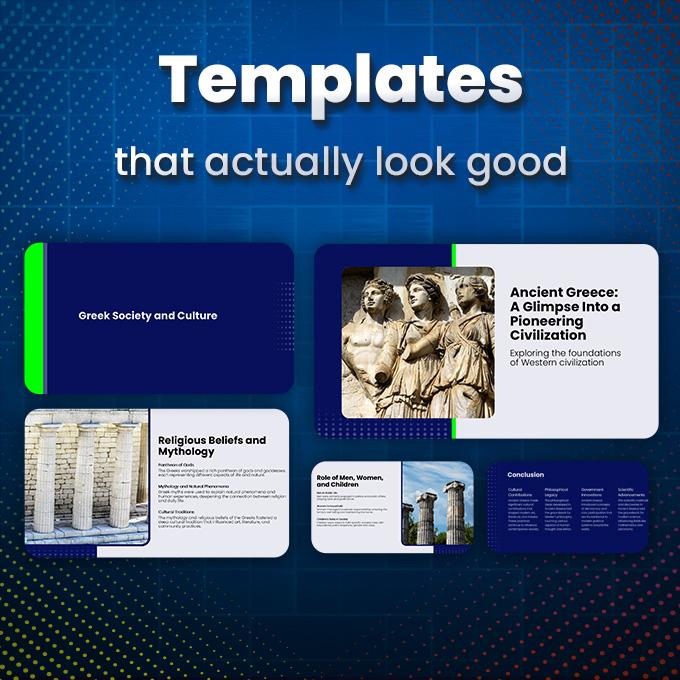
presentations from scratch, and use custom templates
that actually look good. You'll discover various ways how to edit and find tune
your presentations, properly use Microsoft Designer, or create custom images with
AI right inside copilot. Everything with
practical hands on examples that will make you
a better PowerPoint user. I'm there to make sure that everything what I've
just said will happen. My name is Andrew,
and I invite you to the co pilot in Microsoft
Power Point course, where you'll Master AI Power
presentation creation.
2. 01-01. Feature: Welcome in this brief overview, where I want to show you
what we are actually working with when it comes to Copilot
in Microsoft PowerPoint. Currently, in its newest state, Microsoft Copilot is greeting us with this window on
top of everything else on top of creating a blank presentation and your
recently selected files. I however, prefer to open up PowerPoint to see
the menus and buttons, and from there on the
right bottom side, we have the Copilot button. Previously, it was here on the right side and on the
little skittle above the slide. Currently, Microsoft
changed their plans, and Copilot is available again
on the right bottom side. By clicking on it, you can open the right panel where you will start your
creation process, whether you create the
entire presentation with AI or just create a few images. Important note, if you
need this to be larger, press your left control key
and move your scroll wheel. This will allow you to
enlarge the text here, so it's easier to see
and much more visible. However, it takes
up a bit of space. The same situation occurs
with Microsoft Online. As you can see, he wants to create with
Copilot right away. The menu is a little different, but all the features
are the same. Whether you use PowerPoint online or your desktop version, I strongly encourage
the desktop version because it simply
has more features. This is enough
about the overview. Now you know where to
find the Copilot icon, how to start creating, and how PowerPoint lays out Copilot
at its current state.
3. 01-02. AI Credits: Something you need
to know about is the amount of tokens you
can use each month for Microsoft Copilot usage for PowerPoint presentations
because this may change all the time, but currently and previously, we have 60 AI tokens
to use monthly. As you can see, if I go
to my Microsoft account, I go to my subscriptions and
I edit the subscriptions. Here on the bottom, I have AI credit balance that
resets every month. One prompt one
presentation creation will take one credit from you. It might get cheaper
in the future because the data centers
will be large enough, but currently, I
assume the trend will be we will get less
and less free credits. However, it's been more than
a year or even two years that we have 60 credits
for all this time, and Microsoft
didn't change that. Microsoft wants people to use Copilot as much as possible
to also train their models. So currently, this is the
balance that we have available, and this is just
something in the back of your head when creating
presentations with AI.
4. 02-01. Create AI Presentations: In this lecture, we
are going to create a presentation with
Microsoft Copilot. And what I want you
to know is that Copilot has become good
enough to actually be usable. This is an example presentation made with Microsoft Copilot with a consistent design
style and with much information that I could
finally edit and work with. Just a year ago, I think Copilot wasn't there yet,
but now it's possible. To create a presentation, you can open the Copilot
window and start describing, create a presentation about
and let's now select a topic. I will type in how coffee
travels from farm to cup. So how coffee is include
information like growing, harvesting, roasting,
and let's press Okay. I'll add this prompt
to the resources, but you can type in
any topic you like. Just typing in coffee
would be maybe too broad. Currently, Copilot
works like that, and when he starts creating, I'll start the timer and
show you the problems of it. The current problem is that it takes a lot of time to
create a presentation. It varies, but it
takes a lot of time. Before it starts creating, it will ask us a
couple of questions. Can select one of the predefined options
or create your own. For coffee enthusiasts. Yes, this should be an
overall presentation, and let's keep it short. I'll make it about
five, six lights. Is this hit or miss, but he will try to make the
presentation rather short. Before we start our
stopwatch, one last step. What look should the
coffee Jona have? And this is extremely important. And this is what we were talking about with the Microsoft Team. The design style needs
to be selected before it starts creating dark
roast and copper glow. I think this would be a warm
earth tones and texture. I think the copper
glow would be perfect. And let's select confirm, and now he starts creating. I'll add my timer, and I'll leave it at the
screen to show you how much it will take to create the initial core
presentation for us. Three weeks later. As you can see, it
took some time, let's dissect this
in the next lecture.
5. 02-02. Review: Let us review the presentation from a PowerPoint
designer's perspective, and I'll tell you everything
that has happened here. He created the presentation. The presentation is very consistent with its design,
which I really like. On the right side, in
the co piload window, you can open this drop down to see what has happened
behind the scenes. He generated several images
with consistent style, and as you can see,
this is a bigger image. So at any given point, if you need to click on the image and you would
like to change something, you can go to picture format. Crop, and you can move this
picture around because this is a bigger picture that he
just cropped to this area. I think the design is really beautiful because this is what the Microsoft
team focuses on. Every designer was
giving feedback that the designs are
very simplistic, are always the same, and we
don't have enough variety, and those presentations
aren't really usable. But at its current
state, in my opinion, Copilot has reached a point where the slides are
actually usable. If I press Control A to
select all the elements, you can see this is a normally designed presentation where you can literally click on each element and
everything is separate. This isn't a template, however. If you aren't Advanced
with PowerPoint, don't worry, I'll explain
tem planes a little later. If I write select layout, I don't have many
layouts to select. Advanced PowerPoint templates
have multiple layouts, for example, with the
image on the right side, with the image on the left side, with more text boxes, no images, with only images, and
you could click on a layout and quickly
make a slide. The slides are very
similar to each other, so a presentation
might get a little boring and stale when the
presentation is bigger. However, I showed you
a different example that Copilot created for me, and I think this
presentation had a little more variety and
had a different design. Let us try to change
the design of this presentation globally and
see what he comes up with. Let's do this in
the next lecture.
6. 02-03. Redesign AI Presentations: This lecture, we will change the entire design of
the presentation. We will ask Copilot
to do this for us. Let's go inside of
Copilot and start typing. Change the entire design
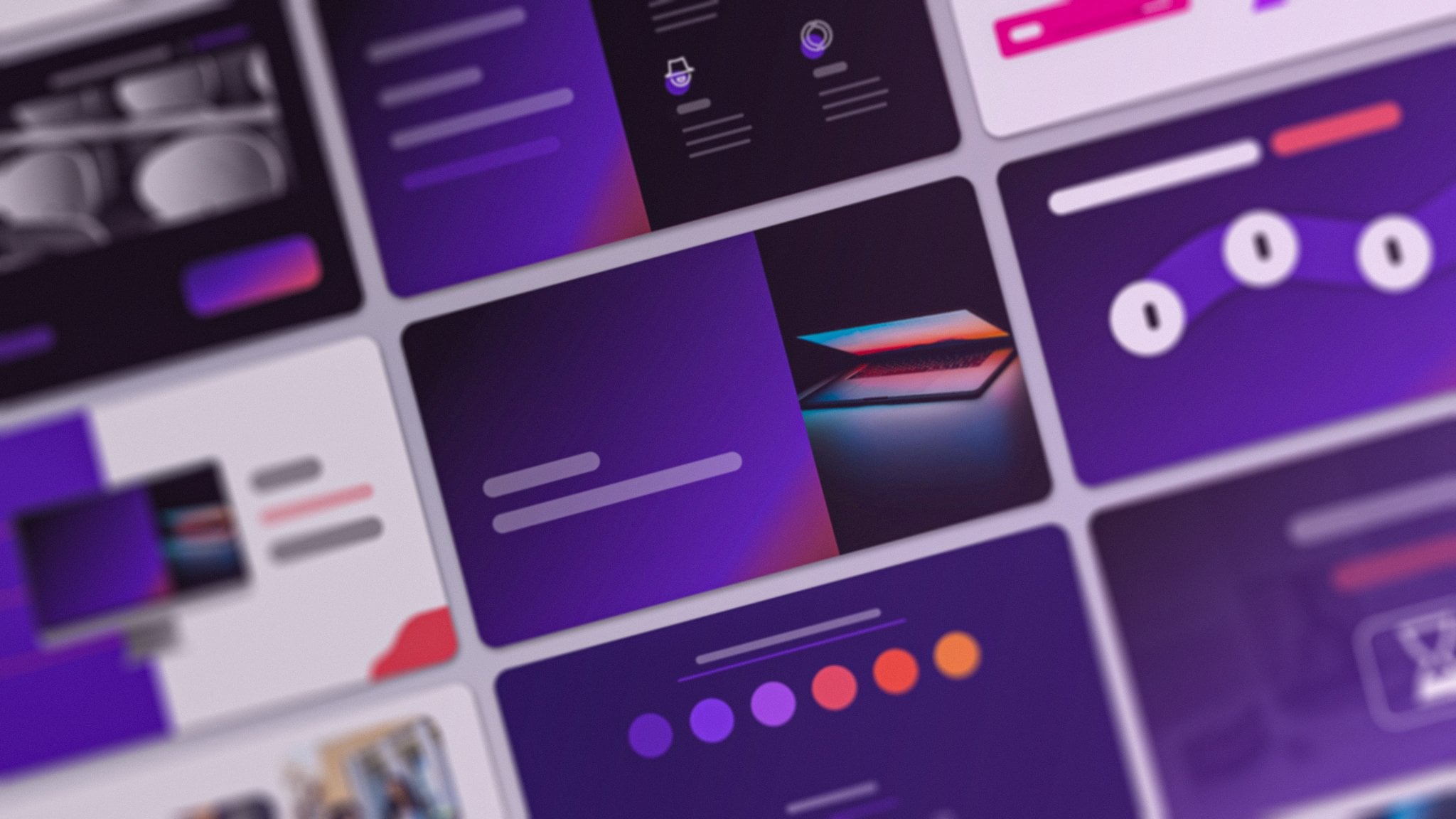
of this presentation to give it a modern start up. Look, with big bold headlines, colorful gradients,
simple icons, and clean card based layouts. Let's start a timer and
give him some time. I think that I would prefer that a window pops up and shows me three example slides designs, and I select, Okay, go
with this one or Okay, go with that one rather than waiting for the
entire end result. But at the current
state of Copilot, this is how it works. So let's wait and let's
see how he redesigns it according to the
prompt that we gave. I am extremely satisfied
with the results that we got here because he basically
did everything we asked for. We have a clean, modern
startup style look with clear cards and beautiful
icons, very simplistic, and icons are more advanced than the regular if you
go to Insert icons, than the regular Microsoft
PowerPoint icons that we have available here. I know those icons
inside and out. I've used basically
all of those icons. So I clearly see right away that those are icons that
aren't available normal. Pictures. Yes, as you see,
this is not a graphic. This is a picture, but it looks beautiful.
It works properly. And Kudos to Copilot to finally
be able to achieve that. This is the summary slide, and I think he redesigned
this very well.
7. 02-04. Add Slides: You can also add content to
the current presentation. For example, just
adding one slide. Let's add a slide about
having a coffee bar. Because recently we had the feature with the entire
content narrative builder, Microsoft added this feature, new slide with Copilot. It's a simple prompt
here right in Copilot because everything went
back in into Copilot. Okay, add the slide, having a coffee bar at a
description and a big image on the right side of a happy coffee bar
owner inside it. As always, I'll start the
timer and we'll see each other in a few minutes. That's the only problem with
Microsoft Copilot currently, the speed and maybe
the precision. The precision gets
better and better. About the speed, it's
a little slow to always wait several minutes
to create one slide. But if it gets to the point that the slides
get created instantly, we'll have a very powerful
tool on our hands. It's almost there as you
see, it's already reusable. Again, same principle applies. We can take a look at the
reasoning at everything, what happened, and we
can see the end result. Maybe maybe you
dislike the photo, but the slide turned out
as I described it to be. Could we write less text? Of course, we can
edit everything here. Copilot has added a slide
exactly as we asked him to. Here on the right side, we have the reasoning,
how he did that. We can put the slide in
the appropriate place, and we could go from there now.
8. 02-05. Add Images: In this lecture, we'll
work on editing the image. I would prefer actually to change the design
of this image. Change the image of this slide to show
just the coffee bar, no person, the entire
building from outside. The image should have
warm and earthy tone. Warm and earthy tones. Altra enter and
Copilot will check what I wrote and design
an image accordingly. In the next lecture, I'll
show you also how to work with images differently in
the Microsoft ecosystem. The reasoning behind this
process is very thorough. He's checking slide seven, he's exploring approaches, then he starts to
create an image. And based on my prompt, he makes the image as
accurate as possible. However, it takes
several minutes to reason properly through my entire prompt and
create just an image. I'll show you different ways
of making this quicker. Okay, I took approximately
5 minutes to do this. He did it really, really well. I can see the reasoning.
The reasoning is very, very thorough. If I take a look
at the reasoning, he was actually looking at
the photograph and tried to reposition the
photograph to go from a person view to a
coffee bar view. But since the previous
image contained only the person and just little from the coffee shop, he
wasn't able to do so. So he generated the image, put it into the
slide, and proceeded. He still thinks this is slide seven because it was
previously slide seven, but we moved it inside
of the presentation, but he did the
replacement correct. As you can see, this
takes a lot of time. If this gets quicker,
it would be perfect. But in the back of your head, you need to remember that this consumes AI credits
very quickly. So basically, you'll be able to create one
presentation like that, edit it at slides, and your 60 credits will be
used up very quickly.
9. 02-06. Custom Templates: In this lecture, we are going to test Copilot with template. You can open the file
custom template. This is a template.
I prepared myself. This template, if you
right click Select Layout, it has a title slide layout. It has an agenda slide layout, if we need a section, content layout, a summary,
and a blank layout. So everything you
would want from a template is there for
a variety of slides. Let's open Copilot.
Let us select a topic. For example, how
skyscrapers are built. Add images to the presentation. Alright. And let us select approximately a ten
slide presentation to make. Because we already have
slides here, he is asking us, do we want a new section or a completely new slide deleting
everything that we have? I want a completely
new presentation. So select, create a new
deck. I'll confirm that. And because I already
have a template, I already have the
colors selected because my template
includes colors. If I click on text, I open text, you can see I've selected colors for this
entire presentation, so I want to keep
the current style. I don't want to
choose a new style. I'll keep the current style. Copilot will ask us a
couple of questions. I can select, yes,
use different sources to get information
about skyscrapers. I'm repeating this
again and again, but this is a problem
with Copilot that it takes too long to create
those presentations. Microsoft will need to work hard on speeding up the process. The process is
already pretty good. It just requires
speed at this point. It took him around 10 minutes. If you can see, there are a lot of new
pictures and slides. He used the template
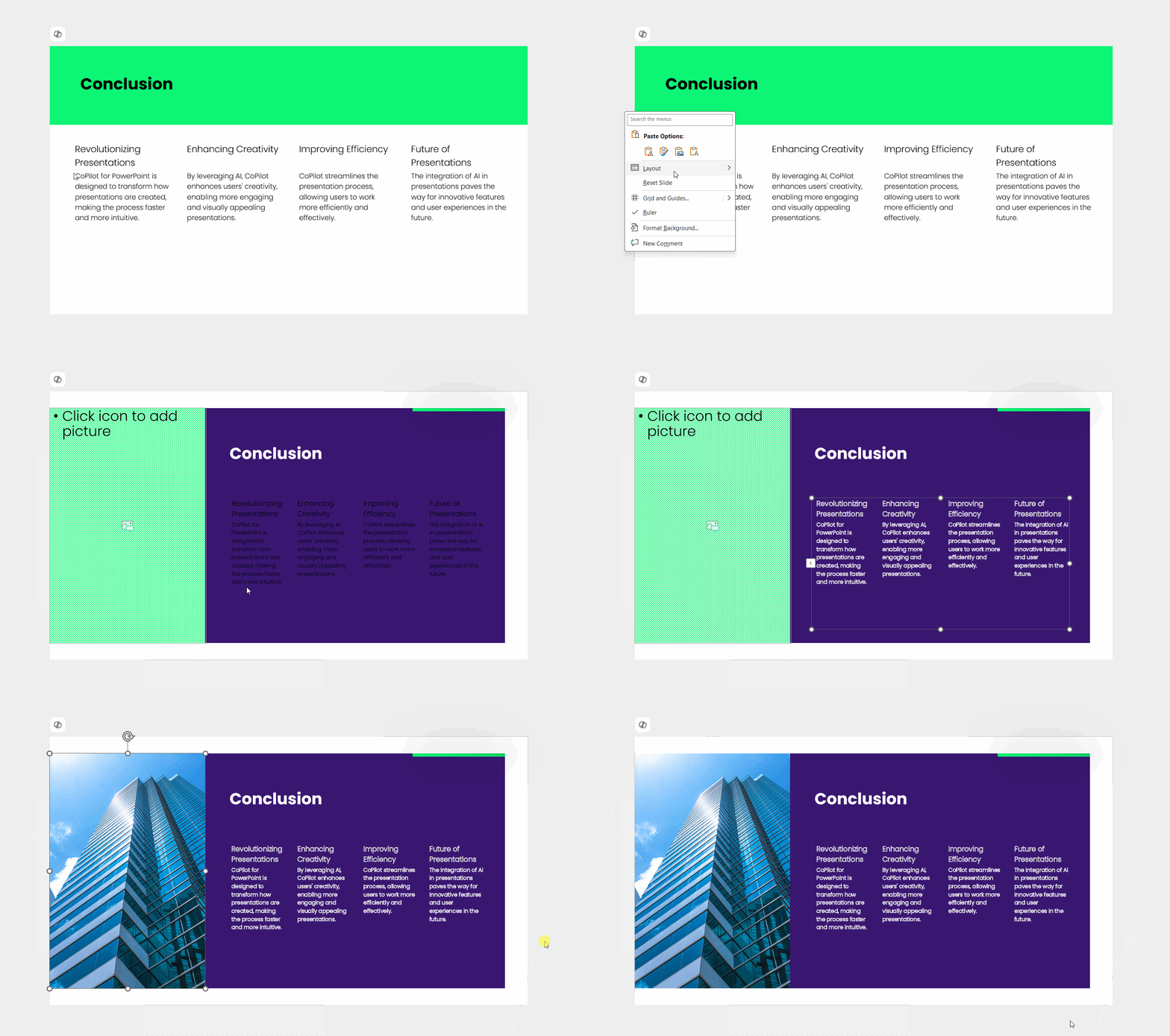
that we have. Only one layout was used. If I right click select layout, all slides are created with
Content one, but it's okay. He used the content properly. He put the images
on the left side, and all the slides are there. On the very end of the
presentation, what Copilo did, he also shared the resources and sources used within
this presentation, which I really like
was interesting. He took the agenda slide, a different layout
to put this here. Also the first slide
is the title slide, and the second slide is
the agenda slide as well. So he tries to properly use the layouts that
we have available. The title slide was used, the agenda slide was used, and the content slide. What I could personally do now because I have
my layouts prepared, I could go to any
slide, right click, layout, and, for example, select Content two where the image
is on the right side. Because everything
is used properly, my text box is on the left side, my image is on the right side, I can naturally switch
between the layouts. This is a very simple layout
with only one picture. I can go for content T. Now the image would stay here
because the image has no place, but as you can see,
I can switch around the layout from my own template
within this presentation. This is what Copilot is
currently capable of, and I'm very satisfied
about the result.
10. 03-01. Microphone usage: I am too lazy to
write this myself, so I'm simply dictating this. I could give any instructions to Copilot that I
wanted, for example, to create a picture for me or to say something
to my great learners. It's a very
convenient way to add text or operate Copilot
if you have a microphone. You have a microphone
and if you want that, you can always click
on the microphone icon to start dictating. I'm using the microphone
now to record this lecture, but a few seconds
ago, as you saw, I was using it to dictate
this text into Copilot. It's a very
convenient way to get your prompt inside of Copilot without even
thinking or writing. You can focus yourself
on something else. This feature was available in previous iterations
of Copilot as well, so I think it will stay there. If you are used to it,
go ahead and use it.
11. 03-02. ChatMode, Editing Mode: When you open your
co piload window, you can select whether
you allow editing or you allow only to
stay within the chat. Now, you can see example
prompts that you can create and what are the
takeaways from this slide? Those are more
informative prompts that you want to
summarize the slide? Do you want to get some
information out of it? What questions will people ask me about this presentation? I want him to design me or
generate me an image of a coffee of a vintage coffee
bar seen from the outside. And you'll see what happens. Actually, he cannot do
that because currently, he is set to chat only mode, and he is no longer
designing it. This is very important
for you to distinguish. Because previously you could generate images and
you could select them. Do I want to edit them or not? Currently, Copilot either chats with you or makes changes
to your presentation. I could, for example,
take this prompt. I could get back,
start a new chat, and select now again,
allow editing. Now I could put in the prompt. He would generate an image, and he would replace the
image with the coffee bar. I'll show you one more way of generating images in
the next lecture. Let's use this prompt
somewhere else. So see what else can
you do with that?
12. 03-03. Microsoft Designer for AI: You could always
create images within Microsoft Copilot directly
in the prompt window. Currently, there
is a new feature. If you select this plus sign, you can select
Microsoft Designer. This is subject to change.
This feature might change. It seems experimental
right now, but it's again, the right direction because here we can finally choose the style. I was always very annoyed when I tried to
create something, and he went for this
artificial intelligence blurred, very glowy style. Here, we can change that. For example, you want
a vintage presentation and you would like something like a sketch or a retro print, and I'll select
this retro print. This is the style I chose, and we can now create an image infographic
icon or background. We can also select the size. So I would like it
to be portrait. I've selected the size, and I'll type in create an
image of a telephone vintage, a vintage telephone a circular
with a circular dial. I hope I'm writing this properly in English. You
know what I mean? Even if I didn't write
this in proper English, Copilot should still
understand what I mean. I'll select now the
timer as always, and we will see how long it takes to create
this kind of image. And beautiful. It took
around two, 2.5 minutes, and we have this beautiful
image just like we selected. What I really like
is that we can finally choose the
approximate style and finally choose whether we want it portrait,
landscape or square. This is a great
implementation of Microsoft Designer
right into the Copilot. Also what I really
like that we can use it for infographics and icons. Finally, because I'm very dissatisfied with the set
of icons that we have here. They are great graphics, but there's far too little
new icons being added. Microsoft created this
a couple of years ago and no new icons
are being added. Here, we have this beautiful
image in this style, and I would like to create a presentation with this image
and say to Copilot, Hey, use those kind of styles
or use this picture and make more pictures
in that very style.
13. 03-04. Add Pictures: In this lecture, I would like to select a picture and tell Copilot to use that picture
within this presentation. As you can see, we have
this plus sign with different features that Microsoft
is changing and adding. I want to add content,
and this time, I would like to upload
images and files, and this is what we can directly upload to the presentation. I'm going to my resources, and I have two
telephone pictures. The second telephone picture is the retro picture that Microsoft
Copilot created for us. So I would like to
create a presentation about how telephones were made. Use that attached
picture as the title. Or maybe on the title slide, generate more pictures in
the same style and colorist. Make it a short six
slide presentation. He will now, of course,
think and plan, but we've already
set the tone of the presentation by having
this very picture here, and this is a very comfortable
situation because I can already anticipate
how approximately the presentation will look like. I don't have to
completely guess and hope that Copilot will
do this correctly. What's interesting because I answered some questions already. Because I specified the
presentation already, he isn't asking any
additional questions. Copilot will ask you additional questions
depending on how detailed the
explanation here is and how much information he has
to create the presentation. Because here, we set the
style, we set the tone. We said that we want
approximately six slides. It is heteromous, of course, but Copilot has all
the information he needs to create the presentation for us and the topic, of course. As always, the clock is ticking, and I'll see you in a
moment when he finishes. And in just 4 minutes, he created this presentation. I think it's really beautiful because we have a
complete design. It is a design that
repeats itself within the copilot, but
this is not a bad thing. The design is beautiful. Those aren't different layouts. As you can see, it's rather a design forced on
the presentation, but I absolutely
appreciate this design. We have consistent
pictures with each other, how a telephone is made, and imagine how
much work would it take to create those
kind of presentations, those kind of images normal. Bio for this feature for the image generation
possibilities and for the actual design work
that was done with Cope Pilot.
14. 03-05. Add Files: In this lecture, we will use a file to create a presentation. Inside of the resources, you can find a document that
you should put inside of your OneDrive to use it for
creating a presentation. Of course, you can use any file you have to
test the feature out. I fed mixed result
with this feature because sometimes he
cannot open the file, and he just creates a
presentation on the same topic, hoping gets it right. This is how Copilot operates. Within this file, I have famous inventions that
change everyday life, and I have three different inventions here,
the printing press, the telephone, and the global
positioning system, GPS. And I want Copilot
to either select the plus sign and select at work content or just go
for a forward slash. Using a forward
slash, he will search for all the documents that
I have in my OneDrive. I have my Copilot course,
famous inventions. I'll select the
famous inventions and create a presentation about famous inventions
using this document. List only the three inventions
I have in this file. The printing press,
telephone, and GPS. Make the presentation in a Vint tigRtro style look
at pictures in that style. I think such a style
will be perfectly appropriate for this
kind of presentation, and let us wait what
he comes up with and if he will be able
to open up this file. 6 minutes later, we have this absolutely incredibly
designed presentation. The design is
completely retro style, which I absolutely adore. And also when it comes to
the picture generation, he did a wonderful job. There's no way I could come
up with such pictures. He did it perfectly, and the entire style is
very consistent. What I like is the
background, the coloristic. Everything is really,
really good here. As we specified, we have
the printing press, the telephone, and the
global positioning system. Also we have this
conclusion side, which is very well designed. Overall, this presentation
looks really great, and I'm satisfied
with the result.
15. 03-06. Use Skills: There is an additional
Copilot feature. If you use cow,
you probably know that Microsoft introduced
something like skills. Those are tests that you
often repeat within Copilot. For example, Copilot has created a couple of sample
skills that we can use. We can also manage
skills to add our own. However, currently,
at its current point, I didn't have success
with my custom skills. I literally took that skill
from the Microsoft website, tried to replicate it,
but it didn't work. But I think it's just
a matter of time. The way skills work, there is a folder on your OneDrive
called a skills folder. There you have to
create a folder, and you have to create an
appropriate skill file that has a specific set of instructions that Copilot
can always repeat, for example, create a picture
in that style or create a summary there is an official support article that shows how to
create those skills. I did it one by one, and it didn't work for me, but I think it's just
a matter of time, and a newer version of PowerPoint
will already have that. To manage the skills,
I'll show you that in a second,
to upload a skill, there's literally
a support article showing that how to do it. I did it exactly like that. I even copied that exact skill. I created the MD file. I copied it into the
appropriate place. But for me, currently,
it didn't work. As you can see, I
have that skill. Maybe I made some errors
while creating them, but let me show you the
actual feature when it works. When it works, you
can choose a skill. And for example, one skill
that Microsoft prepared, predict audience
questions or concerns. That is beautiful. Use,
prepare for questions. Meaning that skill,
you can invoke skills. If you type in a forward
slash AR searching for file if you create an ad sign, it will automatically
showcase the skills. Okay, prepare for
questions to help me address weak points in my
presentation. Oprah's okay. And here Copilot
will try to predict what questions
people might have to this presentation and
give you a list of it. This is a perfect way
to prepare yourself for questions from your audience.
He has another question. For example, this presentation is for students and classmates. What is the goal to
inform and educate, how will this presentation
be delivered in person? I'm confirming after
around a minute or so, he shows you the top objections. The claims lack sources that we don't have sources
within this presentation. Objection, acknowledged,
reframe, and evidence. Inventor stories are
simplified, high, yeah, those are very simplified, high level overviews
about the topics. I think the printing press deserves more space
than just one slide. Here are information
that you can read through to
prepare yourself and anticipate how people might feel about your
presentation because obviously you will
be emotionally attached and think that
everything is perfectly, and you are the researcher. So most likely you know
more about the topic and some things are
natural to you. So those kind of skills are very useful to within Copilot. Remember all of them,
I'm sure with time, there will be more skills added, people will create
their own skills. So this will expand rapidly.
16. 04-01. Rewrite Text: Rewriting text on a slide, I think this is pretty obvious, but you need to
remember that you can use Copilot not only
to create the slides, you can edit the existing
content that is here. For example, you would like
less text on this slide. I can even select an object, and here within Copilot, it tells you that
object is selected and make this to be less text. Maybe only one,
two bullet points, very short, very concise. I'll hit Enter, and he will edit this current slide and try to
reduce the amount of text. I think four bullet points
is completely okay, but the entire slide
has a lot of text, and I should maybe
tell him, Hey, rewrite this entire
slide to be less text heavy and the picture
should be more prominent. Selected this one object to show you the capabilities
of Copilot that he understands object selections
and differentiates what is selected versus what
is on the entire slide. The reasoning from Copilot
is extremely thorough. I think even a bit too much. He is checking the slide count. He is checking the spacing,
readability and full size slide appearance to
confirm the text fits cleanly and
nothing is cut off. Sometime ago, Copilot just added text within the text box, and if this text was too much, it simply shrunk and this
didn't look good at all. Currently currently, he takes into consideration
the amount of space he has both for text
and overall for the visuals. He isn't bleeding out
too much to the sides, and if you see, everything
is positioned very cleanly. It took several minutes, but he did it properly. He adjusted the text just
within the selected box, and he reduced the
selected section to two short bullet points while preserving
the slide's design. Beautiful, exactly
what we asked for.
17. 04-02. Microsoft Designer for AI editing: This lecture, I
would like to show you Microsoft Designer. We could design
the picture here. No problem, but I want to expand your skill set in the
Microsoft environment. If you want to stay
within your license, maybe you have more credits, you can go to Microsoft Designer. Formerly, this was
being created. Now, here, I can select
to create images. Of course, the interface
may change over time. This is subject to change. As I'm recording the video, it looks exactly like this, and we have our prompt
already prepared. IFI prompt, a charming
vintage coffee bar, and so on and so on. Can select the colors
or leave them B. I'll select maybe
brownish colors, something like that
would be okay. For the size, I want it to be portrait because I would like to put it on the
side of my slide. I'll put my clock on, and the generation should take
no longer than 2 minutes. We will wait a bit
and see what happens. You can see it
took some time and what's interesting about
Microsoft Designer, that you can go into
the editing features. If you would like to
add some text on top of it or add simple edits, you would be able to do so. For example, let's
remove this text here. I could select erase and
I will select my text. I will click around and
I will select eras, and I will hope that you'll
erase the text properly. It's again, my brush, as it should remove the
text now completely. While this isn't Photoshop, you can do those very
simple edits right away to your image before you download it and put it
into your presentation. At any point, you can
right click download the design and just dragon
drop it in your presentation. I know it's not
perfect, but it's far quicker and far more
precise than just hoping that you will
generate a good image here right inside of Copilot
inside of PowerPoint. This is what I
wanted to show you. Consider Microsoft
Designer for the future because it will use one
of your AI credits, but you get to do those edits which make
your life a little easier.
18. 04-03. Available prompts: Within Copilot, you have
different prompts on the bottom. If you select Show More, it shows you the
most popular prompts that are being used
within Microsoft Copilot. I think you already
know about that. You can also go to
Microsoft Prompt Gallery. You can type this into search. And there's a website specifically what
prompts are available, what prompts are
popular, for example. But it's for the
entire Copilot suite. You can actually use Copilot to show you
what Copilot can do. I've asked Copilot, show me prompts for PowerPoint
and Copilot. And he gave me a
simple answer to what are the popular prompts
that are being used? Create a presentation,
improve existing slides, summarize the content
at speaker notes. Those are the very obvious, very high level, like, basic prompts you can do. Always remember because
Copilot changes all the time, it's not possible
for me to record you one rule that will fit all your future prompt
generation ideas. So my recommendation is to
use Microsoft Copilot to show you a list of
popular prompts that are being used
within the tool, and the list will
change over time. And this will give you an
idea how to approach it, how to write them, what to
think about when writing them. Oh, you can add speaker notes. Yes, that's a good idea. Oh, you can ask him for
design and formatting. I think that's obvious,
but at least here, you have ready
ideas directly from Copilot suggest images,
improve slide consistency. Apply a modern
professional design theme, or maybe apply a
vintage theme or apply a futuristic or a manga style or orange
style or everything that fits your needs
can be adjusted. This gives you an
idea of how to write, what to write, and what is possible to use within Copilot. Remember about that in
your future presentations.
19. Conclusion: Welcome to the summary
of this course. I'll leave a link
here, and this link, if I hit Control
and click on it, will take me to the
Microsoft copilot website. If I scroll through it,
copilot says that you can possibly create a
new presentation, summarize your presentation, organize your presentation, use your organization's
branding, and I think we've learned
all that and beyond. You've learned how to
create, how to edit, and how to understand
your presentation. I am completely confident
that AI is AI and are you. There will be always
the designer part that will be superior and the human touch can always elevate a presentation
to new heights. But please use this
tool as a timesaver. Would like to learn more, I have PowerPoint courses dedicated
to teach you Power Point, Power Point design, how
to create templates. Whether you need
a business course or a general PowerPoint course, I would be honored
to have a student like you to continue
learning with me. Now, I'm thankful that you arrived at the
end of this course. Big respect that you
want to spend time on learning and wanted
to learn co pilot. I think it's a great tool. It will get better over time, and I cannot wait what is in
store for us in the future. Thank you and see you again. And
 Andrew Pach ⭐, PowerPoint, Animation & Video Expert