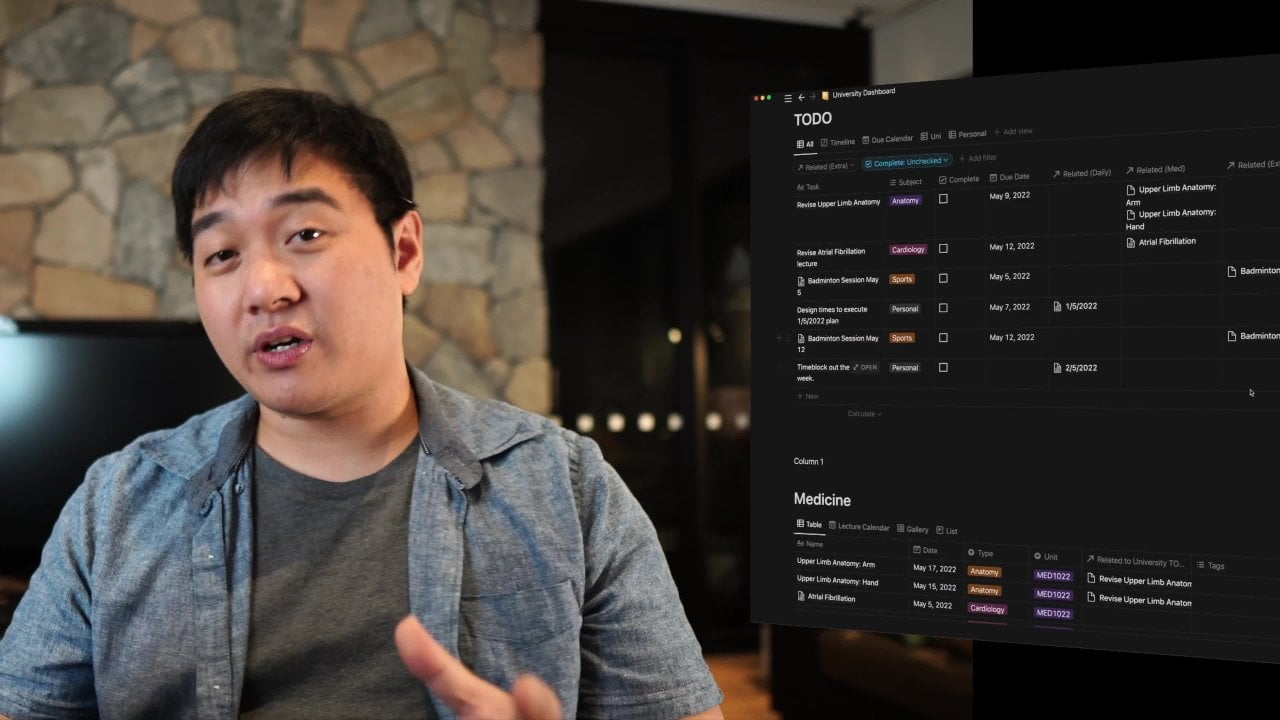
Building a Second Brain in Notion | Eralp Sendan | Skillshare

Playback Speed


1.0x


  • 0.5x
  • 0.75x
  • 1x (Normal)
  • 1.25x
  • 1.5x
  • 1.75x
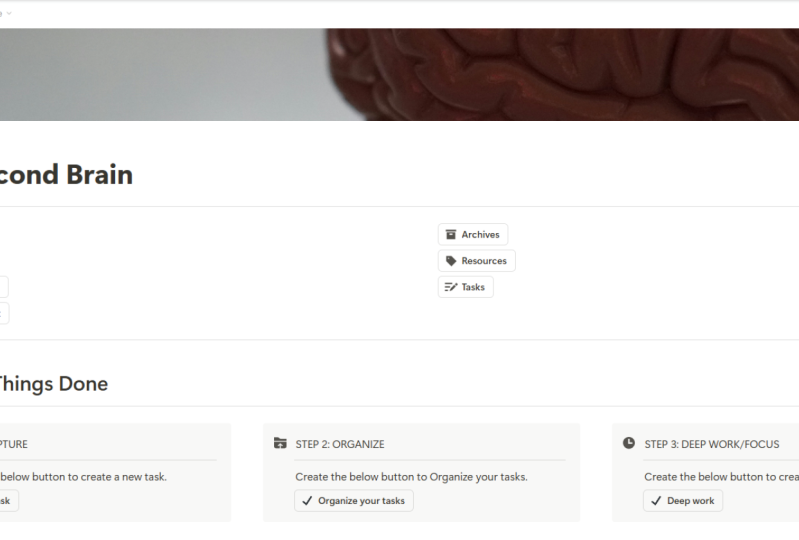
  • 2x

Watch this class and thousands more

Get unlimited access to every class
Taught by industry leaders & working professionals
Topics include illustration, design, photography, and more

Watch this class and thousands more

Get unlimited access to every class
Taught by industry leaders & working professionals
Topics include illustration, design, photography, and more

Lessons in This Class

    • 1.

      BASB in Notion Promo Video

      1:55

    • 2.

      What is a Second Brain?

      4:00

    • 3.

      The CODE

      2:01

    • 4.

      CAPTURE

      3:00

    • 5.

      ORGANIZE

      3:18

    • 6.

      DISTILL

      3:36

    • 7.

      EXPRESS

      4:29

    • 8.

      Let's create our My Second Brain Page

      5:29

    • 9.

      Getting Things Done Section Preparation

      4:05

    • 10.

      Brain Dump

      1:23

    • 11.

      Databases and Pages

      1:42

    • 12.

      Creating Projects Database

      2:07

    • 13.

      Creating Areas Database

      1:30

    • 14.

      Creating Resources Database

      1:27

    • 15.

      Creating Archive Page

      1:32

    • 16.

      Creating Notes & Ideas Database

      1:45

    • 17.

      Creating Tasks Database

      1:55

    • 18.

      Buttons at the top of the page

      1:57

    • 19.

      Getting Things Done buttons

      5:55

    • 20.

      Adding views in GTD system

      3:46

    • 21.

      Deep Work Page

      3:30

    • 22.

      Button assignments under Brain Dump Create

      1:24

    • 23.

      PARA and Notes & Ideas Call out

      4:53

    • 24.

      Access your Second Brain from your Mobile

      2:32

  • --
  • Beginner level
  • Intermediate level
  • Advanced level
  • All levels

Community Generated

The level is determined by a majority opinion of students who have reviewed this class. The teacher's recommendation is shown until at least 5 student responses are collected.

278

Students

3

Projects

About This Class

Do you want to learn how to build a second brain in Notion, the all-in-one workspace for your notes, tasks, projects, and more? Do you want to implement the Getting Things Done (GTD) methodology in Notion, the proven system for managing your attention and productivity? If so, this course is for you!

In this course, you will learn how to use Notion as a powerful tool to capture, organize, and retrieve your ideas, knowledge, and tasks. You will also learn how to apply the GTD principles and practices in Notion, such as creating inboxes, projects, next actions, contexts, and reviews. By the end of this course, you will have a fully functional second brain in Notion that will help you boost your creativity, efficiency, and learning.

This course is suitable for anyone who wants to use Notion as a personal knowledge management system and a productivity tool. Whether you are a student, professional, entrepreneur, or lifelong learner, this course will help you take your Notion skills and your personal growth to the next level.

Some of the topics covered in this course are:

  • What is a second brain and why you need one

  • How to set up Notion for your second brain

  • How to use the PARA method to structure your second brain

  • How to capture and clarify your inputs in Notion

  • How to organize and review your projects and tasks in Notion

  • How to engage with your second brain and make it work for you

This course is based on the work of Tiago Forte1; the creator of the Building a Second Brain method and David Allen; the author of the bestselling book Getting Things Done. You will also get access to a free Notion template that you can use to create your own second brain.

Don’t miss this opportunity to learn how to build a second brain in Notion and implement GTD in Notion. Enroll now and start creating your own digital assistant that will enhance your life and career.

TRANSLATE with

x English ArabicHebrewPolish BulgarianHindiPortuguese CatalanHmong DawRomanian Chinese SimplifiedHungarianRussian Chinese TraditionalIndonesianSlovak CzechItalianSlovenian DanishJapaneseSpanish DutchKlingonSwedish EnglishKoreanThai EstonianLatvianTurkish FinnishLithuanianUkrainian FrenchMalayUrdu GermanMalteseVietnamese GreekNorwegianWelsh Haitian CreolePersian

TRANSLATE with

COPY THE URL BELOW

Back EMBED THE SNIPPET BELOW IN YOUR SITE

Enable collaborative features and customize widget: Bing Webmaster Portal Back

TRANSLATE with

x English ArabicHebrewPolish BulgarianHindiPortuguese CatalanHmong DawRomanian Chinese SimplifiedHungarianRussian Chinese TraditionalIndonesianSlovak CzechItalianSlovenian DanishJapaneseSpanish DutchKlingonSwedish EnglishKoreanThai EstonianLatvianTurkish FinnishLithuanianUkrainian FrenchMalayUrdu GermanMalteseVietnamese GreekNorwegianWelsh Haitian CreolePersian

TRANSLATE with

COPY THE URL BELOW

Back EMBED THE SNIPPET BELOW IN YOUR SITE

Enable collaborative features and customize widget: Bing Webmaster Portal Back
TRANSLATE with

x English ArabicHebrewPolish BulgarianHindiPortuguese CatalanHmong DawRomanian Chinese SimplifiedHungarianRussian Chinese TraditionalIndonesianSlovak CzechItalianSlovenian DanishJapaneseSpanish DutchKlingonSwedish EnglishKoreanThai EstonianLatvianTurkish FinnishLithuanianUkrainian FrenchMalayUrdu GermanMalteseVietnamese GreekNorwegianWelsh Haitian CreolePersian

TRANSLATE with

COPY THE URL BELOW

Back EMBED THE SNIPPET BELOW IN YOUR SITE

Enable collaborative features and customize widget: Bing Webmaster Portal Back

TRANSLATE with

x English ArabicHebrewPolish BulgarianHindiPortuguese CatalanHmong DawRomanian Chinese SimplifiedHungarianRussian Chinese TraditionalIndonesianSlovak CzechItalianSlovenian DanishJapaneseSpanish DutchKlingonSwedish EnglishKoreanThai EstonianLatvianTurkish FinnishLithuanianUkrainian FrenchMalayUrdu GermanMalteseVietnamese GreekNorwegianWelsh Haitian CreolePersian

TRANSLATE with

COPY THE URL BELOW

Back EMBED THE SNIPPET BELOW IN YOUR SITE

Enable collaborative features and customize widget: Bing Webmaster Portal Back

TRANSLATE with

x English ArabicHebrewPolish BulgarianHindiPortuguese CatalanHmong DawRomanian Chinese SimplifiedHungarianRussian Chinese TraditionalIndonesianSlovak CzechItalianSlovenian DanishJapaneseSpanish DutchKlingonSwedish EnglishKoreanThai EstonianLatvianTurkish FinnishLithuanianUkrainian FrenchMalayUrdu GermanMalteseVietnamese GreekNorwegianWelsh Haitian CreolePersian

TRANSLATE with

COPY THE URL BELOW

Back EMBED THE SNIPPET BELOW IN YOUR SITE

Enable collaborative features and customize widget: Bing Webmaster Portal Back This page is in English Translate to Dutch

  • Afrikaans
  • Albanian
  • Amharic
  • Arabic
  • Armenian
  • Azerbaijani
  • Bengali
  • Bulgarian
  • Catalan
  • Croatian
  • Czech
  • Danish
  • Dutch
  • English
  • Estonian
  • Finnish
  • French
  • German
  • Greek
  • Gujarati
  • Haitian Creole
  • Hebrew
  • Hindi
  • Hungarian
  • Icelandic
  • Indonesian
  • Italian
  • Japanese
  • Kannada
  • Kazakh
  • Khmer
  • Korean
  • Kurdish (Kurmanji)
  • Lao
  • Latvian
  • Lithuanian
  • Malagasy
  • Malay
  • Malayalam
  • Maltese
  • Maori
  • Marathi
  • Myanmar (Burmese)
  • Nepali
  • Norwegian
  • Pashto
  • Persian
  • Polish
  • Portuguese
  • Punjabi
  • Romanian
  • Russian
  • Samoan
  • Simplified Chinese
  • Slovak
  • Slovenian
  • Spanish
  • Swedish
  • Tamil
  • Telugu
  • Thai
  • Traditional Chinese
  • Turkish
  • Ukrainian
  • Urdu
  • Vietnamese
  • Welsh

Always translate English to Dutch
Never translate English
Never translate http://www.skillshare.com

TRANSLATE with

x English ArabicHebrewPolish BulgarianHindiPortuguese CatalanHmong DawRomanian Chinese SimplifiedHungarianRussian Chinese TraditionalIndonesianSlovak CzechItalianSlovenian DanishJapaneseSpanish DutchKlingonSwedish EnglishKoreanThai EstonianLatvianTurkish FinnishLithuanianUkrainian FrenchMalayUrdu GermanMalteseVietnamese GreekNorwegianWelsh Haitian CreolePersian

TRANSLATE with

COPY THE URL BELOW

Back EMBED THE SNIPPET BELOW IN YOUR SITE

Enable collaborative features and customize widget: Bing Webmaster Portal Back This page is in English Translate to Dutch

  • Afrikaans
  • Albanian
  • Amharic
  • Arabic
  • Armenian
  • Azerbaijani
  • Bengali
  • Bulgarian
  • Catalan
  • Croatian
  • Czech
  • Danish
  • Dutch
  • English
  • Estonian
  • Finnish
  • French
  • German
  • Greek
  • Gujarati
  • Haitian Creole
  • Hebrew
  • Hindi
  • Hungarian
  • Icelandic
  • Indonesian
  • Italian
  • Japanese
  • Kannada
  • Kazakh
  • Khmer
  • Korean
  • Kurdish (Kurmanji)
  • Lao
  • Latvian
  • Lithuanian
  • Malagasy
  • Malay
  • Malayalam
  • Maltese
  • Maori
  • Marathi
  • Myanmar (Burmese)
  • Nepali
  • Norwegian
  • Pashto
  • Persian
  • Polish
  • Portuguese
  • Punjabi
  • Romanian
  • Russian
  • Samoan
  • Simplified Chinese
  • Slovak
  • Slovenian
  • Spanish
  • Swedish
  • Tamil
  • Telugu
  • Thai
  • Traditional Chinese
  • Turkish
  • Ukrainian
  • Urdu
  • Vietnamese
  • Welsh

Always translate English to Dutch
Never translate English
Never translate http://www.skillshare.com

TRANSLATE with

x English ArabicHebrewPolish BulgarianHindiPortuguese CatalanHmong DawRomanian Chinese SimplifiedHungarianRussian Chinese TraditionalIndonesianSlovak CzechItalianSlovenian DanishJapaneseSpanish DutchKlingonSwedish EnglishKoreanThai EstonianLatvianTurkish FinnishLithuanianUkrainian FrenchMalayUrdu GermanMalteseVietnamese GreekNorwegianWelsh Haitian CreolePersian

TRANSLATE with

COPY THE URL BELOW

Back EMBED THE SNIPPET BELOW IN YOUR SITE

Enable collaborative features and customize widget: Bing Webmaster Portal Back

TRANSLATE with

x English ArabicHebrewPolish BulgarianHindiPortuguese CatalanHmong DawRomanian Chinese SimplifiedHungarianRussian Chinese TraditionalIndonesianSlovak CzechItalianSlovenian DanishJapaneseSpanish DutchKlingonSwedish EnglishKoreanThai EstonianLatvianTurkish FinnishLithuanianUkrainian FrenchMalayUrdu GermanMalteseVietnamese GreekNorwegianWelsh Haitian CreolePersian

TRANSLATE with

COPY THE URL BELOW

Back EMBED THE SNIPPET BELOW IN YOUR SITE

Enable collaborative features and customize widget: Bing Webmaster Portal Back

TRANSLATE with

x English ArabicHebrewPolish BulgarianHindiPortuguese CatalanHmong DawRomanian Chinese SimplifiedHungarianRussian Chinese TraditionalIndonesianSlovak CzechItalianSlovenian DanishJapaneseSpanish DutchKlingonSwedish EnglishKoreanThai EstonianLatvianTurkish FinnishLithuanianUkrainian FrenchMalayUrdu GermanMalteseVietnamese GreekNorwegianWelsh Haitian CreolePersian

TRANSLATE with

COPY THE URL BELOW

Back EMBED THE SNIPPET BELOW IN YOUR SITE

Enable collaborative features and customize widget: Bing Webmaster Portal Back

TRANSLATE with

x English ArabicHebrewPolish BulgarianHindiPortuguese CatalanHmong DawRomanian Chinese SimplifiedHungarianRussian Chinese TraditionalIndonesianSlovak CzechItalianSlovenian DanishJapaneseSpanish DutchKlingonSwedish EnglishKoreanThai EstonianLatvianTurkish FinnishLithuanianUkrainian FrenchMalayUrdu GermanMalteseVietnamese GreekNorwegianWelsh Haitian CreolePersian

TRANSLATE with

COPY THE URL BELOW

Back EMBED THE SNIPPET BELOW IN YOUR SITE

Enable collaborative features and customize widget: Bing Webmaster Portal Back

TRANSLATE with

x English ArabicHebrewPolish BulgarianHindiPortuguese CatalanHmong DawRomanian Chinese SimplifiedHungarianRussian Chinese TraditionalIndonesianSlovak CzechItalianSlovenian DanishJapaneseSpanish DutchKlingonSwedish EnglishKoreanThai EstonianLatvianTurkish FinnishLithuanianUkrainian FrenchMalayUrdu GermanMalteseVietnamese GreekNorwegianWelsh Haitian CreolePersian

TRANSLATE with

COPY THE URL BELOW

Back EMBED THE SNIPPET BELOW IN YOUR SITE

Enable collaborative features and customize widget: Bing Webmaster Portal Back

Meet Your Teacher

Teacher Profile Image

Eralp Sendan

Industrial Engineer / Program Manager

Teacher

Related Skills

Productivity Task Management
Level: All Levels

Class Ratings

Expectations Met?
    Exceeded!
  • 0%
  • Yes
  • 0%
  • Somewhat
  • 0%
  • Not really
  • 0%

Why Join Skillshare?

Take award-winning Skillshare Original Classes

Each class has short lessons, hands-on projects

Your membership supports Skillshare teachers

Learn From Anywhere

Take classes on the go with the Skillshare app. Stream or download to watch on the plane, the subway, or wherever you learn best.

Transcripts

1. BASB in Notion Promo Video: Ever feel like your mind is a tornado of thoughts, tasks, and ideas? Do you constantly find yourself wishing for more hours in a day or for a magic button to pause everything just for a minute? I know it can be overwhelming, confusing, and quite frankly, exhausting. I told you there's a way out, a way to take, change the cola of your mind and finally breathe a little easier. Inspired by the brilliant insights from Tago Fortes, Building a second brain, and David Allen's Getting Things Done, I put together a fun, friendly, and effective online course. Together we will craft a second brain and getting things on system, a personal hub for all our thoughts, tasks, and everything in between. First, we will build my second brain page, which is a safe place for all your thoughts and ideas. Moving on, we will create user friendly pages and databases, tailor made to help you sort and organize your mental. If that sounds a bit techy, fear not. I will walk you through each step, ensuring it's all easy, easy, and enjoyable. Towards the end, we will bring everything together, clink our creations, add a few clever touches to make things run like a clockwork and Ola. You will have your very own personalized productivity powerhouse. You don't need to be an ocean expert or a pro organizer. This course is for everyone who has ever felt their mind in over drive and thought. There has to be a better way and trust me, there is. By the end of our time together, you will have a second brain that fits you like a glove, helping you make sense of your tasks, manage your ideas, and enjoy the peace of mind you deserve. Ready to tackle the chaos and reclaim control. I can't wait to start this journey with you, see in the course. 2. What is a Second Brain?: Ever felt overwhelmed with the sheer amount of information you come across daily? Wish there was a way to store, organize, and retrieve it effortlessly. Well, you are in the right place. I am a and today we are diving deep into the concept of building a second brain stick around. And by the end of this course, you will have a blueprint to supercharge your productivity. In today's digital age, we are bombarded with information from e mails, articles, to those random talks that pop up at 03:00 A.M. The challenge, remembering and making use of it all, that's where the idea of a second brain comes in. Inspired by productivity, grew Tiago Forte. This concept is all about creating a digital space to capture, clarify, and retrieve information. Think of it as an external hard drive for your brain, there are four main steps. One, capture everything. Start by jotting down every piece of information, idea, or thought that seems valuable. Use tools like notion, ever note, or even a simple notes app on your phone. Two, organized relentlessly categorize your notes, create folders, tags or databases. The key is to have a system where you can find things easily. Three, review periodically, set aside time, maybe once a week, to go through your nodes, update, delete, or expand on them. This keeps your second brain fresh and relevant. Four, retrieve efficiently. The beauty of a digital brain is the ease of retrieval. Use search functions, filters, or even create an index. Remember, the goal is to make use of the information when needed. Let me give you a practical example. Mary, a project manager, was vamped with tasks, meetings, and e mails. She started using the second brain methodology. Capturing meeting notes, ideas, and to do in notion. Over time, she had a treasure trove of information from project details to innovative solutions all at her fingertips. Result faster decision making and a significant boost in productivity. Consistency is key. Make it a habit to capture information daily. Use templates. Plausforms like notion offer templates. Use them to speed up your note taking process. Integrate tools, sink your not taking gap with other tools you use daily for a simplest flow of information. All right, let's wrap this up. Building a second brain is about capturing, organizing, reviewing, and retrieving information. It's your personal knowledge ab ensuring you never lose available idea or piece of information. By implementing this, you are setting yourself up for peak productivity and stress free digital life. Loved what you learn today. Don't forget to leave a review or rating for this course. Hey, share your experiences or questions in the course discussion section. Let's learn and grow together. Remember, the journey to productivity is ongoing, but with tools and techniques like the second brain, you are well on your way to mastering the art. Until next time, keep capturing those ideas. 3. The CODE: Welcome to this lesson on the code methods. This transformative approach, encompassing, capture, organize, distal, and express, is designed to help you harness the full potential of your digital notes app. Let's break down this journey. Capture focus on those ideas and insights that genuinely resonate with you. Trust your intuition and recognize what truly matters. It is not about indiscriminate collection, but cherishing what genuinely speaks to you. We will explore tools and techniques that align with this philosophy. Organize, aim for minimalistic organization. Your nodes should be organized just enough to be easily accessible. We will delve into the parent method, a strategy ensuring your nodes are actionable. Organization shouldn't be overwhelming. The para method focuses on actionability and streamlining decisions. Still, clarity is paramount. Refine your notes to their core essence. Ensuring their primary message is instantly recognizable amidst the chaos of information. Clarity is essential. We will learn strategies to hone your notes, ensuring they are impactful and instantly comprehensible. Express this is the culmination of the code method with a repository of refined nodes. Expressing your thoughts becomes a joyous endeavor with your nodes. Effectively captured, organized, and di, sealed. You are primed to articulate your thoughts in various creative outputs. By embracing the code method, you will experience a seamless flow in your creative process, Making your digital nodes a powerful tool for self expression. 4. CAPTURE: In today's digital age, we are often swamped with information. But should we capture it all? No, think like a creator. Today we will explore how to selectively capture, resonating content. Building a modern day knowledge bank. Historically, great minds like Leonardo Da Vinci and Virginia Wolf maintained commonplace E books. Collecting fragments of ideas and reassembling them. Today, amidst our complex lives, we all need such a knowledge bank. It's not just about external content like articles or meeting notes, but also internal insights, memories, and reflections. This knowledge bank becomes a reservoir of ideas aiding both personal and professional endeavors. Starting by identifying two or three types of content you frequently encounter as you go about your day. Capture content that resonates in your notes. Taking gap, this habits will compound over time. Making your knowledge bank a treasure trove of insights. Let's have a practical exercise together. Inspired para physicist Richard Feinman. List down your 12 favorite problems. These open ended questions, both grants and practical, will guide your learning and experiences. They will help you decide what to capture, making your knowledge bank even richer. Let's look at some efficient capture techniques. Capturing nose is more than just jotting down thoughts. Different media require different techniques. Ebooks highlight passages and export them directly to your nodes. Online articles use read later apps, highlights and export podcasts, bookmark segments, or transcribe audio for easy export voice memos. Use apps that transcribe your voice memos into text. Youtube utilize the open transcript feature to extract content, Emails, forward emails to your note taking app. Other apps from photos to social media, use a share or copy pat function to save content. Screenshots combined with text extraction can be a quick capture method. By integrating these techniques, capturing becomes intuitive. Ensuring your knowledge bank is always up to date and valuable. 5. ORGANIZE: As you embark on capturing ideas, you might wonder, where do I store all this? The answer lies in the para method, projects, areas, resources, and archives. This system organizes based on actionability, ensuring your nodes aligned with your goals. Let's dive into how Para can the collateral or digital life projects. These are short term outcomes you're actively pursuing. They have a start and end and a specific outcome. Organizing by projects gives your work a clear direction areas. These are ongoing responsibilities like managing finances or monthly reports. They don't have an end date, but require consistent attention. Resources. This category is for information that isn't immediately actionable but might be useful later. Think of it as a reserve for future projects or areas archives. Here you store inactive items from the other categories. It's a cold storage, ensuring your work space remains clutter free. By implementing Pera across all your apps, you create a cohesive system that evolves with your needs. When you capture an idea, don't immediately categorize it. Instead, use an inbox or daily note section later when you're ready, ask how actionable is this using Per. Does it fit an active project? Is it relevant to an area you are maintaining? Does it belong to a resource topic? If none of the above archived, remember, nodes can move between categories as their relevance changes. This validity ensures your system remains dynamic and relevant. The power of completed projects. Completed projects are lifeblood of your second brain. They signify progress and infuse a sense of achievement into your workflow. Let me illustrate with a relatable example. Imagine a biting writer named Sarah who joined a local writer's workshop on her first day. She brought a back filled with scattered notes, half written stories, and various book drafts. Overwhelmed, she didn't know where to start or how to consolidate her work. I introduced her to a system similar to Pera. We began with categorizing her writings into immediate projects. She wanted to complete ongoing themes. She consistently wrote about resources for her stories and older drafts that she could revisit later or archive. The transformation was immediate. By organizing her work, Sarah was able to identify two short stories she wanted to finalize for an upcoming competition with a clear workspace and mindstt. She completed both stories in record time and even won an award for one of them. 6. DISTILL: Discoverability is the bridge that connects the past. When you first pen on your talks to the future, when you will need those insights for our tasks and projects. It's about how effortlessly you can find and access the information within your nodes. The irony is that as we accumulate more nodes, they often become less discoverable. The sheer volume can be overwhelming, making it harder to sift through and find what we need. How do we ensure that our nodes remain accessible and useful? The answer lies in distillation. Think of it as refining your message. For a very important busy person, you would naturally want to get straight to the point, omitting unnecessary details. This is how you should treat your feat yourself. Concise the sealed nodes that communicate effectively. Remember highlighting key points in school. We are going to elevate that technique. This method layers multiple rounds of highlighting, making your notes even more accessible. Start by saving the most resonant parts of your content. Then within those excerpts bold the main points. If you revisit, the nodes, highlight the most crucial parts of the bolded sections. This three layered approach ensures that whenever you open a node, the most vital information stands out immediately. Let's have a progressive summarization in action. Here is how you can apply this technique to different content types. Research papers highlight key findings and conclusions later, both the most significant sentences. This gives you a quick snapshot of the paper's essence. Self help books capture transformative ideas, revisit and highlight the most impactful insights. Ensuring you can quickly recall and implement them. Online tutorials, note down essential steps and tips, both the most crucial instructions streamlining your reference process. Ted Talks, summarize the main points and memorable anecdotes later, highlight the most inspiring parts, making it easier to recall and share the talks essence. Avoiding common note taking pitfalls. While progressive summarization is powerful, there are pitfalls to avoid. Over highlighting, less is more. If everything is highlighted, nothing stands out. Aim to highlight no more than ten to 20% of your content. Highlighting without purpose. Don't summarize every notes immediately. Wait until you have a clear use for it. This ensures you invest time in notes that truly matter. Overcomplicating highlighting, trust your instincts. If something grabs your attention highlighted, the goal is to make notes more discoverable, not perfect. Remember, distillation is a skill that benefits all communication. By refining your nodes, you're practicing the art of getting to the essence, ensuring that your insights remain evergreen and accessible. 7. EXPRESS: Harness the power of focused attention. Attention is the currency of the modern age. It's a magnifying glass that intensifies our understanding and the compass that guides your actions. Yet in a world brimming with distractions, our attention is fragmented. The challenge in building a knowledge reservoir is to design a system that enhances our attention rather than dissipating it. The final stage express is about leveraging what you already know without waiting for perfection. Recognizing that high quality attention is finite, we start with the promise that we have minimal surplus attention. When it's time to create, you should be able to harness your past efforts. The goal is to share your insights more frequently. Indigestible bits iterating based on feedback and refining your knowledge base. Let's dive into the art of crafting knowledge capsules. Breaking tasks into smaller steps is age old advice. Every field has its milestones leading to the final product. Storyboards in filmmaking. Wire frames in web design, or rehearsals in theater. For our knowledge system, these milestones are knowledge copses. These are by sized pieces of information or insights that contribute to a larger understanding. Think of them as the DNA of your projects. For instance, a mind map of a brainstorming session, a diagram explaining a complex process, or a list of key takeaways from a workshop like building blocks. The more you have, the more complex structures you can create. Imagine initiating a project not with a blank canvas, but with a palette of insights, summaries, and ideas. Here are five types of knowledge capsules. One, condensed thoughts after techniques like progressive summarization. You have condensed versions of podcasts or seminars. Two, archived ideas. Concepts for content that were shelved from previous endeavors, but hold potential. Three blueprints. Preliminary versions of designs, strategies or plans from past projects. Four masterpieces completed works from previous projects, ready to be repurposed. Five, collaborative inputs, Valuable content from team meetings, brainstorming sessions, or other collaborative efforts always acknowledge contributions. Working with knowledge capsules offer several advantages. They make you resilient to interruptions, allow progress in short time frames, facilitate fracking feedback, and enable rapid project execution. By reusing the passwork, by focusing on crafting one clear capsule at a time, creativity becomes a continuous cycle of delivering value. Not an overwhelming task. The beacon in discussions. How do you harness these knowledge capsules when needed? Here are four strategies. One, search. Modern node apps offer powerful search functions. Every node is at your fingertips. Great to be accessed. Navigation. If you've set up a structure system, you can manually navigate through folders, leveraging the brain's innate special navigation abilities. Tagging tags allow you to label nodes, pulling them together regardless of their location. They help in connecting ideas that might help store separately chance encounters. By mixing various materials in your knowledge base, you increase the chance of these serendipitious connections. In essence, search, navigation, tagging, and serendipity are tools to harness the essence of your knowledge, fueling new creations, discussions, and innovations. This is the essence of expressing your insights using your knowledge reservoir. 8. Let's create our My Second Brain Page: All right, let's get started on creating our personal hub, my second brain. We will take this step by step by the end, you will have a net customized main page ready in motion. Don't worry, it's as easy as Pi To kick things off. We will clean the house a little. Remove all the pre existing pages in the left panel as we don't need them. Hit at a page on that left panel and you will have a fresh blank page. Name it My Second Brain. And hit Enter. Click on the three little dots at the top right, and change the page to full width. Now this is where it gets fun. You get to personalize your page, add an icon and a cover page that speaks to you. I usually go for minimalist icons and photos is more, adding an icon is a breeze. Click on ad icon, then icons and type brain. Feel free to choose any color you like. For your brain icon, I usually go with black, Simple, and sleek. Next, let's give your page a bit of personality with a cover photo. Click on Ad Cover and then change cover. You can choose a photo from the gallery. Upload your own image past an image link or use unsplash to find a photo you fancy. I typed in Brain and picked a fitting image. I suggest removing the command option to keep our page clean and clutter free. Click on the three dots. Select Customized Page and switch top level page discussions from expanded to off. Finally, we will set up some page patterns. We will give them functions later by connecting them to related pages or databases. But for now we are just creating the buttons. Let's keep moving forward. And Jesup are my second brain page with neat dividers and buttons. First, add a divider. To make our page look clean and organized, simply click on the empty block under my second brain header and type a hyphen or minus sign three times. Boom, you have a divider. Another way to add a divider is by typing a forward slash symbol, then typing divider and pressing Enter. But if you're like me and love shortcuts, typing three hyphens is the quicker and does a trick just fine. After setting up your divider, we are onto the fine part. Adding buttons begin by typing a forward slash followed by the word button and hit Enter. You'll see a list pop up, but don't worry about selecting anything from it just yet. Instead, rename your button S Projects. Click on the icon next to projects type folder in the search part, and select the folder icon. Click on Done. And there you have it, Your first button ready and waiting. Don't be alarmed if you see a warning symbol on your new button. It's completely normal. We're going to design tasks and connect them to a page a little later on. Let's keep this momentum going and add a few more buttons. We will now create our areas button the same way that we did for projects Patton. You will follow the same process for the resources, archives, tasks and notes and ideas buttons. Remember, click on the empty block at the bottom of the last button. Type a forward slash at a button and hit Enter. Rename this button for the desired category, and select an icon that represents its best. Once done, drop each button next to the preceding one, just like we did for the projects and areas. Buttons. That's great. You are quickly turning my second brain page into a protective powerhouse. Thanks for watching, and I'll see you in the next one. 9. Getting Things Done Section Preparation: To give it a clean website look, we will add another divider. Click on the block under the Projects button and type three hyphens. Next we'll set up our Getting Things Done Flow, which includes three main steps, Capture, Organize, and Deep Work. To start, click on the empty block. Then type a hash symbol followed by a space. This will create a heading. Rename this heading, Getting things done. Hit Enter and type three hyphens to create another divider. Now we're going to add some structure to our flow by creating three columns. Click on the empty block, type the forward slash type three columns and presenter. You now have three columns ready and waiting for content. Let's start filling in those columns. In the first column, type forward and call out to create a col out element. Change the icon to a tray and add step one, capture as a headline to add an element under the Call Out press Command Shift and apparel and type three hyphens to add a divider. Next, type click the below button to create a new task to briefly explain this step. Finally, press Enter at a button, name it new task and change its icon. Don't worry about assigning actions just yet. We'll get to that later on. For now, you've made some fantastic progress on your getting things on flow. Let's proceed to the next steps. Now that we have nailed down how to create a step, we can easily duplicate this for our next two steps. Organize and deep work focus. To duplicate the call out, simply click on the six dot icon of the step one, capture callout, and select Duplicate. Now drag a duplicated item and place it next to step one. Change the headline to step to organize and update the description, as well as the button name. To organize your tasks, follow the same steps to duplicate step to organize and position it next to step two. Rename this third column as step three, deep work focus. Making sure to update both the description and the button names accordingly. To neatly wrap up to getting things done section, let's place a new divider at the bottom. There we have it. Your Getting Things Done, Flow of design is complete and looking sharp. Next up, we will dive into creating sections four, brain dump system and databases and pages. Thanks for watching and I'll see you in the next one. 10. Brain Dump: Moving forward, we will create a brain dumb section. This will serve as your digital space to unload and organize your thoughts, projects, areas and resources, essentially transferring the contents of your brain into my second brain. Firstly, add two columns, then type pressing the space bar and naming the section brain dump. Next, duplicate one of the colos from above and simply drag it under the divider. Rename this as Create. Now duplicate this button three times so that you will have four buttons in total. Renaming. These will help you differentiate, call them new node, new project, new area, and new resource to enhance visual appeal. Why not add an icon to each button? If you'd like, you can add a divider after each button for a tighter look. There you have it. Your brain thumb section is set up and ready for action. Let's move on the next part of our design. 11. Databases and Pages: In this video, we will set up the databases and Pages Section. Start by creating a divider and naming the section, databases and pages. Then duplicate the call out and add only the name. This will be the place where all our databases and pages will live. We will establish our para section for the final part of our page design. Add a headline as para, create a divider, then add a call out. Reading the call out as needed. Our projects areas, resources, and archive databases will be housed here. Then add another call out and name it, Notes and Ideas. We will place our Notes and Ideas database in this area, just like that. You've successfully completed this module. My second brain page is now ready and organized. In the next module, we will be delving into the creation of our databases. Thanks for watching and I'll see you in the next module. 12. Creating Projects Database: In this video, we are focusing on creating our pages and databases. Let's kick things off with the projects database. Navigate to the databases and pages section. Type four, input database and select database full page. Go ahead and name this new database, projects deleted text column as we don't need it. We will then red in the name column to project name. Now it's time to add some new properties to our projects database. Click on the plus icon and choose select from the drop down. Rename this new column as Priority Under Options. Click Add an Option. I find it useful to have three priority levels, High, medium, and low. You can even color code each priority level for easier identification. Next we are adding a status property. Click on the plus icon Status, and we'll keep the default options not started in progress and done since projects usually have a start and end date. Let's add a date property. Lastly, at a checkbox property and rename it as archived. This will help us identify items that have been archived. Congratulations, you just created your first database in Notion. Up next we're going to craft our areas database, keep the momentum going and I'll see you in the next video. 13. Creating Areas Database: In this video, we're going to build our areas database to get started at a new block under projects, type forward slash and select the database full page option. Label this new database as areas. We will then rename the first column as area name. Next we're going to add a new property. Select check box from the drop down and call it Archive. We are all about clean the views here. Let's delete those empty rows. Click on the three dots at the top. Go to Layout and select Gallery. Now you are ready to start adding areas. Click on New and name your first area as Health. Follow the same steps to add more areas like family and home. Remember, areas don't have a start and end date. They represent the ongoing aspects of our lives that we need to keep track of. Such as maintaining our health, managing our home, and caring for our family. You've successfully set up your areas database. In our next video, we will create our resources database. Thanks for watching and I'll see you in the next one. 14. Creating Resources Database: Into this video, we're going to set up our resources database to begin at a new blog under areas type forward, slash, and select database full page. Let's name this database resources and choose an appealing icon to make it easily identifiable. First of all, please delete the tax column. Then let's add a new property. Click Select and rename it as Type. You'll see the option field where you can enter types of resources. I will enter the types I frequently use, but feel free to customize this space on your needs. Let's move on to adding another property this time. Choose Created Time. This will automatically record when a resource was added. Our next property will be files and media where you can upload files or embed links. Lastly, let's add a checkbox property and name it archived. We will add database relations to this database in the future, but for now, you've successfully built your resources database. In our next video, we'll put together our archive database. Thanks for watching and I'll see you in the next one. 15. Creating Archive Page: In the tutorial, we are setting up our archives page and a place to access all our archive items from various databases and pages. It is always a good idea to have a peek at our archive items once in a while for referencing purposes. Let's get started by adding a new block under the resources database, type of forward slash, then select page, label this new page archives. Hit Enter and you're done. If you'd like, you can also add a divided for a cleaner look. Our archive page will feature five total lists for different archives items, tasks, projects, areas, resources, and notes. Here's how you do it. Hit the greater than symbol and then the space bar. This will create your first Togo list. Let's name it Archive Tasks. Follow it up with a divider and repeat the process for the remaining categories. We will link all of these to their respective databases later. Once we are done setting up all the databases and have established the necessary connections, that's it. You now have your own archive page coming up. Next we're going to create our notes and ideas and tasks databases. 16. Creating Notes & Ideas Database: In this video, we're going to put together our notes and ideas database. Let's begin by adding a new block under archives. You might want to use a divider to net a section of our new content. Next, create a new header titled others, using capital letters for emphasis. Underneath that, let's add another new block, type forward slash, to prompt the comment list. And select Database full page. We're going to name this one as nodes and Ideas. Once you've named the database, you will notice there's a text property. Feel free to add any text that you think will be useful for sorting and categorizing your nodes. We're also going to add a few more properties to help us manage our notes better. Here are the properties to include URL property. This is useful for pasting links related to your nodes Text property. Let's call this summary for Brevity. Created property automatically captures the data and time you created the note last edited property automatically captures the data and time you last made changes to the note checkbox property. We will call this process. This is handy for marking notes that you have reviewed or actions. Just like that, you have a fully functioning notes and ideas database. Next up, we will be creating our tasks database. Stay tuned and as always, thanks for watching. 17. Creating Tasks Database: In this video, we'll put together one of our key databases. Tasks start by adding a new block under the Notes and Ideas database, type forward, slash, and select database, full page. Give this database the name tasks. Let's go ahead and rename the name column to task name. Next, let's declutter by deleting the tax column as we won't need it here. Now it's time to add some useful properties. Checkbox property, Call this done. It will be useful for marking off completed tasks. Status property. This one helps track progress. You can leave the preset options which are not started in progress and done Date property. Rename this as Due Date. This helps you stay on top of deadlines. Created Time property, this automatically records when you created the task last edited time. This one records the last time you made changes to the task. Select property, name this owner. It is useful if you're delegating tasks or collaborating with others URL property. This can be used to attach related web pages or online resources. There you have it. Your task database is all set up. In our next video, we're going to start establishing relations between our databases. Thanks for watching, and I'll see you in the next module. 18. Buttons at the top of the page: In this video, we will make the buttons at the top of our second brain fully operational. Let's start with the first button, Projects. Click on the Edit button next to the Projects button. From here, you will select Open Page, and then choose the Projects database. You'll have the option to open the page inside Peak, center, Peak, or as a new page. I prefer to view it as a full page, but you can choose what suits you best. Then click Done. Now you get a fully functional Projects button. When you click this button, it will open up your projects database. To get back to your second brain page, just follow the bread crumb trail at the top. Next up, let's activate the areas pattern. Following the same steps. This time of course we will choose the area's database. Moving on, we're going to activate the Resources button, selecting the resources database, just as we did before. We'll proceed in the same manner to activate the archives, tasks, notes, and iIdeas buttons by selecting the respective databases. Congratulations, you've just created your first set of functional buttons. In the next video, we'll be activating our Getting Things Done Buttons as always. Thank you for watching. 19. Getting Things Done buttons: In this video, we'll be activating our getting Things on buttons. Let's start with step one, capturing a new task. Click on the edit button, select at page two, and then choose the task database. After that, click on Add another step. Select Open Page. Click Select Page, and select New Page Added. Then hit them to test this button. Click on the new Task button and add a new task. Close the window, and click on the Task button. At the top, you'll see your new task there. Now let's move on to the second step, which is organizing the tasks. As you may already know, without organizing our tasks, like assigning a person and adding a due date, we can't manage them effectively. This step is crucial. Before we can assign this button, we need to create our organize your task page. Click Add a page next to my Second Brain, because we want this page to be a part of our second brain system. Name the page, organize your tasks and press Enter. Added the wider and make the page full width, type forward slash and add two columns. Add two buttons on the left column and two call outs on the second column. For the first button, label it as back to home. Click open Page and select my second Brain. This button will take us back to your second brain page on the Organize Your Tasks page. Add a new call out and name it. Step one, prioritize the tasks based on their importance. Add a linked database and select tasks. Add another call out and name it. Step two, drag the tasks and drop them in the calendar. Create a linked database view. Select the tasks database and choose the calendar layout. Step two will help us to drag and drop unplanned tasks to the calendar, enabling us to assign dates for each task. Next, we'll create a new page under my second brain, name it Deep Work. Add two columns and two buttons for the first button. Name it back to home. And select my second brain page for the second button, name it. Step two, organize your tasks on the second column. Add a header and name it. Deep Work Type forward slash and add the task database. Click on the three dots and hide the database title. Finally, go back to the second brain page and assign the step two and step three buttons to their respective pages. Our Getting Things system is all. In the next video, we'll be adding more features to our system. Thanks for watching. 20. Adding views in GTD system: In this video, we're going to establish relations between our task database and the other databases, as well as add a formula to show task processing status. First, open the task database by clicking on the task button. Add a new relation property and select the project database togal show one projects and click Add Relation. Repeat the same steps to add relations with the areas and no sends databases. Now let's add a formula to the task database to indicate if a task has been processed by assigning it to both a project and an area. If a task is not assigned to both, it will be displayed as to be processed. Add a formula property and name it. Processed. Click Add it. To add a formula, you can find the formula in the resources of this video. Return to my second brain page. Click on the Organize Your Task button, then rename the table description as to be processed. Click Filter, select Processed type No. Add another filter by clicking Add Filter, select Done, and choose Unchecked. You can optionally add other wheels based on your needs. Let's add a can band board View, Colick, the plus icon. Select the tasks database, colic, the three dots. Choose layout and select board. This view will show tasks that are not started in progress or done next. Let's add a new view under step two and rename the first table as unplanned. Select Filter, choose Done, and select Unchecked. Add another filter and select Due Date. Then choose is empty. These two filters will display tasks that are still unplanned without a due date filter. The done property as unchecked, you can drag and drop unplanned tasks from the above table and drop them on the end date in the calendar view. This way you can assign due dates to tasks that are not yet planned. That's it for this video. In the next video, we'll prepare our deep work page and add different views to finalize our Getting Things Down system. Thanks for watching. 21. Deep Work Page: In this video, we'll be adding different views to finalize our deep work page. To get started, click on the Step three Deep Work button to navigate to the page. Change the name of the view to pass due and filter it by unchecked. Due date is before today. Duplicate the view and name it today. Filter it by date is today. And done as unchecked, create another duplicate of the today view and name it this week. Filter it by due date is relative to today, and this week and select done as unchecked. Next, create another view and name it this month, filtering it by this month. You can also add additional views to display all open tasks and completed tasks. When starting a new day, I personally check my deep work page, beginning with the past due tasks, followed by the today tasks. I then review the upcoming tasks and add them to my today list if I have the capacity to handle them. To summarize, you now have a functional getting things system in place. In the next video, we will dive into the projects areas, resources and notes and ideas, databases, as well as a relations. 22. Button assignments under Brain Dump Create: In this video, we'll be activating the buttons under the brain um, section of our second brain. Let's begin with the new Note button. Click on the Edit button next to the new Note button. Then select at page two, choose the Notes and Ideas database. Add another step, and select Open Page. Then choose New Page Added. You have the option to open the new page inside Peak, Center, Peak, or as a full page. For this training, we will select Side Peak. Feel free to adjust this to your preference. Click Done to complete assigning the button. Next we will activate our new Project button. Click on the Edit button, select at page two, and then choose the Projects database. Add another step. And select Open Page in Side Peak. And then click Done. Follow the same steps to activate the buttons for areas and resources. Fantastic, you've completed the activation of your brain dump section. In the next video, we'll add more details to our page. 23. PARA and Notes & Ideas Call out: In this video, we'll be adding the para framework to our second brain. Let's start by adding a heading and naming it projects. Added the wider below the heading. And then add a total list name, project database. We'll create a linked view of our active projects. To do that, add a linked view, Select the project database and apply a filter to show only the active projects. By selecting the unchecked option under the archived property, you can hide the database name to keep a clean view and rename the table as active projects. Next, let's add the area section, add a header and name it areas followed by a divider and a total list. Name the total list areas database. Add a linked database view and select the areas database. Choose the Gather view and apply a filter to show only the unchecked items under the archived property. Similarly, follow the same steps to add the resources section, creating a linked view of active resources. Lastly, let's add the archive section. Add four total lists, one of each, database, tasks, projects, areas, resources, and filter each total list to show only the archive items. Now let's add a link view of the nodes and ideas database. After adding the link view, hide the database title. Then create a new view and name it not assigned to a project. Add a filter to show only the nodes that are not assigned to a project. By filtering the project as empty and the processed status as unchecked. Repeat the same process for another view, naming it not assigned to an area. Filter it to show only the nodes that are not assigned to an area by filtering the area as empty and the process status as unchecked. Congratulations, you've now created your second brain with the para framework integrated. 24. Access your Second Brain from your Mobile: To access your second brain on your mobile app, follow these steps. Download the Notion P from your app store. Tap and hold on your screen. And tap the plus button at the top left corner of the screen. Search for notion, and select the page. Wget, tap at widget to add it to your home screen. Tap and halt the widget. To set it up, select your My second brain page from the options available. One set up, you can simply tap the widget to open your second brain page in your Notion app on your mobile device. Now you can easily capture new tasks and access your second brain anywhere from your mobile app. By following these steps or downloading the provided template, you can create your own second brain and getting things done system. With this powerful tool at your disposal, you'll experience enhanced organization, increased productivity, and a sense of clarity and control over your tasks and projects. Thank you for joining this training and I hope you find tremendous value in implementing your own second brain and getting things system. Don't forget to check out my other classes. Thank you us.