Transcripts
1. Introduction: David: If you're a high school student
and a university student, or you're even a working professional, then I
can promise you that Notion is going to be something that's a really, really
good piece of software for you to use. I'm Dabido, a doctor and a YouTuber,
and I use Notion all the time to organize my thoughts, my medical
notes, as well as my YouTubing stuff. Notion can seem very complex because
it has a lot of bells and whistles and sometimes looking at tutorials on
YouTube can take you a long time to just figure out the basics of what you
want and something that you can actually use functionally in day-to-day life. In this course, I want to teach you
not just how to use notion, but how to use it in a really effective way
for optimal learning and productivity. It's going to be something where you
can have a to-do list system and then integrate it with your curriculum
and have those talk to each other. I'll also teach you how to make a daily
diary, which not only functions as the record of the stuff that you've done, but
one where you can actually extract the principles that you learned throughout
the day and put that somewhere where you can use those principles again, later. We'll talk about how to make your
notetaking faster and more efficient so you can get more done in less time. Whenever someone looks at my notes
honestly, the reaction I get is, oh my God, I wish I had something like this. If you write notes in notion consistently,
it will genuinely change your life and make your life a lot better. So let's get started.
2. Page and Editing Fundamentals ~: Feel free to skip this section if you just want to dive
straight into things. But it can be useful if you're not used to this sort of
note-taking software before, you just want to know the atomic bits of what you can and can't write a notion that this
is a good place to start. So you start off with, I'm going to create a new page, go into the left-hand side here, and then you can
click Add a page. So that might be a way to start. If you haven't made a
patient notion before, then it'll just come up with
a blank page like this. But this is how you can access your pages sort of on the
left-hand side there. You can put pages
in your favorites. And to do that, you basically
just use this star up here so that it comes up at
the top there with a page. You start off with the title, and the title can be
anything that you want. So here, I'm just
going to call this. You'll see there's a
bunch of different things that you can
do with the page, but I'm just going to start off by not worrying about
any of them whatsoever. We will get all of
them, but just showing you how to just generally
do stuff in Notion. Now, when you've just
press Enter there and I'll enable keystrokes as well as you can see
where I'm pressing. Notion of course,
can solve for like a Word document type of
basic sentence type. And that's pretty
straightforward. If you want to do
by the way, I've set my notion in dark mode. You go to settings
and then you go to my notifications
and settings. And then you can change the
appearance to dark mode. And for the sake of your eyes, I will change it
to darker shade. Now, I said straightaway, if you type into some things
a little bit strange, right? Things, you'll notice
that it seems to jump. Block notion is actually built up of these different
blocks that you make. So I'm going to show
you what a block is. A block and notion
basically lets you drag different
parts together. And so you can drive
them to side to side. So if you wanted to create,
for example, two columns, you just drag to the right
hand side of another block. And then you can resize the
columns as you wanted to. You don't have to do
any of that, of course. And if you just press Enter, it's going to type a new block. You press Shift and
Enter at the same time. This is the same
block and you can see the space is
slightly different. So if you'd actually
drag this up and down, you can see that it will drag
the entire thing with you. That's just basically sentences. Now, the way that you
get to anything in motion and all the special stuff is that you use
the slash command. The slash command allows you to, for example, use a heading. So if you just type this slash and then type head
or start to type heading, it will sort of give you the different options
that you can use, right? So K1 is that Haim two
is slightly smaller. And if you just type slash three and it'll automatically
go to present, these are all different
sizes headings. The reason that you
use headings is because it's very useful for
using Table of Contents, which can, table of contents can be
dynamically generated. In other words, they
appear automatically depending on your headings up. So to do that, you just go to the top of your page or
anywhere in the page really. And then you type slash, and then you've just
typed slash TOC, table of contents, or you can just start typing such table. And they'll find
you the same thing. You can use up and down
obviously to scroll between different items and
press enter to get the item. And you can see that
I've got the heading TO. That's very nice.
You can obviously customize this notion page as well and make it
extremely good-looking. You can, for example, there's gonna put
this astronaut thing here as an example. Because it's kinda dark. You can add an icon if you
wanted to there too. So the basics of notion of
two usable important notion, the quickest way is
to just type dash or the minus sign and
then press Space, and that automatically
creates a bullet point. If you just press Enter it says new bullet point, press tab. Indent the bullet point
and you can press Shift Tab to put the
bullet point back. So that's very useful. That's very nice. And of course you can do
that with this as well. You could actually
start by typing just the number one
and then space, one, space, and then we'll
do this 11 subspace. It didn't do anything, so
it has to be one dot space. And then this is a list. And then automatically
though this tool generate all consecutive
numbers. Okay? And similarly, you can tab that. You can also change the
parts of the tab until bullet point by just
simply pressing dash and space as well. I don't think you can do
is sometimes if you get these random books and you're
like, How do I delete this? Obviously, you can just
highlight it and delete it. But another way is you
can actually click on these little dots that
you can drag right? Then there's a few different
things that you can do here. So for example, we
can use this to delete something and
use it to change color. So that unlocks a lot of
hidden settings there. That comes very
useful if you are wanting to link to a
blog or something later. One of the very special little
tools that makes notion great is you can
use a toggle list. So if you type this greater than sign and then press space, so this is the greater
than sign and space. Then a toggle list comes. And so topless basically
is something that has the bit that you see. And then there's your
presenter that you can hide. And that's awesome. Because what you can do is you can click on the toggle and then
it hides the total. The way that you would
use that is you would use that for active recall. One of the best
ways to learn is to actually not just write
down notes mindlessly. We're trying to phrase
your notes as questions. Because if you phrase it on as a question and you come
back to that question, then it lets you think about the question first
before answering it. And that actually helps your memory improves
the long term. So for example, it
might be like what is the house of the
cell as example. And we all know
the powerhouse of the cell is going to
be the mitochondria. And so that's all very fine
and dandy here, I'm going to, if I wanted to select
this whole thing, I can just press
Esc to select it. Like another way you can
do it is you can press the blocks there
and then delete it. But sometimes, usually
just wanted to ask, you can do things like
the way the whole thing, but only something that's newer notion is not only can
you use toggles like that, but if you actually
use total headings as well, There's quite new. So if you go to toggle heading, then it lets you do this. This is a table heading. And then similarly, you press Enter and then I can
hide stuff underneath. And so that can be very useful
for making things quiet. There's a few other
bits and pieces which are very
useful for notion. So for example, if you are
wanting to link to something, then the way that you do
that is let's say that I want you go to the thing here. I'm holding down Option
and Shift on a Mac. I wanted to highlight this. Then you can highlight a particular line and then press Command K or control K
in the case of Windows. And that will let you paste the link or type of
thing or whatever. And so now when I
click on this link, it will lead me to wherever I have used that to link
to other Notion pages. So for example, if I
wanted to be like, like IL-1 to access my
university dashboard, then you can highlight
those things. First k, and you can see that it says paste link will
search pages, right? So I'm gonna go to my
university dashboard page, which is a page that
actually exists in my notion at the moment because that's the one
I'm going to show you. So you can see that
automatically. There's one will
search for the pages. You can leave it
like that so you can easily access your pages
from another page. And this is just gonna be
the teaser for this page, but we're going to get to that exciting stuff
that Vilfredo, the few other funky things
that you can do with texts. So for example, if you
wanted to highlight, then you can go here and you can see that by highlighting the
actual text itself, by holding down Shift and
maybe Control on Windows. For highlighting
different texts. You can unleash
many other things. You can change the color,
you can highlight it by changing this text
color button here. And so that can make it yellow. You can obviously change
the texts we read. Because maybe you're
a crazy person that likes multicolored tag. You can add like, look at these different commands up here if you forget them. So for example, a strikethrough, if you wanted to use
that command Shift S, maximize you that there's some other funky ones
that you can use, but I don't necessarily
think you need to know them. Like code. Cranial equations can be
quite useful if you're doing a mathematics degree
or engineering degree. So those are formatted in latex. Another way that you
can access other pages easily is just by pressing. So if you press shift
and then the number two, it will put at, and then you can
actually link different pages like that as well. So here at the university dashboard
and does the same thing. It just gives me a link. I can go to it like that. Now, that's all you need to know about page manipulation
inside notion.
3. Keyboard Shortcuts for Maximum Efficiency: There are going to be things that are
specific to your keyboard as well. There are basic keyboard shortcuts
that are going to be super duper useful for you when you're navigating. And there's going to make you a
lot faster in terms of typing. All right. There's a thing that you can look at. Called "Keyboard shortcuts in Windows". Just feel free to look
at that, uh, for Mac. I'm going to quickly talk about
it now 'cause that's what I use. And if you don't know these keyboard
shortcuts, this is going to blow your mind because it's going to make
you move very quickly for texts. So here I've copied and pasted a
paragraph from the Demon Slayer Wikipedia. Now what you can do is obviously
you can click around, you can double click in order to highlight
a particular word, but this is where things get very, very interesting. If you're finding that you want to
increase your keyboard efficiency, there's a lot of ways to do that, actually. And that's going to be very good for
something that is text-based like Notion. On a Mac, you can hold down Command. You can press Command + Left, and Command
+ Right, to sort of navigate, navigate between the end and the start of the line. And it's okay. But it starts to get very interesting
when you hold on Shift at the same time, because then you can select
a whole line very easily and just delete it very easily like that. And then you can do that for
as many lines as you like. Let's say that you don't want to get rid
of a whole line, but you just wanted to do individual words, hold down Option and the
Option, let's you, move a word at a time. So you didn't have to click on an
individual word to, to get there. You just hold down Option and
press left, right, uh, up and down. Sorry, Option up and down. Actually that's the start
and end of a paragraph. And similarly, if you hold
down Shift, you can do that to select multiple words at once. There are things that you
can do with copy and pasting. So for example, if I was to let's say,
copy this, which is Command and C, then I can paste it with Command and V. But if I wanted to, let's say, get
rid of it and also have it available to paste, I can select something,
press Command X to get rid of it. But when I press
Command + V, it lets it go. So that's called cutting and pasting
is a bit different from copy pasting. Of course the formatting, uh,
you know, to make it bold is going to be Command B for bold. So that's, that's how you make things bold Command I for italics. Command U for underline and that's great. On a Mac, if I want to close a window,
let's say I'm done with this Notion page. I can just press Command W
but I'm not going to do that. Now let's talk about some
Notion specific short cuts. Let's talk about some
Notion specific short cuts. So if I wanted to open a page already in
my Notion, I can just press Command P. And then I can search my Notion pages,
uh, all the Notion pages that I have. So for example, let's say I
want to go to the university dashboard that I can do that. If I wanted to search for a particular
line, I can use this as well. Oh, by the way, anything I just did that. Just delete a whole word at once. That's Option delete. So you can do that as well in here. If you want to delete whole woods at
once, then just press Option Delete. Does the same thing. So anyway, going back to Command P now we
have this, uh, search bar here and search for anything like University dash board. I can search for my Clinical Zettelkasten. I can search for anything that I wanted
to, and that's very, very useful. Command N obviously is going
to create a new Notion page. But I don't wanna do that right now. Now that we've got the basics through,
we're going to go straight on through to the functional part of Notion. In the next video, I'm going to be
showing you an overview of a university dashboard that I created just for you. You can use it as an example for students
and for high school students, but at the same concepts will also supply to
if you're doing something in a more professional basis, because everything
that you can do in a University dashboard, you can also apply to a
customer relation management system or to something where you do academic research. This system is very, very powerful. I'm going to try to explain it
concisely and in a fun way, hopefully. So let's go to the next video.
4. University Dashboard Example: David: Okay. So now I'm going to go and dive
right into the University dashboard that we're going to be using. You can use this for high school. You can use this for whatever you
want to do, but to show you what we're going to achieve is going to
really help you understand how all the components actually fit together
before we even started anything. At the top here, I've got a nice cover. You can add a gif to that. You can add an icon here. I've got our toggle
University dashboard here. We've got a table of contents and
that tells us, and lets us navigate in between different parts of
our, uh, University dashboards. I click this and it goes
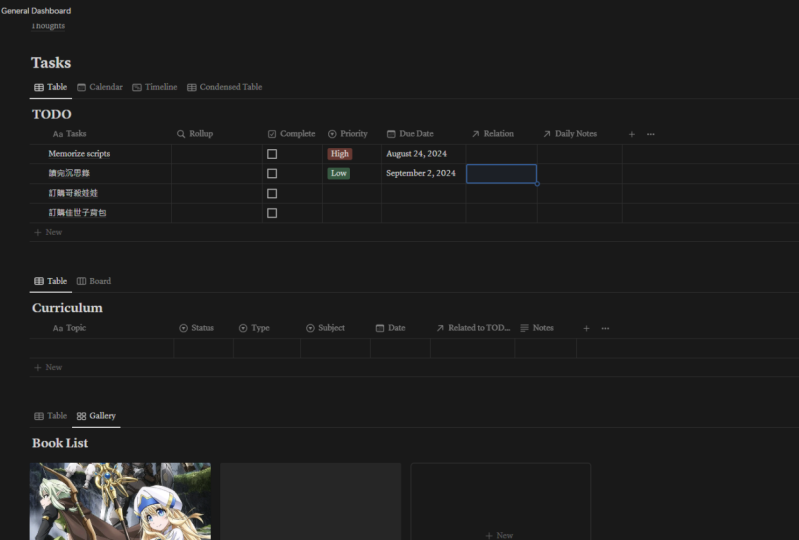
to a Booklist for example. Now we have it to do this right
here with a Spotify embed on the right hand side, out to do list
is where we can add ,well, todos. So for example, I can just click
a new item and be like revise session about anatomy or something. I can add a category to it. Like anatomy, I can put a due
date on it and click on that. By the way, I'll go
through all these again. This is the part that's
going to be quite useful. So that's our to do list
and we can check it off. And then when it's done,
we can actually make it. So we filter it and get rid of that,
uh, anything that is completed. So if anything is completed, oops,
if anything is completed, we can get rid of it like that and just
leave the uncompleted tasks. That's very nice. This to do list, it has a bunch
of other components as well. Such as a timeline to tell us when we
need to do stuff, it is a calendar. So we can have a look on a big
timeline as to what we can do. We can split it up into the University
and personal stuff and those University and personal things, I
actually linked to other databases. I'm going through this very quick, but
I'm going to show you just everything as an overview so that when it comes
to actually doing the things, you can understand how they all fit together. So the medicine part here,
I've got a medicine curriculum. I've just made a very simplified one
for the four subjects here and other, the dates for the actual lectures. There's a thing called a
relation, which lets you connect different databases together. But we'll talk about that in a bit. And an individual note can
be written here as well. So each of these cells is a note. For example, if I open, this is a page
for atrial fibrillation, I can have a look at some notes that I took there. This is not my actual University thing. It's been a little while since
I've done University, but this is how I would use this. I've got a little extracurricular thing. So for example, I like to play a little
badminton and I just want to sometimes have something to connect it to it. So I can collect all my badminton sessions
together in one section, and then I can easily have a look of there's things
I need to improve on, uh, for that. So it was like a progress
note kind of thing. I have a book list here and I'm
going to use a gallery for that. It's very nice looking and I'll
teach you how to do that in one of the other sections of the course. Here, I've got a daily notes section. It's very easy to just
forget your day to day. Every single day can always seem like a
blur, but writing is an antidote to that. Being able to write on a day-to-day basis
really helps you distill thoughts that you've had during the day and be able
to use those thoughts later on in life. You might have a thought in the shower,
for example, oh, like I really need to start this particular business
project, but I can't do it right now because I'm busy studying my engineering
degree or I'm busy doing my maths quiz. So here is a daily note. So you can never forget
anything that you do. And I've got this Principles
Zettelkasten, which is what I've had these things that I've learned. I'm going to check them all into the
here so I can search those principles and keep principles that have helped
me once and apply them to the future. Here I've linked another
table just for fun. This is actually my list of YouTube
case studies, because I do a lot of studying of YouTube and YouTube videos. So here's just an example of that,
but I won't go into that too much. It's just to show that you can think
of the table, one of the places. So that's the University dashboard. How do we do all of it? Well, just pick and choose the
parts that you like from it. And I'll have each of those different
parts in different sections of the course. Just feel free to skip to
that part of the course. So that's the University dashboard. Uh, and next video, we're going to
talk about the powerful to do list.
5. Creating a Powerful TODO List: So this is probably
the main part of this university dashboard. This is the part that's
gonna be the most helpful because it
said to do this, and it's not just
any to do this is to the second function
as a calendar. I said to do this that
can function and give you sort of a timeline
of all the things that you need to do over time. It's something where you can filter out
different things and putting dates and
connect the rest of your databases together
into one thing. So how do we do it? Well, let me just start
this from scratch. I mean, this is a bit confusing to look
at it all at once. So to start from scratch, it's gonna be much more
helpful because then you can adapt and apply
it to your own needs. Now, to start a new page in Notion is the same way
as we've always done. We can just go to
the left-hand side plus or you can type commands. And if you want to
do that instead, we're just going to name
this university dashboard to point O here. You can add whatever you want. You can even just search up just on the Internet and
sexual large one if you can. But I'm just going to use something to go from the gallery and we'll just add
all customary icon. Alright, so I always start
with a table of contents just because I find that
that's useful. And then I'm going to type
slash and I'm going to type. So that is a heading there, so that the heading comes up
in the table of contents. If you type slash again
and you just type table, you'll notice that there's a
few different tables here. What you want is you want this
thing called a table view. So one of the most
important building blocks of notion is this TableView. Because a TableView can essentially become all
these other kinds of views. But the TableView is the one that you can make the
most sense out of, one that you have the
most control over. So if you just type such table and then
make this TableView, you'll see immediately that
it says Select Data Source. So what you do is you want to click on this new databasing. And we're just going
to call this to 2. Just don't confuse it
with the other one. Now, it's pretty important
to tap a name in here. But this name obviously got
to do there and to do here. So that can be a bit annoying
to see the second name, but it's just so
you can remember that this table is called that what I'm gonna do just temporarily for
the ease of this, I'm just going to get rid of the heading and keep this one so that we know what
we're referencing because it's just going to
make it easier for later. Now, here, you'll notice that you start off
with his name tags. You can edit the columns by clicking on the column,
just left-click. And then you can rename it here. I'm just going to
rename this to tasks. Now, something special
about Notion is that they have many different things in terms of what
you can make these. So if you actually,
as this property, a single select is something
that is just a category. For example, I can make it like, let's say that you're
studying math, right? And you want to just make subjects. Well, you can do that. And you can rename the top to be like subject or whatever. So this is what's actually
called a multi-select. The difference
between select and multi-select is just select. You can only pick one and Morty slice you
can put multiple. So for example, if for
some reason you had something that was
crossing over each other, maybe maths and physics,
then you could do that. But often I like to keep
these a single slit because that makes
it nice and neat. Let's just say that
one of the Jews is I want to revise trigonometry. Go back to high school and
you can click this Plus button on here to
add a checkbox. So if you just go to this type and then you
click on checkbox, then that allows you to create checkbox and
you can rename that. It's all to be something
like complete handy-dandy. Now, why would you
need to do things like categorization or check
boxes or whatever? Well, the really good reason
in Notion is because you can selectively show things and selectively sort
things depending on what these things are. So let's say that for example, say I've got a few tasks that you do not want to
revise your commentary. I want to revise linear algebra. And I want to devise other
differential equations. And it's all in summary to
mask just for simplicity sake. So what I've
completed one, right? I may not necessarily want it
to stay there all the time. So you can see that at the
top right of your thing. If you just hover over it, you'll see thing called filter. Filter. It allows you to change
what you physically see. For example, either
say I want to get rid of the
complete ones, right? I can just filter by
the complete section. And then I can be like
complete is not checked. And that's gonna give me the
ones that aren't completed. So now when you click it, then it makes it disappear. It's not that it's
gone in the sense that it's still physically
there in the table, you just can't see it. So if I actually get rid of this by clicking on the filter
and then clean clear, then it can come back and
I can see everything. So I don't have to necessarily get rid of stuff or get rid of my history or
anything like that. So very, very useful. Let's say that You wanted to do something where you have different priorities
for different tasks. When you actually have this, you can actually
sort it by priority. But our priorities
at the moment, if you actually
go to the sort by priority and go to
sort by priority, descending, wet up, medium
is not in the right place, low isn't in the right
place, and highest definitely not the right place. So to fix that, what you can do is you can actually go to the
actual property. So go to the column,
click Edit property. And then you can see that
you've got your options here. So your options, you
can actually change the order in which the
options appear in the sort. For example, high as obviously
still wouldn't be hired. But I want to change this
medium to about here. So we're just going to keep
it like this for the moment. And you can even change
the color as well. So if you click on this one, the high, high might be red, the medium might be yellow, and the blue might be,
it's a bit hard to see. Maybe I'll just make
it different color blue because of this dark mode. And so what happens is if
I change this priority, priority ascending, then you can see now it's
in the correct spots, or the highlands appear
high and often the list, but that's after I've
clicked this button includes priority ascending because
we've manually arranged it, you can still use sorts and
filters at the same time. So let's say that I just, I do want it to be
prioritized like this, but I want to get rid of
the ones that are complete. So just click the
Filter button and then this complete
bubble pop up here. And then you can say
complete is not unchecked. Let me make it easy for myself. So if Complete is unchecked, That's the ones that
I want to show. So that's how you make a
basic to-do list in Notion. Now, we want to do a bit more
about to do this, right? So you might want
to add a date for the second time that you want to do your
particular thing. So to do that, you simply again use the plus button at
this date function there. I'm just going to
call it the typing. And your due date. To make a due date, just simply click on
the due date button and you can click on the day. That's nice and
straightforward, right? And sometimes if you wanted to, you can have a date range. So let's say that you
just want to work on some projects for like two
weeks. I can't do that. So you click this thing here
and then May 19 as example. The reason for that is because I'm going to show
you something very cool about tables and notion that
you can use for anything. Now tells a notion, lets you view the tails
in very different ways. We've got all these
days, but why don't we use these days as
something like calendar? Well, it turns out
that you can do that. You go to View. You can see that there's a few other types of
views that we've got. So what this board,
but this timeline, That's calendar lists gallery. But we're just going to use
a calendar for a moment. And just to see what we've got, we can name the view
something else. You can name a calendar
or you can just click Done and it will usually automatically name
itself calendar. And you might notice there's
a little bit squishy here. So I'm just going to go to the top right and
click on full width, full width of the screen
with this can actually, I'm going to undo that because I need to put my face
some way here. Otherwise my face is going to be covering a lot in the
Notion stuff here. You can see that with this
one that we put a range on, It's a big long
rectangle, right? So that's the range and it covers multiple different dates. You can see that there's
other bits and pieces, but they're not very clear, like it's hard to understand
what exactly they are. So what you can do is
with this calendar, you can do one or two things. You can actually shift different
items if you wanted to, like drag them
across or whatever. So let's say I want
to change this date, then that's super-duper easy. You can also add more elements to the individual properties
inside the calendar. So let's say I still
want to see and make my account every more
colorful at the same time, well, I might want to include which subjects each
particular task is in. So to do that, you click on this top
right, three dots here. You can click on Properties, and then you can see the different properties
of that table. You remember there's
a complete checkbox, it is due date to sell. There's a priority selling
as a subject cell, right? So I'm just going to make the one click on the
eye of the subject. And now you can see that the English ones,
shoppers English, the chemistry wants jobs,
that's chemistry and the mass one is shoppers
maths, very handy. We can even make it so that we include the
checkbox in there. So let's say that I'm
looking at this Canada. I want to be able to take from this calendar and
suddenly I can. So if I do that, sorry, that was very quick,
so I'll explain it again. So properties and then
unhide the complete one. Then it means that you can tick this box and that's great. So that might help you out. Sometimes the timeline view
is like a little bit up. I find that that's sometimes
easier to understand, especially when you're working
on big projects over time. So you can actually go to add another view and
then go to Timeline. And similarly, you can change the properties
of that as well to show complete and perhaps
subject and voila, you've got this
timeline thing now. I'm just going to
temporarily expand this, so sorry my face,
if I bump into it, you can see here that
it's on the timeline. This red line is
obviously where you are and you can see
from left to right. So that's very easy for understanding our
internal conflict. This thing right now, or omega. Oh my God, I haven't
completed this thing, but it's already like way in
the past or something here. You can even drag the different
times as well, of course. So you can be like, Oh
man, I suppose do this on the 23rd of April, but
I haven't done it yet. So probably better to
do it soon because it seems to be outstanding. That is a to-do list
to alum of ****. And I've got a
calendar integration. So that's very exciting. But this is a to-do list. List is very helpful
for understanding what you need to do on a
day-to-day basis. But you might want to think about the long-term curriculum. For example, what are
you gonna do with 50 lectures that you've
got planned in the future? And how are you going to organize your
thoughts around them? And that's what the next
video is going to be about. The real interesting thing about the next video is
we're going to connect the curriculum to
this to-do list using some fancy,
fancy notion magic. So I see you in the next video.
6. The Actionable Curriculum: Alright, so in this next video, we're gonna be working
on the curriculum. And if I look tired, it's because I wanted
to emulate the zeal of a sleep deprived
university students. A curriculum that you have for the entire semester
or whatever it is, can be something that
you can use to scope out the different things that
you want to tackle so that you don't have to feel lost at any point in time you're
doing this study. The way that you would often use a curriculum is to
have a giant table and then to include
every single workshop, lecture, whatever you're
going to have an advance, put that into the table so you know exactly where
everything is. The convenient thing
about the table is that each individual tables cells can become the notes
that you create. So you can simultaneously have
a calendar for your nodes and actually had the nodes
inside the curriculum itself. We're going to go a
bit quicker this time, because I've been going slow enough that I think
you're ready for it. So we'll create a new view here, go to new database. We're going to label
this curriculum. Similarly, we're
going to change this. It's called a topic. And then
your tags might instead be a property that is called type. And then you might have a category which is
relating to your subject. So we just make that there. We're using a select
for this one. Going to subject. Again. If you wanted to,
you could actually connect these two tables
together because it seems almost redundant to have subject here and then have
to type in subject again. So the first thing
that we're gonna do is create a liberal
arts curriculum. And then I'll show
you how to do that. So let's say that we've got the actual things from
the different fields. Let's say you have
different things like that. Equations, volume,
physics, all cause. And I'm going to show you how
to link these two together. You have to use a thing
called a relation, and that's how you link
databases together. Every single table in Notion is effectively
its own database. And so you can use
those databases and actually referenced the
database is between chelates can't like connecting the two together with glue,
but you have to add the glue. The glue is what we
call a relation. And so if you click on here and you click this type
of button again, you'll notice that in
the advanced sections you've got these relations. So you've got to do that. You click on the
relation button and then you link to a
database conveniently. Now here I've heard news creaking to point out because I actually wrote another one. And the other thing. We're going to go probably edit property type formula
that's already a relation, and then go to
curriculum to plot it. I'm going to click that. And you can see that now
it's got this arrow. It's got its property. I'm
just going to rename this. So that's easy to see. What can happen is we can
actually make it so that we can send stuff from our curriculum over to our to-do
list if we wanted to. Let's say that for example, I need to revise something
about the physics of cars. So I might just be like, why is the physics
of cars and things? But I want to connect it
to a particular part. So like, like when you click on this button
here in the cell, you can say that the
physical cause comes up. If not, you can
just type it down. That's pretty cool. So now you can just see immediately that they're
connected together. The risk then you might
want to do that is because you can actually
create a roller. And a roll-up is the thing
because these are just, all this is doing
is saying, hey, these two tables are now
connected in some way. Are these two particular cells and our character in some way. But it's rollout. We get information from the
different cells. So for example, I
will just go to here and then I'll
click the time Rob. And it will just keep it in roll up because it's gonna
make it easier. So remember how we got
were the subjects before? Well, I think I
want to still know what subjects a particular
thing I'm doing isn't right? So the way to do that is if I click on the cell that this
role is in this physics of cars on what I can do is I
can select the relation, which is in this case relation check this specific property, and you'll notice
something interesting. The properties here
in the roll-up I actually the exact same
properties in here and columns have topic,
type, subject, right? And so if you look at the
problems here, is topic, the related thing,
type and subject in a bit of a different
order, but still there. Here, I'm going to use
the Subject button. And then you can see that it's now correctly identify
the correct subject. And that's really helpful
because if I did something like this Shakespearian
iambic pentameter thing, then I'll link to that as well. Then it will do exactly
the same thing. Sorry, it should do exactly
the same thing if I made it, do it for all of the properties. So I've just done it
for one cell that, but you can actually click
on the column here at a property and then use
the calculate button. Here. Subject, it is relation. And I haven't included
subject here. So I'm just going
to be bad English. And you can see,
now it's come up. You can do that for as
many things as you want, and that's can be very helpful. You can still use this in the very same way
that you can use the original, separate versions. So for example, you
still use filters. He's doing sorts
wherever you want to do. So that can save
you a bit of time. Now, you may not want to
necessarily see relations. I mean, I think it's
helpful to do so, but you may want to, for
example, high this column. Sometimes if you
wanted to do that, you couldn't do it in
the original table, or you can just create a view that's specific
to what you want. So let's say that we're just going to call
this continents. And here I want to see some things, but I
want to see everything. So for example, I
don't really want to see the relations here. So you can just right-click
on that and click on it. And that's how you
get rid of it. Then we still have
the still exists. It's just hidden away from you. So that's one way
you could do that. So when you're focusing your curriculum, but you
might have different things. Like you might have things,
lectures for example. You might have things that
are actually workshops. You might have things that
as simply like reading, to do whatever it is, you can chuck it
into the curriculum and then you can assign, for example, times
to actually do them, or some times that
you were supposed to attend a particular thing. So again, you just
have to go to date. And you can certainly
do that using the data function here and then make whatever
date you Like. So yeah, this is
how you, basically, one of the most
useful things about our curriculum is for each of these cells and the
Bricklin can become a note that you can
actually write as a node. For example, let's say that I've attended this differential
equations lecture. I'm going to page, and then, well, as any page. So I can write the hashtag
to sudden you heading. I'm going to start off summary there because I write
something later. And then here I'd have
some lymph nodes. And lymph nodes can
be whatever you like. If you've got a PDF file, whatever you can
send the copy and paste a screenshot
from your PDF. And you can include a PDF. You can drag a PDF into
this if you wanted to. Sometimes, if you wanted to, you could ask questions here and suddenly like can
put this as toggle this. So the way that I
would use my lecture notes as I'm doing this
differential equation is x. Alright? You could just passively listening to the
lecture and just type, type a lot as the
lecture is going on. And have a little soft. Really, if you're trying
to learn optimally, what you probably
should be doing is one, pre-reading really helps if you can have the
time to do that. It's not always possible. But knowing the material
beforehand means that your lecture is not actually really electrode
for understanding. It's more of a revision session for the stuff you
already understand. And so that can be a
very effective tool. When I was in year
two of medicine, I got a high
distinction because I just did that. I got to be lazy. So I go, I go, let's
hide the sections up. But that's one way
you could do it. Another way, which is very, very effective for
learning, in particular, is if you make your different lecture notes as questions,
that'll help a lot. So for example, as you're
going through the lecture, you might be like
differential equations. Let me change this to a subject, topic I do like atrial fibrillation because I don't know much
about mass anymore. But I do know a lot
about medicine. So Azure fibrillation,
it might be like what? The symptoms. As your question here, you might have this is the
lecture anymore. Oh, okay. Like I guess I need
to know that there's palpitations if
hemodynamically unstable, ischemia, things like chest
pain or hypertension. What about palpitations? Shortness of breath? So that's an example.
And when you go back to this lecture notes later, then you can view them as
questions and test yourself. Another thing that's
very, very handy. The other hand you a
thing about keeping your things as toggles
in particular, is that these toggles, you can actually put
them in a software called niche into Anki, which is just this website. And then you can actually make
them into Anki flashcards. I actually made a YouTube
video about that. Just feel free to watch
my YouTube video. You just searched
notion to Anki w, and it will come off as well. So if you have the
different dates for your different workshops and lectures and stuff like that. Again, you can just have
a look and be like, okay, like I want to see
a calendar of when each individual thing is
do you might be wondering, hey, can I sync my Google
Calendar to pick a theme? The answer is, you can, but the downside at the moment, and this may change
in the future. The downside is that
you either have to use a software called Zapier
to sink things in-between. And that's a paid software. So if your university students may not necessarily
want to pay for it. So yeah, if you do that, well, your entire curriculum
just lay down everything in terms of topics and they don't
every single day. It's really, that is a good
60% of what you need to know. Notion of force. You can search your
different tables as well. So let's say that I was looking
for a particular survey. I can just do that relation. You can expand each of these
tables as its own page. And if, for example you want
to look at the full thing, you can do that just by
clicking the arrows there. Another thing that I should
tell you about is templates, because that is very useful when you're creating nodes
inside your curriculum. So let's say that
you are finding that every single time you keep
on going into this node, we want to type summary. You want to tie
the lecture notes. You want to type
practice questions. So instead of doing that, you can actually make
a template that makes things like nicer and easier
to create a template. You go to the top right here. You go to new template. And then this is a blank
template, then you can reuse. So I'm just going to call this. Just as something
very basic and again, similar to what I wanted
to do before the summary. I'm going to create
a lecture notes. And I'm going to create
practice questions. And then just click anywhere. And you have a new
nurse template. So it means that when you
want to, for example, add a new thing your curriculum, you could just do it like this. You could open a page and then you can see that note template that comes up there
is very handy. So it will just immediately
load that and start that. If it gets really beefy, then sometimes it can
take a while to load, but generally
that's pretty fast. And another way that you
could do it, of course, is that you can simply
go to the top right here and now click on no
template that looks at work. So that's very, very handy
said early on, but it's, you just wouldn't
be careful not to pre optimized sat too much. Sometimes you might want to count how many
things you've got left. So let's say that I've added, for example, a checkbox. And I'm like, okay, like question mark or just
don't want to put this here. And you're like, Oh man, how many have ever got lifts go? Well, you can actually
calculate it. So you can be like calculate
percentage checked and 0%. Obviously if I click one,
should be 25 per cent and etc. So here I've drawn the Seventy-five
percent of my grade just by calculating see boxes. Something else that you can
do with your curriculum. This is probably something
that's very powerful, not just for curriculums, but also for project
management in general. Now, checkboxes for
complete are okay, but they're not always going to be capturing what
you need to do. For example, often a note has to go through
several stages of stuff. You're going to be pre-reading, going to be attending
the lecture. You're going to be then
taking notes the lecture, and then you've gotta be later revising it almost like
carriers from stages, which is not gonna be adequately reflected in when checkbox. So what you can
do instead is you can create a single status similar to what you did before. So here we're going to select and then we're just going
to name that status. You can do whatever you want.
You couldn't even Jessica, if you want to do graded status. And then we're going
to just say that you bought something like to attend, to revive, to be read. And this is just
gonna be completed. You can change the colors
of the course as well. So we're going to do
that then feel free to, there's a thing called a Kanban, but it's very, very helpful. So if you go to View
and go to board, then this board, let's you
shift things from one tier. Here. It starts off wrong because
it's sorted it by the type, which is lectures,
reading workshops, but that's not what we
want because kanban, as you want it to progress
from one to the other. So to do that, you simply go to this
top right corner, which turns out to be very
useful there to layout. Then group BY. Here we're going to be
grouping by the status. Now you can see that we've got these different
statuses here. And so we're just going to make it so that this one
is on the left-hand side. In the middle is completed. So that now if like I
needed to pray, read this, maybe we should have had that to attend lecture, lecture thing. So you can actually
add a new group here if you wanted to. I'm just right way
to check this year and then be like okay, like I've pre-read it now. I just need to attend lecture. And when I've
attended the lecture, I'll be like Okay, now I
need to revise the lecture. I'm going to revise the lecture. I'll put into Anki and
then it's all complete. So that's a Kanban board. And they can be very good, especially for big
beefy projects where there's a lot of
different components to them, but that can be very,
very powerful as well. In fact, there's
a lot of stuff in Notion which is
very, very powerful. You can do that for as
many subnets as you want. It can be as organized
as you want with it. Sometimes what I like
to do is I like to have just like a general
property for notes. And these notes, I just informed ones because they're
not notes in the sense that they actually
exist up here at the top. And so you might be just
like a quick summary. You might just be
like, what the **** I need to ask the questions. And you can really
customize notion to be whatever you want. And that's the
beauty of notions. Say Yeah, that's the to-do list and that's
the curriculum. So if you've got this far, you're well on your
way to having a very, very organized my notion. This one is gonna be a nice
short one because we're just going to use a similar principle to create a book list. So I'll see you in
the next video.
7. Beautiful Booklists: So today we're gonna be
creating a book list. And I'm just going to save
you a lot of time because now you'll hopefully
very comfortable with doing tables
and stuff like that. So I didn't really need to talk about tables again
and again and again, because I think you get it
by now, but it's great. Now. A really good book list
where you can do this is you can just have the
name and the side here, you have a synopsis column, which I've put down, and I'll put down like little
brief summaries. And then I have a little
says section as well. Having some nodes can be helpful and then having covered
can be really nice. So here you want to use
what's called gallery view. If you go to adding view, you can do this gallery and that makes it
super, super nice. You can see that There's
no pictures there. I'm just going to literally send my downloads or wherever. And then I'm going
to physically drag this download and
just chuck it there. That's one way to do it. Once it's loaded, it will automatically come up as the thing that you
can reposition it. So because obviously it's a book called The
Book of just kidding. I'm just going to put a
thief that say the position. But sometimes you may want to be even cleaner and not
necessarily have that. The way you do that
is you just need to change this bit
to cover instead. The way that you do that
is you have to create a new link or create a
new attachment thing. So you can actually add files attachments you
holders are and do that. Simply make it so that
it has files and media. Instead. I'm just going
to call this hello to. So you can simply upload the file to here
by clicking on it. And so you will want to
upload that the thing that you just downloaded from the internet. So now
we've got this covenant. There are uploaded
to use a cover. You can click on this
top right-hand section. As always, you can click, Go to the top right,
go to layout, and then you go to
this card preview, the card preview, you
want to click on it, and then you can
click the cover two or whatever file
category column. You named it as a better work and you might have to
reposition stuff again. And you knew that in this
particular case I've actually done it already
for cupboard one. So I'm just going to go
right-click and cover one. And here I'm going to put a
bunch of nice books, things. You can still add the properties of the book
if you wanted to as well. So again, top right here and then make the copies
there if you wanted to. Even had a little
synopsis if you wanted. That's really nice.
That's how you make a very basic book list. In this next section, I'm going to be talking
about how you can have a daily diary and
how that can be very, very useful for keeping track
of things in your life.
8. The Daily Note and Principle Zettelkasten System: So far we've talked
about a lot of the mechanics of how to do
curriculum and how to do, to do this and
tables in and outs. And so now you're very
comfortable with tables. But I want to take a step
back and actually think more broadly about something that will really help
in the long term. And this is something
that's not notion specific, but more so just to
frame work for actually making good use out of the daily notes that you
have in our day-to-day life, we often have a lot of thoughts
about different things, who may have ideas for different projects
that we want to start. We may have different things that we learned along the way. And they may not always neatly fit into something
like a curriculum. And something that
you can do about this is you can
create a daily note. And this daily nodes can
be something that you can access on a day-to-day basis. It's something where
you can actually take some principles and
distill them for later on. And that can be very useful in this part of the
nursing course. I've created this in
code daily notes. Here. It uses a created by
timestamp for here. So I've just physically
wrote down the day of one such 5228 to the credit
timestep is here. And to do that, of course you just do the same thing
as you've always done, which is to make a new
property and then just do a credit terms and
that'll work there. And then I've got a credit
date formula there as well, but I'll discuss you've got other like a
summary of the day. But here you might just
start a new day and be like, let me just start a
new entry for today. So today is the second of May 222 and here on
the recording node. And then when a new
template before. So for daily note, but
didn't have anything in it. Psych. So here I'm obliged. Today I recorded a
bunch of videos. I am grateful for
it is now 05:40 AM. So here I might be like, okay, there's a principle that I
can take away from this, which is B, guiding your time. So I'll put that there and then that can be
used for summary. Probably like that's a really interesting
thing to keep for later. Maybe it's an idea that I'll reference again and
again and again. And the way that I can do that as like a Second
Brain concept is i'm, I'm like Maybe I should have
a table where it is clicked all the different
principles throughout life and keep that
inside one table. So here I've got this relation. This relation is connected to the second database
called principles. That'll Cassin just for
the sake of this video. And then I'll be like actually that idea of being
careful of time. It's kind of important.
So I've already created the relation
in the sense that if I edit this
property right, we can see that it's
a type of relation. If I go to relation that it will be
linked to this database, that principles then Caston and then there'll be
automatically connected there. So what I can do is I
have this little Caston. I could create it here and
then really come back. But that sounds a bit wasteful. Why don't I just make it so that I take this principle and Ryan here and then automatically
sends it across to here. So I'll send it from my
daily notes and then shoot that new principles across
to the principles that are Caston also also ascribing
it to this node. So I'm just gonna do that
And I'm gonna go here. And then it's going to create a new page and the principles
that will cast it. That's exactly what
I wanted to do. I want you to be careful not to be careful to take
care of your own time. Slip away, right? I'm going to create that as an idea in my principles
that are cast in. It comes up and then that's it. Now it's all connected there. So it automatically
comes in the principles. And then I can, even if I wanted to, because I've connected this
one to the, to this right. So I'm going to call this
our, that'd be like, Yeah, maybe I should actually
do something about this. Like maybe I should start to
plan out my tiny bit better. So this table here and this
relation in particular isn't connected to the
to-do list, right? So now from this daily
note, I can be like, yeah, Actually what I wanna
do is I'm going to click on this to do relation, which is actually my to-do list. I'm going to be like time
block the next week. And then I'm going to create
that as a new page there. And so what will happen is
that I can click on it. I can change the subarrays to be personal because
it's kinda what it is. And then you can see that it's connected to my daily
notes there as well. So that when I go up
to my to-do list, It's actually my to-do
list right there. And that's very fantastic
because now I've taken this daily notes thing
and recreated what is essentially a very raw, unedited note and turn it into different actions
that I can take. So that's extremely useful. I've turned it from a
free form diary entry into actionable things
that I can do with it. And that is very exciting. You go create lots and lots
and lots of daily notes. They can be searchable
and you may want to have a think about how you're going to
search for them. So for example, here, I might be like, every time I want to think
about time management, I'm going to put that as a
tag because I'm sure that some stuff will
come up again with regards to it while I'm
on the daily notes, I do want to talk about
formula this a little bit, just to make things a little bit neater in terms
of wrapping up. Formulas can be very complex. Let's just start a
new one because I just want to sort of walk
you through it a little bit. So let's say that
I have a formula and it's just of type
formula of course. And I'm just going
to literally never formula for the sake of ease, to edit the formula. After you click on the formula button and enter the property, you can just click on
this bits formula edits. And yet this fancy thing here. Now is this type of formula. You don't need to put an
equal sign like an Excel. It just assumes that it's equal to whatever you're
going to type in. Here, you can reference
other properties. So here I'm a black, like I want to reference the created timestamp because that's the time that
it seems crazy. Just click that. You can see that
it's got this prop, then it's got these
brackets and it's got credit timestamp
because it means it's referring to the
property timestamp. So that's the variable that
has got their encoding terms. But you have to like, I want to do that, but add a day. And so if you scroll down, there's a lot of different
things that you can do. Alright? So here you can see that
it's got some syntax, which is the way that it
processes a particular thing. If you're used to programming, this is pretty easy. If you're all used
to programming. This is going to
be kind of tricky. This is inside the brackets
are called arguments and that's not to be
inflammatory in nature. That's just what they
actually are caught. You can see that it gives
you a bunch of samples. So for example, let's
say that you want to add one year to the created date. So I'm just going to move. This is the formula section. So I'm gonna be like,
let's go to data add. Data. Date was dated, date AD, and we just
put it in brackets. Here. You've got
one variable here, but this is only the date. I mean, we haven't really
added anything yet. It still needs the number. And then it's still
needs some extra time, like years, quarters,
hours, minutes, right? So let's say let's let's
make it 7457 years from now. I don't remember stuff. Remember to put commas in between the different arguments. And then I'll be
like seven years. Make sure when you run your
formula to press Command and Enter or whatever
it says down there. Because if you don't,
you're going to lose it. And it's really
annoying when you've spent a long time
running formula. So I'm going to
press Command Enter. And then now you
can see what it's done is it's
calculated seven days into the future from whatever the day that
the timestamp was. I can use formulas
for different things like Well, I mean, the obvious one is if you're
calculating expenses, you can use it to
calculate things like tax. Or if you're calculating
percentage of something, you might use it to
calculate something else. Let me give you a real example, which I probably shouldn't. But you might find
this interesting. So let's take a sub i's
constitutes a little bit. Let me show you
this as an example. So this particular
sponsor card.com, they will pay a certain amount. They make $49 per cell. I get a percentage of that if someone clicks on Y-linked card. So here I'll put a number
which is a percentage, and you can adjust
the number there by using the property and then
chain them in format 2%. And then I know that I'll
get 30% if I send something, they're using my link here. I've used a formula to
calculate 30% times 49. And that's pretty easy
because we've got to do it properly. You go to the formula and you'll see that
it's got, again, there's two properties which
I've just accessed from here to actually click on
that and get the variable. And then I've just put
a times thing and then properly centered the
full money per cell times the percentage that
I would get is going to be equal to the money that I could get for each sale
that I get for this website. That's in American dollars. So I've converted it roughly
to Australian dollars by multiplying it by 1.34. And that's a really simple
equation like that there. That's the formulas in practice. Formulas can be
very complicated. You can do really advanced
stuff, uh, formulas. There are people that are
very, very good at this. So Thomas Frank, of
course, being one of them, read Gregory being
another really, really good website
slash person. That's really has
some good formulas that can be very
useful for notion. So definitely check those out. I'm not going to cover that
in this course because they're a bit crazy. Sometimes huge, big pages long, but they can be
extremely useful. So definitely check those out. So that's what the daily
note looks like and what actually the principle is part of everything looks like. So now you have a very
strong university dashboard, and your university dashboard might look something like this. Spotify is very easy
to add as well. Whether you do that
is you physically go to Spotify playlist. I've made this
playlist, for example. And then you just simply go to share by clicking on
dots and then share, then embed playlist, then it will come up
with a thing here. You probably want the
size to be 50 per cent. So it becomes a bit nicer. And then you just
copy, copy that. And notion that you paste
it to, which is heavy. So here I'm just going
to skip down here, for example, paste this. But you can see that that
doesn't quite look right. Like that's just code.
That's not very nice. So you want to actually
type slash embed and then you can paste that. And wallah, you have it there. It's not in the
right place there. Remember that you do have
the ability to put stuff on the side of each other
notion, which is quite handy. If I do that, is
to make it easier, I'm just going to
make column one. Type that physically and then press Enter and
then column two. The reason is because
what we're gonna do is we're going
to drag this column to try to drag it till the way to the right
hand side, column one. And that way you've now got
these two separate columns. So I can check my
medical one into one column and then I'll check this into
the other column. It doesn't look like it's
worked properly yet. The reason being that I haven't
dragged the actual table, I've just dragged the
heading medicine. So I want to drag a
table and easier. And now that'll work and I can
resize the columns I like. And so now I have to
Spotify for this case, the first one was inaccessible. It's only going to
play unfortunately a small part of your
playlist, the sample. And then it will be
like, Hey Logan to Spotify. So it's
kind of annoying. But it's still kinda cool. Alice to show off with. Yeah. You can put captions
on new things. You put captions on these
images and stuff is all this. That's kinda handy too, but
I'm looking to do that. So that's a productive
day nervous system and a principal
system that you can use to really take information
on a day-to-day basis. And the L2 users principles
that you learned in life to help you assist you
in your future as well. And that's very, very powerful, especially if you do
it over a long time. Personally, I actually use a different software for that specific method
called obsidian. So the way that obsidian
works is kind of similar. I'm just going to quickly
show you because this is an ocean cores and talking about obsidian
nursing courses, a bit of a bizarre thing to do. But it's the same idea in
obsidian where you can just like this one, except instead of having
to make those pages, you make a page is a little
bit of a different way. So this is a string, as example, a u square brackets and then that becomes some page. So sort of a similar
idea, tuition, but I'm sitting in this little
bit better because you can add hashtags and stuff
for the tags instead. So I'll be like, I just
want to look at this whenever I want to talk
about happiness or whatever. And then you can search obsidian like this and then
find it there. But I won't go into
that too much because I am going to make a
separate obsidian course. Since obsidian has
a lot of depth, I like Notion as a Second Brain, I think it's
definitely effective and you can certainly use it as a Second Brain is certainly much better for doing
things like projects, curriculums, and
university and are probably recommended
for like 90% of people. Notion is definitely
the one to go for, for 90% of people because
it's so powerful, you can do so much of organization
and create templates. And it's very nice
and straightforward. If you are a super-duper
node like myself, and you care about being
able to search like immense amounts of knowledge and connect immense ideas together, I've seen is really,
really good. But that's outside of the
scope of this course. So look out for the obsidian
little capstone course, which I will be making
at some point in time. If you are interested
in that, I'll probably be talking about obsidian,
my YouTube channel as well. So that is it for the
university dashboard. I'm going to actually take you on a bit of
a behind the scenes tool across my Notion
pages to wrap things up. Because I think
that is one thing to have a university dashboard
or a dashboard like this. And I think it's
extremely useful. Certainly, that's
going to help you with 90% of stuff that you would
want to do the notion. But sometimes it's just
getting ideas as to what you can use Notion
for Chem, very helpful. In the next video, I'm
going to take you in a little bit of
behind the scenes and notion it's about 06:00 AM. But I really want to do it
because it sounds like fun. So let's go ahead
and go, go for it.
9. Dabido's Behind The Scenes and Conclusion: I'm sorry, you
behind the scenes of the different things that I use Notion for because I think
it's very interesting. I think that there's
a lot of use cases for notion and
there's a lot of different ways that I tried to figure out stuff over time. So you might have a look at
the different things that I tried and just take
some ideas for you. Because now you know how to do everything notion basically, you know how to make tables, you know how to make a gallery, timeline, calendar,
whatever it is. You're pretty much all
the mechanics of it. But sometimes just figuring
out what you actually do have all this information
as a next step here, I've got a page you
may have seen it from another YouTube video called
every topic in medicine. And this is where
I will literally trucked in every single
topic in medicine. And it's gigantic, is huge and everything is
organized and toggle lists. This is what I was studying for my general practice exams. So here I would, for example, put in red stuff that
I didn't really know or should know a
little bit better. As I mentioned,
keeping everything in that active recall questions is gonna be the thing that helps you memorize stuff better. And it feels like
a lot of effort, but it's actually very helpful. So here, what's the progression of peripheral arterial disease? I completely forgot. Oh, just have a look
at my notes and be like you start off
with claudication within other stuff happens with limb ischemia and if get rest pain really,
really, really bad. I've demonstrated University
of dashboards and curriculums and forms of
tails and stuff like that. But sometimes you
don't even need that, but you just need
the basics of notion like being able to toggle things and have automatically
updating table of contents. Um, there's one thing
that I tried for a while which was trying to
summarize general articles. So for example, I'll be like, Oh, I'm studying this
particular JP thing. It'd be like this is the case. It'd be like the questions
are about for the history, diagnosis Baba, and then
I would write a summary. But actually this case itself is already like pretty
beef duck inside thing. So yeah, I would have a big table like
that wasn't helpful. Okay. It's not too bad. Something that is really helpful was my clinic who
settle casting. This is something
that I used a lot in clinical medicine as a doctor or basically whenever I
encountered something new, I would have this table which I wanted to be
able to search data. And I could do things like impacts this more
atrial fibrillation. Do I need to have ongoing anticoagulation
and antiarrhythmics? Yes, I do. I would write down cases
and stuff like that. And here are
anonymous, of course, because you don't want
to get into trouble with theater and medical board
or anything like that. And I would be able to
search this later on. So it'd be like like what I know about bone scans or
it's very, very quick. So that was really,
really helpful. And just something where if you get a lot of information
from different places, you don't always know how
to organize it in advance. So that can be very helpful. Typically not as it'll cast
it because it's little Cassin really is about the
connections between ideas, perhaps more so than just
the summarization of ideas. But I like the idea
that you could actually summarize ideas
very easily like this. So my left-hand side, I just have the
general topic three sentencing of just the
functional stuff I need to know. And then I'll have
specialties and tags. And that's one thing I do
use a lot for YouTube. So if I show you something
like my view production, here are some ideas
that I've had. And I might have a calendar, but my calendar, so
it needs to be felt. Here is a lot of different
things that I've got here. So when I talked about
the canon before, I kinda have a lot
of planning videos, videos that I'm scripting
videos I'm editing videos are published in a completely correct because it's very messy. So I do need to
actually fix it up. But that can be very helpful
and generating ideas. Here I've actually got
different channels as well. I'm actually
planning on starting a short channel and then
I've categorized into that. But I also have my classic doubler channel
and we are starting new channel about
YouTube storytelling and how to do well on YouTube. So look out for
this data analysis. I'm thinking of calling
it created cases, but that's another
video that we're doing, something that I haven't
talked about and this one, because it doesn't
really make as much of a difference to
university students, but you can assign people
to different tasks. So I've got a video editor and I wanted him to
do a bunch of stuff. You can see that
my editing status, like I've recorded
a bunch of videos, but I'm just waiting
for him to edit it now. And I've got some of
the videos planned. I'll do those as well. You can obviously shorter
as four or whatever. In the case of when
you've got other people, you can save a particular
view for everyone as well. I said that can be
something where everyone can see your view
if you do that button there. So that's the video
production for YouTube. I also sometimes write long-form content on Notion just because I want you
to have it like that. So for example, I'm
writing a guy on YouTube talking about
W's guide to YouTube. And this is very, very rough. This is a huge, huge, huge, huge table of contents because of the fact that
I've thought about this for literally years now and have continued to contributed
this document for years. But I'll just write down
stuff in here and be like like just write
it out in long form. And that can be very helpful. Nowadays, I tend to use obsidian a little more
because I think it's a lot nicer in terms of being able to break stuff down
because there's so much, but it's still a very
good thing to have, at least like having this is definitely better
than having nothing. Because I can search the things that I thought
about beforehand. I have material that
I can work with. So whenever I create a course or a book or whatever,
I can be like, Oh, I just need to grab
this particular idea from this particular page. And that's very awesome. I have a little case studies, for example, that I did. And then I'll just like when
you're watching YouTube, you just watched a YouTube video and actually just take
down some notes as well. But for example, just looking at like possess stuff
I'd be like, Oh, this was funny and well
edited and you're gonna embed YouTube videos
as well by the way, which allows you to
do stuff like this. Talking about Eric's
video for example. This is something that's
been my pride and joy for last year-and-a-half or so. I don't use it so much
for expenses tracking. Some people do do that. I don't personally, because
I think that for me, excel is actually bigger than, than notion for that very, very specific function
I didn't like the way that notion is
that it calculates things, deals with numbers that much. And it's not as easy to add
a whole bunch of cells very quickly in Notion,
which is not ideal. Readwise is another
interesting way to use Notion. So if you use this
service called Readwise, what it does is it lets you have summaries of books pop up in your notion and the
highlights from your Kindle will pop up as a note in your notion,
which is amazing. I don't know if I've just
violated copyright by Pi, show you that particular
section but whatever. So that can be very, very good, especially if you're
building a second brain. And so yeah, there's a bunch
of the ways I use Notion. I hope that's been sort of cool, whirlwind tour of stuff. There's a lot you can do version and it's very, very powerful. And by doing this course,
you've actually, possibly, if you hadn't known notion
before this course, you've definitely
changed your life significantly because notion is like an amazing
piece of software. Just having your
ideas in a place where you can access them
is a life-changing thing. It will legitimately mean that you can have ideas
that you couldn't have had before because now you don't
have to rely just purely on your short-term memory or even on a tenuous
long-term memory. Because you really
got these ideas on paper and it will just make
your life a lot easier, a little more organized,
a little more productive, more efficient, and you can
share your ideas with people. They wanted to accomplish
anything significant. I think that having a good
note-taking software, It's a very good place to stop. Congratulations, You've
got to this point. I congratulate you and
congratulating myself to form. Very good at 640 there
are recording this. Thank you very much for
joining this course. I had a little fun making it
and note again about Notion. And feel free to see me on YouTube or wherever I will be talking about obsidian
at some point in time, as well as if you have
found this useful, feel free to add me on Twitter
or something and say that, Hey, this course from
Delgado has been quite fun. If you want to roast me, send me an email or something. If you have any other
questions about Notion, like the stuff you can do
with it, just go away. If not the actual notion people themselves in this course. There's actually a
little question mark in the bottom right-hand
side for support. And you guys are awesome
and they're actually quite simple. It's very good. I hope this course
has been useful, even though it's been
reasonably concise, is still the result of
actually a few years now of working with notion
of playing with it and using it on a
day-to-day basis. So I've hoped you enjoyed it
and I will see you there. I see you next Sunday. It's been downloaded and
I'll catch you later on.
 David Liu, Dabido