7 Skill-Building Canva Projects for Beginners
Check out these beginner-friendly Canva projects that will build your design skills and grow your portfolio!
Table of Contents
- 1. Make Stunning Mockups in Canva
- 2. Canva Magic Morph: Transform Words or Shapes with Canva AI
- 3. Easy Instagram Reels in Canva: Without Being on Camera
- 4. Romanticize Your Business: Video Content Creation with Canva
- 5. DIY Branding for Beginners: Design a Unique Logo Using Canva
- 6. From Procreate to Canva: Turn Digital Illustrations into Botanical Designs
- 7. Make a Travel Journal with Simple Bookbinding and Canva
- Grow Your Canva Skills with Skillshare



An invitation to your next birthday party with hand-drawn graphics, a project mockup for your newest graphic design offering and a brand new logo for your real estate company are right at your fingertips with Canva. As one of the most accessible and user-friendly design tools on the market, Canva can help anyone make high-quality visual designs—whether they have design experience or not.
If you’re a creative, you might be interested in exploring a few Canva projects so that you can learn design skills and build a creative portfolio. For someone looking to use Canva for personal projects, these beginner-friendly Canva project ideas can help you start designing with confidence and learn versatile Canva tools like their AI design tools.
1. Make Stunning Mockups in Canva
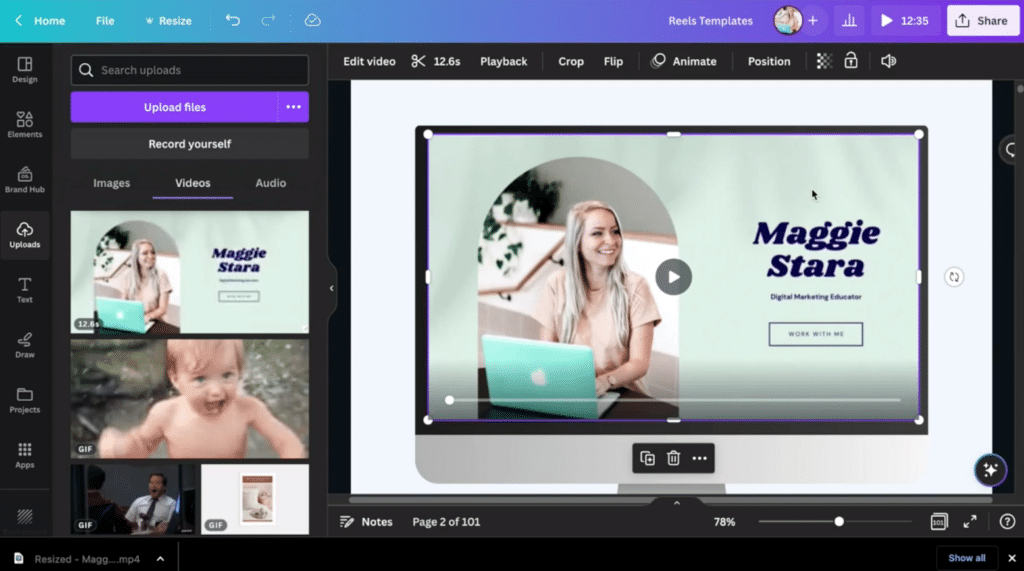
Class: Social Media Content Creation in Canva: From Beginner to Advanced by Maggie Stara
Skill Level:
This project is well suited for beginners but intermediate users can use the skills they learn in this class to make even more complex mockups.
About This Project:
Learning how to make high-quality mockups is just one project in this class by Skillshare top teacher, Maggie Stara. Titled “Social Media Content Creation in Canva: From Beginner to Advanced,” Stara walks her students through over fifty ways you can use Canva to create social media content, including making stunning mockups.
In lesson forty-five, you’ll follow Stara as she shows you how to use Canva’s smart mockups to make a mockup of a business card, computer screen with your personal website and an ebook. She’ll also share how you can get access to over 8,000 mockup templates within Canva for mockups of smartphones, water bottles and more.
Canva Skills Used:
- Smart mockups
- Creating and downloading PNG files
- Video mockups
Resources:
Design Tips:
If you’re building mockups for your brand, you can use the brand kit to add elements within your color palette. You can also explore photo effects like blur and autofocus to add even more interest to your mockups.
2. Canva Magic Morph: Transform Words or Shapes with Canva AI
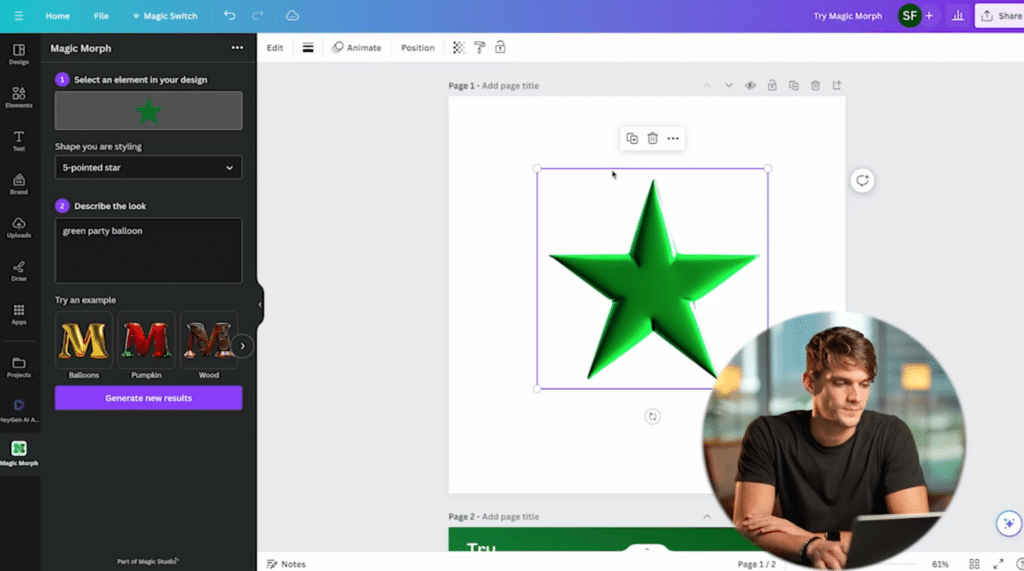
Class: Canva Magic Studio: Complete Guide for Stunning Designs, Videos, Presentations with Canva AI by Simone Ferretti
Skill Level:
You can work with Magic Morph no matter what your skill level.
About This Project:
Magic Studio is where you’ll find the very best of Canva’s AI-powered tools including Magic Design, Magic Media, Magic Video, Magic Switch and Magic Morph. In this class, Skillshare Top Teacher and professional photographer Simone Ferretti shares how you can elevate your Canva creations through the power of AI.
This project will focus specifically on Canva’s Magic Morph where you can transform words and shapes with a written prompt like “blue diamond” or “red dog fur.” A prompt like “red dog fur” will make your text appear to be covered in fluffy red fur. You can use Magic Morph for an attention-grabbing website headline or the title for your Battle of the Bands poster.
Plus, any time you add fonts to Canva, you can further customize them by using your written prompt of choice within Magic Morph.
Canva Skills Used:
- Magic Studio
- Magic Morph
- Add Text
- Add Graphics
Resources:
Design Tips:
While exploring the Magic Morph tool, you might also take a look at some of Canva’s other AI-informed tools like Magic Design or Magic Media. If you’re using the Magic Morph tool, you can pair it with fonts from your brand kit or pair it with icons or illustrations from Canva’s element library.
3. Easy Instagram Reels in Canva: Without Being on Camera
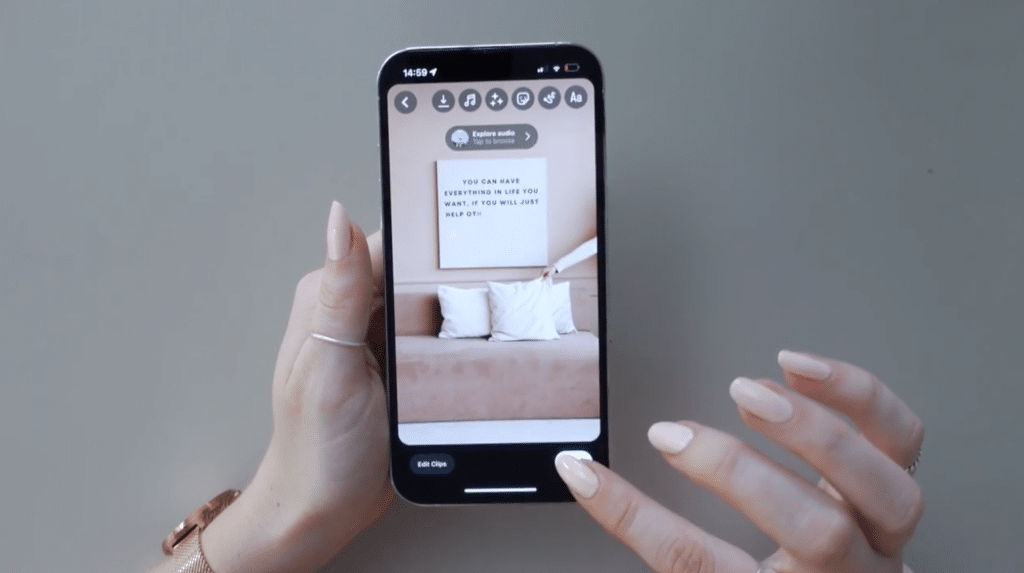
Class: Easy Instagram Reels in Canva: Without Being on Camera by Maggie Stara
Skill Level:
This project can be adapted depending on whether you’re a video editing beginner or an expert. If you’ve never edited your own video or made an Instagram reel before, you can use the skills learned in this project to make a simpler video. More advanced video editors can use Canva’s video editing software to get a little more creative by adding voiceovers or additional audio.
About This Project:
In this project, Skillshare Top Teacher and creative marketer Maggie Stara shares how to make a high-quality Instagram reel without needing to be in front of the camera. Canva offers an easy-to-use video editing software, which can be used to make reels for your own business, your client’s business or just for fun. You’ll learn how to make twelve styles of reels that you can put your own twist on by using your business’ color palette or creating a watermark with your business’ name or username.
Canva Skills Used:
- Canva’s video editor
- Canva’s remove background tool
- Add text
- Export a video
Resources:
Design Tips:
You can use some of Canva’s predesigned video templates as a quick starting point for any of your video projects. You might also add some background music or audio clips from Canva’s royalty-free audio library, which has thousands of tracks and sounds. If you want to add your own audio, you can use Canva’s voiceover tool or upload your own audio clip.
4. Romanticize Your Business: Video Content Creation with Canva
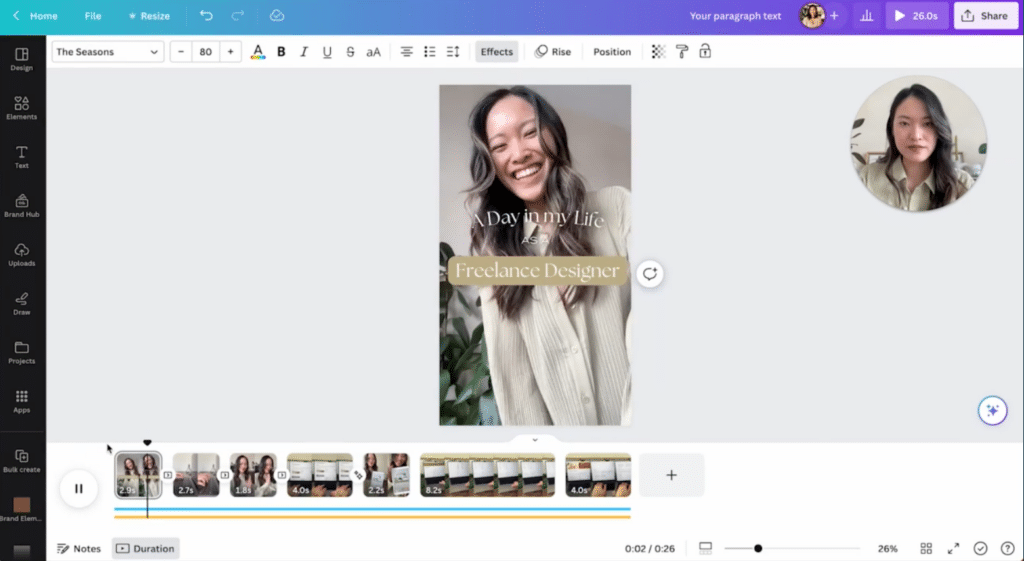
Class: Romanticize Your Business: Video Content Creation with Canva by Cheryl Chan
Skill Level:
Anyone who is comfortable taking videos on their phone will have what it takes to excel in this class.
About This Project:
Social media has the power to put your content on the screens of thousands of other people. If you’re a business owner, you might want to learn to make an Instagram reel or TikTok to connect with potential clients. In this class, Cheryl Chan, a brand designer, YouTuber and Skillshare Top Teacher, reveals her top tips for creating engaging videos to showcase your business using Canva.
Canva Skills Used:
- Canva video editor
- Upload video and audio files
- Animate text
- Adjust audio
- Export video
Resources:
Design Tips:
Creating a high-quality reel in Canva starts with high-quality video content. If you’re looking for additional video content, you can explore Canva’s free stock video footage. For a more organized workspace, add your footage onto different layers within the video editor so you can quickly adjust different clips.
5. DIY Branding for Beginners: Design a Unique Logo Using Canva
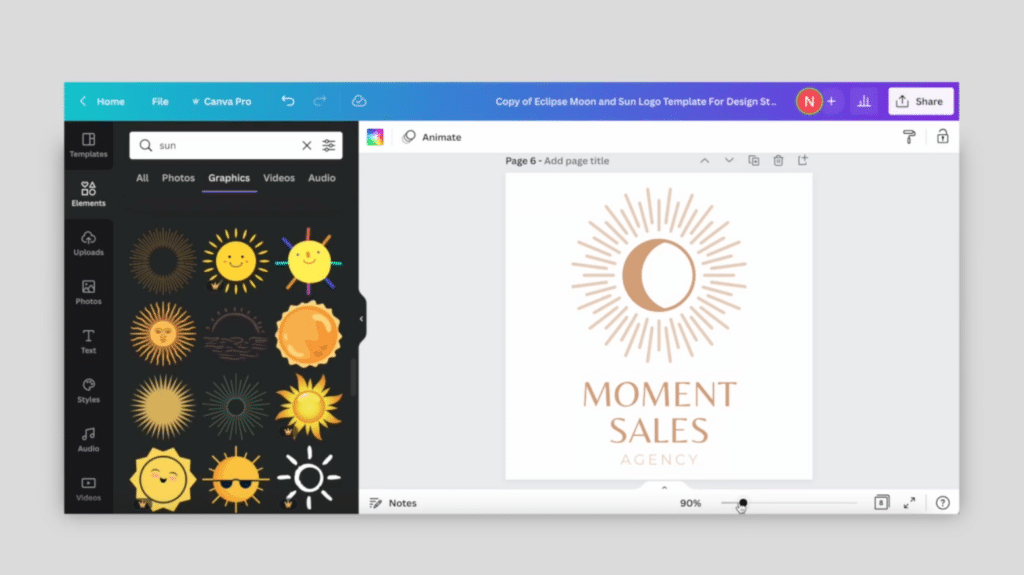
Class: DIY Branding for Beginners: Design a Unique Logo Using Canva by Nisha B.
Skill Level:
This class is perfect for beginners who have never made a logo before.
About This Project:
Design a logo that strengthens brand recognition and easily communicates your brand’s aesthetic. Marketer and creative director, Nisha B. will walk you through the basics of creating a good logo. You’ll research and define your logo’s color palette and visual style all while using Canva's custom elements and fonts. You’ll leave the class with multiple logo variations that can be used in various mediums and in different sizes.
Canva Skills Used:
- Create color palettes
- Add custom elements
- Adjust fonts
- Explore templates in Canva
- Add illustrations and elements
Resources:
Design Tips:
While you’re creating your logo, you can also explore Canva’s brand kit, where you can save your brand fonts, logos, colors, icons, imagery, graphics, and pre-designed Brand Templates all in one place. You can easily access the brand kit while you’re working so you can make sure your colors and fonts stay consistent across all of your logo variations. You can also explore Canva’s logo maker by searching “logo” on the home page, which will take you to Canva’s library of customizable logo templates.
6. From Procreate to Canva: Turn Digital Illustrations into Botanical Designs
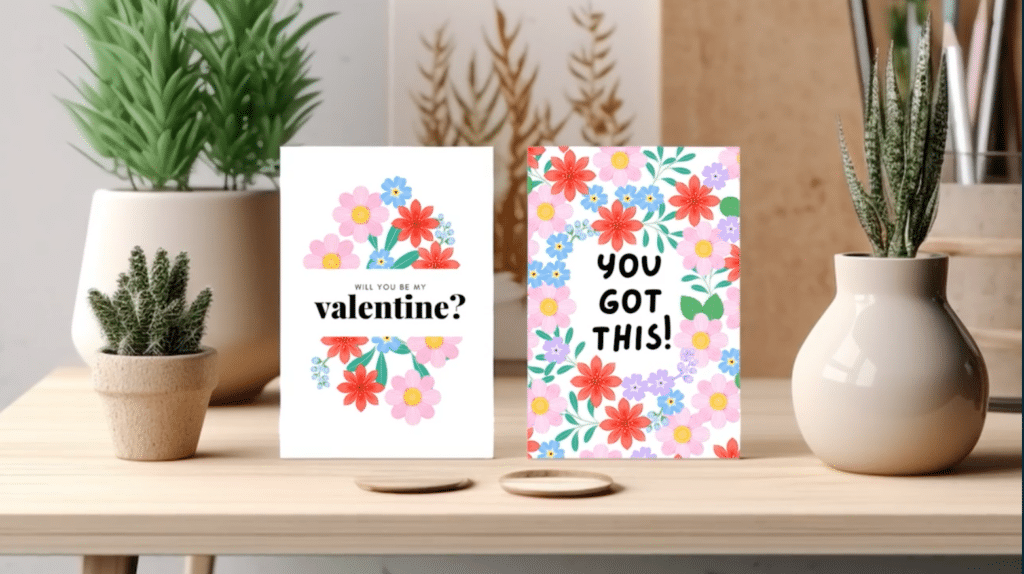
Class: From Procreate to Canva: Turn Digital Illustrations into Botanical Designs by Silvia Ospina
Skill Level:
You will need some illustration experience and a basic knowledge of Procreate to complete this project.
About This Project:
You’ll first start in Procreate where artist and graphic designer, Silvia Ospina, will teach you how to illustrate a bright botanical collection of flowers and foliage. After exporting your floral creation from Procreate, you’ll upload your file to Canva, where you’ll pair it with text and some of Canva’s ready-made templates. You’ll leave the class with a design that can be used as a greeting card, wall art or an Instagram post.
Canva Skills Used:
- Canva’s ready-made templates
- Upload PNG files
- Add and adjust text
- Create mockups using Smartmockups
Resources:
Design Tips:
To keep your files organized within Canva, you can use their folder organization system. Just tap on the “Folders” option within the “All Projects” tab. You’ll use the Smartmockup tool in this class, but you can explore some of Canva’s other smart tools, like Magic Morph, if you want to pair some really unique text with your botanical illustrations.
7. Make a Travel Journal with Simple Bookbinding and Canva
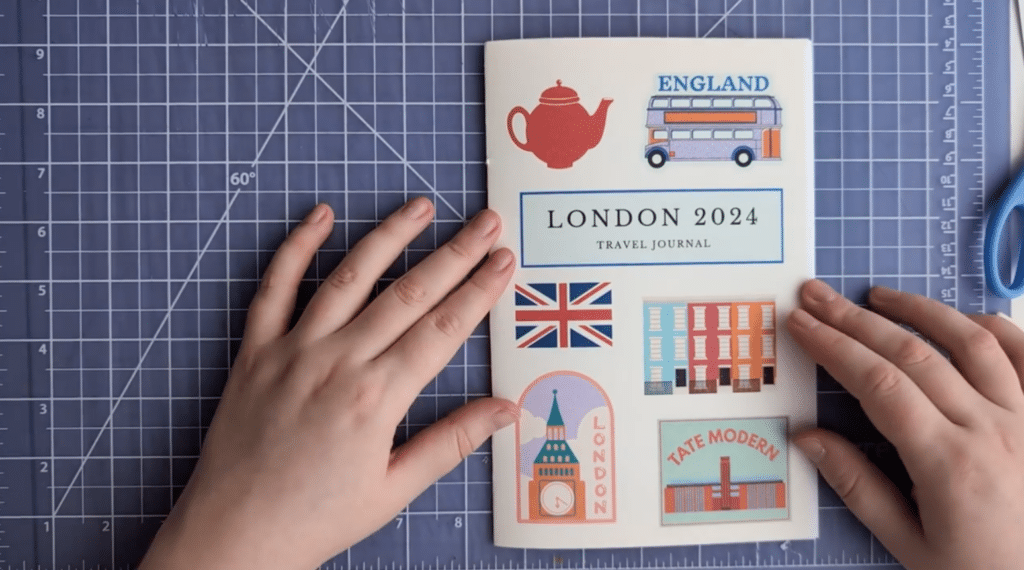
Class: Make a Travel Journal with Simple Bookbinding and Canva by Rebecca Wilson
Skill Level:
This project is a good challenge for beginners but can also be easily adapted for intermediate creatives.
About This Project:
If you want to learn how to turn a Canva design into a physical project, you’ll love this bookbinding class with writer and artist, Rebecca Wilson. With just a free Canva account, a printer and a few simple materials like a stapler, you’ll be able to create your own travel journal. You’ll not only learn how to make a simple Canva design but the design and bookbinding skills you’ll learn in this project can be applied to other fun projects like a gratitude journal, dream journal, or any other kind of workbook.
Canva Skills Used:
- Add Canva elements and icons
- Add and adjust text
- Add boxes and lines
- Dropper tool
- Export as PDF
Design Tips:
Canva has a huge library of thousands of elements and icons. Once you decide the theme for your travel journal, you can try searching for icons or illustrations that match that theme. If you need to move multiple elements around while you work, you can also group elements on Canva.
Grow Your Canva Skills with Skillshare
When using a new software like Canva, the best way to learn is to get your hands dirty right away. While it might be tempting to try to learn as much as possible about Canva before you get started, diving into an easy project can be a seamless way to learn some of Canva’s most popular tools and features.
Right now, you might have no idea how to create a QR code in Canva or design an invitation for your next birthday party, but by diving in right away, you’ll be able to learn from any mistakes and discover new skills one step at a time.
By exploring the classes above, you’ll take in Canva’s wide range of tools in bite-sized, manageable learning experiences. Plus, with Skillshare’s project-based classes, you’ll be able to leave each class with tangible proof of what you learned. You might even add your project to your portfolio if you’re looking to use Canva to advance your career.
Try picking four projects that you can commit to doing over the next four weeks. Then, in just one month you’ll have gained dozens of versatile Canva skills that will prepare you for even more fun projects.
Related Reading
Calli Zarpas
Producer & Writer by occupation. Ceramicist & Newsletter Editor by avocation.
Graphic Design with Skillshare – Start Your Free 7-Day Trial Now!
Start Your Free Trial Today!- Unlimited access to all classes
- Graphic design classes for all levels
- Learn offline with Skillshare's app