Transcription
1. Introduction: Permettez-moi de vous dire quelque chose, je suis
graphiste professionnel et je ne dessine pas. [MUSIQUE] Oui, vous m'avez entendu, je ne dessine pas, du moins pas
sous la forme artistique traditionnelle. Je peux prendre un papier et dessiner une
œuvre d'art incroyable, ce que dessiner
signifie pour la plupart des gens. Mais ce que je suis vraiment
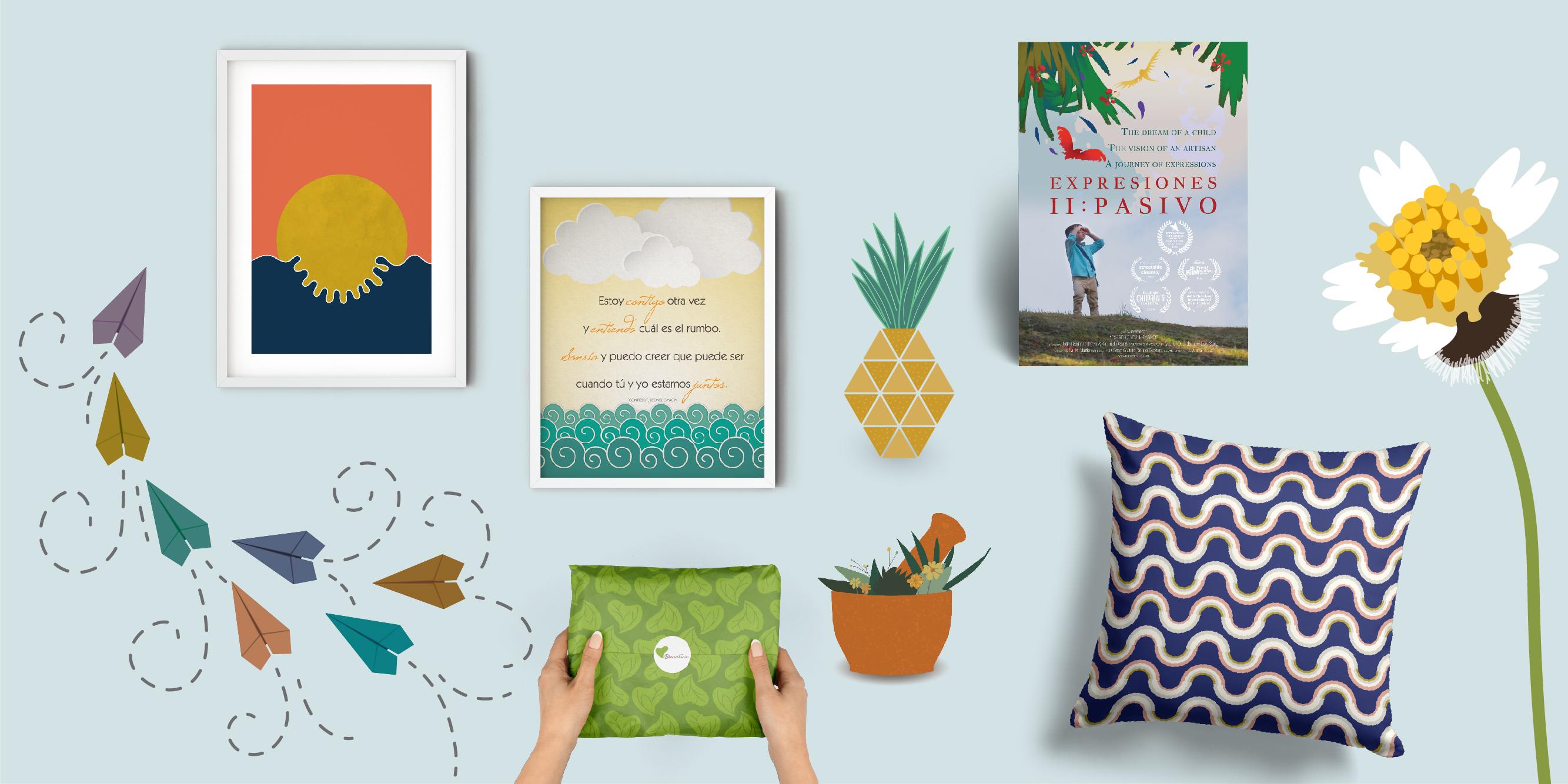
doué, c'est la vectorisation. Je m'appelle Naila. En tant que designer, je me spécialise dans la conception éditoriale
et la conception de surfaces. En 2008, j'ai suivi un cours de dessin
humoristique qui m'a appris les
compétences nécessaires pour transformer un croquis en illustration. Maintenant, je le regarde et je vois tellement de choses qui
peuvent être améliorées, et c'est exactement
ce que je
fais depuis 14 ans. Depuis que j'ai obtenu mon
baccalauréat en design graphique en 2009, j'ai travaillé avec des vecteurs dans presque tous les
projets sur lesquels j'ai mis la main. Que je travaille
avec des entreprises, des agences
gouvernementales ou des organisations à but non lucratif, je finis toujours
par travailler avec des vecteurs. Je peux vectoriser une photo pour
l'utiliser dans un design d'affiche, ou vectoriser un simple croquis pour l'utiliser dans un design de couverture de
livre. J'ai même utilisé ces
compétences pour vectoriser certains éléments d'un logo
, puis les utiliser pour créer un
design éditorial cohérent pour les magazines. Ou même cette nature artistique, pour l'utiliser comme titre d'affiche de
court-métrage. Les possibilités sont infinies. Si vous
souhaitez apprendre les compétences nécessaires pour transformer vos photos et
dessins en art numérique, mais que vous n'êtes pas sûr
des bons outils à utiliser, ce cours est fait pour vous. Pour ce cours, vous n'avez pas
besoin de connaissances préalables, nous allons suivre étape par étape
une liste de choses à faire claire
après chaque leçon. Je vais vous apprendre comment et
quand utiliser l'outil stylo, outil
crayon, l'outil Pinceau et l'outil Pinceau blob. Vous
découvrirez également la fonctionnalité de
traçage d'images dans
Adobe Illustrator, tout en vectorisant
et sur une photo que
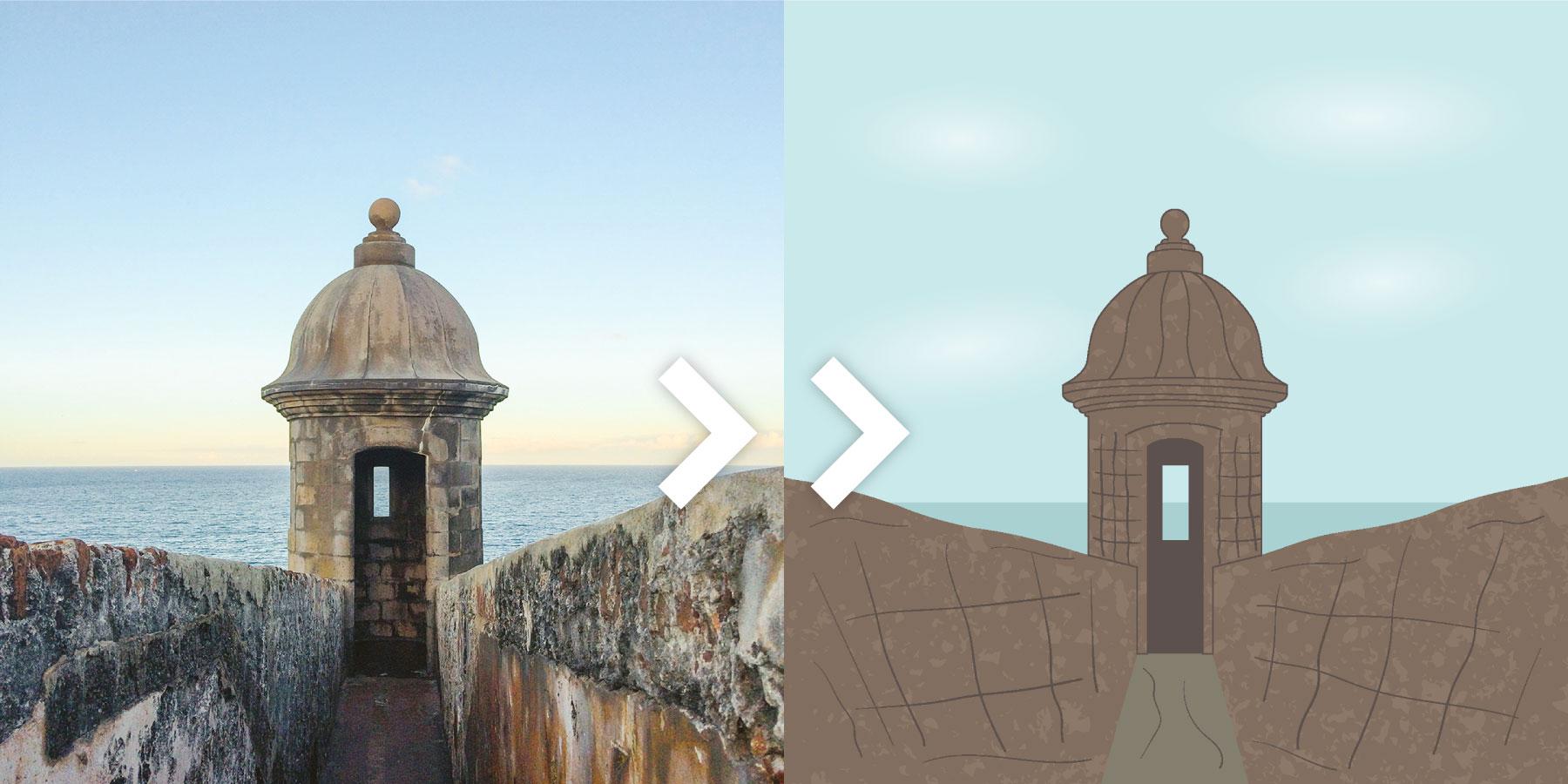
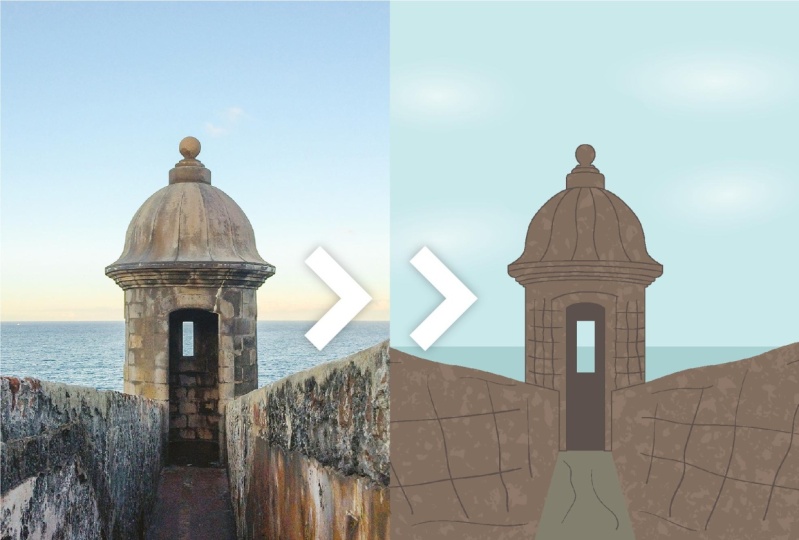
j'ai prise il y a quelque temps de Garita
[inaudible], qui est l'élément le plus
emblématique de le site historique mondial d'un
mannequin ici à Porto Rico. Vous pouvez télécharger
la photo Garita et un autre appel photo Textured, qui est en fait
le trottoir de mon quartier dans la section
Ressources. N'hésitez pas à sortir
et à prendre vos propres photos. part cela, vous aurez besoin du logiciel Adobe Illustrator, pour lequel vous trouverez
le lien pour télécharger une version d'essai gratuite dans la
description de la classe ci-dessous cette vidéo. J'utiliserai une
tablette stylo pour vous apprendre comment elle peut vous aider dans votre processus de
vectorisation. Mais en avoir un n'est pas
essentiel pour ce cours. Apprendre à vectoriser vous
donnera la liberté de
créer des designs uniques
dans votre propre style. Modifiez-les autant de fois
que vous le souhaitez et faites-les n'importe quelle taille dont vous avez besoin
sans perdre sa qualité. Sans oublier que cette
compétence fera de vous un résolveur de
problèmes et, par conséquent,
un meilleur concepteur. À la fin de ce cours, vous pourrez
vectoriser tout ce que vous voulez et montrer votre
voix artistique unique dans l'art de l'ego. voit dans la première leçon.
2. PROJET DE COURS: Pour ce projet de classe, vous allez créer votre
propre art numérique. Les projets sont un excellent
moyen d'apprendre concrètement, et ce projet de classe est une étape par étape que vous pouvez
suivre avec moi. Je partage même avec vous les mêmes images avec
lesquelles je vais travailler. Tout d'abord, téléchargez les photos gratuites à vectoriser dans la section
Ressources. Pour les trouver, allez dans l'onglet
situé sous cette vidéo où il est écrit Projets et
ressources. Cliquez dessus. Ensuite, allez à droite de la page où il est
écrit Ressources. Il y aura deux images, l'une appelée garita et l'
autre appelée texture. Il y en a une troisième,
appelée feuille de pratique. Vous trouverez également un
PDF avec la liste des raccourcis
les plus utiles que j'utiliserai
tout au long de la classe. Je suggère que vous l'
ayez en main pendant que vous suivez le cours afin que vous puissiez le
référencer selon vos besoins. Allez-y et téléchargez toutes les ressources
que vous pourrez utiliser ultérieurement. Si vous préférez, vous pouvez utiliser une photo et/ou un
dessin à la main. Vous allez ensuite créer
un nouveau document dans Adobe Illustrator et
placer votre image. Si vous n'avez jamais travaillé avec Adobe Illustrator, ne vous inquiétez pas. Je vais vous enseigner étape par étape
pour que vous puissiez suivre. Juste après cela, vous
vectorisez votre photo à l'aide des outils de dessin que vous apprendrez dans ce cours. Vous allez ensuite exporter votre image et la partager
sur les réseaux sociaux, l'utiliser comme élément
dans un design éditorial ou même la télécharger sur une boutique
en ligne pour la vendre. Les options sont illimitées. Montrez votre projet dans la galerie de projets pour que nous puissions
tous en profiter. Il suffit d'aller dans le même onglet
Projets et ressources, puis d'aller à
droite et de cliquer sur le bouton vert qui
indique Projet de classe. Vous pouvez y
nommer votre projet, partager votre processus et vos images
avec toute la communauté. Passons à la prochaine
leçon pour commencer notre cours.
3. Qu'est-ce qu'un vecteur: Commençons par les bases. Qu'est-ce qu'un vecteur après tout ? Il est très facile de différencier
visuellement un vecteur de son
opposé, une image raster. Une image raster est créée à partir de petits carrés appelés pixels. Le meilleur exemple
est une photographie. Une image vectorielle est
une illustration créée à l'aide de
points et de lignes. C'est ce qu'on appelle des chemins. Ces chemins sont
modifiables pour que vous puissiez vous
déplacer là où vous en
avez besoin et créer une forme. Adobe Illustrator est un programme
vectoriel, ce qui signifie que vous pouvez y
créer des images vectorielles. Lorsque nous convertissons des
images raster telles qu'une photo vous avez prise en vecteur est
appelée à vectoriser, c'est
ce que nous
apprendrons dans cette classe. Si cela vous intéresse, j'ai
une classe Skillshare qui explique en profondeur les différences entre un vecteur et une
image raster, formats de fichiers les plus courants
et leurs utilisations, c'est ce que l'on appelle les formats de fichier, Vous souhaitez utiliser JPEG, PNG, TIFF, PDF, EPS ou SVG. Vous pouvez le trouver dans
la description de la classe ou dans mon profil Skillshare. La création d'images vectorielles est très utile pour
trois raisons principales. abord, lorsque vous avez besoin d'une image de haute qualité
dans une variété de tailles, par
exemple un logo. Un logo est un design qui peut être placé dans une petite carte de visite, mais aussi dans un gros emballage de voiture. Mais c'est l'une des caractéristiques les plus
importantes d'un vecteur qui, une fois créé, vous pouvez augmenter sa taille avec
une qualité d'image assouplie. Comme c'est souvent le cas pour une image
raster, telle que les photos, que si l'image est très petite, lorsque la grande innée, vous
pouvez voir des carrés flou, cela signifie
que la
photo est pixélisée. Les vecteurs utilisent des équations
mathématiques pour ajuster la taille d'une forme. Cela permet de conserver sa qualité. La deuxième
raison pour laquelle les vecteurs sont utiles est que vous concevez
peut-être quelque chose que vous ne
connaissez pas encore la taille finale et que
vous craignez de devoir le refaire. Par exemple, vous pouvez
être un artiste qui crée des œuvres d'art à des fins de
licence ou de vente. Supposons que vous ayez
créé une œuvre
d' d'une taille de 8 x 10 pouces, mais que vous avez ensuite la
possibilité d'utiliser cette même œuvre dans
un format de 24 x 32 pouces. Vous pouvez facilement effectuer le réglage sans
perdre de qualité. La troisième raison
est qu'un vecteur permet de créer une
image sans pareille,
d' une simple illustration à
une illustration très détaillée avec des
feuilles, des motifs et des textures. Vous pouvez créer tout ce dont
vous avez besoin pour votre design. Maintenant que vous avez une
idée claire de ce qu'est un vecteur, passons à la leçon suivante
où je vais vous enseigner les programmes et les outils avec lesquels vous pouvez vectoriser une photo.
4. Vectoriser les programmes et l'outil: Dans la leçon précédente,
vous apprenez ce qu'est un vecteur et trois
principaux avantages de celui-ci. Cette leçon, vous
apprendrez les programmes et les
outils avec lesquels
vous pouvez factoriser. Si vous effectuez une recherche rapide
sur Internet en factorisant des programmes,
vous en trouverez quelques-uns. Mais dans ce cours, nous nous
concentrerons sur le logiciel graphique
vectoriel leader du secteur, Adobe Illustrator. Adobe Illustrator est un programme
vectoriel qui le différencie
d'Adobe Photoshop, qui est le programme
raster. Photoshop est un programme puissant dans lequel vous pouvez créer des illustrations
étonnantes, mais Illustrator
convient mieux aux illustrations. C'est la raison pour
laquelle il existe. Si vous n'avez jamais utilisé
Adobe Illustrator, ne craignez pas. Dans la leçon suivante, je vais l'ouvrir et
configurer mon document que vous
puissiez voir
comment le faire vous-même. Mais d'abord,
parlons d'un outil que j' utilise depuis des années.
Ma tablette Wacom. Chaque fois que je travaille
depuis mon ordinateur, je l'utilise toujours même
lorsque je ne conçois pas. Utiliser une
souris de bureau ou un suivi trop
longtemps peut
me causer de la douleur à la main. Une fois que j'ai commencé à utiliser la tablette
Wacom avec un stylo, cette douleur a disparu. Il existe de nombreuses marques avec une gamme de prix variée. Il suffit de faire une
recherche par tablette à stylet. Mon premier était un plus petit stylo en bambou Wacom il y a de nombreuses années. Il ne dispose même pas de Bluetooth. Vous devez le brancher
directement sur le port USB. Ils ne produisent plus
cette ligne. J'ai mis à jour un Wacom en
support spro il y a quelques années. Ils le produisent également en petit et ils en ont un
plus grand en gros. Mais j'ai trouvé
que la taille
moyenne était très confortable. Chaque fois que je travaille
en dehors de mon bureau, je l'emporte avec moi le plus petit car
il est plus facile à transporter. Comme vous pouvez le constater, il existe
une variété de tailles, styles et de prix parmi lesquels
choisir. Vous constaterez que l'utilisation
d'une tablette Wacom et d'un stylo vous aidera à
tirer le meilleur parti des outils
Adobe Illustrator que nous
utiliserons cette classe,
car vous
aurez plus de contrôle et
vous sentirez. naturel comme si vous
étiez sur le papier. De plus, une tablette Wacom vous
donne accès à précieux outils sensibles que vous ne pouvez pas utiliser avec
une souris normale. nos jours, il est de
plus en plus populaire d'utiliser l'iPad et l'Apple Pencil pour créer des œuvres d'art et pour une bonne raison. Les applications deviennent de plus en plus puissantes et vous
pouvez créer des
designs du début à la fin
et les envoyer en
production sur iPad. Un excellent exemple
est l'application Procreate ou
l'application Illustrator pour iPad récemment lancée. Encore la plupart des gens d'abord par un ordinateur, puis un iPad
parce qu'avouons-le, un iPad est un investissement et bien que vous puissiez créer un travail
incroyable avec lui, je le verrai toujours
comme un outil de compagnon, un excellent compagnon, mais quand même, j'ai toujours besoin de mon
ordinateur pour finaliser certains travaux, stocker
et gérer des fichiers. Si vous souhaitez dessiner à
la main et
acheter un iPad et un Apple Pencil n'
est pas une option pour le moment, une tablette Wacom peut être
une option pour vous. Il y a un lien vers
le site Web de Wacom dans la description de la classe. ne s'agit pas d'un lien d'affiliation, Il ne s'agit pas d'un lien d'affiliation, mais simplement pour vous faciliter la tâche. Passons à la prochaine
leçon pour sélectionner l'image que nous allons vectoriser
plus tard dans la classe.
5. Sélectionnez une image à vectoriser: Au cours de la leçon précédente, vous avez découvert Adobe
Illustrator et les tablettes à stylet. Avant de créer notre document Adobe Illustrator
à vectoriser, veillons tout d'
abord à ce que tous vos actifs soient prêts à être utilisés. Dans la section Ressources, j'ai téléchargé deux
photos que j'
utiliserai dans cette classe cas où vous voudriez
suivre avec moi, mais n'hésitez pas à vectoriser
tout ce que vous voulez. Personnellement, j'ai vectorisé nombreux éléments emblématiques de différents pays
pour le travail des clients, mais aussi de mon propre
pays, Porto Rico. Par exemple, il y a
quelques années, je concevais l'affiche d'
un festival de courts-métrages organisé dans la
ville voisine, Rincón. Cette ville possède l'un
des phares les plus emblématiques de l'île. J'avais une photo
du phare, alors je la cherche, je la place, la
trace, et c'était là, une version vectorisée
du phare de Rincón. Vous pouvez également créer
un dessin à la main et l'utiliser pour le vectoriser. Vous pouvez être un artiste très
habile en dessin
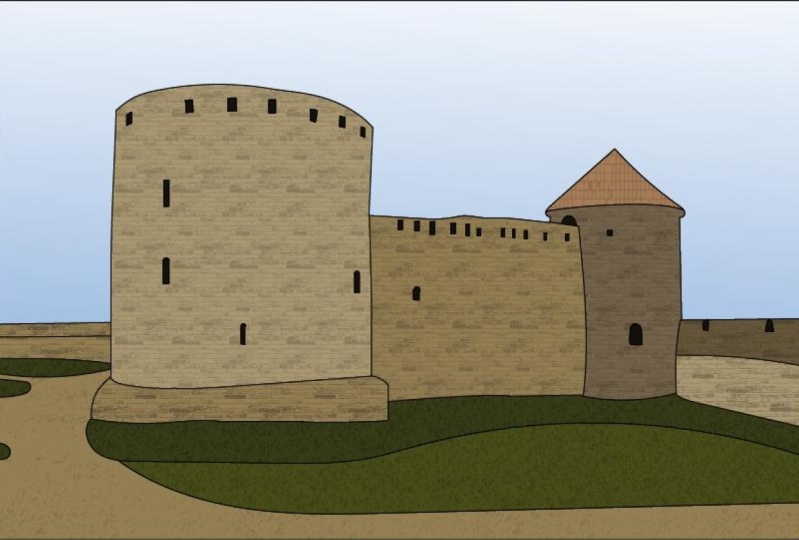
à la main ou non. Je ne le suis pas. Regardez ce projet de bande dessinée j'ai réalisé il y a plus de 10 ans. C'était pour un cours de
dessin humoristique. Mes dessins à la main
sont très simples, mais mes compétences vectorielles transforment cela en un résultat complètement
différent. Maintenant, je le regarde et je vois tellement de choses que
je peux faire mieux, mais c'était la première
fois que je travaillais avec des vecteurs cette façon et j'en ai été
tellement étonné. Si vous choisissez d'utiliser un dessin, il
suffit de le prendre en photo et de le
transférer sur votre ordinateur. Une fois que vous êtes prêt et avant de
plonger dans la prochaine leçon, téléchargez ou
recherchez la photo, vous allez la vectoriser et l'
enregistrer dans un nouveau dossier. Dans la leçon suivante, vous allez ouvrir Adobe
Illustrator sur votre ordinateur, configurer le document
et placer l'image.
6. Configurer votre document: Dans la leçon précédente, nous avons sélectionné et enregistré
dans un nouveau dossier l'image que nous
allons vectoriser. Dans cette leçon, vous allez configurer votre
document Adobe Illustrator sur votre ordinateur. Nous sommes maintenant dans
Adobe Illustrator, à gauche, vous pouvez voir
le nouveau bouton de fichier. Vous pouvez également ouvrir des documents
illustrator précédents. Vous pouvez vous rendre chez vous
où nous en sommes et vous pouvez voir
ici quelques préréglages si vous double-cliquez sur l'un d'entre eux, un nouveau document Illustrator s'
ouvrira avec ces spécifications. Vous pouvez également voir les documents
récents avec
lesquels vous avez travaillé. Si vous allez apprendre, vous pouvez voir des didacticiels à
droite de la fenêtre. Dans la section Fichier, vous pouvez voir tous
les fichiers que vous avez enregistrés dans Adobe
Creative Cloud. Si vous avez des fichiers partagés avec vous et n'importe quel fichier supprimé
de Creative Cloud. Allons sur le
bouton Nouveau fichier et cliquons dessus. La nouvelle
fenêtre de document s'ouvre. En haut, vous pouvez voir les
préréglages parmi lesquels vous pouvez choisir et il y en
a d'autres pour mobile, Web, impression, film et vidéo, art et illustration. Allons sur le web parce que
nous allons travailler avec une image qui ne sera
partagée que sur le numérique, elle ne
sera pas imprimée pour l'instant. Ici, vous pouvez voir les préréglages et en dessous, il y a des modèles. Encore une fois, vous pouvez double-cliquer
et les modifier. Beaucoup d'entre eux sont gratuits, ce qui vous
permet d'en profiter. À droite, nous avons les détails prédéfinis et nous
allons travailler
là-dessus maintenant. La première chose à
faire est de modifier le nom de votre document pour ce que vous
voulez le nommer. Je vais appeler
ça la vectorisation. En dessous, vous pouvez voir les unités avec lesquelles vous
pouvez travailler. Je vais choisir des
pouces parce que c'est la mesure que
je connais le plus, mais vous pouvez choisir
ce que vous voulez. Je vais maintenant
définir la largeur et la hauteur de mon document. Dans ce cas, je vais
utiliser 10 pouces par 10 pouces. À droite, vous pouvez voir l'orientation
de votre document. Dans ce cas, cela n'
affecte pas notre document car il s'agit d'un carré et, à droite de l'orientation,
vous pouvez voir les tableaux d'art. Pour l'instant, nous ne travaillerons qu'
avec une seule œuvre d'art. Nous allons laisser ça à un seul moment. dessous, nous avons
les options de fond perdu et parce que nous travaillons
avec un document numérique, nous n'avons pas besoin d'un fond perdu. Cette option est réservée à l'impression. Sous les options avancées, nous avons le mode couleur, car nous
travaillons avec un préréglage Web, son RVB, qui est le bon,
car encore une fois, nous
travaillons avec le numérique. En dessous, nous avons la
résolution du document. J'aime toujours
travailler avec 300 PPI. Nous pouvons toujours le modifier
lors de l'exportation au format JPEG, vous pouvez choisir une résolution
inférieure. Mais j'aime toujours avoir le plus haut niveau lorsque je
travaille avec les documents. Le mode d'aperçu ne fait que
laisser le mode par défaut. Nous sommes maintenant prêts à travailler avec
nos documents, cliquez sur Créer. Nous y voilà maintenant. Notre
document est prêt à fonctionner avec nous. Mais allons d'abord dans le fichier, enregistrez sous, cette
fenêtre vous invite, vous pouvez choisir,
ne plus afficher, ou simplement le laisser comme
il vous le demandera toujours,
vous pouvez choisir de l'enregistrer dans le Creative Cloud ou
enregistrez-le sur votre ordinateur. Dans ce cas, je vais l'
enregistrer sur mon ordinateur. Je vais chercher le dossier avec lequel je
vais travailler. Vous pouvez le renommer si vous le
souhaitez et cliquer sur « Enregistrer ». Laissez cette fenêtre telle
quelle et cliquez sur « OK ». Il est très important
de ne pas oublier toujours sauvegarder votre
document après avoir fait
quoi que ce soit parce que des choses se produisent et que le programme peut
planter ou quelque chose, vous pouvez contourner le problème. Si, pour une raison quelconque, votre document a l'air différent du mien, peut-être que la couleur d'arrière-plan est plus claire ou que
les choses ne sont pas en place, peut-être devriez-vous accéder à vos
préférences sur Mac, c'est
Préférences Illustrator dans la fenêtre qui se trouve dans Modifier
les préférences. Ici, vous pouvez apporter
de nombreux changements, en
particulier dans la zone
d'interface. Ici, vous pouvez choisir la couleur, quoi elle ressemblera. J'ai le mien dans l'obscurité moyenne parce que c'est
celui auquel je suis habitué, et celui que j'aime bien. Mais vous pouvez changer cela ici. Vous pouvez modifier l'échelle de votre document Illustrator
et bien d'autres choses. Si, par quelque raison que ce soit, votre document
semble différent du mien, vous
devez
probablement modifier quelque chose ici dans les préférences. Je vais cliquer sur « OK ». Vous avez maintenant votre document
prêt à commencer à vectoriser. Si vous ne connaissez
pas Illustrator, j'ai quelques mots pour vous. Ne soyez pas submergé. Cela peut paraître déroutant, mais une fois que vous commencez à l'
utiliser, tout est logique. Ce cours nous concentrera sur des outils spécifiques pour que vous puissiez
créer votre design numérique. Pour cette leçon, vous devez créer votre document, choisir vos préférences
et l'enregistrer. Dans la prochaine leçon, je vais vous
apprendre comment placer votre image dans les documents
afin que nous puissions commencer à vectoriser.
7. Placer une image: Au cours de la leçon précédente, nous avons configuré nos préférences de
document Adobe Illustrator et enregistré notre document. Dans cette leçon, nous nous concentrerons sur
les outils situés à gauche de la fenêtre
du programme utilisés pour créer. À droite, il y a des panneaux qui servent à
éditer nos créations. En haut, nous avons le
Panneau de configuration qui modifie vos options en fonction des outils ou des panneaux
que vous utilisez. Commençons par
placer notre photo. Nous sommes maintenant dans
Adobe Illustrator et vous pouvez placer votre image de deux manières. abord, vous pouvez accéder
à Fichier, Placer ou utiliser ce raccourci et il
ouvrira cette même fenêtre, et vous pouvez rechercher l'endroit où vous avez votre photo, double-cliquer et l'ouvrir. Mais ma façon préférée est
de simplement glisser-déposer. Je viens d'ouvrir mon dossier, de
cliquer, de faire glisser sur
Illustrator et de le relâcher. Ici, j'ai ma photo. Je vais effectuer un zoom arrière car l'image est
plus grande que mon plan de travail. C'est la commande moins
ou le contrôle moins. Je vais cliquer dessus, le faire glisser et
essayer de le centraliser. Je vais utiliser
ces petites boîtes ici que vous pouvez voir. Je vais cliquer dessus,
appuyer sur « Option » et « Maj » sur mon clavier pour que je
puisse le réduire, mais proportionnellement, pour que l'image
ne devienne pas folle. Nous allons faire
un peu plus. Je vais le centraliser. Si vous devez, pour une raison quelconque, vous
déplacer dans le plan de travail, vous pouvez cliquer sur cette « barre d'espace » et l'outil à main apparaîtra. Une fois que vous l'aurez relâché,
il retournera à l'outil
que vous avez sélectionné. C'est un outil très utile. Si vous apprenez un
raccourci, apprenez celui-ci. La barre d'espace est un raccourci
utile car pendant la vectorisation, déplacer est
l'une des choses que vous
ferez le plus. Fais-moi confiance. Cela deviendra
un flux de travail si naturel pour vous que vous n'y
penserez même pas pendant l'utilisation. Maintenant que ma photo
est placée dans Illustrator, je vais cliquer
dessus et je vais
ouvrir mon panneau Transparence. Si vous ne voyez pas le panneau avec
lequel je travaille, vous pouvez accéder à la fenêtre et vous pouvez voir ici tous
les panneaux proposés par
Illustrator. Chaque fois que j'ouvre un panneau
et que vous ne le voyez pas, vous pouvez aller à la fenêtre
et le chercher. Je vais définir la
transparence de cette image à 75, car cela nous
aidera à mieux voir
quand nous suivons. Si certaines images peuvent avoir besoin de plus de
transparence que d'autres, vous jouez avec ce que vous vous sentez plus
à l'aise. Maintenant, parce que nous
suivons une image est comme si nous
suivons un papier, vous voudrez verrouiller cette
image parce que si ce n'est pas le cas, je crée quelque chose
dessus et je ne verrouille pas
l'image derrière, Je peux le déplacer et vous ne
voulez pas cela parce que
lorsque vous travaillez, encore une fois avec le traçage, vous ne
voulez pas déplacer l'
image derrière elle. Je vais supprimer ça maintenant. Il existe deux façons de verrouiller cette image. abord, vous pouvez le sélectionner
et aller dans « Objet », « Verrouiller » ,
« Sélection », ou vous pouvez utiliser commande 2 ou le contrôle
2 sous Windows. Je vais le sélectionner
« Commande 2 », et maintenant il est verrouillé. Maintenant, quoi que ce soit que je crée, si j'essaie de sélectionner l'image
à l'arrière, elle ne bougera plus. Mais c'est problématique lorsque vous souhaitez exporter
votre illustration. Ensuite, vous devez déverrouiller
l'image derrière elle et la déplacer
sur le côté ou la supprimer, et je ne veux pas cela
car je veux avoir le contrôle nécessaire pour modifier mon illustration si je
dois y revenir. [BRUIT] C'est là que
ma façon préférée verrouiller une image consiste
à créer un nouveau calque pour réaliser
mes dessins et laissant ma photo dans un calque
séparé verrouillé. Ensuite, je
désactive simplement la visibilité du
calque sans avoir
à supprimer la photo. Voyons comment cela fonctionne. Maintenant, déverrouillons cette image. Je vais aller dans
« Objet » « Déverrouiller » ou « Option »
« Commande 2 » et
cela déverrouillera votre image. Ma façon préférée de
verrouiller une image est de la verrouiller dans un calque séparé. Ouvrons notre panneau Calques. Vous pouvez voir ici qu'ils n'en ont qu'
un seul appelé Layer Number 1. Double-cliquez
dessus et renommez-le Photo. Cliquez sur « Entrée », puis
accédez
au carré en bas avec un signe plus et vous allez
créer un nouveau calque. Un nouveau calque sera
toujours créé en plus de celui que
vous avez déjà créé. Maintenant, allez dans le calque photo et déplacez-vous vers la gauche
entre l'œil et le nom de la photo puis cliquez sur ce carré et vous
voyez qu'un cadenas apparaît. Cela signifie que
cette couche est maintenant verrouillée. Si je veux créer quelque chose, vous voyez le crayon avec
un cercle avec une ligne ? Cela signifie que je ne peux rien
créer ici. Je dois passer à l'
autre calque qui n'est pas verrouillé
pour pouvoir créer des choses dessus. À partir de maintenant, nous allons travailler avec la
couche numéro 2 que nous allons renommer Vector. [BRUIT] Maintenant, chaque fois que je crée quelque chose au-dessus de ma photo et que je dois la supprimer,
je n'ai pas besoin de la supprimer. Je vais juste sur cette icône en forme d'œil et je l'éteins et je peux
voir ce que j'ai créé, et je l'éteins et je peux
voir ce que j'ai créé,
et je peux l'activer pour
continuer à travailler dessus. Je sais que beaucoup de gens n'
aiment pas travailler avec des couches, mais je les adore. Les calques sont un excellent
moyen d'organiser votre travail, surtout si vous
travaillez avec de nombreux éléments. changement de nom des couches est très
utile si vous partagez ce fichier avec un autre
concepteur ou fournisseur d'imprimantes. Il est plus facile pour eux
de trouver ce dont ils ont besoin. C'est tout, maintenant nous sommes prêts à
commencer à vectoriser cette image. Avant de passer à
la leçon suivante, assurez-vous d'abord
placer votre image, réduire son opacité, de
créer un nouveau calque et de renommer les calques
Photo et Vector. Déverrouillez le calque photo. vous verrai dans la prochaine
leçon où je
vais vous enseigner
sur l'outil Plume.
8. L'outil Plume : lignes droites: Dans la leçon précédente, nous avons placé la photo sur laquelle
nous allons
travailler dans le nouveau document
dans Adobe Illustrator. Commençons par notre premier outil de cette classe, l'outil Plume. Dans cette leçon, je vais vous en enseigner l'aspect technique
car l' outil stylo est l'un de ces outils que
les gens aiment ou détestent. Vous détestez ça quand vous
ne le comprenez pas, mais une fois que
vous le faites, vous l'aimez. Sans aucun doute, l'outil stylo
est l'outil le plus célèbre d' Illustrator, car avec lui, vous pouvez créer ce que vous voulez. L'outil Plume crée des points
d'ancrage. Lorsque deux points
d'ancrage ou plus sont connectés par une ligne, c'est ce qu'on appelle un tracé. Lorsque vous créez des courbes
avec l'outil Plume, elles sont appelées courbes de Bézier. Dans cette leçon, nous nous
concentrerons sur les chemins droits. Nous sommes de retour dans Adobe
Illustrator et ils ont créé un nouveau document et
ils ont placé ma feuille de pratique Pen Tool
et j'adore cette image. Dans ce cas, l'édition a créé une nouvelle couche parce que nous
ne travaillons que comme pratique et
qu'un simple travail n'
est pas une
illustration compliquée. À gauche, nous pouvons
voir la boîte à outils. Vous pouvez voir que les nombreux outils ont un petit triangle vers le coin
inférieur droit. Cela signifie que vous
pouvez cliquer et laisser la souris là pendant quelques secondes et que vous pouvez
voir d'autres fonctions. Vous pouvez voir ici que
nous avons l'outil Plume
et ses fonctions, qui est
l'outil Ajouter un point d'ancrage,
l'outil Supprimer le point d'ancrage
et l'outil Point d'ancrage. À droite d'eux, vous pouvez voir une parenthèse. Cela signifie qu'il
s'agit d'un raccourci. Si vous appuyez sur P sur le clavier, vous obtiendrez cet outil Plume. Le signe plus obtiendra l'outil
Ajouter un point d'ancrage. Le moins, l'outil Supprimer le point
d'ancrage et Maj C, l'outil Point d'ancrage. Si vous continuez à vous déplacer
vers la droite dans cette bordure et que vous
relâchez votre souris, vous obtiendrez une fenêtre
flottante avec toutes les fonctions de l'outil
Plume. Si, de quelque raison que ce soit, vous ne voyez pas les mêmes outils que moi ici, vous pouvez aller au
bas de la boîte à outils, donc ces trois points horizontaux. C'est la barre d'outils Modifier. Ici, vous pouvez accéder à tous
les outils d' Adobe Illustrator. Les grises signifient que vous les avez
déjà
dans votre boîte à outils. Les autres, vous
pouvez simplement cliquer dessus
et les faire glisser vers votre boîte à outils. Vous pouvez également les déposer
de votre boîte à outils vers vos anciennes fenêtres d'outils pour les éliminer
de la boîte à outils. Lorsque vous travaillez avec n'importe quel
outil de dessin, comme l'outil Plume. La meilleure pratique consiste à définir votre remplissage sur Aucun et à sélectionner
une couleur pour votre trait. De cette façon, il vous sera plus facile de voir
ce que vous faites. Si ce n'est pas le cas, le programme
remplira automatiquement votre forme
vers l'intérieur, ce qui rend difficile de
voir où vous tracez. Par défaut, vous obtiendrez un remplissage blanc et un trait noir. Vous pouvez cliquer sur n'importe lequel d' entre eux pour les faire avancer. Ensuite, vous pouvez cliquer sur le
non-remplissage en dessous, c'
est-à-dire le carré blanc
avec une ligne rouge au-dessus. Mais pour cela, je
préfère utiliser les raccourcis. Si vous appuyez sur la lettre
D de votre clavier, vous reviendrez
à votre valeur par défaut
, à savoir le remplissage blanc
et le trait noir. Vous pouvez utiliser la lettre
X de votre clavier pour faire
avancer ce que vous voulez. Vous pouvez cliquer sur la
barre oblique avant pour définir celle qui se trouve
au premier plan sur aucun. Cette flèche ici
permutera votre remplissage et votre trait, ce qui
signifie que si je clique dessus, mon trait est
maintenant réglé sur
aucun et mon remplissage est noir. Vous pouvez modifier cela dans votre
mot clé avec un raccourci Maj X et cela
fera la même chose. Les programmes Adobe sont
axés sur la pratique. Une fois que vous aurez fait quelque chose de
nombreuses fois, cela vous sera plus
naturel. Vous le
ferez avant de pouvoir y penser. N'oubliez pas que dans la
section Ressources de cette classe, vous pouvez trouver un PDF avec les raccourcis les plus utiles qui peuvent vraiment
accélérer votre processus. Assurez-vous d'avoir sélectionné
l'outil Plume si ce n'est pas le cas, accédez aux Outils et
cliquez dessus, ou appuyez sur la lettre
P de votre clavier. Le cours signifie que la flèche qui se déplace
lorsque vous
bougez votre souris vous indiquera
ce qui est prêt à faire. Dans ce cas, nous avons l'icône de l'
outil Plume et un astérisque. Si vous voulez une approche
différente, vous pouvez appuyer
sur le verrou majuscules de votre mot clé et
vous obtiendrez un X. Certaines personnes préfèrent cela
parce que c'est plus précis, mais je continuerai à utiliser
la méthode traditionnelle un. Maintenant, je vais zoomer en
utilisant le signe de commande plus. Je vais utiliser ma barre d'
espace pour accéder à l'outil à main et
centraliser mon image. Une fois que je l'ai relâché à nouveau, je retourne à l'outil Plume. C'est pourquoi la
barre d'espace est si utile. Maintenant, je veux cliquer et relâcher ma souris et je vais
déplacer la souris. Vous pouvez voir une petite boîte
à droite de mon curseur. Cela indique la distance
entre le point que je viens de créer et l'
endroit où se trouve mon curseur. heure actuelle, la mesure
est exprimée en pouces, car c'est la mesure unitaire qu'elle affiche lors de
la création du document. Si vous affichez des
centimètres ou des pixels, il vous indiquera la
distance entre ces unités. Je vais continuer à
déplacer mon curseur la forme de celle que je suis en train de tracer
dans cette feuille d'exercices. Si vous appuyez
sur Maj sur votre clavier, vous vous assurerez que vous créez une ligne
horizontale droite. Pendant que vous maintenez la touche Maj, si vous déplacez votre souris vers le haut, vous créez un 45 degrés. Ou si vous continuez à monter, vous allez créer une ligne verticale
droite. Je vais en créer
une version horizontale. Je vais cliquer. Je vais monter et je peux appuyer sur Maj pour m'assurer
que cette ligne est droite. Je vais cliquer ,
puis je vais me déplacer
vers la gauche. Comme vous pouvez le voir, une ligne magenta vient d'apparaître. C'est un guide intelligent
d'Illustrator. Cela signifie donc que le point
que je vais créer est parfaitement aligné sur
le point en bas. Je vais cliquer et relâcher. Vous pouvez voir que
si je continue de bouger, je viens de créer la forme
que je voulais retracer. Mais si je continue de bouger ma souris, l'outil Plume est toujours sélectionné. Si vous souhaitez
quitter l'outil Plume, vous pouvez appuyer sur la
touche Echap de votre clavier. Maintenant, je peux créer une autre forme distincte
de celle que je viens de créer car l'outil Plume
sera toujours sélectionné. Si je veux arrêter d'
utiliser l'outil Plume, je peux appuyer sur la touche V mon clavier et elle
passe à l'outil Sélection. Maintenant, je peux sélectionner le chemin
que je viens de créer, le
déplacer ou faire ce que
je veux avec lui. Vous pouvez également appuyer
sur Entrée sur votre clavier pour passer de l'outil Plume à l'outil de
sélection. Mais j'appuie toujours sur
Escape ou V car ils se trouvent à gauche de mon mot clé, c'
est-à-dire la main que
j'utilise pour les raccourcis. Je veux éloigner ma main
droite de ma tablette à stylet
le moins possible. petites choses comme
celle-ci vous aideront à devenir plus efficace
lorsque vous travaillez. heure actuelle, chaque fois
que mon tracé est sélectionné, vous pouvez voir que la ligne, et si je passe à l'outil de sélection
directe, les points d'ancrage
sont de couleur bleue. Vous avez peut-être une autre couleur, vous pouvez changer cela. Vous pouvez accéder à nouveau au panneau
Calques, vous pouvez
double-cliquer au-dessus du nom. Ici, vous pouvez voir que vous pouvez choisir la couleur de votre choix. Il y a également une liste déroulante. Vous pouvez sélectionner celui que
vous préférez et cliquer sur « OK ». Parfois, selon la couleur votre ligne ou de votre forme,
la couleur de votre
calque peut rendre
difficile la visualisation des points d'ancrage. est donc utile de changer la
couleur. Je vais maintenant
appuyer à nouveau sur la lettre P de
mon clavier pour
accéder à l'outil Plume. Vous pouvez accéder à
l'un des points d'ancrage ouverts et vous pouvez voir l'
astérisque changer en ligne. Cela signifie que vous pouvez cliquer sur point d'ancrage et continuer à
créer à partir de celui-ci,
comme vous pouvez le voir. Maintenant, je vais passer
aux autres points d'ancrage ouverts et vous verrez qu'
un cercle se forme. Cela signifie que
si je clique là, j'aurai fermé cette forme. Je vais appuyer sur V sur mon clavier pour passer
à l'outil de sélection. Maintenant, j'ai un
chemin étroit. Je peux le déplacer. Si je change le remplissage
et le trait, vous pouvez voir que
j'ai un carré. Revenons à ce
que nous avons eu. Je vais appuyer sur la
lettre B de mon clavier. Je vais zoomer
un peu que vous puissiez mieux voir
ce que je fais. Si je sélectionne à
nouveau mon outil Plume et que je parcourt
n'importe quelle zone du chemin, vous pouvez voir que le curseur
change à nouveau en signe plus. Cela signifie que
si je clique là, je crée un nouveau point. Partout où je clique, je continue
de créer de nouveaux points. Si je décidais que je
n'ai pas besoin d'un point, je peux passer en revue n'importe lequel d'entre eux, et le curseur se transforme à
nouveau en signe moins, qui est le point d'
ancrage de suppression. À ce stade, je ne fais que déplacer ma souris sur le chemin. Je ne fais aucune
sélection sur mon clavier, mon
raccourci ou même dans la boîte à outils. Si je clique sur cette icône
avec un signe moins, j'aurai supprimé ce point. Maintenant, j'ai changé de forme. Si je sélectionne l'outil
Sélection directe avec
la lettre A sur mon clavier et que je clique
sur l'un de ces points, vous pouvez voir qu'il est
bleu au lieu de blanc. Je peux avancer sur ce point. Je peux à nouveau passer à l'outil Plume, Créer un autre point, créer un autre point
et un autre point. Passez à mon outil
de sélection directe. Je peux continuer à éditer le
même carré que celui que j'ai créé. Je peux continuer à le modifier. Et si je
décidais qu'après avoir créé cette forme, je ne veux plus fermer. Vous allez choisir
votre outil à ciseaux. C'est la lettre C
de votre clavier. Vous pouvez le voir ici sur
le clavier est sélectionné. Vous pouvez cliquer sur
n'importe quel point d'ancrage. Sélectionnez ensuite votre outil de sélection
directe avec une lettre A, puis cliquez à nouveau. Maintenant, je peux bouger et
j'ai une ouverture, je n'ai plus de
forme fermée. une fois, j'ai un chemin ouvert. Si je décide que je
voulais joindre ces deux points, je peux cliquer sur le point de terminaison, appuyer sur Maj et cliquer
sur l'autre point de terminaison, puis le clavier
appuie sur Commande J. Maintenant, ces points
vont s'unir encore une fois. Ce sont les principes
de base de l'outil Plume. Pratiquez-les et ils
deviendront vos meilleurs amis. Dans la prochaine leçon,
nous utiliserons
l' outil Plume pour
travailler avec des courbes. Mais avant, assurez-vous de
télécharger la feuille d'entraînement et de jouer
avec l'outil Plume et ses fonctionnalités. Créez des points, ajoutez des
points au tracé, supprimez des points du tracé. Utilisez l'outil de sélection directe pour déplacer des points indépendamment. Utilisez les ciseaux pour séparer un tracé fermé et
relier deux points les
sélectionnant à l'aide de
l'outil de sélection directe et en utilisant le
raccourci Control J. Ensuite, passez à la
leçon suivante pour créer des courbes.
9. L'outil Plume : courbes: Vous vous familiarisez maintenant
avec l'outil stylo. Jusqu'à présent, nous avons
beaucoup appris sur son fonctionnement en
créant un carré et en l'éditant l'aide
des fonctionnalités de l'outil stylo. Nous allons maintenant créer des
courbes avec l'outil stylo. Comme nous l'avons vu jusqu'à présent, l'outil de sélection et
l'outil de sélection directe sont très utiles lorsque vous
travaillez avec des vecteurs. N'oubliez pas que vous
pouvez sélectionner un objet déplacer n'importe quel objet dans Illustrator à l'
aide de l'outil de sélection. Le raccourci est la
lettre V de votre clavier. Vous pouvez sélectionner des points d'ancrage
indépendants à l'aide de l'outil de sélection directe. Le raccourci est la
lettre A de votre clavier. Revenons maintenant
à Illustrator à la figure numéro 2 pour
créer des courbes à l'
aide de l'outil plume. Commençons
par
créer cette figure en créant un point d'ancrage, et je vais
passer à
la fin de ma forme suivante . Je vais cliquer
et faire glisser et vous pouvez voir que j'ai maintenant des poignées
qui, si j'utilise la
sélection directe à la lettre A, je peux les déplacer. Je peux modifier cette forme jusqu'à ce qu'ils aient
cette forme que je veux et comme vous pouvez le voir, c'est assez serré. Je vais supprimer
ça et recommencer. Lorsque vous créez des courbes,
ce que vous devez faire ,
c'est au moment de
créer votre premier point, vous allez cliquer
sans relâcher ni glisser. Voici les poignées
de l'outil stylo. Vous allez le déplacer plus ou moins vers la zone que
vous voulez que votre courbe aille. Maintenant, vous pouvez voir comment je peux prévisualiser le déroulement de ma
courbe. Maintenant, je vais
cliquer à la fin de
cet exercice de traçage et
cliquer à nouveau et faire glisser le curseur
sans relâcher. Maintenant, je vais relâcher. Maintenant, vous pouvez voir que ma forme est plus similaire à celle
que je veux créer. Vous pouvez revenir à votre outil de sélection
directe et déplacer les choses. Vous pouvez modifier à nouveau
ce point d'ancrage, et celui-ci ici jusqu'à ce que
vous obteniez la forme de votre désir. Maintenant, nous avons ici notre forme numéro 1 et
le numéro de forme 2. Si, par quelque raison que ce soit,
vous souhaitez créer une ligne droite sur une courbe ou
une courbe en ligne droite, vous suffit d'utiliser
votre outil de point d'ancrage. Cliquez dessus et dirigez-vous
vers le point d'ancrage. Cliquez et faites glisser le curseur. Ensuite, ils ont transformé cette ligne droite
ou ce coin en courbe. La même chose ici,
si je voulais changer cette courbe
qui a été déclenchée, je clique et clique, maintenant j'ai une ligne droite. Si j'ai une ligne droite, je peux cliquer à nouveau et faire glisser, et je peux créer les poignées. C'est ainsi que vous pouvez utiliser cet outil. Passons maintenant à la figure numéro 3. Je vais définir l'outil stylo, je vais cliquer et faire glisser. Cliquez et faites glisser le curseur, puis
cliquez et faites glisser. Si je veux effectuer
d'autres modifications, je peux cliquer,
je peux appuyer sur la lettre
A de mon clavier et effectuer tous les ajustements
dont j'ai besoin. Nous devrions avoir à chaque fois que vous
déplacez la poignée à gauche, vous modifierez le
chemin à gauche, que vous avez précédemment créé. Si vous déplacez
celui situé à droite, vous affecterez
plus d'un que vous venez de créer à droite. C'est comme ça que ça fonctionne.
Passons à la figure numéro 4. Je souhaite sélectionner l'outil
stylo, encore une fois. Je veux cliquer et faire glisser, cliquer et faire glisser, cliquer et
faire glisser, cliquer et faire glisser. Mais maintenant, je ne veux pas
créer de courbe. Je veux créer
cette ligne droite. Je vais cliquer sur mon dernier point d'ancrage
et vous verrez
qu' une petite flèche
changeant le curseur, ce qui
signifie que je vais
créer un coin. Je veux cliquer
ici et maintenant nous pouvons créer une ligne droite. Vous pouvez voir qu'
avec l'outil plume, tout est modifiable. Tant que vous vous entraînez, vous
prédirez mieux la forme libellée selon l'endroit où se trouvent
vos points d'ancrage. Je sais que c'est une raison pour laquelle la plupart des gens renoncent à
utiliser l'outil stylo. Ils sont simplement frustrés, mais ils n'
obtiennent pas la forme
qu'ils veulent créer, mais leur donnent du temps et de la pratique. Avant de passer à la leçon suivante, tracez les figures 2, 3 et 4 de la feuille de pratique. Modifiez la figure numéro 1 pour changer les coins en courbes
et vice versa. Une fois que vous avez pratiqué et compris le fonctionnement de l'outil
stylo, passez à la leçon suivante pour commencer à vectoriser votre photo à l'
aide de l'outil stylo.
10. L'outil Plume en action Pt. 1: Au cours des deux dernières leçons, nous avons appris comment fonctionne l'outil
stylo. Nous suivons les formes d'entraînement
pour connaître l'outil et les raccourcis. Maintenant, nous allons
mettre cela en action et commencer à
tracer leur photo. Revenons à Illustrator. Nous sommes maintenant de retour dans le
fichier Illustrator que nous avons créé auparavant. La première chose que je vais
faire est de m'assurer que mon remplissage n'est pas réglé sur aucun
et que j'ai un trait, je vais le changer en rouge. Si vous double-cliquez
sur le contour, vous ouvrirez le sélecteur de couleurs. Je vais choisir le rouge car
c'est une couleur qui contraste
vraiment avec notre image
et qui est plus facile à voir. Maintenant, je vais
cliquer sur mes « Calques ». Si je clique sur mes « Calques » maintenant, vous verrez que la
palette de couleurs disparaîtra car lorsque vous avez
empilé vos panneaux, vous ne pouvez ouvrir qu'un seul
panneau à la fois. Si vous voulez en voir plus, vous pouvez cliquer sur les flèches
ici et cliquer sur « Développer les panneaux » et vous
pouvez voir d'autres choses, mais j'aime que les miennes soient
organisées de cette façon. Revenons à notre
panneau Calques et vérifions que je travaille avec mon
calque vectoriel, pas ma photo. Ceux que j'ai
mis en évidence sont ceux avec lesquels je travaille. Tout d'abord, je vais appuyer sur
« Commande R » sur mon mot clé. Vous pouvez voir que ma
règle apparaît ici. Vous pouvez également le faire
dans la vue et les règles. Dans ce cas, il est écrit « Cacher les règles » parce que
je viens de le créer. Mais si ce n'est pas le cas, il dira « Afficher les règles » et
ce que je préfère utiliser le raccourci car il est
évidemment plus rapide. Maintenant, la règle que vous pouvez faire glisser depuis le coin et modifier le
point de départ du zéro. Si vous souhaitez commencer pour
quelque raison que ce soit dans un autre domaine, ce n'est pas le coin
de votre projet, vous pouvez le faire. Dans ce cas, je vais le
laisser dans la région. Je vais « Cliquer et faire glisser » dans le coin
et j'aurai mon zéro ou mes documents
commencent, mon plan de travail commence. Je vais faire un zoom arrière un
peu, « Commande moins ». Maintenant, je peux faire glisser depuis la
règle et créer des lignes directrices. Dans ce cas, je ne
veux pas que mes lignes directrices soient partout dans le document. Je vais appuyer sur « Commande Z » sur mon clavier. Je vais sélectionner
« Outil de plan de travail », cliquez ici. Maintenant, vous pouvez voir que j'ai
sélectionné mon tableau d'art. C'est ainsi que
vous pouvez modifier la taille de
votre plan de travail ou toute autre
chose qui y est associée. Mais maintenant, je vais passer
de ma règle à mon plan de travail, au milieu, en utilisant les règles levées. Je vois que maintenant je
suis au centre de mon image, je vais libérer. Je sais maintenant que je peux appuyer « V » sur mon clavier. Maintenant, je connais le
centre de mon image. Maintenant, je vais aller sur
mon calque photo et cliquer sur « Déverrouiller » et déplacer
ma photo pour la centrer. Je vais le verrouiller
à nouveau et
revenir à ma couche vectorielle. Vous pouvez masquer ou afficher
les directives en vue. Guides, vous pouvez les masquer, vous pouvez les déverrouiller et
les supprimer à l'aide de ces raccourcis également, mais aussi dans les guides de vue. Maintenant, je vais
sélectionner l'outil « Stylo », assurez-vous que je l'
ai sélectionné. Je vais effectuer un zoom avant pour commencer
à tracer notre plus gros objet à l'aide de
widgets. La Garita. Je vais commencer par
le bas. Je vais cliquer, appuyer « Maj » parce que je
veux une ligne droite. Cliquez à nouveau, appuyez « Maj », montez car
je veux une ligne droite. Cliquez sur. Maintenant, je n'appuie pas sur Maj car je ne
veux pas de ligne horizontale, verticale ou d'angle de 40
degrés. Je veux juste une ligne
avec plus de contrôle. Je vais cliquer sur Click. Maintenant,
je vais monter, appuyer sur « Maj » parce que je veux une ligne
verticale et je clique là. Maintenant, je vais zoomer
en utilisant la commande plus ou moins tout ce dont
vous avez besoin pour le moment. Je vais utiliser ma barre d'espace
pour accéder à l'outil à main. cette zone, vous pouvez
voir qu'elle a courbes et des
lignes droites et je vais la
retracer de temps en temps
et plus tard et nous reviendrons faire quelques changements. Mais pour l'instant, je veux
faire une courbe, donc je vais aller dans
la zone qui, selon moi,
est la bonne. Puisque je le regarde et c'est la forme
que je veux faire, je vais « Cliquer et faire
glisser » pour créer une courbe. Maintenant, je vais cliquer, je veux créer une
petite ligne
droite horizontale . Je
vais cliquer sur Click. Maintenant, je vais aller Click, Drag. Je veux maintenant créer
une ligne droite, donc je vais cliquer sur
mon dernier point d'ancrage. Cliquez sur, maintenant je veux
créer une courbe. Je vais « Cliquer et faire glisser ». Encore une fois, je vais créer une ligne droite, nous devons donc cliquer sur mon dernier point d'ancrage. Créez une ligne droite. Maintenant, je vais
créer une autre courbe. Je vais « Cliquer et faire glisser ». Maintenant, je veux recréer une ligne
droite, alors je vais cliquer sur
mon dernier point d'ancrage, appuyant sur Maj pour m'aider. Je vais créer
une ligne verticale. Je vais cliquer et relâcher. J'utilise à nouveau ma barre d'espace
pour accéder à la poignée. Maintenant, je veux créer une courbe, alors je vais
« Cliquer et faire glisser ». Je vais continuer à
utiliser l'outil à main, je vais créer
une autre courbe ici. « Cliquer et faire glisser » à l'aide de l'outil
à main avec la barre d'espace. « Cliquer et faire glisser »
encore une fois, la barre d'espace. Cliquez et faites glisser un peu. Maintenant, je vais revenir
à mon dernier point d'ancrage. Cliquez ici pour créer une
ligne droite. Je vais cliquer. Je vais maintenant passer
au point suivant que je veux. « Cliquer et faire glisser »
pour créer une courbe. Je veux un coin à nouveau, alors je clique sur mon dernier point d'ancrage. Montez, Maj, Cliquez sur. Maintenant, je veux une autre courbe, donc je « Cliquer et faire glisser ». Maintenant, je veux un coin, alors je clique sur mon dernier point d'ancrage, Maj, crée une ligne, et maintenant je passe au point
suivant que je
veux et je clique sur « Cliquer et faire glisser ». Je clique à nouveau, mon
dernier point d'ancrage pour créer une ligne droite. Appuyez sur Maj, cliquez sur. Maintenant, je vais créer une
courbe pour que nous avancions. Je crée Click, Drag pour créer un cercle
et continuer. Cliquez sur, faites glisser le curseur pour
terminer ce cercle. Je vais faire un zoom arrière
pour voir 100 %. Je vais appuyer sur mon
clavier, « Commande zéro ». Maintenant, je vais appuyer sur « La lettre B » sur
mon clavier parce que j'en ai fini pour l'instant
avec ce bon marché. Maintenant, je veux
continuer et créer cette
porte dans la Garita. Cette soi-disant porte. Je vais encore faire un zoom avant. C'est un domaine que
je commence à tracer. Je vais appuyer à
nouveau sur l'accès « La lettre P », l'outil stylo. Vous pouvez voir la ligne. Cela signifie que je peux cliquer
là et continuer à créer. Je vais monter, utiliser Shift pour m'
assurer que c'
est une ligne droite. Cliquez sur. Je vais
aller au centre. J'utilise mes guides ici pour assurer que je suis
au centre. Je vais « Cliquer et
faire glisser » pour créer une courbe. Maintenant, je vais effectuer un
zoom arrière à nouveau, appuyer sur « La lettre B » pour accéder à
mon outil de sélection directe. Maintenant, je vais
travailler dans ce domaine ici. Je vais zoomer
sur cette section. Comme vous pouvez le constater, mon traçage est un peu
différent de la photo, car si je suis la photo, cela n'aura pas beaucoup de sens. Mais maintenant, je le regarde et ce n'est pas exactement ce que je veux. Je vais sélectionner l'
outil de sélection directe, « La lettre A ». Je vais cliquer
sur ce point. En fait, laissez-moi changer la couleur de mes guides
pour que vous puissiez mieux voir. Je veux le changer
en vert, d'accord ? C'est exactement ce que je voulais dire quand je vous ai montré
comment changer la couleur. Vous voyez maintenant que je peux
mieux voir les formes avec lesquelles
je travaille. Maintenant, je vais
déplacer ça, je pense que ce
point est supplémentaire, donc je vais appuyer sur mon
mot clé, le signe moins. Je vais supprimer ce point. Je vais l'utiliser à nouveau
sur mon outil de sélection et continuer à le modifier. Maintenant, j'ai une meilleure
forme à mon goût. Vous pouvez le modifier comme
bon vous semble. Ici, nous pouvons également faire quelques ajustements pour
que cela paraisse plus lisse. Vous pouvez voir que le
crayon vous donne un contrôle
total sur
votre illustration. Maintenant, j'ai la
forme que je veux. Peut-être que je veux apporter
quelques changements ici, regarder de loin, rendre cela plus arrondi. Vous pouvez continuer à éditer
comme bon vous semble jusqu'à ce que vous soyez
satisfait de votre création. Mais maintenant, je veux
copier cette zone afin avoir ce que nous pouvons
appeler une forme parfaite. Je vais sélectionner mon chemin, appuyer sur la touche « Option »
de mon clavier. Vous pouvez voir comment mon
curseur est passé d' une flèche noire à une
flèche noire avec une flèche blanche. Cela signifie que maintenant je fais une copie de ce que je
viens de sélectionner. Alors que j'ai la touche
Option enfoncée, je vais appuyer sur
« Maj » et continuer faire glisser pour qu'elle ne
se déplace pas vers le haut ou vers le bas, elle reste au même niveau. Maintenant, je vais relâcher
ma souris et mes clés. Mais maintenant, je dois inverser cette situation. Je vais appuyer sur la
lettre « O » de mon clavier, appuyer sur « Maj » dans mon clavier, et je vais faire glisser vers la direction dans laquelle je
veux que cette forme ressemble, je veux regarder vers la gauche, donc je faites glisser là. Si c'est compliqué pour vous, vous pouvez également le faire tout en
ayant sélectionné votre forme. Vous pouvez accéder à Object, Transformer, Reflect, et vous pouvez choisir vertical
et cliquer sur « OK ». Vous avez maintenant changé de forme. Maintenant, je vais le faire glisser appuyant sur « Maj » pour qu'il
ne monte ni vers le bas, le plus proche que je peux
de l'autre forme, plus ou moins du centre. Maintenant, je veux supprimer mon guide. Je peux aller dans View, Guide, masquer les directives pour que cela
ne me dérange plus. Maintenant, je vais zoomer. Je sais que même s'
ils regardent ensemble, vous pouvez voir que si je
passe avec ma souris, ce n'est pas une forme, sont des formes différentes. Je vais sélectionner mon outil de
sélection directe sur mon clavier, la lettre A. Je
vais glisser sur cette zone. Même si je ne peux pas le voir, je sais que j'ai
sélectionné les deux côtés car je peux voir que
le chemin est sélectionné. Sur mon clavier, je vais
appuyer sur « Commande J ». Maintenant, c'est une forme. Vous pouvez le voir parce que
je le sélectionne. Je le sélectionne et je peux
les voir des deux côtés sélectionnés. Je vais descendre dans
la région où je
sais que cette zone n'
est pas fermée. Vous devez fermer tous les points
d'ancrage ouverts. Vous avez toujours deux chemins ouverts, premier et le dernier. C'est notre dernier. Je vais utiliser l'outil de sélection
directe, faire glisser dessus et appuyer sur
mon clavier « Commande J ». Maintenant, si j'utilise, encore une fois, mon outil de sélection directe, vous pouvez voir qu'il s'agit d'une seule forme. Maintenant, si j'échange mon remplissage, je vais cacher ma photo, ici nous avons la
forme [inaudible] que je vais allumer à nouveau ceci,
je vais le refaire sur mon objet. Je vais
le verrouiller, « Commandement 2 », puis je vais
tracer ce mur. Je vais sélectionner à
nouveau l'outil stylo. Cliquez ici. Je vais
faire la même chose. Je vais appuyer sur
« Option », « Maj », faire glisser. Je vais appuyer sur
« O » sur mon clavier, appuyer sur « Maj », faire glisser vers la gauche. Comme vous pouvez le voir, parfois
cela peut arriver, ça peut devenir fou
avec les raccourcis. Si c'est difficile pour vous, je vais le supprimer
et le faire autrement. Je vais choisir ce mur. Je vais appuyer sur « Commande
C » de mon clavier pour copier comme nous le faisons même
dans Microsoft Word. Je vais aller à Object. Je suis désolée, Edit, Coller devant. J'ai maintenant la copie
exacte de cela. Je vais appuyer sur « Maj » et faire glisser le curseur parce que c'est plus facile. Ensuite, je vais passer à
Object, Transformer, Reflect. Choisissez vertical, choisissez Okay. Maintenant, je vais le placer
au bon endroit en utilisant Shift pour m'assurer
qu'il est aligné. Si, pour une raison quelconque, il se déplace
et qu'il n'est pas aligné, vous pouvez simplement sélectionner les deux murs et rechercher votre panneau
Aligner, choisir vertical vers le bas ou vers le haut et vous assurer
qu'ils sont alignés. Maintenant, je vais utiliser
l'outil Pucker pour ajouter un peu de caractère
à ma vectorisation murale. Je vais sélectionner
le mur ici, je vais zoomer
un peu et je vais
chercher l'outil Pucker. Encore une fois, si vous ne le voyez pas, vous pouvez accéder aux
trois points horizontaux, modifier les outils et les trouver. On dirait un X avec
des flèches tout autour. Maintenant, avec ma forme sélectionnée, je vais aller à
la bordure et cliquer sur. Vous pouvez voir comment le
chemin évolue. Il a créé un nouveau
point d'ancrage. Je veux juste ajouter un
peu plus de caractère car c'est une ancienne
structure que je vectorise. dois utiliser mon outil de sélection, sélectionner l'objet, encore une fois, l'outil Pucker. On peut traîner. Vous pouvez voir que les murs ne sont pas
super droits, ils ont plus de caractère. Je vais cacher
ma photo pour mieux voir
ce que nous avons fait jusqu'ici. Jusqu'à présent, c'est bon. Maintenant, nous pouvons mieux voir
ce que nous avons créé. Je vais dans Fichier, Enregistrer et l'enregistrer avant de passer
à notre prochaine leçon. Avant de passer à
la leçon suivante, tracez votre objet principal sur
la photo et enregistrez-le. Dans la prochaine leçon, nous
continuerons à travailler avec l'outil plume et ajouterons quelques
accents à notre vectorisation.
11. L'outil Plume en action Pt. 2: Dans la leçon précédente, nous avons
utilisé l'outil Stylo pour créer notre
forme principale, la garita. Maintenant, nous allons continuer à utiliser
l' outil Plume pour
créer des accents. Je vais maintenant accéder
à mon panneau Calques et je vais
créer un nouveau calque. Je vais
double-cliquer dessus et renommer Accents/Pinceaux, car dans ce calque, je vais travailler avec toutes les lignes que
je vais créer. Comme vous pouvez le voir, il est également vert car le chemin sera vert, comme
pour la couche vectorielle. Je vais double-cliquer
dessus et choisir une autre couleur. Je vais choisir le magenta. Maintenant, chaque chemin que je
crée a cette couleur. Ensuite, je vais accéder
à ma couche Vector. Je vais tout sélectionner. Comme vous pouvez le voir, ma
garita fonctionne toujours, donc je vais aller dans Object, Déverrouiller tout, je vais tout
sélectionner. Je vais changer ma
couleur de remplissage, c'est un bon boulot. Je vais activer
mon calque photo mieux voir ce que je fais. Je vais m'assurer que
le calque photo est verrouillé et que la
couche vectorielle est également verrouillée. Je vais sélectionner le calque
Accent/Brushes. Je vais zoomer. Vous pouvez également rendre vos
panneaux un peu plus petits. là que vous en avez besoin. Il suffit de
faire glisser le curseur lorsque les flèches apparaissent. Ensuite, je vais
créer des lignes ici. Juste pour créer une bordure plus
accentuée. Pour cela, je vais à nouveau
utiliser l'outil Plume. Je vais m'assurer
que la couleur de mon trait est différente de celle du rouge. Je vais choisir le vert. Maintenant, je
zoome simplement pour mieux voir. Je vais cliquer
dans ce coin. Il n'affecte pas le chemin rouge car il est verrouillé
dans un autre calque. Si je l'avais
dans la même couche,
ce serait un problème
car je créerais autre point dans ce chemin
au lieu d'en créer un nouveau. Je vais cliquer et faire glisser. Maintenant, je vais passer de l'
autre côté, cliquer et faire glisser. Maintenant, j'ai cette ligne. Je vais cliquer sur
Escape dans mon clavier. Je vais cliquer et faire glisser à
nouveau, cliquer et faire glisser. Si votre plan de travail
se déplace comme
ça, c'est parce que vous n'avez pas
trop d'espace et que vous
déplacez la souris,
peu importe, relâchez-la et si
elle n'a pas l'air correcte, vous pouvez toujours utiliser
le , cliquez sur le point et gérez les poignées
ici de ce côté ou de ce côté, comme vous le souhaitez. Je vais appuyer sur
Echap dans mon mot clé, je vais appuyer à nouveau sur le P pour
l'outil Plume, stylo. Je vais cliquer,
cliquer à nouveau et faire glisser. Je veux
le réparer un peu plus. Ensuite, je vais en créer
un autre et appuyer sur Escape. Choisissez l'outil P dans mon stylet, cliquez et faites glisser, cliquez et faites glisser le curseur. Cela va beaucoup bouger. Cela arrive parce que
je fais tellement de zoom avant. Si je devais faire un
peu plus de zoom arrière, cela ne se produira pas, mais je veux juste que vous puissiez mieux voir
ce que je fais. Mais cela n'a pas d'importance car
comme vous pouvez tout voir, vous pouvez tout réparer. Maintenant, je vais en créer un
autre à partir ici et je n'ai pas de coin, mais je vais cliquer
et faire glisser et appuyer sur Maj. J'ai le même niveau
que celui de gauche. Cliquez et faites glisser le curseur. Maintenant, je peux utiliser l'
outil de sélection directe et travailler avec cela. Maintenant, c'est un
peu mieux. Je vais faire la
même chose ici. Mais d'abord, je vais sélectionner ces lignes vertes
et je vais
sélectionner l'
outil Commande de contrôle pour les verrouiller. Lorsque j'utilise
maintenant l'outil Stylo, cela ne me dérange pas. Je vais cliquer, je vais et faire glisser, cliquer et faire glisser. Ici, vous pouvez travailler avec. Si vous ne voyez pas la
poignée de l'autre côté, comme dans ce cas, vous pouvez simplement revenir à
l'outil Point d'ancrage, cliquer et faire glisser, et vous
verrez les deux poignées. Je vais sélectionner à nouveau
l'outil de sélection directe. Je souhaite modifier les chemins
précédents, donc j'utilise cet
outil, cette poignée. Maintenant, je continue de travailler avec elle. Maintenant, je vais utiliser
l'outil de courbure, qui est similaire
à l'outil Plume, mais vous devez faire deux points, et après les avoir créés, vous pouvez simplement cliquer et faire glisser, cliquer et faire glisser, et c'est un autre moyen
de créer des courbes. Je trouve que dans ce cas, ce
n'est pas si utile, je dirai. Mais dans certains cas, c'est possible. Mais je préfère
toujours utiliser l'outil Plume car j'
ai plus de contrôle. Je vais sélectionner
ceci, appuyez sur Option,
Maj, Copier, appuyez sur la lettre O, appuyez sur Maj, faites glisser vers la gauche, appuyez sur V pour utiliser mon
outil de sélection et les déplacer similaires, mais cela ressemble à un
réfléchissez à partir de celui-ci. Maintenant, je vais
créer ça ici. Cliquez sur Escape. Ensuite, je vais
créer des lignes ici. Je vais cliquer
et faire glisser, Escape, cliquer et faire glisser avec Maj pour m'
aider ici dans ces lignes, nous pouvons faire glisser puis j'utilise
l'outil de sélection directe. C'est ça. Maintenant, j'ai
ces lignes prêtes à passer. Nous avons maintenant fini
avec l'outil Plume. Je veux
vous féliciter d'avoir appris
à travailler avec elle. Beaucoup de gens détestent ou
craignent l'outil Plume, mais en réalité, ils ne
comprennent pas comment il
fonctionne.
Maintenant, vous le savez. Utilisez la feuille
de pratique des leçons 8 et 9, autant de fois que
nécessaire jusqu'à ce que vous soyez à l'
aise avec elle. Avant de passer à
la leçon suivante, tracez toutes les lignes dont vous avez besoin pour ajouter d'autres définitions
à votre vectorisation. N'oubliez pas de toujours
enregistrer votre document. Dans les prochaines leçons, nous découvrirons les outils crayon, pinceau et pinceau blob.
12. L'outil Crayon: Au cours des deux dernières leçons, vous apprenez tous les
tenants et aboutissants de l'outil Plume, qui est l'un des outils les
plus puissants Illustrator. Je vais maintenant vous apprendre les outils
les plus familiers de
n'importe quel programme ou application de dessin. Eh bien, même dans notre vie quotidienne, depuis que vous
obtenez
l'outil crayon , le pinceau et
le pinceau blob. Au début, ils ont l'air de faire la même chose, mais les attributs
sont différents et vous pouvez les utiliser pour
créer des résultats différents. Commençons par
l'outil crayon. Nous sommes maintenant de retour dans notre document
Illustrator avec façon dont nous terminons notre dernière leçon avec une vectorisation
des données, et maintenant je vais
créer un nouveau plan de travail. Je vais ouvrir
mon panneau d'art,
encore une fois, si vous ne le voyez pas, allez dans Fenêtre et cherchez le tableau d'art, les plans de travail. Maintenant, je vais passer
au signe plus, la zone inférieure du panneau je vais cliquer sur Nouveau plan de travail. Comme vous pouvez le voir, j'ai tableau d'
art numéro un que
je peux même renommer et nommer la vectorisation, et le second
je vais le nommer
test parce que nous allons
tester deux pinceaux différents ici. Si vous sélectionnez l'outil Plan de travail, vous
pouvez voir que vous pouvez cliquer dessus et les déplacer. Je vais faire avancer le test
un peu plus loin. Il n'a aucun problème
avec le plan de travail numéro un. Je vais appuyer sur la touche
V du clavier pour avoir
l'outil de sélection. Maintenant, je vais
retourner dans ma boîte à outils, et je vais
chercher les outils de crayon, de
pinceau et de pinceau. Encore une fois, je les ai
ensemble parce que je les ai arrangés de cette façon. Je vais plier
la fenêtre, et si vous ne
les voyez pas, vous pouvez
aller dans la barre d'outils d'édition
et les chercher. Comme vous le voyez lorsque vous
cliquez
dessus, en haut de cet outil, vous pouvez voir que le pinceau, le raccourci est P, les outils de pinceau blob sont Maj B et l'outil crayon est N. nous allons maintenant travailler
avec l'outil crayon. Encore une fois, nous allons
changer notre remplissage en aucun, et nous allons laisser
notre trait en noir. Je vais m'assurer que
je suis dans ma couche vectorielle. Comme vous pouvez le voir, le
curseur est un demi-astérisque, ce qui
signifie que je peux
commencer à travailler. Dans ce cas, je vais
également utiliser mon panneau Contour. Je vais fixer le
coup de 10 points. Nous pouvons mieux voir
ce que nous faisons. Je vais zoomer
un peu, je vais cliquer et faire glisser, puis créer un chemin. Vous y allez. C'est notre crayon. Je peux utiliser la lettre a mon mot clé pour utiliser l'outil de sélection
directe, je peux cliquer sur n'importe lequel d'
entre eux pour les sélectionner. C'est celui que
j'ai choisi. Je peux le déplacer comme je le veux. Si je double-clique sur
l'icône du crayon, j'obtiens les options de l'outil crayon, et la première chose que
nous voyons est la fidélité. Si je le déplace vers la gauche,
ce qui signifie qu'il est précis, notre trajectoire aura plus de
points, plus de points d'ancrage. Si je le déplace vers la
droite, ce qui est lisse, vous aurez moins de points d'
ancrage et l'image sera plus lisse. Nous avons ici quelques options, et nous allons
les examiner dès maintenant. Heureusement, des minuscules pour vous les
expliquer. Si vous cochez la case, remplissez de nouveaux traits de crayon. Ce que je ferai, c'est qu'
il ressentira toujours une couleur ici, comme nous l'avons dit dans la leçon précédente
que nous ne voulons pas cela. Je ne l'ai pas coché parce que peu importe si j'ai un remplissage de couleur, je vais le désélectionner. Peu importe si j'ai une couleur de remplissage lorsque je
sélectionne l'outil crayon, il le réglera automatiquement aucune, ce que je veux. Cette option n'est pas cochée. Ensuite, la non-sélection
est Keep Selected, qui signifie exactement ceci, que j'ai créé quelque chose
et qu'il est sélectionné. Si je décoche cela,
cela n'arrivera pas. Si je retrace quelque chose,
il ne sera pas sélectionné. La touche Option passe
à l'outil lisse, l'outil lisse est une autre
option que vous avez à l'intérieur d'Illustrator
qui fait exactement cela. Il crée une
ligne plus lisse avec moins de points. Le chemin sélectionné
signifie que si ce chemin est
sélectionné et , à partir de ce point,
je passe sur le côté, il modifiera ce chemin,
et je peux le faire. Si je le désélectionne, je ne pourrai pas le faire. C'est ainsi que se comporte l'outil
crayon. Tant que vous vous familiarisez
avec l'outil crayon, commencez à travailler et
que vous avez obtenu votre flux de travail, vous voudrez peut-être apporter des modifications à la sélection afin qu'elle
fonctionne mieux pour vous. Tout comme pour le
paramètre de préférences que j'ai mentionné au
début de la classe, si vos pinceaux ne se comportent pas de la même manière que le
mien, vous avez
probablement des
paramètres différents du mien. Avant de passer à
la leçon suivante, jouez avec le crayon et effectuez votre sélection
dans ses options. Dans la prochaine leçon, nous en apprendrons plus sur
l'outil pinceau.
13. L'outil Pinceau: Dans la leçon précédente, vous avez appris
l'outil crayon. Nous allons maintenant plonger dans son
frère, l'outil pinceau. Comme je l'ai dit, ces outils
peuvent ressembler, mais nous allons maintenant plonger dans une touche intéressante
avec un pinceau, qui est le réglage
sensible à la pression. Nous sommes de retour dans Illustrator. J'ai sélectionné l'outil crayon. Je vais tracer une ligne juste pour vous montrer
quelque chose plus tard. J'utilise le Shift pour le
rendre clair. Nous allons maintenant travailler
avec un outil de pinceau. Pour ces outils, nous allons
utiliser le panneau des pinceaux. Je vais l'ouvrir parce que
je ne l'ai pas ouvert ici. Voici le panneau des pinceaux. Je vais aller sur ces
trois lignes horizontales dans
le coin supérieur droit. Je vais aller
à Open Brush Library, puis je vais aller à l'art et choisir un pinceau artistique. Cela ouvrira un autre ensemble
de pinceaux que je peux utiliser. Je vais choisir
le premier. Chaque fois que je sélectionne un pinceau
parmi ces options, il apparaît automatiquement
dans le panneau des pinceaux. Je vais faire glisser
et vous pouvez voir que ce pinceau est différent. Je peux toujours utiliser l'outil de sélection
directe. Cliquez sur l'un des
points et déplacez-le. Je peux même sélectionner cette
ligne que j'ai tracée avec un crayon et appliquer un autre
pinceau comme vous pouvez le voir ici, et vous pouvez toujours y
apporter des modifications. Je peux utiliser les options de l'outil stylo et sélectionner ce signe plus et je peux ajouter des points à cette ligne. Je peux également utiliser le moins pour
éliminer les points d'ancrage. La principale différence entre un outil crayon et l'outil pinceau réside dans le fait que
vous pouvez coiffer l'apparence. Comme vous pouvez le voir, le crayon fait simplement des lignes
droites et
le pinceau peut faire différents styles. Vous pouvez même avoir de
la transparence avec eux. Comme je l'ai dit, vous pouvez l'
appliquer sur une trace de crayon. De plus, une fois que
vous avez fait
votre sélection, vous pouvez accéder à Objet,
Développer l'apparence, et cela transformera
ce qu'il était autrefois un trait, comme ici, vous avez
un trait, en forme. Maintenant, je peux changer la frontière. Je peux le faire. Mais maintenant, vous
voyez que ce n'est plus le cas. Si je sélectionne
celui de droite, la gauche est un trait. Vous pouvez voir ici dans les couleurs. Si je sélectionne celui que je
viens d'agrandir, c'est un remplissage. Je peux ajouter une bordure de pinceau comme
vous pouvez le voir ici à un remplissage. C'est quelque chose avec lequel
vous pouvez travailler. Je peux toujours utiliser l'outil de sélection
directe pour choisir des points ici
et modifier cette forme. Cela est utile
pour l'utiliser comme base parfois pour créer une forme ,
puis vous pouvez la modifier. Maintenant, je vais fermer ce
panneau et je vais faire glisser celui-ci vers mon doc ici. Si je le laisse, si vous
voyez la ligne bleue, cela signifie que je vais la laisser
tomber indépendante là-bas. Si je le transfère dans un groupe, il fera partie de ce
groupe et ensuite ils auront accès à tous les panneaux
en même temps. C'est ainsi que cela se comporte. Si vous double-cliquez sur
l'icône du pinceau, vous accédez aux mêmes options
similaires. La fidélité fonctionne de la même manière. Précis, vous
aurez plus de points. En douceur, vous aurez
moins de points d'ancrage. Les nouveaux coups de pinceau se
comportent de la même manière. En ce moment, j'ai un plein de
noir et un trait de rien. Si je trace, j'aurai en fin de compte un non-remplissage
et un trait noir, c'est
ce que j'ai aimé. Je ne l'ai donc pas sélectionné. Le garder sélectionné fonctionne de la
même manière que le crayon, ce qui signifie que j'ai créé un chemin puis qu'il reste sélectionné pour que je
puisse continuer à travailler dessus. La modification des chemins sélectionnés, que j'ai également sélectionnés, est la même que le crayon. Je peux faire glisser depuis n'importe quel point
et rediriger ce chemin. Maintenant, je vais sélectionner
tout cela et le supprimer. Maintenant, je vais utiliser
le pinceau calligraphique, qui est le
haut du panneau des pinceaux. Vous pouvez également accéder aux
trois lignes horizontales. Accédez à Open Brush Library, calligraphique artistique et artistique. Nous avons ici des options similaires. Mais pour l'instant, je vais
choisir l'un d'entre eux. Je vais sélectionner
et double-cliquer sur un pinceau calligraphique. Vous pouvez voir ici que vous
avez différentes options. Je vais changer
la taille à 15. Dans ce menu déroulant, j'ai différentes options. Selon que vous disposez
d'une souris ou d'une tablette à stylet, vous verrez plus ou moins d'
options disponibles. Je vais choisir la pression,
puis je vais changer la variation ici et regarder
ici ce qui se passe. Je vais définir la
variation sur les points de terminaison. Vous pouvez voir que lorsque
je fais moins de pression, je vais avoir cette taille. Quand je fais plus de pression, je vais avoir cette taille. Je vais cliquer sur « OK ». Pas de pression, plus de pression. Je vais le faire dans l'
autre sens, de bas en haut. Pas de pression, plus de pression. Cela se produit quelle que soit la direction
que vous choisissez de faire. Vous pouvez également utiliser l'outil de sélection
directe et apporter des modifications à ce pinceau. Si vous n'avez pas de tablette à stylet, je vais cliquer à nouveau sur ce pinceau et je
vais choisir au hasard. Je vais cliquer sur « OK » et je vais dire
« Appliquer aux traits ». Vous devez choisir
cela. Maintenant, ces traits sont devenus aléatoires
plutôt que sensibles à la pression. Je vais encore choisir
mon pinceau. Peu importe
la pression que je reçois sur mon stylo
dans ce cas ou, dans votre cas, sur votre souris. Vous obtiendrez une
largeur ou une taille différentes de la brosse, et cela n'a rien
à voir avec la pression que vous utilisez
dans votre souris. C'est un moyen d'
obtenir une variation votre pinceau si vous n'
avez pas de tablette à stylet. Mais maintenant, vous avez l'
idée des avantages d' une tablette à stylet si vous en
avez accès, sorte que vous pouvez faire des coups plus
contrôlés. Avant de passer à
la leçon suivante, entraînez-vous avec un
pinceau et définissez vos fonctions préférées
dans ces options. Si vous utilisez une tablette à stylet, modifiez les options sur la pression. Si vous utilisez une souris
traditionnelle, modifiez les options sur aléatoire. Dans la prochaine leçon,
nous en apprendrons plus sur l'outil de pinceau blob.
14. L'outil Pinceau Blob: Au cours des deux leçons précédentes, nous avons travaillé avec les outils au
crayon et au pinceau. Parlons maintenant de
l'outil de pinceau blob, qui se comporte un peu
différemment des autres. Nous sommes maintenant de retour dans Adobe Illustrator
et nous allons travailler avec un outil de pinceau blob. Je vais le sélectionner dans
la boîte à outils. Comme vous pouvez le voir, un cercle autour
du curseur de la brosse, et je vais l'
utiliser dans mon clavier, le support d'ouverture
réduira la brosse et le support de fermeture agrandira la brosse. Je vais tracer
quelque chose ici et comme vous pouvez le constater, ce n'est plus un chemin. s'agit d'un objet fermé, et vous pouvez le voir aussi
parce que c'est des nuanciers, le trait n'est pas et le remplissage est celui
qui est en noir. Je peux à nouveau utiliser l'
outil de sélection directe et déplacer des points. Je pourrais utiliser la touche moins de mon clavier et
éliminer les points. Je peux utiliser le
signe plus et ajouter des points. Je peux même utiliser les ciseaux, qui est la lettre
C de mon clavier et cliquer sur n'importe quel point, puis utiliser mon outil de
sélection directe, et maintenant j'ai créé un chemin car je peux le modifier
et maintenant C'est un chemin ouvert. Je vais appuyer sur « Commande
Z » pour annuler tout cela. Comme les autres outils, si je
double-clique sur l'icône, j'obtiens les options de l'outil de
pinceau blob. Garder sélectionné signifie la même chose que le crayon et
le pinceau. Cela signifie qu'une fois que j'ai créé
une forme, elle est toujours sélectionnée, fusionner uniquement avec la
sélection si je la ferme qui signifie
que si je
retrace cette forme, elle fusionnera ensemble, mais si j'en crée une autre, Et puis je passe en revue celle-ci, c'est une
forme différente, elle ne se confond pas. Si je choisis de décocher cette case, puis de suivre
celle-ci, elle fusionnera. Celui-ci n'est pas sélectionné, je retrace et il fusionne, et c'est ce que cela signifie. Je l'ai toujours désélectionné
parce que c'est ma préférence. fidélité signifie la même chose que le crayon et le
pinceau, à gauche, plus précis, vous aurez plus de coins et plus de
points à droite, vous aurez des
lignes plus lisses et moins de points. Dans ce domaine, nous allons
travailler comme avec un pinceau. Ils ont fait quelques
sélections ici, 30 points. Je vais travailler avec
une taille de leurs points. Je vais choisir la pression et la variation de 20 points. L'angle que je vais
utiliser 114 angles. Je vais choisir la pression à 30 % et la rondeur, je vais choisir 65 pour cent. Assurez-vous que la pression sélectionnée et que la
variation est de 30 %. Dans tous les changements,
vous pouvez voir comment cela va regarder
ici en haut, je vais cliquer sur « OK » Je
vais sélectionner tout ce
que j'ai fait ici. Supprimez-le
comme dans la brosse, et je ne fais pas de
pression, plus de pression. Pas de pression, plus de pression. Pas de pression. Encore une fois, vous pouvez continuer à
travailler avec cela et vous pouvez voir comment cela fonctionne. Si vous n'avez pas de tablette à stylet, c'est-à-dire celle qui
vous permet de travailler sous pression, vous pouvez simplement choisir au hasard. Ici, je vais choisir
celui-ci fixe, fixe. Je suis juste en train de tracer les lignes sans faire de
différence dans la pression. Je travaille en ce
moment comme si je
travaillais avec une souris normale, et vous pouvez voir qu' elle a une
épaisseur variée à chaque ligne. Vous pouvez double-cliquer à nouveau sur la fenêtre
d'options Outils jouer avec
ces chiffres et apporter des modifications et
essayer nouveau de voir jusqu'à ce que vous obteniez
le résultat souhaité. Vous pouvez maintenant voir les avantages
de l'utilisation de la tablette à stylet. La fonctionnalité sensible à
la pression peut vous
permettre d'ajouter plus de
caractère à votre travail. Avant de passer à
la leçon suivante, ouvrez cet outil de pinceau blob
et entraînez-vous avec lui. Changez
les options par celles que vous préférez et essayez les options de
pression. Si vous utilisez une tablette à stylet, modifiez les options sur la pression. Si vous utilisez une souris
traditionnelle, modifiez les options sur aléatoire. Dans la prochaine leçon, nous allons mettre ces
pinceaux en action.
15. Les pinceaux en action: Au cours des trois dernières leçons, nous avons tout appris sur les aspects
techniques
des pinceaux. Maintenant, travaillons avec eux. Dans la leçon 11, nous avons
utilisé l'outil plume pour ajouter des accents à
notre vectorisation. Maintenant, nous allons continuer à
travailler avec la même couche. Nous sommes de retour là où nous avons laissé
notre vectorisation auparavant avec notre calque accent/pinceaux. Dans ce même calque, je vais maintenant ajouter quelques accents avec
l'outil Pinceau Blob, qui est l'outil
que j'ai choisi d'
utiliser car c'est celui avec lequel
j'ai le plus de contrôle. Je vais sélectionner
l'outil Pinceau Blob, et je vais apporter quelques
modifications dans cette zone. Je vais utiliser une
taille de deux points et une pression
de variation de deux points. L'angle sera de 150, réduira encore cette pression
ici et une variation de 30. La rondeur restera à 65 et une pression dans
la variation de 35. Je vais cliquer sur OK. Je vais zoomer. Assurez-vous que je suis
dans la bonne couche. Je vais essayer de créer
cet effet de briques. Je vais commencer par le haut. Je vais cliquer, faire plus
de pression, faire moins, faire plus. Vous verrez alors que j'
ai créé cette ligne. Si vous ne l'aimez pas, vous pouvez simplement le sélectionner, le
supprimer et recommencer. Cliquez sur. Faites plus de pression. Vous continuez à faire
cela à travers toutes
les lignes que vous
aimeriez avoir des accents. [MUSIQUE] Vous pouvez désactiver vos
photos pour
mieux voir ce que vous faites et
si vous en êtes satisfait. Maintenant, je vais créer
des lignes dans ces murs. La photo est une référence. Vous allez devoir
faire exactement
comme photo parce que ça ne sera
probablement pas si beau. suffit de contourner ce problème et de l'utiliser comme référence. [MUSIQUE] Vous pouvez vous déplacer autour
des lignes, les faire pivoter. Vous pouvez même désactiver
celui-ci pour mieux le voir. Dans ce cas, vous voyez ici cette
ligne qui monte. Je ne veux pas ça. Je vais zoomer
et utiliser le moins dans le clavier pour accéder
au point d'ancrage de suppression. Ensuite, nous allons travailler autour de nous. Ici, je vais utiliser l'outil Sélection
directe. Avec tous les outils avec lesquels nous
avons travaillé, vous pouvez faire le tour
et déplacer les choses. C'est Slob. Je vais le déverrouiller. Nous allons le déplacer
davantage ici, donc ça correspond à la même chose ici. Je vais perfectionner mon illustration au mieux de mes capacités ou la rendre
comme je veux. Maintenant, je suis prêt à colorer
cette illustration, à y mettre un peu de couleur. Mais avant, rappelez-vous,
allez dans Fichier, Enregistrer ou utilisez votre clavier
avec la commande S ou Control S. Avant de passer
à la leçon suivante, choisissez le pinceau de votre
préférence et tracez les détails de votre image qui
bénéficiera d'un style dessiné à la main. N'oubliez pas de
sauvegarder votre document. Dans la prochaine leçon, nous allons mettre quelques couleurs
à notre vectorisation.
16. Colorez votre illustration: Jusqu'à présent, dans la leçon précédente, nous avons travaillé avec
les outils de dessin pour vectoriser dans
Adobe Illustrator. Maintenant, nous allons sélectionner des couleurs
pour adapter notre design. Nous sommes maintenant de retour dans Illustrator, et nous allons
colorer notre illustration. La première chose que je
vais faire est de désactiver la visibilité de notre
vecteur et de nos accents. Je vais déverrouiller
mon calque photo, sélectionner la photo et la
remettre à 100 %. Maintenant, pour décider, je vais créer
des carrés et
les copier avec tous
les outils que nous avons
enseignés précédemment. Vous pouvez créer autant de
carrés que nécessaire. Ensuite, vous allez sélectionner
un carré et sélectionner l'outil pipette
dans votre boîte à outils. Vous allez faire le tour de la sélection de vos photos, en
effectuant des sélections de couleurs. Cela peut prendre un certain temps, car nos couleurs sont très
pointilleuses. Mais l'
important est que vous ayez des couleurs
sombres et des couleurs plus claires. Nous pouvons donc avoir un contraste
dans notre vectorisation. Une fois que vous avez fait
vos sélections, j'ai
déjà fait la mienne auparavant, donc je vais
déjà les copier à partir de cet autre document, puis les coller. Ce sont les couleurs avec lesquelles
je vais travailler. Je vais aller voir mes échantillons
et parce que je les colle, ils apparaissent déjà ici. Ils ont été
ajoutés automatiquement à mes échantillons. Mais si vous les créez
juste là dans le document, vous suffit de les
sélectionner tous. Allez sur les trois lignes
horizontales
ici et accédez au nouveau groupe de couleurs. Vous pouvez les nommer comme vous voulez ou vous pouvez simplement
laisser ce nom standard. Assurez-vous que la conversion du processus
en global est sélectionnée. Cela signifie que vos
couleurs auront ce petit triangle blanc dans le
coin inférieur droit au lieu de ceux qui ne le font pas,
puis cliquez sur « OK ». C'est important. Vous pouvez les supprimer ou non. Mais il est important de les
créer globalement, car si maintenant je
double-clique ce carré et que c'est global, et que je me laisse définir un aperçu puis changer cette couleur, je n'ai même pas
ceci carré sélectionné, mais il change
automatiquement de couleur. Disons que vous placez une couleur à votre vectorisation puis que vous disiez, vous savez quoi ? Ce brun est trop brun, vous pouvez simplement double-cliquer là et faire une modification
ici dans la fenêtre. Cliquez sur « OK » et votre
vectorisation sera mise à jour. Je vais
revenir à ma couleur. Maintenant, je vais revenir à mon calque photo, puis je vais le verrouiller et
désactiver la visibilité. Je vais activer
la visibilité de mes pinceaux vectoriels et accents. Maintenant, je vais
placer la couverture en
premier dans ma couche vectorielle. Je vais
tout sélectionner dans mon calque et je vais
changer le remplissage et
le trait défini sur aucun, et je vais
sélectionner ce brun. Maintenant, je vais verrouiller ce calque, puis je vais
déverrouiller la couche d'accents. N'oubliez pas que nous avons créé ces
lignes avec les outils stylo, ce qui
signifie que, comme vous
pouvez
le voir ici dans l'échantillon, il s'agit de traits. Il s'agit ici de champs parce qu'ils ont été réalisés
avec l'outil de pinceau blob. Ce que je vais
faire maintenant,
c'est de le sélectionner et d'aller à l'objet, développer, de cliquer sur « OK ». Mais j'ai remarqué que je n'ai pas la frontière comme accent
et je le veux. Je vais déverrouiller
le vecteur sélectionné. Je vais choisir la garita, comme vous pouvez le voir ici. Je vais copier cette garita,
verrouiller mon calque vectoriel, aller au calque de mon accent , puis modifier, coller devant et
comme vous pouvez le voir, est-ce que je vais échanger
la couleur et le remplissage. Je vais sélectionner le remplissage
pour l'amener au premier plan. Je vais sélectionner
le même vert. Maintenant, j'ai mon
accent en tant que bordure. Je vais sélectionner l'objet, le développer et maintenant tout ce qui se trouve
dans le calque de l'accent, c'est un champ. Comment puis-je le savoir ? Je sais que parce que regardez cet
accident vasculaire cérébral, il n'est pas juste. Je vais aller
à la couleur de remplissage et il y a un point d'interrogation. Cela signifie que
le vert que j'
utilise en haut est peut-être différent du vert que
j'utilise en bas. Cela n'a pas d'importance car
j'ai tout sélectionné. Je vais choisir
le brun foncé. Vous y voilà. Maintenant, je
peux voir mes accents. Je vais maintenant travailler sur
le fond de
cette illustration. Je vais aller sur les calques, créer un nouveau calque, faire glisser entre la photo et le vecteur car
c'est l'arrière-plan. Si je crée quelque chose
et qu'il est en haut, cela signifie qu'il va
couvrir mon illustration. Je vais sélectionner
le rectangle. Ce sera le ciel. Je vais choisir
ce bleu clair. Maintenant, je vais en
choisir un autre et créer l'océan. Je vais choisir
cette turquoise. Je vais maintenant créer
l'intérieur de la garita. Si vous vous souvenez que la
garita avait une fenêtre, je vais
donc créer
quelque chose ici. Je vais
diviser une autre couleur et je vais sélectionner
ce rectangle rouge avec l'arrière-plan. abord, je vais aller le panneau d'alignement et je vais choisir le centre d'alignement
horizontal, puis je vais aller le panneau Pathfinder et
utiliser la face avant moins. Maintenant, je vais changer ce brun ou un brun plus foncé dans ce cas parce que
c'est l'intérieur. Là, vous pouvez voir
que j'ai une fenêtre qui va
baisser la vue sur l'océan
et c'est un ciel. Maintenant, je vais aussi faire la parole et je vais le
faire en arrière-plan. Maintenant, j'ai le ciel et vous pouvez voir que c'est vraiment
mieux. Si vous déplacez la photo en haut
du
calque de photos et que vous l'activez, vous pouvez voir à quoi
ressemble votre illustration. Maintenant, je vais créer
des nuages ici, je vais utiliser le crayon. Je ne suis pas dans la bonne couche. C'est pourquoi il crée quelque chose
, mais il n'apparaît pas et ils ont un cercle avec une ligne indiquant que vous
pouvez créer ici. Je vais sélectionner le calque d'arrière-plan que
je n'ai pas encore nommé. Je veux double-cliquer
et le renommer en arrière-plan. Je vais créer un cloud. Je vais aller dans le
panneau de mes échantillons, sélectionner « Blanc ». Mais je ne veux pas que
ce nuage soit le contraire du ciel. Je vais zoomer, je vais le sélectionner. Je vais ouvrir
mon panneau de dégradé. Comme vous pouvez le constater, je vais le
mettre ici, mucosite afin que nous puissions mieux voir
où nous travaillons. Si je clique ici, il va appliquer ce dégradé
par défaut à mon cloud. Mais dans ce cas, je
veux un dégradé radial. Je veux que le nuage
passe du blanc au bleu, le même bleu ciel que moi. Cela semble donc plus fluide
comme une transition. Dans ce cas, je sais que
c'est le bleu de mon ciel. Je vais cliquer sur « Drag » et le laisser dans
ce cercle noir. Maintenant, cette couleur change. Maintenant, mon cloud ne
semble toujours pas si fluide et nous
allons contourner ça. Je vais sélectionner
l'outil de dégradé. Comme vous pouvez le constater, il s'agit de la zone sur
laquelle le dégradé est appliqué. Je veux le rendre un peu plus petit que la zone avec
laquelle je travaille. De cette façon, c'est mieux. Vous pouvez continuer à ajuster ici, où les couleurs sont cette barre
ici est la même que celle-ci. Si vous le déplacez plus loin, vous pouvez voir comment ce
carré se déplace également. Je voulais avoir l'air
lisse comme ça. Maintenant, je vais continuer à créer
plus de nuages et à jouer avec le dégradé jusqu'à ce que j'
obtienne les résultats que j'aime. Avant de passer à
la leçon suivante, créez votre propre palette de couleurs et donnez vie à
votre vectorisation. À accents, utilisez des ingrédients
tels que les nuages. N'oubliez pas de
sauvegarder votre document. Dans la leçon suivante, nous
ajouterons de la texture à une vectorisation à l'aide de
la trace d'image.
17. La traçage d'image: Dans les leçons précédentes, nous avons eu la vectorisation des traces et des
couleurs. Mais maintenant, nous allons travailler avec une fonctionnalité un
peu différente, la trace d'image, qui vous permet de
convertir des images raster, telles qu'un JPEG, en vecteur. La première chose que nous
devons faire pour travailler avec l'outil de suivi d'image est d'
aller dans nos Calques et de nous
assurer que
tout est verrouillé, l'exception du calque Vector. Je vais effectuer un zoom arrière, et je vais apporter
ma photo de la texture. Je vais le faire
glisser, le déposer ici. Vous pouvez l'ajuster à la
taille que vous préférez. Maintenant, avec l'image sélectionnée, je vais aller dans
le
menu Options ici et accéder à Image Trace. Cela prendra un certain temps en
fonction de la capacité
de votre ordinateur. Maintenant, j'ai l'
image texturée que j'avais. Il est techniquement vectoriel. Je vais accéder à cette
petite icône ici, qui est le panneau Trace d'image. Je vais cliquer ici. Ici, vous pouvez voir beaucoup de
choses dans ce panneau. Ici, vous pouvez voir différents préréglages
similaires à celui-ci, mais dans la liste déroulante,
vous avez d'autres options. Passons à la
photo haute fidélité pour y jeter un coup d'œil. Mais chaque fois que vous
travaillez avec la trace d'image, tout ce que vous
sélectionnez prend du temps, même si vous avez un
ordinateur puissant, alors soyez patient, assurez-vous que chaque étape
que vous faites quelque chose vous sauvegarder
votre document afin de ne pas perdre d'informations ou de travailler si le programme tombe en panne. heure actuelle, vous pouvez
voir qu'il ressemble techniquement à notre image. Mais si nous effectuons un zoom avant, vous pouvez voir qu'il
s'agit de vecteurs. C'est la magie
de la trace d'image. Cela se produira avec n'importe quelle
autre image que vous utiliserez. Vous pouvez avoir l'idée qu'il
s'agit d'un outil très créatif. Mais nous ne l'utilisons pas
comme une photo haute fidélité. Nous allons utiliser la valeur par défaut. Mais vous avez l'idée
que vous pouvez jouer avec ça pendant longtemps. Dans la section Affichage, vous pouvez décider de la manière dont vous souhaitez voir les résultats
de suivi. Je vais choisir la valeur par défaut. Je veux travailler en
noir et blanc, mais vous pouvez choisir des niveaux de
gris ou de couleur. Si vous choisissez Couleur,
vous pouvez même limiter la quantité de couleurs,
car imaginez qu' une photo peut contenir des centaines de
couleurs pour créer quelque chose. La vectorisation est tellement compliquée. Vous pouvez limiter la quantité de
couleurs que vous pouvez utiliser. Le seuil est quelque chose
que vous pouvez jouer. Si vous le déplacez vers la gauche, vous aurez moins de
texture ou de couleur. Si nous le déplacons vers la
droite, nous aurons plus d'informations sur le point qui est vraiment sombre parce que
tout est sélectionné. Je vais le régler autour 160 car les sections noires sont les textures avec lesquelles je
vais travailler. Le blanc sera transparent. Je vais cliquer ici pour voir le menu déroulant des options
avancées. Je vais laisser le
chemin à 50 %, les virages à 75 %. Si vous laissez votre souris au-dessus
des mots, ils expliquent
ce qu'ils sont, mais vous pouvez également les
déplacer et voir comment ils fonctionnent. Mais gardez à l'esprit que
chaque fois que vous déplacez quelque chose d'un
côté, il
faudra un certain temps pour
vous montrer les résultats. Ici, j'aurai un chemin
plus pointu. Ici, nous avons des chemins plus fluides. Je vais laisser les
coordonnées à 75, le bruit va
être 25e pixels. Je vais sélectionner
la moyenne. Considérez cela comme la
clôture entre deux maisons. Si je choisis le chevauchement, cela crée de nombreuses maisons
avec des clôtures car chaque espace noir
aura une forme différente. Si je choisis Abutting, ils ne seront qu'
une grande forme. Cela consomme moins d'énergie
de votre ordinateur et fonctionne plus rapidement. Je vais laisser
le champ vérifié, et je vais
vérifier Ignorer White. C'est ainsi que va ressembler notre vectorisation
de cette texture. Je vais aller dans le menu Options
ici et cliquer sur « Développer ». Ici, nous avons notre texture. Nous allons maintenant utiliser
une texture pour l' ajouter
à notre vectorisation. Comme je vous l'ai dit, nous pouvons maintenant déplacer le
panneau vers la zone sombre. Nous travaillons avec
la couche Vector. Si je sélectionne tous ces éléments, je vais sélectionner la
Garita et les murs. Je vais en faire
une copie. Je vais appuyer sur « Option »,
faire glisser et « Maj ». Je vais déplacer la texture sur
le côté pendant un instant. Je vais tout sélectionner, et il est important que tout
soit en une seule forme. Je vais ouvrir à nouveau le
Pathfinder, le panneau, et utiliser Unite. Maintenant, c'est une forme. Maintenant, je vais choisir
une couleur pour ma texture. Cette couleur a l'air très bien. Maintenant, nous devons déplacer ma
vectorisation vers l'avant, afin que vous puissiez accéder à Object, Arrangement, Bring to Front ou utiliser le
crochet Maj+Commande+Fermeture. Maintenant, je vais
ajuster la taille de
la vectorisation à presque
la taille de la forme My Garita. Maintenant, je vais tout
sélectionner. Comme vous pouvez le voir, j'
ai sélectionné la Garita et l'illustration
. Je vais appuyer sur
mon mot clé, Command 7. Comme vous pouvez le constater,
maintenant, ma texture est dans la forme qui se
trouvait à l'avant. Maintenant, je vais déplacer cela
au-dessus de mon illustration. Vous voulez vous assurer qu'
il est parfaitement aligné. Vous sélectionnez votre texture,
sélectionnez le mur, accédez au panneau Aligner et alignez-vous vers la gauche et
alignez-vous sur le bas. Assurez-vous de
cliquer à l'extérieur, afin de désélectionner le mur. Seulement maintenant, sélectionnez la texture. Accédez au
panneau de transparence et choisissez Multiplier. Ensuite, dans l'Opacité, ramenez-le jusqu'à 10 %, ou autour de cela, ou
12, autour de cela. Là, vous pouvez voir
que nous avons maintenant la texture dans notre vectorisation. Vous pouvez maintenant voir à quoi ressemble votre
vectorisation. Si vous le souhaitez, vous pouvez verrouiller vos calques, aller dans les calques d'accentuation. Nous pouvons aller à l'outil de pinceau
blob, nous
assurer que nous avons toujours
nos dernières sélections. Si ce n'est pas le cas, vous pouvez les modifier à nouveau. Maintenant, vous pouvez continuer à créer des accents comme vous le souhaitez. Maintenant, nous pouvons revenir à notre calque photo et l'
activer et l'éteindre, afin que vous puissiez mieux voir
tout ce que vous avez fait. Maintenant, allez dans Fichier, Enregistrer, très important. Nous allons dans Fichier, Exporter,
Exporter sous, aller au format JPEG, sélectionner « Plans de travail »,
dans ce cas, tous. C'est parce que je n'
ai qu'un plan de travail. Si je ne choisis pas le plan de travail, ce qui se passera, c'est qu'il
exportera tout ce
qui se trouve dans le plan de travail. Même si cet arrière-plan
était plus à gauche, il exportera tout. Mais je veux juste mon
tableau artistique dans ce cas. Je vais cliquer sur « Exporter ». Nous voulons le laisser en JPEG
de haute qualité. Je vais le laisser à
150 ppp car je vais le
partager en ligne et qu'il
n'a pas besoin d'atteindre 300 ppp. Je vais cliquer sur « OK ». Vous allez maintenant accéder à votre
dossier, double-cliquez sur. La voilà, la vectorisation de votre photo. Ici, vous l'avez. Notre dernière photo vectorisée. Avant d'entrer dans
la dernière leçon, assurez-vous de placer une
trace d'image de votre photo de texture, puis utilisez-la pour créer
un masque de découpage. Replacez-le au-dessus de l'
illustration pour ajouter de la texture, puis ajustez la transparence
et exportez-la au format JPEG. Félicitations
à vous. Vous l'avez fait. Maintenant, allez à la dernière leçon de ce cours pour partager
quelques réflexions finales.
18. Réflexions finales: Encore une fois, félicitations, vous avez atteint la
fin de ce cours. Vous pouvez désormais factoriser
n'importe quelle photo ou dessin pour créer un travail incroyable. Vous avez appris à utiliser l'outil plume, qui vous donne un contrôle
absolu sur les lignes, les courbes et les coins. Cet outil est idéal pour tracer de grandes formes ou pour
vectoriser le lettrage. Les outils crayon, pinceau
et pinceau blob sont
davantage des outils à main
libre qui vous donnent
le même effet
que si vous étiez dessiner à la main ou de peindre. Vous pouvez manipuler
la pression
du pinceau et des outils de pinceau
blob. Ces outils sont parfaits pour
ajouter des traits personnalisés et donner
vie à votre style personnel. La trace d'image vous offre une liberté
créative pour transformer n'importe quelle photo en grand
spectacle ou en vecteurs. Vous pouvez manipuler de nombreuses options jusqu'à ce que vous obteniez l'
apparence souhaitée. Cette fonctionnalité est idéale pour créer des
illustrations intéressantes à partir de photos ou comme je préfère
l'utiliser pour créer des textures. Enfin, vous
créez des palettes de couleurs pour
donner vie à votre travail. Vous avez maintenant cette compétence pour
concevoir ce que vous voulez, quel que soit
le support dont
vous avez besoin, de illustration
minimale
aux illustrations élaborées. Vous pouvez vectoriser une image en cadeau ou créer
vos propres produits. Veuillez partager votre vectorisation dans la galerie de projets de classe, pour que nous puissions tous en profiter. Il suffit d'accéder à l'onglet Projets et ressources sous cette vidéo. Regardez ensuite à
droite et cliquez sur
le bouton vert qui
indique « Projet de classe ». Vous pouvez y nommer votre projet, partager votre processus et vos images
avec toute la communauté. Vous avez des questions ? N'hésitez pas à les poser dans l'onglet de discussion
situé sous cette vidéo. Si vous avez apprécié ce cours, veuillez le partager avec quelqu'un à qui vous pensez qu'il pourrait
être utile. Vous pouvez également visiter mon profil
et me suivre pour être averti lorsque je publie mon prochain cours avec des sujets
connexes. Je vous invite à lire mon
blog sur naydacruz.com pour trouver du contenu qui prend en charge
tous mes cours Skillshare. Merci d'avoir suivi ce cours. On se voit dans le prochain.
 Nayda Cruz, Editorial Designer