Transcripts
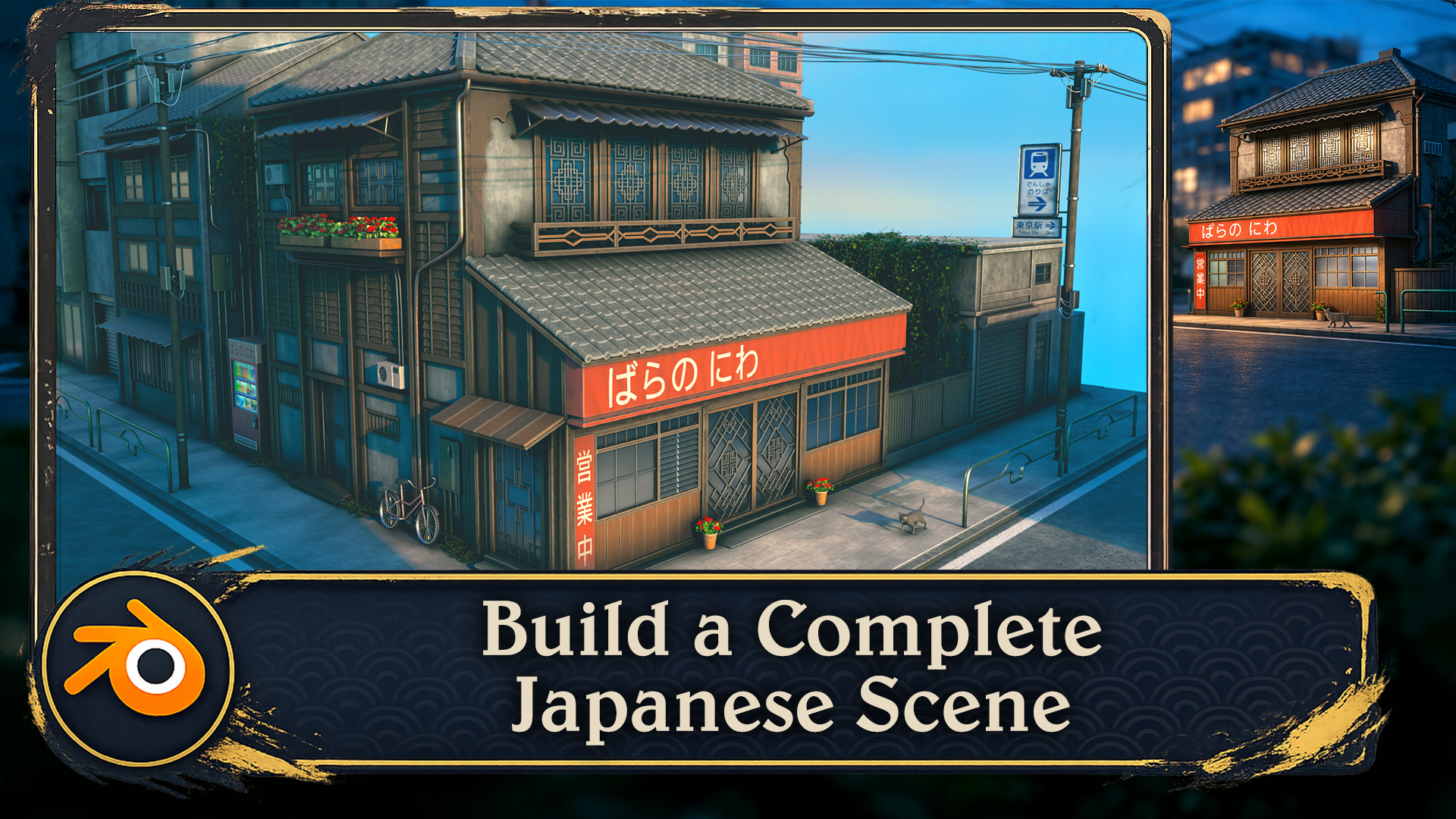
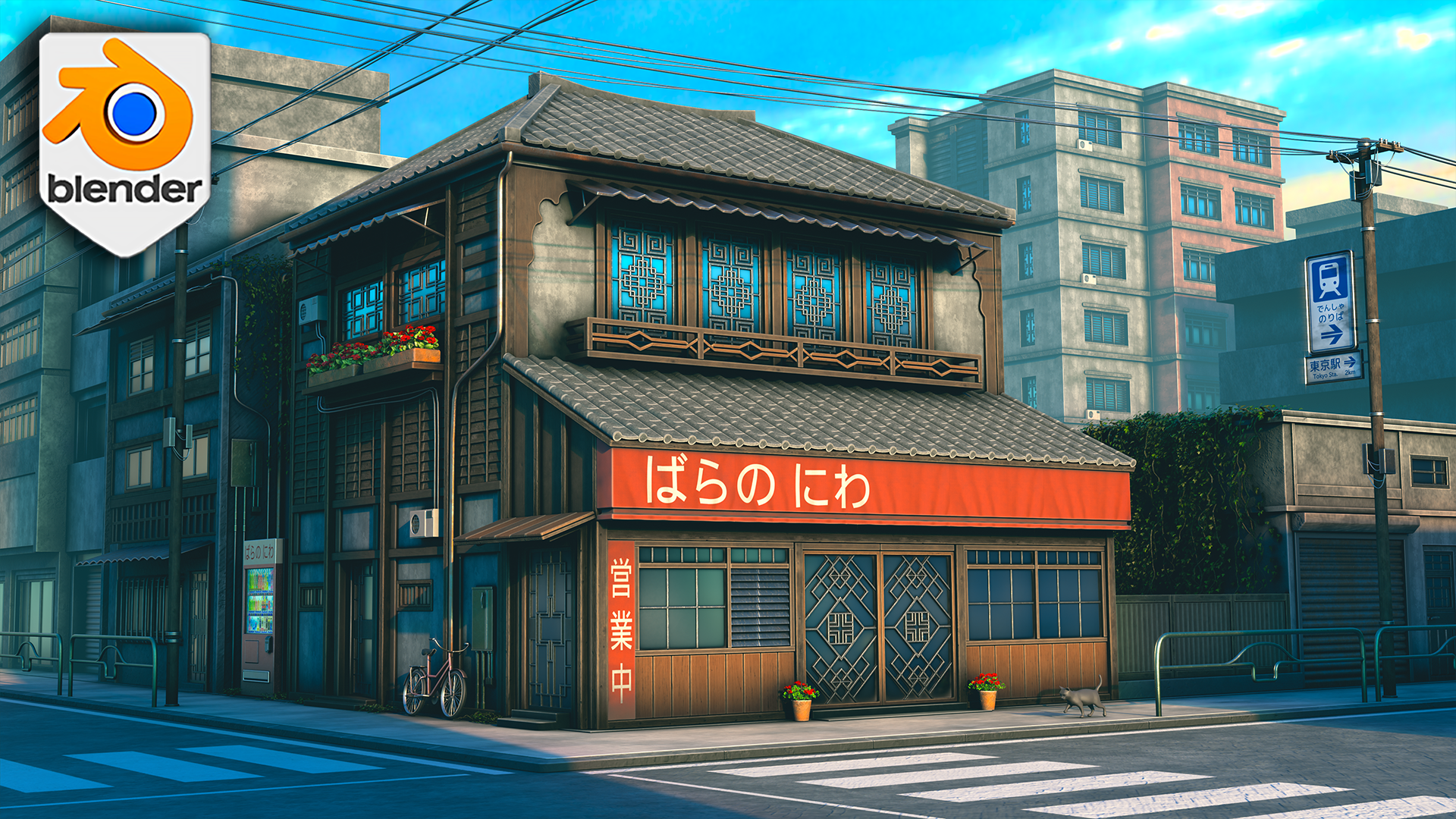
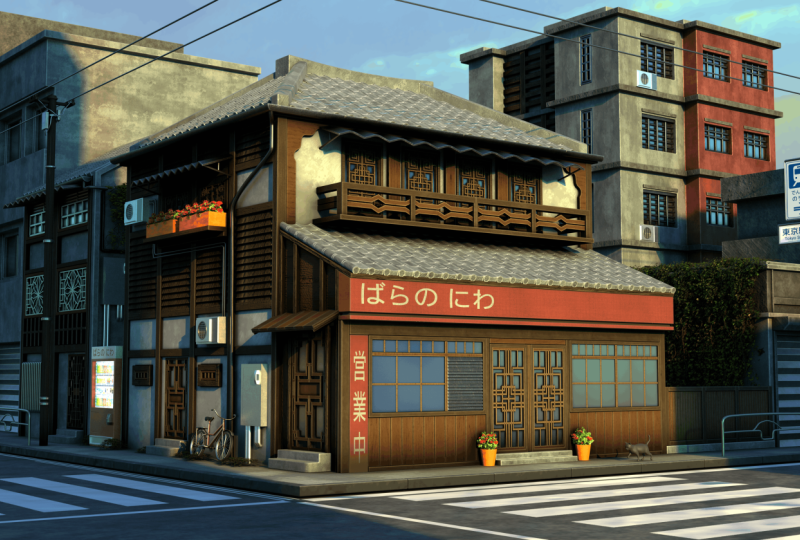
1. Stylized Japanese Environments in Blender: If you can model assets
in Blender but still struggle to finish a full scene, this course is built for you. We will take a stylized
Japanese environment from first blockout
to final render. Hi, everyone. I'm Rosefield. The same artist
behind Greek Garden. And in this course,
we are not just making props or
practicing random tools. We are building a
complete environment with a workflow you
can actually reuse. We start the right
way with references, scale, composition, and a strong camera angle
so the whole scene already has direction before the
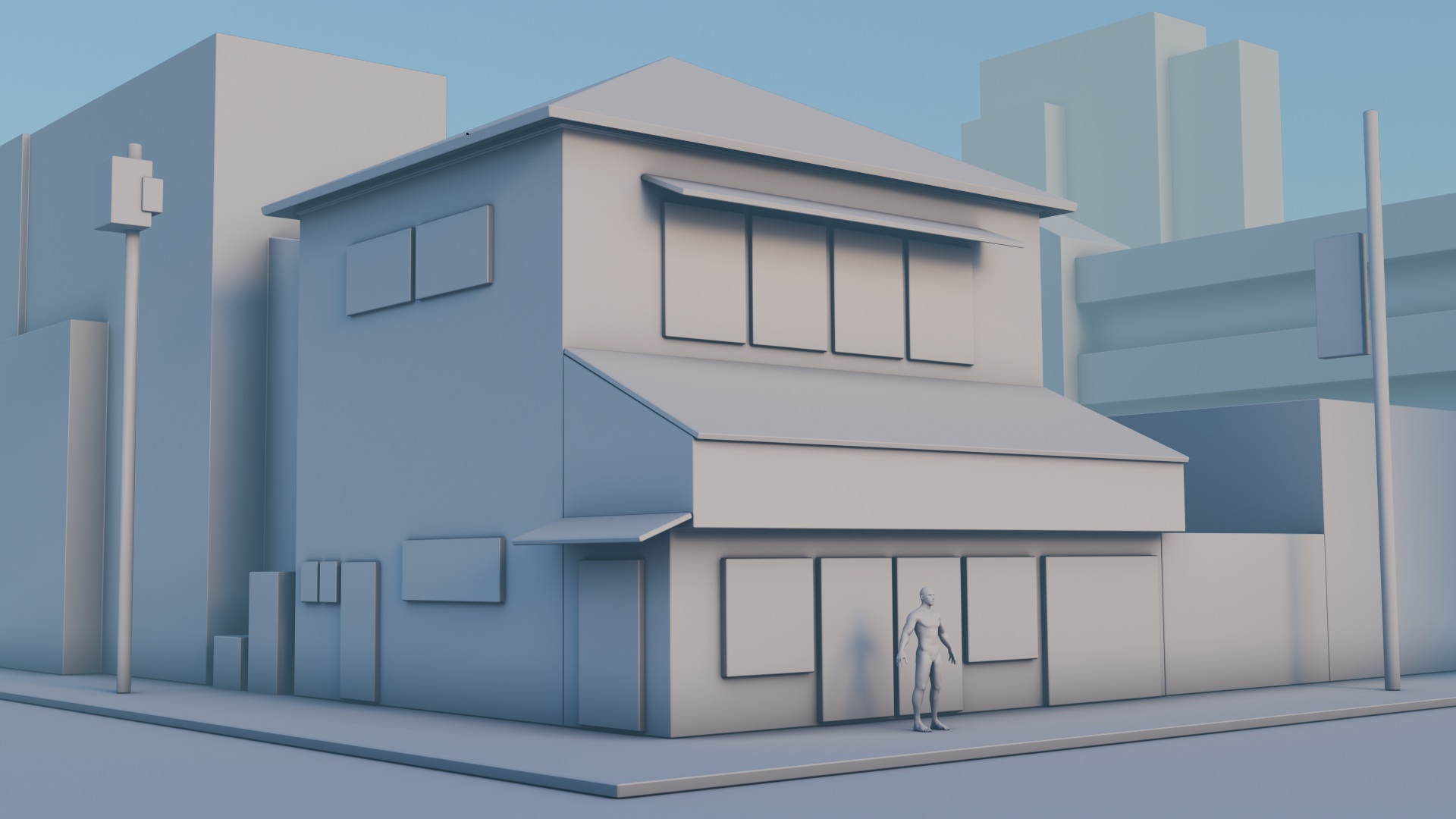
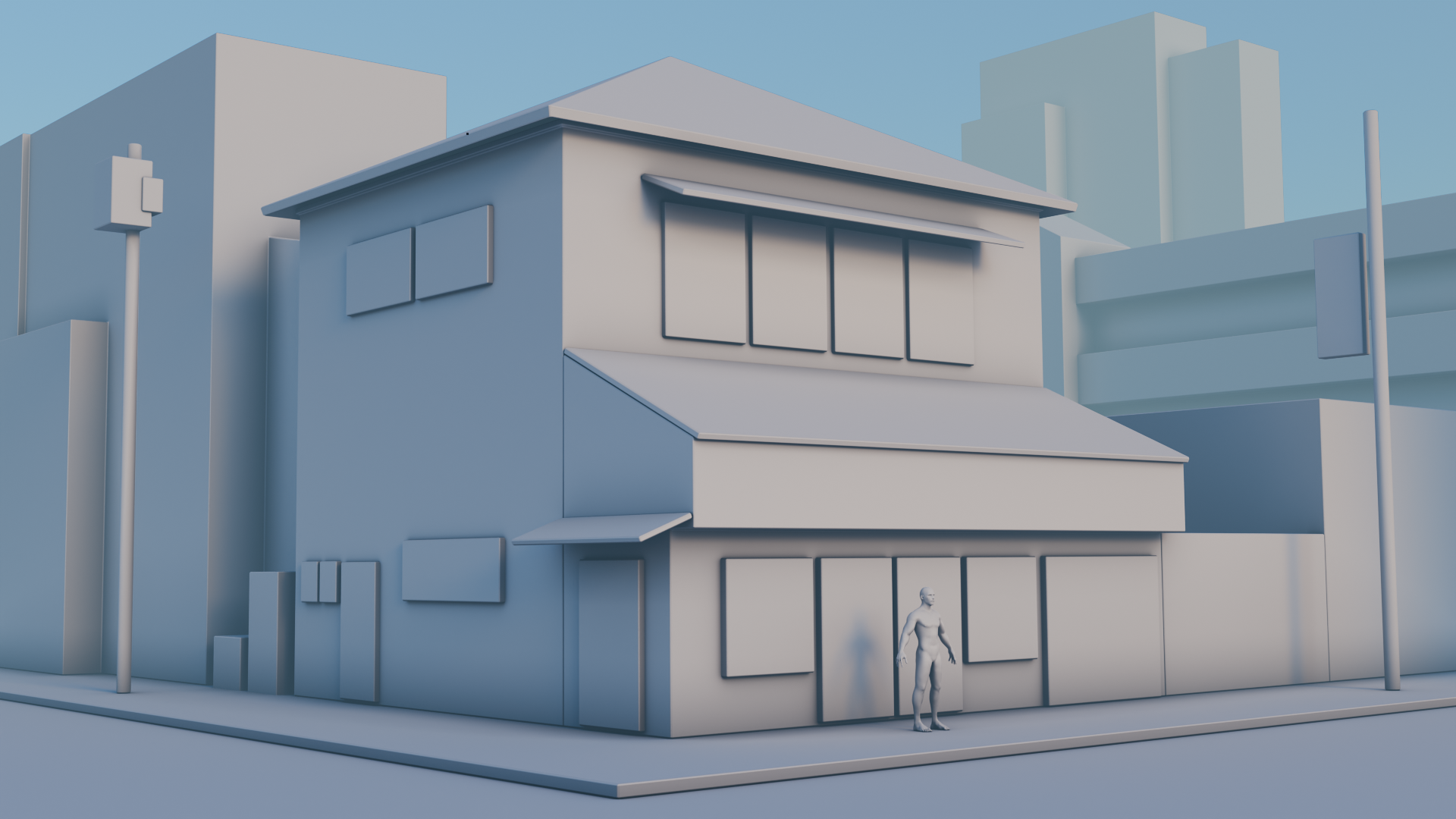
detailed modeling begins. From there, we blockout
the buildings, roads, and supporting
structures, then turn those simple
shapes into a detailed, stylized street
using clean modeling and practical
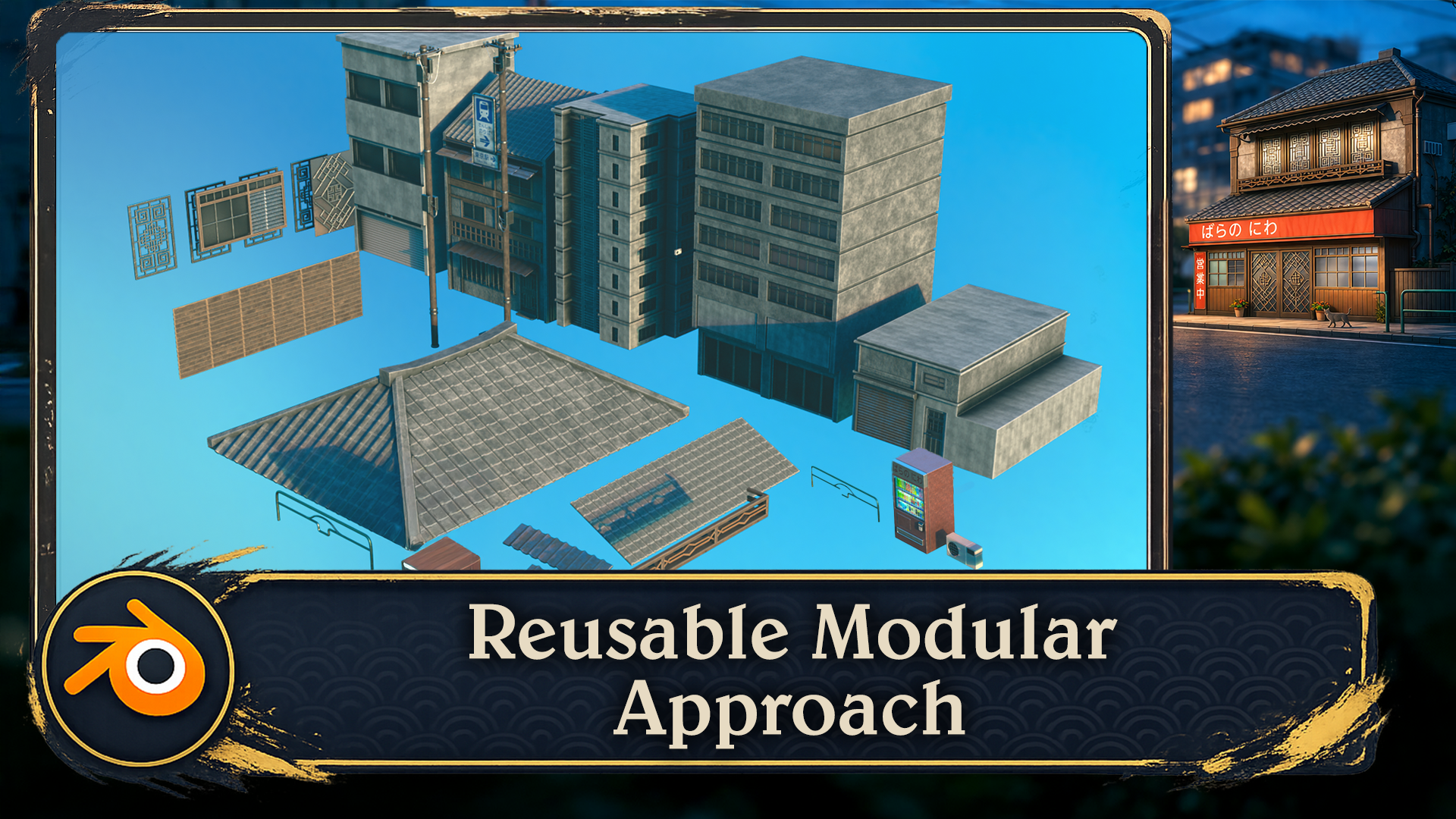
modifier workflows. You will build layered facades, tiled roofs, shutters,
doors, balconies, signs, gutters, props,
pipes, and wires, all with a focus on
clarity, control, and making each stage feel manageable rather
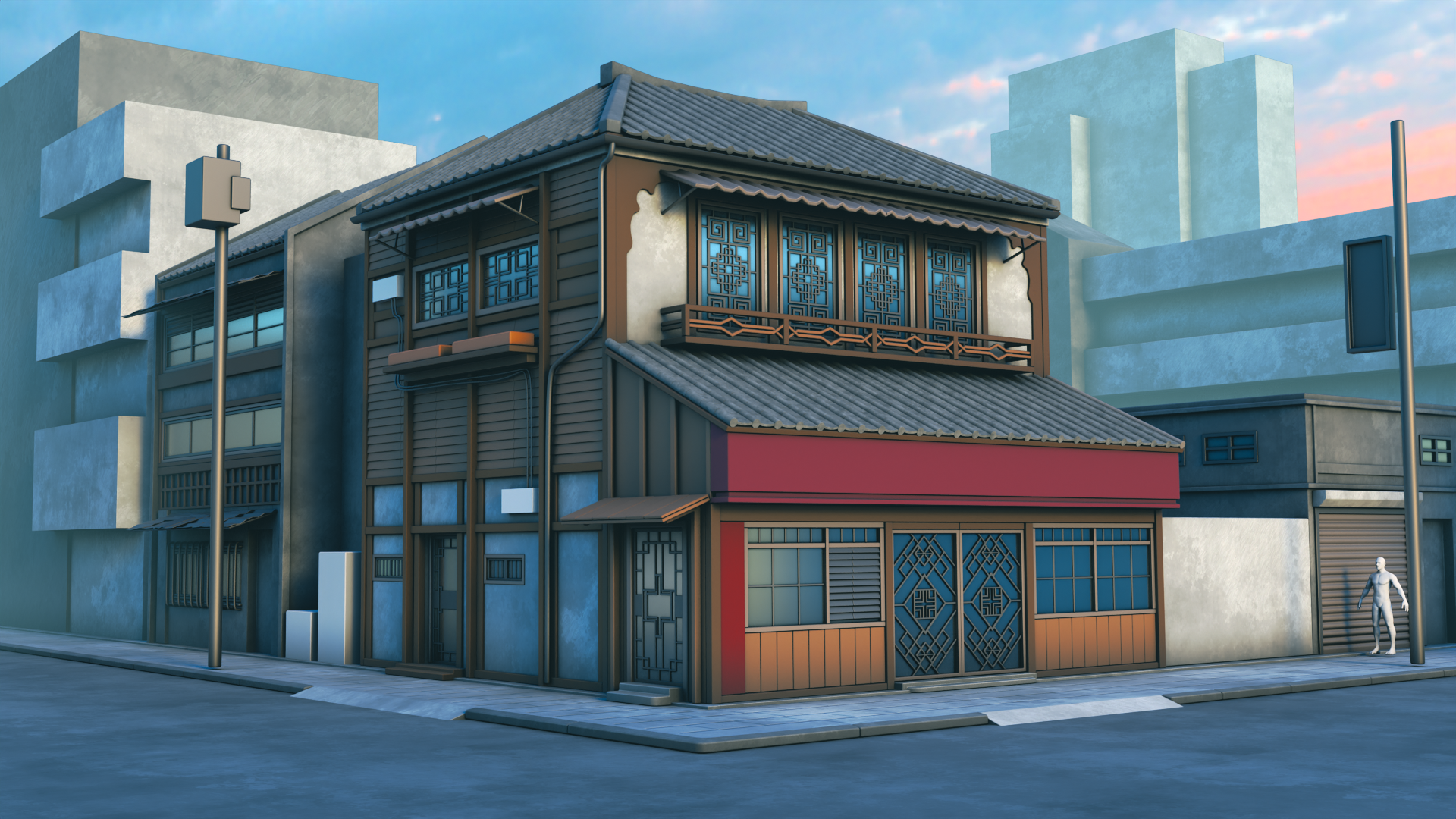
than overwhelming. Once the modeling is in place, we will move into UVs, stylized materials, decals,
and rolled markings. So wood, metal, glass, paint, and all those small
surface details feel cohesive across
the full environment. Then we finish it properly with foliage placement,
lighting, shadow shaping, rendering, and compositing, so the final image
feels polished, atmospheric, and
presentation ready. This course is for beginners
who want a guided route into environment art and for self taught artists
who want a cleaner, more professional process
for building complete, stylized scenes in Blender. By the end, you'll have a
finished Japanese environment and a workflow you can carry
into every scene after it. So, if you're ready to
build with more structure, more clarity, and
far more confidence, I will see you in
the first lesson.
2. Introduction to Blender Navigation: Hello, and welcome to stylized Japanese environments
in Blender. So in this first lesson, we'll be going over the basics
of the Blender interface, getting to know the
different viewports in Blender and how to
navigate around the scene. Welcome everyone to the
basics of Blender navigation. And before we begin, it's
important to understand how the axises work within Blender. So we can see at the
moment, we've got a green line going this way and a red line
going this way. This is called the Y axis, and this one is
called the X axis. We also have one
that is the Z axis, which we can't see right now. It doesn't actually come in with Blender viewport as default. But if you want to
actually set it on, you just come up to the
top right hand side, where these two interlocking
balls are and just click the Z axis, and
now we can actually see. So how do we actually move around the Blender of viewport? There's a number of
ways of doing this. One of them is over on
the right hand side here. You can see if are over here, it's the zoom in and Zoom out. I can actually left
click and move these up and down then to
zoom in and Zoom out, or I can use the actual
mouse to actually zoom in and Zoom out using
the actual scroll wheel. There's also another thing
you can do with Zoom, which is holding control shift and pressing the middle mouse, and you'll see you have
a lot more control over zooming in and zooming out. Now the next thing we
want to discuss is actually rotating
around an object. So how to do First of all, we'll bring in a
cube with Shift A, bring in a cube. Now, if I press the
middle mouse button and move my mouse left or right, you can see we can
actually rotate around. Unfortunately, though, we're not actually rotating
around this cube. So to actually fix that, we need to center our view
onto the actual cube. We basically want to focus our view onto this actual cube. So to do that, we're
just going to press the little dot button on
the actual number pad, and then you'll see that we
actually zoom in to the cube. If I scroll my mouse wheel out, you will see now if I hold the middle mouse button
and turn left and right, we're actually rotating
then around the cube. And this is important because if I actually bring
in another cube, so if I duplicate this
cube with Shift D, move it over, so bring
in my move Gizmo. And now you'll see if I
rotate around this cube, I'm not rotating
around this one. So it's fix that just press
the dot button again, zoom out, and now
it can actually rotate around this
cube, as well. Now let's look at
something called panning, which means that we're actually going to move left and right. And we do this by holding the shift button, holding
the middle mouse, and then we can actually
scroll left and right around our
actual viewport. So now we've actually discovered how to zoom in and the
different ways we can actually do how to rotate around an object and
how to actually pan. We can also come up to
the top right hand side here and use these buttons here. So again, remember we're
looking at the Yaxs, the X axis, and the Z axis. If we come to our Yaxis
and click that on, you will see now that you've got a front view of the Y axis. If you click the X axis, then we can change it
to that red X axis, and finally, the
Z axis, as well. Now, there are
other ways as well that we can actually look
around the viewport, and these involve using
the actual number. If I press one on
the number pad, it's going to te me into that
white axis or front view. If I press two, it's going to actually rotate
that slightly. And if I press two
again, it's going to rotate it slightly more. Now, if I press
the eight, it will rotate it the other
way, as well. Now, to go into the side
view or the X axis, we can also press three
on the number pad, and that will give
us that effect. We can also press seven to
go over the top, as well. Now, what about if we actually want to go
to the opposite? So instead of going from
the bird's eye view, we want to come to the
underside of our model. Well, that's actually
quite easy, as well. All you need to do is
press Control seven, and that then will take you to the bottom view of
our actual model. We can also do the
same inside view and on the x axis and YXs. So, for instance,
if I press one, I'm going to be going
into the Yaxis. If I press Control one, I'm going to be going into the opposite side on
the actual Y axis. Can also find these
options just in case you forget the top left hand
side here under view. So if I go down to view and
go across the viewport, you can see here that this actually tells
me exactly what I need to press to
get the viewpoint that I've just
actually explained. Now, we also have the button on the number pad, which
is number five, a number five button
in Blender toggles between perspective and
orthographic views. Perspective view offers a more natural and
realistic viewpoint with objects appearing
small as they get further away, mimicking
human vision. Orthographic view removes
perspective distortion, making all objects appear at their true size,
regardless of distance. Useful for precision
modeling and technical work. The other thing that number
five does, for instance, if I come to my cube, at the moment, I am able to
actually zoom into the cube. However, if I press number five, I will not be able to
actually zoom into this cube no matter
how far I zoom it. I'll still be able
to move around it by pressing the little
dot button, like so. But if I actually
want to actually work on the inside of an object, I can quickly press number five, and then I can
actually go in and work around the inside as well. Now, if you're working on a
laptop or something like that or a tablet and it doesn't
actually have a number pad, you can also use,
if I press five, the actual squiggle key, which is under the escape board on the left hand side
of your keyboard, and that then will
give you pretty much the same options
as we had before. So we can click the right view, we can actually click the back and we can
click the left view, for instance, the opposite
to what we had before. So instead of pressing
one and three, we just press the
little squggle line, and then we can actually view
whichever side we need to. Now, nearly at the end of
this short introduction, there are a couple more things
that you can actually do. If you come over to
the right hand side and you see here where we've actually got the name of the actual parts
within our scene, we can also grab them from here and then press the
little dot B to zoom in. So I can grab this one,
press the little dot B, and that then will zoom us in. The other great thing about
this is we can also come in, shift select them both
the little dot button, and then we're able
to actually rotate around both of these
cubes. Alright, everyone. So I hope you enjoyed this short introduction to the
navigation within Blender, and I hope from now on, it won't be a struggle
navigating around the viewport. Thanks, lo, everyone. Cheers.
3. Appending Assets & Installing Essential Add ons: Hello, and welcome
back to stylized Japanese environments
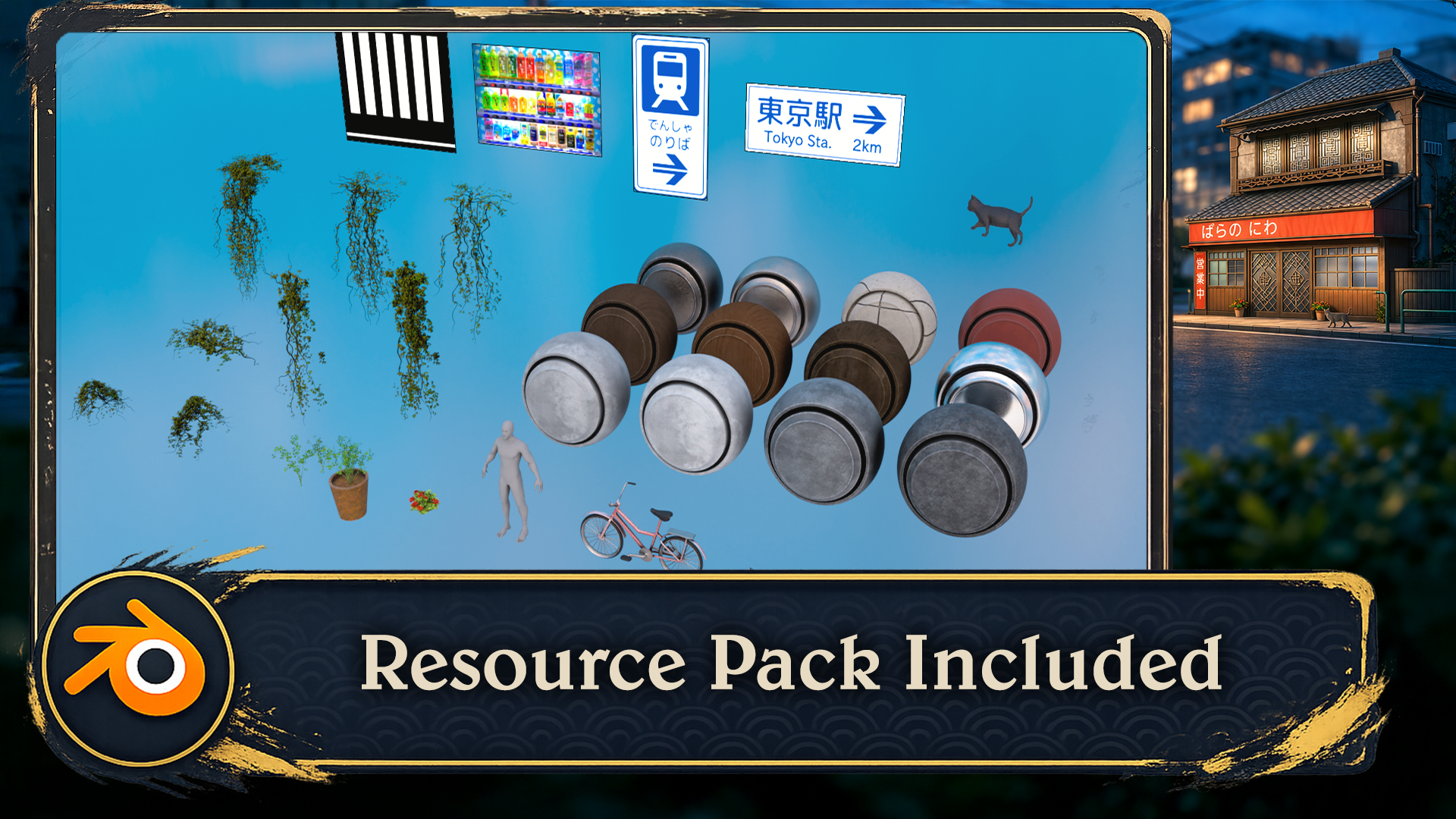
in Blender. Okay, so in your resource
folder that came with a course, you should see a blend file called Japanese Resource Pack. Now, if you open that
up, you will see this. And I'll just go over the basics of what we have in this file. So we have a human reference. So we'll be using this
whenever we're building something so we know how
big our objects are. Now we have some models here that we could
throw in at the end, such as a bike and a cat, just to spice up the
scene a little bit, as well as some plants and foliage that we could use to scatter around the scene. Now, these spheres over here, these are our materials. So we have like a
stone material. We have different types of wood. This is a glass material. We have a dark metal
and a light metal. We have some stone tiles
and a red fabric material. And up here, we have
some street signs. This will be used for
our vending machine. Now, this here is our decals. So these will be used for the signs on the front
of the building. These are our road markings. And this image over here is just a little reference
image that we can use when we're modeling the window frames and
the door frames. Now, to bring in objects
from this resource pack, what we're going to do is go
up to the top left of file and let's hit Nu
we'll go to general. So file, Nu General. Don't Save. And to bring in an
object, we go to file, append, and we want to
go to the Blenfle here, the Japanese resource pack. And we can we can either go
to object or collection. Let's go to collection.
It's a bit more organized. And then we can just go to the human collection
and append this. And then this will bring
in our human reference. Now to install add ons, we will go to File, not File, we'll go to Edit, sorry, and then preferences. And then in the addons
tab on the left here, there's a little down arrow. By here, we can
click Install from disk if we go to your
resource folder, you will find an add ons folder. And you just want to install
these two add ons here. This one is a texel
density checker. This will be
checking the size of UVs to make sure
they're correct. Just click it, click
Install from disk and then you want to click the Tudor compositor add on
and then Install from disc. And once they're installed, you can search here, compositor. This one is installed
with a check mark, and then type in TexL and then we have texel
density checker. So we go there are our add ons and our resources that we
can use for the course.
4. Building Powerful Reference Boards with PureRef: Hello, and welcome
back to stylized Japanese Environments
in Blender. Okay, so in your
resource folder, you will find a PureRef file, and inside that file, you'll find all the images that I used when I was building
ecosen for the first time. So in the top left, I started with this image. And this was the main building
that I wanted to create. So what I did was
I took this image, and I run it through
some AI to have a look at what it
would look like with some different lighting
and some simpler colors. And then I would find
some other pieces that I liked to try and capture the
vibe that I was looking for. So I really liked these two for the lighting
and the colors. You know, we have a lot
of, like, blue hues. I really like the style
of the buildings. And what I basically do is grab I grab little pieces that I like from each image and try
and combine them into one. So, for example,
this image here, I really liked how the main
focus was on the building in the center and we had
the background buildings in the top right. And you can see here
how I incorporated those into this image here. I've also included
some real life images of some Japanese buildings. So you can really
zoom in and see the details if you wanted to
copy anything from these. So I hope you find these useful. I've also included the patterns that I use for the
windows and doors. And down here you can see
a bit of my progress. So this is my blockout
that I started with, and you can see how
I added some color, had some simple shapes on
the doors and windows here, and eventually we progress
to more complex shapes. Even the background buildings
were completely different, and eventually we end
up with a final render. So, if you're completely
new to PureRef, I will show you a quick video on where to get it
and how to use. Welcome, everyone to our in
depth referencing guide, and it's very important that we actually use
references in pretty much any kind of modeling or environments that we're
actually going to be work on. So before we actually
do anything, before we put any cubes
down or anything like that, it's really important
that we have some really, really decent references
to actually work. So the first thing I want to recommend is that you can use something to actually
put all your references on like Photoshop or even word. But what I'm going
to recommend is that you use something
called PureRef. So if you go to the site,
that's called pureev.com, you will actually open
this, and from there, you can actually
click Get PureRef, and that then will take you
to this download screen. And you will see at the moment, you've got 157 or custom amount. You can actually put this on zero and actually
get this for free. So it's completely free, and you can come back and
make a donation if you like, and then all you
need to do is click D so the only things
we're going to talk about pretty much for reference
in here are going to be free except our
mid journey part. But there are other alternatives
like Dlly and a load of others out there that you can use instead of mid journey. Once you open up pura, then, this is what you will be
greeted by this screen. And if you want to right click, you can actually drag
this around to any of your screens or you can
actually make it smaller, so. And it's a really, really
good program this really, really handy, highly
recommend getting. Now, let's actually think
about getting our references. And there are a few
sources that we use to actually grab
references from. But generally, what you
want to do is you want to build up a kind of
reference pack if you're going to be a hobbyist or a professional in three D modeling or environments where
you're going to see things perhaps on
Pinterest or sketch up, and actually, you want
to save them in a file. So I know people with
thousands and thousands of images that they've
saved over the years. And whenever they're
coming to a project, they'll then dive in
and actually find all of the images that they've got on that particular thing. This could be a samurai
warrior or a Chinese bell. Also, a lot of people
I know as well, who are working
professionally at this will go around museums. They will take their
own actual images, and then they'll also upload
those to the file as well. So the first point of call
if you're not actually got your own database yet is probably going to
be actually Google. So let's open up Google, and you can see here
that at the moment, I'm looking for a
Victorian delivery truck. I'm going to do is I'm
just going to go through these and get some nice
references like this one, for instance, and then
I'm simply going to right click and I'm
going to copy image. Then what I'm going
to do is I'm going to go over to PUREv, so I'm just going to open it
back up, press Control V, and you'll see now that I've
got my nice image in here. What we're also able to do
with PureRef we're able to also pull it out and
make it bigger if needed, which is really, really
handy when we're putting in lots and
lots of actual images. Now, the next thing
I recommend you do once you've actually
got an image in there, here's what you can
do is you can left click and drag it
over somewhere. And then what you can do is
you can press Control N, and you can actually
make a note. So let's call this
Victorian Trucks. Let's put it Trucks.
Now, within my scene, I might actually want
a Victorian lamppost as well as part of the scene
or something like that. So let's actually
look at the next one. So the next point of call is actually going
to be Pinterest, and let's actually put
in Victorian lamppost. So let's try that. Like,
so let's see what we get, and we can see we've got many, many styles,
especially this one. This one's actually really nice. This one's also really nice. So what I'm going to do is I'm going to actually take this one, I'm going to right
click Copy Image, go back to my PUEv and then
drop the images in there, like so and maybe make this
one a little bit bigger. What I tend to do is I gather a load of images for
each of these things. When we're actually building a scene or even just the model, you want to grab as many
images as possible. I'm talking hundreds
of images here. And especially if
you're doing a scene, you want all of
the little parts. You want everything
down to the lighting, the environment, the trees. You want to grab references for absolutely everything because it will make your
scenes just really, really look so much better if you've got some
really good references. So now let me show
you this is one that I'm actually working
on at the moment. So if I come over
and load Reason, and I'm just going to
load this one here, and you'll see at the moment,
I have all of my props. I have all of my main
buildings that I'm going to be looking at
to use as references. I have a ton of doors. I even have a load of foliage. I have all my windows. I have my lights over here, and I also have, more
importantly, all of the lighting. In other words, it's a scene. So what time of day
is it going to be? Is it going to be, you know, early in the morning, or
is it going to be at dusk? Is it going to be a night scene, or is it going to be midday with that sun beating
down on my scene? Just make sure that it
actually matches the scene. There's no point having
a scene like this, for instance, so this one here. If you've got a log
cabin out in the snow, you really want it to
match your actual scene. Now before moving on,
there are a couple of other places that we do go
to use for referencing, especially something like
sketch up, which is really, really great because you can actually come into
an actual scene. And then what you
can do is you can actually rotate
around it and really, really check out how a
model is put together, like something like this, which is one of our actual own. But you can see here how
easy it is then to get a good idea of what actually
incorporated in this scene. And what you can actually
do from there, then, is we can actually come down
and we can actually get some screenshots of this or even right click and copy image. There's also, let's
say, if we wanted to do a Victorian truck, for instance, to keep the same theme as
what we've been doing, you can see that
there's no end of actual Victorian or vintage
type vehicles on here. Not as many as what
there is on ArtStation, but still a very, very good place to start looking
for reference in. That leads me on to my next one, which, of course, is ArtStation. This simply is one of
the biggest resources for referencing or for looking
up artists in the world. So let's put in a
reference of Victorian, for instance, and let's
see what we actually get. Let's search artwork,
so we're going to search artwork and let's see what it
actually comes up with. Should be lots and
lots of things to work with here, especially good, if you're looking
for actual lighting, so you're looking for lighting effects
like this one here. And again, we can take these actual um use them
for references. And the best thing is about
ArtStation is we can also come down and look at things
that may be our concept art, so two D or actual three D, and we can also come down as well and look at what
subject matter it is. So it could be automotives, so Victorian automotives, or it could be architecture
or something like that. So the possibilities with ArtStation are
pretty much endless, and you're able to grab
tons and tons of really, really high quality references. There are, of course,
hundreds and hundreds of other places you could probably
go to grab references, but I'm showing
you these because as far as references go, these are some of the
best places to go. Let's move on then to one of the things that we
really use a lot of now, which you want to thought
actually would come into it as far as
referencing goes, but it actually is
really, really handy. So let me introduce
to you now Chat GPT. So here is Chat GPT. You can see that we
have Chat GPT four, but we also have 3.5. 3.5 is actually free, and it is actually good enough
to do whatever you want. You really don't need to pay
for this. It's also free. So what I'm going to do
is I'm going to go to message, and I'm
going to type in, give me ten different buildings for a Victorian town scene. Something like that. Let's click Enter and let's see
what it gives me. So you can see now it's given me a lot of things to
actually work with here. And the best thing about
this is you can also say, give me ten more. And it will just then go
ahead and give you ten more. Now, these things
are really handy to use because then I can simply take these ideas and it'll
also bounce other ideas to me, and I can then go
into Pinterest. Or Google search and actually look them up or try and find
something like this. And I can kind of get
ideas and design my scene around there using all of those things and
especially Pure Rv. We can also take them in
to our actual Mid journey. Now, again, our mid
journey is paid for. I think the lowest amount is
$20 or something like that, but there are many, many
free things out there, but I will still show you
what we actually do with our AI based image generator. So you can see at
the moment, this is the image that we've
actually generated. I know we've called it it's
Victorian era delivery van, and this is what
we actually get. If we go to my images, you will see that
we've generated a ton of images about
all of the things. Especially we use this as
well to generate textures. It's not just there to actually generate images and ideas
and things like that. You can actually use it to
generate transfers that are going to go on Windows or
adverts or actual textures. And we do use this, especially
for things like curtains, because it's really,
really easy to get that look that you're
actually looking. You can see here,
we've got a lot of ideas for living rooms, we've got a lot of ideas for bedrooms and
things like that. What we can also do
in mid journeys, we can also go and explore. And what you could do is
you could look up with a search prom Victorian. Let's put in carriage. And then we can also
get ideas from this. So if I put in
Victorian carriage, you can see this
as what comes up. Now, if we come over to here, we can also see if
we click on here, this is the actual prompt
that somebody put in, so you can actually
take that prompt, maybe change it around a bit, and then get your own
images rather than just simply copying
other people's images. It's a great place to start to actually gather
your own images. The other thing is
about mid journeys, I can come in for instance,
let's just go back. And then what I can do is I can hold the shift button down. I can grab all of
these, for instance, and then what I can do is click the Download button and
download all of those images. And the best thing is
about PureRef is you can bring in multiple images
at the same time, so you can just drag, drop them, and then they'll all appear
actually next to each other. So really, really
handy things to have. So, lastly, then, to sum up, don't do what I did
a few years ago, where I just dive straight into Blender and not even think about references and just find references if I had to while I'm actually
building something. Don't do it that way. It leads directly into building a
beautiful grade box, as well, all this because first of all, you grab all of your references, you make sure
everything's set out. You can go and find some more
references if you need to. You know, if you suddenly
have a spark of inspiration, you want to make
something on the fly, then grab some more references
for but to start with, grab all of your references, have them really, really
nicely laid out, and spend, you know, even half a day to a day grabbing all
those references. You can then save
the pura that as well into individual files, and then you'll have all
the other references around that particular
build in there, ready to use maybe on another
project in the future. Or, everyone, so I hope
you found this useful, and I'll hope you'll take
my advice going forward. Thanks everyone. See
you on the next one. Cheers.
5. Core Modeling Tools Extrude, Bevel & Edge Loops: Hello. Welcome back to stylized
Japanese Environment in Blender. In this lesson, we'll be going over the
basics of modeling. Welcome everyone to the basics
of modeling in Blender, and this is a short
introduction just to get you started on a few of the
basics in modeling. So the first thing I want to
do is bring in a primitive. So the way that we're
going to bring into primitive is press Shift and A, and then what we're going
to do is open up a menu, and you can see that
we've got all of these things along this
actual primitives menu. But the one we want to focus
on is the actual mesh. And from here, you can
see we can bring in many, many things like cylinders, cubes, planes, and the
one we want to bring in just for now is
going to be our cube. That we brought our cube in
the next thing I want to discuss is object and edit mode. And you can see at the moment, over the left hand side, we're actually in something
called object mode, and this means basically we can manipulate this whole object. So if I press G, I can actually move it around
my viewport like so. If I press S to scale, I can actually scale the
whole of the object in. But the thing is, we
don't really want to work in object mode necessarily, and a lot of the
time, we're actually going to be working
in edit mode. So we can come up to
the top left hand side and put this in edit mode, or we can actually press the tab button and jump
into Edit mode that way. You will notice once we've
actually gone into Eddy mode, we have a lot more
options to use, and more importantly,
we have a lot of the topology now to
play around with. So the first thing you'll notice the difference being is that we have now these three options
up at the top and side. And if you hover over them, it will say vertex,
edges, and faces. Now, vertex is going to
be these little points. The edges is going to be these edges of my cubes
or any of the edges. And finally, we've
got the faces, which is actually the
whole polygon face. Now, you can also instead
of clicking on these, press one on the keyboard, and that then will jump
you into vertex select. If you press two, you
can go into edges, and three is going to
take you into face. From here, we can actually
manipulate any of these parts. So you will notice
at the moment, I've got a gizmo here. Now, if you don't have
the Gizmo available, coming over to the
left hand side, and you'll have this
little button here that says move or you can press Shift spacebar and bring
in your move tool like so. So now, because I'm on faces, I can actually pull
out this face like so, if I go to edges, I
can actually grab one of the edges and pull
this out like so. And if we're on vertexes, I can grab this vertex or grab the second vertex with Shift Select and then
pull this out like so. Really, really easy to actually
manipulate things once you know how to select
each of these parts. Before we go too much
in the weeds with actually modeling in
this actual Edit mode, let's just jump back into
Object mode for now. What I want to show
you is how we can actually move this
actual cube around. So as well as moving it
with the actual gizmo here, we can also press G
and actually free move this object around or we
can press G and Y, too. Let's put it along the Y axis, move it around or the X axis, for instance, and move
it this way or even the z axis and move
it up and down. To drop it back
where we started, let's just right click like so. So that's actually moving the location of it's
not a cube anymore, but let's just say it's a cube. We can also scale this in
as well with the S but so we can scale it in or
scale it out like so. Now we can also
press the S button, hold the shift button,
and then we have a lot more Finesse
on actual scale. Can also scale this
up by, let's say, a factor of two, so S, two, enter, and there we go. And of course, we can scale
it down pretty small as well. Now the next thing I want
to discuss is rotating, because if we rotate it with
R and just rotate it around, we haven't got a lot of
control over how this rotates. So what I want to do instead is, I always want to press R, then attach it to an axis,
which might be the Y, so the green one, and
then rotate it either by free hand or by actually inputting the
value under our number pad. So if I want to rotate it, let's say, by 90 degrees, press the ends button,
and I've rotated this round by 90 degrees. Now, if I want to
rotate it back, I can press O Y, the little minus button
on the number pad, 90, and then we can
rotate it back. There is something else
that you need to know. We also want to reset
our transformations, and this is one of the most important things within Blender, because if you don't reset
your transformations, Blender still
considers this a cube, even though it's not
really a cube anymore. So what we want to do to reset the transformations
is press control. A all transforms, and
then you'll notice that the orientation has
moved over here because it will always move
to the center of the world. From there, then we
want to actually reset our orientation as well. So we want to right click,
set origin to geometry, and then it's going to
put the origin right back in the center
of this object. Now, it's also important to know resetting the
transformations will also impact things like UV mapping, things
like modifiers. Basically, if you ever
have a problem in Blender, always make sure that you
reset your transformations, and then most of those problems
will definitely go away. Alright, the next thing about resetting our
transformations, it makes it really
easy then to get something back to how
we had it before. In other words, if I press
S and scale this down, and then let's press R and Z and rotate it round this way, because before this, I
actually reset my rotations. What I can now do is press lns and put it back to
the scale that it was before I did anything and
then alternR and actually reset that
rotation as well. So really, really handy, once you've actually reset your transformations in
what you can actually. Moving on, we're
actually going to be looking now at duplication. So if I come round here, I'm able to actually
duplicate this. If I press Shift D and
then press the Enterbne, it's now a duplication, and I can move this over
to the right hand side. So now we have
actually two objects. Now, what if you want these two objects actually combined, and you didn't mean to actually duplicate it in object mode, for instance? Well, that's easy. We can just shift,
select the other one and press Control J, and now they're both actually join together,
as you can see. So if I press tab now, we're able to come in and actually work on them
both at the same time. What happens if we want to
actually split them up, so we don't want the objects
to actually be together. That's all easy. Just make sure that you select
one of them first, and then all you're
going to do is press L just to select everything. So all of these faces, then you're going
to press P. Come down to where it says selection, and now if I press tab, they're both actually split off. Now, of course, using
the same command, if I press tab, I can
actually come in, grab a face, for instance, press Shift D. I
can actually also duplicate things with
inside Edit mode as well. So we might want to duplicate
all three of these. Shift D, I can actually come in then and actually
duplicate them like. It also means, though,
is that these, when you duplicate them in edit mode will be part
of the same object, of course, because in edit mode, they're not actually
classed as an object. They're clustered as
the same actual part. Now, for the next
part, I'm going to bring in a brand new cube, and I'm just going
to show you some of the basic modeling
techniques within Blender and go through
a few of the options. So here we have a
brand new cube, and the first one I'm
going to show you is, if we come into Edit mode, we will always be
working in edit mode to show you these things, make
sure you're in edit mode. I'm going to grab the top face. And what I'm going
to do is press E, and that then is going
to extrude this out. Now, sometimes you will need
to extrude something out, and it will need to be
along A axis, for instance. So all I'm going to do is go to Edge Select, grab this edge, and then what I'm going
to do is press E, and you can see, because it's not
tied to an axis, it's floating around everywhere. However, if I press the Xb, you can see now it extrudes out, following along
that actual axis, which then makes it
really, really easy to manipulate it where I
actually need it to go. Next one we're going to look at is something called beveling, and then all I need
to do is come in, and I'm going to grab my edge. So I'm going to press
two on the keyboard, grab an edge like so,
and then I'm just going to press
Control B like so. And you'll notice now it's actually bevelled off that side. You'll also notice down on
the left hand side here, we have something called
an operator panel. It will be closed.
Just open it up. And from here then
with the actual bevel, we're able then to turn the
bevels down, for instance, turn them up, move
how the shape of the actual bevel is going to be and all that
other good stuff. Now pretty much
anything you do in Blender is going to give you
an operator panel like this. We're not going to go too much
into this, but basically, the moment that you press tab button to come
out of Edit mode, this is going to disappear, and then you're locked in
with the actual shape that you've chose or the
insert or the extrusion. So just bear that in mind. So the moment I press tab,
that actually disappears. What about if we want to bevel
off verts and not edges? So, for instance, if I come to a vertice like this
and vertice like this, press Control B, you'll see
that it bevels off like this. But if I come to one that are the
opposites of each other, press Control B, you'll see
nothing actually happens. However, if I press
control shift and B, then we're actually
able to bevel off the actual verts like so. So that's another handy
tip for actually bevel. Now the next modeling
technique we want to discuss is
actually edge loops. So how do we get more
geometry onto this? So, for instance, I want to
bring some edges on here, I can press Control R, and that then will bring
me one edge in here. If I left click then, you can see that I can put this either this side or this side. But let's say I want it
right in the center. I'm just going to right
click on the mouse, and that then is going to
put it right in the center. Now, the other
thing I can do with the operator panel
again is then come in and turn all of these up to give me more
actual edge loops, and I can even move them to the The right. Now, I can also, if I press Control ed, come in, press control law, I can
actually scroll up on the mouse wheel to give me as many edge loops
as I actually want. Or if I want a little
bit more for this, I can actually type it out
on the actual number pad, so I can type out 120, for instance, and
have 120 edge loops. To cancel it at any time, just press the escape board, and then that will
cancel it out. The next modeling technique
I want to show you requires two actual blocks
or two cubes like this. And all I'm going to do is I'm going to come in and I'm going to select opposing
faces like so, and then I want to actually join these together,
for instance. So all I'm going to do,
I've selected them both. I'm going to right
click and come down to it says bridge faces. And now you can see I can
actually join those together. Now, if I press Control is dead and just go back a minute, you can also do this
by coming in and let's say and grabbing
this and this edge, and what I'm going
to do instead is, I'm going to press the F bone like so and come
down to the bottom, as well, and then
grab both of these and press the FBne like so. Sometimes bridge will
not work because bridge has to work with two edges
and nothing in between. In other words, nothing
selected there. If I come into this one now and try right click and come
down to where it says, bridge edge loops, you will see select at least
two edge loops. So we can't actually
join up from there, and that is when
it's a good idea to use the FBne instead. Now the final modeling
technique that I actually want to show you is
something called insert. What I'm going to do is I'm
going to grab this face here. I'm going to press the
ebonne and then you can see you can actually
insert this vase in, and from there, you can actually extrude it out if you want to. You can also then
press Control B and bevel it off if you want to. And you can see now
it's really easy to use all of those techniques
that I've actually showed. Now, lastly, the
last thing I want to show you is the insert again, but this time we're
going to grab this base and this base, and if I press I,
it's true you can actually insert them
both at the same time. Now, the best thing
though about insert is, if I press the I and
then press I again, we can actually insert them separately from
each other like so. Now, I see a lot of
renders on Facebook and other social media that kind of look really,
really blocky. For instance, if I press tab
now and go into object mode, you will see this actually
looks pretty blocky. But there's a really
easy fix for this, so it doesn't actually
have to look like that. All you need to do is once you've actually
finished, right click, come up and where it
says shade auto smooth, and that then will shade it off based on the actual angle. So really, really easy
to either shade flat, shade completely smooth like so, or shade auto smooth like so. If you actually are struggling
and you actually want it to shade it a little bit
smoother than what it is, you can come over
to the right side where this little triangle is, go down and open up the normal, and from there, you can
actually increase this and shade it even more smooth
based on a higher angle. The default is always set to 30. So just make sure you set it to 30 in case you actually over. The last thing I
want to show you in this introduction is the actual cursor because
I think it's very, very important to
actually modeling. So what I'm going to
do at the mono is I'm going to make another
cube with Shift D, and then I want this cube on top of this
cube, for instance. Now, if I move my
cursor over here, so shift right click. And then what I can do is
I can press Shift Desk, and I'm going to go selection
to cursor, keep offset. And that then is going to move the exact center of this cube, all the orientation
to my actual cursor. Now, how would I get this
then on top of this cube? I would literally
grab this cube. I would, first of all, right
click and set the origin to geometry just to make sure that origin is right
in the center like. So I would then press Shift
Desk cursor to selected, and that then is going to put my cursor right in the center. And then I would grab this
cube, and from there, I'm able to go Shift Des
selection cursor, keep offset. And now that cube is right
next to this actual cube here. From here then, I can
actually bring this up, and let's actually
just have a quick play around of everything
that we've learned. So you can see now if I pull this going to join them both together
then with Control J. And then the first thing
I'm going to do is come in, grab this face and this face, and we're going to
right click then, and we're going to come
down to bridge faces. And then I'm going to
bring in some edge loops. So let's bring in two
or three edge loops. Left click, right, click. And then what I'm going to
do is I'm going to press Alt Shift and click
just to select all of this edge going
around here and press the S but and pull
it out like so. From there, then what
I'm going to do is I'm going to bevel off
both of these tops. I'm going to grab this top,
shift select this top. I'm going to press Control B and actually bevel them off like so. From there, then I'm going
to bring in an insert, so I'm going to grab
the front top here. I'm going to insert this
with the eye button like so. And then from there, I'm
actually going to extrude out. So I'm going to extrude
this out like so. Now, let's say I want a
bigger piece on the next bit, I'm going to press
Shift D. Pull it out. So this is a duplicate
of this face. I'm going to press the S but to make it a little bit bigger, and then I'm going to press E and pull that out
along the axis. Finally, then what
I'm going to do is grab this one and this one and went right click then and
bridge faces like so. You can see just how
easy this really is now to actually start
building out some really, really complex models with everything that
you've just learned. Alright, everyone, so I
hope you enjoyed that, and I'll see on the
next one Cheers.
6. Blockout Buildings with Primitives and Face Snapping: Hello, and welcome
back to stylized Japanese environments
in Blender. So in this lesson,
we're going to start with the
blockout of our scene. So when it comes
to the blockout, we want to break this image
down into basic shapes. So what I mean by this is
we're going to look for primitive cubes that we can use to get the
shape of each building. So let's have a look at
this front building here. We can see here it's divided
into two separate pieces. So we have this section here. This is basically just one cube that we can kind of shape to have this kind
of slanted roof. And then we have a second cube here for the second
part of the building. And this is what we will
start with for the blocking. Next, we have the
fence over here. That could be another cube, and then we have the garage
here. That's another cube. Now, the background buildings, we'll do those a bit later on. We'll just start with
the front ones first. We have another cube here that we could use
for this building. And then the same for
these two buildings here. These will also be cubes. Now, there are also these
electrical poles at the front, so we could block these out
with just some cylinders. One over here and over
here on the left as well. And then later on, we can
add a cube in the background here and one over here as well. So to start with, we'll start with this cube at the front and then a second
bigger cube just behind it. Okay, so back to
our Blender scene, we should have the
human reference that we brought in from
the resource pack. There should be a default
cube in the scene already. Now, this over here,
this is a default light. We can delete this by pressing
X and then hit and delete. And then this is our camera. Now, we will be having
a camera later on, but for now, we can just delete it. We don't
need it there. So to start with, I'm going
to click on Human reference, and I'm going to hit G on
the keyboard and then hit X, and that will constrain
it to the X axis. So now we can just move
it closer to cube here. Now I'm going to
click on the cube. And with the scroll wheel, we can pan around the
cube and then scroll in. But if we hit one
on the number pad, we can go into front view. And then if we hit G and then Z to constrain it to the Z axis, we can hit the number one, and that will bring
it up by 1 meter. So now the cube is on
this red line here, and this is basically our floor. So next, we can hit tab
to go into Edit mode, and we can select
this side face here, but we need to be
in face mode here. Now, you can either click the face mode up here or
you can click one, two, and three on your keyboard
to switch between the different
selection modes with the vertices, edges, and faces. So with this face selected, what we could do is either use the transform Gizmo here and this will bring
up this gizmo. And if you click this
little red arrow here, we can move that face
along the X axis, or you can just use G and then X to move
it across like this. So what we want to do
is get the right width, and we want it to be
about 10 meters wide. So if we going into front view, we can see these squeezes. Now, the bigger squeeze
are 1 meter and the smaller squares are 10
centimeters, I believe. So we have 2 meters here, 2 meters here, and
then another 2 meters. So that's 6 meters.
Let's go to about ten. Now, if we go back into object mode and you
hit N on keyboard, this will bring up
the properties panel. And with the dimensions here, we can see exactly
how wide it is. Now we can change this number to 10 meters, and that'll
make it bigger. But as you see here, this
has changed the scale. So the scale on
the X is now 1.6. And what this means is if
we go into Edit mode and we tried creating a bevel, it would do like
it would do like a weird kind of bevel
because it's stretched. If I was to duplicate
this and actually, let me undo undo the bevel, and I will duplicate this, and I'll see what I mean now. Let's add the bevel
back onto this edge. You can see it bevels like this. But if we were to
press Control A on this and apply the scale, now it's gone back to one, one, one, so now it's uniform. And if we add the bevel
on this edge again, you can see how the
bevel is different. So we always want to have the scale uniform because we get some unexpected results
when the scale is, you know, not uniform like this. So we can delete this and we will undo
everything that we did. So now we have just a cube
that is 10 meters across. So what we want to do is
control A and apply scale. Now, this scale will only change if you're
scaling in object mode. And that's what we
did when we did the dimension here
with the 10 meters. We did that in object mode. If you were to scale
it in edit mode, so for example, I'll just duplicate this and
go into Edit mode. And let's say we
stretch this out in edit mode and we go back to
object mode, it's still 111. So any scaling in edit mode
keeps it at the same scale. So now we have the width,
now we need the height. So for the height, let's
go about 5 meters. So it's already 2 meters high. So let's go into Edit mode, and let's select
this top face here. And we can bring
this up by 3 meters. So let's go G, Z, and bring it up to the five meter mark with
these squares here. We can go back into object
mode and double check, and we can just
rome this off here if you wanted to 5 meters, control a apply scale. Now we want it to be just a little bit thicker
on this side, I think. So let's grab the back
face in edit mode, and you can hit GY, and just bring it
out just a tiny bit. If you want more control
when you're moving faces, just hold Shift
and it'll slow it down a bit and you have
just more control. So let's put GY, bring it
about here. Seems good. And then in edit mode, we can go to the
edge select here, and we can select this edge, and we can hit G Z and
bring it down a bit so we have that kind of
curved roof here. Next, we want to go
back into object mode, and I'm going to press Shift
A to bring up the menu. And under mesh, we'll
bring in another cube. And we want it to be
on the ground again, so we'll do G Z one. And with this, we can go G
Y, and we can bring it here. Now, we can use face snapping to snap it
to this face here. So with your snapping tool, we can go up here
and choose face. And what this does,
it will snap it to the face that we have
our mouse hovering over. So with this cube
selected, we can hit G, and then if you hold control, it will snap to the face
that your mace cursor is on. So we want it to be
moved on the Y axis. So let's go G Y. Have your mace cursor
over this face here, and then hold control, and
it will snap to this face. And then left click
to confirm that. Now we want it to be aligned
with this face, too, so we'll go G X and
then hold control, and it will snap
to this face here. Now we can also do
edge snapping as well. So let's go back up to here
and we'll choose edge. And with this cube selected, we can go into Edit
mode and then go into face select up here and
we'll choose this top face. We'll have our cursor just over this edge
here and we'll go G, Z, hold control, and
it'll snap to this edge. Now let's go back to
face snapping again. And then we can select this
face and we can go GX, hold control over this
face, and it'll snap. Now we want this face
to be a bit taller. So let's go to let's
say about 8 meters. So this is 5 meters high. So we want it to go
another 3 meters up. What we could do is G, Z, and then free, and I'll
bring it up by 3 meters. Now we want to bring
this face back. So let's see how right? So on the Y, it's
2 meters already. So let's go into
edit mode with this, and we want it 8 meters, so it will be G Y six. And there is the basic blockout
of our first building. Let's go back into Edit mode, and we want to select
this face here. And to duplicate the face, we just go Shift D, and that will create a duplicate
and then right click and it'll just set it into the
position that it was before. We want to separate
this from this cube. So if we hit P, it'll come
up the separate menu, and we can press selection. So that will separate
anything that was selected. Now if we go into object mode, we have this cube here
and this face here. You might have to double
click to select it. And then now this
face is separate. So with this face selected, we can go into Edit mode, and then we can
select this face. And what I'm going
to do is hit I, so I will inset it and
we can bring it in like and there we can hit
G Z to bring this face up, and there we have the shape
of the roof like this. So there is the blockout of our first building,
nice and simple.
7. Front Building Blockout and Bevel Details: Hello. Welcome back to stylized Japanese environments
in Blender. In this lesson, we'll
be continuing with the blockade of our
front buildings. Okay, we can see here
that our objects are over the origin point here. So any new objects
that we bring in will be inside of these cubes. So what I'm going to
do is I'm going to select these with Shift and left click so we
can select multiple. And I'm just going
to move them with GY and then GX just so they're out the way of our
origin point here. So next we want
to press Shift A, and we'll add another cube, and we can hit GZ and one
to bring it onto the floor. And we can just bring this
over with GX and then GY. And then with our
face snapping again, we can go GY, hold Control, snap it to this face, and then GX and snap it to
this face here. Now, in edit mode, I'm going to select
this back face, and we can make this
a bit thinner here. And then with this face here, I'm going to bring it
eight to about 4.5 meters. So we've got 2 meters already. So I'm going to hit Gx and
bring it to about here. Now, in object mode, I'm going to grab our human
reference and bring him over and bring him nice
and close to the fence. And with one on number pad, I'm going to go into
the front view, and we can see how tall
this fence is. So let's select this top face in edit mode, one on number pad. And I'm going to bring it
down to, like, I level. So I'll hit GZ and
just bring it down to about here. Here we go. So back into object mode, and let's shift A, mesh, add another cube, GZ one
to bring it to the floor. We'll do GX and then GY, and then we can do
the snapping again. So GX, hold control
to snap it to here, and then let's bring it behind, and then GY and snap it
to this front face here. So why do we want the garage? So this is 2 meters. Let's
just we can just eyeball this. So I'll bring this face over. So I have about 5.4 meters. We could go to about 6 meters, I guess, somewhere around there. We could just brand
it off with six, control a apply scale. We might have to readjust this now with GX hole
control, snap it here. And with the height, I'm
going to have the height about halfway between
this roof here. So's going into mode,
select this top face. You can hit one on number
powder go into front again and GZ and bring it
up to about here. And with the back face, we can just bring this
back to range about. How long is that one,
two, three, four, five, about 6 meters. That
should be good. Now, let's start with this side. So we want a little gap for the vending machine here before we add
the next building. So let's add another cube. Make sure we're in object mode. So shift A mesh cube, GZ one, and then we'll hit
G Y to bring it back here. And then GX. And then we can snap it to this
back face with GY, hold Control, and then GX
hold Control over here. And I'm going in Edit mode, I'm going to grab this top face, and let's bring it up to just around about
here should be okay. And let's actually
select this face, and we'll bring this in with GX. That should be fine by there. And then we'll just bring out this face a bit more as well. So we hit G Y, and
we'll go to a bacteria. Now, for the next building, we could probably
in object mode, select this cube
and then just hit Shift D to duplicate
and then hit Y, and we'll bring
this back to here, gives a bit more
space so we can see, and then we can snap
it to this face here. So GY hold control. Now that we snap it there. And we might want it
to be a bit thinner. So we'll grab this back
face and then just hit GY to bring it in a little
bit around about there. And then for our final, well, we have two more
buildings, don't we? So we can duplicate
this cube again. So what I'm going to do is select this
backface, actually, and hit Gx and make
it more of like a square shape now let's go into Object mode and we will duplicate
this with Shift D, then hit Y, and then we can
go GY control to snap it. And let's bring up
this top face here. So we'll go GZ, and we'll go somewhere
around here. And let's have a look
at our third building. Our third building
pokes out a bit more. So let's look back
into object mode, and we'll duplicate this again, hit Y, bring it out, and then we can go
GY, hold Control. And I'm going to
select this front vase here and just hit G eggs. We'll bring this
egg a little bit. And then we can
hit the top face, and we'll just bring
this up a bit more like this and maybe bring this
out a tiny bit more. Like so. Now, we also want to add some bevels
to this building. So we have let's come to
object mode, select this. Go into Edit mode and make
sure we're on edge select, and we'll select this edge. And then we can hit
Control B to bevel. Like so we might want to
adjust this manually. So we can select this edge
and then hit GX to bring it back a bit and then select this edge and then GZ
to bring it up a bit. Just until you get a nice
shape that you like, I might bring this a
bit further forward. That looks good to me. So there is the blockout of
our front buildings.
8. Camera Setup and Background Building Blockout: Hello, and welcome
back to stylized Japanese Environments
in Blender. So in this lesson, we'll
be setting up our camera, adding our background buildings and making some changes
to our blockout. Okay, now that we have
our buildings in place, we can start adding our camera. So let's hit Shift A
and add a camera here. Now to get the camera in the
same place as your viewport, just hit Control Alt and then
zero on your number pad. I'll bring your camera to
where your viewport is. Then if we hit N to open
up the side panel up here, we can go to view, and then we can choose
lock camera to view. So now when we pan error camera, the camera will stay
with AER Viewport. So now we can just move
ERA camera into position. You can use the
scroll wheel to pan. You can scroll in
and out to Zoom. Then if you hold Shift and
move the scroll wheel, this will pan left and right. Now, if we go over here to
this object properties, we can change the
Z to about 1.6. So the camera will
be about I level. And now we can also
move the camera using G and Y or G and X to
get it in position. And you can also rotate the
camera by hitting R twice, and you can rotate it
like this as well. We also want to change
the focal length. So if you go over
here on the right, we'll find this camera icon. So we click this, we can
change the focal length. I'm going to go with 45
on the focal length. And now we just want to
adjust our camera so that the size of the
buildings are reaching the edges of our view port here. So we can just do
little adjustments. We can hit G and Y to
pull it back a bit, maybe GX to move it to the side. You can also rotate
with R and then Z to rotate your camera
like this and then hold shift to have more control. And then I'm just going to
move it forward a tiny bit. And to the side a little bit, so it's on the edges like this. If you want some help
with composition, if we go over here
to Viewport display, and under composition guides, you have some
different things here. If you choose foods, it'll
come up with this grid here, and we can see exactly how
our composition is looking. So I might bring it back a bit more and then to the
side a bit more, maybe a bit forward until those buildings are just
hitting the edges a bit. And then we can also hit R to point it upwards
a little bit, as well. And once you're happy with
the position of your camera, just don't forget to
uncheck camera to view. And then once you
move your viewport, the camera should stay in place. And to go back to camera view, just hit zero on
your number pad, and it'll snap back
to your camera. So now that we're
in camera view, there are a few changes
I would like to make. So for example, this building, I feel like should
be a bit taller. I want this roof to be
in line with this roof. I'm going to select it
and go into Edit mode, we can select both
of these faces here. And then we can hit zero to
go back into Camera View and then just hit G
Z and move this up, so it's a bit in line with this. And then I'm going to go into object mode and then hit GX, and we can move this back
just a tiny bit like this. And then I might also go
back into Edit mode and select this edge and maybe
move this edge up a bit, so it's in line with
this roof a bit more. And also the roofs on these, I want to be a bit higher. So I'm just going to select this top face in edit mode,
go back to camera view, and then GZ move this up a bit more like this and then
back to object mode, we'll select this one, select
that top face in edit mode. Back to camera view, GZ, and we can bring
this up by here. Now we can start adding the
background buildings as well. So let's go back to object
mode. We'll hit Shift A. We'll add a cube, and then GZ one to
bring it to the floor. Now let's go all the way
over here and hit GX. And I imagine there's like
a road going this way. So we want the
building to be, on the other side of the street. So I'll move this around a bit
over here and then hit GY. And then let's go
into object mode, Edit mode, sorry, I mean, and let's just scale
this up like this, and then back to object mode
and then move it over GX. Then we can go back
into Camera View, and we know this needs
to be a bit higher, so we'll bring this
up around about here, maybe go G Y and bring
it back a tiny bit. You can always look at the
reference pod to see how far. So we'll go back and maybe just bring it
forward like this. Now what we can
do is hit Shift D to duplicate this
and we'll go G Y, move this forward, and then
GX to move it sideways a bit, then we can have a
look at how far it is. This looks good to me. So
we'll go back to camera view. And then we can go
into Edit mode and we will select the
top face here, and then we can bring
this up to here. Now we have our
background buildings and our camera setup. One final adjustment I might make to the blockout
is the roof here. So I'll just come up to
here, go into Edit mode. And with this face selected, I'm going to hit S Y, just to make it a bit
thinner on this side here, and that should be all good. I'll see you in the next lesson.
9. Modeling Sidewalks, Roads, and Electrical Poles: Hello, and welcome
back to stylized Japanese Environment in Blender. In this lesson, we'll be
finishing half hour blockade. Okay, so some quick changes I would like to
make to these buildings. So this building, I want more
of this wall to be exposed, so I'm just going
to hit GX on this and just drag it out a
little bit like this. And this building over here, I'm going to go into edit mode
and select this top face. And I'm just going to
drag it up a bit more. I'm also going to grab
this back face here, and I'm just going to hit GX to bring it out a bit
to make it a bit wider. Now, I'm going to
go into Object mode and select this building, and I'm going to hit GY,
just to bring it back a bit, so it's a bit more centered. And this building,
I'm going to hit GY and bring this back
a bit more as well. Next, we can start
adding our floor. So let's hit Shift A. And under mesh, we
can find plane. So plane is just a single face. And with this, we can go
into Edit mode and we can select this edge over here, and we can hit Gx and bring
it all the way over here. Then we can select this edge, and we can hit GY and bring
it all the way to the back. And with these front edges,
we can bring these in. So we can select
this one, hit GY, and we'll bring it
into a bat here. And then this one, we'll hit Gx and bring it in
a bat this much. So this will be ER curb. Now we can select both of these with shift and left click. And to drag out new faces, we can use the extrude tool. So if you press E, you
can drag out a new face, but we want it to be
going straight down. So then we can hit
Z to constrain on the Z axis and
just bring it down a little bit to
create error curb. So I'm going to go back
into Object mode now, and then we can add the Load. So let's hit Shift A, mesh, add another plane, and
we'll do the same again. So we'll select one
edge and then GX, bring it all the way
to the back here. But this is the same level
as our sidewalk here. So if we go to the top
and choose edge snapping, and then in object
mode with this, we can hit GZ, put the mouse cursor
over this edge, and then hold control. So now it's perfectly aligned
at the bottom of this. So back into edit mode, we'll choose this
edge and then GY, and we'll push this all
the way to the back here. And then we want to
extend this road out. So let's go into our camera view with zero on the number pad, and we'll select this edge here, and then we can just hit GY to fill in this space all the way
to the edge of our camera, and then the same
with this edge, Gx and drag it all the
way to the side here. So now we can add our
electrical poles. So let's go into object
mode and then hit Shift A, mesh, and then we're
going to choose cylinder. So when we choose
cylinder, we'll get this menu at the
bottom left here. If we expand this, we have
the number of vertices here. This is the amount of
segments going around. Now we can lower this if we want to like 24 or
21 or something, just so it's a bit lower poly. You can also change the radius here and as well as
the depth as well, but we can also do
that in edit mode. So let's drag this
somewhere over here. And then let's go into
Edit mode with this. And then if we hit
S and then Shift Z, it'll only scale it on
everything except the Z at axis. So we can make it thinner
like this, S, Shift Z, and we can drag it inwards
to the right thickness here. So back into object mode, I'm going to lift it
up to the sky a bit. And then if we go back
to face snapping, we can hit G Z and then Hale control to snap
it down to the floor here. Then I'm going to hit GY to bring it towards
the road a bit more. Then I'm going to
go into camera view and then use GX to
get this in position. So I want it to be
around about here. Now with this, we can go
into Edit mode and then choose the top face here
back into camera view, and then we can just
drag this up with GZ all the way up here. Now I'm going to go
back into Object mode and then just hit GX. I think it'll be better
if we just move it out the way of this
building a little bit. So it's a right by here. So next, we can hit Shift D to duplicate and then hit X to
bring it over this side. And then we'll go into camera
view again and then hit GY, and we can bring
it to abut here. Now, I think these
should be a bit taller. So we can actually edit
two objects at once. We have this selected, we
can shift select this one. Then if we go into Edit mode, we should have those
top faces selected, and we can just go into
camera view and we can just move them both at
the same time like this. So I'll go about this high, I think. And there we go. There is our blockout
all finished. So finally, I'm
going to just move our human reference out the
way. Just put him over here. And in the top left here, we have select Box. And if you don't see Select Box, you can hold down left click
and you'll get this menu, and then you can choose
Select Box here. And I'm just going to click and drag so that we have all
of our objects selected. And we can hit G just to
make sure we grab them all. I'm going to right click so
they're back into position. And then I'm going
to hit Shift D to duplicate and then
just right click. So we've made a duplicate
in the same position here. Next, I'm going to
hit M on keyboard, so we get this move
to collection menu, and I'm going to
choose new collection, and we can rename
this to blockout. Backup, and then hit Create. So if we put your mouse
cursor over here to this, this double arrow here,
we can drag this down, and we can see we have
another collection here. So collections are
basically like folders and these collections
hold your objects, so we can, close the menu
here with this arrow. And if you want to disable it, we can just click
this checkmark here. So now that's the way
we can't edit it. And you know, once we go in
and change these models, we have this blockout
as a backup name. I hope you're getting a lot from the project so far and
enjoying the process. Don't forget if the course
has been useful to you. Leaving a review really
helps support the class.
10. Edge Loop Modeling for Stylized Wooden Fence: Hello. Welcome back to stylized Japanese
environments in Blender. In this lesson, we'll be adding some details to our models. Okay, so now we can start adding some details to our models. So let's grab our
human reference. And to start with, I'm going to start
with a simple model. So let's bring him over, we
will start with the fence. So the main tool that
we're going to use to add detail is the edge loop tool. So if you're going to Edit
mode and hit Control R, you'll see this edge appear. And if we left click, we can slide and put
it into position or we can right click and
it goes into the center. Also, if you hit Control R and then use your scroll wheel, you can choose the amount of
edge loops that you want. Now, bear in mind that this only works on faces with four sides. So if I was to isolate
this with forward slash, and I can join these I can join these let me just delete
this with Control X. And I can join these
vertices with J. So now we have two
triangles here. And if I put an edge loop in, you can see it goes
through the faces with four sides, but
not the triangles. So this is why we always want to stick the quads when
we're modeling. So yeah, what I'm
going to do with this is I'm going to delete all the faces
except this front one. So I'm going to select this and we'll get this bottom
one and the side ones. A quicker way is to just
select the one face. And if you hit Control I, it will invert your selection, and then we can just delete
faces with X. There we go. So I always like to
work from a flat plane, and I always imagine
it imagine you have a flat piece of paper and you're drawing lines on it
to get the shape. And then once we
have the shape in, we can use the
extrude tool to just drag the faces out
into Free D then. So if we hit Control, and we'll put one
in the middle here, and then we can right click,
so it's in the middle. And then we can hit GZ, and we can bring this one
down to arrange a bake here. Now in phase select mode, I'm going into
select this phase. And then if we hit Y, it will separate it
from the other faces. So now this one's separate. So now when we put
in an edge loop, it won't go through this face. So let's have a look where
we want our edge loops. We want one to be we want one on this side and
on the other side. So let me just hide this
cylinder out the way. We can hide objects with H. So let's go back into
edit mode with this. So if we bevel an edge,
it will go like this. So we know it's symmetrical, so we're going to
hit Control B on an edge and just bevel them
so they're at the sides here. And then I'm going to add another edge loop
where I'm going to scroll at once so we get two, and then we can left click
and then right click, and then we're going
to hit Control B and bevel these to about
the same width. Now with shift and left click, I'm going to select
these other faces. Make sure you're in
face select mode. I'm going to select
these and then hit Y. So now these are separate. And I'm going to
hit H on these just to hide to make the way,
so it's a bit easier. So next, we want an edge loop in the middle here,
so left click, right click, and then
control R left click, right click, Control R
left click, right click. So now we can select
all of these edges, and then we can hit Control B, and we'll bevel these
towards the edges here. And then we can hit Y. So now these are separate. And if you want to hide
everything except the selection, just press Shift H, and
it'll hide everything else. So now we want some
wood panels in here. So I'm going to hit Control R, and then I'm going to scroll up to the width that
we want them to be. So how many is this? You've got one, two,
three, four, five, six, seven, eight, nine, ten, 11, 12. I've gone with 12. Do the same for the
other two. You've got one, two, three, four, five, six, seven, eight, nine, ten, 11, 12. And then left
click, right click. And then one, two, three,
four, five, six, seven, eight, nine, ten, 11, 12, left click, right click. So now with these faces, I'm going to select
every other one. So we have, gaps in
between them, like this. And then once we have
all of these selected, we can hit Y to
separate them again. So select them all, hit Y. You can press G to make
sure and then right click. And then to bring
everything back, just hit AltH and I'll
unhide everything. So with this face,
let's select it, and then we can hit E, and we can extrude this out like this. Then I'm going to select
these outer faces here, so we'll select all of these And then we can hit E
to extrude these out. And then we can
select all of these. It might be easier if you left click to deselect everything. And then if we hit one on number P, to go into front view, and then we can use the
select box again to click and drag and then hold Shift
left click and drag. And we can select all
of these this way then. And with these, I'm
going to extrude them out about this much. If we go into object mode, most of the detail we can't see because the edges are flat, they're right next
to each other, so we can't really see them. So we need to add a
bevel onto these edges. Now, one way you can do this
is to go into edit mode, go into the edge mode and hit A, so you select all of your edges. And then you could
hit Control B, and then you could
bevel them like this. But once we left click,
that's in place now, and it becomes very
difficult to edit this. So I'm going to hit Control
Z, go back into object mode, and instead, we're going
to use a modifier. Modifiers are useful
because they're non destructive and
you can edit them, remove them, and
it doesn't change the actual model until
you apply the modifier. So to get your
modifier, you want this little wrench
icon over here, and we're going to
click Add a modifier. Now, there's loads of modifiers, and we won't go
through all of them. We'll just go through the
ones that we actually use. So under generate,
you will find bevel. So we want the bevel modifier. And we can see what
it's doing. This is adding bevels to all the edges. And the way this
works is any angle that's more than
30 degrees here, it adds a bevel to. So if we were to, like,
put this above 90 degrees, say like 91, there's no
more bevels anymore. But if you go to 90 or yeah, go to 90, maybe 89. That should add them
all. There we go. So normally, I just
keep this at 30. So for the amount, this is
how wide your bevel will be. So we want to bring this down. For wood, I like to go
as a value as 0.015. So finally, now we
see this bevel, but it's quite flat and blocky. So if you want it to be smooth, normally you would have to
add more edge loops and then hit shades smooth
to get a smoother look. But with the bevel modifier, if you could click shading under here and then just
click hard and normals, it adds that smoothness to it without adding more geometry. So there is our fence. And this is basically the workflow that I use for pretty much every
object that we create, add edge loops, extrude them
out at a bevel modifier. So with this Na, I'm
just going to hit GY we can move this
backwards a bit. And there is our
first detailed model. Now, if you want, if you
want to be your goize, you could press F two to
rename this to fence. And it will appear
uppear as fence. And you can add this
to a collection, if you want to keep
them all in folders. I'll probably do that later on once we build some more stuff. But yeah, if you want
to keep organized, then that's how you do it. Just hit M, new collection, and you could put like
fence or something. And then you have it here
separate from all this. So, there is our first model. I will see you in
the next lesson.
11. Building Front Details with Edge Loops and Bevel: Hello. Welcome back to Silas Japanese
environments in Blender. In this lesson, we will
use what we learned with the fence and apply it to
the front of our building. Okay, so let's start working on the front of error building. So first thing I'm
going to do is grab a little human reference, and I'm going to drag
him to the middle a bit, and I'm going to bring
him forward, as well. Now, let's select this.
And in edit mode, I'm going to select this face, and I'm going to hit P
and separate selection. Let's go back to object mode. We'll grab this
face, and for now, we're just going to
move this forward just so we can see
what we're doing. Now, if we go into Edit mode and we can add
our first edge loop, and I'm going to bring this up, and the top face is going to be the red sign at the front. So we want this to be quite thick to round about
here looks good. So now we can select this face
and P separate selection. So now that's separate.
So now we have this face. Let's add an edge
loop in the middle here and let's hit Control B, and we'll bevel
this all the way to the end to create like
our little side supports. And then we can
select both of these, and we'll do P
separate selection. I'm going to separate them
just so it's a bit easier to manage because
we're going to have a lot of pieces going on here. So now we want the top support. So let's add an edge
loop in the middle here, and we'll bring this up to round about here, I think
will be good. And then we can choose this
face, P separate selection. So next we want the little
red sign on the left. So let's add another edge loop, and we'll go GX and bring
this one over to about here. And then we can select this
face, P, separate selection. So next we want to
place our doors. So we know we want one
right in the middle. So we know this is in
the middle of this face. And what I'm actually
going to do is bevel this to the width
of, like, a double door. So this looks about right to me. And then we want
one in the middle. So let's bevel this
a bit like this. And then we want one
in the middle here. Now we also want one. Right, so let's select
these two here, and we will bevel
these like this. And let's separate these out. So these are good
to be separated. So we'll separate those with P. Now we have these to work with. So let's separate these
two middle ones as well. But before we do that,
I'm going to add an edge loop in the middle here and then move
this at the top. Like this, this will be
the top of the door frame, and we can select all of these, and then P separate selection. So now we have just
these to work with. I'm going to leave
these for now. But what we could do is we
can select both of these, and we can hit I to inset them. Just like this, just so we have a frame going around the door. And now we can do P
separate selection. So now we have our
windows separate here. So now we have these
two sides going on. So under the windows
here, I'm going to add an edge loop in the middle here and an edge
loop in the middle here. We can select both
of these edges, and we'll bring these
down a little bit. Actually, let's bring them
down to the floor here. We'll have wood going
across the bottom. We can select this face
and then this face, and then P separates selection. Let's add another edge loop in the middle here and then
one in the middle here. We'll bring these
down. So now we have our wood panels here. So we can select
these two faces. P separates selection, and now we want to start
blocking out the windows. So for now, we will just
select both of these. We'll hit I to inset to
create the window frames like this and then P
separates selection. And before we add any more, let's see where we are. So let's go back to object mode, and we have all of
these separate. So let's start on the left here. We have these two
sides supports. Go to Edit mode, press A, and then E to extrude
them backwards like this. Actually, let's go forward, so it might be easier to
see. We'll go forward. So there is our side supports. Let's go back to object mode. We'll select this piece here, and then we can go to Edit
mode, select this face. And I'm going to use
face snapping here, so I want this to
be the same here. So we can do E and then Y and then hold control over this face and
it'll snap to this face here. If you find it easier
to just do it manually, then just extrude it manually, and just try and get
it close to the edge, if you think that's
easier. That's done. So next we'll move on
to the next pieces. So back into object mode. Let's select these
ones by the door. So we'll go into edit mode, A, and then E can hold control over this face just
so it's the same width. Back to object mode, we'll get the one just
above the door here. So edit mode, A, E, hold control over this face, and then back into object mode. Now, for these door frames, these are all the same, which
is probably good for us. So we need to separate
these off, it looks like. So let's let's choose these. I'm going to select one first, and then hit Y, just
so it's separate. And I'm going to click this one, hit Y. So this one's separate. And then we'll select
both of these. P, separate selection.
Back to object mode. I'll select these
two in the middle. A, and then E, we can hold control over
this, the snap to this face. So now that's in line. We'll
go back to object mode. And let's do the door
and window frames. So I'm going to go into
Edit mode and then A, but I'm not going to
snap it to the face. I'm just going to
extrude it a little bit outwards, just like this. So not as far as the other ones. We'll go back to object mode. We have these bottom
faces here we can do. So I'll go Edit mode, A, I'll probably extrude
it to the same length as the window frames. So E, hold control
over this face. That's that. And then
what do we have left? We have these wood panels here. So for the wood panels, I'm going to go into weighted mode, we'll add an edge loop, and we can just scroll up. Left click, right click.
And there's a menu down here where you can
adjust the number of cuts as well. So
we can go to ten. And then if we just control
R over here, left click, right click, we can change this number to ten, click Enter. And then we want
to separate them. So we want to click
every other one. Like this, and then the same
with these and then hit Y. And then we can hit A, and
then we can extrude these out just before the window and the wood at the bottom here. So now we go back
to object mode. And just this face left. We can press A and edit mode and then extrude it out just a
little bit, just like this. To object mode. Now we have
this piece at the top. We'll save that for later. But for now, let's add our
bevels so we can see better. So let's start with
these wood ones here. I'm going to drag this up.
We'll go to our modifiers. Add a modifier, search, and then we can type in bevel if it's not
there at the top. And then we go to 0.015, enter, and then shading
to harder normals. So now we can see our wood. So now what we can do is we can shift select all
of these pieces. Make sure we get everything. It's not all of
them. There's one here. One in the middle here. We don't need these
middle window pieces. We'll do that later. So
we have all of them, and then we want to choose
these wood panels last. So we have the bevel
modifier here. And if we hit Control L, we can just choose
copy modifiers here, and that adds the bevel
to everything then. And it looks like we
have everything just apart from this top
piece and the windows, which we'll do later on. Eventually, we'll
keep these here, but we'll move them back
into place in a bit. So I will see you
in the next lesson.
12. Window Frames and Metal Panels with Array Modifier: Hello, and welcome
back to stylized Japanese environments
in Blender. In this lesson, we'll begin with the window frames at the
front of our building. Okay, let's get to work
on our window frames. So let's select these
and go into Edit mode. And I'm going to
actually duplicate them. So I'm going to hit
A and then Shift D, and then Y, just
move them forward, and then P separates selection. So now we have an extra
that we can work with. Let's go into Edit
mode on these, and let's put an edge loop in the middle going
this way on both. And let's select them both.
We'll move them up and we can hit Control B and
add a bevel here. But before we do that, let's
add one in the middle here, and then add one here just
to the side a bit like this. And then let's select
all of these edges, and we'll bevel them together so that they're the same width. So now we do Control B
and bevel them like this, just to make sure
they're the same. And there we can hit
P separate selection. Let's go into object mode, and then we'll select
these and then we'll extrude them out a bit
back into object mode, and then we can go GY and just move them back
into the window like this. So we can see how they
look. Okay. So now we will go into
Edit mode on these. And let's add some
edge loops here. So we have some like squares, and then like two here, and then like four here, and then four here should do. And then we want one
in the middle here, and then two here, and then one in the middle here, and let's go to this way. And there we want to
select all of these edges. So let's select all of these
with shift and left click. And we will bevel all
of these together. Just a few more, one, two, three, four, five, six,
seven. Here we go. Control B will make
them quite thin. So about this much do, P separate selection
into object mode, and we'll select those
frames that we made. Let's move them in. Let's get up nice and close so we can see. And then into edit mode, A, I might move them
back a bit more, and then E, we'll extrude
those out like this. And then back into object mode. So now we could probably
delete what's left over here, but we need this piece. So I'm going to select
this face first, P, separate selection,
back to object mode, and then we can
delete these faces. So now we're just left with
this. So these window frames, we need to add bevels to them, so we can shift select
all of these and then shift select this and then hit Control
L copy modifiers. So that's all sorted. And
then we have the window here. So the window we can move
or just a little bit, so they're like halfway in
the window frames here. And then that's looking good. Okay. So last thing we need to do is actually going into
Edit mode on this piece here. I'm going to add an edge
loop. We can get to it. Yeah, add edge loop here, and we want it to be like just
behind this piece of wood here so I'm going to go GX and just move it
behind this piece of wood here, and then have one
going across and move it just behind this piece here. So now we can just select this piece and then
hit X, delete faces. So now we have a
gap in here now. So let's back to object mode, and we'll choose this
piece that's leftover. And I'm going to select
this edge in Edit mode and hit GZ and bring
this up to about here. And then we can select
this face and just extrude it out a
little bit, like so. Back into object mode. And we're going to add
let's first add our bevel. So we'll just add modifier, search bevel 0.015,
shading her normals. Now we're going to add a
new modifier called array. So let's search array. And array is basically like it just duplicates the
object multiple times. We can change the number
with the count here, and then the offset is
the direction it goes. So we don't want it on the X. So we're going to
choose X to zero, and we want to drag
this Z location down. So if we go to minus one, that's perfectly
one object across. I'm going to start
with this, and then we're going to go
into Edit mode, and we're going to
rotate it on the X. So we can just drag
this red circle here. But this is only
dragging the one face. We need to hit A, and
there we can drag the whole object just
slightly slanted like this. And then with this Z value, we're going to drag this up so that they
overlap like this. And now let's go
back to object mode. We can move this back with GMY, move it into place like this. Might move it up a
tiny bit as well, and then we just increase
the count over here on the array until it
fills in that hole. And now we have some metal
paneling going across. Cool. Last thing we need to do now is just move them all
back into place. So let's start over
here on the right. We can use the fence
as a reference here. Let's start with
this, and go GY, move it back to
range about here. We'll move this top piece in GY. You can use face snapping if you want to get them perfect, but I'm just going to
move them manually. Like this. Okay, cool. If you want to just
shift select them all, you can do that. I'll just grab everything
like this and then GY. Can move those. Let's get nice and close,
see how it looks. I like so. I think
that's looking good. Now we just have this top piece. I'm gonna move this back a bit just so we can see
what it looks like. There is the front
of our building. So I'm just gonna
move this top piece back forward because we're
going to use that in a minute. And the doors we'll
do a bit later on. They're a bit more complicated. Yeah, there's the front of
our building, all done. Next, we'll do the red sign and the next lesson,
so I'll see you then.
13. Roof, Door, and Sign Modeling with Precise Snapping: Hello, and welcome
back to stylized Japanese environments
in Blender. So in this lesson,
we will continue with the front of our building. Okay, so I'm going
to hit zero on number pad to go back
into camera view. And I'm going to have
a look at this front here and see how we're
looking from this angle. I'm thinking it
will look better if we move some pieces forward
so that they're more in line. So I'm going to Zoom in a bit. And the first thing
I'm going to do is drag the window and
door frames forward. I'm going to use face
snapping and just hit GY, hold control over this face, and we will bring these in line. Next, I will grab
these wood panels, and we'll bring these
to be the same as well. And these bottom wood pieces,
we'll bring these forward. This sign as well on the left,
we'll bring this forwards. And these pieces here, we'll bring these forward. Now, these window frames, I'm going to go into
edit mode on these, and I'm going to make them a bit thicker and then go back to object mode and then GY hold control over this face here
and bring these forward. And then these window frames, we can bring these forward
a little bit like this, maybe go into edit mode and make them a bit
thicker, as well. And then back to object mode, we can bring these
panels forward a bit. And then we can bring the
windows forward like this. And I think that
looks a bit cleaner. We can bring these door
windows forward as well. I think that looks
a lot nicer. Right. So let's grab our piece here, and let's go into Edit mode
and we can select this face, and let's hit E to
extrude it forward. And then let's put in an
edge loop here. We control. Left click, right click, and then GZ, bring it down
a little bit like this. And then we can control B to bevel, a little bit like this. And then we go
into in face mode. We can right click extrude
faces along normals. And then if we drag,
we can extrude it inwards like this to
have a lot of indent. And next, let's go
to object mode. And then we will add our
bevel to this piece. So search bevel modifier. And then we can put 0.015
shading to harder normals. And now we can move
this backwards. So G Y, and we'll move
it around about here. Now, we might want this
to be a bit more forward. So what we can do is
go back to edit mode. We'll hit A, and then we
can hit S and then Y, to scale it on the Y a bit, just to make it a bit thicker
around about this much. We'll go back to object mode, and then we can just move
this forward a little bit. And here is the
sign at the front. Now let's go onto this
object into Edit mode, and we can select this face, and we'll hit Y to
separate it off. And then I'll hit GX
and just move it to the side a bit just
so it's like pass this little wood support here. We'll go GX a bit more. And then we can select this little edge here
and then go G Y, just so we can close
up that gap here. So next we want to
get this roof sid. Let's select this face, and let's hit Y just to
make sure it's separate. And then we can hit E to extrude it and give it
some thickness like this. And then we can
select this face, and we want to extend
this past here, but we can only really move
on the X or the Y or the Z. So what we can do to move it in the right direction is up here we have our
transform orientation. So right now it's using Global, which is like the global X, Y, and Z transforms. But if we go to normal, see how the arrows have
changed direction, and there it goes in the normal
direction of the object. So now we can click this blue
arrow to drag it this way. And we want it to go just
past our front piece here. So let's go back to object mode and we can select
this piece again. We'll go to Edit mode, and
then we can select this edge. And then if we hit G and then Z, we can bring this down, but we need to go back to our global transform
orientation up here. So we'll select
that, and then we can go GZ and bring this down. Just make sure we have
only the edge selected. And GZ, bring this
down just so it lines up. With the roof piece. And then we can select
this top face and then GZ bring this up so it's
touching like this. And then back to object mode. Now we can add our bevel
to this roof piece here. So what we should do is going
into Edit mode on this. And I'm going to press L over this face to select
the whole piece, and then P separate selection
and back into object mode. Now we'll select this and
then we'll add bevel to it. So 0.015, and then shading
to harder normals. And that should be all good. Now we don't really
need to worry about this side because we won't
see it from camera view. So what we can do just so it's a bit cleaner is
we'll go to Edit mode, select this face, go Gx and
just move it back a bit. And then in object mode, we could probably
bring this fence forward so that is matching
this piece a bit better. So GI on this, just like that. So there is our
front all sorted. Now what we can do is
select this piece again, and we'll go to Edit mode. And let's add a
edge loop in here. Now it's slanted because
this edge is slanted, so the edge loop
comes in at a slant. So we can just go SZ zero
to straighten it out. And let's just bring
this edge loop up somewhere around here. And then we can select this bottom face and then hit
Y. So now this is separate. And now we can put in an
edge loop in the middle here, left click, right click, and then we can control B and then we can
create a door here. So I'm going to go to
object mode and just bring our human reference
over so we can see, and then we can rotate
with z and then -90. So he's facing the
right direction and then GY center him up a bit. And then we go back into
Edit mode on this piece, and we can see how tall
the door needs to be. So if we just add
an edge loop in the middle here and then
move it just above his head, this looks like a good
height for a door, then we can select this face, and then we can go P
separate selection. We'll use this separate
pieces the door then back into object mode, and we will continue with the roof and this side
in the next lesson. Before we finish, there
is one piece that I've missed and it's
this top piece here. I can select this GY hold
control over this face, now that's in line as well
soon the next lesson.
14. Realistic Roof Tiles with Array and Bevel Modifiers: Hello, and welcome
back to stylized Japanese environments
and Blender. In this lesson, we're going
to create some roof tiles. Okay, so let's get to
work on some roof tiles. So first, let's hit Shift A, and under mesh, we
will choose cylinder. And with this cylinder, we
can just lower the vertices. So it's around about 16. I'll go with 16 because we want nice big
segments to extrude. So let's grab this. We can move this up
towards our roof. And let's go into edit mode. And I'm going to rotate this
on the X by 90 degrees, and we can do that by
going R X and then 90. And then we can scale
this down with S, and then let's bring it
closer to our roof in object mode like this so we can get a better
sense of how big it is. Okay, maybe make
it a bit thinner. So that's going to edit mode, make it a bit smaller. And then let's
scale it on the Y. So SY, and we'll go
around about here. Okay, so let's go
to object mode, and we'll just bring
this forward on the wide so it's the way
of the roof for now. And let's go to Edit mode. And we want to select these
four faces on the side. And I'm going to hit
Shift D so that they're separate and then right click so that they're
in the same place. Now we have a duplicate. And I'm going to hit I'm going
to hit E to extrude. And then we can straighten up these faces with S X and zero. So now we have this
kind of shape, and I might bring it a
bit further out on the X. So it's like a nice
square shape like this. Next, I'm going to add an edge
loop with Control in here, left click, right
click, and we can straighten this edge
loop with S X and zero. And then let's bring this down. So GZ, you'll bring
it down like this. And then we can bevel this
edge to get a nice curve. So if we Control B, you might need to scroll
up a bit so we have some more segments and just
get a nice curve like this. So next, we could maybe select this face and this face and then just hit SY
and scale it on the Y, just a tiny bit like this. Let's go to object mode and see how this looks
with our bevel modifier. So add modifier, search bevel, and then 0.015, and then
shading to harder normals. Okay, looking good so far. Now, we still have these
lines in the middle, and we need to smooth this out. We can just do this
by right clicking and then shade auto smooth. So what Auto smooth does is
it adds a modifier here, and any angle that's below
this value gets smoothed out. Now, we want to click
this unpin button here. So now we can drag this
above the bevel so that it adds the smoothing before the bevel because these
get applied in order, and we want the bevel to be
applied after the smooth. So this is our roof tile. And what we're going
to do is basically add an array to it so that
we can get multiple. But first, let's duplicate
it with shifty because we can use one of these later on. So move
that out of the way. And let's move this one
into position over here. So we'll get this at the
corner here. Like this. So let's add one modifier. That will be the array, and it's added free
by default on the X. So we want the offset to be one, so it's one tile across. We could also bring this X in a bit so that the tile goes inside the
next tile, just like that. I think that looks
a bit cleaner. And we'll just
basically increase the count on this until
we reach the other end. Just like this. So now we want a separate modifier
to have one on the Y. So we'll add array again. And we need to
change the offset. If we scroll down
here, offset X, we want that to be zero,
and we'll put the Y to one. Now, that's the wrong way. So we want a minus one on the Y, so minus one. Now
it's going this way. Let's have a look. Now we
might need to decrease this Y, see how it looks when we
tighten these up a bit. We can go to round about this value, get
it looking like this. So now we want to rotate
this in object mode, if we rotate in edit mode, it'll rotate like this,
and we don't want that. So we want to rotate in object mode so that it
rotates with the array. So I'm going to just
drag this red circle. Now, this is dragon like
this. That's interesting. Okay, so we're not going
to use this circle. We're just going to hit RX. And then rotate it this way until it lines up with the roof. Now, it might be
easier if we hit Control and then
free on number pad. Now I'll take us into
the left view here. It's interesting
why I drag this. That's weird. I don't know. Anyway, now we can rotate
from this view here and then place this on top
of our roof. Just like this. And then we can increase the
count on the second array. So we'll just increase it here
until we reach the bottom, and that's fitting perfectly. Now, if it doesn't fit
perfectly for you, you can go into Edit mode and then scale from
edit mode like this just to get it to be
the right size for you. And then in object mode. Make sure you move
it in object mode. If you move in edit mode, it
might No, Edit mode is fine. Yeah, you can move
it in edit mode. Yeah, there were roof tiles. So that's all good. Now, if you wanted to
be a bit OCD and have, like, the cylinder on
this side, as well, what you will need to do is go into Edit mode and select
the cylinder with L, and then shift D to duplicate. And then you would need to hit GX to bring it all
the way over here. This is going to be
really weird, but we can fix this in a minute. Bring your second cylinder over the side and then P
separates selection. So now on this piece here, we'll go into
Object mode, select this and we just
remove the array. So we can click X on these
arrays. So now we have this. But we need the one array. We need the Y array.
So let's undo that. And we want to delete
the array with the X. So we can delete that. So now
we just have the Y array. And now we can turn this
into a finalized piece. So on this piece, I'm going to apply the array. So to apply modifiers, we want to start at the bottom, and we can click this arrow
here and then click Apply, and then click the arrow on
the next array, click Apply, and then we want to select
our other cylinder, and then we can
click Apply on this. So now that the
arrays are applied, we can shift select both of these objects and
then hit Control J, and that will join
them into one object. And now if we go into Edit mode, we have all of our
pieces here finalized. So that is our roof tiles. We will use the same method
for the top roof later on. But in the next lesson,
we will get to work on our door and our shelter on
this side of the building.
15. Modeling Doors, Beams and Entry Steps in Blender: Hello, and welcome
back to stylized Japanese environments
and Blender. In this lesson,
we'll get to work on the left side
of our building. Okay, so now let's start on the left side of our building. So I'm going to just
move this roof tile out the way and we can move our human reference
out of the way, as well. And let's select this face here. We'll go to Edit mode, and let's select these faces, and I'm going to hit Shift
D to duplicate and then X, move it out of the way, and
then P separate selection. Now, these edges here, I'm actually going
to move these up. So I'm going to select
these three and then GZ, and then bring them up so that they align with
this edge here. So let's go to object mode and we can select
our new piece here, and we're going to create
wood supports out of this. So let's go into edit
mode on this and we can add an edge loop in the middle here and control an edge loop
in the middle here. Make sure we're on
medium point at the top here so that when we select these edges and then scale them on
the X of the X, we want SY, scale them on the Y, scale them
together like this. And then we can add
another edge loop in the middle here and then
another one in the middle here, select them all and then SY
and we can scale them in. And then we can select
all of these faces. And I'm just going to
hit Shift D and then Y. Not Y. We want X,
sorry. Shift D X. And then we can move
them in like this, and then P separates selection. So we'll use those in a minute. But we want one more
edge loop on this piece. So edge loop in the middle
here, we'll bring this down. So now we have a piece going
across that we can use, so we'll select these faces. And then we can just hit
P, separate selection. We'll go to object mode. And then we can
delete this piece. We don't need this now. Delete. So now we have these
pieces. We can select them. We'll go A, extrude them out, give them some thickness, and then the same for
this piece as well. Go to Edit mode, A, E, extrude the mode like this. So now we just move
these back into place. So let's go to object mode. Let's first add our bevel. So let's shift select these and then shift select
the piece with the bevel. We'll go Control L
and copy modifiers, and then we can move
these back with GNX. So let's go GX and we'll
move this one around about here I think will
look good, just like this. I'm thinking how far in
should we have this? Alright, so I'm
going to go about here just so that it's in front. And I'm going to go to
actually, that looks fine. Actually maybe, it's got
to edit mode on this. And I'm going to
hit L. I'm going to left click and then hit L just
to select this one piece. And I'm going to move it back on the Y so it's around about here. It's not like clipping
into this piece here. That should look a bit better. Then we can go back
to object mode, that fits in nicely there. And then we can just drag
this piece in with GX. Just like this. We
need to bring it up to much the door
here, so we'll go GY. We'll go to rounder bat here. I might need to go a bit further in because it's clipping here, so we'll go GX, hide it
behind this piece here. Looking good. Co. Alright, so now we have our
door piece here. We can go GZ, we
can bring this up. Now we want this to
be inwards a bit. So if we go G and X, we'll just move
this out the way. And I'm going to shift select these pieces for now and
just hide them with H, so we have access to this here. Let's go to Edit mode. And first thing I'm going to do is select this bottom face here. So we'll select this
bottom face and just delete it with X
and delete faces. So now we can select
these three edges. And if we hit E and then X, we can extrude it on the X
and these faces in here. So now we have
something going on. Let's go back to object mode, and let's select this face. We can go GX, and we'll
just move this in here. And then this will be our door. So I'm going to add
our steps in here. So if we shift and right click, it'll add our three
D cursor by here. So now when we bring
in a new object, we'll shift a mesh
and then cube, it'll bring in the cube by here. And then if we change
the size in this menu to 0.5, now that we've
changed this, every time you add a new object, like a new cube, it will be the same size if
you've changed it here, so it's not like massive every
time we bring in a cube. So with this cube,
let's bring it up, and then we can snap it
down to the floor with GZ holding troll.
Just like this. And then it's going
to Edit mode, select this top face, and we'll bring this
down a little bit. And then we can press A to select everything and then S Y, we can extrude this.
It's a bit like this. And then we can add an edge loop of Control R here, left click, right click, and then we can
select this bottom face, and then just E to
extrude a step. No, we do. Now, let's
go back to object mode. We can select there
with Dor PC in. Going to Edit mode,
select the bottom edge, and then we can snap this down. So GZ, hold control, snap
it down to the step. So let's go back to object mode. We can add the bevel to the
steps. So let's click this. Shift select piece with
the bevel, Control L, copy modifiers, and maybe we can bring these
steps in a bit as well. So GX bring them in
a bit like this. Let's bring our human reference over called GY we can just check the right size.
They look fine. That should be good. Maybe we
could also, if you wanted, just like select this face then go GX and make
them a bit thinner. Like so. Also, if you wanted, you could select
these corner edges. And if you hit Control B, you can bevel them and
then scroll up, and you're going to have curved corners like this if you wanted. Cool. Also, we would
have to right click shade Auto smooth and then click this pin and then
drag it above the bevel. There we go. And then
we can bring back our wood pieces with Alt H.
That brings back the wood, and we can see how this looks. Might have to bring.
Nah, that's fine. Yeah, that's all good. So last, we need to
just add a shelter. So let's have a quick
look at the reference. Okay, so if we just
add another cube, so shift a mesh cube and
let's bring this up on the Z. Let's go to edit mode and go SC and we'll make this a
bit thinner like this. And then we can go S Y and scale it all the
way to the ends here. I want this edge like this
face to be right at the edge. So we can snap to
this face with GY, hold control, we'll
snap it there. And then this face, we can snap to this face. If there's a face there,
is there a face there? G Y, hold control, snap
to this face here. And then we can
bring this forward. So GX with this face,
we'll bring it forward. And then let's go
to object mode, and let's hit Y and just make
it a bit slanted like this. And how high do you want it? You might need to bring
this down a bit more. Just like so. Okay, so
let's go into Edit mode. I might bring this out
a bit more as well. Just bring it down, you know, just play with a position
a bit. Looks good. So now we can go to Edit mode, and I'm going to make
this a bit thinner. So we need our normal
transform again. So now we can hit this and
just make it a bit thinner. And then I'm going to
duplicate this top face, so shifty and then right click, and then P separates selection. So let's go back to object mode. And now we can double click to select this
duplicated face here. And let's go into Edit mode, and we will give this some
edge loops like this, left click, right click, and then let's select
every other face. And it's pretty much what we did with the wood
panels down here. You can hit Y. So there
they're separate and then A and then E to extrude. We have some wood panels on top. So now we can go back
to object mode and we can shift select
both of these pieces. Shift select one of the
wood beams, Control L, copy modifiers, and now we
have the roof for our shelter. Awesome. Now, if you wanted
some support for the roof, what we could do is go to Edit
mode on this bottom piece. And if we add an edge loop in the middle here and
then Control B, we'll scroll down just
so we have two segments. And we'll put the edge loops, like in between the middle of, like, these wood supports. And then if we go
to Edge select, and then if we lt
and left click, it'll select the whole edge loop and then lt shift to
left click on this one, select that whole edge loop, we can Control B to bevel. So now we have these
faces going on here. So now we can select these bottom faces and
then shift D to duplicate. And then in face select mode, let's right click extrude
the long normals, and we can extrude
them down like this. So now we have some
wood supports here. And there is our shelter. Now if you wanted to,
you could press L on these pieces and then make sure we're in individual
origins at the top, and then go SY to scale them out and make them a bit thicker if you wanted to. And then back to object mode. And there is our
shelter for our door. Now, there's some
clipping going on here because there's two faces
in the same position, so we could check
what's going on here. So it's this wood piece here. So let's go to Edit mode.
On these wood supports. And we can click L to
select it and go G, and then Y, and we can just bring them in a tiny bit just so we don't get clipping
because it's like two faces in
the same position. That's like fighting over the
same place to be rendered. So that's why we
get this weird kind of flashing artifact here. So we select L on
the Wood support, G Y, move it in a tiny bit. That fixes that. And then that's all ready to be made
for our door later on. Cool.
16. Balcony Details with Mirror Modifier and Bevel: Hello and welcome
back to stylized Japanese environments
in Blender. In this lesson, we'll
learn how to use mirror modifiers to model
symmetrical objects. Okay, so let's select
this piece here, and we'll start
with some support going around the edge here. So let's go into Edit
mode on this piece, and let's add a edge loop in the middle here,
and we'll drag this. And then we can Alt
click Left click here in face mode to
select this face loop. And then we can go
Shift D to duplicate, right click, P
separate selection. And then let's go
into Object mode. We will select this
piece that we just made into edit mode. And then A, right click
extrude long normals, and we can extrude this
out a bit like this. So let's go back
into Object mode. We'll select this piece again. And then let's go
into Edit mode. And then we can add an edge
loop in the middle here. Left click, right click Control B to get our side
supports on the side here, and then we can
select these faces. And I'm just going to go Shift D Y. Bring them forward a bit. Just before the end of
this top piece here. And then we can go P, separate selection,
back into object mode. I'll select these
pieces into Edit mode. We'll go A and then E, and we can extrude
this back like this. Let's have a look on this side. Now, let's select this face. And then go GX, we'll bring this out a bit like this as well. So it's past this face here. Let's have a look over here. It's past the tiles,
which is good. And down here, that's fine. We can deal with
that. Okay. So now let's add the wooden
border going around here. And to do that,
we're going to add a new modifier called a mirror. Let's go into object mode. Let's shift and right click here to put our
free Dcursor here, and we'll go Shift A mesh,
and let's add a plane. And then let's rotate this. Add X 90, and then GY will
bring this forward a bit. And let's snap it upwards
to this bottom face here. So G, Z, hold control, and then let's snap it
on the X to this face. So GX, hold control. Now in edit mode, let's
select this bottom edge. And GZ, we'll bring this
up to around about here. And then let's add a edge loop in the middle and we can
bring this over to the side, and then we can
select this edge and then E Z and bring it
down into the tiles. Now, let's go into object mode. And a mirror, it
basically mirrors your object to the other
side of the origin point. So the origin point is here. So if we add a mirror modifier, it mirrors it from this
origin point here. But we have this
eyedropper tool here, so we can mirror it
across another object. So if you click this and
then click this face. Now, it's mirrored
over here because the origin point of
this face is over here. So if we right click and
then set origin to geometry, it puts the geometry point
in the middle of the object. So now it mirrors
perfectly from the middle. So now if we select this again, and we go into Edit mode, and we select this edge. We can go GX and bring
this to the middle here. But you see how it keeps
going and it overlaps. That's because we need to
enable clipping over here. So we enable clipping and then we go GX and bring
this to the center. Now it sticks together
in the middle. So let's see a mirror modifier. Now, let's add some curves
going around the corner here. So let's add an edge loop
here and then an edge loop. Around about here, maybe bring this edge loop up a bit and bring this one
a bit further left. And then let's add free
edge loops in the middle here and then free edge
loops in the middle here. So now we're just going to make a little zigzag
pattern going around. So let's go to
vertice select mode. We'll choose this
vertice, we'll go GX and we'll bring this in GX, bring this out, then GX, bring this one in a bit. And then with this one, we'll
go GZ, we'll bring this up. And then this one
GZ, we bring down, and then this one
GZ, will bring up. So now we want to
smooth this out. So if we select all these
edges and then hit Control B, we can bevel them, and then
we can scroll up to get a nice curve shape like this. And it's added it to the
other side as well. Cool. So now we can move this back. We go GY and hold Control and
snap it to this face here. And then we can go into
Edit mode or press A, and then we can extrude this
forward just a little bit. So it's just poking
behind this face here. So that's going to object mode. And for this one, we
can add our bevel. So search bevel and then 0.015, shading to harden normals. And then we will
shift select these two and select one of
the woods down here, and then we go Control
L copy modifiers. We didn't use copying
modifier in this one because otherwise it would
have got rid of the bevel, because if we're copying
over just a bevel, it will get rid of the mirror. So that's why we didn't
copy that one over. If you want this to be
a bit further back, maybe you can do that. We have some shading here, so we can just go right click shade Athosmooth and then we'll unpin this and move
this above the bevel. Now, finally, let's add
the floor of our balcony, so we can add a
cube, so mesh cube. We can bring this face down. And we can bring this
bottom face up a bit. We'll have it just
inside the tiles here. Then we go GX on this face. I'm going to go like
two tiles across. And we can select this face. Go GX, bring this over around about two
tiles across here. Yeah, cool. Now, let's
select this top face, and we'll bring this down a bit. And then finally, let's
go into object mode, and let's add some cubes that we can block out
the windows with. So shift a mesh cube. Let's bring this
forward and then GY, hold control, and we'll
snap to this face. We'll go GZ, bring
this up a bit. Then in edit mode, let's select this front face GY we'll
bring this in like this. And then A and then SX scale it in around
about this much. And then let's go
back to object mode, let's add a mirror on this one. So let's add modifier,
search, mirror. We will choose this face, and then let's bring
this to the center. Let's give it around
about this much space. Now let's go into edit mode
and then shift D and then X, and then we can drag
this across so we create a duplicate round
about the same space. Let's have a look at
the reference and we can see how much
space we need. So let's bring it in a
tiny bit more and then go into object mode and then GX just to match up like
middle space as well. And then we can go GY and push them in a
little bit like this. Actually, what we
might do is GY, hold control over this
so it's the same here. So now if we select this piece, we can well, we can extrude some wood going
in between these windows. So let's come to edit mode. We have an edge here, and it's going to
mirror over this side, so all we need is one
edge loop this side. And then if we add an
edge loop in the middle here and then bevel it to around about the same
width as it would be, like this, we can select
both of these bottom faces, and then we can just go E and bring this
down and then hold control to snap it
to the ground here. And now let's have a
look in camera view. Maybe we can bring these
windows up a bit more. Just like that. I think that's looking
quite nice already. Now in the next lesson,
we will start with the railing going around
the balcony here. I'll see you in the next lesson.
17. Finishing a Mirrored Balcony Railing with Diamonds: Hello and welcome
back to stylized Japanese environments
in Blender. In this lesson, we will
finish off our balcony. Okay, so let's shift
a mesh and cube, and in edit mode, we
can scale this down. And then in object mode, we'll go GX and bring this
over towards the edge. And then we go
back to Edit mode. You can select this face, and then I'm going to press seven to go into top view and then GY, and we can bring it
towards the edge this way. And then let's hit Control
to add an edge loop, and we'll bring this over so we have a nice square
at the end here, and then we can
select this face. But before we do that, are we happy with this
kind of thickness? Maybe we should
go a bit thinner. So let's press A and then alt S and we'll make it a bit
thinner, like this. That should be good. And
then let's select this face, and we'll go E to extrude. We'll bring this
towards the middle. Let's add or mirror modifier
to this search mirror. Let's enable clipping. And then with the
eye drop a tool, we will select this object here, and then we can go GX and
clip it in the middle. Now, there's a face inside here. So when you're clipping faces, we need to hit X and
then delete faces. So now we have a face here we can
extrude from, let's go E, hold control and snap
to this face down here. Now, let's control. We'll move this edge loop
towards the middle here, and then we can extrude
from this face. So E, hold control. Like so. Now, this
hasn't gone straight. So what we could do
is I'll control Z, and then I will alt left click this edge loop and alt
left click this edge loop. And we can use GZ GY just to
straighten this up a bit. It doesn't need to be
perfect. We're all good. Okay. So now let's
select this face and E, hold control, and we'll
snap it down like this. So if your extrusions
are coming at an angle, just make sure control Z. Just make sure to E and then
Z so it comes down straight. We have this blue line here, and then we can snap
it down like this. Let's add another edge
loop in the middle here. Left click, right click,
and then control B to bevel until it's about
a square like this, and then we can
extrude this face. E, Z, might have to
press Z twice until we get that blue
line and then hole control and snap it down. And then let's go
into object mode. Maybe we could move this
forward a bit GY, like this. It looks a bit wonky, but, you know, maybe that's good. Makes a bit more organic. Alright. Now, let's
actually bring this up a bit and let's
select these bottom faces. And then we'll go
GZ, hold control, just so we make it a bit taller. Let's back into Object mode. Let's add another cube. And back into Edit mode, we can make this nice and small. We'll go to object mode, go seven on number pad. And then we can move this
here, see how big it is. As long as it's smaller.
It's good to edit mode. We'll make this a
bit smaller as well. It's like this. And we
can bring this down. And then we can grab
this back face. We'll go GY, put
it into the wall. And then this face, we'll go GY, and then
we can move it inside. I'm going to move it
past just so we see how far it is, and
then we can go GY. Just push it inside. Now we can switch the
wire frame here so we can see how far in it is. And now with this, we can add an edge
loop and move this over here until we
get a square here, and then we can select
this face here. And we have wireframe or we can go back to solid view here. And if you click this arrow, there's also X ray, if you find that a
bit easier to see. So now we can press
E and then X, and then we can
move this on the X, then towards the middle. We can add our mirror
modifier again. So search mirror. Let's go back to the X
ray. We'll turn this off. So now we can use
the eyedropper tool to select this object
in the last mirrors. Then we can choose
on clipping, GX, bring this to the middle,
and then X, delete faces. So now we need
some edge loops to create the little diamond
shapes in the middle of this. So let's first press A and
then we'll shift E and then Z to bring this
down so we have two And now let's add. Actually, before that, let's add our edge loops. It
might be easier. I'm going to just delete faces. Let's add our edge loops first. So we want one. Let's have a look
at the reference. Right. We want one
here, here. Yeah. Okay, so let's go back. I'm going to add an edge loop in the middle here. There's
one here in the middle. We want one in the middle here. And then they'll be
mirrored on this side. And then we want one in
the middle of these here. So we'll put an edge
loop in the middle here. Might have to go to
wireframe or Xray mode to see where it is, like that. And then let's go to X ray mode. That
might be a bit easier. We have an edge here. So for this middle edge, that's on the end of the mirror. Let's add an edge loop
and put it just outside the outside this leg here. And then with these, well, we want one in the
middle of this leg as well. So I'll go to Xray so you can see. We've put one here already. Okay, so we can delete that. So now let's Alt click all of these Alt Shift
left click, AlheftCli. We'll ignore the middle one. We'll ignore this for now, but we'll get these
free over here, and then we can bevel and then scroll up once
so we get free. So we have them like this. And then we want to
select the middle loops. I'll be Alt left click here. I have to go back to wire
frame so that we can grab this middle one as
well, Alt left click. And then lt, left
click this middle one, and then alt left
click this middle one. So now we go back to solid
view and then press G Z. We get this shape going on. So now we can press A. GZ, bring the stain a
little bit. Like so. And now we can go
Shift D and then Z. So we have it like this. And now we want to
flip this over. We can do this by
going S and then Z, and then typing negative one, and that I'll flip it on
the other side like this. And then we just
bring this down, GZ, like so, and we should have
this kind of shape going on. So, just add three edge
loops and then just lift up the middle edge loop to get this kind of diamond
shape, makes sense. I know it's a bit hard
to see when you're working inside of our object. But, yeah, that's how we
do the little diamonds. Now, because we scaled
on a negative number, the normals might be flipped. So I'll show you what I
mean, if I go back to object mode and we click
the overlay arrow up here, and we choose face orientation. Now, some of our
objects are red, and these red faces
are the backface. So every object has, like, a front face and a back face. And in game engines,
backfaces don't get rendered, so they're like transparent
to save on memory. And these objects, because we extruded them
like the wrong way, they're basically inside out. So to fix this, any
object that's red, we go into edit mode, and we can press A to
select all these faces. And if we hit Alt N, we can recalculate outside, and then Blender will be like, Alright, this is the
right way around now. So we flip the normals to get
rid of that red face here. So let's select
everything that's red. We'll go A, Alt N and
then recalculate outside. And then we have one over here. We can select this A Alt N, recalculate outside so that flips out in normals
the right way around. Okay, so now we
need some bevels. So we can select these two. Now they have the mirror on, so we might have to
select this one as well. And then we can go Control
L, copy modifiers. And then with the
bottom piece here, we can select one
without the mirror, so we'll select this piece and then Control
L, copy modifiers. And let's have a
look in camera view. And here is our
balcony all done. I will see you in
the next lesson.
18. Building the Window Shelter with Solidify and Bevel: Hello, and welcome
back to stylized Japanese environments
in Blender. In this lesson, we will learn about a new modifier
called solidify, and we will finish with the
shelter above the windows. Okay, so in case you're
wondering why I have this here 'cause I was trying stuff off camera and I
forgot to delete it. So I'm just gonna
delete this object, and I'm going to select
this face and just delete these edges this is something I was doing
tX to dissolve an edge. So now you should have this. So now, if we select this face and go Shift D and then X, we
can bring this out. And we can add an
edge loop here. So we'll have one on this side, and then an edge loop. Here on this side, and then let's have a
look at the reference. And then two in the middle. C, right? So let's add an edge loop in the middle and then Control B,
we'll scroll down, we have two, and we can
center it like this, and then we can
select this edge and then this edge and
then Control B again. So we have this and
now we can just delete these middle faces. So now we're left with this,
and then we can just A, not A because they're connected. So we want to
select these first. P separate selection
back to object mode. Now we can select these
into Edit mode, A, E, and we want to extrude this way to avoid the flip
normals, so we go this way. And now back to object
mode and then we go GX and then we can push
these in just like this. Like so. And there we want to
snap it to this face here. So we'll go G, moody, GX, and then hole
control, snap it here, and then we will select another
wood piece like this one, and then Control
L, copy modifiers, swap over the bevel. Now we have some clipping here, so we might need to push
this back further on the X a little bit just
to avoid clipping here. So we'll push this
back like this. And there you have your
wood on this side, core. Now we just need the
shelter above here. So let's have a look at
the reference again. So we have basically
like a plane, and then we have some edge loops that
we're going to put in, and then we're going to
lift those edge loops up to get this kind
of triangle shape. And then we can add
the pipes on the side. So let's add a plane. Shift A mesh plane. We can move this up
somewhere around here. We'll go to Edit mode, and we'll grab this left edge. We'll go GX and move it. Say, like in between the
balcony and the edge here. Round about here we'll do. Let's add a mirror to this. So search mirror and then we can use our eyedropper to choose this object again. We'll turn on clipping, and then we can select this edge and GX we'll bring it
to the middle here. And now I'm going to do this in a way
where I can show you a new modifier, which
is pretty cool. Let's first add some edge
loops and we can scroll it. And then we can select this
one and then every other one, and then this one, now
we can go G and Z, and we can lift it up so we
get something like this. Now we could extrude this, but I want to show you
the solidify modifier. So let's go to object mode, and let's add a modifier, search and type in solidify. And solidify is basically
like an extrusion. It takes, like, a flat plane and then add some
thickness to it. So we have this
thickness value here. We can increase this and pretty much what you see
is what it does. Makes it a bit
thicker like this. We can choose even
thickness, have it even. The rim, we don't
have a rim to fill. I think that's more, you can see here the rim fills
in the rim here. And yeah, so now we can
add the bevel to this. But first, let's
go into Edit mode. And in edit mode with the
solidify and modifier, you can see this is
still a flat plane. We can't select these faces. So it'll be a flat plane
until we apply this. But we can alt click this edge and then GY
and push this back. And then if we go GZ, see how this looks
when we bring it down. Until we get a nice
slant on the shelter. Now, if you want these
to be less pronounced, you can just scale it on the Z, so S and then Z, and then bring this in
a bit more like this. So it's a bit flatter
and not so extreme. And then we can go
into object mode and then let's keep the solidify on this because this is very
useful. We can edit it. And then add let's go to search. We'll add our bevel.
And then for the bevel, let's go to 0.01. And now that we have the bevel, we can bring this thickness
on the slid to fire in a bit. So it's more like a
thin metal panel. Like so. And then on
the bevel modifier, make sure we go into
shading harder normals. And that's looking quite nice. Let's go to camera view,
see how this is looking. It's good to edit mode. And with this edge still
selected, let's go GZ. We'll bring this up a bit more. Just gonna have a quick look
at the reference, I think. Yeah. So maybe we can go A, S, Z, and flat it N out, a tiny bit more. Like so. And if you want this
to be a bit rounder, maybe we can click
this back edge as well and go SC and flatten this
out a bit more as well. That looks a bit nicer, I think. Yeah, if you wanted
to round these off, you can select these
edges and then, give them a bevel with
Control B up the segment, so it's more like rounded. You prefer that kind
of look. But then make sure to right
click and shade Auto smooth and then move the smooth by angle
modifier above the bevel. If you prefer that kind of look. Okay. Next, we can
add some cylinders. So let's shift and
right click here, and then just add mesh cylinder. And then we can just
make this really thin. So go into Edit mode
and scale it down, and then we can go SC
to make it taller. We can do Alt to make
it thinner like this. Let's have a look at
how I did it before. I have one going into the wall like this and then
a smaller one going up. So like a Y shape. So let's go RX, and we can rotate
it and then go GY, and we can bring this
over here like this. Go GX, move it into place. And then we can do S and
then Z and then Z again. No, SY Y, SX, you know what, it's not working, so I'm just going to
do this manually. We'll click this face,
we'll go GY and bring it towards the wall like this. And then we can
press A, Shift D, and then we can rotate
on the X like this, then we can go S and then
Z scale it in like this. If we use Alt S, use
Alt S to make it a bit thinner like this and then
go G Z and bring it up. And then we can select
this bottom face. GZ, bring that inside there. And there is our support. Now if we go to object
mode with this, now make sure to
shade Auto smooth. We don't need a bevel on this because we don't see any edges. But lastly, we'll
just add the mirror, add a mirror, and then eye
drop a tool, select this. So now we have
this side as well. There is the shelter at the top. Let's have a look
in camera view, maybe move this over a bit more. There we go. Cool. All right. What do we do in
the next lesson? Let's have a look
quickly reference. So we could get to start working on this gutter going
around the top. And then we will start with
some of these wood panels on the left wall and start adding some detail
around here as well. I'll see you in the next lesson.
19. Modeling the Roof Gutter and Curved Wooden Border: Hello. Welcome back to stylized Japanese
environments in Blender. In this liston, we will create the gutter at the
top of our building, and we're also going to
make some adjustments to the shelter and
the wooden border going around the top windows. Okay, so four hour
gutter up here. I'm going to hit Shift
A, and then under mesh, we're going to choose cylinder. And I'm going to move him over
to this corner over here. And let's rotate it
with X and then 90. And then let's go
into Edit mode, and let's select
these circle faces and then hit X to delete faces. And then we want to select
the top half of these faces. So let's start with here. And then if we control and
left click another face, it will select the
shortest path. So then we can control and left click over here as well until we get the top half selected
and then X and delete faces. And there we can
alter and left click this edge and then
hit F to fill it in. And next, we can press A and then scale it down a
bit more and then use G to just move this into position to where our
gutter would start. So maybe a bit bigger like
this and then G and Y. That's looking good. Maybe GX. The perfect. Maybe
a bit smaller. And that should be good, cool. So now we can alter and
left click this edge and then hit G and Y to bring it to this
corner over here. So GY, just like that. And then I'm going to rotate
this edge by 45 degrees, so Z, and then four, five. And you can see it
squished it in a bit, so now this isn't
straight anymore. This is like thin on this end. So we just need
to hit S and X to straighten this up
again, just like that. And then now this is aligned
with the corner here. We can hit E and then X
to extrude it this way. And then to
straighten this edge, we can go S X and then zero. And then we can press G and X to bring it to this
corner over here. And then we can hit F to fill
in the face on this side. So we'll hit F there. Now let's go into object mode. We can add solidify to this, so we'll add a
solidify modifier, and then we can increase
the thickness a little bit, just like this. Next, we can add
our bevel modifier. We'll go bevel, and
then we can move the amount down to a
round about this much. We'll go with 0.015 just to keep things
the same, I think, and then shading
to harder normals, and then right click
shade Autosmooth. And then we move the
Autosmooth above the bevel. Here is E gutter all finished. Now, I'm going to change the way shelter and this
wooden border is looking. So with this piece, it's going to camera view, and maybe I want this a
bit slanted a bit more. So I'm going to
rotate it on the X, so X and then rotate
it just a bit more, and then we can bring
this down like this. Let's have a looking
camera view. Maybe that's too much, so I'll
just go around about here. That looks good. I can move
this up around about here. And then we need to
adjust this face here, so we'll select this and select. Well, there's
no face this. We have to alt click this edge. And then we can
slide an edge along its like edges by
hitting G twice. So GG and it'll edge
slide it like this. So with this shelter, I want
it to be a bit smaller. So I'm going to go
into object mode. And the origin point
for the shelter is over here because of the mirror,
this doesn't exist. So if we apply the mirror, and then we hit right click and then set
origin to geometry. The center is now over here
with the origin point. So now we press S and X. They'll scale in the middle like this with the origin point. And then we can move our
support over just like this. So now I'm actually
going to hide these the way with H for now, and I'm going to select
this wooden border. I'm going to show
you a way how to get the kind of
shape that you want, and we're going to actually
use an gon to model. So an gon is basically a face
with more than four sides. Now, normally you want to avoid engonsespecially when you're modeling because sometimes
the shading can go weird. But for a piece like this
where it's just kind of flat, they're perfectly fine to use. So let's let's first move this forward in object mode so we can see a lot easier. And let's go into Edit mode. I'm going to select all
of these front faces. So remember, we can control
and left click like this to select the shortest path
and then select these two. Now we want to invert
the selection, so I'm going to go Control I, and then we can go X
and then delete faces. And we want to dissolve
some of these edges. So if we go to Edge select here, we can click and drag
some edges like this, and then we can select these. And then if we hit Control X, it will dissolve the edges
with deleting the face. So let's see if we can dissolve these two holding edges as well. So this might mess
up this corner. So let's put in
an edge loop here first and an edge loop here
just to hold this corner. So now when we dissolve
these, we Control X. It'll go like this. So this is Ngon that
we're going to use. So if we press one to go into number one on number pad
to go into front view. And if we hit T to get
this tool menu back, we can choose the Anote tool. And with this notae tool, we can basically draw
the shape that we want. So I'm just going to draw
this kind of shape like this. Something like this. So it's more outwards from the corner
than we had it before. So now with this anote tool, we can put in some vertices here and actually follow
this curve a bit easier. So when you have a face
with more than four edges, we can't put an edge loop in. So if we press Control
R on this edge here, it'll only put in
a single vertice. So I'm going to go to vertice select up here so we can see. And if we hit Control R, it just puts in vertices. So Control R, left click and
we can use these vertices, and it'll be a lot easier
to follow this edge. So we can just hit G
on these and just get a rough kind of
shape going on here. So a few more. It's always
better to start with, like, a small amount first,
and then we can bevel these vertices to get that
kind of curve shape in. All right, so we have
this rough shape here. Now, if we hold left
click over the annotate, we can choose the
annotate eraser and then we can erase this line so
that we can see our edge now. That's like this.
So let's go back to the Select tool here, and then let's shift
and left click all of these vertices or we can shift
and drag to select them. Now, to bevel a vertice, if we hit Control B,
nothing will happen. But with vertices, if we
go Control Shift and B, this will bevel the vertices. So let's do that again so you
can see, it's a bit hard. Control, Shift and B, and then we can scroll
up to add some segments here and just bevel them like this to get a
nice smooth kind of shape. Make sure they don't overlap
as well. Just like that. And then we have a
nice smooth curve. I'm just double checking. I haven't overlapped
any. Now we'll find it if it screws
up when we extrude. Let's press A, and then we can extrude we'll extrude
forward like this. There we have this
shape going on. Now we can go back
into object mode and then GY hold control
to snap to this face, and then we want it to
be a bit further back, so we'll go GY then just
place it in like this. Now we can lth to bring
back our shelter. We can go into camera view with zero and we can see how this looks might bring
these down just a little bit, there we go.
20. Creating a Detailed Roof with Array and Bevel: Hello. Welcome back to stylized Japanese environments
and Blender. In this lesson, we will begin modeling the top roof
of our building. Alright, so let's
select our roof piece. And let's go into Edit mode. And I'm going to
select this face. I'm just going to scale it
on the Y just to make it a bit thinner like this. So now we want to add some
edge loops into here. So let's hit Control R. And
let's add let's add one here, and then two on this side. So with this one edge loop, let's alt and left
click to select it. And I'm going to
hit Control B to bevel this just
towards the ends here. Now with these
vertices down here, so I'm going to go to
the vertice select mode, and I'm going to select
these four vertices here. So now we can go S and X, and we can scale
these until the edge is parallel with
these corner edges. So now, these two are
straight like this. And we want to do the same
for these vertices here, so we'll select these four. And then we can go SY
to scale these out. So now these are straight here. So now we have these faces here that we're going
to extrude from. So let's select
these faces here. And we'll hit Shift
D to duplicate, right click and then
P separate selection. And then we want to select
these middle faces here. And then Shift D, right
click P separate selection. It's going to object mode, and we can double click to
select these faces here. Going to Edit mode, we'll hit
A and then E to extrude and we'll extrude these about this much let's go back
to object mode. We can select this
middle face here. And we can dissolve these edges. So I'll lt and left click these edges here and then
Control and X to dissolve. So now we just have one face and then
we're going to hit A and then E to extrude
to bring this up a bit. Then we can hit A and then S and X to extrude
it out this way. And now we want to
grab this bottom face and bring this down on the Z so it's inside the
roof like this. So now let's add a edge
loop in the middle. We control R left
click, right click. I'm going to select
this top edge and just bring this down
quite a bit like this. Then I'm going to alt and left click this whole edge loop. So now we can bevel
this and scroll up and just have a
nice curve shape here. So let's go into object mode. And then on this piece, I'm going to right click
and shade Auto smooth. And then we can add
the bevel here. So bevel 0.015, and then
shading to harder normals. Now we might have a bigger bevel on this because it's quite a big piece of stone. So I'm just going to drag the
order move above the bevel. And let's drag
this out manually, and we'll have quite
a bigger bevel here. So around about 0.00
0.03 would be good. And then we might want
to scale this on the Y, just so we're covering
this gap here. It's going to edit mode A, SY, we'll scale this on the Y a bit, just to cover these
gaps at the front. Now we just need to
add the bevel to this, so we'll add modifier,
search bevel. Let's try 0.15 first, see how it looks and then
shading to had the normals. Maybe we could go with just
0.02, that should be fine. So now we just need to add
our roof tiles to this. Okay, so let's grab our roof
tile over here that we made. And let's hit shifty
to duplicate. And we'll bring this up here. And let's add some arrays. So add modifier, search array. And we'll just put some on
the count here and bring the X in a bit just so that they're inside
each other like this. And then we'll add
our second array, and we'll put zero on the X. And then on the Y, we can
adjust this so we bata. And we can increase the
count on the second array. Now, let's rotate this and get this in line with our roof. So I'm going to go X
and rotate it this way, we can use G to move it. And let's move it to
the side with G and X. And then G Y to bring
it forward a bit. That's looking good. Okay,
so now we just increase the count on both of these, so we want to go to the end. Just like that. And then we'll increase the
count on the Y. Now we can see we need to rotate this a bit more on the X. X, rotate it around to bacteria. So once that's in place, we're going to apply the arrays. So we'll start from the bottom, apply, and then apply
on the second array. Now let's go into before that, I'm just going to select this and going into Edit
mode and just move these faces up so
that they're above the tiles here, just like that. So now let's go into
Edit mode on the tiles. I'm going to go
along the edge here and I'm going to let's go to face select mode and
deselect everything. I'm going to hit L on
some of these pieces. Just so we can select
them along the edge here. Just like this. And we
can get these as well. I'm going to hit X
and delete faces. And let's do the same
on the other side. So I'll go along the edge. Hit L, just like this. You might have a few gaps in the corners where
they're poking through, but we'll have wood
underneath these tiles, so it won't be too bad if
you're missing some pieces. I kind of gives you that,
like, broken look, you know. We'll hit X to delete faces. Now we can go into wireframe. I'm just going to
delete these poking as well. Delete faces. Been going to wireframe
mode up here. And now now that
we have this gap, we can press C, and we'll get this kind of
circle around a corner. And if we scroll down, it'll make the circle bigger. And we can basically
left click and drag to select faces like this, just to select the ones
that we don't need. Is going and then we
can scroll in to get a smaller circle just to
get these closer ones here. If you're struggling to get them without selecting
the ones here, we could probably go back to solid view and then hit
L again on these ones just so we have a
bigger gap in between the tiles that we
don't need like this. And then we can hit
X and delete faces, and then we go to wireframe. We have a bigger gap
here, so now we can just select these a lot easier
now, just like this. So with Wireframer
lets us select through the objects
so we can get the faces behind as well. Then we just go X
and delete faces. And then I'll hit L on
some of these a bit close. And we go X, elite faces, and then we press C to get the circle and then
select like this. And then ex delete faces, and we'll have a look in solid
view, how that's looking. Now, if some are poking
out like this, we could, alt click this edge
here to select the whole edge and then press GG and slide it
inwards like this. And then these faces here, we could probably
just like, select We go to Select Box, we could probably just select
them like this and then delete faces like that and get any ones that
are poking at like this. Then we have some here. We
could probably delete those. These won't be in
camera view anyway, so you don't really have
to stress too much. But we can just
select it like that. Delete. And then these we could probably get just by selecting like this
and delete faces. I want to be careful because we selected some on this side. So another thing we could do is, let's say we select some
vertices over here, and then we have
proportional editing. The shortcut is O
on your keyboard, so we press O, and
then we try moving. It moves like the
object proportionally, we scroll out, we
get this circle. We press G, and
we can scroll in, and it lowers the amount of influence it has on
the faces around it. So if I scroll out and get nice and big, you can
move it like this. If I scroll in and
go nice and small, I'll right click to reset, and then G, nice small circle. We can just move them all
together inwards like this. We can get those just like that. So proportional editing
is very useful for moving objects in a more
organic way like this, can become useful in some
situations where you just want to move the whole object
at once like this. And then we'll get
these faces as well. We can scroll in and then move those inwards,
just like that. If you really wanted
to, you could maybe, select the vertice over here. This will probably
stretch it out a bit too much, so we
probably won't do that. Yeah, there is the
first roof tiles done. Now, we could just duplicate this piece with shifty and
then Z -90 to rotate around. And then we could go GX and
GY and bring it this side. Get it in the middle
like this and then GY, GX, I mean, and then bring it to the side a bit more just
so we reach the end here. And I'm just going to move it just so it's resting
on this wood here. And then we can go and then Y to rotate it,
get it into position. So it's like matching
the other roof. It's looking good, and there
we can go into Edit mode, but do I want to
move this back a bit more? So if I go GX. Yeah, I'm going to move
it back a bit more. So it's lining up
here just like that. Then Y to rotate it
into position here. I let's go into Edit
mode and we can select some of these that
are close to the edge here. Going to face select mode
and then L over a face. And then we can create
this little gap. And then delete faces. And how is this looking right. I'll delete some
more just like this. The ones that are kind of
touching the edges here. Delete faces. I'll double check this side. That should be fine. Now we go to wireframe
and then we press C, and now we can
select all of these. Also, when you press C
and you go to circle, if you press down on your middle mace button,
you can deselect. And then right click,
then we press X and then delete faces.
We go back to solve. Now we've missed
these faces up here. We can select those and delete. And then with these, we could maybe use the
proportional editing again, or press O or it
might be turned on. So you need to toggle
it on and off with O. So this is turned on here. You can select the vertice here and then scroll
in and just move. These the way maybe
go down as well, GZ, just move those
in. Move those in. With these cylinders, we can turn off proportional
edits in and then go to the Edge select mode and alt click this and then
GG to edge slide. And then with these
poking through here, I'll select the vertice,
press O to turn on proportional editing again
and then move these in. And then I'll click this, GG. You can move those in.
You can move this in. I'll click here, GG. And then Al click here, GG slide, AltclckGG
slide those in. And then this side. We don't really
need to worry about this side. I'm not gonna bother. We can't see it anyway.
And there is E roof tiles. So I might bring these up a bit more so we can see them from
camera view a bit better. I might go to,
like, here, maybe. And then Y rotate them a bit. Oops. Bring that
back, bring it down. Now obviously, all of these
are plugging through here, so we can quickly fix this. We can edge slide
all these, I guess. So hug edge slide. And then camera view,
and that's looking fine. Cool. There is Our roof done. Sweet. And we could probably bring this face up
a bit more just like this, and we'll turn off proportional editing and end up with done. And yeah, so there
is half of our well, probably two thirds
of our building done. We just need to finish
off this side next, so I'll see you in
the next lesson.
21. Blocking the Left Wood Supports and Beams: Hello. Welcome back to stylized Japanese
environments in Blender. In this lesson, we
will start with the wood support on the left
side of our front building. Okay, so on the left side here, I'm going to select
this wood piece here, and I'm going to bring this face a bit further back. I'm
going to go into Edit mode. Select this back face here, and then press G and then Y, we'll just make this a
bit thicker on this side. Let's go back into optic mode and we can select this face. It's going to Edit mode,
we'll select this and then P and separate selection, just to separate it
off from the rest. And then into object mode, we can select this face now. And then into Edit mode, we could add an edge loop here and bring it to the edge here, and this will create the
wood support going down, so we can select this face, and then P separates selection. So now we want some edge loops in to create the wood supports. So first, I'm going
to Shift D on this and then X to
bring us forward a bit. So we have a duplicate
to work with. And let's create
our wood supports, I'm going to go into Object
mode and just hide this at the way H. And then we can go back
into Edit mode on this. Now, let's add Let's add
three edge loops here. Left click, right click, Control B, create
some wood here. And then I'm going to
use Shift D first, Shift D, and then P
separate selection. And then we can add
one in the middle. But then I'm going to
bring it down a little bit, just like here. And then we can add another one just underneath
around about here. And then we can
alter left click, this edge, and then Control B, bevel, and then shifty, right click, P
separates selection. So now we could add
another one up here. And then one just below it here. And then we can click
Alt Shift click this, and then Control B, we'll bevel. Then we have some wood
here, we'll shift D, right click, P,
separate selection. Okay, so now let's go
back into object mode, and we can go GX and Well, let's select just the one face, GX, and then move this forward. These are still together, so we need to go into edit mode. And I'm going to select this
face and press L over it, and then P separates selection. Now we go to Object mode,
we select this face. This face should be on its own. Well, let's press H to
hide out of the way. And let's start with these
three vertical pieces. We can go into Edit mode. We'll go A and then E
to extrude them out. And then back into
object mode and we go G X to move them in
around debate here. And then we can select these. We'll go A, E, back into object
mode and then GX, we can move them in like this. And then these
pieces, Edit mode, A, E to extrude, and back
into object mode, GX, move them back.
It's like that. So now we can put some windows
in these squares here. We'll have a door here, and then we can have two windows
on the side here. So before we move on, let's just select all of our
wood beams that we made, and then we can select one of the wood beams over here and then just Control L and copy modifiers that
adds the bevel. And let's just move
these into place. I might select this and bring this face over with G
and X, just like that. And we can double check here. We haven't extruded
this piece yet. So let's select this let's
go GX, bring this out, and then A, E. Make it
nice and thick like that. Then back into object mode, we'll go GX, bring that back. Check on this side,
how far out it is. And that's looking
good right by there. Cool. Now with this face on
the back, we can select it. We could probably
dissolve this edge with control and X and then select this face and then go G and Y and push it behind
to this wood piece here. So now let's out the way
the back to object mode. And there is the start of the
left side of our building. So we will continue
in the next lesson with some windows and some
doors that we can block in, and then we can get to start working on some wood
panels as well.
22. Boolean Window Cutouts & Clean Quad Topology: Hello. Welcome back to stylized Japanese
environments in Blender. In this lesson, I will show you the boolean modifier and how you can clean up topology to get your quads using
the knife tool. Okay, so I'm going to show
you a new modifier in this lesson called
the boolean modifier. So the way this works, I'll just quickly show you
is if we add two objects, so I'll add a cube here
and scale this up, and then I'll add another cube, and I will scale this this way. And let's just have it
so it cuts through here. Now, with this object, if I add a boolean
modifier to this, and we can choose
an object here, if I choose the second object, the cutter, and I hide
this out the way. You can see how this object
has cut into this object. Now, if I quickly go into the object properties
here and in viewport display, I can change this to wireframe,
and that didn't work. No, displays display as wire. So now, I can use this as an object to cut
through other objects, and this is the basics
of the boolean. Now, there's also
other options here. So union, instead
of cutting it out, it joins them
together like this. So now if I completely
hide that other object, this cube is joined
with this cube now. Now, intersect is a bit weird. I've never used it in my life, and we won't be using
it in this course. We'll just be using difference
to create some windows. So we can delete this and
I'll th, we can delete this. And let's hide
these out the way. And let's shift shift them right click here
a free decussor. Let's add a cube. This will be our cutter. And it's going to edit mode, and we'll scale this down so
it fits into this gap here. So let's get nice and
close. Just like this. We'll move these faces
in just like that. And then make sure it's
going inside your wall. I'm going to go into
Edit mode and press A, and then we can shift D and then Y to move it on
this side as well. And there we want some cutters down here for the door
here and the window. So we can go shifty. Keep we'll duplicate it in edit mode, so it's
all one object, and then we can go Z, and then we can create
the door here. So we'll go S Y, scale this in this way. And we'll move this
up a tiny bit, and then we can bring this down, and we'll go past the floor just to make sure it's cut
in all the way through. And then we can press L on this and then shift
X, Y, I mean. And then we can scale
on the Z a bit. And then scale on the Y a bit. Maybe on the Z a bit more, we'll move this up further. And then we can
create windows here, so I'll do Shift D, Y,
move one this side. So now we go into object mode. We will select the wall. We will add the boolean. And then we can select
our cutter object. And then if we hit
apply on the boolean, and then we can hide our
cutter right the way, we should have some
nice holes in our wall. So next, let's select our wall and let's press forward
slash to isolate it. And let's go into Edit mode. And now you can see here it's
added topology like this. So we have a massive end
on here and a quad here, but we have a huge end on
here that we need to fix up. So let's press Control
free to go into side view. And we're going to press K, and the K is our knife tool. This will allow us to cut into object and create
some new edges. What we're going to do is we're going to go from every vertice. So I'm going to left
click and then I'm going to press A to align it so it's straight and
then left click here, and then press Enter. That creates an edge here, and that's what
we're going to do. We're going to go K, left click, A, left click, Enter. K, left click, A,
left click, Enter. We're just going to
do that for all of these vertices. Like this. So we want one this way as well. And we're just
going to basically create Quadia so
that we can keep our topology clean and make sure our bevel doesn't
mess up once we add it. So we're K and then A to a line. Left click on the edge,
and then click Enter. We want one down here as well. And then let's continue with
let's go from these windows, A, and then left click
over here and then Enter. And then the same
for these vertices. And then we can do these too. It's like that. And then
let's do these. It's okay. Left click A, left click Enter. And then we want to go
up from these windows. So we'll click this. We'll go A, go all the way to the top here. Now, it might be
a bit tricky when we connect these
windows up here. So let's double check. Now we can dissolve these core on our edges with Control X. Now this is deleting this
up here for some reason. So I'm just going to I'm going to select this vertice and then this vertice
and then hit J, and then we can dissolve
this with Control X, trot X. Now if we dissolve this, there we go, just like that. So maybe we can dissolve
this edge like this. No, we need to put an edge in here with a
knife tool just like that. Now maybe we can dissolve
this edge. There we go. So these two vertices, we can just join with
J, just like that. And now we can let's move
this vertice up with G and Z, just so this is nice
and straight like this and the same for this one, GZ, will straighten
the edges up. So we have quads here. That's fine. Now we
need to fix this face. So we can probably join
these two up with J. So there's a quad
there. And then let's join these two up. Actually, one might be easier is if we just go
straight up like this and then just like that. But because we've created Wait, one, two, three, four, we'll
keep going, see how we are. So we could probably
join these two up here. So there's a quad, and then
we can join these two up. And then we have an end go here. So if we go K a, boom, and then we can double
check if your edge loops goes through them all,
then we should be fine. Now we can also
deselect everything. We go to select and then
select all by trait up here, and then faces by sides. And then number of vertices
four type greater than. So it's looking for any faces
greater than four sides. And if any are selected,
then it's an gon. But we have none selected here, so we've got all quality and a. So we can do whatever
we want with this mesh. We can put edge loops
in, we can edit it. It's not going to screw us up. So now that that's sorted, what we can do next is
Alt click these edges here and these
edges and the door. And we can just go E and X and
extrude inwards like this. So now once we go back to object mode and
we add our bevel, the bevels should
work as they should. So now we can put this to
like 0.01 or something and then shading to how the
normals might go 0.02, I might look a bit nicer. And then we press forward slash to go out of isolate view, and we have some nice holes
for our windows and doors. Cool. And
23. Wood Panels, Window Frames & Array Modifiers: Hello, welcome back to stylized Japanese environments
in Blender. In this lesson, we will create the wood panels
going across here, as well as the
window frames here, and we'll finish off
these bottom windows. Okay, so let's hit Alt H,
bring our objects back. And we can hide these two again. And let's select our cutter
objects that we used. Now, these are the right
size for the holes. So we can just go
into Edit mode, and we'll select all
these front faces, and then we can hit Control
I to inverse selection, and then X, delete faces. Now, let's select
the door piece, and we'll hit P and
separate selection. And then with these windows, we will select all of these, and we can hit I to inset to
create a frame going around, and then P separate selection. So now we have the
glass separate. And now we can hit A
and then E to extrude. We'll bring these out a bit. And then we can go
into object mode and then G X and move these back. Just like this. And
then in edit mode, more or less select
these window pieces. Well, we can just move these
forward in object mode, and the door, we'll
move forward as well. And then we will select
these window frames, select one of the wood supports, we can go Control L
and copy modifiers. So we can hide these
out the way for now, and we will create some wood
panels going down the side. So let's shift and right
click around here, and we can add in a cube. We'll go into Edit mode and
we can scale this down a bit. We can maybe move it out and make it a bit
thinner like this, GX and then we can
drag this face up And then with the side faces, I'm going to snap this
one to this face here. So GX hold control, GY hold control, I mean. And then this face can go
over to this face here. So GY hold control. And then in object mode, we can move this
back into place. With GX, just like this, and we'll snap it up or we can just move
it up just like this. So now let's add beble to this. So beble modifier, 0.015, and then shading
to harder normals. And maybe we could bring
this face in a bit. So GX on this, we'll bring
it in just like this. So now let's go
into object mode. We'll add a array. And we want zero on the X, and on the Y, not
the Y, we want Z. We'll bring the Z down
somewhere around here. Let's go into edit mode, press A to select everything, and we'll hit and
then Y to rotate it, so we can get those wood panels. Something like this should do. We can increase the Z a
bit more, just like that. And then we can go
back to object mode. We can increase the t then
we can move these up a bit. Maybe increase the Z a bit more just until they
fit in place like this. So next, we can maybe move them down just a
tiny bit like that. And then we can shift these to duplicate and then
bring them down, and then we can
put some by here, and then just increase the count until we get all
the way down here. Now we can just move them
down a bit just so they fit into place like this
and our wood panels. So we have our
window frames done. So all that's left now is
the more intricate details. Now, we need to do the
windows at the front. We need to do the
door frames here. We could probably finish
off these smaller windows. So let's have a quick look
at the reference here. So we want another frame going
around on the inside and then some frames going
vertically down. So let's do that. If we lth what do we have
to work with, right? We have these little squares
here that we could use. I'm going to hide these
eight the way again. And we can select these
little windows down here. It's going to edit mode. We can select both of these faces and then shift D and then
X to bring them out a bit. And then we'll go P and separate selection
and then go back to object mode and
select these ones. Now into Edit mode, we'll hit A and then I to
inset, just like that. And then we can hit Y
to separate these off. And then we can add some
edge loops and here. Let's go to about three
and then three here. And then let's select
all of these edges. We can hit Control B to bevel, and then we can
delete these faces in between. Just like that. Delete faces. We can hit
A and then E to extrude. And then we can go
into object mode, G, X, and move them
into place like this. And then we can shift
select this so we can go Control L
and copy modifiers. And maybe we should make
this a bit thicker. So we'll select this.
Go into Edit mode, we'll press A and then S
and X just to scale them, just to make them a
bit thicker like this. And then we can go
into object mode, and we have these. So let's separate
these two windows off from these ones. So
we're going into edit mode. Select both of these, P and separate selection
back into object mode, and then we can move these into the window just like this. Alright, so we've got those done. The wood panels are done. Now we need to finish off
the more intricate details. So we will do that
in the next lesson.
24. Modeling Patterned Door Frames with Mirror Modifier: Hello. Welcome back to stylized Japanese Environments
and Blender. In this lesson, we
will start with the front door frames at
the front of our building. So let's start with
the front doors here. So we want to bring the bottom of these up a bit so that we can fit
in some steps. So I'm going to go
into Edit mode on these door frames and
deselect everything. And I'm going to hit Alt and left click to
select this face loop, and then Alt Shift and left click to select this face loop. And let's hit G and Z, and we can bring this
up just like this. And then we can bring up the faces on this
middle piece as well. So I'm going to go
to object mode and just hide the floor
right the way. So we can get underneath here. And we can select
these bottom faces and bring these up as well. And then back to object mode, we can hit AltH to
bring the floor back. We can select these two faces here and go into Edit mode
and bring up these edges. And then back to object mode, we can shift and right click here so that we can
bring in a cube. And then in edit mode, we can scale this down and then bring it up and snap
it down to the floor. And then we can bring this face down just underneath
the doors here. And then with this face, we can hit G X, hold control, to
snap to this face. And then with this
face, GX hold control, to snap to this face here. And then we can just
put in edge loop here, and then extrude out another
step just like that. And then go into object mode, we can maybe push this
back a little bit. And maybe push this back
a little bit as well. And then we can just shift
select one of the wood pieces, Control L, and copy
modifiers for the bevel. So next, we want to select one of these
window pieces here. And let's go into Edit mode. We'll select one and then
go P, separate selection. And then back into object
mode, we'll select this one. Let's move it forward on the Y. And then I'm going to go
right click Set origin to geometry so that origin
is in the middle. And we can go into edit mode, and we're going to put an
edge loop in the middle here and an edge loop
in the middle here. And we're going to delete
these three faces. And we're going to add
a mirror modifier. And we want both the X
and the Z to be selected. So now it's mirrored
on this side, and it will mirror on
the bottom, as well. So we only need to work
on this left corner here. So next thing we want to do, we'll go back to Object mode. We're going to go
to file and append, and we want to go to our
resource blend file, and we will go to collection, and we will bring in
the images collection, and we will hit Append. So now we have these images
that we will be using. We can move these over to
the left here right the way, but we want to grab this
left image over here. We'll bring this
over to our scene and we can bring it just
behind our door piece here. Now let's select both
of these objects, and we'll hit forwardslash
to isolate them, and then we will hit one on number pad to go
into front view. Next, we will go up here
to our little arrow, and we will turn on X ray so that we can see through this. And what we want to do
is basically resize this so that it's the same
size as our plane here. So I'm going to use this
top middle as a reference. So we can just scale this up, scale it on the X to
match the side edges, and then scale it on the
Z to match the top and bottom and just get it so it sits nicely inside like this. There we go. So now
we want to just select the front plane and then go into front view and
number one on number pad. And we can go into Edit mode. And what we're going to
do is add an edge loop, and we're going to follow
this shape around. So we can add in an edge
loop at the top here and an edge loop just
on the right here. So now we have this here, and there we can
delete this face here. Or instead of deleting, we could just put some edge
loops in like this. So what might be
easier is if we just have edge loops
going in and we can follow all of the lines
here just like this. So edge loop in here to
follow this line here. We'll put edge loop here
and one by here as well. We want some going across here, so we'll put an edge loop
by here and one by here. We want two going down here. So we'll put an edge loop here, and then one by here. Now we want this one going down. And then there's some
going across here, so I'll put some edge
loops down here as well. And a few more that
we're missing. There's some by here as well,
and the ones going down. So now we have edge
loops that are like tracing the lines here. So what we can do is just select the faces that are
covering the empty space. We can click and drag as well, just like this to select
them all at once. And once we have
all these selected, we can then just delete them, and we should be left over with our pattern that we traced over. So these are all selected.
We'll go X and delete faces. So now if we have
a look at this, we can turn off Xray now. We just have our pattern, and it's all in quads, as well. So now, all we need
to do is hit A, and then we can extrude. But we want to
make sure clipping is on over here
before we extrude. We'll turn that on just in case. So now we can extrude, and there we have our
door frame all made. Last thing we need to do is
just add our bevel modifier. Search bevel, and then 0.015. We might want to
go a bit smaller. So maybe 0.01, see
how that looks. Maybe even 0.005. And then shading
to harder normals. I'll go into Object mode,
see how that looks. Now, we did miss one.
I've missed this here, but it's not a huge deal. This still looks quite nice. It's a nice little pattern. Now we can press forward slash
to go back into this view, and then we can move this
image out the way now. And now we can just move
this into place here. Now, we should have probably
duplicated this plane, but we have one here, so
it's not a huge deal. We can just shift the X and bring this one here.
This will be the glass. We'll just get this
into position. Might have to scale it on the X. Might be a bit easier to just have it slightly bigger than the door
frame so it fits in. And then we can go GY on this piece and bring
this in like this. Let's get nice close
so we can see GY. And then we'll check
the top and bottom, see if it's all
fitting in nicely. And then we can bring this
glass piece forward with GY. Depends how thick you want your door frame to
be. There we go. And then we can
just duplicate this with Shift D and then X and
bring this one over here. And there we got some nice
designs for our front doors. Now, another thing
I wanted to change was these steps for me,
these are a bit too tall. I want them to be
matching this a bit more. So I'm just going to
go into Edit mode and then hit A and then S and then Z and squish this stain a bit so it's
matching the other step. And then back into object
mode, I'll go, GZ, hold control, snap this stain, maybe bring this topface dan
a little bit more, as well. And this one, maybe just a
little bit. There we go. That's the basics of
doing some nice designs, just using edge loops to
trace your reference. And then we can do the same for the top windows in the next
lesson. I'll see you then.
25. Top Window Frames with Boolean and Edge Loop Tracing: Hello, and welcome
back to stylized Japanese environments
in Blender. In this lesson, we
will continue with the top windows at the
front of our building. Okay, so for the top windows, we want to use the
boolean modifier so we can cut in some
window holes into the wall. So let's select this
wall piece here, and let's add the
boolean modifier. And for the object picker, we will choose our windows here, and then let's make sure
this is deep enough. So I'm going to
select the windows. Go into Edit mode. Press A to select everything
and then S and then Y, just to scale it up a bit. Now back into object mode, we can select our wall and
hit apply on the boolean. And with these
windows, we can go, G Y, we'll bring this forward. And now we can see the
hole that we've created. Now let's go into
edit mode on this and we can delete these
backfaces here. So now we have some windows
in the wall, right? So back into object mode, we can select these
windows here. And let's go into Edit mode, and we only need
one face, really. So let's select one
face and then hit Control I to invert selection, and then X, delete faces. And let's select this
and we'll go I to inset to create a list
window frame here, and then we go P
separate selection. Back into object
mode, we'll select the middle face and then go
GY, we'll move this forward. I'm going to turn off
the mirror for now and then right click Set
origin to geometry. So now we can go into Edit mode, or control R and put some edge loops in
the middle like this, and then we can
delete these faces. So now once we add the mirror, we'll choose X, Z,
turn on clipping. Let's go back into object mode, and let's find the
reference here. So let's bring this
reference over. And we want to go into
Xray mode up here. And now we can just scale
this so it's inside our face. I'm going to select
the window frame that we made and just
hide it out the way. And then we can
select this and scale this so that it fits inside
the plane just like this. There we go. So let's select the window plane back
into the front view. And let's go into edit mode, and now let's put
in our edge loops. So we want one in the middle
here going along this one. We want one at the top, and then one on the right, and then one at the bottom here. So they are our
outside wood pieces. Alright, so now let's start with this one here.
We'll get that. Then let's get this one here. So control R and put some
edge loops along this way. Now let's get this
one going down. So control R here. We have that. Let's get this one going
across, just like that. So now let's follow this
one all the way around. So we'll get this
bottom one here. And then the one going up. And then we want this
one going across. Now we have some edge loops here already from where we
followed this one above. So we're going to
keep this in and then we'll move it later on. So let's get this
bottom one here. And let's get this one going up. Now we have an edge loop here
or by here that we can use. So we don't need
to go across here. We can actually move these later on once we
delete the faces out, but we want one
going down here at the edge of this piece here. Let's move on down. We'll
get this one going across. But just like this. We have these going down
here, so we can use those. Now, let's get this
one going across here, so we'll put an edge
loop down here. Now we've got this. Now we
could use this edge here, but let's just put another one going down here so
we can get that. Let's get this one
going across here now. So we'll go control that
and place them in here. We want one going down here as well. We'll put this one in. Now let's get this piece here. I'm thinking, do we need
one going down this way? Yeah, we'll put in an
edge loop here as well. So we get this piece going down? And what else do we need? We need one going across here
and one just below it here. And I think that
should be all of them. So now let's go into face mode, and let's delete all
of these empty faces. Look at these ones as well. X, delete faces, we've
missed a few here. We can grab these X, delete faces, and we can see some of these lines,
they just need moving. So we can select these edges and then Gx and just
move them over a bit. We can select these three edges. We'll go GZ, move them up, and then the same with
these, move them up a bit. Just like so. Not
should be fine there. It doesn't need to be perfect. And then we can select
all of these edges GX. We'll move these across a bit. Same with these. We'll just
make it a bit thinner. Okay, so now we can
turn off our X array. And then we can hit A
and then E to extrude, and we can bring this
forward just like so. Go back into object mode. We can move our reference
out of the way now. We can hit Alt H, bring
back our window frames, and then GY, we'll move this
forward a bit to Edit mode. We'll hit A, E to extrude and make a nice thick
window frame like this. We can probably turn
off this mirror, we'll just delete it,
you don't need it. It's back into object mode. Let's add some bevels to
it, so bevel modify it. 0.015, shading to harder normals and then the same for
the middle piece. Add the bevel, 0.015. And then shading
to harder normals. And now we can just move
this into position. So we'll select them
both and then GY. But before we move
it into place, let's add the glass as well. So let's select this
middle frame here. We're going to
front view, we can see the origin point
is in the middle. Now, this bevel is
a bit tight here, so I might put this to 0.01, maybe even a bit lower. There we go. When 003, I went with it's because
it's a bit thin, so we need a smaller bevel. Right. So yeah, if we
go into front view, you can see the origin point
is in the middle here. So we want to bring
our freed cursor to this origin point so we can just save some time
with moving stuff. So with the frame selected, if you hit Shift and S, it brings up a pie menu. And we can use cursor to
selected. We click this. I'll bring the Fred cursor to whatever object was selected. And because it's on
the origin point, it's now in the middle. So we can go Shift A at a plane. And then RX and 90. So now this plane is dead in
the middle of our window. It's been going into
Edit mode and then just scale it so it fits
inside the window. Scale it on the Z
as well. Go back to object mode and then hit GY and then we can bring this
just inward like this. Now let's select all of these, and then GY, we'll move this into the window
hole that we made. And then we can
just shifty shifty. And then if you go G, X, hold control, we can snap
it to the sides here. So shifty x, hold control over this face and
snap it into place like this. Shifty X, hold control. And how are windows all done. I will see you in
the next lesson. O
26. Modeling Mirrored Windows, Doors and Beveled Details: Hello, welcome back to stylized Japanese environments
and Blender. In this lesson, we
will finish off the side windows and doors
of our front building. Okay, so for the left side, we can probably delete
this big piece here. I don't think we
need it anymore. And let's get to work on
these top windows here. So with Ev reference, we could use one of these. I think we'll go for
the bottom right here, but we want to rotate this. So let's rotate it on
the Y by 90 degrees. And which one will we
using this one here. So we want to rotate
it on the Z by -90. And now let's grab our windows, and we'll go GX, move
it outwards this way. And if we hit Control free, we can go to the side view here, and let's grab our reference, and let's move it behind here. And let's go into X ray and let's scale the reference down so that it fits our window. Might need to make it a
bit smaller on the Y. And then S and Z just
until it fits in quite nicely as close as we
can get it. That'll do. All right, so now let's
select our window piece here. Let's going to edit
mode. We could probably delete this face. Got delete faces. And where is our origin? If your origin point is not in the middle, let's go
went to object mode. Select the face and then Shift S and then cursor to selected. Not
cursor to selected. Sorry, we want to we
click and set origin to geometry. There we go. Now, control three to go
into side view again, and let's go into Edit mode, and we can add edge loop in the middle and then
one going across, and then we can delete
these three faces again. And then let's add mirror. So let's add the mirror
modifier over here. Now we want the Y and the Z, and then turn on clipping. And now let's add
some edge loops. So control, we'll go to
the top to get this one, and then we on the side here. Now, let's grab these
ones over here, so we'll put one in here
and then one in here. And we'll get all these
going vertically here. Okay. So now let's
grab this one here, so we'll put one in here
and one just below it. I'll grab this one going down. And then this one
going across here. And then let's grab
this one going down. Then this one going across. Let's grab this one
going across here. And we want to grab this one going vertically
here in the middle. And then we'll grab this
one going across here. We want this one
going vertically. And then this one
going across here. So those are the
outside ones here done. We want one going across at
the bottom here as well. Now we have this one
here going vertically. I'll grab this. And then
this one going across here. We have some edges in already. You have some edges
in already here, so we could just grab
these vertical ones here. And then there are some by
here we need to grab as well. And then this one
going vertically here. So I think that will do. Let's go into face mode, and then we can delete
these empty faces here. We want to grab this one here. We want to deselect that and
then delete faces there, grab black corner
one, delete that, grab these bottom ones. We can go right now, let's grab these inside
ones. I'll delete those. It Takes a while
to get all these selected, but we'll get there. I control and left clicking to select in a path again
to speed it up a bit. And then shift and left click
and drag just like this. Okay, so I think we've
grabbed them all. So now we can go and hit
A and then E to extrude. Let's turn off the X
array so we can see Okay, so now let's go
into object mode. Let's add our bevel to this. So bevel modifier. And then we'll go 0.01. Maybe we can drag this
down a little bit. We'll go 0.007 for this one, shading to the normals. And now we can just G and then X and drag this
into the window here. Like, so now we want to
bring a plane in the middle. So we'll go Shift S
curse the two selected, then we can go Shift
A, mesh plane. We'll go RX 90, and then R Z -90. Got to Edit mode, and
we can just scale this down and get it to
the right size. So S and Y, then S and Z. Go into object mode,
and then you can hit G and then X and move this
into place in the middle. And then we can shift select
this and then Shift Y. We can hold control over this inside face over
here until it snaps, and this should
be into position. So there's our windows.
Now, for the door, we can create our own pattern. So let's first grab
our steps over here. We'll just hit
shifty and then Y. We can bring some steps in just so we have some steps going
up to the door here, I'll do. And then let's get the
right size on this door. So it's GX. And let's have
a look at these edges. So the top one is fine. This bottom edge
needs to come up. So we'll go into edit mode.
We'll grab that bottom edge, go GZ and then GZ hold
control, and snap it down. And then let's bring
it out so we can see. So with this, I'm
going to go into object mode and hide the
pillar right the way. So this we can just
go into edit mode. What I'm going to do
is just add a load of edge loops like this and
then some going across. So we have some
nice small squares. And what you can do with this is what we should have done, actually, to make
our lives easier. Got to object mode set origin to geometry. So it
was in the middle. And then we can put
an edge loop here. Yeah, we want right, let's have a look
at a reference. Have look at the door here. So yeah, so we could mirror it like we
did with the windows. So we'll put edge
loop here as well and then delete these three faces. We'll add the mirror modifier. We'll go with Y and Z, turn off the X,
turn on clipping. So now we only have to
work with this one face, and we'll just add a load of edge loops in here like this. And we can just create
our own pattern. So we can just select some faces and just do whatever
you feel like doing. We can just add whatever
pattern we feel like. So if we go like this
and then we could go maybe down here, maybe we could add
one here as well. We could go maybe
across here like this. And then we could go maybe
from here, we go down, and then go select as a group
down here and then maybe Like that. Then maybe something in the middle here we could add. Maybe we would go
down here as well. And then we can go
across and then down, and then maybe even back and then down again. So
we have this pattern. And then if we hit Control I
and then X and delete faces, we have this, and we've
created a little pattern here. We can go A, E, extrude. Bank to object mode. We'll add our bevel. We'll
go 0.015 or something, maybe a bit lower 0.01, shading to harder normals. And then we want a
plane in the middle. So we'll go Shift S cursor
to selected and then shift A shift A mesh plane, go Y 90. Now we want Y -90, so it's
the right way around. And then we can just scale this or we can just move
this edge up like this, move these edges in, so we can select
both of these and then go SY to bring it in. I and then this bottom edge
can come down just like that. And let's move this into place. So let's go into object mode.
We'll move the frame in. So we'll go G X and move this in round debt
by here somewhere. And what I'm going to do with this face here that's
going to Edit mode. We'll hit a I to inset. We'll create a frame around it, and we will select
the outer faces like this and we'll just go E to extrude outwards like this and then back into object mode, we'll add a bevel so 0.015 should do shading
to harder normals, and we can go GX, bring that in. And this can be like our
door just like that. Now we might want to
bring this forward a bit, and then we can select this
and select that back face, and then GX will bring this
forward a bit as well, so we have some
nice shape in here. And this can be just all metal. And there is our
nice little door. Okay, we could probably
just duplicate this. So we'll select both
of these pieces. Shift D, Y, we'll
move this over, and we might need
to scale this up. So let's go into camera
view, see how it looks here. And if we hit S and then Z, see how it looks
when we scale it up. I might look a bit stretched. So I'll undo that and just
keep it the same size, and then maybe we
could add some wood. Now, there's a little gap
before you look under here, but we should be fine
from camera view. What we could do is maybe just grab this piece here and then
shift D and bring it down, and we can create some
kind of shape in here, put it just above the
door or something. Then GX, move it back
a bit like this. GZ, bring it down. Maybe we can move the door
itself back in a bit. As far as we can go. Oh, yeah, we have
this piece here. We could probably delete that. But we've deleted this up here. So what we're going to do
is shift control Z, I mean, and just bring this bottom edge up to fill in this
top gap up here. And then we can move our
door into place then. So GX just to close up this gap here.
That should be fine. Maybe bring this down
a bit more like this. That should be okay.
So pretty much done. Let's have a look at our
reference, what we need to add. We need to add a little
balcony here for the plant pots and some little cubes to go
into the wood panels here. Just very simple, some
thin cubes that we add. And then we can grab
the pipes as well. But we've done a
lot of modeling. We need to add a shelter
here at the top. We can just duplicate
this top shelter, move it over here. But before we continue
with modeling the rest, we could probably take a break and move on to some textures. So I'll see you in
the next lesson.
27. UV Unwrapping and Image Textures in Blender: Hello. Welcome back to stylized Japanese Environments
and Blender. In this lesson, I will go over the basics of unwrapping
and texturing an object. Okay, so at the top left here, we've used the solid view.
We've used wireframe. Now next we're going
to use this one, which is material preview, and this basically shows us
a preview of our materials. So by default, we have the
default white material. So what we could do is
if we drag this window up and we can change
this to shader editor. So let's just grab a cube so I can show you how this
works. We'll grab a cube. We'll bring this up here. And to add a new material to this, we just want to click
the New button, and we can rename this here. So let's choose maybe wood. And we can scroll in
here with scroll wheel, and we have some nodes here. So by default, you will
have a principled BSDF, this basically has different settings such as
your base color. You can choose your color here. You have metallic. So
zero is non metallic. One would be
completely metallic. Roughness is how
smooth your object is. So roughness of zero
is very reflective, roughness of one, is very
rough and not reflective. A lot of these we can
ignore for this course. IOR it's mostly like transparency
with water and glass. We might end up using the Alpha. The normal map, I'll show
you what that is later on. And then there's also
some more settings. But we won't dive too deep into these.
Admission is very nice. This is basically like a light. We can change this, and it just creates like a light admission. Yeah. So the way this works is you have your
material output here, and anything that plugs into the material output
gets shown here. So if I was to disconnect
this, it just goes black. So the way this works
is we can add nodes. So if we hit Shift A, and we have loads of
different stuff here. So if we go to input, we
will start with color. And we can choose a color here. So if we choose green,
and then we have these little connectors so
yellow into the yellow here, and it changes the color here. So that's the basics
of your shader editor. You just add nodes, connect them up into your
material like put, and you build up your
shaders like this. So we can delete this with X, and we want to hit Shift A, we'll go search, and we can
search for image texture. And with this, allows us
to use an image instead. So if we click Open, we want to go to our
textures folder. And we should see wood table. Now there are different
images in here. We have the base color.
This is your diffuse. We have the normal map, and
you have your roughness. So let's start with the
diffuse. We can open image. We have it here, and then we
can just connect this up, and you have your
wood color here. Now we can duplicate this node here with Shift D. So Shift D, move it over here, and then
we can choose this folder here to open an image and choose our roughness
image and open image. Now, a roughness is
black and white image. So we want to change
the color space from SRGB to non color. Otherwise, it will
look a bit weird. And then we can just go
from color to roughness, and that gives us the right kind of wood roughness,
smoothness, kind of look. Lastly, to add some detail
to our to our material, we add the normal map. So we can duplicate this
image node again with Shift D. We'll choose this folder here to open up a
normal map image. And it did it. I moved.
Yeah, no, we're fine. Normal map is also non color, so change the color
space to non color here. But because this is
a color connector and we want it to go
into the normal here, you can see this is
yellow, this is purple. So we need to convert this. So if you go Shift A,
search normal map, get a normal map node, and we can plug the
color into the color here and the normal
into the normal. And you can see what this does. If I increase the strength, you can see the
ridges and the woods. I go to zero, it's totally
flat, and if I scroll up, we start adding in that
kind of bumpy kind of look. And that's the basics
of your normal map. It basically it's how light
interacts with the object, and it creates like self shadows to create this kind
of freedi effect. Like this. And so basically
it's like free detail. So we can put this to one, and we have our normal map. That's that's the
basics of texturing. Now we also need to go
over UV unwrapping, as well. That's a
very important one. So if we click this corner over here so
we get this cross icon, we can drag out a new window. And then we can
choose UV editor. So your UVs are basically
this blenders way of saying where on the
texture your faces are. So if we're going to
Edit mode on this and we can scroll out
here, we have faces here. If I were to select this face,
this face gets selected. Now I'm going to
change the image from the normal map up here. We'll go with Wood diffuse so
we can see so these faces, basically, this UV map
is like this face. I want the texture to be here on this face,
if that makes sense. And if I were to select all
of these and scale them up, you can see it's
taken up more space, which means the
texture of the wood. Get smaller because
we've scaled this up. Does that make sense? So we can scale it in and we can get
a different look like this. You just basically
move your faces around so it lines
up with the texture. You're basically, like, getting your three D object and then
flattening it out like this. If we tried moving one of these, we can see that it's connected. But if you wanted
to split this off, we can just hit Y, and now this is split, so now
this face is independent. And also notice, we've gone
past this square here. Imagine it's like
repeating infinitely. So if we see here this texture
is basically the same. That's just reappears because it's like a seamless texture, and it just keeps
going infinitely, even though we don't see
it over on this window. Now, when it comes to
unwrapping objects, we can well, let's duplicate this and I will show you let's add some more faces. So if I was to extrude here
and then extrude here, and then let's say extrude
here, and then we'll go A. It hasn't really created
new faces over here. So what we need to do
is in this window, if we were to go to U and then let's say
unwrap angle based, it Blender created it like this and we get a weird kind
of weird kind of result. That's because we
need to add seams. So seams Imagine you're
cutting the faces, like you're cutting
up wrapping paper so that you can flatten it out. So just to go into edit mode, we can select edges where
we want the seams to be. So imagine we wanted
a seam by here. We could right click
and then mag a seam. Now, we want the wood. We want this to
be like one here. So if we were to select
these edges here, and then mark a seam. We're like, cutting out all of this here, if
that makes sense. Let's say we wanted the
wood to be joined here. We want to select
these and then mark a seam and then select that one here
and then mark a seam. So it would, like, unwrap This is like one
flat piece here. Let's add a seam
here and then here. So this would be like,
cut off separately. Let's say we wanted the wood
to be flat here going up, we would want a
seam here as well. So we would have a seam here, M seam and then let's say we have the
wood going across here, we would want the seam going
all the way around here, so we mark seams here. And then we would want probably like seams here, mac seam. So now that we've added seams, we've told Blender, like, Oh, this is where you
should cut the object. So now we went A
and then U unwrap. You can see we have a different result based on where we place there with seams. Now, it can be very can be very complicated for beginners when you've never
unwrapped before, and it really depends on
the shape of your object and how you want
your texture to, like, flow and stuff. But luckily, we will just be using very simple seamless
textures in this course. So what we can do is
we can just press A, we can go to Smart UV Project. And then just click Unwrap. And Blender does
a pretty good job of unwrapping it for us. And if there's any mistakes
that we come across, I'll show you how to manually
fix them in the UV editor. That's your basics
of UV and wrapping. We basically hit a
smart UV project. We hit Unwrap, and
then we can just add the material over here.
That wasn't too confusing. I'll get a lot easier once we go through the rest of the
objects as we work along. There's a little very
chaotic crash course for you in the
basics of texturing.
28. Stylized Materials with Bevel and Ambient Occlusion: Hello. Welcome back to stylized Japanese environments
in Blender. In this lesson, I will show you my process of creating
stylized materials. So now that we've gone over the basics of
creating a texture, I want to show you how I
build my stylized materials. But some of the nodes that I use do not work in
material preview mode. We will have to go
into rendered view. First, let's set up our Blender so we can go into rendered view without
it being super slow. So if you go to file,
where would it be? I believe it's under Edit
and then preferences. And then under system. Make sure you have
optics selected up here. If you don't have optics, then da is normally the second
best option to go with. And then I choose
my GPU to render. If you don't have a GPU,
you could choose your CPU, and then we can close that. Next, we want to go to this
render properties icon here, and we want to change
this from EV to cycles. So EV is like a
real time engine. Cycles is a retracing engine,
so we want to use this. And device, we want to
change this to GPU compute. And then for sampling
under the viewport, we can leave this at 10:24. You can bring this down if you want it to be a bit quicker, maybe like 100 would do. And then we want
to choose Denise. We click this arrow here. We can just keep this as
automatic. This should be fine. So now let's go into
the rendered view here. And it might be a bit slow
depending on your system, but with the denoising, it is a lot quicker
than it used to be. You can drag this down, and you can see here that
it's a lot darker than EO material preview mode
because material preview, if we click this
down arrow here, we can see it uses its own HDRI, its own lighting and
stuff like that. We can choose to use scene
lights and seen world, and it will be a lot similar
to our rendered view. Are we go to rendered
view. You basically want to add ER Own lighting. So what we can do is shift
A and we can choose light, and then we can choose sun. So the sun will come in
wherever your free dcursor is. Let's move this up over here. And this line is basically
where the sun is pointing, so we can rotate it with to, like, point it at our
front building here. And then we can rotate it on the Z a little bit just to get the shadows to be a little
bit angled like this. We could maybe bring
this up a bit like this and just adjust the
lighting however you want. Now, we also have
some world lighting. We go to the world
properties here. You can change the color here. We'll go more into world
lighting later on with a HDRI, but we can just bring
this up if you wanted to have a bit more ambient
lighting in the scene. So there's our lighting setup. Now let's go over some
stylized shading, shall we? Right? Let's drag this up, and let's select an object
that we can start with. Maybe let's start
with the steps here. Let's zoom in on these steps. And let's go into
Edit mode on this. We'll hit A to
select everything, and then we'll hit U and
then Smart UV project. And then we'll just hit OnRap. So our islands are over
here that we've made. Now, if we hit N on
keyboard in this window, we get this menu over here, and we should have
the texel density add on here that we
installed at the beginning. What this does, it
basically allows you to set the size of your UVs. So instead of scaling
them manually, can set them all to the same size so that it's consistent
throughout the scene. So if we choose the
texel density here, this is basically
pixels per centimeter. So we can go with 256 for now, and you can see how
different values changes the different sizes of the UVs. We'll go with 256 for the steps. And let's add a new
material over here. And I'll show you
the basics of how I create stylized materials. So let's put this to
stylized stone example. We'll name this. So first, let's go into
Edit and then preferences. And under add ons, we want to search
for node wrangular. Make sure this is enabled. Iows us to use some hot
keys to speed things up. What this allows us
to do is if we click our principal BSDF
and we go Control, Shift and then T, you'll
come up with this window, and we can go to our
textures folder. And if we go into
the stone folder, we can shift select
all of these, and then you'll see here add principles and add
principle texture setup. You can click this and it'll add nodes for us automatically. It chooses non color,
adds the normal map, and there's a lot
faster way of doing it. It's added mapping nodes. This is just
basically telling us we want them to use the
position of the normal map. This allows us to adjust the scale and the rotation of the UVs through the node
instead of through here. But we have our
images set up here. This is our base layer, basically. This is
our first layer. So if we go and have a look, it's just like a
seamless stone texture. It's very simple. Now, to make this a
bit more stylized, what we need to do
is add more nodes, add more colors, add
more layers to it. So the way we do that is I'm
going to drag this over. And after I add my base layer, what I like to do is
add an edge highlight. So these edges here
on the corners, I like to make them a bit
brighter than the base. So we can do that by
adding some bevel nodes. So if we hit Shift A and then search and type
in bevel. We get this. Now we can preview a node. If we control shift
and left click a node, it will connect it up
to the material output, so it allows us to see what
that node is actually doing. So this is what it's doing here. I'm going to change
the radius to 0.04. And then I'm going to duplicate this bevel node and change
the radius here to 0.02. So you can see the
difference here. It's just like different sizes
of this bevel node here. And we can mix nodes
together by going search, and we choose a mixed node. If you want color,
mixed color here, and we can plug this one into the A and then this
one into the B, and we're going to put
the factor to one. And instead of mix, we're
going to use difference. So it's going to take
the difference of these two bevel nodes here. We Control Shift Left click. We have this kind of effect, and now it highlights the
edges of our object here, and we can use this
as a mask, basically. So let me just have a look
at my notes here, right? So now we need to turn this
into a black and white image. So a black and white image can be used as like an Alpha mask. We can do that by Shift A and then search and let's
type in color ramp. And let's grab a
color ramp here, and we can just click here
and it'll connect it up. You see now it's gone
black and white. Now we can tighten these up. So if we drag this
white arrow down, you can see it increases
the contrast a bit. And we can just drag
it around about here. We can drag the black in to
tighten up these edges just so we have a nice mask over
the edges of our steps here. So now we want to we want to mix this with
the color over here. So we have a base color. And the way we're
going to do this is with another mixed color. So let's search mix color. We will add this one here. But we want the color
to go into the factor. So the factor is telling you, like, how do these two
how does A and B mix. And we want it to be
like we want A to be like the white here and
then B to be the black. The black is going to
be the underlayer. So if we if we drag
this to the B slot, and then we control
shift left click here, we can see what's happening. We might actually want to
put this into our base color here so we can see
connected up properly. And we can change the
way it mixes here. I'm going to choose screen. If you used Photoshop, you might be familiar
with these blend nodes. We're going to use screen, and we might need to
flip these around. So if I put this one into A
and make this really white, you can see what's happening
to the edges here. That's how we get
an edge highlight. And then we can further adjust the edge with
this color ramp here. We can tighten this up and just play around
with it until you get a nice kind of
nice kind of look. Now we can also adjust
the color of the edge. So if we went, like,
a blue or green, that's how we adjust
the edge here. So I'm going to go like
a slightly whitish blue. Then we have a nice nice edge
highlight around our steps. Now, after I've added
the edge highlights, another thing I like to do is add ambient occlusion to it. It gives it a little
bit of color variation. So if we add a let's go
search ambient occlusion, and we want input
ambient occlusion here. Now, if I were to control
shift left click this node, we can't really see much of what is happening until
we add a color ramp. So this added color
ramp, search color ramp. We'll add this here, and
we can drag this up. And basically, what it
does is ambient occlusion. It creates a kind of it's
like distance based. So it'll be like darker in the crevices when it's
next to other objects, and we can adjust the
strength of it once we go and drag this
black arrow here. You can see how it's getting
darker in the corners, and that's how I like to add
color variation to objects. So if I was to, like, duplicate this piece
and, like, put it, like next to here, you can see how it
gets darker next to this next to
this pillar here, just a little trick
that I like to use. So we have our ambient clusion
and our color ramp here. And then we just need to
mix this in with our color. So what we do is we grab
another mixed node. Grab our mixed color. And then we will put this
into the B slot, and then we will put this
one into our A slot. And then this mix goes into
our base color here down into the shader and then
we can plug this up. And it's very subtle until
you have objects next to it. Now we want to change
this factor to one, or you can adjust the
strength of it here, and we want to change the mix
to multiply so it darkens, and we can see the
effect it has. We might need to drag
this down a bit. So this is like this is
with no ambient occlusion, and then this is with
ambient occlusion. It's a very subtle effect, but it adds up over time when
you have multiple objects. And that's the basics
of That's it really. Now, you can also add
in some more detail. If you're more experienced with the Shader
Editor, you know, you can add in like
a noise texture. And then, like, control
T to, like, map this up. We have we could add, like, a color ramp to this. We go to, like,
color to color here, and then we can control shift left click and see
what this is doing. We can change this
to object here, so it uses the scale
of the object. And then with this
noise texture, you could increase the scale. You could drag this black
portion in like this. This might be a bit complicated
if you're a beginner, but bear with me. You can have it over here. And then you could mix
in another mixed node. So if you go mixed color, we will add this
one to the factor. And then we could change
the mix to like an overlay. And then we put
this into B, maybe. We put this into B. We put
this into the base color here. We plug up our shader and we
can see the effect this has. Now we can play with the
different overlay modes. Maybe swap these around. Yeah, so you could add
more variation here. It's very subtle, but
you can see how it adds in some noise details
here where it's like, dark spots and light spots. You can change the
scale of it here. You can see what's
happening now. And that's how you
add more detail. You just add more layers with some mixed color nodes. And
just play around with it. But the basics is you have your base layer with
your image textures, your base color
roughness and normal. You add the edge highlights
with the bevel and the difference node to the color ramp into
a mix screen node, and then color variation with ambient occlusion
and you color ramp, mix those together
with a multiply node, and then you can just play around with some noise textures. There's also four noi textures, if you want to use that as well, and just mix it in. And you just mix different
layers altogether. And I'll plug it up into the end and then into
your material output. Just like so. A that
wasn't too complicated. We'll be using some
pre made shaders. I came with a course to
make it a bit easier. But we will be diving into the nodes on those shaders
once we add decals and stuff. I wanted you to have
a basic understanding of what you're
looking at when you actually look at my shaders. So, I will see you
in the next lesson.
29. Applying Materials with Smart UV Project and Texel Density: Hello. Welcome back to stylized Japanese environments
and Blender. In this lesson, we
will start adding some materials to our objects. Okay, so let's bring
in the materials from our resource pack. So let's go to File and append. And we want to go to
our blend file here. And let's go into the
collection folder, and we will choose
materials and hit append. Now we'll have these
spheres over here. We can just move these
to the left out the way. I'm going to go
into rendered view. And I'm going to
click on our sun. And if we go to the
light tap over here, we can increase the
strength of our sun. I'm going to put a strength of four just
so it's a bit brighter. And let's select one of
our wood pieces here. So I'll select this. Then
we can go into Edit mode. And then all we have to do is just A SMATUVPject,
click Unwrap. And then we want to
set our texel density. So I'm going to go
with a value of 2.56 on most things. So
we can just click this. And then once it has 2.56 here, we can just press setTD and it'll set it to
this value here. So now with this, we can just choose J Wood t now we have
our wood material. That's pretty much what we
want to do with most of the objects to add
the materials. We just select one, go into Edit mode, press
A to select everything, smart UV project, wrap, and then set TD and then
just change the material. For this one, we can go wood dark and just go around
to the other pieces. So I will choose the
window frames, Edit mode, A, smart UV project, wrap. Now with this one, we can see that some of these
faces I go in sideways. And if I was to add the
wood **** to this one, and I zoom in a bit so we can see I'll set texel density,
so it's a bit bigger. So the wood grain is
fine along this face. But this one, we can see the wood grain is going sideways, and we want it to
flow with the face. We want it to go this way. What we need to do is
go into edit mode. I'll scroll out here, and any of these faces that
are going sideways, we need to split them off
and then rotate them. So I'll drag this up. Drag this up the waist
we can see a bit easier. And I'm just going to
go into face mode here, and we can just select
all these sideways faces And once we have
all of these selected, we can press Y to split
them so they're spit off, and then we can just hit and then 90 to rotate
them 90 degrees, and that will fix the wood grain so that they go
in the right way. So next, we can do
these pieces here, and it's going to be
a bit repetitive. A U, smart UV project, unwrap. Set TD, change to wood DAC for these
pieces in the middle. Now, you can select
multiple objects at once and then
go into At mode, press A, and you can
unwrap them all together. So it's a bit quicker. Set TD. But now once we
add the material, let's go with Wood
light for this. I'll only add to the main
object that we selected. So if you go into object mode, a quick way to quickly copy materials over is the same
as we did with the modifier. If we hit Control L,
we get this menu, and we can just link materials, and it will copy
the same material as your main selected one. So for example, we could
select this piece and select this piece at the same time and then
go into Edit mode. You can hit A, Smart UV project, wrap we will set the TD, and then we go back
into object mode, and then we can shift select an object with the
same material, Control L and link materials. So they're copied
over just like that. Now we also want to do
these wood frames as well. So we're going into edit mode, A U Smart UV project wrap. Now with this one,
the smart projection didn't work the
way we wanted to. These are all
slanted, which means the wood grains are
going to be at an angle. So we need these to be straight. So what we need to do is kind of split these off so that
they're a bit separate. So what we could do is select like some of these
side pieces here. We want these and these as well. And then we can hit Y. So now, these are spit off here. And then we can hit A to
select all of our islands. And then if we go to UV
and then pack islands, and then we see rotation method. If we choose vertical, it will pack these islands now, so they're all vertical
and they're all straight. And now we can set there a TD. And then if we choose
the wood light, the wood grain
should be straight. So what do we have left? We have the window frames here. So we can choose these and we can choose our metal panels. But with the metal panels,
let's select this first. We want to apply our
array modifier on this. So let's apply the array, and then we can shift select
the window frames here. We can unwrap all
these together. So Edit mode, A, U,
smart UV project, and then unwrap Now,
these are slanted, but with the metal, it
won't really matter so much because there's
no visible lines. It's just more of
like a flat texture. So we can get away with this. We will set down a
TD, and then we can choose Let's type in
metal, see what we have. Go with light metal here. And then we need to
go into object mode and copy the material
over to the metal panels, so we go Control
L link materials. And there is our metal
on this as well. And what we have left is
these door frames as well. So we can select both of
these into Edit mode, A, U, Smart UV project,
wrap, set TD, and then we can go into
object mode, Shift Select, one of the metal pieces, Control L link materials,
and that's done there. Now, with this face here, I want to move this forward so it's in line with this face. It's a bit further back. So I'm just going to
select this face here. I'll put my mace cursor over this face and go GY
and hold control, so it snaps forward
a little bit, so now that they're
both in line. Now we can select all
of our glass pieces. So now these are all selected. And we can just go
into Edit mode, we go A, U. And with flat planes, we can just use
unwrap angle base here, and that will be fine. We can set TD, and then
we can set the material. We have a glass material
that we can use, and we just go back
into object mode, Control L link materials. And finally, we have
this piece over here. We can go into Edit mode, A, Smart UV project, wrap. Now with this piece, I'm
not going to use Set TD because if we choose
fabric over here, we got red fabric. And I'm going to choose
red fabric here so we can see a type in fabric,
fabric base color. This one isn't totally seamless,
and I can show you now. So if we just leave it
like this, this is fine. But if I was to select all these islands
and scale them up, so it goes past, you know, this boundary here, we can see where the
SEM is on this one. There's like a black line here. So this isn't
completely seamless. So we just need to have it
inside the actual UV space. So if this is scaled up, you can just go to UV Pack
Islands and then just pick Pack and it'll fit
it inside just like this and that gets rid
of the black line there. And then finally,
with these steps, you can either use this
material if you want, or we can use one of
the premade ones. So this is already unwrapped, so we could go to here and let's choose the
stone light material. Now, it's looking a
bit dark on my screen. So what we might need to
do is if we scroll out. Now, this looks a bit more complicated than the one
that we made together. But if we break this
down, I'll scroll up and zoom in a bit. So over here, we have
the EA base layer. These are our image textures, just the seamless
stone material. And then I've also added some noise textures
in Voronoi textures. So if I shift click here, you can see what this is doing. This is just adding
some texture variation, a noise texture into a color
ramp into a Voronoi texture. And then we have the
mixed color node that's mixing it with the base. And then I added
another one down here just to add some
color variation. So now if I shift click here, you can see the effect
it's having here. And then the rest of it is
just our bevel nodes with the edge highlights and
the ambient occlusion. So now I'm going to shift control shift left click
so we get back to here. And now this is
looking very dark, and I think it's because of
our ambient occlusion here. So you can either move this backwards a bit so that
it's not so intense, and we just have a little
bit of a little bit of ambient occlusion in the corner here. That
looks a bit nicer. So, yeah, that's all we really need to do to
add some textures. We will continue with some more pieces in
the next lesson.
30. Smart UV Project & Multi Material Assignment: Hello. Welcome back to stylized Japanese
environments and Blender. In this lesson, we will continue adding more materials
to our objects. Okay, so with the
fence over here, I'm going to show you how to add multiple materials
to the same object. So first, let's go
into Edit mode, and we'll hit A U Smart
UV project, unwrap. Let's double check our islands. They're looking okay.
Now we can just set TD. So now, if we go over here to
the circle icon over here, this is our materials over here. So we can add a material by
adding a material slot here. So we want three of them. You can also remove by using
the minus tool as well, but we need to add
materials first. So first, we will
add the wood light, and then for the second,
we will add wood dark. And then for the third,
we will add stone light. So now the top one has applied to the whole
object by default. But we want to choose which objects have the
wood dark material. And all we need to do is
going into edit mode, we'll deselect everything, and we can hit L over
some of these pieces. So we hit L on these outside
wood pieces to select them, and then we can just hit a sign, and that will assign the dark
material to our wood here. Let's deselect everything again. We can hit L on this
bottom piece and then hit a sign for stone
light, just like so. So now we can do
this piece up here. Let me just double
check the reference. So this is the red
fabric material. So let's go back to Blender. We can hit Edit mode, we'll hit A, smart
UV project wrap. Now, let's first add our
fabric material here, so red fabric.
Let's have a look. I'm going to set the TD first, so we have this going on,
and how does it look? You can see here
the seams are here, but I think it looks it looks okay. We
can get away with these. It looks like separate pieces of fabric, so it's not too bad. But for this front face, I'm going to select this front
face, so we have it here. I'm actually going to let's select A on all of
our islands and let's rotate this by 90 degrees. And with this front face
selected, we'll just move this. So I'm just going to turn
off our overlays here. So I'm going to choose this
button, show overlays. We can disable that we
can see a lot easier. And we can move this around
so that these black lines, we can move it so that they're kind of at the bottom here, so it looks a bit more
realistic, just like that. And now it looks like
that's fitting in nicely. I'm not liking how
the seam is looking. What if I move it
over here a bit. M if we rotate it and
see what it looks like once we have it at
the bottom this way. I'm just trying
to get it so like the fabric folds are
looking a bit more natural. So if I think we
have it long ways, that might actually
look a bit better. Yeah, we'll just have
it around about here. That should be fine.
Now fold the roof here. Let's put our overlays back on. We'll choose this. We
can go into Edit mode. We'll just go, A, Smart
UV project, unwrap. We will set the TD. Might take a while we have a lot of
islands, but there we go. And then we can choose
our stone light material. And there we go.
There's our roof. Now we need to grab this
wooden piece underneath. Go into Edit mode, A,
smart UV project, unwrap, set TD, and then we can
choose the wood dry for this, I guess, and might look nice. Okay, so let's
keep going. Right. So we can move our
reference the way. And let's have a look. We have some wood pieces
here we can use. So Edit mode, A, U, smart, UV project, and wrap. Now, I'm going to
add two materials on to this, and
for the first one, we can go wood light, and for the second one,
we will go Wood dark. And I'm going to add
some variations. So I'm going to hit L on
some of these pieces, and then we can just choose Wood dark assign so that they're like
different colors now. And then we also need to press A on everything and
set our TD, as well. So there we go. Now we can
just choose piece under here. Go to Edit mode, A, U, smart UV project, wrap. Now let's set there with TD, and let's add the
wood DAC or wood dry. Let's try wood dry for this one. And just double check our
grain is going the right way. This seems fine. And then
we have pieces under here. We go A, U, smart UV project, unwrap, set TD, and then we could try wood dry for this one, as well. See how that's looking. It's very dark
around this corner, but we'll add some more
ambient lighting later on. And then we can choose
this wood piece here, and I think there's another
one under here as well. A SmitUPject unwrap set TD, and then let's choose our
wood dry or wood dag. Let's go with wood dag and
then control L link materials. Okay, so we can choose our steps going
into Edit mode, AU, smart UV project, wrap, set TD, and then we can choose
our stone light for this. That's done. And now for the
walls, select this wall. You'll go into Edit mode. A, smart UV project, unwrap, setTDF the wall, we
have stone wall here. Here's that one. And now we
can see how wood pieces here. So we can select these
A, smart UV project, unwrap set TD, and then we
can have wood dark here. And then what else
do we need to do? We could do the balcony here. And for this balcony. I might actually go into
Edit mode and select these top faces here and
just bring them down a bit, so it's a bit thinner on
the top, just like that. Now we can hit A Smart
UV project wrap. And we might have to fix
some of these faces. So let's set TD, and then let's choose our
wood DAG on this one. And let's have a look
at the wood grain here. So we need to fix the wood
grain on some of these pieces. Let's go into Edit mode. And I believe it's all of
these sideways pieces here, so we want to select these ones these ones are going sideways, and these ones are as well. We can hit Y 90, and now they're all
going the right way. And then finally, we
can choose this one. Go to A U Smart UV
Project and wrap, and we can see here some
of these are sideways, so we can select these faces. We will hit Y, 90, and then A to select everything, set TD and then
choose Wood light. And then for the floor piece, Edit mode A, smart UV project, wrap, set TD, and then probably Wood dark
for this one, as well. There we go. Now we
just keep on going. Let's do these
side pillars here. So Edit mode A, smart UV project, wrap, set TD, we'll go with
Wood dark on these. And then let's
select this piece. We'll go to A, smart
UV project, unwrap. And now we might need
to rotate these around. So I'm going to select this
face here and then press L, and then we can go
-90 to rotate it. So now this is
straight this way. And then select
this face, L -90. And let's just move
these so we can see and now these pieces here, these are going sideways. So let's select
these faces here. You hit Y, 90. So now
they're straight. Then let's hit A
and then set TD. So now, if we add
our wood light, the grain should be going
the right way on these. That looks quite nice. Cool. So now with this, I'm going to go into solid
view and select both of these, and we need to shift D
first and then hit X. Just so we need a duplicate, so we're going to
use that later on. So now, once we select this, we can apply solidify and then we can select both
of these into edit mode, A, Smart UV project, and wrap, set TD. Let's go back into rendered
view so we can see, and then we can choose metal. We could go with black metal for this back into object mode and then Control L link
materials. There is metal. And then we can just finish off these windows in this lesson. So we'll just
select. Let's select this wall piece first.
Going to Edit mode. A, Smart UV project, unwrap, set TD and then
we'll choose stone wall. That's not done. Now let's choose the wood frames
on all of our windows, like the outside frames
here into edit mode. A, smart UV project, unwrap. Now we need to select these sideways faces
here so we select all of these And then we can
hit Y 90 to rotate them. Hit A to select all
of our islands, set TD, and then we
can choose Wood. Let's go with Wood dark
for this, I think. Yeah. And into object mode, we called Control L link materials so that
they're on all of them. Then we can select
the metal frames. Select all of those
into Edit mode, A, U Smart UV project,
unwrap, set TD. Then we can choose metal, light metal back
into object mode, control L link materials, and then finally the glass. We can select all
of these pieces here into edit mode. A, U. Remember for flat planes, we can just use angle based
wrap and then set TD, and then we can go
into object mode, select one of the
glass down here, and then control L link
materials, there we go. And finally, we have a PCR
that we can quickly do. We'll go A, U, smart UV project, unwrap. Now we might have to split these sideways pieces off here. So we select those Y, and 90 to rotate them. A, set TD, and then we can
choose wood dark here. And then we have
our gutter here, so we can go Edit mode A, U, Smart UV project, wrap, set TD, and then we can choose let's try the black metal
for this as well. And there we go. The front of our building is pretty
much already done. Just need to finish off some side pieces in
the next lesson.
31. Mirror Modifier Workflow & Clean UV Mapping: Lo, welcome back to stylized Japanese environments
and Blender. In this lesson, we will continue adding more materials
to our objects. Okay, so pretty much the same
as what we've been doing. So let's select this
top piece over here. We got to Edit mode, A, U, smart UV project, and wrap, set TD, and then we can choose the stone light back
into object mode. Now, let's shift select
all of these roof pieces. Maybe we shift
select this piece as well so we can get
the one underneath, and we can unwrap
them all together. So A U, smart UV project, unwrap and then set TD. Going to take a while with
all these islands, right. Back into object mode, we can shift select
this top piece here and then Control L link materials. Let's not so we're roof done. And now we can choose all of our wood that we
want to be the same. So all of these long ones, I'm going to choose
the wood dark. So I'm going to select these
and this back one here. What else do we need?
The ones going around. I might have wood
light on these ones. So yes, so we'll choose
these long pieces of wood. Go to Edit mode, A U
smart UV project, unwrap. And hopefully, yours is, like, vertical by default here. If it hasn't been, then you've probably been rotating a lot, but it's default
vertical for me. So unwrap and then set TD and then we can go
back into object mode. Shift select this one here, Control L, L link materials. Let's do the wall piece.
So we'll select the wall. A, smart UV project, unwrap, set TD, and then we can
choose stone wall here. Cool. And now we will choose
these window frames here. These are all one object nice. So we can just go
into Edit mode, A, smart UV project, unwrap. Now we have a lot of
sideways faces here, so let's select all of these. And these ones here as well, we'll get these and then hit Y to split
them off, and then 90. Then let's hit A, set TD, and then we all go
with Wood light here. And then we need to grab
the window frames here. We can do these
together. Edit mode, A, U, SMI UV project, and wrap setTD then we'll choose the light metal
into object mode, control L link materials. And then we will grab the we can do all the
windows at the same time. Oh, is this one object here? No. Well, grab these
window frames and then just A U Smart
UV project and then set TD into object mode, Shift select the
window frames at P, Control L, and link materials. And then we can do the glass. So select all the glass pieces. Now we've selected the
window frame up here. So we want just the flat planes. There we go. And this piece, and then hit A in edit mode. You unwrap angle base, set TD, and then
choose ever glass. And then into object mode, Control L link materials. So there's our glass done. Now we have our wood panels. So let's select
these wood panels together into edit mode. Now we need to apply the array, so back into object mode, and we need to apply the
array on both of these. If we don't apply the array, then the texture will
look very, like, duplicated because it's like the same UV island for each one. But once we apply the array, it'll be separate UV islands, so the texture will look
a bit more natural. So Edit mode, A, U, smart UV project unwrap
and then set TD. And then we will go would
drive for this, I think, into object mode, Control
L and L link materials. Now, it's looking
very dark over here. If you want to see
what it looks like, we can just quickly, duplicate our sun
and then just, like, rotate this one, so it's like pointing and then we can
have a look at our texture. So now we just need
to do out door. So this is all going to
be one texture, I think. So let's select both
of these objects. I'm going to edit mode, AU, Smart UV project,
unwrap. We will set TD. Actually, we could do
separate materials, yeah. So for the frame
for the frame here, let's go with light metal. And then for the
other door piece, we could go with black metal. Yeah, that looks nice, cool. And just do the
same for this then. So select both of these wrap them together, and then set TD. And then for the frame,
we will go light metal. And then for the other piece, we will go black metal.
And just the steps. So we could probably just
delete these steps and just duplicate these to save
some time, just like that. Cool. Anything else left on this building? No,
that's pretty much it. I think. How much time
do you have left? We could do something
really quickly. Maybe we could just, like,
do the floor for now. We'll select this floor, and
we'll unwrap the floor here. So smart UV project, unwrap set TD, then this one we'll start
with stone light first. And then with the road, we can A U unwrap angle
based for this set TD. And then for this one, it'll be stone
dark. There we go. And let's finally go
back to solid view. And let's sort out this
shelter, shall we? So let's go into
Edit mode on this. And actually, let's get
this into place first. So we'll select both of
these A -90 to rotate it. And let's move this on the X to move it
closer to a building. Now we go GY, move it over here, and we'll get this into place. So GX, we'll bring
it out a little bit. Maybe we could just scale it
down a tiny bit, as well. Move it down a tiny bit. And then GX, move this into
place here, just like that. And let's go into Edit
mode on this piece, and I'm going to select this face, we've
got the array on this. Not the array, these solidify. So we can just click
these top faces here and delete
some of them. Mm. Yeah, so I might do is
select all the way up to about here. Let's go to here. I'm actually going to
put an edge loop in the middle here so
we can just select this one side and then select
all of these faces here, and then we can go
X and delete faces. And then I'm just going to
select this edge over here, and then I'm going to go Shift S and then
cursor to selected. So now a free Dcursor is here. So now when we go
into object mode, we can right click and then
set origin to freed cursor. It's now where origin
points by here for this. So now we can just add a mirror modifier,
and it adds it here. So we want it on the Y, we want it on the X, that's
fine. We have a gap here. So what if we turn on clipping? And then if we grab this edge, we just want to move it on
the Y. Now why is this? I know why. We need to move the mirror at the top
above the solidify, and that fixes that the core. And then we can just
duplicate this. Let's remove the
mirror from this, and then we will
just duplicate it. So we'll go shifty Y and
move this over here. And here is our
shelter on this side. Let's have a looking camera
view, see how it looks. And maybe we can
move this in a bit. Just a tiny bit.
That should be fine. Let's go back at
a rendered view, and then we just need the
material on this now, so we can select this. Let's apply the mirror, apply the Sitlidip
into Edit mode, AU, smart UV project, and wrap, set TD, and then this can
be our black metal. And then with this
is supports AU, smart UV project, unwrap, set TD, and then we can
go into object mode. Shift select the shelter here, control L, link materials. And back into camera view, and this is how it's
looking so far. Nice. Nice. We're getting there. We've done some texturing.
Nice little break. Maybe we could bring the shelter down a
little bit, maybe. So we see more of that
wood at the top here. I might bring the shelter up a bit more just so it's a bit more in line with the
shelter a bit more. Uh, I'm being OCD
about this now, but yeah, yeah, we'll
just have it here. I'll be fine. Okay. Now, I'm not sure if I want black metal or light metal
on these frames. I might change them later on, depending how we look
when we do the lighting. But yeah, we're getting there. I'll see you in the next lesson.
32. Stylized Sidewalk Shader with Noise and Voronoi: Hello, welcome back to stylized Japanese environments
and Blender. In this lesson, we will be
doing some more practice, creating stylized
textures and materials. Okay, let's add some more
detail to the sidewalk here. So it's going to be a lot easier easier for
us to work from, like, a flat plane instead. So let's go into Edit mode, and we'll just
select the top face here and then hit Control
I to invert selection, and then let's hit
X and delete faces. Next, we're going to
select this face, and then we can hit I
to inset, like this. Actually, instead of
inset, let's undo that. Instead, we'll add an edge loop, and we'll put one along here. It is going to be our curb here, and then we can add
another edge loop this way, just like that. And then we could select these three faces and then
go P separate selection. And then I'm just going
to go into object mode, and we're just going to hide
the curb piece, the wafer a. So press H to hide. And
then with this piece, we can go into Edit mode. We can press A and
then E to extrude, and we'll extrude this
down into the floor. Our normals are inverted,
so let's hit A, bolt N and then recalculate
outside to fix that. Back into object mode. We may as well add a
bevel to this piece, add a bevel and we'll go 0.015 and then shading
to harden normals. And then we can hit Alt H to
bring back our curve piece. It's going to edit mode on this. And let's add some edge loops. So I'm going to control
R and then scroll up just so we get some
edge loops in here, and then the same on
this side, control R, scroll up, put in
some edge loops. And then we want
to separate them. So we want to select
every other one. So let's start from the corner here. We'll select these for. And then we can skip one like this all the way to the end. And then for the other
side, we'll do the same. Just like that. And then we can hit Y to separate them off, and then we can hit
A, and then we can extrude downwards into the
floor. Just like that. And then A, halt N, recalculate outside,
and then we go into object mode and
then add our bevel. And then I'm just
going to scroll down until we get
a nice bevel here. At 0.02 would look nice, then shading harder normals. Now we have some
nice curves here. Let's go into rendered view, and then we can texture these. So we're going to select that
curves. Come to Edit mode. Make sure to select everything
with A, then we'll hit U, smart UV project wrap, and then we just set TD here. And we're going to keep this
stone material on this. But with this piece
here, we're going to use the stone slabs material. So let's go back into
Edit mode and we will re unwrap it with
A U Smart UV project, wrap, and then set TD. And then let's choose
the slabs material. So we have J slabs here. So now, if we have a
look at the shade here, we only have our base texture
with the image textures, our base color
roughness, normal map. There's an ambient
clusion in here as well, but it doesn't do much on
a flat plane like this. So we may as well do some more textures together so we can get some
more practice in. So this is kind of like
a very flat color here, so we want to add
some color variation. So I'm going to start
with a noise texture. Let's shift A or
search noise texture. And we don't want this one. This is one for my add ons. I'll redo this. So we want Shift A
search noise texture. I want texture, noise
texture, this one. So let's get some
more room here. And then on this,
I'm going to hit Control so we can get a mapping
and a texture coordinate, and we want to use the
object coordinate for this. And then if we do Control
Shift T on the noise texture, we can see the effect that
it has on our object here. So what we want is I'm going
to increase the scale. Let's go to about
ten on the scale, just to make it a
bit more detailed. For the detail, we keep it as two roughness should be fine. So we can keep all these.
Let's add a color ramp. So if we had to color ramp
to this and plug this in, we have a bit more control over the contrast of
this noisetexture, so we can bring
the whites closer. And then if we bring
the blacks closer, it will kind of
create more of like a more of a contrasty look here. And then I'm going to plug
this into a Voronoi texture. So I'm going to search Voronoi and I'm going to plug the color ramp
into the smoothness, but we need to change the settings here to
get the smoothness. So we want smooth F one, and then I'm going to choose Chebychev control shift left click so you can see this node, and we can see the
differences here. Now, we need to
plug this in first. So I'm going to
go Chebyhev here, and then we want to go from our vector mapping node over
here into the vector here. And then we can start to see what's going on over here now. So you can see the difference of the different kind
of effects we have. I'm going to go with Chechev
and then we're going to take this color ramp and put
it into the smoothness here. So now this noise texture is kind of affecting
this texture, and we can see the effect it's having once we control
the color ramp here. So now with this, we're going to change the scale to one. So now we get this. You can see the effects it
has when we change the scale, so we want some
bigger patches here. And then I'm going to put
the detail up to around about we could go to Aranda B. Let's go over a detail
of two should be fine. The roughness, I'm going to bring the roughness
down a little bit. And then we're going to
add another color ramp. So let's add a color ramp here. And we can plug this in here. I'm going to go from distance. I'm going to go
from color instead. We might have a different look. Yeah. So now we get this kind of kind of painterly
patchy look here. And I might actually swap
these arrows around. So I'll bring the
black over here, and then the white can go
somewhere around here, and then we have this nice kind of painterly patchly
look going on. So now we can use this as an Alpha mask to mix
different colors in. So we have our base color here, and what we can do is use this as a mask to mix
in some new colors. So I'm just going
to select all these and then use G to move them up. And let's add another
noise texture. So we'll hit Shift A
search noise texture. And then we can hit
Control T to map this up, and we'll go from the
object coordinate here. And then let's add a color
ramp after that. Color ramp. And then we'll go from
the factor to the factor, and then let's Control Shift left click so we can
preview this node. So for this, I'm going to
go with a scale of like two and then a detail. We'll bring the detail
up to a range about six. Roughness should be fine. Maybe adjust it a tiny bit, so it's a bit more
detailed around about 0.6. And that should be okay. Now we can change the
colors of these arrows. So for this arrow here, I'm going to go like a
slight grayish color. And then I'm going to
bring this arrow up. And we can go like a slightly whitish blue
kind of color like this. And now for us to actually
see what's going on, we need to mix these together. So we want a mixed color node. So shift a search. Mix. You want mixed color. And we're going to plug
this into the factor. So it'll go from
color to factor, and this is going
to be multiply. And then we want from this multiply node
over here that says our base color
going into this. So we want this to be in the A, and then we'll go from this
color ramp into the B. And now if we control
shift left click, this node, we can
see how it's mixing. And then we can see
how it's mixing in that noise texture color with
the base color underneath. And now we can just kind
of adjust this color ramp. To add some more kind of
variation in the color. We can add another arrow
here with this plus icon, and then it'll put
one in the middle, and we can play around
with this color, maybe make it a bit darker. And then maybe we could
bring this blue up a bit. You can play around with
the different positions of the arrows to get a look
that you quite like. Now, I might make this blue
slightly less saturated, so I might bring the
saturation down a tiny bit, play with a value, maybe
make it a bit brighter. And then this gray arrow, I might bring the value
down a little bit, as well, or maybe up, actually, just so it's not so
intense, just like that. So now we have some
more like dirt patches on our slabs here. So the next thing we want
to do is a scroll out, and we can move these over here. Now we're going to add
our edge highlights. Now, I don't think we really see the edge highlights apart from, like, in here in the gap here, so we might actually get away with skipping
the edge highlights. So we really need
to do now is add some ambient occlusion to get some kind of dirt in
these crevices here. So let's add our
ambient occlusion node. So search ambient occlusion. We want input ambient
occlusion, this one. And then we want a color ramp. So color ramp and then we plug the color
into the factor here. And then we want to bring
this black arrow up a bit. Let's control shift left click, this color ramp so we can
see the effect it's having. And we can see it's got adding some blackness in
the corners here. We scale this up a tiny bit
for it to look a bit natural. Now we can click this black
portion here and we can make it more of like a dark
gray kind of color. And now we just want to mix
this in with our color here. So now we need
another mixed color. So we'll go search mix color. And then this one can go into, we'll go from this one into
A and then this one into B. And then this needs
to be a multiply. And now we can just plug
this into our shader here and then plug up our
shader into the material I put. And now we can adjust this. We need the factor to be one on this one, put
the factor to one. And now we can adjust the
strength of our color amp on the ambient occlusion,
just a little bit. And now that blends in with
the building a lot nicer now that we have some
ambient occlusion in there. And you can always make
this darker if you want to. You can play with a factor
to see how much it mixes in. And then we can drag this up if you want it to be a bit more, like, more dirty. There we go. And now we can add some final processing
to it if we wanted to, if we can add, we
can add Shift A and then type in Hue
saturation value, and we can plug this
at the end here. And we can always, bring the value down a bit,
so it's a bit darker. Like maybe like just 0.8
will do or something. We can bring the saturation
down to like 0.5. So it's a bit grayer, and that blends in with the curb
a lot nicer, as well. And I think this is
looking quite nice, now. We've gone from where
is it? Stone slabs. We've gone from just a
simple flat color like this to something a bit more detailed just by adding
some nodes and more layers. There we go, there's some more
detailed textures for you. I hope you was able to
follow along with that. So yeah. What else
could we do next? We'll finish with
some more details. We need to add the plant pots and the balcony up here as well. So we'll do that in
the next lesson.
33. Modeling Plant Pots & Creating a Clay Material: Hello and welcome
back to stylized Japanese Environments
and Blender. In this lesson, we will create the plant pots on the left
side of our building. Okay, so let's shift and right click here to put
our free Dcursor down here, and let's shift a mesh cube. And let's bring this
out a little bit. And then we go into Edit mode, we'll bring this face
down underneath, and then we can
bring this face in, and then we can bring
this bottom face up so we have a nice
little balcony here. And then we can press
A and then S Y to scale it up to these
wood pillars here. And then we can just
shift D and then Z. And then maybe we can
make this a bit thinner. So I'll choose this bottom face, just make it a bit
thinner up here. And then we can press L over this object to select
the whole object, and then GZ hold control to
snap to the bottom face here. And then with this front face, we can go GX and bring this in and then maybe bring this
bottom face up a tiny bit. And then we go into object mode. Want to shift A, we'll
add another cube. And then we can bring
this out a little bit. And then let's bring it
up and then we'll go GZ, hold control and snap it down
onto the balcony properly. Into Edit mode, we
can bring this face in, bring this face down. And then we want to bring this
face closer to this edge. And then this face
can go over here. And now we can bring this
face down a tiny bit, and then all we need
to do is just inset it and then extrude extrude
it down like this. Back into object mode. Let's select all
of these pieces, and then we can add the bevel. So search bevel. And then we'll go
0.015 shading to her normals and then
Control L copy modifiers. And then with the plant pot, I might make the
bevel a bit bigger, so I might go up as
far as we can go, really. Let's go to 0.02. That should be fine. And then
we can just duplicate this. I might go into Edit
mode and just bring this face down a bit more so we have more room
for the plants. Back into object mode, and
then we can just shift D and then Y to make
a duplicate and bring this over like
that and then make sure these faces need to
be touching the wood here. So we're going to Edit mode,
select these two faces G Y, and we can just
bring those over. Right. So let's go into
our rendered view. And we can hit A smart
UV project, unwrap. Let's set A with TD down here. And then this one
could be wood Light. It's going to object mode, we can select both of these
plant pots into Edit mode. A, U SmartUVPject, unwrap. We will set the TD, and then we don't have a clay material, so we're
going to have to make one. So let's start with the stone light. Start
with stone light. I have this selected. And
you see this number 13, that means there's 13 objects
with a stone like material. But if we click this number,
it'll create a copy. So now, this is
its own separate. And let's just choose
the name clay for this. So I'm going to scroll out
and we'll go to the end here. Let's grab the shader and move it over so we
create some spacie. And now let's just
add a mixed color. So we're going to mix in
some orangy colors here. So we'll search mix color and
we can plug this in here. And then we can add we can try first just adding some
orangy hues here. I think we can get away with
just the one color here, and you can obviously adjust how it mixes in with a factor. It's a very simple
way to change colors. I might just go a
bit more more of a reddish orange.
Just like that. Cool. That should work. If you want a bit
more detail on this, we could obviously go
a bit more detailed. So let's add a
noise texture here, and then control T to map that
up and we want the object. And then we could
have a color ramp and plug the color
into the factor or Control Shift left click this color ramp so we
can see what's going on. I'm going to drag this
black up a tiny bit. But then I'm going
to make it more of a grayish instead
of pure black. And then we could try put
it into the factor here. And now troll shift left
click, have a shader. You can see the effect
that it's having here. It's more of a
rusty kind of look. So instead of it just being
pure orange all over, it blends in with the
stone kind of gray. I think that's a lot nicer. You can increase the
brightness a little bit. And then maybe a bit
more saturation. There we go. And
then we can just add the clay material to this clay. And looking at these, it might be a bit too intense, so I might just bring down this arrow slightly to
the left a tiny bit. And I quite like
to look at that. Cool. And that's how we add
some color to the clay. Now, we need to do the pipes. So the pipes we'll do in
the next lesson because we'll be using a new tool
called the Bezier curve. And we can get to work on other buildings in
the next lesson. But before we finish, we may as well just bring in some foliage. We may as well get our plants in there while we've done it. So let's go to file and append. And let's go to our
resource Blend file, wherever it may be. Here the resource
pack blend file. And we want to choose
the collection folder, and then let's bring in foliage. We'll append this. And we have all these plants over here. So let's just move them
to the side out the way. Just like that. And we're
going to scroll in, and we want these
little bushes here. We have a bush leaf
that we can use. So maybe we just go back to
solid uses a bit smoother. Select this bush, shifty, duplicate and we'll bring it
over here to our plant pot. And we just place it inside. And then we can just kind of I might go to material
preview, let it load. And then we can see. So I'm
just going to shift and then Y and then rotate it on the Z to
switch it up a tiny bit. And then shifty Y
and then rotate it on the Z It's like that. And then we can select all
three of these shifty, Y, and then Z 180
rain the other way. And then we have some plants. Now, these are like flat planes, so you have a lot of these red squares because
of the normals. But in rendered view, they
should look like this. They'll look fine. And then
we have some plant pots. Very nice. I will see
you in the next lesson.
34. Modeling Realistic Drain Pipes with Bézier Curves: Hello and welcome
back to stylized Japanese environments
in Blender. In this lesson, we
will be learning how to use Bezier curves. Okay, so let's shift and
right click somewhere around here to put our
three D cursor here. And let's hit Shift A. And under curve, we have some different
curve options here. We're going to go with AZA. So I'm going to lift
this up and we see here we've got this
curly little line. Now, basically, if we're
going to edit mode, we see we have these
different points here that we can move around
to adjust our curve. Now, this is a little
difficult to see. So we can add a new
modifier that came with Blender five called
curve to tube. So if we select this, it
basically creates a little tube around our curve that we
can use to create our pipe. And we have some different
options over here. The scale is just
how thick it is. We have different
modes. You can have the round mode by default, or there's a custom mode, which you create using
a separate object, but we're just
going to use round, and then we're going to
keep it shade smooth. There's also a caps option here. So the caps like fills
in the ends here. So by default, it's flat. There's also a round
cap that we could use, and there's also an option
for a custom cap, as well. But we're going to
just disable caps because we don't need
caps for the pipe. So with this, we can press A and then Y 90 to
rotate it around. And we can use these handles
to shape our pipe going up. So first, we can
bring the scale down. We don't need it
to be this thick. We can go to around about 0.05. And we can just press G to move this into place
where we want it. I'm going to place it going
along just in front of this wood piece here. I'm
going to move it into place. I'll go GZ, and then
GX and just line up this bottom vertice
here GY, and then GZ. Now we have the
verticee in the middle, and then with each verticee
it has these two handles. And with these
handles, you can kind of adjust the curve like this. If we click this vertice
and then scale it down, it will push those handles in so that they're
tighter like this. And then we have this one here, we can rotate it so
that it's straight. And then we can scale it down
to push those handles in. And then we can extrude
a new one with E, so we can press E and
then Z and bring this up. And then we can
press E and then Y, and I'm going to
bring this forward to round about here and then G Z and bring this
up around about here. And then I'm going to extrude upwards into the gutter here. So E and then Z, bring this up around about here. I'll go just below it, and then I'm going to do
another extrusion. So E and then Z and
push it upwards. Then I'm going to
bring it to the side. So G and then X, bring it over here, and then GY, I'll bring it forward
towards the corner. So GY like this, and we might need to bring it down a little bit like this. And then we just kind of
want to adjust our handles. So I can scale this one up
to push those handles out to give more of like a curve
shape on here and just move this inside of our
gutter like this. With this verticee
I'm going to go GX and push this out a bit. Maybe we can bring it down and just move it into place next to the
building like this. And we can obviously
scale to adjust the corner here to have
more of a smoother corner. And then we'll go down here. We can move this vertice
out a little bit, scale it up to have more of
a curve on the corner here. And then we can fix this one. I'm going to scale this one up to make it a bit more curved. And then we have another
handle down here. We could probably
bring this down just so it's not like
interacting with this corner. And there's the shape of
our pipe going up here. Now, I might make some
adjustments to this one up here. I have to click and drag
so you get the vertice, and I might just bring
it back a bit on the Y. Have it about here. And just so it's like pugging through
the top a little bit, just like this in the middle. Maybe bring this
down so it's not clipping into this
wood piece here. That's pretty much it. You
just move your handles. I'm going to move this
egg a little bit so it's not in the wood so much. And I might bring
the scale down to 0.045, maybe even 0.04. And just have it right
next to the building there and just make little adjustments until
you're happy with it. We've got some clipping
here, so I'm just going to bring this one out. And we need to bring these
egg a little bit, as well. If we make it a
tiny bit smaller, we could get closer to
the building, 0.03. And then we can push
these further back here. Maybe we could have it
bent inward a little bit. Could bring this down, maybe
scale it in or scale it up, see whatever looks better. And that's how you shape
a curve, basically, just using the
little handles and little points to get your shape. And then with this, so I think this comes with
a UV map already. I don't think we
have to unwrap it. So we can just choose the
black metal material, and it should look nice. If we zoom in, we
can have a look, and it's all unwrapped nicely. So there is a pipe, I have
a looking camera view, see how thick it is, see if
we want it to be bigger. This looks a bit chunky here, so I might just push
this one back a little bit and maybe just get this
nice and straight here. Sing wrong but here we go. Select this one GX I might actually shift select
all of these vertices and bring it forward on the
y a bit and maybe go to 0.035 or something and bring this one down
a bit more as well. There is our pipe going up. Sorted. I'll say you
use a Bezier curve. I'll see you in the next lesson.
35. Creating Mirrored Metal Fences with Bézier Curves: Long, welcome back to stylized Japanese environments
in Blender. In this lesson, we'll be using
the Bezier curve again to create these little fences at
the front next to the road. Okay, so we can use
the Bezier curve to create some fences
along the front here. So let's go to Shift
A curve bezier. And let's move this towards the front
over here somewhere. Let's add in a modifier so
we can see curve the tube, and let's scale this in to
around about 0.350 0.035. And there we just
kind of shape it. So let's go X and then 90. And let's go into edit mode. And I'm going to
rotate this one, so it's like pointing
straight up this way. So I'm going to go
into front view, and then we can rotate it. So it's straight
like this. And then I'm going to bring it
down to the ground. And then if we select
this vertice and then select this verticee and then right click and then subdivide, it'll put another
one in between it. So with this, we can kind
of place it over here. And then we have this here. Now we can tighten up this
corner by scaling it in, rotating, maybe push it
over here a bit as well. We can tighten up this
corner or scale it up. So we have more
something like this. Then we can bring this
down, scale it in a bit, straighten it out, maybe
push this handle in as well. And then we want
another one going down, but we could maybe add
a mirror modifier. So let's press the
origin point is here. So we're going to
press A and then GX to bring it over
to the left side of our origin point here. And then let's add
a mirror modifier. So search mirror. So we have it on the X, and then we want to
turn on clipping. So now we can go GX and then push it into the
other side here. And then yeah, no
last connected. We can bring this in. I'm not sure how well this
will work with the mirror. But let's select
vertices on this side, we go GX and then kind of shape how wide
do we want O of fence to be? And then we can flatten this A. It's a bit straight
there. Just like so. Maybe we can make it a
bit longer, actually. So we'll go GX, make it
a bit longer like this, and maybe we could bring
these two up a bit. Maybe we could bring our human reference over to the front. So we have something
to compare it with. Camera view, we double check. I'm thinking we bring
this up a bit more. Just like that. And then we could try selecting these let's hit Shift D to
duplicate and then Z, and we create a duplicate
here we can put below it. And then we can just push this
inside of this piece here. Now, if we select both of these vertices and
then we hit Alt S, it will scale this
inwards to make it thinner without affecting
the other piece as well, so we can have this
a bit thinner. And then I'm going to right
click and then subdivide, so we have another vertice
in the middle here. I'm going to scale this in and move it to the left a bit with G&X and maybe we
could bring this down to create kind
of shape here. But we want it to be
like a right angle. So we might need to select this one
and then this one and then subdivide again. So we have another
one in the middle here to, like, hold that shape. And then we can bring this down and create something like this. And then we're going
to duplicate again. So let's select these three and then shift
D to duplicate, and then we'll go GZ, we can bring this up
somewhere like here. And then let's grab this
left one and we can go GX and then GZ, we'll bring it into
the pipe here, and then we can select
this middle one here and create
some kind of shape. Something like this. It's
going to the front view. I just kind of fix this curve up like this. We have
something like this. And we can try and move this so that it connects properly in the
middle here like that. And that looks good to go. Then we might have to
scale this one with Alt S. So we'll select all
three of these and then Alt S to make it
a bit thinner so that it fits inside this pipe
here. And there we go. We have a nice little
fence that we can use. We'll go GY, push this
back round about here. It's going to camera view. And we want this one
to be we'll go GX, and it might need to be a
bit bigger, to be honest. So I'm going to scale
it up and go GZ and then we could try and adjust the scale from here now
to get something nice. I might go into Edit mode and play with these
corners a little bit. Maybe bring this handle up to tighten up those
corners there. And this is looking
quite nice now. So I'm going to have one
around about here. We can add. Let's add a light metal to this. So light metal, we'll have this. And then we could maybe
press this number down here to create a new
version, a scroll up. And we want to make
this like a bit green. So we'll go here
where our shader is. We can drag this out. Or we might be able to
What if we change the color here? Does
that do anything? No. So you want to add a mixed color here,
so mixed color. Plug this here, and we should be able to
change the color. It's like a darkish green. It's going into
rendered mode so we can see a lot easier
with colors, right? So I'm going to bring
the saturation down. It's not so vibrant. And we can play with
the value here. Just like a nice kind of darkish green. That
should look good there. So now we can just
duplicate this a few times, so I'm going to move
it. Irad about here. And then we can go Shift D and then X and have one
over here as well. And then shift D and then X and then Z 90 to rotate
this and then GX GY. And then let's have a look. We want it behind
this pillar here. I'm just looking at
the reference photo to kind of compare. We can go back into solid view
now that we've shaded it. So maybe GX make it a
bit closer to the road, and then Shift D Y. We'll have another
one over here. Let's have a looking
camera view how this looks. There we go, right? We can just be a little OCD with this and just
move this into place here. And then this side. It's looking a we could have it coming
off camera like this. Maybe we could
scale it on the Y. We could always adjust it
like that and then move it like here so it matches
the reference a bit more. And then we can
have a quick look and rendered view
how that looks. And then if they're
looking a bit thin, we can always select them all
and then go into Edit mode, press A, and then alt S scale them up and make
them a bit thicker. And then back into object mode, and that's looking
a lot nicer now. I'm happy with that. Cool.
We have some fences. I'll see you in the next lesson.
36. Decal Workflow with UV Maps and Mix Color Shaders: Hello, Malcolm back to stylized Japanese environments
and Blender. In this lesson, I will go over the basics of using decals. Okay, so if we select
this piece here, this is our red sign
at the left here, and we go into the
material red fabric, and we want to zoom in
to these nodes here. And what we see here, we
have a UV map called decal, and it's basically
saying we need to use a UV map so that we can
use this sines image. Now, this image is this
black one over here. This is sines dot pSD. It's a Photoshop file
that we can use. And then this is plugged into a mixed color node so that it can overlay on top of
our base color here. It's just another
layer that we've added in here with these nodes. We'll create this together
when we do the road. But here on the red
fabric, it's already here. So I can show you how we can use this decal to
place it onto here. So the reason we add a
separate UV map is so that we can move it around without affecting the
texture underneath. So with this selected, if we go to this little
green triangle here, this is the object
data properties. And we will have an option
here called UV maps. And this is our default UV map, the one that we unwrapped first. And with this plus icon, we
can add a second UV map. Now, we want to rename
this so it's the same as this here, and it's case sensitive, so it'll be decal with a capital D. So just double click to
rename it. This is decal. And now we can see that it
started to overlay here because it knows we're using this UV map to create this here. So now with this
UV map selected, we can go into Edit
mode on this object. And the UV map here, we can close this menu with N, and we can change this image up here to signs so we can see. So it's using this UV map
over these decals here, and we can see the
effect it has here. So what I'm going to do
is I'm going to take these UV islands
and just scale them down so that they're all
within the black area here. And then we're just going
to select this front face, and we're going to move this over this sign
in the top right. Now, we need to rotate this. So let's go and 90 to rotate it, and then we can scale it up and we can just move this
UV over the sign here. And let me double
check the reference, make sure this is the
right way around. So we want to rotate this
the other way around. So, let's press, 180. So this is the right
way around now. And then we can just
scale and then move the island until you're happy
with where the sign is. We can move it this way
to get it a bit higher. And now, obviously when
we go over this side, we're cutting into
the sign here, so we want to make sure that we're not getting too
much of this sign. So we're just going to adjust
it just until we only have this sign on our object
here. That's pretty much it. You just create a second UV map. You plug all your nodes in and then mix it on top
of the base color, and then you move the UV
island using the UVs. So we can do the same
with this piece as well. We just add a new UV map over
here, rename this decal. And now, we go into Edit mode. And then we want to select all of our islands and scale it down so that they're all
within the black area. And then we just
select this front face and scale this one
up on its own. And we want to rotate
it by 90 degrees. And we're just going to scale. We might have to scale
it on the X and then on the Y until we get
something nice, right? So now, we're scaling
the whole face, and if we want it to
be the right size, it's going to cut into
the other sign here. So we might have to put
in some edge loops. So let's get the
sign in place first. I'm going to place it
around about here. So we have a sign here and get the right size of
our sign that we want. Then we want it to
be a bit bigger, as big as we can
go, and we'll have it just above the door here. So I've got it on
the left side here. This is our sign here. So what we can do is add
an edge loop on this side of the sign and then an edge loop here
to isolate this off. So now we have a face here. So now we can select these side faces and then
hit Y to split them off, and then we can scale
these and then put it into the black so that we don't
get the other sign here. And there we go.
There's signs all done. So, I will see you
in the next lesson.
37. Road Markings with UV Maps and Split Faces: Hello, and welcome
back to stylized Japanese Environments
in Blender. In this lesson, we will
work on what we learned on the previous lesson and use it to create some
decals for the road. Okay, so let's do our road next. So let's select
this object here. And let's expand this a bit. We want to go to this
green triangle icon and then click the plus sign. We're going to add a new UV map, double click to
rename this decal. Now let's go all the way to the right to where
shader is here. I'm going to make some room. Now I'm going to add a
new node called UV map, this one, and then we
can choose decal here. Now we add a mapping node, and we want to plug the
UV into the vector. And then we add an image
texture node, image texture. And then we plug this one up, and then with this button here, we can choose signs. And then we want a
mixed color note. So go search mixed color. And this will go
into the factor. And then we want to plug
the color from here into A, and then B will be the color
that we want the decal to B. So now we just plug this
into the shader here. Now let's go into
material preview mode, and we can see the decal
is working on our road. So now we want to first
go into Edit mode, and we'll scroll
out here and then just scale in the UV island, so it's all within
the black area. Can expand this. Just like this. So let's add some edge loops in so we can control
these faces. So we want an edge
loop just going along the curve here in
front of this curve, and we want another edge loop
going along the curb here. Get it as close as you can. You can double tap G to, like, edge slide if that's easier, and then just have one by here. And then we want another
one around about here, we'll have a line going
next to the curb here, and then we want another
edge loop going this way. Just like that. So let's start with this face here. We'll
start with this face. And we have our island here, so let's hit Y to spit it off, and then we can scale
it up and then we can move it on top of this line here and just scale it up until you get the
nice size that you like, and just move it
around so we can move it closer to
the curb like this. Now let's do this face here
on this side and do the same. So we have our island selected. We'll hit Y and then G, 90, scale it up, move it over the white line, and just keep scaling it until it's the same size
as the other one. Just like that. So next, we want to probably
easier to do this one. So we'll hit Y on our island, G to move it, 90 to rotate. We'll move this over
this white line as well, and we'll make this
a bit thinner. So we'll scale it up and
have a thin line by here, and we'll do the
same for this face. We'll hit Y on the island, G, scale it up, move it over this white line, and we will match
the thickness of this white line like this and we can adjust
it just like that. So now we're going
to select this face. We'll hit Y on our island, and then we're going
to move it over onto these three white lines
over the right here, and we might need to rotate it. So we'll rotate it by 90
degrees, and we'll scale it up. And we're going to
have more white lines, but we'll ignore these. We just want these
three in position, we want it to be a
roundabout here. So I'm just going to
move this island. We'll go GX, move it
up towards the curb, and then GY, move
it around here, and then we can scale it up
to make the lines smaller GX. And then G Y. Just
in position there, and then we can get it nice
and close to the curb, so you might need to go GX and get as close
as we can there, and then GY we'll
move it just by here. We'll do the same for this face. So we hit Y on the island. We'll move it over here, scale it up. We'll have a look. Scale the island until these lines are the right
size. We have some here. Then we go GX, move it closer to the sidewalk and
then GY, move it back. And are these going
the right way? Yes. So we're going
to camera view, and we might need to extend these lines a
bit more, as well. So what we can do is we
will add an edge loop here, just pass these lines and then an edge loop
here on this side. So we'll go here. So these are isolated off. So now we have a face
here we can move. So we'll hit Y to
split this face off, and then we can just go GX and move this island over
the lines like this. And then we will
add an edge loop here to isolate off
these faces here. So edge loop here. So now we have this
face, we can move. So we'll find the
island here it is. We'll hit Y and then G, move it over the faces here. Go GX, and then GY. And then GX again, get the
right space in just like that. So the lines are in. Now we just need to remove the
ones that we don't want. So we have all these faces here. Faces where we don't want
any decals, we select them. We hit Y just to make
sure they're split off, and then we can scale them in really small into
the black area. And there are our road
markings all done. I will see you in
the next lesson.
38. Modeling the Garage Structure with Bevel Details: Well, welcome back to stylized Japanese environments
in Blender. In this lesson, we will
start modeling our garage. Okay, so let's
select our cube over here and I'm going
to press forward slash to go into isolated view. And I'm just going to
delete the bottom face here just so it's a little easier for us
when we're modeling. And we can go back
to our normal view. I'm going to go back
to object mode, and I'm just going to hide
this cylinder out of the way, as well, so it's not in the way. And let's bring our
human reference over towards our building, as well, and rotate them around. Okay, so let's go into
edit mode on this. And let's put in an edge loop close to the top
around about here. And let's put another edge loop just underneath somewhere. Around about here. And then we can Alt
and left click. So Alt Shift left click this edge loop to
select both edge loops, then we can hit Control B and create a little
bit of a bevel here. And then I'm going to press
three to go into face mode, and then right click extrude
faces along normals, and we'll just extrude this
age a little bit like this. Then I'm going to Alt and
left click this face loop, and I'm going to hit Y so that
they split off like this. And now we can put in an
edge loop around about here, and went on this side as well. And I want to kind of try and match the width of what
the garage door will be, so I might make this a bit
wider. Just like this. And then we can select
both of these edges, and we can control B to bevel and we'll create
something like this. And then we could press Y
again to split these off and then extrude them forward with E, just a little bit like that. And then with this face here, we can put in an edge
loop around about here, and then control B to bevel. And then I'll hit Y again and then E to extrude and extrude a a little bit like
this, just like that. So now we can start with
the door here as well. So I'm just going to go
into object mode for now and shift and right click
to our free Dcursors here, let's hit Shift A,
and we'll add a cube. And we'll bring this forward. We'll go into Edit mode. We'll scale it down, and then we can push this
face back as well. And then we can scale it on the X to press A
scale on the X a bit. And then we could
select this edge here, and then Control
B to add a bevel here to create
something like this. Then we can go into object mode. We can go G, Y, hold control to snap
it to this face, and then G Z and hold control to snap it to
this face up here. And then we just
want to move this so it's like centered
around by here. So now we can click on to
our main building again, and we can go into Edit mode. And let's put an edge loop
with the top of the door, we'll be around about here. So let's go a bit higher up, I think, just like that. And then we can put an
edge loop on this side. And then an edge
loop on this side. And then I'm going
to do it again. So an edge loop here, we'll create a
little frame around the garage door and
put one by here, and then one on this side. So now we have a little
frame here we can select. And I'm going to hit
Shift D to duplicate it. And then we can just hit E to extrude this AD a
little bit like this. So now with this face, we can hit Y and then we
can bring this forward. This will be our garage
door that we can use. And maybe we could
push this back a bit, so we can select
these edges here. I'm just going to go inside, see what we're
working with here. Yeah, so we want to extrude. So let's extrude inwards. Press E, and we'll
just extrude it. Might have to hit Y
so it stays straight, and we'll just
create a little bit of like an indent here. So now we can cut in
for the door as well. So I'm going to go into
object mode and move our human reference over
a bit so we can see. Then let's go into Edit mode
on this building again. And let's put in
some edge loops. We'll put one in
the middle here, and then we will control B so we get a nice width
for the door. And then we can put in an edge loop around
the middle here. That should be good
right by there. So now we can select this face, and then we can press
E to extrude inwards. Just like that. And then we've created a
face at the bottom. We can delete this face here. So delete faces. And then we can select
this face here. We'll press Y to split it off. And then we can bring
this forward, GY. This will be our
second door here. Now, we also want a
window by here as well. So what we could do is
just press I to inset. And then we can press
S and X to scale this in and create a
little window here. And then we could press
Y to split this off, and then we'll go G Y
and bring this forward. And then I'm going to press
two to go into edge mode, and then alter and left
click this edge loop here, and then we can extrude with E and then Y and extrude it
inwards, just like that. So now we can go
into object mode on this and we can add
a bevel to this now. So let's go to modifiers. We'll add modifier search bevel. And then we can go to about 0.015 shading to harder normals. And you can see
here that we have some gaps in here because
of where the bevel is. So if we go on the
inside, actually, and go into Edit mode and
we delete these faces here, it should fix up the gaps there because we have no bevel
on the corner here. We have a little one here, but we could probably
get away with that. We won't really see
that from camera view, so we won't have to worry
too much about that. So we just need a
bevel on this as well. So we might actually bring
this bottom face down. So I'm going to select
the bottom face on this and just bring
it down a little bit, just like that and maybe bring
this face forward a bit. And we could also
select this edge here and maybe bring this down just a
little bit like that. Now we can go into object mode, and we'll add a bevel
to this as well. So add modifier bevel. We'll go with 0.015. And then we just need to go into shading and then
harden normals here. So now let's select
our main building. We can go into Edit mode,
and we can just hit a U Smart UV project, unwrap. And then we just need
to set TD down here. And then let's go
into object mode. We'll go over here because
we'll have multiple materials. So for the first material, we can go with stone light. Let's go into material
preview so you can see. We have the stone light, and then we'll add a
second material. This will be stone dark. And for the stone dark,
let's go into Edit mode. And then what faces
do we want we want? All of these faces in here. So I'm going to select
all of these faces. You can press L on these pieces here and then go
all the way around. Yeah, so they're all selected
and then just hit a sign on Stone dag. So there we go. And then we could have Stone
DAG on this piece as well. So we need to unwrap it. Edit mode, A U Smart
UV project, unwrap. We will set the TD, and then we can
choose Stone DAC. I'm gonna go into Object mode. I'm gonna go back int Edit
mode on this and let's hit L on this piece here, and we can choose Stone
dike for this as well. So in the next lesson,
we will continue with the doors and the window here.
39. Creating Garage Doors and Window Frames with Panels: Hello, and welcome
back to stylized Japanese environments
in Blender. In this lesson, we
will get to work on the garage doors and window. Okay, so for now,
I'm just going to go back to solid view up here. And I'm going to
go into Edit mode. We will select ER
garage door here. We'll press P,
separate selection. Go back to Object mode, and then we can
select EWRD Door. Go into Edit mode on this and control R and then scroll up, we'll put a load
of edge loops in. Just like that. And then we want to select
every other one. So I'm going to
select this one and just every other
edge just like this. And then we can just
hit G Y to bring these forward to create this
kind of shape here. And then all we really
need to do is go back to object mode and we can just hit G Y and just push
this into place here. And that should be
fine for our door. And then for the window, going into Edit mode, we'll
select this face here. P, separate selection
back to object mode. We'll select this, and we need to have a look so type but
quite a simple design here. So all we really need to do is to edit mode,
select the face. We'll press I to inset, create a frame going around. Then we can press Y. So now this is separate, which means we can put
in an edge loop here. I'll put it to the left a bit and then one in
the middle here. And first, I'm going to
select these faces and go Shift D and then
Y, push this back. We'll keep this as
our glass here. So now with this, we can select these edges here and then just hit
Control B to bevel, and then we can delete
these faces in here. And then we can alt click this face loop and E to
extrude, put this forward. And then we can select
these faces here, E to extrude, these forward. And then we can select
these faces here, GY, move these forward into place, and then we can go
into object mode, GY and push this
into place here. And then let's go to
material preview. We'll go into Edit mode. So it should actually,
let's re unwrap it. So A Smart UV project, unwrap set TD, and we have
multiple materials here. So we want one more material. So add one more.
This will be glass. The stone light, we will
change to black metal. And then we just need
to assign these. So we can press L on the frame and just hit
assign for black metal. We want L on the frames here.
This will be black metal. And then we can select
the glass here. This will be glass. And then we can remove Stone dark. We
don't actually need this. We need to go into object mode, and then we can hit
the minus here, so we only needed two. Right. So for this, we can go into Edit mode. I don't think we need to
unwrap this actually, so we can just choose
another metal. So we type in metal,
what do we have? We have light metal too. This was the greenish
metal we made. Now we could try another metal. Light metal one, I think
would look a bit better. Let's go into rendered view
so we can see it properly. Yeah, let's go with light
metal. That looks a bit better. And then maybe we could have light metal on this one instead. So let's try Light Metal one. Yeah, I think Light metal one looks better
with this as well. I'm going to go
back to solid view, and then we can get to
work on this door here. So let's go into Edit mode. We can select this face and
the P separate selection, and then back to object mode. So we can select this and
then into Edit mode again. And we just need
some edge loops. So let's put an edge loop in the middle and
then up slightly. And let's put an edge
loop in the middle here. We'll go Control B to bevel. And then we'll put
one at the top here, and then one at the bottom here. And then I'm going
to select this face. I'm going to hit Y
to separate it off. And then we could
press I to inset. And then let's hit Y on this
to separate this face off. And let's put in two edge
loops going upwards like this. And then we could
select these faces, and we can hit I and then I again to inset them like this. So now with this face up here, we could just eye to inset and then press Y
to separate this off. And there we can just
extrude some faces. So let's select
the outside faces. And then we can extrude it
forward a bit like this. And then we can select
these faces here. We can extrude these forward. And then these faces going
around the edge here, we can extrude these forward. And then I'm going to
select all of these faces, extrude them forward, and
then just the middle faces, we're going to hit GY and just move them
forward like that. So we have this kind of shape and then this middle face here, we could actually put in
an edge loop, actually, let's shift D first,
we'll duplicate it, and then move it back. This will be the glass.
So we'll keep that. And now we can put in an edge
loop in the middle here, and maybe we could
go three edge loops, and then one in the middle here, and then we'll select all of these edges and then
hit Control B to bevel, and then we can delete
these middle faces here. And then we can press L
on this piece here and then extrude forward,
just like that. And then we can grab
our glass piece here, G Y and move this
into place here. And then let's go to
material preview, and let's press A, smart UV project. We can unwrap. We will set the TD and let's change stone
light over here. We will change this
to light metal. Light metal one. And
it's light metal. Now we need to change
stone dark two. We'll have black metal for Stone dark and then
let's go into Edit mode. And for Stone Dak,
we can press L on this piece here.
Actually, no. Let's have the outside
frames as dark metal. So we want to select
these faces here. If we press L, it's selecting
this for some reason. So maybe we should
just go with this. We'll press L, we'll
select these and then black metal here.
That should be fine. And then we need another
material for the glass. And then we just choose
this middle face here, glass, a sign, and
there is our door. Nice. So we can go GY and
move this into place here. And if you wanted to create a
little handle or something, we could just shift
and right click here, put a free Dcursor here. We could press
shift a mesh cube. Let's bring this forward a bit. And then into Edit mode, we can scale it
down quite a bit. And then go SY. We'll make it really
thin, and then SX, make it really thin this way. And then SC, make
it a bit longer. We'll put an edge loop
in the middle here, and then we can go Control B to bevel till we have some
squares on each end. And then let's go
on the other side and then choose
these squares here, and then we can just
extrude outwards like this. And then we can go
into object mode. We can push this into a
door, see how it looks. And just put this somewhere
where it would make sense, maybe here, GX, GY. And then if we have this
selected and then we shift, click Our door, we can join these together
with Control J. So now they're both one object, and it's added the
bevel to this as well. So it's a bit more
rounded. And we have an empty material
here from the handle. So if we click the
minus button here, this will change to one of the I think it's got the glass material on it.
So let's go into Edit mode. We'll select this face and then hit L over it to select it. And let's just hit U and
Smart UV project wrap, and then hit set TD. And then we can give this the
black metal material here. And then we have a little
handle for our door. Okay, so we can go back into camera view, see how this looks. You can drag this down, have a nice little look at our scene. We can go to rendered
view, have a proper look. And there is our door over here. Now we can also go
into Edit mode, and maybe we just
bring handle up a little bit so it's not
like behind the railing. And there is our
garage all done. Nice and quick, nice and easy. Next we can get to work on
some of these back buildings. And we're almost there.
We're almost there. I'll see you in the next lesson.
40. Modeling a Stylized Vending Machine with Bevel Modifier: Hello, Welcome back to stylized Japanese environments
in Blender. In this lesson, we will start working on our vending machine. Okay, so let's grab
our human reference, and we will bring it
over to this side. So I'll go G, hold control
over here, snap it over here. And let's rotate
him on the Z by 90, and just go G Y and
then GX, move him here. I'm going to hide these
pieces out of the way. And then shift right click. Here, shift a mesh, add a cube, and then we can go GZ one to bring this
up to the floor. Now we can go G Y and we can just move
this into place here. And then we can go
into Edit mode. We can select this
face, and then GY. We get the kind of right width
for our vending machine. We can select the top face and
then get the right height. So I'm going to have it quite
taller than it would be in real life around about here. We can
go into camera view. So from camera
view, we can select this face and we can see
how far in we want it. So let's go GX and let's go our own debate here should do maybe
inwards, a bit more. Now, I want more of
this wall exposed here. So let's have a look at the reference as well.
So we want to bite. Yeah, so I'm going to
go back to this view. We can go back to
object mode and we can select this
whole building here. And this is still our blockout, we can move this
on the X tiny bit. We make too much trouble. So now this should be good. All right, so let's go to Edit mode on our vending machine. Le's hit Control R. We'll
add an edge loop here and I'm just going to drag it
just so it's in camera view. So we just pass this wood
support here just like this. Now we want to split off
this front half here. So I'm going to select press free and to
go into face mode. I'll click this face loop here and then shift select
this face, and then hit Y. So now this is split off, and we have two holes in here, one here, and one on the
back of this side here. So what we can do is instead of pressing F to fill in these holes separately,
we can just press A. And if we go to mesh up here, and then we scroll to clean up, there's an option here
called fill holes. And what it'll do it will
just fill in any holes with the same number of slides that you put
here. So we have four. So now if I was to press L
on this piece and move it, we can see it's filled in the
holes here, just like that. So now, now that
leaves a spit off, if we were to add
a bevel to this, we can see the little
groove in the middle. So let's add our bevel. We'll go with slightly
smaller bevel for this. So I'll go with, like,
0.008 or something. And then shading
to harder normals. We have a little indent here. Now, we have a look
from camera view, we can see that just here. So it looks like a little
door at the front. So now let's add some edge loop, so let's go to Edit mode. We'll add an edge loop
in the middle here. And let's bring it down a bit. So I'll go Z, and I'll
just bring it down to, like, where his wrist is here. And then let's add an edge
loop again at the top around about So now
with this face, we can just press I to inset
to create a little window, and then we can
press E to extrude. We'll extrude it inwards,
just a tiny bit. And then I'm going
to press Shift D and then GX we'll move this out. This will be a blast
that we can use. Let's add a another edge
loop in the middle here. We'll move this down a bit. So now with this face, we can press I to inset. And then I to inset again. So now we can alt
click this face loop, and I'm going to go Shift D and then E to extrude,
say it a little bit. So now we have a little
frame around here. Now with this face, I'm going
to go I to inset again. And then I'm going to select
this edge and then go GY. We'll move this
over this way here. Create a little panel, somewhere around here should be fine. Now, let's select this face
and then press E to extrude. And then we can press
Shift D. And then I'm going to E to
extrude back outwards. So now, with the bevel,
it's created like a little panel around here. Now we just need to add
a little key part here. So let's go Shift A mesh, cube. We go into Edit mode. We'll
scale this down quite a bit, and we'll move it just
like the way we can see scale it down a bit more. So I'm going to select this top edge here,
the top front edge. We'll give this a bevel then I'm going to select
these bottom side edges. So these two here, we'll
give these a bevel. I'm going to press A.
I'm going to scale it on the Y to make it a bit thinner. And then let's scale it down a bit more something around the bat like just
bigger than his hand, really. So we want it to
be a bit bigger, just like, this should be fine. And we can just move
this into place now to wherever we want it. So somewhere around a here, now if you want to add a
bit more detail to this, it's going to be quite far
away from camera view, so we could just add, I don't know, just a tiny
bit of detail to this. So if you go to Edit mode, we could maybe select
this face here. We get eye to inset, and then extrude inwards. And then we could
select this eye to inset and extrude outwards. Now let's go into object mode. We can shift select our vending machine and then Control J, and we can see how the bevel is looking on this
small piece here. Seems to be right. Corp.
So that's all went object. Next, we could just unwrap
it and add some material. So let's go to Edit mode. We'll press A, U, smart UV project, unwrap.
We've all drag this up. Let's set our TD and let's
give this a material here. Let's start with
light metal a one. Let's go into material preview, and we've added some
light metal here. All right, so I'm going to
go back into Edit mode. I'm going to select I'm going to press L over this
back piece and press H, so we can only have
this front piece here. So let's add a new
material over here. Got to material properties. We'll add the new material, and let's choose Light metal 02. So let's rename this
to green metal so we can be a bit more organized. Green metal here, rename that. But then let's go
to object mode. So now we can click this number cause we don't want green,
we want something else. We're going to rename
this to white metal. And we can change
this color here. So let's first go
back to Edit mode. We'll select this top face
here and this face loop, and then we'll click a
sign on the white metal. And we can see here that
this top half now is green. So we just need to
change this to white. So I'm going to bring
this up. Going to bring the saturation down. And then we could
lift the factor up a tiny bit to like 0.8.
So now it's white. Now let's add another material.
So we'll add another one. We'll choose the
green metal again. Let's go back into Edit mode. So I'm going to select this
face and then press L. So we select the
whole front here. And then we've selected the white metal at
the top as well. So what we can do is click
white metal and then deselect. So it will deselect that, and then we can click green
Metal and then hit a sine. So that's assigned there, but we don't want
green. We want red. So in object mode, we can click the number five here to create a new material, and we will rename
this red metal. And all we need to do is
change this from green to red. Nice and simple. Now we can
add some details down here. So this face, I might have
the white metal material. So that's going to edit mode. We'll select this face here. Skip this the white metal.
That should be fine. We could give this face
white metal as well. Just make it a bit different. We could also, if you
wanted to select this face. And then if you hit Control
and plus on your number pad, it will expand the selection. So we have these
faces here as well. We could give this the red
metal, see how that looks. Now I don't like that
because it's blending with the background
here on this red. So I might undo that and
just keep it like this. Let's have a looking camera
view. See how that looks. Go into Edit modes, press
L on this piece and just press GX, move
it in a tiny bit. And that should be fine for the modeling of
our vending machine. In the next lesson, we
will add the drinks. We will create some
transparent glass and the decal on
the front, as well. So I'll see you in
the next lesson.
41. Glass Materials, Emission Drinks, and Decal Setup: Hello, Welcome back to stylized Japanese environments
in Blender. In this lesson, we're
going to finish off the details of our
vending machine. Okay, so let's select
our vending machine. And we need to create a
new material over here, so I'll press the plus sign. And we'll create a new material. We can just rename
this to Tran Barrant. And on the shader here
for the transmission, I'm going to click this arrow
and put the weight to one. So now if we go into
Edit mode and select our glass piece here and assign
the transparent material, we need to go into rendered view for the transparency, so
we'll click Rendered view. And we can vaguely see the
color coming through here. Now, it's very blurry. So what we need to do is bring
this IOR value down here. So if we put this to one, we can see it's,
like, totally clear. So we want it to be like, just
a tiny bit of blurriness. So I'm going to put
a value of 1.025. Just add, like, a tiny bit of blurriness to the window here. So before we move
that into place, let's get our drinks into place. So let's create another
material over here. We'll create new material. We will call this drinks. Now, we need to go to
our shaded to here. Press Shift A, search,
image texture. And the one we want to select, we want to search soda. I'll be the solar image here. Let's press Control
T on this node to map it up to our UVs here. And then we just put the
color into the color, and then we want to
click a mission here. I'm going to put the color
into the color here. And then for the strength,
we're going to go with strength of about four is
a good strength, I think. Now, we need to go
into Edit mode. We will select this face, and then we will assign
the drinks material. Right, so let's open up our
shade our UVs here, I mean. So this is our face that
we have select here. So let's select the
soda image here, so you can see, we need
to move this into place. We need to rotate it 90 degrees. So -90 degrees, there we go. Is that the right way
around? Yes, it is. And then we just scale until we have a nice image
that we can use. Might have to scale it on
the X as well to squish it in because it's a
little bit stretched. And move it around until we get something
that looks nice. We could scale it in a bit
as well if we wanted to. I need to be perfect
because from camera view, you won't really be able
to tell if it's a bit off, but we can kind of
just shape this a bit until we have something
that looks right. Now, I might make this a bit smaller and then scale it
on the Z maybe or on the Y, scale it on the X a bit. You know, I'll go in and
then scale it this way. And if I move it to
around about here, that should look okay. Yeah, that'll be
fine just like that. So now we can just go into Edit mode and select
our glass face. I'll go GX, move this into place here and make sure it's
in nice and close. Here. Alright, so
now we just need to add the decal to the top of
the vending machine here. So we need to press A. Let's press ALTH, we can go back to
material preview because we don't need
the transparency. Let's press ALTH. We'll
bring everything back. We'll press A so
everything selected. And let's choose, make sure our white metal
material is selected, and we need to go into
our shade editor here, and we need our UVs here, right. So for the decals,
if you remember, we need to add a second UV map. So we'll click this
green triangle here. We'll press Plus on UV map, and then we will
rename this to decal. Now let's add our
nodes here at the end. So first thing we need
is the UV map node. So we'll search UV map, and then we can click
and choose decal. We need a mapping node. So Shift A mapping. We'll plug that up to vector. And then we need
the image texture. Shift A search image texture. We can plug that up to vector, and then we choose
our signs image. Now we need a mixed color to
mix it in to the material. Shift A, search mixed color. We will plug this color
into the factor here, and then from this mixed
node to the A slot. And then we just
plug our mix into the base color into
our shader here. So that should be
all good and set up. Right, so let's
change this image in the UVs to sins
so we can see, and we need to scale UVs, make sure your decal
UV map is selected. We'll scale them all
down so that they're in the black area here,
just like that. Now we can just select
this front face here. We will press Y just
to make sure it's split off from the
other UVs and then G, and then we can scale it up and we might need to
rotate this 180 degrees, so I'll go, 180. Make sure you make
it of it here 180. There we go. That's
the right way around. We can just move this
into place here. Might scale it up a bit
and just double check. That's looking good. Might move it to the side a bit with GX. So it's a bit more centered. And we just need to change the white here on
our mixed color, where we plugged in our decal so we can just choose
a nice red color. To match the rest of
the vending machine. And there is vending
machine all done. Let's go back to camera view. Let's go to rendered view. We can have a look, and this
is what it's looking like. Now, I might bring this panel
over to the right a bit, so I feel like it's too far
on the left from this view. So what we could do is
go back to solid view. We'll click E vending machine. We can press into Edit mode. I'm going to click this
face, press L over it to select the whole piece, and we can go G Y and move it. Just a little bit like this. Then we can select
this back face here. And then if we press Control and then plus on
your number pad, it will expand the selection, and we can go G Y and
move this into place, line it up with the other piece, and we can double
check here that looks, and that's all fine. Now if we go back
to camera view, I think that looks a lot
better from this angle. Go back to render view and have a nice look at our
vending machine. There we go. So in
the next lesson, we will get to work
on this building over here and start finishing
off these buildings. And once we're done with
these background buildings, we can start with
the poles and stuff. And then after
that, it's just all about lighting and compositing, so we're getting
close to the end now, so I'll see you in
the next lesson.
42. Modeling Roof Tiles with Array Modifier & Bevel: To to And welcome back to stylized Japanese
Environments and Blender. In this lesson, we will start work on our other buildings. Okay, so let's select
this building here, and let's isolate
it with Ford slash. And we're going to go into Edit mode and select
this face here. And we're going to hit eye to inset and just inset it
a little bit like this. Now, we're going to go into front view with
one on number pad, and we're going
to zoom in a bit. And we're going to hit
K to get a knife tool. And we're just going to
click this bottom vertice here, and then we're
going to hit A, so we get line tool so that we can align it
straight down and then just left click on the edge at the
bottom, and then hit Enter. So now we have a
line going straight down because we don't want
this face at the bottom. So we're going to do the
same for the other side. We're going to hit K
for the knife tool. Left click this vertice,
and then we hit A, so we can align it, and then just left click
here and then Enter. So now we have some lines here. So now we can press two
to go into edge mode, and then we can click and
then shift click these edges, and then we can hit Control
X to dissolve them. So now we just have
these faces here. So now we can select this face and then hit E to
extrude, and we'll go inward. And we've created another
face at the bottom here, so we can just select this face and then
X to delete faces, and then we can delete
this bottom face, as well. We won't need this. Now we can also select
these faces here. We'll do I to inset. And then we want to do the
same at the bottom, as well. So we'll hit Control and free on number pad,
go into this view. And then we'll zoom in,
press K for knife to. We'll click here, and
then A to a line. Click here, and then Enter, and then the same on this side. K, left click, A to a line. Left click the edge,
and then enter, and we'll press two and
then select these edges, and then Control X to
dissolve these edges here. So now with these faces, we'll press free and
then select these faces, and then we can right click
and then extrude faces along normals and then extrude these
inwards a bit like this. And then we can delete
that bottom face down here, just like that. Now you can press forward slash again to go back to
our regular view, and let's go into object mode. And we will grab our roof tile over here that's
been waiting for us, and we'll move this
one over here, and we will put
this into position. So let's go Z -90, and we'll just put this
in the corner over here. So we'll just move this with G until we have it just sitting
in the corner like this. And now let's add
our array modifier. So we'll go to the modifiers, add modifier, search array. And then on the X, we want to drag it in a little bit so that
they're inside each other. And then we'll
increase the count. And then we can
press Esser scale, so it fits in just on the
edge here, just like this. So now we want to
add another array. And we want zero on the X. And then we'll type one. We want minus one for the Y. And then we will drag this
number up just a little bit, just so that they're squishing
a bit together like this. So now we can rotate
this on the Y. So we'll go, Y and rotate
this to match our roof. And then let's increase the
count on the second array. So we go to the end here. And then we can just move the tiles so that they're not poking through
the roof here. And we can double
check how this looks, rotate it on the
Y until it's like lining up with the angle of the roof and just move it into place just like that. Cool. So now with this piece, we can add the bevel
modifier to it. So go bevel 0.015, and then shading two
hardened normals. Now, because we've
extruded this face in, we might need to
scale this because we have a little gap here. So we can just go into
edit mode, press A, SY, and scale it till
it's like inside here. And then we can add
a bevel to this. So we'll add modifier
search bevel, 0.015 and then shading
to harder normals. Let's go to material preview. We can shift select both of
these objects onto Edit mode, and we'll unwrap these
at the same time. So AU, smart UV project, unwrap. We will set TD down here. And then let's go
back to object mode. And then we will choose the
stone dark material for these and for this
one, stone dark. And then this one, our roof tiles, we will
start at the bottom array. We'll apply this array, and then we can apply
the first array. And then we go into Edit mode, AU, Smart UV project, and wrap. We will set T deep, and then this one can be
stone light. There we go. So now we need to start
adding in some windows and doors and some wood
supports, as well. So we'll have a look at our reference and have a look at where we
want to put things. Now, we could start with the
shelter and the gutter here. So we have a gutter
here, so we could duplicate some pieces of this. Now, this is a
right angle piece. We only need to go and
grab the one side. So what we could do is
just go into Edit mode on our gutter and just select
this one face here, and we can go Shift
D and then X. Actually Y, we want
Shift D and then Y, and we'll bring it this way. And then we can hit P
separate selection. Let's go back into
object mode so we can select this piece here and
then into edit mode on this. And let's bring it all the way to this side
here. So we'll go GY. We'll bring it over
here, and then GZ, bring it down a little bit. Let's getting closer
so we can see. We'll go GX and just
lift it up here. And then we want to select
just the bottom row. So let's isolate it first. And we can select all of these
edges down here like this. We can go back out
of isolated view, and then we can go E to extrude, and then Y, and then we'll bring it
all the way over here. And then we just need to hit
F to fill in this side here. So we'll hit F here. And
there is our gutter all done. We can just move it around
a little bit, like so. Now, let's double check. So
we have the solidify on here, but it's still
fine with the UVs. Okay, so we can
select this piece. We can go into
Edit mode, or A U, smart UV project, unwrap
and then set there with TD, and that should be good to go. For the shelter, we could
just duplicate this piece. I'll go shifty, Y. We'll move this
over. Have a look at a reference, see
where it needs to go. It needs to go a bit
higher, I think. So we'll just bring this up, GZ, bring it up and have
it nice and sentered. Arrange a bit here, and we could probably move
this out on the X. So GX, move it out a little bit, and that should be
all good there, and we will continue with
this in the next lesson.
43. Building Detailed Windows, Doors & Wood Supports: Now, welcome back to stylized Japanese environments
in Blender. In this lesson, we will
start blocking out the windows and doors and the wood supports
for our building. Okay, so let's drag this window down so
we have more room. And let's go back to solid view. And I'm going to hide this
shelter right the way for now. And let's select our building. Let's go into Edit mode. We will select just this face, and let's hit Shift D and then X or bring this out and then
P separate selection. Let's go back to object mode. Let's bring our guy forward. And I'm going to move
him on the Y a bit. We'll have the door
to the side here, I think. That should be fine. Let's select our face here
and now into Edit mode, and let's start adding our wood supports where
we want them. So let's put one in the
middle here and then Control B to bevel to get
our side supports. And then we'll put
another edge loop in. GZ, bring this up. We'll have one at the top here. Now, you can make
your own kind of designs just by
adding edge loops in. So I might not copy the
reference like fully. We can just kind of improvise. I'm going to have
one in the middle and then Control B here. And then let's just add free edge loops
like this and then GZ move them up. Just like that. Now. This edge, that
should be fine there. This edge could maybe
go up a bit like this. And then this edge,
let's bring this up. So we're going to
have windows here. So we want an edge loop
underneath here as well. Right. So let's separate
the window pieces off. So we know these are windows. So I'm going to hit Y
to separate them and then H to hide for now, so
we can see where we are. All right, so we have a
wood support up here. Now, let's add an edge loop here and then
control B to bevel. And then let's add we want
some squares in here. So let's select
these two pieces, and we'll hit Y and then
H to hide these as well. Let's add an edge loop
in the middle here, and I'm going to
add some edge loops like this to create
some squares. Just make sure they're
the same size, one, two, three,
four, five, six. Yeah, cool. Alright.
So now we can select all these edges here and
then we want these first, let's select these faces. We should probably select
these faces first. We're going to skip
the middle ones because that's like
a wood support. And we just want these here. Let's hit Y, so that
they're separate. Then we want to select
these edges like this. Yeah. So just these edges. And then we can hit
Control B to bevel these. So now we have
some wood in here. So now we can
delete these faces. X, delete faces. Cool. So now we can
separate these side faces. Actually, let's do
these long pieces. We'll separate these. So these wood supports,
we know a one piece, so we'll hit Y and then H. This one in the middle
is one long piece, so we'll hit Y and then So
now we're left with this. These middle pieces here,
that's going to be a war piece, so we can delete these faces. And now, these are
all separate as well. So now we can lt H to
bring everything back. And we know these are the windows and door
pieces that we will need. So let's select
these ones and then go P, separate selection. And now we can hit A, and we have our bevel
on here already. So now all we need to
do is just hit E to extrude and we can bring
this out a little bit. And there is our Wood
supports done, right. So now we're in object mode. We can go G, X and snap this
to the wall, just like that. So our wood supports Sin. We need to bring our gutter forward because it's
clipping into the wood here, so we'll just go GX
on the gutter and then these roof tiles
need to be moved as well. So we can we could
bring these faces down. So let's select
their wood supports. We're going into
Edit mode, and we'll select these top faces here. Just like that and then go GZ, and we'll bring this down just
underneath the roof tiles. And we can probably go
a bit lower as well. So when matches like the
height of the gutter. There we go. Right. So with these window pieces,
let's go into Edit mode. And what kind of
design should we have? Right, so let's select these ones, these
top ones for now, and we'll go I to inset
to create a frame, and then we can hit Y. Actually, let's go P
separate selection. We'll do one piece at a time. So now let's go to object mode. We will select the wood frames, and then we can go
into edit mode. All, we want to separate these
bottom ones off as well. So we'll separate those off,
and then we can hit a E to extrude and then back
into object mode, and we can push these
into into our wall, but didn't, we just want
to select the frames, and then GX, push those in. Just like ut, cool. So now we have this
piece to work with. Going to have a quick
look at the reference, see what kind of
windows we could make. Alright, so with
these top pieces, let's put an edge loop in the middle here and
in the middle here, and maybe we could push
these up just a tiny bit and let's select
these two faces, and we can hit Y so now
these are separate. We could put in an edge
loop in the middle here and an edge
loop in the middle here. Let's select these. Well, control B to bevel and then we can hit Y.
So they're separate. And let's put in
some edge loops. Let's put four edge
loops going across on this. Just like this. And we want to select
every other one. So Yeah, we probably
wanted five edge loops. So one, two, three, four, five. So an odd number works better
in this case, like this. And now we can
select every other one perfectly like this. And then we can go G and then X to create
some kind of panel. We probably go
inwards because we're going to extrude outwards. So we'll go inwards like that. Okay, so next, we could add
some window frames here. So we'll select these
and actually let's put in an edge loop
in the middle and an edge loop in the
middle on both ways. We'll select those
middle edges and then Control B to
bevel. Just like that. Before we go any further, we want to duplicate
these faces. So let's hit L on these we'll
hit L on these shifty X. We'll keep these for the glass. Now, let's think about some
more window frames here. So we could put one in the middle and have this kind of design like this so we can
select these edges, Control B. And at this point, I'm
just kind of improvising. I'm just putting in edge loops, seeing what looks good,
seeing what we keep, what we delete and stuff. Now, we could have a frame going around here
as well, like this. Yeah, so we'll have just like a simple kind of
design going around. And then we can delete
these inner faces here. And then to delete faces. So now we can probably separate these bottom faces off so we
don't extrude them for now. Then we can just hit A, or we want to separate these off as well, so we don't extrude these. So P separates selection
on these pieces. So now we can hit A,
just so we only have these and then E to extrude, and we'll extrude these
out. Something like this. And now in object mode, we can just go G
X, hold control, snap them in, that's
looking quite nice co. We'll continue
in the next lesson. We'll get the glass in and continue with these
windows as well.
44. UV Unwrapping Wood, Metal & Glass Materials: A Hello. Welcome back to stylized Japanese
environments and Blender. In this lesson, we will add some textures to
our wood supports. Alright, so let's continue. So we have these pieces
here that was the glass, so we can just
move these in with G&X'na get up nice and close, GX, and let's move
those into position. So let's let's take a
break from modeling. Let's add some textures for now. Let's grab these GX, move these out the way for now. Let's go back to the
material preview. Alright, so we have this. So let's select
the wood supports. Go into Edit mode, A U, smart UV project, wrap. We will set the TD. And we want this to be
wood. Let's type wood. And let's go with wood dark. And let's have a
look at these UVs. Now we have a lot of
islands here to work with. So it might become
a bit difficult. So let's just zoom
in on our wood, and we'll have a look
at this wood grain, see if we can spot
any going the wrong way and these here. So let's select let's press
L on these pieces here, just so we have
these highlighted, and we can see the
ones going sideways, so we can click and drag to select all these sideways faces. Just like this. And we
want this row, as well. We hit Y to separate them off, and then 90 to
straighten them up, and that should fix
the wood grain here. So I think we're good for those. Right. Now, this shelter, I'm not sure about
how this is looking. So I'm going to delete
these supports here. I'm going to get
these out of the way. I don't think they
fit in very nicely. And I was going
into camera view. To be honest, I'm not entirely sure about this shelter at all. I'm going to go GX and bring it into the building a bit more, and then G Z to bring it up. Just leave it there for now,
see what we can do with it. So let's select these. These could be wood light. So these frames going
rang the windows, I'll go into Edit mode, A, U smitUVPject wrap,
and then we set A TD. And then this could
be wood light. And now we need to fix the
wood grain on the side here. So it's going to edit mode. We'll have a look at islands, and these faces go in sideways.
We select all of these. And then we hit Y to
separate them off, and then 90, and then that
fixes our wood green. Okay, anything else
we need to fix? No, we're good. Right, so these. So we have these pieces here. These are going to be metal. So let's just go Edit mode, A, U, smart UV project, wrap. We can set TD. Let's give this our
light metal material. How does this look? Right. So I'm gonna go into render view for a
second and have a proper look at this metal. Okay, so now that the
metal is in place. I'm going to experiment
with a shelter. I'm going to go
GX, move this out, GZ, move this down a bit. And maybe we could
scale it on the Y. So it's a bit wider, so it matches all the way up to
the wood supports here. So maybe we could go to the end. Now, let's go to this here. We'll go to here, and we'll
double check this side, get it nice and centered. GY, and that should be good. It's going to camera view, we'll have a look
in rendered view, see how this is looking, it should be fine
just like that. Now we just need to
do the glass here, we'll select the glass piece. Go into Edit mode, A, U. Remember we just planes, we can just use unwrap and then set TD and then we will
change this to glass. Yeah. Cool.
45. Creating Ornate Window Frames with Mirror Modifier: Hello. Welcome back to stylized Japanese
Environments and Blender. In this lesson, we
all learn how to create some more ornate windows. Alright, so what
do we have left? We need to work
on these windows. So let's go back to solid view. And let's find. I think we should use one
of these designs again. So I'm going to select this piece here and then shift select our reference, and then I'm going
to hit forward slash to go into isolated view, and then Control and three on number pad, to go into
side view like this. And we also want to go into X ray mode so
we can see, right. And let's move this. We want this to be behind our window and then
Control three. And let's find a nice design. Let me double check. What
designs have we used so far? So we've used this one, which is this one here. And for the windows here, we've used that one. Which one was it? We've used this one. We've used this one. And for the top window, we used that one there. So we could go with top. We go with the top left or we could try the more
challenging one, which is this kind
of flower version. So I think I should probably
show you how to make this. So we'll go back to isolated
view on these pieces. We'll and select this
and forward slash, and then Control three and
then bring back our X ray. And let's try and
create this flower one. So let's move this
into position, and we'll scale it up
just so it fits inside. And then we need to go
S and Y to scale it. Get it in the middle and then
S and Z scale it that way. Just until it fits in
as close as we can get it. Okay, I'll do. Right. So let's select OR plane. It's going to edit mode. We'll put in an edge
loop at the top to get the top frame and then
the bottom frame, and then the side frames.
We'll get those in. I'm going to put it in the
middle and then Control B, so we know it's
like symmetrical. Just like. So what we
want is some edge loops. So maybe we should start. So these side edges, they're
all quite simple to do. What I'm going to do is put in an edge loop here,
put in the middle. And then one going along here. And we want to get a mirror
modifier in, if you remember. I'm going to delete this
whole face here. B and go. And then we're going to select
this middle vertice here, and then we're going
to go Shift S to get our pie menu and then
cursor to selected. So now where Fred cursor
is in the middle here. So now we can go into
Object mode and then right click Set origin to free cursor. So now we have our
origin right in the middle back into
Edit mode and we can delete these faces here just so we have the
top right faces. We can delete those. And
then we can add our mirror. Let's get rid of
this bevel for now. We'll add the mirror modifier. And then we want Y and
Z, but that looks it. And then we want to turn
on clipping, as well. Okay, so this one's a bit more difficult
because instead of just going edge loops like left and right and up and down, we have some angled edges. So a way we can do this
is instead of adding edge loops all the way into it, we're actually going to
delete this vase here. So now we only have
the outside frame. So we're going to start from
the frame and then work our way inside. So
let's start over here. We'll put in an edge loop here, and then an edge loop
here to start off here, and then we can
select this edge, and then we can go E and then
Y to extrude it along here, and we can just basically
follow the pattern like this. So we put in an edge loop here, and then we select this edge, and then we go E and then Z, and we go all the way down
following this wood here. So now to create a bridge here, we just put in an edge loop here, and then an
edge loop here. And make our lives easier if we turn on edge snapping up here. So let's go here and
turn on edge snapping. So now once we put in edge
loops on the other side, we can put in edge loop, and then we can go G,
Z and hold control over this edge so that they're
perfectly in line here. Control, put in edge loop, G, Z, hold control,
and it'll snap here. And then we can just
select these edges and press F to fill in right here. So let's follow
this one down here, so we'll put in an
edge loop here. And the edge loop here. And then we're going
to select this edge, and then we want E and
then Z to go here. So now we can create
a bridge here, so we can go edge loop here, for an edge loop here, and
then we go G Z and snap it. So last in line over this edge. And then edge loop here, G, Z, snap it in line with
this edge here, and then we can press F here. So this method takes
a bit more time, but it'd be a lot easier when
we're doing the petal here. So this edge here, we can just extrude and
press E and then Y. Like that, we can
put an edge loop here and then extrude
Dane from this edge. So E and then Z,
that's done there. Now let's put in
three edge loops, and we can select all of
these together and GZ. So now they're all in
the same position there. Put three edge loops here. We'll select these
edges, move those up, and then we can just fill in
here with F, fill in here, and then we can extrude
from this edge on the Y all the way to
let's go to the end here. And then this edge here, and you go E Y, strew here. And then this is where the
diagonal parts come in. So we just want to select
just the one vertice here and then go G Y, and we can move
this like this and get the diagonal
going just like that. So now we can create
something here. So we can put in an edge loop here and start off
from this edge here. You can go E and then
Z and bring this up to the corner here. We'll go into vertice
select mode and select this one vertice
and we'll go G, Z and just move it
to this corner here. So next, I'm going to
go from this edge. I'm just going to
hit E and move this and do that and just
rotate it so it matches the angle of
the pattern here. And then we can just
select these two edges and just hit F. And we can always, like, adjust like the vertices so it looks a bit more straight. Just doing it manually
by I like this. And now we want to create
a bridge here so we can as an edge loop here and
an edge loop here. And we can fill in these two
edges here to press F here. And now I'm just going to hit
G and Y on these vertices to kind of straighten
them up just like that. This edge here, we can
select this edge and go E and then Y E and Z, sorry. So now let's connect
it up there. Right, so now for the middle, we could add a cylinder
in the middle. So yeah, let's start
over here first. We'll add an edge loop here on this side of the wood,
and then this side. Let's select the edge here, and we're just going to extrude to wherever it
changes direction. And then we can
extrude along here. And then we can rotate it I just have something
like this going like that. And then we can
do the same here, so we can put an edge loop on this side and an
edge loop on this side. So now we can extrude this edge to where it
changes direction here. And then E to extrude this way. Something like this should do. It. We can always scale
it in or something. I cover this up with a
cylinder or something. So now we need to
connect it up here. So we need a bridge
going across here. So we have an edge
here that we can use. We can put in another edge here. We'll put an edge loop in here
and an edge loop in here. We can make a bridge here. So we'll click these and
then press F and then just adjust these vertices. So I'll go GZ, make
this a bit thicker. Like that. Now we
just need a few more. So let's burn edge loop up
here, and then one up here, and then we want one here, and then here and
now we can create a bridge just like this. F, and then we can adjust these with GMY to adjust the thickness a
bit, just like that. And then we want one here. And we could go from this edge, but once we add the bevel, it might be a bit weird. I'll be fine. We'll just
go from here. We'll go E. Go to this angle here
and then E again, and we just move this
somewhere into here like that. And then we need one here. So now we can go from this edge, or go to the angle here, and then E to extrude it
inwards, just like this. So now we have this, we
have the all these covered. So now it's the moment of truth. Let's go into object mode. We'll turn off our X ray
so we can see properly. Let's hide this out
of the way so we can see this is our shape. So it's going to edit mode. We'll press A, E to
extrude extrude this out. And then hopefully this
works once we add the bevel. So let's add a modifier, search bevel, and it's working. Cool. So now we
can just drag this down until we get
something like this. And then shading harder
normals just like that. Now, it's very gross
in the middle, so we're going to cover this
mess up with mesh cylinder. We'll go Y 90, and
we'll scale it down. Just like that.
Scale it on the X. Doesn't need to be so thick. And then just move this
into the middle of the window like lat. And let's have it
so it goes all the way through the other side. Cool. Now on the window frame, we can apply the mirror.
We'll apply this. And now we can
click the cylinder, click the window frame,
and then Control J. Now this is all one object. And if we add a wood
material to this, it's going to be such a
pain trying to rotate all these islands to
get the wood grain going, following it. So we're just going to go
with metal for this, I think, just to save our own
suffering, right? So let's go into Edit mode. A U Smart UV project,
wrap, set TD. And then this can
be light metal. Just like that. Got some material preview
so we can have a look. And then just move this
into place over here, GX. We'll snap it into
the wall face. We need there a face snapping back and then snap it to the
wall with GX hold control. And then we can go Shift D Y, hold control on this inside face here and snap it
into place there. Now, we should have duplicated the face
and kept the glass, so we're going to
have to redo that. So we can shift A, mesh, plane, Y 90, and then Z 180, flip that round so
it's the right way. And then GX move that in. Let's get up nice
and close so we can see how thick we
want the frames, and then scale it on the Y, scale it on the Z, and then
shift D Y and move this over. And then we will shift
select both of these. I'm going to control A and apply scale because I scaled
in object mode. And then into Edit mode, A, U, unwrap angle based, set T, and then we can add the glass. So I can just shift
select this glass, Control L and link materials. And let's have a
look in camera view. I might bring the glass forward because these frames are
looking a bit thick. So I'll go Gx and just make
it so it's less intense. We need to click on
the window frames and remove this material here because it's got a default material on the
cylinder in the middle. Remove that material.
And that's all done. Cool. I'll say you create some nice little window
frames are more complicated, but we have some
nice flower designs in here now, yeah awesome. I'll see you in the next lesson.
46. Modeling Detailed Windows and a Patterned Door: Hello. Welcome back to stylized Japanese environments
in Blender. Doing this lesson,
we will finish off the window and door
of our side building. Okay, so I want some wood supports
underneath this wood here. So let's select our pieces here. Let's go into Edit mode. We'll put in two edge loops in the middle. Going this way. We'll select both
of these edges, and we'll just move them up
to create some wood here. Maybe a bit thinner,
just like that. Now we can select
these faces and go P, separate selection
back into object mode. We'll select these pieces. We'll go G, X, or control
to snap to this face, and then we can go
into Edit mode, A, E to extrude and extrude
these out, just like that. Court. Right. So now, we can create some boolean
cutters out of this. So let's first
duplicate these pieces. Shift D Y. X, I mean, sorry, and
then just move it out the way.
We'll keep those. With this, let's move it
behind our human reference. So I go GX, move it behind him. Let's hide these out of
the way, these front ones. And then with this,
I'm just going to select this edge and go
GY and move it this side, grab this edge, G Y. And I'm going to create the size of the
doorway that I want. So we need to bring
the bottom one up because we want
it to step as well. So that should be big enough. I'm gonna bring this guy up,
see how tall he actually is. And that should be
fine right by there. And maybe we actually bring this face away from
the wood a bit. Yeah, so right here is fine. Okay. So now with
this piece here, I'm going to go I'm going to press E to extrude and make it a little cube here. All right. So we need to bring our human
reference over so we can see and create the boolean
for the window, right? So with this, let's select
these top and bottom edges, we'll go S and Z to
scale them in this way. Maybe we could bring the
whole window up a bit. And then we can go S and Y and scale it in this
way a bit, as well. I'm gonna go control free into side view and move this
where I want the window, maybe make it a bit smaller, and that could go
somewhere right. I'm going to bring him down to the floor just so I can see how tall he actually is with
the building and the window. So I'm going to have
the window just arranged the baked by here. And I'll be fine. I might make
it a bit bigger that way. And then we can
extrude this out. And then this is our boolean
for the window, right? So let's move this
into the wall. Just like that. Let's select our wall here and
let's add the boolean. So boolean, let's select
the cutter piece. Now on the cutter piece, we want to remove this bevel. So just get rid of
the bevel on this. And then on the wall,
we can hit Apply. And now let's move our
cutters out the way. So GX, move this back. And there is there
were new holes. Cool. Right. So I'm going
to separate this piece off. I'm just going to
grab the front face and P separate selection. And then I'm going to grab
the front face on this. P separates selection,
back to object mode, and we can delete this.
We don't need that. And let's start with
the window, I think. So for the window, I'm going to have a quick
look at the reference, see what kind of
window I did before. Just a very simple window with some railings
in front of it. So for the window, very simple, let's
go into Edit mode. Hit A, I to inset,
I'll create a frame. We'll hit Y and then we'll put an edge
in the middle here, and then just Control B to
bevel this just like that. And then we can select this outer frame
here and extrude it out. Well select this
middle frame here, extrude this out a little bit. And I'm going to delete
these back faces here just like that so we don't have like a gap when we add the bevel modifier. So if we add our bevel, 0.015 shading to the normals. And there's a nice
simple window. G, X, move this in, just like that
nice simple window that will be covered
with some railings. And then for the door, right, let's think of a
nice door design. So going into edit mode. Let's have a frame around
the middle like that. We'll hit Y to separate
this middle face off. Now, let's add just a bunch of edge loops. Let's go like this. And now let's select
these edge loops. And we'll hit
Control B to bevel. Make them nice and thin. Now, let's add some
more edge loops. And select all of these edges, and we'll bevel these as well. So bevel it. And let's just add some more. And then we can bevel these
that we added as well. Control B to bevel there. And now let's just find a
nice pattern that we can use. So we want to try and stay
some metric with this. So I'm just going
to follow a path. I'll probably be a lot easier if we use the mirror
modifier for this. Let's press Control three, and let's press L on this piece, and we'll go P
separate selection. Let's go into Object mode. We'll select that middle piece, go into Edit mode and Control
three to go into side view. And we want to we want to actually let's
first go into object mode, we'll right click and
set origin to geometry. So now the origin point
is in the middle, so we can see where
the middle is. So in edit mode, we're going to put an edge
loop just in the middle, so it's actually on the
origin point like this. So now we can delete all
of these faces Yeah, we should just
delete the one side, just like this, delete faces, and we've missed
this row as well. So now we only have
the one side here. So now we can add a mirror. So we'll add a mirror modifier, and we want the Y,
just like that. So now the Y is cool. So now we just delete some faces and
create a nice pattern. So I'm going to go something like this group Control free, and let's see what
we're working with. We'll have that. And then
I'm going to select some of these maybe go and try and get it slightly
symmetrical here. That. So we have a nice
symmetrical pattern here. I might go down here as well. And for you're one, you can
just kind of improvise and click whatever you
think looks nice. I'm going to select all of
these middle faces here. I love those selected. I'm
going to select these here. And maybe these here as well. And maybe these two here. That should look quite nice. And then for the bottom, I might shift select all of these middle faces as
well, so we have these in. Now, let's select
we'll go with these. We'll have a nice
thick middle here, and then we can just
create some kind of pattern going along this way, and then I might wrap
around this way, as well. So we have that. And
then I might just shift select these and then have
one going along here. Just like that. And
then we can hit Control I to invert and
then X and delete faces. So now we have a nice pattern in the middle that we
completely made up. All right, so now
we can press A, E. We'll extrude this out. Go back into object mode. We'll select the outside
frame, Edit mode, A, E, and extrude
this just like that. And then we can go
into object mode. And then we can add
some bevels to these. So we'll add a bevel 0.015
shading to harder normals. And then for this one,
we'll add a bevel. We'll put the shading to
hard and normals and then just scroll down on the amount. Like hold shift and scroll down till we get something
that looks nice. So I've gone with 0.006 here. And now we shift
select both of these, and we can go G, X. It's good to camera view and make sure we can
actually see our door. So we'll go around about
here. That should be good. And we have a face
on the inside here. If I hide the door, you
can see what I mean. So this face here. So we're going to have to select
this into Edit mode. And we can select this face. We can hit Y to separate it off, and then G and then
X. We'll move it out. We'll go P, separate selection, so it's own one, and we can
use this as a glass now. So I'm going to hit Alth
to bring back our door. Object mode, Alt our
doors back here. And now we can push
this into place here, so we'll go GX, and we'll have this somewhere like
here should be fine. We don't need this now, so that can go over
there somewhere. We don't need this piece, so that can be deleted. And to quickly finish up, we can add some materials, so
let's go material preview. Now, with this building here, I might actually just
go into Edit mode, A, Smart UV project again
because we did some booleans. We might have messed
up some of the UVs. So then we set TD
just to fix that up. For the window, let's
select it A, U, SmartUVPject, and wrap set TD. And then in the
materials over here, we want to change Stone
dark to light metal. So it'll be light metal, and then we add another material. This will be the glass. And then we select the windows
here and assign glass. There we go. This piece here, we can select it A,
actually, let's. We need to scale it inwards. So let's go to medium
point up here. Make sure we're on that.
SY, will scale this in. And then SX, might
get a bit thinner as well just because it
was clipping through here. So now we can AU
SmartUVPject, wrap, set TD, and then change this to wood, dark and then finally, we can add materials to this. So Edit mode, A smart
UV project, unwrap, set TD, and then
change to light metal, the same for this frame here. So Edit mode, A, smart
UV project, unwrap. Set TD and then light metal. And then for the glass,
go back to object mode, select this into
Edit mode, A, U, wrap angle based, set TD, and then this will be glass. And then for the steps,
we can just grab our steps here, Shift D Y, bring this over, and then G and X and put this into
place somewhere. That's like this,
maybe we could scale it on the Y just a little bit. And then maybe on the Z as well. I'll bring this down. Yeah, I'll bring this down a little
bit, and then GX. That should be all
good to go from there. And one quick final
look in rendered view. And there is our building. All we need to do is just add some railings on the window, so we'll do that in
the next lesson.
47. Creating Window Railings and an Electrical Box: Hello. Welcome back to stylized Japanese
environments in Blender. In this lesson, we will add some railings on
front of our window, and we will create some
smaller props as well. Okay, so for the railings
in front of the window, we're going to use the
Bezier curve again. So I'm going to hide these
railings out of the way. I'm going to shift
them right click here, and then shift a curve
and we want Bezier curve. Right. Let's bring
this out with G and X. And let's add the modifier
search curve to tube. And let's bring in the scale of this make it a bit thinner. Just like that. Let's rotate it, so it's upwards, so Y 90. We'll bring this up a bit more. And then in edit mode, we will straighten
these handles out. So we want to rotate
this on the Y, not on the X, I
mean, rotate this on the X. So this is straight. And let's bring this handle up. Now, let's scale these handles in so that they're a bit
smaller, easier to work with. And let's hit Control free
to go into side view. And let's get these into place. I'm going to hit A
to select them all, and let's get it so
it's the right size. So we want it just this
kind of lengthier, so it's just past the window. And with both of these
vertices selected, so this one and this one, we're going to hit E to
extrude and then hit X, and we want to kind of
push it out this way, and then we need to rotate
these handles around. So if we hit R Y, Y -90 and then
scale these handles in and then go GZ and kind
of straighten these up. So it's like a nice curve. So Y 90 here. Scale the handles in GZ, and we can straighten these up. And then we can play with these
handles so that it's like a nice smooth transition on these corners.
Control free again. Let's press A, and then we can scale just so it's like a nice size in front
of the window here. So then we can hit
G and then X and move this into place.
Just like that. Now, we can add an array
to speed things up, so I might move this
to the side here. Add a modifier, search array. We want zero on the
X, it looks like. And then on the Y, you'll
just drag this out. And then we can
increase the count. Until we get to the
other side here, and then we can just adjust the amount on the Y until we get a nice spacing
that we like here. Plus the railing sorted. Now, let's go to
material preview. And then this should be unwrapped with this
modifier already. So if we just go into the
material properties here, or go here and choose, let's try a light.
Let's type in metal. Whatever metals do
we have? We have a few metals to work with. Maybe a green metal
could look quite nice. Maybe it's a bit too much. We'll just go with light metal. Keep it consistent. Have
a looking rendered view, see how it's looking. And there is our
railings, it looks quite nice there. Cool.
So that's sold. Next, we can grab our shelter
from up here and then shift D and then Z
and bring this one down just above the door. I'll have it just
underneath this wood here. Just like that. Let's go into camera view and see how
we're looking over here. Yeah, that's looking
quite good. Cool. Sorted. Now, we might move
this pillar somewhere, maybe like G Y and push it
back a tiny bit or something, so it's like in between the window and the door
here and isn't like, blocking, like, main details,
if that makes sense. So a roundabout here
should be good. Cool. Let's press TH,
bring back our railings. These railings could
probably come a bit forward a bit, just like that. And that should be all good. Now we can start adding a
bit more detail around here. So before we just continue
with the buildings, we've been doing just
windows and doors. Let's keep it a bit
more interesting. So maybe we could create this little electrical box
here, I'll create that. Let's go into solid view again and let's shift the
right click over here. And let's start with a cube. So mesh cube. We'll bring this out of G and X, and then we'll snap
it to the wall, GX, hold control, and then we'll move these
faces into position. Edit mode, we can
move this face down, move this face backwards. This face can come
forward over here, and then this face can
come GX just like that. Let's bring this face
down a bit more. And then we'll press
A and then GZ, lift it up a tiny
bit, just like that. Now, I'm just going to have
a quick reference check. So we had top and bottom and then like
a little door here. Okay, so what I'm going to
do is going back to Blender. I'm actually going
to just select this front face and then control I to invert and then X delete faces, and
we can work from this. So I'm going to put an edge loop here and just move it
to the side a bit. And then we can select one
of these faces and hit Y. So now these are separate. And then we can extrude. So I'm going to extrude
this face first. So I'm going to go E and
then extrude this one out. And then I'm going to
hit E on this face, extrude out, and I'm going
to hold control to snap it, so it's like in line with this. Now with this face,
I'm going to hit Shift D to duplicate and
then E to extrude it up. Just like that. And then I'm
going to grab this face, and I'm going to go G and then Y and then I'm going to
snap it to this face here. So now it's on top. Then we can select this face. We can go Shift D and then
E to extrude downwards. And then we'll select this
face here and then G Y, hold control over this
face to snap it here. So now, we go into object mode
and then add bevel to it, we can see what's going on here. So we put the shade
into H and normals. And by default, this
is looking quite nice. Maybe we can drag this bevel
in and just tighten it up just a little
bit, just like that. So now we can go GX, hold control, and
snap it to the wall. Now let's add another cube. And then into Edit mode, we'll scale this down nice
and small and just move this to where we can see it and
work with it. It's like that. Scale it on the Y,
make it nice and thin. And then scale it on the X, make it thin this way. And then let's make it
a bit longer like this. I'm going to put an edge
loop in the middle here, and then I'm going to
hit Control B and then scroll up once so
we get three edges, and I'm just going
to move it to here, so we have squares on each
end here that we can extrude. But I'm going to alt
click this edge here so we select the whole
loop and then go GX and drag it out a little bit
just like this so that once we add a bevel we Control B and scroll up a bit
to add some loops, we create a nice curved
handle like this, and then we can select
these inside faces here and just E to extrude, just a little bit like that.
Back into object mode. We can go G and X and
move this into place, and it's going to be
a nice little handle for our electrical box here. Now, if we shift select the electrical
box and press control J, that will join it up. So we've added the
bevel to the handle, but we have these
little squares here. So we just need to right
click and shade smooth. Now I'll fix that. Now, let's add some pipes going down here. So let's add a mesh, and we'll choose a
cylinder into Edit mode. We can scale this down nice and small and put it underneath, and we'll just place this in underneath the box somewhere. So by here should do might
bring this face up a bit. And then we can just e to inset. And then we can press E and extrude it
down to the ground. And then we can hit
A and then shift D, and then Y and
create two of them. L that. We have a quick
look at the reference. And we had four pieces
altogether here. So first thing we need to do is add an edge loop in the middle here and an edge
loop in the middle here, and then Alt Shift
left click this edge, and we'll bring these down. Then I'm going to press
free for face Mode. Alt click this face loop, and then Alt Shift
click this face loop. Now we can right click
extrude faces along normals and create something at the bottom here like this. And next we could
add another cube. So we shift A cube. We'll scale this
down nice and small. And we can put this somewhere
into the wall like that. We could select this edge and
Control B will scroll down, so it's nice and
flat, just like that. Then we can select this face. We can go G and X and push that inner And then maybe
we can move this. I'm going to press L over
this piece, and then go GY. Move it to the end here. And then I'm going to Alt
click this face loop. I'm going to hit Shift D to duplicate and then Y
to move it over here. And I'm going to scale it down so it's a bit
thinner and then move it up just into the box somewhere and connect
it up with this piece. So maybe you go G X and
just move it like this. Then can go Shift D and Y and have this
somewhere around here. Let's go to object mode. So this is all one piece. We can just shift select the electrical box and
then press Control J, and that should join it all up. And then this isn't
smoothed out. So we just go right click, shade smooth and that'll fix all that. And then we can go
into material preview. We can go into Edit
mode, press A, U, smart UV project, unwrap. Then we will set our TD. And then we will
choose the green metal for this green metal.
And there we go. Let's have a looking
rendered view so we can see that edge highlights
a bit nicer. There is our electrical box. Let's have a looking camera
view, how this is looking, and maybe we could push
this so it's more centered. So I'll go G Y and
just move this over here somewhere.
Just like that. And I could play
around with the factor here on the mixed color
where we mixed in the green. Might bring it down just
a tiny bit to, like, 0.35 or something, so we have more of that metal
material showing through. Yeah, cool. Now
this is our bevel. What if we play with
this color ramp? I'm just experimenting here
just to see how it looks. I might push this
white in a little bit, so we have more of
an edge highlight. I might bring this black
all the way to the left and then push
in this white. So we have something
subtle effect, but it just makes
a little bit of a change on these edges here. So there is our
electrical box, right? In the next lesson,
we will do something. I'm not sure yet, but yeah,
something. I'll see you then.
48. Modeling an Air Conditioning Unit with Boolean: Hello, welcome back to stylized Japanese environments
in Blender. In this lesson, we'll be
modeling some more props. Alright, so I'm going to
go back to solid view. And let's grab our
electrical box here, let's hit Shift D to duplicate, and then we can press Z and
then 90 to rotate around. And let's bring it over
to this wall over here, just hold G and then hold
control to snap it to the wall. Let's go to camera
view with zero, and we can see where
we want this to be. Let's double check
the reference. So it was around about here. So it's pretty much
in the same place. We just go GX, move
this somewhere. That should do just fine. Actually, I want these
pipes to go in front of the vending machine here. So I'm going to go G and then X, try and get this as close as we can. That should be right. Now, let's zoom in on
the electrical box. It's going to edit mode. And we want to let's select
these bottom faces here. And then if we press Control and plus on number pads a few times, we can expand the
selection so we select the whole
bottom cylinder, and then we can go G, Z and
drag it down just like this. All the way into the
ground, just like that. And now, because
we've stretched it, we might need to re unwrap. So let's go into Edit mode, A U Smart UV project, wrap, and then let's
set there with TD to fix up the
stretching here. Nice. So let's have a
looking camera view. No, that's maybe we should just push this
back a tiny bit. I don't want it to be
too close to the wall here. I should be right there. Maybe a bit more. I'll do. Okay. So maybe. Alright. Maybe we could
create one of the AC units. Now, there's a face here. It seems to be just pure white. So if you have it just a pure white face, I don't
know if we can see it. Yeah, I don't know
how I miss that. It's just a default material. Let's add the What is
it the wall stone wall. Yeah, I'll fix that.
Let's just double check. We're going to edit
mode and then just set TD. Yeah, that's fine. Right. Let's add some AC units. Let's go into solid view. Let's add a cube. And let's drag this
where we can see it. Maybe we should bring
a reference over here. And then in edit mode on this, we'll scale this
down nice and small. And then we can go S and Y
and drag it out this way. And then S and X just to
make it a bit thinner. Can I have a quick look
at my reference a sec? Right. Cool. So I'm
going to go SE, make it a bit taller this way. And then I'm going
to add an edge loop in the middle here and just bring it over
just a little bit. Now, let's select this face, and we'll inset it
just a little bit, and then let's hit G and then
X, just to bring it out. A little bit like this. And then I'm going to inset it again. Actually, no, I'll undo that. What I'm going to do is
go into object mode. Let me just double check the
reference to see what I did. Yeah, so I'm going to undo I'm going to
undo what I did here. And I'm going to inset it, and instead of
moving it on the X, I'm just going to extrude. So it's like a flat piece
like this. That looks nicer. So in object mode, I'm
going to add a cylinder. We'll add a cylinder,
and then we'll go Y 90 to rotate this around. And then in edit mode, we'll scale this down. And let's move this into
our into our mash here. Let's go Control free
to go into side view, and we can see how
big this needs to be. So I'm going to have
a nice and big, just so it's like
inside the square here. So let's move it down a bit. That should be good right by
there, right? Let's go GX. And this is going to be
like our boolean cutter. So we put this in
here. There we go. Going to select our AC unit
and let's add a boolean. Add the boolean, we'll choose a cylinder and then
let's hit Apply. And then let's hide the
cylinder right the way. So now we have this. Okay. So let's go into
Edit mode on this. Let's Alt click this
inner face loop here and let's hit Shift
D to duplicate it, and then right click extrude
faces along normals, and we can extrude it
in just like this. And then we can Alt click
this face loop here, and then just hit G and then X, and we can push it out
a tiny bit like this. Right. So next, what we want to do is add some like grating. So let's go back to object mode, and let's add just a plane. We'll hit RY 90
to rotate around, and then RZ 180, so it's
the right way around. And let's move this into
place here just so it's like inside inside the circle
here, just like this. Let's go into edit mode,
let's add a load of edge loops like a
ton of edge loops. And then we want
some going this way, just so we have a nice
grated pattern here, right? So now we can delete the faces that are like outside of the
AC unit like this so we can shift select shift select these and then delete faces and then we can
just hit L on these. To delete faces. So now we're just left with
this in the middle now. So with this, we can press
A and then I to inset, and then I again so we
inset the individual faces. And this is going a bit weird. Let's double check this now. So I'm going to move this out
and instead of insetting, let's select these edges so we don't inset, the outer edges. We just want these inside edges here. So select these edges. Then if we hit
Control B to bevel, we can create
something like this, and then we delete the
inside faces here. So we want to delete all
of these just like this. So now we have a little
grate that we can put into our AC unit here. All we need to do is just A, we go GX, move this
in somewhere here, and then we can go E to extrude, and then A, G, X, and move this inside
just like that. And then G and then Y
will center this up a bit. So that should
be fine there. I'm going to go back
to object mode and select our AC unit, and I'm going to select
this inner face here and then just go G and then X, and we're going to move
this closer to the grating here. Just like that. I'm going to select this face,
and we can eye to inset. And then we could maybe just extrude
outwards, just like that. And then we have
some basic shapes here that we could use. So let's add a
bevel to this name. Let's add our bevel modifier. And then we can go shading
to harder normals. Now we have some
stuff breaking here. So I'm going to go into Edit mode and see if
I can fix this up. Let's bring down the amint Let's do the shading to
harder normals first. And then we'll bring the
amint down nice and thin. And we can see where
the bevel is like, overlapping here with
the circle piece here. So what we need to
do is just have it nice and thin to a point
where it doesn't overlap. What we can do is select this
top face here and just go Z and move this up so the
bevels aren't overlapping. And down here as well, GZ move this face away from the bevel, that should fix that. Back to object mode, we
can select the grate here, Shift select AC unit, and then just control
J to join that up. So now we have the bevel here. And then we need to shade smooth on the inside
of the circle. So we just right
click Shade Smooth. Now let's go into Edit mode. We'll press A, Smart UV project, Unwrap, and then we will set TD let's go to Rendered
view, shall we? And then let's add the
white metal that we made. So we'll have white
metal by default. I'm going to press
L over the grate, and this could be light metal. We'll put light metal
here. Oh, wait, wait. We're doing this
wrong. Let's change this back to white metal, right? We need to add
materials over here. That's my mistake. So
press the plus sign. And then let's add
the light metal. And then we will
select the grate with L and then hit a
sign on light metal. And then we're going
to select let's press L on this
circle piece here. This could also be light metal. And then if we select
the interface here, we're going to add
a new material. And then this could
be, I believe we have a black metal that
we can assign here. And then we could
have light metal if we selected
this face and then press Control plus on number pad to expand
the selection to get these side faces. We could have light metal here, so we'll sign light metal there. It's just a very basic kind
of AC looking shape here. Let's go to camera view. Let's drag this up here. Let's have a quick look
at the reference and see where we put it just
above this window here, right? Let's go back to Blender. And we want this to be Where was it again?
Was it? Yeah, here. So I'm going to put it G G Y, put it there and go GX, hold control, snap it
to this face here. And we can just have it
in this little corner. Go back to camera view. This is looking a bit too
thick on this side. So I'm gonna go to material
previous is a bit smoother. I'm going to isolate
it with forward slash. I'm going to choose
the back faces, and then just go GX and just
make this a bit thinner. I feel like it's a bit too
thick, forward slash again. And then we could go GX, hold control, snap
it to the wall. And that's looking
quite good there. So we need to add
some wires going up. Let me just check the reference. We had another one here, so
we could connect those up. So let's duplicate this. We'll go Shift D, Z, bring it up here, and then G, Y. We'll bring this one up by here. Let's go into camera view. We'll move this up
where we can see it. And we have it next to
our wood support here. That should look
quite nice there. And then we can add some
wires in to connect them up, so it looks all
connected and stuff. So I'll see you in
the next lesson.
49. Creating Wires and Pipes with Bezier Curves: Hello, welcome back to stylized Japanese environments
in Blender. In this lesson, we'll be
creating some wires and pipes. Alright, so for some wires, we're just going to use
the Bezier curve again. So let's shift A. We'll add curve Bezier. Let's add the modifier
curve to tube. And then we want it nice
and thin on the scale. Something about this thickness, and we'll just move this and then rotate it on
the Y by 90 degrees. And then we'll plug
this into the top here of our AC.
We'll have one here? Right. So let's go
into Edit mode. We'll select this handle,
we'll scale it down and go GZ, and I'm going to
rotate it by 180. So 180 and then all we need to do is just
extrude a few times, so we have a nice curly wire
going up to this AC unit. So I'm going to
press E and then Y. And then we have one here. We can always rotate
the handle a bit. And then I'm going to
E again, and then Y. And then we can play
with these handles, make it nice and
natural looking. And then E and then
Z, bring this up, rotate the handle around, and just plug it into this AC. And then we can press A. We can go Shift D
to duplicate and then Y and go move
this over this way. And then we just
move these handles. I'm going to go GZ,
move this one down. We can have them like
crossing over to it looks a bit more organic and messy. That's the trick with wires is just kind of make it
look very chaotic. We want to twist this handle around so it's like different. And then we will twist this handle so it looks a
bit different here as well. And then we just add. We can just add like a
light metal material to this, and that's done. Nice and quick. Now, let's
add another bezier over here. We'll do the pipe going down here. Let's check the reference. So we have a pipe
wrapping around the corner down and
then just down here. So let's add a bezier again. So shift a curve bezier. We'll add the modifier
curve to tube. And then use thickness, you'll go somewhere along.
What's the thickness on this? This is 0.035. So let's match the
thickness on this one. 0.035. There we go. Y 90 to rotate around. Let's going to edit mode. Let's straighten this handle up. So to rotate. And then let's put this into
the bottom somewhere here. Scale it in to push
these handles in here. And then this
handle, scale it in, and let's move it up on
the Z, just like that. And then let's go G, and then Y, we'll push
it past this corner. And then we want this handle
to be wrapping around. So I'm going to
rotate it this way, and then we can
press E to extrude, rotate the handle,
bring this down a bit. Just like that. So it
looks a bit more natural. We can push this closer to the wall and then
straighten it up like this. And then with this, maybe we could push this
in towards the wall here. Let's go to camera view,
see how we're looking. Let's double check
the reference. So I had this closer to the wall here, and
then I went outwards. So we want this to be GX, and then I'll go
GZ, move it down here to around about
here would do. And then let's play
with this handle. Maybe we scale it
in and then move it over just so it's like a nice kind of might
bring this up and then GX and just kind of play
with these handles a bit. And then from this,
I might extrude downwards and just,
like, rotate. It can be very
finicky at first when you're still getting used
to them, but after a while, it kind of just
becomes second nature, like playing with these
curves and stuff. So I'm going to extrude and then press X to move it
inwards this way, and then GZ, and then rotate the handle on the Y and then scale it in like this. And then E and then Z and
just go straight down, rotate the handle on the Y. So it's nice and straight
and just go down here and then just play with these
handles to have a nice shape. As long as it looks
good from camera view, then that's all that
matters, obviously. Just like this. So we
have a nice pipe here, and then we can
add type in metal. I believe it was
light metal, right? There we go. Anything
else we could add? I did have another pipe
here, let's have a look. How close is this wall? Maybe we could
bring this wall in. So I'll go G and then X and
bring this in this way. It's good to back
to camera view. You can't even see this
wall from our angle here. So I might just
move these handles over on the X so we
have more room here. And then we could create
another pipe going up. So what I'm going to do is just select these two
handles and just go Shift D and then X to duplicate
another pipe over here. Go back to camera view. Move this into place, move it on the X. I'm going to
move this handle up. I'm going to rotate it so
it's nice and straight. And then we can go E and then X. And then this can go, like, into this corner down
here and how tall is it? Yeah, so it's going into
the wall, so that's fine. And then you can just
move this handle down here, just like that. Now I'm going to select
these two handles for the second pipe
and press Alt S, and then we can scale this to
make it just a bit thicker. And I'm going to go P, and I think that just pressing P separated it for some reason. So I'm going to control
Z to undo that. We'll keep those
the same. And yeah, that will be fine there.
I think that'll do. Now this is looking
a bit one key, so I might just rotate
this and make it a bit nicer by scaling
in or something. There we go, there's some
pipes looking very cool. Soid. Anything
else we could add? Let's have a quick check. Let's have a look
at the reference. We have the pipe
here, that's done. We have the wires
here, that's done, pipes here are done, and
the pipes here are done. We've done all the
pipes, really. Next, we should just get these
buildings out of the way. I'll see you in the next lesson.
50. Designing a Simple Background Building Facade: Hello. Welcome back to stylized Japanese environments
in Blender. In this lesson, we're
going to create another one of these
side buildings. Okay, so let's grab our garage door here and
let's shift D to duplicate, and we'll hit X and then GY. And then we can rotate
this by 90 degrees. So Az -90 and then GX, we'll move this close
to a building here. Gonna go to solid view. And we'll click on our
building into Edit mode, and let's add one,
two, three, four. Let's add five edge loops. And let's bring it so it's
like above the garage door. Nice and close as can. And let's bring this face up a bit just to match the size of the
other like gaps here. Right. So now let's select
this face and this face, and we're going to extrude
four with a little bit. So just extrude
this one forward. It's good to camera view and we can see how far
forward we want to go. We don't want to go
past this building. We just want a little bit. We can always extrude more and then go into object
mode and move the whole building back.
That's always an option. And we can always, I
want this building to, like, go fully into
our roof here. So going to go back into
Edit mode and select all these backfaces here
and then go back to camera view and then hit GX. So I want it to, like, flow into the roof here,
if that makes sense. I don't want, like, a gap here. So I just want to close
up that gap there. Next, I'm going to add edge loop at the top
here, move this up a bit. And then we can
press free and then Alt click this face loop. And then right click extrude
faces along normals, and we'll just extrude
this out a bit. Now it's coming a bit wonky
because of this edge loop, so we just need to
click offset even, and then that fixes that. We'll go back to
the camera view, see how this is looking, and I might scale it on the Y just a little bit
to push this side out. Cool. Right now,
all we need to do is add in some stuff
for our windows. So let's select these faces, and we want some
windows in here. So I'm going to put
an edge loop in the middle just so we can
select these individual faces. So when we hit I
and then I again, we can inset them
separately like this. And then we can extrude in. So E to extrude, we'll
extrude in a little bit. And then we insert again. So we've inserted twice, and then we extrude inwards. And then we press Y to
separate these faces, and then G, X, we can
move these forward. And then with these, we
could add in some actually, these were just going to
be like flat windows, so we can control Z to move
these back into place. Maybe just GX. Actually, let's put edge loops in the middle, just so we have some
kind of frame in there, and then we'll
select these edges and then control B to bevel. And then we can hit Y
and then E to extrude. We'll extrude these forward
just a little bit like this. And now this whole building,
we can go to object mode. Let's add a bevel modifier here. We'll put this to 0.015
shading to harder normals. And you can see we have the gaps here where we added the
bevel to this frame. All we need to do is just go on the inside and delete
these backfaces. Delete these backfaces here
and the other windows, wherever they may be here. Delete these backfaces. That means we don't have a
bevel on the back corners, and that fixes the gap here. We have a tiny one
on the corners, but we can't really see
those, and we're fine. And then for this, we could just get
away with going into Edit mode and scaling
or just like, yeah, we can scale on the Y and
then select this edge, move this on the Y and just
fill in this gap here. Maybe we could scale
it on the Z and just get away with filling in something here so
we have some shutters. Just like this. We'll go back to camera view, see
how that's looking. Awesome. So that's a nice little building
speed run for you. Now, let's add some
materials. How long have? Yeah, we got plenty
of time. Right. So let's go into Edit mode. Press A, Smart U V project, wrap, and then we
will set the TD. Let's go to material preview. And then we can
add our material. This will be stone light. And then I'm going to select
let's select the glass here. We'll select this
glass, all these faces. We can add another material. We'll choose glass
and then hit a sine. And then I'm going to press L on these
middle frames here. Add another material. This could be light metal,
and then we hit a sine. And then that's all
we really need to do. We should probably re unwrap the garage because we
scaled it up quite a bit. So let's go into Edit mode, A, U, smile UV project, unwrap, and then set TD, like so. So's that
building done. Let's have a look
in camera view. We go back to rendered view, see how this is looking. Now, this garage door is looking a bit too
smooth for my liking. Maybe it's 'cause of the light. I'm just going to hide
this light the way. We'll see where it looks like when we do the
final lighting. Now, this feels like it
could be slightly taller. Let me look at the
reference and compare. Mm, no, it'll be fine like
this. Yeah, I'll be alright. So there's the other
building done? That's all we really need to
do. We don't really need, super amount of detail for these buildings because
they're quite far back. It gets harder to
see the details. And we don't want too much detail in the
background because, like, it pulls your view away
from this building, which is like the
centerpiece, you know? You know, this building and
then like this building here, that's also going to be like
a main, like, focal point. It's like anywhere
you want your viewer to look is where you
put the most detail. So, this building is
literally just going to be like just a few extrusions, no details because
we want a sign in front of this building that
we want people to look at. So we don't want this
building to be too detailed because it'll
draw attention away. So same for these buildings,
very simple shapes. Just something in
the background to just fill in the gaps, you know. Alright, I will see you in
the next lesson where we finish off this last
building. I'll see you then.
51. Modeling Shopfront Windows, Door and Materials: Hello. Welcome back to stylized Japanese Environments
in Blender. In this lesson, we're
going to finish off our final side
building over here. Okay, so before we make any more details to
these buildings here, I'm just going to adjust my
camera a little bit because I feel like the angle is
not there completely. So I'm going to select you
can select your camera from camera view by selecting
this little outline here. And you might not
even have to do this. You might be happy
with your angle, but I want us to be facing to the right
a little bit more, so I'm going to hit GX and just slightly move
the camera this way. And then I'm going
to hit and then Z, just to rotate it around
a little bit like this. So now I can move this building on the
X, just a tiny bit. And just pull it out
a tiny bit like that. Another thing I've
noticed, we've got no shadow on this building. So I'll go more into detail
about shadows later on, but notice the sun here. I want this shadow I want this building to cast a
shadow onto this building. So it's clearly
way too far away. So I'm just going to go over
here and I'm going to hit G Y just until we start to see
a shadow on this building. So now we have the shadow here. So I'm going to go
back to camera view. Now I'm going to hit G in
X to center this back. Just like that. And now we
can see the shadow here. So now it looks like it's like just across the street from
this building, you know? And now we just need to
z and bring this down. And I don't like how
this pole is, like, in line with this building
here on the edge. So we could just scale
this down a bit, just so it's like in
between the pole and this building then
just move it up. Just slight little tweaks
to the composition here. Alright, so moving on
this building, right. Let's double check
the reference, have a look how this looks. So we want some edge loops, and then we extrude
along normals, and then we create some windows, and then some, like, doors
at the bottom, right. So let's go back to Blender. Let's go to solid view. And then this building
is looking very thin, so I might just grab
this back piece and G Y, I'll push this out
a bit like this. And then let's add a
load of edge loops. Let's go with four
edge loops will do. And then we can move
it up a tiny bit like this and then Control B to bevel and then
we can press free. And then right click extrude
faces along normals, we'll extrude inwards, just
a little bit like this. Boom. Done. Let me have a quick look at the
windows, how that look. Okay, so we just have windows
there, there there, cool. So we can select
these faces here. And is it double windows? Yeah, it is double windows. Okay. So'm gonna put edge loop in the middle
going down here, and then we can
select these faces. We can hit I to inset. And then I'm going to go to
individual origins up here, so we go to individual origins. And then if we hit S and the Z, we can scale it on
the Z this way. And then we just need
to extrude inwards, and then we can hit Y. And then GX, we'll move
this out like this, let's press P
separates selection. So our windows are separate. Into object mode, we'll
select our windows back into Edit mode. We'll press A. We'll duplicate these, so we'll
keep our glass over here, and then we can press
P separates selection. So our glass is separate. So now we can hit A, and let's just pie to inset
just like that. We have the frames going
around, then we press Y. Let's add in some edge loops. We'll add three going
along vertically. Then we'll have one going
along horizontal as well. Then we can select all of
these middle faces here. Let's do it all together. Then we can press I to inset, just like this and then
X and delete faces. Then let's select let's press A and then we'll
extrude outwards like this. Yeah, so create the
frames like that. And then I might select. I might Alt click
and then Alt Shift click these outer frames, and then just move
them forward on the X, just a tiny bit, just like that. Let's go to object mode. Let's add our bevel
modifier to this. So bevel, bring the amount down, shading to higher than normals, and then GX move this into
place. Just like that. And then our glass GX,
move this into place. Is very quick, simple windows
for the back building. Let's get some more
inspiration from our right, so we have a little indent
here and then just some, like, window kind of shop
kind of doors, right? So let's select this building. We'll go into Edit mode. We're going to have to put an edge loop here,
move it up a bit. And then we're going to have
to put an edge loop along this way and move it across here and see
how far we want to go. I'm going to snap it
to this face here. So go GX, snap it
along so it's here, just in line with
this wall here. So we're going to
select these faces and delete faces and these
faces and delete faces. So now we have this going on. So now we can press one to press one to go into
Vera CC Lc mode and we can select these vertices here and press F to fill in
a face at the top here, and then we can just select this edge and press F
and fill it in here. And then with this, we
can always adjust this. We can always like GX and move this back and forth
if you prefer. And then we just add some doors. So let's go into camera view and see what
we're working with. I'm going to go Gx and
actually move it forward, so it's like past the
edge of our camera. So that's sort of there. And then why do we put
edge loop in here? Okay, so we can put an edge loop in here without it
going all the way up. So put an edge loop
in the middle, for an edge loop along
here at the top. And then an edge loop this side and an edge loop this side. And then this one in the middle. I'm going to select
this edge and then control B to bevel. And then I'm going
to scroll up once. So there's like a line
in the middle as well. And then add another edge
loop going across the middle, we'll have one here, and then we'll put
an edge loop in the middle here and then edge
loop in the middle here. You'll select these two edges, Control B and bevel
just like this. Okay, so now we can start
adding some extrusions. So we will grab. Let's grab these. We don't want that we want this. Yeah, we want these
going around. Yeah, so we want to Okay, so we want to go from this. We want these to be
separate. Wait, no. Yeah, so we want this
to go along here. So we want this top one
and these side ones here. We will shift D and then maybe we should P and then separate selection.
I'll separate selection. Go into Object mode and double click to
try and select this. Go into Edit mode,
A, and then we can extrude just like that. I'll be fine, N. Go
back to object mode. We'll select their main building again back into Edit mode. I'm going to select this
top face up here all along. And I'm going to just
shift D and then E to extrude and we'll extrude
forward pass this. Right. Back into Edit mode,
we have these faces. So let's select this one. E to extrude, we'll
extrude this forward. And then we'll press
this one, E to extrude, and then we'll hit Control
to extrude to this face. We'll press this
one, E to extrude, hold control to
snap to this face. And then the same E to extrude, hold control to
snap to this face. And then this one E, hold control, then this
one E, hold control. And now, let's add our bevel the bevel modifier and see
what we're working with 0.015, shading to harder normals. Let's go into object mode
and have a look now. Right. So Let's add some material. So let's go into
material preview, and we can quickly finish
off this building. So let's select the building. I got to Edit mode, A, U, Smart UV project, wrap.
Let's set with TD. And then let's give
it the This is stone Stone dark?
Yeah, stone dark. This is a stone dark
material, right? So the reference.
Yeah, so stone dark. Or is it Stone light?
One looks better. You can choose
whatever you prefer, but maybe I will
go with Stone dark so it's like different
to the one next to it. I'm checking render view,
see how it's looking. Yeah, we'll go with Stone
dark for now, right? So the windows, we can select these window
frames into Edit mode, A, smart UV project, wrap, set TD, and then
we go light metal. For the glass, we can
go into Edit mode, A, unwrap angle based, set TD, and then we will choose
the glass material. That's not done. Down here, we have this out of frame here. We can select this
AU, smart UV project, wrap set TD, and
then light metal. These windows here, we'll
select these windows. We need to add another
material over here. We'll select glass
and then hit a sign. There's our glass, and
then we just need to get these middle pieces here. So If we hit L, we don't want to hit L because
you'll select all of it. So I'm going to select all of
these front faces here and then control and plus
on the number pad, and then we can hit a
sign on the light metal. So let's add the
material, light metal and then hit a sign
back to object mode. Let's have a looking camera
view how we're looking here, and we have some doors
over here, cool. This frame, I might actually
change to stone Stone Dak. I think it might look better
as Stone Dak actually. Yeah, we'll go with that.
Let's go into Rendered view, have a look how we're
looking, and that's fine. Yeah, cool. Is our
building done? Awesome. Next, we just need to do this building over here, and then
this building. And then we just finish off the poles and then
we add a sign here. And then we add some
foliage, some plant pots, and then we can move on to
our lighting and compositing. I'll see you in the next lesson.
52. Building Repeating Facades with the Array Modifier: Hello. Welcome back to stylized Japanese
Environments and Blender. In this lesson. We will start working on our
background buildings. Alright, so I'm going to
go back to Solid view, and let's select this building. I'm gonna go to camera view. Well, let's go to
Edit mode first, and I'm going to
select this top face. I'm gonna go to camera view. And I think I'm
going to make this a bit taller, just a little bit. And then let's add
some edge loops. So we want an edge loop
around the middle here. We'll move this up here, and then another one here. And then let's just select we can select this face loop
and then this face loop. And then let's right click
extrude faces along normals, and we'll extrude these
out just like this. And then I'm going
to go to object mode and maybe move this on
the X a little bit, just to move it around
just like this. We can go to material preview
and then into Edit mode, A, U Smart UV project wrap. We will set the TD, and then we can give this
the stone dark material. Now I might just bring this top face up a little
bit more, just like that. I'll have a looking camera
view, see how this is looking, and this should work
fine for what we need. We don't need a lot of detail on this building, that's done. Now, for this building,
slightly more complicated. So we're going into Edit mode. Let's go back to
solid view for this. Let's add an edge loop
in the middle here. And then we want
an edge loop here. And an edge loop
over here as well, so that we have
this kind of shape. Now let's select all of these top faces and
shift D and then Z, and we're just going to
bring this up for now, and then P separates selection. So we're going to
keep this separate. I'm going to bring
these bottom faces up. So we're actually going to bring this all the way up here. So we're going to
save ourselves some time because we're just
going to model one floor, and then we can use
an array modifier to just copy it downwards then. So we should bring our
human reference over to here so we can see how
big our windows will be. So this looks like a good size. Yeah, cool. So now with this,
let's go into Edit mode. We will select this face, and we can extrude
this forward a bit. And then we can select
these two faces, and we'll extrude these
forwards. I like that. And then we could start
adding in some windows. So this face here, that's I to inset, and then we can go
SY and we can make a thin window just like that. I'll be fine there. We can inset this face, just like that. And then we can go S and X and then S and Z and bring that in just like that.
That'll be fine there. And then we can put an
edge loop in the middle here so that we can
select these two windows, and we can inset just a little bit like
this and then S and Z and scale these down maybe scale them up a little bit as well,
and I'll be fine there. So we can select
all of these faces, and then right click
extrude long normals, we'll extrude these in. And then we can press Y to
separate these faces off. Let's start off with
these faces over here. So let's shift D and then Y. We'll move these forward, and
then P separates selection. Then we'll grab this window. We'll shift D, and then Y. Move it out the way, P
separates selection. And then we can select
this window, shift D, and then X, move it out the
way, P, separate selection. Cool. So now let's select
all these top faces. And let's extrude upwards a bit, so we'll extrude
up a little bit. And then we can alt left
click this face loop, and then right click extrude
faces along normals, and then make sure to
click offset even here. Now let's add in some
wood right by here. So we can duplicate this face. So we'll shift D and
then X, move this out. Let's add in some
edge loops here, and then control B to bevel or scroll down just so we
have one bevel like this. And then we can
shift D and then X, we'll move those out, and then P separates selection.
So we have those separate. And then let's add in two
edge loops going down. We can control B to bevel. And then with this, we
can just hit Control I. No, we don't want to
do that. Control Z. We'll go P separate selection, and then let's hit L on these
pieces and X delete faces. So now we have some separate
pieces to work from. Let's go into object mode, we'll select these horizontal
pieces go into edit mode. A, E, extrude them mate, and we'll create
some wood panels here back into object mode. We'll go GX, hold control, and snap it to the
wall over here. Then we'll select these
pieces into edit mode, A, E, and then extrude these
out into object mode. G, X, hold control and snap
it to this face here, right? So I might move
them further back in so they go underneath
this lip here. And then move these back in so they're behind this piece here. Then let's select these Shift select this, and
we'll hit Control J. They're all joined
together here. Right. So now we just need to we can add an
array to this now. So if we add our array modifier, we'll go add modifier, search
array, we want the count. We'll keep the
counter free for now. Offset on X, we'll put the zero, and then the Z
will be minus one. And now we can just go to
camera view and increase the count all the way down so we can see
the bottom. Okay, cool. Now, we can add a
bevel to this piece, so let's add our bevel modifier. Search bevel 0.015
for this piece, we could probably
go to like 0.02 just because it's further away, so we'll have a bigger bevel
so we can see it a lot better and then shading
harder normals, that'll be fine there. Cool. Let's add some textures to this. So let's go into
material preview. Let's go into Edit mode. Press A, U smart UV project, wrap, and then we will set TD. And then let's go to the
materials over here. We'll add a material.
We'll choose stone light. We'll add stone light
first. And then we want another material. We will choose
stone light again. But then let's go
into object mode so we can press this number
here to create a duplicate, and we will call this stone red. So now let's add
some red to this. So let's select some faces
we want for the red stone. So we want this face, all of these faces over here, we'll select all of these And we'll get these
inside faces as well. And then we'll hit
a sign on the stone red back into object mode. Let's expand this. Let's zoom out, go all
the way to the right. Just before our shader, we
will add a mixed color. Plug it in by here, and then
we can change this to red. We can probably make it
a bit darker as well. We can play with a factor. We can try different
overlay modes. We can try and multiply,
see how this is looking and just
bring the factor up. We could also try maybe maybe
overlay could look nice. And play with a factor,
whatever you prefer. I'm going to go with overlay
and then put the factor to like 0.7 core, right? So we need another material. This one is going
to be stone dark. And for this, we will
choose this face loop, and then we're going
to hit Control and plus on the
number pad to expand the selection to get
these side faces as well, and then we can hit a sign. So now we have a dark top here. Next, we can add
another material, and then we will add the
wood. Let's go with wood dry. We haven't used wood
dry in a while. So let's go into Edit mode. We'll press L on these
wood supports here. And then we can hit a sign
on wood dry just by there. It's going to have a
looking camera view, and this is how it's looking. So now we just need to
get this top piece on. So let's select this top piece. We'll go into Edit
mode, and press A. We'll extrude downwards or extrude upwards so
it's not inverted. And then we'll go
into object mode. We'll go GZ, hold
Control to snap it down. And we're actually going to delete this piece because we don't have
it extruded here. So let's just delete this piece. And instead, we'll
select this piece here. We'll select these top faces and then we'll hit Shift D and then we'll just
move them up a bit, and then P separates selection. Back into object mode, we'll
select this face here, and we will remove the array. Just remove the array like that. Back into Edit mode, and
then A will extrude upwards. And then into object mode, we can go G, Z, hold control, snap down
to this face here. And then maybe we could bring this face down just a
tiny bit like that, and then A U, Smart UV project, and wrap. We will set the TD and
then that's sorted there. We'll have a looking
camera view, we'll have a look in rendered
view, how that's looking. Okay, so there's the
start of our building. All we need to do.
And the next lesson is sort out these windows.
53. Detailed Windows and Shutters for Background Buildings: Hello, welcome back to stylized Japanese environments
and Blender. In this lesson, we're
going to finish off our background buildings. Okay, so at the top here, I'm going to make sure
we're on median point. And I'm going to
select our building. Make sure we select
all the pieces here and select these windows. I'm gonna go to Camera view, and we're going to scale
these up at the same time. I want them to be a bit bigger. Just like that
we'll do, I think. And then this pole, I'm actually going to move on the X. I'm going to have
the pole on this side here. And then this railing, we can push this on the X to make it closer to
this railing over here. And I might have the pole, like in between this garage
door and then this store, I was having a look
at the reference, and it feels like
the pole is, like, to the right of
this building here, and I kind of want
it to be the same. So I've just moved
this pole over a bit and go somewhere
around here, and then maybe GY, push it over. Just like little changes. Okay, so let's get to
work on these windows. Let's go back to solid view. And let's select the
smaller window first. So let's shift D and then X, we'll keep the glass here. And for this one,
let's move this closer in. Let's go into edit mode. We'll press A, I to inset. We'll create the
frame going around, and then we'll press Y, and then we'll just go GX,
move this outwards a bit. And let's add some edge loops, just a load of edge loops, and we'll create another
pattern around here. So let's just select some faces. So I'm going to go in, like, a symmetrical pattern like this. You could use a mirror
modifier if it's a bit easier, but I'm just going
to speed things up and just go around on both sides and create this kind of
pattern like this. And then, yeah, we could just keep going with this
kind of pattern here and then go down here. And then for here,
we want this one. And then just follow that
same pattern going around. And then we could have
these two in the middle. Have these two in
the middle here, and then these two. And then control I. Actually, let's undo that. Let's do P, separate selection. So if we control I, we
select this frame as well. So now we can press L on these pieces and then
just delete faces there. So let's press A, E to extrude
and extrude the frame out. And then A GX, and move this into position. Back into object mode, we'll select our pattern
here into edit mode. A, E, extrude this, and then A GX, move this into position,
just like that. And now, if we go
into object mode and we select our
glass here and go GX, move this into position, and get our glass
in now, hopefully, if we shift select
our window pieces and then shift
select our building and then hit Control J, it should add the bevel to it and add the array
to it, as well. So it's just moved our
windows into place too. So now we can go to
material preview, go into Edit mode. We'll go to our
materials over here. We can change this empty
material slot to light metal. And then we can select
our glass piece. We'll add another material. We'll choose glass
and then hit a sign. So that's that window done. Now, we also need
to re unwrap this. It's going to edit mode, A, U, smart UV project, unwrap, and then just set the TD again. And then that fixes up
our window unwrapping. Cool. So now let's have
a look at the reference. See what we did
for these windows. So we did some thin kind
of shutter frames for this and then just some
simple frames for this. All right, so we could probably
do this quite quickly. We'll start with this window. We'll shift D and then Y.
Th will be a glass piece. And then this one. I'm just going to grab the
reference and move it over so I can have a look. All right. So for this, we're going
to into Edit mode. We'll add an edge loop
here and move it up, we'll have one piece
going across here. So then we can select this face and then press Y to separate it. Then we'll add
three edge loops in the middle here and then
Control B to bevel. And then we will actually
press Shift D to duplicate and then Y,
we'll move these forward. So now we can put some edge
loops in the middle here. We'll add quite a few,
maybe about five we'll do. And we can control B to bevel and have some
fin shutters here. We'll go we'll do P
separate selection, and then we'll click
this face here, and then P separates selection. So if we're going
to object mode, we have this piece we can use, so GY move that back, and then shutters here, so GY, move that and then
delete this piece here. Si undo that. We want to separate
these vertical ones off so P separates selection. Back to object mode, we
can delete this piece now. So now we have these
pieces leftover. We'll go Edit mode, A, E to extrude. And then Edit mode on this, a E to extrude, and then edit mode on this
and then extrude these. And then we can move all
these into the wall. So GX, G Y, sorry, hold control. You'll snap these into place. So GY, control, and
then G Y control. And now we have
some frames here. So let's adjust these. So this one let's move forward. This can go just behind
the groove here. These ones can go
forward a little bit, and then these ones can
go just behind like that. Okay, so now we can shift
select all of these. Shift select their building, control J to join. And then we can remove this empty material.
We don't need this. And these have gone to
the glass material. So let's select these.
It's going to Edit mode. We'll press L on all
of these pieces. And then we'll give
it the light metal, so we'll assign
light metal here. We need to unwrap again, but we may as well
just finish off this window before we unwrap. So we need to grab our
glass piece, G, Y. We'll move this into place here and move this just
into the window here. Just like that. And then we can shift like they're
building, control J. So that's added the
array down there. And then for these, we will shift D Y or
keep out glass here. And then we'll add something
very simple for this. We'll add one edge loop in the middle here
on both of these, we'll do them at the
same time, so then move them down here. And then let's add
two edge loops here, two edge loops here. We'll move these top
two up here and then move these top two. Up here. Now, let's select
all of these edges, and let's hit
Control B to bevel. And then we'll shift D Y, and then P separates selection. And then we can add
three going vertically, and we'll select all
these vertical edges, and then Control B to bevel and then P separates selection. So now into object mode, we can delete the leftover
piece, just like that. And then let's extrude
these pieces out. Into Edit mode, we'll
extrude these out, and then Edit mode on these. We'll extrude these out. And then we can move
these into place. So G Y, hold control, and then GY, hold control. Snap these into place, and
then we just adjust these now. So we can move these
forward a little bit. And then we move these
forward a little bit. Let's move our glass
into place here. So GY move our glass into place. Let's shift select
all of these pieces. Shift select the building,
Control J to join. Now let's go to R materials. We need to delete
the empty material. And now let's select. So this face has
turned to glass, but if not, just select them and then choose
the glass material. And then these need
to be light metal, so we'll press L
over these frames. Assign light metal. And then let's hit A U, smart UV project,
wrap, and set TD. And let's have a
look in camera view, we'll go to rendered view. And there is our building
looking very nice. Now, we can always adjust these. We could always
change light metal. We could always
try, black metal. In case that looks a bit nicer, I might go with black metal in these frames because
these are quite high, it's going to have direct
sunlight going into them with, like, no shadows or anything, so it might be a bit bright
with the light metal. So let's go with black
metal for these, and that'll look quite nice. So yeah, there is our
background buildings all done, nice and the way. Let's have a look
at the reference. What do we need to do next? We need to add some foliage down here and down here,
some plant pots, and then we can
finally get to work on these pols that I've just been staring at
us the whole time. So I will see you
in the next lesson.
54. Modeling Electrical Poles with Bevel Details: Hello. Welcome back to stylized Japanese Environments
and Blender. In this lesson, we will start working on the electrical poles. So a quick tiny detail that I missed on the
background buildings. So if we look at the reference, we can compare I did add some cubes
above the windows here, so you can just
probably just add like if you wanted to
just shift A, add a cube, and then move this into
position and then, scale it down, and then scale it on the X, scale it on the Z. You know, just kind
of basic stuff. It's just adding more detail
to the building like GY, move this into position, GX. And basically just kind of add something above the windows. So we're going to go to GX here. And then I'm going to
control A to apply scale because I scaled in
object mode real quick. And then just, like, shift D and then X, move it over here. Just to give these buildings a bit more something.
You know what I mean? And then we can shift select and then just
like shift select the building and then
Control J and then go into, like, rendered or
material preview, and then, delete
the empty material. And then for the Stone Dk, we will apply this
to these cubes. So press L over these
cubes and then just, you know, stone Dak assign. And then you would have to
well, you can just press A, you can press L on
these cubes and then U, smart UV project, unwrap and then set TD just
to unwrap the cubes. Just like that adds a bit more detail to the
building, if you want. You'd also add like
booleans to cut in some pieces if you wanted
to have some indens. And then one final thing I did was just add some
of these AC units. So you just select an AC unit shifte to duplicate and like, drag it up, rotate
it by 90 degrees. And where did we
have them before? So I added one like here, just under the window. So like GX move it like
around here somewhere. And then I had it
like every other one, so it wasn't like too many. So I had, like, shift D, Z, and then, like, GY. No, GX, I mean, and then just have it like this side
of the window here. It's a little details just to add some more personality
to the building. It's very simple,
very simple stuff. So would it look better
if it was like resting? No, I think it would look better just like
next to the window. Yeah, so that there,
have that there. Have these cubes there. You can add whatever details you want. And yeah, so have a quick
look in rendered view. That's looking nice.
Right. So let's get to work on these poles now. So let's go to solid view. And let's start with this
one over here on the left. Let's zoom in and
what should we do? Let's have a look
at the reference and have a look at
the shape of this. So it's basically
just a cylinder, and then we have, like, a cube going across the middle and then
cubes going across here. So we have this. We can shift the
right click here, and then we can add a cube. So mesh cube into edit mode. We'll scale this down, and then scale it on the X,
scale it on the Y, make it a bit thinner, and
then we'll scale it on the Z, and then we can move
it down into the pole, make sure it's nice and
centered, just like that. Have a look at camera view, see how it looks from this
side. That's fine. Okay. So now we can maybe scale it up, make it a bit thicker,
make it a bit wider. And then we can shift
D to duplicate it, and then Z 90 to rotate it. And then we can go G and
then X, move it this side. We can alter S to scale
it inwards like this, just so it's a bit
thinner and then go S Y to scale it in this way, and then just shift D and then X and move it
over this side. Let's have a looking
camera view. And how is this looking?
Is this looking okay? Let's compare it
to the reference. Yeah. So next, all we want to do really is
add some cylinders to it. So we're gonna go
into object mode. We'll add mesh and then
cylinder into edit mode. We'll scale this
down nice and small. I'll go GX, move over here, GZ, to move it down
into the wood, G Y to move it over here, and then it needs to be small enough just to fit
onto this piece. We can go SE to make
it a bit taller. And then we can just hit Shift D and then then Y to move
one over this side. And then shifty Y, shifty Y. And then we can press L on
all of these pieces here, and then go shifty
X just like that. And then let's add some edge loops to
our middle pole here. So I'm going to go into
edit mode on this. You hit Control R, add some
edge loops in just like that, and then Control B to bevel. And then I'm going
to hit Shift D to duplicate and then right click, or we need to press
free to go into face mode and then
right click and then extrude faces
along normals, and we just create
some cylinders going around the pole like this. I'm going to have a quick
look at the reference again. And for now, that will do. Let's add some
materials to this. So I'm going to add a
bevel modifier first, so we'll add a bevel and then
shading to harden normals. I'm going to control
A and apply scale just in case and then
right click Shade Smooth. And then let's select all of these pieces and join
them to our pole here. So control J to join. And let's bring this
bevel down to 0.015, maybe even a bit smaller. So let's drag this down. So it's a nice tight bevel, and then right click
shades smooth Okay, cool. Now let's go into Edit mode. Actually, before
we add textures, let's just finish off these little electrical boxes as well. So I added some cubes here
and some cubes here as well. So what we really need
to do is just shift A, add a mesh, add a
cube into edit mode. We'll scale this down, make
it a bit thinner on the X. Scale it up, make
it longer on the Z, and we just move it to,
like, one on this side. Make sure that's
going into the pole. Make sure it's, like,
nice and centered. Just like that. And then we
can duplicate this piece. So Shift D, make
it a bit smaller. And then we have one
this side as well. And then we can press L
to select both of these. We'll go Shift and then AZ
180 to flip them around. And then we go GZ, and then we can bring one
down here somewhere. It's going to camera view
and see how we're looking. So this one can go somewhere. I guess it's fine by
here that I'll do. We can go Z. We want
to go medium point. And can we rotate this around? Yeah, so we can rotate this
around however you want it. I'm just going to keep
it straight like this. We can go back to object mode, and then we can shift
select our pole and then Control J
to join it together. So it's like added the
bevel on it for us. And then we can go into material
preview into Edit mode, A, U, smart UV project, wrap. And then let's add
some materials. So we'll go over
here, add a material. Then let's find a
nice wood material. So maybe wood wood
dry would look nice. We need to set the TD, so
let's set our TD down here. And let's have a look
at that. Looking nice. Add a new material,
go back to edit mode. And then we want
our light metal. And then we can press L
over these cylinders. And then press L
over these cubes, and then L over these
cylinders as well. These low metal rings. And then we just hit a
sign on the light metal. And then we have some
electrical poles in right, let's have a look rendered
view. Double check. And it's looking quite nice. Now, let's double
check this wood green. I think we're fine.
Yeah, that's all good. Next, we just need to
add some wires to it. So in the next lesson, we will use some
more Bezier curves to add some wires.
I'll see you then.
55. Realistic Sagging Wires with Bezier Curves: Hello. Welcome back to stylized Japanese environments
in Blender. In this lesson, we will add some wires to our
electrical poles. Okay, so let's go back
to our electrical pole, and let's hit Shift A. And the curve, we want Bezier, and let's add the curve
the tube modifier. And let's scale this down. Just like this. Now I'm going to rotate it on the
Z by 90 degrees. And let's line this up so it's going through
the cylinders. So I'm going to go GX, and then into edit mode, we'll play with these handles, scale them in, and
rotate them on the Z. I press A, GX, and move it. So it's going into
these cylinders here. Okay, so I'm going to
press G and then Y. And then let's just move
it all the way over here. Let's go into camera view, and we see this is going
past the error camera, so we don't really need to
go all the way that far, just enough, so it's like
just pass the camera here. I'm going to scale this handle
up so it's nice and big, and I'm going to choose
this end of the handle and just kind of make it, droop down a little bit. But we don't want it to
affect the handle over here. So I'm going to press A and then right click subdivide and I'm going to increase the number of cuts down here to about four. So we have more like
handles to play with. So we can, select the handle
and just kind of drag it down and drag this
one down a little bit. Just to add something
a bit more natural, you know, we can rotate
the handles a little bit. Now if we go into camera view, we can see it's more like wavy. And then we want it to
go this way as well. So we can go E and
then Y and then E, then Y again and just
keep extruding on the Y until we go
past the camera. And then we can just
play with these handles. I just create some kind
of curvy motion to these, make them a bit more organic. So let's press A to
select everything. And then I'm going to
hit Shift D and then X. We'll move one over this side. Let's go back to camera view. And let's just move these
handles around so that they're slightly
different, you know. I'm going to move this one down. I can move this around here. And move this one in like this, and that should be good. Now, we could probably
increase the scale on this just a tiny bit so that
they're a bit more noticeable. And let's have a look
at the reference. We can see here I added like multiple layers of, like, wires. So instead of just one wire,
we had, like, a couple. So I added one
thick wire and then like two thinner wires. So let's just press A again
and then shift D and then X, and we can move this
slightly over here. And let's press P. So now, though, these are separate. So we can go back to
object mode and we can select these ones and we can bring the scale down
so it's a bit thinner. We just kind of
want to play with these handles and just move them into place
like this, really. And just kind of throw
your wires around, you know what I mean,
we can kind of, like, well, we can go into camera
view and have a look here. We can drag this one down. So it kind of looks
like it's wrapping around. Just like that. You only need to, like,
worry about what it looks like inside
the camera here. So we can move this one
over here like this. And then this handle,
we can move down. We can go GY to move
it closer to the pole. And then we can move a
handle up over here. Just like that. Let's
go to object mode, and then we can go Shift
D again and then go. We can move it over
this side a bit. And then going to Edit mode, we'll move these
handles so they're into the pole again,
like the cylinders. We want to go through
these cylinders. But then we can rotate the
handles and just move them so they're kind of going in through here. Doesn't need
to be perfect. They're just kind of
chaotic, you know. We can move these
handles, we can go GY, move them in, maybe scale
up the handles as well. Move this handle in as well. Let's go to camera view
and see how we're looking. Like move this one up
closer to the wire here. And then we have a handle
here. We can move here. We always like scale it
up or scale it down, just to add some chaos. Over here, I might cross over this one or just
like, kind of rotate. And scale it up,
something like that. Go look nice. And
then over here, scale this handle up, go GY, and move this
over here somewhere. You always use GX as well. Move it that way.
Okay, so let's go into Let's go into
render view on this. And let's give it a material. We'll go with the,
let's select it. We'll give it the
light metal material. So light metal, need
to choose all three of these. Light metal. And then this one light metal. And we're getting it right. Now I'm just going to
add some more wires to these electrical boxes. So let's go back to solid view. Let's add another Bezier curve. Let's add the curve
to tube modifier, and we'll scale this
in just like this. And I'm going to connect
these cylinders up. So I'm going to rotate
this handle around. And then move it into
this cylinder here. GZ, G Y, and then GX, and then GZ, just keep
moving them around. So just like this, we can scale in
the handles a bit. And then like GX, move
this one over here. Zoom in. Nice and
close so we can see. And then we could
pull these handles down so that they kind of droop down like this and
then move this one in. And then we can press A and
then shift D and then Y and then connect these handles up here and just rotate them so that they're
slightly different. You can always, scale up the
handles or scale them down, you know, smooth things around. And then we'll press A, shift D, and then Y, and then we can
move these handles then. So have them drooping
down here a bit more, move these into the
position, rotate them. Move this one over
a bit and rotate. Let's have a look at camera view and adjust it from
camera view here, so I'll bring this one up. Bring this handle up as
well. That's looking good. All right, so now we can
go into object mode. We'll add another Bezier curve, add the modifier again, curve the tube, scale it down. And then we could just add some into the electrical boxes. So I'll grab one handle
and just move it, rotate it, place it into the bottom of the
electrical box here. Scale it in scale it up
a little bit as well. And then this handle, this
could be scaled down. Move this one into
position and connect it to this box and then
rotate, rotate this way, and then we can press A, shift D to duplicate, and
then we can, like, scale this up a bit and then just move these
handles in as well. We have one go like
this side and then scale I'll be fine by then. So I can go into object
mode, and then with this, we can just duplicate and
then move it down on the Z. Move it down to this
electrical box down here. And just play with the handles so that
they're a bit different. So I'm just going to move this
one like here, somewhere. Sorry, my cameras going
all over the place. I'm gonna go to
Camera view and just move some handles around. So I can go G Y on
this and then click this handle and go G Y and just push it over
here or something. And we can compete.
I think that's fine. That's enough. I might go into Edit mode, select these boxes and just move them up
just a little bit. Go back to object mode, grab these wires down
here and move these up into the boxes here, and then just adjust
these handles because I see some clipping, so I'll move this
just like that. Let's go back to
material preview, and let's select this. We'll give it the light metal. And then this wire light metal. And then these
wires light metal. Right, so we're not going to create another
pole from scratch, we're just going to
use this same pole. So we have a lot
of objects here, and we don't want to
join them together into one objects because
we have bevels, and it might just screw us over. So I'm going to press Shift A, and then under empty, we're going to
choose plain axis. So now we have, this little
cross symbol that we can use, and it's just basically
an empty object. And what we're going to
do is we're going to select all of our
electrical pole objects. So all the wires going
to select everything, make sure we get
everything and we can press G to move to make sure everything
is selected, just like this. Once everything is
selected, we're going to shift select the
plane axis here, and then we're going
to hit Control P, and we get this menu, and we're going to set object
like set parent to object. So what this does is
this plane axis is now the parent of all these
objects that we connected. So if we move this it
removes the whole pole. And if I show you
here in the outliner, we have the plane empty here.
This is the plane axis. If we expand this arrow, we can see all of
our objects here. These are our wires
and our cylinder here connected to
this empty here. So it's kind of like a
folder based object system, if that makes sense, this is the folder that
holds these objects. So now we can select
all of these. We can select all
of our objects, including the plane axis here, and we can just hit Shift D to duplicate and then
just move it on the Y. And then if we just select
the plane axis here, we can rotate this by 90
degrees and then move it into place where the other pole is
over here, just like that. And then we can delete
this white pole here. And then if we're going
into camera view, we can zoom and we can
adjust the position. Just click the plane
axis here and we can move this to our
heart's content then. So let's go into Edit mode
on some of these wires and play with the handles until we get something
that we like. I don't like how this
is looking over here, so I might scale the handle
up and rotate it a bit. I might actually select this whole plane axis
and rotate it by 180. And then these wires need
to expand a bit further. So let's grab some handles over here and just move them on the X for these
wires here because they're pointing out of the
camera, just like this. That should be good.
And then let's create some space between
these wires as well. Just moving handles around. I'm going to scale this
in so it's not so bendy. Then this one rotate and have it go underneath
here somewhere. And maybe we need to be a bit more curvy
over here as well. So I'm going to edit mode. We'll grab some handles, go GX, bring it over here, just to
create some kind of curve. Get this one, find some handles, and just move them around, go GX, or, like, scale them up. Not too much. Alright. We have
a handle here we can play with and we can rotate this around. We
have a nice curve here. And let's disable our overlays with this just so we
can see properly. Let's go to rendered
view, have a proper look. Let's bring our human
reference out of the way. And this is how we're
looking so far. Right. So in the next lesson, we can add some small
props and foliage. And I think I think
that's it now. We're ready to move
on to the lighting. I'll see you in
the next lesson. O
56. Creating Realistic Road Signs with Image Textures: Hello. Welcome back to stylized Japanese Environments
and Blender. In this lesson, we will
create some road signs. Okay, let's add some
signs over here. So let's go to material preview. So we have some
color in our scene. And let's shift right
click this pole over here. And let's add a plane. So we'll add a plane, and I'll press Y -90 to rotate around, G Y, and then we can
scale it down in edit mode and then scale
it on the Y a bit. Just like this and then
let's inset actually know, first, I'm going to I'm
going to press one, and I'm going to select
these four vertices. And to bevel vertices, we need to press
Control Shift and B. So we can bevel these, and then we can scroll up and just make it like a curved kind of
corner just like that. Next, I'm going to
press I to inset, and we can inset
this just like that. Then we can add an edge
loop in the middle here and then press
G and then Y. GX, I mean, to go this way. So we can pull this out to
create a little dentie. Let's press two to
go into edge mode, and then we just control B to bevel so that we can curve
this off just like that. Okay. So now, I'm going to select everything
with A and then just press E to extrude
this forward a little bit to give us some
thickness. Just like that. Right. So I'm going to
press A and then U, Smart UV project, wrap, and then we will set AATD. And let's give this the
light metal material. Then let's go over here to
AR material properties. We're going to add a new material and
then create a new one, and then this material can
be called train, I guess. So here, we want to well, we want to select
this middle face here and then assign
our train here. So in the Shader Editor, we're going to go Shift
A, search image texture, and then Control T to
map that up to the UVs, and we're going to plug this
into the base color, right? So the image that we want
is this train image here. So what's the name of it? The name is Japanese road sign. Okay, so let's select
there sign again. And we will choose the image
here, type in Japanese. And was it Japanese
this one here, Japanese road sign A. It's going to Edit mode. We will select this face here, and then we just need
to adjust the UVs. So just select this one face. We need to change
the image up here to Japanese road sign A. Now with this island selected, press Y just to
separate the island, and then we can move
this scale it on the X. We need to rotate it by 180 and move the island
until it's in position. So we need to scale it on
Y to make it a bit taller, just until it fits nicely
into our sign here. So I'm just going to
keep adjusting to get that kind of blue outline
going around the edge. Y. I'll scale it down
a bit, just like that. That should do. And then we
can have a look at this. Right. So now, with this, we can right click Shade
Smooth to fix that up a bit. And that's looking
quite nice already. Okay, so let's go
into camera view, and let's make this a bit bigger. We'll bring
it down a bit. Let's have a look at a reference.
How high did I have it. So I had it. I had it
much bigger than this. I'd break here. Just like that. And then I moved it up. So
it's around about here, and then GY, move it
closer to the pole. I'm going to press one
to go into front view, and then G and then X to make sure this is
in the middle of the pole. And then with this,
we could just duplicate Shift D and then Z, and then we can go into
Edit mode, press A, and then S and Z, and we can
make this flat, like this. Go into object mode, and this is looking gross, so we won't use this.
We'll delete that. Shift A, we'll add a new mesh
and start fresh with this. Y -90, we'll go GX GY, I mean, and then GZ, you'll bring this underneath. And then into edit mode, we'll go S and Y, make this a bit thinner here. We will drag this
bottom edge up. So we have a nice little
rectangle sign underneath here. Let's bring it down
a bit. All right. So with this, let's make
it a tiny bit bigger, I think, just like that. Into Edit mode, we'll press A, I to inset, create a
little frame here. We'll put edge loop in
the middle of this frame, and then we can go G and then X to pull it
out just like that. And then we could control B to bevel and make it
curb just like this. We'll press A and
then E to extrude, give it some thickness
just like this. Then we press A, U,
smart UV project, and wrap, and then give it the
light metal material here. Light metal. And then we add
another material to this. So plus, we'll create
a new material, and we'll call this Kyoto and we just do the
same as we did before. So we select this
middle face here. We will assign the
kyoto material. And then with this,
we go Shift A, search image texture,
control T to map it up. And then the image, we choose Japan road sign A two and then connect
this up to color, right? So now we select the face. We have the island
selected here. We want to change this image
to the A two roadsign. Now we have this. So now
we have this face here. We can rotate it by 90 degrees, scale it up, move
it into position. Scale it down, move it around, scale it on the X until the
blue lines touch the edge, scale it on the Y until the
blue lines touch the edge, just like that. And
it's getting closer. We might need to bring
this down a bit, scale the wire a tiny bit, just to get those blue
lines around the edge here. Cool. That's all good. Go back to object mode. Maybe we could make the sign a tiny bit smaller, move it up. Right click, Shade Smooth. We might want to add
a bevel to this one. Or if we just right
click shade auto smooth? No, right click shade smooth. And then if we add a
bevel, see how it looks. So add the bevel modifier, put this 0.015 or something
or shading to harder normals. We'll drag this bevel
down nice and small. And that fix the shading gear cause it was looking
a bit weird. Alright. I'm going to press
one to go into front view, put this into the middle of
the pole, just like this. And we'll bring this
down a bit further, and then we can compare now. Have a look at our signs.
Go into camera view. We can have a look here, and
this is looking quite nice. Now, let's drag this down so
we can have a proper look. Okay, so do we want to play
around with the shader here? So we might want to bring the
metallic up both of these, put the metallic to one. Let's go to rendered view so we can see with the lighting. We can play with the roughness. Bring the roughness up to like 0.7 on both of these, as well. I might look a bit better, like a road sign cut. Now we just need to add,
like, some cubes to, like, connect it to
the pole, really. So go back to solid view. Yeah, so the shading here. What if we wrote
right Oto smooth? That looks a bit nicer
with the shading. Go back to material preview. Yeah, looks nicer. Right. So all we really need
to do is just add a cube, mesh cube, scale it
down nice and small, scale it on the X, make it nice and thin, scale it on the Z, make
it nice and thin, and then just move
this into place to create some like some metal, Let's scale it on
the Y, as well. Note that on the X, I mean,
make it a bit thinner. And then we just move this into the middle
of the sign here. Move this up. Let's yeah, let's just add a
bevel to this piece. So we'll have the
bevel modifier. We can bring the bevel in just a tiny bit shading
to harder normals. Go to edit mode, A,
smart UV project, and wrap, and then give it the light metal material,
just like that. And now we just
duplicate this piece. So Shift Z, have one down here. Shift Z, I might make this one a bit smaller and then just push it into the pole, and then shift D Z,
bring this one down. Go back to camera view,
see how we're looking. This all looks like it
should physically work. Like bring this up a tiny bit. And there is our
sign all done. Co. Turn off the overlays,
have a quick look. And if this is the right size
and you're happy with it, then we're good to go
into the next lesson.
57. Adding Foliage and Props for Final Scene Detail: Hello, welcome back to stylized Japanese environments
in Blender. So in this lesson, we will
finish up our scene by adding some foliage and some more props and just scattering them about. Okay, so let's zoom. And let's start adding some of these props
into our scene. Right? We should probably
start with these flower pots. So I'm going to have a
look at the reference. I think I use different
flowers here. Yeah, so I'm going to
go back to Blender. And then, yes, so they are red. Okay, no, wait.
These are the Right. So we're going to mix in some of these red plants over here. I'm going to turn
off I'm going to click this arrow down
here, not this one, the arrow here over overlays, and we can turn off
face orientation now. We don't really need it. And let's grab this. Yeah, let's shift select
these and we can go shifty and we can move these
to our door over here. Now, this is a
massive plant pot. We can scale this down a bit. And put it next to our steps. So we'll put this one over here. Now, I might change
this material. This is stone clay. Maybe we could try with the
clay that we made together, type in clay and
apply it to this. I'm gonna use this clay instead and just
rotate it around. I'm going to grab one
of our bushes here, Shift D to duplicate, and we're going to mix
this into the plant pot. So we have some red
in our plants here. Just like this. And that
should look quite nice. And then we can just
duplicate all of these. Make sure we select all of them. There's one more we
haven't selected, right? So we have them all selected. Shift D, X, we'll
have one this side, and then we can rotate it on the Z, so it's a bit different. Have a look in camera view. Does this look very nice? Cool. Then we can
grab a bicycle. Did we bring the bicycle in? No. So let's go to File and
then let's go to append. And then let's go to the
resource pack blend file. And then let's go into
the collection folder, and let's bring in the props
folder. We'll append this. So now we have this
bicycle and a little cat. So this bicycle, we can
just rotate it 90 degrees, Gx and we can place this
up against our wall. So when I'm making environments, you can just kind of go
online and search for, like, royalty free models. There's loads out there
that you can use. And, you know, sometimes you can just throw in a
nice little model like this just to
spice up the scene, because, like, this bicycle would take me a few
hours to model. So, you know, there's no harm. And just adding a
little something that somebody else
made, you know? And when you
download the models, just always check,
like, the licenses. Sometimes they need to be
credited with the artist, but when they're royalty free, you can do whatever you like. So I'll have the bicycle here. We'll have the cat
here, going to camera view and see
how this is looking. Might move him back
over here a bit. We could also rotate him
just a little bit like this. So he's just walking
down the street, doing his little cat things. This bicycle, we can move. Round about here,
we could always rotate it on the y a bit, make it a bit more slanted. And yeah, so if we
go into camera view, and kind of we can get
this closer to the wall, and we like this handle
bar is going to, like, clip into the wall here. But if we hide it behind
this kind of piece of wood, we can be sneaky and, like, hide the clipping the way. So we can do that, not too far because
it'll be a bit obvious, but get nice and close
to the wall like this. So we have our bike
and our little kitty. Right? So now we can add some of this foliage
during the scene. So we have this piece here. We can move this over and you
can see it's like slanted, so it can go over our
garage roof over here. So AZ -90, and then we can
place this just around here. Got GX, move this
forward a bit, GZ, move it down, and this
can go nicely by here. Then we can grab another piece. We can grab this move this over. AZ -90, we'll
rotate that around. Let's create some
more space down here so we can see
what we're doing. And this is the nice easy bit. We're just placing
stuff and just adding some life to where
we're seen, just like this. Cool. And then let's have a look in camera view
how this is looking. I might bring this down a bit. We could always rotate it a tiny bit and get the shape nice. Just like that. We could always, duplicate to shift
D and then Y to, like, thick up, like,
make them a bit thicker. Maybe like GY, mix this
in with this piece and then move this
somewhere. Just like that. So it makes it a bit
thicker over here. And then we can grab this piece, move it over Azi -90. And we can move this
into place here. Let's go to camera view. And we can just throw
this in over here. Cook. Maybe we could bring this
down so it doesn't look so, like, floaty, you know. And then we could
duplicate another piece, move this on the Y, and just throw this in the
middle here somewhere. As long as it doesn't look too obvious that it's
been duplicated, and we want to try and avoid some clipping
with these branches, but we will have some clipping
because it's quite hard. What we can do is go
into edit mode on this and we can turn on the proportional
editing over here, we can, like, select a face. We can press G. We can
scroll up or scroll down to make the circle bigger and use proportional
editing to, like, move the branches
around like this if you wanted to and just
make it look nice. Cool. So we have
some foliage here. I might bring this back
just a bit just like that. So we have some foliage
over our garage. Let's put some foliage
up here as well. So it's like something
growing in the alleyway. So this piece, we can grab
this and put it up here. Let's go into camera view. GX. We can move this now. This might be a bit too thick, because it's like covering
the poles quite a lot. So I might not use this piece, and instead this is
quite a thick piece. This one might be a bit better. Yeah, so this one
has less leaves. So I'm going to use
this one I want our poles to show through here. And we can just place
this somewhere along our wall just to have some kind of foliage
in this corner here. And then maybe bring it forward a bit it's
clipping into the wall. And then we can use
proportional editing again. If we get nice and close, we can see where it's
pointing into the wall, so I'm just going to
select a face and then use proportional
editing to just kind of pull these branches
out just like this, you know, and kind of shape it and then move it in front of the electrical
box just like this. Make sure it's not looking
too deformed. There we go. And just move this bit over
and we should be good. Okay, go back to camera view
and see how we're looking. Maybe got some clipping up here, so I'll move this
forward, as well. And maybe make a bit
bigger, like that. Then we have a bit
more clipping. This is going to annoy me. So I'm just going to move these faces forward,
just like this. And I think that's good enough. Alright. We can add some foliage at the
bottom here as well. So we have some smaller
pieces here we could use. Like this piece is a nice one. We can put this raindbt
where our bike is. You can scale it down to
make it a bit smaller, rotate it by -90. And move this so it's like
growing around our bike area. So we move this just under here. This one can go here, I guess. I'll go into proportional
editing and, like, move this branch. So it's not like
clipping into the wood. Cool. I can go there.
You'll grab another piece. This one can go behind
the bike somewhere. So this one can go by,
like the back wheel. We'll scale it
down a little bit. Miss one can go here. We can scale it on the
Z, so it's like flatter. And then I can go
there. We could duplicate this,
move it on the Y, rotate it around a bit, scale it on the Z so it's a bit flatter and
then move it down. She maybe rotate this around this way. Something like this. We could duplicate this
piece, so go shifty, Y and move it just like rains here and just mix it in
with this foliage. Always scale it down a bit and
mix it in, just like that. Maybe we could have some t's have a look
at the reference. We else did I put it. I put some ran the vending machine as well. So we could just select these pieces and then go shifty Y and move
them over here. So we'll have this piece
in the corner here, and then this one can
go somewhere here. Let's have a looking camera
view how this is looking. Yeah, that's fine. Cool.
That'll work. Anything else? Let's look at the reference. So we have foliage down here?
We have the foliage here. We have the plant pots
here, the foliage here. I think we're done. I think that's everything.
I think we finally made it. So let's have a look
at our actual scene. Alright, so we've
added everything. So in the next lesson, we will finalize our lighting. I will teach you
about world lighting. And then once that's done, we will move on to compositing
and then rendering. So I will see you
in the next lesson.
58. Sky Texture and HDRI World Lighting Setup: Hello. Welcome back to stylized Japanese Environments
in Blender. In this lesson, we will
set up our world lighting. Okay, so let's go into
our rendered view here. And let's zoom out a bit. Now we have two suns
that we were using. We can delete this one on this
side. We don't need this. And the one at the front,
we can select this one. And we can just press H to
hide it out the wafer name. So we just start with
a nice dark scene. So let's drag this up, and let's go into
a shader editor. And for the world
lighting, we just click this drop down here
where it says object, and we choose world. So by default, we have
a background node, and we have this color picker we can change to make it brighter and we can play
with the strength as well. But what I like to
use is a nice node called a sky texture node. So this is blenders
built in skybox. So there are different
kinds of skies. We have, single scattering,
which is quite cool, multiple scattering, and then these ones are like the old
versions of the skybox. But we're just going to
use multiple scattering. Now we have sun disc. We can turn the sun
on and off like this. We can change the sun's size. So a larger sun will
create softer shadows, and then a smaller sun will create sharper
shadows like that. Sun intensity just how
bright your sun is. And then sun elevation, quite self explanatory, self sun rotation, we can
spin this round. And then sun disc, you could probably turn
this sun intensity down quite a bit to, like, 0.1. Altitude creates like a
little foggy effect on your ground. Can
be quite useful. Then these three settings,
you change these, it kind of changes the
color of your lighting, so you can play around and get something nice
that you like. And that's how you
use your sky texture. So these values are quite nice. Right. So if I was
to disconnect this, that's one way of
lighting your scene. Now, another one is
to use a HDRI image. So if we press Shift A and then search environment texture, it is basically just
like a free 60 image. So if you press
Control T on this, we can map this up to
a texture coordinate. And then if we're
going to press Open, I've included a HDRI in
the textures folder here. It's this Farmland furk dot EXR. We can open this and then we can plug this
into the color here, and this is a nice realistic
skybox that you can use. So this is very good for
getting realistic lighting. You can always spin it around with the Z rotation
on this mapping node. You can turn it around like this and get the kind of
lighting that you want. Now, let's say that we want to use the lighting
from the sky texture. Let's say we want to use this, but we want the background
to be this HDRI. Well, we want to have it
so that they're mixed, but we don't want the
lighting to affect this lighting. We
just want the image. So we can do this with
handy little node called Lightpath, so input light path. And there's an option on
here called I camera ray. So we're going to use this
into a mix color node. So if we type in
mixed color and we plug this into the factor, and then we put the sky
texture into the A slot, and then the HDRI into the B slot and then plug this mixed color into the
background color here. This is basically saying if the sky texture can be seen in the camera is camera array, then mix it with
this image here. And we're basically
just overlaying this image over the background
with this node setup here. And then you can always
adjust the skybox here without affecting the
lighting, just like that. Now, just like the
Shader Editor, we could always add
more nodes to change, like, the color, the
contrast, and stuff. So we're going to
keep this here. We're going to expand
like this HDRI. We could add, like,
a brightness, contrast node to this here, and then like a zoom out
so we can see our sky. We could change the
brightness of it, or maybe bump up the contrast
to like 1.15 or something. You could always add like a
hue saturation value node. You could, like, bump up
the saturation to like 1.5, make it, like,
nice and colorful. Change the value to, like, something like 1.1, you know, just experiment with
different things. You can change the hue if
you wanted to go like, quite wild and vivid. So as your basics of
setting up world lighting. So we also have a skybox that I made for the
actual scene that we made. So if we go to File and
then append and we go to our resource Pack blend file, there's a folder
here called world, and it's called world 0.001. We can append this. And
then this drop down here, this is your different world
your different worlds here. So we can choose world 001 here. And this is the skybox that I used for the scene previously. Now, you can see here
my node set up here. We have this pure sky HDRI, so it's just clouds. There's, there's no
ground or anything. And then I have this
sky texture here. I use the single scattering. They use the sun size of
like four degrees here. Sun intensity, I
put to 0.0, 0.15. And there are my settings
for the sun elevation and these three here,
altitude of zero. Then we use the ES camera array into the mix color
here, just like we did. And then I added the hue
saturation value and brightness contrast here on
the HDRI, just like we did. And then this is
just an RGB curves. You can just change, like, the like the color of the
lighting here with this. And then I put the
strength to 0.4. So this is it world lighting
that we're going to use. Going to Camera view you
can see it's very blue, very stylized, because we
wanted that kind of blue, huish, dreamy anime look. So now, we have the
skylighting in. We can press ALTH
to unhide our sun. And we also have this
cylinder that can be deleted. That was from the AC unit,
so we'll delete that. So this sun, we can play with the settings in the object data properties
here with the light bulb. And we can play
with this, right? So a strength of
four is a bit weak, so I'm going to
put this to, like, 12, make it nice and bright. And then because we
have a lot of blue in the sky lighting, we're going to balance
it out with some orange. So I'm going to change this like an orangy color somewhere
around here should do. And then we could play with the angle to get some,
like, softer shadows. So I'm going to go
with a value of, like, two, I think,
that should be good. Now, let's have a
looking camera view, and then we can play around
with the rotation of the sun. So for the sun, I'm going to choose
on the rotation X, I'm going to put 65 degrees. So these are values
I used before, so I have them already. For the Y, I'm going
to go with 45. And then for the Z,
I'm going to go -30. So I'm going to use this
lighting setup here. This is what I'm going to
use for my final render. So everything is
nice and bright. We have the shadows
where we want them. The sun is pointing like
this direction here. One last thing is if we go to camera view and we go to
this camera icon here, this is the render settings. And if we scroll down at the bottom, we have
color management. And under view here, by default, it's using AGX. So this is like a post
processing effect. It's like your color
space kind of thing. And AGX is very good for
photo realistic colors. But for a more stylized look, I'm just going to
go with standard. So you can see the
difference when we change. It's just the colors
are a bit more vibrant, a bit brighter, and that's
what I like to use. But this, you can also
change the exposure. You can put the exposure
to like 0.1 or something, and then the gamma to like 0.9, just to get a slightly
different effect here. So that's the basics of
lighting world lighting. Oh, one final thing
we need to do is if you're using the skybox that we appended
called world 0.001, we need to rename
this to world because otherwise the compositor add on will not work correctly if our world isn't
just called world. So that's how you set up
world lighting and our sun. And yeah, so I'll see you in the next esson when
we sort out our shadows.
59. Casting City Shadows to Frame Your Main Building: Hello, welcome back to stylized Japanese environments
and Blender. So in this lesson,
we're going to set up our world with some shadows. Okay, so let's have a
quick look at reference. And you can see here
over the left side, there's, like, a shadow being cast over these buildings here. And on the right side, there's like a shadow over
here on the garage as well. And there's also this building behind the sign is
also in shadow. And the reason I've added these
shadows is one because we want this main building to be brighter than the
rest of these buildings, so it naturally brings your
eye to the center here. And another reason is this is meant to be like inside
a city, you know? So there's going to
be other buildings around that's going to catch shadows into it was scene. So we want to give off the
vibe that we're in a city. So let's go into Blender. We'll go into rendered mode. And all we need to
do is add a cube, and we'll make it nice and big. And I'm going to move it on
the Y behind the camera here. And then once it's behind the
camera where we can see it, we can just go GX and
we can move this over. So our shadow is on this side, and we want to
scale it on the Z, so it's a bit taller as well. So I'm going to have my shadow just reach the top
of this building. So I'm going to scale on the Z, and we can see the shadow move. So it's just reaching the
top of this building here. And then I also want the
edge of the shadow to move so like it's just touching the back wheel
of the bike here. So we want this bike
to be in the light. So we can just go G and then X and move this
to the side a bit. So our bike is just in the light in front
of the shadow here. So let's get another
shadow over the garage. So let's go Shift D and then X. We can move this cube over here. And I want the start
of the shadow to just hit the edge of the fence here, just on the edge
of the building. But then I want the top
of the shadow to go like, halfway into this garage. So we can just go GZ
and move this cube down until the shadow is, like, just above the
garage door here. And then we want to put this building into shadow as well because
it's a bit bright, so we can go Shift D, and
then X, we'll move this over. We can go GZ, bring it up. So now that's in shadow. And we can adjust
it with G and X, and we can just have the light just hitting like
the one edge here. So now the shadow, stops
like just around here. If we go into camera view, we can have a look
at how this looks, and this is looking quite nice. Now, this is a lot
darker over here. It's a lot darker over here, and our main building
is in the light here, and we can see it's just going
through the middle here. Now, if we have a look at
our windows over here, it's like, reflecting the
sky. They're like, very blue. So we're going to put a cube
over this side so that it looks like we're seeing other buildings in the
reflection of these windows. So we can select
one of these cubes. We can go Shift D and then
Y and move this one over. Now, let's give this a
stone dark material. So I'm just going to
choose stone dark. And just give it,
make it darker. We don't need one wrap
it, so we're not going to see it in full detail. We can just move this closer, move it on the Y just until we get a different kind of color in those
window reflections. Now we can have a look. Now,
if you want to compare, just press H to hide
it out of the way, and you can see the windows
turned really bright. We press Control Z
to bring it back. Our windows are a
lot darker now, so it looking a lot nicer. Right, so there are
our shadows all done. Our world is set up,
our lighting is set up. In the next lesson, we will set up our scene for rendering. I'll
see you there.
60. Final Render Setup Materials, 4K and Compositor: Hello, welcome back to stylized Japanese environments
in Blender. So in this lesson, we will set
up He scene for rendering. Okay, so before we
get into rendering, we want to have a nice look at our scene and see if there's
any changes we want to make. And there's one thing
I want to change, and it's these metal window
frames at the front. Now, we use the light
metal for these. And I think because it's
in direct sunlight, it's a bit bright. So I'm going to change these
to the black metal material. So I'm going to
click these shutters here and just change
this to black metal. Like that. And then
I'm going to shift select all of these metal
pieces at the front. Select them all together, make sure not to
select the wood. And then we want these
ones at the top. And then I'm going to
zoom it, and I'm going to grab this metal over
here and some of these. And then these windows up
here will change as well. So I got these selected, so then I can shift select the black metal piece here and then Control L link materials. And I think just having
darker metal at the front looks a bit nicer. So we're ready to render. So if we go over here
to render settings, now we can close the
viewport setting here. We don't need this,
but under render, we have MAX samples. So for the MAX samples, I'm just going to go with 500. That should be fine
for our scene. Denois, we can change this. We can use GPU to
speed it up a bit. Now, light paths should be fine. We haven't got any volume, so we don't need to add
any light paths to volume. We cannot keep this
all at default. Everything else should
be fine at default. We don't have any motions. We don't need motion blur. The film, we'll go
into that in a bit. And then color management, we had view as standard. And then look we can change
the contrast of this here, but we can also do that in the
compositing phase as well. So we don't need to
worry about look here. Okay, so that setup. Now, if you go into
this printer icon here, this is your output properties. So you can choose
the resolution here. So by default, it's 1920 by
1080. We can change this. If you wanted to have a
two K, you can change, but I'm going to go with 1920, and then again type in star
two, so it's times it by two, and it'll change it to 3840, and then 1080 star
two so it'll be 380, 3840 by 21 60, so that's a four K render here. And then your output, you can choose a file path here
to save it somewhere. You can choose your media type. We're going to go with
image, file format. I'm going to choose PNG. And then that's all good here. We don't need to
change anything here. Finally, we're going to go into the compositing
tab up here. And then on the right side, we should see a tab for our Fred Tudor compositor
add on. Going to click this. If you don't see this menu, just press N on your keyboard, and then we're going to
hit setup compositor. We're going to click Okay. Should get this
black screen here. If you press N, we should have a setting here for
Fred Tudor compositor, and you should see
these settings here. Ds compositor settings. Right. So now, if we go back to layout,
we should have this. Now, your sky should go gray. That's because if we go into
render properties here, and we go under film, we should have this
transparent option ticked. So this basically hides
your skybox out the way, and it makes it transparent, and we're going to add it back
into compositing later on. Another thing is you should also have wherever the setting is, is it under view
layer properties? Yeah, so under the
view layer properties, you should have mist
enabled, as well. And the mist, if we have a
look at our camera here, there's like this line
going through our scene, and this is the
depth of our mist. If we click the red
world icon here, and under mist Pass, we can see the start
and the depth. So the start, it starts 5 meters from the
camera, which is good. And then the depth for me is 79, and it's gone all the
way past our objects. Now we can push this
a bit further back, but as long as it goes through your whole scene, then
that's fine to go. And then finally, we can
just go into camera view. We could go up here to render and then hit render Image
when you're ready to render. But before that, we
should press Control S to save and then we hit
render and render Image. So then you'll have
a separate window come up. This is
your render window. You can see the samples
up here going up. I'll have your time remaining, and this is a four
K render for me, so I'm going to pause
the recording and I'll see you whenever it's done. And here we go. Here is our
final render here. All done. If you want to
save this image A, you just click Image here
and then click Save As here. All right, so in
the next lesson, I will see you for the
compositing phase.
61. Cinematic Compositing with Mist and Color Grading: No, welcome back to stylized Japanese environments
in Blender. So in this lesson, we're
going to finish up by adding some compositing
to our final render. Okay, now that we
have our render. We can go and
minimize this window. So we're back into Blender, and we want to go into
our compositing tab. And we can drag this window down so we
have some more room. And to zoom out on
the compositor, just press V. If you
want to zoom in, just press Alt and V.
If you want to pan, you can hold Alt and Middle
Mouse button to pan. And if we look up here, press N to get this menu
if you don't see it. And we have our settings here. So presets, this
allows you to, like, save and load your settings
or load the defaults here. For output, you can
choose the resolution. You can choose where to save it and the file type compression
and all that stuff. Now, for background, type noun is what we're going
to use because it added our skybox back here. You can have Alpha,
which is transparent, and then image
allows you to have a custom image if you ever
want to use this or anything. You can have different
kinds of images here, whatever's inside
your blend file. So we're going to go with
none, but background. Now we're going to add our mist. So if we check this, we can see it's added some
fog to our scene. Let's expand this. And we have our minimum and
depth values here. Now for the color, we can
change the color of the mist. I'm going to go like a
nice bluish kind of hue. Something like a light kind of on kind of color,
just like this. And then we can drag
this black arrow. And if we drag this, it
pushes our mist back. So I'm going to have it just behind our front building here. So just round about by here. And then this white arrow, we can push this in to, like, make the mist a bit thicker. I'm going to keep it all
the way to the right. I think that's thick enough. And then if we choose
this white here, we can drag this white down, and then this will choose, like, the kind of
thickness of the mist, so black, be like no mist, and then we can push this up and just bring it
down a little bit. So it's a little bit of a
grayish color like this. And then for the blue, I think we're going to just
bring up this value on the blue and then play
with this value here. So I quite like
the look of this. That's quite nice.
That's mist done. And for color, you have
some control over the hue, saturation, and value
of your color textures. So this curve here, you can bump this up for the
brightness of everything. You can bring it down. And you can play
with color here. So you can play
with a value like 1.2 or something, make
it a bit brighter. I think it's fine by
default, but the color. And for gloss, this
is a nice one. You can change the brightness
of your metal objects here. So I'm going to keep
this at default. You can choose the
brightness and contrast, but the glint is the
main one that I like. If I put this to one, you
can see on the railing here and on these wires and
pipes all our metal objects, it's added like a
glint in the sun. So this is a bit too strong. I'm going to go with
0.1 for my glint, just so it's a very subtle
kind of effect here. Transmission. That's
for transparency, we haven't really used
that, so we can skip that. Volume, we haven't added any
volume, so we can skip that. Light and bloom, we haven't really added any light, but if you're doing, like, a night scene with some actual, lampposts and light, you
could add, like, a bloom. You could add, like
a lens flares. You can add, like,
streaks to the light, unless you have different kinds of bloom effects here
that you can choose from. So I'm going to
close that. We don't need to use that. Environment. This is our skybox, so we can adjust this with
the lift gammer and gain. If we go into, like, lift, we can add some blue
hues to kind of match the kind of bluish
look that we're going for. We can close this
ambient occlusion. Let's check this. We get this weird white
stuff happening. So if we open up the
ambient clusion menu, and maybe we need to swap
these arrows around. So I'm going to put the black to the left and then
this to the white, and that did not help. So we'll put the
white to the left here and then put the black
to where it used to be. And then the color the
color is white here, so why have we changed
this to black? And now that's fixed that. We have some ambient
occlusion we can play with. We can play with
these arrows now and add in some
ambient occlusion. So having it all the way to the right and
then just pushing it in so we can add a nice kind of contrasty look
with the ambient occlusion. You can see in, like, the crevices, the
effect it's having. You can drag in this white
to make it darker here. And have something
along these lines here. Okay, so we can close
ambient occlusion, and then under effects,
we have some stuff here. We have diamond sharpen. You can always check it, increase the factor to see
what kind of effect it has. And if you wanted to,
you could use that. There's also box sharpen. It has this kind of effect.
We're not going to use that. It's a bit too much. I'm going to disable
box sharpen. We'll add soften and just make it a little bit
softer, not too much. And have just a nice
little soft feel to it. Antillasin can be good if
you have some jagged edges. I ended in four K, so I don't really need to use it.
It seems okay for me. We have color balance. You can balance your lift and gamma here and then add some
colors just like this. I'm going to keep this
at default white, so I'm not going to
use color balance. AGB curves is
another color thing you can control with this curve. If we lift this curve up a bit, it makes it a bit brighter,
you bring it down. It makes it a bit darker, and you can add in points here. You could have like
this one here, this one down here to
create like an S curve kind of shape or we can bring up the shadows and just see what kind of effect you have just by moving
this curve around. I'll have something like bring this down
here on this side, and then bring the shadows
around about here somewhere. Let me get this kind
of look. So then we can close this and
then hue correct. This gives you control over
so we have H S and V here. So the saturation, this controls the saturation
of your different colors. So if we lift the
reds up, our reds will become more saturated. We could lift this blue up and have a bit more
saturation on the blues. And then we could
also play around with these orangy colors here, and this will affect El
wood the most, I think. So bringing this
yellow down a bit. I will desaturate El wood a bit, so it's not so
bright on the wood, and I quite like
the look of this. And then for value, this will change the brightness of different colours as well. So we lift this blue up I'll make the
blue a lot brighter. And then the reds, we could probably
lift the reds up. And that's looking quite
nice to me, just like that. So we close huge correct. And then brightness
and contrast, this will affect everything. So if we check this and
then lift the contrast up, we could go to, like,
one on the contrast, maybe 1.2, see how that looks. And then the brightness, we
could probably bring this up. I might be a bit too bright. We could go like 1.2 on the brightness or maybe even just one
brightness was fine. Just use the slider and see
what it looks good to you. I think having a one was good. And then hue
saturation and value. This also changes
the whole image. So we put the value
back to one here, and then we can play around
with the whole saturation. So I disable this. Yeah, I'm going to
keep it disabled. I think I'm happy with
how this looks here. And then denoise, we
can just check that, and it will just get rid of
any noise in your scene. And if you wanted, I always like to go back
up to mist at the end and play around with this mist after I've done
all the other stuff. So we can choose how
misty we want to be. We don't want to cover up
that building too much. You could try changing the
depth here, see if that helps. And then also bringing down this value here so
it's not as thick. So just a little bit of mist
in the background there. And I think that's
good. We can zoom out with V, have a nice look. Not V to zoom in. And there is our
compositing all done. Now, if you want to save this, we could go to render
and then view render. I'll bring up our
render window again. We can zoom in and out with a scroll wheel on this window. And this has added the
compositing onto the render. If you want to view
the original again, just click this composite button up here and go to viewayer. This was our original render
that we rendered out. And then if you click View layer here and
go to Composite, this is our compositing. And now to save this, we just go to Image
and then save us. And then we're done. Cool. So if you made it this far,
congratulations. Hope you enjoyed the course. If you have any
questions, any feedback, if you're stuck on
anything, you know, just join the discord. I'll leave a link in the
resource folder for you. And yeah, we're there to help you if
you get stuck on anything. So, um, let me know how you did. I'd like to see your results, and thank you for sticking
with me on this journey. I hope you've learned
some nice cool skills. Right. Thanks, guys,
and take care.
 3D Tudor, The 3D Tutor