Transcripts
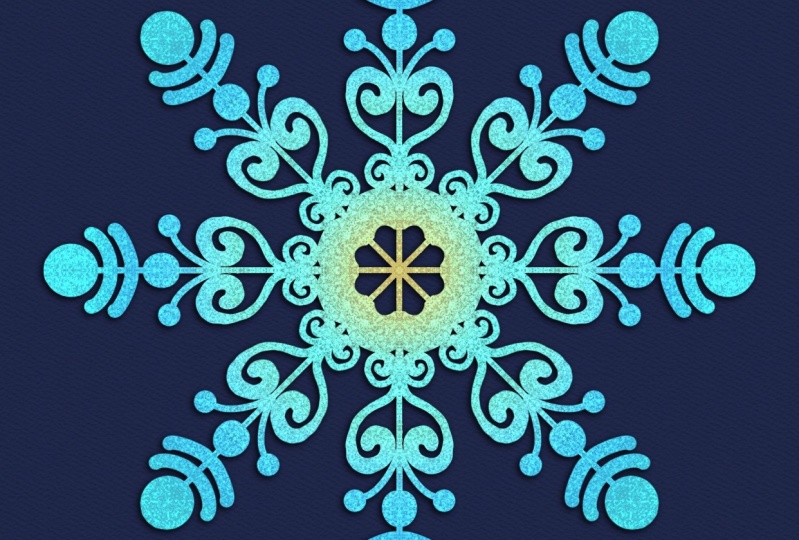
1. Introduction: Welcome to sparkling symmetry creating snowflake
mandalas in Procreate. My name is Laurie Russell and I'm so glad
that you're here. I'm a graphic designer
and illustrator. I love finding fun and creative new ways
to use procreate. In this class, we're going to be using the drawing
guide and procreate, and particularly the
radial symmetry feature, to create our own
unique snowflakes. This class will cover some
basic set up tips and an overview of the drawing guide with a focus on the
symmetry feature, as well as some
ideas for doodling elements that can form the
pieces of your snowflakes. I'll walk you through
how to set up a template and procreate
that will make creating these beautiful
snowflakes super fast and easy. Then we'll create one
together step by step. Finally, we'll add
dimension and sparkle to our snowflakes with shadows
and digital glitter. This technique can be used
to create mandalas as well. If you'd like some more
information on how I combine mindfulness
and creativity, make sure to check
out my other class, mindful doodles in procreate. Make sure to watch
the next video about how to access all of
the class resources. I can't wait to see the beautiful snowflakes that
you're going to make.
2. Resources: When you follow the link
for the course resources. This is a page you're
going to see right up here at the top
is a link to Dropbox where you can get the
free glitter brush and the color palette that we're going to use in
the sample piece. Below that is a link and
some information about the inspiration board that
I've set up for us on pins. This has a wide variety
of snowflake images. These are not all created
digitally or in procreate, but they are a great way to get some ideas and some inspiration. You can take ideas
from the shapes, the different elements and
pieces of these snowflakes, and even some of the colors to create your own
unique snowflakes. Clicking this link will take you directly to the Pinter board where you can see all of the different snowflake images
that I've saved for you. You can see there's
quite a variety here. Some of them are pretty basic and some of them are
more complex shapes. I wanted to give you a variety depending on how
comfortable you are with your drawing skills Below
the pinchers board, you'll see one more piece
of our resources here. These are some snowflake
template pieces that I've put together
for our course. These are optional, but if you'd like to get
your hands on these, you can just fill out this form here and they'll be
sent to you right away. This snowflake
template pack includes a couple pages of doodle elements to give you some ideas if you're
feeling stuck. Some different types of
bases for your lines, which will cover in our
snowflake tutorial. And five different
actual snowflake templates that you can use, modify, and trace to create
your own unique snowflakes. Normally, I would not recommend directly copying or tracing
anyone else's artwork. But I know as you're
learning this technique, you may want to focus
on that and not want to feel stuck in how you're
creating your artwork. You do for this course, have permission to use these
templates for your artwork. When you get the folder
which has all these in them, you will get them in both
Jpeg and PDF format. And then we'll be able to import these right into
procreate and use them. In the next video, we're going to learn about our
class project.
3. Project: Your project for
this class is to create a digital
snowflake in procreate, using the Mandla techniques
that you're going to learn. And then to share it with
us in the projects area. You can start with one of
these optional templates. You can follow along with the sample project
that I'm going to do. Or just create your
own unique design. Just like no two
snowflakes are the same, no two projects in this class
will be the same either. That's the beauty
of this art style. Your snowflake design should utilize the radial symmetry method that you're
going to learn. It should incorporate
color through the use of the background and possibly clipping masks to change the color of
the snowflake itself. It should incorporate
digital glitter using clipping masks
and blend modes. Here are some of my
tips for this project. Make sure you
follow the steps in the sharing your art video to export your project and share it with us in the projects
area of the class. Here's a pro tip
skill share doesn't allow for multiple
projects within one class. But if you'd like to share
more than one snowflake, you can simply update your project and add
additional images.
4. Setup: Let's talk about how
to set up your canvas for Mandalas and
snowflakes in procreate. Later on, we're going
to be learning how to set up an entire template
for our snowflakes. But just as an overall
best practice, you want to make sure that
you're using a square canvas that's going to work best for the radial symmetry that
we're going to be using. You also want to use a color palette that has
some contrasting colors. You can have a dark background
and a light snowflake, or a light background
and a dark snowflake. That way you'll be able to see your snowflake against
the background. You also want to
make sure that you keep your layers organized. I like to name them as I go or as you'll see later when
we set up our template, we're going to pre name
many of these layers. You won't have to
do that every time. Another good tip is to
use additional layers to experiment or play around
with different designs. If you're not sure
what your design is going to look like and you think it's going to interact adding an additional layer, make sure you turn
on Drawing Assist. We'll give you the freedom
to play around with these shapes without interacting
with the layer below it. Then if you don't like it,
you can try something else. Let's move on to the next video
where we're going to talk about the drawing guide and how to get all of this set up.
5. Drawing Guide: Let's go ahead and create a new canvas with
square dimensions. We're going to explore and
talk about the drawing guide. This is a very powerful
tool in procreate, it can make creating mandos
and other symmetrical artwork really quick and easy to
access the drawing guide. Come over here to the wrench. This is your Actions menu. Make sure that you're
on the canvas. Tap. The first thing to do is to turn the drawing
guide on right here. Now you'll see this grid show up for what we're going to do. We need a different
type of grid, so we're going to choose
Edit Drawing Guide. Now we have a lot more
options down here. Some of the basic things we can change are the thickness
of these lines, the opacity or how
transparent they are. The size of the grid, no matter which type
of grid we're on, whether drawing
assist is turned on, this is a basic two D grid can be really helpful for
things like lettering or anything where you're going
to have a lot of strap and perpendicular
lines isometric. You may have seen
this type of drawing. This is the grid that
you would use for that, which is a whole
another type of lesson. You also have a perspective grid where you can create
a vanishing point. This is great for drawing
things like roads and horizons, but what we're going to use
is this one called symmetry. It defaults to just basic
side to side symmetry, as if you had a piece of paper and you just
folded it in half. In order to update this, we are going to go to options. There's basic vertical symmetry. You can change it to horizontal, where your paper is folded. The other way,
quadrant symmetry, where it's going to reflect
in all four corners. Let me just show you
that real quick. But the one we want to
use is radial symmetry. Now I like to have my drawing
guide not too visible. I'm going to turn down the
thickness and neopacity. I'm going to use a
contrasting color, so I can see my black lines. I like to use something
in this pink range, but you can choose
whatever color you want. Going to make it a
little bit thicker and darker just for this
video so it shows up, but normally I keep
it a lot lighter. Once you've got this
looking how you want, go ahead and choose Done. Now, when we draw,
it's going to be reflected in all
of these sections. If we draw in between the lines, it's going to be reflected
across these diagonals. If we draw on the lines, it's going to be reflected
across those lines like that in order to
get our snowflakes, our mandalas, anything like that to be perfectly
symmetrical all the way around. We have a couple of
different options. I'm going to two finger
tap to undo these. The first option
we have is to draw our shapes whatever we want. This is super rough, I just
want to give you an idea. Then we can duplicate
this layer and rotate it. Come into the layers panel. I would swipe to the left, hit duplicate, come into the transform tool and
rotate 45 degrees. That's going to
give us a perfectly symmetrical mandala
or snowflake. The other option that we have, just going to hide these for
now from the layers panel. I'm going to tap drawing assist to make sure
that's turned on. If we come back to
our wrench canvas and edit drawing guide under
options here for symmetry, we can turn on
rotational symmetry. This will change how the
symmetry works on our page. Now if we draw
between the lines, they're all going to
be reflected the same way instead of being
reflected across these lines. If we draw on the lines, it's going to be the same. Sometimes this works better. But what you're going to
see is you're going to run into issues with how
long the lines are. You see that right here, we're running off the page because the diagonal lines are longer than the
straight lines. It's just something to
keep in mind as you're drawing generally you want to do your drawing on
the straight lines so that you're not
going off the page. The other thing is,
you're not going to have completely symmetrical shapes across the lines themselves, unless you're
really, really good. If I wanted to have
this perfect diamond shape on the lines here, I can get pretty close by
aiming to the middle of these, but it's not going to be exactly symmetrical like it was with this rotational
symmetry turned off. It really just depends what elements you're going to use and how you like to draw. Again, if you're
going to be doing something a little more
loose and free hand, I think the rotational
symmetry works really well. If you really want to have everything
perfectly symmetrical, then I recommend keeping this rotational
symmetry turned off. Make sure you have drawing,
assist on your layer turned on drawing what you want that's going to be
symmetrical around these lines. And then just duplicating the layer and rotating
at 45 degrees, that's going to
give you the most perfect symmetry that
you're going to see. In the next lesson,
we are going to do some exercises with
these radial patterns.
6. Exercise: Now it's your turn to play around with the
radial symmetry tool. Let's go into the wrench canvas. Make sure drawing guide
is turned on and choose Edit Drawing Guide
under Symmetry options, make sure that you've
chosen radial and play around with whether rotational
symmetry is on or off. You can keep adding new layers. Make sure that drawing
assist is turned on. For this exercise,
choose one basic shape, a circle, a diamond, a heart, a star triangle,
anything like that. I'd like you to play around
with how that looks and how it works with the rotational
symmetry turned on and off. I'd like you to experiment
and get a feel for the tool for which shapes work well with and without that
feature turned on. Here's a pro tip, although
I do encourage you to use the monoline brush when you're first
learning the technique. Don't be afraid to experiment
with other brushes as well. Try out some brushes with different textures and
see what effects you get. As you're working
through these exercises, make sure to play around
with different settings and brushes to see what
effects you like best. Go ahead and try three or four
different varieties with and without the
rotational symmetry turned on. Again, that's in
the edit drawing guide symmetry
options right here. Play around with this until you get comfortable with
whether you like this on or off for different
shapes and different styles. There's no need to share
this in the project area. This is just for you to practice and get a
feel for the tool. In the next lesson,
we're going to practice some basic doodling shapes for mandalas that also work
really well for snowflakes.
7. Doodling: In this lesson, we
are going to cover some basic doodles
and shapes that you can use for mandalas that also work really
well for snowflakes. You can use the elements
that I provided with the free resources
to mix and match. You can also come up
with your own shapes. Let's create a new canvas that's a square under the Actions
menu. That's your wrench. Go to Canvas and tap Reference. Now we can import an image, then you can go ahead and
grab one of those elements, pages from the resources or any other reference
photo that you have. I like to use the
reference image because it's just
nice to have it in a separate box that you
can adjust and resize. Here's a protyp. The
elements and shapes that you use to make your snowflake
can be more traditional, or more modern and unique. Really, you're only limited
by your imagination. Don't be afraid to experiment and try out some
different things. This is one page of the
elements that I've provided. Again, these are not
exhaustive by any means. You can definitely come up
with a lot more variations. But I just wanted to give
you something to start with. If you were feeling
completely stuck basically, you can just practice using
some of these and brainstorm some other ones that you
would like for mandalas. A lot of times what you will
see is some a petal shape. I don't have my symmetry
turned on here. Let's go ahead and
do that. Let's go back to our drawing
guide and turn that on. Choose Edit Symmetry. And I'm just going
to use regular vertical symmetry for this. Make this a little brighter
so you guys can see it. Okay, for mandalas, like I said, you often see different
petal shapes, something like this or a little bit of a kind
of a scoop at the top. There's a lot of
variations of that thing. Then these can be filled with other shapes or dots, colors. There's a lot of things
that you can do with that. But with snowflakes, a lot
of times what we see is more singular shapes attached to a line as if they were forming the
crystals of the snowflake. What I provided here is some from the sample
templates that you'll see. Some of these pieces, things
like lines that curve out, you have to play around with this connection point to make it a little
bit more smooth. You don't get this dip right here and you can play around
with the angle of that. The straight ones are a
lot easier, of course, to get those then
all of these can have things attached to
the end of them as well. They can have circles. Quick shape works
for this as well. They could have stars. These could have diamonds. I like using diamonds
a lot in snowflakes. It really reminds me of crystals.
You can fill things in. You can see here that sometimes shapes can have
strokes on or around them. You could have an inner
stroke like this. You could increase
your brush size and do something like that. Taking basic shapes and lines
and seeing how they look on some vertical symmetry
like this will give you a really good idea of how they might look put together
on a snowflake. Let's create a new layer. Turn on drawing a cyst. Let's just practice recreating
one of these lines. This line, I'm going to
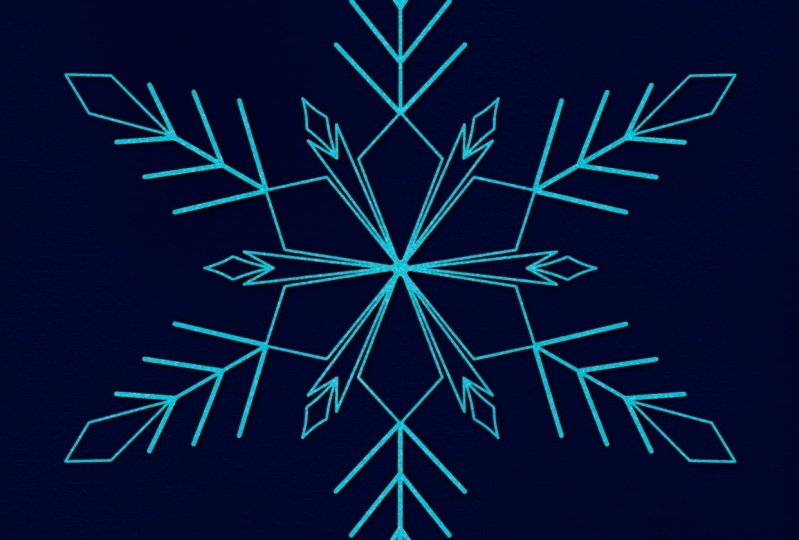
use smaller brush here. This has the center line, it has two crossing diagonals. If you hold onto this, you can adjust this
before you let go. Then we have one of these
rays that is shooting out with two of these
criss crosses at the end. We've got a set of these. I like to try and keep
these perpendicular to each other. Okay. So the next one is
similar to this, but we've just added some
of these stars on the end. So you can see you can take some of these and combine
them as well. We basically would be
adding these crisscrosses. That's really messy. And then putting a little tip on these to make more
of a star shape. Then this last one is
building a six pointed star. I would build from the top and
bottom and then the sides. You can play around with
how those angles work. This one needs to be maybe
a little bit further out, something like that. Now, now we've been able to replicate one
of our references. You can go ahead and practice any of these or any other references
that you found, maybe on pins or other
snowflakes that you've seen. Once you get a bunch
of these put together, you can duplicate the layer. Go ahead and hide
one of them for now. Then take your transform tool, make sure that you have snapping
and magnetics turned on. Then you can just
slide one of these over and it will stay
pretty parallel. Then you can turn this
other one back on and just clear that layer and start again and work off
the symmetry line. That's how I got three
of these to be all nice. And even on one page you can come up with your own
additional elements as well. In the next lesson, we're briefly going to talk
about how to take the principles of
creating mandalas and use those to
create snowflakes.
8. Snowflake Shapes: Now that we've played around with the drawing guide and we understand how to use the radial and rotational
symmetry features, may be wondering what
really is the difference between creating a
mandola and a snowflake. I would say some of
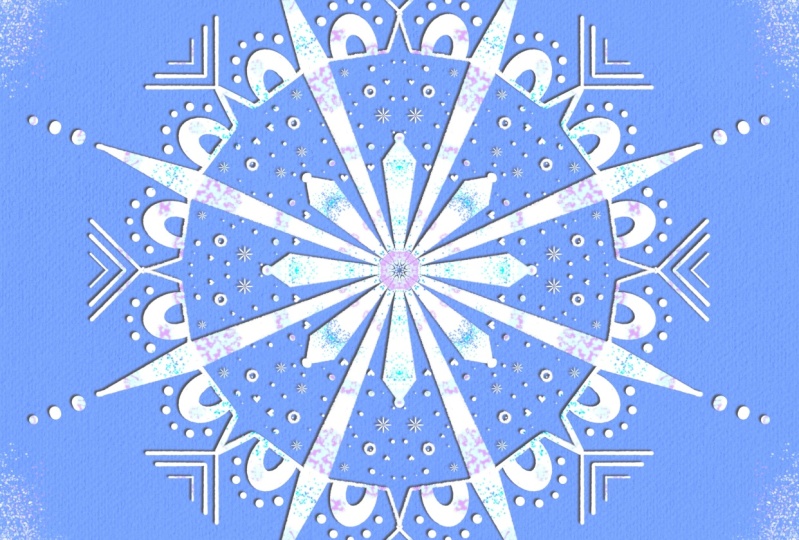
the main differences are the level of detail, here's a mandala that I made
doing my mindful doodling. And of course you can make these as simple or as
detailed as you'd like, but generally
you're going to see a lot more detail in mandalas, more so than you
will in a snowflake. Another main distinction is that you're going to see more of this spherical overall
shape in the mandalas. In snowflakes, you're
really going to see more distinct lines that are
going to be highlighted. Usually it's six, but
in procreate it's a lot easier for us to work in the
symmetry tool with eight. So that's what we're going
to create in a mandala. We usually start with
some spherical piece in the center and
build out from there. In snowflakes, we're going
to usually start with a base of the lines and
then build on top of those. Just like a real snowflake
builds its crystals out. Similar tools and methods, and even some
elements can be used for both mandalas
and snowflakes. But the actual method
that we use to create and build them
is slightly different. In the next lesson,
we're going to put together our
snowflake templates.
9. Snowflake Template: Creating these snowflakes
is really fun. But the process of
getting them all set up can be a little tedious
to do over and over. Getting your layer set up, just right editing
your drawing guide. So it's just the
way you want it. This is where a template
comes in really handy. In this lesson,
we're going to build a procreate template
together that you can reuse over and over. And it will make
creating your snowflakes super quick and easy. Here's what the finished
file looks like. We're basically just going
to be building these layers. Let's create this
together from scratch. Let's create a new canvas
with square dimensions. Now we need to turn
on the drawing guide. Come up to the wrench to canvas. Turn on the drawing
guide and choose Edit. We want to have radial symmetry come to symmetry and
options and turn on radio, you can decide whether you have rotational symmetry
turned on or off. If you've done the exercises and you find that you usually like to use rotational
symmetry, then turn it on. If you find that you only use the rotational
symmetry occasionally, then I would leave it
off in your template. Go ahead and adjust the opacity, the thickness, and the
color of your lines. Once you have it
looking how you like, go ahead and hit done. Now, we're going to come
to the layers panel. You can see that this
says Assisted on it. We're going to tap on it and
rename this to snowflake. Now we need to add a new layer and drop this underneath
our snowflake. This is where we are going to
put some background color, rather than changing the actual background
color of our canvas. I'd like to do this on a
separate layer so that I can add other textures
and things to it later. Let's go ahead and rename
this background color drop. I'm shortening the word a little bit so it'll
all fit in there. We're going to add a layer above this tap on the layer and
choose clipping mask. We're going to rename this
one background texture. And I'm going to change
the blend mode on this to overlay because the
texture brushes I have. That's the blend mode
that works best. We're going to add
one more new layer between the texture
and our snowflake. If you still have the
texture layer highlighted, you can just now this layer, all we're going to do
is just rename it. This is just going to remind us that we're going
to create a shadow of our snowflake later on in order to fit all
these characters on. This is what I've named
it, Shadow, colon, DUP for duplicate, slash be okay for
black and slash blur. Once we get into the
step by step tutorial, you'll understand what this is. But it's basically
just reminding us to create a shadow
of our snowflake. Later on, let's come up
to our snowflake layer. Swipe to the left
and duplicate it. Make sure that it still
says assisted on it. We're going to rename
this 12 gradient. Now this is going to
be an optional layer. If you just color your
snowflake one color, you won't necessarily
use this one, but it's nice to have
there as an option. Let's go ahead and tap on this layer and make
it a clipping mask. We are going to duplicate
this gradient layer, it should still say assisted
and be a clipping mask. We're going to change
this blend mode here to add and rename this
to Glitter One, I'm going to add three
layers of glitter because that's tends to be what
I use for my snowflakes. Depending on how many layers of glitter you think
you're going to use, you can adjust your
template accordingly. I'm going to just duplicate
this a couple more times and rename these. That's it. Now our snowflake
template is ready to go. Let's go back to our gallery and tap on untitled artwork
and you can rename this. Now anytime you want to
make a new snowflake, you can just swipe left on this and duplicate
and start from there. In the next lesson,
we're going to walk through how to create
your very own snowflake.
10. Snowflakes!: In this lesson, we are going
to walk through step by step how to create your
very own snowflake. Go ahead and swipe
left to duplicate the template that you made in the last lesson and rename
the file and open it up. I recommend using
a mono line brush for your snowflake design, and there's one
included along with the glitter brush
in your resources. I have three preset thicknesses that I generally work with. This one is 10% 34.79, but you can set these
at anything you want. Work with the middle
thickness for this one. Now to create your snowflake, you're going to
start by creating your lines in your template. Make sure that you're
on your layer labeled snowflake and you're going to start putting
your lines down. This can be a little tricky
with the symmetry feature. You can see the lines are getting a little bit
thick at the end there. If you don't want
to mess with this. I do have several
different options for line bases that are included in that
optional resource set. You can just go to add, Insert a Photo and
grab one of those. That will just import
right in there. We can go ahead and stretch
this out a little bit. That fills a little more of our canvas and just make
sure that it's centered. I'm going to turn magnetics
off, but keep snapping on. Now we see both of
these gold lines. That's what we want. Then we
can turn snapping back off. Now I have my lines
done already. You can do them manually or you can use one
of those presets. There's five different
ones included, There's three different
thicknesses of lines, and there's some mixed
thickness lines as well. Now, in order to add our snowflake elements
on top of this, I recommend doing those on additional layers and then
merging them at the end. Let's add a layer
underneath this. Click on the layer that says
Shadow and add a new layer. Let's make sure that drawing
a cyst is turned on. How big is this brush? It's a little bit thick. I'm going to use a thinner
brush for this one, something in between these
15 looks pretty good. Now if you want to use
one of the templates, we can go ahead and add
that as a layer as well. Go underneath your layer that you're working
on and add a new one. Then we're just going to
import that the same way. Now I have these templates
purposefully, pretty light. But if you want to
make it even lighter, you can tap on this n here and turn the opacity
down some more. Let's go back to the layer that we're going to work on. Now. We can start adding
some of these elements. Now here's one little protyp. You can see that this is
going to be filled in. If you do want to do that, you are going to need to
close off these shapes. If we try to do this, now that color is going
to spill out, We need to make sure
that we're crossing over and completely
connecting these. If you need to see where
you might have holes, you can isolate this layer temporarily by pushing and
holding on this check mark. Then we can fill those in, push and hold on this
check mark again, and that'll bring the
rest of your layers back. Now when we zoomed in like this, we can see that
this lines layer is not quite the same shade
as the rest of this. Doesn't matter right
now because we are going to be changing the
color of our snowflake later. But if you wanted it
to all be the same, you can tap on this layer swipe to the right with two fingers
to turn on alpha lock. Just choose a fill layer. Now everything is matching. All right, let's continue
with our design. You can take some creative
liberties as well. Quick shapes. Works. Put a finger down to get a perfect circle, and
then you can fill that in. Okay, that is looking pretty good now because I wanted to have these perfectly symmetrical within themselves. That's why I did not have the rotational
symmetry turned on. Right now what I'm
going to do is go ahead and swipe left and
duplicate this layer. Come to transform and
rotate at 45 degrees. Now I've got my perfectly
symmetrical snowflake. Once you are happy
with your design, we can go ahead and either delete or turn off
our template layer. We're going to merge
these three together, or however many it is. Now our snowflake is
all on one layer. The next thing we're
going to do is add some dimension to our snowflake. We're going to add some color and texture to the background and some color to the snowflake
itself, it contrasts. Let's go ahead and turn Alpha, Lock back on our snowflake. Come to our color palette. Let's choose a medium blue, this second one from
the corner down here. And choose fill layer. Now we can come
to the layer that says background color drop and choose either a dark blue or maybe one of those yellows. I'm going to go
with this dark blue here and just drop
that on the page. Now you can already see that we have some contrast
with our snowflake, but it looks pretty flat. We're going to fix that. Come to our background
texture layer and you can either insert a picture
of a texture or if you have a texture brush that you'd
like to use, you can do that. Overlay usually works
pretty well for those. There's a paper
texture on there, but you could use just
a solid color as well. Now we are going to do what this reminder
layer is telling us to. We're going to create the
shadow of our snowflake. This got renamed when we merged. That's why it doesn't
say snowflake anymore. Let's go ahead and
swipe left to duplicate this tap on the bottom one
we've already duplicated. Now we're going to
turn this black. Come up to the magic wand,
that's your adjustments. Menu hue saturation
and brightness. And we're going to take the
brightness all the way down. Now this has turned to black. Now we just need to offset it a little bit and use
our gaugin blur. Tap your transform tool, make sure you do have snapping
turned off by this point. I'm just going to tap outside of this bottom left
corner a few times to nudge that shadow
a little bit away. Now we'll come back
to the magic wand and go down to gaugin blur. And just slide across the screen until you get
a nice looking shadow. Usually three to
5% is pretty good. Now, at this point, we can go ahead and turn our drawing guide off in our canvas just so we don't have those
lines showing up anymore. In the next lesson,
we are going to make our snowflakes sparkle.
11. Sparkle!: Our snow flakes already
look pretty good. But we are going to
step them up a notch. Remember this gradient
layer, I said was optional? Here's how you'd use
it, if you want to, you can choose some other colors using your monoline brush. And just add them in in a
really wherever you'd like. I might add a little bit of
yellow to the middle of this. This is why I like to keep
assisted turned on this layer. Makes this really quick and easy and it keeps
everything nice. And even now we're going to, on this gradient layer, come to our magic wand and use the gauge
and blur on this. You can slide it as
far as you need to to get a really nice
gradient effect. Now, in order to
add the glitter, we already built in this add
blend mode to our template. That's what we need
for the glitter brush that's included
in the resources. If you have glitter brushes
from other creators, theirs may function differently. Just make sure that
you check on that. For this brush, you want to
make sure that you're using a darkened version of whatever
color glitter you want, and that you do it
all in one stroke. The more you layer the
glitter with this brush, the brighter it's
going to become, is going to get closer to white. For example, if we used
a dark form of this tal, I put this on here
and keep layering it, it's ultimately just going
to end up being white. We really want to do it with a light hand and each
color on a separate layer. I'm just barely touching
my ipad right now. I'm going to switch
to another layer and grab a dark blue. Then on this last layer, I'm going to choose
this teal and then drop it down
into a darker shade. Now we've got a really nice digital glitter look
on our snowflake. In the next lesson,
we'll walk through how you can share your
beautiful snowflake art.
12. Sharing Your Art: Once you've made some
beautiful snow flakes, you'll want to share them. As a side note, your
class project is to make a sparkling snowflake
and share it with us in the project
area of skillshare. But you can use these
same techniques to make your regular mandalas or
other doodle art sparkle too. In order to share your artwork, all you need to do is
come up to the wrench, that's your Actions menu. Come over to share, and you're
going to want to save it probably as a PNG or a Jpeg. Just a note, the PNG's are generally going to
be a larger file size. This one's coming in
at 6.6 megabytes. A Jpeg version is coming in at 1.3 If you're going to be e mailing it or using
it on social, it's probably going to be
best to save it as a Jpeg, but a PNG is going
to be a bit of a higher quality version
of your artwork.
13. Thank You: I hope that was helpful. I love showing people how to combine creativity
and technology. If you enjoyed the class, I would really appreciate
it if you took just a couple
minutes to leave me a teacher review
here on Skillshare. This just helps future
students know what to expect from me and from this
class. Thank you so much. I cannot wait to see the beautiful
snowflakes that you're going to make using
this technique. So make sure that
you export it and share it with us in the
project area of this class. I hope to see you
in a future class.
 Laurie Russell, Digital Artist | Illustrator | Educator