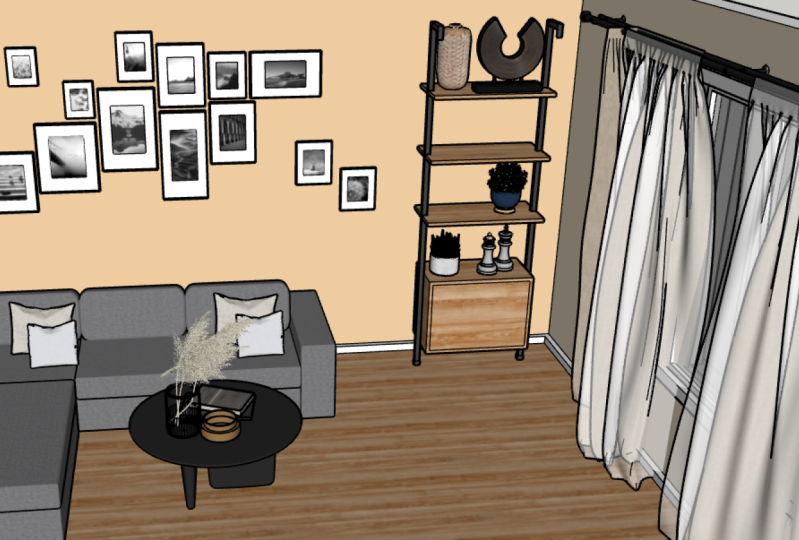
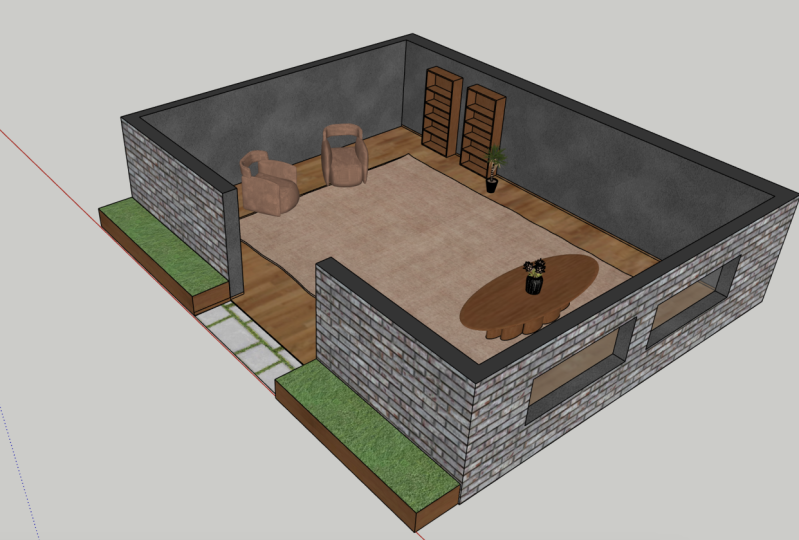
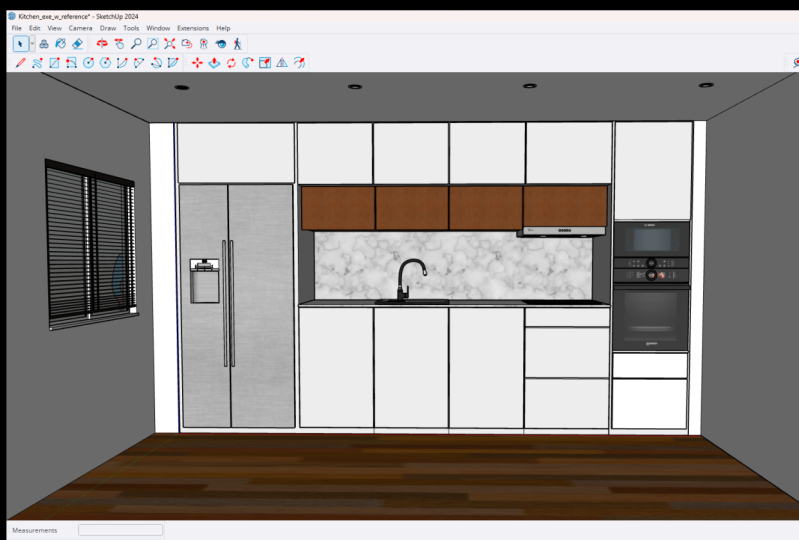
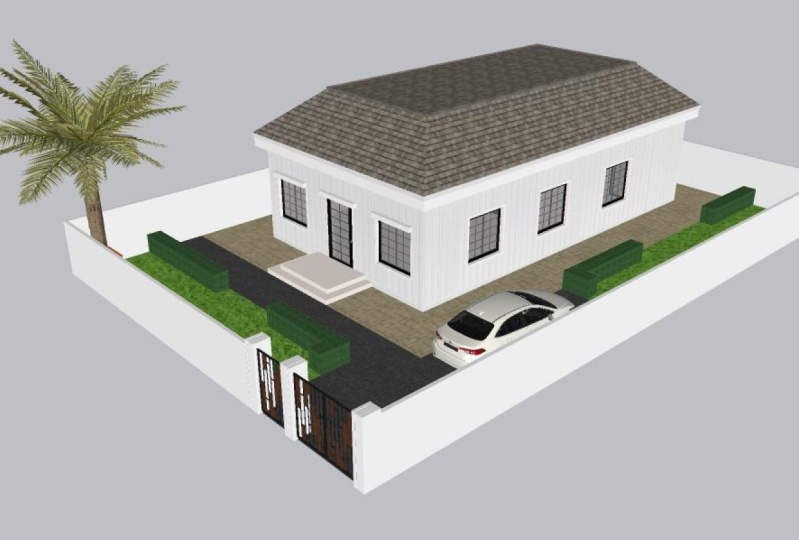
Transcripts
1. Introduction & Class Teaser: Welcome to sketch up mastery
Foundations Part Two. My name is Victoria Wilson
and I am a designer, Digital Creator, and
teacher here on Skillshare. I've been working in SketchUp in the design industry
for several years now. And I am really excited about sharing my tips and tricks and all the techniques
that I've worked out over the years of
working in this program. In part two of this sketch at masteries Foundation series, we're gonna be building
on the knowledge that we worked on in part one. In this class, we're going
to look at using groups and components and talking about some of the differences
between the two. As well as working with materials and creating layers
to organize your model, as well as creating scenes
and using section cuts. Then we'll also take
a look at how you can export some of your views of your model to present
your projects to clients or to
build your portfolio. So I hope you'll
get a lot out of this class and I can't wait
to see what you do with it.
2. Your Class Project: Okay, So if you
go to the project and resources section of
this class on Skillshare, you'll see a little more
information about what all I would love to see
for your class project. And if you see this,
See More button. Make sure to click that so you can get all the information. This details, everything I'd like to see
for your class project. We're gonna be going
over a lot of stuff. We're building a lot
on the foundations of your sketch up knowledge from
part one in this series. So for your class project, I've laid out the details. Basically, I would like
you to either start with the model that I give you
or start from scratch, but build something and use the tools and the techniques
that I share with you in this class to add materials and organize your model using
tags and set up some scenes. And then in the class project, I would like you to share either exported views of your
model or if you want to create some screenshots
to show how you've used tags and scenes to
organize everything. So this is more information
about all of that, but I mean, that's pretty
much the gist of it. I've also included
links for the 3D mouse that I used in part one as
well as used in this class. Then there's also a link for
the SketchUp 3D Warehouse. And I want to say
that if you use that, there's great
resources in there, but please be sure to check
out the lesson in this class about using components from
SketchUp and 3D Warehouse. And pay attention to my best-practices tips for when you find models on
there that you want to use. But here's the link for that. And up here you'll find a model that's a
basic SketchUp model if you took the part one class, this is essentially
the same model that you're going to start with
that was in that class. And you won't be
able to download this through the Skillshare app. So make sure that
you're in a browser, either on your computer or
on your tablets to get that. And you can just save
it and open it right in SketchUp so that you have the same starting point as an a. And then this is where you would create your project and add your screenshots or add
your exported images. Now, the model that I
give you looks like this, and this is your starting point. So if you want to
start out to have the same starting point as me, this is what you'll get. But hopefully by the
end of the class, you might end up with something
a little more like this. Not exactly, because
obviously these are things that I've made separately
and brought into it. But you can see these are
some of the things that you'll learn in this
class with scenes. And layers are tags if you
want to call them that. And I'd love to see what you create as far as your setup
for your layers and scenes. So a screenshot for
your project is great. But really it's just up to
you what you want to show, to show off the skills
that you're learning. I can't wait to see
what you share.
3. Reminders: Alright, so before we get into the nitty-gritty
stuff of this class, I wanted to give you
guys a few reminders. First off, I am
currently working in SketchUp Pro 2021
on my Windows PC. And I'm using
version 21.1.1.332. If you're not sure which
version you're currently using, you can go to the top menu to help about SketchUp
and then you can see what your version
number is if you're working on a different release or on a different platform than me, then you may notice
some differences. So if you're working on
a Mac, for instance, I believe the toolbars
are all floating instead of docked and I'm not sure there's
a Default tray. I don't think there's a
tray in the Mac version. If you're working in this
sketch up online version, this setup is sort of
completely different, but the tools are the
same for the most part. So you'll still be
able to follow along if you're working
in that version. So that, that covers that. Next. I want to remind you about
part one in this series. So this is part two of this
SketchUp mastery foundations. I did a part one. So if you haven't
been worked through my part one class
in this series, I strongly encourage
you to go check that one out before
continuing this class. In part one, I covered a lot of basics about how the
program is set up, along with the
drawing and modifying tools that you'll
need for this class, we'll be adding to
that foundation to take it even further with
your model-building. So there may be some tools that if you haven't
taken that first one, I may use some tools are used, some techniques that I don't explain but explained
in the first one. So just a reminder. Another thing I showed
you in part one of this series that I use a 3D
mouse when using SketchUp. This is a staple for
me at this point. I will be using it
during this class too. There's a link for the 3D mouse
in the class description, so you can grab that if you
decide you want to use it to. So if you see me moving around the model without
using Zoom or orbit, then I'm probably
using the 3D mouse. So this is an example of
me using the 3D mouse. So you still see the cursor
up there for the select tool. But it's not the same as
if I was using orbit. I covered this in
the first-class, but I just wanted to give
you a reminder that I do use the 3D mouse. So, so much and highly recommend it because
it just saves you some time and it
just makes things so much easier and you can combine
it with the orbit tool. It's just very handy. So if you see me moving
around and don't see the orbit tool or like how am I doing that? That's
what's happening. Another reminder is this
model that I'm using here. I've included it in your
class resources section. It's the same model that
I used in part one. And so this just allows you to open it up and
see what I'm seeing. And you're getting the
exact same starting point as what I'm working with. So I guess that's it
for my reminders. Let's move on to
the next lesson.
4. Standard Views: Alright, so we're going to start this lesson off by looking at the standard views
that come with SketchUp. And we're going to do that by turning on the Views toolbar so you can right-click on
one of your toolbars up here and turn on views. And if it's floating, you can just drag it around
to wherever you want. Another way to get this
toolbar is going to the top menu to
view and toolbars, and then you can check
it to turn it on. And just as a little reminder
here, under options, I've got the large
icons selected just to make it easier for you guys to see larger buttons. For this class. Normally if I'm working
not recording a video, I will have that unchecked. So I have smaller buttons to take up less
room on my screen. So that's just up to you personal preference on
what you want there. But that's where that is. We've got these different standard views that you can use. And typically whenever you open up a SketchUp model, model, you're starting out in
the perspective view. And just to refresh your memory from the
first-class in this series, you can use the zoom tool and
change the viewing angle. So you can see up
here it's at 35. You can change the viewing angle to control how your view looks. In this perspective view, I normally like to draw using a 35 or 45-degree
viewing angles. So this is 35. If I type in
45 and enter, Here's 45. And if I'm doing a view that an interior room
as another example, if I'm like showing a
client their space, I will usually switch to a 60 degree viewing angle just because like if
you're in a room, it gives you more to look at, then if you're at a 35. So see you can't even like
backup of that corner there. So 60 gives you a
different look. So that's just another way to customize a somewhat
standard view. I'm going to go back to 35 here. But then you have the
standard buttons here. The first one on
the toolbar is ISO, so it moves the camera into the nearest isometric
view of your model. So if I click that, It's, it's pretty much your
perspective view, but it's just a little bit different than if you
have a scene setup, which if you get lost in your model somewhere
and you want to go back to that main view. If you click this working tab, I have it set up
just the same as the first-class in this series. And it will take you back out. So if you get zoomed in or out too far and don't
know where you're at, just click that tab. The other standard views are, I mean, they're pretty
self-explanatory. So let's look at the
first one is top, and it shows you the
top of your model. Then you have front
and you have rights, and then back and then lift. And these are
really handy views. If you're trying to look at
all sides of your model, you can combine these views
with, let's go to front. You can combine these views
with a parallel projection. So if you go to
View camera, sorry, if you've got a camera
and parallel projection, it's going to make
it completely flat. So now if you go to any
of these other views, as long as you're in that
parallel projection, it's a flattened
view of your model. So if you turn this
on and don't know how to get back out camera, you can switch to perspective. You can always just
hit that working tab and it's going to
take you back out. So combining the
parallel projection with the standard views, these are a great way to
show off elevations of a wall or floor plans
or things like that. And it's just it's
a view that you don't actually have to go in and figure out how to
set up because you can get close to it. And if you watch, if I get
close enough to the front, sometimes it will pop up on
the side while it's gonna be, I say this but it's gonna be tricky sometimes if
you get close enough, it will say front on here
or one of these flat views. But you can see
you can still have perspective and have
a standard views. So if you are wanting
different looks just like with that
field of view thing, I can change the
field of view to 60. And I'm still in the top view. And it's giving me like a slightly different perspective than if I was back at 35. So this is just another way
to navigate your model. Look at different
views of your model and customize what you're
actually seeing on the screen. So that's pretty much it
for your standard views. Let's move on to
the next lesson.
5. Construction Tools and Guides: Okay, Now we're going to turn on the construction toolbar and
take a look at those tools. So once again, you can either
right-click and choose construction or you can go to the top menu to view and
toolbars and turn it on there. So I'm just going
to drag this up here and stick it
next to the views. First up on this toolbar
is the tape measure tool. And if you like
keyboard shortcuts, the standard shortcut
for this is a T. So the tape measure tool here, it allows you to
check measurements and create guidelines which
can be really helpful. So you simply start by clicking a starting point and
clicking your ending point. Now, if you just
hover over the point, you see the measurement. It'll show up next
to the cursor as well as up in the
measurements bar. If you click, I'm going
to start this ever so if you click and then click
your ending point, it's going to
create a guideline. And these are really handy
for if you want to have like a set guide is set
and measurement somewhere that you don't
have to draw a line. You can use a guideline instead. To give you a practical
example of this, I'm going to use
the rectangle tool. And I'm just going to draw
a wall here and push it up. And four guidelines. Let's say you want to mark out windows on
a wall so you can use lines and copy lines over to create your points or
you can use guidelines. So I'm going to turn on this. And you can also lock directions with the arrow keys just like what's a
lot of other tools. So I'm gonna type in two feet, enter, this is gonna be
the bottom of our windows. And then for the top of it, I'm going to do 42 inches. And then I'm going to come in, let's say 30, and come over 30. So now I've got a
window location. And I can use the Rectangle
tool to trace over these guidelines and then
push out the opening. So you can see that I
didn't have to draw these extra lines to get
this window location. And now I can just delete all of these
guidelines at once. You can select them one at
a time and delete them. Or you can go to the top menu and go to
Edit and Delete guides. And all the guides that you've put in the
model have gone. So this can be really handy
if you don't want to, like draw all these lines and then erase them
all individually. By using guidelines, you
get a clean surface, clean lines, and you can
delete them all at once. So that's just a
really handy way that you can use guides. So remember if you don't
click an ending point, then you can just measure
and then escape out of it. And you don't have a
guideline leftover. So really handy guidelines. So next tool is the
dimension tool. This one is that it's self-explanatory there
four dimensions. You can also get this From
going to Tools and dimensions. You can also get the tape
measure up there as well. I don't think I said that,
but you can get that there. Did I say that? Anyways, dimensions, these
are really simple to. You can click your
starting point and your ending point
and then lift it up, pull it over,
anything like that. And these will snap to other dimensions
that you may have. Like, let's say I'm
going to put this here. If I draw another one over here, see how it just snaps to that so that they can all be in line. So these are dimension
lines are just super handy. This is a great way to quickly
show somebody an example of like a wall or
casework window openings. If you just need a
quick and measurement to share a picture with someone. I've done that before with
clients where it's like, can you give me the
measurements of this room? I forgot. This is a handy way to do this. You can also change the
look of your dimensions. So if you go to Model info. This is either up here
in the standard toolbar. You can hit the model
info button here, or you can go to the
top menu to Window. And model info takes you
to the same pop-up window. If you click on dimensions, this gives you a
way that you can customize how your dimensions
look in this pop-up window. So you can customize
the font, the colors, your endpoints, alignment,
everything like that. So I'm just going
to go through here. I'm going to type in a font. I like to use Oswald. And you'll see that you've
got points and height. You can use either
one but a point. The point setting reads
like a regular font wood, and it's dependent on your view, whereas height is a
specific dimensional height that does not change, so it just depends on
what you need it for. Typically, I will
just go with points, but you can choose
whatever you want. So I'm going to change that
to Oswald for the font. And I'm going to
have two screens, so that popped up on
the other screen. That's why why you didn't
see that right away. So I'm going to change the color here just to have
something different. Hit, Okay? And when you have dimensions already in your
model and you make changes to something like this, what you need to
do is say select all dimensions and you can
see that they highlight. And then you hit Update
selected dimensions. And now if I click out of this, you can see that they
have now updated to a different font
and a different color. So that's, that's
another way that you can customize the look
on your screen. The next tool is the
protractor tool, and it's pretty similar
to the tape measure tool. You can also go to
Tools and protractor. And it works the
same way as the, the tape measure
except it does angles. So you can do like this
is a 60 degree angle. You can see up in the measurement tool bar
up there you can see angles and it will snap to the different parts
of the protractor. So you can click on a specific one and it
will give you an angle. So if you wanted to, you can use the arrow tools
to lock directions as well. So let's say you
wanted to know where a 45-degree line on this
wall was from this corner. That would be how
you can mark that. I'm going to delete
this one so that that doesn't get too confusing. But you can see that you've got this 45-degree angled
line on this wall. So if you wanted to let's see, let me give you an
example of that. If you wanted to do like a pattern or something
on this wall, then this is a good
way to do that. So I'm going to use the
Copy command and go up. And then I'm going
to type in six, enter for six times. So now I've got like
this lined pattern on this wall at a
45-degree angles. So that's a way that
you can use that. And I'm just going to
Control Z to undo that. And I'm just going to delete the guides because
we don't need that anymore. Alright, so that is
your protractor tool. Next up is the text tool. That's this guy here. I've personally set up a keyboard shortcut for that because I end up using it a lot. So my keyboard shortcut
for that is j, but that I had to set that up. We'll get into that
later in another class. But the text tool that's also up here under tools and
text right there. So the Text tool is you see the cursor has turned into
like a little litter box. You've got a leader line
and a box for text. And that's exactly
what it creates. So if you click your starting point of where you want your leader line to go, and then where you
want your note to sit. And it comes in with something already
in the box and it's highlighted so you
can just start typing to replace that if you want. The note can come in with either the square footage of a face or the length of a line. Or it may come in as the
name of a component. If you're, if you're clicking on a component to start a note. So if it's a component, you may want that note. If you're wanting
this square footage and not having to calculate it, you can do that. But otherwise, this is
a good tool for making notes about your project or calling something out to
share with the client. Um, it's, it's just, it's a really handy tool. I use this a lot. Sometimes I'll put this on, put notes on my model and
put it on a separate layer. We'll get into that and have a note layer so I can
just turn off my notes. And these are reminders to
come back and do this or Hey, we made this change, we need to update it on the CAD plans or
something like that. So if you type your note, you can hit Enter once
to go to a second line, or hit enter a second time
to close out the note. And let's see if I do this. Let's see this is a components. So you can see when I
click on the component, it gives me a component name. You can use this,
put multiple ones everywhere and just have like all kinds of different
notes in your model. Just like the dimension lines, you can also change the look
of these notes as well. So I'm gonna go to model info. Here. You want to go to Text. And we're gonna go
to liter text here. And we're gonna change our font. Once again, I like, let's see. Okay, so coffee bean, that's actually a
font I created. So I'm just gonna go with that. And I'm gonna hit Okay, and change the color. Make it this color just
for something different. And if you make changes, you want to do select leader
texts and then update. So you can see that now I've
updated, if I click off, you can see that they
have all been updated. So this is just a handy
way to make notes. You can share views with
notes on them if you combine it with a front
view for instance. So we talked about that
parallel projection. So you can share this view
with a client if you need to, with your notes already on it. And the same thing about 0 and height that we talked about in dimensions also applies to this. Next step on our
toolbar is axis. This allows you to change the position of
the axis in your model. You usually you just want
to leave this alone. But if you need to change it, this is how you do it. So you can see you've got
your blue, red, and green. If I wanted to change
my axis over here, I would click the origin. And then you can see I can
change these directions. And then now I've moved my axis. I want to leave
my axis the same, so I'm just going to
undo that for now, but that's how you would
reposition your axis if you wanted to. That's a simple one. Next step, this is
a really fun tool. This is 3D texts. And once can, you can
find all of these under Tools in the top menu. And so 3D texts. And it's exactly what it says. It creates 3D text. I mean, that's that's
just what it does. So when you get
this pop-up window, you can type in
whatever you want. I'm going to type
in Skillshare class just so we have something. They're actually, this is
another font that I created. That's kinda weird
that it's in here, but you can choose your font
in this drop-down menu. And you can choose
your alignment. You can choose if it's
filled, extruded the height. And this is your
extrusion there. So this is your
height and this is how thick it's going to be. Now, this, this tool doesn't work like regular
texts because literally what you're doing is
you're creating texts and turning it into a 3D form. And as we've talked about
before in SketchUp, your 3D forms are made
up of lines and faces. And so once you
create a 3D texts, it becomes a collection
of lines and faces. So I'm going to choose the settings and I'm
going to say place. And then you can see
you can place it on a vertical or a
horizontal surface. I'm just going to stick it down here and move around
so you can see that. And then does it as a component. So when you have it selected up here
and your entity Info, you can see that
it's a component and the definition will be
whatever's in there. And you can change this. And it's not going
to change your text. There's no way to
modify the text. Once you've created
your 3D letters. And when I say it
creates lines and faces, That's exactly what I need. And so you can see these
are lines and faces. So you can go in and
add materials to these. You can go in and select
them and move them around. But they no longer texts. It's a 3D element. So this is fun for if you needed like a large note on a floor
plan or something, you can label rooms with this. I'm trying to think of
different ways that I've used this in, in practice. The most recent
case, oddly enough, of using this 3D text is I was working on a model
of a house for a client. And there was a room
in their house that was a bourbon lounge. And so I created a
sign to go on there, casework of like the
name of their lounge. And so that was
just a fun way to, to give an example
of like they can have a metal sign made
that looked like that. And that was one way that
I use this 3D texts. So it's a really, really handy tool
and I'm just going to leave this in
here for later on. Because you can apply
materials to this. You can edit it. You can move the letters around. You can move it
around and rotate it. If you want to put
it on the wall, you can use scale to
re-size it like this, but you can't go in and adjust, adjust the height
that you originally set because it's no longer editable like
regular texts would be. So I'm going to undo this, stick this back on the ground. So that's, that is your 3D text. And that's a wrap for our
construction tools and guides. Let's move on to
the next lesson.
6. Groups vs Components: Okay, so in this lesson, we're going to
talk about some of the differences between
groups and components, along with when you might want
to use one over the other. I have the same stuck
in my head from way back in some
grade school class. A teacher once said that
square is always a rectangle, but a rectangle isn't
always a square. So when I think about the differences between
groups and components, for some reason, that's the first thing that comes to mind. By that, I mean that a
component is always a group, but a group isn't
always a component. So let's compare. I'm going to start
out by selecting this cube and I'm
going to triple-click to select everything all at once and right-click and
make it a group. Then I'm going to use
the Move command, so that's M on the keyboard and hit Control to toggle
on the copy feature. And I'm going to
make a copy of it. Now just to reminder
that I'll be using some of the
tools and techniques that I showed you in part one in this series
in that class. So I may gloss over something like how to
create a shape or how to use the Move or Copy command that I covered
in the previous class. So if some things like
that don't make sense, please pause here,
go take a look at that class before you
continue on with this one. Okay, so now that I've
got a copy of this, I'm actually going to go ahead
and do another copy of it. So I've got two copies of
this and they are groups. And we're going to look at modifying one but
not the others. So I'm gonna double-click
to open up this group. And then I can use things like push to adjust parts of it. And you can see that it's
only affecting one of these and not the other because it's a group
and not a component. So if I were to do
the same thing, so I'm going to do copy and
I'm going to take this one over here and I'm using my 3D mouse just so I can give us a little
more room here. Now, if I were to, I'm going to explode
this for a moment. So it's back to just a shape. If I were to right-click on
this and say Make Component, then I get this
little pop-up window. In this window, you can see where you can name the component by giving
it a definition. This is where you can name it. You can give it a description. You can adjust a
gluing point axis. You can make it camera facing, give it all kinds of
details and replace this selection with
the component is checked so that
when we hit Create, it's going to
become a component. So this is where you can
give it all these features. I'm not gonna go into detail on like a bunch of this
because I could do a whole class about creating components and building
your own component library. But for now we're just
looking at the basics of it. So I'm going to take this name and I'm just going to call it custom box just as an example. And I'm going to hit Create. And then I am going
to make a copy of it. And let's take a look at the entity Info
for these things. So up here in my
entity Info panel, you can see I've
got this selected. And it says it's a
solid component. It says there's
two in the model. It tells me the name. And if I were to select both
of these at the same time, you can see that its two
components, two in the model. And then if I go
back to the groups, you can see that it
says a solid group. And you could name
it if you wanted to. You could see that there's two of them in there because
we've got this one here, that was the first one. And you can see that this
one because we changed, it says that there's one group. So even though it shows
you that there's two, they're still grouped,
so not components. So it does give you that count because they're the
exact same thing, but it's not the same
thing as a component. Because if I go into one
of these components, click a surface, you
can see that it's, it's doing the same thing to
this other one over here. So if I edit this one, it's going to edit
that same one. Now, one thing that's
really important about paying attention to
if you're using components. Paying attention to
this entity Info box here is if you end up using lots of components in your model before
you change one, this cannot stress this
enough before you change one, make sure that you are aware
that one it's a component, and two, that you're aware of how many others that
you're gonna be affecting. Because you don't want to
accidentally make a change to this component
and change 20 other. The same thing in your model. Like if you wanna do
that on purpose, great, it's going to save you
time because you edit it once and it does
it in 20 places. But you don't want to
accidentally change the size of one window and change 20
Windows on your house. I mean, not that you
would have 21 that is the same size on
your house because that would be not not good. It probably wouldn't look good. But you get what I'm saying. Like, you always
check how many of this same instance
of this component that you have before
you go in and edit it. Some of the reasons why using groups and
components are great. When elements are grouped, you won't be accidentally
messing them up if you were to move a group over
top of another group. Whereas if it was
individual lines, once you move it into
other individual lines, some faces, you
can unstick them, okay, So you don't want to accidentally mess something up. So if you group it, you
can keep it separate, you can still edit it, you can still move it around. So another point that
is amazing actually is using grips and components
in your model instead of just loose geometry actually
speeds up your model. And if you get into a
really complicated model, speed is everything
because it's going to help tremendously by grouping
and making components. It speeds up your model. It makes things easier to edit and move around and
kinda show you that they're, an example would be if you're building a model of a house and trying to work out where
you want walls to go. Like if you're just
kinda schematic planning for a floor plan, you could use individual walls that are groups and
move them around, rotate them, adjust their placement until you get the layout
that you want. Then you can always
ungroup them and integrate them all
together later when you've decided on where you need everything
to actually go. So that's one way that I love using groups and working out schematic plans,
do that all the time. Some examples of how I use
groups versus components. With components, I might
use them for roofs, for light fixtures, railings, furniture, windows,
doors, cabinets, casein assemblies for doors and windows, things like that. I also use components for entire models of homes or sites. For homes versus groups. I might use groups
for floor structures, walls, assigning group
porches, size references. If I just need to work
out something like that, That's a way I
might use scripts. If you want to use a component
for a starting point. So let's say, imagine this is a really complicated piece
of furniture or something. And you want to use that as
a starting point and make a change but not affect the other one that's
in the model. So I'm going to make another copy over here was
kind of lots of copies. If you right-click,
you can make it unique so that you've got
that same starting point, but then you can come in here and do something
different with it. And it's not going to
affect those other ones. And then now you've got
a whole other component. You can also do this
if you have multiples, like let's say you have like four or five copies
of one component. If you select them at one time, you can make all of them unique. So it's just, it's very handy. Components cannot
say this enough. Very, very handy. What else? Okay, so the last
thing about components, before we move on
to the next lesson, if you have a separate SketchUp
model you're working on, you can actually
import that model into another model and it will automatically come
in as a component. So this allows you
to make changes to that original model separately and then just
reload any changes. So an example from my
own personal workflow is I may create a
site model so that I have the topo of a lot for Hassan I'm working on and maybe like retaining walls
or anything like that, then I might create a separate model in a
separate file of the house. So I can combine
those two things in another model by just
importing those in that way, if the site is going to stay
the same no matter what. But I may have like
different versions of the house and I can
just reload them or maybe it's the
same side and I want to reload a different
house into it. So to do that, if you want to import a model, I've got an example to show you. I'm going to make sure
that I have this up. If you go to File and Import, then you get this. Let's see. I'm going to go to, I'm copying from my
other screen here. So just an example here. This is a basic bedroom model. I can click this and say
import or double-click it. And it's going to bring this in as a component automatically. So when it comes in, you can see it's, it's basically asking
like where do you want to put it so you can
put it anywhere? I'm just going to stick it
off to the side over here. So you can see that
when I click it now it shows that
it's a component. It gives me the file name. And if I were to open up
this file and make a change. So let me see. I'm going to open that up so you can see what I mean here. If I were to open up this model
and let's say I wanted to change out the furniture
or change the wall colors, change out the light fixtures. I can reload that and not
have to re-import it. I can just right-click
on it and say Reload. This is gonna be
our example here. So this is, this is
this model. Okay? So if I were to come in
and let's say I just want one over here and I can
hit save or Control S. And that'll, that'll
do save for me. And I can go back into this
right-click and say reload. And it makes sure
you're choosing the right location and say Open. And it's going to
give it a minute, but it's going to reload it without me having
to re-import it. My changes are already there. So this is a good way
to use components. It's automatically
a component there. And obviously if I hit undo, we go back to what it was. But so here's, here's
how you can use that. Now, like I said before, I could do an entire
class on creating your own components and building your own component library. Because it's very handy. I have my own component library, but we're gonna get into that. Next. We'll not the component library, but using other components. And we're going to look at
how to pull in components already made for you in
the SketchUp Warehouse. So that's gonna be
our next lesson.
7. Using Components from SketchUp and the Warehouse: Okay, so now that
we've gone over the differences between
groups and components, Let's talk about
using components from SketchUp and from others
through the 3D warehouse. So we're going to start
out this discussion by looking at the Components panel. That's this guy over here. And I'm just going
to walk you through where everything is
and how to use them. So first up is the select tab
here and the first button, this allows you to, this is where you select
components you want to use, but this first button
allows you to change the view of the components
of your thumbnails. You could do ListView, you could do details
view, anything like that. So this is where this is
where you adjust that. The next button is in models. So this shows you,
when you click on it, it shows you what components
are currently in your model. And next is this little arrow. This is your navigation. So this gives you a list of
catalogs or categories to search through and
also shows you those that you've
chosen as favorites. Now, yours will look
different from mine, since I do have my own component
library that I've built. And it has several catalogues, so I've customized
my favorites list. And your recent
show up down here. These first couple here are the components sampler and then dynamic
components training. You'll probably see those in your list because those
came in from SketchUp. But any of the other ones that SketchUp had here
as the favorites, I favorited those because those pull from the warehouse and we'll get into
that in a moment. But this is, this is where you can choose
different catalogs. So if I go to appliances, these are my catalogs
that I've created, so yours will look different, but but this is, this is where you would
see stuff like that here. Then next step is your
3D Warehouse Search bar. This is where you can look for components that other
people have made and uploaded to the
3D warehouse and add them directly
into your model. So if I were to type
chandelier, hits, Enter, it's going to search the 3D
warehouse for any models that either are a chandelier or have a chandelier that someone has uploaded to the 3D warehouse. Now, I can, I'll go into more detail about the 3D
warehouse in just a bit. But for now, I do want
to go on the record and really stress that I do not recommend using
this search feature for the warehouse unless
you're just playing around and not working
on a legitimate project. And I'll give you my
reasons for that. But later when we talk
about the 3D warehouse, but I just wanted you to be aware of what that
search bar is. It's pulling from
the 3D warehouse. So you can see that these
are models that people have made and shared
to the warehouse. And it's not going to
show you all of them because the 3D
warehouse is vast. And so you can see one
through 12 of about 4,981. So its vast. The 3D warehouse is vast, so, but I just want to
stress that I do not recommend using this search
feature for the warehouse. I just don't recommend doing it, but I just want you to know
that that's what that is. Then next is the details. So that's this button here. This is where you can open or
create a local collection, save a collection, and that's, that's what that is there. And then here is the Edit
toolbar or Edit tab. This is where you can
edit certain aspects of a component that you've selected and applied
to your model. Honestly, have never
ever use this. Never used it. But I just want you
to know what it is. And then statistics, this
is where you can see the statistics of a
component and honestly, never use this tab either. Select is the only tab I really use here and all
the stuff with it. Then up here you'll notice
this top little arrow button. Let me scroll down a little
bit so you can see this. I'm going to adjust this. So this pulls up a secondary selection panel
and I never use this. It's honestly, it's a little
confusing to have this. I don't use a secondary panel, I just use one, but that's what that button is. Now. To place components that
you've chosen from the panel. Literally you just click it
and pop it in. That's it. That's all you do. If I were to go
to another one of my categories, Let's see. Let's go to something
random here. Let me say random, but these are all things that I've used. So C is super simple to just
select it and you place it. That's it. Now, where it comes in, how the component comes in, where it's lined up in your
model when it comes in is all dependent on the insertion
point of that component. So side note, when I'm
making components, I'm a huge stickler for proper placement of
an insertion point. Ideally, you would want
to bring in a component, place it where you
need it without having to move it
multiple times. I mean, moving in once, that's not a big deal, but if you have to move
it several times to get it where you want it,
it's kind of annoying. So the location of your, of your insertion point is key. Now, an example of that. Let's say I'm gonna go
to my cabinets here. Let's just get a bass cabinets. My insertion points for my cabinets are at the,
at the back corner. So if I pull in a cabinet here and then I
grab another one, It's going to come in at
that back corners so I can snap it and insert it right
next to another cabinet. And it's just that simple. I can just pull them into
a whole row of cabinets. Obviously, if I need
to move them, I can. But it's just really simple to just pop them in because that's where the
insertion point is. Now, if the insertion point was in the middle at the top or
in the middle at the back, then I would have to bring
it in and then move it again to line it up so the
insertion point is key. Another example of the
insertion point being a key thing that I cannot stress enough
is super important. Let's say I want to
bring in a chandelier. Obviously, your
chandelier is going on the ceiling and it usually is centered over a table
in the dining room or it's centered in the room
like you see this one here. So I would want, if I'm bringing a chandelier, I want to click it
where it needs to go and be done with it, right? So I might, if I, let's use this room
as an example. If I'm bringing in a chandelier, I want it to center
in this room. Then I might start out
with drawing a line here. Actually, let's go
ahead and make this a group so I'm not
affecting that. And I might draw a line so
that I now have a midpoint. So you can see I've got
a midpoint to snap to. And if I go to my lighting
and pick out a chandelier, let's just go with this one. When I pull it in,
my insertion point, you can see is the center
point of that canopy. So that when I pull it in, I can just snap it to the
midpoint there of that line. And there you go. There it is. Now obviously this is not tall enough to be
an actual room. But you get what I'm saying. When I pull it in,
I can put it on that midpoint and I'm done.
I don't have to move it. Move it again. Now, obviously, you could also do if you are going center
point, the center point, you could do a center
point of this wall and then click like this to
move it to the center. Either way, the
insertion point is here. If the insertion point was, let's say like down here and
off to the side somewhere, then you would have to place it. And then zoom in and find your center point
and then line it up. So if your insertion point is already in the center
of that canopy, you place it and you're done. So I could do, I think I mentioned this
in the last lesson, but I could do an
entire class on creating your own
components and building your own component
library because it's a game changer,
It's amazing. Now, let's look at
the 3D warehouse. So I mentioned that you can type something in
here and we looked up. Let's spell things correctly. We looked up chandelier so
you can search things here. Now, I've included the link to the 3D warehouse website in
the class resources section. So this is where
you'll find tons of components made by
individuals and by companies. More and more companies
are getting on that bandwagon and making them. But let's look at. The 3D warehouse. So this is the 3D warehouse. You can search anything
up here and look for it. So sometimes you'll
see a component by c. This says from SketchUp
and nano wall. If you recognize some names, more and more vendors
are getting on this bandwagon, like I said. But you can search in
anyone can upload. Anyone can create a model
that will be a component. Anyone can create an uploaded if you have
a SketchUp account. So I just did a search for chandelier just
to give you an example. And you can see there's
lots of stuff in here. But most of the
components that I use are ones that I've personally
made or and saved into my own component
library that I've built. I do still use the warehouse when I'm looking for
maybe appliances from vendors or for a
component that's close to what I need if I just need like
a representation. And it doesn't necessarily
have to be exact. And I can just edit it that
I showed you the search bar. And I like I said, I'll say I'll say it again. If you ask me later on,
I'll tell you again. I don't recommend
using that search bar in SketchUp in your model. Now, it may seem like
extra work to go to the 3D warehouse website and
do a search and save it. Because he you can download
it and it's going to, you can choose what version
to download it and save it to your computer so that you
can open it and check it. And it may seem like extra work, but here's the reason. Some people share models
that are really good. If you find a person that creates really good models
consistently, save their page. You can save these into
collections and you're on your own profile so you can go back
and reference them. But if you find someone good, save them so you
can use it again. But there's gonna
be like they'll, they'll do models that
maybe are to scale and have great insertion points
and they're built functionally and
they look legit. But then you're going to find some people who are just
having fun with SketchUp. And that's great,
Have fun with it. And they'll build things proportionally instead
of two scales. So that chair that looks great that you bring into your model may be the size of a house. And you may think of like I say this
because it's happened. Or you see what
what may look like a single light fixture on the 3D warehouse
and you're like, Oh, it's a great chandelier. But when you bring
in that component, there's some weird
image reference of the product off to the side. And the model itself is a million miles away from
the insertion point. And there's all kinds
of extra layers and materials and things
like that in the model. So these are just examples of things that I've come across. And if you're using the SketchUp Warehouse and
you download the model, that gives you the
opportunity to open it up, clear out any extra
weird things, check the size, check the units, so it matches your model. Move it around so the
insertion point works for you. And then you can
put into your model or just copy it and
paste it in there. But if you bring it in
directly from here, you can't do that and you may be bringing in all kinds
of weird stuff. So for example, like this, it most likely this one right here is going to have
some 3D model in it, but then also a picture. So you just don't know. Like I was trying to way back in the early
days of SketchUp, trying to show my dad
and example of, Oh, look at all these cool
things you can bring in. And I brought it in a motorcycle because he was a
big motorcycle guy. It was the size of a
house. It was huge. It was like ten feet tall. So then you have to resize
it and it's a whole thing. So I loved the 3D warehouse. It's a great, great tool,
highly recommended, especially if you're just
starting out because there's some really
great models on here. There's some not-so-good
ones that I would never use, but there's others that
are really amazing. So it's a great thing. But just go to the website and seller of pulling
it directly in. So it gives you that opportunity to check it because
you don't want to accidentally bring
something that you don't want directly
into your model. So that is a wrap for hours, SketchUp, Warehouse
components lessons. So let's move on
to the next topic.
8. Working with Materials: Okay, so now let's have
some fun using materials. So there are a few
different ways to bring up the material option. You can use the paint bucket up here from the
principal toolbar. Or you can go to the top menu
to tools and paint bucket. And either one of those
is going to bring up the materials panel. So I keep the materials panel in my Default tray because
I use it all the time. And yours may look different
from mine because I do have my own material
library built in. But let's take a look at what all is on the panel
and how to use it. So first up is this large icon here is going to
show you whatever material is currently selected. Most likely you're
going to start out with the default material, which you can see
is white on top and this blue color on the bottom unless you
go in and change that. That is your standard
default material. Here is the select tab. This may look fairly similar to the Components panel that
we've already looked at. But with the select tab, you guys sit, this is where you select a material to
using your model. Now, next up, you've got
a force and back button. These may be grayed
out if you haven't looked at material
collections at all. But if you have gone
through and selected a collection of materials
than these may highlights. So you can go forwards
and backwards depending on what you've
previously looked at. And this is your end model
button or your home button. So this will show you any materials that are
either currently in your model or have been putting your model at some point and haven't been removed. So that's, that's what this is. Next is your
Selection Drop-down. Client's head, yours
may look different, but a lot of these are
built-in to sketch up. So you can select one of these. If you've added one of your own, then they'll show up down here at the bottom under this line. But this is your, your
favorites list of collections. And when you click on one, it's going to bring up whatever materials are
in that collection. So you can see there
are several that's automatically built
into SketchUp. Next step is the Details button. So this gives you options for changing your thumbnail
view or into a list view, as well as opening and creating collections and
adjusting your favorites. Then you've got the Edit tab. So this is where you can edit
some of the properties of a material that you've selected and have applied to your model. And just like with
the Components panel, there is a secondary panel
option up here at the top. I never use this. This might be good for
sampling other materials, but that's what that is up
there, this secondary panel. Then this button is for
creating a material. And when you click this, it's going to start with
whatever material is currently selected over here
as your starting point. So if your default
material is selected, when you hit this button, it's going to bring up
this little pop-up box that shows you what
the material is. You can name it, you
can change your colors, you can add a source image. You can adjust the scale, the opacity, all of that. And this is if you start
with the default material, if you're creating a
material on your own and using a separate
image as a reference, then typically this is what
you want to start with. But if you were to select any other material and hit the Create
Material button, then you're using that material
as your starting point. So then you could go
in and adjust that and play around with
some of the settings and get something different. So that's, that's what, that is. Next step. You've got this button, this sets your material
back to the default. You always have that default
option to go back to there. This is your sample
button, your eye dropper. This allows you to click on
the material in your model or on a piece of furniture on the floor in a component,
anything like that. And when you click on it, it samples it and makes
it your selected material so that you can see what it
is there, That's your sample. So to apply a material, you simply click on the
material you want to use. And I'm going to
sample this one. You click on the material
you want to use, and then you click where
you want to apply it. So I've grouped these so that the cabinets are altogether
so you can see one-click. Does them all. Now, if I were to undo, I can explode this group so
their individual components. So I can click one and
change the color of that. You can apply materials to
single faces if you want, instead of a group
so that you can see, I'm going to move around here. You can see that it's
just uncertain sides. So depending on what
you're going for, May 1 be better over the other. Typically, I like to apply
things to groups as necessary. So for cabinets,
here's an example. When I go back to the
default material, if I have a kitchen full of casework and all the cabinets are going to be the same color, then I'll typically group those cabinets and then
apply that to the groups. So I don't have to go in and click and click and click on
every individual cabinet. That way if I wanted to change
the color again some time, let me go to my pink catalog. Let's say I want to
change the color to this with one click. I can do an entire room full of casework instead of
individual walls. So applying to a
group is very handy. It saves you time. It saves you hassle, as opposed to applying
to individual phases. Now sometimes you need to
apply to an individual face, but you can just determine
which you want to do. And if you select a group, you can see in our
Entity Info that the group has this
color applied to it. And if I select a face, you can see that the top here is this pink color and then the bottom
is the default color. If I were to make this a group, keeping in mind that some
have material and some don't. Some sides. If I were to make this a group, then I get this. So the group itself has
the default material. But if I go inside the group, I can see that I've
got individual phases. So just like in this, if I click on inside the group, I can see that these cabinets have the default
material applied to it, which allows us to change the color of the whole
group of cabinets at once. If I came in here and did this
one cabinet in this color, and then wanted to
change the whole group. It's only going to
change the ones that have the default
color applied. And it's going to
ignore this one because it has its
own material applied. So hopefully that makes sense. If you're going to
apply to a group, usually you want everything inside that group to be
the default material. Unless you purposely want
that to be different. I like that color. We're
gonna go with that one. Next up, let's look
at editing materials. And I'm going to explode this group so I
can show you something fun with editing materials
if you use your eyedropper. And this will be a good example because we have wood here. I'm going to choose this one. This is my selected
material and I'm going to apply it to a couple
of different faces. Now you can use the same
technique of selecting everything and
changing the color all at once if you want so
that you get all the sides. But it's just up to you as to how what your needs are
for applying materials. But I'm going to select this and apply it here just so
we can look at editing. So when you want
to edit the color, this is the color
that's selected. It's in our model, which means now we have
the opportunity to edit. So if you click on the Edit tab, you can change different
settings on it. And you can see that because
this material is applied in different places, it's
changing everywhere. Now, if I wanted to use
this as a starting point, then I could do create material. And we're just, we'll just
leave the name alone for now. And I'm going to adjust
this and apply it to our shapes so we can see that now this is a material and
this is a different one. They started out the same just like if you have components, which talks about this
in a previous lesson, you can have one component
as a starting point. And adjust it. So here's, here's another way you can
do that with materials. And you can change
the materials source, the image source, the
scale if you want. So if I wanted to adjust this, you can see that
the scale changes. And you can, you can adjust
the opacity if you want to. You can. Sometimes this colorized
feature helps, sometimes it doesn't, sometimes
it makes it really weird. You can play around with that. One thing to keep in mind is if you scale an object
with a material, applied, it, if it's a group, it's going to scale
the material. But see, this is loose geometry, so the material is
just flowing with it. If I were to group
this and scale it, it scales the material in
obviously a weird way. So keep that in mind when
you're applying material. I'm going to undo that,
so it's back to normal. Another really fun way
to edit materials. And it only works if it's
applied to an individual face, not to a group like
in this instance. But you can right-click
and say texture. And you can do position. And you can actually
come in here and adjust the scale
and positioning. And this allows you
to snap so you don't accidentally get weird with your material and make
it a weird dimension. But you can play
around with that. And see now I've turn these wood boards on an angle
as opposed to straight. So you can you can play
around with materials that way and you can if
you mess it up, you can always hit
Reset position. But that's a really fun way
to change your material to. You can just rotate
it if you want to. You can change your
origin point for this. You can tweak it, do all kinds of stuff with it. So that's really fun. But this option only
works if it's a, if it's applied to
an individual face. So if I were to use this
same material on this group, you don't get that option
to edit the materials. So if you needed to have the majority of the group in one material and
maybe like one face, like let's say you
wanted the wood grain on these cabinets
to go this way, but on this face you
wanted to rotate it. You would just go into
that component or that group and apply that material to that face
so you could edit it. So that is just a fun way that you can play
with materials. And I can do an entire class
just like with components, I could do an entire class on creating your own
materials and building your own material library
because it's extremely handy. And if you're doing
lots of models, lots of projects, it's
very good to have. So that's a wrap for
our materials lesson. Let's move on to something else.
9. Creating and Using Tags: Alright, so next we're
going to talk about tags. And depending on how long you've been working in SketchUp, you may also call these layers. That's what they used
to be called anyways, so if you hear me slip up and
say layers instead of tags, That's what I'm referring to because since I've been using SketchUp since 2006 up until
the end of, I believe, 2021. That's what they
were called layers. So now they're tags. You can either turn on the tag toolbar or use the
tag panel in your tray. So you can right-click on your
toolbars and choose tags. And I'm going to
stick this right up here under measurements here. Or you can go to
the top menu and view toolbars and
turn on tags here. And then for your Default tray, just as a reminder, if you don't know how to
customize your Default tray, you can right-click
managed tries and choose what you
want to show up or go to the top menu to Window, Default tray and tags. So that's how you get those. This is our tray here
and our tag panels. So let, before we get into
what makes up the tag panel, Let's talk about reasons
for using layers or tags, whatever you want to call them. Tags are an important
way to keep your model organized
and more manageable. They allow you to separate different groups and elements
in an organized way. You can turn tags on and
off as needed without moving things out of the
way or getting rid of parts of your model only to bring them back in
when you need them. So keeping in mind that
I'm coming at this from an interior design
and home design mindframe. Some examples for tags
could be walls, floors, furniture, lighting,
decor, casework, notes, windows, doors, roofs. You get where I'm
going with this. So having parts of your model on different tags that can be
turned on and off as needed, can sometimes speed up
your model performance. So for example, components
with a lot of geometry. A good example of that
would be like plants that have lots of leaves and polygons and just
lots of shapes or ornate casework might actually slow down viewing and
working in your model. So if you can turn those off with one click when
you don't need them, then you can speed
up the process. Sometimes you may have elements of your model that
get in the way of something that you're
trying to work on or getting in the way of
seeing something else. So if you can
temporarily turn those off instead of
moving them off to the side or hiding them in a different way than
it can be really helpful. So an example of
that could be you, you're trying to lay out a furniture plan
for a family room, but you have a vaulted
ceiling with beams overhead. So if you create a tag for
sealing details and put that ceiling structure and
the beams on that tag, you can turn it off and
it's out of the way. You can still see your
walls to their full height. You can still see, you know, where to
put the furniture. So that's a, that's
another example there. So let's look at the
tags panel here. First off, let's talk
about the lists. Now yours. Feel like I say this with every feature
that we talked about, yours may look
different from mine. Typically you'll come in with
just the untagged layer. This is your default layer. And I'm going to say
layer here because it feels weird to say
your untagged tag. That just feels weird to me. So your untagged layer is what
we're going to call this. That's your default thing, that, that may be the only
layer you have now, because I've started pulling in some examples to share with you. You can see that I've
got a couple here. So D for me stands for detail, and that is the fire that's
in this little fireplace. And then this stands for line work for doors
and windows swings. So that would be
these dashed lines you see here on my cabinets. So that's your list here. Now, your list is made up of
several different things. First, you see these eyes. This controls your visibility. I already mentioned
that this layer, the door swing is for these
dashed lines on the cabinet. So with the eye, if I turn that on and off, you can see that those things are on that
tag and they disappear. Now you'll see if I turn
on this visibility, this is sort of a
side note thing. I think this is a bug in SketchUp right now that
they just haven't fixed. Sometimes, when you
adjust the visibility, you'll see that your
layer name highlights. If you're not careful, you will accidentally changed the
name of your layers. So just keep an eye out
for when it does that. I think it's a current bug, but I just want to point
that out because I've almost accidentally
change the name of my tags several times while working on models
because of this bug, because it highlights it. And then if you use
a keyboard shortcut to go to your next command, It's going to want
to override that. So just want to point that out so that if that happens
and you're like, Why is my tag say, Oh, it's because you turn off the visibility and
then hit over orbit. I guarantee you
that's what happened. I say that because
it's happened to me. So just want to give
you that little heads up to be on the lookout. So the eyeball here,
that's your visibility. Next up is the name. That's pretty obvious,
it's the name of your tag. And then this is a color that is automatically generated by SketchUp for that layer. Honestly, I don't,
I can't think of a time that I've ever use this. You can change this
color if you want to. But honestly, I don't
think I've ever use it. Then dashes, this is kinda like your line type or
your lines style. This is still fairly new
feature to sketch up. I feel like it came
out in 2021. Maybe. Still feels fairly new, I guess. But it allows you to
set a line style. You can see I mentioned this
as dashed lines over here. If I change that to dotted, you can see that these
lines turn to dotted. And let's go back to dashes
because I like that. Now, this is not
like a materials, so don't think of
it like a material. Um, because it's,
it's only for lines. So you can apply a line type or line
style here to a layer. And it's not going to take away your material
on that layer. It's not going to change
anything like that as far as what's going on
and you can't apply it to individual lines
like a material. So if I were to take
this group and put this whole group on this layer, and I'll show you more
about assigning layers. But you can see that now all of my lines have turned into
this dashed line style. So I just want to point out, it doesn't function
like a material. It's literally just for
the lines on that layer. So I'm going to hit Undo so that you don't
get confused there. Then next up is your pencil. So you can see this little
pencil icon here that shows that that is your current
layer that you are drawing on. So this is, this is
important to know. I, my way of working is that I draw everything on
this untagged layer. Then if I'm going
to assign layers, I'll assign them to
groups or components, but I don't draw in
any other layer. And the reason for that
is because you don't want to accidentally be drawing
on your window layer. And then you go to turn it off and half of your
wall disappears. So I give you that as an example because I've seen it happen to someone else who
accidentally change their current layer to their window layer
and drew a wall, just one side of it
before they realize. So keep that in mind. My pro tip here, if you want to Call
me a pro here, is that I draw in the untagged layer and
then just assign layers, two groups and components. That's, that's my tip on
like the best process here. So you can sort your
layers by name. And that's what this
little arrow is. So you can sort up or down and
it does it alphabetically. So keep that in mind when
you're naming your layers. That's why you see
the asterisk here on these because I
might create a layer that says interior or exterior
or furniture or something. And those are going to go below any of these layers that I like to refer to as
like notes and extras. So those types of layers, I put it with a little asterix, so they always are at
the top of the list. That's just what works for me. Doesn't mean it has
to work for you, but that's just a tip there. Then of course you've got all of these have a Details options. So this allows you to
delete tags, purge, color by tag, select things,
expand and collapse. Those come into account when you're talking
about tagged folders. We'll get into that
in just a moment, but that's what those are. So this button here, this L plus sign, that is
obviously to add a tag. So you can create a tag
and call it casework, hit Enter to set that. And you can see that it
automatically comes in with a randomly generated
color and then the default line type
until you assign it one. And then a tag
folder allows you to create a folder for
grouping layers together. So if you had a tag
folder for details, then you can hit this little
arrow and collapse them. And so within it,
you've got casework. Examples of the reason why that automatically
went in there is because it was selected
when I chose that. So if I hold down the Control key and select
two layers at a time, I can hit a tag folder and
call this notes and extras. That's just kinda wanna
think of for these. So you can, unlike layers
which sort by name, you can also sort by name, but you can move things
around in here a little bit. You can move things
from different layers. So you can move this up to here. You can move this out. So you can't really
do that with layers, but you can do that with folders to move those into
different folders. I hope that makes sense. So I said I put the asterisk
there so it goes to the top. So I'm going to do
that so you can see what I mean by that. So that's your tag folders. So some examples of how
you could use that is, you could do a tag
folder for exterior, one, for interior one foresight. And you can have those different
folders grouping things together and then you can have your individual
layers underneath it. So if you had an interior
group or folder, then you could have
underneath that, you can have walls, floors. If you had a decor folder, if you wanted to
separate your decor and have pillows on one
curtains on it, however you want to
organize your model. This gives you that extra, extra layer, if you
will, of organization. Pun totally intended there. One thing that
I've noticed about these tag folders that I
feel like is important to point out is that
they only apply to this specific model
that you're working on. So in a previous lesson, I showed you about how you
could import another model into your file and it
becomes a component. So when it comes to these
tag folders, if you import, if you import that model
into another model, then your tags will appear. Those all transfer
and they're fine. But the tag folders
don't transfer. So if you still
wanting to use them, then you would need to set
those up again because for some reason they don't transfer the layers
do the tags do, but the folders don't. So those were more of this
model only type of thing. But I felt like that that
was important to mention. The tag folders are
a good way if you end up with 50 tags
in your model. If you have ten
tags for exterior, ten tags for interior, then you've got five
tags for your site. And then you've got a whole
grouping of references for floor plans and
elevations or anything like that that you've
pulled in from CAD. So the folders can
be really handy. But just just remember that they don't transfer
to other drawings. That to me sound, it seemed important
to mention you can delete a layer by
right-clicking it. And you can say delete tag. You can delete an
entire tag folder if you were to
right-click on that. And since I'm using this door
swing layer as an example, I've told you that
it's over here. If you were to right-click on something that has
been assigned to, something that's been
assigned to that layer. If I say delete tag, I'm going to get this
pop-up box that asked me what I wanna do with the
stuff that's on that layer. So you can automatically
assign it to another layer, either untagged or
something else, or you can delete those entities along with that layer so that, that lets you know
if you go to delete something by accident
and you're like, Oh, I didn't realize that
that light fixture was on the wrong layer. This helps you figure that out. So that's something to remember. So I mentioned this a few minutes go, but
I'll say it again. I don't draw in tags other than the untagged layer unless
there is a specific reason. I always draw in the
untagged layer and then organize my models by
assigning tags to groups, or as I like to call
them families of groups. So when I say
families have groups, so what I mean is, and I've, I've used this example for years and I hope it makes sense, but we'll use this cabinet
little group here. So to me, this would be a family that's made up of
these individual groups. So that's what I mean when I
say that this family group gets the tag and this family
group gets the material. And that's just the system
that's worked best for me. That doesn't mean that
you have to do it. It doesn't mean
that it works best for you if that's too confusing. But for me it speeds up my process so that I
don't accidentally assigned one cabinet to the wrong layer or give one
cabinet the wrong color. So that's if you hear me say
that, that's what I mean. So let's take a look at, I'm creating some tags and organizing this
model just to give you some examples of how I might do it and how you could do it. So first step, what I would
do is I would make sure that everything in here
is a group so that nothing can accidentally
intersect with something else. So most of these I've
already assigned to, I've already turned into groups, but some of these
shapes I have not. So I'm going to
start by doing that. If I were to organize my model, this is obviously a component
soft worry about that. I've already done this one. So I've got this ball and
then I've got this shape. And because they go together, I might hold down the Shift key or Control
key and select them both and make those
groups so that they stay together and
don't get separated. Then we have this one. So now I have my groups. So let's say I want to put all of those shapes on a layer. So I'm going to create
one that's called shapes. And then I've got one that, let's say thins sudden, we're going to create one room just to give you some examples. So the room, I am going to assign this to
that room layer. So in the entity Info, I can come up here to
tag and I can say room. So now when I select it, I can see that this
is on the room. If I were to get all of
my little groups here, all my little shapes, I'm just holding
down the Shift key so I can select those. And I'm going to say make group. And then I'm going to
assign those two shapes. And then this one, I mean, I'm sure you can guess. Let's go to fence. I'm going to assign this one to a room because I mean,
that's what it is. And then this one I can
assign to casework. I'm gonna go ahead and group this guy because I forgot that. And let's just, let's just
assign that to shapes as well. And we're just
going to Norse it. Well, I can put this
on the fire layer just because we already
have that fire layer, technically that fire
layers inside there. I can create a people group. And put these two ladies
on the people group. You could do a wall group
and even a dimension group. So if I do a dimension group, I'm going to put a
little asterisk. And I will probably go ahead
and put that under notes. So it goes in there. Then while we're in here, I'm going to do
another one for notes. So I'm going to select our notes and we're going to
put that on the notes layer. And then let's zoom in here
and get our dimensions. And we're gonna put that on the dimensions layer and group our wall so it can go
on the wall layer. Oh, look, we've
got lighting too. So let's do a whole line. Okay. We're going to throw
that on lighting. So I guess we're going
to put this one on notes just so that
everything is assigned. Now one thing you one
way you can check and see if you miss something is if you come in here and I'm
going to hold down the Shift key to select all of
these and turn them off. And so now everything
is turned off so I can see that everything has
been assigned to a layer. Nothing has been left out. So that's just a
fun way that you can well, I mean, fun to me. That's just the way that
you can check things. So yeah, there you go. And you know what? Since these dimensions are
connected to this wall, I might want to group them. And then also group them what that wall so
that they're there. So technically this is
on the untagged layer, but that way if I
were to move this, I don't risk losing
my dimension. So it's all up to you how
you want to organize things, but that's just some examples
of how you can do it. You can also assign things,
layers within groups. Show, let's say, we know that our shapes here
on the shapes layer. So if I were to create
a layer for ball, I could still go
in here and assign this to the ball layer so
that I can turn that off. And it doesn't affect
that, that other group. But if I turn off shapes, it's going to go to
because it's all about how it's layered and grouped. Those are just some
examples of how you can create layers
and assign layers. And the last thing I'm
going to talk about for this tag lesson is
the tag toolbar. So there's some
differences between the entity Info information
and the tag toolbar. So let's take a look at that. So here's the tag toolbar. Now, you can see, just like the pencil icon in the panel here that
shows the current layer, you can see that we
have the checkmark here for that representing
your current layer. And I also want to
point out that you can notice that this is white. And that's very important to notice because if I have
something selected, that little icon there turns into a cursor and
this turns yellow. So this visual difference is important to recognize
because you don't want to accidentally change
something to where you're assigning something to
a different layer or accidentally drawing
in the wrong layer. Because if you come up here and choose lighting, for example, you can see that now I have made the lighting tag be
my current layer. When really I meant to change
this to the lighting tag. So it's very important to recognize the difference between the cursor with yellow versus
the checkmark and white. So if you think that you can't remember that and recognize, like keep that as something that you don't want to
accidentally mess up. Then you can always
ignore this toolbar and just deal with tags through
the entity Info box. Because I say this and I want to point this
out because once again, back to that example
I gave you earlier. You don't want to
accidentally be drawing on your window layer. And when you're drawing
the faces of a wall, and then you go to turn off that layer and half of your wall disappears because it's
on the wrong layer. So if this is if this is too confusing with the white and the yellow
and the check mark, and then just ignore
this toolbar. Don't use this toolbar if
that's too confusing to you. Because you always
want to draw in the untagged layer and you
only want to assign layers, two things that
you're selecting. You can do that through
the entity Info and ignore this
toolbar completely. So if this white, yellow thing is too confusing, my tip, don't use the toolbar. Use the entity Info so that I feel like I
can't stress that enough. So that is it for
our tag lesson. So let's move on
to the next topic.
10. Creating and Using Scenes: In this lesson, we're
going to take a look at creating scenes
of your models. So I have the scenes panel and turned on in
my Default tray. You can turn this on by going to right-clicking
on your Default tray and say manage trays and turn it
on from the list of options. Or you can go up
to the top menu, go to Window and Default tray
and get the same pop-up. So this is the
scenes panel here. And before we dig into the scenes panel and creating
scenes on it gives you a little example of what
you can use scenes for. Scenes are great way to quickly navigate through your model
by using the saved views. So if you have a really
complicated model, you don't have to navigate to different areas over
and over again. Each time you need to go there, you can set up pre saved
views by using scenes. I always like to have one
quote unquote working scene, which you can see
in the model I gave you in the resource
section of this class. And the purpose of creating
a working scene is to have that one overall basic
view that you can quickly come back to if you've
moved around in your model and you
zoom in and out, or go too far away or gets stuck in a piece of
furniture or something. If you have a working scene, you can click it and go back to that same basic
original point of view. Scenes are also great
for creating views of your model that you want to share with someone
like your client, for example, if you have a
view set up ready to go, you can quickly go to it
whenever you need it. If you have a client meeting and you want to set up scenes ahead of time to go over
certain aspects of the design. That's one way you
can use scenes. They're handy when
you need to look at different parts of your
model in perspective view versus looking at flat on elevations or in a
parallel projection view. So if you set up the
view once as a scene, then you won't have to recreate it every time you need it. Now let's look at
the scenes panel. You should have if you're
working with the model that I gave you in the
resource section, then you should have
one view already set up and showing here. And this is the
thumbnail view here. This is where all your
scenes will live, I guess. You could say in, in a thumbnail or list view. And if you've changed that viewpoint at some point
you've created a scene, you change the viewpoint. This first button
here is going to allow you to update that scene. Now, I'm going to
encourage you not to update the working scene. If you, in the model I gave you, if you want to be able to
come back to that same view. But if you create another
scene and change it, that's what this
update button is for. So obviously next you've got
Addison and remove a scene. So when you create a scene, let me just go to
a different area. I'm just gonna go here. And I'm going to click the
button to add a scene. You will see that it shows
up here in a thumbnail view. And it shows up here
in the bar at the top. And the name is automatically generated From Sketch Up until
you go in and change it. And you can change it
by right-clicking and renaming or you
can change it down here in this bottom panel. The remove seen, I mean,
that's that's obvious. Move scene up and down. So this allows you to move
scenes and your lineup. So if you have multiple scenes, like if I were to come here
and create this scene, then I could use this button to move up or down in the lineup. That's what those buttons are. The next one is
your view options. This allows you to go
with small thumbnails or large thumbnails
or details or lists. So that's that
view is up to you. I personally like the
large thumbnails. That's just me. Then
you've got this, this is your hide
details or show details. This is where you can
check this button. This is include an animation and we'll talk about
that in a minute. But what basically
what the animation is, if you have several scenes, SketchUp can
automatically generate a simple animation that
cycles through those scenes. So if you don't want
something to show up in that You uncheck it and it will put these little parentheses around your scene name up
here on the bar. So that's what that is. You can also name it, give it a description, toggle these settings on and off of what those
properties you are, you want that you want
to keep or ignore. That's what that is. And then you've got
the menu button, which basically
gives you a lot of those same options just in
a more condensed format. So let's take a look at these scenes bar up
here at the top. The way it works is when
you click on the scene, it takes you to that scene. And so this is just a quick and easy way
that you can navigate. I'm going to use my 3D mouse. And I can zoom in a
little bit here and create another scene by right-clicking and
adding a scene. So now I've got this
view and this view. And you can see
that when I added that scene that
popped up down here, this is your scenes bar here. You can move things around
the same way you can in the panel by moving left
and right, adding updating. So for updating, you saw
me just create this scene. If I were to move around. And I'm going to combine the if you move too fast before it's done, it'll snap you back. I'm going to combine the zoom feature that I told
you about before and change the viewing angle
to 60 so that I get a different
view of this room. And I am going to right-click
and say Update instead. So now in instead of
adding another scene, I just updated and existing one. So that's just another thing you can do it do with it there. So you can also play the animation that
you're seeing create. So we've got a few scenes here. So what I'll do is I'll
start at the beginning. And I can right-click
and say Play Animation. And so all the animation is, It's a very simple cycle
through your scenes. You can set up many, many scenes if you want it to flow a
little bit differently. And it's just going to repeat
until you tell it to stop. If you like the
animation feature. And you want to adjust
some of those settings, you can go to the top menu, view, animation
and then Settings. So this allows you
to do transitions, delays, anything like that. You can adjust this
and get some settings. Like I said, the basic,
basic animation feature. But if you set up many, many scenes to go step by step, you can walk through a space if you wanted to and
play a simple animation. So that is our
animation feature. Now, earlier in the last lesson, we talked about layers and tags. So in this lesson, I want to mention how those
can work with scenes. So when you set up scenes, you can control what does and doesn't show up in those
scenes from the layers panel. So if I have, let's see, let's
zoom out really far. So if I have this scene and
I want to add this scene, then I want to do this
same exact scene. I'm not going to change
places or anything, but I want to turn
off my shapes. I can add another scene. And so you have one view with the shapes and one view without. This is a way you can use
layers and scenes together. But I do want to
mention something tricky when it comes
to layers and scenes. If you set up some scenes and then
later on in your process, add some new layers, new tags. You'll need to determine whether
or not that shows up in, in some of your scenes or all of your scenes that you've
already created. So if you, if you're fine with those new layers
showing up in the scenes, you don't have to do anything. But if it's a layer that
you only want to show up in one scene or show up and
half of your scenes. You'll need to go
back to anything you've created and don't
want those layers. Turn the layers off and
update your scenes. Don't forget to
update your scenes. I'm one fun way that I've used. The same exact scene with some layers
turned on and turned off is sliding doors
out to a pool deck. So I set up a scene from
inside someone's living room. And in one scene, the doors are closed. And I copied that same scene, but open the doors by
using a different layer. So I had a version of the door on one layer
for doors closed, a version of that door on
another layer with them open. And so I was able to use
layers and scenes to get together to create
different options for the client to see. So that's a fun way that you can use layers and
scenes together. Now, I'm not gonna go into
styles in this class, but you may, if you get into this and
start playing around. There are different
styles that come with SketchUp that you
may want to play with. And you can play with
those and create scenes using different styles. We won't get into
that in this class, but we will in the next
class in this series. But I did just want to
throw those out there in case you do feel like playing
around with some styles. And you can create the same scene in different
styles if you want. That's something
fun to play with. I've thought before we wrap
this lesson up on scenes, I would give you a
real-world example using scenes and materials for a kitchen project
that I worked on. So I've got this pulled up. This is a very simple
kitchen renovation. So I ended up not modeling
the entire space. They just wanted a new
option for their kitchens. So this was a model for them. And you can see I've got
a whole series of scenes. In this particular instance, I didn't even name these
scenes, but it was, having the scenes
was an easy way that I could go through and discuss their project with them without having to move around the model. I could just go scene to scene and discuss
things with them. So I thought this would be a good real-world
example to show you of ways that you could
use scenes and different views and
viewing angles. And I think I even
have some where I have certain layers
turned on and turned off. So just to give you some ideas of how you can play around with scenes
and have fun with it, and how handy they
can be so you don't have to navigate in
different areas. I mean, yes, you can. But this is a good
way that you can see here in this view, I turned off the countertops
and turn off the lighting so that you can see the actual
structure of the cabinets. So this is just a way that
you can play with scenes and enjoy your model
and show it off. So that is a wrap for
our lesson on scenes.
11. Creating and Using Section Planes: Okay, so now that we've
looked at scenes, the next thing I want to
show you is section cuts. And what are some of the things that you can use sections for? They're really handy
when you're working on a detailed model and
need to cut part of it away to get a
better look at an area. So for example, if
you're working on a two-story home and want to see a cut of just
the first floor. They're also perfect
for when you need an elevation of a wall or a detail when paired with a
parallel projection view. And that gets you
that flat elevation. So there's different ways that
you can do a section cut. We're going to start by turning
on the section toolbar. So you can either right-click
and turn on section here, which I've got that I've already
placed it right up here. You can see that
or you can go to View Toolbars and turn it on from there just
like the other ones. Or if you want to jump
straight into a section cut, you can go to Tools
and section plane. So let's look at
the toolbar here. The first button
is Section Plane. Obviously this is the
button you use to actually place a section plane
in your drawing. And it's really simple. You click the button and you get this little tool here that shows you where you
can place a section. And you can see it automatically attaches to the
different colored axis. But you can also toggle through the arrow keys to lock
in certain directions. And then you just click whatever surface you
want it to go on. So I'm going to click
the top of this ceiling. When you click it to
place that section, you get this little pop-up
box that allows you to name the section and
give it a symbol. Both of these will
show up in the entity Info Panel whenever that
section plane is selected. And this symbol will
show up over here in the little symbol on the
actual plane in your model. So I'm going to
name this plan cut. And the symbol is only
three letters max. So I'm going to call it
F1 for floor plan one. That's what I'm going
to call this one. And you hit, Okay? And you can see that
it's popped up here. And if I select this, then you can see in the
entity Info that you've got, it's not assigned to a tag. I don't typically
assign these to a tag, but you can change
the name and change the symbol anytime you want. By going here. You can also move a
section cut when it's selected and just move it
around to adjust the placement. So sometimes if you can't see the exact place
you want it to go, you can always put the
section and then move it. So I'm just going to stick
this one right here. Alright, so the next
button on our toolbar is the display section planes. So if I click off of this, you can see that
the section plane, which is outlined in orange, is just sitting in our model. This button allows you
to turn that on and off. That's a really handy button whenever you're
setting up scenes. Because there is
this sort of like gray film that is in
your section plane. I'll try to see if
I can move around. So you can see here
on the cabinet, you can see there's a little bit of color difference here. So typically, after you
set up your section cut, you want to turn off the plane. And I'm just going to go, we're going to look at
some of our other tools that we've already reviewed. I'm going to choose a top view. And I'm going to zoom in over this room and just
set up a scene. These are all things that
we have talked about. So I'm going to set up a scene. And there you go. Now, the next button here
is display the section cut. The section plane is that
orange outlined plane. It is the actual plane, whereas this is the section cut. So this actually turns on and off whether
the cut is active. So that's the difference there. So I'm going to go
back to this same. You can see one is
active and one is not. The Next button that
I wanted to talk about is the display
section fill. And I have to say
that this feature is so handy and it was
a long time coming. It did not come about till years and years and years later after SketchUp
first came out. And what it does is it. Fills in a color wherever your section cut cuts
through your model. That's kind of a weird
way to say that. But if I turn this off, you can see that our
walls are hollow. And when I turn it on, it fills that section with a color. You used to have to do
this by either going in and coloring in the
material inside the walls. So they appeared like
they were filled in or you just had to deal with
it not being filled in. So this is, this
is a really handy, handy feature that game changer. But some important things
to know about this feature is that it only works
on closed shapes. So to give you an
example of that, I'm gonna go back to this scene. You can see in this same, the section cut is turned off. And I'm going to draw a cube here and we're just going to
make it the same height. And we'll go back to the scene. Just so the cut is active, I'm going to zoom out
so you can see this. I'll go ahead and create another scene here
so you can see the way this fill feature
works is if it's a solid form, meaning it's all closed in, then it will get a fill. If I turn this off
and remove one line, so now it's not closed in
and turn that cut back on. You can see that it
doesn't fill that in. It doesn't automatically assume that there should
be a side there. So just keep that in mind when
you're building something. Now one other thing I want to point out because
this will happen to you if you are working on a
model and setup section cuts, set up scenes, and then
you just continue working. And you realize at some point when you go back
to look at a section cut, that suddenly the
mask isn't filled in. Suddenly it's just gone. It was there before, you know, because you made it. But now she's gone. There's no need to panic. No need to panic. What
you need to do is go through and check
all the connections of your lines and see
maybe there's a line missing that somehow
accidentally got deleted and you just need to
fill in one line somewhere. Or maybe you need
to trace over line to get SketchUp to
recognize it again. Then your section
fill, we'll come back. So don't panic if this
happens because trust me, when I say this, at some
point it will, it just will. So don't freak out. You can fix it. Okay, so next, I know I
said in the last lesson on scenes that we weren't gonna look into
styles in this class. But I did want to give you some tips for adjusting the look of your sections because I think it's just
really important. So we're gonna go to
the Styles panel. And I have mine set up. I have two different
panels setup, one for the default
and one for documents. So wherever you have your styles panel,
We're gonna go to it. And if you click
the home button, the setup is pretty similar to materials and components
and all that. So click on the Home
button and you will see different different scenes are different styles that are
set up in your models. So when you click
on one of these, you can see that it's highlighted or whatever
style you're in. And we're gonna go to the
Edit bar, the Edit tab. And there's some
different things you can play around with. There's different things in your model you can
play around with. But let's just go to
this last button. It's the model settings button. And I'm just gonna go over just a couple things
that are going to make a difference
in your sections. So if I go to section fill, my go-to setting for this is under the HLS picker under L, I change this to 24. And you can see how much of a difference I'm going
to hit this Update. You can see how much of
a difference that makes. It's not straight black, it's not too dark,
it's not too light. You can see your
section lines here. That's the other setting
I want to change. So if you go to
section line width, it's automatically set to three. If you change that to one, you can see how you
get a softer view. And so your lines for your section cut match the rest of the lines
for your model. It's a really subtle change, but it's just like
the look of that you can play around with
it, go for whatever. But three is what it was to get this kind of like fat profile. And I honestly just like
the look of it at one, but that's personal preference. You go with whatever you
like best if you want your section field to
be read, you can do it. This is, this is your model. So that's just a little. Bonus about changing the
look of your section cuts. The next sort of bonus thing
I want to talk about for sections is that this comes
from personal experience. There may come a
time when you create a section plane and forget
to make a scene with it. So then you click out into another scene and now
you can't get it back. So let's say if I hadn't
made this scene here, I've set up my section cut, But then I clicked here. Well, my section cuts
gone, where to go? There's two different
ways of finding it. So the first way is to just turn on your section planes
so that you can see, hey, there is the section cut. It's gray because
it's not active. So if you double-click on that section plane,
it becomes active. So now that it's active, you can turn the plane
off and you can go to the view that you
want and create a scene. So that's how you can find
your section if it gets lost. Now, if you end up
creating several scenes, like let's just throw another
one here at the window. And I'm going to
call this side cut. And we're just going to say w1 for window because
that's just where it goes. That's just a random, random little title there. So if you come up with several sections and you
lose one and you need to, you need to get it back. There's another way
that you can find it. If you've lost it, if you've clicked out
on another scene, your sections gone, you
didn't make a scene for it. If you end up with if you
just have two scenes, it's not two cuts, it's not too bad to
find the one you want to set up the
scene that you want. That's not too bad
if you just have to. But if you get into a
situation where you have 20 section cuts because
you're setting up elevations to show
to your client, may get a little confusing with 20 different cuts on there. So another way to find your section cut is if you have the outline or panel turned on. And we've already talked
about how to turn on different panels
and your Default tray. But if you have your
outline or panel turn on, you can see any sections
that appear in your model. So if I go back to
this scene here, you can click on these
and see where they are. You can also right-click
and say active cut. And it will make it active. And then that allows you to
set up the scene that you wanted by finding your
sections in here. And you can also click
on these to rename them. You can right-click
and rename here, but that's just another way
that you can find sections. If you've placed them and then lost them because it happens. Trust me, it happens. So now I thought I'd give you a real-world example of
using scenes and sections. And you may recognize this kitchen from
the last lesson where we talked about scenes. This is actually my construction document
version of the models, so it's all gray scale. And I've set up
different scenes using different section cuts that I
can turn it into documents. So I thought I'd give
you a little look of different ways that you
can use section cuts in different views to work with your model and
create different looks. So there are some other
techniques apply, like I've turned on
some fog settings and things like that, but we'll get into that in the next class when
we talk about styles. I thought this would be
a good example to show you four scenes
and section cuts, so that you can go through your model and show off
different parts of it. Just as just another way
to look at your model and display your
project to a client. So I hope this all
makes sense and that is a wrap for our sections. Let's move on to something else.
12. Exporting Scenes as Images and Animations: Alright, so I've shown
you how to add materials. You now know how to create
tags and turn them on and off. I've showed you how to create scenes for different
views of your model. And I've shown you how to create section cuts and even
modify them a little bit. Next, I want to show
you how to pull all those things together and share your scenes as images. Exporting your
scenes as images is a great way to create
client presentations, as well as build your
portfolio of work. You can also use
those images if you want to build a SketchUp model, but then hand render a scene
either on paper or digitally in a program like Photoshop or Procreate for a
different aesthetic. So let's pick out a scene that you've set up or go ahead and
set up a new one. I'm just going to
choose this one. And this is gonna be the scene I want to save as an image. So we need to go to File
and Export in 2D graphic. Here is where you would navigate to somewhere
on your system of where you want to save the
image and give it a name. And then you can choose
a different file type. Either JPEG or image is what I'm going to suggest
for this purpose. Then before you hit Export, Let's look at some
of the other options that are available. So with this, you can change
to do just the viewing size, or you can upgrade to a larger scale by adjusting
your width or a smaller one. If you want something simpler, the line scale multiplier is
still a pretty new feature. And typically you're going
to leave it at a one because it's just
the standard one. But if you've played around with different styles and
have something that maybe has more of like
a sketchy line look. Then you might want
to play around with the scale multiplier
to make sure you're getting the exact
look that you want. Especially if you change your export to be a
really higher resolution. So if you're dealing
with a larger file type, depending on what you're doing. Anti-alias for rendering, I usually leave that
checked, don't bother it. And then jpeg compression just keep it up at better quality. Once you have those settings, then just hit export and save it wherever you've
chosen on your computer. Remember where you saved it. Then once you've done that, then you have this image
that was your scene. It's now an image
that you can use for whatever purpose you need. So it's really handy. You can also export
your animations. So if you talk about
turning your scenes into an animation just by setting up your scenes and
then hitting play animation. So you can, if you've played around with different
scenes and setup, something that
works for what you need depending on
what that is and you want to export that animation, then you can totally do that. It's just as simple as
exporting a scene as an image. You can do the same thing
with your animation. I'm just going to let this
cycle through to the last one before we look at that. And that's it, that's gonna
go back to the beginning. So to export your
scenes as an animation, you're going to go to File
Export and animation. Just like what we
did with the image, you're going to choose
where you want to save it. And for the file type, you have some other options. You can export it as
is as a video file, or you can do it as
a set of images. If you do this seven images, then that allows you to
put those images into some sort of video
editing software if you wanna do other
things with it. So you'll get a large
package of images. Either way, you have a
few options to work with. If you want to
adjust some things. And it may take a little
bit to play around with figuring out what you
want with the frame rate, with the size,
anything like this. But this is how
you would do that if you're doing an animation. That's, that's as
simple as it is. You also have the option
to print certain things, but this doesn't always work
out the way you want it to if you just try to print
straight from a scene. So my suggestion is
instead of trying to print a scene and
get it just right, because nine times out of ten, honestly, it's not going to
work the way you want it to. Just from personal experience. My suggestion is to set up a scene and export
that seen as an image. You can also export of use an image without doing like without doing
an actual scene. So if you just wanted
to export this, you don't necessarily
have to set up a scene to export an image that just, that just allows
you to have saved scenes so you can
export anything. It doesn't have to be a scene. It can just be the view
that you're looking at. And that's a wrap for this. Our next lesson is just gonna be a review over some of
the things we've talked about and a little recap of what I'd like to see
for your class project.
13. Review and What's Next: Okay, So that's a
wrap for this class. I really hope that you've
enjoyed this part too. And my SketchUp mastery
Foundation series, I feel like I've
given you a lot of building blocks to help you expand your SketchUp knowledge. I'd love to see how you put all these tips and
tricks into practice. So don't forget to add a project to this
class where you can share some of your scene exports like what we talked about
in the last lesson. Or you can show screenshots of how you've set up your model and you've
set up scenes and tags. I thought I'd give you a tip. I've already given
you a tip about exporting your scenes and
different views of your model. But what if you
want a screenshot? There's so many different
ways to do screenshot, but one of my favorite
ways is to use this tool. It's called the snipping tool. If you select it is. So Snip and Sketch is
actually what it's called. But you can say new. And then just draw over the area that you want to
create a screenshot of. And then you can save
this somewhere on your computer and upload
it to your class project. And this is a fun
way to show off how you've set up your
toolbars and your scenes, and the tags that
you've created. So this is just an idea
for your class project, but really it's up to you. I just want to see
how you're using these tools and creating
things on your own. You can use this model
that I've given you in the class projects resources
section as a starting point. Or if you want to start
completely from scratch and just really show off the
skills that you've learned. Either way, I just
wanted to see that I'm helping you and inspiring
some creativity. If you have any questions
about this class or anything we've learned
in this series so far, please reach out to me. I'm always open to requests for new classes and projects
that you'd like to see. So you can always send me a
message through Skillshare or Instagram or through my website or email, anything like that. Reach out. I'm happy
to hear from you guys. And for additional resources
and different ideas, check out my website
and my Instagram. There's links in my
Skillshare profile for all of those things. I'd love to hang out with
you guys on social media. So let's do that. Let's talk about what's next. So this is a series. There will be a Part three coming out sooner
rather than later. And in part three, we're going to talk about
shadows and styles and keyboard shortcuts and some different
time-saving techniques to really just round
out this series. So I hope that you
will come back for that class and I will
see you next time. Bye guys.
 Victoria Wilson, Designer & Digital Creator