Transcripts
1. Intro: From Mascot to T-Shirt: Let's turn your
masketillustration into a fun retro t shirt
design in Procreate. I'm Arika an Illustrator and top teacher
here on Skillshare. If you're creating your
first T shirt design, I'll guide you step by step. This 15 minute short class builds directly on
my previous class, masket Illustration
in Procreate. Today, we'll color our mascot at bold lettering and use color and text hierarchy
to bring it all together. Your project is to upload your final design to the project section
here on Skillshare. You're welcome to show
it on a mockup two, and don't forget to
cheer on your classmates by leaving an encouraging
comment on their projects. So grab your iPad and let's get started. See you in class.
2. Set Up Your Canvas: Let's get started. First, we
need to prepare our canvas. Tap the plus sign up here, then choose new Canvas. Set it to 3,000 by 3,000
pixels and 300 DPI. Now, attention, choose
CMYK as the color profile, and you're all set for professional digital
printing. Tap the check mark. Yes. Tara, here's our canvas. You can now import the mascot you drew in this class of mine, or use my Cherry Twins
from the downloads. Here, they are so cute. Okay. Now, I'm
going to duplicate them so I can keep the lower
layer as the original. If you like, you can also import the color swatch for
our retro shirt. You will find it in the
class resources, too. To make filling
with color really easy, we'll use ColorDrop. And to fill it in smartly, we'll use the top outline
layer as a reference layer. Go to the small layers
menu and tap reference. To keep things organized, rename the layer to outline. Yes. This one. At the top. Yes. Tap.
Okay. And finally, create a new layer below it. This will be the layer for
the first color. Fantastic.
3. Color Your Mascot: Set. Okay, you've got
your color layer now. Let's start with red
for our cherries. You'll see color drop
makes this really easy. But if there are any spots where the outline isn't closed, color drop may fill areas
you didn't mean to fill. Just erase those spots by hand. We create a separate layer for each color of
the illustration. So when we switch to green, we'll create a new
layer up here first. With reference turned on, the color stays neatly inside the outline
of our cherries. We can work through these
pretty quickly now. If you tap continue filling, that little color
dot stays active and you can tap all the
areas you want to fill. Pretty easy, right? Now create a new layer for the next color. Now for beige. Okay,
here's a trick. Make squeeze. This lets you use the
Apple pencil menu to create a new layer
pretty quickly. From here, just keep
filling with color drop. You can also color
in smaller areas by drawing like this
little nose here. Yes, and the other one, too. I let you finish filling
in the illustration, and of course, you can add
little details of your own. Text and tulip definitely
needs a little tulip. These are my mascots. Cool. And one more trick. Turn of the background. Then let's go to action menu. The wrench icon up here. Yes. And you see copy Canvas. This copies everything that's currently visible on our canvas. We'll go above the
outline layer, then go back to the action
menu and tap paste. Yes, down here. Now we have the complete
illustration with both color and
outline as one image. Oh, fantastic. Okay. Now,
a little housekeeping. Let's put these layers
into one group as well. We'll name it original fill. And now that we have each
color separate on one layer, it's easy to change the colors
of our cherries later on. Okay, now, how do the cherries look on a different
background for our t shirt? So let's choose
hacral, for example, and now I'm checking, is there enough contrast? Do the black arms
and legs still stand out against the t shirt's
background color? Oh, I think they
look pretty good. But one important
thing to remember, as we keep working, be careful when you use the
transformation tool. Every time you
move your artwork, the pixels lose a little
of their sharpness. When you zoom in, the pixels still look more or
less okay right now. But each time you
move your drawing, it gets a little blurry. So keep an eye on that.
4. Plan Your T-Shirt Layout: Okay, slide your
iPad to the side for a moment and grab a
pencil and some paper. We're going to plan the
layout for our T shirt. Of course, we have our cherries, and we need a catchy
phrase to go with them. I'm going for a little
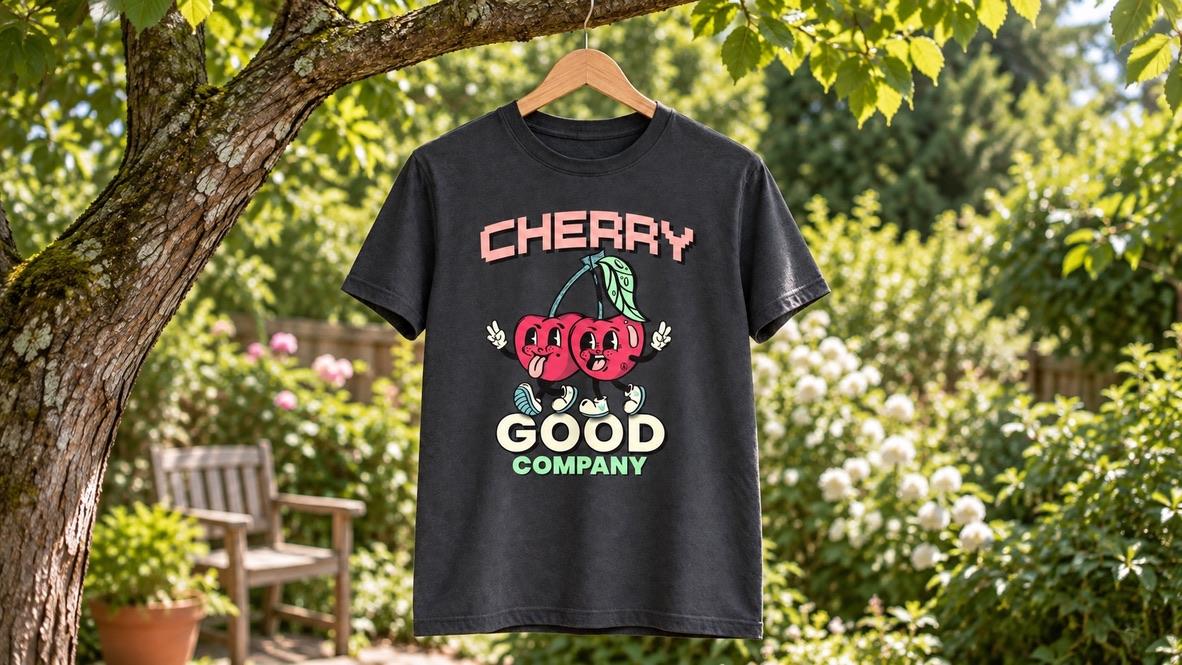
play with words. Cherry good company. Like, very good.
Cherry good company. Yes, you get the idea. The illustration will
be our hero element. Second, we adjust the typography to create a clear hierarchy. We'll make Cherry
Good the headline, and Cherry will sit prominently
above our cherries with good underneath and
company as our subtitle. So just sketch it out
a bit. Okay, great. Now, give it a try yourself. Sketch your hero element. Your mascot or anything
else in the middle. Yes, for me, it's still
the cherries, exactly. Then I'll arrange cherry in
a semicircle above them. It should be easy to
read together with good, like very good, cherry good. And our little mascots
have tiny feet, so they can straw right
across a very prominent good. Underneath, I'll add
company a little smaller as a subtitle. Great.
5. Add Bold Typography: Alright, let's get started
with our lettering. Tap at text up here. And remember, we have
three text blocks. First, Cherry. Make sure you use uppercase
letters from the start. It will make things
easier later. Alright, each text block
gets its own layer, which is created automatically
when you tap at text. Now we have Cherry and good
and we still need company. Okay. Let's see. Okay. What's that? Okay. Now, if you make a typo,
here's how to fix it. Tap the little window, then tap at a text. And now your text tool
will open right away. We can add the Y in per
case, of course, great. We've decided where
our text will go, so let's make a rough layout. Don't worry too much. When you move text, it stays crisp and unchanged as long as it
hasn't been rasterized. I'll show you that in a moment. Company should be smaller, so we'll place it underneath. Great. Okay, we use Procreate
inbuilt fonts only. Cherry gets a font that makes
it stand out a little more. So I chose bold pixels. Let's see where it
is. E S? Here. Okay. So this has already
a fun retro vibe. Okay, tap edit text again, and then tap the color swatch
to change the text color. I go with this lovely pink. Okay, sweet. Next up, good. Tap, edit text again, okay. And our second font will
be Poppins in bold. Perfect. Tap the color swatch
to change the text color. We'll stick to two fonts, so the different elements don't
compete with one another. Company, we'll use
pop ins in bold, too. You can already
see that Procreate isn't a type setting app, right? So the letter spacing can
look a little uneven. But we'll take care
of this in a moment. First, one more trick, go to Crop and Resize, and this lets you
adjust the placement on the canvas by moving
the canvas itself. That way, our hero element, our illustration,
stays nice and crisp.
6. Fine-Tune Your Layout: Okay, finale, we're going
to refine the lettering. First, let's work on
good. Tap the text. And I want it to be super
bold instead of just bold, so it has a little more weight. Scroll through the font
styles and choose black. That already makes it look
a little, yes, bolder. Now we have company underneath, and you can see there's
an awkward gap. Yes, this one. So I use this selection
tool and then move the letters a
little to the left. So the spacing feels more even, similar to the gaps
between the M and the P. Yeah. But watch out. Now the text is rasterized. See the word company
here in the layers menu. Yeah. Okay, this
means it is an image. So try to move it as little as possible to keep it away
from getting blurry. Now let's duplicate
good. Okay. Yes. So now we will color
the lower layer black and move it a little to the right at
a little downwards, and you'll have a
lovely drop shadow. We also want to add an outline, so duplicate good once more, and then select the top layer. Okay. Now tap added text again, and here's the trick. Tap it and then go
into text settings. See this little O here. So this means it's showing
just the outline of a letter, and the outlines are
light at the moment. So let's tap the color swatch at the top and choose black. Boom. Okay, great. We have a nice outline, and good looks already
so much better. Now we have a fill, an outline, and a lovely drop shadow. So three simple tricks, and the lettering already
feels more interesting. Next, let's work on company. I think I'd like it to be green. Turn it to Alpha lock
and then tap fill. Layer. Fantastic. Now, duplicate it again so we can create
a lovely drop shadow. So we use Alpha Lock again, but now we switch to black. And now we go to the little
Layers menu, tap Fill Layer. Yes, up here. And you
can see it in thumbnail. It turns black. Now we have a lovely
drop shadow for company. And speaking of cherry,
speaking of shadow, let's add a little shadow
under the shoes of our cherries to make it
look like they are walking. In the adjustments, you
will find Gergen blur, and now you can set the intensity of the blur
with the slider at the top. Now we need to
bend cherry a bit. So go to the Transform tool, and then you will find warp
here in the little menu. Warping tool lets you
bend the lettering. And as a port, I use drawing guide to have clear
lines to follow. They help you bend
the lettering evenly. So now with warp selected, pull the line up
about two squares. Yeah, and then pull the
lower right corner down. And the opposite side
by the same amount. That gives you a
nice curved word. Now we'll duplicate it and use fill layer to create
a drop shadow. So that was a lot,
and it was fast. If you like to go more slowly, watch the lesson again or want
a little more explanation, leave me a note in
the discussion. We can figure it out together. To check that everything
is roughly in place, zoom way out, and you will see that the
cherries still stand out, and cherry and good are still
easy to read. Fantastic.
7. Share Your Project & Wrap Up: Congratulations. We made it. First, we colored our
mascots and then created a simple type design
for a t shirt with plenty of handy tricks and
Procreate to get you started. Don't forget to
upload your project. I can't wait to see what
your t shirts look like. And please leave a review. Follow, do all the things that supports our teaching
here on Skillshare. Have a cherry good day. Choose.
 Ulrike Text&Tulip, Digital Art in Procreate