Transcripts
1. What you can expect from this course!: Hey, have you ever
wanted to create awesome artwork on
the go in anywhere? Then doing this course with me is just the right
thing for you to do. Because this course
is packed with information all about Procreate. And I will teach you as much
as I can about the program. So what can you expect? Well, I will show you how
to navigate, procreate, and interface, how to
use all these gestures. I will show you how to use the basic tools
such as the brush, the eraser, and the smudge tool, and how to get most out of it. You will see how layers work and the different
layer options. So what exactly are
these? I will show you. You'll see how to use the Select tool,
the transform tool, and the Liquify tool, and what to do with it,
how to transform objects. I will show you how to animate, how to 3D paint and also how to export your own
time-lapse videos. And by the end we'll make entire illustrations
from start to finish. And you will also see how I personally use
Procreate to make really professional
art works without any other programs
such as Photoshop. I'll just use Procreate and you will see how I do it exactly. But who am I? My name is vanquish APA what? Online and mostly
known as bingo. I have been drawing
all my life and eight years digitally and
three years in Procreate. So I kinda know what I'm doing and I've seen
the different updates. So I really know how to get
all of it out of the program. Right now. I'm still
studying media and film. So I've learned quite
a bit about design. I have also worked for an
animation studio in the past. And right now, I'm working as a freelancer online for
all kinds of customers. So go right ahead
and enroll in it now and we will see each
other in the first lesson
2. How to use this course: So before we get started, how to properly use this course, just wanted to let you
know a little bit about how this all works and
how it's all categorized. So a can, of course, just take the course and watch
it from beginning to end. And also, don't worry, if you're a complete
beginner in digital art and you've never touched any
digital software before. We will really go
step-by-step and go slowly. So there's nothing
to worry about. But also, if you're
an artist who is more advanced and you
want to learn Procreate, but also want to
learn something new. Then, don't worry, I
will tell you about a lot of little tips
and tricks that I use. So you can also learn
something new there. There's also the
option, of course, if you're painting and
you're thinking to yourself, I really want to use my
own brushes to do this. You can just go ahead and create your own brushes and then
make the course with these. That's totally up to you. And also there's no need to
dry exactly what I'm drawing, whatever motives I'm choosing. I simply chose them
because they work best for me and they work
really well to explain what, whatever I want to explain. But of course you can
draw whatever you like to your heart's desire. So just take the course, maybe sit back relaxed. We're here to have some fun and to learn something new
while we're doing it. So be free to just
listen to it on the side and draw along in
order to learn something new, we have to create it and we
have to use our knowledge. So try and also do the projects. And if you have any
stuff you want to know, you can always ask
3. Hardware and Software: So before we start
painting anything, or I will show you anything
in the Procreate app. Let's first of all
talk about hardware and software so that
you know exactly what I'm using and you can
somewhat compare it to your setup just so you're
not left clueless. Of course, this is
a section that is somewhat free for you to
watch if you want to or not. Because I'm simply going to explain what kind
of setup I have. So what do I use? I have the iPad from 2020. So it's not the absolute
the newest version. And it works pretty well for me. It also has the biggest one. So 12.9 " hope its
interests in English, but yeah, 12.9, that's
the one that I'm using. It works pretty well for me. It has the second gen pencil. So the one without the cab. I can definitely
recommend it because you can charge it way more easily. And yes, so for
Procreate itself, I'm using the newest
updates, so 5.2. And I would also recommend
getting the newest version. But yeah, of course, if you're doing this course, you will need an iPad. You will need procreate. You will probably have Procreate on the newest
version anyways. But if for some
reason you don't, then check your updates
and get it upgraded. So that's basically
the hardware. Also have 256 gb of storage. I can recommend it of course, because the more
storage you have, the more paintings you
can do without having to worry to put them somewhere else and you can just
leave them on your iPad. That's basically the
iPad and I'm using. And if you're a lucky owner
of the 2020s one iPad, then while you consider yourself lucky because recently
with the new update, you can now use way more
layers than the rest of us. So you're pretty, pretty
superior in that regard. So if you have any of the older models that don't
have the M1 processor, then you're still stuck with
the normal amount of layers. But if you have the newer one, then you can have way more
layers on your program, on your Procreate app
and on your projects. But if you don't know
what layers are and if you're confused
about what I'm saying, I will still explain
it later on. Just know the newer version
has a stronger processor, so more layers are available. Alright, so that's
basically my iPad and the update
version of Procreate. Now, let's talk
about other stuff that isn't exactly irrelevant, but I would still suggest you hear me out for a
second so you know, if you want to get
it as well or not. So here, as you can see, I have a case around and you can get a case pretty much anywhere
online, just order one. They are pretty cheap
ones and expensive ones. And he got like a
medium expensive one, so not too bad, not too cheap. And why would I
recommend a case? Well, aside from
the obvious logic of protecting your iPad, there's also the nice
feature that your pencils, since it's kind of
floating around freely. If you want to get your iPad
and walk around with it, you have these tiny little case for it and it won't
fall off so easily. And then also, which is
way more important to me, if you have a case
that has a lid, you can fold it up so that your iPad is
in a slight angle. So the angle is definitely something you want to consider
because while painting, if you're having it on a
completely flat surface, than your vision
will be slightly different because you will
look at it and a strong angle. And eventually if you look
at it straight on ahead, you'll see that you may be made quite some mistakes simply because your perspective
is slightly obscured. So a case that can fold
up like this and have like a tiny triangle pyramid
is a really good choice. Because then again, you can just simply fold it up and
it has a slight angle to you so that you have a
better look on your iPad. Just, just going to place
it properly bet here. And then the last two things you can get that aren't
really necessary, but a nice thing to have
is a screen protector. So here, my screen protector
is paper like one. Maybe you've heard of it
already or maybe you haven't. Well, as the name says, it's supposed to make your
iPad paper like well, I'm not entirely sure if
it's really like paper, but it definitely has a lot
more grip to your pencil. So if you haven't had any
matte screen protector so far, maybe you had none or
you had a glossy one? You know that the feeling on riding on glass can be
a little bit weird. Sometimes. With this matte
screen protector, you have some more grip. The positive about it is that the feeling of
riding is way easier. So if you're someone
who wants to take drawing more serious, definitely something
I can recommend. But if you're someone who only wants to doodle
like now and then, and you want to watch movies and series on your iPad mostly. Then maybe give it a second
thought of really getting one because it kind of changes
the colors just a tiny bit. But definitely, I can say you can also do anything without
the screen protector. I myself have worked
on the iPad for years before even getting any
kind of screen protector. And while I prefer it now, it's definitely also possible without There's also different
kind of screen protectors. But I can say I recommend people like it's like the
most known brand. And it's definitely most
known because of a reason. It has really good quality. It's a little bit tricky
to apply it perfectly, but once you have it on there, there really isn't
much you can do wrong. And it protects your
screen a little bit while keeping it a little bit mad
and has a nicer feeling. Just know that since you
will be drawing on it, it'll have a lot
of tiny scratches. Probably you can't
see it in this angle. But here if I look
at it closely, I can pretty much see where I'm drawing like a lot because I'm just doing some
tiny scratches inside D protect, dirty
screen protector. It doesn't bother me. But if you're someone who
can't see this kind of thing, then maybe just having the complete glass is
the way to go for you. And now the last thing I want
to just quickly talk about, but I can't really show
it RD artists gloves. So maybe you've seen digital
artists where these gloves, where they only have these
two fingers on a glove. Well, yeah, of course you can get that one
and it really helps because sometimes if you're
laying down your wrist, it will activate the
touched on your screen. And also it can get a little bit from
degrees of your hand. It can get a little bit gross sometimes if you're
touching it a lot. So the gloves helping with that. But I have never used
it or I have used it but I never saw
the necessity for it. So if you prefer to do it, of course you can get it, but there's absolutely
no reason to get it. So if anyone tells
you like, oh my God, this is super necessary in order to be an amazing artists. Know, it's definitely not. It's just something for
personal preference. If you don't want detached to be activated easily or you don't want your screen to get
greasy and dirty too quickly. Something you can get if you don't really care
about all of these, you can just go ahead
with your blank hand. So yeah, that's pretty much all I
wanted to tell you so far. And now we can start
to look at procreate
4. Gallery Overview: Alright, welcome to
the Procreate app. You've made it to the gallery. This is your first step to
becoming a great artist. So what do we have to learn
here and how does it work? So first of all, your gallery, we're probably look a little
bit different to mine since you haven't created
yet or maybe you have. I don't know. I'm just assuming. So. What do you have to know and
how does everything work? First of all, the nice
thing about Procreate. You don't ever have to
worry about saving. Whenever you create an artwork, procreate automatically
saves everything for you. Even if you just make a small line Procreate,
has it saved? The only way it can save
is when it crashes, but it only happened to
me like three times. So it should shouldn't be something you
have to worry about. So that's already one
problem out of the way. So next, what is it
that you can do? The good thing about
Procreate is that it displays all your projects as
these nice pictures. So you already have a gallery of all your work that you have. Aside from using the
photo app or anything, you can just simply open, Procreate and look
at your artworks. It's really nice. And if you want to look at
them a little bit closer, you can also just
take an artwork and just by zooming it out, you can make it a
little bit bigger. So that's nice. And then you can also swipe to see others. And if you're done
looking at them, you can just pinch them back. So that's one thing
that you should know. The top-left there. So procreate, setting stuff. If you press on Procreate, then you can see that you
get this little menu here. You can restore
example artworks. What does that mean exactly? Well, if you've opened
it for the first time, you will see that your
gallery is an empty, but you haven't
created the artworks. So the artworks that you see there are the example
artworks and you can restore you then start gallery recovery is
something you could also do, but I wouldn't recommend
if you have no way as if you have no reason
to do it, don't press it. It will just restored
a whole galleries, so just leave it as it is. But if you, for example, some of your friends
came over and day painted over your
example artworks, but you really like them and
now they're painted over. You can restore them
if you want to. Next up, we have the top right. You can do multiple things. You can select artworks, which won't be necessary. Now, you can import something or you can
also import a photo. And then there's a
little plus icon which will be more important. Because here you can
create a Canvas. But before we get to that, a few more little things. So first of all, if you've created a canvas
and you don't like that, it's horizontally, for example, and you want it vertically. You can just take it
with two fingers. Then you can turn
it around simply by pressing it and
flipping and upwards. So that is one liter
neat little feature that I didn't know
about for way too long, could have saved
me a lot of work. The other thing, pretty obvious. If you press on the
name, you can rename it. And as you can see, I'm really good at
naming something. Not, but you can be better than I am and just
name your artworks. Definitely nice, but I
just kept people on there. For now. That's pretty
much all that's important. We will get a little bit more
in depth about it later. But this is all you
need to know for now. So next, let us create a canvas
5. Creating a Canvas: Alright, well then let's create a canvas so we
can start working. How exactly do we do this? I don't want to bore you
too much with the details, so we'll just go over
some basics before, later on in the course, I'll explain it
to you in detail. For now. Just press on the little
plus icon in the top-right. And then you have
some basic sizes. Don't be confused. When I first got my
admin wasn't German, so you'll see quite
a few German names, but it's the same as you have. There is some basic ones on
top and then there's tons of different sizes that you probably don't have
that I just created. Over time. It's nothing to worry about unexplained everything
to you later on. For now, you just one
of the normal sizes. I'm going to take a4, so it's a basic size and
then I can press it. But before I do that, just a few things I wanted
to let you know right away. Here on the top is where
we're going to create a more advanced or more
personalized Canvas later. But as I said, I'll get to that. Then there's also the option to name or edit your canvases. So if you want to
name it differently, I could just press on Edit. And then here on top, I can change the name. Also, not something
that we need for now. And you can also, as you see, if you have a size
since you never ever need, you can also just take it
and you can delete it, which I don't want to do, but
you know how it works here. This one just deleting
and it's gone. So pretty easy. So let us start by simply
taking one of the basic sizes, a foreign, but you could also take another one,
anything you like. And let's get into it.
6. Procreate interface: You've made it into
your first project. So now let's learn how to
get back out there first. If you've created something and you actually don't
like it and you want to get back to your gallery is as easy as tapping on the
gallery and the top. And you get back out. Simply by tapping on the
picture again, you get back in. So that's basically
how you go in and out. Also. Yeah, again, you don't
have to save your file, so it'll all be saved in Procreate special
folder on your iPad. But if you want to be extra sure about not
losing your files, I would suggest to simply save them in the
cloud or something. But that's something
also for later on, I'll talk about it in detail. So now let's look
at the interface. What do we have to know
and how does it all work? So here at the top rank
gallery brings you back. That's kinda basic. And then we have all
the settings and the more advanced tools on the top-left and all our basic
tools on the top right. So if I just look at this, there's the actions which
we'll look at in detail. There's tons of
stuff you can do. That's the adjustments. Then there's your select tool
and your transform tool. So a lot of stuff
then we will look at, but for the beginning, only our actions will
be more important. And only other stuff. We'll put it much
comments we go. And then here on
the top right is basically all your
tools that you'll be working with non-stop. So your brush does much
finger the eraser, the layers, and your colors. So it's pretty basic. And it looks like there
isn't a lot to it. But I promise you there's so much you have to learn and
so much you can learn. It's pretty incredible
how Procreate and managed to keep the
interface really clean. So there really isn't a lot
that is distracting you. For example, if you've
used Photoshop, there's a lot of
stuff written all over and there's tons of things. You can immediately see
that there's many tools. Project managed to
keep it really simple. And just by going into
the menus or the menu, you will see that there is
more and more to discover. So we will look
at it bit by bit. But basically that's
only have to see. That's all you have to know. It's your special, your settings and all the
special effects. Top-left, all the basic
tools on the top right. This bar we will look at also n. Just a little thing for now before we get into
all of the tools. If you go to Actions
and here perhaps, then all the people who
are left-handed can change like this little thingy and then the menu bar
will go to the right. So the right-hand interface, you can change it to a
left-hand interface. Just wanted to get
it out of the way. In case there are some people
here that are left-handed, they can change it right away
before we start working.
7. Basic tools: Brush, eraser and smudge tool: Great, So let's actually
start working with something. So we were going to
start with the brush. I have to select another one. If I just start
painting right away, it works, but it won't be
the same brushes you have. So let me just quickly get
to one of the basic brushes. Alright? This, This is gonna
be good enough. So simply by pressing the little brush icon and
just starting to paint, you can see you're already
becoming an artist. It's amazing. Well now you can see that
you're already painting. It's pretty easy,
it's pretty simple. And if you have an Apple pencil, which I hope you have, because you're missing out. If you don't, then you can
definitely see how easy the pressure sensitivity
is reacting. So if you press lightly, it becomes a really soft stroke, and if you press hard, then it becomes a
really dark color. So that's the basics
for the brush. Press. It becomes darker,
you press lightly, it doesn't accept it. We have another brush selected, then it has different
properties. But for the basic brushes, That's how they should behave. Then you have the smudge
tool right next to it. Or let's jump to the eraser first before we get
to this much tool, eraser, erasers, it's
as simple as that. Now the smudge tool here, you can really solidify some
of the things you've drawn. So if you have some really hard edges and
you actually don't want them, with the smudge tool, you can blend your
colors together, but it should be used a
little bit more carefully because new artists tend to overuse this much tool and then everything becomes
one blurred mess. So use it with caution. It's a strong tool, but it should be
used with caution. So these are the basics, but maybe now you have an eraser and you have the same
struggle as I have. And it's super tiny and
you can't erase it and you will spend 10 million h
just erase all of it. Well, nothing to worry about. Because Next up here is
your little settings bar. It's pretty basic. Just by taking these sliders and going up and down with them, you can change the
size of your brush to smudge tool or the eraser
you have selected. So if I ramp it up
all the way here, I can just erase it super easy. You see that it's
lagging a little bit just because it's
such a big brush, but it still gets the work done. So that is this size one. And it also has this little plus button that's been added
since the new update. If I press it here, then I get this little
marquee on Install minus. And basically when
I get back to it, near it, it snaps. So if I want to have it
exactly at this percentage, I can simply press this plus. So if I want to have it at 20%, I can just press it here. And it will save it. And I can let it snap back to it without trying to search
it every time again. And then on the bottom
is the opacity. So let me just make
a big mess again. And now with my eraser, if I have an add
100% and I erase, let me make it a
little bit smaller. You see that it
completely erases. Now if I change
the opacity down, you see that it only
erases like a little bit, although I use the same
amount of pressure. So opacity and the case of an eraser changes like
how strongly you erase, you can just imagine it. And if you would use your normal eraser with the pencil and you would
press really hard, then we'll be like 100% opacity. If you only press lightly, you would only like take
some parts of it away. You can also do
the same here with the plus that you
lock your opacity. And also if you
want to remove it, you simply press on the minus and then you
can remove it again. You can freely move
it up and down. So the same thing
works with your brush. You can also lock these here. You can change your sizes. And if you want to
draw more lightly, so let me just erase part. If you want to draw like here, it's like super strong end. Now opacity is completely high. What if I put it down? It only draw slightly. And if I keep drawing
on the same place, the color kind of builds up. You can imagine like that. It's definitely something you
can use for your artworks. What I have, my
personal opinions about it and I always
keep it at 100%. But different people
use different methods. I'll try and think about
explaining it later. Why exactly? I don't prefer it that way. But that's just
something for now. You will never really see me
using the opacity slider, but that's a
personal preference. So now we have the
brush and the eraser What exactly happens if you change the opacity
of the Smudge tool? Since there's smudge
tool by itself, as you can see here, it
doesn't have an opacity. It just simply as
much as colors. So how exactly would
you change the opacity? The opacity slider for the smudge tool is to
change the intensity. So if I do this here, it's super-strong and
it's munches a lot. If I change the opacity down, then you can see that it
doesn't smudge as much anymore. So if I go really down, it only smudges a little bit. Just for example, 100
per cent as much as lot, 25 or 22% only smudges. So it doesn't
change the opacity, only change the amount. But they still named
it and pass it to you. So that's basically all you
have to know about the tools. Now, there's gesture controls here and super easy and nice. So maybe you've already
painted on your canvas and you did a lot of stuff and it's completely filled and you
don't want to have it anymore. By just taking two
fingers and pressing, tapping on the Canvas ones. You don't have to
double-tap, just tap months. You can undo something. So now you could just go
on and undo everything, but it would take forever. If you wanna do undo
multiple things at once, like really fast, you can just tap with two
fingers and then hold. And it'll undo like
really quickly. But if you want to redo
something again because maybe there was something you
wanted to get back. You're not sure
about undoing it. Just take three fingers and tab and you can redo something. If you want to redo
multiple things, just the same your tablet
and you keep it taps. So that's how you basically
navigate two fingers. Undo three fingers to redo. That's the basics here. With four fingers, you can
completely get your menu way. So it's like a really
clear picture. If you're, maybe
you'd like super into an artwork and you really, really want to do like
this small little portion and you're completely
focused and you don't want to
have the menus, then this is one option. What I don't know if anyone
ever uses it for it. Whenever I use this feature, I pretty much just
use it when I want to show people an artwork. And I don't want to have all
the stuff as destructions. So it's a little bit
like a gallery view than I, how I use it. By four fingers again, you can get back to your menu. And you've already seen me
do it with two fingers. You can completely rotate and zoom out and zoom
into your artwork. It's really just, it
works basically the same as you would do
it on your phone. When you look at a picture, you'd simply zoom
in and zoom out. The only nice feature
here that you don't have on your phone when
you're really zoomed in. For example, here
because I've been working on this for
hours, this little part. But now I want to see the
whole picture again by simply squinting it really fast. The picture gets back. And by doing the opposite, sometimes it works,
sometimes it doesn't. You can get back in. So I'm probably need some yeah, I need some free fingers
without the pen. So if I'm zoomed in here and
I pinch it, it goes out. And then you can get back
into where you worked. So that's a really neat
feature for just going in and out really quickly
and looking at your artwork and
then going back in. So you see there's tons of gesture controls and you
will keep finding them. Along the way. It's something that's really neat and it makes Procreate so simple because there's just so much stuff in the gestures. But it also makes
it a little bit tricky to learn sometimes because there's many features
that are assembly hidden. So I will show you step-by-step where all of them are
and how to use them. But for now you know
how to use the basics
8. Picking colors and useing the eyedropper: Well, okay, Now we have a
canvas with a gray mess. What if, for example, we don't want to have
this gray mass anymore. And instead of just
undoing everything, which is unwanted to undo
everything really quickly. So one little small thing
that you still have to add. If you have your three fingers and you quickly swipe across it, you can clear your
entire picture. So now we have a beautiful
wide plank Canvas. Again. Let's
introduce some colors here so that it's not so sad. Here in the top right, you have this little small
circle with the coloring it. By pressing on it, you're going to be here in the column in you. So the colors here,
there's different options. For the beginning, I'm going
to use the disk later. I'll explain all the
different options in detail. But for now we only
really need to disk and I'm going to explain
you how to best use it. So picking colors is as
easy as tapping on them. If I want to have this red, I just simply tap on it. And then if I use my
pencil again, I haven't. It's really simple and easy. There are some tricks to it. Also, just a quick note, whenever something is blue, it means that it's activated. So if I'm here in
the menu, It's blow. If I press on the
eraser, it's blue. If I press on the
brush, It's blue. So if you're not
sure whatever the exactly you have selected, just look at whatever is
blue and you know what's actually like active right now. So we have a red selected. That was pretty easy, but maybe now we want
to have a green. So I can't really
get to the green. So what you have to
do instead is just simply go with the
outer ring in here. You can change the
color and in here, or you can change the
saturation and the brightness. So you get to the green. You can pick the green in the same saturation and
simply paint with it. So something that's really
neat is, for example, you've painted here and
you want to have a perfect white and you select it, but you realize on It's
not completely white. And then you go a
little bit further up. And it's also not
completely wide and you're struggling to get a pure white is that you can
simply double-tap in the direction and it will give you the perfect white color. Same with the opposite. If I double-tap down here, it'll give me a perfect black. And if I double tap
in the top right, it gives me the most
saturated green. Here, it gives me like
a perfect mid gray. And if I doubled
have in the middle, it'll give me like
the most middle, these saturated brightness. So just the middle
of everything. It's simply double
tapping in and it will jump to where it has to be. So I struggled
with finding wide, way too long with this circle
and I didn't know about it. So keep that in mind. It's really, really helpful. So now you have all
your colors here. They're a little bit ugly
right now I have to admit, let's get a nicer color
combination in here. Let's get a nice mixture
of red and orange. Now, maybe you see that these middle
color here is created. And it's really
nice and you really want to have it, but
you don't know how. Well then you can use
the color picker. It's either activated by
simply pressing on it. But the way I do it, instead, I press here on
this little square in the middle of my menu bar. And it brings out
the eyedropper. And then I can simply slide
it across the whole canvas. And if I like the color I
just simply need would be, at that point, I
just stopped moving in and it selects my color. And now I have this
orange selected. You can do the same again here. Just go over it. Then you can see
the color change and then you have it selected. It's pretty simple, pretty easy, and there's different ways of using or having the
eyedropper selected. Can do all of this in the settings which
we gesture controls. We will go over that later. But if you absolutely hate any of the
settings where you are, if you're really,
really don't want your eyedropper to
be wherever it is. You can already change
that over here and actions and then perhaps what for now, this is totally fine. So that's basically
the eyedropper. Here's the colors. Really simple, and then
you have the history. So if for any crazy reason, you want to have the
neon green again, you can just press on it
and get back your green. We really don't want it
here. It doesn't look good. Your history, your colors. Here's the ring. There's a different one
we will look at later. And here's your eyedropper. It's also nice because
you can always see the color that you had in
the color you have selected. So if you only want to have
like a little difference, can be really helpful to see just how much you
call us have changed. Same here with the eye dropper. You can really see just how
much they have changed. So that's a really nice way
of selecting your colors. For now should be
enough to know. So let's try and get something on our canvas
that we can work with
9. Create a sketch: So if the course has
been helpful so far, then maybe do me a favor and
leave a positive review. I love to help you
and you can help me out by leaving a nice rating. So police go ahead and do just that if you
haven't done it yet. Well now we have this
beautiful mess of colors, but I want to start
with a simple sketch. So I will do a
little trick again, use my three fingers and erase the whole
canvas and clear it. If you don't want to let
your colors goal and maybe you're super
attached to them because you already
created an artwork. Well, it just feel
free to tap on gallery and create a new one. But in my case, it's
fine. I can let go of it. So now let's make a sketch. First of all, we have
our brush here selected, maybe have another one. But this isn't exactly a
perfect sketching brush. As you can see, it looks
a little bit weird whenever a stack stuff on top. So I don't really want
to use it for sketching. So what are we doing is tapping on my brush and it opens
up my brush library. In here. I have all these
different categories. Brushes and yours will
probably go up all the way until sketching and then it'll stop and don't be confused. Then I have way more here. There are many brushes
that I imported, some of them I bought, some of them are for free. I will also tell you some that you can get
for free later on. And if you're super stoked about getting
your own brushes, you can also of course, just try and get us some
of them right now or go to the lesson later
when I talk about the brushes and
import your own ones. But for now, I'll be using the
Procreate default brushes. And you can see that
there are default brushes because they are the only
ones that have special icons. So up here, you can
see that they're all have the same icon. And that's because they
are important ones. And these ones here all
have different needs. So here I'm sketching. I just go in and
I can simply use, for example, the peppermint one. I also hope and I'm pretty sorry if some of them have different
names and you're confused. As I said again, when I
got it, it wasn't German. So there are some
here that unlike pencil and then some are like, I don't know what
Procreate exactly dead. Some of them are
named and English, some of them are
named in German. It's a little bit of a mess, but I'll explain it or show
you exactly which one it is so you can see on your
app which one I use. So I hopefully you
don't get too confused. So now we have our
peppermint brush selected. If you scribble around
with it a little bit, you will see that it has
really different properties. So if I just make a
little mess here, it really looks different
from when I would do the same with the airbrush one
here just as an example. Same size, different brush. Or even if I make it smaller, it just looks pretty
different. If it's small. Not too different, but this one has a lot of texture and
this one is super solvent. So for sketching,
I would recommend to use a brush that has
some texture to it. Normally does wonders for sketching and you'll
have way better outcome. So now that we have the
peppermint one selected, we can start
sketching right away. And I'll be sketching
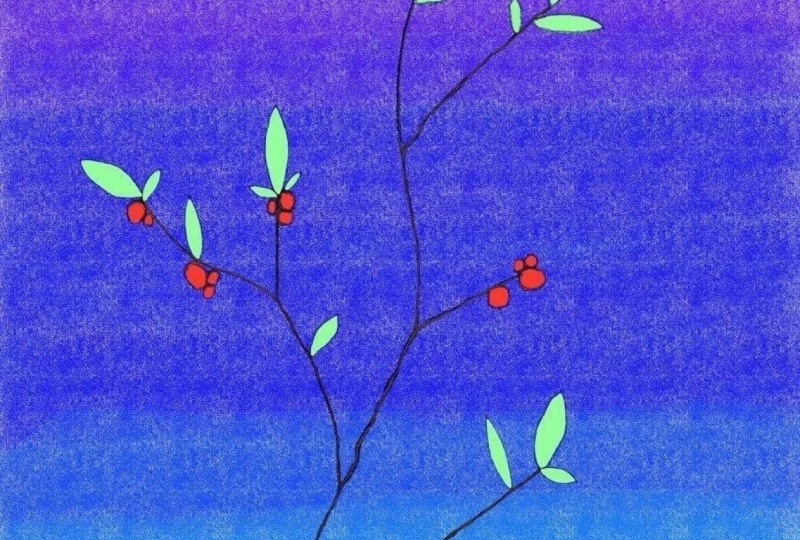
cute little leaf. So just going at it. Pretty simple. 3d doesn't have to be perfect. And if you make it a little bit thicker where the
tiny branches meet, then you'll also have a more
natural looking outcome. And then just let it get
soft towards the ends. And it'll look really great. So we have a little
branch sketched easiest that can also make the
stem a little thicker. And then let it get
smaller towards the top. But now it's pretty bare and we don't want
it to look so sad. So I'm going to add some leaves. I'm also just going
to simply add them. And maybe we could also
add some berries to it. Get some variety in there. Just really do whatever
you feel like. Maybe you have a
completely different idea. When you despise plants, then try something else. But for now, this is a nice
little thing to start with. You could also just
change it up depending if it's winter and you maybe you want to make it
a little Christmas card, then these barriers could
be really pretty unhelpful. Or maybe it's autumn, then you could make
another big leaf. For now, just let your
creativity roam free. I will also insert some more sketches that you can look at to,
to get inspired. But this is a nice little
thing to start with for now. If you have a sketch,
your content width, we will start going
more into detail about some other features
that can help us get this sketch to
we call it version
10. What are layers?: Now that we have the
sketch completed, I'm going to talk a
little bit about layers. Layers are maybe a bit abstract if you've never
worked with them before. But they're such an essential
part of digital painting, if not one of the
most essential parts. Because layers allow us
to work in the front. Well, you can sit layers. So how exactly do they work
and what do we have to know? If I press on this little
square boxes here on top, then I get to the Layers menu. And while it looks simple now, but it also doesn't
really explain us a lot. So what exactly are
layers and how they work? We have layer one. If I tap here, I can rename it to plant. And if I press on the
little plus icon, I can make a new layer. So it now it says Layer two. Well, what happens
if I keep sketching? While it doesn't really seem
like anything crazy happens. But what we just did is
creating a new layer. So if I press the little check mark
here, it disappears again. Because how you can
imagine layers is that you have different like
translucent papers that gets stacked on top. So with every little plus today, make it's a new translucent
paper that I stacked on top. And now if I just take
my airbrush pen and I take a color and I start painting on my
translucent paper. It doesn't get like not
translucent anymore obviously. What if I press on it lightly? You can really see like the way it behaves like
a translucent paper. So it gets stuck on top, but it doesn't immediately
has high opacity. So only if I like, make it really colorful
or non translucent than it completely covers it. So if I don't want to have this effect and maybe I want to paint it green, but I don't want to go over it. Well then you can also just change the way
they are arranged. So just how you could just take your translucent
paper and you take your colored one and put
it all the way down. It works the same here. So you just, just
take it and then you keep pressing on it in by
pressing on it selected. And then you can put it
all the way under planned. And now you're
translucent paper with the color on it is all
the way on the bottom. So now the layer with
the sketch shows again. You really have to
imagine like this, It's the easiest way. They will also be
layer options later. But for now, this is a really
easy way to imagine layers. It's a simplified version. So to save. So now if we wanted
to paint our plant, we could just go in
here on this layer. I'm going to clear it. And we could just start
painting in, all in. But as you can see, it's a little bit hard to
get this stuff here exactly. So there are easier ways for Definitely we will
look at it in a bit. One more thing before we go on. So just to recap, you can turn it on and
off without deleting it. You can place it
wherever you want. You can also delete
the layer simply by swiping from the
right to the left. You can lead the layers. So if I don't want to want anymore with
the little leaves, I can just swipe
deleted, it's gone. And if I double-tap, I can get it back. So don't be afraid if
you deleted one by accident just to tip with your two fingers
and you'll have it back. But that's the way
you can delete it. And then you can also change
the background color. So if you have painted your leaf and you don't want to have it
on like a white background. You can change your
background color in here. I'm going to leave
it on white for now. But that's an option as well. And it's a little bit confusing
because in Photoshop, maybe you've worked
with Photoshop before, but it doesn't have a
background color layer. So to say, there's
always just like the background and you can
work on it the way you want. But here you can draw on
the background color. So if I press this one, it only opens up the color, but it doesn't open
up a layer because technically they don't
have it as a layer. It's really just the color. So if you want to have
a background color that you can paint on, you have to make a new layer. And then you would have to fill it with the color you want. And so you could just
use it as background. But like this, you can
change it whenever you want. It's pretty neat. Neat, and it's a little
bit confusing at the same time because it can't happen to you that you
paint on the background. But you also you can also just changing it
whenever you want. And if you turn it off,
it becomes translucent. So maybe you want
to have a PNG file, then you can just turn
off your background. And it works pretty
easy like that. But now, let's look at ways to paint this whole leaf
a little bit more easily. And let's look at some brushes
11. Blocking in colours: Well now let's look at what we can do to
quickly fill in colors. I already told you,
if you want to have a background that
you can paint on, you have to fill
it with the color. Now you're thinking
want It's so annoying I have to take my color
and fill it all in. Of course you don't
turn the quick way. The way to fill in
colors and procreate is as easy as dragging your
color on your canvas. You simply go to the top right where you have
your color and then you just drag it wherever we want and just let go and it will
just drop it in for you. It's pretty simple. I'm
going to show it with another color so it doesn't
have the same green. Drop it in, it's done. It's pretty easy. So how can we use this to help
ourselves with our leaves? I'm going to clear it again, the layer just going to
clear it again and again. Sheesh, sometimes I'm
on the wrong layer. That's of course helpful. Okay, This one is cleared. So now let's see how we can have this feature help us with painting our leaves
a little bit quicker. I'm going to select the nice
green color puzzle one, not too green or too blue. And now if I like, I'm just going to
show it next to the leaves so you
understand a little bit easier even going
to make this form. And I drag it in here. It fills it. It's pretty nice, pretty neat. And there's a few
different chicks trypsin, tips and tricks for this you should know
and look out for. So if I do this, you can see that there's like this little small white halo. And if I were to paint the leaf with even lower
opacity and do the same. And you can see
that there is like really strong halo effect here when you pass
a T is smaller. And if I would just
pursue, pursue politely, then it can happen that our whole canvas
gets filled because the Color Fill tool
doesn't really recognize these little lines
as like blockade anymore. They're so soft that it thinks it should
fill out everything. So there are different
ways to approach this. Basically, if I have this
one, let me see if it fills. It doesn't. But there is the color
dropped threshold. Going to see if it works here. The way the color drop
threshold works, instead, I just take my color and I
will also place it in here, but I will have it. And we'll keep pressing it. Then the color drop
threshold menu opens. And what it does
is basically you can look at the
sensitivity of it. The further it goes down, the more it recognizes these faint lines as like
close lines as well. And the more I push it up, the more it ignores them. So it can be really
helpful if you have like super soft lines or maybe you've made some line art and there's
just a tiny, tiny, tiny opening somewhere, then the color drop threshold can be your best
friend because you can just turn down the
sensitivity and it won't recognize these small
little openings as openings anymore. One more thing to know, if you have, for example, the sketching brush, and it's
really super structured, it could also be that
it won't fill it. So here the threshold is
super low, so it works. But with some brushes, they are so textured that you can't really fill
them in easily. So if I take a texture
brush and I make the same here and as you can
see, it's super textured. Filling it in will
be super hard to near impossible just because
of how textured it is. But the color dropped
threshold and also works. It's just something
to keep in mind. But now we still have this weird effect where
we have to strange rim. So what can we do against that? If we want to, for example, fill our leaves, I can go to the calligraphy one and then just
choose mono line. And if I choose this brush, it has a special property. So basically, whenever
I, whatever I press, if I press lightly or
if I press really hard, it always has the same thickness and it always has
the same opacity. So it really is just
when it says it's a mono line doesn't change. And if I draw a shape with this brush and
then I fill it in, you can see that there
is simply no line. And that's because the opacity is completely 100% everywhere. So it doesn't happen if I do the same here with less opacity. And then I fill it in. You can see that there's
this really soft difference. Let's make it more stronger. Fill it in here now you can really see that there's
the room again. But if I have it at 100%, you won't have anything and it will be completely
solid shape. If you want to fill
out something without any weird halos or
rinse or edges, just take a brush that
has the same opacity for any kind of pressure level and you will have
an easy way to go. So let's actually use it. We will have to take care that
we're on the right layer. Because if I just start
doing it on plant, I will paint over my
sketch. I don't want that. So I'm going to look at
what layer I'm here. There's layer three. Let's see if there's
anything on this layer. Nothing. So I can use it and
fill out the leaves. Now I'm really just
going to follow my sketch work and fill
it in as easy as you see, it's way easier than just
fill everything in by hand to simply draw the
shapes and use this tool. So a neat little trick
here that I use, for example, for the berries. Instead of just
outlining each berry, I can save a little
bit of time and completely just outline the
whole package, so to say. And then just fit it in that way just a
little bit quicker. Of course, for these barriers, it doesn't say if too much time. But depending on your artwork, just outlining whatever
edges you have can definitely be way quicker than to
outline each element. So if you have an entire
character and you want to fill it with
one solid color, definitely just outlined the whole character
and everything. Instead of just
trying to outline each element like the clothing
and hair and the skin. Brooks way quicker that way. And you can see that we have our first little
branch graded. It already looks great, but there's still some
depth, depth missing. But we will look how
to get the depth in the next step because there's tons of brushes
we can explore. So let's see what we can do
exactly and how they work.
12. Different types of brushes: So now that we have our
little plan created, let's look at different
types of brushes. Of course, I already
opened the menu, but there is definitely a
lot to know about brushes, and I don't want
you to miss out. So in order to show them
to you all in a nice way, I'm gonna go to a new canvas. So tapping on the gallery
button brings me back here. Then I'm going to take
this one and I'm going to switch it to a
horizontal layout. And I'm gonna go in here. It's just a normal basic size
and just simply flipped it. You can do the same
if you want to, and go along and try it out. I'm gonna go in here. I have Drawing Assist. Okay? So I'm gonna go in here and
look at different brushes. So exactly what
brushes are there? How can you use them? Yada, yada, all of it. So there's not really an official way to
categorize brushes. They somehow A's,
but not really, there's 3D blurred lines
between different categories. But in order to make it easy, I'm going to show you some
basic brushes and how they work and what
they worked for best. So let's dive right in here. When I opened a brush library, you've already
seen some brushes. You've seen the mono line here. Just a basic line that's
completely solid, same thickness, nothing else. Then you've seen the airbrush? I would put the airbrushed
like the hard brush. Here it says like in German but in English
should be hard brush. If I make another line here, it changes the opacity. But then again, it's
also just a solid line. And religious hands a different, just different property when
it comes to the opacity. And then there's a lot more
of these solid brushes. So here in calligraphy, there is also this
kind of brush pencil. I hope it's a brush pen. Pencil and English bear with me. It's the second one from
the bottom or a third one. And if I use this one, you can also see
it's a solid line, but it changes thickness
depending on how I press on it. But it's also just a solid line. So you see there's
different types of brushes that all have
just one solid line. And if I zoom in, you see that it's a solid
color, nothing to it. So what is the opposite of that? What exactly do I mean with solid one lime,
blah, blah, blah. What does she mean? Well, the other ones that are, exists, our texture brushes. Here, this textures. And if I press on this, and I select LinkedIn
or flight one. And now I also make a line here, don't make it too big. You can see it's a completely
different type of brush. Suddenly it has a lot
of texture to it. There's no real
solid line anywhere. And also depending
how you press, you can make it more
darker and lighter. And it just really has a
pretty strong texture. When you zoom in. There's tons of texture
brushes all over Procreate. So here are some in
the texture file, but the Texture tab, but not only here, so there's different ones. I would suggest you just try
out some really cool ones. But also, if you go to abstract, there's some here that
have pretty crazy texture. And in others, like painting, there are some pretty
textured brushes here. And they all have their
different properties. And if you go over it, you can see that you can
really start painting along. And it has a lot of liveliness to it
because of the texture. While if I would do the
same with a solid brush, it would just simply be one solid color in
here at all hands, this fine little texture in it. So these are texture brushes
and they're really good if you want to just bring some
depth to your paintings, while the solid ones
are really good. If you want to have a solid,
solid shapes, obviously, if you really want to
block in colors quickly, do some exact lines. So just imagine
me trying to draw an exact cube with one of these. It will be pretty hard here with the solid ones in
works pretty easy. So different brushes for
different reasons and effects. But there's even more
brushes here and procreate. Then I want you to
take a look at. So for example, if I go to the textures tap again
and then you go on down. Here is like this would
in cube and all of it. And if I press on
like victorian, I hope it's Korean English. And if I press on it
and I paint with it And let's do it a
little bit bigger. Then you can see that you're basically revealing
like a pattern. And it's a bit like a stamp. So instead of just being like a texture and
having some depth to it, It's basically just
revealing a pattern. And there's different
ones like this. So if you go to organic, for example, then there's rain forests, no
gum or something. And if you press on paper daisy, you can really see
what I mean by stamp. Because if you just
press on it, once, it basically stamps
this one leave for you and if you
paint with it, it just stamps it
a bunch of times. But by the end, it's
just one stem of this plant that just gets put on the canvas
again and again. There's different ones here. Also, if you go to
elements, not on elements, if you go to where it wasn't, industrial for
example, then there's also like your stone. Sorry not it's in German. And if I just paint it, it looks like I am just revealing photograph
of Stonewall. There really are
different special thing is that you can print on
and it has a bunch of them. So here, just like crystals in the elements tab the
second from the bottom. If I press it, it just shows me a crystal and
prints it on there. There. Some of them are really let's just say
it's oddly specific. So I have never really had a proper use for the
crystals brush yet. What Procreate has it and it kind of just shows
you what's possible. If you're an artist
who keeps using the same form again and again, you can definitely make such brushes that just
stamp it on there for you. So now we have two solid ones. We have textured ones, we have photographic stamp ones. And then there's also some brushes that have
a special effect. So for example, if I put
the water one not too much, it just looks like a water
texture, which is nice. But there's some that look way more like
a special effect. So if you go to luminance and then you have
the light brush, the third from the top should be the light brush or
something along those lines. Then you can see it
and it looks as if you're painting
with a neon pencil. So it has a layer option
inside the pencil. It's a little bit, sounds a little bit abstract, but it's something you have
to worry about for now. Just know that it's here and you can easily paint
some light effects on it. They get more impressive if I make the background
darker color. So now you can really see, let's make it blue. Now you can really see that it looks as if I'm painting
with neon pencil. And then there's
different ones here. Feel free to try them all out. They're pretty fascinating. With the bulky. It makes different
color versions. And also there's different
effect once hidden all over. So here in artistic,
for example, if I go to the old peach one, it also gives a special kind of colors and a
special kind of rim. So there's really,
really cool ones in here and I would suggest you just look at
a bunch of them. Wasn't an abstract here. Here's like storm Bay looks
kinda similar to all peach, but it just makes these
crazy colors when you paint without me
changing the color up here. So procreate is full of
different kinds of brushes. And it's just good
to know that there are many and that
they really are. Some are really working
for special situations. And you kinda have to know your way around in order
for it to make it work. But it's definitely a lot
of fun to try them out. And if you want to
just go through all the different
tabs and try out all the different
kinds of brushes. Then reading is a lot to
explore and it's a bunch of fun to sometimes find the
strangest brushes in Procreate
13. Quick Shape: Right, I hope you had a fun time exploring all
the different brushes. Once you're done, Let's look at another great feature that will help us along our way
here in Procreate, I'm going to turn off
layer with all my brushes. I'm going to make a new one. And now I'm going back to
one of the solid ones. So back to calligraphy
and mono line. I'm going to choose
a nice red here that really shows perfect. And now let's look at a
feature called quick shape. So what is quick shape and how can we use it and
what can we use it for? So quick shape basically lets us make all kinds of lines
in a really easy way. So what do I mean with it? I'm going to paint the
grades wriggly line here. And yeah, that's not
really a solid line. Of course I could try better. It's pretty solid,
but you see it has a slight slope and it's not
a completely straight line. So what can we do to get a
completely straight line is as easy as dragging your paints and lacrosse the canvas
and then hold it. And as soon as we did this in a quick shape is
going to be created. So now I can put my
line wherever I want. I can pinch it back down to make it really
small on drag it out. But as long as I have my pencil
like held on the Canvas, it'll stay as a solid line. If I let it go, then
the line is done here. But if I still wanted
to change something, I have the option
to edit the shape. And then for example, I can take my entire line
and put it somewhere else. I can also press this
little anchor points and drag it around so that the line is exactly
where I want it to be. So that's a great line
and all, but for example, I want to put the line exactly horizontally
to the Canvas. How do I do that? If I want to make a perfect straight line
across the canvas, I simply hold it. Let's make one that
is tilted on purpose. And now if I press
my finger on it, it will snap to perfect angles. So you can just rotate
it like a clock. And it will always have
like these exact angles. So if I want to have a
completely horizontal, I press my finger. If I lifted, I can
rotate it freely. If I press it, it has
these snipped angles. I can of course also put it perfectly To top, vertically
and horizontally. It's simple as that. You can see it's
snapping back-and-forth. Works really simple. So that's the line. But there's of course
more than just the line. So for example, if I
want to make a square, I can also do that. Here. You can see that it's
not a perfect square. It's a quadrilateral. Alright, Procreate, I
learn something new here. And if I press my finger, then it will make a perfect
square for me again. Because you can really
see how it corrected. And it's really neat if you want to have
just great squares. Just be sure because if you make a really long rectangle
like this and you press it, then it also creates like
a perfect rectangle. So it can be really
great feature. And you see that it
also immediately snaps it to the angles
you wanted to have. So if you want to
have it like slightly tilted in this perfect angle, what you want to have a rectangle then
you have to tilt it first and then press it because
otherwise it will snap. So for example, I make this one and then I have want to have it tilted
a little bit more. I can edit the shape
again and just tilted however like here you see that there's a lot
more anchor points. And that's because there's a lot more points where
we can change it. So for example, here
we have the option on the top with the rectangle, a polyline, and
the quadrilateral. So if I press this, it goes back to the
shape that I had in the beginning for the rectangle and changes to the
perfect rectangle. For the polyline. It removes all the anchor
points in the middle because it doesn't recognize it as
a rectangle anymore, but instead just a free line. So here you can see I can
move the line because it things now that instead
of it being a closed shape, it's really an open shape. So if I go back to
rectangle here, I can change these
different anchor points. And you see that it
immediately jumps here because it's not a
perfect rectangle anymore. If I want to have it back, I can go up to the
rectangle and press it. It's just a little bit
hard to change it to a longer rectangle and keep
it a perfect rectangle. I would suggest to simply draw a bigger one than it's easier. And if you press it and
you're done with it and you press anywhere on the
canvas, it's fixed. And now I can go back to the
menu anymore or do anything I would have to completely redraw it and orient
to change it. Again. That is something
you should keep in mind once you press on
the canvas, it's fixed. And if I go back and just
can undo the rectangle, but I can't get
back into the menu. So we have a rectangle. Let's keep it here so that we know what we
already looked at. We have a line. And then of course
there's also the circle. Now we have an ellipse created
and same with the others. If I press on it, it
creates a perfect circle. So let's just see
what we can do here. I'm going to edit the shape. It says lips when it's
really just a circle. And if I make an ellipse
and I don't press on it, I can also edit it and
then make it an ellipse. There has to be a little bit
more than like a circle. So here I can edit it
and make it a circle. If it's just a
little difference, if it's too much of an ellipse, procreate won't recognize
it as an ellipse anymore. So here I can make a circle. And if I want to make
the circle bigger, instead of pulling on
the anchor points, I have to pull here on the
line, doesn't have one. And if I want to drag it around, I have to either press outside
of it or inside of it, but not on the lines. So pressing the lines
that don't have anchor points,
bigger and smaller, pressing the anchor
points, changing its form, and pressing anywhere else
is changing its position. So we have an ellipse. We have the circle, if the
line we have to square. Now there's also arcs. So if I make this
round like this, I can create RX and
I can also edit it. And I have three anchor points that I can change to our acquit. So pretty simple. It doesn't really if I do the same and
abreast with my hand, then it doesn't really
change it into like a, like a half circle or something. It really just snaps to
the different angles. So that's something
you should know. So if you want to make
like a crescent moon, I would suggest to draw
two circles and then erase the part that
should be opened instead of trying to
do it with an arc, because you can't really get that perfect circle
arc shaped thing. So that's something like this. And then of course there's also the open shapes
that you can make. And if I keep pressing it, then it will also make
such perfect lines here. And when I edit the shape, I can drag it around
as much as I want. So quick shape, really
super-helpful when it comes to easily creating some
perfect lines and circles. I would really suggest
to make use of it. And we will make use of it
right now because we're going to keep only a
circle in the middle. So drawing as closer circles we can go pressing or finger. And now filling it
in with red and tau, we have a red moon or sun. And now let's look at
another new feature
14. Alphalock: So we have our red moon. What can we do with it? And how can we make it
into a proper mood? Right now it's
just a red circle. But we can change them if we want to put
some shadow on it. Of course, I could just go to the airbrush and select one
that is a little bit softer. So softmax, probably in
English under the hard brush. And if I select a darker color
and I want to draw on it. Well, yeah, you've guessed it. We will draw outside
of our quick shape. And it's really a bummer
because come on, we created it. It's perfect now we
don't want to destroy. So what do we do? Luckily,
there's an easy solution. If we go to our Layers tab
and if we press on the layer, just tap on the layer two
here. Somewhere in the middle. Not on the little n, not on the checkmark, just somewhere in the middle, then we can find Alpha Lock. And if we do this, we see that nothing has changed. It seems, but if we do the same thing
again with shading it, well now it's locked to whatever we have and we have
a great circle already. So what exactly
does Alpha Lock do? It's really simple, and it just locks whatever you have
put on your layer. So if I turn it off again, then I can draw wherever I want. And if I have it turned on, I can only draw on whatever I've already
put on the canvas there. So if I want to add more, I can unlock it. I can take a brush and make another little circle here and then I could lock it again. Now, if I want to
give it some shading, then once I log in, I can also draw on this one. Really simple, easy to do. And something that you should definitely make use
of because it's just much more easy to draw
perfect shapes and not go out of your boundaries
if you have alpha lock. So now that we have this one, There's also quicker
ways to do it. If I remember correctly, it was just having two
fingers swiping across. So I'm working. Now. It's working. Yes. Sometimes gesture controls
are a little bit hard to use, but just swiping with two
fingers and you can see you get the check, checkmate pattern. And if you do it again, then you can unlock it again once it's
not behind there anymore. Once it's solid
background in layer, you don't have an activated. And once you do this again, you can alpha lock it, but it's really
just not reacting. Sometimes I prefer to simply press on it
and press Alpha Lock. Would maybe you're a
little bit better with gesture controls and
IM and also clumsy, then it's definitely a
quick way to do it as well. So what can we use
Alpha Lock for exactly? Well, you've
seen it already. We can draw within the
shape that we want. And I would suggest to now make some use of the texture
brushes that we saw earlier. So maybe I'm going to
take off like 1011. And now with the
color drop tool, I can select the colors that
I have and I can go over it. So we'll just using the brush tool and
using a texture one, you can see that you
can really easily make some great shapes and put
a lot of texture on there. And it already looks
like I'm having some kind of planet
or something. So it's super quick
and easy to do. And it gives us a lot of
freedom in our design choices. So let's pick a color
that's a little bit tighter and go over the
brightest part here. The texture. You see, it looks so good already and you don't
have to do much. It really is just picking the right brushes and going
across whatever you've drawn. The quick shape already
made the circle for you. The brushes texture. And you have an object that
looks really threatened. Three-dimensional can
impress all your friends. And you really say
that it's super easy. It's digital art. That's what makes
it too beautiful. So make use of it and try
and explore what you can do. You'll see that it's as simple as selecting
the right brushes. So now that we have this, you can work on it until
you're satisfied with it. Try and see if there is maybe different textures
that you like more, the better fit, whatever
you have in mind. I'm going to put a
little bit more here. And now I'm going to create a new layer and put it behind. And I can see if I
like illuminance, if I like the nebula one, I think it's nebula in English. And maybe try another color. See how it looks like. It has this crazy galaxy
kinda effect to it. Maybe it's a little
bit too bright. So let's choose a darker color. Maybe also a blue. I'm going to color pick
the blue and then go to a more saturated purple
and put it behind here. And it's easier said we
have some planets and space 3D. That's important. And if I turn down the opacity, maybe a little bit, then changing the opacity isn't something I've talked about yet. What if you press
on the little n? Then you have to opacity slider. And you can change the opacity of whatever
is on your layer. So I'm going to put
it down a little bit. And I'm going to
darken the background. So probably have to disk. I'm just going to
darken it here. And now all that's missing, or just a few stars, I could use this one that's
above the nebula one. But I don't really
like the look of it. So it's easier if I just
use like the spray paint. And then the third
one from the bottom. I'm sorry that it's in chairman, but you'll bear with me. It kinda looks like some
star pattern already. And now if I make a new
layer again, which I did, and I go to a nice
bright yellowish color. Then I can put some kind of
stars here around the canvas. And it's super quick and easy. Now here is still Alpha locked. So I'm going to maybe put
here the medium nozzle. Going to choose the color again. I'm going to make it
even darker here. Now some little bit
more texture again. We already have some planets. You see it's really simple
and you can do a lot with it. I'm gonna make the
background even darker. I think it looks great. And you can just
explore what you can do with these different
types of brushes. Because there really aren't
a lot of limits to it. And there really are quick
ways to go about creating something if you just know how to exactly make
use of these tools. So just try it out. Alpha shape is going to be
one of your best friends. And we're gonna make
more best friends along the way, I promise. So let's try and use the knowledge we have on the painting that
we already did.
15. How to use brushes effectively: Alright, we finished our
little planet drawing and we learned more
about brushes. So now that we know how
to use the Alpha Lock and we know that there are
different brushes existing. Let's go back to our
little cute plant and try to use our
knowledge here. So first of all, let's go to the
layer where we have our colors and Alpha
Lock it. Easiest that. And now with maybe
again the kirwan brush, I'm going to color pick
the green that I have. And I'll go down a
little bit towards the blue and a little bit less
saturated and bright, or a little bit more
saturated but less bright. So down here, I'm
going to choose the color and then
make some small. I have to take care of that. I don't draw on the berries
and make a small gradient. So from where the leaf attaches to the stem
is going to be darker. And then it's gonna get slightly brighter towards the top. And I'm going to make
some gradients here. Pretty simple. Don't have to be perfect. Just to give it some depth. Can also make some
completely dark. Maybe they're facing away
from the light. Alright. Already looking a lot better. And we're gonna do the same
for the little berries. So let's color pick
the retina we have, and choose a darker one. And also give it
some shadow here. And always think that the
sun is shining from the top. So the shadows should
be on the bottom. And if there's different
shapes overlapping, then it creates shadow as well. So we have this. Now we can put some small
highlights on the berries. I'm probably going to use the airbrush
and the hard brush. I'm going to color
pick the right again and take a bright color. And then just place a
little highlight on here and give it more dimension. So this is basically where the sunlight hits and
it gets reflected, is where the highlights
are supposed to be. And now you see that the various already three-dimensional
already. And for the leaves, I can also call a pick
and go a little bit more towards the yellow because
sunlight mostly yellow. So when it hits the leafs, it should create
a brighter green that has more yellow in it. And now I can go
over these again. And given the illusion of
some sunlight hitting leaves. Pretty simple, yet effective. Alright, great. Well now we still
have some lines that are here near that
aren't really matching. So what I'm gonna do now
is go to the plant layer. And for safety, I'm actually
going to duplicate it. So I'm just going to swipe to the left and press Duplicate. Now I have two plants. If I turn it off, you see that nothing
changes and if I turn this one off, it disappears. So I have the same
line work twice. And if both of them are active, you see that it gets darker. And it's just because of
our translucent layers. Just think about it again. If I put to see me opec
things on top of each other, then it gets darker. So that's why if we
duplicate it and it doesn't have 100% capacity,
the lines get darker. But for now I'm
going to turn one off and work on this one on top. And I'm actually going to
erase some of the lines. So in here, I don't need these lines and I don't need the lines that
are on the top. I'm only gonna keep
the ones facing the bottom so that I
have more depth here. But I'm going to erase the
ones facing the top part. This way. It also looks a lot more like there's
actually something, some sunlight hitting
it because it wouldn't create a
dark line on the top. And I can do the same
with the leaves here. And you see if I get
rid of them already, gets a lot more realistic. Alright? This one is still a
little bit messy. So I'm going to clean
it up just a bit. And now I can also take
the sketching brush again. Color, pick the
brown that I chose. Maybe get a darker one. And then really get a connection to all
the different elements here and darken them up a bit. And can also be the darkest
where it attaches to the leaf and then get gradually lighter
on the stem itself. If you invest more time, it becomes more
and more detailed. So if I go back and I choose an even brighter
highlight and just going to go to the calligraphy
and choose the mono line. I'm just going to
place a tiny.in here, just one small, tiny dot. And you can see that it also becomes really
three-dimensional. Because suddenly we can see
like the sun reflecting. So this one here
shouldn't exist. Only one on the top here. The one that I'm doing
the switching around. I'm going to show
it to you later. It's, for me, it's a quick shape function
that I have added. And the problem is that I'm so used to working in Procreate. It just automatically
happens is like a habit, a flux shake off, but it's not something that
you have to worry about now. Just know that it exists
and if you really, really want to do it now, you can do it here in the actions canvas
and then flip it. It's a really nice way to see if something is incorrect
or not to flip it. But for me it's just second nature to flip my canvas like
every five-minutes. So excuse me if I have
to do it by habit. But eventually you'll
learn to do it too, and you'll learn approximate. So we have our planned, we have it pretty much finished. We could still go here, choose a small brush, maybe not the mono line. Let's see what I
am going to use. Maybe here a little
pine and I'm going to use a pretty light green. So pretty passable one. And then has to be pretty small. And choose a line
here down the leaves. Normally people draw
it in dark color. But if you look at leaves, the line in the middle, it's mostly lighter
actually then darker. Again, the beauty of
digital art is that we can easily drawn lighter colors
on top of darker ones. Unlike with watercolor,
where you pretty much shows what you've done in the beginning and
there's no turning back. Now, even if you want it
to be even more realistic, you can call it up the
darker one and put it right next to the line
that you've created. It's also casting a tiny shadow that's like pretty
advanced already, but if you want to push
it to the next level, so to say, it's really
a nice detail to add. And you see, I already have a pretty realistic looking leaf. And it really wasn't that hard. It's just knowing where
to place your shadows. So it's been demonstrated. Here. The berries are touching. So I'm going to place
a darker shadow. For example, this should be really dark because
it's in a bag. And if you ever don't
like something, you can simply undo
it by double tapping. So as easy as that,
we have our plan finished and it already
looks pretty solid. This is basically already the second artwork
you've finished. In the next week,
we're going to see how you can properly arrange
them in your gallery.
16. Arranging your canvases in the gallery: Perfect. We've already created
some artworks, and now we want to properly
arrange them in our gallery. Or at least maybe you want
to arrange them properly, or you want to
know how to do it. Maybe you've already created 15 artworks and you want
to categorize them. So how can we do it? It's pretty easy and simple. Procreate method,
pretty basic again, with the whole features. So if you want to arrange your artwork from one
place to another one, you simply drag and drop it. So now it's down there. I can push it back up. It really is that simple. Again, if you want to rename it, you just press on the name. You can say like plenty plant. And now you've
renamed your canvas. And then again, also, if you want to create
stacks, for example, here like this, then
it really is as simple as stacking your
paintings on top of each other. It didn't work. Of course. Lines are blue. You have a stack created. Now if you press on the stack, it opens up and it's
like a little folder. Basically the folder feature in all your other devices here in Procreate,
It's called stacks. And if you go out, then it's closed again. You can also rename the stack. So like projects. And if you don't want to
have a stack anymore, you can take your artwork
and you can go out. And then just let
it drop somewhere. And the stack is gone again. Don't worry, it's
only like little glitch that it doesn't show, but it's still here if you
press on it like this. So now, if you have, for example, you have a stack. Let me make a stack please. If you have a stack and you
want to add something to it, then as you see, just pressing it,
it doesn't work. It just lights up blue. What? It doesn't go inside. And that's because it's
already a stack and there's multiple things in it. So if I just press this
one on top of another one, it works like it's no problem. And lighter blue,
I can stack it, but it doesn't work
if I want to do the same with already
existing stacks. The reason is because I have to please work with
me here, procreate. The reason is that I have
to keep pressing it until like it has like a
blue flashlight. They don't know how to put it. So if I press and
I keep holding it, then it just flashes up. And then it's opened
and I can place it in. Same with the projects
if I press on here and it lights up quickly
and then I'm outside again. So that's something you
should keep in mind. Always wait for it to flash. And then, you know, you can
put it outside somewhere. Pretty simple, easy way to stack your artworks and
to categorize them. You can categorize them further. So for example, if you've made tons of artworks as I have, then you're pretty much
left with a tons of stacks. But you can make like
a big folder and then it's like 2015 and something. So you either have these small stacks or
you have them open. But since it works like a gallery and really
isn't much of a problem. And least for me, it
hasn't been one of them. So now the next thing, if you want to quickly
stack multiple things, you can also select
them and then just tap whatever you want
to have stacked here, press on stack, and it does
it for you away quicker. So that is one way to do it. Hearing. I can
select them again. And then I have all of
them selected at once. And I can put them outside here. So that's a quicker
way to do it. And also, if I draw something and maybe you
want to keep working on it, but you don't want to
lose your original file. You can also swipe from
the right to the left. In here you can
duplicate your art work, you can delete your
artwork and you can share. For the share function, we will look at it
in detail later. For now, if you've,
maybe you have drawn your little leaf
and you really like it and you wanted to
try out something new. You can duplicate it. And it's exactly the same. You just have it twice. So if you want to delete again, you can just press lead, but just be sure that
there's no double tapping getting back
your deleted artwork. So we really sure if
you want to delete it, that's why it also asks
you a second time, right? Because this cannot be undone. So just be sure that you don't delete something by accident
if you wanted to keep. But otherwise, have fun stacking all your different
things in your gallery. Maybe you want to put all the example artworks
and warm stack. That's something you can
easily try out right now. And otherwise, we will continue with everything
we want to learn
17. Canvases in detail: So we've already briefly
talked about canvases before. So let's talk about them
again now in detail. How exactly do they work? What do we have to
know in order to create exactly the kind of
Canvas you want to create. So again, let's press on
the little plus button. And this time instead of choosing one of
the default sizes, we're going to press
on this little plus again, new canvas. And then we get into this menu. Don't worry, it
looks a little bit more intimidating than it is. So really, there's these different tabs here and then there's
different settings for them. And we're going to look
at them bit by bit. But there isn't too much and
you have to worry about it all make sense
once I explain it. So first of all, we have the dimensions. So how big is your canvas
supposed to be exactly? So here we have the
width and height. And you can just
put in the numbers. So you can say like
5,000 pixels by 3,508. It's oddly specific, so
let's just say 3,000. And then there's the DPI
and it's set to 300. You can change it,
but I would suggest to always keep it at 300. It basically is
the dots per inch. So how many little pixels
are being displayed? And if you have less
than the quality of your artwork becomes worse. But there really isn't any
need to make more than 300. Of course you have a
little bit more dots, but it doesn't really make
much of a difference. And it just makes
the file larger. So that isn't really necessary. So just keep it at
300 and it always has quality that is good enough for printing and easy to work on. The next you see
the maximum layers. That isn't something
you can change. It's something that
is being calculated depending on how big
you make your canvas. So you can also do it in inches. So if I like 2 "
already too big, I don't know much about inches. One by five, super
tiny right now. So if I do 20 " by 12, for example, then I
get 26 maximum layers. Same with X centimeters. If I type in like 30 cm by 60, then I only have 22 layers. So depending on how big
you create your canvas, it locks the amount of
maximum layers for you. If you have an iPad from 2021. So the newest version, and you've got the
15.1 or 50.5 Update for Apple and the new five-point to update from procreate, then you are lucky
because you have a lot more layers that
you can actually use. Since I have 22021, I can't use as many. But it's just something that some people can make
use of, some canned. Even if you only have the normal amount and
not the advanced bone, it's going to work just fine. I haven't really had too
many struggles with it yet. But the reason that
they are locked as basically that the procreate is calculating or like telling you how many layers you
can have without the iPad struggling too much to do all the
calculations for it. So if it would allow you to have 100 layers with
this kind of size, you would have some intense
amount of lag pretty easily. And in order for you to not have it and Procreate to avoid
having any struggles with it. These maximum layers are locked. So this is not a
struggle if you're, if you were a PC user
before on Photoshop, then you didn't have
this kind of problem. But now, if you're
here on the iPad, then yes, this is something
you have to worry about. And it can get
annoying sometimes, but mostly it's pretty alright. So for anyone who
doesn't have any idea, what amount of pixel size is
a good amount of pixel size. You can pretty much look
at your screen resolution. And you'll see it
has like around 2000 by 1.6 or something. I'm not exactly sure on 900. So we're not too big.
This is like way, way bigger than the normal
screen resolution size. And the reason why I
choose the files that are, we're going to have
this many pixels is a pretty basic reasons. So let me just show
you an artwork that has 600 by 300 pixels. I'm going to create
it really quick. And now if I make a brushstroke, you will see that you can really start counting all
the different pixels. So that's not something we want. And if we want to go
in and paint details, well, good luck with that. You can paint different
pixels you see it's horrible. It really doesn't work. If you zoom out,
yeah, maybe it works. But as soon as you
go into detail, it's a complete catastrophe. So now if we do
exactly the same, but we go 66000 by 3,000
and we go in and create it. And we do exactly the same. You see that is super, super, super tiny line because
I made it so small. But if you make a
normal brush stroke, It's completely sharp. And you have to really dig in there before you
start seeing pixels. And if I zoom out now you see
how small Exactly it worse. So you have way more
space to paint on it. You can go way more into detail. Like if I make this really dark and then I make a
tiny brush stroke here, I can really look at it and
it's still completely sharp. And only if I go this close in, our start seeing the pixels. So it's always something between not making
it too big for your, for the Procreate to
still have enough layers, but also not making
it too small for you to have the problems
with your pixels. But that's about the dimensions. Normally, I will choose
something around like maybe 5,000 by 7,000 pixels
only have 15 layers. I'm used to working with it. Maybe that's too little for
you. That's fine as well. But I just prefer to
have it pretty large. I'm pretty big so
I can really go in and do some tiny
little details. Because otherwise it
just won't be possible. But that's about the dimensions. Now, the color profile here, you can see this
like RGB and CMYK. Then there's the
sons of options. If you press on them. And you can even import
your own color profiles. If you look at it and it doesn't say anything
and you're just completely confused by all of this stuff and what it means, then you don't have
to worry about it because then it's just
not relevant to you. And if you look at it and you immediately know
what's going on, then you can use it
however you like and it will be
necessary for you. But just for your
normal everyday use, this is not something
you have to worry about. For RGB, just use the
Display P3 for CMYK, the generic CMYK profile. But now, what is the difference
between RGB and CMYK? Rgb is basically the color
profile you should be using when you're working
on it digitally and when you want to display
it mostly digitally. So if you want to
post it online or you want to set something
as background picture, use the RGB one, it's the default one, so to say. And the CMYK profile is for files and projects that you
know, you want to print. If you, for example, make a postcard you want
to send out for Christmas, and you want to print it
and send it to everyone. Then I'd suggest
taking a CMYK profile. What exactly is the
difference between those two? It's the way the colors are, like the way you can
choose colors and the way the colors are put on
the paper and mixed. So for CMYK, it
calculates pretty much what kind of colors
the printer can print out. Because it's just sticking the colors on top
so we get darker. And for RGB, it uses the way of calculating the column is with
the light spectrum. So if you, it's pretty advanced. I don't have to
explain it too much, but it's basically RGB is
for colors on displays because these plays are lit from the surface,
they're bright. In CMYK is for printing because a paper
isn't lit by itself. So two colors
behave differently. If you want to know
more about it, I would suggest looking
at it in detail somewhere on the interwebs. There's tons of stuff for it. But for now, RGB
for digital stuff, CMYK for something
you know you want to print doesn't mean that
you can't print RGB files, just that the colors might be a little bit different
if you print them out. But that's all about
the color profile here. Now, the time-lapse settings, you don't really have to
change much about this yet. If you want to
record your artwork, it'll automatically
do it for you. You just have to
leave it checked on, but by default it is checked on. And then you can change the
resolution, the quality. And then there's this new
format which is not checked on. It's a better compression, but it's not as common. So many programs
won't recognize it, so I would leave it unchecked. But if you know a
program you use recognizes it and you
can definitely check it. And then you can, you can
choose how good the quality of your video supposed to be and what resolution. Pretty simple. And the bigger, of course, the resolution is, the bigger
the file is going to be. So if you want to save
some space on your iPad, I suggest taking like
smaller resolutions. And the last one is
Canvas properties. It's pretty simple. You can
choose the background color. So the default color
that you have when you open this kind of canvas
that you created. So if you want to
have a canvas that always has a blue background, you can change it here to blue. If you want to have the
background hidden always, you can turn it on. But both of these options
can easily be changed within the artwork when
within the canvas. So I would leave them
too wide and two hidden, like not hidden because it's
just really one-click in the artwork and it's just simple and easy to
have it like this. And, um, yeah. Then once you have the size
you want and the DVI want, you can just press Create. It will create it for you. Again. If you want to name it, you can just swipe
to the left, added. And here on the top you can
say new canvas for Procreate. If you save it like this. Now, you have your special
personalized Canvas and you can always just use this one again
whenever you start drawing
18. Apply your knowledge (pineapple): All right, Well then let's lose. Alright, let's use our
knowledge and create a first, lets say more complex artwork. I'm going to use the 5,000 by 7,000 pixel canvas
that I created. I'm going to go in here and
I'm going to start sketching. So let's go back to
our sketching brushes. I'm going to keep
using peppermint and I don't want to
use a dark brown. And what are we sketching
is a pineapple. And to make this all a
little bit more simple, I'm going to start with
some quick shapes. So I'm going to edit it, make it a little
bit more, smaller. And then let's make
a big triangle form. This doesn't have to be great. I'm just trying to
make it easier for you all to get this done. Now this doesn't look
much like a pineapple, and we have our raw form. So now I'm going to pretty much flattened out the bottom because it's not an
egg, It's a pineapple. And then going to do some
rounded edges on the top. I can erase the other one. Are already looking way
more like a pineapple. And then some more flat. And then it's rounded
towards the bottom. So now we already have this
kind of pineapple shape. And now to the top, just taking some leaves here doesn't have to be amazing. It's just a sketch. Sketches. They are to
be sketchy searches. Try and figure out some
shapes that you like. It's also really helpful to look at a picture
of a pineapple. I'm not a magician. I'm also doing the
same using references. Don't ever be afraid
of using references. The only way you can
learn something new and you can improve is by
learning from references. So don't have the wrong sense
of pride and don't think that you have to do
everything yourself and that it's cheating to use references. That's just complete nonsense. You can't learn new
stuff and you can't get better if you
don't get some input. So use references and you'll see that you can
improve way quicker. Ended your artworks are
going to look way better. Because you're going to train
your skill of perception. So references or
your best friend. You can see already starting to look a
lot like a pineapple. Now I can erase my
guidelines up here. You can either try and
follow the form that I have or you can try and paint
the pineapple that you see. Just try and simplify it for yourself with these
quick shapes. And that way you'll have an easier time painting
the pineapple. Alright, so now what I'm gonna do next is
I'll create a new layer. And I'll be drawing on the
shape that I have here. And I can make it a
little more easy for me. So if I draw on this
kind of pattern, I can, just, in the next step, I can show you how you can
fill it up more easily so you don't have to draw the
entire pattern by yourself. So when you're done sketching your pineapple
as a rough shape, I can show you what
to do next also. Since it's a little bit
framed a little bit off, I'm going to press the arrow. And the arrow selects
everything I have here. We're going to look at the
arrow in detail later. For now, I'm just going to take the pineapple and drag it down. You see that there
is a lot more stuff. Don't worry about it yet. Just going to drag it down. You can do the same
with this layer. Just drag it down. And then
we have it framed way better. And don't worry, what
else you can do. I'll show you later. For now. I just wanted to
have it framed a little bit better so that I can get leaves that are a little bit elongated here on top. Alright, so in the
next step I can show you how to make patterns way quicker with
duplicating layers and what kind of tips
and tricks you can use
19. Duplicate lock and naming of layers: Hey, have you already
left the review? If not, then go ahead and do me the favor of leaving
a positive rating. If I helped you out so far, helped me out and go
ahead and do just that. Okay. You already know that you can duplicate your layers. But aside from it being a
safety for your sketches, what else can you do with it? First of all, I'm going to name the layers so that
I don't get confused. This is like the base sketch. And here I can name it details. So now if I duplicate the layer, then here again with the arrow, I can drag it across and you see I can easily make
a pattern that way, just duplicating it and
dragging it on around. And then another nice feature
is that these layers, if I pinch them together, I can merge them. So now all of these
different details here you see that there's other stuff
in here that I don't need, so I'm going to erase it. You see that now these
are all on one layer. And I can do the same again, duplicate it, and
just drag it here. And then also, if I don't
want to do the pinching, I can also press on it again
and then there's Merge Down. And that way I also
have it merged. And I can quickly create a pattern and don't have
to draw everything myself. That's a really
easy way to do it. And now for the rest, I'm going to draw
it again by hand. But this way, you
can do this way quicker than drawing
all of them and it's just one way to use them. So also realized that down here, it has two shape
in a little bit. Then go out again. It's just small details that
make it more believable. Okay. So now I'm going to fill
in the rest of them. Towards the top-down, we'll
get a little bit more curved. Because perspective. Also here towards the sides. It'll look a lot more curved because it wraps
around the pineapple. You could also do a simplified
version where you just, I have the same size all
over, works as well. Then it just looks stylized. I'm trying to make it look
a little bit realistic. So while actually
consider the curves. So here it's just some
perspective in here. Looks worse than it is really. One. If you've never
done anything like this, then maybe just use the
simplified version. What if you want to push
yourself a little bit? Then you could definitely try
and go for new perspective. All right, So on the outside, you can just imagine
them in the middle. You kinda have this shape. And that's when you
look at it from the front and from the outside. It's the same shape, but it's pretty much squished. So it looks a lot
more like this. And it's gradually becomes
more like this form that way it looks like it's
bending around the edges. So that's something
you can try out, just have it gradually
squished more and more. The more it goes
around the form. And you can see it already looks like it's
curving that way. So that's just a quick
tip for something. You want to learn a little
bit more about drawing things more 3D looking than this is something you should
definitely try out. Alright, now we have the base sketch and
we have our details. And maybe now you want
to start coloring it in And sometimes it
happens that you just forget that you're actually on a layer with some
sketch already on it. And you already took your color and you
painted on top of it. And actually it was the
same layer as the sketch. So if you're someone
who tends to do this sometimes maybe or it
happened to you in the past and it just,
it's really annoying. I think every digital artists went through it at least once. Then here's a quick tip for you. If you have your
sketch done and you don't want to change
anything on it anymore. You can swipe to the left. And then there's
the lock feature. And by unlocking it, you can't paint on it anymore. It will say Locked
layer selection. So you can either open it
or you could unlock it. But as long as you
have it locked, you can't change this layer. You can only turn it on and off, which you can draw on it. So if you have your
sketch and you don't want to accidentally paint
on your sketch layer. You can lock these layers
and by swiping to the side, you can unlock them again. As you see, you also can delete them while
they're being locked. So this really is a way
to kinda keep your layers safe without having to
worry about them too much. So now we have the base sketch
and we have the details. I already showed you
how to rename them. You can also rename
locked layers. You can hear rename them. And yeah, you can delete them so you can duplicate the lead rename and
lock your layers. That's the basic features. Later, I will explain layer
options, but for now, that's all you
have to know about these things for layers. And I'm going to fill in the
pineapple with a base color. Also, if you want to
see I have this kind of orange desaturated color picked and I'm going to use it for
the base of the pineapple. And then again, I can go to calligraphy mono line
and just fill it in. And I'm also going to make
another layer and use this layer for the base
layer of my green color. Since later on, I want to have an easier time shading
them and everything. So putting them on different layers makes it a
lot easier for me to do that. You will see what I
mean pretty soon. Alright. It looks kinda like
a pineapple. That's great. So in the next step, let's see how we can
do them even more. And we're going to learn
about clipping masks. So stay tuned.
20. Clipping masks: Great, So now we have
our base colors. And of course, I could just go ahead and lock them again and then go in with my airbrush
and just softly shade them. So here, just a slight gradient. Looking great, looking
great, stronger yellow. It looks pretty promising. Bond. There's some ways to shaded that are really convenient that aren't
with alpha lock, but they work really
similar to alpha lock. So let me just show you. I'm going to create a layer
above the layer four. Let's just rename it
to green nursery. Yes. And then we're going
to name it to base colors. That way we don't
get too confused. Now I created a new one above. And now, instead of doing
an Alpha Lock here, I'm going to go ahead and
to create a clipping mask. And what is a clipping mask? If this happens, you see that? First of all, and
nothing happens except there's this tiny little
arrow clipping to it, like pointing down to it. And clipping mask are I wouldn't say they're the
advanced alpha lock because there are different. But they work pretty similar. It's just that you don't have any loss when you're
doing clipping mask. So let's talking, we're showing otherwise
it's just confusing. So I'm just going to use the
green and I'm going to turn it down a lot and then
go to my heart brush. And now if I paint and I
just got to make stroke, you see, I can't paint
outside of them again, it's just the same as
alpha lock. You think? There's differences? First of all, yes, it's on a different layer. So it's not here. If I turn it off, then this layer is
completely blank again. But then again, I said it's
also without any loss. So if I turn off
the clipping mask, you'll see that there's
these lines outside. While if I use alpha
lock and unlock it, the lines outside
won't come back. So if you have maybe
a pattern somewhere, let me show you quickly. If I have this kind of pattern. Let's make a really ugly
pattern really quick. And you want to
keep your pattern, but you also want to
apply it somewhere. You could just put
it on top here. And then alpha locket, no Alpha clip, clip it. And then you see that it's applied to whatever
you have underneath. But if you want to use it for somewhere else in a picture, you could just turn
off the clipping mask again and you would
have your full pattern. So it's really nice
if you want to maybe attach images somewhere, but you don't want to
destroy the original image. You can just clip it to
whatever you want to do. And if you think otherwise
and you want to change, then you can still
do that easily. So now let's create a
clipping mask and clear it. And this way, I can
really easily shaded here without having to worry
that maybe if I'm not happy, I can't change it anymore because they can
just easily turn it off. And that way you can draw on layers without
having any compromises. Just know that it's one
more layer and that you're using up and eventually you won't have any
more lawyers left. But if you're someone
who's maybe a little bit afraid of experimenting
or you're not sure, then you don't have to duplicate
your layers to infinity. You can simply use
a clipping mask and try out different
techniques that way. And it's really convenient
features, so to say. And I would definitely
suggest you start using it. So let's just use
the clipping mask, start shading away on leaves. So one thing that
I could also do now is go here to the
greenery and alpha locket and use a soft brush and use a pretty dark color
and shade it that way. And now if I go up here
again, I can color, pick the lighter color
here to the hard brush, and then draw in again
the parts that are light Digital artists really just all about making proper use of your tools and finding an easy solution for whatever
problems you might have. Because whenever
you have a problem, there's probably a
solution for it. You really only have to worry about learning
the fundamentals, but not about solving
these kinds of issues. Now we're going to use
an even lighter color. I'm going to put in
some highlights here. You can see that the pineapple really starts coming to life. All right, That's looking great. Alright, so now I'm
just going to go here and choose a color that
is even more yellowish, even more yellowish green. And I'm going to
softly paint over it because I feel like it could use a little bit more of this. Yellowish green. Looks way better. And now I'm gonna go to
my base color and I'm going to again make
a clipping mask and then go to my textures and
try and use stuff like maybe now I'm going to choose and darker, desaturated green. And I'm just going to
go lightly over it. It might look irritating now. But pineapples have
quite a bit of green on their skin or whatever
you wanna call it. So I'm just going
to keep that as a base and then
go over it later. So you can see what
I mean in a bit. And now we already have
a good base for it. And the next tip, I'm going to, next lesson, I'm going to show you some
tips to also help with the shading by changing this
much and eraser tool, solar. Now, let's look at that now
21. Changing the eraser and smudge tool: So what exactly do I mean by changing the
Smudge eraser tool? It's a really neat little
feature because if you, for example, let's duplicate the base layer and honored to have it safe. And now I'm going to
uncheck the bottom one, so then I don't have it double. And now if I have the
doth layer selected here, I can press the eraser and
if I haven't selected, and then I press on
this, select the eraser. I have it. I press it and it changes over into
the other tool. So if I go over here and I
choose to have this Melaleuca, that's quite the
name of this one. Then I press on the eraser. It says erase with
current brush. So now I don't have to manually
go in and select for the, select the brush
exactly that I want. I can simply go in and tap on it and it'll change to
whatever brush I just used. So let's undo this again and use the I'm not even going
to try and say the name. And now if I press
on the eraser again, it's going to erase
with the current brush. And I could like, make this kind of pattern
in here if I want it to. So it's really nice and easy
if you just want to erase and just change a
little bit more quickly without always going into the library
in searching it, you just simply select
whatever brush you want. And then you press on the eraser and changes. It doesn't change. If you're already on the eraser, that's a little bit confusing. So just go to the Brush and click on the eraser
and then it changes. And the same goes
with the smudge tool. So if I have this texture selected and now I press
on the smudge tool, it's lunches with
the current brush. So that's also a
really nice if I just want to go and change that
a little bit quicker. And it goes, it just helps
to keep a coherent styles. So I'm going to turn off the green so you can
see it a little bit better. Because now it's the same
kind of brush that I used. So the style is a
little bit more easy to keep coherent
and sometimes can be really helpful
to erase with surgeon stamp brushes
because maybe they are crucial for your
painting to kind of add up. So in my case, I can use the smudge tool and smudge a few of the
harder edges here. Also gonna go down with the quote unquote opacity so
that it's not as extreme. And then I can smudge
some hard edges. What always be sure not
to overdo it because if you smudge too much, it'll just be a blurry mess. So I would suggest to only do the roughest part smudging
and keep the rest as it is. Now you see that I have
nicely shaded final poll top. And I didn't have to manually change whenever
I change something. So I can just press on it
and it goes away quicker. So that is definitely
something I would suggest and you can make some really
cool effects with it. But for now, let's go
back to this layer. Use a good painting
brush, probably here. And let's try going
to use the stuck one. I hope it's stuck in English, could be because the one
underneath is oil paints. So hopefully it's in newer
one that's an English. And then I'm going to
color pick this yellow. I'm gonna go to a
desaturated one and start drawing in some light
parts on these little. I don't know which one
to call them scale-like structures of my pineapple. Also want to change
the overall form. It's a little bit wonky. And it's locked. Now. Seven. And with softer. Alright. Keep going with
my little detainee. Have to turn up
the opacity again. That way, it'll be a lot easier Okay, great. It's looking more and
more like a pineapple. Now, in the next step, I'm gonna go to the base colors again
and make a new layer. And for my base sketch, I'm going to unlock
it and put down the opacity so that the lines
aren't showing as much. And I'm also going to do the
same with the details so that I can really see where the contrast is still
lacking in the painting. So for example, here on the top, there are some pretty
clear contrast and the form is easy to read. But here on the bottom
without the sketch, It's really still lacking a
lot of contrast and focus. So I'm gonna go here
in this layer and then I'm going to select
someone over a smaller brush, so maybe calligraphy one. And then this one, I'm so sorry that
it's in German. It's should be the third one. From the bottom. It has this slight
texture to it. And I'm gonna choose
some pretty dark green. And then I'm going to
do even more detailing. All takes awhile, but it's definitely going
to change a lot in doing it in order of the three-dimensional
look of the painting. Alright, and then I'm not
gonna do it everywhere just to keep a proper
three-dimensional look. So you can see that this part of the paintings gonna be pretty dark and
this is pretty light. And I didn't make any of
these lines here just so that it becomes a lot
more convincing when it gets to two dimensional,
three-dimensional form. Because the shadow over here
is gonna be a lot stronger. So it's going to be,
the darker parts show a lot more than
in light region. So I would suggest to kinda
just let it fade away. And that way you get a
lot more convincing look. And I can still choose like a pretty saturated
dark orange brown. And just give it a few
details here on the bottom because it really isn't green
anymore, but rather brown. And then that way
it also looks a lot more like it's
standing on the ground. And then maybe add some
stronger yellow highlights. Don't hear. Pineapple has
quite a few colors in it. You could definitely
try and make here just another kind of gradient because right
now it's kinda dull. So maybe just a little bit
more saturated orange. I have to alpha lock it again. That way it looks a little
bit more saturated, maybe even more orange.
For the bottom. Less saturated and darker. Yeah, it looks
pretty convincing. And then I have all of these kind of layers
here all around. So trying to make a little bit
more organization in here. So in the next step I'm going to show you how to properly group them so that you don't lose track of all your
different layers.
22. Selecting and grouping multiple layers at once: Great, So now in the next step, I'm going to show you how to organize your layers a
little bit better because as you continue working with layers become more and more
and more and eventually you'll just be confused about all your layers and what they are and why they
are and everything. So let's try and group them. So grouping is as simple as selecting them and
putting them in a group. But how do you do this? Selecting layer? You can just tap on it and then you have one
layer selected. And now to select multiple, you simply have to swipe
them to the right. And now you already
see that there is a delete and a group function. And we wanted to group it. So now we have a new
group and I can press on it and rename it and
name it sketches. So now here if I have my group, we have this little arrow and
I can close it and open it. That way. It's a
little bit less messy. And I have this group and I can completely turn on and
off the entire group. So you can't really see it
that well with the sketches. So let's try it again
with the pineapple. I'm going to select all
of it that belongs here. And I'm going to press Group. And now if I press this
little arrow on the top, I can completely close it. And then you can see with these tiny images that
my group is in there. Now if I turn it on and off, you see that everything
that's in the group is either being shown or not. So let's rename it really
quick to pineapple. And if I open it now, I have all my stuff in here and I can work on it as normal. But otherwise, if I close
it, I have it in a group. Now there's a few things
for groups should be known. So for example, if I have
the base color here, the doublet one
that I don't need. I can also just drag it
outside of the group. And it will just put it out here and then I can just put
it underneath the group. Easiest that if I want
to put it back in, my simply drag it in here and
it appears on the bottom. So basically always
the same for it. If I make another layer
and I put it in the group, it always goes to the bottom. So if you put something in here and you want
to have it on top, just drag it all the way up. Just maybe a reason why something
you put in here doesn't disappear and appear because it always goes to the bottom. And again, if you want
to put it outside, just simply drag it
outside of the group. Now, you can have whole
groups that you can delete. So if you want to delete
multiple layers more quicker, you could just put them in a
group and then delete them. You can lock entire groups. So if you want to
lock your sketches, you can do just that. And then all of the layers inside the
group are being locked. Then there's another
nice feature for groups. So if you have your pineapple and you're pretty happy with it, but you maybe you, now you're
like, Yeah, it's fine. It's great. I want to
add some details now. I don't want to have them on
different layers anymore. You can just
duplicate your group. Just be aware that every
layer is duplicated. So if you only have like a tiny amount of
possible layers, it's going to fill it up
pretty quickly if you duplicate multiple groups
with a lot of layers. But what you can do
now is that you can press on it and it says flatten. So what does it do? It just completely takes
all the layers you had in your group and it puts them
together to one layer. Whatever you had in
there is now one layer. And you can just drag it around. And you don't have
multiple layers anymore. So if you want to
do this and you're unsure if you may have to go back to your
individual layers later, just duplicate your group and then flatten it and then you can continue working on it. It's a really nice, neat feature because sometimes you
may just want to have the backup without always just going to the different
layers and then you just flatten it,
have another one. Easiest end. So now that
we've made all of this, I can just work on my
now flattened image and get a new pencil. Maybe hear the hard one again. Let's try one with a
little bit more texture. So calligraphy and
then this one again, I'm so sorry for the name. And now I'm just going to choose a color that's
pretty close to white. And I can also easily
start detailing away. And if you don't want
to draw on this one, you can also always
make a clipping mask. Again. I'm drawn to clipping mask and draining is up to you how you
want to hit blend. Now I'm just going to
put in some details here to really push it even more I'm also going to put
some darker shadows right on there, the leaves. Since it would be
pretty dark in here. I'm going to do just that. And now I want to get a pretty bright highlight color and highlight the edges
of some of the leaves. This way they're pretty
distinct from one another. They look like they
have a lot more depth. Now with the smudge tool, I can smudge these
lines a little bit so that they
aren't too harsh. Well then again, leave them
pretty hard on some edges. Then you get a nice mixture around. Just a little bit
more darker green. Now, to touch it up, one final step,
I'm going to make a layer underneath the base one. And I'm gonna go with
the airbrush and pick a soft one and
choose a dark brown. And now I can simply add a really soft shadow so that the pineapple is
actually standing on something and not just floating. And then make erase
it a little bit. And we show to make it really dark where it
touches the ground. Same here, I'm going
to alpha lock it. I'm going to make a pretty
dark where it touches it. And we basically have
our pineapple finished. So I hope you enjoyed it. I hope you're proud of
whatever you create it. And I hope you finished
it to this point. Because in the next
one we're going to make another painting to completely recap on what we've learned and
think about it again. So the next step we're going to make one more amazing
painting in procreate
23. Exercise: Koi: So I'm going to
make a new canvas. I'll be using the
same one again. Then you can misappropriate that I created with you
guys together. So let's take it and now I
will sketch a nice quiet fish. So basically, you won't
learn anything new here. I'm just going to
repeat and take all the knowledge that I
already told you guys and reuse it so that you can really learn it and remember
how it worked. So let's start. I'm gonna go back to
the sketching pencil. And I will go to my background
and make it darker. And now start sketching
a coefficient. So it's really
important that you get a good nice line of dynamics that the fish
doesn't look too stiff. Again, you can be pretty
messy in the beginning. It's just a sketch, doesn't have to be perfect. Alright, so let's try
and get it going. A good dynamic and here can be pretty rough, pretty sketchy. Try and get tail in here. Probably going to make
it a little bit smaller. And again, I can't
stress that enough. Use reference. Because as I said, you can't really learn something
new with no new input. So of course I could just
go ahead and sketch a fish. But it definitely wouldn't
be the same as if I look at a reference
of a real fish and try and get as much
information out of it as I can and make it that way. And thinking big shapes first, there's no use going in trying to draw all the tiny
little details. Just make a rough sketch
of the overall form. And then bit by bit, just add in the details. You don't have a way
easier time than if I get lost and carried away
and all the refining, although I don't need to get. Once you're happy
with your sketch, you can then go on and again, make a new layer, put it underneath the sketch. And I'm going to choose a
nice strong orangey red. And I will take my one
line and then fill in the body, right? And make a new layer, go to a soft white color. Then also fill in. All the Finns think it is
nothing the fins on the side, but, you know what I mean? Not a native speaker
of struggle, if you know what,
please correct me right there now
that we have this I can go on to the
rough shading, so I will Alpha Lock
it as we've learned. And then brush. Go to a darker color and
shade this side of the fish. Maybe that's a
little bit too dark. And then slightly brush decide to darken it a little
bit, not too much. Now we already have a way clearer picture of their
three-dimensional form. And I will be
duplicating this layer. And then put the opacity, not show it anymore. Go to my brush and
slightly raised some way so that it
looks transparent. Just when doing this already gives a sense of it being
somewhat translucent. We can still knew
more for that later. But for now, and this is like a really easy way to get
this kind of effect. Ranges have to softly erase away while still leaving
something intact. And I'm going to
erase here so it looks a little bit more sharp. Alright. And then I also want to
Alpha Lock it on a color, pick the color I have here. Choose something a
little bit more pinkish. And then shade. Soil should be shaded where it attaches to the body. And then I kinda just
let it fade out. I'm also gonna go to my
sketch layer and put down the opacity a little
bit so that I get a better overview for my fishy. And also make some
clearer lines here. Great. And now I can go in, make a new layer, clip it, and find a brush that works
for the scales. So on, can try this one here and
then choose a color that is just a
little bit lighter. And place it on here and
you'll see it when it looks like there's some
shimmering scales. So really that the brushes
through the work for you. And also adding some bigger
ones with brighter colors. And now go back
into my airbrush, my heart brush, and get
the form again in here. Maybe even darker. And then I'll color
pick one from here and get some tiny
scales going on back there. I'm painting myself. Maybe also over here You can always zoom out and see and look at the
whole picture that way. It's way easier to spot
mistakes and see where you still have to
put in some work. In my case, I feel like it's
mostly a matter of contrast. So I'm going to take the orange one that is
in a little bit lighter. Kinda put it on top. Then slowly let it fade out. Then going dark orange. Put it next to this one. Alright. And now back here. Alright. Really in touch ID. Also
want to see how it looks. If I turn off the sketch, looks pretty okay to me. Just some small things
missing here and there. On a put back in the structure. By adding some lines again. How's everyone doing down here? Try and really shown form. So it means I'm going to
pick a darker color as well. And just show how
it wraps around. Right, looks pretty good to me. So now let's get darker color
for the finishing touches. And just add more
contrast wherever it's needed in order
for it to read. More like a clear structure. So around here on the sides of the body
to be pretty dark. So that you can
really read the form. Also up here. I'm just going to
pick a darker pink. Wrong layer. Yeah, I've been doing this on this
layer. It happens. So picking the white
rush super tiny and swine did show color. Alright, looks great. So just going to push the
translucency even more by just slightly
erasing an even more careful that I
don't erase too much. And now I can also go
to my background color, make it even darker than the
way it appears even better. And now maybe another layer. And going to my spray paints
and putting these little, tiny little dots again. And then just a white color. I'm putting them
around somewhere. That way the Canvas
isn't so empty. Just going to put it
underneath my fish. The easiest step
we have a fishy. The last thing I'm gonna
do is going to be m brush. I'm going to take a
really soft brush and then look for even darker color and kinda make a
vignette around the painting. So what it means, just
darkening the edges. That way my painting is centered and
focused on the middle. And if I turn it on or off,
you can see the effect. It just really focuses on our view on whatever
is in the middle. It's a neat little trick to use. And that's basically how
you can paint the COI
24. In depth lesson: Colors: Alright, now I want
to talk colors, everything we need to
know about colors. And it's a little bit more of
an in depth lesson so that you get like all the
different possibilities with color is and
what you can do. And maybe you also have an
easier time picking colors. Because I know
it's a problem for many artists out there
in the beginning, like pick the right colors. So maybe this will
be helpful to you. So we've already
looked at the desk, and it's the most common
option to look at the colors. But it's definitely not the
only one I personally prefer, preferred, but there are
definitely different options. So for example, down here, we have this list and we're
going to look at classic. Next. One is classic. It's basically the
same as the disk. It just has a different
way of approaching it. So instead of having
this ring around it, you now have this bar here
that you can slide on. And it shows you the
different colors and different values. And now you can go with these different sliders
to the saturation. So if you go all the way to the right, It's
super saturated. And if you go all
the way to the left, then it's just a gray. And over here, you can
change the brightness. So you can really pick them specifically and just
look and whatever you need. But of course, you
can also just jump in here straightaway
and pick it. And what I like to
use this feature for is if you have something, maybe you've painted
something down, Let's just say painted
down a nice hard. And I really like to use the background with
the classic feature. Because now I can simply
add some saturation. And if I say it's a
little bit too bright, and I can go down with
the slider and if it's too dark, I can go up. While here, it's a little bit more tricky to really stay in the same situated area in here the situation
stays the same. I can simply go up and down with the brightness or here changed, stay on the same brightness
but change the saturation. It can be really helpful
if you want to do change only one of these specifics
and not changed both at once, then I can really recommend
the classic feature. The next one we're
going to look at it. It's not harmony. What value? Value is going to be for
all of you that may work on projects with other people when you're doing a lot
for the, for the web. And you need some
really specific colors. Because here you can see the
early hexadecimal colors. You can type in exactly the
kind of color you need. So if I would just type
in some random number, you can just see what happens. If you just type it in, then we get a green. So all of these
specific numbers they are assigned to where
it's supposed to be here. So whenever we look at it
has a specific number. So each color can be like specifically
found if you work on a project and you want to share and character design
and it has a specific color, and this color should
not be changed. No matter who works on it. Then you can share the
hexadecimal color with other people and they can use it and have
exactly the same one. Here. You can be really precise with what kind
of color you want. So here you can see it says exactly how much
percent on everything and it's really exact. And you can change the RGB. If you want more
blue, more yellow, or red on green, you can change it really
specifically here, but it doesn't
really work for like an artistic workflow
when it's definitely a good feature to
have and to know about because as I said, work on projects that
have fixed colors, then you can definitely
work here and have all the colors you need and get them directly
from this tab. So that's a really
good one for this. And then here's also
the Harmony feature, which I want to talk about now. So the Harmony feature is
basically for everyone who might not be so comfortable
with picking colors yet, because it picks
the colors for you in the certain range
that you need them. So up here we have
complimentary. That just means that it's always the opposite side
of the spectrum. I'm just gonna put
it in white here and go to new layer up here. So it just chooses them
from the opposite spectrum, so the opposite side. So for example,
if I want to have a nice contrast for this blue, then I can look at the
complimentary color. And if I paint with it now, because they are so desaturated, it doesn't look like
anything crazy. But if I were to like completely fill the
image pretty much. And let's make it a little bit brighter than the saturated. And now pick the opposite color You can see that
it really pops out because it's the opposite
one, the complimentary one. And this works with
all kinds of colors. So you can find like
really bright and striking color combinations simply by choosing the
complimentary color. And you will see that many
artists make use of it. And I can also show you some
examples I've made myself. But most of them that I added are mudslides, split
complimentary. So not exactly the opposite, but rather some that are close. So if I have this
kind of green here, then one of the splitted
complementaries would be this pinkish color and
maybe this kind of purple, which will also go well with it. But you can see that it's like
a really strong contrast. Now it looks like a giant eye. So it works and it's really good if you're unsure
with what you use. So some examples
of these would be this painting where it has a strong contrast between
the orange and green. And you can see the
orange and green are somewhat complimentary to each other in a
pretty close here. So by making almost entire picture green and
only putting like really strong orange
highlight in it. It definitely pulls the focus to her face because she's
right around there color. And it's a really easy way to trick your brain into
looking that way. Also, here, it's pretty good. Example because you just have these both colors that go
really well with each other. And there's a lot of
dynamic and the picture without having tons
of colors in it. So really complimentary colors
are an easy way to bring dynamic new picture
without going crazy on the color spectrum. So there will be one. Another example is this one also has like
green and orange. This example is way
more desaturated. So you can also see
that it doesn't have to be a bright color. Also just doing the same
with the saturated colors still pulls the focus to
whatever you want to look at. Because in this case, the background is
kind of greenish and the character
is somewhat orange. So it definitely has an
easy way to distinguish it. If I were to don't mind
me using this feature, I'll explain that later. It's just here so I can
show you what would happen if I change it to orange. Little bit hard to find
exactly the orange. This is somewhat more
orange and it's she's already drowning lot
more in the background. Like if I have a green, then it's a clear distinction. And this way, it's a
little bit more of one. Mush. It's a bit hard to
see exactly the difference. But the more you work with this color is, the
more you get it. So complimentary or like
the split complimentary, definitely a good way to get, like to focus on some things. So for example, you can have a character that's
like pretty green and then kind of
background that is orange and pinkish and you will definitely have it
stand out a lot. So these are the
complimentary ones, then there's still an logos. So it's kinda in the
same realm of colors, which is also a really nice
way to paint pictures. The thing with these
kind of colors, if they're close to another, then they are look
really harmonic because they really
match with each other. You can see the orange, the yellow, and everything. I'm going to make the
example here again, so you can really
see it clear right? Now. Use the colors here. So I get this in here, and now use the others. And you can see that
they are super close, but they all match
really nicely because they belong to the same
family, you could say. So choosing colors
that are close to each other is a
really good way of just finding a color harmony without being
incompletely monochrome. So that's a nice way of
doing something that maybe has a really calm kind of sense, then you could choose
some bluish tones. Or if you want to
make something either like a sunset kind of picture, you can choose these colors. So it's really an easy way
to play around with it. And one thing
that's a little bit weird about this kind of circle
here and what this disk, because it's not the
same as the other one. The more, the further
you go outside. Demo is saturation you get. And the further you get inside, the more desaturated it is in the brightness can be controlled here on
the bottom slider. So saturated, the
saturated, bright and dark. It's a little bit different. Wanted definitely also works So some examples for this are, for example, this picture. It has like many tones that
are close to each other. Of course, there's also
some tones here and there that are a little bit
off like the purple. But mostly it's a color palette
that is pretty harmonic. So we have these
yellows and oranges. And there's yellow again. This is kind of a
desaturated purple, orange. So really it's a color
palette that is pretty close to all the colors really match and it looks
pretty soft that way. Another example for it
would be this painting. We have tons of
purples and pinks. And the colors are really
close to one another. Of course, there's
also yellows in here, but if you just look at the bigger picture and at
the overall color palette, you can see that the colors
are mostly within one family. So definitely works if you
want to have pictures that are more of a relaxed
feeling or more soft, just choose colors
from one family. Works every time, I promise. So let's look at
the last ones here. There's still the
triadic which splits it, and the tetrarchic which
splits it even more. And it's definitely also
something that could work. But I feel like
if you look at it already turning
around and really has this kind of
lollipop candy vibe. Because the more you
split it further, the colors are evenly
distributed obviously. So they're pretty far
from one another. And that way it's a
bit harder to find the good combination of colors that work
really well together. Of course it still works. But if you're unsure with colors and you're
just beginning, I'd recommend to try this a
little bit less than only go there if you're a little
bit more experience. But it's definitely
a good help to have this kinda setting here. So another example for this would be this
painting, for example. It has like blue
and green and pink. So it's also a little
bit all over the place, but it still works. Or here in this case, it's pretty colorful, so it has all kinds of
colors from the spectrum. And it's definitely
more hard to find one solid harmony within it. So you should, if
you're trying this, you should maybe decide
if you want to have more warm or more cooler tones. The more you push it
in one direction, the better it works. So just keep that in mind. It's definitely something that can help you along the way. If you try this feature out. I don't use it too
often, but then again, I'm already painting
for quite awhile, so I don't often needed
what it's something nice, especially for complimentary
or split complimentary, to easily find a color palette that you like and start working. So the last thing I wanted
to show you are the pellets. Over here. You have
your palettes. And I have quite a few in here. Because it's super
easy to create some, you can see that there's
two different options. You either have compact
or you have cards. If you have compact and it looks the way it
looks right now. And if you choose cards, then you have like
them a lot bigger. So it's a lot more
friendly for people who might not see that well, if it's too tiny for you, they can definitely
choose this option. And it also says on the bottom, like what kind of color it is. Although it's questionable
if this is really read. For me, it's more of a brown
but and also labeled SSRIs. So but it's a guest in
the computer decides. I won't argue with that. So this is like a
nice option for you. If you want to maybe learn
the colors look better, or if you want to see them
bigger and how they look like, then you can use
the cards option or otherwise just
use the compact one. And then if you want
to create a palette, you can easily do this
by pressing the little plus and then maybe
knew from photos. And then you can insert
a picture and it creates a palette for you from the
picture that you chose. Or you can just
create a new palette. You can also title it. It's a bit hard, but you
can do it, double-tap it. And I call it, you don't want it to say New. Now, if you have this one, you can just it's
checkmark here. If you go back to disk, then you have an empty pallet. Otherwise, if I would choose
this one, for example, set as default and
go to the disk, then this one would be
my default palette. Now let's take this one, the empty one, and set it. And now if I go back here, I can color drop any
colors that I want. And I can just tap down here and create a palette
that way pretty easily. And just fill it up until it's completely set to one pellet. And if I want to
replace something, I can simply press on it. And then I can either
delete it or setting the current column that I have to replace
the one down here. So it's pretty
simple and you can easily create many
patents than way. Now also you have
the history down here which shows you
whatever Carlos, you floss, you lost used. And you can also of course, put these in here just by tapping it and then
tapping one down here. And really is super
simple to create one. And of course, you
can also just go to the harmony and create a palette that has these tones that are
complimentary to one. So definitely try it out, super easy to do. And it's definitely worth
investing some time in it. And you can learn about colors
pretty easily that way. So yes, I hope you
learned something new. That's all I wanted to
tell you about colors
25. Saving, exporting and sharing of your projects: Hey there, remember to leave a rating if you'd like
the course so far. And we'll do me a big favor and definitely helps
me out by a lot. None if you've created
multiple artworks, maybe you want to share some of them with friends or family. And so far you only
have them in procreate, but probably you want to send it over email or whatever you
want to post it online. So how exactly do you get your painting from procreate outside to share
it with everyone? There are multiple ways that basically all
do the same thing. The easiest definitely is
when you're inside your file, then you have the Actions menu, and then you have the Share tab. And now you have two
different options here, multiple options in it. So share images
and shear layers. But let's talk about shared
image first. Share image. There's the normal
ones like JPEG or PNG. Jpeg. It's the most common one, probably heard of it already. And the P&G has the specialty that if you
turn off, for example, in the background and
you would share the PNG, it would recognize and remember
that it's translucent. So P&G can save
translucency jpeg can't. Jpeg would just simply display everything that's
translucent as white. So PNG definitely if
you want to export something that's supposed to have something
translucent in it. So these are the normal ones. Now let's look at the others. There is the tiff one, which always has a
really high quality. So maybe if you worked for a client and you want
to send out like the really high-quality
image that has tons of pixels and a
super high resolution, then probably tiff is
the way to go for you, but it's pretty big file, so just keep it in mind that it's really
big and maybe not the most logical thing to save all of your files
and a tiff format. So just do it whenever you need a
really high quality one. And then there's the other ones, like the Procreate
and the PSD and PDF. Pdf. I don't think I
have to explain it. Pretty basic format used
for a lot of things. Same here. And then there's the
PSD and Procreate. If you've worked with
Photoshop before, then you know the PSD
files to Photoshop files. And it basically allows you to save your file with
all the different layers. So maybe you're someone who wants to use
Procreate just to like doodle something
really quick and do some sketches and then
finalize them in Photoshop. You can definitely
export as a PSD. And it allows you to keep all the layers and all the
different layer options. We haven't looked at
layer options yet, but once we have, just keep it in
mind, you can also keep the layer options
when you have a PSD. So it's a pretty
big format as well, since it keeps all
the different layers. But if you want to
continue working on it on another software or
on another device, I would recommend
using the Photoshop one because it's pretty
common by now as well. And can we open by
a lot of programs? So the last one is
the procreate one. And what does this one do? Well, obviously, it's one that's just
meant for Procreate. So maybe you want to send it to a friend
who also uses procreate, then you can use this format. The good thing that it does like compared to
the Photoshop one, instead, it's more compact
so the files aren't as big. And it also saves the
time-lapse video, which we will talk
about like next. But for now, just know that it also has the time-lapse
video safe than it. So definitely something
great if you want to have a file and have the time-lapse with it and send it to someone
else on Procreate. Then use this procreate file. And also, it's a good
idea to have your picture is backed up somewhere
in the cloud so that if something
happens to your device, they're not all just gone. So you can definitely do a Procreate safe of all
your files and save them in a Cloud so
that you always have your data and
you can lose it. So these are the ways
to share the image. Now there's also share layers. You can have a PDF. Basically, it just means that every page of your
PDF would be a layer. So all of this
would be one page, next page, next page, etc. So in save the layers
as different pages, then there's a PNG file where
it saves all the layers is pages for with
the translucency, with the PDF and would have
been white background. And then there's the
animated GIF PNG MP4 and the HEV vi si. And it kinda old us the same. So I'm just going to show it to you with the animated GIF. It takes your layers and puts them in a little
bit more slower. So it just shows all the different
layers in a GIF or GIF. So if you want to have a
tiny animation or something, or maybe you have a step-by-step
on the different layers, then you could definitely
do it as an animated GIF. And it would just show your
different layers S frames. So that's definitely something you can also consider
if you want it. And then this max
resolution or web ready, then it's a lot smaller. But we can also look at
this in a little bit. So these are the
different methods and the different options. You can also go to your
gallery and select something and then
share it right here. So that is also one way. But here you see there's a
little bit less options, but it's basically the same. So there's different ways. It also, if you want to
share multiple at once, you can always just select them and then share
them at once. Just pretty easy. That's always the same. And that's basically
how you do all of them.
26. Importing of pictures/Drag & Drop: So now that we've learned
to export something, Let's look at how we
can import something. So there's the Import
button up here, which is my KM, pretty obvious. And you can import
something from your whole iPad,
media and everything. So pretty much if you have
a PSD or a Procreate file, you could choose it
here and import it. But there's, That's
pretty much only when you want to have a PSD or
a Procreate file imported. If you have something more
simple like a picture, you can simply press photo and then imports one of your photos. And simply by pressing it here and conscious with
an artwork I have, simply by pressing it, ages appears in your
gallery and gets opened. So that's pretty much as
simple as you can imagine it. And then there's also the option to do the same
when you're in your file. So you just go to the Actions menu and
then you go to Add. And then you can insert
a file or photo. But just be aware
that you can't insert a Procreate file in a procreate file so you won't get any new
layers or something. You can just put a
bunch of layers within a data that has a bunch
of layers doesn't work. But you can definitely
insert a photo. And if you just
press on it here, if I have the same one, then this gets
important as a JPEG and I can drag it around and
place it wherever I want. And it says easiest stand. So that's definitely one. And you can also take a
photo and put it in here. It's really super simple. And just a little
quick extra tip. If you want to add, if you have a time-lapse
video and you don't want people to see that you're
using a picture in there. You can always add
a private photo. So inserting a private photo means that in the
time-lapse video, it won't be visible. So normally when you paint, you can see like
everything you do and you can see if you're
inserting pictures. If you insert a private one, it won't be it won't
come up in the video. So that is a feature
that's good to know. Because maybe you have something
you don't want to show. Maybe that's your face
in there as a reference. And you don't want
to see people to see your face and you
can insert it as a private picture and
it won't show up. So that's kinda as
basic as it can get to inserting any pictures. And now the only other thing
that I wanted to tell you, if you have a picture and
you may be found something on the Internet that
it's like super pretty and you
want to insert it. You can do so by simply dragging and
dropping and picture. So if I have this picture
and I want to use it, I can just take this picture and it has this little plus icon. And I can go back to
my procreate file. And then I have this
little plus one. And if I just leave it here, then it just gives
me the picture. I don't even have to
save it in my files. So if I just have something
that I want to put in there really quickly, I can do. So it's super simple
and works really well, and I already have a
stylized background. So that's something
that's also good to know. And it's really easy to do. Just simply drag and drop it in there and you're
basically already done. So yes, that's how you import
pictures to your data.
27. Creating and saving timelapse videos: Okay, one other
neat little feature that's inside Procreate
is the time-lapse videos. Maybe you've already seen some time-lapse videos from
Procreate in the past, and they are super easy to make. I've already touched on
the subject of times, but now let's talk
about it in depth and how to really use it. And it's as simple as going into whatever
artwork you've created. And then up here, and I've put in
the Actions menu, you can go to a video. And then there's the
time-lapse replay. And if you press on it, you can look at your artwork again and
how you've made it. And it's also really cool
because you can zoom in well, looking on it and just roaming
around and keep playing. And on the top you have
this blue little bar that goes on here. And you can also drag it in
order for it to be quicker. Or go back somewhere
and just look at it and see how you created
your artwork step-by-step. It's really cool. So that's definitely something you can do and you can share. Also, if you've wondered like how much time it is or
by how much it speeds up. It's not really speeding up the real progress because it's not completely a recording. It just saves every
little stroke you make and then kind
of puts it in a video. So if you would, if
you were to make a stroke like really,
really slowly, or if you were to make the
same stroke really fast, it would appear the same
speed in a time-lapse replay. So you really can't
measure the amount of time it took
for the painting. You can only see
like how you make your strokes and how
it all came to life. But definitely something
really cool to look at. And of course, you
can also export it. So you have the recording
that you can turn on and off. So if you don't want a
recording for some reason, maybe to save some space, you can, you can turn it off. Then you can also export it. And you can export it
either in the full length or 30 s video. And then it will be
compressed down. And simply by pressing on it, it's going to get
exported to your gallery. You can choose wherever
you want to have. And if I just save the video, then it's going to be
saved to my gallery. Easiest end. The amount of detail and quality depends on what kind
of Canvas you've chosen. So again here, the
time-lapse settings, you have to choose different
settings in order for it to be a lot better and
more high-quality. That way you can really get
a better video out of it, but that's something
you should know in advance before
creating your Canvas. Alright, so that's basically it. The only thing that I
can still add is like a little secret tip. So to say, if I go here
and I stop the recording, it's going to ask me to purge the video and I don't
want to project. Now if I paint something, so let me just paint. Please don't feel this way. Okay. If I just paint like a
giant pink blob on here. And I don't want to, because
I wanted to experiment. And I go back. And now I put the
recording again. And now I make like this tiny little pinks thing a year like line and I'll
look at my time-lapse replay. If you go all the
way to the end, you can see that my my, my giant pink blob
doesn't appear. The little line that I made and pink in
the periods again. And that's simply because
I put it on and off. So whenever you draw, whenever you have the
time-lapse recording, but off is not recorded and then you can turn it back on
and it's recording again. So it's like a tiny weird
way to cut your own videos. Definitely not
something I wouldn't recommend in order to cut it, but it's something you can do. And if you want to try
on something that is not supposed to appear
in the final video. Try it out. It's really fun. People often see
timeless videos. And I'm sure you love
to see your own ones as well and really shows
you how your work. And it's a nice feature. So I hope you enjoy it.
28. Layer options: Great. So next let us look
at one of the more, I don't wanna say complicated
to scare you off, but more of the complex features and new digital painting, which is the layer options. The layer options are at the same time a little
bit more complicated, but they also make your
life so much more easier. So let's try and
explain it to you. It's pretty basic, pretty
simple stuff here. And let's close our group and go to the
pineapple right here. So I'm going to turn this off and now we have
two pineapple here. So what exactly are
layer options and how can we utilize them to
make our life better? So basically we have
this little n here. And if you press on it, we already saw new
opacity slider. But now we want to look at all the stuff that's underneath. Underneath are all the
different layer options. And as you can see, there's
really a lot to choose from. But in order to show
them to you better, I'm going to make a new layer. I'm going to clip it and then show you what
different stuff I can make. So let's just take, for example, this orange. And I'm going to put
it over here again. And we have an orange and it doesn't really just
completely painted over it. Of course, you can
change the opacity, but it's still kinda
blocks it out. And now let's look at the
different layer options. So for example, if we
want to darken this part, but we don't want to lose all the details
that we've put in. We can use layer options. So one of the layer
options that I like to use the most is the
multiply feature. As you can see, it darkens it, but it also callers it. And it leaves in
all the details. So in order to show it again, this is without it and
this is with the option. You see it instantly becomes a lot more depth and
becomes lots more saturated and darker
when we still get to keep all the details and structures we have in here. So let's clear
this again and use this option in order to shade the pineapple
in a bit more. Maybe use one that's
been less saturated. And this way, we can shape the pineapple here and
push the form even more. And you see that
you can still keep all the little details in here and make it just
a bit more darker. So again, with, without,
without and width. So makes quite a difference. But of course there's
even more layer options. So now let's just keep
stacking the masks on top and see what
other stuff we can do. This was to multiply one. There is also a darker color, darker and darker color.
There's different ones. I'm not gonna go into
each one of them. I'm only going to go
into the ones that I myself use because
there's quite a few that I never really touched
because they are pretty specific and I don't
really need them. So I'm just going to
show you the ones that I personally use. There's also a darker color. What it does is basically darkens up all the parts,
but it doesn't go. Okay. Lets me before I explain it, it darkens it up, but it doesn't go darker than
the color I've picked. So just look at this
dark green line here. If I want to do, if I want to make these
yellow parts darker, like for example,
with the green, I can pick it and then
I can go over it. And it darkens it. But it doesn't darken the line here because this line is darker than the
color I've picked. If I also take this color, I can darken these parts here. But it doesn't darken
the color is around because they are still darker
than the color I've picked. It sounds more
complicated than it is. It really just darkens
whatever color you have picked and whatever
Slido it darkens. And if something underneath is even darker, it
stays the same. So that's the darker
color layer option. Also really nice in order to like do some
smoothing out like this really cool feature and can also be used
in various ways. So that's like the darker color than another one I like to use. The more clipping masks is
like pretty much lighten. It does the same just
the other way around. Like lighter color. If something is dark and
you want to lighten it, it lights it, but
if something is already lighter
than one you chose, it doesn't light up even more. So basically the same feature just for lighter colors
instead of darker colors. It's like why it has like these little shortcuts
here, makes sense. Then there's other options. There's normal one,
we know this one. Then there's lightened
screen color, dodge and add. All of these have
different lighting effects than work in different ways. So I can pretty much
make my pineapple glow, shine and be really bright. So if I take Color Dodge
and I put it over here, you see that it really
looks like there's some sunlight shining
on my pineapple. And the different layer moody
here do different stuff. So screen also does it without changing
the colors too much. Then there's ed, which really brings this sun effect out here. And then they're soft light, which only does it
a little bit more. So it only adds a tiny
bit of color here. Really just says what
it is in soft light, then there's a hard light
which also adds it, but with a lot more
of the saturation. And then there's these
other options here. So personally, if
you want to have a really strong sun effect, I wouldn't use the
Add option here. Makes it makes it
really pop out. The Nikola is a
little bit overblown, but it's really cool
if you want to have a strong sunlight
effect on something. And otherwise, I would
suggest using hard light. Because for example, if I
pick a stronger color here, I can easily simulate something
like sunlight as well. And it definitely works. Great. You can always go back in there, erase parts you don't need. And of course you can
always turn it on and off. So definitely a nice
way of Bringing some sunlight or something, some grows into your paintings. And it works really well. And the other one that
I really like to use is I'm going to use a new one here is the overlay function. And if I feel like my painting is lacking a
little bit of saturation, then I just pick a
color that I want. So maybe lactate is
brownish, orange. And now if I paint over it, you'll see that it really apply some saturation to all of it. So overlay will be your best
friend whenever you call us, look somehow doll, you can just put in an overlay
layer and color it in. And it'll bring out
the colors a lot more. If I do this with
a brighter color and also brightens it up. And if I do the same
with a darker color, it makes it more saturated, but it also darkens. And so it can be like somehow multifunctional
tool between a multiply layer and a hard
light layer or something. But it really just changes the saturation a lot in a
little bit of devalues. So it always just kind of depends on whatever
situation you're in. But as you can see,
like if I just turn, all of these are in a group. One of the effects, of course
it can clip them anymore. So I'm also going to put this
in here. Has to be clipped. But then you can just
makes it a whole lot of difference just by using
the layer functions. If I turn them all off, you can see now all
my pineapple looks really flat and dull. And just by using the
Multiply one darker color, one here, the overlay
and hard light. I can really make my
pineapple and get it to a new level without having
to add any colors sin, if I find that, for example, light is too much, I can
always just turn them off. Or I can change the
settings here and see if something matches
my home, my image better. So it's really cool
feature to add some more variety
to your picture is also changing the opacity. You can just see maybe
something works better. And, um, yeah, So layer options, they sound more
complicated than they are. And it's definitely
something you have to learn slowly to really get into
when to use what options. For example, here
with multiply one, I would also take lighter
screen for multiplying. Don't go too dark.
If you go too dark, It's just straight
up, almost a black. And if you go with
a softer color than it only darkens it a bit. So four multiply and we'll just darken this
whole part down here. And it's really helpful
to quickly set in some shadows without touching
your base layer in any way. So yes, try and make use of
the different layer options. I will also keep using
them and keep pointing out what I don't want to use
for what kind of effect. But it's definitely
something that should be implemented in your workflow because it will make
your life so much easier
29. Drawing Assist: 2D-Grit and isometric: Okay, For the next thing
I'm going to show you, I'll, we'll be creating
yet again a new canvas. I'm also going to choose the one that we created together. And now let's look at some cool hidden features
within procreate. So for this one, I'm going to talk to you
about the Drawing Assist. So here for Canvas and actions, we can go to Drawing Guide. For some reason it's
animation says waitresses, but drawing guide on drawing
assist. The drawing guide. We can go in here. And if we press it, then we get this grid. And now maybe if you want
to write someone a letter, you can have an easier
time writing on the paper, just be like maybe a
little bit bigger. That way it's easier to give
like one straight line. Of course that's not the only
thing you can do and it's not really meant for it. Maybe sometimes it makes easier, but there's definitely more used to get out of this feature. So if we go to Edit
Drawing Guide, then here you can see that you
can change your grid size. So depending on what you need, you can change it. You can change the
thickness of the lines. So if you want to
have them like really soft and you can make
them a lot smaller. And then also the opacity. And here you can change
where it's supposed to be. And with the Blue Anchor
and with the green one, you can rotate it. And then you can also go
here to Assisted Drawing. And when you toggle this, and if you make some lines now, they will follow the
grid automatically. So even if I go like super
straight from the line, you can see that it
completely just follows some of the drawing lines assisted
ones that I have put in. If you don't want this anymore, you have to go to your layers. And then there's this assisted little thing you've
written underneath. If you press it
and then you press on Drawing Assist,
you can turn it off. Then you can paint freely. If you want to have it back, you can just go to
Drawing Assist again and then it will be
assisted once again. So this is definitely something
cool and nice to have, but also there's still more. So let's look at it this way. Can see that you can do like
a bunch of stuff up here. You can change the
color of the lines. So if you have a painting
that was completely black, then black lines won't
be really helpful. So here you can change whatever color you want
it to be displayed Add. And now let's look at
the layer features. So this is like the
simple 2D grid, but there's also
the symmetric one. So this one is pretty
great if you maybe want to start getting into some cool perspective
like drawing. So for example, if
I just take like Maya mono line and then I
go to the assisted drawing. I can easily paint
a little room here. And I don't have to be an expert in perspective
or anything. I can just painted. Maybe also. That's completely
Crockett, my bad. But it works. Now if I erase this
kind of stuff, then I just have an
open room where I can kinda look inside. And now I could place
something like a table. And it makes it
really easy for me to get some perspective
drawing going on. You just got to be intelligent enough to understand
perspective. It's a pretty easy
way to just simply create a top side view
of a room or something. You can see quickly. Super easy to do. So if you want to maybe make a picture of
a cute little house, this is definitely
the way to go. And again, you can just go
here and turn it on and off. If you want to draw a
flower or somewhere, then you can of course,
turn it off and draw freely and turn it back on. And here you can go into the Edit Drawing Guide and
change these settings. I also turned off here. These are these two. Pretty good to know for now. And next I'm going to show
you the perspective one
30. Drawing Assist: Perspective: Alright, next up in our drawing guide is going
to be the perspective one. So put a color it and we can see now here it says tap to
create a vanishing point. So means our horizon line. So if I tap here, I'm going to get a
perspective grid. And now I can start doing whatever perspective
drawing that I want to do. But there's also the option
to add more vanishing points. So if I tab here, for example, in this grid, then I can place inside
or outside of my drawing, and I can add another one. I can also rotate this
one freely if I want to. But this one is always
connected to the horizon line, which can be really irritating sometimes when you
count on snap it. But it works for the most part. And if you just put them here, then you have easily created
like a prospective setting. And I know perspective
can be intimidating, but the feature exists. And if you go with
the assisted drawing, then you can also easily
create like perspective. It's just hard to get like
a line that is straight. You can use the
quick shape feature to get it more easily. And then just create
whatever kind of environment you have in mind
with the assisted drawing. And it's a lot more
easier then if you would have to think all of
it from your head. So yeah, that is definitely
something you can do. And it's a really cool
feature to have it in here. Because IT goals just so much quicker to like draw
houses in something. As you can see, this is
like a really bad house, but it still works as a house. So definitely something you can try out if you're
interested in it. And I'm going to just show you a painting that I did with the perspective
grid and procreate. So you can see kind
of how I used it. Rarely, ever use perspective, but in this case it
definitely helped a lot. Because here you can see, if you look really closely
like all of these lines. They're all here on the, they're all here, orientate
it on the perspective grid. So the way the books
are laying down, the way this shelf
is being placed. Everything here follows
the perspective grid. And it's kind of a simple view, but it still had me
struggling quite a bit. So definitely try and
perspective if you want to force yourself to do something a little
more difficult. But as you can see,
definitely works. Awesome Procreate. And
it's definitely nice to start working on
something with perspective. I can really recommend it
even though it's confusing, but it's always pretty
impressive to have some good working perspective in your paintings because it just makes everything so
much more interesting. So go ahead, try
and give it a try. That's how you do
the perspective. So next, we're going
to talk about symmetry
31. Drawing Assist: Symmetry: Alright, so the last one we're
going to talk about before we are actually going to do something with it is
this symmetry tool. Because the symmetry tool itself has quite a few features. If we just leave it
as it is right here. And we painted our
assisted layer, then you could have guessed it. We have a symmetric image
that we can create. It works really well. It's a really nice
feature function, but it also has some
more options to it. So let's go back here, Let's clear it and go back
to the drawing guide. Go to the options. We also have horizontal,
basically the same. It just has a different
way of narrowing it. Just the horizontal
line instead of the horizontal line instead
of the vertical one. But there's even
cooler features. Also, if you go to
the drawing guide and you go to the vertical one, Let's put it on a color wheel. You can see it. You can also just rotate it. So if you want to
have it vertically, you can rotate it, rotate it horizontally anyway you want. But then there's also the
Quadrant and Radial here. If you use this feature, then it pains on all
the four sides at once. So these are really cool
if you want to make like a manila kinda picture. But then there's
also the radio one, which works even better for it. So radial. And now you can really make super cool Mandela
kind of pictures. And it's really
easy to make them. As you can see. I'm just doodling and it already
looks almost impressive. So something really
cool to do if you're maybe just want
to relax a little bit, don't think about the
artwork too much. You can definitely
try and just make these kinds of paintings
with the symmetry tool. Because almost kinda
does the job for you. You really don't have
to do a lot in order to get cool pictures. If you want to erase, it just works the same as well. So that's basically it. And then if you
have a new layer, then when you start painting, you will realize that you don't have your
drawing guide anymore. If you want to have this, you have to click on it again. Go to Drawing Guide. And now it has assisted
drawing as well. So you can always turn
this on and off on every layer and just
do whatever you need. And when you don't
need it anymore, you can paint freely. So this works super easily. So now the last thing is the, another small option here. So there's rotational symmetry. So now we just have to make
it a sister of course. So now it just rotates it. Instead of it being like, well, if you go into the
middle, you can see that it only adds
up to one point. I don't know how to better
explain it and show it. It just rotates it. Instead of going
exactly symmetrical. It's really nice as well to make some kind of mandela pictures. Put it a little bit more
confusing at the same time. So these are the different
symmetry options. And in the next step, I want to show you
what you can make with a similar tree and how to
really make good use of it?
32. Exercise: Beetle: So now that we have
explored the symmetry tool, Let's try and do
something with it. So I'm going to attempt
to draw beetle and to make it a little bit
less realistic and more stylized and give it some cool
features and some things. So let's try and do just that. Again, I'm going to my good old sketching
pen, peppermint. I'm going to choose
a dark brown color. And I'm going to start sketching
ahead the basic shapes. So I have to take care
that is not a radial. So options, Rotational
Symmetry off. And now I'm going to make it
dark so I can see the line. And now let's start. So having body here. Again, my friends
look at reference. You can know how to draw
it out of your head. Of course, you know like how a simplified version
of it looks, but not how a real bug looks. So try and look at
some reference. And then sketching
way made me here in this case the load
more in the middle. So on then I can make
this a little bit longer. Looks more impressive. Okay. That works. And the legs kinda just
touching over here. One layer. And down here. I mean, it's weird. Shape. In sex, really weird on the longer you look at them the
way that they look. That's one leg down. Also, don't be afraid to
have it a little bit messy. That's totally fine. It doesn't have to
be super clean. If you want it to
be super clean, of course, and go right ahead. It doesn't have
to be. All right. And then you can always take your drawing and zoom out a little bit to
see if it works. Unless you're focused
on the details and the more you focus
on your overall picture, easier it is to
spot any mistakes. So I always suggest zooming out. Then looking at the
bigger picture. Over here, it's been too thick. I may get a little
bit smaller. Right? And now my legs with
smaller I think, so that they aren't as
dominant and the picture, alright, good, should be, good enough as a sketch one out. Now, let's go back
to what we used to Making layers underneath. Also, I'm going to change
the background color to something that's darker. And now I have this
new layer selected. I'm gonna go in maybe this time. Then. Artistic brush, maybe
like a painting brush. The Nicaraguan. And now I'm choosing
a nice purple color. Purple. What am I saying? A nice orange and
filling in the body. And as you can see, it's
not assisted anymore. So let's save some work by putting an drawing
assist again, filling this out just
a little bit quicker. That way we can save
a little bit of time getting dark red
and fill that in. And now I'm going to choose a dark reddish, blackish color. I'm going to fill in
the main part of it. And also now the lines
are disappearing. And here's a quick tip
to use Multiply layer, because that way if you set your sketch and multiply layers, we'll just get darker when
you paint over them and you don't just lose track of
where your lines are. Really, the layer
options are gonna be some really good friend of yours once you know how to
really make use of them. So now that we have this, we can go in a little
bit more in-depth. So maybe take the yellow and bring some lines here to
give it more definition. Or take this color
and go to a lighter one and get some
reflections in here. Many carving out the form. Enormous feels a little
bit like sculpting. Maybe if you've sculpted before it and this field
somewhat familiar to you. Alright? I'm also going to use the smudge tool and just
blend it in a bit more. Alright, looking
better and better. Let's get some sharper
edges up here. And simultaneously take the
sketch layer and make it softer so I can see what I'm doing exactly underneath and what forms are still missing. And now I'm going to
make a new layer. And I'm going to go
to the layer options as we've learned
and I'm going to set it to multiply and
make a clipping mask. Also the drawing assist. With a soft brush. I will take and darker, like pretty bright orange and it will darken it
up where I needed. So I apply this here. You can instantly see how it just gives it a lot more Forum. Do this wherever I need it to To like rainy shade my middle. Maybe even a little
less up here. Alright. This works
great so far. And now I can do the same. The sister again. And maybe this time put
it on an overlay mode. And now I'm gonna go to
the calligraphy one. And I'm going to
get one of these. I'm down here that has a
little bit of structure, but it's pretty sharp edges. And then take a darker color. And now we can just go in here and do a little
something on top. It doesn't have to be perfect and it doesn't
have to be realistic. So I can just be free with
it whenever I want to show. And kinda just draw
something on here. Like maybe draw something like eyes. Pretty much anything really. And just by doing so, we get a lot more
interesting shapes and forms our insect. Now if I darken some
of these lines up, then it can look even cooler. So let's do just that and get
some darker lines in here. Not too many, otherwise, we will ruin the
overall look of it. But of only some
of them are darker and then we get a nice contrast. We can do the same for up here. I would just go ahead and do some fine lines to really bring some
interests to top as well. And again, it really doesn't
have to be realistic because it's already clear that this isn't supposed to be
a hyper-realistic beetle. So just let your
creativity your own free and create
whatever you want to. Have some fun with it. And the symmetry tool is a really great way to explore
some new creative ideas. Because you only have
to think about one side and as you go and create
something for you. So it's really nice
if you're maybe lacking some creative ideas
for any kind of design. And just try out
the symmetry tool. And you might just get to a solution or
something you like. And with all the
different layer options, you can also do
something really quick. So if I would have
wanted to draw maybe like a weapon or a window
of a church or anything. There are so many symmetrical
things out there, you just really have
to look out for them. But there's like animal faces, all kinds of stuff
in symmetrical. Of course, symmetry always
makes it a tiny bit boring, but it's also satisfying, almost like a mixture
of it being really static and really harmonious
and nice to look at, you just have to find the Right middle for it, and you'll get some
really cool results. So now I've chosen
the layer option. And with this one, I can get some of the
lines to look like they're sewing some gold or
lockdown, like shimmering. So you can see it's selected. I go somewhat mid,
mid, bright orange. And if I paint on it here, then it looks like there's some golden sparkling
effect going on. And I won't be adding into anything because
like everything, because if I added
everywhere then the effect will be less interesting. What if I only
added lung here and they're almost like in a line. Also I see again that I
have to put on the assist. So assisted and
then paint on it. And you can see that
it looks like there is some kind of golden
shimmering effect happening. If you want it to look
more interesting, I would suggest to almost
painted in a line like this so that not
everything is golden, would only it kind of
wraps around to form. That way. It looks like
the light is hitting in this special direction
and not just everywhere. Try it on for yourself and
you'll see what I mean. And already you can
see that it looks really cool and almost
three-dimensional now. Because we've added the
shimmering effect to it. You can bring it all the
way here to the front. And maybe even here in
the middle somewhere. Just don't overdo it too much. And you'll have a
really cool look. And the smaller you
go with the details, the more impressive it'll seem because people will think
why we've been so far. I know the details,
you're crazy. What really, it's just
making tiny strokes. So this looks really
cool, doesn't it? So now we can do this kind
of stuff to other parts of the painting as well and give it some golden shimmery look. Just try to imagine
like some kind of line going down there and then just paint along this line. And it looks way better than if you
paint everything Gold. Alright, doesn't it
look great it already. So I'm going to do the
same with the horns. Alright, perfect. And we have
a golden shimmering inside. Now if I take the color in
doing a lot less bright, I can also do this on the legs. And since it's not as bright, won't be as reflective
from the looks of it. So it's not as distracting. And if I since I don't want
to have to focus on the legs, I'm choosing a darker colors so that it won't
distract too much, but still have a similar amount of detail and not
look out of place Now if I take off the sketch, I can see where I still need
to do some improvement. So I'm gonna take my
painting brush and I'm gonna go around here
and kind of filling in. And then also with
the legs can do nice pointy little parts and then kind of erase
away in between. And that way I get
a lot more detail. And this point just a tiny, so to say, quick tip about
layers and layer options. So for example, if I want to, as I just did, I wanted
to take the color here and add down here to it. If I did the same
and pick this color with color dropper
that I wanted to add. And I drawn here,
it suddenly becomes darker and not the
color that I picked. And that's because there is
to multiply layer on top. So if I am picking
the color down here, I'm actually picking
one that isn't really there because the
multiplier layer is on top and multiply layer effects. And so if I pick a darker
color and I paint on it, and then multiply
layer is on top, it will get darker. So if that ever happens to you, then maybe check what kind of layer options
you have activated. And that might be
the case for why you're painting suddenly appears darker when it's really cool. If you want to add these leg
shadow effects to something, then it looks like it's
really three-dimensional. So that's something
really cool you can do. The four suddenly looks
like meeting is laying on top because it's costing
the small shadow. See it looks a lot more three-dimensional now that
I've added the shadow. And you just have to, when placing the shadow, just imagine that the
light is coming from here. It's coming from topped with
just to make it easier, just mentioning it
comes from the top. Normally it will come from up here with a painting
when we're looking at, would make it
easier for yourself and imagine it comes
from the front. And then you can add
in some shadows. And it'll look
really cool and make your painting more impressive. So I'm just adding shadows
wherever the form is like hiding light that
comes from the front. And it's easiest style. It looks really
three-dimensional. Really cool. Alright, so now let's go on the layer behind it and
again, get the assist. And now I can take
the background, make it a little more darker, maybe a bit more
bluish and darker. And now let's get a
soft brush again. Let's put this one
too hard light maybe. Get some yellow in
here and put it behind their eye and it'll kind of bring out whatever we
have on this layer. This is maybe a bit too much. So maybe screen
as a good option. That way we can see it better. And now with another layer
that's also assisted, I can go to luminance
and take my light brush, the third one from the top, and then go ahead and paint
in some geometrical things, but I have to choose a darker color so that it
properly shows the effect. Maybe more reddish works Now it may be the opacity
down a little bit. Maybe also important to
lighten and put down overlay, maybe put down the
opacity a little bit. And that way we have a really cool painting and a nice accident and
backgrounds so it doesn't get too boring. And then again on top, make it assisted again. And go to multiply. And do the same as I did before. Airbrush, soft
brush, and then just do the slight vignette
effect in blue. So that way our beetle is framed nicely and it gets
some more depth. And now if we turn off the Drawing Guide and this
line in the middle disappears, and we have it pretty
much finished. The only thing we can do now is maybe go to a layer
underneath if we want to. Also have that assisted. And then depending on what kind of style
you want to have, you could go in and
outline beetle. And you can also outline
it in another colors. You can also take
them bright color and outline it that way. Whatever works best for you. Now that way it just pops out a bit more
from the background. And it's easier to read. Just not making it too thick so that it doesn't
distract too much. But it's something
you can add an if you'd like it, you
can just leave it on. If you don't like it,
you can turn it off. In my case, it works. So I'm just going to
leave it like that. And that's another
painting finished
33. New project: Illustration Koi-pond: Just a quick reminder
to leave a review here if you enjoyed the course so far and you've
learned something new, I love to teach you something
and I hope you can help me out a little bit by
leaving a positive review. Great, So let's start with another new project
that's a little bit more ambitious and we will explore some more
advanced tools. We already have some really great artworks and our gallery. But now let's make another one. Fix the price. So I'm gonna go to
the plus again, and you can choose
a different size. But probably I'm gonna go with the same
one. Let me think. Maybe 4,000 by 5,000. But I think I'm
going to stick with the one that we already have. So it's the same. Of course, you can change
it up a little bit. But for me it works for
whatever I have planned. This is like the default
size that I work with. And now I'm going to start by darkening the
background first of all. So I've got to get it like this. And now I will start
sketching again. For this one, you could also
do it without sketching. But I just want to get a rough idea of the composition
and see if it works. So I'm going to do
like a small sketch. And basically what
I wanna do here is draw a pond with
some coins in it. So we kinda expanding on
the fish theme that we had. And I'm just going to quickly
lay down some shapes, see if they work
in if I like them. They can be overlapping
at some points. Maybe some bigger ones
and some smaller ones. Alright, pretty much like this. This one is a bit small. And then get some fishes
swimming in here. You don't have to be as
realistic as the other one. Can be a little
bit more stylized. Maybe a smaller one also. So shape design is a bit more
interesting here, right? And maybe some overlap even. Okay? So we have some
fishes and our pond, and we have some petals
from the one on the lease. So on to show the work. Maybe over here we
can repeat them so that the pattern looks
a bit more natural. Not too many. Just a few. Okay. So now we have the pond, what the ceiling is in it, and I think it works. So let's probably block in the colors so that we get
an idea for what we have. I'm going to put it underneath
and take a painting brush, maybe the acrylic one. And then just gonna get
my orange block in fish. As well as the non think it's Finns wanted
all know the word, Excuse me. This is like super
rough and ugly. You basically just want to know if the thing I imagined
works out or not. So it really doesn't
have to be super pretty. Basically just a rough
sketch still at this point. And by quickly blocking and in, you can see if my
idea works out. Alright, well, I
would say that works. So now let's start and properly go Edit and plan
out a little bit more. So what I'm going to show you
next is to copy paste one
34. Copy and paste: Okay, We have the rough sketch and now we're going to look at the copy and paste
tool in this exercise. So how exactly does it work? First of all, let's
maybe get one of the fish to a state where
it looks presentable. So I'm just going to fill
this in here properly. Then it doesn't look
completely messy. Let's just leave it like
that for now should work. And now what I can do is that
I can copy and paste this. So I have my fishing gear. And I can just go
up here to the tab. The selection tool we'll
talk about in a bit for now. I'm just going to take the free hand selection and
I can copy and paste it. And now I have a new layer
that has just efficient it. And now it's a really cool tool because if I swipe down
with three fingers, then I can copy multiple things. So for example, I could take this fish and cut
it out from here, and then it will be empty. And I would have been cut out. And by simply swiping down, I can paste it back in. It really just works mostly like normal copy and pasting in
written form or anything, you just simply copy
whatever you have. So if I go to another
layer and pasted, I could just paste exactly
the same thing back in again. So that is something really
cool that you can do. So if you have like a
small detail that you want to paste again and again, we just think back about
the pineapple where I had the small little pattern that
I wanted to have repeated. I could have just copied it
and pasted it with this menu. So there's different
things here. You can duplicate stuff. Like for example, if I go here, then I can just duplicate it. And then I have this
whole layer duplicate it. So many of the features
in this copy and paste section are basically similar to features
we already use. They are simply hidden here in another feature where you just have to swipe down
with three fingers. So if I copy all, then I copy whatever I currently have on these
different layers. So the sketch and everything, I'm just not copying
the backgrounds. So let me just turn this off. And now you can see
that there's like a flat image of the painting
I had on my canvas. And I can, if I want to delete it and put
it back in here, you can see pays that. It just made a copy of
everything I saw on my pictures. So if you have painted
on your painting and you don't want to
duplicate your entire canvas, but you want to continue
on one solid layer. You can just swipe down and Copy All and then paste
it back in and you'll have like a perfect
flat painting of whatever you're working on while still
keeping all of your layers. So that's definitely
in need feature. And another really good
feature that you can use is to go outside and go
into another canvas. So for example, if
I have this fish here and I really like it, I can go in here. And now if I turn
off the background, I can use the feature
that I use to copy all. Then I have this layer and
I can paste it back in. Now I have my fish
on one solid layer. And what I could do is to swipe down again and copy the fish. And now if I go out of this and go back into my painting
and I paste it in here. I could paste in an entire
fish from another paintings. So if you have a
coil that you really like and you don't want
to repaint your coin. You can, for example, just replace it with
this fish that you have and just make
multiple copies of this. And it would look really
detailed and nice. In my case, it would be
a little bit too much, and I think the amount of
detail would be a bit overkill, but it's definitely an
option that you could use. Also, I forgot to turn
off the multiply one, so it had this weird
rim around it. Once you get the idea, you can definitely copy
and paste things. And you can even take
these out and go to the gallery and put
them as a new canvas. So that's possible
as well to just get one simple layer and put it as a new canvas is on possible. So that's a really neat feature. And you can use it
to your advantage. If you, for example, if you painted one of the sea lilies and
a really nice way, let's just try and make one
that's made darker here. And then get the mono line back in so that I
can quickly fill it. Alright, so now let's get
one that isn't cut off on the side and fill it in. And now I could just copy
it and then paste it again. Just move it around and do
this however often I like. So that is definitely a
really cool feature to use. And when you did enough of this, you can always go to your
layers and merge them down. And then you can
duplicate them either here or somewhere else. Really nice way to speed up whatever drawing
process you have going on. Especially if you
have such patterns that easily repeat themselves. So, yeah, that's the
copy and paste menu
35. Selection tool: Okay, So I have scratched the surface of the selection
tool multiple times, but I never really
went in depth. So let's talk about
the selection tool. It's up here and it
looks a little bit like a small DNA in my opinion. And you can open it up and
you get this special menu. And what you can do here is
multiple things, of course, because procreate always heights more stuff in the menu
than just one thing. So basically what you can do
here is to select something, make sense because it's
the Selection tool. So I can just draw
around something. And if I press the
small little circle again, I have it selected. And now you see
that everything has these stripes except for
the area that I selected. If I go back and I
can undo it again, and I have my selection
like removed. So there's the free hand
one which just lets you paint it as much as
you like, like freely. And if you paint somewhere else, if you press somewhere
else on the canvas, it draws a straight line. So if you want to have like a
geometric form that's free, you can easily just go around the edges and just choose
something that way. So that's one nice way to do it. Then you have the rectangle
which you can just cut open. So if you want to have
like a perfect square somewhere or rectangle, that's your way to go. And then there's the
same with the ellipse. It's really hard to
get a perfect square because here tapping it
doesn't change anything. So selecting and perfect square
can be quite a challenge. Then there's also automatic. Automatic is simply pressing on something that
you want to select. And then it selects
everything that looks to the program like it's
belongs to one another is. So in this case, it's really easy because these
are solid shapes. But if I would do the automatic one on
the fish, for example, and select these, then
it would be kinda blurry because it can't really
decide where the color ends. So it can be a little bit hard. But down here we also
have different features. We have the add one. So I'm going to go
back to the freehand. Now it hasn't selected. And maybe now I want
to add something. So it can simply paint on top and I can add
it to my selection. Same with the Remove. I can paint wherever I want and I can remove it
from my selection. So if I don't want to
have this fish selected, I can paint over it and it goes on from
my selection again. Invert just means that
whatever I had selected, it just completely
inverts my selection. So before I had
to fish selected, and now I have
everything selected, both the fish, That's the invert one to copy and paste that
already used it just now. It just simply copy and
paste my selection. Then there's feather. What exactly does Feather amine? So if I have a selection and maybe I don't want
it to be as harsh. I wanted to softly go
out around the edges. Like let me just
add something here. And I don't want to have
these really strong rim, then I can go to feather. And if I do this, then you can see that it's
slightly fading outside. So the more I feather it, the softer the room becomes. And if I would fill
it with something, then it would have
a slight gradient. So let me just fill
it so you can see it probably on a layer
that you can see. So now if I make a selection
here and I feather it out, and I fill it with a color. Then we can still see nothing under Fill. So now you can see that it
has a slight gradient to it. And the more you
feather something out, the more of a gradient it has. So if I go like
pretty hard with it, then it only really has like this slight gradient because
it's super feather it. So this can be really
useful for some situations and I'm trying to explain later like when exactly it
can be really helpful. The other one is colorful. It just means that whenever
you have selected, if you press it, it will automatically
fill it with your color. So you can make some
petals really quick just by doing Go lines here and just filling them
in super quick and easy way. So that's the color fill tool. And then there's
also the clear one. So if you have something here selected and you don't want to have
a selected anymore, you can just clear it
and it's gone again. The last one that's
pretty good to know about and save and reload. So if I have one of these fish, like carefully selected and maybe I have to select it again in the future to
shade it or something. I don't want to reselect
it over and over again. I can save and load
it and press on plus. And now when I do
something else, maybe I've drawn somewhere. And I'm going back
to my selections. I can simply press
save and load. The selection that I've
made before is gonna be loaded again and I can
easily work with it again. So that's really neat feature. Basically. These are
your favorite tools for working really fast and
doing some easy work here, especially on something that you have to select over
and over again. And it also closely goes together with the
transformation tools. So that's what we're
going to talk about next.
36. Transformation tool: Right, So now that we've talked
about the selection tool, let's talk about the
transformation tool because I have to keep using it again and again because it's just
that important. So let's go down to our single fish and press on
the little arrow up here. And that's how you open
the transformation tool. And there's just a few
things to know here. Some are pretty in-depth and they're not
too important for everyday use and some are
pretty helpful to know about. So first of all, let's go about these different options up here. So uniform, what does
it do if you scale it? It scales it in a uniform way. So it always, the ratio of
the side stays the same. It's simply scaled it up. That's what uniform does. If you go to free form. You can just stretch it out
to the sides and pinch it. So you can also scale it up, but you can make it like a little bit more
narrow or wide. That's what free form does. If you go to Distort, you can distort the angle of it. So this can be really
helpful if you have something and you want to
put it in perspective. So if you imagine this
was a flat road and I could just put it on top. But I can also
just showed really quickly so that you get the
idea of the store tool. Let me just take this layer
and fill it completely. And now take a line. Fill this up. Not all of it. Alright, and now I want to get like
gray street here. Something really basic, something simple
enough to understand. Okay? So now we have our street and it's going to vanish
in the background. And now what we
can do if we want to paint like the white
stripes on top of it. So we can simply go to another
layer and take the white, the white stripes and
just put them on here. I'm going to do it
as pretty rough. And now if we go down and we just place it
here on the street, and we're going to
need distort tool. Then we can just pinch it to the back and now distort
it to the front. And this way, it becomes the illusion of being
in perspective. Distort is really neat. If you want to do some
kind of perspective things because you
can just easily drag and pinch the
things around. Unlike with free
form where you can simply change the ratios. So that's how you use the distort tool and
easily you have street created that looks like it
has some perspective to it. And maybe here it is a bit
too long. You get the idea. And now let's look at the
work tool for this one. I'm just going to stay
here on this layer. And I'm going to
make a nice circle. And nice circle. I
said, thank you. So it's wrong layer. So that's why it's one way
it's filling everything. Alright, so now we have this, and now on a new layer, Let's just go down
to the textures. And let's choose Victorian. And I'm going to make
a clipping mask, but only in a bit. For now. I just want to paint the
pattern on top here. And if I wanted to
attach to my bowl, I can simply take it
and use the wrap tool. And then I can wrap it
around the ball so that it looks like it goes
around the edges. It's not completely perfect, but you totally get the idea. You can pretty much warp it all the way around
and you can move it to the back so that it goes
all the way down here. And there's also
the advanced mesh where you can drag
and even more. So this is looking
pretty finicky, but it definitely works. And now if I use a clipping mask and
pretty much looks like it's wrapping around it instead of just laying
flat on top of it. So that is a really cool
selection transformation tool. If you have rounded geometry and you want to get
stuff that wraps around it, then definitely this one. So these are the
basic ones up here. I need to go to a layer
that isn't empty. These are the ones appear. So now there's like
different options down here. For free form, there's also this handy trick that you don't have to change to
the distort function. Because if you go to free
form and you press on one of the anchor points and
you just keep holding it, then it actually starts distorting and instead
of free forming it. So if you don't want to
change between these two, you can simply keep and press. And it's just like a
mixture of free form is like a mixture of free
form and distort actually. So now let's look at these
options on the bottom. Obviously flip horizontally. Flip vertically does
exactly what it says. Same width, rotate 45 degrees. But then here Fit to Canvas, takes whatever you have
selected and it fits into the canvas so that
these points are fit. Over here. It's not really
needed so many times, but maybe sometimes you'll
find some use out of it. Definitely possible. Then you have your
rosette one way you can put it back to
wherever it was. And then over here, there's a snapping one. So it is either
magnetics or snapping. Magnetics means that if you drag it across and you
follow the line, it will basically help you to drag it in a straight
line or in a strange way. So that is something you can
do when you want it to be. Just want a straight, cross it straight
across your Canvas. You can activate magnetics. And then there's also snapping. Snapping means that it will snap to like important key
points on your canvas. So for example here this orange line just means
that it's the middle. So I could make it
snap to the middle. And you can see that
it kinda tries and find some important key
lines in your painting. And then yes, also
distance and velocity. And it's just the more you push these harder
it snaps to things. So if I go in with a
distance like really low, then I have to get really
close to the canvas, ancient order for it to snap. So I have to get like
three pixels close to it. Well, if I go into 22, I only have to get 22 pixels close to it in order
for it to snap. So these are some
really cool features, especially if you want to
make patterns that are, that are perfectly symmetrical. Because you could just take your fish and you could
just flip it horizontally and then just go
all the way over here and it would perfectly line up without you having to worry
that it's the same place. So really good features. And the bi-linear one, these are pretty
advanced features for the interpolation
is a different options. Not really something you
have to worry about. You can just keep it as it is. So these are the different tools and the different
functions you have. Definitely try it out with
the snapping and magnetics. You also have the ability to make repeated I'm
patterns because you can just do the snapping and paste the entire canvas and then like put it next to each other and you can
make a repeated pattern. Definitely something cool. If you're interested in it, you can just look it up easily online in order to
understand what it means. But it's also
possible in Procreate thanks to these tools
here in the bottom. So now that we know
all of these tools, we should probably try and apply it in the next step to our pond
37. Apply your knowledge (Koi-pond): So with our newly
gathered knowledge, let's try and finish this illustration.
I'm going through it. I'm trying to go through
it slowly enough, but it's probably gonna be some parts where I
just paint along. So just take your time. Take your own painting, go along, listen to
some nice music, and try and really make use of all the different
features so that you can really implement
them into your workflow. Because only hearing
about them is like just a tiny
part of the steps. If you really start
using them on irregular, that's when you really
get to know them and implement them and work with them and make
your life easier honestly, because as soon as you
forget some of these, you will eventually find
out that they exist again. And you'll be like, why have
I not used some oldest time? Because this has happened to
me multiple times before. So try and make use of
them as much as you can. And you will see
that your journey for digital art is
gonna be a blast. So let's go about it and start putting in these
different leaves. I'm going to use to
color fill tool. And I'm going to paint
in some of these here. I'm going to merge it
and pretty much do the same with the ones on here. Maybe try and get
these on the top. And also go down with the
opacity on my sketch layer. Just pretty much doing the same steps as you've
already seen them. And then slowly building
up my illustration. Alright, going to duplicate
it so that it's safe. And then I'm going
to start erasing away wherever I don't
need it anymore. I already have a clear picture
of what is going on here. So I can start erasing
away when sketch. And now go on and put in some more color
variety in my petals, come with a slightly
more saturated color and do the same all over again. Alright, most dogs more
and more like a pump. So now let's go back to different types
of fish than a half. What emerged this one down, and then start
working more on them. Going to put in a
solid color first. So that after this, I can start painting in some shadows as I've
already shown you. So let's get some solid, solid fish body's going. And since you're all a
little bit in perspective I'm going to show them
slightly from this side. So it won't be in
the middle here, but rather in a little
bit more to the left, just so that they look
more they're supposed to. And now I'm going to go and see if I still
need the sketch layer. Can probably turn it off and try working on the
form here instead. So that we really get a
solid look of the fish. And also I'm gonna
do something similar to when we painted
the fish in detail. So I'm just going
to take the eraser and slightly arranged
the way here. So then we get this
translucent look again. Alright, and then
once that is done, I will go ahead and
make a multiply layer, clipping mask, multiply, and then take my
soft brush again. And with a bluish colors
since they are on the water, so the shadows
should be blueish. I'm going to add in
some shadows here. All right, that works great. So now I'm going to
take a new layer and I'm going to go make the background a little
bit darker and more blue. Maybe like so. And take a new layer here and also filler
with a blue color. And now set it to soft light. And this way, they look
a lot more lighter on the water since there is a
soft blue layer on top of it, which changes the colors more accordingly to what they were supposed to look
like underneath. So definitely suggest
doing it and you get some better results
for your colors. So now that we have this done, I'm gonna take my rose petals and I'm going to select
multiple layers at once. Go to my selection tool. With free form. I'm going to select
all these down here. And now I can scale them up a bit on the day
overlapping and move. It looks more natural. And I can easily transform
multiple at once. When I do the same
with piece because I feel like the armpit to wished. So I'm going to
push them a bit so that they are more rounded
and not to elliptical. Alright. So now I'm going to go in here and all the
ones there are super elliptical going to take them and push them
to me more rounded. It looks pretty nice
already, doesn't it? So next thing we
can do is go in and add some of these
characteristic cuts in here. They look more like one alleles and less on their
generic Honda plants. Don't go overboard
with it because sometimes we're not able to see it because there's
multiple overlapping. So it would be really
weird if we could see one in each individual length. Do the same and this layer. And now I'm going to
alpha lock this as well. And take the soft brush, choose a darker color and
shade them from the outset. So that the ones towards
the edge or more darker, same goes with the
only other ones. So pick the color they have. Choose a darker one, choose a soft brush and
darken it towards the edges. And the ones over here can also just be more darker and I think they
can be even more blue, we consider even
further down the water. So I'm going to
darken these as well. Alright, and now
let's go back here. Apply a clipping mask, maybe put it to overlay. And now I'll go to my textures. I'm going to choose the dove
like one, maybe current one. And then go up here, choose a somewhat
light color and apply some texture and color is to the leafs so that
they don't look as flat. And same goes with the ones
that have medium color. I choose a darker,
one more bluish tone, going to put it to overlay
and apply some texture. Now if you wanna go
really advanced, you can take a another mask and clip it to the medium ones, set it to multiply, and then take a medium color and just draw in the shadows wherever they are overlapping
with the ones on the top. And you can also take
your selection tool and just select some areas and then paint in some
shadows that way. It really makes
quite a difference. So it's worth the effort. So now all these petals
become quite more in depth. And it's really as easy as selecting these different areas. All right, It looks great. Let's do the same for the fish. On a make a multiple
layer on top, the only part layer
that's possible as well. And I'm going to take
again a darker blue. And then I'm going to make
some stronger shadows on top of the fish
where there might be some C Lilly petals
blocking the sunlight. Okay, now let's see if we
can add a nice effect. We have the different
elements effects here. So let's see if the water effect is going to look good
or not. I don't know. I'm going to have to
see and find out. So we can take this over here. And now with the
distort function, we can distorted a
little bit more to our perspective and then
maybe set it to another mode So maybe it looks kinda good, but it's too strong, so just take it a
little more softer. And now we have water
structure in here. Alright, and now,
just going to add a few more details to the fish so that they
don't look so sad. I want to just gonna go
to airbrush and a hard brush and then take
an orange that's slightly more saturated
and bright and just going to add in some tiny
dots for the scales. Now one nice trick
as well as to copy and duplicate the
layer like this. And now I have to clip
them stuff back on some problem and then go
here and press multiplying. So now it's underneath, so it doesn't do a lot
of what you can do is go to your
transformation one, and go to free form. And it's really
cool because if you don't want to move it too much, there's actually the
feature that you can just tap in whatever direction
you want it to move. And it will only move
like tiny, tiny bit. So you can see now
it starts coming out here and it starts to show
like a rim and a shadow. So if you want to have a
small shadow for all of this, you can just raise
tapping slightly, move the stuff
across the canvas, which can be super-helpful. And as easiest, add
all the petals here, get like a really strong color and we don't have to paint
the shadows individually. So that's something
that's really nice. So I think we're
almost done here. I would just now we have our maximum amount
of layers reached. So I will go ahead and delete the layer
we don't need anymore. Now, let's go in with a soft brush again
and an overlay layer. And let's get brighter
blue color and some kind of reflection
here on water. To bring more, some
more interests too, the painting into
the middle of it. Alright, let's see if
I can make the water even darker than works. Great. So now we have a more
of a highlight on here. And that definitely
works in our favor. So I'm going to keep
it. In the next steps. I'm going to show you how to apply and glowing
effect to the fish
38. Glow effect: Alright, so now
let's try and add some more details
and a little bit of a glow effect to our fish
and to the whole image. So how do we do this exactly? First of all, I have
way too many layers, so let's try and reduce
some of them to once. I'm going to group these
and then flatten them. Same goes with this one. I'm going to merge them down. This is my sketch layer. Over here is a
layout with nothing. That's great so
we can delete it. And these are more
of these petals. So our fish also on one layer
can also merge them down. So now we have way less layers and I can start working
on other stuff. So I wanted to get my fish
to have a slight globe. How do I do this? It's pretty easy. You just have to go here
to the Add Layer Option and take your brush
here, the soft one. And now if you go over it and you paint a little bit outside
of your original form, it pretty much already
looks like it's glowing. So this is basically one
way to make it glow. Can also log if there's different options
that work better. Maybe the screen one
works better here. Maybe you want to
have one that's more saturated and brighter. This way you can easily
make these glow. Now if you erase away
a little bit again, maybe also from the middle, then you really get this
kinda glowing halo around them without losing
too much contrast. And if you want other
things to be affected too, then you just have to kinda make a slight rim around them. That way you can show that
this slide also touching it and interacting with
the entire scene. So now it looks like there's some light coming from
underneath the water. And it has like a
really cool effect because now it looks like the whole water surface is somewhat reflective and glowing. And you can really push
these in-between here. You can get some rim
around the petals. And that's a really
nice way to do it. Maybe for, in this case, and it hasn't bit too much over here and we don't really
need it on the side. So we can put that away again. We're just going to
keep it here towards the middle so that there is like some glow
going on down here. And of course you can see if there's different options
that work better. So maybe the color dodge
one works well with it. In this case, only
add one works better. There's also the
option of hard light, which I really like here. So I'm probably gonna
go with this one and then go for a brush that
has some more texture. So maybe here with
this one again, the fourth from the bottom, on a take light color and then
add some sprinkles on top. And then way it looks like there's some reflective
scales going on. It's a pretty easy way to add some dimension to your fish. Of course you can do
the same as well with your planning clipping mask
and you're going to multiply. And then just taking
like a strong orange. You can also do the same here and apply some
more contrast, which could look really good. And that way you don't have
to paint a single scale It looks like you've
put in tons of detail, which is what we like. And I'm probably going to do the same for the rose petals. And trying to do it
with hard light. And then picking a
color that is lighter. And going to put on some
contrast here and there. Not too much on the
edges and I'm probably going to blow it a bit as well. That way it just
gets more dimension. Also trying to reduce
it a little bit. Layer options so
it's not as strong. Then going to add just another layer on top of here are actually
underneath all of them. And also gonna go to Add. And now with the
air brush again, there is like medium blend
and lighter blue color. I can also add some ripples
around to see leaves. Like to see petals, water lily leaves, whatever
you want to call it. So now there is a lot more
going on, on the surface. It makes it a lot more sense. Alright? And I think
probably going to darken it even more
dogmatic quite a bit, but I think you can
really push it. And it really works.
And then going to apply more texture
to the top once. Textures. Or maybe let's see if there's something
in the organic one. Maybe lice trial expires and then go over it
and see what happens. I guess this also works. It just has to be a bit
more in perspective. So more like this. It looks pretty good. So now the top ones also
have more texture to them. Alright, it looks pretty good. And we have a glowing effect. We can also do this
anywhere else. Basically, just have to
get an object going. I'm going to put a new layer on here to really just going to show it on
one of the leaves. So just get an overlay, maybe get a soft brush. And pretty much painted a
lot brighter than it is. As easy as that, you
get something to glob. So it really is mostly just letting the layer
options work for you. And less about it. Having to be like
super crazy painted. And it's super easy to have
something actually going. If you zoom out, you can see that it brightens
up the entire image. So I would maybe
put it to just 43%. So then it just has
a slight effect. Makes it an overall
nicer composition. Alright, that's it for now. And the next step, I'll explain some more
advanced features
39. layer masks: So now before I start explaining all the filters and only special adjustments you
can make to your Canvas. I'm just quickly going to show you how layer masks
are going to work. This isn't exactly the
ideal place to show it. So instead, I'm just
going to quickly create a new Canvas and
show it to you there. So back to the gallery. I'm going to choose
a forest time read doesn't have to be too big. And now with my new canvas, I'll just quickly block in a pretty dark gray
into the background. And now I'm going to choose
to good old trusty mono line again and a pretty pretty
bright gray, but not a white. Using a straight white and
using a straight black. Something that I can't
really recommend an art. It's a bit too much. Only if you're doing line
art, then it's fine. But otherwise, it's a bit hefty. Alright, and now we have a nice circle here and probably
gonna make it smaller. And I'm going to use C snapping feature so that I can place
it exactly in the middle. And we'll duplicate it
on a place one here, and another one here. I have to look out that
it's space properly. And now I can merge
these two down, duplicate them again, and
place them underneath. Just like so. Now we have a great set
of pretty white circles. And now let's show you how
a layer mask are working. So what are we going to do
is to just tap on the layer. And here again we have
all the whole menu. And now we're going
to press Mask. And now we have a
layer mask created. So right now nothing
is happening and it just looks like there's just looks like
it's in new layer, but it has this weird
white we know here. And the thing what
we can do is to erase something without
really losing it. So what exactly do
I mean by this? If I take the eraser and
I go over the moon here, it's gone just how
we're used to it. So nothing special
seems to happen here. But if we look on
the layer mask, we see that there's a
big black blob on here. So what does it mean? Well, we can just simply look what happens if I go back to white and I start going over
where my moon used to be. Then you can see
that I'm erasing the black part and it's just
revealing itself again. So the thing with
layer mask is that you can get rid of stuff and erase it without
really erasing it. So you can try out
two different stuff. So if you have a
complete character drawn and maybe it's
behind him, behind a tree. And you don't want to erase it since you spend so much time. You can always put in a Layer
Mask and erase that way. Alternatively, you
can take your, let's just take the airbrush. And you can do the same by
using all kinds of gray tones. So color doesn't work here. You can choose a color, but it will just be
recognized as its values. So in this case, as a great up here you can
see it didn't change to read. It only changes the gray tones while you're in the layer mask. So the darker you go, the harder it erases. And if your pitch black, it will erase like 100%. So that's pretty much how
a layer mask are working. So let's use this to
our advantage here. We can also clear
the layer mask. You can also just
immediately inverted. Then everything is
gone and you can start to reveal things again. That's also an option. Alright, so now I don't
want to have it inverted. So I'll just use a brush
with a nice texture. Maybe the adult leg, one leg should work fine. And now I'm just going to try and get some kind of moon
phases going on here. And it's erasing away
without really erasing it. So it's a really nice way
to try out different kinds of methods that you want
to see how they work. If you want to keep something or not keep something and you don't have to duplicate it
or we afraid to lose it. You should just remember
and keep in mind that layer masks count as layers towards your
maximum layer amount. So if you lose layer mask
for everything that you do, you're also filling up your maximum layers,
a layer amounts. So that should just be
something you keep in mind. But it definitely helpful he
and dare to do this instead of just duplicating other stuff and going over it
again and again. Because you can simply
keep like one original. And as easy as that, we have a great
moon phase created. Now we can always
turn it on and off. So if we want to see
if we really like it, you can just see if we want
to have it erased or not. But in this case
works just fine. And now to just add a
little bit more interest, I'm going to make them
Wonderland really small. And then go to the back of it. And with my drawing assist
and my symmetry tool, I'm just going to create some more geometric
patterns here. Alright, get a
little bit softer. And now turn this off. As easy as that you've
created layer masks. It really is that simple. And you have a new product and you can always go back
to its original form. Really useful, keep it in mind, and make use of it
whenever you can.
40. Adjustment tool "colors": Okay, back to our drawing that
we created, the nice pond. And now let's see
what we can do to just bring a little
bit more interested in it without having to
draw anything new, just by simply
adjusting the painting. On the top-left. I already showed you that
there's a bunch of options and we talked a little bit
about the actions. We talked about the selection
and transformation tool. But then there's also
the adjustment one. So this little one here. And there's all kinds of
adjustments we can make. So let's look at the
adjustments bit by bit to see what we can do with it
and how they work exactly. Well, let's first of all start with the
adjustments for color. Let's see what kinda
layer I want to use. Maybe the petals here should
be pretty good to see. And now let's go to hue
saturation and brightness. So here we can see that we have different sliders on the bottom. And they work pretty simple. If you go to you and
you slide across, you can change the color. So simply by going to
the right or left, I can change the entire
view of the canvas. And then also for saturation,
I can do the same. I can either
saturated as much as possible or put it
completely integrate. It doesn't look gray here
because this layer is on top. But if I turn it off, then you can see that
it looks really great. So that is something
that you can do as well. And then there's
also brightness. So I can increase and
decrease the brightness. It really works pretty much the same as our sliders here
on the classic one. That you can turn the
brightness up and down, same with the saturation. And it's basically
the same sliders. But you can just
do it afterwards when you're already
applied your color. So that is one
thing that's used. Saturation, brightness,
pretty self-explanatory. And then there's more features that are a little
bit more advanced. So we here next we
have color balance. Color balance is a
really cool tool. I'm going to show it to
you on the little fish. So first of all, I'm going to merge
down the scales. And now I'm gonna go
to color balance. And color balance has
these three sliders again, but they work a little
bit different this time. Because you can see
they always have these two options
between psi and red, magenta, green,
yellow, and blue. And then there's this little
sun symbol here on the side. And if I press that,
you can see that there's three things
I can choose from. So Shadows, Midtones,
or highlights. Let's go to midtones
for now because it'll be pretty obvious like
what exactly is happening. So you have your three options. And depending on how
you change the sliders, it changes the colors, but not entirely, but only just depending on what you add more. So you can imagine
it like adding more and more of the color where the slider
is going towards. So in this case,
I could make them more red in order
to pop out more. It's really a cool tool because you can adjust it afterwards and see if there's something
that might look even better. So maybe I want to add
more blues in here so that they look like they're submerged in the
water even more. Then you also have the same
stuff for the shadows. So if you look closely, it will probably only
affect the back here and the parts that are somewhat dark and everything else won't
really be affected by it. So here in this case, since it's pretty
dark, there's a lot of stuff being affected. But in other cases, if you have pride
or images in Rome, change it as much. So I can make it a little
bit more blue even maybe, so that it works really
well with the water. And I can change these, but if I do the changes, you can see that
it mostly affects the darker parts and they
get changed quite a bit. You should just look out because if you're using the
shadow ones in, also mostly somehow brightens it up and makes it a
lot more saturated. So it doesn't always work so well for the shadows because if you want to keep
them pretty dark, then this might not
be the best option, since it has a tendency
to lighten it up as well. Here it can work pretty
well for the sign feature. Maybe now in the mid tones, I want to have a little
bit less blue because the shadows are where
we have more blue here. You can see there's quite
a bit of blue Edit now. So now if I go to the yellow, the blue here will stay
pretty much the same. And I can just add a bit
more yellow back in. And then there's also
the highlights one And this will mostly affect whatever you see that
it's brightest here. We see that there
aren't a lot of bright spots on the fish. So there isn't a lot changing. But I could definitely just push it completely towards the cyan. And then they would have like
pretty bluish tinted parts. And otherwise, I can see maybe if I like
more red and stuff. So it's really a nice feature to adjust these kind of things, but only a certain amount. And you can do it way
more precise than changing the entire use
saturation and brightness. So I would say that this is a nice adjustment and I'll just quickly
show it here as well. Also maybe on the highlights
you could go here, then color balance, and
then change the highlights. So if I want to have some
bluish ones on the top, I could do just that to make them pop out and
maybe a bit more. What I want to have them Bu, so that's a really cool feature. And you can really change a lot of stuff in your colors
with it afterwards. Also going to see if I
liked the blue here. Maybe add a little bit
more saturation darkness. I think that works just fine. And now let's look
at the other ones. We already have the first one, we have color balance. Now there's curves. For curves, it's a bit more, even a bit more advanced, but it shouldn't be something
that should scare you off. You can simply adjust all your different use saturation and everything
by moving the curve. So let me quickly make a
copy of the entire canvas. So we remember going
down and copy, paste menu and copying it all. And then on the top layer, I'm going to paste it. I'm just going to wait a second.
Alright, now we have it. And now let me go back to curves because then you
can see it way better. And now we have this crazy
graph going on down here. You can see that it mostly, it's a little bit more on the left side than
on the right side. And generally, it goes
from dark to bright. It's like the way it's built. And if I change around these, the slider here, I can change the overall brightness
and darkness. And so for example, if I have a lot of dark tones and I want to brighten
up the image. I could just simply push
up the slider here. Or I could even
just push this one down and then I would remove
all the bright tones. And if I go back with it, I could brighten it up more. So you can see that
the graph is like really following up here. So if I want to say, Okay, my highlights are
a little bit dull, then I could just
move down this point. Also, if I don't want
this one anymore, I can just tap on
it and delete it. And I can also have
multiple at once. So like this, I could make a really strong
contrast sway too much, of course, you can see
that they're sick. It's an easy way if you want to do some holographic effects, maybe on some clothing, you could just do
this kind of stuff. And then make the layer
opacity like really low. And you will get some really crazy rainbow effects
on something. So that is something
that's really cool to do. But in our case it's
a bit too much. So I'm just probably going to darken it only by a tiny bit. And then push the
middle values up a bit. And it's generally a good
idea to look at this graph. So if you are painting is
finished and you don't know if it's grade or
if it's working or not, and maybe you're not
completely satisfied. You can always go to your curves and look at this
graph on the bottom. And if you see that it's pushed like a lot
to the left side, are pushed a lot
to the right side. Then maybe it's a good idea to adjust the curves so that it has more of like all the
different kinds of values. Because pictures
that are too dark. For example, if I do this, it doesn't look as pleasant. And pictures that are missing, like the dark undertones
also look really washed out. So generally, really nice. Help is to look at it
and see if there's a good balance between
the different values. But I think for now
this should work. And then, yes, here's also
the red, green, and blue one. And it basically does the same. What if I adjust the curve? It just changes the red values. And on the other side
it goes to science. So You've seen in the
color balance one, it's basically the
same as color balance, just in a curve. So I can, instead of
going to shadows, mid tones and highlight, I can adjust the
highlights here. I can adjust the shadows down here and the midtones
and a middle. So that is another
option to do it, and it goes the
same for green and magenta and blue and yellow. So basically the
same, just a curve. So yes, these are the curves
and really good tool to use. And now the last one, the last one are
the Gradient Map. Gradient map is also
a really nice tool. Let me just duplicate it. I have the maximum amount
of layers reached. Can probably merge something. Let me merge this down. And now let me duplicate it. So what is a gradient map
and how does it work? With a gradient map,
you can completely re-color your entire canvas. So if I just press gradient map, then I get into this
gradient library. And you can see that they
have different ones. You probably have
the default ones. There's like a lot of
different gradient maps. If your gradient maps
look different to mine, like I have some that are
probably exactly the same, like breeze or maybe
instant or blaze, but some are probably different. And you can already see
if I slide them across, then whatever color
gradient I have done here gets put onto my Canvas. So let me just use one over
here that you have as well. So maybe the blaze one. And now suddenly my whole canvas is like filled and orange tones. If I press on it, I get
to my gradient map. Here, I can adjust these
different blocks of colors. So if I slide them across, then you can see
that less dark tones get filled with this color. And I can slide them all across. And generally the picture
gets more bright. And depending how I push these, the color takes up more
and more of the values. So if I had like a graph again, from dark to bright, it pretty much whatever
dark gradients I have get replaced
with this color. Whatever medium tone tones I have get replaced
with these colors. And whatever Highlights, highlights I have get
replaced with this one. So if I just change the entire thing
and I'm pushing it over here with the dark tones. And I'm pushed the dark
tones to the highlights. You can see that all my
dark tones can replace when the really bright color in all my bright tones can
replace with a dark one. So it really works just
by replacing these. So it can be a
really cool feature sometimes to look for
some special effects. And of course, you
can also change it by simply tapping on it. I get my color wheel. I can have the different
kinds of options down here. And then I can simply change the gradient
to whatever I want. So maybe I want
to have something that's a lot more
with bluish tones. Then I can do just that. And then change the highlights. Maybe I want to add some greens. And now if I push these around, you can see that I get
a really nice picture. In this case it's
pretty monochromatic. And if I press Done,
I haven't finished. But now my original one is gone. So if I want to do both of them, I can duplicate it
first the original one, and then make a new one. But it's mostly not so
tragic if you lose them, since you can just
do the original one. But it's definitely something
you should keep in mind. I'm changing them
around all the time, so I'm not really don't really care about
the original one, but it might be that you
don't want to lose it. So then I would suggest you
make a copy of it first. And now if I have it, you can see that
there's a slide to adjust on the bottom, on top. Here you can change the amount
you want to have it added. If this was my original one, then maybe I want to have
just a slight amount edit in order to make the colors look even more hormone harmonious. And then it can do just that
and add a certain amount. And that's a really
cool feature here. Now if I press like
anywhere else, then I haven't adjusted. And you can see the
before and after. Now it just pushes the tones a little bit more towards
a color palette that is just a tiny bit more
muted and belongs to each other is so now I could also
push the opacity down here. And then I only have like
a really slight change. Alright? Basically it for colors. The only thing now
that I want to add, instead up here in
adjustments one, there's always the option here. For example, if I go to use
saturation and brightness, not on my hidden layer, but on my one that I see. Then up here, you have
this little tiny arrow. And if I press it, I have the option to choose
between layer and pencil. And what exactly does it mean? If I go to pencil? Then now if I want to
make any adjustments, I can just simply use my
pencil and paint them in. So let me change the view here so that it's pretty obvious. So now I can Change specific parts of the painting
and not the entire layer. So if I only want to
change specific parts of my ceiling, the petals, I can just go in here
and paint them new and have a pretty easy selection and change everything
afterwards. Also, while I'm in this tool, I can change the kind
of brush I want to use, and I can use one
with more texture. So then it gets
apply and texturize. Maybe I'm gonna go to spray paints and get one that has like these tiny dots and
apply it that way. So it's a really cool way to have this effect
on your Canvas. Put like really look where
you want to have it. So that's up here with
the little arrow. And if I want to
have it like this, I can just confirm it by
pressing on it again. And if I don't want it, I can always just double-tap
it and remove it. So you have this feature
with pretty much anything. Always go to the top and you can always choose what you want and where you
want it adjusted. So that's basically
it for colors. Now, let's look at the next one.
41. Adjustment tool "Blur": Okay, So next up now that we've
looked at all the colors, let's look at more adjustments. Next thing, the adjustments
tab are the blurs. So what do they do and how can we effectively
use them for us? So let's look at
the Gaussian Blur. Gaussian Blur is pretty basic
and yet really effective. If I just press on it, then again on the top, just to reminder, I always have the option to choose
between layer and pencil. I'm just going to
use a layer for now. The Gaussian blur,
it doesn't end in, nothing happens so far
if I just press on it. But the moment I start sliding my pencil across my canvas, it starts to blur away. And in this case it doesn't look so dramatic because I have another painting on top and
it doesn't have 100% opacity. So let me just do that and
now show me, show you again. So now if I drag across it, you see that it looks
more and more blurry as if we were looking through
a window from a bathroom. And the more I blurred, the more it gets applied
in the mortar color is mixed as if you had like a
camera that isn't focusing. And it's basically working like a camera focus
that isn't working. And it's really cool
because we can definitely use it to our advantage
on the painting. So let me just show
it to you really quick how to best use
something like it. I'm just going to turn off
both our layers on top and now remove the alpha lock from the pedals on the bottom. And now I could just go here to the Gaussian blur and blur
all the petals on the bottom. And you can see
that they look like they're submerged more
under the surface. And it's really nice feature to add more depth
to your painting. This is also alpha lock. You can see if I
have something alpha locked and I use the
Gaussian blur in, only blurs the painting and
texture inside of the form, but not the form itself. So if I don't want to
have the texture anymore, I could just use a
Gaussian blur to blur it. And if I want to blur
the whole thing, I would have to unlock the alpha lock and then
use a Gaussian Blur. And then way I can
blur the entire form. So if I wanted to
have the feeling that these petals are somewhat
close to me to the viewer. Now losing a bit of focus, I could just blurt
them by a tiny bit. And then we'll look a
little bit out of focus. Or also with the fish, I can show that to you. Some thing you have to try out where it fits
in the painting. So here, for example, I'm just gone and
merge them down on, it looks a little bit different, but it's good enough
for me to show it. So let me just select a few fish year and
not filled with color. Okay, I have this one selected. And now I'm going to add more. Please add more. Okay. Now
I'm going to add other fish. And now there's a
really cool effect. If you just imagine that I had the fish on the same
layer as the water. Now, if you do the Gaussian blur while having
this really strong line, something similar to our
petals would happen, then it would only blurry
whatever is inside of this part and not
blurring whatever is around. So it could look really
unnatural if I have lines like this and it will just blurt
them exactly on a sharp edge. It doesn't look
really believable. So if you have
something on a layer that's with a bunch of stuff and you want it to
blur more naturally. You can always go to the feather one and feathery and
a little bit and blurred and afterwards
because then it'll have a softer edge and
the blur will look believable when we don't
need it now because the fish are on a separate layer and I have them both selected. And now I forgot
to Gaussian Blur. I could blurred them and
now it looks like they are way deeper in the
water than the other ones. So that's a really cool
effect that you can use. And it's pretty simple. You just have to know
what to look out for. So let me just leave it like this and now go
back to our menu, then wants to Gaussian blur. Now we have the
motion blur as well. For the motion blur, I'm going to go
to my top layers. Just going to quickly
remove this version of it. And just going to make
a new layer here. And now with these tiny dots, I'll just sprinkle them across the Canvas and show
you the motion blur. Motion blur. I can bring in
motion as it says, and I can slide to adjust it. So if I just slide it
across the canvas, you can see that it's gets
some kind of movement in it. Just like they are, like
racing across the canvas. So if I would only
have in a bit, then it would look like they're
just flying around there. And the thing with emotion blur, depending on what direction
you want it to go at, you just have to slide
it in this direction. So depending on where I put my pencil and
where I slide it. So if I slide it up to
the top right corner, then the motion blur
gets adjusted that way. And you can see it
like wherever I slide it gets adjusted to. So that's something to keep in mind because
otherwise it will just be confusing
and you will have to turn it around manually. So that is the motion one. Can we really cool
for some effects? If you have maybe a
character punching someone, then you could make
a motion blur to its punching fists and get some really cool
action in there. But that's basically how
the motion blur works. Now there's also the
perspective one. I'm going to quickly
deleted and going back to this image and go to
the perspective blur. And now you either have
positional or directional. If I go for the position of one than this middle point
will be my focus point. And everything around
will start to get blurry. So in really looks like we're
drawn into the painting. So depending on how
strongly I apply this fact, it gets a really strong
kind of Zoom for the painting since everything around gets so blurred so much. So if you want to use it, I would only do it a little bit depending on how strong
the effect should be. But for this painting, it doesn't seem to fitting
maybe just 10%, 13%. And that's the positional one. Then there's also directional. And does the same. It
just simply apply. It applies it to wherever
the arrow is pointing. So everything behind
the arrows stays sharp and everything in
front of it becomes blurry. So if I put it down here, you can see I get
this sharp area around it and wherever I move, everything else gets blurred. So I can also put it
up here when the fish are and then blur
everything that's down. Depending on how
strong and you do it. Of course, again, age-adjusted. But you can see like the
top stays sharp in blurs. There's a tiny bit. But for the most part it
really stays the way it supposed to stay in this one
gets blurred quite a bit. Also a really cool
feature you can use to give your
paintings more depth. Again, always remember you can do the same with the pencil. But this is basically how
the different types of blurs work and how you can
use them for your paintings. As you can see back here, really nice effect for the fish. So yes, that's the boilers
42. Adjustment tool "filter": Great, So now that we have our blurs and I'll
call this suggested, if it looks slightly different, It's simply because
they took the version with the blurs and
color adjusted debt. So it might look a tiny bit different from the
version before. But now let's look
at more adjustments. So next up are all the filters. And I'm just going to go
through them bit by bit. I'm going to unexplained
noise first. Let's go to sharpen for now. And sharpen, as you can imagine, it's the opposite of blurring. So I can make my entire picture
a little bit more sharp. It's not super easy to see here. I'm just going to try and
go a little bit closer in. So in this case, on the textures, they get
a little bit more crisp. So before they
looked a bit blurry, and if I sharpen them, they look more crisps. So it really depends what kind of effect you want
to have for your image, but can definitely be useful
if you want it to be a little bit more clearer
than try to sharpen tool. Then next up there's
the bloom one. Bloom is a bit like making
the oldest stuff glow. But on a basic
level, I would say. So whatever you have
that are bright spots, if you put on the bloom, then it gets dislike, burned out effect
and the exposure. So you can slide
that up and you have this really strong
glowing effect on whatever surfaces you have
a little bit like there's too much sunlight hitting something and you're
making a photo, then you can just
not see anything anymore because it
gets blown out white. Here, you can do the transition. So how strong is
everything affected? And the size like how
big is the bloom? Is it more feathered out? That way? It looks a little bit softer. Maybe a nicer version. Here. It can really change that. Make it bigger, make it softer. And then there's also the burn. So how strong should it be? So maybe you would
only one back a tiny bit and then you can
ramp up the burn. And if you put it down, you only get like a
slight change in it. So this can be really nice. If you want to have a
pop of bright colors, then just put a little
bit of bloom to it. Here. It's the before
and the after. So just in my case,
I put it really, really mild because I don't
want it to be too much. But it's just it's just a nice slide change and depending on what kind
of picture you have, so maybe you have a
portrait and the sunlight. This could be a really cool
filter to use in order to just make it really
bright and shiny. So that's the bone feature. Then there's the
glitch, glitch one. I feel it's more of a
3D specific fun filter. So if I just slide it across, you can see that my painting
starts to glitch and I can stop at any moment and kind of keep
that glitch effect. The more I slide it, the harder it gets. So here it's only just
a few pixels glitching. And here is the whole image. And then there's different ones. There's also wave where it's just completely
drags the picture across. There's the signal one. Also. You can see that the
wave got to apply it first. So let's go through
a signal one here. So that is changing and as
well even adding some colors. And then you have
the divergence. So it's just different
kind of glitch effects. And then inside of it, you can change
different features like the amount and the size
of it or the Zoom. So it's just for me, it's mostly just playing around. So if you want to
have some kind of, I don't know, cyber punk
aesthetic pictures. And you want to have some
cool glitch effects. This is definitely
something you can use when I wouldn't really know where to use it in your everyday paintings
because it's so specific. Here you can also do like it's a chromatic aberration effect. You can change that
however you want. Well, yeah, it's really,
it's really specific. It's a little bit weird, but definitely also still
a cool thing to use. And you might get a nice picture out of
it with this effect. But not in this case really doesn't match
the entire moon. But it's possible it's there. And then there's also halftone. Halftones should
be really cool for everyone that's interested
in painting like comics. So you see that there is this pattern getting added to it so that we're used
to from printing. So this, you can just put it on top of something to get
like a really cool effect. Kinda like this comic pattern
and there's different ones. So here you can change
the size of it. And then also here the
feature that you can use the pencil is pretty nice because I can just go in
here and use my pencil. Take a sharp one. And then only pencil
in a few areas. So if you have like a white
background and you want to have this kind of texture
added to it on your comic. You can just paint in
whatever area you need to be, whatever area needs
to be painted in. So that is one of them. And there's also a lot more. So let's go back to
layer your screen print, which is a different version
of a print pattern in here, also, depending
on how strong you slide it across,
the size changes. So she wanted to only have
a really soft version. You can see it really
changed quite a bit. Now it really looks
like some sort of print has a
really cool effect. Maybe four or whatever
you're painting. It works really well and
you can print it out. Kind of looks like it's
on a cloth or something. I can really imagine this
like being on some kind of, um, I forgot the word, just imagine being on
some kind of clothing. Really nice. And this is like one
other thing you can do also again with the pencil
and then the newspaper one, interest gets a lot darker and another kind of
pattern gets added to it. So here it's just the tiny dots. So depending on whatever
thing you have in mind, these can be really
useful to add to it. But I think in my case it
doesn't do exactly what I want. So yes, these are these ones. There are still two more, this noise and
chromatic aberration, aberration, apparition. So first of all, let's look at
chromatic aberration. Chromatic aberration is
a really cool effect that you have to take care not to overuse
because it's really, really drawn to overuse it in the beginning because
it's looks so cool. So if I slide it across, you can see that it gets like this kind of zoom
effect on the painting. And what it does
exactly if I zoom in, you see that it kinda puts off the blue and red
values of my painting. So here you can see
it really nicely. We have this effect where it shows it multiple times
but in different colors. This looks like really nice
because in the middle, depending on how strong
and make it in the middle, it doesn't really appear. So if I put the transition
up and fall off, it becomes a lot softer. You can really see how around the circle the fall
off is a lot stronger. And it just implies that
less for a transition, you see that this
is less if I put it all the way down and here, it's a lot stronger. So I could just do it
only slightly have to fall off in the lower region. And then really get
a cool effect here. And it just zooms in the
picture like a tiny bit. We just get a little
bit more focused on whatever point we
are choosing here. If I choose to top point, then it becomes kinda
strong towards the bottom. So that's one that's kinda
the perspective one. Then there's also
the displays one. This one is simply by
sliding across your pencil. You can displace the
entire image underneath. Here you can really
see that there is a blue version of
our fish over here. And there's the red
version of the fish over there and in the middle
is just the green one. So can we really nice
for some effects, but definitely a kinda hard
to do it really precisely. This blur option. And again, the transparency. So if you don't want
to have it as strong, you can only make it
like a tiny bit here. And you can blur it so
there isn't really sharp. This is just a tiny
bit and blurred. And it definitely gives us a really cool feature here
to play around with it. So Let's go back to
the perspective of one and have it just a tiny bit. And that way we'll get a little bit more focused on the picture. Alright, so we have
almost everything now. There's only noise left. And if I just take noise
and I just ramp it up here, you just see that there is suddenly this gray mask
getting on top of it. There's really a better
way to apply noise. So let's do this just now. I'm doing a new layer, and I'll fill this layer
with a perfect mid gray. And now I will apply noise. And yes, of course now we only have like one big
gray noisy mess. But if I go to my layer
modes and I go to overlay, then you can see that
it implies it evenly. And you get this
really cool effect. Of course, we should
turn down the opacity, just going to leave it at
somewhat high here to see it. But normally I would
go around ten to 20%, not more, but just to show it better and
going all the way up. And then here you can change
the scale and everything. I'm just going to
remove Dory quickly. Show it better since it
already adjusted it. Okay, So back to overlay mode. Turn it down a bit, go to noise. So there's, there's a scale. You can make really big here. You can see exactly what
kind of pattern is adjusted. You can make it really tiny. There is the octaves just
kinda shows and how many? Yeah, it's really
just a tiny change. Often don't really have
to adjust any of these. You can mostly just
leave them as they are. There's different ways
of applying them. So this one looks a lot
different to bellows and ridges, just really changes the pattern. And by changing the pattern
and changes the overall look. What I mostly just use clouds. And then you can change also the color is to turbulence
and the octaves changes it. But since we're on a
perfectly great one, it doesn't change it that much. But definitely
really cool feature. You can see only a
slight adjustment. What I would suggest
to simply use the normal one with the clouds and then
make a gray layer, put it to overlay, and put that overlay
layer to a tiny amount. And that way you get
a really cool effect. Because now if I zoom in, it just looks a
little bit softer, almost like a print. So that's all the
different kinds of filters we can use here. And the next one we're going
to look at liquefy and clone
43. Adjustment tool "liquify and clone": Alright, now let's look
at the last two features. As you can see, I moved to another painting that
I did awhile ago. And I'm just doing
this here because it's a little bit easier
for me to show it to you. So let's look at
liquefying clone. You can also find them in the adjustments all
the way on the bottom. But they really don't deserve
to be on the bottom because liquify is holy and deserves
a special place in my heart. But I'm going to show it to
you why in just a minute. First, let's look at clone. And once you open clone, you get this tiny circle here. And you can move it all
the cross your canvas. And let's go to a nice layer. Let's choose layer that has
the plants on the front. And now let's go to clone again and place it here on my plant. And let's say I have
this plant painted. And I want to have
it again somewhere, but I don't want to like cut it out and copy
pasted all across. So just want to have it
immediately on this same layer. Then I can simply choose to
clone tool, place it here. And when I start painting, you can see that
the circle moves. And I can pretty much
copy and my plant. And it just pains
away whatever I have painted underneath
the so-called tool. So now I easily have a
second plant in here. And I could just do with
it whatever I want, but just take it and
move it up here. And that's easiest that I
have a second plant in here. But of course there's
more I can do it here. So if I want to have something and I want to have
it repeated again and again, I can simply use the clone tool by pressing
on it a little bit longer. It locks it. Now whenever I paint, it's only going to
stay over there so I can paint it
again and again. And I don't have to keep
moving my clone tool. So of course I could just
paint like this plant in here again and again. And I don't have to
change the position, can simply go on and on and on, and it stays at the same point. So that's a really cool way of adding something
really quickly to your Canvas without having
to draw it another time. And now another cool feature
is that while I'm in here, you can see that
there's a tiny sparkles around my brush again. So if I use in a painting
brush with a lot of texture. So let's just say the
fresco brush or something. And I start doing it. You can see that it gets applied in with the same
texture of the brush. So it's a really
cool way of adding something that maybe is only supposed to be
there ready faintly. Because you can simply use a brush that has
a lot of texture. Or maybe you add one
that has a lot of holds. So let's take like this one that has a lot of chunks in it. And now if I clone it, you can see that it only gets
like cloned infractions. Depending on how the brush does, it lets the clone tool,
it's really cool. And once I move it
again, it's unlocked. And then pressing on it again, it just gets locked. I'm going to do it
with my finger. It's a little bit easier. And now it's locked
and unlocked. And now I can lock it again and then draw whatever I
want to draw in here. And some really cool way to just add in more elements
to your painting. Definitely a nice feature you
can try out for yourself. What now that we've talked
about the clone tool, let's talk about the
whole name Liquify tool. So what does liquefied
do and how does it work? As you can see,
it's quite the menu down here, but don't be afraid. It's pretty simple and self-explanatory once you
understood what it means. So we have different
modes on the top. Let's go about the
push one first. And let's see what we can do to our poor person over here. So I'm gonna go to
the layer with her. Then I'm going to go
to the liquify one. And now I have to push one. As you can see, there's
like different things I have adjusted down here, but I'll talk about
all of them now. So first, of course, the size, depending on how big it is, it changes the size. So what does, what does it do? So if I just push
across, as you can see, it really pushes whatever I have drawn the direction
that I pushed it too. So now she's really
making a weird pose. But well, we wanted her to be a little
bit weird in this one. So we have to push one. So if I do it a lot smaller, I can only push like
a tiny part of her. And if I make it a lot bigger, I can push like her entire body It looks like a slow-mo, flyaway seen over
dramatic enemy moment. So that's the push. Then I have the pressure. So depending on how
high the pressure is, it pushes it a lot more. So as you can see, I
can really drag this across the entire Canvas.
Looks pretty dramatic. I'm a little bit sorry for her. And the distortion is just showing us how strongly distorts the
painting while doing so. So as you can see why
I keep pushing it, it really distorted
by quite a bit. So if I just would
keep doing it, all the different mounds of paint get just thrown
around like crazy. And the more momentum I add, the more it you can see
it's like a shockwave. So if I just push it
across a little bit, it kinda gets dragged
across the canvas. So the more momentum I have, the more it gets dragged and I don't have to do much and it's still reaches it on the top. So that's quite a few features on pure normal person is gone. Luckily, we have the reset, reset button on the right. So she comes back
to our painting. That's really nice of her. And so the distortion is something I personally
keep kinda low, same as the momentum
also with the pressure, because the pressure can
be quite overwhelming. I really only fit
in with the size. And now let's look at
the other options. So, all right,
does what it says. It takes the point
that you choose and 12th everything around
it to the right. So let's do a little
bit more pressure. So what happens quicker? And here you can see that all the different
elements get 12 to the right and they're
all around the middle. And the longer I do it, the more you can see that the shape and
the pattern in stone, wood ramp up the distortion. You can see that it gets
12 even more and more. So that's like a
really cool effect. If you want to do some
abstract painting, maybe, then you could
choose this one. So let's reset this. And with the left one, it does exactly the same. I can also ramp up the momentum. And then you can see that basically the same
thing is done here. And of course, if I
drag my pencil across, then it also happens
on other places. So it can make like
really crazy shapes. Depending on how I told
these kind of things. Alright, that's the
12 left and right. Now there is the pinch. With the pinch, everything gets sucked in and pinched towards
the point that I choose. So if I wanted to
have a smaller head, I'm so sorry for her. I can just press it and her head's get gets kinda
sucked into this point. So now she doesn't really
have a head anymore. So let's try and do a little bit more momentum and a little bit less pressure. So here I could just
adjust it if I would say, Alright here, upper body, it looks a little
bit too big for me. I could just tap it slightly and it would
remove the size without me having to select
it and transform it and make it smaller
and have a cup line. This way, I can
actually decrease the size of something without having to change
it like massively. So this is a pinch tool. Same goes for the expand one. So if I wanted to feed
to be a bit bigger, I could just tap on it slightly
and it would expand it. And if I would overdo it, you could see that whatever
I have here gets expanded to a maximum until I can't
really see anything anymore except for the color
there was in the middle. And all the different colonies are like pushing around it. Same with the expanding,
just gonna do this. In the extreme when you can
see that all these colors around gets sucked into this tiny little
point that I chose. So that's the expand and pinch. Then there's crystals. Crystals, as you can see, you should look at it
a little bit closer. It kinda crystallizes
the painting. The more of the
distortion I make, the more you can see it here. So this could be a
really cool effect for some backgrounds may me, in because it just justice
crazy effect or maybe have a character that you're
drawing underwater. Then this could also be
a really cool effect to just have this
kind of distortion. So the more I do this, the stronger it
gets crystallized. It's, it's pretty specific. I don't know how to
use it very often, but I think could be really
nice for backgrounds. Then there's edge
which just pushes it towards wherever
I'm drawing this edge. So if I draw it over here, it all gets pushed to
this tiny little line. And if I do the
same this motion, then everything gets
pushed to this line. So if I wanted to do this
maybe on her head to have it a bit more
straighter up here. I could just push it up. Or maybe you have to feed. As you can see, there's
multiple options you can use this for. But definitely
something pretty crazy. And now let's say I push this poor woman all
over the place. Some of it I like and
I want to keep it, but some of it I
don't really like. Then I can go to reconstruct
and I can reconstruct whatever parts I want to keep while leaving other
parts that I want. Don't want this, but
you know what I mean? I can leave them
the way they are. And once I'm happy with it, I can just leave it like this. But of course I can reconstruct
all of the changes I did. It just goes more specific than the reset, the recent resets, everything lifted
and the Reconstruct only reconstruct
wherever I'm painting. There's also the strength one. Yeah, I can just
do something here. Let's push this here with
the amount you can change, how much of the change
you want to have implied. So if you did something and you think it's going into
the right direction, but it might be too strong. You can always change the
amount of what you did and see how strongly you want
to have the effect applied. So that's basically Liquify. Liquify is really
a strong tool to use when you drawing characters
are generally anything, but it's pretty good for my case for characters since that's
kinda what I'm doing. What I like to do
is to use to push tool with a tiny bit of
pressure and almost no distortion and momentum
and really use it to push around
whatever I need to. Cimi changed on my
character so that I can just really get them to whatever kind
of thing I want. So maybe I'm painting a portrait and the eye is too
much on the top. I can just push it down instead
of having to cut it out, dragging it downwards
a little bit. And it's also a cool
thing because if you want to adjust it and
maybe over here, you want to adjust it, but it's too much
and it's dragging something you don't
want to have dragged. You can also always use your select tool and select whatever area
you want to have, and then use the liquify one. And it will only do it within
the area you have selected. So as you can see, it doesn't
affect anything around it. And I can change whatever I want to have
changed in my selection. So that's also something really cool and we
didn't need to know. And yes, that's the liquefy
and the clone tool. And I hope you will enjoy it and use it whenever you paint
44. Crop and resize the canvas: Hey, we're back
with our pineapple. So let's look at how we can
crop and resize our Canvas. The pineapple is great and all. But I feel like I didn't place it perfectly
within the Canvas. Is a bit much space on the bottom and not
enough space on the top. So let's change it. Of course I could just select
all the different layers, but there's definitely
a quicker way to do it. And of course, I want to
teach you something new. So let's go up here to our
actions and go to Canvas. And then you can see there's
the Crop and Resize. So when we go in here, you can see that there's
this pattern up here. And you can freely change the size of your
canvas. As you drag it. You can see that there's like this specific numbers showing you how many pixels you have. And you can freely change the way your canvas
as opposed to look. Here, I can't change too much since I'll be locked
with the layers. It doesn't allow me to
make an even bigger. But I can change the ratio and I can place the way it is
all around the canvas. So if I go back here
to my original form, I could also just slide it up. That way. I have less on the
bottom and war on the top. And if I would press Done, it would simply crop the canvas and I would
have more space on top. So it takes a little while
because it has to readjust it. And now I have more on the bottom and less on the
bottom and Warren top. Maybe this was a bit extreme. So let's go back and
go back to my menu. And let's look at the
different stuff up here. So if we changed completely
and we don't want it, we can always reset it up
here with a reset button. And as you can see,
it can also just completely pinch it and
only have a tiny part. But now if I crop it, you can see that it crops away like all the
hard work I put in. And suddenly my pineapple really has only a tiny bit left, so we don't want that. So what can we do if we
want to change the size? What we want to keep, whatever
we have painted in it. So here on the settings, you see that there's
different changes. You can change the pixels exactly however you
want to have them. So it can say I
only want to have 5,200 pixels by 6,000
and then it changes it. So that's one thing to do. And if you want to change it, but you only want to say, let's say you want to
have 4,000 pixels, which you don't know exactly
what the ratio would be. Then you can press
a little change chain and it will automatically calculate the other
side in order for your canvas stay
the same ratio. So that's one way of doing it and it's one
thing you can do. And then there's also the DPI. You can change that. So if you want to
have a higher one, can just change it in here. And then there's also
the snapping and resampling and
resample the Canvas. You also hear rotation is
pretty self-explanatory. But Resample canvas is
what's pretty important. So let's reset it and then go
to settings and re-sample. And now if I go to 404,000 by
5,600 salts a bit smaller, and I have it re-sampled
and our press Done. And you can see that
whatever I have drawn inside gets also
resample with the Canvas, so no loss of whatever you
put your hard work into. So that's a really sweet way of changing something after
it's already done. So here, I want you to always look out at you
pressed it before you do it. But if you simply have Resample canvas and then you change whatever
you want to change, you will have no
problem whatsoever. So you can still adjust everything you want
to have adjusted afterwards. Only thing if you're doing this, then you can see in
your time-lapse video. Then it shows like a line wherever you had your
original canvas. And the more changes you have, the bigger the line will be. So the time-lapse
video will always show your original size and then adjust it to
whatever you have it now, it just it'll be
within the lines. So that's something to know. If you don't want it, you don't, you can resample it because when you always have these kind of lines
in your video. So yeah, that's
basically how it works. And you can always
change it afterwards. So if your Canvas
isn't big enough, then yes, just going here. But as I said, you will have to take
care that there's just these layers and it shows you how many
are available. Of course, the smaller you
make it, the more you have. But if you make it
really, really big, it'll stop at 15 available ones. So you can't go
unlimited in here. Just the way you can't go unlimited when you're
creating in Canvas. So depending on how new
knew how good your iPad is, you can make bigger sizes, but you can't go as
big as you want. So just keep that in mind and
on the top you can always see your maximum
layers available. So if you don't have
enough layers to work on, you could sacrifice a few pixels in order to get a few layers. Because as you can see,
only changing it by bit, already mixed quite the
differences in layers. So, yeah, that's how you
can change your canvas.
45. Actions: Gesture controls: So again, here with
our pineapple picture. But this time I'm going to
explain you a little bit more of something we can find
in our Actions menu. So maybe you've seen
me along the way, are already using
this once or twice, which I couldn't resist to use. And now I'm going
to show you how exactly you can use it as
well and where to find it, and what exactly it's four. So up here we have
our Actions menu. And then if we go
to the press tab, there's quite a few things
you can change here. So let's look at what we can do. So first stairs, the
light interface, we can change the whole
Procreate to look super bright, show totally
personal preference. That's why it's Press. And then again, I already, there's left-hand
interface we could change it to so that it
switches to this side. That's totally up to you
being right or left-handed. Then we also have
the brush cursor. That means that here
if I paint something, you can see the small, Let's just do the brush one. You can see that there's
a black rim around it. So that means that
my brush cursor, it just shows me how big it is. And if I turn this off, then you see that there
is nothing anymore. So also personal preference, if you want to
have it on or off. And dynamic brush scaling, that's just depends on if you
have more pressure, less. So with a pencil that
can change the size. So let's go to calligraphy and choose from,
from the bottom. Then I have to turn this on. Then it just why
is it not showing? Is it's showing, but
it's super tiny yet and you can see changes dynamically, how the size changes
depending on how I press. So if you want to see this
and you should turn it on. And if you don't want
it and turn it off, that way, you have a
pretty consistent one. The project canvas is
for something else, I'll explain a little bit later. Then there is this one that we don't have to talk
about right now. Oppression smoothing,
what we want to talk about right now is
the gesture controls. So if we go in here, we've got a whole new menu. So it looks more
intimidating than it is. It really just shows you all the different tools that
we already talked about. So here you have the Smartsheet, race, eyedropper,
all kinds of things. And if you just press
on the different ones, then you can select exactly
where you want to have it. So here I said that my eyedropper activates once
I tap the little square. But then you can also say that tapping a finger will
invoke the eyedropper. So if I turn this on and I
tap somewhere with my finger, I get the eyedropper. So you can really change however you want to
have your stuff activated. And you can just simply
do this here and you can do it with
all kinds of things. So here, for example, the full-screen, we know that
it's a four-fingered tap. What if we want to change it? We could also just say that
it should be something else. So Apple pencil
double-tap for example. So you can really just
change however you want to have all your
stuff disappears. Appears. So this is all
really personal preference. What I want to show
you right now is the quick menu in
the layer select, because that isn't really
talked about too much. So first of all, the
quick menu for me, I haven't activated them. If I press the little square and a tap with the Apple Pencil,
then it will appear. So I'll just leave it like that and show you what happens. So now, if I press this
and tap with my pencil, it opens the quick menu. Here you can see that I have
quite a few options to use. I can make a new layer. I can merge the layer down. I can flip it horizontally
and vertically. So this is what I
mostly do to use it for flipping because it really
helps you to spot mistakes. So here I can flip
it horizontally. I can clear the layer, copy all kinds of things. But of course you can
also press on the middle. And then you can see that
you have a quick menu, menu. And in here you can
change to a new menu. So I have this one. I can just quickly
deleted, make a new one. Now it appears again. Here you can see that there's
no action to all of it. And I could just press
on this and then start adding the kind of things that I
want to have added. So let me open it again. And by just pressing on
it a little bit longer, I can set an action to
whatever I want to have. So if there's something
that you use all the time, for example, like a quick shape You can all do this or
re-color all kinds of stuff. You can set it to
whatever you want this way and you don't have
to always go into the menus. So it really is just a way
of working even faster. Like Procreate is trying to make the best workflow possible. So here you can have
pretty much everything, even the adjustments,
you can search exactly what kind of
adjustments you want. And you can by simply
tapping on them, you can just put them in here. You want to live longer
here, open Color panel. Now if I press it, it just doesn't
really quick for me. And I immediately get into the menus without
having to go there, like the long way, so to say. So that's really a super cool feature and
I like to use it. I normally have my
quick menu one. And honestly I only ever
be any photo horizontally. I could use it for
all the other stuff. I just keep forgetting about it. Maybe you're smarter than I
am and you actually use it. But it's definitely
a lot quicker to use it for flip horizontally and having to go here to
Canvas and then press this is just way quicker
to do it that way. And of course you can use only only wants to
be quicker as well. That's why it's
called Quick menu. So that's the quick menu. And the other one that's really
cool is the layer select. I have it on touch and hold. So holding a finger on the
Canvas will invoke it. And you can put it on
whatever you want. Of course, you can put it on something where you already
have something selected. So if I put it on here, for example, with
the Apple pencil, then you'll see this
little warning sign because now I don't
have this one anymore because it's already
on one of these features. So just put it
somewhere where you already haven't anything else. So now touch and hold. How does it work and what
is the layer select? I'm just going to press
done and show it to you. So now if I put my finger on the canvas and I
keep holding it, you can see that there's, these little
thinking is showing. And let's say you were working with tons
of layers and you want to work on the layer that's here on the
top of the pineapple. You can simply touch and
hold and it will open all the different layers
that exists on this part. And now if I just
go to this layer, I can just swipe across
wherever I want. Then I'm automatically
on this layer. So let's try another
one, base colors. And I can look in here and
switch between the layer. This is a really cool feature if you have multiple
layers stacked on top and you don't want to
look through all your layers. You can simply use the layer select and go
to wherever you wanna go. Definitely a really nice feature
will also at this point, let me just quickly show you another nice feature That's
a little bit hidden. If you work on
something and maybe you want to focus only
on the greenery. And there's other
layers selected. And you only want to
have this one shown. Pressing the check mark
and keeping oppressed will show everything except for sure. Everything was showing nothing except for the one
and T Jones, my bed. So this one is invisible
because the group is invisible. So I should probably
take the greenery and put it outside of the group
for this to show properly. And now, if I check mark everything except
for the greenery, all the layers will
be turned off, which you don't have to
turn them on individually simply by pressing
on it longer again, it'll show all the layers
again that you've previously had turned on and the ones
that you had turn off, they will stay turned
off so you don't have to look through all the
different things in your head. So that's a really
cool feature as well. And it definitely makes
the workflow a lot easier. So try and use it,
make sense of it. And that's pretty much to
gesture controls for you. It's really nice to take
a look inside of it and personalize your procreate app so that you can
work best with it
46. Single touched gesture: Okay, So one little feature
that was recently added, but it's not really easy
to find because you can't see it up here in your preps
or in your gesture controls. So it's the single
touch gestures, so on. And if you don't want to drag around this
kinda stuff with your fingers and maybe you're a person who
only has two fingers, then I'm sorry for
you, but it happens so that there are new
ways to do it. And it's not really
easy to find, it's a little bit
hidden, so you have to go to your settings. And in your settings you
go to Procreate app. And then you find single, just single touch
gestures companion. And if you toggle this on and you go back to
your Procreate app, now you have this companion. If you don't see it,
you just have to tab on your Canvas with
your finger at once. And then you get this menu. And this menu does, is that you can do all the stuff that I
showed you before. The undo and redo was just one finger or
depending on your pencil. So if I press the zoom one, I can zoom in by simply dragging the pencil
across the canvas. So it's pretty neat feature, if I don't want to do
the two finger one, I can simply do it with one gesture and with
the move It's the same. And can you just press
it, moving around? Do whatever I want? And if I'm super zoomed in, I can fit the canvas. And it works just the way
it works with two fingers. You just have to
use one instead. So that's a really nice feature. And once you are happy with
whatever you were doing. So I can just move
it around here. I can zoom in a little bit. Hefty the Zoom, sorry,
I have to take care. And then I can press
on that again. Can put it to the side and paint on whatever
I want to paint on. So it's a really
cool feature here. And it's just something
small that can help you. If you maybe if you're not happy with the gesture
controls and you just want to stay within your zone and not use two
different kinds of fingers, then you can use this companion. Just remember it's not
inside the app actually, it's in your settings. And you have to toggle this on
47. Reference feature and split screen: Alright, so next,
let me show you the reference feature and
the split screen mode. So what does it do and
what is it good for? And of course, where to find it. So on the top in
your Actions menu, if you go to Canvas, you can find reference. And if you toggle this on, then you get this
nice little window of whatever you are painting. So here if I move
around the Canvas, if I turn it, any sign stays the
same and my reference, if I tap on a reference once, then this menu around
the disappears. I just see a full nice
image. In a smaller version. Of course it can pinch it
smaller and dense, bigger. But if I'm working
on some details in here and maybe I'm
like super into it. What I'm not sure if whatever
I'm doing something good, then I have to
reference features. So if I, let me just
make this a little bit less and then merge it
down and make a new layer. So now if I go to sketching and let me just look for
a nice black color. And let me say I'm
just trying to make some tiny details in here, but I'm not sure if whatever I'm doing in this tiny
scale is really great, then you can see simultaneously
on the reference, it shows whatever I'm doing. So I can have it
pretty zoomed out. So I can make it
super, super tiny. And I can see if whatever
I'm drawing on is making a difference in
the overall picture. So here if I draw these on, you can't really see much
because it's just so small. But of course if I were
to draw something bigger, so let me just get
something bigger here. So now let me see maybe
for example, this one. If I just draw
something big in here, it's wrong layer That
explains it. Just merge it. And you can see that this is clearly visible on my reference. So now I have this giant black box that
are really don't need, that just obscures my vision. So what I can do is that I can just tap on it
once and I can make it smaller if I just
zoom in and out on one of the frames around it. And now if I type on my picture, double-tap it, then it will adjust to whatever size
I want it to have. So now it's really
tiny and I only have like a really small reference. And if I want to have it bigger, I can just tap on it again, zooming out and double-tap on it and it will
automatically fill in the entire thing
without me having this unnecessary gray
boxes around it. So just double-tap
it alternatively, which is a little
bit more finicky when you can do it as well, is to pinch in with your fingers on it when
it doesn't always work. So double tapping, definitely an easier solution for this. But then you can have your reference and you can
put it wherever you like. And if you don't
want it anymore, you can turn it off. But as you've seen, there's also more versions to this and something
else you can do. So under here,
There's the image. For image is clear
and important. So let's import an image. Let me import it
please. Thank you. And now I have an
image important as easy instead it's just choosing
from my image library. Of course, with this one, I can do exactly the same. I can make it smaller. And by double tapping
adjusted to whatever I have. And then I have like an
easy quick reference to paint along with when I'm doing a drawing and
I need a reference, I can just loaded in
here and use it easily. The only thing that
you have to keep in mind that I didn't know
for the longest time. Instead, the reference image
counts as one of the layers. So it doesn't appear
in new layer tap. But if your layers at
a maximum and you want to put in a new picture
in here as a reference. You can insert it. You'll have to get rid
of one layer first. So that's something you
should keep in mind. And then if you don't
need it anymore, you can always clear it
and important a new one. So that's really handy feature. The next one is face. And then for this one
you have to turn it on. It's little weird feature, I won't be showing too much. You can try it out for yourself. If your iPad is of
a newer version. And it will take whatever
you have on your canvas. And it will show it as a 3D kind of augmented reality
picture on your face. So it'll, you can pretty
much draw on a mask and then you can look at that
mask on your own face. It's really a weird feature. Probably going to, they probably want to
have it in there in the future for filters and
like Snapchat or Instagram. I'm not sure exactly
what else right now. You can't read it, export
it as far as I know. So it really is just
weird fun feature in there, but it exists. So, just so you
know, it's possible. Now let's say you have your
Canvas in here and you want to look at your canvas
while you're working. But you also want to
have a reference, then there's still the
option to split screen. So on the top, if you have a newer
version of the iOS system, you can press on
these three dots and then you can press on
the split-screen function. And now it almost disappeared. You can only see that there's a tiny bit off the
app remaining. And now if I press on
Chrome for example, then you can see that there is like the split screen
version that I have. If I make this smaller, I could continue working
on whatever I want to work on while keeping a
reference here on the side. So that's a really cool feature. If you want to keep
your tiny version and you still want
to use a reference. Alternatively, if you press on the three pixels on this app, there's this other feature. And now I haven't
like on top here. Let me go back to procreate. So I have it on the top. And I can also move this around. A little bit. Weird
to move it sometimes. Yes, I'm not a native too. So you can have it on top and
then move it to the side. So if I don't need it anymore, I could just do this up here. It's a little weird
sometimes to grab it, which you can move it across your screen and you can
also move it outside. And then you have this
tiny little arrow and you can push it back inside and then push
it back outside. So that's also one way of using references and keeping your
reference image up here. And that's multiple
ways to do it. And I hope you
enjoyed this feature. It's definitely a
great way to keep your overall picture
in your mind while drawing on details has
helped me a lot in the past, and I hope you'll
make use of it too.
48. Import brushes/ is it worth buying brushes: Have you already left a
review for the course? If not, then maybe it
just try and do this. Now, I'd love to hear
some feedback from you. Okay, so now I'm going to talk a little
bit about brushes. We already saw quite a bit of them and there's
tons of brushes. But of course you can
also get new brushes. So I'm just going to make a new canvas so I
can show it to you. As I said already, you know that all the
default ones have these special symbols and the rest of them
are other brushes. So as you can see, I have quite a few of brushes gathered. And mostly they are
either from artists. So here for example, I have these chain brushes. They are from her. I also have different ones. They've Greco and, and B
stands for Mark Burnett. So these are different brushes
from different artists. And you can definitely
also look out, maybe you have a
favorite artists. And there's often a high chance that they sell
their own brushes. But of course you don't have
to spend money on them. For example, these flora
brushes that I have here, there are tons and
tons of brushes. And I was able to
get them for free. So how do you get
brushes for free? Of course, you can
simply just look up, rushes for free, for Procreate. And you will find a
lot of possible ideas. So that's really something
you can just do, just search it on the Internet. But what do you do once you have a brush set that you want? So I'm just going to show
you a brush set that I like to use and I will use it in the upcoming demonstrations. So this is the download page and these are amid all the
worries, photoshop brushes. As you can see, he's giving them away for free. If you want to, you can give him a tip or if you can't afford it, you can also just
get these for free. As you can see, he's
totally fine with it. And so these are definitely some good
brushes that you can get, which are from a
professional artists. And you can try out
how these brushes work and how they are compared
to the ones you have. Once you got them, you got mail and then
you can download them. You have to go to your folder. And in downloads, you
will find this file. Here you see a metal Doreen
and there's something, something and then
it has done ABR. And that's for a brush file. There's different
kinds of file endings. For example, here you
have filed and ends with brush set up
here there's an ABR. Abr is from Photoshop, but it also works in Procreate. So if friends of you or anyone else has Photoshop brushes
and you want to use them, then don't be afraid
Photoshop and procreate. They can both see
the same brushes. So all you have to do
now is press on it. And it will
automatically important. If it does not important. You can also try
and say Open in. Let's see if it's possible. Here. Yeah, You can open this
stuff on an another one. So there's definitely
more options to open it, but normally it'll just ask you if you want to
open it in Procreate. So it really is a
pretty simple method. And once you did this, you
can go back to Procreate. And now if you look
at your brushes, if you go all the
way to the top, then you can see that
there's four new tiers here. Edit. With his brush set, you will get quite
a few brushes. And as you can see,
he already named the categories for whatever
you should use them for. Of course, you are free to use them for whatever you want. Here are different brushes and you can definitely get them as well and look through them. So he has quite some rough ones. So if you're an artist
who likes to work really on fine stuff
and really finicky. This might not be the
best brush set for you, since these are some really
rough texture brushes. But they definitely
work really well. There's also round soft
round brushes that seem like they are completely the same
to the default ones. But trust me, they all have some slightly
different features. So that's basically how
you get them inside. If you ever have a brush set
that you don't want anymore, you simply have to press on the name once and then
you can rename it, you can delete it, and
you can also share it. So if you got a brush set and you want to
share it with your friends, then you can just
press the share button and then you can share it, for example, via
AirDrop or something. So that's also
really cool way and easy way to share your brushes. So the question, is it
worth buying rushes? If there are brushes for free? Personally, I like to
buy brushes sometimes. If for example, I'm pretty confident and I really liked the artists and I liked
the work they do. Then I don't mind spending
money on their brushes. So for examples,
these were bought. But for me it's
totally fine because I really liked the artists and I like to work they put in. So personally, for me, it's just helping them with their work and giving
them some good like some, some help, so to say. And that's why I don't mind spending money
on brushes sometimes. And there's also brushes that have a special
kind of effects. So you can buy brushes
either just for, for painting and you
can get them simply to have an easier way
painting whatever you like. But there's also brushes
that have a special effect. So this brush set, for example, was also bought. And as you can see, it just has brushes that work for kind of painting for a
setting outside. So it's planned kind
of base brushes. You don't really have any
normal brushes in here. They're all just kinda
stamps of different plants. And you can really look around and you will find
brush sets that are made and then which have
different kinds of brushes for all kinds of uses like
this one for example, or the one we import it. And you will see that there are brush sets that are
really specific. So like this one that has
only plant-based brushes. So you won't, you will
always find free ones. But you can also get some
that costs something. But you don't
really ever have to spend money on brushes
if you don t want you. And of course, you will
learn later exercise. You will also learn how
to make your own brushes. So that's an option as well. If you're really good
with making brushes, you can then also sell
it to other people. Always an option. So then why
would you buy any brushes? I already said it. And then again, there are some
really high-quality ones. So in the next step, I'm going to quickly demo, use some brushes that can create a watercolor effect
in a really good way, although you're
drawing digitally. So let me show that to you now
49. Water color demonstration: Alright, so here's
my watercolor folder and I have quite some hard
work is already done. I did with things brushes. But of course I'm going to show you a demonstration right now. So first of all, if you buy the set, you will also get some
special canvases with it. And I'm going to show
them to you right now. So the special properties
of the canvas, if you look at it already, you can see it has
a special texture. And if you go to your layers, you can see that there's like a paper and effects kinda group and then there's even
more groups in there. And if I turn this on and off, you can see that now
it's a normal piece, like a normal digital
piece of paper. And now it looks like
a watercolor paper. So this brush set is a
little bit more expensive, but it comes with some
special Canvas as well. But now let's see what happens
if I use this present. So you can see there see
KJ watercolor studio. And now if I go to the main brush and I
draw something with it, you can see that it pretty much behaves exactly like watercolor. If I stack it on top, it also gets darker. So there's different
brushes with this brush. With the wash brush, I can soften it up as
if I would add water. So it really behaves a lot as if you were
doing some watercolor. So now let's try and make the same kind of
plan that we did earlier. But this time, let's try and make it in a watercolor look. So I'm gonna go back to sketching and go into
the peppermint one. And I'm going to quickly
sketch another plant. Alright, this pretty rough, but you'll be good enough. So now I'm going to make
a new layer and I'm going to lower the opacity
of my painting layer. And let's try and draw
with these brushes. So I'm gonna go
to the main brush and I'm going to
select these kind of greener desaturated tone and
painting in the leaves now. And what I paint in and
isn't a bit too big. I'm trying not to let go of the pencil and start again because otherwise you won't
get these dark spots. I'm just trying to fill
it in with one goal. I'm also going to
make a new layer for the berries and then
do the same for them. And if I want to build up some shadow for the
berries in the bag, I can simply draw over it again. Same with these ones. I can just give them a
stronger shadow here. And it works pretty much the
same as normal watercolors. Of course, there are
some differences. What if you try and
make it darker? You just go over it again. And if, for example, I have these edges and
the orbit to heart, I can use the wash brush. I can soften these edges. So now I'm going to
Alpha lock my leaves and go in here again would
make me more bluish tone And give some variety
to our leaves. We'll just have to figure out why it's not showing
probably because it's Alpha Lock then
it's super soft. Yeah. So if I alpha lock it, but since the color
is so see-through, it won't properly show up. So to do it without
the alpha lock. You can also see
depending on how much I impress the pencil, it really changes the
size by quite a bit. So now it looks a
little bit better. So you could still try and add some more leaves here and there. So we'll get some
good variety in here. Now next I'm going to make a layer above and
maybe try and go for a pretty saturated green and give all of these some
little touches. Soda, we get a bit more
color variety in here. And maybe some stronger
orange for the berries. Just so it looks a
bit more lively. Nowadays software
one, I'm going to just make a hint of some
berries in the back. Alright, and now I'm going
to make a new layer. And with the detail brush
and a pretty dark color, I can now draw in
the little stems. And here you can
see that I'm using the quick shape just
to get a nicer line. So definitely try and
make use of these shapes. Has to be just a
bit more tilted, so that will recognize
it as an arc. And then I can just place it in here and get a nice soft heart. So now I'm going to make the
opacity a little bit lower. And I can turn off the sketch. And as you can see, it already looks
pretty convincing. So I'm just going to take a little bit darker color and properly connect the
leaves. The stems. Just let it fade out a bit here so that they really look
like they're connecting. And get like a nice
darker line in their bit more contrast
doesn't hurt anyone. Then I'm gonna do the same for the layer with the berries. Just getting in a
bit more contrast. Alright, and that's
pretty much it. I'm just going to select
multiple layers at once. And now just uniforms scan it up a little bit
so that it's bigger. And that's basically it. So that's how you can use these kinds of brushes
for something like this. I have also tried
to do paintings. So this, for example, is a painting with
these kinds of brushes. And here is a painting with the default brushes
from procreate. So for example, in this one is also with
the default brushes. So you can also try and mimic the watercolor look
with default brushes. It definitely is possible. Even added some texture to the background to make
it look more like paper. So you can try and do
that yourself as well. I just think that it's a lot
easier to just do it with these brushes because the
person spend a lot of time trying to get them perfectly looking
like watercolor. But of course it's not
necessary to get it. So it just shows that the engine for the brushes in procreate is
really, really good. So there is a tons of stuff
you can do if you're really into like acrylics
or maybe oil paint, then definitely try and look for these kind
of brushes as well. Because the possibility
that there is a brush set, trying to mimic
whatever you want to create for Procreate
is pretty high. So yeah, I hope you enjoyed
a little demonstration.
50. Insert and edit text: Alright, another feature that's inside Procreate
is adding texts. So let's try that out. I'm going back to our moon, and now let's add some text. So how do we do this? We're going up to our Actions
menu and then we go to Add, and then we can see add texts. So once you do this, we have our texts in here and we can ride whatever
we want to write. So let's just write
something nice. And then let's look at
the different options. I'm going to double-tap it so that I have
everything selected. And then down here
on the keyboard, I'm going to press on these letters and then
again into the menu. So there's a bunch of
things we can change. And let's look at
what we can do. So first of all, here, on the left, top, top, left, we can go
back to our keyboard. And here we can go
back to the menu. So we can cut out the text. We can copy the text
and we can paste it. Pretty much the same as you
know it from every kind of program with writings,
word and everything. It's like the same. Cut, copy and paste, all works the same. And then over here you
have the different fonts. So you can change it into
whatever you want to have it. So let's just keep it like this and then you have
the different styles. So whatever you prefer here. And some have more options
and some have less of genes. You just have to look whatever
font you want to use. And then you can see
what different styles there are available. Then let's look at the right Before we
look at the middle. So fiercely attributes, you can decide how it's supposed
to be laid out. So either from the
left It's like the basic way or the
middle or as a block. So different types of layouts probably also used to
them from other programs. Here you can see that
you're going to have a nice line going underneath it. And we'll be showing
up only on one point. But normally it works
just like this. Then there's also the
option to have it kinda cut out in the middle so that you only have the
outlines remaining. Then you also have the
option to have it in like a line from the top to the bottom
instead of going sideways. So these are the
different options here. Then also you have
the double tee. If you press this, it's
all written in caps. But if you transported back then you can see that it's
like small again. So here you can just
quickly change your text to be completely in caps. So now let's look at
these different settings. Of course here you
can change the size, can also change it by pressing
here so that it's exact. So a little bit
easier than trying to find exactly the size you want. So let's get into
maybe not 555 place. No, let's get into 80. Alright. And now let's look
at the kerning. For the kerning just pushes
out the different letters, but for the tracking
and Candace the same. So what exactly is
the difference? If we only select a few of these letters and do the coding, then it only pushes them away. And now if we move the tracking, it also moves the entire rest while still keeping the distance that we set what the kerning. So you can just do
some fun working with dad and change to different
kinds of kerning here. So maybe I want to
have it a little bit there and then change
the entire tracking. Then you can see that the
space in-between stays the same even if we push them
out from each other. So that's the difference here. Then with leading, I need
more multiple lines. So let's make like this, alright, and now
for the leading, I have to select it all. Alright? Now let's look at it. You can see it gets either
pushed away or closer to it. So that's what a meeting does. And the baseline here, you can see only
what I have selected is pushed up and down. So you can only
select small parts of it and then change here, the meeting, it doesn't
change anything because I don't have more
space in between. For the bass line,
I can change it. So there's quite a
few fine adjusting that you can do with your
texts if you want to. And yes. So that's pretty
much the basics. We're adjusting it. Once
you're happy with it, you can also change the color. So if I have this selected
and I go up to the top, you'll see that I can
change the color. So that's also a feature depending on what
you have selected. And now there's one
thing that you should know if you're doing something
with texts and procreate Because if you look
at your layers, you can see that there doesn't show whatever we have here. It just shows this a letter. And it means that the text
is still restaurants. And what exactly does this mean? So now if I go to my transformation tool and I go to Uniform and I scale it up. You can see that the edges
here stay perfectly sharp. And if I do the same and I
just scan it down again, and I say it's fine. And then we zoom
in, you see that the edges are still
completely sharp. And that's because the
text is rasterized. So it's based on a vector
and not based on pixels. So what exactly happens if
it's not restaurants anymore? Let's look at the same
but to free form, once I do this and I let it go, it should be still working
right here because, okay, let's do a distorting. So now I can distort it. And if I let it go,
then you can see that the texts layer is
getting rasterized. And now if I do the same with a uniform and I scale
it all the way up, then it won't be as sharp anymore and starts
getting blurry. And if I look at my layers, you can see that
suddenly all the letters are shown because it's
normal pixel-based layer. So now I can scale it up
and down infinitely anymore without changing the,
changing the resolution. It's what I mean. So now if I scale
it up and down, once it's rasterize
and pixel-based, the resolution will get wonky
the more I transform it. So that's definitely something
you should keep in mind. So in order to maybe if you
want to change the colors, you could just do
a clipping mask and then use whatever
brush you want to use. And painted on top. That way, you can still keep your Rasterize Layer and you can change all
kinds of stuff. What of course, if you
want to distort it, you will have to give up like on your vector-based painting and instead make it pixel-based. Otherwise you can't do any
crazy transformations with it. So that's definitely
something to keep in mind. Also just a small hint or tip for using
texts and procreate. As you can see, it
definitely works. But there's really
some limits to it. So if I were to completely
fill this page with text, then the program would have a lot of struggle
working with it. I've seen it leg quite a bit
when you change the size. So just be aware that using too much texts in Procreate
probably isn't the best idea. But as long as you have like
a small amount of texts, it'll be absolutely no problem. And it gives you
quite a few options. And if you press on here, you can also just look at this menu and it can
come up in smoke, so you don't have
to go in there. You can just change
some things over here. But if you press on it and
you can see the whole menu. So yes, that works. Now in the next step, I'm going to show you how
to import your own fonts.
51. Import font & example: Alright, so now importing
your own font to procreate. Of course, in order
to import a font, you first need a
font on your iPad. There's tons of fonts
online for free. So I'm just going to quickly also get a font and
download it just on a side, they'd simply Google free
fonts and I found something so now I can download
it and get the zip. Once it's downloaded, I'm just
going to go to my folder. And then I can find
the zip in here. And once I have it, I can just press on the gtf file and then share it and
put it in, procreate. And it's already imported. And now, if I go to
my written form, I can look for the Arizona one. And here it is. It
really is pretty simple. Of course, you can also import fonts from within Procreate, and it will open your files. And you can just look for
your font file from here. But it's basically a pretty
quick way of doing it. So now let's see if
I can change all of this and just write it down. Alright, let's go back here. I want to have this. I want to have it smaller. So I need to select it all. Then make it a bit smaller. Make the kerning and
tracking and a baseline. Now I can have it all
Eigen pick lettering. And also, as you can see, if I make it bigger than it suddenly starts
going to the left. And it's simply because
the box is too small. So if you want to make
something bigger, what you want to
keep it in that box, you just have to make the
box bigger or smaller. So that is something that's
pretty easy and simple to do. And then I can make
the size bigger again. Also, excuse me, I'm really not an expert when it comes
to pretty lettering. Just trying my best here to
demonstrate whatever I can. But that's pretty simple
how you can add some texts. And then I could
also take this text, duplicate it, make it
into a multiply layer, and then put it like
here as we've learned, I can just tap on it, but since it's so dark, won't really see a lot, I have to put it underneath. And then I can just
put it over here. So quite invisible right now. If I make the background
lighter, probably still be. So I can also go in here
and I can rasterize it. And still is invisible
for some reason though. I can probably make it darker. Now it appears, alright, was simply too bright. And now if I go over here, I can just slightly
tap wherever I want. It. Also can turn off the snapping. And then I could just
do something like this. And it's a pretty easy way to like edit your texts and
get some cool effects. And it also can make the
background a bit darker again. And yeah, that's basically how you can use your lettering in procreate and how to make some nice graphics
based on texts
52. Animation assist: Alright, so next,
let's look at a, another feature that's
hidden and procreate, and that's a pretty cool
feature and its animation. So before we start on animation, I'm just going to
pretty much show you the entire animation assist. And then afterwards we're going to make our own animation. So how to find it
and where is it? I've created a new file
that's just normal square. So nothing strange here. And now let's look at
the animation assist. You can go to your Canvas and then you can find
animation assist. And once you toggle it on, you can see that there's this
little bar on the bottom, but nothing much
else changed yet. So what, what does
it do exactly? You can have the play button
when if you press it, nothing happens so far because we don't
have any animation. And then here you
can see there's like your layer and it's shown as
this tiny square down here. So if you make, if you duplicate it, then you can see that
you get a new layer. And if you make a
new layer here, then one in the bottom
appearance as well. So if I just paint like
a tiny ball on it, and then I go to the next one. Now I press Play. You can see that I
have a tiny animation. So what else do we
have to know here? You can see that
the other ones are being shown as
either red or green. And that's in my settings. So here you have
different settings. You either have flu
ping-pong or one-shot. That's your display options
for when you press Play. So if I go to ping pong, it will play like to the front
and employment backwards. So here you can see it plays
it to the front and back. While if I just do loop
and we'll just go from the front to the end and then
start at the front again. And of course, if I do one-shot, it'll just play it
once and that's it. Alright, so let's leave it
for pink color for now. Then down here you have
the frames per second. So you can see how
quick it is happening. So if I do it super fast, you considered my tiny ball
is going completely crazy. And if I do it really slow than the frames are pretty
slowly displaying. And then let's
press pause again. You also have the
onion skin frames, which are the frames
before and after. They are called onion skins. So basically how we are used to having layers and
stacking them on top. But you can only see
if there are visible. For animation, the onion skins are just kinda similar
to the layers, how we used to see them, that they are translucent. But of course for animation, you don't want to see all the
different frames at once. If you have a person
walking and you see every tiny picture
of them walking, it won't be an
animation anymore. But while you're animating, It's really helpful to
see the frames that happened before or that are
gonna happen afterwards. So these are the
onion skin frames. And here you can decide how many layers you
want to have shown. If you want to have like three layers to the front
shown and to the back, or if you want to have less, then there's also the
onion skin opacity. So if I change this, you can see that it gets a lot softer. And if I do it to the max, then it's super, super-strong. So if I only need to
have a faint idea of what happened before and
what's going to happen after. I can change the
onion skin opacity, then you also have the
blend primary frame. That's not something you
can really see right here. And it's pretty much just
for the animation models. That can be helpful. But it's not really something
that's super visible here only when you have a
more complex animation. Then lastly, you can change
the onion skin colors. So normally you have your
red ones from the ones that happened before and green for the one-step
going to happen next. What of course, you
can also changed into your desired color. So that's pretty much all
you have to know in order to start like a small
frame by frame animation. Also here you have
an Add frame one. So you don't have to go
into your layer tab. Then it's also called
frame instead of layer. But it really does the same. So that's something
you can know. Then also, let me show you quickly another quick trip
to quick tip on a trip. So let's make, for example, a plant in the foreground. And behind it, we want to
have the animation going on. So of course now
if I press play, only the planet is only shown sometimes I want to have it in the foreground
or in the background. So what I can do is
take this animation, take the element that
I want to have in the foreground and press on it. And then you can
see that there's the option to press foreground. And if I do this
and I press Play, then it always stays
in the foreground. I can do the same
with the background. So if I just take the
background and I make it green, now if I would press play again, just one frame would be green. If I go here and I
press background, then you can say
that it stays as a background and the
other one stays as a foreground and only the
frames in-between are moving. Another thing that you
can do if you have your animation and
you want to have like one frame that stays
for a longer period. Instead of sacrificing space for your layers and doing a bunch of layers that have
the same content. You can just press on it
and then hold duration. And then you can see
how many frames, how long it's supposed
to stay there. So now when I do it, it stays there for longer while, while I don't have to
use multiple layers. As you can see, all the
layer amount stays the same. So that's also really
helpful feature. And one last thing, if I want to use groups, so for example, I have this ball here and I want to color it. And now I want to have like the lines and
orientate on them. And I want to color it. I can simply do this. And now if I press Play, you see that my color and my outline are two
different frames. What if I want them to
be in the same frame? I can take these
two and group them. And now you see that they appear in the same
frame as only one, even though they are
different layers. So if you wanted to
add some effects or do something else
on one of the layers. And if you want to color it, but you don't want to color
it to be an individual frame. Just put them in a group and the group will be
recognized as one. So we add quite a bit to take in animation is quite complex. So in the next step, let's try and make a small
animation ourselves.
53. Create an animation: Alright, well then let's
try and attempt to make a, an animation. Heads up. I'm really not and proper animator and I
apparently animated in my life. So if it's not going
to turn out amazing, just I tried to I
tried my best for you, so just let me see
what I can do and I'm going to try and paint
a bird that's flying. So let's add a frame
and start sketching. So first of all, I want to try and get
the body of my bird. Pretty much just Chinese
sphere on the top. And then it goes
straight into the body. Now of course, you also need to peak to
peak. I don't know. Again, I'm not a native speaker. I can only try and say
whatever I think it's called. Alright, now we have the body. Let's try and get the feathers
on the back and its feet. And now let's see for the
wings, somewhere in here. Alright, and now I'm going
to just duplicate this one. And pretty much erase,
so weird eraser. Let's get the proper one. Erase the wing. I keep the body, and then try and draw on
the win for the next one. Alright, duplicate it again and stretch doing all
a little bit more. Also here with my onion skins. They are here, but
they're like super faint. So it's not super
easy to see them. So I can just turn
up the opacity. So if I make the
super fine lines, I can still see my onion skins And of course you can
always check your progress was doing this and probably
try and get a loop here. So far. Doesn't look too good. But I'll still try
my best to continue and make it look like
a proper animation. Alright, now if I put
it on the pink 0.1, you can see that it's
somewhat looking like it. If I make it a
little bit faster, it looks a little
bit more like it, not the problem that
they're down here, something's going on that's
not looking too great. So let's try and change this. Probably delete this frame. Still something here going on. Probably need one in here. Alright, I'm trying to take these and probably have
to duplicate them. So it goes all the way up here. And then I could just see if
I can duplicate them or not. Probably problem
down here that it's, since it's a ping pong effect, doesn't quite work out. Mostly, you get the
idea of animation. Let's try and take
some bigger lines to make it a little
bit more visible. Not saying this is going
to be an amazing painting. So let me see what I can
use me here in painting. And then Nicaraguan So I'm going to take the frames and make
them pretty slow. The hand can see what a problem
is and it's right here. Because this animation has to go a lot longer back to the top. So let's add the frames here. Probably. And right there. Let's see what happens
if I delete these two. It's definitely better. But it's still has this
point that's double. So that's not something we need to delete this one as well. See if it solves the issue. And four, we source the issue. Now it's more of a bird flying. Doesn't look super
dynamic, but it works. So let's try and get some
prolines and dear. All right. Alright, now it kind of works, but I feel like my bird need
some more space on top. So I'm just going to
move all the layers down and now give it some bit
more space here on the top. It looks a bit more convincing. Right? Now I have a Pretty roughly animated bird. So now I just want to color it. So I'm going to put these
into groups and then just take a white color and kinda quickly
fill it in. The bird. Really doesn't have to be great. Animation itself is
pretty wonky already. So now I don't have to
try hard with the colors, just want to have it stand
out more from the background. Animation is really
pretty complex subject. So if your animation
doesn't look too amazing in the
beginning, Don't be sad. Kept to learn quite
a bit to make a really good animation. So it's definitely
something that is quite a complex subject, but it's also a lot of fun
once you get the hang of it. Alright, so here is the bird that is definitely
far from perfect, but it gets across the point. And so I'm going to
show you next how you can take some
finished artworks and also animate them. But before I do this, just a few words to any meeting and
procreate and general. As you can see, it works, but it definitely
has its limits. And if you're planning on taking animation pretty serious, then definitely try and
look for another software. Because the main issue for animation procreate is that
there's only one timeline. So for example, if I wanted to have some clouds moving by, I'd have to put them exactly on all of
these layers as well. It can be quite the hassle
because I can't just create a new timeline and have
some clouds individually. I'll have to always connect them to the ongoing
and animation. So it definitely works
for some smaller things. Maybe you want to just animate a tiny gift for something
for your friends than yes, this is a great option. If you want to
animate completely new 2D animation project, then maybe Procreate
isn't the best choice. But yes, that's basically
it for animation. And next I'm going to
show you how to do some small tweaks to a
picture that is already done
54. Animate finished picture afterwards: Alright, so now I'm in here from a painting that
I've finished a while ago. And as you can see, it's just a normal 2D painting. Definitely didn't intend
to make this animation. As you can see, it's way too detailed to be a
proper animation. So what can we do if we still want to animate
this somehow? First of all, I'm going
to take all that I have here and I'm going to
merge it all on one layer. So now I have my entire
painting on one layer and I'm going to go into
the Animation Assist again. So what I'm gonna do
next is that I have some parts selected
that I want to animate. So mostly in this case, I want to animate
the eyes and I want to animate the little earring. So what I'm gonna do is with
freehand, select the eyes. And I'm also going to
select the earring. And I'm also going
to feather this a little bit so that
it's not super harsh. And I'm going to copy paste it. Alright? Now as you can see, I have the I
selected and earring and everything else
is on another layer. And since we're a new
Animation Assist, it became super red. Of course, we can change
this by simply go in here and setting it
as a background. So now we just have the eyes as a separate layer and I can
start drawing over them. So this whole process is a little bit wonky,
but it works. I'll simply be copy-pasting the eyes again and again
and drawing them how they close eventually so that she'll be like blinking a
little bit with her eyes. And also for this to
keep some consistency. For the brushes, I'm going to
the amid all Dory brushes. Maybe you have them in your
library as well by now. And I'm mostly going to use the soft elliptical
brush for this one. Let's try and see how it goes. If it looks kinda strange
while painting it with the half-closed eyes,
that's totally fine. It's normally just two
stages in-between. Them blinking look
a little bit weird, but don't worry about it
eventually it'll look pretty nice once you're
finished with it. Alright, now as you can see, if I do this, consider g is blinking
pretty quickly. And of course I can also do
this slower and quicker. So I can just do this option
and then repeat them. So I can just duplicate
them and put them on the top so that it's one loop. So now by the end of it, if I turn off the ping-pong
and do the loop instead, you can see that she is closing and opening
the eyes again. So if I do this, for example, even quicker, it's
going look super fast. And now I can do a
bit more by adding Little bit of a stronger
glow to the earrings. So I'm going to make
a clipping mask. So it's only going to
be for this layer, doesn't have to group it. It will also just count as one frame if it's
a clipping mask. And then with Ed, I'm just going to slowly add a little bit of glow to
the different layers. And I'll be sure
to set it on Add. And then I can always turn down the opacity if
it's a bit too much. So now if I press Play,
it's quite intense. So I can turn it down all of it so that it's glowing
even more faintly. Alternatively, which is
probably a better way. I can. Instead, I can just choose all of these
again and delete them. And now go to the layer on down here and make it really
strong. So to say. I can also turn off the clipping mask and do make
more of a Gaussian Blur. And now I can take
it and group it. And so I have this
really strong glow here. And then I can duplicate them and put them
on top of this. Group them and do the
same again and again. So I'm going to copy the layer. And then I'm going to
paste it and group. And you will see in a second
why I'm doing all of this. Alright, in duplicate
the eye is a few times. So now we have,
we'll press Play. You can see that she's blinking energy is holding
the eyes open for awhile. So now I'm also going to go to the last frame and do the whole duration a
little bit longer. So let's look at it right now. But now it's looking
really weird. But now we're going
to change this. So bit by bit. I'm just going to all the
different layers here. And down here, I'm going
to put it to maybe 10%. And by slightly increasing it. So maybe this is
around 15% or 16, always putting it on n.
So maybe this can be 20%. And by doing so, I can eventually get
like the softer glow. Alright, now I can see if
my master plan worked out. And as you can see now, it is shining brighter. And if I put the ping pong
in and press play again, then she is blinking and the
hearing is getting softer. I'm going to skim brining
brighter and dimmer again. So yeah, that's like
definitely one way of adding a nice lively touch
to your painting afterwards. And if you make it a
little bit slower, maybe it looks better. So now she's come
to life, so to say. And it really is a
little bit of work, as you can see, it's
quite a bit of adjusting, but it has some really
cool effects here. So now if I want to share it, I can, for example, share it as an animated GIF. And if I press on it, then you can see
your animation here. Just has to load in. And now I could share it, unlike Max resolution
or web ready. Here, I can still change
the frames per second. So I can have it a
lot faster or slower. And then there's a dithering. And it kinda helps you with the with the blending of
the different frames. So depending if
you have that are not just blends with better. And per frame color
palette is also, as you can see now, the colors are going all over the place. But depending on what kind
of animation you have, this could be a setting
that helps you. So then, now I could
choose export it. And it will be a
pretty big file. Since ISO max resolution and web ready is so
much more smaller. And you could use that as well. So now as you can see, the fine details are gone, but it's still works
out quite good. So now I could just take the
way it is and then press export and save it
here in my gallery. And now I have a GIF
off my animation. So, yeah, thank you. That's basically all
about animation. Let's look at the pages is next
55. Page assist: So a new cool feature
that has been added with doing recent
update is the page's list. You can find the pages is
here in the Actions menu, and then you go to Canvas, and then you can find pages. Once you press it,
you see it at, you basically get the same kind of layout is Hugh did
with the animation. So what exactly is
the page assist? How can you use it and how long is it not the same as
the Animation Assist. So before it is update, you could never open a PDF file in Procreate because it just
couldn't really read it, it couldn't translate it
to any kind of document. But now thanks to
the page assist, you can also open PDF files
in your procreate app. So by importing a PDF, so this was a PDF file, even though it just
looks like a bunch of drawings and was a
PDF file, I promise. If you import it, it will automatically translate the different pages
to different layers. So you can just simply open whatever file
you want to open. And then it will just
show them as layers. First page will be the layer
one and so on and so forth. So basically the page
assist is a way to, for Procreate to translate
your layers into pages. So if I go around down here, then you can see that
there are different pages. And if I try and now
export it, I can, if I export as a PDF file, it will take all my different
layers as different pages. Of course is also works
with paintings you've made. So if you made a
painting and you have a bunch of step-by-step
on different layers. You can go to the pages cyst and you can export it as a PDF. And that way you have
your layers as pages. You can also add new pages here. And then keep working on them
and they are added here. You can see this page seven, but really it's
just a new layer. And it's a really neat feature. So maybe you're
someone who likes to draw comics or
something on your iPad, then this could definitely be a new feature that's
warm interest to you because you can just work on it and always make new pages. And that way they don't. They, as you can see,
they're all visible. But since they are pages, they don't show up. Only if I go to the
respective page, then I can see it.
Otherwise they're visible. But since I flipped
my book around, you can imagine it
like flipping pages. The page, of course, is still visible if it's on
the other side, but you can't see it anymore. So that's basically
what the page assist. Thus, it also works similar
to the animation assist, that if something
is clipped to it, then you can again
work on something without it showing
on as a simple page. So if you make groups, if you make clipping masks, you can work with the US on the pages and it won't show
up as an individual page. So yeah, that's basically
the page assist. It's kind of a smaller update, but it can make big
changes for you depending on what you
use Procreate for. And it allows you to open
an export proper PDF files. So yeah, that's a big
plus for all of us. And I hope I properly
explain it to you.
56. Painting on 3D models: So a new big feature in Procreate is painting
on 3D surfaces. And if you haven't
done this yet, then you probably
also don't have any 3D models in
your procreate app. And so let's first of
all look at how we can import some 3D
models to procreate. Alright, so first of all, let's see how we can
import some 3D models. I'm just going to open any
kind of file because either you don't haven't touched
your Procreate too much, then there's a blue what's
new in the top right corner. But since I already
looked at what's new, I don't have this anymore, but you can still
download all your models. So all you have to do is
go into any kind of file. Then you go to your actions
and then you go to Help. And once you go to help, You can see that there's
the what's new tab. And if you press on this, then you can see it shows you all kinds of updates
that have been Edit. And so now here you can just model the model
pack from 40 3D models. I won't I won't be
pressing on this now as it takes quite a while to download all of them and
I've already downloaded them. So next I'm going to show you the 3D models that
column with this pack. Okay, so here are the models. So now let's look at the
guitar, for example. And once you open it, you see that some stuff changes. So for example, you don't have the edges
anymore of a canvas. Since now you'll be
working in a 3D space. So first of all, heads up, I'm not a 3D artists. So I might say some
stuff that is not completely correct or I might
miss out on some details. But I'm trying to show you as much as I can of
what's possible. So here is the guitar,
and as you can see, by moving them with two fingers, I can move the entire model
around them, the space. And with just one finger I
can flip the model around. So this is already a really cool feature
to play around with. And if you haven't done
anything with 3D yet, this is definitely
something fun to try out. Also, you can't model
in Procreate yet. You can only paint on models. So maybe they will put that
in there in the future. There's a possibility. I mean, they're trying
to add more and more. So maybe one day we can
3D model in Procreate. But for now, we can just
paint on the 3D model. Let's see how this
actually works. It's pretty simple. If I just have any kind
of brush selected, I could just start painting on it as soon as I have
something selected. So I'll just go to the body, I select it, and then I
can start painting on it. It's pretty basic works the same way as we
used to painting. And I can also, by just pressing with my
finger on another surface, I can switch the layers. So for example,
here is the neck. And if I want to
paint on the strings, I could just tap on them. And it would change the layer. Tapping on the strings is
a little bit hard though. But depending on where you tap, it changes to the layer. So if I just try and
paint here on the body, and I can paint this
yellow, for example. And if I want to
paint it black again, I can do to start. And then if I want to continue painting on the body
and can just tap it and continue painting
on the body of the guitar. So it's pretty easy to navigate. And of course there's quite
a lot you can do with it. So let's look at the
layer since they look quite different
than what we're used to. So here we can see that
there's the 3D model, Then there's the base layer. And it kinda shows us the flat surface of
whatever we're drawing on. So you can look at all of this
here in by pressing on it. So there's quite a few
things here to look out for. It made zoom pretty confusing, but it's mostly showing
the properties. So let's go back to the
body and press on this. So here we have the color layer. This just shows what
kind of color we have. And then on the roughness, we can change the roughness. It kinda works
like a layer mask, as you can see, if it's
just in gray tones. So the more black I paint, the rough ER it is, and the
more wide, less often is. So let's just take a black
brush and the hard round one. And let's paint on here. I'm going to make
it a bit smaller. And I'm probably going to
get it into the light. And here you can see that when I paint on it with
a black color, it gets like reading reflective, like a glossy surface. And if I paint on
it with a white Then it becomes like really met. So it's somewhat hard to see exactly which you
can see that there's a tiny differences depending
on what I use here. So now, if I here you can see
are pretty well that if I paint with pure
black and has like a super shiny
reflective material, and if I use white, then it gets Superman again. On this layer, you can
decide what kind of roughness your surface
has, should have. So we can completely
change that. And then next to it, we also
have the metallic option. So let's look at
this one right now. It's pure black.
So you can guess if I put something on white, it'll change quite a bit. So let's look at what happens
if we paint this white. So right now it just
looks like it gets darker as we use it
or move it around. You can see that it
is getting metallic. So here you can see there's some pretty strong
reflections going on. And now if we make
the roughness black. So a super glossy surface together with a metallic finish. As you can see now it has like a really crazy metallic effect. The material depends. If you'd like the
look of it really depends on these both vectors. So the roughness
and metallic one. And they both work
like layer masks. So now that I've painted, it's super glossy and I'm painting over with the metallic. I can make a reading
metallic surface. As you can see if
something is in a way, it won't get painted. So if something is on top, it will appear like a shadow
underneath, so to say. So if you really want
to paint on a surface without having any of
these kind of problems, you can simply turn
off the visibility. So now that all of
this is turned off, I can freely paint on this
without any problems. As you can see
now, everything is gone except for the guitar. And here you can see
that it really has like a golden strong shine. So that is basically
how this works. But of course there's also
so some more stuff to it. This is kind of the materials
and how this works. So up here in 3D, we have some more
things that we can do. Show to the texture. If I do this, you see only this part here and you can paint on it
a lot more easily. So if I wanted to paint the
whole guitar and yellow, I could just take out this 2D texture and simply
fill it with a yellow. And if I turn this off again, then turn around to guitar. You can see that it completely made my
whole guitar yellow. So that's like a pretty
easy way to do this. And you can easily paint on
the different textures here. So something to look out for, and it's something many
of you probably have seen if you've already worked
with 3D stuff in the past. If you have a another file that is not from
new Procreate ones, you could turn this on, so it doesn't work
for all files, but for some new
kid on the option. And if you turn this one on, then instead of just painting on the surface
like wherever you paint, you would paint
through the mesh. It's a little bit hard
to explain and it's not super necessary
for this part. Like even for
normal 3D painting, it doesn't really
make a lot of sense. So you won't really need
this kind of feature, but it's still good to
know that it exists. Another nice feature,
let's try and get the body here back to
being non-metallic. So painting it black. Alright, so another
feature that we can do here is to add a photo. So I'm just going to add
the pineapple than we did. And then I can And place it on my canvas. So here I can do this. I can place it on my 3D surface and try and see how exactly
I want to have it in here. So there's quite a few things for the few advanced
settings in here. And since I inserted
it in metallic option, it looks quite weird. So let's do this again in the color layer and choose
the pineapple again. And now you can see
that I can freely place my picture in here. Here with the advanced setting. You can do this all a
little bit more freely. So now, if I want
to have it here, I could do this a
lot more easily. You can also choose a 3D model and put something that you've already
painted on top of it. So now we have the
pineapple that we created on top of the guitar. So that's definitely really cool function and you can
try out how you like it. And with the advanced
one, as you can see, you can place it a little bit better than with
the automatic one. There's still quite a
few things here that are pretty advanced settings that
are a bit hard to explain. So as you can see
what the projection, the further I push it in, the less it gets
projected on the canvas. So depending on how I
have it tilted here, it would look different. So if I tilt it further up and then go with
the projection, then as you can see here now, it only cuts off a little
bit on the bottom. So 3D space,
definitely something you can fiddle around
with and quite advanced. So yes, these are all kind of things you
can do with the 3D. So you can put something on top. You can change the way
the material looks. And if you want to share it, you can share it as either a Procreate
one as a USD Z file. This is for AR, something that's also in here. And as an OBJ, this is the common one that
you can export a 3D model as a model S. And down here, you can also export
it as an animated. If so, depending if you want to show what
you created somewhere, then you could also
do this and have a few different sliders
here so you can zoom stronger the Zoom
distance and ease with. So also there's a swing options. So there's a few options
in order for you to export your creation. And here again, we have the max resolution and
the web ready one. And these are these options. So quite a few
things to do here. But for now, let's look at a few more things that are
possible in the 3D space, the textures that
you saw earlier. You can also take these
and export them as a PNG. If maybe you have created a really nice
texture for a model, then you can export
it as a PNG and use it in another 3D program where
you can actually 3D model. But you can do whatever
you've created in here. You can export it and
use it somewhere else. That's definitely
also an option here by sharing textures and
then use the PNG file. The last two options that
I want to show you for 3D is the edit, lighting,
and environment. If you press this one, then you see your object in
a another kind of space, and you're in the
lighting studio. And in the lighting studio, what you can do is move around these blocks and you
can change them. So these blocks are light. And you can change what kind of you they're
supposed to have. And depending on
that, as you can see, you can create a lighting
environment for your 3D model. So you can even add some lights. Again, change the
colors of them. So maybe you want to have a strong blue light
from the front. And so you can see how your modelling would
look in different lighting. So now as you can see, it has this strong reflection. And there's also
the environment, and here's the exposure of it. And there's different kinds of environments you can put in. The environments
only really shown if you have a strong
metallic surface. So let's make our
guitar super metallic so that we can see it. And now if we go back to
the lighting environment, Then you can see the
environment in the reflection. So if we change it
to another one, then you can see at
faintly in the reflection. So depending on what kind
of reflection you have, you can see different
kinds of environments. So let's try and make
it really reflective. And now you can see that there's something in the reflection and that's in different
environments. So definitely something
you can try out a lot with it still little bit on specific these
features since you can upload anything and has to
have some certain qualities. So it has to be an OBJ file and it needs to have a UV map. It's quite an
advanced stuff and I can't explain it to you too much in detail since it goes pretty in-depth of 3D modelling. But just be sure that you have an OBJ file and it has a UV map, and it shouldn't be too big. But if these
requirements are met, then you can import your
own 3D models to Procreate. There's also always the
option to look online because there's quite a
few free simple 3D models. You can import them, you can paint on them, and then you can share
whatever you've created. And yes, the last
feature is viewed in AR. If you do this, you can look at your model in a space of your
environment at home. Unless that's kinda like dying. And he said, can you construct as my comments on a summer song when
I'm saying this. So yeah, that's basically
the new 3D feature. Paint on it, exported, use it as a PNG file for other interesting projects and import new things to work on. It's quite finicky and
it's quite special, but definitely a lot of fun. Alright, so here you can
see that you get like a AR, augmented reality model of
whatever you did in 3D. If you just use two fingers
to just drag it around, you can also pinch your two fingers and
it becomes smaller. And you can make him bigger. And then of course, the more you go around it
with your camera, you can change the angles and looking at different
perspectives. So if you maybe in
design does soda can, and you want to know if
you should try and invest, really getting it as
a proper real thing, then you can look at it in
AR and decide here first. So it's a pretty fun feature. And it's basically
all you can do here. So yeah, that's
the whole 3D part
57. Screen mirroring: If you ever want to show you
on work on another device. So maybe you want to stream something you're
painting on procreate. There is a way to screen
mirror onto your desktop. It's a little bit weird, and so far as I know, it's not really completely free, so you have to pay for it. It's not too expensive. But still it's quite the bummer. And it's called air server. So you have to go to your PC or whatever device you want to
stream on and get our server. There's also a 30
day free trial. You can do just that if you want to see if it's
something for you. And once you have
that downloaded, you have to open your air
server on your device. And once you do this, you go back to your iPad. What's pretty important instead, both your iPad and the
device you want to stream two are both in the
same Wi-Fi network. If you have different
connections of Wi-Fi, then you won't be able
to connect these two. Once you have air server
opened on your PC, you go to your iPad and then you go to the top
to your settings. And here you have this
little screen mirror one. If you press it, then you get
the screen mirroring one. And once you've done this, you can select whatever device
you want to stream tube. And you can then easily
stream your entire screen. Once you have your
screen mirror, what you can do, anything you want to
do, and you can just continue using your
iPad as normal. And it will show like a life ring of whatever
you're doing on your screen. So if you are planning on maybe streaming whatever you're
painting on Twitch, then this is definitely
the way to go.
58. Stroke path: Hey, have you already
left the review? If not, then go ahead and do me the favor of leaving
a positive rating. If I helped you out so far, helped me out and go
ahead and do just that. Alright, so next up, let us look at the brush studio. So in Procreate, there
are tons of brushes. And of course you can also
create your own brushes. To do this, you are
simply going to your library, brush library. And then no matter
where you are, we can also just go
to the painting one. And then on the top, you can see that there
is a plus one plus icon. And if you press on it, we've created a new brush
and the brush studio. This is the layout
of the brush studio. There's quite a bit to tackle, so I'll be looking
at it one by one. So first of all, let me just
explain you the basic setup. On the left you have all the different tabs for the different options
for your brush. Then in the middle there
are the properties for the depending on
what your selected. Then there's the properties
here in the middle, and then on the right
you have a drawing pad. So whatever I draw here, I can see how my brush behaves. And if I don't want to have
this stuff anymore on here, I can also just press on drawing tab and clear drawing pad. And then it's empty again and I cannot start drawing again. This is really just here
to be like a preview. Eventually if you
fill it up enough, some of your strokes
will disappear. As you can see now, some disappeared because
it's only meant as a preview and not as
a improper drawing pad. So here you can clear it. You can also do
the preview size. So if you want to
have a bigger brush, you can change the brush size
here it's the preview size, but really it's
just a brush size. And then underneath you
can also change colors so that you can see the behavior of your brush
with different colors. So the 3D preview, we will, can look at that later. Right now, let's
kinda irritating, but it's for the 3D setup for we will look at that more in detail once we go to
the materials later. So let's leave this off and look at what we can do here
in our brush studio. So first of all, there is the Stroke Path. So let's clear it and make
it a little bit smaller when make a clear stroke so
you can see what I mean. So first of all, if you
look at our stroke, we can see that here
in the beginning, there's just these
kinda repeated. It looks a little bit like it's glitching and there's
multiple stems. And that's really
just the spacing. So if i to the spacing and
I push up the percentage, then you can see
exactly what happens. So what I had it
on this percent, I could still somehow
see that there are multiple ones here on
top of each other. And once I ramp up the spacing, you can see exactly
what happens. So basically, the spacing just means that each stem
how far it is a part. So brushes in procreate
they work by having a stamp and repeatedly stamping
this tape multiple times. So when you have a
different kind of shape, we will look at it later. Then you would have
just the shape stemmed again and again. So if you make a brush
that looks like a leaf, then you would just have
the stem of the leaf by stemmed again and again and eventually that
would make the stroke. And the closer you
make the spacing, the more it looks like
one solid stroke. And the more you put them apart, the more it's just small
dots on your canvas. Here on the spacing. I wouldn't recommend
to put it to none and have it like
super, super close. Because every time, the smaller
you make the percentage, your iPad has to
calculate it every time. So if you have a really
complicated brush and you make like a
super small spacing, then your iPad has
a lot to do and a lot to calculate because
the spacing is super, super small and it calculates
each little tiny stamp. So do yourself and your iPad a favor and don't put it to none. And instead maybe putting
it too like 12% or 11, or maybe even up to 16
depending on what you need. Alright, so that's the spacing. Now let's look at the jitter. Degenerate means. You can see how far apart the different stems are being pushed from
their original stroke. So now you can't really see where I originally
put my line. Let me clear the drawing and
make like a straight line. Here you can see that there are individually pushed away
from the original stroke. So if I put it back to 1%, you can see I made
one straight line. And if I ramp it up, you can see that they
are being pushed away. So now let's reduce the spacing and it's showing
you the falloff. Fall off means just how
much my brush falls off. It kind of behaves as if I had some color in it and the
column would run out. And the more I ramp this up, the quicker it happens. So this really is a feature that is nice if you have some
kind of traditional pencil, what otherwise, I would
put it to zero and just have the color be infinite. Otherwise, you'll have to keep painting again and again
because your color runs out. So, yeah, these are the
stroke path properties. And in the next one we're
going to look at sterilization
59. Stabilisation: Alright, so stabilization next. Let's see what we can do here. First of all, I'm going to make it tiny, little bit smaller, and I'm going to make a line that's kind of
squiggling on purpose. And now look what happens
if I change these settings. Here you can see
if I wrap this up, my line becomes smooth out. So this can really help. If you may be someone who
tends to draw kinda jiggly, then you can change the
amount by ramping it up. And pressure just means
if I'm going super soft and then I go harder and I'm trying to go
really soft again. Here it's possible and I can
change my kind of pressure. And if I go off with this one, then I can still start soft. One. If I build a maximum pressure, I can't really go back
to drawing softly. So now as you can see, no matter how loudly I press, it still has a really
strong opacity. And while if I keep this down, I do the same and I go into
the soft and I press harder, and I go software again. Then I can vary it way
better between these two. So this is the streamline
and that's me. I'll clear it again. Then
there's also stabilization. So again, let's make
another squiggly line. Here. Stabilization is going to completely change the
amount the way it looks. And it's trying to
find like the the, the overall movement
of whatever you did. So if I'm just doing
a strong curve, it'll try and see what I did. So it's kind of lagging
while I'm drawing. So it's something that could be used when you are
drawing pretty slow. And that way it's
really easy to make really precise and nice curves. So if you're someone who
does not have line art and you have some water
tendency to be a bit squiggly, then you can use this one. There's also an
emotion filtering. Here. You can see if you
put it to max, it doesn't even more. So definitely weird feature if you're used to drawing normally
because it kinda just, if I make a curve here, it curves but the
curves super slowly. And so it's behaving a little
bit like a wet spaghetti. And here with the expression, you can see that now my expressions are
ignored even more. So, definitely a feature you
can use when doing line art. But otherwise the stabilization might not be the
thing for you to do. I would just leave
it off for now. And once you want to do some line art or some
less squiggly lines. Definitely something
that is cool to do. Also for you just to know, I'm just going to press on
down here for a second. They added this feature in
here on the top on breaths. And if I'm going to
pressure and smoothing, then you can see there's also civilization motion filtering and motion filtering expression. The nice thing here is that
you can just turn this on and you don't have to change your brush settings
and the brush studio, you can simply turn it on
for whatever brush you're using and change it for a
while as long as you need. And when you're done using it, you can just turn it off and your brush stays
exactly the same. So that is definitely nice
feature that they edit. And it's basically how
stabilization works
60. Taper: Okay, Next on, we have taper. What does taper exactly? So let's look at
the brushes. Again. I'm going to make
a new line here. So clear the drawing, make a new line and look
at what tapered us. So first of all, we're going to have
to change the tip. So taper is basically here to change the way our brush
works with its tip. So on this graph we can change how long it's
supposed to be. And we can also
link to tip sizes. So now when I change
something and the other one gets
changed exactly the same. And now we have to increase
the size in order to see it. So as you can see on the right, it starts to be
pretty pointing here. The more I do it, the
more it gets applied. So now when I make a new stroke, you can see that I have a sharper tip on the
beginning and on the end. And depending how I do this here becomes a short-term one. Or if I make it
really, really long, and then you can see it becomes like a really
fine line here. The opacity changes the, how much the tip is visible. So if I do it on 100 per cent, you can see that the tip is
getting slightly invisible. If I'm going down again, it gets more visible. So here you can see
the difference. And for pressure, you can see that the more pressure I
apply, the motive appears. If I put this off, then the tip appears every time. And let's clear it again. If I put it on pressure, then it appears way more
the more pressure I put in. So if I'm doing a really
low pressure one, then you can see it's a
really broad sharp tip. If I'm applying a
lot of pressure than it's a really fine tip. So if you want to have
something without it, then you can just
turn the pressure off or find something
in the middle. So here you have tip sharp. In here it's blunt. So that changes the way
the tip shape looks. Mostly you want to
have a sharp one. But of course, depending
on what you're doing, maybe you want a more blunt one that doesn't have too
much of a sharp tip, but still It's rounded out. Tip Animation just
kinda shows you how the tip is created
while painting. So here you can see that it's broad and after after
putting it down, it gets changed to a tip. If I have to tip animation, it immediately
looks the same way. So it's a really
small difference. Only can see it for like
a couple milliseconds. But normally it's just nicer
to have to tip animation on. Here. It's the same, but
just for touch, you can do the same for your fingers so that
you can paint with your fingers and have the
same thing happened to it. It's all exit mean
working the same. Just that there is no
pressure obviously as you have your finger and no
pencil pressure sensitivity. But otherwise you can also create such lines
with your finger. And that's basically all you
have to know about taper
61. Shape: Next up is shape. Now how does it work
and what does it do? Well, shape, obviously,
as the name already says, it tells us what kind of
shape our brush will have. So let's look at the
shape and change it. White now it's a completely
normal blank circle. So we want to have
something more special. So let's go to the top
right here and edit it. Here you can see that
there is the shape editor. And if I press on it, if I double tap it, then you can see that
it inverts my shape. So now the shape
would be this block outside everything that's
white would be my shape. And now the show close my shape. What of course you want to have something that's a
bit more interesting. So we can go to Import. Now I could either use just a photo of that I have
and use this one as a shape. In this case, I'm going to
go to the Source Library. And here you have all kinds of shapes already that are
inside of Procreate. Procreate already has a
bunch of options for you. So here you can just
look through and see what kind of shape
you want to use. So in our case, let's see what do I want to use? Maybe somewhat normal ones. So let's try and use streaky. So now this is my shape. Again. I can double-tap and
I would have everything around it except for this
thing in the middle. And depending on what is
white, That's your shape. But now let's take the
shape and press Done. Now if I make
another stroke here, you can see it already
changed the shape. I'm also going to go back
to my taper and reduce it. Put it back to here, and then go back to my shape. And now here you can
see that is my shape. If I go to Stroke
Path and I increase the the size and spacing, then you can see it's just a stamp off my shape
over and over again. Now let's leave it like
this and go back here. I'll maybe actually I'm
going to put the spacing a bit more so you can see
what happens clearly. Going to clear it again. And now here you
can see the shape. And then there's
this shape behavior. So Scatter just rotates
the shape randomly. And it's really nice if you have brushed and maybe supposed to do some splatter effect
or something, or also maybe if you
have some leaf brush, then it's really good
to use the scatter ones so that they own don't
look exactly similar. So this is the scary one. There's also rotation. Rotation means that it rotates depending on how
you use your brush. So if I go down like this, it will change
direction depending on how I use the brush. That is rotation. Here, count. It tells you how many
times the stamped or the form is being stamped
on the same place. So this time I have
my count on four. So this means that
the stem to form is stemmed four times
on the same place. So if I increase it, it gets more and more intense. As it gets stem. They are 12th times
on the same place. If I put it down to one, it's a lot softer and higher. I put it the more
times to get stemmed. And then there's count jitter. And count jitter means that from the amount of counts that
it can be stemmed there, how high is the possibility that it will miss
stemmed eight times. So it will randomize the amount of times it
might be stamped there. And so this gives us a strong
variety in the opacity, since here it's a lot
softer than here. So maybe here it got stemmed
eight times and hearing God only stemmed like a few times, only like two times
or something. So that's how the count and
count, you know, works. Then there's also
new randomized one. So this will randomize how my form appears
depending on how I draw. So each time that I'd
make a new stroke, it's randomized in which
direction it'll be. So that is one thing we can do. Then there's asthma. That's also depending on how you're going to use your brush. Then you can flip the x. So now the form is flipped on the X line and the next flip y. So now it's flipped upside down. I'm going to turn off randomized so you can
see it even better. Again, a stroke here flipped wide and then you can see
it's flipped upside down. And here it's flipped from
the left to the right. These are these two options. Now if we go further down, also going to increase
the size for this one. If I rotate it, then you can see my form
is getting rotated. Although I don't
have to rotation on, just means that my shape
now is being rotated. And I can also squish it. Then it just becomes flat. So it just takes my original
shape and squishes down. And I can also
squish it and rotate it and change the way
the form looks that way. So that's also a neat feature. And then there's the
pressure roundness. So depending on how
much pressure I get, the less it gets squished
or the mode gets squished. So if I'm going really softly, it gets squished a lot. And if I press harder, it gets squished only a little
bit more. Next to none. There's also the tilt roundness. So depending on how I
tilt my brush, my pencil, I can really get a
completely squished look or I get a completely
normal dog off the shape. Then there's also
the shape filtering. These are just different ways
of doing it here you can see there's more grain to it. The classic one and the
improved filtering, there's almost no difference. I just suggest to keep
the improved filtering. It's not really a feature you have to worry
about too much. It just makes a tiny difference. But if you're someone
who wants to get like really invested into it, then you can also look what
kind of filtering you want. So yeah, that was their shape. I hope you understood everything you wanted
to understand. And next we're going
to look at the grain
62. Grain: Great, So next up, let's look at grain. What is grain?
Grain and shape are the features that mostly
defined your brush. So let's see what
brain does exactly. I've changed my brush
back to be a normal, big round brush so you can best see what happens with the grain. So right now as I paint along, you can see that I
just draw in a solid, completely and
texturize foundation. So what if I want
to change it and get a texture brush on? That's where grain comes in. So let's go to the Grain
Source and edited. First, I'm going to import again just from the source
library to show it to you. And later I'll show you
another nice thing you can do. So for now, let's just going
to take paper mush and press Done also here
you can invert it again and press Done. And now as you can see, I have it applied to my brush. And now it looks more like an oil pastel brush
or something. And here you can
see down there in the behavior that there is different things
that you can change. So if you press rolling
or if you choose rolling, then it just keeps
rolling down the texture and middle you'd make this the more it just gets
moved across everything. Now as you can see, it is getting mixed
quite heavily and you can't really see the
original texture anymore. So that is this.
Then you have scale. It just shows you how big your grain is going to be shown. So if you make it really tiny, you can see the
repeated pattern. And if you make it really
big, then it might be. Then the photo texture is
a little bit too unclear. So getting like a golden middle is probably the way to go. Then here you can see the Zoom. Can also go out for this. It just really zooms to
painting in and out. You have a cropped and
you have the Follow size. So it just shows the
entire size of your grain. Can also live in
somewhat in the middle. Increase the scale again. Here again, the rotation. As you can see, it doesn't just simply rotate the picture. It rotates the pictures
into each other. So it gets blurred
as you rotate it. Then there's the depth. So it just increases or decreases the contrast of whatever grade you
have selected. If you only put it on 15%, you can't really see
your grain anymore. Only if you're going
like super lightly. If you have the depth, depth much higher than you can really clearly see whatever
grade you have selected. There's also the depth minimum. So that shows you that the minimum amount of
depth it has to have. And this is related
to the depth. The depth jitter changes, the amount of depth
enhanced on every spot. And so death minimum and
depth jitter are connected. So if I say it has to have
at least 62% of depth, then d depth today we won't
generate more than 62%, so it won't go down to
zero per cent depth. So that's pretty much how
new digital works here. You can change it here. Then there's the offset jitter. Just means that there's a different kind of grain
every time that you paint. That's also nice if
you want to have a brush that has a bit
more variety in it. And the blend modes here, as you can see, it changes. He has like one consistent thing in here, it's quite changed. The blend mode,
you don't have to worry about that too much. We'll just leave it at multiply. And then there's
also the brightness. So if you have a grain that
might lack some contrast, you can decrease the
brightness and increase the contrast and get a
clearer grain that way. And then on the bottom there
is again, the filtering. As I said, you don't really have to worry about it too much. If you're not going
to crazy in-depth. It's just a different way of doing the filtering
by the end of it. But clearly you can
just leave it at improved filtering and
it'll work just fine. It's really great behavior
of grain follows camera. It's also a feature that you can only see
If you're trying on 3D. So if you turn this off
the camera anymore, but unless you're going like crazy ham with painting
a lot of 3D on your iPad. It's also not a feature you
have to worry about too much. Mostly it's just good
to know that there's different grains and
different behaviors. So we've looked at moving one. So what about the other one? There's also texturize. So as you can see, if I choose texturize, it kinda works like I am revealing and
picture underneath. Here, there's the scale. So again, I can see how
big I want my grain to be. Again, the depth. So changing how
strong it is visible. Down here again, brightness
contrast and the filtering. So mostly here, we can reveal
whatever we have underneath and just create a big picture of whatever kind of texture
we have on all green. So one quick example I'm
going to show you to use this for is if we go to Grain Source
and we're going to edit, and when I press on Import, I'm going to import a photo. Now if I go all the way down, I have this texture here. And now I'm going to
go to Auto Repeat. And now I can see here
there's the grain scale. I can rotate it and there's
the border overlap. And it just changes
the thickness of the border and the
mosque hardness. So this is a really cool way
to make your own brushes. There's also the mirror overlap. So different ways of just
making a nice pattern yourself. And once you have this, you can press Done. Then it's creating your texture. And now you have a brush that
has this kind of texture. So maybe you have a nice
texture you painted yourself. Or you've also found
a nice texture, texture like me somewhere on the internet and
you want to use, and you can just put it inside
your brush studio and make it into a grain source texture and make a brush that has
these kinds of properties. You can also see if
I do the moving one, it doesn't really work as well. Both for the texturize version, It's really nice to
just get this kind of texture for clothing, for example, or other kind
of ideas for your painting. So yeah, that's all
about the grain for now. Next, let's look
at the rendering
63. Rendering: So rendering, Let's look at it. Again. I change my brush to be a normal round brush because I can show the rendering
easiest that way. So I'm going to make some brush strokes first
and different colors. That way it's easier to see
what I'm about to show you. Alright, so now first let's
look at the different modes. There's light glaze, uniformed, intense heavy uniform
and intense blending. So let's look at
the light glaze. So as you can see right away, it makes it a lot softer
and the opacity goes down. So if you have a brush way only want
to have light strokes, maybe some kind of watercolor
brush you want to create yourself than light glaze
could be an option for you. Uniform glaze is a bit stronger, so says tiny bit more of
opacity, a bit more of paint. So to say, intense
glaze, as you can see, it's really hefty and has a lot of opacity,
it's really strong. Then there's also heavy glaze. You can see it's removes
a little bit again. And it's like an in-between between intense and uniformed. So there's different ways of going about it depending
on what you need. And then there's also the uniform blending
and D intense blending. So they're also
pretty similar to the intense glaze or you have a glaze and uniform blending. As you can see, they
look basically the same. So there's little
differences here depending on what you have and really doesn't do a
lot of difference. So you can just go for
the heavy glaze or the uniform blending
and you probably won't have much of a difference. Also, the intense blending and intense glaze are
almost the same. You're just different ways
of four to calculate it. So let's look at more
things we can do here. First of all,
there's the blending down here, That's the flow. And the flow just says how much of your pain this basically
inside your brush off. So as you can see here, let's clear it again. It's a lot like I have some
kind of diluted brush. And if I put it all the way up, then you can see there's
a lot more paint, so to say inside my brush, how the flow works. So if you want to have
a brush that doesn't have as much of a
strong color to it. And you can just go down
with the blending mode. And now there's also what edges. Here. It's really nice to see. It kind of looks like you were
to paint with watercolor. And now all the paint
is around the edges. So definitely a
nice way to create your own watercolor
brushes is to really set the wet edges on a really high on new Macs
slider, so to say. No next touristy
and burned edges. This is kinda hard to see since the mode isn't super strong and I don t have
length different colors. So if I turn it on and off, you can see a lot. But I can also change the mode. Going to try to make it to add and see if
it's more visible. When it really only, it's only about how the
colors mix on the edges. So sometimes it's
just a subtle change and it can be kind
of hard to see. So here, if I change it again, you can see that now
if I put it on Ed, there's like a pretty
light halo glow around it. And if I go to multiply it, then it's a dark edge. So depending on what
kindly you want, then you can change the
mode of the burned edges. If I don't do this, it doesn't appear as strong. And there's only the
normal what edginess, and if I put it all the way up, then it's a lot stronger in
the effect is much more. There's also Dean blend
modes here that you could change your colors depending on holiday are supposed
to blend with each other. What I would leave it
to a normal unless you have some crazy ideas for your brushes when
there's luminance blending. And as you can see,
it only makes like a tiny difference on the edges. So when your colors plenty
kinda enlightened up, that's why it's
luminance blending. And in here, as you
can see on this part, especially, it just becomes a little bit lighter
while blending. So these are the different
rendering modes. And next up let's
look at the wet mix
64. Wet Mix: Next, let's look at the wet mix. I made myself a brush that
has no spacing in-between, has a little bit of shape and some grains so you can
better see what I'm doing. So let's first make a
stroke that starts softly and then becomes more
intense the more I press. So now the half of it disappears because it's just a drawing pad, but you'll still get the idea. So now let's first
look at dilution. Dilution is adding water. So the more I add the water, the stronger it all
becomes diluted and you can only see the beginning
of the stroke pretty much. So now, if I go to charge, then it adds the amount of pain I have charged on my brush. So if I have it's
charged stronger than the dilution
is affected less. So on the other one is a attack. Attack just means
that the stronger I press on my
painting, don't you? More color stays there. So, so to say if I
attack my canvas, more color is going
to stay visible. While if I do it less than, it's going to be pretty soft. And if I press
harder, more paint is going to be on there. Here. You can also see, I can mix these together because
it's pretty diluted. The other one is pull. Pull is about painting
with different colors and how they get pulled by
one another. Here, great. You can see just
how strong it is displayed for the
wetness jitter. You can also see
in different ways, depending on how you press
and new wetness jitter, it decides how wet
it's going to be on each individual
point in the painting. So let's take the
brush out here. Let's press done for
now and see what happens if I mix it
with other brushes. So first off, I'm going to lay down a solid color Foundation. And afterwards you
can see what happens if I use my brush
with these settings. Just going to use a pink. Now you can see that my brush, He's starting to mix these colors while
adding a bit of pink. And if I press harder, you can see that it's adding
more pink eventually. Well, if I play,
press really softly, it only really smears it mostly and isn't
applying too much color. So these settings are here. So you can make yourself
some brushes that have a lot of painterly textures. So, yeah, that's pretty much D. What makes for you?
65. Colour dynamics: Alright, let's look at color
dynamics for this one, I used the default brush again, and I'm going to show you exactly what color
dynamics is doing. First off, I'm going to increase
the spacing just a bit. And now let's go back to
color dynamics and make a nice stroke with a blue brush. Alright, here we have
our normal brush. Nothing crazy happens. And now let's look at the
different sliders here. So stem color generally, First-off, we can change
it. Here we have u. And by increasing it, you see that it adds more and more colors
that are in a similar, that are close to
the original colors. So here for blue
and add all kinds of values to it that are
close to our original color. And the stronger we push it, the more colors that
are further away on the color mix or edit within. So if I put it to 100%, you can see that
all possible colors of the rainbow are being
added to our stroke. So let's put that back
down just a tiny bit. Now you also have saturation. If I put this higher, you can see that there
is way stronger mix between really desaturated
and saturated colors. So there's also a bunch of
variety you can put in. There is also a lightness. So here you can see
that the color is, or eventually, if I
put it back down, you can see that
there's lighter colors and darker colors. So that's also
something you can do. And same goes with
darkness here. It's pretty easy to spot. So some of them are getting
really dark and almost black, and some of them
are staying with the normal amount of color. You can also set
secondary color. Here, for example, you
can just push this up and then only these
ones are affected. Next day or stroke color jitter. This means that depending on
however strokes I'm doing, so let's clear it again
and go with only black, black, red, and make
multiple strokes. You can see that the
different strokes have different colors. And same goes with
the other one. If I increase it, then the chance of a random
color is a lot higher. There's also the saturation. So if I put this one up, then depending on the jitter, you can see either I have some really saturated strokes or some really desaturated ones. Here again, the lightness only really affected
when it's pretty dark, since it's a pretty light
coloring company. See it? What here for the darkness, you can see that
some strokes are getting really dark and some
are staying pretty light. And again, secondary color. It's basically the
same just this time. It all depends on your stroke. Now next, let's clear it again. There's color pressure. So this changes
depending on how strong your press with your pencil
a changes its color. So here you can see
that you can also change it by a crazy amount. And if I press pretty hard
and has one solid color, and the more I
change my pressure, the more it changes the color. Same goes with the saturation. Changing depending on how
hard I press on my canvas. And also the brightness. Then again with the
secondary color. So all working the same
as the ones above. Just this time they are
triggered by a pressure. Here again, it's
almost the same. Just this time. It is triggered by the
tilt of your pencil. So depending on how
I'm tilting my pencil, the color is showing up
different values and use. So these are basically
the same settings, just different kinds of
things that trigger it. So onetime it's the tilt, It's either to pressure, the amounts of stroke
you're making, or just the stroke in general, in each stamp is getting
a different color. That's the color
dynamics and you can make some really cool
brushes with it.
66. Dynamics: Okay, So next is dynamics. For dynamics, again,
I'm going to use a really simple round brush and it's pretty easy to explain. So I'm going to just decrease the previous
size and little bit. And now I'm just going
to make a normal stroke, a slow one and fast one. And now if I change size here, you can see that depending
on how quickly or fast I made my stroke,
the size changes. I'm trying to make
this even clearer, super strong, super fast
or really slow stroke. And you can also do it
the other way around. So now the slower
I made my stroke, the thinner it gets
and the foster omega, the thicker I have of a stroke. So that's basically what
you can change here. Same goes for the capacity. If you go really, really slow, then you can clearly see
whatever you're having. Alright, I mix them both up. If you go really slow, you can have a really
strong capacity. And if you're going
superfast, you lose some. And the other way around, if you're going super fast, you can have it. And if you're really stuck, you don't have any opacity. So you have to go really
quick across your iPad, otherwise you can't
see anything. So that's the speed. So let's clear that
again and have some multiple strokes here. So there's also the
jitter that you can individually
change individually, but we will do the size
of your stroke points. So each stamp has
a different size. So that makes for a
really great brushes. If you want to have
some cloud brushes or smoke brushes, for example, this could be a
really good tool and also the option for the opacity. So each individual stamp
has a different opacity. So both of them are
some good options here to get some more
dynamics into your brush.
67. Apple Pencil: Let's look at Apple pencil next. We have quite a few
things we can look at that we already know quite a few properties
that we've seen before. But this time they are closely linked to
our Apple Pencil. So again, let's make
a line that has difference in speed and the difference in
how hard I press. Please don't disappear so much. Alright, now let's look at size. If we're going up here, you can see the
lighter I press in the store I am d. So it's all
about pressure sensitivity. If I press really lightly, the stroke is really thin. And the harder I press, the thicker the stroke gets. And you can also do it
the other way around. So if I press really lightly, I have a medium thick stroke
and if I press really hard, the stroke is gonna
get super, super thin. Then there's also
the opacity one. Here. You can see that no matter
the pressure I put, it's always the same
amount of opacity. And if we increase this, then depending on how hard we press or how
loudly we press, the amount of opacity changes. So if I go super lightly here, it's quite the difference compared to if I
press really hard. So that's the capacity
for the flow. We already saw this before. It's also now
triggered by pressure. So if I press really lightly, there's almost no quote, unquote, color coming
out of my brush. And the other way around. If I press really hard, then the color stops coming out. Then there's also the bleed. So depending on how
strong I make this, my stroke disappears
quite a bit once. I don't have any pressure
applied anymore. And if I make it stronger
than again appears. So next up we're going
to look at tilt. As you can see it
just a slide off, put off our, where
our pencil is. Really doesn't have
much of an effect. Maybe for some brushes, but 90% of your brushes won't really be anything that
you have to worry about. It just keep it
pretty much around the ten to 20% mark and
it should be no problem. And next we have opacity. It's the same again just this time it is
triggered by your tilt. So if I tilt my pencil
ready by quite a bit, then you pass it. He goes down. If I pull it upwards, then I have a really
strong opacity. You can see it again, almost no. And then almost 100% to 100%. Then same with radiation. Depending on that, I have a different behavior
for degradation. So this one is pretty good
if you're planning on making brushes that work similar
to maybe a normal pencil. Because yes, you can see on
the top it's kinda strong and then it gradually fades off. So this is like a pretty
strong effect over here. Then there's also played one
that works with the tilt. So the more you tilted, more pleasing way
and also the size. So if you have a tilted, it's quite a bit
broader than if you're having a normal
completely from the top. I'm going to show this again
here with the size tilted to note just a tiny bit. What it makes quite a difference depending on what kind of
brush you're designing. Size compression is also here, as you can see, making a really strong difference
on these kinds of pencils. Here it's making quite
the intense difference. So really depends on what kind of pencil
you'll want to create. So yeah, that's pretty
much all kind of things you can do with
your Apple Pencil.
68. Properties: Next up, properties. So properties mostly talks about how your brush
behaves overall. But first of all, there's the use stamp preview. If you do this and
you press Done, then you can see just your stamp is going to be used as a preview instead
of the entire stroke. So not something
you can do if you have something that
you want to use as a stamp instead of a stroke, and you can use
the stamp preview. Next there's the preview size. So here you can
see in the preview already then it changes
the brush size, but it also changes the preview size of
your stroke in here. So if I make the
preview really small, then you can see that the
stroke is pretty small, but it doesn't change anything about the actual brush
and how it behaves. It really just change the preview size in
your brush library. Then there's the smudge
setting that depends on how strongly your brush
works for smudging. So if you make it really high, It's much as quite a bit. And if you make it super low, it doesn't smudge as much. So that's something you
can also select here. Next brush behavior. And there's maximum
size and minimum size. So sometimes maybe let's put it to 20 per cent and go outside. And now if I put it
all the way to 100%, you can see that the
size is pretty small. And it doesn't go any
higher than this. So if I change it and I increase the maximum size
and I go outside again, you can see that now my
brush is way bigger. So if you have a brush
that you really like, but it's not big enough, you can always go to Brush behavior and change
the brush size in here. Same for minimum size. You can also say that it's not going to be
smaller than 40%. Next, there's also
the maximum capacity. So if you don't want a brush
that ever has 100% opacity, you can change it here and
decrease it to maybe only 17%. But normally you
can also just do this outside with the slider. So I don't really personally see a reason what maybe you
think it's really great. And also, you can do this for the minimum opacity so
that your brush doesn't go lower than 60% opacity no
matter how likely you press. So, yeah, these are
the Brush properties. They are pretty simple, but the maximum size can really help you
out sometimes because I have experienced it quite a bit that I had some
brushes that I really liked, but there were simply
too small for my canvas. But no longer because in here, you can change the size,
whatever you like, and get the brushes you
like to the size you want.
69. Materials: Alright, so let's
look at materials. This is for 3D materials, and as we can see, we
have our 3D ball here. And there's only really
two things you can do. So for your brush, you can change how
strongly it is metallic. So here I can say it has a really high
metallic shine to it. And I can also change
the metallic source. So if I just take something
from the source file, then we can see that
my metallic behavior has quite the crazy
amount of texture to it. And you can change
that amount here. Then you can also
change the roughness. So depending on how high you put it now
it's completely met. And if I put it all
the way down, now, it's really glossy
and you can see it on the edges over here that you can either have a really glossy paint
or Superman paint. And you can also add
it the same way. And now it will look a little bit different once
we change it here, you can see there's a
slight scale over there. And it just changes
by, by a bit. It's also use another color. Here. It's super glossy. And if I make it more
mad than you can see that it has this kind
of structure over it. And if I scaled it down
and here you can see that it has some structure to it. So depending on what you want, you can really change these kind of materials for your paint that you can use
for your 3D stuff?
70. About this brush: Okay, last one about this brush. This one seems pretty
basic and unspectacular, but there's something inside here that's pretty important. So first of all, you
could upload a picture of yourself and you
could say that, yeah, it was made by me. So we can write it in
here and you can also sign so that if you sell your brushes or you
give it away to someone, people can see that
it's your brush. So that's already one
nice thing you can do. But there's also create
a new reset point. And that's actually
pretty important. So once you've made your brush and you created it and you're super
happy with it, you can create a
new reset point. And then it asks you if you're sure if you want to do this
and you're saying yes. And once you have
this new reset point, you can always reset your brush. So let's say you've spent quite a few hours in
creating your brush. And you're really proud
of it and maybe you want to share it or just
use it on your own. And eventually you want to do some tiny tweaks with
it and experiment. Now, you don't have to duplicate your brush
tons of times. You can just make
a new reset point. And if you did some changes
and you're unhappy with them, you can always reset the
brush and it goes back to whatever properties you last had before you create the new, when you create a
new reset point. So that's actually a pretty
good feature for you to do, to have your brushes safe. Also a little fun fact, if you're going to any of the brushes that were
made by Procreate. You can't make a new reset point and you can see that they
are made by Procreate. So you can sign in here. Obviously, you can always
reset all settings. So if you've ever used
a procreate brush and you changed it
way too much and you want to get back to
the original brush, then you can just go
into the brush studio, go all the way down and reset
all the settings and get all your original brushes from procreate back to
the way they were. So you've never messed up even if you changed
it quite a bit. So that's basically all
about the brush studio. I hope you have some fun
creating brushes on your own. And maybe who knows
eventually you even make your own set of brushes and
sell them to the world.
 Marius Worch