Transcripts
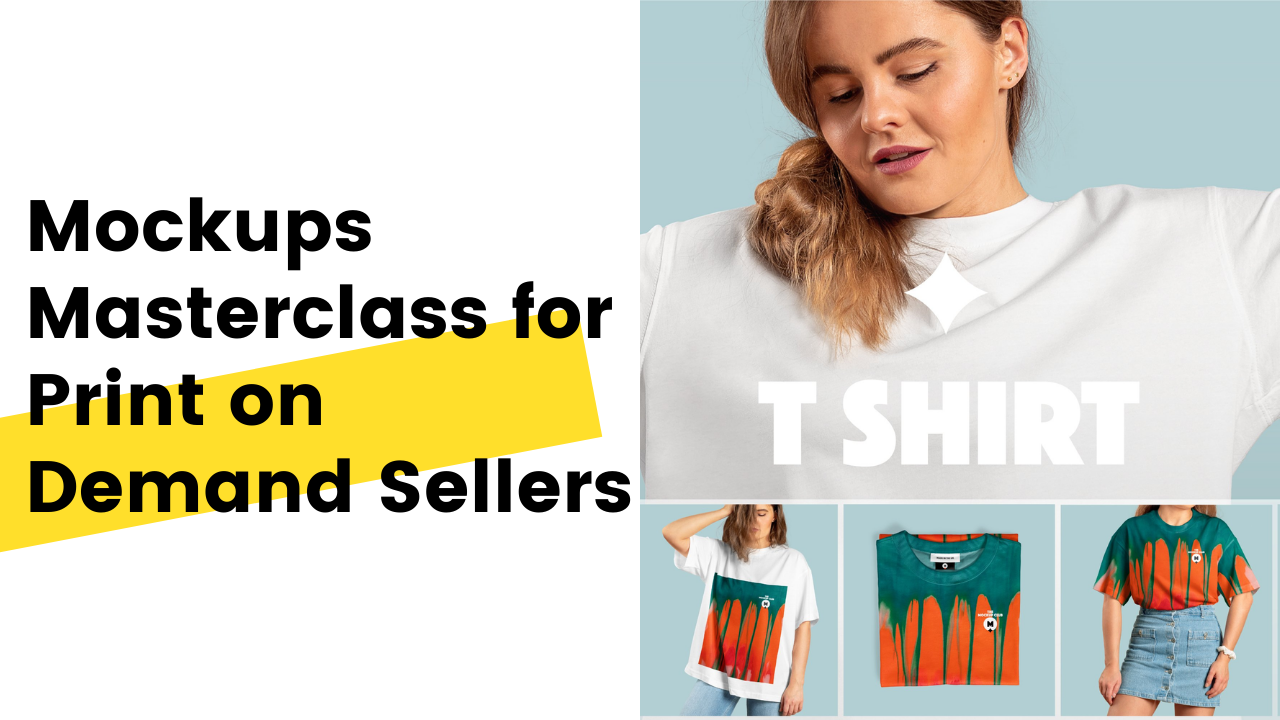
1. Introduction: Product mockups are used
to realistically display your artwork and design on a
physical products you sell, you may agree no less, that Mock-ups are
key ingredients to make you a
successful print on demand seller of the tool listing image
you'll see on your screen, which one do you think is
more likely to make a sale? You guessed it
right? Hello guys. My name is I'm a print on demand seller and a
Photoshop professional. In this class, I teach you
everything you need to know about mockups for a
print on demand business. You'd learn what our
mockup templates, how to plan mock-up
listing images that will resonate
with your brand. We'll be doing a live
project together, but I'll show you how I create listing images for a
print on demand at Cisco. I'll also teach the
best practices to keep your design and listening
assets organized. If you're just starting out with print on demand business, or if you are approaching
this class is for everyone. There is some very
basic photoshop or footer we experience
required to take this class. Let's get into it.
2. Module 1 V1 What is mockup: What is a mock-up? Mock-up is a sales
tool that helps you realize you're a design or artwork on a
realistic photograph of physical product you sell. You do not have to actually
manufacture the product or do expensive photoshoot of
the product that you sell. T-shirt, framed
poster, phone cases, socks, or any other
stationary item. You can generate mock-up
for all kinds of product and use it as a
product listing images, investing time and
effort to create appealing mockup images
for your product listing as many key benefits. If you're selling
your product in crowded marketplaces like
Etsy, Amazon, or eBay. Using great looking mockup
will help you stand out from your competition and grab
some ice for the listing. Having consistent high-quality
mockup images for all your product listing will send trust signal
to your customers. And last, but not the least, you can smartly use
mockup as a tool to establish your brand voice
and tone for your store.
3. Module 1 V2 What is a mockup template: What is a mock-up template? Mockup template is a
ready-made Photoshop file of different objects and product which can be
digitally edited to generate images with your
designs and artwork with it. If you take an analogy, mockup template is just
like a ready-made cake mix. All ingredients in
correct proportion is already mixed and
tagged in the box. You just open the
box, put it down, and follow the process to
make your own delicious cake. On a similar note, mockup template is ready
to open Photoshop file. You open it, then
edited to create your own mockup images
with your designs on it. The best part of a
mockup template, unlike the cake mix, is that it can be reused to generate as many mockup
images as you wish. It is very quick and easy
to apply your designs or the template to create a product listing
images for your store. The exported images
looks very realistic. It is very difficult
to make it a design is already printed
or digitally edited. It is. Take a look at few bitterly
edited mockups on the screen. I bet you could hardly make a
difference if these designs are already printed on a t-shirt or it is
digitally edited. Now the question arises. Where do you get this
ready-made mockup templates? There are plenty of
high-quality mockup templates available in the internet, both paid as less free. I have listed down
some resources in the class description. I have also included some
free mockup templates for you to download and follow
along with this class. And if you want to learn how to make your own mockup templates, I have covered them as well in the bonus module of this class.
4. Module 1 V3 Editing a mockup template: Editing a mock-up template. The first time when you open a mock-up template
file in Photoshop, it may be overwhelming
looking at the complicated layer
structure, but do not worry. I will be breaking
down and simplifying the structure of
a mockup template in the upcoming lessons. For the sake of this module, let us see how quick
and easy it is to edit and apply your designs
on a mockup template. So I've opened up a phone
case mockup complete in Photoshop to edit our
designs on this phone case, we will double-click on
this place artwork layer. It opens up a new tab. Now, we'll select any of
the designs from this. Let us try this bluebird. We'll drag it and then drop it. Once it has been dropped, will just increase the size
so that it covers all the blue space
around the design. No one's done. We'll go to File
and click on Save. Now it has been saved. When we close this, you can see the new
designs has been applied at D phone case mockup. So this is how quick
and easy it is to apply designs on
mockup templates.
5. Module 2 V1 Building Block of Mockup Template: Building blocks of
a mockup template. Mockup templates are created by skilled Photoshop
professional, and they do not have
any written standard or guideline to follow. Each professional had
the personal processes. And for that reason, when you download mockups
from different sources, they are very inconsistent in this structure and
how they are made. Despite all this inconsistency, every mockup template had the following common components. Must have component and
or may have component. Must have component includes
smart object layer, which controls the
placement of the design. On the other hand, or
may have component includes mask or
a clipping mask. Filters, displacement,
map, texture, shadow, overlay layers,
colored layers. Not be overwhelmed with all the components
that you see here. In the next few videos, I will explain each of the
above components in detail.
6. Module 2 V2 Smart Object Layer: Smart Object layer, Smart Object layer at the most crucial element
of a mockup template. Smart object layer
can be identified by the small square at the bottom right corner
of a layer thumbnail. That special functionality
of the smart object layer is that any settings,
filters, transformation, or editing applied to a smart
object layer is retained in Photoshop and can be reapplied to a new
layer with just a clip. Let me show you what I mean. If you take an example of
this mug mock-up template, you can see the design is curved out in the
surface of the mug. If I press Control T, you could see the
designs are simple. It looks like a plane,
but it gives us a feeling that the
design is curved out. What I'll do. Let us take this design. This is a plain
simple design when we drag and drop it over here. Let me just, if
you want to curve this design onto this mock-up, it will take a lot of time, go and then warp it out. There are many professional
Photoshop skills required to achieve this task. However, like I mentioned, this is a smart object layer. What we can do, we'll
just right-click, click on Replace content and
select this plane design. When you place it, you see how the curvature
that was applied to the previous smart
object layer is reapplied to this new
layer with just a click. This is the incredible
power of the smart object. And this is the reason why Smart Object layer is a very crucial part of
any mockup template. Using the power of
smart object layer, the mockup creators allow us to replace the placeholder
design with our design. This is the original version of the mock-up template that we
downloaded with downloaded this mock-up template
from mockups design.com to change
this placeholder design. There are two ways to do that. First, we'll find the
smart object layer. It says project. We'll double-click the
smart object icon. Double-clicking this
opens up a new tab. We can go ahead and
place our design. This new tab, switch off
the placeholder designs. Then we can go to File
and click on Save. Then you go back. You can
see this is already applied. The other method to
apply our design on this placeholder is select
the smart object layer, right-click and go
to replace content. And then select the
designs that we have. Both the methods
are quick and easy. You can select any way
that you want to proceed. Word of caution here, mock-up template may have more than one smart
object layer. Each smart object layer have
their own functionalities. But for the scope of this class, we will only focus on
the smart object layers that control the design placement
on the mockup template.
7. Module 2 V3 May have components: Now that we understand what
a smart object layer is, let us take a look at the
other may have component, a mock-up template has I have opened a flat lid T-shirt
mockup template on my screen. I will go ahead and ungroup
this edit layer group. There are plenty of layers. Let us understand each of them may have components one by 1. First, let us talk about mask. What is a mask? A mask can be identified by a simple
black and white layer, which is adjacent to any layer. As you can see in the screen, there are plenty of
layers with a mask. Sometimes mask is also
referred to as Layer Mask. Or in other words, we can say mask has been
applied to the layers. If you ask, what does a mask do? Mask controls the
visibility of layer. How does it control? Let me show you a quick
demo so that you can clearly understand how
layer mask function. Turn off the visibility
of the edit group. I'll create a new layer, will take my brush tool and I'll just scribble
with red color, maybe some yellow on the top. Now to apply our
layer mask will go down on the layer panel
and select this icon. Just beside the
Layer Style I kid, you can see a mask
has been applied. Notice how the mask
is completely white. Unlike the layer mask we saw
inside the edit layer group. Will take the brush tool, set the foreground
color to black. Then I will go ahead and
select the layer mask. And now I will start
painting with a brush. You can see wherever my
brush tool is painting, the region is being erased. Also notice how the black color is reflected on the Layer Mask. I know change our
brush color from black to white and start
painting again. As we paint with
the white color, the erase part is
being recovered. This is how mass
controls the visibility. Any region painted black
is hidden or invisible, and any region we invited,
white is visible. To show you one more thing, if I press Alt and
click on the mask, the preview window changes
to Layer Mask preview, which only shows black
and white color. Layer mask uses this
black and white color to control the
visibility of any layer. Now that you understand
the layer mask, let us take a look
at how this has been neutralized in
our mockup template. I turn off the visibility
of this layer. Take a close look at this layer. This is a t-shirt layer
and this is its mask. If I press Alt and click, you can see the mask is applied is in the
shape of the t-shirt. As we discussed earlier, white region depicts the
visible part of the layer, and the black part depicts
the invisible part. We can momentarily
disable the layer mask by pressing Shift and clicking
on the mask thumbnail. Now you can see the
exact T-Shirt layer with the white t-shirt being flight lid on a gray background. The mask is applied to make
the background invisible. Now the question pops up, why does mockup template
use Layer Mask? It is used to limit the area of the design being applied
on the mockup template. If you see this design here, I'll press Control T. This indicates the bounding
box of the design. And the mask limits the area where the
design is to be applied. If I press Control T and scale this design
using the anchors, you can see the design
is being clipped and it lies just inside the boundary
defined by the layer mask. If we disable the layer mask, pressing Shift and
clicking on it, we can see the
scale of design and how it covers area
beyond the t-shirt. So you now understand how Layer Mask limits the
area of the design. As a matter of fact, this mock-up template uses Layer Mask on other
layer as well. Now let us move to the next
may have component clipping. What is clipping? Clipping can be identified by this small arrow
pointing downwards. You can see here a small
arrow pointing downward. What does this
clipping actually do? Clipping limits
the application of the layer to the
underneath layer. In simple terms, if
you see this layer, it is a shadow layer. If I turn off the visibility, you can see the impact
it has on the design. This shadow layer is applied to the underneath design layer
only to disable the clipping. I'll press Alt on my
keyboard and hover my cursor on the boundary
of the two layers. The cursor changes, click
it to disable the clipping. Now, the shadow layer is
applied to the entire t-shirt. It does not look
good by any means. We'll press Alt and hold to the boundary
between the layers. Again, the cursor changes. I'll click to apply
the clipping. This indicates the
shadow is being applied to the
design layer only. So this is what a clipping do. It applies any adjustment or setting to
underneath layer only. Moving on, our next may
have component is filters. How can we identify a filter? If you look at
this design layer, we have two overlapping circles on the right hand
of the layer panel, beside which we also have a drop arrow to reveal all
the layer effects applied. If I click on it, you can see it says Smart Filter displays, Gaussian blur, liquefy levels. These are advanced
filter that is applied to this design
smart object layer. Why do we use filters? Filters gives us control
to apply effects which makes the design
placement look more realistic. Let us take a look how they impact the current
design placement. If I turn off the
filters one-by-one, just keep your eyes
on this region. First I turn off levels. It really takes
some time depending upon the processing
speed of your device. Did you see the brightness
has increased on the design? Non-electric turn off
the liquify filter. You do notice how the
fold-over design turn flat. 95 total of caution PLR,
and finally displays. These are filter which was applied to the
smart object layer. There are many other filters
that may have been applied depending on what the creator of the mock-up it has
chosen to apply. Now I'll go back and
turn on all the filters. Now you can see the
design looks more realistic with all
the filters applied. Filter helps in adding
realism to the design. Moving on, our next may have component
is displacement map. We have already seen
displacement map in the filter section above. Displacement is a
special type of a filter which is
specifically used in mockup template to understand the functionality of
our displacement map. Zoom into the design. You can see there are lots
of full dollar t-shirt. And the design follows
along with the t-shirt. This is due to the
incredible power of displacement map filter. If I turn off the
displacement map filter, notice how it will
impact the design. The placement, and the fold that the design has following
has turned flat. The displacement maps
gives us the power to make the smart object layer follow the curves and false
of the T-shirt. In case of other
product template, displacement map is used to displace the design or distort the design following
the fold shadow and highlights of the
underneath layer. More discussion on
displacement map and filters is out of
scope of this class. If you want to learn more, you could just use Google. Now let us move to the
next may have component. Some mockup templates may have a texture layer and
a shadow layer. We have already
discussed it earlier. This one is the shadow layer. It only applies to
shadows on the design, whereas this shadow layer applies to the shadow
of the entire t-shirt. The application and
functionalities of a texture and shadow layer
are pretty straight forward. Some mock-up template habit
and some do not have it. Now moving on to
the final may have component, change color layer. Some mock-up template have the functionalities to change
the color of the product. In this case, we can change
the color of the t-shirt. I will double-click on
this change color layer and select any color. It is not necessary that all mockup templates may
have the change color layer. But generally most of them do. I have changed the color
of a t-shirt to green. I made change it to black, humid change it to
any color you wish. From the component I discussed, least note that the
mockup template may have other
components as well. But the ones we discussed until the basically a structure and understanding them will give you enough confidence to work
with any mockup template.
8. Module 3 Live Project: In the first two modules, we have learned what
mockup templates are and how they function. It's time to start generating mock-ups for print
on demand store. For this class, I'll be
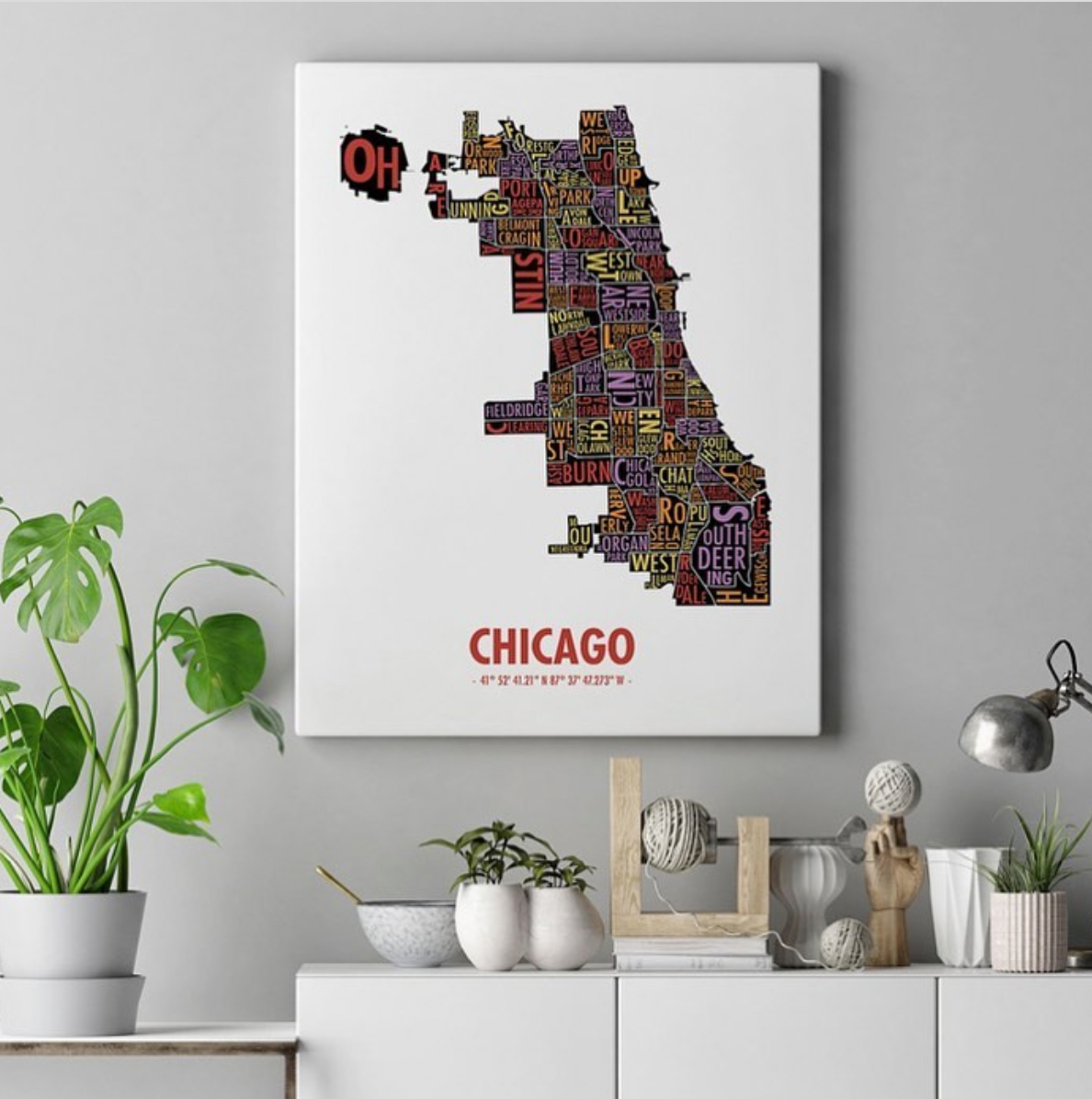
doing a live project, but I'll be generating frame wallet mock-ups
for an Etsy store. These are the artwork
files that I'll be using. I see most of the
seller who make the mistake and to not give
proper thought to plan out the product listing
images you have stored will be as good as
the images you use in it. When you plan your
listing images, you should keep the
following in your mind. First, the primary
image of eliciting should be contrasting and
standards from the ground. And second, it should be aesthetically pleasing
to get a click, not at clickbait thumbnail
like how you do virtues, but aesthetically pleasing to match the customers
search query on Etsy. The best way to figure this out is by taking inspiration from successful Etsy seller.
They are successful. They must be doing something
that is correct, isn't it? Let us jump on Etsy and stock a few successful
printables to. The first TO that I have for
you is Neptune art print. He has about 30
thousand in sales. Now, take out your notebooks
and start taking notes. The first thing to notice
in the stories consistency, the listing, use the
same frame mockup and have the same
neutral wall color. Let me open this solar system listing with a single frame. Well, you didn't
notice something. The thumbnail of the actual
listing images are cropped. If you closely look here, there is so little space between the frame H and a model
of the thumbnail. However, if you look here, the space is significant, which means that is inevitable cropping
that is done by Fc. This is very crucial. You need to keep a note of it. Now scrolling to the other
images in the listing. The second image is nothing
but the same mock-up, but with a different
frame color. Fine. The third one is a lifestyle
image with an oblique angle. The fourth one is again
a lifestyle image. The fifth one is our detailed close-up shot of the artwork. The final image is one, what I call it in for image. Now, let us pull out our
notebook and take notes. First, it has to
lifestyle images. One close-up image
during the details. In for image, one extra image similar
to the primary image. I'm not sure if you noticed, but the wall color
for all the images at the same neutral gray color. Now let us jump on our next
page says TO Lila and Lola, this store has over
140 thousand in sales the first week after listing
some degree of consistency, but not entirely consistent
as the previous TO. I'll click on this
Picasso dog lifting. The first primary image is a
neat frame with a mat board. The wall color used gives a great contrast to the artwork. Okay, so the second
derivative, the video, I did not expect that, but it looks pretty lively. Definitely it's going to catch
the customer's attention. Moving on. The 30 minutes is
a lifestyle image. The fourth one is again
a lifestyle limit with an oblique angle. The shadows and
the sun's rays on the frame makes it
looks so realistic, are definitely a
good choice here. Moving on to the fifth,
imagine the elastic. It is also a lifestyle image, but with a contrasting
green background here. The sixth image is again
the front-facing mockup. And final one is an influence which let us take out
our notebooks again. This listing also using the same wall color except
one lifestyle image. It has similar consistency
as our previous TO. The primary image for
both the store is a front-facing frame with neutral wall color and focal point being
the artwork itself. I think we have collected a pretty decent standard
to follow for our listing. Will need around five to six images for a
product listing, including some lifestyle images. Very good friend of mine sent
me this sitemap Artworks. I'll be using this as a demo project to show you
how I create the mockups. Hunt down the mockup
templates that I'll be using. My favorite place to go for mockup template is
Creative Market. Since we need more than
one mockup template. I'll start for the query frame mock-up bundles and hit Enter. I'm greeted with
wonderful log of bundles. Tip your time and explore
the different bundles here. I like this framework. It has the consistency that
I'm looking for. And to be honest, I have already purchased it for this demo. Many of you at this point, maybe very of investing money to purchase the mockup bundles. I'll leave a link to some free mockup templates in
the description. But I am of the philosophy that if you are trying to build
a good business, it requires an investment. The investment comes to commitment that you
are serious about it. And obviously this beautiful lockup student come for free. Now let us jump on Photoshop
and create the mockup files. This is the mockup bundle that I downloaded from Creative Market. We have Photoshop
mock-up PSD files here. And corresponding
to the PSD files, we have GPG preview
of the mockups here. I'll go ahead and select the five files that I'll
be using for our last day. I will select the
files in accordance with the research
that we did earlier. One primary image, a couple
of lifestyle images. Selected five images. I'll copy this and paste
it inside this PSD folder. Now we can select the
corresponding PSD mock-up file. I'll copy this and create
a new folder here, mock-up, complete, and
paste all the files here. Now for the files to make a better sense,
I'll rename them. This will be our primary image. This one we can rename
less lifestyle public one. Likewise, I'll rename
all the files. There is no use of
GBG images now, I'll go ahead and delete them. Now, we will resize this mockup templates to meet at SI
listing size guidelines. Do you remember what
sizes at Siri commands? Well, we need not worry about it because I'll copy the
site from this listing. I will right-click and
select copy image. I'll go to Photoshop. Then file new. If you could see that
copied image size is already present
as a clipboard here, I'll click on Create and
not pasted using control V. The listing images
pasted as a new layer. At the bottom you
can see the sizes 7924 pixel into 794 pixel. This is the exact size
of the stories using. We can go one step further
and double the size. Because as per my experience, listing images with sizes less than thousand
pixel has poor quality. I'll go to image, image size, pixel value to person, and put 200 and hit Enter
to double the size. Gene if the person does not
change the aspect ratio, there'll be known
difference when we upload the image on Etsy. Now the current size is 1588
pixels into 158 pixels. Now I will resize all our
mockup template to the size. I'll open the first
PSD template. To change the size. I'll go to image canvas size, put the value as 1515. Hit Okay. The template
is resized except the individual layers as
select all the layers and press Control T. Pressing
Control T will activate the anchor point using the cursor and manually
resize to fit the Canvas. There will be some inevitable
cropping involved. So I'll make use of
my sound judgment and fit the layers accordingly. I'll follow the same steps and resize the other
mockup templates. Now, I will resize
this primary template. It is important to show you how it decides the
primary template. Because if you'll recall, the primary videos are prepared. See for the thumbnail image, I would like it to be perfect
as the Neptune art store. First, I'll resize
it to the seat size, image canvas size
1515 developed. Now, I'll go to this listing
image we had copied earlier. Now duplicate this layer on
toward primary deployed. I'll press Control R to
bring the rulers and now drag and put two guides at
the edges of the frame. Now I'll press Control T. Follow this guide to resize
the other layers. Now, this primary
template is perfect. With that being done, all our mockup templates are optimized and
resized, expert, ETC. Sizes. It's time to
generate the mock-ups. Now. First I'll show you how to
create the mockups manually. I'll open one of the templates. I don't want the MAC board, so I'll turn off the
availability here. To create the mockup. I'll have to look out for
this Smart Object layer. Smart Object clear
can be identified by a small icon at the bottom right corner
of layer thumbnail. Just like the scene, this layer that reads at design here, three to four ratio. I'll double-click on
the smart object icon. It will open a new tab document. I will drag and drop or
map design images here. The first one is
Los Angeles gold. Once I save this template will
be automatically updated. You see that concrete is
automatically updated. Now I can go ahead
and export it. I could follow the
same step to create mock-ups for all the design
and templates I have. However, there is one
easier and quicker way to compute this mundane
tasks. Automatic fail. For that, we'll be using a Photoshop extension
file marker. To start bulk mockup will go to Windows extension bulk mockup. I'll click on Start
bulk mock-up. The dialog box appears. The first field
asked us to enter the mockup template location. I hit Browse, select
that mock-up template. The second field is
our export location, and a final field is
our design location. Whilst all the field
values are entered, I'll hit Run bulb mock-up. Bulk mockup will automatically open the first mock-up complete, and it will start
creating the mockup. You can see also at this
Export window here. It now opens the second
mockup template. Likewise, it will open
one by one all the mockup candidate and create the
model within five-minutes. All mock-up template
are exported. Bulk mock-up is an
incredible time-saver tool. One cool thing to notice is that the mockups are organized
into subfolder. Subfolder correspond to
one product listing. If you want to learn more
about bulk mockup website, WW dot bulk mock-up dot com.
9. Conclusion: Thank you for taking the class. I hope you understand what
mockups are and how you can use it to your advantage and create mock-ups
for your store. From the lessons you have
learned in this class, go ahead and create product
mock-ups for your store. Upload them in the project
section of this class, I'll be dropping links
to some free resources that you can use
for this project.
 Vikash Kumar Prajapati, Entrepreneur | Photoshop Professional