Transcripts
1. Introduction: Hi. And welcome to
this short mini class. In this class, I want
to introduce you to an app that I've
recently discovered and which I immediately enjoyed working with the
Pattern draw app. As a longtime Procreate user, I fell at home in this
app very quickly. The interface and
overall workflow of this app is fairly
similar to Procreate, which means that it's just a very small
earning curve if you've already got
experience with Procreate. At the same time, Pattern
draw has one key advantage. Is specifically designed for
creating seamless patterns. While in procreate,
you usually need quite a few workarounds
if you want to create a seamless pattern. Pattern draw allows
you to paint or draw into a seamless pattern tile right from the very beginning. You see the repeat
instantly while you draw, and that makes the
whole process much more effective, intuitive, and
also much more satisfying. Another aspect that I
really appreciate is that the pattern draw app
is a one time purchase. So right now it costs around $10 to buy it
in the app store. And you can even download a free version to
test it out at first. Now, the free version obviously comes with some limitations, but it would be enough
to try it out for this class to see whether you like
working with it or not. If you take this class,
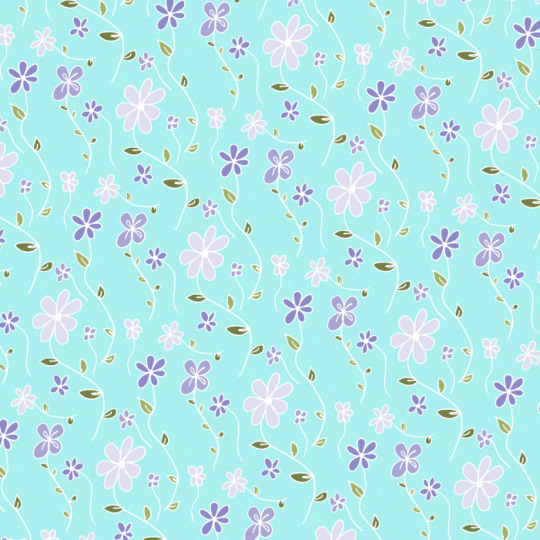
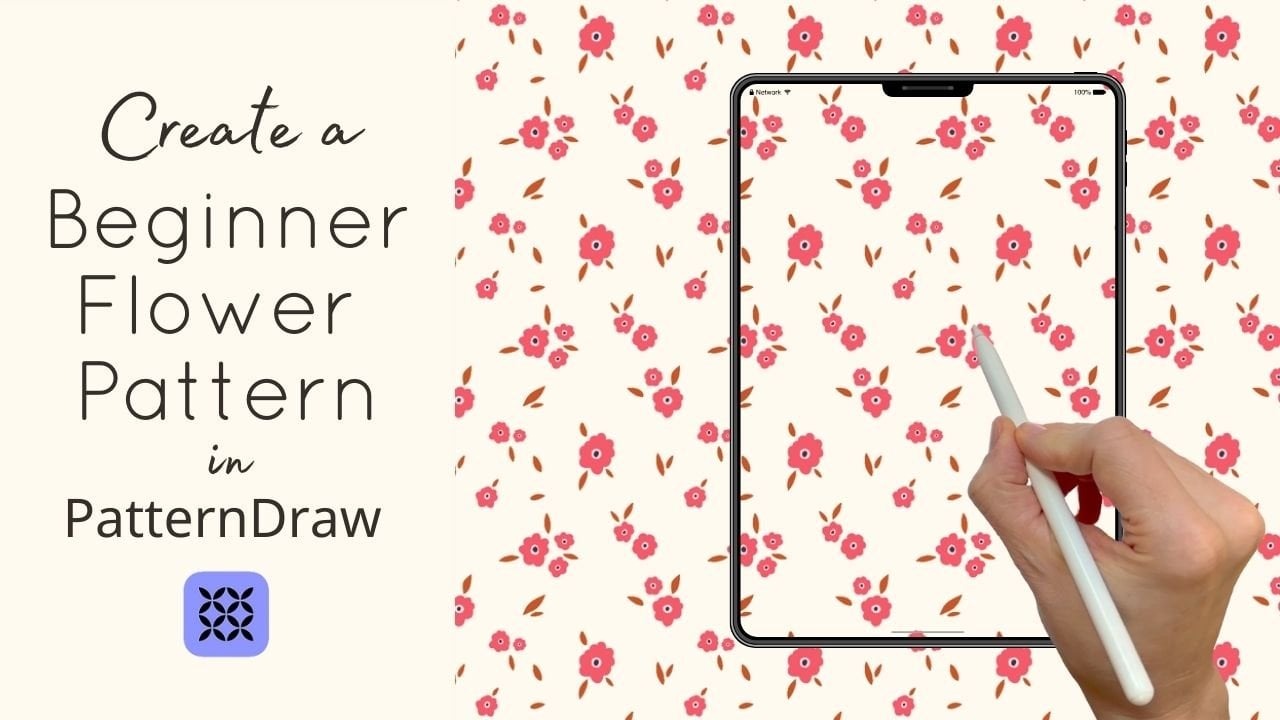
you will learn how to draw a very simple
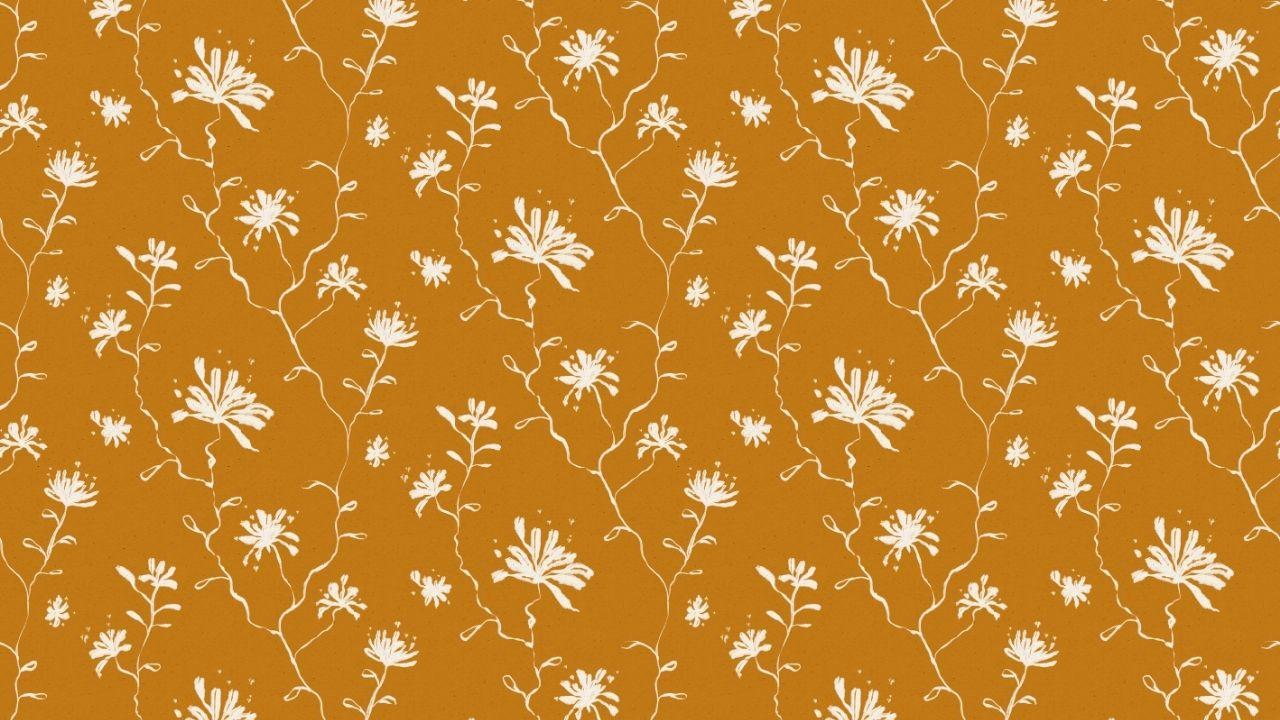
floal pattern, which you could
use, for instance, as a wallpaper
design for fabrics. And this simple wallpaper design will also be your class project. So if you create a design, please upload that to the
class project section so I can see what
you've created. I hope this class gives you
a first overview of the app and inspires you to experiment with pattern
making yourself. Have fun exploring
and drawing along. See you in class. Bye.
2. Creating & Exporting Your Pattern: Okay, so I'm in the
app pattern draw, and to create a new pattern, I will have to hit
the plus sign here. And here I can choose
the size of my canvas. I will go with 200
by 200 millimeters. You could also do inches,
centimeters or pixels. I will go with 300 DPI and
that will give me 200 layers, which I definitely don't need. I would just need about
I don't know, five, six layers for this pattern, maybe ten to be
on the safe side. And here you can choose between all different
kinds of pattern styles. I think that's so wonderful and I plan on experimenting
with these. But for this pattern
I'm creating today, I will go with the
traditional half drop. Now, if you've got
the free version, you can only do a full drop. That is very similar
to the half drop. So you can create this pattern I'm going to show you
with a full drop as well. But I think the half
drop is a bit more sophisticated, so
I will use that. Then I will just hit Create. And here I'm in my new canvas. I will go to the Layers panel to choose
another background color, and I feel you can already see it's very similar
to Procreate here, which is lovely if you
work with Procreate. Now, as a background color, I will use a yellow and
it's this yellow here. The hex code is c97 f18. And like in Procreate, you can also create all
kinds of custom palettes. I've already started
doing that here, but I don't need that now, so I'll just tap here to
get out of the color menu. Now to create my pattern, I will be using a brush
that I really like, and this brush is
called the choppy Ink. And you can create
favorites here. This is one of my favorites, and you do that by just tapping on the brush and then hitting that
little star here. You can also change
the brush settings. I won't do that now,
but if you need to, you could change stuff like maybe the streamline
or whatever you need. And then I will
be using a white, and I just very quickly
want to demonstrate. You can see here is a square. By the way, you could
also go with a rectangle. It doesn't really matter.
You don't have to use a square as your pattern tile. And let me quickly make
the brush a bit bigger, quickly show you how
that brush looks. Now, if you don't press on hard, it's just a very thin line, but the harder you
press, bigger it gets. And what I especially love, it creates this little
line in between. And I think if you want to create something that
looks like a leaf, this can come in very handy because it immediately
looks a bit more hand drawn. So like I said, this is one
of my favorite brushes. And you can also see it
repeated what I do here. So you've got an immediate
pattern preview there. Now, like I said,
this is my square, and if I now draw
here over the line, then immediately the
element appears down here. Okay, to redo, you have
to do a two thinker tap, just like in Procreate. Or if you don't need
that anymore at all, you can tap on the layers panel, tap on the layer and go. Clear. Now, I will make my brush
a bit smaller again. Before I'm going to start
to draw the actual flowers, I want to import a texture because I always
like it if an artwork is more texture and you can
do that by tapping on this symbol here and
then insert a photo. I've got a little texture here, which I will also provide in
the class resources section. I don't know if you can tell, but this is a semi
transparent texture. I will just zoom in a bit. It looks a bit like
paper, bits and blobs. And you can also see
it doesn't really fit here, but that
doesn't matter. You can just drag it and
make it a bit bigger. Also, wonderful snapping here. Now you've got this texture already built into
your pattern block. Now, let's see. This is my texture. I will
just quickly rename that here. Then I will go
back to the layer. Wait, I will just set
that to multiply, even though it doesn't
make a huge difference. Then I will go back
to that layer here, tap on the little brush symbol and let me just quick check. Yes, I've got the
choppy ink there. Now what I will do
is I will just start drawing some type of line and I will vary
the thickness a bit. Then on top of the line, I will draw just some
more abstract flour. I will do that by drawing
in leaves here and here. And also, as you can see here, I'm going up and
then I'm just doing some little blobs at the end. So I feel it's looking
a bit like a clover. Then I will also
draw in some leaves here and they are not supposed to look too
similar to the flowers, I will maybe just draw
them like this and a bit more to the sides every
time I don't like a leaf, I will just hit the
tap the screen with two fingers and then it will automatically redo
what I've just done. Now, with the half
drop, you can see, the flower does not get
repeated over here, but a little bit more up. That will make it a
bit more difficult to spot the repeat later on. But I could also go by
tapping this symbol here, I could also change
that to full drop. Now you can see it just repeats over here, over here, over here. If I were to draw
something here, that would repeat again over
here over here and so on. Now you've got all different
kinds of options as well. I would just very
quickly show you. This would be the
half drop flip. Or maybe the half brick. Here you can see some
of them don't work. Now, it cut off that end of the flower here with
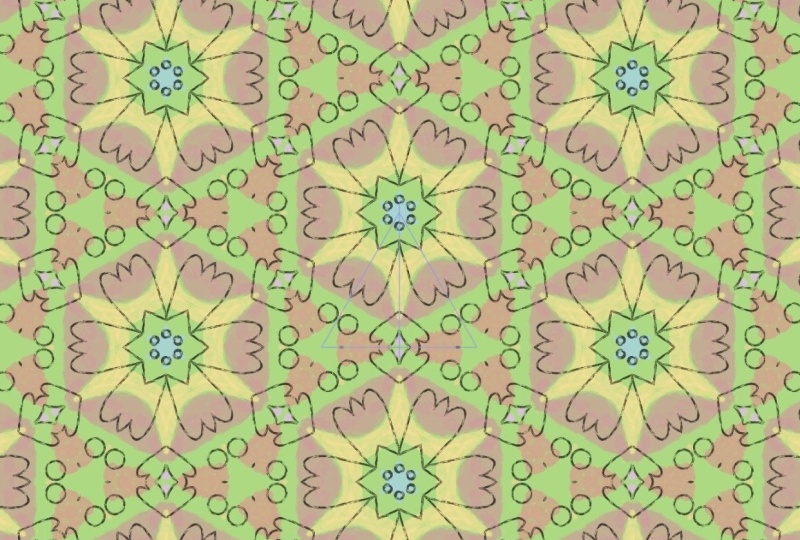
the half brick and maybe also you could do stuff like where is it Pyramid mirror. Now, this will create something completely
different there, what I don't want right now, but I think it can very
probably create lovely effects. But I will go back to
the half drop here. And then I will just go on and start drawing more of
these lines and flowers. What I feel is so magical about this app is something that you
could not do in Procreate. Now, in Procreate, I
would have my canvas here I couldn't
draw outside of it. But here, I can just go on and then connect this line here, then I've already got
this type of connection, and then I will
just go on and draw all different kinds of
leaves and flowers. Now, I want to do one more of these flowers here
and I will just also make it go a bit downward. Again, having some
little bits and blobs. Then maybe the line
is too thin here, make it a bit bigger, and then go on and fill
up the space here. And like I said before, you can vary the thickness of this brush by pressing
down harder on the canvas. And I think this already
looks so lovely. You could imagine that
being a yellow wallpaper. Okay, so maybe I'll
just have one here where there is just
leaves and no flour. And then I could go on. I want a big flower here. Maybe I will also try making
the brush a bit bigger. I deliberately keep my line work a bit wonky just because
I like the look of it. I will just connect
that over here. Then I'm thinking about
using the eraser and maybe, also use the choppy
ink as an eraser and then just erase a bit of that here. So here. Now, I do all of that
on the same layer. Even though I use hundreds
of layers in procreate, I don't need to do that with
this type of pattern here. In a minute, I will be
using another layer to be adding in a different color. But all of these white flowers
will be on the same layer. Okay, maybe have
some more leaves. And I will always be
zooming in and out to check whether I feel that the
pattern looks balanced. Okay. So maybe just have
a tiny flower here. Maybe also one that kind
of like a dg to all sides. I don't really like
that this ends here, so I will connect it to
the other line of stem. Okay, and then then there's one other thing that
I want to show you. Now I'm going to use
a new layer for that. Um, I will just create another simple little
flower element. I've got this tiny flower here. If you want to maybe make
it smaller or bigger, you can do that by
hitting this symbol here, you can also rotate
it by dragging the little knob and you could flip it horizontally,
vertically, whatever. What you can also do is to
create a sticker out of it. And you will just have to
select that here and then go to the wrench and here and add
it you could create sticker. Now this is your sticker. Now, it also has
the texture in it, which is actually not optimal, so I will just hit
Cancel and then to have the sticker
without the texture, I want to topple off the visibility here and
then one more time, select that part here and go to the wrench and create
sticker and then hit Create. We'll just name
that I don't know. White flour. Now, I could use that one for
every other pattern that I create by going to stickers
and then here it is, it's white, so you
can't really tell. Then I will just hit that now it's on this canvas
here and I can drag it anywhere except for here I won't show outside
of the pattern block. Now, that would only work if you drew something fresh onto that. We just hit a new. No, go back to this layer. Now that only works if
you draw on it like this. Okay, so I will just finish this pattern by maybe
adding some more leaves, and then in a minute, I will show you how to
export your pattern block. I nearly forgot that
I wanted to introduce the second color and just
show you how I'll do that. First of all, I will just
now merge all these layers. You can't pinch them
together like in procreate, but you can just tap the layer here and say merge down and now everything that you can see all the white flowers
are in one layer. Now, I will make the layer on top of that a clipping mask. Now that way it will
only everything I draw now only appears on the white flowers and
not on the whole canvas. Let me quickly show you. I will use some
kind of brown here. And if I now draw on
that, as you can see, it only appears on the white and not on the
rest of the canvas. Quickly redo that. Now, I just want to add
some more brown texture and maybe I will also make
that a bit darker here. Now, we'll use another brush, and that will be, let me see, either the chalk, or there was another brush
that I liked for that. Maybe the hard low
density airbrush. No, I think I will go
with chalk for this and I will just tap on the
canvas like this. By that, I will be adding
some splatters and I can make the inner part of the
flour a bit darker here. Maybe also here, I have to
make that a bit smaller. Maybe here as well. Now, the benefit
of having that on a new layer is that,
wait, I forgot one. Now, the benefit
of having that on a new layer is that if I
don't like the look of it, I can just toggle off the visibility and then
I've got my pure white. Also, if I don't like
the color of this, what I can do is go again
to the wrench icon. And then go to
saturation brightness, for instance, forgot to
toggle on the visibility. Sorry, but zoom in. Now if I don't like the color, I could, for instance, go wrench icon saturation
brightness and maybe, for instance, make that black. I would do that by just going
down with the brightness. You could also go down with the saturation or you
could go just back, change the U the blue
looks kind of nice, too, though I feel
it's a bit too blue, maybe with the saturation down. That could work as well. Now, let's just very
quickly undo all of that. Now, by changing the
background color, you can very easily get different color ways
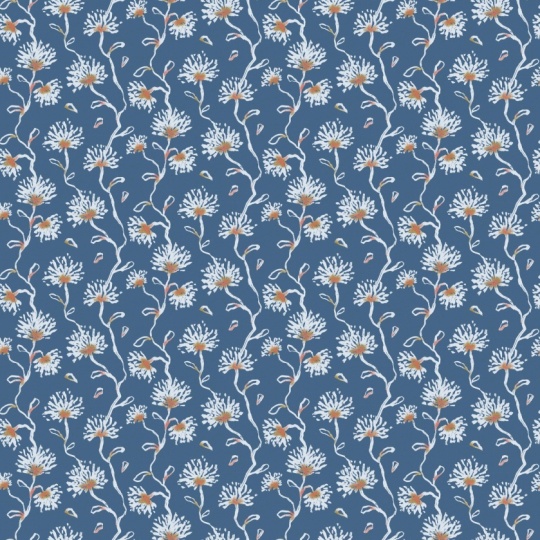
of this pattern, like a pink or else could I use purple, whatever you like. If you want to change the
color of the flowers, you could just add a new layer. Now, this will now be
automatically a clipping mask because the one on top is
a clipping mask and it needs to be a clipping
mask because what you're going to do now is to choose a color I don't
know, whatever blue. If I just drag that
now onto the canvas, like before with
the clipping mask, it just applies to the white. Just toggle that off
here, it doesn't fit. Now the white flowers
have become blue. If I were to drag
another color in there. Let's see, do something
very obvious. It would be pink. Now,
to export your pattern, you will just hit the wrench
icon here and then go to share and you can either export the file as a pattern
draw file or PSD. And then you can
export a single unit or a seamless unit or
also a pattern preview. I think that's quite nice here. Now, you could change
the sizing here. You can also change the DPI, which I will make
300 and then I will just hit Export and
then save the image. Now we see photos,
and now here it is, and I could immediately use
that as a screen protector for my iPhone by just air
dropping it to my phone. Then here it is. Okay, I hope I got you curious
about the pattern draw and I really encourage you
to just download it and try the free version
with the full draw pattern. And if you enjoy it, it's
just a one time purchase. If you do create a
pattern with it, make sure to upload that to
the class project section. I'm really curious about
what you're going to create and whether you
enjoy using the app. So have a lot of
fun creating. Bye.
 Julia Ulferts,