Transcripts
1. Course Layout in Blender and Unreal Engine: Welcome everyone
to this Blender, to Unreal calls in which
you've been learning how to model a complete Game Asset. This will be a fairly
in-depth intro just to lay out what the
course is all about. So as I said, the first
thing will be learned about is modelling
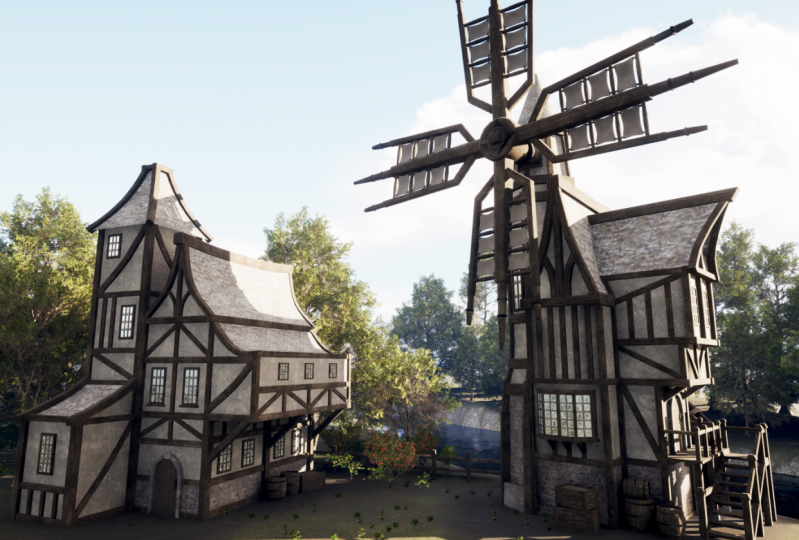
natural Windmill. Then we'll learn about
the texturing process that goes into creating
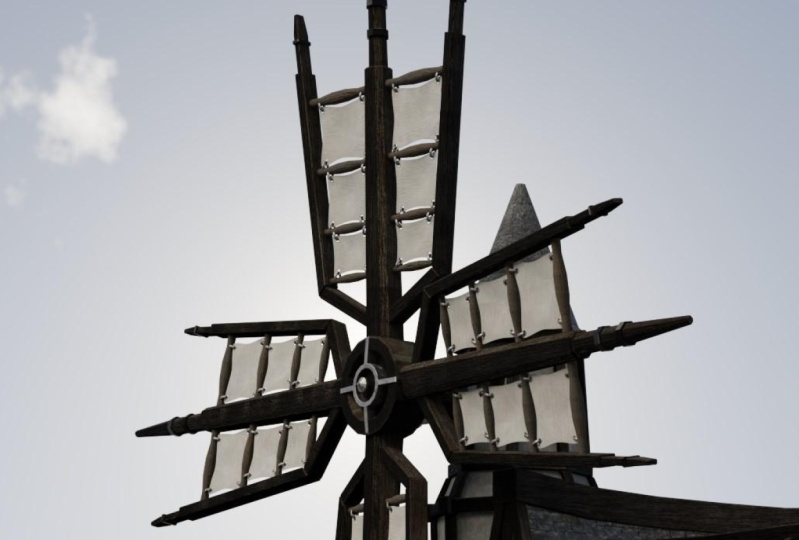
the look of the Windmill. Finally folded Blender side. We're given out Windmill some simple animations
such as the arms turn in, the Water Wheel going round and the Sign swinging backwards
and forwards in the wind. The video you see now is
a Roof windmill I put together and placed in
Unreal Engine five. You can also see that
there are two windmills. The first is the Animation, and the second is a windmill with all of
the textures created and apply correctly to give this a look of a Realistic
Game Asset. Finally, when we've
finished our windmill, will be taken our model
into Unreal Engine. And you'll be glad to
hear It's the old, new Unreal Engine five, but more on that
later in the intro. Now a couple of things
before we move on, we will be creating a
complete built in Blender, and I'll show you how
to do a quick render. So if you don't want to use the Unreal Engine part,
you won't have to, because you'll still end up
with a really nice portfolio, render it in the end. For those of you
that want to learn a little about game's engines, then we'll take our
Complete and model into Unreal Engine five. We'll learn a lot
about the basics of a game's Engine, including
importing animations. So now let's quickly
discuss the course pack. And just like my other courses, it will come loaded with
guides, References, SVGs, and models to
make the process of the Build as easy to
follow along as possible. In the course pack, you'll find all of the textures
you're going to need, including not only
the Blender textures, but also the unique on the
real ones where a few of the textures are combined will learn more about that as
we go through the course. You'll also notice
we have two files. One says 2k and 4k a.
You've guessed it. I have not only supplied
the standard 2k a textures, but also the large for K-maps. For those of you that would like to make a portfolio piece. These textures allow
more detail in your renders and also making
modal pop a little more. Next up is the SVG HDRI and the human OBJ that will make creating the Windmill
much easier. They SVG was create in Photoshop and it
represents the Sign. You'll learn how to import this flat 2D image and turn
it into a 3D fully working Sign the human LBJ will
be using so that we're all working to the same
scale without guesswork. And finally, they
HDRI will give us realistic lighting for
our Blender Render. Now finally, let's
take a quick look at our References and you'll find a toma them all in a high-quality render available
to you within the past. Now for each part
of the Windmill, I've created a reference detail in the Main parts
and now it should look things like how and where the Window face and now
the Roof slants inward. We also have a main
image of the policy. You can get a good idea of the overall feel and
Build of that pole. We also have a reference
for each part for Scale. We, you'll notice our little guy standing next to
the windmill parts. Finally, I've also thrown in a reference of the entire
Build and the small details. So you can take these
away and either work to them on this course or
in another project. So just a few more things
before we finish up. I'm using Blender
to 0.9 something. I'm not sure which one it is, but it's 2.9 plus. So don't worry if you have
an older version such as Blender to 0.8 or above
your belt to follow along. Absolutely fine as
everything will be the same. So don't just rush out and
download the latest version. You absolutely won't need it. Now, the versions below 2.8, something maybe a
little different, but I'm sure with the
cost pack and the guide, you'll be able to follow
along pretty easily. One of the main things
that won't be available, of course, is the
Eevee render engine. But you can always rely on
the excellent Cycles Engine, albeit it's a little slower. Now in this course, I'll be using the all new Unreal Engine five now only because
I wanted to keep this course up-to-date
as possible. But also because X6 science get a brand new release of
Unreal after so long. Now if you don't have the UE5 or just want to use you EPO, then don't worry,
everything will be doing is pretty much the same and you
won't have any problems. Also to help you on the course, you'll see on the
bottom left-hand side, key casting will be on. That together with the
Animation shortcuts should really help you
through this course, even if English is not
your first language. Finally, the first
few lessons of the course will cover
the Blender basics. Things like moving the
camera around, how UVs work. Just as an example, please don't worry
if you already know these things that they are short and you can just skip
through them if you wish. The course's aim
to all levels and beginners will need to
know this information. So for the first two
or three lessons, don't be too frustrated. If you're a Blender master
is what I'm trying to say. If you're a beginner, there's a couple of points to
take into account. I have tried to create the most user-friendly
courses that exist out there. And that's the beginning
many years ago. I can understand when you
have to rewind the video a few times to understand
what we're actually doing. This is frustrating, but more importantly,
is quite normal. And I found personally
the best way for fast learning is just to
rebuild what was doing. This eliminates
mistakes that are built all over the building process. So what I'm trying to
say is if you knew, just stick with it
and in the end, it'll become second nature. Now that was a
long introduction. So with all that said, let's get started on Blender to
Unreal Engine five. Now here we find ourselves
in the viewport. And if I say viewport
based on what I mean is actually this area here, all of this area
is the viewport. Now what we're
going to do just in this final part of the lesson is we're
just going to come in. I'm going to left-click, left-click on this cube. I'm going to press Delete. I'm gonna come to this like
so this is a point light. I'm going to left-click
on this and press Delete. And finally, the camera, I'm going to move
my mouse over it, left leg, I'm Place delete it. Now in the next actual Lesson, what you're going to learn about his older Blender basics, that includes moving the camera and a few of the Blender keys. Okay, everyone, so
I hope you enjoyed the introduction and I'll
see you on the next one. Thanks a lot. Bye bye.
2. Mastering the Basics: Welcome back everyone to
Blender to Unreal Engine five. And in this part, what we're gonna do
now is we're gonna go through the Blender basics. Now. They're all three videos
that I've put together. I'm not going to show them one after another or
anything like that. But I think the first
one, Blender basics, is the one that we
absolutely need to go through before we
start anything. So I'll do now is
I'll play this video. I don't see her on
the other side. Hello everyone and welcome to the basics of Blender
part of the course. I recommend grabbing
a pen and paper or a Word document enjoined down
these keyboard shortcuts. He'll be going through the
very basics of Blender and the keyboard shortcuts
you will need weave. All that said,
let's get started. On the left-hand side, you'll see I have
key casting on. This will show you the keys
I'm pressing in real-time, and this will be on pretty much, if not all, of the
entire Cole's. The next thing I'd
like to show you is any new keys we use. There'll be a small animation Delpit down at the bottom
right-hand corner. This will only appear
the first time we use that particular new key. And I think it really
helps keep the flow of the lessons to a decent rate, both for beginners and those
more familiar with Blender, because they only appear once. They won't chloro up the screen. And there's always screen
casting to rely on. Also down the bottom
right-hand side, you'll see a detail animation of anything that
needs more contexts. This is useful if you're new to 3D Modelling
in particular, because there's a lot of jargon and technical terms that need a decent explanation or more contexts of why we
are doing something. I recommend. Then if you need
more information, jumping onto Blender website
and checking out there, detailed explanations are pretty much anything Blender related. So now when we mentioned
Blender viewport, this is actually viewport. You can see all of this gray area here is
actually the viewport. Now, if we go to the UV
Editing ball up here, you'll see the overlap downside. It's now in two screens. And if I say the UV
Editing viewport, all that means is just
this gray box over here. So now let's go back to
Modeling and let's go a little bit further into how to move
around in actual Blender. The first thing I will discuss is that the middle mouse button. Actually, if you hold it down, you can rotate anywhere
within the Blender viewport. And then if you want to zoom, is just scrolling in
and scroll embark. Now you can also
press Control Shift. I'm the middle mouse, hold it down and then just push it forward or push it back. And you can scroll in
very, very slowly. Now it's a pond or you
need to do is you need to hold Shift button and
the middle mouse. And then you can
pan from left to right and to zoom to the object, which is very handy. Let's say you're really far out and you really
need to zoom to it. All you need to do
is press the adults on the actual number of part, and that will zoom
your writing to the objects you want to zoom to. For instance, if I'm zoomed out and I want to zoom to my life, for instance, it's
very easy then to come across DCMP collection. Click on your light
crest adult on the number pad and that
will zoom you write it. Now the next thing
we need to discuss is just deleting objects. To click on an object
is just left-click. And then what you
can press as you can press the Delete key. And that will just
lead to all the way. I've just lead to
my light there. And now I'm going
to come across to my camera and actually delete
that all the way as well. The next thing I
want to discuss is if we click on this cube
and we press shift D, you'll notice if you
move the mouse now, it's actually going
to make a duplication of buyer actual Q. If I don't actually
click anything on my mouse and I just click
the right-click button, it will drop that back in place. Now you can't see
there's actually two cubes ear at the moment. Well, there actually is. So we need to bring in a gizmo. And the gizmo is
basically something that we can move
things left and right, up and down, things like that. So if I press Shift Spacebar, calm down and you'll see
we've got one that says Move. And now we actually
have our gizmo. And if I pull this to
the right-hand side, you can see now we can pull this away and now we're able
to move this around. You can also freely
move this as well. If you press the G key, you'll notice if you've got
selected now you can move it basically anywhere
around the viewport. You can drop it back
with a right-click, or you can put it
wherever you want to, G, and then it click,
left-click on it. We'll put it wherever
I wanted it. Now also why the adult bone, the Zoom to Bone is important is if I
press adult bone now, you will see that if I just zoom out and hold the middle
mouse and rotate round, you'll see that I
actually rotate around the origin of this actual cubed. Now, if I click on the other queue and
oppress the adult bone, you can see now
that I'm actually rotating around the
origin of this cube. Now, the next thing
we want to discuss is Object Mode and edit mode. At the moment we're
in object mode, we can't really do a lot with this cube except move it round. Now if I press the top bone, we will then go into edit mode. And in edit mode,
we can actually do a lot more things
with this cube. So up on the top
left-hand side here, you will see that we've
got three different icons. One of them, this one
here is vertices, the next one across these edges, and the next one across Now, if we're on vertices and we come over to this
vertice for instance, I then, if I press Shift Spacebar to bring
in my gizmo again, I then can move this around. Now if I come in to edge select, I can grab the whole Edge, move this around like so. Finally, if I come
into face select, I can now grab a whole face
and move it around like so. Now the other thing is if we
come to all the to select, I can select the vistas. You can also select
another vertex or another Objects or
something else like that, just by holding the Shift
button and actually clicking on the other vertices
or the other object 0. If we come to face-like, for instance, we can
grab this face, shift, select the second place, and this is how we can
select multiple objects. Now, the next thing we need
to discuss is the axis. So we can see we have a
red axis and a green axis. Now, just to show you what
this actually relates to, if we come up on the top
right-hand side here where you've got these
two interlocking balls and you click this
little down arrow, you will see that we
can turn on the z-axis. Now we're just going
to turn this on just to show you what I mean. So it turned that on. Now you'll see another
axis appears here. Now, the green axis is
representation of the Y. So if I want to scale
this out on the Y, although it after
presses S and Y. And now you can see I can
scale it out along the axis. Now everyone to
scale out on the X, so that's the red axis. I'll press S and X and I
can scale it out along 56. And again, the same thing. So S and Z, the open down axis is dead. And it's essence add and then you can scale
it up and down. Finally as well, this also important if we
actually wanted to rotate it because we're
rotates it on an actual axis. So what I'm going to do,
someone's grabbed the whole of this by pressing the a button. And then I'm going
to rotate it round. So once it rotates on
the y-axis, sorts all Y, and then you can see it will
only rotate on the y-axis. And no malware put my mouse, it will always
rotate on that axis. Click you back to where it was just again, the right-click. And if you want to turn it all, you need suppresses
all and why again, then let's give it a degrees. So what we're gonna do,
he's going to press 90 on the actual number pad. So 90.2 boron, and now you'll see it's rotated by 90 degrees. So just to summarize that S
is Scale and all is rotate. Normally when we scale
something or rotate something, it's followed by
the actual Access and then it's
followed by a number. Specifically when we
rotate something, normally when we're Scale
something we just hit Scale, pull them outside and we'll
scale it up when we rotate something that's normally
all followed by the axis, followed by a number
on the number part. So now the last
thing I wanted to discuss is if we go
to object mode now, we need a way to
actually view this a little bit easier than
the Way is at the moment. Let's first of all turn
up as that access. And what we'll do
now is we'll use the number pad to
actually view this. If I press one on
the number pad, that will go actually into this front view of our viewport. If I press three on the numpad, that will go into the side view. And if I press seven
on the number pad, that will go into the top
view of our viewport. Now the opposite to
get to the opposite, or you need to do is you
need to hold control. So in this occasion will
press control and seven, and that will bring us to
the bottom of this object in the viewport control one
is the rear of the object, uncontrolled, three is the
opposite side of the objects. So now before we finish
this section of the course, I need to show you something
that's also very important. So if we come up to the
top left-hand side, you'll see you've got
born here that says Edit. And if we come down
to Preferences, one thing that you
should always do that when you first
download a Blender, you should always put
on the status bar, which is this button here. And if I click all of these on, you will see now, if I click them all along
and I close that down, down at the bottom
right-hand side if you are all the
details that you need. So for instance, we've got how many faces and how many triangles are
actually in the scene. I'm the objects
are in the scene. I'm the memory and V Ramp. Let's actually take note. This is really important if you want to get a good idea of how much power your
computer is actually using and how many polygons and triangles are in the seat. Polygons and triangles
you'll learn more about as we progress
through the coals. And that pretty much
covers the basic Blender. And I'll be all found
that both helpful, uninformative, but more
importantly, easy to understand. So now as they say on with the show, welcome back everyone. So I hope you enjoyed that. And I hope you now have
a little bit more of an understanding of not only how to move
around the viewport, but how to actually use the
very basics of Blender. Okay, So on the next lesson than what we'll look at
is we'll look at importing images and References and different ways that
we can actually use them. Okay, everyone, I
hope you enjoyed that and I'll see you in
the next one. Thanks a lot. Bye bye.
3. Exploring References for 3D Design: Welcome back everyone to blend
it to Unreal Engine five. And now let's look
at how we bring in those images so that we are something to
actually work on. So if I pull open my
images, which are all here, then you'll see
this is the pack, so make sure you've downloaded it and make sure you've
actually got these. You'll see that if
we look at these, we've got milk building, let's actually click on them so I actually have a
better view of him. We've got the Main
Building parts like this. If I close that down,
I'll move to the side. I could've done it that way. We've got things
like the Windmill, which gives you a really, really detailed log of actually, how are we going to build
these individual parts. The first thing we want
to do, but of course, is we want to build
an actual Greybox. And what is important
about gray boxes, you should always do this
before we actually start to build the details of anything. So what you tend to do is you'll build something in cubes. Then you'll add a little
bit more detail to it. And then finally you'll add those little details like Door Handles and
things like that. The reason you build
the gray boxes, you want the scaling
to be right, and you want everything
to fit together. You want to actually look at the Greybox and see that
it actually looks right. Sometimes things
when you don't do this can look really
off in the end. And it's because you've not
gone in and actually made is called its silhouette
of the actual building. And actually looking to see if everything's
kinda fit in, right? And if it looks right,
putting this here, or where's the Windmill or the Water Park going to
go, things like that. So let's first of
all look at how we bring in an actual reference. So what I'm going to do is I'm actually going to
make these bigger. So firstly, I'm
going to do extra large and then I can see what
these are actually called. So let's first of all
bringing our mill Arm Scale. Then
we'll look at that. We can make our
Greybox for this, and then we can carry on
building out our Greybox. So let's do that first. The first thing I'm going to do is I'm going to press Shift a. And when I come across and
you'll see that you've got image and we can bring
in a reference image. Now, show you the good way to do it and also the
bad way to do it. If I click on reference
now and bring in my actual reference
of a mill Arms Scale. So I'm going to go
and find that now. So here we all in our
actual file and you can see mill Arm Scale,
this one here. Now when I bring this in, you'll notice that we do
have an actual problem. The problem is that this is bent like a banana and that's
not something we want. And the reason is for that is because I'm viewing it
at this angle here. This reference comes in the actual view that you will be looking at
when you bring it in. So I'm going stairs and
when delete out the way, I want to press one on
the number part and that is going to pop
me then in front view. Dead on with this, which is great for when
I'm bringing a reference. Now press Shift a
again image reference, calm down and we'll pick
the arms and Scale, double-click it,
and there we go. Now what you need to
do is you need to just drag this up to make sure that it's Along this
actual ground plane here. This line going along here
is actual ground plane. And that's what we'll use
actually to say, right? The Windmill is going
to sit on top of that. Now, you'll notice that
the moment we have no Gizmo to actually
move it up and down. So what you need
to do is you need to press Shift Spacebar, come down and you'll have move. Now what we can do
is we can come up and sit our little guy on top of that
ground plane so you can see it's a
little bit above it. But as long as
these roughly where it needs to go, that's
absolutely fine. Now the other problem we
have is that a little man, maybe a little bit small, and we're not actually sure
if this is the RightScale. What we'll do is we'll
actually impulse our actual human reference
and then we can scale this. And then every single reference would bring in after that. We know they're going a
bit to the right scale. So what we'll do is
we'll come to file. We'll go down to impulse. And you should
have one that says weight from and then OBJ. So we're going to
bring in an OBJ. You up to here you have
FBX and you have OBJ. And these are the Main
actual formats that you'll be importing or
exporting things out. And let, for instance, when we send out
to Unreal Engine, we might use the OBJ or the FBX. These other ones are used
for different things. And as I say for Models, textures, Animations,
things like that. It's either FBX or OBJ. Let's important OBJ Now, long-range doesn't want to go
back to my human reference. You'll see in the
closed pack we have one that says human reference. Double-click on it and
let's bring it in. And you'll see there now how big or little monies
on here in comparison TEA. So obviously we have
to scale this up. So I'm gonna do is
I'm going to grab this, I'm going to press S. I'm going to keep
scaling it up until he is the same size as all my night doesn't
need to be exact. Just try and get as close as possible, and that'll be great. So I'm gonna keep scaling it, making sure it's right. I'm going to bring it
over to the rights on the Side thing that is
roughly the right side. Now, if you're struggling
to move this up and down, just hold the Shift
button down and not what that's going to do is going to really slow it down for you, make it much easier
to put in place. Now, we've got the scale, so I'm going to do is I'm
going to grab my mom. And you can also see that we
don't have a problem in that the orientation is over here and it shall
be in the sensor. So what you need,
strangeness needs to right-click come down and it'll say set origin and then just
set the origin to geometry. And that's going to
bang in the center and just make it a little
easier to move all guide. I'm just going to put him
out with Way over here, will need in probably
a little bit later on for when you're scaling
Windows and things like that. But to be honest, you
could actually make this build basically now
without this man, because you've got all of
these reference guides. Now let's look at another way that we can actually
use references, especially if you've not got two screens a lot of the time. I've built the Greybox, I'm going to be looking
at my other screen and building it from these
references that I've got. And if you haven't
got two screens, or if you have got two screens, you still might want
to use this technique. So I'm in today, I'm going to come down
to bottom left-hand side and I'm going to
left-click and drag. And you'll see that I can
pull another one naught, and that's exactly
what I want to do. Now. What I'm going to do is
I'm going to pull this one. And then I'm going to
pull this up a little bit more and just
show you what I mean. So now you'll see at the
moment that this icon here, if I click on it, it
says Editor Type. And this is called properties. We don't really want
this as properties. What wants to do is want to
click this and want to come down to where it
says image editor. If you click on imagenet set, you'll see that you guys screen like this and this
just opens up. Then what you want to
do is you want to come click on this little
file icon here. And then we're gonna do is
going to open an image. So I'm going to do is
I'm going to come back to my image References. And what else I'm going
to do is I'm going to come to this little icon here. I'm going to come
down and you'll see that I can actually
click thumbnails on. When you click thumbnails on, you can actually see all of the images which
we want to create, which is really, really handy. Now what I'm going
to do is for me, I'm going to double-click
on this mill Arms detail. And you'll see now that
you've actually got an image here which can
actually work toward, you can move this around with the middle button and you can pull it up and actually get a really good idea of
what you wanted to do. Now that makes it really easy to work actually with references. You can also, if you want, pull this right out and then you have a really,
really good idea. What you do it all you
need to do is just put it, took it out the way when you've actually finished
with your reference. Now, to close this area down, if you actually don't
want to reference, all you need to do is
you need to hover over it to where you get
these two little arrows, right-click and join areas, and then just click on the one that you want
to join it with. So if I come down and
I click on this one, you'll see that disappears. And now we've got this actually
back how he wanted it. As I say, you might want to
use your images in here, but actually I'm going to
use them on my other screen because I actually find
that easier to work with. So now what we're gonna do on the next lesson
is we're going to start Greybox now
our actual arms. And then we're going
to start bringing in the older References
and building up this Greybox
of this windmill. So I hope you enjoyed that. I hope you find it useful and I'll see you on the
next one, everyone. Thanks a lot. Bye bye.
4. Creating the Windmill Greybox: Welcome back everyone to blend
it to Unreal Engine five, and this is where
we left it off. Now, let's make a stall and
actually building this. And you'll notice when
actually spin round on here, we can still actually see it. But I find if I press one on the number pad is actually
far easier just to work and to the scale
now I'm with it forward facing just to
get all Greybox started. So now let's press Shift day. But I recommend the first
thing you do is you always make sure that your
cursor is in the center, just for now, just until
you get the hang of this. If your cursor is
over here somewhere, so let's say shift right-click. That will actually move
the cursor around. Let's say it's over here. You actually put it over here by mistake or something like that. All you need to do
is you need to press Shift S cursor to willed origin, and that will always
place it in the middle. Why is that important? Because then when I
bring in a primitive, so shipped a Mesh, bringing a primitive,
let's bring in a cylinder. For instance. I click on that. It will always come where
the actual cursor is. Now you will notice when I
bring in this cylinder that we do have a menu down at the
bottom left-hand side. And this is actually really
important because it actually dictates how many beds says
this cylinder valve on it. So you can see as the terminus
up and down it changes it. Once you've actually
move this cylinder, this menu will disappear. So it's important that you set the number vertices to what
you want it before we start. Now I'm going to
keep mine on theta2. And the reason for that is I'm just building out Greybox here. It really doesn't matter how many vertices have at the moment since it's
just a gray box. Now what does my array is that this is a little
bit more centered, just talking,
bringing this up and make it a little bit
easier for myself. So I'm going to do is now
and when it's bringing this up to of the sensor, I'm
going to spin it round. So I'm going to press
all on X and 90. And that makes expense by 90 degrees and I'm
on Wednesdays, I want to just spin it around, make it a little
bit smaller than with the S bones,
so bring it in. So, and that then gives me a good start to wear my
windmill and needs to be. The other thing of course's, I'm just going to make this
a little bit thinner as well because this is the outside and I need the inside
a little bit thinner. So I'm gonna do is
I'm going to press S and Y and just bring
it in a little. And then we're going to do
is I'm just going to create this bit that actually
goes into our tower. So I went to do, I'm
going to press tab. And tab basically takes
you into edit mode. So you have Object Mode, which is this where it's a
whole of the actual model. And then if you press top, you have actually able to
edit the actual Mesh organ coming now and grab this and move them around
and things like that. Now, the other thing that's important when we're actually in edit mode is up here
on the left-hand side, you'll see that we
have three icons. The first icon is
the actual vertices. So these little points here. The second one is our edges. So now we can click
on the edges. And the last one is basis, which means I can click on the individual phases and we will be swapping
between these a lot. So it's really important
that you know this. Now what wants to do
for what we're gonna do next is we need to
click on our faces. I'm going to come to this space. One way to do is I'm
going to press I, and that's actually going
to give me an insert. So I'm going to insert
and you can see now we get an edge loop
going round, like so. Now I want to do is I want to
pull this out a little bit. Now you will notice again, we've got now gizmo. And that is because we
simply need to press Shift and space to bring
up our move tool. Now if I try and
move this out now you'll end up with
something like that. I want to press Control Z. That's not what I actually want. What I want to do is I want to extrude out another piece
of Mesh to actually give me that circle part on here and give me the
edge going round here. So I'm gonna do is I'm
just simply going to press E wounds and then I'm going to pull it out with my
mouse. And there you go. You can see now we've
extruded that out. Now the next thing
that's important, of course, we need to
actually save this out. I'm going to do is I'm
going to come up to File. And when it come down to Save As and I'm going to
actually save this out. And you can see
I've got a couple here that I've actually
been working on. So I'm going to do is I'm gonna call this Windmill course. And then just press
enter and enter again. And now it's actually saved out. And you'll see at the
top right-hand side, we've got windmill
and we've got course. And now I'll need to do if ever want to save
this out is safe. Now, if you do lose your work or your computer switches off or something like that and you need to get you where it back. What you need to do is you
need to come up a file. You need to go down to
where it says recover. And you need also say Blender will actually
also save this out. And then what you need
to do is you need to search for Windmill course. And it will say 9484, something like that, autosave. And normally it Blender
ends up being shot down. You will find there is a Save and it will have a
timestamp on them. I'm actually going to put this
on vertical list instead. And then you can see
all of these dates. And you can see today, 2 min ago, this was actually
saved out as an autosave. So it's kind of easy now to get your weight back
if it ever closes down or you make a
really big mistake or something like that and you
need to get your weight back. So let's close that down now. And now what we need to
do is just go through how I got these down here, because this is also important You'll see that I
averts edges, faces, triangles, and Objects, and the memory used
and things like that. All in the oldest
information is really, really important as we actually worked
through the course. If you end up with millions
and millions of polygons, it's going to be very hard
to actually paint it, get anything done, and you compute will slow
down drastically. So you, Neil really needs
to keep an eye on that. Now the thing is, I will try and keep this fairly low poly, well, you will still end up
a fairly high polygon count. So we just need
to make sure that we've been reasonable
with a polygon count. The other thing, of course,
is if you're bringing in textures which are
for K, For instance, they use a lot of memory, especially when you using
78910 different materials, it's going to create
a lot of memory. And if you use
smaller texture maps, it's actually reduce probably by 75 per cent or something. It makes a huge difference. So there's also
that to take into account and just bear in mind, your computer setup really dictates how much you can
actually get away with. The first thing when
do is I'm going to come to Edit Preferences. And then what we're gonna
do is going to come to make sure you actually on interface. What we're gonna do now
we're going to come down. We'll see one that
says status bar. Just make sure all of
these have ticked. If they're all TikTok, you will handle with all of this information down the
bottom right-hand side. So that's really important. Once you've done that,
all you need to do then is close it down. Now that's enough of that. So now let's start work on our actual Greybox and
bringing this out. So simply what I'm
going to do is I'm going to grab two of these. I'm going to grab
the ones on top. I might even grab
three. Let's press seven to go over the top. And you can see now I've got really good view and I can
see this is slightly out. So I'll do, is I'll grab this one and then I'm
going to basically pull these up to make them the
same length as this arm. I want to press one to
go into front view. I'm going to press
E, I'm going to pull it up. And there you go. Now you can see that's around
the same length as here. Now, we've got this because
then we'll understand how big to actually
make. Our arms are. Now pretty much That's all we need for our
Greybox for this. Now, if I didn't have a
reference or anything like that, I would probably make four of these soda for
going out each way. But because we've got this, I'm just going to
get away with one. And that's the height
where this is. I imagine if it
coming around here, where the height of our
windmill is going to be, it's important because we
don't want it dragging on the floor or in Windows
and things like that. Now, let's press Tab to
go into object mode. And what we're gonna
do is going to click on our reference. Now you will notice on the right-hand side we
actually have an icon here, and this actually determines
what the actual References. So if I come to this icon now
and actually click on it, you will see that it's
called middle Arm Scale. Now I want to
change this now and a one spring game
and X reference. So I'm going to bring
him a towel now. So I'm gonna do is
I'm going to click this Open icon and I'm
going to come to tower. And you'll see when
we've got tower Scale, I'm gonna double-click
it like so. Then went to press one. Again, come down. And while wants to do
now is the ones fit my guy right on
the top of there. So I'm going to bring this
down to fit them on the top. And you can see now
that this tower, basically he's in the
right place already. So you can see how big is
all towel going to be? You can see the
Windmill is actually going to fit in there. It really comes
together really nicely. So on the next lesson, what we'll do is
we'll start to build up this tower Greybox. We're not doing any details or any water or anything
like that right now. All we're doing is trying to
get this gray box in place. Alright everyone, so
I hope you enjoyed that and I'll see
you in the next one. Thanks a lot. Bye bye.
5. Understanding Seams and Sharps in 3D Modeling: Welcome back everyone to
Blender to Unreal Engine five, and this is where
we left it off. Now, let's bring in our actual cylinder to start
off tower one Windows. I'm going to move this
just a little bit over just to get a
little bit more Central. Don't worry too much because we want this to actually
be more Central. So you can see as
I move this over, you can see now it's in-between those two pieces of wood that I think that's about right
to actually start this, There's will make sure again, I'll curses in the middle. If it's not, all
you're gonna do is permanent press Shift S because
dwelled origin shift a. And let's bring in now
another cylinders. Let's bring in a cylinder
and now think is important to actually make this cylinder the
right number of sides. So we're gonna give
it eight sides. So let's come over to
where the vertices. I'll click on it, press Enter. Now you'll see that it should be the right
number of sides. Now I'm going to bring it up. I'm going to try
and get round-about roughly to these signs here just to make sure
it's the right size. Now we'll do know
this tower is round. It's not all belong or
anything like that. So I know that if I get
this the right size, this will be exactly
the right size of the width as well for
our actual terrorists, while Windows, I'm
going to bring it down probably several. Look, it's a bit of an
angle, I can see that. So I'm gonna do is I'm
going to call them round to the bottom of it. When I press tab, I want to
come in with Face Select, grab this face, press one again, press the S button just
to bring that out. Like so. Then when it comes to this part now and do the same thing. So I'm going to
press one, bring it down and I'm looking to
see where it comes to. So it looks like
it comes to here. So I'm going to bring it kind of halfway between not
wooden part there. I'm going to press S
when it bring it in a little bit and make it
just follow that line along. That doesn't have to be
perfect as long as it's close, that'll be absolutely fine. Next level one, going stairs, I'm gonna press E
and pull it up. Halfway point here. I'm going to press S
and bring it in again. And you'll see now that
is following that line. Now you can see pretty
much from here, it bends in a
little bit and then it comes up again. So
we'll do the same thing. So I'm going to
press a polytope. I'm going to press S,
bring it into here. Like so, I'm going to
press E, bring it up. Now, think pretty much
you can see it bows out a tiny bit on this bit
before it gets to here. So what we're gonna do
is I'm going to press E, pull it up, Let's pull
it out a little bit. So S, then let's
pull it up again. So let's pull it in
this time a little bit. So S like so. Now I need to bring
it across because you can see it's a little
bit out of the moment, so I'm going to grab it with L. Well, that's gonna
do is it's going to grab the whole thing. Now, you have to
be careful if you have seams or
anything like that. Hey, select won't actually
selects everything. It will only select up
to the actual seams. So if you do want to
select everything, just make sure you're
in Edge Select, then grab everything with all, and then you'll be able
to select everything. So now I've selected
everything well, I want to do is I
just want to move it across slightly like so. And of course you
could actually press top and move it across
this way as well. I would always put
my orientation in the centers or right-click
origin to geometry. It's just gonna make you a
bit easier to move it around. So now it's more centralized. Let's actually carry on. So on Wednesdays I'm going
to come back to my face leg. I'm going to press one again. It's going to front view and then we're going
to extrude it out again. So when extrude it out, pull it down with
Aspen into place. And then we're going to do is now went to pull it up again. So E, pull it up. We can see that it's
probably not bend in there. You can also actually
presses that button. And what we'll do is we'll
actually go into wire-frame. And now we have a really
good view or how it looks. So you can see that it does actually slope
up in this pot. So I'm going to do is
I want to press S, pull it in a little like so. Also wireframe way allows you to there is it
allows you to select things through the actual
back as well if you need to, but we'll discuss that more a
bit later on in the course. So now all I'm looking at, I'm just looking to
make sure that it's actually near enough
the right Scale. And I'm thinking I'm
pretty happy with that. Why Window now I'm
going to press zed, go back to Solid. I'm going to come
down to the bottom. So let's grab the ball. Like so I'm going to press one again. I want to pull it down. So E, press the S
ponens, pull it out. Like so. Now let's bring out our
actual Windmill a little bit. So while there's all press top, welcome to the actual
Greybox of our windmill. I want to pull it out and
that's roughly where I wanted what I'm checking
for when I do this, he's actually to make
sure that the spin of this is not going to collide with the tower or
anything like that. So I can see if I press three on the number pad and
then I press all. And why? You'll see that if
I spin this run, you can just see how close it. So all I'm doing it,
they're expressing our MY moving on
mouse up and down. And you can see that we're
very, very close to that. Now, to put it back in place, one wins do is I'm
going to press right-click and that's
going to drop it back in its place so I can see I need to pull it out
a little bit more. So something like that
when a president again, so our neck but sorry, our wine, but only
bending that way Now I can see there's a lot
more leeway from there. Now, of course, as we
move along the course, we'll actually build
these out a little bit more and we'll see exactly, for instance, you can see
that this is probably way, way too thick for
one of the arms. Now, let's come to the top now I'm going to hide this out
the way this part here. So I'm going to do
is I'm going to make sure I'm clicked on it. You want to press H and that's going to hide
it out the way. Now the other thing is
you can press Alt H and that will actually
bring everything back. So for instance, you
can select this part, and this part we've
shifts select, self-selected this hold Shift, select this part,
press the H bond, hide everything out the way. Press Alt H, that will
bring everything by. Now I'm just gonna
hide this part of the way while I actually
create this Roof. So get the right
dimensions for the Roof. I went to, there is Unwin's
grab my actual talent. Press the top Bone,
make sure I'm in base. Let's grab this top face. Press Shift S cursor
to select it. And what that's gonna do
is he's going to place it right bang in the sense of
whatever you've got selected. So if I grab this part Shift S, because it's likely there's
going to put it against that. As you can see, I
want you on here, so Shift S because
it's selected. There we go. Now if I press Tab now while
can do is I can press Shift. I can bring in then
another cylinder. I'm going to increase
the actual vertices. I'm going to put it
on something like, let's try 18,
something like that. And the reason I'm doing that is if I use this for my Roof, It's gonna be more rounded. In other words, you
can see that there's no way we're going to
actually make this rounded. And we don't want to,
because we're going to have some wooden struts
going on there. But on this, we might
actually want to smoke this off and not have
these jagged edges. So I want to quickly
now show you all about smoothing and why sharps and
seams and things like that. A really important so
I'll do is I'll play this next video and I'll
see you on the other side. Welcome everyone to the
shop Introduction to marking seams and Sharps
part of the course. So before I give you examples of what I'm actually
talking about, let me just briefly
explain what they are. Seams you can think of like
seams on a piece of clothing, like a shirt, all
pair of trousers. The main job of Seams
is to make sure the texture that
you're trying to place on your Mesh goes on correctly. But more importantly, gives you control of how that
texture will look. Sharps or malt like seams, but serve an entirely
different purpose. We use sharps to
give us control of how sharp and soft angles
off on all Meshes. This makes them look realistic. It is also important. We do this not only for
rendering in Blender, but also Sharps carry on
through trial the software or game's engines willing on to
use like substance painter, or Unreal Engine as an example. So with all that said,
let's get started. So here we'll in Blender
with r-star enqueue. Now if I click on my cube
and go to my UV Editing, you'll see that the queue is basically on wrapped
in this actual way. So basically it unwraps
Leica president. Now, if I come across an I grabbed this cube
and I press shift D, and then we press Shift
Spacebar to bringing out gizmo. We move it across. Now, let's say I want to
alter this cube a little bit. So I'm gonna do is I'm going
to press the Tab button. I'm gonna go into face select, click the top face Shift Spacebar to
bringing the Move tool. Bring it all like so. Now let's say I
once on Ramp this, now if I grab this with L, just to grab everything and I press the U button for unwrap. You'll see that it own
raps exactly the same way. Even if I reset the
Transformations of this, it will still own Ramp
exactly the same way. Now, let's MLK some
seams and see how that has the natural effect
on our actual loan Ramp. Let's grab the top and we'll
come down to the bottom. And what we're going
to do is we're going to press Control E and then come down to
where it says mock seams. Now it's important to
remember that it's controlling to mock
seams in face-like. But if, for instance, when Edge leg, so if
we come to this edge, if we press Control League, you will get this optional
as well, mock seams, Bolts. You can also right-click in Edge Select and you can also see we can mock Seam
this way as well. So for now though, I'm
not going to actually Motley seen one I'm
going to do is I'm going to grab the whole thing
without like so now wins, press on route and you can see it unwraps completely different. Now let's bring in
some textures so you can see what exactly
I'm talking about. So if I press a top a comma to my Materials panel opiate and I'm going to give
this some material. Someone's come across
to the right-hand side. It's like, Oh, my
Material button. So let's now bring them
Material of already prepared. So if I come across this
little down arrow coming down, you can see I've
got one here called Wood and let's click my arm. Now you can see what's happened. We've actually applied all
material to this Object. B can see it's
pretty much a mess. The top of it looks fine. We'll debate going around the
side is all Ben and skewed. So if I zoom out and
I press Tab now, you can see that the reason is that it's not actually UVs
them wrapped correctly. So how do we fix that? If we come up to edge select,
let me grab this edge. And now I'm going stairs
and went to right-click, come down to mock seams. And now grab the
whole thing again. I'm going to press you, unwrap a now you'll see it unwraps. Absolutely fine. You can see that wards
looking really, really nice. Actually on this Mesh
now, so what this does, the Seams do is actually
gives you control of how this actual texture is
placed on this Mesh. You also need to take into
account that this is, they say an infinite loop. So if I come round and I look
at this face and this page, you can see that
they're going round. If we have no Seam, why not talk about
infinite loops? It's basically going around
the round and Blender doesn't actually understand
how to unwrap it. So you'll end up with
that mess we had before. Now the other thing
to take into account is if I turn this would around, for instance, Walgreens do. And when it's comb-over
to the left-hand side, the viewport of my UV Editing. Press a to grab everything, all 90, spin it round. Now the other thing I
want to show you is that where we join these
actual seams up is also really important because
you'll never ever get it perfect on here where
there's an actual C. So let me exaggerate
this a little bit. So I'm going to do is
I'm going to press top. I want to make this a lot
smaller and I'm going to move it into the
center of my UV map. I'm then going to press top. Now you can see that
these edges don't line whatsoever
against this side. So this texture here doesn't
line up with this texture. The reason is because
we've got to Seam down there and that is actual
break in the texture. Yet if we come around to this
side, I spin this round. So if I grab it all 90, now go to this one
where we can see, you can see that these
lines are perfectly. And the reason is because
obviously there's no Seam that the Seam is here. So you need to take
that into account on your own Meshes and
Objects that when you're applying textures and materials that try and put seams where you're not
going to see them. So if it's on a door
handle, for instance, try and put them on the inside where no one's actually
going to see them. So always bear that in mind when you're actually
marking seams. So now let's this
course, sharps. So if I bring in
a new primitive, so if I press Shift a, I'm gonna go across to Mesh. I want to bring in a cylinder. Now you'll notice
that this cylinder has all these little
edges around there. Let's say you want to
make a cup or something. The last thing that you want is all these hard edge
faces in there. Now there are all things
we can do, sort this out. So the first one we can do is we'll bring in
another cylinder. So I'm just going to move
this one out the way it shifts baseball,
bringing my gizmo, move it out of the
weight, shift a, bringing in a, another cylinder. And this time I'm going to
come down to where it says Add Cylinder and turn
up the vertices to 100. And now you'll notice that
we do have a round edge, but the problem is
that we brought in 100 words is to
actually achieve that. And that's not
something we want. We want to use as
few polygons as possible while still getting
a really good-looking Mesh. So how do we achieve that? Well, there are a number
of things we can do. First of all, we can come
across to this right-hand side. What we can do now is
come to where it says normals and click on
Altos, move them, we can right-click on the
viewport and click shades maybe a now you'll notice it's actually been smoothed off. But the problem with this is
if I turn up my auto smooth, you can see the Turning
off all the way. It goes, really, really funky. And that is because hundred
and seven degrees Blender decides that these edges
along here needs moving up. So it doesn't give
us a lot of control if we do this on the other
one's ever grabbed this one, right-click, Shade,
Smooth, Altos move on. You can see again, even with
lower amounts of polygons, were still able
to smooth it all. But if we turn this off, we still going to end up with the same problem as
what we had before. So how do we solve that? Well, if we come in now, press the Tab button,
come to the top, grab the top, shifts
like the button, press Control E
because we are in face-like and we'll
come in a mako shark. And now you'll notice
if I press Tab Not now, it's got hard edges on that. This gives us control. So this is why we
actually use sharps. No matter what I turn
this off 280 degrees, which is the highest it goes, it will not get rid of
those Sharps that we mark. We can also mark sharps
around the edges as well. So if I grab this
one and this one, and now cause we an edge
select, we can right-click, come down, mako shark,
press the Tab on, and now you'll see you've
got hard edges on that. So it's very important
that you mark sharps where you're going to
actually want hard edges. It's also important,
again to the habit of marking sharps when you're
actually marking seams. And then what happens is
when you join two objects together and you turn up
the auto smooth if needed, you're not going to end up
with some Meshes like this. Okay, everyone, I
hope you enjoyed the introduction to
marking seams and Sharps. And as they say
on with the show. Welcome back everyone. So I hope you really
enjoyed that, and I hope you now understand
why we're actually going to smooth this off and how smoothing wakes and
things like that. So what we'll do now is
we'll start to actually smoothness off creates all
Roof on the next lesson. Alright, Everyone's
hope you enjoyed that, say in the next one.
Thanks. Bye bye.
6. Mastering Extrusion Techniques: Welcome back everyone to
Blender to Unreal Engine five, and this is where
we left the all. Now let's actually bring this up a little bit so I want it
to be stuck around there. So let's press one. And then what I'll do is I'll try and make this
the right scale. So I'm going to
press S, I want to bring you out so it really touches just the edges of hair as you can see
them on Windows. I'm going to pop it up. So it's just on top
of my actual tower. I think we're gonna
have to bring the tower up a little bit. We have got some
world around near, so we do have to actually
take that into account. So I'm just going to
stick this just with a little tiny gap on
their next of all, what I'm going to
do is I'm going to wear press tab from there, come up to the top
of it, press one. I'm going to bring this
up then to the very top. Then what we're going to do
is I'm going to press S, scale it in, all
the way in like so. Again, now what I'm going
to do is I'm going to press that, go into wire-frame. And now I can say
exactly how I need that. You can see, for instance, that we might need to come out a little
bit more on the top. And it's completely up
to you how you do this. I know how you do, but
basically how much angle you want on your actual Roof. I'm hoping that you take
this and make it your own. That's why I really hope
you get out of this course. Now we need some edge loops. So let's press
Control or hovering over these going this way. So I'll show you if
I press Control on, I come down to bomb. You can see we pull an edge
loop going down and open. We don't really want that. We want to go in sideways. So what you're gonna
do is you're going to the left plate and then you're going to drag
it down like so. To wear this actual Ben stocks, I'm going to drag
it down to here. And then I'm going to do
is I'm gonna press S. And you can see, I can now
bring it in a little bit. I also say that I do need to bring it in probably
a little bit more. So I'm going to
press Control Alt, left-click, bring it down,
something like that. Press the S Bone. Bring it in a little bit. Now let's press, so
let's press Solid. And now we can see
exactly what we're doing. Now, let's think about
smoothing this off. So I'm going to press top.
I'm going to right-click. I'm going to shade smooth. And you can see that
we've near enough got rid of all of these
little marks here. You can say is we still
got some lines in there. This is because this is a cone, which means that as we come up, as we get closer together, these actual edge loops
come closer and closer together and it's very
hard, smooth, those all. So even if I put this on 64, something like that, then you actually might get some
smoothing on these. But apart from that, you probably going to
have these lines, are these little lines there. The thing is we're going
to be bringing in texture. And once abroad the end, you won't be able to see these. But still, when
we actually build this part out for real
instead of the Greybox, we might actually increase the number of actual
sides on our actual Roof. Now the thing is
when you've used right-click and shades
mirror what you wanna do, then you always
want to come over to this little green icon here. Click on it, come to
normal Altos, move on. And then that will
smooth it off and make these harder edges on
the bottom like so. Alright, so that's that Paul. Now what we need to do
is we need to now bring in the next part and
actually get that. Actually don't know what
I'm going to do as well as I'm going to join
the tower together. So I'm going to
click on the Roof. I want to click on the
bottom of our tower. I want to press Control J, and then I went to join
it altogether. Now you will notice because
I clicked on this last. So if I press Control Z, because this one is
highlighted in yellow, why not join it together? This Roof will inherit the
smoothness of this bulb. Now if I joined them
the other way round, so I'll grab the
bottom of the tower, grabbed the Roof,
press Control, Jake, you'll notice that nothing
happens to this Roof. It is because if I
right-click Shade Smooth, you can see it all
gets smoothed off now. And this also smooth
is already on there. Now it's up to you
whether you want that. I think probably we
need to bring in some sharps and things like that just to make it
a little bit bad. But for now as I say, this is the Greybox, so we're going to
leave it like that. And then we'll start building it out as we progress
through the course. Now, let's change
our tower Scale and what we need to bring in
now is another reference. So I'm going do is I'm
just going to move this out of the side to bring
in our next reference, because this is one of
the Main actual policies. They actual main building of the Build and this
is the holidays Paul, to actually get right
with the actual Greybox. What we'll do now is we'll
come over open. That's all. I'm going to put this back
on thumbnails so I can see, and we can see that these
gray ones are all the scales. And you can see that this here is the Main Building scale. So we can see what we've
always got left is our sign, I'll water wheel are
now Main Building. So this here is the
most important part. So let's double-click
it, and there we go. If I press one now, I'm just going to pull this up, making sure that our actual
guy is on the bottom here. And if I move this across, you can see that is roughly, is tiny bit bigger than our actual scale that
we've actually fitted. So this is brilliant. This means that we
can work with this. We can see if we come to This Greybox, we
have a side view. We have an actual review, which is this one, and
then we have a front view. So let's start work on
probably our front view first. So we can see that
it's kinda hard to get right this when
you first look at it. So you can see that this
Roof here is this Roof here. This little side Roof
here is this part here. And that's why it's
hard to get right, because this actually comes
out so far as you can see, this is where it comes out lobe. So what we'll do is we'll make a start on this
front part first. So let's festival,
bring it down to that. Then we can say exactly where this Roof is
going to promote. And you can see the tower
is much, much higher. Now let's bring in an actual cube and we'll make a start on this part
on the Greybox. So let's press Shift S. This time we'll do
casa two selected. Now I'll put the
cursor right with the orientation is all
this actual image. Now let's press Shift a and we're gonna do is going
to bring in a cube. I want to pull my cue ball and I'm going to actually
put it in place. Now I can see that this
frontier comes up to here. So this is the piece
of wood and this piece here is the actual
Side of the building. So just bear that in mind. So I'm going to do now,
I'm going to grab my Q. I want to press S and X.
I'm going to pull it out to the edges of this built-in, like so don't get too hung
up on getting this perfect. It really doesn't need
to be as long as it's generally around the same size, you should be absolutely fine. Now, what Wednesday is
going to press Tab? I'm going to come to the top
with Base select, press one. And I'm going to
pull it up to here. That's how where my Roof wants
to stop now and press E, pull it all right to the top. And I'm going to press S and
X and pull it in like so. And I know then that is roughly the right size
of my actual building. Now, I need to think about how long this building is
and where it comes out to. So you can see here,
it comes up to here, then it drops down,
something like that. So that's something that we
actually need to work on. And we can see from
the rear as well that the ray is about the same width. Well, it is the same
width as this part here. So now let's calm and think
about the, this one here. There's want to press,
want again, press top. I'm going to grab this. I'm going to pull it up. Like sorry, you
can see that it's an absolute bandwidth,
drop it down a little bit. And the reason it's a bit, you can say dips in
there, that's fine. Now let's spend this round. So I'm gonna grab
this when I press right-click set
origin to geometry. And I'm impressed all 90. And that's actually going
to spin it round for me. So then we're going to do is
I'm gonna pull it across. Like so. I'm going to press
Tab command to face select. I'm going to grab
this phase shift, select this face, press one, pull it over to something like, let's have a look,
something like here. That's where I want and
then I want it to come out just that little
bit on these two. So now and Wednesday is
going to press one again. I'm going to press Control
or left leg polytope. And this is where I want my actual wool to
come out to them. I'm going to do is
I'm gonna come round, face select shifts like this one and this
one. Press one again. Now I'm going to press
E, pull it out like so. Then we need actual routes. So I'm going to do is I'm
going to come in and I want to extrude this out from here and then start
pulling it back. So I want to press one,
I want to press eight, pull it out, and this is
alpha wanted come in. Now, I need some edge
loops and add to pull this back to get
the actual right shape. So first of all, I'll press said
wireframe and now I can see exactly where this
needs to come out to. Now the problem is that
this really should be joined to here because the Roof actually he's going
to come back to here. But we'll actually work
on that in a minute. First of all, we'll
put in our edge loops. The reason is why
you do it that way. If I join these up to these, I can't bring in an edge loop, you just won't let
me because we've got a triangle on this end. So instead of a quad, so this square is a
quad and if a join, so let's just grab
this just to show you. If I join this back to here, you can see now we've
actually formed a triangle and it won't let you put an edge loop and
if you've got triangle, so now let's press one and
let's bring in our Edge Loop. So let's press Control Law. Let's scroll the mouse
wheel up. So 123. Let's try five, something like that should be
absolutely fine. So five absolutes, left-click, and then you can move
them up and down like so, right-click, we'll drop them
right back in the center. Now, I can come in now, enjoying this up
with this one here. So I'm going to grab this one. Shifts like this vote. Right-click and calm down. And you'll see you have
one that says Merge. And you're going to merge at last and that's going
to join that on there. Now come round to the
other side and we'll do the same thing. So
I'll grab this one. Grab this one, and
you can also press the button and click at last. Alright, so now we
need to do is we need to bring now these
parts into place. I'm gonna press one. And I'm going to bring this all the way back to
something like that. Scroll around again one, Let's bring it back to
something like here. Again, one here, down to here. And then finally
we've got this one where it really starts to come out a lot more so
impressed one leg. So you can see now
that we've nearly, nearly got that shape, all
we need to do is pull this out a little bit more and then
we've got our end on that. So I'm gonna come
around, grab this one. I'm going to press E,
pull it out and you can see we have a problem there
that when I pulled it out, it didn't combine the
way that wants to one Wednesday I'm going
to press Control Z twice. I'm gonna click on it again. And that makes sure that
that extrude is not there. Because sometimes if
you press E and enter, you can see what's happened is we've actually got a
polis extrude that, but you can't really see it. So it causes problems. Can you see how I'm
pulling this out now? So make sure when you actually get rid of it that those
little dots have disappeared. And that means it's not an
exclusion hidden there. It basically means two faces sat over the top of each other. And that causes massive problems
later on down the road. So just make sure
if you do extrude something and you make CMS just controls that it
twice. Just to get rid of that. One way engineering,
I'm going to press E, I'm going to press X, I'm
going to press X again. And then that's going
to make sure that it's extruding along the right way. Now you can see that this
is a little bit Ben, and I don't really want that. So I'm gonna do is I'm
going to press S and X, pull it in like so. And that's going to
straighten that out for me. I don't need it to be perfect
or anything like that. What I'm going to do then
I'm going to pick this up. Like so. I'm going to come in
with my Edge Select. I'm pickled this one as well. So I'm going to
press one, pick it up, something like that. And I think also I'll bring
this one up as well because it just gives me a better idea of what this is actually
going to look like. Alright, so now let's go
back into Solid mode. And there we go. That is the Roof looking
roundabout, right? What we actually want. Alright everyone. So on the next one we'll
do is we'll carry on with the with this actual
Main Building, which is the hardest
part to get right. I don't plan the next one. We should have a lot
of it nailed down. Okay, everyone, hope
you enjoyed that. Can the next one. Thanks. Bye bye.
7. Working with Dimensions and Grounding in Greybox Design: Welcome back everyone to
Blender to Unreal Engine five, and this is where
we left it all. Now, let's make a stall on all sides part which
is this poll here. So how are we gonna do that? Well, first of all, we need to have the correct dimension. So I'm going to do is
I'm going to press top. I want to drag this over
here. And I'm on Windows. And when I press
one again, and I'm simply going to make
this part first. So I'm gonna come in and
want to bring a Cuban, I want it come into roundabout these dimensions
here, as you can see. Now, one thing I'm not going to worry about the
moment is I'm not going to worry
about these little edges or anything like that. I'm simply going to get
the right dimensions. So let's bring a Cuban **** day Mesh come up and you'll
see one that says cube. Let's bring it up. Bring it
somewhere roughly in sprays. If you can't really
see where it's going in place around
this Door and things. I'll just bring it all.
And then you can really get going into
place around here. So let's press S on X, pull it out. Again, roughly. It doesn't need to be perfect
or anything like that. Let's then bring this down. So I'm going to bring
it down to here. Like so I want to come round, press the Tab button,
make sure I'm on Face. Select Europe, this top face. The moment to do is I'm
going to pull it all, all the way up to like that. I'm going to press E coli. And then finally S and X. Just pull it in, getting
the Roof dimensions of where I wanted
to be and that's roughly where I needed to be. Now, of course, the
next part is we've got this the right size. But what we need to
do is make sure it's coming out of the building in the right side, sideways way. So what I'm better
off doing here is actually pressing tab, right-click, Insert and
origin to geometry. Grabbing this
building right-click can set an origin to geometry. And now I need to do is I
just need to bring this down. So I'm going to bring this down, setting on the
ground plane again. And then I'm going to bring this one across
and spin it round. So I want to press all zed and while you can see that
it's spinning the wrong way. So I'm going depresses all Z -90 and spin it around that way. Now when you're pressing
Alt Z and let's say you're pouring something and if
you just right-click it, like so, it will drop
it back into place. Or if you press
the pause at a 90, just press Escape or right-click and it will again
put it back into place. Now, let's move this over
to where it needs to be, which is roughly about there. Let's move this one
out and you can see that's roughly where
it needs to be. Now, I need to do
spin this around. So I'm going to press all set. I think it will be,
nope, it's always at 90. So all zed, zed 90 and spin
it round, and there we go. Now let's pull this into place. Like so again, we're not worried at the moment about getting this into the right
place along here. What we're mainly
concerned with at the moment is getting
these dimensions correct. So we know that the actual
width of it is correct, but how much debt visit is
what we're working on now? I'm going to pull it out
to somewhere around that. Then you can see, well, do what should I pull it
out somewhere like that? I should have pull
it back a little bit further because the
Roof goes into that. So I'll think I'll
do it that way. So I'm gonna leave it like that. I'm going to do is I'm
going to press Tab now. I'm going to bring
in an edge loop. So I'm going to
press Control long bringing an edge
loop up to that. And then when it come
round, so I'm going to press my face select. I'm going to grab this
face, press one again. I think actually I
should grab them all, so I'm going to grab them all. I'll make it a
little bit easier. Actually, I'm going to
press this little red X on here just to pull
them out so that then one needs to do is I need
to pull all of these apps. I'm going to grab both of these. And you can see that
the comb out to here. So let's press one and let's
pull them out to there. So I'm going to press P,
pull them out to that. And now I need another
edge loop because I have to pull this out
a little bit further. As you can see somewhere
in press Control Alt, left-click, bringing it down. Then again, they select, come round, grab this space. In. This space is time. And then I'm going to press
E, pull it out to that. And then finally I've
got my Roof and it's the same thing is what we
did with the other Roof, albeit this one's a
little bit easier. So I'm going to come in
this time to edge select, grab this top edge, press warm. And then I'm going to pull
this one out like so. You can see again, it's probably a little bit higher
than where it should be. And you can also see that
this needs bend in a bit. I like to put the bending
because then when I come to create the actual main windmill, I actually have a
really good idea of how the bench
should actually look. So I'm going to do is I'm
going to press Z wireframe. And I'm going to come
in now with Edge Loop. So controller, Let's try
probably get away with 3123. So I'm just scroll my mouse. Left-click, right-click, and we can see
that it comes out, this piece of what comes
out right to there, which is nice, it looks nice. We don't need to pull
it into the moment. Now while there's all command, I'll grab this edge
loop, press one. I'm going to pull
it back to here. Come into the next Edge Loop, next one, open, one. Pull this back to here, and then just work
my way up one. Pull this back to here. I know this looks a little
bit higher and it's probably it might be a little bit higher and we can
deal with that in a minute. Now We've got all this bill out. Now we need to put
in the right place. So if I press Solid and you can say this is what
we'd call the moment. I'm going to press
tab, right-click set origin to geometry. That's going to put it
right in the middle. And now we need
somewhere where we can work out where it's
actually going to go. And we can see that this one is perfect for Telenor's that. So if I grab both of these, press one, bring it down. Like so. You can see it's
gonna be a little bit out because it needs
actually spinning round now. So we can see the other
moment, this is the bank. So I need to spin this round now and get them into
the right position. So while Windows, I
want to press all 90, spin it round, so
that's going that way. And then I'm going to
grab this and I need to spin this round this way. So I'm going to press 0 -90
and spin it around that way. I'm going to press one then. And then we press zed wireframe. And now I can see where
it needs to put this. So if I move this cross now, you can see that that's roughly
where it's going to go, albeit it needs bringing
down a little bit. And now you can see
that we do have some other problems where
we need to bring these up. No problem again, we can
actually bring them up and it's always basically
Finland about with it. Now you can see
that now pull that down that we do have
another problem in that this should
be at the bottom. Obviously, you can see
that it's all too high. So I'm going to grab this part. This part, I want to
bring it all down a little so that actually
lands on here. Now you can see it's actually
in place, so that's good. Now if we come out, press Add, go back and Solid. I can see that I've got it
perfectly in the right place. The only thing I need to do now is make sure that
it's out far enough. What I need to do, not need
to spend both of these round. So I've grabbed them both. And I'm going to make sure that my little tool icons here, if I click on this,
we have one for individual origins and
one for medium point. Now if I put this in
an individual origins and I start spinning
this, so I'll Z, you'll see that the boths
turnaround on their own origin. That's not something I want. I want them to spin
around together. So I'm going to make
sure that among medium point now when
I spin them around, so all 90, they both spin
round exactly together. Now for press warm
water can do now is I'm bringing them back up to my top a little bit fiddling
around and no, well, once you've got this, then you can actually
start building. Now let's grab this one here and all the needs do is
pull it out into place. Now we've got it actually perfectly in line
with each other. We know all tower is already
in the correct place, so all we need to do now is
bring both of these over, set them near the tower, and then near enough apart
from our wheel and Simon, we've got this actual
Greybox nearly done. So what we'll do
is let's just have a look and make sure
that got enough room. They sign a thing. I think that is about right. I'm just thinking I'll probably have to pull this
out a little bit as well. I'm thinking I'm just looking
at the dimensions here. I think I can work with that. I think there's just needs to
be pulled out a little bit. So while there is all come in and I'm going to pull this
out. So what did that? I selected the top face. I came to the bottom one. I hold the Control button,
left-click abominated, select them, going all the way down like that just makes
it a little bit easier. Now for press
three, I'm going to pull it out just a tad like so. The reason I'm doing that
is I want to be able to see some wooden parts in here, and I want to be able to see
the wall in here as well. So I'm going to
pull it out just a little bit more like soap. Alright, I think I'm going
to be happy with that. Now, let's bring
the actual tower to the actual building towards
the time per altogether. So I want to press
top, I'm going to grab my actual reference. I want to hide that all the way. I want to press one and
just make sure that they're on the ground plane or well
enough on the ground plane. And then we're going
to do is I'm going to grab both of these. I'm going to move ME
over them to my tower. One wants to do, to
actually achieve this as a one to put this line here. Again, this line here, that's where I wanted to work. Well, so if I bring this over, I want basically my building to other piece of
wood that we can still see going up here. And you can see that the
tower is way, way back there. I want my Tau, so I'm
gonna grab my towel now. I'm also going to
press Alt H and bring back my fund as well. Then one Wednesdays
I'm just going to grab my reference
and hide that again. I'm going to grab my
tower on my Windmill Arm. I'm going to press three. And you'll notice I can't
see it from that side, so I need to press
Control three, and now I can see them. And what I'm going to do is
I'm going to pull these out. Just so this line here sits in front of
this piece of wood. So near enough, it's just a little tiny
sliver back from there. Now the other thing
is before we finish, I want to bring down both
of these because we can see the not quite on
the floor and this should be in all honesty, hello the floor. So I'm
going to grab this one. Grabbed this one, press top, grab this face, grab
this face, press one, and just pull them and make sure that both below
the ground plane, anything below that ground plane you don't really
need to worry about. We can call this away and
make sure it's all level. What else I'm going
to do actually, I'm going to grab
the tower as well. I want to pick them
all up and fight. I need to grab their arms
so corrupt everything. We've shipped play,
pick them up and just put them so they just
sat literally below. I can see this one's probably
a little bit to fall, so I'm going to grab
this one on its own. I've already got the
poem that selected. I'm going to pull it
up just a little bit just to make them more in line. Alright. It's very important if you've got a
selection as well, like this now and you want
to select something else or you want to just deselect it
so you can see everything. Just quickly double-tap the eye and that will
deselect everything. And now you can see
exactly what you're doing. So now I'm looking
around and thinking, this looks actually really nice. What they need now then is my son and then I can
really start word. I'm looking around just making sure where the towers
coming up to here, for instance, how it's all
going to fit together. I'm basically trying to look now at the silhouette and
making sure that looks nice. So if I look at an
angle from here, I noticed how to
say at the moment, but it does get easier the
more we build it out and bought the moment I think I'm really happy with
that silhouette. This is putting it
off a little bit. Maybe I've made that
a little bit thick. I should have probably
gone a little bit thinner, but apart from that, yeah, I think this is
going to look good. Alright, so what we'll do on the next lesson then
is we'll start work on our actual water
wheel and then we'll get the Sign In and then hopefully we should
have this Greybox done. Okay, everyone, I hope
you enjoyed that. I hope you learned a lot.
I'll see you on the next one. Thanks a lot.
8. Finishing Touches on the Greybox Design: Welcome back everyone to
Blender to Unreal Engine five. And this is where we left off. Now let's press Alt H will
bring back our reference. We need to swap this reference out now it's that time again. So what we'll do is
we'll call them two. Reference will change
the file over. One I'm looking for now
is the Bolts whale, which is this one here. So
I'm gonna double-click it. The first thing I'm going to
do is get the actual size. So if I press one,
let's come in. We can have, if we move
this actually over here, like so I'm going to move
it kind of in the center. I want to press Shift S
cursor to world origin. And now I can see roughly
where it's going to be. So something around there. He's going to make
it really easy to bring out my water wheel. Make sure that it's
the right size. I'm just going to place it round about in the
sense of that. Alright, so now I
want to do is I want to bring in
another cylinder, not going to worry again about homicides or anything like that. When we actually come to
build out this water wheel, then we'll worry about that. So I'm going to use, I'm
going to press Shift a Mesh, bring in a cylinder
at the moment it's on 32, that's absolutely fine. Let's rotate it now on the X, so X 90, and let's bring it out. So we're going to press
S, we're just going to bring it out to the right scale, which is roughly around that. Now the other problem
we've got is that I need now to bring this up a little. So all zed 90. And then we're going to
do is I'm going to press S and X and just pull it in just so it's the right
side for a water wheel. Alright, so now I'm going to
do is I'm just going to get these dimensions now on the way I'm going to do is
I'm going to press top, face, select, grab this face. I for insert and insert to all the way down to where
I think roughly that is. So on here, I'm going
to pull it out. I don't wanna do
the same on here. The Press, I insert bringing
it all the way down. Again. Don't worry about too
much about the dimensions. And then going to press
E to extrude it out. Then I'm going to press Insert again to get this'll debate. So when I press, I
bring it in like so, then we press E, pull it out. Like so. Now let's
do this part here. So all we need to do
is grab this one, pull it out. Like so. Alright, so that's pretty much the Water Wheel
don't for the Greybox, I can see that this is the side that is gonna go
into this part here. So that won't Wednesdays,
I want to spin it around, so all 90. And then I'm going
to pull it out like so The bring it to the back. Then what I need
to do is I need to decide how high up against
here is going to go. The thing is we're going
to have some wooden joints and things like that on here, old in this part of the wall up. You got to remember as well.
It's going to look a lot further out once you've got
the wooden parts on there, making a lot more chunkier. So now also what
we wanna do is we actually want to center this against it because we don't know whether this wheel
is centred to here, and that is a really
important part. There is a really easy
technique to center things. It's just basically thinking. It's the thought process of how to send you up
against something else. So all these will
grab this Wheel. I'll make sure that this
is actually selected. So it's not face-like. Select this phase shift
as cursor to select two. That's going to buying
in the sense of this. And we know this is the center of the actual wheel next to one when stairs
is going to press Tab, I'm going to right-click. I'm going to set
origin to 3D cursor. Now know that may origin is right and bang in the
center of this Wheel. Now let's come to this actual building and one Wooden do is
going to press top. Make sure I'm on
face. Let's grab this face Shift S
cursor to select it. That's going to then
put it buying in the center of Joseph space. And now I can do is I
can press top grandma, we'll press Shift S
and then come over to where it says selection
to cursor, keep offset. When I click this,
it's going to print buying in the sentence
or whether it is. Now I know that I can
pull this wheel out now. And I know it's really in the center of this building and that's exactly what I want. Now all need to
do is I can bring this down and put my
Wald's, we're aware of one. So I think if I get
some wooden joist appear that they're
going to overhanging this war wells can be
very close or you give us enough room to actually
have a working water wheel. And you can say now, that's
looking really nice. Maybe you've got to pull
it out a little bit. That's something
we'll work on as we build this out. There we go. We've got water wheel in. The last thing we
need to bring in now is our actual sign. So I'll do is, I'll come in and I'll change
this reference again. So click on the little file, come down to where it got Sign and got one that says Scale, double-click it,
and there we go. Now, this Sign measure
can see, again, if I pull this up,
pull it across, these should be roughly
the right size what he is. So that looks about right. You can see also the signs. Here it is. If I solo, the sign should
be going out this way. So I'm gonna make this easier. I'm going to spend my
actual reference round. So all zed 90, spin it around. Let's have a look. Let's
press one, sorry, three Like so. And now we can
see our sign should be probably coming out
of this part here. Now, the moment it's actually
hard to judge because we've got we haven't got
Joyce or anything like that. So all I'm going to
do is I'm going to say that you sign should probably to start with
be something like that. So what we're gonna
do to wear put this sign-in is the other thing. Of course, as you need to understand how far it's
going to come out. I think it's way out there. I think something like
that is about right. So let's put it like that again, this is down to you where
you actually want it. Now, let's press Shift
S cursor to select. Gonna pray right
bang in the middle of our actual reference. And then while there
is more press Shift date will bring in a cube. Press Command S to scale
it down, pull it up. Let's just pull this out. So I'm going to do
it's pulled out and I'm going to press S on why in just pull it out a
little bit to where I want it. You can see it's a little bit
big, so I'm gonna press S, shrink it in a little bit, is, and why bring it out? So something like that
is a really good start. Now I'm gonna do is
I'm going to press Shift and S we're gonna do is selected and then I'll
bring in another cube. So shift a, bringing in a cube, the cube down to here roughly. So what I'm trying to
do now is just get the dimensions
roughly of the Sign. I want to press S pulling out a little bit and then just fit that on the
bottom of the Sign. And now I want to bring
you up to the top. So I'm going to come in, grab this first
one, sorry, three, and then bring the like. So now I don't
really need to make the chains on the head because
this is actually adequate. The one thing I do need to do, He's just get the
right thickness. Now I'm gonna do this by eye. I don't see the
point in actually moving it to here swarming, there's going to press
top S and X, Bring it in. Like so I'm, what I'm going to do is I'm
just going to pull this reference back now and
look how thick this is. This you can see is roughly about the same
thickness as this. Alright, so now that is
pretty much all Greybox. Don't, let's pull
that out the way. We don't really
need that anymore. And let's have a look
Ramp so you can see now how we're actually
going to build this out. So what we'll do then
is now stopped on the actual arms of the Windmill. Get those in place, then we'll work on the tower, probably work on
the wheel after and the Sign and find the work
on the Main Building. It does get easier as you
start building because a lot of the parts you're going to be reusing and things like that. But he's quite a complex Build, actually getting all these
wooden parts in Together, making them all fit together, and more importantly, making
it structurally sound. That's also something
that needs bear in mind when you creating
things like this. They need to know be
any floating parcel, things that wouldn't
be realistic or something like
this wall here, it needs to be supported
correctly as they would in medieval times or
some of that era. You can't have, for instance, a metal goods in here. It's just something that
they wouldn't have. So finally, now,
let's actually get rid of our reference.
We don't need that. Again, if you want to bring
your reference over here, you can do a fresh view. Paul, I'm finally,
let's come up to File and let's actually
save that out. Okay, Once I hope you enjoyed the first
part of this course, which was gaining
this Greybox done, and I'll see you
in the next one. Thanks a lot. I buy
9. Importance of Resetting Transformations in 3D Workflow: Welcome back everyone to
Blender to Unreal Engine five, and this is where
we left it all. Now, let's make a stall
on all actual Tower. Let's try and get some
of them. Actually don't. Festival Woman stories and
went to grab my tower. I'm going to press the
button next to the ship, which is the little
question mark. And you'll see then that
actually isolates everything out and allows us just
work on their sexual pop. Next to vote warm Wednesdays, I'm just going to come in
and I'm just going to add in some Sharps of where I
actually want my work. So I wanted a piece
of work come in here. I want a piece of
will come in here. And then if I right-click,
come down and click Mark Shaw, you'll see you end up
with a little blue line. Now, if you press Tab, you'll
see that we can actually see now these actual
lines on here. And that's exactly what a warm. The other thing is, I actually, we also want a sharp
here because these are actually going to be
actual Stone parts. So I'm going to
right-click Mark Shaw. Then what I'm going do is
I'm going to work my way up. So I'm thinking that dual wants piece of wood
here, probably not. So I'm going to have
my next piece of wood somewhere around here, and then here, and then
here again, right-click. And then I'm going
to mock shop again. And then finally I'm going to
pull a piece of wood here, right-click and mock shop. The reason is we don't want
to bend our ward too much. So we can see here, we've got a slight bend coming down
from this part here, which will be fine with
one piece of wood. Now we do know if we
come back round at the bottom that we
can see 12345678. We've got eight
sides on this tower. So we might as well use them and bring in
something that has actual late sides or use a
part that we've already got. So let's use a polo.
We've already got that. I'll probably be easier. So I'm gonna do is I'm going
to come to this one here. I'm going to Alt,
Shift and click. And one that's going
to do is just going to grab all of the parts, go in all of the way round. As you can see, it goes
all the way round. Now that's really handy. Now if you can't do that, the easiest way to do
it is to grab apart, press Control click,
and then again, you'll also grab
all of these parts. Now the one problem we do
have is it's a bit odd to see what we've actually grabbed because it's actually blue. So what you can do is
you can come up to these two interlocking balls. Click on, Calm down and you'll
see one that says shot. Just make sure that you're in edit mode before you do that, because you'll notice if I'm an actual object mode,
they're completely different. So I'm going to be in edit mode. Click the down arrow,
click off sharps. And now can really see, while I'm actually
doing, now I'm going to do is I'm actually
going to duplicate this. I'm going to press Shift
Enter and then we'll press S. I'm going to
pull it out like so. Can see now that
we can make a star on our actual wooden
blocks from this. So now I'm going to do
is I'm going to press E, pull it down to the
actual size I want them, so something like that. Then when we're in series,
I want to press one. I'm going to grab
the whole thing by pressing L is going to select it all and
I'm going to lift it all just very slightly. Now I want to do is I want to actually separate these out and then I want to bring them in to actually make
those pieces of wood. There are few ways we
can actually do this, but the easiest way I'm
going to show you is just to press E enter so that you've actually hit the
extrude and then press S and you can bring
them in like so. Now just make sure when
you bringing them in that drop into fall down. So what do I mean by that? If I press one and I press the Z button comment
to wireframe, you can see, for instance, that now these have dropped quite far down in
comparison to the outside. So we need to pick those up. I'm going to press S and Z, and that's then
going to be able to allow me to pick them up and get them even once
again, something like that. Now if I press Z and go
back into Solid mode, and now we can see
we've got really, really good start on
our actual world. Now when we went to do is
I'm going to actually pull these into the actual tower. And then when decide
all these too thick or they're too big,
all those little things. So let's pull them
in with S, like so. Then let's have a look how thick these pieces of wood are. I would say that the probably just a little bit too thick. So I'm going to do is I'm
going to grab one of them. Alt Shift click twice, and that's going
to grab them all going all the way around. Now I'm going to press S and bring them in just a slight bit, like so, just so that the right thickness that
I actually want them. Alright, so now we need to do is you need to
split these up. So the easiest way
to split these up is to come to these edges, these edges here, and
actually moccasin. And I'll show you the
technique and why we do that. So I'm going to do
is going to press Alt, Shift and click. That's going to actually
grab them going all the way round even
though you can't see it, it also grabs the inside. I'm just gonna go round
with Alt Shift click, clicking on all
these edges like so. To Love grab them all. And
then one when stairs and went to press right-click
and you'll come down, you'll see one that
says mock seams. Now why is in Poland? Well, what that enables me
to do now is to come in and why compresses L
in phase selecting. You'll notice it only grabs the ones leading up
to the actual scene. Now, if I'm in Edge Select
and I grab them with L, you can see it grabs
everything around there. And that's not something I want. I want to grab
every little warm, so I'm just going to go around grabbing every
other one, like so. Now you'll see that if
we press Y and then G, then we split them all look
like so, so that's just Y. And then when you've hit
what I always press G and it will just make sure that you've actually
split them up And then just simply
plus a right-click on the mouse and that then will
drop them all into place. Now we need to do
is we need to make these into actual words. So I'm going to do is I'm
going to come up to edge select and went to grab
all of the rest of them. And I'm actually
going to split them all from this part of the Build. And the reason I'm going to
do that is because I actually want to make sure that I can
just work on these parts. I also wanted to bring them
up and I might use them as we go further up
the actual tower. And it's just gonna make
you a lot easier for me. Alright, so how are
we gonna do that? Is we're going to press
P once you've grabbed them all and click Selection. And now you'll notice that
you've got two parts here. One is the tower and one
is the wooden beams. Just make sure that you've
actually split them all up. It will be all in yellow, so you will be able to see
exactly what you've got. Next, we're going to click
on our wooden parts. I'm going to press
a on one that's going to do is it's
just going to select everything without having to
select each individual one. And then I'm going to come up
to my little interlocking. Links, come down to individual origins,
zoom in a little bit. And then when I press
S, and you'll see now that it shrinks
them all down. Alright, so that's a really
good start as we can see. Now the next thing, well,
obviously is we haven't got any pieces of wood in here. They're just open and that's
not going to work very well. So what we can do is we can come up to where it says Mesh, come down to where
it says clean up. And then what you're
going to do is you're going to fill Paltz. So click fill holes and you'll notice now it fills them all in. Now we're actually
getting somewhere. And you can see now the Steins
a lot like pieces of wood, albeit not quite right yet. Because if we pull
these together, so if I press S and
pull these together, you'll notice that
they're just join up and we can have
that little gap. But generally ward tends to be a bit beveled
on each of the edges. Let's do that now.
So before we bring any modification
or anything like that or any animation
for that matter, we need to press
Control a and calmed down to where it says
all transforms what you actually doing
any areas urethra in all the transform so that Blender understands
These, all they shape. If we don't reset
all the transforms, Blender will still
take the shape as a cube or as a cylinder
or something like that. So it's very important that
you set that next level. What I always like to
do is right-click set origin to geometry and then that positive
bang in the center. And that means then if I want to work on this and make it bigger, for instance, I can always
come from the center of this. So just get used to
pressing Control a or transforms right-click
set origin to geometry. We're going to be
doing that a lot. Now the next thing we wanna
do is we want to bevel these. So I'm gonna come across
to my little spanner here. I'm going to add modifier. I'm gonna come down and you'll
see one that says Bevel. Once I click that on,
you'll see this happens. And obviously that's way, way too beveled at the moment. So I want to do is first of all, I wanted to change
my limit method to angle and get
used to doing this. Because if you'll Devlin a cylinder like this
tower for instance, and this is not clicked on. What it will do is it will
also bevel all of these edges. You can see the angles based on 30% and it will
bevel these edges. And that's not something you
want because you will be increasing the amount of polygons in your
scene dramatically. And also, you won't bounce us, move this off if we
beveled them out. So just get used to that. Next of all, let's bring
down the segments. I'm sorry, the amounts and Melinda Segment
someone the segments. All it does base.
If I turn this up, you can see we get more
and more segments. And sometimes you
do want a lot of segments to really
round these pieces off, but we don't want to increase
the polygon count too high. The more actual
segments we bring in, the higher the polygon
is going to be. I'm, the harder actually
is to unwrap everything. So I'm going to do is
I'm going to bring these segments down back to one. I'm going to try and get
away with just bringing these pieces of wood
or two naught point, naught two or
something like that. You can see now that they actually looked like
pieces of wood, especially when we actually get on our materials and textures
and things like that. Alright, so I'm pretty
happy with for a star. Now, I wanted to do is
I need to apply this, bringing some Seams ready for
actually texture in this, because I'm going to
try and use this, go in pretty much all of the way up and safe
and get away with it. If a candidate means that I've
already on Ramp them all, rather than unwrapping
every single piece of wood actually going on. So let's see if we
can do that now. So first of all, let's
come in and apply this. And the way you play as
you can either click this little down
arrow, click Apply, or you can hover over
it and press Control a, and then it goes away because it means it's actually applied. Now what we'll do on
the next lesson needs will actually Motley seams, and then we'll start bringing probably some textures
and materials. And because I like to actually texture things
as a work along, because it sets a precedence
for the rest of the scene. And it really gives you a good visual or actually what
you're looking for. So we'll get them without
on the next lesson. Okay, everyone, I
hope you enjoyed that and I'll see you on
the next one. Thanks a lot. Bye bye.
10. Textures and Node-based Workflow in Blender: Welcome back everyone to
Blender to Unreal Engine five, and this is where
we left it off. Now, let's come in and actually stop marking
some seams out. So I'm going to do is I'm
going to grab them all. First of all, you
can see that we do have a problem in that. If I zoom in, you
can see the Seam. First of all, we've got
to seams on. Why is that? Because we mount to Seam,
then we beveled it. And what it did
is a duplicate to this edge and pulled it out
and made another scene. That's not something we want, however we do want, want to understand where is the actual Seam
going to go in here? The first thing we're going to do is I'm going to press a, to grab everything, and then I'm going to
press Control League. Now controlling gives
you pretty much the same menu as
right-click Bolts. If you're in Face
Select for instance, and you press right-click, you'll see there
is no mark seams or mock sharps or
anything like that. So what you need to, you
need to press Control a, and then you'll see we
have Maxime Moksha. And also the one we want
here is clear seams. Let's click Clear Seam and then that'll take
those all away. Now, next of all,
what we need to do is now we need to
mark some seams. So on Wednesdays
I'm going to come in to with my Edge Select. I want to press Alt,
Shift and click. And I'm just going to
mark this as seams. I'm going to
right-click mock scene. Why is that? Because I want my Wooden edges. So if you look at
a piece of wood, it will be, would
go in this way. So the grain will go this way. And generally on the end, the world will be
going a different way. Now it's up to you
where you bring your Wood up to another words, do you want the Wooden grain coming all the way down to here? And then the end of the
word on here or here, I prefer to have my ends of
my word on this part here. So let's now come round and press Alt Shift and click again. We're going all the way around, so it is going
around the back leg. So then what we're
gonna do is once we've done this is we're
going to mark the same. So let's just work
our way round. As I say, doing this is going
to save you a lot of time in the future with all
of these pieces of wood, as I will show you now, I'm going stairs and when
to right-click and maxime. Now, if we try and
open one of these now, so unwrap it, you will see
that there will be a problem. The problem will
be there because if I had my tower out the way, I'm calm round the back, press the Tab button to
go back into edit mode. You will see that we have
no Seam on this part here. So I'm gonna grab this
with Alt Shift and click, and you'll see that this goes around and
around and round. It's an infinite loop basically, and Blender will not
know what to do with it. So if I unwrap this
now, it will look CMS. So I'll just show
you what I mean. So I'm going to Festival, go into Edge Select, press
L to grab everything. And then what we're gonna do
is you're going to go into UV Editing and I'm going to press the little
dog bone on Monday. And that is going to zoom me it. Now you'll notice as well
because we're in the UV editor, we have no actual gizmo again, so we need to press
Shift Spacebar, bringing our move tool. And now we've got
our actual Move tool that available for women UV. Now if I come anon Ramp this, you'll see you to unwrap. And we've got all these options. The one we want at the
moment is just simple on Ramp and you can see
there it looks a mess. And this one talking
about the reason actually looks a message
because it isn't infinite loop. So what we need to do
is you need to come in and when to grab
this back one and we need to do is you need to
make sure that is going up to where the seam on
the sides as well. So if I right-click
now mock Seam, you can see now that we've
got Seam going around here, a Seam going round in
a Seam on the back. Which means if I actually
grabbed this with L again, press U on route, you'll see now they opened. Absolutely fine, and
that's exactly what one. So we can see that these
two ends are here, here. And then this part is this pot going round
and it does oven end. Why they pick the backup? This is because no one
will be able to say that. If I press Tab quickly, press Alt H, bring
everything back. You can see that the ward is
actually hidden in there. And that's the idea of seams. We want to hide all seams
as much as possible. We don't want
people to see them. The other thing, of
course, is when you come into your UV editor, you will actually inherit
everything in the scene again, in other words, you'll have to actually hide it all again. I want to grab this again. I'm going to press a little
question mark again. And there we go. It's
isolates it out. Now let's come in and actually mark the
rest of the seams. So let's come in
all of the box PEM. Marking seams is actually really important because
if we don't do it, we're going to end up with
a ton of work in the end. So I'm going to
right-click and Maxine. There we go. Now
I'm going stairs. I went to grab everything. I'm going to press U and unwrap. There we go. Now you will see that some
of these are actually unwrapped pointing this way and some of them are unwrapped
points in this way. And this is also a
very important part. Now what we're going
to do is I'm going to play you a short
video which is going to show you all about nodes and textures and
things like that. If you know how to
bring in textures and you know all about
textures already, then just go on to
the next lesson. Okay, so I'll play that now and I'll see you
on the other side. Welcome everyone to this
short introduction on important texture maps and creating Materials
within Blender. Here will be going through
basic materials setups and easy ways to import your texture
maps all within Blender. Then we'll be moving
on to an explanation of what maps do and
why they're important. So with all that said,
let's get started. So in this basic Seam
that I've set up, you will see that I've got these three objects and
the role UV unwrapped. So now let's come to
our first Objects. And let's say we've
already marked all seams as you can see. Now let's come up to
Edit First of all, and what we're going
to be bringing is a add-on called
Node Wrangler. And this is gonna
make it very easy to setup materials
within your scene. So let's come to edit,
come down to Preferences, come over to where
it says add-ons. And then we're going to
search for node N 0 D, E. And you'll see one
called Node Wrangler. Make sure that's ticked on. And then let's close this down. Now I want to do is actually
create our material. So if we come over to
the right-hand side, you'll see this
little football icon. Let's click on the plus. And then what that actually does is create a new material. And let's click New
and give it a name. Let's call this would because
I've already created award, it will come up as one.001. If you've got a 001, it will come up as
wood.002 and so on. You'll notice as well
that this has come in as a principled BSD F. And this basically is
the magical node Shader within Blender
that makes it easy to import all your maps
and things like that. So now we've got this. What we need to do now
is we need to head on over to our shading panel, which is this button here. Once in the shading panel, you'll see basic cell, same as what we had in
the modelling panel. And now if I zoom out
of here a little bit, you'll see that we've actually
got a basic setup already. So we've got all
Material output. And of course, this is where all the nodes end up in the end. Then we've got our principle, which is what I told you about, is the magic kind
of Blender node. And if we zoom in a little bit, you'll see we've got all of these things where it
can plug things in or we can mess around with these
without actual map plugged in. So now let's come and click
on our principle, be SDF, what we're going to press
Control Shift and T. And that then we'll open up the file of where you want to
actually find your maps. So make sure you store them in a place where you know
where they are going, find them, and then you
should end up with five maps. Normally it's five maps. Actually you can download. One is the base color, the next one down is metallic. Next one down is roughness. The next one down is height. And then you've got normal. They're normally the
basic five maps. So now we need to do is
and he'd come to the first one and shift select
the bottom one, and then that'll
select them all. And then come over to
where it says principle, texture sets up and click down. And there you go. The
bowl actually come in. You'll notice Blender is automatically set
everything up for us. This is part of what the
Node Wrangler actual dose. Now if we zoom in a little bit
so we can see what we did. And now we can actually
go through some of these nodes over here. So let's zoom into here as well. The first one we've got
is texture coordinates. Now, basically this node tells Blender whereabouts to place
this texture on this object. So you notice at the moment is basically clubbed
in from the UV. Now, if we quickly
just go over to the UV and I grabbed everything, you can see this is
our UV map and this is how basically this
texture is placed on this. So for instance,
you can see that this one has been turned round. So it's going the correct way. Now let's go back over
to our shading panel. And if we plug in the
generated instead to the vector, let it load up. And you'll see now that
Blender is trying to generate how this texture is actually
gonna go onto this object. This is useful
when you create in textures within Blender
itself without maps, but useless if you're actually
bringing in your own maps. So let's put it back on UV. Next one across is
called Mapping, and this basically is how this texture is mapped
onto this object. So you can see here that
we can actually move the location of our
actual texture. And this basically is kind
of move in the UV map. Now if we call me, can
also scale this up as well as you can see so you can
stay lit smaller and bigger. And it gives you a lot of
control within actually the Shader mess around with the scale and
things like that. Normally, I would actually
do this in the UV map. But if there's any small
details that I want to make, a little bit smaller or
something like that. I will do it within the Shader. Moving across, you can see that all of these nodes over here, which are our maps, are
plugged into our Mapping node. So let's come to the first one. The first one is colour. And basically down on the
right-hand side here, I'm going to be showing you
exactly what they mean. And then if you want
more information, you can go onto the Blender
website and find all of the rest of the
information out about all of these maps that
we're talking about. So as I say, the first
one is the color. And if we unplugged that, it's basically what we
can see is it's just The base color. Now,
sometimes you will get College where they come in
with ambient occlusion. And I'm going to talk about ambient occlusion just
in a few minutes. So if we plug this
in, we can see, we can actually
alter the color with other nodes that we
can slide into here. So I'm quickly going
to show you that. So if we press Shift a, do a search and we'll
just bring in a gamma, which is going to lighten
or darken all actual color. Now, I've pulled that in,
then you can see if I bring that down,
I'll bring you up. I can make you much
darker, much liked it. So that's something that
we can actually do. And then Node Wrangler
enables us to bring in a new node and just
drop it in there. So I'm going do now, I'm
just going to delete that and I'm going
to plug that in now to go onto the
next map is metallic. So I'm just going to head
on over where I've actually brought in a metallic texture. So here we all in
our setup now with our actual and metal
texture and Material. So if we zoom in now, we can say that we have the next one down which is metallic. And we can see that if we call them and actually
unplugged that, you'll see that not a
lot happens and this is because this metallic
is very close. Li based on the metallic
that's already there, which is zero is
quite dull metal. Now if we come in and
we turn upon metallic, you can see that it goes really, really, really metallic like so. And you don't have
to actually use a map to make
something metallic, or you need to do is
turn up this metallic. Now normally when we're
doing things like using this slider
here and no map, even something is metallic. So if I turn this down or
it isn't like so we don't really have anything in-between when we don't actually
use in a map. If we plug this
back in now to all metallic and let it load
open, There you go. Now the next one
down is roughness. Roughness is basically if you
think of a sheets of glass, when you look at it, it's
not completely see-through. You might have certain
scratches on there. Your minds have
things like smears, Han Moocs, things like that. And basically that is what
the roughness map doors, basically the roughness is
determined by this map. So if I unplug this map, you can see we've got
a lot of the kind of shinier parts and
dollar parts on here. So let's unplug this
and then you'll see that it's all
one kind of shine. You can also say if I
come in and actually turn the Roof and
assault alternate down, I can make something like ice or it can make
something very, very dark. This is why we use this map because it gives us
a lot of control. How much smearing and things like that and makes it
look a lot more realistic. So now let's move over
back to our Wood. And what we'll do
is now will come down and look all normal map. So if I double-tap
the a quickly, that'll just highlight this and then we can just
zoom in a little bit. I'm Look what this normal
models, as you can see, the normal map always plugs into a normal map node and then we can mess around
with the strength. So if I turn this
strength right, or you can see now
we've got a lot more pushing through
of the actual texture. Now, just be very careful
when using this node. You can turn it up too high
and it will, it will lock. It won't look very
real, in other words, so try and just get
it somewhere where you really happy with it and
it still looks realistic. For instance, you do get some world which
looks like this, where it's really kind of
elevated from the base. But I wouldn't go again
to high with this. Okay, so that's the normal map. Now let's move to the
displacement map. For displacement map,
I'm actually going to bring in a new material now, so I'll head on
over to that one. So here we are with a
cobblestone texture, which we're going to use for
our displacement example. So what displacement does is it basically gives this texture. It basically pushes it out. It's like using tessellation, as you'll see shortly. Well, the one thing is if you're using that displacement map, you really need to, well, you really need
to know two things. First of all, it
doesn't work in Eevee. Second of all, it really needs a lot more geometry than what
you would normally have. So here we can see we've got a flat plane and we can see that they're
slightly pushed up. And you can still
see that this is basically a 3D texture. So how do we create
displacement on this? First of all, we're going to
do is you're going to come over to our little spanner. So first of all,
we're going to do, we're actually going to sub-divide this a
couple of times. So let's press Tab and
what we're gonna do is right-click and sub-divide,
right-click sub-divide. And now we're going to do
is I wanted to press Tab. I'm going to bring
in and modify it. And what we've done
now is basically increase the geometry a lot. So let's come over
to add modifier. We're going to come
down to where it says multi-resolution. I'm going to
sub-divide. Sub-divide. And again and again full times. Have you press Tab,
you'll see that still actually looks like this. So you can't really see all
the subdivisions on here. But when we finish this, I'll actually apply it and then you'll be able to see them. Next of all, what we
need to do now is we need to put this on Cycles. So if we come over
here and we change it from Eevee and we
put it on Cycles. And then what we can
do, serene, calm down now to our material, which is this button here. Scroll down and you'll
see one where it says settings and under setting
July 1 that says Surface. What you need to do now is
changed this it should say Bump only change this to
displacement and Bone. Once you've done that,
then all you need to do is go to your Cycles Shader, which is this bone here. And there we go. You can see now how actually
Realistic that looks. Now you can actually
mess around with these, so it can really, really
bump up the scale. As you can see. We can also change the
mid-level, like so. So it really pushed it out or you can rarely
pull it in as well. Okay. So that's a bit of an
explanation on there. Now, as I said, I
will move over now to the actual Spanner
where I'm modifiers on. I want to press Control a, to apply that, I
want to press top. And now you can
see just how much geometry not actually taught. Now you can get away with a
little bit less geometry. So if I press Control
Z and just bring it back and just
bring it down one. So if I bring this
down one, like so, and you can see that
it's still looking quite good for if we put the viewport
level up a little bit, it's nowhere near
the level of this, so it will put it on three, press Control a,
press the Tab button. You can see now there's
not so much geometry, but we're still getting
a pretty decent effect. Okay, So the last thing
I wanted to show you is if we come back to our material Shader and we put this back on EVs overcome to
our Computer icon, put it back on Eevee, and now we'll just
scroll around and zoom in to this word. Now what does ambient
occlusion do? So I'll pull a brief
explanation down the right-hand side of what actually ambient occlusion is. What we can actually enable it by coming over to our computer, putting this on Eevee and you'll have one that says,
I'm meeting occlusion. When you click this on, you
can see already that we really get much more
shading on here, much more realism and
things like that. Now as I said, you can get
textures where they are. Ambient occlusion
already built-in, but I find actually
doing it this way generally gives
you a better result. Now the other thing you can do is you can mess around with the un-mute and occlusion and really bring you up or down, Mesh around with factors
and things like that. I'm really get the
shadows that you really want on the surface
of the actual object. So that concludes
the material and texture introduction
part of the course. And I'm hope you all go
a lot out of it and have a much better understanding of maps and materials
within Blender. So with that said, let's
get on with the show. Welcome back everyone. So I hope you enjoyed
that and I hope it made quite a bit of sense. And now on the next lesson, what we'll do is we'll
actually start using that. Okay, so I hope see
on the next one. Thanks a lot. Bye bye.
11. Creating Your First Material in Blender: Welcome back everyone to
Blender to Unreal Engine five. And this is where we left off. Now we understand
about UV unwrapping. We understand the node system. So let's start bringing
in so materials. So the first thing we're
going to do is I'm going to come over to
my Materials panel, which is this button here. I'm going to press the plus and I'm going to click the New. And then one Wednesdays
I'm going to rename this and we'll call
it would Main. Now I always like to
name my materials. Just make sure you do that. Because in the future, if you actually want
to bring in some of these Materials to one of your projects or scenes
or something like that. It's always better if
everything's named, it's the same with naming. All of these at the bottom
you can see these are just cold cubes and
things like that. And when we finish this, we will be renaming everything correctly just to make
sure that as I say, if you take it into
Unreal Engine, you don't want something in
Unreal Engine called cube. You also, if you take
it into Unreal Engine, then you taking it into Unity
or something like that. You want to make sure that the name correctly because
you don't want to be renaming something in every
other piece of software. So if we rename it
from the salts, same as the materials that you won't have any
problems in the future. Alright, so now we've done that. Let's now go over to
our shading panel, which is this bone here. Now, if you didn't watch the actual Introduction to nodes and textures
and things like that. What we need to do first is we need to make sure that we've got one of our
preferences enabled. So let's come to edit,
come down to Preferences. And what we're gonna do is
we're gonna go to our add-ons, which is this bone here, which simply going
to pull a wrangler. Now, if you put him Rang, you'll see we've got one
that says no granular. We need to make sure this is
ticked on, close that down. And then that'll
enable is now to bring in our actual textures. Again, you will see that all of these parts
are back here again, and we only need to
work on this part. So I'm going to do
is, first of all, I'm going to click on it
first-level question mark and embark now, The isolates it out. Now let's press Shift
Spacebar, come down to move, and then we've got
our gizmo and again, ready for when we actually come back into shading with
your other paths. So now let's come down
to our actual Shader, which is the principle be SDF. And this is like the
magic Shader of Blender. It's the main one that you'll use and it's the
easiest one to use. And what it enables
you to do is bring in a loaded textures and
plug them all into this one actual
Shader and then add this material output
coming out of it, which is really, really handy. Now let's CMM. Click on our principal,
the actual shaders, they've got a white
outline around it, press Control Shift and C. And then all you need to
do now is you need to go and find your
actual textures. So here I'll textures here, and you'll see there's
one that's called Main would all would Main. Now if you double-click on this, you'll see you've got the
choice of 2k and 4k a textures. Now, what I recommend
doing this, I recommend using 2k a
textures from the beginning. Now, in the end, when you've got all
your texture on you wants to do a portfolio piece, you might then want to
change them all for, for K, I know you need to do, to do that as you just click on here and read bringing
All the textures. So let's come on, click on 2k. And you'll also notice now, like I said in the intro, we have three which all the
Unreal Engine textures, which we don't mean to use. We have these five, which are the Blender textures. Now the thing is we also
have a spec in here, which is not something many
people Download, but I fail. It adds a little
bit extra to it. You'll also see that
the base color is with an A0 map already
built into it, which means we don't have
to sell ambient occlusion, or at least not as a texture, we will bring in some
ambient occlusion. But as far as texture goes, it's already actually in there. So now let's grab the
first one, shift, select the specular and
that'll grab them all and then click this little bar near
principle texture cell, and that brings them
all in a now you'll see that this is starting
to really come to life. Now the lighting isn't done
or anything like that, but it is easy enough for us to see exactly what's
going on there. You will notice via
Zoom in a little bit, what I was talking about
is these pieces of wood, the grain changes the other way. Now it's important when you
bring game, you're textures, you need to check
to make sure that the ward is going
the correct way. So you can see here that all
of these are actually wrong. So let's fix that before
we do anything Small do is we'll go over
to YUV Editing. And then, well, there's
all zoom out a little bit and you'll see
that Blender as well as already brought in
our actual word for us. And you can see this is the
way the actual grain goals and all of these you can see here are going
the wrong way. So I'm going to do is, I'm going to do this a
little bit easier. I'm going to come to edge
select and one going stairs and went to look where
my actual program is going. Now you'll notice at the moment I can't see anything on there. And that is because we have
on object mode at the moment, and this is called
the viewport Shader. We can see we've got
our wireframe here, we've got our object Shader, we've got our material Shader. And finally, we've got
our Eevee retina Shader. Now the thing is,
we're not going to see anything from the
Eevee Renderer at the moment because we have
no lighting, nothing cell. So let's not worry
about that right now. What we want to bring
in, first of all, it's a material Shader. And now you can see
everything's let and we can see things
really, really well. Now all you need to do
is you need to come in with Edge Select, Grab each of the
pieces of wood like so All the way round,
just look at the ones that the wolf grain is
going the wrong way. You would never have Wood Grain going this way, for instance, it would be a massive piece of what if it was
going that way. So just make sure that the
going from left to right, like so then what you're going
to do is you're gonna come over now to the viewport
of the UV editor. You're going to press
a to grab everything. I'm going to press all and
90 and spin them around. Now you will notice
as well that most of these textures are
actually Seamless. I don't think this wouldn't
want is completely seamless, so you will see some difference. But it's very hard to tell. You can notice
that for instance, I can pull this out,
really, really fall. And you'll see this would
actually expands with it. So you can see some little
lines in there from it, but you can see how much
detail you can get from this. So even want this close, you can see it's not
pixelated or anything. That is the actual joy of being able to use a
texture in this way. So I Windows, I'm just going
to press Control Z and I'm going to actually put
them back into place. Now while it needs to
do before Carry on is I need to make sure
that the word locks. Absolutely fine. So I'm gonna do now is I'm gonna go back over to my
modelling panel. So this one here, I'm
going to put this back onto materials so I can
actually see what I'm doing. And I'm going to zoom
in a little bit. Now we have a few problems with Wood and the resolution
for instance. So first of all, look at the resolution
that you want because you're gonna be
doing this mainly by eye. It does make it easy when
you're doing something like this on this Build that if
you look at it and think, right, that would looks right. Now, the problem you
will have, OK, close. You can see all the grains
and things like that, but far away you can't
really see anything. So when you render this out, you've got to
balance out between, do you want this actual
object to be seen up close or do you want to have a good render from
really, really far away? And that's what you need
to actually establish. If you want it from
really far away, you might want to make your ward on the UV editor, for instance. So if I press tab a
little bit smaller, so if I grab all this, press a in the
actual UV at its in, press the S button
and bring them in. You can see now that word
is rarely, rarely bag, but you can see it gets really blurred as we come in Bolts. You can actually see
it from further away. And that's exactly what
I'm talking about. So I'm just going
to set mine back. I think I'm actually happy
with how that looks to me. And I think in Unreal, if I'm fairly close or
if I'm fairly far away, it's gonna look about right? And you can see actually is
taught most of the UV space. So, alright, so now
let's press tab. Let's come back to modelling. What I'm gonna do is I'm
going to isolate the tower. And I'm going to isolate
this piece of wood out. I'm going to press question
marks off shifts like them. You press the question mark and there they are
isolated now and now I can do is I can
grab my pieces of wood and I can bring them
up to the next level. The other thing, of course, is, I don't like this white on here. So on Wednesdays I'm
going to come over to my Material and I'm going to actually give this some material just so I can see what I'm
doing a little bit better. So I'm going to want
to press Plus New and I'm just going to then turn
this a little bit great. So if I bring this down, you can see it goes
a little bit great, and it just makes it much, much easier to actually
see what we do. Now, the other thing is you
can see that these pieces of wood are probably not
close enough together. I'm going to grab my piece of what I'm going to press Tab. I'm going to press a to make
sure I've got everything. I'm going to come up and make sure that I'm on
individual origins. If more medium point is going to skew these out a little bit. So just make sure you're on individual origins and then all you're going to
press S and just pull them out just so
they're actually touching any Can't see in-between
them. That's real estate. That's how the world would look. Volvo, I'm going to do
is I'm going to press one on minimum path. I'm
going to press shift D. And then we're going to do
is I'm gonna press shift in space Move tool. And I'm going to bring
them up to the next run. Them on Wednesdays,
I'm going to come over, I'm going to press S, then shrink them down into
where they need to go and hopefully they should actually
follow this actual lives. So in other words,
the she'll come in and actually be
where that line is. Now we are going to have
some pieces of water. I'm going to come from
here down to here. So we might need to pull
these out a little bit depending on how thick these pieces of wood
are going to bid. Now, we've got all piece of wood coming down here. We've
got warm ring gear. We don't need a ring
gear because we've got actually I'll wooden blocks. So you can have a look
in your reference and see how those wooden
blocks go on. But what we do need to do now is actually work our way up. The next lesson then
what we'll do is we'll get these pieces
of wood in there. We'll change what they look like because you've
got to remember that these pieces would
look exactly the same as each over and that's
not something we want. We want them to look a
little bit different, especially if you're close. So if you're looking at
this thing around close, you don't want them
to look all the same, so we're going to sort that out. Alright everyone, I
hope you enjoyed that. I hope you learned a lot. I'll see you in the next lesson. Thanks a lot. Bye bye.
12. Advanced Techniques with Booleans in 3D Modeling: Welcome back
everyone to Blender, to Unreal Engine five, and
this is where we left. They all. Now let's bring in
all other piece of wood so we can see that I'm thinking I've got two
piece of wood as I need a Window in-between
here somewhere so we can see it bends out. How tall is this? So I find zoom out a little bit. I can see that probably going
to have 12.3 rungs on here. So I'm going to grab my tower. And I can see this
is where one of the actual rooms is,
just around here. So what you can do
actually, you can grab, you'll tower, you can grab
the award at the same time. So shifts like the world. Now press the top. And now you can see
that I've actually got this and I can
actually move it up. So I'm going to do is I'm
going to press Shift D. And I can see exactly where
I'm going to pour it. Now the moment I've got
no work gizmo again, so I'm going to
press Shift Space, bringing in my move tool, and now I'm actually
going to bring it up. And the reason why I went to
bringing our move tool there again is because we
grab both of these. So now it should be sat and
we shall be able to use it. Now we can see that this
is a little bit out. It needs going in a little bit. So I'm going to press
S and bring it in. Now you will notice that as
I try and bring this in, it's making it smaller and
that's not something I want. So what I wanted to
do is I want to come off and I wanted to put this, this time on medium point. So I'm going to grab it
on medium point as Bone. And now you'll see
I can bring those in perfectly where it need them. And I'm just looking
to make sure that this one's in as well, and I think that's
absolutely fine. Now we'll do is I'll press one again and I'll grab this again. I'm going
to press shift D. I'm going to bring you like so. And again, I'm going to pull
this one out a little bit. So S, pull-out
little bit like so. Then we're going to press
one again and we're going to probably a code grumble this
one I record, use this one. I think I'll use this one,
so I'll press shift D, bringing it all into
place, like so. And then we're going to
do is I'm going to press S and pull it in. Like so, just so the
backs of them are actually hidden in
the actual tower. And now finally we've
got two more pieces. So I've got one piece
that's on here, one piece here where it needs to make them
a fair bit smaller. So let's even get away with it. So what we're gonna do is
I'm going to press shift D, bring it up, bring it in, calm around near the side just so you can see
what I'm doing. I can see that has
made that quite small. Now the thing is
on this one here, you might want to make this
a little bit thicker because don't forget when
you shrink it in. So I'm going to shrink
it out a little bit like so that you're actually shrinking it in as
well on the z-axis. In other words, if
I process and Z, you can say I can make
it thicker like this. And that might be something
that you want to do. Another words, a mommy, little bit thin on here. So while there's
all press essence that and just bring it
out a little bit more. Alright, so I'm just
now having a look, making sure that this is in then you can see it's
not quite enough, so I'm going to shrink in
just a tiny bit moles, so bring it in like so. Now I will want to do
is I want a piece of wood rot on the top
Supporting is actual Roof. So I'm going do is I'm
going to press shift D, bring it up, put it in place, and you can see it's way,
way too big at the moment. So I need to shrink
it down a fair bit. So I'm going to press
S, bring it right in. Its jaws, touch him
in there like so. Then wanting to decide is, is this thick enough now
to be holding this Roof? Or do I need to make it
a little bit thicker? I'm going to press S
and Z and just make it a tiny bit thicker and pull it down just so it's on
the actual Roof here. I'm not going to
worry too much about this part in here because I'm actually going to
bring it in just to make it look
actual realistic. The other thing is we might need another piece
of wood on here. Actually it's a
Support the Roof, but we'll see as we work along. Now, we've got all these pieces of wood, which is really great. But the problem we have
now is that they're all looking exactly the same. So what you can do is you
can either spin them around. So I called, grab this
one for instance, and press all zed
hundred and 80. Well though there is, it'll
spin it round to make sure that this piece
of wood here looks different from this because
this one which was on here is now spun around
right to the back. You can't really do
that on everyone. But what you can do as you
can come in to each one now, so let's grab our
piece of wood again. I'm going to press one. And then one Wednesday is
going to press top. And you can see that these are
all grabbed at the moment. So I'm going do is I'm
going to double-tap be. I want to press Z to go into wire-frame and one wins
do now is I'm actually going to press the
B boredom the be born is actually
going to give you a box select won't
wanna do then is I'm just going to click,
left-click drag. And I can actually
select all of these. I'm going to do now is
gonna go to UV Editing. And you can see that these
are my piece of wood. I want to press Dalton
the number pad to zoom to where my
piece of wood are. Then we're going to
do is I'm simply going to move these over. And then I'm going to repeat this process going
all the way along, making sure that I'm trying
to change these around. Now we're going to
press wireframe, rub one of them BY
select them all, and then G, move them all. Then let's do the same
thing on the next one. Like one, be grabbed them all. And then let's spin this around. Actually, I can press all. You don't need to actually
have an axis because this is 2D from geneity Then he's going to spin them around and make them different. So now we've got a
couple of more to do. So let's grab this one. They grabbed them all. Put them over it. Let's
spin them around. So all hundred and 80, you can't spend them
around by 90 of calls because then the World Green
will be going the wrong way. And finally the last one, so it's pressed, be
grabbed them all. And let's just move this 1/8. Now let's go back to
modelling night Shevelov, what we've actually
achieved there. So let's press the Tab button. Let's go back into solid and
let's put it on Material. Let's double-tap the ages
to get rid of everything. And let's have a
low level looking at and that locks are really, really good start of
all actual tower. I think I'm really,
really happy with that. Now what we need to
do is you need to work now on the front of it. So if I press one, you will see that
this is the actual, From what we need now
is a hole in here for our actual Windmill
Arm to actually go into. This is where it's
actually going to sit. I'll think that's
something that we should work on next. Well, there is. Our welcome to this point is
I'm going to grab my tower. I want to press Tab
to go into edit mode, make sure you're on Edge Length. We're going to grab
this edge here. We're going to press Shift
S cursor to select it. And what that's going
to do is going to put the cursor bang in the middle of where that
is. Why we're doing that. Well, we're doing that because
Napa press Tab to go into object mode and I'm going to
bring in an actual cubes. Oh ****, they bring in a queue. You'll notice the cube comes
exactly where I want it to. And now when I shrink
this Q with S, You can see that it shrinks down perfectly and we
should end up with an even on each side
and the top and the bomb pretty much and that's
Bang where we needed to go. So I'm going to shrink it
down probably like this and need some world going
round each of these sides. So that's the way
that I want it. I'll probably end up using
these parts to make the word because it's gonna be bent
because of the actual tower. So that's something that we
definitely need to consider. And I think I'm actually
happy with that. I think when I put
some world going up here and down here just
to support even more. Now we want this guy and
back far enough to actually make a hole in our actual tower. So I'll think
something like that. So you can see here, this
is how far it's going back. If it's not far enough
back when you come Support your actual Arm in the
Windmill Arm and it goes into, you will be able to see
that it's just basically stuck against the
back of the tower. And that's not something
I really want to say. I want to hide it far
enough out the way. So that's not that obvious. Alright, so now we've
got this in place. What we'll do now is
we'll grab our tower. And again, before we
use any modification, we want to press Control
a or transforms. Right-click set
origin to geometry. And now I can do is
I can come over to my little spanner and I can
bring in another modifier. So let's come down at modifier, and this time we're going
to bring in a Boolean. A Boolean, those basically it makes differences
between two objects. So the one we're going
to use here is this Q. So if I come over to
my little pipette, you'll see it's
set on difference. What it means is it
will basically make the difference between
these two objects. So if I commend grandma pipette, click on actual cube. You'll notice now that there is a little yellow mall
that's gone down there. And that basically means that it's actually cut through here. Now, if I come over
now and apply this, so if I press Control a, come over to my lo que, grab it, press Delete,
and there you go. You've got your actual Holt. Now what I tend to do is I'm
going to bring that back. I don't tend to delete my cube. And the reason for
that is sometimes you might need to use it to make this piece of wood going
Ronnie is sometimes it's easier to use
the actual Boolean. So until you've actually
got right this part here, make sure you just
keep the Boolean just out the way somewhere, just so you can
actually work on this. So what I'm gonna do now I'm
going to grab my actual cue, my Boolean press H bond
is to hide out the way. And now I can actually
work on the tower. So I'm going to grab my tower,
press the question mark. You'll see it's brought
everything back. Press the question mark again, and now you'll see
it's isolated down. Now again, if you have
a problem zooming in, just press a little.in
the number pad and then you should
be able to zoom in. Absolutely fine. Now what I mean is
on the tower is we need some world going
round here, here and here, because it doesn't just
want to be basically a wall coming up here and
nothing actually supporting it. So we need something
supports in it. Now the reason I'm
using these pieces of wood or these edges
for piece of wood is it's going to make a lot easier for me to do it that
way rather than use that Q, because these are already
been in the correct way. So let's have a look
what I mean by that. You can see that these
edges around here are actually perfect to use
for my piece of water. I'm going to come in. I'm gonna grab all of these edges among gonna
do is I'm going to press Shift D to duplicate it and pull them out and you should end up with
something like that. Now before we end
this actual class, you will see that the
other problem with boys, if I come in and I
grabbed this phase, you can see at the
moment we have 123456 loads and loads
of signs on here. And that is now
good thing because this is classed as an angle. So we can use polygons
in 3D modelling. We can use triangles
in 3D Modelling. So a triangle, for instance, would be these two here. So this line coming down
here would be a triangle. We can use those, no problem, it doesn't affect the
lighting Animation generally we use
polygons because that's actually a better actual shape to use for animations
rather than triangles. So whenever we come, we've used polygons
or triangles. Now, if we've got
something like this, which is an angle on, it
really affects your lighting. It really affects
your Animation. And if you're working for a company or
something like that, the last thing they want
you to send through is something with a load of
Angolans within the actual Mesh. It just doesn't
look professional and it's not easy to
actually deal with. So the important
thing is to make sure that we learn how to
actually fixed Meshes. So we're not sending
through actual angles. Alright, so on the next lesson we'll actually look at that and how to fix this mess
here because it's not right. Um, this mesh here because
you can see that this is also five-sided and we
don't want that as well. Alright everyone, so
I hope you enjoyed that and I'll see
you in the next one. Thanks a lot.
13. Solidifying 2D Planes for Realistic Designs: Welcome back everyone to
Blender to Unreal Engine five, and this is where we left the
all. Now what's promised? We need to first of
all, fixed or angles. So I'm going to do is
I'm going to come up, I'm going to make sure I'm
going to grab all this. So I'm gonna press
out, I want to press H just to hide
it out of the way. You'll notice that
all of that got hidden and that's because
I had those selected. So I'm going to click on
one of these, press L, press H to hide out the way
I should be left with this. You can also say that
this is also an angle. So we need a fair few
things to fix on this. And we might as well fix them
as we move along because fixing everything once it's
finished is not a good idea. It takes so long and it's
just a pain to do it so miles or fix them now they
have a thing of course is, do we need this bottom one here is gonna be
sat on the ground, for instance, I tend to now
always leave Bottoms on. And the reason I
do that is just in case it messes up the Mesh
or anything like that, I Seams end up with
a lot of problems. If I don't leave an object
as a whole is what I mean. There is all come in
to the bottom of here. Now, before I
actually change this into polygons and triangles,
I always moccasin. And the reason is,
I'll show you why. If I come in and I press right-click and I
come down to where it says triangulate faces. It will triangulate all
those phases for me. Now, if I come in, I want to grab all of these edges and press
Alt Shift plate. You will see nothing happens. And the reason is because I
need to go round now holding Control and clicking on each one of these to
actually moccasin. Now, if we just take few steps back and go back
before it did that, and I press Control
late moccasin. Now we're triangulate
the phases. You will see it's a much, much faster way of actually doing it because we've
already marked the Seams. We also need to do the
same now on the top, so I'm going to
come in to the top right-click and you'll see, I don't have any marketing
because I'm on face-like. So I'll press Control
a and maxime. And then while there is
right-click triangulate faces, you can also try
as well to change. You can see here
as well, I've got triangulate faces down here. You can see it's
on actual beauty. And you can actually
change these two fixed or Schultz's
polygons, things like that. I FY calm to clip. You'll see now that
actually changes this now. And it actually looks
a lot better than now. It was, the reason is if I go back and I right-click
and I come on, put this on triangulate faces. You can say that this here, all of these are going
into one actual vertice. Now the other thing you need
to know is it's better, a lot better if you don't have too many edges
coming into one vertice. So if I come down, put
this on clip again, you'll see now it spreads
them all around and there's only two or three edges going
into an actual vertice, and that's exactly what
you're looking for. Two or three edges. If you go more than that, it's sometimes causes problems, especially if you
animating things. Just make sure that
you've not got too many ideas going
into a vertice, alright, so we've pretty
much done on that one. So now what we need to do is fix this actual face here,
which is an angle. Now we'll show you
another technique. So if we grab this
vertices in there, grab this one here, and
I press the J button, you'll see that we actually
make an actual Edge. And that is also a
very good way to make actual Mesh where you
actually need it. So now we can see that
we've got a polygon here. So now let's come
down to this one. Grab this one on this one, press J, and I'll make her age. Now of course, there is an
easier way we can come in, grab this right-click, I'm
triangulate faces bolt. You'll see that we end up with a lot more triangles than when
we did it. The manual way. I'm going to press
Control Z and I'm long-run to do is I'm gonna
grab this one and this one, because it's a small piece. It's very simple to do. And I'm just going to press
J on each one of these. So then we're going to
do is I'm actually going to now triangulate
this face as well. So I'm going to come in,
I'm going to grab this one. And this one because
they're an angle, because they're more
than four sides, right-click and
triangulate faces. And because it was simple, that one, it won't, it will use exactly
the same edges what I would have done
doing it manually. Alright, so that's
all that fixed. That's very, very nice now. Now we need to work on
this piece of wood. So I'm gonna do is I'm
going to grab all of these edges with
Alt shifting plate. I'm going to press E and I'm
going to press the Y to pull them back along
the y-axis to give me some actual
structure to this, what I need to do is I need to obviously give this
some thickness because it's a 2D plane
base layer the moment, and I don't really want that. So how I'm gonna do is I'm going to press L to select it all. I'm going to separate
out with P selection. Press the Tab button, and then let's grab this piece here. And again, we're going to use
another modifier this time. And again we need to
reset the transformation. So controlling all
transforms write plate origin 2D geometry. Now let's come over
and adding a modifier. And this time we're going
to bring in a solidifying. Now you'll notice
when I bring my solidifying that it gains
a little bit of thickness. That's exactly what it won't
knife I bring this out See, we start to have
a lot of problems. Now why are we adding
those problems? Another thing you can
do with modifiers, as you can actually hide the modifier with
this little TV icon. And that enables you then to fix whatever
problems you've got. So the reason why this
is not working correctly is because if I come up to my
little interlocking icons, come down and frown
face orientation. You will see that these, some are blue, some are red. Well, that means is that
these basis of base in this way and these
phases are facing inwards. That is why we're
having these problems. It's basically the normals
and the normals all needs to be facing
normally on the inside. Because if you send
them through to a game's engine and you'll normals are facing
outwards for instance. So let's say this
wall for instance. So if I click on here, I'm just going to
show you what I mean. Grab both these. I'm going to press
Shift N, calmed down, put them on the inside. Now, if you sent
this through now to Unreal Engine or unity or
even Substance Painter, you will find that
when it comes in, you'll be able to see
through this poll is because that
piece of software is reading this part
here that's facing the other way to save on computer power and
things like that. It only reads the actual
one side of an actual Mesh. It actually does. Otherwise, it'd be seen through the mesh and actually
trying to render out the inside of Meshes
when it doesn't need to. So that's the reason
why I'm going to do is I'm going to
grab both of these again. I'm going to press Shift and I'm going to
spin them around. And then Walgreens do. Now, I went to press Tab, grew up this part top again, a to grab everything, press Shift N and
spend them all round. And now you'll see the old
blue is on the outside. And the best of all, when
I bring you my TV now, you'll see that
they come out all nice and even going
all the way around. Now quite even,
there's a reason for that and we'll just
discuss that in 1 s. Let's first of all turn
off our face orientation. And what we'll do now
is we'll come over to the right-hand side and
you'll see even thickness, click even thickness on. Now you'll say that it's all nice and actual
level up to you, whether you don't
have this on or not, maybe a little bit of
what being a bit thicker. I don't think I want
to think it's more realistic looking like that. Now what you need to do
now is you need to pull this back into place and
actually have a log. How you actually want
your piece of wood. In other words, what I mean is, do you want them a
little bit thicker than that to support this or not? So I'm going to pull
them out a little bit. I'm just looking
now to make sure actually role in
place and what I can see as well as probably
going to have to pull out these middle parts
before I do anything. So I'm going to
grab this one here. This one here. I'm going to
pull them out just a tad, just to make them a little bit more even you
can see it's still a little bit out on these edges. And it always will be a
little bit out because of the angle of
the actual tower. So for instance, if I
come in and let's say, let's grab this,
I'm going to press adult because I'm
struggling to move around. And I pull this one out like so. You can see that although
it looks a little bit bad, but pull it out,
it's not actually coming against the wall anymore. And that's the problem we have. So we need to work
with it like this. I think actually it looks
absolutely fine like this. Once It's going to
have a piece of what one thing I think is that, uh, probably need to make
this a little bit thicker. So I'm going to do is I'm
going to grab the whole thing. I want to press S and Y and
pull it out a little bit more like so you can say that
because how we've done it, we've not pulled it out and no, it's not going to wear
pulling out in that way. So one wins do instead is
I'm going to press Alt, shifting plate and grab just the outside of it
and then pull it out. And it's going to pull out lots, much easier than trying
to pull the whole thing. Because what happens is when
you pull the whole thing, as you pull it out, you actually straighten it out as well. And that's not something one. Alright, so I'm happy with that. The one thing that
I'm not happy with is the fact that on the inside, it doesn't look like
we've grown your ward. In other words, it's
just flat round here and we need it to look like it's got what we're gonna do is going to press L to
grab everything, press the S button,
make sure you're on medium point before
you do this because you don't want to shrink
them individually. And now you'll see we've
actually got a little bit of an edge go in all of the
way round on the inside. And it looks a lot
more realistic. Alright, so I'm actually
happy with that now. Now I need to do
is I need to apply this actual solidify and then I can start work on making
these into piece of wood. So let's grab our solidify, Let's press Control a, just to apply that, like so. Now the other thing
is you need to think, do I actually want
this to be so sharp, a dual one to round
it up a little bit, I think on mine, I'm going
to round it off just a tab. So I'm going to do
is I'm going to grab both of these edges. So I'm going to grab this
one, shifts like this one. I'm going to press Control
and B and pull it out. And what that's going to
do is it's actually going to bevel off these Paltz for me. And now you'll say it's much, much Fly going round. And that would be
definitely more realistic than a
really sharp edge. So I'm thinking I'm
happy with it like that. Alright, once what we'll
do on the next one is we'll actually
get the actual, these mock scenes split. You will get a piece
of wood on here, and then we shall
be able to start work on the rest of
our actual town. Alright, I hope
you enjoyed that. Say on the next
one. Thanks a lot. Bye bye.
14. Creative Approaches to Wooden Support Creation: Welcome back everyone to
Blender to Unreal Engine five, and this is where
we left it all. Now, what we want to do is
want to carry on with this and actually turn this into
action wooden part. So we're going to use a
similar technique to while we used the rings
actually going round. So I'm going stairs when I
come in a maximum seams. So Alt shifting play
in all these corners. Like so, right-click, come down, come up to Face
Select and moments do is I'm going to
select all of these. So I'll press Y to split G Then just to make
sure they are split, right-click, drop
them back in place. Finally, I want to
actually come to my tower had the other way. So I'm just got this piece of
wood to actually work with. Now let's grab the
piece of wood. Now there is something you
might not want to keep these back pieces to want to
do Castile law in polygons. But again, I tend to
always keep them now, it just simplifies things. And if I want to do
something with this, it makes sure that
I'm actually can move it around and not
actually worried about the backs of the pieces. The other thing is
sometimes when using modifiers and you get
rid of this back, sometimes it messes
around with a modified, so I tend to always
keep them in place because it's not actually
worth the hassle. The polygon count isn't that high that it's going to
cause me to many problems. Alright, so now what we
need to do is we need to mock obviously a
Seam at the back. So Alt Shift and
click, Alt Shift, click on all of the
edges at the back. No, not one. This one here. And I'll do the inside actually not the outside,
something like that. I'm going to right-click.
I'm going to moccasin. Alright, so I'm happy with that. So now I need to make them a little bit smallest one Windows, I'm just going to simply
grabbed them all with a node is split will now come to my
little and talk in Links. Make sure on individual origins, press the S Bone,
shrink them down. Now we need obviously some faces in here why
they're all selected? Well, there is Art
come up to Mesh, come down to clean up, and let's fill holes. And then we go just make sure all the holes
are filled correctly. Sometimes with Meshes like this where it's a
little bit skewed. As you can see, the holes
don't get filled correctly. And that's just
something you just need to take into account. Well, think on
this occasion they actually work, so that's great. Now we've got all of our Seams
Mark, everything's mall. We actually need now to
bring in our bevel modifier. Now, we might not up to use
a bevel modifier on this. What we might wanna do is just bevel these edges and
not the backs of them. And I think that's probably
the best way to do this. Sometimes it's better to do that rather than trying
bevel everything off. So let's see if we can actually
get away with it first. So what we'll do is
we'll press tab, we'll press Control eight
because we've actually changed it all
transforms right-click. And then what we'll do is
set origin to geometry. Now let's come over
to odd modifier. I'm going to bring
in a Bevel modifier. And you can see this is where
it's going to look like. Now you can see that we've
got some bevels on here. And this is why I was talking
about where the angle, if I can want to limit method, bring that down to angle. You'll see they disappear. And now it just
tries beveling off the actual sharp edges which
are based around 30 degrees. So now let's turn the
angle down and see if we can get away
with anything. Actually, I think that
looks really, really nice. So I think actually I'm going
to stick with this bevel. I'm not going to bevel
it all on my own. So I'm going to use
actual modifier. So what now wants to
do is I wanted to press Control a on the bevel. Then what I need to
do is I need to fix the actual seams that amount
because a brawl that in now, what I'm going to
do to make it easy, just press a, press Control a, and let's play Seam. Now let's come in one small. And then what we'll do is
we're marks on seams Again. I think this occasion, I'll mark the seams
on the actual phases. Now you can see when to
try and grab these spaces. It actually tries and
select some going all the way around and that's
not something to one. So while there is all grab
the faces individually with a select on the inside
of each of these like so. Then I'm simply gonna do is
controlling and mob scene. Now let's go round the
back and we can see that we need some arccosine
going all the way along. The easiest way to do it is to grab this little one in here, so it's touching this Seam, go in here all the way across to this one here on the same
going all the way around. So Control click. And you can see that one's
messed up a little bit. So let's make sure I'm going
to shift click, Shift-click. Shift-click this one when you zoom in a little bit so you
can see what I'm doing. I'm going to come all
the way over here. I'm going to Control
click this one. Like so, Shift-click,
Shift-click, Shift-click. One in there,
right-click, I'm oxygen. Alright, so now the
moment of truth, Let's see if these
actually unwrap. So I'm going to grab them
all with a when I press U on Ramp and when it come
across to my Materials panel, and I'm going to click
the little down arrow. And we should have one here
that says, would mean, Let's click that on and you should end up with
something like that. Now the other thing, of course, is you need to make
sure that this looks the same as the other
word that we've been doing. So repress the question mark, bring everything
back, press Alt H Bringing back all Tower. Let's zoom in and see if this
is looking about right now. Sometimes it's smaller pieces. You actually want the wood grain to be a little bit different, but I think on this occasion I'm just going to hide
this out the way. I think on this occasion, it actually looks
really, really nice. Now the one thing
you can see that we still need salts out is that these are miles away from each other and we
don't want NOT. So I'm gonna do is
I'm going to press Tab and then I'm
going to come up, make sure I'm on
individual origins. I'm going to press one on
the number pad, zoom in, then I'm going to press S and pull these together not so the overlapping just so we've got a little bit of orange
down that press Tab, press adult bond, zoom
in and now you can see we've still got
that going down there, but the very, very tight
and that's what they would be on this
actual piece of wood. Alright, so I'm happy with that. Now we do need piece of
wood coming down here, here, and all the
way down the tower. So how we're actually
going to do that? Well, I'm going to show you
a technique to actually get all of these pieces
of wood in place. And then we can just
move around this side. Because the thing is, we
could bring in a cube lining up against that and
try and get the right angle, but it'll never be the
actual right angle. That's the problem we have. So the way we're gonna do is we're going to grab
the whole tower. We're going to
press Shift, Enter. And now we actually
have two towers. Now I'm gonna do is
press P selection. And now again, we have to
Tiles and they both split. So if I grab one of these tiles, I'm just going to
press G and show you that we now have two towels. I'm going to right-click and hide that one out of the way. The reason I want to taus
is because I actually want to use one just
for my piece of wood. So there is I'll press top. I'm going to come up,
make sure minutes late. I want to calm down
and grab each of these edges in between
here, like so. And then going to press Control, be, pulled them out. More that's going to do
is going to bevel them out perfectly the
right size I want. Now it's important that you do actually get them the
right size that you want. So if you actually
bring these out now, you will see the
other good thing, because we used
eight-sided cylinder. Now when I bring these, I'm
just going to pull it out. You can save the come
out at the right angle. And that's exactly what we want. Alright, so the next
thing is though, just make sure I'm going to
press controls that again, that you get the ward
the right size because it's harder to actually fix
if it's the wrong size. So I'm going to press
Control. Bei pulled them out. Basically how thick I actually
want these pieces of wood, so something like that. I think she'll be
absolutely fine. Then one way to do is I'm
going to pressure date and I'm going to pull them out
a little bit like so. Now, the reason I've done that
is because I can actually use this now to put all of
the piece of wood round here, and that's exactly what I want. I can also pull them up and get them into really nice place so that the world isn't actually
sat in these actual rings. And that's exactly well one. So I'm going to do is
I'm going to come in, I'm going to fix the top. And I think the Bottoms
not God problem anyway, I want to press Delete. I'm going to press faces. Now we've got these
pieces of wood. So now we need this piece of wood regard piece of wood
here and you can see them going all the
way down like so. You can see where I need to
break them is basically where these actual sharps are
apart from the bottom one. So let's come in and calm down and select
every other ones. So you can see now need
this as one piece of wood. And again, I need this
as one piece of wood. Personally, a wide ban press G, and now they should
all be split off. And that's exactly what one. The other thing
is, I don't really need these Sharps on under, don't no longer need this tower. I'm gonna come in
with Edge Length. Press L on this tower, press Delete, and then come
up and select vertices. And the reason that's like
versus is it makes sure that we get rid of everything
on this tower. If you don't select
versus sometimes you end up with little
bits is all over the scene on the cold empties and they don't
really do anything. And to avoid that, just make sure you sleep like so now press Alt H and you should be able to
bring back your tower. So here's Metella. The reason all teachers
and working is because I'm actually
in edit mode. If I press top,
then press Alt H, my tower actually comes back. So now let's select
these pieces of wood. And again, like I said, they should all be
actually split now. And I can come in in
edit mode on Walgreens, do is I'm actually
going to separate them out from my Roof and all those things because I think that Roof is also a duplicate. So I'm going to do now is
I'm going to grab them all. First pig selection tab grabbed this Roof.
Let's have a lot. So G, I don't think actually I've gone all the
rooms so that Roof is there. So I'm going to leave
that Rubens it is. And then just select
these, which is fine. Now what we'll do
on the next lesson, we'll actually start
creating these pieces of wood and actually moving them all the way
around the town. Alright everyone, so I hope you enjoyed that and I'll
see on the next one. Thanks. Bye bye.
15. Exploring Different Transformations in 3D Design: Welcome back everyone to
Blender to Unreal Engine five, and that's where we left off. Now the thing is
that don't just want this to be going
all the way around. If you look on the reference,
you'll see that we have little parts that really make it and give
it some character. So we actually want
to keep it up. So I'm going to do
is I'm just gonna hide this out the way. I don't think hadn't no
longer need this cube. So while there is, I'll grab this cube
and just delete that. I don't need that
anymore. Now let's come to these pieces of wood. And what we'll do is
we'll try and get these all into place before we actually turn them into piece of wood. There is all come in. Well, there's our press
a and press Control-V and I'll just clear all of the same so you
can see we've got, sorry, not seams, sharps, so player sharps like so now should they able to
come in, grab this one? I should be able to pull it
back into place like so. And we can see now how
far we've actually got. So I'm going to do is
I'm gonna press E, and I'm just going
to pull this out on this axis and it should pull
out all the way to that. Now you can see that because
we've done it this way, we do actually have a
problem in that the ward is actually sat in here and
that's not something we want. So I'm gonna do is I'm
going to grab this one with L. So I've made
Shaw grabbed it all. I'm going to press S
and Z and pull it down. Now the problem is when
I pulled that down, as you can see, it's
bending away from the wool. And again, that's not
something we want. Some organ donor is going
to press Control zed. I want to pull it all
the way back to here. So I want to pull it out
a little bit like so. And then one Wednesdays
I'm going to come in with Edge Select, grab this ball match when it makes sure that
among actual normal, I want to press three
on the number pad. Hover over here, press
three and the number pad. And you can see that's
the wrong side. If it's the wrong side,
press Control three, and that'll put you
on the right side. Now you'll see that this
is pointing straight. So now allows me to
actually pointed, as you can see,
it's at an angle, allows me to
actually pull it all based on this piece of Mesh, not straight up based
on the actual world. So if it was in the world, it will point straight up
and go straight to pair, which would pull it again
away from the wall. That is not what I wanted. So if I press Control three now, what I want to make
sure is that this is just a little bit above
this actual word here, like so just sat above it because we are
going to bevel it. We also want to make
sure that this is also just below this piece here. So as I say, I'm
going to get all of these pieces into place. So I'm going to
grab this one now, press the L Bone and you
can see that as well. I can actually pull this
back now to the wall. Now I don't really want that. That's not something I
want because what I'll do is if I pull this back, you can see that this part gets lower and this
part gets lower. So it's basically moved it out Place, so I don't want that. So I'm going to press
Control Z, comeback, Global, Press one now. And now I'm going
to pull it back. And you should see that fits in place really, really nicely. And now finally won't
do is I'm going to press E and pull this out. And you can see now how nicely that actually fits into place. That is looking a lot more realistic than what
it did before. And that's exactly what
we're looking for. Now, let's pull this
bit into place. Then we come in, we'll
grab this piece. We'll pull it back
into place and envelope to see how much
where we need to do on there. So I'm going to press
Control three again. I want to make sure
that I'm on normal. I'm gonna pull this
one down first, so pull it down into
place. Like so. And then we're going to pull
this one up into place. Now you will notice on the reference we
have a little bit of a different part
on this and we're gonna make that, so
don't worry about it. And then I'm going to
do is I think actually I pulled the wrong one now
I'm going to grab that one. There's a mad so much because I pulled the wrong one down, but now grab this and I'll
pull it all into place. And then I'll actually
grab this and pull this one down its place because then I'll make it a
little bit easier. But let's do it that way because that'll make it so much easier. Pulling all these into place. I'm going to pull that one
all full this one down. I just speed up that Workflow
just a little bit more. That's exactly what it wants. So let's bring it up. You can see that as
a brother or pay actually went to the back
of it. We didn't want that. So it was obviously this one. Let's bring this
will know. Just make sure that they offer
him right on there. You want too much
of a big gap there. This one is to Paltz
because as you can see, we've got a bit of a bednet, so we need to grab this one. I'm going to leave
that one because I know that's where it bends from, so I'm not going to touch
that one. Then this one. Like so in this one, again, this parents so
we know it's that one. Like so. And then this yeah, this one should be
absolutely fine. Alright, so let's start
work on this one here. So first of all, I need to
pull this back into place. So I'm going to come round to the Sign, want to press one? And you can say, I don't want
it on normal I 1to1 global, I'm going to pull it
back into place like so. I'm going to press the
button to play out like so. And you can see that because
I'm pulling it out that way. I'd really don't well, not so all want to do is
I wanted to press the X button twice and then pull it out at the right
angle that I want it. And you can see it's
pulled it out to here. Now you can see on the
actual reference that we do have a little
bit extra on this one. So let's actually create that. Well, there is a common
ground the bottom of it. I'm going to press
shift D, play out. Then what I'm going to do is
I'm going to press E and X, pull it out into place. Like I wanted to
pull this down now. So I'm going to come face legs, grab this, and I'm
going to press E. I'm going to pull
it down to here. Something like that Yana thing that's going to look
nice like that. Now the one thing I'm thinking, should this be a
little bit higher up? In other words, is
this the wrong angle? And I think it is, I think it needs coming up a little bit more than lifting this up is
what I mean. Let's sold out. So while there's all come in, how high this other way, and hopefully I should be able to just click
this on the here. Now again, it's on global and don't will not
want it on normal. So that is actually going
all the way I want its own, then I'm going to
pick it up life. So making sure that
it's still Tuczyn, which it is not going to press Alt H and bring back
my little block. And then finally I'm going
to bring this block code. Like so, just so
it's touching that. Now there will be a
little Fine-Tuning to do once we've actually
got these pots in place. But I think that at the moment, I'm pretty happy with
I'm just looking to make sure this is a little
bit out on here. Does it need pollen back or does this piece of
wood knee pulling? But that's the other
thing you need to ask. I think actually this piece of wood needs pulling
out a little bit. So let's sort it out now. So grab this piece of wood
where it grabbed them all without going
all the way around. So Control Z, let's go
back and I'll select that. Let's grab these and then
let's make sure we're on global and medium point. Press the S been
pulled them out. Like so just making sure that that piece of wood
is under there. Now, you don't have
problem in that. If the null coming in
like this so far enough, then you're gonna have to actually hide the
tar out the way. Come to the backs of these. And what you can do, it's easiest way to
do this is just to grab each one of these. Like so. We might be able to
get away with pressing the S Bone and scaling them
in just in selecting these. So I'm going to select these and see if I can pull this out. You can say that we're trying to pull them out and it's
actually stretching the Mesh. What if we press Control
and plus on the number pad? You'll see then that
we pull all of these, they actually select
more or less. So if I press Control plus, you can see all control minus that we can
select more or less. I'm just going to press
Control plus just select the next ring ground. And then I want to press S and bring them in very slightly. Then press Tab, I'll
teach, bring my, my tower. And now I can see the
raw up against there. And if a comb around this side, that now looks really nice. Alright, so now let's come in and think how far we
want this part down. So I'm going to come in when
I press top face, select, grab this face and
it's going to pull it down a little bit
further, like so. Now I'm going to come
into this part here. Now the other thing is, do I want this a little bit thicker thing
could do as well, so we'll do that as well. So I'm going to grab
each one of these sides, press S and Y, and just pull it
out a little bit, just make sure you're
on medium point. Now. Let's bring this in now. So I'm going to make sure I'm on global. Want to pull this in. And you can see that it's
going over this part. Do we will not I don't think so. I'm going to press
Control three, come in, make sure I'm on a normal
grabbed the top of it, pull it down just
so it's below that, and that should all fit
together really nicely. Finally, now I'm going
to press L global. Why Windows? I'm going to pull
it back into here. Then I'm going to press
E and pull it out again. You can see that
it's pulling it out. Possibly we can get
away with that angle. Sometimes we now need
to press E and export. I think actually that's worked out absolutely fine for us. Alright, so now let's
carry on working down. So I'm going to press
3D Control three, sorry, this one has been done, so I should be fine
with that one. So while there is
all grab this again. Let's pull it into place. Let's just make sure that it's right and it looks right to me. So let's pull it into place. Like so. And I think when I pull this one now I'm going to
actually have to press E and X. So I'm just looking to make sure how much gap between them, because you can
see that there's a lot more gap on this one. So I'm going to pull it
a little bit more in, press E and X twice and
then pull it out like so. Now let's have a look at that. Yeah, and I think that
looks really, really nice. And now we're going
to come down to this. You can see we've got a
bend on this one here, so we need to allow for that. So I'm going to come
in, grab this one, pull it into place. Like so. And I'm going to
press E X twice, pull it out like so, and you should end up
with something like that. Now let's come round and
what we need to know. Now if you look
at the wrappings, you'll see that this one
is a little bit different. So for instance, we
have another little pop on here and it kinda comes in and then breaks down an angle. So that's something we'll have
to get on our next lesson. Okay, everyone, I hope
you enjoyed that. And I'll say on the
next one. Thanks a lot. Bye bye.
16. Achieving Realistic Wood Joints in 3D Modeling: Welcome back everyone to
Blender to Unreal Engine five. And this where we left off. Now, let's come to
this part here first. Now, this part here,
you can see it's the Main support of
the actual town, which means realistically, this should be thicker
than the other part. So I'm going to actually make this that
Goswami and I'm going to press L to grubby
old control three. I'm going to pull it out first. So let's press S X. Now. Let's process and why? Let's pull it out
little bit like so. Now you can see
it's a lot thicker than these parts
as it should be. Now let's pull this
into place first. So something like that. And I can also see that if
you look on the reference, that we actually have
a piece of wood that comes from about here and
then actually goes up. So I'm actually going to
create those Walgreens. Do is I'm gonna grab
this part here. I want to press
Control three again, I'm going to make sure that
I'm all-natural, normal. And then I'm going
to pull this down, say something around there
where we can have a piece of wood coming out here to give
this a bit of character. The other thing is,
let's say about this file because I haven't
saved in a long time. Don't wanna lose
my work. So just make sure you've
saved your file out. Now, let's come
in and pull this, makes sure it's right
against the wall. Now we're going to
grab it all with all. I want to make sure that among global again and then
Walgreens theories, I'm going to press one. And then I can see outbound
when I pull this out. So I'm going to press E
and I'm going to press X twice to make sure
it's going out straight. I'm going to pull
it out like so. It's quite thick. So I
want to probably pass this point because the
other part that comes out here is also going to be past this point coming up to you
to hold everything together. I think that kind of thickness
looks absolutely fine. The one thing I do need to
do though before carry-on is just grab it all and pull it
actually against the wall. I do want this sun
into that wall, which means now if I press one, I need to re-establish
how thick actually want this probably needs to
come out a little bit more. So I'm going to grab
the front of this one. Let's pull it out like so. Alright, so now let's
actually bring in the actual, this part here and bring it up. So I'm going to do is
I'm going to press I to bring it in. Like so. Then I'm going to press
E to bring it up. Like so. Just so it's
actually through that, Something like that
thing looks really nice. The one problem we
can see is that this still needs to be
touching this wall, which means that we might
need to bring this out. So I'm going to pull this in. So it's actually
touching the wall. And then Walgreens
do is now orange, grab this one, this
one, and this one. And I'm going to pull them out. So I'm going to pull
them out like so. And you should still
keep that angle because we pulled them
out pretty much straight. Now when I press
tab, double-tap the a and actually have a look
at that before I carry on. And I think I'm actually
happy with that. The one thing that I do know, if you look at the references
that this is kind of split and it actually drops
down on the front of there. So that's something that
we actually need to do. Let's do that now. So what we'll do is we'll
grab this again, press a tuple and
go into Edit Mode, come into Edge Select and
warm gonna do is I'm going to drop in an edge loop
in the middle of here. I'm going to press Control Law, left-click and natural to you
where you want this thing, I want to pull it
down probably to something probably to
something like that because then I'm
going to get away with the thickness of this. So let me show you why Main and then you'll
actually on this down. So I've got manage looping now. I'm going to come in
and hide my tower just out the weight for now. I'm going to come
back to this part and I'm going to grab
this part here. I don't want to drop this down. Now. I'm just going to
drop it down like so. And then hopefully
with this pot now, if I grab it, I'm
going to pull it back. So let's pull it back. And then you can see that I actually need to lift the old. Now you can see that because I've pulled it
back, it's actually hidden. So I'm going to pull it back, just pass there, and then I can really see where I need
to pull this up to. Now if I grab just
this edge here, put this on actual normal. And now I can say that
can pull it open, it's past that point there. Now I can finally
grab it back on global and then put
it back into place. Now, is that too close? I think actually we might get away with that, so that's nice. Finally, the last press E and X, X twice and pull it out. And you can see actually that actually probably it
didn't work out for us so well because
you can see that it's gone through that piece
of wood and that's not something I want
actually want to make sure that we can actually see a clear distinction between this piece of wood and
this piece of wood here. So the other thing we
can do is we can come in when grabbed the top of it. We can press the
button, hide it. And now I can actually
see through that, which means now I'm comin, grab this edge, put
it back onto normal. And now you can
see that I do have a problem in how a pull this up. Sometimes that happens. I'm not sure why it is, but sometimes it does. And what I need to do now
is just put it on global, pull it up and you can see
it's pulling out a little bit. I'm going to press one. And
now I can see where it needs. Pull this in. I'm
gonna pull this back To something like
there, pull it down. And now I've got a little bit of a gap in here, which
is what I want. Now, do I want to pull this
all the bit up as well? I might as well do
that while I'm here. So I'm going to press
one, the number pad, Nepal it 4k, just a
tiny bit like so. Press all takes to
bring back that gap. What was there? Let's press tap, double-tap the a,
and there we go. That should be pretty much all of the ward actually
don't Along here. Now of course they're all. We need to add the
basic textures on. We need to bevel these, That's another thing
we need to do. We need to make sure
that they in place. And then of course
we need to spin them so they're going
all the way around. So all those things to do, what we'll do is welcome
to these now and we'll start isolates them out.
Well, bevel them off. Yeah, well bevel them up there. So the thing with Bohr isolates and we'll bring back old tower and we're just
basically taking Stock now allowed to proceed. Sometimes we have to do that. Take a step back, think
you're going to proceed, then we can actually move on. So let's press Alt H,
bring back old tower. And the reason I'm bringing
back all terrorists, because then I'll be
able to see exactly what these look like when they're
actually beveled off. So now let's press
Control or transforms right-click origin to geometry. Let's come over to
our little spanner. Add, modify it, and
let's bring in I level. And you'll see that, that
now they're all devil dog. You can see how nice
they actually look. So do we festival want this part here
beveled off so much? First of all, I'm going to
put this on an angle like so. Now you can see it makes
it look much, much bad. We can see the gaps
that we've got now. And what we're looking for is to make sure that they're really up against these pieces of
what because we don't want a gap where it's
not actually touch him. That's one thing we do actually need to
make certain know. First of all though, let's make sure we're happy
with the bevel. I think at the moment this is too much of a bevel
as well. There is. I'll just bring this down a little bit like so I think that bevel there but double-tap
the a looks much, much bad. Yeah, I think I'm happy with actual bevel and test
things out as well. Like for instance, here you
can see this is actually stuck out probably to fall. And I'm looking at
this point here. Is it all pulled out
to fall? I think so. Your mouse will get
this part, Ryan, the reason is when you
move on to the next part, you're going to
actually be duplicating this all the way around. So we might as will
get this part. So I'm just going
to grab those two. I want to pull them back. Ryan's plates like so. Now the thing that looks at home better already like that. Alright, let's press the tab. Let's double-tap be. And I'm just looking at
the sizing of the moment. That's the main thing
I'm looking at. This one we can see
is Out a little bit. Now, do we rarely want that? I think that this
part here would be more Chow and actually
overlapping there. So I'm going to take into
account, so I'm going stairs. I'm gonna do the same thing
that I did before this time. Now I'm gonna do
it on the outside. So I'm going to grab
each of the ones on the outside. Like so. All the way round. Press Control plus
on the number pad, make sure that Ron medium point. And then what we're gonna
do is going to press S Bone and pulled them out. So they're actually over
those pieces of wood. Press the Tab button
and just make sure that the ward still looks
absolutely fine. Alright, so I'm very
happy with that. Now what I need to do now is
I need to press Control 31, looking for is now
any kind of gaps. I really don't want any gaps. I want the actual award touching on all of these parts.
I'm just going down. We can see here for instance, that this would isn't
touching. So we'll come in. They select, try and grab
the top of this face. And another thing is because I'm not actually adding
in the bevel, so I have not applied it yet. It's much easier to wherever it. So make sure you do
it before doing that. So let's pull it up. Make sure there was a Tuczyn like so let's work our way down. We can see here again, these are a little bit out, so Control three,
bring them down. So it's actually
touching the word not one is about right. Let's come down now. Like so this one's
a little bit out. And it definitely is worth doing this just to make sure
the Build looks correct. Just spending this little
bit of extra time, you can see that some of them
are actually quite far out. So Control three. Bring it down. Same for this one. Because we want this model
to look really, really nice. It's important that we do just spend a little bit of extra time just getting these things. Correct. Now the other thing
is on this part, do I actually want it so that the word looks as though
it's coming out of there, or do I want it where this is a separate piece of wood
actually joined to this. And it's probably,
in all honesty, going to be better if it's
a separate piece of wood. So how to actually fix that? So I'm going to press Alt, Shift and click
grabbing all these. I want to grab both
of these as well. Then I'm going to, I'm thinking probably grab
all this going around. So Alt Shift and click
Show gribble those what I compresses the Y button and you'll see that now
it splits it all off. Now if I hide this
part all the way, I'm column to this part here, I'll show you another
way to fill in whole. So what we'll do is we'll
grab this side and this side, or press the button. And then we'll grab this side, on this side and we'll
press the ethyl and again. And now you'll see now
it's actually beveled off. Now you will see
there's a gap in here. So we need to do the same
thing with the other side. So I'll press Alt H, hide this one out of
the way this time. And you should end up
with something like this. So now let's fill in this one. So this one, this one
after filling phase, this one on this one
after filling phase, old age, bring everything back, tap, double-tap the
a, and there we go. Now the last thing is
I want to pick this up because I wanted to look like it's actually
sat on top of that. So finally we'll do that. Well, there is, I'll grab all
of these going roundness. I'm thinking the
easiest way to do this is probably to hide this out the way
I want to press H, grab both of these, press Control plus, and
now let's pull this down. Let's make sure that we're
pulling it down on the normal. So I'm gonna pull it down. Press Alt H, bring
this back again. Now grab both these control plus control three and
then pull them up. Like so. Now tab
double-tap the eight. It looks like it's
actually sat on that and that is
exactly what we're one. Alright, so what we're
doing the next lesson, we'll start applying our bevel. We'll start marking seams, will start bringing
in not textures. And finally then we
can actually start spinning this round so it goes all the way around the tower. Okay, everyone, I hope
you enjoyed that. Stay on the next one. Thanks. Bye. Bye.
17. Easy Methods for Creating Unique UVs: Welcome back everyone to
Blender to Unreal Engine five. And this is where we left off. Now, we need to
start marking seams. We know the role fits
in really nicely. We know we still have our walls and stones and things lot today, but let's actually do the wolf, so we're going to hide
those out the way. I think actually I'm
going to select Base, isolates it with the question
mark and that then he's gonna make it a
little bit easier to actually wear conforming. So let's say calm and
work our way down. First of all though, I need to press tab because I need to be an object mode to
apply my actual bevel. So I'm going to press
Control leg and apply that bevel because we know
it looks pretty nice now. Now let's come in
and marks on Seam. So I'm gonna grab
the top of here. I'm going to press adult on
the number pad just so I can actually move around
this actual place here. So Alt Shift and click. Let's work our way down. So Alt Shift and click, you can see what
I'm doing is I'm leaving the space and
the next one out. And that's how I'm
actually going to mark my seams on these. I think I'll do it
all the way around. Exactly the same way. You can see once you
get the hang of this, how actually quick is
I'm going to calm down. So the next one, next one. And I'm doing all
of these vesicles, I find that this is a
much quicker Workflow. I think I'll do one there
than actually doing the backs of them the same time. So I'm going to come
all the way down to the balmy can see I've got Seam on the bone that don't
particularly want. So I'm going to right-click now. Moccasin, grabbed this one, press a little dot
bonds to zoom in. And then we'll press
Alt, Shift and click and you can see
it doesn't go round. So I'm going to do is I'm
going to grab this one, shifts like this one, right-click and I'm going
to clear those Seams, importantly, clear seams
that we don't need. If not Blender will still try and make a call.
So that's important. Now back to the top. Let's say com to this one here, press adopt to zoom in. I'll think something right in the bucket against the wall
should be absolutely fine. And we'll do the same on here. Now, I'm looking for is
just to make sure that they touch in the actual seams. I'm going to right-click
moccasin, grab this one, press adult just saw can zoom into this one now where my way down all the way round and
just take your time again, just to make sure you
get all the seams are going to select this one, right-click mob
scene and zoom out. And I've got one Seam left, which is here,
right-click, I'm oxime. So the moments of
truth, Let's see. Can we on Ramp these all are the same time. That
is the question. So I'm going to grab them all. I'm going to make sure
among global because I don't want to be
on normal animal. I want to come over
to my UV Editing. I'm going to press Z to go back into material preview, like so. I'm going to then press Alt H, All the question mark just
to get everything back. I'm going to press top. Just to make sure
I've actually got these selective
which I have now, then I can press Tab again, press a to make sure
you've got everything. Press U on Ramp and let's
see what those are. Warm Ramp light.
You can see we've got many going the wrong way. So now let's come over and make sure that
we've gotten Material. And so you can see on the
material but material or one, we don't want, we
want Wood Main. Now if we zoom in, Let's have a look at which way these are going and
work our way down. So I'm going to press Tab. Now I can see that this piece
of wood looks really nice. Another way my way down, I can say that the get
the wrong way round. So one way to do is I'm
going to grab both of these, zoom out a little bit, press a all 90, spin them around and now you can see jots down nice
Those piece of wood. Look, let's keep going down and see that
this one's wrong. This one's wrong. So I'm
going to spend these round a 90, work my way down. This one and this one, a 90. Spin them around. Alright,
that looks really nice. Now let's come to modelling. Let's press question mall,
bring everything back, double-tap the egg, old teach, bring back Kolb's Howard. Let's just click off
it somewhere like so. Now we're just going
to have a look, all work and make sure that
we happy with it before we finish because we can still
bring these up and down. If you not be with them. It's just a bit harder than white walls initially
where you can see we've got all these joins now
and then look really nice. Now one thing you need
to always look at is how is this bending? I think the actual
grain Fuller and in this way actually
looks quite nice, so I'm happy with that. So I'm just waking.
Well, I'm just looking at how this looks. Alright, so I'm really
happy with that. Now what we need to
do is of course, we need to bring this to
each one of these points. We need to make
sure that the ward actually looks different. So let's first of all
pulled this out the way. Pulled this out the way. And I'm just going to grab all these and just hide
them all out the way. I should just be
left with this now. Now come to the bottom
of the tower and there's an easier way how you can
actually bring this around. So comes up on the
tower, grabbed the bone. And then what you're going
to do is just going to select all of these. Now there isn't easy way
to select things as well. If you press the C Bone, you'll
end up with this circle. If you move your mouse
wheel in and out, you'll see you can make
it bigger or smaller. And then what you can,
as you can left-click to select all middle
mouse to deselect. So just select all
the bottom of here. Right-click them to take you all should cursor to select it. Now I want to do is needs
to come back to our world. So let's press top,
come back to onward. Right-click. And let's set the origin
to our 3D cursor. And now when I move this, so if I press on zed, you will see that actually moves round all tower perfectly. Now all we need to know now is what is the
angle of the tower? And it's basically
a circle which is 360 degrees divided by eight because we have
eight of the sides. So let's get our calculator out. Here is our calculator. So what we do is 360/8
equals 45 degrees. So now there is a
close that down. I'll grab this one first. A moment to do is I'm going
to press Shift and D. That then is going
to duplicate it and press Enter straight away. And then you compressed
all 45 or not. Then it's going to put it right smack where we actually
need it again. Now let's do the same thing. So Shift D, all 45 ship, they all said 45. Now you can actually do this with an array Mesh or circle, things like that,
or even an empty. There's many, many
ways you can do this. But honestly, for something like this, don't complicate it. Just try and do the simple way. So Shift D, all 45. 45, shift the opposite 45 thing. Just make sure that one's on. Yes, it is Shift D or decline. There we go. And you'll see now the towers really
starting to come to life. Albeit this part
doesn't know about God, but that's something we're
going to salts out now. Because all these the slope now before we join
them all together, it is going to make
it easy because we know where we need to change. Another words. If I grab this one
and a hide it, while in fact will go to UVs
and that'll make it easier. I'll grab this one. I'll press H to
hide all the way. I'll come to this
one. I'll press Tab. Hey, grab everything a
over the other side, G, Let's move them. Now we know that
these pieces of wood should look different to
these on this one here, I'm going also move them
up a little bit as well. Alright, so now with their high this one throughout
the next one, top a, a over here, grab everything, move them out away, top, hide them, and just
work your way around. This way you're
going to make sure all of the pieces of
wood are different. You can also spin them around, so all underneath to
spin them around, top, hide them out of the way. There is something
else we can do as well if you're grabbed them tab to grow within a over here, you can also come
up to where is it? Let's see UV mirror. Move them around the
axon, you'll see it just Mirrors them
over the other side. And that actually will make
them look different as well. So you've got that
option as well. Hide them all the way. You can do it with the Y. So we'll grab these top a comb-over a again,
you, the mirror. Why? Spend them upside down? Hide them all the way. Now, let's do the
something with these. So we'll grab these and I'll
just pull them down like so. Top of them out of the Way. In the last one you can see how quick that actually
used to just do that. So let's pull these
something like that. Knowable top be Alt H, bring everything back
towards up the a, and there we go. Now you should say
that all these pizza would actually look different on inspection when
you actually come to either render out or
if it's unknown real, they should look very, very different from each other. Now, before we finished, Let's just hide
this out the way. And what we need to do
now is we need to fix this part here you
can see it's not right way, way too far out. There is welcome to this piece of wood. I'm
going to press one. I'm actually going to do
this while a Main UV, I don't see, why don't,
I can't do it in there. There is. I'll press Tab. I'll make sure that I
grabbed all of this one. So I'm gonna come in
L to grab it all. And then what I'm going stairs,
I'm going to come up to something called Mesh or peer. Come down your loved
one, says bisect. Margarines do now is going
to click on the buy-side. You'll notice when you've
clicked on the buy-side, you can't actually move
anywhere or anything because you need to
left-click drag. You'll notice you make
a line along there. And then what you need,
storage needs comb to the menu Bottom
left-hand side, and just clear even the
inner all the outset. So in this case is
clear in the inner. Now you will notice we do
have a problem in that. When we've used the bicep tool, it's actually got rid of this bomb and we don't
really want that. Again, it's a bit of
forward planning on this. What I need to do first
is I need to just make an actual Edge Loop using either the bisect or I
can press control law. Now the problem is
bringing in an edge loop. So I brought him edge
loop here, left-click, you'll see that I can actually
bring it in this way now sometimes it will move
the Mesh up and down. So if I leave this here like
so, try and pull it up. You can see that all of this wood grain is being stretched and that's
not something you want. So just be aware of that. Now I can do is I'm coming Grab all of these. So Alt, Shift and click
grabbed them all going round, press Delete and bases.
And there we go. Now we've got our
gap that we need. And finally now we
need to bring these back into here because
the Way too far out, so I'm going to do is I'm
going to grab both of these out and Al and just
pull them back like so into place behind
that Paul there. Like so. Now the other thing is I
do want to fill this out. Do I want a bevel
they sell for dual, wanted to let allege that. That's the, that's the thing
I need to think about. So I think I will do that. So I'm gonna hide
this part of the way. I'm going to fill in this part. So easiest way to fill it in
is probably with all types. Well, there's Alt Shift
and click alter, like so. And then I'll do the
same thing now actually, I did the wrong thing that
I'm going to press Control Z, I'm going to
right-click mock Seam, then press Alt F, and
that's gonna make it a little bit easier for
me. Same on this one. So Control-V, Maxine, all
tech, bring them back. Now, what else I need
to do is I need to Beverly is all I'm
gonna grab my tower. I'm going to call it
into my piece of wood. And what we're going
to do is I'm going to try and grab this in Solid mode so I
can see what I'm doing all the way around here, like so I'm also going to do
then the same with this one. So I'm gonna come
in, grab this one. I'm control-click and
bases what I'm doing. So grubs it all the
way round, like so. Then finally one way to do
is I'm going to press one. I'm going to press
Control B and just bevel those off as you
can see now hopefully don't bevel it to by just
needs to be a little tiny bit just so we don't break the Mesh or
anything like that. Now let's bring back on Material and you
should be able to say that it's not actually
right at the moment. What we need to
do now is get rid of this scene on the inside. So what we can do is we
can come up, they select, grab this face so L and you
can see grubs it all the way up to that because
there's a Seam malt that will do the same
thing on this one. So L, controlling and placing and you'll see it
actually gets your love scene, which is exactly one. And now finally,
let's say press tab. Let's bring back
our actual tower. So I'm going to hide this the way what I'm
looking for now is to make sure that these are
not in the world that this sticky notes that they're aware we actually did
was actually pointless. So what I'm gonna do now
is I'm going to grab this, grab all of this one. So L. And then I'm going to
come to normal select. And you can see because I'm
actually in my UV editing, some of the options appear
a little bit different. So I'm gonna go back
to modelling just to make it a little bit
easier on myself. Press the adult bond to zoom in. Press one on the number pad. And the moment I'm just
going to put this on normal and then pull this down. You can say it's
still not right. So I need to come in and actually pull this
down the other way. So I'm gonna hide this
out the way again. Come into this, grab
all of this with L. Press one, pull it
all the way down. Same for this one. We miles will do this
at the same time. So I'm going to grab this. I'll pull it all the whale. Now, top, I'll teach. Hide this all the way. Grabbed these tab. We should have both
of these grabbed all use this one,
should be fine. Let's pull it down into that. Lets them do this one. I'll pull it up into
their mic night. You will notice that
obviously in there, we can see for double-tap be
joined drought begins there. Now we can't see those
norm wrapped on there, which is absolutely fine. We don't need to
unwrap those posts. Alright, everyone. So that
was a bit of a long one boy, he managed to get
there in the hand. I hope you enjoy
that. I hope you learned a lot and I'll
see on the next one. Thanks a lot of I
18. Harnessing HDRI and the Eevee Renderer: Welcome back everyone
to Blender to Unreal Engine five and
this where we left it all. Now, let's hide this
other way a minute. Like so. Just hide
them all out the way. And let's come to my Wood again. Now I'm going to
do is I'm going to grab all of my piece of wood. Now. We've Shift-click in all the way around and
when join them altogether, I'm going to grab
this one in here. Hopefully they should
be grabbed as well. I'm going to press Control J, join them all together, press the G ban, and then you'll make sure
you've called them or you can see I've
missed one down there, so I'm going to
join that as well. Control J, G, make sure
I've grabbed them all. Now the other thing
is, I've actually got on my actual smoothing. So I'm going to shade
smooth like so normals, make sure Altos movies on. And then when you send
them through to anywhere, it's just going to
make sure they're all smoothed off correctly, so they look old gold. Now, at this point, you can, if you want to, change what the world
actually looks like. So I can come in, press a, grab everything, come to my UV, and you'll see you end
up with this mess. Don't worry too
much about how it looks and then what you
can raise you and press S and pull them all out
and make the world grain a little
bigger if you need. So I'm thinking now
I'm old grandmas, perhaps a little bit too small. Now you will see that you do end up with things like this. And that is just because
it's actually going over the actual boundaries
of this one. I don't mind that pretty
much most of the time, I'm just looking
around now and just making sure it all looks okay. You will get a little bit of discoloration and
things like that. I think if it's something that's like on the
front like this, so just this one here, I think I'll probably go in with my Edge Select and
just grab this and just pull it down
into a bad place, like whatnot, we'll
get rid of it. So any of those that
you've got like that, just make sure if you want to just go in and saw that out. Now think at this point
in the best thing to do as well as also to, first of all, save it out. And now let's have a look
at all Eevee Renderer. So now let's plot it
on all Eevee Shader. Let's double-tap the a. Let's come over to our
little world icon, which is this one here. And then what we
need to do is needs come to where it says color. When I click this little icon, you're going to come down to an unsafe environment and texture. Click the home, everything will go pink. Don't worry about that. Click Open. And what you need to
do now as you need to go to your Download Pack. And then you Download part,
which is this one here. You will see you've
got one called HDRI, double-click that and
your loved one that says day EX or double-click it. And voila, there we go. Now you'll see you've got
an environment texture, which is a day which
gives realistic lighting. You can also turn off the actual lighting to make
it a little bit brighter. Now, it's not hundred
percent right? So when you do a render
or something like that, you will want a song in here or something like that just to give it a
bit more lights. And because this is like kind
of a background lighting. So what we'll do is
we'll actually bringing us on now and I'll show
you exactly what made. So we've got our cursor
right down here. Let's Paul cursor in the census, we know where it is so
shipped desk because it's world origin and
then Shift a and you'll notice when you come
down your loved one that says line Como vanilla Bonuses, some, bringing you
some political. Pull it out. And you'll notice, as
I spin this around, so all X spinning round, you can see the song is
actually shining on here now and given us
a lot more light over the right-hand
side as well, if I click on my life, I can actually turn up
the strength or my son, let's put them three,
something like that. And I say it's a
lot, lot brighter. And now you're
able to really see what your actual
tower of you windmill is going to look like. So I can also now as
well put this on global. First of all, move my
son right back here. Because it doesn't actually
matter because it's a song like this one real lives is
an infinite light source. He's not like a candle where the further you go away from it, the less you can
see it's not like a point light in Blender
or anything like that. It's actually based on
physics of our actual son, which means that no
matter where the sun is, it will always shine exactly
the same line. There we go. Now we have something
to actually look up. Now the other thing that we
need to do is we need to just click on a few options. And the reason we're gonna do is just to make sure that we've got an actual good view of what this is
going to look like. So if we come over to
the right-hand side, you'll see we've got
this little TV here. Now if you come in and you
click on ambient occlusion, while that does is
it actually brings shadows to our actual Build. So if you can see, if I
click this on an app, you can see just in here, for instance, this
little edge down here. You can see when I turn it off. You can see when I'm turning
off, there's nothing there. When I click it on, you
can see we end up with some nice shadows in
those little edges. Let's pull them
some bloom as well. And you can see it goes
a little bit foggy. We're not going to
mess around too much of a bloom at this moment. What it means is it makes
it a little bit hazy, as you would in real life. Nothing is like
really, really clear. Generally, you always get a little tiny bell pays on the camera or
anything like that. The other thing is
we're going to turn on screen space reflections. And this is important
for a metal. So we need this on
ready for our mental. Let's open this one up as well. And what we'll do
is we'll turn on refraction and turn
off half raise trace. We don't actually need
that on. So that's all. Now. Everything else at the moment should be
able to stay the same. We are going to mess
around with these a little bit more
as we work long. Now, the other thing is, apart from all of these, you have one that says colour management and this is one that I do want to turn on. So if I scroll right down, come to colour management
and a pot this lock on very high contrast. You'll see now that
actually really, really brings out the
lighting on here. I'm rarely makes this thing pop, and that's really
important actually. So make sure that you've
got actually this ticks. On. The other thing
is when we come to actually render this
out in the Eevee, it's important that
we messed around with the gamma as well
because you can save button this gamble. It really, really affects
how the lighting looks. So I'm just going to set
that back to where one. We're going to leave
that alone for now. But at the moment, the
most important thing, now you have an idea of what the actual tower is
going to look like. So now let's put this
back on Material. And now we need to
do it. Start work on our actual stones down here. So let's click on
the tower press Tab. And what I'm going to do
is I'm going to press Alt, Shift and click going all the way round that should
select them all. And Window then press shift
D just to duplicate them. I want to press S
and pull them out. Now, when it did
that, I made sure the amman medium point
just so it's not pulling them out individually
or anything like that. Now what we're gonna do is
we're going to split these up now to make our stone slabs. So I'm gonna come
around every other one. Like so. Press Y, G, split them up like so. And then I'm going
to grab everyone. I'm going to split them
away from actual tower, just saw can work on them. So I'm gonna grab them
all. Pay selection. Top, grabbed the Stone
again, top again. And now we should be
able to make these smaller on individual origin server
command, make them smaller. As you can see now, that kind of gains a
place where I want them. Now, let's bring them in. So if we come back
to medium point, press the S Bone and
bring them in log. And then let's make them
smaller individual origins. As again, like so because we want all stone slabs to
actually be up against this. Well, we don't want
actually to be in the actual what we want
them to be up against it. That's important. Now what we need to
do is you need to press Control a or transforms. Right-click set
origin to geometry. And basically now these are all prepared for the
next lesson where we're going to solidify them and turn these into actual Stone. Okay, everyone, I hope you enjoyed that. The
on the next one. Thanks. Bye bye.
19. Working with Stone Materials in Blender: Welcome back everyone to
Blender to Unreal Engine five. And this is where
we left the off. Now I'm just going to
press worn a minute so I can see where these off. And you can see that I need to really pull these
out a little bit. So I'm going to press S and
Z and pull these up like so. Now you can see when I did that, it's actually distorting them. So we'll have to probably
come in and put it on normal. Let's see if I grab the edges. Will it pull them down? Now we do have a problem in
that if we grab all these, as you can see, not all going to be pulled
down in the correct way. So there is another
technique you can do it, we can grab all of these. So let's press a and we
want to pull them on the Z axis on this
angle individually. So we've already gotten normal. We've got it on individual
and not to press S and Y. You'll see that it pulls it
from all different angles. If you press S and
Z, you'll see again, pulls it from all
different angles and you progress S and X. You can see that we can pull
it from the right angles. So now if I pull this down, I can pull these into the ball like that and it keeps
the angle going on. It's very, very handy
to actually pull things that are arrayed out like this in
a certain angles. So that's really wanted to know. Now what we want to do is
now we can also as well, if I press S and Y, your consent can also pull
them in on this angle, which is also very
young to know. Now, let's pull these back. So how I'm gonna do is I'm going to come
over to my modifier. On modifier. I'm going to bring
in an actual solidifying. And I'm going to pull
this now back into here. So I'm going to pull it
back into this part here, like so I'm going
to make sure even thicknesses on and now
I just need scenarios. I just need to make
sure that they're up against these
pieces of wood here. So I'll think actually
that looks really nice how they all, I'm thinking, don't want them bigger than
this or are these kind of about the right side is nothing but around
about the right size. I could pull them all down. But I think will
give the electrons. What we'll do now is
we'll press tab again. I'll apply my modifier, so Control a, and then I'll
press Control a again, all transforms
right-click set origin to geometry at another modifier. And this time we'll
bring in now a double, bevel them up like so just want to make sure as well
that there in the floor. So what I wanna do is I
want to first of all bring this down slightly so
they look like Stone. Put this on an angle. What I want to do now is it just want to make sure,
as you can see, we do have a problem
in that these are all basically in the
actual Wood on these pots. And we really don't want that. One Window is going
to press H to hide metallic column to the backs of these stones like so
we're going to use the same trick that I've
just showed you today. So I'm going to grab
each of these facts. And then one Wednesday is
going to press S and why and pull them in. Like so. So they're actually against Award and now they're
much, much bad. Now we're Stone sometimes better off putting on
one extra segment, as you can see and
then turning this off. And sometimes that makes them
look much more like Stone. It's kind of up to you. I think for me I'm going
to leave it on one. I'm going to bring it down
a little bit like so. And I think that should
be absolutely fine. Because again, the more
we set this higher, the more polygons
is going to use. Alright, so think
I'm happy with that. One way to do now is
I'm going to press Control a and apply that
modifier. Now why needs? There's a need to
actually mock them Seams. Now it's Stone,
it's a little bit different. We have
to be very careful. We can mark seams
each side again, you just have to
be careful where you're actually Malkin seams. So I'll think on
the inner parts of here is probably the best
place we can mock seams. That's gonna be
somewhere where we can't actually see when
to grab my Stones. I'm gonna grab this
face precedent bonds. So I'm actually can move
around here like so. What I'm going to do
is I'm going to come now and grab each of the interfaces
all the way around. And that is where I'm
going to mark my Seam. You can see we've got Seam
already on the bottom here. And I'm just going to check
that before carry on. You can see we've got lost seams on the bottom and that's
not something we want. So what we need to do
is we need to press a very thin controlling. And what we're gonna do is
going to clear our seams. I'm also going to clear
our sharps because they've inherited
from our actual Tau. So let's also clear the sharps because we won't
be needing those. And now we can
actually go in a mock. The Seams all on
the inside of here. And hopefully they should
turn out very nice. And then we can start work on the actual walls of
the actual tower. And actually after that, apart from the Window, not actually a lot more
to do except the roof. The roof actually it doesn't
say it that long to do. Now and that's all of those. So let's press
Control a mock seams. There we go. Alright, so now we need to mock
Seam the bomb. Now, sometimes when you
press Alt Shift and click, it goes all the way around. And we really don't want that. The reason these are
going in the flaw, but we really don't really want to get away from
actually doing that. So I'm going to do
is I'm actually going to do it
just a little bit. A little texts a
little bit long, you just pressing shift,
coming to the end. Control-click, same again. So Shift-click, control-click Coming round,
Shift-click. Like so. All the way round. Little bit tedious as Paul. But trust me into web them rather than leaving it to them. So right-click marketing. Alright, there we go. Now let's come to our UV Editing first and let's see if
we can unwrap all these. And it really
doesn't matter which way the face and
actually with Stone, That's the beauty of
Stone save his mouth. It's just mainly the ward or
bricks and things like that. Now, let's change this material on one to actual lead Stone. So I'm going to click on it. Type in stone like so. Come now to our shading
gravel principle. Press adult bone just zooms in. And if there's not anything
that press all teach, press the question mark. Come to your Stone, so grab your stones, rest adult bone so
it can zoom in. Principle Control Shift T. And now let's find
our actual material. So here is all material Stone. Suppose we have one, that's Stone Wall. We don't
want that one. There's just don't
Supports to K again. And then we're going to
grab all the way down to the specular, principled. Bring it in. There we go. Now, let's just put all know
EVM and it just to see, we'll now actually
looks like to make sure that looks actually fine. You can see what it's done is
it's actually put the Stone all over our actual material. That is because he used
the material over one. And then maybe that's another thing why
it's so important. So we definitely don't
want to be doing that. At the moment. We can't really see
what this looks like because we need to change the
material on here as well. I'm going to do is I'm
just going to come to my Material when
a minus they all, I'm going to click
on our default, which is this one here. I'm going to change
this to a great color. And I'm gonna do the
same one on here. So default gray, and now I have an idea
what this looks like. So you can see, recall that edge down there
which we're talking about because we didn't want the Stone to be right
up against the wall, which are things important. Now we can see that we're
probably a little bit, we need to make these
a little bit bigger. So I'll do is I'll grab
the Stone, press a, make sure I'm on Global, make sure I'm on the
individual origins. Press the S Bone, pulled
them out just to Todd like double-tap the a and
now thing that's much, much better than what the word, alright, so I'll think
I'm happy with that. Now, let's come
back to modelling. And I think what we should
do now is we should bring in the actual material
for our actual tower. So let's come in, hide these parts
out the way again. Like so. We'll hide
the Roof as well. We don't need that. We'll also think about where
i'll, I'll seams. So hopefully we've got
Seam down each of these. Now, if I press top from
on the tower like so, you can see that
we've got one in here that we definitely
don't need to Seam. So what I'm gonna do is I
think I'm trying to think, I'm going to mark
one edge of it. So right-click mark scheme, that means I definitely
don't want a, what I mean is I don't
want to split this up. I want them to be a
full wall going down, so I don't want Seam in that. So it's two pieces. I don't want no. Now
what can do is I can hide the piece of
wood, come back. And now you can see that's the one that I
don't need marking. So what I mean is I've
got to Seam here. I'm going to pour in a
scene going here, here, here, here, here, and then
write down the bottom. I don't want to Seam in here. So right-click MLK Seam. Now we need to Seam
going all the whale, all of these like so. So right-click monk Seam. Alright, so that's
pretty much ready. A pulp from that will
not need to remove, which is this one here. So right-click cleansing. Now, let's say press top, press Control a will transform Right-click origin to geometry. And the reason I did
that, of course, this is nearly prepared now for actually bringing in
our actual wall texture. Okay, everyone, So hope you enjoyed that and I'll
see on the next one, hopefully on the next one, we should be able to get this tower actual finished
apart from the windows, the roof should be
able to get dome. And then we can
start on Windows. Okay, one, I'll see you on the next one. Thanks
a lot. Bye bye.
20. Mastering Shader Alterations in Blender: Welcome back everyone to
Blender to Unreal Engine five. And now let's check out this before we
bring it out materials. So I think we need songs
seams in as we do. So Alt Shift and click
describe it going all the way round, right-click and mixing. Now we can see that I've got some seams as well.
Miss it in here. So I need to be some oxime. I need to Seam in here, right-click MSG because we got there would appear anywhere
that's going to hide it. The other thing
is I want to mark Seam in these parts as well. We're not really going
to see you there. Well, Blender won't
belts on rapid. If we don't do
anything with this, we're going to
right-click and moccasin. Alright, so I think that now
is ready to rock and roll. Let's see if this
actually works. So what we're gonna
do is we're going to grab all of this. I want to press U on route. And then we're gonna go over
a minute to my UV Editing. And it should end up with
something like that. I'm can say it's unwrapped
pretty, pretty nicely. Now, let's come in and press the plus minus
of the default. And you have to minus off
in any mode, so minus L. No, I'm only going to call this is we're going to
call it just Wall. And we call it main. Just so we know that this is the Main wool
throughout the Build. Now we'll do is we'll come
over to our shading panel, like so Control Shift
T. And then let's go back and look for all wool. So where is our world
has all Main wall? It just says role of the
woman need to K again. And you can see, I don't
want to select the first three because
they are the UE fall. So when it's like the, this one here, well, the way down to the bomb
principled, bring it in. Now, it doesn't
look like much of the moment in mind me a
little bit out in my knee making bigger bolt
will see when we come back now to UV Editing. And I bring everything back. So I'll teach, bring
everything back, double-tap the a, and let's have a little this
is going to like so. First of all, let's come over to our UV Editing, and there we go. Now that's looking quite nice. Let's zoom in a little bit
and let's click on it, press the Tab button,
grab all these. Let's make them a little bit bigger and have
lowered that looks like I'm just looking to make sure if I make what
happens if I make them smaller? Canal for kinda get away
with its maintenance one then looking a little
bit too blue to that. So I'll think actually
I'm going to bring them out and make them a
little bit bigger. And we can see here we go
a lot of detail on there. And the one thing I'm not
happy with, as you can see, is that they are probably
if I press tab double-tap, be way too wide for the moment, so I'm going to hide
all of these other way. But when I come back
to my UV Editing, like so what I'm gonna
do now is going to go into shade and then just
darken these out little bit, there are a little
bit too light. So let's come over now
to our shading panel. Click on our tower, and this is what we should have. This is the setup.
This point I think is good idea to actually go through all sets off
just a little bit. So you can see that this is our column up and you can
see that we've gotten metallic mop and a specular
roughness and a normal map. We can alter many, many of these things. But I think for this course, we're only really going
to mess around with the actual color just to
make a little bit darker, we will have to actually make the color a little bit
darker in Unreal as well. Because these
obviously materials don't go through to Unreal, will have to actually bringing those separate textures folder. Now there's a very
simple technique just to make these a
little bit darker. Or you need to do is
you need to calm. You need to press Shift
daylight you would do if you're trying to bring in a primitive or alive or anything like that. And you can have a
little search box on the search box and put in GAM, and you'll have one that
comes up and says gamma. Now because we've
got Node Wrangler on when I'm bringing this in and I drop it over this
line with the color, you will actually drop
on there like so. And that's exactly what we need. Now, let's turn our
gamma rope to 1.33. And you'll notice
now it goes a lot darker and looks a
lot more real estate, which is the most
important thing. Now, just have a look around
and make sure that you're happy with the wall and now it all looks and I think I am. And then one when stairs,
I'm gonna go over to my modelling now,
press the Tab button, double-tap the a,
and then one wins, does just put it on Eevee and now can have a really,
really good look around. Now another thing
I should mention, if they actual lighting on here is getting
irritating for you. You can come over, click
on your little box, come down to where it says Fill and just click on transparent. And then you'll still
have the lights in bulk without the
backdrop of it. And sometimes I find that's
a little bit easier to see, especially when you come
up and you click this on a now you've got no lines
or anything like that, just makes it much, much easier. Now you can also, if we, let's click the up
economy now share what I mean. Let's click off all transparent. Let's go to Material. And let's now come up
to where it says it's little down arrow and
put on Seam lines. Now what unseen
world and you can see by for Tennessee milled off. I've got the lighting now for this without the Seam world, which means now if I click off these little interlocking Links, that is rarely really, I feel for me personally
the best view to see exactly what it looks like and what it's actually
going to render like. What is all going
to come out like he's base and what
I'm looking for here I think that looks
really, really nice. I think I'm really, really
happy without lots turn now. And basically looking at my
Stone as well to make sure that the actual maps
are actually fine. Because remember when
this goes into Unreal, it's going to look pretty
much exactly like this. Alright, so I'm just having a little bit
around making sure I'm happy with everything before
carry-on, and I think I am. Okay. So now let's have a
look at this Roof. Now, I did say that on the Roof, you are nearly
always going to get these little ridges here, Bolts. You can actually limit them. And the way to limit them
is if I right-click now and I set origin to geometry, what I'm gonna do
now is I'm going to bring in another
solvent nodes. So let's press Shift day. Mesh will bring in a cylinder like so and it's come
down then that's not where I wanted
it because I forgot. I need to click on my Roof. I need click Shift S because to select it and that's
going to print banging their ship date. And let's bring in a cylinder that's going to pray right
in the center of the moment. There's some, there's some 32. Now for this Roof, Let's see if we turn this up, something like 60 bulk. Bring it like that. Now we'll try and
make it the same as this Roof so we can save
it. Click on this Roof. We've only got one
Angelou paneer. We might as well put one edge
loop in this one as well. So what I'm gonna do first,
I'm going to press Tab again on my new cylinder. Press one. I'm going to level it up
to where it needs to be. So it's something
down like that. I'm going to also
increase the size and then level it up on my
midi easier way, Neil. So let's bring you, put it in place rather
bottom of that. Now let's bring the top of this book to where
it needs to be. So I'm gonna grab the top one, pull it all, make it smaller. So S, like so Booleans Place
and then make it smaller. S, Keep going, keep
going, and there you go. You can see that's
where it goes up. So now we need one edge loop. So control law, left leg. And you can see if I'm
bringing in an edge loop. So let's press Control Z. I need to really press wireframe, and now I can see the
edge loop preserved. So I'm going to press
Control R again, left-click, bring it down to exactly where they Edge Loop is, like so now I can bring this in, so I'm going to press S,
bring it in like sir. Alright, so there is all new. So now let's press Add. Now, go back into solid. Now let's see if I
shade smooth this. Now you can see how
much more smooth, that is the null old ones. If I pull out our old one, they can see the difference. Now if I come over and put it
on auto smooth which is on, and I caught, I guess Malkin a sharp or
something like that. But don't actually
think a one-two. I think they'll the
bottom of it needs to be coming out a little bit. I think it's a little
bit too close in maps, so I'm gonna get rid
of this one now. I don't think I need that. So I'm going to do that. Then we're going to do is
I'm going to grab this one. And I think I need
just a little bit of an actual edge
going in there. So I'm going to do is I'm
going to come to Melbourne. I'm going to press and
bring this in like so. And then I'm just
going to bring it up. So I'm going to
press E polio and then S and pull it in just
so it's hidden in there. Now you can say, it
looks so much better. We've got a little bit of
an edge going down there, and that's exactly
what you wanted. Now, while I've got this edge and I'm going to
press Control a, I'm going to mark a scene. I'm going to right-click and I'm going to triangulate faces. Now I have no idea what
that looks like in there. So I'm going to press top. I'm gonna hide this other way. Hi my tower comeback. And you can see there's what
it actually looks like. Actually that's not the, but we're gonna get a
fair few because it is, after all, a lot of polygons. Now the one thing you
could do is probably get rid of actually this space. I don't think actually
we're going to need it. I don't think you're
about to seeing this. I'm going to delete basis. And then walgreens
doesn't want to now mark some edges on here. So CMM to here, like so. And went to right-click. I'm going to mark Cosine. I'm going to right-click
and I'm going to mock shop. Now you'll see that
looks much, much bad. I think that looks
actually good for now. Now, can we unwrap this? Well, first of all,
we're going to need a top on this as
well. Definitely. So I'm going to
hold Shift click, right-click, mock shop,
right-click, Maxime, press the Tab button
that's available that looks like I'm, we can see the auto
smooth is not on, so I'm going to click
alters, move on. Now you can see it looks a lot. They're all Bay. We have some little
lines on there. Now. It doesn't matter if I turn this all pulled away or
anything like that. It's not actually
going to do anything because of the fact, as I said, this is a cone. While we made it so
many polygons is to limit how much of
this we've actually go. So let's set this back to 30. Now, what we need stairs need to bring in all materials and things that Apple
this lesson actually went on a little bit
longer than I expected. So what we'll do is we'll
end it here nonetheless, Lesson finally, we should
get this tau finished. Okay, everyone, so you enjoyed that and I'll
see on the next one. Thanks a lot. Bye bye.
21. Creating Windows and Projecting UVs in 3D Design: Welcome back everyone
to Blender to Unreal Engine five, and
this is where I left. They all. Now this is ready
to rock and roll. So let's go, let's say
bringing All Material this so plus new and we'll
call this Roof. I'll also make sure
I'm on material. I'll also then come over to
my shading panel and I'll bring in my let's see
if we've got this. Let's press question mark. Come to our principal, Control Shift T. Go back, find out Roof, which
is this one here. Okay, of course, on
select all of these, you'll notice comes
out like that. Actually doesn't actually
a little bit about, albeit they're going
the wrong way. So now let's come in and see if we can
actually wrap this. Now. Cones, pretty hard to
IM route to be honest. So what we'll do is
we'll press one, press Tab command
with Face Select. And the thing is as well that we haven't marked to
Seam going this way. So we need to think of that. So if I come in and I
grabbed this for instance, so grab all of this. So this is all this
going up and I press U calmed down to
cylinder projection. You'll see that we
unwrap like this, which is pretty much are a mess. And that is because
Blender doesn't know which way to
actually turn this. I think now if we go to UV, actually it's not actually
done a bunch of old. Let's try and turn this around. So I'm going to press a all 90. Let's see what that
actually looks like. I think they're way too big, so let's press S bring
them down. Like so. I'm just looking to see yeah, I think it's still a
little bit of a mess, so I need to pull a
seam on the back. So I'm gonna do is I'm
going to press one. Then I'm going to
press Control one. So I know I'm
around at the back. I'm going to comment
noun press Tab. I'm going to mark a Seam right at the back here,
so right-click MSG. And then finally I'm
going to try and grab all of this again. So I'm wondering is there
is going to press U and let's come down and put
it on cylinder projection. Now, it should unwrap correctly if you're
facing this way. In other words, I want to be facing either one
or Control one. It means dead-on.
It actually works. This projection by the
way that you're facing. So if I press U now come
down cylinder projection, you should end up with
something like that and you can see it's
not quite right. Let's try all 90
and spin it round. And let's have a
law that looks like a thing Up to make it
a lot, lot smaller. Look at that. Press the dot. And there you go. You can see actually that
doesn't look that butter. Oh, now the other thing is obviously we can stretch it out. So SY, oh, yeah, Let's actually
bring it in action looks better for
bringing in so SY, like so something, look it up. There we go. That looks really, really nice. You can say that they start to disappear as we get
towards the top. Unfortunately, we can't really
make any bad than that. That is probably the
best we're going to do. Now you can also stretch
you to do otherwise. So S and X you can see we
can make them smaller. We want to look at that. Maybe they're a
little bit too small. Let's have a look at it in
comparison to all tower. So thing I'm going to actually
put those back. Like so. One way to do now is I'm going
to come to my modelling, going to press Alt H. I'm going to have a local guy
actually looks like now. That looks rarely, rarely not. I'm actually really
happy with that. So now I need to make sure that these policies are
also unwrapped. So I'm going to I think a common Let's put it
on Eevee civil gold bit more light on them
and went on route those. So on Ramp. Let's have a
little they look like yeah, I think I'll be happy
with it looking like that because if you
look down from here, that actually looks
nice like that. Now the other thing is you
can see slightly in there. So I'm going to Arizona
press L, grab all those. I want to press born
again. I'm impressed you. And suddenly projection
and now come back. And now I can see just in there, but it actually
looks quite nice. So if I press tab
builds up the a, you really wouldn't
be able to tell this. This is one route wrong
in the inside of that. So I'm looking at the
outside now and I think that actually looks
really, really nice. Now one thing I didn't do
on the Main Mobile is I didn't bring in another piece of wood and put it on the outside. That might work. Let's have a locate that though. So what we'll do
is we'll come in, we'll grab all of these Paltz, like so like so I'm going to press Shift
D and to bring them up. And then Walgreens days,
I'm gonna make sure that I'm on medium point. I'm going to then
press the S Bone like so bring them out, press Z to bring
them down. Like so. One wants to do is I showed, you can see they're a
little bit to foreign. Probably. Let's, let's bring
them in a little bit. Where can we get to
something like that? Probably a reason why didn't this probably because
it's too fine. It doesn't look right.
Let's have a look at that. Doublets up the I
just thought, Well, thoughts about hide in
the actual Roof Paltz, so I don't think it went
out that Bolts still always play around
with things and just to see if can
get it any bad. The Y So actually, I think I'm
going to leave a lot that I think it actually looks really, really nice like that. Alright, so now let's once
again make sure a modelling, let's put it back on Material, and let's just hide
these other way now. Like so. Now you need stairs, you need to look a reference
and you'll see whereabouts. We need to put these windows and that's the next thing
we're going to work on. On the Windows. We're
going to actually put them into where
Place we're going to design the Windows roughly
based on size of this. So the size and scale
of this will create, I'll Windows and then
we'll put them in place. So now let's make a
start on the Window, so we're going to press one. I'm going to make sure that
my cursor first volleys in the census showed Shift
S goes to selected, not selected cursor to
weld origin. There we go. Now let's pressure today
and we'll bring in a plane. So shipped day, come across
plane and we'll use that. So all X 90, spin it round. Let's get into the right size. So I'm going to use
this size here. As you can see, two
extra credit my window, I'm going to press S and X, bring it in like so. And you can see
that's way, way too. Then I'm going to
pick you like so then X out a little bit. So I want my Window to be pretty much nearly
up to the side. So there's a little
bit of gap that something like that thing is going to work absolutely fine. So now I've got the
size and I don't really need to worry
about anything else. I can actually work
with this poll. The other thing, of course,
this amount as well, join all this together
for now because I know it's going to be easier to move around
at the moment. So I'm going to grab
all of this like so I want to press Control
J joined together, press the G Bone, and then just make sure
you've rubbed it all. And then I can just
hide all the way. Now with my Window, I'm going to press one,
so I'm Central onto it. I'm going to come in. What I'm gonna do
is first of all, I think I'll make two
versions of this. You can also see it's glowing. I don't really like that. So I think I'm going
to pull it on default. And now I can see
it's not going all. You can put it just
on object mode, knew about say a
little bit bad thing wrong when stairs and went to
make two versions of this. I'm going to press Tab,
ship date, pull it back. One I'm going to use
for the actual Window. One I'm going to use
for the actual lab. So welcome to this part
first and we use this for the actual sides and
top of the window. So I'm gonna do that as
I'm simply going to press, I bring it in. And you can see we actually
have a problem that the reason is because we
need to reset the transform. So I'll show you that again. If I press it, you can say
comes down at the top, but the sides of it aren't
coming in knowing in the same. So top control like
all transforms, right-click, sorry
Jim, to Geometry tab. Press the I Bone. Now you
see it all comes in. Nice. And even now, I got lucky
there because I brought in, I know roughly what
size is going to be, but that's probably going to be the right size for my Window. Is it a little bit? Think, well, isn't easy way
to see that parasol to age. Bring everything back. Now you'll see if I
press tab on here, not the Window would she'll
be thinner than this. What after all,
this is Supports. This is a Window. So that's what we're
basically checking on. Now when I click on my Windows again and press question mark, and now can actually
work on them one small. So I'm going to delete this. I don't need that. So delete bases. And now you can say I can
see through my window. Now let's bring in some
edge loops on this. So I'm going to come
in, control lock. Left-click, right-click, not one then right in the center. And you can see the
Window as six Pane. So I'm going to
press control law to left-click, right-click. And there we go.
There's our six Panes. Now we're not going to
worry about this bit at the moment because
we're just going to work on this part first. So let's CMM moments there is I'm going to
split both of these. So I'm gonna grab this side, this side, press the Y Bone, G, split them up, grabbed them all, come over. Individual origins, press the
S Bone, make them smaller. And then went to do is I'm
going to extrude them out. So I'm going to press
P, pulled them out. Like so make sure
that the quite thick. Now the reason we're
making sure they're so thick is these are being pushed back to an
actual rounded tower. So it means that
there needs to go fairly fall into the wall, so don't be afraid and pulling them out much further
than you normally would. Alright, so now we need stairs, you need to bevel these off. So I'm gonna grab
all of these now and I'm actually going
to split them up away from these pains. So P selection tab
grabbed them again, control Lake because we've changed the actual size of them. Right-click origins, geometry. I'd wanted fire, bring
in a bevel modifier. Let's pull this
angle on an angle. Let's turn down this so
that they look correct. Now no point note one thing
that looks absolutely fine. Then what we'll do
is we'll grab them all as pulled them out. Just so that took Jin Window is actually nearly
touch each other. You just didn't know with
a little ridge down here, which is what? This is. Absolutely fine now.
Now let's come over and press Control a to
I thought beveled. Let's press L and L on both
these hundred miles away. And then we'll come in. And now I'm thinking, well mark a Woolmark, I'll seams on these
pads like so. So control a mob scene. And then I just wanted to
Seam going in the bank. Now again, the we have to select one and control
select the other one. Right-click moms, same. Then we'll do the same. On this side, I'm thinking
actually I probably should pray on the inner side
rather than that side. So I will grab both of these. I'm Walter is all control. Click on this one. Control click on this one. Can say it didn't do it there. So let's see, we've still
got the one that the bomb right-click mocks him.
And I've done it again. I'll have to stop doing that. So right-click and let's see. Let's do it on the inside. That's all we won't be inside. And you can say that
again, messed up. So while there is, I'll just
shift click both of those. And then we should be able
to mark saying find me that was a bit of a pain. Now, let's come to the tops. We do the same thing on those. So I'm going to come in, grab this one, turned
around. This one. This one, control a mob scene. Come round. We'll do, we'll just do them
one at a time. It might be a little bit
easier to take that one. I'll right-click. Come to
this one now. Like so. Right-click mock Seam. Alright, so that's
it for this lesson. What we'll do on
the next lesson, then he's hopefully we should
at least be able together Windows finished with the lead
and everything like that. We might even be
able to get some texture and I'm not
sure about that. We'll say, okay, once
I hope you enjoyed that and I'll see you in the
next one. Thanks a lot of I
22. Lead and Pane Creation Techniques: Welcome back everyone to
Blender to Unreal Engine five, and this is where
we left it all. So now we've got actually
are seams in our frame. So let's actually bring
the ward in for this one Window is going to press Alt H, bring everything back. Then I'm gonna come over to my Materials panel and let's
just put it on Wood Main. And then what we'll do,
we'll also put the Shader onto Material and of course will end up
something like this. I just want to make sure
that these two is split over which they also just make
sure you also split. So grab them all
and then press U, and let's click on Unreal. Let's have a look.
Well they look like, and you can see, we've got
some guy in the wrong way. Let's have a look
at the other side. So I'm going to come around this side and I
can see that I've only got pretty much one
going the wrong way. So let's go into a UV editing. I'll press the adult
bone because I've actually got it selected. I'll come in now with edit and let's come into Edge
leg, grab this edge. Let's put it on material as well so it can see
what we're doing. And then let's press a
and spin these around. So all 90, spin it round, and there we go. Now the other thing is I
want to make sure that the ward is kinda similar to
here because the thing is, this is only four parts, which means that if
I grab everything, you'll see it's took up near the whole of this
actual UV Island, and that's probably a
little bit too big. So if I command, press
the S Bone, scale it in. You can see now that it looks actually a lot more realistic. We can see we've got some cracks in there and things like that. So that's much better. Now I want to do is
want to go back now to Modelling in one
ever looked at it's Window and the glass on the
lead and things like that. So we're gonna do
is going to press top on our window pane. I'm going to come
in and I'm going to grab all of these
going down here. And I'm going to press
Alt Shift and click. So basically got all of these
going across like this. Now I'm going to do is
I'm going to actually press Control D, pull it out. And what that's gonna do is
it's going to bevel it off. So it's very important
that you get this right because you want to know how
thick the actual letters. So I'm gonna do now
is I'm going to press right-click set
origin to geometry, and I'm going to
pull it into place. Like so. Now if I press tab, I can actually see how big that lead is going to be honest, I'm actually happy with that. I think what would the
best thing we should do is actually we should press
controls that and just go back, take that off a minute, press the top on,
and now I'm going to pull it into place already. Now press the Tab button
and now we'll have a better idea of how
this is going to look. The other thing is,
I'm thinking that before I actually do the lead, I should probably bring these
parts out a little bit. In other words, bringing
them in just a tiny bit. So what I'm going to do
is I'm going to come and I'm going to
grab all of these. I'm going to press the I button and try
and bring them in. You can see it brings
them in like that. That's not well once I'm
going to bring them in like this left-click and now
come down to the bombing, you'll have one that
says individual. Now if we select individual and now I press Control
Z to go back. And now presi, you can
bring them in individually, and that's exactly what we want. So you can see now, I want my lead basically
to go past here. And these are going to
actually be my window panes. So this is actually
going to be all lead. But the thing is now,
now we've done that. This lead is probably going
to be a little bit too small. What he wants to do
this like this just because I want the window
panes to go slightly past the lab one Wednesdays I'm going to
press Control zed one small I want to press shift D. I'm going to
pull this forward. And then monuments
do now I'm going to press one on the number pad. Now going to press I bring
these in individually like so. And then we're going
to press Shift D. And then I went to
pull those out. And what that's gonna do now is that's going to enable each one of these to actually
be unwrapped separately. And that is exactly
what we want. Now we're going to come
to this window and press Delete and faces and just
delete that all the way. Now I'm going to do is I'm
going to now create my lead. So I'm going to come in, oh, shifting plague on all of these. And then I'm going
to press Control B, pull these out like so. And you can see there
that the probably over a little bit on the sides and things like that and
that's not something we want. Well, first of all, let's bring this leg out and
actually create it. So I'm gonna pressure date,
pull it out. Like so. Then I'm going to come
to this part here, the first lead that says, and
then we've got rid of that. Now you can see that
this lead actually overhangs this window and
that's exactly what you want. So now let's make these
parts a little bit smaller on the actual width. So I'm going to grab them.
I'm going to press S and X, pulled them in a little bit
and you can see the Napoleon. And the reason for
that is we need to be on medium point S and X, bring them in life. So just so they go pass that
and nothing sticking out. And then let's do
the top as well. So essence add, pulled them
in just a tad like so. Now let's actually create
this and give it some depth. So I'm going to, first of all, I think I'm just thinking, yeah, we'll actually mark the Seams
after Solid probably all. And I'll just actually
extrude it out. It's going to press eight,
pull it out like so. Then what I wanted
to do is finally, just bevel these edges here just to give it a
little bit of character. So I'm just going to grab the inner edges with
edge select life. So all of these One way to do is I'm
going to press Control B, pull it out slightly, and then you should end up
with something like this. And you can see now it's
called lot more character. And finally then we're
going to come in, grab the center of here. I'm going to press the I von, bring it in like so, and then press E and pull it out just to Todd like so now you can see that
we've got a really, really nice-looking
Window, and it was actually quite
simple to actually make. Now let's pull the
window panes into place. So I'll do is I'll
grab each one of these and I'll probably split them up just to make it a
little bit easier for me. So I'm going to
press P selection, top grandma in Napoleon's
again, right-click. So origin to geometry. And I can pull these into place. Now finally, I can grab my lead, I'm a Windows and pull them all back in to where exactly
where I want them. Now the thing is remember that we're going to put
these against the wall. So this would mind still
need pulling back further. So just look where you want you actual window
panes to go back to. So I think something like
that looks kind of realistic and they still actually might get the wall actually
sticking through that. So just bear in mind. Alright, so now let's work on actually bringing in materials. So I'm going to hide them
pulled out the way I went to hide the pains out the way I
want to come to my lead now, I'm on Wednesdays, I'm
going to mark some seams. So Alt Shift and click, and you should be able to
get in chunks like this. So going all the way
round, you can see. And then just make sure that your edges are also done
So that don't let on. The top ones done,
right-click, I'm oxygen. Now let's do this part so we can see that it will unwrap
and along the route flap, which is exactly what one. So I wanted to do it like that. Then what I want
to do is I'm going to right-click mock scene. And now I want this to open
a little bit like a present. So what I'm going to do
is I'm just going to mock Seam in each of the corner. And I'm gonna do
the same on here. And the other thing
is we can use this actual Window
a fair few times. So it's important
that we get right. So right-click Maxime,
something like that. Now let's think about marking
to Seam on each of these because we can't see these seams because obviously
they're going to be in the window. And
that's good for us. That's exactly what it once
I'm going to come down, marking to Seam on each
of these edges like so. And on the bottom,
right-click mark Seam. Now let's go round the back, Alt Shift and click and
just the same thing again, going all the way around. Like so. Just make sure you don't
miss those middle parts. Like so. Like so these middle parts
right-click mock Seam. I'm just looking now to
make sure it all goes round and then find the
one Wednesdays, I'm just going to grab it all. Makes sure in Edge Select, press out grubby, old. Let's go to our UV Editing. And let's press U and unwrap, and let's zoom in
and have a lot what we've got now because
this is lead, but probably don't have to spin this around or
anything like that. So I'll do now is a minus
all in object mode. This default, I'll
click plus new, and we'll call this lead. And then we'll go over
now to our shading, just like we've done
many times before. Click on your principled control shift T, and that's fine. Now I'll actual lead. So here's the one
that's called lead. Let's double-click on
it to K, of course, and let's grab the top
one all the way down specular, bring them in. Let's just move them
out in the way just in case I need to do
something with them. And finally, now, let's
come back to our Modeling. I'm sure these will be okay. Let's have a look. There we go. Let's press tab and you can say they look
really, really nice. You still got some nice
blend coming up there. The one thing I would
say is that probably needs to be a little bit
smaller on the UV map. So let's check that out. Soon as we use in this
window a fair few times. Let's make sure that
it's actually right. So I'm going to do is I'm
just going to zoom in, grab them all on this side. And let's make them
a bit smaller. So we'll bring them in like so. And let's have look at that. Alright, I think I'm
happy with that. Now the one thing is
that you can see that the Probably edges around here a probably a
little bit shot. The other thing of course is I don't need to bevel Rayleigh the back end off because
it's a waste of polygons. So I need to do is just bevel these edges just a tiny bit. So I don't really want
to use my modifier. What I want to do is I
wanted to just grab them, going all the way around, just the edges of this
front-facing one. So I'm going to do
is I'm just going to grab the exact grab the back. They're going to
grab all of these. Mike. So I am going to grab them going down to here because
it will make it easier to bevel and it will make the Mesh look nicer. So
I've grabbed them all. Let's now try and
bevel these up. So I'm going to do is I'm
going to press Control, be just pull them in just
a little bit, like so. And you can see now how much bad that actually looks nice. I didn't bevel these edges up. You can see that it
would have kinda messed up my actual Mesh there, so it didn't really want that. And finally then what
I want to do is I just want a bevel also this off. And you can see as
well that we do have one more problem in that
this Mesh is not correct. You can see it's got more than false sides,
which means it's gone. Now let's press Control V and just pull that out a little bit. Level that off. And then finally
what we'll do is now we'll fix these faces, won't do is right-click
and triangulate faces. And then we go, Let's make sure that's actually done correctly. Yes, it is. And that's absolutely
fine because it's such a small part. Not really going to
worry about that, but you can see how
actually nice that looks with those beveled edges. Now finally, let's
press, I'll teach, bring back our Window,
double-tap the a. And what we'll do
now is woken up to File and we'll save that out. And on the next lesson
then we'll start working on our
actual window panes. All right, everyone,
so I hope you enjoyed that and I'll
see you in the next one. Thanks a lot. Bye-bye.
23. Applying Glass Materials to Windows in Blender: Welcome back everyone to
Blender to Unreal Engine five, and this is where
we left it off. Now, let's come to
our window pane. So we're going to grab
all window panes. As you can see.
I'm going to press a you can see they're
already on ramps, Bolts probably not
unwrapped promptly. What I really wanted to
do is actually wants on Ramp them the way that
I'm looking at it. Because then I'll actually get an understanding all how they
actually are going to look. So I'll do is I'll
pressure you, calm down. You'll see you've got
one Project From View. Now, it's important that
you're looking straight on it. So I've press one to make sure I'm looking
straight on oppress. You come down Project From View. And that's because it's actually projecting from the actual way. I'm actually looking at this. So if I view it
from an angle a bit like our references
when we bought them in, it won't actually
work correctly. So let's press you come
down Project From View. And there we go. Now
let's bring in our Glass. So I'm going to do is
I'm going to press Tab just minus off this default, press the Plus
button, click New, and let's call this
glass like so. And then what we'll
do is now we'll go over to our shading one small about principled
control shift T. And let's bring in
our actual Glass. So we're gonna go
over to Glass, to K. So now let's click
on the top one. Let's click on the speculum, and let's click
principal texture, and let's bring those in. Now let's go, let's
go to UV Editing. That's where we need to
be. And you'll notice that it's brought out glycine,
which is great for us. And you can see that there Way wave out of where
that needs to be. So I'm gonna do is I'm
going to press want to go into front view, like so I'm going to make
sure I've grabbed them all. I'm going to press
a to grab them all. I know I need to do is I need
to move these into place. What I'm going to do is
I'm actually going to grab these and when to pull them
over with the G bonds. So I'm hoping the G bone down, I'm going to try
and get these into some sort of place so I can see, work on this top one. I can actually get
an idea of where this is so long run
to do is I'm going to use do them all together because then that's gonna
make it easy for me. Because if we're making
them all the same size, it's going to make
it much easier than actually trying to do them individually and then trying
to match each of the sizes. So I'm gonna do is I want
to shrink this down first. And I'm going to use
this top-left one just to get an idea
where this is. So you can see that there's
dirt coming down here, coming down here, and this side, there isn't any dirt, so and that's because this side here is actually
this side in here. Sorry, this side here is this side here, the
other way round. So I need to do now is I
need to pull them out. So I'm going to press S
and X, pull them out. Now you can see if I press tab that we've got dirt
coming down the side. We've got dirt
going around there, and that's exactly what
we're looking for. So now we know roughly we've
gotten the right side. Now, don't spend
too much on doing this because they
want to look natural. So for instance, this one here, you can see that there probably won't moving up a little bit. So I'm going to press G and Y and let's see if I
move these down. Just a tad like so. Now you can see the
game much, much better. You can see we're still
going to go a lot of dirt on each of these sides. So I probably need to just pull them out just a tiny
bit more so we'll look so you can pull them
out where that is. There. Like so. Alright, so I'm not
going to fiddle around with these anymore. I
think I'm happy with them. What I need to do now is I
need to get these into place. So I'm going to grab all
of these when I press G and Y, pull them up. And you can see that these ones are probably a little
bit out as well. So I need to pull
these big announced. So I'm going to do
is press S and Y. And as I said,
we're going to use these windows a few times. So don't worry if it takes a little bit of fiddling
around just to get them right, you can see they
look really nice. Now let's come to
our bottom ones. And then G, Y, pull them down a little bit and I'm
going to shrink them down. So S and Y, this way, like so, let's press
tap, double-tap the eye. And there we go, they
look really, really nice. Grow a lot in these
little grooves, especially around these bits it, and you might want
Lester on there, but I think I'm really
happy with how that looks. Alright, Finally then
what we need to do now is we need to come back to
modelling among rents. Do is I'm going to actually
grab my window panes, grabbed my lead,
grew up my Windows, press Control J and
join them all together. Now I'm going to press
Control ALL transforms right-click origin
to geometry, right? Finally, let's
press the question mark, bring everything back. And now what we need to
do is meet to fit these into place where it won't. This one is, I want this on
the second rung down and I want it on the left-hand
side because we can see this is all
Roof actually here. So you can see if I press one, this one is actually
roughly in the right way. It's just actually needs
pull it back a little bit. So I'm going to do
is I'm going to pull this back a little bit like so. Then obviously I need
to spin this around. I'm going to press all and
zed and spin it round. Now we could use
snapping on this, but I find that just
to spin it round, it doesn't really take much. So I'm not really going
to use the snapping. I'm just going to spin
it around a little bit more like so just make
sure it's in place. So something like
that and they don't want to be exactly
in place anyway. Another thing is of course
you can put it on normal now and now you can actually pull it into place. And this
is what I'm saying. As I pull this further back, you can see the actual glass
plane panes disappear, and that's not
something we want. The other thing, of
course, as you can see, that this is actually
bent a little bit. So you might want to bend
your window a little bit. So let's see if we can
actually bend our window. So when pressed
all let's proceed. We're going to
spend it on there. I think actually we need to be on individual
origins to do that. So let's see if when bend
it now and there we go, we can bend it out Like so you can hold the Shift button down as
well to slow it down. And we're just going
to bend it very, very slightly and just make it look a little bit more natural. Now we want to put this
over the back as well. So I'm going to do is you
want to press shift D? I'm going to bring this out. And if I press Alt R, you'll see that actually goes back to what it actually was. In other words,
it's not actually bent anymore, it's straight up. And the reason for
that is because when I set the Transformations, again, I'll show
you what I mean. If I press all why, spin it round like this and
then press Alt and all, it will actually put
it back to where you set the Transformations,
orientations. And that's really, really
handy to know because that means then when you
put your Window in place, you just pull another one
out with a duplication, reset the rotation, and then you free to go again and
put another Window in. Alright, so let's
now put this back. So I'm gonna spin it round
walls, add hundred 90. Let's spin it round the right
way because on the boat we don't have these little knobs on there, so we need those on. And now let's think where we're going to put them on the bank. So I think with this
background one Wednesdays, I'm going to put
the a's probably let's think probably
on this one here. So I'm going to press
Control one this time. I'm going to get
this one into place. So something
something like that. And you can see it's already in the actual wall. We
don't really want that. Let's put Eevee Renderer on and see if that
brands upload it. So and see what I'm doing
just a little bit better. So let's spin it around then. Let's pull it back into place. Not sure actually until I
actually zoom out a little bit. If this year, as you can see, it's actually bent as well, this one, it's wrong Wednesdays, I'm going to make sure among
individual origins again, I'm going to press all
an ax and just bend that back out into place. So it looks a little
bit more realistic. I'm looking now to seep in it
all lines up which it does. And now we'll do is
I'll press shift D, pull this one out. And then we're going
to press Alt and all just to reset that,
spin it round. So our zed hundred and 80, and now it's facing
the correct way. And now I'm going to
do is I'm going to put it into this one here. So let's see if it's too high, probably will be control one. Pull it down. You can see that it's
a little bit too high. So all I'll do is
I'll press S and Z and just shrink it
down a little bit. Like so. So I'm getting its place and now we're
just going to pull it back. I need to spin it round and maybe actually rotate
it, let's say. So I'll turn it round. Like so. Let's put it back into place. You can see that it's
actually disappear at nonane, which means I need to rotate. It should already
have the settings on. So all we need to
press his all annex, rotate it round just
so it lines up. Nice and neat. Let's have a look at the bottom. And let's pull it this
way a little bit. Double-tap the eye. And now let's zoom out. And I've looked at our work
and you can see now it's really starting to
come together this tower, when we now we've added
those little details like those Windows and for once what we'll do
on the next lesson, this will actually
make a start on our actual arms of our windmill. I'm really give this
when Muslim character. Okay, everyone, thanks a lot. And I'll see on the
next one, Bye bye.
24. Planning the Windmill Arm Structure: Welcome back everyone to
Blender to Unreal Engine five, and this is where
we left it off. Now, let's work on our
actual arms as we said. So let's start making the actual arms first before
we do the center part, because then that'll
give us a good idea how far out this needs to go. The reason for the
eyes, because you have a look at windmill
most of the time, these actual arms are
actually twisted. They're actually
twisted slightly. You can see if I
don't towards them, they're going to
actually hit this Roof and that's not
something we want. So we need to work out how far this needs to come
out and still look realistic because you don't
need Stone ran out here on a piece of wood like
this because obviously that would pull the
whole of the tower down. So we need to work out
whether this is too far out, whether our windmills needs actually rotating out a little bit or
something like that. So that's the way
we're going to do. So first of all, let's press one and let's actually
center this one Wednesdays. And when it come to this part, I'm going to come space leg, grab this phase here. I'm also going to put
this back on global. And then while I'm going to
do it, we're going to press Shift S because
the selected tab, shift eight and
bring in a queue. And you can see my cube
columns right there. Let's put this back on material as well so we can see
what we're doing. And also, let's give this
the default material, which is this one here. Just so I've got that right. You can see there's a
slight glow on that. And the reason
actually for that is because we actually
brought our bloomin, but we don't need to
worry about that. So let's bring this in. Let's make it smaller. First of all, like so I'm thinking I want this pretty square and I need
it pretty chunky. So if I'm looking now, if it's going into my actual circle like
this one went to do, I'm actually going to call, and I'm going to pull this up
and try and get this piece, actually fit it first and then I can actually
delete this other way. And I love a much, much better idea of
what I'm looking at. So I grabbed the top face there. So what I'm going to do is
I'm going to pull it up to, let's say something like that. I'm going to press the S Bowen, pull it in like so. And then one way to
do is I'm going to now make the top of this. So I'm going to press,
I pull it in line. So I still want this
relatively chunky. I want to press one
when to pull it off. So E polytope, the top of that, press the S Bone
and bring it in, you should end up with
something like this. Now let's come in and actually
get rid of this part here. We don't really need this, it's actually just
getting in the way. So I'll do is I'll grab the
tops of PL press Control. Click on this one, Control plus then on the number pad and that should select
them going all the way down apart from
this circle here, which I'll be very happy with, delete and bases and you should end up with
something like this. Alright, so now let's think,
are we going to do this? So we do want to the
other side as well. So we've got to make sure that they're going to come out from, let's say from near
the bottom, from here, going up, as you can see
on the actual reference. So just make sure they
are happy with that. We do need to as well
bevel these off, so we need to take
that into account. And because this is
a difficult piece, just make sure that you
actually looking at your reference and making sure
that you're happy with it. Now I think, well, the
first thing we'll do is we'll actually bevel
these pops off. And then we'll start painting these little metal
posts that you see. The other thing is,
well, as I've noticed on my reference that it goes up and then it
starts bending in. So think I'm actually
going to sort out, but I'm going to grab this. I've already got
the face selected. I'm just going to pull it
out again just a little bit. So I'm president S. The moments doesn't want
to come to this part here. So control law, let's
bring in an edge loop. Left-click, right-click, come back to the
top of the face. And now let's bring that in. One S, bring it in. Now you can see it looks
something like this. And of course it's
entirely up to you. I'm how you create these. Everyone should be different to be honest, it's
better if they are. So Alt Shift and click. I'm going to bring this
one in, Joel's to Todd, like so just to make it a
little bit more bent like that. Alright, so I'll think I'm happy with the very basics of this. So I'm gonna do now is I'm going to grab one of the edges, come up to the top and I'm just going to
wet my way around, pressing Shift click,
Control click, and then Shift-click
on control-click. And I'm actually just wondering, do I need to select these?
I don't think I do. So I'm just going to go
round deselect those. So then when Wednesdays
bevel these off, I'm going to press Control
B and just pull them out and just a bevel them off to make them
nice and smooth. When you can see, we do
have some issues here. I didn't know that that would actually happen and
it did happen on my own Build and I
need to go in and fix those as long as you've got
no issues on the other parts, it should be absolutely fine. So let's now come
in and fix these, and then there will be fixed. But when we actually put these on the other places,
all you need to do, you just need to comment, delete the four phases, these four phases first and then just work
your way along. Deletes in the face is how
the Way, so delete faces. And then you should end up
with just these here, like so. So delete faces and it's because when you
Bevel things off, your bevel them off to fall. They actually cross over all
the pieces of the match. That's the reason
why it did that. So now I wanna do is I
want to fill these spaces. And now there's a number
of ways of doing this. We can go Alt Shift
and click Alt Shift, click, press the F button
that will fill it in. And then you can right-click, come down and you
can, Where is it? Let's go into face. Select them, press right-click, come down and triangulate faces. You should end up with
something like that, which is actually quite nice. Now, one thing I did forget
that I seem to always forget is if I press Control
zed before I do that, one going to do is I'm going to right-click and market Seam, get used Door is doing that. I'll save you a lot of time in the long run. Then right-click Let's mark, sorry,
then come to face, select right-click and
triangulate faces. Alright, so it should
look nice and clean. That's exactly what
we're looking for. Now let's make these
little bands on here. So I'm going to do is I'm
going to press Control Law. Left-click, right-click. And I think actually two of the bands there should
be absolutely fine. I do think that this needs making a little bit
thinner as well. I think it's too
thick on the top, so I'm going to
grab the top first, press the S Bone
and bring it in. I'm doing this before actually finished these balls on there just to make sure
it all looks right. I think that looks
actually a lot better. Now let's see where it looks
like with these balls. And then I'll Command
Alt Shift and click. I'm going to press one
on the number pad, Control D, like so. And then to make these Basel we're going
to do is going to press E and then Enter and
then pull them out. Now, it's not coming out, right, just make sure that you're on individual origins
and you'll see again that the
Kamau in an angle. So all I'm on a dairies,
I want to press S and Z and because I'm
on individual origins, it will pull them
in individually. And then just make
sure you're happy with our alcohol.
They're going down. You can see minus Sloping around a little bit and that's
exactly what I want. Also our father coming out, so I'm gonna pull them
in just a tad light. So I think that looks
much, much better. Now remember, you will have
a problem in that you would, if I come to smooth
shapes, move, bringing my auto smooth, you will see that we
still end up with these kind of ridges along here. And that's fine for the word, but perhaps for the metal, we probably need to actually move those off a
little bit more, which is not something
that said that hard or you can do is as you've got these
selected anyway, press Control B,
pull it out like so, and then you'll see
that smooths them off nice and smooth via. And that looks a
lot more realistic. Alright, So I think
I'm happy with those. Now what we need to do is
you need to make a start on our bottom shafts to
work out how well, basically where we need
these actual cloths to calm. So I recommend before
you put on the sides, probably put the balls going
down because you know, you're going to need fall
balls and you can actually place them in the right place. And then you can make
this piece of wood come out and go to where
you actually want it. So let's actually work on those. So while there is, I've got my cursor
in the center again. While there is,
I'll press Shift a, I'll come over Mesh ammonia can do is bring in a cylinder. Obviously 32 polygons
is way, way too high. We don't want it on that. So what I'm going to do is
I'm going to turn this down. Let's think, probably
get away with 16 and still make it
relatively rounded. So press 16 and then
I'll bring this up. I'll rotate it around. So are and why and 90. So let's rotate it round AES, bring it down, press one on
the number pad, pull it up. And now let's look
if we pull this out. So I'm going to press S and X, pull it out like so. And then just look how thick you actually want
these pieces of cloth. I think actually
something like that. I think there probably needs
to be a little bit thicker, a little bit bigger at the top, little bit smaller
as they go round. So I'm going do is I'm
going to press S and X. So pull this one out. I want this to be
fairly, fairly big. That's maybe a little
bit too bigger the moment let's bring it in just a sad little more light. So, alright,
something like that. Now these are wants to be more like sticks or big actual logs, chunks, not actually a whole tree trunk or
something like that. So I want them talking
a little bit like that. So the way I'm gonna do is
I'm just going to press Tab. I'm going to press Control
or let's think can we get away with three or four? So I'm going to press full. So scrub my mouse so full
times, left-click, right-click, and then walk can do
is I can come in now, grab for these with
Alt Shift plague, process Bone, pulled them
out a little bit like so. Grab both of these. And again, instead of pulling mount pulled them in like so. And that's exactly what I want. And then that can actually put my little chain links on
these little parts here. Alright, so that's
looking really nice now before I actually
duplicate this, I might as well mark
some seams on it. It's going to save me a lot
of work, so I'll do that now. So I'm going to
come to the bomb, went on can say Alt
Shift and click. So it goes all the way across
controlling and moccasin. Now we need to do
the edges as well. So I'm going to come in to
a Main Arm page behind. And now let's come in and
mock Seam on each of these. So, so controlling. And you'll see that impressive. So Control eight,
whoops, Mozi, like so. Now let's actually fill in the spaces so
they're not angles, so right-click and
triangulate faces. On. There we go.
Now let's put this again on clip instead
so it fills them in, in a really nice
way on the boat, on the same way. There we go. Now let's press one tab, Alt H, and let's click on it,
right-click Shade Smooth. And you should see
because we did what we talked about
where we use 16, it should smooth off. Let's envelope
relatively smooth, which your apps, and that's exactly what we're looking for. You can see we have a little
bit of odd Edge on here, but I think we can actually
get away with that. Alright everyone, so that's it for this one on
the next lesson then what we'll do
is we'll start to create more of these strokes, will mirror them
over the other side. And then we'll start
to get this cloth in, which is quite a technical
thing to get the cloth in, but I'm sure will
be absolutely fine. Okay, everyone, so I'll
see you on the next one. Thanks. Bye. Bye.
25. Laying Out Arm Struts for the Windmill: Welcome back everyone to
Blender to Unreal Engine five. And this is where we left off. Now we've got this
Paul, let's look at actually creates in this part
that comes out and goes up. So all those will press one. And I just wanted
to get basically a rough estimate of
where it's going to need to go if this is going to be too big and
things like that. So let's first of all, bringing a piece of wood and I love this
piece of water going out and then to another
piece that's going to come up exactly the same as
you see on the reference. So again, I'm going to use my cursor to bring
in an actual cube. So Mesh, bring in a cube. Let's press S, bringing
it up to where I want it. So I think probably
it's going to have to start relatively low down, so I think something like that
and I don't want it to be too small to not look like
it's actually Supporting something because it would have a lot of pressure
actually on this. Now, this probably,
this bar here is probably a little bit
thick and we're going to find that out in a minute. Once we've actually
put these parts in, there is I'll bring it over. I'm going to rotate it
up so it's a nice angle. So let's try all
why and 45 degrees, something like that.
So I'll try that. I'll make it a little
bit smaller now. I'll bring it over and I'll
see where it comes out at. Like at that angle, it might
need a bit more of an angle, but we'll see, we'll
come in, grab my face. So I'm going to grab this face. And the other thing, of
course, as you can see, that because we brought
it in here as well, that it's come in
basically dead center on this part, which
is great for us. So now I'm going to do
is I'm going to pray in a plot this on normal. I'm going to press Wall. I'm going to pull it out,
something like that. And here's why I'm
talking about so now, even at this angle, you can see that this is probably going to be
a little bit too big. Even if we, let say we bend this angle to
something like that, Let's try something like that. So to make it a little bit more. The other thing is,
is this a little bit too thick? Probably is. So I'm going to shrink it down
just a little bit like so. Then I'm going to put
it back into place this time on global, like so. Then what I'm looking for is
this basically out enough. I'm going to put this
back on normal again. And this Bay is a
little bit fiddly. I'm going to grab that
face and you can see it is slightly out and that's
because I actually moved it. So I'm going to pull
it out like that. Then when Wednesdays I'm going
to see now if I press E, so press E when to pull this up. And I'm just going
to use this actually to see where it
needs to put this. So I'm gonna pull this
back on global now, I want to pull this
across like so, just kind of get where
actually want there. So you can see that, that that ain't
looking that bad. Although I would say that
these are still a little bit too thick because we
need to fit four of these in the way, way too thick at the
moment I think. So. I'm going to shrink these down. I'm going to come
in, grab these, shrink them down like so. Then what I'm going to do is
I'm going to press S and X, pulled them out like so and
maybe drop this one down. Just that, something like that. Now I'm going to do is
I'm going to put four of these in and see
where these come to. And then I've got a good idea how this is all going
to fit together. So I'm going to
press Shift and D. I'm going to bring
this one down here. I want to pay shift in D,
bring another one down. Then lastly, shipped and D
bring one finally down here. So I'm thinking that's still probably a
little bit too thick, so I'm going to grab
them again and press S, shrink them down,
process the next, pull them out, get that top one and so something
perhaps like that. Then I'm thinking now I need
to pull this further over. It's a little bit too far out. So I'm going to
grab the top of it, press one again, pull it over. Like so I still want that
actual angle on there. So something like that.
I think I'm happy with. One thing I'm not
happy with is I think I need to pull this down. So when I press one,
pull it down a little bit, something like that. And yeah, I think
that's actually looking really, really nice. Actually. I think I'll actually
do the job for us, albeit this one down here probably is gonna be a
little bit too small. So I'm thinking I can, I think I need to bring
these up a little bit. I think the gap in-between them is probably a bit too much. So I'm gonna grab
this one, this one. I'm going to pull them up
just a tiny bit like so. I'm going to grab this last one, press one, and pull it up. So I've got 123. Actually I only need three, so let's pull that back just
1 s and see whether it is. Yeah, actually, I think it's gonna be bad for pull them up. Just a slight bit, like so. Alright, so now let's come in and what we'll do
is we'll try and get this one a little
bit more even so I'm going to do is I'm
going to press S annex, pull this in, pull it across, and then I'm
going to do the same. I'm here, SNIPs, pull
it in, it across. Then the same on
this one is an X. Just to make sure
that they're in, just to make sure
that this little bit of a inwards part is in the right place because
that's where I want basically my chain links to
come from an oldie. So I'm looking at
each side of them, making sure that they
can align on S and X, pull it in, pull it over. You can see this one needs
to go in a little bit more. So as an act,
something like that Alright, so now we've
got this basically, I'm thinking this is probably
actually going to be fine. I can probably work with this
as a piece of wood as well. Do any of this a
little bit thicker? I don't think so. I actually think it's
actually relatively nice. The one thing I would like
is just to flatten this part of and then bring it out to
make those points for this, Paul, I'll think
I'll do that next. So while there's all
grab this part here, I'm going to press
1.1 monetarism, just going to fly off a
little bit more than this. Now there are few
ways we can do this. We can even bisects it, or we can actually
pull this down. I think pulling it
bounds probably, let's see if we can
get the right angles. So if I put this on normal, you can see that we're
not going an angle, which means that if
I put it on global, you'll see if I pull this down. You can see it does
shrink in a little bit on here and I'm not sure
whether I want that. So rather than do that
wall do is I'll press a, grab everything in edit mode. And then we'll do is
I'll come over to Mesh and we'll come down
to our bisect tool. And I'm just going
to cut this across. Something, something
roundabout there. As you can see, I'm
not going to worry about too much about
them because I do want it a little bit
of an angle and it's kind of following the
angle at this Camino. Note where this is going to clear the inner or the outset. So it's the outrun
this case and we should end up with
something like that. I think that actually
I'm really happy with. So now I'm just going
to fill this space him with the F button. Then walgreens doesn't
come up to my face. I'm going to grab this face. I'm going to press I bring
it in just a tad like so. So you can see we're
trying to make this part now a little bit, but little bit smaller. And then margarines do
is I'm gonna press E. And if I press E, it should
come out at the same angle. Let's say, I don't
think actually awesome. I need to move it over
just very slightly, just so it lines up, kinda lining up along that. And then what I'll do is now
press E, pull it out again. Lining up a little bit further. You can see I'm not very happy actually without
that all lines up. So I'm going to do,
instead of doing that, I'm going to actually
do this again. So I'm going to press,
get it back to you. Then when Window is
going to pull it all out all the way,
I'm gonna press eight, pull it out to where actually
a once it's probably something like that moving
across centerline it OK. And now I'm going to print
a couple of edge loops. So control law, to scroll on the mouse wheel,
left-click, right-click. And whenever I'm banging the sensor, that's
absolutely fine. Then I'll come in,
grab the top of it. One again, press the S Bone, bring it in like so. Now we should be absolutely
fine to bring game. You could bring in a couple
of balls, I think on this, I'm just going to
bring in 1 bar. So the way I'm going
to do that as I think, I'll get rid of this edge loop. So delete, come down,
dissolve edges. Now get rid of that comptroller. Left-click and bring it up. I think I want to
something like that. So I'll do then is controlled BY bevel E enter S, like so. Now we need to make
sure that we're going on the actual right angle. So to do that, what we
need to do is you need to put this on normal. And let's make sure it's
on individual origins. Let's press one
and let's see now, if we can get this, go in at the right angle, you can see that I'm actually struggling to pull this
down on the right angle. So I'm going to press S and Y. Let's see where that actually is going and that's
completely wrong way. So let's try S and X. You can see there that I
haven't got the right angles. So older than that, what we can do is we can grab this going all
the way around. Now you can see it's
going to the right angle. Let's save and grab this one. Going all the way
around as well. And you can see that
we can't do that, so we'll have to do these one at a time. So I'm going
to grab this one. I'm going to pull it down
very slightly like so. I'm gonna come to the bottom one then Alt Shift and click, and then pull this one all
very slightly like so. And there we go. Alright, the other
thing is I think that these are a little bit too thin. So if you all know a little bit too thin or you
need to do is Alt, Shift and click going
all the way around, press one on the number part and then just pull them down. You can see the duple
down relatively straight. They don't need to
be perfect anyway, but I think I'm much happier
with them at that thickness. Alright, so now what I need
to do is I need to base this, separate this from this. And then we can actually
start beveling these parts separately because
I want this to be a little bit chunkier
than this part here. So I'll come in and we'll do is I'll press Alt
Shift and click. I'll press P selection and
just separate that out. And then we'll do
is I'll press top, grabbed this main part, hide it all the way. We showed. If I press Tab now be left
with a Paul here on its own, which is this part
here joined to this. So I'm going to come in, grab
this face, delete faces, tab, grab this older pot now and just press H
to hide it either way. And you shouldn't be left
with something like that. And that's what we're
basically looking for. So we've got 92 separate parts. Let's now press Alt H and
bring everything back. Now we know that
it's all cleaned up. And now we need to do is just make this a little bit smaller. So I'm going to make
sure I'm on Global, make sure I'm on
individual origins, press the S button,
shrink it in. And now we can do
is we can actually work on these two parts, bevel in a mall and
things like that. I want a bevel these off
probably be by hand. That's gonna make it
a little bit easier. I'm going to come
in first of all, now, do this one first. I need to first of all, put
on a face on the bumps. So I'm just going
to grab this edge, this edge, and towards the face you can just
get away with adding, just selecting two edges, press that button and join
them together like so. And then going to
press Alt Shift and click going all the way round. And let's see if and
I can bevel this up. So where does it go up to? Goes all the way up to that. I really don't need to
bevel these edges off here. Oops, this one here, this one on this one. Once more. And you can see as well,
I've got all of these selected and I don't need
to bevel those off Eva. I'm just going to deselect
those on the bottom as well. Like so. Then we're going to do is
I'm going to press Control, be pulled them out. Joel's very slightly,
I don't want to actually go over
the top of them. And let's see if that's
still a clean mesh. You can see I've got
one selected here. So if I press Control dead, you can see that I've
got this selected here and I don't
really want that selected the moment, so
I'm gonna do that again. So controlled bag,
like so pull them out. Like so. Let's see if I've gone too far again
as you can see. So I want to press
Control P Again, pulled them out just to that and you can see
when they touch, that's when you
starve in problems. So just don't go over that.
We just wanted to very, very slight bevel on this,
something like that. Alright, so I think
I'm happy with that. Now, what I need to do
is on the next lesson, I need to make sure that I'm babbling and fill in these
holes in, bevel these out. So they actually
looked like they're kind of put together and it's not just one piece
of wood because that's definitely not
how it would look. Alright, so I'm happy
with that so far. I hope you happy with yours, and I'll see
you in the next. And everyone, thanks
a lot. Bye bye.
26. Preparing Windmill Arms for Material Application: Welcome back everyone to
Blender to Unreal Engine five, and this is where
we left it off. Now, let's come in and let's
come to this part here. I'm going to isolate out,
it's going to make it easier. So the little question mark, and then while there
is all come round now and I'll grab two edges, like I said, press the iPhone
just to fill those in. And then again, two edges, F bond, fill those in. Now let's grab the
outside of it first. So all these outsides, let's press Control be like
so just a bevel those off. Let's then come to this one
because this is one page. No, Let's press Control B on this one and give
it a nice bevel, like so let's press the question mark to
bring everything back. And now we can see that
definitely not going to join. Nope. Well, I need to do is I need
to do this by handbook. First of all, let me
bevel off this one. So I'm going to grab
this one again, grab the end of it, control Bay, pull it out and just bevel that off
as well, like that. Alright, so now I'm going to
pull this one towards this. So I'm going to come
back to this part. I'm going to grab
this one. I'm going to press Control plus. And the reason I'm
gonna do that is because if I start moving
it so abreast of G, you'll see it
basically stretches it out and gets rid of the
bevel that we made. We don't really want to do that. So I wanted to
press Control plus, and now if I move it, move it into place now. Like so, you can
see that the joint up pretty nicely and we've got a little
bit of a gap there. Let's double-tap the eight
and have a look at this gap. And that is actually
looking really nice. It actually looks like it's
joined to it in some way. They've got I don't
know if something metal actually going through
it and joins it together. So it looks realistic is what
makes this trying to say. Alright, so now I'm
thinking that I do need to do a little bit more
beveling on these edges. So I can say I've
got an edge here, needs bevel, I've
got an edge here. And basically what we're
doing is we're actually preparing this, ready to, not only bringing All materials
and things like that, but we're also preparing it
to actually mirror it over this side and eventually
go all the way round, false folks, all you might want five or
something like that. So let's now come in. And I'll do is, I'll also just give this just
a basic material. So that's the wrong one. Let's come to Material. Let's click the down arrow on default and we'll do
the same on these. I might as well join these
altogether actually. So let's press Control J, join them all together. Now in our own default and
finally on this one as well. And then I can just see
what I'm doing just that little bit better
wild work on these. So now let's come
to this one here. You can see that
I'm probably gonna have a few problems with
this because of the bevel. So rather than
trying to bevel this off and make myself
a lot of work, I'm just going to go round and actually just delete all of these faces because I don't really need all of
these phases anyway. Then Walgreens doing when
I press delete and bases, and then Walgreens come in once, press Alt Shift
and click Like so. I'm going to press
the F been like so. And then when to grab
this all the way around, I'm going to press Control
V, bevel that off. And then we're
going to do is now triangulate this part here. So let's right-click and come
down and triangulate faces. And you should end up
with something like that, which now is a perfect Mesh. And you can see that we've
got our bevel on there, which is exactly what I wanted. Now, let's have a
look at this top one CIF and get away with just babbling this I think we can all need to do is press Control. B, leveling off, grabbed this part, right-click
triangulate faces. Now let's call them
to this part here. So grab the top, Control B, babbling off, right-click
and triangulate faces. Now, let's come to this pie and my belts
get away with this. We did actually fill this end, but I'm thinking probably better off coming in, grabbing it all. Elite in the faces. So delete basis, same
as what we did before. Alt Shift and click. You can see that I
need to go round. Actually select all these, all use Control and select
whichever is easiest for you. And then press F, grabbed
the outside Alt Shift and click Control
B, babbling off. Come to your face now. Right-click and
triangulate faces. There we go. Like that. Alright, that I'm now,
I'm very happy with. Everything's beveled off and it looks really, really nice. Now, what we need to do is we need to actually,
we might as well, Marco seams on this
and then we can start work on the
actual pieces of cloth. So let's come to
this part first. I think, yeah, we haven't got all the
Seams marked on this, so I'm going to need a few seams in here and
here in the back of it. So I might as well at
the moment hide this out the weight and then I can just work on this, which
is really good. Now, let's come in and I think we'll mark a Seam around here. So I'm going to Control click
around here, going round. When democracy. So Maxime, I want to Seam at the bank
where people can't sit. So I'm gonna pick this one here, Alt Shift and click. You can see that it's
gone through there. So just make sure it isn't you don't want to Seam
going through that. You just want it
coming down the back. And you can also see that
it's come down to here. And we don't want
this don't either. So I'm just going to
do it down to here, right-click Maxime, not going to press
Alt Shift and click. And that should go all the
way round on both of these. Right-click and mock Seam We can see that this piece
of metal we do need to Seam. So what we might as will do. So it's not an infinite loop, is just mark Seam, go in to here and then
do the same on this one. This might seem a bit
tedious, but in the end, when we've married it over, you'll see that saves
you a lot of time. Now I need to Seam here,
I need to Seam here. So right-click moccasin. You can see that I've got Seam. I'm Randy and I don't
really want that. So I'm going to do is
I'm going to press Alt Shift and click. And if it doesn't go round, you just going to
have to click on it. And as I said, because
it's triangles, Alt Shift and click
doesn't always work. So right-click and placing. So there we go, we've
got that. So false. We've got these coming down, we've got it going
down the back. So it's not an infinite
loop going round here. And now we're going to the back. I'm going to come down and make sure it's going all
the way down through here. So Alt Shift and click,
right-click mob scene. Now I'm sure the bottom needs
to have a decent base net. Now to make a really decent
face if you want to, the easiest way is just
come in to vertex select, grabbed this vertice,
grab this one, J, grab this one, and this one J. And you can see now that
that is polygons four-sided, and it looks really nice. Alright, so that's the
other way of doing it. Now let's comb to, let's hide this one on the way. Let's add this other
way and just make sure all of these add-on
which I'm sure there are. So I would go Seam, going around all of the
bombs which we have. So that's really good. So I can hide those out the way and come back to this poll. And I can actually,
First of all, moccasin on each of the edges. You can see that we've
got bevel in there. Now. We haven't got babbling now, which we don't need because
this is actually into that piece of wood and it looks a bit more
natural without bevel. So while there is a marker
Seam on this part here, so controlling Maxine
and one going stairs. While I've got these two
parts now mount the same, I'm going to
right-click and we're going to triangulate faces. Alright, so now we just need a Seam running down the back. So what we'll do is we'll
come in and are moccasin from here all the way up to here. And you can see, just make sure you've got your
whole line going all the way. All right, plague, a mock Seam. Alright, now if you
ever want to check that just to make sure
the Seams amount just press the elbow and you'll
see that we haven't gone through there because I'm
on face legs like to them. So you can see that these two definitely have a
full Seam on them. Okay, so let's press top. I'll teach, bring
everything back. And now we're just going
to work on this part here. I'm going to press
question mark this time just to isolate that out. Now let's start
probably at the top. Now, do I want Seam on
this bundle, this span? I think the one where
it's actually on. So I'm going to Control click, go in all the way round. Like so. This one here,
right-click and Matsui. Now let's think about
going around these parts. So I'm going to press Alt Shift and click and it's going
all the way round. And then Alt Shift and click, Alt Shift and click. And I'm thinking actually
now I've come to this part. Should I bevel these parts up as well now thinking it does look a bit chunky
but don't bevel them all saw thinker
will bevel them all. So it's, it's kind of a
pain to actually do this, but we want this to look
really, really nice. So we might as well, while we're here before we
mirror on the other side, get it looking as,
as nice as possible. So I'm just going to select
all of these phases. One, press Delete and bases. And then when it come
down to the bottom, and I'm gonna do the same if
you can't see the bottom, just put it on Object Shader and then you're about
to see absolutely fine. So I'm going to grab
all of these mics, so like, so, like so
delete and bases. Now I'm going to do
is I'm going to fill these faces and temporarily, so Alt Shift and click F, and then Alt Shift and
click Like so, like so. Now we're going to
bevel these off. So I'm going to come in
alt Shift and click. I'm going to press Control,
be babble them off, like so. And then while I just
wanted to do is I need a Seam on here, of course. So where do on my Seam? I think
I love it around the top. So Alt Shift and click, top and bottom,
right-click moccasin. Now why we call that selected
reminds or right-click, and we need to be on face-like. So let's come space,
let right-click and triangulate faces. And there we go. Now you
can see that that goes passes all the way through
that it doesn't really matter. So what I mean is
if I grab all this, Let's zoom in, grab the top, this one, press G. You can see that
it's worn for junk. So we're not really going
to worry about that. That's absolutely
fine. I'm going to right-click and just
pulled out there. And then while I'm
going to do is I'm just going to press H and hide the other way
can see here now, we have to Base democracy
on these parts as well. Now we have got this bevel dots, so we might as well coming in, Let's see if we can
grab the whole thing. So you can see here, this
is a whole chunk as well. So just bear that in mind. When you come some rapid though, you will see where the problems lie and you'll be able
to actually picks up. What I mean is it's not going all the way down into
this piece of woody. It's actually a
separate peace awards. So just that to bear in mind. Alright, so now let's
come to this part first. And while there is
right-click triangulate faces, in fact, before we do that or press
Control League boxy, then right-click
triangulate faces. Now let's mark a Seam. So I'm gonna press
one and then a. Now if I press Control one, this is the actual rear of it. So I can mama Seam now
the back of it where people are not going to see
where the actual Seam is. So right-click mock scene. Now let's come to
this part down here. What we'll do on the
next lesson is then we should be able to
get this finished off. And we should, I think, probably actually bring in some materials before we
actually bring in the cloth, because then we're going
to have a really good idea what it's actually
going to look like. Alright everyone, so I hope you enjoyed Donald,
stand the next one. Thanks a lot. Bye bye.
27. Cloth Simulation and Proportional Editing Techniques: Welcome back everyone to
Blender to Unreal Engine five. And this is where we left off. Now we've done this base, so that's absolutely fine. So Watson theories
attempt to grab it without press H and just
hide out of the way. I want to also probably
isolate this one out. So I'm going to grab it with Al personal question mark and isolates it,
which I can't do. So there isn't all
the way you embrace Shift H and just
hide the other way. Okay, so now let's mark a Seam going round here and round here. Right-click on mocked Seam, put it on face legs, right-click
on triangulate faces. There we go. Now control one. So we around the rear of it, click on this edge here, right-click a mock
Seam again, sorry, it's round the back, then press Alt H, bring
everything back. And now we're on this part here. Again, L Shift H to hide
everything bought this, and now we can
actually work on this. Let's put an autopsy
so we can see that this actually
is marked out. Now, do I want my Seam
coming around here? In other words, do I
want my wood grain at the top go into these edges
or just on these edges. I think we'll do the same
as what we've been doing, where it's the top
edge going round. So Control click,
right-click. Matson. Alright, control one. Come to the bag. I'm going to moccasin
just down here like now. I'm going to follow
all the way around, like that, right-click magazine. And then finally,
Alt Shift and click, right-click Maxime, face, select, right-click
triangulate faces. Alright, so there we go. Perfect pieces of Mesh I'll take to bring
everything back. Let's press the
little question mark and now we'll bring
all that back as well. Now this should be ready now
to bring in all materials. So what we'll do is
now I'm just looking. Don't want a bevel those
up a little bit more. I'm happy with them. Happy with them
being the square. I think I am a look. I think that looks really
nice. I think I'm Aubrey. I'm just having one
last log before bell to tell when we
got this here as well. Because that's not actually
going to be how it looks. So yeah, you can see
if you press warm, it actually really starting
to sue the actual windmill. So it's really got that
kind of medieval ask type, ESO type look about it. Kind of sharp, grungy
type, something like that. Yeah, I'm happy with
how that looks. So let's see how your
windmill turns out and I hope it looks a little
bit different from mine, but still follows a certain Art style is
what you're aiming for. Alright, so I'm happy with that. Now, let's say join
all these altogether. So join them all
look controlled JNC. And then what we'll
do is we'll press Control a or transforms. Right-click its origins
geometry because I just always get used to that habit
of actually doing that. And then what we'll do is
we'll also Shade Smooth. And we'll come up and make
sure Altos movies on. They are basically the
steps that you wanna go through once you've finished it. The other thing, of
course, is that you should always check
before doing. Moving onto the next part is always come over
and just check to make sure that your face
orientations are correct. And you can see here, we have a lot problems with
face orientation. Now there is another reason
why we change these round, because when we actually
come to render out, if these are facing
their own way, you end up with lighting
distorted and things like that, and they'll look a bit like darker or something like that. So it's always wave coming in. I'm just making
sure these effects, so Walgreens do is I'm
going to grab everything. So I've selected my tower, press a press Shift, and I'm Blender should
actually do the work for you. So there you go. They're all turned around now. Now I've blended it
doesn't just press Shift N calmed down and just go individually to them and just put
them on the inside. So friends via press inside. Now you'll see it
turns them all round, which I don't want, of course. Now once you've done
that, let's press tab. Come back. Cool. Thanks. Orientation. And there we go. Now we
can actually work on this. Let's put it on Material. And that's come in
and see if these on Ramp and see what
problems we have. So first of all,
Unwin's grab it. When I press top eight
to grab everything, Let's go over to UV Editing. First little dots. So we're going to
actually all there. And then one Wednesdays I'm
going to press U and on Ramp. Now, let's see if we
have any problems. We should have
unwrapped this really, really nicely when we
bring in our materials. Now we will say if
you've got any problems, now there is one new
material we need to use, which is the light
warred against it. And I think the dark
metal because we hadn't used the either of those. So let's actually first of all, bringing our world
would mean bring it in. And let's see what that
actually looks in. You see every one of them
is going the wrong way, which is not what we want. So what we're gonna do
is we're going to come while we've got everything, might as well spend
them all around. So all 90, spin them all round. And there you go. You can see it looks a
ton better like that. You can see these ones
are going the wrong way, but we're not worried
about those in a moment because they are going to be a
different material. So I'm glad spring
in this material. So let's press plus knew
what we'll point is in light Would like so then what we'll do is
we will now come over to our shading panel. Click on unprincipled
Control Shift and T. And let's now bring in our
light wood which you should find light would this one
here to care of calls. And let's click it
down to the specular. And this should be second
nature to you now. Alright, so let's now come in to our Materials panel while
we've actually got on here, what we'll do is we'll just
grab each one of these. So I'm going to make sure I'm grabbing them though on edge like just to make sure I
go all the way through, especially if we've got seams
on and things like that. I'm going to grab them all. Click on my light ward
and click Assign. Let's press tab and you can see they're still
going the wrong way. But you can see there
is a polynomial, a little bit of
difference in color that they look like I said, a little bit more
like logs rather than these thick tree trunks. And that's exactly
Look we're going for. So now we need to do is you
need to head on over to our UV Editing and basically
spend these around. So I'm going to press all
90, spin them around. Let's press tab and have a
look at what they look like. Let's put it on Eevee again. And I think they look really,
really nice actually. So I think I'm happy with those. Double tap the, I have a look at the world grain and make sure you're happy with it. And yeah, that
looks really good. Alright, so now we need to
do our actual metal bumps. There is welcome
to the plus new. And we'll call this
dark metal like so. Then let's come
over once again to our shading panel control shift T. And that's calmed down to, well, let's find it first. So we're looking for dark metal, which is this one here to K. Same principle. We go, alright, so
now let's come in and let's see if these have
actually unwrapped. Absolutely fine. So I'm
going to grab all of those. And you can see that because
I'm actually in Edge Select, it's not actually grabbing
them all the way through. What needs to do is I needs
to be on Face Select. I need to grab, let's
say this one here, this one here, and then on this one because we know it
goes all the way past that. I'm going to press
L on Edge Select. They are all of
the metal I think, yet there's no more
metal on there. So I'll do now come to my
adult male and click Assign. Now let's press tab and let's zoom in a little bit and I
have a look at that dharma. And you can see looking
rarely really nice. Got a little bit
of roast on there. And that's exactly what
we're looking for. Of course, no one's ever
gonna get this close. But even if they did,
you can see we've got a nice DO finished and smell. You can see the world looks
even from this angle here. Even if this close, you can see that still
looks really nice. And that's exactly what
we're looking for. This one is a bit Square. Maybe we could have beveled
it off a little bit more, I think actually because it
is on a square actual peg, I think it actually
suits it. Really nice. Alright, so always do that. Always criticize your
own way it look at, see if he could have
done something bad. That's also a really
important part of actually modelling. So now we've got this and I think that part is
really, really good. The next part we need to do, which is perhaps one of the
hardest parts of the build, is actually creating
this actual Cloth. What we'll do first, we've got our cursor in the center of
here, which is really good. So what we'll do is
we'll bring in a plane. So shipped day Mesh, bringing a plane, I'm
going to spin it round. So our X 19, I'm going to pull it all
and then try and get something into place like so I'm going to press
one on the number pad. This is like I say, the probability that one of
the trickiest Paul's like, so what I'm going
stairs actually, I'm going to cheat a little bit. I'm going to press S and X is
to pull it out into place. The moment there
isn't gonna come over to my modifies tab. I'm going to press
Control a or transforms right-click Set
origin 2D geometry. And then I'm going
to add a modifier. And this time I'm going to
add in a subdivision surface. And you'll see because
it's not on simple, they actually does that. Now what you need
to do is you need to bring in a subdivision. You need to put it on simple. And then you need to
press Control leg. And then you need to add
in another modifier, come into subdivision again. And now you'll see it's actually rounded off a little bit more. Now the reason for this is when you bring it in
this subdivision, you're actually giving it a lot more edge loops
going along here. Now you can't actually see them. I think we can see them if a point on wireframe here we can see we've added to win so far, we're going to
need a lot more. So let's put it on simple.
Let's press Control. There you go. You can see all of those little edge
loops are now in. And now finally, if you come
to subdivision surface, you'll see now that
we've got really, really nice end into our plot. Still, it's a little bit
too much at the moment that bent round a little bit too much and we don't
really want that. So I'll put it on simple again, press Control a and again
add modifier subdivision. And now that's probably
what I'm looking for now, is that enough subdivisions, Omelas cloth, that's the
thing you need to think. Let's try one more. So I'll
put on simple control a, and then let's try one
more subdivision surface. And I think that's
probably about right now. Why did we need so
many subdivisions on? Well, if I press said now
and go into solid mode, you can say that
we've got cloth here. What you'll see is
if I press Tab now, come in and pull this arm, which is called
Proportional Editing. Now, if I click on
one of the edges, for instance, like here, and I press the down arrow, you'll see that we have a
little round circle here. And if I move my
mouse in and out, you can see that as more
influence on the Mesh. Now, why is this useful
for something like this, it means now we can
actually use G naught actually is up and
down arrows and just move them into place. And you can see already
that this actually starts to look like
Realistic Cloth. We can actually start
to stretch it out, though it's actually realistic. So it looks as though
it's being pulled. And that's what
we're looking for. So let's pull this this way, maybe a little bit too much
now. So I'm going to press G. I want to bring my mouse in
a little bit and just pull it in just a tad, like so. And then also with this one
because what you wanted, you wanted to look as
though it's actually been pulled out and the
winds actually blowing, and that's exactly what we want. Now you will also notice
that these are pretty flat. It's also good for when we
actually want to pull these out because we want
them being pulled out as though the winds
actually blowing into them. So we are going to pull
them out backwards. So what we'll do on the
next lesson is we'll actually duplicate these down. We'll start moving them a little bit wrong so
they all don't look the same because they
needs to be a little bit thinner as well and
things like that. And then finally, we
can actually apply this and actually extrude the
mountain, give him some deaths. We also need to
think about putting a Booleans in here so that the actual chain links
are actually going through something that's
also very important. Alright everyone,
I hope you enjoyed that and I'll see you in
the next one. Thanks a lot. Bye bye.
28. Exploring the Versatility of the Torus Object: Welcome back everyone to
Blender to Unreal Engine five, and this is where
we left it off. Now I recommend that
we save it out. I haven't saved it for a bit, so I'm going to save my
now, now ongoing series. I'm going to not actually bring
in my Booleans quite yet. I want to bring it in button, just not yet to make these also want to get
these in place verse, but I think I need to bring the, the actual Boolean in before
I actually give this death. As I said, one of the Main most important things
when you 3D Modelling is just thinking a few steps ahead about how we actually
going to do something. So I know if I bring my Boolean in when I've
actually extruded, this is going to make a
lot harder on the mesh. So I'll share what I
mean as we work along. So first of all,
let's grab this one. Let's press ship date. And what we're going to do,
he's going to bring it down. Now you can see as abroad that down it didn't actually
come down properly. So I'm going to
bring it down like so I'm going to pull
this one in its place. I'm gonna make it a little
bit thinner, so S and X. And then we'll merge
those. And now I'm going to try and manipulate this width Proportional
Editing on. So I'm going to try
manipulate this. Now you can see that is not what we want because it's
manipulating this one. And we don't want that to
come up to this level. Lone pair, click
on it and you can see you've got one that
says connected only. Let's click that on. And now
no matter how pulled this, it will only pull this one
away and that's what I want. Now let's pull this
one over a little bit. What we need to do is
we need to think that the actual chain is going to probably be coming from
somewhere around here. So we don't want to go to fold
out ways what I'm saying, let's bring it down a little bit and let's bring
the whole thing down. Just so it all looks a
little bit different. Like so maybe that's like that. Alright, I think I'm
happy with that. It looks different from each of these and that's what
we're looking for. So once again on the number pad, all make sure Proportional
Editing is off. Shift. Bring it down. Cnx, bring it together. Like so. An S and X, I'm going to
pull it in a little bit more and now going to pop
Proportional Editing on. Grab this one here, G. Let's pull it over a little bit. She like so like so. Let's make these not
quite as Ben on this one. Like sir. Alright, so
think I'm happy with that. Now we need to make
cold chain links. And then finally we can make our little holes of where
all these are gonna go in and make sure basically that they're all
going to be incorrectly. As I said, this part is probably one of the hardest
parts in the build. So it's important that
we get actually correct. So what we'll do now is we will first of all
bringing our chains. So let's do that. So how are we gonna do that? First of all, we're
going to press Tab, so we bring in a potluck
separate from these. Now we're going to
press shoot day Mesh, come across and you'll
see one that says Torus. So click on Torus and you'll bring in
something like this. Now the problem with
using tosses is they are very heavy on polygons, so you need to be aware of that. So the first thing
you need to do is bring these polygons right now. I mean this is 48 segments
and 12 minus segments. So the minus segments are
these going round here and the other segments
are these ones going across here like that. We need to bring
this right down. So let's try something like 12. We only need to make these
look like chain links, so we really don't need
this to be that high. Again, let's try ten if
can get away with that. Now, let's try turning the minus segments down
to something like a. Let's try that. All right, can we get rid of can
we get away with that? The first thing I do, so
look to see if an actually get away with it is I'll right-click Shade Smooth and come on, Paul, an auto smooth. And now I need to
turn off auto smooth. And then you can
see that I can go away with that, Turning that up. And it does look a
little bit chunky. So it's telling me it's
probably a little bit too low. So I'll do is I'll press Delete, Shifts a, bringing
my Torus again. So let's come down final Torus. And now you'll see
it comes in with exactly the same as
what we had before. So I'm gonna try
putting this up to 12. I want to turn this off to ten. And then when do the same
thing again, Shade Smooth. Put an auto smooth and let's see how I have to turn
up to smooth it off. And you can see that that
actually looks hello bad. Now I do need
squishy sand because it's not right at
the moment obviously because it's way, way. It doesn't really look
like a change to rounded. In other words, if I
press S and X, squishy, and now you can see it looks
a lot more like a chain. Now the other thing
about sources is when you bring it in, it's very hard to tell when
it's actually this bag, how small this is going to look when it's
actually in place. So if I press S now
and bring it down, and then I'll spin it round. So all X 90, let's
spin it round. Press warm. I'm going to pull
it up into place. And what you need to locate
aids if this is to chunky, I'm gonna make it smaller. Like so And then I'm going to put it
into someplace like this. Now the good thing is about
these is we're not going to need all of this because it's gonna be actually in the woods. So there is that to
take into account. So if I make it a
little bit smaller, our much kind of get away
with probably something, probably something like that. So I'm gonna grab this one.
I'm going to spin it round. So all zed 92 because that's obviously
the way it's going to be. So I'm going to do is I'm
going to duplicate this now. So ship date, I'm going
to duplicate it over this side just to get it
into some sort of Place. And we're going to have to
pull actually a cylinder. And each one of these, just
to make sure that we're going to have a hole
in each of these, and that's based on what
we're trying to achieve here. Now I've got these two, I might as well
bringing them down. So ship date, let's bring
them down to the other part. Make sure they're in roughly about the same as what
they are in this one. You can see we've got to
rotate and move these around. And now I'll do is
I'll grab these two again, bring them all. So Shift D to the
next part, like so. And then I'll grab them again.
So Shift D bring them all. And I'm going to worry, I'm
going to actually move these once I've got some into place. So Shift D, bring
them all like so. And then finally Shift
D with the top one. Bring them all like sir. Alright, so now let's start
work on the first of all, I'll join them all together. So let's make sure they're all joined together because
that'll make it far, far easier for us. Like so. Now one thing I should have done before doing all
that is actually marked my seams out and
that now it's up to you. We can either go back and do these just so
just leave one I think, uh, well, I think I'll do that. Well, there is I'll
basically I think yeah, I think are welded
resolve come in. I'll just do those again because it's just
going to save me so much work rather
than going around them. So I'm going to press Control J. And we're going to
join those together, which means I've got one here, delete, and then one wins. Do is I'm just going
to come to this one. I'm going to press Shift
and H hide everything else. Apart from this, I want
to press Alt to zoom insolvency wondering tab,
and let's marketing. So when a market
Seam on the inside, of course we don't see it. So mop Seam. And
then I went to mark a Seam in this part here. And I know that sometimes
your belt to see that boy is hidden where it's going into
the actual cloth as well. So I think it will be fine. So we're just going
to market Seam there, just so it's not an infinite
loop going random brown. Now I'm going to press
top, I'm going to press Alt and H, bring
everything back. Now we're just going to
redo what we actually did. So sorry about that. Makes it a little bit to
slow ed bought in the end, it's going to make it much, much better than what it while someone's grabbed both
of these shifting, bring them all like so. Then Shift D. Now all those Seams, a malt, which makes it much,
much easier for me. So shipped date, bring
them up into Place, Ship D. Then finally, shift date, bring
them all into place. So alright, so I think I'm
happy with where they are. So now let's come in and
actually work on this. So I'm going to grab
this one first. I'll pull it over and say
I've still got proportion. I did not I don't want
that on for doing this. I'm going to press all on Y
and just spin that round. And we want them at an angle
on each one of these are, and why spin it round like so. I'll pull this one a little
bit more because what we need to think about is
a little hole in that. We need to think that this should be fit in through
that and this should be a little bits of
metal holding these into place to give it
some other Realism. So now let's come to, let's actually join the modal. That's gonna make easier, not the cloth, of course. All of these little
links like so. Then press Control J,
join them all together. Now what we need
to do is just come in and do the same for these. Aren't MY spin it round,
pull it into place. We don't want them
in the same place, so we do want them a little
bit away from each other. So let's move this
one round like so some of them can be straight, some of them can
be a little bit, we want some randomness
there is what I'm saying. So let's move this one here, spinning around a little bit. And then it looks very
different from that one. So L, Y, move it over
like so from this one, L then all and why? Mike? So let's come to this one. Why? Like so I'm just looking at if I need to pull that
one out a little bit, the thing and get
away with this one. Alright, so now let's
come to this one. Rotate it round. This one on why into place. Now, I don't actually like
how these ones are the same. So I'm going to spin it round just to make it a
little bit different. Then this one, L, Y. Finally this one. Now, why spin it around? Move it over a little bit. Top, double top there. I'm not I think I'm
happy with that. So far. So good a lot to
get through on this one. We will be married
on the other side. So what I have to do
this the whole of them, so don't worry about that. And then what we'll do
on the next lesson, then that is M will
start to actually make our little
Boolean Hole in here. All right everyone,
so I hope you enjoyed that and I'll
see you in the next one. Thanks. Bye bye.
29. Creating Realistic Cloth Sail Meshes: Welcome back everyone
to Blender to Unreal Engine five and this
where I left they all. Now let's start with
the most tedious bet, which is the Booleans. So what we'll do is
we'll press Shift day. I'm going to bring in a Mesh and I'm going to bring
in a cylinder. Now I want to make
sure that this is not too many signs
that all the very, very tiny these things. So let's put it on
something like ten. I think I should be able to
get away with that actually, that Morgan who is
going to spin it round. So all X 90, spin it round, and let's pull
it in some sort of play. So S Bring it in to where
actually it's going to go. So I want to press one again, making sure that
it's going through. The Pausanias want to squish
it down and put it over. And this is where it
needs to be conceived, probably named a little
bit smaller, like so. And you can see that to
make this easier on myself. So I can actually see
where it's going through. I could actually pull this out, so S and Y and just
stretch it out like so what we need to do is you
need to make sure that the Boolean is just
going through here. Then what we're going
to do is probably going to keep the cylinder. And that's what we're going
to make those metallic rings. I'm to actually go through
each side of this. So let's see how we go. So I'm just press space bar, so I needs press
that off because I've got Matt animation running. So I'm going to press wall and then
walgreens knows when I press U to bring this one over, probably say it and I didn't want them looking a
little bit different. So Shift D bring this down to maybe hear
something like that, just making sure that
we'll be going through that ship date and we can
obviously alter the Cloth ones. We've actually got
these Booleans in, can see that this one
a little bit too low. I don't want it to close their cloth because
they'll look like it'll actually break the cloth and that's not
something we want. One again, shift D
bringing it down. Like so. And then she'll bring this one probably up
a little bit shifty. As I say, we want them to lock, not lie there all
in the same place. Definitely not. So
something like that. I think that will
just fit in there. So we'll see maybe it won't will have to
move the cloth around a little bit if it
doesn't want to pull this one here, like so. And then Shift D. So something like that, maybe a little bit,
and then Shift D. And of course we won't
Realism in this. So the main thing is These are looking different and the cloth is working around
these points as well. So I'm going to grab each one of these now, which shifts select. And I'm going to join
them all together. So, so Control J,
join them altogether. Now, let's come to our cloth now this should
already be joined up. We have got one actual
modifier on this anyway, which is a subdivision a don't actually want
to apply that yet. So I'm going to bring
in now is a Boolean. I'm going to call them
to my little pipette, same as we did on
our tower here. So quantum a little
pipette and click on all cylinders. There you go. You can see all those holes
going all the way around. And that actually
looks really nice. Now, let's come in and
we'll apply our Boolean, but not the subdivision
yet. Hopefully it'll work. So control a, Let's now
grab all cylinders. And again, I always say this, keep you Booleans just
in case you need them. So I'm going to look
now at this Cloth and I think they actually
look really, really nice. Now if I click on my actual
plot, press the Tab button. You can see first of all, we've got a little bit
of a mess along here. And Booleans always,
always do this. So there is that to
also contend with. Now, we need to actually
fix this Mesh cell that this looks correct before will actually apply this
subdivision we need to go in and actually
marked some seams that's going to make
life a lot easier. So bearing in mind, if we add in our subdivision, is going to make marking seams, especially near
these round circles here much, much harder. Let's come in and actually
mock call seams in. Because then it's going
to make it easy for us to actually bring in all materials. Now there is also
something if you press U, you'll see I've one that
says smart UV project. And basically what it
is Blender will try and actually ultimately
on Ramp knees. And it does do a very good job. In all honesty, if you don't want to do this
tedious part of work, then use that and it should on route them
absolutely fine. But I wanted to show you the
right way of doing things so that you never Stock and you can basically
on-ramp anything. Now the thing is let's come in and actually mount the
Seams going round here. So don't look at this part here. Just look at the lines
going around these edges, for instance, and
just make sure that you're marking all the
Seams going around. So Mazzini, I'm going to
actually hide these other way. All these rings is
gonna make it much easier for me to work on. Is going to take a
little bit of time, just a molecule of the
Seams up some mock Seam. You can see I've
missed one here, so I'm just going to
come in moccasin. Also you can see that is
the Mesh actually broken? In other words, is
this organ to join us? We'll have to
actually see when we bring our subdivision
and just to make sure The other thing
is make sure that you're not missing any of these. So right-click mock Seam. If you do miss some of these, you'll find that when
we come to him rapid, you will end up with
a bit of a mess of trying and get
them all going round. So you can see, I'm trying
to get all of these. And as I say, this is
a little bit easier because we haven't
applied this subdivision. So I'm oxime, I'm looking to make sure I've
gone all the way around. I think I have. And I'm basically just
going to take my time. There is only six of these, so not too many. And just make sure that
they're unwrapped. Sorry, marked Seams correctly,
ready for unwrapping. You can see that that
one's done there. And I'm just going to
work my way around like so they're all various ways we could have
probably done this. But this is probably
the wall now we'll go with probably awesome
easier ways out there. I'm not sure, but this is the
one I'm going to go with. So if you find, do find easier way, then drop it in the
comments and it'll help all the people out and speed up my workflow as well as yours. So right-click moccasin. So I'm just looking at there's
going all the way around. I've done that warm
someone's comb to this one. I do know that you can come
off and go to Select and select by a similar
length for instance. So if you say if I select
this, for instance, going all the way around
and I try and do that, is going to select a
load of the other pulse. Now you can select by edges bolt because this is
a floodplain and we don't actually want to extrude
it out just quite yet. We can't actually use
that feature now is we've probably could've extrude it out and then use that feature, but it might have worked and it might have created as
more work in the long run. So that's why I'm a bit trapped in about doing it
that particular way. Alright, so let's
grab this one here, right-click and mock Seam. I'm just looking to make
sure I've got all that. I'm sure there'll be one
I've missed as well. So when I come to
where, unwrap it, We'll see if I've
actually missed one, but I'm sure there'll be at
least one that I've met. So right-click Maxine, and you can see I've
missed it there. Right-click, mock
same. But Ambien, trying to be as
careful as possible. You can say I'm
already at the bottom. It didn't take too long. So let's go all the way around and see if not
call this one in here. Like so, right-click
and mock same, just again, checking it round. Come in all the way around here. Like so like so making
sure don't miss that one. I will grab that
one. There we go. Alright, so right-click
and mock soon. Now let's say there are Mall, they look actually pretty good. Okay, So the next thing
we need to do now is we need to actually think
about pulling these out. Now, I'm not going to
apply all subdivision yet. I'm going to actually just start pulling these out a little bit and making them like
kinda blow in the wind. So I'm gonna grab my
Proportional Editing. I'm going to come in,
I'm going to press G and I'm going
to pull them out. Like so making them
trying to make them look as organic as possible. So you can see that
I've pulled them out. Alright, so let's press top, Let's press Alt H, bring
back all little rings. And let's have a lot what
we're looking at here. Okay, So I think that
is looking pretty nice. Now the one thing
we do need is we definitely are going to need some rings on the
inside of here. Now, that's why I actually
saved out these, these here. Because what we're going to use, I think though what we should do really is apply all subdivision. Now, I'm going to hover over it, control, lay apply
it, click on them. And now you can see we've got a lot of
subdivisions in that. You can see that there is one missed on
here as you can see. So Alt Shift and click
right-click magazine. So making sure probably a lot, probably a fuel dismissed. I'm just having a look round and having a look, see
if there's any Mesh. I'm not quite sure
if there's any Mesh. Jet will have to wait
and see if they're all. We might even end up using the blend away of unwrapping it. Alright, so let's
create now these into actual Solid
Meshes, not just there. So I want to press Tab. I'm going to actually
smooth it off as well. So Shade smooth. I'm going to bring in my old
so smooth as well. That's important because
if we join this over, then it knows when
just want to make sure that they're smoothed
off as well. Then what we'll do is
now welcome to add modifier and we'll bring
in a solidifying like so. I'm going to put
even thickness on. You can see we do
have a problem. And the reason is probably because I've not read
set the transformation. So let's press Control
a or transforms. Right-click the
origin to geometry. And let's also see if face orientations
absolutely fine, which it is. I'm just looking to make
sure that I do have some issues and I don't
really want those. There are easier
ways to fix these. We don't need to worry
too much about it. So what we'll do is we'll actually fix those
a different way. So I'm going to turn off
my face orientation, turn off my solidify. When I press a one going stairs, I'm basically going
to copy these. I'm going to grab each
one of these now. And it also should get rid of the problem
that we're going to have with marking seams here. So let's press shift D and
we're going to pull them out without Proportional
ended tunnel. Like so as thick
as we want them. So let's say let's
have a look at that. That looks about are they
thick enough to everything? So I'm just looking around, see if that cloth will be thick enough that you can see this is where
it's going to come up to. And I think I think that's
gonna be relatively thick. I think I was well, I'm
going to do is I'm going to grab them all and just pull them back this way
a little bit like so. I'm just going to look
round, just making sure they're all looking nice. I think they are now
long rinse depresses. And when you press
the question mark, isolate it all out. You can see that we need
to now join all these old. Alright, so let's do that. Now. We're going to press top. Morgan there is. Now
we're going to grab all of the outside yet edges. So Alt Shift and click, Alt Shift and click
and you can see they go up to
roundabout the corners, which is absolutely fine. So we're gonna go now all the way around. Just
don't one of them. We're gonna do one at a time. Like so. One of the time
going all the way around. And then Morgan to
do is right-click and we're going to
bridge Edge Loop. So bridge edge loops like
so. And there we go. We can see they are looking nice and thick about
the right thickness. Now one thing you need
to do is you just need some oxime on the corners. And the reason you
need to do that is because if you
don't want the same, it's gonna be an infinite loop. So let's say moccasin here,
right-click and oxygen. Okay, so think I'm
happy with that. I think they're actually going to unwrap. Absolutely fine. So I'm going to try one out on the next lesson and we'll
see how we go with that. So it's a little bit
tedious, but bear with it. Once we get through this, we can actually copy all the
way around the Windmill. It should look
really, really nice. Okay everyone, I hope
you enjoyed that and I'll see you in the
next one. Thanks. Bye bye.
30. Mastering Hole Creation and Linking Objects: Welcome back everyone to blend
it to Unreal Engine five. And this is where we left off. Now, let's see what these
actually on rock on Ramp like before I do anything
else margarines do is I'm gonna come
over to my Material, click the Plus
button, click New, and I'm going to call
this Cloth fabric, whichever one you want. I want to call it cloth, that
should be absolutely fine. In fact, I'm not
going to do that. I'm going to call a fabric. And the reason is, I think
it's actually called fabrics. So let's make sure it is. I want to come to my
principal Control Shift T, and let's have a look,
see if it is called. So let's come to our
resource pack textures. And yes, it as it's
called Fabric to K, I'm going to select the
ones we need and bring them in and let this load. Let's have a little look like I also need some rapid cell
does let it load up. Let's grab this first one. We'll grab all of this with Edge Select New on
the Ramp, like so. And there we go. That looks really, really nice. Let's look at our
registers to make sure I'm going to press
question mark again, just to isolate mountain
then I can see my uneven, my edges look really nice, so that is looking relaxed. Now I know we haven't done
the rest of them yet. We need to join these up. I'm looking actually what they look like and
they look really nice. The one thing I do know is that they're a little bit
lie on the color, so I am going to darken
those up a little bit, but apart from that, we
know that Way to go. So now let's come back
to where modelling, and we'll do the same
thing on this one here. So Alt Shift and click going
all the way round will bridge the edge loops
multiple corners. And then we'll actually
unwrap these salts out the actual color of them because they're
a little bit light. Then we can start bringing in
these metal parts on here. Which because we've actually
created those cylinders now, should be quite easily to do. So, right-click on,
Let's come in where all we bridge, bridge edge loops. Because I did too. It's
time. That's not work. So let's come in and
they wanted to time. Wasn't sure if that would
work or not to be honest. So this one, this one, right-click and
bridge Engine lips. There we go. Now let's come in. I'm oxime on each of
the corners, like so. Right-click and mock scene. And now we'll come to this one. Yeah. Like so. And then this one
here, right-click moccasin. Alright, not marketing,
right-click, bridge edge loops. There we go. Now
we need democracy. Variable. Seams are
already marked. We don't need anymore seams. So they would go this one on, this one, right-click
and moccasin. Now let's put it on Material. And let's see if we
grabbed this one. Click on Ramp, and
then we grab this one. Are you on Ramp? Let's have a look
and we can see that they're looking the same. And that obviously is because we need to move these around. So I'm going to put
this on Material. Let it load up, grab this one, and then I'll grab this one. I can see the exactly
the same lock. So I think actually
what I need to do is I think they're a
little bit too big as well, so I'm going to grab them all. And then what I'm going to do is another little trick you can do is you can come up
to where it says UV. And you can actually
CAC islands, Blender's can
actually pack them in there nice and neatly for you. You can see now
they're all packed in. Now, again, you need to decide, is this Cloth too big? For instance, do we
need a little bit big? And if you do, just grab it, press the S Bone and
pull it out little bit. There you go. Now it
should be absolutely fine. Just make sure that
they locate different. We are going to move these
around obviously on the, on the map one we've
got the other ones in. Now, let's come over to
shading before we do anything else and make sure that the
actual colors actually fine. So we'll come over to
our shading panel. I'm just going to move my
Material output over here, move my principled over it. I'm just going to
make the color just a little bit darker, light. We are done with
the warm material. The way I'm going
to do it this time is I'm going to
bring in a gamma. So shift day search gamma, bring that in, drop
that in there, and I'm also going
to bring in a hue. So HQA and saturation dropped
down in there. There we go. Now, gamma First of all, so let's put this
to 1.830, like so. And you can see that
it's much more darker. And then let's put the
saturation debt up to 1.4. So 1.4, like so. And that brings up colour
out a little bit more. Now the moment
we're on material, but if I come in
now to Modeling, press the tab Bone,
let's put Eevee on. I'm probably going to
need my son actually, so I'm going to
press question mark, bring everything back
and there we go. Double-tap the a. And you can see jots down, nice to actually looks Now, well it fits into
our actual Windmill. Alright, really, really
happy with that. Now we need these little
Bolts putting in. The way we're gonna do is we're going to come to one of them. I'm going to create
it, put it in place, and then do all the alveolus. So again, a little
bit tedious now, I know that you can copy
it over to all of these. I do know that's available, but the problem
is if you do that inherits everything
else about it. And it also means that you can't change the materials
and things like that. So there is that
content with so thing. I'm just going to
do it this way. So long Wednesdays, I'm
going to grab this one here. I'm going to press P selection, tap, pull it over. Then I'm going to put
this on Material. I'm going to grab
these other cylinders. I'm going to press Delete
and delete them either way. Now, I'm going to come
to this one here. I'm going to pull it into place. I'm going to go to
the right size. So S, Why not X? Let's get it into
the right size. Probably going to
work on one, maybe. Could I get away working on one? I think I need I definitely need a hole
in that Saul thing. Yeah. I think I'll probably work
on one. It'll be easier. So what I mean is I'm
going to work on one face, I'm going to press your
date, pull it out, get rid of this are the
one L delete vertices. Grabbed the middle of this. I pull it in. Let's see how far
we want to end. So if I press one, that probably comes right
up to the edge of M, we don't really well not
so I'm going to press L S, bring it out like that. Probably bring this
in a little bit more. So I'm going to press S
just to bring it in a tad more Delete and bases. And that's how it's
going to look. So it makes sure that you
actually happy with that. I think I'm happy with that. It's a little bit chunky. I know. But the thing is,
there's so many of these and they're going
all the way around. It's really going to
propel polygon council. We need to keep it
a little bit low. So that's why I'm looking
at. So now I'm going stairs. I'm going to grab this, the
Press E and just pull it out. And now I'm going to try and
get it into the right place. So I'm gonna put it over here. Like so in conceits still
a little bit too thick. So S and Y, like so. And I really want to make sure that it's
actually in the clock. And you can say, if a pulley this way needs actually
rotating round, probably this will be
far rotates it around a basically want a bevel
off these, these edges. So I'm gonna come in and
grab this edge, this edge. Mit Press. I might as well actually do it all
the same time. So this one on,
this one as well, controlled BY Beverly off. And there we go. Alright, so that's now looking really nice. Now we might as well mock
a Seam on this as well. So I want to probably
Marcus Seam on the on the inside
of this somewhere. Probably going around here like soaps or right-click mock Seam. I'm also going to mock Seam. Go round here,
right-click mock soon. Alright, so I know
that we'll on Ramp Up. So findings exactly the
same as the chain links. So now on age there is
just get these into place. So what I'm going stairs again, I'm thinking the
easiest way to do this, just to copy it, bring it over and it
should fit into place. So I'm going to actually, I'm going to probably do
it in edit mode as well. So shipped date, bring it over. Let's see how easy is to get
these things into place. So something like that. Shift D, bring it over. So put it into place, like so. And then Shift D. You can save this one needs
rotates in a fair bet. So Shift D latches
get in though to a central place where it's covering up all
of the edges first. So Shift D. And remember, it's going to be, no one's gonna be able
to see like really, really up close with these. So we all put in
a lot of working for mainly for if you want a really close-up
details sort of thing. But in a game's engineer might be able to
get away with this, probably a lot, lot smaller
on the polygon count. So you could probably as well
get away with just painting these actual pulse onto the cloth rather than actually
creating the actual Mesh. In other words, using
the normal map. Instead of doing this, so I'm
just going to bring that, oh, that one's a little bit, it's close to the Agilent
is going to pull it in a little bit more and then shift they bring it down. And why I've known route
to Asia or anything is because I want them
all to be different. Mountains were
mountains will give them not being as they're all different Meshes as well.
Something like that. Alright, so now you can say
I've a little bit of work to do on pulling these out. So I'm gonna do now is I'm
just looking at the ones that need polynom going
down the backspace, going to put this on Material. You can see here that
this one is way out. So I need to grab this, pull it back and say I'm not even pulling it
back the right way. So let's pull it back that way. And then that's rotated on the, on the X, like so. And then I can pull it
out a little bit more. You can also say
that the chain on this is a little bit too high. So I'm going to come in, grab this, grab this
chain probably by that, put them Proportional
Editing, press the G, bring it in a little bit and
just pull it out like that, just make sure it's fitting. And then I'll probably
do the same with these just to make sure that
they're not hanging over. So I know pretty much that these rings I'm looking
at the outside now, all the way down to
here. She'll be fine. So I'm just going
to mess around with a chain now just a little bit. So I'm just going to
press G, just pull the chain into place so it
works both ways as well. You can stretch and you
can push the chain, which means that you want them. Basics look like it's
really holding onto. They're not like the kind of loose or anything like
that and change also somewhat be finished soon
we'll be thinking and say this one's probably sticking in
there a little bit too much. So something like that. None I'm looking at this one, That one is absolutely fine. So now again, I'll
do the same thing. I'll come to my actual parts. These parts, for instance, making sure that they're in the actual Cloth
the right way. So you can say I need
to pull this one out. Take Proportional Editing
and X bended round. Let's do this one as well. So L sub a look at this one, looks a bit of a sorry, state that one's a little
make sure it's all in there. Come down to the next one. This one actually on Z, twist on the z-axis, making sure, Actually, yeah, I mean it's pull this one
out a little bit as well. There are twist
out the wrong way. Like so. Working my way around, I'm going to look at this
one. The buck as well. It's way too out, so let's pull it
out then, all on X. So making sure it's fine there. This one we can see is
way, way out again. And let's pull it back. Go round the back, make sure. And then finally this one. Pull this one out and see that this one needs
twist indefinitely. So all X spin it round. Let's make sure it's
right this side. And now finally, let's
come back to our chains. Put back on
Proportional Editing, and then G on the
same on this one. So G, so G, G, There we go. And then let's make
sure this one, so J, this one you like, sir. Alright, so that
looks really good. Now let's grab our
little chain links. Right-click, Shade, Smooth,
double-tap the eye. That is what you
shall be left with. Okay, everyone, So
we're nearly there on this bit and I
hope you enjoying it. I don't see on the next one. Thanks. Bye bye.
31. Working with Mirrors in 3D Modeling: Welcome back everyone to
Blender to Unreal Engine five, and this is where
we left it off. Now, let's think about bringing in some materials
for these parts. And so I think that
they should all be actually the metal. Which metal though is probably going to be
the light Mel and nuts. No amount of that
would view so false. So let's put this on Material. And let's say coming now and
actually unwrap all these. I think I can get away with
joining all these together. Actually, I'm going to press Control J, join them altogether. And then one way to do is
I'm going to unwrap these, so it's gonna be easier. I think we're mirroring
these over as well to change these around. So I think, well I want to do is I want to change this side, making these clots and things like that a
little bit different. Even this pit award, but probably actually
going around the acronym, probably exactly the same. You can go in and change
them around if you want. I don't think I'm
going to do that. So I'm going to grab them
all a, to grab everything. And then let's come
to UV Editing. And let's see if
the unwrap pairs. So you on-ramp. There you go. They've unwrapped. Absolutely fine. So I'm just checking actually. I'm really impressed. Lecture without that. So unwrapped. Yeah, then on rats,
really, really well. So hopefully you also
want to rub the same. Now what we'll do is we'll
bring in all metals. So I'm going to click plus new to make sure my
caps lock is off. So a look. Stallone,
don't like metal. Like so. And let's come to our
shading panel and control shift and C will
bring in now are like metal, which is this one here. Okay, of course, bring it in. Now as I said, I'm
going to press a question mark and you can see what that's
what they look like. Now you can see if I put this on eBay,
they're gonna be very, very bright and
then needs to be, I think there needs to be a lot darker than what
they are on this. Plus we hunger lost someone
here, anything like that. So we just need to be prepared. So what I'm going to
do is I'm actually going to bring in a
gamma Just to then give us the option if we want to make these darker or lighter. So I'm going to
press Shift date, bringing a gamma, like so, drop that in and I'm
going to put this on something like 1.9, like. So when you can see much, much darker metal double-tap be. But I think it'll look a lot
more Realistic and long run. Again. We can just turn this
down whenever we want. And all the metals around our windmill will
all be turned down. So that's exactly
what I'm looking for. Alright, so now let's come
back to our Modeling. Let's press Tab. Now we need to do is you
need to put this, of course, on the other side. So what we'll do is
we've got these here. We need to basically set a
point which is the center. Now I don't want
to say it to this, or do I want to say
it's this actual poet, probably this part here. So what we're gonna do is
we're going to grab this. I'm going to come
in. I'm going to grab the bottom of it without so it's selected all that space
Shift S because disliked it. Now I want stairs. I need to make sure that this, So all these parts, all these parts are
actually split off. So I'm going to come
on and grab all of these without making
sure I'm on edge, select all of this, all of this. Just keep working
your way, all the way over pay selection. And now let's make sure all of these split
off which they are. Now the other thing
is, I don't want to really join these
together because if for join them together, it's going to have pain to
actually split them up again, to actually change all of the UVs round and
things like that. So I'm going to
keep them separate. It's going to make you probably a bit odd
because we'll have to add in three modifiers. So let's do it that way. So first of all, grubby fabric, right-click set
origin to 3D cursor, then grubby Mao, right-click
origins 3D cursor. Finally, what right-click
origin 3D cursor. Now why we've done that
is because we need a point or an origin of where we want to
mirror this over. So because our point is he a short Marriott exactly
over the other side, and that's what
we're looking for. If we add our origin over here, it would actually mirror it from the origin which
would be over here, which would put it
somewhere over there. That's why we're doing that. So let's do all Wood first, come over to our
little spanner I'd modifier and we're going
to bring in a mirror. You can see now it brings
it over the other side. Now let's do our Cloth. So I've modifier mirror, and now let's do our piece
of metal of modifier mirror. Now let's double-tap the a. There you go. That is what you
should end up with. That actually looks
really, really nice. Okay, so you can see
though it's a bit far forward. Let's
press three and C. Alpha Florida is it
needs the middle bit onto rarely actually
come to lie. But we can see that
actually look really good. Now because we've married them. What we need to
do now is we need to apply these merits and then change around just these clubs than that so they
don't look the same. So while there is our
column to my Cloth first, I'll press Control leg. And then while there is our
grabbed now, all of these, so I'm going to come
in with Edge leg, grab all of these UV Editing. And one way to do is
I'm just going to press G without fortunately
internal GI, move them over top. And then I'm gonna do the same Now with my actual rings.
So I'm going to press top. So I'm gonna come over to my
Spanish, press Control late. Then come to my rings. A moment is to instead, I'm going to press be grabbed them all on the left-hand side. Press Control plus just keep pressing them so
you've got them all, grab all of these a, G, move them over. And then finally
these rings here. Again, control lay, press tab. Let's come in and grab
all of these pots now. So I'm going to grab
every single part. Like so, grab the
bottom as well. And then all I'm gonna do is
I'm just going to press G, move them over somewhere else. And now hopefully they should all look very
different to the side. Let's go back to
modelling and find out. So we're looking at this side. This side we can see, we can see that the cloth, for instance, looks
very different. We can see the word here is a little bit darker
than this side. On if we really zoom in, we can probably see some
difference in the mouth. And the reason I did the
mail, although you can't say is if you do have a close-up
shot, it's actually done. And because it was so
easy just to do well, we had all this here,
we might as well do it. So what I'm going to do now is join all of this altogether. So press control J, joining together, press G, just to make sure
all columns you can say I've missed this sense part, Control J, join it
all up together, GI, make sure all
comes together. And now what I'm looking
for is just to make sure that these are
actually smoothed off. So I'm going to have to smooth
those off a little bit. So when increase my smoothness, just a tiny bit, not enough though to
change the world. So you've got to be very
careful that, you know, actually smooth
enough that what, we really don't want
that smooth enough. You can say if I spin this OH, blob tool that you can see how it changes all of
that and we don't want that. So bring it down
and then put it all just so it smooths off
those little pieces. If you can get away with
bringing it down a little bit more, you do that. So you can see that
it's changed the word, sorry, the metal, but
not the actual world. And that's what
we're looking for. If you want to see what it
looks like, the smoothness, you can see all of this movie, you can see these
move and this is still a hard edge and that
is where you're looking at. If I come in, I'm going
to remember this 42.8, if I turn it up, can
you see I guess all smoothed off so we
don't will not so 42.8. And you wanna make sure
that you have these edges, so you should be able
to get away with it. Now let's put it on Eevee. Let's have a look of what
we're actually looking at. So double-tap be and you can see that looks
really, really nice. Now we are going to have to pull this back just a little
bit, something like that. Then we are going to work out how far we can get away with, because we do have to
actually rotate this. In other words, we need
to rotate this from me. So it's actually slightly
forward from this tip. And it's actually rotated because that's how it's
going to grab the wind. They don't grab the wind
because this straight on, they are actually rotates
a little tiny bit. Alright, let's actually start
work now on this part here. So we can see that this has
a lot of edges on them. We don't want that many.
So I'll do is again, I might as well bring
in all cylinder. And I'm thinking, should I base my cylinder on the center of B? I'm gonna hide this
one out of the weight. And the reason I'm doing that is because then I know
it's pretty Central. So I'm going to come to
this, I'm going to grab this back panel because I
know that this is Central. I'm going to press Shift
S because it's selected. And then one wins, there's
going to press Shift. I come in bringing a
cylinder and let's put the cylinder on something like less than what we're
going to put this on. We don't really need
it that high bulk, high enough so that it's
actually appears actually round. So I'm thinking something like 16 as it is a central piece. Then we're going to do is
I'm going to separate out. So when to press
P selection tab, grab it all X. And you can see there that the origin is up here
and I don't want that. So I'm going to grab it,
right-click set origin to geometry and then all
an X 90, spin it round. You can also say that we've
got Roof Tiles on that. That's not what I want either. So I'm going to come to my
Material and just minus up all of these
and then just give it the default material. Alright, so now we need to make sure that
it's going to fit. This part doesn't need
to fit inside this, but it needs to be big enough to look as though it's
actually holding it. So the moment the actual size
of the Sun is about right? I think if I press S and Y, I can squish it
down a little bit. And then that should be enough these to actually come out
of and look realistic. So I'm thinking that
this size here, when I've got four of these Arm, actually looks realistic. Alright, so I'm happy with that. Now on needs,
There's just let me give it the basics of there. So I'll come to the back of it and I'll grab the back face. I'll press I won't
wanna do now is pull it out and make sure that that is just being in that. So I'm going to
press eight, pull it back into their life. So you can see it's really, really close to this, probably
a little bit too close. Now, I can actually make
it a little bit small. So Alt, Shift and click,
press the S bond, you can say is pulling
it out this way. And that also is probably
fine because we do want a little bit of an
actual angle on here from where the courts it and
it's probably going to be either one piece or it probably would have a little
bit of Babylon is what I'm trying to say. I'm looking now to save
that span inside and it looks like staying inside
absolutely beautifully. So now on the next lesson, what can do is I can start
to work on this mouth, sorry, this wooden part. I'm really get this. This, these are arms
really coming together. Okay, everyone. I hope you enjoyed that and
I'll see you on the next one. Thanks. Bye bye.
32. Engineering the Turning Mechanism for the Windmill: Welcome back
everyone to Blender, to Unreal Engine five, and
that's where I left it all. Now, let's split this away
from this piece here. So first of all, 11 today, I want to press Control plus and then a one, a minus this. I'll just make sure I've got
the back of that because I don't want that left in
there or anything like that. Then I'm gonna press
Alt, Shift and click. I'm going to press and pay selection and just
split that off. And the reason I'm going to
do that is because I want to grab now the, this part here. So basically this edge
going around here, I want to press S, bring
it back a little bit. I wanted to press
E and pull it in. And the reason I want to do
that is because I want to make it look as though this part is
actually fitting in it. So I'm gonna do now
is grab this edge and pull it into there. Now that looks much, much better as you can see. Now, I want one
edge loop around, so I'm going to press Control
Alt, left-click, pull it. Not quite up to that
because you do want to say a little bit of a
gap in there, like so. Then what you're going
to do is now you're going to bring in
another edge loop, control arm, left leg. Something roundabout here
you want it quite chunky. And then what you're gonna do is you're going to come in now and grab all of these
bases with Alt, Shift and click, you're gonna
press enter S, pull it out. You can see that again,
we've got the problem of it's not pulling
it out quite even. So I'm going to do, is I'm
going to pull it together now. So S and Y then pull
this back like so. And that is why I want. So we've got little gap in there where it can see things
actually working together. Alright, so now I'll actually
want to pull this out. So we have a little
bevel on there. Now, I'm thinking
that probably yeah, probably needs pull this out a little bit more and
then give it a bevel. So Alt Shift and click, pull this out a little bit
and then come to my edgy, and then press Control B
and pull that out like so. Now if you're not
happy with the bevel or you need to do is
you just need to grab this edge and pull it back from you love it
and dealt with it. A bit of a bad bevel. Think now that's actually
looking really, really nice. Now we do need some
metal parts that are going to hold
this altogether, of course, would never just hold this big end on it without
some metal pieces on there. So what we're gonna do is
going to bring in MLP. So I'm going to
press Shift a, I'm going to bring in a cube. I'm going to pull
it over, wanna make it smaller, like so. I'm going to pick it up,
put it into place on a warrantless to actually have a little tiny gap underneath it. So I'm going to pull it up. Like so I wanted just on
their something like that. And then I'm going to
pull this button down. I'm going to pull this
down, like so on. I also want to make sure that this is smoothed
off because of the moment it looks
a bit jagged, like it's not going to fit. So I am going to grab this
and right-click Shade Smooth. There we go. Looks a
little bit better now. Alright, so now let's come
back to as Paul here. I'm thinking probably
need to pull it out. Probably something obtain here. Maybe let's press top, grabbed the face,
pull it out. Like so. And then I'm probably going
to give a Edge Loop on here. So control law,
left-click and I'm lying now with this part here from
where the bevel starts. And then what I'm going
to do is I'm going to grab this edge. I'm going to pull
this down to here. Next of all, why needs there is need to make
sure that this is not too thick or anything like the moment it's looking
a little bit too thick. So I'm going to
grab both of these, pulled them down a little bit. And I also then
want to probably, probably bevel of this. Let's save and get away with
just babbling this part. So Control V, bevel, they've solved like so, something like that
thing looks really nice. Now finally, let's
make sure it's not too thick on the width. So I'm going to press S and X, just pull it in a little bit. I think that looks really good. Nothing is going to look. Press tap, double-tap
the eye as though that's actually holding
this part together. The one thing I'm
not sure about is, do I really want this
going over here, or do I want to just
being held up to it? That's the thing when
we're doing this. So I'm going to press
Control Z and just go back and just change
this a little bit. So another way it's
warming is I'm going to pull a Edge Loop banana, left-click, bring
it up, like so. And then Walgreens
do is instead. I'm just going to see
if it looks better. If I grab this and this edge
now and pull this down. Will it look bear coming up to this point here rather
than all the way over. Still not really
sure about that. I'm going to try it like this. So I'm going to get grabbed. This will now pull it up
a little bit, like so. Then I'm going to scrub it all. I want to press S
and X, pull it in. And finally I'm going to try
and just grab this edge, face here, S and
eggs, pull it in And then grab all of
these going round and S and X bring in yeah, nothing that looks
just a lot bad. It just looks like it fits it and holds it altogether
much better. Like, more like an
engineering part is what we're looking for. Alright, so I'm happy with that. Now, I might as well. Mama seams on this and I also might as well most of
my bevels on this. So that will at first because then it's easier
to marking seams. So I'm going to do is I'm
gonna press Control a or transforms right-click. And I might as well actually set my orientation to the cursor because I need to put these
going all the way around. So I'm going to right-click
origins 3D cursor instead. One way to do now is
Unwin's actually bevel it. So come over to you a little
spanner modifier, bevel. And let's turn that
bevel a bit down. It's a bit too high. And also turn off the angle because we don't
want those parts babbling on. And there we go. That'll actually looks
a nice piece of metal. And now actually
I can apply that. So Control a and then I can
press question mark twice, laying Out, press
the Tab button. And now I'm going to
bring in some seams so we don't want my Seams probably get away with
one Seam on here. Once Seam on here,
Control League magazine. And then I can
probably actually get away with just one Seam. The bond going all
the way round to this one here when no one can see it right-click marketing. Now I'm going to see
if this unwraps, okay, So I'm gonna
grab it all away. They're all making
sure I'm on edge, select, press U on Ramp. Let's come over to
you. We Editing just to make sure
it's unwrapped. It looks like it's
on route well, actually because it is metal. So it doesn't matter if it's on rats in this kind of weird way. The one thing is
it's really too big, so I'm just going to
pull it down to here. I'm going to press DLT and zoom in so I can
see what I'm doing. And finally now let's
bring in the materials. So when I click the down arrow, we've already got the material, we should be the dark metal. I'm going to press Tab
double-tap the a now and I can see exactly where it looks
like. Let's put Eevee on. And yeah, that actually
looks really, really nice. Okay, So that looks like it's
going to hold something. Now, one thing that is
bugging me about this is if I press question
them all and the Eevee, that the moment you can see we don't really have any Eevee, a light source coming
from this angle. It's always better when
you're actually building your model to bring in a
couple of light sources. And the reason is you
can say at the moment, this is Melanie light source. So why tend to do is I tend to create Tucson, so
I'm going to shift D, the song to duplicate it, bring it right around the back, and then just spin
it round so I'll pull Engine at and I do that. Just so I've got a
lot of likes on that. Can actually rarely then
see while I'm doing it. If I can't see this part again, I'll leave and bring in
another light source. Because getting the
parts are looking right, is the most impulsive
thing at this stage. It's not about the lighting
or anything like that. So I'm going to
bring this here all spinning around a now should be able to
see this melt Paul, what it looks like
and now can actually got a visual, a good visual. And now it's going to look,
even though we've got many light sources which we'll get rid of
in the end anyway. Okay, so I'm happy with that. What I need to do now is I
need to create a few of these. So I'm going to
grab this. We can see our rotation is here. So if I press shift D and
we want eight on ASR, it's 45 degrees. So what
are you going to use? Press shift D. All why? 45. And then shift dig wide 45
and just keep going around. Because we know it's
there hundred and 60. I think it's 1 mol, so we should, and so on. Why 45? There we go. Alright, yeah, that
looks really nice. Now let's grab all of these. Again will use the same trick
where we just pack them. So Control J, UV map, top, they're all grabbed UV, Pack islands, tab.
And there we go. They'll look different.
Double-tap the eye. Yeah, I think I'm really,
really happy with that. Alright, so on the next
lesson then we'll do is we'll just carry on working
on this Bay bit more. We should actually get close to finishing it on that lesson. And finally then what
we'll do is we'll let actually be able
to when and mirror these will not mirror
actually copy them going round on 90 degrees. All right, everyone,
so I hope you enjoyed that and I'll
say on the next one. Thanks a lot of I
33. Designing Structurally Sound 3D Models: Welcome back everyone to
Blender to Unreal Engine five, and this is where
we left the all. Now let's finish this back part first before we do anything else is looking really good. Apart from my thing, we
need another piece of metal on here that is actually going to give it a little
bit more strength. So I'm going to click on here. I'm going to press Control. Left-click on a want my
ball tank kinda be on it. Now in past I would've made another one and then
put it close to it. You can do that.
Well, what you can do is you can just
grab this one, press Control B, and
just pull it out. And then you'll end up
with the same result just a little bit quicker. So it's all about speed. Note that Workflow. Now I want to do is we
need to wear probably, I would say instead of
just extrude this out, press shift D and
we'll just copy it, make it a little bit
bigger, like so, and then press E and S, pull it out, and then S and
Y pull it together like so. And I think then
we've got a tiny, tiny little bit of a gap
on there looking as though we've got a little bit more
of a joint as you can see, now think I'm just going to
grab it all with control. Plus I'm going to press
S and just pull it in slightly and we still got that little bit of a gap there. And that's exactly what
we're looking for. Alright, so I'm
happy with this bit. Now let's come round
and actually start working on the actual
front of here. What we'll do is we'll click
on our main point here and then Walgreens do is I
think I'll start work on, I think it's actually
go out far enough. I need to design how far
they still actually go in. So while there's all press Tab, I'll come to face legs. Now grab this from Phase. I want to press I
and bring it in to probably something,
something like that. Then win-wins do is I'm
gonna pull this back. So I'm going to press E
and just pull it back. Something like that. I also probably want this
beveled off a little bit. So it's a bevel
alpha can just press the S and that's going
to bevel it off. Nice and fine for me. Now I want to press I want
Small to bring it in. And then we'll wants to
do is bring this in and use this to pull it out again. So what do I mean by that? Well, I'm going to press
E and pull it back packs. So I'm going to press, I bring it in very, very slowly, very slowly, don't need on any gap. And then finally you going
to press E and pull it out. Now if you missed any of that, just re-watch it again just
to see how actually did that, because it's probably quite
complicated to do that. So don't be afraid that
you've got to re-watch a couple of times just to
see how actually did that. Now I'm going to do is
I'm going to press, I pull it in again. Then I'm going to press E, pull it back. Like so. Then what we need is we need
something that's going to actually hold this altogether. So this is gonna
be made of metal. This is all Award. This part is what as
well on the inside. So we're trying to hold
it altogether from this metal part with some metal parts that
are going to be bad. So think of the mountain
that's looking really nice. We do need then just a
Wooden bit, a1 here. What I'm going stairs,
I'm going to press Shift S cursor to select it because that is
the center of their shift a, I'm going to bring in a cube. I'm going to make
this cube smaller. This is going to be
like the Central pen. That's kind of olden
it altogether. And then one way to do is
I'm probably, I'm thinking, do I want to pull this out
a little bit and make it a little bit different from the reference I could
probably do on this one. I'm going to pull it
out just a tiny bit. And I press Control
Law. Want to press too. So when I scroll my mouse
or twice, left-click, right-click, I'm
going to press S, bring those in a
little bit, like so. And then I'm going
to bevel this off. So I'm going to crop
these edges and press B for bevel it in like so. And I think that actually looks
better than the original. Now what we need is these
mouthparts going around near bearing in mind that we've
got cursor in the center, so that's absolutely great. So let's press one.
Let's press Shift a, bringing an acute, may the
cube Smaller, bring it up. And then I went to shrink
it in so as an X, like so. And now I just wanted
to make sure that this is first of all above here
because it needs to be, this is holding onto here. So I need to shrink
in S and why? I also need to make sure
you want this metal to come all the way over on do
I just wanted to be on here? In other words, if I
pull this to here, is this piece of metal gonna
be enough to hold onto this? Hard to say, we need to
bevel this off as well. So what we'll do first of
all, these will come in. We'll grab this outside
edge Alt Shift and click Control Bay, pull it out. Just a bevel that off. Now we'll do is we'll actually work on this piece of mouse. So I'm going to come back
to my metal. Thanks. Select, grab it, pull it all the whale to round about the
halfway points on here. And then one Wednesdays
I'm going to press Control or left-click, pull it all so that it's actually to this
actual circle here. And then what you're going
do is you going to grab this edge and pull it back? Like so now you can say that's what it looks
like at the moment. Now I do think that this
part here, like the bond, does need to be a little bit thicker in comparison
to the top. I don't think this would
be quite thick enough to actually old all
this together, so well, There's will press Control, left-click will drop it
down to roundabout here. And then walgreens
doesn't want to extrude these pots out. So I'm gonna grab each
of these sides E, enter. Now before you pull it out, just remember if
prestin and so because you've already gotten
Extrusion there now, which means if you
press a again, you're going to end up
with double extrusion, which means they're
going to face this over the top of each other. And it's going to
make your hard work, make sure that it's
on medium point. Then what you're going
to do is you're going to press S and X. You're going to pull
those out like so. And then finally we're
going to pull these down like so, like this. Now also, do I want to kinda go away? We're
just pulling them back. Well, they look back or
pull them back light. So I think they do look
better in that way. And I think also the top of
this needs also pollinated. So S and X pull it in. Now you can see that actually
looks really, really nice. It actually looks like it's
actually going to hold it. Now the other thing is, I do want this slightly coming in to the ward
as it comes here. So what I mean is
if I grabbed this, can I get away with
pulling it back? Just a slight bit like so just to give it
a little bit more. Yeah, I think that looks
so bad in that way. Alright, so that
looks really nice. Now what we need to do is, I'm thinking, should I
bevel this off as well? Let's have a look if we can get away with beveling this off. So Control B, Let's bevel
that all up to that. So we'll look at
that. Like so yeah, that looks like it's
actually holding it now. So there we go. Now, let's isolate this out. So let's press question mark. I must put it onto materials so it can actually see what
we're actually doing. And then what we'll do is now
will actually stop mocking. I'll seams. So I'm
gonna come in and I'm going to Festival
mock Seam at the top. And I'll just mark a
Seam there for now. So I'm going to press
Control a mock Seam. And then margarines do
is I'm going to think I need is definitely to
Seam at the bottom. So we're going to mock a Seam going all the way
around this bottom. Right-click mocks him now
because no one can see that. We might as well moccasin going
all the way down here and all the way up to
the top of this or right-click mock seem like so. Alright, I think I'm
happy with that. Now, let's see if
this will wrap. So I'm gonna grab it
all you on the Ramp. We can see here it says
non-uniform scale. And the reason for
that is because I didn't reset my
Transformations. The other thing, of course, is I've not beveled this up yet. And that might be a
bit of a problem. So first of all, let's
resale Transformations. So Ultron Psalms,
right-click set origin to 3D cursor because then we can
use this to go round. Let's add in a modifier. So we're going to come in,
I'm adding a bevel modifier. And then we're going to turn
this down to nought 0.1. Let's see him get
away with that. It's putting on an
angle like so let's say press question mark to bring everything back and have
all the way it looks like. And I feel like that babbling
is way, way too much. So one Wednesdays, I've
tended antinode 0.1. The next one down actually turns it to nothing.
And we don't want that. I want to turn it all. The moments. Who's
going to print on naught point,
naught, naught four. Try that, and that then
looks absolutely fine. Okay, happy with the bevel. Let's apply that control lay. Let's isolate this out again. And now let's look at all levels because I know that they're
going to be messed up. So I need to just fix these now. So I'm going to come all
the way around here, right-click and placing. And then one register is I'm going to look where
I want there. So I think I want it down here. So I went to get
rid of this one. So Alt, Shift and click, it will take it all
the way around. Place Seam, moccasin
back here, magazine. And then finally, let's
bring in the ECM. We've probably got another
problem on the bomb as well, which we will fix. So I need to mock Seam in here. In here, right plate MMP Seam, and then Alt, Shift and click. And we should be able to get rid of that Seam, their
players Seam. And now we should end up with all seams back the way it wants to
them, which we are. Now, if we grab it and we
press L U on the Ramp, Let's have a look
in our UV Editing. Let's spin it around just
so it's the right way. So I'm just grabbing the old pressing all to spin it round. I'm gonna make it a little
bit smaller as well. I'm going to press dot and
then one going stairs. And now I'm going to just bring it into Materials, sermons. Click the down arrow. Don't mental top.
And there you go. That actually looks
really, really nice. Alright, so what we'll do on the next lesson is
then we'll actually rotate this ram going to
each of these points. And then we'll get the rest
of the material on here. And we'll get this smoothed
off and things like that. And hopefully it should
all come together and then we shouldn't be able to actually rotate these arms around. Okay, everyone. I hope you enjoyed that and I'll
see you in the next one. Thanks a lot. I buy
34. Testing Complex Seam Techniques in 3D: Welcome back everyone
to Blender to Unreal Engine five and
this where we left off. Now, let's bring
in some materials. Once you started adenine, all of all seams and
things like that. So what I'm gonna do is, I think I'm going to grab
just this part. This part, I'm going to press a question mark just
to isolate it all out. I'm gonna put all Materials
and I think I can actually do this while
I'm in my UV panel. First of all though,
I needs to move this off so I'm going to
right-click Shade Smooth. I'm just looked to
see how smooth that isn't actually looks quite nice. Make sure also it's
moving his arm. So normals autosome
moving his arm, make sure this one's also
smoothed off which it is. And now let's work on, probably work on this
part here first. So I'm going to press Shift
H just to work on this part. Then let's add in some things.
So I'm going to come in. Alt Shift click, right-click, mocks him and he
should be pretty proficient now on marking seams. So Alt, Shift and click,
right-click mock scenes. Let's do this one here. So Alt Shift plate
right-click mock seams. And I think we can get away with this going
all the way there. So Alt Shift click,
right-click monk seams. And again, round here. Let's not seem so please
shop right-click moccasin. Now there is one problem, of course that we can't see into there. So we need
to solve that out. So while we do is I'm going
to grab the center control plus going all the way down and just
hide those other way. And now we can see in that, so we've got two edges in here. As you can see, I'm going
to mold the same on both of those and I'm going
to really worry about it. So right-click mock Seam. And then the other thing is, I can get away with this
being relatively flat. Water can't get away with though is where does this
one in, for instance. So I'm gonna pause Seam
over the top of here. So right-click and Maxine, they also the outside of this. You can't be an infinite loop. So I'm going to pro Seam rod the bottom here where I
know it's going to be partly hidden by our actual arm. So right-click magazine. I'm just going round now
and look in making sure I've got actually one in
here as well as you can say. So I want to actually
mock Seam in their monk Seam and then went to press Alt H,
bring everything back. I'm going to market
Seam here and here. Right-click marketing. Now you can see that
before I did that actually wanting to do is I
need to just bevel these off. So I'm going to bevel them
up first because that Sue shot these edges. So I'm going to press
Control, Bay, Level them off. Like so. Then I went to market Seam, probably here and probably, I'm thinking and actually
I'll come from the outside. So here, Alt Shift and
click, Alt Shift, click, right-click mock Seam, and then we'll mark a
Seam in the top. So right-click mock
Seam and the same, and the bomb
right-click mock same. That is because if I
might want in the top is much easier to see this
than it is to see this one. And again, on this one, it's easier to see this
one than it is this one. That's why I've swap those over. Just saw the seams
are actually hidden. The same is why I've marked
to Seam down here as well. Alright, so the last part is I should've actually
bevel this up as well. So controlled Bay, Let's
bevel this off like so then end up with two seams and I really
don't want that. So while there is, I'll
clear the inosine. So right-click placing. Okay, so I'm looking now
to see how smooth that is. We can see it looks
really, really nice. We can see now that
we've got to Seam, because Seam going up
against here now we've not. So anyone here,
right-click and mock Seam. The other thing, of
course, is this edge here is a handgun and we
don't want that. So there's prompt face, legs, right-click and
triangulate faces. Let's put it onto clip. That looks really nice now. And now we're working
on just a square and you can see it as well. This, again is too
sharp of an edge, same as these edges when
really need sort those out. So we'll just grab all of these going round here and then
just take these ones off. Then all on Wednesday, I'm just going to press Control Bay. And I wanna do this
very, very slightly, not Morcher also very
slightly something like that. Just to kind of
smooth those off. Alright, so I'm happy
with that and now needs there isn't
a to mark Seam on this part here because this obviously is the
space a cut-off. Do we want the
ward going all the way up to here is
basically what I'm saying. In other words, do I want my word following
this all the way? I'll do I want this
actually flying off. I think what I'm going
to do is I'm going to mark Seam going all
the way down here. Let's see him get away
with this like this. So Alt shifting, plague, Alt Shift and click, Alt Shift and click life. So and then finally, around here,
right-click moccasin. Now, that should be fine. Now the only thing
I can see that I can't see is the back
of this and a need. So actually mock
Seam on the back. Oh, it will again try
and be an infinite loop. Now the other thing is on
the back, as you can see, we need to actually sort out
this because it's an Angolan There is WordPress
controlling MSG. And then what we'll do
is we'll right-click and we'll triangulate faces and put this onto clip. Like so. And that should be
absolutely fine now. Alright, so I'm happy with that. I'm going to press Alt
H, bring it all back. Now let's see if
it all on ramps on this one when we brought the
of the bag. So impressed. Question mark. That isn't working. I'll teach
bring everything back tab. I'll teach question mark. It should all come back in 3D. It just gives seconds for Blend to work out
where it's doing. There we go. That
reminds me as well, I need to actually
save this out. So file, save it out. Now, we don't actually need these parts here,
this white part here. So I might as well
delete those out the way and it should be left
with something like this. So now we just need to
work on this bit here. So I'm going to press a question
mark twice late it out. Then what I'm going to
do is I'm going to start thinking when a
tomato seams on it. So Alt, Shift and click. These are the easy ones
going all the way around. So here, this part, here we know, is
one separate part. In other words, he's
got faces behind that. So I'm gonna just do
both of the edges here. I want to right-click. I'm going to moccasin. I know that this means the
same mocking around. So right-click magazine. Thanks. Select right-click
and triangulate faces. On flipping. There we go. That's that Paul dome. Now we need a Seam going underneath because we don't want less
an infinite loop. It won't one route
like that obviously. So you can press
Control seven as well. And then you can find this
real nice point here. So on stairs, I'm going to come grab this Alt Shift
and click you go all the way through a pot from this shifting plate that will go all the way
through as well. Right-click and Maxine. There we go. That's all marked.
It should unwrap. Absolutely fine.
So let's press Alt H. Let's press Tab I'll take
to bring everything back. Not losing weight. Question mount. Bring everything back. Now we'll do is we'll
just grab both of these. I'm going to press
question mark to isolate both of these out. And now we're going
to do is I'm going to press Tab and hopefully
I should be able to unwrap them all
together so you on the Ramp and they should
all them wrapped together. Now you can see
what he said there. That is because again, we didn't reset all
Transformations. So while there is, I'll join all this up. So Control J, join
it altogether. I'll press Control
a, all transforms, right-click set origin
to Geometry tab. You on-ramp. So now let's see what
the materials look like. So what we'll do is we'll come over to our Materials panel, click the down arrow, and let's pick our main mode
where it's all Main. Well, that's fine.
Try and find it lie. Mental will, would
mean, there we go. Alright, so we can see that this part here going round
looks really, really nice. Now, this point here, do you actually want
to go around like that sometimes I don't think
that looks the best way. What we can actually
do is we can come, let's say we'll call them
to the bottom of it. And I'll grab one of these
actual polygons here. And then while
there is all, come to the next one and press L, and then that will grab them
are going all the way round. Now what we can do
is you compress, you, come down to light my Pack. Click Okay, you'll end up
with an absolute mess. Don't worry about it. Fresh, you come down. And what we're gonna do
is follow active quads. Click Okay, and you should end up with
something like this. Now you can see it
looks much, much bow, all bits are one way around, so let's grab him a
90 spinning round. And there you go. You
can see how much nicer, how much of flow that actually
looks in Israeli God. If you actually
know this technique to turn the actual ward. So it looks as though
it's following it all the way around
Ozarks one piece. Now whether it
would be like that or whether it'd be like this or like this is entirely up to you how you
want to unwrap that. I prefer looking like this. Now I can see that I'm happy with these pieces
of these in here. I think these need to
be a little bit bigger. So this one here, for
instance, is far too big, so I'm going to press
S, bring it in. And now it looks a lot
of barriers you can see. Now with these parts in here, I do want these to
be actual metal. So these parts here, you can see I've got my
other Mel piece missing. I need to bring that in as well. So I'm going to grab
this plus Down Arrow. Don't mental click Assign. I can see that
they probably way, way too small, so I'm
going to grab it, I'm going to press
pass, pull it out. Like so when I looked
much, much bad. Now, let's come to this part here and then come in, grab it. And I'm gonna give this
the older piece of wood. So let's see if it
looks bad like that. So down-arrow, and we're
going to go with light, would click Assign
top. There we go. Now, one thing I'm not happy
with these pieces here, they shouldn't be that way. So I'm going to
press a UV and so a UV Pack islands and
then spin them around. So all 90 spin them around
and then make them smaller. Like so. Now you can see, looks a lot more realistic. Instead of the world
grain comes up, say, and actually it looks like
it's cracking and things like that and that is
exactly what we want. So that looks nice. Let's put it on Eevee
and just have a low, let Eevee low note. Let's press Question malt,
bring everything back. Now of a local way
it looks like, and I think that looks
much, much bad like that. Alright, so we've got
that done so far. Now we need the word
on this park or in the right way round
is definitely the wrong way around a thing. So let's come in. And I'm gonna grab all of this, a 90, spin it round. And now you can see that
loads the tone bad like that. So let's come in now. I'm grabbed all of this. Now we know it's not
touching the rest of it, so we know we can
grab all of this. So I'm gonna do now is
give it the dark metal. So click assign a
fairly chunky bits, so pull it fairly out, like so like that. Alright, so I'm really
happy with unknown. The next one, what we need to
do is just move this around then round here to make
sure diets being held, we could actually get away with a lot of spokes by
thinking when you try, First of all, just bringing in probably four of these
spokes, something like that. There's going to
double-tap there and just make sure that I'm
actually happy with this. I think actually, let's
just go in and see. We can actually bring
this a little bit bigger. So S pulling out a
little bit like so. Yeah, Not looks bad like viruses it a little bit
too smaller thing. So it looks a little
battle either. The other thing is a thing. I'm going to straighten
this up with this. I just feel like
a little bit out. I'm going to come in,
grab all of this space, and then press bring it out a little bit and then
just spin it round. So all spinning around this way. So it's all lining up now
and dot lobes that are, and I'm also going to spin this one round as
well, while a man. So a spin it round. So yeah, that looks just
a lot bad like that. Alright everyone, so hope
see on the next one, I hope you enjoying it. I hope fueling a lot. And hopefully by the
next one we should have this actual windmill
arms actually finished. Okay, everyone see on the
next one, Thanks. Bye bye.
35. Finalizing the Windmill Arm Assembly: Welcome back everyone
to Blender to Unreal Engine five. And
this is where we left off. Now, let's start on this part. So if I come in and
grab this part, I showed already at the
origin in the center. So that's good. So all I need to do now
is an age press shift D, and then all on Y and 90
degrees shift D. All why? 90 Shift D off-white. 90 like so. I'm not sorry, I should look now we can
grab them all together. Like so. Press
control J, press top. Make sure you've
grabbed them all UV and we're going
to Pack islands, you should end up with
something like that. Double top the a, and now they should all look
fairly different. And that's exactly
we're looking for. Now. Before we do anything else,
Let's go back to modelling. Let's bring everything back. So it's either Alt H or the question mark to
bring everything back. Let's put it on Eevee and see what we're
looking at right now. Okay, So that is
looking really nice. I'm making so that it
looks as though everything is being held and it will be strong enough to
hold everything in. And I think you
probably would be. And the other thing of
course, is we now can grab all of this because
if we pull it away, we're going to pull
it from the anyway. And if I press all and why you can say I'm not
pulling it from there, so I need to make
sure that I'm pulling this from this point and that is based on
what's wants to do. So I wanted to basically
make sure that my orientation is to
this center point here. So I'm going to write plate
its origin to 3D cursor now, assured be able to grab it all. So let me see if I
can grab it all. I'm going to actually
join these two parts together because it
kind of annoying me a little bit how the
note Joints getting someone to grab these
two, Control J. Now I'm going to
press G just to make sure all moves I can say
I've got my black ones out. So I'm going to grab this,
grab these which Shift select Control J,
join them altogether, G. And now finally, I should be able to right-click and set origin to 3D cursor. Now grab my actual arms. Right-click. So
origins 3D Kazaa, grab both of these and
now it should move that. Now this is what I'm looking at. So I need to be forward
to that though. Reset the origin. So
control lay all transforms right-click set
origin to 3D cursor. Now, if I move this around, so if I press all and
why spend this round? We can see how close is this. Now we're going to
have a window in here, so it's not going to hit that. Or we can see it's very close, will not close
enough to actually, now we are going to have
a piece of wood on here. So we have to make sure that we actually avoid this
piece of wood on here, and it's going to
come out a little bit so we're very close, but it's absolutely fine. Now if I press Alt and all, it should put everything
back because I actually reset the orientation before.
I actually didn't think. So. Now we need to pull
these out little bit. So I'm going to grab
this actual plot here. I'm, what I need
to do is I need to actually hide this
part out first. So I'm going to come to the ball mafia in phase
leg, grab this bumpy. So L. Should this
cursor selected tab, right-click, set
origin to 3D cursor. I'll teach bring everything
back. Grab your arm. Three. So we're looking at the side view of it and then
that's rotating forward. So all and X rotate it
forward the other way. Tiny bit now hold Shift to make sure that you're
not rotating that much. So I'm going to do it
again. So all an X. It needs to be very,
very slightly. So you can see it's
very slightly. Now the next thing
you want to do is you want to actually
rotate it from the top. So we're gonna do
is going to press all I'm rotates it very
slightly from the top, like so. And there we go. Now you can say it's kinda
looking really realistic. Now we need to actually pick
the center point again. So Shift S because
it's selected. Grab your arm and
then right-click set origin to 3D cursor one. And now we're going
to do is going to duplicate this round. So it should date
all why 90 ship date all why 90
Shift D, all wine. 90, and there we go. Alright, so now you can
say that looks really, really Realistic, really nice. Now the thing is, we've
got all these split off, so we might as well use it. What do I mean by
that? Let's come to this one and go into our UV. More. We're going to do nice press
top to grab everything. You'll see it's a real mess. We're not going to
worry about that. All we're gonna do is simply grab everything so you can see you've not
brought with them. So a G, move it over very slightly.
Come to your next one. Top a, a again, G movie over somewhere
else very slightly. Grab the next one, a, an UV pole and move it
very slightly over. Now you should find that all of these Wood looks different. All of the Cloth looks
different on close inspection, as you can say, just
to move in those, which is really, really handy. Now let's come back to Modelling From what
we're gonna do now is join all of
these together. So we'll join this,
this, this, this, and finally this part here, press Control J,
join it altogether. And then the one thing
you need to check is just to make sure that
you smoothness is on. So I'm going to come in,
I'm going to turn on my smoothness very slightly. You can see my ward is
altering a little bit like so. And all those Bolts now I've
got that smoothness on. I'm just looking at
my cloth as well. I'm actually going to go into
object mode just to check. You can see that these
have been smoothed off because it is a
little bit too high, so let's try and move them back. So 44, what can
we get away with? Let's say, I want those
pieces of wood smoke back. So 44.9, Let's try 44.8. That's what way down before. And are we going to
smooth up these? And you can see these aren't a smoothed off as we would like. And we can go in and
smoothies off if you want to, but actually I think
is just the edge, it's just this one
I'm looking at. It's just the edge going down. So actually, I think
that's absolutely fine. I'm just looking
around and making sure everything's right. Yeah. And I'm really happy
with actually, it looks really, really nice. Okay. So now there's
will put it back onto Eevee and double-tap the eye and just have a quick look round and making sure it works. And then finally, I'll
grab this part G, just to make sure
of all I'm going to press Control, lay
all transforms. And I'm going to right-click
and set origin to 3D cursor. Now what you should be
able to do is you should be able to press Alt and why and just see where it actually
spins round light and just make sure you actually happy with it and just have a look. I'll close it is now
to this actual Roof. So why? And you can see the shadows
moving to the same time. It looks really,
really beautiful. Alright, so what we're gonna
do now is we're going to make a star perhaps on our Roof. I think, I think what we'll do is we'll get the Roof Stone, this part because they are
quite a technical part. And then what we'll do is we'll
bring in our actual sign. Okay, everyone, so I hope you enjoyed that and I'll
see you in the next one. Thanks a lot. Bye bye.
36. Beginning the Main Roof Construction: Welcome back everyone to
Blender to Unreal Engine five, and this is where
we left it off. Now, we've got our actual tower and we've got our arms down. Now we need start work
on is our actual Roof. So we'll start working
on both haul routes. This one we're going to
add bold in a little bit. This one here, we're going to have a little bit straighter. So first of all,
what I'm going to do so I can actually see
what I'm doing is I'm going to come over
to my materials and just put it onto default. And then that's gonna
give me a little bit of a better idea of what
I'm working with here. Alright, so something like that. So let's double-tap the a and let's have a
look at this Roof. So this Roof, I
actually want bold. It's not actually bowed with the Greybox that we've put in. What we can see, the
rough dimensions here. These are actually very, very good because it
means we can make copies of would
come over here and then we can start
bending our Roof down. It also should bow in here. So it should be as
nice gradual slope on actually probably
both of these. So let's come in and
what we'll do is we'll pull or let's put our
cursor to center. That should make it
a little bit easier. So we've got something in place and then we
can actually build off that ship desk because
it's world origin, shift a, and let's
bring in a queue. So we're going to
bring out cue ball. We're going to align it
over the top of this Roof. So I want to press seven
to go over the top on the number pad when I
press S, bring it down. Like so probably to
something that sort size. We don't want it massively think probably a little
bit thinner than these. These aren't, these are all
denote the ohms after all. And this is a Roof, so probably roundabout
that thickness. He's got to be realistic. In other words, is
what I'm saying. I would keep it square. You might want to bring it
in and a bit on the wet, but I think for me I'm
going to keep it square. So then when I went to do
is I'm going to pull it back to the back of
the Roof like so. I'm gonna make sure I'm press
three and then lining up with the back because
I don't really want to go too far
past this point, of course, because
of these arms, so something like that. And one of them press tab, I'm going to grab this face. I'm going to pull it all
the way then to the front of here To whereabouts
it should go something. Now what we're gonna
do is going to add in some edge loops, I'm going to press Control
or bringing 12345, maybe something like that. Left-click, right-click. And now what you can do
is you can actually come up again with the
Proportional Editing. And let's try and even this, bend this over and
then make it nice. And even so I'm going
to pull it down like so I'm going to bring
out this a lot. Furthermore, it was
then want to come to this one alt Shift click
and then just bring it down. Like so. And I want it basically just a
nice gradual slow. The one on the
reference is probably a little bit too big actually. So I'm going to grab this
one again, bring it down. And now you can see it's
a nice gradual slope. And I'm just going to
pick up the top of it. This face here. Like so. Just pick it up a little bit. Now I'm looking for
is how thick is this? I think that's about right, even though my actual
Greybox is a little bit big. Now let's think about starting with our actual Roof
going down the side. I find that once I've got my actual plane in
that comes up here, it does make things
a lot easier. The other thing of course,
they have to think about is, are you going to be doubling up your plane because
you need to have some Roof Tiles on
the inside because this wall here is
actually setbacks. So let's bring in our plane
first one, Wednesdays, I'm going to grab my
Roof because I know that this is roughly centered. I'm going to press Control
lay all transforms right-click set
origin to geometry. And now that's right
in the center Shift, S cosets is selected. And now we can actually
work off of this. Now, let's press Shift a. And what we're going to do,
he's going to start with a simple plain among When do that, I'm going to press
Control one this time. I'm going to bend
this now to actually kind of comb down
to this point here. So let's press all on
X now are, and why? There we go and let's
bend it round, like so. And let's just get it going in the general direction. So
I'm going to pull it out. I'm going to make sure
that it's actually under that roof so you can see I need to bend it a
little bit more, so all and why? I'm that's just took
it under there. So now once I've got
the right dimensions, I can hide this gray box
and start working on it. So I'm going to
do now, I'm going to pull it down a
little bit further because I don't want to have
too much waste in there. Then what I'm going to
do is when I press tab, I'm going to come in and I
can just as you can see, grabbed this and I can pull
this out as you can see. Now the thing is I don't want Proportional and
it's an omnivore, want to pull it
out a little bit. Then what I'm going to
do is I'm going to come up, put it on normal, and hopefully I
should now be able to pull this down to
where I wanted to go. So I'm going to pull
it down to here, pull it in its place, like so. And you can see now
that that should be falling it relatively well. Now the other thing is I
want to pull these back now. So on the back, It's
pretty straight. I don't need to bend those
or anything like that, so I'm going to pull
it out, reaches there. And they also have a good idea than where it's
going to come up to. And you can see that needs pulling up a little bit as well. We're going to solve that out. The main thing is to get
this part into place. I need this back a little
bit because we're going to have some world on
these edges anyway. Alright, so now let's
pull this part out. We need to pull it
out all the way because we actually
need to cut this out. So I went to pull
it out to here. And then I'm going to do
is I'm going to make sure now that this is
tucked into play. So I'm going to grab
this edge again. I'm going to pull
it up a little bit. And then I'm just
going to pull it out and see where that's
going to lie. So you can see if I
pull it out to here, not forgetting that
we are going to have some pieces of
wood coming up here. And also not
forgetting that this is actually going
to be bold as well. Now let's bring in
some edge loops and actually build
this out a little bit. So I'm going to press Control
or going across here, let's try for
something like that. Left-click, right-click. And then let's grab
this one here. Put on Proportional Editing, and let's pull it in just
a little bit, like so. And I can see it's
bending it out. Nice and easy. Alright, so now
let's think about quoting this away
and then we can start putting this into place. I'm just making sure that this part of the
Roof is in place. I think I'm going to
just pull it back a little bit without
Proportional its genome. As I say, this is quite
important game, That's right. So I think something like that. I think that looks
nice. Alright, so let's call them and press three,
sorry, inside view. Let's press on the Num. Sorry, let's press it out on the keyboard is
going to wireframe. And now we can see
that this part, if I click on it without, I can see that I need to cut
this out probably from here. So this part here going
all the way down to here. And then we can put
all pieces of wood on. And then we have this bit here sticking out like it should be. So how are we going to do that? Well, we're going to
use the knife tool. So all you need to do is
you just need to press K and you'll see that you
have a little cooler. Then what you can
do is you can come to way you want it to start. You'll have a green box left-click, and then
you'll see where it does. It places an actual vertice. And if I come down then
to the next point, left-click, you'll see now we're actually placing
another vertices. And then what we can do
is work our way along. Now we do want it to bend
round nice and slowly. We don't actually want it to have this straight
cut like this. We want a nice slope on it. So I'm going to do
is I'm going to put one here and then put one here, like so, and then put one here, and then here, and
then finally here. Now the thing is,
you'll see that it's actually magnetize when you
go near the actual edges. If you want to stop that, just hold the Shift
button and you'll see now that doesn't
actually do that. If you want to cancel
this at anytime, just right-click it and then it'll just
take all that away. Once you've finished, just
press the Enter button and then you'll see you've
got this nice Korea. Now let's come in
and actually get rid of these spaces that
we don't want anymore. So I'm gonna press delete faces, and there we go. Now we can see that maybe
we think it's this subtle. If we grab it. Let's press L and let's
have a look at that. Nice caught. So actually, I think, I think that
actually looks really nice. This bit could do this. They could deal with
pulling out a little bit to give a little bit
more smoothness. And the reason I
want to do that is because I'm actually basing this on the pieces of wood that are actually
going to support it. So it's important that I make sure that this is
bowed rarely nicely. So if I grab this
one for instance, and when a bot it out, a
little bit more like so. Then I'm just checking to
make sure I'm happy with it. I think I'm going to pro
another edge loop in there. So Control Alt, left-click, right-click, grab this one. Now I'm just bowing out a little bit more and
then I can bowl this one out a little
bit more and just make that transition
nice and smooth. Alright, so now I've done that, I'm going to press that,
go back and Solid. And the moment stairs, I'm just going to hide this Greybox out for the time being and I should be left with
something like that. You can see that's looking
really, really nice already. I'm also going to hide this one out as well at the moment. So I can actually work
on this part here. Now let's come in.
If I grab this, you can see it's got
some lines going down. Can we smooth it off?
So let's shade smooth. Let's put it on auto smooth. And then we should be
end up with something like that, nice and smooth. And now we need to do
is you need to think about Boeing, this topic. Because if we don't, Boy in, Tiles aren't really going
to come around here. So we need to actually
bot it in a little bit. So this follows
this kind of nice. We didn't actually do
that on the reference, but I'm going to do on this. So I'm going to do is
I'm going to press top, I'm going to press control law. And you can see there that it's not actually cutting through. What I need to do is I
need cone to the top and hopefully yours will be
able to come through the top. And the reason is
because this is here. In other words, it's not
a straight quote here. This is actually missing. We have a couple of options. If you want it to go
all the way through. What you need to do is
you need to come in, grab this actual
vertices and press Delete and dissolve
that as this one here. And then what you're going to
do is you're going to press Control or left-click,
right-click, and then just pull this 13 into place like a now you can
see it's nice and smooth. Now you'll find that if
you press control or you can make all the loads
loop cuts that we want. So let's make something like five loop cops lead
plate right-click. And now let's press
once again wireframe. And now we should be
able to come in and just bow this out
following this long. So again, I'm going to be using they Proportional Editing. I'm also going to put
this on global to make sure I'm pulling it
down relatively straight. And I'm going to probably
pick on the middle one, start with and just pull this out just a little bit like so. Then work my way along and
probably going to make it a little bit safer and
get away with this one. I don't want to bold
that one to files. You can say I wanted
Justin tucked in there. Now where's the next one? This
one here. In the next one. This one here. Alright. So now let's go back in
solid. So solid. And let's have a look at that. That looks really, really nice. We might need to pull
them up a tiny bit, but apart from that, I'm
really happy with it. So on the next lesson then
what we'll do is we'll start to create this into a 3D national 2D mesh will start to add are rare seams
and things like that. And we'll also start to bring in these Supports because it's
important that you create your Supports probably before creating this into a 3D mesh, actually just makes it
that little bit easier. Okay, everyone, so I hope you enjoyed that and I'll
see you in the next one. Thanks a lot of I
37. Creating Wooden Sloping Supports for the Roof: Welcome back everyone
to Blender to Unreal Engine five
and this were LFTR. Now let's do one of
the simple ones, so we'll grab this one here. So long Wednesdays, I'm going
to come in and I'm going to try and grab this edge
with Alt shifting plate. I'm going to press shift D, pull this out, like so. I'm going to take
Proportional and it's an Alcove, really
don't need that Arm. Like so then when the press
E and why and pull it back, then it will extrude it out. So you can see now we've got
some thickness on there. And why I've done that is them. It's one of the
easiest ways to create some actual Mesh by
doing it this way. And it follows the line
of the actual Roof, making it pretty easy for us. So now if I press L on this, press P to separate out, you'll see we end up with
this piece of Meshes. What we're trying
to do is basically speed up the Workflow all the time and make
things as easy as possible. And if we build in this way, then we'll get into the habit of building always like this. You may change in the future and find this pasta Workflow. Well, this is one of the
fastest workflows I've found. So I'm just passing it onto you. Now if I press top
and grab this one, press Control late or transforms right-click set
origin to geometry. And now let's turn this into 3D. So we'll come over
and we'll grab, I'm just thinking actually
probably I probably just think I'm going
to actually pull this down just a little
bit while I've got it. So I'm gonna grab
this edge comb to normal and just pull
it down just a tad, like so just so it's
over hanging in there. I don't want it flat
against their Alright. So now I can do is
I can press tab, come over to my little spanner, add modifier and
bringing a solidifying. And now all I'm going to do
is I'm going to press one. And I'm gonna make this
as thick as a one-tail. So I want to pull it out like so you can pull it
out either way. It doesn't really matter. So I'm thinking I'll pull
it out this way. It's sold in a Roof after all. So something like that, I think by them pull
that into place. And you can see now how easy that was to
get that in there. And now let's pull
it back into place. I want it pass there. Like so. And the other thing is I need it to go past that. Now, we do want to
see this word here, so just up to be careful
you don't pull it to fall back because
you want the Tiles actually to go kind
of up to this point. So you can see that there's
still a joint and it's still under and that's what
you're looking for. We're also going to mirror
this on the other side so you don't need to worry
about anything. We just need to make
sure that we're going to mop the Seams
and everything like that. Alright, so now let's
do this part here. So we'll call them
to the Roof again. Press Tab and comb-over, Alt Shift and click
and grab this edge. You're going to press
shift D, pull it out on global, like so. Press E and why? And I'm going to pull
my embark less time, like so making sure
it's nice and straight. I want it relatively thick, so something like that. And then when we weren't
stairs, I'm going to separate this out again. So L P section tab, click on it and again,
reset your transforms. Always reset transforms. And then let's say
in a solidifying. And let's pull this this one on. The one thing I forgot is make sure I'm putting
even thickness on. Always get into the habit
of doing that as well. Let's press Control
one this time, making sure this is in place.
I'm going to pull it back. So that's roughly where it
needs to be, just under this. And I'm going to press three and I'm going
to pull it back into place and see how
that's going to line up. You can see here that I
didn't pull this down. I need to pull this
down a little bit. And you can also see
where it's coming up to. Maybe have a look. Maybe we can get
away with pulling this one just a
tad more like so. Yeah, and I think that
looks a ton better. The other thing is, I want this piece of what I
also want it to be a little bit more supportive than what it is at the moment. Actually, I want it to come
out and bend round here. So I'm First of all going
to come to the bottom. And when I press tab, I'm going
to grab this bottom edge. I'm going to put this on normal. And I'm just going
to pull this down just so it overhangs and goes into the piece
award that's gonna be supporting the
whole Roof like so. And then I'm
thinking that I need salt this, this and now here. So I'm thinking the
best way to do that is just to hide this
big chunk here. Come to my top, press
the top bone and we can see that this where does it go? It goes up to a lot. Is it This one? Yeah. We've pulled it out this way, so it's going to be
a little bit tricky to pull that out there. So I'm thinking that
maybe I showed add in a, a vertice Along year joining up with this and then I can probably pull this
out then in that way, that might be the easiest
way to where to do this, or I could rotate this around
under a different way. So lots to think about the
way that we actually do list. Let's try. First of all, if I can pull this down, kinda pull this
down a little bit. You can see it's
kinda getting a bit Ben types of shapes. So that
might not be the best way. Let's say, by the
way that I said, I'm gonna grab this. I'm going to right-click,
I'm going to click sub-divide will end up with
a vertice right in here. Let's come in now and grab it, and let's pull it up just into place, something like that. And now I want this to
be from here to here, roughly the thickness
up here to here. So I'm gonna get grabbed
this one now I've got that, join it with this one. So I've Shifts selected
this one here, press J, and you'll end up with a nice edge
going across there. Now we should be able
to grab this edge, press E and why. And you can see there that you need to press went several, but let's just add
controls at that, put it onto Global. And now let's press E
and why and pull it out like so let's see
what that looks like, something like that. And we also need to
straighten this up. First of all, let's bring back all top part of our Roof and
see how far we need that. Not this, this is the Greybox. Let's hide the other
way so you can see that it's not bending
the way I wanted to. I need to basically
pull this over and not so much of
a bend on there. So I will fix that and I also need to straighten
this up. As you can see. I think the first
thing what we'll do is we'll actually apply this, solidify and then try and fix this and see what
that looks like. It might not come together.
Sometimes it doesn't and sometimes you need
a little bit work just to make it look right. But I think we're
happy with this. What we'll do is we'll grab
it comb-over to solidify, press Control a, and
let's apply that. Now let's salts out
this part first. So I obviously need to pull
this back a little bit. So I'm going to come
with my Edge Select, pressing at three
on the number pot. I'm going to pull it back, make it kind of straight lines. So and then while there is, I'll pull it out a little bit. So one sorry, three
again, pull it out. Now, once you lift this all up. So I'm going to pull it up now altogether and you can see
that we're losing that. That's good because we need
to pull that out anyway. So I'm gonna grab this
edge, pull it out. Now you can see
that we've actually rounded this off and it
actually looks nice. Now, the other thing
is you all gonna get obviously turned to
the sign because it is coming up from this angle
that's quite normal and that actually looks realistic. The other thing is, do you
want to pull any of this out? I think I want to pull it
down just a little bit like that and then pull
this out like that. So basically I want it to come
and actually bend in this. So I think it's a
little bit too much. So while there is, I'll press
Control Alt, left-click, right-click, and then pull
this out a little bit. Then pull this one. So Alt Shift and click
down a little bit like so. So we're trying to make that nice slope
going up to the top. And that is what you
actually looking for. Something like that looks really nice because you can
see it comes up to me and you're not sure if
this actually gets a lot thicker on the
end and that's exactly what you're looking for. You might want to flatten
this out a little bit more, but I think I'm actually
happy without that. Looks alright, so
that's that bit. Now what we need
to do is we just, I think needs to put in this piece Award
going across here. I'm thinking that it should be relatively thick on the
reference is not as thick, but I think it should be thicker than these
pieces of wood here. I'm also thinking I should smooth it off, so I'm
going to right-click, Shade Smooth, make sure also smoothens on
which it is now. And I'm just having
one final look and making sure I'm
happy with that. Alright, so let's hide
this part out of the way. The mall there is
all colon tumor Roof again, grab the button, Shift S, cursor
selected Tab Shift a, and let's bring in a cube. And we want the actual piece
of wood here to be level, so we don't want to rotate
this or anything like that. Let's press three and the
number pad, Let's press S. And you can see that now this piece award is thicker
than both of these pieces. So I'm going to pull it over to this side and it
should fit in really nice and it should just be
pointing out with their. Now you can see I do need to
pull it over a little bit. I feel like it's a
little bit too far over. I also fits a tiny, tiny bit too big. So I'm going to pull
it in a little bit, but I definitely wanted
poking out there. Now we're gonna do is press top. I'm going to grab this face. I'm going to press three
on one number pad again, I'm going to pull this
all the way across now and have a jaw
sticking out of there, and then everything's
going to meet. So to this and you can see that looks really, really
nice already. Alright, so that's
looking really good. Now what we'll do
on the next lesson is we'll start marking seams and then bringing All
materials for our Wood. And then we'll start doubling
up this actual Roof. So we've got an inside of
the Roof because as I said, if you can see inside this
Roof, so from this angle, if you can see any
of these tiles, you will actually be able
to see through them if this is a single plane and we need
to make sure that it's not. All right everyone. So I
hope you enjoyed that. I hope you learned a lot and I'll see you
on the next one. Thanks a lot. Bye bye.
38. Adding Materials to Enhance the Main Roof: Welcome back everyone to
blend to Unreal Engine five, and this is where we left off. Now, let's join these
parts of what altogether. So I might as well
join all of these. Actually, I need
to just make sure that I've actually
applied my solidifying, which I've not been
an even thickness on. I want to hover over it when I press Control light, apply that, making sure that there's
no other solidifies on them which they shouldn't be. And then I'm just going to join all of these pieces together. So if I press Control J now, join them all together like so now can work on them
all at the same time. And when a mirror
him over as well, I can do the same thing
apart from this part here. Okay, so let's come in
and what we'll do is we'll make a, in fact, well, bevel the mole actually
first because they need beveling off and at the
moment they're looking way, way too sharp on the
edges as you can see. Again, we do Control a or transforms rank plate
set origin to Geometry, modify it, and let's
bring in a bevel. We can see it's way, way
too thick at the moment. So let's turn that down. All the way down to maybe naught point to
something like that. I'm looking at this just making sure that it's actually
going to be right. And the problem I've got
with this part here, as you can say, if I press tab that we've got an
edge going in here. And I'm just wondering if I
can actually get rid of it. I'm just going to
click on this edge. I want to press Delete
and dissolve edges. And I think actually I can
get rid of both of these. So delete, dissolve edges. Let's have a look and that's
still looks absolutely fine. And what you'll see
now is if I press tab that we've got rid of
that mesh shape there. And that's great. That's
exactly what won't. We all ran up with a
little bend in that. Well, the word should actually
hide that and the rest of it looks absolutely fine now. So just have a look around and just make sure that you happy with the amount of bevel you've
got on your actual Wood. And I think I'm actually
happy with that. And do is I'm going to
hover over my bevel now I want to press
Control H, apply that. And then I'm going to come
in and think about where I'm going to have my actual
wood grain going up. So think on this one from here, and we'll do the same on here. I think there'll be a wood grain going up to this edge here. So I'm going to right-click. I'm going to come
down and mock Seam. And then I want to mark a
seam down the back coffee. I'm just going to hide my tower
out the way just for now, just so you can see
what I'm doing. I'm going to hide it down here. Now a quick poll and
Angelou right in the center here and hide
it right in the center. But I don't think
I need to do that. It just creates more
polygons on each side. So I'm gonna grab this here,
come all the way up to here, Control click, right-click
then and marketing. Alright, so I'm happy with that. Now, let's hide this
one out of the way. So I'm going to grab
it, hold, press H. I've grabbed it in
Edge Select solve, also hidden nodes,
so two faces there. And then we're going to do is
I'm going to also come in. I might as well adding
the seams on hand then I can hide out the Way and speed of the Workflow a
little bit more. So Alt Shift and click. Let's come around to this side
now, alt Shift and click. And let's come to the inside top because we never
really going to see that all we Apart from this bit
that's hanging out here. So yeah, we'll do
the bottom of it. Always think about
Waypoint you seams and where you can
be able to see. So you can see here probably going to be
at Ralph actually, if I put it right on
the bottom there, normal bell to see that. So right-click moccasin. Okay, so that's that one done. Let's grab it, Let's
hide the other way. And now let's work
on this part here, perhaps the hardest part. Now you can see that we do
Issues here in the Mesh, doesn't actually join
up with anything. So I actually need
to get rid of these. And you can see we do have
quite a big problem here. So I'm gonna show
you how to fix that. So I'm going to do is
I'm going to come in and hopefully should be
able to fix this. So I'm going to grab all
of these grabbed here. I'm going to press, I need
to grab this one here. I want to press Delete
and dissolve edges. And you can see it's
made it very, very flat. I need to check that to
make sure that still level. You can also see that
we do have many, many problems coming around it. So when I was
pressing Control zed, and I'm gonna have to make
sure that what I'm getting rid up here, these edges first. So I'm gonna get rid of these edges and see if I
can get away with that. I'm going to press
Delete. And there's all the edges like so. And that is much
better as you can see always when you've
done that click on the actual edges
just to make sure they all want Edge and
not multiple edges. So you don't end up with an guns and things that you
don't want in there. We can see now because
I did it that way. I've still got these
bevels on there. Now let's quickly check. So if I press tab, we'll see that this still
looks really, really nice and that's exactly
what we're looking for. So now we can press Tab,
but now I can carry on working on this one. I want to probably look in here, probably my actual
grain coming up, maybe not all the way up. This is quite chunky,
this part here. So the ward would it come over? That's the thing you
have to ask yourself. I'm actually going to
put it there again. So right-click moccasin. Let's come down to
the button now. And that's moccasin on here. So Alt, Shift and click,
right-click mob scene. Now you can see that
when a beveled it, I didn't actually put on angle. And you can see now
I have an adult with all of these
bands going up here. And that's not something
I really want, so I'm going to actually
get rid of those. So what I'm going
to do is I've gotta be careful around this one. I'll probably leave
them on this one. That's fine. But on this one, for
instance, we don't need them. So Alt Shift and
click and just go and pick the ones where
you actually want them. So something like this and
just work your way down. And we're actually going to
get rid of these because it's increasing our polygon count dramatically and we
really don't need it. I'm going to press Delete
and dissolve edges, and that gets rid
of all those there. So that's looking
much, much better. And we need to do the
same now on this side. So I'm gonna do the same one. So I'm just going to pick one of the bands on each one of these, like so, delete and
dissolve edges. Alright, so that's much bad. So that's why we do that. And if you can try and fix it because you don't
actually want that. Now I know that this part here, this top part is on the inside. So I might as well come in, grab them all down to their
right-click and mock scene. Now let's think about
the back of this one. So we need to go Alt Shift
and click on this band. And Alt Shift and click on this band and then grab
the inside of here. So Control click,
right-click mob scene. So now let's make sure that
that one's done correctly, which it is a now for bringing All of these bank with old age, they should all
basically have that Seams marks and be ready to go. Alright, so now let's
say Grandma with a, let's press you for on route. Now let's come and check
them out in the UV editing, so make sure that they've
unwrap correctly. So Blender's been a little
bit slow but never mind. And let's come in
and it's caused the Eevee Renderer is on, just turn it onto Material that'd be quicker
than loading that. Now you can see that we do have a problem in that they're
not facing the right way. Let's bring in all Wood first though and see what
they actually looked like. You can also see, I am I'm thinking is
this Roof part of it? No, it's not. So let's
come in, come down, and let's look for would mean, which is this one here. And now let's see which ones
are going the wrong way. When zoom-out want
to grab this one, look at the other side, and that one's actually
going the right way. So it's just this one. So
all 90, spin it around. Let's press Tab,
double-tap the a, and let's have a look at
what that looks like. I think that looks really, really nice as you can see. I think I'm trying to
actually make sure that the ward is fitting with this. This is the thing we need
to make sure it fits in. Also on these, make
sure you check these pieces here
because there's so in your face when
you're taking your render, I would make sure
that these appointing the right way or you're happy
with the way that point. I feel like these should
be pointing upwards. Let's are generally
do is on these. I'll come in, I'll grab them and I'll spend them both round and actually
see what they look like. So a 90, spin them around. And then I'm going to make
sure that I'm happy with the way that point
in on this one. I feel like it's
pointing the right way. Not so sure about this one. I'm going to grab just this one and I'm going to spin it round. So our 90, like so now I'm
looking, do they look right? And I think actually
it looks better with this one going to the side
and this one going up. So let's come round
to the other side. This one's going up, this one's already going to the side, so I'm happy with those. Alright, so we're
basically making sure that everything is correct before we mirror it over
the other side. Now let's come to our Roof. Let's go back to Modeling. And let's now think about
extending this out. So I'm going to do is
I'm going to press Control eight all transforms right-click
origin to geometry. I'm going to have a
view of this now, so I'm going to
press Control one. And you can see
it's slopes nicely and it slopes nicely down. So now I want to do
is I want to come in, I'm modifying it
and we're going to bring you in a solidifying. We won't even thickness on. And I want to just pull it
out Up to this type here. So if you pull it out, OBS or something like that, given it some thickness, it doesn't have
to be that thick. It just needs to hide
the fact that we've actually not got any
towels on the inside. It needs to basically have
some towels on the inside. Now, let's come in
while we've got this, Let's hide the rest of it. And now you can see that's
what it's going to look like. Like I said, it doesn't need to be thick or anything like that. Come over to solidify
press Control a. And then what you're
going to do now is going to press Tab
and we're going to actually get rid
of this down here. So we've basically got an
inside and an outside. We don't need these
because all of these edges are actually hidden. So we're not even going to bevel this Roof Off or
anything like that. So it really doesn't
matter about these edges. So let's press Alt, Shift and click going
all the way round, delete and faces. Now the one thing is
that we need to make sure this face is
pointing out this way. This base is pointing this way. So let's come in and what we'll
do is we'll call them and look at our face orientation. And again, you can do face
orientation on Edit mode. You just need to come and
it's in a different place. So it's here. And you can see that the
bowl facing the correct way, and that's exactly what we want. Now, while we're here,
you can see that all of these a point
in the wrong way. So we might as well fix
those while we're here. This you can see Glass
is pointing that way. That's fine though, because
that is on the inside. Now, let's come in and grab all of these
while we're here. So we'll come in. I'm just looking if I
grab everything on here, press Shift and that should have looked
spin everything around and that looks a ton
better and will be much better because
we won't be able to see through them in
the games Engine. Alright, we will check
that at the end anyway. So don't worry too
much about it. Let's now go and
click on my Roof. Go into edit mode, make sure
Base orientation is off, which is, and now we can start on wrapping these
on the next lesson. Alright everyone, so
hope you enjoyed that. Hope you'll in a lot and I'll
see you in the next one. Thanks a lot. Bye bye.
39. Achieving Realism with Roof Tiles in 3D Design: Welcome back everyone
to Blender to Unreal Engine five. In
this way, I left it off. Now, looking from this angle, I can see that these are not actually flat and I really want those as flat as it can be. So I'm going to press top, I'm going to call them
than to this part here. And I'm just going to turn
this down a couple of points. So if I click once, twice, ten it down, now you can see
they're all flat. The Main thing is that
all of these have still got that nice
smooth edge on, which is what we want to keep. You can see that these
are still smoothed off. It was just that
part that alright, so with that done now I
can move back to our Roof. I'm going to press Alt H, bring everything back
and then going to hide my Greybox out. The way the thing is I
will need that Greybox so hide it or deduction bleeds. I think I deleted it so
I'm going to press H to hide it and then H
to hide that one. And I'm going to keep them
because obviously I'm wouldn't be working to that Greybox still nuts important that you don't delete it or
anything like that. Oh, you'll have to
bring another one in. Now let's click on our Roof. What we're gonna do is you're
just going to grab it all. I'm going to see if
it unwraps like this, I'm going to first of all reset the Transformations just in case I've not done that
Origins Geometry tab. And now we're going to presage
you and let's unwrap it. Let's go over to
our UV Editing now. Let's see what these
warm Ramp, right? I think the will of them
wrap their own way, will say, Well, bring
in our roof tile now. So I'm going to come in, click the down arrow and
we're looking for Roof. Let's have a little they
look like Let's press Tab. I think I'm looking if they
look better the other way. So I'm gonna press tab,
I'm going to grab them all 180, spin them around. I think that is the
right way round. So just have a lot by eye and just make sure that
you're happy with it. We can see that this
is not bowing in. We can make it Boeing actually, let's try doing that. So if I press three, press tab, make sure I've grabbed them all,
and then press U. And let's click
Project From View. And then let's spin this around. So all 90. And let's see now if they're
bold, a little bit better. You can see it's not bowing
the way I wanted to. Its boiling a tiny,
tiny bit actually, yeah, I think that's
actually going to look the way it should be. Although codon lift up, this is what I'm
looking for now. How big all the Roof
Tiles needing to be. I feel like these are probably a little bit too
big in a moment, so I'm going to pull
them all out like so. Unless of the other thing is, I want Roof Tiles to calm to the IgA will disappear
into the edge here. So I'm going to move
this to the side. So if I press G and X, pull it to the side
a little bit and then I'll make sure
that those Roof Tiles, if I hold shift, just sit
right along the top of that. Now, let's look at
these Roof Tiles. So I'm going to
come to the middle. What we are in series,
I'm going to make sure grabbed them knife,
I grabbed this. There is that back side of
the Roof hidden behind this? In other words, if I move
this little Veritas, as you can see, you can see there's another
one behind it. Well wants to do is I want
to grab all of those. So I'm going to press
B and grab them both, and then B and grab them both. And I'm just doing
a test ear just to see if I can bring this
down a little bit. So I'm going to make sure I've got Proportional Editing on. And then one way
to do now and went to press Shift Spacebar, bringing my move tool, and then I'm just
going to move them back a little bit and you can see it's moving the whole thing. And because I've got
Proportional Editing, it means that my circle is used. So if I pull this in, just keep scrolling in. Now you can see we
can actually get somewhere and I'm just going
to mess around with these, just bend them in a little bit. And I can say that
they're starting to flow a little bit
bad around that. And that's exactly
well once I do want some kind of
following this around, you can see even on here, the knee pulling
down a little bit. So again, I'm going
to come in and Joe's going to pull them down
just that little bit. Just so we got a nice flow. Now the thing is
to be realistic, they would start to flow
around and then as they compare the dam because they've
drooped down over time, That's exactly top and
then build it like this. It will have kind of even though it's come
down to the bomb. So that's realistic now, that's basically what
we're looking for. Now let's go back to modelling. Let's put it onto Material. Let's double-tap the
a and that's number Look around that and that
looks really, really nice. And also then we can
base these Roof Tiles on the other Roof that we're
going to build because we've got these the
right size now. Now you could go
in and bend these down a little bit the
way I've showed you. But I think for me,
that's looking fantastic. Now let's come into our world. And what we'll do
is then will split off just this piece
of wood here. So all pink selection
splits it off, click on it, and then come in and grab this piece of what. So L Shift S cursor to selected. Like so now I can do is I can
grab these pieces of wood. Right-click set
origin to 3D cursor. I'm coming with this now. Right-click set origin
to 3D cursor, like so. Now we're gonna do
is you're going to grab these pieces of wood. We're going to come over
to our little spanner add modifier and we're going
to bring in a mirror. And there you go. That's over the other side. And then just look where
it's coming down to. Its actually, I'm I happy with where do I need
to pull these up? That's the thing I'll do. I pull this down because I
basically want this piece of wood sop up against here. Now, the thing is, can I get away with
actually pulling this down? So what I'm going to do is
I'm just going to grab these two and pull them down
to where I want them. I'm going to obviously take off Proportional Editing and sometimes we have to
actually do this. You see, if I pull these down, the problem I have is That these are gonna be out, which means I need to
move all of these down. It will stretch the
word out very slightly. And also I need to make
my window smaller. That's a lot of
work on that site. So if I come to this part here, grab both of grub. This piece of wood here is because it's mirrored of course, and then pull it up
very slightly like so. Now it looks a ton
better as you can see. Now, as long as we then come
in and move it across again, there's so these are on the top. I think that will
look absolutely fine. I'm also thinking,
should I pulled it now? Actually, I think that
looks really good. The way is because
the Roof Tiles are actually going
to be in there. So as long as they
sat on the hand, looks like it's supporting a thing that's going to be fine. So just take that into account
when you're doing this because you really want to
make it look realistic. And if you've got this
just sat halfway in that, it's not a lot about realistic. Now let's salts out this
Roof before we continue. So I'm going to grab
it again, UV Editing. I'm going to grab
the whole thing. And then I'm just
going to come in to this part here and I'm going
to move it with G and X. Let's move it just a tiny bit, just so it's not
right on top of that. And we can just see the
little edges going across. That is what we're looking for. This should still
have followed, that. They should still be bold so much you're
looking at the bow here on a thing that this part here
needs also pulling up. So I'm going to come in
grabbing these with B. And I'm going to pop
Proportional Editing on. And I'm going to pull these
up a little bit like so. And then I'm going to
grab both of these. So B again, so I've got
both of these grabbed now, I'm going to pull these
down just a little bit, just so it's flow in. And then we're going
to do is I'm just want to get rid of this line here. So I'm going to come
to this one here. B again, pull it this way just so it's
actually just under there. And then work my way along. So I'm going to work my
way along and I think it's this one here
that can do so, be grab it all, pull it up just under that. And finally then the last one, be grumpy old political joules. Just don't know the
ship on if you need to, like so now let's
have a look at that. That looks really, really nice. This one might need
just coming up just one little time. So let's go in. Fix that. So pull it, shift that we go. Alright, press Tab,
double-tap the eye, make sure you're happy with
it before you do anything. And that looks fantastic. Now, let's put it
over the other side, so I'm going to grab it. I'm going to come over to my little spanner and modify it, and let's bring in a merit. Now, we don't need to worry about how this looks
over one side of the other because you can't see
both sides at the same time, which is absolutely
a great pearls. Let's double-tap the a
and let's have a lot what we're looking at
now and then we go, looks really, really nice. Okay, let's come to modelling. What we need to think about now is working on this part here. So we're going to need a
face going all the way up. Now, the face of the
wall is not going to be, it's gonna be setback from
probably roundabout here. So you're gonna have a piece
of work coming across here and then you're going to
have the face coming up. And then all this
kinda Roof Tiles and things like that will be
supported on the inside. So we're just got to
take that into account. So I'm going to then
put a face in here. So I'm going to do that. It's First of all, I also
need to apply my mirror. I want to press
Control a. I'm going to applying mirror on
the Roof Control a. And then I'm going to come
to these pieces of wood. And I do want these pieces
of wood look indifferent. So on Wednesdays I'm going
to grab all of this. I'm going to come in
then and just grab these sides because I
don't want them look in the same UV Editing. Grab everything. A G, takeoff Proportional Editing, G, move them over a
little bit and now they should look
different from each other just in case on close inspection or
anything like that. Okay. Now, let's Sacramento. We'll do is I'll grab
both of these fronts. So both of these shift S
cosets, the selected tab. Let's go back to modelling. And now we've basically made a, is that this is ready now to create the actual inside wall
that's going to come in. Because when I bring in a plane, it will literally come
into this part here, making it just needs to pull it back where it
is centrally as well. I'm trying to go.
Alright, I, for one, so we'll look at that
on the next one. And we should be able to start getting this structure
actually built up, ready to bring in all sign. Alright, I'll see
you in the next one. Thanks a lot. Bye bye.
40. Understanding the Importance of Support Structures: Welcome back everyone to
Blender to Unreal Engine five, and this is where I left it off. Now, let's just hide out
this main part of the Sign. Just now. I think I got away with
leaving out there. So we'll do is I'll press Shift day and we'll bring
in a plane more quickly. Spin this plain round. So
all 90, spin it round. And Walgreens theories,
I'm also going to save out my file because AMD
on that for awhile. So make sure you save yours then press Control wants
your face in this view. And now we can start
to pull this off. First of all, get in where
you actually want this. Now remember, there's
gonna be a piece of wood going across here, inset Supports in this wool so I can lift it up a little bit more and know that this piece of wall is in this
piece of wood. Now I'm going to do is
I'm going to actually go into edit mode. I'm
going to pull it out. So S and X pull it
out all the way. Don't worry about it actually
going through the roof. We're not concerned
about that right now. Well, I want to do
is just get it to the right height and
set back far enough. So let's come in, grab it, pull it up to the top, like so. And there you can see, where's it going to start
from now? This wall. I think if I grabbed the whole thing now
and pull it back, I think the wall should start
from roundabout here and then go all the way up and we're going to have a support in here. Now we do need some edge loops in here to actually bring it in. So I'm doing is I'm going
to press Control or 123. Let's try four,
maybe five actually, so pretty up to five. Left-click, right-click. And now let's start working
on this bringing in. So I'm going to grab
the top actual Edge. I'm going to press Control one. I'm, of course I'm going to
use Proportional Editing because that then
is going to make it nice and easy to bring in. S and X stopped bringing in, bringing out your
little circle and start bringing it all in life. So, and you can see
how easy that is now. Now we using that, we
need to make sure is that these edges actually
hidden in this word here. So in-between because
we need to make sure that they're fair enough
packs so we can't see that. You can see this here. That's not what he wants to see. We want to actually in. So none of this is sticking out. So S and X bring it in a little bit more than
you can see that I'm struggling to bring
this top part and it's bringing in the other
part's a little bit too much. So I'm going to right-click. I'm going to come to this one, S and X, bring it in like so. And then work on
perhaps this one. So S and X bring it in like so. And now we need to
work on the top. Now what I'm looking at here is just making sure that they're
not sticking out there. You can see about this one. Probably. I'm just looking to make
sure it's not stock-out. I'm thinking that this one's probably a little
bit too far out. So S and X bring it in. You can see the button here
is poking way too far out. So I'm going to come
in, grab the bottom, takeoff Proportional
Editing S and X, pull it out like so, making sure it's not
sticking through anything. And then finally
we'll do the top. I'm going to hide the top beam. Come to this one,
grabbed the top then S and X without
Proportional Editing. And pull that right in, just so sticking in
the middle of here. So you can see we've
got a gap here, just making sure
it's down there. Let's press Tab voltage,
bring everything back. Okay, so now let's zoom out a little bit and
have a lot with looking at, Let's hide our Greybox out the way we really
don't need that. Let's turn off sound either way. We'd really don't
need that either. And I think I'm happy with that. Now, let's just hide this part
all the way a little bit. And let's now think about
building out our piece of wood. So I need a piece of wood here, I need a piece of
wood in the bottom. Now I'm gonna do these
pieces of wood here. Actually, I'm probably
going to use, I'm thinking whether I
can get away with using actually this year or do I use the actual Roof to actually create a
nice flat piece of wood? Let's see if I can
actually get away with the roofs over
grabbed the Roof. Yeah. They they're not
straight basically. So it's probably going to
be easier to use this wall. I want to grab this wall. I'm going to pull it out. And then what I'm going
to do is I'm going to grab this edge here. What I want to also
do is make sure this is relatively smooth, as you can say, it's a
little bit out on here. So I'm probably going to grab just this one and just
smooth it in just a ton. Like so little bit smoother. And then went to grab this edge, this edge all the way down, press Shift D, pull
it out like so. And while I've got my
cube in the middle, sorry my cursor in
the middle here. I might as well bringing
a cube as well. I'm pulling out
over there, so I'll do that before create this one. So I'm going to press ship date, bringing in a cube, make it smaller, like
so, pull it out. So S, XX, pull it out, can see it's way too big. It needs to fit into there. So I'm gonna make it smaller. So S like so pull it back
and put it into place. Like so. Making sure that it's a
little bit lower down. So it's Supporting
this actual wall here. So what it means, there's
probably have my wool then I probably need to pull this back a little bit
as you can see, because we want mobile starting probably somewhere around there. Alright, let's make these
pieces of wood now. So I'm gonna do is I'm going
to come back to this part. I'm going to press P
selection to split it off top, grab this Paul. Top again. On why pull it out. Like so. Then while there is,
I'll now solidify it. So I'll press top control a full transforms right-click
set origins, geometry. I'd modifier, solidify and I think probably I'm
going to need to bring inwards or outwards. So bring it in like so. Needs to be relatively
thick is supporting a fair bit of weight
here, even thickness on. And now let's pull these back. So we'll grab this wall first. We'll pull the wool back to just in front of
that piece of wood. So I'm going to zoom
in a little bit and we press don't
actually because I couldn't zoom in very
well then pull it back. Like so, so it's just
in front of that. Then we'll grab
this piece of wood now and see what
this looks like. So grumpy piece of wood. Pull it back into place, just making sure it goes up. You can see the top
of the piece of wood. It's probably too far over it. It needs to be roughly
in the center. We don't want them
crossing over. So if I pull it here, we can see that sticking out there and we
don't want that. So what I'll do is instead, I'll press Control Z.
I'll press control once I've got backwards view on it and I'll see where it's
actually sticking out. We're going to pull in this
a little bit less like so. Yeah, that looks much, much better now by mirror that they should
meet in the middle. And that is exactly
what we're looking for. What we're also looking
for is just making sure nothing sticking out. You can say wobbles
a little bit on that and that's actually
given it some character, so that's absolutely fine. Now, where do we want this
piece of wood starting? Do we want it starting behind this or do we want
it looking in front? So if I bring this to here, you can say it could start from there or we could start
it from behind you. So let's pull it back so that it starts a little
bit further in and then pull our wall
back just a tad. Like so do we want it
starting from there? So it looks like it's
kind of supports in it from more of the inside. So I think actually, I'm happy with how that looks. I'm going to have a
much better idea, of course, once I've actually
got my materials on. Alright, so that I'm
actually happy with. Now, we need to press
Alt H and bring back this actual sign where it's going to be held so
we don't want it right. You can see as well, I've
got my Greybox that, so let's hide that other way, makes it a little bit easier. We're going to actually
use this piece of wood. So I can see this is
how far it comes out. I'm fine. I'm not going to use
this piece of wood. I'm just going to press shift D, grab another piece of wood, process and bring it out a little bit and
then pull it back. And you can see that I can then fit it to where
actually I want it. I'm happy with the
thickness of this now. And once I've got that,
can actually start working on building this up. Now you do know him from looking at the actual
reference that we do have an actual
window in here. I think if I press all it
takes us secrets in there. Now I didn't actually put my window in here,
just bent it out. So what I'm gonna do is I'm
going to look halfway up. So again, I'm going to hide
this Greybox out the way. We can also hide this Sign
out the way because this is quite hard to actually get ryan want to press Control one. You can see as well that this
is not in the right place. So I do need to send to the outer as well on its
think about that. Now, this is my
main piece of wood, so I might as well, first of all, center this. So I'll press Shift S
selection to cursor. Now can pull it open,
so control one, pull it up just into the right place and make
sure it's stuck out enough. So that's roughly where
it's going to be. I'm going to pull it out to
this point here, like so, then I can actually probably delete this part now I don't
actually need that anymore. Now if I press Control one, I can see from my reference, not my Window probably
starts roundabout here. So round about the
halfway point. So that is where it needs
to build the parts from. So I'm going to press Shift day. I'm going to bring in a cube. And this is basically
going to tell me where my actual Window stops. So we can see that if all
Window is that thing, you can see how thick are
Windows all but these, I want to make a different
window for this as well. So I'm going to press I'm going to I think
bringing the top of it. So I'll come in,
grab the top phase, press S and X just to give
it a little bit more. And then I think with that, let's see if I can
bring it up a little bit to something like that. And then I think that will
be enough to support this. How far out don't want it. I don't think I want it really
sticking out that much. So I'm Windows, I'm
going to press three. I'm going to grab
this face, sorry, press three and then
just pull it back. So he's just just
out a little bit. Now the thing is
I need it to come down just below this part here. So I'm going to pull it down. Jewels below here, and then I'll support it with some
wooden parts here. Lava quick look round, make sure that you actually
happy with how this logs. And then what you can
do is you can start now building on
these other parts. So we can see that
these parts here, for instance, the minds, needs to come out just a tad. So I'm going to grab this one and pull it out just a little bit more just to make it
a little bit thicker at the moment is looking
a little bit too thin. And I can also see, So where does this
go up through? Let's have a lot.
Yeah, we can see that this behind the
ear needs Salton. Now, we'll go round to the back of Anna will show you
a little techniques. If you come to the back and you can't actually see through it, if you press F5 on
the number pod, that will make sure that you can actually go through the mesh. So you have one way you
can't pass through the mesh, but you can rotate
around things. And five, again, we'll make sure that you can actually
pass through the mesh on the inside of something
is great if you bring eyeballs in and things like
that, that you know that. Alright, so now older is
I'll grab this one here. Press Tab button, Face, Select, grab this face, zoom out a little bit,
and then just pull it back into place and see where
that's going actually land. And actually for me, it's
worked out perfectly. It's really, really perfect on that actual
piece of wood desk. So that's actually great. I hope yours is worked out
as nice as that, but sometimes it's just a bit lucky and that's
what's happened there. Alright, everyone. So I'm going to press Tab. I'm going to just save it out and I'll stay on the next one. Thanks a lot. Bye bye.
41. Fixing Mesh Issues Along the Way in 3D Modeling: Welcome back everyone to
Blender to Unreal Engine five. And this where I left it off. Now, let's start cracking
on with actually more of the Supports on
the air making it look as realistic as possible. So what I'll do is
we're still golf course in the actual center. I'm just wondering
whether I should move that cursor somewhere
around here or not. I think I'll leave
it that for now. So I'll do is I'll press Shift day will bring in another cube. This one will bring up
press S, make it smaller. Like so I missed one. I want probably a little bit thicker than
this board here. So I'm gonna press S. I'm going to pour it
back into place now. So in all the way
back into the wool, I don't want the whole
cube coming through. I want about
probably half of it. And let's see what this
looks like if I grabbed the top of it now
and I'm going to pull it up all the
way up to the top, maybe the top of it
or maybe bring it in. I'm just thinking it needs to go back further than
this word here. So I'm probably going
to get away with it, pulling it all the
way to the top just near the Roof
from just need to make sure that it's not
sticking through. You can see here is starting to stick through and that's
something wants to avoid. So I'm gonna grab
it, pull it up. And among Wednesdays,
I'm just going to bring it in very slightly. So S and X bring it in. So just to make sure that
it's actually hidden. And then I'm gonna
grab the front of this and pull it back. So it's hidden
behind those there. Now these then are
in front of it. This looks like it's
got great support. Alright, so now we
need another cube, and this one is going
to support our sin because obviously it can't work, just stuck out of there. So we need to support this. We also need to
make sure that this also our Supports going
along here for the windows. Because you'll notice on top
of Windows from this period, there was little pieces of ward going across that
made the support on that. One wins does now I'm going
to grab the whole of this. So I'm going to press
Shift S cursor selected. So we've moved that led to
the halfway point here, Tab Shift a and bring
in another cube. Now let's press S. We need this one to be smaller
than the one we just made. We're going to bring
it down to here. And we're actually
going and going to pull it out a little bit. And then we're going to
rotate it probably by, let's say, let's try 45 degrees. So our X 45, let's rotate it and that's probably going to be a
little bit too much. Let's have a look.
First of all though, we need to make sure
that it's actually positioned in place. So make sure that it's actually relatively
level against the ear. And then what you're going
to do is you're going to press Tab, Face Select, grab this top face, put it on normal, and
then just pull it out. So it goes into this
piece of wood appear. And you can see now that
looks actually really nice. Now that actually looks strong
enough to support our sin. Now it all looks
fairly, fairly strong. So now we actually
go to the next bit. The next bit is making sure that these up here are
also supported. Now these will be
smaller piece of wood and the basin will go out and
support this part in here. Now let's come into this
and what we'll do is the thing is when we actually
hide this out the way, I can't really hide both sides out the way because
the moment I come to this piece of wood, it's going to then
show them again. I need to do is I
need to realistically join all these together. So I'm going to do that now. I went to grab all
of these pieces of wood that I've worked on when do need to
mirror them over. But the most important
thing first is getting these slots
up on this side here. So I'm gonna do is I'm
going to press Control J. I'm going to press Control lay, all transforms right-click
set origin to geometry. And then I'm going to join
them to my roof here. Now it will inherit. Probably this
would, that's fine. So if you press Control J, you'll see it
inherits that word. But now we're enables
me to do is come in and actually come
to not this one. I don't want
scrubbing. That's why I need to go back a minute. I think I've not
got my mirror on. Let's kinda weird. Why is
it grabbing both of those? They must be joined together
in some way, which is fine. I don't know why they're
joined together, but if you actually
find that happens, I think they join together here on this little point
here. So let's have a look. If we can have a look, I think it's just
on this point here. So if they are joined together
like that, just come in, grab all these alt Shift
and click Control plus and your work your way
up then once more, and you'll see that is where
they're actually Joints. I'm just going to now press Control plus one Small
and then one going stairs. I'm going to come in,
press Add wireframe. I'm going to use my C select. So press C middle mouse and just minus those of you don't
actually want joining. You can see it goes all
the way up to that there. This one here and this one here, zoom in and have a lot. And there you go. Now
you can see it goes this little point on here that I need to
actually separate, want to press P, selection,
separates it out. Top, zed, Solid mode. And now let's join
them back together. So join them all or
Control J like so. Press tab. Let's go back into
Material view. And let's have a lot now if I can split these off so well, I've looked L and L. If I can split These off and this Roof,
I also want to split off. So I want to come in and you can see my Roof there
is not actually joined. So I'm going to, at the moment, I'm going to grab all of these. Let's see if I've enjoyed these. You can see I have a problem
here that lets have a lot. Why is this not actually
being selectable? Yeah, there we go.
Now it's selectable. You can see it's not joined. That's the issue.
So it's not join. So what you need to do is
we add a bit of a mess ear. So how do we, if I grab this with G, you can see that's
not joined all. So how do we join this together? Well, if I press Alt, Shift and click on try and go run here all these
joint as well, so then adjoined,
so that's fine. So let's try and join
all of these up. So I'm just going to
grab all of these like so I'm going to actually hide this top part of the
way. I don't need that. Their grabbed this
one and then one Wednesdays and we've
come to Mesh clean up. What we're gonna do
is we're gonna go down to merge my distance. Four vertices actually
joined, as you can see, now if I grab this G, It's all joined together, and that's exactly what we want. Now we should be able to come
in and grab all of this. Well, let's see if
I can al like so. And I also should
check this one first. I'm going to hide this one. I'm going to come in with
all again. There we go. Now, it's absolutely fine. So sorry about that was a little bit of a
mess on these things. Obviously neat, tidy, and you've just seen how we
can actually merge those votes as Together if they're too close together
and things like that. Alright, so wondering now is
I'm just looking around and seeing if there's any parts
I need to get rid off. If everything's nice and clean, then Walgreens do is we're going to hide this out the way. And then going to join this up with a Roof as well
because I need to hide that. So Control J top. And now let's hide this Roof. So I'll hide L Hyde. And we should finally
be left with this. Alright, so now we can see that we need some wooden
struts going up there. We had to do all that. We're basically
just to get any air and actually put these
wooden struts on. I'm seeing if that Wooden
straw, if I press Alt H, hide the Greybox, I'm looking, where is my wooden part gone? So I think some reason
I actually deleted this wooden pole pair
and I don't know how the app and let me
try and hide this again. I'm just looking,
It's definitely it. So I'm going to have
to create it again. I'm gonna come in, grab
this, and grab this. I'm going to press shift D, pull it out on Global Light. So then B and Y pull it back. So E, Y pulling back or forwards, it
doesn't really matter. And then we're going
to grab their splits it up, all selection, tab, grab it again, Control a or transforms. Now let's pull this in. So I'm going again, command and solidify and with whether technical
build like this, sometimes things like
this to happen actually. So let's press Control one, just making sure they're
going into the center, like so I'm going to have
to pull it back a bit. So now when I right-click
their origins geometry, pull it back, Todd, and then pull
it out wrong way, just this way a little bit. And now I just wanna make sure that that's not
coming through the roof. So I'll take and you can say I need to pull
it really, really fall back. So I'm gonna do that first. I'm going to grab this, pull it back into place
where 100 before, which was if I hide my
Greybox again, just in there. So you can say it needs coming back a little bit
further than that, probably into the wall. A little roundabout there I
can will be absolutely fine. Now, let's just see if it's
poking through which it is. So let's hide that. So hide the top comin. Grab the top. And you can see we've
still got solidify them. I think I can get away
with just pulling this this way into the
middle of that Roof. Yeah, I think I can
get away with that. And if I press Tab now, even thickness on,
apply this Control. Alt H, bring everything
back wound Small. Hi my Greybox. And there we go. I'm gonna hide this sign again. I'm ready for the next lesson. Now finally, I can come
in and hide that Roof a. Now I can start
actually building these Supports elongate
bit of a long process. I know bit fiddly, bit of a pain actually this bit, but once we've got passed this
bit, Don't give up on it. It's gonna be much
easier as we build up these other parts of the roof and walls and things like that. Alright everyone, I
hope you enjoyed that. I hope you didn't
get too frustrated and I hope you managed
to follow along. If not, just go back and try and rebuild it and
just follow along, why did hopefully not
making the mistakes I made. Alright, thanks a lot. Bye-bye.
42. Completing the Main Small Support Mesh: Welcome back everyone to
Blender to Unreal Engine five. And this where we left off. Now let's bring in
those wooden struts. So we've got our cursor
right here. Let's pressure. Let's bring in a cube and
let's make it smaller. This cube as well. I'm just going to
print on Wood instead, so I'm going to
assign the award. I don't like the Roof
Tiles been on there. It just looks a bit wacky. So what I'm gonna do
is I'm going to press S, make these smaller. I'm probably going
to rotate these a little bit as well because
they don't want right? If they're actually straight. So let's rotate them around. So RY, just a tiny
bit like that. And the last thing you
don't want to see poking through this Roof Tiles so you're going to pull
them out a little bit. Press Control one
just so you can see, and we can just make
out this edge here. So I'm going to pull them
out just far enough, like so, then I'm going
to pull them back. So I'm going to come in,
grab this face here, make sure that I'm on normal and just pull it back through
that Roof Tiles link. So probably gonna have to pull them out a little bit
as we work along. Now I'm going to do is I'm
going to put this into place. So what I want, this one
is I want it at the top, roughly at the top of it. So I'm going to pull it down. Then we're going to put
this back on global, moving across them
into where I want it, making sure it's not
poking through and also making sure that
it's back far enough. So you can see now that
I need this support to comb if I zoom round enough
so that it's hidden by this. So if I pull it back here, you can see there is the point where it's
pulled out far enough. So now we can pull this
part out into this and then I can pull this from
Paul out delicately. So I'm going to
just move around, pull it out into this, and that's hidden behind that. And now we need to just work
on this a little bit more. So I'm going do is
put it on normal. And then I'm going to
jaws, pull it back. So it's hidden behind that. They go, There's one Support. Now a thing that we need, probably three Supports going up here and we will need
to obviously work on them, maybe even a few moles. So let's see how many weekend
we can get away with. Now when you will need to do is I'm going to come to global. I'm going to press shift
D, pick it up like so. And we could probably get actually mark our seams on here, but I don't think I'm going to, I think I'm just going to
see where I want them. Even when we've
doubled them off, they should absolutely
be absolutely fine. So thinking that one
should be there, Let's have a look
at our next one. So Shift D, bringing
in another one. Like here. You can see that the gaps a little
bit different on there. So I'm going to pull it
up, pull it out like so. And then I'm going to put
one probably rather top. So Shift eight, pull it up, making it look and see that
actually miss clicked it. I'm going to pull
it back like so. And I think I want not
one route the top, I'm going to actually hide
this part or the way a minute. Just so I can see
what I'm doing. I'm thinking, yeah, can I get away with this one
being right at the top? So if I pull that one
right up to the top, you can see because
of the bend there, it's probably going to have
to bend this a little bit by thinking a lot more
realistic been here. Then what we'll do is
I'll bring this one up a little like so pull it out, making sure it's not stuck
in the actual Roof out. Pull it up. Pull it out. You can see them pulling
at the wrong way. That's the red. Like so. Now I'm going to do
is I'm just going to grab these like so. I'm going to pull them across like so and see where
they actually line up. And you can see there that they need to go back
a little bit more. So I'm going to grab
this one, several. Ok. How far it needs to go back, put it on normal. Pull it back now, like so, pull this one back into place. And finally this one
back in its place. And we know that
these are straight. So that's the good
thing about it. Now, let's put it
back onto Global. And we're going to just
pull this one into place now and then this
one into place. And finally, we'll go around
the other side and make sure they're not sticking
out of the actual Roof. If I press tab, we can see they're not actually sticking out of that and
that's the main thing. Press Tab again. And we
need to solve this one. Now we can see that this one is not straight and we
need to bring it up. So again, I'm gonna
hide this now the way, so H is now the way
I'm going to then. I am hoping that if I
put this on normal, they'll pull it the right
way and yes, it goes. So that's quite lucky for me. So I'm going to pour it joules, so it's poking on
that and you can see now it goes with it. The other thing is I
can probably just bring this one up a little
bit, just making it, even in a little bit, making it look a little
bit more realistic, bend in the ward as the
Roof actually suck. So now let's press
Alt H, bring it back Double-tap the a, press top. And there you go. You can see that looks
really, really nice. Now we need 1 mol
Support in here. And that basically
then will be on the kind of pinning
this into place. So I think that from
under this part, there would be a part of
word that comes up here. So if I press tab again, this part of the way, this
time bringing another cube. So Shift a, you put it
back onto what again? Bring it down. And then MY wants stairs,
I want to bring it out. Like so I'm still on
normal as you can see, and I don't really want now
I want it on their global, like so now I can pull it
out properly into place. So where do want this? So I want this one each side. So I'm going to put
this, this side. So something like that. I'm also going to pull it back. So it just fits into their life. So I want it halfway and
a bit of a gap between. So I'm going to grab this
now this side, pull it back. And then what I
wanted to do now is I want to pull this out. So I'm going to pull it
out like so pull it down. Then I want it sat
on top of that. You can say it's to fall back, so I need to pull it forward. So I'm going to
press out, pull it forward with this green. There we go. Then I need salt
that obviously that bottomed out and its commit now. And make sure that
fits on top of here. And you can see they'd
still in the back of that. We don't want that,
so I'm going to pull it so it sits on top of there. And then one way to
do now is I need to make sure that our press, I want to grab this from
an actually a little bit too thick for my liking. Press out, pull it forward so it's joules
sign in front of there. Like so. Now you can see that the thickness actually
changes as we go down. We don't really want that. We do want it
halfway in between. So I'm going to come
to my Edge Select, I should be able to
grab it through here. You can see that I'm struggling. If you all struggling, just
press Add wireframe and I can just make out what you can grab it and then
you can press that, go back into solid and I can pull it over a
little bit like so. Now that should actually be relatively level
five press control when you can see that
it's relative level, it wouldn't be
perfect by any means. But I think like That
looks pretty nice. Now we need to do
is make sure that this actually fits in there. Now you can see that we do have a little bit of problem in that we need to call this away. So what I'm going
to do is I'm going to press LP selection. And then one way to do is
I'm going to grab this bit, press Control one. Now I can say exactly
where it's going through. I'm actually think I'm thinking
whether I can actually, I will be able to see
the Roof through that. So that's the main
thing. So let's see if I can zed wireframe. The Roof is these two-part
series you can see. So I need to basically
cut this down here. So I'm going to grab
my piece of wood, press the tub Bone, press a
and now I can see through it. So I need to call through here. So I'm going to do is I'm
going to Mesh, bisect. And then we can cut this
straight down like so. And then we can clear the
inner layer, we go, alright, so we just need to
make sure though, that this is not an angle now. So while there is
all grab it and I'll press a question
mark to isolate it. And then I'll fix this
Mesh while I'm here. If I command, grab this one
and this point, press J, grab this point on
the back point, press J, and then just
fill in this space. And then that will be
absolutely fine in space here. I'll press F, fill it in, top material preview,
and then that's pressed. So a question mark,
bring back everything. Let's now hide our Greybox
and this gray box, I will be glad when
it's actually gone. Because this kind of gets
in the way, as you can see. I'm going to hide the
Greybox, hide the Sign. I'm going to also
hide this Window that's just their temporary
hide the other Paul Greybox. And then we can see what
we've actually achieved that I'm looking if
there's full on here, which there isn't that
come down to here, which I'm very happy with, that logs rarely realistic. Now, we need to, on
the next lesson, get all materials on
here we can see and we need to also mirror
them over little side, we need to get all materials on the wall as well and
things like that. Alright everyone, so I
hope you enjoying it. As I say, very
technical this part. But once we've got
that part of the way, the rest of the buildup, this He's relatively
straightforward. There are some hard parts like the stairs and things like that, but it's actually easier miss the problem
with this is it's hard to get in there
and things like that and actually get
fixed and stuff like that. All right, everyone. So I hope you enjoyed
that and I'll see you on the next one. Thanks. Bye bye.
43. Finalizing the Main Roof Design: Welcome back everyone
to Blender to Unreal Engine five, and
this is where we left off. Now, one thing I'm
not the with is, as you can see, these here. So this part here, this is the same as this and I really want
to change that round. So I'm going to do is I'm
just going to come in to my UV Editing
while I've got it, I'm just going to move them to a different part and let's
see what they look like. Just see if they're a little bit different now from each other. Let's put it on Eevee and then I can see exactly
where it looks like. Press the Tab button,
double-tap be. Now that look
different from each of and that's why I'm
actually looking for, okay, so wanting
to do is I need to join now all of these parts. So if I can join, you can say that we'd have a
problem in these parts here. I'll parts of the actual Roof and we don't
really want that. So what we're going to do is
I'm going to press Alt H, bring everything
back on this part, and then went to split you up. So I'm going to come to my
Edge Select, grab these edges. This one in here, you
see I can't grab, it, can't grab
these ear as well. So I know there are
different selections. So what I'm gonna do is
I'm going to come in and try and grab these ones here. So now these Roof Supports, she'll be able to grab I
don't think I can grab that. So I'm going to do is I'm
going to press P selection. So I've split those up top. Now, going to grab this
and this Control J, and then this part here. So this bottom part is looks like it's part of the whole Roof.
Let's press top. Cmnh, grab it, L P,
selection, like so. Now if we hide our Roof, what is it going to take away? The wall is not that once Roof. There we go. Hey, I Dao the way now is everything
actually gone from there? I'm just looking to make sure. I think actually we've
got everything in there now apart from no, we haven't. We've got these two
in there as well. We've got these
in there as well. So let's have a low. Listen, this can be
joined together, so Control J and then
going to press G. And you can see that the only thing I'm not going ear now is this, but this is fine because you will join it altogether
and we'll bevel it off, so we'll join it altogether. So this one here, this here, and this here, Control
J, join it altogether. Alright, so we've
got all that now, ready for babbling and I'm
ready for our materials. So let's first of all, press Control late,
all transforms right-click set
origin to geometry. I've modifier, I'm
going to bring in a Bevel and then I'm going
to drop this bubble down. It's way, way too much to
have a look at nought 0.2. No point to, I think
she'll be absolutely fine. Alright. Now we've got that now
I can press Control a written press question mark to isolate every now and
put it on Material mode. So I just have a better
view on what I'm doing. Now. Basically I need to go in
and let me check this. Go in and basically make sure that all my seams are
marked and things like that. Okay, so let's start that. What we'll do is we'll
come to this part here, because once I've
done this part, I can then highbrow the weight. So right-click mock scene, come to the back of it, right-click moccasin,
hide out the way. Now you see I can get
to both of these parts. So we'll do this one first. We'll comb to the front here. Right-click obscene. Come to the probability
the top on this one, actually, I'm going
to grab the top because that's the hardest
place to see on this. So right-click mom Seam. Actually do we want
to on the top? Because if you think about it, well, we will be looking
from underneath it. But if you want to
top view of it, you probably going
to see this big because it's
actually poking out. So there's that to content with. So I'm actually going
to put it probably on this side here is probably going to be
the hardest place to sit. So right-click mock
Seam out on the way. Now, let's come
to this one here, just methodically working
my way around now, alt Shift click, right-click, Maxime will put one in there, right-click marked Seam out. Now the way, now let's do this one here so we can
get to these parts here. So Alt Shift and click
nothing and just get to that Right-click
mock Seam inside again. You don't want to do
that as you can see. So Alt Shift and click
didn't work on that. So let's come up to
the top Control click, right-click, Maxine. Hi down the way. Now let's come to
this part here. So Alt Shift and click, click, right-click, monk Seam,
hideout, other way. Alright, so now let's
think about this one here. So I'm gonna do probably
all of these at the same time. Thanks a lot. One, this one here. Then let's come to
the other side. So right-click on Democracy. Now let's hide all
of these out the way we're left with
just this one here. So Alt, Shift and click. Where do we get this
one? Yeah, this one's a bit bit
different on here, so where don't want
it to come up to. I think I want my Wood
to come all the way to here fully round. Maybe. I'm going to, I think putting a Seam on here, like so mop seem
calm round the back. And I think I love it from here. Now being officer
right-click moccasin It might struggle a bit
game around these corners. But we'll have a look and see
where it unwraps. I'm fat. I'm just going to grab this one, press U on Ramp and
see where it unwraps like because we've all
done, let's have a look. We can say it's
completely the wrong way. So let's just spin it round
and envelope to see what actually I'm actually not unwrapped really, really nicely. You can see, actually, you can't really see
in there anyway, so, but I think that'll
be absolutely fine. So now while there is, I'll
press Alt H, grab everything. So a, and then
press U and unwrap. Press a over here. And now I can go in and
just make sure these are all Festival on
the same material. So let's click
Assign, might as well minus the Roof all packs or we don't need that on the year. So press Tab now. Now let's have a lot which ones are pointing the wrong way? Everything's pointing
the right way around and actually
accept this one. So if I grab this one or 90, spinning round, and
now you can see everything is the
route way round. Now let's press Alt H,
bring everything back. If not question mark, bring everything not
wait for it to load up. Let's hide once
again now Greybox. And there we go. That looks really nice. Now I'm just going to hide
these pots out the way again and then I'm going to
come into my wall. Now a wall is pretty easy and also I can bring my wall
to the other side as well. So we'll do we'll
actually on rapid First, I want to grab it
a you on the wrap. There we go. Now let's
bring our Material in. So I'm gonna press tab. I'm going to cool them
down and I'm going to look for Wall Main. And you can see that isn't
going to be too dark in there. That's for our
Eevee Renderer on. Now, There we go. And that logs just making sure
it's not too big, making sure it fits
with the rest of it. And I think it will while do
now is I'll grab my wall. I'll press shift D,
shift space, Move tool, and then I'll just bring it
to the backup here and slot it into place right
around there. I think that'll be
absolutely fine. And then we'll do is as well. I'll grab this part here
and I'm going to come out. Shift D, bring it all
the way to the back. Like so. And I'm going to
slot that into there like so. And I'm also for now, I'm going to grab this one, this one here, the bomb, while I've grabbed
the other one. So I've got both
of them grabbed. I'm going to press P selection
and just split those up. And the reason I'm doing
that is of course, I'm going to actually be
mirroring these parts now. So I'm going to press
top, hide out my window. I'm gonna go back to
modelling just so you can see what I'm doing
a little bit, bet. You can see I've got this here, that's this part
here for instance, I'm just going to
look there, you can see that one is the
wrong way round. So I did actually
make a error there. So UV Editing, Let's
spin it around. So all 90 G, Let's put it into place. Let's press Tab. I'm just looking around
now making sure I'm happy. I'm actually happy with this piece of will go in
this way, so that's good. So now while wants to do is
I want to grab now all of the central pulse with
Edge select like this, this, and split those up. So peep selection, top, grabbed them again,
hide them out of White. Shelby left then
we're just that I've course what we're
gonna do now is we're going to grab all these. We've got all cursor
in the center. If you don't have it in the
center, just grab your wall. All this piece of wood here. You can use either of them and basically come in,
grab them all. So L Shift S because it's
a selected comeback man, come back to this
part of the word, right-click Set
Origin, 3D cursor. There you go. Now we can come
in, add modifier, come in and add in. Where is it? Mirror. And then you go
easily over the other side. Now, come over to your
mirror Control a. And now it will do is we'll actually come in and press Tab. I'm going to again do
what I normally do. Not. I'll grab all of these pieces and then I'll just move them around
on the UV map, and then it just
makes them different. Now, let's press Alt H, bring everything
back room Small. Go back to Modeling. Let's hide this Greybox, this gray box on this as well. Let's have a look
round and say, Well, that looks like I'm
gonna hide this other way as well just for now
because it doesn't look right. Alright, and there you go. All of that work to
create this piece here. But you can see that it
was really, really worth. It looks really, really nice, especially when we go Window
and things like that. So what we're gonna do
in the next lesson, we'll start work
on this real fear. And once we've got that in, then we can actually start
work on our actual sign. And that will basically
break it up a little bit. Let's first of all,
let's say last of all, sorry, save this out. And then I'll see you in
the next. And everyone, thanks a lot. How by
44. Taking Stock and Planning Next Steps in 3D Creation: Welcome back everyone to
Blender to Unreal Engine five. And this way left
they all now looking very nice lead time this
real in fact, no, Why not? Well, because we need
to press Alt H to bring back this
part of the Roof. So we can say, this is the next bit we're
going to create. You can say it come's
up to this part here. It does have a slight sloping, it nowhere near the same slope as well the other one does. And also the kind of, if you look at the
reference to wool actually follows it
a little bit more. In other words, the
wall actually Bone is a little bit on this one,
which is absolutely fine. It makes it much
easier to create them. This Roof fear, this Roof
here is pretty complex, but we've got through that now. So let's come to this Roof. It pretty much the same
thing as what we did. We'll start with this part here. Now this part here, we're
going to actually make flat, not bold like this. We are going to probably buy when they actual
Roof coming down here. And of course we've
got this here. So take stock. First of all, is why I always say of what you're looking at. How are you going to build it? And then start
actually building it. So let's say grab this. What we'll do first of all is
we'll put our cursor there. So Shift S caissons selected, and now we'll bring in a cube. So shift they Mesh, bringing a cube,
make it smaller. I'm probably thinking
that it's gonna be smaller than this. Now, how much smaller? Well, let's pull it back
first, put it into place, and then we'll have a good idea of how much smaller we need it. So I'm thinking probably
something like that. Actually, it's probably
enough to support this Roof. Let's command grab the face and let's pull that out
to where it needs to go. So something like that. It doesn't need to come
over a little bit. Now on this one, I think
it's probably better off if we just kinda
caught this a little bit. What I mean by that is
if I come to this edge here and just pull it back
just very slightly like that, just to give it a little
bit more character, this is very chunky. There wouldn't be able
to cut this thing that actually looks
bad like that. Now we need this Roof. Should we First of all, putting our pieces of
wood going up to you? Probably. So when we got a good idea of where we
need to call this two, or we could do it the other way. Again, we're forward planning, always thinking which way is the best way to
actually attack this. You can see as well that
this, for instance, Greybox, comes a little bit
too far out in comparisons. That's what it's actually hid
under anything like that. So let's bring in a plane and we'll level it up with this.
So let's do that first. So we'll press Shift a, bringing a if I need to scroll
up here because you can see the way
sometimes Blender does is it'll put it right
at the top here, especially when you've
got all these extras on and things like that now, so of these extras on, or you need to do is you need
to go to Edit Preferences. And if you come in
and type in extra, you'll see that you've got to, you've got Meshes,
extras, I'm curve extras. Now we don't using
those the moment, so I haven't showed you
what to do with those. But you will see now that
if you press Shift day, you will have all of
these extras on the Mesh, for instance, mass
gears, things like that. And as I said, we're not going to look
at those at the moment. We might look at them further
on in the actual cause. But for now, we're just going
to bring in a simple plane. Now, let's press three, so we get the right angle moment to do is I'm
going to rotate it. So I'm going to press all annex, rotates it around, trying
to follow this one here. So I'm going to bring it out, bring it in, pull it in, then I can still say that
it's going along here. So I'm gonna press R and X. Well it round like so. Pull it back and I
wanted just to fit under this actual
piece of wood here. And then what I'm going to do now and we're going to pull it down to here. So I'm
going to press top. I'm going to probably yeah, kinda grew grab
it through there. Let's see, pecan
and I can grab it if I pull this out now
you'll see it comes out. That's good. Let's
press three again. I'm going to pull
it all the way down here and pull it down to
where it needs to be, which is roughly roundabout that now I need to bring this
out and I need to bow in. So I'm gonna grab
this back edge, which I can just see here. I'm going to pull it
all the way back. Now I can't see how
far that's actually going in because this gray
box is actually here. So I'm going to first of
all come to this one. I'm going to pull out this one. So I know it comes
to this point here, which is great and a no then
that I can cut it from here. Now let's say, hi This
Greybox out a minute. And then I can say, Look, this is what I'm talking about. This here needs
to go all the way back into the actual Roof, just make sure there's not
going through the backside. It shouldn't actually do that
note really should be very difficult to actually realize a long way to go through that. They shouldn't be
absolutely fine. Now, let's bow this
out a little bit. Well, first of all, let's just put in all default
material on both of these. Because it really
does my eyes when it's like that because I'm
going to grab this now. I'm going to press Control or let's try for
something like that. And let's bow it
in a little bit. So I'm going to grab this
part here, pressing three. Very hard to say, but
I'm just going to try Bone it in a little bit, like so I'm gonna grab this next one for,
in a little bit. Grab this one though it in a little bit like so we
want to slight Bowen this. We don't want anything too much. So then I'm just about this one, just the Boeing liked. So I just don't want
it to straight. I don't like things to straight Alright, so now let's press
Alt H in object mode. So I'll teach, bring back
our Greybox one small, and this is where
we're working to now. So I know if I grab
this, for instance, press one or Control one so
I can get to the back of it. And then if I press top
a to grab everything, and then one wins do is I'm
ready to go into wire-frame. And now I can see where it
needs to call this over. Again. We might need
some more points. Let's see if we can get
this angle without causing too much disruption to these actual edge loops
we've already got. So you can see it's
going to come down. We might need one more edge
loop in here actually. So I'll, I'll, I'll preempts
it and I'll put one in, left-click, bring it down, drop it in, and there we go. Now, let's grab
it all again with L. Let's commit
now without knife, which is K, come up
to this top corner. And let's now start
cutting down. Making this have a lot
slight slope going round. And you can say
it's nowhere near as brutal as the other wall. And then what we're gonna
do is going to come in, grab each of these
and press Delete. And faces. There we go. Let's print material, preview, hide this gray box. So once more. So I'm gonna press
top of the Greybox. And that is a really, really nice stop on
our actual room. Now you can see that it's probably needs coming
in a little bit more. You can see that this
is the gap here. This is the gap here is
probably know enough. So I'm just going to pull
it back just a slight bit like so making sure that it's
actually tucked onto there. I think I'm really
happy with that. Now let's think
about first of all, creating these
pieces of wood here, then these pieces of wood, and then finally a piece of
wood maybe coming down here. We might have to leave this
one until we've actually got our main part of our wall limb, which is the bottom of here. Of course, I think we'll do
this piece of wood here. Pretty much the same thing as what we've
already been doing. So I'm gonna grab
this edge Control, click this edge Shift
D, bring it out. Then you're going to
press P selection. And then you're going
to grab it again. So top, grab it again, top again a and then E and X this time to
pull it out like so. And on my actual I reference, you'll see this word
is not thick enough. I don't feel I feel
I should have made it a fair bit thicker
than weren't actually is. So I'm gonna pull
it out to there. And then what I'm going to do
is I'm then going to press Tab Control a or
transforms right-click. So origins Geometry,
modify it and then bring in a
solidifying and she'll be quite used to
doing this by now. Now the thing is you just
gotta be careful now. So if I press Control, Let's
have a little control. Three, note three. No pod that I don't want to
really go past this point. So once it kind of
this part here, coming over to the
central just before it. And then I'm going to pull
it out the other way. And you can see this is why
actually made it thinner because we have the problem
of these two coming together. So if I pull this, see it, and then pull it out
a little bit more like so. I think that looks a lot better. Now, we might have
the problem in that. As you can see, I need
to pull it out so it's not sticking through here and you can see it's
sticking through them. We don't will not. We do also want this
part coming down. So let's fix those few things. So first of all,
let's come in and grab this edge here
and pull it back. So it's not actually
sticking in. And then let's come in
and grab this edge here. Precedent three again, I'm long-winded here is I'm
just going to make sure I'm on normal and then just pull it down a little bit
so it goes past that. Now, this is actually going
to be on the outside. So you've got to take
that into account. How far you want this duck down. So probably a little
bit more actually. So we can have a piece of
wood duck comes up to this. Now the other thing
is this piece of what has got to be
hidden behind that. Remember, so just
take all these parts into account when you're
actually building this. The other thing is you
need to make sure that this is a compress
three roundabout in the center because
you don't really want these two pieces of wood
overlapping each other. So that's also to
take into account, lots of things to take
into account here. Now, now we've got
this piece of wood, Let's put in another piece
of wood. Go in here. I'll press Tab. I'm going to actually
put even thickness on. And I'm going to apply this
solidifying need not to. There's no reason why
shouldn't press Control a, and then we'll press Shift a, bringing a new queue. Make sure it has on
our default material. Press three on the
number pad, press S, bring it down, and let's
pull it into place. As I said, we want this to
be right up against there. So is this thick enough? That's the thing
you need to add. So you can see here that that is probably thicken up
doing is pulling out more. If ado, I've just got to make sure that it only comes
up to this point here, as you can see,
what I'm saying is, is it too thick
now as you can see that this comes out
and this is the thing I was talking about of how thick this part needs to be to
make it look realistic. You've got a bit that goes down, then you've got a
bit that comes out. So let's pull it
first into here, and I'll just pull it down. So I'm going to grab this face Like, so I'm going to pull
it down then, like so. And that's going to make a gold star for my piece of wood, even though I'm probably
going to alter this anyway. Alright, so now let's
think about this, but do I want this
a little bit wider? And if I do want a
little bit wider, am I going to make this wider? All these things as I say, you need to take into account all do you want to pull
that butt pop back? I don't think I want
to pull that pop back. So what I'm going to do is
I'm gonna grab this part. I'm going to press shift D. I want to press all X, sorry, all why 90? Spin it around and I'm
gonna make it thinner now. So S and one bring
it in like so. And then I'm going to pull
it up into place now. Pull it back. And there we go. We can
see it's right in place. There sits really
nice against that. So it's just this bit that's
bothering me a little bit. Now, could I actually
pull just this part out? So if I come to this part, grab it, kinda got away
with pulling out this. And you'll say
that's what happens. So do I make it thick
cut all the way up, all just on this bit. So if I grab all of
these, for instance, like so, pull them out, so they go past that point. That's what he's kinda
going to look like. I'm thinking that
probably looks bear, let's see if I can
bring this out as well. So I'm going to press S and Y and pull it
out a little bit. How much do I need to get? It's a lot Realistic and you can see this is the problem we have that this needs to
come out so far. Now we're actually
going to have to pull this Roof out even more. So I'm going to
take a step back. I want to double-tap the eye. I'm going to look
how thick that is. Yeah, and I think it's too much, so I'm going to press
Control zed and just go back and put this
back into place. And I think you can get away. Let's try the other way
of pulling this out. Like so. And then
just pulling this out just a little bit. Like so. And I think yeah, and I think actually that
looks a lot better. Okay. I think I'm happy
with that going up today. It just hides that. That fits together
much, much better. Alright, So I'm happy with that. So what we'll do then
on the next lesson is we'll start to get
our actual Wall in, and we'll start to get
this cross beam in here and get this
actually all sorted out, ready for this wall
that comes down here. I think it looks if I press Alt H and just bring back
my Greybox and just making sure it needs probably
coming forwards a little bit because you can see that my green boxes here, I'm a Peace Award is back there. I think before we leave, let's just grab these two and let's pull them
out a little bit. So they're actually sat in front of the Greybox like this. Now know that means I'm
going to have to just fiddle around with it a little
bit on the next lesson. But it's going to look
better if all Wall, for instance, this
wall has this piece of wood site inference
rate as you can see here. Alright everyone, I hope you enjoyed that and I'll
see you on the next one. Thanks a lot. Bye bye.
45. Working on the Smaller Roof Elements: Welcome back everyone to
Blender, to Unreal Engine five. And this where we left it all pretty precarious place
where we left off. But let's see if we can now solve this out. So
I'm gonna go in. First of all, I want to grab this piece of wood
in Face Select. So grab this back and hopefully she'll be able to pull
this back through like so. And then we can also
see that, well, this is Greybox is a
little bit over here, but I'm not so
worried about that. Why I'm worried advise that comes out far enough because I think this is really beautiful
how this actually goes. So what I need to do
now is I need to make sure that my Roof and
everything else all lines up. So Let's have a
look at the Roof. So let's press H hide
that Greybox out the way. Let's come in and
now move this Roof. So I'm going to press Alt, Shift and click grumble that, pull it forward just
by chins place, making sure it all lines up. And then finally I can grab this Main actual post
and pull it forward. Non-normal. I want to pull it on global just so I don't get rid of that, bend, pull it forward. Like so press one on the number pad and just
make sure that it follows. And you can see,
probably need to pull this a little
bit further forward. I'm gonna come in, grab this
press Control one this time, someone the other side and pull it out a little bit like so. And then it's a nice flow as
you can see, I'm going run. You will note some
buildings like this. They do have a really
nice flow to them. So you can see this is
a really beautiful flow and we really want to keep them. Okay, I'll think I'm
happy with that. Let's now think about
building this part. How, and the way we're
gonna do that is a thing we should actually
start bringing in. So materials onto these parts, not on maybe on this
part here just for now, just as temporary thing, mirror them over and then we can start building out this wall. Again. Forward planning,
always be doing that. So what we'll do is we'll
hide this Greybox out the way and we'll hide
all Roof all the way. I should now be able together. So I'm going to
grab all of these. First of all, I'm going to press Control J, join them all today, given Control a or transforms right-click
set origin to geometry. Now let's bring in
our first modifier, which will be a Boolean. Boolean, sorry, we don't need a Boolean, that's
the last thing we need. We need a bevel. There we go. Let's put this down
to note point. So something like that. Okay, that looks fairly nice. Then what we'll do is
we'll simply apply that. We don't need to do
anything else with it. And now we'll come in and mark off seams. So let's press top. You can see again, I'm gonna go back because I don't
want to have this. So I'm gonna just press
Control zed, bring it back, make sure Limit
Method is on angle. And now when I apply maps, so control a press Tab. And now you see we end up with the same amount of edge
loops just saves you a lot. Work Delete and amount. Now let's come in. Mark some seams. So I want democracy here, here. And then probably
underneath here. I'm thinking maybe there's Sign actually because
it'll will be, although this is the Main
Sign where we're looking at, as you can see,
where if I come from this side, I can see a lot more. So that's the thing I'm
trying to establish. So probably this side on the
here right-click moccasin. Alright, so that's that.
Let's hide it out the way. So all page I Dao the way. Now let's do this one. So Alt Shift and click this
one of course is hidden. Alt Shift and click,
right-click mock Seam. And let's come on the inside of here that will make
it nice and easy. So I'll grab this. I'm going to Control
click this, right-click. Maxime high. Now the way. Now let's come to this one here. So Alt Shift and click. This one might be a temporary
one as we've talked about. So right-click box Seam, but we'll still mall the
Seams correctly anyway, just in case it's not
going down there, right-click, mocked Seam,
all page it all the way. Now, last one, Alt Shift, click, Alt Shift click, and we'll put it
in the bottom of the other place
where it's most it and right-click and Matsui, I'll teach, bring
everything back. And then what we're
gonna do is we're just going to simply on-ramp them now
and then bring in our material which
you're going to swap over to Wood Main. This one here, you can see that this one's going
the wrong way round. So we'll come now to UV Editing. First adult bone
just to zoom in and we'll grab this one
and spin it around. So a 90, like so
I'm just going to pull it over a little
bit just so they're not halfway on the UV map. I'm going to press
Tab, I'm going to press Alt H, bring
everything button. The reason I'm doing
that, of course, is a wanna see how it
all fits together. This needs to look
pretty similar to this. So that's what we're
basically doing. We're doing this by I,
we could've done it with a resolution map or something like that,
which we can use. But I'm thinking on this. We'll just try and
do it all by high, make it really nice that way. Alright, so I'm happy with that. Now while wants to do is
I want to mirror it over, except this part
here, of course. So I can actually probably
do that while I'm in the UV space because I can, I've still got my
cursor here as well. So I'm going to first of all
come in, separate this out. So P selection, then I
shouldn't note with just this. And I'm going to right-click
set origin to 3D cursor, add modifier command
and bring in a mirror. And let's do it this time
on the Y, takeoff the X. And now we should have
something like that. Then all I need to do is I
need to apply this controller Tab, and let's call them
and grab all of these. So al, on each of these a, and then just move
them over like so. That is that done?
Now back to Modeling. And what we'll do
now is the roof. The roof is pretty
much the same. We do how we will belt
see some of the Roof. So we might as well actually doubled this up again
like we did before. So we'll do that
first woman there is, I'm just going to hide
these out the way. I'm going to come
into my Roof now, press Control a or transforms right-click
sergeants geometry. Bring in our solidify like so and it is
going the right way. So we'll pull it
out jaws to Todd. So just a little bit, it doesn't need to be
much something like that just to make sure it fits
in that ward as well. Then what I'll do is I
will then apply that. They can show even thicknesses
on applying it top. And then I'll come round,
grab all of these, going all the way
round, delete faces. Now I'm going to do is I'm
going to press 3D. Is it 3D? Let's have a look. No, it's one. I'm going to grab it
all with a press U. And we will Project From View. And basically of
course he's just projecting from the view I am. So Project From View. Now let's go and I'm
bringing our material, which will be our Roof, should end up with
something like this. Course is going the wrong way round so we need spin it round. So let's go to UV. Hey, are 90, spin it round. And what we're trying to do is make sure that the tails are roughly the same size
as these tiles on here. Even though it's Smaller Roof, it wouldn't look right at
the Tiles went the same. So I'm looking at
this Roof now and thinking that narrow enough
about the right side. So I don't have to
mess around with mine. Where if you do just
grab it and shrink it or make it bigger just
to get those in right? Now, we need some merit. On the other side, again, we can keep the same Roof Tiles. We don't need to move the
UVs or anything like that. Before you do though,
just make sure that you can see that these are halfway in and these are halfway in. If I press Alt H, bring
everything back high, both the gray boxes
out of the way. You can see the kinda
needs a common little bit. Then you can see that this
one here is probably fine. It's just this one
at the top here. So to actually fix that, you can even pull them all. And I think that's the Way
to go because remember, if I pull them down, it's going to shrink
all of these in and actually liked the
actual size of them. So I'm going to pull
them up a little bit. So I'm going to grab my
Roof, want to come in. And I'm thinking the long part will be the top of the
Roof so I can grab this one here again
and it's Presby because I have got that
Roof behind it as well. I'm not going to have
put my Proportional Editing on that,
don't need that. And all I'm gonna do then is
just pull it the other way. So shift, pull it like so. You can see that I do have
a little bit of a problem. And the reason for
that is because I've actually got this on here, so I can't do it that way. So I'm going to have
to do is grab it all and won't have
to press S and X and just pull it the
other way, like so. And then I'm going
to have to move it the way sold in shift, moving it up, like so. Now let the in much, much better than what the word. So if I press Tab now, double-tap the a,
and there we go, you can see that's
much, much better. Now the other thing
is do all the Roof Tiles gotten
the right way round. So one Window is
going to press time. I'm going to spin this around. So all hundred and 80, spin it round, lead to look better on there
they would do what it mean. Then we just need to press
G and X and then just move them back into position
that we add them like so. Now you can say that a
little look at TomTom bear wasn't sure whether the wrong way round, but they
definitely will. So now let's grab
our Roof Tiles. Let's reset our origin
to our 3D cursor. And finally now let's add a modifier and
bring in a mirror. Let's put it on the wide,
get rid of the eggs. Double-tap the a
before we apply it and just make sure they
actually happy with it. And that looks
pretty, pretty nice. So now it can do is we can
come over to our mirror, press Control a, apply that. Then there we go again, we
don't need to worry about moving the UVs round
or anything like that. Now let's go back to modelling. And let's bring in our piece of wood that's going
to come along here. And then we can
bring in all Wall. So we already have
our cursor here. So let's press Shift
a, bringing a cube, make it smaller, pull it down. I'm also going to save it
out just while I remember. When I press. Let's have a look. Three will make this
smaller, not too small. We need it to support wool. So just bear that in mind. S and Y play out like so. And then just look
Way actually wanted. So I can see probably too
thick this would, for now. I'm going to make it
a little bit smaller. So S and then woman's doesn't want to
pull it out to here. And I also wanted to pull it up. So I need this to support these two here
and then have them overhanging a little
bit so we can see that it needs making
a little bit thinner. So I'm going to press S
and X and then pull it out so it's just stop in
front of those pieces of wood so you can see a
little bit tiny thinner. So as the next line. So let's have a look. These Bone bits, as you can
see, they're not going. So I'm going to press S and Y, pull it out just so
they're in like so making sure the naught point to now the top and then double-tap
the a or not, then it is a great start
for the next piece. Now I'm just thinking,
don't want these over. I'm gonna I think actually
that will be fine, I think. And again, a bit too picky, I guess is the word I think once I've got my
Wall coming up here, well, I've looked how much
we need to bend the wall. If we can get away without
bending the wall, we will do. Amber, I think now that
looks really good. Alright everyone, so I hope you enjoyed that and I'll
stay on the next one. Thanks a lot. Bye bye.
46. Finishing Touches on the Small Roof: Welcome back everyone to
Blender to Unreal Engine five. And this is where
we left it off. Now, if we, now bringing All will do is we'll
bring in a well, I think probably from this
actual plank of wood here. So I'm gonna do is I'm
going to press top. I'm going to press Shift
S because it's already selected because
it's a select to. And then I'll press Shift
a and bring in a plane. So let's spend this plane
around by 90 degrees this time. So all why 90 spinning round? Let's put it into place. Let's see how that looks
like going up there, as I say, on my original actually bend
this around a little bit. I don't think actually
I will do on this. I think it should
be absolutely fine. So I'm going to place it in probably about halfway
in, something like that. All let's have a look
it up, pull it back. Just a tad light. So I'm gonna pull it back
as well and pull it up just so it sits on there
a little bit more. Even. Then, press S and Y, S and X backlight. So grab the top of
it in Edge Select. Let's pull it into place and it will look
something like that. I think that's gonna be fine. I'm just thinking whether
I need to pull it back a little bit
more narrow ear. So I'm going to pull it back a little bit more
on at my walls. May be starting from there. I'm thinking now,
do I want to bend? This will allow a little bit. Maybe, maybe we'll look back. It's been just that time. So what we'll do is
we'll press Control or I'll press three, left-click,
right-click, and I will just bend it out
just a little bit. I'm just going to grab
all three of these. I'm going to bend
it very slowly. Grabbed these two. Bend it a little bit more, grab this top one, bending a
little bit more like that. So it's Jill's kind of
bent over a little bit. I think that adds
just a lot to it. Now, let's grab the top one. We won't use Proportional
Editing and we'll just literally bring
it in with S and Y. So bring it all the way back
so it's hidden under that. You can say I went
to fall there, so I just pulled it
back a little bit. And why bring this one bike? And now I can come back to my top part if and
grab it. There you go. And now needs to just
pull that on this. So S and Y bring it in. Then, working our
way down, S and Y, bring it in, S and
Y, bring it in. There we go. Alright, so I'm happy with that. That
looks very nice. Now let's work on all pieces of wood that
are gonna be in here. So when a piece of
wood coming up to the center of here and maybe coming out a little
bit as it goes up, as you can see on the reference. So we'll do is I'll
press Shift a, bringing in another cube, press the S button, bring
it down, bring it up. I want it. So obviously behind this
piece of wood here, I don't want to poke him from I'm going to pull it to that. Then I'm going to grab the top
of this, pull it straight. So I'm not sure, then go up to that and you can see because this has bent out, this piece of wood
also needs bending. So I'm going to do
is I'm going to pull this piece of wood out to the top and then make it straight and
then bend it back. So I'm going to
pull it up, it goes into the top, pull it out. Now. It's kind of even going
all the way down. Press control law. Let's try three, left-click,
right-click, grab. Let's try this one first. I'm going to pull it
back just a little bit like so grab this one, I'll Shift and clicking, pull it back a little bit. And then finally this one, alt Shift and click and just bend it back in place like that. I think that looks actually
really nice. Lighten up. Now we need two pieces
of wood going up. One roundabout, probably around about here
and want roundabout here. So again, we'll press
it a, bringing a cube, press the S button, shrink
it down, pull it up. And let's put it somewhere
around about here. And then I'm going to, I
think I'll pull it out first. So S and X, sorry, X and Y. Again, those mixed
up a little bit. Let's pull it out into
place, something like that. And then SM why I'm pulling
out all the way now, making sure that it's probably he's going to poke
through the little bit of the root been needed, really going up to the
edgy as you can see. So why? I'm going to pull it
out all the way and I'm going to probably
pull it back as well a little bit because
it's a little bit to form from there
as you can see. So I'm going to grab the front
of it first, pull it back. Just so it sat in front
of that and you can see kinda get away with it
being that thing probably. So this is a little
bit too far out. So I think one way to do
is I'm going to grab all of this and I'm going to pull this one back a
little bit as well, just so it doesn't
make it so obvious. I think then what
I'm going to do is I can see that these
are quite far out. So I'm going to grab
the top of this one, the top of this one. And I'm going to pull
those back MEN S and Y, pull them back into place then now the hidden actually behind that, and that
looks very nice. Now I'm gonna grab this one. I'm going to actually
just duplicate it because it makes it a
little bit easier for me. Shift D, bring it up. You can say I need to
bring this out now. I'm going to bring
it out, making sure it's not in front of that, something like that,
things absolutely fine. And then S and Y pull it in. Like so I'm going to
pull it in so far. Then what I'm going
to do is I'm going to grab the tops again, then S MY pull them back so
they go through the roof. Alright, that looks
really, really nice. Now let's get some
materials on these. And we don't have
to do any Mirrors. One thing, the only thing we
need to do is the beveling. We'll get that done now. So one way to do is I'm
going to first of all split my route, my wall. So all pay selection Then it should are two
separate policies. So I'm going to join these
both folk Control J. And then when I press
Control a and resell the transforms right-click
origin to geometry, and then come over to
my little spanner, add, modify it and we're going
to bring in a bevel. Now let's turn the bevel
amount down to nought 0.2 as we've done with
the rest of the Build. And I think that should
be absolutely fine. Finally, we don't
need to do anything apart from put this on angle. Always get used to doing
that as we've talked about. And just add one
quick look and make sure that you're happy with
it before carrying on, then, I think I might need
to bring out do I need to bring out this top a little bit more as
what I'm thinking. So I'm just going to
hide the top of here. I'm going to come in
now and grab just this top just
before I finish and just bring it out
just a slight bit more like so I'm just
looking at the bend now. Yeah, nothing. I'm
happy with it. Without bend like that. Alright, so now let's press tab. Let's apply our bevel control. A question mark I'm
will isolate it all out and now we'll actually
bring in some seams. So it will come in Edge Select. Pretty much the same
thing, just repeated. You shouldn't be able to
do this very quickly. Now I'm just going
around each of them and you can see that you can speed up
your workflow just by clicking on them like that. Right-click, not sharps. Let's right-click
and lock scene. And then we'll come to this one, go all the way down,
and then this one, and this one, this one, right-click mock
Seam. There we go. So now let's press
a you and on Ramp, Let's bring in all material. So Material down arrow
come down and would Main. And you can see as well because we have
everything set up, it just makes it
so much quicker. So let's come in now
and grab each one of these UV and let's
spin them around. So a all 90, making sure they're
just not over the edge, just makes it easier. Tab, double-tap the a. And then we go, you should end up with
something like that. Just make sure the world
looks similar to this. And I don't think actually, if a person will teach, bring back my Greybox and
hide it and look at this. I don't think actually
I need anything else Support and I think it
looks absolutely fine. One thing I do need, of course, is this wall, so I'm
going to grab it. I'm going to press
U on the Ramp. I'm going to come in and add a modifier bringing
material which is the wool. So I'm going to scroll
down Wall Main, bring that in, tap, double-tap the a. There we go. Looks really, really beautiful. And we'll hide out while
Greybox or you can see altogether hideout or Window. There we go. That is
what we're looking at at the moment and that's
looking really, really nice. Probably needs
some work on this. We might as well, they do
that as well before we, to finish off with our roofs. So let's come back to Modeling. And then what we'll
do is we'll press the question mark just to bring everything back and
I'm going to come round to the front of you. I'm going to grab
this face here. I'm gonna grab this
middle part of it. Shift pests, cursor
selected Tab Shift a, and let's bring in a cube. Let's make this
smaller. Like so. Let's bring it down. And obviously we don't
want it poking over that. So I'm thinking I liked
the actual size of it. I think this middle part
needs to be quite chunky boy, needs to be sending
a little bit, so S and Y bring it in like so. And then I'll grab
the top of it. Like this top face. I'm just going to
pull it into place. So I think I'll looks
really, really nice. Now, might as well use this. What I've got on this
side. So I'll grab it. I'll press L shift day. I'm not shrink it
down a little bit and make this really, really nice. So essence add, let's shrink
it down on that Access. And I'm going to
pull it in to here. Then I'm going to grab the top. I think I want it bending, kind of like something like
that and then just bend in. So I'm gonna do is I'm
going to press Control Law. Let's try three. Left-click, right-click. Let's see when Ben, that's now. Sometimes I have
to do this a few times just to get
it right while one, I'm going to grab the top of it, put on Proportional Editing, make my things Smaller. And you can see what I mean that where as you try and bend it, you actually pulls
the whole thing. It's just a little bit fiddly. So now I'm to do is are and why? Try and rotate it round like so. And just get a start
for something that can work with takeoff Proportional
Editing and then, and just start
manipulating it round now. So I'm going to start
pulling it out, rotating it round so RY like so and just start getting into the right space
where I wanted. So I'm going to grab this one, alt Shift and click,
bend it rounds. So that's looking
really, really nice now. And obviously you can say that
I don't want these parts. And the other thing
is, of course, I need to pull this back so that it's behind this
piece of board here. Alright, so I think
I'm happy with that. But we'll do then
on the next one is we will get this finished off mirrored over
the other side, will actually get all
Greybox for a wall. Now Greybox bar, Main
Wall actually put in. And then we can
kinda I think we can get rid of those gray
boxes out of the way, Ben and we pretty
much set to go, then we'll actually
start work on our sign. Alright everyone, so I
hope you enjoyed that. And I'll say in the next one. Thanks a lot. Bye bye.
47. Refining the Greybox for a Polished Look: Welcome back everyone to
Blender to Unreal Engine five. And this is where
we left off, right, let's come in then.
I must fix this. So if I press I want, I can get a good view of
how this is going to look. And then I'm going to
do is I'm going to make sure I've grabbed it all. I don't actually want
to cut this way. Now, even if I bring in my bisects is probably going
to try caught in that way. So just to stop that
happening, just separates out. So pay selection, separate out, regrab it, press a
just to grab it all. And then what we'll do
is we'll come in Mesh. I'm bringing a bisect. I'm just going to say, Oh, here, just so it's
out of the Way. And what I need to make
sure is that it's just not sticking through without
Roof or anything like that. And I think that looks
absolutely fine. Alright, so what we'll
do now is welcome in, join these backup together. So I'm going to grab
this one on this one, press Control J. I want to hide my windmill out the
way they Arms of it, how the wages for now and now I've just got freedom
to work in here. So I'm gonna do, I
need some merit over the other side Book
Festival it needs to mom and seams the Press
question mark twice, let everything
out the way. Press Control a or transforms plates, the
origins, geometry. And then we're going to bring in our bevel because we need
to bevel things off. We don't ever want anything just flat and sharp or
anything like that. So let's click on a bevel. Let's put it on naught
point naught two. Then what we can see is
that looks absolutely fine. And then we can
apply this again, is pretty much
rinse and repeat at this stage on all of the parts. And you can see that I'm
going to just go back. I could go in and just
delete those other way, but I'm not gonna do that
when it put it on an angle. I do keep forgetting that. It's just a habit gain, gain into the habit
of not forgetting it. So Alt Shift and click, like I say, and on
the bottom as well. And on this bottom
right-click mock Seam. And now let's moccasin, probably going round
this part here and you can see that this
doesn't have a face on it, but that's fine
because it's actually bevel it off the way
we want to anyway. I'm not going to mess
around with that. So all I'm gonna do is Alt
Shift and click, right-click. And I'm just going
to mock Seam there, even though I don't need it
because it's an open hole, so we don't really
mean to Seam there. I'm just making sure
that is this a N gun, which it looks like to me
because it is an angle. I'm going to grab
this face, this face. I'm going to right-click on triangulate faces just to
fix that angle in there, and that's now fixed. Now let's come to the backs of these and actually
marking seams. So I'm going to moccasin from there all the way down to here. So right-click Maxine, and then come all the way up
making sure it's going all the whale,
right-click moccasin. Now, let's grab all of these. Press U on Ramp. Let's come over to them
Material click the down arrow. Would Main, bring it in, double-talk be, and There we go. That looks really nice. Let's now bring everything back. So question marks
bring everything back. And let's just split this off. Pay selection. Now you will notice that occurs, so still in the center,
which is great pearls. So all I need to do is click on this control al
transforms right-click. So origins 3D cursor, and of course them
all we're gonna do is mirror it over
the other side. So I've modify it, bringing in merit
and it just Mirrors it over there, applying mirror. And then finally come
to the left-hand side, one on the right-hand side
doesn't really matter. Uv editor said, grab UV a G, just move it round
and then go in. And you can see now that look very different
from each other, and that's the way
that we want it. Now, let's go to modelling. Let's join all of
these together. So I'm going to
join all of this. So Control J. And I'm just joining
them all up. As I'm joined them up, I'm
checking to make sure that all my modifiers
are actually apply. Now in the future
when we come to doing animations and things
that we might need to take these all apart, means separate them
and things like that. But for now I think we'll
rejoin them all together. I always press G to see
what I've actually gotten. You can see them or walls
aren't parts of this. So that's why I always do that. I'm going to join them up
with all these as well. Checking my modifiers,
Control J, G. We can see we need
to join this up. So Control J, G
and join this OK, Control J and G. There you go. You can see
we've got it all now. Last of all, why I wanted to
check now is to make sure that I've got all
of the wooden parts and I think is just a Window
that goes under there. So I'm just looking around. I'm also going to
shade smooth and make sure my auto
smoothing is on. And that's good because if
I join all this altogether, my alter smoothing is
set at 30 degrees. So I can make sure that
if I come to object mode, everything looks
as it should be. In other words, we've
got no smoothing Issues. We have got a tiny smoothing
issue here is you can see, and if I drop this
down just a tiny bit, as you can see, it
does get rid of that. And that's something that
you need to keep an eye on when you join all
these things together. So just make sure you
keep that into account. When I come to join this to
the tower, for instance, we might have to go in
and make some hard edges, awesome Sharps on some of this, just to make sure it
also may resolve. The problem is when you start
adding sharps and things, you'd end up finding
sharps or near enough everything so you can
get away without doing that, it's the best way to go. Alright, so now we've done that, let's put it back on Material, and now let's bring
back our Greybox. So if oppressed soul teach,
bring everything back. There we go. I'll leave, I think my Greybox, you can see here that
this gray box here, for instance, this top of it, we don't really need that. The result come in Um, I think I'll grab this
actually, all the way round. I'll press Control plus, and it should go
all the way round. And then I can actually
delete and delete faces. So delete the other way. It's just gonna make it a
little bit cleaner for me, same as on this gray box here. I'm gonna do the
same thing when he grabbed the top Alt Shift and click Control Plus
down to that delete. And let's delete. Let's think, let's delete faces. So we don't want delete vertices because that then we'll
end up in a mess. Now, the thing is,
I do want this, I do want to look
that this gray box, but you can see there
are some issues with it. It needs making a
little bit smaller. So I could actually use this
gray box for my actual wall. I think if I grab it
on here, and if not, you will make probably
a new Greybox. I'm going to bring this in on here and see if I
can actually use it. Don't press S and Y, bring it in right where the
halfway point is on here. So the walls setback like so. And you can see this
front wall as well. This one here. In other words, needs also pulling back
a little bit like so. The other thing is, how far
does this Greybox go into? Because it doesn't
really need to go any further back than
this points here. So I might as well
just hide this one out of the Way and see
how far it goes back. So we can say probably
going back way too far. We don't want to actually
waste that UV space. So I might as well grab all of these and pull them forward just before they actually
start going into that Roof there and
leave it like that, then that looks very nice. Now let's press Alt and H, bring everything back or tub, an alternate, bring
everything by a. Now let's have a look
at this Greybox here. So what I'm going to
do now is I'm going to pull this one back as well. So I'm going to pull it back.
So we've got nice edge of our actual wall on here. So maybe a little bit further, like so because we do want these sticking out a
little bit further, you can see here on the bottom that this is still cow here, which means I don't
really want it like that. I do want some would kind of
coming up this edge here. So I actually wanted to
probably get rid of this, don't, I don't want to Stone sticking it doesn't look right. I'll come into my
tower, grab this Stone. I knew when I made
these stones up, probably it won't
be using them all. I'm going to delete
this vertices like so. I'm actually as well going
to just hide the bottom, albeit out of the way. Then I can say that I've
got these 3 st here, so I know I can get rid
of these three Stone, so I'm going to hide my
Greybox, come into my tower. And again, these are
wasted polygons. No one's ever going to see them. So you might as well
get rid of them. So delete vertices and
get them out of the way. Top Alt H bring back in Greybox and then just make sure
everything's fitting in the way we've built. This is the short fit really
nicely in closely to here. We can show that you've got a nice gap under
here where there can be another wall coming down. That's exactly what
we're looking for. Now. We need to look on here to make sure that
this is not too far over. And the reason why
this is to a lot further over is because
this obviously, as you can see, she'll
come down further. So in other words,
well, I mean is that the Supports on here is
going to come below here. So in other words, it's gonna be a piece of
work coming out here, going round like so. Now I'm just looking
at the rest of it, just thinking whether
that is right. So I'm looking at these
sides, for instance, I'm looking on the here
and just making sure it all fits together
and it all looks right. I think it's actually
going to look right now. What can do is I can hide
my wheel out the way. I can hide this Window. How the Way hide my
Sign out the way. What I wanna do now
is I want to look where I want my wall pieces on. Another words, I need
sperm will Wall a bit based on where my
wood's going to go, looking at my actual
them reference. So for instance, I know that
pretty much on this part, at least going all the
way down near enough. I can put an edge loop pin. So control of
left-click, right-click. And I can put some wall space down there apart
from the bottom, you can see that the bottom of this is actually going to be split up the wall underneath
here on this part, this part here you can see
we've got this edge loop here. I'm going to for now, just for now, and might need
to come back and change it. Put another edge loop in here. So control law,
left-click, right-click. And that leaves this
then more space. And then I need probably some Look at this one,
another one in here. So control off
left-click, right-click. Just in that. While I'm
doing this is a basically want to get Wall space. So in other words, the
wall material on this and then build around that
one of Paul piece of wood on. Then I can move these
over a little bit and things like that and
then read them, wrap them. And then I'll have a nice wall. It just gives me a
visual to actually see what I'm doing and that's why I'm actually doing this. So now what we'll do then
on the next lesson as well, get all Wall Material
in and then we'll start bringing our actual
sign-in and creating that. And then, um, it's pretty much straightforward to actually put all of these pieces of wood on. It's just same as what we've
already been doing on here. Obviously there's a few
technical things like the Windows, putting
numbers, Supports, and one of the hardest
parts actually is getting in all of the Wooden walkways
and things like that. And we've now got the skills to actually
do that fairly easily. Okay, everyone, I hope you enjoyed that and I'll
say on the next one. Thanks a lot. Bye bye.
48. Mastering SVG Workflow in 3D Design: Welcome back everyone to
Blender to Unreal Engine five. And this is where we left.
The. Now the easiest way to do these gray boxes
is first of all, let's save the gold top of them. We don't want any tops of them. I'm going to leave
the Bottoms on. I always say that
because it just makes it easier for when you're planting things on the ground
and things like that. One thing you should
make sure of is that these all about the same length. Because when you come to
bring these into Unreal, you want to base
them on the bottom of this thought when
you pull them in, the orientation is
some on the bottom. Which means if I pull
this in from this button, it means that this
one will be just above the ground. You
want to avoid that. You can see the same
thing on the tower here. So this gray box a little bit to fall down is what
I'm trying to say. So I'll do is we'll press top, we'll press Alt H,
bring everything back. I'm going to press Tab again. And then one we're instead
is I'm going to grab this face and I'm actually
going to press one. And I'm going to
pull it all in line with my tower to make sure that when I put
these on the ground, everything is going to be
in the ground like so. So you can see that these
are mostly level now. So it should be absolutely fine. What you should do
actually as well, It's just makes sure the
orientation of the build, and actually it's probably
just a little bit above this actual Seam, sorry, this bottom here. So what I'll do is I'll
actually prepare that. So I'll press control law,
bringing an edge loop. And that is the Main
Edge Loop that are used to put this
building on the floor. So you can see here, if
I bring it down to here, and if I select this, and then when a finished the whole Build put my
orientation to this, this actual Edge other pair. I know that everything
around me and we'll actually be in the flow and that's based
of what I'm trying to do. Alright, so now
we've got that in. What we can do is grab everything out and we
can press Control a, and we can moccasin. Then what we can do is we can take this Seam off now of this. So right-click clear Seam and you should end up
with something like that. We'll do the same on here.
So I'll come to this. Well, originally Greybox,
not mere Greybox anymore. Press a Control a, and moccasin. And you can see that, well, there's lots of pockets of different Wall parts
and some of these we might need to change like this
one here, Miami too much. So we might need to
get rid of it Seam and unwrap this whole
thing, for instance. So unwrap both of these
are the same time, but for now we're just going
to unwrap them all separate. And then it's going
to give us a really good idea where it's
going to look like. Now, they're all things
that I should get rid of. I shouldn't really have all
of these backs on here. The reason is that
as this is Bill, you, the only reason you
want to keep them for, is if you want to make a
modular system, in other words, you want to take this part of the building out and
put it somewhere else. So if you do want to do
that, leave them on. The problem of
course, you've got is that you don't have
a roof on the back, so you will have to move
sorry, a wall here. You will have to move this wall to copy it from there to there. And then you'll end
up with a little bit of a modular system. Well, I'm not going to do, That's what I'm
going to do is I'm actually just going to
delete these parts. It's not something
I need, so delete faces and get rid of those
on the other part of it. I cook them in, I guess moccasin down here and delete those. But actually that will
create more polygons. So I don't really wanna do that. So everything else on here
now should be the same. I will keep my flaws as
I've already spoken about. That looks, that
should look good. Alright, so let's
go and wrap these. So first of all,
control al transform, plate set origin to
Geometry tab on the Ramp. And now what I want to do
is I want to make sure my walls are based
on these ones here. In other words, I want
them look in the same. What you can do is you
can actually First of all command bringing your wool. So come down, find your
wall Main like so, and just make sure that they're looking kinda similar to these. Now you can see
that a little bit of discoloration
in some of them, but I think that's
quite natural and it will look natural when
you've got your walls, it wooden planks in
and things like that. So don't worry too
much about this at the moment is what
I'm trying to say. You can see that
these look fairly similar and things like that. As I say, the main point here
is just get your walls in. So I'm going to
grab this one now. Pay. Grab it all top just to
make sure all transforms. Right-click. So
origins geometry. And now let's Tab again. You unwrap. And let's calm down and put
this on Wall Main, like so. Now I'm just trying to compare
it to these walls here, and they do look the same. You can see we've got where I'll seams are
whether Different. Alright, so I'm happy with that. If I press all Teach Now bring everything back,
double-tap the a, you can see now that's a really, really good start on what
we're trying to do here. So the next thing that
we need to look at is actually bringing in our sin. And we do have within
the course pack and SVG. So let's first of all do that. Now, SVG is probably going to call them in the middle,
they normally do. Or it might come where
actually set my actual cursor. I'm just going to
shift right-click and put my cursor over that. And then we're bringing mass vG. I'm not sure if it does
come there or if it welcome in the middle, we'll see. So let's bring it in. So let's come to file, calmed down impulse, and you'll see that this should be one
Scalable Vector Graphics. Now, this is not here. Come up to Edit,
go to Preferences, and then let's put in SVG. So I'm just going
to minus that off Sv, and you'll see
that it says import, export Scalable Vector Graphics. I'm not sure if this
is actually ticked on in the new Blender, but just make sure yours is on. It should be available in all
Blender's from 2.7 onwards. Basically, then click refresh
and then close it down. And then let's come
to file impulse, come down scalable
vector graphic. And let's go and
find our graphic. You'll see SVG sign, double-click it,
double-click the Sign, and you should be
able to import. And now let's see where it's
actually been imported to. And I can't really see it. So what I'm going
to do is I want to zoom out a little bit
and see where it is. And if I can't say,
I'm just going to come over to this right-hand side. And I'm going to
see if I can see on here is this one
here, so it's colorful. You can see, you can see
now I've clicked on it. I don't know why it comes
in as color Philae thing, that's what it's named
in actual Photoshop, is a scalable vector graphic. Now all we need to do
is we just need to now, because we've got that
selected is pull it out. And if I press the adult
board now you can zoom in and you can say exactly
where it's going to look like. First of all, let's reset
the orientation just so it can get this
into a nice place where it wanted someone
to write plague, set origin to geometry. Then I'm going to
rotate it round. So all why 90 and then our X 90 and just to spin
it the right way round, I want to press three
on the number pad them. I'm going to pull
it into place now. You need to check which
way round you want it. So first of all, let's just
get it the right scale. So when grub it, press the S button and I can see here that if I pull
it out to there, now, that roughly shouldn't
be the right size of it, let's pull it back
into place like so. Let's get rid of this block, block now we don't
really need it anymore. So let's get rid of that. Now you need to do is just
decide how big you want this. Actually, I think that is
roundabout the right size. I can imagine the change coming up here and
things like that. They would think, of course,
it's just makes sure that it's fitting the flow. So if I press all zed hundred
and 80 and spin it round, press three on the number
pad and just have a look. Is the flow that way better? In other words, because
it's curving up here. Does that actually
suit the flow of this or does it look bad? All is that honored at
the other way around? Which way do you want in
which way looks the best? I actually think that
because of this coming out, it actually looks
bad flowing around this way rather than trying
to flow with building. So actually like
you bad that way. I'll think I'm going to
leave mine that way. Now you will notice as we bought this Indians a scalable
vector graphic, it's basically brought
in as a curve. Well that means is that Blender, I love little button over here, which is the object data
properties for full Curves. So when you bring in a
curve and things like that, you will have this
same panel and that's how Blender actually
deals with them. Now you will also notice
that these parts here, uh, probably, probably a
little bit too thin. I'm not sure when I
brought the other one in abroad these together, they did look too thin
light that we're going to snap in the wind or
something like that. So I might do
something with those. So first of all, the
one going stairs, I'm gonna put this on 3D. And what that means,
Omeka, a gap froze. And I find easiest way
to deal with SVGs to clean up the Mesh because you'll always end up
with a bit of a mess. The Mesh is just
to bring that to 3D and then bring
down your resolution. You'll see as I bring this down, all goes really square. One is trying to do. Now Blender is
limit the number of vertices within this actual SVG. So the problem with SVGs
and things like that, you'll end up with a ton of vertices and you don't
always want that. So what tends to bring
this down to one? Then a slowly bring this up to something where I can
actually work with it. So you can see here,
I've put its weight now and we've still got
those really nice Curves. Now you will see that it's a little probably be out in that. So if I turn this
opens up a lot. Yeah, it's not really adding anything by turning
it up anymore. So I'm going to set
it sue several eight. And I think that's smoothing
of them to actually get away with another nice smooth
curve going around there. So just reduce it from 12 dance weight,
something like that. Okay, so last of all then,
now we've done that, we need to turn this into actual Mesh because of the moment we can't
do anything with it. If we press tab,
we're going to see some vertices and we can't do anything with these vertices. What we can do though, is we can actually click
on these vertices. And you can now do
things with these all, move them around or
something like that. What I think I'm
gonna do though is I'm going to come to each of these because I
think these points are a little bit too much. So I'm going to come to
each of these points first before we do anything
like this pointy, you can see it's got all these. Leave the two with the end. And I'm going to actually delete these vertices off
because I don't think these spikes are particularly helpful
for this bill. So I'm going actually
come in and just select them all like so. And I'm going to press Delete
and you're going to press vexes and that's then he's going to pop them
back in his place. Elite versus just then go round and look at any
of you you've missed. So you can see these
have a little spike, hope I'm not
concerned about that. It's these major, major
spikes that we're looking at. So delete versus
this one here look delete vertices and these
look absolutely fine. Alright, so something like that looks absolutely fine. I
think I'm happy with that. So what we'll do that
on the next lesson. We'll convert this into Mesh. We'll clean it all up. And finally, we should end up with a really,
really nice sign. Okay, everyone, I
hope you enjoyed that and I'll see you in the
next one. Thanks a lot. Bye bye.
49. Converting Curves to Mesh for Versatile Modeling: Welcome back everyone
to Blender to Unreal Engine five, and
this is where I left. They all. Now let's
convert this. So if I press Tab, I come up to Object and you'll
see down here, you've got one
that says convert. And if you kras
Mesh from Curves, the second one, you'll find
that that curve disappears. So the curve options
disappeared. Where's it gone? Well, it's now basically match. So if I come in, you'll see we can't see
anything at the moment. But if I come over
here to my slide, you'll see now it's
basically put in a load off that we don't want this many vertices of course,
and we need to fill it in. So I'm going to do
is going to press a to grab everything, and then going to press Alt and F a mobile, There's
fill it all in. Now you'll see though, the
problem we have is that again, we still got way, way too
many triangles in this. I mean, it's 2037
triangles in this. That's not what we want. So we're gonna do
is going to press Control Z and just go back
before we fill it in. We're going to come to
edge select because we're gonna make this life
easier on ourselves. And what we're going to,
is going to right-click and democracy. Then we're gonna do is now I'm going to fill it in. So
I'm going to press top. I'm going to press alternate, fill it all in. Top. Come over to the
right-hand side, make sure you're on your
modifies and we're going to add in a decimate what
we're gonna do. Now as you'll see, if I
bring this all the way down, you'll see it goes really, really funky like that. That is because we've
gone way too far. You can see here that
we do have a face camp. We basically want
to use that to see how many faces we
can get away with. So you can see that as I've
brought that up to 613 faces, this now actually looks a really, really
nice piece of Mesh. I mean, I can keep bringing it all and get even more out of it. But is there any
point all we actually get any benefit of
increasing it even more? I don't think so.
I'm going to leave around 700. Look at that. I think that looks
really, really nice. Finally, now if I actually
apply this decimate, so control a hover over it, control a press tab. And you'll see now
that's where it looks like and it's a really
nice piece of Mesh. The other great
thing is of course, that we now have actually
marked all Seams already. And that makes it really, really easy rather
than trying to go around this whole thing, marking seams out and
things like that. Alright, so that's
a little tip there. So you know exactly how to bring them in, how
to deal with them, how to reduce the polygon
counts and things that are out some mock seams before you actually
do anything else. Now of course, there
will be one issue in that when we pull this out, we will actually have to mock some seams in the edges
and things like that. I prefer doing that manually. Actually, it's probably a
bit easier than trying to go in and do this automatically because they don't put the seams where you
want them anyway. Now the thing is we need now to bring this out and make
this a bit of a mesh. So what we need to
do now is press E, pull it out like so to the
thickness they actually wanted bearing in mind that it's going to be quite
heavy and chunky. It needs to be
quietly and chunky. And there you go. You can say it looks really, really
nice already. Now you can see we've got lots and lots of bumps down here, but because we actually
made it quite high polygon. So in other words, if I
click it now you can see 2,772 polygons bought if we
let it the way the walls, it would have been
seven or 8,000. So we've reduced
it a fair amount. You can also see because we
got rid of those vertices, that actually looks really
nice now and the points, and actually it looks realistic, not so much like the
reference that I did before. Alright, so now I want stairs, I want to Festival press Tab. I want to right-click
Shade Smooth, and then I want to come
in, I don't want to pull. Also, let's move on. And now you can say it looks
really, really nice. Next of all, I want to actually
get rid of this SVG map. I'm just going to come over
while I'm in object mode, click on the minus
button and now can really see while
I'm actually doing, Let's put it onto the default
material. And there we go. Alright, so now we
need some Ramp this, now we know that the front, the back are easy to unwrap because this will just
unwrap like this. And that's fine because
we're only using metal, but we do know that we're
going to have a problem with infinite loops going all the
way around here as well. Uh, not only that, because
of the size of this thing. You can imagine that if,
even if Blender starts here and goes all
the way around here, following all the way around. This UV. Unwrap is gonna be
really, really long. Which means that
it's going to make my actual metal look really, really pixelated and
things like that. So you need to split this up, look for places to split it
up in colonies like here. So for instance, let's grab this corner,
right-click moccasin. Let's say Blender's
starts from it. It goes all the way around
and it ends roundabout here. Unfortunately, you
could end it in here, but it's still going to
be really, really long. So we'll try and actually ended in here because no one can
see that in there. If you're looking from a, you
will be able to see there's an actual Seam that normally L6, I'm going to mark
a Seam in there. Then what I'm going to
do is I'm going to just go under each one of these. And I'm going to zoom
in a little bit, a moccasin right in
the corner of these, so that no one can see
any Seams marked on this. I'm gonna go in, I'm
looking on here. I can get away with
the Seam in that It can follow it
all the way around. And then we can really get a CE mark right in
that corner there. Then we can come round and
I can moccasin in here. So in that one there,
then get into it. Let's try. There we go. Not one that then that's
called underneath here. And this one here. Let's work our way around. Thinking probably in there, all the way around again. In here, come in
all the way around. I want democracy older here. And then a Seam in
this points here. And then a Seam
in this one here. We follow it then
all the way around. I'm thinking I can probably
get away with a Seam in here. And then it's going
to follow all the way back round to
the store again. So right-click magazine. That's the first
law of Seams dome. Now remember every
single one of these. So in here, in here, in each of these is
going to need to Seam because they're all
going to be infinite loop. So we don't basically
the outside of it all the way around the
plants and things that are, well now we need to do
like the inside of here. So I'm going to
right-click mock scene. I'm going to work
my way over then, right-click mock scene. In this one here. Right-click mock Seam. Then finally, in each of these, so I'm going to pick the
top Colonna of here, Tu Mama seem the least Place. People are going to say
it again in all of these. So the null infinite loops, and then it's short on Ramp
really, really nicely. So let's scrub all these
right-click monks in. There we go. Now, the
moments of truth, Let's actually see
if this will maps. Okay, So I'm gonna grab it all. I'm going to in fact reset the transformation so it's
controlling all transforms. Plague origin to geometry. Top. Make sure it's all
grabbed with a, you unwrap comb-over
to UV Editing. And we showed have
this on Route. Really, really
beautiful and you can see how clean that actually is. Now, let's press dealt, Zoom to our actual sign. And now let's change this
from the default over to our dark mantle,
which is this one here. Press the Tab button,
and there you go. That looks really, really nice. Now one thing we did
actually forget to do is we haven't
beveled this off. And the reason is
because it will increase the actual and polygon count
pretty well, quite a lot. And that's one problem
that we've got. Now, what you can do
is to grab all of these edges on the outside is we can now go in and
basically select them all. So if I come over to modelling, and I've grabbed it all already, and I come down to select, and I want to
select sharp edges. For instance, you notice now if I turn this down
actually I need style. I'm going to double-tap the eye. Then I'm going to come in, select and select sharp edges. You'll see that we can select all of the sharp
edges going around. Now, you can say
I'm on faulty 1.1, you can see it's selected
a few of the edges there. And if that happens,
just turn down, alternative up just so it
doesn't select those edges. Say now can say if I
keeps me up to something, lag here, I'm just going
to take the edge off. Then I'm going to take an
interest, select it again. So let's come in.
Let's do this right? So turn it down 90 degrees. I'm going to carry out
90 degrees now, 89. Let's try that,
something like that. Now all we need to do,
let's press Control B and C If I can bevel them all very, very slightly. So very slightly. I'm just going to bevel them off like so. Press the top Bone. And now you can see
that looks much, much better because
we've beveled. Those are the actual logs. You can't even see actually, unless you're so close where
they actual bevel lives. I did that for a reason. What I mean is I actually
beveled it all after. I'd actually marked I'll
seams and unwrapped it and all that stuff because of the fact that I've
done it that way. It's just so much easier to mock seams and things like that. Alright, so let's shapes move. Let's make sure our
smoothing exons, Let's turn it off so you can
get rid of a few of those. You can see that we do have
some light lines on here. And I really, I can't
do anymore with those really because it's
actually triangulated. Now you could come in and
let's see if I gonna do that. So if I can grab all of these. So I'm going to press C just
to grab a few of these. And let's see if we
can actually smoothies off hello or shake plant-based. There's
what we wanted to do. So I'm going to
shade, gribble these. I'm going to
right-click and let's see if I've got
one Shader, flat. Amigo, you can see it
doesn't really do a lot. Let's try shade in smooth. There you go, you can see
you still going end up with those lines that we're going to do is we're going to
actually bevel these. So if I press Control, big, pull out the
bevel very slightly. You don't want to
do much. So very slightly, something like this. You'll see now that
we've got a really, really beautiful Babylon here. The only problem is you can
see that we've got all of this triangulation on that and that's not
something we want. So how do we fix that? Well, if we zoom out and we
just have a look around this, I want to put on Eevee
again just to show you. You can see that
this now it looks really nice because it's
really smooth, rough edges. But we can see those triangle Bolts in there and that's something
that needs a base. On the next lesson where
we're going to find out is how to fix this. We think in a real
unwrap it and actually finished this actual
main problem, sino. Okay, everyone, I
hope you enjoyed that and I'll see on the
next one. Thanks a lot. Bye bye.
50. Finalizing the Sign for the Windmill Project: Welcome back everyone
to Blender to Unreal Engine five and
this were elected. Now, we need to fix these. They look a mess. That's
not something we want, especially in our games Engine. So let's come in now. And what we'll do is I'm
going to come in and select all of the
faces going down here. So I'm going to do is I'm
going to select all of these and all of
these. Why Windows? I'm going to try and
right-click Shade Smooth. Now you'll see that it
smooths all of those off. And that looks a ton better
at with very little work. Alright, so that's
not actually sorted. Now, what we can do is we can
come back onto Material and now we can start working
on our actual chain links. Now one thing we need
to do is look at, is this far enough down. I think actually
this needs to be a little bit lower because
we've got a Window here. As you can see, this is all Window going
to be looking out. I think it just
needs to be a little bit lower than what
this actually is. We're going to have some
wooden blocks coming in, so you can imagine
that coming out. So here I would
say the bottom of this needs to be
just a tad lower, a little bit tiny, lowest, something like that. Now, while we've got this in the sensor will mountains
world press Shift S, goes to selected and Shift a and let's bring in another
cube and one wins do is I'm just going to
decorate just the bottom of this actual sign. So I'm going to press
S, bring it in, I'm going to pull it up then
I want a nice bomb on it. And I wanted just to come
out just that little bit. But I also want to
make sure that it looks right as it's join up. So I'm gonna pull this
in a little bit here. So S and X plane. And then going to bring this up to make sure that it's into the actual metal like so probably a little
bit thinner as well, so as an X like so. And then whirlwind
stairs, I want to press three on the number pad, press tab, come underneath it. Grabbed this bond
pays three again. I'm going to pull it
out like so I just wanted to make sure it looks like something's
attached to it, not just glued on all
something like that. So I'm gonna grab both
of those play phases. S and Y, pulled them
out to something, maybe run about like now. And then finally grabbed this
top face while it like so. Now I can actually work
on this part here. So I called use this pole here
and actually pull it out. But I think I'll just
make a new cubed. So the other thing
is, of course, I want to make sure that
this is in the center. So the way I'm gonna do
is I'm actually going to come to the actual sign. I'm going to look
for the center, which is roundabout,
this point here. Thing. I wanna do that, That's
the thing I'm thinking. It's very hard to see where
the center of this is. So think I'll do
this by actually. So I'll grab my actual and QB, I'll press Shift S
because to selected. I know that's now in the center and now I'll bring
in another cube. So shift a, bringing a
cube, make it smaller. I know that that cube
then she'll be the same on either side and that's exactly what
I'm looking for. And then I can squish
this together. So essence add, bring
it together, like so. Now pull it out. So S and Y pull it out
to where I wanted. So perhaps something,
something like that. And I think the thickness
of that is absolutely fine. And then Wilder is all out in, let's say, two edge
loops to start with. So controller to
left-click, right-click. And I want to split these now, so I need one on this side, one on this side, so I can start lifting this up basically. So I'll bring them one
edge loop this side. So Control Alt,
left-click, right-click, one Angelou, this side, Control Alt, left-click,
right-click. And then I want to bring
these two together. So I'm going to grab both of
these alt Shift and click, make sure I'm on medium point. Press S and Y and just
bring them together. And now finally
can start bringing these outside edges up. I'm gonna grab both of
these precedents three, pull them up, like so. Then I want to pull them out and then
pull them down a bit. So I'm gonna do is I'm
going to press E S and why pull them out like so maybe to here and then
pull them out again, a thing, so something like that. And then E and S Y, pull them out and then
pull them down. Like so. Maybe you want your edges as
well going in a little bit. So S and X pulled them
together. Like so. And I think that looks
really, really nice. I'm really finishes off the actual sign rather than they'd just been and
round Paul on the bottom. You might not live that,
but I think it looks bad. The only thing I think is
assured come in and just bring this in a little bit
on here rather than it looks a little bit
blocky like that. So come in. I'll actually
have my sign all the way the top of it. And
I've got the face here. So then I'll press S and Y and just bring it
in a little bit. Top Alt H, bring it back, double-tap be, and yeah, that looks on BAT. Now, we might as well
bevel this off as well. So I'll do is, I'll
join both of these up. So Control J or Control late or transforms right place
or origin to geometry. Come over to my modifier, add, modify, and we'll
bring in a Bevel. Let's bring this bevel
down to naught point, naught, something like that. And that actually it's too much for this as you can see,
it's still beveled, so I'm going to bring it
down to naught point, naught one that's have a look. How much bevel that is, we kinda want it to be
the same as the sun. We don't want this much bevel on it, so I'm gonna put it on No point, no, no
fall. Let's try that. And that's probably
much, much better. Now let's come in and
actually mark some seams. So I'm going to
isolate it out where the question mark,
press the tab bar. And what we're gonna do
is then I'm going to hide the bottom of it just for
now. I'm going to grab. The other thing is
I need to bring that back and just apply
the bevel before I do that. Oh, I won't be able to actually Models seams because
they'll need remarking. So I'm going to hover
over them, a bevel, Control a, and now
I'll hide the ball. Now, let's go back
again because they're made a mistake limit
method on an angle. Now finally, let's
apply. There we go. Now finally with us. So let's say hide the bottom. Let's put a Seam on
this top and this bond. So control a mock scene. I'm thinking I need to
Seam roundness somewhere. So I think I'll just pick one of them
because it is mouse, so it's very hard to see anyway. I think actually there
are, well pick the inside because that will be harder
to see them the outside. So I'm gonna pick the inside
here, right-click Magazine. Let's press Alt H, bring
back the rest of it, and then we'll come
to this space here, on this face here,
controlling mock Seam. Let's come in now and mark the Seam probably from
the inner bottom here. So I'm going to grab this
one and then go all the way along to this part here. So control clicking, Shift, clicking on that one plus one here, right-click mock scene. Grab it all as you unwrap. And let's see for bring my Material in, how
it's going to look. So we're going to preach on. Whereas don't
mental. There we go. Press the Tab button. There we go. Let's put it on Eevee. Let's press Alt H, bring everything back, all
the question mark. Let's double-tap
be let it load up. There'll be a bit
slower as well, the mole actual parts, you put an N, So double-tap be. Alright. Now what we'll do is
we'll join it all up now. So I'll join this up with this. So Control J, join
it all up together. Let's double-tap be,
I'm just looking now. You can see that that
bloom is kinda making. It looks really
great and all that, but it's kinda making it a bit hard to see what we're
doing on our sound. But you can see from
here, it's really, really beautiful as
the sun shine through. And you can imagine
that moving backwards and forwards, so as beautiful, but it's kinda caused
me a little bit Issues just having a low what
actually looks like, but I think it looks
absolutely fine. Now what we do is
we need our chain for our actual
them Sign as well. So change pretty easy. So let's bring in our chain. So I'm actually going
to save this out. So File and Save. And then one way to
do now and when it's bringing in a null the Torus. So shift day, Let's
come over to Mesh and we'll go into
where it says Torus, which is, you can see that
I've got Torus to Objects. I don't want to use
that. That's from bringing the extra Objects. And I want this one
here, that's the Torus. Now you can see again that because I've loaded up
my Blender few times, it's gone back to where it was. I'm going to try again and
put this on, let's say 14. And let's say put this on ten. I think that's why I
don't want befall. You can also as well
save out a preset. So you can say if I click
this little down arrow, I have one that says chain link. And if I click on that, you
can say I've got it as 10.7. I don't think that's correct. So you can see my
chain links here. I don't really like
this chain link. So while there is, I'll
delete all the way. I'll bring in another
Torus and so Mesh Torus. And then what we'll do
instead is I'll come down, you can see also generates UVs, which is kinda nice. Let's put this on 14. Let's put this on ten. I think on the actual
one I've saved out. I've saved out as like
a low poly version. I'm going to click Plus, I'm going to name it
and I'm gonna call chain HP for high poly. And I want to click Okay, and now that it's saved out, so if you ever need to
bring in a chain now, you should have
that saved out and it should have
generated the UVs. Let's see if it has
actually generate the UVs. So what we'll do
is first of all, I'll come and give it all light metal, which
is this one here. Right-click Shade Smooth. And that is what it's
going to look like. So I'm just looking to save it. As you can see. It says is generated the UVs, but it's looking a bit stretch. So let's see if I
can make about a job of the UVs before actually
do anything with this. So Alt Shift and click,
right-click moccasin. I'll go to the top
right-click monk Seam, grubby old owl, you on route. Now I can say I've done a better job of what
it looked like before. So I'm very happy with that. Now in the next lesson then
what we'll do is we'll start bringing our chain up
to this part here. This is of course where we
going to animate it from. So the change part
of the Animation. So it's important
we get that right. Okay, everyone, I hope you enjoyed that and I'll
see on the next one. Thanks a lot. Bye bye.
51. Creating Links for the Sign Structure: Welcome back everyone to
Blender to Unreal Engine five, and that's where
it left the Art. Now, let's come in and
spend this around first. So all why 90? Let's pull it up. Like so. And that's obviously make
it much, much smaller. And also, let's shrink it
on the actual and y-axis. So if we press S and Y
and just bring it in, just make it look a
lot more chain line. Now it's up to you how big, how big you have your chains. So I'm thinking,
let's put it down that first and try see
what that looks like. So That's looking quite nice. Well the results see me Links. So probably want six Links,
something like that. Let's see even get that in. So Shift D, bring it
up, spinning around. So all 90 like so and then it's grabbed them both shift D bring them all. Like so maybe I can get
away with one more link, or I may call these
links smaller. So I've got, just got
to take a step back and envelope all these things
a little bit too big. Probably also I'm going to
shrink them all down together. Then I press three, then bring them back down. Also been on EVs, make it a little
bit of matrices. I'm just going to
shrink them down. And then I'm going to
grab this link Shift D, bring it all it into place, like so now I really
want it sticking out here at the halfway
point near enough. So I know that I need
probably another link, another couple of links on here. And you can see
now that I do have a problem in that these links, or I need to basically lower
the Sign down a little bit. In other words, I need
this and this to come up. So Shift D to here and now
hang on this actual sign. So I'm going to grab everything. I'm going to grab my Sign. Hopefully I've got
the bomb of it. And then I'm going
to pull my Sign a little bit down and have a law that looks like so
let's put it like that. Never thing is I could get away with probably bring my
Sign up a little bit. Yeah, I think it's it's
probably a little bit too low. So what I'm gonna
do is I'm going to grab all these links. I'm thinking couldn't get away with Ms. Sign
being up here. So let's grab my Sign, actually put it into
place here. Like so. Let's have a little that
looks like and I think that actually looks much,
much bad like that. So I think I'm
gonna go with that. So I'm going to do is I'm
gonna grab these two links, linked them out away. Yeah, that looks, that looks
just a ton more realistic. Now the other thing is
that you can see that this piece of wood might needs come out a
little bit further. So let's grab these links now. Join them altogether. So Control J, Shift
D, duplicate them. Press three on the number pad
and you want to pull them over and see where they're
gonna go on the other side. So you can see like the bend of this is actually telling
you where it needs to go. So let's put them there, double-tap the eye. And
I've looked at that. All we happy with that? Or do we need them? Either the Sign moving
over, the world coming out? Is that gonna be enough to hold our sign is
what I'm saying. If I, for instance, bring these over and then
bring one of these down. So let's try grabbing this one. L shift D, bring it
down, spinning around. So all hundred and 8,900, 1990, spin it round. And you can see that's
not going to work either. So I think, I'm, think I'm fiddling around
with this too much. So I'm gonna do is I'm
just gonna go back. I'm going to actually
leave it as it was. Let's put it back into place. Double-tap the eye. I'm thinking the
other way that could do this is if I move this a little bit to the side and then pull this
down a little bit. So let me have a look.
Let me just try pulling this out to the
side a little bit. Pull this up a
little bit, like so. Then what we'll do is
we'll grab this now, pull it to the side. Like so, double-tap the
eye. That looks bad. The problem I had was they
looked too close together. Now I'm looking, I'm thinking they look much,
much bad like that. Now of course you can see one problem in that if you
press one or Control one, you can see that
they're a little bit out in the center of here. So I'm going to grab them, both of them on the Sign, control one again and
just pull them over now, just so the more central. The other thing is, I think I need to pull them down
just a little bit. I think I need some metal
parts in here as well, just so it looks like it's
held on something and not just on this piece award
or something like that. So let's actually do that now. So I'm looking at
my cursor's here, might as will make use of that. So Shift a and let's
bring in a cube. So we'll bring you up. Let's
bring it opens Place now. So something like that. I need to obviously move it
so it's more central line. So I'm going to press S and X, pull it out, and
then pull it over. Then press essence. Like so. Just making sure it's quiet Central can see my chain still probably
a little bit out. So I'm gonna grab my
chain, I'm assigned. I'm going to move it Joel's
to Todd mole like so. Hold this down just a little bit more and then grab this face. Pull it out a little
bit. Like Sona thing that just looks much,
much better. Live up Alright, so finally
then why can do is I can just bevel up
all the, the sides. I'm just going to grab
it all. Press Control. B, Beverly off, like so then I'm just going to grab
this, pull it over, Shift D doesn't need to
be Level or anything, really super level or
anything like that. So something like that
should be absolutely fine. Then while there is, I'll
just grab these BAU. I'll press you come down
to Smart UV project. Press. Okay, and I'll just
show you what that does. So if we come over now and
we put this on dark mouth, you can see it's made a really, really fine job and
put this on Eevee. Hopefully we'll be able
to see something can't really see if I duplicate one, so Shift D and pull it out.
So we're duplicated them. You can see how much of a nice job that's
actually don't and that's what basically
that does for us. Now, I don't really like
using smart UV project. And there is a reason is that if I take this through
to another piece of software and I want to send through all the Seams
and things like that. I've actually lost them all and that's the problem
I have with it. So I'm actually
going to go in now. Now I've showed you that up to you whether you keep yours or not and what we're
gonna do now I'm going to come to each
of these chains, join them both
together, Control J, and then I'm going to actually
get rid of these here. The thing is about chain is
it costs a line polygons. So if you can get rid of any polygons that you're
not going to need light. All of these, for instance,
not going to need them. Same on the other side. Then delete and places like so. And also if you can also get
rid of the ones in here, so I can see past this
point and pass this point. I can probably get rid of two. So if I come in and
then get rid of these, these, I think we're
going to be three, so I'm going news,
I'm gonna press tab. I'll teach, bring it
back home to my chain. So below you can see that
Cong, get rid of that one. So it's just the other two. I'm going to take that
Window and then I'm going to try and see if I can
get rid of the one. Is the one in there as well. I mean, so I'm going
to grab this again. Grab it again. You can see there is so
Alt Shift and click. And now I know that
on the other side, I can do exactly the same thing. So I'm gonna go down to
there, delete faces top. I'll teach, bring
everything back. And now you shouldn't be
able to see anything. It should look
like it's actually stuck in there, which it does. So that looks really nice. Finally, now, let's again hide this piece of wood com
to these parts here. And we'll just, we'll
just real Ramp these because I also want
to add them on rap. So I'm going to Alt,
Shift and click, going all the way round. I'm gonna do the
inside of each one of these right-click mock
Seam, grab them both. Just real Ramp them. So then if I do not on that, if I do send them through
to another piece software, you can see it says
non-uniform scale, so just need to reset that. It means that it will have the seams on if I
send them through. So I've grabbed them
now, you unwrap. There we go. Alright,
so now we can join all of these up
together in a minute. What First needs theories
me to grab all of these with a
consumer UV editing. Michelle Dolby in the same one, grabbed them all with a again UV and you're gonna go
down to Pack islands. Now let's go back to Modeling. And they should all look
different now which they do, which is what we're
looking for, of course. And now I can join all of this up together with the signs. So Control J, press Alt H, bring everything back,
double-tap the a, and you, she'll be left
with something like that. Alright, so what we'll do then
on the next lesson, next, we'll start work on our
actual wood or actual war going on the way around our actual building will
try and get those in place. And then we can finally start
work on this window here, which has been here long time. So we got to actually
start work on that. Okay, everyone, I
hope you enjoyed that and I'll see you on
the next one. Thanks a lot. Bye bye.
52. Achieving a Medieval Atmosphere with Wood Materials: Welcome, like everyone's
Blender to Unreal Engine five, and this is where
we left it all. Now, it's just the
case of wealth for this bend least make him
What lots and lots of work. So what we're gonna do
is let's make a start. So you basically want
to break this down. So what they'll do is
I'll break it down. I'll make my Supports here
and then it can stall waking on this side and then mirroring it over
the other side. And that's the way you
kind of try and do this. So let's think about putting this in the
sense that will make a little bit easier for me. So I'm thinking if I put some pieces of wood
against the it, it's going to make easy when
I'm trying to do this side. So what I'll do is I'll come
and grab this edge here. I'm going to also save
out while I remember, just make sure I don't
lose my work Shift S selected tab and then
shipped a, bringing a cube. And let's make
this cube Smaller. This one is the, one of the Main
supports that holds all basically part of this war. You can see we've got a little
ridge coming over here. So this piece of wood needs
to be relatively thick, not as thick as
these Main pits are odd number Roof but relatively
thick. So let's try this. So we'll actually pull it
out on the X now and we'll pull it probably out to
something like that. And I think, yeah, I think we can work with this
piece of wood like that. Alright, so the main thing is I want to make sure that I'm
not wasting too much of it, so I want it in the
wall like that. And then while there is our
grabbed the face of it and just pull that back then into where I
actually want there. So you'd say it's
coming out there and this is actually sat
on top of there. And that's exactly well one. Now what I'll do is I'll
use this piece of one. So I'll bring it
down to here and just make it a
little bit smaller. So shifting, bring it
down into place again, halfway because we want
some nicer plots on here. And then we'll do is I'll
pull this space back. So something like that. I do need another Support
in here, of course. So now let's think
about this part here. So I'm going to grab
this piece of wood. I'm going to press shift D. I'm going to rotate
it round on the XOR, X, not X or Y 90. So it's point to note,
make it a little bit thinner because we
don't want it to be as thick as the other piece. And then let's pull it over
like so into this part here. And then once another
piece going over there. So how do I want
this going through? I mean, it's up to you really do want to go in that far back, so it's in there, like so. And then another
part come in there. I think that's
probably the case. So if I grab this piece of wood, pull it down to just below
that, something like that. And then I'll grab it again, Shift D and to pull it
up and then rotate it. So it's going nice and
flat against that. You can see there, I do need to pull it
back a little bit, so it's going behind that. And then all I'm going
to do is I think I'll also I'll try and bring it
in a little bit as well. Grab it again. Press Control. Control one. There we go. That's a good view. And then press all on why I'm rotate it so it's
going the right way, lifted off, put it into place. Like so so it comes
down the top of that. I need to make sure
that it's basically going in the Roof that
so I'm going to press R and Y and just rotate
it around a little bit more, pull it in its place. So, and then finally, I need to make sure that it's
not coming through here. So I'm going to grab this face. I'm like I said, all
these skills are Base void been learning
throughout the call. So now we can pull it
all into place like so, I think that's going
to look really nice. Now we want another
piece of wood going from here
into this corner. So again, I'll grab
this one here, should bring it out. And we'll put it on Global
again, bring it up. And now wherever
I wanted it from, so probably from here
going up to here. So I'm going to
press Control one. I'm going to press Alt
and why rotate it round. Nothing but I'll
do is I'll get it into where I want it first. So once it coming
back into here, into here, bit lower,
something like that. And then that's like
kind of both where you can see it's a bit chunky. We might need to
pull it back a bit. You can also see, is it
touching that back wall? Nope, it's not into
the back wall, so I'm going to pull it essays. It's just the shadow looks,
so that's absolutely fine. I do want it out further
than these pieces of wood. And the reason for
that is I'm going to have some wooden struts coming down here so it doesn't need
to be slightly thicker. The only issue we'll have is can it go into there and
do the same time? This is always a problem
you're going to have with the pieces of wood on your wall. So let's try and
bring this over now. I'm going to bring it
over and put it into place and you can see
it's way, way too thick. And that's the thing
important I'm thinking about. So now let me pull this back into place so it just
fits under there. And then hopefully by
brings some wooden struts. Now you can see, is that gonna look
right against that doesn't need to go back
a little bit further. Probably a little
bit further like so. Now let's still
this piece of wood. And then I'm going
to press Shift T. Hold this over. I can see that these probably a
little bit too thick, so I'm going to press S and X and just make them
a little bit thinner. I'm going to grab
this one and make it a little bit thinner
as well towards vault. And I want to pull it up to here and see how much
and get away with a thing it needs to come back a little bit further
than that as well. So I'm going to pull it
back joules to Ta-dah, So it just fits onto their Now I'm on Wednesday,
I'm going to press Control one again. Now want to have this another
couple of times at least. So let's press shift D, bring it over here, and then Shift D
bringing it over here. Like so you've got a nice
even gap between them. Or B, this one's a bit thinner, but think that would be
more natural anyway. And then all I'll do is
I'll come to this one, pull it all. Come to this one. Pull it up. Like so. Alright,
so there we go. That's the first
part of this done. So now let's work our way down. So can I use this
piece of wood again? I think it cancel out, Shift D. Bringing it over. The one problem I have is with these pieces of
what is it squared. I don't want to use a piece of wood that made a
little bit thinner. So this one is which
is good for me when I make sure that
it's in properly. So you can see what a
mean by that is the, the points, so this point of the wall leaves
about halfway. The same as this point of
the wall is about halfway. And that's exactly
what I'm looking for when I grabbed
the top of it, pull it up like so. Now I can use one of
these pieces of wood. So I'm going to grab this
pressure date, bring it down. Then what I'm going
to do is I'm going to rotate this round the other way. So I'm gonna grab, I think I'm probably
better off grabbing the bottom African belonging to
do is going to press Alt and why rotates it around. And then I'm going
to pull it across. So I can actually grab
this top if I need to. As you can see, pull it across, put it in its place,
in the corner of that, which looks really nice. Then I'm thinking now pull
it out a little bit just to make it a little
bit different from the other water around it. Grabbed then this face
control one again. And I'm going to put it
right in the corner here. Now obviously we
need another piece of wood in this part here. And again, we'll go to this one. I'll steal it, shipped day, bring it down into place. Just make sure that we're
not wasting any Wood again, in other words, why mean is I don't want it the
same width of this. I think I do. So it's coming
out exactly the same. It's just probably poking through there a
little bit to false. I'm going to just print that. Then I'm going to
grab this part high. Now the way grandma bomb here, pull it all the way you teach. Grab it again and
then pull it down. So it's just sat on
top of that, like so. Alright, there we go. You can see that's really,
really good start. And you can say it's really, really Stein's
come together now. Now I want to do is because
all these are all the same. We might as well Level them. And I'm going to put these
over the other side and then I can start work on these
parts and things like that. So I'm going to grab all these, I'm going to press
Control al transforms, right-click set
origin to geometry. And then when we are in
series now I'm going to come over to my little spanner. I've modifier bevel. I'm going to put this
on naught point, naught one and see
what that looks like. And that's going to look really, really nice as you can see. Yep, I'm really happy with that. I'm going do is I'm going
to apply that control a question mark. And now we just put it on Material and now let's
mark off seams off. So I'm going to come
in a mock these, these ones first,
Alt Shift and click. Go in all the way
along here and try and get a few dawn in a row will
make life easier for you. So as you can say, I'm going round all the ones
that can actually see like so,
right-click mock scene. Then I'm going to come to
the inner side of the wall. And then I'm going to
mock the Seams go in. Down here, here, here, here, right-click mock scene. Girl that was done now, I haven't done this one
yet as you can see, and I haven't done the bottom of this one, so I'm
going to press Alt, shifting plague,
plague and moccasin. Now, let's come
in. Hi, those are the way like so page for HIV. And now let's do,
let's do these ones. So Alt Shift and click. Like so. Let's go to the top. Then the bottom.
Right-click, boxy. Now let's mock Seam on
the inside of these, like so right-click monk Seam. And then finally,
let's just hide. These two are the way we
can actually do this one. So Alt Shift and click, right-click magazine and
then the back of it, mark Seam, I'll take to
bring everything back. A and that's now will not them. So you on Ramp, Let's bring in our material and it's going to be the Main. Let's then see which ones are
going the wrong way round. You can see this one here, for instance, it has a
number of correctly. And the reason is because we've got Seam that we miss that. So right plank mock Seam, you can see that this one
also is the wrong way round. I'm First of all DO going
to rearm Ramp them like so. Then you can see they're
all going now, nice, except this one here which
needs spinning round. There is welcome to this one. Simply go to UV Editing eight, grab everything off 90, spin it, round back to modelling
now, bring everything back. So I'll teach all
the question mark. So let's press question mark, double-tap the a,
and there you go. You can see how nice
that actually looks. You can also see that
the actual wall that we put on here is actually
hidden behind this. So we don't actually need
to do anything with that. All we need to do now
is actually mirror this part onto this side
and we're making a really, really good start and
actually are building. All right everyone. So I hope you enjoyed that
and I'll say on the next one. Thanks a lot. Bye bye.
53. Designing the Main Door Place Holder: Welcome back everyone to
Blender to Unreal Engine five, and this is where
we left it off. Now if I come around here, why don't wanna do is
I want to grab all of this and basically wants
mirror it over the other side. So one Wednesdays, I'm
going to call them into this gray box here, while it's not Greybox anymore. But you get what I mean. So I'm going to grab this
Edge going down here. I'm going to press Shift
S because this selected, and I'm going to come back
to my piece of wood here. I'm going to right-click
set origin to 3D cursor. And finally, I'm going to
mirror it over the other side. So I've modifier, Let's come
in and add in a mirror. Let's put it on the
Y, turn off the eggs, and there we go, we should end up with something like that. Now you can say
that output could, can easily start to build it. So I'm going to apply this. I'm not going to worry about these parts being the same
or anything like that. What I am going to do
though is I'm going to just come in and
let's have a look. Are they the same Let's thing. I don't think they
came in with these, so I think these
ones are different. It's just basically these here. So I'm going to grab
these in Edge Length, going to come in all L and L. I'm going to calm them
to my UV Editing. I'm going to press a
to grab them all G, just move them around
a little bit. Top. Let's go back to modelling now, and now we can carry on working. So now let's start
building this bit. So we're gonna have a
double Window in here. We're going to have a point coming up peers you can see in the reference and just carry on working on weight our way down. So I'm going to do it seem
as I've got my cursor in the sense I'm going to press
Shift a, bringing a cube. Let's make it smaller. And this one, I want
to actually fit in-between these two here. You can see that I've
not got my gizmo, so Shift Spacebar to bring it in and I've still got my gizmo and I'm not sure what that is. It's because I've actually
got my animation playing. So if I press space bar, I must suppress that by mistake. So just press that and then you should
already gizmo back. Have you ever come across that? It's normally that to
do with the Animation. Now let's make it
bigger on the y-axis, so S and Y. And then I think I'll
make this a little bit bigger because it is an
actual Supporting beam, so something like that. Then S and why make it
a bit smaller so we're not wasting all that UV space. Yeah. Thank something like that
looks absolutely fine. Now we need one coming down, so I'm gonna grab this, I'm going to press
shift D, bring it down. And then let's put this
one into place as well. And that is going to support
the wall underneath. I'm going to pull that back just a little bit further
than this one. Alright, so that
looks really nice. I think I'm happy with that. So now I need to
do, I need to make the beam that goes
up the middle here. And I also need to make beam. And then one that goes eat
side on this part here. Well, there's a use their soon as well I'm gonna do though, I'm going to join them
both together for now, Control J, and then I'll grab this one now in Edge Select. So I've grabbed everything, Shift D and then spin
it around on the X. So X 90, lead, spin it round, make it smaller on the z-axis, and then we'll see how
thick this needs to be. Obviously, I don't want it
exactly the same thickness as this one below it, so I need to pull it
back a little bit. Now what I tend to do
when I do these beams along here is I will make, for instance, this part thicker
than the two-sided beams. There is that just to
take into account, I just need to pull it up
a little bit and make sure that it's actually
sat in their life. So now let's work on
these side beams here. So what I'll do is
I'll press Shift D and to bring it over. And I'm gonna make it a
little bit thinner on the Y. So X and Y just a bit
thinner than this one. And I'm also going to pull
it back just a little bit like lack of
just spoke about. What we're gonna do is
we're going to rotate it. So I'm going to press three just so I'm facing
it the right way. Then I'm going to press all an X and pull it into the corner. I always try and work. So I always try and
stop in the corner. And then I'll move this
one to the corner and then finally bend it in the
position that I wanted. So I'll come in,
grab this top face. Three again, pull
it into the corner. Like so. Now we'll do is we'll
press control law. Let's bring in something
like three, left-click, right-click, and
then I'll come in and grab this one first. Like so, pull it up, bend it round, and
then work on this one. So I'm going to pull this
one across, like so. And then pull this one across. So when you can see it's
still keeps in that corner, and that's exactly what I want. Now let's come in
and grab this one, so L, and then Shift D. Let's bring it up. And let's pull this one out. Like so. Pull it into place. We've got Window each
side of this as well. So probably don't
want this quite as thick as this bottom
one, bottom one. So I'm going to press S and Y, shrink it in just a tiny bit, grabbed the top of the face. Let's pull it up. Like so. Alright,
so there we go. Now we're getting somewhere. Now we need to think
about a Door and a mind probably just put our door in
as a reference on the here. I also need to mirror this over the other side. Now as well. You can grab this
piece of wood here. You can press shift D and we can just literally just
spin it round as well. So all zed hundred and
80, spin it round. And then let's just put
it back into place on this side and then it makes
it a little bit uneven. You can see it's a bit on, even on here, and that's
what we want. We don't want to look
in the same as well. Alright, so let's come and
grab our little months. So we're going to pull him over And I'm going to
pull him to where I want my actual Door to be. So I need my support
something here as well. I'm going to spin him around
as well, so it's facing me. So I was at 93 and that's polymorph where one
I'll top of our dots Bay. So I'm thinking
something around here. We've got to remember
that we've got some Stone as well from there. So if I pull him down to here, we'll bring in our
door and then we'll put in our Stone
Supports on there. And now let's think where
we're going to pour our actual Door in here. So we've still our cursor. That's why there's all bring in a suddenness of ship day
bringing us cylinder. Let's drop this right
down to something like eight just to make it a little
bit easy for is like so. And that's then spin it round. So RY 90 round and we use
this just as a Placement. That's all we're using it for. So we need to first of all see how big it will
be now on a door, I'll just get rid of
the bottom that makes it so much easier and I'll
also make it finished. So S and X just bring it in. So top command, delete this face and you're looking basically for the halfway point which
is here as you can see. And then all we're gonna do is just bring this down just to make you that very
basic Door shaped. So delete faces
and delete faces. Now we need to do is we
need to bring these down. So I'm gonna grab both of these. The Press one, sorry, three, I'm going to press E to extrude. So it's pulling along that axis and then just
fill in these phase. You can see this Door
the moments way, way too big and one of them
press F just to fill the M. And finally, I'm going to grab
it all, press the F bond. I know it's an N Gumbert doesn't matter because it's
just a Placement. Grab it all, press three, make it smaller now
to where it wants it. So something like
that you can see now we're starting to get
the right sort of size, nothing that is basically
the right size. The other thing we need to
take into account anions, we do need the Stone
going around the outside. So I'm quickly
just going to make a basic Stone going
around the outside by grabbing all of these
phases, like so three. And then when I press
B to pull them out, like so, I'm not even going to worry about this
bit on the bottom. I'm just trying to get
something placed in. So something like
that is a nice Door. And you can see here that these are a nice Stone Arched
going around it. So I think that's found
about the right size. Now if these are bothering, you, just grabbed each edge
and just pull them up so it's flat or
relatively flat. And let's pull it into place. Now, why we've done
that is we now have a reference of where the Door
is actually going to be. And we can actually build around that because we need
these coming up here. We need some Supports
coming on each side. And now we know how much
room we've actually got. Alright, so let's press Tab. Let's go back to
these parts here. And now we can start using these to actually build around. So I want to grab this one. I'm going to press shift D. I want to bring it down. I'm going to rotate
it round on the X. So X 90, I'm going
to press three. I'm going to try and put this into place, something
around here. So I'm going to try and
get the halfway point and then going to pull it back. It's Hall thin as you can see, a little bit more
that way probably. And among went to design. I'm just going to press S and Z, pull it out just so
it's in that floor now, as long as it goes below
this gray part here, this bottom, this face
here, it should be fine. So now I can do is I can grab this and I can pull
it the other side. I'm just making sure it's
tucked under there as well. So I'm going to
press Shift D and to pull it over the other side. Now, if you want to give it even more character
on these parts, what you can do is
you can actually bring in some edge loops. So let's say we'll bring in
a five or six Edge groups. Left-click, right-click. And then you can
just come down with Proportional Editing on and just bend these
out a little bit, just making them a little
bit uneven like that. That is what you can
do with a lot of these parts just to really
give it some characters. So I think no for me, I'm going to keep
them pretty straight because I've not really
done that in this Build. So I'll do want them
pretty straight. I'm going to leave
him pretty straight. I might go in in the end and just bend them
around a little bit. That might be something that
we do do once you've got all of the materials on
and things like that, that's gonna give it
a lot of characters. So we may do that mean
as we bent this in, we probably will go and do that. But for now, we're just going
to leave them like this, get the Build don't, and then we can actually
work on that. Alright, so we do need
some supports him here. So let's build those out. So, well, there
is a mat as well. Use this, I'm going to press
Shift M D, bring it over, takeoff Proportional
Editing off, bring it over now, and some zed. And let's think where
we actually want these should be a Support. And I'm saying that the
Support should probably come to roundabout here,
something like that. So essence that bringing
up a little bit, pull it up like so. Let's make it a
little bit wider. So S and Y. So pull it out. And that's use that
as a Supports. I'm going to probably put it right next to
this piece of wood. I also want to pull it back a
little bit just so it's not actually obvious that it's touching probably even a
little bit more actually, it's even Polished back,
something like that. I'm just gonna have a look
and make sure that I'm actually happy with
that and I think I am. And then what I'll do
is now I'll press. In fact, if I move
my actual Curves, so it means that everything
is not centered. I might as well, I'll leave
that like that so well, there is all press Shift
day bringing another cube, Bring it down,
press the S button. Like so. And then let's try and
get this into the center. Here are a little bit higher up. Let's see where it looks like. So I'm gonna press three
and bring you over. Rabbit. It will
again bring it over, pull it up to
something like that. Then let's pull it into place. So I'm going to press Alt
and why it's bending over. So it's all in like so. And I really want it
basically coming up probably underneath
there, Support here. So I'm gonna grab this face. You can put it on
normal and then that will actually pull it out
in the right direction. If you put it there, you
can see that site fits in. I think actually, I'm not sure if I wanted
just under there. I think that's probably
actually going to be better on my actual
original lab, put it past this. So it was up to here. But I think that looks
better like that. So I'll think I'll leave
it like that actually. I think that looks just looking around thinking,
yeah, that looks bad. So what I'll do now
is I'm just going to check to make sure this
is pretty Central. It looks like it is. I'm also thinking, Is this
a little bit too thick? Show they have less
space on each side. Is it a little bit too far down? I'm thinking let's pull
it up a little bit. Maybe something like that. Now looks a bit
more realistic now. Alright, so let's now
grab each of these. Again, I'm not going
to mirror them. I'm just going to
press Shift D and to pull them over like so. Alright, let's press top, double-tap the a and just
have a look around them. What we've actually
achieved. Let's go up to File and save it out. Alright, I'm the
next lesson then we'll just keep working around. It's a lot of work to get dome. And then what we'll finally
do is start to bring in all Booleans for these doors. Because if you look at
the reference there slightly inwards and
things like that. And we can also
start to bring in our actual brick material. I'm rarely make the bottom of here look different
from the actual top. All right, everyone,
so I hope you enjoyed that and I'll
see you on the next one. Thanks a lot. Bye bye.
54. Creating an Alcove for the Door: Welcome back everyone to
Blender to Unreal Engine five. And this where I left it off. Now I want to do
is I want to get this actual Door
in one Wednesdays, I'm going to press Three, want to bring my mom down again. And this one's gonna be a relatively
straightforward Door. It's just gonna be a rectangle. So just a normal DHL fall into this time when the press
Shift and S goes to selected, that's going to put
it where money is going to bring in a cube. So Mesh cube. Let's make it a
little bit smaller. So we'll festival get
the right dimensions. So I'm going to press essence
at and just pull it up. Let's bigger than my mom, so something like that. Let's pull it back
a little bit as well so I can see
what I'm doing. Let's press three again. So this looks about the right height for a Door
now and just need the width. Remember the guy's
arms are actually open so no one walks
around like this. So if we press S and Y,
pull it out little bit, that then is going to be pretty much easily accessible
by someone. Now let's pull it back in. And let's look. Now, if we think about
this Door is going to need a joint round it on this corner is also going
to need a joint around it. And we need a tiny little
bit of a gap between I'm thinking that probably if I pull it this way a little bit. Because the other thing, what we've got to
take into account is we've got a wooden
pole that walks along here where
someone walks along and I don't really want
it going over the doors. So what we're gonna do is we're
going to pull our guy up. We're going to pull him over. So I'm going to grab him,
pull him over a little bit. I'm gonna press seven
on the number pad so I can see what I'm doing. I'm going to pull
him down to here. Now you can see that E would
be able to walk along here. And we can see we
need to pull out Door over just a tad like so. So allow the Walkway probably
up to something like this, which will be absolutely fine. It just means that we've
just got to figure out where the actual Walkway
actually sticks in. So if we pull a piece of
wood appear, as you can see, that Walkway then
can actually be supported partly by
that piece of wood, and that is what
we're trying to get. Now the next thing you
need to think about is how far this goes in. So I'll fall back D10 Door. I think something roundabout like that should be
absolutely fine. Now the next thing is you
just need to make sure that your actual cube is
sticking through the floor. If it's not sticking
through the floor, is going to actually cause
you problems in that you're going to end up
with a little sliver of wood that you're
going to need to place over this part
just to hide it. So we don't really
want to do that unless you actually wanted to pull
a little step along here. Now that's up to you. So if what I mean is
if I press three, bring my man down to here, it means that if I want to
step, he's got to step up. So slight step here. And that means then that we
need to pull our door opens. So I'm gonna pull all Door
to something like that. And even though I've
got to step on here, I still want to
pull this all the way down just to make it easier than to put that step
in and build around it. It's much harder if we are a kind of coming down here and we've got
just a hole in there. It's much easier and cleaner if we actually
do it this way. Now the other thing I want
to take into account is that I need a piece of
wood going over here. I will then need to go in all the way around
it because I want this actual joint that
goes over the top of the actual wall to follow
all the way around, which means then I'll have
a little bit of a gap. And then this Door
will actually sit on these planks that actually come round thing and get
away with it here. So I think I'm happy with that. Like I said though, let's
grab the bottom up here, pull it all the way down.
So now it pops through. There we go. We should be actually
fine with that. Now it will do is we'll
grab our actual Main wool, which is this one here,
will come to our motif. I'm just wondering if upset the reset, the Transformations. I'm sure how so I'm
just going to wing it. So let's come in and
come to Boolean. And then the Boolean
we're going to pick as this one here.
And then one Winsor. And when I hover over it,
press Control a. There we go. Now if I pull out this, we should have a nice
hole back there. Now I'm going to keep this. Actually. I'm just
going to hide out the way for now because I wanted to keep it to actually
make all Door when it comes time to make
that actual Door. Alright, so now we've got something we can
actually work with. So we know that we need the
top up here to be aldol. We know it needs to move
across here and then finally, all the way around here. So let's see if we
can actually do that. So first of all, we'll bring in some joints for this Door. So I'm going to do is
I'm going to come in. I think I'll grab this one here. Press three, shift D over two, halfway in so you can
see if I come up, it's gonna be halfway
and then let's pull it back so you
can see what I mean. If I pull that into there, It's quite a big joint there, so probably needs to be
a little bit thinner. So let's make it a little
bit thinner, bit too thick. Let's pull it down just below there and it should now fit. So you can see this is how
far it's going to come out. So something like that
I think should be fine. Now, you need to decide how
far this actually comes up. So I'm thinking that this should probably come all the
way up to the top, which means actually that probably should pull it
out this way a little bit. So I'm going to do
is I'm going to come in, grab this edge, pull it out this way a little bit just to make it a little bit thicker because it
is a Main Support And then one going to do
is I'm going to think, do I need all the
way up to the top? And I think with this one, just as the same as we've
done on a reference. We did actually pull
it all the way up, not quite to the Roof, but it definitely was.
Let's think about this. So we've got, this is all Main Roof coming
out, so this one here. So I think below here
where it should do. I think it should come up to
something like that for now, something like that, then we can carry on
working along that. I don't think it would look realistic if it was going
all the way to the top, but I think it looks realistic if it's one of the
Main Supports, same as this one. And then finally we, now we
need a main Support in here. So I'm going to grab this again. I'm going to press
shift D because I know this is the right size. And then what I'm going
to do now I need to make this much, much chunkier. Well, not all much, much, but a fair bit chunkier to actually support
this part here. I'm gonna pull it over
to the halfway point. I don't want to still count so far that it looks ridiculous, but I'm just going
to kinda look round now and just make sure
it's out far enough. So thank something
something like that. I'm looking this side as well
and see how far it's out. And then of course I need
to pull it up into place. Like so I think this
one here should go pretty much all the way
up is what I'm thinking. All the way up to, all the
way up to this point here. Like so because it's
a corner point, as I say, it should be
much, much thicker. Now, let's get this
part in so we can actually see exactly
what we're doing. So I'm thinking that we need to Joyce now that
goes across there. So what I'll do is I'll
grab this one here. Press L D X 90. And of course you
build in these, should be able to
basically build them how you want them to
look on this one here. I'm going to pull
this out a little bit and just have a
play around with them. Really play with these parts. So I don't want to come in. I want it kind of been a bit uneven along gear for instance. So I'm gonna do now is
I'm gonna pull this over. And of course, on
the, on the edges like things like this
where they come out. I always like to make my
wards to cow a little bit. I don't like them to be
flat against the wall. I just think it adds
a lot to it when we, when we work like
this and we've got to remember that also along here. I'm gonna have to
pull it out much, much further because we're going to have actually a
Walkway Along year. So basically we're trying to
build ground the Walkway, but some of this
we might actually have to come in
and just replace. So it looks kinda right. Alright, so that's not Paul in, and we're going to
leave that for now. And then what we're
gonna do now is going to do the top of the Door and kinda follow this round
all the way around here. So let's come in and do that. So I'll do is I'll
grab this part here. When I press L, I'm going to
make sure that among global, normal for some reason
should bring it down and then make it
a lot, lots thinner. So something like that I
think looks much better. Press S and Y, bring it in. Then let's pull it back a
little bit into place, like so. And then of course
we're going to need another Door in here. Well, the thing I need,
you need to make sure that it's actually hope foreign office is that looking realistic is basically
what I'm asking myself. I think it is, I
think what we need to do those just make this a
little bit because I miss. So I'm going to
press essence add, just make it a
little bit thinner, a little bit more square. Alright, so I'm happy with, I'm just thinking, Is this
a little bit too thick now? It probably is a little
bit too thick actually. So I'm going to just pull it
back just a tad like that. And I think that looks a little bit more squaring a little bit, but now I'll grab this one, L Shift D, and then all
X 90 spin it round. And let's make this part here, bringing it down to the bulb. So let's press three, see how Paul it comes down making sure it goes
into the floor there. I'm thinking I probably needs to call them a little
bit more this way. And I'm also thinking
that probably needs pull it a little
bit this way as well. And then I'll bring you up
and then I'll pull it back. So I'll just grab this part, pull it back, and then
come to the back of here. Pull it forward a little bit. And I think that
looks really nice. Alright, so now let's
just take stock. So it's gonna be a bit
hard building a lot of this based on this
Walkway that we have. So we probably going
to have to start building out this window
and things like that. I think what we'll do on the
next lesson is we'll get in the material for these
parts and then we'll start on this pot building out because
it's just gonna make it easier once we've got this
Walkway and we now four, it's going to be well, we've made good progress
on this so far, so we'll just keep at it. Alright everyone, so
I hope you enjoyed that and I'll see
you on the next one. Thanks a lot. Bye bye.
55. Accelerating Workflow Efficiency in 3D Design: Welcome back everyone to
Blender to Unreal Engine five. Now I might be asking, why
don't we just build out all of this would and then come in
and adding all the materials. And the reason is
because it's tedious. It takes so long to
actually, I don't know, these pieces of wood that
bill do it as you're building alone or she will find it absolutely too tedious. So that's the reason
we're doing it that way. What we're gonna do now is
we're going to actually mark or seams out on all these, bringing out what Material. And then what we can
do is we can actually make a stop on this part here. Alright, so let's do that. So let's grab these. Let's press the question mark to isolate them out and now print on Material Shader so I can see a little bit
better, I'm wondering. Alright, so let's come in. And the other thing
of course, is we need to actually bevel these up. So I'm going to
press Control a old transforms right-click
or origins the geometry. Let's move it off
so Shade Smooth, bring in also smooth. And now I'll do is we'll
bring in our bevel modifier, bringing a bevel, put this
on naught point naught. Let's try naught point
naught two First. Let's try naught
point naught one. Now, I think naught
point naught one looks, it looks a bit better actually. Make sure again, limit method is on angle because we do have some that are angled and
some here that are angled. And then finally,
what we'll do is what we've done many times, Control a and just
actually apply that. Now let's come in and
actually bring in some seams. So Alt Shift and
click and again, try and go round and just
do as many as you can. Because I find it's much better Workflow, doing it a lot weight. So right-click Seam,
come round the back, and then we're just going to grab each of these that we've done doesn't malware on the back obviously
because it's in the wall. And then finally, you
can just grab those without hide them out
the way you should find your work flow actually really speeding up
now at this point. So I'm just going to come
round grabbing each one. I can see like so. And then come to
the bottom of them. Right-click Maxime and then
rub each one of these. You can see I've
missed this here, so I'm going to
right-click mock scene from the bottom of
each of these ones, right-click MSG, grab each of these now,
right-click Maxime. And finally this one,
right-click moccasin. Now, let's come into each of these high the mountain away. And then let's look at this one so we can do this one here. So Alt Shift and click. My mouse will do it all actually right-click mock Seam at
that one out of the way. Then I'll do this one. It's up to you. What
do you do yours? And of course,
right-click mock Seam. Say I miss the top of
that some reasons. So I'll go in, hold Shift and click through that one again,
right-click mock scene. Either way. Now, let's carry on. So I think I'm
probably get away with doing pretty much all of these. So this one right-click MSG. Now let's come to the back. This is a little bit trickier. So shift control, control, control, right-click
Magazine side. Those are the way
they're all done. Let's come now to this one. So these two in here. Now the thing is, remember
these aren't in the wall, so just make sure you're
doing it in the top. So right-click mock Seam because
no one can see in there. And now finally there's one left Alt Shift click,
right-click MSG. We'll do in the back
of the wall Mark Seam, I'll take to bring
everything back. You can see how
quick that actually is once you've got it like that. Also remember if you're
doing this altogether, you'd literally
have pieces of wood everywhere and it gets
really confusing. Now, let's grab them all with a, let's press U on the Ramp. Let's come over to
our Material and let's come down and
add in or would Main. And let's have a
look and take stock. And you can see that the
Wooden this is looking, first of all, is looking
very chunky and pixelated. And the reason for
that is of course, is because we've gotten
wrapped all these in one go. So that's probably
not the best idea. You can see though a
lot of these are very, very long piece of what as well. So there's also that's
taken into account. We're going to do is I'm
just going to make sure on these parts that go into the
right way which they are. So we have one piece
of wood that's going the wrong way,
which is this one here. I'm just going to come in,
grab it all with Edge Select. I'm going to come to
my UV Editing now. And I'm just going to address
a and spin it around. So all 90, spin it round. Now the one thing I'm going to do now is I'm going to come in. So I'm going to press
adults calm round, put this on Material. And one wants to do
is I want to check this against the other part. So you can see here, these are the parts that
I'm actually working and you can see
there are a lot more chunkier than these parts here. That's not something at once. So what we'll do instead, I'll come in and I'll
grab all of these. I'll come over to this
side, press a UV. And what we're gonna do
is Pack islands like so. And now we'll check
them against them and making sure that they
look absolutely fine. I can see they look
a little bit too. You can see that it's
actually Pack the island. That's something I
need to actually show you. I'll
actually share that. So we'll just go back 1 s
before apart the islands. And I'll just grab a null The, Let's grab these as well. I think that'll work. Press a come into UV and
we're going to Pack islands. Now you will notice that it's rotated somewhere around and
that's not what you want. If you call Nance the bottom
left-hand side opening up, you'll see you've got
one that says rotate, click that off, and
they'll make sure now this will always be on
until you reload Blender That it actually keeps
them the right way. It won't try and rotate them to actually create less UV space. In other words, it's not
going to try and use up more UV space by
rotating them around. It's basically Blender trying to use as much as this
space as possible. So it just took that off now. And now you should see
they look absolutely fine and fit in with
the rest of the world. Now let's come in and grab the other ones
that we didn't do. So these ones here, I think it was this
one as well and this one grabbed them all
a and you'll see now when a Pack islands
that they all come in under rotations or 3D off
and the state the right way. Alright, so they look absolutely fine now,
so that's good. Now, let's join the moat
with the rest of them. I don't think I need to mirror them or
anything like that. I'm just checking saved
my marriage, the loan, which is not so I can basically join all of these
pieces of wood, OK. I'm going to press Control
J, joining them all, like double-tap the eye and
just have a look around, just making sure they all
look fine, which they do. Alright, so I'm happy with that. Now, let's come round
to the other side and actually make a start
on this part here. So let's come into modelling. Mall wants to do is I want
to make sure that this, so I'll bring everything back. I think it's question
mark as it is is coming from the top of here. And I need to make this
basically into a box. So we do want this war material on each side of
this on the front, things like that
on the reference. Actually it's weird,
but I think it would be better probably if it's actual wall itself
to you, of course what? It's up to you, of
course what you actually want this
material to be, but I think I'm gonna go
with a warm material. So what First of all
gonna go is I'm going to put some pieces
of wood in here. So in these corners just to make sure I didn't get those
fits in correctly. So I'm going to grab my box. I'm going to press
Shift S cursor to select it, and then Shift a. And let's start working from
this cube, make it smaller. And let's pull it up to the
top and make the front first. So I'm going to come
in to the top of it. And basically what
I want to do is get the right dimensions first
and then I can actually take this away and actually start
creating it away from here. So I'm going to grab this here. Polygonal. So something like that. I think she'll be
absolutely fine. Let's pull it down to the side. So I'm going to press
S and X over like so. Look where this
is going to come. You can see that it's
stocked in this here. So I might need to
make this a little bit thinner because we
don't actually want us. I'm going to press S and X,
bring it to where I wanted. So that's where I
actually want it. I need to make sure
now my wooden pieces are coming down here, so
I'm going to grab this. I'm going to press S and X, make it a little bit
thinner, like so. And now it should be able
to work on these parts. So now when I come back
to this part here, I'm going to press the top. So I'm in edit mode, shift D, rotate it so our
wine 90 degrees, just for now, I'm
going to also come in, Hi my Sign out the way so it can actually see
what I'm doing. And I'm going to press
three or control one. I think it is. There we go. Press
Tab, bring this down. Let's pull it into place. I'm going to pull it just below this part here
and pull it down. So it's got a little
tiny bit of a gap in. And when we bring all
babbling as well, it will have a
little bit more of a gap in something like that. And then I'm thinking
to grab the bottom. So this one here, press Control one
again, out, like so. And let's pull it down
and then out again. And then it'll sit on top
of that one or the bottom. And I'm thinking that
probably I'm thinking I probably need to
pull it up a little bit before, so I'm
going to pull it out. So it's kind of in
the halfway point as you can see,
something like that. I think he's a good star. Now we'll grab the top
of it, will press L, I'll press Shift D, and
I'll bring it down. Now, sit it on top of here. And then from there
we can actually abs are Supports
on there as well. So I'm going to press S and X, pull this out like something,
something like that. I think it's absolutely fine. I think I'm also with the bottom because we are going to have
some Supports under here. This is the Main Support. So I could make this
a little bit thinner. So think of will,
think I'll grab this and just make it a
little bit thinner, like so. Now we need actually to Arm Support at the back
and the sides as well. We've got to actually
think about that. So let's, first of all, they'll come in and
we'll grab this one. Chip date, all 90. Let's make this a
little bit smaller. Pull it over weight. So let's pull it up
with this red one. Like so. And let's then pull
it into place and you can see it's too big. I'm going to pour into the wall, grabbed the front of
it, and pull it back. So it goes jaws them
to their so that then locally for me is
right underneath that and that would be a really
good Support actually. So now I need just a Support when we Nope, I
Support going back. So I'm going to
grab this one here. When the ship date, bring it up and try and put
this in place along here. So you can see now it needs to go in because it's not
quite fitting in place. So let's pull it back. Like so. We can also see because
I've done that, that's way, way,
probably too thick. So I'm going to grab this, pull it out a little bit like so. I'm probably also going
to pull it up and then pull it back a little
bit just so it's in there. I think that looks really nice. Now, on the next
one we'll do then is we'll make these
quickly make these, they're wooden slats along here just so it looks Realistic. And then we'll just
carry on building. And finally, we'll get all
actual window in here. And this window, if you
look on the reference, also has an actual selling it. So there is that also
to take into account. All right, everyone, so
hope you enjoyed that. And I'll say on the next one. Thanks a lot. Bye bye.
56. Developing the Small Window Extension: Welcome back everyone to
Blender to Unreal Engine five, and this is where we left off. Now, let's get both of these parts and so I might
as well grab them both. So both these sides, I'm not
going to mirror them over. I might as well
just put them over. So Shift D bring them over. Let's put them in its place. And you can see that
not a problem obviously in there actually want is
far over them, the other. So let's see if I can
actually come in, mirror it. And I'll merit on
the Let's try this. There we go. That should do it. And then if I compartment
is place like so you can see that the
Stone not going in place. So I want to actually
just do it by, by I is going to make it easy. I'm just making sure though, that you can see
that it's altered, that I've messed this
up a little bit. So I'm gonna do is I'm going
to press Delete and verses, and I'm actually going to
just grab all of them. Start again. So shipped date, we could do something really technical
merit round and get, make it really easy
way of doing it. But I think for me this is gonna be easier just to
do it by lipase. It takes a few seconds to actually do about
so no problem. So Shift D bring it over. Like so. Just make
sure it's in place. So something like that. Alright, so now we
need to do is you need to also bring
over this one. So I'm going to press L, I'm
going to press Control one. This time. I am going to mirror it because that'll make it easier for me. So hopefully I should be able
to get the mirror right. So if I come in Mesh mirror, Let's see if it's the local. I think. Yeah, there you go. Nice can see it's mirrored it just around there and
that's exactly what it one. And there's a little bit of
difference on the gaps here. And that's something
I actually like. And now find the one Wednesdays, I'm going to grab them both, so all and I'm going
to pull these back. So shift D, pull them
back into place. So we've got an actual Support
on these parts as well. I'm just making sure
it's fit in nice, which it looks like it is. Alright, so that's enough there. Now we just need these
top wooden slats and we also need some
underneath as well. So what I'll do is
I'll grab my actual Q. I need to actually go in
and pull this cube back. So I'm going to come
in and I'm going to press Tab, grab this face. I'm going to pull
it back a little bit just so it's up
against the actual wall. So if I go in, I'm going
to pull it up to here, something like that again. So we've not got too
much waste as well. We're actually using this to
actually create our slots. So what I'm gonna do is I'm
going to grab both of these. I'm going over then
pull them out. So ship date, pull them out. Like so. Now we've
got the actual size in for our actual wooden parts. I wanna go in here. I'm actually going to print
an object mode at the moment, just so I can
really see what I'm doing now with the top one, Let's press Control or let's
press something like three. Left-click, right-click. And now let's do the bottom one. Actually, what we'll do is
we'll grab all of these. I'm going to right-click
and I'm going to moccasin. Then that's just
basically going to split them up for me to
make it easier. Again, in the bottom
one, control law. Three, left-click, right-click, grab you, right-click methoxy. Now, let's come in and
grab each one of these. So I'm going to grab
every other one. Press the Y G just to make
sure you split them all. And then we're gonna do
the same on this one. So grab them both. Why G split them off? Alright, so now let's
come to this one. What we're gonna do
is going to make sure we're on
individual origins. And then we're going
to pull it out. So I'm going to press eight, pull it up like so, and then S and X
pulled them in a. Now you'll see you end up with Planck's award that I want
to fit really nice on there. Now the other thing that you can do if you really want to, as you can go in and put
in a couple of edge loops. So left-click, right-click. I will show you on one
of them or you do that. So let's put in three on this one or four, it
doesn't really matter. Controller to left-click
move them all. Control law to left-click,
move them down. So you can see we've got a
number Edge loops in there. And then what you're going to
do is you're going to grab the edge loop, going
all the way around, or just on the top, it's up to you, come up, put your Proportional
Editing on. And what you wanna do is you
want to set this to random. And what that means is
when I pull this over now, you can see I don't
want to grab this and I also want to make sure that
connected only is off. Then when I grabbed this, you'll see it starts moving them all around in a random
sort of disorders. So now I can do is because
we've got so many Edge loops. You can see now that they
look really uneven and it's a really easy trick
to actually get on even planks of wood. The other thing, of
course, these don't forget if you are
going to do it, make sure that you're also
pulling them the other way as well to make them
on even going along there because that
is a Realistic. Now one going stairs. I'm going to grab all of
these with Edge Select, and I'm going to
press P selection and just split
them off a minute. Right-click origin to geometry. Also, I should reset
old transform, so I'll Trump's homes. Right-click origins
geometry. Now let's do this. Bottom one as well. I'm
going to split off there, so I'm going to grab all
these lights, so selection. And I'm not going to
reset the transforms yet because I've not
actually finished on it. So what I need to do now is
I need to grab all of these. So Al takeoff
Proportional Editing, just a second, press
E, bringing it up Like so. And then
what we're going to do is going to press S and X, bring them in like so, and then control or
three, left-click, pull them up a bit, control or to let plague maybe
pull them down. And we're just making
these edge loops just a little bit
uneven like so. Maybe one on this one,
something like that. Alright, again, let's put it on to all Proportional Editing
with the random on. And then let's
start pulling them out just a little bit, like so. And then it's also pull them up, just make them a
little bit on even. Now remember with this, the thing is we need to
spend this round because we want these planks of
wood on the bottom here. So we need to grab all of these. We need to take off
Proportional Editing and now let's spin them around. So if we press all, why hundred and 80
spend them round? It should just spend
them round individually, which doesn't really matter if it's altogether individual. And now you should
be able to bring him back and drop them into place so you can see
that I needs pull them down. Like so just make sure
nothing sticking through. Press the Tab button, double-tap
the a, and there you go. You've got your planks award in there looking
really, really nice. Alright, so again, I'll
just shade him smooth and then I'll just put
on my auto smooth, just making sure
they look correct. Now, let's come to the top ones. Top one is just gonna
be pulled back. We don't need to
move them around. One thing we do need to check
on the top ones though, as you can see that kind of
a little bit high up here. So if we can pull
them back like so, making sure they fit into place. And then we've probably
going to have to make these sides a little bit higher. So I'm going to
grab this one and this one and just pull
them up a little bit. Like so, just making
sure they fit into place and looking at this piece of wood here, that's
the other thing. Do I want it right next to? They're probably not. So we could come round the back. Let's call them round. Let's
see if that still count. And then they go. Let's put it on medium
point this time. And that's pressing S annex and just pull them
in a little bit. And if I go around
the front now, she'll be able to say that
they are not touching those. I do want them
touching a little bit, so I'm just going to pull
them out just a slight bit, but just making sure
they're not actually in that piece of
wood, that's not 11. Alright, now let's come back to these right-click Shade Smooth. Altos. Move on now
and get rid of all those lumps and
things like that. Okay, so think I'm really
actually happy with that. So the last thing I
need to do now is I need to actually
think about my Walkway, where my guy is going
to walk and I'm going to actually start
putting my Walkway in. And the reason for that is I
need to make sure actually, if I bring him all that
is going to be able to. So it can seem a Walkway should
be something around here. It needs to actually walk around here without kinda banging
his head on the Support. So you just need
to make shoulder out the white of course, is going to be a little bit
tight on these Walkway. So you can see I need to
pull him out a little bit, have my Walkway go into
maybe here or something, and then I'll get a good idea of how far can pull this out. So what I'm basically
saying is I'll probably build my Walkway out, line it all up before I
put my Supports on here. So let's stop that. So if I press Shift day
and I'll bring in a cube, I'm going to bring it down. Essence, add, bring
it down like so. Then let's figure out where
we want this Walkway. So I want to pull it out. I'm going to probably
pull it down because I do want my Walkway probably
into the top of that, then I can get extra support probably from underneath here. So if I pull it so I'm
going to have a piece of wood on the and I can actually
have my Walkway on that. And then I just need to
put my guy up a little bit making sure that it's
walking along it. And now I can pull it to
where it's going to go. So it's obviously way,
way too far there. I'm going to pull it back. Got to imagine that there's also going to
be Posts along here. So I'll think something like that should be absolutely fine. Then the Walkway of course, is gonna go right up to
something like that. Now let's see if we can actually bring it
out the other way. So I'm gonna pull it out this
way, something like that. And basically we want it to
be the same width from here. So what I'm going to do is I'm going to
basically grab this. I'm going to press shift D 90 and just make it pull it
out, something like there. And then I'll see how
far can get weighted. So I can say if I pull the
ear and grab this edge seven, go over the top, pull it out. Like so. Now let's see
how that's going to look. Now let's bring in an edge loop. So control law, left leg, pull it over to there, and then grab this face. Press E, pull it over there. You can see it's gonna go in. Now the gold thing is, again, you can see how
it all fits together. This is going into there,
which is really good, and it's also under that, which is also a really good
actually fits really nicely. Now the other thing is of course that we actually need
Door in air as well. So I think on the next one, what we'll do is
we'll try and get all Doreen where we
actually want it. And then we can kinda
work from there. Because we've got this in now, at least a rough guide, I can actually get rid
of that one as well. I don't need animals
suddenly versus now I can actually work on my Supports
and work on whereabouts. This is going to be
because I'm probably want this maybe a little bit lower, so halfway in there,
something like that. I don't think I want
it dropping down. If I grab it and drop it down all the way down
to here, for instance, because I'm using this part
here as Maxwell supports us, I think I need to
actually work with that piece that I can get away with pointing
out a little bit lower, but not too much
low because it's all going to be
supported from this. So I think having it just below that is probably going to be a bit better as well,
I'm trying to say. And then actually
the support will go into this posterior. Alright everyone, so
I hope you enjoyed that and I'll say on the
next one. Thanks a lot. Bye bye.
57. Strategizing Walkway Placement in the Design: Welcome back
everyone to Blender, to Unreal Engine five, and this is where
we left it off. Now what I'm going to do
is I'm going to press Tab, I'm going to press Alt H. I'm going to bring back
this cube here because I'm use it as the actual
Door over this side. So I'm going to pull it up. I know it's a little
bit too high. I know that what I'm
trying to do though is to just get it into place
on the right width, so something like that. So I want my guy to
be able to walk in. Now. I'm not too concerned
if he asked to kind of if it's not very high Door Base
is what I'm saying. So because I wanted to
have lots of Support. So think something
roundabout here. I don't want it really
towards this edge either. I want it somewhere in
the middle and a no, then if I press Control one, is it no, control
three, there we go. Now can see, I know if I probe
piece of wood along here, it probably needs to go
a little bit higher. So something like that. But I know the width
is absolutely fine. Now while wants to do is I need to I need a piece of do I
need a piece of wood here? I should have a piece of wall is one thinking, is
there a little step? In other words, going into
this actual Door? Probably so. So if I put my guy's legs here, you can see that we can
have a tiny step going up, so that'll be fine. What I'll do now is
I'll bring this up. I'm thinking bringing
it up to here. So if I press Control three, you can see there
just under his feet. So something like that. I'm looking at how much
Support I can put on there, kinda get away with
a little bit more. So if I pull him here, pull my guy up a little bit. Yeah, I can probably
get away with joules. That's what I think. Alright, so now let's pull
this back into place to decide how far back we
actually want this Door. We don't actually
want it to fall back. As you can imagine,
how big this is, how much room is
actually an air. These things that
they're actually, they look fairly
big but actually inside because there's all
this Wooden things like that. They're not actually that bag. Homely is what they would be. Everything every bit of
space would be used. They're not huge places inside, so there is not to take
into account, right? I think I'm left with that. So I'll do is I'll
grab this part here. And while there is, I'll come
over to my Add Modifier. I'm going to bring in
a, whereas if boolean, little pipette, grab this, press Control a, hide it either way and you should be left with
something like that. And then bring your guy over and you can see how it's actually
going to go in there. And that's going to
look absolutely fine. Alright, so now
we've got that on, we've got this part on, I think now we can actually start building this
part out with, well, basically with how
we're actually going to put all Supports
and things like that. So I just need to
pull him up actually, I'm going to sit him on there just so I have a better idea than all this Walkway and how
this part here is gonna be. So I'm going to
pour him roundabout here and then I can work
on the Supports here. So let's now come in
and make the Support. So we want probably three
supports along their thing. There'll be enough. I'm just wondering whether I
should pull this down maybe a little bit so you can see
the orientation is there. So I'm gonna right-click
set origin to geometry. And I wanted to show us pull it down a little bit
just to make it a little bit lower so it looks
a little bit more Realistic. And then while there
is, while I've got this al press Shift S
curve since it's selected, and let's bring in another cube. So bringing a cube, Let's
make it a little bit smaller. And then let's figure out how we want these Supports look, so I want to bring it down. I want them to be a
probably a little bit flat, so S and Z. And then let's pull it
over to the Sign Up. Probably want it go in, something a little
bit like that. Let's pull it back and we'll just see what this
will look like. Let's pull it up. So it's Supporting it
underneath, like so. Then let's pull it now this way. Pull it out. When I wanted
to just below there, as you can see, I don't want to actually
commit to that world. That doesn't really look right. What you can see, one
problem we do have is that probably need to drop
these these pieces down a little bit
just to make it fit. The other thing is
I'm probably thinking all day too thick or
are they about right? I'm thinking that the probably
a little bit too thick, so if I grab it
all on a press S, I'm just making it a
little bit thinner line. So I think that looks better than so I'm going
to pull it to that side. Then we're going to
do is I'm just going to grab both of these. So on each of these sides and just drop them down just so
they're below there. Like so and sat on top near enough of these pots and
I think that looks yeah, I think that looks
much, much barrel-like, so alright, so I'm
happy with that. So what I need to
do now is I need to basically come
back to my Support. And I need to think that I need this part here coming down. So I'm gonna grab this. I'm going to press
Tab, so I'm in edit mode when I
grab it, ship date, and let's bring it down, make
it a little bit smaller, so S, spin it round. So our wine now, RX 90 Let's decide how far I
want it coming down. So I'm going to
print in its place, put it back here into the wool. And I'm thinking, would that
be enough to support that? I think you will
be well, there is, I'll create this
Support and then I can work on my other supports. So I'll press Shift D
and to bring it out. And then let's rotate it. So if I press three and
then rotate it on the X, so our X, rotate it
round, pull it up. Now I'm looking at where
the guy is going to walk. As you can see,
he's walking along this Walkway is not really going to bang his head in there. I think that looks realistic. So I'll do is I'll
grab this edge, put it on normal, press one. Not 13. There we go. And then let's pull it out into place and let's have
a look at that. So double-tap the a. And yeah, that looks that
looks pretty realistic. The one thing is that we do
want something along here, some extra work to support this. So I'm thinking, is it a little bit to fall
down? Probably is. So we'll grab this. I'm will do is I'll pull it up. You can also see that this
needs making thin it. So we're going to pull it
up to something like that. And I'm going to grab this L, S and X, Pull it in, make it much, much
thinner, like so. Now I can actually put
in another piece of wood going to the bottom of
here for these all to sit on. Now we've got this. So
let's bring it over. So I'm going to press your date. I'm going to press
one Control one that is now I can pull it over
to this side like so. And then Shift D wants more, pull it over to this side. Like so. Now one
thing I didn't do, which I probably should've done, is I probably should've made, actually done all my
seams along here. I think though, we just have to go in now and actually
mark on seams, let's put it on Material and then we can see what
we're actually doing. So let's load up. There we go. Now we can see we've got all of this to actually
do. So that's great. Let's join it all
together first, let's hide our Sign
Out of the way. I'm just making sure
it all looks nice. And then what we can do is we
can join all of this soaps. I went to grab it all. And even the wall join all
of these soaps or Control J. When you've joined them up,
just G is to make sure Gamow, right-click Command,
Shift, click Control J, G. Make sure you've grown up. And there we go. Make
sure you've got Altos. Move on. And then
press question mark. We'll just isolate out the way and then we'll
start working it. Alright, so let's
come in a mock, some seams on pollen, obviously our bevels
and things like that. So we'll grab it all,
will press Control J now, all transforms right-click
origin to geometry. Let's come over to
our little spanner. I'd modify it and we'll
bring in a Bevel. Bringing bevel right
down to note point. While we've been
doing a null 0.1, I think we should
keep with that. Let's put it on angle, and now let's apply that. So Control eight. And now we can come in
and mark some seams. So I'll start with
this one here. I'll also start with
the bottom one here, just making sure ongoing
on the inner side. The way we do that as well, it makes it a little
bit easier when we're marking these Seams across here because it means
we only need to put one in if we marked it
on the outside. It means you have
to put one there, one in middle and
one the other side. So right-click mock Seam. And I'm also because
I want to mark a Seam underneath here where with the less
chance of seeing that I'm just going to
hide these out the way. And I'm going to come
in and moccasin here. So right-click, mock Seam,
come to the other one. I'm probably going to do one
in here, right-click boxing, ALL teach, bring everything
back and I'll just hide those two out of the way. This one here. So now
before a beveled it, the reason why I'm OK to Seam
on these is because it's far easier to grab them
and manipulate them. That's the reason that did it. So when we grab them, we
can actually bring them in. So if we messed up, we can still grab them and actually bring them
in before beveled. It is that's the reason
we mark seams on here. But you can see now the moment we really don't need all
these seams on here. So wanting to do is
I need to come in, grab all of these and actually
just take away the Seam. So I'm going to right-click
and placing light. So now I'm going to
go in and marketing. So Alt Shift and click on, I'll do the thing I'll do the bottom ones
are the same time, like so and then I'll
go round the back. So the top right-click
and moccasin. Alright, so now let's hide this wall out the
way I want to try. Kind of grabbed the wall, page, hide all the way, and then
that's come underneath. Now the thing is
you will have to use control-click on here. So you're going to
Shift click Control, click, just going along, shift, click, Control, click, shift, click Control, click once those. And now let's do this one. So shift click, Control click, and just work your way along So like so right-click MSG. Alright, that's those done. So now we can just carry
on what's grabbed. The wrong wall will hide
these other way as well. Alright, now let's work
on these two here. So with this Build as well, I should say that
the only difference between this and a triple, a Build or something like that is basically all of
these wooden parts probably would be taken
into something like ZBrush or even in Blender
actually might do this. And they'll do
some sculpting on. They'll make all the edges kinda worn and things like that. And then basically they'll
take the high poly. So what I'm saying
is you could take this once we've finished
it into ZBrush, you can basically
create a high poly from that pretty easily actually. And then it would
be a AAA asset. So I'll put something down the bottom right-hand side here to show you exactly what I mean, the difference
between the generally just much, much higher polygons. And then you basically bake it, which means that you
take the high poly, you take the low poly and we basically bake the
difference between them. So then you low
poly ends up with all the details of
the high poly or not, then creates a AAA asset. This actual building
we're building here is basically a AAA asset, but it's not high enough. Polyps are realistically B1, but it's easily
able to become one if you so wish.
So let's come in. Is what I'm trying
to say is it's quite a complex building. It's Realistic. And the materials are
really high-quality. So it's near enough there. It's just one step away from
being a basically AAA asset. So let's command hide
these other way. Once you've built this,
what I'm trying to say is that you are well
on your way then to create an Realistic AAA gaming
assets that you'd find in any game like Elder Scrolls or Witcher or
something like that. So let's right-click MSG,
hide these out the Way. And also the skills
you've learned here, they are the skills that the
people in the industry use. There's nothing here that's different from what
they will be doing. So there's also that
to take into account. So by the time you've
finished her building this, you'll have a good
idea of what it takes to build these very, very detail them assets, because this is a
pretty detailed asset. Let's shift click
Mark seem like so. And on top of that,
we're also going to take into a game's Engine. So you'll also understand
that process as well, which is really great. So Alt Shift and click, Let's now mall called
seams on these. So right-click, Look Magazine. Let's do it on the bottom. Inner parts on here. So right-click, Maxine, grab
them, I the mountain away. And now let's work on this one. So Alt Shift and click. Oh, Shift-click. Like so, right-click,
mocked Seam announced they're the ones
that are in the actual walls. Right-click, Maxime, grab all these, Hard
them out of the way. He showed fine now as
well, like I said, that the speed at which you go Malkin your Seams should
be really, really fast. So let's mark them
actually in the top of it. And you should also began a really good idea of where
the actual Seams need to go. I'll take to bring
everything back. Now the one thing
we haven't done is just as well. So
I'm going to grab it. I'm going to press Shift H
just to bring everything in. And we've also beveled this. We didn't really need to bevel this because it is
actually a wall. You could if you press Delete, man, I'm pot limits
and dissolve. Not my work actually
game rid of the edges. It doesn't look like it
as on this occasion. So what we'll do is we'll just literally mark all
seams anyways. So I'm going to grab
the inside of here, the inside of here. I'm just gonna go round just marking all of the
Seams, like so. So I think that pretty
much got them all. And if I right-click them oxime, let's have a look
at what we've got here. Double-tap the eye. I'm not even worried about
these little corners and things like that
because they're going to be hit in any way as long as all these bases split up,
that's absolutely fine. Now let's press all
teach, press top. Let's will actually work
on this as we are here. So now I can do is I can
come in, grab everything. And the thing is due on 1to1, wrap it all at the same time. Now, the thing is I've probably not because I probably just wanted to on-ramp even the
wall all the world saw, grabbed the wolf
first and alone, wrap it like so. Then I'll hide the other way and then I'll grab
everything else. Now the thing is these
quiet small chunks of wood, so they should actually
on Ramp fine altogether. So let's press U on Ramp. Now, let's say I press tab. We'll go over to our UV Editing. Let it load up. And then what we'll do is
we'll bring in our material. Now. Let's come in. And what we'll do
is now it will come over to our Materials panel, click the down arrow
and let's put it on. Would mean, alright,
you can see we do have problems.
Let's now press. Let's first of all turn these ones around
so we'll sort these out first so I can see that we do have issues with this one. I'm just looking round now. I'm looking at these
panels as well. I'll go to the top first
act shall make you bet. In fact, what will make your basic oppress question mark and isolate it out first. So now I can see all the ones that grow in the
wrong way round, which is this one
here, this one, this one, this one, this one. And I'm going to go
to the other side. I'm looking at the
back ones as well, making sure they've
unwrapped. Okay. I'm coming now down to
these ones around here. You can see this one's
their own way round. This one's wrong way round, this one's wrong way round. Let's come to the
other ones now. So this one, this one, this one. They're all correct. This one's wrong and
this one is correct. So let's grab them all, all 90, spin them around. Now they should all be correct. Now let's come to
the back wall now. So let's press Alt H,
grab all back world with L plus down-arrow, and we're looking for Wall Main, and let's click Assign, and you should end up
with something like that. Now what we need to do is just compare and save it
all comes together. Now, you can say as well, but I've still got some of these go in
their own way round. You can see that this
one here, for instance, I think on 90 spinning around
in the wrong way round. So I'm just having a final check just to make sure
they're all correct. I can also see here that
these aren't down far enough. So I'll do is hold
Command or Control. Plus I want to make sure that
I'm on normal, which it is, and then I'm just
going to pull it down into much better place,
so actually fits. And I'm also gonna do
the same on this side. I'm going to grab this control
plus on the number pad, pull it down into place. So top again, come round and seven last look at
what this looks like. And I think that
looks really nice. Now the other thing is you might want to change the
world on these, these planks of wood
going over here. So I always test the water. So I always come in an envelope if these look different
with the other materials. So I'm going to press
plus down-arrow and come in and put in lightboard
and let's click Assign. And that's how they look like. As you can see, they look bad. So what we'll do on
the next one is will actually change the
word over on these, get these into place, and then we can carry on work on the way around a bit of
a long one, this one. But I hope you learned a lot, hope you enjoyed it and I'll
say in the next one, Thanks. Bye bye.
58. Finalizing the Window Extension: Welcome back everyone to
Blender to Unreal Engine five, and this is where we left off. Now, let's think
about one more thing. I think that this is
a little bit flat, so I'll think he wants to
pull this out and I know it's a bit late in the game
to actually decide that, but I think I'm going to
pull it out a little bit. So what I'm going to do
is I'm going to come in. I think I can get away. Can I get away if I grab this? I want to pull this
edge out basis. I'll think of a grab
both of these actually. Yeah, Probably this space
actually, we'll grab this face. And then we'll grab
each of these here. And then I'll also grab
them going around. So Alt Shift and click,
I can't do it that. So I'll grab these two first, I'll press Control plus, and then I'll grab
this one and then I'll put it back onto Global. Now, I'm going to see
if I can actually pull this out a little
bit. So let's see. You can see that I'm pulling it, but I'm actually stretching
these parts out. So I'll probably
be enough to read them, Ramp this
wall a little bit, but just want to
Tilton just a little bit forward like that
because I think it just looks a little bit bad. The other thing, of course, he's now, I'll Willem Ramp this. So let's come in,
grab this again. What I'm looking for
now is that stretching. I really don't like that. So I'm going to you on Ramp Let's save AND
gate right again. I'm looking out up here to
make sure it all looks right. Which adults? And
you can say that I really need to
pull out this now. So I'm going to press Alt
H grounded as Paul L, pull it out to here. These planks still fit in, which is really handy. And then in one wins,
there's going to grab each side of here, press Control plus, and
then I'm just going to pull those into place, like so. Now let's have a look at them. That to me looks much, much nicer than the way it did. So I'm really happy with that. Now, let's press a question mark or I'll take whichever
it is, bring it back. Now, the only thing you need to change now is these planks, what you can see, because we
changed those on top of it. They look actually much nicer. The neck, we left them
the same kind of wood. So let's come in and do
the same on the bottom. I'm going to come in and
try and grab my Bottoms. So L L, L and L on there. There is four of them. Light would a sign line. So, alright, so that's
looking really nice. Now let's go back to Modeling. Let's press the question mark, bring everything back and we should end up with
something like that. Now you can see those would
actually look alright, so I'm happy with this. Now, let's think
about all Window. So we need a window in here. I do want my Window square. I don't want it at this
angle or anything like that. I do want something
underneath it, and I do also want it to look a little bit different
from this window here. I want the pains to be
actually a little bit smaller. So I'm gonna do is I've got
my cursor in the center. I'm going to press Shift a
and I'm going to bring in, let's think will
bring in a plane. It will make it
much, much easier. So all on X 90, bring it out. Press Control three, I
think no control one. There we go. In. We can see that that
isn't in the center. So I'm gonna delete that and I'm going to come back to my wall. I'm going to grab
this face here. I'm going to press Shift S
because it's a selected Tab, Shift a and bring
in my plane again. And now it should be the
racks size and in the census, so all X 90 S bring it in. That is where I want
it probably coming up, so I'm gonna pull it out. I'm not going to
level the opera or anything like that
at the moment. When I press essence ed and work out how big I want it to be. So maybe something like this. And you can see this
is how big the Window. So the Window is
actually going to be on the inside of here. I think I can work with that. Now what we're gonna do
is we're going to work exactly the same
way we did before. So I'm gonna grab it.
I'm going to press the I button to insert and you can
see it's coming in wrong. And the reason for
that is we know is we need to reset
all the transform. So right-click origin
to Geometry tab I. And that comes in nice and neat, like so we want the frame to be relatively
the same thicknesses here. So that looks good. Now
we've got the frame. Let's grab the whole thing. Shift D, bring it out. And that's what we're
going to wet with. So now I can get rid of
the frame on this one. So delete, delete
faces like Sound. We should end up with
something like that. Now let's press
Control one again. And now we can work on
how we want this to look. So control law to left-click, right-click, and
then control all. Let's have a little 123. Can we get away with for, should we have four
on there or three? Left-click, right-click. Let's have a lock on here. We've got three on here
now I've got 12345, so probably too many, I'm gonna go with one extra. So control Z on Cho La, 123,
left-click, right-click. And I think that
looks much, much bad Alright, so now we know
as well that will make the lead and then we'll make
the actual window pane. So I'm thinking I'll use
these for the Window Pane, so I'll grab it all once more. I'm going to press shift D. I'm going to pull that back. And then when I press
Control a mock seams, they are gonna be
on window panes. Now, let's make all lead parts. So I'm going to come in, I'm
going to grab each one of these along here, control one. And then one Wednesday is what we did before with the bevel. So Control B, pull it out. And of course this needs to
be relatively thick still. So something like that. And then what we'll
do now is we'll get rid of these parts here. We have all Frame. We can also get rid
of this as well. We have our LED,
we have our Glass, and we're done this
in three stages. Delete faces, and that's
how you should end up. Now, let's come to
the lead verse. So what we'll do first of all, I just want NFL make it easier. I think actually it's
easier just to grab it all. Press the button and
Beverly out like so. I'm just wondering actually, did I actually yes, I did. I'm just wondering if a
beveled those off, so it did. So that's good. So now
let's think about Devlin. These parts here will come in and we will be using
this window again. Now I think there's so
be it for the windows, we might need one
smaller Window. The Press dot just
zoom into those. But apart from that,
we should be able to get away with just
these few Windows, or there is one main window,
I forgot, of course, that one is a big, a big one and that one's
a fairly complex Window. That's the main
window at the front. So let's not forget that one. No one's going to take at
least a couple of lessons, at least to create that thing. It's the Bay Window. And honestly in the past I used to struggle so much
with the Bay Windows, a thing of vocal technique
for doing them now. So there we go. Let's
make sure now if we press Control B,
bevel these out. So just make sure
they're all the same. Now it can do is do
what we normally do. Come in, grab each of these. And I compress the eyeball
and bring them in. And then E, like so. And then finally, make sure
you're on individual origins. Press the S Bone, make them a little bit
smaller, like so. Alright, so that's
looking really nice. Now, let's come in and separate this out because we don't want to
actually bevel this. All one word to do now is I'm going to hide
that all the way. I won't hide it all the way. What I'll do is
I'll separate it. So pay selection, like so. Ok, Oh man. Now right-click
origins geometry. I'll put it in the front. Hide all the way. Now I'm going to come
in with my frame. I need to I need to keep this
frame on the lead together, of course, because I'm
going to bevel of mouth. I want to bring my
frame forwards. And then one Wednesdays
I'm going to press yeah, I don't want to pull it out. Yeah. I don't think
so. I think well, I need to do festival
is separate them. So I'm going to grab,
I'm thinking of probably grab the
top and the button. Press the Y G. Now the separated grabbed
the other parts like so, press the Ebola and
pull them out like so. And then finally come in, make sure you're on
individual origins. Grabbed them all
out on each one, press the S Bone, shrink
them down, and there we go. Now the other thing is I do want to pull these out as well. So I want them slightly
out on this one. So if I grab all of these edges, I can then just pull
them out and just give them a little
bit more to it. So just a slight bit. That is okay. Now I'm looking, I've got my face is on here,
which is great. So now I basically need to bevel this off on it should have
a really realistic Window. Let's do that now.
Let's press the top Control a or transforms, right-click its origin to
geometry and modify it. And we're going to
bring in a bevel. You can see there that if I put this on default
for just for now, we can see that it's
beveled off really, really nicely and it's exactly
what we're looking for. Alright, so that's good.
So let's come back over to our modifiers Control
a to apply that. And now we'll actually
come in and maximum seams. And we also need to
make these smaller. Of course, I'm going to come
into each of the outer of the edge loops going
round and we're just going to mark some seams. So right-click mock seams. And of course, these
Windows you can actually use in your own bills as well. So once you've created them, make sure that you
remember you've got them, and then you can bring them into any other medieval scenes. You don't. The thing is the quiet
High-Quality Windows. So the width using his warm trying to say Alt,
Shift and click, you can see that I'm going
to go off to go all the way around here because
there is a lot of edges, so I'm gonna hide
these edges up awake. Then one way to do is I'm
just going to grab one of those and then try and
go all the way around. Now I'm looking where
it's actually going. And you can see it's coming, it's actually going right
for me, so that's good. So I'm just going to keep
going on the inside, like so. Then once I've done this, I'm actually going to moccasin and actually see what
that actually looks like. Alright, so there we go. Now let's right-click
them oxime. And now I can say that it's
going all the way around. You can see I do need to parse seemed and
things like that, but we'll get that done
on the next lesson. Okay, everyone, I
hope you enjoyed that and I'll see
you in the next one. Thanks a lot. Bye bye.
59. Working with Complex Meshes in 3D Modeling: Welcome back everyone to
Blender to Unreal Engine five, and this is where we left off. Now, let's actually think
about the rest of this. So we need to work on. So I think one way to do, I'm actually going
to come in and make this a little bit easier rather than selecting
all of the edges, I'm just going to come
in a mock Seam going on each of these spaces that should make it a
little easier for me. And you can say I've
missed one there. So I'll actually come
in and sort that out. So control at this time because we already
know Face Select, let's commit now and mark an
edge down this side here. So right-click mock scene, and we've also missed
this one here. So right-click, I'm oxygen. Alright, this one here,
finding a lot Seams. I've missed Maxi. There we go. Now is that every seem dull? I think so. So we need to also market Seam obviously
going round here. So I'm thinking we'll
probably get away. We're going up to there.
So I'm going to come in to each of these ones here
so you can see which one. I've got a little bit
of a band going there, then a mama scene. I'm
going to do it that way. Same on this one. So
right-click mock scene. And then I've got a thing. How is this actually
going to unwrap? The only way, realistically as we've done with the
other ones is we need to just put a Seam in each
one of these, like so. It's a bit tedious
is the problem. So I want democracy
on here, like so. Alright, so now let's, now we know where we're
going to mark. I'll see. We're just going to work our
way down each one of these and do the tedious
job of marking seams. So we'll come to the
top and the middle now. So like so and this makes
sure that it will unwrap. Like present, like you've seen in the
introduction to Seams. Is that all of them, I think
I've missed some yarrow, have a Muslim right-click
mock seem subtle. So I've got all of these
myths, the top ones. There we go. I've got six of them. Not that I need to
zoom in a little bit. This one here and this one
here, right-click mops Seam. I'm gonna make it a little
bit easier on this one. I'm going to grab just
to see me wordpress dot. And then that's going
to zoom in and making sure I can orientate
myself around. They're very handy. The dot on the number pad, so right-click mob scene, alright, the moments of truth. And let's save this
actually on maps correctly. So I'm gonna press U on Ramp. Let's go to UV Editing. And it looks like
they've unwrapped. Absolutely fine. You can see we do have a little bit
of an issue here. So what is causing that? You can see it's this. So it's these here,
they're infinite loops. So we don't want infinite
loop is going to press dot again just to zoom in. So I'm going to do
is I'm going to pull an end to the infinite
loop basically along here. Now I'm thinking Alt Shift
click, will that work? No, it's going to make
it all the way that. So I'm gonna grab
the, this one here. I'm going to come round
and grab control. Click this one here,
right-click Maxine. And then I'm gonna do
the same on this one. So this here,
control-click, right-click. Msg, grabbed the
whole thing again, you on-ramp, and there you go. Now it's perfect. Alright, so that's really nice. Now, let's say minus this off. In object mode, Let's
bring in all lead. So lead, see it like so. And you can see they've
all been Ramp beautifully. Now let's come to this one. So let's press Alt H, grab all of this high the other way. Now it's come to
our piece of wood. We've got all the oldest Seams mount looking
around the bank. So all we need to do now is grab this unwraps so you on Ramp want to make them
much smaller of course, as a way, way too big. Press plus and bringing our Wood Main assign,
press the Tab button. On. There we go. Beautiful. Now the yield of thing is I'm
going to protonate. We just saw, couldn't get a
bit extra light in there. I want to grab these. And I'm going to
make the smallest. So I'm going to
press Control one just to go to the other side and I'm going to
press S pulled them out just so that together. And you can see that
they are probably a bit, two bits in which together you can also see it's
very, very pixelated. I need sold out, so I'm gonna make them a little bit smaller, just so they come
together like that. And then one we're going
to do is I'm gonna make these bigger. Bring that without just to make it look a lot more realistic. Alright, so that's
looking really nice. Now, if we press Alt H, we can bring back
the only I'll sign, but also all Glass. So I'm going to
pull my glass pipe now to where it needs to go and then I'm
going to grab the LED. You can see how needs to
press Alt H, grab this lead. I need to pull it much,
much further forward. So something roundabout that grabbed my Glass now, elegant. Pull it out. Like so something
like that thing. Maybe a little bit further back where it can get away with Just there, I think will
be absolutely fine. Now, let's come in. Just two are Glass and
grabbed just my Glass. And I'm going to do is
I'm going to press a and hopefully you can see
it's on route like that. I don't really want now I want
some some Ramp separately, but the other problem I've
got is that I need to make each one of these Smaller
and I need them split off. So all they split off. If I grabbed one of these now press G can see
they're not split off. So I'm gonna do is I'm just
going to split them all off in the way I'm going to
do that is the easiest way. I'm going to grab this one, this one and this one. Press Y G, hide the mth way. So drop them back page to hide. And then we'll grab
this one, this one, and then we'll press Y G, right-click, hide
them out the way. This one, this one,
this one, this one. And then Y, G, hide them away. Well, we don't
need to hide them. We can bring
everything back now. Now if I press one, sorry, control 19, now, make
these a tiny bit smaller. So I have a command,
make them smaller. You can see that we can bring them all in together,
which is what we want. You can see I've also
not selected that one, so I'm gonna select that one. Now I'm going to bring them
in just very slightly. You can say as a bring those in the coming in from the side. So I'm going to
bring them in very, very slightly like so. Now I'll probably think about
stretching them all out. So I'll do is now I'll put it onto Medium point
and then press S, pull them all out a
little bit like so. Now if I actually am Ramp, so if I press U
Project From View, this one's not on there. So I'm going to grab
them all again. So you Project From View and now they
should all be split up. So if I press L, G, you can see they're
all split open. That is what we actually want. Now let's bring in a
material for this. So if you click the down arrow, we're going to look for Glass. Like so you can see they're a bit of a mess at the moment, but my glasses actually come in. So that's handy to have, I'm going to press
Control one now and try and gain these into place. So I'll grab them all
and I'll put them, let's say on this one here. Now let's try and
bring them into play. So Gy, bring them up, and then we need
to shrink them in. So S and Y bring them all in. Like so GE, put them into place. Can see we've
nearly great there. So S and Y, G and Y. We're just trying
to get this dirt round years we've done before. So I think there's still
a little bit too small, so let's bring them in. The now on this one I'm
looking at looks fine. It's just the sides now, so S and X, Let's bring
them in this way. And G and X, Let's pull them over. Holding the Shift button. And that one there is
absolutely perfect. So I'm very happy with this one. Now I just need to align
the rest of them up, so make sure I'm on Face
Select, grab this one. Let's put it over
here somewhere. And we can see that this one seems to be a little bit out
because it's the middle one. It's probably a little
bit smaller actually. So I might as well grabbed them all at the same time
then when I bring this in, so S and X the other way. And then G and X
pull them all over. Then S and X the other way, like so G, X. There we go, like that. Now you can see
that one's perfect, which means hopefully, if I grab this one, we
showed how this one also pretty much
perfect which it is. So now we're getting good at putting these pieces
of glass in now. So as you can see,
that one there. And now let's come
to the other ones. So these should
already be correct. So if I bring this in here, let me just move across a little bit so I can
see what I'm doing. So G and X is move
it over to the side. Now you can see how easy
these all go together. Let's put this one over here. These are all done. Let's
come to this one here. Put it into place,
something like that. And that's scrub
this one, G math. And then this one here. Tiny bit like SAP. Alright, double-tap the a. There we go. That's what he's
going to look like. Or we can see that these ones
here actually. All right. So I don't know why they
actually went like that, but maybe I didn't see them actually because
it didn't do them. So G and Y, let's, let's hope. Yeah, I need to
bring this one in, so that's kind of a pain. But anyway, let's say if I can get this one
to go in properly. So this one here will
also be the Side. Never mind, we thought
we'd to crack this, but I need to just
a little bit more. So G and X from in
that way, like so. And then finally this
one would it into place somewhere and then bring it in. And then G acts out like sir, alright, there we go. Now that looking good. Alright, so what we'll
do then on the next one is we'll actually
bring these into place and then we can really now
start work on creating this bottom bit here
once you've got this window in so you can
see it's looking really, really nice. Alright everyone. I hope you enjoyed that
and I'll see you on the next one. Thanks
a lot. Bye bye.
60. Achieving Realistic Support Structures for the Extension: Welcome back everyone to blend. So Unreal Engine
five and this were elected all know what
I'm going to do is I'm just going to put this on to default just to make it a
little bit easier on my eyes. And then while also do is I'm
going to just save it out. Just make sure you keep
saving year-olds out. Now the thing is this Window. I do want to use this
round this side as well. So what I'm gonna
do is I'm going to actually bring this one round. So when I press ship date, hopefully a little bit
together. No, it's not. So let's join it altogether. So I'm going to come
in, grab this part. In this part, control
Jake, journey altogether. Mountains will
right-click Shade Smooth, and then we'll on
auto smooth like so. Now let's press shift
D and pull it out. Or 90, that's the wrong way. So while zed -90, and let's pull this over
to this side, like so. And then let's get
this one in place. And the reason obviously
I've duplicated it is because I need to just bend this one a little bit
to get the right angle. So I'm just going to
put it a little bit further up and I'm just making sure it's
not touching there. Then Walgreens do is
I'm just going to rotate it back a little bit. So I'm going to press all an X, rotate it, and then try
and fit this into place. I'm going to put it into place. So making sure that
it's the right angle. Now, if I double tap
the a now you can say, is that a slight angle? And that's exactly
where it wants. It just adds a little
bit extra to our Build. Now, let's think about
putting this one in place. So I'm going to pull
this one down to here. And I think I'm going to have a roundabout there somewhere. Obviously I won't say a
little bit further out. And I think those have actually
about the right height. And I think you can also put an actual window sill
underneath there. So let's put it in
the Window cell. So I'm gonna grab this one. I've got my cursor in
the middle of it on a press Shift S goes
to Selected Shift a, and let's bring in a cube. Let's make it smaller. So let's bring it into place. So essence add, bring it in. I don't want these to be
fancy or anything like that. The whole rest of
the Build isn't. So there's no point making these fancy lats press S and Y, but you know that you've
just got the ability to do that if you
need to do that. So I'm going to make a
little bit less chunky. So essence add, bring it down. Like so. I'm also just wanted to look to see how big
this Window actually is. It's fairly fairly size. Window is a bedroom window, so it would be fairly big. I'm just wondering if it's a little bit too big because now's the time when I can actually make it a little bit smaller. I think actually it's
probably about right. Actually, there's Windows
would have been fair size. We can make some smaller
if we need to as well. So I'm actually going to look at these windows as
well and just see. So when I press Control one. Now and the windows
are quite big, but I think they go
with the actual Build. So imagine if we
came up to here, this would be the size
of the actual window. I think it will It won't look as good Actually if
it's a different size. So I think when leave it, you may your window a
little bit smaller, just squish it and another zed, as long as you do it steadily, not too much, it should be
able to get away with that. Alright, so let's make
this window ledge. So what we'll do is S and X, just pull it out and just make sure the window ledge is
just past these parts here. You also with this window ledge. I'm going to actually rotate it after I've actually
brought in the world. So what I'm gonna do
is I'm going to press Control late or
transforms, right-click. So origins geometry. And now I'm going to
do is I'm just going to quickly bevel this off. So I'd modifier Beverley, I'll put this R naught point, naught one, like so. Press the Tab button, and now let's come
in Markov's seams, so I need to actually
apply that first. So again, a bit ahead of myself. So let's come in now. Markov's Seams, Alt shifting plate go around
the back. Can I go in? There is a can. I'm just going to moccasin, whereas it now I've lost my, lost my bearings a little bit. So I need to come into here. Should be in well, the Window, it shouldn't
be in there somewhere, but we can't see it because
we need to go actually into this part here I think. There we go. Right-click boxing. Alright, there we go. Now let's bring in a
Woodson while there is how you unwrap. Make it smaller. And in a material which
is gonna be what Main, making sure it's
going the right way. And there we go, that
all fits together now. Now let's press shift
D, bring it over. And then this one will
just rotate a tiny bit. So Paul X rotate it like so. Double-tap the eye. Then we go. That looks
really, really nice. Now let's grab this one. All zed 93 of number pad. Bring this over to here. Let's put it into place. Like so. Yeah, there we go. Double-tap the eye and
you'll save needs. This one's quite far. I actually like it like that, so I'm gonna leave it like that. I'm just making sure that it's actually the same either side. So I'm just going
to press a three. It's a little bit far left side There we go. Then what's out there? Alright, now let's start
work on this part here then. And then we can start building
all would round here now. So let's come to this point. And then what we can
do is we can see that we're going to
need this part here. So we're going to
need applying, sorry, a post in here, post in here and maybe something across here just to
finish this part off. So let's do that. Well, there is all
actually calm. Yeah, I don't actually
want to use this because I'd like the woods
to be different. It just makes it harder work. So I'll come to my wall here. I'll grab this wall
here, Shift S, cursor to select it, tap shift a, and let's
bring in a cube. I'm also going to go back into modelling a finite hot, hot. It's work actually
in the UV panel. I'm going to press
S, bring this down. I'm going to pull this
down then into place. You can see it's
probably a bit too big. So S pull it into place. Let's see where that line Zope, something like that
when also pull it over a little bit over here.
I've just got to think. If I'm bringing another
piece of wood in here, just gotta make sure that
you can actually pay me. So just that to
take into account. So I'm going to do is I'm
gonna grab the top now. And we're going to pull
that Place like so. And then I'm going
to grab this now, shifting, bring it over
to my window, like so. Alright, I'm happy with that. I'm going to press shift D. Want to grab this. I'm going to press a three
and rotates it on the X. So RX, again, make sure
it's in the corner. You can be a little
bit out if it's actually going at
an angle like this, sometimes it does look
a little bit better. Then I'm just grabbed the
top of the normal three. Now can pull it over like so. And I think I'll pull it down. So it's like that.
Then finally wanting to do is just put
this back on global, come round, grab
this piece of wood, pull it back so it
fits actions Place. Now let's work on this
part right over here. So I'm going to do is I'm
going to grab this piece here. I'm going to press
Control one shift D, bring it over and pull that
into place along there, making sure that it's
actually on the head. Like so I'll think
I'm happy with that. Then I need a bit
going over here. And this is where my planks of wood are going to come up to. In other words, planks of wood are going to
come from here. I'm going to press Shift D to duplicate it, spin it round. So all why 90? Press Control one on a wanted just sat on the top
of this part here. So I'm going to pull
it out as an X, like so I'm going to pull it
all goes to Todd, like so. And then I just want to pull
it back as well because I don't want it flush with this. So I need it pulled
back like so. And then again, Control Shift D, Let's bring it up again. So another one. So it fits
right under these parts here. So these here,
something like that. So it looks like it's
actually supporting it. So there should be sat on it, just sat on it like that. Now we can use this to
actually bring these across. So what I'll do is
I'll press shift D. Why 90, bring it over. Then S and Z, bring it down. Like so. And then essence add just so ego's much wasted space, so something like that. And let's pull it
back into place. There we go. Now a 12123, maybe four. So control one again. I'm going to pop
this one, this side first of all over here. And then I'm going to
press shift D, bring it here in the middle of these, and then shipped deep, bring it here in the middle of these. Alright, so the thing is
you got to take into, you don't wanna go too crazy
with the piece of wood. You want them to look realistic. But there are actually medieval houses and
things that are out there where they go absolutely nuts with the amount of wood on them. I don't really want
to do that not only because it creates
a lot of work for us, but actually making
it look realistic and making all those
pieces of wood probably not going to happen
in this build somewhat. Sometimes actually, if
you look in real life, some things you
think to yourself, well, they look
realistic is a 3D model. I'm probably not. So I'm trying to keep a fine
balance between Realism, making sure something
goes together and actually is engineering, engineered in the correct way. In other words,
it's built soundly. In other words, all of
this word is actually serve in either
mostly a purpose. So even with these
pieces of wood here, they might be decorative, but they're also
serving a purpose because you've got a piece
of work going over here. That piece of what if
you didn't have these in here Supporting it
would be Bowden so far, and then it would also
push down the bottom. But we've put in these
pieces of wood in here, is actually supporting
all of this. So you've got your Window, WOW, air, which has been
supported by these, being supported by these, which we'll go into the wall and then finally being
supported by this. And we've done that all
the way along the pillow. That is the idea of this. Okay, so what we'll
do on the next lesson is we'll come round
to this side. I think actually kinda
high bound the way yes, I can. That is our thing. So we'll come around to
this side and actually make sure that all of this
is working correctly. And then we'll
bring our Material in with all these peaceable. Okay, everyone, so I
hope you enjoyed that. And I'll say on the next one. Thanks a lot. Bye bye.
61. Increasing Modeling Efficiency in 3D Design: Welcome back everyone to
Blender to Unreal Engine five, and this is where we left off. Now, let's think about these pieces of wood along here like we talked
about as well. There's all come in. I'll grab this piece award here. Actually, no, I'll grab this piece of wood
here because we know it's the right height. So all will do is we'll pressure date and I'll rotate
it on the zed, zed 90 and I'll see how
that fits along there. So you can see it's
going to fit along here. So they have to kinda step over a piece of
what CC you can see. It probably needs to be a
tiny bit lower on here, but I don't really want to lower it on down
the whole thing. What mean is I need to just
lower this top part of it. First of all, I'm
going to put it in place so I want
it against there. Then I'm going to grab this
and pulled up not Along that. I wanted to pull the green. There we go against that. And then finally then I can
pull this down and make it just so it's just above there. Like so maybe a little bit
more, something like that. I think it's absolutely fine. So they're going to
step over it basically. Then we've can now put, applying some water along
here when we create this, won't be doing that soon
actually, so that'll be cool. Alright, so now
let's grab this one. We might as well
seeing is a great day. Bring this over to this part. I'm going to pull
it back into place. And the thing is here
now I need to work out. Do I want this sat in front of there or do I just
want it behind there? There's all these
this to consider when you're actually
building these things. I'll think my piece
of wood there. Let's see if I can come in and if I can just pulled up
just in front of them, I think they'll look a
little bit more realistic. The other thing is, of
course, you can see that this piece award is
actually below there. So I'm just going to hide
this great power all the way. I'm just going to pull
it up just a little bit, just get it into place
and everything is due. I wanted that thickness. I think I wanted
about thickness. What I think I need to do
is pull it down, of course. So I'm going to come
in this part Ramp. This is now the way parasol
take bring everything back. So top, I'll teach, hide my little gray box either
way again. There we go. And now it'll do is I'll
grab this one small, so I'll press I think let's say is it controlled
Three? Yes, it's Control. Shift D. Bring it over. Like so. Now think I need to
bring these down. Bring them down a little bit. Probably actually
two below there. Then of this piece of
wood sat on top of that. So I'll grab this
shift D all X 90, control three, pull it up
on top of there, like so. Then S and Y, pull them in. A mall wants to do
is just make sure there's a little tiny sliver hanging over each side
of that, like so. And the other thing
is I want to pull it out just so the one side, it looks like it's
actually sat on it and it looks like it's
actually supporting it. Now, let's think about we need just a few more
pieces of wood now. I think these, this will
need polynomial as well. So that's kinda irritate
me. So I'll do that now. So I'll just hide
back this again. I'm going to grab this
and pull it up like so. Then I'll come back
now and think, I want to Peace
Award going along here and a piece of board
going along here, I think. So. Yeah, that's what we'll do. We'll grab this one,
will press shift D, pull it over like there. And I'm going to press S
and X just to squish it. And just so it's past that like so I think called soft squishy in just a little bit on the Y, just to make it a
little bit thinner than this Supporting beam here. And then finally Shift D, bring it over to here. Like so. Yeah, I think that
looks really, really nice. Alright, let's press top. Let's bring everything back. I'll teach. Let's just hide this
cube out the way. And that's just take stock
of what we've got here. I think if we unwrap these into separate parts, I
think we should be fine. So now let's make sure
all this is to get so by pressing G, grabbed them all. See that there altogether.
So that's good. Now can just press question
mark and isolate them out. Now, let's come in on Mark in some seams and our bevels
like we do every other time. So Control a or transforms right-click set
origin to geometry. And now let's add in
a modifier level. Again, let's put it on an angle. I have forgotten some of them. Naught point, naught two, not one though they
really matters. I think it needs to
come down 1 mol. So naught point, naught one. Yeah, something like that. Alright, so now
let's apply this. So Control a and then let's
come in and mark, I'll seams. So it's a bit tricky on this one because there's a
lot of seams that are hidden. So I'll come in and I'll
hide just these out the way To make it a little
bit easier for me, so hide all those. And now I can come in
and mark all of these, so make it really fast. Like so. I'll do the tops of them first. Like so right-click moccasin. Now let's come to this
one and the bottom. And then right-click, I'm oxime. Now let's come to the back. So we're going to
come to this one. These so like so so, so right-click magazine. That makes sure Grandma, Okay, so let's press Alt H. Bring back these parts. Now why you've got
these selected, you might as well then
press Shift H and that then we'll hide
the rest of them, all the rest of the room enough to actually mark some seams on. So now I'll come in
Malta seams on here. It's just another way of
speeding up your workflow. And that's basically
what you really want to focus on because actually getting the
basics down pretty easy, that'll take not too long. Speeding up the Workflow
is definitely the way that you become a better artist because you can create more like so right-click
and lock Seam. Alright, there we
go. I'll teach, bring everything
back and everything should be have a
scene marks on it. Now, we'll split these
into lab we spoke off. So what I'll do is I'll grab, I think all of these things can get away with
doing it this way. We'll see anyway, so
while there is alone Ramp these and then while there is all coming around
to these now, along Ramp these, and
I'll see how they look. So you unwrap like so now
let's bring in all material. Down arrow would
mean, no, we go. Now let's see what
these look like. So which ones go wrong? Let's put our EVMs, we
can see what we're doing. Then we'll also make sure that would bring
it on Edge Select. And I'm just gonna
go in and just have a real good luck making
sure they're going all the way round which they are on this one, pretty much actually. All of them near enough. We're going the right way round. So UV spin them around. So a of 90, making sure that
they're in place. So I'm just going
to move that all. I'm going to grab
this one as well, making sure it's
just not hanging over their press the Tab button, double-tap the a and I'm just
making sure now that Ward is actually looking the
same as the other water. There we go. You can see that looks
really, really nice. Now, let's think about putting these windows
and while we're here, so we'll go back to Modeling. I'm going to press one. I'm going to press
a question mark. Language repressor. Is it one? No, it's nice. Three.
Yeah, three. There we go. Now, let's join these two up. So control, in fact, do I want to join those up? What do I want to put my
window frames in after? I'll do even once
a window frames, I'm going to just play around
with this a little bit. I'm going to grab this window. I want to press shift D. I want to bring you out and put it into place and
then press three. I'm going to see if want to make this
a little bit thinner, so S and Y squish
it in a little bit. Let's think, do I
actually want an actual, I don't think I do
actually on these, so I'm going to bring it in like so just making
sure it's far enough back, I'm going to press
a three again on number pad and appreciate deep. Bring it over. And then
Walgreens do is actually, I'm going to join
these two together. So Control J on, then I'm going to come
in, grab them all. I can obviously change. I could go in and change
the window frames around. Well, do I actually
want to do that? Is the point. I'm not sure because it's
a bit of messing around. So what I'll do is I'll
just come in and I'll grab all of the warden lead and
I'll change those around now. Yeah, I'm thinking should
I move everything around? Probably so probably
so let's go in. We'll grab them
all. They're gonna look too similar as my problem. I'm going to move them just over here, something like that. In fact, can I get away with
moving them all the same? So what means by that? If a line, all of
these all on the map. So let's try that. So Gy, let's try and line them
all lobe, as you can see. Now the problem
is that these and these are the same,
but that's fine. And then G and NX pull
them over a little bit. So now they should
look different too. These ones here, you
can see this here, looks different to these, but
these still look the same. So I'm gonna come in now. And I think I'm going to
grab each one of these now. So I'm going to grab
the second one. Like so. Then one were to do is I'm gonna
do the same thing again. So G and X move them over. You can say I've not
got the window pane, so I'm going to
grab all of those. So L on each of these. Then when it's come
over, G and NX, move them over just
one side, like so. Now, they should
all look different. Let's have a look at that
double-tap be and see, yep, they all look different. So that is exactly
what I'm looking for. Now the problem is you can see this one and this one,
I'm pretty similar. So let's go in and just move
them a little more over. So I'm going to
press G and X and just move them over
a couple more light. So it's making those look very
different from each other. Okay, let's press Tab. Yeah, Now they look much, much better as you can say, and they all look different. So, alright, so that
looks really good. Now what we'll do that
on the next one is we'll make a style actually
on this Walkway. It's a fairly complex piece, but I think with the
skills we have now, we should be
absolutely confident. Okay, everyone, so I hope
you enjoyed that and I'll see you on the next
one. Thanks a lot. Bye bye.
62. Harnessing Edge Length Techniques for Precise Modeling: Welcome back everyone to
Blender to Unreal Engine five. And this is where we left off. Now, let's go into modelling because we liked
working in that much bad. The thing now we need
to do is we're going to make this Walkway around here. But the thing we
need to work out first is where does it come out? So because we've got a rough estimate in there at the moment, but it's probably
going to need to come out a little
bit further down. The reason is because we need Posts long year to actually
hold it altogether. So what we're gonna do is
we're going to go cursor here, so a mouse or use it. So shift day, let's bring
in a cube, make it smaller. We want it to be kind of the right size for a
Posts one Wednesdays, I'm going to look and put it in this corner here
so you can see, I'm just lying Neil
with this bit and this bit, something like that. Then one Wednesdays I'm
going to pull it down. Like so I'm basically looking
how high my post comes up. So you want your
post basically to be slightly higher
than his waist. You want in basically to
lean against the assault, somebody would be looking out. That is where you're aiming for. So if I bring this up, let's say five press, Let's press Control one, let's pull it up to
something like that. And then one way to do
is I'm just going to make a basic shape just
going across here. So I'm going to press your date. I'm going to spin
it round so I'll Y 90, pull it into place. Polytope. The top of my post is
going to be there, as you can see, then
this is these weights. So is this high enough is
what we're asking ourselves. So essence add squishy, end because obviously
it's not going to be high and we also need
to bring it in along here, so S and Y pull it in. Now, we should be able to pull this out to this part here. And that is going
to serve then if I press Control one for the basis of our actual
pulse going round. So it's just a gray
box at the moment. We are going to make it into
a ward and things like that, and make it look a little
bit better the more it is. But we generally now at the moment get in the
actual size of it. So I can say that
my little guy here, if he's walking along here, can pretty much walk along here fairly easy if he turns around. So I'll zed 90. You can see that it can
lean up against here. Now this is where we're looking, so you can see
that it might need to come up just a
little Todd highest. So if I pick this and pull it up just a little bit and now
we can properly lean on it. And I think that is about right. And I also think
just pull this down. Now. That is also why denote
for him to walk rounds, which means that this is also widen up for
him to walk around. So I'm pretty happy with them. Alright, so now what we can use, we can just hide the other way. And now we can come in,
that's pretty on material again and come in and actually
work on this part here. So this part here, quite tricky to get right. First of all, we
need our world to come up to this part here. So I'm going to do
is I'm going to, I know that this here, for instance, coming
out here is correct. I know that I need to
bring this one in, so we've not got any wasted UVs. So I'm going to come
in, grab the top of it and then I shouldn't be able to pull this out like that. Now the problem I have
is that course I need to pull it all out because I
want to make this a plane. So I'm gonna grab
this one as well. When it pull it all out
to roundabout there. It's just sat in there. Now the other thing
is I need to make sure that we can see the world so we're
going to work or not, don't worry about
that at the moment. So we're just going to
get into this position. I think we can go from that. And then what we'll do is
now will actually come in, grab the top of here, press the Y button, G, just to make sure it's separates and it's separates it out. Grab the ball Moebius so that
you press out and that'll get all of that
delete and vertices. And you should end
up with just this. And this is obviously
where it's going to sound. Stood on, sorry. Now if I grab this and pull it
down a little bit, I'm going to say that the, the thickness of the
planks of wood ways walk in a gonna be roundabout
this thickness. I'm also going to say
that this year is going to have to come out
to this point here. So our minds will do that. We'll do that first. I'm going to come in,
Control Plus pull it out to just pass here,
something like that. I'm what I'm looking
for Along that is, as I pulled it out, did it stretch it too much? And actually, I think
if I press tab, I can get away with it being stretched out a
little bit like that. I think that's absolutely fine. Now, I didn't have
some world along here. In other words, I
didn't have one of these Supports going along here and along here on
the actual reference. And maybe I do need that, or maybe it's enough with
Supports and it underneath. So we'll just check that out and see what that
actually looks like. At the moment though, we've got a nice piece of
wood in place it. Now let's come in and let's
give this some edge loops. We can actually create our Wood. I also did this part a little bit different
on the reference, so I think I'll actually
stick with that. While Windows, I'm
going to press Control or and I'm going to put in, let's see how many
pieces, planks of wood. I think if we'd look
that when I do this, so left-click, right-click and normally do it so that
if he is walking along. So if I spinning round or
hundred 90 mi I don't Engine at I'm over like so grab this again and I'm
looking then if he's walking, he would literally
near enough be woken every step on a plank of wood. That is how I normally
work this out. So I can see the difference
in lengthier is this much. Now there is another
thing you can do. You can actually come
in if you want to be really exact income
and grab this edge, click this little
down arrow and you will see you've got one
called Edge Length. And when I clicked on,
it will actually tell me how actually big this is and this is like 40
cm at the moment. So if I come now to
this and I press Control all bring these
out roughly to the same. So maybe the CIA. And you can see now, if I click on here, this is near enough,
the same as this. Now, if I go 1 mol, so if I've got 12345678, so if I press Control
Z to go back control all eight on the number pad,
left-click, right-click. You can see, yep,
I need to go nine. So control law, Let's go nine on the numpad,
left-click, right-click. And now you can see
that it's on there. And I don't think they look they look a little bit too thin. So I'm definitely going
to go with a control law. Eight, left-click,
right-click, and there we go. Now I'm going to turn my
measurements Edge Length off. And I normally do these
things by because it is a Build which we can
get away with doing that. Now, the one thing that
we do need to think about is this here
is just in here. So we need to make sure that
these all against the we don't want them right up
next to the actual wall, and that goes for this one here. So we need to cope
this across here and probably round here as well to make it look realistic, same as caught in these
along here as well. So I'm probably going
to do that first before actually I stop
doing anything else. You can see here
that the word along this part going in actually
looks pretty fine. He's probably not
even close enough. So I'm gonna grab one of
them, grabbed the other one, and then just pull them just a little bit closer to the wall. And then these ones here. So I'm going to
grab this one here. And I'm going to try and
actually grab this one here. I'm going to try and go
in and actually come out and grab this one here. So control-click. And then I've got all those and I'm going to pull them back and just make sure that they go in joules next to the wall. Not actually in the wall. I don't want these in the
wall so you can see him just there, like so. And then I'm going to grab this and it's a little bit too
close as you can see. So I'm going to
grab the end of it, pull it out a little bit. There you go, the Water
morale to the wall. That's the thing you need
to take into account. Now with these parts here, we might as well bring
these, sort these out. So I'm going to actually
look super can get to them. So if I press seven
on the number pad, you can say I can't quite
see where this is going to. And even if I get rid of that, I really can't see
where I'm going. So what I'm going to do is
I'm going to bring it back. So I'll teach women
do is I'm going to press Z on the number pad, go into wire-frame and see if I can see where
it's going to come up to. So you can see probably
going to come up to. And this points here, still very hot, very, very hard to see at the moment. So I'm going to scrap that. I'm gonna go to
material preview. I'm going to come
to my ward here. And then one we're going
to do now I'm going to do this again by I, so I went to press top. I want to press a grab it all. And then one more
inch there's going to press my knife tool. So K come in on a one-by-one to come up
against this here. So around about that, all the way over to here, then it's near the wall, not quite touching it. And even on this,
but it literally would be going around
the Posts Like so. Then backup to this one, press Enter, and then hopefully you should end up
with something like that. Now what you need to do
is you need to just press top and why Michael
call this Shift H. Just hide it out of the way. Tableau. And now we're just
going to call this part out. Like so, delete and bases. Alright, so there we go. Now, I know these aren't
correct to the moment, but for now, I'm going
to keep them like that. The other thing, of
course, is I want to make this a really
nice piece of wood. This part here is where
the actual posters, so I want to basically bring this out and keep
this kind of squares. So I'm going to use
my Knoxville again. I'm going to press seven
to go over the top. And then Walgreens do
is I'm going to press K coming into here. I'm probably going out
Let's see if we can yeah, if we do too many Along here, you can see that it's not going to look right
if we have a corner, that thing, I'll probably
have it to here. And then K and the
other one, I think, will come from here
out to here maybe. And then enter
something like that, I think will work
absolutely fine. We're going to make them smaller and make them all fit together, so don't worry too much. Finally now what we'll do is
we'll grab the whole thing, will press Control a, and then we'll moccasin. And we do that again because
now it's easy to just go in, press the elbow and
then just click on every other one to
split all these are, of course you can have a few problems around
near splitting them up. So just avoid that at
the moment comes to this one, will do what we did. So it's Y, G, split them
all, hide them out the way. And then we need to
split these up now. So I'm going to grab
this one, this one, Y G, hide them out away. And then finally this one, Y G and an alternate bring them all back because now
they're actually all split. Alright everyone. So on the next one then
what we'll do is we'll actually start creating
these into planks of wood. Okay, so I hope you
enjoyed that and I'll see you on the
next one. Thanks a lot. Bye bye.
63. Advancing Complexity in 3D Creations: Welcome back everyone
to Blender to Unreal Engine five and
this where we left it off. Now, let's make
sure first of all, that wire on individual origins, let's press the S Bone and shrink those down a little bit. And that is what
your planks award should end up looking like. So we've got a lot of
gaps going down here. That's exactly what you want. Obviously we need some
edge loops in here to kind of the mob, make them look a bit bendy
and things like that. We definitely want
to do that on these, even if we don't do it
on the rest of them, just to make that added Realism. The other thing of
course's these would, they wouldn't all
be the same length. So it's really worth
now just going down with your Edge
Select and just pulling them out a little bit
or pollen so Main and just making them a little bit uneven because it's easier
to do this now, the other thing is
all zed and just rotate some of them
round as well. That really helps like so just pull them
out a little bit, making them a
little bit on even, especially on these edges here. Like so I'm going to rotate
this round so I'll Zed, Like so, like so, like so. Alright, so there you go. Now you can see the
look on even already, and that's exactly you want. Now, let's come in and
actually extrude these up. So I'm going to
actually press top. I'll teach, bring
everything back. And now I can see how high I
need to bring these up to. So let's select our planks. So these ones here,
let's press Tab a, let's press one or three so we can see
exactly what we're doing. I can't see anything from there, so I'm going to
press Control one. And then when I
press E, pull it up so that my little guy
is on top of them. You don't want these to, they don't want to be
massively think there's gonna be a lot of Support underneath
and things like that. The basic thing is
that we want them to come up to this part here. So you can see here, there should be underneath
is what we're trying to say. So control one. And you can see I need to
pull all of these up now. So I'm going to press
a and I'm going to pull them up to here, like so, so they sat under there and that is
how they're going to look. And then they will be supported
on their Support here. I'm basically looking now to make sure everything's correct. I'm also going to check down here to making sure how
that's going to log. Double-tap the
async. A good view. I might have to move
these a little bit in just to make sure they're
not quite up against there, but I'm just looking
at the rest of them. I'm also located this
posted this post here. You can see is it needs bringing up a little
bit so it's above that. So I'm going to do is I'm
gonna grab this here, press L in Edge leg, pull it up like so. Top, double-tap the eye. There we go. Now you can see it's really all
Stein's come together. Now let's hide all post
and beam out the way. And let's do a little
bit more work on them. You can see now
these film there, but the going right up
against the wall like so. And that's exactly what we want. We can see on the and they
go in quite Realistic. And I'm very happy with that, but can also see we've got
gap down there and that logs. Perfect. So now let's do
some more work on these. So what we'll do is we'll come
in, we'll grab them again. Control law and just give
them some edge loops. So control law on this
one to left-click, move them all, control or
two or three of them down. And basically you just going
to work your way along. Now of course, you won't
be able to pull edge loops in those there because
they're funny shape. We need to fix those and we
will show you how to do. I will show you how
to actually do that. So three, left-click,
right-click control law to left-click,
right-click controller. You can see you do have
a problem with this one. I think actually
show why that is. But either way, we've got obviously some
problems in there. So I'm going to press L. Then what I'm going to do
is I'm actually going to press Delete and I'll try
and do limiter dissolve. And now see if I can actually
put an angel who pin. And there you go.
We can left-click. And obviously here we won't be able to put an edge loop pen, but do we really need to bend
this out a little bit or anything like you can see when I try and point Edge Loop in air, it's not actually
working. No, This one. No, This one. Do I need
to bend those out? I don't think I do,
so I'm going to leave those as they are when
a work my way along. You can see this one
here. We have a problem. I think it's because
we caught this part away and it basically
caught along here. So we've actually got
probably you can see there, we've got actually a vertice
there and that's the issue. So I'm going to press L, delete limited dissolve control law. Let's try three left
plague, control law. Let's try one on there,
pretty Ryan the middle. So control law to
left-click, move them over. Control law, three,
or full control law. So Left-click move him over. And the good thing is
about the Unreal Engine five, if you don't know, is that you can bring it in basically as many
polygons as you want. Yeah, I've seen
people bringing in billions of polygons into it. So because the way
we're building this, where we're actually
using material maps, we're not actually painting in substance painter or
anything like that. It means we can have as
many polygons as we want. Now, the problem is that
it's only in Unreal So if you're using another
pizza software, something, it's not a great
idea even if you want to take this in
substance painter, with 1 million polygons, you're going to have
a lot of problems, so probably not worth
doing anything with it. You can see here
actually I can put that there might actually put
an edge loop in there. So that actually looks
nice. And this one, I can't actually give
an edge loop because we've got this part in here. So now why needs, there
is a need to actually, and think about
fixing these edges. Now, you can say I've golf
many problems with these. So I'm going to come in,
I'm going to grab all of these like so. And I'm thinking I'm going over problems with any others.
I don't think so. I'm going to right-click and I'm gonna put them face like
to actually right-click. And I'm wondering stairs, I'm
going to triangulate faces just to make sure there's no angles in there and
they're all fixed. And now I can do is I can come in and now I can move
these all around. So I'm going to come in
with my Edge Select, grab an edge, make sure I'm on. Random. Make sure
connection only is off, and just start moving
these all around, like so. And then I'm going to also, why I tend to do is I'll
move them around like this, even these just a little bit. Then what I'll do is
I'll actually come and actually start lifting
some of them all up. So you can see that probably
gone a little bit to false. I'm just going to go
back a little bit. I'm going to look around. This one is just a
tiny bit, by the way, you don't need to go far
all just a tiny, tiny bit. Alright, something like that. And I'll come to this
one, lift them all. Come to this one, pull it down. Same on this one. Pull it OK. Then let's grab the
middle of here, pull it down a little bit. So now that several of those, and you can see the
look really realistic, now let's right-click
Shade Smooth, and then we'll do is just
put on oral so smooth. And now finally we need
to bevel these off. So I'm going to press
Control a whole transforms right-click
set origin to geometry. And I'm going to come
in now add modifier. Let's bring in a Bevel. And I'm just making sure
because we actually triangulated these ones
that actually beveled off. Okay. And it did it
actually did a good job. Let's turn off for angle. And you'll see that when
I didn't turn it off, you can see I've got
these parts here and this is because
it's triangulated. So again, another reason to
make sure you're on an angle. Let's put this down
on naught point, naught want like so. Now I can say they look
really, really beautiful. Alright, so let's
come in control a, and now let's bring in our actual material
and then we can start actually building
these out and actually making them all secure
and things like that. So what we'll do is
we'll press Shift H tab. We can see we have a lot
seams on them already. Some of them we don't want. So when we confronted like this, the best thing you can
do, grab everything, control a clear Seams. I know it seems
weird to do that, but I think it's the
best way of doing it. And now we'll do is we'll
come in alt Shift and click. Do all the easy ones first, which is this side pretty much. And then go to the other side. Like so. Right-click magazine, then come underneath and
you're going to have to control click each one,
going all the way. I'll just make sure
you're not doing one twice or anything like that. Like so right-click Matson. Alright, so that's
all that was done. Now I'm going to actually
just hide this one out the way so I can see what
I'm doing with these. And I'm thinking that the best way to mock
Seam on this is probably to go along there
and come all the way around. So I'm going to Control click. And I'm just making
sure that I've got this one in here,
right-click mob scene. And then we'll do is I'll probably put a Seam
right onto here. So this one here. And then I'm gonna come
round to this side now, alt Shift and click and
see what that looks like. So it's going all the
way around to here. I wanted probably coming from here to that
Right-click mock soon. So I've got one of the buck. I've got Seam, this
side and this side. So that should, looking
at it, split that off. Alright, so yeah, I think
I'll be happy with that. Now on this one will do
pretty much the same thing. So Alt Shift and click going
all the way round here. Pretty much. I'm thinking, do I want my ward? Yeah, I think it's
going to have to be two separate pieces. There's something in the
world grain this way. The world grain that way
is how it would look. And then Alt, Shift and click
going round here, like so. So coming all the way round now. And this one's fairly
actually Complex. So Alt Shift and click
going all the way around. Then I'm going to look at
where I don't want my seams. So along here, I'm thinking that probably
it needs going along. I'm thinking the
same as this will avail to get away with
that, well, give it a try. So I'm going to click Azim
along here, here and here. Maxime will have a lot while the world looks like
and if it's not right, well, that's obviously
remotely seams, so no problem. But we'll do the on
the next lesson. So hopefully you're really
getting the hang of Seams. And hopefully on the next lesson we should
definitely have all these planks dawn and start actually
working on our posts. Okay, everyone. I hope you enjoyed that and I'll
see you in the next one. Thanks a lot of I
64. Utilizing Average Island Scale for Uniform Texturing: Welcome back everyone to
Blender to Unreal Engine five, and that's where we left off. Now, let's maximum seams. So we basically just going
to carry on marking seams. On marking seams, it's a pain, but it's something you just
really need to get used to. It's a little bit like reach, apologize, and it's
the same thing. It's a real, real pain. And I wish that we could have a way where everything
was done automatic, but we haven't gotten
out of the moment. So right-click Maxine, and I'm just seeing if
we've got Seam down there, going to follow
all the way along. And I want one on here. I'm probably one on here. So right-click monk Seam probably also want
one on here as well. And actually come
in moccasin there. Well, look round these as a site to make sure they're right. Now these ones are the easiest. So Alt Shift and click
going all the way around till we get
to the corner ones, which again, a
little bit harder, but I can mark Seam
in there for sure. So a will control click, Control click and control
click, right-click mob scene. Now I'm gonna leave
that one just for now. So I'm going to come in ALT,
shift in play, all of these. So right-click and
magazine come underneath. Shift-click and now
control-click all the way along. So control-click in
each one of these very, very fast way of selection, of course, like so,
right-click moccasin. Now let's come in
and figure out this. So Alt, Shift and click miles will go all the way
around this one, all the way backgrounds there. So right-click MSG. And I'm thinking
now that we need to probably do the top here. So I'm gonna come round. I'm going to Control click, going all the way round to that, as you can see, right-click
and mock scene. And then I'm gonna do the
same with this one here. And I'll be amazed if we don't have any
problems with these seams, but we'll soon, I
won't be amazed. So now let's come in
and Alt Shift and click going all the
way around this one. Background to the other side. So backgrounds are here. And you can see at miss one
there, right-click Maxime. And now let's do the
oldest side of this. So I'm going to Control
click actually going all the way along in there. And you can see that that
messed up a little bit. So I'm going to Control click, Control click, this one
here, right-click MAMP Seam. And finally, I'm probably
going to need a Seam, that Seam here and a Seam here. So right-click monk Seam. Oh, the moments of truth. Let's see what we've met. So I'm going to press Alt H
is to bring that one back. I'm going to also, I'm thinking I'll wrap
them all the same time. I'll just have to
make them bigger on the UV map of schools. So while do now is I'll
press U on the route. Let's come in and
then all material. So a little down arrow would mean we can see we have
a lot of problems. Let's turn them all round first before we do anything else. So I'm looking where
they're wrong. So this one here, here, here, here, they're
going miller, right way round, which is nice. This one, this one, this one looks a
little bit messy. So this one we can see, it's probably wrong,
will go to UV. And then we'll see
this one anyway, it's done now is this one here, as you can see, a 90 dots. Let's have a look
now at this one. So we've obviously
missed the sea mount on that one. So
I'm gonna press tab. We can see we are, we missed the same here look, so Alt Shift and
right-click mock Seam, grabbed them all again. In fact, I'll just
actually do this one. So on the Ramp like so make it smaller so it fits the
rest of them roughly. I'm going to UV now and I'm
gonna do another little trick where if you come in and you do Average Island Scale,
well they'll do it. So make sure that the role
the same Island Scale, which is really,
really handy as well. We can see as well that these two here all the
wrong way round. So all 90, let's put on materials so it can really see what we're
looking at here. I'm just making shown now the
role going the right way. Now I'm going to do
is I'm going to make sure that I'm happy
with the Woodside. So I'm gonna do is I'm
going to press Alt H, bring everything back, wafer. It's a low note.
Double-tap the a. Now I'm just comparing this
with this piece of wood here. Now the thing is about these pieces of what
if they felt poor EVM? You do want these to look
like this kind of a chunky, a bit chunkier than this because this word is a lot
more weathered, has a lot more rain damage
on it, things like that. Zero got a nice edge in there and say this is a
nice edge in here. The other thing on these
pieces of what is, I think that the goal would
be going this way as well. So I'm going to also do that. So I'm going to do is
I'm going to come in, grab each one where it's
not going the wrong way. So you can see the
sticker like salt forms. They can see this one here. Work your way around.
This one here. Here Here. These two at the end. Then what we'll do is we'll just
spin them around. So all 90, like so. And there we go.
Looks really nice. You can see either a lumpy, they're all still cat
and angles and then just look Realistic and that's
what we're looking for. Now, let's go back to modelling. And what we wanna
do now is we want to salts how these Posts, so we need to make a post
and then think how far, how many posts we
actually want him. We're not going
to worry too much about which one of
these will print them in as long as
they're not halfway. So you don't want to
post halfway in there. You actually want it to
kinda follow this along. So let's come in. And what we'll do first is
we'll grab this one here. We're just going to
move it slightly over so it's not takeoff. Unfortunately, it's
in special random, we don't want that. So it's right next to
this piece of wood here. And then we need to move it
back as well a little bit because it's really too
close to the edge, like so. Now, I just wanna make sure before I commit to this
term, a man rounds. So I was at 90. Bring him over. I want to put it
actually on object mode as well so it can really
see what I'm doing. I'm going to pull
this guy over now. Seeing how much room he's
got width is posted, I need to move this one over
as well as you can see. Now, the moment this
is not in the center, I'm not going to worry
about that quite yet. I'm just making sure it's
all the right size. Okay. I'll think I'm happy
with that at the moment. Now, I need to create
this post first. Mark my seams out because I don't want
to put this post along all the way along here and not have seams and things
like that done. So what we'll do is now
we'll create this post, will create actually
a very simple Posts. So what we'll do is
we'll grab the top of the press E for Extrude
S then to pull it out. And then what we're going
to do is you're going to press E, it's polytope. And then finally E, pull it up a little bit
more, press the is Bone. Just a standard
post is all we're looking for,
something like that. The Polished Look in I might
be a little bit too thick, probably a bit too thick. So I'm going to
actually grab it. I'm going to press S, make
it a little bit smaller, so it's a little bit
more reasonable as you can see now it
looks a lot better. Now I'm going to pick
it up. So this can actually go on the
Side of there. I'm also going to
press Control one. When I've come under,
grabbed the face here, press Control one
now, pull it down. Now I want to do
is I want to see that I get this over to here. So it's right again, stay alive. So, and finally now
I need to think about this before I
do anything else. So I'll come in, they select Alt Shift and
click Solve grabbed it going all the way round Shift
S because to selected. And now we'll grab this. And what we'll do now
is we'll press Shift S, selections Curves, keep offset and not now he's going to
print bang in the middle. Now I can say that do need
to make this thinner. So I'm going to press S, Y, bring it in, make it a little bit thinner,
a more manageable. Pull it up to where
it's going to go. Something like that. Now, let's come to this POJO and we'll work
on this separately. So I'll grab this L. Hey, selection. Grab it again, Control a or transforms
right-click origins geometry. And now order is we'll
add in a Bevel modifier, come in and add in a
Bevel. Turn this down. Naught point, naught one. Something like that, uneven that looks a bit too much actually. So we need to turn it down to naught point,
naught, naught four. Let's try something
like that and that looks a lot better
the more it did. Now the other thing is
as well with these, you could come in and adding some edge loops again to
bend these a little bit. And we might think about
doing that at the end, depending on how long this
course has already been. I think for now
though I'm happy with the bevels and then press
Control a and now an aids. Think about where I'm
gonna pull up my Seams. First of all, I want
to Seam on the top. So Alt shifting plate. I also want to Seam on the
bomb Alt Shift and click. And I also want to Seam in here, Alt Shift and click,
right-click MSG. Okay, So let's isolate this out. So question mark. Let's porcine right
at the bottom, not quite on that
bond would just here. Right-click mob scene. And now I'm thinking
is to make this easy, we could market Seam on
every single one of these. So Alt Shift click,
as you can see, it's going to go all the way around them and back
down the other Sign, same on the other one,
Alt Shift and click. And then all you need to
do is press right-click. And in fact, no, we want, we'll just press C minus those
off with the middle bones. So see Melbourne middle
Bone, right-click, take it. I'll right-click mob scene. Alright, there we go. Now let's see what this
actually on maps like. So I'm going to grab
it all. I'm going to press U on the route. Bringing my Material
down arrow would mean putting on Material.
Let's have a low. Now we can see that this
would go in the right way, so it's following it
all the way around, which I'm happy with
a pot from this side. And you can see the older bombs are also
going the wrong way. So I'm going to
do, to do this one when it makes sure I'm on
face-like grab this face, put it on Eevee so I
can see what I'm doing. And grab this face, grab this face from this one. Grab this 1.1 Window is I'm actually kinda
see you over there. I'm just making sure all those
are going the right way. So the more grain is going
the right way along here. So that absolutely fine. And one wins do now is gonna go to UV Editing and just
spin those around. So a all 90, spin them around. They have a thing of course is, as you can see, that
this word is way, way too tiny in
comparison to this, and we don't really
want that as well. I think I want to turn
just while I've got these, I'm going to press Control
plus spin this warm round. So I'll 90. Yeah, and I think
that looks better that way. So now and come back to my
Posts, grab everything. So a, a, and then that's
shrink them down. Like so making a much, much more realistic
like so double-tap the I have a look at it. I think a much, much
happier without that. Looks yes, ma'am. Okay. That's good. Now let's
go back to modelling. What we need to do now is on the next lesson ever press
question mark is actually bring this Posts
then all the way along and try and make
it even as possible, going all the way along to here. And then finally we can put our actual handrail
along there as well. Alright everyone, I
hope you enjoyed that. Finally there I'm
going to save it out. Don't forget to
do that. And I'll see you on the next
one. Thanks a lot. Bye bye.
65. Constructing the Balcony Area: Welcome back everyone
to Blender to Unreal Engine five, and that's
where we left. They all. Now let's work on these pumps. So on the reference you can see that we've got five
Posts going along here. So let's give that try and
see if actually works. There is, I'll grab this Posts, I'll press Shift, Enter. I'm going to pull those
pumps right over to this side because I know this is basically where
it's going to end. Then finally, I don't
need a post over it, but I do want to post probably
around this point here. So I'm going to grab
this post Shift D and Y always do is
this way because then it gives me a good idea of where actually I shouldn't
be placing my posts. The other thing
is, I can now have a good idea of
where they need to go in-between each of these. And just make sure that you
Posts are always on top of that you wouldn't have a post halfway between for instance. So now let's come to this one. If a thing that I
need five on me, it means I need
three in-between, but I also need to take
into account isn't going to be strongly
enough if I put one here. So in other words, if
I get my post Shift D, bring it over and put one, there is a handrail
going to be strong enough holding him up. And is there enough
room on there for him to slip out, things like that? We don't really want
that happening. So it's probably going to be
better if we put it on here. Now let's see if these
lineup, so Shift D, pull it over, Shift
D, pull it over. And then Shift D pull it over. And let's see what that
actually looks like. A maybe we need 1
mol, so Shift D, pull it over one in the sea and making sure it's not
going past that point. That a thing that actually
looks quite nice, I don't think we can get
away with less than those. Actually. Think something like that, it's gonna be absolutely fine. Now, let's come to this one
and we want to work out the same standard as this one. So I'm going to do is I'm
going to grab all of these. I'm going to press Control J, join them all together because I know that the role UV unwrapped
and everything like that. What I'm going to do
now is I'm going to come in, grab this one. I'm going to press out Shift
S, cursor, selected tab, right-click origin
3D cursor Shift D, and then all and Z and 90. And then I'm just going to
pull these out a little bit. Pulled them over to
where this Posts dos and he's gonna give
me a fairly good idea, hopefully of where
these needs to be. So if I now pull
these into place, grab this one, delete
it all the way. So delete. That says comb-over. One way to do is I'm going
to delete this one as well. So I'll delete that says
announcement today. I'm going to press
tab when a move these over and I know they're not
quite right at the moment. And then one way to
do is I'm going to pull them over
just a little bit. So I'm going to sit that one
on there and I'm going to work my way along just pulling
these over, can see it. I need this one somewhere. Probably I probably can
get rid of that one. Actually. I'll grab this one. I'll pull it over. It's more central position. L over. L. Pull it over, probably, let's think, can we
ever get away with it? There may be so. And then I'll pull this
1/2, something like that. Subtle look at that. Yeah, I'm thinking do I need
this one here? And I think I do because
I've taken away, it's gonna be too much
of a gap between there. So I think actually
that looks hi Nice. We will know for certain when we've created the little
bands going down and they're not all the same actual the moment
they're all the same. They all look the same, which
doesn't help us when we're trying to establish whether
they should look right. The other thing of
course as well, they're all, they're all
exactly the same height. And that's something
that we do need to fix because of the moment
they just look too similar, so we will fix that. Now what we'll do is we'll
come over to this ball here. And you can see, I do need to bring it in a
little bit more, still, probably too wide. So S on why bring it in like so. And let's see if now we
can actually fix this. So what I'm going to do is
I'm actually going to now, now Gregor the right length. I'm going to come
in, grab this one. So Alt Shift and
click and start. You say I can't pull it that. So I'm gonna hide
these out the way. Just for now. Come
back to my ball, top, grab this and pull it. Not like that. Pull it all the
way back to here, top alto, each, bring it back. Now let's come in and
may call ball handrail. Come to that.
Alright, there we go. Now I just want to change
this a little bit. So I'm just going to bevel this, I'm going to grab each
of the edges control, be, pulled them out Now that looks much, much bad. Like so. Okay, so what I need
to do now is I need to hide these other way and
each grab this again. And I need to bevel this
and had in some seams. So I'm going to press Control
a whole transforms, right? Plague, origins,
geometry, little spanner, add modifier, bevel,
naught point. Naught, naught point. Don't know it won't try that. No, that's too much
naught point, naught one. Let's try that. Still. Too high. So no point,
don't know, full. And there we go.
They're not sure. Be the same as the other
parts that we've done. And now we just
want to apply that. And now moccasin, so
Alt Shift and click. Each of these right-click
mark Seam underneath it. Right-click Maxine. There we go. Now let's grab it. Let's UV unwrap it. So unwrap. And in all material like so, make sure they're going
the wrong way round and finally then bring
back the rest of it. So I'll teach, double-tap the a. And that's how that's going to look like. It looks really nice. This just looks a bit out
because it needs to be smaller. So I'm going to grab
it. Uv editing a, S, bring it in. And that's Have a
look at that and that looks much, much nicer. And one going to do now
is I'm basically going to put this into place
all the way along. And finally then
I'm going to change the UVs and then
I'm going to make these uneven because of the
moment they're all going to be perfectly even
and we don't want that. So let's go back to modelling to do that part, it
will make it easier. So I'm going to press Shift
date 97 on the number pad. Let's pull it into place
along here, like so. And you can see it's not
gonna fit in the wool. That's no problem now we're
just going to pull it out. I'm going to come round
to the back of it now because of girls Seam on there and just press
out, pull it out. And hopefully it
won't stretch toward to fall. Put it into there. Like so tap, double-tap. They just make sure you're
happy with that part there. One thing one thing
I'm thinking is, do I need another
piece of water on here or would it
go into the wall? I think I need another
piece of wood. One it just doesn't doesn't actually look
right like that. I'll think even need
a square block, or I could grab this one with L in Fine-Tuning to
grab it on Edge leg. So shift D, bring this
over like so top. Yeah. And you can see now it looks it just looks so much bad
with that piece of what didn't they just loads it
just looks a bit out before, so yeah, I think I'm
happy with that. The one thing I do
need to do while I'm here is I'll just grab these and just move them over just so it doesn't look the same as
this piece of wood here. And now it can
actually come back to modelling and work my way along. So I'm going to grab this. I'm going to press
shift D, move it over. And I wasn't moving
these over actually, I'm gonna do is I'm
going to just rotate them and things like that just
because I'm actually here, so might as well do that
while I'm doing this. So Shift D, bring it over, rotate it like so I want to rotate that
a little bit straight. So Shu De bring it over. Move it down just a tiny bit. The very, very slight. You don't need to go
with crazy with them. Where you can ball. I don't think you'll work right? You can see this one here. I
need to make a bit thinner. So S and X make
it a bit thinner. Pull it up very
slightly shift date. But actually rotate
this now the other way. So Art and zed, like so, and then Shift D, because I imagined
that this bit, all 90 would be a little
bit bowed out, I imagine. So I'm going to
rotate it so much. So there we go. Now let's bring it along. So Shift D. And if you want to
again reset everything, you can just press Alt and
all and then rotate it by 90. And now you know it's
perfectly straight again, I'm going to rotate to on the X. So just pointing up
a little bit shifty. Alton arm rotates it again. I'll zed 90, perfectly straight. Shift D, bring it over, bring it down a little
bit like so Shift D, rotate it a tiny bit of Z, like so, just make sure it's not sticking out this end
or anything like that. Ship date. I think I'll drop this one. I'll bring it up a little
bit and then Shift D, bring it out and see what
that's gonna go in here. Make sure I'm happy
with that. Probably Going to rotate it
around. So all Zed. Just, so it's just past that, this actual frame here. I'm going to also
rotate it on the X. So X, just pull it
up a little bit so it's kind of a slum.
Double-tap the eye. Let's have a little that
looks like and yeah, you can say it's really
starting to come together. Let's hide this Greybox out. The way it doesn't
actually do is just this makes it Lakota. And now what we need
to do is just mess around with these Posts a bit. So we've joined, we can join all these Posts
together, even this one. So Control J, join
them altogether. And now let's come in and just mess around
with these posts. So I'm gonna do is
I'm probably go into, I'm just thinking
if I showed grid, It's a bit hard way. I wanted to grab them
five press Control plus you can see I can grab them all going down that and then I can
actually lift them up. But I'm lifting
them up from there. I don't want to
carry those petals. So if I Control plus
oocyst once more, again, you can see we
have a problem there. So I want to lift it
up like so like that. And then you can see now they're actually looking a
little bit different. So now I'm going to
come to the next one. I'm gonna go down to that, grabs the whole thing and
then take it off. Then what I'm going to do
is I'm just going to rotate this just on the RY, like so. Then when it come
to the next one, make you a bit smaller
all the way down. So it gets to that.
Then that's pulling it down just a little bit. Then the next one.
And it's just worth doing this just to make them
a little bit different. I'm going to rotate this one on. Let's try the aisle. Why? It's rotates it
that way. Like so. This one Let's pull this one, we'll just a tad. And then this one will
rotate round on the X, Y. And then finally this one, we will make it a little
bit higher a thing. So minus live, sir. Now, all we need to do is
we need to change now. All of these to be different,
so they all look different. So I'm going to grab
all of these balls. And it does seem like I said, a lot of messing
around. In the end. It's going to be
worth it. So we'll grab all of these Control J, tab a, grab everything. Cocci UV, UV Editing. Now you're going
to do is make sure you've grabbed
everything with a, you're going to come to UV and you're going to Pack islands, make sure your rotation is off. And then you're going to make them probably a
little bit bigger. Like so. Just make sure you can see the
what is to chunky now. So I need to make it
Hello much, much bigger. Now you can say I do
have a problem in now I've got a lot
of these like this. So all I'm going to
do is I'm going to come and try and sold out. In fact, we'll do that
on the next lesson because this lesson's
getting on a bit, but we don't want these
halfway points in. So I'm going to go along
and just move them into place manually and
check them all out. Okay, everyone, I
hope you enjoyed that and I'll see
on the next one. Thanks a lot. Bye bye.
66. Creating Sturdy Supports for the Balcony: Welcome back everyone to
Blender to Unreal Engine five. I'm actually, I'm just
looking underneath to look at the
Supports for our sky. Now, notice that all of these little lights coming through here making
these little slits, Danny, I didn't even
more realism to it, so yes, I'm very
happy with that. Now, let's call them
to each of these. So when it come into where I'm going to grab
them and I'm going to map probably probably
want to Pack islands. So let's come in. Pack islands. I'm just worried they might
pack them all the same. So I'm going to I'm thinking
the best way to do this. I think I'll just come in and Pack islands on each of these. So unfortunately, we'll have to come in
and do them separately. And these are turned into
a little bit of a pain. I know. Pack islands like so bile. Show you the quickest
way to do this. So I'm just going to
select this one now, once we've done
these individually, we should be able to get these look in
different from each other. I've probably gone a little
bit round in circles, a little bit on these, not something I wanted to do. So Pack islands
sometimes happens. Well, that's called
the learning process. So the more you go
around in circles, they, the quicker you're
going to learn a better way of doing something. So all I CG-islands and now I can show, be
able to grab them all. And this should all
be the same again, which is not something I wanted. And now let's make them smaller. I never look at how
thick they also the right thickness
now which is good. And now I can do is I can
just call them to each one. So let's say this one
and just move them into different places
on the UV map, making them look different. So let's come to this one. And I also need to make sure
that the actual buttons, these buttons going across, which are the handrails
also looked at from, so it's going to
move these over. So so three mole didn't take too long. I always think things take
longer than they actually do. It's just a few minutes. So no problem. Now, that's all those don't. Now let's look all bands making sure all
these are different. So I'm gonna go in
LA where they are law and I think actually
a bands and much, much easier because
it's very hard to see where they actually change, going up around Material
com rarely see anything. Well, I can say
actually a bit bad. Now they'll look different. So I think bell, after those, one thing I'm now activated
is a thing the tops of these just need
to spin him around. So I'm going to do that now. I'm going to hide
This Out of the way, and I'm going to come in and grab the top of
each one of these, which are wants bidding round. So I'm just going to
grab the top of these. This one here. Yeah, I'm going to spend them
all round actually. I'm going to grab them
all like so press Control plus just see getting up
to that point where they change and then
just press off 90, spin them around on a
thing pot from this one, you can see that one's wrong. So I'm going to grab it all 90. Then I'm just giving them
all go in the other way. So I'm just going
down and now looking at the way that
they go in the old, should we going
the right way now? Okay, finally, let's double-tap the a and have a look at
what we've done. And that looks really, really nice as you can see. Now, let's think about all actual Support.
So let's hide this. We'll either way, I'm thinking, I'll probably come in and put my actual cursor
down here somewhere. So I'm going to
come in, grab this edge Shift S goes
to selected tab. And let's bring in a cube. Let's press S. And we want the first
Support to come in. First of all, to
be level with the, so if I press Control one, you can see this
needs pulling down to round about here,
something like that. While there is all coming now, they select, pull it up. I'm looking how thinker want this and I
wanted a roundabout, the same thicknesses here. And I need to obviously pull
it across because it's way, way too thick at the moment. So something like that. Maybe let's pull it
back now to here. Let's pull it back than two. Here. Somewhere like
this I think will be fine. Let's grab it. So let's press shift D, and let's pull it over
to this part here. Fountain, I'm going
to come to this edge Yes, So it's just pass this edge here is
what I'm looking for. Now, what we're gonna do
is we're going to have some Supports not coming from the wall now and
supporting the whole thing. So we've got a lot
of Supporting here. You can see that it's
probably not far enough down. So if I press Control one, you can say I need to bring
these down and make them a fairly bit chunkier, like so. Now you've just
gotta establish now, is this too far out, just make sure on this one, at least all of
these planks award, uh, going over the top. So I think pulling it back
a little bit further, it looks a little
bit more realistic. The other thing is all these
too thick, probably all. I'm going to press S and
Y and pull them apart. Now, I pulled them apart is you need to be on medium
point S and Y, and then you can
pull them apart like so now they look
kind of realistic. Alright, so I'm happy with that. Now all I need to do is I need the oldest Supports
and now which is these going across here? So while there's all grab one
of these pressure, date 90, spin it round, and then
come to this part here, leaving a little bit of a gap. Pull it down to where
it's going to go in. Now, how much gap
don't want to leave? Grab it again. A little
bit more like so. And then I'm looking
where this is actually going to go in
because these Supports, they don't have to
be the same size. We can have difference in sizes, but we don't want a
gap in-between this. So you can see here,
I'm probably we also want this to pray tiny
build, something like that. So now I'm looking
at where this is gonna be supported to. I think actually up against
there is going to be absolutely fine because that then is Supporting
up against here. I'd probably can get away with pulling it back a tiny bit, like so then the next Support. So if I grabbed this one,
I'm going to pull it over. So it should bring it over
to something like that. And then let's bring
this over to the wall. Probably is gonna go into wool. And let's pull it
Ryan to the wall, actually, something like that. Now you can say that that looks like it's really,
really supported well. Alright, so thing that
looks really good. Now let's give these bevels and then we can start work
on the parts underneath. We also need to think about, we're going to have
a big post in here. So in this part here. So I might as well probably
grub this posterior. So L, In fact, I need to grab all
of it with Edge leg. So control one shift D, bringing it over, pull
that post in place, and then I can see where this is actually
going to come up to. Now doesn't look right with this actually stoke that.
I don't think so. How much room I've
actually buy Coke, probably pull it back
a little bit further. So there. And then pull this
Support away a little bit. So I'm gonna grab this Support and pull it away a little bit. So it's actually next
to that post, like so. And that looks a lot
more realistic now, I'm just making sure
it's all looking nice. And even though this is wave from the world and
wouldn't be touching the wall. Because as I said, we
now going to be points, some supports in here, underneath here as well, just to support the whole
thing, save it out. Then I'm going to do now is
I'm going to bevel these off. So I'm going to press Control a whole transforms right-click. So origins geometry,
little spanner modifier, and let's bevel these off. Angled. No point, no, no full. Let's see what that
looks like. Think. Yeah, it's not going
to be too low. Let's try naught
point naught one. That's probably going
to be better with these bigger Supports on here. So I'm going to leave
it at that control a. Let's isolate these out. So Shift H, Let's put it on materials so it can really see what we're doing. Let's press Tab. Now let's come in Morocco Seam. So Alt, Shift and click, Go in all the way rancor and just get that one in
there as you can see. Same for these same for
this right-click mark Seam, and then we'll mark a
seam on the inside of each of these and the inside of each of these
right-click monk Seam, a grub, everything you on Ramp. Let's bring in the material
is gonna be our Wood Main. Let's make sure they're
going the route way in which they all are actually. So now let's press Shift
H or old tapes or a, bring everything back,
double-tap be I'm at some local will they look like can't really see him that well. As for Eevee on and see where
the light you Sturdy slats, little shadow slats
going through which is really nice, even
shine on these. You can just see though it just looks, Stein's look rarely, rarely Realistic the
way we're building this and that's exactly
what we're looking for. Again, this old come together
is the hardest part. Okay, everyone, so I'll hope you enjoyed that and I'll
see you on the next one. Thanks a lot. Bye bye.
67. Effective Solutions for Fixing Mesh Issues: Welcome back everyone to
Blender to Unreal Engine five. And this is where we left off. Now, before we start work on our actual
Supports under there, Let's think about this
paul going around here. So I basically wanted to Paul
Peace Award going around here before actually build
the Supports on Sunday. It just gives me
a bad visual, uh, where am I supposed
needs to come up to and things like that. Well, there is I'll come in and I think I'll grab this one here, the top of the adult. I want to press out. Just having a look
around then just making sure looks right. I think this part here, why it looks a little bit off. It's just not coming quite
far enough out of the wall. So I'm just going to pull
that out while I'm here. And then all chipped S cursor
to selected Tab Shift a. And let's bring
in another queue. Let's make it smaller
and bring it along here. So now we know this is
buying in the center. And let's put it Let's
try something now. I'm going to make him probably
a little bit smaller. I don't want it that thick. I do want it thicker than here. So it goes nice. Lead into this post is
I'm going to press S, Y and then pull it out a
little bit to their top. Grew up the top of this. I'm going to pull it over here. Like so I do want things on top of the year
or at least on the knee. So I think yeah, I think that's
looking quite nice like not and then I just need to bring it round now to this
side. So I'm gonna grab it. All, Shift D, all zed, 90, spin it round. I'm going to pull it up to
this post here, like so. And I'm gonna pull it
back into the wall. And you can say that's a little bit further than this post. Now, how much room
of a golf for this, but I haven't got any
room for this post, so I need to make
sure I pull this back behind that post. Like so. I don't want to grab this, pull this back into
place, like so. Alright, so I'm happy with that. Now the thing is
you can see that this wall here is
a little bit out on this wall here
needs changing. So we're going to
change these walls now. So I'm gonna do
is going to press Tab before doing anything else. I can see my Edge Loop is here and I'm not
happy with that. I need Basically majorly
probably to come down to here that will
make it easier foaming. So I'll do is I'll Command Alt, Shift and click grab. It should go all the way around. Bring it down to here. Now I am aware that obviously
I need to come in now. Alt, Shift and click
going all the way around. I'm real Ramp these
pieces of wool. So you on Ramp. Let's unwrap them all and
that straighten them all out. Now, I can come in and
grab each one of these. Now you can see that obviously we've called them coming
all the way down. So weird because we
spoke about we put this edge loop pin just so
we know when the button is. What I'm going to do
is I'm think I can press L on each of these, going all the way around. You can see I do
have a problem in this one here will show
how that happened. I think when I brought it down, didn't bring it down to not sure why this is a bit
of a mess actually, just want to do is I'm going
to press question mark, isolate it all out and
see what their shoes off. When I first of all
come to my bank, hide the bomb out of the way. Let's have a little
the issue is, so we've got we've
got a piece in here that's going to
this corner here, not sure how that happens. So I'm going to
hide all the way. It looks like it's this
face along here and here. And I think what's
causing it is, yeah, we've not got a Seam in
here and it's weight is, it's the Boolean
that's causing it. So let's press Alt H. Let's put a Seam in first. So I'm going to press
Alt Shift and click. You can see it's trying to
go all the way around there. I don't want that. So I'm
just going to take those off. I'm just going to make
sure it's not there. I'm going to Shift
click each one of these right-click box Seam. I'm also then going to make sure I've got an actual Seam in here. So seams in here and here. In the bottom here,
right-click mock Seam. And now I should be able to
come in, delete this face. So delete faces. There we go. You can say it's cleaned
it up already. Now. Hopefully kinda come in. Yeah, and you can
see this is one of the issues with
the Boolean again, in that it's basically, this is not actually
part of this. I don't think there's
some a little bag. You can see it's not
actually part of it. And so it's caused a bit of an issue with each
of these part soon. So what probably better
off doing is grabbing. I'm thinking how to
join these two 4k. That's the Bay of
an issue actually. So I don't want to pull this
up or anything like that. I could get away because
we've got pieces of wood on here leaving
this actually, instead of joining this all up. So in other words, if I put
a face on here instead, so F base on here, and then come to this one
and put a face on here. I should be able to go away Without actually joining this up to any of them. So this here. Now if I grab all of it, press U on the wrap
and wrap it all, you'll say, Oh, wraps,
absolutely fine. Now where I needed there
is no issues with it. So that's so dow, we still might
need to change few of these as we keep Build. And let's press Question
malt, bring everything back. You can see now
it's all following the same place and
the wall looks nice. Now, is it too big in comparison
to that? Probably so. So I need to do is
I need to go to a UV Editing, grab everything. You can say I have
got problem in here. So it's a good
job, a check that. And the problem and near
enough guaranteeing is probably somewhere
to do with this Door. Let's see. If we come in, grab the doll, grab these edges. Nope, it's not actually
to do with adults. So where is this problem? We need to find where this is. We're going to work away
around all the way. And there it is. It's in this one here.
So we know what that is. If a command hide
these pieces of wood, the problem is that this is
not unwrapping correctly. So let's fix them. Will come in, grab this, This, this, this, this, this, this, and then these corners, because it's trying to unwrap it on an infinite loop
and we don't want, alright, so that's that. Now if I grubby old
press U from Ramp, the olam ramps, absolutely fine. Now we do have problems in
here is that you can see this is not unwrapped correctly. Well, as on route currently, it's just an angle. We
don't want those in. So we're gonna do is
right-click and go to face, select them, right-click
and triangulate faces. And now we can see, although we've got a few more polygons, it's fixed all the issues
that we had, so that's great. Now we need to do
is we need to base this on Eevee on this wall here. You can see that this is a lot more grainy than this one here, and it's because we fit them
all into this UV space. Let's bring them out. Like so. Now you can see they look much
more the same as this one, and that's exactly what
we're looking for. Alright, so now finally, let's go back to modelling. What we'll do is now
I'll start bringing in these pieces of rock here, this wall here basically you can see you've got
aligned along there, so I'll have to be
careful about that. And I will go around and check bees to make sure there's
not lines like this. It's just based on where it's
crossing over the UV point. So now let's come
in and press Tab a. Mobile dairies will
come grab this. So L, L all will do these pods phase will come around and do
those separately. We'll click Plus and
we'll click New. And we're going to
call this Stone Wall. I don't think we've got
one as that set yet. If you will come up
as.001 or something, and now we'll go to our Shader. Let's bring in another material. So Control Shift T. Let's find our materials
that we want and we've got one here called
Stonewall to K. And let's just check to make sure it's the right
one. So thumbnails. And we can see that it is you can see it's
actually a wall. So that's what we need.
Put it on vertical list. Select all these
principled modelling. And let's assign, and let's make sure the
guy in the right way. So first of all,
we can see they're all going the wrong way. And we don't really want that. And we also want them to
be all of the same size. So we need to make sure they all add up. Swan were in series. I'm going to go to UV Editing
and I'm going to press UV, and I'm going to then
Average Island Scale. And then I'm going to
spin, I think it's this one which is the wrong way round, so it's this one here. So press L all 90. And let's see if this one's also the wrong
way round this envelope. Press Tab. Yeah, I think it is. So that's this one here. So L Let's have a look. All 90. Yeah, there we go. Now it's the right way
round and now you can see, you can see they're all
the wrong way round. So we need spin them all around. So let's say all 90, let's see further away round that this one's still seems
to me the wrong way round. So I'm just going to
grab this one all 90. Now it's the wrong way around. Alright, so now that looks bad. Now the other thing
is of course, we want to make sure
that First of all, the actual Stone luxury, I've got lucky in that milestone looks about
the right size of the moment. The problem I do
have of course says that do these line-up. That's the thing you
need to make sure you wanna make sure
that these align. And all I know you need to
do for that, of course, is just make sure
that you move in them so I could grab
this one for instance, now I'm press G and
Y and just sorry, G and X and just lining up, making sure that
lines up correctly, hold the Shift button
down, like so. And then just make sure
that it lines up roughly. And you can see that we don't actually want these
stones under there as well. So I'm going to align those up. So I'm gonna do
I'm going to come in not so concerned
about this wall here. This wall is so small, it's very hard to see anyway. I'm going to grab them both. I'm going to press a G and X and I'm going to move them up. So my wall starts
right on the here. So now I'm going to press top making sure it
starts under there. I also want to
make them a little bit thinner because
I don't well, actually I can get Way
actually with that. I think it holds up the eye.
I think I can get away with. These are in the
floor with the bricks beam right down the bottom. So I'm just looking around making shoulder about
rock can see this one now. I can fix so L, G, X pulley OK, to the top
holding the Shift button. So there you go. Now they look
really, really nice. Now you can see really
starting to come together. Alright, so now let's
go back to modelling. Little bit of a
technical hitch there. You can see though now, if I press Alt H, I've
got some things missing. I can see hide the wall, we'll hide this little
cube and there we go. Now we're gonna do
on the next lesson, we're going to start
work on bringing in all of these extra
supports along here. And then hopefully
we should be able to finish these few sides off. And then I think what
we'll do is we'll start getting all
Dorian and I'll wheel before we actually start work on this side,
on the side here. Okay, everyone, I
hope you enjoyed that and I'll see on the
next one. Thanks a lot. Bye bye.
68. Initiating the Water Wheel Build: Welcome back everyone to
Blender to Unreal Engine five, and this is where we left off. Now, I think the
best thing to do now is actually make us Door
on our actual wheel. And the reason I
wanted to do that is I need to get in place to see where I'm actually
going to put my Supports on. Plus, it's a bit of a
break from building all of these wooden structures
and things like that. Which I think after building all this, I think we need one. So let's press Alt H and
bring back our wheel. We can see it's
called many sides, but we've got a rough size of what it's actually
going to be. So I'm going to do
is I'm first of all, I'm going to bring my cursor
to the center of this. So I'm going to press
Shift S because it is selected and then Shift a and we're going to
bring in a, another cylinder. And I'm going to set
the sudden defenses to something like 16. And it's important
what we set this up because this dictates how many actual sides
on this actual wheel. So now I've got that, I'm
going to spin it round. So all why not our Y or
X 90 spinning around, so it's based on the right way. Now let's festival, bring it
to the same size of zero. So I'm going to
press Control one. And then when I press
S, bringing it out, so let's run about the
same size as this one. And then we're going to
press S and Y, pull it in. And I'm not too concerned at the moment about it being
the same width of this. What I need to do is
make sure that it's these kind of chunks of wood a wide enough to actually create our piece of wood
that are going to hold the Olympics
thing together. So it needs to be fairly chunky. So something, these are probably still
a little bit too thick. So if I process and
wind just bring them in just a little
bit more like that. And I think that's going
to be a good start then on those actual
piece of wood. Now we can, we are going to mirror it over the other side. So we've got to work on Israeli one side and then
mirror it over. But we want this log
fairly realistic. So let's start from here. Now. Let's press top. I'm will come in now and delete. In fact, probably
better off actually not deleting that face, probably actually
better bringing it in. So I'll do that. I'll
press Control one. I'll press the eyeball
and bring in to where I think these parts of the wheel, they're
going to look right? So if you look
something like that, I think will be big enough to have a couple of
Bolts in and actually hold the kind of wraps that actually go round with
the flow of the water. Now if you're not
happy with the size, just press Control Z. Try not to press the
S Bone because you might shrink it
in the other way. So I'm just going to press a Control Z. I want
to press I again, bring it in and just make sure that I'm
happy with the size. And so I think that size
looks about right now. I'm going to do is I'm just
going to grab all of these. So Alt, Shift and click, I'm going to press Shift
date, bring it out. Like so. I'm going to work on
this and do it a bit different to how it
did the original. So I went to grab this when
I press delete and vertices. And then when to come
into each of these, a moment to do is I'm just
going to split them off. The way. I'm going to press Y, G, make sure they're all split. And our a, and then
walk can do is I can split these now on
individual origins. So if I press Control one now, I can press S, shrink them in. And you'll see now we've got a little bit of a gut down there. And of course we want a bevel
these and things like that. Now what we can do is now
we've got them split off. We impress a, pull them out now to the right
width that we want them. So we said something
roundabout that sort of size. And now what we can
do is we can start work on the actual bit that actually comes in because
the bit that comes in needs to go against
each one of these. So you can see it needs
to go against the, to the actual center. So I think the best thing to do is actually create our center. And then from there we
can actually work out. So we've got our cursor
in the center anyway. But the thing is do we, yeah, it's probably going to be
we'll try it from here. Well, there's all
press Shift day. I'm going to bring in now another cylinder and I'm
going to spin it around. So all X 90. And I'm thinking 16 should be right because I think
that will actually be enough to still be rounded off as we've talked
about many times now. And I can press seven and
God the top and just make it come out so you can see
is in the right place. Now the thing is, is
this too big or not? I'm thinking of the moment it is probably a
little bit too big. Small Window is I'm going
to press Control one. I'm going to press S,
bring it in a little, something, something like that. So size I think will
be much, much bat. And then Waldo is, I'll grab this and I'm going to press I, bringing it in, like so. Then I think I'm going
to bring this out. So E, bring it out. Like so. I think then while
there is a lot two rings going around here. So I'll do is we'll
press control law to left-click, right-click. And then what we'll do is we'll turn these into
these metal balls. So while I've got
them grabbed now, I'll press Control,
be pulled them out. Like so. And then I think
I'll pull one of them back. So I'll pull this one
back all the way, nearly to that, like so. And then this one, I think I'm just wondering whether I should leave it on the front or not. I think while there is, I'll
pull this one back to here. Like so. And then I'll have another smaller ring on
the front of this. I think they'll
look much better, so I'll press Control or
left-click, right-click. Like so. And then Walgreens do. Yeah, I'm think I'm
going to use this as well to bring out this
ring a little bit more. So let's see if I can
actually do that. Well, can I get away
with pulling out? Yeah, I think I got
way to pronounce while there's our graph, these rings. And I'm going to press E,
enter S, pull them out. Like so. Then what we'll do then is
I'll grab this one here. So and I'm going to just pull it out a little
bit with eight. So I've just extrude it out just a little bit,
something like that. Just so overhangs they're a little bit now while wants
to do is I wanted to come now and bring probably this bit in a little bit,
so I'm going to press, I bring it in like so
then when the press E, just pull it back a little bit and now on a cube in there, so I'm going to press
Shift S because the selected shift a, bringing a cube,
make it smaller, actually fits in there. And that will be
the middle part of that old sold is kinda
together and I guess I want to press Control one
and just pull it out just so it's a little bit more touch him
because he's going to be beveled off and
things like that. Now, I have a look to CEP,
it's pulled up foreign. Thank once you've got
materials on this, it's going to lock a
lot more realistic. Now what we need to do
is we need to bring in these parts here. So we need to kinda work from this part and bring it down to make a product
goes into here. So I will use this pop
soon as I have got it, and I can use that then
to bring apart into here. Now the problem I do
have, as you can see, is that this isn't straight and that's an issue and it's really straighten it up and
then rotate it back, rotate the whole thing around, and then I can do
it from that thing. I'm wondering if I
grab all of this. I'm rotates it from
the central point. So I'll show you what I mean. So I'm going to press Control
one if I rotate this now. So all in fact, what we'll do is the way that we know how to
rotate this to get it perfectly right,
It's probably 360/16. So if I bring out my calculator, so here's my calculator. So 360/16 equals 22.5. So now if I rotate this on, the lengths are all why 22.5 and you can see
that went like that. That's not what I
want because I want this on medium point. So all why 22.5? And you can see it
moves it one over. So now we know that to
move them exactly halfway, we need to just
divide that by two, which gives us, what did we say? 2,122.5. So now we need to
put this at halfway. So that is 11.25. So 11.25. And there you go. Now you can see that software that it might be a tiny
little bit outbreak, it's good enough to
actually work with. So what we're gonna do now
is I can now grab this one. What I can do is I can grab, in fact, I can grab it all. That might make it a
little bit easier, Shift D and to hide one of them. And now I can work on this one. I'm when I'm finished
with it, I can just delete out the way and I've
still got the other one. I'm going to press I bring that any can see it's
coming in a horrible angle. So I'm gonna do is I'm going
to press Tab Control a or transforms right-click origin
to Geometry tab again. And now let's see if I'm
bringing him with the eye. And you can see it comes
in much, much nicer. So I want to do is I
want to bring this in probably to
something like that. Won't want to do is
we want to press Wall, sorry, control one. I want to press E then
bring it down. Like so. Then I want to press S annex, bring it in and then E, and see if I can bring
it to the sentence. And you can see it's probably
a little bit too thick. And you can also see that this is a little bit
out of the moment, so I think I need to bring
it in a little bit more. I also think I need to
bring these down further, but first of all, let's bring
it in a little bit more. So S and X spring it in like so. Let's now grab this bulk. And what we'll do is
we'll pull this down and then S and X and bring this in, something like that thing. And then we're just looking
at the thickness of the ward. And I actually think It's looking about right now
if we grabbed this bit, so L and L, Now from peace and pull
this in to this part here. Again, I'm going to need a
band going down there as well. So I'm going to probably
put these together, the mirror them over and then move them going
all the way round. I think that's the
best way to do this. Alright, because
we know is 22.5, because we know it's 60. I'm actually going
to write down that 22.5 down because then
it'll tell me how far I need to move this around to create
each of the spokes, because there'll
be, I'm thinking probably seven or eight spokes, probably eight actually, I think that's the halfway point, so we'll have one here and then one here going all
the way around. Alright, so next you need to just make sure that
you're happy with this. And then what we
can do now we can actually bring back that part. So I need to split
this off first. One wins do is I'm
going to grab all of this Alt Shift and
click Control plus. And then I think
I'm going to minus off this control plus, minus of this again. And what that means
now is that I've split this and it's still about
based on the inside. So why and G, you can see
it's all coming away. And now I can simply come up to this one, delete it all the way. So delete faces. Then that's
out-of-phase into here. Alt Shift and click,
press the F Bone, Alt H, bring it
back. There we go. Now it's back as new Alright, so I think I'm
happy with that now. I want to France probably
on each one of these, and I probably want this
going up a little bit back. So in other words,
what I mean is I'm going to grab this again. I want to pull it a little bit
forward and that then it's gonna give me the ability
to put a front Omnia, which amount as we'll actually do while I've actually got this. So what I'll do is I'll come to this Alt Shift and
click Command, face-like hold Shift
and click Shift S, customer selected shift a, bringing in another
cube. Make it smaller. Let's pull it out so S, Y, and then pull it out to
the thickness that I want it. This is a bit too thick, so SY something like that. And then it's just a warden part that's going to go in
here now I'm thinking, maybe I want to bring
this in a little, so I'm going to grab each side, press S and X, bring them in. And I'm also thinking,
I'll probably want to bring this in
as well, so S and X, and now bring this down and set this up against this piece of
wood here, like so. And now I can put my actual
Bolts in here and it should all hold together nicely. Okay, so I'll think I might put that one thing is a thing. I'll press Control Alt,
left-click, right-click. And I'm just going
to lift up this. Just add a little bit
of character to it, like so just to give it
a more about and look, actually, I think it
looks better like that. Now I've got the size and right, and got pretty much
the width of this. So I think I'll actually bring this out now to
where it needs to go. In other words, I'm gonna
grab this gray box. I'm going to pull
it out to here. And now I've got good idea of where this part needs to go. I should also probably
split up these actually probably going
to make it a bit easier. Well, I'll do is
I'll have my Greybox now. Come back to my Wheel. I'll grab it all like so. And I'm just going to
work out the width of it because then it's gonna give
me a good idea for this. That's simply all
I'm doing this fall. I'm going to press your
date, pull it out. I'm going to actually
separate it. So pay selection
tab, I'll teach, bring back my Greybox, grabbed my other partner.
We'll right-click. So origins geometry,
pull it back into place. Now I've got something
to actually work with. Now simply all I need to
do is grab all of this. So if I press G on the Greybox, pull the Greybox now by chins place to where
it's going to go. So now I can see that the
wheel is going to go in there. How far is it going to go out? Probably just under there, probably actually
a little bit out. Actually, it's
just so I can give myself a little bit more. If they looked down
what they want to see the wheel is based on what
we're asking ourselves. I think if you look over and you probably need to see a little bit more of this
working behind it. So something roundabout there. Now finally, I
conveyed to the comb, to my Greybox and delete out the way and it should be left
with something like that. Alright, so this was
a bit of a long one, but we got a lot
done in that time. It's on the next one. We'll
carry on working on this and hopefully within the
next two or three lessons, well, we should have a
definitely modeled and hopefully we'll have some
textures on there as well. Okay, everyone, so
I hope you enjoyed that and I'll see you on
the next one. Thanks a lot. Bye bye.
69. Forward-Thinking Approaches to Seam Placement: Welcome back
everyone to Blender, to Unreal Engine five, and that's where we left off. Now, let's first of all come in. I'm going to grab both of
these. Actually, I'm going to give them both the
default material just so I can see wondering
because there are a bit shiny and very hard to suit. Now, let's think
about all puddles. And then we can also think about the little piece of wood
that's going to go over here. So let's do the puddles first. I'm gonna do is
I've got my cursor. I need my cursor rarely
in-between both of these. So what I'm going to
do is I'm going to grab both of these ones. I've grabbed them both with
Shift-click when a press tab, then it will actually be able to access both of
them in edit mode, press Shift as Christa selected, That's pretty bang
in the sense of that and that's exactly
where we need it. Now let's think
about all puddles. And if these needs
come in a little bit, or if they look in a
little bit too thin, which maybe the case
I'm not quite sure yet, but we'll see once
we've got all puddles. And so what I'll do is
I'll press Shift a, bringing a cube,
the cube Smaller. You can see that they got rid of the background
of some reasons. So I'm just going to
press Control zed. I want to press top now. And now I'm going to press
Shift a and bring in a cube. And hopefully it
should make sure that I'm not getting rid of that
back one. Okay, that's bad. And now it will do is
we'll bring this problem. So S and X bring it in
to the right thickness. Something needs to be fairly chunky actually the goal lot
Walter going around these, so something probably like that. They probably also need
to overhang a little bit down on the top,
probably not the bomb. So if I press and three, you can see this is the
line whether needs to. So something roundabout here, and probably this is overhanging
a little bit too much. Now let's press S why and just bring it into
place. Like so. Then what we'll do is we'll just bring in joules so
it touches that. And then we'll come to the
bottom of it and we'll pull that down to
the bottom up here. Like so, so just into there, so it's kind of level with that. And then what I'm going to
do is I'm going to probably, let's think bringing
into Edge Loop. So control law to
left-click, right-click. I'm going to just spread those
out probably a little bit. So S and Y, like so. And then one more edge loops. So Control Alt,
left-click, right-click. Alright, so that's
enough Edge loops. And then what I'll do is
I'll grab the bottom. And I'm just going to
pull this out like so. And then pull out these
two just a tiny bit, just to give us that nice
rounded slope there. And then I will also gives
a random slope on the, and you can see these
are probably way, way too far over. Let me see if I
grabbed these two now. Pull them down,
something like that. And actually, that's looking
really, really nice already. So I think that's
actually looking good. And then what I'll
do is I'll also, I think spread this one out. So let's see, even just
grab this press S and Y, not X and Y, S and X
and pull those out. Like so, something like that. I think given the, this bit, a bit chunkier on the top, making these a little bit
flatter at the bottom. Thing that looks
really, really nice. Now let's have a look at that. Let's double-tap the, I think actually this is really coming
together, really nice now. Okay, so we've got these
where they need to be. So we need to now make
this and then mirror it over based on halfway
between these, which we've got our cursory. Or actually, what we can
do is to first of all, probably easier if I put my
cursor where I need to go. So I want to grab both of these. And then one way to do
is I'm just gonna go round and try and grab
the central vein. And the way I'm going to
do is I'm just going to select them all going round. Then I'm going to
select them all going round the other side. And that is gonna
give me a center. Well, it's going to
basically make it bind in the center
of where I wanted. So let's keep grabbing
them round like so. And that's then press
Shift S cursor to select. And that's going to predict
bang in the middle, we hope, but I
think that's good. Okay, so now we've
got that there. Now we can actually
work on these. Now the thing is before
I make any of these, I really should think
about unwrapping them. As we know it's gonna
make it a Pane. Real pain if we
don't unwrap them. And then we're going
have to kind of UV map them and all kinds of things after we've done
it on a lot of parts. So we don't really
want to do with that. Let's come in to this
part here first. What we'll do is we'll
press question mark. Isolate it out and you can
see it's isolate that out. And they're going
to press Shift H just to isolate all this out. And one way to do
now, I think, yeah, I should actually
went to press Alt H and bring everything back. What I'm gonna do is
I'm going to split this up into parts now. So I'm going to grab
both of these parts. I've also got to
think about the Bolts and things like that, then
I'm going to have on it. So there is that to consider, but I think I'll do
that after. Now. I'm going to split
these parts off, so selection, so split this up. I'm also going to come in
and I'm going to split this part off as well from this central part because this, I can actually also Mock seams on and do my
things like my babbling. So P selection. Now I'll do is I'll
also grab all of this, all of this P selection. And now I can hide
this part or the way, hide this part or the
Way and work with. Well, we'll work on
this part first. The thing, so what
we'll do is we'll press Control a all transforms, right-click set
origin to geometry. And then we'll come over
to our little spanner add modifier and bring in a
Bevel naught point naught. Let's try naught
point naught two. That looks like,
actually I think that looks really good because these, these would not be touching. If I double-tap the a, I can see through the now probably a little
bit much so there would be probably a little
bit of sliver there. Well, actually some wood in
there that's actually hold them all together because you can't really see
what's arms together, so they probably won't
be touching perfectly. If I press Control one
and I now press Tab, grabbed them all, make
sure that I mean, individual origins,
press the S Bone, pull them out and
something like that you can see as just a
little beverage liver, and that's exactly what
we're looking for. Now we've done that.
Let's come over, make sure that
we've got Angolan. Let's press Control layer. Let's grab it again. Right-click, Shade, Smooth,
pull on autos, move in. Now let's come in
and mark our seams. So I'm going to
come in and I want obviously all of the seams
I'm thinking probably be better if we mark our seams right on
the inside of here and then we're not going
to have the wood will come all the way
up to this point. So I'm actually going
to do that on this one. So I'm going to come
every other one, like HIV, those out the way. And then I'll come in
to each of the bases. So here, here, and just
work my way around Mach in the same on each of
these phases then like so. And if you are
enjoying the course, please leave a review. We've does help the
course grow and helps get into a lot of
other people's hands. Also, it can give a
written review on whichever platform you're on. That will be really
great and I really appreciate control
the mock seams. And now let's go
round to the back. I'm going to mark a seam
on the inner one of here. Now the thing is
because I'm Arched Seam right on here because I
don't want to see the word. It means that I have to come in and it's just that little bit harder in coming in and actually marking
to Seam up to here. So you can say, I've got to actually control click, shift, click, Control click, and then just go all
the way around like so. So I'm control-click
in, Shift-click in. And the reason I'm shift
clicking there's just so don't lose the ones I've
already selected. So control-click, like so and then just
work my way around. Again, this is a bit tedious, but it would be
even more tedious. Having to do both, we'll, instead of just one. Like I've showed,
you, can also use the automatic own
rap with Blender. But I really don't want
to actually use that. I just want to use it
this way just so we can also get used to unwrapping
a lot of things. And by the end of it
then you should be very confident to wrap things. So right-click and
let's moccasin. Now let's do the same for the other ones. So I'm
going to press Alt H. I'm going to come in now and
I'm going to press Control. Zed actually hide those.
Yeah, that's the other ones. So I can do is now I can
come to the other ones. Yeah, if I hide those other
way, Let's have a look. Actually. I'm going to think
that these, let's try. Let's just hide this and see, yeah, it's that one there,
so I've got the right one. Alright, so I'm going to come in and grab every other one, like so, and then
hide them away. Now I'm gonna do the same
thing with these ones here. I'm going to come round. Remember in the mall, like so. Let's come to this one here. Work away around this one here, and then the last one, yeah, so control a mock Seam and now we'll just go
to the inside again, grab Edge Select, and just
grab the inside of them. The Zoom in our code actually hide the
building all the way. It might make it a
little bit easier. I'm going to come in
working my way round. So control-click and
come to the next one. Next one, it's fine. It, then you go this one here. This one here. Finally, you
have done that went in there. So right-click and mop. So you can see somewhere at
the top some of the bomb, but doesn't think it matters too much. Alright, I'll teach. And what we'll do
then on the next one is we'll probably get these unwrapped and get
our first Materials in and see what they
actually looked like. Okay, everyone, I
hope you enjoyed that and I'll see
on the next one. Thanks. Bye bye.
70. Simplified Techniques for Creating Bolts in 3D: Welcome back everyone to
Blender to Unreal Engine five, and this is where I left it off. Now, let's see what these actually on rap like
Walmart stairs. I'm going to grab
them all with a and I'm going to brace
the press you on Ramp. And now what I'm going
to do is I'm gonna come over and bring in
a new materials. So when a minus this
off, so impressed, top minus a plus new
and we're going to call this wet, would like. So then we're gonna go
over to our shading panel, come to our principal's
control shift T. If you're webs control
shift T, There we go. And that's fine. Our
actual cost pack. And then we're gonna
go to a textures and we're gonna go
to where it ward, which is this one here to K. I'm going to grab the, I'm not going to grab the
top when you can see the first three are
Unreal Engine false, so we don't want
those on the last five principled, bring it in. And now let's go
to our UV Editing. And we showed if we put
this onto our material, we should end up with
something like that. Now it's a bit odd to
see from that angle. And now I'm going to
turn them around. As you can see, these are
going all the wrong way. So let's turn them around first. You might want them
going that way, but I think it's more
realistic going this way here. So Let's do that first. So what I'll do is operate
actually on Eevee. So I've got, should have a little bit better liars
have a look at the front. There we go. Now we can see what
we're looking at. Now let's come in and grab the ones that are
going the wrong way, which is, all of these are
quite easy to see now. So all most of them
actually have a low. In fact, pretty much all of them except three anyway. All 90. Spin them around, press the
tub on an avid look at them. They should love really, really
beautiful and actually a little bit wet the glycerin because obviously they're
going in the water, so they should actually
have that will make sure that you're
happy with the Valgrind. So you can see we've
got some nice cracks in there and all kinds
of things like that. You can see there's
discoloration on the ward. This would be quite
normal because obviously the made-up of
different wooden panels. So they are looking really nice. Now, let's press Alt H,
bring everything back. And now we can do is
we can actually work on this part here. So I'm going to grab this part. I'm going to press
question mark. One way to do is
when I press tab, I'm going to mark
some seams off. So we do know in the
top and the bottom, no one's ever going to see that. Obviously, First of all though, control al transforms right-click
set origins geometry. Again a little bit
ahead of myself. Let's click the Question mark. I'm bringing a bevel
before we marking seams. And let's put a naught point. Naught, naught, naught,
naught two, like so. And that's too much. So we're gonna go naught
point, naught, naught 4k. Try that. That's probably
not high enough. So naught point,
naught, naught eight. Let's try that. And that's probably just about right there
like Goldilocks. So there we go. Let's
actually apply that now. So control a comeback now. And what we'll do
is maximum seams. I'm going to mark a
Seam this time on the inner ones because I know
that actually in the world, right-click moccasin
come to the back. So I'm going to grab
the back of here, control-click with backup here, right-click moccasin, grab
it all, hide all the way. So L H hide. And now let's come
to these parts and do exactly the same. I think on these ones though, I want to press Alt Shift
and click and you can see that it's going a little
bit around the wrong way. I'm just going to press
the.in the number pad, just soap and
follow this around. So I wanted to do is I'm
going to grab this part here and go all the way
around, like so. Right-click mock Seam and I'm going to come to the bottom. Europe in this one. All the way around marketing. Now I just want democracy on the inside of here
or the back of air. We can mark it on
the back actually going all the way up here, can't see it on the back
right-click Maxime, and then L, and then you wrap. And let's bring in wet world. So when I click the
down arrow come down, you've got wet wood there. And obviously I need to make
these a lot, lot smaller. So let's make much smaller. And I think I also
need to turn it round. So our 90 spin it round tab. You can see that's some
reason got messed up. I have no idea why
that got messed up. So I'm going to press Alt
H, bring everything back. I'm going to actually
come in now. I'm just real numbers. So you unwrap. I don't know why did that apart from the I
didn't unwrap it. Fair. So I did mock Seam,
I just didn't unwrap it. So now let's grab this
one, same as your guide. All 90, spin it round. First of all, press
the S button, bring it in, and let's have
a lot what that looks like. So I'm looking on
here and you can see it's not
unwrapped out wealth. And I'm thinking it's because obviously it's got a
slope going inward. So I'm going to
mark another scene. So I'm gonna do is I'm going
to Control click down here. And then when it come
round to this side, and I'm going to Control click, round to this side, Shift-click, control click, right-click MSG. And now let's try it and see This one wraps any bad, which I think it does. So I'm going to spend
both of these round. So these ones you can see
ago and the right way. So all 90, spin them around, grab everything,
S, bring them in. And let's have a look now
what that looks like. And that's looking at Tom, tom better as you can see. Alright, so that's
looking realistic now. Now if I come around, so this will be
the actual front. I'm going to press
question marks, bring everything
back and then we can really see what these
going to look like. Double-tap the a just so we can see how
that's fed in place. And I think, yeah, thing that looks really nice. Now the next thing is we might as well put
our Bolts on now because we can then start pairing them
all the way around, especially when I have a bolt in there and things like that. We also need another piece
of wood in here and we also need obviously this puddle here that
we're working on. I think the first thing
we'll do is we'll put a bolt into this point here. So I'll do is, I'll literally
bring in a salinas. So shift a, let's
bring in a cylinder. Let's bring this down
something like seven. So let's see what
seven looks like. Is that bolt like? I think it is. I'll
think I'll use that. So our eggs, 90,
let's spin it round. So S, and let's pull
this into place. I'm going to press Control one. I want to lift it up, like
so so I want it in there, but I want it obviously much,
much smaller than that. So I'm going to press S. Then I'm gonna put
this into place. I'm going to put it just
in the word like so. And then when I pull this
back to something like that, and then I think I'll press Control B and just
Beverly up very slowly, I'm on the ship on down just
to kinda smooth off that. Alright, so that looks like a
bowl and it does look nice. I don't think I have
to bevel that off. The other thing is I'm
going to probably just moccasin on the back and then just mark some
Seams going up. So let's save. This actually works a little
trick you can do with Bolts. So if I grab the bar, press controlling MSG, and then come in and grab each
of these edges here. So going all the way round down to the bomb and
then right-click mark same. And you think, well,
I was like when to interrupt me if you've not done these over here or the front or anything like that,
but you will say five. Now grab it and
press U on route. It should by a much smaller. Let's see if we bring in now, I don't metal tab. And there you go. You can see it's unwrapped,
rarely, rarely nicely. You can't even tell
that these Arm to join up and it does help.
That is actually metal. So there is that to
take into account. But I think if I press Alt
H now, double-tap the eye. You can say that looks
really, really nice. Now, We might as well make this go all
the way around first. So what I'm hours we'll do
is join all of this up now. So I'm going to press Control J, like so the words of law, I think it changed. Yeah, chains actual material. So I'm going to shapes,
move on, auto smooth. And that's something that
looks like went a bit lighter. I'm not sure why that did that. But anyway, right, so now we've got our cursor in the sense
if I press Control one, it should be buying incentives. So let's right-click set
origin to 3D cursor. Now, if I press shift
D and then all, and why I think it is 22.5. It will go to the next one. We know now if I delete
that and I grabbed this one again and I press shift
D and then all why 45? Because that's 22.5 times two. You can see now that's
going to the next point. So again, shift D, all why 45? Now they're all
ways of doing this. You can spin it round
and things like that. But honestly, by the
time you've done that, I will finish this. So Shift D all why 45? Shift D, RY 45. So like I said, you can
now be messing around with modifiers on things to try and get this spawn around. But like say, this is the
quickest and easiest way. So they are wide 45 and
just keep working Ramp. And you'll be back at the start in no time
and then we go. That's actually don't. Oh, okay. So now we've got that. All we need now is to first
of all, change these UVs. So that's why I'm going to
do so I'm going to do is I'm going to basically,
I'll come in, probably individual
the solo cup, all this out and then just
move them over like so. Then I'll come to the next
one and remember the top. So this one here is
the one that I don't need to chain, grab everything. Do this. The next one, muzzle press a actually
to grab everything. G, like so. Click on it top a, a to grab everything this side, move them over like
so. Grab this one. A to grab everything. Let's spend them upside down. So all hundred and eight
say spin them around. Let's do the same. But this one, a, all underneath
seat, spin them around. G, pulled them over here. And then finally this one here. So a. And then again we can come up, we can go to UV and
mirror it on the x-axis, been around in that way, make them a little bit different and up a little bit phone. There we go. Now they should all
look different. Okay, Then, so now we
just need to mirror those over the center of here. Now we've already
got this in here, so that's good because it
means we can mirror that sin. Lets see if it does,
then what we'll do now is we'll join
all of these old. So join them to the Wheel, Control J, like so. Make sure also smoothens
on which it is. And now I'll right-click
so origin to 3D cursor. And now finally,
let's save your work. So let's bring in a
mirror on the X light. So sorry, the why? Let's take off the X and then
let's delete this one here. So delete light. So and we should end up
with something like that. Looks really nice right now let's come with the
puddle. Same thing again. Although the puddle, those 22.5 because we need to have
it on each one of these, so we'll come into the puddle, we're paste the question
mark. We'll press Control. They are all transforms
right-click. So origins, geometry. And then on the next lesson, what we'll do is
we'll actually start to actually mark seams, put in a Bevel and obviously
get our material on there. Okay, everyone, so I hope you enjoyed that and I'll
see you in the next one. Thanks a lot. Bye bye.
71. Finalizing the Exterior Wheel Design: Welcome back everyone to
Blender to Unreal Engine five. And this where we left off, now we've read Zola transform. So let's bring in now a
bevel. Let's pebble that off. Let's try naught point
naught, naught one, naught naught point,
naught point naught one. Let's try that. Yeah, that looks about perfect,
so that's fine. Now let's apply that. So Control a and that's coming
now I'm macau seams out, so I want my Seam probably
going all the way around that and all the
way around the bomb. Right-click mock Seam.
Then what I'm going to do, It's a little bit bowed this. So I might as well marker
Seam on each one of these because they're
in the insights, you won't be able
to see them all. So right-click and lock Seam. Now we'll try on rapidness
or grab the whole thing. You unwrap. And we're going to grab
it and press S and just shrink it and make it
a little bit smaller. And now let's bring
in all material. So it went all the
way down to bottom. Like so. Let's have a
lot without looking like me see straight away that it's
going the wrong way round. So I'm going to rotate them. So all 90. And now let's see
what they look like. So that's looking nice. That is looking very
nice as you can see. This part, and this part is going the wrong way
round as you can see. So Command Ramp this one. I'll spin it around
on it like so. And now you can see it's
going the right way round. This one is also going around. Alright, so that looks
really, really nice. Now, let's go back
to modelling and let's put these then
going on each of these. So I'm just going to double-tap the a button and just have
a lot what that looks like. And yeah, that looks
rarely really cool. It might need saturating out a little bit is what I'm
thinking as well with a color. So I'm thinking I'll go now to my wet would
come to shade him. I'm going to put it
on eBay and I have a good log because we do want to get a good
image of this. The thing is a low is where
it might need saturated. Now I'm gonna just pull it
over this one on this one. Command, Shift a,
and let's bring in a hue and saturation. Let's bring that in. Let's, let's turn the saturation down a little bit
and you can see already it's starting to
look much, much better. You can turn it down
obviously it make it really, really dull or
something like that. I think I want to turn it
down to something like yeah, no, 0.7, I don't wanna
lose the wetness of there. So you can see that still on there where you
can see it looks, it looks a ton barracks. So let's try and turn the value. Let's try and turn it
down a little bit, making a bit darker. Yeah, Not looks that looks
a lot bad like that. I think it fits the scene much
more so do you of course, don't mess around
with you though. Just remember that because you will change it into all crazy
colors and things that, and that's not
something you want. Now while upgrade here might
as well just pull this out to where I wanted because that's irritate me a little bit. So I'm going to press
Shift Spacebar new. Let's pull it out to
something probably around then I think I
need another big piece of metal on here before
it actually goes in. And maybe that pizza
model actually should be on the
outside like this. So I will actually come in and what I'm going to do
is you want to press Control, left-click, pull it out here. Like so. Yeah,
something like that. It needs something old
and it on the original. I didn't have
anything alternate, so I need to bring this in now. So I bring it in. Then I'm going to press E,
pull it out into the wall. Let's have a look
how thick that is. You can see that looks
about right now, big enough to actually hold it. It's just as though
there's nothing holding it on back
of ASR need to work a little bit on
the back of their on this one just to
make it look right. And I also need to
fix this mouse. I've got that in place now
ready for the next base. So let's go back
to Modeling now. And what we'll do is we'll
put this over each side. So if I press Control one now, press shift D and
then all why 22.5. And that's not going to move it because this is not set there. So let's press Control Z. Right-click set origin
to the 3D cursor. And then I'll Y 22.5 and you'll see now
they're going around. So Shift D all why 22.5, and then Shift D 0 Y plane 2.5, and then just keep
working your way around. So she stayed RY 22.5
bit tedious and now, as I said, it's still quicker
than any of the other ways. We know that everyone is
going in the right place. So Shift D R Y 22.5. Just rinse and repeat, we're halfway there already. So Shift D or why 22.5? Shift D or why 22.5. And we will check as well
to see if we've doubled our New York because
that can sometimes happen when you're doing this, a lot of times like this. So our Y 22.5 and we've
got two more to go. So Shift D RY 22.5
and then one more. Like so. Now let's
join all of these up. So I'm going to grab
each one of these So press control J, like so. I'm also going to do
is I'm going to come to the back of these. You can see this as
married at the moment. So I might as well
applying my mirror, there's no reason why I
don't need to control light. And I'm then going
to go and before actually work on my puddles, I'm just going to go to
the back of here and just move these
over slightly like we do every time before. So we're going to
grab all of these, will do these ones first, then we'll do these ones, will go to UV Editing. And I'm gonna grab everything. And I want to just
press G. In fact, while there is, I'll
just mirror them. So I'll come to UV and more
mirror on the Y, like so. And now let's, While we're here, let's press question mark. There we go. Now you can say that they look, let's have a look completely different from the other
side, which is good. Now let's come to our puddles. I'm going to press a, a moment
to do is I'm just gonna go to UV Pack islands, make sure rotation is off. So they're all going
the wrong way. And then it makes sure
they happy with the size. And again of these, I'm
going to double-tap the aim. Just have a look at those. And I'm actually, I'm actually happy with
the size of those. They've come out
really, really nice. So that was an easy
way to do that. Now, we've got Boltzmann. Did we change our
Bolts, Randall? They all look in the same yeah, The Bolts all look different
as well, so that's good. So now we need is this little
ball that comes in here. So let's bring that end. So I'm going to press Shift
a and let's bring in a cube. Let's make it smaller. So S bringing it all. Let's put this now into place. So when to come in-between them, make them a little bit smaller. Let's pull it out now. So S, Y. And I've got a good idea. I think this needs to
be something like that. I think I think that's
absolutely fine and that looks like it's
really going to pull that. Do we need to bevel
these two all? I don't really think so. I think it should
be fine like that. I am just going to come in
now and just bevel these off just a slight bit just to make sure that they're
not too straight. So I'm going to press Control J, pull it out just a tiny bit, rather than using my modifier. Don't see the point
in doing that. Something like that should
be absolutely fine. Now, let's come in, isolated out while we're
actually in our UV. So I'll come in to
each of these ends and you can see that they're
actually a angle. So it might as well
Right-click triangulate faces. And then I can come in and I made mistake
that you can see. I'm going to control
the mock Seam, right-click triangulate faces
and now grab the inside. So right-click, if I
grab both of them, Moslem rubbed them separate. Box seem like control
lay old transforms, right-click the
origins geometry. And now finally a, you on route a, S, bring it down. And let's just turn this
one the right way round. You can see this one ultimately
on the UV looks wrong. So all nine to spin it round a, and now let's come in, bring in all wet. Let's make sure they're going
the right way. There we go. Alright, so that's looking
pretty nice. Back to Modeling. Now let's have a
local we've got here. So that looks really nice. Let's press Control one, making sure my cursor
stay in the middle. So right-click and set
origin to 3D cursor. And then finally Shift D, and then I'll wipe 45. I'm just way you
way around again. This should be the easiest
way of creating one of these. I have found, I
think should DRY 45. Did it go round to all of it? Shift D, 0, Y, 45. Think that is right now. So now I'm going
to grab them all. Going all the way
round. Control J. Now let's press top a, make sure you've grabbed
them all back to UV Editing. And what we're gonna
do nice Pack Island. So UV and Pack islands are now going to make them
a little bit smaller, like so I've looked at those. They look really
nice and chunky. Now let's go back
to our Modeling. Double-tap. Be. There we go. That's
looking pretty nice. Now let's join all these old. We do have one more thing to do, so I'm just going to
join all of these. I've got my house there
and I don't will not join. Nope, So just these. So I'm going to press
Control J, press G. I need the inside ones. So I'm gonna grab
not the wheel and the grab these and
these then Control J. J. Then I'm going to
right-click Shade Smooth, making sure my also
smoothies on which it is. Now let's put these Bolts him. So we need a couple of bolts on each one of these
going all the way around. So and I press
Control one again. What I'm going to do on the
next lesson is then we'll start making those
actual round Bolts, get those in place. And then based around
just sent apart. And you can see we're moving really fast now because we're really getting the idea of
how to do all these things. I will say that this Wheel, Let's have a look
before we finish. It's probably less chunky
than my other whale, but I think actually it's suits. It suits the overall
build better. I think this Build
actually is better than the original rough draft
that I did anyway, so I'm very happy with that. All right, everyone. I hope you enjoyed that and I'll see you in the next
one. Thanks a lot. Bye bye.
72. Constructing the Central Pillar for Stability: Welcome back everyone to
Blender to Unreal Engine five, and this is where we left off. Now, let's think now, if I press Control one and
we'll bring in our Bolts, well, this one's gonna
be around Bolts. What we'll do is we'll
bring gain, a UV sphere. And again, UVs me is one of those things when you
bring them in there, absolutely massive
amount of polygons. So we really need
to turn these down. We don't really
need a lot on this. So let's try something like 12. And let's try
something like ten. And let's see For can
actually get away with that. So I'm going to do, he's
going to pull it out. I'm going to actually put
it on to object mode. That's gonna give me
an idea in Akron, really see what that looks like. I'm going to press all on X 90, just spinning around
the right way. And then I'm going to look
where I need these two. Probably going to need it
up to the halfway point. You can see it's still got
a lot polygons and bought, like I said, in Unreal, we can bring in as many
polygons is we want, so we haven't got that problem. It's just if you
send this through to another game's Engine, you probably want to reduce the polygons a little
bit on things like this. Or you want to make it as
a baked part of the mouth. While the moment we're not really going to
worry about that, what we're gonna do is
you're gonna come in and delete this left-hand
side of the center. So this is the center,
left-hand side, Alt Shift and click
delete faces. This with Alt Delete versus just make sure we get
rid of all those empties. And then we're going to grab it. We're going to press S and Y and pull it in just to
make a little bit flying, you should end up with
something like this. Now normally with
things like this, you shouldn't have to actually mark and it seems so
that's a good point. So let's press S,
bringing it in like so. And we're gonna make it
a little bit smaller, like so I'm going to pull it up. This is going to be
holding in our puddle, so I'm going to pull
it back into place now, something like that. And then pull it down a little
bit and then press Shift D. And I might make you
less a little bit smaller. This one, I'm going to press S. So I've got one big bowl and one smaller bold in the mall. Think actually that
looks quite nice. I'm just making sure
that they're in place. I'm also going to make
sure this one's in place. Now in which there isn't
went to smooth them off. So shapes move like so. Now let's put this
back on Material, and let's then bring in
all material for these. So first of all
though Control a or transforms right-click
its origins geometry, even though I'm going
to move it, I'm just in the habit of
actually doing that. Now. Click down arrow
and dark metal. Now, do we want dark metal or
do we want the light metal? So let's look at
light metal instead. And I think actually the
light Mel looks just a ton better actually on the
double-tap, the a sub. Look at that. Yeah, it looks at Tombow. I'm actually going to
look at these ones here and see if I click. Instead of that, I'll
click the down arrow and put it on light metal. Look at that. I don't think it looks bad. I think the light mountain
just looks at on that. So I'm going to actually
use the light mouse. So I'm going to
come to these now. Right-click set origin to 3D
cursor, press Control one. Now again, around
every single one. So the other thing of course, is we just stopped this on did we own
the UV, unwrap those? I don't even think we did,
so I'm gonna impress you. I'm sorry, you unwrap. And then we go and they have them wrapped
absolutely fine. As you can see, probably a
little bit bag on the UV map, but we'll find that
out once we've actually put these
all the way around. So I'm going to
press Control one, and of course don't
forget you have to mirror it on the
other side as well. So what we'll do, first of all, we'll press shift D and then all and why I think it is and 22.5. And then just keep going around. So Shift D 0 Y 22.5 D. I think this is the
last tedious Paul. This part? I think. So. Don't hold me to that,
but I'm sure it is 22.5. I'm sure I've forgotten
something and then we're like, Oh, no, we have to do that bit and it's a
little bit tedious. But I think this is the tedious
part of the actual wheel. And I'm going to say the
rest of the build because they're all the tedious parts, like the stairs, for instance, near the door on the other side. Now I can get a bit tedious because it's a lot of building, trying to get an intricate, trying to get it look like it
actually all goes together. Like so. All right, so now let's grab all of
these and you can see, we can see the pretty much
look in the same because they are cost sharing
the same UV space and we don't really want that. So let's just call them
round, grabbed them all. Like so. And I'm going to press Control J, join them altogether. I'm going to grab
them, all them with a. Let's head over to
our UV Editing. We will see that these
things are huge. Let's press dot, zoom into
them, can't see anything. So we'll press Question
malt bring everything back And then what we'll do
is we'll grab all of these UV and Pack
islands and then we go, It's going to make
mole Smaller Paros. And now let's go
back to Modeling. Let's double-tap the a and
just have a look at those. Alright, so they look
really, really nice. I'm really happy with those now. Let's put those on
the other side. So what we'll do is now we've
got already in the center. So all we need to do now is come over to our little
spanner, add, modify it, and let's bring in a mirror and swap it to the why,
turn off the eggs. Double-tap be and you
shouldn't end up with something like that,
which looks perfect. Now let's press Control a, and let's now join
these with the rest. So Control J, join
them altogether, just to make sure
it's all join on. There we go. We're nearly
there on this bet. So now we've just
got this Paul here. I want to press question mark
just to isolate this out. When a comb to this part
here where I said I wanted probably a little bit of a metal part on this part. So what I'm going to do is I'm going to press Control law, bringing this pole here, and then I'm going to pull
this out a little bit. So Alt, Shift and click, repress E, pull it out like so. And I'm going to grab these
going this way and this way. And I'm going to press E
again and then pull it out. And there we go. We've got metal bit on that
male going all the way along. And I think a thing
I'll looks really nice. Let's move it off.
So shapes move, bringing on autos move and
see what that looks like. It's smoothed off
really nice and that's what I'm hoping for
because we brought that in. It's 16, if you remember. So 16 is smooths off
near enough perfect, not using too many
polygons on there. Now we do need to bring in a bevel is going to
increase it a fair bit, but let's see where
it looks like. So, so Control a or transforms, right-click set
origin to geometry. And then let's come in and
now bring in our bevel. And the other thing
is I want to put this on angle like so. We just want a
slight, slight bevel. Sometimes I'm Complex,
things like this, you will get a slight bevel even though it's
set a nought 0.1, I think actually it
looks really nice as it, So that's really good. Alright, so we might as well
just actually apply this. So Control lay like so. Now let's come to all, Let's do come to our
cube first and we'll do, we'll press the
question mark again. And you can see
that didn't work. So now I'm going to
press question mark. I'm going to press
Shift H and then that's going to isolate
it out that way. It's going to make it
a little bit easier. Then we're going
to do is Alt Shift and play around both of these sides and then come to the bottom right-click
and marketing. I think on this again, we'll do is I'll just go
round all of the size, actually, Moctezuma and
all of them like so. So that's that now other way. Now if I press Alt H and bring everything back and hide this, so L out the way like so. Okay, you can see as well
that we do have a problem in, we've got some angles,
so we'll fix those. So first of all though,
let's Alt Shift and click. Right-click. Mock Seam
will also put it on face, right-click and
triangulate faces. And let's say if
we can put it on clipping stage to make it
a little bit prettier. Now, let's come to the yield
will do the same thing. So hold, Shift,
click, right-click, mock Seam, Face, Select, grab this face,
triangulated faces. Clip on. There we go. Okay, so now we need
to work our way along. So I'm going to come up to it, right-click and where's it? Mock Seam. And then
we've got metal here. So I'm going to call
them underneath, right in here, right-click. Mock seen them
round to this box, which is roundabout there I think oxime and then just
work your way along. So this is all gonna be weird, but this is gonna be going
over so the other way. So probably two here, right-click MSG, and then
can we see in there? So I need to get
in there somehow. So I'm thinking when
a mock Seam here, right-click Maxime, I also want to Seam and
the inside of here, right-click most Seam, following
it all the way around. So Alt Shift and click now. And then this Paul, I'm just looking at this. We want this probably
would do on metal. They're probably here. I would say here. And then here,
right-click mob scene. And then going around
to the inside, which is definitely here. And then this is
the actual world. So right-click, I'm oxy. Now finally, we just want to stop all these infinite loop. So we're going to pull
one at the top on here. Let's zoom in a little bit. And you can see that
not great also, I'm going to grab
this one, grabbed this one right-click mock Seam. And then now we need
the Bottoms of here, making sure there's no
infinite loops of course. So I'm going to come
to the bottom of here. I'm going to grab
the bottom of here. And I'm going to try and go because I need to go
all the way round. I need to press Control seven. And if I press Control It's showed market Seam then going
all the way along here. So right-click mob scene. And that should,
because it's all round. We need stuff, all these
infinite loops going there. So there's not really any
paces except this part here. Then I'm just going to
come in minus that off. So placing, making
sure that's cleared, come around to here then, and then play with Seam as well. So placing, now they should
unwrap perfectly well. Let's press Alt H and then
on the next lesson where we'll do is we'll
unwrap these and actually see how these turn now, but I'm sure they're going
to turn out pretty nice. All right, everyone,
so I hope you enjoyed that and I'll
see you on the next one. Thanks. Bye bye.
73. Creating the Stone Opening in the Design: Welcome back everyone to
Blender to Unreal Engine five. And this where we
left off, right. Let's press Alt H, make sure we've got
everything here. Let's now grab everything. Let's press U on, on their app. And now the moment of truth, Let's bring in all material
which is gonna be wet wood. Is that going the wrong way? That's the question. Doesn't wanna be going that way. I'm not sure. I think it needs to be
turned around and I think we have a problem
with this part here. Don't think because unwrapped
actually correctly, because let's have a look. I'm looking I think of
gross see missing there. Yes, I have looked a
little Seam there. And it's really messed
up this bar here. So let's also press
question mark. I'll teach. Yeah, let's do it that way. So what we'll do now,
I'll grab all of this. In fact, we know one, I'll grab this piece of wood and
I'll hide our way. Now I've got really, really good idea what that looks like. You can see that's
really messed up there. So what we'll do now
is we'll probably all will press U on the Ramp
and now it's unwrapped. Absolutely fine. Now, let's go in and let's change some of these round changed some of these Materials. I'm also going to
come in and bring him adult mental just so I'm ready. Alright, so this here as well, it looks way, way too chunky, will come in to our UVs. It's him. We also need to do
the backend of this. I need to do that after this. So this needs some
probably metal parts just going up to here, so we'll see what this
looks like anyway. So I'm going to grab it all. What I'm gonna do
is I'm going to grab these two parts first, so L, L and a, spin them around. So all 90, it's been around, pull them back into place
and let's have a lot, what that looks
like now, now looks a lot more realistic
as you can see, a lot more realistic like that. Now let's come into
our metal parts. So this Paul here,
one Window is, I'm going to assign dot metal, like that, knowing the command. So each of these
parts, so all, all, all and assign my dark metal. Because that now again, you can say it
looks really nice. I'm going to come
to these parts. I'm going to make
them a lot bigger. So S pull them out and
then look much, much bad. I'm looking just to make sure it all looks like he goes
together and yeah, I think I'm happy
with that so far. Alright, so now I need
those bits in the backroom, Just looking around here, just making sure all looks right. I'm also looking at this mountain making sure
that all kinda goes together. Some bands on there isn't
enough to hold in place. That's why I'm looking at now, I'm going to press Alt H, bring back the wheel that can double-tap the a and have
a look at that thing. Yeah, I think it
looks really nice. Now the thing is do I want to
put some work on the back? No one's going to see it. Do I really need to do that? Probably not actually. What I'm thinking
though, as well as a probably I'm just wondering if I need some more
Bolts in here. And these parts here or not. I think I'm probably
overthinking it. I think actually it looks
it looks pretty nice. I think one needs to
do is I need to bring this bar in a little
bit. So this one in. So what I'll do is I'll grab
all of these, not that way. I'm going this way, this way and along Route
rhythm rap there. So I'm going to
press Control one. I'm going to come
in, I'm gonna press S and bring those in. Like so let's have a little
bit that looks like now. And I'm saying needs
to read them Ramp this so I'm going to press out, you unwrap a S, make it a little bit smaller. Like so. The other thing is I'm going
to actually check if it looks bad again on
the light metal. And yes, it does. It just goes with
it so much bad. Don't know why, but it
just looks better on this than the actual
dollar amount. Alright, so there we go. Let's go back to Modeling. And let's have a look at this. From the standpoint. Let's also turn off my ground. So I've got a really good idea where it's going to look like. And yeah, it looks tones bad. The more male than one
look like actually. Now, the one thing I
probably do need to do is put a hole in here just in case you're
looking from the side. I don't think it looks
right from there. So I've still got my
cursor in the center here. So I'm going to do is I'm
going to press Shift a and I'm going to bring
in a cylinder. And I'm going to
put the cylinder up to something like let's try, Let's try 12 a thing
and get away with 12. So I'm going to rotate
this round now. So all eggs 90. I need to make this a
little bit smaller, but I need to make it slightly
bigger than this end here. So if I bring this in, first of all, I need to make
it hopes to grab it again. Like so, make it smaller. So S just comes past this, like so something like that. And then one Windsor is I'm
gonna grab my building now, come to my Modifiers,
add, modify it, and we're going to
bring in a Boolean. And we're going to select this As that. And then Nolan went
to do is I'm going to apply this Boolean. And then I'm going to
hide this other way, just 1 s. And you'll see now it actually
goes into the wall. Now the other thing is, I want press Alt H and I
want to hide this part now. I want to hide this in front tomatoes will
join it altogether. So I'm going to
join all of this, the width Control J. And then I can hide
it all out the way. I'm just left with this. I'm actually going to use this. So I'm going to do is I'm
going to pull it out. So S and wireless pull it out a little bit
so we won't yeah, probably something
like that thickness. And then what I'll do
is I'll come in now. What wanna do is I want to
create these parts here. So I just want this outside. So Alt Shift and click Shift D. And to pull it
out a little bit, grab this now, I'll delete. That says like so we can see that this is
the inside of it, but we're not going to see that we don't need
to worry about it. Now the one thing we do
need to worry about though, is this face here is
never gonna be right. So why needs designing
to now come in, grab both of these and right-click
and triangulate faces, and just fix that out. And you can see we keep
the same UVs anyway. You can see we've got a fair
few points going into these. They all fall and I said
Stay away from that, but it's a flat face so we should be able to get
away without no problem. Now I'm going to press Control
one or more wants to do is first of all grab
this, then control one. Once, press Z, then
and go to wireframe. And now it can
actually see this. And we'll wanna do is I
want to bring this in now. Like so because I want my stones to actually go just over there. So I'm gonna pull it
out just a tiny bit. So that just
actually over there. Now we're going to do is
we're actually going to create these as actual Stone. I'm going to press,
go back to Solid. And now I'm going to press Tab. And I'm going to come in and I think grab each one of these. So grabbing each one like so. I'm actually wondering if it's
easier doing it like that. Once I've split these up, the thing is it will pull them
out in a really weird way. Actually, probably
not the best way. So I'm gonna do is
I'm going to press Control ALL transforms
right-click. So origins geometry. And we'll just use
a Solid advice. So let's bring out a solidifying and we'll put that
out a little bit. Let's just pull it back
into place to have a lot what is going to look like? Let's press Alt H So we have a good idea once
our wheels in that, I want to still to have
a little bit of a gout, which you can see
there is a little bit of gap. So that's nice. Is that quite a one?
Now I'm going to hide my wheel out the way and
come back to my Stones. I'm going to make sure
even thicknesses on. I'm going to apply my solidify. And now I'm going to
do is I've pretty much selected all these
so I can press Y, G, split them all up, and then compress a. I can
bring them in with individual. So S Now bring them in. And then one Wednesday is
going to come to Mesh, clean up and fill holes, and that should fill
all of those holes. And finally, now let's come over and bring in
another modifier. And this time we'll
bring in a Bevel. And I'm going to
pull it on angle and then turn this down to something like several of what
looks more Stone like. So naught point. Yeah. So they actually look like
Stone, so that'll be fine. Now I'm to do is press a, bringing them together, like so, so they're actually
narrowing of touching. And then we go, I think
that'll look good. Now let's press Control late. Let's isolate them out. So impressed, Shift
H, isolate everything now I now need to do is
just mark some seams. Again. I can probably get away
with marking seams on the inside and then
going round the back. So I'll do it that way so it'll hide the stonework
a little bit fast. So I'm going to grab all
of these H for height, and now just come in,
grab each of these faces. I know it's a little
bit more work and I know it's
probably not needed. But if you can see
through that wheel, I think this just adds a little bit more realism to it. So that's
why we're doing it. So controlling Maxime, let's
come round the back now. And then what we'll
do is I'll grab, whoops, these going from here. And why I'm not shifts
selecting is again, you know, if you try that, It's just gonna go old
way around to the front. So that's the only reason
I'm not actually doing that. Someone is going to come in, grab all of these, going round. The same on this one. Like so, right-click
and mock same. I don't know, I always start
off from the outside and then go to the inside. It
always happens that way. Never mind. So I'll teach, let's say now hide all of these. So L on each of these,
high them out away. And again, come round to
each of these one is faces. So this one here.
I get that one. No, I didn't. Okay.
Right-click and controlling instead is
face-like after all. And then finally,
let's come in now and grab each one of these. Let say if I can actually
do the outside and not calm to the inside. Like I just keep doing that. I don't know why I'm doing that, but we'll just keep
going Now this I think this is where
it change over. One. This one here. I'm still on the
outside, so that's good. So let's do the outside on here. Yeah, I'm here,
right-click and marketing. Alright, so what we'll do that on the next lesson as well, bring in our Stone. And then finally we
can start way back on the actual Support under where the waves and
things like that. Alright everyone, so I hope you enjoyed that and I'll
see you on the next one. Thanks. Bye bye.
74. Mastering Arched Support Structures in 3D Modeling: Welcome back everyone
to Blender to Unreal Engine five, and
that's where we left off. Now let's press Alt H,
bring everything back. I'm not sure why all teachers
working there we go. Eight, grab everything,
you Let's unwrap them. Let's bring in now all Stone, which is this one here. Let's put it back on material. That is what it looks like. Now, let's press Alt H and see if everything appears
bark, which it should do. Let's see inside the wall. Let's double-tap the a
and Avalon what we're looking at and that you
can say looks really, really cool how that
all comes together now. So we're really, really
happy with that. I might as well
join my Stone up. I'm just making sure
I've got no modifies on with my actual
building. So Control J. Now we can actually work on these Supports
coming out of here. So what we're gonna
do now is we've got our cursor right
bang in the sense. So I might as well use that
to create the first Support. So I'm going to do is going
to press Shift a cool man, bringing a cube S, make it smaller polytope. And obviously it
needs to be way, way centred the more it. So essence add like so. And let's pull it up to
where it needs to go, which I think for
see if I pull it up, you can see it's just
disappear in there. I need to pull it
out a little bit. And now we need to decide how thick we actually want this. I think this is a
little bit too thick the moment, so I'm
going to press S and X, bringing in like so then
when it come to the back of it and then pull this into the wall and it
should just fit under there. And you can see now it's really like coming together and this is how it should be actually
supported in real life. So you can see actually kind
of comes over here as well. Now let's press Control
one and we can see now we'd probably need
one Supporting here, one Supporting here
because we've got a natural support in
these posts on each side. While there's all press L, I'll press Shift D
and then our vlog. So if a bar over here, well that is that
too much of a gap over there or couldn't
get away with it. Literally like there instead, I think actually it looks bad and it's more
realistic there as well. So I'm going to put
it there. Instead. I'm going to put
this one roundabout that I know they might
not be exactly right, but I feel like, yeah, I think they look
pretty good like that. Now we need to think about the supports that
come up from here. So we could, There are many, many ways of doing this, but I think the easiest
way is probably just to bring in a
cylinder and use that. So I'm going to bring in a cylinder and it's going to come right
in the center here. So I'm going to press Shift day. I'm going to bring in
a cylinder and I'm thinking 16 while it's
on 12 of the moment, is that a little bit low?
I want to prey on 18. I'm going to try 18. And then I'm going
to spin this around. So our X and 90 spinning around that when you can say is definitely
the wrong way round, I need a halfway point as well. So I need to turn this around. So all 90, like so then I need to think where
this has got to come up to. And this should
come all probably roundabout to maybe here to actually support
the rest of this. So that's where I'm thinking. I know the halfway
point on here. Is this here as you can see. So I'm looking to put that roundabout then and now
this needs planning now. And I also know that this now
needs to come back to here. So what we'll do now
is I'll press S and Y, and we're just going to
pull it out a little bit and just try and get that nice flow going
round and down into here. So I'll think I'm happy
with that so far. What I'll do now is delete
both of these sides. So delete faces. Then I'll grab the whole thing and I'm going to squish it in. So S XX in an immediate slightly thinner
than this, see it. And walk can do now is I
can grab this one here. And I can grab this one here. So this one just below there, because that is
the halfway point. You can see this go
straight down and you can see this one we can
bring straight out. So that's good. So I'll press Delete
basis and then L delete. That says, now, let's pull this down a little
bit of the way. So we're going to grab this. I'm going to press E and Z, pull it down, probably
to something like that. So then we can support
it along here with another piece of wood in here and then something
to support that. So we'll worry about
that in a minute. Now let the moment, let's see if we can just
straighten this up. So I'm going to
press Control three, I'm going to bring this out
just a little bit more. So it's got nice flow to it. I'm also going to
bring this one out. So I'm going to press
Control three again. I'm going to straighten
this off a little bit like so it doesn't have to be
perfect or anything like that, just something that we can
actually wear. And I think That is enough there
to where with, so now we can do is
we can grab this. We can probably pull
it down a little bit, pull it out a little bit. And now we can come in, we need to reset actually
the orientations. So I'm going to
press P selection just separate out
from the rest of it, make you a bit easier to control al transforms,
right-click, origins, geometry, add modifier and
solidify even thickness. And then let's go
back the other way. And you can see there
how far I need to go. And that's way, way too much. So let's bring it
back down the other way and see what the thickness
is like going around. They're probably not
thinking of you for money. So I'm gonna pull it
down a little bit. I'm going to make it
a little bit thicker now, going into there. And that is probably
thinking of right there. So and then Unwin's pull
it back into the wall. And I need to make it a
little bit thinner as well. So S and X make it a
little bit thinner, just so it looks a little
bit more realistic. Yeah, Not logs.
Absolutely perfect now. Alright, so I'm really
happy with that. Now before I'll
print on both sides, I might as well
add in a bevel to all of these and apply my solidifies. Let's
press Control J. Let's join them altogether. So Control J, Let's now
reset all the transforms. Right-click origins Geometry, right-click shapes move and will bring in toes move as well, just for when we
add it altogether. You can see now, it's because we picked 18.
It's kind of smooth. You can see it's a
little bit jagged, but Wood would be like that
anyway on these pause, there won't be perfectly
smooth or anything like that. So I'm really happy actually
without That's turnout. Now, let's come in and
we'll add in our level. So a lot of new bevel and Wipro naught point naught
one. Let's try that. Yeah, nothing that bevel
looks absolutely perfect. So Control Alt H, sorry, Shift H and
hide everything else. And now let's bring
in all seams. So Alt, Shift and click. Thank you can actually
get this one going around there, around the bomb. Mm, round each one of these
right-click mob scene. And now let's think about where I want to
market Seam on here. So I'm gonna grab it in there. So I want to grab it. And now
when I grow it in the top, so I'm gonna do is
I'm gonna grab this one hot out the way. And let's just do
this one first. I want to grab it from here, go all the way
down then to here. Right-click on moccasin. Now the thing is if, if EMOC to seams on here, it's probably going
to be easier to actually own route this. So I think I will, I'll grab the inner part
because we won't melt. See that anyway, mock scene. And now finally, let's grab the top parts of
these because no one will be able to see those
anyway, right-click on methoxy. Let's press Alt H and we'll just democracy him
on this one as well. So right-click mocked Seam, grab the whole thing
now and let's unwrap. And that's also bring in
all material which will be, or would mean, okay, let's lower that
looks like in C, they're going all of
their own weight. So we need to fix those, will come in and grab all
of those going round. Let's now go to our UV editing. A 90 spinning around that's
printed a different place. They look like. So
I'm just looking now. I'm looking at that, want to
make sure it looks right. And then finally Wall
Window is I want to press question mark or alternate
bring everything back so then I still can actually bring everything
back. So why is that? There we go, Question mark. Now, let's hide out, but we'll minute Let's
look at this ward. I'm just checking to
make sure that the ward, for instance, is going
the right way along here, which it is, and also that it's Supporting
and it's not too far up. So you can see it's just
the bomber that don't want it sticking through all the ones to make sure that is. And also then looks the same kind of green
as this, which equals. Now what we can do is
we can come in and we can grab this, all of it. I can press Control, Shift D, pull it over this one here, and then ship date, and then pull it over
to this one here. And then finally
wall can do is I can grab all of this one, a G. Let's move it over here. And then grab this one, a G, move it over here. And now they should look very different from each
other, which they do. Alright, let's double-tap the a. Now we need this ball here, so I might as well
use this sentence. I've got this, I'm
going to press out. I'm going to press shift D. I'm going to bring it up
now into the ball mob here. So that's actually
Supporting those. You can say I can't
really go any further. So I just need to put it on
the just the bottom of here. And I know these are
a bit out on there. And I guess we could put in
some piece of wood here, but I don't think
that'd be realistic. I think we would actually
stick out of there, so yeah, I think
that would be fine. Alright, so what we're doing, the next one is them will work a little bit more on getting
all of these parts in, will also change the
material on here because I think we should have this actual material on
these parts here. I think that'll look
a little bit better. Then finally then we
can come round and probably start on our doors. I think there'll be a
good idea to Stone that. Alright everyone, so actually
it will save it out. Don't forget to
do that. And I'll say on the next
one. Thanks a lot. Bye bye.
75. Adding the Finishing Touches to the Balcony Supports: Welcome back everyone
to Blender to Unreal Engine five and
this where we left it off. Now, let's first of all
go back to modelling. And let's now think
about this part. Let's, let's come in Seoul
this part out first. So I'm gonna do is I'm
just going to grab all of these and I'm just going to change
the material over Sue. I think it's this wall, so I'm going to press down arrow and Stonewall.
There we go. Click Assign and let's look what that
actually looks like. And I'm hoping it comes in. It's the same size
as this one here, which it is actually,
so that's really nice. Plots the same to all. Let's have a low. Now they don't, they don't quite follow each other around. So I can say I've got a
tiny bit of work to do, nearly the nearly following
each other around. So let's go quickly
to our UV Editing. Press adult bone. Let's
zoom in to this wall here. So we'll come to, whoops, not that
one, this one here. So I'm going to grab this one. I'm going to press a and
let's see which way. Yeah, G and X I think it
is. Yep, there it is. So I'm going to pull that
up to there and I want it, but they're basically fits
in. Absolutely perfect. That's exactly what I want. So this one's also been perfect. This one it's been perfect and we just need
to move this one. So G and X, move it over. Download. So press the tab bond. Now they're looking
absolute perfect. Maybe this one wants to come
down a little better thing. So G and X hold the
Shift bond, mike. So there we go. Absolutely perfect. So that looks I think but there will be a ton
bear like that. Yeah, I think I'm
happy with that. Looks, it looks
much, much better. Okay, so now let's go
back to modelling, and now let's go on with the
real work. So let's come in. We still got cursor, hopefully in the middle. So shipped day will
bring in a cube, will move this up,
press as Bone. I'm going to come from the top. So I'm going to bring it probably a little
bit small maps. So from here, I want
to pull it back. I want to make it thinner. So S MY pull it back
into place from there. Maybe a little bit
further out. Like so. I'm just making sure
the assets actually touching the wall and then
going to press Control one, I need to move it
over to this side. It's halfway. Then I'm going to actually
probably rotate it round. So all why rotates it around it and then
put it into place. So I'm going to come like so, bring it into place. Like so. Now I'm going to grab
this bottom here. So I'm going to
press Tab face-like, grab this face
control one again. I'm just going to pull
it out. While among global, she'll be fine. So let's pull it into
this corner now. Down into this corner, like so. And then I'm going to
grab it all shifty, bring it over, I'm
going to mirror it. So Mesh, mirror on, I think it's on the local
Z. Let's try that. Note. That's not the way, so it
shouldn't be the local X. Nope, it's gotta be the local. Why? No. I think it's trying to
mirror it on itself so we could try the excellent, There we go together one time. Okay, so let's put that
in place, like so. Alright, so I'm just
going to save it out now. And then I'm going to come round to this side on each port, my other supports in
to hold this bit here. So do I still, these parts here
can now get away with stealing those
little. Let's have a try. So I'm going to try and
steal these Edge Select all, grab it, Shift D, and so let's pull it over
and then it spin it round. So all 90. Let's see if we can
get these ends plate. So think maybe down here, because I've got a thing that I need the support
Main down to here, so we have to take
that into account. So I think something
like that actually. Now, what code do
I need to pull it up a little bit first just
to make sure it's in place. And I don't really want
to stretch my words so I could just pull
these back to here. Like so I do want them poking out a little bit as you can see. Like so actually maybe these ones wouldn't be quiet poking out as much.
I don't think so. I'm going to pull it
back just to Todd like so so they can't
actually see that. Now we're going to
press shift D, bring it over and I'm going
to spin it around now. So all zed hundred and 80. And that means then that the
world will look different. I know what to actually mess around with
these render things. That's called. Now the next thing
is probably don't want them coming down quite
as far these, on these parts. So I'm going to bring
in the next piece. So I'm going to press Shift
a, bringing in a cube. And you can see the
woods already come on, which can actually irritates me. I'd soon as they come
in with no Materials and it's called abroad to in obviously where they're
already in edit mode. So I'm going to press
Control three and then went to make these a little
bit bigger, like so. I'm going to pull these off now in place. You can see that Little bit too big now, so S pull it into the middle. Then I'm going to pull it back. I'm going to press
S and X squishy in, pull it back to this
point to the wall, just make sure it's
in the wall. Like so. Grab this edge, pull this down. Now, I'm going to actually
separate this off. So I want to press pay selection and I'm also going to grab it. And what I want to do is
I just wanted to minus off that would like so, so now I can say, I don't need to UV unwrap, these are anything but I
do need to with these. So I'm gonna pull this
down probably at todd, like so I'm going
to grab it out, shift D, then rotate it. So five press Control
one now and I rotate it. So all on. Why rotates it around, pull it out, then pull it
all into place, like so. And then finally
S Y, pull it in. Okay, So is that strong
enough to hold all that? I think it will be. So I'll grab both of these
now with all should date. Bring him over, put
them into place. Okay. Now let's bring up this one. I'm going to grab this
one here and the press L D, bring this up. It's actually underneath it. You can see it needs to
come out a lot more. So I'm going to come pull
this phase out to here. And I'm also thinking
it might be better. This is just sat
actually on top of air. So I'm gonna join
these altogether. So I'm gonna press
Control J and then I can actually work on them a bit, a bit small separate thing,
that one and not one. If they come up a
little tiny bit, I can grab this one and pull that up so it
sat on top of there. Just think it's going to look a little bit more realistic. So now I'm going to
grab both of these, pull them up. Like so. Yeah. I think also that these
are a little bit thick, so I'm going to pull them out. I don't want to pull
them back all the way. I think something probably
around about there. Yeah. They look a
lot bound like that. Okay. So now I want I think
two piece of wood. I also think at one spot, bottom piece on here as well. I think that'll
make it look good. I'm just wondering where there was a bomb piece go all the way. I think definitely on this one, on this one will have
a bottom piece on. What we'll do is
we'll grab this one, press Alt Shift D, bring it down to roundabout that I think
actually that's yeah, that is thick enough as well. And then I'll come
around to this one. So I'll press L, Shift
D and to bring it down, pulled by in the bottom
of there, like so. And then finally, I'll
grab this one here. I'll press your date. And I'm going to
rotate it around. So Control three and then
rotate to Arm the X. So let's rotate it on the X, put it into place
and this corner, I'm going to have to
pull it back a tiny bit, just a tiny bit like so. Grab this and press
Control three again. And let's put it in
this corner up here. Just so it looks like
it's got some Support. Alright, that looks fantastic. Okay, so now we should join
all of these altogether. So Control J, join
them all up together. What we'll do now is we'll just actually bevel
them all off. So control all
transforms, right-click. So origins geometry,
bringing up bevel again. So I'm devil will put it
at naught point, naught. So let's try that first. I'm just making sure that
it's the same as these. Maybe that's a little bit
too high as you can see. I'm also going to
make sure angles on. So let's try naught
point, naught one. That looks just a
Tombow like that. So I want to keep that, I'm going to
actually apply that. And then the next one,
what we'll do is then we'll actually Marco seams Again on Ramp these and then pretty
much that is this part. All this side don't so it leaves us just this part
and this part here. I'm sorry, I really
gained done it now. So once we've done
this, as I say, we'll start creating these doors and have a bit of rest bite from putting it in
these pieces award. Alright everyone,
I hope you enjoyed that and I'll see on
the next one. Thanks. Bye bye.
76. Streamlining Door Creation with Easy Techniques: Welcome back everyone to
Blender to Unreal Engine five. And this is where we left off. Now, let's hide all we allow the way and let's come to these pieces of wood here. First of all, let's
make sure they're all joined up, which they are. So then we compress
question mark, isolated them all out, and now we've already got all
bevels actually put on. So what I'll do is we'll
come in and add in. All seems like so. And you can imagine if we left all of these pieces
of wood to the end, it would be probably too much trying to mark
all of these Seams. It would take literally probably I was Small
that one as well. So right-click oxime and I'm going to come
round the back and I'm marker Seam in here because this is
obviously the wall I need to Seam in here. Right-click and maxime. Let's just work our way up now. So right-click them oxime, and I can grab these now. So I'm going to
grab both of these. I'm going to put them in
the inside which is here. So right-click and mock Seam. And that's work our way
around a comma, these ones, right-click Maxime,
and then finally, all of these ones here. Alright, so that's that. Now we've got the two
bottom ones I've missed. As you can see. There we go. Alright, let's actually unwrap them separately. So I'm going to grab
this side first and alone Ramp them
so you unwrap. Then I'll grab these. Women were up these. Next. You unwrap
and let's bring in now the material Wood man. Alright, we can see we've got
some guy in the wrong way. Let's, let's put it on Eevee
so I can see what I'm doing. I think I'll probably
have to not isolate out. So question mark and I can
see what I'm doing from here. And I can just grab them all and thought I
won't grab them all. I grabbed the ones that are
going the wrong way so I can see that they're all
going the right way. So it's just this one here
that's going the wrong way. So I'll go to my UV Editing now, a 90, spin it round G. Let's put it into place. Alright, let's have a
look what they look like. So I'm just comparing
them again. Comparing them to these. They look absolutely fine. Let's join them all up now. So Control J, no reason
why we can't do that. Now everything is,
I noticed if a calm to this one here you can
see is a little bit out. I'm going to grab
this one with L. And you can say it's because it's going slightly over there. So I'm going to press S to shrink in a little bit,
put it into place, and now that one is fixed, I can also say as
well that we can see a little bit of
the wool down here. I don't think a one that I'm going to do
is I'm going to come in and I'm going to
grab each one of these, and I'm just going to pop this to the actual brick as well. So I'll see if I can
get away with it. A mine app to unwrap them
all. So let's have a look. So we need Stonewall. Let's click Assign, press Tab. And I'm just looking to see
if I can get away with it. And you can see that it
doesn't actually look right. So I love to come in and grab
them all and unwrap them. You can see that they're
actually several Look, I can see they're actually
joined virtually, so well, they're not
on-ramp correctly. So I'm going to I think
when I press Control zed and just go back and
just grab them all together. And then 3D and wrap them all. The same time of thing. So I'm just a second.
Yeah, there we go. Now let's read them, wrap them, make them the same size. So you unwrap. There we go. And they're looking perhaps a little bit smaller than these. So I'm going to press
S, bring them out. Now. I'm going to bring
them in, sorry. To make them round
about the same size. And there we go. Then
I'm just going to look at bringing them all down. So if I press I
think is G and X. Yeah, there we go. I can bring them holding
the Shift Bone joules right at the top of there and try and bring
them to the bottom. We're going to press
Tab and have a lot. So there we've got the Bottoms, as you can see, going all
the way around the top. And that was actually
quite easy to do that. So that fixed now and then
look much, much better. It looks like it actually
goes down to this point. Now, let's go back to modelling. And what we're gonna do now
is actually work on our door. I'm going to pull out this here and this is one when you use obviously to work on my door, it might need shrinking in a bit because normally you would have some at least a
top on this Door. Let's bring our mind over
and I'm just going to check him out and see
what sizes Door is. I'm going to press
Control three. I'm gonna pull him
over to the side. And I'm actually you can
see we've got step here, so pick him up and see just what distance I've actually
got on the top of that. So I've got a tiny bit of a sliver where it can pull
probably a piece of wood. So I'm gonna do is I'm
going to grab my block now. I'm going to grab
the front of it. I'm going to press Shift D
and to, and just pull it out. I'm going to delete this off. So L delete vertices, and now we can work on it. So I'm going to
pull it back again. I'm going to press Control
All and let's see, five. Yeah, five, that should be fine. So left-click, right-click. And each one of
these is obviously going to be a plank of wood. Now, while I've got these
amounts, will grab everything. Right-click Moccasin. And then what we'll do as well as will
press control law. And we'll bring in some
edge loops just ready. So left-click, right-click. So you can see I've
got five edge loops going down and then warm red stairs want
to grab each one of these individually, like so. I'm going to press Y G, make sure they're all split
up and now compress a. And I can actually
bring them out. So I'm going to bring
them out first. So I'm going to press
E, bring them out. Like so we don't need
them not thick actually. And then come down to
individual origins, control three, and then just bring them in, I think on the Y. So SY, bring them in, press tab and there you go. There's your HDL. Don't. The reason we added those
Edge Loop sitting now is because of its domain. And I can put it on
Proportional Editing. I can make sure
we're on connected, sorry, OFF connected. And
then when to move them out. Now you can see I can just slightly bend these
out a little bit, making them look a little
bit more realistic. Element needs vary
slightly again. This one here, and
pull this one back. There we go. Now you can say,
look really, really nice. Now let's right-click
Shade Smooth. Let's put all to its moving on. And now let's just come
down to the bottom. Takeoff Proportional Editing. You can see if we're going Edit Mode actually
it's on there. I didn't actually know
that in object mode, It's like you have to actually
turn it on separately, so that's circled center. Now let's come to Face Select and let's grab
this bottom one. Hopefully it should be able to pull a few of these up,
rotate them around. So our next I'm going to use this Door on the
other side as well, so I might as well do that. Now the only thing is I do need a piece of wood
going over the top. So I do probably
if I press Control three needs to bring this
down just very slightly. So I'm going to
grab all of these. I'm going to press Control
three again and just bring them down very slightly. Normally on things like this, it would probably stupid anyway. So now let's press top. We'll press Control a or
transforms right-click set origin to geometry. And
let's come over now. I'm bringing our bevel, so I'd modify it level and let's turn it down to
naught point, naught. So let's try that too much, I think so let's turn
it down one more. Yeah, Not looks about right. We've got a nice wood in there, an actual looks like adult. It may be a tiny
bit too much I'm going to do is naught point,
naught, naught eight. Let's try that now and
that's probably better. Let's put this on angle as well. And let's apply this
now. So that's done. Now will find there
will come in and we'll add end up with, I didn't ask seams
and you can see that there's a lot
seams on here, so let's just get rid of those. So if you right-click
control leak because we're in face select my
layer, I'll seams off. And then what we'll do is we'll
come up with Edge Select. I'm going to grab each one of these and then come
down to the bottom. Do the same thing. We should be at this point, Masters at marking seams. So now let's come around to
the bank, do the same thing. So I'm going to
grab a scene here. I'm going to zoom out
so I can get into this. I'm gonna grab
Seam down to here. The next one, next one,
then the next one. The next one, like so, right-click and mock
Seam, a moment of truth. Let's see if they're
all different. So whenever gram mole press U on Route bringing my material, which is going to be, I want it to be the light would the whiteboard
here we are, can see only one of them is
actually the wrong way round. So I'm going to grab this one. Uv editing a 90, spin it round back to modelling because I think
these should be okay. Double-tap the a. And there we go. That
looks really, really nice. Alright, so I'm not too concerned with what
they look like on top. No one's ever going to see that. So they just for decoration. So now I can bring this into
place and it's up to you. I fall back and bring it. I'm going to press adult years so I can actually get there. And you can see I've left
that little bit sliver for a piece of what's gone. So I'm going to pull them back and see how far can get away with something like that to give it a little
bit more depth. And then one way to do
is I'm actually going to steal this piece of
what they were in, press out Shift D and two. And then I'm going to
shrink this down so S, pull it down and
then pull it back over that piece or that would that just so it's
nearly on top of them. So we still got a gap in there and that's exactly
I'm looking for. And each stretch it out
of it as you can see. So I'm going to press S and Y, bring it out a bit,
pressed the top Bone. And there we go. It looks
really, really nice. Now it's up to you
whether you want a piece of wood on each side. I think I'm happy with
how that looks a moment. Now I need to take this
so Door so I'm going to press shift D. I'm
going to bring it out. In fact, I might as well
take the whole thing, so I'm just going to
delete that a minute. I'm going to grab the door. I'm gonna grew up the top and you can see that it's
fixed with these. I don't really want that
summary. Split it off. So all in Edge Select, hey, selection, grabbed the top, grabbed the dog,
press Control J, join them both together. And then one way to do is I'm then going to press shift D, bringing it out, spin it round. So all hundred and 80, like so, press three. And let's bring it down to our of a double-space
which is run by here, I think might need to make this a little bit
bigger with the looks of it, so when to pull it into place. So three again, you can see that the Door let's try
and get into place first. How far back do we
need to go with it? So he had and I
need to come across a little bit as
well as I can see. Probably actually go
a little bit of room actually to put
some wood in there. I'm not sure whether I
want to do that yet. But one way to do
is I'm probably, you can see, I might make this, this part here a
bit bigger first, so I'm going to press S,
bringing out a little bit, put it up against that. So let's have a look at
what that looks like. So double-tap the a. Yeah, that looks
actually really nice. I just need my Door probably then to be a little bit bigger. So I'll do is I'll come in and hopefully I can get away with
stretching it that much. So I'm just going to press L
on each other top of these. And I'll grab it up
to the actual seams. And I'm just going
to pull it up into place like that doesn't look like there's any stretching
on their double-tap be. And then we go Let's put it on Material when I've got for you what that looks like in
yeah, that looks really, really nice as you can say, can imagine like some
outside of here, probably some barrels, awesome green sacks or
something like that. Alright, let's save that out. Then what we'll do on the
next one is we'll actually start work on this
actual Door here. And then finally we'll make
the Handles for the doors. And then pretty much we've just got some more
words per hour. And we've got obviously
are Complex war way along here and we're really starting
to come together now. I hope you enjoyed that and
I'll see on the next one, everyone. Thanks a lot. Bye bye.
77. Designing a Stone Arched Door for Realism: Welcome back everyone
to Blender to Unreal Engine five on this
where we left it off. Now, let's come in and think about building our
actual Door here. So what we'll do first
is we'll grab this, will press right-click
origin to geometry, shift us bringing our
cursor to select it. And then what we can do is we know where it needs
to come down to. So it might as well
leave this door here. So I'm gonna do is going
to press Shift day Mesh and much
bringing a cylinder. We'll keep this on 18. I think. Let's have a look actually,
I'm gonna spin it around. I'm just going to check it out. So our Y 90 spin it round
and then just have a look. I'm actually going to put
the other material on. So I went to pot
default material Arm. And what we're looking for is how these actual stone blocks
are going to come see, you can see that we're
going to have this many stone blocks actually going out. If this is on 800s, I think it's a
little bit too many. So I'm going to do this again. So I'm going to do is
going to pressure if day bringing a cylinder when
it's spinning around. So all why 90? And actually I've
done that wrong. I need to put this first of all on faulty and then spin it around all white 90 because
don't forget if we move it. It actually takes away
that menu for us. I'm going to put this on default now, and let's have
a look at that. So we'll have 1 st block here, one here, one here going round. And I think that's about right. So I'm gonna do is I'm
going to pull this out. I'm going to shrink
it in. So S and X, let's shrink it in like so. Just to the right side of that, we actually want this
going to pull it out then I think something
like that should be fine. I'm just looking now
at squishing it in. So S Y, squish it
in a little bit. And this is where
it's going to come down to, and then down to here. So let's have a look. Sepah, can we actually
work with that? I'm going to actually, I
think as well squish it in on the Z just to make it a
little bit more rounded, the more it's so essence Ed, squish it in a little bit, pull it up now to where it's going to go,
something like that. Now you can see is a really, really nice rounded piece. Alright, so let's come in and
we'll grab the front of it, press Delete and faces. I'm going to grab the back
of it, deletes and faces, and then walgreens doesn't
want to come to the bottom. So this is the halfway point, so just below that, and
actually delete these faces. So delete faces, grabbed
the bottom of it. I'll delete vertices and you
should be left with justice. Now what you can do is you
can actually pull this out. So I'm gonna pull this out. And then Walgreen's
there isn't going to come down to the bottom. In fact, I'm thinking that
it's probably going to be easier if I make
my door from this. That will probably be the
easiest thing and then just split it off thing,
we're gonna do that. So I'll make my dog
beds and then I can shrink it in once I've
got my stones on there. So I'm gonna come in, grab
all of these going round. I'm going to press three
on the number pad. I want to press E
and pull them down. Joel's posterior, as you can see. So it comes down to here. And now you can see these will be a good way to actually make our wooden planks of wood. You can see that these are gonna be about the same
size as the cell. Think about for that.
So while there is, I'll make this one plank and then the others separate plants. Now I'm going stairs, I'm
going to press S and Z. Now you can, there's a number
of ways of doing this. You can either bisected
across all you can press essence at and you can pull it up and
just shrink it in. Now, you won't always
get it perfectly flat, but we don't need
it perfectly flat. But you can see from that
it's done a pretty good job. Now you need to do is just
pull it up like so to whereabouts you wanted to
go, something like that. Now I can just come
in, grab bonsai, control-click the other side, press Y, G, and
just split it off. And then press P selection tab, grab it again, hide
it out the way. So now we've got
alright, scaling. So now all I need to do is
just bring this down now. So I'm going to grab
each one of these. I'm going to press three again. I'm going to press
E and pull it down. You can just make out
where they're going to go. So something like there,
something like that. I think it's absolutely fine. Now obviously I need
Stone blots going 90 because we don't want this
to just be worn stone block. So I'm gonna do is
I'm going to press Control all to
bring it up nicely. I'm going to bring it
and let's try three. So three edge loops, left-click, right-click, and then do
the same on the other side. And of course, because we're left Linking and right-click and we know they're in
exactly the right place. Alright, so this is the outline then for
all stone blocks. Now, if I press three, you can see that if I
bring them out with this, they're gonna be
probably a little bit too big, sticking out here. So I need to bring these in a little bit and then
measure up my Doric on legs. So I'm going to press
S and I think it's why actually that's process
and wind just bring them in just a tiny bit like so. And nothing I can
actually work with this. Alright, so let's press Control eight, all transforms
right-click. So origins, geometry
and what will bring in now is an
actual solidify. So let's bring in a solidify, put it on even thickness
and bring it peeled away so it's going
outwards like so. Let's check that out now. So for press three, you can see my Stone is just
coming up around. So here I'm not then
it's gonna make a good support for
all Door thing. So we'll have that. I can get rid of this one now. I don't need it and then I
can actually apply this now. So if I press Control, lay
apply it and then walk into, as I can call me now,
and break these stones up a little bit like we did
for this one round here. So pretty much exactly
the same thing. So I'm going to do is
I'm going to press Alt, Shift and click
going all the way up All the way around
back to the beginning. I'm going to press Y, G, split them up, and then one went to those and we're
going to delete these. The reason we're deleting
those office because we're going to actually bring
in phases anyway, let's make sure we're
on individual origins a to grab everything S to bring them in and then
come up to Mesh, clean up. That'll holes. And there we go. Now let's bevel these off. So
we'll do that now. So I'll press the
top control a again because we changed them a little bit or transforms right-click. So origins geometry, add
modifier, bringing a bevel. Let's try naught
point, naught two. And you can see that
they're looking pretty much Stone like so
thinking about Pillar, if I turn it down one,
what will they look like? Well, they look any better. Let's move them off. And let's put in also
smooth. I'm not sure. I think, I think these a lot better actually I naught
point naught one. So I'm going to
apply that thing. So control Layout, tab, and now let's bring in or seams. So again, I'm thinking on
these ones probably better, grabbing all of the phases. Now let's see if we can
actually grab the faces like this and then come
in and select them. And if you look, you've
got select similar. And we can select area.
And there you go. You can select all of
those then going up. And that then makes it really easy to actually
select them all. Now if I press Control
Lee, we can moccasin. Now it can do is we can just isolate it out with
question mark calm around the back and we can mark a Seam going all the
way up around the park. So you can see that there
is another problem in that. If I grab this one, I wouldn't have
to control click. And it's just a little
bit slower as we know, because we've grabbed the inside faces or not this Seam
going round here. So it just takes a
little bit longer. And I know I have not
started from the bottom, so I'm gonna have to
go around to those. So I'm just going to
press Control zed, run to this one. This one. So this one, and just keep
working my way round. It's a little bit fiddly. I'm just literally
pressing Control click just to grab all of these. Like so. Then like so. Now let's call them
around to this one. In fact, I'm going to
right-click and mop Seam. The moment to do is I'm
going to come to this one, press adult bone and then I can move my orientation around here. So Control click on the inside. I think it's this inside. Let's see if it is when I
reached the other one again. So we'll see it's this one
here that I'm going for. Still don't see a Seam. So
where did we start this? Probably the middle. Look, this one here. I can see now, it's so P, I normally do that. I'm going to actually restart this then because
I've put it up here. I don't know why
I always do that when I come to the next side, always start at the inner side. It's really strange that
it's a bit confusing. So I'm just gonna go
back in now and just go down the outside instead
of starting there. Alright, so last one,
right-click mock scene. Okay, so let's grab them all. Let's press U on Ramp and
let's bring in all material, which is going to be all Stone. So where is it
Stone? Here we go. And let's have a lot. What that looks like. Alright, that's
looking really nice. Yeah, I think I'm
happy with that. Alright, so let's
now grab them all, press 3D and let's just make
them pretty much torching. So we'll press S,
bring them out. Joules so the near
enough touch in line. So double-tap the
eye. There we go. Now, let's press question mark
and bring everything back. Let everything loaded up. Let's put these
into place so we're going to put them into place. So Look against the
wall at the end, the wall there they go. And then what we're gonna
do is going to press Alt H and bring back our actual Door. As you can see, it's not
quite the right size now, so we need to scale this. So all we did with the Stone
is just press S and X, Y. And let's bring it in and it
should fit into place now, like so, and it's a bit lower down and we
don't want that. We actually want it probably a little bit higher actually. So I'm just going to come in, grab the bottom middle
Alt Shift click and pull it into place
roughly around there. And then one brand stairs
I went to mark some Seams. Now I'm gonna press
Alt Shift Plague, going all the way around,
right-click Seam. And then I'm going to mark a
Seam on each one of these, missing out these
ones because I want those to be an actual
plank of wood. So right-click
marketing, alright, I think that's pretty much
ready then for our door. So I need to bring my man over though first and just
check out the size. Now, it's gonna be probably a little bit bigger this Door, but we don't mind not
because we need it. It's the Main Door actually, so it should be a
little bit bigger, albeit this is probably I would
say a little bit too big, so I'm going to grab it all. I'm going to press
S and I'm going to bring it down to
where months feet were. Probably let's have
a low S and X. Can we bring it in on the Y? Sorry, like so,
something like that. I think that's a bit more
manageable like that. So, alright, so that
looks about right. And when we come back then what we'll do is
we'll finish off this door and then we'll start making some Handles
for the other doors. And then we can start
actually working on maybe finishing this wall off and then this
Walkway along here, which is a fairly complex part, but we're nearing the
back-end now of the build. So that's great.
Alright everyone. I hope you enjoyed that and
I'll see you on the next one. Thanks a lot. Bye bye.
78. Crafting Door Handles Using Curves: Welcome back everyone
to Blender to Unreal Engine five and
this where we left off. Now, let's work on this Door. So what we'll do now is will come in and we'll split them up. So I'm going to press L on
each of these, press the Y, G to split them up, a to grab them, and then
let's extra them out. So E, pull them out like so, and then press three S and Y
and bring them in like so. I don't think with
this Door I'm actually going to bend them or
anything like that. I think it would have it
pretty much straight. The one thing I'm gonna
do is just calmed down to the bottom and
just pull this up, just make it a little
bit uneven on the palm. So all acts like so pull
it up a little bit. Like so something like that and it just adds a
little bit to it. Now let's grab all
of this I think, and get rid of all the same. So right-click. In fact, control leak because we're
in Face Select and classy. Let's press top
controlling or transforms. Right-click set
origin to geometry. And now let's come in
and bring in a Bevel. We're going to put this on
naught point, naught one sub. Look at that. And that
looks absolutely perfect. So we can press Control a ring press question
mark twice, late it out. And now we can
mark in our Seams. Now, It's a little
bit different on this one because obviously we're going all the
way around there. So I think I'm going to
come in actually and see, can I get away with
marking to Seam there? You see it's following
it all the way around, which I'm just looking now, it's going to bend that
probably not going to be bend. It's not going to
bend correctly. I don't think so. If I press Alt Shift and
click going around there, this one's just a little
bit Complex on this side. Where do we want the
woods come up to? I think I'm actually going to have my world
coming up to there. So I'm gonna do that on
that side that I'm not saying I'm also going to
do it on the back as well. So Alt Shift and
right-click and marketing. And now of course we've
got the problem in that. We need to decide where
it's going to come down to. And I think round here and probably round
here, not that one. So hello. Yeah, this one here
is probably the best place. So these two places, now it's going to come
all the way up and round. And is that too long? It's gonna be fairly long, nuts. I think I'm also
going to mark in a Seam on here and on here, like so right-click
and marketing. Now these ones are
fairly straightforward. So where do we want
the word tomato? Probably the same as this one. So you can see that
I'm better off. Let's have a look.
I'm going to grab this face as if we're
doing it that way. So you can see this
matches than this. So I'm going to
grab these faces, come to the bottom then
and just grab the bottom faces like so, right-click. Sorry, control Late Miocene. And now we can come to the back, a market Seam on the back end. You can see you really
have a lot choice is actually where you want to
actually put your ward, how you want, you want to be. Just make sure that when
you're doing Amy modelling, that you would follows
the Wood Grain. It's not always
obvious, actually. The wood grain and many, many people don't see it. So just make sure
you do that and you model a lot wrong if it's, if it's not vulnerable,
bring correctly. Now let's press a,
let's press U on Ramp. Let's come to our Materials. Click the down arrow and
let's put on Wood Main, not Ward when it's like what? We go press tab. And there we go.
Really, really cool. And they're all
going the right way, which is really great. I'm just checking around making
sure that old-world grain is going sideways,
which is okay. Question malt bring everything
back, light load up. There we go. Now let's pull this
door into place, like so then what we
need to do its job needs probably make a little
tiny bit smaller. So a tiny, tiny bit smaller. Press three. And then just,
let's have a look. Actually just
double-tap the eye now. And see, I'm thinking, is it small enough now can we see a little bit of a sliver? We need a little bit of
shadow going down there. I'm going to grab it again. Press the S button. Press the S button, you
get a little bit smaller. There. Donald Trump,
the a now looks better. Now we can see a
little bit of shadow down then that's
exactly what one. Now we could put in some
injuries and things like that on this dog that
might be worth doing it. You can also see, I
do need to move it back a little bit else's waste
time building those Stone. So I thought let me go back. Publics or something like that. And that looks about right now. Maybe a little bit forward. Double-tap the eye. Have a look at that. Alright,
so I'm happy with that. Now let's think about our
actual Handles for these doors. Will just create one
handle and put it on all the doors of thing. I
think that'll look good. So what we'll do is we've got
our cursor in the center. So I'm gonna bring in a curved. So I'm going to press
Shift day comes over to curve and we'll just
bring in a Bezier curve, pull it out, not that way. Pull out the other way.
Then let's make it smaller. So S, and let's rotate it round. So RY 19, to spin it around that way you
can see we've got this curve coming up here. So if I press three, move my man out the way, you can see that the curve
is just going around. They should just be able
to see them upright on object mode policy
a bit like so. So we might as will spin
this around the other way. So all zed 90, let's see which way
round it's gone. It would have gone that way
once it so are there on June at what I'm doing that is because it's already
got a curve in there. So you can see that
it's already starting to make that nice curve
that we're looking for. Now, we've got actually ovine, like we did with the SVG. We've got our actual
Curves panel. If we open up the geometry, then What we can actually
do is we can actually extrude this out like so. So you can see it's
actually extrude. And now and then
we'll can also do is bring in a modifier
which is a solidifying. And you'll see now that I showed be able to
actually pull this out. This is really handy
because it gives a real good idea of what
this is going to look like. Even thickness on like. So I don't think
though, yes we can, we can actually
shaped plot as well, which is gonna give us
an even better idea. Now let's come in and actually
mess around this curve. So you'll notice we
actually have Handles here. And if I pull this one obviously needs to press Shift Spacebar. And if you pull this
up now you'll see that we can actually
alter the curve. First of all, I'm going
to grab the middle. What I wanted to do
is actually wants to turn this into a
kind of handles. So you can see that I need to pull this up just to make it
a little bit more handled. Now you will notice that
we've only got two. We've got one here and one here, and we probably need
another one in the middle. So I'm going to do is I'm
going to grab both of them, right-click
and sub-divide. And now you'll see that we've actually got one in the middle. So now I can actually pull this around and make it a little
bit more handled like, and then pull this
one just back a little bit and
rotate this round. Now I'm probably going to
need another one in here. So I'm gonna
right-click sub-divide. And now I should be able
to grab this handle. So grab this handle here, pull it out like so. And then pull it into place, grabbing all this, like
so and then pull this up. I'm probably going to need another bit on there
because you can see it's bending a little bit funny now and we're losing the
straightness of theta. Now it's no problem losing
that straightness because if I press one you can see it's
going a little bit misshapen. Don't worry about that yet. Let's just get the
shape. But also I think I need to grab it and
just move it up a little bit. It's a bit too long there. And then while there
is, I'll pull this out. So I'm gonna pull it
out is with extrude. So if I press E and X, you can see I can
actually pull this out, albeit it's a little bit
long as you can see. And now basically I
want to pull this back into place and make
it nice and smooth. So sometimes it takes a little bit fiddling
around, as you can see, if I pull this back in place and sit bend in all
over the place, we don't want that one I'm gonna do then is
I'm going to delete this vertice out the
way that's going to straighten that up a
little bit for us. And then what I'm going
to do is I'm going to pull this now back. So I'm gonna pull this back a little bit smaller,
pick it up a little bit. So, and then pull this
one back as well. And there's a pull
this one back. Now you'll see, because
I did it that way, that it should go into place. Now, let's pull this up. And you can see that
I also showed rarely pull this back a little
bit closer to that. And now I can actually
work with it. So the further the out there, the more actual it'll
try and bend it, the closer you are, the Smaller they
actual bands will be. So now let's pull this
up, grab the middle, grab this, hold it into place, like so. And there we go. Now we're actually
starting to get somewhere. So it's probably OK. And Place. You can see here that this bend is a little bit Out, Mike. So, so let's twist it round now. This one here. There we go. Alright,
so now we just need to make sure that we're happy
with the actual handle. So it needs to be
able to grip it. And you can see here that
this obviously needs probably bringing down a little bit so it
can actually grip it. So I'm going to do is I'm
gonna grab both of them, pulled them down a
little bit like so. Now we should be
able to grip it. I think also, you
can see we've got some like kind of
artifacts in there. Don't worry too much about
those because we easily, easily able to fix them. So I'm going to pull it out now. I'm going to probably
pull this one down. So I want to pull
this handle down. Just take your time
with it. Like so. And then let's pull this back. So let's think now. So that's going to
go into the Door. I need it though level. So if you can see if I press
one on the number pad, I'm going to have to pull this all back a little bit like so. And you can see that
I can't pull that back because I need
to grab this one. Now I can pull it back. What I'm looking for
is to basically make something that this
part will go in. I'm looking for him to grab it by the handles so you
can see this is way, way too thick at the moment. So all we need to do now come back and bring
down our extrude a little bit to make
it able to grab it. Now let's bring all mine in place because we need to check. So if I press all
dead hundred and 80, spinning round three
on the number pad, bringing them into place. And now we can
actually get a good idea of pulling forward, press adult bone then to zoom in of how big this
animal is going to be. And you can see it's way, way too big if I grab it now and make it a
little bit smaller. Now you can see is
able to grab that. So if we look at his hand, probably a little bit
too small at this point. So I want to make it a
little bit bigger, like so. And I'm also probably remember it needs some rounding
off and things like that. So that's one thing
to take into account. So before you actually
finish this though, just make sure you
actually happy with it. So if I press one
on one of my iPad, I can see that I'm probably
happy with this top bit. I'm not happy so much with this, but I think this needs to
be a little bit more flat, so I'm going to grab
this, pull it out. And I'm also thinking that
I'm going to put one in here. So right-click divide, pull
this out now, like so. And now it's going to
make that bit flies. So I want to grab both
these sub-divide. Pull this then just this one. So just this one here. Pull it. Don't worry about it making the alphabet
that's no problem. What we're gonna do is just
going to pull it to their, hopefully if I delete this now, it's going to flatten
it out like so. And then we've just got
those artifacts and we're gonna go in and
fix those anyway. Now, this is looking
good and all that apart from the edges, because the edges, this is way, way too big and I need
to make it small. So to do that, what it can
actually do is if I press S, you will see that that just makes this handle
small and that's not a one. Now if I press all tests though, now I can actually squish it in so and make it
thinner on this edge. And now when I turn this into
an actual piece of Mesh, those parts will do that as
well as bring it in like so. And then I'll also
do that on the top. So all tests bring
it in like so. And now it's starting
to turn into an actual handle,
which I'm happy with. This is gonna be
against the wall. He's going to open it with
this one or this one. So I'm thinking probably need to just bring
this curve down now. So I'm going to bring
it down like so. And then I'm thinking probably it's it's still a
little bit too thick so I'm joined to come
to my, where is it? My extrude, which
is this one here. And let's bring it
down just to Todd, like so and now that
looks about right. I think you'd just needs to
be a little bit bigger now so as bringing it
out a little bit, like so, alright, we can mess around with
this all day long. I think I'm happy with it. So what we're doing
the next lesson, we'll carry on working on this. We'll get right, get
it looking good. And then obviously we'll put that on the
rest of the Door. Okay. Once hope you enjoyed that and I'll see on
the next one. Thanks. Bye bye.
79. Finalizing the Door Handles for a Polished Look: Welcome back everyone
to Blender to Unreal Engine five and
this were elected. Now what we need to do is you
need to turn down obviously the amount of polygons
going round here. We don't want Not many.
So if we turn this down, you'll notice as
we turn this down, this becomes less
and less Bolts. It gets chunkier and chunkier. So you need to take 9s cancel. I don't want to turn
it down that much. I still want that
nice round curve there and this curve down here, even though I'm going
to get rid of some of these polygons, okay? I'll think not
something that we can actually work with on that. So I'm gonna do now is I'm
going to come up to Object, come down to convert
Mesh one curve, and then my curve
will disappear. And if I press Tab now, you'll see that's what we're
actually lack with. Now let's get rid of one of these because I'm not
happy about this. So Alt Shift and click, Delete and we're
going to dissolve edges and that's going to
get rid of that forest. And then I can actually
smooth this out by just bringing it over just
a slight bit like so. This bit here is why
you can see is a mess. So I'm gonna do the
same thing, delete, dissolve edges, and
now you'll see it looks like that, still
a bit of a mess. So what I wanted
to do is actually wants smooth IS curve off. I want to grab just this back. I'm going to press 11. Wednesday is going
to press three. And then I'm going to
work on the inside. So one again, bring this one
out this time, bring it up. There we go. We're starting
to smooth that all. Nike still not happy with
the smoothness of this. Just press Control or bring
in an actual Edge Loop. Press one again and
just bring it out. And then you'll see
you can actually smooth it off even more. The other thing I'm not
happy about is I want to, this one here is okay, but this one I want actually
into a bit of a point. So what I'm going
to do is I'm going to press it Control-S. And I want to put on
Proportional Editing. What I want to prey on
smooth, something like that. So let's press S and you'll notice it's bringing it all out. So I'm going to bring this in, press this button, maybe
come up a little bit more. Soap to you how much
you effects it. So something like that, I think. Look at that. Yeah, nothing, that's
absolutely fine. Now we need a another
part per handle. What we need is
actually First of all, I'll fix this because we've
messed that up a bit. So I'm going to take
Proportional Editing off. And I'm gonna pull
this back a little bit just to make that
a little bit smoother. Like so. Now looks,
that looks good now. Okay, so now we need actually a back on this go into here. So I'm going to press Shift S, cosets are selected, and then I'll keep it
actually in edit mode. Shift a, bringing a cube, shrink my cube right now. Like so, bring my
queue back then. So here, let's widen it. So S on why. Something like that, I think. And then let's come in and
pull it up into place. Like so. And I can see it's actually
become in adult handle. Alright, Something like that. Then finally what we'll do is
we'll actually invert this. So what mean is will press I. And you can see that did
it come in properly? I think while do is I'll
split this off now. P selection, grab it again. And then while there is
controlling all transforms, right-click origins
geometry, and now come in and grab it and then
we'll know it's coming in even which
is what we want. And then we'll press E to
bring it back, like so. And then finally
we'll grab each, I'm thinking
Actually, yeah, we'll grab each of these edges. Like so. I'm hoping that if a graph also,
I'll give it a try. If I grab the inside edges, can I beveled those
all the same time? And just round this off
and just make it look a little bit different, a little bit more special. Alright, so let's grab those. Let's press Control. Be pulled them out not to fall. We don't want to actually, we just want these bits beveled. We can actually also come
in and pull all segments up to two and that'll
make it a little bit more round, like so. And yeah, the thing
that looks a lot bear. And then I'll also
press Control Law. And you'll see that I can't
actually go through that. And that's because obviously
we've got triangles on here. I'm thinking whether I want to stretch this out a little bell. Not all stretch these two
parts out a little bit. Actually, I think I'm going
to leave it like that. I think we can mess around again with one of these
things all day long. I'm now going to
grab both of them. I'm just going to
see what it looks like when it's actually in. So I'm going to press
three. Let's put it round about here. And let's pull it
back now into place. So into place,
something like that. Let's doubletons. They take a step back and yeah, that looks, that
looks pretty good. Alright, so let's join
them both together. So Control J. Let's also then smooth them off. So right-click Shade Smooth, and let's bring in auto
smooth. There we go. Alright, it's up to you
if you want to point any screws in or
anything like that, but I think that's
absolutely fine. Now let's press question mark. I'm what we'll do is we'll
bring in all Seams now, will come in alt Shift
and click Alt Shift, click through the same The back right-click moccasin. Now let's fix the back. So we'll go into
face-like Control-V, sorry, right-click on
triangulate faces. Let's also clean those up a little bit so I'll
put it on clipping. Alright, that looks better. And then we'll also fix this space will mark
all Seam first. So controlling Maxime,
right-click, triangulate faces. Clip in. There we go. Now we can grab this
with Edge Select. I'll hide all the way. And now let's come
to these faces here. So this one, this one, actually, yeah, I think I'm going to split this off because I want to actually I'm going
to do it separately. I'm just going to
bevel it. I'm going to press Alt H because I
did forget about that. It does look a
little bit sharps, so we do need to bevel it off. So I'm gonna come in
and I think I'll bevel these two edges off so
Control be pulled them out. Like so there's bevel
them off a little bit. Now I just need to think, do I need all these Seams? They're probably not. So get rid of this Seam
around the outside. Probably this Seam here. So Alt Shift and click, right-click, and
let's play soon. Alright, so that's still okay. One thing I did
forget, of course, is I need to Seam at the bottom. So I'm going to mark a Seam
in each of these sides. You can say I need
to go up to here. So that's something
to think about. Is this in the right
place? I don't think so. I'm going to Alt Shift
and click mock Seam, and then Alt Shift and click,
right-click players Seam. And now we're going
to put in a Seam. Here. I Seam in this corner as well, Right-click and mock scene. We also then need to Seam in the top because this is
an infinite loop again. So here, here,
right-click moccasin. Okay, so that now
should be ready. Now we can actually
hide the other way. Now, let's mark off first. I'll bevel it first. So I'll come in alt Shift and click on each of these signs. We don't need to do the ends because they're
going to be hidden. Then what we can do
is press Control B it out and just round
it off slightly. And now you can sandwich better. That actually looks,
you can see that we've got a bit of an
artifact on here. So this kind of kinda needs pulling out a little bit just to get that
smoothness right? So if I pull this out, Let's see now can see
should be not game, they're like Rambo for these and see if I can
actually smooth this off. Probably going to make a mess of this and I'll probably
have to go back. Let's see. Now it's moved delta up to that. And then we've got
this bit here. So let's grab both of those because I don't want that
actual sharpness in there. So I'm going to see if I
can smell this ossify, bring this up because I'm
going to move it off. And there we go,
that smoothed off, except this artifacts here. So I'll think all I need to do is grab this, kinda
pull this out. So S and Y pull
this out, like so. And there we go.
Nice and smooth. Little bit there, but we
never going to notice that. So I'm gonna leave
it alone. Okay. So that's fine. Now, let's come in and mark, I'll seams on these. So we'll grab both of these,
control Late Miocene, right-click and
triangulate faces, flipping on like so. Now let's come in and
do these edges here. So Alt, Shift and click around each of these corners
that we pebbled off, not that one, middle, one. Same for this one,
right-click and I'm oxime. And there we go. Now let's press Alt H, bring everything back a to
grab everything you on-ramp. And let's come in and bringing all let's have look
adult metal First. Let's put it on Material and
see what that looks like. Let's press tab. Let's press IV the question mark or old age and bring
everything back. I think it's question
mark actually, I think everything's
going button now. Let's double-tap the eye. There you go. Let's try light metal
while we're here. Actually, again, I think the
light metal looks better. Now, the only thing is I want this flux so you can
see this part here. It's a bit, It's not very flat, so I'm going to flatten it out. So I'm gonna come in,
grab this part here, come up to Mesh, and I'm
looking for shading. Fly could right-click as well. It's saved shaped plot. There we go. I'm going to flatten out for me. Yes, it has. And then it's grabbed
this one here, do the same thing.
So Shader flat. And there we go. That looks,
that looks better now. Alright, so I'm really
happy with that. Now, you could make
different Handles for these, but I really don't
think it's worth it. I think you should
just use this one. I'm going to bring you
my Eevee actually, I'm just double of what
actually looks like. I'm going to press Shift D and just put it into the light. So where is the light? Let's try here. When to stop. One must look at it, making
sure that looks fine. Yes. And it does. So now let's press three
and let's bring it over. Pull it down. Let's pull it into place now. I'm going to pull it all the way back and I'm going to press dots to zoom in and just
put it where I want it. So in this pot, it can still reach it that yes, it can make, can show it
still cow about, right. So something like that. I'm also going to grab my mom
because I want to make sure that if I press three,
it's the right height. So if I bring him down to here, is that gonna
be the right eye? It looks a bit low actually, so I'm going to
pull it up like so. And then one way to do now
I'm going to press Shift D, ring it over, press the
dot bonds, spin it round. So all zed hundred 90,
press Control three. And then that's probably
on this side now. So I'll put it on your
proton this side here. I'm not saving get that in, so I'm going to pull it back
all the way to the doll, then press the dot one. Now we can pull it into place. Like so, just making
sure it's fit in. It's a bit too far over. Double-tap the eye. There we go. Now we've got
all our doors on several. Look if I click on this
window to get rid of that dot that was over
that double-tap the eye. There we go. Alright, so that
should look really, really cool in our
actual games Engine. What we'll do now on
the next lesson is I'll just pull a small window on
here thinking this corner. I'm thinking I'm just
looking at this window, might make this window a little bit smaller
just before we go. So I'm just going to
grab this Window, make it tiny bit smaller. You can see individual
origins zone. So let's put it on
medium point S, make it a little bit smaller. Like so it's pretty
more into place. I'm just wondering if
actually press shift D this time, bring it down, kind of get away
with making it a smaller window without
this bottom one. So I'm going to
press L and font. I'm going to grab it
because it's separate. Delete, grab it, press the S
button and just see him get away with shrinking this in apprentice in this corner here, double-click the apes
have a look at that. Yeah, and that's
absolutely fine. Actually. I don't need to do
anything except change on the next model is
I'll just change around the UVs and
things like that. I think basically what
we're ready for now is actually starting work on
this actual Ramp here. One of the hardest ramps
to build ball after building this Ramp and the
wheel and things like that, I think we should
be absolutely fine. All right, everyone,
so I hope you enjoyed that and I'll
see you on the next one. Thanks a lot. Bye bye.
80. Initiating the Main Ramp Construction: Welcome back everyone
to Blender to Unreal Engine five. And
this way left it off. Now let's quickly just go
in and change this window. So I'm going to grab
all of the Window. In fact, I'm not going to grab all the Window one
we're in series. I'm going to grab
each of these first, saw the lead two sides
when I go to my UV, grab them now and
move them around. So move them, in fact
won't move around. We'll just come to Mirror, mirror on the Y. Let's see what that looks like. Let's press Dr. Zoom is in blue brown and they should now
look absolutely fine. Now let's grab all Window Pane. So Face Select, and I'm hoping I should just
be able to move these on the X value all the same way and
hopefully get them into play. So I'm going to grab
them all with a G X. Let's see if we can
just move them over one place that will move them
over a 2D places, like so. And now they should look
very different from these. I'm just checking them
out on yes, they do. Alright, so let's now
go back to modelling. And finally now we can make
a start on this actual Ramp. So I'm going to bring my guy up making sure that it
will be stored on there. So I'm gonna press three,
put him into place. I'm gonna put this on
Material and not Eevee. So I have a better view
on what I'm looking at. First of all, I'm going to make a little bit of a gray box
for the actual Walkway. We're gonna do is
we're going to grab all guy might as well use them. So Shift S cursor to
selected shift a. Let's bring in a. Can we bring in a
plane or a cube? Let's bring in a plane that
will make it easier for us. So if I put this underneath it, because we want this Stone to be sat on top of this, like so. Then what we need is our
guy just sat on this plane, so it's not on my
plane like that. And then we need to work out how far we going to have this. So let's first of all make
this a little bit thinner. So S and X like so. And then I can stop pulling out. So it just goes
onto then you can see it's probably
way, way too wide. So we can say if we
pull our guy out, this would be natural. And now if I spinning
round, so all zed 90, you can see that this
is probably way, way too far out. So I'm thinking I need to pull it back just a little bit and we grabbed my plane,
grab this edge. I'm actually going to put this on default as well so I can actually see what I'm doing and then pull it
back a little bit. Now we have got handrail
where I've got a Posts, so that looks fine there. I want to pull this out too. This should I pull
it out to those? What I'm thinking, I think a
short out to here and then I can have a post on here with
the handrail go into here. And now we're going to
come to this one here. So if I bringing this to here, and then I'm going to go past
there because it's going to go round the corner to here. I'm going to press three. And I can see that it needs to go up to probably around there. Then finally, I need to
extrude this sample. First of all,
obviously I need to have an edge loop in here. So control or left-click,
bring it along. We won't it go in
up to the walls. So if I pull that out now, so this see, if I pull
this out on the X. So E annex, pull that up to the actual
wall just to there. So you've got a little
bit of a sliver of a gap. And then what we're
looking for AB, we gotta get down there. How big is it not actually looks about right? So
I'm happy with that. One thing is I need to make sure that I'm pulling
this part out now because I want
this up to here, like so because these
planks of wood, they're gonna be going this way. So they should end
roundabout here and then we're going to have
a lot Support underneath. So basically what we're doing
is we're just trying to get the main part of this in place. Now we've done that. We might
as well create our planks. I want to pull this out just
a tiny bit more to that. And I'm just looking on there. That's absolutely fine. The thing is on this one. I'm going to make it so
that these are split up. So that's the first thing when there's someone
to grab this one. And why G split up. And then one way to do is
I'm going to have these, I'm not going to have
that corner part that I've got on this part here. So you can see this part
here. We've got a corner. I'm just going to
have it straight Planes going the other way. Alright, so now we've done that. Let's press Control
or let's bring in. I think that is the
right size for plank. So I'm going to
left-click, right-click. I'm going to try and get them round about the same size
as these on this one. So Control or let's see, can we go away 1 mol, 1 mol. So left-click, right-click. And let's do the
same on this one. So Control R and we want
them round about the same. Left-click, right-click,
and let's just check. Yeah, there around
about the same as that. So that's a good stock. Now, we might as well
grab everything. We mountains or press
Control a and moccasin. Now it will do is we'll
bring in some Edge Loop. So control law, let's bring in some for-each
loops left-click, right-click and control or for-each loop,
left-click, right-click. And now let's split
them all off. So we'll come in all,
grabbed them all. These split anyway,
so that's good. Then we're just press Y, G, make sure they're all
split, right-click, drop them back in place, and then finally a
epipole them down. I just have to be
careful that I know that it's going to invert
the actual normal, so they're going to
be on the inside. So that's just
something to consider. The other thing, of course,
is if I pull them down When I bring them in,
they're not going to look right because I'm going to bringing them in
from the bottom. So I might as well, first of all, pull
them all down like so. Press one, see how thick
the actual plank survey and you're going to say that the not probably not going to be
thick enough, climb out. So I'm going to press E,
now, extrude the molt. They come under the
stonework there. And then I've looked to see how thick those planks Art and I think that about right now. The other thing is that I
want to extrude them on the, shrink them in on
individuals on the y-axis. And I can't really do that all live them so
long run stairs, I'm going to come grab these first because
I did moccasin, which is great because it means I'm just grabbing the top Look. And then what I'm going
to do is I'm going to press S and Y, put it on individual origins, so S and Y bring
them in like so. Now, before I do
anything, I'll press top. If I come down to
the left-hand side, you can see nought 0.978. So if I click this
press Control C, and then I'll call
them press tab. And let's have a look
at what they look like. So are they in far enough? I think they are. Maybe we need a little
bit more actually. The other thing is I'm thinking that I don't think these
planets look right like that. I think the needs come in
on the bottom as well, so I'm actually
going to do that. So instead of doing that, I'm going to press Control
Z. Just go back a minute. So before shrunk them
in, there we go. I'm on Wednesdays now. I'm going to grab these. I'm going to pull actually
default material on. And when to grab these in Edge Length, I'm going
to grab the whole thing. In other words, I'm going
to shrink them all in. I'm not just going to
shrink in the top. So I'm going to grab them all. I'm going to press S and
Y on individual origins, S and Y, shrink them in. So now we've got a little
bit of a gap going through. Again, I'm gonna come
over to left than sign. You'll see why I'm going
to copy this a minute. So Control C and now press top. And now we've got
a little bit of a gap down each one of those is what we want and now we
want to do it on this one. So again, we're
going to come in. This one is a different
angle and that is why I couldn't do them
both at the same time. But what I can do is
if I press S annex, pull them in, and
then come down to where it says X and
press Control V. That then is going to paste exactly the same width
on these ones as well. So now you'll end up
with something like that and they look
exactly the same. Now, do I need it
got down there? Does that got me to be
bigger? I think it does. So one Wednesdays I'm
going to come and grab just this edge
going around there. So I'm going to press,
kinda grab it from there and press Control
click to there, and then pull it across
like so thing account. Alright, the other
thing with this one is that should I have cut these
out, should have done that. I think it probably
should have done. So I think what about
these ones though? I think just these
ones will do just to make it look a little
bit more realistic, we should cut these out a little bit. So why
are we going to do that? Well, we'll come in and we'll grab each one of the ones
we want to call out. So I'm going to grab this
one Control click that one. Grabbed this one
control-click not one, press Control plus. And then what I'm going
to do is I'm just going to press Delete and faces and you'll end
up with a plane, Zach. And I'm going to press
seven to go over the top. I'm going to hide my building or kind of get away
with it than that. No, I can't. So I'll have to
come in and do this by eye. So what we'll do is
we'll grab our Wood, will press the cable on, and then we'll come in and
just cut it out around here. And to command press,
Delete and faces. And I'm thinking
also I should have probably want to Seam there. So right-click mixing,
that's not one. Now let's do the next one. So I'm gonna come in with the
K Again, this around here, up to here, and right-click
MSG, delete basis. And then let's come
round to this one. This one's a tiny
little bit of a sliver. So it's up to you whether
you cut the whole thing, probably better
off Cornell thing. I can't imagine that leave a better word like that anyway, doesn't seem very realistic. So I'll come in and
just cultic to that. And then I'll moccasin here,
right-click democracy. And then I'll just get
rid of that elite basis. Now, let's come in and
grab each one of these. So L, L and L, and then express one. Now we can see how far
these needs come out. It's going to press extrude. So E, pull it down
and you can see now that we can pull them down to
exactly the same as those. And don't worry if
they're not exact because they don't
really need to be. Because we urbanist now
start making these look a little bit different by using the random Proportional Editing. Let's double-tap there and
just have a quick look at that and that
looks fantastic. That looks really realistic. Okay, everyone, I hope
you enjoyed that. And on the next one
then what we'll start is we'll
start randomizing. These, will start getting
on Materials and then hopefully we can start working
on our stairs going down. Alright, I'll see you
on the next number one. Thanks a lot. Bye bye.
81. Creating a Solid Base for the Ramp: Welcome back everyone to
Blender to Unreal Engine five, and this is where
we left it all. Now, let's come in and actually randomize these a little bit
to make them look realistic. So all these will come in. We'll put it on Proportional
Editing and we'll turn this on two random. And then what we'll do, stop pulling these out a little bit. I'm going to bring out my
so-called just a little bit. You can say that probably
a little bit too much, something like that I think. And then randomize these
ones a little bit. I'm going to grab it
like so. Then like so. So I'm just pulling it all
the same way as you can see. I'm going to pull this,
this way too much. You really, really don't
want to do it that much. Like so let's have
a look at that. Alright, I think I'm
happy with that. And then one way
to do is I'm going to start pulling them up, pollen, some of them
down. Pull this one. Nope. Pull this one down a little bit under
the same now with these, with these. So
some Look at that. Okay, you can see the
little really nice already. Now, let's say bring these
out a little bit because they needs to be different
lens on here as well. I'll press Tab, I'll take
a Proportional Editing. I'm going to come in
now and just start pulling these back or forwards. I'm rotating, so
all and rotate it. Pull this one back a little bit, just make them as one
even as possible. Maybe pull this one out tiny bit and then
pull this one back. Just a sliver. That's all you
need to do again as well. We'll do the inside of here. These won't be exactly right. So grab this one
on zed, like so. And then let's grab
Stone and this one. So we're going to pull
this back a little bit. Even every other
warm still makes it look a lot more realistic
than what it did before. I'm going to pull
this one back on zed, rotate it round, like so I'm just saying probably rotated the other
way on this one. So on zed, like soap,
alright, there you go. Now they'll look
really, really uneven. Now let's shade smooth. No spring in auto smooth. On. There we go. That's a really great
start on these. Okay, so what we need to do now is we need to bevel these off. So we're going to
press Control a or transforms right-click. So origins geometry, comb-over, basically the same as rinse and repeat it has been doing many times throughout
this course. Let's beveled them
off. Naught point, naught one. Let's try that. And that seems actually
probably a little bit high. So naught point,
naught, naught full. Let's try that. And
that looks about right. Okay, let's press Control a, and let science
lay these out with question mark. Let's press tab. We're all materials,
so that's fine. You can see we've got a lot of actual seams on the answer. We might as well
get rid of them. So control a place Seam and let's make fresh start
on our actual Seam. Now, I'm thinking,
let's come in and just grab each one of these edges. Like so. This one
here is a bit iffy. So let's come back to that one. I'll just get the bulk
of the other ones don't. So right-click and maxime and then of course I'm gonna
go around the bottom now. I'm actually thinking I'll
probably do this one next, so that'll make it easier. I'm also thinking that
this is a angle on here, so I need to fix that. I'm trying to think how the best way to do this one
rather than go all the way around a thing
whenever you just press Control and go all the
way down to there, you can see I've got
a problem in these, so I just need to
take these off. I don't want those in.
So right-click MSG. And then I'm going to
market Seam on from here to here,
right-click mob scene. So that's that top bit. And then I'll do this bit here. So underneath it, exactly
the same control click. You can see that because
I've not got this side. I as it's done now, let's see. We'll go down to there.
That looks fine. Mock Seam. And then finally
the inside of this, all the way over to that
Right-click monsoon. Now let's fix those angles. So what we'll do is we'll
come in, grab this face, this face, press Control-V, not controlling, right-click
and triangulate faces. Well, that's fixed. Those
hopefully it'll go in. Yes, it is. Okay. That's fine. We'll have to fix. These
are the ones as well. And now we need to
do is just come on, There are more called
Seams underneath. So I'm going to grab
each one of these, just control clicking,
going all the way along. And obviously these are
going to unwrap like parcel. And just think of things like that when you tried to mark, it seems how are
they going on Ramp, which is which is the easiest, most efficient way to
unwrap them and taking into account what's going to look
best or they're too long. Things like that should
all be taken into account. Alright, so I've done this, now, I'm gonna do exactly the same. What did we, the other ones. So Alt Shift and click,
right-click mock seams. So let's get this one
out the way first. So I'm going to
market Seam up here. So have a look on the bottom. Let's moccasin. Along here. Let's right-click magazine So then one went to those I need to Margaret Seam in here, in here, and in here. So right-click mock scene. So now we've got this bit
is going to unwrap like so. They're going to come up to here and go all the way around. So I do think, yeah, gauzy mocked in here
is just this end. I'm not happy with, I
don't want all this. Mark, so I'm going to come in, take off this and I think I've got an issue on
the bottom as well. So I'm going to grab all these. Yes, I have all
these. Take them off. Right-click placing thing
that will unwrap fine now. And obviously I need to fix
this because it's an angle. So right-click on
triangulate faces. Alright, that's not one. Now these ones are pretty much straightforward off to the N1, so Alt Shift and click. And obviously we're going
to need to split these up to unwrap them, because otherwise there'll
be too pixelated. Actually, this
one's easy because it's actually straight,
so that's nice. So let's just keep
working our way down. Like so. Let's right-click
and marketing. Now, let's come
underneath again. And I'm going to move them
from the inside of here. So I'm just going
to control plague, keep going down like so. On. The other thing is you
can see that it's again, it's really, really fast. Once you get the hang of
it to malt these Seams. Now and let's right-click
on mock seams. And I'm just making sure
everything's don't. Now, let's come in. What we'll do is
we'll try and wrap all these ones together. So I'm going to grab them all. I'm going to press U on Ramp and then I'll
do these ones now, so L like that and you can hold down actually,
and it will grab them. Then you can press
U on the Ramp. And now let's bring in our material which is going
to be click the down arrow. Would Main. Let's have a lot
what we're looking at here, alright, so most of them
are going the wrong way. These ones, Let's press top. They look really nice. Alright, Let's say
we're all Material. Let's put it on Eevee
and I'm Look at that. We aren't going sonnim
here, that's the problem. So I'll press question mark, bring everything by
a monomial to have a good local. What they
actually looked like. You can see all of them
are going the right way, except this just
this top and bottom. So I don't want to turn around the ends of it.
So I'm gonna press tab. I'm going to come in. I'm just grabbed this one here. So I'm going to
come to this side. I can see they're
all going the right way all along there, but I can't see every, whoops, let's press Control
Z L, L, L, L, L, L, L. This one
here is a mess. So this one here as
an on-ramp properly, I'll have to come back
to that one, a number Look why that as an unwrapped. So for now though, I'm going to call them UVs, spin these round, so eight or 90 G just put them in place. We don't have any issues. And now let's come to that one. What is wrong with this one? Let's have a look at this
one so we can see it's all wrapped real mess. And I think I have not put Seam in the bottom.
That's the reason why. So let's grab this.
This going all the way. I'll right-click.
I'm oxime L now and you on Ramp,
and there you go. Now it's on route much, much better, albeit
the wrong way round. So all 90, let's spin it around. But let's have a
look at the edges. We can see we've got the edges going the wrong way around. I'm going to grab both of
those, then spin them around. So all 90. And hopefully that
should be about the same. Now let's go back to modelling and actually
have a look at that. Let's double-tap the a. There we go. That's a god stop. Now one thing I'm not
sure about is that this should not be
exactly level with that. I think it should be a
little bit out a little bit. So I'm going to come in, grab them from here to
here, press Control. Plus that'll grab
the next one up and just pull them in very, very slightly like so leaving a tiny little
sliver of a gap. Now you can see just
how real that looks because we did that
tiny bit of work. You could see that we
could probably could do it around these bits as well. And I'm thinking, yeah, maybe I should've
done it round those, but I think I'm going
to leave those bits. I think it looks good looking
from these angles. Like so. If you want to go run
and do those bits, then you're more than
welcome, sir. Alright them. So what we'll do then on
the next lesson as well, start thinking about
how are we going to actually support these because they need Supporting underneath, exactly the same as
this one up here. And then we'll think
about bringing this out and then bring
in our steps down. One thing I think actually before I continue and we just wondering if
I can grab these. I've got my cursor
in the sense that kinda make them a
little bit thicker. So I'm just going to press
S and Z and just pull them out tiny bit just to make
them a little bit thicker. I'm not happy with a thickness. I think it needs to be
just a sliver thickness and you can say as it did, it actually kept
everything the same. And now they look just that
little bit more support. So that's what I'm
happy with now. Just make sure you
also and it also needs to bring them down
just a tiny bit, just so it's feet are
actually on those. Double-tap the eye and just
make sure that your dual for instances we can see here he's not really
down far enough. Think some of you press
three and then plot. I'm going to need
to press essence ed and just pull it out
just a little bit. And now double-tap the eye. Yeah, there we go.
That looks Tom bat, so it just got those little things up
there but we can't see, you know, from the
wall to notice that there's anything,
nothing behind there. Alright, so that
looks really cool. Alright everyone,
so I'll see you on the next one. Thanks a lot of I
82. Optimizing Workflow with Array Tools: Welcome back everyone to blend its own Unreal Engine five, and this is where we left off. Now, let's pull in
all fair Support, which is gonna be
going across here. So it's going to be
supporting it from this wall, so all the way around you. So we've got our cursor
in the center of our man. Let's press Shift day and
we'll bring in a cube. Let's make this
much, much smaller. Let's bring it down
then. Let's press three. Let's pull it up into place. So just under there. Then let's pull it
into the wall and decide how thick they
access the date. And you can see if I pull it into that wall, pull it across. I needed to stake into that one went to
do is I'm going to press top and I'm going to comb to face select,
pull it back. Ends plays like so. I'm going to grab this
face then pull it out to this into here. Then I'm going to press L,
shifting, bring it over. Let's pull it from there. So I just wanted to into this here and you can see I do need another post in
here that I've not actually kinda not
thought about. And we do really need to
post in this in a bit. So I want to grab this one here. The CIA, I want to press L on
Edge, Select all shifting. Pull this back into place, into that crevice there. And also, I don't want this
to look the same as that, although it doesn't
look the same anyway, but I think I'm
going to rotate it. So instead of just
changing the UV, I'm just going to
press Alt Z 180 and then that's going to
spin it around and make it look different
from that one. And that's exactly what one. Now, let's grab this one small. So I'm going to grab it with Al. I want to pull this into place. Where it's going to
go is behind that. I don't want to come
in this far over. I just wanted to in their
Supporting this part here. So now great in place. Let's look how far is out. I'm going to put it into there. Then we grab this end here and pull this
all the way over. So it goes into that. Then one wins. Do is
finally grabbed this. I'm going to press Shift, dig, pull it out, and
then spin it round. So all zed 90. And I'm just going
to pull this into place and then pull it, oops, sorry, can see it this way into there.
And there we go. Alright, so that's
the first Support. Now let's think about
our steps first, because better-off
gain the steps in and then pouring
old Posts and, and trans bring it altogether. So I could actually come in and grab a few of these 4k and just
make a few more of these, probably better off just
making a few more because then that gives me the chance to actually make all my
steps as big as I want them, probably going to
do it that way. So I'm gonna grab my mom. I want to pull him up here. And what you needs to do is when he goes down these steps, needs to be able to hold
on to the handrail. So I need to first of all, lower this a little bit. So I'm going to pour him Joel spill over here
and then we're going to have this kind of
come into here, which would be a
lot more realistic. You'll have a gap in here. We need them the
same thicknesses that while do then I'll
bring the first step in. So I'm going to
press Shift S curve since it's selected shift a, bringing a cube, we'll
start with a cube. It will make it a
little bit easier for us and then bring it right now. I'm going to first
of all, I think I'll leave it like that and
then I'll bring it out. So S and X, Let's pull it out. See how thick that is. We want to go in up to here. So route to here. And then we're going to
have a Support going along here. So just
to support it. So I'm going to pull it
just a little bit over. Now. I want to make
sure that this is kind of the right size. So I think that is
the right size. Wanting to do now is level
it all with this one here. So I'm gonna press seven.
I'm going over the top and your notes is a can't really
see where this is level two. So I'm going to press
Add, going to wireframe. And now I can see that this is where it
should be level two. So I'm going to pull
it out then, like so. And then while wants
there is now I want to actually pull this back. So remember I said Solid again. Tab, grab just this
face and pull it back. Like so. So something like that again, is Pete wanted to be
all the way on it. So quite nice and flat when
they actually Steps on it. And now let's see
if we can actually get these into the right place. So we can see now
if I press shift D, pull this over to here, and then Shift D again, pull this over to here. You can see it's
a little bit out. And we don't really want
that either because we want it to all kind
of go together. So I'm probably
going to grab all of these and can I shrink them
in? So let's see if account. So I'm going to shrink them
in medium point S and Y, bring them in a little bit and see if now I can level this up. So I'm going to move
more into middle. And yeah, I think that
is absolutely fine. That's nice and level now. And all this preparation
I know is a lot of work just to get these rights. So one way to do now as well as I'm going to grab this one. I'm going to press shift
D, bringing it all. I'm what I'm trying to
do is get these now to be the same size. And you can say they're
a little bit out. Why I've grabbed the mole is why I'm going scrub
them all these now, because now I can do them
on individual origins. So individual origins I compress essence
at, shrink them down. And now I can get them
exactly the same sizes that while keeping me a while actually not moving it is
based what I'm saying. So now you can see
that this one, if I grab it, pull it all. You can see that now
is the same size, which means that these
are also the same size as this, keeping
everything consistent. Now I've got that can
lead them out of the way. And now finally I
can create my steps. So I'm going to do is I'm
going to grab this one, press P selection tab, grabbed this control
ape or transforms, write plates or
origins geometry. Now finally, I can actually
create my steps going down. So we've got this. What we're gonna do
is we're gonna come over to our Modifiers, add modifier, and you're going
to bring gain a little a. Where is it? Array? We're going to set this to zero, top one. Then it's going to put it
back exactly where we need it wanted to do is I need to bring
out this wire one-to-one, because then that
will make it so that it's perfectly in
line with that. And then finally the zed
and then needs to bring this down so I can grab
it and pull it across. And we look in to try
and get the guide to look realistic when it
actually walks down here. Is that too big of a step there? Is it too steep? It's probably a little bit too steep actually. So what we do want to take something into
consideration that we want our Steps to
probably come out to here. So ending out here, we've got to take
that into account. So if I bring up my Steps, you'll see that go down. And you can see
if I press three, that they're going to
end way, way out here. So it means that I
need to bring up the Z just a little bit like so, then I can increase the step. So if I go out now,
you'll see that. The other thing is you can increase the length
of the steps. So if I come into this one, for instance, I'm pulling
out very slightly. You'll notice if I press three, the other pull this out, the actual steps actually expand like so, and
that is what we want. So I want the last step to be probably either
inline or posterior. So you can see that
I'm going to have to pull it out a little bit more or increase or decrease
the steepness. So if I pull this out, holding Shift, I'm
thinking I want my last step probably to
be round about that now. All they too thick. That's the question we
need to ask ourselves. All can we increase all
of these thickness? So if I grab this for instance, and pull this this
way, you'll see again, we have the same
problem in that it's, it's kinda pulling them back
and we don't want that. So it's a very, very fine line. How far do you want it in front? I think at the moment, this step looks a bit too thick, so I'm gonna pull them
back just a little bit. I'm going to press three. I think now that's a bit bet, which means that my last step kind of get away with
the more I'm thinking. The knock that steep these. If I bring this up, you'll see that it's a long day. It's not very steep at all
if I put it like that. So what I'm going to
do is I think I'm gonna pull this back. I'm
going to press three. I'm going to line
that last step up. Then that last step is lined up here because
it's not the bomb, so I'm gonna pull it back now. In fact, I'm going to pull
merge that down a little bit. Summit last step will
be not that one. Let's pull it back
a little bit more. My last step should be on the bottom here to make
it a little Realistic. And the last step is yellow. Actually, I think I'm going
to align it with this. Again, I'm just checking
to make sure that these, it looks slightly
thicker as you can see. Kinda get away with making
a little bit thinner. I know this is a lot
of messing around, but getting these right is
a really important thing. So I'm gonna pull
up there and you can see now it's
a little bit out, so I'm gonna pull
it back to here. Yeah, I think I'm going to
line it up with actually, I don't think a one-term. I did want them coming
past a little bit and I might be able to get away
with point a post on that. Let's see what that looks like. I think I'm happy with that. I need to just turn
this down now one, because my last step
shouldn't be on the floor. It should be above the
floor because then obviously the step
down onto the floor. So just take that into account. The other thing is I might
as well bevel this and seams on this because we've got
all these steps going down here and he's going to make it a real pain if they don't do that. Also don't want missteps a little bit bent and
things like that. Yes. Ado, I'm going to press Control or let's bring in
three edge loops. So left-click, right-click. Let's now press top. And let's come
over to our bevel. So we're going to bevel it off. And we're going to set the
bevel to naught point. Naught, naught four. There we go. That's
bevel them off exactly the same as these now. And then I can apply
just my bevel, not my array yet, like so. And then finally
I can come in now I'm Mark in some seams. So what democracy here,
Alt Shift and click, Alt Shift, click,
right-click Maxime. And then let's come
round to the back. And we'll grab this here, all the way up to here,
right-click mock soon. Alright, so that looks
really cool so far. Now, I think we're
actually making a real good progress
here on the next one, then we'll actually probably Mancala seams on these and then start just trying to
build this bit out first before we actually
get our posting. Because we're going to
need a post on the hair. As you can see. Going on, we might put our bottom
Posts on is what I'm saying. The bottom posts aren't
connected to the top pulse. We also need all Supports
going along here. So we need some Supports
going up to here. And Main Supporting
the things that I think what we'll do on
the next lesson as well, get all Supports and it's
gonna make it so much easier. We're going to leave the just applying the materials
and things like that because it is
a complex piece, so it's better
probably just pouring all Supports and first.
All right everyone. So I hope you enjoyed that and I'll see you
on the next one. Thanks a lot. Bye bye.
83. Building Complex Support Systems for Stability: Welcome back everyone to
Blender to Unreal Engine five, and this is where I left it off. Now let's do what we said. We're going to bring
in some Support. So I'm going to probably use, yeah, Let's grab one of these. So I'm gonna grab this, I'm
going to press Shift S. Cosets are selected, tap
shift a must bring in a cube. Let's make it smaller. So as we already
have this support, we need a Support come in all
the way up to this section. If I press Control seven, we need to support
against the ear as well. So I'm gonna do that one first. What I'm gonna do
is I'm going to get the rights size first. I'm going to pull this
down to the cell of right-sized because if we
actually bring this over here, we need another piece
in there as well. So we're going to have a kind of Support comin against it
underneath these steps, but it needs to fit
against this bit here, in other words, is
what I'm saying. So you can see that. Yeah, I'm just thinking
how far these all down. I think I could
probably get away. Subtle look at the gap in there. Yeah, actually, I'm
happy with that gap. I'm just wondering if I
can get these up to here. So what would that
look right up to there and then my Support from
these going underneath? Probably not. So probably this is to fix. I'll
show you what I mean. So if I process and zed
squishes and a little bit, I also need a
support coming along here and then bend in
and going down here. That is what I need to
actually figure out because I need to have this
going into the step. So think actually this
thickness will be fine here. So I'm just going to pull
it back just a little bit, just so it's kind of over. And then I'm going
to press S and Y, pull this out just to the
edges of here. Like so. Yeah, I think now up
to their looks fine. Now let's think about this
part under here because that then is gonna give us good idea how all this is going
to come together. So I'm basically going to
press shift D, pull this down. And I want this to fit under
here and into this step. So in other words, I
wanted to go into here, I want it to come out
a little bit more. So I'm going to pull this
out a little bit like so. And I'm thinking also to
pull this down like that. Now let's even get this
to go against the steps, the correct way,
then splits you all. So I'm going to press
eight, pull it out. And then I'm going to
pull this down to here. And you can see now while
I'm actually trying to do, you can see though
that this show Calm down to the floor where
there's gonna be a post. Let's press three and just make sure that's down to the floor. So something like that.
It's pull it back a little bit down to there. And you can see that
this needs make, basically making thicker now. So I'm gonna grab this, press three again,
pull it down, like so. And now you can
see we're actually starting to get
somewhere where you can see that this needs probably
coming down a little bit. So impressed three again, pull it down a little
bit like so like that. And I think that's probably
what we're going to go with. And don't forget
on the other side, you're going to have a post
in-between these as well. But I think actually if I
grabbed now both of these and I press shift D and
then I pull this out. This now as you can see,
should be underneath, which means all of these steps
should be a little bit in, as you can see,
because the handrail and that's gonna be there. So I'm gonna do is I'm going
to come in now, grab this. Or is it this one here? Press Control plus and I'm
going to pull it back. Yeah, something like that. In fact, Emma, better
off grabbing the mall? Or should I pull it from there? Because it's going to just
make these a little bit weird. Also the bevel, as you
can see, it's in fact, I'm going to do is I'm
going to pull these all over because they're
already on the array. So I might as well use that. You can also see that this doesn't look right
now because it's not actually on top of there. We've also got that to
consider with this top steps. So this top Steps
probably going to be a little bit
different from this. So I'm just trying to get it all lined open at the moment is caused me a little
bit of an issue in this shouldn't
be here at the top. So this top step should
be a little bit open. Other words, all this bits
should be a bit down, so I think I'll do that. So I've copied this over. I need to basically
cut there, see it, and then pull it back a little bit smaller than what
this top step is. But I do need all
of these polynom. While there is,
I'll come it now. I'm going to get rid
of all of these. I'm going to press Delete
and dissolve vertices. Whoops, dissolve
edges, sorry, like so. Then we're going to
press control law. And then let's bring in three
left-click, right-click, like so. That's all those. And now basically, I'm thinking I could
probably come in now and apply my array because I know all these are now
in the right place. I'm just looking to make sure
that these are wide enough. That's another thing that I just need to take into account. Now I've got this on all
they actually wide enough for him to walk down
there. Absolutely fine. I think they are. I'm
just having a look round. I think maybe I need to bring
these out a little bit. I think I'm going to I'm wondering if I can
actually stretch them all. So if I press S X pulled them all out. Is it going to stretch them? It's stretching
them individually. What I need to do is I need to I need to bring out missteps, so I'm going to come in,
I'm going to grab this. I'm going to pull it out
just one edge, like so. Here. The moment to do is when a comb into these two here, when to pull these out. So grab both of those, hold
them out in its place. And you can see this
is where the issue is. And then one Wednesday as
and when to come to this before actually apply my array, when to pull them out to here. Then we're going to
do is apply my array. So control ape. And then one
going through his now pull this one out of control
plus Pull it out to here. And finally than one
went to do is I'm going to lower this bit down. Now the way I'm going
to do that isn't wins grabbed this poll. I'm going to press
Control Z or just three, just three, press Tab. I don't want this part in there, so I'm going to press
P selection tab, grab it again, three, and now it can get
just this bet. I'm going to press
a, I'm going to come in now and bisected. So Mesh bisect right
around this part here. So here, pull it down. Now if you want to
make sure that that is absolutely straight
comb-over to left unsigned. You'll see this is on naught
point, naught, naught nine. If I set that to zero. Now it will actually
straight to note, as well as that you can also pull those to wherever
you want some now you can relearn it all pretty much perfectly
along there. Now we've got that we can
actually delete this part. So I'm going do is I'm going
to clear the outer, like so. Now hopefully I should be
able to pull this alone. So I want to press
through it again. I'm going to press E and
why that didn't work. Let's see if we
can do that again. So I'm going to come in and then I'm going to press, whoops, going to grab all of these
on the top 13 and then E, Y, pull it out. There we go. Nice work. Alright, and that's
probably not known that as well with like sir. Alright, so that was a lot of work together
a little bit dump. The other thing
is I want to just pull these back just
a little bit now. So this has not gone array. So I want to grab, I want to
split this one off actually. So I'll Pete selection and
then grab both of these two. So Control J, tab.
Now let's come in. Let's grab control plus
and then grab these two. I just want to pull them
back just a slight bit, just so we can see
that piece of wood on there that we've talked
so long to actually create. Alright, so now is this
coming into shape? Now you can see
that this bit here needs probably this
bit moving down now. So we can see that
this needs probably moving into place to
actually support that. I'm going to bring
this down just so it's up on top of there. And then what I'm
going to do now is I'm going to grab this with Alt Shift S cursor
to select Shift D, duplicate it, and then our
and zed and 90 bring it over. So Enter press Control
seven to go over the top. And now we need to support
this. So where do you want it? I want it basically over here. Like this. I'm going to pull it over here
and then it should. So this is slotted into there. Obviously it needs
to be a bit thinner. So S and like I said, this part here is very complex, so essence that it on first
look, it looks simple, but then when you start actually building them,
pulling it together, you can see how rarely Complex
is so something like that. And then while there is now I'll bring that back to this post. So I'm going to come on, bring
it back to this part here. And now let's grab this again. So L Shift D. And to pull it over now
to something like that. Then we need to pull this
back a little bit more. So I'm gonna try and grab
this face which you can, and then pull it back into that. Alright, so let's
now have a look. If a spin it round, wrong way like that. And then one looking at is the support mechanism for this, is it going Support all
that is strong enough. Now once we've got
all Posts in place, I think to support
all of this now, all I need now is a
couple more Supports going this way, like this one. So I will actually create those. So I'm going to
press L, shift D, that 90, bring it over. So the first Support I'm
going to bring in here, like so, I'm going
to pull it over, get it into place here, and then pull it up to here, like so and actually have it
sticking over a little bit. And then L grubby old Shift D. Bring it over now to here. Like so. Alright, so
now with our posts in, this should actually
be Supports it. Okay, So I think, I think I'm happy with that. Let's actually bring our Eevee back home and let's
just have a quick look. Let it load up, double-tap the I think that's going to
look absolutely fine. Now the other thing is when
I do things like this, I normally, it's bad to say on material because
then I can say at least where the ground plane is. But the other thing is,
it's probably a bit easier if you just
bring in a plane. So if I go up
bringing in a plane, I'm going to put
my plane right on the ground plane
then so right here. And then one way to do is I'm going to make this plane bigger. So like that, I'm going
to pull it over then. It's just at the end where
the wheel would actually be going in the water, like so. And then I'm also going to pull my ground plane on
Material default. And now can really see women
steps are going to go. I'm actually going to make this default a
little bit darker. Now can rarely see where
they're going to go. Double-tap the a,
and there you go. There's where your
Steps is gonna go. This is how it's going
to look at the moment. And I think I'm really
happy with that. Alright everyone, I hope you enjoyed that
on the next one. Then we're just
gonna keep working alone trying to get all Posts and Supports
and, and things like that. I think probably the better idea to actually create all Posts, because we can actually create the Supports quite easily with Posts are pretty much
like these ones. Yeah, I might even still these put these in place just
to keep it consistent. I think there'll
be the best thing to do. Alright everyone. So I hope you enjoyed
that and I'll see you on the next
one. Thanks a lot. Bye bye.
84. Designing Sturdy Supporting Posts for the Ramp: Welcome back everyone
to Blender to Unreal Engine five. And
this where I left it off. Now let's come to
this post here. We're going to actually
use this because it's going to make it so much easier. So we'll come in and we'll
grab this Posts will press out or pressure
if Date enter. Let's come over and think where we're going
to have these posts now. So I definitely want to, first of all put
one post on here. So on one post on here. So let's zoom out a little bit. Bring it over. Try and put this into place. So like that, I'm
hoping that it fits. So we'll bring it down. Whoops, that's not
right on the blue. Bring it down and make sure that fits into place,
which it does. So I'm going to move it over a little bit over that, like so. Alright, so they do fit. So I think the not quite
as wide or as thick, is there a little bit thinner
than these ones here, but you'd probably expect that actually with these
ones down here. So that's fine. Now
let's put the next post, either here or on this one. I'm going to approach
it deep, bring it over. Nothing. I'm going to put it
on there, like so. Now let's think about the
next Posts and the next pose. A clear place to put it. It would be here. I won't probably three or
four posts along here. So let's see what
can get away with. I'm going to press shift D. I'm obviously it needs to
spin this around as well. So all 90, spin it round. So something that I think
will be absolutely fine. And then Shift D.
Let's put this one on the end here and
now think we need, we definitely need to in
that I would say two, not three, sorry, two, not one. So if I put one here, Let's think kind
of put one here, one here, several, Shift
D, bringing another one. I'm going to put those
two together actually. What kind of get away
with print it in here? Let's have a low
Isabelle to decide. Actually, I think there, I think that's gonna be
fine. Something like that. Alright, now let's think
about the underneath here. We're going to have
some major Posts. And then along here
we're going to have these Posts going down here. So these Posts probably going
to be a little bit thicker. So let's bring this in first. Let's press shift D, like so and let's come to
the halfway point. So if I press seven, I'm going to put it in. Don't want it lined up. No, I think it needs
to go halfway. So the one problem you're
going to have is that this part here needs to be a little bit out to
make sure the handrail. So in other words, if I grabbed now the bottom of this,
I'm going to come in, grab the ball comptroller, plus I'm going to put it on
yeah, it's all Material. Bring it down. Now you can see the
problem we have. This here is going a
little bit to fall back. So does this post wants to be a little bit
bigger than these? I think the answer is yes. So I'm going to come in and make these posts a
little bit bigger. So L I'm going to come in and make sure it's
on individual origins. I'm going to press
S, pull it out. And then hopefully I should now be able to get
away with that. One thing is obviously I want
this to be the same height. So something like that. You can say it is a
little bit bigger and now the handrail
should go in here. Let's have a look from
the bank or the front. Just this handrails while
I'm looking at and I think now I need
to bring this up. So I'm going to grab
this with face, leg, press Control
plus polytope through. So just lens through
the floor like so. Alright, so that looks a little bit and I'm just wondering, I'll bring the next post in. So I'm going to press
out with Edge Select. So all I'm going
to also grabbed, this is really about on my eyes. I'm just gonna, I'm gonna, I'm thinking I'll join
this all together. Actually. Control Jake, join it
altogether and then put it on to the default. There we go. I'm also
going to join this. Now think I'll put that on the pole but leave it
not joined together. And bolsa goal that we've
got bits of whatever we're basically so while we now we
can see what we're doing, it looks so much bad
and we can actually make out exactly
what's going on here. Alright, so what
we need to do now is we need to grab this one. I'm thinking yeah, I'll
leave it that way. I'm going to press
Shift D and then bring this one out to the
top of the light. So now I'm thinking, is these probably
a little bit wide? Unfortunately, I think I'm going
to have to bring them in just a slight bit. I'm just going to grab
both of these and look to see where my
Posts should come. Do these needs to come
down a little bit as well. So I'm going to pull them. So here. Like so. Does that look better? Do then I have to actually think that looks
absolutely fine now, I brought them in a little bit and you can see the halfway between that and now
they actually look good. So now we need to work out
how many posts I won't go in down here where I want
these final Posts. I think the answer is that I
probably want at least two. If I come in, I'll
grab this one. And why wind stairs, I'm gonna press shift
D. I'm going to bring this one then to the end. So to the end of here. Do all will not pizza would
sticking through that. I don't think so. So I think I want
it roundabout here. Is that going to hold the
step? Yeah, it probably is. So I'd probably want it
roundabout there then I want won probably
in the middle. So Shift D bring it to the middle here, probably
around about that. And then I'm thinking
this one here kinda get away with putting that in there and then just cutting
off this part here. Does that, will that look bad or will it look better
actually like that? Now I'm wondering if that I think I actually looks better. What I'm gonna do now is I'm
going to bring my guy up. So you can see these post
probably won't drop in down a little bit as well because there shouldn't be a little
bit lower than that. But then of course you've
got the problem in that the handrail needs to
be lower on this bit. Now, I think that
should be fine. We're just looking
for Realism here. So I'm going to come
in and I'm going to grab the tops of here. All of them might
as well Control plus bringing it all the way
down and then press minus. So then, you know,
you've got everything. Press three more we're going to do is just
bring them down. Just a little bit. Waste tight. So if it's turned
him around again. So all that 93. So you can see that if
it's hanging over yet, the handrail would be here, which is basically at waist height and that is what
we're always looking for. So now if I bring him
over to this step, again, we need in this coming
down to roundabout here. That's the thing we
need to think about. Now the easiest way to do
that, it's First of all, bringing in a piece of wood because then
that will give you a real clear idea of
where you want this to. So that's what we're
going to do. So let's bring in our handrail. So what we're going to
do is steal this Unreal. So I'm gonna grab this one. Now. Shifting, bring it over. And don't worry, we're
going to read them. Ramp these anyway. All said 93 on the number pad and let's
pull it over into place. So this handrail should
be the same on there. You can see it's
just under there. So we want it just onto that. I want to pop this in place, pull it up just on that. And I also need to make sure
that it's in the center. So as you can see, like
there, something like that. And then one we're
going to do now is I'm going to press Shift dig, bring it over. Like so. And I need to grab
this end of it now so we can see
that ends empty. And it's a good idea that we actually just build
it up this way because it does make it
a much, much easier. So now let's pull this down
and then that's pulling out. Keep in hopefully the same size. So what we need to do
now is make sure that this handrail is exactly at
waist height as we go down. So I can see now, this is about waste as
you can see him holding his hummed going
all the way down. Now, the easiest way
to check this to see where it needs to go is probably just to bring
in another cube. So I'm going to press Shift day. They'll bring in a cube. And then what I'll do is
I'll make this cube thinner. So S and why make it thinner? Bring it over. We're going to look
at the halfway point whereabouts this is. So you can see here, if I put this on the step, don't worry, this is
very, very temporary. Grabbed the top of it,
press three again, pull it down, just wonder. So they just let you not. And then I can call to now this bottom step
which is down here. Bring it over, pull it down. Like so, let's put
it on the step. My, and now press three. And now I can say that this
is near enough perfectly. I mean, it did that
by I got lucky what I would do now if yours isn't
grab the end up here, just make sure that you pull
it down to his place here. Now one thing about this
handrail for this part is it's really not thick enough to support all this because
it is a major handrail. So you better off pulling this down then I'm making this much, much thicker than the
handrail up there. That one is just
to hold that on. Actually, I'm thinking
that probably needs also making a little bit thick I think is a
little bit too thin. So I'm going to come in actually
fix that while I'm here. So I'm just going to grab
each one underneath. I'm just going to pull
it down a little bit, just make it a
little bit thicker. Just looks a little bit
flimsy now I'm looking at it. Grabbed each one and then
just pull them down. Hopefully, I won't stretch
that out too much. So if I pull them down, like so. Yeah, that looks alright. Now I'm going background near understanding. Look at this. Now I need to do is bring
these pulse actually down. So easiest way to do that
is if a comb to the tops. Press Control plus
all the way I'm the two roundabout there while wants to do is have
the same distance. So if I bring this down, can see there, then we'll
do the same on this one. So controlled close all the way down and then Control
minus Press Three, bring it down to roundabout, just underneath like this one. So that looks absolutely fine. Alright, let's get rid of this now because we don't need it. So in Edge Length, just to make sure we get rid
of everything, delete that. Tab, double-tap the eye.
Let's have a look at that. Still not sure about this bit
here I think are probably going to have to
cut this bit away. I'm not happy with that. So I think I'll call this
one but leave this one. It just depends when I
bring my actual posting, where I'm going to put them at and how it's
all going to look. But anyway, that's
looking really, really good for now. I'm
really happy with that. I'm thinking whether
this one should be here. I think it should actually or should it be
more in the middle? Not sure, but that's all basically messing around
and things like that, which we can do
as we work along. Also, we might need to
move this over here because we are going
to have some major Posts going in this part here. All right, everyone,
so I hope you enjoyed that on the next one then hopefully we should merely be able to
get this finished. Okay. See on the next one.
Thanks a lot. Bye bye.
85. Bringing All Elements Together for a Unified Design: Welcome back everyone
to Blender to Unreal Engine five, and
that's where I left it off. Now let's get all
major at Posts. And so we'll create one of them. So let's crush it
a, bringing a cube. I don't really care
actually at this point where the Q is going to come in. Let's put it like here, what we need to do
those things out thick, this is actually going to be, so we need to pull this over and we've got to
think that this one here, so this one on the age is
probably not going out to Stone in it because the bottom
of it needs to be wider. So what I mean by that is I'm going to pull this part over first and I need to get this the right size and
scale First of all, so I'm going to press S to
make it the right size. I'm going to make sure that
it's actually fits in. So I want to try hide my
actual lead floor out the way. Now I can see what I'm doing. I'm going to come
in, make sure that this fits so you can say
it's a little bit too thick, so I'm gonna make a little
bit smaller, like so. And then one way to do is now
and when to pull this down. And it should fit kind of
hope against this Posts. So if I pull this down now, like so should fit
up against that. Now it's up to you
whether you want to post this side or you want
this and this side. And you can say that it
shouldn't go this far over. In other words, it
shouldn't be in like that. It should be a little
bit to the left now, like leaning basically against
this Walkway down here, then what we should be
able to do is we should be able to now see if we can get this post
in place because it should all be able to
fit together nicely. So I'm going to grab
this post Shift D. Let's ship this ship D. Pull it over and it
should go in like that, which tells me this one needs to move over
now, so that's fine. We don't mind that. Let's move it over to where it needs to go. So can we get in there? Will it look right or does
it need to start there? But then you've got the problem or will that be supported? That's the problem you've got. And I think actually, if I put this like this isn't gonna be
enough support there. Probably know, probably know. We've got to think of how we're going to actually do we
want this post on it? I think premise Posts
Dana is the right thing. I think what we're going
to do is we're going to put these into place and then give it a try once we've got
this a little bit further, what I need though is I
need a Stone part on this, so I'm going to actually
create that Stone parts. I'm going to come in,
control or left-click. Bring this down. One way to do is I'm going to, yeah, I think my Stone part, if I press three, you
can see this is way, way below, so I need
to bring those up. So I'm going to do is I'm
going to grab this ball mock Control plus three again, bring them all up so they're
in the actual flow like so. And then my Stone Park should
be this size, I think. Actually, yeah, I think
that will be fine. Actually. What I'm going
to do now is I'm going to press Alt Shift and click. I'm going to press E and S, bring it out, and then
S and Z bring it down. And then finally,
I'm going to see, now if I bring it down to
their will that look nice? And yes, it will not send
the right place. Now. Now the one thing is that
I need a gap in here. So how do we do that? That's a little bit tricky. So I think I'll press Control
or going around this way, bringing it up to here. And then we'll do is I'll
just pull this up, like so. So the Stone actually
comes up to this point, then it looks like
it's actually joined. In other words, what I
mean is it looks like the actual Wood is
actually in here. That's what we're
basically looking for. Rather than the, it looks like the stones
part of the board. We don't want that. Alright,
so that's not posting. Now. We need to post on the end. We probably got
enough going round here and we need to walk
on their air as well. So don't forget that one wins. There's going to grab
this now when I press Shift date and pull it
over because we know it's the right height and
we're going to pull it over to the end of here and you can
see it lines up perfectly. We just need to
make sure that this here is in place and
also this one here. So now I'm going to
come in, grab this one. First of all, move it to the
side now because we know that it can be up
against this Stone. I'm Wood. I'm going to press Control seven
to go over the top. Now I can see where
it needs to go, so it's come over a little bit. So it's Tuczyn. Actually, that's a
bit hard to make out. I need to pull it over here because I'm looking
basically at this bit. That's not washer
we're looking at. Alright, so that there
and then wanted to do, now is I'm going to
zoom into this parts. I'm going to press dots.
That's gonna make it easy. I'm going to grab this one now. Hopefully. Yeah, I can't really see that. So I'm going to grab this
part here, hide all the way. And now it should be able to get in and see this one here. That's what I'm looking for. So I'm going to come
in and pull this back into here, like so. Now I'm probably going
to need 1 mol at least. So let's say I'm going to grab my Stone again, shift date. And then let's bring
it over to under this post here probably will be the right kind of
a place to put it. I think something like that. Now we're just trying
to figure out now Is this going to be strong
enough to hold it or do we need some supports in here? And I'm thinking probably, yeah, do any one Support
in here old enough. So I think I do I think any
one Support in there holding it up because it's looks a
little bit weak around here. So we'll actually do that. I know we haven't got
that on the Main one. Sorry, the reference, sorry.
But I think we need it. So Shift S, because
to selected shift a, let's bring in a cube. Let's make the cube Smaller. Much put this just a quick
kind of Support into here. Doesn't have to be big
or anything like that, but I think we need
just a Small Support. So I'm going to press S
Y and then S X, like so. Play out a little bit. Pull it up now into place. So just so it fits on there
S Y little bit thinner. Make sure it's actually
in their life. So pull it down and then grab this L Shift D and
then rotate to on the Y I think is no X rotate, note definitely white light. So S X, you can say I'm
shrinking this in the wrong way. So something like that. Now let's have a look where
I need this to be supported. So they're like so. And then probably 1 mol Support. So I'm going to grab
it, shift D. Then one way to do is I'm going
to pull this salt Yan. Is that a bit to where I'm going to actually
rotate this round now. So why rotate it round and pull that
into place like that. Grab this, put it on normal, and pull it back into place. Finally, grab it and then S
and X make it a bit thinner. Like so, double-tap the thing that's a thing that's gonna be enough support for all
the way along then. Yeah, I don't think
I'm happy with that. We could have got this
post and put this here. But then of course, you
can't walk around here and people will be stored in barrels and things like that round here. So we need to have that support. Now. Do we need a, another
Support in that? That's something that
we need to think about. Could we, for instance, grabbed this friendship
date and bring it over? So you can see, I need
my origin to geometry. You can see that it's
part of all there. So I've done is
I've copied it all. So I'm going to press
Delete and come in and grab just
all of this part. I'm going of them press shift
D and to bring it over. And you can say the common
over the, all the wrong way. And that is because it
means set this the global now can bring it over like so. Then I'm looking to see, would this be supported as well? I'm thinking actually would
be supported like so I'm probably would have
another piece of wood going down to the bottom
there with a gap. So I'll do that. So shift
that's because it's a selected shift a we just tried to make it
as realistic as possible. Has to look realistic. Let's pull that in the while it is in the sense so I don't
actually need to move it. What I need to do is I need to pull it
back into the wall. I need to make it a
little bit wider. So S Why pull it
out a little bit. And then I need to pull
it now to this word here. Polytope into that,
grabbed the bottom of it and pulled up, down now into the floor. Like so. Not now. Looks a ton better. Alright, So the last thing
now we just thinking, what else we need in here, is it supported well enough? For instance, is this part
here Supports well enough? And I think it is. One thing I need is
one more part in here. So I'm gonna grab this.
I'm going to press Shift S because the
selected tab shift a, let's bring in 1 mol cube
and I think that'll do it. I'll probably look
and miss something. I do need my Balcony. Anna do know that I'm going
to press S and Y, sorry, S and X and bring this
to the bottom up here. And I wanted I just wanted piece of wood in that I don't
think I need a Balcony. Just need a piece of
wood go into here. That's what I'm looking false. I'll think I'll bring you up and that'll make it
pretty solid this. And now I should be able
to grab the edge of it, pull it out into there, then probably pull it
over just a little bit, just so it kinda lines over there without
going too close. And now it looks like that's actually
Supporting something. Now we can see that we've gone
a little bit too far that, so I'm just going to go
round and grab this, zoom in and then pull
it back to that. And you can say it's just
kind of get going in there. And I need to pull this edge, justice edge, like so. Now let's take stock. So what we're going to do is we're going to
grab everything, finally, join it altogether. Not the guy all
of this together. Press Control J thing, that's all a big Joints go five, press G. Now we can see
we've still got a lot of joining to do on these parts. For instance, Control J, G. And there we go.
That's what we need to actually sold out now
on the next poll. So we can see that we've also got all of these and
I didn't mean to do that. So while there is quickly
before we finish, is I'll grab all of these now. So I'm going to press
Add, wireframe, be grumble those
pay selection top. Grabbed them again. Solid. Let's put it
on Material actually. Now we'll Pratt, now
we'll click on them, press G, and it should just be those
coming away with those. Double-tap the I will just
have a look around now. One last lobe. Then
on the next lesson, I'm hoping that we should be
able to, I'm looking out, think they are thinking
maybe needs to be a tiny, tiny bit thicker on
the, on this edge. So I'm going to just grab these
just before we finishing, just make them a
little bit thicker. Because then on the next lesson, we can actually focus on
getting all the materials on. So if I process and
why make them thicker, don't forget to be on
individual origins, just going to really
bring them up to there. Like so top doubled
top of the eye. And yeah, they look
a lot, lot there. Alright everyone. So I
hope you enjoyed that. And I'll see on the next one and hopefully on the next one, we're about to get all
of the materials on getting this Balcony
Arm and finally, actually finish these steps off. Perhaps the most complicated
part of the Build. Now keep saying that we do
have another complicated part, which is the actual
the Bay Window here I'm going to
press Alt alternates, just bring everything back. The Bay Window on here and
bought apart from that, I think that's the last
complicated thing to do. Mainly now, it's just based
on building that Window and then pouring all the other
little piece of wood in there. Pretty straightforward.
All right, everyone, so he enjoyed that and I'll
see you on the next one. Thanks a lot. Bye bye.
86. Fine-Tuning UV Maps for Enhanced Texturing: Welcome back everyone to
Blender to Unreal Engine five. And this is where
we left it off. Now, as we've been
focusing on realism, I know you could take
you a little bit further and pop culture in and things like that aid. But this is far as we're
going to take it for now, because I think you can keep taking things
further and fed. So just bear in mind, just keep trying to push
you models further and further and try and get them
more and more realistic. Now, what we need to do is
we need to actually give all these materials Gamow, UV unwrapped and
things like that. So I'm going do is first
of all, I'm going to save it out because I don't
wanna lose my work. And then one wins through
is now work on these. In fact, I think I'll put in my Balcony first and
then it's all done. And then finally I can
bring him on materials. So I went to grab this Balcony. I'm going to press
shift D. I'm going to pull it over to go with a top. Let's get this
centered Out them. So I'm gonna pull it over. So that looks roughly
in the sent to them. Maybe I need to pull
it over a little bit this side, like so, I'm just going to
grab this edge, Alt Shift and click and
pull it into place. And then I'm just
going to make sure if I press three actually, I want this a little
bit higher up, a thing. I want this poor
little bit higher up. But first of all, actually i'll, I'll ship date all zed
90, spin it round, and then I can put
this to this one here, because this one obviously
has to be a little bit lower. So Alt, Shift and click pull it over like that because he's going to step
down there anyway. And then this one
now I can pull up, so it's just under here. And it doesn't want
to go there by the way because we're
blocking off the entrance, so we just need to move
it over now to this side, which I forgot bow
and when actually starts over here because that'll be probably
the right length. Yes, it is. Alright, so
now I can grab this one. Shift D, pull it
over into place. Now that actually nice. And then, and Shift
D pull it over. And then S, Y, like so I'm going
to actually bend this one a little bit, so on. And then I'll grab this one. Are all X tilde to
Jill's to tiny fraction. I can add a little
bit uneven, like so. Then I'll grab this one. Chip D. All zed 90, spin it round once, put it going this way
now, so like that. So have a look, see if it's
in the needs coming this way. A little bit of
things like that. I made it. So it's the right height. Put it there. Alt Shift, click, rub it over. I'll shift D. Grabbed this one. I'm going
to tilt this one as well. So I'm going to press
S and X, pull it out. Then all why tilts it
a little bit like so, and then I'll use this one. So L shift D. Bring it
over to this one here. Let's make sure
it's in the center. Like so I'm going
to pull it over, make sure it fits,
and that just fits. And then I wouldn't
just tilt this up as well. So I'll Why? Because it looks then like it's kinda strain in on
their press Tab, double-tap be and that's
what you should end up with. And then we've got a
nice Walkway this way. By the way, it would be
here because there would be getting something
from the storehouse down a pulling it open, taking it into here, and
that's why it's there. You'd probably end up with
their system on here, but we're not going
to pull that in, but I just recommend
if you read, I want to take this model
a little bit further, putting in a Polished system, it's gonna look like it really fits and that's
why it would be useful. Alright, so now what
we might as well do, we split all these off. So these parts here, I'm rayon Ramp those
separate from these parts down here because these pots or need them seams and
things like that. So I'll do is I'll grab these. I'm going to press
Tab moment there is. I'm going to come in
and just grab them all. Like so split them all off. Then I can work
on my other part. So these these and just
looking around there. Yeah, that's absolutely fine. I'll press P selection. Grabbed them now tab. What we'll do now
is first of all or gravel these because
this will be easy. If I grab all these, I can just pack those islands, then you see that
one's very long one. So I'm coming to UV Editing. I'm probably going to
have to UV unwrap them again because they're
small on some of these, I'm just going to
depress you on Ramp. I'm just going to have a little what that actually looks like. I'm going to make sure
they're all okay. You can see we have some
major problems here. I'm not sure why
that is the case, but that is not
how it should be. So I'm just wondering
why this one why is this one not on
ramps are correctly why the tops of these
not and Ramp correctly. I think I'm just
going to come in I have a look why
that is. So I'm just going to hide this
post out of the way. Hide it. I'm just looking to make sure
I've got my seams on. So if I grabbed this one, that one's actually on
Ramp correctly. So press U on Ramp. Have a look at
that now. I'm just looking to make sure why this one's on
ramped the Way house. And I can see that it's
something Ramp very weirdly. So I'm going to
press U on route. And it's going the
wrong way of things. So all night till spin it
round, and there we go. Now you can see that the issue, you can also say
that the issue is, this is way too small. And also I think I need to reset actually all
of my transform. So let's try that control at all transforms right-click
sergeants geometry. Now let's try them Ramp this. So you on. There we go.
That was the problem. Okay? So we messed around
with these so much we must though the transform. So let's come in and
grab all these again. And hopefully now this
should all on rap easily. I'm correct. So unwrap. Let's have a look at this one. Just looking around
now making sure everything's on rock
correctly, which it has. I just wanted to
make sure as well. You can see here this
one's a little bit out, so I need to think about
spinning that one round. So all spin it into place. Pull it back a
little bit, maybe, making sure it's not
sticking out that side now. Alright, that's that. I'm looking actually
at the word now on the top and comparing it
to the ward on the bottom. So that actually looks fine. So now let's do these pulse. So let's press Alt H,
bring back my other post. And then what we're
going to do is I'm going to pack these islands. I also need to unwrap them. So let's help them Ramp the right way and we
don't actually rotate them. So you on Ramp,
Let's have a look. They all go and these
are all going now the sum of these are going
the wrong way as you can see. So I'm going to have to
spin all those around. It's a bit of a pain. I know. We need to make sure these
are going the right way. So you can see
these are going the wrong way, these are
going the right way. These are, these are, this one's the wrong
way and wants this one. This one's also runway control plus grabbed them all or 90, spin them around and now they're
all going the right way. Make sure that these are
also going the correct way. So I'm looking at, can
see this one here, for instance, is
going the wrong way. And because we split these up, the thing is you're
gonna have to go round and just make sure the post. So I'm just going one by one. I can see this one he
is going the wrong way. And I'm looking at all of them. I'm just not working
my way along, making sure they're all
going the right way. So I think actually for some
reason it's just that one. Let's go in the
wrong way. So that's called because it's just one. So all 90, spin it round. And now we can see that a lot of these are also going
the wrong way. So I'm going to have to
check those as well. I'm going to press question mark or Shift H to isolate them out, put it on Material, and now come rarely see which ones
grow in the wrong way. So I'm going to come
to this one first. Then I can see that all of that except that side is
going the wrong way. I'm just going to
work my way along. Yes, I know it's very tedious, but we can't add the wood
grain going that way. So just work your way along. It's just a small part
of the actual bills, so it's not so much
of a big deal. So I'll come in and spin these around and
then come into this, spin this around, like so. And then come to this one. Can see that one's
going the right way. Let's zoom in here. Let's spin this one around. As we can see, this one's going the wrong way on this
one and this one, I have no idea why they're
all going the wrong way, but either way, let's
say spin them all round. So when I'm clicking on them, actually if I click
on this, when you can see that one's going
the right way. So you'll know if
you click on one and it's gotten the wrong
way at the right way anyway. So I'm just going to
wet my way around. Like so. This won't this one. There we go. Now, let's
spend them all round. So all 90. Let's
have a little bit. They look like double-tap be just come in and just
not a god log all around, making sure they'll
look correct. Alright, so finally there. Now let's go back to modelling. These are already, if I press Alt H, bring
everything back. These are already,
as we can see, Don now, these adult. So all we have to work
on now is all of these, we've beveled off
these parts here. So these ones zero beveled off, I think several Look, these arms, so I'm going
to actually be 4M this, I'm going to split these up. So all, split them up. Like so selection. And we showed, if we look at these, have
all of the Seams mark Tom, one thing we should do
before is I'll just come in and I'll just move them out a little bit
and I'm going to turn on connected
only and then just move them just a
little bit. Like so. Just making them a
little bit warped. Just a tiny, tiny
bit as all it needs. The last one actually is
probably the strongest ones, so don't do a lot with that. And there we go, there
a little bit Warp now. Alright, so on the next one
then we'll do these steps. First they are easy ones. And then we'll
slowly work our way around babbling these edges off. And then hopefully by the next lesson we should
have majority of this done. Then we're on to the, I guess the final stretch. Okay, everyone, so
I hope you enjoyed that and I'll see you on
the next one. Thanks. Bye bye.
87. Perfecting the Main Ramp Seams for Seamless Integration: Welcome back
everyone to Blender, to Unreal Engine five. And this is where we left off. Now, we've got all these
already unwrapped. So we might as well grab
all these, press you, unwrap, and then you can
see non-uniform scale. So let's press Control a whole transforms right-click
origins geometry. And now let's try top you on-ramp and let's see
what those on right like. So we'll bring in, well minus alcohol
default in object mode. Of course, they're all going
pretty much the wrong way. I think every
single one of these is the wrong way
except this one. We'll just I'll in
this one as well. So we'll come in and
grab all of these with Edge Select and
spin them around. So all of them you read, it's in a 90 takeoff
Proportional Editing. We don't want that
arm, so all 90 G put them in place and let's
have a look at those. Alright, so now they're
all going the right way except now the signposts. So we need to come in.
And I do want to make sure that these are also
go in the correct way. So you can see this one here. It looks like it's
going the right way. I'm just going to go in
and then I'm going to grab the ones that are going wrong because I can't really
see from here anyway. So I'm better off
just grabbing a mole. Zoom in, rub this one here. Kind of grabbed that one.
Yes, it can come in round. I can't actually see that one, so that one doesn't
really matter. So now I want to do is just grab all of these in the
wrong way round, which are all of
these ones here. And you spin them around.
So I'll spin them around. There we go. Now they're all
going the right way round. Now I need to press Alt H, Just 1 s and just make
sure that the word looks the same and consistent all the way along which it does. So now I can basically
join these up together. So Control J, join them all,
hide them out of the way. Now I'm going to just leave
this one here minutes, so I didn't get the
consistency right. I'm going to also
join all of these up. So Control J, join
them or low GI, making sure I've got everything so it can save a
look underneath. Now. I'm going to put it
onto Eevee just so you can see under there making sure that you can say I've got all of the pieces of wood
including the Supports. That's what I'm looking for.
Alright, so that's good. Now let's hide this part of
the way and let's grab these. And let's press Shift and H, hide everything else,
put it onto Material. And I can really
see what I'm doing. Now, let's just pull this over until I've actually got all these done and as well
operate on object mode. And then it can really see. Now one thing is that we know I'll put it back on
Material just for now. Yeah. Might as well
on-ramp all of these. Andalso I'm going to up
to bevel these as well. So you can see that
these needle wrap in any way the actual
what is stretched. So what we'll do is Control a or transforms right-click
sergeants geometry. Let's come in now and bring
in a Bevel modifier, bevel. And let's try. Is that actually
beveled is solvable. You can see some reason, oh, it's because of these. Sometimes that
happens when you've got things like this on here, you'll see that the bevel
doesn't weigh properly, or you need to do is
you need to come to geometry and just take
off the clump overlap. It'll make it go
really, really weird. But now you can
actually come down, bring this down, and
you should be able to get a decent bevel that
you're looking for. So let's try. No point, no-no vulnerable
point, no mouthful. There we go. You've
got your bevel.com. So that's a good way
to override that. I think now they look
absolutely fine. Now let's apply that. So control a, Let's now
print an object mode. Let's press tab and let's
start giving these seams. So Alt Shift and click
will do this one first. And we'll work our way in
words because we have a lot. So Shift-click,
Shift-click, right-click, mock Seam, hide those other way, and just wait too long. I'm going to call them to this
one now, alt Shift click. I'm going to think on
the inside of here, inside top right-click Maxine. Hi, the aldehyde. Now let's come to this one. Hold Shift and
click on a models. We'll also do this
one at the same time, and I'll also point on the top. So right-click MSG,
hide out of the way. Now, this one here, so Alt Shift and
click and you can see here that I can't
really see this. So I'm gonna do
these last because I'm going to have to
bring everything back. So Alt Shift and click. Now this one here, down here, you can see that I'm going to
need a different material. So Along going to
do is I want to come down to where I think the Stone should start thinking that the Stone should
start the second one down. So that, for instance. And I'm also thinking
that I'm going to probably marker Seam up
this corner like so. Now you can see it's going all the way round,
so that's not what I want. So I'm going to
right-click mock scene. And what I'm gonna do now
is I'm gonna grab this, come all the way down to sub
below, down to the bottom. I'm going to need a
one on the bottom as well. So down to here. And then click down
to here with control, control, right-click mock scene. Let's have a look at that. So now it's going
all the way up that that's basically what I want
to do with the rest of them. So I'm going to do the rest of them first. I want to come in And Alt Shift click, Alt Shift click,
come to the top. Alt Shift click
right-click magazine, and then grab it from
the bottom here, going all the way
to the top here, right-click mom saying, alright, so that's the way I'm going
to do these on this one. I'm going to do it on the
inside of here just to make it harder to see like so. And then I'm going
to come from here, control plane to here, and then Alt Shift click to
here, right-click mom Seam. Again, very tedious for imagine trying to do
this all in the hand. So I'm going to hide
those other way. Now let's do these ones. So right-click mocked Seam. Now we'll do them in the
top because obviously they can't see those are
right-click MSG. Again, grab, mold
them all the way. Now let's come to here. We see we're making very
short work there anyway. So Alt Shift click. Let's put one in here, right-click monk
Seam it all the way. Now let's work on
these ones here. So Shift, click this one here. Yeah, I'm thinking this
should be actually split up. This, we shouldn't be like that. So I'm thinking that this should join to this
one going to do with these, instead of doing that than I actually thought I
was going to press Control Z or Control
a mock seams. So I've got them
more down there. And then one we're going to
do is I'm going to actually just split these up a bit. So I'm going to
come in with face select Alt shifting plate, round both of these
Delete and faces. And we should end up with
something like that. We've got an actual part there. I think something they're not actually show where that
actually has come from. So if I grabbed I'm just gonna hide this out the way
a minute and just look, where is that going from. So I'm going to come
in with my Edge leg and I'm gonna grab this. And this one here
is you can see, I don't know where
they're coming from, but they're there. So delete vertices unless, yeah, that's what they might be. Let's press Alt H
just make yeah, There they go.
Sometimes that happens. I don't know why,
but I'm going to just hide the other
way. There we go. Now that's bad. Now, while I wanted
to do is I want to grab both of these. I don't want to just
pull them back, like so. And then I want to press
E, pull them to the Y. I'm going to pull
them back to here. I'm going to make them
a little bit smaller and that's then going
to bevel them all. And then when I
press Alt Tab and that's going to fill both
for the little holes in before do that calls
right-click magazine map, then I'll tech,
join them together. Now we need to do the same
thing with both of these now. So I'm going to come in,
I'm going to press P, Y, pull them together,
make them smaller. So S, like so. And then Alt. Yeah, and then right-click
mark Seam and then alter. Now let's look well,
they look like do the actual either
Joints give it? Yes, they do. They look at Tombow. Alright, so now we
just need to Seam on the inside of here. So I'm going to market Seam
that and the inside of here, mock Seam that I'm sure
somewhere along the line here, we will have messed
up somewhere, but we'll see when
we've got all Wooden. So now we can say that we've got these ones on the here and
these ones along here. So let's do these ones here. Hold Shift and click
on both of these. And let's come to the underside, here and here,
right-click mock scene. And now we need, we've
got these edges here. Don't. We just need
the backends of these. So Alt, Shift and
click, Shift-click. Now let's come to
the inside again. I'm going to grab this one
here, right-click mob scene. And then I know
that I also need to press adult bone on this year, so I'm impressed dot zoom in. I'm going to market Seam there. And then I'm gonna go into
the other side now on, I'm also going to
grab this one here, press adults or can
zoom in moccasin, they're not as all those done. Then finally, Walgreens do
is I'm just going to hide these two are the way like so. And I'm going to also
hide this Alloway. And then I can mark
my seams on this one. This one on the bottom, then on the underneath, on the inside
right-click mark seen. This one here. This one here, right-click
monk Seam and then the back on the inside right-click mop Seam I'll take to bring
everything back, hide these are the way now. And then finally, the last ones, which are these ones here. So Alt Shift and click like so. And then the top on the
inside right-click mark soon. Okay, that was Along
marking seams. Now, on the next one, actually we're not
finished this one here. Let's mark it on the inside
of that right-click moccasin. Alright, so what we'll do in the next one
then is hotplate. Well, on route these
the loan route perfectly, I'm sure about that. And they'll all be the right
way round everything else. And then we'll bring in
all materials and we'll get this eventually finished. Okay, everyone, I hope
you enjoyed that and I'll see you on the next
one. Thanks a lot. Bye bye.
88. Finishing Touches on the Side of the Windmill Structure: Welcome back everyone
to Blender to Unreal Engine five in
this where I left it off. Now, let's unwrap
these separately. So I'm going to probably
do it in 3D lot. So I'm thinking I'll grab, I'll just basically
split you up. So I'm going to split
you up from here. So I'm going to basically you on Ramp these, hide
them all the way. I don't want to split these up, so I'm going to grab a
few of these like so. And then you unwrap,
hide them on the weight. And I'm going to do the
same thing on this. I'll grab all of these. You Ramp, hide the mob away while not
going to hide those lecture, I'm going to pull this over and just see what their
unwrap them like. Say I've got a
problem on this one. So now I'm going to do is
I'm going to press Alt H, bring everything
back and I can see where I've got problem and don't think any of the
others have golf problem. I think kids. Let's have a look. One of these has got problems, so we're going to just
go in this one here. So this one has a problem and
it adds, let's have a look. I think there's a little
bit of a Seam missing, which is this one here. And you can see
that I think so all you unwrap and then
we go maps perfectly. Now, let's put this
onto Material. I'm going to pull
it over this way, put this on Material. And then warm winds do is
now the grab everything, come down to my material. I'm going to minus
off the default, so it should all go
toward, which is great. And now I need to do
is look, first of all, making sure that the
word all looks correct, which it pretty much dolls. I just need them to
change it around. We can see one like here
is a little bit blurred. So let's have a look
why this is blurred. Probably a little bit too small. So I'm gonna do is
I'm going to have a look at the whole thing. Yeah, I can say I've
got all those in. I didn't really
want all those in. So I'm going to grab the
ones that look blurred, that'll be easier actually. This one, I'm just gonna
make it a little bit bigger. I looked a lot, lot better. Now, why needs to do
is I need to come in now and change the ward round. We're the ones that
aren't going correctly. So look at this one actually. Yeah, that one's probably
a little bit bloats. One we're gonna do is
I'm going to come in, put it on Eevee,
souvent, see anything. Probably know about the same. So I'm gonna come in, grab all of these. These all look okay. Actually, this one's also okay. This one's okay. Okay. Okay. And work my way around. So I'm gonna hide
those all the way. You can see that this one
here is the wrong way round. So I'll 90, spin it round up. Look at that now. Let's
press top. Hide out the way. Let's grab this one. Dot, zoom in and that looks probably a
little bit too small. So I'm going to bring it
out a little bit like so. Now it looks bad. Now,
hide out of the way. Now let's come sue
this one here. So all 90 mi will print in the middle
while now hide all the way. This one looks fine. So I can hide the other way. Alumnis fine, hide all the way these
all the wrong way round. So I'm going to
spin these round. You can see the bombs
of them as well. I'm going to spend
all of these rounds, so all 19 in fact, I'm just going to read on Ramp these and then spin
them backgrounds. So all 90, then we can see
now they look a ton better. Now we need to do the bombs
or via change the materials. So I'm going to come in with
all grabbing the bombs. I'm also going to grab the
bomb parts of here, like so. And I'm going to press
down arrow and bring in my Stone and then click Assign. And there we go with us, the
Stone parts of those dumb. Now let's keep working
our way across. So I'm going to hide
these other way. So L, L and L, because we know those right now that one, the one on the end. So all those other way. Now we can see that
this one is also wrong. So I'm going to spin it around. So all 90 G put it in place. It's not over there,
then that one's correct. So let's hide this one. This one, and this one out of
the way, they're all done. Let's look at these now, making sure that
these are going the right way and they
all look correct. So finally, I've
got an issue with this one and the reason is the same as what we did
on the other one. I think I just need
to moccasin here. Right-click mob scene. You unwrap. There we go. That's all going right. And now finally the last 190 S, bring it out a little bit. Okay, Now let's go
back to more limb. Let's press Alt H,
bring everything back. Let everything low HDL. Now let's have a
good look round. So I'm going to actually
bring out one of my songs. So I'm going to press shift D because I really want to see what this looks like all and
zed and just spin it round. So we've got direct
sunlight on that. Now, I know we can see
many, many songs on here. Now, what we can actually
see exactly well, this is going to look like and festival we can actually
see if we've got any blurriness on the ward if it's not the
right consistency, resolution and things like that. We can also see under
here how this has been supported if it's actually strong enough to be
Support like that, I really do think it is now the last parts that we need
to actually think about. So I'm thinking, do I want
to name would in here? For this part, we could do that. I think it will do that. So will we now coming
in and basically just fixing any any
issues that we've got. So I'll do is I'll come in
and they'll grab all of this. And I'm just going
to shrink it in. So I'm going to press S and why it's going to shrink
in on individual origins. I don't really want that. So why bringing in a little bit, bring my handle over a
little bit just to break, beckons place, grab this
piece of wood here. So I'm going to press
shift D, spin it round. So all X 90, make it a little bit smaller, S. And then what we're gonna do
is going to pull that now against that wall in here. So just going up to
there as you can see, bring it down, slow in, in the top of there, and then come in and
grab the bottom of it. I'm going to read them
Ramp this so don't worry. So Control Plus
bring it down now to the floor and then grab it
again with Edge Select. And then Shift D and bring
it over to the other side. Like so making sure it's
Joel, stop to that. And then finally, let's have
low what that looks like and that looks a lot
barriers you can see. Now, I'm doing really
need to unwrap these. I think it will do
because I've got them ASR well, real route those. So grab both of these just so in case they're not stretching your take a nice close-up probably. I want to make sure
it's right now. I'm just looking to make sure they look fine, which they do. Now we need some pieces of
wood on the bottom of here. So what I'll do is we've already got these
pieces of wood bevel. That's the best thing about it. So if I grabbed this piece
of what you can see, it's already beveled so
we might as well use it. So I'm going to press shift D. The problem is that
when I do it like that, I'm going to shrink
this bevel down. So actually that's a bad idea. So I'm going to do is I'm
gonna press Delete that says, and I'm just going to bring in some new piece of wood
roughly this side. So I'm gonna grab this size. One we're gonna do is I'm
going to press shift in font. What I could do instead, it will make it a
little bit easier actually is Alt Shift and click now press shift D. And now we don't need
to worry the ends. I think let's have a look. Yeah, we've got the enzyme we
don't need to worry about. Those are impress all 90. I can just minus this
Wood off just for now. So in tab mode, splits it off. So P selection, grab it again, and let's just put it
on now for the moment. Just to default. And the reason I'm doing
that is of course, just so I can see which
ones I need to fix. So S and why I think
is a low bring it in. Like so. Let's move it over. While we can see I've made that right plank,
origins geometry. There. S and Y been Along calls. There we go. Let's pull it out. Three. Let's pull this ends place. So S and Y, nice and thin. Let's pull it up into
where it needs to go, which is just in there. You can see tiny sliver, which means probably need to bring this piece of
wood out a little bit. So let's grab it
with Edge Select, all, pull it out. It's making sure I don't
want to go and pass there. So up to that is
absolutely fine. Yeah, that's fine. And now I can bring this pop out a little bit more like so. And then I can bring it over. So Shift D, pull it over to here and then stretch
it out a little bit. So S and Y pull it out. Like so. And in shifting it over, just making sure it's in
doesn't matter if it's touching around the back
of their ship date. All 90. Pull it out into place. Let me grab this edge. So Alt, Shift and click, pull it in. Like so. Grab this one again, ship date minus
nine to this time, just so it's going
back that way. Let's pull those into place. Let's grab this edge. So Alt Shift and click one. So pull it all the way
over into this wall. And then L, Shift D, all that, 90, bring it over,
selects the wrong one. Then that's shrinking
essentially, it's a little bit on the axis, time and place, and we do
need another post in there, so we might as
well use this one. So I'm going to grab this Posts. So in Edge Select all Shift D and a well-written
Ramp this as well. So I'm just going to grab it you on Ramp and now you can
see it's different. I'm going to put
that into place. Roundabout there. And yeah, that looks that
looks about right. Actually, I'll pull
it out a little bit and then I'll grab this one. So Alex or to grab the
ship date, spin it round. So all 90. And again we need to
grab another post. So I'm gonna pull this
to here. Like so. And then I'll grab
another post novel got Posts going down here of note, actually I post in
here Main post. So I showed, I should
grab this one again. So L and I won't be able to, I don't think about
Cerium Ramp this. It will need it, we'll need some more
Posts now these this is probably the biggest
Posts going up there. We do have to consider that. We don't want it probably
going up that fall. We probably want it
coming up to here. So we can use this. In other words what I'm saying. So Shift D, bring it
over to into here. Then we'll pull it off. And then we'll have a big
post coming out of here. It's probably a little bit
high as well, I'm saying. So I'll probably shrink it down. So as said, shrink it down
and then put it in the floor. And then we'll have a major
Posts coming out here. A thing with our
Bay Window on here. Alright, so we'll see
fold up fits together. So ship date, bring
it over here now. And then we've got
to decide if we want this coming from up here, or do we want it
halfway in between? Other words, because the post
needs to come from here, we can see we do have
an issue in this bit. So if I bring you
up, for instance, can I set my post on there
and will it look natural? So if I press tap,
double-tap the I, does that look natural light? I don't really think so. So if I bring it down though, will it look natural
the other way? So I'm going to bring you
up to that top double-tap. Be actually a thing
that looks a lot more natural apart from
this bit here. So, can I get away with
Polynices back a little bit? I want to have a look save icon. So Alt, Shift and click. Pull this. Back into that. Again, we've got, yeah, we've got a problem in that. We need to pull this out. They'll way so one wins
do is I'm going to instead I think I'll grab this one here
and then water is, I'll press Control plus and F. So Control plus. And you can see that I
don't want this coming, so Alt Shift and click. So now I should just stop
this, be an assured, be able to pull this out
in front of their life. So now that's looking at now a lot more natural
the morning did before. And I've not really stretch to the word out, which is great. And now all I need to do is
just make sure that this is about the same height as that might need to make those higher. Alright, so that's simple. This one, you can see now we
just kind of trying to get the last bit done with all these parts
and things like that, where you can see how now it's actually locks and now it's really starting
to come together. Now, when we've got
this Bay Window in, pretty much don't marinol. Few more lessons and
then we should be done. Okay, everyone, I
hope you enjoyed that and I'll see
you on the next one. Thanks a lot. Bye bye.
89. Planning and Layout of the Bay Window Greybox: Welcome back everyone to
Blender to Unreal Engine five, and this is where we left off. Now what you wanna
do is I think just build out this
just a little bit. Karen building this
round and basically get these pieces of wood in ready
for that actual Bay Window. So I'm going to do is I'm
going to come to the top here. I'm gonna grab the top
of this post here. In a press Shift S goes
to selected Tab Shift a, and let's bring in a cube. Let's make it smaller. Let's decide how far
this needs come out. So slightly bigger
than this poster. Think it's going to be a
Main Supporting Posts. I'm just wondering
whether to put it up probably to the same height
as this. I'm just thinking. Yeah, you can see
it's pretty much following all the way round. So where are the way it needs
to be somewhere near that. So I'd say it's probably better off just
going slightly up. So let's see what that actually looks like when we bring it in. So I'm gonna grab the bank. Napoleon's plays, like so. And I think I'll just bring it up just halfway and now and think it's gonna be
fine and then unwell do is I'll just pull
that out a little bit. Like so. Yeah, I'm happy with that. And then we'll do is I'll
just press L ship date. Bring you over the other side. Let's fit that into place. Like so. And then we'll do is
I'll grab now this one. I'm just going to
grab this top of it. I think it's this
here. Yes, it is. So Control plus polytope into place and it's not going to stretch the world that much. But you can see that I
do need to grab this now and pull it a little
bit further over. You can see, is it actually
fitting in there? Yes, it is. Okay, that's fine. Now, let's think about is
this going back far enough? Yes, it is. And now let's think
about this piece of wood here that since
place, so that's good. So now there's all
grab this piece. So L shift D Enter on June at, spin it round and it's not
underneath to solve zed 90, spin it round and
let's make it a little bit smaller and pull
it into place here. Like so. Just to
hold this in place. Let's pull it back. There we go. Something like that. I think it's looking
really nice. And then one needs
to doesn't need the top parts coming up now. And also workaround
another pattern here. So I'll come to this bomb
actually grab this one, can see this one's already
beveled off, so that's okay. So Shift D, bring it over. Men are 90. Let's pull it into
place. Like so. So I want to pull it into
that and then I'll come in, grab all of this edge and
then pull it into place like, alright, so that's pretty nice. Now, I also wanted to come in from this
edge here as well. So I might as well
grab this one here. And then what I'll do is
I'll grab this part here. So I'm going to press out on
unneeded coming down basics. We're now I'm going
to press Shift date. So I'll bring it down. And it's looking if
I press I think it's walnuts envelope one looks like it'll fit it
somewhere around there. And I can say I need to pull
this back a little bit and I'm going to just make it a little bit fatter on
the side of things. So essence that make it
a little bit file-like. So I want my Bay Window
actually to be in this bit. I want enough on
the bottom of the probably to bring in just
some little stripes down. So we'll have a look at
that in a minute and see how big this
Bay when it goes. Because I think actually
the Bay Window shouldn't be as big as this thing
that would be ridiculous. So I'm going to do is
actually I'm going to make a Greybox for the
gray, the Bay Window. I'm actually also thinking I could have brought
in a reference, but I'm not gonna
do that actually. I'm just going to not win get, but we're just going to try and get it to be the right size. So I'm going to bring my
cursor to the center there. I'm gonna press tab and I'm
going to separate this. So I'm going to
bring in now a cube. I'm going to bring it up. And
I'm going to bring them on over and look at how big this Bay Window
would actually be. Because I want to press one. Let's pull him up. And there's just no way
that Bay Window would be the size of
him, to be honest. So it's probably going to be a little bit smaller
is the Bay Window. So I'd say probably
two-thirds the size of someone who is
probably where it's going to be grabbed
my cube again, I'm going to grab
the bottom of it. I'm going to pull it
up, something like that when the press one. And then I'm going to look
how wide actually need this. So now I'm going
to stretch it out. I'm going to press out on it. I'm going to press S and X. Let's just pull it out and see how big that
is going to look. And then one we're going
to do now is I'm going to bevel off this controlled
BY Beverly off. And you can see that, that
we've got two bubbles on them. We don't read the one
that two segments, so I'm just going to
turn it down to one. And you can see
now that's wrong. So I'm going to press controls that I'm now in a Beverly off. It will just bevel it off
in the way that we wanted. So something like that. We want it like that
because this is, you can see that it's probably
a little bit wide on here. So I'll probably need to
bring this middle point out a little bit and maybe a double Bay Window
actually on this. It seems a bit wider than
the one I actually created. So I've got to take
that into account. The other thing of course says, I have got water
going in each of these woman to do is I'm going
to grab the center of it. And I'm just going to
press S and S and X. And you can say that grubs just the top of it
because I needs to be in Face Select so S
and X, pull it out. Like so. You can say that's
located March, March bad. So we can see in here, this
is where it's going to go. I think actually that is about the right size for
my Bay Window. Now the other thing is as well, we're going to have
a top on here, so I'll probably need
to bring it down a bit, something like that. I think it's gonna be fine. I'm thinking that
probably on this one, I'll actually support it going underneath
because I'm thinking that's probably out a
little bit to false. So I'm gonna do, first of
all, I want to process and why and get this software. I think it should be
something like that. Something like
that. Think a lot, much, much, but it's
not too far out. Now let's carry on working
on the rest of it then. So what we'll do is we'll
come into this part here. I'm going to grab it
with all Shift D or X, I think it is. Why 90? Spin it round. And
what we're gonna do is you're gonna probably
make this a little bit fast. I want to press S like so
it just fits in there. And it should just
fit in the corner. You can say I need to pull it
back a little bit like so. And I'm one which nodes are
going to press essence. I just squish it in a little bit and then I'm going to pull it up into place so you can
see it going through there. So essence add, pull it
down and then probably going to pull it over just a little bit like so
making it and even again, we don't want to even, and I'm going to grab this one. I'm going to pull this down
into that and you can say it just actually comes through there and I
don't really want that. So I'm gonna grab it,
pull it back like so now let's bring this
over to the other side. So I'm going to grab this
when I press shift D, bring it over to this side. Hopefully, let's see if
that actually fit sense. I'm looking underneath that
actually fits in that. And looking out for
it comes up to here. So thing went up to pull
it a little bit more. I'm just making sure it's
not going over there. Yeah, I'm very happy with. Now. Let's grab this bit. So L ship date, all 90. Let's spin it round and I'll
do is I'll bring it out. So I want it then
I'm going to pull it out to where I
think it should go. So keep going, keep
going. There we go. And then one went
to there's going to make sure it's in the wall, which is, I'm going
to grab this from, pull it back like so, grab this end, pull
it back like so. And then grab this one. So elegant, should
D are 90 degrees. Let's pull this one into place. Like so. And it showed just bets and I can see it
going all the way along there. Then finally, Let's see now if I can change
the warden here. So I'm just not the word sorry, the actual you can see I've
not received on this one, it's only going
through that, but this is to separate buildings. So you can say this part here. I need to bring you all. So I'm gonna do is I'm
going to come in and Alt Shift and click where
will that take me around to? I need to grab it all the way
from here as you can see. I'm not sure because I can't
really see it on here. So I'm gonna do is I'm
going to actually see, can I grab all of this? So H hide out of the way? And now I have a
much better view of where this needs to come. So I can say that's needs
to come up on here. It's a bit lower on
here as you can see. So I could have it. I've got a piece of wood here. So think from here, can I press control law and
bring in another edge loop? And you can see that I can't. So I need, if we
come around here, I need basically an edge
loop going in from here. So following this,
so if I press three, I'm going to press a lot
is going to grab a lock. Then I'm going to put
another edge loop in with Mesh and bicep. Let's come in with a
bisect and that's called sit across here. Like so. Then that's come in,
take-off declare out to, and what we're gonna
do then is set this to zero and then it's going to make sure absolutely straight. And they would consider
going all the way over. It's not affected my
wall, which is great. I don't want it to, but
it has made it so that now I think if I press Tab, press Alt H, bring back
those pieces of wood. So I need it starts in here, so you can see here
if I hide this again, let's go back with controls
that gravel wall again, you can see here that I need another kind of loop in here. So I can't put one
in as you can say, I can't put one
actually in here. So I'm probably thinking that I'm just going
to make cool thing. So I'll just press K. I'll grab the point here. Here is I'll grab it and then just make
sure it's relatively straight and hopefully should be able to make a
quote here like so. And you can see it's
not actually working. Sometimes it doesn't if you're
trying to cope along here. So let's try and
caught along here. And let's have a look. White. It's not making that this is the thing these are enjoying
near as you can see, I'm not actually
making a cut there. Let's try and hide this
one out of the wave. So I'm just going to
hide this all the way. I'm hoping these two basically are two separate parts here. So now I'll do is I'll
see if and command. I'll press K again and
grab this part here. You can see it just
tries to lock onto that. Let's see if unclick
it and then move up. I'm going to try. I don't know why it won't let me do that actually, it's a bit. Let's try that. Finally. There we go. Alright, so let's press Alt H, press Tab Alt H again. And now I should be able to come in and let's just try
it on one of them. So I'm gonna grab this
one, this one life. So I'm Beta-1 going to
do is I'm just going to see if I can put my Stone Wall. So Sign on there. Alright, that's exactly
what I'm looking for. So finally we got that. On the next lesson. Then
what we'll do is we'll change all of these to Stone. And then we will finish
this part off here. And we'll put in some
more parts along here. We'll put in another
piece of wood along here. And then finally then I
think we can actually start work on this Bay Window. And I'm still not sure about
this Bay Window actually, if it's too small or too big, I think it needs something
that I think he's going to have a double Window or
something like that. But we'll say, okay, once I hope you enjoyed that and I'll see
you on the next one. Thanks a lot. Bye bye.
90. Applying Stone Wall Bottoms for a Solid Foundation: Welcome back everyone to blend
into Unreal Engine five, and that's where we left it off. Now, let's come in and
bringing our wall space. So I'm going stairs,
I'm going to come in, I'm going to grab actually, all of these amounts will do
them all at the same time. You can see, I can't
grab all of those, but I can grab them
all the way around it. I think I'm also going to grab these pots on here as well. So I'm going to also grab the inner part on each of these. Then what I'm going to do
is I'm basically going to come in and Poland Stonewall. And then woman's downwind
to actually go in now a look and make sure that
growing older our way. And the other thing is, you can see that I've actually
missed up some reasons. I'm just going to
assign that Stonewall. There we go. Now, let's press tab. You can see that these as
an unwrapped correctly. So I'm going to do is
I'm going to grab it all and press U on rap. And now I'm going
to spin it around. So I'm gonna go to my UV now. And I can see if I press dot and do have actual problem here, and
I don't really want that. So I'm going to do is I'm
going to press warm you. And we're going to Project
From View instead. And that's gonna make it
much better than all 90. Spin it round. And now
we need to do is just lining up with these rocks here. We can record. Press Tab, grabbed this one, top again, and then instead, we'll just grab this one here. This one here. So we
can say how big that is an African man and oppress see, I can grab all of
this one and then grab that one in there. And then now I can come into this and grab the whole thing. And then I can I've got it the right way
already wanted to do now is I need to see
if I can actually scale it the same
size as this one. So you can see here,
it's a little bit out. Let's press the S
button and go in. I don't actually think that's
gonna help, is it really? Yeah, let's put it into
something like that. I think that's going to help
them much more actually. So G, X and let's
pull it into place. So, and I can see a nice
stretch it out a little bit. So S and X pull it out this way. Just so we've got the rocks in the top and then in the bomb, but now I've got
something to work with. So that's one good thing. So if I come round now
and I'll grab this one, for instance, you can see
again all over the place. No idea why. What I'm going to do
actually, I'm going to make sure I've got it all like so. I'm also thinking we need to
change those around as well. I'm going to do these lists. Let's do one stage at a time. So I'll do is I'll press U. And let's try that
again. I'll press U. You Project From
View, spin it round. And then what we're going
to do is you want to make sure I rotate it so our 90. Now hopefully, Let's
seek now we can base it on this one here. So if I grew up now, this one, then I
bring it to this one. Let's see if it's gonna
be the right side. So you can see that
the right size there, but they're definitely
not that right size. So if I press S and X is not
going to make them thinner. So then G, X ring wins Place. Now that the right size, now you can see they're
actually fits in really nicely like the other
ones. So that's great. Now let's do this one as well. One must be in on
here, so that's fine. So let's see. Yeah, this one's
already in on here. So that is absolutely fine. Now let's, let's
check this one out. Is that one also looking good? Let's have a look. I'm
looking at the size. I think they look
absolutely fine. I'm all do now is I'll
come to this one. This one. Let's have a look at the other side as well.
We've got that out there. We don't really
going to see that. So they both need
spinning around. So I'm going to actually go to UV and I'm going
to Pack islands. And I'm on Wednesday is when
you spin them around now. So all 97 Look what they look now and
see the need to be much, much smaller, like so tab and as long as they're
roundabout the right size. So something like that
and then maybe pick them up so Gy is pulled
them not that way. So X, Let's see if
I can pull them up. So let's press it out
again. So G and X. So I'm just getting
them into be right near enough the same size so they look about right
is what I'm saying. You never going to tell that
they're actually different. Alright, so now we've
got this one to go. We're gonna do the same thing. So I'm going to come
to this size and the end you can see here
that this one actually is a little bit out and we
don't really want that. So I'm thinking I'm
going to have to bring in another edge loop, so
I'm going to grab it all. I'm going to press walk. All three. I'm going to come in to Mesh, bisect and put in another five Side going
across their life. So let's have a look. I need to set this
to zero, of course. Now, I should be able to grab just that to that point that I'm going to grab
both of these now. So I'm going to press Wall
and I'm going to, again, you Project From View and that's going to project
that was like that. And then when I press down arrow and we're going
to pour in Stonewall. And then I'm going
to assign these two. And then finally
going to all 90. And now want them the
same size as this one. So if I grab this and this Top and we're not a lot
a lot with this I now, but I went to grab
this one and this one. So I'm going to grab this, I'm going to grab this. And then one register
is I'm going to try and grab this
and see if I can get them to be the right side. So if I come now to these, these are both
actually the same. So if I can grab them both, so I'm just going to press B, then press Control plus
and grab them both. And then one way to
do is I'm going to bring this cephalic. Yeah, it doesn't really
make hello sentences. You can see, I've gotta, I've got to basically
do this by eye. So I'm going to hover over it. I'm going to press one. And I'm just going
to do it by I. So I'm going to press G
and X, bring them down. You can see they're a
little bit too big. So if I bring this
out a little bit, now, bring this up. So G X holding Shift and they showed this should fit here now and you can see
that they're not quite thin. So I'm going to press S and X and bring them the other way, like so and then
G and X and just kinda fiddle around with
them and holding Shift, get them just to fit in place and you can
see tiny bit more. So S X holding Shift
again, bringing them down. And I can say that
pretty much the same. You'll never notice that
there are any different. And now this one should
already or sorry, let me pull my teeth
became this one should be exactly the same as this
one, which is great. Now, the final one
which is this one here. So I'm going to grab this, I'm going to press three. And a moment to do is
I'm going to press you Project From View again and assign this
and then spin it around. So a 90, like so now
it's just a question of getting these to
be the same size as you can see these
little bit bigger. So I'm going to
press S, bringing out and then try now I think
they're about the same size, so now compressed so G and X and just pulled out results
holding shift on under there. And then obviously
you can say I need to squish them in a
little bit as well. So S and X squished this way, like so and then G NX and
just move them up tiny bit. Like so I'm just trying
to get them there like so so we can see that
little bit cement then a little bit
cement down there. So now let's look around
at the handiwork. Let's press double-tap the
a and let's have a look. Yeah, that's looking
really nice. Now, let's come in and think about adding the
word to these parts. So if I grab all of
these parts, now, not 11 in there, the one in here, I think, follows it all the way around. So now I can just
press Control J. Now compressed, top a, grab everything you on the Ramp. Let's zoom in a little bit. Let's now change
the default to our, whereas it would mean
unless of local. Which way around you can
see most of these now, they look a little bit too
small on the resolution. So let's press Tab. Grabbed them all. I'm
going to press S. Yeah, bring them bigger. Let's have a look at
bringing them bigger if that makes them
look right doublets off the a and say that this
one I'm not happy with. I'm going to grab
this one on its own. And when you unwrap, and then I'm just
going to try and bring it in an envelope. Yeah, that's way way too small, so I'm going to bring
it out like so. And now it's looking more
reasonable as you can see. Now this one here we can
see is the wrong way round. So all, all 90. I can also say that
the problem I've got is that while I
didn't think about, I need to press Control lay all transforms right-click
set origin to geometry. And now I'll grab the mall and try real and
wrapping them again. So unwrap. Now let's have a low. You can see already that
look just a ton better. So let's spend these around now. All 19, spin them around
where my way across, like so. And you can see here
that we've got these, these, and these are nine
to spin them around. And then there's finally
join everything up. So Control J, join
these 4k Control J. And there we go. That's all I wouldn't parts if I had these now
that's what we're left with and sometimes join them all up, just
makes it a bit easy. We're going to join it all
up in there in any way. It just makes it
easier just to hide things out the way we
double-tap the eight. Now you can see pretty much
we've done with all that. Now. I'm the only things
that we've got left realistically is just this from the Bay Window,
and that's it. So pretty much
just a few lessons now to complete the build. And then we'll Don't you've got the thing is while
with Bay Window, it's ward, it's Glass. It's everything
we've done before. It's a little bit more complex
than the other Windows, for instance, but nothing that we shouldn't be
able to do by now. Alright everyone, so I
hope you enjoyed that and I'll see you in the
next one. Thanks a lot. Bye bye.
91. Critical Analysis of the Windmill Build: Welcome back everyone
to Blender to Unreal Engine five, and
that's where I left it off. Now, I've been looking at this Bay Window and I'm
not happy with the size. So think I'm going to press one, I'm going to press essence
that and just pull it out a little bit more Windows
and I'm just going to put it into a better place,
something like that. I'm also a thing. Just pull it out a
little tiny bit. And now if I look at that, I'm actually feeling that if my guy can see this ground
here with walking along, the Bay Window would
be like this. So size. Now if we put in a
double Window and hear a thing that's
going to look actually really nice
on the original. It was just one
Window, but I think we'll put a double
Window in here. Then we can probably get away with making
this a little bit wider. So let's have a
look. Sns, probably making it a little
bit wider like that. They one thing we
want stairway from, we don't want it too big, we just want it big enough. So that's one thing I'm
just trying to avoid. When I press one,
I'm going to make sure it's even both sides. So yeah. Do I wanted that
sort size of a deal? I'm going to have to have some support coming
on the bottom. But yeah, I think
that's going to look a lot better like that. Alright, so let's
go with that now. Let's come in and we'll
grab this Posts verse. So I'm going to
press Alt Shift D and I'm going to bring
it over like so. I'm just wondering,
I think I want to put this a little bit back. Like so I also want to because I want a fair
few of these lung here. I'm going to press
P selection tab, grabbed this control lay, all transforms right-click
origin to geometry. And then what I'm
going to do now and went to just array across. So I'm going to come
to my little modifier in an array and then just move this one out
just a little bit like so. Remember, turn that
off in a moment. I'm just going to press one
and just make sure these are even so you can see it's a
little bit close on this one. So if I pull this back
holding shift a little bit, you can see now it's
getting them all in place. Double-tap the eight
and just have a lot. Well, that looks like I just
wanna make sure that they actually in the wall,
are they in the wool? I think there are several. The Way in the
wool, that's fine. I'm happy with that.
Now of course, we need to add in bevels
and things like that. So while do now is
I'll just start the spinal pain which is
probably won't go into this corner and one going to Let's thing do we need
one in there? Probably. Let's have a look.
What that looks like. So what I'll do is I'll
grab this one here. Think. So let's press shift D, all 90, spin it round. I'm going to make
it a little bit smaller and a
little bit thinner. So S and Y amendment
to pull it down, press one on the number pad, bring it over there. I'm going to rotate it. So
all why rotates it around? Let's just get it into this corner here
is we normally do. When I'm done that, I'm going
to pull it into the corner, making sure it's going past this piece of wood here like so. Then I'm going to grab the
top of here, press one again. When the polytope, and then into this corner here, like so. And then finally I'm going
to grab it on a thing. I'm going to pull it to
the other side as well. So Shift D, pull it to
the other side over here. Like so I'm just looking
what that looks like. And yeah, I think have a look
where that goes down to. Yeah, I think that's going
to be absolutely fine that now let's make sure that these
are all joined together. So everything is joined together
except these ones here. So we'll unwrap
these separately. So what I can do now
some press Shift H and I shouldn't be left
with all these parts. And now I can do is I can
festival, pebble morph. So Control a or transforms takes the origins geometry
and we're doing this all in the UV space. And it just shows you when
you used to doing this, it doesn't really matter
which species you're working. You can work in anything rarely. Let's put it on their materials. Let's add in a modifier
bringing a bevel, and let's put it
on naught point. Naught, naught. To strike that, maybe it's gonna be one. It's going to put on
object mode just for now. And you should find that you
really, really fast now, I need that naught point,
naught two instead. That's a bit too
high, so turn it down one naught
point, naught one. That looks fine. Let's now press Control
a, and let's come in. And basically we're gonna be doing some of the last
ones we should be doing. I'm just going to
commend, unlike say, this should be second
nature to you now, it's been a lot of UV mapping. Just going to come in and mark as many seams as the
can on the edges. Like so, like so. Like so. And now
let's come round to that again. That one. Yes, I did. Let's come around. So this one like so not
that one bomb of it. You can say that messed up and I really don't
want to do that. So I'm gonna, I'm gonna
grab everything again. I'm not going to do those again. So Maxine, now, I've got just this one
here. Things have low. I'm going to hide the rest
of the old Shift-click, Shift-click, and grab a Seam
that right-click mocks him. And I will just
show you actually, I think on this one, you can see how this is
actually on ramps. And it's because basically
this is how it would unwrap before you
reset your transform. So you can actually see it that all of these are unwrapping
actually the same way. So that's why, another reason why we do all
the jumps homes. I think I also Need to hide these and
do the these here. I'm going to come
round that one. Hold Shift plate, right-click
mob scene, inside of here. Now, right-click mocked
Seam, all teach, bring these two
back and then I'll do the bottom inside of here. So right-click Maxime on
the inside of this one, on the inside of this one. So right-click mop Seam. This is facing the wall. This is facing the wall and this one here is
facing the wall. So let's do that
right-click mocked Seam. And I think if I press all
teach that now is everything. So if I grab everything
and now press you, everything should
unwrapped really nicely. Now let's bring in our material, will put it back on Material. Click the down arrow
on would mean, now let's see, any of these
are going the wrong way. And it doesn't
look like any off. So that's really good. Now
let's press question mark. All I'll teach. You can see that needs
press question mark again. And then I'm just going to
wait for it to all too little. Then double-tap the a. There we go. That
looks really nice. So now let's come to our array, and let's grab this one. And what we'll do is
we'll press Shift H. I'd everything else
out the way I'm going to come in and
adding a modifier. So I'm going to add
in a Bevel modifier. I'm going to put it on C
naught point naught one. So hello, and that
bevel looks fine. Then I'm going to apply that. So tab Object Mode
Control a to apply it. Then that's Command
grab the top, and then it's come round the
back, right-click mop sink. And then what we can do is
we can apply now array, so Control a, and now all of those should
have exactly the same. Now you can press a you on Ramp should all
unwrapped like that. Finally, down arrow, I'm
bringing All Wood Main. Now let's say if they're
all going right, let's press, in fact will
go to modelling now. And we'll bring everything back. So I'm going to press
Alt H, double-tap the a. There we go. Now looks beautiful. Now, the last thing, I'm just looking around
now, just to make sure everything is in place. I think at this point I can pretty much get
rid of the floor. I don't need the moment. So I'm gonna get rid of
that and that lens is gonna give me a better idea
of what things looked like, no shyness or
anything like that. Now I'm doing is I'm just having a quick overall
inspection of my bill. Does it do all the time
when I finished something? I'm just looking,
contemplate and what I can do right in my next Build. So basically
something like this. For instance. Again, I'm always looking
at things to think, how could do this bad? Could it have something a
bit better going round here? Could have a rim on or
something like that. And what it does is it
tells me basically go away, do more research,
more referencing, and then make this
a little bit bad. Would it be like
this? In other words, would it have a
little spire on top, things like that, or maybe a north and south wind
thing on there. Something like that is what I'm always doing
and looking at. So I'm thinking as well about how I'm going
to animate this as well. And these are all processes
that you should be thinking about moving
forward them with this. So we'll go around the Sign
going backwards and forwards. If I did have that little
wind thing on there, would it be turning
slightly in the wind? These officer will
be going round. Is this locking strong
enough, for instance? Should it have a little
bit more metal on there? Is the wheel, for instance, should it have some
metal on the back? All people going to walk up to this Door seem to the
back and then think, well, that doesn't
look very strong or Realistic, things like that. I think it looks a lot there. You can also say as well,
does this one here, for instance, I mean
spin this around. So I want to press
L, I'm gonna go to UV Editing, going
to come around. I'm going to press all
90 spinning round. And that's another
reason why we do that. I'm back to modelling now
and that's where outweigh double-tap be inspecting
all of these joists now, my control, they're
all going the wrong way round at the same time. I recommend that you
actually do that as well. I'm looking at my wall as well, making sure everything's
on Route correctly. Because I've wants to take this into another game's
engine or something. I column's actually, well, it's bad to fix it
now rather than that. Now one thing I don't like is these ends coming down here. So if I press three, I can see, I don't like how they've
comes along and series, I'm gonna grab both
of these three again, and then one wins,
there's going to come in. Mesh will bring you
into bisect and we'll just cut them
straight down here. I like to make sure the
streets while there is, I'll set this to zero and then
I'll clear the inner life. So shouldn't mess around with our UVs or
anything like that. Five press Tab. Now, you can say if
I double tap the, they look at Samba, do we need so my little Bolts
in that it's going to hand a lot onto the actual
polygon council. Do we need them? I think if
I was doing this painting, this in substance or
something like that, I would be point Bolts on there. There is that to take
into consideration. And finally then I'm looking
now at the supports and making sure is this
supported enough? What is holding this up? Would this look realistic? How far will dislike
mode here be enough? Is one thinking, would
we have another Support? And probably from here
back to the wall and we, to be honest,
probably wouldn't do. It's probably a little bit
flimsy this at the moment, the way it's supported, this
is how it into the wall. So these commodity and then
they land on the post. We've got these in here
which you're all done, all these kind of
joins together. But I'm thinking
that these two here, maybe a little bit weak to
hold a lot of weight on here. So this is not just
to take into account. So another cross beam, probably on each one
of these to pulsate going back here would be a
little bit more realistic. Finally, nearly other way round. Yeah, I think apart from that, everything else is
really, really nice. So what we'll do now on
the next lesson as well, complete them will not complete. We'll actually start work on this Bay Window and hopefully
get a lot of it actually constructed ready then
to Start Animation. And if you, the other thing is, if you don't want to do the Animation, don't
worry about it. You don't have to do
it. You can send it through trauma without
the animations. And the other thing
is if you just want to render now
for your portfolio, when we've finished
this Bay Window, we will be rendering out a wheelchair you
some nice settings. We can get a really nice render and hope to see you
on the next one then. So thanks a lot. One
92. Beginning the Bay Window Construction: Welcome back everyone to
Blender to Unreal Engine five. And this where I left it off. Now let's start with then
on all actual Window. So we need to break
this down into parts. So if I come to this Bay Window, make sure I'm clicked on it. You can see it goes way, way too back into the wall
and I don't really want that. So I'm going to
come in, zoom in. I'm going to try and grab the back of it so I can see
the back of it is here. Let's come into face-like
Europe, this back. And now I can pull it
back just so it pop. So if I pull this back
now, keep pulling, keep pulling, keep pulling, and there is, so I'm just
going to poke it there. And then now I know this is
a size that I'm working on. And then I can just grab it
and just pull it out the way, put it onto Material a thing. It's going to make you
a little bit easier. Then that's also put it
on to default material. And now I've actually got
something that can work with. Alright, so let's think about all of the
little components. So let's think about
the top and the bottom, and then we can work
on these parts. So what I tend to do is I
grabbed the top and bottom. In fact, I'll grab
the top first. I'll press Shift
date because the top can be the same as the
bottom pretty much. And I'll work from
there. I tend to leave actually this part here when I'm doing
anything like this, just in case I need to
come in and actually make a copy of it as well, because I don't want
to get rid of this. So I'll grab this, I'll press L, I'll press Shift D. And to pull that all
the way over there, then if I need
another copy because I've actually destroyed the
old one, I've got it there. Now let's come into this one. What we need to do
is first of all, we need to get rid
of this space. So I'm going to delete only
faces and I'm going to come in and get
rid of this edge. So delete edges and you should just be
left them with this. I'm going to press L,
I'm going to press one. And I'm going to basically
bring this down now to here. And then we're gonna press
and pull it up on the Z. And I notice it wobbles, so I'm going to
press pull it all. And then this is going to
be the top of this window. Now why did do it that way? Because that then
means I compress pay selection and top grab it again, control Layout transforms
right-click origins geometry. And let's bring in
now offers modifier. And this time it's gonna be
solidify even thickness. We're going to pull
it out let way. Well notice that again, it's bending in a
really weird way. And that is simply
because I need to grab it with a press Shift N, and then we'll make sure
that flow in the same way. Now I can grab it and you can see that it can actually put it on the outside of my Window. So something like that then you can see looks very nice already. And then we'll do
is I'll press Tab, come over to my solidify. Do I need to do any
to want this and yet, I don't think so
because I might want to let it come out a little
bit further as well. Do first, I'll press
Shift date and I'll bring it then down to
the bottom as well. So now we have this, unless, now the thing
is about the bond. Do I want it a little bit bigger than the top or a little bit thinner or
anything like that? I'm not sure yet. So that's why I'm going
to keep my options open by leaving this
solidified that way. Now, we need to work on our actual Window cells and
this piece of wood here, so I could come in. And I think we'll
do it this way. So what we'll do is we basically need to bring
these in individually. Now, I do want an edge
loop going down here, so I'm going to press Control
or unsafe and put one in. Left-click, right-click. And then that gives me 1234. And the nearly the same size. I know these ones are
a little bit bigger, but that's something I
can actually work with. So now I need to do is
I need to grab these. In fact, I'll split this off. So all selections
but to all grab it, control Layout
transforms, right-click. So origins geometry. Now when I press tab, I
can come in and grab each one of these and I want them to come in, of
course, individually. So if I press I, you'll
notice the augment Together. We need to set this to
individual. And there we go. And now I can press Control Z. And now I'm going to bring
them all in individually. So if I press in now, you'll notice they
all come in like so. Now all these thick enough,
these windows here, there's not enough gap on long gear as you
can see now is that because this needs
pulling down a little bit further,
Let's have a look. We'll go back to this one now. And I've looked at night
can say it looks much, much bad, albeit they
have come uneven. Been thinking that probably the easier need needs to
be a little bit thicker. So I'm going to do
is I'm going to process sunset and just pull them down just
a little bit more, make those a little
bit thicker, like so. Now the next problem
we've got A's. If I extrude these, they're going to
extrude a weird angle. So if you notice,
if I press either, they're going to
extrude back this way and that's a weird
angle for these. So I've pressed, if I select sip and pull these back now let's see if that extrude is on. So I'm just going to press
controls that you can see there's no extrude on there I'm gonna do is press
Enter and then let's see if I can extra
them on the y-axis. In other words, let's
put this on normal. Let's put this on
individual origins, and let's now press
S and let's try X. So let's try X. Note, there we go.
Is it the Zed? So can I press now G
and pull them back? And there you go. That's exactly what
I'm looking for. So G and Z, and then
I pull them back and you can see now they all go
back at the correct angle. Actually surprised myself
with this because many times I've tried to do this and this is the first
time that works out, the easiest way to do it. So that's perfect. Now, what we need to do is now we need to bring these out. So I'm going to press U to date. I'm going to bring them out. And you can see there that if I bring them
out of that wave, can I put them back in that way? I need to remember that. I don't think I'm going to
bring them out that way. Well thing on the dairies,
put this on global. I'm going to change this
then to medium point. And then I'm going to just
bring them out like that and hopefully I can pop
them back into place. So let's now think about putting in our actual
pains and all that stuff. And actually the Way
of dullness this time, it's made it so much easier in the way I normally
do it because of that little one tip that now what we'll do is we'll
come in to each of these. So I'm going to
press Control Law. Left-click, right-click. I runs this side control law,
left-click, right-click. And I'm going to come to
these two middle ones. Control law, left-click,
right-click. Now, how many balls do it? Once a Neil, let's have a look. So if I press Control Law, bring this soap 34, I'm thinking for in each one. So left-click, right-click. We'll do the same thing on this. So for left-click, right-click, and luckily froze there all
the same as size anyway, because obviously
they're roughly the same size, so that's great. So control law for
left-click, right-click. Alright, so they
look pretty good. Now I need to do is I need
to make probably a copy of these to make my actual lead. So I think I'll do is I'll
grab all of these. Like so. And then we'll do is I'll press Shift D and I'll pull these out. And then I'll use these to
make my lead and a needs to actually make
my actual Glass. So let's see when do
these altogether. So what I want to do is I
want to come in and I want to grab this going all the
way around down there. And then just keep
pressing Control, grabbing all of these. And then of course we want
each one of the sides as well. We just basically don't
want the outside, so maybe there's quick
way of grabbing all this. Could have grabbed
them all and then just deselect it all
the outside thumb. I've been a little bit quicker, but actually grabbing all
these doesn't have that long. So Let's see if we can do that. Now I'm going stairs.
I went to come in. I'm going to press Control
beat and hopefully she'll be able to pull all of these
out to make my actual lead. So something like that. Now we are going to
actually extrude these out. I'm thinking, should I cut, extrude them or record? Use the solidifying which
minded bad because it'll mean that I can extra them
are all in same direction. So I'll do now is I'll
just come in and I'm going to take all of these away because we've got our glass panes which
are back there. Like so like so all of those
when I delete and faces. And then one Wednesday
I was going to grab each one of these. Now. I'm going to press P selection, top, grabbed them again, control lay, all transforms, right-click origins, geometry. And then let's come over now. I'm going to modify
it and solidify. We will pull even thickness on and then I'll
spin it the way, like so, something like
about that thickness. Alright, so that's that bit. Now let's come in and
press Control eight. Apply that. Then let's come in now and
grab each one of these. Now I'm wondering if
I select two of them, kinda comp now and
select similar by length, Let's have a look. He does select all the ones, but it also selects
all the faces. Is that gonna be quicker for me? I'm thinking, yeah, it
probably is actually going to be is it going to pick
I'm going to try again. So select similar
to try this one. Nope, it's not me not want
select will try one more. Let's see. If I'm just looking
at phase angle. Yeah, it's not going to,
it's just not gonna do it. So I'm just going to come in and I'm going to select all
the ones going down first. Like so Mike, so like so, like so and then all the
ones going up underneath. And we're just going
to do the hard way. So maybe there's a quicker
way to do with that. I'm going to right-click No, No. Actually, I need
to bevel these off so I could actually come in and make a virtue selection.
I could do it that way. I think, I think I'm making
it harder for myself, so I'm just going to
come in and just select them all. Like so. Like so. Let's
work our way down. And the law of your
vast actually, if I can do short-term courses And the answer to
that is, I've tried, I've tried to do show
all courses and I've tried to write membranes
thinking of something. But unless you're
making something like a bucket or
something like that, I don't think you're going
to get a lot of value. I think just things like
what would created here. Just take a long time, even if it wasn't recording this for you guys and showing you actually
how to do this. It would still take me
probably around 20 or 30 h, at least something like that. I mean, even the
preparation that goes in, I've created now this
Windmill full times just to create this
actual course. And even then, knowing
exactly what I'm doing. So there's very little downtime. It's still a very long course. So I think that
unless I create just like a course with a few very, very small assets, I can't
see actually how I can create course actually a lot smaller
than this one. Obviously. The bigger my courses, all the more complex they
are, things like this. You can see it's
just one building. And I've done all the
costs in the past where it's been a whole
scene and things. But the models
within that scene, I've been very, very simple. For instance, on the Ghibli, it was mainly based around simple models and then saw
grass and things like that. And it was very
relatively simple things, whereas this is an
extremely complex belts. So unless a really simplify
both aspects of that, I cannot see How can make calls, which is like 5 h long unless it's something
like my well well, the thing is about
the well is as well. It was a very simple well. So now, do I make a simple most simple
thing for you guys? So you'll have to let
me know in the comments what you think about that. Now I've got all these,
so I'll do is I'll press Control Bay and I'll
just pull these out. Like so hopefully I've got mom just check them around to make
sure Gamow, which I have. Now, let's see if we
can extrude these out and pull them in like
we did on the others. So I'm going to grab
all of these. Like so. I'm thinking on these, I need to bevel
them out as well. So grabbed all of these. Now let's bring them in. So I'm going to press
I bring them in very slowly, so like so. And then I need to pull them
all out so I need to be on normal and I need
it also on individual. And then I need to press E, enter, and then
let's press G on. I think it'll be Zed again, so let's pull them out like so. And yeah, there we go. Now let's press S
individually on them and we can
bring them in and we should end up with
something like that. Now we do need to mark
some Seams around here. So I'm going to try this again. So I'm gonna come
in shifting plague. And let's click Select, select similar by length and you can see it
doesn't work again. So let's say I'm just looking
at these select loops. No, that's all of the edge
loops or select yeah, in a region edge loops
like Seamless SSO, we can yeah, I can't see any
anywhere can select these. I mean, even if picked direction,
you can see those out. So we don't really
want to do with that. So what I'm going to
do is I also need to wear bevel these off as well. I only really needs bevel though the outside of
these often don't. Yeah, the outside in these up. So what I'll do is we'll do rounding up first.
So I'll come in. I think we'll bevel these, these off round here. So you can see, can I
select the sharp edges? That's something I might be able to do. So
let's have a look. So select sharp
edges. There we go. And if we turn this, I think if we turn this up, then we should be
able to get way where you can see I can
nearly select them by, I've selected all the
sharp edges there, as you can see, now I can
do is I'm come in now. I can't, I can't change
this to face lectures. It'll take them all off, so I'll have to
leave it like that. Can I bevel just these off now? So let's try Control B
and bevel these off. Like so just a little bit. So I'm holding Shift.
I'm just going to bevel them all Like so. Yeah, nothing that looks fine. I don't think I'm going
to mess around with the with the backs
of and what I could do is come in and Bevel
the backs of them. I'm just wondering the best
way to do this because it's a lot of extra
polygons along here. So while thing calderas are coming with marriage like now, and I'll press Alt,
Shift and click. And that's going to take it
actually all the way around. Right-click mocked Seam. And then I'll come in and
I'll delete the back of them. So L delete faces like so. And that's cut down my
polygon count, no end. So now we'll do that
on the rest of these. So Alt, Shift and click going
all the way round this one. This one here, right-click
mock scene, and then come in. Select, grabbed the
back of each one of these and delete basis. Alright, so that was
a bear of a long one. So on the next one then we'll just carry on working on this. And hopefully over the
next few lessons we'll get this all into place by
hope you lead and a lot, and I hope you really
enjoyed the course. So Paul, thanks everyone.
I'll see you on the next one. Bye bye.
93. Troubleshooting Glass-related Challenges: Welcome back everyone to blend
into Unreal Engine five, and that's where elected
now with Goldbach Stone. Now, let's come in market
Seam on the actual fronts. So we're going to come in and I'm wondering if I should
mark Seam around this. Can I grab all those?
That's the problem. I can grab all
these going around. It's just gonna make
it so much easier. So I think I'll do
it that way instead. So I've just grabbed them, going all the way around here, right-click and mop soon. Alright, so now they're going
to be going old way around. So I do need to moccasin now. I'm probably each of these
now kinda get away with, with actually select
and let's see, we can select similar area. Nope, doesn't even do that. So again, select
similar polygons sides. That's going to
select all those. Select by traits. Nope, it's not going to
select any of those, so I don't think we can
actually select them by that. So even polygon side Look, it's just fall polygons, so we're not going to
get away with that. So I think I'm going to
probably have to come in. And again, select all of these. Or I could come in and
actually just delete these, that might be easier in the end. So I think I'll
do that actually. I'm just going to select all of these and just delete them. And that's gonna make it much, much easier to actually own rap because we're not
going to end up with no infinite loops because
they're just going to come around each of
these basically. And then we've also got
the center parts to do. I'm just going to press
Delete and faces. I'm gonna do this one here. Like so exactly the same way. And I know it looks a bit weird that we actually getting
rid of all these spaces. Normally I would do
on the probability entire Build just to bring
down a polygon count. So you're actually learning
how to get rid of phasors, the ones that are going to
be hit in any way, so life, so it's got the top
of that delete faces. Alright, so now we just
need this central part. Now, we might be able to
actually get away with this. Just mark in a Seam along there. They might actually
unwrap absolutely fine. So we'll have to wait
and see if we grab them, just run here, if they
actually do that. Like so. And I wanted to keep
these windows in the same style as the
other Windows we created, albeit a lot more complex. And this one, I think
we've achieve that so far. I want to grab this, this, and then the moment of
truth is I'm actually going to try on, on Ramp these. So right-click mock Seam, grabbed them all
you on the Ramp. Now let's see if
they've unwraps. Okay, so I'll come to my
Material and I'll put this on, lead, this one here,
and then zoom in. I've logged in, I'm just
looking at these ear, the local little bit blurred. These could try a thing and make them a little bit
bigger. Let's have a look. So if I go in and grab each of these like so let's
have look at UVA. Yeah, they're absolutely
tiny on there. If I press dot just a zoomed to them and then unwrap
them while I'm here. Now let's have a look
of what they look like. Yeah, and you can see just
a Tombow by doing that. So I'm actually
going to do that. You can actually see as
well that they've unwrapped pretty nicely actually
for red metal. If the water,
something like that, nobody would be like
this bulb would probably put it in a few more seams just to make sure that they
unwrap a little bit badness, but we can actually
get away with mom wrapping like
this, so that's fine. So I'm going to
grab them all now, making sure I've got these ones. And I'm just going
to press you unwrap, announced several,
what they look like. Now you can see they
rarely relevant, nice, and this actual metal
looks really, really cool. Alright, so now we just need
the actual glass panes. So if I grab each one of these, hopefully if I
pull them forward, it's not with that arm. Let's turn off our global and turn this
on to medium point. And hopefully she'll be able to then pull those into place. Like so. Now we need to actually
split each of these up. So I'm gonna do is
I'm going to press Control a and moccasin. And basically I do, I do want to split these up. So I'm thinking of the
easiest way to actually unwrap all these normally
you've seen me on map them a different way. So you can see, can I
actually market seams? So I'm going to press, yeah, I'm going to need
split them off first, so I'm going to grab
each one of these. So L, L, L, L on trolley, sorry, selection, split
them all, grab them again. Let's have a look
around the back. So all of those are separate seams. And after grabbed them
all pressure you you can see that they've unwrapped
all over the place. And I'm not sure whether I'm happy about that
because they all needs to be the same angle and
that's one looking at. So if I press one and
the other thing is you can actually press F4. So if I press one again, you can see acronym wrap these two. So ever come to these two here, I want to grab all of these And I'm going to wrap, but among running Ramp
from Project From View. Now if I grab one of these, let's say if it works, you can see they're
all still joined. If I press Control plus still going to join
them altogether. And that is the problem
that I've got that don't particularly want and sometimes that
happens at anytime, wrap them all individually. So let's have a look. If we Small UV project well that unwrap them individually.
And you can say that. So unwrap them at different
sizes and things. Let's try Resetting
all transforms, plates, the origins geometry.
Let's try that again. So you smart UV project,
Let's have a look. Still going to have
the same problem. Let's try you unwrap. And then at least
they're going to be now we're just going to have to I think it this way. I'm just going to have
to see which ones need turning round
as I move along. So what I'm gonna do is
I'm going to press a G, move them over that and
I'm going to bring one in, re-size that one, and hopefully it should
re-size the others. Now, the problem I've
got is that you can see that a lot of these
are different. So what I mean is you
can see that this ones these ones,
they're all Yeah. Which one's the right way round and which ones are
the wrong way round. You can see that this is a lot thinner than this
one for instance. It's very hard to tell though that is the, the issue of goal. Very hard actually. This is a little bit
of a pain actually. I'm going to actually
look at which one's the right way round. I think all of these
here are the right way. This is just gonna go
through and pretty much look by a which ones are
the right way round? I think actually all
these are as well. So I'm going to pull these up. I'm going to make sure that
the role the same size. I'm going to print
over this and you can see they're the same side. I'm going to also
put this one over. And then I'm going
to make sure that the role of the same size. Now, I can see that these
two here for instance, alright, I'm looking at these two here and I'm
going to check these, animate these though
all to me look wrong. I want to press G like so. And I'm going to look
at these two here. I'm going to press G. Let's have a look. If they
are and they're wrong, you can see they're a little
bit thinner than those. So all of these all the wrong way round,
so I'm going to grab them. And at least then we
should have got somewhere. So all 90 spin them around and then I'm
going to grab everything and I'm going to repackage so UV and Pack islands and then making sure that
the rotate off and they should all be the same way. Now, did it rotate?
This one here? Looks the wrong way round, so I'll think I just missed
one ought to have a look. So L L, and let's put them
over and you can see, yeah, there definitely
the wrong way round. So that was so I'm going
to rotate these around. So I'll 90 again. I'm gonna grab everything
UV Pack islands. And I'm hoping
they're all correct. Now, let's bring
these out over here. And then what we'll do now
is bringing All Glass. So I'm going to change
this default to Glass. And you can see what
a mess that is. But at least my glasses popped up, so that's one good thing. So we'll bring on the first one. We'll press G. We can see where this one is. And I'm going to grab the mole. And I'm going to look
at this one here. So I'm going to
make them smaller. So S and you can see there
that when I've pulled them in, you can see the S
goes to this here. You can actually move this. I don't think I think
it will actually, I'll bring this to here. And then what I'll
do is I'll put my movement to it as well. Wonder is click the little
downwind side Wood space and V near the actual question
molecule repress that. I can put it to the 2D cursor. Now you'll see when I press the S button is going
to come in from here. Now as I move this one, we should be able to
see if I move this one. So I've got this one. Which one is this one here that
we're looking at? So I'm gonna put this
Ryan middle of my screen. I'm going to try and
move this to here. I've got these two corners. One wins, there's going
to press S and Y, bring these in, the
size in each to do. And then G and Y and move
it down and then S and X. And let's bring it in
a little bit as well. And then G and X, like so. Now you can see that, well, I didn't do that is grabbed the whole thing. So
that was pretty silly. So let's put that back. Like so. Now we'll
do that again. So I've brought this one, I'm going to move it into place. So it's this one as well. I'm gonna do then is press S. I'm just going to make
sure it is this one. Is that several? Ok. So it should be this one here, so I'm going to grab it all. G is this one here. So now I'm going to
grab everything. You press S and X,
bring those in like so. And then G and X. I can say that this stops here
going all the way around. So then S and Y. Let's make it a
little bit smaller. And then finally G and wine. And just bring those up
now to here, like so. And I'm thinking that is this
not as dirty on that side? So I'm gonna move
this one over just somewhere else.
Yeah, that's bad. So now I know that
all these lineup. So now let's come
in and we will what we'll do on the
next lesson in then we'll grab this one here, will move this into
place and we'll just work our way down them, getting them all into places
a bit tedious and now, but we've done a
lot tedious things. And this is one of the
last tedious things, so that's one good
thing to know. All right, everyone, so I
hope you enjoyed that and I'll see you on the next
one. Thanks a lot. Bye bye.
94. Refining the Bay Window Frame: Welcome back everyone
to Blender to Unreal Engine five and
this were elected off. Now let's come to
where this one first. So what we'll do is we'll
bring it over and I'll try and put it in some
place, like so. And hopefully it
should fit even though this one looks a
little bit too small. So I'm going to
grab all of these. So I'll do these first. Because it might
be the case that these are a little bit
different on sides into the so I'll just take my
time and grab both sides of these and work
on this one here. Like so, I'll zoom in
a little bit on what I need to do now is I need
to make this a little bit. It's coming from
that as you can see. So I'm going to take
off in a minute. I'm going to try them and
put it into place again. So something like that. Maybe a little bit smaller. I'll pull it out,
put it into place. We can see we're going
probably the wrong way there. I'm going to actually shift right-click and put
it here instead. There we go. That's better. That's exactly what one,
something like that. Alright, dialogue, circle.
Now we've got these. So now let's press tab. Come to our next one, G, and save this one
we can get to fit. I'm not one fits perfect. And then G, bringing it over, gonna love it too far over. Like so. And then G is put into place. Like so. They don't need to
be perfect as you say just a little bit to around, want to now take this off
so little the individual origins and then G mic so and just work your way through these like so. And I say, don't worry
too much about there. We want it to log jaws organic. I'm just picking random places, put them and hoping
that they come out. Okay, so like that one, then this one, G,
not one's gone. Perfect. And now we'll come
to this side because we know this one's also
done. Hopefully. Yes, it is G. So like I said, this is pretty tedious. Think, look good
when we've done it. So again, I'm not worried too much government a little
bit out on some of them, not gonna worry about it. I'm just going to try and get
them into the Main placing. See that one's a little
bit out on that. Hopefully. The word and the
metal will make them look. Actually, I'll come in and
just move that one so I can press G on why I
think it is G and X. There we go. Alright, amount as well. Fix it while I'm here. Does then it won't bulk me going into the
rest of the built. So we'll put this on here. Look at that one. Yeah, No one's fine. Alright, so now just
these middle ones. So let's see if these
lineup which they should know they don't, they're a little bit small, so I'm going to grab them all. And I'm going to make
sure I make them a little bit bigger. Again, I'm going to
come to this one, which is this one
here, as you can see. I'm then going to press a
little V 2D cursor Shift, right-click, grab
this, grab them all. Actually. Look at this one, which
is this one here, and make it a
little bit smaller. Like so. Now we know there, alright, little V again,
individual origins. And now let's come
to the next one, which is this one here, G and just bring them
into place. Like so. I'm just thinking,
probably need to put that one up a little
bit, like so. Alright, so now let's
work on the next one. So I'm just looking at a time on a vendor in this for
about four or 5 min. So it's not as long as what you think is just pretty tedious. Go in getting these into place. And a probably well do
next time is the glass. It's very hard to make Glass. That's actually going to
be the right size because the pains are gonna
be different sizes. So you just call that
to take into account that I couldn't
create Grasp Glass, which is the perfect
size because there is no perfect size. So at least your
learning from this, how to take your pains and use this bus
actually in the future because you can use it and
all the projects as well. So you'll know how
to rescale it. So there we go. Let's try this one
over in this corner. We don't use that one.
Something like that. Alright, let's press the top. They are looking really good. The last ones, Let's again
hold these into place. So let's try this one then, this one. So I'm probably a little
bit far out on that one. And then finally, the
last to thank you. I hate last one every year. Let's pull that in. This one. Alright, they look really cool. Now. We've got those, we've got the
lead and I'm just looking, do I need to pull these
out a little bit? I think could do everything.
You need to just pull them just a little bit further
forward, like so. And I think I can join all this, the ever so Control J,
join it altogether. Now finally, let's CMM and I will actually delete
these other way. I'm just going to delete faces. And then hopefully I should
be able now to pull these all back into place where
they're going to go. So I can keep polynom
back pollen and back into that. Like so. Do we need to make these
a little bit bigger? Probably. So can I grab them? Let's say if we compress
a grabbed them all, make sure that I'm on. Where is it individual origins, which is don't
wait, as on there. It's over here. Look individual
origins. There we go. Now let's press one and let's
say we make them bigger. So S, Yeah, there we go. We're made them just a tad
bigger so that now, alright, so now we need to think about
these parts of wood here. Now I can hide these. Both are the Way because I'm not going to need those for now. I can also as well think
about these pieces of wood because we need to give
them some and thickness. So you can see here they've got some thickness round here. I need to give them some
thickness along here. Easiest way probably
to do that is probably to get
rid of these tops. So do I need them though? That's the thing I need
to make world out there. But if you look, I can't really put an edge
loop in there. We'll just won't go. So I might as well delete them. So delete faces. I'm going to delete
the back face. I don't need that. And then I need to now create some solid notice
from these parts here. In other words, one
need, I need to create this as a solid piece of Mesh. Not then it's going
to make it easier. So I think kinda do it from
this is what I'm thinking. Kinda like bring all of these N. So let's see if we can. So what we'll do is I'm
going to grab the top of here and the bottom of the year. And then one wins series
is going to press E and S and bring them in like so. And then I'm also going to press seven, grow over the top. And I'm going to pull it back. So it's just kinda level as you can see that it
doesn't need to be perfect, so don't worry too
much about it. Something like that. Alright, I think I'm
happy with that. Now, the other thing is, I'm thinking probably don't want these bits sticking
out a little bit, I think. So I'm going to
press control law on this one and controller
on the other one. So left-click, right-click,
and then one wins. Do is I'm going to
grab these parts here. Like so. I'm going
to pull these out. So I want to be on medium point, like so I'm going
to press D to S and X and pull them
out, not that way. The other way. I'm also going to hold
the Shift button down. Like so. Yeah, that looks
absolutely fine now. Okay, so now what we
need to do is just split all of these
pieces of wood, give them faces,
things like that. That's the next
hardest part, I guess. So if we come to these, so I'll split them
up individually. So I'll do is I'll come
to these two first and we're press Y and G, like so, and then
hide them away. And then I'll come
to these top ones. This one, this
one, and this one, and then Y and G, H, I, the mother way. And then I'll do these to say
that where it's split here, this is where you sometimes
have a little few problems. So I went to press Y G, hide them out away, especially on these ones because
it's very hard to form. Actually a Solid from this. Well, I'll show you
how to do that. Well, belt Scale gone. So we're going to
grab these two. These two. I'm just looking around
here. This one here. So someone press
Control Z. I want this split up, this one here. So when I press Y, G, and then I'm going to hide those out the way and we should be left with pretty much this one wins
do now I'm going to grab this Alt Shift
and click on, on the other side, Alt Shift and click and Y, G, right-click, hide
them on the way. I'll teach, bring
everything back. Now, everything
should be splits off. So all we all need to do
now is grab everything with a bringing it onto
individual origins, press one on the number pad, and when I press S Now, it should shrink them
all and just give us an idea where all of all
wooden pieces are going to go. So now you can see how
the old split off. Now, even this one is
slope as you can say. And now you can see these are the parts that we actually need to fill in to make these
wooden pieces look? Correct. You can also see that
is this split up here. You can see that this year, for instance, needs to be pulled in a lot
more, split them up. So I am going to accentuate
it just to make just to kind of I'll probably bring these out separate is
what I'm trying to say. So when I bring these out, then you can see that I need to pull them together like this. Now remember, these
can be beveled so it will be able
to see down them. But for now before we Babylon, we need to make them solid. And there are certain
ways we can do that. One of them is using solidify
and things like that, which is probably going to be the way that we're
going to do this. So what we'll probably do is, is we'll probably get
rid of all these, for instance, and just
solidify these parts. That might be the easiest
way. I'm not sure. Yeah, how are we
going to do it for one way or another?
We're gonna get it done. Okay, Once I hope you enjoyed that and I'll see you on
the next one. Thanks. Bye bye.
95. Top and Bottom Enhancements for the Bay Window: Welcome back
everyone to Blender. It's Unreal Engine five
and this way left all. Now, I've been messing around while I've
not been on that. I'm what I'm going
to do is I'm just going to grab the front of these because I found another great way to actually do this. So all you need to do, just grab the front
of all of these. Like so. We actually
going to solidify them. So if you notice round here, I'm grabbing the front of this, the size of here, and
the sides of vielleicht. So and same on the other side, I'm going to press Y G, just make sure they're
all separated, hide them out of the way with H H to grab everything else. Delete and faces, delete
them all the way. All teach, bringing
everything back. You should end up with
just those parts. Now. Now let's go quickly to modelling just so I can
show you exactly what I'm doing because it's a little
bit bigger and you can see a little bit beggar that I'm gonna do is I'm going
to come to modifier. I didn't modify and let's
bring in a solidifying. Let's put even thickness on
and let's bring it backwards. That's the way we need to go, doesn't matter if they're
overlapping a bit because this is going to
be hit in any way. You can see already there
looking pretty nice. And then one we're going to
do is and when you press a one and I'm going to press S and pull these back together. So we're pulling them
back together, like so. And then finally we're
going to do is we're going to actually apply this. When I press tab control, lay apply it and modify it, come down and we'll have
one that says Bevel. Let's put this on naught point. Naught, naught for like so. And you should end up
with something like that. And now, if I press a
again, you can see, now let's bring them out a
little bit more like so, so a little bit closer. And now you can see they
look really, really nice. You can see that they
look as though all of these frames and beautiful
joined together. If I press Alt H Now, I'll bring back the
top part of my, of my Bay Window.
And there we go. Really, really nice. Alright, so that is the
easiest way to do that. Now let's just hide these
other way just for now. In fact, no one will actually
sort these out as well. So if I come to this top
one, the problem is, we've got it too far
over here for one thing, and it's not going
far enough back. So in other words, it
needs to be halfway. So if I come in and
bring this offset down, say not only then does it
bring it back this way. So if I bring this, keep going, keep
going, keep going. So you can see now it looks more realistic and it's a lot
further on the inside, which makes it again, look a lot more realistic. Now the bone one is probably gonna be out a lot
further than the top one. So I think that one looks really realistic now with the top being slightly and this
being slightly out. Okay, so now we need is the
top of it to build this out. Now that's quite easy actually, what we'll do is we'll come
to the top of AFI grabbed this press Shift S because
it's a slight shift a, let's bring in now a plane. A moment to do now
is I'm just going to set my plane. So
it's just in there. I'm going to press
S and X play out like so to the edge
of these parts here. And then Walgreens do is
I'm going to put this onto default so I can
see what I'm doing. And then I'm going
to pull it down to where I want my
planks of wood. So something like that
I think will be fine. Remember, I've got
to pull them up, so actually probably a
little bit further down. So something like that. I think it should
be absolutely fine. Then we're going to do
is now and when to grab my plane at the bank
with Edge Select, pull it back to
just passed here. I'm going to press control law. Then just scroll up
looking at Omni plank. So what I need, so
probably that many. So for me it's 123455
and click on it, you should say actually
right-click nine planks. So non-planned is
going that way. Then what I wanna do is press so seven to go over the top. And I think I'm just going to basically cut these
planks out now, if I grab everything, press Z to go into wire-frame. And then I'm going to
cut this along here. So I'm going to
press K to bring him a little CO2 and CO2,
this point here. So this one here, left-click Enter and then do the
same on the other side. So I'm going to call
this time though From can get away with this one in here
again, as you can say. So I'm just going to
come to the end of their Enter and then warrants there's going
to come in now on, grab both of these delete faces. Now let's go back to Solid and you should end up
with something like this. Now of course, these are flat
planes and we need these to be beveled and we need
them to be double dot, which is easy because we've
done this many times we fall. So Control J, we will, moccasin, will grab
each one of them. Like so. We'll press Y, G, make sure the split a, E, pull them up like so. And then finally,
make sure we're on Individual origins, seven
to go over the top. And then S and X, pull the band, and there we go. Now, one thing you
might wanna do is make them a little bit uneven
and things like that. I think though,
I'm just going to leave mine actually alone. I'm just going to pull them
down a little bit just to make them look a little
bit more Realistic. And then what I'm going
to do is I need to now mark all the Seams
and then I can bring them down to the bottom. I also need to Belady
itself, of course. So let's do that first. So again, control al transforms, right-click the
origins geometry, little spanner add modifier. And let's bring in a Bevel. And let's turn this
down to naught point naught two.
Let's try that. And that's way, way too high. No point, no, no
for Let's try that. That looks about right. So let's apply that. So controlling. Now
we need to join. Yeah, I'm going to actually
do this one first. So we'll do this first. So coming First of all a, and what we'll do it
will clear the same. So control a clear Seam. I want to hide the rest
of it all the way. I don't need that in
the way at the moment. And all these had them
just out loud the way. And then I'm free
to work on this. Now let's come in
and mark some seams. So Alt Shift and
click Go and all the way down the backs
of them, like so. So, so right-click and moccasin. Now let's come to this one. So Alt Shift and click, and then go all the way along. Like so, right-click
and marketing. Now let's come
underneath and just mark every other one going along. Like so. This one here on the inside,
right-click and marketing. Now let's see if these
actually unwraps. So a, you unwrap
and let's bring in all material which will
be the light would. And let's put it on materials so you can see
what's actually happening. Now let's come around and actually changes the material
around the right way. So L, L, L on all the ones that are going the wrong
way, which of these fall? And then a all 90,
spin them around. Press top, just make sure
you're happy with those. You can see this one here
is still the wrong way. So L a 90. There we go. I'll teach, bring
everything back. And now finally I
can bring this down. So I'm going to
press Shift D and hopefully if I get
the mirror right, it should spin it round
for me so I can yeah, I need to spend those rounds. So let's come to I could actually just flip
it over, so let's try that. So all why 180? Spin it round and then
it should be able to just pull it opens
place like so. Let's pull it a
little bit lower, maybe. Something like that. Double-tap day I met several. Look it up. Alright, so that's
looking really nice. Now, let's salts
out these tubes. So I'm going to do is I'm again, I'm going to come
to my modifier. I'm going to press Control a. I'm gonna do the same
thing then on here. So Control a I'm wanting to do now is I really need to
split these up as well. So I'll do that now. So I'll do is pretty much what we did with the other part. So Alt Shift and click
going all the way around. I'll also want to join them both together, actually
self-control Jake. And then I'll Alt Shift
and click like so. And then Y, G split them
up a to grab everything. And then we're
going to press one. And what we're gonna
do now is make them a tiny bit smaller. So I'm going to make
sure that I'm on individual origins and
then I'm going to press S, bring him in life. So Mesh, going to grab
everything first, mops a grove within Mesh, clean up the holes,
spilled all those. Top again, Control a or
transforms right-click. So origins geometry of modifier, I'm bringing a bevel. We're going to put
this on naught point, naught, naught for loop. So that looks like,
and that locks. Absolutely fine. Let's apply that. So Control a, and now let's come in and
bring in all of our seams. So we're gonna do
same thing again. Alt, Shift and click
will do the top first than the bottom. Like so. And then that's
cool if I'll do those first. So right-click mumps Seam and then I'll come in with dots. Just so I've got a little bit more freedom on the movement. You can also say
I need to get rid of the spaces on the back there. As we know when we split
them, that always happens. So let's come in on mako
Seams, right-click moccasin. Now let's get rid of all those. I'm going to just come
in each of the parts of here and delete faces. Now let's grab the rest of it. Page, hide them out away. Will mark a seam on the inside of all these
now, so I grabbed these, it's going to grab joe
scoring all the way along. I'll do the top
ones in a minute. So right-click MSG,
come to the top. Those out the way. Grabbed these. And then the inner ones on here. Right-click moccasin. Alright, let's press Tab. I'll teach. Let's come
back to these now. Grabbed them all as you unwrap. And now let's bring in our wood. So we'll call them to
default and change that to what they look like. Double-tap the a, make sure they're all going the correct way, which they're not. These two aren't unless a lot
around here. One isn't it? So select this one, this one on this one, a nine to spin them around. Make sure now the
growing older our way. Tab again, a lawn, grab everything and
now just bring them. I don't need to press one.
I can bring them from here. Bring them into place just
so that you can like, sir. Alright, so on the next lesson, we should be able to get this finished and get it
back into place. And that will be
then the last lesson for the actual bill. So that's pretty exciting. It's been a long journey guys. Well finally, not less than the last
lesson for the Build. We can actually
lead this. I don't need this, so I'm
gonna delete it. We just need to
put some supports him probably to support this
on the next lesson as well. Okay, everyone, I hope you enjoyed that and I'll
send the next one. Thanks a lot. Bye bye.
96. Completing the Final Stages of the Windmill Build: Welcome back everyone's
Blender to Unreal Engine five, and this is where we left off. Now, let's come in. We'll just isolate
these parts out. So we're going to come to these. They showed yeah, but
they're beveled put on them. So I can just actually apply
that with control Lake. I can then press Shift age,
isolate everything out, and hopefully then she'll be able to come in
and mark my seams. So I'm going to
start marking seams. You can say a lot to be a little bit careful
on these ones. I'm going to Seam around
their right-click mob scene. I'm going to take my time
just a little bit with these, just to make sure I
grabbed them all. Like like so
right-click mock scene, where my way around I'm going
to grab this one as adults. I'm moving around it. Hold Shift, click Alt, Shift, click, hold
Shift, plague. Let's come down to the bottom. I'm going to
right-click mock Seam, zoom into these now, do the same thing. So Alt Shift, click
around all of these Maxine and these two here. So the inside of each of
these right-click mock scene. So let's come to this one. Right-click and moccasin. Now let's do tops of these
right-click mock Seam. And finally the bottom of these. Very impressive, if we
got them all first go. So now let's come in and I'm going to just look
at where a mocking my Seam. Think the market on
the inside of here. Think I'm getting
a mole From there. I want to right-click mock scene and I'm going to
try it on this one. I can see here that I do have to Seams missing there and
on the bottom here. So right-click
magazines have a low. Why of those not been done? So I've missed these
here on the bottom here. So right-click mock
scene like this. Then go in around on this
bet, right-click mock Seam, and then finally on these ones here,
right-click mock, same. Now let's say if
these unwrapped so you on-ramp and it looks
like the home route. Perfectly. I'm amazed by that, but there we go. Let's click the down arrow. Come down to Wood. Mean, let's press tab, and there we go. Okay, so let's press Alt
H, bring everything back, double-tap the a on
there is one Bay Window. Now let's say grab all of
this and put it altogether. So Control J, G, Let's see what I'm missing. I'm missing the
bottom and the lead. So Control J, G,
right-click, Shade Smooth. Let's put in also
smooth, like so. And then let's finally pulled back into place where
it's going to go. Let's press dot and
making sure that these pieces of wood here just stuck out
of the wall life. So they're extra supports. Let's move on little MANOVA. And then what we need to do
is just pull all Supports on. One Wooden says I'm going
to grab the Bay Window. I'm going to press Shift
S cursor to select it. I'm going to press Shift a
then and bring in a cube. I'm going to press
S, make it smaller. And I want this basically
against the wall, like so coming down
to this point there. So I'm going to press S,
I'm going to press S and Y, pull it in, like so. And I want this SART probably, yeah, up to that, I want it probably
coming out to here. So press one again, up to this point here. I think that's where
it needs Supporting. So now we're going to press Tab. Man, grabbed the top
of their press one, pull it up like so. Then a one to part
coming out as well. So I want to grab this
shift D or X, sorry, X 90, and then bring it in
with S and X and pull it out. Like so, so that far out
I think it's gonna be fine and then grab it
should bring it down. Three, I think it
is. Yes, it is. And then all X and
let's rotate it, what it into place like. So you can see here
that little bit too far out and then
S and X bring it in. Alright, That should be a
good enough support for that. So yeah, thing
that will be fine. Now what we'll do
is we'll actually poor or no bevel on this. So we'll press Control a or transforms Shift H and
we'll just bevel this off. So I've modifier Bringing a, where's it gone? A bevel will play, no point. Don't know, bulk, like so. Apply that bevel and
then Command Alt Shift, click on all of these. Then we'll get the one behind. So right-click mob scene, HIV, this one out the way
our page grab this one, will do it on the inside bomb, right-click moccasin, high,
this one out of the way. And then finally this one. And we'll do it on the inside of here, right-click mock Seam. I'll teach bring
everything back. On route, will just bring
in then all would mean make sure that Olga in the
right way round which they are Alt H bring everything
back, double-tap there. Finally then that's pressed.
One, grab it, should dig. Shift, right-click set
origin to geometry, and then just bring it over. So it's just the other
side of this one. So you can see this is here. So if I bring this over, can see now that's bouton the right place.
Something like that. I think actually that
should be enough on that. Don't think we need
anything else. Do we need one more?
Let's have a look. You can get away warm
also shift eight, bring it into the center. One, double-tap the eye. Actually, I think it
looks bear with three. We'll come in and grab
all three of these. So Control J, top. And one winch there is now
and went to pack the islands. So UV by Collins
takeoff rotation. And we should end up with
something like that. So they're all different now. And now I can basically
she'll be able to grab the whole thing
and join it altogether. I'm going to actually
move on out of here. I'm going to come
in and basically see if I can join it altogether. I don't want any of these
psalms and that's the thing. So I'm gonna do is I'm
just going to come in, hide my mind, hide the
songs out the way. And now it should be able
to come in and grow it. And hopefully this should
all go together correctly. So if I press Control J, join it altogether, press
G, and there we go. Double-tap the a. Then want
them to do is just make sure. My also smoothing is on
29.2 for some reason. Now what I'm going to do is I'm just going to go to modelling. We're just going to put
this on object mode. And why are we doing
that as we just check in the
smoothness on there. So you can see on these rings for instance
how smooth all these, you can see they're
a little bit, I'm jagged on these edges here. So why needs does
need to come to my move in turning up slightly. You can see that everything's kinda against smoothed
up and that's not where it wants to have to
be very careful here on how high we go. I'm
going to turn it down. As it turn it down, everything starts to get flattened off. And this is one thing I'm always worried about when to do this, so I need to turn
it down and get it going. It's flat as possible. There we go. So
that's about 32.3. Now, can I come in and
actually smooth this off? In other words, can I
grab it all right-click and put it on faces
and then right-click. Shade Smooth. Well
that actually works. Sometimes it does,
sometimes it doesn't. And as you can see, there
are a little bit jagged. Now, one thing you could do is you could split
all of these off. You could add Sharps on
to all of the edges. That's something we
can definitely do. If I like press a. Now, in fact, not a
for double-tap the eight come in and
select sharp edges, should select all of the sharp
edges based on this now, so if I turn this over, you can see, gets rid
of a lot of those. It should beyond 90 degrees. But you can see
because we've got bevels on and things like that. It's actually not
going to do that. So I'm not going
to worry about too much if I come in now, put it onto Eevee and now have a look at
it and go into that. You can't even see that they're actually Sharp or
anything like that. So it's probably
may worried about something that doesn't
really need to worry about. So there we go everyone. So that is the Windmill actually completed,
all joined together. And what we'll do then on the next couple of lessons
is basically set up a nice, beautiful render because you
can see this song on here shining through this Sign
looks absolutely spectacular. As I say, well Sal panache
Render to give you a nice idea of how to
get a portfolio piece, you probably have to
do some composite in, in Photoshop or
something like that, but it will look good
straight out of the box. After that. Then we're going
to actually look at doing the actual animation. So the, the arms, the Sign moving backwards
and forwards and the wheel. And then you'll have
those as well in Blender. And then finally,
I'll show you how to send them through
to Unreal Engine five with all the animations and adding on all the textures. And basically it will be a
Game Asset From that point. Alright everyone, so I hope
you really enjoyed that. I hope you grow a lot out of it. I hope you learn a lot course. And if you did
leave me a review, leave some comments or rear-end view is
always better than just a few styles or something. And I'll see you in the next. And everyone, thanks
a lot. Bye-bye. And the last thing
before I go, actually, make sure you save out your
work and see you next one. Bye bye.
97. Establishing a Sturdy Base for the Windmill Structure: Welcome back everyone to
blend to Unreal Engine five, and this is where
we left it off. Now the thing is now
you can actually go in and if you want to give this thing a
lot more character, for instance, we can click on one of these pieces of what? If we press top, we come in
to this piece of wood here, for instance, we
press control law. Let's bring three edge loops
in, something like that. Right-click, drop them in place. And then let's put this onto connected only and
we'll put it on smooth. And then if we come to one of these edge loops like
this one for instance, and we just press G and we just move it very, very slightly. You can see now that actually
if I bring it over like so, I can start now given this a lot more character by
bending all of these round. Now that's one good way
of actually doing this. I'm not actually
going to do that. It's going to take a lot of
work to actually do that. But I'm just telling you that is the way how you
could actually come in and give this now Windmill a lot more character
the more added before. So what we need to
do now he's got a nice portfolio
setup with Eevee. We'd Cycles. I'm gonna
show you how to do both. So first of all, I'm going
to play on Material. I'm one Wednesdays,
I'm going to create a base because without base, it's going to look
a bit lackluster. It's just going to look
like it's subtle, nothing. So we're going to create a base. Now, first of all,
I'm going to move this windmill into place. So I wonder is I want to press
sevens, go over the top. I just wanted to make sure roughly it's in the right place. So I can see here, this is where the
line comes down. I probably want this
to be straight on. So I want basically
the orientation of my windmill to be
something like that. I also want to press
one and make sure that the ground plane is
actually here so that everything is
through the bottom of it. You can see here is probably
a little bit too low. Now, first of all, before
I do that, while there is, I'll press Shift S because
it's world origin. Right-click set
origin to 3D cursor. And now actually I can come
in and just move it up, Todd, like so still making sure
everything's below the average, just gives this Stone a little
bit more in depth to it. And then while there is,
I'll right-click again, set origin to 3D cursor and you should end up
with something like that. Alright, so now let's
bring in our base. So what we'll do
is we'll bring in a cube and it'll come
right in the center, and that's exactly
where I want it. Let's make it a
little bit bigger. Let's pull it out so we'll press S and X, pull it
out a little bit. I'm going to just put this onto my default just so
it's not blind in my eyes. I'm going to click
the down arrow, put it on default like so. And then I'm just going
to pull it down into place just Along the
actual ground plane. So I'm going to press one
making sure that I can pull it down probably a little bit further than that,
something like that. So it's joules
right along there. And then what I'm
going to do is I'm just looking now to see how far I needed to go
with the back of it. I'm going to press
top. I'm going to come in Face Select, grabbed
the back of it. I'm going to pull it
out basically as far as the kind of the
embankment kind of thing. So the impact would probably
come up to this point here. I'm gonna go around
this side now. I'm actually going to pull
this back a little bit. Just so anger, a ton of wasted space, we really
don't want that. And then when I pull
this out in a bit, like so, alright, so that's
the first part of our base. Then I'm going to pull it out a little bit forward like so. And I'm looking at
how that looks. Now I'm going to have some
wooden parts going round here, so I'll probably need to pull them out just a little bit more, maybe a little bit
more on this side. I'm thinking that I need some wooden parts on
the back as well, so I'll pull it out
just a tad more. Then I'm going to check out and see what that
actually looks like. But I think we
shouldn't be fine. Maybe just a little bit
more on the back leg, sir. Alright, so now what I need
to do is I need to pull it up just a little bit because we don't want
it actually too thick. This is gonna be made of bricks. This is going to not
have a nice top on it. And then we're
going to have Wood going around the outside. So what we need to do now is
we need to probably bring in some edge loops
before we do anything else to actually
split our model. So I'm going to do is I'm
gonna press Control Law. And let's bring these up
to something like that. Left-click, right-click and
say I've got five of them. So each one of these will
represent a piece of wood and then I'll go
the other way as well. So control law, let's try five on that way,
left-click, right-click. And I think that'll look good. Now we'll do is
I'll grab each of these edges and I'm just
going to bevel them in. So I'm going to press
Control B, bevel the Main. And you can see that that's not beveling them in properly. So what I need
stairs and age press Control a or transforms,
right-click. So origins, Geometry tab again. And now let's see
if the babbling, and you can see now the
bevel in much more better. I'm not sure actually,
if a bevel I'm like That will they actually go
up to these points? I'm just going to grab
one and just see now I'm going to press G. Yeah, you can see those
points aren't Joints, so we need to join those. I'm going to do is I'm going
to grab everything, mesh, cleanup, and then you'll
have one merged by distance. Now when I click that or
the bottom right-hand side, it will tell you how many of these little
points have been merged. And that's important
because I think we've got probably eight
so for each side. So let's come to Mesh and
clean up. Managed by distance. And you can see here
eight vertices merged and that then if I grab this
now press the G born, you can see all those emerge, and that is exactly
what we want. Now we need to create
these into pizza world. So the easiest way
actually is to press Alt, Shift and click. I'm going to press
Shift D and I'm going to pull it up like so. And you can see that I've not
got the Greybox on which go back Alt Shift and Alt Shift D. And I'm
going to press shift D, bring it up like so. Now I'm also going to
mark a Seam around here. So Alt Shift and click,
right-click and marketing I'm not saying, There we go. Now can grab all of this pink selection tab, grab it again, Control a or transforms, right-click set
origin to geometry. And now I need stairs. I need to make this actually
into a piece of wood. So what we'll do
is we'll grab the whole thing in edit mode, press E and Z, and pull it up to the thickness that you
actually want you would. So something like that, things should be
absolutely fine. And then all we're going
to do is we're going to bring in a modifiers. Let's bring in a solidifying. Let's pull it out a little bit to get the
thickness of our Wood. I'm gonna go over the top now. I'm going to put
even thickness on because you see it's
bending in here. And then one wants to
do is I want to set the offset jaws
back a little bit. So bringing it up like so. And then that brings
it in and you can see now that it's up they
actual halfway point. So that's exactly what one. Let's now bring it
down, not this one. So I'm going to press top,
bring it down into place. I'm going to see now how fall that's actually
hanging over, whether I'm actually happy with I think it's a
little bit too high, so I'm going to bring it
down a little bit like so. And then I'm just going
to bring it back with my actual offsets
over pull mouse that here you can see
now it brings it in. And that to me,
looks about perfect. And another reason
is I don't want this bit hanging over
too far as you can see, it's probably still hanging
over a little bit too much going to bring it back
a little tiny bit like so. Alright, so I'm happy with that. So I'm gonna do now is
going to hover over my solidifying press Control J. Now let's start bringing in some materials so I'll
come to the bottom. I really don't need the bump on. So Command Alt Shift
and click on here, right-click MSG command face, select all and delete faces. The next thing is I really
want to triangulate these, I think actually are
they triangulate? Let's have a look. I think actually might be, so might not need to do that. 123, so it's three triangles on each one, so that's great. So let's just come in
on what markers Seam on the back of here,
right-click moccasin. Now let's bring in
our first materials. So bringing our wall. So going round here, if I press one now I
can press U on Ramp. I'm hoping that that's
unwrap correctly. Let's just go to UV
Editing, press Tab again. And I'm hoping that
is actually right. So the only way to find out actually is bringing
a materials. So we'll come to our
Materials panel, click the down arrow.
In fact, no, we won't. We'll click Plus
because we don't want to change this
material quite yet. Click the down arrow
and we're going to look for Stone Wall. So let's bring it
in. Let's click Assign and you should end up
with something like that. Now what I'm looking for
ways to make sure that it's roughly about the same height
which it looks like it is. So now can make it
much, much smaller, not quite small as this, I think I can get away with
making it a little bit. I think it's bigger actually. Yeah, bring it out bigger,
Something like that. And I can say that looks really, really nice going all
the way around there. Alright, so we don't need
to bevel this at all. I think that's the
stonework actually don't. The one thing I
actually have to do is just bring it up now so it's
actually looking correct. So you can see here,
it started in halfway. That's not the way we want it. So what we're gonna do is
we're going to press G and X and bring it up a
little bit and just make sure it all lines up so
you can see now but a squishy and just so I've got these on the bottom, it
actually looks right. There's no point doing
this with the portfolio, putting all the work
into the Windmill, and then just kind of how
fast in this last bit. So I'm going to press S and
X now and bring it out. And then G and X holding shift, like so and just
making sure now, so S and X bring it
in tiny bit like so. Press the Tab button. That
looks really, really good now. Alright, so now we've
got the top bit. So if I come into the
top bit, press L. And then one way to
do is I'm gonna click Plus and I'm going to click new because we need
a new material and we're going to
call this floor. You can see that I've
got my caps lock on, so let's take those off line. So now the thing
is when the floor, this is the only
texture where we've not got a full Kate version of it. You can go and actually
upgrade it if you need. So it's relatively
easy spine something free online to double
those old boy, you can do it in Photoshop
or something like that. Now let's go to
our shading panel. I'm going to press
Control Shift and C, and then I'm going to come in. Let's click the up arrow and find a Windmill partridges here, textures, which is here. And you'll see one
that's called floor. And you can also see that
we've got no Unreal in here. And that is because
there's no point taking this base through to Unreal. It's basically just so we can actually create our portfolio. Now knows I'm gonna click
on all the way down, click principled,
and bring it in. Let's have a look
at all Material. And I just need to
then press Tab. I'm actually assign. It looks something like
that, which is crazy. It's not right. So
let's come to our UV. I'm going to grab it. I'm going to first
of all come to UV and I'm going to islands. And then we're going to do
is I'm gonna make it a lot, lot smaller, a more manageable, so something like that. Alright, Now you can see if
I press all tapes that we do have another problem
in that this is way, way too shiny at the moment. So first of all, we'll go to shading, will put on our Eevee so it can actually see
what we're doing. And then what we're
gonna do is we'll bring in probably a gamma. Let's save and get away
with just the gamma. So shift they come
down to search GAM, bringing the gamma
and drop that down. Now let's bring gopal gamma, make it much, much
darker, like so. And he's talked to you
whether you want to also bring in a hue and
saturation as well. We can try that. So
let's search you. And saturation dropped down
in and then just bring goal, I think bringing up this value a little bit down, like so. And now you can see I'm
holding the Shift button, and now we can see we're really starting to get somewhere. Do you want all these
colors? I don't think so. So I'll bring it
down tiny, tiny bit. Like so just get rid of that, wash it out a little
bit basically a probably a look a little
bit more actually, it was still probably a little bit too much. Let's
bring it down. Not that far. I'm going to hold the Shift. Bring it down a
little bit, like so. And there you go. That
looks really, really nice. Okay, now we've got that. Let's go and salt the word out. So we'll come back to modelling First. I'm going to press Tab. And one way to do now is
I'm going to split this up. So I'm going to
come in festival. I think these two
parts of joint and several know that
no, I can grab this. So now we can go Alt
Shift and click, going all the way around. And these are pretty much
the skills that we've used all the way through the course so we know exactly
what we're doing. It can actually see in
there, There we go. That's that one. This one, this one, and this
one. There we go. Now let's press Y G, splits it, Right-click,
drop it back in place. Make sure we're on individual origins and
an S and bring them in. So what we'll do that
on the next lesson is we'll actually
get this finished. And then we'll actually
look at the options and how to actually use our HDRI and things like
that on the next lesson. Alright everyone, so I
hope you enjoyed that and I'll see you on the
next one. Thanks a lot.
98. Setting up a Render for Portfolio Presentation: Welcome back everyone to
Blender to Unreal Engine five, and this is where we left it up. Now, let's come in and
actually Mesh and clean up. We're going to fill all
those holes in like so that should have filled all of
those in nice and even a. Now let's press Control a whole transforms right-click
set origin to geometry. Let's save our work before I forget, and then
let's come over. Now. I'm bringing in
a Bevel and we'll put this on naught point,
naught Walmart safe. That's what we need it on. No, naught point.
Naught, naught one. Some reason, let's put
that number Lacan, it's not actually naught point, naught one, like so. Alright, so I'm looking now
to make sure they're okay, maybe a little bit high. So let's try one naught point. Naught two. Yeah, that
looks a bit better for me. Alright, so let's put
it on angle as well, and let's just apply that now. And then what we'll do is
we'll mark all our seams. So exactly the same way. I'm going to actually isolate
this out with Shift H, and then I can come in now and actually Alt, Shift and click. And you will notice that
I think at this point that the way you
actually do this, you know exactly what I'm doing. And you should be pretty fast that during
any of this stuff. So okay, let's go all the
way round back to the start. And then of course we'll
do the inside low ones just so we can't see
any of those Seams. Not want. I think this is actually the last part of the model
we're actually going to Build. So this one we're working on
right now is the last one. So after that, we don't have any more building
today, which is great. And now let's come in
to the bottom and we'll grab the inner ones on here. Go in all the way
around. Like so. So like so,
right-click moccasin. Alright, so now we're going
to do is going to press a, I'm going to press seven
just to go over the top. And then one way to do is I'm
gonna pull these out now, make sure you're on
individual origins, press the S Bowen and just
pull them together like that. So you've got a
little tiny sliver of a gap and now we can press a, you unwrap and let's
bring in a material. So when I click the down
arrow and we're going to put this on what Main? And there we go. Now, let's turn around the wrong ones
that are the wrong way. So that is all of these makes sure you're in Edge
leg just like normal. I'm just gonna go round now. All of the ones
that are wrong way, so I can see them
way round here. Let's look at the front. I
think the front ones are okay. So let's go to UV Editing, grabbed them all a 90, spend them all round. And you should end up
with something like that. Now, back to modelling. I'll teach, bring everything
back, double-tap the a. Now what we're going
to do is just going to make sure that our actual lighting looks good on this part before
we do anything else, I'm just going to put
it onto Eevee again, making sure that these pebbles look absolutely
fine, which they do. Okay, so I'm really happy
with how that looks. Now, the next thing we do, We don't want all the songs on. It's very, very confusing, especially if you're
taking a Render. So what I prefer
to do is just grab this song and then I'm going
to delete all of these. So I'm going to shift blame. Each one of these,
delete them out the way. And I can see we already
have some better lighting. Now, let's bring in all lights. And actually, if I click
on My son memorial, do is I'll turn it up a tiny bit like so we can say
I'm making it brighter and I'm also going
to put the color slightly on either
blue or yellow. I find for medieval things, it just looks better
if you've got it on one of those very slightly. If I bring this, you can save a bringing this all the way
down to yell at those crazy. But if I bring it up, it brings a little bit of heat. If I bring it to the blue, you can see just a
tiny bit of blue. And now it actually really brings out the Stone
and things like that. So it's really up to
you which way you want to go with this
and think I'm going to bring just a little tiny
bit of V. Just like that. And I can say it just really, really emphasizes
what we're doing. Now the other thing is, you can see we've got our sum over here and we need to wait
to move this HDRI round. We can't have it over there. And also we need to move
our song to actually be roughly where the
sun is of the HDRI. So you might want an image. Look in From here. Let's say, well, the problem is you might want you son actually
delinked in through here. So that's something that
we need to look out. So let's go over now
to our shading panel. One Small and then boulders
will just zoom out a little bit and we'll get it into place
roughly where we want it. And then what we'll do is
we'll change this over. So where it says
object onto world. And you'll notice
if I zoom out now, this is my HDRI. Now if I come to where
it says day ear, so I'm press Control T, it will actually settle. So Mapping and texture
coordinates for me now, it's not based on the UV
or anything like that. So it does actually put
it on generates an, and that's exactly what we need. Now if I tilt myself
up a little bit, Let's look at this song The Sullivan is here and
now I'll come down to the rotation and I go to zed. I can actually now turn round my HDRI, which is fantastic. Now if I put myself
where I wanted it, so I want my HDRI all
the way around here. So bring it round, like so, like so, and then it's up to
you where you want it. So if I come in and put
myself, like maybe here. And the other thing is you can see at the moment grow
a lot, bloom on there. We'll fix that because I'm
just going to show you how to actually fix this part. They have a thing, of
course you can there you can actually move it all as long as you're very careful and you
want to ship on, you can ship on moving up a little bit without getting
too much stretching. If you really go
and crank this up, you can say that really pulls it out so you can move
it up like that. Now the thing is if you want to move it up with the rotation, you basically go into
create problems yourself. In that. The, the more
you tilt this up, the obviously, the more you tilt downwards the other side. So there is that it
takes into account. The other thing, of course,
is we can actually make this Smaller as long as we
move it all to the same. So in other words,
if I wanted to put this all on nought 0.8, then just top-down,
Top-down, nought 0.8. And now you can see that
song is a little bit smaller and you might
actually want it like that. So I think at the moment and
phi just move this over. Not that one was
pulled out back. A little bit more,
something like that. Alright, so I'll think
I'm happy with that. Now what I'll do is I'll come in and I'm going to bring in a camera and set my camera up to where
actually I want this. Now, there is, you
can, when you really, really get into this and know
exactly what you're doing, I recommend bringing in another light source probably
at some point lives. What I would say as you can bring this sonnim, for instance, if you don't like how
dark this is on the bank, just rotate it round. So all zed on June 19th, spin it round, but
rarely crank this down. So turn this down,
down, down, down, just to get a little bit of
light on the back there. And if a pull that
back now you can see a little bit of
Glenn's enough there. It just adds to it with light bouncing off
and things like that. So I think it always makes it just a little bit,
but I forgot that. Also the Sign, as you can say, I might want to pull
it out and just rotate it a little bit round, like so, and then just turn
it down a little bit mole. So it gives that just that
little bit of extra light. Now if I come in and
actually hide the other way, you can see it's very, very subtle, but
it's still there. And it's probably a little
bit better than white walls. And of course you
might want to put this a little bit then on
the yellow light, so that just adds a
bit. Let's have a look. It's actually try it
on the blue instead. Think it might actually look. You can see it's very subtle. I'll think of my print on just a little tiny
bit of blue light, so, alright, so I'm
happy with that. Now, let's bring in our camera. While there is, I've got
my cursor in the center. I'm going to press Shift
a calm down your loved one that says camera,
this one here, bringing in now sit your cell phone with your mouse of where you actually want this, so something like that. And then I'm going
to move my son down, just get this all prepared
before or do anything. So I think let's have a low which actual angle
there once you're probably something like here. Now we've got everything in. We might as well bringing, I've also got money
to hide as well. So I think something like here, so I'm gonna do now, now I've got my camera
actually selected. I'm going to press
Control Alt and zero. And that then is going
to bring my camera into the place where
I actually want it. Now you can see at the moment, now this camera needs to
be set so you can see, whereas it let me just
find the camera defaults, which are this one here. You can see here that
we have a resolution at the moment of 1920 by ten at, I recommend if you
can make this square, just make sure they're
like Dumbledore. So always double up
if you want to go bigger than this double diesel. So 2021 60, and then this
will be nearly four K that will take you to 4k a than or go and put in
something like 2048. 2048. And now you'll
see that you've got the actual view of basically
a square view of it. So I'm then going to come in and I need
to move my camera. Now you will notice if I
move around like this, I can't actually do
anything with my camera, and that's not all one. So I'm going to press
N, and that'll open this little panel up
on the right-hand side, comb to view. And then you'll
have one that says camera to view when
I click that on. And now we're, it means is
wherever I move my mouse, my camera will move and I
can say I've got a really, really nice shot of that. Now that's sold out though. What needs to do now
is move my HDRI. I'm going to click off
cameras view, just saw, don't move this from
the perfect view that I've found. This off. Come back to shading now, presses zero and then we'll
zoom into the camera, zoom out a little
bit, and now let's move our HDRI I round. So I'm going to come to my rotation and
let's move it round. So where's my son? I think it's
somewhere like that. I'm also going to then
pull it down a little bit, holding shift, pull it down. And there's my son.
I've got my soul now. And now let's move it
around a little bit more Like so. You can see now, I shouldn't really have the
light bouncing from this way. So a short, realistically
turn this around so I can actually grab
this and spin it round. So all zed, spin it round. Like so this is where
this would be basically. So you can see here, it would literally be pointing
down this way. Probably actually is tilted
round yet route that way like so then what I tend to do
is bring now my other son. So I'm going to rotate
this and bring it just to like I said, bringing
a little bit of light. So if I press Paul zed, tilt it round to here, and then just lights up
this little bit just so it's not so much in the dark. I'll turn this up a little bit. Like so. Alright, so
something like that. Let's press zero now
and have a look. I'm going to just
pull this down a little bit and just have a look. Well, that looks like yeah, that looks really, really nice shot with
this coming through. Now, we are in Eevee. So if we come over now
to Eevee render engine, this render here is how many
samples you want to take. I'm actually going
to go to modelling. Just say you've got a
better view of that. So let's put it on
Eevee, which is here. The thing is you want
viewport deanonymize and on. What that basically
does is help with the light bouncing
and things like that. It makes sure that
it basically takes every single sample and samples a little
square blocks of this, reduces the amount of time
that it takes to render. Alright, so that's that. Now the render is basically
how many samples is. If you set this very low, you'll end up with a
very, very grainy image. The highest set this,
the higher it will actually take to render each
of these little squares, and the longer it will take, you can also see
that my bloom is probably set up a little
bit too high on here, and we're going to find
that out in a minute. Now everything else
should stay the same from when we
actually put this on. The one thing you do want on is the look and you want that
on very high contrast. You can also see that what can mess around with the gamma, so we can bring all gamma up to make it much, much brighter. I don't actually want to
do that at the moment. And you can also see that
can mess around with the exposure to
also bring that up to make it lighter
or darker up to you. So think I'm just going to
turn that down probably a little bit just to make it a
little bit more realistic. So something like that. Now you need to do is you just need to come over to render. This will be fast as I say, because you will end up with a very small
amount of samples. So what I'll do is actually
able to call shadows. The other thing I
forgot to say is, if I come in this, you'll see our shadows
look like that. You can, if you've got
lots and lots of parts. So these coming on
here, for instance, you can improve the
quality of this by turning all these
but these ones here. So if I put this on 2048, I put this on 2048. You're going to
increase the shadows a lot higher than what they were. I think if we put
this on as well, I think that helps
the high bit depth. Alright, so that looks good. Now let's give this
a quick render and actually see what
this looks like. So I'm gonna come over,
click the random button, click Image, and it will be
pretty fast. There you go. Now you can see that is exactly where it's
going to look like. And you can see
probably got a little bit too much on the bloom. So I need to turn that
down a little bit, but we'll do that
on the next lesson. Alright everyone. So
on the next lesson, what we'll do is we'll show you a final render of an Eevee. And then I'll go into
the Cycles render, which I think they'll probably give you a better
render than this. You can compare and
if you want as well. But I'm very happy already with how this has rendered
out. All right, everyone. So I hope see on the
next one. Thanks a lot. Bye bye.
99. Achieving High-Quality Renders with Eevee and Cycles: Welcome back everyone to
Blender to Unreal Engine five, and this is where we left off. Now, let's do another render. We'll do this time is
I'm going to press zero to hopefully
go to my camera, my little man over here as well, if I'm rendering this out, I really don't
want him rendered. So what I'll do is
I'll come up and you love this little
funnel icon here. Click it on it, and you'll
see one if you hover over, it, says disabled in Renders, click that on, and
then what you can do, and I can come in finding a little man and just
turn him off in Renders. So he's still going
to be there in the viewport when you
rendering it anything. Now, he's actually not
going to be there. And I feel about
this option here, every time you load it
up, it will disappear. So you just have
to reset to own. Now, let's come to our bloom. I'm going to do is I'm going to turn it down a little bit. So it was on nought
0.8. Let's have a look. So nought 0.8, let's put it on, let's just put it on one and
see what that looks like. It might be a little bit
better. Maybe it needs to go a little bit higher, but what Lovelock,
it's on 64 again, so it will be a faster render. So let's come in
and Render Image. Let it load up, and
let's look at that and not actually looking
really, really nice. So actually, I'm really happy
with how that looks now, the next thing you would do now, now you've got everything in is decide if you want
a background on it. Now, if you come to down, you'll see one that
says Fill here. And what you can actually do
is turn off your background. And then if I render
this out now, you'll see that we
can render it out. And this is how we can
composite this then into actual Photoshop so you can see it looks really,
really beautiful. We still got our
lighting on there, but now we can create our
own actual background and things like this
or make it fits into somewhere or
something like that. Now let's close that off. I'm going to pull our
transparent off a minute. And then what I'm going to
do now is I'm going to just turn up the amount of samples. So I'm gonna put this on, let's say 500,
something like that. And then let's come to render. It will still be
pretty quick on Eevee, especially on the machine
that I'm using and it is dependent on what actual them settle and rig
you've actually got. So I'm now going to come
across Render, Render Image. And you'll notice straightaway, it's talking a lot
longer than what the, the first one did. But as I say, it's still on
500's, so one tip that long, but you can see already
that it does actually look slightly better
than the original. So what I'm saying is, don't try and go in stages on this. So we've turned up to 500. Have a look where it looks like, are you really
gonna get anything more out of this on 10,000, on Eevee for instance, That's what you need to decide. So it does take a long time, so your lighting,
so you shadows, set everything up ready. But now think this is
looking really, really nice. So now we've done that. Let's now close that down. And let's also put
this on to Material. And the reason I'm going
to do that is because I'm now going to
set this on Cycles. And Cycles is much, much slower than even if
I now call them and put this onto our viewport Shader, you will see nothing's
happening straight away. And that is because
it has to take all those details
and load them all. Now for you clicking on this, it might take five-minutes
to actually do that, and it still might
be very grainy. You can see here as
I'm moving round that It's taken a farewell
to actually do that. I think for now, I'm actually
happy with how this looks. So what I need to do now is
set up my Cycles render. Now the thing is you
need to first of all comb-over to edit and
come to preferences. And let's go to system. And you will notice that you have some
options along here. And the one you want to say on, if you're able to, is the QDOT, because some graphics cards
are able then to render with the CUDA Render Engine and it will make it
much, much quicker. Now just make sure that
you take both of these on. And then well, there is L, use both of your GPU annual
CPU to render this out. Alright, so once
you've done that, close it down and it's a shame if you've
not able to do that, you might have to use
just the processor. I'm not sure. It just depends again on what actual system you've actually got so close that down. And then you'll notice over
here on the Cycles you allow supported and CPU set. Now I'm just going to
proud material again, and I'm going to change
this to experimental. And then I'm going to
change this to GPU compute. Now what that's doing is
it's actually rendering out now using my graphics card, which is a pretty hefty beast. So I know it's going to be much, much faster when I'm
rendering this out. Now the thing to
take into account when you actually
rendering out on your GPU. So let's come to performance. That Tiles want to be low. So I'm going to set
my towels to 32. 32. If you are rendering
out on your CPU, which is your processor, makes sure that these are on
256 by 256 or 512 by 512. There don't actually a benchmark
test on this and they've looked to see how much
difference it actually makes. And you can see if you
look this up on Google, that there's a
huge difference in how big the sample towels ALL
when using the CPU and GPU. And they found
that the CPU needs much larger Tiles than the GPU, is basically what
I'm trying to say. Alright, so I'm going to
set this back on GPU. And now we're gonna
do is we're gonna go through these options and change them and get themselves basically to create a
really, really nice render. I actually think that
Cycles render is actually Better than the Eevee Bolt EV is great straight
out of the box. Not a lot setup or
anything like that. So the first thing
wanna do is set the render higher
because on Cycles, something low, like
hundred and 28 is gonna give you a really,
really grainy image. And we don't really want that. So I'm gonna do is I'm
going to set this to 500. And then basically I'm
going to set this very high when we actually
come to render this out. Now I'm going to say
up high enough so that it takes an hour or 2 h
or something like that. Because if you do say all pie like 10,000 samples
or something, is going to take that long. I mean, I've known
people who have said at one render is talk than 24
h and things like that. So it all depends
on how high and how good-quality you actually
want your actual Render. Now the thing is you can
click on adaptive sampling. And when you click this on, it's actually going to reduce
the time significantly. So even if I set this
on 20,000 samples, if I've clicked on
adaptive sampling, is going to reduce it
really, really down. And what it does is it takes each sample and it tries
to already workout the actual light
bounces and things like that based on
the other samples. So actually speeds,
you'll, well, the thing is I've noticed
this when I click this on, is that I don't get as good as image if I've got this set
high when I've got this Arm. In other words, if
you want a really, really high sample, are
really, really clear. Hdr, HDR image or
something like that. Don't click adaptive
sampling on because you will get a much clearer
image with it actually. Now the next option we want to work on is Diane and eyes in. And basically what
this does is it, basically it'll
render our sample and then it will go back
and it'll get rid of all the graininess
you do want this on because normally
on lowest samples, so if we're rendering
on 500 for instance, you're gonna get a
lot of graininess. And to actually combat that, Blender has in-built summit, this Deanne D. Denoising, sorry, not demonizing,
de-noising, in-built. And it basically takes all of the little pixels
that you'll see. You'll notice when
something is not rendered out very high sample, It's very pixelated
and things like that. And what Blender does is try
and do the best they can to blend that out a little bit and that's
exactly it as work. I'm going to click both of
those on and then you'll have a good idea of what it looks like as well in the viewport, as well as actually
in the render. So let's now change
the viewport as well. We'll put that on
Open Image de-noise. And then that will
just clean up a little bit for you when
you've actually got this rendered in our
actual viewport like that. So you'll see now I take my arm, it's going to take a
little bit more time, but it will or should come
out much, much clearer. So there we go, let it load up. Now you can see already
it's looking much, much clearer than
what it did before. Alright, so you can also
say that, yeah, it looks, you can just see it
just cleans it all up and he just looked so much better than where it did before. If I take this off, Let's see if we can
actually do that mid flow. And now you'll just see how actual grainy and
different actual looks. Alright, so let's put
it back on Material. Let's pull that back on. Let's now click on the
advanced on an ongoing series. I'm just preferred to set the light threshold
just to zero. I just find that
get a little bit. It's a little bit
quicker when I'm actually rendering out. Now let's come to our light puffs and
the only one wants to change gears just a volume
and we'll put this on one. Now these are based on settings that other people
have set them on. I am not an expert
on setting up as Cycles and looking
at renders and things like that
in the slightest. But I do know the best options
that I need to click on to actually get a pretty nice render straight
out of the bag. So if you do want to really
go in depth in this, what I'm basically
trying to say is you will probably
better off going away searching Google and spent people who do this for a living. I'm shots like this. They are professionals. They've done it for a
long time and it's taught them a long time to
actually get good at it. So just bear that
in mind as well. So I'm gonna do now is come to indirect light and I'm
going to set that to zero and I'm going to set the
filter glossy also to zero. Now let's come down to where it says Fill and we'll just change the pixel filter to go Gausian occasion or however
you want to pronounce it. And remember, you've also
got the transparent, whether you want the actual
HDR in the background or not. Now what we're also going
to do just so we know, if you're doing an animation
or anything like that, you probably going
to be better off wanting a little bit
of motion blades, especially good
if you're moving, the camera is moving at
high-speed or anything. It's a really good way actually
to bring in some black, some blur and Realism
to the actual scene. And the other thing is I find for a bit of a quicker rendering is changed the order
and put that on center. And now I think that's
pretty much everything. This freestyle, by the way, if you click the song, that is how you get a drawn image going all
the way around that. We're not gonna go into
that at the moment, boy, if you do want a
costume jewelry look, then freestyle is what
you need to look into. So now we've already set all
of these on the right thing. So everything should we
sell for as now an avid come over and click the
Render Image button. Let's click that. I'm going to zoom
out a little bit. And let's see. Now load open. You can see straight away, this is completely
different to our Eevee works actually renders
out each one of these. And you will notice that the de-noise Tiles
are also going up. So we need to get to full
thousand and 96 because that's what size I actually set this and basically then it
needs to denoise them out. So at the moment
you can see we've set this to 500 and we're still gain some really
clear images of our Tiles. We still gotten the wood in
there and things like that. The higher you actually set
the renderer to the samples, to the mole of this, you'll actually get in there. And the actual
clearer election law, that is basically
what you're looking for. Something like this. It looks really nice. I think the highest
I would probably go is around the 5,000 mole. Now of course, I'm not
going to run that out now. It's just going to
take a lot of time. And this part of the course is basically to show you how to actually render out for your portfolios and
things like that. You can also say,
I could probably spend some time actually
lighten this up, maybe a little bit more. But apart from that, I think it looks really, really nice. Maybe this is too
much in shadow. And then we'll
take a lot longer, actually creates in that shoulder course image
and things like that. Just so it looks
really, really nice. But you can say it's really, really easy to actually now
create a really nice render. And you can also see that
these options I've set is probably gonna make a lot, lot quicker than just trying to render it
straight out of the box. Alright everyone. So I'm
going to close that down. And before I do
that though, I will show you that you
just want to image then going to save us and what you're going
to make sure you do, you're going to put
up your color debt to 16 and you're
going to set this. If I hover over this, you'll see that naught equals
no compression with phospholipids and
100 equals lossless. So basically you want
to set this up all the way to 100 and then save it out. And that'll give you
the best actual Save of a PNG possible because you notice it's saved
as PNG as well. Now, on the next few
lessons we're going to go through animations. So you're going to see how we actually animate something
out if you want to. So I hope you enjoyed that. I hope you learned a lot and
I'll say on the next one. So the next one is basically
going to be Animation. So I will put it in the
course description. And basically if you
don't want to animate it, then just go onto the next part. And animation is where
we take this Windmill out and we're basically
bring it into Unreal Engine. And I'll show you how to
actually set that up with all the materials as well
as the animations as well. So I hope you enjoyed
that, everyone. I'll see on the next one. Thanks a lot. Bye-bye.
100. Welcome to the World of Animation: Welcome back everyone to
Blender to Unreal Engine five, and this is where we left off. Now what I recommend
doing is actually making a new safe and folders. And the reason is
that we need to get rid of some of these parts. We need to rename it,
things like that. So I'm gonna go File, Save As, I'm going to save this one as Windmill calls on animation. Hopefully I've not
been able to save like that animation, like so. And to enter, and there we go. Now you can see at the top, it's actually saved hours
that now I can come in and I can actually
delete my little man. So I want to press
Delete button. I'm going to come in and
also delete this base. I'm not going to need that,
so delete the base, like so. And then one way to
do is I don't need the camera either or
anything like that. All the base or need
is this actual women. Now I'm going to keep the
lights and just so I can actually see what I'm doing,
especially a material mode. You'll notice if I
turn my songs off, so let's turn them
off and you'll see it does alter the shadow. And I'd like to see that. The other thing is when we're actually doing the
animation is better off. Actually, if you
work in object mode, you will have a much better
view of what you're doing. Now the next thing
is once click on our windmill and wants to come across to the right-hand side, I want to rename it, so I'm just going to call it windmill. So then I'm just going to
look what this cylinder is. And you can see there
are a little dot here. If I press G and move that out. This is one of those I'm
actually talking about. You can see here, it's not them, it's basically called an empty. And you might have
a lot of these. So it's always
best just checking down this right-hand sides
and see what they all. Now if you press Delete,
we can just delete that in the way because obviously
it's not anything. And then we can come to this
Windmill Part, this SVG. And again, this, if I press
G is actually nothing. Again, I'm come up, right-click and come
down and click Delete. And that is that now
you can see that it's a really, really
clean collection. You can also come in and rename your collection
if you wish. So we can also call it windmill. And then when we actually, if we actually wanted to
bring this in a collection, we can actually save it out. So the next thing we want to do is we want to come up to File. You want to go down
to where it says external data and you want to ultimately plot pack
into Blender file. And the reason fold up. The reason is that
when now I come in in another blend file and
I want to come to File, and I want to come down
to where it says append. I will then be able to
append this actual windmill. And it will come in with all of the materials and
things like that. And that is why we're
packing them in. So if I come up, you can see here and I'll
go to external data, its ultimate, sorry, I get my words ultimately pack
into a Blender file. Now with the
Animation, It's very, very important that you
follow me from this point, exactly as I do everything I do. Just make sure that you
do because if you don't, you're going to end
up with a lot of problems in the long run, even to the point where you might not even be able to bring in your animation into
Unreal Engine five. So make sure you
follow along exactly. Now the first things we're
gonna do is a bit more tidy. Now, we're going to come
to our actual model. We're going to come
down and we're going to check our face orientation. So if I click my face
orientations on, you can see now that
there's a ton of them the wrong way round when
we bring this into Unreal, all of these are basically
going to be invisible. You'll be able to
see through them. And that is not what we want. So I'm going to do is
you want to press Tab? I'm going to press a, I'm
going to press Shift M. And that's going to deal
with a lot of them, but not all of them
unfortunately. So now I need to come in and actually do them individually. So you can see here
that we've got one for instance here I'm going
to come in now with base. Let me grab this face. I'm going to press Shift N. And then you'll end up with re-calculating
normals on the inside on this little menu
that you can open up, click inside, and then
that should fix that. Alright, so now let's
work our way round. So I'm going to call them. I think the inside of here, I'm going to press
L when it grabbed the other side L and
the press Shift, and then we'll click inside. Like so. Now let's keep working our way along and check
this Door out as well. I think the Door
is actually okay. As you can see, them
Walgreens stairs. I'm going to click
on each of these, just Shift-click on them. Like so. And we'll do these ones first, then we'll press
shift and shift them, not control them, and
spin them around inside. There we go. Alright, so now let's, let's also put this in
object mode because we are having a sorry, Object mode. There we go. We're
on a few problems. Actually. It's a little bit
slow, so I'm going to print an object more
just to speed up a little bit because
it's trying to do this with base of the Materials
in the background. So Shift N, you'll see now
it actually speeds you. So let's click it on. Now let's come to our next one. I'm just keep working
your way down. And as I say, you don't
really want to miss these, or she will see them
in Unreal Engine. So let's click inside and I'm just checking all
the way around here. And then I'm going to
come to this part. I'm really, really trying
to check things thoroughly. You can see here we are a lot of these parts that are
also the wrong way round. So I'm gonna come in. Not, not want. Press
Alt, Shift N inside Now let's come
back to this Roof. Someone come in here. Here. Generally, Blender
does do a good job of actually turning
the normals around. For some occasions,
for some reason, doesn't know which
way they also shoot, then spin them around. Alright, so that's that. Now let's work our way around. So we're going to some of
these Windows Shift M. Again, it doesn't make
any sense as well. Why some of them at
the wrong way round, some aren't, but that's
the way things are. So let's come round now to this Window and then Shift
N, spin them around. You can see that
one got turnaround someone to just
click on this one. Then inside, spin
it round, like so. Now when I press the top, then it's going to
enable bits March, March by a look of
Walmart should do. And I'm just looking see if
I've actually missed any old. And again, like I said, very important that
you don't miss Sonny. Alright, so once that's done, let's come in now and turn
off face orientation. And then what it wants
to do now is we want to actually come over and
create a light mom. And the reason we're
Karina light map is I think that bringing
just the Windmill and it should be fine. But when you start to bring
in many parts into Unreal, it's really important
that you've actually created
your own light maps. So what is a lot my
pay you say, well, if we come over to
the right-hand side, you will see you got
one that says UV map. And this is basically the
UV map of the whole thing. Now, if we click the
Plus button and we rename a unique
new UV light map. And let's Sorry, you knew UV map to UV light
map or light maps. So I'm just going to rename
it and call it like map. And then if I go over now
to the left-hand side, so if to come over to UV
Editing, let it load up. There we go. Let's put it on object mode.
We don't need it on that. And let's put it
onto our UV map. Let's open it up, make sure
that you actually on it. So we're going to press Tab to grab everything a,
over this side. And what you wanna do is
you want to pack these. So I'm gonna come down
to UV and Pack islands. Now the thing is that we, before we actually pack them, need to make sure that
these are the right size based on each other because it's not like reading
materials on it. What this is for is
basically so Unreal Engine knows how big each of these parts are and can bounce
light of them accordingly. And that's why you
need to do this. If you have them overlapping like this with a UV light map, it means that you will
end up with really, really dark spots
because basically it's trying to shine
light on the UV map. Now, Unreal Engine does
a good job of creating their own UV light maps, but I recommend current
neuron just in case. So I'm going to create this one. So I went to do first
when it comes to UV and went to
Average Island Scale. Let it think about
it and then UV. And what we're gonna
do is Pack islands. Now, don't be afraid
we've not lost all of the word that we did before is just that it's packed
every single line. If I come back to my UV
map now you'll see that is how the actual old one walls
and this is the new one. You can actually click
this on or flick it off. I'm going to click this
one on the UV map. Now when I send this to
Unreal do is it'll take the second UV map and use that as the light maps
so you have no problem. As long as it's named like map, then you should be
absolutely fine. Alright, so that's
pretty much it for actually getting settled
with where we need to be. So now we're settled. Let's
make sure though that we've reset all of
the transformation. So we're going to press Control a common noun or transforms. And then what I want to do
is I want to place this now, this Windmill exactly
where it wants it. Another words, if I
bring in this Windmill, it will come in based on
where the orientation is. Let's say, is that the
orientation in the middle? That means when I
bring it into Unreal, it's going to be
down here somewhere. It's going to be actually in the floor and you
won't be able to see this part of it here. We need to make sure
that wherever replace it is just below this year. So this line here, and we also need to press seven to go over the top and make
sure that wherever replacing it is
roughly in the middle. So you can see here that this
is kind of in the middle. If I move it this way a
little bit than it is. And then what I'll
do is I'll press Control light, all transforms. And you'll see that it puts it automatically into the
center of our world. And now actually we're ready to start bringing in our actual
bones and things like that. I'm starting to get this
unmuted. Alright everyone. So it's important
that we get all those things right
before we start. The preparation before animation is probably the most
important thing. And if you skip any
of those pots out, you're going to end
up with a lot of problems in the future. Okay, So I hope seeing the next one and hope
you learned a lot. Thanks a lot. Bye bye.
101. Understanding the Animation Workflow: Welcome back everyone to
Blender to Unreal Engine five. So this is where
we left ourselves. Now, the first thing we're
gonna do is bringing the bone that so if I press Shift
eight in object mode, ship, they come down. You'll see there's an armature. Now I'm going to click my on
and you won't see anything. I'm going to take this
really, actually quite slow. And the reason is
because most of you are probably not done any
animation before. So I'm taking it at this
point as though you're an actual novice at animation. So we brought in an armature. We can't see anything. So what we can do though, is come over to the
right-hand side. And you'll see
that if I click on viewpoint display that we've
got one that says in front, and this is basically
like x-ray pi. Click this on. Now, you can actually see all actual bone
through the building. Now, this bone here is
called a root bone. It's the first bone
we actually Create. And it's called a
root bone because it paisley is attached, well, all the other bones are actually attached to this one. And it helps with Unreal
Engine understanding where in the world this actual object is
attached to another words. It's routed to the floor. So I'm going to press S, I'm going to bring it out quite big. And then I'm going
to press all on X 90 and spin it round, so then it's a front. Now the other thing I like
to do is I like sodium from top once I've actually
got that in place. So you can see, don't worry about poking through
anything like that. You'll never be able to
see these bones anyway, they won't interrupt with a
world or anything like that. So you don't need
to make them small. You just need to make them
big enough so that you understand where these oh, okay. So now we've got
that. The next thing we want to do is it's very, very important that we do this is over the right-hand side. You can say that we have the
armature and this is this, and it's actually
called armature. And we need to make sure
that we rename this. Now. Before we do that, if I press shift D and two and I press J, you will see that we end
up with another bone. And it's, again, it's
called armature or want. Now, when we've joined
all these together, they will just be called armature because
we're going to join them all to the
actual root bone. So we need to make
sure that we changed that when we join
them all together. The other thing is if we
come over now to this side, we can say that we
have bone and bone. And the reason they're
called bone and bone is because this is a
separate armatures, so it calls it
just another bone. It's important that
when we've done this, we renamed them so
they all, they actual. That's the way we're
going to do it basically. Now we need to move
this bone ends place. So how are we gonna do that? We're going to call them
to our actual windmill. We're going to press top. We're going to come
in to edge select. And I'm going to select this
one here because I know that this is central to
this actual wheel. So when, if I'm moved
it from this point, it will basically move the
wheel nice and evenly forward. So I'm going to press
Shift S because of the selected tab. And now I'm going
to come to my bone. I want to press Shift S and then selection to
cursor, keep offset. And now my Bone is
going to be in there. Now let's spin it round. So our X hundred and
80 spin it round. I'm gonna make this bone a
little bit smaller, like so. Then I'm going to leave it like that when I grab this bone now, hopefully it should
turn this wheel round in the perfect center of it. Okay, so now let's
come to our sign. Now when you're
doing things is as important that you think about. Where are you actually going
to animate this sign from? It's no point animating
it with these links move in because that's not realistic because they're
actually attached to this. It would be moving
from this point here. That's how the sign would
be moving in the wind. So we're going to actually come again to our windmill
and ongoing series. I'm going to press
Alt, Shift and click on each of those
a couple of times, that same on this one. And then one way to
do, I'm going to press Shift S cursor to select it. And that's going to
put my cursor bank in the sense of that, which means that these
should now move from here, which is kind of realistic. Now I'm going to do is
I'm going to press top. I'm going to call
them to my last Bone. I want to press Shift D and
move my mouse over here. And then one way to do
is I'm going to press Shift S, selection cursor. There you go. There's your next Bone. It
doesn't matter the fact that we can't actually
see the chain there, as long as this is going to move in the correct way
that we want to. Okay, so 1 mol Bone left, and of course it's going to
go in the center of this one. So I'm going to grab
my windmill again. I'm going to come in,
select this edge here, press the elbow and Shift
S cursor to select it. Now we're going to grab my bone. So Shift D, same thing again, shift as selections cursor
and then spin it round. So all X hundred and 80
spin it round like so. Alright, so they're all the
bones actually put in place. And now we're going to do is
you're gonna grab this bone, then this one, then this one
and finally or root Bone. And then I'm just going
to press Control J, join them altogether. And now we can see that
we have a cold armature. This is where we
need to change this. Now, there is a bug
in Blender as I say, where if you send this
to just as armature, it will not work. Unreal Engine won't
recognize it. I don't know why that is. I'd not sure if it's the
same with the Unity or not, but Unreal Engine
certainly won't work. So I need to do It's an age
comb-over, double-click it, and I'm just going to
call it Windmill skeleton Like so, and now we
have it renamed. Now we can come in,
press the Tab button. I'll come to this Bone first and now you'll see that
this is called bone, this is called Bono, O1 and O2 and O3. So let's come in
and rename this. So this one I'm going
to call roots Bone, like so this one I'm
going to call Wheel Bone. And then the next one I'm
going to call Sign Bone. This is also very important
because it enables not only Blender
to know where each of these individual bones are, but for you, so you know which bone you
actually dealing with. If you're dealing
with something like a Pixar complex scene
or something like that. You rarely need to
know like, right, this is the end of
the finger bone. This is the knuckle
bone, things like that. So it's really important
that you get into habit of actually renaming
all your bones. Now, let's come to the Arm Bone and what we'll call it that. So I'm just going to call
it Arm Bone, like so. Alright, so that's
all those renamed. Now the next parts
important thing that we need to do is if I press tab, we of course needs a reset. All of the transforms
of the bone, this is very important, so just make sure they actually reset all of the transforms. If you don't do that, sometimes you'll take this into
Unreal and then be flying away into the distance because it won't
understand where they actually bones are
supposed to be located in regards to
the center of the world. So let's press Control lay, calm down and press
all transforms, and now they are reset. Now the next thing we need
to do is we need to attach these bones to our
actual windmill. Because if I come over
and click on my windmill, you can say that we've got nothing attached
on the modifiers. This is where the armature
will always appear. So if there's no armature
attached to the Windmill, you will not see anything here. Basically. Let's grab all windmill and
then Shift select our bones. And then what you're going
to do is you're going to press Control and P. And you're going to have
a lot of options here. Now the ones we're interested
in is these three here. These are the ones that you
mainly, mainly going to use. Now if we're doing a character
or something like that, you can understand that a Arm doesn't just bend
right at the joint, actually bends a little bit further down and
it gets less and less as the actual shoulder
joint, for instance, moves. So another way is
right where the soul, the shoulder joint
is, you're going to end up with a
lot of movement. And as the arm
goes further down, it's gonna get less than less. So you need basically a
different weight going down the arm from
the actual joint. And that is why we
use automatic waves. Now in something
like a Windmill, we don't actually need
to use automatic weights because everything
bends mechanically. Another words, it bends
at the point and there is no difference going
all the way down. It's basically there for biological and creatures and things like that is when
we'd want to use this. The next one is envelope weight. And what Blender will try
and do that is just attach some weights to
the actual bones. Normally, it's not it doesn't do a very
good job actually. A normally I don't
really use this. I Eevee use automatic weighting or I use with them to groups. And I myself then go in and
actually weight this up. Now the thing is
Weighting bones and things like that is
actually very difficult. And it takes a lot of practice to actually get good at it. For now, we're going
to use with them to groups because
honestly, for this, we can actually go
in and weight them very easily because as I say, anything mechanical that is just turning around or
turned on Angular, anything like that, is
very, very easy to weight. Alright, so let's click
with them to groups. And now I've come
over to my windmill. You will see we have an armature and it's
called windmills skeleton. So far so good. We can also see if we come down to this three triangles here. Now we have new options here. So you can see we've got
all of our bones that are already named and this is another reason why you
want to name them. Because now I have a good idea of what's going to
be weighted where. So on the next lesson,
what we're going to do is we're actually
going to weight these bones to parts of the
Mesh on our actual windmill. So I hope you enjoyed
that everyone and I hope to see
on the next one. Thanks a lot. Bye bye.
102. Mastering Bone Weighting and Keyframes: Welcome back everyone
to Blender to Unreal Engine five. And
this way we left off. Now, let's come on
Wait, top bunk. So the first thing we're gonna
do is we're going to come into our actual windmill.
We're going to press Tab. And when I press Tab, you'll see now that we have these
options along here. So let's first of all comb to Wheel bone, which
is this one here. I'm on Windows, I'm
going to press three on the number pad and I'm
gonna go into wireframe. So I'm going to press that,
come into wire-frame, make sure you're on Edge Select. And then what you're
going to do is you're going to use box select with beat and you're going
to grab all of these. Now all you need to do
is just grab them up to a certain points
over gram mole there. I'm going to press Control
plus then on the number pad, I'm going to then press
G, just make sure that all of this comes away and
it's the actual wheel. And that looks
about right to me. There's nothing in
there, that part in there is actually
the Stone Wall, so I don't need that
to come with it. And then just right-click, drop it back into place. Next of all one wanna do
is I want to assign this, which is selected to this bone. So all I need to do is
click Assign, like so. And then now that will
actually be assigned to this. And I can test that out actually
by clicking on deselect. And you'll see that it
takes them all off. Select, actually
selects them all and you can see which
bones are attached. It's important when
you've done that, just click deselect. And then what you
can do now is got to your next bone
which is assigned one. And actually select all these. If you don't, you'll
end up with some of these parts
actually selected. And then there'll be moving with this actual bone and we don't actually want that.
Next of all them. What we wanna do
is want to press B when it come down again, grab all these Control plus. And again, I'm going
to grab them going up to these links here because I don't actually want
these links to move. What I want them to
move from is here, which is where the bonus. So wherever the bone is, that is where they're
going to move from. And we know if
position this bone right in the center
of each one of these. So that's why we've done that. Now again, come over to
the right-hand side. Click Assign, click,
deselect, click Select. Alright, let's click
the Select once more. And now we're going to
come over to our Arm Bone. Now, same thing again. So what we're gonna
do is going to press B when it comes from the top. I'm going to come all the
way over making sure I'm not grabbing my Window or
anything like that. Then I'm going to call
them to the center and grab all of these
all to this point. And then going to press Control. Plus, when I press G, pull them to the left, make sure that they're
all coming with it. Right-click, drop
them back in place. And now click Assign, then click Select,
deselect, and there we go. Now let's test each of these
out so we'll Bone select, Sign Bone, select,
Arm Bone, select. And there you go, you can
see they're actually all now attached to these bones. Let's double top a. Let's say now press the button and go
back into Solid mode. Now this is the point where
we actually have to start actually creating our animation. Now, I'm going to do is I'm actually just going to show you how we actually move all bones. So grab your bones, come over to the
top left-hand side, you'll see where it
says Object Mode. Click the down arrow
and put it on polls. And you'll notice
now when I click on each one of these extra term, this really nice blue. So if I grabbed the wheel
for instance, and I press G, The only thing that
should move around with it is this actual bone here. Now you can see that I do
have a problem straight away in that that bone at
the top left-hand side, you can see it there is
actually also moving with it and I don't
want that whatsoever. What needs to do an ICE
needs to let them sign, put it on object mode,
come back to my windmill. What I'm going to do
is I'm just going to hide the bones out the way. Come back now to my windmill, press the Tab button
and I want to come to the wheel Bone and
click and click Select. And there you go. You can see there is the
issue that we had a night is because I didn't double-tap the a before actually started. So I wanted to do now is
I want to grab this one. I don't want to remove
it from my whale bone. So click Remove and
now double-tap the a. And now I'm going to
do with my Wheel Bone is click select, and it should now
just select that and nothing else
should be selected. Alright, so it's a
good job actually, I made that little area
because now you get to see that I also mess up and that's
how we actually fix it. So now let's press the top. Let's press Alt H.
Bring back all Bone. Let's click on our Bone. Come over to object mode
and put it on Pose. And now we can grab all. We'll press the G and
nothing should move with it. Let's grab our sin and
nothing should move with the Sign except those chain links that
we've pulled in there. Let's grab our Arm, everything should be with it. And finally, let's grab our r2 and nothing
should move with this. It should just be
blank basically. Now, let's come to all we'll Bone and I'll show you exactly what else you can do. So if I press G and move it
over here and left-click. And then what I
want to do is I'll rotate it so I'll just press the Alt button and then
I'll press the S button. And we can now, if we've made a
mess and we want to reset it back to where it was. All I need to do is a press Alt and all that will reset
them the rotation. I'll press Alt and S, That will then reset the scale. And I can press Alt G, and that also will reset
the location of this. And that's also very, very important to actually
know if you want to set things back the way they
were a lot of times when you're working on
characters, things like that. You'll make a mess of the hand, the fingers, and you'll
want to reset it. This is how you do So now we've done that,
let's come up and put it on object mode while we're
in actually modelling. Now it's finally that time to actually create our animation. So what we need to do is
you'll notice that over the top there is one that
says animations, when I click this
on, will end up with a completely new screen. And we'll end up with
something like this. And it will always take you
through to actual pose mode. So now we wanna do is at the moment we've got
it on dope sheet, and that's not what we want. We actually want to click this down and put it
on Action Editor. And this of course, is
where the action is. Now let's pull this over. So you need to grab this
blue box here and pull this over to the left-hand
side and set it to warm. These basically are frames. So basically this is how
Blender nodes whereabouts is wheel is going to be
on each of the frames. And of course there's nothing actually on here at the moment. I can move this left and
right and nothing will happen because we've not
actually sent anything. So the next thing we
need to do is think about how many frames you
actually want this over. I don't want it onto
hundred and 50. I actually want
it onto wondered. What I'll do is
I'll come over to the right-hand side where this little white
printer at fingers. And you'll see here
that we've got a frame start, a Frame end. This is why we're
setting it to one. Because of Frame Store
is on frame one, I find that the
problem frame zero, you end up with a little
bit of a stocks are actually from frame 200, if it's like and animation that's going
random, random circle. It's important that
you print Frame one, note on frame zero. So now let's put all
end 200, like so. Now you'll see it cuts it down and this is where
it's going to add. So if I come now and put this roundabout here,
press the space-bar. And what that'll do is
start the animation. You'll see it gets
to 200 and then it restarts from frame zero. In other words, what we
need to make sure is that all of the animations,
basically, we want to go in
a loop that they come to frame 200 and then they restart from the same
point at frame zero. And then we'll get our
looping animations and that's exactly what we want. Alright, let's
press space-bar to stop our actual animation. Let's move it then over
back to frame one. And now what we wanna do
is we want to set that this Wheel on frame one is
actually set like that. So I'm going to press
Control one just to go to the back of it so I can see what I'm actually doing. I'm gonna actually
move this out. So this will show me exactly I'm a windmills going to look when
it's actually working, which is really nice
and long going to do and always impose
modes which it should be. Make sure you've got your
bone actually selected. And one runs grades. I'm gonna press, I, come down and click location
rotation scale. So what I does is
actually insert a keyframe which is
based on what we want. Because then we're
telling Blender, right? This is where we
want this Wheel to be on frame one at
this moment in time. This is what the scale once it, this is what rotation want it, and this is where it wants
it in space and time. Thanks ladies, what we're doing. So let's click location,
rotation scale. And as soon as we've
clicked that now we actually get to name
our actual windmill. So you can see we're
melt skeleton. I'm just going to change that. And what I'm going to do
is I'm going to call it Windmill Animation. And it's important
that we actually let Blender rename of openness. Because if you don't, you end up with 234 animations
and then it gets really confusing when you're
actually send them through to Unreal
Engine if you have. So I put this down, are you can see there's only one here. If you have three or four. When you send it through
to Unreal Engine, you'll end up with three or four different
animations that are just basically garbage and you don't actually want it. And then what will happen is
you'll actually have to end up deleting those before you actually can end up with the actual animation
they actually want. So that's why we've
done it that way. Alright, so now let's
sorts out the animation. What I'm going to do
is I'm gonna come down to this little born here. And what this little
bond does is you can see it's auto key ring. So basically it saves
me actually now, ovens press the I button and
insert and actual keyframe. The only keyframe I
need to insert when I do this now is basically
the first one. If I come in and I click this, you'll see it goes blue. Now let's move this up to 25. And the reason I
want this on 25 is because I want this
wheel to go pretty fast. So the flow of the river
dictates how fast this goes. Generally though, you will put the river around the actual
part that you're pouring it. So I wanted to go that fast
and it needs to be much, much faster actually
than the actual loan. Alright, so how do we do that? Well, let's press all why? 90, spinning round
and then you'll end up with a rotation
of 90 degrees. So now if I pull
this back to here, you can see that it's spinning
around by 90 degrees. Of course, if you wanted
to go the other way, you will put our Y
-90. Alright everyone. So that's the basic introduction to where animation
on the next one, then we'll start
keying in all of the Animations for all
of the different pulse. Alright, I hope
you enjoyed that. Hope you learned a lot. And I'll say on the
next one, Thanks a lot. Bye bye.
103. Setting Up Animations for the Windmill Model: Welcome back
everyone to Blender, to Unreal Engine five. And this is where
we left the off. So now if we go to 50, because what I'm trying to
do, I'm trying to split this down all the way up to 2100. And then if I press all why 90, then we're gonna get
another actual rotation. And if you see now
we can go from one, move it up and you'll
see it keeps turning, keeps turning and just
keeps on turning. And that is exactly what I want. All the way back
to this one here. Although we're going
to do it twice, because we're basing
this over 200, not 100. So if we go now to 75, like so now let's press off. Why 90 again? Let's press. I said we don't need to
press is because we've got our automatic key
rings in that 100, then make sure it's on 190, and then just keep working
your way up to one to five. So it's every 25. So all why? 90, 90, 90, and then 290, like Sir. Now, if I put this to, let's say 100, press
the space-bar. You will notice we do
have a problem in that. It will get to the end, slowed
down and then reinstall. We really don't want now, we actually wanted
to keep spinning at the same consistent speed. What you need to do
is first of all, you need to make
sure if I come down to the left-hand side,
double-tap there, you'll see all of these
are de-selected and then it's the same as selecting anything in the main view port. If I press a, all of
these are selected. Now if we click, right-click, come down and you'll
have an option called interpolation mode. Go across the right-hand side. And what you wanna do is you
want to set this to linear. You have many options here, but this linear is basically
a linear constant speed. So if I click that on now, you'll see that we end up
with all these balls going across a knife or
press the Space bar, you'll see it's a
constant speed. Even when we get to the end,
you will just keep going. There's a little
stuttered, but that is because obviously you're in Blender and it just takes a little bit of computer
power to actually do that. So you might get a
little bit of store. Alright, so there we go. You can see it keeps
going round and round and I'm just going to view
it from a different angle. Just making sure it's
actually going Central, which is of course, there we go. That is our first
animation, actually don't. So now let's put
this back on one, and let's come to our sign. So we're going to
click on our sign. Of course, you'll see that
there's no animation in here. So what we need to do is
of course, set this up. So if I press Control one, what I'm going to
do is I'm going to rotate this and I'm gonna put
it up to random out here. So if I press all why and
pull this all to roundabout, just here, this corner here is where I'm
trying to tame it. You'll say them, we do
have our actual keyframe. And so to say here is because I've found
that we don't really want to set it in the middle
because in the middle then asked to it, we'll
just move weird. So it would move from
here and then two here, and then back to
the middle again, stop. We don't really want that. So what I wanna do
is we want to reach, set it to here. And then one way to do is
I'm going to pull it over to 100 and I'm going to reset
it to the other side. So all Y, pull it over
to this side, like so. And the keyframe will
actually go in there. And then one Wednesdays
now I'm going to come down to left-hand
side, select V. So left-click them and
you'll notice that these get these lectures and these
are both actually selected. Then I went into duplicate them. So I'm going to press shift
D when to pull them over, pass this and you'll see then we'll put them onto
hundred, which is here. And now we're basically done
is recopied where this is. So if I move this over here, you'll see that these are in exactly the same
position as here. And then save salts creating
a keyframe over this side. Because if we did that, we might end up with a bit of stops it because we might not get them in exactly the same place. Now we know because
we've duplicated them there in exactly
the same place. Now the thing about the signage, I don't want to mess around with the interpolation
mode because if we don't do that
will actually end up with some weight to the Sign. In other words, if
I press space bar now, you'll see it moves. There you go. You can see it actually looks like it's actually got
some weight there. And it's very important
that we actually do that because if something doesn't look like it's got weight to it, it doesn't look realistic. You will notice in things that look really great when
they're animated, or things that look really
poor when they're animated, it's all about the weight. So for instance, if you
are animating a giant, you need him to look. You need the
Animation to be much smaller and much more direct. It needs to be very
sophisticated than looks like. He's actually got
a lot of weight when is bring this foot
down into the floor. Now, compare that to
something like a hobby. If you're animating
a hobbit, for instance, there needs to beat Sharps, small, agile,
things like that. It's completely different
animation to something, but it still needs
to carry away. So you'll notice on something like a film like Black Panther. While the NCC probably didn't
work as well as it could do is because they run
out of time and they, the Animation didn't
have any weight to it. So that's what it
was down to it. So that's why some things like
some in the Marvel movies, for instance, look
absolutely amazing because they get spent a lot of time on the weights and
things like that. So when hole punches
something or is running, it actually looks like it's
weighted very, very well. It looks like he's
got real girth and real weight to him when he's actually planting
the spots down. That's why it's so important. Alright, so that's
enough of that token. I probably spoke a little
bit too much there, but I'm sure now you get a good understanding of
watch him talking about. Now, let's come to
our actual Arm, set this to one,
Let's press one. And that's now spin this around. So in fact, I'm not going to spin it round one and
I'm just going to press on location
rotation scale. And on this one,
instead of being on 25, I'm actually going to
bring you up to 50. And I'm going to rotate
this by 90 degrees. So all why 90? Let's come up then to 100. And this then makes sure that this arm is spinning round
slower than the actual wheel. So RY 90. All why? 90.290? Alright, so now let's right-click. Make sure
you've got them all. Select interpolation
mode, linear, press the space-bar, and let's see if that's
actually working. So you can see now that the
wheel is spinning much, much faster than the Arm. And that's exactly why one, we can see the Sign going
backwards and forwards. And basically these are the three animations
that we're going to send through now
to actual Unreal. So let's press space bar. Let's come back men to
modelling because we don't need to be anymore
in here anymore. And now let's put this on actual object mode and you'll see it just pops
back a little bit. So let's also come up now. Come down to File and
save it out like so. Now the next part
is very important. So what we need to do is
we need to grab our bones. And then what we're gonna do is shift select the Windmill. So in that order, make sure is in the order so
the bones than the Windmill. And then where you're
gonna do is you going to compress a file and you're going to
export out as an FBX. Unfortunately can't
export this out as an OBJ because OBJ don't actually attach animations to them and we actually need
animations at this point. So most of the time, I would say export
it out as an FBX. Now, there are programs where if you export
out as an OBJ, you will have less problems,
especially Blender. So if we're exporting out
Substance Painter, all ZBrush, I tend to export them out
as an OBJ and that then seems to keep the right
dimensions as based in Blender. If I export them
out as an FBX do Substance Painter or ZBrush
or something like that, I tend to lose the
actual scaling, so I have to go in
and scale them real or change the scaling
actually on these options. So you can see here we've
got scaling and Eevee. I probably normally have to
make them much, much larger. Naught point naught
one for instance, or with ZBrush, much
bigger things like that. That's why I tend to do, but when I come to
actually finishing the actual asset and send
them search on real, I always use FBX because
it's just much, much easier. We don't want as many problem. Now before I export it, I'm just going to actually shift select all of these and I'm actually going to delete them. So delete selected files. And now I can
actually rename this. So I'm going to call
it Windmill animation. I'm just making
sure I've not gone now obviously I did a lot of testing before for
this actual course on, we'll call it Windmill
Game Asset, like so. Then I need to mess around
now with some of these. First of all, I need to make sure it's only selected objects. I don't want to send
through the whole scene. I don't want to try
and send through cameras and things like that or, or songs or things because it will just mess around
with it actually. Now to export this outline
need to do is and each column and click on my armature because I actually
want to export that. I want to shift select the Mesh because I actually want
to export that as well. I need to come down
now and I need to turn off apply unit. I don't want your one that on. And then I also want
to come down to where it says armature. So click this open and you want to turn over,
I believe, bonds. I don't want any actual
bones adding to this. I want just a skeleton that
I've actually created. Let's take that off. And then all we need
to do now is click the Export button and now
that's actually export it out. Finally, now I'm just going
to save it once more. And it will take a
little bit of time. He's got a lot of thinking about because it actually has to send through all of
those animation. So File, Save, and there we go. Now we're gonna do on the next lesson as
we're actually going to head on over to
Unreal Engine five. I'll show you how to load up a new scene and
things like that. And then we'll actually
import listing. All right everyone,
so I hope you enjoyed that and I'll
see you in the next one. Thanks a lot of on
104. Introduction to Unreal Engine 5: Welcome back
everyone to Blender. It's Unreal Engine five, so the moment of truth, now we've export everything out. All we need to do now is
bring it into Unreal Engine five and bring it loads of materials and
things like that. So what we're gonna
do is going to pull down the blend file. We're going to open up
all Epic Games launcher. And if you've downloaded Unreal Engine five
at the moment, you will be great
to black by this. Now, if I click on this, I'm actually going
to just open up my blend file and I'm
going to open 4k. Unreal now, a moment ago is now. And when I click
where this launches, I'm going to right-click
it and you'll see UE5 early access. Now, don't worry,
everything we do in here is pretty much the
same thing in YUI for. So don't worry if you've got UE for open, it will
be absolutely fine. Click UE5 early access. And then where it's going
to do when we click this now is actually launch
it, this will disappear. You'll end up with
this login screen. When it's completed,
you'll end up with these. These are all your
recent projects. It does take projects
from Unreal Engine four. It will update them
automatically. Now what we wanna do is
we want to come over to our games and we want to click
on one of these basically. Now the one I recommend
just for testing this on is the first-person one. And you can see here
you can ever read about where he says what it is. Now the next thing
you wanna do is you want to actually
name the project. So I'm going to call
it Windmill cos. I don't think, yeah, Unreal doesn't like spaces. So I tend to do is I tend to put a little dash there instead. I'm going to put course like so. Next of all I need
to actually say, where is this going to go? Someone's click on it. And you can see here in my
windmill projects, I've actually got one
called Unreal Engine five. And I'm going to actually select that folder if you've not just create a new folder with what
you want it to be called. And then click Select Folder. Finally, now let's click
Create and that will go away and actually create this
new level, four rows. Alright, so here we are. Now you will see that we
have new plug-ins available. I don't actually want
to bring those in. That's not what this
course is about. Plug-ins and things
that have somewhere to dismiss both the project
file is out of date. Would you like to update it? So just click update. I don't think they've
got around yet to just updating the
actual project file. Let's click Update.
Windmill cause project was successfully updated. Now while wants to do
is I actually want to just delete a few
of these are the way. So all I'm going to do is just click, left-click, click Delete. And I'm just going to delete
all of these things just how the way like so, like so. And then just get
rid of them all. And now you'll notice if I press Play this big green button here, that we end up with
something like this. We can move all guy
around and we can actually fire out
some balls as well. Sorry if that was a bit loud actually meets turn that down. Let's press Escape then, and then we can now come
back to where we was. Now, let's get rid
of these walls. I don't really want
those on there, so I'm gonna select
each of these walls, not these green lines. These green lines
are basically how Unreal Engine is determined in lighting and
things like that. So actually want those keeping
their soon as this one. Finally come round,
make sure that was deleted. And then
finally one wins. Do is I'm probably going to make this a little bit bigger. You can see when
I click on there, I actually get this
gizmo when they're basically pretty much the
same as Blender if a virus, the Ebola, and you'll see that
we can actually rotate it. Let's press Control Z
and just put that back. I never personally all bond. I can actually scale this up. So I'm going to do is I'm,
Joel is going to scale it up a little bit on the red. The green just gives a little bit more room
to actually wear. And then press W just to
get my gizmo back home. Finally, you'll also see that
minimum Unreal Engine five, we don't actually
have an option where any actual files or anything. And the reason for that
is because I've moved it. Now if you press
control space ball, you will say that actually pops up. Now I don't like this. I wish I could darkness
and I can't for the life of me find out how to
actually don't miss it. So the moment I click off of
it, it actually disappears. And sometimes I want
this to stay here. Now, let's bring in our
windmill Game Asset. So I'm gonna do on
the left-hand side on screen, you
can't see and file. Bring it over here
so you can see it. Here it is. I want
to grab my windmill Game Asset and I want to
pull it and drop it in. High that file out the way. Now you'll end up
with these options. Your options should be
exactly the same as mine. Why don't wanna do is I
want to make sure that this is on geometry
and skinny weights, which it should
be automatically. I want to also make sure
that I've got no skeleton. So you'll want to make
sure that this is on non or you hit the Clear button and then that should be correct. And now just scroll down
and you'll see you on import animation and we want it to come in
with animate the time. In other words, it's coming
in with frames one to 200. And then the next
thing we wanna do is we don't want Unreal Engine to create new materials because it always creates them
as a bit of a mess. And we wanted to create our
own unfortunate love it. If we brought all the
materials and book, you've got to also
consider that they look a mess because those materials
that we created in Blender When designed for Unreal,
they're completely separate. That's why we have two
different materials. So the packs for Unreal
are completely different. Now the other thing is
it says import textures. So I'm going to click this off. First of all, do not create
materials and I'm also not going to import textures
because while happen is Unreal, will then bring in all of the textures that we
have for Blender. And then we'll just
delete them all because we need to bring
in separate textures. I'm going to do is
I'm going to click off impulse textures. And then there's simply
come down and click Import. And it's going to
take a bit of time, has to bring in all the
animations as to bring in all of the UV mapping whereabouts it's all gonna go and
things like that. So we just now have to wait for actually to bring it all in. You might be a little
bit slower than this, so just give it a little bit
of time, close that down. We didn't send it
through with smoothing. You can send it through
is an option on the FBX options just to send
it through with smoothing. But we're not going above
with that at the moment. We're just going to
close this down. Then I'm going to press
Control Spacebar. And you'll see now we've got
a skeleton and three files. This is the one we want. If I double-click
this now you'll see this is our windmill with all of the animations
in all going up to 200 litigants to hundred. And you'll see it restarts
and it looks perfect. Now let's come in. Click the X button,
press Control Space bar, and that's dragging all
actual windmill like so. And now if I press the
spacebar, here we go, Let's turn ourselves
around on a raise, our windmill, complete with
all of the animations. And just make sure that the
animations are looking nice. You can see that the Sign swinging very
slowly in the ruined. It's very, very subtle and it
looks really, really nice. I'm also checking to
make sure that I've got no invisible places in here. If you've gone invisible place under this rule, for instance, just make sure you bring the inside of you
Roof in a little bit. So I'm just going around
having a good loop, making sure I looked really nice before we actually start bringing in all of
them materials. And you can see
the light shafts, they look really,
really beautiful. Alright, so let's press a
question. Sorry, escape bond. Let's say press Alt and Shift. And it's pretty much the same
kind of movement around, like reward in Blender, albeit it's just
the opposite way. There are ways of turning
that round if you want to look them up at the moment, I'm going to leave
them like that because this course
is not about that. Now the next thing
we need to do is actually start bringing
in some materials. So let's start that. So I'm going to do is
I'm going to zoom in a little bit so you
can see what I'm doing, positioned myself nicely. And you've also got a
details panel over here. You can actually have open where you can actually
check your windmill, sizing, scaling,
things like that. You can also say that this
windmill is come in with all of these materials ready
to be applied to it. So it has come in with all
of these and not of course, is because when we
actually export this out, it will have a material slot for each of them materials that we're actually
going to put on it. So it actually recognizes that, which is also very, very nice here, all materials, so these are all the materials
that we've been using. So let's think
about first of all, we will bring in the Roof, so double-tap the Roof. Welcome to our 4k a textures. Well now I'm going to put
this over the left-hand side, but the three I want to grab are always going to be
the UE for one's, whether they're 2k a weather, therefore K doesn't
really matter, so just bring them in. So I'm gonna put this
on the left-hand side. Of course, if the full cave, they're going to look
better than the two K1s because there's slightly
higher resolution. So now let's drag this over
to the left-hand side. And now you'll basically, whenever I pull some files over, I'm actually going
to be pulling them in from my other screen. So I'm gonna do is
I want to press Control Spacebar to
open up, not that one. Control Spacebar again,
open up this one. And then one we're
going to do now is I'm going to bring in
my first texture. So it's grabbed my textures, all three of them, bring
them over like so. Let them load in. And then it says
texture if for normal, as important as normal
map. Yes, That's okay. Of course he wanted
to be a normal maps, so just click Okay, again, like I said, this disappears
Control Spacebar. And what I wanna
do first of all, is I want to come to
this actual texture. So this is the UE 4k
texture where all of these textures are actually combined and then
double-click it. And what you want to do is
just turn off this sRGB. So you can see here, they
should be checked if using an Alpha channel
individually as mass. So we don't actually want this on someone's click that off, like so, and then
this will happen. Let's now close that down. You can actually save it out first and then close it down. Now the next thing I need
to do is what I forgot. I need to right-click and I
need to create a new level. So I'm going to
create a new level. I'm going to call this
Windmill. Like so. Now if I come up to File, come down, we can
go to Save old. You can also see as well, if I come in, I can also go to File and Save Current level. So now we've got level
that we can actually save that level. Now
why is this gold? It means I can create
another level, for instance, one Support all
the materials and I can duplicate, in other words, and then I can change
the sky so we could have a night scene in here
and a day Seam in there. And we can actually work on both independently and that's why we actually create an a level. Now, the thing is,
at the moment, I don't need all of these and I don't I
don't really want to do anything with them yet
because I wanted to create this as an asset once I've
got all the materials on. So I'll do on the
next lesson is that will actually stop creating our materials and start throwing those on to
our actual women. Okay, everyone, I hope you enjoyed that and I'll
say on the next one. Thanks a lot. Bye bye.
105. Creating Materials in Unreal Engine 5: Welcome back
everyone to Blender, to Unreal Engine five, and this is where
we left it all. Now let's press Control
Spacebar. Let's open that. Ok, Let's right-click. And you'll also notice
if we right-click, we've got one that
says materials. So and that's now
nameless materials. So we'll call it Roof Windmill. Then if I do a search
and I look for anything, windmill is going to
actually come up. There we go, Roof windmill. And now let's double-click it. Again. It's kinda every time
because now I need to press Control Spacebar to bring
all those options open. Now I want to do is I want to grab all of these
three textures, drag them over, and put
them into place like so, I'm gonna make this bigger as well so we can see
what we're doing. I'm also going to
right-click hold it and drag it over to
the right-hand side. And now I just want
to place these out in the older
they're going to go in. So always the actual main
albedo or the color at the top, followed by the normal, followed by the mixed. And this makes
these basically are ambient occlusion or
roughness and are metallic. So now let's see
if these plug-in. So RGB, we're going to
plug into the base color. Then we're going to come
down to our actual normal. So we're going to
grab it with the RGB, plug it into our normal. You should notice now
you get something happening and now
we'll grab the red, plugged that into the
ambient occlusion. Then we'll grab the green. I'm going to plug that
into our roughness. And then finally we're
going to grab the blue. I'm going to plug that
into our metallic like so. And hopefully it should
look really nice. Now, let's say save this
out. So save it out. And then what we're
going to do is now we're going to close this down. I'm going to press
the little exponent, close that down. Like so. Now we're gonna do is going
to press Control Space bar. I'm going to drag my
Roof and actually put it on to my actual
windmill. There you go. And you can see how nice
that actually looks. Now if we press Play, Play now, sometimes it will probably be loading up all
of these shaders. In other words, it will say
actually load Nepal shaders. So just have a look round
and just make sure that the First Material has
gone on. Absolutely fine. You can see that it looks
absolutely beautiful. Alright, so now we need to
do is press question mark. What we'll do first of all is we'll put these into
place. We'll save it out. So File, Save All, and then Control Space. And then what we're gonna
do is now we're going to create a couple of new folders. So first of all, I'm going to create one for the Windmill. So I'm going to
call this windmill. And I think I'll call
it to green box. I know it's not a gray box, but that's what I'm
going to call it. And you can see that it
doesn't like the space. So I'm going to scroll back, press the Shift, little
dash. There we go. I'm also going to
change that color. So if a right-click it, I can say, whoops,
that's renamed. Let's right-click it, set
color. And this should open up. And again, Control
Spacebar can do that. Nope, So I'm going
to put it on yellow. I really hope they fix this. I'm not sure how they're gonna do it, but I'm
going to put it on yellow. I'm going to click
Okay, and hopefully by press Control
Spacebar, there we go. It's actually yellow. So
what I'm gonna do now is I'm going to grab
all four of these. I want to grab them, drag them over and put them
in to here, move here. Luxor, why I'm doing this is I'm going to tidy up as I'm
going to work along. Next of all, one winter day is going to create another folder. I'm going to call
this Materials. In fact, I'll call it Windmill Materials again so we can
find it if we need to. Like so. And then
I'm going to grab my material, I'm going
to move it here. I'm going to also change
the color of this. So let in fact we'll do, yeah, we'll change the colon. Now I'll put this on a nice, you can see here new color. Let's put it on to
read. Let's press. Okay, so that's how
materials control space. And there you go, It's
a nice red color. Let's do one more than, we'll do this as textures, our windmill textures, like so, I'm going to grab
all three of these, move them in here. Right-click and set
color will do this as a new color and we'll have it a blue or something like that. Let's click Okay,
Control Spacebar. And then we go, and now
it's all actual tidy. Now, I just wanted to
move myself around just so I can start getting
all of these on. So I'm gonna go
somewhere where it can actually see something like so we're not gonna mess around with lighting
or anything like that. In this actual course. We're just I'm just
showing you how to get everything set up and basically how to bring in
this Game Asset and finally how to create
the whole thing. So basically we
can move this in, complete with all
the materials and animations and things
like that all in one go. So let's now bring in
our next textures. So I'm gonna go over
to my left hand side. The one I'm going
to grab again for Kate textures are now going to work my way down
them. So we've got I'm dolt metal, so I'm going to bring in the fall
K of dark metal. Make sure you grab the
Unreal Engine one. So I'm going to bring
these ones in like so let's drag bring them in. You can see again Window. With this, you can see it's preparing the
textures. Just click. Okay. Then we go and
then control space, and we show up until space, end up with dark
mental textures. And I'm just going to go to the next ones which are
going to be my fabric. Someone's bringing. And because they're
already named, that's really good
because it means that we'll bring them
in very nicely for me, I'm going to click,
Okay, Let's do that. So there we go. Let's
those broad tin. Again, like I said, I'm just wondering if I can
actually bring them in, not in there, kinda
bring them in the world outline.
Let's have a look. What I'm looking for is to say, if I put that on top, this is the first-person. I'm looking to see if
actually I can bring them an IEP because it
would make it much, much nicer if I could
bring them in and I don't see where I can
actually bring it in. So I don't think
that's actually, you can see this is on label. What I want is let's
look at details. It's not that a base it
wants to panel where it can actually open it up and have
it open up all the time. You can see here for press
control space that this is, you can see here it's
on here where it says on starter content,
it's on the nodes. Nodes, they're on their,
on their own one. So I'm not sure if
I can put those in. And then over the details panel, everything will come in narrow. Know, I'm not sure that
actually might work. I'm not sure if that'll do it. So i'm I'm thinking can I this will shut down as
well. That's the problem. So if I have this
open, for instance, when I click on the
middle, it's all going to shut down so I don't
not to lock it. So I'm gonna do now
is I'll bring in my fabric, which I've
already brought in. So let's come over
to grab a glass, sorry, for K. And I'm going
to select all of my Glass, bring them over, drop them in. Let's press Okay. And unfortunately because
there in each file, because we have to
do it like that so that you'd understand where each of them all it's made a bit, a little bit harder. So what I'd probably do
before bringing these in is just move all of the
textures into one place. That's probably going
to be the easier way. The thing is that once
you've actually got them in, so you can see I'm just working
on bringing them all in. It's actually not a problem. It's quite easy then I'm
going to my life mouth open. I'm going to click
Okay on this one. Press control space, like so, and then bring my light metal. So I've got a nice way
of doing this now. So I'm gonna bring them over. Go back now to my
textures like Wood. Double-click it. I'm
double-clicking the for K. I'm going to come over
now to this side. Click Okay, twice, click on it, Control Spacebar and
now can bring in, my life would like
so bring them in. Just the same thing again, there's not that many
more actually to go, so I'm going to do
the same thing. Click OK, Control
Spacebar, the Main ward. Now. Then how many more we got? We've done the Roof already, so we need to Stone Supports. What was your ND? So now
we've got the Stonewall. Again, always on the fall K
is the ones I'm bringing in. Click OK, Control Space and
bring in my Stone Wall. I think I've got two more left. One is the wall. Click, Okay, and control space. And now we're
bringing in the wall. The wall is the
other way around. Just remember it's three at the actual from not at the end. So bring those in. The last one now
is the wet world. So 4k a wet wood. And again, the wet wood
is the same there at the beginning of the
file, not the end. Let's bring these
three in to here. Okay, that was a bit
of messing around. Click OK. Alright, so now
let's press Control Spacebar. What we'll do now is we'll
create all the materials. So we've got our fabric. So let's do the fabric first. I'm actually going
to turn it this way. I want to zoom in a
little bit control space. Let's now create a new material. New material. And we'll call this
fabric slash windmill. So I'm going to double-click it. And I'm also then press
Control Spacebar. Yes, it cancel. Let's bring in our three fabric ones, like so. Let's put them into position. So we'll grab the
RGB, the normal. I need to double-click
this one and you'll notice I'm going to pull this down just a little bit
smaller Control Spacebar. I'm going to, in
fact, I'll make it bigger so I can't
actually see that. So Control Space bar, this is the fabric double-click. It just makes sure you
take off your sRGB. I think actually the best thing to do is actually do that with
every single one of them. So what I'll do now is
I'll just save this out. We're going to save
close that down. Would you like to apply changes? Yes, reward. And now
we'll come up to File. Save or you can say it's a
lot of extra things to say. So what we'll do
when this has saved out is we'll end
this lesson there. And on the next one will get all of those
textures, first of all, changed over to sRGB, um, and then we'll actually carry on creating
this materials. It is a bit of a pain actually creating all the
materials for watching. That's the way
we've got to do it. Once we've got them on, it'd be actually really,
really well with it. And it's gonna
take a lot of time actually to save these
out because remember, we're dealing with
for K textures it. All right everyone,
so I hope you enjoyed that and I'll see on the
next one. Thanks a lot. Bye bye.
106. Applying and Testing Materials in UE5: Welcome back everyone to
Blender to Unreal Engine five. And this where we left off. Now, let's command press
Control Space bar. And let's now we've done the abdominus one that's up a
little dark metal. Turn it off. Let it load up. Click the Save, click the X, and let's
come to the next one. So we've got fabric,
we've don Glass. Same thing again. Tick it off, let it load up, save it out, close it. Now, the good thing is
about Unreal is as well. You can actually normally
open up all of these. Let's see if you can
actually do that. So I'm gonna click this
one, this one, this one. Let's see if can actually
open them all up. So save this one. Close it down. This one is light
would close it down. Yeah, we can't do that either because that thing
keeps closing. Really annoying, Unreal out, you actually get assaulted. So let's click the sRGB. Save. When that's finished.
So let it save out, save it out, close it
down, Control Spacebar. So we've done this, we need this one
here doing its RGB. Let it prepare the texture, save it out, close it down, Control Spacebar, and we've
done the light board. So let's move to the Main mode. Double-click, close it down. Let's come to the next one. So we're on Stone. And the reason we're
doing this is that these channels should be mapped without the sRGB on Save, it should only be the color. Let's close it down. Okay, controls
based on that one. And just three months ago now, so let's turn this off. Save. When the prepared textures
is don't save it out. Close it down. Control space on just two months ago, alright. And textures. And don't worry if you feel like this Unreal is a
little bit slower. I think that the performance
will speed up a lot. The other thing is as well that remember with this new one real, you can literally bring in billions and billions
of polygons. So there is that to consider. Alright, control plus, now
I've got my fabric here ready, I'm going to double-click on it. I've already got these in, so all I need to do
now is bring read, bringing this one.
You'll see it's blank. And the reason it's blank is because Unreal
actually changed it. So what I mean is I
press control space because we changed
it to the sRGB. Now I'm going to have
to read, bring it in and now you'll see
is that alright? So read always goes
to ambient occlusion, green always goes
to the roughness, and the blue always
goes to the metallic. And you'll notice with
this one, as I've said, this is too bright, so we need to actually fix that. So I'm going to save I'm
going to close it down. And then I'm going
to now throw on, this is here to my
actual Windmill. Let it load up and you can
see that these are two, Brian, as you can say, if I come around the bank, zoom in a little bit, we need to have these
much, much CO2. So Control Plus, Let's now open up all actual fabric, like so. Now you can actually work
on making this darker. So you can see here
we've got brightness, we can turn our brightness down, like so. Let it load up. There you go. You can see it's much,
much darker now, let's turn it down
a little bit more. Nought, 0.3. There you go. Now thing that looks
a lot, lot better. Now let's click Save. Now, click the X, and now we can see
that they look much, much darker and that's
exactly what I want. I really don't want
them to be two lives, so yeah, that's looking much, much darker, also brings out
those dark patches on them. Alright, so let's now press credit Control Spacebar again. And what we're going
to do is I'm going to save all this out. So I need to go to File
and we're going to save all and then Control Space. And you'll notice
that there's no little star in here anymore. That's exactly right one, Let's move the material
into our material. So move here and then
let's grab the fabric. So these three here, and move those into our
windmill textures here. Alright, so now let's do
the actual Glass onwards, create a new material. So Material, and we'll call
it Glass windmill. Like so. Let's double-click it. And then what we'll
do is control space, bringing out all three Glass. And as you do this, obviously
it's going to get much quicker and easier because
you just rinse and repeat. So let's plug this
now into Base Color. Let's plug this into normal. Lets plug our, whereas they are read
into ambient occlusion. Let's plug our green
into roughness and lets plug our metallic
into our metallic Let's click Save and you can see the shine that we
gave them that was less exactly what I wanted. Now let's close that down. And then what we're gonna
do now I'm going to find a window and I'm going to press control space
and bring him I Glass and hopefully
drop it on that. On. There we go. Alright, so that's looking
really, really cool. You can see that real nice
light and now we've got that. Alright, so that's that. Now Control Spacebar, let's say pull this
over to materials. So move here. Let's grab our Glass and pull that
over to our textures. Move here, the reason I'm
leaving the actual metal, I'm not sure where
the metal goes yet, so That's why I'm leaving it. I'm hoping that went up
all these materials on. I'll really be able to
see actually where it is. You can also change the lit
TEA so you can have it on let and you can see a little bit probably better off
how things look. So you can see, we can really
see those Materials now. You could have it
all, not just put it back to LET or you can
either have it into detail lighting like so
when you can see now how the lighting is also bouncing off of the maps and
things like that. So there's always those
things to consider. What the moment I'm
just going to run late. So I have a good idea
why it looks like. Now let's press
Control Spacebar. And the next one is lead, so we know where lead goes. So let's right-click and
we'll create a new material. We'll call it led
windmill. Like so. I'm gonna double-click it, press Control Spacebar,
and bring in my lead. So draw all three
of those there. And you can see now
that we can work out fairly, fairly rapid pace. So let's plug these in. Wanting to normal,
that's read in some beam occlusion
green into roughness. And you'll notice that
I can grab it as well. If you just pull
up, it'll actually follow along, which
is really great. Let's load them all.
Let's save that out. Let's actually now
close that down. And then same thing
again, Control Spacebar, bringing your lead
and try and put it on the lead where it's
going to go, hopefully. Will it work? I'm sure actually if that's
actually gone on. Yes, it is. I think. Zoom in a little bit more. Yep, that's the lead
on, so actually guides. So that's great. Alright,
Control Spacebar. Again, Let's move this
into Windmill materials. Move here. Let's move our lead
then into our textures. Move here and just
keep working along. Alright, so which
ones now this is the light metal which we know
is definitely the change. So that's good. Wait, well
print on the rest of it. So that's also good for holes. So I will come in and we'll call this light slash,
metal slash windmill. Double-click it control
space and bringing our metal like so. And then let's plug all of
these in now so normal. Let's come to the red
ambient occlusion. The green, it's going
into Roof nurse and the blue is going
to go into metallic. Now, let's save these out so you can see there that's
what it's going to look like. Little legs, Control Spacebar. And let's bring over our
metal now and put it on. Hopefully. There we go. And
it showed as well gone on to these parts
here, which hours. And it looks beautiful. So aldol metal is probably
going to be this here. I know now which
part is I'm going to press Control
Spacebar materials. Move here and let's
come to our metal. And let's put these
textures in here. And now let's create
the next one. And we'll create
another material. And this one we'll call, you can see here dark metal, so we'll call it dark
Mexico windmill. So I'm gonna double-click it. And of course we have to
save everything out as well, which I'm gonna do
on the next one. So I'm gonna grab all of these, Europe them into place. Like so. Base Color, normal, ambient occlusion,
roughness, and metallic. Alright, there we go.
Let's click Save. Let's close that down. Control spacebar, drag, drop. There we go. Yep, that
looks really nice. Alright, so let's now press Control Spacebar will drop this into our materials.
So move here. We'll grab all three
of these then, and we'll put those in
textures move here, and then plan will go
to File and Save All, let it all save out. And then the next one we can get the Main Palace
of this actually, and I'm hoping to
get this finished. I'll not one or at least
all the materials in Oh, we probably over that one, over the next one either
way, this will get finished. I'm showing the
next few lessons. Okay, everyone. I hope you enjoyed
that and I'll see you in the next one. Thanks a lot. Bye bye.
107. Final Lesson: Designing a Realistic Game Asset: Welcome back, everyone's
blend to Unreal Engine five, and that's where I
left it off now, but we do anything else. Let's come over to our weld
outline and you'll see one that says skylight
EOB underlying this. If this now open,
just tick open, go to your skylight
and double-click it, and that will zoom you to it. Thank like the Details panel, I'm going to zoom
out a little bit just to show you what
I'm going to do, you'll notice that this is
quite dark at the moment. So if we click the
Details panel, come down to where it
says Intensity Scale. Click that on and
just point to three. You'll notice now it really brightens everything and
that's exactly what we want. Alright, so now we've done that. Let's just close out of the way, press Control Spacebar twice, and let's get on
with the next one. So the next one we've
got is our light. What so we're gonna do
is same thing again, materials and we'll call this light slash,
slash windmill. To double-click it
Control Spacebar. And let's bring in
our three light ward. And of course we should be
very quick at doing this now. So let's plug this one in. Love normally, the
ambient occlusion in, plug the roughness in and
finally plugging the metallic, save it out the way. I want to save it,
close it down and the light Ward is going to
be going on our door. So I'm going to bring it over, throw it on the dock like that, and then put it into materials. So move here, light
would all three of these into our textures. And you can just say how
quickly we can do it. Now this is the main word. So the moment of true, That's exactly what
we're looking for more than big sites
and when we get to put these on.So Main slash, slash, windmill, like so. Then let's double-click
it and control space. All three of these,
bring them over, put them in place. Let's bring base
color and the normal, then the occlusion,
the roughness, and finally the metallic. And let's see what
this looks like. Pretty sides. Let's get this on. Let's close that down. Control Spacebar, bringing
my word. And there we go. Wow, that looks amazing. Okay, I'm very happy with that. Now, let's put this in materials and let's
grab these three, put them into textures, like so. Now the Stone Supports
that's Right-click, make a new material and
we'll call those Stone slash, support slash windmill. Like so, double-click
it and control space, bringing All three of
these drag drop in place. And then let's bring this, the base this to the normal, this to the roughness,
sorry, the ambiance. I'm trying to do this so fast. I'm actually getting
my words model though. And let's click Save. Now this is the Stone Support, so this is this one
down the bottom here. Let's bring it
down, drag it down. Control Space, bring drag, drop. Didn't work. So let's
try that again. There we go. Now I didn't think it will working
for a second. Let's pull that I'm
materials move here. Let's grab three of these, move them into
Windmill textures, and now let's call
them to our wall base. This is not the way it may. Well, this is actually
those Stone Wall. So right-click Material,
we'll call this Stone slash, Wall,
slash windmill. Like so, double-click and control space and bring
all three of these in. Let's plug this one in. Which mix it up a little bit. Just so we don't get too bored with bringing all these
inner tend to do that. Just do a little bit different, test out if it suddenly
quicker than the other way and try and get as
efficient as this as possible. So there we go. Let's close that down. Control Space, drag, drop. There we go. And they look, they look beautiful actually. So now let's put it
in Windmill Material. Let's drag all three of
these into our textures. And now the last six
to go, let's go. So Material, this one will
have to change little. So we'll call it a wall, Main and windmill. Like so. And I'm going to, first of
all, they'll bring it in. So I'm going to
crush Control Space, bring all three of
these in, drag, drop, and then I'll change the color
of the wall a little bit. So ambient inclusion, roughness and metallic and save it out, close it down, and let's press control space and bring it in. Whoops, not that,
we don't want that. So over here, Look, drop it in. There we go. And
you can see way, way too bright at the moment. So I'm going to
press control space. When I open up the color
of it, bring it down, I'm going to bring this down
then on the left-hand side, the brightness, Let's try nought 0.5. What that looks like. There we go and look much,
much better at that. When I save it, I'll
close this down now. Press Control Space bar, move my Material to materials, move my three textures
in to textures. And finally the last one,
which is the wet world. So right-click and let's
bring in Material. And we'll call this wet
slash would slash windmill, like so, and double-click
it control space. And I'm going to actually
bring that out a bit. Then I'll move that over first control space,
bringing the ward. Let's just set them
up on the last one. Finally, the last one. So let's bring that
into Base Color. Let's bring this into normal. Let's bring this into ambient occlusion
and the roughness. Finally, the metallic
and let's click Save. Close that down. Comb round honchos space and bringing our wet
would strap that on. There we go. Now let's
press Control Space. Bring over our
materials to move here. And then we'll bring over these three and we'll put them
in Windmill textures. Move here, control space. Now, the last thing
wants to do before pressing space bar is
to come up to Build. And we want the lighting
quality to be on production. So click it on production. And then what we need to do now is we need to come over to Build and we need to
build lighting only. Well, this is going to do
then it's going to build that line for is making
sure it's actually correct. And then when this is done, we can actually press play and I have a log
around my windmill. I'm also probably going to make this a little bit smaller, so bring it in just to make sure that's right,
shouldn't be Ralph to it. So you can actually see what this would look
like if it was hanging over a bit of a river
or something like that, you can see the lights
and is built already. So that didn't
take long, but oh, so I'm gonna do now is
I'm going to grab this. I'm going to pull it over
to somewhere like that. And then hopefully
my little magnesia, so now compressed
the play board. Like so let's have a look. Our actual windmill.
There you go. That is what it's
going to look like. Now you can't see that we do
have an issue in there where we can see there's a little
bit of a gap of that. So we need to fix
that because we're actually looking through that. So what we can do is
you can come back into Blender and you can
actually fix that. So it's got a little
bit of a wall on there, so that's no problem. We can actually bring back that little piece
of water as well. If you bring that back, that little piece
of wood in Blender. And I'll show you actually how to do that before we finish. Let's say sold out first. I'm just going to
move around like so. I'm going to come
back to Blender now. So back to Blender. I'm going to come to
that piece of wool. So in a column like so. And let's have a look
where the issue is. And you can see here
this is the issue. It needs to pull it back
much, much further. So I'm going to do is
I'm going to come in, hopefully, see around that. I'm gonna hide this other ways when it's kinda make
it much easier. So what I'm going
to do then is grab this, zoom in a little bit. I'm going to try
and grab this one. This one over here. So this top here. That's a bit fiddly
actually to get to. And then we're going
to do is I'm going to pull those back. And you can see that that
is the actual problem. And now is press S and Y just shrink men so they're hidden
behind the actual like so. And that should
make it actually, do we want to do it like
I'm just wondering if it's going to make it
look right or wrong. I'm just going to
press Control zed. And I think Walgreens do
is I'm actually going to pull this out a
little bit instead, it's just gonna make it easier. So if I grab this
one and this one, and then press E and X
and just pull them out. Like so I think that's just
gonna make it a much better. Alright, so I'm going
to press Tab now, make sure you grab the
bones and then you windmill file, export, FBX. Everything should
already be the same. So just click Export now, then go back when it's
actually load up. So go back now to Unreal. I'm just going to load it up. And then one words
there isn't going to press Control Spacebar. I'm going to come to where
is it, my Windmill Greybox. I'm going to right-click, I'm going to click re-import. There we go. Let's
close that down. And now let's press
the Play button again. And hopefully it's fixed as you can see
now, we can't see. Yes, we can, we can
see through that. So we need to just
re-import the other part. So let's try it. Oh,
there's one thing. Let's say it might be
because where's it gone? There it is around
here. This one here. So it might be
course have a look. Thanks. Orientation.
No, that's correct. So it might obviously
is then because we just need to re-import
the other pole. So I'm going to come
to the Game Asset. I'm going to re-import
this like so, so it's reimplement it. I also need to save it out. Man, take a bit of time to import that because
it's transferring, put a lot of things there. There you go. Now it's fixed. So now let's save all that out. So sable, and you can
see how easy is to fix things and just
re-import things now. Alright everyone, so that's it. That's the actual
end of the course. And I hope you've
really enjoyed it. Let's just press play
one small just so I can see our actual windmill. And I hope yours is turned
out as well as mine. And now you can actually
understand how to create not only a game's asset to a really, really high level, how to do all of the
materials and how to bring it into an
actual games engine, how to put it in
there, how to do the lighting,
everything basically. So now you should be able to go on and actually create
your own assets. You should be able to bring in a little barrels rounding
and things like that. And actually this
actually paves the way that creating not only assets, but actual entire wells. So I hope you really
enjoyed the course. If you did, please give
me a review of what you thought could be
improved or what you thought you liked about the
course, anything like that? Please give a written review. If you can't, really
helps to course, then get into more
people's hands. Okay, everyone. So I hope
you really enjoyed it. I hope you learned a lot
on until the next time. Happy modelling everyone. Thanks a lot. Bye bye.
 3D Tudor, Bestselling Blender Author & 3D Educator