Transcripts
1. Introduction: - Hello . So today we're going to be looking at Mill Match or what? We may also call merging. And when we do image, it means we're taking information from our data bees into our word documents. Now the applications are many. We could be required to send a letter to our employees and obviously would need to write everybody's name properly. You need to address it, put the department or the address on you need to put in the information that is related only to that employee. Suppose it's a salary review letter. You need to put the correct salary on the correct letter going to the stuff or to the employees. You may be required to write letters to your customers. Maybe to your debtors may be to people who are in you, so you need to put the right amount on the letter and go into the customer. You could be required to make pay slips. You can use a mill image to create space slips for your organization, especially if your organization is not to lunch. You could also make envelopes with the male midge, thereby putting in your envelopes into your printer. Using the mail, manage to populates the information on the envelopes on the envelopes are sent directly to the printer from the mill Mitch. Male measures are also used for labels. If you have a very lit make labels, for instance, in your organization, you could use a mail message to populate fields with the every label formats that chosen from word onda, a male med would actually populate the labels from it. So we could also use a mail message to send out individualized e mails to different members of your team, with the information pertinent to each member populated from the Excel database. So everybody's email is unique, so we're going to be looking at What is a mill, Midge? What exactly is it we're going to be looking at, how to create our word documents and populate the document with the field spaces that will contain the information that is in our d Tubby's. And then we're going to be looking at how to create it database and make sure it is aligned for image. Finally, we're going to be looking at filtering because sometimes it's not every and record on the database that you want to feed into your letter or your documents in word. So if filter very easily pull out only those that are required to receive the letter so you could feel tired. Maybe all those employees who are based in one place, for instance, and you feel tight into a male magic print off those letters in a batch, and then you feel tough on the employees that are based in another place and you create the letters based on that filter for the class project, I invite you to download the two files that are provided one in what on one in Excel and use those two files to create image documents that will produce a five page letter for five employees that were promoted and filtering for only those who are married. I'm post this message documents in the project section off the class. So we're going to be looking at all that in this class, and I'd like to see in the class
2. What is a Mail merge?: now in a mill. Midge, we're populating it documents with information from fields in a database. That way we create the documents over and over with the different fields populated for the difference people, or for the different reasons you could use it to populate an envelope, for instance, that is going to several people with the people's addresses. You could use it to populate a letter that is going to several people, so the addresses will be different. The names will be different, so a male match will enable us populates this documents that we have already created with the information contained in the Excel databases. We're going to use an example of a letter to stuff to show how excel and word can work together to create a document that is different for each stuff.
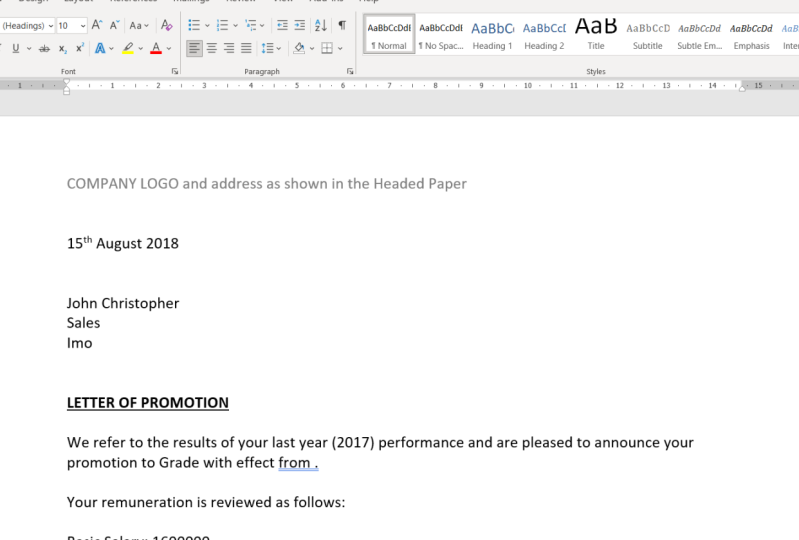
3. Creation of Mail merge Document: Now let's look at this letter, which is a letter that's on organization, can be writing to several employees. It's a letter of promotion. We have the dates, which is the same for everyone, but the stuff name department location will be different on well populated from my Excel databases. We also have the first sentence, which will indicates the person's new greed. So in between here would need to put the grade for the stuff I would need to put the effective dates could decide to make the effective date of the same for everybody, so type it in here and not have it on the database. But if you have a situation where people have different dates or effective dates off promotion, for instance, you would need to put the different dates on the database so that it picks it for the different people. Now remain aeration, obviously is going to be different for different people. So for the basic salary housing on transports, the information will be picked from the database. Every other part off the letter is the same. So if we want to create this, for instance, for a population of employees were to receive a promotion letter. You wouldn't want to be typing this information one by one once you have it on your database. So when we've done creating our letter, leaving the space is at least making an indication off where we want to populate from Excel . We now save our letter and keep it aside on Go to Excel, to look at our database. So to recap, our documents will contain everything that is Constance all those parts of the document that won't change. You know the contents off the letter that does not change from person to person, and the letter will also contained the spaces where we're going to put in our about fields . So we can either type in something to remind us that we need to put in a field there or we leave a space on. Even if we're making a letter to 1000 employees at this stage, we just create one page, just a one page document that word on Excel were used to make image to the 1000 employees. Obviously, if there's more than one page to your letter, if, for instance, it's a contract of employment that spans over 16 pages, that leads to Goto each employee. You need to type the entire document, even if it's more than one page on on the page where you need to insert a field. That's where you were in set a field.
4. Creation of Database: So in Excel, we have this data which shows the employee's names, stuff, numbers, their departments, their grades, their present grades, the agenda date of employment are so on on here. Also, you have people who were promoted. If you look at this information, you find out that not everyone is promoted. So those who are promoted have their new grades showing. So we have those who have promoted in column M so not everyone is promoted, for example. So we're going to use this to show how to populate our letter. So if this is our database and we're comfortable with the letter B is what you need to do save your database so you press control s to save on. Then you close your excel file. You would also, before you close your file, remember where you've saved the detail because if you're looking for it so you can't find it, you'll run into problems. So to have a successful marriage, you need to ensure that in excel your field headings on the first rule. In the example shown, you can see that daisy heading. They're heading for the file. And there's also a subheading and by the time you get to your field headings, it's actually on Row three. Andi, your mail message will not be successful. So especially if you see your file. Please delete the 1st 2 rules so that your title or your field headings on the festival. I make sure that when you finished with your Excel file, you save. It's on you close it. You can't have the magic file or the magic database open when you're doing a mill, Midge.
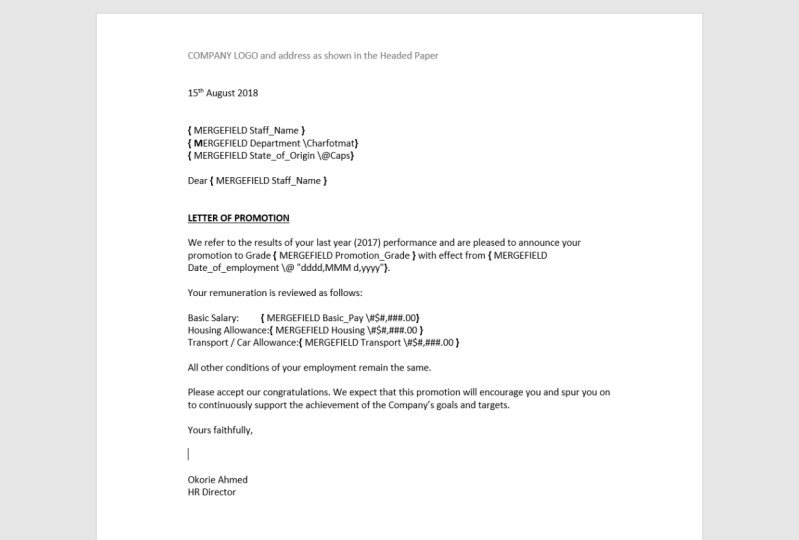
5. Actual Merging: so here. Now we have our letter on to do a male midge. We go to mailings on we start the male match. So we're using a letter. We can either type, click or letter or we go step by step. So let's go step by step. I think it's an easier method. So step by step, we would now have mill message showing on the right time site. Now, even if it's hid in the corner, you can drag it out to where you can see it. So this is the mail maj dialog box on. We have stepped one off six. Now, first of all, we're selecting the document type we're using for the mail message and what we're using here is a letter you could also Maj envelopes. You could manage labels. You could actually even maj email messages so that the email goes to several people. So since we've chosen a letter which is going to a group of people and this is our letter, we choose next and here is asking us if we want to use the current documents. If you don't want to use the current document that is open, you can choose another one, and then we press next to populates the information now to populate this information, remember, we're going to use our excel file. So you would not at this point use an existing list. Andi browse to find it. Remember that the Excel file is not open. You do not leave it open, so I have it on my desktop. So we'll find the Excel file on Inside Excel file myself File has quite a number off sheets . You will see the list of sheets in the Excel file you know, scroll to the sheets that has the information you want to work with. In my Excel file. I have a sheet called Madge Data, and that's where the information I should previously is. You press OK. And now we see the mail message recipe INTs now issuing us the data source. The stuff names is showing us all the fields the way they are in our data file. Okay? On its populated this field. Now, simply saying we just say OK, because this is exactly what we want. So the next step since we have selected the image data sheets in our file, the next step would be to write our letter or to populate it with the fields. So we go to the next step. Now, in this step, we're going to be a set in the match fields. So to inside the match fields, we click on your search management fields. I will see all the field titles in the alternative. We can click on the drop down and we'll see them all here. So what you do is to go to the part off the letter where you want to put the marriage field . Maybe you've put if type teen stuff name just as a placeholder. And here now, you take the field stuff name. You will see that you have these brackets at the beginning and the end to shoot that It's a field. And also, if you click on it, there will be a highlights from word which shows you that that is a field. So you do that for all the areas where you wants population from our database will change department, for instance, you can removed this department that we've typed in here and put in departments field and then location. We don't have location in our database less Just use state of origin. So we have state of origin. What? I did there. Now go down the letter. We have grapes in our documents. So we creating creative space there were put in the great the promotion grade. Remember, we had no more grade or actual Great. And we have promotion great for only those who were promoted. So we can put promotion great there And make sure you have a space between the field itself and the next or the proceeding. What? And then you put the effective date off promotion. Remember, we said that if we have the same date for everyone, we can put in the date of the letter which is 15th of March 2019 can living there since it It's the same for everyone, but it is different for everyone. You would need to populate the database with the different effective deeds and pick the field there. So here Now we come to the figures. Now, normally, in a letter off this kind, you would want the figures to be aligned toe to the decimal point. So we go to view and check the ruler If it's not already checked so that the ruler here will appear. Onda. We make sure we only a decimal tab on. We create a decimal tub where we want the decimal toe appear for these rules. That's where when we when we put our field there, it's going to be aligned to the decimal because their figures. So we tap to the area on when in sets, go back to mill match to our meetings and we set the match field. So the match field for basic salary will be basic pay. We do the same for housing with top on, we set housing we term for transport or cower line was on. We add transports. We could also have a deer on out to the stuff name again that where we have the address written properly. So the stuff name will appear up here. I will also up here, here, So once we're done here, we go to the next stage, which is to preview the letters. Now we'll find out that in the preview it has picked the information from our data bees into the letter. So each person has new salaries, a new Greek, but you'll discover that's word has not taken the formatting for the figures into the documents, so the formatting from Excel did not carry over automatically into a word. To be able to do this, we need to activate dynamic data exchange at the beginning. So look at this in the next lesson, another way off formatting. The information in word is to use a switch. I will also look at this in our next lesson, also where we need to match emails to different employees. We can also use a male midge. But for this to work, you need to ensure that your doctor bees has a column that has e mails on. The emails have to include both the name or the first part of the email at on the demanding for it to manage successfully, so it's exactly the same process. The only difference is that you will not be merging your main body with the different fields into people's email addresses. On this only works in Outlook, where you have an engine that can work with word to do a mail message into people's emails . So the emails will go to staff to different staff with their various information changed in the body. Off the email, one thing to note also is that when you do an email message into on email, it will not. Outlook would not take the signature that you already have provided as defaults and signature, so you would need to create a signature in the body off your text in word before you merge it into an email. Also, you need to save your database you like, so far as a CS V file. So when you have your Excel file, you can save it as excel and then you go and you save us. So the database that you're going to be using to link the message to will not be an Excel file, Percy. But it will be it not CIA's refile, which communicates easily with word for image into e mails.
6. Filtering our Data: So I'm going to be looking at Phil Train, which involves looking at the information that we have in our database to pull out only those records that's conformed to the specifications that we give in our filter. We know that not everybody was promoted in our database. We want to make the letters for only those that were promoted, So that's what we're going to be looking at now. One thing you will observe is that it has also included if you move to the next one. It has included people who were not promoted, so you can see that this person, for instance, does not have a new greed and does no have new salary now to solve this problem. What we now do is to go back to the aid its list, and we put in a field that will filter out only those who have information. I mean the promotional grade list. We can also do it for any of those who have information in the basic P or transport or housing, as the case may be. So we come here, we add a filter and we go to the promotion great lists, which is the last one, and we see the promotion. So we're telling me to filter out records were promotional. Greed is not empty, okay? Or is not blank. So it's only those where the promotion grade is not blank, that it will feel tired for us. So we will put on okay, here, we'll see that it has only picked those who have promotional grade with a figure in it. So our data has actually reduced. So if we say okay here now, it's no longer going to take the people that have no information in that field. So if we go to the first record, we have John Christopher and his data as so on the second person, the third person all the way to the last person, which is a record eight. So when we're done with this stage, we now complete the midge on completing the Midge would now send the message to either the printer which will not print the eight separate letters, or it will send it to another file where we can do for the editing. So if we want to do for the distinct imaginary new documents, or maybe you want to save the matched document in a new and file, you know, tell you to match all the records. Well, if you want to select a few of them, you can select the ones you want to manage and you know, press. OK. Now word is going to create a new documents which normally by D 40 toe call letters one let us to let us three letters for as the case may be. So we just created the first major Midge document. And if you look, you'll find out that this document has eight pages. So it has split our one page document into eight pages for the eight different people picking their information as provided in our data. Bees wants to split the letters into the it's letters. It's no longer linked to the database, so if you make any change on the database, it will not affect these letters. This is essentially a total word documents now and no longer linked to the Excel databases . So you can save this document if you wish. With the eight pages you can go back to the marriage documents that we were using previously. Andi here, this one is still linked to the Excel databases. So when we did our filtering, we used the is not blank filter to say that we want only the records where the field is not blank. In other words, only those who have a promotion great are the people whose records who want to filter into our midge. So it picked only those eight people out of the several employees and data that we had. We could also say, not equal to. So if we have a particle Africa in mind and we don't want to filter for those people, we put in that figure as they not equal to, so it will filter out for all those who are not equal to that figure. Similarly week I use greater than or less than or if we have a particular field. Maybe the field contains, in a particular phrase, you want only those words to be filtered out. You can see it contains, so you wanted to filter out only the fields that contain that particular information on the same way you can use does not contain. So these are options that are available for a filter that we can actually use to pull out data, according to specifications that we require so you can go ahead and on them, exploit and see the different results it can give you for your filter.
7. Formatting our Document fields: now two former to the figures. Make sure you're still on the message. Letter and documents and not the final Documenta has been matched into the different pages . Make sure you're still on the warm page documents. Andi, you press alternate F nine takes us into the field courts so you can see that each of the fields has been replaced by the court for this purpose. We can't go into the brackets and in such a switch, which will now tell words to recognize a particular formats for our data that's coming from Excel. So one way to put a formats on our fields is to go into the court area. So alternate F nine will enable us in set switches that will modify the formats off that particular field. Some switches specific to the kind off field slave IDs and numerical field, or one that has numbers. There are particular switches you can use on. Some are specific to text. So in other instance, we're going to use a numerical switch, and there are different formats for the miracle switch, which would give us different results. So if you put the I m hashtag hashtag and put a calmer three hashtags, for instance. It was summarized to the nearest whole number. So to put a decimal place with commerce on with two decimal places, which is the number for much for currency, we'll put it back. Slash the hashtag two times who put a comma three. Hashtags 0.0 And if we do this in each of the areas where we need formatting and then we press alternates F nine again, you'll find out that the figure has been formatted properly. So if you go ahead and do the same alternate F nine to go into the court who put in our switch, I would go back again with alternate F nine. It's love dates for the other figures. We can also look at our fields that are texts and see what switches can do to change the format. Well, recorder with putting stuff, name, departments and so on at the top of our letter. So let's see what switches can do to change the formats. So when we leave a space after the marriage field, remember Wayne alternate FBI environment, where we have the court when we leave a space and put it back slash on put any of these switches chart formats, caps first cap apart lower. It's going to effect the former off the of the information that is in that field traf format, for instance, will apply whatever for much. We apply to the M, the Capital M that we have in marriage field. Whatever we for much were played to the end in the marriage field is what's going to apply to the information in the field Caps is going to capitalize. The first letter off each word fest cup. The first letter of the first word our power capitalize or letters on lawyer will make all the letters lower case. So let's have a look at our documents where we put these switches in our field areas. So here we have gone into the court by pressing alternates f nine. And if we look at our text fields there we have stuff name. We have department. We have state off origin. As we inserted them anywhere, you'll find out that we have now added a switch. So at the end off stuff name, we have put a switch, which is the lower and switch for the department. We have put the character for months. Andrea, remember what we said for character formats or carful matter? Chart formats, Whatever you put as the formats on the capital M on marriage field is what that's field will now have as its formats. And then we have open on the state off origin, which is going to capitalize all the characters. So when we press alternate F nine now, we'll see the effect it has on the contents off those fields. So looking at her fields, remember for the stuff name, we put it on lower and we can see that no matter what's formatting we had in excel, it has made all the and all the characters lower case on the second place, where we have departments were put in a chart format or a current or former on DWI made the end in the world. Medfield we made it bold, and we made it right. So that is why the information that it has picked as the second as a result of that field, which is sills, is now bold. And it is right on the last one which was ST off origin. We put in, um, Oprah, which has made all the characters upper case so we can see that any state that shows in any of our letters now will be capitalized. So notice that even when we go out of the preview, which is the populated fields, when we go back to the fields themselves will see that the format that has been applied with the switch will be showing one of the switch that can be used is the dates on train switch on its represented by backslash Andi at. So if you have back slash on acts, it's going to look for a date. Formats. So going back to our documents, we have a date. We have been dating our database, which is actually date of employment, which has nothing to do with our letter. Well, for the poppers off demonstration, we have incentive date of employments as a field in our letter, just in place of the date off promotion. So have date of employment there because it is a dates in our database. So we have in such a Barfield there in Excel it is actually, dates on a date can be shown in various ways in which could be shown in the long for Max, Wait says Monday, the 25th of December 2000 and five. Or it's kind of sure 25 stroked 12 stroke 2000 and five. Or it can show it with the dash, whatever the format we wants to put in which I use the switch to determine the formats for the dates. So we're going to look at one example off changing the formats with their switch. So here, now in our debt of employment field when we have pressed alternate F nine, we have put in our date switch. Now the deaths, which, as we've explained previously, is shown by the back slash on at on the different formats. You can use a combination off D for day M for month on Dwight for year to show different formats for date. So the former that we have put their everything is in inverted commas because is taking it as a text string. So de de de de or forties will give you the full and day off the week so to leather spell out Monday or Tuesday or Wednesday, as the case may be, and when you put in, um, the three m's, it will give you the aggravation aggravated month. So if you January to give you JN and then 34 wise would give you the long year, which is 2016 and not just 16 So with this switch that we've put in this way is going to give us the day of the week is going to give us the month on the dates and then is going to give us the full year. So here we can see that you can see that with the four D's and we put in debt has given lost Friday. The three m's has given us January aggravated on, then had D at the back off. That's which has puts January 1st or the first. So if wanted space between January 1 would have to put a space in our code. And then we had a comma in the fields in the switch, and then we have the full year, which is 2000 and 16 so you can use a debt switch to format the date from excel in the way that you wants so you can use different variations off these off the D m on way to give you the kind of debt you once, and you can also use hours, minutes and seconds the same way we format dates in excel if use it in your switch into now , give you the information in the formats that you require.
8. Project and Final Remarks: Now that we've learned how to do a male Mitch, I invite you make your own nail match with the files that provided I'm close to your results in the project section of this Guess Thank you very much for the class project. I invite you to download the two files that are provided one inward wanting X self and use those two files to create image documents that will produce your five page letter for five employees that were promoted and filtering for only those who are married. I'm post this message documents in the project section off the class. This obviously means that you're going to be using two filters. So you put in the first filter which only selects the records where promotion great is not empty on. You would also need to go to the marital status field as select only those where the field content is, you know, showing married. So you need to filters in this instance on in the same place where you put the first filter . You now put another field time by using the Andi function. So you put in the first field. Are you put in an on and you be able to put in the second filter, so at the end of the day is supposed to end up with only five letters to five employees.
 Linda Adiele, MS Excel teacher | HR expert | Artist