Transcripts
1. Introduction: Hi, I'm Gary, a data analyst and the
founders skill quest. And I'm really excited
to welcome you to my Microsoft Excel
VLookup masterclass exclusively on Skillshare. Now in this class we're
going to learn all about the VLookup function, which is one of the
most valuable and powerful real-world
Excel skills to have. And that's why I designed
a whole course around it. Now, during this class, you're not just going to learn
how to do or be looked up, but you're going to
learn the why behind it. Next, we'll explore
multiple different examples that you'll be able
to try on your own throughout the course. We're also going to look at the top common issues that can occur and also how
to avoid them. And lastly, we're going to have a challenging class
project at the end so you can test out all of
your new techniques that you learned in this class. Now I designed this class for the absolute beginner
who wants to learn the VLookup function in an easy to follow and engaging way. Now my goal with this
class is to take you from absolute beginner
level to approach. Or you'll have the confidence when you leave to be able to apply those techniques that you learned here to the real-world, whether it's your job
or your business. So if you're ready to up your Excel skills and learn
all about the lookups. I welcome you to join
my Microsoft Excel. You look up skilled west. I'll see you there.
2. Getting Prepared For This Class: Now I do want to share a few tips really quick
before we jump in. First tip, if possible, I would suggest using
headphones so you can hear the audio clearly while
avoiding any distractions. Or if you prefer not to, I would just suggest
simply trying to be in a quiet location. Next, if you feel a certain lesson wasn't
completely absorbed, I would suggest re-watching
the lesson again and then trying yourself on the
example sheets I provide. That way you'll be
a 100% ready to go and move forward
to the next lesson. Next, I would just make
sure you're at a computer that has Microsoft
Excel 2013 or higher. That way you are able to follow along and try the examples
that I'll be providing, as well as complete the project at the
end of this course. Next, I would suggest
that Justin, your volume, your video speed, and your
video quality if needed. And you can do this by just hovering over the video
screen at the bottom here. And your Skillshare video bar
will pop up and you'll see all the settings within that
bar that you can adjust. And then lastly, I would
suggest trying to block off enough time needed to complete all of the lessons
you'd like to finish today.
3. Why The VLookup Is Important: Alright, so now that
we're prepared, Let's start our quest. The VLookup function,
in my opinion, is probably the most
important Excel formula to know if you have a job
and where you use Excel. It's not too complicated at all. Once you understand
how it works, the same time, it's
just an extremely useful and powerful tool. I remember many years ago prior to me being
a data analyst, I was on a job interview and I was asked if I had
experienced in Excel, which I said yes because I did. But then I was asked if I
knew how to do a VLookup. And I remember the
time I heard of it, but I didn't really know how to use it
or what it was for. I was truthful and I just said, I don't needlessly, I did not get that position
at the time, but that experience actually gave me the desire
to not only want to understand the lookup was
and why it was so important, but also to become as
advanced as possible in all aspects of Excel, which ultimately led me to becoming one of the top
analysts within my company. So why is it important? Why do a lot of job interviewers ask
this specific question? Well, if you work
in Excel every day, there's a good
chance you work with different spreadsheets
that contain different data within them. And some of those spreadsheets
may have data that's related to the data on
other spreadsheets. And a lot of the
times you may find yourself needing to merge data from different spreadsheets into one spreadsheet, right? And then once you have it in one table or one spreadsheet, you can analyze it
from there, right? Maybe you need to throw
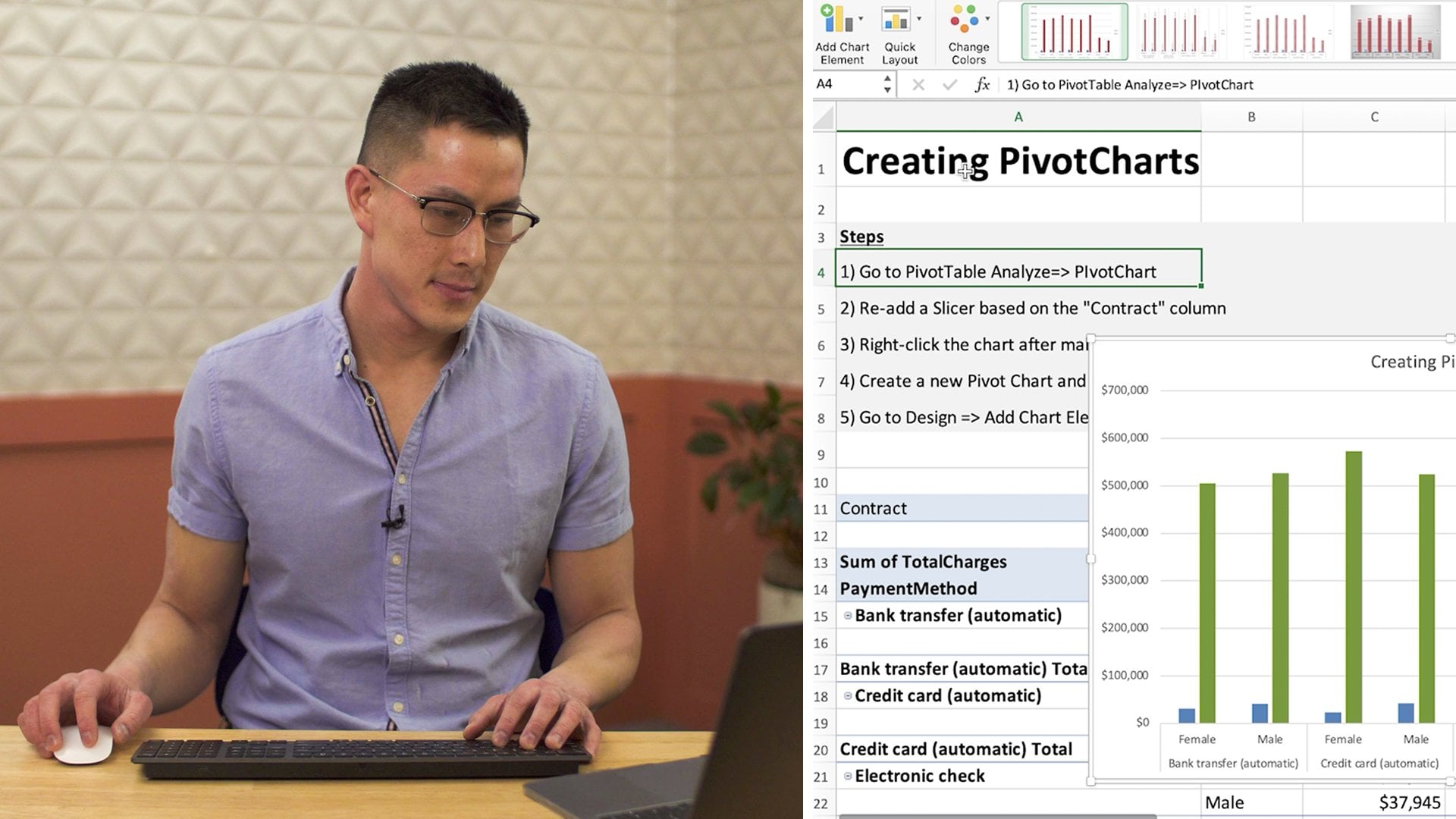
it in a pivot table or make an awesome chart like you see right here
that I made, right? So understanding how
to do a VLookup, it's just a very
important skill to any job position that involves the use of
Microsoft Excel.
4. How The Vlookup Function Works: So the VLookup formula, I think, is one of those
formulas that can be difficult to perhaps
understand at first. So I'd like to start with an example completely
unrelated to Excel. We actually perform VLookups outside of Excel in many
real life situations. For example, let's say
you go out to eat. Let's say you walk into
a restaurant, right? That makes subs. And you really want Italian sub. So you know, you
want to tie in sub, but what you really
want to know is the price for a
large Italian sub. Alright, what's the price? Well, in most cases
that would require you to actually do a
VLookup in your head. First, what you're
going to do here, when you're looking at the menu, you're going to look in the item column until you
find the Italian sub. Is that the item that you want? Once you have found it? You've linked the item in
your head that you want to, the item that is on the menu. So you've got that link. Okay, Now, the next step
here is you're going to move your eyes
over to the right until you get to
the column that has the price of the
large Italian sub. And once you find it, you're all set right
now you know the price. And you've basically brought that price over from
the menu to your head. And you know what the price of the large
Italian syllabus. And really that's, that's essentially what a VLookup does.
5. L1: Vlookup Into One Cell: Alright, now that you understand how the VLookup function works, you're ready to move
out to less than one. Now, in lesson one,
what we're going to do, we're going to learn
how to bring in one value into a cell. So in this example, we have a worksheet that will
give us the account name in cell C6 based on the account number that
we enter in cell C4. So every time we enter into
an account number in cell C4, we want the account
name that's in cell C6 to automatically update. Now, to do that, we're going to have
to write a VLOOKUP. So step one, we're gonna tell VLookup to look for this account number that
we'd typed out right here, and that's in cell C, C4. Step two. Next, we want to find that value in this first column of this whole range
that we highlighted. Step three, if it does find that account number
and we have a match, we want Excel to bring
over the account name. And it's going to be in the third column over
from our matching column, which is our starting
column, right? So we would enter in a three. And then the last step, we're going to enter in false or we're going
to choose false. And that way, it's
going to look for the exact account number
that we typed out. We want to make sure
it matches it exactly. So that way the account name that we bring back is
going to be the right one. So take a good look at
this formula we have here. Okay, Pause if you need to. Alright, so let's see
if we found a match. Okay, so we can see
that it found a match, match the account numbers. And then after it
found that match, we told the VLookup to bring
over whatever value is in the third column
over from our match. And in this example
it's Hanford. So we brought over Hanford. So now what we're going to do, I'm going to jump into Excel. I'm going to do this exact
example live for you. Alright, so the first thing
we're gonna do is enter in an account number in cell C4. So I'm gonna
double-click in there. And we're going to type
out in account number. The account number
I enter just for this example is
for target, right? So next, we need, our goal is to bring in
the account name into cell C6 based on the account number that
it's related to, right? So in this example, we would want to target
to populate right there. So we're going to start typing
out our v lookup formula. So I'm going to
double-click in this cell. And I'm going to
type equals V L. And I'm going to
press the Tab key. Now, I could type out the whole equals b look-up
and spell it out. But you don't need to because
as soon as you type VL, you'll see that V lookup, the function name
populates right below. And then you can just
simply click Tab. It does it for you, and then it opens up
a parentheses, right? So now we're ready for step one. Lookup value. What do we want to look up? Well, we want to look
up the account number. So I'm just going to click in cell C4 because that's where
the account number is. Alright. I'm going
to press comma. And now next step. Where do we want to look
for that account number? Okay, where's the table array that contains the
account number? Well, I can see it's in, it's in column E. So I'm going to start there. And now I need to ask
myself, okay, Well, I found the column that I want to try to find a match with. I know that my account number, I want to look for
it in this column, but if it does find a match, okay, what do I
want to bring over? If I wanted to simply bring
over the account number, I could just stay right here, but I don't want to bring
over the account number. I want to bring over
the account name. So I'm just going to hold
my left-click down and highlight all columns until I get to the account
name column. And if you look really
closely at the top right, you can see Excel
actually shows you how many columns you're
highlighting. So for example, right
here are starting column, right where we want to
try to find a match. It's number one, it says One C. And if I keep going
all the way to the account name column,
it says three C. So I'm already prepared for
my next step because I know exactly how many
columns are over. I need to be to get
to the account name. So I'm going to stop there. Press comma. And now step three. Okay, how many columns over? Well, we already said
that it's three. We saw that. So we're going to
type three comma. And then the last step, we are going to select
false for exact match. So I'm just going to
use my down arrow and then press tab. And then I'm just going
to close my formula with a close parentheses
and then press Enter. And it worked. So now let's, let's try another account
number, see if it works. So I'm going to do shows. And it worked, right. We have shows in here and it populated. Let's do the account
number for Walmart. And we're good. Alright, so that's one
way to do a VLookup. Now I'm going to
show you another way we could have done this VLookup. I'm going to clear out
this formula completely. And we're going to double-click
in here and do it again. So I'm going to type equals VL, and I'm going to press
Tab my lookup value. Again, I'm going to click
C4 and press comma. So, so far we haven't
changed anything. But for the second step, instead of me highlighting the entire column or all
three columns completely, I'm gonna do it a
little different. I'm just going to
select the range that contains the data within the columns that I
want to look up. So in this example, we're just going to
select E4 to G4. And now the rest of the
steps are exactly the same. So that was the only
difference, right? Comma. We'll do three for
the third column. Again, we'll do an exact match. Press Tab, close your
parentheses, and you're done. Now, if you are going
to use a range though, it is always best practice
to lock the range in place. In this example. In particular, we
don't have to lock it only because we're only
looking at cell C6. So that range that we just highlighted is
never going to change. However, we were working
within a spreadsheet that had VLookups that we're
going down a column, right? Let's say we wanted to bring in VLookups for account numbers
all all the way down, right? If we did that, the range
would actually change. If you look closely
at the formula, see how it pushed down. And then each time it
pushes down, right? So because of that, best practice is to
always lock your ranges up to weight, the
weight and lock it up. As soon as you go to step two
and you select your range, you just going to press F4 on the keyboard to
lock it in place. And then I'm going to, again, we'll go third column, exact match and we close it. Now you may be thinking, well, why would I do that? Why do I want to waste
my time having to highlight an entire range of
data and then lock it up. And honestly, I, I agree. I, 99% of the time, I just highlight the
columns themselves. It saves me time, and it works perfectly. The only thing you need
to be aware of though, if you do it that way, is you need to make sure that the columns that you're
referencing are clean. And when I say clean it mean, I mean from top to bottom, they only contain the data that you want to look
up and bring back in. Okay, so for example, let's say this was a
spreadsheet that was not very clean or was the spreadsheet that had
multiple lookups in it. And we had this random
data underneath. That's a situation
where highlighting the entire column would
not be a good decision. So to summarize it, anytime the columns are clean and don't have
unrelated data, we can just go
column the column. However, if there is
unrelated data and, or you just want to focus on a particular group of data
within the columns themselves. That is, when you would use a range and you
would lock it up. Again. We will explore this a little deeper
in lesson two. Alright, so at this time I
would encourage you to go to your resource section of this Skillshare course and open up the lesson
one Excel workbook. You go to lesson one tab, and then you can practice. You can go to cell
C6, double-click in there and practice
writing a VLookup. If you get stuck, you can ofcourse rewatch
portions of this lesson or you can even go over to
this lesson one Completed tab, and then click in cell C6 and it'll show the
formula for you. Alright, so good luck with that, and I will see you
in lesson two.
6. L2: Vlookup Into A Column: Alright, great job
completing Lesson one. Now we're moving on to
lesson to lesson two. We're going to learn how
to bring in lookup values down an entire
column all at once. So for example, we
want to bring in the product prices for these five products that we have here on the left-hand side. And we're going to use
the ID as our link, right, to bring that product, those product prices over. Because we know the ID exists in both tables as we can see. So let's review the
steps to do this. So step one, we're
going to look at the product ID
that's in cell B3. Step two, we're gonna go search for that product
ID in this other column. So this column F, That's our starting column
for our table array. Now we're going to highlight all columns of this table array until we get to
the product price. Step three, we need to know which column the product prices in that we want to bring over. Well, we know our
starting column is always going to be number one. So if we look okay, well, our price is in column G. So that would be the
second column over. So we're going to enter
in a two in our formula. And step four, we
want to make sure we match these ids
exactly that way. The product price that we bring over is going to be accurate. And our formula is complete. We close our parentheses and we press Enter and look at that. We have a match for our code. Now, let's incorporate
one new step. Let's drag that VLookup formula down this entire price
column and see what happens. And when we do that, we can see that a return
the product prices for all five products automatically.
That's pretty cool. Now, let's jump in Excel
and see this in action. Alright, so step one, we are going to double-click in this first product
price cell D3. We want to bring in
the product price for code, so equals VLookup. Next, want to look up the ID and we're going
to try to find a match. So I'm going to click
cell B3 breast comma. And okay, where do I want
to try to match that too? Well, it looks like
it's in column F. I'm going to
highlight that column. And what do I want to bring over while I want to bring
over the price? So I'm going to continue highlighting my table array is going to contain
these two columns. And it looks like column
two is where the prices. So I'm gonna press comma two. Comma. We want an exact match. That way our price is accurate. Then let's close it up and
look at that. We have it. Now our next step, I'm going to come over here
to the bottom right corner. And it's called the trace icon. And I'm going to left-click and hold and just drag it down. And if you look closely, you can see that it brought
down the VLookup formula. And what it's doing each
time it does a VLookup, it's looking at the product ID. So let's look at this column, this row right here, row four. We look at the
formula, we can see it's looking at before. And then it's looking
at these columns, looking in the second column. And if it finds a match, it's bringing over
the product price. So that is how you
perform a VLookup and copy it down your column. Now I'm going to show
you the way to do this if we just wanted to
highlight the range. So we'll clear this out. And we'll do equals
VLookup id comma. This time we're just
gonna do a range. And remember, anytime you're gonna do a range,
we need to lock it. So I'm going to press F4 comma. We know it's the second column over That's where the prices. So I'm gonna put a two comma. We're going to
press down dislike false and press Tab, close. Our parentheses are done. And I'm just going
to drag that down. Alright, so both ways
work perfectly fine. Now I'm going to show you, let's say we didn't
lock that up. I'm going to show you
what would happen. So we're gonna start over here and I'm just going to do equals VLookup product id comma. And we're going to
select the range, but we're not going to
lock it up this time. Comma, second column over comma, exact, those in
parentheses done. Now let's drag that down. Now we can see here we
have an issue, right? We have these two NA's. Now why is it doing that? Well, if we look closely, we can see that the
range has changed. So each time we, it looks at the VLookup
goes down our column. It's pushing the range down because we haven't
locked that range. So again, see how
it's pushing it down. Right? So that is why it's so
important anytime you are going to highlight a
range that you lock it up. If you plan on
performing a VLookup, that's going to run
down an entire column. Alright, so in this lesson, I showed you how to
drag down a VLookup. I'm going to teach you
two more important rules of a V lookup that are very
important to be aware of. So the first thing
is the fact that it, when you do a VLookup, again stands for
vertical lookup. It is always going to return the first instance that
it finds of the match. Okay, So what that means
is that for example, let's say for some
reason we had an ID. We had the identical
ID and a column, and one had a share price of 9999 and the other one
had a different price. Okay? You can see here
in my b look-up, it will return the
first instance as it's looking down after, after finds a match, the price. So it finds it first boom, it ignores the second one. So it's very important
when you're trying to look for a certain data point, a value to bring in. You ensure that the IDs or whatever link
that you're trying to match up with only has one instance of it
in your spreadsheet. It's very important you
have a unique value. Because if you don't, and let's say for example, you are looking for
this one instead, you're not gonna, you're
not gonna get that. So please keep that in mind and we're going
to explore that further in further lessons here. The next thing I
want to talk about is the fact that a VLookup, when it's looking for
data to bring in. After it finds a match, you have to always look to the right of that matching,
that starting column. Remember how we
talked about starting column where we're
trying to find our matches always number one. And as we keep going, the columns grow bigger, right? So prices in the second column, we can't go backwards. I can't go like this. For example, if I were to
put the price here, okay? And allow it to try to perform a V lookup and go equals
VLookup product id comma. And now let's say I want
to go backwards, right? Then, okay? Second column doesn't work. It says an NA. And you can put negative two or
anything like that. Bottom line is, it doesn't work. So again, you have to make sure when you're
performing a VLookup, you're always going to the right side of
the linking column, the starting column, which again is the one
that you're trying to match up from the table that
you're bringing data into. Alright, so that
concludes Lesson two. At this time, I would
encourage you to open up your lesson to Excel workbook located in your resource section of
a skill share course. And try this for yourself. And what I'd like
you to do is type in the VLookup and
then practice dragging it down and making sure that
you lock up your range. Alright, I will see
you in lesson three.
7. L3: Vlookups In Multiple Sheets: Alright, awesome job
completing less than two. We are now at the halfway point, so let's continue
here, keep climbing. And we're going to move
up to lesson three. Alright, so for lesson three, I'm going to show
you how to combine two separate Spreadsheets into one utilizing the
VLookup function. So here we have
two tabs of data. This first one
here is the height of females by countries, which are ranking the
heights by country. And then we have
another one here. It's the height of the males in the rankings of those
males by country. And it's showing the height
in centimeters and also feed. So let's say we wanted to combine these two tabs
of data into one. So in order to do that, first thing we need to
understand is if they both have a unique column of data that we can link them together
with for our v lookup. So let's take a look
at these two tabs. We can see here that country name is
in the women's table, and it's also in
the men's table. So there we go. We have a lookup value, a column that we can link
these two tables of data together in order to bring
in other columns of data. So the first step here,
what we're gonna do, we're just going to copy this height of female
by country tab. I'm going to right-click
on it and click Move or Copy, move to end. Create a copy there. And we're going to name this overall rank country. Okay? So this is where our
new table will be, right? So we're good. We already have the women's information because
we caught it, but we want to bring over
the men's information. So what I'm gonna do here is I'm gonna go over
to the men's table. And I'm just going to
highlight these headers. So I'm going to copy them. Then I'm gonna go
over to our new tab where it's gonna be overall. And I'm going to paste
them right here. And we'll make, we'll
highlight those columns and double-click in-between
so we can see it. And then we're going
to apply a filter to all of the headers. So I'm gonna unfilter
filtered back. And now we have filters. And one other thing I will do is pipe borders just to
clean it up a little bit. So we're just going
to apply borders. And I'll even make it
a different color. Now we're ready to
put in a the lookup. So we want to bring
in man's rank, men's height in centimeters, men's height in feet. We don t want to bring in the country name because
we don't need it, right? We already have it in column C. So I'm gonna delete
that right there. And these are the three columns of data that we
want to bring in. So let's start doing a V
lookup in for the men's ranks, I'm going to double-click
in there equals VLookup. What are we looking at? Well, we're going to look
up the country name, comma. Where do we want to look it up? We want to go over to the
height of male by country tab. And we're going to look
it up here, right. Here's our starting color because it contains
the country name. So we want to try to
find a match in there. Okay, great. What do we want to bring in while we want to bring
in the men's rank. Wait a second. We don't have the mens
rank to the right. It's to the left. So we ran into a problem. So I'm going to show you a
quick easy way to fix that. So I'm going to press Escape. And we're going to go over to the height
of male by country. And what we wanna do,
we wanna make sure that country name is
our starting column. So it's the first one to the left of all of the other data columns
that we want to bring in. So I'm just going to copy
the man's rank column. So I'm going to highlight
it and click Copy. And I'm going to
insert it right here. This is just gonna be my
temporary column of data. So then that way I can
perform my VLookup and bring in these
three columns of data. I'll, I'll more than likely
deleted after I'm done, but now I have it. So now I can perform IV logo. So let's go over to our
new table and do this. Vlookup equals VLookup.
What do we want to look up? Country name, comma. Let's go over to
the height of male. Here's our starting column. We want to search for
the country name. We want to bring in man's rank. And how many columns
over is that from our starting
column, it's too, right? So those two right there. We'll go to back match. Perfect. And let's do a VLOOKUP
again for height of male in centimeters and then
also v equals v lookup. Your name. We want to
bring in centimeters, that's a third column over. So it will go comma
three exact match. Close it, done, and do it
one more time for our feet, height, male height in feet. So we're going to look
up the country name. Find in here that finds it. Bring over that male
height in feet. That's the fourth column over. So we'll go for exact
match. We're done. I'm going to highlight
these three. And then I'm just going to
double-click on a trace icon. And boom, we brought in our information that
we wanted to bring in. Now I'm going to
show you a shortcut. So I'm going to clear that out. And I'm gonna do this again. So equals VLookup, country name, comma, go to the height of male. So this time instead of
stopping at man's rank, and I know I only want to
bring in men's rank there. I'm going to highlight
the entire table array. So the entire, all
of the columns that I plan on bringing
in eventually. So I'll stop here, column F. And what you need
to look at here, we know that the men's rank
is in the second column, the men's heights and
the third by centimeter. And the men's height
in feet is the fourth. I'm just going to
remember those numbers. I'm going to highlight
the whole table array and press comma. Now what do we want to bring in? We want to bring
in the men's rank. That's what we're
working on. So I'll do two comma, exact match. Okay, here's our shortcut. We, because we selected in
the entire table array. Okay, so as column
C all the way to F, What we can do now is copy this formula by highlighting it. Control C to copy and then
come over to column G. Double-click in there, press
control V, and then enter. Come over to column
H. In this cell, we're going to
double-click in here, press control V. Press Enter, and we copy the formula. Now, the shortcut is after
we copy the formula, we just simply need to change the column index because
it's still on to, well, we already know
the male height in centimeters is three because
we just looked at it. So we'll do three. And we know the male height in feet is
in the index column of four. So there's four. And we're, we're
good there right? Now again, we can
do, we can highlight these data points and we can drag it down.
And we've done it. All right, so I want
to share with you if this information is
static information, meaning you don't want the
formula in here anymore. You just want it to. For example, that says one. We wanted to say one. I'm going to show you a
little, little trick. Basically all you want to
do is highlight all of these formulas are all
our VLookup formulas. So I'm going to highlight
these first three cells and I'm going to press
Control Shift Down. I'm going to
right-click and copy. I'm going to right-click again. And I'm going to select
this little clipboard that has a 123 on it. It means pasta's values. So I'm going to click it. And then now we don't have
the formulas in here anymore. Now, what if we didn't
do that, right? What if we left the
formulas in here? Let me show you a situation where we could run into trouble. Let's say we left
the formulas in here and then we went over
to the height of male. And we're like, all
right, we don't need this temporary column anymore. So I'm just going
to delete it out. But look what happens
when we go to our new table. We have an issue. We have an error in here. And it looks like the height, the male heightened feet went over to the centimeter column. And the male height
in centimeters went over to the
men's rank column. So why did that happen? Well, basically what
happened here is when we deleted or temporary column, it shifted our column index
from the country name. So now the male height in
centimeters is column two. In the middle heightened
feed is column three from our starting column. And then we don't even
have a column for. So if I were to go here and
just look in the formula, I can see okay to three for all the information is wrong because everything got shifted over one to the left. Okay, so that's great
example of where you can run into issues if you don't copy and paste these values. If your goal is to keep
the information static. Alright, so last thing we're
gonna do just for fun here. We're playing with
a fun dataset. We're looking at the rankings of height by females and
males. We've combined it. Now, maybe we want to
see the overall ranking. So we're gonna do that for fun. I'll show you how to do
it. I'm going to copy and paste this header. And I'm just going to
change it to overall rank. And maybe I'll make
it a different color. And maybe I will add
borders to the column. And we'll change that to a
different color as well. Alright? And we need to make sure
we apply a filter on here because we have filters
and all our other headers. So we're going to
highlight those headers, clear the filters reapply. Now we're in good shape. So we want the overall ranks. The way I would do it is
double-click in here. And that would be
a type equals sum. And we can either use
feet or centimeters. It doesn't matter,
but I'll use feet. So we're going to sum
up the female height and the male height in feet. Then we're going to close it. Press Enter. Alright, and then I'm just
going to double-click to bring that formula down. And then I'm going to click
Copy, paste as values. And then the next step, I'm going to sort this
by Largest to smallest. So then that way the
highest numbers at the top. So now I know that is R over our highest overall ranking of heightened
Netherlands, right? So I'm going to enter a one here because that's
our number one. And then I'm going
to double-click here and the trace icon and go down here to our auto-fill options and make
sure it says Fill Series. And there we go. Now we can see the overall
ranking of height by country. So that's pretty cool. You can see now the
Netherlands is number one. If you wanted to look at
United States, for example, we can see United States
is ranked 51 overall. And pretty neat. Okay, so that concludes
lesson three. I encourage you to open up your lesson three resource
and try for yourself. Try combining these
two tables into one, just like we did here. And once you feel
comfortable doing so, head on over to lesson four. And I will see you there.
8. L4: Common Vlookup Issues - P1: Great job at less than three. We are in the final
stretch here. Let's move on up to lesson four. In these next two lessons, we're going to review the top ten common issues that can happen when
doing a V lookup, and then more importantly, how to avoid those issues. Now in lesson four, we're going to review
the first five. These five are ones
that we already did touch on
throughout the course. So they're gonna look
pretty familiar to you. So the first one here
is when we're not using absolute references
when we're selecting a range. In this example, we have a
V lookup that is looking at this range and we
did not lock it in. So because we didn't lock it in when we dragged
down our formula, it is dragging down the range with it and
we don't want that. So to correct it is
to just we need to make sure we lock in our range. So I'm going to click
F4, press Enter. And now that we have
our range locked in, we can drag our formula down. And now we have
corrected the issue. So always remember,
if you're going to select a range, lock it in. Number two. We need to make sure that
we're always looking to the right hand side of our starting column within
our table array, right? The starting column is our
matching lookup column. We cannot look to the left. So in this example here
we can see that we have a VLookup and we attempted
to go backwards, right? We tried to go to the price going from G to F,
and we can't do that. So the only way to make this
VLookup work is to make sure the price is on the
right-hand side of our IDs. Now, we are okay. We can do our v lookup. Select our table array,
will lock it in. Second column, exact. And we are good. All right, number three. We need to make sure that we copy our formulas
and paste as values. If we plan on
editing any part of our spreadsheet that references
the VLookup formula. Okay, so in this example, we're going to do a VLOOKUP and we'll bring over the price. And in this example,
it's actually in the third column
from the product ID. So I'm going to select
three is my column index. And drag my formula down. Now, if I by accident, delete this product name column. You can see that now
we have errors, right? Because it's still looking for the third column
over from the id. But because we deleted a particular column between
the id and the price, it pushed price
over to the left. And now we have errors. So the way to avoid
that would be to simply copy your formulas and then right-click
and paste and values. So now if we did want to
delete the product column, for example, over here, the formulas don't change because they're not
formulas anymore. They're static information. It's just static data. Next we have number four. And this is a really important
rule to be aware of. We need to make sure that the values that we're looking
up within our table array, as well as those initial
values that we're trying to match to the table
array starting column. We need to make sure both
of those values are unique. So then that way, the information that
we're bringing back for our v lookup is 100% accurate. So let's take a deep
look at this in Excel. Here we have two
different sets of data and we want to bring in
the price to this dataset. So we're going to use the product ID to try
to bring in the price. So I'm gonna go equals
VLookup product id comma. I'll select my range, lock it in comma, and we want the price,
so that's 12345. So five columns over. Comma exact match there. And then we're going to
drag our formula down. So we have an issue here
because it's showing 999 for all three particular
rows of data here. Now, the problem
is the product ID. We have multiple of those
product IDs within this table. We're trying to bring in this product ID that
has this color code. And same with that,
same with that. Because we're not bringing
in the proper price. We have a problem. We want to match this
with that, right? We want the product ID with this particular color-code to correspond with this product
ID in this color code. So we actually want 899 in here. And in this one we have
the color-code of three. So we want the blue hat, right? And I probably should
have made that balloon. But anyways, you see exactly
what I'm showing here. And then for this one, write one for this
would be our green hat. So we want the 999 there. So how do we, how
do we fix this? I'm going to show you
back up here. Alright. What I'm gonna do
is I'm gonna create a new column in here. And I'm going to
create a new link. I'm going to create a new ID
that's going to allow me to bring in the exact price
that I'm looking for. And as we just saw for this one, we want the product ID
that has this color code. And there's a few different
ways we can do this, but I'm just going
to go equals this. So I clicked on cell B5. And I'm gonna go and
when an ampersand. And then I'm going to click
this cell C5. Click Enter. So now it has
created a unique ID. So I'm going to drag that down. And we'll name this
true product ID. Okay? And then we'll do the
same thing over here. I'll do y equals that. And that enter
will drag it down. And we'll name that the
true product ID as well. So now this is our
linking column, right? This is where we're
going to bring start our v lookup lookup value. So I'm gonna go equals V lookup. And this time I'm going
to click in here. So cell D5 comma. And now I'm going to, this will be my
starting column, right? This is where I
want to search for the values that are in
my true product ID. So here's our link. I'm
going to drag it over. And it looks like it's
in the fourth column, the product price,
I'll stop there. Comma four, comma, exact match. We go. And one thing we need to make sure we do that I did not do. We're going to lock in
that absolute reference. So I'm going to click F4. Click there. And now we
dragged out. So there we go. Now we can see that we have the correct prices that
we were looking for. Now, I'm going to show you
one other way you could create this true product ID. I'm going to clear this
out. Clear that out. This is the personal way. This is the way I
personally like to do it. I like to create a text link. So instead of a number, because that could
get little tricky. Maybe you have product IDs at our number 12 down
the road here. I'm going to create a
unique ID by clicking, I'm going to go
equals product ID. And I'm going to type. And
now what I'm gonna do, I'm going to separate the
one and the two with a dash. And the way to do it
is you want to hold the Shift key and press
the quotation button. And then I'm going
to press dash. And then I'm going to
close those quotations. And I'm going to press the
and the ampere sign again. And we're going to type in C5 because that is the product color ID that we
want to use to create RED. And there we go. And I'm going to drag that down. Instead of it saying 12, we just created a
unique text-based ID. And to me at least That's a
cleaner way of creating IDs. And we'll do it again
here, equals this. And quotation dash,
closure quotation. Again. Here. Enter. And we'll drag that down. And there you go. So we've created our
clean new product IDs. And now we're all set and our VLookup prices
that we brought over here are accurate. In for our fifth common issue, you need to make sure
that you enter in the correct column index number. And you may be thinking, well, that's pretty
obvious and simple. But when you're working with large datasets and
you're going quickly, perhaps you can make a mistake. And it might be hard to
catch that mistake if you're working with columns
that are similar. So for example, in
this screenshot, you can see we have a
price and a sales price. You put in the wrong
index number by accident, maybe putting the sales
price and you bring that in, you might not catch that. So we can see here that we
entered in a four by accident. We brought in the sales price. And again, we might
not catch that because we're bringing
in similar data. So just be careful when
you're entering in your column index number
that you are entering, the index number
for the data that you want to bring
into your column. So that concludes lesson four. At this time, I'd encourage
you to open up your lesson for resource workbook and go through each of these five tabs and try to correct the issues. And then when you feel
comfortable doing that, move on to lesson five
and I'll see you there.
9. L5: Common Vlookup Issues - P2: Awesome job getting this far. We're almost done. I have five more important the lookup issues to
show you how to avoid. So let's jump into
less than five. An issue that you may run
into is when you type out your VLookup formula and you press Enter, nothing happens. All right, so I'm going
to type equals VLookup. We want to look up
the ID. Over here. We want to bring in the price, which is in the third column. We want an exact match. We're going to close
it and press Enter. And look what happened. We have, which just shows
the VLookup formula. And that's because anytime
a cell is in text format, see up here it says text, you won't be able to
type in a formula, any type of formula,
not just the VLookup. What we can do here
is we can put it in a number format or counting the right if
we want the dollar signs. What I personally like
to do is I always make sure formula columns
or in general format. And then I liked the
format after if I want specific formatting
such as accounting. So again, put it in general
and we'll try it again. We want the price column. There we go. That works. And now from here, I can throw it in
accounting format. Another common issue
that can happen is when you're
trying to match up a lookup value with a value in your table array from
your starting column, right? And you're trying to
create that match. However, it's not matching
up when you know, both values are in both places. And this could be due
to the fact that one of them may not be exactly
the same as the other. For example, May 1 have an extra empty space
at the end of it that you can't see or before it. So let me show you what I mean. We're gonna do our
VLookup formula. And this time we're going
to use the product name as our lookup value. And we're going to
try to find a match for this product
name in column E. And if we do find a match
for these product names, we're going to
bring in the price, which is the second column
over from the product name. So I'm go to exact match. And we're good. Now I'm going to drag down my VLookup formula. And we can see here that it worked for some
but not for others. We have these two NAs. Well, that doesn't really
make sense, right? Because we can see
coat is in both. And we can also see
that shirt is in both. Well, the error is happening
because these are not exact. So let's look
closely and see why. If I look at this word That's
right here, it says code. And I go up here to
the Formula bar. It's hard to see,
but there isn't a trailing empty
space right there. So if I delete
that little space, watch what happens to the
price and column C, five. It comes in because now we
have an exact match because the word code in this
cell does not have that, did not have that
trailing space. Okay, let's look at shirt now. Let's inspect it. Well, there's no spaces
in the front or the back. Okay. Well, let's look at this one. Okay. We do have
a space in front. So when I delete that one, we have the price
and it comes in. Now of course, you do
not have time to go through an entire
spreadsheet worth of data. There's a lot and try to see if there's
spaces that are in the front or the back of
your linking values, right? So I'm gonna show
you a little trick. I'm going to go
back just to make sure those errors come
back here. Alright? So what I'm gonna do
here is and I'm going to insert a temporary column. And I'm gonna make sure it's in general format because
I'm going to type in a formula and I'm going
to type equals trim. I'm going to click
on the cell B5 because I want to trim
the product names. I'm going to close my
parenthesis, press Enter. Now I'm going to drag
that formula down. I'm going to right-click copy. And then I'm going to
come in over here to my actual product column. And I'm going to right-click
and paste as values. And then I'm going to delete this temporary column
and look what happen. The price came in
for shirt because the shirt in this column was the one that was had
a trailing space. But we still have an
error over here, right? So we need to do the same
thing for the other. Dataset. So I'm going to insert a
column and do equals trim. I'm going to select
the product name. I'm going to close it. I'm going to drag
that formula down. I'm going to copy. And then I'm going to come into the product name,
paste as values. And now I can delete
that temporary column. So what trim does? It removes any trailing empty
spaces from text, whether those spaces are in the front or the
back of the text. Now if we were using
numbers like we were in all of our other previous
examples up until this point. For our lookup values, this would not be an issue. However, we're not always
using numbers, right? Sometimes you may need to
use a text to text lookup. So anytime you are
using a texts, the texts look-ups such as
this example right here, I would suggest using
the trim formula. Another common issue that
could occur is when a match doesn't work due to
mismatching formats. Let's type out our v
lookup equals VLOOKUP. We want to look up the ID. We want to try to find a match in this id column and bring over the price which is
in the third column. And let's drag down our formula. And we can see we have an issue. We can see that we have
these two errors coming in. And it doesn't make
sense to us because we know that we have a product ID of 11 and we have a product
ID for the shirt of three. And that's also here. We're using numbers, so we should be bringing
over the price. Well, if you look closely,
you can see this, this three in particular
is in a text format. So if I were to convert
that to number, morrow, Good brings
over the price. And this one, same thing. This number one is
a number format and this one is
in a text format. We need to make sure
the formats match. So if I were to click
here and convert to number, now we're all set. Right. Now, you probably don't
have time to go through all your ideas and
made sure they're in the exact same format. So a trick that you can do here, Let's say you just
wanted to make sure your IDs are all
in number format. So one way you can do it is I'm going to start here
and highlight our IDs. And we're going to go
up to the Data tab in Excel and click Text to Columns. And we're going to leave
it on Delimited and just click next. Next. Finish. That's it. And then we're gonna
do the same for the table array starting column that we're
trying to find a match, it will highlight those IDs. Go to the data, go to the
Data tab text to columns, leave it on delimited. Go next, next. Finish. There we go. Now we have our values
or prices coming in. Now let's backup here. And let's say you wanted these all in text format
instead of number. Well, we can do the
same exact thing we did before by using
texts, the column. So I'm gonna go data, text to columns and
click Next next. But this time I'm
going to change it to text instead of general. And click finish. And then I'm gonna do
the exact same thing over here to column. Next, next text. Finish. And there we go. Now we converted our IDs in
both of these tables to text. So therefore, when we're
looking for matches, they're going to be exact because they're in the
exact same format. Another issue you could
run into is when you see the values that
you're bringing back or in the wrong format. Alright, so in this example, we're going to bring in the price and we're
going to bring in a date and du equals
VLookup product ID. And we're going to select
the entire table array. And we want the price. So that is the third one. And we're going to
drag that down. Now, we're going to use
our little shortcut and copy that formula
over to the date. And we're just going to
change the column to afford. And we're going to
drag that down. Now. We can see here that it
looks really weird, right? And all that is where we
are in the wrong format. So we're going to highlight
the price column. And we see here it's in percentage and we obviously
don't want it in percentage. So we're gonna change that
to number or general, or we're gonna do a
counting in this example. And then we'll do
the same for dates. I'm going to highlight the
date column, go up here. And we're just going to
change that to short date. And now we are all set. So our last common issue
that we're gonna look at is related to the NAs that come over when
you do a VLookup. And they come over
simply because they're not finding a match
in that other column. There's no other errors, it's just simply, it's not
listed in that other column. Alright, so let's
type in our v lookup. We're going to look
at the product ID, and we're going to look
for it in column F, we want to bring over the price. We're going to drag
our formula down. Now, when we do that, we can see we have
an issue, right? We see that it did
not find the shirt. Now it's not anything
that we did wrong. Okay. Our IDs are in the
correct number format. It's just a fact
that the shirt is not in this particular list. This is a common example of
why you may use a v lookup. Lot of times you
may need to compare two different list to see
if one item is in another. So in this example,
we're looking at an active product list. And we want to know
if these five items are currently active. The shirt is not in here. So we now know that, oh, the shirt is
discontinued, right? It's not an active
product anymore. So one thing we can do here, we don't want to see this NA, maybe we don't wanna
delete this row and we don't want to
see that ugly NA, Well we can do is
adjust our formula. And how you would do that is you would go up
to your formula bar. And right after it says equals, you're going to type if n. And I'm going to use my
down arrow to select NA. And I'm going to press tab. And then I'm going to
click at the very end of my formula and press comma. And then it says,
Okay value if Anais, Well, what do I want it to say? I don't want it to say anything. I'm just gonna I
want it to be blank. So I'm going to click on
the double quotation. And so I'm gonna hold shift
and do double quotation. Double quotation,
I'm going to close my formula and press Enter. And now you can see here
our v lookup formula. It works the exact same way. The only difference
is if it sees an NA, it clears it out and
formats it as a blank. And that's pretty cool, right? We, lot of times we
don't want to show NAs in our spreadsheets. Now another thing
we can do just for fun here is I'm
going to enter in a new column and we're
going to name it active. We're basically just
going to look and see if the item is active
or discontinued. So I'm going to type
in a formula here. And again, this is just
an optional little, little thing that
you can do if it makes sense in your
particular example. But what I wanna do, I just want to know if this certain product is
active or discontinued. So I'm gonna go equals. If I do an if statement. If the price is not
equal to blank, then I want it to say. If it's blank, however, I wanted to say this go. I don't close it and
close my bracket. So then I'll drag that down. And there you go. So
if we click here, what if we look at the formula
up here, what it's saying? It's looking at D7. It's saying, hey, if this particular cell
is not equal to blank, then we want to say active. Otherwise, meaning it is blank. We're going to put in the
word disco, and there you go. Alright, so that
concludes Lesson five. At this time, I would
encourage you to open up your lesson five
resource and go through each of these five
examples of issues. And what I'd like you to
do is try to correct them. If you need help. Come back and rewatch
portions of the lesson. And once you have corrected them all and
you feel comfortable, you get to move on
to our last lesson.
10. L6: Vlookup Real-World Use Example: Alright, awesome job
making it this far. We are at the end. So let's move on to our final
lesson and finish strong. What I'm going to show you
here is a real-world example in where a VLookup can
come in very handy. Now VLookups are great for
when you want to quickly categorize data automatically
based on values. Alright, so for example, let's say you're a
teacher and you have a spreadsheet that contains the scores of your
students assignments. And perhaps this is
a data feed that is, this is just how it
comes out to you. Now, maybe you'd like
to add a grade column and have this grade column
automatically update with the correct grade based on the score that is on the
column to the left of it. So first thing I'm gonna
do here is we're going to put in a new column and we're
going to name it. Great. Next, what we're gonna do here, I'm going to make sure
it's in general format. I'm gonna go and make a new tab and we're going to
call this grade. And we're going to simply
make a map for our B lookup. So what we're gonna do, we're gonna put score. Actually. We can do it just like this. We'll copy these headers. Go back over here, paste it right there. And we know that a score is gonna go from
0 to 100, right? So I'm going to
type 0, type one. And then from the one, I'm just going to drag
that all the way down. We get 200. Now we're going to have to
select Fill Series, right? So let's just double-check. Alright, we need to go down one more and make sure
that says 100. Perfect. Alright, so we have our scores now we just need
to map them out. So I'm going to apply a
filter to our headers. And I'm going to start by
putting the letter F here. And I'm going to drag
that all the way down. And then I'm just going
to keep scrolling down until I get to 60. And we know 60 through
69 will be a d. And we know 7079 will be a C. And we know 83 or 89 will
be a, B, 100 Vietnam. So we just really
quickly created a little map for our v lookup. Make that a little bigger. All right, so now we
are in good shape here. I'll throw some
borders on there. Perfect. Okay, so let's go back
to our grade tracker. And what we're gonna do
now is apply a VLookup. When we do equals VLookup,
what do we want to look up? We want to look up the score. Press comma. Alright, Where do we
want to look for that? Well, we're going to go
to our new grade map and we want to look for
it here in column a. Okay, what do we
want to bring over? We want to bring over the grade. And it's gonna be in
the second column. So I'll stop there and
put two exact match. Close it. Here we go. I'm going to center that. And let's drag our formula down. So we've accomplished
exactly what we wanted to. Now. What if we wanted this to
automatically update, right? So for example,
let's say there was a new entry down here or there
was multiple new entries. We don't want to
have to constantly drag our v lookup formula down. We want it to go automatically. So one thing we could do is
convert our range to a table. And I know this is
a VLookup lesson, but I just wanted to
show you this tip. So I'm going to
highlight the range. And I'm going to press Control T. And when I press
Control T, it's saying, okay, do you want to
create this table within the range,
I'm going to say, Okay, and we'll get rid of that. Formatting will go
back to the way it was by coming up here to Table Design and just
click in the first option. So now watch what happens anytime new rows of a
data come into our table. The V lookup automatically
perform in that column. Pretty cool right? Now I know in this example
we use scores, right? But maybe, maybe this is prices, maybe as it relates to
you and what you do, maybe this mapping would work if we were using
prices such as that, and we wanted to map out with
those prices met, right? So again, multiple
different ways we can use this categorization
type method here. Alright, well that
concludes our final lesson. Now if you'd like,
you can open up your lesson six resource and try this example
for yourself. Alright, awesome job completing this Microsoft Excel VLookup
course by skill quest. I truly hope what you learn
serve you well in the future. I do have a class project I
would love for you to try. I'm going to walk you through the project and our
final video coming up. Once you complete that project, I would absolutely love to
see your completed work. So I definitely would encourage you to share
that once you're finished. And again, congratulations
on finishing this class.
11. VLookup Class Project: Okay, So let's review
our class project. I think this will be a fun one and I'll be honest with you, I tried to make it a
little challenging. I didn't want it to be too easy. Don't worry though,
everything that I'm going to cover with you through this project
we covered in our lessons. First, I would just
suggest watching me as I go through the project. I'm going to show you
exactly how to do it. And maybe watching a few, a few different
times if in case the first time it's still
a little fuzzy, right? Then once you feel pretty confident and
you're ready to try it, you can open up your project resource workbook
and try it for yourself. You can also use the step-by-step
instructions that I have in the project description as well. I also have those within this
project resource workbook. Alright, so I have a
workbook with three tabs. And these three tabs are all related to Netflix movie data. Okay? Our first one here is a list of Netflix actors who played roles in all Netflix
movies and shows. It's just a complete list
of all, of all actors. Now, our next tab is
called Netflix movies. And this tab in
particular is showing only the Netflix
movies that are rated PG and have a 30-minute
or more runtime. And then our last tab. This is a custom category
grouping of IMDB scores. So what IMDB scores are just basically
movie ratings that viewers give two movies, okay? So we have these
three spreadsheets and they're all related
to some extent. So what our mission is here, we want to create
a brand new table. In this table, what we wanna do, we want to show all
of the actors who had roles in these Netflix movies
shown here in this list, which again is a list of PG rated movies that are at
least 30 minutes or more. So for example, I'm
going to filter to one. What's one movie will filter
to three ninjas kicked back. In my new table. I want to list of all of the actors who were
in that movie. Okay? Alright, so let's jump in
and I'm going to demonstrate exactly how we're
gonna do this project. So step one here, I am going to duplicate the
Netflix actors spreadsheet. Because the goal is
to have a whole list of actors who were in these
particular movies, right? So we need to start here. This is where this
is going to be our starting point and we're
going to build off of this. So what I'm gonna do is just
right-click on this tab. And I'm going to
click Move or Copy. And I'm going to move to the
end and click Create a copy. Now that I've created a copy, I'm just going to hide
the old one because I don't I don't need it anymore and I don't want
to get confused. So I'm going to right-click
on it and hide. Okay, next thing I'm
gonna do is rename this tab just so it's clear
to what it is going to be. So I'm just going
to name it actors, PG, 30 minutes plus movies. And F standing for Netflix. And you can name yours
whatever you like. Okay, so now we have our new tab and I'm going to just change
the colors because I like to distinguish my new my new tables or
data from my other data. Alright, so I'm just
going to make it green. Alright, so the next step here, I want to bring in the
Netflix movies information. So all of this information
over to my new table. Now, in order for me to do that, I need to find a
lookup value that is unique and exist in both tables. So I'm going to look at
this particular table. I have a person ID and
I have a movie show ID, and then I have
actor information. Now when I go over to
my Netflix movies table and see what I have, I have movie show ID, and it looks like I have movie information
and also an IMDB ID. So what do you think we're
going to use for our lookup? If you guessed the movie
show ID are correct because that is the ID for
the movie, right? If I just click on
one of these IDs, it is showing all of the
actors and actresses that were played roles in
this particular movie. But we don't know
what movie that is. We only have the ID.
So what do we want to bring in all the
information for that movie? We're gonna do it by
using this ID right here. Because it exists
in both tables. Alright, Now before we
perform a V lookup, one thing I want to look at here is the information
I want to bring in, okay, So I want to bring in all of this movie information. But we have one problem. I know a VLookup is always going to
look to the right of the starting column, right? So when we're referencing
the table array, I'm only going to be able to
bring in this information. Well, we have the
title over here. So that doesn't work. I need the title to
be to the right. So what I'm gonna do is just right-click the column a where the title is, and
I'm going to cut it. I'm gonna go over to column C, highlighted, and
right-click and insert. So now I'm good,
right now when I, when I reference this starting
column for my table array, I can highlight all of
this data and I'll be able to bring in with my VLookup so we're in good shape there. So the next thing I wanna
do is look at these IDs that I will be using to link these two spreadsheets together. I want to look at
the information in here and see if it's if it's a number ID or if
it's a text ID. So we can see that
these are texts IDs. Okay? So if these were
spreadsheets that I knew the texts were
100% the same, I wouldn't have to
do anything here. But because in this
example in particular, I didn't create
these spreadsheets. I'm going to trim both
of these columns just to ensure that they are
exactly the same. Okay? So for example, you can even see right here
in this particular cell that this movie ID has a
space over here, right? Where the other
ones don't. Okay? So we're gonna use our trim
formula to take care of that. So I'm going to start
in my new table first and just insert
a temporary column. And I'm just going
to type equals trim. And I'm going to
click in cell B2. Close it. All right, Now I'm gonna double DoubleClick
to drag that down. Make sure everything
worked it did. I'm going to copy. And then I'm gonna
come over here to B2 and paste as values. Okay, and that, that
trend, that column B. So I'm going to delete
my temporary column. And I'm gonna do the
exact same thing for my Netflix
movie spreadsheet. Alright, so I'm going to insert a temporary column equals trim. I click in cell a five, close the parentheses from
a formula, double-click, drag it down, copy it, come over here to a five, click, paste these values. Perfect. Now we can delete
that temporary call. Awesome. Okay, so now we're
in a good place. We're now ready to
perform our v lookup. So what I'm gonna do here is highlight all of these headers. I'm going to copy them. And I'm not going to
highlight the movie show ID1 because I
don't need that, right, That's, we're going
to use that for our lookups. I'm just going to
highlight the ones that contain the date I
want to bring in. And I'm gonna go over
here after I copy it, go to our new table. And we're going to click
on cell F1 and paste it. Now the next thing I'm gonna
do is make sure I have filters on all of my headers. So I'm going to click in here, highlight all my filters. I'm gonna go to my sort
and filter button. And I'm going to click on Filter and then go back in
there and click it again. So now I have filters applied. Next step, I'm going to
highlight these columns and just make sure and there
in general format so my formulas will
properly work. Alright, so my next step
is writing my VLookup. I'm going to start
right here in cell F2. And I'm going to
type equals V L. And I press tab. Okay, what do I want to look up? Well, I want to look
up the movie show ID, so I'm going to click in there. Press comma. Alright, Where's the table array that I want to look for it in? Well, I'm gonna go over
to my Netflix movies tab. And we want our, we want to look right
here, right in column a. Okay, great. If we do find a match, what do we want to bring over? Well, we want to bring over
the title so I can stop here. And then we'd be good. But we're going to
use our shortcut that allows us to copy and paste the VLookup to
all of our columns. So instead of stopping here, I'm going to
highlight everything all the way to call them K. Okay? And if you look closely, we can count the columns. Titles in number two, type is in 34 and then so forth, all the way to 11. Now because we copied these headers in the same
order, we see them here. It's going to save us some time when we copy
and paste our v lookup. So let's do it. I'm going to highlight
all columns up to 11. I'm going to stop there.
I'm going to press comma. And now I know I'm
bringing in the title. That's the first. A column of data I
want to bring in. So that's the second column. I'll press two comma. We want exact match. Close it. Okay, now it says NA, but don't worry about that. We'll address that in a minute. So now that I have
my formula here, I'm going to copy that formula. So I'm going to click up here
at the top of the formula, bark, highlight it,
and press Control C. And then I'm going
to click once and sell G two and press control V. And then we're gonna go
over to the next cell. I can press the Tab key, press control V, tan, Control V, tab control B, control V, and so forth. Alright, so now the next
thing I need to do here, because remember we copied the exact formula
where it shows a two. So all of these are showing
the column index of two, which is for the title. So all we need to do now
is just change that to, to the next column over. So I'm going to
put a three here. Press tab. And the next one I'm
going to put a four. Next one, I'll put a five. Next one we'll put a six. And you get the drill here, 78, press Tab nine, press Tab 1010,
press Tab and 11, or 11, and then go to your end of your formula
and press Enter. Okay, So now that we've done that little shortcut and we
have our VLookups ready. I'm going to highlight all of these VLookup formulas right
in this, in this row two. And I'm going to go to the
very end double-click. And now I, VLookups
are going down. We have, they went down
the entire spreadsheet. In this example, I don't want to see the formulas
anymore, right? I just want static information. So while it's still highlighted, I'm going to immediately
right-click and copy, and then right-click
and paste as values. I'm going to choose
that clipboard 123. Ok. Now you see all these NAs
and you might be thinking, okay, why do we have an ace? Well, remember, we started with the
entire list of actors. It didn't matter if the movie was under 30 minutes or
if it was not rated PG, it was just all of
the actors who are Netflix shows and
movies by the way. So that is why
we're seeing NA's. Now we know we only want to keep the ones that are associated
with these Netflix movies, the ones that are PG
and 30 minutes plus. So all we need to do now
is get rid of R n rows. And the way to do
it, very simple. I'm going to pick one
of these columns. So I'll pick the title column. And I'm going to sort
a to Z and or z day. It doesn't really matter. We just want to make sure it's sorted so all the
NAs are grouped. And now we're gonna
go back in there. And we're going to
uncheck Select All. And then we're going
to scroll down to the very bottom where it shows the NAs and we're
going to select it. And now we're gonna
delete those rows. So I'm just going to select this first row at the very top. And I just clicked
right in there. And I'm going to press
Control Shift down. And I'm going to right-click
and click Delete. And then I'm gonna go back into my title filter and select all. And we're done. Perfect. So now we only have a list
of the actors who were in these specific
movies that again, are rated PG and have a runtime of at
least 30 minutes or more. Alright, so what
I'm gonna do here, just to make it look clean, I'm going to select all of this new data that I brought in. And I'm going to apply
some borders to it. And maybe I'll a left line it. Okay, So what we can do now is we can hide our
Netflix movies tab. We don't need that
anymore right? Now. We're only
playing with these are new table and this
category mapping table. So what we wanna do is
take a look and see, okay, how do we link
these two together? Because we're going to have
to perform a newbie lookup. Well, we have an IMDB ID
and we also have a score. Okay, that's good. Let's look over here. And what do we have? We have an IMDB
score, and that's it. That's all we need, right? We're trying to map the
scores to a category. So all we need to do is
look up the score here. From here. Alright, perfect. So let's make a new
column right here. And I'm just going to simply highlight the header
and right-click copy. Go over to our new table. I'm going to right-click paste, make that a little bigger. And I'm going to make sure
it's in general format. Now, the next thing I
need to do before I do my VLookup is take a look
at my lookup values. And again ask ourselves, is, are these numbers
or are they text? Well, these ones
are interesting. We can see that this
one is text actually. It says 1.8 and it's, it's in text format. Now, if you are not sure, it's always good
practice just to convert your numbers to actual numbers or your texts, actual text. So I'm going to
highlight my scores. And I'm gonna go to my
Data tab, Text to Columns. And we're going to click
Next, Next and Finish. All right, Perfect. Now
let's do the same thing for our mapping spreadsheet. So I'm going to
highlight those scores. And I'm gonna go to
Text to Columns. Go next, next, finish. Perfect. So now I know those are
the exact same format. So now I'm ready for
my last step here. I'm going to click in
cell P2 equals VLookup. What am I looking at? I'm
looking at the IMDB score. So I'm going to select n2
and then comma, press comma. Okay, where, where am I? Where do I want to look it up?
I want to look it up here. And then I want to bring
in the IMDB category, which is in the
second column over. So I'll highlight that. Press comma two, comma, exact match, close my
parentheses and perfect. So I'm going to
double-click down there. And I'm gonna make sure I
apply a filter to that header. And we're good. We can see that we have all
of our categories listed. Alright, last thing
I'm gonna do is just by my personal preference, I'm going to put some borders on it and maybe I'll
change the color, whatever whenever I want to do. And we are all set. All right, so good luck
with your project. Again, if you have
run into any issues, feel free to re-watch
this project video and definitely utilize your
step-by-step instructions. And I really look forward to seeing your finished projects.
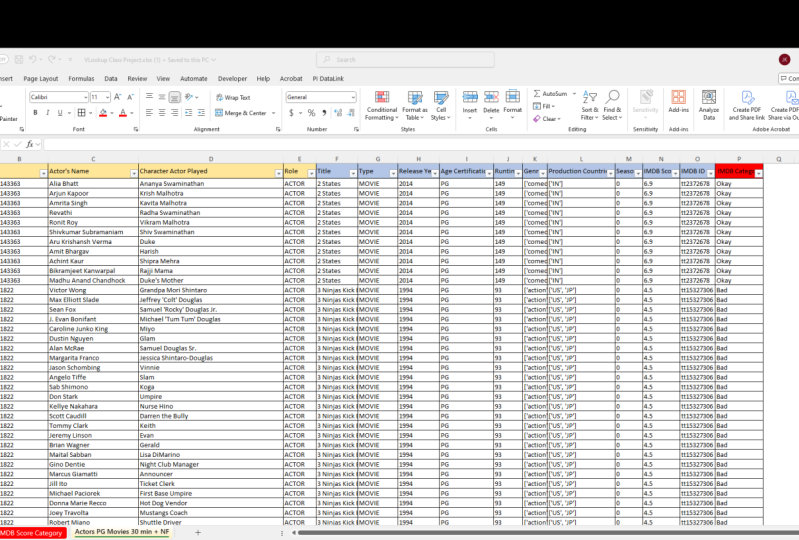
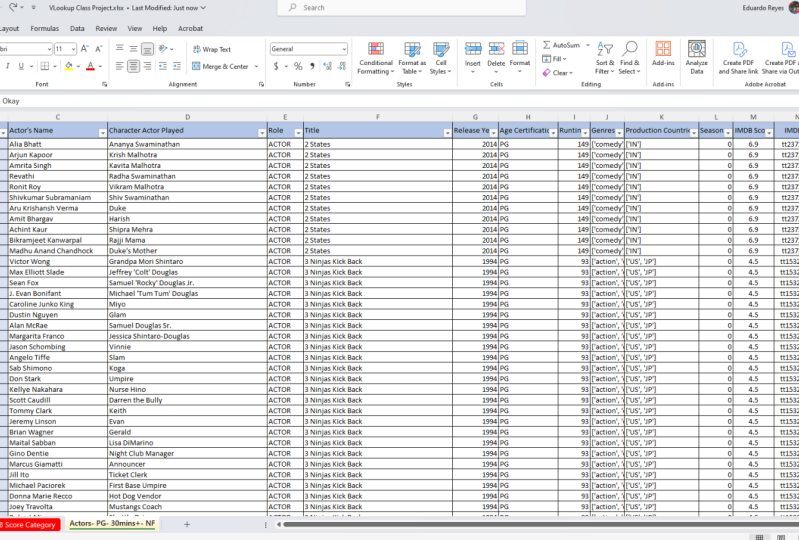
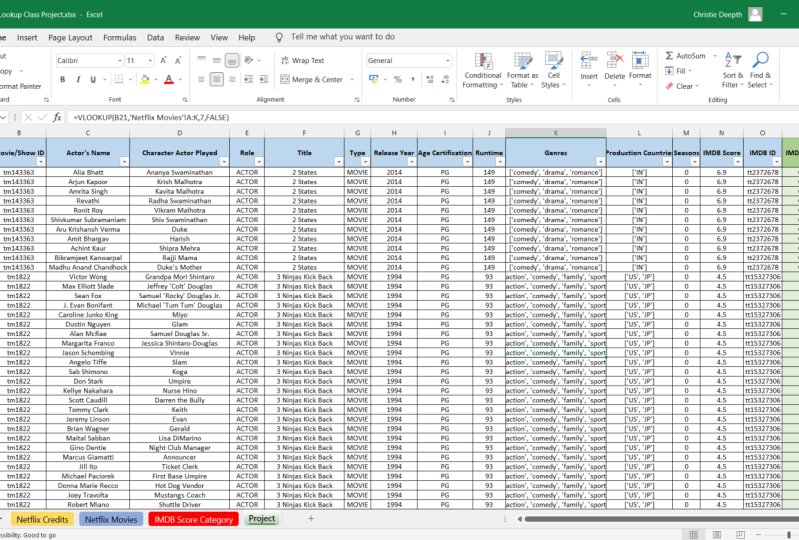
 Gary Carpenter, Helping you create next level reports!