Transcripts
1. Introduction: Hi, I'm Elaine Vitikainen. I'm an illustrator and an
entrepreneur from Helsinki. I love stickers, and I've been making stickers for
as long as I remember, from drawing directly
on label papers, then cutting them into squares to illustrating on my iPad, then cutting them by hand. But now I use a Cricut Joy
Xtra to make my stickers. This makes sticker
making more fun, relaxing and even addicting. I love to use my stickers on my journals. I sell them online. I give them to
friends and family, and I also love to
swap my stickers with other stationary enthusiasts
around the world. I also love to journal. So in this class,
we're going to make days of the week sticker sheets that you can use
in your journals. We will design our
stickers on Procreate, then cut them on a
Cricut Joy Xtra. Alternatively, you
can also cut this by hand if you don't have
a Cricut Joy Xtra. By the end of this
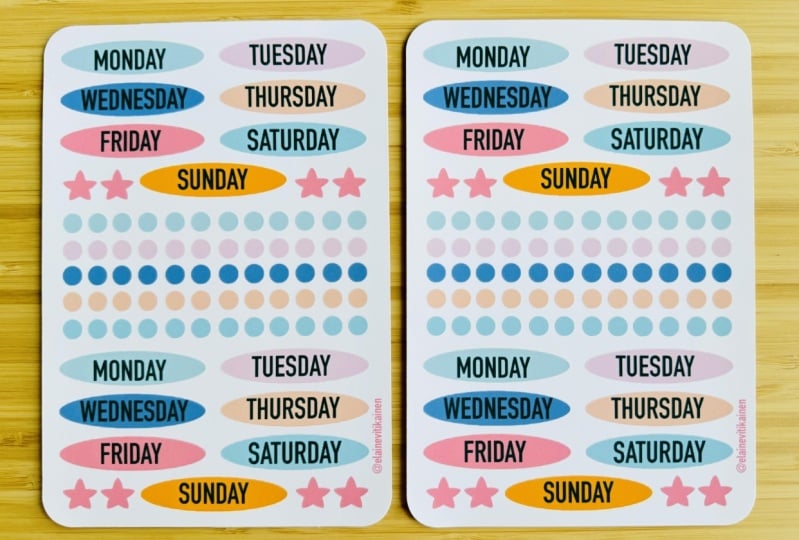
class, you will have beautiful days of the week sticker sheets that
you've made yourself. I really hope to
see you in class.
2. Class Project: For the class
project, we will be making days of the
week sticker sheets. We will design our
stickers on Procreate, then cut them on the
Cricut Joy Xtra. We would need an
iPad, an Apple pen, or any stylus that you have, the Procreate, and the
Cricut Design Space. We would need the
Cricut Joy Xtra, the Cricut Joy Xtra mat, an A4 or letter size printable sticker
paper, and a printer. If you don't have a
Cricut Joy Xtra, you can just print this
out and cut it by hand. I've provided a set of stamp brushes that I've created
to use in our projects. You can find the brush set in
a class resources section.
3. Preparing the Stickers: Now it's time to design
our stickers on Procreate. So let's open Procreate. Hit the plus sign, and let's create our Canvas. I will set it at 4.5 x 6.5 inches and at 300 DPI for
good quality printing. Hit Create, and now we can
start designing our stickers. But before that, let's download the brush set from the
class resources section. I have also prepared
my color palette, but you can create
your own color palette to go with your own style. Preparing your sticker sheet is so much according
to what you like. For example, you
can add a border on one side or both sides
of your sticker sheet, where you can put information. For example, the name
of the sticker sheet and information about
yourself like your website. You can also add your
logo and your signature. But for me, I want to have a minimalistic style
where I can use as much space as possible to have more stickers
on my sticker sheet. So I'm just placing this small
information in the corner. You can also drop a
color of your choice. I will fill mine with white. Now let's write the day. And I suggest starting with
Wednesday because it is the longest word and it will determine the size
of the other days. So let's choose a
color for the font. Then go to actions
add and add text. Choose font by clicking Aa. I'll choose DIN condensed.
Let's write the text. Then I will choose a color, add a layer to stamp
the background. Then I'll place
this layer under. Let's resize this accordingly, making sure that the text
is inside the stamp. Then duplicate the
stamp layer as we will use this as the
template for the other days. Let's combine the two layers - Wednesday and the stamp layer
by pinching them together. Now we can do the same
process for the other days. Choose a color for your font, then go to actions, add and add text. Choose font by clicking
Aa, then write the text. Duplicate stamp layer, then place it under the
layer with the day. You can now fill the stamp
layer with a color of your choice by choosing the color and dropping
it onto the layer. Now we can repeat the
process for the other days. When all the days are complete, I
will resize them. Then I will duplicate
to have two sets. But this depends on how big
you want your stickers to be. I will also add some elements that are
commonly used in journaling, like dots and stars to
fill the empty spaces. When it's done, I'll put all the stickers in one layer
by pinching them together. Then I'll combine all the
layers of the sticker sheets. Save the two files as PNG, then send them to the
Cricut Design Space. If you're cutting this by hand, just print this out and
it's ready for cutting.
4. Printing and Cutting the Stickers: Now it's time to print
our sticker sheets. We don't need to have a Cricut
subscription to do this. So here we are on the
Cricut Design Space. Let's start a new project. Then upload the sticker sheet. Follow me in this process. Select the sticker sheet and set the size
to 4.5 x 6.5 inches. Then duplicate the sticker
sheet three times. But this depends on how
sharp is your Cricut blade. If you think your Cricut blade is not anymore very sharp, you can add more layers. We're doing this so
that we can trick the Cricut Joy Xtra to cut die-cut, which is the cut around
the sticker sheets, and also to cut kiss-cut, which is the cut
around the stickers. Select all the layers, then align and center. Now let's upload the stickers. Place the stickers on
the sticker sheet. Let's enlarge this a
bit to see better. Then attach. Then duplicate. We're duplicating so
that we can print two sheets on an A4 or
letter size sticker paper. Select all, then click align
and center vertically. Then select all and attach. Be sure that the operation
is set to print then cut, and the machine is set
to Cricut Joy Xtra. Then make it. I will
save my project. Follow me in this process. For the printing, let's
remove the add bleed, but put the add system
dialog on. Then hit Print. Look for the dialog box, then check that your
printer is connected. Choose the paper size, the media type, and it's important to choose
the best quality. Also, check that your printer
has the right setting. Then hit Print. The
printing is done, and now we will
place this on the mat. Please be sure that this arrow
is pointing the right way. Then we have to set
the base material, and this really depends on the thickness of
your sticker paper. I'm using a vinyl matte paper, and while experimenting
with the cutting, the vinyl printable
specialty works well for this paper and
setting it to default. So choose which setting would be best for the paper
that you're using. And most of the time, this would need a bit of experimentation. Then load the mat with the
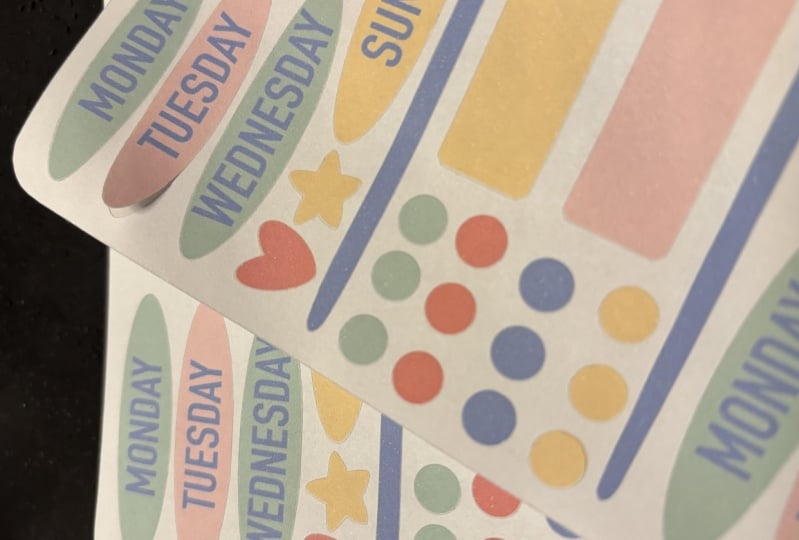
sticker sheets on, then go. Unload, and now it's ready. We have created two beautiful days of the week sticker sheets.
5. Thank You: Thank you for joining
me in this class. I hope you enjoyed making your days of the
week sticker sheets on Procreate and
Cricut Joy Xtra. Please don't forget
to snap a photo of your stickers and share them in the project
gallery section. I really can't wait to
see what you've created. If you're going to
post your projects on Instagram, please tag me. I really want to
connect with you. Also, please leave
a class review. I would really appreciate it. And if you want to know
more about sticker making, please check out my
other sticker classes. Bye for now and see
you again soon.