Let’s Make Washi Tape Stickers on Procreate (Digital, Cricut Joy Xtra or with Scissors) | Elaine Vitikainen | Skillshare

Playback Speed


1.0x


  • 0.5x
  • 0.75x
  • 1x (Normal)
  • 1.25x
  • 1.5x
  • 1.75x
  • 2x

Let’s Make Washi Tape Stickers on Procreate (Digital, Cricut Joy Xtra or with Scissors)

teacher avatar Elaine Vitikainen, Illustrator from Helsinki

Watch this class and thousands more

Get unlimited access to every class
Taught by industry leaders & working professionals
Topics include illustration, design, photography, and more

Watch this class and thousands more

Get unlimited access to every class
Taught by industry leaders & working professionals
Topics include illustration, design, photography, and more

Lessons in This Class

    • 1.

      Introduction

      1:47

    • 2.

      Class Project

      1:04

    • 3.

      Designing the Stickers

      9:43

    • 4.

      Printing and Cutting the Stickers

      6:06

    • 5.

      Thank You

      1:36

  • --
  • Beginner level
  • Intermediate level
  • Advanced level
  • All levels

Community Generated

The level is determined by a majority opinion of students who have reviewed this class. The teacher's recommendation is shown until at least 5 student responses are collected.

82

Students

22

Projects

About This Class

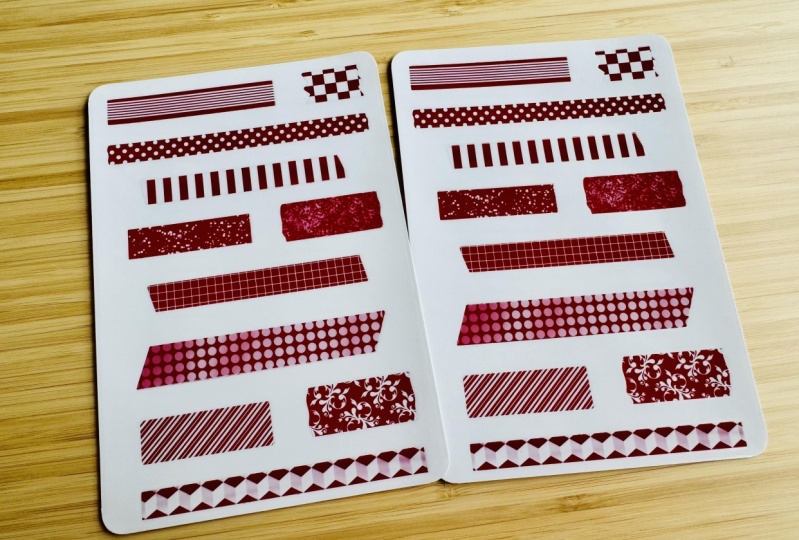
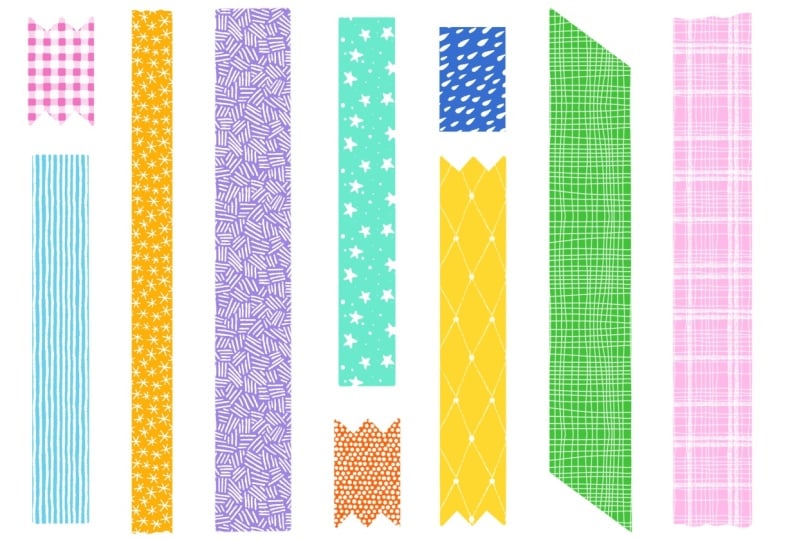
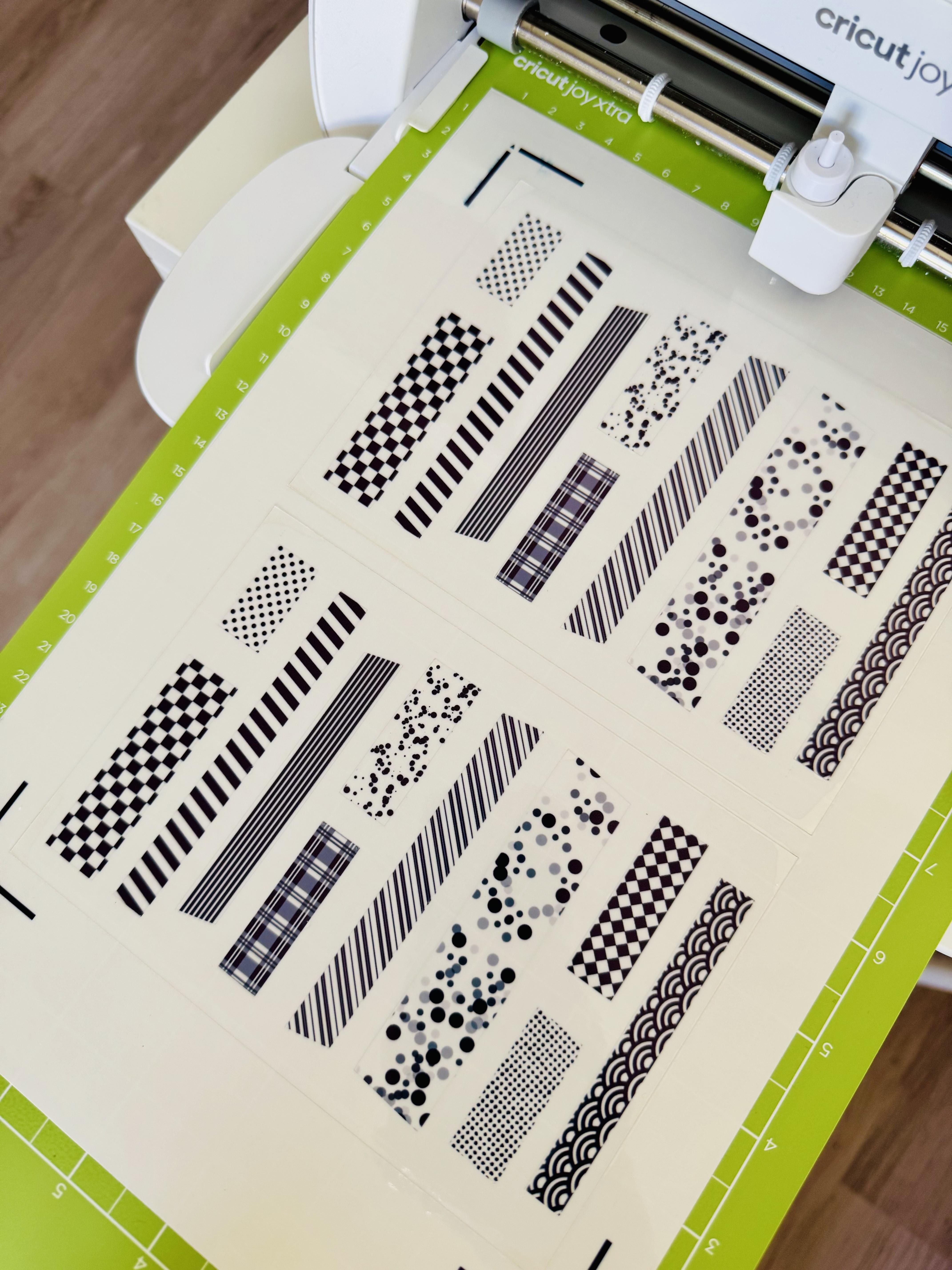
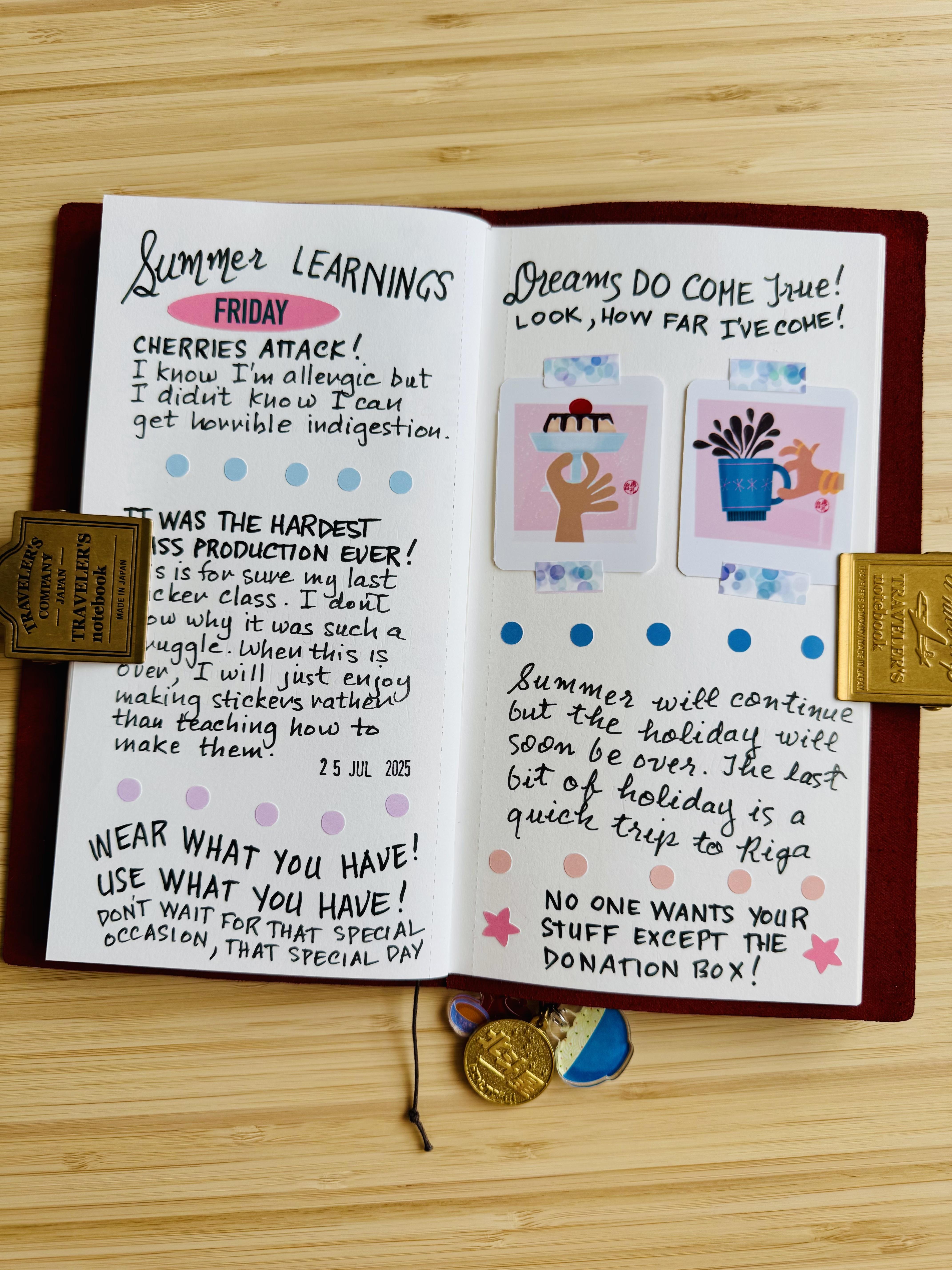
In my previous class, we’ve learned how to make Days of the Week stickers to use in our journals. In this class, we will be making Washi tape stickers. Washi tape stickers are useful when adding photos or other ephemera to journals. They also serve as decorations. They are fun and versatile and they add more visual interesting to journals. And making Washi tape stickers is really a good idea because we will have different designs on one sticker sheet than having one roll of Washi tape with one design. These Washi tape stickers are also strong and durable. We will design our stickers on an iPad on Procreate. Then we can either cut them on the Cricut Joy Xtra or use scissors.

If you are cutting your stickers on a Cricut Joy Xtra, we would need:

  • the Cricut Design Space,
  • the Cricut Joy Xtra mat,
  • a printable sticker paper
  • and a printer.

If you don’t have a Cricut Joy Xtra, you can just print this out and cut them by hand. You can also use these stickers digitally.

This class is for anyone who loves Washi Tapes and would like to know how to make Washi Tapes stickers. I’ve provided a set of stamp brushes that I’ve created to use in our projects.

By the end of this class, you will have beautiful washi tape stickers that you’ve made yourself and ready to use in your journals.
Meet Your Teacher

Teacher Profile Image

Elaine Vitikainen

Illustrator from Helsinki

Teacher

You can find me at http://ev-visuals.com and at http://elainevitikainen.com for my travel adventures.

Let's connect on Instagram at https://www.instagram.com/ev_visuals/

and https://www.instagram.com/sweetpugnacity.

See full profile

Level: All Levels

Class Ratings

Expectations Met?
    Exceeded!
  • 0%
  • Yes
  • 0%
  • Somewhat
  • 0%
  • Not really
  • 0%

Why Join Skillshare?

Take award-winning Skillshare Original Classes

Each class has short lessons, hands-on projects

Your membership supports Skillshare teachers

Learn From Anywhere

Take classes on the go with the Skillshare app. Stream or download to watch on the plane, the subway, or wherever you learn best.

Transcripts

1. Introduction: Hi, I'm Elaine Vitikainen. I'm an illustrator and an entrepreneur from Helsinki. I love to journal, and in my journaling process, I always use stickers. Stickers have a special way to add another visual dimension in my journals, whether I'm journaling by hand or digitally. So I always include them in my journals to make my journaling process more interesting. In my previous class, we've learned how to make Days of the Week stickers to use in your journals. In this class, we're going to make Washi tape stickers. Washi tape stickers are really useful when you would like to add photos or other ephemera to your journals. They also serve as decorations. They're fun and versatile, and they add another visual interest in your journals. And it's a good idea to make Washi tape stickers because you will have different designs in one sheet than having one Washi tape with one design. We will design our stickers on Procreate, then cut them on a Cricut Joy Xtra or with scissors. You can also use these stickers digitally. This class is for anyone who loves Washi tapes and would like to learn how to make Washi tape stickers. I've provided a set of brushes that I've created to use in our projects. By the end of this class, you will have beautiful Washi tape stickers that you've made yourself and ready to use in your journals. I really hope to see you in class. 2. Class Project: For the class project, we'll be making Washi tape stickers. We will design our stickers on Procreate, then cut them on the Cricut Joy Xtra or with scissors. You can also use these stickers digitally. We would need an iPad and Procreate. If you're cutting your stickers on a Cricut Joy Xtra, you would need the Cricut Design Space, the Cricut Joy Xtra mat, a printable sticker paper, and a printer. I would recommend using a transparent sticker paper, as this will give a real Washi tape look. They are also strong and durable. If you don't have a Cricut Joy Xtra, you can just print this out and cut them by hand. I've provided a set of brushes that I've created to use in our projects. You can find the brush set in the class resources section. 3. Designing the Stickers: Now it's time to design our stickers on Procreate. So let's open Procreate. Hit the plus sign, and let's create our canvas. I will set it at 4.5 X 6.5 ". And at 300 DPI for good quality printing. Hit create, and now we can start designing our stickers. But before that, let's download the brushes from the class resources section. So now let's design the stickers. First, let's activate the Drawing guide by going to Actions, Canvas, then Drawing guide. This will help us when we draw the lines. I'm using a Monoline pen from the Calligraphy section of the brush library. I will choose the red colour, but you can use any colour that you like. I will draw a line. Remember that if you hold your pen in place, it will create a straight line. Then I will draw straight lines on the edges as if I have cut this tape by scissors. I will drop the same colour. Then Alpha Lock this layer. I will choose white. Then I will fill it using the Multi line brush from the brush set. I will set it to 40%. So now we have the first tape ready. I will now repeat the process for the next tape. So add a layer, choose red, and with the Monoline pen, I will draw the tape. This time, I will make a thinner tape. I will add wavy lines on the edges like I have cut this tape by hand. Drop the colour, then Alpha Lock. With the same white, I will fill it using the Polka Dots brush. For the next tape, I will make a short one. I will draw zigzag lines on the edges as if I cut this tape with a zigzag cutter. Alpha Lock, then I will fill this tape with white using the Checkered brush. Let's make another one using the Striped brush. Then another one using the Sugar Sprinkles brush. Then let's use the Splatter brush. Let's do the same process for the next tape, using the Textures brushes from the Procreate brush library. If you want to make the design smaller or maybe you want to rotate the design or you want to place it in a certain way, you can add a layer instead then filling this layer. Then move this design to however you like. Then activate the Clipping Mask, then combine these layers together. You can repeat this process as many times as you want to make more Washi tape stickers to fill the sheet. Remove the background, and now we have the Washi tape stickers that are ready to use digitally. To cut it on the Cricut Joy Xtra, save the file as PNG, then send it to the Cricut Design Space. If you're cutting this by hand, just print it out and it's ready for cutting. 4. Printing and Cutting the Stickers: So now it's time to print and cut our sticker sheets. We don't need to have a Cricut subscription to do this. So here we are on the Cricut Design Space. Let's start a new project. First, let's make the sticker sheet. Go to shape, and I'll choose the square shape, and we'll change this to white. I will resize to 4.5 X 6.5 ". Then I will duplicate the sticker three times. But this really depends on how sharp is your Cricut blade. You can duplicate only once if your blade is new. But if you think your Cricut blade is not anymore very sharp, you can add more layers. We are doing this so that we can trick the Cricut Joy Xtra to cut die cut, which is the cut around the sticker sheets, and also to cut kiss cut, which is the cut around the stickers. Select all the layers then align and center. Now let's upload the stickers. Follow me in this process. Place the stickers on the sticker sheet. Select all, attach, then duplicate. We're duplicating so that we can print two sheets on an A4 sticker paper. Select all, then click align and center vertically. Then attach. Be sure that the operation is set to print then cut, and the machine is set to Cricut Joy Xtra. Then make it. I will save my project. Follow me in this process. For the printing, let's remove the Add Bleed, but put the System Dialog on, then hit Print. Look for the dialog box. Then check that your printer is connected. Choose the paper size, the media type, and it's important to choose the best quality. Also check that your printer has the right settings. Then hit Print. The printing is done, and now we will place this on the mat. However, if you have printed on a transparent sticker paper, you need to be sure that the print has dried. So let it be for a while to let the ink dry fully. When placing on the mat, please be sure that this arrow is pointing the right way. Then we have to set the base material, and this really depends on the thickness of your sticker paper. I'm using a transparent sticker paper, and while experimenting with the cutting, the cardstock works well for this paper and setting it to less. So choose which setting would be best for the paper that you're using. And most of the time this would need a bit of experimentation. Unload, and now it's ready. We have created two beautiful Washi tape sticker sheets ready to use in your journals. 5. Thank You: Thank you for joining me in this class. I hope you enjoyed making Washi tape stickers on Procreate. Please don't forget to snap a photo of your stickers and share them in the project gallery section. Also, if you're using your stickers in a digital form, please share them too. I really can't wait to see what you've created. If you're posting your projects on Instagram, please tag me. Also, I would really appreciate a review of this class. If you want to know more about sticker making, please check out my other sticker classes. Bye for now and see you again soon.