Transcripts
1. Introduction: Hi, I'm Elaine Vitikainen. I'm an illustrator and an
entrepreneur from Helsinki. I love making stickers. And one of the
stickers themes that I really like are
motivational stickers. Motivational stickers
have a fun way to remind me of things that
are important in life, and they are also a nice
way to cheer up others. So in this class,
we're going to make a set of motivational stickers. We will design our
stickers on Procreate, then cut them on a
Cricut Joy Xtra. Alternatively, you
can also cut this by hand if you don't have
a Cricut Joy Xtra. By the end of this
class, you will have a beautiful set of motivational stickers that you've
made yourself. I really hope to
see you in class.
2. Class Project: For the class project, we will be making die cut
motivational stickers. We will design our
stickers on Procreate, then cut them on the
Cricut Joy Xtra. We would need an
iPad, an Apple Pen, or any stylus that you have, the Procreate, and the
Cricut design space. We would need the
Cricut Joy Xtra, the Cricut Joy Xtra mat, an A4 printable sticker
paper and a printer. If you don't have a
Cricut Joy Xtra, you can just print this
out and cut them by hand. I've provided a set of stamp brushes that I've created
to use in our projects. You can find the brush set in the class resources section.
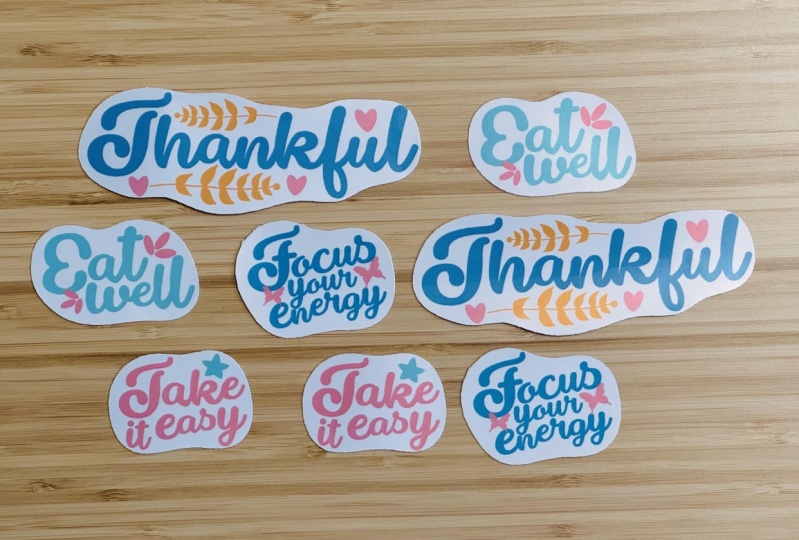
3. Motivational Words: Before we design our stickers, it is important to think about what we would like to
write on our stickers. Maybe you have some
motivational words that you tell yourself or
words that you live by. Maybe there are words that
serve as a reminder. But it could also
be fun words like words that make you happy
and make you smile. So please take some time to write these down
on a piece of paper. And also at this point, it
would be good to think about your color palette so that your stickers will
have a cohesive look.
4. Designing the Stickers: Now it's time to design our motivational
stickers on Procreate. So let's open Procreate. Hit the plus sign, and
let's create our Canvas. I will set it at 200 mm by
297 mm, which is an A4. And at 300 dpi for good
quality printing. Hit Create, and now we can
start designing our stickers. But before that, let's download the stamp brushes from the
class resources section. I have also prepared my palette
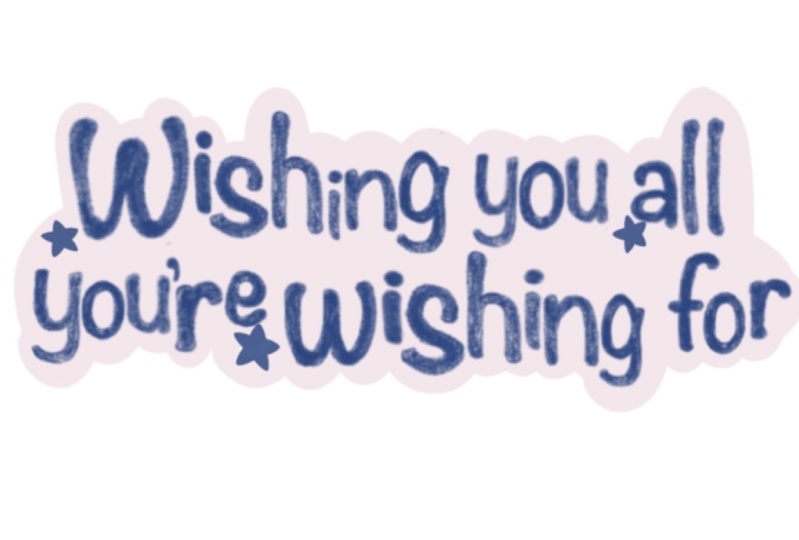
with very limited colours. So let's make the first sticker. I will use blue for the text. Then I will go to actions, add, then add text. I will choose the
font by going on the right side and clicking Aa. I will use the
Drop the Game font. But you can choose any
fonts that you like. I will write my text. Then I will rasterise
the text by choosing the text
layer then rasterise. When the text is rasterised, I can rezise the letters
and move them as I wish. Another way to do this is to write all the letters
on different layers. But this is how I do it,
so feel free to do what is easy for you. So let's start. The goal here is to create interest in the text
where the letters are in different sizes and not
in a very linear position. So I'm just going through every letter by choosing
the Selection tool, freehand, and just going over the letter with
my pen to cut it. Then I will go to Transform
tool to resize and reposition the letters just so
that they don't look too rigid but more
organic and interesting. You can also go to
the Selection tool, swipe three fingers, then choose Cut and Paste to have the letters
on different layers. This way, it is easy
to work on them. My main rule in working with the letters is to make
the first letter bigger, making the vowels smaller. And if the two same letters
are following each other, I will make one of
the letters bigger. When you're happy with the text, you can start smoothing the connections
between the letters. Then you can add some brushes
to fill in the spaces. Pinch all the layer together, then we will add the offset. Duplicate the layer, then
go to the Adjustment panel. Choose Gaussian Blur, then slide your pen to the right to
choose the thickness. I will set it to 25%. Then go to the Selection
tool, choose Automatic, tap your pen or finger, then slide your pen to choose the thickness
of your offset. Then invert. Choose the
color of the offset. I will choose white. I will add a layer, then
I will fill the layer. I will then place
this layer under. Delete the other layer, then pinch them together. Let's make three more. For this class, I
made four stickers, but you can make as
many as you like. You can make them smaller so that you can
have more stickers. You can also duplicate them
to fill the sticker paper. Once we are done, we can
save this file as png, then send it to the
Cricut design space. If you're cutting this by hand, change the background
color before cutting. This way, you can see
the border for cutting.
5. Cutting the Stickers: So now it's time to
cut our stickers. We don't need to have a Cricut
subscription to do this. So here we are on the
Cricut design space. Let's start a new project. Then upload the png file. Follow me in this process. Select your file and set
the size width to 5,789, making sure that it is locked. Check that the operation
is set to Print then cut. Then make it. I will
save my project. Follow me in this process. For the printing, let's
remove the Add Bleed, but put on the Add Systems
Dialog. Then hit Print. Look for the dialog box. Then check that your
printer is connected. Choose the paper size, the media type, and it's important to choose
the best quality. Also, check that
your printer has the right settings.
Then hit Print. The printing is done, and now we will place
this on the mat. Please be sure that the arrow
is pointing the right way. Then we have to set
the Base material, and this really depends on the thickness of
your sticker paper. For me, to be sure, I choose medium
cardstock and put the pressure to more since you are making die cut stickers. Then load the mat with
the stickers on, then go. Unload, and now it's ready. We have created beautiful
motivational stickers.
6. Thank You : Thank you for joining
me in this class. I hope you enjoyed making your own motivational stickers on Procreate and
Cricut Joy Xtra. Please don't forget
to snap a photo of your stickers and share them in the project
gallery section. I really can't wait to
see what you've created. Also, please leave
a class review. I would really appreciate it. And if you haven't already, you can check out
my digital stickers on sale on Skill Share. Bye for now and see
you again soon.