Transcripts
1. Intro: Kinetic topography is wild. Squash, can threats. And how about VO? You can also go funky like this. Hi guys, My name is Martin. In this class, I will
show you creative ways to animate texts in
Adobe After Effects. The class project,
you will animate your chosen words or even a message from the
cost that you believe. You will learn
techniques such as strategy, font, liquid tags, custom pixelation effects,
factor distortion, flag displacement,
or offset half. And most importantly,
you will learn how to stack all of these effects
in your own unique ways. This class is for everyone that likes typography,
animation. You don't need any after
effects backgrounds. If you are progressing now,
there might be new tips and tricks for you
to see you in class.
2. Project Breakdown: In this class, we will
use the working file provided as a guide
and starting point. So let's open it. If you
download the working file, you will see a folder like this. And we will open this
up to Effect files. Studying other
people's working file is a very good way to learn. So whenever you have a chance to access working files,
you should do it. This class can be
broken down into 11 different small exercises exploring different techniques. So if you see we have
11 pre-comps here. And if you double-click this, you will see one
by one, like this. And this is the second one. The third one, the fourth, and the fifth, the sixth, this crazy madness stuff. The seven, which is a
liquid Doppler effect. And then the eight
is a wave effects. And the ninth texts follow path. And then the last one
will be this flow motion. The first lesson covers basic navigation and
functionality of After Effects. We will explore something like
a position scale rotation. A little bit of text
animator effects. If you are a beginner, I recommend you to not
skip this lesson. If you are more experienced, you can skip and move
to the next lesson. To get the most
out of this class, I highly recommend you to
stop after every lesson. Redo the exercise with
your own selected words and post the results either
here or on your social media. Then only continue with the
next lesson. Are you ready? Let's start with
the first lesson.
3. Basic Navigation: Alright, we're going
to use the same file is provided in the
class material. So you can navigate
to this folder and then you can open
this up to Effect file. And you will see something
like this. Before we start. Let's save this file so we
don't touch our original file. Go to File, Save As. And in the same folder, we can just call this or you can call it
anything you want. But I'm just going to
call this kinetic type. My training. And the score is 01. Save. You might not see the
same layout that I have here, but it doesn't really matter. You can actually
go here, Window, Workspace and you can choose
whichever that you like. The effect has a bunch of
template for you to use. Overtime. You will learn which
one that you like best. But for this one, Let's
start with effects. And don't worry if you
accidentally move your window like this or you maybe you
accidentally close something, you can always
come here, Window, Workspace and reset
effects to save layout. And it will go back
to the initial state. Okay, let's start with
this effect project. I actually don't
really need this. So I can just close this panel. Because this panel, and
I want to add something. Here. You can actually see all the types that
is in the layout. And let's say we need character. You can just add and
it will appear here. I also will add a line. Maybe. We can also move it up
and arranged like this. Okay, so let's start with the first material,
which is this one. We're going to do this
versus kinetic topography. And we can double-click on this. And if I press Spacebar, I actually can
navigate down here. And I can enlarge this area. I can make this fit. If you want to zoom in or
zoom out in this panel, you can use your middle
mouse button like this. Or you can also use Command Minus command plus
to zoom in and zoom out. Or you can also use
this magnification. My case, I will just use fit. Let's check what
is happening here. So first, this is scaling up. So this is kinetic layer. If I open this, you can see that there's
a keyframe on the scale. So if we analyze this, the scale goes from 0 to a 100. And then there's a position. So from this position, it will go up to give
space for this typography. And then we will go here. And if we open this scale, these texts topography is
scaling from 0 to 100. So that is what happened here. If we press Space bar here.
That is what happened. We can ignore these
first four now. Okay, Let's try
to recreate this. So first of all, let's close this folder and we will
create our own folder. That's called this training
or whatever you want. And we will create a
new precomposition. So while this is selected, go to Composition.
Click New Composition. This dialog box will open. Let's call this 01. I will just add my intro. Actually on this practice, we will just use the
Instagram square ratio. So I will use 1080 by 1080. This is actually the
Instagram square dimension. So we will use 108080. Make sure this is square pixel, and we will use
frame rate the D, the duration, maybe let's
make it five seconds. So this is, this is
frame and this minute, we'll just make five
seconds for now. Background color doesn't matter. We can change later. Click okay, and we will be provided with this empty state
from time to time. Don't forget to save. Or you can press Command S.
4. Basic Animation: Let's create the text. You
can type anything you want. For my case, I'm going
to type kinetic. And we're going to use
a font called Monstera. It will be provided in
the class materials. Other than that, you
can also download it from the Google font. This is a free font from Google. So you can just download
the whole family and then install it, and then it will be
appearing in After Effects. So back here, we want to
center this to the middle. I'm going to turn on
the action safe area by pressing the apostrophe. So we can see where
is the middle. And then I want to
put it on the middle. And let's talk about these
settings for a while. So in here, you can
actually scale, scale things, or you can move
things by moving like this. Or you can also move things
by dragging this number, this is x and this is why
you can also rotate things. Something to take note
of is the anchor point. So if you see this
thing that Let's zoom in here. This
is the anchor point. So if you rotate the object, it will rotate from
that anchor point. You can chase anchor
point by using this tool. Or it's also easier
to use this one. Pen behind tool. The shortcut is why,
if I click here, you can click on
this anchor point and then you can
move it anywhere. If you click and hold command, it will lock to a certain
area of the object. So for example, you can knock to the middle or you can
look to the side, or you can look to the corner. And if you put the
anchor point here, if you rotate the object, it will be rotating
from this point. Let's move it back
to the middle. And then I want to put
this object to the middle. Before I do that, I will go
back to my default tool, which is selection tool
V. And I will zoom out. And I will use this align tool. And I will align layers,
the composition. So if I click this, it will be centered to exactly
center of this art board. Let's use a size of eight maybe. Yeah. So now if you want
to animate something, you need to create a keyframe. So for example, let's say this is your N position our click on the stopwatch to create a
keyframe and then maybe drag it somewhere here. And then I will move this. When I move this
object automatically, keyframe will be created. And now if we press
space bar to play this, it will move really
fast at the moment because it's actually
only six frames. So if we want to make it slower, we can move this to
the second number one. Then it will be really slow. If you want to scale. You can set a keyframe here. And you can go to
somewhere here, maybe make it larger. And then if you play this and maybe we want
to rotate here, you've set a keyframe and
then move a little bit. And then you rotate
maybe 90 degrees. Let's pay our animation. So if you see the
keyframe at the moment, the movement is very linear. There's no speeding up, there's no flow to it. So if we change,
select all of these, and then we right-click
keyframe assistant, easy, ease. You will actually adding
a slowing down here. And it's slowing down here. So it will go out slow and
then come in, Come in slow. If I make it faster, I think it will be more obvious. If you want to make
it even more extreme, you can actually
select the keyframes. Click on this graph editor and then make sure you are
on the speed graph. Select this and then enhance, drag it to enhance the curve. So if we see now becomes very snappy after the other as well. Select this more extreme, like this, make it more extreme. And this one as well. Now we can see that the
movement is very snappy. So this is easy, ease, which is making
things more easing. Yeah, I will actually
delete the whole keyframe. I will actually go
back to this position, which is middle, and then
select every keyframes, delete. This is just for you to play
with all these settings. Once you are more savvy
with all these keyframing, we can go to our
initial training. Now. Let's do like our example. If we see again our example, if I press U, it will
actually open the parameter. The parameter already
has keyframe. So if we see now, we want to make this text
kinetic scale from 0 to 100. And then it will move up to give place for the typography. Let's do that. First, we select
this at a keyframe on scale, maybe ten frames. This is the end position. So I will move that keyframe here and then move back to 0. And then I will
change this to 0. So now we have that animation. And I will select both of these. And then right-click
keyframe assistant. Easy ease. The shortcut is F9. So if I make it easy ease. So I have this now. And then I want to stay for
awhile for about ten frames. And then I will set a
keyframe for position. Go to 1 second and
then move it up. Actually, before I do this, I should have greater than
other texts, but it's okay. Let me just click outside
and create another text. Let's call it typography. Select on this V2. Let's move the anchor
point to the middle. Use this tool hold Command
so we can center it, press V to go back to this tool, use the align to make it center. And this will be the
position of the typography. So let's adjust this kinetic, select this kinetic, move
it down a little bit. So this is will be the end position after it's giving space for the topography. Okay, let's turn this keyframe
into easy ease as well. Right-click Keyframe
Assistant, Easy Ease. Let's see how it goes. Let's hide the topography
fors plus spacebar. Looking good. Let's
turn on the topography. And then we want to move to this keyframe on the typography. Let's press S for scale. You can also just
open this arrow. S is a shortcut to open just scale the press S,
set a keyframe. Move back here, set
a keyframe to 0, and then select both of them. Right-click keyframe assistant. Easy, ease. Let's check
our animation goes. Yeah. So if we see now this
kind of overlapping here, I want to actually parent the
typography to the kinetic, so it will inherit the position. So there's a pick whip here. If I click and drag
this to the kinetic, before you do this, make sure your timeline indicator
is here, not here. So the parenting will be defined by where your time indicator is. We want to parent when
the position is here. So let's make sure this time indicator is here and then select this topography. Click and drag to the kinetic. Now, if we move this
kinetic anywhere, that topography will
actually follow. Let's undo that. So let's check. It will not overlap anymore because when that can
tax kinetic go down. Texts, epigraphy also
follow it go down. So if we take the animation
now, yeah, much better. Let's make the
animation more extreme. So I'll select this keyframe, go to keyframe, graph editor. Make it more extreme,
make it more extreme. And then I select both of these. Click and drag. Go to this. Select. I could more extreme. Select this. Make
it more extreme, and go back to here. Let's check our animation. It's much more snappy now. Alright. So we learned about position scale rotation opacity, and we learn how to parent
layer to another layer. Next, we're going to
explore text animator.
5. Text Animator: Let's get into the
second part of this texts while this one. So if we analyze this,
what happening here. This layer consists
of one, the solo, this one word, wealth and emitting light from nothing
one-by-one coming out. And once we have this,
I duplicated that. But this time with
only the stroke, I duplicate a lot of them. And they just stuck
a different timing. So if I turn off, if you see one by one,
they will appear. They are all using
the same source. So let's get into this. I'm going back to this. And this is what
we've done just now. And at this point, we want to cut and go
to the next thing. I'm going to, I'm going
to select these two and then I will bring
this N part here. You can also do it
by, let me undo this. The shortcut is Alt or
Option and close bracket. It will trim it here. If you see now. And this
will be the second part. Okay, So let's close
our render region here. So render region is
the area where you can play your animation. If I close it like this, it will only play in this region and then it will loop back. So now we want to
bring this here, so we will not see the
beginning part anymore. We're just going to
start from here. Okay, I'm going
to create a text. Let's type something longer
to demonstrate the technique. Amazing. And I will
again centralize this anchor point using
this tool holding command. So I can centralize
to the exact middle, press V to go back to this tool. And then I will use a line to the center of composition. Okay? Then I will bring this here. So we start this layer exactly
from after these texts. After the tobacco-free cut, then we cut to this scene. Okay, let's start from here. I will open this arrow. I will actually close these
two and then opened it. Andrew. And I will add, if you see this, this is animate and this small
arrow, if you click here, you can add different
things to this, to animate this differently, I'm going to start
with animating scale. So if I add this, it will add this scale and range selector. I'll open this range selector. And what we want to
do is to animate the texts from
nothing to this size. So in this scale, what we really want is
to animate it to 0. But to demonstrate
the technique, I will actually use
non-zero but maybe 30. So you can see what's
happening with this layer. Maybe 50. Yeah, So at the moment everything
is scaled down to 50. If we see this, there's a start and end point. The start is the beginning of this text and n is the ending. So if I move this like that, you can see that this
beginning part moving here. And if I animate, if I move
this end part smaller, you can see that the
line is moving here. So this is the area that is
affected by this scaling. You can see that they're getting smaller while the rest are not. Offset is when you move
this to the left and right, it moves this area to the left. Alright? So something like
that. So what we want to do is to use the
combination of this technique. So if you see, let's
say I move this to 0. You will find this. And if I animate this
from left to right, it will actually do that. This area will be gone. Let's use 50 again. And I will bring this back to 0 and bring it to
the initial state, which is 0 and then 100. So this means the starting is still hear the ending is here. Simplest way to animate this is by just animating
one of them. So for example, starting, maybe we set a keyframe here. We start from, Let's
actually bring this to 0. So we start from nothing. And then after maybe ten frames, it will go to 100. Play this animation space-bar. You can see that
it's getting there. They are animating one-by-one. It's not bad, but we can
do better than this. So if we play it like this, if we play slowly, you can see that each
of the texts wait for the first one to reach
the end position, then only the second
one came out. Same with this. The better animation will be when this first letter
is animating halfway. The second one is
already appearing. So you can see that
there's a flow to it and as a smoother transitioning. So to do that, we need to open the Advanced tab and
change certain things. So what we will touch this, this area, this is the one that will define the transition. So at the moment
is set a square. It means that you have a box. And then you move the
box to the right. Box is very straight, so
there's no transitioning. But if we change this to
ramp up or ramp down. So if I change to ramp up, you can see that
there's a gradient. There's a great deal going
down to the initial state. But it becomes a bit weird. This is because when you
are using this ramp up, we cannot use just one anymore. So I'm going to actually delete this keyframe and we will
instead animate the offset. So if I set a keyframe here, and I move this offset
to the minus 100, and then move this to ten
frames and move it to 100. We can see that we get
the desired result. Yeah. So if you see before the first letter even
reached the final position, the second one already
come out. And so on. So this is the better way. If we change this to ramp down, it will be the other
way to animate out. Usually, ramp up is used to animate in and ramp-down
is used to animate out. So let's change this
back to ramp up. That's a lot of settings here. And text animator is
actually a very deep topic. So if you want to
fully understand this, is going to be very long, but I highly recommend you to watch this tutorial
by school of motion. I think these two, you
can start with watching this 1 first and then
only watching this one. I think these two is the best text animator
tutorial out there. So back to our project. Okay, so we got this
desired effect. Now, let's duplicate it. There are two ways
to duplicate this. One is not so smart way and the other one
is a smarter way. They're not so smart way
is something like this. So I will duplicate
this by pressing Command D or Control
D on Windows. And you will have two copies now. And I can bring this up. I can actually swap this
so it becomes stroke. But at the moment in
the story is too big. So I will reduce
this to maybe one. Let's change this to
four rest so we can see. Okay, yeah, this is
the stroke thickness. So if you increase this,
it will become thick. But on our case I didn't, I just want to have
thickness of one. By the way, if you see here, you might notice that when
I turn it to how phrase, it becomes a bit pixelated. So this will be faster
on your system. If your system is not a very powerful then you
might want to reduce. Third is even lesser quality and quarter is even
less equality. So if you have a
powerful computer, you can use for
different magnification actually also will
have different look. Sometimes if you change this to a smaller or different
magnifications, sometimes they will get
looks pixelated also, but it's actually fine
when you render it out. It's not gonna be like this. So I'm just going to
turn it back to half. So this is the not so smart way. So let me duplicate this again and then I
can just move this. And then I can duplicate
this and duplicate again. And then what, what I
initially did in our example, it's like after this we will just go to the timing like this. So they will come at different timing, something like that. So you just need to duplicate
as many as you want and then position them wherever you like and then stagger
the timing like this. That's essentially
what the technique is. But now why I'm saying that this is not
so smart because like, let's say your client
wants to change this text. He doesn't want a text. Amazing. Maybe he wants like
bravo or something else. Now you have to change
the other texts. All of them one-by-one. So imagine if you
have 100 layers here, you have to change
it a 100 times. So this is not a very efficient. Let's undo. And I'm going to show you
the power of precompiled. Going to delete all of them. I'm going to pre-comp this
by pressing Command shift C. Or you can also go to
layer pre-compose. Command shift C or Control C
on Windows. And press this. It will ask me to name. You can just leave it like that. And then I will just leave
this all and then press okay. And then when I do that, you will realize
that it becomes, the icon changes to
a pre-composition. Actually, I will close this. I think it will appear here. So this becomes
another composition. If I double-click here. This is another precomposition. Precomposition is like a
smart layer in Photoshop. So if you change
something inside, there will also be
reflected outside. So for example, let me just duplicate this again,
maybe multiple times. And then I will just move
it again roughly like this. They are all the same copy. But now let's say you
want to change this word. You just have to go into this precomposition and then
change the text to bravo. And then when you go back out
to the outside composition, you can see that every
text is changed. So if we staggered the timing now, you will have the effect. And all the texts. You just need to change it once and then everything
will be updated. So this is one of the
power of pre-combustion. We'll get into more
complicated examples later. But this is in principle, this is like the
technique that we will use over and over again
in this tutorial. Okay, let's do it
more properly now, I will delete this, them all. Maybe change back the texts to amazing. Let's
make it bigger. If you hold Shift while you if you press
up and down here, you can make it
bigger or smaller. If you hold Shift while doing
that, it will jump by ten. So I think I'm going
to leave it under 30. And then this
combination is very big. So if you go outside, the size is exactly like this. So when we duplicate
this and move it, it's actually quite
difficult to select the other layer because the
bounding box is very big. So we want to shrink
down that composition. So let's get in, inside decomposition
again, and then let's make this
composition smaller. You can press Command
K or you can also access here compositions
are things Command K. And then let's
make this smaller. We can just direct like this
release and then you can see that the conversation
getting smaller. I think something
like this, okay? And let's make this
smaller as well. Basically we want to make the bounding box is just
almost the size of it. We don't want any
excessive blank area. I think this is good enough. So let's click. Okay. The size of decomposition is just like
this. Let's go back out. And then now you see
the bounding box is close to that text, so it's easier for
us to actually put them in the proper layout
so I can copy like this. But what I want to
do is actually to have to have it just outlined. So I will undo this and I
will actually duplicate this pre-comp by actually
just Command D here. Select this pre-comp Command D, and then I have the
second one. Press Enter. Let's rename this. Maybe
name these two stroke. Let's just call it
amazing stroke. And then change this
one to amazing fill. And then let's take this
amazing stalk here. Bring it here. This is two different
precomposition. If we double-click
this amazing stroke, we can change this. Sop it, change it to one. And then we have
this as a stroke. And then now we will
duplicate this stroke a lot. So I will duplicate again, put it down, duplicate
again, maybe put it here. Duplicate again, put it here. All these four. Let's move it here so it will appear
slightly later. And then let's duplicate. If I select command, I can select them differently, like maybe this and this. But actually I want to
duplicate this one. So duplicate. Bring it up. This one, duplicate. I will bring it up. Here. It's like both of them
duplicate, bring it down. And then let's move this for
like the tool frames after. I'll speed up this process. But I think you get the point. Basically we want
to just duplicate a lot and then stagger the time. Okay, so we got the whole thing. Of course, you can
spend time to just play around with the placement
of this timing. But essentially
this is what it is. You make one or two copies
of the original and then you just duplicate them and then stagger the
timing like this. This is a very powerful
concept that we will keep on playing around
in this tutorial. And you will see later how
we can bring this further. So you've learned about
the power of reconvene. In the next one, we will play with squash and stretch effect.
6. Squash: Alright, let's move on to the next exercise,
which is discourse. So this is our example. If I double-click these scores, we'll get into this
precomposition and actually I will close
the other training just now so we have
a clean work area. Okay, so let's analyze
what's happening here. Let's fit the zooming
and something like this. So if you see this similar, there's a fill and stroke. But what happened is scores and then it will go back
to the original state. And then while it's
squeezing the other, the stroke one, it
doesn't get squashed, but it follows the size, it fill in the space. So if we get into
this precomposition, just go in, actually consists
of this is just a one copy. So it's a similar technique. So we make one copy and then we duplicate multiple times and then we staggered the timing. So if you see this, they all
animate a different timing, but they are actually
one composition only. If we see what's happening here, I will select all of them, press U to open the keyframe. So what happened is
this one is the field. We animate the scale of this. But this proportionally. So from a 120, it will animate to 47 squash, and then it will
maintain for awhile. And it will animate back
to its original state. And it will stay for a while. And then we will
learn expression. If I press E to open
the expression, we'll use this simple
expression loopOut. It means that it will have to erase the
end of the keyframe. It will look back to
the beginning forever. So if I open this, if I play this, it will just keep on looping
this keyframe forever. So this is a smarter
way rather than copy pasting all these
keyframe multiple times. So this is the middle one. So let's see what
happened with the rest. Basically when its course. All this thing will animate the position
to fill in the gap. So if you see it start here. But when these things
cause they will move to the left and this
one move to the right. And then what happened
with the next one? The next letter is
actually this one. It is actually
parented to this one. So whatever distinct does,
this one will follow. So that is basically
something like that. Okay, let's create this, go to our folder. Create a new composition. Let's put ten by 1080, which is Instagram square
ratio. This is 30. Let's put five seconds,
or maybe seven. Okay? And we will rename
this. Press enter. You need to click here. Press enter, call it 0
to underscore squash. Great attacks. You can call it
whatever you want. Maybe this time I
want to say what? Let's make this feel
worse than the original. And again, I want
to centralize this. So we use this pen behind tool. Why? There's chocolate wine, how command to centralize this? Press V. And then I will align to
the middle exact center. Let's anyway this
press Scale S for scale and then set a keyframe. And then I will want
to untick this, because if you leave it on, if you scale this, it will scale everything proportionally. But if you uncheck this, you can animate just the
x axis or the y-axis. On our case, we want
to animate just the x. And let's move to 20 frames
and then cross it like this. It's very slow. Let's
make it faster. We can actually zoom in, zoom out this, This
timeline by using this. So we can access
a deeper frames. Or you can also press minus or plus to
zoom in or zoom out. Still a bit slow. So let's move it to five frames and then select both of them. Right-click and turn
it into Easy Ease. Almost always, you never
use linear keyframe. Just ease them. Yeah,
something like that. And then maybe after
saying for a while, let's set another keyframe
and move another five frames. Copy this one, select command
C, and then Command V. Let's see what happened. Yeah. Okay. So it's
something like this. But what happened
is like we want it to repeat not only one time, but we want it to be
repeated multiple times. So they're not so smart way to do that is just
by copying this, like select all of them. Command C, There may be
more somewhere here. Then your command V,
sexually maybe here. And then you move
somewhere here, then Command V, and then
keep on doing that. Then you will have a continuous,
something like that. But let's undo that. I want to teach you
the expression. So the expression is like
You need to Alt click on this stopwatch and it will
open this expression window. You just need to type out loop and after effect
will suggest you. So the common expression, we want to use this one, look out there and
then click outside. Now, if we play, it
will keep on repeating. But something weird happened, like it will immediately doing that because we
actually need to. So if you think about it, this one is like scaling
down and stay for awhile. And then scaling back. We need to actually
stay for awhile. Then only it will repeat
to the first one. So in that case, we just need to move somewhere, maybe here, and then copy this one and then
paste it there. So now if we play, it will
be something like that. Okay, so we get the first part. Let's do the other ones. Let's duplicate this Command D and move it here and
change it to stroke. At the moment is also scaling, but we don't want the scale. So press U to open
the keyframes. And then I will go here and then actually go to when
it's like this. Let's delete the
whole keyframes. Delete, and we also want
to delete the expression. So press E. We to
open the window, select here, delete,
click outside. So this is clean. And what we want to animate
is the position. So let's select this, press P for position. And then let's
create a keyframe. This should be the
same keyframe. I'll actually, let's
move to the beginning. Here. You need to move distinct here to
compensate for the space. And then it will
stay for awhile. Create a keyframe here, and then you copy the first one, command C command
V. Stay for awhile. Set a keyframe. Turn everything into
Easy Ease, right-click. And then we also want to
add expression to it. So holding Option or Alt, click the stopwatch
and then loop. Select loopOut,
Enter, click outside. So let's see what's happening. Okay, Let's do the other side. Let's copy this one,
command D. Press U. To open the keyframing. We actually we'll
delete the position, but we will maintain
the expression. Delete all the keyframe,
and then we move it here, somewhere here. And then let's go
to the beginning. Set a keyframe here. Move the position
somewhere here. Stay for awhile.
So the keyframe, you might not do
something weird. There's no undo this.
Don't worry about this. This is because we have
a look at question. So it's only looping
this to keyframe at the moment. Just come here. Set another keyframe,
then it will be okay. And then here we copy
this one command C, Command V. Then move here, and then just set
another keyframe. Select all of them. Right-click keyframe
assistant, easy, ease. And let's see what happened now. That is what we want. But now we want to duplicate
them multiple times. So we need to pre-comp them. We can do pre-cum on
multiple objects as well. So that is what we want. So select all of these, press command shift C, or again, you can go to layer pre-compose.
Just call this one. Okay, then it become one. Again, we want to compress
the bounding box. So let's go into this. Actually, we see that
this is getting cropped. We don't want that. So let's open the conversation
setting Command K. Let's enlarge this until
we don't see copying. Something weird is happening. Okay? I think they are not
getting anymore. Let's bring down this one. That's okay first, so we can see at the middle and
then Command K again. Let's sing them down. Let's click. Okay, every
time you see that, a bit laggy like that, then
you can just okay it first. Let's Command K again. Think it down a little bit. Yeah, I think that's
looks about right. So click, Okay, yes, close this big calm. And then now we can duplicate
this multiple times. Command D, bring it up. Command D bring them up. Actually, I think it
looks a bit too small. Let's undo that first. Let's make this bigger scale and then make it bigger,
maybe like this. And if you notice, let's
go to a full resolution. Sometimes when you
enlarge things like this, thinks it looks pixelated. But we can actually make it
sharp again by going in. Let's just check
that the sun is on, on all texts layer
is a vector layer. So you can technically
enlarge this to any size one. But outside here, we
just need to turn on the sun and you see
it will become sharp. So let's make it smaller. Yeah, something like that.
And now we can duplicate bringing it up the bucket again. That's roughly it. Then. Now let's start there at a time. So let's select all
of them. Move it. And then let's check
which one is what? Less than these two. Okay, this tool. So let's
see what was happening. Let's move everything slightly like this. So we start with 0. And then like that. Yeah, maybe it's too much. So let's make it just
one frame different. Okay, so that's the technique. Next, I will show
you how to render this out into MP4 file.
7. Render: There are two ways to
render your video. First is you go to this, make sure you are on this quasi send that you
want to render. So go to composition, add to Adobe Media
Encoder Queue. If I click this, you have
to wait for a while. It will open Adobe
Media Encoder. And when they open, you have to still wait
until the texts come out. This also might take a while, so just be patient. Sometimes Adobe Media
Encoder link with an after effect is a bit buggy, sometimes distinct doesn't
happen if that happened, when I will show you
the technique later. But yeah, this is appearing. So we can now render this
out to H.264 by default is already giving you this H.264
Match Source High bitrate. And this is already
a pretty good settings for social media. So what you need to do
is just to go here, click on this, and decide
where you want to save it. So usually I will create
a folder called output. And then you can name
it whatever you want. This one hour call it What? Click, Save, and click this, and then wait for the
render to be done. Alright, the render is done. Let's check the render. In this output folder, we have now this
video of cold water. And you can just send it to your phone and then
post it to your Instagram. Okay, Let's get into
the second method. The second method
is to convert this into a quick time progress fors. So you go here, Composition, add
to Render Queue. And it will open
this dialog box. You can click on
this high-quality. And then by default, I think it should give
you a quick time. And Apple ProRes,
if you are in Mac, you have selection
of Apple progress. But if you are in Windows, I'm not sure we have this. You can use animation. Animation is also a very
high resolution file. The size will be quite big. But after this, we will convert using Media Encoder
again to mp4. So Apple progress is a
very good quality video, but the size is
bigger than a so 64. So we just need to
compare it to this. And then from here
we will convert the H.264 and then
delete the progress. Okay, let's do that.
So quick time. Apple ProRes four to two. We don't have audio, so
this doesn't really matter. Okay? Okay. Then this is click this, and then you can set where
you want to save. Your file. Can come here and then
save it as what progress? Click Save and render. Okay, it's done. Let's see our render. This is a very
high-quality file. So if you see the
size is 78 megabyte, while this one is
only 3.6 megabyte. So the next step is to convert
this progress into MP4, and we can use Adobe
Media Encoder for that. Let's open our Media Encoder. Drag this progress here. And then again, it's by
default giving you a C64. And then you can just
hit here. Just name it. What number to save. Click. Okay. And it will be finished. And then you can
see, essentially you get the same result. But you might think, why should I go to progress
for us this because sometimes your Media Encoder
doesn't really work well. Like maybe you wait
for very long, but then this thing
never appear. Or when you click render, it just stuck at that loading. If that happens,
that means there's something error
with your linking. And the other way
to do it is just by rendering it to
progress for us. Because when you use this render queue
usually never fail. So from there then
only you send a result of the render to
the Media Encoder. Yeah, essentially
how you render. And next, we will get into the strategy for
this is quite exciting. So, yeah.
8. Stretch: Let's close all of this. So we've got a clean start
and just lift the edit. So now let's get into this one. This one is a very fun exercise. Let's get into the stretch,
analyze what's happening. So it's again a similar, the base is like
one fill layer and then the site or the strokes. But how do we get into
this strategy font? Let's get the double-click. You can see again that is
another multiplication, duplication of the
same layer and then stagger the timing. Again, similar concept and they will animate
a different time. Yeah, Let's double-click
this to get into the inside. So this is the main one. I press U to open a bunch of
these and path animation. So what we going to
do is to animate the path from normal to stretch. And then these are
the other two sides that is only animating position. It's the same like desk now, just to fill in the blank. Okay. Let's start. I'm going to close this. I'm going to close this and
get into our training folder. Again, let's create
a new composition. Call this 03,
stretch or stretch. Use Instagram square ratio. I press Tab to jump
to the next column. And then 10888030
frames per seconds, seven seconds. They okay. Let's type our word. You can type anything you want. I'm just going to type dope. This effect actually is
easier on a uppercase letter. So I'm going to
just use uppercase. And then I want to
something like this. And again, I want
to centralize this. So how common centralize bus? Middle of the composition. Let's make this bigger. Actually, don't use the phone, maybe we use the scale
so we can scale down the middle S for scale.
It'd be like this. In order for us to
stress the font, we need to actually convert
this into a shape layer. So you can right-click, Create, create Shapes from text. When you click
this, it will hide our original texts and turn
this into a shape layer. So let's open this up layer. And we will animate,
will open this. And it will animate the path, the first one, yeah,
let's animate the D. Set a keyframe. And actually we can just set them
all at the same time. So this also we want
to set the path. Let's go down the P. We also
want to animate the path. Then the E. We also want
to animate the path. Now this is a very
big scrolling, so I'm just going to set, click this and then press U. So it opened only the
parameter that has a keyframe. Then we can work in a
more timely manner. We cannot see with
our width now, but I think we will be able
to tell when we move here. So I'm going to move
to maybe 20 frames. Let's zoom in.
Press Z to zoom in. Or you can also command plus press space bar
to navigate this, press V. And then while
we are on this path, will actually select this, stretch it like this. And then select all of them. Move it here. Maybe make it even more
extreme like this. So you can see that it
will move like that. Okay, let's animate the Oh, I'm assuming these two
must be the, oh, yeah, when I select this
layer selected. And o is more tricky
because if I see, if you see like this,
and then I move it, it will become the
ship not so nice. So I'll undo that. We need to create
extra point here. So I'm going to come here. Maybe zoom more, press G
for this tool, pen tool. And then actually
I will add c When, when I hover, it
will become plus. I will click here, and
I will click here. So it's adding a point. Actually, I will
also add point here. Yeah. Okay, So here,
press V again. Let's now select all
of these points. And then when I click like this, Let's zoom out Command minus. Now you can see that it's a step is nicer now because
we have enough points. So I'm going to do this. And then let's animate the E. The E is the easy one. There
be something like this. Take them all, move it here. And then now the p, select this, and then this, do that. Okay, That's fit.
Then let's play this. And you have a saxophone
is really slow. Now, let's actually
come here and then select this and
then make it like this. Okay, Let's make it faster. Maybe ten frames. And then turn them
into easy ease. So right-click
Keyframe Assistant, Easy Ease. Yeah,
something like that. And then maybe after
here we set a keyframe, and then here we copy
paste. Copy paste. Yep. Now we want to look, of course you can again
copy paste the keyframes, but we want to always work
smarter by using expression. Now, the loop expression
for path is not as simple as a normal
loop expression. It will not work if you
use the normal one. So let's demonstrate
that if I Alt click here and then just
put the loop out, it's giving us this warning. Expression doesn't
work. Let's undo that. And we will use
another expression. But this time I will copy from this awesome expression
from a Aegeus.com. So I will just going
to copy all of this. You can always go to this
website and select until here. Yeah, and then
Command C, Come here. I'll click Command
V. Click outside. Yeah, basically it's working. But I need to apply
to this as well. So let's apply to the rest
Command V. I'll click I want to V. I'll click Command
V. I'll click Command V, that expression,
I'll click on V. And the last 11 V. And let's check it
out. It's working. But again, I think we
forgot the open pursue. Yeah, I also need to
copy the first keyframe. This keyframe, copy and paste. So it will stay static for awhile. Yeah, let's play again. Alright, let's add the other one that's activated back our texts. Duplicate, hide it on
top and then turn it into stroke over to the side. And we want to
animate the position. So press P here. So when is here, you want to move it here.
Then it will do that. For awhile. Set keyframe, move back. So copy paste, copy paste, select all of this,
turn it into Easy Ease. Now, we also need to look this. So this one, we can just
use the normal loop. Look out. And yeah,
it will work. Okay, Let's duplicate this. Duplicate. Press. You, delete the
position, move it here. Go to the beginning,
set a keyframe. Here. Move it to the
right, to the left. Then copy paste, copy
paste the beginning. Copy paste, and then
select all right-click. And then easy ease. It should already have the loop expression because we copied
from the other one. Yeah, so that is how you
do the strategy fun. Let's do the play camping and duplicating and staggering
time. As usual. So select all of these three, press Command Shift
C to precompose. Or again go to layer, pre-compose this the same thing. So let's call this dopey
monster or anything you want. Okay. Go here and then again, we want to swing down the end. We want you don't
want to crop this. So we need to adjust the
composition settings. Should be much
bigger, much wider. Yeah, I think this is good. And then we want to shrink
down the height is too much. Okay? I think
that's about right. So something like this.
Just go back out. Cool. Now let's bring this up. Or you can copy like
just now, but this one, let's just do it from
the top command D to duplicate it, move it down. You can also move it down by holding Shift and
then press down. It will move by ten pixels down. So we've got exact same distance every time. Command D again. While holding shift, you can
put down Command D again, hold Shift and press
down Command D again. Wendy again. Monday again. Yeah. And maybe move everything
up a little bit. Yeah. Maybe something like this. And then let's stagger the time. Maybe by two frames. Okay? Yeah, this is
actually from down here, but of course you can
do it from the top. You can just flip it.
Yeah, this is one. Next visit. Combining these two.
9. Squash and stretch: A new home position to training folder again,
composition, new composition. Again, then 808030
frames per second. So 1 second. That's called this 04. Scores and stretch. Okay. Let's just the dock
Master pre-comp. Drag it here. And
we will have this that the initial pre-comp that
we have created just now. Then we will combine
it with what moved up. It looks small. So let's scale it up. Press S for scale, bring it up. Let's turn on the sun. Actually, I think I want to
turn this in to uppercase. Let's see whether
it will screw up the composition on.
Let's go to what? I think we have to
adjust certain things. But yeah, let's just do that. So it's more uniform. We just need to adjust
the position of this. So select, when you
click this text, it will select all
of these things and then use this tool V, and then click on this square. If you click on Edit place, actually you can, yeah,
let's just move it. Move everything here. You need to make
sure you click this. So select all the keyframes, then we can just move
everything together. And we will do the
same for this. If you don't select the
text, you see what happened. If I move it, it will create another keyframe and it
will screw up everything. So I'll undo that. Click on this until you see all selected and then you
move them like this. So let's see. I think this has to be
adjusted a little bit. So let's deselect, go here on this keyframe to move
it a little bit here, and then copy this keyframe, don't forget, and
then here, paste it. Okay, so now we have this. Let's go back to our course and stretch less centralized this. Okay, Let's do this one. Duplicate the word
Command D to duplicate, put it down here. This is up to your creativity, but essentially we
just want to combine these two become and
then change the timing. So don't muster. Put it up here. Duplicate one more time,
pull it down here. This one. Duplicate one more
time, pull it down. This one, duplicate one app. Okay, that's roughly,
let's see what, let's see how the
animation looks like. Okay, yeah, this
is something weird because the keyframing
is not the same. So let's make the
keyframing same, so it has a similar timing. Let's check the what. So basically under what, let's zoom in by
pressing plus it goes five frames and
then it will stay for about 15 frames until
20, and then five frames. The victim, 15 frames. Let's make it uniform. Go to dope muster, select all of them, press. You. See this is on ten, so we zoom in. Let's move this to five
and then move this to 20. And then move these 225. And then if I'm not
mistaken SUB here, the last one I think is here, the distance should
be just the same. Okay, let's check it out. I
think it should be correct. Now, seat. Now you have this. And now it's up to your
creativity whether you want to stagger the timing as well. It looks cool as it is, but let's see if we do this. Well, we start from the top, maybe let's start on the top. This is the first one that's moving up so we
don't get confused. And then this is the second one. Will be slightly later.
There's the third one. Move it here. Then
this is the next. With here. Should be the next. Move it here. Let's
take the animation. Now. This is also
pretty interesting. And if you don't want to
start from 0 like this, you can always select all and
then move them like this. You just play it. Yeah. So this is all based on
your credibility. Play around with it, play
around with the timing. That is squash and stretch. So next, we'll
explore offset path.
10. Offset Paths: Let's get into this offset path. So this one, I just go to
the folder directly and then click composition,
new composition. We will use ten by 1080 square
pixels, 37 seconds again. As usual, let's name this
05 underscore offset path. Okay, let's create a text. I'm thinking to
make this colorful. So let's type maybe rainbow. And again, I want to
just make it like this. I use, well, let's centralize the anchor point
holding command. Press V for selection tool. Centralize this text. Let's actually make this bigger, bolder text, maybe
like extra bold. And we need to
centralize this again. And maybe bigger. Alright, let's convert this
into a shape layer. Again. Create shapes from texts. And it will hide the original texts and then
create a shape layer for us. This time, we will use an
effect called Offset Path. So if you click and arrow
here, go to offset path. It will do this for you, and we'll open this less
than this amount back to 0. So this is our initial state. Let's create a keyframe here. And we will move from here to
maybe somewhere in the ten. Set, another keyframe. And we will move back here, and then we will reduce
this to nothing. So we will start from my thing, go to initial state, and maybe somewhere here. We'll make it bigger like that. Or maybe we go here first and maybe somewhere
here on the second, second. We covered the whole screen. So when we play this animation
will look like that. We will need to
readjust this later, but now is okay,
something like this. Let's precompose this
Command Shift C precompose, or again, go to layer, pre-compose and call
this rainbow master. And let's play it roughly,
something like that. So the way it will
work is by duplicating again multiple times and
then stagger the timing. So I will select
these Command D to duplicate and move it slower. We will not see
anything because at the moment the
color are the same. So we want to change the color, go to effects and presets here. Fine. If I call fill, generate fill, double-click, and it will give you
different color here. So actually this red color, Let's use it for the first one. So I will copy this. Give the first one read, go to the second one and then
maybe this one is orange. So we're going to make like a rainbow color and
then make it slower. So it appears maybe
somewhere here. Let's see now. Yeah, and then
let's duplicate this again to indicate move
it even further. And then this one has
changed it to yellow. You can start to see what
we're trying to achieve here. Let's turn it slower. Let's try if it's like this, maybe it's further too far. Let's put it back like that. Let's move at another one. Then this one will be green. Duplicate again. Then this one will be blue. We get again the purple. Then duplicate again. Ping. You can play around with
the color as you like. But yeah, let's see. Yeah, something like that. Of course you can readjust
this timing or you can also go in here and
adjust the keyframing. Maybe this is a bit too slow. Let's see. Yeah, take your time and adjust this until you
get what you like. This is actually
probably is too too far. I think this should
be slower like that. Maybe. Let's take it out. Yeah. And of course you
can duplicate this again to pick at all
of them and then bring it back like this
and duplicate all of them. So we have a full-on
rainbow like this. Yeah, feel free to play around. In our original one
is black and white, but of course you can play
with color and other things. Okay, so on the next one, we'll explore these fancy stuff.
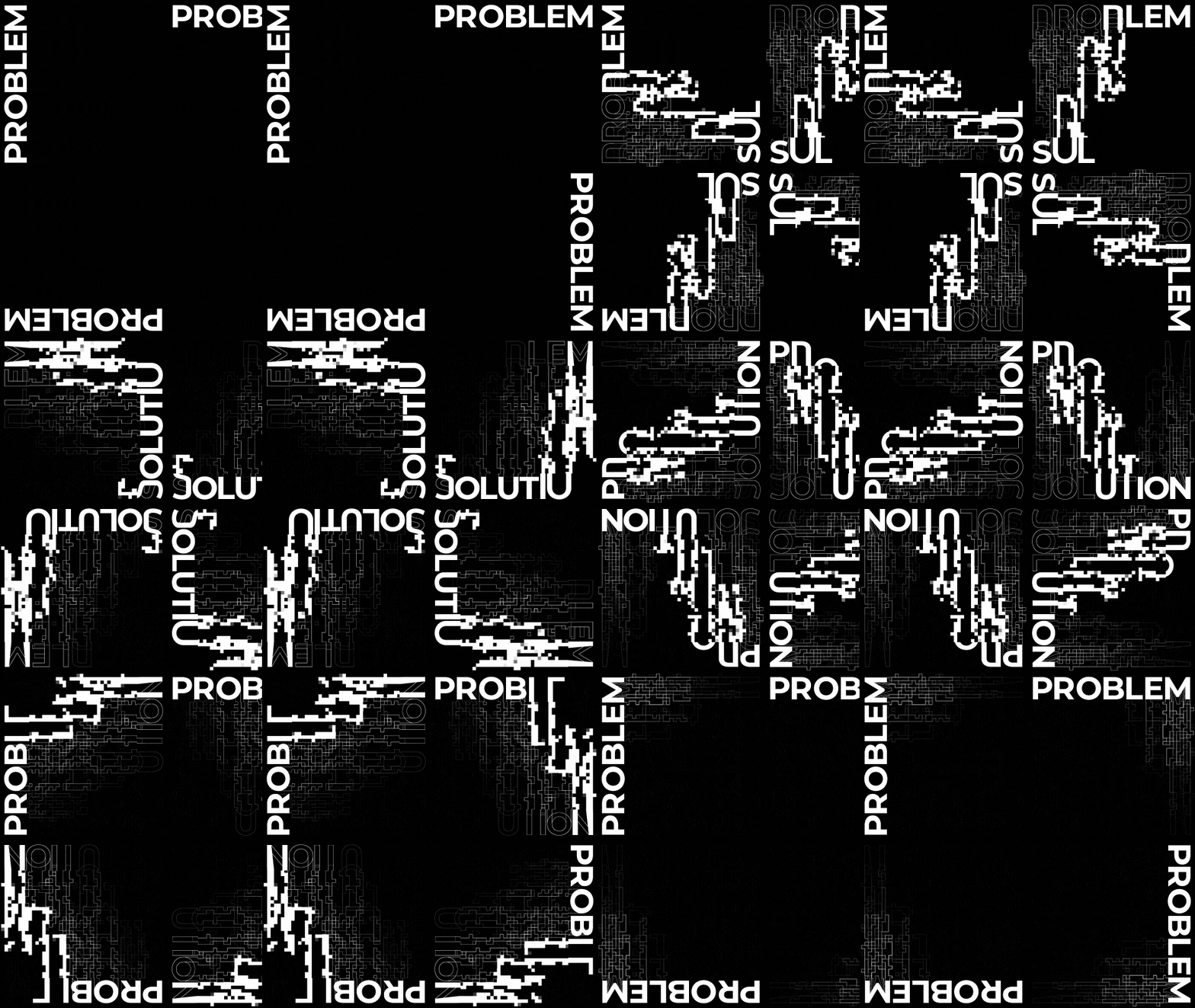
11. Custom Pixelated Displacement: This effect was complicated, but actually you
already know probably 90% of the technique
being used here. So let's analyze
what's happening here. I'm going to double-click this. And we see there are actually four copies of the same thing. So here is one. This
is one of them. This is the master of what
we're going to duplicate. This technique, use a
lot of repetition that we've been talking about
over and over again. All of them have a
different rotation. So it's like 090
degrees minus 9080. They start from
different point problem. Turned into solution. The problem again. So if we double-click
this precomposition, this is the source of it. And let's break down
again what happened here? There are two things. One is they feel problem, turn into solution
to the problem. And then similar technique. I created the field, I had a stroke and then
stagger the time a little bit. So it looks like it has a trail. Then let's analyze what
happened inside here. Double-click and we see
something like this. This is actually if I turn off, we were going to explore this effect called
displacement map and most say, so if I turn off one by one, what the heck does is to square, turn this thing into one sec. If I turn off this, this is
what the displacement give. The displacement will
displace the object. If I turn off, this layer is actually something like this. So if I turn off this adjustment layer
and then play the video, it actually looks like that. This is a fun technique that
we have learned previously. So if you see there are
only two layers here. If I turn off one solution, animating from here,
stretching to the, to the solution position. And then you go back up. This is just a
stagger off timing of the keyframes of the path. So I'll go down when the
rest still going down, The first one already moving up. So this is solution. And then if I turn on
the other one problem less than of the solution. So from here, the
problem will go down and then go back up. So when we turn on both of them, they will actually
meet at the middle. See the problem will kind of looks like intersecting
with a solution. It gives you an illusion
that the P transform into S. And so on. And then we cover
this imperfection with the displacement. So it looks like that. That essentially is,
this technique will work quite well on the amount of the latter
that is the same. But if, if it's not,
it will also work. So if you count this as your solution is
like eight words, eight letters, and then
problem is on the siphon. But it's still okay
because we covered this imperfection with
the displacement. Alright, let's recreate this. Going to go to Project to this folder, composition,
new composition. Let's call this 06
pixel displacement. D by dy square pixels, 30 frames per second,
seven seconds for the beginning click. Okay? First of all, let's
choose the word. Like what do you want to
transform from an int to? I'm going to try
and love and hate. But this looks really small. So let me enlarge it. Let's make something thinner, medium or a bolt that space
them out a little bit. Something like this. And then let's duplicate this, put down. Then it will transform
love into heat. So first of all, let's convert
this into a shape layer. Both of them create. I think we need to
do it one by one. Hey, create shapes
and then love. Great tips. Then these
two is the original. Let's animate this 1 first. Let's activate the
extensive area again by pressing apostrophe so we know where is
the center point. So let's open this. We will animate
the path as usual. Path, path to v, path, ops, ie the path
and then press U. So it's clean. And then let's go to ten. Stretch this one. I think we need to have a state. So like first it
will go to here. And then at this point, everything will go
below the center point. So if we play this kind of like that,
It's a bit slow now. Maybe we need to move it here. Yeah, something like that. And less than what they owe. Again, we need to
create a point. So let's use D or
this tool, pen tool. Let's add a point. Right? Press V. Take them all with like this. Go here. Okay. I made the V. And the last one is E. Yeah, something like this. So we want to create
a mask where it will just crop this
somewhere in the middle. So to do that, we can
select this shape. But we need to
change from this to create shapes to get mass. So if we click this and then
we click and drag like that. This means that this
area will be appearing. Adjust this and then the area outside of
this will be cropped. So you'll see it'll be gone. If I double-click this and
then move this mass up, maybe somewhere in
the middle like this. And then play the animation. Whoops, I think the e,
we need to move down. Oh, actually we need
to move them back up. So moving down, stay for
awhile and set the keyframes. Copy paste this one. Then bringing them back up. Command C, Command V. Let's see. Then they go back up. Yeah, then somewhere here. Copy paste this. And then we will use
the same method, which is a looping the path. So let's go back to that website again and then copy this. Go back to AEE, Alt click Paste. I'll click pace, pace of
click paste and paste. This will loop forever. But then what we want to
do is to stagger the time. Take this slide by
two frames, maybe. Two frames. Two frames.
All have to be together. I forgot. So these two have
to be together. Yeah. So they move at a
slightly different timing and they will look forever. Okay, let's do the head
keyframe on the path. Pursue. Select all
of the keyframes. And then let's go up. I see to make it, to
make things easier, maybe I shouldn't
step at a time first. Let's put them back to the initial state because this might confuse
us when you animate. Let's go like this. And then let's bring this
up at the beginning. This one will be up here. And then somewhere in the
middle actually we want to stretch them out. Okay, it looks like
there's overlap. Then it will continue down. I think we might want to open this mask so we
still see the trail. Something like that. And then copy paste this one. Copy paste this one. And then stay for a while. Okay, we need to set
a mask for this one. Don't forget to click this as a mass and then set a keyframe, set a mass like this. Press V, double-click
on the mask, and then we can
reduce this down. Okay? I think we need to stagger
the time a little bit. So this one comes a
little bit later. Then this one there'll be waiting until this one come up and then it will come back. Yeah, something like this. Basically we need to have them overlap and then we will obscure this
with the effect. If they don't overlap, we will not have that effect
in tech. So this is the gap. So we need to close this gap. Maybe we need to slow
down this a little bit. Or speed this up. I need to slow down this
little bit like this. So we have, we always have the two letters
intact like this. Okay, that looks pretty good. So let's add loop animation
to this as well. E. And then we will copy this. And then we will
add click, Paste, click paste, and so on. Something is wrong because
I think we don't have yeah, it's correct until here. But then this one comes down. So this have to wait. Yeah, somewhere they're safe. Alright, let's obscurity is
with this basement layer. Now. Let's close this and
then let's right-click here. New adjustment layer
on top of everything. Adjustment layer
is actually like an empty layer that you
can add the effect to. It doesn't do anything
without any effect. So what we want to
add is go here. If I can preset,
and then we will find an effect called
displacement map. Distort Displacement
Map, double-click to apply it on this
adjustment layer. And let's go here and then let's increase
this displacement by default is giving
you this will resolve the specimen needs layer
for it to displace. So let's go to project and
it will import an image. So if we open this jetpack, actually I have prepared
this slot jetpack. If you are using the file that I provided inside
here, that will be, it can be any image,
but this one, I will open this image.
It looks like this. We can use this or we
can use any image. Doesn't really matter as
long as it's an image. So we come here and we
will bring this slot down. By the way, if you
cannot find this file, you can always go to the Finder. And in the kinetic type in
the working files provided, you can navigate to footage
JPEG and then des this image. Then you can use this. Or
you can also download image yourself from the internet is better if this file size is. More than 1080 by 1080, because that's our
resolution that we use. But even if it's like
something like this, it will still work. Yeah, so let's use this one. Here. You can just put this image down there and you can
hide the image. We don't really need to see it, we just need to use it. So use this adjustment layer again, Displacement Map layer. Let's select the slot layer. Now we'll turn it into
something very crazy like this. This is because this
effect is using that slot image to
displace things. So it looks like
something like that. If you increase this bigger, it will go like that. I think
maybe something like this. Okay? So if you see it's
adding effect like that, then we want to pixelate this. So let's add the
second effect is called mosaic, stylized mosaic. So if I double-click, it
will turn it into more sick. And we can make it smaller. And then click this
to make it sharp. So you will see
something like that. And we want this effect not
to affect the whole thing, but just the middle part. So let's mask this
adjustment layer, select this, and then just
click something like this. So it will only affect
the area that is mask. So we technically one to
affect just from here. And then the bottom
part will be here. So something like that. I think we need to
adjust this a little bit related, or we can also play
with the mosaic until maybe the size
should be smaller. Now you'll see is
something like this. I press V again to hide
the extensive area. So now you see that we kind
of have a similar effect. To make it more varied, we need to adjust the timing. So press U for this. Then now we can start
to stagger the timing. So maybe by two frames. Then this one by two frames. Don't forget these
two are together. I think they are. All right, Let's see. Fit. You guys can play
around until you get the look that you really like. And this displacement
map also you can play with many things
like for example, this one, this is also
looks quite interesting. Let's see. Just be careful with every time
you change something, you might see this area
become a bit different. So just play around until
you get the result that is, looks, looking very natural. Okay, so we've got
the basic setup. Now the next thing that
we want to do is to stack everything to
make it much more, looking much more complicated. Let's pre-cum everything. So select all of these command C and then call it head master. Then they become
one. Let's duplicate this to make the
stroke version of it. So this one is the composition. I will press Command
D to duplicate, and then we will
rename this stroke. And I will go into
inside of this pre-comp. And I will add another
adjustment layer. On top of this new
adjustment layer, I'll add another effect
called Fine edges. Fine. I just
stylized find edges. So if I click here, it will give us this stoking
like the outline already. So this will be
our outline layer. So let's go to this
pixel displacement. Go to project. This
is our master calm. We will drag the stroke underneath this one and then stagger the
timing a little bit. So it's a little bit slower. And then we can see
the effect now. Maybe even Stoller. Yeah, now we have this very strange looking displays texts. Alright, now we want to make
it even more complicated. So let's become both
of these command C or C. You can name it displaced. And then let's make it
smaller, scaled by 50%. And then let's put
it on the corner. Yeah, I will move
this to the top so we can automatically
jump it to the top. So the best use this
pen behind tool, the anchor point tool, and then holding command
over to the corner. And then let's use this. Use this. It would
jump to the top there. Let's duplicate this. And then this time I will move the anchor point to
the other corner, and then I will use this one. Then it will jump there. And
then let's duplicate again. And this one, I
will move it down here and then use this one, bring it down the
bucket one more time. Change this to the left corner, and then we use this one. So we have them on
each of the corner. But now I want to
rotate them and I want to rotate
them on the middle. So let's put the anchor
point back to the middle. And then this one, Let's
rotate by 90 degrees. Maybe. Let's try this one. Let's move this to
the middle as well, and then rotate my T. And then this one, move the anchor point
back to the middle. Press R for rotation. Actually this might be alright. So let's check this one. Move the anchor point
back to the middle, and then rotate by minus 90. So we have this and
then look at that. We've got an very interesting looking, this place animation. All right, next, we will
do the block effect.
12. Blobby Text: Okay, so let's do
this dog tutorial. Let's see what's happening here. Let me close the rest verse. So there are a few things here. The main thing is, let me close all the layers. So if you see there are
two types of texts. One is the serif and the other one is the san-serif,
which is the stroke. And each of them is
masked by this blob. So if I turn on this block
and soloed is blocked, and you can see This is the blob that we use
to mask the two texts. So if I un-solo again
and I turn off this one. So now you see one mass
is to show this one. And if I turn on the serif
and turn off the other one, the other mass is to
show just the inside. And then the rest of
the things we will do to beautify the blob. So without all the effects, let me turn off this layer
style on this layer. So if I turn off,
we have a bevel and emboss. And we have sad thing. Without those two effect, this is just a flat mask. And with the effect
it looks like this. If we turn on everything. And the last policy is
the displays layer. This displays layer,
if I turn it on, you can see that at the moment
is all straight like this, but pay attention here. If I turn it on, it starts to round and displays the
text based on this blob. So that is the last
policy of this. So those are the elements. And now let's
create our own tax. Going here. We go to the
training, go to composition, new composition, and 1080
by then a t squared pixel. Let's make this 30
frames per seconds. Six seconds is okay. And let's call this 07 block. Let's create a white background. Actually the color
doesn't matter. It's Apple you, but
for simplicity, I will just use black and white. So I will right-click here
new solid white color. And then I will create
our texts composition. With this tool. You can write whatever you want. For my case, I will just write, let's make the first 1 first. I think the color black. Let's make it large. Then I will duplicate
this Command D. Bring it down. Press apostrophe to turn on the action safe so you can see
where is the center point? You can just roughly place
them somewhere in the middle. If you want to centralize them, we can use the align tool. Okay, It's roughly like this. I actually want to make
this a little bit a line. So I'm going to go to here
and increase this a little bit. More weight to the left? A little bit. Yeah. Okay. That's roughly okay. Let's make the second tax. Let's just duplicate these
two command D. Bring them up, maybe change the layer color so we can differentiate them. Turn these two off. Don't forget to save. Since these two different font, maybe let's use Times New Roman because that is
very standard font. You can use any font
you want as long as it looks different
than the first one. And then I will
change this as well. The key is to align them very closely to the
previous letter. So we need to turn
the previous later on and maybe we
reduce the opacity. So you can see,
select both of them, press T for opacity, maybe reduced to about 20. So now we can see how
align the letters are. Maybe I want to space them
out a little bit like this. The more aligned, the more
it will look interesting. So just align them as
close as possible. Alright, and then the face. Okay, that's about it and you
can spend more time on it. But let's move on. I will turn back the opacity up. So I want to group them, so it's easier to move them
around. Like both of them. Let's precompose them. Command Shift C. And this
will be called a serif. And then let's precompose
these two Command C. If C san-serif. Actually for the sake of
differentiating them more, let me just turn this
sans-serif ones. I may turn off
this into outline. So I'll select both of them, come here and invert. Let's add a stroke,
maybe one invert. And then we don't
really need this color, but let's leave it white color. Maybe we need bigger
stroke three. So this happened because our stroke mode is
through overfill. So if we change this
field of a stroke, then we will have this less
dense the other one as well. We'll have a stroke
already done it. So let's increase
the stroke thickness maybe to about seven. Alright, let's come back here. Okay, now let's create the mask. I will create a new
solid, white color. The solid that you set here will be the color of the block. So now we are
creating the block. Let's just call this block. And then we will
use this effect. Let's scroll down to
effects and presets. We will use this effect
called CC Mr. Mercury. Just double-click here. And let's solo this for a while. And let's move our
timeline indicator here. By default you see this
mercury is giving you this kind of crazy blobby thing, like dropping blobby thing. This effect is actually kind
of a bit like a particle. So what it does is
it emits bunch of dots that is merged together and they are all
falling to the ground, therefore into the ground
because there's a gravity here. So let's first turn
to gravity up to 0. You can see that they are
all now emanating outwards. If you turn this
gravity to minus, it will actually float
like this if I play. Yeah, but we don't want that. So we want it to be just 0. And then let's play it. And it's all emanating outwards
because there is a velocity. So if you turn this
velocity down to 0, everything will be just
a meeting on the spot. And this is what
we want for this. So now we want to
spread the particles around because at the moment
they are all at the center. So there are these
reduced x and radius. Why we increase this? You can see that it
starts to spread them around in x-axis. And if we spread like this, you can see that it's
spreading y-axis. So now if we play, it will create
something like this. Let's just make
this two number 50. So they are equal round. And now let's see what are
the things we need to adjust. Birth rate is like how many, how many dots that they emit? The woman. I think
we have too many. So let's reduce the birth rate. We don't really need too much, but we need a bigger blob. So if we see
something like this, yeah, Let's first
increase the size. So there's a bird size
and there's a death size. So we want this to be bigger. Maybe. You can play
around with a number, but I'm just going
to make this one. And maybe this one is 1.5. So it will birth at, at one and then it will death. Diet at 1.5. So we can see
something like this. And they are kind of
like a merging too much. So the control for that
is in the Blob influence. At the moment they are at 100%. If I reduce this, you can see that they start
to reduce the emerging. Play around with this number until you find something that you'd like. For me. Maybe let's let's try about 50. I think that's kind of okay. Let's, we can
readjust this later, but let's use, let's start
using these as a map. So go back here. So I want to turn off
the sensory first. And you see that this block is at the moment on
top of these texts. So it's blocking it, but I
want to use it as a mask. So we will go into
use this track matte. If I force selections, if I use alpha matte, by the time I click this, you will see that
this layer is hidden and then there's two icons
appearing like this. This means that now
they are related. And this serif text just now
is using the blob as a mask. So that one is already mask. Let's match the other one
which is the sensory behind. Because at the moment, we want the san-serif to be
on the opposite side. Let's duplicate this block. Actually before that,
let's precompose this block because if we keep on duplicating the blob and we want if we want
to change something, that means we need to
change multiple times. But if we could pick compost, we just need to change the
thing inside the pre-compose. So first of all, commerce
if C for this block. And let's actually move all attributes into
new composition, so the effect will follow. And then click Okay. So now we have a
precomposition of their block. I'm going to duplicate
this layer command D, put it on top of the san-serif and then use Track Matte again. Alpha matte. If we use Alpha
Matte, you see it. It does the same thing
like previous one, which is using the blob and
then putting the text in. But what we want
is the opposite. We want to put it outside. So let's change this to
alpha inverted matte. And you can see that now we have two different texts with
two different mask. So the next thing is
to polish this blob into looking like more
like a blob of water blob. Again, I will duplicate this
blob command D. Turn it on. And then let's add a layer style right-click or
control-click on Mac. And then there's a layer styles. These styles behaves really
similar with Photoshop. So if we already know how to
make glossy kind of blob, you can do your own trick. But for my case, first of all, maybe I will add
Bevel and Emboss. So we have something like this. If I open this, again, you
can play around with this. I think I'm just going to
make it big like this. And maybe reduce the
opacity of the black. There is something
like this. We can play around with
this again later. But I'm going to add
another layer styles, right-click Layer
Styles and satin. And going down here, I'll invert this and start
to look more like a water. Now, I said by
default it's not bad. Yeah, you can play
around with this number, but I will leave it at that now. And actually I want to change
the blending mode of this. Again, this is like
a Photoshop as well. You can choose any bending mod1. The shortcut to go up and down
is like Sift plus F minus. If I press U plus, it will go scroll through all these blending
modes that we have here. You can find the best
one that you like. Thing I kind of ended
up with overlay. Okay, So we will
add another effect. On top of this. I'm going to right-click Create
New Adjustment Layer. Adjustment Layer is the
empty layer that you can add effect and it will affect
everything underneath it. So I will add effects
called globalize. Globalize. If I
double-click here, by default is giving
you this insane stuff. It's actually
looking pretty cool, but we don't really want
this to affect everything. We just want it to
affect the blob. So I need to use
another blob Command D, put it on top of this
adjustment layer, and then use it as an
Alpha matte again. So by doing that, it will
actually affect just this. And we actually want the text
to be not affected by it. So I need to bring this serif. These two, remember
they are linked, let's just change the
color, bring them up. And now it's on top of the blob. So now if we play this, let's actually play from somewhere where the block
is already appearing. Maybe here, I'm going to
start my render region here. If I press B, it will
bring that thing here. And I will play this course is that if the
computer is heavy, you can reduce this to half. And then I will just preview
until four plus ten. And it will bring the behind
of the render region there. So if I render this, yeah, that's essentially it. The last remaining policing
is just the displacement. You might or might not
need that displacement. But if you need that, Let's Create
Displacement Map layer. So right-click new
adjustment layer. You can name this displacement. And then finer effect
called displacement map. Display is well come out like this and then
you can double-click, by default is giving
you this result. So what displacement map does is if I increase this number. It will displace
whatever underneath this adjustment layer to
the left and to the right. But it's using some kind of map. At the moment is using
itself as a map. So that's a very strange
thing like this. But what we want is to
use the blob to displace. So we need to change the layer. But first we need to create different kind of
displacement layer. So I will actually reset this first time it offers for now, let's create a new layer, new composition that is actually
using the block itself. So we have created
this blob com 01 test. Now, this one, if I
double-click here, this is our blob that we've
been using to map things out. So first of all, I
want to direct this to a composition to create an annual competition that
consists of that blob. So now if we have, it will open this
composition block compulsion to and you have this. First of all, how
it works is like a, we'll use a gray scale image
to display your image. So I want to create
a solid 50% gray. So if we come here, black type of 50%
will have 50% gray. 50% gray means the
displacement will not read it, it will just be a neutral color. So that is our background. And actually we want
the same effect here. Let me come out here and go to our blob
that we already have a layer styles and copy
this bevel and emboss uncertain Command C.
Go in here, paste. And we have something like this, but we don't want
it to be white. So we need this
effect to be gray. I will add fill and
use this 50% gray. We don't need the saturation 0, so we have 50% gray. Okay? So what this means, the displacement map
layer will actually read the grade to be nothing. And we will use the black area here to displace our texts. So that's what we want. We want the text to be
displaced a little bit, following just this
contour, the black area. So let's come up to our main composition and then back to this
effect, the specimen. What we need to do
is to drag this. Let's actually rename this
into the displacement. So bring this in safe. And we don't really need to
see this displacement map. It just has to be there, but you don't want to see it. So let's hide it and then
go to displacement layer. Go to Effect, turn it on and change this
displacement map layer into that displays map. So now you see that our edges of this texts start to
get banned little bit. If I turn it on and off, you can see the different yep. So it's using the gradient, the gradient to bend. If you increase this, you will see the effect more. See it gets more, but
if you do it too much, it will go crazy like this. So just use moderately. And you can play around with
these settings as you like. Let's play it. Yeah. So you learned how to create a block and how to use
that block as a map, and then how to
display the edges. And the next, we will
do this wave defect.
13. Wave Warp: This effect is actually
very easy and basis of it is the strategic tax effect that we've learned earlier. So if I go in here and you can see
that the basis is actually this, this texts. And if I play this, I'm pretty sure you already
know how to do this. But later we will do it again. And if you come out, there's the adjustment layer
with the wave warp effect. If I turn it off, it
will actually just be this wave effect that
we learned earlier. As you can see, again,
we use the same, the same technique, duplicating
the same precomposition. And then we stagger
the time a little bit and they will animate
a different timing. And then on top of that,
when we turn on this effect, everything will be
wavy like this. Alright, let's create our
own co-vector project. Go back to training
composition, new composition. Let's call this 0 wave. Yeah, six seconds is okay. 1080 by 1083 grand per second. They, okay, then let's create
the texts. Call this wave. As usual, you can use any words that you like
and we just reduce the font size and turn it
into maybe extra ball. Press the apostrophe. Apostrophe to turn on
this so we know where is the center Command
Shift H to show this if you haven't
shared the bounding box. And then as you
do all we want to centralize this anchor point. Press Y for this tool holding command
or way to the middle, plus v for this default
selection tool. And then we will centralize
this to the middle. Yeah, actually let's
make it slightly bigger. I will actually speed up
this process because I think you already
know it, but yeah. Okay, so we have the setup. Now let's create
the wave effect. I will right-click here. Outside of everything,
Right-click on the empty space. New Adjustment layer, which will affect all the
layers underneath. Create a wave effect
called Wave, Wave Warp. So this one, click and drag or double-click by default is already giving us this
interesting effect. What you need to do is just to play around with the settings. At the moment. You can
play around with all of these settings will give you
different, different, look. It's pretty interesting. Some
of them are a bit crazy. I'll go back to sine, sine wave. Let's make it bigger
wave, wave width. As you can see when I
scrapped like this. So it looks like a flag. So you can play around
with the settings, maybe actually just max
it out if you want even more than this number and this
slider is like maxed out. You can actually drag this
more than that number. But for my case, I
will just use a 100. And this is for the
height of the wave. Maybe we'll just do it this way. And let's see. Yeah, actually that's about it. But if you see this wave, the coupon animating,
if we don't want that, we can actually turn
this wave speed to 0. And then there will
be no animation is just gonna be like that. So that essentially
the settings for this. Alright. So you've learned
about the wave warp effect. Next, we will do the
Thanks follow path.
14. Text Follows Path: Let's analyze what's
happening here. I will double-click this. As you can see, we use
again the similar tactic, using the same precomposition and then stagger the timing. And actually here there's a scale difference,
scale change. So they are gradually become bigger and bigger and bigger. Let's see what's happening
inside this pre-comp. So if I double-click here, you can see this
layer doing this. This is the essence
of the tutorial. So if we see what's happening
here, That's attacks. And inside the text, There's a mask. They're
changing shape. Let's give some space here. So this is the
keyframe for the mask. I start with the
circle and it goes to this diamond shape.
Stay for awhile. Go to triangle, stay for awhile. Goto square, stay for awhile, and then back to circle. And then the text is actually following the same
circle, the same shape. And you can see, if
I solo this texts, this is just a text. Underneath the texts. There's a box of white. This is actually to cover
the smaller layer outside. Without this, by
everything we'll be showing, we need distinct. And then the other one, if I turn off this one, this one is what the outline
for the back of the text. Let's create this project. Go to training. Great
composition, new composition. Let's call this 09. Texts. Follow path. Let's change the dimension to be 1080 by 108030
frames per seconds. Six seconds is okay. And then click Okay. Let's turn off this transparency so we have a black background. And first of all,
let's create a text. Or you can type
anything you want. I will just take a sip of my heart and then make it small. Maybe something like
this. Bolt. I think maybe it's enough for now. Okay, so first of all, let's select this text and
then use this pen tool. The shortcut is g I, I'll just randomly
draw some shape, maybe something like this. Back to this tool. And then click on this, open the mosque upon the texts. There's a puff option, actually if we select this path. So as you can see inside of
our texts at the moment, there's this shape
that I drew just now. If we select this mask, it will automatically
follow this path. So that is actually the
only trick for this. And the next thing that
you need to do is just to animate this path to
anything that you want. There are some settings
that you can do here, like for example, the first margin, which is defining where you want
to start your animation. You can also animate
this if you want, like, I think keyframe
and then just animate. And then it will just
make that the last margin is defining where it ends. So you can play around with this until you get what you want. But essentially
that is about it. So now let's delete
this mask and then make the mass as my example. So let's go to Mass, open it and then delete. Okay, let's actually
use this shape. So it's a perfect circle, perfect square,
something like this. Press the apostrophe to turn
on the action safe area. Press V to swap
back to this tool, double-click on our mask. We want to try to centralize this mass center as possible. So I'm going to zoom in here. Actually let me see
whether this can work. Oh yeah, actually this
line torque and work. Oh no, it's not. It's actually
only aligning the text. So we will have to manually
Double-click this mass again. Minority try to align
this to the middle, and then that will be
at the exact center. So let's make it hold Command and Shift to make it enlarged
from the center. Maybe something like
this for the beginning. And then let's turn
our path to mask one. And then it will be like this. If y reversed like this, it will go out like that. And that is what we want. I will actually duplicate this. Actually, let's,
let's make our text smaller, maybe like that. And then let's change
the first margin to be somewhere here. We can change this along
the way and adjust based on the text change
and shape change. But for now, oh yeah, at the moment we also
add this center line, so I want to change it to, let's select, select my text, change it to this, and you need to make
another adjustment. Once you do that. Let's
just start from here. We'll just duplicate this
multiple times so we have a full circle covering Command C, something like that. Then let's adjust our
font size so it can cover something like this. You can spend time to
refine the design, but I think for now,
I'm good with this. Let's now start
animating our path. Go down here. So the keyframe, then press U. Let's go to ten frames. And then set another
keyframe just so it will stop at square and got ten. Let's turn this into a circle, maybe quick shift, so
we only selecting 1. And then I will press
P for the Pen tool. And we want to use this
Convert Vertex tool. So we can have this shape,
something like this. And then I will also
want to change this. And let's readjust this, press V and start to readjust until it
looks like a circle. It will not be very perfect, but we can go close to circle. Okay. Let's see how it goes. Yep. And then it will stay
for a while as a circle. So we copy paste. And then let's turn it back
into the square v. And then we went to double-click and then rotate
this holding shift. So we can rotate by 45
degrees or 90 degrees. And you can see that
from circle it will change into this diamond shape. Stay for awhile,
copy this paste. So stay for awhile.
And then let's turn it into and to triangle. Hold, Shift and click, and then click back here. So I can get this. Maybe move it somewhere here, move this down, and
then move this down. Something about that. And then select all
of these and you can readjust the shape of
your triangle may be like this, something like that. And then it will still
stay for awhile. Command C, Command
V. And then it will move back to the first
keyframe, copy this, paste. And then this will be
our looping point. So if I press N here and we'll
close our render region, and if I play this, I will just keep
on looping that. Let's turn everything
into easy ease. So right-click keyframe
is the ease or F9. Yeah. I can, as you can see, when we when we are in circle, for example, there's a gap here. So we need to cover this gap. Maybe actually let's make
the circles smaller when it goes through the circle. So take this
keyframe, hold Shift, click back, and double-click
in any of the keyframe. Actually, no, it doesn't work. So holding Shift and
select all the keyframes, and then double-click on one
of one of the keyframes. And then you can
hold Command and Shift and shrink this
down maybe to here. So yeah. And then we need to copy
this because if not, it will go back to
this bigger circle. So copy and paste and SUB. Okay? And now this
triangle is also too big. So let's grab one of them. Yeah, I think
something like this. Copy this, and go
here, paste it. So now we have kind
of like a good shape. Yeah, so that's the text. Let's make the shape behind. But first of all, we need to
centralize the anchor point because it's always a best
practice to centralize things. So let's select this, go to this tool, and then hold command, and we can centralize it. Drag it to the middle
while you hold Command. And plus v, Let's
turn on apostrophe again to check whether
they are at the center. Yep, I think they are. Okay. Let's make a shape. Actually. Let's just
create a stroke. No fill. And then I will just use this pen tool and
then click here. Just click one time. It doesn't really matter what
you do because we want to parent the path to what
we already created. So if you open this, this shape here is,
there's a path. Let's pick whip
this to this path. And then it will actually ignore the earlier point that we draw, and then it will follow
what we have here. Let's move it down here. Okay, Let's increase
the stroke width. Something like that. At
the moment is not hey, center. Let's try to fix it. Click here, press V, less centralized Anchor Point, press Y, and hold
Command, Center it. Then there's centralize this. So now we have the correct one. Okay? It's actually not
really aligned. So maybe we need
to scale this up. Go to transform, and then
scale somewhere here. Yeah, okay, let's play it. Yeah, it's kind of a k. If you want to round this. Let's go to our stroke. Turn it into round cap
and then round join. And then you can see that
this is a bit more rounded. Okay, so we have the base, Let's pre-comp them,
select both of them. Command Shift C to become. And then, okay, and
then now I can press S. I can duplicate Command D and select the bottom
one, scale down. Something like this. You
can always go back in, if this is not to
circle for you to you, you can always go back
into that pre-comp and then refine the shape. But let's see here. Okay, and then I will
duplicate again. And this one make it smaller. You get the point. So you just need to keep on duplicating them until
you get what you want. And if I play this, you can see that
it's doing that. I will speed up the process
and make everything. You see in this one
is looking pixelated. There is because we
didn't understand yet. If I take this becomes sharp. This is like a utilizing
the vector capabilities inside because they
are both shape layer and there's the sun. So if we outside
than on the Sun, there will always be sharp. So let's turn on all
the Sun actually. So we have less
sharp vector layer from time to time unit to
check all your shapes. Because on some shape actually see like this, this
is overlapping. Yeah, you can of course adjust. But for my case, I think
the point is like, you already know the technique. Then the next thing you do
is like, of course as usual, you can stagger the
timing by one pixel. Take them all, and
then move it here. Move them here. You can start to see the power of staggering duplicated copy
of pre-comp like this. Okay, So you have learned about how to use
text follow path. Next, let's do the last one. Is this slow motion.
15. Flo Motion: We are on our last effect, which is the flow
motion madness. If I play this, you can see these crazy effect that
is really easy to do. Let's start from the beginning, go here, and then
composition, new composition. Let's call this ten. Slow motion than I did and 8030 frames per
seconds, six seconds. Okay. Let's create the base
tax for our motion. Okay. For the emotion. And then I will duplicate this. Bring it down. Madness. Yeah, like center, center it. Maybe make it slightly bigger. Maybe this one is maybe
this one is outline. Okay. Then let's duplicate. Bring them to the middle. Okay? Let's precompose them,
select all of them. Command C If sea floor tax. And then let's add
an effect here. If I can presets and
let's type flow. Scroll down to find
a CC for motion. And if you double-click by default is not
giving you anything, but if you increase,
this amount, will go crazy like this. And you see they have a two things that
you can move around. This is not one. If you see if I drag this, the number changed
and this is the NO2. What I want to do is
actually up to you, this is, this is a
really flexible effect. You can actually play around
with crazy stuff like this. But in my case, I
actually put this in the exact center somewhere here. So the number, I think
it's about 540 by 540. So there is that this one
I'm not sure what it does, but let's ignore for
us at the moment. And then we just want
to animate this from 00 is the state where
there's no effect at all. Let's create a keyframe here. Press U to open this. And then I see, So this is actually the not number two that
you can also animate. If you want to have double knot, I will ignore number 2 first. So 0 at the 0 second
and then at one. Let's increase this
to some number, like it can go beyond 100. I think I did
something like this. Yeah, let's go with that. And then at maybe it
will go really fast, like within within 20 frame
or within ten frames. Erase here and then it will go follow through a little bit. So I increase this a little bit. And then it will go
back to initial state, copy paste, maybe here. And then copy paste, and it will stay,
stay for a while. Let's close our render region
and then see what happened. Yeah, something like that. Let's move out all this. Selecting them, press F9. There are a bit fast. Let's
actually extend the duration. Maybe this one needs
about 20 frames. And actually let's take, let's take the curve. For this keyframe. I
want to stay longer. Then only it will change to
pick up speed to go back. And maybe let's move this here. Next you see the flow of
animation is not really nice because when you raise this,
it actually slowed down. First, I want to
change this keyframe, holding command or control on Windows and click it will go back to the original keyframe holding Command and click again, I will have this round keyframe. This means that it will actually follow
through this keyframe. And if I play this, it will actually
flow much better. So far follow to
animation like this. Usually you can turn this
into this round keyframe. So feel free to play around
with all of this thing. Maybe if you add a second note, they will have other
interesting stuff. So let's, yeah, let's add another amount
number to press U. You see from here, maybe it goes like that. Then this one actually go minus. So we have two. Let's copy this. And then back to 0. Copy, paste. Select all of them,
turn them into F9. Easy, Ease. Yeah. So play with
this and don't forget that when you
go into the pre-comp, whatever you change here, it will actually affect
the look outside. So for example, let
me just turn this off and we'd go out. It will actually look like that. Yeah. So many things can affect your design and just enjoy
the process and play around.
16. Outro: Hey, congrats for
finishing the course. I hope you have fun and
thanks for your patients. If you make any cool stuff, please tag me on Instagram or
in any other social media. Well, keep on practicing
and see you next time. Bye.
 Martin Altanie, Motion + Interaction Designer