Transcripts
1. Create Hyper-Realistic & Consistent Character AI Videos: I'm very glad to welcome you to this amazing video lecture. In this course, we're going
to learn how to create high pistic AI videos with consistent characters using
Google Video and prompt only. My name is George Tim. I'm a senior software
developer at Emanua Global. I have very good
interest in creating trending and amazing AI videos. And today, I'll go ahead
and teach you how to create amazing AI videos with hyperistic images and consistent
character development. We're going to learn how to
generate images for videos. We're going to learn how
to animate our videos. We're going to learn
how to edit our videos, and then how to publish videos. So if you join me
right in this course, we go ahead and
learn how to create hypoalleistic AI videos using Google VE or three
and prompts only. Thank you so much, and I hope to see you
right in the cure.
2. Setup Production Environment: I welcome you back again to
prompt video Master class. And in this video,
we go ahead and set up the amid immediately. So what we need is a
Google account for this. So we must have a
Google account in order to be able to create a hyperalistic video because Google is a version of a view, which is a VEO three
that is super great. So you can go over to Google Germany and go over
to Google and type this. Oh, that is actually Germany, and this is for your health. And over here, you can go
ahead and click on this. Maybe you have this already. All you need to do is to
follow up immediately. And if you have this, you are limited to just ask Jiminy anything,
and that is it. But if you want to
start creating videos, you have to go ahead and
upgrade to a proof version. So right inside here, I'll have to go ahead and create a proof
version for a month. And one thing here is that
Google is not going to deduct anything for the
period of one month until I move over
to the next mode. So the says you have to get access to the most
capable models, create high quality
video clips with limited access to
Vo three, right? And that is very impressive. So that is what we
need in order to start creating hyperuristic AI videos. So go ahead and click
on this, right? So over here, you
can see that it is absolutely free
for one month. So after one month, then you start paying. So you also cancel your ad in case if you
don't want to pay for this. But if you actually in
love what you're doing, you can go ahead and
continue with this, right? So if you have one or two
or three Google accounts, you can actually
check them out on each month and then
see how it looks. But for now, let's go ahead and get this offer free of charge. And let's go ahead
and click one Agree. And then it goes on
to open up for us. So it's gonna ask me to add
a payment to this card. I'll go ahead and click on card, and I'm going to add
a payment to this. So let's go ahead and
insert cut the toil. So go ahead and
insert to cut the toe and you can go ahead
and start using this. So now I've added my card and have to add
the expiring date. And then I'm going
to add what I want. So try a, and then I go
ahead and save this. So you can see now that I've clicked on this
and I have Google Pro, two teabytes and 11 free, one month free tryout, and I can be able
to do anything. And that is it. So I have to
do is to click on Subscribe. So once you subscribe, you can see that I have
actually subscribed, and that is actually 11 free. Go ahead and close this. And you've got Gemini
Pro and MO salon, go ahead and, like, get
Germany Pro, and that is it. So now go over to this point. You can see I have this called
P over here on my account, and Skyline close this. Is this what I need?
I will need to see this P over here,
and that is it. So if you have P right inside A, you can now start
to create videos. So you can see if
I click on this, I can be able to create
any video that I want. And on my account, you can see that I've
actually subscribed, right? Now, once you're able
to go over to Pro, we cannot stop to
create amazing videos. But in actual note, you're
not actually limited to this. As time goes on to discuss, I'll show you all that tools
that you need to create uh, realistic AI videos that
are amazing, right? So follow me along,
then we'll move in the next video lecture
and kick off immediately. Thank you so much, and
I'm going to see you in the next video lecture.
3. Your first AI Video Creation: I'm very glad to welcome
you back again to another video lecture,
and right here, we are ready to kick
start our journey in AI Video creation
with Google VEO. So I believe you signed
up to a pro version, which we did in the
previous lecture. And right now, we have a
pro version activated, and you can see we
have P right here. Now, we're ready to
start creating videos. All you need to do
is to head over to your Gemini account and go
over to ToS and click on ToS. Then click on create videos with VEO and
that is all you need. So it's always pop
up these things, can go ahead and click on that. But also specify one thing. As a beginner, who
does not know where to start encrypting AI videos? Or let's go ahead and read this. It says, VOT fast.
This is a preview. Bring ideas to life in an 8
seconds video with sound. That means every
video created by Google Video is only
8 seconds long. It means that you're
going to limit each of your creation or video
creation to 8 seconds, so you don't need to type very long words in creating videos. So O is limited to 8 seconds. That means whenever
we are writing out prompts, we have
to specify that. Then you describe the
scene and then add details like visual style
and background music. Let's hand it over to hat GPT. So right on Chat GPT, I can tell Cha GPT to create any type of video that is on my mind or which
I want to create. In order to do that, all
I need to do is to tell Cha GPT to create a hyper
realistic AI video for us. Now we're going to move step by step and generate a
very first video. So let's go ahead
and see, create a hyper realistic video. So this is a great hyper
realistic 8 seconds video. 8 seconds video of a news rocaster in a studio sets. Now, I can tell this to be
studio settings or I can say this should be CNN
studio settings. I can specify the
type of settings I want and you can also
include your own. Let me say CNN studio sets. I can also tell the settings, this speaker to either
be a male or a female. Let me go ahead and say this is a female news news cluster. So it's going to be a
female news cluster, and it can add the
type of clothes he wears wearing red clots. So and I specify
wearing red clots, then I want to see the speaker CS welcome to AI video creation
Mastery course. So we called AI video
creation Mastery Course. We viewed amazing videos here. So I can now add things like the scene or I want the Barbra music I want
or the visa style, and I'm going to say, make this to look like a CNN nasal Broadcaster. So now I have touched
GPT, the taste I want. So these are very fast video. It may not look good. It may not look the best of what you want, but we want to start from here. So all I want is to
create a prompt, and I missed one thing here, and that is create a prompt
for a hyperistic video. So if you say crest a video, if you go ahead to start
generating video and which had GPT will not do except using solar or you're using
solar to do that. But here I want the prompt. I'm going to copy the prompt and put that in my
Gemini account. Let's go ahead and
generate this prompt, and Char GPT will start to generate that
for us immediately. So right here, you
can see Char GPT has actually generated that. All I need to do is to copy this prompt and head over
to my Gemini account, and I'll go ahead
and pass that there, and let's go ahead
and create this. And with this on seconds, it will start to generate
this video for us. So you can see just a second. And with tout wasting time, it will start immediately
and generate this video. Says, generate your video, this can take one to 2 minutes. So let's go ahead and see what we'll get at
the end of this. Alright, so successfully, we have been able to
create this video. Let's check it out
and see what it says. Welcome to AI Video
Creation Mastery Course. We will build
amazing videos here. Alright. So now you can see that's the character
has been generated, and the ette Croat was
actually entered you can see CNN was written at the background, and
it looks good right. So this is cool. Then I will also show you
in this course, we have to get prompts of any kind of video
you want to create. And you can go ahead
and they did that. It should be more easier for you and if you
actually want that. But in this course,
we are going to be generating our own
prompt steel by stele. Then I also show you how
to also copy and press your own prompt and
make some edits if you really want to do that. Now, I'll go ahead
and copy this prompt. I've provided the link the good Docs link on
the Resource folder. So check the resource file by or of this video, and go
ahead and click on that. You go to this Google Docs
and copy this video prompt. And let's get over it says, create an 8 seconds
hyperistic video of professional male
news anchor seated at a sleek modern CNN style
American News deck inside a high tech
broadcast studio. Then he gives the
specification and says, In a global declaration, the US president and world
leaders have mandated everyone to enroll into prompt
video master class. Alright, so we are
still testing, and this is a beginning. We're just starting
to create videos. So as we're moving, I will show you more
on video creation. Let's go ahead and also create this video and
see how cool it is. Alright, so a video has
actually generated, and now you can see a video. Let's go ahead and play this
video and see what it says. In a global declaration today, the US president and
world leaders have mandated everyone to enroll in the prompt to
video master class. Right, so this is where
we are able to generate, and you can see that the
video looks so cool, right? So this is one of the
things we need to learn. This is a starting point
on creating videos. So let's move on in the course, as we move on to this course, we want to be creating
videos in different aspects of life and then
go ahead and learn also how to create images then use those images
to generate our videos. From in the next video lecture, and we go ahead and get
started immediately. Thank you, and I'm
going to see you in the next video lecture.
4. How to Create Videos with Images: I will call you back again
to another video lecture. And in this video, we go
ahead and learn how to create AI videos using images. So in the previous lecture, we're able to create AI
videos using prompts, and then this time we go
ahead and learn how to create AI videos using images. So we are still on the
introduction to video creation. We have not started creating
amazing videos yet, so this is just an
introductory part. Now, I have this image. Of a cart that is right
inside this supermarket. And I want this cat
to actually talk. And remember, we are
using Google VEO for this and want to create
hyperrealistic AI video. So in order to do that, all I need to do is
to minimize this, and I'm going to head over
to Ts and I'll go ahead and click on create
videos with a VEO. So over here, I can go
ahead and add this image. So let's go ahead and add that. Now I have uploaded this image and you can see the image there. Now, for you to be able
to make this to work, I want you to be precise and I want to show
you how to do that. You can write anything you
can say, create a video, create a video of the cat saying Thank you for
watching this video. Thank you for watching
this video or anything. Now, I don't actually like
creating videos this way. I like giving instruction
to Google Gemini or any I video creator or
generator I'm using. I have to make sure that I specify things that are very
important in video creation. Let's go ahead and
move about to this. I've actually provided
you with this prompt. So you always use this prompt for any image you are creating. So right here, I'm
going to I said, create a video of the cat kneeling down and
with hands begging. No, I don't want this.
So I copied this for the prompt I've actually been
using to create my videos, and it says, using the
uploaded image as the base, you now see where I started. So this prompt to actually tell Google jam the this I need. It says, using the uploaded
image as the base. Create a hyperalistic AI video. Mate the subject in the image. Now, the subject can be human
being, animal, or anything. So if it has too many images or too many people or anything, you can tell animate
all the subjects. And to naturally move their
head, blank occasionally, and slightly move
their shoulders as they speak,
maintain all clothing, background and lightning
exactly as shown in the image, ensure the eyes
is on the camera, lip sync is accurate with
clear mouth movements, matching the following spoken English and American
accent line. Now, it can be maybe any accent it Indian,
it can be Chinese. It can be Nigeria Pigeon
English, or anything. So now the subject, it says, I'm very excited
you completed this project, and thanks to Judge Steve
for teaching us how to build our own animal talking
AI videos from scratch. Then it says, use a calm, confident, plain
English speaking voice. Ensure no additional text. Subtitles, watermarks, or
logos appear on the video. Keep the image's original
style and resolution intact, turning it to a natural
looking talking video that last 8 seconds to
eight to 10 seconds. So I'm going to maintain
this to just be 8 seconds. Now, you see the
instruction I gave you. I can go in and copy this. And then I wove back
to my Google Germany, and I'll go ahead
and paste that. Now, I have given instruction
to what is needed. And in that way, I'm going to get something
amazing at the end. Now, let's go ahead and
generate this and check it out. So our image is now going
to be turned to a video, and it's going to
be very amazing. And it says, It's creating, I'm creating a hapuristic video. This should take a few minutes, and it sees it's
being generated. And without wasting time to go ahead and read
this video for us. Alright, now, we have a
video actually generated, and you can see the
video is right here. So let's go ahead and play
that and check it out. I am very excited you
completed this project, and thanks to George Steve
for teaching us how to build our own animal talking
AI video from scratch. Alright, you see that I
Google view all the I need. I want the *** to move,
the body to move, and everything in order to
make it to be realistic. Remember what we are
learning is how to create hyp realistic AI videos. Videos that doesn't
actually look like something
done by EI, right? And that is so amazing. Now, we have to generate this and you can see the
cat actually talking. I told you we are just
starting and we're not dive into AI video
creation mastery. And I believe me, by the end of this course, you must have a very new
experience in AI video creation, and I believe that by the
time you end this course, you'll really be happy
with what you get. So let's go ahead
and move about to the next video lecture and
start off immediately. And if you have any
new question, please use the equation and a section, and I'm going to see you
in the next video lecture.
5. Introduction to Google Flow Video Creation Platform: I will call you back
again, right now, we have to go to have version of what Google offers
in IVO creation, and that is the flow. We are limited to
only three videos per day using Google Gemini, and that is why Google created this application called flow. And one cool thing again
about flow is that you will be giving 100
wnthly credit free. So every month, you
have 300 credits to create any video
you want, right? And then if you sign up, you'll be on this flow, you're going to be giving 1,000 free credit,
and that is so cool. Alright? So anytime you
sign up on Coco Gemini, that's Coco Jemmy account, which have already created, and the Habit Pfson will be
extended to your flow account, and you'll be giving
1,000 free credit. And you go ahead and hit on
Create with flow down here, and that will take
immediately to this point. And you start creating
amazing videos. So go ahead and click on this. You're going to see your credit. So I have used some of
this credit, right? And I always create videos. And once your
credit is finished, you go ahead and
get more credit. What time around do you
have to buy that credit? But if you want, you
can go ahead and sign up with different
Gob accounts and go over to the pro version and always get
1,000 free credit. But that rays
require you to have different payment card, right? You kind use the
same payment card twice and it is not accepted on Google AI video creation. So if you want to sign up
for Germany or anything, you must have different
Google payment card in order to get
1,000 free credit. Now, that is not what
I need to talk about. What I'm going to talk about is video creation
using Google Flow, and that is the code them here. So you all join me
because now we start creating amazing
AI videos, right? So let's go ahead and see here, I want to create video. You can go ahead and choose
text to video or frame to frames to video or ingredients
to video, anyone you want. So if you want to create images, go ahead and choose this, and then you go
ahead and click on this and upload the
image you want. Alright? So if you want
to create with text, you go ahead and click on
text and just insert text. Now, I want you to go
ahead and look at this. If you click on this point, you have to choose for
landscape or portrait. If you are creating
this for mobi, you choose for mobile device. Now, one thing or one thin and most advise you to be aware
of is the output per prompt. If you click on this, it sometimes goes to four. It means that it's going to generate four
different videos. And once it generates
four different videos, it consumes your credit. So if you are limited
to put this to one credit or one
output per prompt, and your credit will
be there for you. Alright? Now, go out and Whos, and I want to specify
on this as well. V three fast, always
use 20 creds. Check it. Check out this. Now, if you go to V three, you have 100 credit, pay video output, and that
is really, really, very bad. So don't ever use VO three quality because you're going to consume
just 100 credit, and that is 20
credit or let me say that is five credits of the
very first one of this model. That is Vigo three first, which is 20 credits. So five of this is going
to give you one of these. And remember that anytime
you're using this, your credits over here will
actually be going down. Okay? And once it finishes, you can't be able
to create again, except to go ahead and
buy another credit. Now, I want us to
create a video. For us to create a video, we
can head over to Chat GPT, and I'm going to tell AI or
Chad GPT to create a RMS or a hyper realistic video. So that is realistic, hyperalistic video of a man advertising mobile phone. He wears Pro and jean. He says, This is an original phone. You can use it to get People run the mass
and speak with them. Thank you. Now, creating
videos is not a problem, but the ideas is a problem. So to generate or to get
ideas is always a problem. But in this course, I'm
going to show you where to get ideas of different
videos you want to create. Now, let's go ahead and
generate this prompt. So it's not generate
or prompt by us, and from here, we can go ahead and check it out.
So why are the coputers? Now I will head
over to Google Flu, and I'll go ahead
and paste that. So let's go ahead
and check it out. And see we selected Mobile and SY is actually being
diretd in portrait form. You see that? So if
you want to landscape, you can also quiet on oosea, but that is after this
has been completed. So we have been able
to generate a video and remember that we are
still practicing with this. So as we move into the coast, we start generating
amazing videos. Now, let's go ahead and
check out these guys. This is an original phone. You can use it to
get people from Mars and speak with them. Thank you. Okay, so now I have
been able to create this, and this is just an example
of what we're doing in order to see how to use Google
Flow to create videos. And this is a music AI
video, and it says, create an 8 seconds hyperistic cinematic quality
AI music video of a Mo Afrobeat artist
performing on a grand ultramodn
concert state at night. So you might ask me, how do I get all this prompt I'm using? So I told you that
later in this course, I will show you how to
get all this, right? And I also show you a guide that helps me to get all
these video prompts. Now, let me go ahead
and copy this. Then I'm going to head
back to this point. And at this time, I'm
going to select this to be landscape and still maintain
my video at three fast, and I'm using 20
credits for this. And for the one we just
created, check it out. I have actually
adjusted 20 credits. So you have to be
mindful of what you use. Now, let's go ahead
and paste this and create something far better than what we have
done previously. So the videos being diretd and very soon
need to be done for us. Alright, so the video
has actually generated, and let's go ahead and play
that and check it out, guys. Arise from the dust. I shine through
the storm, heavy. My voice, my power. My song. Arise from the dust. I shine through
the storm, Heavy. My voice, my power, my song. Alright, so now that
is what we have. So we will generate this. And this is just an
introduction to Google Flow on how to use Google Flow to
create our videos, right? So in the next lecture, we move depth in depth into video creation using
Google Flow, right? So everything we've done
will be right inside here. So we are no longer going to be using Google
Germany for now, we're going to concentrate
on Google Flow. So for me along in this course, I have to move ahead and kick start this
journey step by step. Thank you and see you in
the next video lecture.
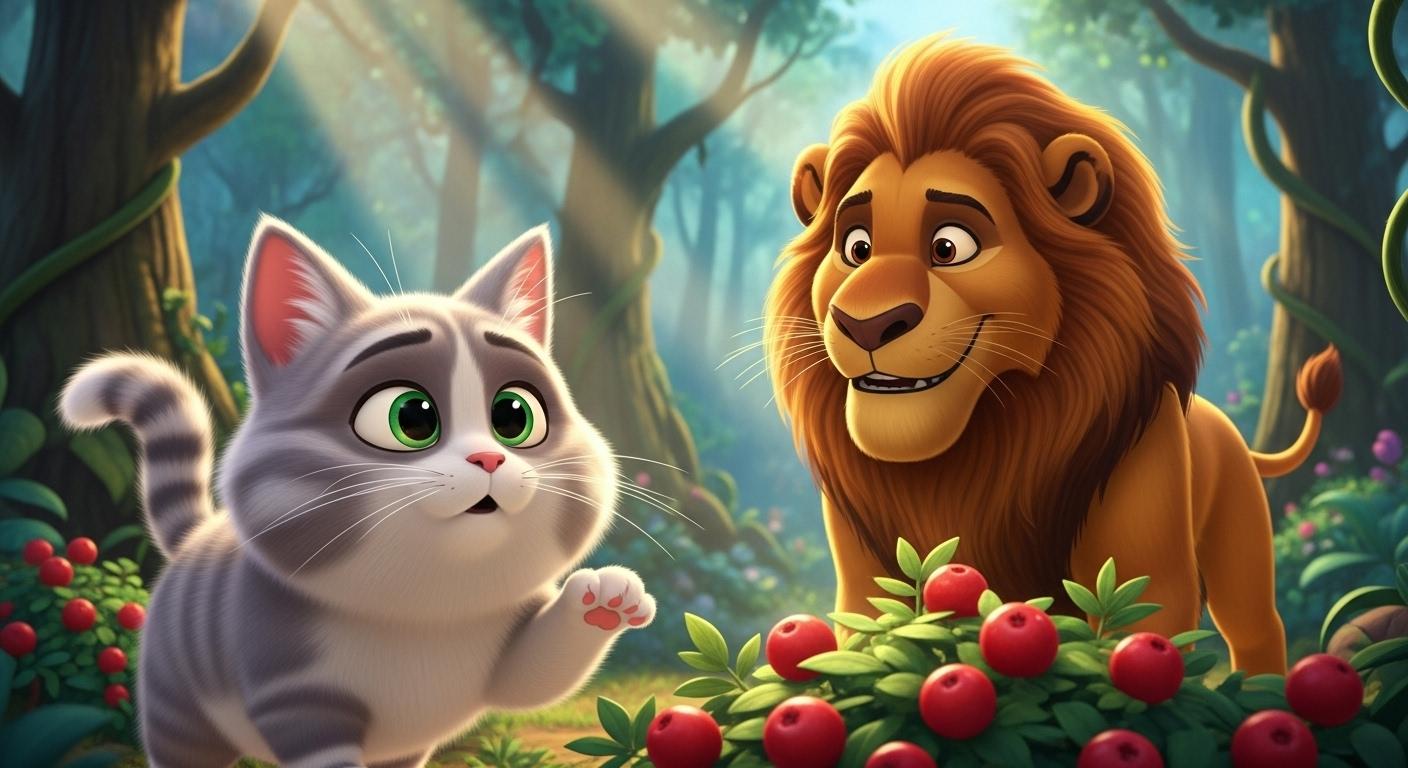
6. Project 1. Demo of Cat and Lion AI Video You will Create: Lion, my stomach is rumbling. Mine, too, little one.
Let's search together. Do you smell anything? Just leaves and
dust. Keep looking. Wait. I see something. Real? Really? Show me. Over here, come and
see food at last. Ah, small, but precious.
You found it first. Tine bites for me,
big bites for you. No matter the size, we share the joy. I'm happy we search together. Me, too. Friends
always find a way.
7. Lione & Cat - Image Creation with Google Whisk AI: I'm very glad to welcome you, and it is now time for us to dive into the
reason why we chose this course and why we came into lennin hyperistic
AI video creation. So we want to start creating
videos that are realistic, videos that are enticing, videos that actually
look so good. But Google Video actually
limits us to 8 seconds. And now we want to start
doing things that are more than 8 seconds and
realistic and so beautiful. So, you are not limited
to 8 seconds video, but out of our creativity, we're going to do
something that is more than 8 seconds
and very sweet. Go ahead and click on
Sim Buda right here. So anytime you
play Consent Buda, you can now start to create videos that are more
than 8 seconds. So anytime you create the video, you can add more and more. Now, I want us to start creating videos
that are realistic. And for us to do
that, we are going to look at Google whisk. So Google on this platform
also called Wisk. So with Google,
there are so many. Video creation is unlimited, and it is so important to know everything about
Google Video creation. So show that I do everything to my own best
of knowledge to give you everything you need in
order to start creating amazing AI videos using
the Google AI Toes. So go over to WislabstGgle slash xlasTSlash WISC and go ahead
and click on Enter ToS. Now, what about a
creating video? One cool thing is about
maintaining consistency. So whenever we create here, we can animate that
directly right inside here. Or we go ahead and
download that, then move over to SM da, and then upload that
using frame two video. Now, over here, I want to create an interesting
animal video. And this video will help us to start making things
that are so cool. Now, let's head
over to chat GPT, and this is where we need
to start from, right? Of then we need to enter propt. Let's go ahead and do that.
So let's go over to this. H a prompt have actually
created for you, and it says, produce an animated story video featuring a cat and a lion as the search for
food in the forest. Along the journey,
the cat discovered food and caused
the lion to join. The video should rely entirely on dialogue between
the two characters. With no external narration, the cat and the lion must
tell the story themselves. Each scene should
include concise dialogue and be limited to a maximum
duration of 8 seconds. Let's go ahead and
copy it. And I've provided you with this prompts. Go ahead and check the resource folder
and then load that. Go over to Chart GPT
and paste that here. And now let's go ahead and
run this and it's going to generate this video
for us step by step. And you see that,
and that is it. So now we have six scenes
actually created for us. Now, I'm going to to Chart
GPT to create prompts in a pi in a three D piza style describing the I
should be describing the fishes of the
animal and the scene. Okay, describing
each of the fishes. Of the animal and the scene. So let's go ahead
and get each of those animal want to
get the lion this, and then the cut this,
and then the scene, how they all look like. Now, we have a cat, an adorable Tixa style cat. Now, copy this and then
head over to whisk. Now, over whisk O whisk, go ahead and click
on subjects and click on this and place
this, I check it out. So it's going to generate
image for that is the cut. So that will garator for us. Now have this for the cats. Then let's go ahead and that
is this a majestic lion. So go over here,
hit on this plus booty and enter the
next character, and it's going to be
generated for us for ion. So we now have a cat and a lion. They want to show a scene, we are all this
actually happens, then go ahead and copy this. So we now have the
very first scene that is for scene one, scene two, scene three, C four
and C five and pest that. So I have not pested this, so I'm not choose
I choose both of the animals because I want both of them to actually appear, and let's go ahead
and create this. So it's not generates this
animal for us steel by steel. So I've generated the
very first scene. Let's go ahead and delete this, and let's go back and
copy the second scene. So in that way, I'll copy
each of this scene one by one and generate all
the images one by one. And these images are the
images I'm going to use in Scene Builder to
build our entire video. And I'm going to do
that steel by steel. Now I've generated
the very second one. So let's go back and copy it in. Then one thing again, I want to specify is that WISC always creates
two images for you, so you have to choose
the very best image and download that later. Now let's go ahead and
enter the third one, the third scene and create that. So I've generated the very
scene. That is the third one. So in that way, we go ahead and generate the remaining scene. Let's go ahead and generate the remaining scene immediately. So let's go ahead
and copy this again, and then move back to Wisk, then delete this and press. And in that way, we're
going to complete all these images
one by one, right? So I have immediately generated all these scenes, and
this is what we have. Now, let's go ahead and download
the best images we have. So from each of these scenes, you go ahead and download
the very first one. So if this is what you need, you go ahead and download that. If this is what you
need, you download. So any one of them, from each of the scenes you've
actually created, you go ahead and start
downloading them one by one. And for whatever
we've downloaded A, we now go ahead and use that to create a video
inside here, right? So I'm going to show you how to actually generate
this one by one. And in the next video, we go ahead and get
at it immediately. Thank you and see you in
the next video lecture.
8. Animate Your Animal AI Video: I'll coll you back again.
And now in this video, let's go ahead and get
started immediately. So secreting the videos from the images you've
actually generated, and let me go ahead
and delete this. So one thing about
Wisk is that Wisk has both image generation
and video generation. Alright? So you can
go ahead and click on Animate, and right here, you can now go ahead and
create your video, right? And you have 28
generations as a per user. Right? And as a free user, you have five generations. Well, now you can go ahead
and create this video by animating them and they
also call with sound. Now, I just want
to show you this. We're going to use
that, but not now. Now, I want us to
show I want to show us how to use the Sim
Builder to do all this. While inside the
SIMbda all I need to do is I look for the
best of these photos. I'll go ahead and download that. And now that I've
downloaded that, I will head over to SIM Buda, and then go ahead and upload it. So once you click on this. You go ahead
and click on this. I say, generally an image, or you go ahead and
upload an existing image. So what we need to upload
is an existing image. So let's go ahead and
upload the image now. So now this is the
image I've uploaded. So we have to click
on Cut up and save, and that image will be immediately saved
right inside here. Okay? So it's
uploading the image. I will wasting time
the image will be here and go ahead and use that image. So any time you click on
this and try to upload, you're to see your image. So you can see you have
the image right here. Now, to animate this, head over to this, I'll actually keep
this prompt for you. And now I have
animate character. So I using the uploaded
image as the base, then I'll go back
to my chat GPT. Then I'm going to
look for the dialog. Right inside here, I will check. It says, Cat on my
stomach is tumbling. Lion says M two, little one, let's
search together. Let's go ahead and copy this. Then go over to this
prompt and base that. So what I'm going
to say now is CAT says so with cra Mut moving, mashing the foreign spoken English and American
accent line, cat sees Lion, my
stomach is rumbling, and Lyon replied saying, M two, little one,
let's such together. So you can see that I
now have this done. All I need to do is to
go ahead and copy this. And then head over to
flow and base that. So I'll show you
how to use that. Using the uploaded
image as the base, create a hyper
aristic AI video and made the subject in the image to naturally move their head, blank occasionally and sometimes move their shoulders
as they speak, maintain or clothing,
background and lightning acts exactly
shown in the image. Ensure the eye is on the camera, lip sync is accurate with
clear mort movement. Now, let's go ahead
and get started. It says, cat says Lion. My stomach is rumbling, and Leon replied saying, M two, little one,
let's sesh together. Now, let's go ahead and generate this image and turn
that to video. So you can see it has now
start generating that and already show that
we have one output. So don't generate two or three or four is
going to only be one. And remember, always use
20 credits for this. So after then, we go ahead
and do the next one. So let's go ahead and
wait for that, guys. Ladies and gentlemen are very, very much excited about
what we have right now. Let's go ahead and
check out this. It's really, very
amazing. Take it out. Lion, my stomach is rumbling. Mine, too, little one.
Let's search together. So you can see how
cool this looks like. I'm very much excited in fact. I'm really, really so
excited about what we have. I'm going to be adding
each of these images and create a video once using
everything done together. Alright, so if you're really
happy with what we have, let's go ahead and download every other images one by one. So I'll head over to this one. Let's go ahead and
choose the second one. This is the second one, so go ahead and choose
any one of them. I go ahead and download this, and I'll go ahead and move
back right in sidesme Buda. All I need to do
is to go ahead and uh click on jump
to next or extend, but most times just go
ahead and leave it the way it is and then go
ahead and upload. So once you upload, you're going to still see this go ahead and click
on Crop and save, and that will actually be
entered right inside here. So it's really going in.
As we wait for that, I can go back here and I'm going to copy
the second scene. It says, Do you smell anything?
That is what the carts? Then I'll head back
to this prompt, and then I'm going to
enter that for the cats Cat says, Do you smell anything? And then the lion
says Ci and chooses? Just leaves dust and keep going. Let's go ahead and move
back. That is what the lion. Then wire and press that. Then I'll go ahead and copy
everything immediately. Remember that this
is the second scene. So you have to always
throw that step by step. Now go back to flow, and then the square head
and pass that Announce, let's go ahead and
generate the next video. So as I generating this video, and we see that, then I'll go ahead and do everything
at the time, and they show us
the complete video because this is
really very amazing, and that is what I
want you to have by the end of this
video creation. So in the next lectures, we still go ahead
and create more of realistic AI videos that
is really interesting. So let's go ahead and
with one of guys. Now, we have Successful
created the next one. Now, let's go ahead and check it out and see how quick it is. Do you smell anything? Just leaves and
dust. Keep looking. So you can see how it is, right? Now, I'll go ahead
and do everything one step at a time until we get to the end of this, right? So we're going to look at this and going to
seal the end of this. So I'll go ahead and
copy the next one. It says, Wait, I see something. So go back here and
then paste that. Go back here and paste that, and then I'll go
ahead and copy this. Then I'll go right inside here. And then paste this. So I'm going to copy this. Say wait. I see something. I say, really, show me. Then go back to Wisk, and I'm Look, check this. Let's go ahead and
download this. So that should be
the third image. So let's go ahead
and download this. So as just image that
way to the story, so it should be more
easier for you, okay? Now, get back to Sim Duda and let's go ahead
and upload the next one. So why and click on this and
then go ahead and upload. So once you upload, go
ahead and crop this, and then you past your story and then wait for
that to always show. So you can see that. Always select that.
I show that this. Okay, no, that should
be the third one. I selected this. Now go ahead and click on this, and we have stopped doing that. So after this, I'll
go ahead and do the rest of the Alright, so I'm very glad we've
just been able to create all the five
scenes of the six scenes. Let's check it out. That is one, two, three, four, five, and six. So now let's go back
here and list into this. Lion, my stomach is rumbling. Mine, too, little one. Let's search together. Do you smell anything? Just leaves and dust. Keep looking. Wait.
I see something. Real? Really? Show me. Over here, come and see food at last. Ah, small, but precious.
You found it first. Tin bites for me,
big bites for you. No matter the size, we share the joy. I'm happy we search together. Me, too. Friends
always find a way. Great. So you can still
have something so cool. So all you need to do
is to head over to download or you go ahead and you can be
able to move this, put the scenes the way
you want them to be, the very first one that comes first, the one that comes last, one that comes in
the middle, and you go ahead and hit on done. Now, let's go ahead
and click on Download, and you start to
export this video. So once you export that, you can take it to anywhere, and they go ahead and
remove the the water mark, the vio will always be there, so you can go ahead
and remove that. So that is one cool
thing that I would love you to actually do
because this is very, very interesting, and I
believe by the end of this, you must have something
so cool to work with. So go ahead and
explore this video. Try as much as possible
to shout your friends. And if you have any question, go ahead and use the ion A section, and I'm going to get back
to you as soon as possible. Thank you so much,
and I'm going to see you in the next video lecture.
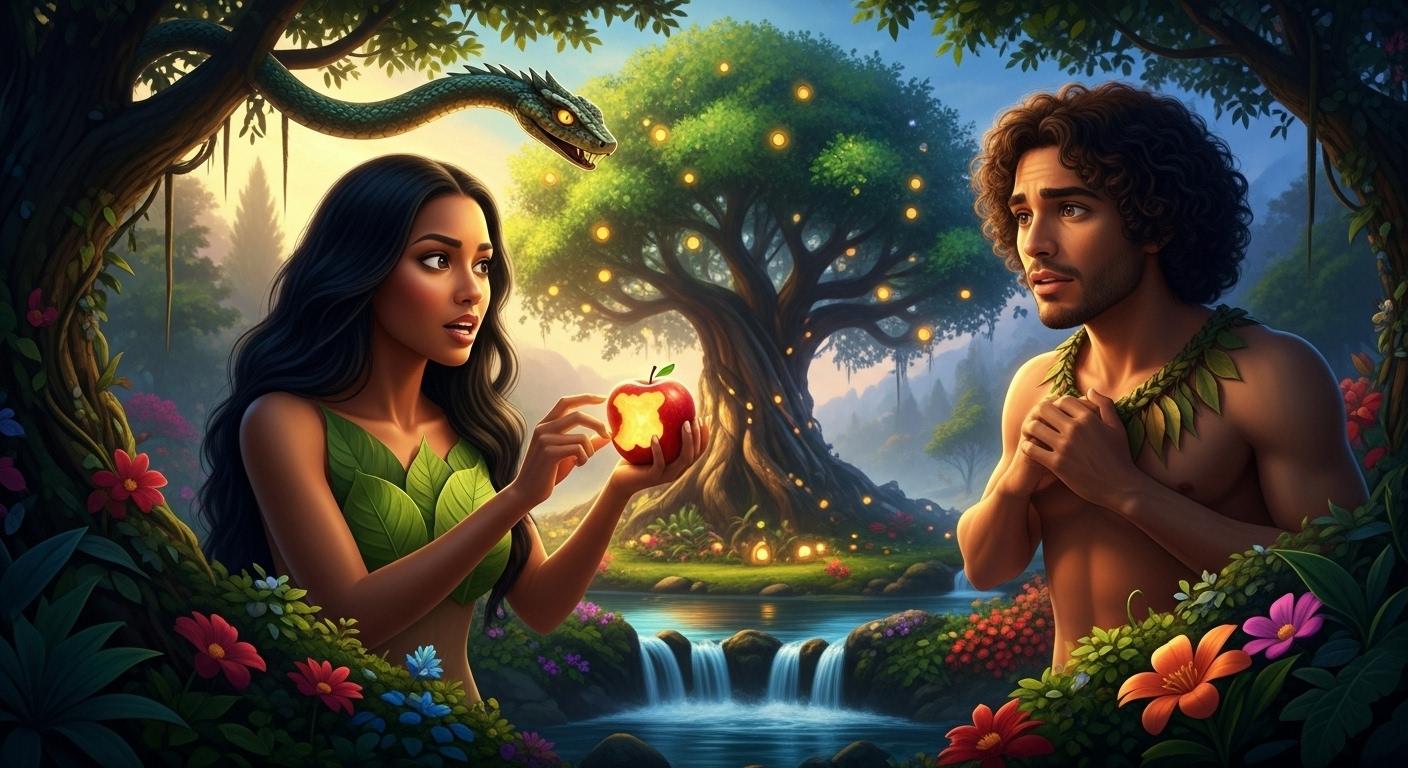
9. Project 2. Demo of Adam and Eve AI Video You will Create: All of this is ours. And yet one thing is not. Why should wisdom be forbidden? You should try and eat this
fruit and gain wisdom. But God said, we
must not touch it. You shall not die.
You shall be as gods. So, so. Hmm? Mm. Sweet. Adam, eat this fruit.
You will love it. But God said we
should not eat it. Let me taste it. Serpent
has deceived us? God will punish us now. Serpent. What have
you done to us?
10. Generate Images for your videos: I'll call you back again.
So this is going to be a quick video of what we've just actually done in the
previous lecture. I've actually downloaded
all our videos one by one, and I entered them
inside calf codes, and it's time for us to see
what we actually did step by step because we actually
did this together, and we are not left out in any part of this video creation. Now, let's go ahead and
check this out, guys. Welcome to Eminoi Global. Today I'll show you how
to create hyperrealistic, consistent talking character
videos just like this one. From education to training, imagine characters
teaching students with lifelike
expressions and voices. Or picture engaging audiences in vibrant marketplaces,
capturing attention instantly. Even in sports arenas, hyperrealistic talking
characters can deliver messages
that truly excite. Our course teaches you step by step how to build stunning, consistent character
videos with ease. Whether for business,
education or entertainment, you'll master characters that
talk, move, and connect. Join Eminoi Global today and start creating
hyperrealistic, consistent talking character
videos like a Pro. Ty. So you can see how
we've been able to do this and this really
very amazing, right? So this what we did
in previous lecture, and now we have
been able to create an advertising section of this. So you can apply this
in any area of life. If you're a very
good doctor, you want to advertise your products, you can go ahead and showcass
your product, right? So all you need to
do is to simply go ahead and move over to weeks. And using Weeks, you can go ahead and start off immediately. So go to Weeks and
upload your product. So all you need to do is to
move over to this point. Then upload that
product you need. Then upload the person that want to advertise that product, and then you go ahead and start to create videos for this. You can simply also go
ahead and copy all this. Then if you don't
want to use images, you want to maybe want Global Veo to
actually do that for you. Simply go to your Veo prompt and go ahead and
copy any of this. Let me say a presenter
want to do that. You can go ahead and copy this, then head over to that is a same viewer and go ahead and create a new scene
and then add it, and it's going to
work fine, right? So let me go ahead and say
I want this to actually create another video
instead of adding a picture or frame to text, video, I go ahead and
add text to video, and then I way ahead
and best that. And in that way to go ahead
and work out immediately. So why ahead, I put this down. And if you have any question, please use the question
and answer section. But before then, I want to show you want
something important. I had a hit on export
and over on exports, I'll only show you
the settings that you always used to object videos. Ensure that your
resolution is always on four K resolution so that
it always look good, okay? Or 1080 pixel, two K pixel, so that it will always
look good, right? So that is one thing I want to stress and then go
ahead and export that. You can also add some
captions or you go ahead and add effect in order to animate your video
to look so good. So that is one thing I
want you to know about. So try this out, and if
I have any question, please use the question
and say section, and I'm going to get back
to you as soon as possible. Thank you so much,
and I'm going to see you in the next video lecture.
11. Generate your videos step-by-step: I'll call you back again. So quickly go ahead
and download each of this video or each of the
photos are not videos. So what we created are
the photos or the images which are going to use
to generate our videos. So I'm going to start
with this because this is the bolder version of
what we have over here. Okay? So go ahead and choose
the very best one you like. So I'm going to choose
this because you maintain consistency
with this and have one snack instead of
two because you have two snacks here and we
want just one, right? Now, go over to GPT and
copy each of this dialogue. Alright, now head over to your prompt and
inside of prompt, I've also added
the video prompt, so you can go ahead
and start using the images for this video. Pass this and where
I have at them, I'm going to change it to
be man in order to make sure that hard GTP understand the
difference between them. If you have people who are wearing yellow
clothes, red clot, you have to be
specific on the person speaking so that you don't
have or make mistake, else, you go ahead and
waste your credit. So I'll go ahead and
say man softly in S then wire ahead
and add S. Alright. Then woman Whitehead
and add Woman SAN. So always add SAN to know when they start
saying the word. So SAN, then I'll go ahead and copy this. Let's
go ahead and copy this. Copy and move over to flow. So go to Image der, and then we are going to
select frame to image. And here we go ahead
and upload image. So let's go ahead
and upload that. Go ahead and upload
your image right now. So download each of
them and upload them. So let's go ahead and
upload it one by one. So I have this video uploaded, and I can go ahead and
crop and save the image. And while the image is saving, you can go ahead
and wait for that, and then you go ahead
and paste this. So was the image saved,
you can see that. It has no ited and let's go
ahead and create the video. So you can see the video has
now has to date to create. And in this way, we're
going to do that step by step on to get to the end
of this video creation. Now, check the amazing
video I just created now. You can see how cool this
video looks. Check it out. Eve, all of this is ours. And yet one thing is not. So you can see how cool this is, and this is the kind of thing I want us to start
creating, right? Now, I'm going to start
move back to this point, and I'll go ahead and
then load the next one. And this is what I need. Let's go ahead and
then load this. So I'll get back to flow, and then I'll go ahead
and upload that. So go ahead and hit on
upload and upload the image. So this is image. I'll go ahead and crop that, and then I'll get back to this
point and copy this spent. While I'll copy this and get back here and I'll go
ahead and press that. Say, supint smooth,
persuasive say saying, Why should wisdom be forbidden? I can see that this
word is very short. I can add more ways and
make it to be longer, or, I say, why should
wisdom be forbidden? You should shy and eat these fruits
and gain wisdom. Alright, now, I'll go
ahead and copy this. Why should wisdom be forbidden? You should try and eat this
fruit and gain wisdom. And go back here, let's
go ahead and that's that, let's go ahead and
generate this video. So the video is now
being generated. So now, check out this video, and let's see how cool it is. Why should wisdom be forbidden? You should try and eat this
fruit and gain wisdom. So now we have seen I've been
able to create two videos. Let me go ahead
and quickly create all the videos step by step, and then we go ahead and
export this video, right? So let's go ahead and
check it out, guys. So, ladies and gentlemen, we have created something
amazing at this moment. Let's go ahead and look
at this and check it out. Eve, all of this is ours. And yet, one thing is not. Why should wisdom be forbidden? You should try and eat this
fruit and gain wisdom. But God said, We must not
touch it. You shall not die. You shall be as gods. So, so Hmm? Mm. Sweet. Adam, eat this fruit. You will love it. But God
said we should not eat it. Let me taste it. Serpent
has deceived us? God will punish us now. Serpent. What have
you done to us? Alright, so you can see how
cool this video is, right? So we're able to generate
every one of these from here, and then we went ahead to start building that
using the sin builder, and all we need to do
now is to go ahead and download this video. So you can go ahead
and download that. Now, another thing
I want to show you before you go ahead to start
dwloading this video is, if you have any video, you did not do the way you want and you want to actually remove that video
from your scene, go back to this point
and click on this. So you see this date,
click on this date. You directed this video, and then you can go ahead and
maybe you see this video, it says, remove from scene. You can go ahead and click on
this and delete this video. And now you can see removed from scene, this
video will removed. If I remove this and go back to my sin Juda and click on this, if we check this out, let's
go ahead and check it out. So I've removed that last one, and it's no longer among the videos on my
scene at the moment. And in that way
can remove videos. So you can see I have
now one, two, three, four, five, and the last
video is no longer there. And if I want to add that back, I'll go back to this
point and click on this. And want to buy a click on it, it's to go ahead and show
you the scene and they say, add the scene, go ahead
and click on this, and now switch to Sim Buda. I'll go back to Sim Buda, and I'm going to see the video now at the end of it again. So it's very important
to learn all this to know how every one of these
things actually work. They are very important whenever we are building our videos. So let's go ahead
and check it out. So go ahead and click on this, and let's
check it out again. Eve, all of this is ours. And yet one thing is not. Why should wisdom be forbidden? You should try and eat this
fruit and gain wisdom. But God said, We
must not touch it. You shall not die.
You shall be as gods. So, so. Hmm? Mm. Sweet. Adam, eat this
fruit. You will love it. But God said we should not
eat it. Let me taste it. Serpent has deceived us? God will punish us now. Serpent. What have
you done to us? So, you now see how cool it is. They now realize they're naked, and they can see how
that actually looks. So it's a very
interesting video, and you now see how
to move your videos. You can also change your
scene the way you want. And you can also go ahead and download these
videos individually, take them to cap court
and go ahead and, they did the way you want
to edit any of them, right? So if I've actually come
to the end of this, I go ahead and play a video, check it out and
practice with it. If you have any question, go ahead and use the
ion so section, and I'm going to get back
to you as soon as possible. Thank you so much,
and I'm going to see you in the next video lecture.
 George Steve, Senior Software Developer & AI Content Creator