How to Create a Versatile Chevron Tile Pattern in Procreate | Geetanjali Behera | Skillshare

Playback Speed


1.0x


  • 0.5x
  • 0.75x
  • 1x (Normal)
  • 1.25x
  • 1.5x
  • 1.75x
  • 2x

How to Create a Versatile Chevron Tile Pattern in Procreate

teacher avatar Geetanjali Behera, Surface Pattern Designer | Illustrator

Watch this class and thousands more

Get unlimited access to every class
Taught by industry leaders & working professionals
Topics include illustration, design, photography, and more

Watch this class and thousands more

Get unlimited access to every class
Taught by industry leaders & working professionals
Topics include illustration, design, photography, and more

Lessons in This Class

    • 1.

      Introduction & Class Project

      1:44

    • 2.

      How to Create a Versatile Chevron Tile Pattern in Procreate

      11:22

  • --
  • Beginner level
  • Intermediate level
  • Advanced level
  • All levels

Community Generated

The level is determined by a majority opinion of students who have reviewed this class. The teacher's recommendation is shown until at least 5 student responses are collected.

76

Students

5

Projects

About This Class

ABOUT THE CLASS:

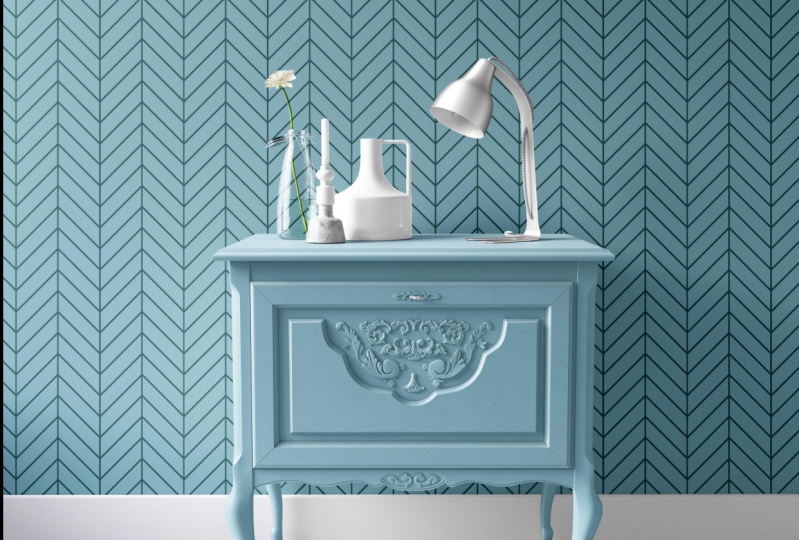
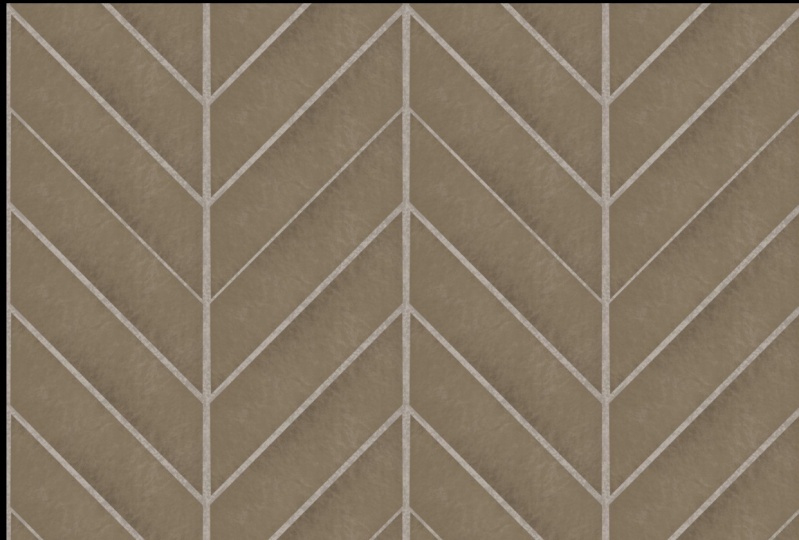
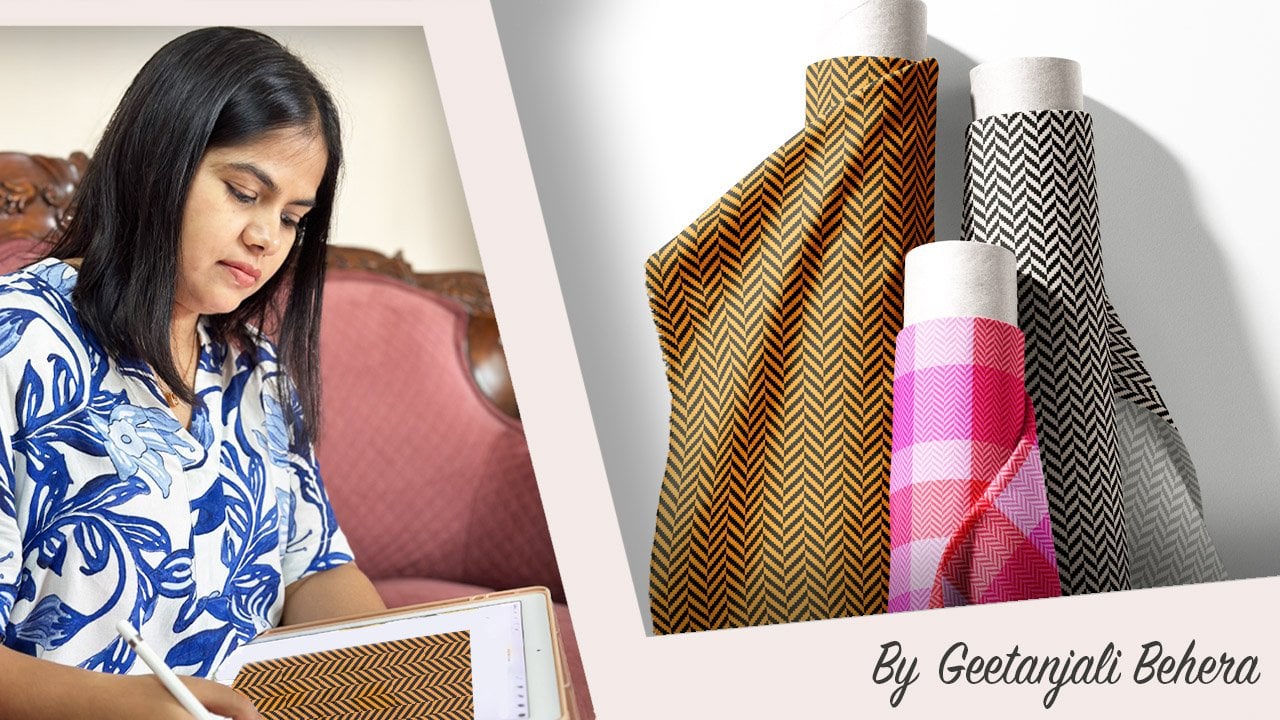
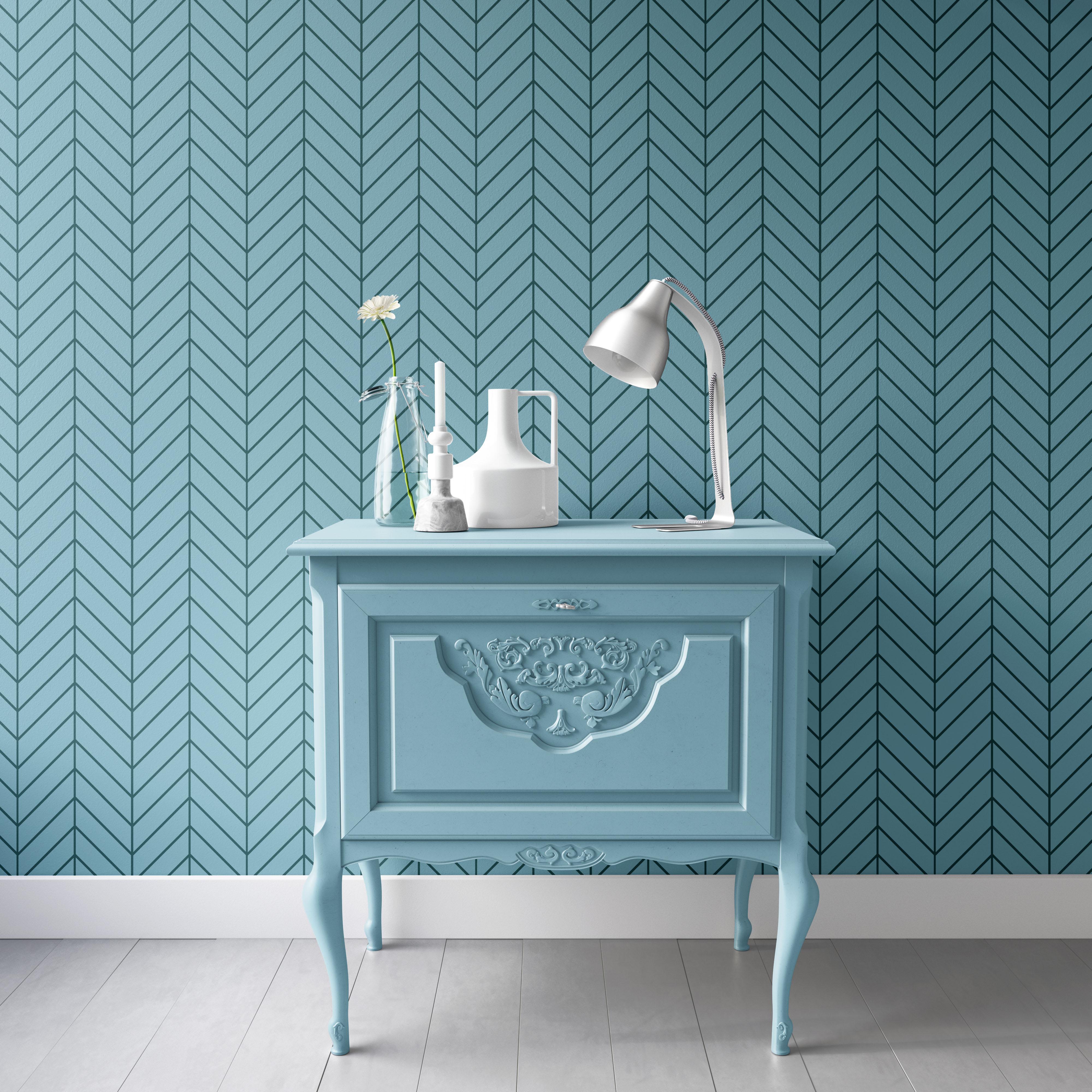
Chevron patterns bring a perfect mix of sophistication and energy to any space. This classic design is formed by two diagonal lines meeting at an angle, creating a dynamic V-shape. 

What makes chevron unique is its precise cut—tiles are shaped into parallelograms with angled edges, typically at 45 degrees, allowing them to fit together seamlessly in a continuous zigzag.   
Hi everyone!

I’m Geetanjali, an artist, illustrator, and surface pattern designer based in Goa. 

In today’s class, we’ll be creating a versatile chevron tile pattern in Procreate. Whether you’re a beginner or have some experience, this class is designed to make the process simple and fun. I’ll guide you through each step, breaking it down so you can confidently create your own unique patterns. 

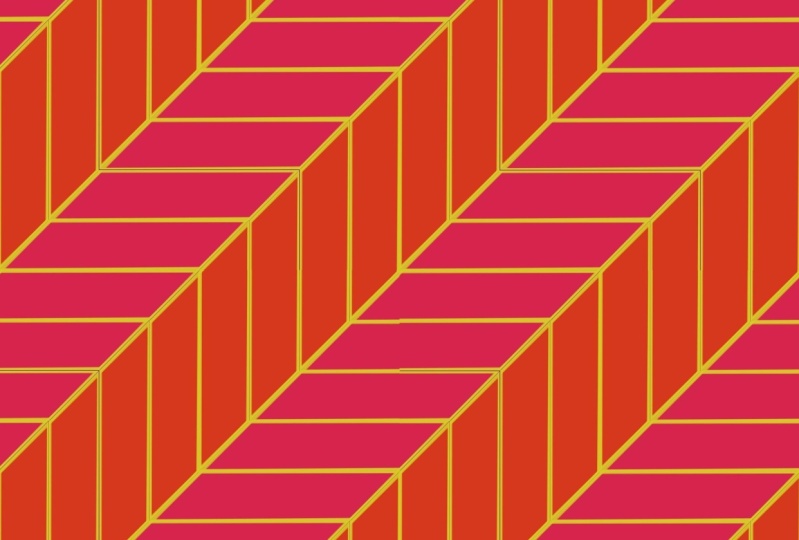
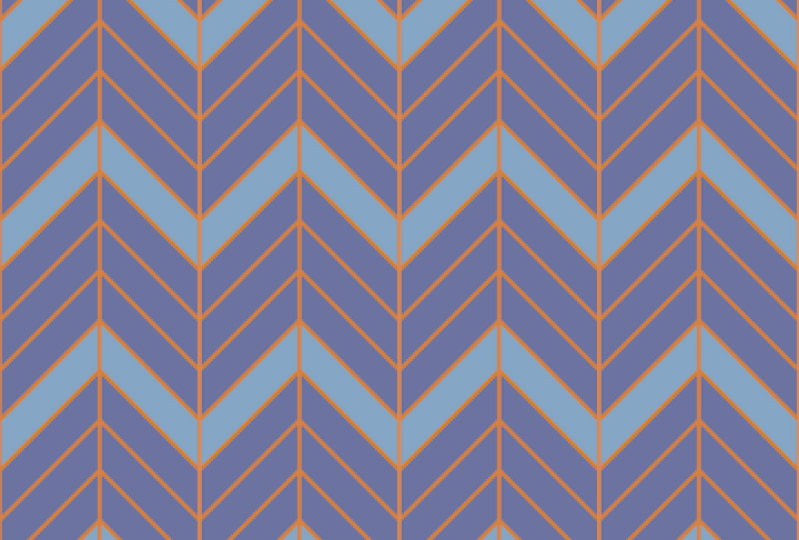
By the end of the class, you’ll have a solid understanding of pattern construction and three different variations of the chevron pattern ready to use in your projects!

WHAT YOU'LL NEED:

  • Ipad with pencil

CLASS FORMAT:

Quick, under-15-minute class

Pattern Style: Geometric rectangular tiles,

Skill Level: Designed for Intermediate level students familiar with Procreate

Applications: Ideal for wallpaper, flooring, fabric and digital project designs

OTHER SHORT CLASSES IN THE SAME SERIES: 

Start your Print on demand journey with:

Spoonflower

For useful resources and tools Check out this amazing site 

Creativehowl by Jonas Welin

Surface Design News by Stacie Dale

Interior Mockup by Creatsy

If this sounds like fun, Join me in this creative journey!! 

Thank you !! ❤️

Meet Your Teacher

Teacher Profile Image

Geetanjali Behera

Surface Pattern Designer | Illustrator

Teacher

I am Geetanjali, aka Gee! I am an Illustrator, Surface pattern designer and Thangka painter living in Goa, India.

As an artist, I'm known for Complex compositions , Colourful and Intricate patterns.

I began my career as a freelance fashion illustrator creating technical drawings and fashion illustrations for apparel, handbags and accessories.

While working with clients around the world, I also got the opportunity to try new projects including illustrations for adult coloring books, surface pattern designs, graphic prints and more. In the year 2020, I got my first ever Coloring book, Mindful and Meditative Coloring published.

My journey as a surface pattern designer started in 2016 when I joined Spoonflower, I had done a few pattern design projects ... See full profile

Level: Intermediate

Class Ratings

Expectations Met?
    Exceeded!
  • 0%
  • Yes
  • 0%
  • Somewhat
  • 0%
  • Not really
  • 0%

Why Join Skillshare?

Take award-winning Skillshare Original Classes

Each class has short lessons, hands-on projects

Your membership supports Skillshare teachers

Learn From Anywhere

Take classes on the go with the Skillshare app. Stream or download to watch on the plane, the subway, or wherever you learn best.

Transcripts

1. Introduction & Class Project: Chevron patterns bring a perfect mix of sophistication and energy to any space. This classic design is formed by two diagonal lines meeting at an angle, creating a dynamic V shape. What makes Chevron unique is its precise cut. Tiles are shaped into parallelograms with angled edges typically at 45 degrees, allowing them to fit together seamlessly in a continuous zigzag. Hi, everyone. I'm Gatan Shli an artist, illustrator, surface pattern designer, and Tanka painter, based in the beautiful coastal state of Goa, India. In today's short class, we will create a versatile Chevron tile pattern Ipropriate. Whether you are a beginner or have some experience, this class is designed to make the process simple and fun. I will guide you through each step, breaking it down so you can confidently create your own unique patterns. For your class project, you will create a Chevron pattern with a tile effect inappropriate, experiment with different colors and design variations. Export your final designs as JP. Share your patterns in the student project gallery. I can't wait to see the amazing designs you come up with. Let's dive in and start creating. 2. How to Create a Versatile Chevron Tile Pattern in Procreate: To create a Chevron tile pattern, each tile is cut at a 45 degree angle on both ends, forming a parallelogram. The tiles are then arranged side by side to produce a continuous zigzag design. Since cutting the edges reduces the tile width by one unit, we will start by drawing our initial tile with an extra with to compensate. For example, if I want my tile to be 4 " wide, I will start by drawing a five inch wide rectangle. This extra with accounts for the angled cuts. So once the edges are trimmed, the final tile will be exactly 4 " wide. The height to width ratio of your tile affects the overall look of the pattern. A one is two ratio creates a compact design with narrow diagonal lines. Increasing the ratio to one is to three or one is to four makes the pattern more open, giving it a greater sense of movement. For this example, I'm using a one is to four tile proportion. To make sure our Chevron pattern repeats seamlessly, we need to set our file size to double the tile width. Since our tile follows a one is 24 ratio, the file size will be two times four, which equals eight by eight. You can work in pixels or inches depending on your preference. I will be using inches and setting the file size to eight by 8 ". If you are using a one is 23 proportion, your file size should be six by six and so on. Let's begin by opening Procreate. For this example, we will set our file size to eight by 8 " at 300 DPI. Next, choose a color profile. You can pick whichever works best for your project. I will be using RGB. Once everything is set, tap create. Step two is to create the grid. Tap on the wrench, I can go to Canvas settings and enable drawing guides. Then select Edit drawing guides and keep the two de grid selected. Adjust the grid size to 1 ". You can also customize the grid's opacity, thickness, and color to make it easier to work with. Finally, be sure to enable drawing assist. This will help you align the squares accurately. Keep in mind that with the drawing assist enabled, you won't be able to draw curved lines as it follows the grid lines. To draw curved lines, go to the grid settings and disable drawing assist. Once done, you can freely draw curves. I will turn it back on Step three includes creating the first tile. Start by drawing a rectangle that is 5 " wide and 1 " tall. To do that, choose a fill color and drag to fill the canvas. Then tap the transform tool and set it to free form. Enable magnetics and snapping and set the distance and velocity to maximum. Now tap on the blue.in the left corner and enter the dimensions. 1,500 pixels for width, which is same as 5 ". Now disable the lock icon and then enter 300 pixels, which is 1 " for the height. Once the dimensions are set, tap on the arrow again to confirm the transformation. This will align the rectangle to the left side corner of the canvas. Next, we will cut our rectangle at 45 degrees on both edges to convert it into a parallelogram. To do this, first, choose a second color and on a new layer, drag it to fill the canvas. Now select to rotate 45 degrees and fit to canvas. You will notice that a diamond shape aligns perfectly with the grid, creating a precise 45 degree angle. We will use this shape as a reference to cut our tile. Select the diamond shape and drag it to the bottom right corner, only one fourth of the shape remains. You will see that this portion overlaps with the rectangle exactly where we need to cut. Now, tap on the layer thumbnail of the triangle shape and choose select. This will create a selection based on the shape. Next, select the rectangle layer, tap on its layer thumbnail, and choose clear. This removes the overlapping part, giving the rectangle a precise angular cut. Next, drag the triangle shape to the other end of the rectangle, then flip it vertically and horizontally to align it properly. This will make the rectangle resemble a parallelogram. Once it's in place, tap on the layer thumbnail, choose select, go to the rectangle layer and tap clear, and there you have it. Your first tile cut at both ends. Next, let's add an outline to make the pattern easier to spot when the tiles are placed next to each other. Choose a second color and create a new layer, tap on the layer thumbnail and select clipping mask. This will ensure that the outline stays within the tile shape. Now select the monoline brush and adjust its size to around 30%. Drag to draw a straight line along one edge of the tile. To make sure it's perfectly straight, hold one finger on the screen. This will snap the line into place. Repeat the same step for the other three sides of the tile. It doesn't have to be perfect, just enough to clearly define the tile shape. Once you are happy with the outline, merge the two layers. And this is our final building block. Step four is to create the repeat tile. Start by selecting the rectangle layer and swiping left to duplicate it. Now, select the duplicated layer and rotate it 90 degrees. Align it to the left, then flip it horizontally, so the angles match at the corner, forming a V shape. Zoom in to check the alignment. You might notice a fine line along the edge. This happens due to pixel selection while cutting the edges. The best way to fix this is by adding a background color that matches the outline color. Once aligned, select both layers and group them. Now duplicate the group. Move it one grid unit up and to the right and repeat this step to extend the diagonal pattern. Now merge all the groups to create a single layer. Now select a tile and tap on rotate by 45 degrees one or more times to adjust the ziag direction to your liking. Once you're happy with the orientation, select fit to Canvas. Now we need to extract this pattern from the center to create our repeat tile. Move the selection towards the edges to align it properly. Once you have extracted the tile, you can either choose fit to canvas or make three more copies and place them next to each other to check the repeat. If everything looks seamless, merge the layers together, and this is your final tile. Save this file and name it as Chevron tile pattern. You can use the same method with different tile appearances to create various pattern variations. Thank you so much for joining me. I hope you enjoyed this class and can't wait to see the beautiful patterns you create. If you have any other questions, feel free to drop them in the discussions page. I would be happy to assist you. Please consider leaving a review and sharing it with your friends. If you like this class, check out my other short classes in this series on creating plaids, houndstooth, Chevron, and herringbone patterns, Improcreate and Illustrative. Don't forget to follow me on Skillshare to stay updated on my upcoming classes. Until then, happy Creating.