Dragon Painting in Procreate | Yasar VURDEM | Skillshare

Playback Speed


1.0x


  • 0.5x
  • 0.75x
  • 1x (Normal)
  • 1.25x
  • 1.5x
  • 1.75x
  • 2x

Dragon Painting in Procreate

teacher avatar Yasar VURDEM, Creative Art Director

Watch this class and thousands more

Get unlimited access to every class
Taught by industry leaders & working professionals
Topics include illustration, design, photography, and more

Watch this class and thousands more

Get unlimited access to every class
Taught by industry leaders & working professionals
Topics include illustration, design, photography, and more

Lessons in This Class

    • 1.

      Introduction

      1:22

    • 2.

      Creating Base Colors

      1:59

    • 3.

      Adding Shadows

      2:25

    • 4.

      Adding Lights

      2:09

    • 5.

      Adding Micro Details

      4:09

    • 6.

      Complete Illustration

      3:07

  • --
  • Beginner level
  • Intermediate level
  • Advanced level
  • All levels

Community Generated

The level is determined by a majority opinion of students who have reviewed this class. The teacher's recommendation is shown until at least 5 student responses are collected.

4

Students

--

Projects

About This Class

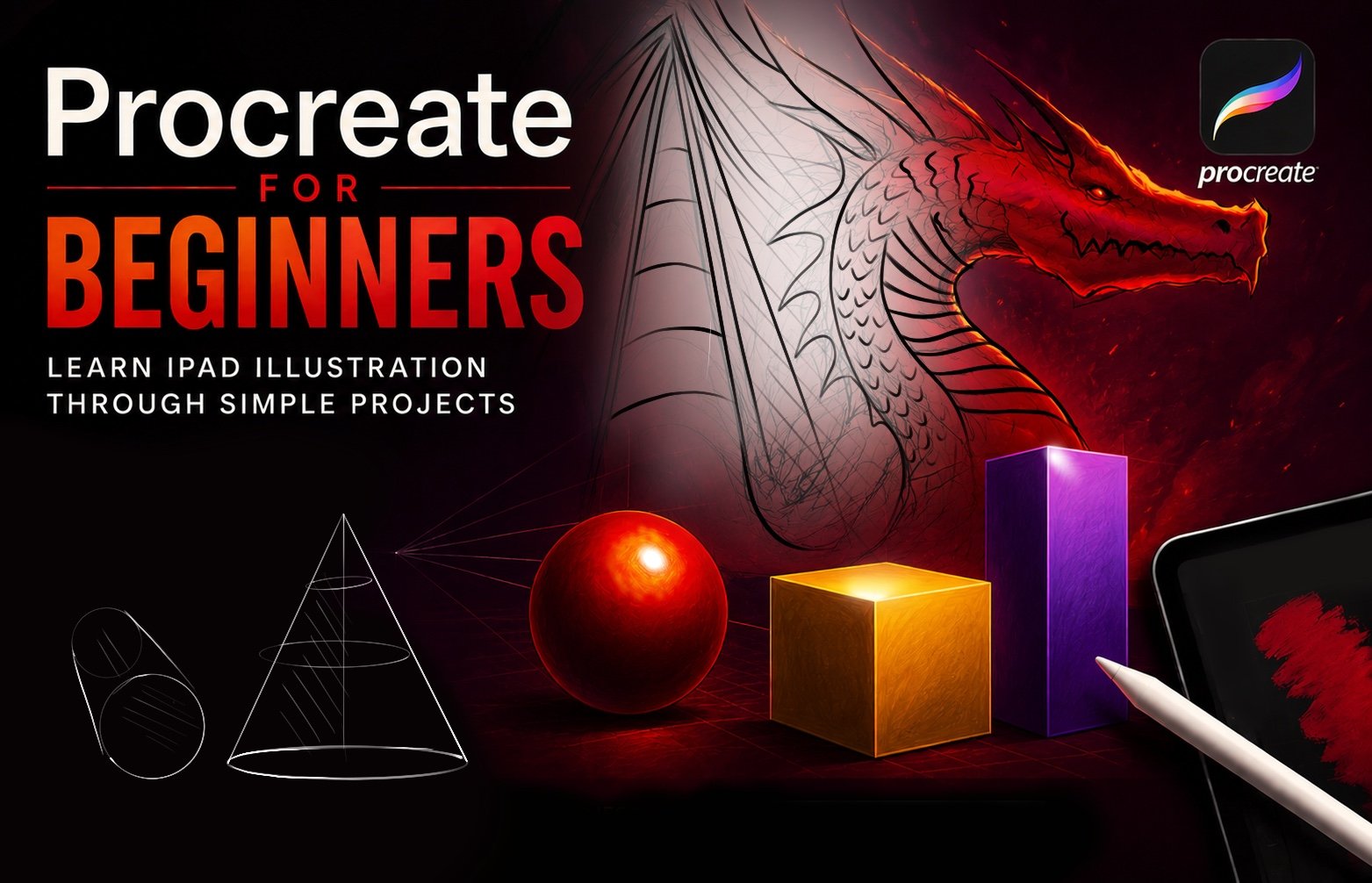
In this class, you’ll learn how to design and paint a detailed fantasy dragon illustration in Procreate, using a clear and beginner-friendly workflow. Illustrator Yasar Vurdem guides you through the entire creative process from building a strong silhouette to adding dramatic lighting, scales, textures, and atmospheric effects that bring your creature to life.

Whether you’re new to creature design or looking to level up your digital painting skills, this class offers practical techniques you can apply to any fantasy artwork. You’ll learn how to simplify complex forms, make confident color choices, and create depth using light and shadow.

The goal of this course is to help you paint a striking, fully rendered dragon while strengthening your understanding of structure, color, and texture in Procreate.

What You’ll Learn

  • How to design a dragon using simple shapes and anatomy basics

  • Building a clean sketch with clear structure and personality

  • Creating a dramatic and balanced color palette

  • Painting base tones, light direction, and depth

  • Adding scales, texture, highlights, and final details

  • Using layers, brushes, and workflow shortcuts for efficiency

By the end of this class, you will complete a fully rendered dragon illustration and gain the confidence to create more fantasy creatures on your own. Perfect for anyone who loves world-building, creature art, and imaginative digital painting.

Meet Your Teacher

Teacher Profile Image

Yasar VURDEM

Creative Art Director

Teacher

Check my Etsy Shop

Welcome! I'm Yasar Vurdem a digital artist, illustrator, and passionate instructor.

I've spent years developing a vibrant, expressive portrait style that blends realism with bold, painterly energy. Over the years, my artwork has been featured in collaborations with global names such as Billie Eilish, Adobe, Prime Video (The Lord of the Rings: The Rings of Power, The Wheel of Time, Citadel), Wacom, Logitech, XPPen, and many more.

As a professional designer and illustrator, I work across digital painting, character art, concept design, and stylized portraiture. My goal as a teacher is simple: to share the exact techniques, workflows, and artistic mindset that I use in my professional projects in a clear, practical, and inspiring way.

Every ... See full profile

Level: All Levels

Class Ratings

Expectations Met?
    Exceeded!
  • 0%
  • Yes
  • 0%
  • Somewhat
  • 0%
  • Not really
  • 0%

Why Join Skillshare?

Take award-winning Skillshare Original Classes

Each class has short lessons, hands-on projects

Your membership supports Skillshare teachers

Learn From Anywhere

Take classes on the go with the Skillshare app. Stream or download to watch on the plane, the subway, or wherever you learn best.

Transcripts

1. Introduction: Hi, everyone. I'm a Shaard' professional artist and illustrator who collaborated with Adopt P Aish. Prime videos lord of the rings Rings of Power Series, and more. And in this lesson, I'm going to show you how to draw powerful fantasy style dragon from scratch in Procreate. If you have ever wanted to create dynamic creature designs, but weren't sure where to begin. This class will guide you step by step. We will start by building the basic shapes for head and refine the silhouette to give dragons strength and personality. After that, we will add scales, textures, and dramatic details that make creature feel alive. I will walk through shading techniques to create deep, glowing eyes for intensity and strong lighting to bring the entire illustration together. Whether you are beginner or already improving your fantasiar skills, this lesson will help you to create polished and striking dragon artwork. So grab your tablet or iPad and pencil, open your canvas, and let's bring your dragon to life. 2. Creating Base Colors: Welcome. In this class, we will paint dragon. At first, use a gray scale color at background and go to layers and select some base colors for our dragon design. And at first, focus on the general shape like the head structure of the dragon. You don't need to focus on general details like micro details at first. Just try to hold your dragon is like, have some extra values or extra details here like this. I'm using it Okay. And after you put in the background color, like base color, you need to define the eye point of the dragon. For example, it is my eyesight, and this is nose, and this is the point of the mode. And these details will be like this. Okay, and many more. After it, you can put the general details like, for example, it can be 3. Adding Shadows: Er like dark corners for eyes. And let's select the lighter color for eye and paint I like this. We brand and it's looking realistic. At the middle of it, we will paint the dragon eye and zoom in and select lighter color and apply over it Yeah, like this. And for corners, we can make it much more darker. Okay, like this. And for the details, I will make it like this. I'm defining these parts like this looking much more strong and Okay. And for this part, I can use much more darker colors for the dragons mode. And this part will be much more darker. And dragon have horn here, and the other part will be here, but darker. Also, this part is another horn of the dragon, and this part is another and another. And 4. Adding Lights: The details of the dragon hat. And after you put these all details, go to the layers and connect the layers and open another new layer and select hard mix and lower the opacity. Okay, maybe we need much more extra colors for this mode. Maybe vivid light or color Dutch and collect layers and go to the layers and gradient maps. And I will give Noirs or mocha. Let me check it. Okay, maybe I will select I just need to see what works better. Okay. This one and color balance will be a bit reddish and curves, a bit much curve and light. Then again, sharpen and chromatic brication. And after all these details, zoom into the dragon's I. And let's continue to adding details to I and some parts of dragon eye, it have vivid yellow color here and here and here. And here, because it is wet and we brand and have details in it. So I try my best to increase the detail level of the dragon. 5. Adding Micro Details: Okay. And this part, I want to make the dragon nose much more bigger and visible like this. And this part also bigger here and here. And I will add much more detail here to increase the structure of the dragon. Yeah, okay. It looks better right now, and I will increase this part of dragon. Also, checks will be much more lighter. And let's continue to adding the tails here and building extra colors. And for these horns and details, I will use much more saturated and wider color and will apply it. Let's zoom in and create some horn textures in it. Like some parts will be darker and some parts will be lighter. Yeah, like this. And I will continue by adding much more lines here and here and here. Also, maybe a bit red color here like this and like this and like this. Okay. And what we're going to do is increasing the detail over body. I will make this much more visible at this part, and we'll increase the details like this. And maybe we can have some dark parts here like this and darker colors for my dragon. And let's zoom here and we'll give some details for dragon. Maybe you can even use to go to the layers and select smooth shading and at new layers, use Color Dutch option. And color Dutch will make our illustration pop up a bit much more. I will use at some parts like this and this. And this part will be lighter. Okay, let's continue to adding details. I can put some smoke like detail here, like smoke out of these details. And let's continue by adding some red colors here. Okay. And here, let's continue increasing details. And the other part, we will continue to increase detail. 6. Complete Illustration: At this part, we will add some materials for like textures to our portrait of dragon. I'm searching some elements for his skin. And yeah, I found it. I selected this brush, and I will apply with new layer over layer moth and I will apply over it like textures. It is great texture and it creates really good amount of detail and make a really, really detailed dragon skin look. You can use and find it to procreate layers, I mean, colors. At some parts, you can increase the light of some skin for create much more extra light like this. So parts, the kin textures really stronger and much more visible. For example, at these parts, it is much more visible, and at the most part, especially it looks much more visible, and these parts will be visible. And go to the options again and select smooth shading brush. And with knee brush, select maybe textured brush and continue by adding details over our dragon. These details can be much more lighter, for example, at this part, let's continue to increase the detail level of sticking. And this part will be much more darker and maybe red color over here. And some shadows we need over here, here, here. Yeah, and maybe some textures over here. And thank you again for joining me in this quick class, and I can't wait for see your works. Thank you. But