Transcripts
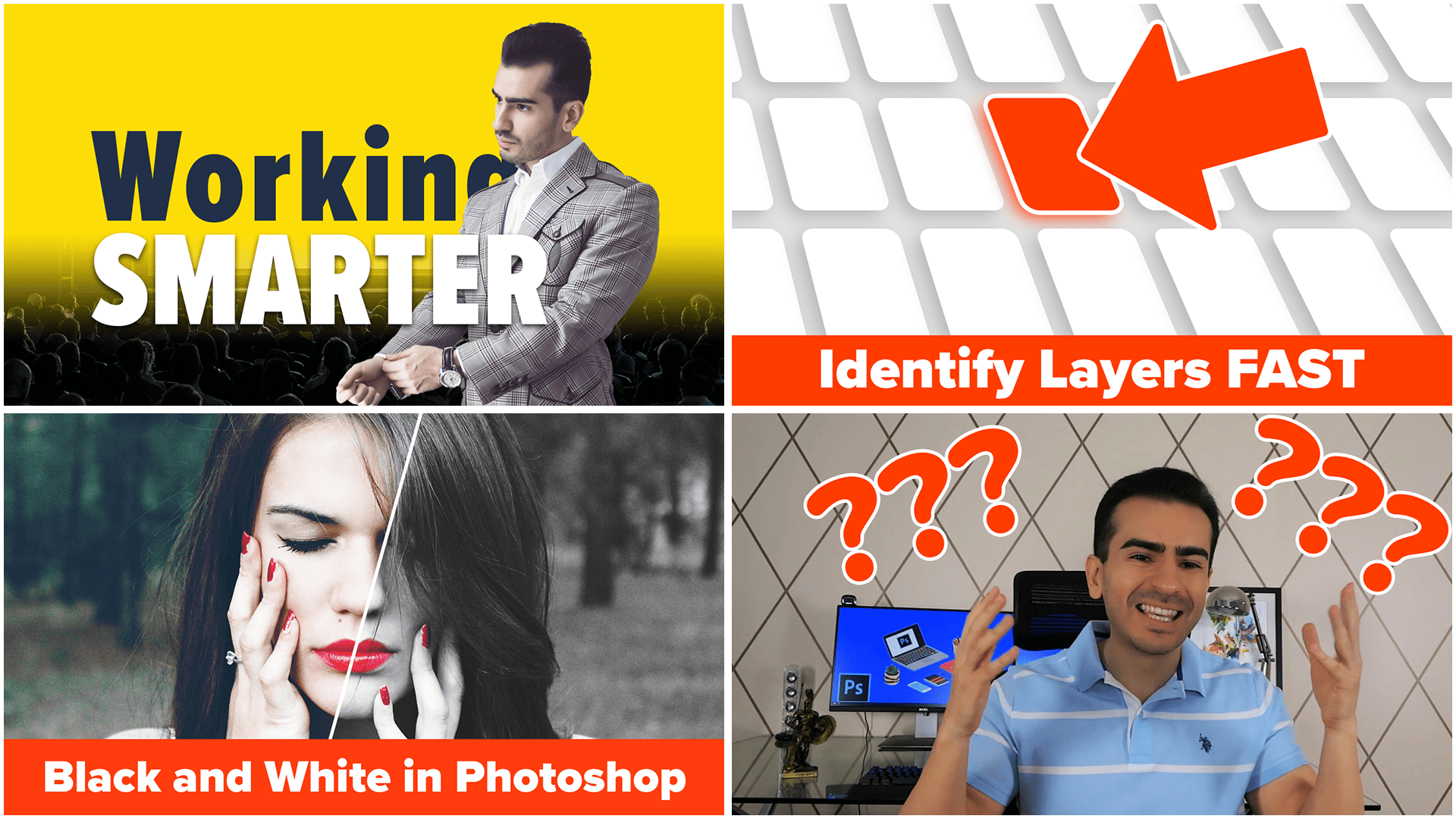
1. Views & your YouTube Thumbnails: Hey, Dad, I'm Chris Baron. Let's create some awesome YouTube thumbnails in photoshop. We're going to talk about
how to create them, how to test them, the works. Now, there's one
thing to be aware of. There's no one
particular formula that guarantees
success on YouTube. Meaning you can have the best possible
thumbnail in the world, and the video might
still get 200 views. So I want to get that out of the way right from
the get go because your success and the quality of your thumbnails aren't
always related. Now, there's a lot to be said about marketing your
YouTube videos, and Tumbnails are definitely
a big part of that. But again, we're just going to focus on the design
side of things. I'm not a YouTube expert. I'm not a marketing wizard. So keep that in mind. We're going to focus
on the design side. Now, I do have a
YouTube channel, and I do run several
marketing campaigns, so I'm going to do my best to share my knowledge with you. But again, we're going to
focus on the design side. Now, regarding your level of success and the quality
of your thumbnails, let me give you a
clear cut example. So there's this channel
called grade A under A that has about four or
5 million subscribers, something like that,
a few million. Now, each video gets between half 1 million views to a couple of million views. But here's the T
thumbnail style. Now, is this world class design Is this something that
requires a lot of skills? No, of course not. So this
is what I'm trying to say. Sometimes the quality doesn't
have to be super high. You just got to be able
to execute various ideas. Now in the next few lectures, I'm going to teach you
how you can create all sorts of concepts and gain confidence and your ability to transpose what you have in
your mind into photoshop. If you can do that, if you can experiment with various
approaches, you're golden. So here's a quick
overview of each project so you can jump around to the ones that make the
most sense to you. I recommend you watch the entire thing from
start to finish. But again, you can
choose your style. The most important thing,
let's have fun together.
2. The power of a mockup: Welcome back. Although it's
not super interesting, we won't start designing any YouTube thumbnails before we create some great markups. Now, mockups are
photoshop projects that allow us to insert our own design into a screenshot that
mimics the real thing. We want both a mobile version
and the desktop version, so we can see our
designs in context. And the reason behind that
is actually quite simple. When you're checking
out a thumbnail design on a huge display, you get a chance to
zoom in and zoom out, and everything looks
that much better. Isolated, it may look nice. But when you shrink it
down to its actual size, that's going to show you how it's going to look on the phone. Then things change a lot. And that's because
most fine details are thrown out the window, simply because the
user can't see them. That's another huge
benefit to using mock ups. You get to compare your design
versus the competition. Because again, isolated,
most things are fine. Mercedes C class is
an incredible car. But when you compare
it to an S class, for example, it's no
longer as good, is it? So it's the same thing
with your thumb nails. Sure, alone, they may look fine. But how do they stack up against your
competition on YouTube. Only when you put them amongst other videos on the same topic, that's where you see
where you're at. Now, for those reasons, we're going to take a
few minutes to learn how to create mock
ups for YouTube. If you're not interested,
skip ahead to the next video. Okay. Now, assuming
you're still here, grab your mobile phone and
launch the YouTube bap. Now, at the time
of this recording, I'm seeing various
videos on my home page. But yeah, this is going to
be the first screenshot. The second one is much
more important, though. Use the search
field and look for something probably
in you at Niche. That's going to be
the most useful. So that's because
we want to see how our design is going to stack
up against the competition. So I'm going to go
with Photoshop lips, which is a term I've had
decent success with. Okay, so that's our second
mobile screen shop. Next, let's switch platforms and we'll grab a few shots
from the desktop version. Again, the home page features
all sorts of videos, so we'll definitely use it. Then when you're done, we can
move on. Okay, all right. Next, search for the same term to check things out. As a note. Though I'm going to
provide you with all the templates
shown in this course. It's super important
that you know how to create a mock up from
scratch all by yourself. So please work along on
your second viewing. The first time, just sit
and watch the second time, pause as often as you need
to to keep up with the pace. Okay. Now, let's start with the disto version for
the search results. Here's what needs to be done. Grab the rectangle
tool, zoom in, and try to create a shake that's as big as
the first entry. Help you nail the size, you can change the color to red, what maybe any
other bright color. But here's the actual trick, lower its opacity to
something like 50%. Okay. Now, with the
help of control T, you can use these handles
to size it up correctly. Now, in this situation,
in case you're curious, the width is about 369, and for the height 206. Though on your end, it may be a bit different. Now,
here's the thing. If possible, again, try to nail the size exactly as what
you see on your device. Because if you make
it slightly bigger, you're actually
going to be drawn to width subconsciously. So we want to be as
objective as possible. So try to use the
exact same size. Now, one thing that
we won't include in this markup is the duration
of the video, this part here. I don't think it's worth it. Now, on the other
hand, I do want to be able to edit the title to truly see how things stack up versus the rest
of the competition. Now, here's how this works. You grab the Marquee tool
Hockey M. It's this one here. Then you create a selection
like so. You click and drag. Ideally, grab as many
words as possible, but focus on one single line. From my experience,
this may work better. The next step, go to
the top menu to type. From this list, you're
going to see Match Font. And this is going to
launch a new window that's going to show you
similar looking fonts, similar to the one
that you selected. Now, this feature isn't perfect, but it's a great starting point. I know for the fact that YouTube uses Roboto as the
main type face. So I already have a head start. Next, you want to
get a type tool, Ht Key T, and write
out this exact title. Don't write a single word, go for the entire thing. And that's because there's going to be a lot of
fiddling with it. So the size isn't all
that hard to figure out. Though the help of
the character panel, you can play with this field
until you get it right. Again, use a striking color because it's going to
make your life easier. In this case, I'm going to
keep the opacity set to 100%. Okay, for this specific case, you need to use Roboto
regular 28 pixels. But here's the thing.
It's still not perfect. And that's because YouTube
uses a custom letter spacing. Now, after a lot
of back and forth, you have to put in this value in this field -15. You can
make a note of that. But again, you're
going to have this PSD attached as a resource. But again, this is for
my specific device and for this search term. When you're going to
do it on your own, you should capture
the screenshot of your own particular
field or niche. Remember, we're not
only looking to see how the thumbnail is going to
look like at a lower size, but we're also interested in the competition. Okay,
we're good to go. Let's jump to the
home page mock up. This is the entry I
decided to work on, just because it has a
cleaner look title. The size of the rectangle, I settled on 314 by 176. So that's 314 by 176. Now, you might think
that these sizes are a bit weird, and
indeed, they are. But you have to keep in mind, I may be using a different
zoom level on my browser. Maybe I'm using a different
resolution and so on. So that's something
to be aware of. For example, I'm using
two K. Most people are using full HD, 1920 by 1080. This is yet another
reason as to why you should compare
apples to apples. That is, use your own computer
to create these mock ups. Now, for the title, I'm
going to repeat the process, the match font process. In case you want to get
a little bit of help, you can also use the inspect element
on YouTube's website. Though you won't find
things such as the size of the font and pixels or
the actual line height. They may be there, but they're displayed in a different
unit of measurement. So yeah, overall,
that's not helpful, and inspect element is actually quite tricky to
use for beginners. In the end, I went with the
boto medium, 22 pixels. For the line height, this
space right here, 24 pixels. As for the letal spacing, -25 seems to be
just about perfect. As for the channel's name, that's Roboto regular 20 pixels. Regarding the color, the
title is always white FFF, while the rest seems to
be AC A eight A nine. I'm not sure this line
is actually useful, but I decided to
include it anyway. Now, let's quickly go
through the mobile version, which I already laid
out to save some time. So the rectangle 560 by 310. The title Roboto regular 50 pixels with 58 pixels
for the line height. The little spacing, I found
minus ten words best. So overall, these are the four mockups we're going to use to test out our designs. I can't stress this enough. Please go and do it for yourself so you get
the hang up things. At least do it for all four of these cases so you can really
understand the technique. It's quite important to actually use your hands and
see what's what. I know you understand, but
you got to work through it. Okay, please pause the course, and I'm going to see
you in a second.
3. The Absolute best way to design YouTube Thumbnails: Come back. I have a big claim. I believe I know the best way to design YouTube thumbnails, period. Let me explain. Consider everybody
that's watching this course and their own goals. Some people might have
cooking channels, some might be real
estate agents, lawyers, or even doctors, influencers.
Now you get the picture. An impossibly wide
variety of people, interests, and subsequently
thumbnail styles. So how can I possibly
claim that I know the best way to create
a YouTube thumbnail, considering all of this. Keeping in mind that what I suggest may work
for the plumber, as well as an Instagram model, for example, that wants
to travel the world. Here's the essence.
The best way to create YouTube nails is to
design them all. This is what I call
an iterative process. Well, simply put,
you get an idea, and then you immediately
create a design in photoshop. Next idea, a new design, no hesitation, no looking, no thinking for the
best possible concept. Now, this process is absolutely golden because it
doesn't consider that might be a perfect
YouTube thumbnail or a flawless concept. The thing is, you're probably pretty good at imagining things. You're bound to have
some great ideas regarding how to create a
YouTube thumbnail for example, F say, retouching lips
and photoshop, okay. But until you actually
make that idea, you execute it and you show me the design The idea
itself it's worthless. This is why I'm always
looking to increase my speed. I understand that
ideas come and go. And the plan is to execute
as many concepts as I can. Put them side by side
and compare them all. So I don't think too much
about one particular concept, and then spend hours to
create and refine it. No, I bang them out, I create idea after idea. And that's how you get to the best possible thing
that you're able to create. This is what I'm going to
show you in this course. You're going to see several
styles of YouTube thumbnails, because the goal isn't
to find the perfect one. And that's because
it doesn't exist. For a real estate agent, might mean one thing, for the soccer coach, a totally different thing. So my advice is you focus on mastering the
tools in photo shop, pick up the pace and
create as many as you can. Then put them side
by side and start eliminating the ones that
aren't all that great. Throw in a mock up, and
then you have golden. And I truly believe that this is the best
possible way to go. This is what I'm going to
illustrate in the next videos. But instead of focusing
on one particular topic, say retouching lips, I'm going to jump around
from subject to subject, so you can see how
I approach things. Now, to further illustrate why this iterative process
is the best way to go. I'm going to tell you
a very quick story. I heard some years ago
about a pottery teacher. So basically, this teacher had a class divided into two groups, and these would receive a grade based on the
pots they would produce. The first group,
group A would be marked solely on the quantity. Quality didn't matter at all. It was just about making
as many pots as possible. And group B would have the entire semester to
create one perfect pot, a pot they could constantly refine and work on
day in day out. And at the end of the class, the best pots were made by
the students in group A. So the ones that
actually focused on quantity, not quality. And that's baffling. But then when you start
to think about it, it actually makes sense. And that's because through the process of making
a lot of them, they got better at it,
better and better. The more they practiced, the better they got at it. They got familiar
with the tools and techniques to a point
where they could take their ideas and make
them into reality to a much better degree than those who focused
on the quality, that those who focused on
one single perfect pot, Now, the moral of the story is
that by practicing a lot, quality is inevitably
going to go up. By the way, after the searching, I think I found the
source of the story. It's a book called Art and
fear that came out in 2001. The idea still stands. Simply do more. Practice more. Don't focus on quality, focus on quantity because
quality will go up. Yeah. Now, in case you want something more hands
on from this lecture, let me give you the specs
for the YouTube dumb nail. The Aspect ratio 16 by nine. YouTube says 12 80 by 720, but you do have to keep the
file size under 2 megabytes. Okay, let's get off hands dirty, in the next video,
we're going to open up photoshop
and get to work.
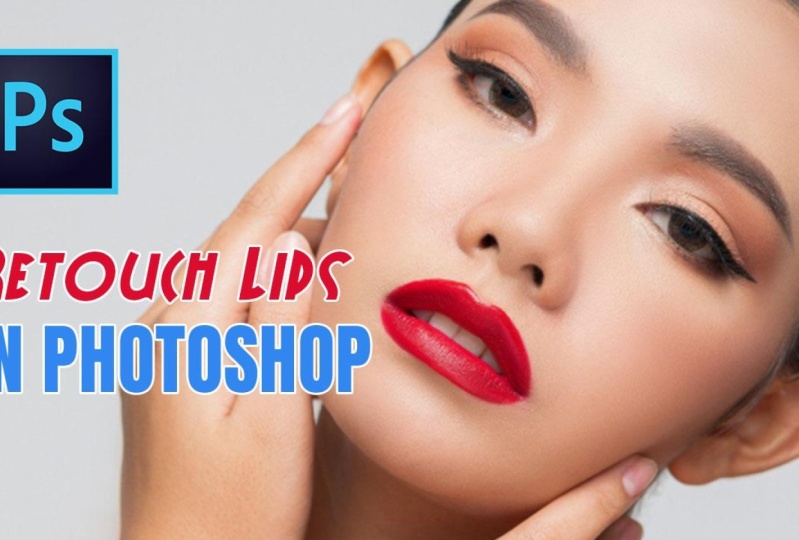
4. Classic YouTube Thumbnail – Part 1: Welcome back. Let's start the process with a thumbnail for the photoshop video that teaches
you how to enhance lips. So start photo shop and
create a new 12 80 by 720 document without
artboards, no artboards. Now, this topic seems to be a slam dunk because we know we have to include some type of woman with gorgeous
lips in the project. So what we can do is
fire up unsplash, maybe free pick,
though free pick is a paid resource.
Keep that in mind. If you don't have a paid plan, go to unsplash, and you don't need to look
for the perfect image. But something like this
can get the ball rolling. Now, effective YouTube
thumbnails are always bright and
heavily saturated. They also tend to have a
huge amount of contrast, so subtlety is not
going to work. So down to earth, this means pink natural lips are not going to
be a great choice. Now, there is
something to be said about making a thumb
nail based on a before and after shot where the initial lips
are plain and pink, and then they're transformed into something
totally outstanding. Now, that may be a good idea, but it's also a complicated one that will require
a bit more work. My advice is, you take it slow, build up speed, create those versions that are
easier to make to begin with. Just because something
is difficult to achieve, it doesn't mean it's
a higher quality, especially for
YouTube thumbnails. Okay, Here's my choice. Extract this archive and drag that photo
inside photo shop. It may not cover the entire
height of the project, but that's not a problem. Use these coordinate
handles to resize it. Now, there's
something to be said about looking at
your competition, you should try to emulate
the ideas without any shame. I'm not saying stealing
them, but get inspired. If you see a recurring team, then there might be
something to it. In this case, I do
see a photoshop logo. This seems quite popular. Though, to be fair,
this seems to be the mark of one
specific creator. No matter. We're going
to use that as well. I already have a photoshop icon. So let's drag it in. You have it attached
and resize it to about 280 pixels, 280. By the way, when I
mention only one value, I'm always talking
about the width, and I'm assuming the
chain icon is pressed. So the height is going
to be automatic. Okay. Regarding its position, it should be placed in
the top left corner, about 60 to 80 pixels
from both edges. Feel free to use shift
along with your arrow keys, but he's a neat alternative. You can actually use
the x and y values from the property spanel. So if you're looking
for something specific like 65 pixels, you can just type
it in right here. Great stuff. This is
the properties panel. If you don't have it, go to the top menu to window
and then properties. Okay, let's get the type
tool and write something. The hot key is T. Retouch
lips in photoshop. That seems pretty standard. Though this is a point where we could experiment
with other words, like enhance or maybe improve. Now, formatting this
text layer is essential, making it look nice. In general, you should aim for the few keywords
that should be big, bold, and easy to read. Now for the type face, I'm
going to use Proxima Nova. This needs to be huge. So let's go with 100
pixels to begin with. As for the weight, I
want it to be bold. Considering we have
a few options here. Let's go for the black italic. Okay, this is catching shape. Now, for the second
line, I'm going to use this text
transformation function to really make it
stand out, this stuff. The thing is, I don't want
to overpower the first line. So let's bring it
size down just a bit. Again, you have to play with it. When I say 100 pixels, it's plus or minus. So always keep that in mind, you can always make
small changes. L eft align this layer
with the photoshop logo. That's super important,
beautiful, with making progress. Now, let's talk about color. I think I want a
two tone approach, red for the top line
to mid of the lips, and then blue for the second one to match Photoshops logo. Now, the colors have
to be super bright. Now, after playing with it, I decided to use this code. It's FF 3c00. As for the second line, here we can actually
sample the logo. But the question is,
which type of blue? Is it this baby blue or this very intense,
nearly black shade? So let's choose the first
one for the initial version. Now, as you work along
and you format this text, you may want to move the girl
to a different position. You don't want the text to
cover any part of her lips. Now, her chin, that's fine, but not the actual lips. Now you'll notice that these characters don't look
that great on her skin. Here's the only choice
as far as I'm concerned. So select the text layer and
activate a white stroke. So this is done by
using this FX panel. We're looking for
a stroke. Okay. In this new panel, go with something fairly thick, about five pixels and pu white. The position set it to outside. Now, you should never
use other colors, bevels or any other
effects from this panel. They really don't look right, especially at a small size. In very, very rare cases, maybe a drop shadow, but again, I don't
think it's a good idea. All these effects may
do more harm than good. So keep it simple. Okay, let's take a short break, and then we'll continue
in just a second.
5. Classic YouTube Thumbnail – Part 2: Welcome back. Here's how the
project looks like so far. Well, the lips are
quite beautiful. We're looking at it in
an ideal situation. I have two big, beautiful displays at a very
large resolution, but considering it will be
scaled down dramatically, I want to give it even more mph. So here's what I propose. Let's make the lips
stand out even more. I know that doesn't seem to
make sense at this point, but everything on YouTube
is typically over the top, so it grabs your attention. To focus on this area alone, we're going to make a selection. Make sure you're on
the correct layer. Then hit W to activate
the quick selection tool. So that's W this specific
tool, this one here. This acts like a brush. So what we want to do is we
want to move over her lips, and as we move along, the selection is going
to grow intelligently. This is why it pays
to use photo shop. Now, in case you
selected too much, you can start over
by using control D, D as in D select. That's going to remove
your selection. The it's a bit of method. You can actually hold
down the old key, that's the option
key on the mac, and your cursor is
going to change. Notice the minus symbol, this means within
subtraction mode, and by clicking around, we are telling photoshop it
should ignore those parts. And when you go over this part, it's going to shrink
the selection. In our case, that's not
needed, so let's move on. Okay. The next thing you want to do is add an adjustment layer. Go to the bottom of
the layout spanel and click on this ying
yang looking symbol. This is going to
give you a big list. From it, we're looking
for the vibrance. And here's the scoop, where in other projects, the effect should be subtle. Here we're actually
going to go all out. So vibrance plus 90, and then for saturation plus 50. This is going to be
extremely bright and saturated, overly
saturated, actually. But this is going
to catch your eye, especially on the phone. Now, at the end of the
day, that's the goal with these thumbnails
to attract clicks. There's a lot to be
said about, you know, being honest, you know, click baiting and all of that. But let's just focus on
the design side of things. And just like that, we have our first
YouTube thumbnail. Now, please be aware. Let's say we want to move
this girl towards the right. Select that layer
and with the move to drag it a bit.
Notice what happens. The effect doesn't move along. And that's because it's
on a different layer. So in case you ever want
to reposition this photo, make sure you
select both layers. Okay. Now it's time to test the YouTube dumb
nail in context. Now we could export it. But it really doesn't
make sense to save it on a desktop and then
reimport it in a mock up. Instead, here's what I propose. Go to the top of
the layer spanel and select the very first layer. It's essential, the layer
is visible and not hidden. Next, we're going to use a
very complicated hot key, and that's A control shift
E. So At control shift E. This creates a new layer by merging all the other ones
by combining them together. Okay, good stuff. Now we have this new layer, which is basically
the entire design into one single layer. File up the desktop
search marker, and then select the rectangle. It's always a good
idea to do that because you won't have to rearrange your layers
after the wards. Okay. Now, go back to the project and grab
that new layer. Please grab it from the Canvas, not from the layers panel, and then move it over to
the other tab and let go. Now, ideally, you
should zoom out, so you can place things easily. You might want to use control zero or control one,
it's up to you. You want to feel a snap here, which means the layer is perfectly aligned
with the rectangle. Then, when you're done, use Ault control G to
create a clipping mask, Alt control G. Basically, a clipping mask is
telling photo shop. It should constrain
the design to that specific shape to
insert it inside that shape. That's all that this means. Now, of course, it's
obviously way too big, but we can use control
T T as in transform. Grab a coordinate handle and shrink it down. Take
your time with it. Now, in case something doesn't work when you're
resizing anything, you may want to
add the shift key. Have a look at the
chain icon as well. So again, if the image
is being distorted, hold shift, if not,
continue along. Now, you might notice this layer doesn't perfectly
occupy the rect angle. But as long as you're
using a clipping mask, I'll control G,
that's totally fine. The excess won't be shown. The other thing that we need
to handle is the title. I'm going to pay something here. But you'll notice
the original text is actually throwing us off. Now, I'm using
YouTube's dark mode, but this works in the
light version as well. So after you paste, get the rectangle tool
and draw a shape over it. Do your best to not cover the channel name
or anything else. So simply add a rectangle. Then double click it s tum nail. This is how we change the color and sample the background. For you, that may be white, for me, that's a
dark shade of gray. But, yeah, lovely stuff. Now all that's left to do is to move this shape underneath
our text layer, and we have golden, beautiful. Now, the title should
be white, by the way. Now, in context, how do
you feel about our work? Do you think the baby
blue was a good choice? What about the vibrant
adjustment layer? Is this too much? Well, you don't have to actually
think too much. Let's make it happen. Go back to the project, hide this first layer.
We got to hide it. This is essential because
if we make any changes, we won't actually be able to see them because this
layer is at the top. Okay, let's select
this second line of text and choose
a different blue. We could sample the logo, but it's a bit too
dark for my taste. I'm going to choose a random
blue from the color picker. Something like this
should work fine. Now, how about the effect? Let's disable it and
see how it looks like. Okay. All right. Select the
top visible layer, and again, use the hot key At
control shift E. Next, I'm going to speed things up while I place
everything correctly. Now, please be aware you can clip multiple images
to the same layer. You can insert multiple images. So that's the plan here. Now, after it's all said and done, we can
do the following. First version, second version. First version, second version. Simply toggle the
visibility of the layer that's on top and see
what looks better. Now, for me, the bright
lips are better. As for the shade of blue, I think I prefer the dict one. But just like that,
we can go back and forth in all project
and refine it. Now, I just need to re enable this layer and we're
going to be good to go. Now, be aware that I went through this process
fairly fast. We have four mock ups in total. We should use all of them. But yeah, on your
end, don't rush it. I'm recording this, so I want
to be as short as possible. But when you're doing it, please go through
all four mock ups, change all the titles and give yourself time
to experiment. Plus, this is just the first
photo that caught my eye. You need to try other images, other fonts, different
placements, and so on. Instead of showing you
variations on the same topic, I'm going to move
to a new subject, and I'm going to approach
it in a different way. Hopefully, that's going to be
more insightful rather than doing the same lips over and over again. So let's get to it.
6. Abstract YouTube Thumbnail – Part 1: Come back. In this lecture, I want to tackle a
difficult subject that's going to put a
frown on your face. The task is to
create a thumbnail for the YouTube video that teaches you how to identify
layers in photoshop. So this is clearly a
topic that's aimed at beginners that don't know a lot about the program or
the subject itself. So the first question is, how do you represent the layer? That's a very abstract concept. That's a challenge in itself, but then making it stand out, making it attractive, Well, then you'd better
strap yourself in. So start Photoshop and create a new project 12 80
by 720 standard. Next, you might be
tempted to search for resources on the sites I mentioned by using
this keyword. Layer. I'm going to save
you the trouble. There's nothing appropriate,
or at least nothing that could illustrate the topic of identifying a layer fast. Now, you could try to use some
type of generic layer icon and maybe a magnifying glass to imply that you're
searching for it, but that's cheesy as
hell, that's over used. So here's my thought process. Why do you need to
identify a layer? Is the layer not
apparently visible? Okay, probably not. Okay?
Why would that be the case? Will the project probably
has a lot of layers, which means you probably
lost it amongst the ones. So the concept would
be a situation where there have lots
of things to look at that looks somewhat similar, but one of them
stands in particular. Okay, so we do have a
concept to work with. Even so, what term, what search term should
we use on unsplash.com. What keyword do we type
into this search box? I don't think you
should even try it. My bet is that you're going to spend more time
trying to figure out the right keyword rather than actually designing
this from scratch. This is why in this
specific case, I would much rather create something from scratch
in photo shop. My plan is to add a bunch of white rectangles that's going to represent the concept of layers, and one of them is going
to be a different color. So I think that gets
the point across. But we'll never know until we execute it until we make it. So grab the rectangle tool
and create a new layer. Now, in my mind, layers
are tall and thin, at least in my imagination. I would say about
1:50 pixels wide and maybe 200 tall Now, for the corner radius, I'd like something fairly
rounded, 20 pixels. Now for the moment,
make it a bright color, even though that decision
may turn around and bite us. Now we'll cross that
bridge when we get there. Okay, this is good. Now,
make a copy of this layer. Now, in general, I like to use conto J or command J on a Mac. But let me show you
a different way. So you hold down the ult key, that's the option key on a Mac, whilst on the move tool, and then you click and you drag. And that creates a
copy of the layer, but don't let go just yet. Hold shift, and
that's going to make the copy move in a
perfectly straight line, which is exactly what we want. Place at 30 pixels from the initial shape from
the original one. Now, you could use
the control key to show those measurements,
the pink measurements. But in these cases, I like to bring the
rectangles right next to each other so
they snap into place. Photo shop is going to realize that you want the
two of them to touch, so it's going to help you out. Then when they're touching, hold shift and tap the right
arrow key three times. And that's going to give
you exactly 30 pixels. Okay, select both layers and repeat the Alt drag technique. That's the name Alt drag. Okay. Now, hold shift to move
them in a straight line. Now, notice, photoshop tries
to help us be consistent. It shows you the
current value as you get closer to that
30 pixel mark. Okay. Let's increase the speed because we want nine
layers in total. So that's going to
be our first row. And you might be
surprised to see that we're not going to have
enough space for them. Now, the thing is, I've used this technique a bunch of times, and I know for the
fact we're going to need a couple of extra shapes. Now, to keep things
going in that order, group them into a
folder with Control G. So you select them, and then you use Control G G as in group. Okay. Now we want to cover the
entire Canvas with shapes. So let's create two
copies of this group. Leave 30 pixels between
each one of them, so we have a nice
margin all around. Now, again, work on
your second viewing and pause as often as you need
to take your time with it. But it's best you create
duplicates of the group and not the layers themselves to keep the layers
panel a bit cleaner. Now, the end result
is again the same, but it's just easier to
manage in the layers panel, especially if you keep
the folders closed, which is what I
always recommend. Okay, this design isn't
going to win any awards, but here's the next step. Select all three closed folders, all three, and then use
control T s and transform. Now, right click on the canvas, and then choose perspective. Now, it appears that
nothing has happened, but trust me at work. Move your cursor to the top middle handle and
drag towards the left. Now, as you do that,
you're going to see a value in degrees show up. I don't have anything in mind. I'm just going to freestyle it, but you can check out
the options bar for the precise value in case you
want to copy me perfectly. I think something like
this is going to do the treck at least initially. And that's because we're going to do another
transformation. Now, basically, in
perspective mode, each handle is going to affect these layers
in a different way. But the look I'm going for, I'm interested in the
bottom right handle. So grab it and start
to move it outwards. As I'm going through
the motions, look what happens. See
where this is going. The shapes start to look like cards that are placed
on a long table. This is what we're
trying to create. Keep in mind the perspective
command is very dramatic. If you move your cursor
in a different position, the effect is going to be
totally something else. Now, in case you ever mess
up, remember, control Z. That's how you undo. If
you seriously mess up, press escape and start over. Oh, and if you're too
zoomed in, and of course, you can't drag any
corner any further, you can use control zero. Okay. This is what I'm looking
for. Well, close enough. Now, I want to
create the illusion that these shapes go on forever. So I'm going to need to
adjust it a bit more. My plan is to add the band
with some text at the bottom. So we'll focus on the top. So just move it around until it starts to make sense.
But here's the tip. Make sure the top row
is partially cut off. So that's going to
imply that there are more cards in that area. Take a good look at the left, right edges and see what's what. You want to make sure you
have something like this. Now, I'm going to leave you
to play with it for the bit. And then when we come back, we're going to take it home.
7. Abstract YouTube Thumbnail – Part 2: Welcome back. I hope
you managed to play with perspective without
too many issues. I know it's a bit of
a pain to figure out, but take your time with it and
always visit the workbook. And, of course, if you need
help, just ask for it. Okay, let's put some
style into this design. So let's start with a neutral
background. Let's do this. Let's add a solid
color from this list. This is from the bottom
of the layout spanel, an adjustment layer, solid
color. Now, here's the thing. Now, we're looking for something
that's fairly neutral. For the colored code,
let's use the following, e three, e three, e three. This is a very good light gray. Now, when you use Photoshop
for over ten years, you start to remember
some things. This is one of those things. Now, place this underneath
all of the shape layers. Now we're going to
make them all white. This is the part where
some people may struggle. You may think, Hey,
if you knew that you wanted to make them
white from the get go, why didn't you say so
from the Start crest? Well, in most cases, the reality is you won't know. Plus, it's a great way
to explore our options. Now, the 2005 method
is to double click every single thumbnail and use the color picker
to make them white. But a better way is to
use colored overlay. Though I'm not a big
fan of this technique. In this case, it actually
works out very well. So here's how this goes. Select any random shape layer, and then move to the bottom
of the layouts panel. Click on the F X icon. From this list, we're
looking for color overlay. Now, here in this new window, there's nothing fancy going on. Select pure white, which
has a colored code of FF, by the way, three times FF. Now, 100% opacity,
normal blending mode. Trouble is my background
is a bit too light. Still, that's not a
problem as I want to give my shapes a bit of
an extra dimension. So enable a drop shadow, and we're going to use something
fairly big, yet subtle. Pure black for the
color, so zero, zero, that's three times
blend mode normal. And then for the opacity, 20% or so give or take. The angle could be
either 45 or 90 degrees. It's hard to decide when you see it applied on
a single shape. But let's stick to 45 for now. For the settings,
distance, 15, size 35. And this is going to give us a diffuse shadow, a soft shadow, and the idea is to make it look like these items are floating, that the layers are floating. It okay, and now it's
time for some magic. Right click this layer
in the layout spanel. Please go over the name,
not the thumbnail. And then from this huge list, take your time to find copy layer styles.
This is what we want. Then select all the other
shape layers, but be warned. Do not select the
groups as well. So this means you're going
to have to control click, quite a lot of layers. But it's a good way to practice
our dexterity, our speed. So just like that,
we've deselected. Finally, we can
right click again, but this time we'll
paste the layout styles. So we copied them, and
then we're pasting them. The panel is going to
expand quite a lot. So while you have
them all selected, you should click on this arrow to collapse all
of those effects. Make it shorter, more compact. Great work so far.
The next thing is to highlight one
specific layer. Choose one from the second row, ideally one that's somewhere near the middle of the screen. This has to have a striking
color to really stand out. But be aware that you shouldn't try to double
click at thumbnail. No, you could fool
yourself like so. Maybe it's white on the Canvas, and you make it white here. But here's the thing you
may forget that we used colored overlay because we have that effect, obviously,
nothing happens. This can be incredibly
frustrating. That's why, in general, I'm not a big fan of
using this layout style. But yeah, anyway, expand the effects and double
click on colored overlay. We're going to use orange. This is the colored code. FF three C zero, zero. Now, this alone
doesn't do the track, so click on drop shadow and
change it to orange as well. Now, here's the thing.
The low opacity is not getting the job done, so increase it to probably 100%. We try to grab the
user's attention to this particular
area of the design. So we have to give it
its fair share of love. But yeah, this is
getting better. Enable a stroke as well. A stroke is going to
complement the drop shadow, and I think it's going
to go quite well. We should use something
fairly thick. About eight pixels give a tak. Now, these sizes are specific to my canvas size for this
particular rectangle. If you have other sizes, you may have to change
these ones as well. Okay, now let's add that text. We need a good
amount of contrast. So add the rectangle
at the bottom. For the width, 12 80, the width of the entire canvas, and for the height, 130,
that should be good. Now we're going to have
to experiment with different heights to make sure the text isn't going
to get cut off, but that's an easy fix. When in doubt, use the alignment tools to quickly align your
layers to the Canvas. It's quite important
that this doesn't actually go outside
of the Canvas, it doesn't overflow because we're going to use it to
syn it out text with it. Okay. Now, for the title, I'm not going to
get too creative. I'm going to say
identify layers fast. Now, the first letter
should be capitalized, and for fast, we could
enable all caps. I think that's pretty good. Now, this variety tends to give your design a slight edge. As for the formatting, again, proxima Nova black. Now, this is available
on Adobe fonts, which is included in your
follows upp subscription. If you can't manage, you
can use Roboto Black, for example, or you can go on Google Fonts and choose
any other typeface. Overall, this is buttoned up. Make sure you correctly
align yours as well. And before we wrap it up, let's test the design at
least in one of our mark ups. So I'm going to
speed this process because there's nothing
fancy about it. Just remember the hot key
on the very first layer. It's all control shift and E, and basically, that's it.
We're going to have a copy. Okay. Here's what I'm thinking. The height of the bottom
bar could be increased, maybe 160, maybe even 200. The original value
was 130, I believe. But more importantly, we
could add an arrow here. Though I like the clean look, arrows are very popular
on YouTube nowadays. Now, you could go looking for the great one on flat icon.com, which is a paid website. It's nothing too fancy. It's just an overblown arrow. Remember, we should create anything that crosses our mind. It doesn't matter if it
seems like a silly idea. You got to try it and
then see it in context. Okay, fast forward,
and here it is. Now, do you like it better? I'm not sure, but I think it's
good that we have options. And that wraps it up for now. I hope you found my
process interesting. Abstract thumbnails are one of the hardest things
to figure it out. But I hope this help. I'm
going to see you real soon.
8. Choose your own style: Come back. Everything
in life can be boiled down to
basically two paths, the hard way and the easy way. Now, in general,
most valuable things are found at the
top of a mountain, on the ocean floor and out
of the space and so on. But on YouTube, the hard way doesn't
always lead to riches. I've said it at the beginning, and I'm going to say it again. I don't believe there's a strong correlation
between the quality of the thumb nail and the number of views you receive at least
for the new channel. Now, this can be
debated, of course, but before we get
into any arguments, note that I'm not saying that
thumbnails don't matter. No, they matter a lot hugely. But if you start a new channel and you invest everything
into thumbnails, that may not make a
significant difference. That's all I'm saying. Now, going back to the easy
path versus the hard one, I believe it's essential. You choose a style, and
then you stick with it. I think with the current
subscriber system where some videos simply
don't show up and you a feed, even though you
subscribe to a channel, it's important people recognize
your own thumbnail style. So, for example, Bilber, one of the biggest
comedians on the planet, has had a podcast for the
last ten years on YouTube. And this is his thumbnail. The same one for every
single one of them. Now, for me, as a big fan, I recognize it when I see
it mixed with other videos. Sure. Now, is this
thumbnail good? No. Actually, it's modest at best. It does show his face, and you can clearly
see the text, but that's about it. Still. This particular
style works for him. He doesn't want to hire a person just to handle his graphics. It just wants to put
out his content ASAP. Okay. Then universal nutrition, a famous supplement brand that's been around
for 20 plus years. They also take the easy route. So most of their thumbnails feature the signature of
black and white effect. Now, these are stills
from the actual videos, screenshots, plus a bit
of text on top of them. Nothing special about it, but it's a style I
immediately recognize. Next up, of course, Joe Rogan. Now, there's little
to analyze here. You can barely see the guest. The podcast number isn't
relevant for most people. I think the most important
part is this text right here, that tells you who
this person is. But even that's
done pretty poorly. No drop shadow, no stroke,
no effects whatsoever. But of course, Joe Rogan
is absolutely crushing it. No doubts about it. Some say he's even surpassing
late night giants, the likes of Jimmy
Kimmel, Conan, or Palin. Yet his thumbnails are
abysmal in comparison. One more example
of the easy way, and I'm going to wrap this up. Mr. JW is a popular car guy
that handles car reviews. Now, this space is
extremely competitive, and most channels invest in top gear level graphics
and production quality. But this guy, Mr. JW,
doesn't actually do that. These are screenshots that are slightly edited for contrast, saturation, and brightness,
but that's about it. On the other hand, here are two guys that are
seriously raising the bar, the real estate
superstar Ryan Sirhand, and the guy everybody
has been talking about for ages, Gary ener Chap. Now, let's start with Ryan, who is one of the best guys to analyze in terms of
personal branding. He talks about this
subject a bunch of times. Basically, he addresses
the fact that people don't really need real
estate agents anymore. But because of his
presence, his charisma, his personal brand, people
still choose to work with him. Ryan chooses to invest a lot of money into
these thumbnails, and I believe it shows. Now, does it give him a
significant boost when you compare his thumbnails to all the other
channels out there. I'm not sure. Honestly,
I don't know. I think it helps, but to what
degree, I still don't know. But if you look closely, you're going to see
he stays consistent. Yellow is a color that
constantly pops up. A big dollar figure is bound to show up
from time to time. His face sometimes appears intersected with text elements, which, by the way, is done
through a layer mask, and we're going to have
a video about that. But the thing is, he
stays consistent. He uses somewhat the same style, and that makes this touff
choice a bit easier. Now, as for Gary, he goes hard as well. If you don't know
too much about them, just look at how many
videos he makes. Gary is a content machine. He puts out as much as possible. He's the king of
personal branding, even though he's had the
table stacked against him. His story is quite impressive, but I won't get
into all of that. What I will say is that
Gary varies his style, and this is one of the
hardest things to pull off. Does appear in most um nails, so people can identify him. But I'm not sure
I would recommend this approach, this
mixed approach. From what I can gather,
he does this as an experiment to see which style brings him the
most amount of clicks. That's a classic Gary
V move right there. But at the end of the day, my takeaway has two parts. Number one, choose your own
style and stick with it. People will start
recognizing it, and that's going to help
you in the long run. To make your life easier. Choose a style that you can execute without having to break the bank or slave away
for hours on and Now, that's my take, but
take it with a grain of salt as I'm not a massive
Tuber by any means. Now, let's get
back to designing.
9. Before and After Thumbnail: Welcome back to this
thumb nail project, where we have to
design something that features before and
after the shot. Now, this for YouTube, this can be a weight lost thing. It can be a paint job for a car, a dirty versus a clean room. You name it. Now, here's
how this is going to go. We have the two photos already prepared just
to save some time. It's essential they
have the same size just so it's a bit faster. Now, drag them both inside
the 12 80 by 720 canvas. Now, there's a good chance
they may not fit perfectly, but that's not a problem. Select both layers
and use control T, use the coordinate
handles and do just that. Now, it's important you
resize them both at once, so you don't have to remember any specific pixel
value or percentages. Now, I'm sure you may
already know this, but I'm going to say this again. When you resize, hold all, and that's going to
speed things up. And if the images get
distorted, hold shift. If not, don't use it.
Okay. There we go. Now, what we'll do
is we'll make the before shot on the left
side of the screen. M that happen, we'll hide
50% of this top layer, which is the after shot. So here's my technique that
works windows in all cases. So grab the rectangle tool and click to input your dimensions. Because we have the same
canvas size, it's quite easy. So for the height, it's 720, and then back to the width, it's half of 12 80. So that's 64640 for the w. Place it in
the top left corner, but always check
the layouts panel. This has to be at the top
of the layouts stack. Okay. Make it red or
any powerful color, but then please lower the
opacity to about 50% or so. We want to see where
the image is going to get cut in half. And
here's an issue. See, even though I sent that
both photos on the canvas, the left side of the lips, well, that's significantly bigger
than the right side. That means our before and after the shot isn't going
to be perfect. We're not going to
enjoy any symmetry. So here's the easy fix. We won't resize this rectangle, as that would ruin
the 50 50 split. In this case, grab both images and move them
towards the right side. Something like this. Now, if any white shows up on the sides, just increase both photos. Okay. Now for the magic, this is going to require you to focus on every single step. First, hold the control key and click on this
rectangles thumb nail. This is going to
make a selection, and you're going
to be able to tell that's the case by checking for these marching ends
for this part right here. Now, the first step is done. The second thing, I
would like to hide this rectangle because we
don't need that anymore. Then the third step, click on the after layer, the one that needs to
be partially hidden. Okay. Now, hold
down the ult key, that's the option
key on the mac, and then focus on the bottom
of the layout spanel. Click on this icon here, and that's going to
create a layer mask. Now, layer mask, what that is. That's not important,
but the result is here. This is what we
need. You did it. Now, in case you're
scratching your head, no worries, we're going to
do another one in a second. Now, in some situations, this one included,
the differences may not be night and day. So to illustrate the point, grab the rectangle
tool yet again. Click once and put
in these values. Six for the width, and
then 720 for the one. Make it pure white as
this is going to be a vertical line that's going to separate
these two halves. Now, why did we use the rectangle tool instead
of the line tool because it's quite easy to use the property spanel and
quickly change its size. Now, to position this perfectly, re enable the rectangle
for just a bit. Zoom in and finish up by making sure you have three
pixels on either side. So this was actually
the hard part. The rest is actually up to you. I'm personally a big
fan of a bottom bar. So let me quickly add one. Now, I won't bore you with the steps because we
already did this before, but I'm going to choose
the same orange as before. Now, just so you
can follow along, the rectangle is
140 pixels tall. And the Fontaine question,
the same as before, Proxima Nova black
160, so quite big. Now, you might have noticed that the bar is covering
up part of the girl, but no worries, select both layers and
raise them up a bit. Now, the layer mask is attached
to the after the shot, so it's going to move with it. Okay, this is the first version. Select all the layers
and group them. Control G G as in group. Rename it two version one. Then let's make a
copy with Control J, and call that version two. Now, here's what
I'm going to do. I'm going to disable the bar so we can better see
what's going on. Another thing, I'm
going to remove that layer mask by
right clicking it. Though we could disable it, I actually want a new
one, so let's go for it. Okay, let's make the
rectangle visible. But this time I want
a diagonal split. It may work better
on certain cases, and it's also more interesting. So here's how you can do that. So make sure the rectangle is selected in the
layout spanel. Then hit A, the hot key for
the direct selection tool. So hot key A. Go to the toolbar and make sure you're
on the white arrow, not the black one. Okay. Now for the
important step, move your cursor near this top right corner and
drag a selection like so. That's going to reveal
the rectangles path and anchor points. Now, the details really
don't matter that much. What's essential is that
you notice there are three small y squares in these co ordinates while
this one is colored. This is what you want.
This means it's selected. Now, the sloppy
way of doing it is to simply grab it and drag it. You could potentially hold down shift to make it move
in a straight line. Now, when you do
that, photo shop is going to give you a warning. But that's totally fine. Just hit, yes. All right. We could try and reposition
it to get out 50 50 split, but I'm sure we won't nail it. And overall, this is a bit too much back and forth
for my taste. So let me undo two control Z. The anchor point
is still selected, but I'm going to hit enter to deselect it just so we reset. Okay, so grab it again.
Okay. See the change. Right. Okay, in order to
maintain the perfect split, we're going to use
shift in the ado keys. Basically count each tap. Though the first one photoshop is going to give
us that warning. So just hit yes, and
that's going to be good. So that counts as one. I'm going to use ten taps, which means 100 pixels in total. This is a pretty low value. In general, I would
use 20 or 25. But when you go do
your own version, go with a higher value. So ten taps, 100 pixels, when you're done hit enter. Then select the
bottom anchor point again while having the
white tattle selected, and then move it to the
opposite side. Ten taps again. They'll be aware the error
won't show up anymore. That only happens the
first time you do it. Okay, all that's left is
to create that layer mask. So here are the
steps here again. So hold the control
key and click on this rectangle tum
nail to make a selection. Then you can hide it by
clicking on the i icon. Switch to the Dune layer, AKA, the after shot. Then hold all and move your
cursor here to make a mask. Click it and there you go. Now, one more note, when you want to position
the separated line, make sure you first enlarge it. And that's because
the current height of 720 is not going to be enough when you
place it diagonally. It needs to be slightly bigger. So use the rect
angle as a guide. That's going to make
things a bit easier. Here, there's nothing
really special going on, control T and a bit of
rotating. As in transform. From what I can see,
we're looking for an angle of about 15
degrees, give or take. Now, take your time with
it because the number of taps is going to change
that angle value. If you're using more of tes,
it's going to be different. But, yeah, when you're happy, re enable the bottom bar, and we are golden,
that's our word. With this technique, you
can do all sorts of splits, all sorts of effects. Just make sure you
practice what I've shown you and remember to
have fun with it.
10. Personal Brand Thumbnail: Come back. For some channels, a thumbnail that features
yourself is super important. The classic example is as Nita, one of the biggest YouTube
buds on the planet. But even Marquez shows
himself in a lot of videos, even though he does a
lot of tech reviews, where you would imagine the product itself would
be the star of the show. That's another thing
that I've noticed on YouTube between a video with this illustration
based thumbnail and this one that
features my ugly face. The face actually
attracted more clicks. And like I said, I
won't be winning any GQ awards for the
Sexiest Man alive. So this means this is a style
that's worth exploring. Now, in this
lecture, we won't be dealing with cutouts and
replacing the background. Instead, we're going to
create something based on a snapshot from the video. I have something prepared, and I'm going to be
using BS player. This is a very popular
windows program totally free, and I'm going to
use it to create a screenshot from a frame. We could use any other
advanced programs, but this is free. It's easy to use, so let's go for it. So
here's how I do it. I played the video muted, and I hovered my thumb
over the spacebar key. When I see something interesting that could be used
as a thumb nail, I pause, I go back and forth until I nail
the right frame. Keep in mind, it has to be
something over the top. There has to be a
lot of emotion. So just me smiling isn't
going to do the trick. In most cases, shouting or
pointing, that works best. Here at around the 22nd mark, you can see both my
hands are up in the air, and my face is showing
quite a lot of emotion. To create a snapshot
to the BS player, you first have to set it up, so it's going to
save on the desktop. Now, right click the program and choose options preferences. Bet of yet use Control
P. From this new window, focus on the left column. Choose frame and
Tumb nail capture. I like to save all of
my files on my desktop. Now, click here and choose
whatever works best for you. Okay, now, right
click over the video, and from the top of the list, you should see
capture the frame. It's essential you choose the
original size because most likely the video is going to be recorded at 19:20 by 1080. Drag the photo
inside the Canvas, and now we can get to work. You should enlarge it and
reposition it as you see fit. D two possible cases. Either you can place me in
the middle of the screen, and we can add some
text to either side, or you could place me
towards the right, and we could add some
graphics towards the left. We're going to go
with the first case just for the variety. Now, my particular shirt and the background,
they're not great, but let me show you a technique
that you can apply to all adjustment layers that
takes only minutes to master. Now, in this case, I'm going to click here at the bottom
of the layout spanel, and I'm going to go with a brightness and
contrast effect. Then from this new window, let's ramp up the second
slider to about 60 or so. Now, while the
background does begin to stand out more,
look at my face. It looks like I've been
at the beach all day. Now, in most cases, you're going to want to limit
your adjustment layer to one specific part of your
composition of your project. You could use old control G, but that just means
you're applying this effect to one single layer. That's not what I'm
suggesting here. Instead, I'm saying, let's
increase the contrast for the entire canvas
except my face. Now, this can be done with a brush tool in
the following way. So all adjustment layers
come with a mask by default. You can recognize the
mask by checking for this white rectangle
next to its thumb nail. Now, the biggest confusion
comes from the following. You could either select
the layer like so, or you could select
the mask like so. Notice these additional lines
around the white rectangle. So this means it's selected. Now, when that happens, your colors on the left side are going to be changed
to black and white. Black removes white
ads. That's the mantra. That's what you
need to memorize. So get the brush tool and start painting to
see what happens. So again, black
removes the effect, and then if you change your
mind, white brings it back. Let's take it one of the time. Ideally, use a big brush, something over 200
pixels for sure, and a low hardness. You can always use this
panel to adjust it. Now, a low hardness means
we won't have any sharp, well defined transitions,
any sharp edges. That would look
weird. Instead, we want the soft, diffuse look. Now, as you're
going over my face, look what happens with
the white rectangle. Pots of it become black. By the way, in case you can't
manage to see what's what, you can right click
over the thumb nail. And from this list, you could choose
large thumb nails. In general, I don't recommend it because obviously it's going
to take up more space. But yeah, the black shows that these areas are not being affected by the
adjustment layer. So again, black
removes white ads. The great thing about
it is that you're not actually changing
the photo itself. You're not affecting its pixels. As you can see, we're
on a different layer. So this means we can disable
it, we can delete it, we can hide it, and the
original remains untouched. So this is very
flexible, because, as I said, we can
always change our mind, switch to white, just use
this arrow or the hot key X, and then paint over
whatever area. Paint and see how
the effect changes. Now, you have only a few
things to worry about. The brush size,
which is adjusted to the square bracket
keys on your keyboard, so that's the square
bracket keys, or from this lider. So that's one thing
you have to keep in mind, then the hardness, which in most cases
should be left at 0% for the soft transition. And just in case you
want extra control, which I don't really recommend, you could lower the opacity
from the options bar. This is great for those cases
where you want to work in small batches to gradually
build up an effect. Okay, back to the thumbnail, considering how I look, I'm going to add some
question marks, a YouTube classic,
grab the type tool, hot key T, and then type
in a few question marks. For the font, let's
go with something at random, say Nunito black. Now, this is something
that I quite like. For the sides, we need
something huge like 250 pixels. As for the color, I'm going
to stick to my orange. It's FF three C zero, zero. Take your time with it. You don't need to
rush, make sure you pause as often
as you need to. This alone is not enough. So let's add the white stroke. Click on the FX icon and
then look for stroke. In terms of size, I
think about six pixels. You could potentially flip this white text and
then an orange stroke. It's really up to you. But yeah, make sure you have fun with it. There's no right or wrong way. Now, one final thing, let's
use control T and rotate it, so it looks slightly angled. There's no one particular
reason for it. I just think it
looks a bit better. Then rinse and repeat
for the other side. And basically, this
is a thumb nail. Fairly simple, but
pretty effective. But yeah, this is the type
of thing that you can do. And hopefully, you can use your adjustment layers to
really make things stand out. That wraps it up. Test it out and see how you do,
have fun with it.
11. Illustration-based Thumbnail – Part 1: Welcome back to our project. Here's where we've
left things off. But I'm not too happy
about the background, especially since we're
talking about illustrations. So let's launch
free pick yet again and look for some type
of abstract background. The way I make a
decision is based on the shapes shown
in the resources. The colors not so much because we can
easily change those. So here's a good one. These diagonal lines are going to work great
with that rocket. So let's download it
and check it out. Again, if you can't manage, use Unsplash, which
is totally free. Notice, this time around, the archive contains
a few more files. But in essence, it's
the same thing. You're going to get
the same project, no matter if it's a.ai
or a dot EPS file. Now, please be aware
that in most cases, you may get a warning
regarding missing fonts, but we're not interested
in text layouts, so we can skip that. It looks like we have two
variations of this design, but this is the one we're looking for because
of its aspect ratio. But here's the thing. I just mentioned in the last lecture how every
project is different. Well, in this case, if I want to remove all of these
lines of text, a simple click won't do. And that's because everything is grouped together as a whole. Luckily, the process is
straightforwardward. You double click and now you
can select and delete that. It's like going a level
down, so to speak. I think that's the best
way of imagining it. Now, one by one, select
and delete all of these additional decorations
that may get in that way. It may get into the way of
the rocket, so to speak. Now, once this is cleaned up, zoom out and drag a big selection that
includes everything. And now we are ready to copy
paste it into photoshop. Now, as a general tip, always zoom out quite
a lot when you're going to import things
into photoshop. Now, as you can see,
the background is actually much smaller
than the Canvas. You may also notice that there's a bit of transparent space here, and that doesn't make
a whole lot of sense, but that's because
the composition contains vectors
that are clipped. Anyway, it really
doesn't matter. Resize it and
position it properly. Though be warned.
Photoshop may move slowly. Okay, this looks a bit better, but let's take it a bit further. So we still have the initial colored fill adjustment
layer underneath it. So let's make use of it through this layers
blending mode. So select the smart object and start to cycle
through these options. The mouse wheel does
the job just fine. Now, with not looking for
something in particular, I want a nice effect
that stands out. I think I mentioned this
a few times before. These are a bit of a lottery. You never know which
you're going to get. Now, lighten is pretty okay. Let's see what else
makes our short list. Linear light, that
works well too. Well, I think let's go back to linear light
for the moment. Now, the thumbnail overall
is catching shape, but I want to add
another text layer that might get a
few more clicks, a percentage that implies how much faster the
photoshop is going to run. So let's write plus 50%, get the type two hot key. And when you're done,
switch the move wool and place it somewhere near
the bottom right corner. Though we could
use the same font, I think I'm going to use
something that's a bit more condensed, more compact. And one of my favorites
is Oswald Bold. Now, for the size,
180, quite big. Now, as for the color, I recently worked
on a project that had somewhat the same
purple all over, and I decided on a
nice gold yellow. Here's the colored code. FD, DD 07. Okay. And I think 40 pixels
is a decent amount of space. Okay, We are hiding
some of these details, but this is just
the first version. We can easily break the first
line in maybe two parts, maybe move this up, maybe even towards
the left side. We have lots of options. Okay. The next thing I
want to do is optional. Let's add the drop
shadow for the text. Here are the settings. So from the F X
panel, drop shadow. Now, pure black for the
color, set to multiply. For the opacity, 70%, for the angle straight down, nine degrees, five
pixels for the distance, and then for the
size, I think ten. This should help the text
stand out a bit more. Though there's a good
chance people won't actually notice it
at a small scale. After everything is buttoned up, take a moment to zoom out and
investigate the progress. If there's anything wrong, now is the time to make changes. Only thing that I'm not 100% with is this part right here. These shades of blue aren't
exactly to my liking. But like I said, we can easily change the colors in
this composition, and we don't even need
illustrator for that. So it's like the smart object, and let's add an
adjustment layer. This time, something different. It's going to be
hue and saturation. Now, from this new
panel right here, enable the colorize option, and now you can go to
Town. Have fun with it. The options, as you can
see, are limitless. But I suggest you keep
the lightness to zero, and then you crank up the
saturation to about 80 or so. It may be a bit much, but the most
successful channels, they actually have
very bright colors. Now, for the hue, I'd
like to stay around blue, slash purple, slash violet. I think 250 give or
take is pretty good. It's not a big
difference, mind you, but this was a great chance
to try something different. Okay, save your work, put it in the markup, and then see what's what. Now, from this point on, it's up to you to try various combinations,
colors, and arrangements. So have fun with it and
make your own version.
12. Illustration-based Thumbnail – Part 2: Come back. I'm a big fan of illustration based on nails
because they look impressive, yet the amount of work required, is actually minimal
in most cases. Now, there's a very popular
channel that starts with a K that really brought this style to the fore
front of you tube. I honestly don't know
how to pronounce it, so I won't even try. Still, this type of illustration
is sleek, eye catching. It makes it really
easy to add a bit of text over it when
you boil it down. So this is a top choice. Now, you might say that this is difficult to execute
from scratch, and I would agree. But who says you need to start from scratch
from absolute i? Remember, we do have free
pick at our disposal. Again, I have a
premium subscription, and I know that not
everyone can pay for it, but I do believe it's
worth the money. But what I would
like to point out in this video is that you can combine a couple of
vectors from Free Pick, maybe from other websites
that offer freebies, though, again,
that's pretty rare. Adjust them a bit
so they better fit your style and then
be done with it. So let's take a simple
case where I have a video that talks about
speeding up photoshop. Now, the first idea
that comes to mind is a rocket with flames
coming out its engines. Just have a look at
all of these options. So many styles, so
many perspectives. It's totally up to you. And please don't think
you need to have a vast experience
in Illustrator. Honestly, you only need
to know how to select certain parts and copy
paste back in photoshop. That's it. I'm going to start a new project in photoshop with a classic 12 80 by 720 Canvas. Next, I'm going to
download one of these lovely rockets and that's going to give
me a zip archive. Inside, we're going to
find the dot EPS file, which we can double click, and Illustrator is
going to launch. Wait for a couple of
seconds until it's loaded. If you don't have illustrated, no worries, you're going
to have this PSD attached. Now, the good news
is that we're only interested in selecting
some of these components, and that's fairly easy to do. The bad news is
every resource from Free Peck is organized
differently, every single vector. Now, just think about photoshop. The way you group your
layouts is one of many ways. And that's exactly
the same thing that happens in Illustrator. Different projects,
different authors, different ways to
organize the layers. Now, this is why I always use the following technique to
get acquainted with the file. So select something, say
the moon in this case, and move it to the side. Notice it's behaving
like one single element. Okay. Now, put it
back with Control Z. What about the rocket?
Are the clouds attached? And let's test it out. And no, it seems like the rocket is grouped
as one single element. While these two clouds are one element. What
about the stars? Are they individual yods or
are they grouped together? This is important
because if you want to steal one star in particular, you're going to have to
have a different approach, a different selection process. And yes, these are group. To deselect, just click
anywhere outside of the Canvas. Okay, I want to grab
everything except the background and move
it into photoshop. In this case, that's easy to do. First of all, grab the background layer
and hit the delete key. Next, click and drag to select all the elements
from the project. Okay. Control C,
then switch back to photoshop and paste
with Control V. Now, the only choice here
is smart object. This is what you need.
Okay. In most cases, you're going to notice
the smart object doesn't take up
the entire Canvas. And we could try to enlarge it, but that's going to
complicate things a bit more. The moon would be
pretty much cut off, and the stars would be
too big for my taste. So press escape, and
let's try this again. Only this time,
we'll only select the rocket and the
clouds, and that's it. Okay. So after you
grab the first one, whole shift to select
a different element. Okay, let's keep this going. Let's paste it into foto shop. Control C, Control V. Right. Now enlarge it, and
don't be afraid to hide parts of
these exhaust fumes. The star of the thumbnail
should obviously be the rocket. So make sure it
takes center stage. For the background.
Let's kick things off with a solid color
adjustment layer. This is added by clicking here at the bottom of
the layout s panel. We're looking for solid color. We want something fairly dark that's going to
complement the rocket. I'm thinking a faded blue
is going to do the track. Let me help you with the color
of code I ended up using. It's 212 f49. Now, this should make
any white text pop. But from what I'm seeing, the rocket and the clouds are not standing out as much
as I would love to. So here's a fast trick
to get the job done. So select the smart object
from the layouts panel, and we're going to
add the brightness and contrast adjustment layer. Again, it's from this list
right here, and here you go. Now, from this new panel, crank the contrast all
the way to the max, and this immediately
makes a big difference. But it's always a good idea to clip this effect to
this particular layer. So it won't affect the
rest of the composition. So to make sure that this is only affecting this
specific layer, use all control G,
a clipping mask. In case you've unsure, always s tuggle the
layers visibility, and that's going to help
you get your bearings. So again, this is only going to affect this particular layer. Next, let's add up x component. I'm going to keep it
simple yet again. We're going to write
speed up photo shop. A good solid font is Monsat, and for the weight,
let's go with black. So something really
chunky, really strong. Enable the all caps transformation from
the character panel, it's displays here, and
then make it quite big. 100 pixels so. Of course, take your time with it and
pause as often as you need to. Center it on the canvas and place it somewhere near the top. A quick note about tie faces. You really don't have to
constantly change them. If you find two or three that
you really love, that's it. Large channels use
the same style in order to brand their content. So consistency seems to
be a big factor on you to channels like Philip DeFranco other a clear cut example. So yeah, don't feel the need to constantly come up
with different fonts. Let's take a short break, and we're going to wrap this
up in the next lecture.
13. Text Behind & In Front of you: Welcome back. Here's a great
YouTube style for you, adding text behind the person. You can see it on YouTube, especially with Sir hand. Let me show you how you
can do it in photoshop. One of the challenges
is removing the background in a
reasonable fashion. Now, you don't need
to do a perfect job, but if the hair is super
messy and all over the place, and if the image is very small, That may complicate things. Now, for the sake
of being concise, I'm going to keep this short. My image is quite big, and I can use remove background, and that should be good to go. Now, it won't be perfect, but it's going to
be good enough. I'm also going to
attach the cutout PNG in case you want
to use that directly. Okay, here's what
we'll be working with. Drag it into a new project, as always 12 80 by 720, and then shrink
it appropriately. We don't want to cut
off my hair because those fine details I'm
going to look quite nice. Now I should place myself somewhere to the
side of the canvas, but with enough
room to the side. Next, I don't want
an empty background, so I looked around for the crowd of sorts,
some type of stage. Now, the details don't really
matter at all that much. You can use just
about any photo, but I wanted some
interesting details. Unsplash.com is a great place to find totally free photos, but there are some
paid ones as well. Don't get confused by them. Now, the next thing, let's add the solid color
adjustment layer, which is going to
help us quite a lot. Now, inspired by Ryan Ser hand, I'm going to use yellow, which again, really grabs you. The colored code is F d dd07. Now, this is quite striking. Now, you may think, Chris, why did we add a photo? If it's going to be covered
up by a solid color? Well, I did mention that all adjustment layers
have masks, right? Well, here it is, and
let's put it to good use. Click on it to select it, make sure it's this part here, and then switch to
the gradient tool by hitting G. Make sure
it's the right tool. Okay, then make sure you're using D settings in
the options bar. It's the first gradient mode. You're looking for this
icon to be pressed. Now we're going to use
a bit of trial in, but make sure the colors
are set to black and white. If that's not the case, use D to reset them. D for default. Okay, now, start to swipe, but whole
shift as you're doing it. Okay, this is going
to reveal part of the image that's
underneath this yellow. Remember, black removes
part of the effect, and then shift makes it fade
away at a 90 degree angle. Shift is basically
a straight line. If you don't hold shift, you may get something like this, and in most cases,
that's not ideal. But yeah, after you swipe, you may want to use these parts here to adjust your effect. Now, there's nothing in
particular that I'm going for. I want the smooth transition. If the effect is
a bit too short, something maybe like this, it's going to give us
a sharp transition, and I don't think
that's a good choice. Now, the color you choose, as well as the background image, they play a big role
in your decision. At the end of the
day, you can always come back and make adjustments. But, yeah, that's
part one handled. Now, let's do the
text component. Give the type tool, hot key t, and write something
like working smarter, but keep one word per layer. This is going to make
our lives easier. For the first word, I'm going to choose something
very particular. It's Proxima Nova
extra condensed. So this means the letters
are bunched up together. Tough in this case, that
may be a bit too much. We'll see. For the weight,
let's go with black. And then for the size, choose something huge like
200 pixels, maybe more. As a general rule, you shouldn't use
long phrases or even more than
five to six words. Two or three usually
work best. All right. For the colored code,
I'm going to need something that's going to
work well with yellow. Blue is what I came up with. Here's the colored
code, two, one, 2f49. What's great about
this specific word is that if we hide
the last letter, it's still pretty clear. People are easily going
to be able to read that. But you know what? Let's
increase the letal spacing just a bit because
it's too bunched up. Let's go with 40. This is the letal
spacing field. Okay. Now, that kind of defeats the purpose of selecting
a condensed font. What it is, what it is.
Okay. Now let's hide that. Make sure it's positioned
correctly on the canvas. We only want the G
to be behind me. Okay, here's what we need to do. We have to select the layer
that contains my cutout, and then make a selection. So hold control and click
on this thumbnail. Okay. Now, move to the text layer, which is a very
important action, so please don't overlook it, and then hold down all. Now, finally, click on the
layer mask icon from here. And basically, that's it. You did it. Let me quickly
handle the second text layer. This is going to say smarter. As for this Fulmat in, we're going to keep
the same font. Proxima Nova
condensed extra bold, or you could use black depending
on how you want to roll. But we're going to use
all caps this part here. Now, I love this typhas
because it's versatile, it's professional, but you can use anything else
from Google Fonts. Now for the size, I think
230 or so could be okay, but let's remove the
extra letal spacing. Okay. When you're ready, let's continue by
making it pure white. But to give it a
bit more contrast, let's enable a drop shadow. So click on the effect icon from the bottom of
the layer spanel, and we're looking
for drop shadow. There's nothing
too special here. It's going to be pure
black for the opacity, 70%, five pixels
for the distance, and then tin for the size. It's going to be quite obvious, but I think in this
case, it works. Now, the key to this
design is to have a good photo of yourself
and the powerful font. I know you may have some trouble getting this particular font, but you can replace
it with Monsat, maybe Oswald, and both of them are available
on Google fonts. As always, test it out and see if you need to
do anything else. Make any adjustments
that you see fit. Now, go ahead and do
your own version. I look forward to it.
Have fun with it.
14. Conclusions: Come back. We've created quite a few thumbnails
during this course. But if you want me to
cover a specific case, just let me know in
the comment section, and I'm going to consider it. Like I said, YouTube
is absolutely huge and there's no
one size fits all. The best way to
go about it is to create as many different
styles as you can. There'll be situations
where you're going to spend more time on the thumb nail
than on the actual video. But if possible, create a style where you don't have to work around the clock
for new thumb nails, where you don't have to put in 10 hours or something
ridiculous. The essential point is
you brand yourself in a way where people are able
to recognize your style. It doesn't have to be unique, but you do got to
stay consistent. That actually works
to your advantage. If you constantly place the photoshop logo in
the top left side, for example, that will help you churn out thumbnails
at a faster rate. If you always use whatever
Proxima Nova black, then again, that's
to your advantage. You don't have to
reinvent the wheel. Just keep working, practice
as much as possible, and you're going
to find your way. Thank you for watching, and I have a bunch of other courses on photoshop and
designing in general. So stay tuned. This is Chris Barn signing
out for the moment.
 Chris Barin, Certified Photoshop Expert