Transcripts
1. Introduction To Instagram Highlight Covers Design Course: Hi and welcome to Designing highlights covers
course for Instagram. My name is I'm a Digital
Creator and online solopreneur. In this class, I
will show you how to design your own
Instagram cover highlights and use them for either personal or
business accounts. Designing Instagram
highlights is one of my favorite projects and one of the services that I offer
it as a freelancer, there are many options and
creative ideas and you have the freedom to select any type of design
that you like, and the one that suits your
brand and Instagram content. The design tool that
we will be using in this class is free and
very beginner friendly. So you do not have to have any design experience or
knowledge and design tools. All you need is your
computer or iPad. We will start the class by selecting topics for
each highlights. So if you do not know
yet what topic suit your Instagram account to this step will be
very useful for you. And then we will move
on to collecting some design ideas so you can get inspired for the
type of highlights design that you want
for your own account. I will show you three
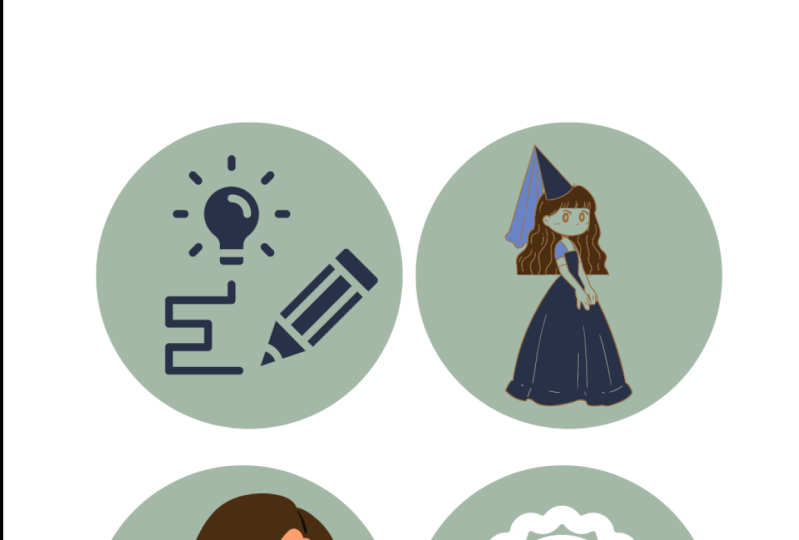
different design tutorial, starting with element based than text-based, and
finally, image-based. I've also included a bonus video for you at the end of the
course on how to find some pre-designed
templates that you can customize and use for your
own Instagram highlights. For the class project, I want you to design your own highlights covers and either tag me on Instagram or show them here so I can
see your designs. Let's get started.
2. How to select the highlight topics that fit your Instagram content: Hi there. In this video, I'll help you select
the topics for the highlights that
you're gonna be designing in this course. If you already have an idea
of what topics you want to create and know exactly
what you want to do and then feel free
to skip this video. But for those who want
a way to brainstorm some ideas for the topics of each highlight there will
be creating and adding to their Instagram than this
video is made exactly for you. Let's start with how to select topics for business account. So let's say that you have
an Instagram account that you want to showcase your
product or service on. Whether it's just you as a solopreneur or
a group of people that have a business and wanted to promote
it on social media. Selecting topics here
for your highlights should be very related
to what you offer. One topic could be related to promoting the product or the service that you
offer to people. You could showcase the features, you could talk about
how to use the product. You can just show
weekly tips and so on. And then you can dedicate
a one highlights for that. Another important
point to mention here is that when you
showcase your product or service and stories and then
you save them to highlight that people who
visit your account or people who are
already followers, they are more likely to
take action whether if it was visiting your website or
checking out your products, which is based on
Instagram analytics. It says that 75% of
users and followers, I take more action when they see such engaging highlights. Dedicating one
highlight cover for that is going to be really
beneficial for your business. Another highlight idea is talking about your
business events. You can dedicate a topic
for events in particular, let's say you have
weekly events. Let's say that you
are a personal coach and every week you talked about the certain problem
that your clients might have. Whether if it was
psychological problems, whether if it was
fitness problems, it is really up
to your business. The purpose of showing
you these ideas here is just so you
can brainstorm of what different features
of your business that you can showcase and then keep highlighted
on your Instagram. So a new followers and also current followers can
just find them and find these information neck
curated in one place under the name events
or something else. The third idea for
a highlight topic for businesses is
interactive polls, which is really,
really effective for business accounts
or an Instagram. You want to engage
your followers. You want to make them
feel like they are heard. So you can ask them
questions related to the service or the
product that you offer. You can ask them
questions related to their needs of a particular thing related to your service. So let's say that you are a chef and you
want to brainstorm some new ideas for
next week's meals that you're gonna be showcasing
to your Instagram followers. And you can ask
questions of what would they prefer
to C and so on. The fourth idea for
highlight topics for business accounts on
Instagram is testimonials. It's actually a
very powerful one because you can attract a
lot of new followers and customers to your account
when they see that you have a good amount of testimonials from your previous
customers or clients. You can ask them to write something for
you and then you can create a template for writing
down all these testimonia. And maybe you can ask them to
be tagged in them as well. And then everybody who visits your account or want to check your product or service
than they can read more about what other
people think about it. The fifth idea for highlights topics is talking about
your brand story. So maybe talk about your early days of starting
your own business, or maybe as a group
so you can talk about what motivated you to
start this business. What inspired you to solve a particular problem
and maybe talk about the brand name and how
did you come up with it? Talked about behind the scene, preparations for the
product or service. There's so many things
that you can add there. So people will get to
know a little bit more about who is doing this
kind of service or product, or who is the owner of this account and how come they do have this kind of business, maybe this kind of
stories that you can highlight and
have one folder for it can help you
build the relationships with your followers and
potential customers. It helps you build more
brand awareness and then it helps you may become a
width contents ideas. If you're uninspired
to create something on Instagram and you're wondering
what can you talk about, then you can dedicate some of your story content to talk about your brand story. Another idea for your
highlights topics could be talking about
your brand values. What do you stand
for as a business? And let's say that you're, you have a brand for some fashion outfits and that you really care
about sustainability. So you can talk
about that whether inside a brand value
as a highlight, or whether you can
create something called sustainability. And then just talk about how does your business
support that? As for the final idea I have, it is cold about me or our team. Here you can talk about the individuals
behind the business. If you are a person running your own Instagram
account for business, then you can name it about
me and then just talk about your own entrepreneurial life and maybe the
struggles behind it. And how do you manage
so many things at once. Maybe you can inspire people to do the same work as you were. And then you can create
content that you can add to this highlight cover. But if you are a group of people running your own agency and you want to tell people
about how you met and each one of you, each of the skills that
each one of you have. And maybe telling
people how you met each other and how come you started your own
business together? What motivates you
to work together? And what do you like about working together and how do you motivate each other to
complement each other's tasks? Then you can create a highlight and talk about that as well. I hope that these ideas maybe helped you a little bit with brainstorming some ideas
for your own topics. Of course, it will
be impossible for me to give you topics that are a 100% are relevant to
your business because I don't know what kind
of business you have. But this is a way
of showing you that in case you have one
of these things in your own business and
you create some of these contents on your
Instagram business account. Then this might help you
come up with ideas that help you later with designing
highlights for them. So now that we are done with
their business account, highlight topics, Let's move
on to the personal account. For those who have
personal accounts on Instagram and wanted to design
some highlights for them. You do have a mountain of
options to select from. And it's also a little bit
difficult for me to detect which one of the
topics that I would suggest here is actually
useful for you. Because at the end
I don't really know what kind of
content you do create. But what I added here
hopefully will help you brainstorm some ideas
for your own account. Now the first thing
I want you to do is to take a look at
your own content, take a look at your
reels, your posts, your stories, and
then see which one of these seem to be a topic
that you regularly post. So you take a lot of
pictures in the nature. Do you take a lot of videos
when you're playing piano? You take a lot of pictures
when you're styling food, when you're making
your own dinner. Do you take a lot of
pictures with family? And then each one of
these is potentially a topic for the highlights that you're gonna be designing. If you want to showcase some
other aspects of your life. Like if you have some hobbies or if you really like to play cards or do some magic tricks
or any of these things, then a few things that you have. The possibility of creating content and adding them
to your highlights, then you can also create individual covers for
each one of them. If you wanted to talk
about your work, your work as a professional. So let's say that you do a job that is a lot of
interaction with people, then you can talk about your experiences talking to others. Let's say that you're
an architect and he wanted to showcase
some of your projects, then you can dedicate a
highlight topic for that. Let's say that you do a lot of weekend plans if
you really enjoy hanging out with your friends and you take some good
pictures with them, then you can create the
highlights topic for that. So really, it's up to you as a person who creates
content than an Instagram to look at it and see how
can you divide these into folders to get agrees and then give each one
of these and name. You can talk about
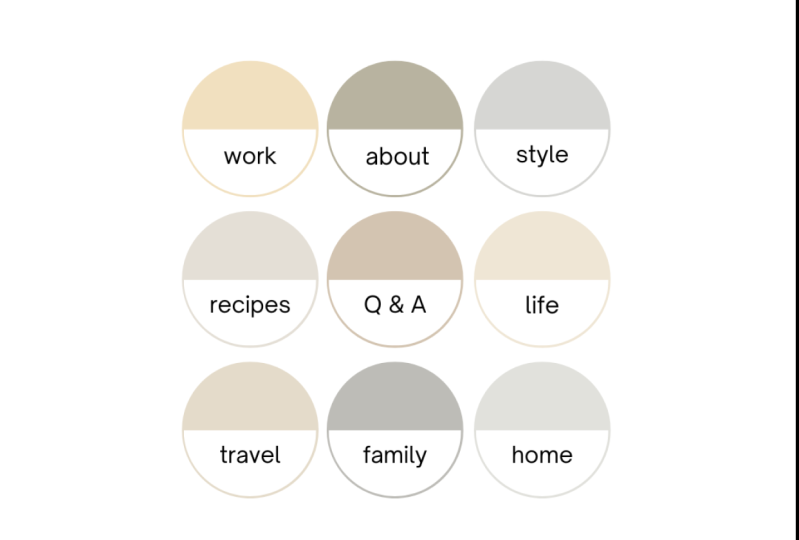
your family if you take pictures together and then create a dedicated cover, highlight cover for them. There's also interests. Maybe you collect them stamps. Maybe you have
interest in politics. Maybe he has some interests in health and diet or fitness, then you can also add that. What safe thing to mention
is that if you travel a lot or maybe if
you visit places, then you can create some
highlights topics and named them after these countries
or places you visited. That's it's for selecting the
topics for the highlights. I hope you were
able to reflect on your own content and your
own account whether if it was from previous content
or you're starting to plan your future
content on Instagram. And you were able to
relate to some of the content topics that you have compared to the
ones that I suggested here. You started writing down
some topic ideas for the highlights that
you're gonna be designing once we move on to the tutorial, That's it for the topics. And let's move on
to the next video, which is the brainstorming some design ideas and
collecting some inspiration.
3. How to collect inspiration and design ideas from Pinterest: Hi there. In this video, I will help you
with researching ideas and inspirations for the highlight covers that we're gonna be
designing in the next videos. The place that I always
research before I begin designing
anything is Pinterest. It's a really powerful
idea search engine and it has thousands and maybe millions
of different ideas that I personally
find very inspiring, especially the color palettes. If you do not have
a color palette of your own for your own brand, and if you have a
personal account and you're not sure yet what
colors you want to use, then Pinterest is really,
really nice for that. So to use Pinterest, I will The visited here. If you don't have an account,
you can start one for free. And then you need
to go to home feed, whether you have a
business account on Pinterest or a personal account, then you will find
the same results. Then just click on
the Search bar. Here I will type
Instagram, I liked covers. Then you will see that many
options if you're already, there's also a text-based, there's image-based, and then there's something with
elements based as well. So take your time on researching
the different ideas. See what you like,
what you dislike, which one you want to
be. Moving on with. This. I personally prefer soft
colors like these ones here. These ones, I will be creating
three different designs. So I will be creating
something with images and something
with texts and something with the elements to help you design the
ones that you like. But you don't really
have to do that. You just have to design the one that you will be using
for your own Instagram. Another cool feature
and Pinterest is that you can add
some more filters. If you click on aesthetic, you will see that some
other options appear. I think I will also
be using the help of Pinterest to select the
color palette that I will be using for the
designs that I will be creating because I will not be using my
own friend colors. I already have my own
highlight covers. They're creating
some designs for hypothetical accounts
for the purpose of this course tutorial, I will be selecting some
different colors here. And it's also a way
for you to select the colors that you want for your own Instagram highlights. If you do not have a
business and you do not have a fixed color palette, then you can collect
some inspiration from what the platform
here is showing you. A take a look at what you can see your own Pinterest
may be also considered. Scrolling down and seeing other options and see which one you will
be moving on with. And then we are ready to
move on to the next step, which is the first
video tutorial. It will be elements
based and I will start by designing
the first selection.
4. Instagram highlight covers design tutorial (Element-based): Hi there. In this video, we're gonna get
started on designing the first collection for
highlights for Instagram. And it will be elements based for the designs I
will be using Canva. If you've never heard
of Canva before, it is one of the most user-friendly and beginner
friendly design softwares, and it's available for free. It's also a web-based
meaning that you can create the designs on the Canva Websites
and then you can download it on your
computer when you're ready. I already have an account on
Canva. It looks like this. This is the dashboard. If you do not have one, then all you need to do
is to go to canva.com. Then from there you can
sign up using Google, Facebook, Apple, or e-mail. Once you add your information, you will be directed to a platform that
looks like this one. I already have the Canva pro. I have a little bit
more extra axis or features and Canva, but do not worry about that
because you'll be able to follow the steps
using Canva free. The first thing to do right now is to create a new design. And to do that, you need to
click on this purple button here and then create
a circle of design. Because the highlight shape
on Instagram is circles. Just to show you pretty quickly. If you see my own
highlights here, they're pretty much like
anybody else's said. They are circled shape. If you create a circle
design on camera, it will help you with
the composition. You will see that
your design will be inside the circle here. I have already also pre-prepared some information that I will
be needing for this design. So for example, the type of highlights
that I will be creating, they will be for a
hypothetical account. So I have prepared
some notes here. The first collection
that I will be designing is an element based
for alpha-bar Cafe. This is just something
that I have created. The highlights that I
will redesigning are these ones here or
something similar. So the first thing to consider is the colors that
I want to use. And as I told you earlier, I will not be using
my own brand colors. You can actually see them. This is my own color palette. These are the colors
that I have on my own Instagram as well
and my own website. But I want to create
a new color palette for this design that will be
also using some help from, for example, a camera itself. Or I'll be using the help from, I've been trusted to make sure
that I have colors that do fit into the design
that I have in mind. So the first thing to
do is just to show you a quick tutorial
of how Canvas works. The first thing to
do here is to name the design highlights element. Then you will see here
that there's a left menu. The first thing is templates, and then you can see that
the platform offers you different templates based on the size of the design
that you've created. I think it's trying to
offer me some logos here and then some
Instagram posts, illustration stickers and so on. But we do not need those
unless you find something that you like and you want to copy and change a little bit. We're not going to
be using templates, we're gonna be using
a lot of elements. This section here is
the most important one for element design because it's here where we can
find some shapes that we can use for
our own designs. For uploads here you will find the pictures or videos that
you have uploaded to Canvas. For photos, you will
see a selection of millions of photos
that Canva has. Some of them are for
free and some of them will have the pro version. You can not use them unless
you pay for Canva membership. I can see all the
pictures here are for free because I didn't
see the sign of the Pro. But let's just say,
for example, food. This one has the pro sign so you can use it if you
have Canva pro, otherwise you will not be able
to download your designs. The text here is
also very important, especially for the next
video where we will move on to a text's shape designs. You can see here, if you
click on one of them, you will have a text on your
design that you can change. Let's say vulvar for example. And then here is where
you can change the fonts. You can see that
some of these fonts are for the pro version only, but there are thousands of fonts that you can use for free. Here where you can change
the size of the font. Here where you can
change the color of the font or the text. Then here where you can change the texts like the bold
and italics and so on. If you make the space of the
text a little bit bigger, then you can change the alignment to the
middle, left or right. And here is where you add some kind of a list
with numbers, dots. I'll just keep it to that. And move it back to the middle. Then here if you
have, for example, two words, here, you can change the letter
spacing so make them a little bit wider or very small. Or you can change the
spacing between the words. I think the default one is 1.4. Here you have Effects, but I think those are a
little bit irrelevant for the design because the
designs are too small. So unless you want to add some, you can see here it's
some kind of a shadow. Then you do not
really need them. But that really depends the
design that you have in mind. Just make sure that the details that you're going
to be adding here, the very small
details will not be very clear because see how the, how small the designs are. And this is on
computer, they will, they will look a
little bit smaller. On mobile phones. Animation is also
irrelevant because the designs are frozen
here you cannot add videos as highlight covers. And then for the last we
have some underlining. Then you can change it
to capital letters. I think the position here is relevant once we
have something else. So for example, let's say
we add this shape here. You can click on
position and do this. So the text will be in front. Let's see if there are
more features of Canva. This is the transparency. It's also important
because if you want to add pictures
in the bottom, so let's say you have, let's, let's add a
relevant pictures. So let's go here
and add avocado. Let's say you want the
picture to be transparent, the text be more visible, then you can do it this way. These are the most
important features that you need to know about, about Canva. As you can see, it
is very easy to use. It's very simple and
also beginner friendly. I think there are some
more features that you will get to know later on if you just use
Canva for a couple of hours and explore
the features. Something I really
like about Canva is these purple lines
that you're seeing here. It shows me that the design
is exactly in the middle of the file that I created. If I move it to the top, you will see that
the horizontal line disappears because it's
not in the middle anymore, but it is in the
middle vertically. And then the same way here
when I move it left or right. These can really help you with the conversation of the
design that you're creating. Then there's hear
a useful feature which is basically to duplicate what you are highlighting. So if you just click,
sorry, let's remove that. So if you just click here
and you click on Duplicate, then you will have
the same feature, again are the same text. Also if you want to
duplicate this design. So let's say you want
the same background for all of your highlights. Then you can click here
and duplicate the design. Then you can change
the text here to, for example, about us. Alright, so I think
that's it for showing you a camera features. And let's get started on creating some
highlights for Avar. So I will just go ahead
and delete those. Will just delete this one. I will take a look at those examples for the highlights
that I'll be creating. So for example, the
first one is breakfast. Whatever we like about
elements is that there's so many features
that you can use. There's so many different
elements that you can use, but it's really takes
some time when you're researching because the more
available options you have, the more you want to select
between different ones. I will try to select
something that I like, of course, something that
looks good on Instagram. But for the sake of
making this video short, I will not be spending long minutes on just trying
to select the best feature. Let's get started with actually typing the
word breakfast. Then see what the
platform provides us. This is where it
shows us everything. So you can see it's all. I think I liked,
something like that. But if you want to also look only on graphics
and not pictures, so you can filter your design. You can click here,
this is where it provides you some
design elements. For example, this one here, not allowing me to remove it. So I will just leave them
both and then edit again. Normally if you click on
the element that you added, you can slide it, but now it's not allowing me for some reason, so I will just create a
new one and try again. There you go. Okay, so once you click on it, it adds immediately to the file, but then you can
do some resizing, for example, this way. Then you can click on
it again and click here and then change the color. I think I want to go
for something like green because avocado is green. If I wanted to look at some
color palettes for green, then I will just go to
Pinterest quickly and then research color green. There are some nice colors here, but there's a little
bit of darkness. I think I want to go
for something light. So I will just change the
keyword to green based, maybe providing
some good colors, maybe something like
that will actually work. By the way, there is a really
cool feature if you use, if you use Google Chrome. I really want to show
you this one here. It's called color
pick eyedropper. It's really, really helpful
when you want to get the code for the
colors that you are finding on Pinterest
or anywhere else. As you can see here, if I click
on it and then drag here, then click again,
it will provide me of the code of this color. So I can just copy paste
and go back to Instagram or sorry to Canva and then
click on this design. And then here you can copy. There you go. This color here is the same one. Here. Let's say we want another
color, maybe this one. Just to convert the two. Alright? I think I want to go
for the first one. Then we can add some of
the other colors later. You don't really have to
pick the rest of the colors. I mean, I do like them, but you can always just research more colors that you
find more suitable for. The highlights that
you want to design. Something like this is
also a really nice, I actually really like
this color palette. Now there's nothing
wrong with copying them and then try to
add your own colors to try to change some of the colors to something
that fits your design more. Let's say that I click here. And I do have this
color already. If you click on it
and then click here, then you will be able to
change the color grade, so make it a little
bit darker or lighter based on what
you really want. So you can come up with
your own color palette, even though you've got
inspired by Pinterest. I will not spend a lot of
time on researching colors. I think I will just
stick to this one here. Not bad. And it's also relevant for, for avocado because it
has some greens in it. And then this baby pink is a good combination
with the green. I will just stick
to those for now. And then let's move
on with the designs. Second thing I want to do is
add a, a background color. So if you just click on
the background here, you can add background this way. Now this color is bad because it's not
showing me any green. But let's just go back here
and pick this baby pink. Then just close it. Just added here. This
is more like it. So of course I'll
do changes later, but let's just get started on on collecting some
map, some highlights. So the first one is
breakfast, maybe brunch. Let's see what the
platform provides. Something like this. I'll change the color. Let's start with
changing the background. Then pick this color code. Added here. Of course, it's a personal preference
what colors you want to add. I mean, right now it makes
sense for me just to add them and then convert
the colors later. See which one I want. Maybe I will just like
to keep this one. White background, or maybe keep this one or add
new colors later. But I think for our
first step, It's, it's easier if we just
collect the elements. Then later on we
can do some changes and updates to the colors. Or maybe if you want to take
some time on researching more brunch elements and see if there's something
else that you'd like more. Of course, the pro ones you
cannot use unfortunately, unless you pay for Canva. But it doesn't really matter
because you will find so many free ones that hopefully you will find something that
you're really like. I actually just did. I think this avocado element is cute and I can use it
for maybe the brand story. For example, our
story, this one here. You can see that's not all
of them, but some of them. If you click on them, you
will be able to change the colors of the elements. So for example, if I wanted
to change this red one, and I can do that, I think I'll keep it in red. But maybe this one I
can change it to green. That it's somehow fits into the color palette and trying
to add to my designs, I think I will end
up changing this because it's very thin line. So this one is thick.
You will be able to see it when you're
visiting the account. If this was the Avar account, the hypothetical
account and created. But this one here is very thin, so you can't really see a lot
of details in the design. But also for the purpose of making this video short,
we need to move on. I think once you start
actually clicking on stuff, you will see that
it's recommending based on what you selected. I want to look at
what the platform is recommending is
actually really cool. Avocado sandwich. This works for the sandwiches. I added that here. Then I think one for breaks. I can use this
grapefruit lady here. Maybe something like that. This waterfall. I mean, I didn't get a little
bit lucky here finding these cool features that Canva, It's showing me because
I researched for, for this one and then
I saw all these ones. But that doesn't mean that you will find everything
and just start adding them. If you do research
for the same topic, then Canva will
start recommending things that they might
think that you would like. But it doesn't really
mean that you should just add select avocado and then select all
the bottom ones. Take your time on researching. Take your time on finding
the things that you like. And then after that, maybe
you can do two things. So maybe this one,
this coffee here. If you want to add
coffee or tea, then you can add
these both and then compare which one you like the most and then end up adding
it to your Instagram account. I think I will stop here with adding some elements because I feel like I have enough
collection to work with. I just really think
that I should change the The branch one. It doesn't fit really with these elements that
have been selected. So maybe I will just
go for something like this for the breakfast. I think I will just go
with this chromosome here. Added it to the wrong file, so I'll just slide it up. Now I will just re-size them. It's a good idea to make
them a little bit bigger because as we said before, they are gonna be a
very small designs. I would like to make
them big so you can see what they are. This one is for drinks. You can see there's
already two for drinks, but we can add one
for drinks and one firm signature right
here, and the coffee. This one T here. Some of them allow us to change the colors and some
of them don't. You can see here if you
click on the pink one, it doesn't offer you
these color changes here, but if you click on
this yellow one, then you can change the color. So maybe if you wanted to make the cup green, this one here, and if you want to change
the coffee color to this, I do already think that I will be applying
all these colors, but that doesn't mean that
I have to stick to them. I can keep some other
colors as well. Like it makes sense to keep
the drink here in green. I will not be deleting
this even though I'm not allowed to
change the colors. Now this one is the same thing. I can change the colors
of the avocados. I will try to implement
this green color instead. Although I do think it's
ruins the avocado color. It looks like it's
an old avocados. I will not do that. I'll just go. In fact, it was this color. I'll change. It looks
like a fresh avocado. For a quick tutorial. I will be stopping here
with the elements. I think that this
is enough for now. Hopefully I showed you how you can find your own elements. If you have a, let's say, a fashion blog,
then you can look at outfits, for example. Then you will see what
the platform provides. Just to show you again quickly, I'll just zoom in and then
you can add hands here. Let's say if you
have a travel blog or an Instagram account, sorry, then you can add,
for example, airplane. We can add one of these
and then name it airplane. So you can add your
memories from traveling. Maybe this suitcase here, as you can see when I
clicked on the airplane, something that is designed by the same person that at their designs to
Instagram shows up. You can try to look at the
recommendations that canvas. And then you can
select some from them. Something like this. Maybe it will be nice
for a travel account. And then I will be adding
maybe this camera. All right, so I ended up adding a little bit to the avatar. These are not included in
the other word selection, so they will be stopping here. But I really just
want to show you how easy it is to find
different elements on Canva once you research
the right keyword. So this is where you need
to spend some of your time. You need to search words based on your account,
on your content. The highlight topics that
you selected earlier when we went through selecting
topics for your highlights, then just take your time on
writing different keywords. So I did right outfit
to come up with these. But if I write like fashion, I might come up with
something else and so on. I will stop this
video tutorial here by just showing you how you can save them.
Once you're done. You just take your time
on applying your colors and also add the correct
sizes for each design here. What do you need to
do is click here. Then you need to select PNG because it is
the highest quality. If you have a
different preference, then feel free to do so. Just do not add the PDF. I don't think you can
add PDF on Instagram. And then if you want the size to be bigger
than you can do it here. Do not add transparent
background unless you do not want
to show the background. I don't recommend that for
highlights on Instagram, just keep it in white. So if you do not
want color here, you can just change it to white. You need to select how many
designs you want to save. In this case, I want
to save all of them. So I'll keep them all selected. Then once you're done, you
can click on Download. Now I have the designs
ready on my computer. I can move them to my phone and then I can add
them to Instagram. We're done here
and let's move on to the next video
where I'll show you how you can design a
text-based highlights.
5. Instagram highlight covers design tutorial (Text-based): So now that we're done
with the first collection, which is the element based, we're gonna get started on the second one,
which is text-based. I will create a new design and
select the circle sticker. Just like the first one
that we'll be using a collection of topics that
I have already prepared. I made up a profile, it's called the spot
and such clinic. And then I will be using
these examples to write down. So I will start with adding
massaged by going here, clicking on text and adding headline omega texts
a little bit bigger. From here I can select
one of the fonts. As I said previously, there are a hundreds
of fonts on Canva. You can select any of the
ones that do not have the sign here if you
are using Canva free. But if you've paid
for gamba pro, then you can use any of them. I think I want to select
something that is handwritten. So maybe something like
this. This one here. I think maybe yeah, I think maybe this one works. It's again, a
personal preference. Just spend some time on seeing the different
options on Canva. And once you add the text, we can move on to
the background. You can get really creative with backgrounds when you
have text-based. The first option is
just to select a color. If you want to get inspired
by some ideas for the colors, then you can use Pinterest
research for something like massage, color palette. Let's see if that will
give us something. It does have some suggestions. Maybe colors like these ones are a little bit too dark
for what I have in mind. Or maybe something
like this one. Okay, So I think I will go
for some of these colors. Are some of these
colors just also for the sake of making the video short and not spending
too long on researching. I will start by using
the Chrome extension for colors and maybe copy
the first one. Here. Maybe change this one to white. This is one of the options for the background to keep
it just in one color, to keep it plain and simple. If you want to add
something else, you can research here
and backgrounds. And you can see that there are some different backgrounds and they are in different colors. But if you want to research for a particular color,
so maybe green. We'll find some other
options that suit the color palette that
you have in mind. So I will just show
you how you can use one of the background. So let's say you want to go
for something like this. You can see that the
background changes. The last thing to do is to
add some other elements. So maybe if you
want to highlight the text or you can add
something like a square. Spend it to the sides. Maybe something like this. Just going to move
it to the middle, make it backwards, and then
maybe faded a little bit. I think I will go
for something green. Then change the color here. This could be one
way of doing it. There are so many
other options as well. I mean, it is up to
you and up to what you have in mind for
your own highlights. You can maybe search for
something with style. Then add on top of
each text you add. I think I will go for
something displaying, so I will not be
adding anything. I will just keep it in text. And that's just a
personal preference. And also for the sake of
making the video short. And I will start by
duplicating here. And then I will add product. I will start adding
some of these colors. Then menu, jacuzzi. I will stop here
because, I mean, you see where it's going
with with adding the rest. If you want this, well, you can make some of
the texts bigger. So I see maybe this
menu here is not filling the design as much. But if the text is long, like the message1, then you
can keep it the same size. I think. Maybe I would want to add
something like one other. Highlight. What were
the different texts? A different fonts. So maybe f cubed. I think I will want
this to be maybe in a different font,
which is a right. If you want to get a
little bit creative, maybe something like that. It will still fit because it's just one different
highlights from the rest. Then if you have some two
fonts that you liked, you can add both of them
one way or another. So this is how you design
text-based highlights. Just make sure to select
the font that you like and also the background
that you like. And then once you're done,
just apply the same thing by clicking on B and G or GBG, and then select the
size that you want and then how many of those
you want to download. And then once you're
done, you can click on Download and then save
them on your computer, move them to your phone and
then add them to Instagram. I will stop this video here
and move on to the second one where I will show you how to
design the final collection, which is at the picture based.
6. Instagram highlight covers design tutorial (Image-based): Alright, so we have the
final collection to design, which is the image-based
Instagram highlights. For that I will be using again, another example that
I have invented it will be for travel
and lifestyle blog. And I will be using some
of these at the search for pictures like road trip
camera countries and so on. So the first thing to do is
to click on photos here, and you will see that
there are so many photos that you can select from. Let's say that I will
add type some road trip. Then you will see that some
relevant examples show up. So let's say that we can
add this picture here. This picture is pro. If you do not pay for Canada,
then you cannot use it. So you will have to
stick to the ones that do not have the pro sign here. Another place that I want
you to take a look at, if you cannot find
pictures that suit your search here
is called Pexels. It's free to create
an accountant Pexels, I use it myself to add some
pictures that I take myself. But here you can research for, for some images that you want
to add on your highlights. So let's say road trip. There you go. You can download any
of these pictures. You don't have to pay anything,
you just have to click on Free Download and then you
will have it on your computer. You can go back to Canva
and click on Upload. Go to downloads. And you will find it here. 1 second, but it's done
uploading the picture. You can drag it to your design. You can change the the
side of the picture that you want to show
a few double-click and then you just move
it left or right. So this is how you find them. But in case you want to go to the extra level
and you want to find pictures that only have the same color palette
that you have in mind. So let's say that you want to, that have blue color. And then what you need to
do is to filter the search. Let's say that you
want to add something with this blue here. You click on Apply Filter. And then you will
find some pictures of road trip with, with
this blue color. So maybe not all of these
are actually irrelevant because the blue
degree that I added, the maybe did not have any
victories available on Canvas. But this is just a way to show you that you can
filter your search. So let's say we can
change it to yellow, then maybe some pictures
like these can be used. This is how you do it. Again, I will just continue
with adding some examples. So maybe countries
will just clear the filter and maybe
add Amsterdam. Then you continue until you
add the rest of the topics. You can also add some text
on top if you want to say you can combine
the two ways that you can add the image
and texts on top by just clicking here
and adding a headline. You can give it a
name like trip. You can't see the text because the background is dark
as well as the text. If we change the font, then maybe the transparency. If you add a line here, you can make it thin. Maybe two. There you go. This is how you do it. Again, if you want some images that you cannot find on Canvas, then you can visit the Pexels. There's another one
called the Unsplash. It also has a lot of really good free stock images
that you can use. Then once you're done, again, apply the same step
by clicking here and selecting the images
that you want to download and then
click on Download. So with this video,
we're actually done with designing
Instagram highlights. And let's move on to
the next video where I have a little course
bonus for you.
7. Class Bonus - Predesigned Instagram highlight covers templates: Hi there. In this video I have a
little course bonus, which is how to find some
pre-designed templates that you can customize and use for your
own Instagram highlights. They do exist on Canva. And to find them, you need
to go to create a design. Then from there you need
to search for Instagram. Cover, highlights, story
highlights covers. You will see here
to the left that in templates you will find
some pre-made ones. You might have seen some
of them that I have previously used that to
show you in this course. Some of them are in the
Pro version and some of them are for free,
like these ones here. Once you find something
that you like, then you can just
click on it and click on apply to all 13 pages. From here, you can either use the same pictures or
you can change them. So let's say that you
like everything in this design except for
this hand picture here. You can click on it
and then you go to Info, see more like this. Then you will find
some other images that are taken by the same
photographer or are relevant to the topic of
the picture or the subject. So this is how you find some
pre-designed templates. And again, as I said, some of them are for
free and some of them are the pro version
like these ones here. So you still can
take a look at them, but you will not be able to download them unless you remove the pro designs
that are included. You can also do some color
changes or font changes. So let's say that you
really love the design, but the colors do not suit the color palette that you have in mind for your
own brand or account. Then you can just the color here and then you can change
it to something else. If you click on Change O, and then all of the colors
that are at the same will be changed together
the same way here, Let's say I will just apply
some of my own brand colors. The last one. There you go. This is how you
do it. And again, you can change the fonts for
something that you like. I think the fonts will have
to be a changed individually. There's no bulk action for them. You will have to
change it one-by-one. So in case you're
not inspired to create your own
designs from scratch, like I showed you in
the previous videos. Then now this is a
in place to find some templates and use
them for quick designs. Once you're done adding the
changes that you want for the templates that you can just click on Download
and then save them, and then do the same
thing by applying them to your Instagram. I really hope that you enjoyed this course photos and thank you again for taking
this course with me and I really hope that
you found this useful.
 Thea A., Online Instructor