Transcripts
1. Brush Stamps Introduction: Welcome to my Skillshare class, creative ways to use brush
stamps in procreate. In this class, we'll explore
the wonderful world of brush stamps and why they're
every artist's best friend. I'll show you how to leverage
the average stamps to create stunning artwork in
a fraction of the time. Using brush stamps can save you time when working on
repetitive tasks. Rather than redrawing the
same element multiple times. You can use brush stamps repeatedly throughout
your artwork. This also helps to keep
your work consistent, giving you a cohesive
look and feel. We'll also talk about
building a library of brushes that can help you show off your unique style and create a distinctive brand that
stands out in the marketplace. You learn how to create
new effects that would be time-consuming or difficult
to paint in the usual way. With just one brush, you can change its
shape, opacity, color, and direction, giving yourself a whole new library of brushes that can be
used again and again. Brush stamps are especially efficient when creating
complex shapes. So you'll definitely want
to give this class a world. Oh, and did I mention that we'll be using a free brush library. You will have everything
you need to create stamps and take your
artwork to the next level. So let's get started.
2. Brush Stamps Class Project: In this class projects, you'll be using a free
brush library to create your own custom brushes and use them to create a unique
piece of art work. First download the free brush library
from class resources. Open and import the
brushes into Procreate. Follow the classes
and experiment with different brush settings and options to create your
own original brushes. Some aspects you can
manipulate include size, opacity, shape,
texture, and color. As you create new brushes, use them to print
different elements, such as flowers, birds, butterflies, with various
colors and textures. Remember to save each brush as a PNG file in your
photos folder. Usual custom brushes to
build up your own artwork. You can use my finished
picture as a reference, but feel free to create your own unique
shapes and colors. Once you've completed
your art work, save it in a suitable
format, JPEG, PNG, and offload it to the class platform to share
with your fellow students. I think you'll find
this class is really cool and you'll
learn a lot from it. I can't wait to see the
awesome artwork your creative. Have fun and happy creating
3. Manipulating the Stamps: In this lesson, we'll cover basic stumped changes and
advanced brush modifications. Let's dive in. Here's some simple ways to
manipulate your brush stamp. Make a new layer. Choose flower one. First, we're going
to tap the arrow. Simply resize. Very simple. Now we're going to rotate
simply by tapping the row, take symbol at the bottom, or move the green
dot at the top. The next one, we're
going to just flip the flower by tapping,
flip horizontal. Just remember to choose a
new layer for each flower. So you can manipulate
one stamp at a time. Now, we'll move on to manipulating the stamps
in a different way. First of all, I'm
going to choose a new layer and put my brush down there. Now we're going to
liquefy the shape by going into the Magic
Wand and liquefy. And here you can see various ways that
you can use Liquify. But we're going to
tap the push symbol. And we simply push the
flower to change the shape. You could e.g. use the pinch and change the
shape. In that way. Let's make another layer and put another flower stamp
their back into liquify. We can just play about with it. Let's try tool, right? Let's go back to
push and use push. Another layer. Back to liquefy. And you can use expand. All of this changes the
shape of your stamp. Now let's get rid of that. We'll make another new layer
and look at the Warp effect. To war. If you press the arrow key to select your
flower, Press warp. And then you can move the flower into different
shapes by simply warping it. Now let's remove that. Choose a new layer. And we're going to
look at distort. Click the arrow, choose Distort. And again, you can
change the flower by pulling on the blue dots. And that's how you use distort. So remove that. Add a new layer. And we're going to
look at free form. There's our flower. Click the arrow and
click free form. Here we can squash the Florida. Expand it, make it taller. And that's the simple
way of using free form. And now we'll move on to
putting it all together. Here, I've made a variety of flower stamps and change
them all slightly. So we can add to this, make a new layer Flower. And let's
with this flower, flip it and make it small. I've still got some free form, so we'll change that Freetown
uniform, make it small. Another layer, another flower, which will make small,
again, even smaller. And they'll join
it to that flower. Let's do a third one. Again. We're going to rotate this one on uniform. We're going to make it smaller. Maybe we'll go into liquify, change the shape, put his on push and
just change the shape. Back on the arrow, make it smaller again. Then we're going to just
draw in some stalks. Maybe add a few leaves. So you can see how
easy it is to use just one flower brush and change the size and the
shape very easily. So now we're going to move on in the next lesson to
look at the colors
4. Changing Colours: In this lesson, we'll look
at the various ways we can change the colors of the
painted and textured stamps. First of all, choose a flat stamp and color
in the usual way, adding texture and details. Then click off the
background color and save as a PNG to
your camera roll. Later, we'll do this with all the stamp elements that you want to use in your picture. First of all, make a
new layer and bring in your flower stem. We'll have a look
at color balance. So select your flower
with the arrow key to go into the Magic Wand
and choose color balance. You will see the slide
is at the bottom. And you can easily
just slide them along and change the
color of your flower. And then tap the
screen and apply. Next. Duplicate that layer. Press the arrow
key, move it along. And this time we're
going to look at Hue Saturation and Brightness. Tap the magic wand. Hue saturation, brightness
right on the top there. This slider changes, the color. Is quite nice. This slider makes it more
saturated or less saturated. Look at the other colors. Let's choose that one. Make it more saturated. Change the brightness. Maybe just a little
bit. Looks quite good. So touchscreen and apply. Now we're going to
duplicate the layer again. Move this along, and
we're going to look at changing the
color with curves. So going into the Magic
Wand, choose Curves. And you can see
you've got gamma, red, green, and blue. So we'll leave it on green. And we're going to just move the curved line around, change it to blue. You see as you
move the line that will bring in different colors. Let's try red. But quite a
variety of colors there. I think that's quite
good. Let's try gamma. Maybe a little bit more green. Back to the blue. You can just play
with this until you're happy with
the finished result. Tap the screen and tap Apply. Now, one other thing that you
can do is choose a flyer. Say, let's go for this one. We're going to go into the
layers, duplicate the layer. Let's move it over so we
can see what's happening. Now on the duplicated
layer, press the N, and then we can change the
flower by choosing multiply, darken, color, burn,
linear burn, darker color. Just try them all to define one that you feel works for you. Let's try color dodge, but I think it's a
little bit too bright, so we'll turn it down a little. And then all we have to do is tap the image
and merge it down. And we've got a slightly
different color. So there's four
ways that you can change the colors
of your flowers. Now, let's look what we do next. You can now build
up your library of colored stamp elements
as I've done here. And save them to your
camera roll as PNGs, their own hand to use as
you build up your picture. You now have them
permanently for this and other projects. Remember, you can still
change the shape and color again after importing
them into your artwork. Making sure to keep each
image on a separate layer. Next, we'll build up
our final picture.
5. Building your Artwork: In this advanced art class, we'll be working on a
unique artwork projects. The team involves creating
a captivating portrait. I'll guide you
through the process. So let's get started. First, open up your
canvas by tapping the Plus sign and selecting
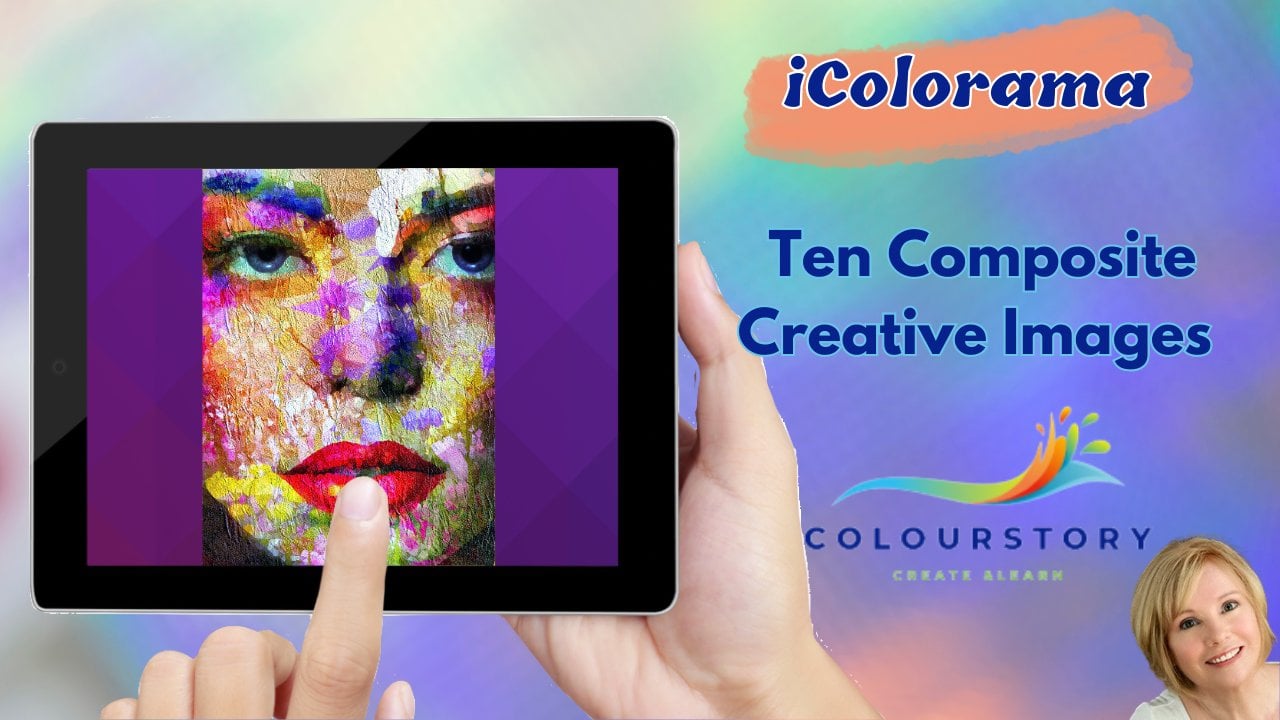
the portrait canvas. Size 20 by 30. Next, bringing your face spam. I won't be demonstrating the step-by-step process of painting the face in this class. As I assume you already have some knowledge in
portray painting. However, I have provided a finished picture that you
can use as a reference. Remember, this process
doesn't have to be rushed. Take your time and enjoy the
creative process and allow your library to grow
organically. Over time. You'll find that you have
a rich assortment of stamps at your disposal Ready to enhance your artwork and add that extra touch
of creativity. So take a moment here
and there to paint some beautiful stamps and gradually build up your
personal collection. Your artwork all benefit
from this creative resource. And you'll have a fun and rewarding activity to enjoy whenever you have
a spare moment. Happy stamping. Now that the face is in place, it's time to add your
own personal touch. By incorporating
colored stamp elements. These elements will
enhance and complement the overall composition
your artwork. Feel free to experiment and
let your creativity shine. Remember the goal of this
class is to encourage your artistic exploration
and unique interpretation. While I won't be providing a detailed demonstration as
the stamp element technique, my finished picture
will serve as a valuable reference to
guide you along the way. So go ahead, grab
your prepared colored stamped elements and start
adding them to your Canvas. Let your imagination guide you as you bring your
vision to life. Feel free to experiment
with different colors and textures and placements to
achieve the desired effect. Bring in a colored
previously saved image on a separate layer
from your camera. Roll or files. Decide if you wish to alter the shape by using one of
the techniques learned. With this one, we'll
change the color, tap, the Magic Wand. Hue, saturation and brightness. Change the hue. The saturation, the
brightness a little bit. And we'll make it smaller. Change the orientation
and place it. I'm just going to use the eraser to remove that
stem and part of the flower. If you want to bring in
an image from Procreate, simply tap off all the layers you don't want in your image. Tap the range key, Copy, Canvas, reopen new projects, new layer, range key, paste. And that's how you
bring in an image from a previous procreate canvas. Now let's see what we
can do with this one. Tap the magic wand. Let's try liquefy. And we'll just
bring up the wings. Now we could go into
the smudge tool. Just make it a bit
more interesting. I smudging some extra feathers. You can just play
with this image. And all the different
ways that you've learned. We might make this a little
smaller and place it there. Continue to add your elements until you've completed
your picture. Remembering to add each
stamp on a new layer. You can merge some layers to save space as you work along. Nor happy with that section. Then save your finished
projects as a JPEG. I'm thrilled to share my finished artwork
with all of you. I hope it inspires and
sparks your imagination. If you've enjoyed this
class and found it valuable in nurturing
your artistic skills. I kindly request that you take a few moments to leave a review. Your feedback will not only help me improve
as an instructor, but also assist other students deciding whether this class
is the right fit for them. I genuinely appreciate
your thoughts and it would bring
me joy to read them. If you're curious to learn
more about me and my work, please feel free to visit
my website where you can find additional information
and explore my portfolio. Thank you all for being a part of this creative community. Let's continue to
inspire and support each other in
artistic endeavors. I started my creative journey
writing books and audios, you can see here. Then I returned to
my first love art and created all kinds of art. Finally, I have 20
years of mind, body, and spirit articles to help my readers navigate
our complex world. I think you'll find it
very interesting to visit my website, color story.com
 Christine Sherborne, Artist and Author