Transcripts
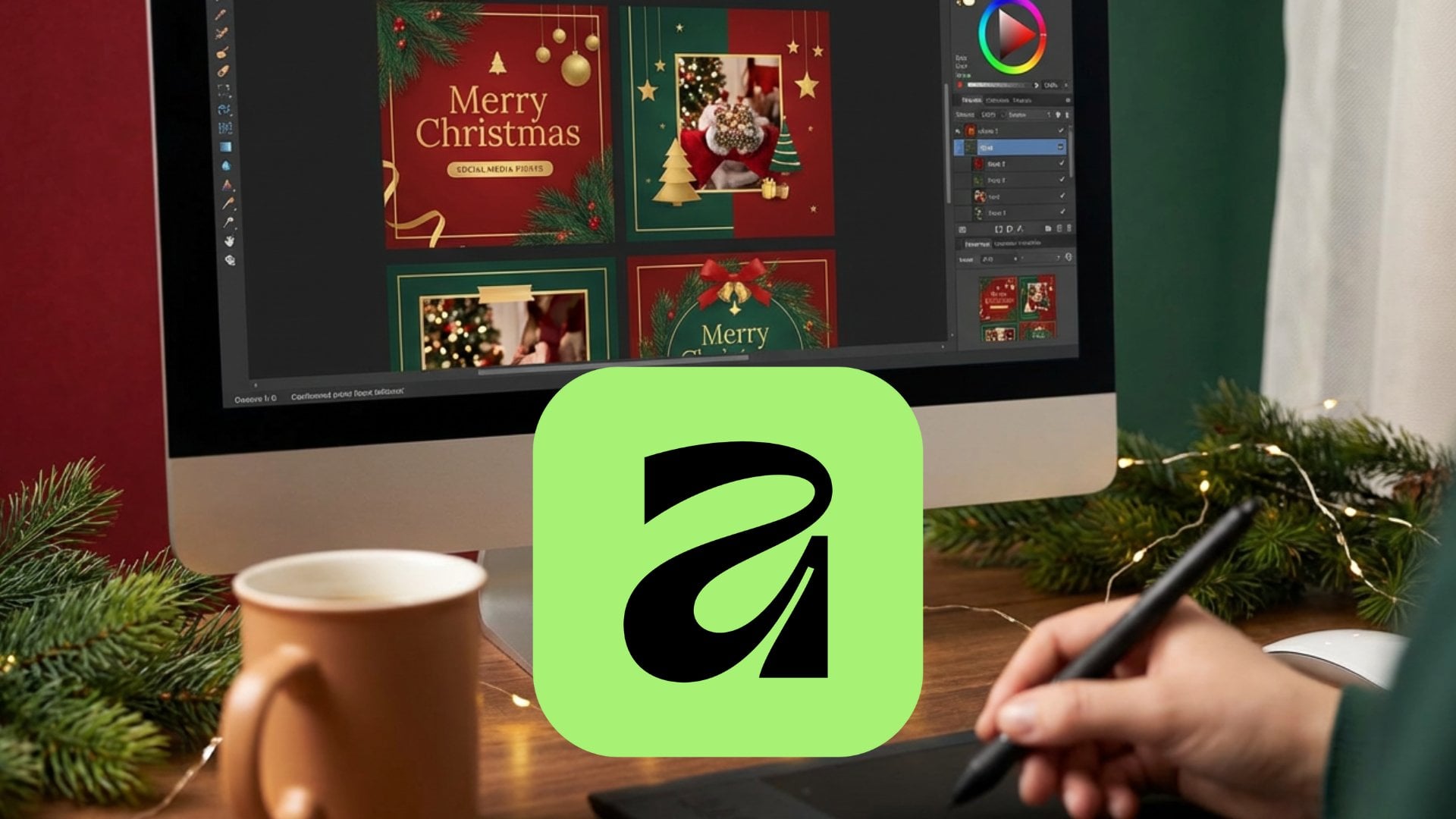
1. Introduction to the Course: Hello and welcome to creating a social media post
using Adobe Express. In this course, you will
learn how to design a professional and visually
appealing promotional post using Adobe Express, a free and easy to
use design platform. I will guide you
step by step through the entire creative
process from setting up your workspace to exporting
your final design. Throughout the lessons, we will create a promotional post for a driving school
as an example to help you understand
each step clearly. By the end, you will
be ready to design and share your own unique and
creative social media post.
2. Getting Started with Adobe Express: Adobe Express is a free to use web based design
application that allows you to create many
different multimedia contents. And in this course,
we're going to see how we can
actually go ahead and create a social media post
using Adobe Express tools, the design tool that
allows you to go ahead and create out
graphics as you need. So for that, you need to access the web browser
of your choice. And in my case, I'm actually using Google Chrome
here as you can see. And over here, once you do that, you need to go to adobe.com
slash ExpressR here, and you get onto this space
right here, just like this. So now what you need to do
is you need to go ahead and click on G Adobe Express
free here, just like this. And once you go
ahead and do that, you can actually go ahead
and create an account so that you can start designing
using Adobe Express. Now I'm going to go ahead and click on Continue with Google. Let's say, for
example, right here, because I'm going to
go ahead and sign in using my Google
account that I have. So I'm just going
to go ahead and click on Continue right
here, just like this. You can also go ahead and
sign in using other methods, or you can use you
can actually sign in by using your email
address as well. But in my case, I'm using
Google as the method. So I'm just going to
go around and allow the notification from
Adobe Express R here. And it says, What brings
you to Adobe Express. So you can go ahead and
choose whatever you want. So I'm just going to say
work in side hustle. So I'm just going to say just me right here, just like this. And then you can go ahead and select whatever
you want right here. So it says, What best
describes your primary roles. I'm just going to say
teacher in my case, and then I'm going
to go ahead and say social media content
because that is what we're actually going
to go ahead and create. So you can actually go
ahead right here and then select out the style
that you are going for. So let's say I'm going to go for bold right here,
just like this. So you can go ahead and
choose whatever you want, and then it'll start suggesting you the
designs accordingly. But in our case, we're
actually going to go ahead and create a social media
post. Right here. So we're going to go ahead
and create a square post, and for that, we need
to have a new project, a design project that is. You can actually make video. You can actually
make a web page as well inside of Adobe Express. But in this course, we're
going to solely focus on creating a social media post. So to do that, I'm going
to go ahead and click on the Plus button on the top left hand side,
right here, just like this. And you can see social media and ads as an option right
here, just like this. So you can go ahead and select different social media options, that is the templates, as you can see, right here, like there's the Instagram
carousel dimension, t here, there's the Instagram
feed ad dimension, there's the Instagram landscape, post dimension and so forth. You see the same for Facebook
Rot here and so forth. But this is the one we want. We got 180 by 180 pixel, which is a square, a square template
itself that we want. You can also go
around over here onto quick actions and access up
various things right here. Like, you can quickly
make a card and so forth. But I'm just going to
go around over here onto social media ads
right here because that is what we are actually focusing on right
here, just like this. So I'm just going
to go to create and then go and choose that. Or what you can also do is you can go ahead and choose
a custom size or square landscape and portrait from the standard and
suggestion sections as well. So let me just go around
on to custom size here, and you can see it
says 560 by 2560. Then I'm just going to say
1080 by 1080 because that is all I need for my
social media post, and that is the standard size for social media posts as well. So I'm just going to
go around over here. This unit is in pixel,
as you can see, you can also keep
it in inches or centimeter or millimeter,
if you want to as well. So you can go ahead and
choose it out as you want, and the pixels are converted
automatically, as well. Well, let me just go
ahead and choose this and click on Create a new file, and it will make
our place where we can go ahead and design the content ready
here, just like this. So we are using
the free account. That means while designing, certain things are limited. So you can actually
go ahead and then, let's say, for example, utilize the premium features right here. The one with the crowns
are the one for premium, but everything else is
what you can use for free. So over here on the
left hand side, you can actually see that you got the SES panel where you can go ahead and sets for
different things right here, sets for different
media elements that you want to go
ahead and add in. For example, I selected trees, that is ISIS for trees, and then you simply have contents related to
trees right here now. Similarly, you can see
your stuffs right here, whatever you have uploaded, you will see it right here, and then you'll be able to access out different
templates over here. You'll be able to go ahead and access out media from over here, text from over here. You can add in text right here onto the design,
start editing it. And for everything that you edit right here, let's
say, for example, I'm going to type in sample, you will be able to
go ahead and see different options to go ahead and change it out
from over here. So you can see that there's many different
things like elements and charts and grids right here and generative AI as well. You can use AI to
generate your content, and you can even go ahead
and explore out add ons so that you can add in different contents
to it as well. And throughout this course, we're going to utilize all of the major things
that you need to know in order to go
ahead and create a simple social media post. Yeah, we're going to go
ahead and add in graphics. We're going to go
ahead and add in text and so forth. Right here. So this is what you have, and now from the next video onwards, we're going to go ahead and
start making our social media
3. Starting to Design: Now that we have
created a new project, it's time to start
designing our post. So we're going to
go ahead and create a social media post to
promote a driving school. So for that, first of all, before we start designing, I'm going to go around
over here onto the top. And then what I'm
going to do is type in driving school
social media posts. So this is going to be the
name of our project here. So now what I want to do
is I want to go ahead and start by adding
out an Image here. So to do that, I'm going to
go ahead and click on Upload, and I'm going to go ahead
and select an image from my computer that I want to upload and then click
on Upload R here. So you can see that this is the image that I
have right here and I can go ahead and resize it
and place it just like this. So you can see that this
is an image of someone teaching how to drive which
denotes driving school. And now, apart from that, I want to now add in shapes. And you can see that I'm under
the elements section now. I already have
rectangles opened up, but you can click on
elements rot here and access up different shapes
as you need as well. So you can even draw your
own shapes if you want, as well, just like this. So just like this, you can go ahead and draw out
shapes if you want. But I'm going to go
ahead and simply add up a rectangle shape now. So to do that, I'm going to go to the rectangular shape rot here and then click on the rectangular
shape, and it's here. So I'm just going to
go ahead rot here. And drag these out right here, just like this to change
around the rectangular sheep. So apart from that,
you can change around the border
thickness as you want, as well, just like this. So I'm just going to
go ahead and snap it right off to the edges
right here, just like this. So this is what you have, and now you can even go
ahead and change out the border thickness if
you want rot here and even change the roundedness
of the border as well. But I'm just going to keep it simple right here,
just like this. So now I want to go ahead and change the color
of this sheep. So to do that, I'm going
to click on fill and over here you can see
that there's some recommended colors that
you can choose from, or you can even go
around over here onto more colors and choose the color as you
wish from over here. Apart from that, you can also go around over here onto customs and simply go ahead and pick your color from
over here as well, and even adjust the transparency of the color as
you can see here. I can also go around
over here here and use the color
picker to go ahead and choose a color from this image as I want
as well, if I want to. Let's just go ahead and choose this gray color. Right
here, just like this. So now, in order to make
it much more interesting, let's just go ahead
and duplicate out this shape right here, and I can arrange this
out as you can see here. So I'm going to arrange
it out on the top. And for this one, I'm
going to go ahead and reduce the opacity
a bit right here, denoting the windshield here. So you can see that
there's a bit of an effect going on
just like this. But let's say I'm going
to go ahead and change the color of this
one right here, just like this and change
the opacity of it. But you can actually
see the gray beneath it and the green above. But what I want to do is I want the green to be entirely
covered by the gray. So for that, you can utilize
something called the layers. Which is actually being shown
over here on the right. So you can go ahead and drag this right here just like this. So the mas right here is right
now at the back most area, so you can see that it's
covered by everything. But the gray is in the middle, and that is why you can see the green over here on the top. You can go ahead and
change the location of it, and then this is what
you simply have. So let's say I want to go ahead and change the color a bit right here and make it a
bit more faded right here. So it's like this. So
you can go ahead and change it out as you
want right there. So this is what you
can actually do here. You can go ahead and
make adjustments here. And let me just go ahead and create a copy
of it right here, just like this to go
ahead and add in a style. Let's say for this shape, I want it to overlap
out a bit here. So here you got a
design going on, as you can see here. So we got our image, we got our we got our let's say, for example, our shape rot here, where we can go ahead
and add in text. So apart from that, let's say, I want to go ahead and add
in a graphics as well. So to do that, I'm
going to go around over here onto the
elements, right here. Let's get out of the rectangle and search for shapes
related to car. Let's say, for example. So
I have some car shapes, as you can see, here. So there's this
one and this one. This one seems a bit professional
or this one is good. So let's just go ahead and
click and that car is here. So let's just go ahead
and keep it right around over here or over here wherever
you want, just like this. And for this one,
I'm going to go ahead and turn it into white. Or you can go ahead and keep it down as well if you want to. So let's just go ahead
right around over here, resize this out
here and place it, um, in the location I want. This is how you go
ahead and add in different elements onto
your design and layer them and then add in
some interest to it by using opacity and so forth and create an
interesting feel. As we move on now, we're going to go ahead
and see how we can add in text and even add in more
graphics is, if necessary.
4. Adding Text and Headlines: Now that we have added in
Image and Graphics R here, it's time to go ahead
and add in text. So this is a driving school, so I want it to be clear, and I want to let the people know that it is a
driving school. So for that, I'm going to add
in a text, and to do that, I'm going to go onto the
left hand side where I can go ahead and add in
different texts as needed. So here you can see that
there's button like text and there's seasonal text
R here and so forth. So you can go and choose
from different designs, as you can see right here. Let me just go around
over here in buttons. And here you can see
that there's button like text Rot here
that you can bring in. So I'm just going to
go around over here on to learn more section rot
here, just like this. You can see that
this is interesting. So now I can go ahead
here, double click, and I can go ahead and type in driving school right
here, just like this. So this is one as you can see. So now I can go ahead and let's just go ahead
and you can see that there's another text right here that I'm simply going
to go ahead and delete. And this is what you
have, as you can see. So you got driving
school just like this, and you got shapes on top of it, as you can see to make it
look interesting right here. So let's just go ahead and then pull this out, let's
say, for example, right here, so that
the school comes on the top section itself.
So this is what you have. So you got the driving
school right here, just like this, over
here, arranged out. So I'm just going to go around over here and center line out the driving school so
that I can go ahead and click and drag it and
place it wherever I want. Can see that this is
a driving school, so I'm just going to go
ahead and then go ahead and I'm going to drag in the shape around
over here as well, just like this to
go ahead and then keep it on to the
place as needed. For the blue box, let me just go ahead and delete it
because I don't need it. Or maybe I just want
to go ahead and delete out the shape itself. Maybe I just want a plain text, so I'm just going to go around and click on it and delete it. And this is what you have right here and delete
this out as well. So this is what you have.
You got the driving school, as you can see here. You can go ahead and select it, even go ahead and bold it
out to make it more visible. So now you can even see that I can go ahead and
change the text day out and give it more of
an arc as well as needed. So this is what I'm
going to do right here. You can even go
ahead and do the arc below or do the arc on the top, and this is what you have, as you can see here. You can also go around over here onto the fill and
even go around over here onto custom and choose the particular color
that you want to apply. As well. So this
is what you have, and then you got
the driving school. So now I want to add
in another text. So I just want to go
for a simple text. So let's just go ahead and add in a heading
text right here. And I'm going to go around
and say something like in, and I'm going to add in
a dot and say drive, and I'm going to add
in another dot and say succeed right
here, just like this. Succeed, right here. And then I'm going to go ahead and drag this down right here. So I'm going to add C right
here, just like this. So there's Learn,
drive and succeed. Select out all bold this out, center align this out, and I'm going to go
ahead and choose the same color for it right
here, just like this as well. So there's driving school and there's Learn drive and succeed. So over here on the
bottom, as well, I want to go ahead and
maybe add in website. So I'm going to add in a
simple body text for that, click and drag this
over here down, and I'm going to go around
and type in Let's say, for example, drive
school uh.com. Let's say, for
example, right here, just like this. So
drive school.com. Keep it around over
here, bold it out maybe, and then I'm going
to go ahead and select out this
particular color as well. So usually when you add in
text is suggested not to keep more than two type of text so
that it's easy on the eyes. So this is what you have, and
apart from that, let's say, I want to add in an icon
around over here as well. So for that, I'm going to go around over here onto elements. And I'm going to
go around and see, let's say, for example, wheel. Let's see if I have some wheels that pop up.
And this is what you have. There's the icon,
wheel right here. So as I click on it, it pops up right here. So now let's just go ahead and select out the
same color for it. So I'm just going to
go around over here. Take this as a color and
resize it out and place it right along with the driving school right
here, just like this. So this is what you
have as you can see. So now, apart from that, you can see that
this is way below, so let's just go ahead, keep it right around over
here, just like this. So apart from that, I want
to add in a location. So let's see if I have some
image related to location. So this seems to work perfectly. So I'm just going to go
around and bring that in. And then I'm going to go ahead and keep the
location right here. I want the location size to be exactly the
size of the wheel, so I'm just going to take
that as a reference, and I'm going to
go ahead and keep it right around over here. And now I'm going to go ahead
and let's say, for example, I'm just going to duplicate this text right here because
I want it as the same size, and I'm going to go ahead and keep it right around over here. So now I'm going to go ahead and then write align
this right here. And type in the location. So let's say, for example,
this is in New road right here and go wait right
here, just like this. So let's just go
around over here and see mega wait right
here, just like this. And then this is what you have. You got the location now, you got the driving school. You got this as well
as you can see, right here. Just like this. But you do see a red
underline because it is mentioning that
it's a spelling error. So I'm just going to go around
over here and then just ignore this out right here
because this is a URL. So you got driving school, you learn, drive and succeed. Let's see if I have something related to road right
here, just like this. And you can see that I got
these road signs right here. Uh, so now I want to go
ahead and let's say, for example, keep the
road sign right here. So this simply came
in white color. So this is fine, just like this. I'm just going to go
ahead and keep it right around over here to make
it interesting right here, right around from
this graphic section. Let me just go ahead and press Control C and Control V to
copy it around right here, just like this, as well. And then you can go ahead
and resize this out as well. Let's say, for example, because it's
actually overlapping and you can also go
around over here. And let's say, for example,
keep it right here. So maybe I don't want two
up the roads right here, and maybe I want to go ahead and see other roads that
I have as well. So you can see that
this is what I have. I got different road
signs right here. So let's just go ahead on
this road sign right here. To give it an interesting look, so I'm just going
to go around and keep it right around over here. Let's just go ahead
and resize it, and this seems more like
a driving school now. So you can see that
this is what I have, and let me see if I have some line right here
that is interesting. So let's just go around
and bring it a line and keep it right below the learn, drive and succeed right here. So this is how you
can go ahead and sit for different elements as needed and add it to make the design more
interesting, as well. So you can see that
this is the road. So seems like this is touching the S, so
I don't want that. So let's just go ahead and resize this out
over here as well. Bit a bit onto the left side here to make it much
more interesting. So this is what you have.
Let me just go ahead and use the arrow keys by
selecting the text rot here. Keep it up, and this is what you have. So
that is what you have. So that is how you can
adjust the text placement, change around even
the font size. So you can go around over
here and even change around the font size by using these options that
you have right here. And then you can go
ahead and add in messages as you need here
just like this as well, and even add in shapes. In my case, I didn't
want a shape, so I didn't keep it, but
this is what you have, as you can see here. You can go ahead and
change out the opacity and everything else as you want,
for the texts as well. For example, I can go
ahead and click on this, and then I can go around
onto opacity and make it, let's say, opaque
here or keep it full opaque here just
like this as needed. That is how you can
go ahead and add in text and headlines as needed. And now moving on forward, we're going to go ahead
and see how we can even we can go ahead further
to refine our design.
5. Making Changes to Design: So we have added in
all of the contents we need for our social
media post here. But to make it more
interesting, let's say, I want to change the color
of this particular sheep. Then I can simply go
ahead and select it, and then I can go ahead and add in another color rot here. For example, I can add in green or light green rot here or I can go ahead rot
here just like this. I can go to custom and make
it much more darker, as well. So this is how we can go
ahead and modify out as well. I can go around over here,
let's say, for example, and I can go ahead and
add in, let's say, for example, outline to the
texts as well as I need. So let's say I'm going
to go ahead and add in a black outline right
here, just like this. I can even go around over here onto custom rot here and change around the opacity
of the as well. But let me just go around
over here just like this, and this is what you
have right here. You can see that there's an outline to this text right here. Apart from that, you can also go around and add an
outline to this as well. Let me just go around over here and change out the
font for this, so you can go around and choose another font just
like this as well, which seems much more bolder, as you can see just like this. So you can go ahead and change that out, keep it
where you want. I can go around over here onto
driving school, let's say, for example, and I
can go ahead and choose other font
as I like as well. So just like this, let me just go ahead and
choose this one, or I can go ahead and choose this one, let's
say, for example, and you can see that
I have teens here. So I can go ahead t
here, just like this. I have a driving
school right here, just like this, and I can go ahead rot here or select
this one as well. But let me just go ahead and
press Control Jet because I don't want to teens the
font rot here just like this. So this is what you
have, and apart from it, you can also go
ahead and add in uh, let's say, for example,
more shapes if you want to. Or I'm going to go around onto the picture here
and you can even go around onto effects here and add in effects as
you wish right here, just like this as well. So you can go ahead and add that in over there for
interesting effect as well. And as we move on now, we're going to go ahead
and see how we can further enhance our
project here as we have modified it
already and then export our project in the
format that we
6. Exporting your Design: Now that we have
designed everything, it's time to go ahead and
export this so that we can go ahead and share
our design with others. So to do that, over here, you can see that I
got driving school, I got the car logo and
everything set up. Let's say, over here,
I got this photoflter that I want to go ahead
and adjust a bit more. In that case, I can
simply select it. And over here on
the left hand side, you immediately see the
image editing option and you get the adjust option. Once you go ahead
over there, you can change around
the brightness, as you can see the contrast to change out the difference
between black and white, and you can go ahead and change
out the shadows as well, make it more
saturated if you want to and add in a warm
to it, as well. So let's say I want to go
ahead and add warm to it, you can even add in a
blur if you want to right here and sharpen
out the picture as well. But this is what I want
right here, just like this. Let's say, for example, and now we got our design ready, and let's say we want
to go ahead and export it in different
format as we require. So to do that, you need to go ahead and click on Download, and then you can
see that you can export it in the format of PNG, JPG, PDF and PDF print. So P&Z is best for images, as you can see here. JPZ is small file sizes that
doesn't take up much space. So let's just go ahead and
choose PNZ because I got some graphics here and I want to share with
maximum quality. You can go ahead and change up the size of the Image as well if you have
a premium version. But since we are using
the free version where we are limited to the size that we
initially chose here, you can also go ahead
and get a link to this design so that we can
share this out with others. But in our case, we're
going to go ahead and click on Download Ra
here, just like this. And then you can see it downloaded just like
this right here. And as I were to open it, let me just go ahead
and just open up with an application that
I have on my computer. And then what happens is that it will be opened up
just like this. And you may go
ahead and share out this design in any social
media platform as you wish. So now we have come to
the end of the lesson, and now it's your turn to
do the project similarly. So in the next video, we're going to
discuss what you need to do for your class project.
7. Project Details: Now that we have
learned everything, now it's time for you to start designing your own
social media post. And for your class project, now what you have to do is put everything that
you've learned in Adobe Express to go ahead
and create something unique. So you'll be designing a social media post
just like this. So it could be about a driving
school just like this, or it can be about
a local business. Let's say, for
example, it may be about an event like dance party. Maybe it can be about your personal brand or even
for a community cause, you can create an awareness post the goal that you have
to keep in mind is to make a professional
and eye catching post that clearly communicates
out your messes. So the project
criteria is as such. So what you need to make sure is make sure that
just like this, it's a square design and
keep the pixel resolution as 1080 by 1080 as we followed along for this
example project as well. Make sure you have a clear attention grabbing
headline just like this. For example, here, I have
written Driving School. And then you need to have a
supporting text or a tagline. For example, I've
written, learn, drive and succeed which is
related to driving school, right here, just like this. You need to have a
relevant background, or you can have more
images if you want, as well, or visuals that
support your design. And then you need to have a consistent color
scheme as well. For example, I have mostly
used green right here. And I have also used
white rat here as a secondary color and a bit
of a black outline as well. So what you need to keep
in mind is make sure that your dominant color like green he takes up more of the space. The secondary color
takes a bit less, and the final color, which may be black or something
else takes even lesser. So now what you also
need to keep in mind is what you have to do is create something
from your scratch. Don't try to copy
what I exactly did. Have your own placement. Maybe you want to go
ahead and place your text above or so forth or maybe
on the side and so forth. Come up with your
own creativity. And once your design is ready, upload it to the
Project Gallery. And in your post, make sure to include a short description of your
topic as well. For example, you
can say something like I created a
promotional post for a yoga studio and add your final design in PNZ
or JPZ format as you want. So as we have different
formats here, make sure it's PNZ or JPZR here. And this is your chance
to sew what you blend. So be creative and
have fun designing your own social media
post. So all the best
 Pratik Pradhan, Digital Artist