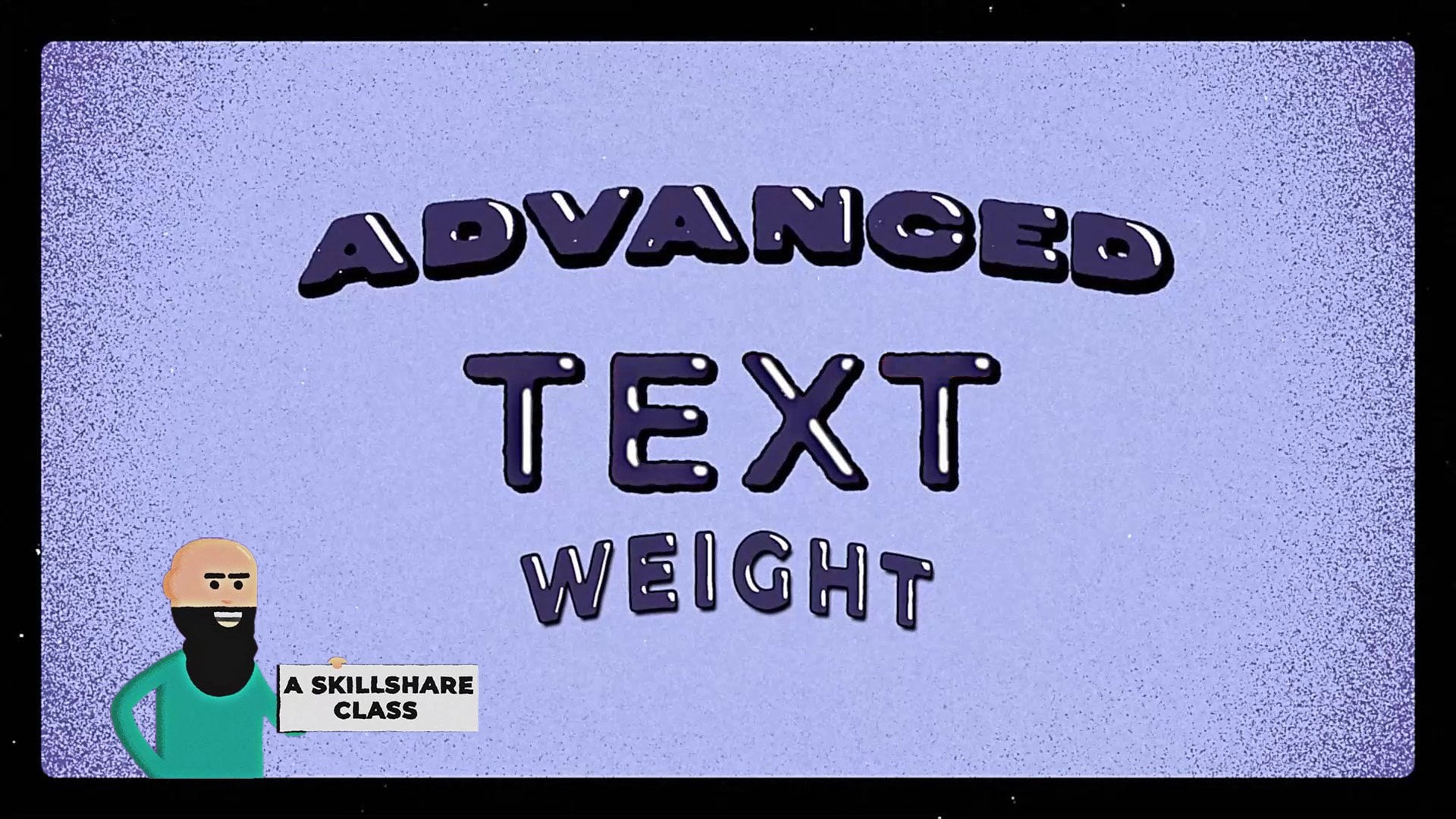
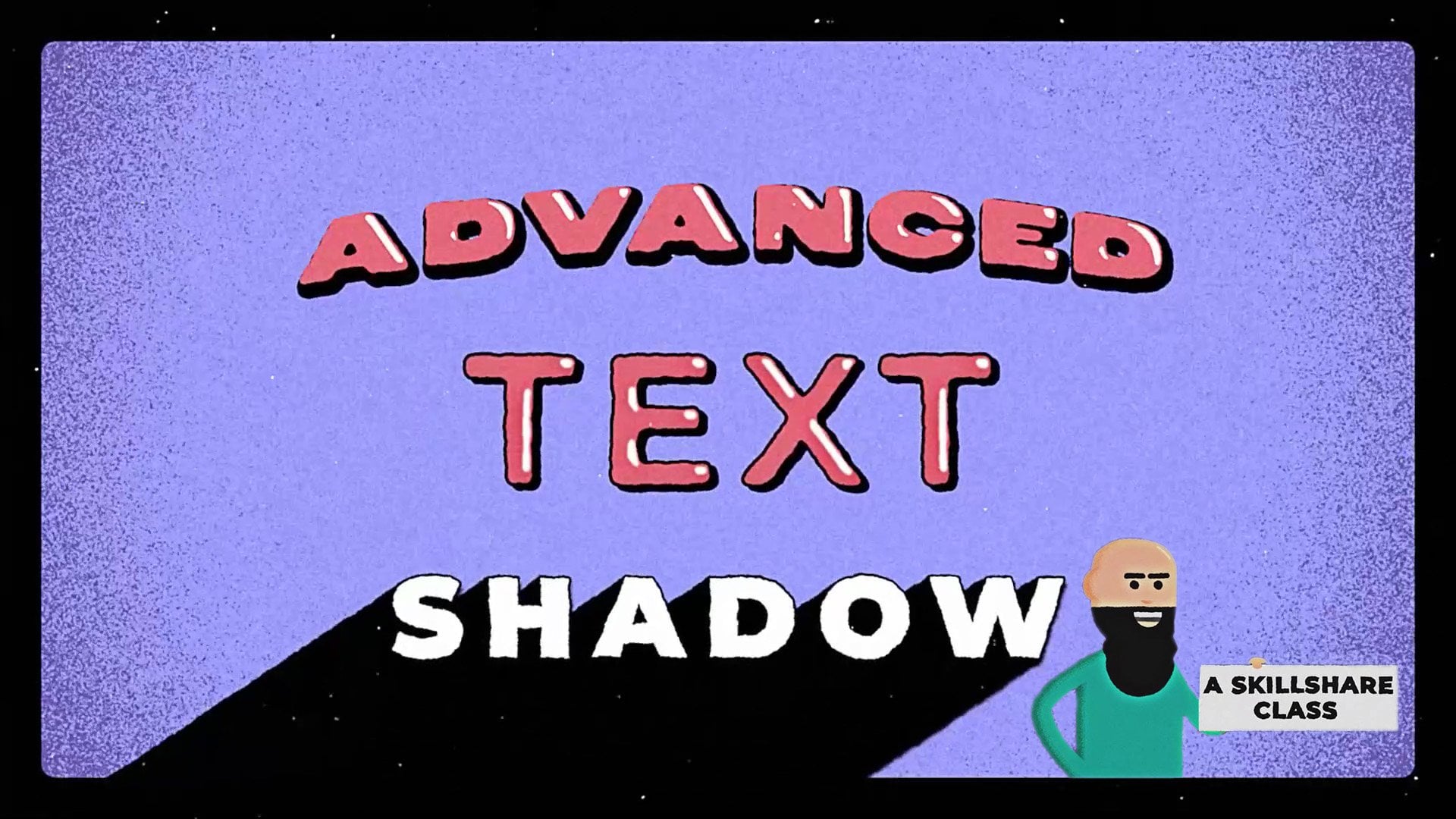
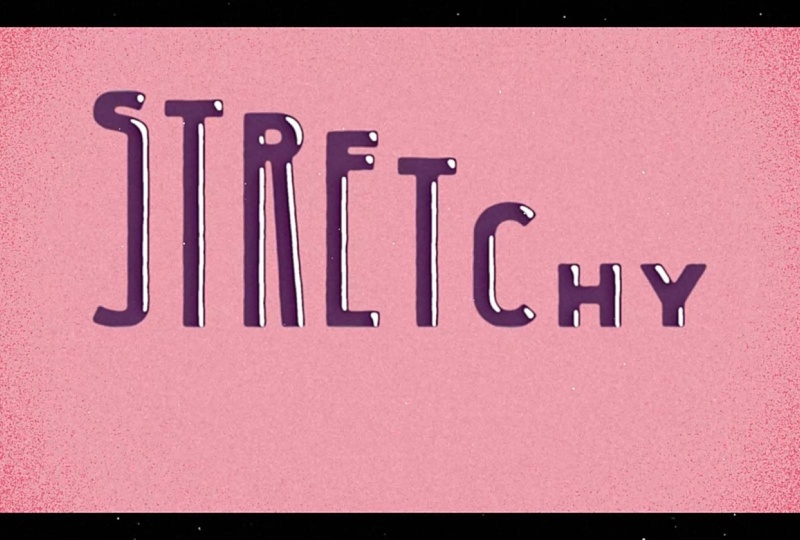
Create Stretchy Text using Adobe After Effects - Advanced Text Episode Two
 Tyler Bennett, Motion Graphics Designer & Photographer
Watch this class and thousands more
Watch this class and thousands more
Lessons in This Class
-
-
1.
Introduction
0:16
-
2.
Getting Started & Class Project
0:17
-
3.
Create the Stretchy Text
6:12
-
4.
(Bonus Lesson) How I Stylized the Text
5:50
-
5.
Outro
0:08
-
-
- --
- Beginner level
- Intermediate level
- Advanced level
- All levels
Community Generated
The level is determined by a majority opinion of students who have reviewed this class. The teacher's recommendation is shown until at least 5 student responses are collected.
6
Students
1
Project
About This Class
In this class you will learn how to create stretchy text using Adobe After Effects. I would recommend this class for intermediate students that are experienced with Adobe After Effects and would like to learn a new technique. For absolute beginners I recommend my classes Motion Design Jump Start - Your First Typography Animation in Adobe After Effects or Basics of Motion Design: Start Animating in Adobe After Effects.
In this class you will learn:
- How to create stretchy text using Adobe After Effects
- How to create shape layers from text
- How to edit the paths of shape layers
- How to use the graph editor to refine the animation
- How to stylize the animation
You’ll be creating:
- A stretchy text animation using the techniques taught in this class
Adobe, After Effects, and Media Encoder are either registered trademarks or trademarks of Adobe Systems Incorporated in the United States and/or other countries.
Meet Your Teacher

Hello, I'm Tyler. I'm a motion designer & photographer based in Ottawa, Canada. I make simple and easy to follow classes for beginners.
You can find me at tylerbennettvideo.com/
Connect with me at @tytyttheguy or @learnmotionwithty
or on YouTube: @tylerbennett3601
See full profileHands-on Class Project
Project Instructions
You can complete the class project by following these steps:
- Follow along with my video lessons
- Then take what you've learned and apply it to your own text animation
What You Need:
- Adobe After Effects
To share your class project follow these steps:
- Export your animation in mp4 format
- Upload your video to a video-sharing platform such as YouTube or Vimeo
- If you want your project to be private I suggest choosing "unlisted" when uploading your video. You will still be able to share it here.
- On the projects & resources page find the submit project button
- Share the link to your video
Class Ratings
Why Join Skillshare?
Take award-winning Skillshare Original Classes
Each class has short lessons, hands-on projects
Your membership supports Skillshare teachers
Learn From Anywhere
Take classes on the go with the Skillshare app. Stream or download to watch on the plane, the subway, or wherever you learn best.