Transcripts
1. 00-01 Introduction: Welcome to the future
of creative design. Have you ever been stuck with zero ideas to start off
your poster design, or perhaps you have
great poster ideas but are trapped behind long hours
of tedious production work? Well, everything is
about to change. The course, you're going
to learn how to turn AI into your most powerful
creative assistant. This course does not teach you to forget and
replace your craft, but to teach you how
to supercharge it. You'll discover how
to write a good prom for composing poster
designs using hepGBT. You'll also learn how
to write a good prompt for creating text
content using Gemini. But AI generation is
only the first step. The real design happens
in the details. That is why you
will learn to take those raw AI results and
perfect them in affinity. If you have never used
affinity before, don't worry, as I provide basic
lessons to get you up and running quickly using all the tools
that you will need. After that, you will
learn how to edit the design further by
removing graphical elements, recreating new ones,
adding editable text, fixing layout errors, changing
the colors, and more. At the end, you will learn
how to export the design as different types of images
and also as a Canva project. Please note that every technique
that you will learn in this course does not require
you to purchase anything. You don't need to pay for
AI credits or tokens. You also don't need to pay
any software licenses. We will be using the fret
here of het GPT and Gemini. And you will also be using affinity which is
completely free. So not only does
this course enable you to work faster in
creating poster designs, but it will also save you
money in the long run. Asalam Molcum, my
name is Wide Mutakin. I am an entrepreneur in
creative industry and also an academic lecturer in design and computer graphics. I teach graphic design, digital painting, architecture
of visualization, CD animation, web design, and many other topics related
to computer graphics. So let's get started Wsalamlecu.
2. 00-02 Exercise files, OS, and Software: Welcome to the Corus.
Before moving on, there are also important things I need to mention
about the Corus. First, it's about
the exercise files. You can load all the
exercise files for this course in the resources
section of this lesson. In case there is a
problem as a backup, you can also download the
files from the following link. Please pay attention to the capitalization
of the letters, as this link is case sensitive. If you open the link, you
will see something like this. You can download the
files one by one. However, it will be easier if you download
them all at once. To do so first
select the top item, hold Shift, and click
on the last item. Then click this Download icon. This will prepare all the files into a single
downloadable zip file. Next, it's about the
structure of the course. I have carefully
crafted the curriculum so that everything is
placed sequentially. Each lesson you take
on one level will become the foundation of the
lessons in the next levels. Therefore, it is
important that you take the course in order step by
step, not jumping around. If you take the course
by jumping around, most likely you'll get
confused at some point. The second thing I need to
mention is that you need to practice for each video. Please try out lesson
yourself at least once. The course is not just baterias. Most of the lessons
are practical skills. So again, you need to
practice if you really want this online course to
benefit you in this course, using a PC with a Window
stenoperting system. So every shortcut I mentioned in the video will be for
PCs and Windows OS. If you are using a Mac computer, you will find some differences. I believe most Mac users
already understand that the command key on a Mac is often used to replace
the control key on a PC. And the option key on a Mac is often used to replace
the out key on a PC. Essentially, if you are
using a mac computer, you may need additional
effort to check the menu or the online documentation for keyboard
shortcut references. The second thing that I
need to mention in terms of the computer hardware
is the input device. Although you can use a
trackpad when using laptop, I strongly recommend
that you use a standard mouse with a scroll
wheel when using Affinity. Usually, if a mouse
has a scroll wheel, you can press down the scroll wheel to activate
the middle mouse button. We will use the scroll wheel and also the middle button a
lot for canvas navigation. You want to avoid using minimalistic mouse
products that do not have any scroll
wheel or middle buttons. Alternatively, you can also use a drawing tablet
if you own one. The third thing that I need
to mention is the software. You should always download
the Affinity app from its official website
at Affinity dot sudo. Do not download the app from other untrusted
sources as it may contain computer
viruses or malware. As for the version
throughout the course, I use the most recent version of Affinity available when
recording the video, which is version 3.3. If you notice any differences
with the one you are using, such as NUI or shortcuts, you may be using a newer
version of Affinity. If so, you may
want to check if I have published a newer
version of this course.
3. 01-01 How to write a good prompt: In this lesson video, we will discuss how to
write a good prompt. A prompt is basically an
instruction that we as the user, give to an AI model to perform certain tasks because AI
is basically a machine, not a real human being. The quality of the
output is very dependent on the
quality of the prompt. If we give AI a prompt
that is too general, the AI is then forced to fill
in the details by itself. On the other hand, if we give it a detailed but
incorrect prompt, then the AI will have no
room to correct the result. So the basic idea here
is that you want to give EI specific or
detailed instructions in certain areas while also
giving it more room in other areas to explore
different ideas and solutions. This all depends on your
situation or condition because we are focusing on using AI for creating poster designs. There are at least
eight parameters or variables that you want
to have in your prompt. You can think of them as a checklist that you need
to go through every time you want to write a
prompt for creating posters or any
designs in general. They are role, goal, format, reference, over writes, nuance,
constraints, and content. Let me break each of these parameters one
by one real quick. The first parameter is the role, meaning that you
need to explain to the AI what hat it should wear, what type of job or expertise
it needs to become. For designing
poster, you can tell the AI to act as a
professional graphic designer. Okay? Next is goal. You want to explain
clearly your goal of why you want to
create a poster. Is it for environmental
awareness? Is it for business promotion? Is it for social charity, et cetera? This course. We want to create a
poster for a fictional, non formal school called English Brilliant that
sells English courses. So when writing the
prompt, you can write, I need to create a poster for promoting an English
course for my school. Again, this way, the AI has a clear understanding of
what you want to achieve. All right. Next is the format. Designs can come in
many different sizes. Real papers can
be letter, legal, a four, a three, B five, and so on. Videos can be in HD, full HD, four K, and so on. Not to mention different
mobile device screens and also social media
standard sizes. Knowing the image size you
want to target and getting it right on the first try is
crucial in writing a prompt. Otherwise, you will need to
revise it again and again, wasting tokens and
credits in the process. Please note that in free tier, AAI surfaces usually generate lower image resolution than
the pro or paid tiers. As of this recording, the Frith here of Jet
GPT can generate up to about 1,500
pixels wide or high. So, yes, it may not be suitable for high
resolution printing. You may need to be
on opiate tiers for more professional proposals. But if you are only targeting mobile screens or social
media such as Instagram, this resolution is
more than enough. Now, besides specifying the
width height in pixels, you can also specify the size
using an image size ratio. For example, one by one, for a perfect square image, four by five, for
an Instagram post, 16 by nine, four full
HD videos, and so on. In our case, we want
to create a poster for Instagram post and for
sharing it via Whatsapp, so we can write in a prompt. Make sure the image size
ratio is four by five. All right. Next is reference. Essentially, this
is where you tell EI what style reason
should be created in. You can describe it with words such as minimalist art deco, psychedelic, cyberpunk,
Bauhause, pop art, and so on. You may want to search
online to learn more about these different
graphic design styles. Besides using words,
another way to control the style reference is simply
by uploading an image. That is, if you see a nice
poster online that you like, you can download the
image and fed that to the AI and tell it
to copy the style. In that case, you need to
tell the AI the Dimage you uploaded is only for the style reference and
not for the content. Next is overwrites. Here, you want to
specify certain aspects of style that you want
to have on your poster, which overwrite the
provided style references. For example, the style reference may contain a lot
of brown colors, but you want blue colors
instead in your poster. You can also overwrite textures, fonts, spacing, et cetera. In our case, we
want the colors in our poster to be 60% purple, 30% white, and 10% orange. And we want to give a bit of freedom to the AI to add
other colors as well. So I add the text in the prompt. Feel free to add other accent
colors if you see fit. Next is once. Basically, we tell the EI what graphical elements it needs to add to the
design that may not exist in style reference in our case because we want to create a
poster for education. You can write in a prompt. You may add graphical elements such as notebooks, laptops, pencils, stars or other objects related to education
around the design. Next is the constraints, or some people may refer to
it as the negative proms. Essentially, you
want to explain to the AI what you don't want
to appear in a design. For example, you don't want certain colors or certain
elements in a design. In our case, let's say that. We want to poster
only display objects without any people
or characters. For this, we can type, do not put any people or
characters in a design. Finally, is the content. Basically, the content is the elements you already
have or created before, and you want to include
them inside the design. For posters, there
are only two types of content images and texts. For images, most
likely, they are logos. Logos need to be precisely
follow the original designs, while other graphics,
such as illustrations or photos can be freely
generated by the eye. In our poster, there is only one logo that
we want to display, which is the logo of the school. So we will need to
provide that leader. As Photo text content. They are the message that we
want to communicate inside the design because the video
is already quite long, we will continue with
the content creation in the next lesson video.
4. 01-02 Creating the text content: In this lesson video, we will prepare the content that we need to finalize the prompt. At this point, I have
already moved the prompt to word processing app
called LibreOffice Writer. It's basically like
Microsoft Word, but it's free and open source. You don't need to use this app, feel free to use
other apps such as Notepad or any other text app
you have on your computer. As you can see, I used all the prompt texts
we discussed before, but with several
adjustments, first, I changed the main color
from purple to indigo blue. And then I also
changed the lines where I explain the
uploaded images. I'm writing the prompt
for two uploaded images. The first uploaded image
is the logo of the school, and the second uploaded image is for the style reference only. Personally, I don't
think I want to upload any star reference
image for this project. I will just let AI
explore the style for me. I wrote to prompt
this way in case you do want to upload an image
as the style reference. All right. Next, at the bottom,
you can see a sentence. Here is the text,
and then you can see all the texts that should
be included in the poster. Now, for text content, each business or each
product should have its own unique script because each of them may have
a different niche, a different angle
approaching the market, and have their own
competitive advantage. If you already have running business and products
or services, you may already know
what you are selling, and so you may have the
script prepared beforehand. But if you are just
getting started and you have no idea
what you want to write, you can ask AI to write
the script for you. For writing a script, you can write the
prompt following the checklist we
discussed earlier, but in a much simpler form. You need to tell AI its role, the goal, the structure, or what should be included
in the sc and the content, which is basically the name of the business or the product. So you can write the
prompt like this, act as a copywriter. I need a script for a poster to advertise an English course
offered by my school. The poster should include a
title, subtitle, Y section. Programs section, promo section, and call to action section. The name of my school is
English Brilliant Academy. So again, this part is the role. This part is the goal. This part is the structure, and this part is
the content, okay? Now, for writing
the initial script, I like to use either
Google Gemini, or hat GPT, as they are both free because I will be demonstrating how to use chat GPT in later lessons. For now, let's explore how we can use Gemini or Google's AI. First, simply open
Google's homepage, then click on AI mode and then page the prom text
that we just created. Then click on its blue button. As you can see, it already created the title and
subtitle sections. Then do I section, a section explaining
different programs, the promo section, and the
call to action section. If you like the result, you can copy the text by
clicking on the small Icon. Next, open your text. Then press Control V
to piece the text. From here, you can
refine the text further to match your
business or your product. Now, what if you
still need AI to help you structure words and
fix any grammar issues. For these tasks, I usually
use two other AI web apps. First is DPL writer for writing short
messages or scripts, and second is grammarly
for writing long scripts. I won't discuss
these web apps in too much detail as it may take too long to
cover in this course. But let me show
you real quick how it is to edit the
text in DeepL writer. First, you can copy the
text and then open website, depel.com slash ANSRSI notice, I said the language
to English American. Then just paste the text into the left column or
the input column. Notice that when we do that, we get corrective suggestions on the right side or
the output column. You can keep tweaking
the words on left. The right column will
be updated accordingly, and you can also edit the resulting text
on the right if you need to one of the best
features of DPL writer, at least in my opinion, is that you can click
on any of the words, and then you can easily find
replacement for that word. This is huge for me because I am not a
native English speaker. And so I often struggle to find right words when
expressing my thoughts. When you are done, you
can click on this copy to clipboard button and then place the result into
your text application. To conclude the lesson, this is the final form of the prompt that we will use
to generate the poster. Notice that I also use a simple formatting technique for defining headings
and bullets. Three hashmark symbols mean that the text is set
as heading three. This is heading one, and
this is heading two. The star or the asterisk
symbols are for bulleted lists. You can also use minus symbols for defining bullets
if you want to. I provided this prompt
text for you in a eadyOfice file format and also in Microsoft
Word file format. This way, you can edit it as
needed and follow along by the way to the next
lesson where we will be using this
prompt in jet GPT.
5. 01-03 Using ChatGPT: In this last video, we'll start using chat GPT to generate the initial
poster resign for us. But before we do that,
you might be wondering, why should we use chat GPT? There are dozens of AI tools that we can
use to generate images. Well, the thing about AI is that it has evolved rapidly in the last few years and is accelerating even more in
the past couple of months. If you can find other
more capable AI for generating images, feel free to use that instead. I use hatGPT because it was the best free option that I could get for designing posters. At least by the time
I recorded the video, it can generate images and handles text almost flawlessly. The fret here allows you to
create three images a day. If you use all the quota, meaning that you already
created three images, you didn't need to wait
until the next day or past midnight to get
another three images quota. As of the time of the recording, the EI model used by Cha GVT to generate images is
called GPT Image 2.5. Yeah, I know the name
is way too generic. But despite the simple name, it is a very powerful
AI model for generating images that
is available for free. So how can we use hat GPT
to generate images then? It's very simple, actually, open your browser and then go to the official website,
chatjpt.com. If you haven't logged
in, you'll see the login or sign up
notification up here. You can log in using Google account or other social
accounts that you have, or you may also create a new account
manually if you wish. Basically, in order to proceed, you need to be logged
in. All right. Next, you need to be in
image creation mode. If you cannot find
the option up here, you can press this plus button and then choose Create image. Now, we need to
provide the logo. I already created the logo
here inside affinity. For your information, I also use AI to help me
design this logo. I won't be discussing how to design logo in the
course as that will take too long and wander too far away from
poster creation. You can check my
other courses related to logo creation if you
want to learn more. For now, to follow long, you can use your own
logo image if you have one or just use the files I
provided for this course. Okay? We need to convert
the logo into a PNG file. Why? Because hetGBT does not support the AF native
affinity file format. And use PNG instead of JPEG because JPEG does
not support transparency. Currently, the pixel
output size is too small. Let's set the width to 1,500 pixels because
it is a vector. You can freely export
it to any size you want without being
blurry or weeklatd. Click the Export button
and then specify the file name and the location
of the exported file. I already exported
the logo before, so I don't need to do it again. You can go back to hat GPT. And then click the
plus sign again, choose add photos and files. Then find the logo file you exported before. It is the file. Again, you can
just use the file. I provided if you want to
follow along right away. After we have logo uploaded, we need to type in
the prompt here. We already prepared the prompt, so we can just
copy and paste it. But I want to skip
providing chat GPT with a style
reference image. I just want to let
it be creative and suggest a style that
it thinks is best. Control C to Cathy, then go back to Chet GPT
and paste the text here. Again, I want to
remove the line where it mentions the second image
for the style reference, press the lead, and let's do another review in case there
are mistakes in the prompt. After everything is good, you can execute the prompt
by pressing this button. Chat GPT will need a few
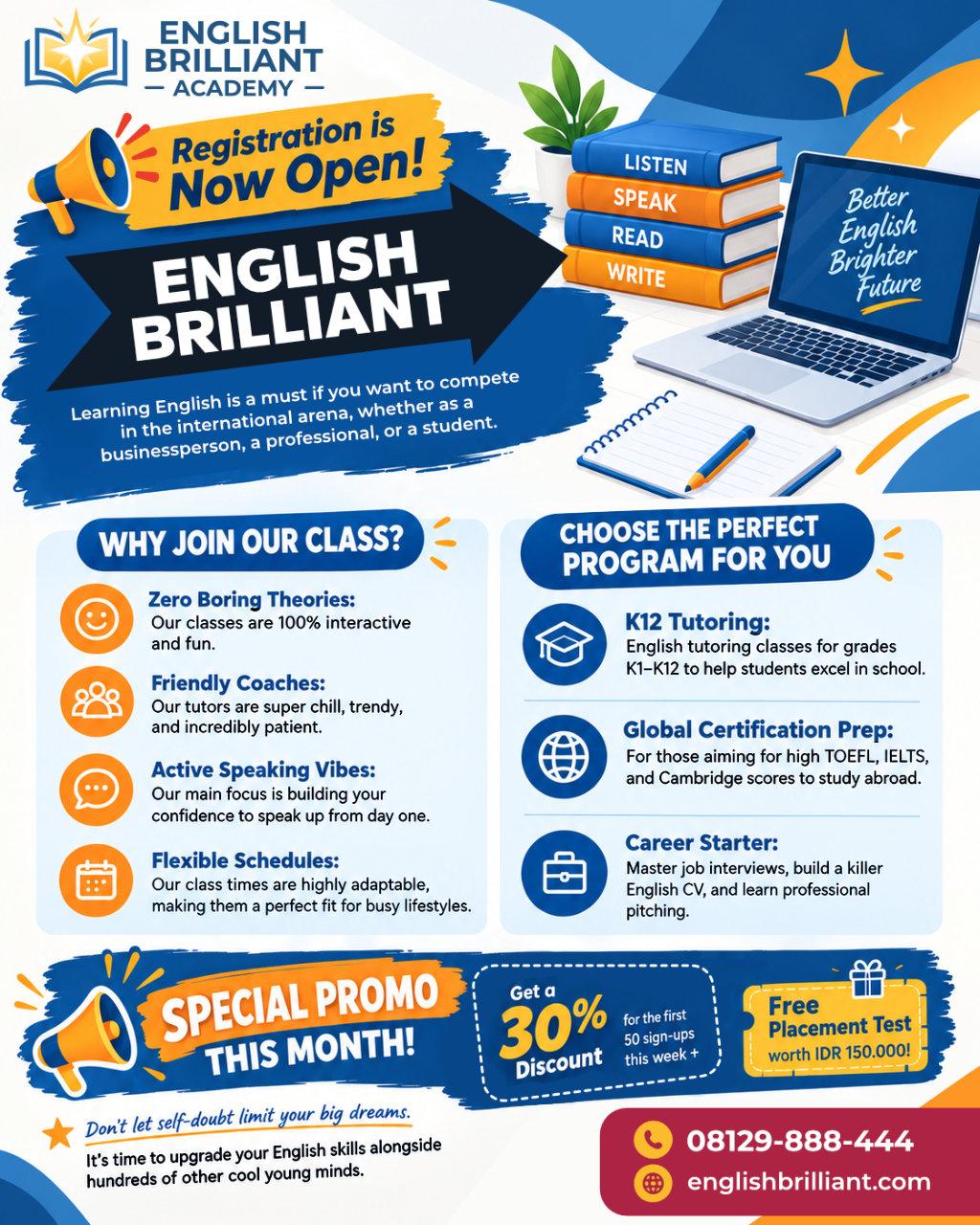
minutes to process it. Here is the result. As you can see, it already did a pretty good job
designing the poster, at least as a starting point. Yes, there are still many
things that we can improve. For example, the logo, the text should be central
aligned, not left aligned. Also, there are some blue
colors on the star areas. It generates a tag line
or a motto for us, which is very cool, better English, brighter future. You can change this if you want, but I honestly like it. So I think I will
keep the tag line. As for the blue
ornament at the top, I prefer making it
flow to the left. And the icons, currently, it generates alternating
colors for the icons. I prefer to make them uniform. That is, we can make all left icons orange and
right icons blue. Again, there are still many
things we can improve, but we will get to them
step by step later. For now, I want you to know that you have two options
at this stage. Either keep modifying
the image using AI or just bring this to affinity and move
forward from there. You need to know that if you do choose to edit the
result using AI again, the process will take up
your image generation quota. We will discuss the two options. So let's save the image first. To save image, you can click
on this download button. Then just select the folder and the file name
that you want to use. Okay. Now, let's see how we can edit the image
directly using AI. First, we can zoom in to
see the image up close. Then you can actually
dig this panel to the side or perhaps
to the top left, so it does not get in the way. For now, let's
focus on recoloring the icons to guide the AI to only fix
the problematic area. We can use the markup tool then draw line around the area
that we want to revise. Type prompt field, make
all left icons in orange. And then draw another line
around the white icons. And then type in make all
left icons in blue indigo. I'll just copy the text
from left to save time. Please note that
you do not need to draw and write the
prompt in sequence. You may also draw
all the markup first and then type the
prompt or vice versa. Before we continue
as a reminder, this process will cost
you one image quota, and most likely this process will slightly change
other areas of the image, even if we already mark the
areas that we want to fix, the AI often changes
other areas also, just so you know
the consequences. Okay? If you are ready, just click on this button
and then chat GPT, we process the image. Okay, guys, we have the result. As you can see, it did
what we asked for. It changed red icons to orange
and white icons to blue. We can compare this with
the previous version. Let me move this to the side. Not a Saudi, I changed
the colors in this area. It also changed other
areas if you look closely. Again, this is something that
you need to keep in mind. Even if you only want to revise the icons or certain
parts of the image, the AI will most likely also alter other
areas of the image. I personally like
the second version, so let's download the image, and we will continue working
on image inside affinity.
6. 02-01 Introduction to Affinity: In this lesson video, we will get to know
affinity in terms of the UI, studios and navigation. In a top area, you
can find the menus. This is perhaps the
most common UI element that you can find in all
computer applications. Usually, it starts with the file menu and ends
with the help menu. In each of the menus, you can find different
sub menus and menu items for different
commands or features. Below the menu, you can find a large horizontal bar
called the tool bar. Here, you can find global tools, features and modes that you may need to
access frequently. If you click on this large affinity icon on the left side, the home screen
window will open. And here you can
access the studios. We'll discuss more about
studios in a moment. Below the tool bar, you can find a smaller bar called
the Context tool bar. It is called context because the parameters using this
bar do not stay the same. They change
dynamically depending on the tool you are
currently using. On the left side, you can see a long vertical
bar where you can access all the
tools in affinity. This area is simply
called the tools. Notice that some of the
tools in the tool area have a small elbow or carat symbol at the bottom
right corner of the icon. This indicates that
the tool is not alone. It is grouped with
other similar tools. To access all the
tools in a tool group, you can either click on
a small carat symbol. You can also click and
hold the mouse button. In this netian,
you can hover over the tool you want to use
and then release the mouse, or you can just click
to activate any tool. The tool group should show up
as a small floating panel. Okay, large area at
the center where you can see the document
is the canvas area. You can have multiple artboards or pages displayed in this area. Then on the right side, you can find the panels. These panels can be
grouped together. If they are grouped together, you can access each of
the panels like tabs. And last but not least, you can find the status bar at the bottom of UI, all right. Now, let's go back
to the studios. This is perhaps the
most important part of UI that you need to understand
before anything else. You see, prior to Version three, affinity was not a
single application. There is Affinity Photo, which is the equivalent
of Photoshop, then there is affinity designer, which is the equivalent
of Adoblltraor, and finally, affinity publisher, which is the equivalent
of Adobean design. Since version three, that is, since affinity was
acquired by Canva, affinity comes in
just a single app. But all the features from the previous apps are
available inside this one app. Essentially, they transformed
into this studio option. So if you activate
the vector studio, all the UI elements will be geared towards vector editing. Just like affinity designer
or Adobe Illustrator. If you switch the
studio to Pixel, the UI transforms into
raster image editing, just like a filthy photo
or Adobe Photoshop. And if you switch to
the layout studio, the UI transforms into a desktop publishing
workspace similar to affinity publisher
or Adobe design. Now, besides these
three main studios, you can also see a
studio called Canvo AI. In the studio, you can access many AI powered tools such
as generative Expand, generative fill, and so on. But please note that these
AI features are not free. You need to be in the
paid here where you will get credits or
tokens for AI usage. If you click on three dot icons, you can see even more studios. You can turn on or off the studio options
using these switches. And notice down here, there is even a button that you can use to create
your own studio. This course is not a
full course on affinity, so we won't be discussing all
of these different studios. In this course, we will
only be using two of them, which are the vector Studio
and Pixel Studio, all right. Next, let's discuss navigation
techniques in affinity. There are at least
seven methods that you can use in affinity to
perform navigation. Again, for a quick introduction, I will only explain 12 of them, which I think are the most
common and fastest ways to navigate in affinity. The first method is using the mouse or the mouse
wheel to be exact. This is the best
method if you are on a desktop computer and you
have access to standard mouse. What I mean by standard mouse is a mouse that has at
least a scroll wheel. If you press down and
hold the scroll wheel, it will trigger the
middle mouse button. In this condition, you can move the mouse around
to pin the canvas, then to zoom in and
out of the canvas. You need to hold down
the Control key, and while doing so, rotate the scroll wheel, rotate up to zoom in and
rot it down to zoom out. Alternatively, you can also
just rotate the scroll wheel without holding any keys to
pin the canvas up and down. And rotate the scroll
wheel while holding down the Shift key to pen the
canvas sideways. All right. The second method is
using the spacebar key. To do this, you first need to press and hold the spacebar
key on your keyboard. While in this condition,
you can click and drag the mouse
to pen viewport. To perform zooming,
you need to hold the spacebar first and
then hold the Control key. While in this
condition, click and drag with your mouse to
the left or to the right. If you prefer clicking instead of dragging to perform a Zoom, you can hold the Spacebar and Control and then
click to Zoom in, and you can hold
Spacebar and out, then click to Zoom out. Okay. Now, you may be wondering, who in the world wants to use this method if using the
mouse is easier and faster? Well, you may prefer this
method if you are using a drawing tablet because
when using a drawing tablet, your right hand is
holding the pen, so you cannot use it to
rotate the mouse wheel. Of course, if you
are left handed, it is your left hand
that holds the pen. Nonetheless, your main hand cannot rotate the scroll wheel, but your other hand can
still access the keyboard. Okay, guys, so those are the main navigation
techniques that you can use in affinity a
7. 02-02 Vector editing basics: In this lesson video, we will cover the basics of
vector editing in affinity. For now, make sure you are
in vector studio so you can easily access all the vector features that we are
about to discuss. In affinity and also in many other graphic
software as well, vector objects can be
categorized into two types, parametric shapes
and editable curves. Parametric shapes
are vector objects that after you create them once, you can still reshape them
using special control nodes. It is easy to edit
them in certain ways, but you cannot freely select
their nodes or segments. On the other hand,
editable curves are vector objects also, but they don't have any
parametric control nodes. You can freely select
the nodes inside the curve and tweak them to
any shape that you want. To create parametric shapes, simply click on this rectangle
tool or its siblings. You can create an ellipse. For example, you can
hold the shift key while doing this if you
need a perfect circle. You can create a polygon. You can create a
star, and so on. After you create some ships, you can select them using the move tool or by
pressing V as the shortcut. It is called the move tool because you can grab andrag
objects while using it. You can also perform scaling
using this tool by dragging the corner nodes and perform rotation using
this pointy node. Okay. Now, if you activate the node tool or press
A for the shortcut, you can also select
objects using this tool. The primary function of this tool is not
just for selection, but for editing vector shapes. While the tool is active, you can select a
parametric shape. You will see red nodes
that you can click and drag to alter the
shape of the object. You can define roundness
of the corners. For example, change
different aspects of the stars primeters change the shape of this
polygon, et cetera. So parametric objects like
rectangles and circles, do not have any
red control nodes. Besides dud control nodes, you can also control
parametric objects via the contextual toolbar. As you can see, there are more parameters that
you can use up here. For example, you can make more points on star
object if you want to. Now in affinity, if you find
a value field like this one, you can edit the value by clicking and then
typing it manually. You can click here and
then wreck the sliders, or my favorite
method is just have the mouse cursor over the field and then rotate the
scroll wheel up or down. All right. Although working with parametric objects is fun, in the end, you
may need to create custom shapes by editing
the nodes freely. For example, you want
to drag this node to another location or just
reshape the object freely. For this, you need to convert the parametric objects
into editable curds. You can right click and
then convert to course, or as you can see here, the shortcut for the
command is Control Enter. If the object is already
irritable curve, when you use the node tool, you can access each
of the nodes and move them independently to
any location that you like. You can drag the segments
to bend or curve them. You can also access
the handles to control the curvature
in more detail. Please note that
once you convert a parametric shape to an editable curve, you
cannot change it back. Well, unless you perform an u, so just be aware
that this conversion is one way ticket wide. Vector objects have two
different color types, field color and stroke color. Field color is the color that
fills in the vector area, while stroke color
is the color of the border lines or curves that surround
the vector shape. To see the stroke color, you need to set the stroke width to a value greater than zero, as zero means the vector object does not display
its stroke element. Let's make the stroke width
of the shape four points. Just for example, now, we can tell that the
field color of the shape is gray and the stroke
color is black. Okay? Affinity
provides many ways to access or change the colors. You can access them up here
in a contextual tool bar. This is the field color. This is the stroke color. You can also access them by double clicking on
these two circles. The block click on this one
to change the stroke color, and the block click on this
one to change the fail color. You can also access the colors via the color panel
at the top right. Clicking here will
access the stroll color, and clicking here we access
the field color all right. Next, let's discuss
the pen tool. You can find the
pen tool here or simply by pressing
P on a keyboard. So what can we use
the pen tool for? Well, we can use the pen tool to draw
custom editable curves. So the result will not
be a parametric shape, but an editable curve
out of the box. You activate the pen tool, you have two important options up here in the context tool bar. Use line style and use fill. Essentially, if you
have this active, when you draw a shape
using the pen tool, the resulting shape will have
a stroke element visible. But if this is off, the stroke will be invisible. The same concept applies
to this field color. If this is on, the shape
will have a field color. But if this is off, the resulting shape will
have no field color. For example, let's say that we only want to draw strokes
without the fill color. We can activate the stroke icon and turn off the fail icon. In this condition,
you can perform multiple clicks to form
an editable of object. Once you are done, you can click again on a starting node
to close the shape. Or if you don't want to
create a closed shape, you can also hold Control
and click on an empty area. Or you can also switch
to other tools such as the move tool by pressing V or the node tool
by pressing A. And again, if you
are in a node tool, you can further adjust the shape that you just created
with the Pen tool. Finally, I want to discuss
layers in layer clipping. Make sure you have the
layers panel open. In affinity, every object you create will
become its own layer. A layer is basically a representation of the
objects stacking order. Objects that you place on top will block the
objects beneath them. Just to prove this,
we can select this star object first and then change their
color to orange. And then we can select
this polygon object because objects and layers
are basically the same. You can select objects in layer panel just like you select the object
in the canvas. Let's change the
pale color to blue. Now, notice what happens if
you overlap the two objects. If we put the orange object
on top of the blue one, the orange object blocks
the blue one, vice versa, if I move the blue
one to the top, it is now the blue one that
blocks the orange object. What makes layers a
powerful design tool is that you can ask them
or create hierarchy, or in other words, you can place one
inside another one. You can do this recursively, meaning that you can put
layers inside the layer, which is inside another
layer and so on. Layer hierarchy can be
achieved via grouping, compound layer,
masking, and clipping. For now, we will be
focusing only on clipping, as this is what we will be
using in the upcoming videos. For example, let's
say that we want to place the blue shape inside
the orange shape to do that. Just drag the blue
shape and then drop it on top of the
orange shaped name. Remember, do not
release it on top of its thumbnails that will
create masking instead. Release it on top of label. Now, as you can
see, the blue layer lives inside the
orange shaped object. The blue shaped area
that is outside of its parent area
will be invisible. If you select the orange
shape and then try to move it using the move tool then
or blue shape follows. But if you move the blue
shape by the block clicking it first to select it
or wide layers panel, moving it will not
move the orange shape. In conclusion, moving a parent
also moves its children, but moving a child does
not move its parent. Okay? If you want to make the book shape
independent again, simply drag it so it is
outside the orange layer. Okay, guys, there are still many vector editing techniques that we haven't discussed yet. We barely scratch
the surface here. But for now, this
should give you enough foundation to continue
with the next lessons.
8. 02-03 Raster editing basics: In this lesson video, we will cover the basics of
roster editing in affinity. To start, make sure you have
the pixel studio active. One important aspect that
you need to know about roster editing in affinity
is the layer types. You see in affinity, there are two types
of raster layers, image layer and pixel layer. Image layer is a
layer that contains image data usually imported
from an external image file. Raster data inside image
layers are protected. Meaning that you can
scale it down or up without degrading the
original image quality. The downside of the image layer is that because it is protected, you cannot perform destructive
editing on these layers, such as using the paintbrush
tool or the as brush tool. Okay? So that is
the image layer. Pixel layer is the opposite. It is a rust layer also, but provided as without
any protection. So you can apply all the
pixel tools and features, including ones that
are destructive, such as the brush tools. Let's see an example of
the two layer types. To create a pixel layer, you can click on this icon that looks like a
checker pattern. After you have a pixel layer, you can now use it as a blank canvas for
the paint brush tool. To activate the paintbrush tool, you can click here or you can also press B for the shortcut. We'll discuss the brush
parameters in a moment. For now, we can change
the color to red and then apply some brush
strokes on this pixel layer. If you want to erase, you can activate the
erase brush tool by clicking here or press
E for the shortcut. With this tool, you can
erase existing pixels. Okay? If you are
on a pixel layer, you can also create a
pixel selection like this. For example, and then
using the move tool, you can click drag
inside the selection. Notice how the pixels
inside the selection move. You can perform scaling and also rotation on the
selected pixels as well. To clear the pixel selection, you can press Control
D on keyboard. So that is what a
pixel layer is. To see an example
of an image layer, you can convert the
existing pixel layer into an image layer by using this
to image resolves command, but this is not a
common scenario. More common one is
that you'll get an image layer when you inport
an image into your design. The simplest way that you can do this is just by dragging and roping an image file from your file browser to
your Affinity app, and there you go, you just
created an image layer. With the move to active, you can move the
layer, scale it, and also rotate but notice, if I try to apply a brush
stroke on this layer, affinity doesn't do anything. The same thing
happens when I try to erase the layer
using the erase tool. Again, this is because the original raster
data is protected. Now, you may be wondering, what if I do want to apply brush strokes or erase
certain parts of this layer? Well, one way to do that is to convert the layer into
an ordinary pixel layer. For this, you can right click on layer and then choose Rasterize. Affinity will give you the option for
rasterize algorithm. For now, use the default option and click the Rasters
button to confirm. Now, this layer
is a pixel layer. To prove this, you can
apply brush strokes to it or other destructive
editing techniques. Let me undo it for now. So we have the image layer back. You can tell a layer
is an image layer or a pixel layer by
looking at its icon. If you see this icon, then you can be sure that
the layer is an image layer. But if you see a
checkerboard pattern icon, you can be sure that
this is a pixel layer. The second method of
generating a pixel layer from an image layer is
by copying and pasting. For example, I can use rectangular selection tool to select a small part
of this image layer. Make sure the layer is active. Now, if I press Control
C and then Control V, Affility has just created a new pixel layer on top of
the original image layer. You can press Control D
to clear the selection. I think you can see this more clearly if we hide the
image layer beneath. As you can see, this
new pixel layer only contains the part we
selected before, right? When you switch the studio
from vector to pixel, you may notice a slight
difference in the color options. We still have two active colors
like in a vector studio, but this one is not the
stroke color anymore. It is now called the
foreground color, and this color is not called
the field color anymore, but is now called the
background color. Now, the terms foreground and background may confuse you into thinking that these
colors are related to the sorting or composition. Well, they are not. These are merely names from
the old days of photoshop. They are basically
just placeholders for two different active colors
that you can quickly use. For example, you can set
the foreground color to red and then set the
background color to blue. Now, if you activate
the paintbrush tool, you can quickly swap the active colors by
pressing X on a keyboard. After applying red, you can quickly press X to apply blue, press X again to
get red, and so on. Now, let's discuss several
important parameters of the pin brush tool. Please note that because the red brush tool is also
using the same brush engine, most of the settings we are
about to discuss also work on the s brush tool or any tools that have reward
brush in their names. Okay? So first, is
the brush size. To control the brush size, you can use this field at the top left of
context tool bar, but I don't recommend
this method, as you cannot see the
brush circle right away. Second method is to
hold Control and out, and then click and
drag left or right. Going we will make
the size bigger, and going left will
make it smaller. Sorry, please ignore
the yellow circle around my mouse cursor. This is just a highlighter
software to use when recording so people can better see where
the mouse is going. Let me turn this
off so you can see the actual brush
cursor in affinity. Besides using the
Control back method, you can also press the closing bracket key
to make the brush size bigger and press the opening bracket key
to make it smaller. Okay, let me turn the highlighter on again,
then hide the window. The next important parameter
is the brush opacity. You can control the
brush opacity here. Or faster way to do this is by pressing the number
of keys on the keyboard. If you press two, opacity
will be set to 20%. Notice that, if I
apply a brush stroke, the resulting pixel becomes very transparent,
almost invisible. If we press five, opacity will be set to 50%. This will make the brush
strokes semi transparent. Pressing eight will make
it 80% opaque and so on. Now to go back to 100%
or a fully opaque brush, you can press zero. As you can see, it
is now fully opaque. The last thing
that you may often be using is the hardness value. If it is set to 100%, the border of the brush
strokes will look sharp. There is no transition between the inner and outer
area of the brush. If you set this to zero, the border of the
brush stroke will be blurred or
transition gradually. If you prefer
keyboard shortcuts, you can use the same control
out drag method as before. But instead of dragging
left or right, you need to drag the
mouse up or down. So again, while holding
control and out, dragging left and right
will alter the brush size. And ragging up or down
will alter the hardness. All right. Besides using
the Context toolbar, if you have a brush tool active, you can also right
click anywhere to open the current brush
settings floating panel. Here, you can set the size, opacity and hardness and also other settings that
we have when discussed. Now, in this condition, to close this panel, you do not want to press Escape, as that will redo all
the settings you just made unless you do
want to cancel them. Also don't want to
click on a canvas as that we apply a brush
stroke on your work. To close this window, you can click on any of the UI area that
are not the canvas, or you can also press the middle mouse button as if you are trying
to pin the canvas. Okay, guys, there are
still tons of things that we haven't discussed
in terms of raster editing, but this should provide you with good foundations to follow along with the upcoming
lesson videos.
9. 02-04 Removing elements and replacing the logo: In this lesson video, we will open the image
created by hat GPT, learn how to remove
elements from that image and then
finally replace the logo. First, make sure you have
the Affinity app running. To open an image, you can go to the file menu, then just open. Here if you remember, we have two images downloaded
from JatGPT. Let's open the second image. For now, we want to fix the upper left part of the
poster where the logo is. As I mentioned before, logo is not correct. We have some blue colors
on the star element, and the text logo should be central lined, not left lined. To remove logo non
destructively, we can cover it with
a vector shape. To achieve this, we
can use the pen tool. As for the field color, we can set the color by picking
the color near the logo. We can see that the
color is actually white on that all the RGB
values are at 255. For now, we do not
need any stroke color. To set this, we can turn off the stroke icon or use the stroke color
here to control it. After that, we can
create a shape by clicking and releasing round
logo to cover the area. Press V to finalize the pen tool and switch
to the move tool. At this point, we have
a new vector shape in white sitting on top of
the original image layer. Now, if you click on empty
area to dislike everything, you can see that the
original background area is not a flat white color. It actually has a
subtle gradation from white to an of white color. To create gradient coloring, you can use a tool called the fail tool or just
press G for the shortcut. And then you can click Andrag to form a gradient in a
diagonal direction. While the field color
is still active, you can click on any of
these nodes to activate it. This is useful if we want to change the color
on a specific node. For now, we want this node to
follow the off white color. While the node is active, you can click Andret the color
picker to the target area. Another method to
remove elements non destructively
is by covering them with a pixel layer
and then using the brush tool to paint on the area that
you want to hide. Let's see this in action. First, you can create a pixel layer by
clicking on this icon. And then to easily access
all the pixel related tools, you can open the Pixel studio, use the freehand selection tool, but activate the polygonal mode. With this tool active,
you can create a pixel selection area by clicking and
releasing the mouse. Double click to finish
up the selection. Next, use the paintbrush tool. White click and then turn
down the hardness value, so the outdoor brush is blurry. Okay, let me undo this. For the color, we can
pick the off white color. Then you can increase the
brush size by pressing the closing racket
key on the keyboard and you supply the brush
strokes gradually. Press Control D to clear
the pixel selection. If you over paint an area and you want
to remove or erase it, you can do that using
the eraser brush tool to reduce the brush strength. You can lower the
opacity value by moving the mouse cursor to this area and then
rotating the scroll wheel. Or you can also press the
number keys on the keyboard. For example, if you press the number five
key on the keyboard, the brush opacity level
will be set to 50%. After that, you supply some brush strokes on the image or layer to erase the pixels. Feel free to combine
the brush and eraser techniques until
you get what you need. To recap, up to this point, we have created two layers. First is the vector shape layer. And second, is the raster
or the pixel layer. Next, we can add or replace the logo with
our original logo. You can use the logo in a PNG file format that I
provided for the scores. You can just click and drag the image to affinity
if you want, because I already have the
logo file open on another tab, I can just copy all the
layers belonging to the logo. Go back to the poster
file again and then press Control V to
paste the layers. You can scale the
layers while holding Shift to retain
size ratio and then move them as you see fit Sorry, I think we should group
all these layers together, like one at the bottom hold sat and then select the top one. Then press control
G to group them. As you can see, we can now
easily select and move the logo as one group object instead of multiple
independent layers. Also don't need to press
the shift key anymore to perform a uniform scale
when your object is group. Feel free to just logo position until you like how it looks. You may also use
the arrow keys on the keyboard to nudge
or move logos slightly. I think we have done a good
job replacing the logo.
10. 02-05 Recreating graphical elements: In this lassen video, we will discuss how to
fix the poster image by recreating some of the
graphical elements inside it. First, I think
this blue ornament should flow to the left. To fix this, you can
use the pen tool. Let's turn off the
snapping feature for now. Click and in this location. And then click and drag here, hold out to corner of the node, and then keep clicking until
we have a closed shape. Was V and drag the color picker, icon to sample the blue color. I think it looks too curfy. We can fix this
using the node tool. Move the node to the right, and then select and
move this node. We can control the curfature
by dragging the handle. All right. Next, let's
fix the megaphone grip, as you can see, the grip
detaches from the main body. To fix this, we can
use the pentle again, click here, then here, and so on until it ps
back to the first node. For the field color, we can pick the existing bright orange color to create the shade area. We can use the Pen tool again, but hold Control and then
click to disect all objects. Sorry, I forgot to lock
the original image. We need to lock it so we
don't accidentally move it. Now we can click here, click and drag here, and so on, until it goes
back to the first node. Let's move this aside for now. The pick the darker orange
color from the image. We can move this
back into place. Now, we want to please
darker orange shape, so it is inside the
bright orange shape. For this, we need to drag
the dark orange layer and then release it on top of the bright orange
layer's name. Remember, do not release it
on top of its thumbnail, as that will create
masking instead. We want to release it on its name so it creates
a clipping layer. Now the dark orange
layer becomes spot or a child layer of
the bright orange layer. All right. I think we should add another element
for the blue part. Use the pen tool again. Click here, then here, then here, and so on. Set the color to follow
the nearest blue color and then use the
field tool to create a gradient coloring from
blue to darker blue. Should place this blue shape on top of the orange grid shape. Now, if you notice when
we zoom into close, you will see white grid
lines indicating the pixels. This is called the Pixel grade. If you do not like
this behavior, you can hide the pixel grid
by going to the view menu, then choosing show,
and then finding the pixel grid option
to deactivated it. Personally, I prefer
this clean look without the pixel grade. I think I want to edit the shape again
using the node tool. Move this up here, and this one goes up here. Dig this segment to curved
and also dig this segment. Alright. Feel free to
keep tweaking the shapes. But I just consider this
megaphone object done. Let's move on to the
middle bottom area. There are many things
that we want to erase first from
the original image. For this, we can use
the pixel layer method. So create a new pixel layer
at the top of the stack. Go to Pixel Studio, activate the brush tool. White click, and set the hardness value
all the way to 100%. Press the opening bracket key
to decrease the brush size. Let's pick the blue color here. We can make the brush smaller. Let's add some brush strokes
to cover the orange dots. Let's continue the process. Now, you can keep using the Dicker icon method
to sample colors. But if you are using
the brush tool, you can also press out and click or A and click drag
to sample the color. So again, while using
the brush tool, you can hold out and click or A and click and drag
to sample colors. Okay. Next, we want to fix
this ugly dashed line. First, we can cover the original image
using the brush tool. The technique is the
same as the previous. Hold all and then click and drag to sample
the blue color. Then just click and drag to paint to cover the white line. Okay, to make the bright and dark blue
colors blend even more, we can white click and
then try decreasing the hardness value and then just carefully apply
some brush strokes in the area where the colors look
disconnected or clashing. A All right. Next, to redraw the dash
line that forms a rectangle, we can use the pen tool again. Let's first activate the vector studio and
then the pen tool. For now, what we need is just the stroke
without any feel. As for the stroke color,
let's pick white. Now, personally, I do not like using these RGB sliders
to pick colors. My favorite color picker mode
is this huge strip mode. Make sure white is selected. Now we can start brewing
the shape by clicking here. Then here and here, here, then back to
the first node. To tweak the nodes positions, we can use the node tool. If you prefer a rounded corner, you can direct this red node. But to perform this uniformly
across all four nodes, you can first press Control
A to select all nodes. For your information
in previous versions, you needed to use the corner
tool to round corners. But since September
2026 release, you can just use the node
tool to round corners, which is quite convenient. Just direct one of red nodes, then all the other
selected nodes will get rounded as well. In this condition,
you can still fly tweak the shape by dragging
the original node location. All right. If you are done, you can control
the appearance of the stroke by clicking
on this icon. This will bring up the
stroke properties panel to turn the line
into a dashed line. You need to click on this icon. Let me zoom in even more so
I can see the line better. Currently, the line is too thin. Let's increase the width value. I think three points is
enough for our purpose. Now we can try increasing
the solid length to two and then the gap length to two
as well or perhaps three. Nope, let's just stay with two. Okay, guys, I believe our
work is done for now. We will continue with other
tweaks in the next videos.
11. 02-06 Fixing the title area: Let's continue
fixing the poster. In this lesson video, we will focus on the
main title area. First, we want this
area to be larger so we can put larger text
and also more elements. Make sure the original
image layer is active and we are
in a pixel studio. Then use the freehand
selection tool and set the selection
mode to polygon. Start creating a selection from this part and then cut
through the middle. Basically, we want to select the title background from
the middle to the top. Try to follow the shapes
as closely as possible. Then double click to
close the selection. If you want to add more
area to the selection, you can do that
by holding Shift. If you are done, you can
press Control C to copy and then Control V to
paste that will paste the pixels inside the
selection into a new layer. Press Control D to dislike everything and then press V
to activate the move tool. Notice that when I click
and drag the layer, we actually have
identical pixels to the title area in
the original image. Position this layer to
the top of the stack, you can hold Shift
and control and press the closing
bracket key on keyboard. As you can see, the layer is now at the very
top of the stack. Next, you can move this layer up stack vertically
by holding Shift, or you can just use the
arrow key to move it upward. I think we need to
move Globo upward also so we have more
room for the title. Remember that we have created the grip for the
megaphone object before. Currently, the layers are not visible because they are
blocked by the title layer. You can select them and then press Control G to group them. Then press Control Shift
closing bracket key to place it on top of the layer stack of
this up while holding Shift, or you can also use the up or down arrow
keys to nudge All right. Next, we want to remove or cover the whole
text in this area. For this, we can press P to activate the pen tool
as photopil color, change the color type from
gradient to solid color, then sample the blue
color in the title area. Make sure we only have
the fill active without the stroke and then
create a shape that covers all the text
in this title area. Press V for the move tool and then click on an empty
area to dislike all. This is what we have so far. Again, we basically just created a vector shape on top
of the title area. To make the colors
bend more seamlessly, we can create a new pixel layer on top of the
vector shape layer. Use the selection tool to create a selection region slightly
larger than vector shape, but still within the
blue background area. Next, we can press B to
activate the brush tool. Then hold out and click drag
to sample the blue color. Next, apply some
brush strokes at the vector shaped border
to blend the colors. After that, you can press
Control D to this leg. If you are still not
satisfied with the result, you can also pick the
darker color of the ra area and then paint that instead
on top of the ship layer. Feel free to repeat the process until you
like how it looks. For now, I consider this
good enough. All right. Next, I think I want to go
back to the megaphone object. Notice how the audio muting
effect looks kind of awkward. It's yellow, but
then turns to white. I think it will look
better if we just use red, so it is more consistent. I think this thread will do. Make sure you are in a pen tool. Then click here, then
here, and so on. Until you cover the effect. You do not need to create any cuff around the
corner at this stage. For now, just make simple rectangles with
all the corners shop. We will round them later. Press V for the move tool, select all these shapes
by holding Shift. To combine them into
a single object, we can go to the vector studio and then press this
Ed Bull and icon, press A for the node
tool, click on the shape, then hold Shift and keep clicking on the
rest of the shapes. To select only the end nodes, perform a click drag like, then hold Shift and
throw click drag again, to also select the
other end points, and then we can direct the red nodes to
round the corners. Let's do the same with
the starting nodes. Select all the shapes, again, click and drag to select only the Sting nodes and
then rack red nodes. Try to make it less round than the end points, and that's it. I think we can move on to
adding the title text, but we will do that in
the next video inshalla.
12. 02-07 Rewriting the title text: In this lesson video, we will replace or rewrite
the text in the title area. But before we do
that, we need to make sure that we have
the font that we need. You may use any fonts that you like from your own
library or computer. But right now, let's just
say that we want to follow the font as closely as possible to the font
used by the AI. If you look closely, the font is a sensorive type that has
a distinct characteristic. That is the end of the G letter and the a
letter from a diagonal line. We can use this characteristic to find the font that we need. There are many places online where you can find
phones for free. My favorite and number
one place to find free phones is the Google
phones repository. The URL is funs doggle.com. Now, if you cannot
see the left panel, you need to click on
this filters button because we want to compare the word English in our poster. We can type English here
in all capital letters. Currently, Google displays
all types of fonts. We want to narrow
down the list to only display Sserif phones, not Serif phones but censerif and we want
the growths category, as it is both, just like the phone in the
original poster. Now the phone list only
display both sensitive phones. We can make the phones larger to clearly see their
characteristics. Again, we need to
find a phone with the ends of letters
G and S sranded. Also, the G letter does
not have any legs. Now, this amabara
font is closed, but I did this before off
the record and already found the best phone for
our title called Gantari. I hope I pronounce it correctly because I already
know the font name. I can just type it here, Gantari and here is the font. Now, we are focusing only
on the Gantari phone. We can try to make
the phone bolder and also make it larger. As you can see, letter G and letter both have slanted ends. Okay? To be able
to use this phone, you need to first download
it and install it. You can press the
G button up here. This area is like
a shopping cart. This means that every time
you press the GPhone button, the phone will be listed here. Currently, we only
have one font listed, which is Gantai so you can just click on this download
icon to download it. The font will be packaged
inside a Zip file. Have a special subfolder
called fonts in my downloads folder where I usually store all the
downloaded fonts. Okay. Let's open a folder, and then we can
extract the zip file. The phones are now ready inside
the folder called Gantai. Now, before we
install the phones, you may want to close
all applications running that make use
of the system phones. Why? Because some applications tend to crash when new
phones get installed. Let's just close them
all to play safe. I have two documents open in delivery office
writer currently. I can close all Windows to
close them all at once, and then you want to close
the Affinity app as well. I already have the
document saved. You may want to save it first
before closing the app. Okay? Now that all text related
applications are closed, we can safely
install the phones. The Gantari phone has two types, the straight version
and the italic version. I want to install both. So I am selecting both of them. White click and then choose
install for all users. Wait for it and it is done. We can start Affinity
again and open our web document and also the word processing app where we have
the prompt text. After we have the document open, we can add a new title. I want the title to just say English Brilliant without
the word CadmiF this, you need to activate
the artistic text tool, not the front text tool, as this is more suitable for long form text with
multiple paragraphs. We will use this leader
for the subtitle text. For now, we use the
artistic text tool as it is more suitable for short
texts such as the title. Then click and drag LZo to preview the size of the
font and then release, type in English, press Enter, then brilliant, all
in capital letters. Press Control A to
select all text. Change the text
alignment to center, then apply the phone we just
download it called Gentari. Sorry, I mean Gantari with
an A. Here is the phone. Make the phone bolder. I think we can even go to Maximum or use the
black version. Change the phone color to white, and then to control
the line height, you can hold the key and press the up or down arrow
keys on a keyboard. Press escape and press V. Sorry, you need to press Escape twice, then press V for the
move to move it here, rotate it using the top handle. You can also scale it
using the corner nodes. Okay. Now, to make
the title more prominent or stand out from
the rest of the design, we want to add a dark arrow
element almost black, pointing to the
right as if when you learn English via this
English brilliant program, you will be able to listen, speak, read and write
fluently in English. This, you can use the pen tool. Make sure only the
field is active. As for the color, you can
choose something dark. Perhaps we can start
by picking one of the dark blue colors that already exist in the
original design. But then we make it even darker. Now we can start drawing
the arrow shape. Click here, then
here, and so on. Try to create an arrow shape that encloses the title text. Don't worry if it
is not perfect yet, as you can edit it
again after this, press V, and then position this layer
below the text layer. To edit the arrow shape, you can use the node tool, feel free to keep ticking the shape until you
like how it looks. You may also scale down or scale up the title
text if needed. Next, we want to add the
subtitle text in this area. You can open LibreOffice or any word processing
app that you have, then select and copy
the subtitle text from the prompt we
just created earlier. Now, we want to use the frame text tool and not
the artistic text tool. Click and Drag
like this and then press Control V to
piece the text. The text size is too small, press Control A to select all. Then change the phone to
any phone that you like. For now, I prefer to use
a phone called Monsrat. You can also find this phone on Google Phone's repository, increase the size by rotating
the scroll wheel up. I think 20 points is
enough for this text, and then change the
phone color to white. Currently, it's using
the thin version. We want to use
something thicker like the bolt version or
extra bolt version. But I think the
semi bold version is enough for our purpose, activate move tool
and move it up a bit. Now, notice the
difference between frame text and
artistic text objects. Unlike the artistic text object, changing the scale nodes does
not alter the phone size, but rather changes the
size of the container. We can use the rotate
node to rotate the frame. And let's change the
alignment to center. I think we should make
the text closer together. You can do that by holding out and then pressing
the up arrow key. I think this is enough and just position it
roughly at the center, bottom of the blue area. Now, if you want to
see the design without any text boxes or as if it
were the final product, you can open a view menu
and choose preview mode, or you can also press Control Shift W as
a shortcut, okay? I think I need to move this
subtitle text down a bit. Also, the title and
the arrow shape, move this down also
using the arrow key. Okay, guys, this is
what we have so far. I may weak the ships or the text here and
there off record, but I won't be using any techniques that
we haven't discussed.
13. 02-08 Fixing some layout mistakes: We will continue
working on a poster. In this video, we want to
fix the frontis in a poster. First, we want to
focus on this part. Notice there is a strange bump here and a small light blue
triangle on the right. We can fix this by
creating a shape that covers the top and right
area of the heading. For this, we can use the pen tool Press here
to swap the colors, and instead the feel color to match the nearest
background color. Make sure you have only
to feel active for now. Click here. Then just
before the curve here. Then here, and then here. We want to create
a straight shape that covers the bump area. Press A for the node two and then drag this
segment to curve it out. You can use the handles to
control the curvature further. And HamduraT part is done. Now, before going down, I just realized that we still have problems in a title area. There are blue spots and the plan pot is covered
by a white border. If you use to move to and then try to move
this image layer, you'll be able to see the
problem more clearly. Currently, I am in pixel studio mode use the
freehand selection tool. Click here, then click and then press Andrag to draw a selection
region with the mouse. Then click and click. And finally, double click to
close the selection region. And then press de lead to erase the pixels inside the
selection region. All right. Next, we want to
remove the blue spots. You can use the brush toool
method you say before, but I want to explore
alternative techniques. So first, you need to
create a selection. We can draw a selection
region around the spot, then pick the background color. Then to fill the selection with the active
background color, you can press out and B space. We can do the same
with the bottom spot. Create the selection first,
and then press out Backspace. You can continue
making the color more seamless using
the brush technique. I won't do that, as I think
this is already good enough. As you can see, it
looks fine if you zoom out and see the poster
from a normal distance.
14. 02-09 Changing the text color: In this lesson video, we will discuss how to change the text color inside
the poster to black. We are not going to change just one or two pieces
of the text in a poster, but we will change all
the bulleted list text, excluding the headings
because of this, using the recreate method, as we did with the title will be a bad idea because that will
take too long to do this. First, make sure you have the original image
layer selected, then activate rectangular
selection tool. Click and Drag to select
the first stop text area. Now while holding Shift, you can click dreg to create another
rectangular selection. This will add the
selection without clearing out the previous
selection region. Just do this for
all the text areas, including the text
areas on right side. We also want to cover
the bottom text, but because the text is rotated, we should switch to the
freehand selection tool. Remember to hold the
Shift key otherwise, the previous selection
will be gone. Now that we have
selected all the text, we can press Control
C, then Control V. This will create
a new pixel layer containing the text inside
the selexen region. Just to prove this, you can
breast Control D, it's like, and then if we move layer, you can see the actual
content of the new layer. Okay? Now, we want
to make the layer become black and white or
gray scale to be exact. To do this non destructively, you can create a new
adjustment layer called black and white. Notice how this adjustment
layer affects everything. Sorry, let me just
close this for now. Essentially, an adjustment layer affects all layers below it. To make it locally
affect the pixel layer, you need to direct
the adjustment layer on top of the pixel
layer's name. As you can see, it is now inside or has become the child
of the pixel layer. That is why only the content of the pixel layer
looks gray scale. Currently, the black
level is way too low. We can fix this using another adjustment
layer called level. But we want to create it
directly inside the pixel layer, so it does not affect
the other layers. Just make sure the black and white adjustment
layer is selected, so the new layer will be
created on top of it. Click here, and
then choose level. Notice the level layer is
already inside the pixel layer. Next, we need to drag the black level up to make
the black color stronger. And then we can wreck
the white level down to make the
white color brighter. Just play around with
these two sliders until you get clean
black and white colors. Okay, we now have a text layer with good contrasting black
and white colors. Now, to make all the white color transparent and keep the
black color visible, you need to select
the main pixel layer and then change
the blending mode from normal to multiply. As you can see, all the
text in this layer becomes black while the original background
colors remain visible. This is before,
and this is after.
15. 02-10 Fixing the call to action with Image Trace: The most important
aspect of design is the CtA or the
call to action. It is something that we want viewers to do or take action. That is why you mostly
want to make the cts color different and stand out from the rest of the
colors in the design. In the case of our poster, the call to action is obviously the phone number and website URL at the bottom
right of the page. We want people to call that
number or visit the website. For this purpose,
we want to change the background element color to something striking like red, while also fixing the layout
of the background shapes. As photo text elements, we can recreate them as
there are only two of them. The main problem is
these icons here. You can create
them from scratch. I do have a course that covers
logo and icon creation. But in this lesson, I want
to show you how you can use the image trace feature in infinity to convert raster
graphics to vectors. First, select the
original image layer, then use the rectangular
selection tool, select the two icons, press Control C, and
then Control V. Again, we've done this before. This basically creates
a new layer on top of the original layer containing pixels inside the selection. Okay. Next, to trace this
layer into vector shapes, you can open a vector menu
and then choose image trace. For the settings,
I usually try to increase the age
threshold value as high as I can and lower the curve fitting tolerance
value as low as I can. You can see the preview
directly on Canvas. If you like how it looks, you can hit Dplight
button. Okay. The result of image operation
is a group layer containing different vector
shapes that make up the graphic side the
original layer for now, so you can see the
vector shapes better. To break a group layer, you can press Control ShifG. If you ever forget the shortcut, you can also right click
and then choose and group. Now each layer is located
on the main level. You can select the
blue background shape. Notice how the image
trays feature in affinity is smart enough
to stack to vector layers. We don't need this shape, so it's safe to just delete it. As for the phone icon, we want it to punch a hole in its circular shape to do that. We need to select both shapes, go to the vector studio, and then click on this
subtract Bullion button. The bottom globe
icon is the same. If we move the Blue circle, we can see that it is actually stacking on top of the L circle. We can select both of the shapes and then perform
another subtract Blon. Next, we can select all the ships belonging
to the global icon. Sorry, be careful not to select other shapes or
layers that we don't need. We can select them one
by one by holding sat. You can also do this
via the layers panel. Anyway you do it,
just make sure you have all the shape
selected and not more. After that, click on the Ad
Wolean button. All right. So you now have this
icon in vector, and this icon is also in vector. Let's unhide the
original image layer. Next, we want to recreate
the range triangle. Make sure the original
layer is selected, so the newly created
shape sits on top of it. Use the pen tool and then create a triangle shape
following the reference. Press V, and then move
this to the side, pick the orange color
from the reference, and then slide this
back to its place. Next, we can select the
original layer again. Use the pen tool, then
draw a shape that covers the blue colored element
in your original design. You can tweak the shape further using the
node tool if needed. After that, use the
color picker icon to sample the white background. Now, select the orange
triangle and then create a rounded rectangle
at this location. As for the field color, we can select reddish color, perhaps slightly towards
purple or magenta. And let's make it darker so
the white tax on top of it becomes clearer. All right. Next, we need to recreate the
text for the phone number. For this, we can open a prom
text we created earlier, and then copy the phone number. Go back to affinity, use the artistic text tool. Click and drag to
refine the size, and then press Control
V to paste the text. Sorry, you should press Control of Shift V instead to paste only the text
without the formatting. If you ever forget the shortcut, you can also open
the di menu then paste and then choose
without format. Okay. Let's repeat the process
by copying the URL text. Then use the Artistic text tool, click and Rack and make it a
bit smaller Do phone number, press Control Alt Shift V. Okay. Now, use the Move tool and
then slight both text objects. I'll be using the same
phone as the subtitle, which is once raw
for the upper text, you can change the
weight to semi bold or just bold and
then change the color to white scale it up or down
until it is roughly the size, and then position it so it
is on the middle line of Rufon I can Okay. Now we can select the URL text, change the way to semi bold, change the color to white, tweak this scale if needed, and then try to align
it with the upper text. I think the red area has
too much empty space. Before moving the elements, it will be easier if
you first select all of them And then press
Control G to group them. This way, we can move
them as a single entity. I think we also need to adjust the shape of red
proned rectangle. AHdulaO project is done, and it is the final result.
16. 02-11 Exporting designs to Canva and images: In this lesson video, we are going to
explore different ways we can export our design. After you have finished design, you may want to publish
it to social media or share it with your clients,
friends, and community. To quickly export your design, you can access the
Quick Export panel located at the top
right area of Y. Notice that here, I
have three options SVG, PNG, and JPG, also
known as JPEG. If you often use
other file formats, you can add that format by
clicking this Plus button. One thing I need
to remind you is that before opening
the Export panel, you do not want to select
any element in a design. Why? Because if you do that, Affinity will think
that you are to export only that element
and not the rest. Just to show you what I mean, if I select this layer, which is basically this
blue area element, when I open the Export panel, notice the preview box. I only displays
the blue element, and the option down here says
selection only by default. If this is not what you want, meaning that you actually want to export the whole design, then you need to change this
option to whole document. Now, we can see the whole
design in a preview box. So yes, this preview box is very important for you to check
before you do any exporting. But again, to avoid any
mistakes or regrets, it's better to just not select
anything before exporting. That is, if you
do want to export the whole design
because this way, by default, Affinity
will set the export setting to
whole document. After that, you can press
the export button, right? Now, you might be wondering
so when should we use PNG, JPEG, and as Fiji then? If you want to publish your
reason to your own website, such as to Wordpress Propel, Jumbl or other CMS
that you have, you should use JPEG instead. JPEG has lossy
compression algorithm that can make your
image file quite small. This way, your website
will open faster. It's called lousy compression because the quality of
your image will be grade. So this is a trade off
that you need to make. Another thing about JPEG is that it does not
support transparency. So to recap, if you do not need transparency and you want
a smaller file size, then you can go with JPEG. But if you want to keep
the image quality, and you may also want to
keep the transparency, then you should
select PNG instead. The PNG file size
is usually bigger, but there is no quality
loss in process as for SVG. You should use SFIgi when you want to export
vector graphics, such as a logo or icon from Affinity to another app that supports the
SVG file format. You do not want to use SFIgi
if your design contains many raster graphics
or if you want to publish it on social
media platforms, right? Now, you might be
wondering again, what if we want to use other
formats such as PDF or OFP, for example, can we do that
in Affinity? Yes, we can. If you need more format options, you can click on this
Advanced button. This will bring up the
complete export window. Another way to open this
window is to use the shortcut Control Alt Shift W. Or if
you forget the shortcut, you can find a command
in the file menu, Export and then export. As you can see, the same
export window opened. In this window, you can access all the file formats that
Affinity can handle. You can export to PDF. You can export to PSD or
Adobe Photoshop format. You can export to EPAb
which is like PDF, but has the ability
to float the text. So it is commonly
used for eBooks, then you can use
the WG and the XF. These are two main formats
used in cat applications. So you mostly want to use
these two file formats to export vector ships to CAD
software like AutoCad, QCAD, OpenCad studio,
and the like. And there is also web P. Web P is a modern file format
designed by Google. Replace PNG and JPEG,
just as before, after you select
the file format, you can then press this Export
button to save the file. Because Affinity is
now owned by Canva, there is a unique
export option that you can use in Affinity
called Canva Design. It's unique because instead of saving your design as a file, it exports your design directly
to your Canva account, but there is a catch. Not all of your layers or desi and elements get
converted correctly. At least that is the case in the current version when
I recorded this video. I hope this gets fixed in the future or when
you watch the video. Now I have already pressed
the Export button, so the design is already
in my Canva account. Let's see how we can access
the design in Canva. Make sure you are logged in to Canva with the same account
you logged in with Affinity. You may not see the design right the way on your homepage. You need to find it in
your projects page. I have mine showing up here because I opened it
before off record. So again, you need to open the projects page and here
you will see the design, you just exported in this area. We can open the design
simply by clicking on it. And here you go. As you can see, this is not a flat
image like PNG or JPEG. It retains the layers
we have in Affinity. But as I mentioned earlier, some of the design elements
are not exported correctly. As an example, the
title text does not use the Gantai font that
we carefully set before. Instead, it uses a
Serif font type. There are still many things that are not correct
in this design. In conclusion, if you want to export your designs
from Affinity to Canva, you may need to spend extra time fixing some of the
elements here and there.
17. 03-01 Affinity for beginners course: By now, you have seen and
experienced how AI can speed up your workflow when creating poster designs or other
graphical designs. However, you also
understand that the manual graphic design
skills still matter. You can prompt your
way through dozens of image regenerations
to get the right result. But this method is
expensive as it requires a lot of
tokens or AI credits, and it does not guarantee
a faster workflow as AI tends to change areas
that were already correct. In many cases, manually
editing infinity is faster and cheaper because you can get straight
to the point. If you want to learn how to use all the vector
tools in Affinity, you should check out my course
Affinity for beginners, designing logos and icons. This course is designed with
complete beginners in mind. It will guide you step by
step from the very basics to designing simple icons until you can master creating
complex logos. So join the course now and take your skills
to the next level.
 Widhi Muttaqien, CG expert & entrepreneur