Transcripts
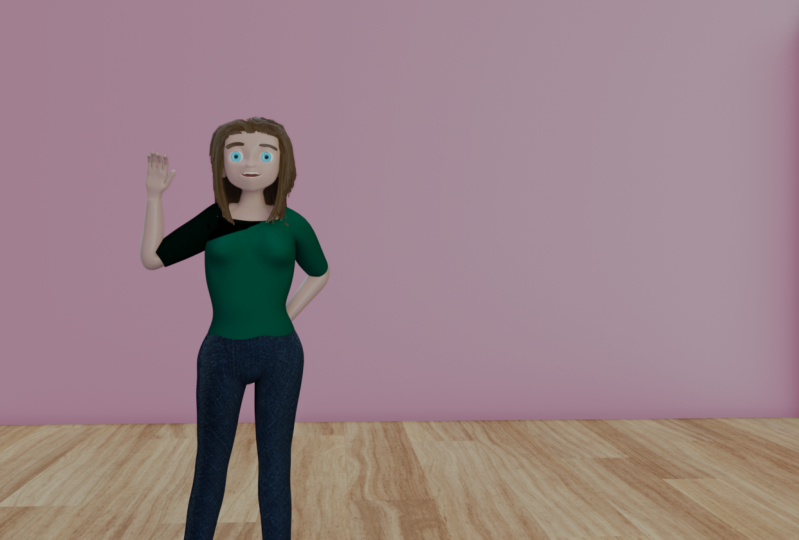
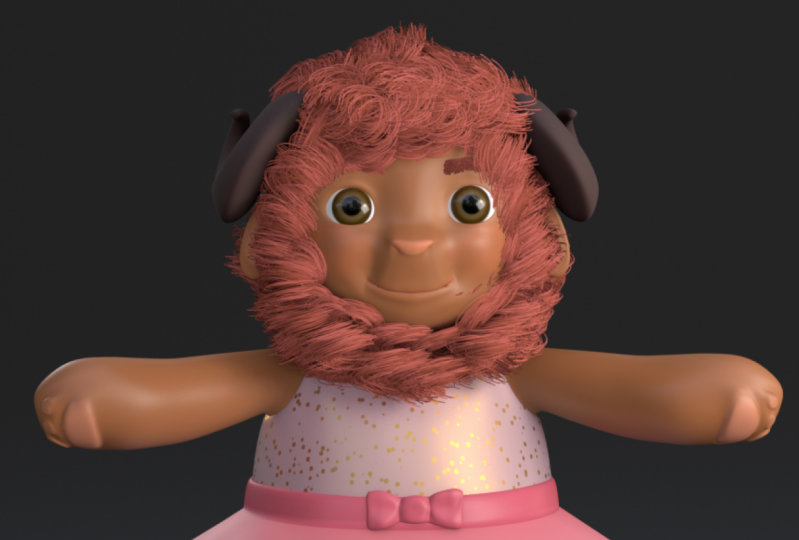
1. Course Promo Video: Hi, I'm Daron Lyle and welcome to this course where you'll learn how to create an animated character in blender to 0.9. This course uses only open source software, Blender and the paint program Krita to create an animated character from the first polygon to the final rendered animation. And here is that short animation that we're going to create with dialogue, sound effects, and music that we'll add in blenders, video sequencer. It's a cute little character for a children's animation. Here it is. I'm chlorine. Let's play. So we'll begin by first bringing in the reference images of the character and use blenders modeling tools to create the face with proper edge flow for animation. We'll create the hands, the feet, and the clothes. And when the modelling is done, we will UV map all the parts of the character. And we will use that UV map for our texturing. In the texturing phase, we will use Krita to create the textures for the close and blenders own texture paint tools. To paint the details of the skin. You'll learn how to use blenders particle system to create, cut and comb the character's hair. And then we'll use blenders, rigor phi rigging system to set up the bones of the character. We will bind the character to the RIG and adjust the weights to improve the deformations. And when all of that is done, we will begin animating the character. You'll learn how to set up a reference video and blenders interface, how to animate character movements, and how to create lip-sync animation for a dialogue track. In the end, we will add the music and sound effects and then render the final animation to a video file. If you've ever wanted to create your own 3D animated character, then this course is for you using all open source software. Discourse goes through every step of the process. So join me and learn how to create an animated character with blender to 0.9.
2. Introduction: Welcome, I'm Daron Lyle. In this course, you will learn how to create an animated character in blender to 0.9. We will go through the process of modeling, texturing, rigging, and animating this character using only open source software, Blender and Krita. Even though this is an introductory course, I will assume that you have at least some knowledge of Blender, like being able to navigate in the 3D view and move, rotate and scale objects. But throughout most of this course, I will also be displaying my keystrokes and mouse clicks here in the bottom right of the screen. So at anytime you can see what it is I'm doing that gets a particular result. I've really tried to show every step in the character creation process in this course, trying not to skip anything. You are of course free to skip around in the course however you like, but know that the information builds throughout the course. And I try not to repeat myself too much. So if you skip over one area, it may contain information needed for later sections. To help with this, you will also have access to all the project files for the course. You can download the blender scene files, the reference images, the textures, et cetera. So at any point, you can look to files from that moment in the course to help you understand what is being done. Well, I'm excited to get started. I hope you are too. If you've ever wanted to create your own 3D animated character in blender, than you've come to the right place. In the next video, we'll begin by bringing in the reference images and setting up the interface.
3. Importing Reference images: The first thing I like to do when creating a character is to bring in the reference images. And what I've done is just draw a few fairly rough views of the character of front view and a side view. And I'd like to bring those in to the scene here to help us begin the character. Now, I don't need any of these objects. I'm just going to hit the a key to select everything, and then I'll hit the x key and choose Delete. And there we go. Now it's bringing in a reference image. So first of all, what I'll do is just press shift a, which brings up the Add menu. You can also of course come over here to add. It's the same thing. But if I press Shift a and I go to image and reference, we can browse to the reference images folder that's in the project files that you can download. I'm going to open up that folder. And here we've got a couple of views of our character. And what I wanna do is bring in this front view. Now, if I select this front view and I keep this a line to view on what happens if I click here to load the image you can see is aligned to that camera view that I was at when the image was brought in. So I don't want that. I'm going to press Control Z and get rid of that. So let's try that again. I'm going to press shift a image reference. And if we select this and deselect this aligned to view, now we load the reference image and it comes in flat on the grid. So that's something that we can use. What I'll do is come over here and turn on the move gizmo. So we can see we've got these x, y, and z axes. We've got them over here, x, y, and z. So I'm gonna turn the reference image 90 degrees along the x-axis. And to do that, I can press our X9 0 and hit Enter, and that will turn it 90 degrees. So now we have our character here. What I'd like to do is bring him up onto the grid so he's kind of standing on the grid plane. And if we come over here, we've got this object data properties panel. I'll click here. And we can change things here for our reference image. So first of all, I think I want to take the size down. I think I want this character to be about 1.3 meters tall. So that's what I'm gonna do them to come in here and just type in 1.3. And there he is. Now I want to move them up so he's standing on the ground plane, as I said. So I'm going to take this Y field right here. And instead of negative 0.5, I'm just gonna type in 0 and enter and areas. Ok, now, the last thing for this image is to try and center. I'm up along the x axis. If I hit the one key on the number pad, we go to the front orthographic view. And in this view you can see that the z-axis is kind of off. It isn't going right down the center of the character. To move this image over, I'd need to be able to see that Z-axis. So I could put that z-axis right down the center of the character. And I can't see it, it's behind the character. But there are a couple of things here that we can work with to change how we view the character. So this depth tool here, as it says, it determines which other objects will occlude the image or be in front of the image. So if we chose the Back button here, now we can see the grid and the axis lines in front of the character. And this is just temporary. I'm going to change it back to default once I move the character around. But let's now grab this x-axis. I'm just gonna click and drag in the x-axis and drag them over. Now as I said, this drawing is pretty rough and you can see how the center of the body of the drawing is around in here, but the center of the head is around in here. So I wasn't really accurate on my drawing here. But what I'm gonna do is put the character centered in the head, on the face, right, right around in here. So for mine it's around negative 0.43. Alright, so that lines him up, right down the center aisle, change back to default. Now let's bring in the side view. I'll tumble back around and let's do that again. Let's press shift a image reference and then bring in this side view. Once again, it's flat on the grid planes, so let's turn it in the x axis, are X9 0. And then let's also turn it in the z-axis, this blue axis going up and down. Let's press R, z 9-0, and that spins that around. Alright, we want it 1.3 meters, right? And we want to type 0 in the y-axis to bring him up onto the grid plane. And there we go. So now we've got the reference images in place and we can kind of get a sense of the three-dimensionality of the character here. Just very roughly, I know, but you can kinda see how DPS gonna be, how wide. And I think having the images like this as kind of a good way to begin visualizing the character within the 3D space. But there are a couple of other things that we can do here. First of all, when I tumble around here, I can see the back of the front image and I don't think I wanna do that. I think as I'm working and I accidentally I'm over here, that may confuse me as to where I'm supposed to be. So what I'm gonna do is select that front image. And I'd like to turn off the ability to see it from the back. So if we come over here to side and I just click front, now we can only see it from the front and when they tumble around here, we can't see it in the bag. And I think that'll just help me keep from getting confused as I'm working here. Let's also rename these objects. I'm going to come up here and instead of empty, I'll call this front view. And for the side view here, let's just call this side view. And for the collection it's in this grouping that these kind of automatically went into. Let's change this and call it reference. And this is just where we are going to put all of the reference images as we bring them in. Alright, so now we've got our images in. We can come over here to the number pad on the keyboard and press the one key to go to the front orthographic view. The three key to go to the right or the graphic view. And we can see each of these on their own. If we then tumble around, we can see them both again in the perspective view. Now, sometimes you may not want to see things in the perspective view, but only in the orthographic. You can do that by just turning off perspective here. Or maybe you do not want to see it in an orthographic view. You can maybe choose the side and turn off the orthographic view here. So it just depends on how you want to work. Sometimes I like to just turn them off completely in a perspective view and only have it in the orthographic. And one way to do that quickly is you can choose both of the images up here, let's say. And with them both selected, you could turn off the perspective view by pressing alt and then clicking on the check mark. And that will turn that particular thing off for everything selected when you hold down the Alt key. So I can press Alt and click again, and that brings them both back. Just a tip there. If you have multiple things selected, oftentimes you can change values for all of them at once by holding the ALT key down and clicking. Now lastly, if you're working in this view and it's getting hard to see polygons because the images are so bright. You can always come over here with these both selected. I can come over here and press Alt and click. And now if I press Alt and click and drag in the opacity slider here, it can reduce the opacity, make it a little bit less bright. And so you can kind of see through them too. So you can also do that if you like alt, click here And that brings it back or turns off the transparency. Alright, now that we've got our images in, in the next video, we'll begin modelling the face of the character.
4. Beginning the Loop Mask: Now with a reference images in, let's begin creating the face of the character. And to do this, what I'm gonna do is begin just with a flat plane, just two dimensionally. And we're going to basically draw out in two-dimensions the polygon structures of the face. And the reason why we're going to do this is to try and make polygon structure simulate the actual muscles of the human face. And in doing that, we're hoping that when we animate the face of the character, it's going to be believable. It's going to deform in a believable way. So I'm going to come over here and create a new window real quick just by hovering over that corner until I get an x and then clicking and dragging down. And then I'm gonna come over here and change this to an image editor. And now in this image editor I can click on image open. And let's go into our reference images folder. And I've got a couple of diagrams that I've created. So let's select this front diagram. And here it is. And then I'm going to hover over that and press Control Spacebar to make that full screen. And what I've done is I've created a two-dimensional loop mask. I like to call it of the character. And you can see by the colors that I've put over the edges that what we're doing is creating kind of these loops around the mouth, around the eyes. And they kind of connect and loop around here. And you can see this loops down under the chin. So this actually mirrors the very basic structure of the muscles of the human face. And what this does is it helps make the deformations, as I said, a little more believable when we animate the character. But the problem is it's, it's difficult to think in these terms with these loops while also trying to model the face in 3-dimensions. So what I'd like to do for this kind of thing is I'm going to press Control Spacebar again, is to create these loops of polygons in two dimensions and then begin pulling it out into three dimensions. It's just a little bit easier to work on if we take one dimension at a time. Alright, so let's give this a try. What we're really going to be doing is just recreating this here. So you can put this up here as a, as a guide as we build the face polygon by polygon. So to begin, as you might guess, we're going to create a polygon. I'll press shift a, go to mesh and plane, and there is our polygon. Now, what I wanna do is split this in half so that we can mirror it over. And as we work on one side of the character, the other side will mirror what we're doing. So will only really need to be working on one side of the face at a time. So with this polygon selected, I'm gonna hit the Tab key to go into edit mode and then I'm going to press Control R. And if I hover over an edge, you can see an edge is created. All right, if I hover over this edge, perpendicular edge is created there or there. So I can click here and then move the mouse around and then click again and it'll place that edge wherever I want it. Okay, that's good. Well, here let me press Control Z and I'm going to undo that. But what I want for this is I want that edge to be right in the center without moving a bit. So what I'm gonna do is press control our hover over an edge here like this. And then I'm going to hit the Enter key once, and then one more time. And that creates that edge right down the center of that polygon. Now I can go over to face mode. I can click here for face select mode. Or of course I can hit the three key now you can hit the one key for vertex mode, the two key for edge mode, or the three key for face mode. So in face mode, I'm going to select this one face, hit the x key, and choose to delete faces. And there it goes. Now by tab back into object mode, we have that polygon, that's what's going to begin our face, we're going to put that polygon right here between the nose and the mouth. So let's turn it. I'll press RX 9-0. Hit Enter, and then I will scale it down, hit the S key, and scale it down all the way down to here and then click. Now I'm gonna go to that front view by pressing the one key on the NUM pad. And then let's just bring it up. And I'll zoom in a bit and let's hit the S key and scale it down until it's just about like that, right? So it's just right between the mouth and the nose. Now I want to mirror it over. So I'll come over here to the modifiers panel, add modifier, mirror. There it is. And I'll also click this button here to be able to see the edit cage when we tap into edit mode. Alright, so we have our first polygon in place. What I'm gonna do now is just select that edge and extrude it all the way around the mouth. So we get this very first loop of our loop mask. Alright, so I'm going to tab into edit mode and I can press the two key to go to edge mode. And I'll select this edge right here. It's a little hard to see that we've selected that edge. So what I'm gonna do is tap back into object mode, select that front view of a reference images. Go over here to that object data properties. And I will go ahead and turn on that transparency here and maybe I'll type in 0.25 into that just so we can see that a little easier. It, it's just a little too bright with what we're doing now. So once again, I'll select that plane and you know what, that plane right over here. We can click and drag that up into the scene collection, so it's out of the reference collection and let's change the name. Well, this character's name is going to be Cory. So I'm going to just type in SEO 4y, and that's my Corey character. Alright, so let's tap back into edit mode. And now we can see that selected edge just a little bit better. But in addition, I also want to be able to select the points. So what's cool about this, even though I can hit one to go to vertex mode, or two to go to edge mode, or three to go to face mode. What I can also do is select one of them, say like edge mode with two key and then come up here and hold the Shift key down and click on vertex select. And now I can select both vertices or edges without having to hit 12 or three and switch back and forth. All right? Okay, so now I'm going to select this vertex and kinda pull it up toward the nose. Maybe move this a bit and then I'll select that edge and hit E for Extrude and pull out. And then I'm going to take this point right here, hit the G key and move it up. And then maybe I'll move these over a bit and then I'll take this edge right here and hit II and move it over. And then I'll grab this point and hit g and move it down. So if you want to compare it to the diagram, I'm, I'm right here. So I've got, I created that first face here, then I extruded here under the nose and now I'm here, right. So we can just kind of move that out like this. Now I want to extrude over to this one right here. So we're kind of creating the top of this blue loop right here. I'll select that edge e and move it out. And then I'm going to bring this down. You can see right here, kinda like this. Now I feel like I need to move these out just a little bit more. So I'm going to bring these out like this. Just a little bit more like that. There we go. Okay. Now I'm going to select this edge once again, hit Ii, pull it down, grab that point, pull it way down here like that. You can see what I've done there, right? And then if I select this edge, we can begin extruding on down here. Select this point and move it to here. Grab this edge e, move it ended there. And then what I need to do is ensure that clipping is turned on for my mirror modifier. So if I come over here back to the modifiers panel, you can see this setting called clipping and I'm just gonna turn that on. Well, here, actually let me show you what happens if we don't turn it on. I'm going to click this, this one edge and hit II and extrude and look what happens. It'll just go right across the edge there and won't snap together or clip together. So what I need to do, I'm going to press Control Z to undo that real quick. What I'm gonna do is just select here, turn on and clipping. And now with this edge selected, I'm going to hit II and move out and look at that. It snaps together right at that Z-axis. So now if I click, even if I grab one of these points, I can't move it off of that z-axis. It's clipped there. So I can take this and hit g and just move this up a bit. And so right here, right there, that's most of that blue loop. You can see that that blue loop comes up here and then that white line comes down like that. That's what we have here. So that's really our first loop in the structure and the polygon structure of our characters face. Alright, in the next video, we will continue on with this and begin creating the other loops of the characters loop mask.
5. Completing the Loop Mask: Continuing with our character's face, let's now work on this little part on the nose right, right here. And it's got just one little trick here. One little thing that I need to show you, if we select these three points, two edges. And if I hit II and pull up, this is what we get right? Now. I'm gonna take this point and move it down. But notice this point right here, I've moved down and right in line with everything else. So what that's done is it's basically created an extra edge right in here where we've got this edge and this edge and this edge now. So I've got three edges where we did have to. And if you take a look at this, we've got this row and this, so this whole thing right here is now that whole blue edge right there. So from here, let's continue on up along the bridge of the nose. Let's select this edge and this edge. And then I'm just going to get a0 and pull up and come right about. I don't know right about here just a little bit above the bottom of the eye. And then we can extrude one more hit II and pull up to here and write up here. I think what I'm gonna do is turn this curve here. A quick way to do that is just to hit S and Z and you can kind of scale it down one way or the other you see is you can just move it like that. Alright, so there we've got that area going up to the top the eyes. Now let's go around the eyes. Let's go ahead and create that loop around the eyes. We've done the loop around the mouth. Let's create it around the eye and then we can kind of build all the other loops around that. Alright, so I'll select this edge here and then let's see it e and move out toward the eye. And I'll hit the S key and scale that in. You can see that right here. So I'll hit g and kind of move that into place there. And now we've got this edge and this edge that we can use to extrude out all the way around the eye. So let's now grab this edge e il up to here. And maybe I'll grab this point and kind of pull that up like that. We can move these out of it if we wanted just to kinda spread it out a little bit. Maybe I'll move this point here, grab this edge e, and move over to about here. Grab this and move it up to here. Let's then grab this edge one more time. Ii, pull it down to something like this, and move it out to here we go. So we're right here. I will take this one, extrude, move this down to here. Then let us take this and pull that down a bit. And then we can take this and Extrude two here. Now we're going to go along the bottom of the i. I'll bring this down like that. Let's select this edge e, right down to here. Maybe move this point like this. And then we need to connect these two up right here. So let's select this edge, shift, select this edge and just hit the F key to create a face. And there we go. Now. You may have noticed that right here I kind of skipped an edge. All right, we've got this edge right here that I don't have yet. And all we need to do for that, it's just press control are and bring that down. I clicked and then I'm going to drag down to here. And then I'm going to click again. And there we go. So there we have that edge right there. Alright. Now we need to work on the loops coming out of that blue loops. So the green one and then the yellow one here. So I'm going to select these edges all the way around here. And what I'm gonna do is I'm going to hit ie to extrude and I'm going to immediately hit.'s and I'm going to scale out just a bit to kind of pull the edges away. Alright, so when you get E, S, scale out and click, now many Hit G and pull out a bit like this. I don't need to pull out a whole lot, something like this. And we go, now I can begin putting these in place. So I'm going to take this point and merge it with this point here. So I'll shift select that. And to merge these together, I'll press M and choose to merge at the last one selected, so it moves that first one over there. Alright, so now I'm just going to move some of these around. And what I'm looking for here is I kinda want a sunburst pattern radiating out from the mouth. So I can bring these down like this, like that. And like that you can kinda see here I've just got kind of a sunburst pattern moving out from the mouth. All right, I've got this now. Now I want to connect these up, this i loop and this mouth loop. So to do that, I'm just moving some points around the kind of line them up. And now you can see between the green and the orange and the yellow here. All we really need to do is select these edges and then hit the F key. And I'll select these edges and hit the F key. And that begins that loop here around the mouth. Now we can do that same thing again where I extruded in scaled. We can select these, get ES and scale out of it. Click, then hit g and move them out a bit like that. There we go. Let's merge this point with this M at last. And then I'll just go through and kind of adjust these points. You get kinda that sunburst pattern that we want. All right, now we're working on this pink loop right here. For this, once again, I'll select some edges like that. It S scale out of it. It G move out a bit like that. And then we can begin adjusting these. So I'll move this over here. Select that m At last. Move these out like so. And get these kind of in place as well. Alright, now we've got one more, got this purple loop here. Same thing. Let's just select the edges all the way down here. Es, scale out g, move those out a bit. And then I'm just gonna take these kinda all the way out near the edge of the face like this. Okay? So there we have the loop mask. If we tumble around a bit, you can see that there it is, is just a two-dimensional flat mask. But what it does is it holds that pattern, that structure of those polygons that's going to be important if we try and animate the face. And now with that structure embedded in it, we can begin pulling it out into three dimensions, pulling it forward toward the front of the face. So in the next video, we'll begin working on that.
6. Pulling the Face into 3D: So now however, we push and pull these points of the loop mask, this polygon structure will always be there. To begin, let's change our view here. Let's go to the quad view. Let's press Control Alt Q. And now we've got a for window view of the top orthographic, front and right orthographic as well as the perspective view over here. So let's zoom in and take a look at this. And what I wanna do is grab a point on the front and then pull it forward toward the front of the face and will be able to see it happening here in three-dimensions. It's going to look very odd as we get going here, but I think you'll see the benefit of this as we keep going. Alright, so what I'm gonna do is I'm gonna take, say this point right here at the bottom of the nose. I'm going to turn on the Move tool here, and I'm just going to click and drag on the y-axis and drag this out. And we go. Now you can see what it's doing here. He kind of looks like Pinocchio. But we're just going to bring all of these points out to kind of mold to the face. In fact, what I can do is I can come over here and let's open up a new image. Let's bring up this side view loop diagram here. Let's open that up. And once again, I'll press Control Spacebar to take a look at this and you can see what we're gonna do. We're just going to bring these points out so it kinda molds to the face. As I said, the structure is still there. So no matter how far we pull it in or out, we'll always have those loops. We don't have to think about that anymore. So let's press Control Spacebar again, and let's keep going here. Let's select another point. Click over here and bring it out. This one is going to be at the tip of the nose. Now, you can also press all z to see through it. That's just X-ray mode. You can always press all Z to go back as well. Alright, so let's select another point and bring that out. And another point and bring that out. And you, so you can see we're just beginning to bring each of these points out so that conform to the face in three-dimensions. Alright? And you can see it looks a little strange there, but that's okay. I'm gonna grab this point in the center of the upper lip and move that out. And the bottom lip here, right here, move that out. It looks like my drawing here in the side view is a little bit too high. So what I'm gonna do is tap back into object mode, go into the references collection, and let's choose that sideview. Go to our object data and in the y, I'm just going to bring it down, click on this arrow and bring it down just a little bit like that. Let's try that. Alright, I'll select the face again and tab back into edit mode. And so yeah, I think we can work with this a little bit. So of course we're going to need to add more points, more edge loops as we go on. But this is just the minimum required loops to get the structure of the face. I'm just going to continue selecting points, moving these on down, bringing them out to conform to the drawing of the face. Right out here. And the one down here, I'll bring out right to maybe bout here. Alright, so now we've got that center row down. Let's begin on the next row to the right. I'm going to bring this one out like this. And bring this out. And just keep on going. Bring an amount. So it kind of curves around and create that curve of the face going on out here and then this one down here. Alright, and you can see here what were shooting for. I will bring that a little bit. This is the kind of thing that we're trying to get as we bring these out. So it looks like I've already got that point brought out about this one. Yeah, this one's back here. Let's bring this one out. And we'll just keep going. There aren't a whole lot of points here. This may seem a little tedious and I agree. But what we've done is we've created this loop structure to be as minimal as possible, to use as few points as possible. Ok, looks like I brought two out at once here. Let me just select one and bring this out. And then I'll begin on the next row. Bringing this out to ride around in here. We miss out. And we'll just keep going row by row, up and down the character here. Like we got that one, we've got that one, we've got that one. So let's go out here now. Bring this one in. Like that. Let's bring this one out. And we've got that one. I'm going to bring these out now down here. Here we go. And you may have to do some adjusting as you go. And what I would also suggest is at least at this point in time, don't worry about moving in the x or the z-axis. Just think about moving in the Y axis. Keep it simple here. Keep it very simple. As we're moving these things out. And I'll move this up to here. Got that one. I'm going to grab these two at the corner of the mouth and bring those out. Something about like this. Alright, so we've got that, let's go up to here and bring this out. Got that one. Let's start bringing these out now. And I think I'll move up toward the eye now. And you can see here what I'm working on. Up toward the eye. Let's see. We've got that one. Yep. Do we have these around the I know we do not. So let's begin working on these around the eyes. You can see those here with the white outline. Move these out. And the great thing about this too is you can create this flat loop mask and just put it aside, save it as a copy. Save the file, and then just reuse it for almost any character. You know, you can just reuse it and re, adjust it for almost any character. And it's really just about how much more resolution you put on it for this particular character. We're not going to put a whole lot more resolution on this than we already have. We're going to add a few more loops and vertices, but we're gonna keep it pretty low poly so that it's pretty smooth and cartoony. Alright, so now that we've got that, let's see where do we need to go from here? Let's go to this one right here. I'll move that out of that out like this, that out like this. And once again, you can keep an eye on this just to see where where you are at any point in time. And let's bring this one out. I'm gonna move this back. Move these back just to hair like this. And as I said, you can continue tweaking this. Once we get all the points roughly in place, then we're gonna go into the 3d view up here. And we're going to tumble around and try and get things a little bit more to where they're supposed to be. For right now. We're just pulling them out. Alright, so we're close now let's see what do we need to bring out? Well, those are already out. Here's one right here. Let's bring this out. About this. Yeah, we need to bring that out. Okay. We're getting close now. Let's take a look at this one. Yeah, we can bring that up. We're right up here now. Let's bring this out. And I'll bring this forward here. Let's, we've got that one. Let's grab this and bring it forward. And let's bring this forward. Okay, now we've got our general structure in place. I want to press all Z and you can see it looks terrible here, right? We don't have it really in place yet. But what I'm gonna do is push and pull some points in here first, before I go to that 3D view, I'm not quite there yet. Let me bring some of these out and push some n just to get a little bit more of an alignment like the one we have in the diagram here. I'm going to bring these back. I think something like that. We don't need them quite so far up. And it's hard to tell where you need to put them when you're just bringing them out one by one. But now that we have these, we can do a little bit of rearranging. In addition, I think I'm going to begin pushing some of these forward like this. And here on the cheek, push these forward a bit. Just give this a try, see how it's gonna work. Maybe pushed this forward some. There we go. Okay, so now what let's do is let's press Control Alt Q. And let's tumble around and see how creepy it looks. It does like a little creepy. I'm going to turn off the reference images here. And now we need to go through and get things more curved. So currently we've got this kind of sharp angle here. We've got kind of an angle going back like that. And on the nose you can see we've got that sharp angle there. So what we're gonna do in the next video is go through and try and round it out a little bit. Make the angles a little smoother, a little more curved. Before we move on to creating the rest of the head.
7. Adjusting the Face and Adding the Eyes: Now we have a little bit more freedom to move the points in and out as we want. Before I said we should keep the movement of the points in the y-axis, kind of like this. But now that we're working on smoothing out the curves here, we can really begin moving the points in any direction we need to. But for now I'm just gonna begin moving things forward to kind of get this curved c. You can see here that we've got a little bit more of a curve to this instead of that sharp angle, you can see there's a sharp angle here on the bottom lip. And this is all we're gonna do for now. We're just gonna go through and try and smooth out the sharp edges. Now we don't have a whole lot of points here, of course. So there's always going to be some jaggedness to the edge flow currently until we use the subdivision surface modifier to smooth things out a bit. But for now we just wanna get things as smooth and as curved as we can without that. And you can see here up at the tip of the nose here how, how angle that is. So let's come in here and begin kind of pulling these up to round that out a bit. Maybe I'll hit g and move that out. So you're just going to want to go through here and try and smooth things up a bit. Here's an area that could maybe use some adjusting and I'll move this back out just a little bit more. And then we can come up in here. You can see there's an angle here. So just when we pulled those points out, we couldn't really see what we were doing since we were just in one plane, just from the front or side view. So things got a little jagged here and that's fine. That's part of the process. This is what we need to do here. Alright, so let's see how we're doing. I'm going to tap back into object mode, and we're gonna probably need to add just a couple of edges. At this point. I'm going to pull a few more out here, try and round out the cheeks just a little bit more. And also another thing we should do is go ahead and put the eyeballs in. Go ahead and put the eyes. And even if it's just a temp eyeball, so we can better adjust where the eye is going to be. So we will do that in just a moment here. I'm going to bring these forward just a bit. And the edges I think we could probably add right now two things. One is an edge right here. So we have a few more points so we can pull out the nodes. And the other is an edge right here where the bridge of the nose meets the forehead. So if we come back here and open up the reference images again, and I'll hit the three key to go to the side view. And if I press all Z, we can see here the contours of the reference image. And we just don't have the points here to be able to pull this out or to pull that in. And that's what I think we need to do. Let me tab back into object mode and I'm just going to go to this side view. And I feel like I want to bring this down just a bit. And we'll type in 0.3 for the transparency there on that image. All right, now let's go back. Here we go. So as I said, I think what I'd like to do is insert an edge loop right here, control our click and click again. And down here, control are, and add that as well. Okay, so now that we have those, let's go back to our side view. And now we could take these. I'm going to press the B key and border select these three points and then hit the Z key and move that down like that. You can see we can move those. Oh, I had this selected as well. Let me press Alt a, then I'll press the B key. There we go. We want to bring that in so we can align the points a little bit better to the outline of the image. Let me do the same thing here. I'll border select these points and hit g and move that in. And now we can take these points down here, begin moving these out. So the more match the image. Here we go. Alright, so let's see how we're doing. All z. I'll tumble back around here. I'm going to come up and hide the reference images there. Now let's see how we're doing. I'm going to tap back into object mode and that's not looking too bad. We could maybe pull some things out here. Let's do that real quick. But what I'd like to do is smooth this or apply smooth shading to the object so that we can get a little bit better sense of how it's going to look. So to do that, I can select this in object mode and come up here to object and shade smooth and that tries to smooth out the rough edges. All right, well, let's begin to move some of these in and out just better. I feel like we could move some of these in. Let's take a look now. Maybe move these in a bit. And then these in. And yours is going to be a little bit different depending on where you have your points. So which points you're pulling in and out may be quite different than what I'm doing hears and and that's okay. That's you have to work with the model you've got. So if these points on yours are fine, then don't worry about moving them around. Alright, Also, I think maybe I'll take some of these. You can see there's kind of a sharp angle here. I think I'd like to move some of these down as well. I currently have both the vertices and the edges selected up here. So when I try and select a point, I sometimes get an edge. So I'm just gonna go back to only vertices. So it's at this point that I think I'd like to add the eyeball to the eye sockets so we can begin to get a sense of where the outline of the eye should go. It's kind of hard to know where things should be here in this area. Because I don't really know how far I can pull these back or in or anything like that. So let's add an eyeball here to help us out. To do that, I'm gonna come down here and just press shift a and go to Mesh in UV sphere. And currently if we bring this up here, we can see we've got 32 segments. I think that's fine for now. Let's just spin it in the x axis with RX 9-0 and then Enter. And now we've got the poll here up at the front where the eye ball is going to be. And then I'll scale this down with the S key. Let's bring it up and see if we can put it in place. Now, I'll bring back the reference images so we can get a sense of where this is supposed to go. And I'm gonna hit g and move this over. I might scale it up just a bit right now and then go to the side view with the three key and move this forward a bit. And that may be a bit, a little bit too much. Let me press all Z so we can see through it. I'm going to bring it back, go to the front view, maybe bring it up a bit. You could also go to the quad view with Control Alt Q. And now you can kind of get a sense of where it is here. Maybe I'll move it up to here. And I think that's pretty good. It's going to be really hard to tell until we begin moving the eye socket, the points around the ISI going around. I feel like maybe this needs to come down a bit. Something like this. Let's give this a try. Now, I'm not going to keep the eyes as Oval as they are here. They're going to be more rounded here. But I'm hoping to keep the same kind of look to the character. Alright, so let's just say at least for now that's where the eyes are going to be. I'll press control alt cue to go back. And let's mirror that over. To do that, I need to move the origin of the object to the center of the grid. Currently the cursor is here at the center of the grid. If it isn't, if it's somewhere else, you can always press Shift S and one to move it to the 3D cursor. And then you can come up here and go to object, set origin and move the origin of the object to the 3D cursor right here we go. Now that that cursor is in the center, it'll mirror around that across the X axis. So with the I selected, let's come over here to the modifiers, add modifier and mirror. And there we go. Now I have the x axis selected, so that's good. All right, so once again, I'm gonna hide the reference images and then I'm going to select the character. And now I want to just begin moving these points in and out to try and get them around the eye. So maybe if I move this forward and out of it. And maybe if I select this and move it forward and out just a bit like this, right? So I'm just trying to find where the points are going to be. So these points can be around the eye and it's kind of hard early on to know where they should go. But you gotta just kind of give it a try at first and then you can begin adjusting more and more as we go here. So I'm gonna get these in place, maybe move these down. And in. You're just gonna have to try and find what feels correct. It may not always be obvious, I'm afraid. And I'll move this out a bit back some. Alright, so I think that's pretty good there now I'm going to start moving some of these back a bit. And I want to move them kind of in line or along this edge. So what I can do is instead of just pressing the G key to move, I can press G2 times and then it will slide along any one of these edges. So I wanted to slide along this edge right here. And then I'll select this and G2 times, move back G2 times. So I'm just sliding these edges by getting G2 times and moving them back a bit. And we go, Okay, hi, may need to move them back up. But let's try it like this. Okay. Now how we look in here, well, he's looking a little bug-eyed, isn't 10x. And that's why these going to look a little strange as we go here. I'm going to tab into edit mode, and I'm going to pull this back just a little bit. There we go. And also I think I'm going to take those eyes and I'm moving them around. In edit mode. I'm tabbing into edit mode and hitting a to move this around. Because if I move it around in object mode, it will move that point. And I, I don't wanna do that. And I'm going to move this down a bit. And there we go. And then I'm going to take some of these and begin moving them up and out. Just a pill like this, something like this. So as you can see, this, this particular portion, this particular part of the process is really kind of move and test C, which you can come up with. Don't be afraid to just grab these points and move them around and try and get them in a pattern, in a shape around the eye that works. So now that we have that IN, We can see that this is pulled away too far back, right? We can begin to see where some of the problems are on the rest of the face. And that's what putting the I in can do for you can really help kind of ground the face and help you understand what needs to happen on the other parts beyond the I. Alright, so now that I've got that, I'm going to begin moving other things around, rounding out the curve's more same thing we were doing before, but just now I feel like I've got a better sense of where things should be simply because the iss n. All right, so he's looking a little creepy. He's going to And that's fine. I'm going to keep moving things forward, keep re adjusting until we get things just the way we think they should be. And remember, you can move things in any axis now you don't have to just move things in the y axis. So I want to move these forward, some of this back a bit. All right, so we've got the eyes in and relatively in place. We're going to of course continue to adjust this. But if we tap into object mode, yeah, you can kind of begin to see where we're going with this. And also if these circles in polygons in the eye is kinda throw you off, you can always select that and once again, add the shade smooth here. And that kind of smooths that out so the eyes don't look quite as creepy. As I said, we're always, we're going to continue doing this, continue readjusting as we go. But I think this is good enough to move forward. So in the next video, what lists do is let's add a subdivision surface modifier to it, kinda smooth it out even more. And then we're going to begin up here and we're gonna extruding up to create the forehead and the top of the head.
8. Extruding the Forehead and Top of Head: All right. I think now's probably a good time to go ahead and add that subdivision surface modifier. Let's select the face and I'm gonna come over here to the modifiers panel and let's add a subdivision surface modifier. And then you can see how that smooth that out quite a bit. Currently the viewport levels is that one, we can bring that up a little bit more to two if we wanted. But for now, just to keep things moving in the viewport, I'm gonna keep it down at one. Alright, so now we can begin to see some of the curves that are hopefully going to be happening here. We can also see up here that the forehead really is kind of warped. It looks like the points above the eyes are going to need to come forward quite a bit. And when I tab into edit mode, we get kind of a dual view. Both of the polygons and of the smooth version. We can come over here and turn this on right here, the edit cage. So the actual polygons conformed to the smooth mesh. Alright, so now I'm just gonna begin moving some of these forward. And I don't know if you can see this right here, how the move Gizmo is kind of apart from the Point. And that's because this is where the actual point is. If I turn this off again, you can see that's where the actual polygon point is. So if I turn this back on, it moved to where it's smoothed. One of the problems you can come across is if you're, If I do this, you can see how far that moved Gizmo is away from the point now and that's desk just too much. You need to be able to keep the gizmo fairly close to the point. It may not be completely possible all the time, but it's just something to keep an eye on. If the move gizmo gets a little bit too far out, it usually means that the polygons are a little bit too stretched and we wanna keep our polygons generally the same size. Ultimately, we're going to be adding some more edge loops in here, and we'll be able to manage that a little bit better, but just keep in mind that you don't want that gives mode to move way off away from the points when you've got this subdivision surface modifier on. Alright, so I'm gonna begin moving some of these around a bit and I want it to go forward some so that we've got more of a forehead in line here so we don't have that big curve the way we had it before. All right, so I think that's a little bit better there. If we hit the three key and turn on our reference images right over here, I'll press all Z. We can kind of see the outline of the drawing. So maybe we want to border select these and kind of moving. Then maybe we can grab some of these and move them back a little bit like that. So we're just trying to continue to mold the polygons to the drawing. As best we can at this point. And ultimately though, we're going to have to put the drawing aside, ultimately, at some point we're going to have to say, okay, I need to just allow the 3D model to be its own thing, to not slavish Lee conform to the drawing because ultimately that 2D drawing is a different thing. Your 3D model is going to be a thing of its own, a character of its own. So it needs to look good on its own. Alright, so now it lets do is begin extruding this up and back over the top of the head. And I'm like I need this one over here. I'm just going to right-click and choose join area and click there. And we go, we're going to use this side over here. And I think what we're going to also do is go ahead and use that quad view Control Alt Q. And what I'll do is just keep an eye on these as we extrude this up and over the head. So I'm going to click here and control click here. And we're going to bring this up and over. Now as we do this, I'm going to begin spreading these points out a bit so that by the time they're at the back of the head here, they're a little more evenly spaced. Alright, let's give this a try. So with these selected, I'm going to press the E key and move up just a bit like this. And as I mentioned, I just want to grab some of these and begin moving them out a bit. So I'll just kinda bringing these out just a little bit like that. And we go. And then we want to do that again, I'll select this and press Control and click this point here, and that'll select everything in between. And then let's do that again. Let's take this and hit II and move up. And like that. And we can also keep an eye on adhere, makes sure that we're not doing anything horribly wrong as we go. I could probably take this and move it back in the y just a bit like that. Give that more of a curve there. So you can just keep an eye on everything. You kind of keep an eye on every view after every Extrusion here. So I'm gonna click this and control-click that to select all of those. And I may just scale these in the Z to flatten them up just a bit. If I hit S and Z, you can see if I pull the mouse and it kind of flattens that up to bet, I'm going to go. So I think I want to do that. Also over here. We're going to want to turn these angles are turned these edges just a bit. So if I hit the R key in the side view, you can see how I can kind of turn those edges like that. But we're gonna do that as we go up a little bit further now. Alright, so once again, let's hit II and bring this up and over where the head would be. It's kinda hard to know where it would be under the hair, but we're just going to have to make a guess there. And at this point, what I'd like to do is, as I said, hit that archi and turn it just a bit. And we go because we want it to kind of fan up over the head like that. Alright, the space between the polygons, between the edges doesn't look too bad. I'm gonna go ahead and just pull these out just a bit to try and even them up just a little bit more. Because that is important to get these fairly evenly spaced. Alright, I'm going to select that edge once again. And hit Ii, pull back. I'll hit the archi and turn it just a bit like that. And now let's take a look at it here. It looks to me like these are a little bit too far up. Like we don't have a good enough curve here. So I'm gonna begin bringing these back just a bit like this to let it curve around the side of the head a bit. Just a little. There we go. Alright, I think that's okay. And now let's do it again. Let's select this point and control. Click that. And then we're going to take it up over the head once again, so e and bring it back. I'm going to press R And turn it just a bit. Now what I can do is come through here and begin pulling these out a bit. I'm going to press Control Alt Q and hit the three key to go to the side view. And if I press all z, I can see through it a bit with that x-ray and I'm going to press Alt and click an edge. And now I can begin to kind of adjust these again, like this. As I think they should be about like this maybe. So you can always go back and readjust move things around a bit to get them just the way you want them. I'm going to press R and turn that a bit and move that like this. Yeah, something like that. Okay. I'll see areas. I can press the Tab key and hide the reference image there. And you can kinda see the beginnings of the forehead going up there. It looks to me like this is a little bit flat, so we could come in here, turn on the proportional editing tool here, make sure it's on connected. And if I hit the G key and scroll the mouse wheel, I can change the influence and then begin pulling this up a bit. That grab this and pull it up. There we go. So I'm just pulling that center up just a little bit to get more of a rounded top to the head. I compress g and Z0 and pull that up just a bent like that. And we go, all right, so I think we're getting there. We're just gonna do a little bit more pulling here with the proportional editing tool. Getting these inline before we move on. And we go, we just want to keep tumbling around and making sure that all our edges are nice and smooth because this is a cartoony character and we want it to be nice and smooth all the way around. Alright, there we go. So we've got the beginnings of the forehead. In the next video, we'll continue on back behind the head and then will have to connect the front and the back here up on the sides. So that's coming up next.
9. Creating the Back and Side of the Head: Let's go ahead and turn the reference images back on, and I'll go back to that quad view with Control Alt Q. And let's continue on our way over the character's head and down the back. If we select the face and tab into edit mode, we can grab this line of edges right here. I'll press Alt and click that so it selects all of those points. And let's begin moving this back. Now let's hit II and bring it back some. I'll hit the key and turn. Oh, I still have that proportional editing tool alone. You can see here that the shortcut key is o. So I'll just hit the O key to turn that off. And let's get this one in place. Maybe turn it a little bit more. Now we've got to turn this back right behind the ear, like that. So let's hit E again and pull back it our, and rotate that a bit. Kinda pull that town like that. Now maybe a good time to go through and do some readjusting here, I'll press Alt and click here, hit the G key and begin moving these around again. And maybe this 12. Here we go. Alright, so now let's grab this one again, alt click. And maybe I'll bring it back a little bit like this, so it's not quite as stretched. There we go. So now we've got to bring it back down here. I'm going to tumble around. Make sure we're okay. There's some points in here that we're going in probably need to adjust, but I think it's looking okay for now. Before we go any further, we need to think about how these edges say here and here are going to be matching up or, or are they? That's the question. So let me press Control Alt Q and go back here and I'll press the three key just so we can see this a little bit bigger. So currently, I've hit the two key here to go to edge mode. Currently we have three edges up here. And this edge and this edge seem to be inline. And I think that's what we want. And as we extrude down here, we want to keep in mind which edges are going to be in line with the front edges, right? Because we need to be able to connect these up and it's going to be a lot easier to do if we think about how that's going to work beginning now. So I'm going to press Alt and click this edge. And then I'm going to hit II and bring this down, something like this and maybe hit our and turn it just a bit. So now this edge and this edge are going to link up. This edge and this edge are going to link up. And you can also look at it like this edge. And this edge should be inline once we connect all of these up, right? And this edge, and this edge should be inline. So we're just trying to keep an eye on how are going to connect this up. I'll press Alt a to D select, and then I'll click this edge. And now let's hit II and extrude this down just a bit like that. I think I will pull out just a bit and go back and pull these out just a bit as well. Once again, you can always go back and readjust. Now let's go down one moral hit II and pull this down to right about here at the archi and turn it so it's kinda flat. Alright, so now let's take a look at what edges go with what. So we've got this center edge ride and then we've got these two out here. Then we've got this one and this one. And we've got this and this, this, and this, and this and this. I'm gonna go back to the quad view control l q. Just so we can kind of keep an eye on this as we're connecting these up. All right, so to begin this sides, the first thing I'm gonna do is select these three edges up at the top. And I'm just going to hit II and extrude down. I'll hit Ii, pull down like this. You can see over here that I may need to bring these out a bit, kinda preserve that curve of the head here like that. And then I think I'm gonna do that again before I connect anything up, I'm gonna do that again. I'm going to hit II and bring this down so that this edge lines up right along there C. So I can maybe bring that out about like that. Now that we've got those pull down, I can take this edge and this edge and hit the F key to create a face. And I can take this edge and this edge and hit the F key and create a face. Now we've got this strange little hole here. This is a three-sided whole currently. And if I just select one of these edges, I can hit the F key to create a face. And it'll create a triangular polygon there. I'll select one and hit the F key there. And generally speaking, we're going to want to stick with quads for creating characters. In other words, four sided polygons like this here, right? But to turn this down like this, I don't mind having a triangle here on the edge of the forehead. I don't think that's such a bad thing. If we were sculpting this, if we were actually going to go in and do some high resolution sculpting. We wouldn't want that here. But a triangle right here using subdivision services. It's not a terrible thing and it's a nice way to turn these polygons down toward the bottom of the head, toward the jaw. It usually doesn't cause too much problem here at all. So continuing on down, I'm going to select these edges here, right along here, these five edges. Now, I'll hit II and pull down. We want to probably pull this out just a little bit now. And then I need to connect these up. And the way to do that is just to merge these points. So if I hit the one key to go to vertex mode, I can select this point and this point with the Shift key. Press the key on the keyboard and choose to merge these two points at the last one selected. Right there. Alright, let's do that again over here. Select this point shifts, select that one, press the key. And choose at last, there we go. Now we can begin pulling these out. Maybe take these two points or even I could hit the three key and select this face here and hit the O key to turn on proportional editing. I could then maybe hit CI and pull this out. Scroll the mouse, we'll change the influence and began kinda pulling these out abet. Kinda like this. And we go see how we're doing there. Yeah, okay. Let's do this again. Let's take these three edges now. It the E key and pull down right here. Now over here we could take these three edges here, get the F key and it'll create a quad there. Could grab this point and move it a bit. I'm going to turn off the proportional editing tool with the o key G and bring that back a bit. But just once again, realigning points, readjusting As we go. Gotta do it all the time, I'm afraid. And this over here now, I think I can connect this point and this point with the merge tool at the M key and choose, at last, select these four edges around that hole. If the F key and it'll create a face there. Alright, so I'm going to go back to the perspective view. I'm going to press Control Alt Q. And here we go, I'm going to turn off the reference images and begin taking a look at this. And as is, just to see how we're doing and I can begin pulling some points, readjusting, making sure that we've got smooth curves all the way around. That proportional editing tool is going to be good to use for this. I'm going to bring that in just a bit. So I'll turn that on. And we can begin pulling points and moving them around, scrolling in or out. However we need to do it to begin getting these points the way we want. Right? Okay, I'm gonna hit the Tab key so you can kinda see where we are now. We've got some more to do. Of course I'm going to pull this out and we're gonna do a lot more around the front of the face as well. But for now, what we wanna do is connect this up so that if I hit the three key and turn the reference images back on there, what we need to do now is connect this area, bring this down, right down here, bring this back toward the neck as well, and create an opening for the neck to come out. So in the next video, we'll begin working on that.
10. Extruding the Neck: Alright, now we come to a part that's a little bit complicated. There's, there's actually a couple of complicated or not complicated, just kinda tricky parts to creating a cartoon character like this. And one of them is the neck and the other one is the transition from the hips into the legs. So for this one, we're gonna do a couple of things first and then we're going to work on creating that extrusion for the neck. I think first of all, what I wanna do is just select some of these edges here, and I want to extrude them back. So I'm going to hit II and pullback here, maybe to about right here so that this edge is lining up here. I'll also take the opportunity to just alt click a couple of these edges and hit g and begin moving these around. I've got the proportional editing tool on, so I'll leave that on for now. But I just wanted to move a couple of these around to get it a little bit more in line with the drawing here, something like that. I'll go ahead and turn that proportional editing tool off now. And so now let's go ahead and take these edges right here and hit the F key again to fill that with a phase. And then what I'm also going to do is take some of these edges back here. And I may have to tumble around to make sure I've got them all. Yeah, I need one more. There. There we go. Now go back to the side view. And from here let's extrude down. Let's hit II and pull down like this. And I want to pull it back some or excuse me, forward, I guess, like that to kind of continue that line of the back of the head here toward the neck. We can also scale this in the Z if we want to, we can press S and Z and scale this so it flattens up just a bit like that. And we go, we can also scale it in the y. We can press S and Y and scale it in the y so we can increase or decrease it like that, let's say. And then once again we can come over here, select this edge, this edge and this edge and hit the F key. Ok? So now were to a point where we're going to have to do something kind of weird. First of all, I want to go through and select some points and get these arranged. So once again, they're fairly evenly spread apart. Nothing like that. Okay, so now we've got this strangely shaped thing here. And what I wanna do is transition from this strangely shaped opening here to a nice round opening around the neck. So there's one tool I like to use in this process, and that's the loop tools. It comes with Blender, but it doesn't usually come already installed. So to do that, we can come over here and go to Edit. And Preferences. And then in this Preferences window, we can choose add-ons. And then up here in the search field, we are searching for an add on called loop tools, l, o, p, and there it is, mesh loop tools. So all I've gotta do is just add a checkmark here, right there. And you can see here, if we spin this down, that we're going to find it in the viewport, in the sidebar. And the sidebar is the one you hit the end key for. So now that that's here, let's go and close this and hit the Enter key. If we come over here, we see we have a new tab right here. Luke tools. And if I spin that down right there, we've got some new tools that we can use. Now, each one of these has a little spin out panel here. But I just wanted to get that in place and ready to go for the next step in the process. So with this whole edge selected, this entire thing here, what I'm gonna do is I'm going to hit II and extrude it and pull it way down. And then I'm gonna flatten it, shrink it, and pull it back up. So let me just show you what I mean. I wanna hit Ii, pull way down, see how weird that looks. And then I'm going to hit r and spin it around some. I'm going to hit S and Z and scale it in the Z to flatten it up a bit. Then I'm gonna hit S and Y and scaled and the y. Now, that's getting there. But if we tumble around, look how weird it looks here. And what I want to point out is since we've got this mirrored, we can't exactly scale from the centre as it is now. We can move the cursor and scale from the cursor, we can do that. But also, if we scale from here, I just want to show you what happens. So if I hit S and X, watch what happens, see how the center things move apart. So we don't really want that. But if we just move in the x, if I grab the x here and Paul in the X, look how the center collapses together. Alright, and we don't want that. So what do we do? Well, we can do a combination of both those things. So what I'll do is I'll hit S and X and then I'll begin scaling and NCI that pushes out out. Then I'll grab the x-axis here and bring that in and that brings them closer together. Alright, Sx, Gail, grab the x axis and push in some so you can see how I can begin to move those in while still keeping these fairly evenly spaced. Right? Now, as I said, I can select a couple of points here in the center, like right here and right here. Press Shift S two to move that cursor there. And then I can change to the 3D cursor here. And then select all of these and press the S key and then scale from the center like this. So there's a couple different ways that you can do this. So I just wanted to point that out as well. Alright, I'm gonna change back to median point. And then I'm going to move the cursor back to the center of the grid with Shift S one. Now, we've got this opening is smaller now. So we can turn it and we can bring it back up here, right? We can begin to put it into place, but it's not quite right. It's still, well, it's too big, but also it isn't a circle yet. And that's where this tool comes in. C right here, we've got circle, I can spin this down. There are some settings here, but we shouldn't really have to deal with those at all. What we could do with this edge selected, we can just click circle and see what happens. Here we go. Now, look at that. We actually have a circle. So this is really helpful for cleaning up the shape of this to get it nice and round for the neck. Okay, so now that we've done that, we can begin to move this into place. Now it's still not small enough, is it? Although it's pretty close actually. So it's whatever you want to do here in terms of making it smaller, we could press S in scale and a bit like this. And then move that x a little bit like that. Alright, we could get that a little bit smaller. And then press G and move this around like that. Now if I tab into edit mode, you can see, well, it's kinda hard to see. Let me turn off the images. Real credit. You can see there's a lot of stretching here, right? See there's whole lot of pulling here. But when you go back to here and we extrude again, take a look. I'll hit II and move that down a bit. We've kinda cleaned up some of that. It's still there, there's still some there, and we're going to add another edge loop in here. But for now, we just want to pull that down a bit like this and turn it. We can go ahead and once again, put that cursor in the center, selecting two points in the middle. So that cursor is in the center of the circle. Shift S2, and change our pivot point to 3D cursor. Now we can take that and scale it down. At the 3D cursor. I'm going to pass all Z so we can see it. And now we can begin to move this up a bit, put it into place, and then I'll hit E and X and pull down just a little bit more like that. Alright, okay, so let's take a look at what we've done here, Z. And we go, I'm going to turn off the reference images. And now we're in a position where we once again need to begin pulling some points to fix the shape after we've done some extruding. So what I'm gonna do is just begin pulling some of these points. Oh, let me change back to the median point. To do that also, you can, of course go to the menu here, but you can also come down here and press the period key and then change to median point here. Alright, so now let's begin moving some of these around, trying to fix what we've kind of undone in terms of the shape of the character here. And we could also come in and just press control are and insert a new edge loop right here. Now, once we do that, we're going to have to do some serious pulling. But I think having that edge loop there is going to help smooth things up a bit. So I'm going to come through and begin pulling and moving and getting these kind of in place. So we don't have so much pulling increasing here. I think I'll turn on the proportional editing tool here, it g and begin moving things around like this. All right, so we're getting there, there's still some work that we can do getting this into the proper shape now. But as I said, this is going to happen no matter what you do, every extrusion you make is going to cause some issues somewhere. So you kinda have to go back and do a little bit of work, smooth things up. Now there's also a relaxed tool over here. So we could open this up here. And if you say selected all of these points here and hit relaxed, you can begin to smooth that out a bit, right? You can do that on anything. So maybe we select this whole loop of points here and hit relax. See how that does. Alright you, so you can go through and use these tools here in the loop tools to kind of smooth things up if you want. And then of course there's the whole process of going back through and just beginning to readjust points. Get them just the way you want for the shape of the character here. And I think I'm going to grab this and move this back just a little bit here. And yeah, I think we're getting there. It looks to me like I could begin moving these points out some maybe Gy and move these up just a little bit to see how that works. So now's the time where you can kind of go through and push and pull some points to see what you can get. And also, we may want to add a couple new edge loops too. But in the next video, what we'll do is we'll work on the ears and we'll work on adding an edge loop or to maybe around the eyes and around the mouth.
11. Creating the Ears: Now we're to the point in the process where we can begin adding a little more detail to the face. And to do that, I think what I wanna do first is add an edge loop around the eye and also add an edge loop around the mouth. These areas have very long kind of stretched out polygons here and up here. And I just want to get an edge loop through those so we can control the shape a little bit better. Before I do that, let me go to the front view here and I'd like to get this eye opening a little bit more circular. Now, we could go back to our loop tools. I'm going to turn off proportional editing tool, but that's going to change the placement of the points a little bit too much for my taste at this point in time. I just want to do a little bit of pulling around to see if I can get these in a little bit more circular pattern here. And once again, this is what has to be done. You've got to just kind of work on the shapes, get it the way you like it before you move on to another part in the process. And I think I'm gonna take these and try and close that gap right there. Just pulleys back just a little bit. Just trying to refine the shapes. Maybe I'll take this and move it out. So it's in line with that. Just a little bit more. There we go. So it's just a little bit more rounded. So it fits around the eyeball just a little bit better. That's all I really wanted. Something like that. Okay, so now that we have those in place, let's go ahead and add that edge loop. I'll press control our hover over an edge and click and then click again. And I'll do that down here to around the mouth control are, and let's add an edge right there to. Now we've got some more points here that we can play with. We tap into object mode. Not a lot has changed here when we added those edge loops, because we've added them as part of the overall existing pattern. And what I mean by that is if we go to base mode here, I'll press Alt and click this edge. You can see that loop of faces there and Alt Shift click here. Let's do another one here. So you can kind of see the pattern we've created here. I'll add another one here, another one here, and another one here. So this is the general pattern that we were going for from the very beginning. And that's why we created and drew those polygons out in two dimensions before we pull them out into three dimensions. Because this pattern simulates the muscles of the human face. And therefore, when it deforms, when animating, it just is more believable. Alright, I think also what I wanna do is select these points right up here. And I'm gonna pull these down toward the eye to kinda match this distance down here. And to do that, I'm going to slide these points along those edges. And to slide a point or an edge, you can press G2 times, so I'll hit g twice and then we can slide those down along the existing edges, kinda like that. You know, we go, Yeah. So I think that's going to work pretty well. From here, we can always continue to refine the shape of the face by hit the O key to go to proportional editing mode, I can press G and Y and begin to kinda pull out. The cheeks a little, maybe pull some of these back like this. So we want the character to be, you know, curvy and cartoony. At least that's what I'm going for. Now. Maybe move this back a little bit. I think I'd like to pull this one out just a bit. I'm going to turn off proportional editing and it G and Y and just kind of pull that out a bit. Maybe pull this out. And this is just to try and get those cheeks puffed up just a little bit here. Something like that. Let's see how we're doing. Yeah, so that's all we want is just a little bit more puffiness to the cheeks here. Alright, now I think as I said in the previous video, let's begin working on the ears. For the ears, let's turn on the reference images here and let's see where the ears are placed, at least in the drawings. I'm gonna tab into edit mode and press Alt Z so we can see this. And the way that drawing is here, those ears are pretty far back. If I press all z and take a look at that, that's a little too far back for the years, I think, at least for the 3D character. And this is an example of what I mean by ultimately we're going to have to move beyond the 2D drawing and do what's right for the 3D character itself. We could maybe moved the ears up to here. Well, I think maybe I'm going to turn off the images now. I think I maybe move him right up to here. Yeah, I think I think even here may be a little bit too far back. So I think I'm going to create the ears here. So what let's do is let's begin by just extruding. Let's hit II and click. And then I'm going to pull out in the x axis here. And then I think I'll do that again. I'm going to hit II and click and pull out again. So I've got kind of a cross pattern here in the center of the year. Now we need to go through and begin arranging these points and edges to get the right shape that we want for the ear. You can of course, go back and take a look at the reference images. I'm certainly not saying you have to just throw them aside by any means. They are here to help. But you can go to vertex mode, begin branching out without them as well. I'm going to grab these points and it G and move them up. All I did was hit the B key to border select a few points. And this works best in x-ray mode here I've hit all z to get here. And I'll begin bringing some of these edges, these vertices around here, like this. All right, now let's see how we're doing. Ok, I think we're doing okay, but what I'd like to do is move these edges back a bit so that these edges I feel I could come back our ears kind of lay flat on our head and I'd like to get some of that here. I'll hit the one key and move this vertex back. Now let's add another Extrusion here. And to do that, instead of hitting Extrude, I'm going to use the inset faces and that's right over here it is inset faces. You can see it's the I key for the shortcut. So what I'm gonna do is go back to base mode with the three key and select these four faces here. And I'll hit I. And then I'll just push in like this. Right? Now I'm going to bring it over to this side a bit. And now we need to go through and just push and pull some points to get it to the way we want. I think we've got enough of geometry in there now. We just need to move some points around to get it the way that we'd like it. So what I'm gonna do is move some points around and I think I get also increase the viewport levels over here while we're doing this just to get a better sense of how the curves are happening. So maybe I'll grab this point and move this pin. So it's just a matter now of moving points around trying to get them in the shape that you want. I'll move these out so we get a little more of a curve there to the ear lobe. Maybe I'll move this out a bit. You can see we've got kind of a crease here. We don't want that, so I'll move it out. The farther away you move the points, the more smoother transition between those two points are. So you can always move them apart to fix in increasing. So I'm gonna get these points kinda close to the head over here. And then these points we can kind of pull out to get more of a puffy ear lobe. Maybe these can come down a bit. This can go in and up. Let's try that. So I'm just playing around honestly hump, just moving points around until I get oh, just a shape that looks good. A shape that is kind of something I have in my head that I'm trying to shoot for here. Let's try this. If I tab back into object mode, this is what we have so far. Feel like it's too flat on the top and maybe a little bit too much going on in the center there. So I can grab this edge up here and maybe round that out. Maybe this edge and round that out. So it's just a matter of pushing and pulling to try and get that ear cartoony, unrounded. Let's see how we're doing here. Yeah, that's kind of what I'm going for almost day. Snow White and the seven dwarves kind of ear-shaped there. And that's, that's good. That'll be good for this particular character. I think. There we go. All right, we've got our ears in and we've got those extra edge loops around the eyes and the mouth. In the next video, let's begin working on the inside of the mouth.
12. Creating the Inner Mouth: Now to create the inside of the mouth, what we need to do is select an edge here at the lips and then extrude it in back into the head toward the neck. So I'm going to tab into edit mode and hit the two key to go to edge mode. And I want to select this edge right here. And this the edge we're going to extrude back to create the inside of the mouth. Now, let's go to that quad view with Control Alt Q. And I think from this view we can see this a little bit better. Also lets go to X-ray mode with all Z. We can see inside. Now, beginning here, let's go ahead and press E to extrude and that I'm going to click and I'm going to pull that back just a little bit and I'm going to press S and Z and scaling just a smudge and then hit r And turn it like that. So we're just beginning with this area right here. Now we can also bring this in some we can, as we've seen before, click on the X axis and move it in. We can also scale on the x-axis with S and x like this. But just to bring it in just a little bit, that's all we need. Okay, now let's go ahead and do that again. Let's hit E, and I'll click and then I'm just going to hit g and pull straight back here. And also press S and Z and scale in. So it comes together a little bit better. Hit our and turn it. And here we go. So we've got the beginnings of the mouth. Now, before we go any further, we're going to need to go inside and make some adjustments. So let's tumble around here. And let's hit the one key to go to vertex mode. And what we need to do is just do a little bit of arranging so you can see the points here as I select them here. Let's hit g and move this down. And I'll select these points and move this down. So we just need to kind of move them down a bit because we can't really get them all the way down with that scaling trick in the z-axis, we need to come in here and actually bring them together. I can maybe move back in some. Now, the bottom lip, let's do the same thing here. Let's hit g and move this around and kinda move that forward some. And we want to begin moving these around as well. Just getting these in place inside the mouth here. So it should ultimately look something like this. I'm going to press Alton, click this edge. There we go. So once we extrude this, we're going to begin pulling back and then expanding up again to create the inside of the mouth. From here, let's hit II and pull back just a bit. Now what we need to do is begin opening it back up. If we press S and Z, it won't really work because here let me show you what I mean, S and Z and it kinda tilts it. We may be able to turn it back, but we're really not going to be able to get it quite the way we want it. So what I'm gonna do is go back in here with the points and begin pulling them up one by one, kinda like this. Alright, we're just need to now open this portion up like this so that we can begin extruding this back and expanding it wider. So I'm going to take this and move down, take this and move this down. So you can see I'm just kind of opening that area up. That's all kinda like that. Right? So we see right in here is the beginning of the inside of the lips. So I'm going to select this edge again here. Let me alt, click that edge so you can see it. There it is. So that's what we want at this point in time. We could maybe take these right in here and pull them down, maybe a little bit more. Something like this. Maybe take this out here and bring this down sum and this sum. So we're just continuing to expand it. That's all. So now that we've got those points arranged the way we need to, we can continue on with extruding. So I'll hit E And I'll pull back some. And now we can hit S and Z and kind of open that up. You see how it opens up a little bit better now that we've pulled those apart. We can hit our and turn it a bit. We can get G and move it a bit, right? We can also begin to flatten it in the wide just a bit. So if I press ls and why, you'd see in the top view there you can see how it flattens up a bit, but we don't want to pull it beyond the previous edge, right? We don't want to pull it like this to overlap. We don't wanna do that. We're just going to all in just a little bit to begin to kind of flatten that out. That's all. And maybe.'s z again to open it up sum. And we go, you can always come back in and do a little more pulling of the points like this if you like. But I think what I'm gonna do now is go ahead and press Alt and click that edge again, that whole loop there. And now let's hit II and pull back again. I'll hit S and Z and we're going to increase this app like this. Now, I feel like these points need to come up and forward here. These are doing pretty well. These up here. We need to kind of angle them up like this. So I'm going to take this point right here and hit G. Kind of move it forward like that. In the side view. Take this one and move it forward. Take this one and move it forward. You can see, so this whole process is just really taking it one step at a time. As we go through this. I'm gonna move this point forward a bit like this. And then take these and move these forward just a bit. So I'm just trying to get a nice curved, almost like a funnel through here. And I'm going to bring this up like that. Alright, so now I'm going to grab this edge here and I want to flatten it again. S and Y and pull in just a bit like that. S and Z and pull up a bit and maybe move it around a little. There we go. Now let's do this again. Let's see it e and pull back. Now I'm gonna press S and Z and kind of bring it up just a little bit more like that. And there we go. Now we can flatten it in the y again, S and Y. Just a little bit like that. We may want to grab some points down here. You see how it's kind of angled down here. I may want to grab a point right down here and bring it up like that. So I'm just keeping an eye on all of the all of the viewports here to make sure I'm getting it in the shape that I want it. I'm going to grab a point here and move this down like this. And here we go. Alright, let's do this again. Now. I want to press Alt and click there. I'll hit II and pull it back. Now let's hit yes and why and scale that answer kind of flattens out up a bit and we go. And of course, at any point in time you can come back in and rearrange some of these edges the way we did before when creating the head. So I can come back here and move this around or scaled up and down whatever you think needs to be done here. So maybe this could be a little bit taller here. Something like that. Maybe alt click this one, maybe this could be a little bit taller. And we go. All right. Now that we've gotten to this point, we need to begin collapsing it back down to go down the throat. And we're only gonna go down just a little bit. We're just going to make a small turn there. So now let's just E and pulled back. I'll move back some here. So you can see what we have so far here, right there. Now I'm going to begin to shrink this down a bit. So I'm just gonna hit S and scale in. And then I'll come over here and grab the x and pushing a bit too. And we go E, pullback, S, scale in, pull in the x just a bit. Maybe I'll begin turning it down. I'll hit our and turn a bit. Here we go E and pull down like that. S kale in a bit. And push in with the x axis just a little bit. Turn it just a bit with the archi and then hit Extrude again and pull this down like that. But I think that's probably enough right there. So you can see it's kind of a sac that we're creating there in the mouth. And we're going to create the tongue and the gums and teeth in there as well. Here let's press Control Alt Q, press all z and take a look at it. So if you tumble around in here, you can see it inside the mouth here, inside the head. Now, you may want to come in here and make sure there are no overlapping vertices, anything that kinda looks like that. We want to be sure and pull them down and get them so they aren't overlapping. And now that we've done this while we're in here, let's take a look at the eyes as well. You can see here's the end of the eye socket right here. I'll press Alton click here. So you can see there's where we ended on the eye socket. We really need to extrude that back so we don't accidentally see into a gap between the I and the face. So we don't want any of that. So what I'll do is I'll kinda come in here. And you of course, need to be in the perspective view to be able to get down in here. What I'm gonna do is press all z so I can see through here. And I'm just going to extrude and bring this back. Maybe I'll press S and Y in scale in the y to flatten it up a bit. And then I'm going to hit the S key and scale it out. So it's kind of like a, a suction cup around the eyeball here. We just want to seal this off so we don't accidentally see into the inside of the head. Okay, so you can see what I've done here. Let's now go to the side view. It looks like I need to scale in the z now, S and Z. And then I'll pull this down a bit and have kind of seal off here as well. Now we go. Now if we come back out here, let's take a look here. We may need to move an edge in or out and see this edge. We may be able to move that in a bit. So we get more of a curve. Maybe move this edge a little bit out. We get more of a curve. Once again, the farther you move points and edges away from each other, the smoother the curve will be. Ok. Let's see how we're doing here. Yeah, and we're doing pretty well. I may need to move that out just a little bit more. Maybe move that when back a little bit more as well. Something like that. And maybe I could even move this forward just a bit. Yes. So we're beginning to get that eyelid eye socket around the eye there. Alright, so now I think in the next video we need to begin working on making the lips a little more rounded and curved. And then we'll go back inside the mouth and create the tongue. And then we'll work on the gums and the teeth.
13. Adjusting the Lips and Extruding the Tongue: So after we've extruded the inner mouth here you can see the lips are kind of in a weird shape here. So we need to work on those. I think we need to just make them a little bit more rounded and cartoony. So let's select the head and tab into edit mode. And let us do is just begin bringing some of these edges out on the outside and maybe a few N on the n side. Let's take these and begin pulling him out a bit to see how this works. And we'll grab a few of these and pull them up. Maybe take these on the inside and pull him back. Once again. The farther away the edges are, the more rounded the curves will be between them. So we tab back into edit mode and yeah, we're getting there. We're beginning to kind of create a little bit smoother curve for these guys, for the lips. Let's work on the top lip here. Maybe grab some of these edges and let's bring them forward a bit as well as these like this. And maybe we could slide this up a bit. Let's hit G2 times and slide them up just a little bit like that. Let's take some of these edges on the inside again and pull them back just a bit, just to spread them out from the front edge. And let's continue. Let's see what we can do here. Maybe printing these out. I'll grab a point in here and kind of bring these data bet. So we're just looking for ways to kind of bring the lips out, make them a little bit more rounded and cartoony. I think maybe I'll grab these faces in here and pulling out a bit. And then all of these and pull him out a bit. Let's try this. Maybe a little bit too much there. Let me undo and go back. Just a smidge there. Alright. Now what we need to do is begin to bring the lips together some. So what I think I'll do is use the proportional editing tool for that. I think what I'll do is grab a couple of faces. And let's say let's grab these and knees. And these, and these, these in here. Let's try this. And then I'm going to move them up in the z-axis. But I'm also going to turn on the proportional editing tool. So I'll hit g and z. Kinda move these up like this just a bit. And then let's select faces in here and hit x0 and x0 and maybe bring these down a bit. Maybe not that much, maybe we need a little bit more in here. Let's bring these backup x0 and x0. Yeah, something like that. Here we go. We're beginning to get that sense that his lips are a little bit more rounded here. Let's pull these out. I'm gonna turn off proportional editing real quick and pull some of these out here. Let's go back to. Object mode, tumble around and see how we're doing. Yeah, he's looking pretty good. You know, there's more that you can do. Maybe we could pull some points out in here, right? Get a little bit more of a crease around the cheek and the mouth there. But generally speaking, I think that's pretty good for now. So we've got a good sense of how the mouth is going to be there. Next up, I think I'd like to work on the tongue, so let's go back inside the interior of the mouth. And to do that, let's press alt Z, L, select the head and tab into edit mode, and then press Alt Z. And let's go to face mode. And what I wanna do is select just, I think these faces right here and this face right here. So these four bases at the bottom of the inner mouth, now yours may be slightly different and that's fine. You're just looking for a few faces on the bottom near the back of the mouth that we can extrude up and forward for the tongue. So I think I'll go back to that quad view again, Control Alt Q. And let me tumble around here so we can see it. Okay? And now we can see our top front and side views. What I'll do with those four selected, I'll hit e and I'm going to click and then I'll hit g. And I'm going to move these up like this. And I think we're going to need to pull some edges here. I'm going to hit the two key to go to edge mode and just want to select this edge and pull it up a bit. So it's a little bit more even with these other edges here, maybe pull that up a bit. Yeah, something like that. Okay. And then I need to select these again. So I'm gonna zoom in here and press all Z. And because I'm in the perspective view, I can then select or see these faces here. So I'll select those and then press all z again and work back to this view. Now, maybe I'll turn it a bit and move it up a bit like this. And then Let's hit II and click in G and move forward again. I'm going to press the R key and turn this like this. Now I need to bring these n, some deionized. So I'm going to grab the x axis and pull it in. And also S and X and scale and a bit like this. I may need to grab that edge again and pull it forward just a bit. Maybe these edges too. So you can see we're beginning to get that shape of the tongue going forward. We're going to come down here, kind of where the base of the bottom teeth would be. So we've got that all right in here, I'm going to come back all z go to face mode and select these again here. Ok, well let's take a look at the top view. Yeah, this looks pretty good so far. Alright, let's do another Extrusion here, E, click G, And I'm going to bring these forward like this. Now, I'm going to need to scale in a couple of different directions here. So let's scale in the Z, s And Z kinda make it thinner. And we go and then we need to move in. We need to take the x-axis and move in, as well as scale s and x, n like that. Alright, let's see how we're doing here. So here's the top view that doesn't look too bad. Maybe I brought him in a little bit too much. Let's try this. S and X. Bring that out, just a bet. Alright? Try and select that edge right here. Bringing that forward. These edges, these forward just a bit. So it kind of smooths out that curve there. Alright, now we can go back and work on these edges back here that we've already extruded. I'll press Alt and click this edge. And I think I can press S and Z and scale in the z here. And I could maybe select this one and click and hit are and kind of turn this like that. So I'm just looking to go back through here and make a few adjustments. See what I need to do, if anything, here. All right. I think let me press control all Q and let's take a look at it. Yeah, I think that's pretty much what we wanted here. I'm going to tap into object mode so we can see it in here. Yeah, that's looking pretty good. I think that'll work for the tongue. We may need to do a bit of adjusting after we get the T thin. And then even when we rigged the character and we open the mouth, we may see areas where we need to adjust. But for now, we is looking pretty good. In the next video, let's begin working on the teeth and the gums.
14. Beginning the Gums: So you may be wondering, how is it that now that we've created the inside of the mouth and then closed off the lips. How are we going to put the teeth and the gums in? Well, that's a good question. We're going to we're going to break that out so we can view it on its own. So what I'm gonna do is just come in here and in face mode, I'm going to alt click an edge so I can select a loop of faces there, and then I'll press all Z so we can see it. And then I'm just going to extend this on up here. So I'm going to press Control plus and that will extend that selection on forward. And I'm just going to go to about right here and that selects the tongue as well. So with all of that selected, I'm going to duplicate that, break it out as a new object, and then use that kind of as a template to create the gums and teeth. Once we're done, we can just delete that template and the teeth then should conform to the mouth here. So I'll press shift D and then I'll hit Enter. And then let's split this out as its own object. So I'll hit the P key to bring up the separate menu and then I'll choose to separate by selection. And there we go. Now I'm going to tap back into object mode. And here's that new when we had the head named here, and now it just broke out the new one as 001. So let's just call this temp in her mouth just so we know what it is. And then all we have to do is just hide the head and the eyes. And here we go. I'll press Alt Z. And there it is. There's our temp, inner mouth that we can use to create the teeth. So from here I'll just select loops of faces. Alt click here. So we've got that loop selected and control plus and that loop selected. And then let's delete these x delete faces. And there we go. So now we can see inside the mouth and we can place the gums and teeth in here. I may need to move this tongue back a bit. Let's grab this and just move it back. Just a smidge like this. I could also grab that and move it back a bit to so there we go. So we have a little more room. And as I said, we may adjust that tongue and the inner mouth as we moved forward with a character. But let's begin by creating the gums. I will tap into object mode, and I've got the cursor over here. Let's bring it back down to the center of the grid and begin there. And I'm going to press Shift S. And then we can choose cursor to world origin or the one key. And there we go. Now, what I wanna do is just create a cylinder. So shift a mesh cylinder. Here we are. It's rather big. So let's go over here to this cylinder panel. Let's take the radius down to 0.1 and tab and then point to in the depth. There we go. We can take the Cat Fill to nothing here so we don't have a top or a bottom on it. And then I want to delete the back part so I'll hit the three key to go to the side view. Here we are. And I will tap into edit mode, press Alt, Z. To face mode. And let's just hit the B key to border select. And I'll just select everything in the back here and hit X and delete faces. There we go. So now we have this so far. Let's press S and Z and scale it down in the z sum. And then let's bring it up and began to put it in place up here. So I just need to move it forward a bit. Probably need to scale it down some I'll press all z again. Let's scale it down some, bring it up to about here. So this is going to be the top gums, the front here. And we probably want it to be a little bit narrower. So what I will do is I'll tap into edit mode. I'll go to vertex mode, and I'll hit the border select tool, and I'll select these two points right here. And you can see here they are selected there. And what I'm gonna do is just bring them in some, I'm going to turn on the proportional editing tool, hit G. Just bring these in some kind of like this. Yeah, something like that. Now the other side needs to come along and it hasn't. What we should do is just border select all of this and delete it, and then create a mirror modifier so that one side mirrors the other. I'll hit backs and delete faces. And then let's come over here, add modifier mirror, and you can kind of see it there. I'll turn on the edit cage here. And there we go. So now you can see it there. Alright, so that is the beginnings of the gums. From here. Let's give it some thickness. I will come over here and add a modifier. We want to add a solidify modifier that we'll give it some thickness. Click that you go, you can see that thickness there. I'm going to begin at pretty thin. So actually if I go to the top view here, let's take this thickness slider here, click and drag. And I'm going to hold the Shift key down as well, so it moves a little bit slower and I'm going to bring it pretty thin right here. And what I'm doing is making it thin for the part up front. And then I'll come back manually and move these outside because the back of the gums are thicker to accept the molars and wisdom teeth. So we need to adjust for that. Now that that's in place, I think I can apply that. So let's come over here and pull this down and choose apply. Now, notice what happened here. We got an extra space in the middle here when we applied that solidify modifier. And the thing to take away from this is that the order of the modifiers in the modifier stack actually makes a difference. So let me just press Control Z. And what happens if I take this modifier, click here and drag it up to the top. Now we can see that here. We can see that face inside there. If I tab into edit mode, you can see that there. So what is happening? Well, what's happening is it's creating the thickness first and then applying the mirror modifier. So the mirror modifier. Is creating that face. What happens if I turn this off, if I just temporarily turn this off here. You can see we've got the solidify modifier happening here, which is giving it that extra face, may press all Z so we can kind of see it here, right? It's giving it that extra face. So what we can do is we can tab back into object mode. We can apply this. Then we can tap back into edit mode, select that one face and delete it. Now if we turn this mirror modifier back on, we don't have that face in there, but look at what we do have. We've got yet another little problem. When we apply this solidify modifier. That face wasn't exactly going straight down the center. So a way to solve this now is to apply clipping. Now we've got clipping over here, but I haven't turned it on yet. And I want to show you why. Let me just alt click this edge right here. Alright. I'm going to click and drag back so we can see this. Now I've got proportional editing on. Let me turn that off. If I pull this back, right, these were pulled or were overlapping across that y-axis. Right? Now if I turn on clipping, watch what happens. I pull these in and they clipped together, they snap together. Now when I release and complete the move, now they've clipped together and they can't be moved apart. So that's how to solve that little problem there to the point of all this is that when you begin to have multiple modifiers in the stack over here, the order they're in actually makes a difference. So you need to keep that in mind and always be on the lookout for exactly what each of the modifiers is doing. All right, so we've got this in place. This is the beginnings of the top of the gums. I can come up here and I can take these faces here away. We don't need these right here. Get rid of these. Well, I selected a couple of extra ones here. There we go. And I'll go ahead and delete these x delete faces. We don't need those. And then I can also begin to take these. Remember, we can take these and begin moving these in to make room for the molars here. So let me then go to vertex mode and just begin pulling these in here like this. B from border select. And I'm just gonna pull these in just a bit. So I'm D selecting and then selecting them using that border tool to make sure I select both of the points on the top and the bottom there. Alright. So I think this is probably pretty good. We've got room for our teeth right here. And in the next video, what I'd like to do is actually begin creating the teeth and putting them in here. Now, this is kind of sharp and jagged. So let's add a subdivision surface modifier to the gums. Let's turn on Shades smooth here. And maybe I think let's add an extra edge loop. I'm going to turn the edit cage on right here. I think I'll press control are and just add an edge loop. Right in here you can see the closer I get that edge, the sharper the corner, but I don't want it that sharp. I just want it to move right about like that. There we go. So now we've got the gums on the top. In the next video, we'll begin creating the teeth.
15. Modeling the Top Teeth: Okay, this guy needs some teeth. Let's begin on that. I'll begin up at the front and then move back along the side here. And then we'll just mirror the ones we've created over to the other side as well. So to begin with, I've got the cursor down here in the center of the grid still. I'll press shift a and let's begin with a cube. Kind of big. So let's maybe type in 0.1. here. Shrink that down a bit. Now, for this, I think I'm want to scale it in the y with x and y, and also scale it in the exhibit S and X. And maybe even if we tab into edit mode here, I will select this face and scale this in as well, S and X. And skill that in. Now let's put an edge right down the center with control are right there. And then let's add our subdivision surface modifier to it. And we go, I'm going to increase the subdivision levels to two. And let's see what we have here. So I think what I'd like to do is first of all go to the side view and take this edge here and kind of move it out a bit like that. And I'll probably scale it out in the acts a bit like this. And this face up here. Maybe we bring this back out. Maybe I brought that in a little bit too much. And we go something like that. Let's click on this to conform the edit cage to the smoothed object. Then we go and then I'll come over here, tab into object mode and go to object shade smooth, and we go. All right, so there is our first tooth. Maybe I'll bring this out just a little bit more like that. So it's a very simple tooth, very simple shape, but really that's all we need. So let's bring that up. Try and put it in place. I'm going to hit the period key to zoom in and then bring that forward. And once again, that period key on the NUM pad, and I'll hit the S key and bring this down quite a bit. And let's begin putting this in place now he's a young kid, so maybe those front teeth are still kinda big. Let's see. Something like this. Maybe I'll bring them out to a little bit more. Dyad. Let's see. Yeah. So it's not in the right place, in the center there is. I'm going to hit the S key and scale it down. Just bet. And then let's go to the front view and I'm gonna move it over to the side like that. And then we need to turn it because this whole thing is angling back toward the back teeth. So we're going to have to turn this in the z-axis. So I'll press R z, and let's turn it. So it's even about like that. There we go. Now this still may be too big. Let me, let me see what we think here, L, S and scale down a bit. Let's bring it back up and then bring it forward. Ass or something like that. Alright, let's begin with that. Now, the next tooth is a very similar tooth, just smaller. So what let's do as just press shift D and let's move it over to the side and hit S and scale it down a bit. So now we've got this one here. We need to move it back into the gum and turn it in the z-axis. So ours, I'll turn that bad. Maybe needed to be a little bit closer. R z again until it's just about even there. So Baby, I got it a little bit too close. Let's The I'll bring it out just a smidge like Pat, wherever we go. And now it's too far back. Okay, there we go. The next tooth is canine and it's a little bit more pointy. So what I'm gonna do is grab this two phenomena duplicated again, shift dy, dx. I'm gonna bring it over here. I'll shrink it down a bit. But what we really need to do is bring this end. So this face right here, we should really scale this in the x two, we get more of a point. And then maybe if we alt click this edge, I'll hit G2 times to slide that edge up. You can see we can get more of a sharp point there. Maybe bring that up a little bit more like that. Alright, let's see if we can get that in place. So I will bring it back and move it over a bit. And then press RZ and turn this a little bit as well. See how that works and that main pee a little bit too big, I may hit the S key and scale that in just a bit. Let's try this. I'll turn it again. All right, so we've got that canine n that may be a little bit thin, but I'll go ahead and keep going. Let's bring in the next tooth, which would be a molar. So let's go back down to the center of the grid here. And let's press shift a mesh cube. And for the molar, I'll zoom in with the period key. I think what I'd like to do is just go ahead and add a subdivision surface modifier to this. I'll increase the number of subdivisions here. And then let's tap into edit mode and I'm going to add a few edge loop. So I'll press control are maybe add an edge loop down the center here and one down the center here. And then let's confirm the edit cage to it. There we go. Now I think I'm going to need an edge going through here like this. And I'll take these faces up here, scale them in just a little bit. And then let's take this point down here and pull that up, some like that. And then let's turn on shade smooth here. So it's just a very simple, cartoony shape, just hinting at the shape of a tooth here, of a mole. Or I'm gonna take these four and scale them into bed. And maybe take these four here and scale them out like that. And we go, Yeah, so I'm gonna go ahead and go with that and let's bring that up and put it in place. Now we may need to do some adjusting after we get them all in, but that's fine. I'm just trying to get them all in in place and see how they look. So this one is going to be right in here. Pull it back into here. And it needs to be turned. So I will press R and z and turn that like bad. Let's bring it out. To bet like this and bring it down some, I guess I should bring it forward just a bit. We can change our transformation orientation currently, the move Gizmo is pointing in the global axis, but we can change that to the local axis of the object. And sometimes that helps us move things around a little easier or something like that. Alright. Now I didn't make the gums quite big enough for this area and that's fine. We'll go back and adjust those soon. But let's keep going and let's move this on back. So I think what I wanna do is just duplicate and move. Move this back. I'll move this n. And let's spin it a bit and pull that back. And do that again. I'll let me bring this back out and this one out. And let's do that again. I'm just going to duplicate this on back. I think. Let's take this, press shift D and move this to here. Move it back and get it in there, inline. And how anymore, maybe just one more. I mean, he's a young kid. He doesn't have all his teeth yet. Let's go CIF and move this here. And I'll press Alt Z so we can see it a little bit better. Yeah, let's bring that back a bit. And here we could move that in like this, allowing them to overlap a bit here in the back. That's fine. Right. So there's a few things I'd like to do. I'd like to move this a little bit closer. I'd like to make this a little bit wider. Press S and X and pull that out of this, I think I'd like to make. So it isn't sticking out quite so much here and pull these back into there like that. And also I feel like I need to move that gum this area out a bit. So once again, let's grab these faces here and I'll just begin moving things and go grab this edge, moving things out like this. And we probably should grab this. And this 12. Here we go. Alright, so there we have one side of the teeth. Now let's select them all and join them together. All is one object. So if we select them all and press control j, they will join together is all one object. Now let's do is move the origin of this new object into the center of the grid right down here. Let's go up to the Object menu and set the origin to the 3D cursor. Now that that origin is in the center, or we better turn the transformation back to global. And we go, and now let's add a mirror modifier to that. Well, look what happened. It's way over here. That didn't quite work the way we'd hoped, did it? Well, the only problem is, is that we need to apply the rotation of this object if we hit the end key, we can see here that the rotation in the Z is 77 degrees. So what if we press Control a to bring up the apply menu? And if we applied the rotation, there we go. Now all the axes have 0 rotation in them. And now we can see we've got the teeth on both sides. To me, it feels like this is still a little off. I feel like that incisor for a kid has a little bit too much. I'm going to bring that back up like this. And then we go and since it's being mirrored here, it happens over on the other side as well. Alright, so now we've got the top teeth in place. In the next video, we'll begin working on the bottom teeth.
16. Finishing the Teeth: You may have noticed that in marrying these teeth, I've got this little issue right here where they're clipping together or they're crossing that center line. Now, I shouldn't say clipping because we don't have clipping on. And if I select them and I tab into edit mode and I say select this face here. If I pull apart, it will come apart. You can see right there. So I think what I wanna do is pull that apart just enough so it separates, at least for now. Because then what I can do is once we apply the mirror, I can then move them back toward the center so they're a little closer. And to create the bottom teeth, we're going to need to do that anyway. So let's, let's begin that process. First of all, I'm going to take this mirror modifier before I apply it, because recall I've got two teeth mirrored over here. But before I apply this, I want to move it to the top of the stack and see how that looks. It's usually preferable to apply a modifier when it's at the top of the stack. So lets just see, I'm gonna grab it here, bring it up to the top and see if anything changes. Really, not much changed at all, right. I think we're OK. So what I'll do is I'll go ahead and come over here and pull this down and click Apply. Now, if we tap into edit mode, we can see that they're all one object. Now this is no longer mirrored. One side can be moved independently of the other. I think what I'm gonna do is begin to move these back toward the center just so they overlap just lightly or at least touch near the center here. I'm gonna take these and move these over like that. Something like that. Yeah. Alright. So now that we have the teeth all one object, what I'd like to do is make the teeth and the gums all one object. And there's an issue here once again, with our modifiers. If we look at the teeth, we have just a subdivision surface modifier. And if we look at the gums, We have both a mirror and a subdivision surface modifier. So we really need to get these two objects to have their modifiers match before we combine them. In fact, let's take a look at what might happen if you did that. So this one does not have a mirror modifier, the teeth. So let's take the gums and make it part of the object of the teeth. So I'm going to shift click the teeth. So whichever object you select last is the one that the other objects are going to be put into, right? So now I've got these selected, I'll press Control J. And look what happened. I lost half of the gums because the object that we put the gums Into the teeth didn't have a mirror modifier. So we can't do that. Let me press Control Z. So the thing to do I think, would be to take the gums and apply that mirror modifier before we joined them together. So let's pull this down. Click apply, and there we go. Now we've got the gums with a subdivision surface level of one and the teeth with two. If I take the teeth down to one, then I'll look so good. So they really need that to subdivision levels. There. But let's once again try it. Let's say we took the teeth and added them to the gums. What would happen then? Control j and look what happens. It takes that extra level of subdivisions off the teeth. Now that's OK. We can just come over here and turn that up. So both the gums and the teeth have two subdivisions. But I just wanted to show you that when joining objects you need to once again, think about the modifiers in the stack and be sure that they're similar before you join the objects. Alright, so now this is all one object. Let's call this T upper. And now we want to make the bottom teeth. And what I'm gonna do is just duplicate these and then mirror them in the z-axis. So let's give this a try. First of all, what I'm gonna do is press shift D And I'll hit Z and pull these down, some like this. Ok, so these are the bottom teeth. Now I want to mirror these so that they're turning up and I don't want to mirror them with another object, I just want to flip them. So let's see what happens. Let's take this object and on press Control M. And then I'm going to press Z. And then I'm gonna press enter. Now we've mirrored that object in the z-axis. So we can pull this down and there it is. So to mirror an object or to flip it is Control M to mirror an object so that you have the exact same thing on the other side of the axis. That done over here in the modifiers. Alright, so two different kinds of mirroring there. So now that we've done this, we've got some problems. This pair of teeth here in the front is way too big, isn't it? So let's move this back like this. And now let's work on those teeth. I'm going to tab into edit mode. I'm just going to hover over one of them and press the L key to select all linked components, all linked faces within that piece of the object. You can see here we can delimit that selection by material seem, UVA's, et cetera. You can deselect this selection by pressing Shift and clicking in that we'll unselect all of those delimiters. But we can now take this part of the object and hit S and scale it down some. And then I'll move it down and move it over a bit. Alright, so we get about the right size, about the same size as that other one. And then let's do that over here. I'll press Alt a to D select and then L. And now let's hit S and scale that down. And I'll bring it down and move it over as well. Alright, so now that we've got these in place, maybe I want to bring that down just a little bit more like that. There we go. Okay. So now that we've got these pretty much done, I'm going to select all of one side, it L and L And just hover over each of these and hit L. And then I'm going to move these toward the center. And then I'm gonna come over here, do the same thing. Hover over each one and press l. And then I'm going to move these over into the center like this. Now we need to adjust the gums to match the teeth so I'll hover over the gums, pressed the L key at S and X and scale these in as well. And there we go. Alright, let's see how we're looking. I think we could reduce the size of these teeth as well. Let's try that. And maybe this one here. Okay, and let's tumble around and look in here, see how we're doing. Yeah, it looks like this tooth here is a little too big. Scale that down a bit. And we go, alright, let's tumble around and take a look. Yeah, I think that's pretty good. We may be able to move this back a little bit hard to tell really, until we get these in the character's mouth, it's going to be hard to know exactly where to put them. And that's one of the reasons why we've kept them as separate objects. We can move them in the mouth and get them in just the right place so they look good. Now, let me select this one and I need to rename this. Let's call this t lower. And we go. Now what I'll do is I'll hide the temp in her mouth. And let's bring back the head. And the eyes are, the eyes are just called sphere. I'll go ahead and call these eyes so we know what they are. Now that we've done that, let's press all z and take a look. I'll go to the side view here and there not to ban, but I think they're too far back. So let's select these two objects. Let's just move forward. We need to move them quite a ways up here like this. I think something like that. And then we may want to also adjust the shape of the inner mouth so that it comes up into the gums and doesn't cut through the teeth quite as much. So I'll tab into edit mode. Let's go to vertex mode, and you can barely see the teeth in here. I think what I'll do is maybe grab this and let's, well, let's begin with this one right in here, alt click here. Alright, so what I'm gonna do is press S and Z. And maybe I'll move this forward a bit, just a little bit like this. Maybe turn it sum. And now let's grab this edge. And I'm going to bring it forward. Maybe expanded up S and Z like this. See how we're doing here. And then maybe let's bring this when forward a bit as well. S and Z here to, here we go. Alright, so we've got them generally in place, I think. Now how do we know that we've got them? Correct? Well, that's a good question. One thing we can do is we can try something here. Let me just, and I don't want to really move the teeth around too much more until we get the character rigged and have a convenient way to open the mouth. But one thing we can do is we can tab into edit mode and turn on the proportional editing tool and be sure that connected only is enabled and that will allow us to move the top part of the mouth apart from the bottom. So if I, if I turned off connected only here and hit g and z, look at what happens though. We've got both parts of the mouth, top and bottom moving together. But if I turn connected only on and hit g and z, now just that top part moves. So what we can do maybe is just like this, this edge and hit g and z and we can go like this. So you can kind of just see where it is in there. Now, I would think that the teeth should probably come together a little bit more. Maybe the bottom teeth should come up a bit. But as I said, we're probably not going to do too much more tweaking until we get to the rigging stage. Alright, so what I wanna do is undo this Control Z, Control Z and back like that. Yeah, so there we go. Alright, we've got our teeth and gums in. In the next part of the course, we'll begin extruding the neck down and starting the body of our character.
17. Extruding the Torso: To work on the body, let's go ahead and bring back the reference images here. And we can use these as a guide. I'll select the head and tab into edit mode. And what we should do, I think is just select this edge right here at the bottom of the neck and begin extruding it down to create the torso and the hips. And from that we will then extrude the arms and the legs. But our first order of business is to get the torso in place. So let's go to that quad view with control q. And let's kinda zoom in so we can see what we're doing here. And I think first of all, I'm gonna move this up just a little bit. I'll hit g and just move this up. Oh, we have the proportional editing tool alone. I'll go ahead and turn that off again. So I'll hit g and move that up just a little bit. And what we're gonna do is create the body underneath the shirt will then use the base body form to create the clothes off of that. But for now we're just going to create the body underneath the clothes. And it isn't going to be perfect. It isn't going to match exactly with the drawing and that's okay as we've talked about. But we can still use it as a guide. So from here I think I will just begin right here and I'll hit ie and pull straight down. And remember as we pull out, as we move these edges, it's going to split apart from the center. And as we scale in the x, it'll bring those back together. So if I want to move this out a bit, what I'll do is I'll pull them out some and click and then I'll scale in the x as well as x. And as I scale out, it'll pull those edges back toward the center. So we're trying to keep them all about the same size so they don't get too far stretched out of the center. So we've got that in place for the x-axis. Let's now take a look at the y-axis over here. Let's press S and Y and scale this one out. And maybe I'll turn it just a bit and kinda put that right in here so you can see I'm just kinda putting it inside the drawing there. The front drawing. I didn't do very well with the height of the shoulders here, so we're not going to worry too much about that here. But it's gonna give us a good template for creating the torso on down here. Let me close this and then let's try that again. Let's hit II and pull down. And this time once again, I'll scale in the y-axis SY and scale out of it. Maybe turn it just a smidge. Move it this way. Scale out again the y, so we get something kind of like this. Now in the x, we need to do a similar thing. I'm going to grab it first and pull it out. And then I'm going to press S and X and scale out. So they come back in a bit. Maybe pull out some more, scale out some more. There we go. And then I'm going to bring this up some. Yeah, so we get it right around over here like this, and we go okay, so once again, after a few extrusions, you can go back, select an edge, move it up, move it around, rescale it. Just whatever needs to be done as we continue extruding down the torso here. Alright, so let's say we've got that pretty well in place, so it's Extrude again. Now let's hit e, and this time I'm going to hit Z and pull down like this. And for this, I will scale out and the y again here. Turn it a bit like this. So we're going to begin to flatten it up some now. And S NY and pull out just a little bit. Now over here, let's pull these out a smudge, and then I'll press S and X and pull them out a little bit more while pulling the edges back toward the center here. Alright, so that's probably about where those shoulders are gonna actually end up being. We're going to extrude the arms out here. So they probably won't be quite as high as they are in the drawing. Alright, let's go again here. Let's extrude this hit II and pull down. Maybe I'll pull out just a smidge. Well, we don't need it that far out. Something like about like this, I think. Now for the y-axis, we're going to need to do a little work here. Let's go ahead and flatten this out. Let's press S, Z and 0, and that'll flatten that out in the z-axis and then press enter. Now I can press S and Y and scale out of bed. And I'm trying to keep the polygons relatively the same size as we come down the torso here. Something like this. Alright, and you can see what's happening here. We can take a look in here and see if we see any problems. So far so good, so I think we're doing alright. Let's extrude again E and I'm going to pull down like this. Maybe around here. Let's work on it in the side view, I'll hit g and move it back into the center, S and Y and skill and out of that. Yeah, so now I'm going to grab this one and do a little bit more. Up here. These look okay. I'll click, I maybe I'll move this back-ups. There we go. Alright, we're doing pretty well. Let's do that again. E and I'll pull down here in the side view about right to here. And once again, we need to think about the body underneath the closed, so close kinda flare out here, but we need to stay inside the lines of the drawing here. I'm going to press S and Y and scale up just a smidge. And over here we're looking pretty good. I think this is fine. The way we have it. Once again, it isn't going to be exactly like the reference image, mainly because I didn't draw it very well. It's kind of off center here in the body, but that's okay. We can, we can keep using it. Alright, so let's hit E again and pull it down. Something like this. That looks actually pretty good. I don't know that I need to do a whole lot there. And the y-axis. Once again, let's hit II and pull down here. And here I may scale in just a bit, s. And why pull that in just a little bit. Here. I could actually take this edge now and maybe even move it forward just a bit less if it's kind of the curve of the lower back going into the buttocks here. So let's try that. We can always adjust more at a later time, but let's, let's go with that. And then I'll select this edge and let's hit II and move down. And I think probably right about here, S And while my scale in like this. And maybe this one here could come back out S and Y like something like that. Okay, so from here we'll begin working on the openings for the legs. And to do that, we're going to kind of create almost like a diaper. We're going to, we're going to create the Center parts here. And then that whole that opening that's created will be what will extrude the legs out of. So we'll begin working on that in the next video.
18. Modeling the Legs: Now having looked at this since the last video, I realized I may have gone down one too far, one extrusion too far. I think what we need to do is delete this row of faces here so that the bottom edge is just below the shirt. That's then going to give us some room to create the legs so we don't put that opening too far down. So I'm going to hit the three key to go into face mode and alt click an edge between two of those faces and I'll just hit X and delete faces. All right, let's begin here. I'll hit the two key to go back to Edge mode. And so what I wanna do is choose some edges on the front and some corresponding edges on the back. So I think I'll grab this edge and this edge. So we've got these four edges selected here. And then in the back I'll do the same. I'll select this one and this one. So we've got four edges selected on the back as well. But I'm gonna do is first of all extrude and pull down and the z-axis just the way we did before. I'm going to hit II and pull down just a bit. Now I'm gonna scale again in the y-axis with S and Y and pull those in just a bit like that. Now I need to bring these in toward the center. So I'm going to click and drag on the x axis like this. And maybe press S and X and scale in a little bit more like this. There we go. So each time we pull the extrusion down, we're going to also squeeze it in, in the X axis. All right, so let's do that again. Let's hit II and pull down S and Y and scale in a bit. And then I'm going to push in just a little bit here. And there we go. And then once again, E pull-down SY, scale in felt like that. I'll then push in a little bit more, maybe press S and X and scale in something like that. Okay, so now we are to this point here. And at this point we need to connect these edges up. And to do that, we can just select one edge here and shift click one edge here and then hit the F key. And then select this edge and this edge and hit the F key again. Now, let's also add one more edge down the center here with control are, and I'll put an edge right down the center right there. Okay, so now we've got an opening that we can work with to extrude the legs out. Before I do anything though, I think what I will do is maybe take this edge. You see how this polygon is a bit smaller than this one here, I'd like to kind of slide this edge over just a bit. So I'll hit G2 times to slide that edge along the existing polygons there. And then ALT, click this one and hit G2 times and slide that over like that. And we go and you can do that as well up through here if you need to. But I think that's probably about the kind of opening that we're going to need. We may need to do a little bit of adjusting just to open that up some more, I'll hit the one key to go to vertex mode. And then I'll just take some of these edges and begin moving these up like this. Chest moving these up. So we're just getting that opening a little bit more like a circle. I may grab this point and move it up a bit as well. And really go. So you can see I'm just opening that up just a little bit more. Here we go. Let's tumble around and see how we're doing okay? From here we're going to need to extrude down and begin the leg. So let me just move these in just a bit. I see here we go. So what we can do is alt click this edge here. And kind of like the neck. I'm going to extrude this and pull it out and it's going to look very strange. And then we're going to turn it and bring it back up towards the hip here. We may also be able to use our circle tool out of the loop tools again, well, let's see, let's, with these selected it e to extrude and let's pull out like this. All right. Now what I'd like to do is flatten them up. So I'm going to get the archi and I'm gonna turn it like this and then I'm going to scale it in the z. I'll press S and Z and scale it in the Z to flatten that up. Alright, now I'm gonna turn it back like this. Let's take a look. Yeah, you know, now would be a good time to get that opening into a more circular shape. So let's hit the end key. Let's go back to our edit tab. And right here, let's click Circle. And there we go. Yeah, that looks pretty good. So that's given us a nice even circle that we can work with. Now, I'll hit the AES key to scale it down some and we'll hit g and bring it back up closer to that edge up here. Alright, yeah, so that's what we want, that round opening so we can begin extruding the leg down over here and the y-axis. Maybe I'll pull this back just a little bit because we want to kind of aim at this way. And from here we can go ahead and hit Extrude again. And let's do it one more time. Let's hit II and pull down. Scale in. I'll hit our and turn it. And let's move it over like this. Now, I may be able to take this now that we've extruded this other one and scale it in just a little bit like that. And we go, I feel like I could scale it in the why though scaled out in the Y with SY. Let's pull this back out this way. That yeah, let's do that. Ok. Now this edge we're going to extrude down, say, to the top of the knee. These are very short, stubby legs, so it may be hard to get all of the necessary edges down, but I think we can do it. I'll scale this down just a little bit more. And then we'll hit B and pull down. And now this is going to be, let's say the middle of the knee. I'll hit S, Z and 0 to flatten that. And then let's scale it n. And we go. Now, maybe we could come back up and scale this in. It's just sometimes easier to be able to scale those in and see how narrow or thick they should be once you've got the next extrusion in place. So over here I'll press S and Y and scale that out just a little bit like that. And we go, all right, let's now grab this again and hit II and pull down. So I'm thinking that maybe we should bring this back like this. Now I'm going to collapse it in the x here, S X scale that in that. And then from here I'm going to extrude down toward the ankle E and bring this down like this. Let's scale then the Y S, y like that. And then let's also scaled in the X, S and x like that. Now let's go back up here and take a look at this knee. I'm gonna go back to the single view Control Alt Q. And I will also turn off the reference images for just a moment. Alright, let's take a look at this and see if we can figure out kind of where that money needs to be. So I'm gonna go to the front view here. And the reason why I turned off the reference images is just to get a sense of how it looks on its own, as its own object here. I'm gonna take this and move it in just a bit. And maybe move this in. And I'll grab these bases here and move these in. So it looks to me like this, I think is going to be the knee, although it could be we need one more edge. Let's take a look here. I'm gonna click this edge here. And I feel like we should be able to pull this out just a little bit for a kneecap type of thing. And then pull this up here in just a little bit. Like the I'm just trying to make a kneecap here. Something that just kind of hints at a kneecap. And then I'd like to take these edges right here and scale out in the x-axis like this. As if that's where our calves are gonna be. So I'm just trying to use the edges. We have to just hint at the anatomy of the leg here. So maybe these edges back here can come back just a little bit more as if it's the calf. And you go to the side view like this, something like that. And maybe these edges can come in just a bit as if that's the back of the knee, like that. Alright. So I'm just trying to get a shape to the legs that is at least reasonable. You know, that at least kind of hints at the anatomy of the leg. I'm going to take this and move it down on the z axis just a little bit like this. Maybe I can take this and move it down. Just a hair like that. There we go. Let's see how that looks. Yeah, so we're beginning to get just a little bit the geometry or the anatomy of the leg. Ok. Now, he looks kinda silly. But I actually think we're doing pretty well. The next thing we need to do is create some holes over here on the where the shoulder is and then begin extruding the arms out from there in much the same way we did with the legs. So that's coming up next.
19. Creating the Arms: Now to begin the arms, we're gonna need to create an opening similar to what we had with the legs. But for this, we're gonna need to delete a few faces. So let's select a few faces here. Let's see if that's going to be good. We'll go back to the reference images here and I'll hit the three key and press Alt Z so we can see through it. And we could select maybe these here, or we could select all of these. I think I'd rather select a three by two rather than a four-by-two. If I had my choice here, I think maybe let's work with these faces right here. So I've just got six faces selected. And I think let's just delete these. Let's hit X and delete faces. And here we go. Now I'll hit the one key so we can see the points. And we need to begin this opening here as a circle. As you extrude these out, we want to begin with a circle so the arm is in the proper shape. So well, it's do is hit the end key and come back over here to the edit tab. And let's just click circle and see what happens. Well, that's actually pretty good. That's, I think exactly what we want. Let's press Control Alt Q and go to our quad view here. And let's begin extruding these out. Now you can see here that the model is off from the drawing. And I think what we should do is maybe just move the drawing just a bit so that we have a better template for the arm as we extruded out. So let me tap back into object mode and press all Z. And then I'll come over here and choose the front view. And let's just move it over in the x. I'll move it in the top view here, I'll just click and drag and move it in the x. And then we'll also move this down in the z. So here in the front view, I'll press g and Z0 and just move this down like this. Maybe something about right here. So just to give us a little bit better of a template. And as I've said, these images are not here to be exactly duplicated. They're here to provide a guide whenever they can. So let's go ahead and go back to edit mode, and let's begin extruding these out. So I'll just hit E and let's pull out just a little bit. And I'm going to hit are and kind of turn it back this way here, like that. And let's press all z and take a look at it up here. Yeah, so we're going to want to have it be flat in the x-axis soon, but maybe not quite yet. At this point in time, I think I'll scale it down just a little bit. Kinda like that. Alright, let's do that again. I'll hit e, and this time I'll click, I'm just gonna pull straight out in the X. This time. Let's flatten it in the x. In the top view here you can see the x-axis. I'll press sx 0 and that'll flatten that out and click. And then I'll move it back a little bit more and scale it down some as we pull it out here. Now we can go back to previous edges and do any scaling or moving that we feel we need to do. Once again, it's sometimes easier to adjust one edge after you've extruded beyond these edges here, look okay, let's go ahead and begin again. Let's hit E, and I'll click and I'll drag straight out here. And now I think we need to deal with the elbow and thank the elbow is going to begin right here. We need three edges on any limb that's going to bend. So just like we did down here with three edges, 123 and the bend is happening in the center. We need to do that up here with the elbow as well. So I'm going to scale this down quite a bit like this. And then I'm going to hit II and pull out just a little bit more like this and I'll scale this down some. And this is where the arms actually going to bend. And then I'll hit II and click and pull out just a bit. And this time I'm going to scale it up just a bit. So this is kinda the thicker part of the forearm. And then from here let's hit II and click and I'll drag straight out. And this time I'm going to scale down, but I'm also going to flatten, I'm also going to flatten it a bit in the z-axis. So S and Z and flatten it just a bit where the wrist is going to be. And I'll pull that back maybe just a little bit here. Here we go. Okay, so now that we've got this, let's go back to our single perspective view with Control Alt Q. And I'm going to go ahead and turn off the reference images now just so we can look at it on its own once again. Okay, so how do we do in terms of where these are placed? Looking at it now I feel like they're a little bit off. Maybe they need to slide back just a little bit like that. And then also we can come over here and work on the elbow area here. We could take that 1, that's going to be the elbow and maybe pull it out of there like this. We could take this area here. That's kinda the inside of the elbow. We could select a couple of faces here and pull that in just a bit, just a little bit. Hit the tab key to see how we're doing. Alright, now we need to come through here and align this area. We've got this big bulge on the back and it kinda dips in here at the back of the shoulder. So I think what we need to do is maybe grab some of these points and just begin pulling them out. I'll go ahead and turn on the proportional editing tool and let's press G and Y and begin pulling these out. I'll scroll the mouse wheel down a bit. This too, we can begin pulling these out, sound like this. G and Y. And we go, g and z will lose out just a bit. So just trying to come through here and smooth out that transition between the arm and the back. G and y. Well that out some not like this, maybe. It looks like we need a little bit more in here, g and z. And then maybe we could also pull some of these down a bit as well. Get that flow into the arm from the back. A little bit smoother here. Alright, let's see how we're doing. Not bad. I think I am going to take this whole area and pull it back in just a bit. Let's hit G and Y, kinda pull that in. And once again, this, now what I'm doing here doesn't exactly match the drawing, but we need it to be its own thing. Now we need to look at it on its own and try and figure out what the best proportions and scale and positions are. Oh, I'll bring that up a bit. Maybe bringing this out just a smidge like this. And you bring that back. And so just wherever you see an area that could be tweaked, that could be adjusted, get in there and do it, and tumble around all around. Looking every, from every angle. C, which you can see what you can find. Alright, let's see how we're doing here. I think we're doing pretty well. I think this is a good location for the elbow. We may once we get the hands in, need to move it one way or the other. But generally speaking, I think we're getting to pretty good point here with the arms. So in the next videos, what we're going to be doing is working on the hands. And we're also going to create feet with tows. We aren't going to be seeing that in the final animation. He is going to have shoes. But if you do want to create a character that has bare feet, we are going to go over that as well. So we'll begin on the hands in the next video.
20. Creating a Finger: To create the hands, I think I'd like to bring in a couple of reference images. I've got a few, let me turn on the reference images here and then I'm going to turn off the front and side view. And then I want to bring in some new images into this collection. So let's press shift a and go to image and reference. And in our reference images, there are images of a hand right here. We've got a couple here, we've got a top view and front view. And these are just very simple drawings just to get an idea of where we're going to be placing the fingers and just to get a general sense of the size, we can turn off a line to view here and then click load image and it will pop it down to the bottom of the grid. With this selected, I'm just going to scale it down and move it over. I'm also going to bring it up sum and then go to that top view with the seven key. And I believe what I wanna do is just scale this down. So it's about the right size and move it into place here. So you can see I've got it just kind of below the hand or below where the hand will be. And I've got it scaled and position so that when I'm in the top view it's kind of the right size, so maybe, maybe something like this. And of course we can change the size and rescale the hand as we model it, but I just want to get it generally the right scale here. Alright, so there's our top view. Let's bring in another one. I'm going to press shift a image and reference. I've already turned off aligned to view and I will bring in the hand image, and here it is for the hand front. So once again, I'll scale it down a bit and move it over. I will turn it in the x-axis. Let's press RX 9-0 and turn it. And then let's put it in place. I'll go to that front view with the one key on the NUM pad and bring it up. Okay, let down. And let's get this in place too, as if this was the hand. It's a little bit different style that I'm then I'm going for I don't want it to be quite like this. I wanted to be a little bit more cartoony, but we're just using it generally as a template. That's all. Alright, so we've got the hand from the front view and a hand from the top view. Now we can use these as our guides as we begin to build the hand. And the first thing I want to do in building the hand is just create a thinker. I'm going to create the middle finger. And then we're going to use that to then duplicate for all the other ones. So since this is a very cartoony kind of low poly character, I do want to try and keep it fairly low poly. So I want to create a cylinder first, shift a mesh cylinder right here. And let's use this panel here to take the number of sides down to six. And to remove any cap fills, we'll just take that to nothing. There we go. Now let's turn it in the y-axis, RY 9-0. And I'll move it over and scale it down and we'll take a look at it from the top view here. Scale it down and we'll put it in place. Let me bring it up first, I guess let's do that. Let's bring it up. So it's on top of that image here. And then let's move it over and scale it down, scaling the acts with S and X and then give that out a bit like this. Go something like that. And then let's close off the front here. I'm going to tap into edit mode and go to edge mode and select these two edges. Then I'll hit the F key to fill that with the face. And then control are to insert an edge loop right here. Now we can go to vertex mode and select this point. And this one here is the M key to bring up the merge menu. And then I'm going to merge at the last vertex selected right there. Alright, let's take this one and this one, M, merge at last. Okay? So we've got that now. We've got an opening at this end, and we've closed off this. And now let's insert some edge loops for the joints. Now once again, we should have three edges for every joint. So what I'm gonna do, let me go to the top view here. I'll press Control R. And we're going to want to joint right, kinda back here, and maybe a joint right up here. Ok. Now what we can do is create extra edges on either side by using the Bevel tool. You can find the Bevel tool under the edge menu here, right here, where you can see that the shortcut is Control B. Or you can also press Control E and bring up the menu here as well. But what I'm gonna do is press Control B. And then I'm going to pull out like this. And maybe something like that. And click. Now, we need one more edge down the center here so we can come over to the segments field here and just increase it by one. And that puts an edge right down the center as well. Alright, so let's grab this edge here. I'll click this control B. I'll pull out. And the segment setting holds here. We still have that too, so we get an edge down the center. Alright, so we have that. Now. What I'm also going to do is press Control R and add one more edge loop right in here to hold the fingernail. Now that we've got all this, let's add a subdivision surface modifier to it. I'll click add modifier and go to subdivision surface. I will increase the subdivision level to two. If we tab into edit mode, you can see that the edit cage is still visible here. I think I'll leave it that way for just a moment, but I'd also like to go back to object mode and just come over here and click on shade smooth. Alright, so we have a relatively smooth object there. That's pretty good. Now Alice do is work on the fingernail. And for that, I want to select this face here and I'm leaving the cage setting here, turned off while I do this just for a moment. So for this, what I wanna do is I'm going to extrude and pull down in the z-axis, so E, and then I'm going to pull straight down like that. Now I'm going to scale it in. I'm going to hit S and scale Anna bet. And then I'm going to extrude backup with E and pull straight up again. And once I bring it back up like this, I'm going to scale it back out, so S, scaled out like this. Now you can see we're kind of getting a hint of a fingernail here is looking kinda weird. I get that, but we can make it work. I'm going to tab back into object mode and you can see that they are now it's ugly. But let's turn this cage here again on. And then we can begin taking some of these, some of these edges right in here and begin pulling them out. Things like this, pull this out, take this and maybe push back. So we're beginning to get a little bit more of what we want here. We can take this edge and put forward, I take this edge and pull it back. So you can just began to work with it here and try and get the look that you want ongoing for a very cartoony kind of a finger here. I'm going to press S and Y and scale that out just a little bit. I'm going to hold that shift key down to make it move a little bit smoother. And there we go. So you can see that it's just, it's generally a very cartoony kind of thing. But that's all I really wanted. Now, in addition to this, what I wanna do is take these edges down here, that center edge here and that center edge here. And I want to pull those up some, I don't want to take that center edge here and here and pull these up just a bit for the joints there. Okay, now that I've done that, I want to come back here. I'll click this. And I want to turn on a proportional editing tool, and I want to expand it a little bit more on the backend here then is on the front. So if I hit the S key, I can use my proportional editing tool that kind of scale this up, right? Something like this. And we go, something like that. There we go. So now we have our finger and you can of course, take any of these edges here and move them up or turn off the proportional editing tool here. You can move them up or down depending on how you want the finger to look. But I think that's what I think that's generally what I want. And that's kind of a cartoony kid's finger kind of thing. And that's, that's what I'm after. Alright, in the next video, what we want to begin doing is duplicating this finger to create the others. And then begin extruding everything back towards the wrist to create the top and the palm of the hand.
21. Extruding the Hand: Now that we have one finger, let's go ahead and use it to create the others. If we go to the top view here, we can just begin duplicating this and putting it in place. So I'll press shift D and move this over here. And this will be the beginnings of the ring finger. Kinda turn it just a little bit. Not as much as is in this drawing here, but just a little bit. And I'm going to shrink it down just a bit since that's a little bit smaller usually than the middle finger. And then I'll duplicate this one shift D, bring it over here, turn it just a little bit and this will be the index finger. And this one's going to be yet a little bit smaller than that one, just a bit. And think like that. And then let's take this and press shift D and move it over to be the pinky. I'll turn it some and put it back here and shrink that down as well. Alright, so very quickly we have four of the fingers. What we can do from here is select them all and then join them together, controlled j. And now if we tab into edit mode, we can begin joining these together now that it's all one object. So let's take this edge and this edge, and let's hit the F key. And now we're going to need to grab these points and pull them apart. You can see how they're kinda twisted an overlapping. So let's pull those apart like this. And then let's grab this and this and hit F. I'll go ahead and grab these two and hit F as well. Now let's go back and untangle these, grab these and pull these apart like this. And then let's come in here and grab these and pull these apart. Alright, so there we go. Now we've got those. What we can do now is all click an edge here and it will select that whole edge. Now because we're in vertex mode, it sees the selection of these four vertices as a face. So let's get the two key and undo that or de-select everything I should say. And then I'll click an edge here. Now at selects that whole edge, we don't want these edges here in the middle. So now that we have that we can begin extruding this back toward the risks to create the rest of the hand. So let's do that. Let's go to the top view. And let's hit II and pull back some like this. Now that we've done that, we need to begin bringing these these pieces or parts between the fingers. If you look between your fingers, the webbing between your fingers is connected down here, near the bottom of the finger and then up here it goes up toward the knuckles. So let's grab these and bring these up like this. Oh, wrong one. There it is. Bring these up like that. This, bring it up. And I'm spreading them out a bit too as I do this. And we just want to bring these kinda like this. There we go. Now that we've done that, let's grab that edge again and get the two key alt click that edge. Well, I probably need to bring these forward a bit and kind of push them towards the tips of the fingers there. Actually what I'll do is I'll hit S x and scale them and the x just a little bit. And then I'll go back and kinda fixed these. Cuz I didn't mean to pull them back like that. So let me just bring him forward. A bet. We'd go. Alright, so now we've got that edge there. I'll click that. And before we do this again, I'd like to come down here and collapse these points right down here. You see these right here between the fingers. These are the ones I'd like to collapse. So I'm just going to select two and hit m and choose merge at the center. And do that for these m at center and between these two fingers as well. And, and at centre. And then let's do this once again. Now, the reason why I'm collapsing points down is because if we select this edge here and you come down here and look you, We've got 21 edges right here. And if I recall, we've only got ten edges around here. Oh, and I should also mention that if you don't see all this information down here at the bottom of the screen in blender, you can always come down and, and right-click and turn what you want to see on. I just turned all of these on because I'd like to see as much information as I can. So turn all of those on and you'll be able to see all of this information. Alright, so we have ten edges here and we have 21 edges here. So to be able to connect these up, we need to begin thinking about how we're going to reduce the number of edges along here. So it matches up with the wrist here. So I just began doing that right off the bat on the bottom here between the fingers. So the next thing let's do is with this selected, let's go back to the top view and hit II and pull back again. I'm going to press Sx and 0 to flatten that up completely. And then also let's pull these up. These points here. Let's pull these up. So they're about in-line with everything else. Like this. Ok, now, also, we can collapse a few more of these points here. We can take these two and hit m and merge these. So we can begin taking these up here on top and collapsing these as well. At center. Whoops. Let's do that again. I'll select these two. M at center, that's better. Okay, so now let's take a look. I'll click we've got 18. We're getting there. From here now, let's extrude. Again. I'll go back to that top view. And let's extrude One more time e And I'm going to pull back. But now I need to go take a look at the, at the front view. So let's hit the one key. Now, these are down a little bit too far. I'm going to tap back into object mode and move these up just a bit like this. So they're kind of right up here in line with this drawing. And I'll tab into edit mode. And what we need to do is begin pulling these down like this. I'm gonna hit S and Z and we need to begin stretching this out and pulling this down. And this one here, I think we need to go ahead and select all of these. So I'm gonna press alt click, Alt, Shift click all the way around here. And now let's press S and Z and scale these out a bit and pull them down about like Pat. So we're trying to get this shape right here that goes down along here, right? And we want to tilt this down just a bit here as well. Okay? So now let's do that again. Let's take all of these. And this time what let's do is collapse all three of these. So I'm gonna take this, this and this and hit m and collapse them at the center. This, this and this. Collapse them and this, this, and this, and collapse them now. So what that's done is it's given us this kind of ridge down the center here between the fingers to kind of hint at the joints at the top here, like this. So let's take all of these. And I just want to move him up just a little bit like that. And there we go. So those are going to be the joints of our fingers. Alright, now that we've got that, let's select this edge again. How many do we have? We've got 12. We're doing pretty good. So let's go back to the top view with the seven key. Let's hit II and pull back. And then let's go to that front view with NUM pad one and bring this down a bit. And I'll also press S and Z. And we'll bring that up just a little bit like that. Alright, let's do that again. Go to the top view Ii, pull back and this time I'm going to begin scaling it down in the y SY. Unlike this, go to the front view and maybe I'll bring that down just a bit like that. Alright, let's give it one more try. From the top view, e. Let's pull back and let's press S and Y, scale m sum. So we're getting pretty close to the size of the arm opening here. Now let's go back to the front view and I'll press S and Z. I'm going to begin collapsing it down now to ask a little bit. All right, so let's see how we're doing here. And we've got this edge, I'll click this. And we've got 12 edges. And this one we've got ten. So let's now take this and combine it with the main character. So I'll shift click this, and then press control j. Now they're all one object tab into edit mode for all of them. And we can begin looking around for a way to connect this up. I'm gonna move this a bit. And I think what I'll try is selecting these points on the top of the hand. And let's merge these. I'll press M and collapse down at the center. Now, let's press Alt and click and see what we have here. We have ten edges. All right, we should be able to get these matched up. Now, let's take a look. What I'm gonna do is select this and this. And then I'll press Control E to bring up the edges menu. And let's click bridge edge loops. And there we go. Now we're going to want one more, cut, one more edge in here. So I'll come over here and increase the number of cuts right here. And that puts an edge writing here. I'll select it. And let's slide it over a bit. I'm going to hit G2 times and slide it down. And let's see how this will work. That's not bad, actually. I've got this triangle up here and it's not real pretty. But the good thing about it right up here isn't going to bend any. The bend is happening all through here. So I'm not too worried about it, honestly. I'll move this out a bit. Trying to line these up just a bit. This particular triangle here, we could collapse it yet again by if we took all of these three and hit m and collapse them here we can move that triangle up the hand into the flatter part of the hand here. So we could try that. And I'm not really seeing it here as we tumble around, which is good. Alright, well let's go with that for now. I'll tap back into edit mode. And what we're going to need to do now is copy part of one of the fingers here and bring it over here to create the thumb. Then we'll have to delete a few of the faces here and connect it up with the bridge edge loop tool. So in the next video, we'll work on that.
22. Connecting the Thumb: To create the thumb, all we really need to do is duplicate one of these fingers. So I think what I'll do is in face mode, alt click between two of the faces and then press control plus on the NUM pad to expand that selection. And let's extend it about to there. I've gone down to just before that middle knuckle there. So with those selected, let's press shift D and enter. And then we can just move this side over here and here we go. So here's our thumb. We'll move this over and over. Turn it in the z-axis, r, z, and on just spin it this way. And maybe we could bring back the top view of the hand here. And I'd like to also spin it this way. If I come over here and look directly at the tip of the finger, I'll hit are and just spin it this way, just a little bit like that. And we go, and if we go to the front view, maybe we can bring this down like that. And maybe we should turn it a bit. Let's do that. Let's bring that down like this. And we go. All right, so now we've got it generally in place. The next step is to connect it up. The problem that we have here is that we have these four faces that we could use. Or actually we could come down here for these four bases. But the problem is, is those four phases will only give us eight sides. And we created the cylinder here for the fingers, alt click that edge, and that's six sides or six edges. So we've got a difference here of 21. Way to solve that would be to just add an extra edge to here to the thumb. We could maybe take this edge right here. And if we hold that pressing Control B and pulling out like this, you can see we can turn that one edge into two. And maybe I'll just pull this out that like that. Alright, so we've just got that extra edge now we could come through and add more segments here like that, but that's not what we want. We just want that one extra edge here so that we can connect it up to the hand. Okay, so let's now take these faces here and delete them with the x key and delete faces. And now, if we select this edge, alt, click this and Alt Shift click this edge. Now let's press control ie and bridge edge loops. Whenever we go. Alright, we've connected it, but it's a little ugly, isn't it? So, well, let's do is let's add an edge with control are right here. Let's add an edge. And then we'll begin working with us to try and pull some points and get it looking a little bit better. So if I go to vertex mode, I think I'll just begin selecting some of these points and pulling them out, pulling them around, like this point here could kind of move up. Once again, the farther the points away, the smoother the curve is. So we could grab these and begin moving these around. So it's just a matter once again, tumbling around, seeing what you can find, readjusting and getting it in the shape that you need. Now, I may need to add one more edge here. If I press control are, let's see how this works right in here. That's not too bad actually, that works pretty well. All right, so once again, I'm just going to begin going through and pulling and re, arranging some of these points. We could use some of these to get kind of a palm curve right in here. Let me turn off the top. Turn off the front as well. So now let's begin grabbing a few of these and just moving them around. Seeing what we can get. I'll pull this area down right here as well, like this. And then I think we just need to kind of tumble around and see what we think. It could be that this is just a little bit too big now. So I may take it and push it in a bit. Alt click here. And let's then begin pushing this end, some like this. Extend the selection one more time and push in a little bit more. Yeah, there we go. All right. So there we have the hand. It looks like there's just a little piece or a little part that's a little too flat, at least for my tastes here. I think I'll zoom in with the period key and just pull this area out, just a debt like this. So as I said, keep polling, keep moving, keep tumbling around, looking for anything you think you might need to fix or readjust. There will always be things that you can readjust. Alright, so there we go, there we've got our hands on our character. The next task will be to create the feet. And just like we did with duplicating a finger and creating the thumb. We can also duplicate a finger and come down here and use that to begin the toes. Now we're going to have to extrude this down and curve it around for the heel and the arch of the foot. But we can use the fingers up here to duplicate to begin our toes. So in the next video, we'll begin working on that.
23. Extruding the Foot: Well, as I mentioned, we're going to begin the feet, just like we begin the thumb. Let's go grab part of this middle finger here, right in here, I'll Alt click between two of the faces and then press control plus and expand this. Well actually I'll press control minus and let's bring it back to about right there, just the end of that first knuckle there. So let's press shift D and now press y. And let's move it out. Alright, now let's go ahead and bring it down. So I'm going to turn it in the z-axis, r, z 9-0. Well that's the wrong direction. So let's do our z negative 90. There we go. And let's bring this down to about where the big toe would be. We can of course turn on our front view here and we have the drawing with the shoes on. So of course the feet aren't going to come all the way down here. But we can at least have this, I'm gonna scaled up sum. I'm going to have this down here. Just as a reference point. I'll turn on the side view, bring this this way here. So this is just kind of a reference point as to where we're going to be heading as we create the foot. This will change, will adjust the size and the placement as we get a little bit closer. But just to have that as a reference, I think is a good idea. So let's now come over here and grab this edge right here. And we're going to extrude down, turn it at the heel, and then extrude forward toward the toes. So with that edge selected, I'll hit II and pull down just a bit. And then I'll hit II and pull down again. And this time I'm going to scale it out in the y SY, bring it out like this, and I'm going to turn it like this. So you can see by the angle here, we're going to angle this down towards the heel, and we're going to angle this out and down toward the toe. Alright, so let me move that back just a bit like that. Now we can also look at it from the front view. In fact, we should probably press control all q, so we can see all of the views here, or at least the front and the side. And then this can be our perspective if we tumble around here. And in the front view, we may want to scale this out in the X, S and X and pull that out just a bit. Alright, let's begin again with that selected. Let's hit II and pull down some and S and Y and scale out of it. And I'll move this around, maybe turn it a little bit as well. And we go. Once again, I'll scale in the x in the front view like this. Alright, let's do that again. Now let's hit II and pull this down. I'll press S and Y and scale this out a bit. We'll hit our and turn it. And I'll hit g and kind of move it forward just a bit. And once again scale out in the x-axis just a bit like this. Alright, so now as we get down towards the heel, we're going to choose a few of these edges along here. I'm going to choose these edges and get those inline like this. So if I press all z, you can kinda see how I've chosen these edges here. 12341234 on each side. So let's now with those selected, let's extrude straight down e and z. And I'm just going to pull straight down like this. And maybe even turn that just a bit like this. And we go. And now we could grab these points right here and pull them forward just a bit. And now we have this whole line of edges right here that we can begin extruding forward now. So from here we get hit II and just pull forward like this. We can begin to scale them in the y with x and y and begin to kind of bring those in so they're a little bit flatter. We could also scale down in the z Sum and move this around about like that. Now, we could begin scaling some points in here. So let's say this point and this point. I'm going to turn on the proportional editing tool here and press S and x. We could begin scaling and like this kind of narrowing the top a little bit. While keeping the bottom a little flatter. We could maybe grabbed these points here, right in here and bring those down, GZ, bring those down just a bit like that. So you can begin moving points around at this juncture as well. As we've said, just anytime you can making the adjustments needed as you're extruding. So I'll click this edge again, it e and pull forward. I'm not going to stretch it out a bit and scaled in the Y SY. Oh, I better turn off that proportional editing tool again. There you go. S and Y and scale that in just a bit and bring it back like this. And I'll scale them in the z, x and z, bringing that down a bit. Alright, let's do that again. E, and I'll get y to scale on the y axis. And let's bring that forward. Es and why, and Latin it up some S and Z and scale that down. And we go. Now from here we can begin widening these out a bit. So S and X bring those out of it. Like so we can also begin pulling some of these points down because this area here stays a little bit higher than this over by the pinky or the little toe. So if I turn on the proportional editing tool again and hit x0 and x0, we can begin bringing these down a bit like this. G and z, because our foot is kind of angled on the top as it comes down to meet up with the toes. So I'll select that edge again. Maybe I'll flatten IT S. And why? Once again, I'll hit the O key to turn off the proportional editing tool, S and Y and scale and have it. All right, now let's extrude forward once again. E, bring that forward. And let's shrink it down S and Z. Flattened it up with S and Y and bring it down some like this. Alright, now there's more we can do here. Let's grab this point here. Turn are proportional editing tool back on with the o key and hit CI. And let's pull this down, some kind of like this. And also we could grab some of these points in here and work on the arch of the foot. I'll press control all cue to go back to the perspective view. And I'll just grab this and hit g and move it in a bit, something like this. And also we want to move that up. So I'll hit g and move this up some like that. So we're beginning to get kind of an arch of the foot there. And let me turn off the images for a moment. So this is where we are so far. We've extruded the legs down and forward to begin the foot. Now we need to think about connecting the toes up. But before I do that, let me just grab a couple of points here. And I want to pull these out for the ankles. And I'll hit G and X and kinda pull this out like this. Maybe grab this one here and pull that out like that. So just to kind of hint at the ankles there, that may have been a little bit too much, but that's okay. We can always pull those back in. There we go. So in the next video, what we're gonna do is we're going to take this toe and duplicate it for the other tos. Then we need to connect all those toes up and extrude them back toward the heel to connect up with this. So that's what we'll do in the next video.
24. Finishing the Feet: Now let's use this tow here to create the others. I may hover over this and press the L key just to select it. And then maybe let's move it around o. Once again, turn off the proportional editing tool, hit g and move that around like this. Let's scale that up a little bit and let's go to the front view and see if it's a bout where we want it. I think that's pretty good. Will know more, of course, as we begin to extrude back. I think that'll work pretty well. Now let's create the other toes. I'll press shift d and x and move over here. Let's scale it down. Go to the front view, and let's move it down to sit even with the bottom of the big toe. We also need this to be a little bit longer. I think I'm going to press S and Y and scale it out to bit. But then I'm also going to move this forward and grab that edge and just pull that straight back like that because this tow is oftentimes longer than the big toe. It just it just depends on the person, of course. Now I'm gonna press shift dy dx and move over again. I'm going to scale this one down and move it back like this. Now let's take a look at it from the front view. I'll hit the one key and maybe move it down just a bit there. And from here let's duplicate this one. Shift DX, and let's shrink it down, hit the key and scale that down. Let's pull it back some, Take a look at it in the front view. Okay, and now that pinky, let's press Shift DX. And let's shrink that down quite a bit like this. And notice I'm kind of angling them back as they get smaller here, kind of like this. Maybe this can come back a little bit more. Maybe this can come back a little bit more like that. And we go, all right, let's take a look. Feel like I didn't get these quite low enough in terms of being even with the bottom of the big toe. So I'll select each one of these with the L key and bring these down. Okay, now we need to connect the toes up. So we need to do that in just the same way that we did the fingers. We can select two of the edges here and press the F key, and that will create a face between them. I'll then switch to vertex mode and we'll grab a point there and, uh, spread those out a bit. And we go, let's do that over here. Select this face and this face at the F key. And then let's move these apart a bit like this. And over here like this, there you go. Let's get these two. And let's pull these apart here and here, okay? And then these two here, this one and this one at the F key. Well that's pretty twisted here. I don't know that we're going to be able to move those points to get those untwisted lists. Press Control Z and go back a bit and let's move these apart first before we try and join them together. So I'm going to pull this apart and pull this apart like this. And I'll also take this point and move it down so it's a little bit closer to this point here. And let's see how we do now with those a little bit more in-line. I'll select this edge and this edge. If the F key, and we're still getting quite a bit of twisting there. So what let's do is let's use our bridge edge loop tool. I'll select these two and press Control E and use bridge edge loops. And that does quite a bit better. Yeah, so I think that helps. All right, so now that we have all of those joined together, we can grab that common edge. Now, alt click here, right there and begin extruding back toward the, He'll, just like we did with the fingers. So what I'll do is with all of that selected, I'll press E and Y and let's pull back some here. And now let's join some of these together. So let's take these points here and let's merge them together, m at center. And we could also take that and move it up sum. Let's do it again here, M at center. And this one. And we go, and this one here. And we go now, how many edges do we have on each of these? If I double-click this edge here, we have 26 edges right here. If I click on this one, how many do we have here? We have 18, so we have a ways to go. Is there anything that we can do down here? Well, I think we could probably grab these and merge these together between the toes. And let's do these here. And we'll just move on a cross for all of these like that. Okay, now how many do we have? Now? Alt click that. We've got 22. So that's pretty good. We're not doing too badly here. Now let's go ahead and extrude again. Let's press E and Y and pull back. Now let's grab these center points right here and begin bringing these up some, just like we did before. Bringing those up. Grab this and bring that up. And let's bring this one up to okay, so we're getting that angle here that we were trying to get with the foot as we were extruding. So that's good. And I'll kind of bring these up just a little bit here. And there we go. Now, is there anything we can do to collapse these? As I said, we've got 22 here and 18 here. What if we took these two points here? Let's take this and this and hit m and merge at the center. That takes us down to 21. What if we did this? And this? Now we're at 20? This and this. Oops, here we go. Like this. And let's do this and this right there. Now how are we doing? We have 18 now. So that worked out pretty well. Now what I'm gonna do is delete this row of faces here and then bridge edge loops between them. So I'll click here x and delete faces. And then let's come through here and begin pulling these up again. So we've got these a little bit more in line. Just making sure there we go. Now we should be able to select this row of edges and then shift click this row of edges. And let's see what happens. Let's press Control E and bridge edge loops. There we go. So we've connected them up, but I feel like we need one more edge in there. I'm going to press Control R and add an edge right in there. There we go. We've got a few points that we need to begin pulling up and I think it'd be good to have those there. Alright, well let's tap back into object mode and just see how we're doing. Yeah, actually we're doing pretty well. We just need to do some adjusting here along the top of the toes. I'll just come through here and do a little bit of pulling. Now, if you wanted to, you could also remove some of these edges. So these edges here, if I removed them by pressing X and dissolve edges, now it's smooth that transition there a little bit better. I can move this one, remove that one there. And then let's go through and begin pulling some of these up like this. And we could grab these and pull these up that, and we may be able to select this row of edges here. I'm gonna select one and press Control and click one over here, and that will connect all of those up. We may be able to bring that up some there too. So there we've got kind of a cartoony foot for our character. If you ever want to create feet for your character, that's a way to do it fairly easily by using the fingers as a starting point. Now that we have the feed here, I feel like they're kind of wide apart. So let's take this and I'll press Alt Z so we can see through it. And press three for face mode. And I'll hit the B key and border select this area here. Now I'm going to press Control plus and move up like this. And then from here I'm just going to move in just a little bit. And then I'll press for all minus to move that selection back a bit, and then move that in some control minus, move that back. Move it in some way just to begin moving those legs in just a little bit before we begin putting on the clothes. And I think that is our next step. So in the next section of the course, we're going to begin using the base mesh here of the character to duplicate the clothes off of this character. So we can build the shirt, the shorts, and the socks. And then we're going to have to do a little bit of independent 3D modelling to create the shoes. So that's coming up in the next section.
25. Creating the Shirt: Now we can begin putting some clothes on this little guy. As I've mentioned, all we're gonna do is just select faces off of the character, duplicate them, and then make that a new object. And that's what we'll use as the clothes for the shirt and the shorts and the socks. But before I do that, now that we have the character's base mesh pretty much in place, it looks to me like the knees are a little bit too high. And this is just another one of those examples where once you look at this without the drawing, without the 2D image, you begin to see issues within the 3D world here. And the knees at this location worked for the drawing, but it really doesn't work as the character is here in 3D. So what I'm gonna do is just grab a couple of edges and just move them to a point where we think it's probably pretty good at least for now. We're going to begin adjusting and and modifying as we go here. But I think I'm just going to take this and move it down just a little bit like this. Nothing like that. And now that that's there, I feel like this calf from the front view could maybe come out in the x-axis just a little bit like this. So let's see how that works. Yeah, see that knee being down just a bit. I think that helps. And it may need to be moved again once we get the socks and shoes on. But for now I think that's a pretty good placement. Alright, let's go ahead and bring the images back and take a look at the clothes. Now, I'll hide the character here, here, here, and here. And let's take a look. So we've just got a basic short sleeve T-Shirt and some shorts. Those can be duplicated off the base mesh pretty easily. So let's, let's work on that. I will bring back the character here. And let's select the character and tab into edit mode. And then let's select the faces on the character here that most closely aligned to the t-shirt. I'll press alt, click between two of the bases to select that face loop. And then let's press control plus. And let's move out like this. So that looks pretty good around the neck there. Think that's pretty good now we just need to remove some of these edge loops or face loops out here. So I'm going to press Alt and shift and click here and here. And I think those, that's pretty good, although I may want to give myself a little bit of extra here. I will, I'll leave that face loop in place. And let's remove face loops here and here and here. I think I will remove these. And to remove these down here, I'm going to press the C key. C, C0 is the circle select tool. So you can click and drag and select or you can middle mouse button click and drag to de-select. So I'm going to deselect these and right-click turnoff the tool and then spin around here, hit the C key again, middle mouse, button, click and drag here. Alright, so that looks like the basic outlines of the shirt. It's going to need to come down a little bit further, but I think I can extrude that down from that edge there. So with this selected, let's now duplicate this press shift D and enter. And now I'm going to split it out as its own object. To do that, we can press the P key, and that brings up the separate menu. And then I'm going to choose to separate by selection. And there we go. Now we have a new object over here. So I will tap back into object mode, come over here to this new object and let's call it shirt. And there we go. Now with this still selected, we can tab into edit mode. And let's puffed this out a bit so it moves out from the body a bit. So I'll hit the a key and to puff this out, I think I'll use the shrink fattened tool, which you can find right over here. But you can also see that the shortcut is alt S. So I will press Alt S and then I'm going to move the mouse up or down. You can see as I move it up, it kinda Batten's the shirt out, kinda Puffs it out a bit. And that's when I want something like that. And let me go. Now that we've got that, let's work on bringing this edge down some I'll hit Alt, click that edge. Now, I think before I do that, I will flatten it. I'll press S z 0 and then hit Enter, and that'll just flatten that up in the z axis. Now let's take it and let's extrude it down just a bit. I'll hit E, z and pull straight down. And I guess I could just go ahead and pull it right down to the bottom of the shirt here. But I also think I want to bring it out in the x just a little bit and even come back up here and select this edge and press S and X and bring that out just a little bit as well. Something like that. Let's go to the side view now from the side view, the shirt doesn't go down quite so far. We could select this edge and bring it back up some if we wanted to kind of split the difference, we can also move this back just a bit like this. And there we go. Think I'll Alt click this and bringing this back just a bit. There we go. Now for the sleeves, I'd like to take this edge and just bring it back toward the shoulder a bit. And like this, and then scale that out. So S and scale that out is to pit like this. And we go, Okay, let's hide the reference images and take a look. Yeah, so I think we're getting something that's pretty good there. Now. We are going to need to close up the neck and the sleeves so we can't see up into there. Let's tap into edit mode and let's choose this edge right over here. I'm going to press all Z so we can see it. I'll click that edge. Then all z again, a nominal, scale it out and move it in the exhibit. I'll just hit S and scale it out. And you can see it's beginning to collapse there in the center again. And then I'm gonna move out in the x like this. And let's see how we're doing in the, why. That may be a little bit too much in the y. I'll press S and Y and bring those in just a bit at the archi and turn it. Maybe move it slightly. And we go. Now, as I said, we need to close these off because ultimately we are going to be deleting the faces of the body underneath the clothes. Because we don't need those extra faces as we're animating the character. So what I'll do here is just hit ie to extrude. And then I'm going to hit S and scale in just a bit. And then I'm gonna do that again. I'm gonna hit E, S and scale and again. And now I'm going to pull this back like this. So we get a bit of an edge on the sleeve, but we also close off the area between the arm and the shirt. We don't want to see through their ever. And we go and now let's do that with the neck as well. I'll Alt click this edge and I'll hit E and S and just scale in just a little bit. And I want to pull down just a bit as well. And then I'm going to hit E, S scale in some more, pull down some and scaling yet even more. There we go. So we just can't see down into those areas. Ok, now we have the shirt done. We're also going to need to do that with the bottom edge here, but I'll wait to do that until we get the short sin.
26. Modeling the Shorts: Well, let's get this poor kids some pants. He really needs something ears. So to begin, I'll hide this shirt. Let's do that. And once again, we need to select a few of the faces that we're gonna use to duplicate off of the base mesh. So I'm going to alt click between two faces here and control plus. And let's move it up to here and then let's begin taking things away. So Alt Shift, click between two bases to remove. Let's get this one and this one. I think that's probably a good collection of faces to use. Let's bring the let's bring the front view back and just see. Yeah, so that's about right for the shorts there. Let's do that. I will duplicate these with shift d and press enter. And then I will split this off into its own object with the peaky. Now also you can come over here to the mesh menu and choose separate by selection as well. So either way, I'll go ahead and click it here. And there we go. So tap back into object mode and let's rename this here. We'll call this shorts. And let's expand it out again the way we did with shirt, I'll tab into edit mode and select everything. And once again with this shrink fatten tool, I'll press Alt S. And let's kind of puff these out just a little bit like this. That's probably all we need right there. And then let's begin expanding them out with each edge here. So I'll just scale this out with the S key here. And I'll do the same thing here. Well, let me bring this in a bit like this. And then we go and then this one, S and scale that out. We're just looking for something that looks good that embodies the spirit of the original drawing, and that's what we're trying to do here. So let's get these out. I'm just going to bring these out a little bit more like this and let's go take a look at the side view. Of course, we're going to need to deal with the crotch area a little bit more, but I want to get this part of the shorts in place. Before I do that, let's go take a look here. Let's look at the side view. And yeah, I think if we press Alt Z, we can see the shorts underneath there. Press S and Y and bring these in a bit. Maybe bring him up some. And let's scale in the y here. Let's bring these out of bed like this. And maybe we can do that with this as well. S and Y. Pull those out like that. Alright, let's tumble around and see how we're doing here. We're getting there. But once again, we're going to have to now do some point pulling, right? It's to the point where we're going to have to do a little bit of point pulling to get these into the shape that we want. I'll take a look at the front view here. But we can't really get these shorts. So their meeting in the middle the way we have them in the drawing because Once we go and try and rig the character and animate it, that overlap will really be problematic, so we shouldn't do that. But let's go ahead and begin scaling these. I'll scale this in the z-axis. I'll press S, Z and 0 to flatten that out. And now let's begin grabbing some of these points and moving them around. Well, maybe I'll actually use the edges here. I'll hit the O key to turn on proportional editing. And I'll hit g and scroll the mouse wheel out. And let's begin pulling some of these in like this. And that proportional editing tool can really help with this. Let me pull that out a bit like that. Well, this n like this. Let's grab some of these edges out here and see if we can bring getting out here. And we're going to need to look at these from all angles. Of course. Let's take a look at this with the Y axis here. There we go. So we're getting there. I'm gonna go to vertex mode and begin moving some points out. Back here. We can also flatten this top edge up. I'll turn off the proportional editing tool and press S z 0 to kinda flatten that up. But now we need to bring it so it's underneath the shirtless. Bring back that shirt here. And you can see we've got quite a bit of overlap here, so we need to bring these n. I'll first move this in, in the x-axis and then scale in the x axis a bit with S and X. Let's go to the side view and let's do that with the y axis, X and Y, and bring that in a bit. And let's, let's press S and Y and bring these in just a bit like this. However, I don't want to do that too much now that I'm looking at it, I may need to work with the shirt instead. So let's tab into object mode and select that shirt. And then let's begin moving some of these points out with are proportional editing tool alone. So I'll hit g and begin moving these out as well. So it's kind of a compromise back and forth between the objects to get things just the way you need them. And that happens quite a lot. And we go, maybe I'll bring this out a bit. Let's see how we're doing here. Yeah, so we're getting there. We could maybe bring a couple more points out here. Come back over here, and let's bring a few points out like this. Just a little bit. So be sure and just tumble all around. Look at the model from all angles to get everything in place the way you need it. Now I feel like we could bring some of these points out here. Bring these out like this. And then we can take a look at the shorts under here and begin getting these into a more rounded position here. You could also go back and use that circle tool, but then you'll have to pull it back again into the more oval shape. But if it helps, that's, that's good to Nana. I'm spreading some points, a part here trying to smooth out the curves a bit. Thus. So just once again, tumble all around. Look at the character from all different angles and see what you can find that needs to be done. There's always there's always something that needs to be done. See if you can tumble around and find it. Alright, I think we've got the short pretty much in place. There may be a little bit more polling and readjusting here that we could do. But what let's do now is let's grab this bottom edge of the shirt here, right here. And let's hit E. And let's scale in just a bit. Let me turn off proportional editing tool. Again, scaling just a smudge. And then let's hit E again and scale in some more. And then I'll also pull in in the x-axis like that. Scale and a bit more. And then we're going to pull up. So we still get that edge on the shirt. But we don't have a situation where we can accidentally look up into the model from here either. And of course, the pants here we need to grab this edge and do a similar thing. So let's hit ie, scale and just a smudge. And then let's hit E again, scale in. And then let's pull up like this. Alright, here we go. So we've got the shirt and the shorts now. So I think coming up what we'll do is we'll begin working on the shoes. And once we get the shoes and place, will then add the socks.
27. Beginning the Shoes: To begin on the shoes, I think I'm going to need some reference images, so let's go take a look. I'm going to, first of all create a new window right over here. I'm going to click and drag in this corner right here and drag down and new window. And I'm going to change it to an image editor right here. And now that is going to allow me to bring in a couple of images here that we can use to create the shoes. So I'll go to image open and I'll go into the reference images folder of the project files. And right in here there's a shoe reference folder. Let's open that up. I'm gonna make his shoes look something like this. This is actually two different shoes, two different brands. But I'm going to try and use these as a guide to create some new shoes. So let's go ahead and open this one up. I'll just click open image. And here it is. And now what I'll do is go back to that corner here and click and drag this way now to create two panel windows. So we've got one view here. Let's come over here to image open. And let's grab that other one and bring that in there as well. So now we've got two images that we can use as our reference. And what I usually like to do for something like this is begin from the bottom up, begin with the sole of the shoe, and then work my way up toward the top. So to begin with, at this very bottom, what I wanna do is kinda create an outline of the shape of the sole of the shoe. So what I'll do is I'll press shift a and I'm gonna go to mesh and create a circle. And if we do that, we can see here in this panel right here that it's got 32 sides. And we don't need quite that many. So I'm gonna take this down to 16. And then I'm going to scale it down quite a bit about that. I think I'll work on the left shoe first and then ultimately will mirror it over to the other side. So I'm going to press Control and the seven key on the NUM pad to go to the bottom orthographic view. And I'll just hit g and move this into the center of that foot right there. And I'll scale down a bit more. And from here I'll tab into edit mode and begin pulling these points in and out. I'll turn on that proportional editing tool here. And then what let's do is let's just begin getting G and moving these n. And I'll scroll the mouse wheel out a bit to increase the influence here. Kinda like that. I'll grab this point and hit g and move it in. So we're just going to grab some points here and begin reshaping this. So it's about the right size and shape for the sole of the shoe. And then ultimately we're going to take this edge and just extrude it up. I'll bring this in here. Putting this in, I think maybe I'll bring this out just a pit like that. And let's scroll in and bringing this in some. Alright, let's tumble around and see how we're doing. Yeah, I think that's pretty good. We could maybe bring these in and more like this I think, but ultimately I think that's pretty good. Alright, and from the side view, let's select all of this and extrude this up. But I should turn off the proportional editing tool here. So now I'll hit the a key and hit e and z. And let's just pull this straight up like that. So there's the soul of our shoe. And I'm thinking that we probably need to move the whole character down a bit to fit inside this shoe because I feel like his foot should be right about down here. So I'm going to tab into edit mode. And with this selected, I'm going to press Control i. And that will select everything else except the sole of the shoe. Now press g and Z0 and just bring this down like this, maybe something like that. Alright, now we can select this again. And now let's begin working on this. So from here let's work on the bottom of the shoe aisle tab into edit mode and select that one edge here on the bottom. And I'll press Control seven to go to the bottom view. Now let's just hit extrude and the S key and let's scale in a bit like this. And then S and X and maybe scale in a bit more like that. And we go, now we're gonna go through and connect all of these up. So in edge mode, while I'll do a select this one and this one just two edges directly across from each other and hit the F key. And I'm just going to go down and just select opposing edges here and hit the F key all the way down. This and like this. Now we've got a triangle down here and a triangle up here. What I'll do is I'll press control are an insert an edge loop through the center like this. Now we can just select one of the edges up here and hit the F key. And now this is a polygon with four sides. And down here, let's hit the F key there. Alright, so we have the souls of the shoes. Now. Now let's do a similar thing up here. Let's alt click this edge to select that whole thing. And let's hit E and S, scale in a bit. And I'll press S and X and scale in just a little bit there. Okay, now we need to begin creating this side of the shoe here, that kind of angles forward and then angles back like this. You can see that here at angles forward and then angles back along the top of the foot. So we need to work on that. I'll select these edges here all the way around like this. And let's see, I need one more right? There. There we go. So I've got these edges selected around the back of the foot. And now what I'm gonna do is just extrude up yet again. So e, z and I'll pull up some. Now to have a little more control over this. I'd like to have this be a separate piece from the sole of the shoe. As we began working on it and inserting edge loops is going to be easier if this piece is more isolated. So what let's do is select this edge again, I'll press Alt, unclick that Ed. So I've selected that edge again. And what I'm gonna do is tear it off or rip it from the sole of the shoe. And to do that, we can come over here to the vertex menu here and use rip vertices. Now the shortcut is v. And also we can bring up these menus, the vertex, edge and face menus with the Control key here. If you see here it's control ie, control f, control V. So just with the control V, we can bring up that vertex menu here, but the Rip vertices is v. So what I'll do is with this edge selected, I'll hit V and then Enter. And now, if we deselect everything and I'm going to hover over this part and press the L key. You can see it's its own object. So what I'm gonna do is I'm just gonna take this and move this back a bit. I'm going to scale it out in the x-axis with S and X. And then I'm going to take it, I'm going to move it down into that soul Just a bit like this. So we're going to then begin creating the sides of the shoe from this piece here. And it's just going to be easier because we're going to be inserting edge loops and doing a few things to this that if those edge loops extended out into the sole of the shoe, it could alter the shape of the soul once we apply our subdivision surface modifier. So that's why I did that. Alright, so in the next video, we'll begin working on the side of the shoe here, as well as the toe going back here.
28. Continuing the Shoes: At this point, I think we need to begin pulling this corner up toward the front of the shoe, kind of this way. You can see here, I don't think I wanna do this curve here, but I'd like this straight angle here. So what let's do is go to this side view and let's go to vertex mode. And I'll also press Alt Z so we can see through here. And then I'll just click and drag these points here to select them. And then let's just bring them forward like this. Our beginning to angle this forward here. Alright. So now let's select this edge once again, and let's extrude that up one more time. Let's hit e and z and pull that straight up. And maybe I'll bring this forward just a little bit like this. And then let's go to that x-ray view with all Z and click and drag these. And let's move these forward as well like this. Alright, so we have this now. The next step is to continue extruding an angle it back toward the ankle. So let's do that. Let's go back to the sideview. Let's say E, and let's bring this up. And then here, let's grab these two points here and here. And let's take him back like this. And I'm leaving some room over the foot here for us to pull them together across the top, we're going to need to insert a couple of edge loops in here, but let's wait to do that until we get a little further here. I'll go back to the side view and let's alt click this edge. Let's hit II and pull up again. Once again, let's grab these points here. Pull them back like this. So now we've got this shape here. Let's also take some of these points. I'll click and drag here and drag down here and down. And we could also grab these and bring these down a bit like this as well. There we go. Alright, so we have that basic shape. Now, I think I'd like to add an edge loop. As I said, let's press Control R and click and I'll bring it over about like this. And over here I'll press Control R and click and bring that to about right here. Just so we have an edge there for to kind of bend toward the center. And now what we can do is go ahead and begin moving them toward the center, I'll turn on the proportional editing tool. Unless press S and X and I'll begin moving these in. We can scroll the mouse wheel inner out here depending on what we need. So I'll go with that here. Grab these two, press S and x, bringing these n like this, maybe something like that. And this one, and this one here. Well, no, let's try that again here. This one, this one right on the very tip there. And once again Sx. And let's bring these in. And I will scroll the mouse wheel a bit to try and get them a little bit more the way we want them, kinda like that. So it may take a bit to get these in the proper position and that's fine. You can move them in and out like this. And then you may need to go in and move around individual points. And this is one of the reasons why I'm really trying to keep this very low poly to get the proper shape. Because the more polygons you have, the more points there are that you have to pull around to get it in the proper shape. So I'm just going to now come in here and again, moving these out just a bit, maybe move this in. We're just beginning to reshape this whole area here. Kinda like this. And a lot of this is gonna get smoothed out once we turn on subdivision surfaces. So you don't have to worry about getting it to perfectly smooth at this point in time. I'm going to go to the X-ray view with all Z and then Graham that point and just move that out a bit. And maybe this one as well, something like that. Okay? And then I can begin moving these points around as well. So maybe grab this and move it over and move these in or out depending on what is needed to get that top opening around the ankle here, which kinda move these in a bit. There we go. So we have that basic shape now. And I should mention, don't worry too much about issues like this, where the foot is sticking out through the shoe. That's really not a problem at this point in time because ultimately we're gonna delete the faces of the feet underneath the shoe. We don't need that once it's hidden away, we don't need those faces. Now we're going to be sure and save a copy of the file so that we have it so we don't lose our work. But ultimately, once we rigged the character, we aren't gonna want hidden faces, unseen faces, because as the character to forms though, poke out through the shoes or clothes or whatever. It looks to me like real quick. There's a point that got moved around here. I think I should move that back out here. That happens sometimes, so just keep an eye on the model from all angles. Okay, we got that. Now that we have this, let's begin working on the toe. And the toe is going to come up from here and go under these pieces that we've just created and come up for the tongue of the shoe up here. So we're gonna go through a similar process. We're going to grab some edges, some edges right along here. Let's say. Let's go ahead and select these. I'm going to press all z so I can see those. And all the way back here. Now let's once again extrude up. Let's press E and I'll just bring this up some maybe slant it back a little like that. And we go and then I want to split this off again. I will alt click this edge. I'll press the V key and then Enter. And now if I de-select everything and hover over this and press the CTRL key. And there we go. So just like we did before, maybe I'll move this up a little bit, s and x to spread it out just to smudge something like that. I also want to take this and just bring it down into the soul Just a bit like that as well. Now what we need to do is begin extruding this up, but also angling it back over the toes here and up into the tongue up here. So let's once again go to the sideview. Let's hit 0s, bring up and move that back a bit. Let's now scale in the x Sx and scale in like this. And then to bring that over like that. And then from here we can begin extruding back along the top. Now I'm going to grab some points here, begin pulling them in a bit like this. Like this. Just so we can begin getting that underneath those side pieces. Maybe I'll bring this in. And once again, just going through after each extrusion and seeing if there's anything you need to do, anything. You need to pull or adjust here there. That's all. Whenever we go. Now let's grab these edges here and begin extruding these back along the top of the foot. So I'll go to the top view here and let's hit II and pull this back. Now, while I'm here, I'll go ahead and connect these points. I'll click here and here. Let's press M and merge at last. Do the same thing over here, M at last. And then we'll grab this point and move it forward like this. Now let's do that again. Let's take these edges here and let's move him back e, bringing back like this. And then we need to connect these up. This could be a little bit more difficult because things are hidden. So let's press Alt Z and hit the one key. So now I think we should go to here and here, m at last. And then over here on this side. Let's select this point and this point M at last, okay? Now we can do is select these edges here, right here, and right here. We can bring them up a bit and scale in a bit, s and x like that. And then we'll begin extruding them up where the tongue of the shoe. So once again, let's go to the side view. I'll hit ie, bringing this up. Maybe scale it in, in the x-axis again, like that. We can even turn it a bit. And then let's do it again. Let's come up here. It E, bring this up to here. Let's say scale in, again, a sin x. Move it to where we want it to be. And then let's do it again E and pull that up to about like that. Okay, so now we have the very basic shape of our shoe. In the next video, what we'll do is we'll add a subdivision surface modifier, will begin adjusting points and tweaking the shape. And we'll also add some thickness to these edges here and around the top.
29. Finishing the Shoe: All right, so now that we have the basic shape here, let's go ahead and add a subdivision surface modifier. I'll go to add modifier subdivision surface. I'm also gonna turn on the edit cage here so it conforms to the smooth mesh. And then I'm going to tab into object mode and go to object and shade smooth. Okay, so here's what we have so far. It's looking a little bit too curved here on the sole of the shoe. So what we can do is add a few edge loops we can press control are, and I'll scroll the mouse. We'll want to add two edge loops. Now I'm gonna press S in z and scale this up just a bit to kind of tighten those edges, just a bent like that. And we go, now, I think I'll go ahead and hide the character right here, just so we don't have to worry about that right now. And then I will add a bit of thickness to this. So since this is all one object, I'm not going to use a modifier like to solidify modifier. To do this, I'm just going to extrude some of these edges. So I'll press Alt and click DIR and Alton click here. And let's get this edge right over here as well. Alt Shift click. There we go. Now let's extrude these, hit E and S and scale in just a bit. And we go. And then I think I'll just grab these points up here and bring them in a little bit more. What do we have here? Oh, it's a pair of shorts. Let's hide these as well. For now. There we go. I will just select some of these points in here and just begin moving them in a bit. Just so they're going to intersect with the socks of the character here. And also we could bring these in just a bit, although, well, they're actually looking pretty good. Not too bad, but we could bring these in like this and bring these in like this here. We could maybe grab these in here and bring these out just a bit like that. So just once again, after the extrusion, going through, looking at the model from all angles and just making sure that your extrusions are where you want them to be. So I'm going to grab this edge right here and just bring it out. Alright, just bring it out here like this. And there we go. And it looks like down here, I could grab an edge right here and bring this forward, like this and bring it out a bit. And we're just trying to clean this up, get this in the proper place. I'll grab this and move it out a bit. And also I'll just add this extra level of subdivision surface to kinda smooth that out a little bit more. All right, now I'll just add a bit of an extrusion up here from these, I think maybe even down into here. And I want to extrude these in. So I'll hit II and pull in just a bit and then E again and pull in some more like that. And we go, I'll grab this edge here and bring it in. Okay, so now from here I think I'd also like to create a couple of these grommets and kind of a hint of shoe laces. And to do that, I think what I'll do is first of all, come in here and maybe I'll just select this point and move the cursor to it with shift S2. So we've got the cursor here now and then I'm going to create a torus. For these grommets. I'll press shift a mesh torus. And here we go. How I can probably hide these here and the eyes. Let's do that. Now. I don't need so many segments on this, so I think I'll take this down to 248. And then if I go to the front view and press all z, I will drag, select this whole bottom part right here and delete it. And then I'll select this whole edge here and this edge here. And let's extrude these down so easy. Pulled that straight down like that. Now let's scale it down and try and put it in place for one of these grommets. And, uh, I think I'll only do maybe three. We don't need a whole lot more than that. I don't think let's move this up and get this in place. So I think I'm just going to tilt it like this. And maybe I'll change from global to local transformation so I can pull it out like this, like that and slide it around in the local axis. Alright, so maybe something like this. See how that Looks. Yeah, that's about all we need, I think so from here I will just duplicate shift D and move over here like this and do that again. And then let's go through and kind of arrange them to where they need to be. Maybe ones right here and ones right here. Let's try that. Now. Let's see if they're connected to the actual shoot itself. Yeah, they can maybe we can turn into bit here. Like that. How does that look? Well, okay, maybe I'll slide them up just a little bit along the Shuh here. I think we can maybe bring them up like this. Now what I'll do is make them all one object. I'll select them all and press Ctrl J. That. And then let's duplicate and mere them over to the other side. I'll just select this first of all and go back to global. I'll press shift D and X to move these over here. Now if I tried to mirror these, if I pressed Control em and say mirrored in the x axis, this is what I'd get. And that isn't quite in line with the shoe the way I would think it should be. So let's press Control Z and let's take a look at the rotation. If you come over here, you can see they've got value in the rotation. If we cleared that out or applied the rotation so that it was all zeros, I think it would work a little bit better. So let's press control a and apply the rotation. Now let's mirror it over again. Control M X, and there we go. Now I'll hit enter. Now they're aligned to this side a little bit better. Maybe not perfect, but certainly a lot closer than they were. We don't have to do quite as much work here, right? Yeah, that looks pretty good. So now what let's do is let's take this object and this object and then select this one, the shoe. Let's press control j. And there we go. Now we've got the grommets. So in the next video, what Let's do is use the path tool to create the shoelaces for the shoe.
30. Creating the Shoelaces: Now for the shoelaces, I don't want a whole lot of complexity here. This is a cartoon character on I want to keep it fairly simple. So I think I just want the laces to just go straight over, kinda like you see here on the bottom one. I'm not going to mess with the crosses here. You can, if you like, using the process I'm about to show you, but I think I'm going to keep it fairly simple. So to begin with, I'm going to create a path. So let's press shift a and go to curve and path. And if we do that, we see there's this long line here. And I think I'm just going to scale it down quite a bit. And let's zoom in with the period key on the NUM pad. Now what I'll do is find the approximate center of the shoe here and move this up a bit. Now if we tap into edit mode and press all day, we can see these points of the path here. Right? Now we can take these points and move them around. And it will curve the path here so we can create a nice curved shape. And then from this edge, from this path extruded out into three dimensions. So let's, let's give this a try, a, get it to a point where it's kind of over one of these grommets here like this. And here we go. And then what let's do is let's begin in edit mode, moving these down to fit into these grommets. So I'll take this guy and let me turn on the Move tool here. And I'm just gonna hit g and move it down like this. And I'll take this one and G and move it down like this. So you can already begin to see, we're kind of curving it like a shoelace here. Alright, let's get this right around in here. And then what I'll also do is take these things here and kinda pull them out a bit like this. So it loops a little bit more. Kinda like that. So let's see how that looks. All right. So now that we have this, as you can probably tell, it isn't a mesh. And to extrude a mesh out of this, we're going to have to convert it from a curve to a mesh. So, well, let's do, first of all is to come over here and take a look at the path panel right here. And we can see that in the resolution. We've got, well, the units here. And what we can do is we can click and drag in this field and reduce the number of segments. And you can see if I take it down to one, this is what I get a, a very blocky kind of line here and we don't want it quite like that. But if I click and drag and bring it up, I can get it to a point where it's curving without so much resolution. So we were at 12. Now we're at four. I think this is what we want here. This looks pretty good because each one of these little segments will be an edge and each one of these little tiny angles will have a vertex on it. So if we would have converted this at 12, at a resolution of 12, it would be rather high poly, so I don't want that in this. Now that we've got that down to four, let's go ahead and convert it. We can go over here to object, convert to, so we're converting to a mesh from a curve. Alright, let's go ahead and click that. Now, what changed? Not a lot, but if we tab into edit mode, now we can see vertices here. So if we select this, go to the side view here. I'll hit e and then we can just pull this up. And there we have a shoe lace and there we go. So is that about right? Let's take a look from a distance that's not too bad. Let me scale this in just a little bit, expressed S and X and scaled in a hair. Alright, now that we have that done, let's go ahead and give it a little bit of thickness. To do that. Now, we can use that solidify modifier. So in the modifiers panel, add modifier solidify. And now you can just barely see it there. So let's click in the thickness field and drag it right there. I think that's pretty good. Alright, now, let's apply this here. And then let's add a subdivision surface modifier to it. Yeah, okay, we're getting there. Now let's add a couple of edge loops. Let's press control are and maybe add two edge loops this way, like this. And also we should smooth it. So let's go to object shade Smooth. Now that we have this in place, let's duplicated and put it in the other ones. Let's go to the side view. Press shift D, move that appear. Shift D, move that up here. And we may need to do a little bit of adjusting here. That's fine. Sx, bring that in some. And let's do that here too. I'll bring it down a bit. And then Sx for this one as well. Yeah, I believe that's all we really need for this. I didn't want it to get too complicated. So let's now take these and then select the shoe and press control j to add that to the shoe. Then let's move this cursor back to the center of the grid, shift S1. And now let's move the object's center to the 3D cursor, set origin, origin to 3D cursor. And then if we come over here to add modifier and mirror, there it is over there. Alright, let's bring everything else back. See what we have here. All right, we've got our shoes. In the next video, what I'll do is give them a pair of socks. And I think for this, we'll try out blenders, sculpt tools to scope the creases and wrinkles of the socks.
31. Sculpting the Socks: To create the socks, I think what I'm gonna do is just create a cylinder and put it right in here around the ankle. And then I'll use the multi-resolution modifier and the sculpt tools to sculpt folds increases in the socks. Now, currently we have the characters toes sticking out here. And I think what I'm gonna do is delete these feet so we don't have these while we're working on the socks. And ultimately I'm going to be deleting all of the faces underneath the clothes. We won't need those as we rigged the character. However, what I would say is since we've put the work in to creating the feet and the body underneath the close, it'd be worth saving it for use in the future. Say if he needed to be in a swimsuit or if he needed to run barefoot or or something like that. So you want to save the work you've done. Now you may have noticed that as I've been going through the course here, each file has its own specific number like this one is file 030. The previous one was 0 to nine, et cetera. The way I've been doing this is not only do I save the scene here, but I will then press control shift S to bring up the save as menu. And then I'll just press the plus key on the NUM pad. You can see here it's 30. If I press the plus key on the NUM pad, it will increment to 31 and then I'll click Save. So that's the way I increment the numbers of the scenes very quickly as I'm working. And I would suggest that you do this as well when you're working on a project, press control shift s And then the plus key on the NUM pad, and then hit Enter. And that will just increment the file number, giving you a backup of the work you've already done, so you never lose all the work. If a file goes corrupt or you make a mistake or something like that. Alright, so knowing that I have file 0 to nine previously with the feet in it, I can confidently go ahead and delete the feet here knowing that I have a backup in another file. So all I'm gonna do is just take this like this and delete this whole area right here. I mean, we could also press control minus and go down to here if you want, wherever you think. But I think for now, I'm just going to delete this so that we don't have these overlapping areas with the toes and the heel, et cetera. And now we still have a bit of overlap here with the He'll know, don't wait. So we could just take this and move this N as well. There we go. Now, for the socks, I will find an edge loop here. Maybe alt, click this edge and press Shift S2 to bring the cursor to that point. And then if I press Shift a, that's where our new object will be created and I'll create a cylinder right here. Now I don't need 32 sides. I'm going to bring that down to 16. I'm going to make sure I do not have any cat fills by choosing nothing here. And then it's pretty big. So I'm gonna take this down to 0.1, Tab 0.2. There we go. Now I can just hit the S key in scale is down and get it in place. So maybe if I scaled it out about like this in the x and then in the y, I can maybe scale about, about like this, like that. Now I think I could also take these shoes, move him back just a smidge like that. And we go. All right, so we've got the base objects of the socks in. Now let's add some edge loops here I'm going to tap into edit mode and press control are, and I want to add enough edges so we get fairly square polygons here. There we go. Now what I can do is add that multi-resolution modifier. Come over here to the modifiers panel. They add multi-resolution. And here we go. Now I think I'm gonna get rid of these here. I'll right-click and join area, and then right-click and join area here so we can get rid of those. Now here what we need to do is increase the number of subdivisions we currently are at 0. Which means if we tab into edit mode, that's all the resolution that we have. But if we hit sub-divide Here, we can increase a bit. You can see we've got smaller polygons. Now. I'm going to come up here and go to object and shade smooth. So that smooths that out. Now if we tap back into edit mode, the resolution here is still the same. And that's because this is a modifier. This isn't a permanent change unless we come over here and click Apply. Now one thing I think I probably need to do is select this edge here and go ahead and hit E and S and bring that in. So we close off that top area. Alright, so there it is with the multi-resolution modifier on it, we can press sub-divide as many times as we want. But the more subdivisions we have on this, the more polygons that are going to be and the slower it's going to be here in the viewport and in rendering and animation. So I'm going to try and keep it fairly low poly here. Alright, now what let's do is let's begin using our sculpt tools. Let's come over here and go to object and sculpt. And now we have all these sculpt tools here and these are wonderful icons, but there are so many it's hard to keep track sometimes which icon is which? So lets just grab this right here and pull it out. So we can actually see the titles of what these tools are. I'm gonna begin with the Draw tool. And currently the strength is at 0.5 and the radius is at 50 pixels. But if I hit the F key and move the mouse, I can increase or decrease the radius of the brush. Or if I hit shift f, I can increase or decrease the strength. So I'm just going to leave the strength around 0.6. And what I'm gonna do is with the Draw tool. I will just begin pulling these out like this. And then what I'll do is hold control to cut in. What I'm doing now is currently using a mouse and it's not ideal, but for this, it's certainly usable. If you have a pen and tablet, I would suggest using that. But I just wanted to show you with this particular project. If you don't have a pen and tablet, you can use a mouse as well. Now I can come over here to the smooth tool. You can also press Shift S for that and smooth this back a bit. You can see I can smooth that back in like that. So this is all we're going to do is just begin pulling and cutting and moving so we get some folds increases for the socks. So what I'll do is I'll come back here to the Draw tool. And I'll begin with this right up here, and then I'll press Control and cut in like this. You see how you can cut in and then pull out. So maybe I'll shrink that down just a bit and cut in like this and pull out like this. So just however you think it could use a little bit of sculpting here to get a sense that this is a sock that's got creases and folds in it. I think I'll add a crease in here again. Now, some other tools that you can use here is the inflate tool. It will not just draw and bulged out the mesh, but it will pull out all the parts underneath the brush. So if I just kind of pull out here, you can see how it kind of inflates that as if you're just putting air in it. And also you can use the grabbed tool. You can just grab a portion of it and just pull it out or n, like this. Maybe I will pull some out in here. I'll increase the strength here and maybe pull some out here so we can close up that hole right there. Now keep in mind, I do have the mirror tool on here to mirror across the x-axis on the object itself. And because of that, we're kind of getting a uniform shape on each side along the x-axis. And maybe you don't want that, and maybe you want to turn this off and have it be a little bit more nonuniform. So maybe we want to a brush stroke across here like this at an angle so that one side's a little bit different than the other. Alright, so let's say we've got our socks pretty much the way we want them. Now, what I'd like to do is take this and put it over on the other side. But I don't want it to be quite the same. I don't want it to be just the same as the other. So what I'm gonna do is I'm going to copy it and move it over. But then I'm gonna do a little bit of extra tweaking just so it isn't quite or exactly the same. So what I'll do is back to object mode. I'll just take this and press shift D and X and move it over a bit. So it's something like this. And then I'll come in here and go back to my scope tools and just do a little bit of changing around. So it isn't quite the same. Now, one thing I need to mention here is that this object has said, and I don't know if you saw got a little error or little warning down at the bottom that these objects are, are non-uniform scale. And what that means is if we go back to object mode here, we can hit the Enter key. And you can see here that the values for the scale are not uniform. Sometimes if you don't have uniform scale, you results when sculpting can be unpredictable. So let's go ahead and apply this scale here I'm going to press Control a and apply the scale. And I'll do the same thing over here, control a and apply this scale. All right, so here's our two socks. I still feel like they are a little too similar. I think what I'm gonna do is come over here and choose the inflate tool and inflate the front out on this one just a bit. And maybe on the sides here. And then maybe cut in with the Draw tool just a little bit over here. Hold that control key down and cut in here. Give that a try. All right, looks like we're ready to begin cleaning up the model so we can start UV mapping the character.
32. Preparing the Model for UV Mapping: Well, before we begin the UV mapping process, I think there's some housekeeping that we need to do. We need to go through and apply any modifiers. We need to combine objects. We need to rename things here. So there are a few things we ought to do to clean up. First of all, this object right here, if you recall, was just a temporary object. We can get rid of this so I'll just hit X and delete that. The other one is still in there, the original. If we press Alt Z, we can see there it is in there. Alright, now let's go through and make sure that all of the modifiers have been applied are cleaned up. So if I select the shoes, you can see we have a couple of things here. We've got a mirror modifier. Let's zoom in here with the period key. And if I take this mirror modifier and move it up to the top, what happened? Well, there's some issues here that happens. You can see a little bit of an artifact here. The reason why I'm moving this mirror to the top of the stack is because blender really wants you to apply things from the top down. If I move this back down to the bottom and applied from here, click Apply. You can see we'd get a notification there. And you can see that there's that artifact there. If I press Control Z and move it, this is the same thing we get here. So I will go ahead and apply this. And then we should probably take a look at cleaning up that slight artifact. We can probably do that by just adding an edge loop through here, let's say and pulling it back just a bit. And we doing there. Yeah, that looks pretty good. So sometimes when you've got these faces stretched a little too much, you can get an artifact kind of like that. So I'll just do that to clean that up a bit. Now, I'm going to leave the subdivision surface modifier on here for the time being. And then let's take a look at these here. We've got a subdivision level of one. We can go ahead and apply this. And if you tab into edit mode, this is what you see. We've increased the number of polygons on the object. Let's do the same thing over here. Let's apply this. And let's take a look at the body. Now, we had said earlier that we're going to delete the faces underneath the clothes and I think this is probably a good time to do that. Let's press all Z and tab into edit mode and hit the three key to go to face mode. And I'll just alt and click between two of the faces. And let's press control plus and expand this selection out a bit, maybe to about here. And then I will shift click to de-select these faces here. I probably need to select these down here. You can see we need these selected. I'll hit the C key and just click and drag here. And we go. And then up here, we could all shift click this edge and this edge I think. And there we go. Now up here, we probably need to Alt Shift click this edge. So we have a little bit of overlap underneath the shirt from the neck. So this is what I've selected. To delete underneath the close, I'll hit X and delete faces, and there we go. So I'll press Alt Z to go back. And here we go. So now we've got fewer polygons underneath the clothes. And as I said, that will help both when we're animating. So we don't have things pushing through the close and will help reduce poly count. So now that we've done that, let's go ahead and apply the mirror modifier here we have clipping turned on so that the points down the center of the head are merged together. And let's click here and apply that. Let's take a look at the shorts. We should apply the mirror modifier with clipping here. Ply and the shirt. Same thing. Apply the mirror with clipping. Here we go. Alright, so do we have everything taken care of so far? Got the head and the arms and legs, the t-shirt, the shorts, the shoes. Now the only thing that does not have a subdivision surface modifier on it currently are the socks. So we could go ahead and add that just so everything's the same because ultimately we are going to combine all of these objects. And when you combine objects in this way, the modifiers need to be all the same. Alright? So now let's select the shoes and the socks, and the legs, and the shorts and the shirt. And let's go ahead and we can now join all of these together. Must press control j. And there we go. There they are, they're all one object. Now if we selected and tap into edit mode, you can see this is what we get. Alright, let's rename this guy from Shirt, since that was the last object selected. And let's change that to the guys name. Alright, so there we go. I think we are ready to begin UV mapping. In the next video, we'll begin with UV mapping. The shirt.
33. UV Mapping the Shirt: Well, now that the modelling is pretty much done, let's begin UV mapping the different parts of the character. Now, UV mapping is needed when we're going to add a texture to the object. If we just use a material just a simple color, we may not need to add a texture. But I'd like to add an image of stripes on the shirt here. If we bring back the reference images here, you can see that we've just got a couple of stripes on the shirt. And that's all I want is just some sort of design there on the shirt. And to do that, we're going to need to apply some sort of image to the object. And we can only do that really with a texture. And we can control the placement of that image if we use an image rather than just materials. And a good way to think about UV mapping is the idea of close actually wear clothes begin as two-dimensional objects, as pieces of fabric, and they are assembled into a three-dimensional garment by sewing together seems. So what we can do here is we can simulate the placement of seams in the clothing to pull these pieces apart and lay them out flat in the UV editor. And that's really all UV mapping is doing, is just cutting the 3D model apart and laying it flat so we can then apply two-dimensional textures. So what I'll do is maybe I'll take this edge right here. I'll click Alt and click that edge. And let's add a seem to this. And to do that, you can go to the edges menu and Mark seem, or you can press control E and choose Mark seam here. So okay, so now that we've done that, if we deselect that, you can see we've added this red line to that edge and that is going to be our CME. That's where blender is going to separate this object apart and attempt to lay it out flat. Let's do that on the other side to alt, click this edge, press Control E And Mark seem. Alright, so we have two seems there. Let's see what happens when we unwrap this and lay it out flat. Before I do that though, let me just go back to object mode, press the Enter key and take a look at our scale and our rotation. And I'm gonna go ahead and apply those. So there's zeros in rotation and one's in the scale. With the objects selected, I'll press control a and apply the rotation and scale. And there we go. So we've got zeros and ones. And so when blender tries to cut this part of the object and lay it out flat. It isn't fighting against any rotation or non-uniform scale. Alright, let's go over to the UV Editing screen layout. And it automatically changed it into edit mode here. Here's our UV layout, and this is where we're going to try and lay these objects flat as UV islands. Alright, so if we just select this shirt here, I'll just hover over it and press the L key. Let's try and unwrap this. I'm going to press U to bring up the UV mapping window and click unwrap. And there it is. So what we've done here is we've split or cut the shirt here and here, and it's opened it up and laid it out flat. Here's the neck of the shirt here, the shoulders, the sleeves out here. It's just laid it out flat and it's done a pretty good job here. But I think what I'd like to do is add one more scene, one more seam up here along the shoulder. So I'll hold Alt and click this edge and press Control E And Mark seem. And I'll also do the same over here. I'll click controlling and Mark seen. Now with these in place, let's select that shirt one more time. I'll press the L key. And notice down here in this select linked panel, none of these delimiters have been selected. If I click the seam one, you can see that we don't get this side selected. Only this side that has been bounded by these seems. So I'll press Shift and click this to turn that off for now. So we select the whole shirt. Alright, so let's try it again. Let's press you and unwrap. And there we go. Now we've got the two parts of the shirt separated out. And I think this will be easier to work with as we try and place that image of the stripes on the shirt. Now we can come over here and hover over each one of these and turn it. I could press R and hold the Control key down and turn it 90 degrees. Do the same thing over here. Well, I better press Alt a and then the elk are control and you can see up in the upper left-hand corner the rotation or the degrees as I'm turning this. So I'll make it 90 degrees. And there we go. Now I've got the two pieces of the shirt UV mapped. Now something we should do here is check to see if we have any stretching or if we have unacceptable stretching. And the reason why we don't want any stretching and our UV maps is because any stretching in the UV map will also add stretching to our texture. So it will be stretched in ways that isn't realistic or at all wanted. So we need to just add a material to this and add a UV test patterns so we can see how this is doing. To do that, I'm going to pull this down right up here, hover over this Kroner and just pull it down and create a new window. And in this new window, I will switch to a shader editor. I'll hit the Enter key to close this panel. Now what Let's do is create a new material for our character. And this is just a test material to be used as we're UV mapping. I'm gonna come up here and click New. Here's our new material. It's called material. If we go over here to the materials panel and you can see the same thing is here. We're just viewing it in a different way over here. Now what Let's do is create a new texture. I'm going to press shift a in this window and create a texture, image, texture. And here we go, I'll just click it right here. And I want to make this texture a test patterns, so I'll click New. I'll change the name to UV test pattern. And let's change this generated type from blank to UV grid. Now let's click OK. Now you can see that grid here. I feel like I should also change the name of that material. Let's call this UV test material. And we go and you can see it updated over here. Now if we take this color, drag it over to the base color of the material, we don't see anything. Why not? Well, we just need to click over here to the viewport shading. And now you can see that checker pattern. So this checkered pattern is going to tell us if things are way out of line, if things are stretched too much. So let's say we just select a few of these UAVs here on the sleeve, and we click G and we pull out. Now look at the texture in the 3D view, you can see that R squares on our test pattern are not Square anymore. They're stretched in squished and that's something that we do not want to see. We want to see the squares be nice and uniform throughout the object. Let me press Control Z here to take that back. So we wanna see these nice uniform squares and everyone's, Well, we're going to see a little bit of stretching here. You see how this squares a little bit bigger maybe than this square. We're going to see that sometimes. But generally speaking, that's okay. It's the drastic stretching that we just saw that you do not want. Alright, in the next video, let's go through the same process for the shorts and the socks.
34. UV Mapping the Clothes: Alright, let's work on the shorts here. I think we should probably do the same thing. Establish seems along the sides where there would normally be a seam in a pair of shorts. So let's do that. Let's select this edge here, control II and Mark seem. Alright, so we've got those two. Also. We need to split it out by one going down the center here. So let's select this edge. And lets mark as seen here. Now I do want to mention that the reason why the character turned kind of gray when we apply this material to it, is because for all the other parts other than the shirt, the texture is so stretched that in some places we can't even see the checker pattern at all. Here we have it stretched on the risks and you can see it on the fingers there. So this grey color is really just this UV test pattern stretched to the point where it's unrecognizable. But now that we have the shorts with seems marked, so let's go ahead and hit the L key and select those. And then let's press you and unwrap. Now it's hard to see with the checker pattern here. We can take away the checker pattern in this view while still keeping it on the material, we can just click the X here and that will clean up the view so we can see these a little easier. Now that this has been UV mapped, we can come over here to this unwrap panel and we can select what kind of method we think would be best for this particular object. Now we can choose Angle based or conformal. And you can see the difference here. And you can sometimes see the difference in the checker pattern as well. So if we use conformal, let's take a look at that and then change back to angle based. And you can see it there. There's not a whole lot of difference. Sometimes depending on the object, there can be quite a difference between the two methods, but OK, keep it at angle based. That looks pretty good. All right, so let's now do this ox, let's try this. Let's come down here and let's find a place to put a seam on this. Now, I think maybe a good place to put a seam would be right down here in the center. And the reason why I'm doing this is I'm trying to hide the scene. Because if you look at the texture here, you can see there's a break at the CME. The squares are cut in half or cut off a bit at the seams. And sometimes with a texture that can be distracting. So if you're not going to place a scene at an actual scene in a piece of clothing. It's a good idea to try and hide it from view. So I think in here in the center is going to be a good place to hide. This seems here. Alright, so I'll press Control E And Mark seam here. And I'll also get this scene right here. Alright, now if these seems added, let's hover over these and press the CTRL key. And then let's press you and unwrap. And there we go. Let's take a look at these. How do they look? Yeah, they look pretty good and the seams here on the inside, that may be hidden fairly well. We'll have to see, but I think that'll be okay. Well, the only other piece of clothing is the shoes. So let's go ahead and take a look at these. If we tab into edit mode, what do we need to do here? Well, the good thing about these pieces is they don't really have a back to them. They're they're open in the back. So let me just select this part of the shoe and I'm going to hide everything else. To do that, I'll press Shift H, and that will hide everything except what we have selected. And you can see that there isn't any, back to this. There isn't any thickness. So we could UV map this just as is without any seems I think. Let's give it a try. I'll press you and unwrap. And yeah, that looks pretty good, right? The squares are pretty much all squares and all uniform size. That's not bad. Let's bring everything back by pressing ALT H. There we go. And let's do the same thing over here. Let's select this. Press you and unwrap. Here we go. The sides of the shoes as well. We could press l. L for that, hit you and unwrap. And those unwrapped pretty well. Good. How about the soles of shoes? Let's try those L and L. And if we hide everything else with Shift H, you can see that these two have no thickness. They have an opening here. So let's try this. Let's press you and unwrap. And there we go. I think that looks pretty good. We've got a bit of stretching and here you see how they're kind of curving. And here we could try and open these up a bit and see if it would help. We could maybe take this edge here. Let's say, let's try this and open that up. Control II and Mark seem. And now let's select it. Press you and unwrap. Well, it's a little better. But we have that seem right there in the back. Not sure if that will be distracting or not. Probably not because this will just be a uniform color. But let's go back and let's try something else. I'll press Control E and clear scene. And we could maybe select this edge right around here, Marcus seam here. And let's try this L u and unwrap. Let's take a look. Well that's not bad. And that seam will probably be fairly hidden because it's on the bottom there. Maybe that's the way to go. So you can see sometimes it just takes a little bit of trial and error, adding a seam here, taking it away there, and just seeing what you can come up with. Seeing if you can get a clean unwrap that keeps the test texture fairly clean. Yeah, so I think those look pretty good. Must bring everything back with alt age. Alright, we have those. Let's try this shoe laces here. What I'm gonna do is just select each of these with the L key. And then I'll press Shift H to hide everything. And I think what I'll do is just add a seam underneath here. But I don't think I need the faces at the ends right along here. I think trying to UV map these will just be aggravating, quite frankly. And we're not going to see them there, hidden in the shoe themselves. So let's just take these away. Let's just delete these x and delete faces. And let's do the same for these over here. I'm a big fan of not having to UV map anything that the viewer isn't going to c. So if there are faces hidden away, let's go ahead and remove them so we don't have to deal with UV mapping. Alright, so I think what I'll do now is just select these edges here and create a seam on each of those. And let's do the same thing over here. Control II and Mark seem okay. Now that we've done that, Let's go through and select them all. And let's press you and unwrap. And there they are. So you can see each one of these now by hover over that and press the L key, pressed G and move it out. Each one of them is a fairly uniform Island, and all of our Checker patterns look pretty good here. Alright, so let's press Alt H and bring everything back. And the last pieces I think we need to deal with are the grommets here of the shoe laces. So let's just go through and select all of these with the L key just hover over each one. There we go, we have those selected knowledge. Just press you and unwrap and see what we get. Yeah, I think that'll be just fine. There's a bit of stretching on them, but frankly they're so small. Fifth, I think it'll be just fine. Alright, so there we have the close UV mapped. In the next video, let's begin working on the body.
35. UV Mapping the Legs and Arms: To work in the body. Let's begin right down here with the legs. I'll go into edit mode and kind of like the socks here. Let's choose an edge right down here. And we'll press control Lee and Mark seem and also let's do that same edge over here. And that just hopefully hides the seems fairly well. Let's then press the L key for each of those and let's hit you and unwrap. And there we go. Now. Yeah, I think that looks pretty good. They are tilted here at kind of odd angles. But ultimately we're going to pack all of these UV Islands into this square, into this 0 to one space. Blender has a couple of tools to help us do that. And once we get it all into this square here, then we may do a little bit of rearranging of the islands, but it's more efficient to do it once we get everything UV mapped. So let's keep going here. For the arms, I think I'm going to take the edge right down here to hide that edge or to hide that seem along the arm. I'm going to de-select these edges right along here. And then I think I'll split the palm of the handout from the top. And to do that, I can bring this seam up and along the edge of the fingers all the way around. So let's see if we can do that. I'm going to press Control E And Mark seam here just to get that done. And then it looks like this edge up here we can use to go along the side of the hands. So we need to turn this seem like this. And while we have an I'll go ahead and mark that scene and then we can take this edge here, and this is a little bit confusing to look at. So I'm gonna go back to solid mode for this. And then I'm just going to press Control and click and that will connect the edges there from the selected one. And then from here I'll press Control and click right between the fingers. And that extends that control-click here, control click here, control click here. So you can see I'm just using control click to extend that selection on around the hand here. And let's move it up right into here, I think. And around here, it always takes the shortest path. So sometimes if I click, it'll go in the wrong direction. Like when I click here, you can see instead of going along here, it will come down under here. So let me control Z to undo that. And then I'll bring these down to here, here. And then let's connect this up right here. Let's see how this works. So as you can see, what we're doing is we're breaking the palm out from the rest of the arm. We're opening it up here at the bottom of the arm. And hopefully it will then lay out flat in a fairly nice way with the rest of the hand here, with the top of the fingers and the fingernails, et cetera. So let's see how we're doing here. I will press the L key for that arm there. And then let's press you and unwrap. Yeah, so what we've done here will once again, as we've laid out the hand with the fingernails and the arm, and then the bottom of the hand here. Let's go back to viewport shading just so we can see it. See how the checker pattern looks. And up here it doesn't look too bad. It's slightly bigger maybe up here than down here, but really that's not too bad. The only problem I really see is that the checker pattern along the fingers is quite a bit bigger than the rest of the hand. The palm of the hand looks pretty good. But the seams here, of course, are going to have a break in the texture here. What I'm hoping is that this isn't as visible and distracting as other arrangements of the seams might be. And generally speaking, the skin is going to be a fairly uniform texture. So hopefully we won't see a break at the scene there. Alright, so now to do the same thing over on the other arm now I could go through and mark seems on this arm in hand in the same way I did here. And it probably wouldn't take me too much longer. But what I'm gonna do instead is I'm going to show you a different way to do that. I'm just going to create a new object out of this arm and then duplicate it and then rejoin the arms back to the body. So first of all, I'm a select this arm and delete it and I'll hit X and delete faces. And then I'm going to select this arm over here and split it out from the rest of the body. To do that, I'll press the P key and separate by selection. Now, if we tap back into object mode, we've got this object here. I need to move the origin of this object to the center of the grids. So when we apply a mirror modifier or just mirror it, it'll mirror around the center point. So with the cursor at the center of the grid. And of course, if your cursor isn't at the center of the grid, you can always press Shift S and the one key or cursor to world origin. And then let's move this origin to the 3D cursor right there. Now if we mirrored this over in either way, we want, it will mirror around this center origin. So let's try it with just control m. Let's do that. So I'll press shift D to duplicate the object, and then I'll press Control M and the x key. And that will pop it over to the other side and then I'll hit the Enter key. And there we go. Now we've got the arm on the other side with the same seams and everything. Alright, so now let's take these two objects, select the body and press control j. And that will add the arms back to the body. Alright, so we are making headway here, speaking of head and we're going to UV map the head in the next video. So that's coming up.
36. UV Mapping the Head: Now we've saved the UV mapping of the head to near the end here because it's a little more complex. There's a few little tricks we need to do here, but it doesn't need to be very complicated. Let's begin first of all by hiding everything except the head. I'm going to tab into edit mode and just hover over the head and press the L key. And then let's hide everything here. Let's press Shift H. Now let's also go over here into the outliner and hide the eyes and the teeth so those don't get in the way either. What I'd like to do first is begin by adding seems to the inside of the mouth, the tongue to separate those out first before we do the other parts of the head. And also what I'd like to do is change the view port a bit here. If I hit the Enter key and go over to view, you can see that the clip start is at 0.01 and that's pretty good. I'm going to take it down to 0.001 just so we can zoom way in without clipping into the object. Now, if I set this to, let's just set this to 0.1 real quick and zoom in. You can see how it's beginning to clip the object. And that might be good until we get down into here. And trying to add seems With the clipping happening is going to be pretty difficult. So that's why I think when we're zooming in way into an object like this to get clip start to be as small as possible, I'm going to once again go to 0.001. We can zoom in without clipping entity object. So now that we're in here, we can go ahead and add some seems. Also I need to point out that we need to be in perspective here. If you're in an orthographic view, like, like the front view, you're never going to be able to zoom into anything because there's no perspective. So you do need to be in a perspective view to be able to get into the middle of an object like this. All right, I think this edge right here, alt click, this is going to be a Seems, that's going to be a good, put a seam there. And then also, if I take these edges here, I'm going to press Control and click edges along back here. Let's add an edge along the side of the inner mouth here. Mark that seem and let's swing around to the other side and do the same thing. So let's begin here. Control-click, control, control. And Marcus seen here. Alright, now let's also think about the tongue here. We need to break this out as well. And I think we could do this edge right here, or we could move it back to here. I think I'll move it back to this edge right back here, right in there. Let's mark that seem. And also, I think we're going to need to open up the tongue right in here. So let's grab this edge and this, and this, and mark this seam right here at the bottom of the tongue. And that will help it lay out flat when we unwrap it. Okay. We've got that. All right, let's hover over this and press the CTRL key, and we've got this seam delimiter turned on. So I think that's going to help us keep it from the rest of the head. So that's good. Let's get the L key here and hit the L key inside here for the tongue. Alright, now that we've got those to go ahead and unwrap, it will hit you and unwrap. And there we go. So we've got the bottom of the inner mouth, the top part of the inner mouth, and the tongue. We can change from angle base to conform or just to see if it changes anything. And actually that's a little better, I think so. Okay, I think we're good there now. That looks pretty good in terms of the squares. They're a little smaller down here than they are up here. But we're not going to be seeing in, into this area too much at all. So I think that'll be okay. Alright. Now let's come out here, de-select everything and let's hit the L key to select everything else of the head. And we can hide the inside of the mouth here by once again pressing Shift H, that will hide all the de-selected parts. So we have a little bit cleaner view of the head now here. So how do we do this? Well, one thing that I like to try, at least right up front, and it usually does a pretty good job, is to create seams in a t pattern over the top and the back of the head. So I would say we should probably select this edge right here. Go from ear to ear, control, ie, mark that seam and then write down the center of the back. Let's select this edge and control. Click this edge to connect all of that up. And let's Marcus seem there. And so what we've got is this t pattern going up the back of the head and then going from ear to ear. And that usually does a pretty good job with UV mapping ahead. Most of the time we're going to have something like hair or a helmet or a hat or some sort of object that's going to be covering this seem so it isn't to glaring and too distracting. Now for the ears, let's also select these edges around the ears and kind of break those out from the main part of the head or press Control E And Mark seam here. And in addition, I think I'd like to take these edges right back here and add a seam to the, so we're going to open up this year at those seams there. Let's go do that on the other side. I'll select this edge and then shift click these edges on around. Let's mark a seam and then this edge and this edge. And here and here. Let's try this, see how that works. And then usually we need some sort of seem to kind of relieve the tension around the neck. And since this is a very small, tight neck area, we're probably going to need something like that. Grab a seam or grab an edge right down the center here, underneath the chin on the front of the neck. Let's do that. Control II and Mark scene. Alright, so once again we've got a t pattern in the back and over the top of the head. And we've got the ears broken out. And we've got a little seam right up here in the front underneath the chin. So with these seems marked, let's go ahead and hit the a key to select that whole thing. And then press you and unwrap. And let's see what we get. Well, not too bad. Let's change from conformal to angle based and see if that helps any. I'm not as big of a fan of that, mainly because take a look at what's going down here. We've got some overlap of UVA's happening at the bottom of the neck and overlapping UVA's or just a no-no, we can't do that at all. So I'm going to change back to conformal. And yeah, that looks pretty good. Now, in addition, it looks to me like these are very close. We've got a margin here of only 0.001. And I think we need to spread that out just a little bit more. So I'm going to click here and type in 0.01. And that should spread those out just a little bit. Alright, let's hover over this and let's turn it off at the archi and turn it so it facing more upright like this. And let's see how that looks. Not too bad. Actually. Everything is looking fairly uniform. The UAVs around the mouth or a little bit stretched here you can see around the lips. Let's see if we can do anything with that. What I'll do is I'll select one of the movies here and let me turn on the proportional editing tool here. I'll make sure that connected only is turned on. And well, let's do is let's just bring this down. Let's hit g. And I'm just going to bring this down and expand the area of influence a bit. And you can see as we do this, we can move those around just a little bit. I think I'd like to at least try something like this. And then what I'll also do is take this and move this up just a little bit to kind of close these down a little bit like that. Now what we could also do is let's take a couple of these points here and let's scale them in the X, S and x and see if we go in and they stretch out. You can move them in a little bit like this and make them a little bit more squarish, kinda like that. All right. And let's also take two points on either side of the nose. And let's scale these out in the x. Let's try that. Can bring these in just a little bit. So it helps just a little to get these squares more inline with the size of the rest of the test pattern. Yeah, let's go with that. I think that's pretty good. Let's tap back into edit mode and that's bring everything back. Let's press Alt H, bring everything else back here. And I think we're now ready to reorganize the whole UV map for the entire character. So if I selected the entire character here with the a key and see over here that the UV islands or just a mess. And remember when I said we can't have any overlapping movies. Well, that's a problem there. So in the next video, we're gonna go through the process of reorganizing the UAVs and laying them out into a unified UV map.
37. Organizing the UV Map: Now as I mentioned, we can't use a UV map like this with all these UV islands overlapping each other. So we need to rearrange them and fit them into this square here, what's called the 01 space. And the reason why I call it that if I hit the end key here, we can go to View and we've got this cursor location here. Actually let me press Control Spacebar to make this a little bit bigger. So we have this cursor location here and there's the cursor right here. If we change this to 01, the cursor moves up here. If we change this to 10, the cursor moves down here. And if we change this to 11, the cursor moves up here. This is just a graph, just a graph with x and y-axis. That's all it is. And so this is called the 0 to one space because it's 0 here and one over here and up here, right? So that's why we call it the 0 to one space. Alright, let me press Control Spacebar to go back. And one of the things you see here is that the different checker patterns on the different parts of the character are different sizes and that's because they're different relative sizes in the UV islands. So if I took, say, this shirt here, I'm going to just hit g and move it out like that. And also I took, I think this is the face here. Let's grab this. So I'll take this and move this over here. Alright, so we have the shirt and the head here, and they're fairly similar sizes here. But if we take one of them, let's say the shirt and we scale it up. Let me turn off the proportional editing tool. If we scale this up, you can see that those squares gets smaller as the UV island gets bigger. So if we take this down, we can get it to a point where those squares are pretty much the same size as on the head, about like this. Now what this tells us is, now these are actually in more proportional size to each other over here than they were. These are now proportionally the same size as these are in the 3D view. So ultimately we're gonna want everything to be a similar size to have the scale of each island, the averaged over the whole character so that all of these checker patterns are about the same size. And then we're going to want to pack all of those resized UVA Islands into this 0 to one space. Alright, so how do we do that? Well, as I said, Blender has some pretty neat tools to help us do this. So what I'm gonna do is I'm gonna hit the a key over here. And then I will come over to the UAVs menu. And we have a menu item right here called average island scale. So let's click that. And now you can see that these UV islands are more in proportion than they were. In fact, look at all the squares now. They're all pretty much the same size and that's good. That's what we want. Now the problem is to squeeze them all down into this 0 to one space, into this square without any overlapping. To do that manually takes quite a bit of work. However, Blender has our back here so we can go to the UV menu once again and click pack islands. And here we go. There we go. Now they're all in that 0 to one space. They are not overlapping. We can come over here to the pack islands panel. We can uncheck, rotate. And that brings the head back to the alignment where it was. And we've also got our margin at 0.01. I think that's pretty good. Let's leave that there. Now once again, all of our squares are pretty much the same size. That's good. And everything's packed into our 0-1 space. However, this is all great and everything, but I'd like something a little bit more. What I'd like is for the UV islands of certain things to be grouped together. And to do that, I'm afraid we're going to have to work on it manually. So what I'm gonna do is close this window here. I'll right-click join area and then click up here. And then when let's do is let's make this a little bit bigger. And I went to begin arranging these UAVs so they're grouped together. So all the UV islands for the shoes are together. All the UVA islands for the shirt is together and look there already there. I think we're good there. But let's begin. I'm going to press Alt a to de-select everything, and then I'm gonna come up here and choose the island selection mode. So I can just click on an island and it'll select that whole thing. Alright, so first of all, maybe I'll grab the hands and the arms here and get them all together. Maybe here. Let's try this. I'm gonna move these around. Where are the other hands here they are. Let's grab these and move these over here. And maybe I'll turn them like this. Just so we have them kind of in an area that we can work with. So when we're putting the textures down, we don't have to jump around to different parts. Uv map, since we've got the head here and the hands here, this is generally skin. Let's select the legs here, I believe. Let's grab this and move this over here. I'll turn this like this. So let's put the legs down here with the head and the arms. Here's the other one right here. Let's do that. And we'd go and I'd like to get all of these pieces together. These are the grommets and shoe laces. Let's grab these and move these over and get these kind of inline. I'll just click and drag and grab these and move them over to here. Let's, here we go. Let's find these here. And I'll just move them over like that. And let's take these, move these over here. Maybe this one here. We can move that over to here and we go, okay, so we're getting there, we've got those kind of together. Here. The shoes. What's work on knees, I'll grab these two and I'm just move them out of the 021 space temporarily. And then let's grab these, those who collect the souls of the shoes. Let's get these together. And then I believe these are the tongue of the shoes here. Let's move these into place. So they're kind of together. And then the sides of the shoes, I believe that's what these are here. Let's grab these now if you need to ever verify which island is what on the 3D model, you can come over here and turn on this UV sink. You click here and you'd de-select. Whatever you choose here will highlight over in the 3D view. So I'll hover over this and press the CTRL key. And here we have it. It's the side of the shoe right here. So that's how you can just tell what UV Island is associated with what 3D object. Now, in this view, I wouldn't suggest moving anything because they're kind of connected. So if I select it, as you can see, not only is, is UV island being selected, but all the points that are connecting it to the bottom of the shoe are also selected. So if you hit G and move, it's going to do that. So this is a good view just to select islands to figure it out what objects they are in the 3D View here. Alright, I'm going to disable that now. Let's select the character again. And then let's keep going on our organization here. It looks to me like this is the inside of the mouth. I'll move this over here. I think this is the top of the inside of the mouth. So let's put that together with it. And this looks like the tongue here. So I'll move this up and maybe turn it like this. Alright, so there's the inside of the mouth. I think these are the socks. Let's take these and move them up so they're inline with the shoes. Well now let's move them with the close. Let's do that. Let's there part of the clothing, aren't they? So this can be our clothes area all along here. This is an IR, I believe so. Let's put this down with the parts of the body right down here. Now let's just click and drag all of these and move these down into here. We could then take our shoe laces right down here. Let me try that again here. Click and drag, and here we go. Let's grab these. We could take these and move them down here, turn them and lay them right down underneath this area. And then we could take the inside of the mouth and move it down here. And then lastly, I thank, even though these are joined together or grouped together as the shorts, I think I'd like to take them and just turn them 90 degrees and put them together right in here like this. So let's do that. Let's turn this 90 degrees and get this right in here. There we go. So now we've used blenders tools to help us get all of the UVA islands proportionally the same size as they are over here. And the 3d view. We've also used blenders pack island tool to pack them all into this as 0 to one space. But then we've got to use our own intuition and a little bit of work to group the islands together in a way that makes sense to us when we're trying to texture the character.
38. UV Mapping the Eyes and Teeth: Well, we've got the UV map for the character here. But there are a couple of other object that we've kept separate to make our lives a little easier in the rigging process. And that is of course, the eyes and the teeth. So let's take a look at UV mapping those. I'm going to hide the character. I'll tap back into object mode and hide that guy. And let's work on the teeth. First. I'm going to hide the eyes and just hide One of the teeth. Here we go. And for this, I think what I'd like to do is use a different method of UV mapping. We've just been using the unwrap. So if we hit tab into edit mode and hit the yuki, we've just been using unwrap here, the top selection in the UV mapping menu. There are, of course others. This one really is the most versatile and the one that we can control the most. However, this one right here, smart UV project is really good when you've got a lot of similar items that you want to UV map quickly. And for the teeth, I don't know that I even want a texture on these. I'm not sure that we'd need really anything beyond just a material. So we may not need to be that precise with our UV mapping. But let's give it a try. Let's, let's just select everything here. And let's press you. And smart UV project. Now we get this smart UV project panel. We can adjust things like angle limit and island margin. We should probably go ahead and type in 0.01 for the island margin now that we're here. But let's just click OK and see what we get. Here we go. Now, you can see how it broke up the movies based on the angle 66 degrees at the edge, right? At any particular edge. And we can take this down all the way to one. And we can take it up all the way to 89. But the default is 66 and we can leave it there for now. Notice something going on here. These polygons are very stretched and there's really nothing over here. And the 3d view that resembles these very stretched polygons. And you remember when we talked about applying the scale before, we use the UV map tool? Well, I think here's a good example. So let's tap into object mode again and hit the Enter key to bring up this panel. And we can see that the scale is non-uniform. We have different values in a couple of fields here, like the Y and the Z. And that's going to cause a problem when using the UV mapping tools because it uses the scale to try and figure out how the UVA islands should be laid down. So to fix this stretching problem, what we can do is just press control a and apply the scale. All right, now we've got uniform scale here. Let's try that again with all of this selected list, press you and smart UV project and OK. And there we go. Now, these polygons are looking a lot closer to the size and proportion of these objects here. And then let's come back in here and just pick a couple of edges here. Maybe this edge and this edge, and then this edge here. And let's assign a seam to the gums while allowing blender to use smart UV project for all the teeth. So let's just Marcus seam here. And then I'll select the gums with the L key. Now let's just press you and unwrap. And there we go. So if we select everything, again, we can see we have some overlap. We can select them all, go to average islands scale and then pack islands. And there we go. So now we have the teeth and the gums UV mapped. As I said, I don't know that I'm really going to use a texture for this, probably just blender materials. But even if we used a texture, the teeth are going to be pretty much a uniform color. So you aren't going to see much of a problem when there seems here. If we assign that UV test material here and go to viewport shading, let me move this over a bit. You can see that there's a lot of seams on the teeth, but with uniform white material or texture here, that really isn't going to be a problem. Alright, well, let's do that again for the bottom teeth. I don't think I want to just duplicate it and mirror it over again because we did some modifications here for the bottom teeth. I'll go ahead and apply that material and you can see how stretched it is here. Let's try this again. What I'll do is I'll just select the gums first this time. And I will select this edge, this edge, and this edge, and will mark us seem selected and unwrap it. Now once again, we see some stretching here. So let's go back to object mode. And sure enough, our scale is non uniform. Let's go ahead and press control a and apply that scale. Now if we go back and choose unwrap, that looks better. All right, now let's just press control i to invert the selection. And let's use our smart UV project for this. Click OK, and there we go. Now if we select everything and everything over here, we can go to the UV menu, average island scale. Back to the UV menu, pack islands. And there we go. So now we've got the teeth UV mapped. Let's now think about the, i's here and let's bring those back. Now for the eyes currently, they have a mirror modifier on them. Let's go ahead and remove this for now. So we only have to UV map one and then we'll read, mirror it over. For the eyeball. I think what I'll do is find that center line right here. And I'll begin there and go back to the back, pull right back here. So let's select this edge and control II and Mark seam. And then let's go up here. Let's do this. It looks like to here. Alright. Once again, to that center line there. And let's do another one over here. So I'm gonna do for right to that center line. There we go, mark seam and then down here, let's go from here to here, I believe yeah, that works. Mark, seem, alright. Let's make sure that our scale is uniform. It is, but it isn't ones. So I'm gonna go ahead and press control a and apply the scale there to get it all to be ones. And then let's find our material here and apply that test material. And then let's select it, press you and unwrap. And there we go. So that just gives us a nice place to be able to put the iris, the pupil of the eye, we can see where the center is there. Since we've turned the pole of the sphere forward. I think that's going to work pretty well. Alright, now that we have that, let's mirror this over. Let's move or mixture or cursor is in the center with shift s1. Let's make sure the object origin is at the 3D cursor here. And then let's mirror it over. Add modifier, mirror, and there it is. Now what I'll do is apply that mirror and then split these into two objects. Let's tab into edit mode and grab this one. Press the P key to bring up the separate menu and choose separate by selection. Now we've got two objects right here. This can be I, L, and this one here can be i dot r. There we go. So we have our character UV mapped. So in the next section of the course, we'll begin adding materials and creating textures to apply to those materials for our character.
39. Establishing the Materials: Well, now that we have our UV maps on the character, let's begin thinking about creating materials for the different parts of the objects here. Now, we've created a material, this UV test material here, and we've also assigned it a texture. Let me go back to that shading editor here, right up here, shader editor. Now here we've assigned a texture, this UV test pattern to this material. And you've been hearing me talk about materials and textures for the past few videos. But what really are they? Well, the material is the fundamental building block of how a surface will look. So in here, you can adjust the color. Let me pull that off. You can adjust the colour, how metallic it is, how shiny or rough it is. You've got a lot of different channels that you can adjust and feed inputs into. And I like to say that a material is kind of like a car radio in that it has a lot of different channels, a lot of different places where you can input information, but ultimately it's pretty much always the same. So in my city where I live, the radio station 1.2.1 has a particular kind of music on it has a particular radio station. But if I got in my car and drove 300 miles away to a town that had a different radio station on that 102.1 channel. Maybe it's classical or jazz, where here it's rock or pop. Even though the input is different, that car radio still stays the same. All the inputs feed into it at the different channels. And that's kind of the way a material is. It always stays pretty much the same. What matters is what kind of input you feed into it. And the inputs are the textures. Alright, so now let's begin assigning the actual materials to our objects over here rather than this temporary tests material. So first of all, let's, let's grab the eyes. I'll select one of the eyes. And over here in the material, let's remove this particular material slot right here. And then let's add a new material. And let's call this iss. And there we go. Now I can take this object over here and assign that same materials to the existing material slot. So I'll just pull this down and choose eyes. And there we go. And for now we'll just leave that a white color. Now for the teeth, we could do a similar thing. Let's hide the character and the eyes, and let's zoom in here. And for this, we could create a material called teeth. And let's do that. Let's just get rid of this material slot. Create a new material slot with a new material. And we'll call this T. Now, the gums are going to be a different color, so let's give it. A separate material and it may have different properties to it. It may be shiny or, or, or something like that. Let's tab into edit mode now and let's select this whole gums part here with the L key. And let's create a new material slot here. A new material. And we'll call that gums. And we go. Now for the gums material. Let's change the color. We want this to be, say, a dark red material. I'll just click on the base color and pull that down into the red. And also I'll make it a little bit darker like this perhaps. And then let's assign this material to these selected faces. Let's just click assign. And there we go. Let's do that for the other one. Let's come down here. Let's first of all, change what's happening in this material slot. Let's pull this down and change it to teeth. And then if we tab into edit mode, select the gums. Now let's create a new material slot for this object as well. And apply the gums here and assign that material to the selected faces. Right here. And there we go. Alright, so we have the teeth now. And the exact color and surface properties of these materials could change. We could add textures or whatever. But these are just the fundamental materials that we're going to use on these particular objects. Alright, so let's now bring back everything else, and let's begin on the character here. So how about we work on the shirt? First? Once again, we, I think we began with the UV mapping on the shirtless. Just begin with the materials here as well. So with this shirt, I'll just hover over that and press l. What I'll do is I'll add a new material slot right here. I'll create a new material and we'll call this shirt like that. I'll assign these selected faces to that material. There we go. And let's change the color here. I'll select the base color and I think this was more of a blue. And once again, I'm not going to get the colors exact here. I'm just getting the general base colors for each of the parts so we can see the different materials. Alright, so there's the shirt. Let's work on the shorts here. I'll select those with the L key. Let's give it a new material slot. Call it shorts. And we'll assign those faces to that material. And for this, I just want it kind of a, I don't know, kind of a catchy something kind of like this. There we go. Okay, we've got the shorts. How about the socks? Let's look at those now. Let's select these. Give it a new material over here. And then we'll call these socks. Assign those selected faces to the new material. And white should be fine, that's good there. Alright, down here, I think we're gonna need a material for the shoe soles. Let's select those here. And once again, I'd like those to be white. So I'm going to create a new material slot. And we'll call these shoe soles and assign that. Okay. The shoes themselves, i'd like to be black. I think we want these to all be the same material and texture. So let's assign a new material slot to that. And we'll call this shoe, shoes Canvas because they're going to be kind of a canvas material, I think. And let's assign that. And I'll just temporarily give this kind of a a black colour like this. Yeah, there we go. We're going to want the grommets to have their own material because they're gonna be what, plastic or metal, some sort of material that has a different surface quality than the canvas of the shoes. So these need to be their own materials. We'll select all of those. And then let's new material, slot new material and we'll call these shoes grommets. Not sure how you spell grommets. I think that's correct. We'll see I'll have to check that. And for this, let's give it a new colour. Oh, we need to assign these first. Let's assign those bases to that new material. And let's give it also fairly black color like this. Ok. Now the shoe laces also are going to be black, but I think they're going to be a slightly different material than the canvas of the shoes. There'll be fabric, but I feel like they'll be slightly different. So let's go ahead and make a new material for these. So you can tell I'm just making a different material for each part of the character that I think is going to have a slightly different surface characteristics. Let's create a new material slot. And we'll call this shoe laces. Here we go and assign and will also make this kind of black as well. Okay, so we've got the colors of the close. Now. Let's now create the material for all the skin. So let's just select and legs here and the head. Let's create a new material slot. I'll call this skin. Let's assign those faces here and let's give it. Let's try something like that. And then we need the materials for the inside of the mouth and that we can just use the gums material that we've already created. So let's tap into edit mode. And what I'll do is just hit the L key and then I'll turn on seems. So now we should be able to just select these parts in here. Let me get the tongue right here, the L key there. And then with that selected, let's give it a new material slot right here. And we'll just pull this down and give it the gammas material and assign it to those faces. All right, so now we've got the inner mouth done as well. There we go. So there are all of our temp materials. And I just gave them different colors so we can kind of get a sense of where we're going with the color scheme, et cetera, of the character. And so in the next video, we'll begin working on finding and creating textures for each of these materials.
40. Beginning the Color Map: To begin the texturing process, I'm going to take the UV map of the character and export it out as an image file so that I can take it into Krita and place my textures there. Now, create a, if you don't know, is an open source paint program that is very similar to Adobe Photoshop, but it's free. You can find it at Krita.org and there are versions for every operating system. So that's what we're going to use for this. What let's do is let's select the character and tab back into edit mode. And if we select everything here, we can see the UV map. Now let's export it out as an image file, and we're going to then use that as a template in Krita. Alright, so I'm gonna go to UV and export UV layout. And then I will export this into my Textures folder. You can see I've already downloaded a few textures and we'll talk about where I got these in just a minute. Now, I'm going to call this my Corey UV map. And I'm going to change the size here from 1024 to 4096. And that's going to be pretty big, but that's okay. We want it big so we can get a lot of detail. And then in the end, if we need it to be smaller, we can always save it out again as 2048 or 1024 or even 512 if we wanted to, it's easier to save down in resolution than it is to try and convert up. If we try and blow something up, it'll be pixelated and blurry, end ugly. So we only want to change the resolution going down. So that's why I'm going to begin pretty big here. Alright, I'm going to click Export UV layout. And there it goes. Now let's go back over to creat a right here. And I'll go to File and open. Here it is that Corey UV map. I'll click open. And there it is. So as you can see, what it's done is it's given us the UV map without any back ground and where the UV islands are kind of see-through. We can see what's behind them. So we're going to keep this on the top layer as we apply our textures so that we can always see those UAV's and where they are. So instead of background, I'm going to double-click on that and type in movies so we know what that is. And I'm also going to lock it here so we don't accidentally change it. Now let's create a new layer right here. Click that. And this paint layer comes in on top of the UV. So I'm just gonna click and drag down beneath. So anything we put on it will be behind these UV islands. Now we need to begin bringing in those textures that we saw earlier. But as I said, let me show you where I got them. What I did is I went to cloud dot blender.org. And in here I went to the library section and then textures. Now the blender cloud is a subscription service, but everything in here is still open source and free to use. I do suggest if you are interested in using blender on a regular basis, that you consider subscribing to the blender cloud or to the blender developers fund. Each one of these supports blender and its development. And since this is an open source project, they can always use whatever help they can get. Alright, so I'm gonna go into textures here. And under fabrics is where I found all of those fabric textures. And also in the eyes section, I took one of these eyes here and then removed the red parts from the image. So it's just the iris and the pupil and then plain white. And that's all I did. So this is where I got the images. You can just use them from the project files of this course. Or you can always join the blender cloud and have access to all these great textures. Alright, so let's now come back over here to create a and go to File Open. And here we go. So let's begin with a shirt. And I, I downloaded this image right here, this kind of greenish teal fabric, solid three texture for the shirt. So let's go ahead and open this up. And when we do that, it opens itself up in a new tab. We've still got to tab here with the UV map. And this tab is our new texture. So with this here, I'm going to press Control a and that will select everything. And then I'll press control C and that will copy it. Now let's go back over to our UV map tab. And with this layer selected, let's go ahead and press control v and paste it in. So here it is. Now we don't want it over the whole thing, we just wanted over the shirt. So what I'll do is come over here to the Transform Tool or control T. Click that. And now I can take this on one of the corners here. I'm going to zoom out with the scroll wheel on the mouse. I can hover over one of the corners, press the Shift key and click and drag and that will scale it down in a uniform way. Now without holding Shift, I would kind of stretch it like that. I'll press Control Z. And we're going to want to do that sometimes, but I just want to get it down to the proper size in a uniform way. First. And we go and now I'll hit enter. And then I'll zoom in. Click here. Move it a bit. And now is when I'm going to take that in, stretch it down like this, just so it covers that UV island right there. Alright, so let's go ahead and rename that layer here. I'll just double-click and call it shirt. And then I wanna duplicate it and put it here. And to pan around hearing Krita, I'm just using the middle mouse button and to zoom using the scroll wheel. Now, one bit of warning and you'll probably see me do this. To pan in Blender is shift middle mouse button, but to pan in create a is just the middle mouse button. The problem I have is when I press shift and middle mouse button, this is what happens. And turns, turns the whole canvas. And if you accidentally do that, the way to get that back is to come up here to view Canvas, reset canvas rotation. And there we go. So I do that a lot. It's just the slight difference between the keystrokes that throws me off there. Alright, let's duplicate this and put it over on this part of the shirt. To duplicate with that layer selected, I'll just press control j. And that makes a copy of that. And you can see that here. Now I can come back over to the Move tool or the T shortcut key and just click and drag that over. We are now I can press Control T again, which is that Transform Tool, Control T. And I can move this in and out like this. And maybe I'll even bring that up just a little bit like that down here so we don't overlap onto another UV island. Alright, I'll press enter. And there we go. So now we have the texture for the shirt on their, Alright, let's do something else. How about the shorts here? Let's once again go to File and open. And I thought maybe this fabric for the shorts. Let's try this. I'll click open. Now that creates a third tab here we've got the shirt fabric, the UV map, and the shorts fabric here now, so let's press control a and control C and copy that. And then let's come back to the UV map. I'm going to be sure and hit the Enter key, apply that transformation. And then I'm going to press Control V and paste that in. And there we go. It's come in here on top of all the other layers and that's good. Let's just change the name to short. And then once again, with the transform tool selected, I'll click it, hold down the Shift key and drag a corner down to shrink it down quite a bit. And then move it over here. Zoom in by scrolling the mouse wheel. And then let's just stretch it and place it over this pair or this part of the shorts right there. Enter. Alright. Now once again, let's duplicate this. Control Jay. I'll hit the t key to go to the Transform Tool. Click, press Shift and drag down and holding that Shift key will keep it in line with the previous one. Okay, so there we go. We've got our shorts and our shirt. Before we go on to the next video, let's go ahead and save this as a credo file. Currently it's a PNG. So let's come up here to file save as. And let's change it from a PNG to a create a document. And now lets call this, Let's call this Kori, but it's going to be a Colormap. So let's type in underscore c, o l for Colormap and then hit save. So there we go. We've got our basic textures for the shorts and the shirt. In the next video, we'll continue adding textures to the socks and shoes. And then we'll take all this backend a blender and see how it looks.
41. Working on the Color Map: Continuing here in credo with our texturing, I think let's work on the Sox now. I'll go to File and open, and let's open up. I think this pattern right here, the fabric patterns simple might be good for the socks. Let's click open. And there it is. Yeah, it's got some patterns that might be good for some athletic socks kind of thing. Let's press control a, control C. And let's go back to our colormap. I've got a layer here below the UV selected soldiers press control v and paste that in. Now this particular texture is quite a bit smaller than the others and that's fine. We don't need it for a whole lot more than just this area. Let's press the T key and click and drag that and drag it over here. I'll zoom in and I would like to turn this. Let's press Control T to go to the Transform tool. And then I'll hover over one of the corners, hold the Shift key and I'm going to click and drag and turn it 90 degrees and holding that Shift key should allow it to snap. I'll also hold the Shift key and bring this down some here and move it over. I think we can get it a little bit tighter around here. About like this. Now I'll press Enter, and there we go. Let's give this a name as well. I'll just call it socks. And we can combine these other layers if we like. If we think that we've got them pretty much the way we want, we can select, say these two layers for this shirt and press Control E. And if you right-click on this, you can see the merge with layer below Control E. So let's just select these two here. Press Control E. And that merges that. We can also do that for the short. So I'll select these two and press control, IE. And there we go. Alright, what about the shoes? Well, the canvas of the shoes is really only these UV islands here. The other ones over here are the souls of the shoes. So I think I'm going to just go with the material within blender for these. Or we can also do a little texture painting directly onto the 3D object in Blender. And we'll take a look at that as we texture the character's skin. But also we need that fabric material over the shoe laces as well. So to open up that texture, I'm going to press Control O to go to the Open menu. And I think this black texture here is what I want to use. I'll click that and click open. And there it is. Once again, I'll press control a and control C. And let's go back to the color map here. And let's go ahead and paste this with control v. And here we go. This one's a little bigger. So that's good. I'll hold shift and click and drag that down. And let's put this over these islands here. I'll hit. Enter and let's zoom in and take a look. Kinda hard to see because the UV islands or black as well. But I think what I can do is kinda place this over here and I'd like to move this in some. But actually before I do, let's take a look at this. Let me zoom in. Do we want this texture to go this way or turn it 90 degrees and go this way on our shoes. I think what I'd like to do is turn it 90 degrees. So let's do that. Let's hover over a corner with the transform tool on and I'll hold that Shift key again and let's turn it like this. Yeah, I think that looks pretty good. Let's go with that. I will also stretch these in and bring these in. So they're just covering the edges here. And hit enter. And now we need to do a similar thing for these, but for these I think I'd like to turn it back the other way. So maybe I should have done those first. That's okay. We can just duplicate this layer and then turn it. I'm going to call this shoes canvas right here. And then let's press Control J. I'll press the T key. And let's move this over. And I'll press Control T, and then shift and turn it again like this. And this time I'm going to stretch it this way. I'm just gonna grab it here and stretch it like this. There we go. Right over those two uv islands. Okay. So if I have those the way I want them, I can select them both and then press Control E, And that will merge those two layers together. Now one last thing is the shoelaces. I can use one of these as well. What we can do is we can select a part of it and then put it over this. So what I'll do is come over here to the rectangular selection tool. And with this layer selected, I'll just drag an area here. And then I'll press control C, And then I'll press control v. And notice what it did. It created a new layer and pasted that copy into that. Now I can press the T key, click and drag and there it is. Alright, I'll press Control T. Turn it like this. And let's move it down here over this area right here. And I think I'll stretch it a bit and I'll move it in like this and move it in like this. And what that'll do is it'll make that pattern a little bit smaller on those pieces. Hopefully the shoelaces will look slightly different than the rest of the canvas there. Okay, let's take a look at what else we have. Well, I've still got this area selected right here. You can see the little dotted line there. You can press control shift a to deselect. And I'll call this layer shoe laces. And I think at least for now, that's all I need for this. I'm planning on doing texture painting in blender for the skin areas. And I can also do some of that for these as well. Alright, so let's export this out. The first thing I'm gonna do is turn off the movies here, just hide that layer. We don't need that. Now let's come over here and go to File and export. And I'd like to export out a PNG file here. Let's pull this down and choose PNG. And once again, this is the Colormap, so I'll leave that name as is. And then let's save this and our Textures folder. And there it goes. And I'll click OK. Alright, let's go back to Blender. Here. In Blender, we can begin hooking these up. Let's select a material that we want to use. Let's select the shirt here. And just like we did with the UV texture pattern, let's press shift a and bring in an image texture here. I'll drop that right there. And then let's click open and find that Colormap. So in my Textures folder, here it is, with the underscore COO L. I'll click Open. And then let's hook it up right here from the color to the base color. And there we go. We can see it here. We can see some of that texture on there. That's good. Now it's not quite that blew that I'd wanted in terms of the color. Let's add another node right in here so we can adjust the color. I'm going to press shift a and go to color and choose RGB curves. And I'll drop that right on that connection and it will place it right in the middle there. I'll zoom in just a bit here. And now we can click and drop a node into this graph. And as we move the node round, it changes the quality of a color. You can see I can move it up here. Move it down here. It gets a little strange this way, right? Or a lighter color up here. I think I'm going to pull it down just a little bit like that, so it's a little bit darker. And also, I'm going to switch to the blue graph right here. Add a node and let's move this around and see if we can get it more blue. And this way goes more green. But if we take it up this way, we get that. We can go down here for a darker blue or up here, or a lighter blue, just whatever you think, you can really make it just about any color you want. So there we go. We've got that blue shirt now, and that looks pretty good. Now we haven't done anything about the stripes yet. And that's fine. We'll do that soon. But for now, I just wanted to bring these textures in. And just so you can get a sense of the process of taking a UV map out to a paint program, applying the textures and then bringing that colormap back in and adding it to our material. So in the next video, we will add the textures to the shorts and the shoes and the socks.
42. Generating a Normal Map in Krita: Now that we have the shirt texture on, let's maybe adjust the material, adjust the quality of the surface there so it isn't quite so shiny and plastic. We scroll in here, or we can come over here to the material panel on this side as well. But we can take the specular down because the specular highlight is what's giving it that shine that makes it look kinda like plastic can take that down quite a bit. And also the roughness here takes away some of that shine as well. And we can take that down. So it looks a little bit more like a fabric. Now let's work on the short. Let's come over here to the materials, select the shorts. And let's once again bring in our texture. I'll press shift a texture and image texture right here. And once again, we want to bring in that same colormap Corey color right there. And all we're doing is just using that same colormap multiple times. We're not duplicating it or anything. We're just referencing it from different materials. So I'm gonna take this color and drag it over there. And there we go. Now we've got that texture on that material. That looks pretty good. Well, it's also do is once again change the color just a bit with that RGB curves, I'll press Shift a color RGB curves and we'll drop that here. Once again, I'll create a point and let's drag this around and see what we can do. Yeah, I kinda want it just to be a little bit darker like that. And we go, okay. How about the shoes? Let's come over here or how about the sachs? Yeah, let's do that now. So here is the material of the socks. I'll press shift a texture image. And let's once again pull this menu down and choose that query colormap. Drag it to the base color and let's take a look. Yeah, there we go. Okay. Now, I think once again, I'm going to take the specular down and the roughness up a bit. Do we need to change the color for this? We could make it wider or hello darker. I don't know. I think that's fine. I think that'll be just fine. Let's go back to the shorts and take this specular down as well. Didn't do a whole lot, but I think that'll help a bit. Alright, now the shoes. Now let's take a look at the shoes. Here's the shoes canvas. Let's press shift a over here and go to texture, image, texture, and drop that here. Once again, we'll bring in our colormap and drag the color to the base color. And here we go. Now, there's a couple of problems here. I think. One is that of course we've got that specular too high. And we could even bring up the roughness a bit. But I feel like it should be a little bit darker. So let's throw in that color RGB curves node right here. Let's add a point and let's drag this down a bit to make that a little bit darker. Yeah. That's kinda what I want. My bat. Let's take it down just a little bit more. There we go. Yeah, I think that's pretty good. What about the shoe laces? Let's find those here they are right there. Let's do the same thing. Shift a texture, image, texture, and we will bring in that colormap, drag it over to the base color. And once again, I feel like we need a little bit of an adjustment with the RGB curves. Let's do that. I'll add a point and just drag that down just a little bit like Pat, just want him to be a little bit darker. Specularities down the roughness up. And now that we've done that, let's readjust this curve here. Yeah, something like that. So now that we've gotten those textures on, another thing we can do is add a bit of a bump of a three-dimensional type field to it. So we could add a normal map to give this a little bit more detail. So let's try that. Let's try creating a normal map for all of these. To do that, let's go back to creat a right over here. And what I'm gonna do is take all of these here, all of the layers, duplicate them, and then merge them down into one. And it's going to be that layer that we use to convert to a normal map. So we've got this paint layer here, we don't need that. I'll go ahead and delete that. And then I'll take all of these and let's press control j. And here they are, here's all the copies. Alright, so I'm going to hide all of the original layers. And then with all of these selected still, I'm going to press Control E and merge them down into one. Now I'll call this normal for normal map. So Crito has a couple of tools that we can use to generate a normal map from this Colormap. So if we come up over here to filter and edge detection, we have a menu item called the height to normal map. Click that. You can see what happened. It generates a normal map here and we can adjust the normal map. But I think this looks pretty good. Usually it does a pretty good job and I think that'll be okay. So lets click OK. The last thing I'm gonna do is make sure that this color, this kind of background color, is over the whole thing. So I'll sample that color with the color selection tool right here. And then I'll click in here, and that loads up that color over here. Now what I'll do is create a new layer, drag it down below the normal, and then come over here to the fill tool right here. Like that. And then click anywhere out here in the open area. And there we go. So now we've got an even back ground for the whole texture map. Alright, let's go see how it works. Let's go to file and export. I've got a PNG here, that's good. But instead of color, instead of CLL, I wanna type in NOR for normal map. Let's save that. And let's go back to Blender. Alright, so now here in Blender, let's begin with the shirt. I'll click the material over here. And in this area, in this window here, Let's bring in another image, texture, shift a texture image, and we will bring in that normal map. I'll click open, go to the textures, and here it is. Open that up. And now we can't just take it from the color into the normal socket the way we did with the base color. We've got a yellow socket here and a yellow socket here, which is telling us that that's generally the same kind of information. The problem is, is we've got a yellow one here and a blue one here. We need to do a bit of conversion to get it here into the blue socket. So what I'll do is press shift a and go to vector and then click normal map. And here we go. And notice this one converts from yellow to blue. So that's, that's what we want. Let's take this yellow color into this one and the blue normal into here. Now the one last thing we need to do is change this color space from SRGB to non-color. And there we go. So now I don't know if you can see, but we've got this a little bit of an optical illusion that we have some bumpiness to this. If we take this normal map strength, let's take it down to 0 and see what happens. Under that. It goes smooth again. Let's take it back to one. We can take it up, we can overdrive it. Let's take it up to three, and that's a little too much. Let's take it down to 0.5. Let's try that. Yeah, I think that's just fine there. Let's try it on one of the other. Objects have at the CH2's, let's try it on the shoes here. I'll scroll down to the shoes canvas and let's do the same thing here. Shift a texture image, and let's pull this menu down and grab the normal map. It's already been changed to a non-color here, that's good. Lisp press shift a vector, normal map, drop that here, connect the nodes up and see how we're doing here. Yeah, you can see a bit of that bump information here. You can see it in there. And if we take it down to 0 again, that's how it looks. Take it back to one. That's how it looks is try to yeah, that's a little too much. How about let's just take it back to one. So you can just add a little bit of extra detail on your textures by generating a normal map out of Krita and bringing it in and assigning it here in Blender. Let's do one more real quick. Let's do those shorts. I will once again bring in an image texture, drop it here. Select the normal shift day vector, normal map connected up to here. And there we go. Yeah, that looks pretty good. That may be a little bit too much. Let's drag this down. I get up. Yeah, maybe maybe right around 0.6. Let's try that. Yeah. So there we go. That's how to generate a normal map in Crete and bringing in and apply it here in Blender.
43. Texturing the Eyes: So we've added a normal map to the shirt, shorts and the shoes here. Let's also get the socks as well. Let's take a look at these. Yeah, I bet we could add a normal map to these and that would look pretty good. Let's select the socks here. And let's press shift a texture, image texture once again. And let's pull this menu down and choose our normal map. And then we'll press shift a vector normal map. And let's hook this up as well. Normal to normal. And there we go. Now let's take Yeah, so we can see a little bit of that as we spin around back here. And a lot of the normal map will be revealed once we light the scene because it really uses the angle of the light to get that optical illusion of depth. All right, I think that'll work just fine as is. Let's just go with that. Good place for the textures is the eyes. So let's work on assigning the eye textures. Now, I will come over here and just select one of the eyes right here. And let's tap into edit mode and I'll hit the a key. And once again we can see the UV map here. Let's bring in that I texture that we have in our Textures folder. I'll press shift a texture, image texture. And let's click open and go to that Textures folder. And right here, let's take this color and drag it over to the base color. And there it is. It looks a little strange, right? But what let's do is let's open it up here in the UV editor. Let's click here and open up the I, P, and G here. Now we can see it in this view. And the one thing about this view is we can't change the position of the image per se, but we can change the position of the movies themselves. So if I hit the a key here and select everything and hit g, i can move this around like this. Move it around. So what we wanna do is place the center of the uv is in the center of the eye. And then scale the UAVs bigger or smaller to change the size of the pupil here in the 3D View. All right, so let's zoom in and let's first of all grab these UAVs, hit the G key. And I'm going to move this point right in the center of the eye right here. Let's do that. And then let's hit the S key and scale this up. And as I scale this up, that eyeball shrinks. You can see it there. So I wanted to be a fairly big eyeball. I want it to be fairly big. Q's, cute things tend to have big eyes. So let's, let's try this. I'll put it there and I'll tap back into object mode and let's take a look there. That's pretty good. I think I could even go with it just a little bit bigger. Let's try it. So I'll scale it down a bit and make it even bigger, something like that. Alright, tab into edit mode. Yeah, I think that's pretty good. Well maybe it's too big. It's hard to know how I'm going to try it one more time. I think that may be just a tad too big. I'm a scale it down, just a hair like that. Let's try that. Alright, let's go with that. Now. To do that over here, I could once again tab into edit mode, select everything, and rearrange the movies here, but then it wouldn't be exactly the same. So what let's do is let's just take this eyeball and mirror it over again. So we have at exactly the same. So I'll select the right eye and hit X and delete. And then with this eye, it looks like the origin is still here in the center. So let's just assign a mirror modifier again here. And then let's apply that. And then let's tap into edit mode. Select this one with the L key P, and separate by selection. Now we've got a new eye here that we can change the name to i dot r. And there we go. All right, there's our eyes. Now once again, we could adjust the color a bit. If we move this a bit and brought in that color RGB curves again, we could maybe changed the blue a bit. We could fold it blew up, I guess right. And then we could go back to the combined and drag that down to make it just a little bit darker there we could do that. And there we go. So it's really up to you what color or what size you want to make the eyes. But that's generally a pretty easy way to do it is to scale the movies of the eye to match the image here in Blender. And that's why we're arranging textures in Krita for everything else is because we have more control to actually move the images. Now if you wanted, you could of course, make each one of these pieces, the shoes, the socks, the shorts, and the shirt, their own individual objects. And then place the textures on them in the same way that we did the i's individually here in Blender. But then that can raise problems when you're trying to rig the character with multiple objects to it. So it's kind of a balancing act, hits. It depends on where you want to put your efforts, I think. Alright, in the next video, what we're going to begin doing is using the texture paint tools here in blender to create the skin and a little bit of the variations on the skin around the lips and eyes maybe create a few freckles and also painting the fingernails all here in Blender using this texture paint tab. So that's coming up next.
44. Beginning to Texture Paint: To begin texture painting here and blender, we're gonna need to do a bit of setup with the user interface. So let's go over to the texture paint tab here. And it's looking pretty strange here. And that's okay. All we need to do is get rid of this normal map that we just used. So I'll just click on the x here. And then we need to deal with the strange color here on the character. And anytime blender is giving you this strange, ugly pinkish color, all it's trying to tell you is that something is missing. So since we're here in the texture paint tab, in texture Paint mode, it just means that we're missing a texture paint layer. So we need to create one of those. I'm going to come up here and go to viewport shading so we can see the material and textures again. I'm want to create a new window here again, just like we did in the UV editor. And I'll change this to a shader editor. I'll hit the Enter key to close that panel. And also, I'd like to see the UVA's down here in this image editor layer. You can see here that we've got the image editor open instead of the UV editor. But to be able to see the UAVs here in the image editor, we're going to have to do one thing back in the UV editor. And instead of switching back and forth here, I'm just gonna go over to the UV Editing tab here. And let's turn on sync right here. Now that we've done that, if we go back to the texture paint tab, we can see those UVA's here. Now we've cut that normal map here again, I'll just hit the X. There we go. Okay, so now we can see the movies here. Let's change from view to paint mode here. Okay, now what I think I'd like to do is take this color here of the material and create a texture map of that same color. So how do we do that? Well, what let's do, first of all is let's go over to the skin color. Right over here. Here's the skin material and there it is here. Let's now go over to the active tool tab here. And when we do, we can see we've got our texture brush here, this texture draw brush, which is right up here. We've got our color palette, which is here. We've got our blending mode, which is up here on the top. So as you can see, we've got many of the tools in this panel over here are at the top of the screen. And I'm going to be using these up here at the top mainly. So the first thing let's do is create a new texture slot. I'm going to middle mouse button, click and drag and drag this whole top bar over so we can see our texture slots here. Now, the texture slots are right here in this panel. But what I'm gonna do is come up here, make sure skin has been chosen. And click on the plus here. Now I'm going to choose base color. And notice that the material name has been put here and then the base color. Let's change the resolution to 4096. Since that's the resolution of all the other textures that we've created. And let's change this to black. I'm just going to grab this and pull it all the way down. And there we go. I'll leave the generated type at blank and let's click. Okay. And when we do that, it creates an image texture over here and places it. Connected to our material, our skin material, and you can see it here in the 3D view. Now let's pull it down here. Let's pull this menu down and selected here. And I'm going to zoom out since it's 4096. Now what we're gonna do is we're going to use the fill brush here to fill that entire material of all the skin with that skin color. I'm going to middle mouse button click and drag back over here. And I want to put that skin color in here, but we can't see it. But I'm gonna do is just grab this and unhook it so we can see that color. Now I'm gonna come back to that color swatch for the fill tool here. And click here, click on the eyedropper, sample that color right here, and notice it loads it up here. Now, the reason why I switch to the fill tool before I did this is because this swatch is for each of the brushes. So if I go back to the dry brush, you can see it's white. But if I go to the Phil, that's where that color is. So the color swatches for each one of the brushes. Alright, so let's hook this backup here. Then all I need to do is click on the object and it will fill that material with the skin color. Here we go. Here you go. Now, that worked, however, there's some strangeness to the blender texture painting tools. It's not like Photoshop or Krita gets a little quirky. So I just want to point out something that it did look down here. It added that skin color to the shoelaces. Now, we may never know why. If we go over to the coal color P and G, you can see it here. Look, There's that skin color put right over that texture. It's just weird. I'm not sure why it does this kind of thing, but we can make it work. I'm going to press Control Z and undo that fill tool. There we go. And I'll switch back to my skin base color here. What let's do now is let's use this tool right up here, paint mask tool. So if I click this, it masks the whole object. And what we need to do is select only the face is that we want the fill tool to work on. So if I tab into edit mode, now I can choose what faces we want it to fill. So I'm going to hit the L key and choose this. Notice that in select linked, I've got seem chosen. I want to keep it like that. Because let me show you why if I, I'm just hitting the L key here, but inside here, the mouth hasn't been selected and that's because it's separated by a seam. Alright? Though, I'll also come in here and choose the L key here, here. On the legs and this arm and the hand. So that now this is the only thing that is going to be filled. I'll hit the Tab key. And now with the fill tool here, if we click the object, it'll only fill what's been selected. And see here, it hasn't been filled here. Or if we go back to our color, it hasn't been filled here. So that's good, that's what we want. So sometimes the texture paint tool can be a little bit quirky, but usually Blender has some sort of tool to help you out. Alright, I'll turn off this paint mask here. And then what we need to do is save this image. Now, as I said, texture painting and blender is not quite like Photoshop or Crito, where they have those virtual layers. Here in blender, a texture layer is actually an image file on your hard drive, like a PNG or a JPEG. This file has to be saved to your hard drive before you close this scene or else you could lose it. So what we need to do, you see this little asterix here. We need to click on Image, click on Save As, and find a place to save it. I'm going to put it in my Textures folder here, and I'll call it skin base color. That's fine. So I'll click Save, and there it goes. Now it's been saved as a file on my hard drive. And the only thing that's being saved here in the blender scene file is the link to that file. So you can see here there is no asterisk. That means it's been saved. So keep an eye on that image menu item there as you're creating texture layers. Alright, in the next video we will add yet another texture slot so that we can begin painting some details on top of this base skin color.
45. Texture Painting the Skin Details: Now that we've got that even skin color on, let's go in and paint over that. Some redness on the cheeks, maybe on the ears, around the nose and that kind of thing. And also maybe some color on the fingernails. So we're going to need another texture slot. I'll just slide this over again. And here in the texture slots pull-down, let's make sure we have skin chosen and then we'll add a new texture slot will create another base color. And for this, let's call this skin. Instead of base, let's call it details. Let's make it 4096 again, just like the last one. And for the color, let's change that to black just like we did, but for this one now, since it's going to go over the existing one, let's take this alpha channel all the way down. And there we go. So now we've got black here and clear here. And that will allow us to see through the texture image with that alpha channel so that we can still see the skin color as we paint over it. I'm gonna leave the generated type at Blank once again and click OK. And there we go. Here it is. I'll just move this over here like this. Now we need to mix these two together. So what let's do is let's create a mix RGB node. I'll press shift a, go to color and choose mix RGB. And this I will just drop right on top of that connection and it'll connect it up. Let's grab this color and drag it right up into here. And then let's change this from mix to add. There we go. So now it looks the same as it did before. But now we're going to be able to paint over it. So let's come over here and pull this menu down and we'll find our skin details right here. Let me zoom in to the face. And with this node selected, we can begin painting on it. I'm going to use the draw brush instead of the fill brush for this. And let's zoom in on the base here and see what we can do about we begin with the lips. Let me slide this toolbar over again. Let's go into the color swatch and I'll just take this down to a red kind of like this. I'll take the strength down some. And this time I am going to use a pen and tablet is just so much easier to paint strokes with a pen and tablet. And I just have a way come into pro. It isn't a high-end tablet or anything that it is, it is good for this kind of work. Once again, you don't absolutely need it. You can use a mouse, but I think you'll be a lot happier with results if you can use a pen tablet. Alright, so now that I've got all of this in place, I can just click and drag and draw. And you can see I can paint directly on the 3D model. And it appears down here in the image editor right here. Now, that's not very good. Let's undo that with Control Z. And let's see, we can get it a little bit better than that. What I will do is hit the F key. And in doing that, I can move. The pen back and forth and change the radius of the brush. So maybe something like this. And I can also press Shift F and move it back and forth and change the string. So maybe something like this. Alright, let's give this a try o, and also what I'll do, let me move this toolbar over here. I'm going to turn on symmetry here to mirror from one side to the other. I'll use the x-axis so that when I paint on one side, it also happens on the other. And I'm just going to very lightly paint on here. Just the hint of the lips. I don't want it to be too strong here. And let's do that. Then. What I can also do is zoom in here, change the size of the brush with the F key. And I can paint the inside of the lips in here. I'll turn the strength up and I'll get this part right inside here. So that when he opens his mouth, there's color inside there to match the outside of the lips. So I just want to paint this here. Now I can increase or decrease the strength of this by using this slider here. I can drag it up and make it stronger, drag it down, make it lighter. But I think I'll maybe move it right about here. And it's not quite the way I wanted here. I'd like to take some of that away. And the way we can do that is to use the Erase alpha blending mode here. So I'll choose this and then we should be able to pull some of that off of there like that to see how we can erase that a bet, something like this. And we go, I'll switch back to mix. And I just want to add a little bit of color right in there. Let me bring that strength back down again. Right in here. Alright, that's really all I want there. In fact, that may be a little bit too much. We will see. As I said, I can always bring it down a bit like this. And that may be what I need to do, but let me get the other parts in as well. What I mean by the other parts is maybe some red around the eyes, the nose, the forehead, the ears, and that kind of thing. So I'm going to just change the red here, make it a little bit different right here. And then I'll increase the size of the brush, bring the strength down a bit. And that symmetry is still on. So if I just paint a little bit around the eyes here, you can see it happening over in the UV map here. I just want a little bit around the eyes, just a little bit. I will come in here and paint a little bit more of this at the F key, bring that down some paint a little bit more inside there. Because if we pull the eyelids down for a blink or widen them out some in animation, we want to be sure that all of this is pretty much the same color inside here. Okay. Let's also add that to the nose. I'll make this a little bit bigger. Maybe. Let me bring this out some. Maybe right in here, around the nose, maybe on top. You can see it over here. Maybe a little bit on the forehead up here, a little around the inside of the mouth. And that may be a little bit too much. Let me bring that push down and right along that smile line there. Let's give him some rosy cheeks as well. And we'd go, alright, and then oh, the ears, let's do that. And some red too that in there. And once again, if we feel like it's too much, we can come back over here, erase alpha, maybe bring the strength up just a bit, but we can just go across there and remove some of that. We can do it over here as well, like this. Just back it off a bit. And maybe in here I can back that off in the eyes, pack out off. And notice here that I didn't get the other eye because we don't have mirroring here in the image editor. So I'll hit F and bring this down back to mix and kinda fill this in here. Now once again, I can bring this up or bring it down. So I think maybe I'll bring it down just a bit like this. And I think I'll back off the color on the lips to erase alpha, bring that strength down, increase the size of the brush, and just fact that off just a little bit. So it isn't quite so strong. And we go. And now the fingernails, let's do the fingernails too. And I think what we're going to find with the fingernails is that these are so small. We're going to have trouble painting them here. Let's take a look at the UV map over here. And let's zoom into these fingers here. I think we're going to have to paint it here in the image editor. If I make this brush really small like this. And let's sample this color of the skin. And then let's make it a little bit redder like this. Something like that. Now if we zoom in here and try and paint, we don't really see anything. Oh, I've got erase alpha on. Let me switch over to the Mix blend mode and try that again. So here let me just show you if we paint on here, that doesn't really work too well. But if we come into here and paint here, you can see that there. And let me just get that again. Here we go. This one there. So it's just very subtle. I'm just adding just a slight bit of color to this. That's all. You'll see that there. As I paint them here. They pop in there. And on that thumb, let's get it. On that thumb here. Just move over to here and paint that. There it is. Alright, let's go do it on the other side as well. Because once again, we aren't mirroring here in the image editor. So I'll just paint here. And each one of these. And then if we zoom out and come over here, we can see we've got just a little bit of color on each one of these. You can see there's just, there's just a slight bit of difference. That's all I want. Very subtle. Now one last thing before we go on to the next video, we need to save this file. See here we've got an asterisk. Let's click on image, Save As, and in our Textures folder. Here, let's go ahead and save this skin details. Save As and there we go. Now we've got that saved as well. Also as you increase the number of these external image files that you have, you should also consider coming over here to file and external data and turning on automatically pack into blend file. And if you turn that on and then save control S here, that image file will be packed into the blend file so that if you take that blend file, that blender scene file and use it on another computer. You won't also have to take those images over as well. They'll be already packed into the file. It's kind of like a zip file almost. So as you work with textures and image files here in blender, I suggest you turn this external data packing function on in case you have to use this blend file on another computer.
46. Painting the Freckles: Alright, now let's work on the freckles. To do that, I'm going to need to create a texture to add to our brush here in blender to paint the freckles. Because I don't want to go through and click and paint every single freckle. I'm going to brush the can put down more than that in one stroke. So what I'd like to do is create a new brush in Krita that we can then bring into Blender and used to paint the freckles. So let's go over to Krita. And I will click on New File. And we've got these texture templates here in creative. And I like these a lot because you can just very quickly choose a texture of a certain size and start working immediately. And I like this 20481, I'm going to choose this one. Now it has a great background, but I'm just going to hide that because I want it to be see-through. I want to be able to see through the part that I don't paint. The brush that I like to use for this is this one right here. This this kind of round, almost a Q-tip kind of thing. Brush here. And I will put the color at almost a black, kind of a brown, almost black over here, something like that. And I've got my opacity at 100 and the flow at 100. So if I use the bracket keys, the keys by the P key on the keyboard, to increase and decrease the brush size I can just click. And the more I click, the darker it gets. And let's just add a few of these around this whole template, around this whole page here. So I'll add those and then I'm going to reduce the size a bit and do it a little bit more. So we just kind of get a random smattering of little dots here, things like this. And maybe I'll make it even a little smaller and do some more this all around in here. And maybe I'll make it a little bit bigger, make it maybe make one over here. A couple that aren't quite as dark, something like this. And yeah, I think that's probably pretty good. Let me add one right in here. So I'm just trying to get, as I said, a random collection of these things, something like this. But now that we have this done, let's go ahead and export this out. I'm gonna go to file and export. And let's call this freckles brush. And we'd go, and I'm using a PNG here so that we can see through it so that we have an alpha channel that's clear on the parts where we didn't paint anything. So I'm gonna click Save and we go. And now let's go back to Blender. And here in Blender, let's bring in that texture for our brush. So over here in this panel, it's once again ensure that we have skin selected in the materials. Come down here to the texture properties and let's create a new texture for our brush. Let's click new. And we have type image. Let's click open. And let's go into that Textures folder and Here it is. Freckles brush. Open that and you can see it there. Now we need to add it to the brush. To do that, let's come up here and move this over, and we wanna add it right here under texture. Let's pull this down right here and click this. Let's give it a new name so we know for sure we'll call this freckles brush again. And we go. And so if we pull this down, you can see that's been loaded here. And while we're here, let's change the mapping from tiled to random. Here we go, and let's ensure that this random checkmark is selected. Now let's come over here to the stroke, change it from space two dots. Okay? So we've got the brush all loaded up with our texture. Now we need something to paint on. We need to create a new texture slot here to actually paint on. So let's come over here to our texture slots. Makes sure skin is selected and let's create a new one right here. We'll choose our base color and we will call this skin freckles. And once again, we'll change this to 4096. And we'll change our color here to black and reduce the alpha channel. There we go. Now let's click okay. And here it is, here. Let's put it in place. And I will take these two and drag them over a bit. Let me do that. Because what we need to do is add another RGB node right in here. Let's press Shift a color mix RGB right here. Let's add this to that right there. Now, it doesn't look quite right. So let's change this to add and we can see the color of the way it's supposed to be, right? Let's also come down here and change it to skin freckles. There we go. So now you would think we'd be able to paint are freckles. But if we paint now we can't see anything. So what let's do is let's change this to mix and let's take this alpha channel right here and drop it into that socket right there. Now if we come over here to our character, let me hit the F key and make this a little bit smaller, something like this. I'm going to turn off symmetry here. And then if we click and drag look freckles. So they don't need to be quite that strong though. Let's come over here and bring the strength down, some like this. And I might make it a little bit bigger. So now we could just come through here and begin drawing out our freckles. I can just use the brush to paint on freckles of random orientation and varying sizes because we painted them in varying sizes in Krita. And I can maybe bring some up here like this. Here we go. So that's an easy way to be able to paint freckles on your character and you can of course, make them stronger or lighter, whatever you think. We could come over here to erase alpha and also remove the texture from our brush here like that. And then we can erase them or make them a little bit lighter like this. So yeah, you can paint them away. And then we can once again go back to mix ad that texture back on. And then we can begin painting them back however we like. So you can go through and paint them on US, erase alpha to make them lighter or erase them completely. And for me, I think I want to erase the freckles right up here on the bottom of the eyelid. I don't think that looks very good. So I will change to erase alpha and remove my texture here. And then I'll make this a little bit smaller. Take the strength up a bit and just paint out these right along the bottom eyelid. I don't think I want that. There. There we go. Alright. He's got freckles. Now in the next part of the course, I want to use very similar techniques here to create the stripes on the t-shirt. So that's coming up next.
47. Painting the Shirts Stripes: All right. There's one last thing and then I'd like to do before we finish up our texturing here. And that is to add a couple of stripes to the t-shirt. So basically we're going to be going through the same process. Let's come back up here to our active tools. And instead of skin, let's scroll up and choose the shirt material. And here's the node tree for that particular material. And what I think we should do is add another texture slot to this and use that RGB mixed node in the same way that we did before. Let me move these out of the way. Just move these down here. So first of all, let's slide over to the texture slots right here. With Shirt selected, let's add another texture, a base color. We'll call this shirt. How about stripes? And we'll once again change this to match the resolution of the other textures, which is 4096. We'll change the color to black, and we'll drag this alpha channel all the way down. There we go. So let's click okay, and here it is. Now, let's create a mix RGB node with shift a and color mix RGB. And let's drop that into here. And instead of add instead of the ad blending mode here, let's keep it on mix the way we did for the freckles. And let's drag this over to the second slot and take this alpha channel and drop it right onto the factor socket right there. Now, the reason why we're doing it this way instead of using add when we added the red color for the cheeks and the lips, is because in that method, blender is reading black as the alpha channel. And so we wouldn't be able to paint dark things like the freckles or the stripes sent it would see black or dark colors as clear. So we have to use this method here to apply darker colors. So let's come over here now and select that shirt stripes. Here it is. I'll zoom into the shirt area. We need to remove that freckles brush texture from our brush here. So let's just hit the x and we go, if we go to the front view and I'm just using the mouse now, we can click and drag and there's our paint stroke. Now we need to do a couple of things here. Let me press Control Z to undo that. Let's come over to our color swatch and I want to grab the eyedropper and sample a color off of the t-shirts. So here's our blue. And then I'm just going to take that and make it a little bit darker like that. Just so we have a color kinda like this. Let's take the strength up a bit. And I'm also gonna turn off pressure sensitivity sense. I'm not using the pen and tablet and I want this stripe to be strong and clear. So if I click and drag here, you can see we're getting there. However, what I also want to do is come over here and adjust the stroke. Right here, let's change this from dots to line. There we go. Now, if we take the spacing all the way down, we can click and drag a line across the shirt here, and it will create a stripe. Now that's pretty good, but that's a little too big. I don't think I want that. I'm going to get the F key and bring it down just a little bit. And I'm going to click and drag and bring it across like this. Better. Okay, let me press Control Z and I'm going to bring that size up just a little more with the F key. And I'm going to begin just a little bit lower under the arm right about here. Drag that straight across and try that. Yeah, I think that's pretty good. Let's do that again, just below here. Let's try it here to here. That's not bad. Ok. You can see the paint strokes going down over here on the movies. Let's now spin around to the back side with control one. And let's do the same thing. I'd like to move the light just a bit. So let's come over here and pull this down, this viewport shading menu. And let's click and drag in the rotation slider here to turn the light around so we can see the back a little bit better. And then once again, I'll begin here and drag across like that. And then one below it. Like this. We have this work. Okay? Now let's hit the three key and let's do the same thing from the side. I'm going to begin here. Drag across. Now it's a little bit too high. I'm going to undo that. Click drag. That's pretty good. And then I'm going to click drag like this. Alright, let's go around to the other side, control three. Let's do the same thing. Right here and right here. Okay? So we've got that. I'm going to go back to the front view and now I want to make a line in the middle, kind of a gray line in the middle there. I'm going to take the rotation of the light down to 0. Let's reduce the size of the brush. And let's take the color. I'll take the saturation and hue all the way down. And let's bring the value up so we get kind of a gray here, something like this. And then let's try this. Click right in between here. Drag straight through. And there we go. Alright, let's go to the back. Control one. Do the same thing back here, like this. And then three key for the side view. It looks like it's a little bit too high. Go back, control one and try and make that just a tad bit lower. See if I can do that like that. Plus the three key. Yeah, there we go. And I'm going to drag a line through here. Okay? Control three. Drag a line through here. That's a little bit off. I'll try again. Now. Let's try this. That's pretty good. Alright, so now I'd like to clean it up a bit. I think we could clean it up on the bottom here just a bit, so and on the top up here. So what I'll do is go from mix to erase alpha. Maybe make this a little bit bigger. And now let's just come down here. Click and drag across the bottom. And that cleans that up quite a bit. That's nice. Let's do that along the top. Clean that up. Control one. Do that up here. A little bit too much. Let me try again. Here we go. One down here. Pretty good. Let's see how that looks. Maybe we ought to clean it up on the side here. Let's try this too much. There we go. I'll go around to the other side with control three. Let's try and clean this up. Just a smidge. Alright, and now what we can do is come up here into the underarms right in here. And we could begin to erase some of this. You could use the line tool like that, or we could come back to the stroke and change back to space here and clean that up there like that. That's also come back over on this one and clean this up. There we go. Alright, we've now got our stripe on the t-shirt. And the nice thing about this is that you can still see that normal map bump texture underneath it. And I think that's kind of nice. It, it continues to be a part of this shirt because of that texture. And we can of course come in here and adjust the roughness and the specular as we need to. We can do that. And there we go. Alright, now that the textures are pretty much complete, litz, one last time, take this new texture and let's save as, and we will save it in our Textures folder as shirt stripes right here. And now in the next part of the course, I think we'll begin working on giving this kids some hair. So that's coming up next.
48. Beginning the Character's Hair: Before we begin on the hair, we're going to need to set up a few things, kind of like we did with texture painting. It just helps things move along little easier. First of all, we should add a few lights because you really need to be able to see the hair in a rendered view to get a sense of what it's going to look like. So if we go over to the rendered viewport shading here, you can see there's just really no lighting here per se. So let's go ahead and add a few lights here. Let's press shift a and go to light. And I'll create an area light here. I kind of like blenders area lights. I think they do a pretty good job. So I'm going to press RX and rotate that a bit. And let's bring it out a bit. And I'll just grab this little guy right here and drag it right onto his head, that little circle on the light there. And oh, actually, before I do the hat, let me move that over a bit and then I'll grab this thing and drag it onto his head. There, there we go. The next thing I want to do is maybe a backlight of some sort about we create a spotlight here and let's move this back and up and kind of put it opposite the key light here. So if this is R T light, let's move this and put it kind of oh, yeah, kind of like that, I think. And let's grab this little guy right here, drag it onto his head. So it points Edom. And there we go. So now we've got two lights in. Let's go to the rendered view port shading and take a look. Alright, we've got a little bit in here, but I think we need some more light. Let's select one of the lights, the key light. And I'll come over to, to light panel and let's increase it from ten watts to 30. Let's say, yeah, there we go. And maybe the Bakelite can come up to 40. Let's try that. Yeah. Ok. Now, in addition, I think I'd also want an NHGRI in this scene currently, all we have is just a color here, just kind of a gray color lighting the overall scene. We can take this color and drag it to black. And you can see now we can turn that off. But I think it'd be better to bring in an HGRI with an image on it. Now what I'll do is I'll add a few HDR images to the project files for this course. So you can add one here too. If you're used nodes button isn't blue here. If it, if it looks like this, go ahead and click that. And then click on the color circle here. And let's bring in an environment, texture, air, and there's that awful pink color again. So once again, blender is telling us something is missing. And since we have environment texture here, what is missing is an environment texture. So let's click open and let's browse to our HDR eyes folder here. And these are HDR eyes that I've downloaded from the blender cloud. So you can access these two if you're a member of the blender cloud or you can use them here. They are open source and free to use. So I will choose this cloud layer HGRI here. And there we go. Now we can see it in our background. It's giving us some general overall illumination, as well as images for any reflections that we may have. I'm going to turn this off though. I don't want to see the image in the background all the time. So I'll come over to our render properties tab here and come down to film and click on transparent. Now that image is still in there and providing illumination, but we don't see it in the background. In fact, if we wanted to, we could select one of the eyes and go to our materials. And we could maybe turn down the roughness in the eyes here and increase the specular. And if you look really close, you can see the reflection of that HGRI in the eye. So it's a great way to add realism to your scene and to get some nice reflections in those shiny objects. Alright, now that we've done this, let's go ahead and create the scalp that we're going to grow that hair out of. And to do that, I'm just going to tab into edit mode here and begin selecting a few faces that we're going to create a new object off of. So I just want to come in here and begin selecting faces. Actually, I'll hit the C key to go to circle select mode, and I'll just begin painting the selection here. And right-click and tumble around here and then c again. And I don't think I want that. I'm gonna go here. And you can once again, middle mouse button click and drag to de-select that. And let's start over here as well. Oh, let's just paint this selection here. Go and then a couple more upfront. So let's try this. I've got oh, let me get a side burn here and aside burn here. Okay. So let's use this as our scalp. Let's give this a try. I'm going to press shift D, an enter, and then I'll press the P key and separate by selection. And we go. And then I'll tab back into object mode. And this right here, this is going to be the hare object. Here we go. Now let's give it a new material. We've got all kinds of materials on that hair object now and we didn't that we don't need. Let's just hit the minus button over here and just remove all of these materials slots here. That and then let's click new. And we'll call the material hair as well. And we go. Now let's change our color. We can drag it down here for kind of a brownish color and then drag down and make it a little bit darker on the NYC that we don't need it to be perfect at this point in time. Just get it generally the right shade. I'm bringing down the specularities Just a bit. There we go. So there's going to be our scalp. Now we just need to scale it down so it fits inside the head. So I'll hit the Esc key and scale it down a bit like this. I'll press S and Y and scaled in the y just to bet. Maybe move it slightly. Let's now scale it in the x-axis here. There we go. So we get it just under the skin so we can't see it. There it is. I will come over to the Modifiers tab and let's take the viewport and rendered down to one. I don't think we need to subdivision levels on that. And then we just need to add the hair. So we're going to use blenders particle system for this and the particles tab, the particle's properties are right here. Now we don't have a particle system created yet, so let's click on the plus. Create a particle system and we'll change the particle system to hair as well. Now we've got two different types of particle systems. We've got an emitter and a hair particle system. So let's click on hair. And once we do that, Yakuza La Liga, that so that's a little bit too much, right? Let's take the hair length down to 0.2. Let's try that. That's a little better right? Now let's come down here to the children's section. And instead of having none selected, let's click on interpolated. That helps a little bit. There you go. Now let's come down here to the roughness section right down here. And let's adjust the random nature of the roughness here. I'm just going to click and drag. You can see how it just begins to change. Comes a little more jaggedy, a little bit more random. So let's maybe put 0.2. Now that's a little too much. How about 0.01? Getting there, but I feel like we need a little bit more. How about 0.05. yeah, I think we're getting there. Let's try 0.1. Maybe a little too much. So somewhere I'm going to say maybe 0.075. Let's try that. Yeah, I think that'll work. Okay. Now it's also adjust the endpoint here. This slide that up just a little bit. Alright, in the next video we will begin working a little bit more on the material of the hair to give it a little bit of differentiation. So each strand isn't all one color. And then after that, we'll actually begin cutting and grooming the hair.
49. Texturing the Hair: Before we begin grooming the hair, I think we also need to give it some texture. Having it just all one color like this may not give us the best sense of what it's going to look like as we're grooming it. So let's work on that. I think first of all, what I'll do is I'll go back to this world properties here. And let's take the strength of the HDR I, of that environment texture down just a bit. It's at 1. Now if I click and drag there it is 0. Feel like, well let's just type in 0.4. must try that. That's pretty good. Let's go with that. Just so the light's cast a bit of shadow. That's going to be helpful to, to get a sense of how this is going to look. In addition, back in the particle's properties here, there are a couple of things I'd like us to look at. First of all, if we scroll back up here, we've got this render section and viewport display section. So here it says display as rendered. And here we've got strand steps to end up in the render section, we've got strand steps three. And what I'd like to point out is just that even though this is the rendered view, what we get when we actually render it is going to be slightly different than what we're seeing here. And I think we need to adjust our settings. So we're seeing it here as close to the rendered view as we can. So what I'd like to do is one, take this strand steps up one to three, so it matches this. And then also if we take a look at the display amount and render amount under children, there quite a bit different here and the renderer amount we've got 100. Let's change the display amount to that and see what we get. And that's where we get. That's a little bit too much, right? So let's say, let's say 30. Let's see how that looks. That's okay. Yeah, I think that's probably fairly good. We can take it down to 20. So it's just whatever you think is the appropriate amount here, I'm going to stick with 30. But then let's also put that in the render amount here, right there. Now, just to be sure, we can go ahead and add a camera to the scene and render it out to see if there are any differences. So let's do that. Let's press shift a, go to camera and add a camera here. And then what I'll do is just kind of frame the character up here in the center of the screen and then press Control Alt 0 on the NUM pad. And that will snap the camera to the viewport view. Okay, that's good, but I'd like to move the camera just a bit more. And to do that, I like to bring up the side panel here with the key and then go to View, and then click camera to view. And once we do that, then the camera is locked into the viewport. So it moves along with whatever you do in the viewport. So I think what I'll do is just kind of move that here like this. And notice that red dotted line around the camera. That's just telling us that this is on. So if I turn this off, now I can tumble out of that and see the camera. If I still had that on, it would move the camera along with the viewport. So the cameras kind of big in the scene. I can hit the S key and scale that down. It doesn't change how it views the scene at all. Just adjust the size and the view port here. Alright, so let's render this out and see what it looks like. I'll press F2. And here we go. There it is. That's what it looks like with our current settings in the render view. And that's pretty close to what we're getting in the rendered view port display, right? Let's come over here and take a look at that again. If I hit the 0 key, that's the camera view again. So yeah, that's pretty close to what we're seeing. So we can be fairly certain Now as we groom the hair, as we texture at two, that what we're seeing here in the rendered viewport display is pretty close to what we're actually going to get when we render the scene. Alright, so now let's think about how we're going to texture this. Hit the Enter key to close that panel and let's come over to the shading tab again. And over here I'll go to the rendered view port shading. Let's click on the hair and there's our hair material. Now, the thing that I'd like to do is make the hair strands a little bit different color from one to another. So maybe just like two colors are hair isn't all exactly the same color the way this is here. So what we could do is press shift a right down here and bring in under color a mixed RGB node. Let's do that. And let's sample this color. If we like this color over here into the color swatches, into the mix node. So let's just click here, go to the eyedropper, and click on that color there. Then let's do that again. Eyedropper, click here, so we have it in both. And then I'll click this. And let's just bring it down so it's a little bit darker or something like that, right? So we have two different colors here. If we connect the color to the base color, we get this. It's still just one color and we can move it back and forth from the light color to the dark. But that doesn't really help us in terms of providing any differentiation. So let's come over here and let's create a Color Ramp. I'll press shift a, and let's go down to converter. And right up here we can choose color ramp. Now we can also search if you wanted to just type in ramp. You can do that too, because sometimes it's hard to remember where things are in the menu items. So I'll drop that here. And now with this here, we're going to cheat a little bit. We're gonna take this yellow color socket and drag it into the gray factor socket on the mix RGB node. And that still doesn't help us quite a lot. We can move the ramp sliders here around and it changes just a little bit, but it's still pretty much an even color. We want it to be two different colors like here. So the last thing we need to do is press shift a here, and let's bring in a hair node. I'm going to click Search type in hair. And here it is, hair info. And now I'm going to connect the random socket to the factor socket here and look at what we get. Now we're beginning to get these two different colors applied randomly to the strands of hair. So we can take this, drag it down kinda closer to this node, so they are pretty close together like this. And then you can see, look at that. We've got the different colors here and we could take this and we can take it brighter or darker. We could take this one here, make it a little bit lighter if we wanted. So you can adjust these to, to kind of provide some differentiation between the strands in terms of their color. So that's looking pretty good. I think. I'm gonna go with that for now. And we can come back and of course, adjust the texture of this material as we need. But I think just to get going on the grooming here, I think that's good enough. Also, I don't think I want the lights and the camera in the frame while I'm cutting and combing the hair. So I'm going to come up to our overlays, pull down and I'm just going to turn off the extras. And that will just turn those off in the viewport. There's still there providing illumination and we can still hit F2 and render it out. The camera's still there as well. But they're just not in the viewport getting in our way. Alright, so finally now I think we are ready in the next video to give this guy a bit of a haircut and comb the hair.
50. Cutting and Combing the Hair: I think it's time to give this poor kid a better hairdo. So let's begin by bringing in a couple of those images just to remind us what the original drawing looked like. I'm just going to open this up just a bit. And then I will come over here to the corner and click and drag and drag that down. And also I'll go back to that corner and click and drag this way. So we get two images. Here are two windows for our images. I'll go to an image editor here. Click Image open. Let's go into the reference images. I'll choose this one for the front. Just so we can get an idea of kind of what we're going for, even if it isn't going to be exactly the same. Let's switch to an image editor here and then go to image open here. And let's bring in that side view right here. Just so we have something to look at while we're combing the hair here. In addition, I think maybe I'd like to reduce the length just a little bit more. Let me go back to the particles panel here. And instead of 0.2, let's try 0.1. Now that's a little bit too short. How about 0.15? Yeah, I think that feels okay. Let's go with that. I don't want it to be too big office head here, but I think this might work. Alright, so now let's come over to our mode, pull down menu and switch from object mode to particle edit. And when we do that, we get this. We can't really see as hair anymore and this isn't a bad way to groom the hair if your viewport is really slowing down. But I want to at least begin with the hair in the viewport. So I'm going to come back over here to the active Tools tab. And if we twirl down the options here, we've got a little checkbox called children. And you can see it says display actual particles. So if we turn that on and we can see it again. All right, well, here in the particle edit we've got some tools here. We can comb the hair. If I come over here and click and drag, you can see I can just kind of comb their hair like this. I'm going to undo that. This is the smooth brush, which if you try it here, you aren't gonna be able to see a whole lot happening here until we comment a little bit more. But we also have the ad rush, which you can actually add new children or particles into the hair. The length of brush, you can actually grow the hair a little bit longer and like that. And you have the puff brush which kinda puffs the hair back out after you've calmed it down. And of course, the Cut tool here. So I'm gonna begin with the Cut tool and I'm going to kinda go here to the front of the character. And I want to cut this area here. You can see that the sideburns here are a little bit shorter. So with my strength at 100, I can also hit the F key and make this bigger or smaller and shift f to change the strength. But I think I'll just come in here. And click and drag and drag up like this. O also lets go ahead and turn off the mirror. It doesn't mirror when you're cutting, but it can mirror on the other brushes. So let's go ahead and turn that off. Now. I'll come over here and let's cut this part right here. And we're just kinda clean up the side here, just a bit like that. Also back here. Let's trim this a bit. We don't need that here. Behind the head. Kind of like that. Alright? And then when let's do is let's come back to the comb brushed. I've got it here at 50% and let's see what we can do with this. I'll get the F key and move that out just a bit and make that just a little bit bigger. And when you're calming, it's really good to do it on the edges if you try and do it straight in. Here, let me see if I can show you if you try and go straight in on the side here like this. And that's what you're going to get. It's going to make more of an indentation and actually comment. So what I've found is that if you come on the edges like this, without going straight into the middle of the hair, tends to work a little better. Alright, let me undo this. There we go. Now, I'm just gonna begin pulling. You can see I've got kind of a part here. I'm going to begin pulling these out. So we have just a bit of a kind of a hint of a part there, right there. And then I'm also going to begin curling over a bit. And I want to swoop it back toward the back of the head. So to do that once again, I'm going to tilt it so I can just see the edges of it and begin moving it back like this. You really have to do it kind of in small increments. And I'll get this here. Just trying to move that back like that. Now as you eat, spin around here you can see we've got this kind of gray white area. And that's really the specularities of the material. If we came back over here to the materials panel and with the hair materials selected, we really just need to turn down the specular here. So if we turn that down a bit, you can see it get a little bit darker. And maybe I'll bring the roughness up some. And there we go. That gets rid of some of that gray that's happening when we see it at an odd angle. Alright, let me begin rushing this back a bit. And I have to, I have to say right up front here, I am not a hair designer, so you can probably do this much better than I can. I am certainly not a trained hairstylists by any means. He's got a little bit of a hair going forward here. So I'm going to try and put that there. And then I'm going to begin pulling some of this back like this. If this works. And once again, just keep tumbling around and calm along the edges, right? Don't try and comment right in the Center of the hair. Just do it along the edges. Alright, let's go around on the other side here and let's begin doing the same thing here. Once again, combing along the edges. Maybe I'll see if I can move these and bit like this. We're getting there. Let me go back here and take a look. Now I think I'm going to need more light in the back as I work on the back of the head here. So I may just duplicate that area light and move it back here. Let me see. Let's go back to object mode. Turn on the extras here. And then I'm going to grab this area light, press shift D and enter than on-premise Gy and move that back here like this. And maybe I'll move it up. And then I'll grab this and drag it over to his head like that just so I can see the back a little bit better. Yeah, I think that'll that'll help. Okay. Let's now turn off the actors again and keep combing this kids hair. Now, I feel like we need to cut some of the hair back here. It gets a little too long now that we've kinda calmed down. So let's go back to the cut brush and let's see if we can do here. I think I'll just take this and cut it down like this. And the same thing over here. Let's see how that works better. But I still feel like we could get a little bit more. Here we go. Let's turn it around here and see how we're doing. Maybe a little bit of combing back here. Well, let's hit F2 and see how it looks. Not too bad. I'm thinking about increasing the number of particles here. Let's go back to the particle tab here and write down here this 3030. I wonder what would happen if we increase that a bit. Let me go back to object mode here. And let's take this 30 up to 50. Let's say. Yeah, that's kind of nice. Let's take this up to 50 and let's take a look at it in the render view. I'll hit F2. Yeah, that's kind of nice. I think I'll leave it there for now. That looks pretty good. I'm not real happy with the sideburns. And the problem I've seen here is that the Cut tool really doesn't give you that fine detail too, make the sideburns that much cleaner. We can come down here to the roughness area and we can reduce the roughness here. We could take instead of 0.075, I'm just gonna take it down to 0 and see how it looks. And you can see now things are a little bit cleaner. So it really just depends on how much randomness you want in this. Now, let's take it up to 0.01 and see how that works. Yeah, 0.02. So let me bring it up to 0.05. Again. I feel like I, I like that amount of randomness to it. I kind of like that. So anyway, that is how to groom and cut your character's hair. Once again, I apologize that I'm not more of a hair stylist, but I'd love to see the kind of results you can get from these tools as well. Alright, in the next video, we're going to work on a similar process for just creating the eyebrows. And once we do that, then we'll be ready to rig the character for animation.
51. Creating the Eyebrows: Now for the eyebrows, we need to make a similar object the way we did with the scalp. So let's just select the character. And I think what I want is just these four faces right here. Let's duplicate these shift D And I'll press y and let's move it out from the head just a bit. And then let's split it off from the rest of the object with the peaky and I'll separate by selection. And now we can tap back into object mode and select that one object. And here it is, here let's call this eyebrows. There we go. Also, we can take that material offset or the many materials that are on it. We can take all of these off. So I'll just click the minus key for all of these and just remove all of them. And then let's put the hair material on right here. There we go. Now currently the origin for this object is right here. And I think what I wanna do is as I'm trying to figure out where this should be, what size it should be. I'm gonna mirror it over just so I can get a sense of how it's going to look on the other side of the face as well. So I'm gonna go over to object set origin to 3D cursor. Put that right down here in the middle. And then let's go to our modifiers panel and let's add a mirror modifier. Now for the subdivision surfaces, I don't think we need quite as much there. So let's tap into edit mode and I'm going to bring it back a bit. We don't need it out quite that far while we're trying to figure out its size and placement. Let's just begin selecting a few edges here and moving this around. Moving it out or in. I'm just trying to figure out how big the eyebrow should be here and I don't think they should be quite that big. So I'm just going to move this in, grab this and move that in. We could select everything and move them over a bit, see if that helps. Moving back out a hair. So I'm just trying to get a sense of how big or small d should be. I don't want them to be huge hair really don't. He doesn't need huge eyebrows. I don't think. I'll go to vertex mode and continue the process here until you get something that you think is going to work on the character. Alright, let's take a look at that. I think that's better, but they're still not quite where I'd want them to be. So in a tab back into edit mode and move it down a bit, move it over, maybe rotated a smudge. Let's try this. Yeah, that's getting better. I think the last things maybe I'd like to do is just grab this face and move it in and down a bit. And maybe grab this edge and move it out so we can see it. And let's try this. Yeah, so I think that looks pretty good to me at this point in time. I think I'll go with that particular placement right now. So with that, I'm going to take the mirror modifier away. And let's create a particle system for this object as well. I'll come over to the particles panel. Click on plus, change to hair. There we go. That's quite an eyebrow there. Let's take the hair length down to 0.01 maybe. Let's see how that works. Tau K. I think that's probably pretty good. Let's scroll down here and change the children here to interpolated. That adds quite a bit to it. In addition, let's take the display amount down to maybe two and to lease for now. And let's try that. And then I need to get this brow object inline with the head here. So what I'm gonna do is with this selected, I'm going to come back over to the modifiers panel and let's use the shrink wrap tool to mold it to the head. So I'll come back up here and let's choose shrink wrap. And then the shrink-wrap panel. Let's click on the eyedropper and click on the head. And there we go. Now that moves that back there. Let's take the shrink wrap and move it above the particle system and that drops the particles back down to the object. Let's go ahead and go with that. I'll come over here and apply that shrink wrap. Right there. There we have it now we've got that eyebrow molded to the head. The next thing we need to do is do a little bit of grooming. So let me come over here. I don't know what we want to choose this right here. And let's go over the particle edit. Let's come back over to the active tool panel and just make sure we've got children turned on and we do that's good. Alright, so now let's just begin doing a little grooming here. Same thing that we've been doing. I'm just going to come over to the comb, maybe increase this just a bit. And I'm just going to begin a lying it down toward the end like this and turn it down like this a bit. I believe we can take this and move it this way just a little bit like this. See how that's working. Yeah, that's working pretty well. And you can use the other tools as well if you need to cut or you can add to the length right here, you can say maybe I need a little bit more in this area, a little bit more, more length, perhaps in here. And you can come back and do a little bit of combing. Alright, can make it little bit puffier there if you want. So once again, all the tools that were available to you working on the hair are available here. And think I'll come over here and cut this part right here. I don't think I want that hanging off. Yeah, that looks pretty good. I might want to calm that down just a little bit over here like this. So it's not quite so big there. Yeah, let's try to see how it works. Now, we can always go back to object mode and we can always come back over to the particles area. We can turn the display amount down if we want. Let's try one. And that makes it not quite so prominent. Think I do like it to be a little bit more dense. So let's go back to and we can come down here and adjust the roughness fields if we want, we could maybe take the random and try 0.1. little to much, about 0.01. You could try that. So you can try different settings around here. Maybe the end point, we could try 0.01, see how that works. And that's a little too much, isn't it? I'll take that back down to 0 and see if we can do 0.001. And here, yeah, that might work a little bit better. Let's try 0.05. alright. Yeah, I think that's working pretty well. Lets now mirror it over. If we tried to use the mirror modifier over here with the particle system, it would really, it doesn't really work very well. So if I take this, let me just show you what I mean. If you take that and merit over. So you get the particles on one side, but not the other. If you take the mirror above here, then it gets a little weird there. So as you can see, it doesn't really work as we'd want it to. So we have to use the other method of mirroring and object for this. So let's take this object, let's duplicate it. Shifty enter. Now let's mirror the duplicate over control. M. Hit the x key, and then press Enter. And there we go. Alright, so now we've got our eyebrows and of course there's always more that you can do if you want to cut or Groom here, I may do a little grooming on the inside of the eyebrows here before the next video, but that's generally how you would get the eyebrows on in really the same way that we did with the hair. Alright, well there is, he's got some eyebrows. Let's hit F2. And see what we think. Yeah. As I said, I think I may adjust the inside of the eyebrows here, but I think I think he looks pretty cute.
52. Placing the Joints of the Rig: All right, we're finally to the point where we can begin rigging the character, actually creating the bones that will control the character. When we're animating. To do this, we're going to use a blender add-on that comes with it that's already built into blender. So to access that, let's go over here to the Edit menu and go to Preferences. And let's click on add ons. And here in the add ons, I'm just gonna type in RIG. And here we go. Here it is rig a phi right here. And all I'm gonna do is add a checkmark. And you can see it here that when it's enabled with that checkmark there, we can now find this in the armature add menu. So with this enabled, let's go ahead and close the preferences panel. And what I'm gonna do is also changed back to the material shading view just so we're not in the rendered view. And I'm going to ensure that the cursor is in the center of the grid by pressing Shift S1. And now let's press shift a and go to the armature menu. And here we go. Right here, this human Mehta rig, that's the one we want. So let's click that. And there we go. There's the REG. Now, it's a little bit different size than our character, but that's fine. We can scale the rig to match the character. First of all, though, with this selected, I'm gonna come over here to this panel right here, the object properties. And under viewport display, I'm going to click on in front. And that will ensure that we can see the rig through the character. Now also, you may notice that we can see it here and it's called meta rig, but we don't see it over here. And my guess is that it was dropped into the reference collection. And sure enough, here it is. And in fact, our lights and cameras are in there too. So we should probably clean this up before we do anything else because once you begin rigging, you really need to stay organized. Things can get messy and confusing very easily. So first of all, I'm going to, with this selected, I will create a new collection and move it to that. And all we have to do is just press the Enter key. And now we can say create a new collection and move it to the new collection. So here's the new collection. We'll call it character rig. And we'll click OK. So it's created a new scene collection and put that in there. That's good. Next, let's take our lights. I'm just going to press Control and click on these other lights here and recall that we've turned them off in this viewport overlay so we can't see them here. But with all of these selected once again, let's press the M key, click on new collection, call this lights and click OK. Alright, there they are there. And now we can just disable them here if we want. Or we can go back and turn off the extras here. Either way is fine. The camera, we can go ahead and pull that out. I'll just click and drag it out into here. So it's out of the references collection. And there we go. So now we're a little more organized. That's good. All right, let's go back and select our character rig. And what I'll do this time is tab into edit mode and just be sure and just press the, a key to select everything. And now I want to scale this down. I can press the AES key to scale and it's skill like this, but we don't want that. I'll hit Escape. I'm gonna change the pivot point from median point to 3D cursor right here. Now if we hit the S key, it's going to scale it down at that 3D cursor. And that's a little better for us here, right around in here, let's say. So what I'm gonna do is just bring it down. So it's pretty much lined up with the shoulders here. We're going to have to do quite a bit of rearranging here. Clearly the head is much bigger than the actual rig here. But that's what we're doing. We're creating a very cartoony character and we can modify the rig to fit the character. So let's begin doing that. I'm going to come up here and turn on the x-axis mirror right here. Now when we come in and select a few of these bones, I'm going to press the B key and border select these down here as well. I'll come back over and click on the Move tool. And also I should probably change from 3D cursor back to the median point here. There we go. Now if I take these bones and move them over to center them on the leg and the other side comes along to because we have that mirror on up here. I'm going to take this and move it down into here, and I'll take these right here. I'll just hit the B key and border select these, and maybe I'll shift select this as well. So we have all of those and I'll pull these down into here. And maybe pull these out like this. Alright, so let's check the side view and see how we're doing on hit the three key. And it looks like the knee is in a bad place here. It looks like the knee meets be up little higher. The ankle is certainly in the wrong place. We need to move that up here. So let's begin down at the foot. I'll just select this joint and hit g and move it up to where the angle should be. I'll select this bone and move this over and then move this out to the toe. So we're going to bend the foot at this joint right here. Now, this bone right here. That's the one that's going to be the pivot point when the foot rocks back. So let's take this and move it all the way back to the very tip of the heel right there. Alright, if we tumble around, we can see the other side has come along to that's good now and we need to do better with the knee here. I think what I'm gonna do is turn on a wireframe for the character just so we can see where to place the joints. Because generally speaking, the joints should probably be on an edge that's in the center of a joint. So let me tab back into object mode and select our character. And then right down here. Once again, in the object properties, I'm going to turn on wireframe. And there we go. So now if we deselect that, you can see we have that black wireframe there so we can see what we're doing just a little bit better. Alright, now let's select the REG again, tab into edit mode, go back to the side view and now we know just where to place this joint right here on that edge where the needs should be, right? So that helps us a bit. Now, in addition, I think I'll take this joint up to this area right up here. Let's hit g and move that up. This edge here, I think is a good landmark for that. Let's go back to the front view. And this is our hip joints. So I think this is pretty good here. This right here should be probably where the belt line should be and it's probably right in here underneath the shirt. So let's move it to that edge right there. Let's go back to the side view. Yeah, that looks pretty good. And then we've got these bones right here. And if you look at the name, these are the breast bones and I don't think we're going to be needing these, so I'm just going to hit the x key and delete those two bones. We don't need those. Now let's work on the arms. I'm going to hover over this bone and hit the elk. That'll select it all the way down to here. But also, I think I better hit the B key and border Select All of these two. So we get all of those. Now I'm going to take this entire thing and move it up so that the shoulder is just inside the line of the shirt. Maybe along this edge here. Right? Maybe you're just right in, just right in there. Okay, now, let's deselect this bone now, and then I'll shift click this bone here. All right, and now we hit g and move this into the edge where the elbow is. And let's deselect this. And I'll select this hand bone right along with all the fingers. And then let's move this up to the edge where the wrist is. But actually I'm going to need to turn this. I'll hit r And turn it like this just a bit. And then move that up like that. Alright, we're getting there. Let's now take a look at it from the top view. I'll hit the seven key. And let's go to solid viewport shading. And I'll press all z to see-through everything here. Now let's grab this. I'll, let's hide that HER2, it's kind of in a way, isn't it? Let's click here to hide the hair. Alright, let's move this back toward the elbow. Let's de-select that with a hit the B key for border select. And let's move this into the center of the wrist here. Kind of turn it a bit and we go, we can even take these and just hit the S key and scale these up like this and then move it to the wrist like that. And we go just so those are a little bit bigger. We'll work on those in just a minute. Let's come back and bring this shoulder into this center here of that sleeve right about there. Now let's look at these here. I think we could probably move these out just a bit and then take this and move it over like this just a bit. And even back toward that arm just a bit. So that's our clavicle here. Now let's go back to the side view and take a look at our spine here. Right up here is the neck of the character. So if I hit the B key and border select all of this. This is the neck here so I can hit g and move it to, oh, I have this selected, Let me hit Alt a and then border select that again, like this. There we go. And I'm gonna move this two right here. And then I'm going to take this whole thing and scale it up. But before I do that, let's work on these here. I'm going to grab this now, if I move this back like this, you can see, look, it comes off of that and we don't want that. So sometimes you need to be sure that these are connected. There are some joints that are actually two joints in one. And we need to keep those together and keep those centered on each other. So I'm just going to shift select this, and let's move this back. I'll go back to the side view and let's hit g and move that back. About like that. And here we're just going to line these up. Along here. There we go. And I'm usually moving things in an orthographic view, either the front or the side view or the top view. So that we know that we're moving things in line with at least one axis. All right, so we've got the basic bones of the body in place. In the next video, let's work on the hand and the fingers. And then we'll work on all the face bones. So that's coming up next.
53. Adjusting the Finger Joints: To place the joints on the hand. I think I'm going to begin with the thumb bones right here. I'm just going to hover over this and press the L key, and I'll hit the seven key again. And I'll move this down so that this joint is right back here. And then let's select these two joints and move these. Maybe this joint should go right about here at this edge. And this joint right here, we've got those three edges. Remember, for each band in the fingers. So let's take that joint and put it right between those or right in the center of those three edges. And then let's grab this and move this out. So we've got that main joint down by the base of the hand that allows the thumb to reach across the palm. And then we've got the two joints up here. Now let's go to the front view or NUM pad one and hit the period key. And now we need to move them up into place here. So I'll just grab this and move it up. Let's move this up and get this up into here as well. So we need to be sure that we're tumbling around and getting these in the proper place for each joint here, like this and this one I think I'll move back just a bit like that. The next one let's do Is the index finger. So here we have it here, let's hit the L key. And notice here we've got two joints, one on top of the other, so we need to be sure and select that other one. Just shift click it. And let's move these up G And I'll, oops, I once again didn't deselect this before I selected the other ones. I'll press Alt a and try it again at the L key, and then shift select that. Now let's try that again. Hit the G key and move that joint up to that edge right there for the index finger right here. And then we need to move this joint two, the center of these three edges right here, get q0 and move that to there. And I'll select this one. And this one. We need to move over a bit. Let me go to the top view. Let's move this one over a bed and put it right on that. And we're in the center of these three edges here. I'll do the same again here. And let's move these two over just a bit like this. And there we go. So let's take a look. We still need to work on them here. So there's gonna be some adjusting that you're going to need to do here. Let's take a look at it from the top. There we go. Now, because we're going from one view to another, we could maybe use that quad view again that Control Alt Q. And we could take a look at it here. So we've got the side view here and the top view here. And then we can have our three-quarter view here. So we can try that. We can select these two joints right here. We can move them up to that joint there. We can grab this and move this to the center of those three edges. Move this to the center of those three edges right there. And then move this to the. Finger. But the problem is, as you can see here, they're way off from the front. So let's just move this up, like this. Move this straight up. And let's move this straight up. Here. There we go. We're getting there. Move it up a little bit more. Why don't we go? So now we've got the index and the middle finger there. Okay. How about the ring finger? Let's take a look at this. Let's select these two. If the G key and move it into place. Let's take these and move these in here. This joint to that edge right there. And once again, the middle of the three edges there. And we'll move that out like that. Alright. Now we need to move them straight up, square them up to here, and up to here, and up here like this. And then we also need to grab this one down here. I didn't grab this, will select those two joints and move those up here like that. And we go. All right, let's try it again. Let's grab this and this one. So we have those two joints. Move that to here. We'll grab these to move that to there, the center edge between these three edges here. Same thing for these edges right here. And then this move this out to the tip of the finger. Then let's come back and raise him up in the front view. I'll grab those two and move it up. Grab this one, move it up. This one down here. It's going to move straight up in the z. And this one here, I'll move it straight up as well. Alright. I think we're doing pretty well here. Move this to one side just a little bit. That let's take a look at it here. We've got the pinkie ring, middle, index, and thumb. Like the thumb can come up just a bit. I think I'll move this up just a bit like this. And then move that down just a hair there. Alright, let's go back. Let's press Control Alt Q and go back here. Now, one thing we need to adjust here is the role of the finger bones and that so that they will bend in the correct direction when we're animating. So if we go over to the rotation tool here, and if we change from global to normal, let's do it like that. Yeah, so let's hit the Enter key. And here in the side panel, in edit mode, when we choose one of these bones, we get a role field. And if we click and drag this, you can see how we can turn that bone. And what I wanna do is in normal transformation mode, I want to have the x axis be up and down, so that the finger turns along this x axis. So if I hit the 70 here and you can see the red X axis is pointing out toward us and we can turn this so it's pointing right up directly at us. And that's what we want. We want to make sure that these are all pointing straight up toward us when we're in the top view like this. Now we can also grab these and roll these a bit like this so they're pointing in the same direction. So you just need to go through and be sure that all of these are pointing up when you're here in the top view. So I like this one that let's get that one straight up and down. This one's pretty good. Here. This role, yes, so we're getting there. This one's a little bit off. Lets take that role and move it like that. This one too. Js getting him straight up and down. Let's select these. That looks pretty good. This one looks a little off. Let's roll that one. Unroll that. Now, these are all good because they're pointing up and down. However, the thumb is at an angle, right? So we need to turn to the point where the top of the thumb is facing toward us, right? That's the direction you would bend as it moves across the palm of the hand toward the pinkie. So we need to grab these and roll these. So they're more like this. Let's do that. Here we go. And this one too needs to be rolled around like this. Alright, so I think we've got the bones of the fingers setup. In the next video, we will work on scaling the face bones up and putting them in the proper places. Gear on the face.
54. Placing the Joints of the Face: To begin working on the bones of the head, I think I'd first like to scale all of these up so they're a little bit closer to the same size. So what I think I'll do is use that cursor again, I'm going to select the joint at the bottom of the neck here, right about here. And press Shift S2 to get that cursor there. Then I'll switch again to 3D cursor here. You can also press the period key and bring up the menu options here as well. But now what we can do is hit the B key and border select this whole thing right here. And let's scale it up from this place. I'm going to switch back to global transformation now that we're done with the fingers. And now let's just hit the S key and scale this up and get it as close as we can. Now it isn't going to be perfect of course, but we just want it to be about as close as we can get it here. I'll now hit the period key again and let's switch back to median point. And from here, I would like to select just the front part. And to do that, I can switch from the box select to lasso select here. And then I can just click and drag and draw a selection around like this and just grab the face bones and let's pull these forward. I'll hit G. Move these forward and maybe put the tip of the nose right there where the nodes of our character is. So we're getting at least fairly close to the facial features of the character here. Now also, I want to rearrange or adjust the head bone here. Once again, we've got two joints, so let's be sure and select them both. And let's move this down a bit. We don't need to be quite that long. Something like that I think would be good. And then let's grab this joint and pull it up to the top of the head. Alright, now let's go to the front view. And as you can see, the ears aren't in the right place. I can hit the L key to select that whole joint chain and I'll hit g and move these out. Oh, well, I did it once again. I still have this joint selected. I'll press Alt a and then the L key. And now let's move these out toward the ears, kinda like that. I can get the S key and scale them up a bit if we needed to. There we go. Now what let's do is let's deselect these again. Let's hit the B key and I'm going to border select this area right in here. Now, I don't want the head bone is part of this. So I'm going to shift click this right in here and shift click that. So we've de-selected those two bones. And then with these here, I'm going to pull them out a bit. Let's just pull these out so you can see how we can pull them out from both sides. Just pull them out a little bit like that to get them more inline with the face. Now, as you can see, we've got quite a bit of work here. And it's pretty confusing to look at all of this. So I think we need to try a different method of viewing. So I'll press all Z to go back to solid view. And I also wanted to turn off in front here. Over in the object properties. I'm going to turn this off. So now we can get a sense of what bones are in the front of the scan and what is still underneath the skin. And what I'm gonna be doing is peeking under the skin with all z, grabbing a joint and then moving it out to rest just on top of the scan. We just want these joints to be just barely on top of the skin. So if we were to say place this joint here, let me select this. We go to here. If I hit g and move this, I just want to place it right on the skin, right there, right on the mesh. So this one could probably come back like this. And this one could come back maybe to here. So that's what I'll be doing. And for something like this joint, I can press all z. Click the joint, press all z again and move it out. Alright, and we're going to want to move that down a bit too. So that's the process. We're going to just switch back and forth until we get all the joints on the surface of the skin, on the surface of the mesh. And in the right place. Now I've gone out to the rigor phi wiki page and I've downloaded a couple of the images from there. So let's create a couple of new windows like we did before. I'll just click here and drag down. And then I'll click right here and drag over again like this. And we'll switch them to image editors. And I just want to have some images up that'll tell us where we should put all the joints on the face. So let me go to image open. And in here, under the reference images, I've got these base rigging diagrams. And if we open those, We've got these here. So maybe I'll open this one here like that. And let's open another one over here. About one like this. So we're just able to see kind of where all these joints are supposed to be. And I think that's gonna be helpful. So we could zoom in here and take a look and be, I'll zoom in here. So you can get a sense of where these joints are supposed to be. Let's begin with the eyes up here. You can see these for the brow, right up here. Let's, let's see if we can find those. I'm going to press all Z and here they are. So we've got this one here. I'll select these two joints. You can see we've got two joints in there. I'll press Alt Z. And let's move these up. Two, right, up here at the front of the brow, right here. All right. We've got that right there. Right in here. Alright, let's press all Z and let's, well, we can take this one right here and move this one out. Once again, this is a couple different joints. If we click and then click yet a third time, we can see that that's a joint with three different ones in there. So let's now bring this out and put it at the bridge of the nose. And we go, I guess we could go ahead and grab the other nodes joint in here. Let's do that. And we go. And so now let's go grab that other brow right in here. All z. Once again, we've got two joints in here. Let's grab them both z and let's bring it out and put it where the diagram says it should be right up here. And we go, let's grab that other one, z. Once again, we've got to in here. Grab him, both, pull him out, put it where it's supposed to be. Like that. Alright. Now, we've got one right down here. Let's see if we can find that all z. There it is right here. Let's hit the period key and zoom in. And sure enough it has a few in there. I think it just has to let's move it in here to make sure yep, they're all staying together. That's good. So let's bring this out and put it right out. Dear, I think write, just write about down here. So you can see what we've done here. We've placed these joints right around here. Now let's work on the nose a bit. Let's grab this. I'll press all Z and let's select it. Zoom in with the period key, and this has several joints all in one place. So let's shift click at once. Shift click it again so we can choose all of those. Did we get them all? Yep, we did. Okay. All Z. And let's put this in place right about here. I think. Let's press all Z and see what we have in here. There's one right here. Let's bring that one out and put it right down here. And then let's grab this whole bone right here. And let's bring this one out as well. Gee, and bring that out like that. We've got all the mouth bones down here. We will deal with those in just a bit. But for now I just want to get all of these in place. We've got a coupled by the nose here. So let's take a look for those. All z. Sure enough there's one. Let's hit the period key. Looks like it's all one, that's fine. So let's bring this one out and looks like it's supposed to go right at the side of the nose, right here. Okay. This joint right here at the top of the nose looks like it should probably come down a little bit more now, doesn't it? Let's do that. Looks like that's what the diagram is telling us here. And then it also looks like there's one right there. Let's see if we can find that all Z and it looks like it's way up here. So let's bring this one down, hit g and bring that down. And looks like we should bring it out some two just a bit. Maybe something like this. There we go. All right. We've got the nose and brow joints in place. In the next video, we'll begin working on the mouth and the cheeks and the jaw.
55. Continuing the Face Joints: Well, I noticed that as I was moving the face bones around, I accidentally moved some other bones that I selected. Once again, this is a problem I have. I accidentally selected these bones here. And in fact, look, I've still got this one cycle. Let's press Alt a and make sure everything's de-selected. And then I'll grab these and move them back to where they were about like that. Learn from my mistakes here and keep an eye on that ball. We're here working on the browser. Let's go ahead and bring these out. I can probably select all three of these and press all Z. And let's just bring these out like this. It looks like if I grab this one, I'm looking at this purple one right here. Let's move that into place. I'll grab that one and let's move that kind of like this and looks like this one didn't quite get out side yet. So let's move that and move it forward. And now that's actually pretty good. That's not too bad. Let's move that over a bit. Bat. Alright, so we've got those up there for the forehead. We could also bring this bone out, this right here. Let's grab this inside here. Let's hit the period key and zoom in and make sure it isn't a multiple joint connection there and it doesn't appear to be. So let's bring this back out here. And it looks like it should go pretty close to straight under the eye. Let me just move it over just a bit like this. And I'll take this and move it over. And let's move this out to here. Let's try that. And maybe this one should come down a little bit more like this and out like that. Let's do that. Alright, so now working our way down toward the mouth, let's do this right here, this chain of joints right along here, along the cheek. So let's press Alt Z and let's see what we have in here. Here. Let's take this and move it out and press Alt Z and see where we are. So this one right here could go right about there, let's say. And we go. And it looks like this joint is actually in a pretty good position. Maybe I can move it out just a bit kind of in line with the corner of the mouth there. And then for the mouth, let's get the L key and select these. And then we need to press all Z and see if there's more of that we need to select in here. And sure enough, we're gonna need to shift click this as well. Alright, now let's move these down. And put them about like this. Now let's open up a new image that gives us more of the locations for the lips here let's go to image open and let's see what we can find here. It looks like these two might be helpful. Let's open this one here. Alright, yeah, we've got the lips there. Let's open that other one now to this one. Yeah, here we go. So we've got the lips and then the outside of the jaw here as well as the ear. So I think these will be good to have open here. And let's bring this down just a bit and I'll grab this. Well, I think if we move that down a bit and maybe these a little bit closer together. And what I need to do is work on this one right here. So let's press Alt Z and once again, zoom in and it looks like we have three right there. Alright, now we need to get this one at the corner of the mouth, right back here. So let me pull this back, right back into here and bring it up. So you just may need to do a little tweaking and to get it just in the right place there and we go. And then these joints need to be more on the surface of the mesh like this. And like this. And let's get this one here. And this one, bring it down toward the mesh as well. Now, I think this may be a little bit too close. Let me bring that back down. Alright, now let's take a look at this jaw line over here. So if I bring this up, so it sits more on the mesh like that. Now let's press all z and take a look in here. Yeah, we've got these right here. I'll hit the L key. You can see that chain going all the way around to the bridge of the nose. But these are the three we really need to deal with this. So first of all, let's grab this one and bring it out. Let's hit the period key. Make sure it's only one joint it is. So let's bring this one out. And I'll grab this one and bring it out. And let's grab this and bring it out. Okay. So we know we want them more like this on the outside of the face and that's good. But the problem is, is where do they go here on the side, right? So let's just kind of slide over here and take a look. So this one right here is the jaw pivot is, is where the jaws going to hinge and rotate around that point. So we need to get those in a better place. Let's hit the three key and let's come over here to the side view. So we've already got this one in place. Here it is here. This one probably isn't too bad of a place right around in here, but this could maybe come down just a little bit right around in here. That's where that jaw is going to hinge and pivot. It opens. And then this top bone up here, if we click this, that says temple. So that really needs to come down quite a bit. Let's bring that down like this. And I'm even going to tilt it forward just a hair. Alright, now of course the ears, we need to work on these. Let's press all day to de-select everything and hit the L key to select the ears. And now let's just click on the Move tool and I'll bring this forward up here like this. Let me move this back and I'm gonna move it in just a bit as well. And then let's press all Z. And these can come forward a bit right in here. And this one can probably come forward as well. Oh, it looks like that one is to yep. So I've accidentally moved these out apart from each other. So how do we get them back so they're exactly centered? Well, we can just move the cursor to one of them, shift S2. And then we can take this joint right here and snap it to the cursor. So let's press Shift S selection to cursor or the number eight. And there we go, and that pops them back together. So we just need to be sure that any that we accidentally pull apart are put back together, centered on each other. Alright, so now we've set up the mouth and the jaw. In the next video, we need to come in here and deal with all of the eye bones for the eyebrow, the eyelids, and the eye bone that needs to go exactly in the center of the eye object. So that's coming up next.
56. Modeling the Eyelids: Well, I think there comes a time in any project when you realize you forgot something. And as I'm looking to place the joints for the eyelids here, I'm realizing I forgot to make the islands. So first of all, my apologies. But second of all, I actually think we can cover some useful things here in trying to fix this. So let's tap into object mode and I'll press all Z. And let's turn off the wireframe for now on the character. And I'm also going to hide the character RIG here. So the problem is, is we just need to create at least a little bit of an eyelid here on the top and bottom so that when the eyes close, when those bones move, they have something to move down across the eye. Currently, there's really not much geometry here to move across the eye. So we're just going to add one edge loop and then just kind of move the eyelids down just, just a bit. But in doing that, we're going to have to think about this because I could insert an edge loop and model the eyelids on one side. Then I could cut the head in half, delete one side, mirror it over. And then we'd have eyelids on both sides, but then we'd only have half of a UV map as well. And what that would mean is that the textures on one side would be exactly mirrored over on the other side. And I actually did a bit of texture painting so that one side wouldn't be exactly like the other. So I want to keep it that way. So that's not going to work. Now, we have this x axis mirror up here. This is turned on. So here in edit mode, if I click on a point here and hit g, you can see it moves it around here. That's good. So we could use that as we build the eyelids on one side and have the other side mirror over. However, I am planning on adding an edge loop in here. And once we do that, the vertex numbers will be off. In other words, it won't be able to exactly match the new vertices over here with the new vertices on this side. So that's a problem. But what we can do is with this x axis mirror turned on, we can come up here to the options menu and we can turn on topology mirror. And if I hover over this, you can see it says Use topology based mirroring. And what that'll do is not only take into account the vertices on either side, but the actual shape of the object on either side, which will help keep things in sync or mirrored properly on either side. The last thing we'll need to consider is the UV map. Because the UV map currently does not have extra edges in these eyes and they're going to be added to that. We should, once we're done, probably go over to the UV map and adjust some edges to make sure that they're evenly spaced in the UV map. Alright, so there's a lot to think about here, but I do think this can be useful because honestly this happens to me quite a lot. I get far along into a project and I realized I forgot something. And sometimes you just need to go back and add a bit, changed something, whatever. So I hope this is helpful. Anyway. What I'm gonna do is I'm going to add two edge loops. In this area of each eye. So I'm gonna press control are, and I'm not going to click, I'm not going to move or touch the mouse. I'm just going to hit enter two times. And that will place that edge exactly in the center of that face loop. So I'm gonna do that over here to control our and I'm going to hit enter two times just so those are exactly placed in there. Alright, so now I'm just going to work on one side and the other side will hopefully come along for the ride. So I'm going to hit G2 times and I'm going to move, I'm going to slide these in. And I don't wanna go all the way and I just want to let me pull it back just a little bit here. Something about like this, just in, just a little bit like that. And then I'm going to pull these in a little more individually. So like I'm gonna grab this and hit G2 times and pull this in some, right? And maybe this one here, G2 times and slide that in. So I just want to get this kind of evenly spaced around the I. Now, these over here, we can go to vertex mode and hit G2 times and slide these in. Now, let's bring those eyelids down. Let's go to base mode, and I'll just take one of these. And let's just pull it down and pull it out just a bit like this. So you see how we're just getting that eyelid in there. And then what I'd like to do is also just grab this edge. I'm going to pull it back just a little bit like that. Okay. I'm gonna go to edge mode and just begin pulling these around, just hitting the G key and pulling these in. Kind of reshaping the eye just a little bit. So something like this. We could even bring some of these down if we wanted down in here, I'll hit g and just move all of that down just a bit. So you may need to move in and out to get the shape that you want. Alright, let's take a look. What I'm gonna do is switch over to the material preview, just so I can get a sense of the textures, how it's beginning to look there, and I'll tap into edit mode. And so you can begin to see the hint of those eyelids. And I don't think that's quite right yet. But I think we're getting there. So I'll just grab this edge and I'm going to pull it out like this. Maybe pull it up just a hair. Things are going to move a little slower here. Let me take the subdivision levels down to one. Just while we're working here. Alright, let's see how we're doing here. Yeah, so something like that and that's all we really need. I think the last thing I'm gonna do is work on the islands on the bottom here. I'm going to pull this up just a bit and maybe pull it out just a smidge like this. And then I could grab this edge and bring it in and up. Like this. Just add a little extra thickness to the eyelid on the top and the bottom maybe. So we could grab this edge here, right up in here and pull it down. All right, let's take a look at it. I'm going to turn the viewport level back to two. And we go feel like I want to bring that bottom lid down just a bit. I don't think I need it quite that high. Now has got some islands that we can work with as we're placing our, our bones here. The last couple things I wanna do is just move some points in or out. So you see how this is kinda close. I'll maybe move this out just a bit. And this might be able to come in as well just a little bit. And I'll hit G2 times for this one. And lastly, oh, let's try it. Let's get this one. This one's too close in and let's bring that out. There we go. So we've got some eyelids there that we can work with. You can see we've just got some extra geometry that we can pull down when we're blinking the eye, Marie squinting or something like that. So now let's go take a look at the UV map. Let's come over here to UV Editing. And we can come down here and take a look at the UV map. And you can see we've got a couple of edges that are very close to each other here. And we've got some strangeness here that we've pulled in and out. So really that's not too tough to deal with. We can come over here to edge mode, and I'll just click ALT here. We can get the S key and pull those out a bit. And then we could also grab individually a couple of movies and bring them in just so our spacing the UV is a little more evenly as all. I think that'll help the texture to not be quite so stretched in that area. Let's come over here. Did the same thing with this. I'll click, I'll hit the S key. Let's scale that out. And then I'll just select individual UAVs and kinda space them out a little bit better as well. Alright, so I think that's good. Let's go back to the layout. Now as we begin placing the joints, let's go back to solid view. Bring back our character rig. Press all z. As we began placing these joints will have some eyelids to work with. As we do.
57. Arranging the Joints of the Eyelids: Alright, now we're ready to bring those I bones out. Let's select the rig and go back to edit mode. And I will just come in here and ensure that everything is de-selected first. And then I will get the L key for these two joint chains. And let's bring these out. I will just pull them out in the y here. Maybe even bring them down a bit. Now let's press all Z and see if we have them out. So here they are. This is what we need to place around the eyes. And let's bring in a reference image just to make sure we're putting things in the right place. So let's bring in this one. And let's, so there you have that, that's good. And then let's see if the other one is any help for us here. Yeah, I think that's helpful here. So first of all, let's grab this and let's hit the LCA and let's move it up. And it looks like it's right in the indentation of the eyelid. They're so let's begin placing these. I will take each individual one and we'll begin moving these around and getting them in place. And once again, I'm just going to move them back so they're sitting right on the mesh. Looks like I could move this one down a bit, maybe kinda spread these out just a bit. And what it's telling us here is that center bone really needs to be in this place here. So actually I want to hit the one key to go to the front view. And let's place this about right here. Think that looks pretty good. Alright, now that we have those, let's begin placing these around the eyelid here. I'm just going to hit S and Z to kinda scale these out just a bit like this. And then we can begin and placing these around the eye. So once again, that center joint right here needs to be right up above right, kind of in the center of the eye. And let's bring all these around. Oh, look at this. We have one that split off. So let's press all Z and let's go in, hit the period key, and let's be sure and choose both of these here. There we go. Let's pull them out. And then let's go back to the front view and just get them in place. And I'm just getting them in place in the front view first and then I'll go back and pull them back to rest on the mesh. Let's get this one here. I think I'll bring that up to bent like that. Now let's see what we can do here. Let's bring each individual one back until it's touching the mesh of the eyelids here. Bring this one back. Each one. I'm just pulling back in the y-axis, but recall we need to shift select that. So we get them both in there and then pull them back like that. And there we go. This one as well, each one here, so it's resting on the mesh. Back like this. Alright, let's take a look. I think that's pretty good. I think that's what we want right here. I feel like I want to bring these up just a little bit more. I'm just going to bring these up like this. So they're more in that crease there above the eyelid. And we go Yeah, so they're right in there, that's good. And the next thing we need to deal with is the eye bone inside here. If we press all Z, we can see we've got a bone right here. Right? And this bone needs to go exactly in the center of the eyeball. And to do that, we're gonna need to snap the cursor to the eyeball. So I'm going to tap back into object mode and select just the i here. Now the origin of this object is currently down here. And we did that so we could measure these over, but currently these are two different objects, right? So we can bring those origins back to this object. Now, let's go to object, set origin, origin to geometry. And we'll do that for this one over here as well. Okay? So now if we select this i, we can move the cursor to that origin. Let's press Shift S2. And there we go. Now if we go back to the rig right here, hit tab to go back to edit mode. Now we can do is move this bone to the cursor. To do that we can press Shift S and move the selection to the cursor. And there it is, it moved the root of the bone to the cursor. Now we can do is we can grab this tip of the bone right here. And we can move that forward to just barely outside the eye like that. Alright, so if we press Alt zooming and see, there it is right there. Alright. Now I may pull this back a little bit. I can see that or not quite touching at pull that back a bet. Like I could pull this back. So you may just need to go through and do a little tweaking, get everything in place. And lastly, while we're here, if we look at the cheekbone here, it's pretty much below the eye minds a little bit off, but is that really a problem? I mean, the cheek of my character really is a little bit off to the side there. So you just may need to make some executive decisions as how close your RIG needs to be to these diagrams. Alright, well, in the next video, what we're gonna do is work on rigging the teeth and the tongue inside the mouth here.
58. Completing the MetaRig: Alright, let's see if we can put the finishing touches on this. Let's work on the teeth and the gums. And you can see right here, this is if we selected, that's the teeth top and the bottom. So I think all we really need to do is just move them back, kind of center them on the gums like this. Because ultimately what we're gonna do is just bind the teeth and the gums to the bones on their own apart from the rest of the REG. Now, for the tongue, we can see the tongue bones here. I'll hit the L key. We just need to move these around a bit to match the actual shape of the tongue. So if we take this, let's move this more toward the tip of the tongue. And this one, and this one more up here. And we'll take this and move it to the base of the tongue, just so we get a little bit more of an even spread here. And there we go. Now, we could also, if we wanted to just move this bottom bone down a bit, maybe even I'll scale it down some just so it isn't intersecting with that tongue bone, it shouldn't be a problem. But honestly just to give ourselves some room here so we can see which is which. Alright, so we've got the teeth and the tongue bones in place. Let's go around the face rig and just try and make sure that everything is in the proper place. Now, if we take a look at this, let's take a look at this side view here. I'll go to the right orthographic view here. And so this, we may be able to move back just a bit, not a whole lot. This down here. I think we should probably extend this back toward the next sum. We could move this down like this and then grab this and move it back like that. And then let's move these joints to kind of arrange these a little bit better along the chin there. If we take a look at this, well, we've got a line here for the temple that's going more straight up than we have it. We could go ahead and do that like this. All right. Is there anything else? Well, now one thing we could do is just move the whole ear back into the ear, right? We've been placing the joints on the surface of the mesh because that's what we want it to affect. But for the ears, we want them to influence the whole ear. So maybe we should take this whole thing and let's just move it straight back into here like this. So it's inside the ear. So it controls the whole thing. All right. I think we are pretty much done with placing all the joint. I'll move the cursor back to the center of the grid with shift us one. So now in the next part of the course, we will generate the actual rig from this meta rig, creating all the control objects that we'll use to animate the character. And then we will bind the mesh of the character to the rig to deform the body. And we will also have to adjust the influence of the bones. So everything deforms and bends in a believable way. So that's coming up.
59. Adjusting Alignment of the Rig: Alright, the next step in the process is to actually generate the rig with the control objects. So let's tap back into object mode here with the meta rig. Let's come over here. We can see it in the character rig seen collection. And I'm gonna go ahead and select that so that when we generate the rig, it will go into that collection. Let's select the meta rig and let's come down here and turn on in front so we can see it. You know what, let me go ahead and close these. We don't need to have these here anymore, so let's join those together. So now that we've done that with the meta rig selected, let's come over here to the RIG properties. And right here we've got generate REG. So let's click this and see what happens. All right, so what has happened is we've generated this rig, this new rig with the control objects here you can see it here. We've also generated this hidden or greyed out collection called widgets. We're gonna need to use that to change the size of the control object if we want to. But there's a couple of things I want to point out here in terms of the relationship between the meta rig and the actual rig here. So if we come in here, let me, first of all come back and turn on in front here so we can see it here. And let me go to pose mode here. Okay, So this hand control right here, take a look at this. If we come over to the side view, look how it's kind of angled, kind of tilted back. This should really be flat inline with the hand. And these arrows here you can see they're also kind of tilted back. And if I hide the meta rig right here, you can see that these little tweet controls are turned back as well. They should be in line with the world axes, but they're not. And take a look at these the finger joints here, you can see how they're kind of turned at an angle that isn't quite the same as the fingers. So if we bent this finger here, let me just buy, hit the S key with this control selected and then moved the mouse n. Look at how it's bending the, I don't know if you can see how it's bending those joints, but it's bending them in a way that isn't aligned with the actual finger. So we've got a problem here. We've got a problem with alignment with the arm, the hand, and the fingers. So what is wrong here? What do we need to do to fix this? Well, let me press Alt S to undo that scale there. And let me also go to object mode here. So what we're gonna do is we're gonna delete this and try this again. And I want to show you the source of those alignment problems. So let's come over here to the outliner and right-click on the rig and choose Delete hierarchy. And these widgets as well, let's delete hierarchy here. We don't need those. Alright, so let's bring back the Meta REG. Here we go. So the problem with this is that these joints are not in alignment. It's okay that they aren't in alignment from the top view, we actually need that for that bend of the elbow. But from the front view, these need to be perfectly in alignment, and currently they're not. So let's go to Edit mode here. And we could maybe take this and move it up and try and manually get these in alignment. But I think the easiest way to do this is to select these three joints right here. And then come up to our transform orientations and change to normal. Now you can see this y-axis is pointing right down towards the wrist. And here's the x axis. So if we scaled in the x-axis, we could flatten this. So what let's do is press S, x and 0 and see how it flattened that. Now that's quite a bit. Let me hit escape here. Let me take this and move it down just a bit. I think we can move that shoulder down. Now let's try that again. Let's select these three and press S x 0. There we go. They didn't move quite as much as before. Alright, so let's hit Enter. And there we go. Now those are more in alignment. But look how the roll has been moved a bit as well. So let's come over to a rotation gizmo at the end key, and let's use that role field to turn these so they're facing forward like this, right? We just need those facing just like that. Alright, so now we've got them rolled and in alignment here that should help with the hand and the shoulder controls. Now let's go take a look at the fingers. If we come up here to the top view again and we look at the fingers here. The joints aren't in alignment either. So we could go through and select each one of these four joints and get them in alignment. However, remember that there are two joints here. Let's press all Z and we need to be sure and select these two. Alright, so let's select these two. This one, this one, and this one. And once again, in the x-axis, we can scale these with S x 0 and Enter. Now it moved, it changed the angle just to bed. I'll hit our and kinda turn it just a bit like that. And we go. All right, let's do the next one. Let's select those two joints. This one, this one and this one. Now let's press Enter and I'll hit our and kinda turn it so it's right down the center there. Once again, this, this, this, and this Sx 0. That looks pretty good. Let me move this a bit. This, this, this, this, and this sx 0. And there we go. Alright, and you may be wondering, why didn't I just do that in the first place? Well, I wanted you to see why I was doing it honestly. And we can come back over here and change the role that looks pretty good. These all actually look pretty good the way they are. And we go, now, how about the DOM joints here? Well, let's take a look. Let's select these four. Go back to our Move tool. So there's the x-axis. Let's press S X 0, and we go. That's pretty good there. Alright, so now we have all of the joints for the fingers and the arm all aligned along that x axis. Now let's try it again. Let's tap back into object mode. Let's come over to the RIG panel right here. And that's once again. Click on Generate. Alright, what do we get? Now let's take a look. I'm going to select the rig, go to pose mode so we can see it. I'll hide the meta tag and let's take a look at that front view. It's flat. The arrows are inline, all the tweaks or inline with the ground plane here, right? Let's take a look at the fingers. Those are all pretty much in line flat with the fingers as well. There we go. That's good. That's what we want. Alright, so I just wanted to show you how important aligning those joints up in the x-axis can be to the proper alignment of the final rig. Alright, in the next video, we'll go through and talk about what all of these are, which ones we need, which ones we don't, and how to adjust the size and the placement of the control objects as well.
60. Rig Layers and Control Objects: Let's now take a look at some of these controls inside the rig. Just looking at it here, it looks pretty complex, but I think they've done a pretty good job of breaking it down so you can turn things on and off as needed. And what I mean by that is here in the side panel under the item tab, you've got these regular buttons. And these buttons correspond to these layers over here in the rig object data properties panel. And so if I say turned off this face secondary grouping here, I'll just click here and turn that off. You can see it turn this one off here. So these things correspond to these layers. They just put a human readable form on them so that you can tell what they are. I'm going to press Shift and click and turn that back on and you can see it turn back on here. So that's all these are. And you can see that we've got face primary. So that's the red controls based secondary, which are all the yellow controls. And do you remember where all the joints were on the face? That's pretty much where all the red and yellow controls are now. So we can turn off base secondary, At least for now. We're not going to need them immediately. These little blue circles here are the tweet controls and therefore, stretching the character and in a cartoony way if you wanted to do that. So we could grab this and hit g and move it. And you can see how it kind of stretches those controls. This allows you to do stretch the limbs and the torso and get cartoon like squash and stretch from your 3D character. Now, I'm not going to be using these too much for the animation that we're gonna be doing here. So what I'll do is just go through and turn off all of the tweak armature layers. So I'll turn this one off. And the arm tweak here. I'll turn this one off here, this tweak here. I'll turn the leg tweak off and the right tweak off to o and it looks like I accidentally turned off the root, so I'll turn that one back on as well. So now we've got those turned off. We can also come in here and you can see we've got the main controls here, these main finger controls that are controlled by scaling. So if you hit the S key and scale, you can see those finger joints bend like that. And also if you get the R key, you can bend the whole thing like this. So just having this control is pretty good. You can get the vast majority of your finger movements animated with just these controls. So what I'm gonna do is just turn off the fingers detail for now. There we go. And I think that's all we'll need most of the time. Now, the next thing you may want to do is turn off the FK or IK controls. So depending on how you're going to animate, how you are most comfortable animating a character. You may want to turn these off or on. So you can see we've got arm IK, arm FK, and that stands for inverse kinematics and forward kinematics. And that just describes in what order the joints are bent to position the limb. Let's say I want to use inverse kinematics to control the arm here. So if I take this hand control and I hit G and I move it like this, actually let me turn the tweak for the arms back on just so you can see this a little bit better. If I hit the Z key and move this control around. You can see that the shoulder joint in the elbow joint are moving and bending along with the hand control. So it's actually calculating the rotation of the shoulder and the elbow based on where you are putting the hand. And what this is doing is it's doing the calculation inversely up the chain. In other words, it's going this way to calculate the rotations. So its inverse kinematics. Whereas if I were to use forward kinematics, you can choose these green controls here, here and here. And let's say I wanted to hand to be down here somewhere. Well, what I'd need to do in this method is hit the archi and been the shoulder down and then take this and bend the forearm and then I get the hand placed where I wanted to be. So the calculations are being done forward, down the chain, forward kinematics. So that's basically a very quick explanation between inverse kinematics and forward kinematics. And what I'm going to be doing for this short little animation is using inverse kinematics for both the legs and the arms. So I'm going to turn off f k here and turn off FK here. Now, 99% of the time you're gonna be using inverse kinematics for a character's legs, mainly because when you do, the end of the chain stays put. So if I hit the G key with the torso control selected here, you can see those foot controls stay planted on the ground and that's what we want when we're moving the character around and they're walking or jumping or whatever. You really want to be able to plant the foot and have it stay there through an action. We also want to be able to change the shape and position of some of these controls. This character is a little bit wider than a normal character. I think the proportions of it is very different than a realistic human. And let's say I'd like this control to stick out beyond the character in the front and the back. To do that, we're going to need to use these widgets here. Because ultimately, the widgets are what dictate the size and position of these control objects. But we don't want to accidentally select them and change their position and size. And that's why this is grayed out so we can't get to it. And you can see here that it's grayed out, but the icon is still enabled here. This particular hide feature isn't what's being used to hide the widget. To get to these widgets, we need to come up here to this menu. And we need to turn on the display and viewports toggle here. So I'll click this. And now we have a new collection, a new column of toggles here. And you can see it's been disabled in the viewport here. So we need to turn that on to be able to see all the widgets. And in doing that, you can see all these relationship lines. And these are basically telling us what object the widgets are parented to. And we don't need to see all of these by any means. So I'm just going to come over here to the overlays and turnoff relationship lines. There we go. Alright, so in the next video, we will go through the process of modifying the size and position of a couple of these controls, just so you can see how it's done. In case you want to make any of these kinds of changes on your character.
61. Modifying the Control Objects: All right, to adjust the widgets, let's first hide the rig here. I'm gonna switch back to object mode here. And then let's just deselect it and I'll hide the rig here. Now all we're seeing are the widgets, right? And each one of these is its own individual object. So let's say I want that torso object inside here. Let's press all z. Let's say I want this object right there to be bigger. All I need to do is select that widget object here, tab into edit mode. And let's just reshape it. I'm going to change the transform orientation to global. And then I'll just scale in the z, scale in the x. And let's scale on the Y, S and Y. And there we go. I'm going to press all z. Let's move it out just a bit and scale a little bit more in the y. And there we go. That's all we need to do. So be sure and modify these in edit mode. You can move and scale them, but just be sure and do that in edit mode. Alright, let's see what else we can find. How about this control right here, the hips. Let's tap into edit mode. And once again, I will scale on the x Sx until I can just see it out here. And then let's scaled and why and why. And then maybe I'll move it forward a bit like this. There we go, just so we can see it on the outside of the body and that's all I want. And there we go. Tap back into object mode, and that looks pretty good. Let's press Alt Z and see what else we want to change. I'd like to be able to grab this one, the chess control. Let's grab that tab into edit mode. Let's hit S and X. Well maybe I'll just hit scale and move that up a bit like this. Let's see how that works. Sy yell out like that. All Z. And yeah, I think that's probably pretty good, Something like that. Let me move it forward just a bit and we go, let's tap back into object mode. There we go. So now we can see it on the outside of the body. This right here, that jaw control right here, jom master. Let's tap into edit mode. And I think I just went to press S and X and scale out in the x-axis just so it's a little bit more in line with the actual shape of the jaw there like that. Let's try that. Yeah, that looks pretty good. What else? Well, how about the hands? Let's bring the hand controls up out of the hands so we can see them a little bit better. Let's tap into edit mode and I'll just bring them straight up. There we go. And same thing with this widget over here, tab into edit mode and bring it straight up. Okay? I think also I'd like this control to be just a little bit smaller. Let's tap into edit mode and scale this down. So it's just more proportional to the size of character. And also this head bone may be a little bit out of place because if we bring the hair back yep. Sure enough, we can't really see it in there and all bad hair. So I will tap into edit mode. And let's just pull this straight up like that. And there we go. And I think that's about all we needed to do for this. Let's now hide the widget. Let's come back over here and turn this off so it is not visible in the viewports. And then let turn the rig back on. And let's select the rig and go back into pose mode. And you can see that these controls are now to the size of the widgets that we modified. So that looks pretty good. I think we could take away a couple of these things. We don't need the arm tweaks doing, and we also don't need the leg f k, We can turn those off. And then if we come back over here to the object properties and turn off in front. Now those things that we want it hidden away or hidden away within the character and the ones that we've modified are now sitting outside of the character and on top here so that we can access them a little easier. Alright, so that's how you would modify the control objects to get the rig positioned the way you want it for your character.
62. Binding the Character to the Rig: Well, we have a rig and we have a character, but they're not connected to each other. We need to bind to the character to the rig. So as we move the rig, we move the character. To do that. Let's first clean up a few things. It looks like I've got eyebrows over here. This should be eyebrows dot l, and this should be eyebrows dot r. Let's do that. Also. I think taking a look at these eyebrows now let me switch back to object mode and just click on an eyebrow. I think we can see that polygon that we're growing the eyebrows out of. And I don't think we want to see that. So with that eyebrows selected, let's come back over the particles area and under both render and viewport display. Let's turn off Show emitter. Let's do that. There we go. See we can turn that off so we don't see it. Let's do that, turn that off and turn that off. And we might as well do it for the hair as well, just so we don't accidentally see that polygon as the eyebrows are moving around. Because ultimately we are going to be binding the eyebrows, the rig as well. Alright, so how do we connect the character to the rig? Well, we can just select the character. You can see I have it selected here. Now, I'm not selecting the eyes or the browser, the hair or the teeth yet. We're gonna do those individually. Some we're going to bind and some are going to parent. So we'll deal with that in just a bit for now. We're just going to deal with the main character here. So with the character selected, let's shift and click the rig. And then let's press control PPE. And that brings up our parent menu. Now you can see here we can parent an armature deform with automatic weights. And that's what we want. We want to bind the character to the armature, to the RIG and have blender try and figure out what part of the body should be influenced by what bone. Now, it isn't going to be perfect. I'll tell you that we're going to have to do quite a bit of work to modify this and get it the way we want. But at least it's a good step forward from us having to do it from ground 0 vertex by vertex, bone by bone. So let's click with automatic weights right here. And there we go. Doesn't seem like a whole lot happened. But if we just select the rig now and come back over to pose mode. And let's select one part of this. Let's just select this hand control right here. And then I'll hit g and move that. And I'm looking at, at there goes his arm. Now we've got some issues here. I'm gonna hit escape here. First of all, things are moving pretty slowly. So let's go back to the character. Select the character here, and let's take our subdivisions down to one. Leaving it at two is pushing at least my computer a little bit too hard. Things are going pretty slow. So I'll take that down to one. And also I'm gonna take this armature modifier and move it up on top of the subdivisions. So I'll click here and drag and drop it right here. So the movement of the armature comes before it tries to sub-divide the mesh. So once again, if I grab that hand object O, let me switch over to pose mode. Here. We grab that hand object and hit g. It moves a little bit smoother. Now, there's a problem here. You can see how the shirt kinda pushes in as we move that arm in. Well, that's one of the things we're going to have to fix. Also, we can take a look at the feet down here. If we click this and hit g like this, that's going to be a problem. So we're going to need to work on those as well. And this is very typical. This is nothing unusual. This is things we have to do to get the rig set up the way we want it. Also, if we take a look at the head bone, I'll select that and hit r two times and then move the mouse. You can see that the eyes and the teeth are not coming along as we move the head, right? And, and the eyebrows and the hair. So all of those things we're going to have to work on individually. Now let's just pause for a minute and talk about how Blender bound the character to the rig. If we select the character, oh, I can't select it because we're impose mode. So you can come over here and go to Edit and turn off lock object modes. And that can usually give you the ability to jump out of a particular mode and into another one. So if I select the character, you can see it can jump over to object mode. This is really good to have on when you're animating, when all you wanna do is select the rig. But while we're setting the rig up, it can be helpful to have this off. So with the character selected, I'm gonna go back to solid mode. And I'm gonna come over here to object mode. And now that we've bound the character to the Rig, We have a mode that we can access right here called weight paint. So I'll click that. And now the character turns blue. And what that's telling us is that you're not seeing any influence, any weight from a particular bone. So let's say I want to take a look at the arm bone here. I can hover over the forearm, let's say press Shift and right-click. And I get a menu of the possible bones I could choose that are underneath the cursor there. So let's say I want to choose this forearm right here. And now we get these colors. And what this is telling us, blender is telling us that the bone we just selected, that forearm bone has this particular influence on this area of the mesh. So blue is no influence at all. And as you move from blue. Into lighter blue and green and yellow and orange. That means the strength is getting stronger and stronger. It's bound to that mesh even stronger. And the absolute strongest is red. So that's just a visual representation of how much a particular bone is influencing the mesh. So if I say press Shift, right-click here, I can maybe choose the hand bone. And you can see this is what the influence from the hand bone is. Now, we don't see much influence up here and we're probably going to have to add influence up here. One way to do that is by what's called weight painting. So this particular cursor, you see this cursor has a circle around it and that's because it's now a brush. So I can hit the F key and increase the size of the brush here, just like we did in texture painting. And we have different brushes here. Add, draw, subtract, mix. So let's just say I selected ad and I wanted to increase the influence that that hand bone has. Now currently it says ear over here and that's not correct. That's not the bone we have selected. So let's come over here to this object data panel here. And let's take a look at vertex groups. And there is the bone we have selected. Now, each bone has a particular vertex group that it influences. So let's say we tabbed into edit mode here. And with this hand vertex group selected, let's click select. Notice what we have now, we've got the vertices down here selected, as well as some up here and take a look at it. If I tab back in to wait Paint mode, right, it coincides with the weights. So the vertex group is a collection of all the vertices that that particular bone is influencing. So once again, let's shift, right-click this and let's choose the upper arm. Alright, so there we go. There's the upper arm. Once again, the red is the strongest influence, right? And notice here the upper arm has been selected. Let's tab into edit mode. Press Alt a to D select. And then with this still selected lists, hit Select. And look at that. Those are the vertices that have been bound to that upper arm bone with this particular influence. So way down here is very little influence is just barely a light blue, but working our way up here, that's stronger and stronger influence. So that's how Blender is binding the character to the RIG through vertex groups, collections of vertices, given particular influence from that bone. And a vertex can have influence from multiple bones at the same time. So if I tab into edit mode here and select 1 by hit the end key under item, we can see what vertex groups are influencing that point. We've got both the upper arm on the left side and the shoulder, influencing that 1. This point here, we've got both the forearm and the upper arm, 0-0, 0-1 influencing this point. But that is how Blender is influencing or binding the character to the RIG. Each vertex is assigned a bone or a collection of bones with particular influence coming from each one of those bones. Alright, so in the next video we will go through and finish up the binding process, will bind the eyebrows to the RIG and then we'll go through and parent the eyes and the hair and the teeth to the RIG as well.
63. Parenting the Eyes, Hair, and Teeth: Well, before we fix the problem with the weights, let's now work on the hair, the eyebrows, the eyes, and the teeth. First of all, let's take a look at the eyebrows and they go back to object mode here. And I'll go ahead and turn on the material preview just so we can see it a little bit better. And I'll select an eyebrow here. And what we need to do is bind this in the same way that we did the body. We could parent these, but the problem is, is if we parent something like the hair, we wouldn't be able to, to form it as we move around these face controls. So to bind this, we need to go through the exact same process. We can select the eyebrow and shift and click the rig. And then once again control P and parent to the armature with automatic weights. There's one. Let's do the same thing over here. Let's take that eyebrow shift, click and press control P, automatic weight. And there we go. Now, if we select the rig, just the rig and go back to pose mode, what we should see is that when we move this particular control, we should see the eyebrow move as well. But if we click and drag, we don't see that. So why not? I'm gonna press Alt G to clear the movement there. So why aren't we seeing that eyebrow move even though we've bound the eyebrow to the RIG. Well, the problem is there's once again the modifier stack. So if we come back to the eyebrow here and go to the modifiers panel, you can see that the subdivisions is over the particles settings, which is over the armature. And we need to get the armature above the particle settings. And we might as well take it above the subdivisions as well, just like we did with the body. So things move a little quicker in the viewport. So let's take this and drag it all the way to the top. Now if we select one of those controls and move it up, the eyebrow comes along as well. Alright. Oh gee. Let's do that with the other one as well. It's click this, take this armature and drag it all the way up to the top of the stack. Alright, so now we have the eyebrows. What about the hair? Well, the hair, we can just parent this. We're not going to be moving the hair or deforming the hair or animating it in any way, at least with this character. So I'm just going to take the hair here and I want to parent it to this bone up here. Now, we can go to pose mode and then select the hair. Now if we shift, click this head bone right up here and parented to that selected head bone. You can see it here. Let's press control P And this time parent to the bone right here. Now I'm gonna come over here to the outliner and press Alt a to de-select everything. And then I'm going to select that bone again, hit R2 times and I'll rotate. And you can see now that both the hair and the eyebrows come along. With the head bone as we move it around. All right, so we've got those two. Now let's talk about the eyes. The eyes are a little bit different in that we're going to have to access a bone in the underlying rig that we don't have a control for. So what we need to do, let's go back to solid mode here and let's press all Z and we can kinda see underneath the control objects here. But there's one that we don't have. This is Master I dot l and r here. But these aren't the ones that we want. We want the bone that's right in the center, coming out the front here. And to see that, we're going to have to come over here to the RIG panel. This object data properties for the rig were all the layers are and it's these three layers over here that we need to focus on. If we press Shift and click, we can see the deform bones for the face here, but that doesn't give us that bone in the center of the eyes. So let me shift click that and then shift click this one. And here we go. Now you can see the actual bones for the eye. And it's this one right here in the center that has this tiny little bone sticking straight up. That's the one we want. If we select that bone, you can see it's called MCH, ie. That's what we want to parent the i object to. So now that we can see that bone, let's come over here. Choose i dot l. Let's press Alt Z so we can see it. And what I'm gonna do is right down in here, I'm going to shift and click this bone right there. See that one with a one tiny bones sticking up. That's the one we want. Alright, so we have that one selected and that bone. Let's press control P and choose bone. There we go. Now let's do it with the other side. Let's choose i dot r. Let's find that one bone with the ones sticking up. Shift click it. There we go. And now let's press control P and parent to the bone. Now, let's hide this shift click. Let's go back to the material preview. Here. Press Alt Z. And now I'll also press Alt a over here to de-select that i. But now if we select the eye control and hit g, like that, we've got our eyes moving around with the eye control. There we go. That's good. Now you can press all G to clear the location for that as well. Alright, the last thing we need to do for this is just the teeth. Let's hide everything except the teeth. Let's just come over here and I'll hide all of these things here. So we just have the teeth. Now, what we need to do is parent these teeth to the teeth controls here. So if we select just say the top teeth and then shift click that tooth control there. Oh, actually you know, what I need do is de-select that I control its press Alt a, de-select everything. I'll also come over here and press Alt a and the outliner just to begin again. So let's try again. Let's select the teeth. Click that teeth control top. And then let's do the same thing. Control P and parent to the bone. Alright, let's press Alt a. Press Alt a over here. Let's select the bottom teeth and then shift click that control object there. And once again control p parent to the bone. Now, if we take, say this object right here, that Chen, and I'm just going to rotate it in the x-axis. I'll press RX and let's just rotate that down like that. You can see that the teeth come along as we move that around. Alright. I'll press Alt a over here and the outline or to deselect it. And then let's bring everything back for the character there. And now if we select that, press R and X, C, we can open them out there like that. Ok. Thank we've got that taken care of. So now that everything has been either bound or parented to the rig. In the next video, we'll begin cleaning up the weights and influence so that each bone is only controlling the area that we want. So that's coming up next.
64. Adjusting the Character Weights: To adjust the weights of the character, I think I'm going to begin from the feet and work my way up. We saw earlier that if we grab one of these foot bones or the foot control and hit g and move. There's a lot of ugliness here, so we don't want that. Now, one thing that we should keep in mind is that when there's a problem like this, it's usually because there are bones that we don't want to influence this area that are influencing them. So this is happening because the right foot bones are influencing on the left and the left foot bones are influencing on the right. So we need to clean that up. And I think it's easier to begin cleaning that up by removing weights than it is by trying to add them. Because once we remove the weights that we do not want, it makes it a whole lot easier to adjust the ones we do. So what I'm gonna do is go back to a solid mode and I already have x-ray turned on here. I'll also go over and go back to object mode and click on the character. And so if we tab into edit mode, we can see our vertices. And what I'm gonna do is just border select one side here. I think what I'll do is just select this whole side right here. And I want to make sure that none of these vertices are influencing anything over here on the left side. So what is over here on the left side? Well, there's the toe and the foot and the leg bones. So let's begin with the toe and work our way up. We come over here to the vertex groups here in this object data properties panel. We can twirl this little arrow down right here, and that becomes a search field. So let's just type in tow. And here we go. We've got tow l. So I will select that vertex group and remove all of these vertices from this group. Now, actually, let's press Alt a for just a moment and see what vertices are influencing this area over here. So let's say we click select. Yeah, you see we've got influencing happening over here. And if I deselect these and select the right TO, to select, you can see it's influencing over here. So that's the problem is we've got influence happening across the center line. So let's go back to the toe l. I'll press B and let's border select right over here like this. And now we want to remove all of these vertices, are any of them from this group. So I'll click Remove. Now let's look at the foot bones and we'd go select the L, remove. Let's take a look at the shin bones. I'll select this one. Remove, this one, remove. And now the thigh. Here we go. So let's remove this here and remove this here. Now let's see if that did any good here. Let's grab this. But bone here, I'll switch back to pose mode. Let's grab that foot control, Hit G and move this around. And that helps now because we don't have anything being told over from the right side. Now there are problems here still on the left side. But this is going to be easier to deal with now that we've removed any influence from the other side as well. Alright, so let's now go back to where we were. I'm going to select the character here. Go back to x-ray view and tab into edit mode. And now I'm gonna do the same thing over here. I'm going to border select all of this right here. There we go. Now, let's begin once again with a toe. In this time we want to remove any of these vertices from the vertex groups on the right. So with this selected, let's hit remove. Now let's go to the foot and remove. Let's go to the shin and will remove any from the right, like this. And the thigh from the right. And we remove any of those vertices from the vertex groups on the right. Alright, so now, once again, if we come back, select one of these put controls. Now we can see we aren't having any problems with one side pulling the other. And that's good. Now, we're having a problem like this, right? But as I said, it's going to be easier to deal with. So first of all, let's deal with the problem with the foot. I'm going to select the character tab into edit mode. And before I do anything, I'm going to turn off the x axis here. The x-axis mirroring because I don't want to mirror anything over to the other side. So I'm just going to hit the L key. And I'm gonna go through all of this here. And basically, all I want from these selected things is only to be influenced by the foot bone. Now, let me just show you if I go to weight Paint mode and I shift and right-click and choose the foot bone will. I don't see it here. Let me go at it from here. There it is. So if I choose that put bone, this is what I get. This is the influence I have. I don't have any influence on this part of the shoe at all. It's still blue. I've got some good influence on the shoe laces. Now, what I could do is I could come over to add here with my brush and with the weight at 1 or a 100% and the strength at 1. Oh, I can just click and drag and begin to paint the influence here. Let me hit the F key to make that a little bit bigger. And I could begin painting the influence and that's one way to do it. However, I find that this can be rather tedious and not get everything you want at this point in the game. I would rather choose vertices and add them to a particular vertex group at this point in time. Rather than wait painting. Panning to me is good for slightly modifying an area that you already have pretty well in hand. Currently, we've got a lot of work to do to get this weighted. And that would be a lot of work to paint all of that. So what I'm gonna do instead is I'll tab into edit mode. And let's just select these vertices here. I selected them with the L key. And let's come over here. Type in foot like that. And let's apply or assign these vertices to the foot vertex group with a 100% or 1 weight right down here. So you can click down here and slide this slider. I'm going to put it all the way up to 1. So when I do that, when I click assign, Now if I tab back into weight Paint mode, like this, Now that was a whole lot easier to paint all of that, to set the influence for all of that, then to actually go through and paint it. Now, let's tap back into edit mode and let's come up here. And I'm going to press Alt and click this edge right here. You can see that right in there. And then I'm just going to press Control plus and expand this down to about o. I think I want to expand it down to here. And maybe even, let's go all the way down to here and then let's hit control minus to move it back like that. So we have all of that area selected right there. So now let's once again click assign and assign all of those to the foot group. And then we can also write down here, maybe I'll hit the three key. Alt click between two of the faces and then control plus and expand this on down here as well, and hit assign. Now let's tap back into white paint mode and look at that. That was a whole lot easier than going through and painting that. I think what I'll also do is come up here. And let's alt click this edge right here. And I'll press control plus and expand that. And let's assign these here. Actually what I'll do is I'll just assign it to here. Let's get a sign here. And then this one right here. I think I'll put it at 50% because it's transitioning into the shin. This is about where the ankle is going to be, I think. So. What I'll do is I'll take this weight and 0.5 and click assign. Now let's take a look at what we've done here. Tab into edit mode. And there you go. So you've got a transition area here from red to yellow to green to blue. And you've got a transition area here where the toe is going to bend. Alright, so that's really going to be our process. We're going to use Edit mode to select vertices, assign them to the proper vertex groups, and go up the character until we have the whole thing set up the way we want.
65. Assigning Weights to the Leg: All right, well, now let's think about continuing with the foot here. One thing we also need to think about is what other bones are influencing this area and is this particular bone influencing anything else? One way to tell whether or not that's happening is to select a point. And I'll hit the Enter key. And you can see the bones that are influencing this 1. Or another way to put it is this 1 is in this collection of vertex groups. So we don't want this point to be in the toe vertex group influenced by the toe bone. And we don't want it to be in the shin vertex group or influenced by the shin bone. So we could go through and work on each one of these and pulled them out of vertex groups. But that's a little tedious. Another way to do that is to come over here to the foot vertex group and just select these vertices here. Now as you can see, there are some vertices here that have been selected that we don't really want as part of this foot group, like up in here. In addition, I don't really want these vertices up at the top of the socks to be part of that foot group either. So there are a couple of ways of dealing with this. We could begin selecting some edges here, pressing Control plus an expanding this down to make it was here that I put that edge in at 50%. If we select this point or maybe it's this point, this is the line that I use for 50% here. So we could take these on down to here and remove them from the foot group. But let's just click Remove. In addition, we could come down here and remove these faces down here. Let's select these faces here, press control plus. And we can remove these, although I think we wanted these now, let's take a look. Yet. We've got 1 for the foot here and 0.1 to nine here. So it does look like that. We wanted the saw press control plus to here and we can remove these. Remove. And what about up here on the toe? Let's click one of these points. This does not have the foot vertex group in the list. It has the shin bone in the list, and we're gonna need to remove that. But until then, let's take a look at this here. That two does not seem to have the foot bone in there. So that's good. All right, so let's once again now select that foot vertex group. Click select. And this is what we get. Now to make sure that this foot group or this foot bone does not influence anything else. Watch this. We can press control. I select everything else on the character and click Remove. Now that takes care of the foot. Alright, let's go through and deal with the toe now. So I'll come over here and type in tow. Click on the left and select, and look at that. That's quite a bit, isn't it? So one thing we can do here is we can go back to the foot vertex group and select it. Select the tow here and remove all of this from the toe. So we click, Remove. And now if we click select, well here, let me press Alt a select. We're only selecting the toe now. So if we tap back into weight Paint mode and we go, there's our TO NOW. These vertices aren't as strong as we'd probably want them because we want this to have full influence around in here. So with these selected and the toe selected here, we could increase this to 1 and click assign. Now if we tap back in, there we go. So let's now go back to the foot. And there is that. All right, now let's one last time with v selected, and I'll select the toe vertex group here. Let's press control I and be sure and remove the toe bone from influencing any of the other vertices. Remove. Okay. Now we've got the PTO. We've got the foot right here about the shin bone. Let's do that. Let's begin with the shin 001. There we go. And the shin dot L is up in here. The zeros 01. And once again, we've got influence going all the way down to the toe and the heel and the foot. And we do not want that. If we select that and click select here, you can see how far it goes down and that's not good, that's not what we want. So what let's do is let's begin D selecting some of these are press Alt, Shift and click that so we remove that. We could also remove all of these all go to wireframe. And let's press the C key for our circle select tool and middle mouse button, click and drag and de-select all of these. We don't need all of these in here. Go right up to here, i think like this, let's hit the Z key again and go to solid mode. It looks like we've got all of that. So that should be the shin right there. Let's assign that and then press control I and remove it from everywhere else. Well, now let's hit the tab key, and there we go. There's our shin. Oh, looks like we've got some influence up in here. And let's take a look. I'll tab into edit mode. Let's click Select. And sure enough, I didn't see that up there. Let's hit the Z key and go to wireframe. Yep, look at that. So you gotta be careful how I'll hit the C key middle mouse button to de-select it. Now once again, control I and remove. And we go control i back. And there it is. So now we have the shin dot 001. We've got the foot. And we can shift and right-click and choose the toe down here and there it is. Alright, let's do one more. Let's tap back into edit mode, and let's go up to that Shin dot L. Let's do this one select. So we've got that here. Let's hit Z and go to wireframe and see what we have here. So that looks like it's a little too much. Once again, with that see key, I will deselect this and D select this up here. So we just have this area right here. In fact, that may even be a little bit too much as it is. I think what I'll do is get rid of this here. Alright, so we only have this area. Let's assign this at a 100% or 1. And then what let's do, Let's come in here. And I want to select this edge right here. And let's give that say, 25%. Since it's transitioning up into the thigh there. Let's just give that 25% on the shin, 0.25 down here. And assign. Now, let's take a look. Let's tab into the weight paint. And there we go. Alright, let's take a look at the thigh bones here. Let's type in phi, right here. Let's select the 001 and click select, and let's see where that takes us. So that's this right here. I think that's a little too much. Let's take a look at what the phi dot l is doing. Let's select that and click select. And that's really influencing the shorts, isn't it? So, okay, let's take the thigh selected. And I believe I will remove this top edge loop right here. And remove this one right here. So now with this selected, what I'm gonna do is first of all, give this 25% because I don't want it to have a full influence right at the knee. I wanted to transition. So I'm going to click assign for 25% here, and then this one here, right here. I'm going to give this 100% right there. But now let's tab into weight Paint mode. I'll press the Z key and go to a solid mode. And now you can see that in there. Alright, let's take a look. Now what I'm gonna do is shift and right-click and choose by. Well there's the vi dot L. Let's shift right-click and choose the 001. There's that shift right-click. Choose the shin. Shift, right-click choose the 001. Let's choose the foot. Yeah, and let's try the toe. Very good. So that's what we want. That's the kind of influence we want on the leg here. Now, let's go back to object mode and select the rig. Go to pose mode and select that put control. And let's hit G. See how we're doing. We're doing quite a bit better. But we still have a problem here with the SOC. Let's take a look at that real quick. Let's select the character. Let's tap into edit mode. And when we do, it pops the leg back to where it was, right. What we can do now is come over to the modifiers panel. And in the armature we can turn these on, turn-on, edit mode and uncage. There we go. So now we can see what the problem is and the problem that appears to be is this whole line of edges. So if I just select this one, we can see it has no weight whatsoever. And that's why it's just hanging out here in the center because it has no weight whatsoever. These do over here. This one does not at all. None of the so well, let's do is let's select these. I'm just going to select all of these here. And let's give these await for the foot. Alright, let's go down here. Let's type in foot. Let's choose the left side, and we'll click assign. And there we go. That's good. What about this one here? That one's got nothing at all. And that looks like it should be with the shin. So let's do that. Let's give this the shin 001. Let's do that and let's just click assign wherever we go, and that pops it back in there. Alright, so now tab back into object mode. Grab our shoe, and there we go. We're getting a lot better now, right? It's moving around like it's supposed to. I'm gonna press Alt G. We can also select this guy right here and hit the archi and rotate that up and back. And that's looking a whole lot better. Alright, in the next video, we will continue on up into the shorts. And before we move on to the upper body will go over and do the same thing on the other side. So that's coming up next.
66. Finishing the Leg Weights: Continuing with the weight painting for the legs, let's select the body again. And let's go back to weight Paint mode here. So we've got the toe shift, right-click and select the foot. There. We've got the shin zeros 01 and the shin dot L. We could take a look at the thigh. So there's the psi dot L And here's the thigh dot l 001. So I think we've got that. Let's take a look at this one here. What we need to do is just add a little bit more weight to all of this. So it moves with the thigh. So let's tap into edit mode. And what I'll do is just select, say an edge right down here. And let's hit control plus. And I want to expand the selection up to about right here. And I think that's all we need for that thigh bone. So let's go to the phi dot l here. Let's make sure that we're on 1 for the weight. And let's click assign. Alright, so if we tab back in to wait paint, there we have it. We want to invert our selection control I and remove it from any other possible place that it could be. And remove their Okay. So if we now go back to object mode and select the rig. But let me grab that again. And to pose mode, I'll select that foot. And you can see that now the leg of the shorts moves with the leg a little bit better. Alright, well, let's go over and do that same thing. Go through the same process with the right leg here. So if we tap into edit mode, let's take a look at what we have selected on the left and do the same thing over on the right. Now, one thing about this is we could select things up here and press Control Shift M and look at that. It mirrors it across the x-axis. But that only works when you've got something that's connected across the axis. We came down here and selected, say, a face down here and press control shift em. It doesn't do it because there's a separation here. So we can mirror selections up here a little bit better, but down here we're going to have to do it manually. So let's just take the toe bone real quick. And let's select these vertices here like that. And we just need to choose these same things over on the other side. So I think what I'll do is maybe just select two bases here and two faces here. And then let's press control plus, and let's expand this up a bit. And then let's press control minus to bring them back. About like this, I think. Yep, that looks about right. So with that selected, let's select the toe dot r and assign at 1 or a 100%. And we go. Now let's tab back into, oh, let's go from Edit mode to wait, Paint mode here. There we've got that. Now we've got an extensive amount of influence from that bone on up into here, and we don't want that, right. And the way we get rid of that once again, is to invert the selection control, ie, remove it from here, and we go. So now if we tap back into weight Paint mode, this is what we have. Now, it looks like we've got some influence here that lets, lets go back to vertex mode and press control I. And because I was in base mode when I did that, it didn't select this edge up here. So I need to say be sure and be in the right mode when you invert the selection. So I'm gonna press Alt Shift and click this edge and Alt Shift and click that edge. And so now let's assign that back. Ok. So once again, because I was in base mode, it didn't give me that edge. Now that I'm in vertex mode, if I press control, I now it will deselect this row and begin here, right? So I'll hit remove their naff. We tap back into weight Paint mode. We have that. So yet another thing to be wary of as we do this. All right, what I'm gonna do now is press L and L along here. And all of these, just hitting the L key, hovering over each piece and hitting the L key. And we go. Now what I'm gonna do is with the toes still selected here, I'm just going to come over here and hit deselect and look at that. Now we have most of the foot selection that we want less press Alt, Shift and click this edge. And let's increase this up to here. Oh wait a minute. I did want this one to be 50%. Now didn't I? Though, let's take all of this. Oh, and I press control plus So with this toast still selected, let's hit deselect. There. There we go. So now we have what we want for the foot vertex group right here. And we'll click assign here. And then let's grab this one edge right here. Take it down to 0.5, and click assign here. Alright, now let's click select up. That's good. But look, we didn't remove that here, right? We didn't remove that. Id selected the toe, but I didn't remove the toe out from this. So that's my mistake here. Let me go back to the toe and select it. And then what I'm gonna do is go back to the foot and remove it. Alright? Now if we hit select here. We have that. I'll be sure and click assign. And then I'm going to press Control I and remove it from everywhere else. But look at this. I also need to add these here. So I'm just going to click here, here, here. And get some of these here. Also, I need to add this right here. All right, now let's just remove all of that from the foot vertex group. Alright, so let's tab into weight Paint mode, and that looks good. Shift right-click TO shift, right-click, be foot. Looking good. What's next here? Shift right-click Shen 001. We've got a bit of overlap here. Okay, so let's tap back into edit mode with the foot vertex group selected. Let's choose, select. And now let's go grab that toe with the tow vertex group selected. Let's click select. And now we've got all of that. Now let's go back to that Shin here. And let's remove all of this from the shin. And there we go. So now we just have that. That's looking pretty good. If we tab into edit mode, let's select this. That looks pretty good except for this up here, remember that? And these up here to, let's press all Z, hit the C key, and let's middle mouse button click and drag and de-select all of those. And then what Let's do is press control i to invert it and remove it from everything else. Ok, now, one thing we could do is go ahead and assign this a little bit more weight. We could give this a little bit more weight by selecting this here. And let's assign. And we go. Yeah, that looks good. Alright, what's next? Well, the shin dot r. Let's take a look at that shift right-click shin dot r. Let's tab into edit mode and let's see what it includes. Let's click select. And it's okay, I'm going to press Control Three to look at this side at the left orthographic view here, I'll press Alt Z. And once again, we need to deselect some of these, right? Let's hit the C key for circle, select middle mouse, button, click and drag. Let's grab these up here. Like this. And the shin, I think, I think I will remove this here and just have it be these two edges right here. So for this edge right here, we want it to be a 100% click assign. For this edge right here. I want it to be 50% assigned since it's on that knee joint. So if we tap into edit mode, this is what we see. And I think for this joint here, since I've got it at 50% for the shin dot r, I think what I want is for that phi 001, I want this to be 50% as well here. So now we need to take a look at this and see what we have. So this is phi dot y1. Let's see what we have here. I'll tab into edit mode again and hit all Z. So let's select what we have here. And that's probably too much. So I think what I wanna do is get rid of this and get rid of this up here. And honestly, I just assigned this at 50%. So really all we need is just this at a 100 click assign. And then I'll take these two edges right here. These two edges and lips do our trick of inverting the selection control I remove. Now, I don't think I inverted the selection for the shin. Did I do that? Let me come over here like this. And let's hit Select. And let's invert this now. Yeah, I never inverted it after I selected everything or excuse me, de-selected everything. So let's get rid of that. And this and this. And then let's press control I and remove this. Okay, now, let's take a look. Let's go up from the toe. Shift, right-click TO shift, right-click foot shift, right-click shin 001. Shen. By, oh, let's get that guy 001 there that is, yeah. Now let's work on the thigh right here. And once again, we need to add some influence to this. So just like we did on the other side, I'll click this and let's increase it to here. Let's find that phi R right here. Let's click assign. And then I'll press control I, and remove it from everywhere else. Alright. There we go. We've got the thigh bone influencing the short there. Alright, let's go back to object mode. Let's select the rig and let's take a look at how this is working. Yeah, we're moving the shorts around pretty well. That's good. We're not seeing a whole lot of pull from the other side. That's good. We may need to go in and adjust the weights of the sock. You see how it's kind of folding with a sharp angle. We can fix that. But I think what I'd like to do is get everything done first and then come back and tweak the little parts. I'm going to press Alt G To go back like that. Alright, so we have the weights of the feet and legs done. In the next video, let's begin working on the torso and the arms.
67. Adjusting the Torso Weights: Let's now take a look at the weights for the torso. If we come in here and we select, say this hip control right here, and then I'm gonna hit R2 times and kind of rotate it around. And you can do a little hula dance. And that looks pretty good. We can do a similar thing up here. I'll hit are for this and you can tilt back and forth. Or I can hit R2 times and rotate it around like this. And that's pretty good too. I'm not going to worry too much about that right now. There may be small little adjustments we went to do at the end, but for now I think that's pretty good for these torso controls. However, if we take one of the hands here, let's take this hand. I'm gonna go to the front view here. What we can do is grab this and move this down and look how the torso moves. Adds the arm gets closer and closer to it. And in addition, look at the shoulder, up by the neck. It moves up and down as well. So I think we need to deal with these issues first before we move up to the arms and the hands. So first of all, let's take a look at what is influencing these points over here. If I tab into edit mode and select a point down here, let's hit the Enter key. And we can see we've got upper arm and shoulder here influencing this point and that really shouldn't be right. What about this one down here? Upper arm, shoulder? Yeah. And we've got spine and pelvis. That's fine for in this area. But shoulder and upper arm should not be influencing all the way down here. So let's alt click this row here and press control plus. And let's go on up to here. And let's just remove these points from all the arm and the shoulder vertex groups. So to do that, let's come over here to our vertex groups. I'm just gonna type in arm. And now here are all the arm vertex groups. We've got upper arm, forearm for both the left and the right. So let's just go through and remove all of these vertices from these vertex groups. I'll just click and remove, just go through and remove each and every one of them. All the way down forearm here. Okay? Now that we've done that, Let's grab this and hit g and move it down again and it's looking quite a bit better, right? We still got that issue on the back of the neck. Like what's coming up like that. And also, we could take a look at, say, these points right down here. These seem to be pushing in a little bit too much. So we could take a look at these points here. We could maybe reduce the upper arm influence while increasing the spine. So for that upper arm dot l right here, we could change this to say 0.25 and click assign. You can see it changed here. I'll grab this now and hit G a little bit. Not much. I think what we can do is change the amount that we're getting from spine to if we take a look at all of these, they all have spine to and let's go over to spine to. And what I'm gonna do is increase the influence here so it can hold that a little bit better. So currently we've got it pretty low. Let's take this up to 0.5 and see how that works. And then I'll click assign. So now let's go back to that. Hand, it G And it still pulling in but not as much as it was. Yeah, I think that's a little bit better. Alright, let's look at Behind the Neck, what's going on back here? So I'm just going to put this down here. So we have that neck pushing up back there. And then I'll click the character and tab into edit mode. And right back here, let's see what we have. We've got shoulder, upper arm. Yeah. You know, we could take out or get rid of the shoulder and upper arm for this area right up here and keep it with the spine. So let's go to arm. And for each of the upper arms, let's remove. Yeah, that's already looking better. Like that. And really that may have been all we need. Let's try it again. I'll tab into edit mode. And let's take a look at this. Yeah, that's quite a bit better. It was just the upper arm that was doing that. Alright, I'm going to all G to clear the location for that. And I think that's pretty good for the torso right now. Let's now take a look at the at the hand and the arm. Let's tap into or excuse me, come over here and change to wait Paint mode. And then let's shift right-click and let's choose this index three. That looks pretty good right there. Index to this all looks pretty good. What about down here? What about the we've got the palm. These are the palm bones here. What about the hand bone? Well, that may need to be a little bit more there. But let's see how about the forearm, 0.01. yeah. Shift right-click forearm. That's pretty good. Upper arm, 0.01. and upper arm dot l. All of those look pretty good actually. Now if we come over here, what do we have over here? Shift right-click, index1, dot are, Ooh, that's bad too. Oh, that's even worse because it goes over here onto the other finger. Index three, that's really bad. Yeah, this is, this is pretty bad. Let's take a look at the middle, 0-1. Well that's interesting. The middle finger vertex group doesn't really have the middle finger in it. Let's take a look at the middle two here and let's try this. Where is the middle two? There we go. And middle three. Wow, that's really going to be a problem. So it turns out that our influence and vertex groups on the right arm are actually pretty bad. So guess what? We get the opportunity to go through and work on the R. It's interesting that the one on the left is really doing pretty well. In fact, if we go back to object mode and select the rig, and we go to pose mode. We can select one of these finger controls. And these you can scale to control v. So I hit the S key and look at that. We can bend that in and it looks pretty good actually. It's bending fairly nicely. And then I can hit our and been that in some yeah, from their Alt S two, clear the scale. Let's hit S with this one. Take a look. Yeah, see these don't look too bad really. They might be able to use some tweaking here. But generally speaking, they look pretty good. Alt S. But if we go do that same thing over here. Let's select this one right here at the AES key and look at that. They just collapse. So it looks like we have some work to do on the right arm for the weights. It's not a bad thing. These things happen. So in the next video, we'll begin working on that.
68. Assigning Weights for the Fingers: Well, as we saw in the last video, we've got a bit of a problem with the right arm and the right hand. If we select one of these finger controls and hit the AES key to scale, you can see it just collapses in and in fact it's pulling on two fingers there. So we've got some work to do here. Now. Once again, we could go in and use the weight panning tool. So I could come in here to weight paint, shift, right-click and choose index three. And we could begin painting on this finger here with our brush tool. What the problem is, we'd also have to paint with the subtract brush to get it off of everything else. And honestly that can be very time consuming, especially with these small appendages but the fingers. So let me show you another way that can be a little repetitious, but you can move through it pretty quickly. So what let's do is, first of all, I'm going to select, say this edge right here. I'll hit the period key and zoom in, so I tumble around that and then I'm just going to press Control plus until it extends out. So it covers the tip of the finger. Now I'm going to press Control minus to come back to here. And actually let me talk about this real quick. This is the center of that joint of the end joint of the finger here. Here's the center of the other joint. And then here's the joint at the base of the finger. So really we want the center of each joint to have 50% influenced from this side of the finger and 50% influenced from this side. In a similar way, this one here needs to have 50% from this part of the finger and 50% from this part of the finger to help hold the form, the shape of the finger as it bends at this joint. Now, in addition, the edges on either side of this edge. So this one and this one needs to have, say, 25% from here. So this edge needs twenty-five percent from here. And this edge needs twenty-five percent from here. So we're, so there's a gradation from 1 here to 50% here and 25% on these edges out here. So what I will often do is begin here for this particular bone, give all of this 0.25, and then press control minus give all of this 0.50, which makes this 0.5 and this 0.5, and then subtract and give this 1. And you're just doing it in a very organized, regimented way. So let me show you a few and you'll see what I mean. So I'm going to select this and press control plus and then control minus and come back to about right here, right here's that center edge for the joint right here. Okay. So we're dealing with the index finger on the right. This is index three here, right? 123. So with this selected now this is what I want to be in that vertex group. I'm going to press Control I and remove it from everywhere else. Control I again. Now at this point, I'm going to type in 0.25 and assign control minus 0.50. And assign control minus 1 and assign. Now let's take a look at it in weight paint. And there we go. So that very quickly did all of that painting and it took it off of everything else. So instead of having to go through and paint every single vertex and then go through and try and subtract everything else. I did it in a very organized and straightforward way. So I hope you see it as that as well. Let's try another one here, control plus to about right here because there's the center line for that joint and there's the center line for that joint. This is index two on the right. Control I, remove control i to go back. Now we type in 0.25 and assign control minus 0.5 and assign control minus. And we'll type in one and assign. Now if we tab into weight paint, there we have it. So there we have index one and index two. Alright, now let's take a look at index three. Now, excuse me, we have index three and index two. Let's take a look at index one and look at that. That's just a mess, right? So we need to do better than that. Let's tab into edit mode. And I'm going to select this edge, this edge and this edge once again, here's that center edge on the joint. I'm also going to select this row here, but I, I don't want all of that, so I'm just going to select V is right here. Select these all the way around here. And there we go. Ok, and this one here. So that's what I want for index1 right there. So once again, control I and remove control, I can go back. Now, 0.25. assign. I'm going to Alt Shift. Click this to remove that. Alt Shift, Click that to remove that. Now here we want 0.5 a sign. Once again, I'll shift click, Alt, Shift click. Now we just have that one and assign tab back. And there we go. There's our index one, index two, and index three. So that's the process of going through each one of these fingers and cleaning them up. Now hopefully, in the future, the automatic waits for future characters that you do will manage this a little bit better. But if it doesn't, it's good to know this process. Alright, let's take a look at the middle finger. Here we go. So I'm going to tap back into weight Paint mode, middle 3R, that's the tip here. Middle two should be in here, and middle one should be in here, but they're not. So we need to fix that. Alright, so let's Alt Shift, click that and press control plus and then control minus and bring it back to here. Now, control I and a with middle three are selected. We remove. And now let's go here, 0.25, assign control minus 0.5, assign control minus one, assign. And now we've got this much better than before, right? Here's two. We need to work on that. Alright, here we go. Let's select this and this. Lets press control plus to go out to here, control I, remove control I and back. So let's type in 0.25. Assign control minus 0.5. assign control minus one sign. And there we go. Tab into weight paint. There's three. There's to take a look at one that needs some work. Let's do it. Let's get this edge, this edge, this edge, and this edge. And then let's just shift click these appear. And let's also get these down here. Like that. Alright, now that we've got those, control I and remove, let's go back. Now let's begin again, 0.25, assign. And now I'm just going to deselect these Alt Shift. Click this, D, select these. Now let's go to 0.5. sign. Now let's deselect this, de-select this. And I think that's good there. Now let's type in 1 and assign that. Alright, so we've got that. We've got that, and we've got that. Good. Lets do another. Let's take this one and let's select our edges. And there we go. This is going to be the ring finger is going to be ring three dot r. Let's press control I and remove. Let's now come in here and type in 0.25. Sign. Move it back. Five, sign, move it back. One, and assign gut. Next. Ring finger here. Ring two dot r. Let's press control I. Move control I. And let's start again the 0.25. and sign control minus 0.5. Assign control minus one. And assign. Here we go. So we've got 23 on the ring finger. Now we need to come in here. Let's get these done here. We need these and this, and this. And then we need these up here. Well, like that. Okay, so this is ring one dot r control I remove. And then let's begin assigning. So now let's go to 0.25 and assign, take away this, take away this. And well, I took it away on the other one. I'm going to leave it here for 0.5. Let me do that. You've had here for 0.5. And then let's take away this and this and now we've just got Pat, oh, let's get rid of that one. There we go. And assign. Alright, let's see how we did there. Good. So there's 123. Alright, so you can use the same process to do the pinkie over here, but the thumb is a little bit different. So let me do that one. I'm going to come in here and the middle edge is, is right here. So this is thumb three. So let's do that. Let's press control I and remove. And then let's do the same thing. 0.25, assign control minus 0.5, assign, control minus, and one assign. And let's see how it looks good. Okay, so two looked terrible, but we know how to fix that. So let's select this, this, this and these here because the joint is right here on this one. So once again, control I remove. And now let's go do this. 0.25. assign control minus 0.5. assign control minus and 1 sign there. Alright, so let's to thumb one here and look at that thumb one goes all the way down into here. So that's That's not right. Let's say that the joint is right in here. So what I wanna do is get this, this join is right here and here. So I'm gonna go to here. And then I wanna go all the way out to here, I believe, like that. And let's also get this whole ring right here. There we go. So I've got that whole ring and then I've just added these three here. So let's press control I and remove. And then once again, 0.25, a sign. I'm going to take away this edge and these points here like this. And for these, I'm going to give these 0.5. And then I'm going to just select this edge right here, right there. And that's going to be 1. Assign. Alright? Let's take a look. Alright, so I think we have the fingers done. In the next video, we need to work on the rest of the arm.
69. Assigning Weights for the Arm: Well, since the last video, I went ahead and assigned the weights for the pinky. Let's select this pinky control and see how it looks. I'll hit the S key and scale that in and you can see it bends pretty well. If we hit the archi and rotate it, like how it kind of pushes in on the palm there. Maybe we could just adjust that real quick. Let's select the character and tab into edit mode. And what we could do is just select a single point. I'm going to zoom in so I can tumble around that point, but we could select that point. And if I hit the Enter key, I can see the weights here. And we've only got a tiny bit coming from the palm. This 0.05. five. What if we brought this up to say 0.5.5 enter? And that pushes that out just a bit, makes that a little bit more realistic. I think. Let's try this one here. We've got palm, we've got 0.03. What if we brought this up to 0.3? And that pushes that out just a bit. So there are times when if you've got just a little problem, you can come in and select points and adjust the weights directly here in the sidebar. So okay, if we tap back into object mode and select this finger joint now or this finger control. Now it doesn't collapse quite as much when we bend that in. So that's good. I think that'll work. Alright, I'm going to press Alt S to clear the scale. Assault are to clear the rotation. Alright, so let's now move on to the joint of the wrist. And for the wrist, let me select the character here. We tap into edit mode. We're going to be dealing with the weights of the hand and of the forearm. We've got the forearm here, not a lot of weight is 0.04. Then we've got palm and even upper arm. We don't need that. So let's take a look at what we have here with the hand. I'm going to type in hand over in the vertex group area. And if we select the hand here, I'll deselect everything and then click select here. We don't get a whole lot. Dewey. As opposed to say the hand over on the other side. If we select the left one here and hit select, you can see that we've got quite a bit more here for the hand. So I think we need to expand this just a, alright, so if I select the hand are over here, let's alt click this and Alt Shift click this to select this edge loop here. And let's also select this one. Oh, let's get this right here. So we have that whole band and we're going to want this and this as well. So let's call this the selection we want for the hand here on the right. I'm going to press Control I and remove from everything else. And then back again with control, ie. And let's begin this with 0.25. Let's say 0.25 here. And let's click assign. And then I'm going to deselect this. And then let's type in 0.5 and assign this. And then D select this and then this here at the hand. I'm gonna go ahead and give it 1 and assign here. So if we tab or go back to weight Paint mode, this is what we have. So I think that'll work okay. Because for the forearm and let's type in forearm here. For the forearm 001, we're going to want it to be overlapping, right? We're going to want this joint here to also be 0.5. We have it at 0.5 for the hand right here. And then we're going to want to extend that over to here for 0.25. And then this forearm could come to here. And remember we've got two forearm bones. We've got a forearm up here that's going to overlap with the upper arm at the elbow. And we've got a forearm dot 001 that's going to overlap with the hand down here. So let's just say this is going to be our forearm dot 001. We're gonna try this. I'm going to press Control ie and remove and then back with control I. And for this, let's have this be 0.25 here at the outside edges here in here. I'm going to deselect this and D select this. Let's call this 0.5. And then this one right here. We're going to call that 1, like that. And there we go. So we've got the hand overlapping with the forearm. Here's the forearm and here's the hand. Okay. So we've got those two overlapping forearm zeros, 01 and the hand. Now we need to do forearm dot r. If we select this, that really doesn't work. It goes way up into here and that shouldn't be. So we're going to need to decide what we want for the forearm dot r. I think we should have it come down to here at like 0.25 and also here and here and here. So it needs to be 0.50 at this joint at the elbow. It's going to be 1 here and it's going to be 0.25 on these outside one's. Alright, so here we've got forearm dot r. Let's press control ie, remove control I and back. Let's assign 0.25. Here. Will deselect this, and this will assign this 0.5. And then we'll assign this right here. 1. Alright, let's take a look. So there's our forearm dot r which overlaps with the upper arm. Here's our forearm dot 001. And then our hand overlaps with that. Okay, so we're getting there. Let's now take a look at our upper arms. I will type in upper arm. Upper underscore arms gives me ok. Now for this, the upper arm 00 One is the next one on up into the chain, and then the upper arm up here. So let's select the 001, and here's what we have. And once again, we don't have a whole lot where we want it and more where we don't. So let's tab into edit mode. We know we want the elbow to be 0.5 because it overlaps with that forearm. We know we want this one over here. That's going to be 0.25. This one's probably going to be 1. And then if we take a look inside here, the next edge for the arm is right back here, right? So that's probably going to be 0.25. And this is the inside of the sleeve. And then we've got edges for the sleeve here. So we may want this and this, these two edges to be 0.25 and these three to be 1, and this one to be 0.5. So let's press control I and remove. And then we'll press control I and come back to here. Now, let's, for the outside edges, we're going to assign these 0.25. And now we get rid of those. We've assigned to those. Let me put it this may try and find that edge here. Here we go. Oh, and I've selected those. Okay. So now for this, let's give this 0.5.5 a sign. And then I'm going to deselect this at the elbow and these are going to be 1 time. So let's tap into weight Paint mode. And yeah, that's gonna be what we want for that upper arm dot one. Alright, now here's the upper arm dot R. It probably goes a little too far. And it doesn't influence enough around here at the sleeve and at the arm. So once again, we're going to need to do some work for this. But I think for this, what I will do is first of all, just select this edge and I'm going to press Control plus and move it probably on up to about right here. In addition, we're going to need these inside edges. So I'll select one here. And I think we're gonna need this edge here. So for all of this, let's make all of this 0.25. thirst. But We need to press control I and remove and then control I again. Now for this, let's type in 0.25 and assign. And then let's take away this and take away this. And I'm going to leave these two up here. I'm going to take these two away. I'm going to leave the two on the top right up here. And we're going to give all of this 0.5 sine. Now what I'm gonna do is take this away, take this away. And this whole area needs to be 1.01 and assign. Alright, so let's tap back into weight Paint mode and see how we did. All right, not too bad. I think that's probably going to work pretty well. Let's test it out. I'll go back to object mode and then select the rig could pose mode and select that hand. And let's see how we do here. I'll hit g and bring this down. Okay? Are, and rotate that hand down. Rotate the hand forward a bit. Can move this around and look at us. We've got a little bit of problem with it cutting into here. I'm thinking that could be an issue actually with the shoulder weights. Let's take a look at that. If I select one of these points, they'd like this here. Now we do have some shoulder in here. So what let's do this. Let's actually add some shoulder in here to help it hold the form as the arm bends down. So I'm gonna type in shoulder and this shoulder dot. Let's give, let's give just 0.25. And let's see how this works. There it goes. That kind of pops that up just a bit not holds that a little bit better. I've got some issues back here. Let's see if taking it up a bit helps or if it isn't the issue here. No, that's not the issue in back to could probably come down. Let's try 0.15 and let's see how that works. Yeah, there we go. So we just needed a little but not too much. Just 0.15 from the shoulder allowed that to hold its form just a bit better. Alright. Well, I think that's looking pretty good. There are some other pieces back in here that we can work on individually using just that ability to select one and adjust the weights here in the sidebar. But for now I think that's looking pretty good. I'm gonna go back to pose mode and hit the a key. And I'm going to press Alt G, R to clear the location and rotation. And in the next video we're going to work on the weights for the head.
70. Adjusting the Weights of the Face: Now lets move up to the head and see how this is doing. If we select the head control up here, and I'm gonna hit the key two times so I can kind of tumble, rotate it like this on All Axes. And look at the right arm here. That right upper arm is moving around as I move the head. So it's, it's got some influence from a place that we don't want it to have. So let's come down here and see what we can find. Let's tab into edit mode and just select one of these points at the end key. And Jaw right here. We've got arm, we've got palm, which probably isn't a great thing. It's pretty small though. And it doesn't seem to be a problem quite yet, but I think the bigger problem is here with the jaw. Yeah, let's yeah, we've got jaw here. So let's take a look at that. If we tap into edit mode and I'm just going to press the L key hover over the head and press the L key to select the head. And then I'm going to press Control I to invert that selection. And then let's find all the vertex groups that have to do with the jaw. Here we go. So let's just take all of these vertices out of any of these groups. So I'm just gonna click Remove for each one of these and remove all of those vertices out of the jog groups. There we go. Now let's try that again and select that head bone, it R2 times. And now let's tumble around like this. Yeah, that arm is staying in place. Now. Let's also come back and select this. And let's just test it once again real quick. Kinda turn that. Turn that. Yeah, I think we're doing pretty well there. Alright, let's press Alt G, R. And now let's take a look at the weights of the face. Let's see how these are doing. Let me click the jaw here. And the jaw is really for rotating. You can hit g and move it around like this, but it's really not meant to do that. It's really more meant to rotate on that x-axis there. So I'll hit RX and let's see what we can see here. And that looks pretty good. If I open it like this. And let's try these lip controls here. So let me, maybe I'll just take these three right here and pull them up a bit. And it looks like this centre one kinda goes a little slower than the others that we could take these to bring him up. So he's kinda gotta smile. We could take these two and bring him down a bit and we could take this wouldn't bring it up a bit. So I'm just playing around with them, seeing how they do. They look pretty good really. I'm going to scale on the X to bring these in. And maybe I'll bring him out a bit like this. So they didn't look too bad. I think these are doing OK. Let's now take a look at the tongue while we have the mouth open. Let's take a look at this. To animate the tongue will have to turn on the face secondary. And let me press all z. And here we go. This is it right here? Actually, let me turn this off. Yeah, we don't need to turn on the secondary to access this. I just needed depress all z. But let's hit g and move this around. And look at the chin as I move this around, some things catching here. Now we're going to want to fix that. Oh, let's with the tongue right there. Let's select the character again. I'm not able to click it here. I'm gonna come over into the outliner and click it here. Tab into edit mode. Let's see what we have here. Tongue. Yep. So we've got some influence from the tongue happening on the rest of the head. So what we can do is once again, say select the tongue and press control plus down to here. All right, so we're just selecting the tongue there and then press control. I invert the selection. And let's bring up the tongue vertex groups. And we go. So once we're here, we can select the tongue and remove, remove all of these vertices from each one of those vertex groups. Alright. Now let's tap back into object mode. Let's select the rig. I'll select that Tang control right there. Let's hit g and move it around. Yeah, that's a little better. Okay. Now, if we selected the face secondary, we could also get these smaller controls, the tweaks here. Alright, just to be able to control the tongue even more. And those look like they're doing okay as well. Alright, so let's get the a key, deselect everything, and I'll press Alt G are to put everything back the way it was. Let's take a look at the eyebrows. If we select, say these two controls for the eyebrows and brought them up. Oh, look at that. Look at the forehead up at the hairline. So I'm moving the eyebrows are way more than I would usually if we were animating. But still, that's quite a bit of influence happening up there around the hairline. We need to work on that. So let's press all G to put those back where they were. And let's select the character again. I'm going to come over to the outline or in, click it here. And let's go to weight Paint mode. And let's figure out what these are. Shift right-click. Forehead. Ok. Foreheads 001. Yep. That goes up their forehead. 00 to yeah, it's happening over here as well. Okay. So what we need to do is select the area up on the forehead, up on the head that we do not want to be influenced by the forehead bones and then remove the influence from those. So let's tap into edit mode. And it looks like we really want the influence to quit along this edge right here. So let's now hide the hair right over here. And let's just hit the C key and select, just circle, select these vertices all along here. Maybe I'll go ahead and grab these down here. Back here. We don't need influence around in here. About a year. Let's get all of this as well. So we just don't need any influence from the forehead on any of these vertices. So with these selected, let's now come over and type in forehead. And here we go. So let's just remove this from all of these vertex groups. Remove, remove and remove. So we'll just go through each one of these and remove those vertices. There we go. Alright? Now, if we take a look at them, you can see how they end. Here. They don't extend up as far as they did. Alright, let's go back to object mode. Let's click on the rig and go to pose mode. And let me bring back the hair and we go. Now let's try this again. I'm just going to grab these two. Don't have a little movement there, but that might not be as bad. Let's go to our rendered viewport shading and see how it looks when we do it with our textures and lights here. Alright, so there it is. Let's just grab this and move it up. It's not bad. Actually, it's not bad. I think that'll probably work. Let me grab these two. This one and this one. And this one. And this one. Let me just pull this down. Yeah, I think that's enough. I think that'll work. Alright. I'll G to put those back, actually, I'll select everything and press Alt G just to make sure. And now let's take a look at the eyes. If we click on the i control and we move these around, we can see the eyes move and that looks pretty good. Let's take a look at the eye lids here. If we take this and NES, let's bring these down. You use like a little sleepy. Now. Let's take this and move this up. Yeah, so those look pretty good. I think the problem is going to come when we try and close these eyes. If we take these controls and try and close them all the way, yeah, we're gonna have some problems getting this all the way down in a believable way. It kind of cuts into the eyes and yeah, we would have to turn on the secondary controls and move those around. So I don't think closing the eyes is really going to be possible with these particular controls. Wanna press Alt G here. It looks like they're working well. I mean, we can take this down to here. We can take one of these and move it around. So it looks like the controls are actually working pretty well. The problem that we have is that just the very nature of the controls won't let us close the eyes in a, in a believable way. Alright? So I think what let's do is let's first of all select everything, press Alt G, get everything back the way it was. And then I think we've got the weights of the face and the head pretty well where we want it. Now in the next video. But let's do is let's create shape keys for the eyelids so that we can blink the eyes quickly, unbelievably. So that's coming up next.
71. Creating a Shape Key for the Eye Blink: Since r i controls don't really close the eyes real well with these big round eyes here, we can create a shape key that will allow us to blink the eyes very easily. Now, you can't use both the control and the shape key at the same time, you'd need to get these controls back to their default position with say, Alt G. But if all we're doing is just creating a blink, it really won't be a problem. So to create a blink, let's first of all select the character and instead of using the vertex groups over here in this object data properties panel, Let's throw this up and use shaped keys here. Now currently with the character selected and in object mode you can see we could create a new shape key. If I tab into edit mode, you can see it grayed out and we can't. So here an object mode. Let's go ahead and click the plus and create a Schottky here. And the first one is always the basis shape key. So everything is well based on this particular shape key. So now we just need to create a new one. Let's click the plus again. And instead of k1, I'm just going to call this blink. This will be our blink shaped key. Now we can tab into edit mode and we can begin altering the mesh with this blink selected because we know that we still have this basis shaped key to go back to. Alright, so what I'm gonna do is turn on the x axis again here in edit mode. And also I want to just make sure that we have Topology mirror turned on again as well. And we're going to mirror in the x axis here. So now what we can do is we could take any one of these faces or edges here on the eye and just begin moving them around. So I'm gonna take this and just begin pulling it down. All right, let's begin pulling it out some two because it has to come out over that. I, let's grab this edge and begin pulling this down. Looks like this edge could come out of it as we're pulling it down. Alright, so now let's take these faces here. Begin pulling these down a little bit more like this, right? And so you're just going to begin to pull and push these faces and edges down into a blink. Alright, we're going to lift the lower eyelid a bit. But you just want to kind of move these around so we're getting a fairly even closing here. So I'll bring this down a bit and this down. So you can see we've, we've got that generally pretty much straight across. That's good. Now, I don't want to bring the lower eyelid up all the way, but I do want to bring it up just a bit. I'm going to select this base and kind of bring it up so it can meet the upper eyelid without the upper eyelid having to go all the way down. Now it's not exactly the way it works in our eyes, but I think it'll help here in trying to get these to meet each other in a believable way. So I'll move this down here. And this so okay, so we have these. Now, what I'm gonna do is take these bases here again, and let's move these down. Let's grab this and move this down. So it just may take a little while to just rearrange the eyelids to get them in the place that you want. The good thing is, is you only have to do this one time. You don't have to keep doing this. And that's why we're creating the shape keys here is just so we can, once we get this all in place, we can just select it and keyframe it on our timeline to have the character blink. Ok, we're getting there, so that's, that's not bad there. Let's see if I can get these down a little bit further here. Maybe I'll come all the way out like that and bring this down a bit. Alright. Now I'm going to grab these edges here and bring these down a little bit like this. Now let's see if we can bring this back up just a little bit more. I think I'll bring it out some. And we go bring it up just a hair more. Us trying to get these to close up. Just enough. We got that. Grab this edge and bring it down here. This edge down here like this. Maybe this edge up right here. All right, let's see how we're doing. Feel like it's little bit overlapping here that I don't want that much of an overlap. And this is, well, maybe we could bring this out some. So there we go, kind of goes over like that. And do we want to bring this edge out just a bit like this? Or maybe one of these in. Ok, so we're getting there now. Well, let's do is let's go back to the modifiers panel and let's increase this viewport subdivision level just so we can see how it's going to look when it's rendered. Yeah, so that looks pretty good there. I'm going to tab into object mode now, go back to the object data properties here. And in the shape key, if I choose the blink, I can come over here and click and drag on the value and close those eyes like that. You can see it goes down. The top eyelid goes down the most, but the bottom eyelid comes up just a bit. And I'm just doing that because I don't think I can get that top eyelid all the way down. Well, let's take a look at it, say in the rendered view here. And we go and let's click and drag in here. Close the eyes. Yeah, that looks pretty good. And the thing is, is this is going to be very quick. We're not going to see the character like this. There's a little bit of smearing with the polygons being stretched so much. But this is just going to be here for like two frames. This is just going to be for the blink and that's it. So it'll be closed and then open in the blink of an eye as it were. Alright, so that's how we get our blink done with shape keys. In the next video, let's go through and test the rig a bit, move it around, posed the character a bit, and just see if there's any places that we need to tweak or fixed before we move on to the animation stage.
72. Testing the Rig and Adjusting Weights: The last part of the rigging process should be to go through and just test the rig and see if the only problem. The first thing I like to do is to just grab this root bone here, this route control, and hit g and just move it around and see if there's any problems. So I'll hit g and move and look at this. We've got a problem here, so this is what we're looking for. This is good. So let's come over here and select the mesh here. And let's try and figure out what this is. So this ring, this edge right here should be where it looks like it's up at the top of the leg. I'll press Alt Z to take a look here. Yeah. It looks like it's that top edge of the leg. If we hit the end key and select one of these points, we can see there's no weight whatsoever on these. And what that means is there's just no influence from any of the bones in the rig. So sense Blender doesn't know what bone to associate these points with. It's just going to leave it where it is, right in the center, in its default position. So what we need to do is figure out where it should go. And since as I said, it's up here at the top of the leg, it should probably go with the thigh. Let's click on one of these points and see, yeah, this is the phi 001. So maybe we should put these with the thigh bone. So let's, I'm going to switch back to the basis shaped key here and throw that up and then take a look at the vertex groups here. Let's type in dy and this will be the right guy. So here, and let's just take this and put it at a 100% and click assign. There we go. Now it's backwards, should be there. That's good. Alright, let's click on that route control again and move it around some more. Make sure there aren't any problems here as we move this around. So as I said, all of this is really checking for, is if there are any points that do not have any influence at all. As we pose the character, we're going to look for problems where there's the wrong influence. But for this, we're just checking to make sure that all the points have some sort of influence. Alright, so now that we've got that, let's press Alt G and take that back to the center of the grid. Now let's go through and just kind of posed the character just to bend the joints and see how things are deforming. So first of all, here at frame one, I'm just going to hit the a key. And then I'm going to press the I key to bring up the insert keyframe menu. And I'm going to choose location, rotation, and scale. And that will just put a keyframe at every point, at every control within the rig. Once I've done that, I'll maybe move the slider here on the timeline up to frame 30. Let's do that. And then I can select everything and maybe grab this key frame here and just Duplicate it and move it up to frame 29, let's say shift D. And I want to move it arrived up just before frame 30 right here. And now to go through the process of posing the character, I'm going to turn on this Auto key here. And what that will do is since everything already has a key frame on it. Now anything we do, it'll automatically add a keyframe anytime we change things. So with this selected, I can take this guy and pull it down. And notice it added a keyframe here. Alright, so let's see if we can, I don't know, do some sort of a pose and hit R2 times and turn that. And maybe we can take to put and slide it back a bit and take this foot and maybe slide it forward. So I'm just moving things around. Not in really any logical way per se, just playing around and turning things and moving things just to see how it's working, just to see how things are going to form. So I can already see in doing this, we've got some problems here. This is awfully sharp. And I think I mentioned that earlier. We should probably smooth this out some. And also take a look at this. We've got an issue here with these points right here. They're right there. We've got an, an issue there was press all Z and see what it is. Looks like it's the top of the sock. So what should that be? If this right here is shins 001. This should probably be that as well. Alright, well let's type in shin over here. This is the right foot, So let's take shin 001 and assign it with a 100%. And that pops that back in there, but not completely. Let's type in foot. So like that foot and let's remove any influence from the foot. Yeah. And that puts that back into the center there of the sock. So that's good. I think that helps there. This issue right here where this is a very kind of sharp crease in the sock. We can go through and try and figure out what we have here. If I select this, we've got shin 001. At a 100%. Here we've got, but at a 100 and then foot, so we're going sharply from one to the other. We kind of need a, a transition here like we had for the fingers. So let's say this right here should be 50% for shim 001 and the foot. So for the foot here, let's type in 0.5 and click assign. And then let's take that Shin 001 and assign 0.5 to this. Now if we take a look at this, this is shin at 1 oh, we could add twenty-five percent to this from the foot and take it down to 0.75. Shen, let's try that 0.75, a sign. And then foot. Let's type in 0.25 here and assign. And that moves that back some so that I think that's working. Let's do the same thing here. Let's take this bot and take it to 0.75 and assign. And then let's go to that Shin and give it 0.25. and assign. Man, we go see that's smoothing that out quite a bit now. That's what we want. We just want a smoother transition at that joint. So over here we should really do the same thing. Let's say this right here should be 0.5 for the foot and 0.5 for this Shin. So I'll select that whole ring. We've got the shin dot l 001 here. Let's type in 0.5 here. And click assign. Alright, that's already looking a little better. Let's take this one and once again, let's give the shen 0.75. And let's give the book here 0.25. And then this one here. Once again, we should have our shin at 0.25 here and R. But at 0.75 and assign, There we go. So that just helps smooth things out by giving it a little bit better transition there. Alright, let's take a look at the hands here and the, and the arms. I'm still getting some movement here out of the sleeve as I move this arm around. And I'm thinking we saw earlier that there was a problem with the palm influence being a little bit too far. I think we may be seeing some of that here. If we tilt this hand, you can see it move in the sleeve. So I bet we need to remove the influence from the palms on the arms. Let's see if this one's doing a similar thing. Let me rotate this. It doesn't look like it's having the same problem over here. So that's good. Let's come over here and select the character tab into edit mode. And I think what I'll do is just select this part of the arm right down to here. And I'll also hit the L key and select the shirt. So let's remove anything palm related from these vertices here. I'll begin on the right over here. I think that's really all we need to work on. So let's remove this. That didn't seem to do much good palm to know. Three. About polymer four. Yeah, that moved it a bit in there. Okay. So hopefully that's all it was. Lets take a look. Yeah, sure enough. It's staying in the sleep a lot better now even though we're moving the hand around. Okay. What else? Well, we've got this area back here. We could come through and work on this a bit. You see how it's pushed in some, we could try and reduce the influence on this 1 from the upper arm, take it down to 0.25, and that moves it out a bit, 0.25. So we could come through and do this. It looks like there's one in here. Maybe. Let's try this. We, well, we already have 0.25 for that one. How about this? Take it 0.25. Well, we could remove the upper arm From here. I don't think we need that there. And here, and here. And we've got quite a bit of upper arm here that we don't need. And the upper arm up here could maybe come down to 0.3, something like that. So you can go through and take a look at what you have here and see if you can bring these down any maybe we can get rid of the upper arm and needs as well. Yeah, I think that helps quite a bit. Alright, so now we can select our rig here. I'm just going to hit the a key to select everything and we can go back to the beginning and then click to the next keyframe here like this, and go back. Now, we could also take this keyframe here and hit X and delete key frames. And then we hit play. And it'll just go very slowly between the two key frames like this. And we'll talk about how to speed up the animation in the view port here. But that's the kind of thing you need to do is go through and pose the character C. You could add another pose here and add another one and another one and just go through and test the rig just to see how it's doing. Now when you're all done, you can go back to the beginning, select everything, press Alt G, all our alt S. Take it back to the default position. Hover over the Timeline, hit a x and delete key frames. And then you'll be ready to move on to the next part of the course, where we'll begin animating the character.
73. Setting Up the Interface for Animation: Alright, well I feel like we can finally begin animating this guy. There's a few things we need to do to set up the interface here. One thing we should do is just go over to the animation tab right here. And that gives us a nice of you to build on to animate our character. Now, it looks like I've got these lights in the view again, if you recall, I had turned off extras here so we wouldn't see those. But I think I still want to see the camera, but not the lights. So what I'll do is maybe over here in the outline or let's do a little bit of clean up here. First of all, with the lights here, I can just turn them off here so I don't see them in the view. The camera is outside that collection. But in addition, why don't we clean up our character objects here. So I'll go up to the same collection and create a new collection here. And let's call this character mesh. And I'll just take all of these objects and drop them in there. So we clean that up a bit. Also, we don't need the reference collection here. I'll just turn this off. And there we go. Now whenever I do any animation whatsoever, I always try and bring in some sort of reference media that will help me in whatever it I'm doing. Even if it's a fantasy character like a dragon, you still need some sort of reference material that'll help ground the animation in reality. And really the easiest way to get reference material for your character animation is just to record yourself doing the action. Now, you can feel very self-conscious doing that. And you can look kinda like a fool jumping and running around, but it's really useful and it's very much worth it. So what I've done is I've recorded myself acting out the little bit I want my character to do. I just want him to run in, say hi, and run out. So I just use my cell phone to record myself doing that. And we're going to use that here in blender as reference. Now, please be kind because I'm not an actor. And I certainly don't pride myself on by acting abilities. But let's, let's bring this in. What I'm gonna do is come up here to the top of the workspace and click on the plus to create a new tab. And when I do that, I get the option to create this video editing here. So let's do that. And here's the video sequence editor. And all I wanna do here is just bring in that piece of video. So with my cursor at frame one here, I'm going to just press shift a, bring in a movie, browse to that folder. I've got a folder called reference video here, and here it is. Now, I also want to mention that this is 24 frames per second. I actually put that in the title of the video here. And that was important to me because I like to animate in Blender at 24 frames per second. I'm just gonna click Add Movie here. And that will put it here on the timeline. And so here I am acting this out. I run in, I say hi, to come on, and I run out. So that's what I want our character to do. As I mentioned, I recorded this or I've exported this at 24 frames per second. Now, not every cell phone can record in 24 frames per second. You can see here in the output, I have 24 FPS here. But there are plenty of paid and free video programs that will export out a video at a different frame rate. What I did here is I recorded the reference at 30 frames a second, and then I brought it into Adobe Premiere and exported it out at 24 frames per second, just so I could have it be the exact same frame rate. That'll be animating app. And that's so that let me go back to the animation tab here. Let me go back to here. And that's so that I can match my window over here to the reference image. So just going to click and drag here in the upper right-hand corner right here. And since I have the camera here, if I hit 0, this is the camera view. I can come over here and hit 0, and that's the camera view as well here. So what I can do down here is bringing in that reference video. So I'm going to come over here, go to video sequencer. And instead of the sequencer, I'm gonna change this to preview. And here I am. So now I can actually scroll through the timeline here and begin to match up my character's animation with the movements here in the video. It's just an easy way to begin animation if you've never done character animation before, this is a great way to just make it a little easier on yourself as you begin to work with the tools and the techniques of character animation. So now that I've got this video in here, let's set up my camera view to match this. I'm gonna go back to frame one here. And I'm going to turn off auto keyframe here. I have this on, I'm just gonna click turn it off so I don't create a keyframe. As I move the camera around, what I'm gonna do is go to the top view and just take this camera and move it over here and then turn it 90 degrees. I'll just press R and hold the Control key down and turn it so it's 90 degrees right there. Now I can tumble around. Let's open up the tools over here. I can click on this little arrow right there, or press the T key to open and close that panel. And I'll turn on the Move tool. And here I can just begin moving this up and down around wherever I need it to be. So I'm gonna have him run in like this from the side. And I'll also put a polygon plane down on the ground just so I have something for him to stand on. So I'll press Shift S1 to make sure that cursor is in the center of the grid shift day mesh plane. And we go and then I'm going to scale it in though. Why here? Sy, bring that out like that. Alright, now if I hit play, you can see it's not really keeping a consistent frame rate here. So I think what we need to do is adjust the viewport so things move a little quicker. Here. As we play our animation. One thing we can do is just select the character and just come over here to the modifiers panel and just take the viewport subdivision levels down to 0. Now he gets very blocky here and that's fine. We don't need it to be perfectly smooth while we're animating. But also, we should do something about this hair. That pair is going to really slow down our viewport. Now, we could just go into the character mesh and turn the hair off. But I think probably the better thing to do is just to reduce its volume and the number of particles. So let's come over here to the output node, excuse me, the render properties. And let's come down here to simplify. And if we turn on simplify, we can reduce the maximum child particles here and the volume resolution. Let's just take these two things down to 0. And once again, this is only for the viewport. The Render Settings remain the same, but that just reduces the number of particles within the view port here as we animate. So if we hit the spacebar again, it's now going at a fairly consistent rate to go back to the beginning again and we can press shift left arrow. And that takes us back to the beginning. Alright, so I think we're ready to go here. In the next video, we'll begin blocking out the key poses that the character will go through throughout the animation.
74. Beginning the Contact Poses: Alright, I've turned the sound on for the video here. Let's just take a look at it and see what we're going to try and recreate. And Koori. So that's it. That's what we're going to try and do. I see that the video ends here at frame 200. I'm gonna go ahead and just put the end of our timeline at 200 as well, right there. There we go. And now I think we should go ahead and take the character here. And remember we turned off this lock object modes. I think we need to turn that back on so that we don't accidentally select the character and it goes into object mode or the ground plane here, either. In fact, I think I may have put that ground plane here it is right here. Let me call this floor. So I'll just click on this and drag it up and drop it in this scene collection there at the top. And now we have it here in our view. Now if I wanted to make sure that I absolutely could never select that object, what I can do is come over here and enable a new restriction toggle right here, selectable toggle. And now if I click this and turn it off, now I can't select that floor plane no matter what. Alright, so we have that. Let me just grab the route control here and I'll turn on the move gizmos, and I'm just going to move this back in the y-axis, so he's out of frame. So he's out here like this. Let me go back to frame one with shift left arrow. And then let's just move forward in the animation here. Until e or i comes in right here. And as I said, what I'm gonna do is go through and add a key pose for every contact position. Change in weight or direction. Or extreme pose like when he raises his hand. Hi. So for each one of those kind of things, I'm going to create a key pose. And we'll be able to flip between these key poses to get a sense of how the animation is gonna go. So first of all, even though you can't see my feet here, that contact pose is probably right about here where the foot is just contacting the floor. So that looks like it's at frame 29. Let's go ahead and bring this back to I'm going to bring it back to say ten. And let's add keyframes for every control on the character. I'm just going to hit the, a key to select all of them. And then I'm going to press IY and choose location, rotation and scale. Now most the time I'm only going to be choosing location and rotation. But remember those finger controls have scale on them too. Alright, so here are all of our keyframes on a press Shift and scroll the mouse wheel so we can scroll all the way down there, all the key frames for every single control on that character. Now, we don't need to see all that. I can just twirl that up and that cleans up the view a little bit. Now from here, let's go out to What was that 29. And also I'm going to turn on auto keen. Auto king usually works once you establish a key frame for whatever it is, you're going to move. So we've already established a keyframe for everything on the character. Now, whatever we move or rotate should have a key applied to it automatically. Now I selected that route control, but I think I want to leave that route control there. That r2 control really should be used just to place your character where you need them to be at the beginning of the scene. Once you're done with that, once he's in place, then you can use the other controls to move them around. So I'm going to leave that route control here. And I'm going to select a couple controls that will move the character. Now if I just select this control and move, we'd have that. If I selected the two hands and the hips there, we'd have that. But I need to select both foot controls, both hand controls, and the hips there to be able to actually move the character forward. So I'll take him in the y-axis and bring them forward and areas. So at about right here, let's create a pose that looks a lot like this. So what we can do, I'm going to hit the one key, excuse me, the three key. Here we go. We need to press control three year to go over to the proper view. So now I'm going to take this foot here, dear and hit g and move that forward a bit. I'll take this and move it back. Turn it a bit like this. We could even move it back like that if we wanted. I will take this hip control actually and move it down a bit like this and get that foot right on the ground there. Oh, let's get him down like this. It looks like D should be leaning forward a bit, so I'll hit the archi and lay them forward. He should probably be looking up a bit so we can see where he's going. And then we can hit the one key and now deal with the arm. So I'll hit g and move the arms down and it are turned that down. I'll hit g and R and move that down. And then control three. And let's select this hand. And it looks like since the right leg is forward, the right arm needs to be back. Because the arms go opposite. The legs. Press three and spin around here. And you can see that the left hand is forward. Let's bring that forward. Hit our spin that there we go. You can also turn on the rotation tool which helps in rotating these control sometimes. But when you do, you really need to be in local mode so you can see the actual axes of the control rather than the world axes. So I'm just going to go wrong control. Let's select this one here and go like that. Alright, so we have our first pose, and this is pretty much what we're gonna do. We're just going to go through and try and match our key poses to the poses here in the video. But let's just take this and move it forward. Here's another contact right here. Let's do this one looks like that's it, 39. And we just need to move them forward. So this foot kind of turns up here. So actually, what we could do is we could take this foot, take this control right here, this foot he'll IK and we could rotate that forward like that. Right. Because that's kind of on the floor there. Now we could grab the other foot, the hips, and I want to press all z so I can see that control. They're all z again. And let's just move all this forward. I'll hit g and move it forward like this. All right. So that foot stayed on the ground. Now we can grab this foot and move it and rotate it like this. And I'm gonna go ahead and plant it on, on the ground as well. I might move this down just a bit. Now we can press Alt, are to clear the rotation here, called Are. There we go, and that flattens that out. Now we need to move the hand controls, right? So this hand, the right hand is moving forward here like this. That the other hand, if I press Alt Z, we can see it and choose it. That other hand is kinda back like that. I'm gonna come over here and pull it down a bit, turn it out a bit. And you'll notice that I'm not dealing with the fingers at all here. We'll deal with the fingers and the face and all the little detail parts of the animation. We'll deal with that a ways from now once we get all the key poses in all the breakdowns, all the in-betweens. We're gonna get all of that in, get the main large motions and poses down first before we ever go in and begin noodling the details. Alright, so I'm gonna press control three again. And it looks like here I'm kind of leaning back because I'm coming to a stop. So let's take this and let's lean it back a bit. And we could also even take this control here, that chess control and kinda lean back a bit too. And maybe even take that head back just a little bit like that. Alright, let's do one more here and let's grab the slider and let's move forward and they're probably right. There's another contact pose when n, the weight kinda goes down like that. Let's put the contact pose right here. And then we'll put another keyframe when the weight comes to a stop here. Okay, So let's find that contact pose there. Once again, we can take that foot that's on the ground here in the in the back and we can roll it forward. But let me grab this right here. And I'll roll it forward here. Like this. Then will take all of these the hips. Hands. Where's that other hand control here it is. And let's move all of these forward a bit like this. Now let's take this, but right down here. Now, which one do we want? We want this one here. Let's bring it forward. Let's clear the rotation for this control. Alt are, I'll move it forward a bit like this. And well, maybe we ought to bring it back a little bit, something like this. And once again, that hip can lean back a bit more, right? This hand can come back like this. That's a way back here like this. The other hand here it is Z. We can bring this forward, spin that out like that now, yeah, we're gonna need to come over here and adjust this a bit. And he's got short little stubby arms, so we've got to adjust for that a bit. Alright, so now he's come and do a stop here. It looks like he also needs to turn his head and looks like we need to tilt it forward some and then I'm gonna hit R2 times and spin that head around like the bat. If we look up here in this view, we can go through and jump to the previous or the next keyframe. So we can go here, oh, and look at that here. And here. So it looks like we have some problems with our feet. And that happens. And the reason why we do is because we created a key frame for these controls up here without first holding them here with a keyframe. And that's fine, that happens. That's part of it. So I'm just gonna press all to r. And I'm going to select this appear and press all to r here. So that just takes care of that. Now we can move forward. And let me hit the a key to make sure yeah, that's the one we want. So for this, this is kind of a mess as well. But what we can do is we can take this, put control, Hit G and move that back. And we go. And then we can take this and clear that rotation all to our, there we go. Now let's go through and take a look again. Back, back, back. Alright, so as we go forward, you can watch up here again. Here is, there is very is. So that's what we're gonna do. We're just going to go through find key poses in the video and then try and make similar poses but the character. So in the next video, we will continue on with creating our key poses.
75. Continuing the Contact Positions: Alright, let's continue creating our contact positions here. Let's go ahead and select everything with the a key. And in doing that, we can see our poses here. We can scroll through them like this. And you can also press the up or down keys to go to the next keyframe. Now, my screencast program, the one that shows the keyboard shortcuts, doesn't recognize the up or down keys. So for now I'm going to have that turned off because it just throws up an error every time. We will just keep that off and I'll try and call out the keys as we go. All right, also, I see that we have relationship lines here and I don't really want those still in there. So I'm going to come up here to the overlays and turn off relationship lines here. Alright, now control three. And let's begin moving forward. Actually, before I move forward, it looks to me like the shoulders are turned here. Let me let me go back a keyframe. Yeah, it looks like my shoulders turn a bit here, so I'm gonna grab this right here. And I'm just gonna turn that just a little bit like this. There we go. Yeah, I think that'll work. Alright, let's find what the next contact position should be. I'm gonna grab this and move forward. And i'm going to say right about in here when that left foot comes down here and the weight kind of comes to a stopping point. And then the hips turned to come back. So just before the hips turn, I'm going to say that this is a contact position right here, frame 54. So this foot is planted, right? We want that foot to stay planted. I'm going to grab the hands and let me press all z here it is. Grabbed, oops, grab this control right here, and the hips. And let's move everything forward and move at all forward, kinda like this. And then let's move this forward onto the ground. I'll select the left heel control here and press Alt are and put that he'll back down on the ground. And then let's get it looks like maybe I want to bring it forward just a little bit like this. Now it looks like the hips are beginning to turn. So let's take that torso control for the hips here. And let's press R and Z. And let's again to turn that a bit. It looks like the hand comes up some and maybe this hand goes back. It looks like back here. Let's spin around with the three key and bring that back down like this. Control three. I feel like this needs to kind of roll forward just a bit. Alright. And then let's grab the head bone and let's see what we can do there. So kinda like that. Let's see how we did. I'm gonna hit the down arrow. Now we have a problem with this foot again. So let's bring that back. Alright, let's go back again. The down arrow, down, down arrow again. And now the up arrow, up arrow, up arrow. And I feel like I want to bring this hand back a little bit further like this. And then the up arrow again here. Alright, now what let's do is let's go forward once again. And it looks like there's moment here, right here, right here before I spin or before I reach the leg out like that. So let's get this pose right here before that leg spins out like that. Yeah, right in here. Let's try and get this right here. So this is at frame 62. So once again, this torso control or the hips there should begin spinning around, I think. So let's press R and z and kinda spin this around like this. This leg is gonna come both forward and to the side and that foots need to spin around. So let's come around here and let's press r and z. And lets begin to spin that around like that. Let's press control three and go back here. It looks like this foot kinda spins as well. So I'm going to press R and z and turn that a bit and we'll see how that works. Control three again. Let's grab this and move it down r and spin that down like that. Let's take this and spin it in the z-axis as well. Bringing that back. Okay, so now that I've done that, maybe we need to bring that back some more. And we go. Where's that hand? Here's the other hand over here, all z again. And let's bring that up. Kinda out like this. Now I think I need to have this foot here slightly up off the ground, so let's lift that up. And also, I'd like that need to come forward just a bit. And if I press all Z, this is that knee control. You can see here phi IK dot R. And it's got only the y-axis is available to rotate here they have the others locked off. If we press the Enter key, we can see that Z and X are locked here and only the y is available. So let's take that y axis and as we spin it around, we can move that knee just a bit out like this. And there we go. Okay. Control three, that's looking pretty good. Now also it looks like I'm kinda tilted down here on the shoulders. So let's do that. Let's tilt down just a bit. Let's adjust the head. I'm going to hit R2 times again and kinda have him looking straight at us here. Like that. Be like it could also tilt slightly to our left, right into here like that to bit. And I think I want this the hips here to come down a bit to let me grab the hips. And these two controls, and I'm going to hit g and just bring these down just a bit. Like he's kinda coming to a stop right about here. Alright, let's hit the down arrow to go back. And we doing in these now. So it looks like in moving this foot here from this point to this point, right? See, it's it's up off the ground. I didn't really have a keyframe here for it to stay on. So it's already beginning to lift up between these two key frames. So let's go back here and I think it plants here, right? Yeah, so let's take this just this. I want to press Alt a to de-select everything. And I'm also going to twirl this down and here is that keyframe. So I want to make sure that this keyframe stays in place before it begins to move up for this frame over here. So what I'm gonna do is just press shift D and move this keyframe over to here. Now that should hold that foot there so it won't slide or move up before it's supposed to. So if we come over here like this, it's still locked on the floor and now it's going to come up like that. So that's what's been happening as we go back to the previous contact positions and something has changed. It's that I haven't put down a key frame to hold that position for that particular control or body part. And so it kind of floats up in preparation for the next keyframe. And I'll be doing this quite a bit. I tend to just kind of plow ahead and forget to add a key frame to the things I haven't moved. Now, you can, of course, just like we did on the first frame, you can of course, every contact position, every key pose you could hit the a key and press and select location and rotation, or location rotation and scale for every single one. However, I feel like that begins to really be overkill. And as we go through and create the in-betweens, the key frames in between each of these key poses or contact positions that can begin to be a problem in and of itself. So I tend to prefer going back and just fixing little issues like this, rather than fighting all the existing key frames. If we keyframes everything every single time, it's a balancing act. And as you do this more, you're gonna find a process that works for you. I know there are people who go through and put keys on every single one of these, on every single contact beause. That's great. There are others who try and have as few key frames as they possibly can to get the animation that they want. Alright, well, in the next video we're gonna go and continue this. We're going to continue to create our key poses. And if we don't get through them all in the next video, I'm gonna go ahead and finish them up after that. So we can move on to the next part of the process. The in betweens, where we'll create things like the passing positions, the ups, the downs, things like that. And we'll try and continue to move forward while still giving you each step in the process.
76. More Contact Positions: Alright, let's try and do a few more of these contact positioned. Let's grab this and move it forward. And just when this foot hits the ground right there, sect the weight is almost exactly between the two feet and looks like this foot has lifted up just slightly. Now let's work on that. Let's take this and let's move it over. I don't want to stretch it out too much really at all. I want to try and keep things within the boundaries of the character here. And press R and Z and turn that because it looks like he's now pretty much straight on with the camera. I'll grab the hips and move them over inbetween. And when I do that, I should be able to move this foot out just a little bit more. I think, something like this. And now let's turn that but our Z spin that around here. Alright, that maybe still a little bit too much. Let's also bring this up on the toe just a bit. Or even let me undo that. It looks like actually the foot's coming off the ground and then tilting. Right. I guess coming off the ground there. That may give me a little bit more leeway to move that hip and also to move that foot over just a bit like that. Now, our character isn't in the exact place in the frame as I am here simply because I've got longer legs high could move a greater distance, but also will adjust the camera for the framing once we get the main part of the animation in. Alright, so let's now take this hand and move it over here. And we could move this hand. Now we're going to have to tumble around to figure out where these hands should be. I'm going to bring this in some like this. And let's tilt it up just a bit and move it out some. Let's try that control three. We can also take this elbow control here and roll that down if we want, if we need that elbow to be pointing down a little bit more right in here like this. Right now I can take that hand and turn it a bit. So it tilts up just a bit. Not too much. And then this guy over here, this hand needs to come in and around down here. Looks like it also needs to spin around like this. Alright, let's press control three, see how we're doing better. Okay, let's get the hips and the shoulder line towards the camera. So let's bring it around like this. I think pretty close to like this. And then I'm going to press R and Z and let's turn this shoulder control or the camera. And also we'll bring it back. It's not quite parallel with the ground, but it is pretty close. Looks like this. But could be a little bit better here. And let me twist that around. I don't know if that's quite right yet. It looks a little too much. And with these big feet, it's going it's hard to keep the toes from going into the ground. So I'm not going to worry about that too much right now. And then let's say it R2 times and bring the head back around to look at the camera. And I'll also tilted a bit. There we go, something like that. Now let's see what I missed. I'm going to press the down arrow. Okay. I think that's pretty good. And the down arrow again, it looks like I got keyframes. Well, it looks like I didn't get a keyframe here, so I should go back. Right here. It looks like, oh, it was the elbow control here. That's what I turned without creating a keyframe to hold that here. Alright, so that's what I did there. Let's go through and see how it looks. Once again, I'm going to be looking at this screen up here. So let's press shift left arrow and then the up key. And that'll take us to each of the keyframes. See how we're doing here. This one here I feel like many DICOM up a bit. Feel like I need to push off a little more here like that. But this foot should probably be a little bit more this way. And all of this, these hands let me get the actual torso here, this one. And the hands could come up and back just a bit like this. Let's try that. Yeah, I think that's pretty good. And keep in mind, we're just getting these contact positions. That feeling of weight from gravity comes from the up-and-down nature of the movement. So if you notice like in between each of these keyframes, here's an example here. So right here, right here, see how my head comes up and the hips come up and then you come down like that. And then up and then down. It's that up and down movement, that bouncing ball type movement for both the hips and the head. That gives the sense of weight and gravity to the animation and helps it just feel more real. So we're not dealing with that yet. We're just sliding those hips in that head along the horizon here. For each of these key poses. When we get into the breakdowns, that's when the head and the hips are gonna come up some and we'll be pulling them up for each inbetween that we're gonna put between these key poses. Alright, so you can see gears where the head is. Here. And it's way up here now. So we'll be doing that is just that we're going to go through and try and get the key poses first or the contact positions first. And then we'll add those in-betweens with the up and the down. Alright, with this one. Now let's go forward and see what else we can find. So now that foot, Zohar, there's a transfer of weight and there it is right there. That's when it hits right there. So let's, let's call that let's call that 81. When those hips kind of move into alignment between the two legs there actually 83. Let's do that there. So I'm going to grab that torso control. I'm going to move it just right over that leg. I can bring it down a bit because we leaned that character back a bit, didn't we? Before now and bring him back over the foot here. And we go. Now let's bring this went over. Control three, bring this over here. I'm going to press all are here and it's going to clear the rotation. And then I'm going to press R and z and spinning around like this. And we go. And then let's see what do we have here? How about this could probably come a little bit more straight up and down like that. The hand I'll let's go around and get hand here. There we go. Let's take that up. There. Could probably come forward a bit like this. Even tilt back a bit like that. Alright, let's bring this hand in like this. And I can even tilt that, spin it around like that just a bit. Let's press R2 times for the head and get that in position. And we'd go, let me grab this again and let's bring this. Let's kinda right in between those two feet there. Although it looks like there's a slight tilt. I think I have that here. Yeah. And the shoulders may tilt a bit to allow that hands come up. And we go lets go back. That's pressed the down key. That looks pretty good. Like it's still where it should be. Yeah, I think we're getting there. Oh, let me select everything here. And let's go through this. Once again, I'm looking up here. I think I want to move this foot up just a little bit more here, like this. And maybe spin at O'Hare and tilt it down some as if its kinda being picked up and moved. Let's try that. Yeah. Alright. So now you know what we could do. We could go back to the beginning with shift left arrow, and we could just hit play and see how it looks up here as it's playing in real time. It's just going to slide across the screen. As I said, we are going to have that up and down movement. But let's just see Koori. There we go. And once again, watch an up here. Yeah. So you can see the feet are matching pretty well. As I said, it's sliding a lot, but I think we're getting there. Koori. Yeah. And that's what we're looking for. That's what we want is just to go through and match up the key positions throughout the whole animation. And that's what I'm going to continue to do between now and the next video, I'm going to go through and find all the key poses here all the way through. Like the next one will probably be here, right? As the hand drops down. Like this. And the next one after that will probably be that head tilts, right? Head tilts and then there's a emotion to come on, right? So those are going to be the next to the hand drop, the head tilt. And then right in here, that handwrite here, that'll be the next one. So I'm gonna go through and do each one of these. And in the next video, we'll begin going in and working on the in-betweens in the breakdown. So that's coming up next.
77. Ups and Downs and Planting the Feet: Well, I've gone through and added more of the contact poses here. You can see here that I've dropped the arms down as we talked about previously. And then here, I tilted that head. Here. I'll press the up arrow. And now the hand is up. You can see that the hips are turned, the shoulder is tilted a bit, hit the up arrow again, and now the hand coming down and on down around like this, the hips begin to straighten out. And actually now that I look at it, it could probably be a little straighter than that. Then the weight kind of goes down as he takes off. You can see the hips kind of go down there. Then he moves on to the left foot. Then the contact pose for the right foot and the right foot down here. Now the contact pose on the left, the left foot down and on out. So of course there are a couple of poses that I needed to do that I didn't have in the video. But once again, it's just a matter of moving forward to the next contact position. So like here, the left foot is down and then the right foot is down. And that left foot pops up and the rest of the body moves forward. So now that we've done that, let's begin working on the poses in between here. And there are a couple of different poses or positions that we should kinda keep in our head that we can use here. Since we have our contact positions here, what we really need is a passing position. When those feet move past each other. Something like this here. And also an AP position when the foot on the ground pushes off. So right in here you see when that head in the video goes up, that's when that but should be pushing off and pushing up, fighting against gravity. And then once again, we drop back down and then the passing pose and, and up again. So we just need to keep that in mind as we're moving forward here. So let's move forward until we get someplace in the video here that has a distinct up to it. Let's begin right here. This one right here. That's where the head goes up in the video. So what we should do is come over here. I'm going to press Control three again and de-select everything here. And then I'm going to select the torso control or the hips. And the two hand controls. All Z. Here's the other hand control. And also, I want to select that foot that isn't on the ground. So here. Alright, so we have all of these now. I'm going to change from local to global so I can pull things straight up and down. And here I'm just going to grab the z and pull it straight up. Going up like this. Let's say, let's take a look here. And we got that up and down right there. So the weight should be all the way down somewhere around in here. So I'm just going to take this and move it down just a bit like this. And I still have that foot selected. Let me de-select this. Well, I selected something else, so I'm just going to de-select everything here and select the two hands and the torso. And I'm just going to bring that down a bit like that. Alright, so we have, from here we have an up and down. Now, one thing we're gonna need to do as well is keep the feet from sliding. You can see here that the left foot kind of slides in. It hits the ground and then it slides a bit. So we don't want that. So ups and downs and planting the feet, these are important parts. So let's work on now planting the foot. Let's come over here and we've got this one sliding right here and it slides, continues to slide forward just a bit here. So we need to lock that down. What I'll do is take that foot here. Want to de-select everything in the dope sheet here. So what I'm gonna do is just select everything, press all day down here. And then I'm just gonna select that one foot. Now if we spin this down, we can see here that we have our foot keyframe here. And what we can do is we can take this keyframe and press shift D and move that forward a bit. And that should lock that foot right there, even as he's moving through right now, we need to deal with the foot here. It should be tilted up, right? So let's just take this and hit r and move that up like that. Now let's see foam. And there we go. So it's gonna come through here and lift up here. The heal will hit. It'll flip down to the ground and then hold. And that's what we need to do for every one of these foot falls. Now, from here you can see it begins to turn up like this. So what we're gonna do is we're going to use this control right here to turn that foot up. So what I'll do is I'll go back to here where the foot first hits the floor. I'm gonna give this a key, get the I key on the keyboard and select rotation. And then as we move forward, nothing right about here. Let's say I'm going to rotate this up with this selected. I'll just hit are and rotate that up. Right? So now let's take a look at it. Heel hits the ground, flips down, and then moves up like this. Now as it comes off the ground, we're going to have to 0 that out. Norma is 0 it out about right here. Let's say I'll press Alt r. And now let's see how we're doing here. We're going to go up that now it goes back now. So we want this right here to turn and come up some probably like this. Let's see. See how this works. Is put kinda slides a bit here so we don't want that. I'm gonna bring this forward some and maybe forward just a little bit here like this. Now, at this point, you should probably be going up because he's pushing off here. So let's grab this, this, this, and this other hand. And let's bring him up like this. See how this works. And then it's going to come back down right here. Now once again, let's hold that foot. I'll take that key frame, shift D, move it forward some and see how this works. Now we have this control pulling it up. So that's fine. And we also need to turn that heal up to let's take this and turn that. Maybe turn it a little bit more like that. So we've got, let's take a look at what we have here. So we have the left foot coming in, hitting the heel and implanting the weight coming down. The weight should be coming down here. All right. So let's do that. This, this and the hand, as well as this food here. Let's bring everything down like this. Down. We need it to come up back here. Don't we? Still, let's take this one here and let's move all of these up. Now, I'm not pointing the foot here because it's currently out of frame, so I'm not too worried about that. Now let's see how this works. You might be able to come up even a little bit more here. And maybe move this one up to, Alright, let's see how this works. Down. So up and down, up and down. Like this TO still flips back. So I need to work on that. Alright, and then this one hits, and then he comes to a stop here. And I should really go down a little bit more here. I think. Although he's doing pretty well, it's coming down like that. It's that foot that slides. I don't know if I like that slide. It's not too bad though. Be like it could lift up off the ground a bit. I need to come up a bit right here. So these should come up. At this point. There we go. Alright, let's take a look now. I'm going to deselect everything here and watch it up in the smaller window here, right up here. Yeah. So that's kinda what I Want. You can see now, he's got a little more up and down here, here, here, here. Now the thing I think I'd like to do is I feel like I want him to turn his head before he begins coming to a stop. So maybe he's running in. He notices that were here about right here. And then he begins coming to a stop. So maybe the head should be turned, beginning to turn right here. We just select the head here. So let me turn this down right here so we can see the head. And you can see that here's where the turn begins. Right here. And this is just holding all the way through. So what let's do is let's take these two key frames right here, and let's just hit g and move them back. I'll maybe back to here, let's say. And let's see how this works. So he's coming in and he sees us lot. There he goes. And then it comes to a stop. So maybe let's take this one and move it back just a bit. So it happened a little bit quicker. Let's see how it works here. I'll go back. Shift left arrow. And let's take a look up here. Oh, that's a little too much. So he goes from here to here. That's too much. So let's take this and move it forward. Let's try that again. Yeah, so we kind of sees it and spends like that. So I'd almost say, move this forward a bit and move this back some so that we get it a little bit earlier, but not as quick. So let's press shift left arrow and let's play it again. Yeah, so he turned and he says, oh, look, there's somebody there, and then it comes to a stop. Let's try once more. Yeah. Alright. So that's a pass on the ups and the downs and the planting of the feet for the first part of the animation. In the next video, we'll go forward and work on the next part.
78. Working on the Feet: All right, well let's move forward beyond where the character stops here. And let's move on to the area where he runs out of frame. So if we move on forward here, right about in here, let's begin here again, and let's get the ups and the downs. And let's also make sure those feet are locked on the ground. So for this here, it looks like we should drop down a bit and we do have some dropdown here. So let's go with that. Let's, let's work with that for now and then we're going to need to come. So let's do that. I'm going to select this and hit the period key to zoom in. So we want to come up here with the hands and the hips, as well as this foot right here because this is the foot that should be planted, right? So let's just go straight up here like this. That may be now, that's pretty good at least for now. And we'll see. So he's gotta go up and come down here. And let's do that. Let's with these hands and the hip still selected, let's deselect this. And now it g and kind of move that down a bit there. Let's see how that works up, down. Now he's got to come up again, right? So let's do that right in here. I think. Let's do that. And that's going to need to be this foot here. Just bring that up and all I'm doing is just trying to get that bouncing ball movement through the R1 here, here. So we've got a little up here, a little up there. Probably need one arrived in here for that push off right there, and let's do that. So I'm going to switch feet, de-select that, select that and just bring that up just a bit like this. Let's see how that Burks who got up up. And that one doesn't quite really go up very well, well really because I didn't have a down, so let's go up and down. Up and down. So we should probably do it down right here. We're going to need to plant that foot as well. Alright, so let's now go through and work on the feet. We might be working at cross purposes if we continue on the ups and downs without planting those vt. So let's go back to where he begins. Here. We want to plant this foot right here. Let's do that. Let me press control three. So here's where he takes off and we ought to have that foot planted right there. Yeah. That's pretty good, but we need to let's just select this one control here. And I'm going to throw this down right here so we can see that foot keyframe right here. Let's now take that keyframe and duplicate it, shift D and move it forward. Sam, let's move it to about here. And let's see if it holds. Yeah. Okay. That's going to hold their pretty well. But it then needs to slip ups. Let's move this one more here and see what happens to that. Alright, let's try this. Let's try this. So now that we've got that done, let me spin around this side here. Now that we've got that, let's use that. He'll control right here. And let's turn this up. So right here is where it needs to go. So let's take this and go all the way up like this. And we go and then we flip that out like that. And this may need to come forward just a bit. Let's take a look at it. Okay. Now do we need to push off more or have an up there a little bit more than we had. Let's take a look though right here. There's that up, that's not too bad. Actually. There is pushing up then off. And then he's got a land here and have this footstep planted while he moves by this one. So let's take this yeah, we need to have that stick to the ground at least to gear. I would. Thank. Let's let's see. Let's take this selected here. Let's press shift D and let's move this forward. So he comes down, he hits it. Here. It holds. And it really needs to hold to here. Let's try this here. So now let's take this. Let's go ahead and add a keyframe here. I'll press the key and rotation. Let's move this forward without right here. And let's roll that up. So this is going to be, if I go back to local mode here, this is going to be in the x axis, so RX, pull that up. It looks like it may be a bit twisted here. So let's get the in key and let's take a look. Here's the rotation, and here's the x. I'm going to click and drag in this field and see what happens. Now that's not it about the z. Let's click and drag that. Yes, See how it's twisted there. So let's just take this right here down to 0. And we go. And it looks like we need to do that for the y as well. Let's do that. Here we go. Alright, so if we go back to here, well, that looks pretty good in the Z actually are no. Let's take this back to 0 here like that. There we go. So I think it's because I twisted see how I twisted when I came out of that like this. So I probably need to. Reset that z here as well. So I'll press 0 here and that should 0 that out pretty well there. Let's see how he's doing here. I'm going to press Control Three. Let's take him back to here. It's going to pop out of that. Here. Here. Though I think I need to work on this. The hat drops down here. Let's take a look at that. We could just bring this up and see how that works like this. And that drops down into there too. So let's go forward a little bit more. And now it looks like this is sliding around. Let's take a look at this. So we go, we have our but here, this one right here. That needs to come up and it's twisting there. And then going back to the 0 there, we could probably lift that up just a bit bad. Yeah, so we've got that planted. That planted. Now we need to work on this one right here. Let's take a look at him, see what he does. So exact comes down, hits the ground, goes flat, and then immediately swings like that. So we need to have that planted and stay down on the ground for just a little bit. So let's select that keyframe right here, that foot IK shift D, and let's move it forward. B, how this works. Well, it slides here. I think that's because we may need to move that up just a bit. I'm gonna take this and just move it over just a little bit like this, If that helps. Okay. It's still sliding Just a bit, isn't it? Let's take a look here. I'm going to de-select everything and then just select this one right here. And it just looks to me like it's sliding just a bit. So let's once again take this one right here, shift d, And let's pull that forward here like this. That edit that, that locked it down. I'd like to get rid of this. And I try to sometimes removing a keyframe can smooth things out a little bit. Alright, let's take a look now. I'm going to deselect everything here and I'm going to press Control Spacebar over this window here. And now let's take a look at this and see what we think. I'm gonna press shift left arrow. And then I'm going to hit the space bar to play. Oh, and by the way, I've gone through and I've turned off the volume here. So let me show you how I did that. In the video editing. I just selected the audio and over here, under sound, I turned the volume all the way down to 0. So that's just so I didn't have to hear the sound every single time. Alright, so let's go back here. Hover over this window control space, and let's try it again. So it comes in, says hi, Come on. And then he goes out like that. So I think we're getting there, we're getting that up and down. We're getting the timing now. Still feel like the head could turn a little bit quicker or a little bit sooner, I should say. Alright, so we've got the ups and downs, We've got the contact poses, we've got the feet planted so we're not sliding around too much. In the next video, we'll work on the shoulders and the hands because we don't have the shoulders currently moving back and forth or up and down with the movement of the legs. So we need to do that. And then we'll work on the hands. And finally, we'll go in and work on the facial expressions and the lip sync.
79. Arms, Fingers, Shoulders, and Head: Let's now focus on the arms and see what we can do with these. We've been looking at the feet, but the arms are important as well. We've done a little bit with them, it's true, but what we wanna do is, as we've said before, have the arms go opposite the leg. So if the right leg is going forward, the right arm is going back. But in addition, we need to make sure that our movements are more like an art rather than a line. So let me show you what I mean here. If we go forward, let's take a look at this right here. So if we go to this position right here and we take a look at the hand and what it's doing throughout the movement as it goes back and forward, we can see that it generally moves in a pretty straight line. Alright, so if we, Let's move back, well, it's actually come back to here. I'm on frame 11 here in my animation, and I'm just gonna go forward and watch where that hand is in here. Let me go forward here. Okay, so there's the hand forward and there's the hand back. And if you can see actually, let me turn on the annotations here. I'm just going to turn this on this hand control right here is just going to go straight forward. We go forward, c out just goes pretty much straight forward. In fact, it even goes up a bit. The problem is, is we need this to move in more of an arc. We need this to come down like this, to have more of a realistic movement. Organic things tend to move in arcs, whereas mechanical things tend to move in straight lines. So here let me just go up and I'm gonna come up here and remove that annotation. So what we wanna do is take this and as we go forward, as we get to this passing position right in here, let's go ahead and use these keyframes right here. I'll zoom in a bit here. Let's now take this hand control and move it down. Like this. And like that. Alright, so now let's go back. Here. It goes down just a bit and back up just a bit. Alright. So it's a shallow arc, but it is nonetheless something that we want to try and get as our hands move forward and back. So let's try another one here. We have this one here, it's right here. I'm going to annotate this here. There we go. And let's take a look at this. Go forward. Here. Once again, it pretty much moved in a straight line, even going up just a bit. So let's go back to this line of keyframes here. And let's bring this down like this. And I'll even hit the archi and turn that down just a bit there. Alright, so now once again that going down and then up. Alright, let's do that again. I'll get rid of this annotation here. Go forward. And he comes to a stop right here. So what I'm gonna do here, right here you see how this arm is bent up a bit as it comes to a stop. Let's go ahead and move this up here like this. And this one. We need to go from here to here in a little bit more of an arc. You see, look at this over here. I'll hit the t key. Turn on the annotation here. Do we go from here up to here? But it's in more of an arc like this. Alright? So let's try and do that here as well. From here up to here. But we want right in here, we want, did come down just a bit foreign arc. Just a little bit. There we go. Okay, now let's see what else we have here. We could do a similar thing here. From here, right down into here. We could bring this down just a bit. Let's do that. We have just a little bit more of an arc. Now there's a pop. So what I'm gonna do is take this keyframe out because from here to here, there's a pop. So I'll hit the x key and delete. Now let's see how this works. Yeah, that's a little bit better. Alright, so we're just looking for those little arcs, the hand movements. And let's go back and do the other side. I will go back to here. And let's hit the three key and go over here and do the same thing. Let's begin with this right here. And let's go forward and tell its right back here with this leg forward. So this must be going back here. Let's also give it a bit of an arc. Right here at this passing position. What's bring it down? Bring that down. And we have just a little bit of an arc as it goes back. The next one we need to go forward to here. Look at how high it is up here. We need to take this, move it down, move it down like that. And one of the reasons we're having to do this is because we're using IK arms. When we use IK arms were animating the hand control and it moves in a straight line from one position to another. However, if we were using FK arms, we would have to rotate the arm at the joints, which would automatically give us those arcs. So in my opinion, it's easier to create the poses with IK arms, but it's easier to get the arcs with FK arms. So it's a compromise. You have to kinda figure out what you wanna do and what your character is going to be doing in the scene. Alright, let's move forward here. I'll move the arm down a bit there. And now let's test this out from here. And now it looks like we need to move this back a bit like this. He's coming to a stop so the arms are going to go out of sync for just a bit there and then back up like this. Okay, let's give this a look here. I'm going to bend around. Let's press shift left arrow and I'll hit the spacebar. We're kinda run and slow. Let me turn off or shorten our timeline selection here. I'm just going to type in 60 down here. So it only plays this area at the Space bar. And there we go. Now, another thing we can do is get these hands in a more relaxed position. You can see here in the video how the hands or are in a relaxed position, the fingers are curled in. I think we wanna do that too with our character. So with this selected on, hit the period key to zoom in. And let's go back and begin. Oh, I'll begin at frame 11 here. And let's get these in a more relaxed position. What I'll do is just use these controls here. We can select them and hit the SKU to scale them in. And then I'll turn on the rotation tool and then let's turn them down in the x. And keep in mind, I'm still in local orientation here. I'll grab the next one. Scale in, but not quite as much like that. Once again, scaling again, but once again, not quite as much. And kind of each one of these Boolean and just a bit like this. Then the thumb, I think we can curl n or bend just a bit. I'll hit the S key here. And then Gail, and maybe we can bring that in just a bit like this. All right, so we've just got them a little more relaxed than they were. They're a little bit too open and rigid. Let's zoom in here and I'll look at it from down here again, from the pinky side. S Galle in rotate down will do these all the way through. This one n once again, not quite as much as the ones before. Pln. And turn. All right. Let's take a look. Shift left arrow, space bar. Yeah. And also I wanted to deal with the head. Let's work on that for just a moment. I'm going to extend this out to maybe 90, and let's do that. And if we select the head, and we can see that here it is. The beginning of the turn here, like that. And I almost think I want to begin to turn a little bit sooner maybe. Let me see. Yeah, just a little bit sooner. Somehow right in here. Even though this begins, we don't really see it beginning to turn until around in here. So I'm gonna take this keyframe right here and delete it. And then I'm gonna move this back a bit. And I'm also going to move this one this way. Let's see how this works. Yeah, I think we're getting there. Let me go back a little bit more and bring this in just a bit. And let me look at this here. Yeah, I might want to take or place a keyframe right here. So we're turning a little bit more like that. Let's try that spacebar. Oh, oh, let me, so we kinda turns and sees like, oh, oh, let me come to a stop here and say hi. Yeah, something like that. So at least for now that works for me. And lastly, one thing I wanna do is work on the shoulders real quick. What we want for this is them to turn in line with where the arms are. So if we go forward here, say the arms are here. Let's take a look at this. The arms are here. This arm is going back. So I'd like to rotate it back toward that shoulder. Once again, I'm in local orientation and I'm just going to hit are in Z and turn that back toward that arm just a bit. Alright, now if we go forward here, we wanna do the same but in the other direction. And I want to turn the shoulders are Z, turn them this way, like this. So they just need to be turned in the direction that the arms are going. Here. We want to turn them back. Our z here. I think we want to turn them once again, r z, it this way. And then I think we need to turn him back a little more this way. And now we can go ahead and leave them the way they are as he turns back around like that. So that's all we needed there. Alright. Let me press Control Spacebar, shift left arrow and hit the spacebar. Yeah, I think we're getting there. I think there's a little bit more weight that could happen at the beginning. But I think he's looking pretty good so far. The hands are good. We need to go through and do a similar thing for the second half of the animation as he runs out of frame, we need to go through and deal with the hands, the shoulders, and the position of the fingers. And I'll go ahead and do that before the next video. And then we'll work on the wave. And a couple more little tweaks here and there.
80. Animating the Wave: Let's now work on the wave. The character begins the wave. Oh, right in here, around 70. So let's change the range of the timeline from one to 262. Let's go 150 there, so it only plays this. Also, we can get rid of this annotation line tier. We can hit the end key and go to View. And right down here is that same panel. We can just click the minus and get rid of that. Alright, so let's play through this and see what we need to do for the wave. Right? So, waves. So it looks like what I need to do is add some movement and rotation to the hand and the elbow as its up. And also there's a bit of a timing issue. In the current animation. That arm kinda slowly goes up to that point and then begins to slowly come down. And that's fine. We just added a keyframe to get it there. But I think we need to change the timing just a bit when I press control three to go to here. And so let's now just take this hand here and let's see what we can do. So we begin here and it kind of goes up in a smooth way. And then all of a sudden right about here, it pops up. The fingers spread out like this right in here. So I think we need to go a little bit quicker from here to here. So what let's do is let's with this keyframe here and let me throw that down and let's zoom in a bit. Because I get really kinda pops up to here. So let's make sure that we're all the way up right here and I'll hit g and move that up. Let me go around to the side and see where we are here. Something like this. Well, that may be a little too close. Let me come over here and there we go. Yeah, like that. Alright. And within this keyframe here, let's also select all of those fingers and let splay them out, or at least open it up so the fingers are outstretched. Let's zoom in here and let's grab all of these, all these controls, the fingers. Let's drop a keyframe here and let's press i. And for this, let's use rotation and scale because that's all we're using for the fingers. So let's click that. And then as it moves up to here, looks like we want that hand to go wide open, right? So all I'll do is just press Alt, our alt S, O. I missed this one here, didn't I? O, and I think I missed the keyframe for that too. I better go back. Let me press Control Z and go back. Did I get this one? No, I didn't. So I better go back. I'll go back to these keyframes here. I'll select that and then I'll once again do I end rotation and scale. Ok, now let's come back up here. Let's press Alt, our alt S. There we go. So now it goes from there to being open like that. Now what we need to do is spin that hand. You see out kind of spins there. In fact, I think I'll take this whole row of key frames and move him back just a bit. Let me add the hand there. Okay, so let me grab all of these keyframes right here. I'm just going to move them back, maybe one. So we've got that. May take this and move it down just a bit like this. Okay. We've got so we've got that. Now he needs to go from that to this right here. So let's spin the hand bit with the y-axis. Let's tilt it back like that. In a similar way. There we go. So it goes up, spins. Then what is it to? Snack? It comes back to here. Let's do that. I'll bring this over like this. Let's try that. So there's that. And then over and back again like this. All right, well let's take this and we need to rotate this back a bit. I think. Let's try that again. There we go. Maybe twisted a bit. Flips control Z. Let me twisted a bit like this. There we go. Now also I need to be sure and hold that hand up there like this. So right here. Now it comes back. So I'm going to press Alt are to clear that rotation and then I'm going to bring it back into line or into where it should be here. Maybe tilted a bit like this. But what I need to do is this needs to be up here that whole time because it's coming down currently in the animation. So I don't want it to begin coming down right until here. So let's bring that back up like that. And move this over here like that. Alright, let's take a look. Though. He waves, his hand comes down. Alright, let me just play it real quick. Is this quick little wave, isn't it? But I think that'll work. Now. Also, the elbow goes back and forth here too, right? So once we get up to this point, we ought to keyframe this. I'll press IY and rotation. And then let's move that elbow. Feel like it needs to come forward. Now here, let's try this like this here. And, and let me bring that a little bit out like this and that. And from here, I'll move these back just a bit. All I'm doing is just trying to get that elbow flopping around like that. And we go back like that. Come back forward here. And the hand comes down. And then we can probably clear the rotation here with all of our. Alright, let's see how looks. I'll go back to the beginning of this selection here on the timeline hit play. There. It's running at speed now. Ok, it's looking pretty good except feel like the elbows flopping around just a little bit too much here. Well, actually it's not too bad. I see it one way. Feel like the elbow could come down a bit here. Let me try this for the hand opens up and then it needs to relax again and just kinda bounced just a little bit here, right? So needs to begin relaxing here and on down. Well, maybe I'll begin the relaxed in here. So let's grab all of these. I'm probably going to have to move this out a bit on AI. Well, I'll begin at here. Let's do this right here. Take all of these. And I'll keyframe them again. I rotation and scale. And then as we come down here, right, dear, I think, let's see. Yeah, right on that keyframe right there. And press Control Z to reselect those. Now I just want to scale those n and rotate them just a bit. So actually with all of those selected, I'm going to press the period key on the keyboard and change my pivot point to individual origins. And then I'll hit the S key and it'll scale them all in. Actually, I don't think I want the thumb. I'll do all these others here like this. And then I'll go in. Now I can select all of these and rotate in the x just a little bit. And then I'll bring these in just a little bit more than the others. Alright, like this. And we go and I could bring this down. And over like this. And then what I like, as I said, I'd like it to bound just a little bit. So if we hit play, let me try that again. Let me go back to here and hit play. Alright, so now it looks like it needs to straighten out a bit here, like this. And maybe I'll roll that back just a bit because it's a little bit too close to the body there like that. And maybe delete those. Sometimes if you're having a problem, you can recopy it and then delete it, delete the old keyframes, and that sometimes helps. Alright, let's try it. I'm looking up here again. Yeah, so that's looking pretty good. We're going to need to open up the hand again as he says, come on. So n right down here. What I'd like to do, let's see if this'll work. Sometimes it does. What lets us do is take this back to frames. And I'm going to bring it out in the Z, just a hair. And I'm going to come back into here to Frames after and bring this in right here like this. And then bringing that back out like that. So let's try that again. Yes. So the hand comes down and when it hits the side of the body, it kinda, kinda bounces. And I'll take this and duplicate it. So let's see how that works. Yeah, I think that'll work. And then let's open up those hands as he says, come on. So for that one hand, so it looks like right here. Let's get a keyframe on all of these. Again. I rotation and scale. And then the hand opens up right about here. So let's just press Alt, are all s. And there we go. Let's try that. And then it's got to come back to be relaxed again. Think it looks like right about here. Let's add a keyframe again, I rotation and scale. And then, well we can do is take the key frames from all of these. Say, I don't know all the way back here since these were in a relaxed state. And we can bring it forward to about right here because it looks like they're back to relaxed again. So let's just take all of these duplicate, bring him up here like this. And there we go. Alright, let's take a look. Yeah, we've got the hand open, closed, open again. And there we go. Alright, in the next video, let's begin working on some of the facial expressions and blinks.
81. Creating a FaceCam and Eye Blinks: Let's now start working on animating the face. To do that, I'm going to set up a face camera so that no matter where the character moves, we can always have a view of his face in here. So first of all, I'm gonna change this back to a 3D view port here. And I'm also going to create a new camera. To do that, I need to go out of pose mode back to object mode. And I'll also select this scene collection up here, so it'll pop in right in here when we create it. So I'll press shift a and camera. And there it is. Hold up. See it there. Let's go ahead and change the name of this. I'm going to call it face cam. And there we go. Now notice when I moved that camera, it created a keyframe here. While I'm working with this camera, I'm gonna go ahead and turn off Auto key. I'll turn it back on once we're done here. But let me go ahead and take these keyframes and delete them. And I'll also changed my timeline range to one to 200 again. And let's go back to the beginning. And let's set up our camera at this point. So with this camera selected, I'm gonna press Alt are, and then I'm going to press are and hold that control and bring it up 90 degrees right there. And then let's put it in front of this guy. I'll scale it down a bit. We don't need it quite that big. And there we go. Now, if I switch to this camera, say over here with the 0 key, what happens is I actually switch to this and that's not what I want. I can press control 0 and it switches to the active camera. And I can select this camera here and press controls 0, and it'll go back to that one. So that's not what we want. I want the top view to be our main camera and the bottom view to be the face camera. So to do that, what I'm gonna do is just hit the Enter key. And over here, under view, I'm going to turn on local camera. And when I do that, I can choose from the menu here and choose the face cam camera. And there we go. So now this camera is assigned to this view. And this camera is assigned to that view. Alright, so I'm just going to bring this down a bit and we move it back some just get it to a point where we can just see the face of the character through the camera. So now what I need to do is parent this new camera to the head of the character. So that no matter where he goes or how he turns, camera is always on the face. So we can see the expressions a little easier as we're animating. So what I'm gonna do is select the character REG here. I'm gonna switch to pose mode. I will press all Z so we can see through it. I'm going to come over to this panel right here, this object data for the rig. And I'm going to turn on this layer right here. Shift click. Now we can see that head bone, that spine, What is its spine six right here. That's what we want to parent the camera too. So what I'm gonna do is I'm going to select the camera over here. And then it looks like I need to press all z again here, all z. There we go. Now I can see that bone in here. I'm going to shift click that bone there, that spine six. And then I'll press control P and parent that camera to the bone. And there we go. Alright, so I'm going to deselect this, shift, click it. I'm going to press all z to get out of this and we select this, press Alt Z. Here we go. And now, no matter where this guy goes, this cameras should be parented to it. Someone hit the spacebar, and there it is. So you can see wherever he goes, that camera's always pointed at the face. So that just helps us work a little easier as we're animating the face. Alright, I'm gonna go ahead and hide that camera here. I'll hide the main camera. We should still be able to see that. Yep. So now let's go back and I'm going to begin with a few eye blinks. Lets go back with shift left arrow. And as he comes into the scene here, and I click and drag this as it comes in right here, he's gonna turn and take a look at us. And I want the eyes to begin to turn before the head turns because we tend to look at where we're going to turn our head before we turn our head. I'll also turn this on here. And maybe this on here just so we can see it a little bit better. So from here, we need to blink the eyes. I'm going to select that character here. And recall that in our data properties we've got a shape key here, and here's our blink shaped key. So let's say at this point, just before he begins to turn, he blinks as he turned his eyes. So we can set a key frame. Let's say right at 22. I'll come over here and click this little dot right here. And that will add a keyframe. And then I'm gonna go forward two frames, 12 with the arrow key. And let's close the I. I'll just type in one and enter and there's the eye closed. Now, I didn't have auto Qian, So I need to turn that on, but I can go ahead and just click that again. And then let's go to more frames, one to keep this at one. I'll hit that again. And then let's go 12. And let's take this to 0. Here. There we go. So now we have a blink. We go back and play. You can see that blink there. While he's blinking, his eyes should be turning. So just before the Blink begins, I'm going to grab this control here and move it towards the camera. So the eyes turn toward us. So I'll set a keyframe here. I'll press IY and location. And then I'm going to change this to Global here. Now let's turn this way and it needs to be looking at us right here. So I'm going to take this and move it this way so his eyes are looking at the camera there. Like that. Let's try that. Base bar. Turns good. So by this time when his head is all the way here, V i should be more looking directly at the camera. So we can always grab, turn this on here and grab this and just move it. So he's looking straight at the camera there like that. Or we can just press Alt G and clear the transformation there. Alright, let's try that again. Go back to the beginning and we go, yeah, he's looking a little bit too far here, right? Still too far here. So maybe I'll take this keyframe and move it forward like this. Let's try that. And then let's take this, move this back, some like this. Right up here. Mary goes. So let's hit that play one more time. Yeah, that looks pretty good now, we're not running at full speed here. Let's try it with just this view here. With Control Spacebar. It looks kind of funny without the subdivisions, but that's okay. We can we can make do here. Yeah. And I think I'd like another blink right about here too. So what let's do is let's go back to the character. I'll select the character and there's the eye blinks. So maybe Wally's turning here. We get some more eye blinks or press shift D and just move these down here like this. Try that though. He's gotta blink here. Blink here. Yeah. Move it just a bit. There we'd go. And then where else do you think there should be a blink? Maybe right when he brings his hand up? Let's try that. Right in here. Shift D to blink right here. Maybe a little bit earlier. Maybe at that head-turn. Let's try that or that head tilt. Yeah, I like that. Yeah. And that's pretty good. And then maybe a blink when he turned to runaway to one writing here. Let's try that. Yeah. It runs any blanks, blinks as he comes back, links as he tilts his head and he turns to go, yeah, that works pretty well. And we can always move these around, adjust them a bit, whatever we thank you can make these instead of two frames, you can make them one frame to make him a little quicker. You can make it say one frame clothes in one frame open while two frames being held closed, or you can change the combination hereof you're like, depending on what your character is doing at the time.
82. Beginning the Lip Sync Animation: Alright, so now let's begin working on the lip sync. And to do that, I'm going to bring in a new piece of audio that's done by an actual actor and not just me running around in a room here. So let's bring that in. I'm gonna come over here to the video editing tab, and I'm going to press Alt a to de-select everything. I'll go back to the beginning and I'm going to press shift a. And this time I'm gonna go to sound. And here in the project folder I've got a new folder called audio. And if we open that up, we've got Corey dialogue. Let's go ahead and add this. And I've gone ahead and cut it to the same size as before. And also if we take a look at the audio, actually, I'm going to grab the video here and just hit the x key and deleted. And then I can grab this and move it down here. Now let's compare these two. I'll select this one. And I'm gonna come over here and choose display waveform. And I'll do the same for this one here. And let's press the Control middle mouse button and I'm going to expand them up a bit just SO these tracks are a little bit bigger like this and then I'll bring them up here. Oh, I need to bring the volume back up over here. There we go. So now we can see the audio there. So what I've done is I've taken the real audio and cut it to pretty much match what we have here. So I'll select this one down here and hit the X key. I can move this down one more, I guess, right here. And then let's go back to our Animation tab. And if we go back to the beginning here and hit the space bar, I'm sorry. So what we need to do, first of all is fine the beginning of the audio. And we can't really hear it. If we scrub along here, we can come down to the playback pulldown menu here. And we can turn on scrubbing. And once we do that, we should be able to hear it a little bit better. So let's find the beginning here. And there it is, around 7475. So what I'll do is I'll just select one of these face controls and hit the period key and zoom in here. And also I'd like to see the face controls over here on the face cam. So I'll just turn on the overlays right here. So as we work, we're going to be creating the mouth animations with these controls right here. Let me go through and select all of these. And as you can see, it takes a while to go through and click each one. And that may get kind of tedious for us over time. So what we can do is create a selection set. And once we do that, we'll be able to just click select, and it'll select all of them for us. Now, I have that section right over here under the armature tab, the object data properties. But if you don't have that here, let me show you how to add that. So let's come up here to edit and preferences. And here under add-ons, you can type bone sets or just bone. It looks like that'll work. And all you've gotta do is just put a checkmark here. If I uncheck this, it goes away. If I put a checkmark there again, it comes back. So that's all you've gotta do is just put a checkmark there and then just close this panel. Now that we have this, we can create a new selection set. I'll come over here, click the plus. Let's double-click on this and I'll call it a mouth. And then I'll just click assign. And now that I've done that, if I press Alt a, all I've gotta do is come over here and hit select, and it chooses those. So you can make any combination of bones or controls that you want that would help you in the animation say, you could do a selection set of all the fingers or a selection set of the eyes, whatever you wanted to do. And it can be really helpful in speed up your animation as you're working. Alright, so let's begin with the first word here. Looks like it's high. So what let's do is let's begin by keying all of these. I'm going to select both the jaw and that selection set of the mouth. And I'm just gonna key that I'm going to hit the I key and choose location, rotation and scale. Actually I'm going to choose this one here because we'll be scaling the mouth in and out sometimes too. So I want to be sure and include the scale in that. Alright, so as we go forward here, we've got high E. So let's begin with the high. And let's open the mouth a bit. I'm going to go to the rotation tool here and change to local transformation mode. And then right here with auto keys still on, going to rotate the mouth a bit like that. And then I want to also bring the upper lips up so we can see those teeth. I think he's going to be smiling. So I'll go back to the Move tool and I'll pull these up. And it looks like that middle Control is a little bit slower than the others. So I'm going to bring that up. Then maybe I'll bring these back down like this. And once again, all of these are being created as I'm moving them around. And maybe I'll bring this one up. Let me go and see how that works. So he says, I, well, let's go to an E. What I'm gonna do this time is go ahead and select everything. And the job control. I'm going to press Alt, G, R, and S. And then I'm going to start again with an e here. I'm just going to roll that down just a little bit that jaw and you don't have to go back and clear everything every single time. I just thought it might be a little easier to get to there then from what I just created. Alright, so I'm gonna move this up. And then, yeah, I think I'm going to roll that back just a little bit. I don't think it needs to be open quite that much. That we says, hi. There we go. Let's see. There we go. Now with that there we could probably move straight into the next word. He says, Hi. I think we can go straight into I. And it's probably very close to this keyframe here, I bet, because he said hi and he's going to say I over here. So we might be able to just duplicate that. Let's give it a try. I'm going to select all of these and the jaw bone. And then I'm going to select this keyframe and just press shift D and move that over here. Now I need to hold it just a bit. I'm going to hold it until right about here. So I'll take this one and move it forward to here. Let's see if that works. I don't know. Yeah, I think that's working pretty well so far. And then he should bring them mouth closed for the m. So once again, I'm just going to clear the rotation scale, everything, all G IRS for that M Sound. Alright, let's try that again. So it looks like it's a little early. I'm going to move it back some. Let's try again. And this all looks like it's a little too early as well. So I'm going to bring this back a couple of frames. And let's try this. Yeah, that's looking a little bit better. And as we go, we'll always be going back, taking a look. And it's really interesting how the things that come later sometimes influence how you see what was before. And it's a, it's a very strange thing. So we're always going to be going back and tweaking, moving things around, testing new shapes for the mouth. Just because we have key frames here, doesn't mean it's necessarily the final way it's going to be. So let's take a look at it one more time here. Yeah, I think that's working pretty well so far. Let's now just do the next syllable. So we've got hi, I'm Cory. So that syllable that comes after that m, I mean, we do have a C, but we aren't really going to see that. We're going to jump straight from the m two, the o in terms of our mouth shape. So Corey right here I think maybe right. Let's just go to frames 12. And let's have that be the o in Corey. Let's give that a try. And once again, we can move it around however we want. I will grab the jaw control once again and let's roll that down. And then I'm going to begin opening these up here. What I'm gonna do is just grab a couple of these and begin moving them up. And I'm going to take these two here and I'm gonna scale them in. Actually, I need to switch from individual origins to median point. So let me press Control Z and then switch back to here to median point. And then I'll bring these in SX and bring that in, maybe bringing it out some. So I'm just looking for an o kind of a shape. But not real drastic because the mouth is very wide here, at least on this character. And I don't want to slam the mouth into a very narrow O and a very short amount of time. That'll look kinda strange, I think. So let's try this real quick. Yeah, I think that's pretty good. So usually what happens is when you have a vowel sound after a consonant sound like a consonant sound where the mouth is pretty much closed, like an M or a, B or a p. The next vowel really happens quick. There's kind of a pop open, and then the mouth closes more slowly to get ready for the next syllable. So I think this works pretty well. Yeah, I'm core. So weren't going to need to probably moved the mouth into more of an O shape. And also we're going to need to curl that tongue up for the R sound. So we'll continue working on that in the next video.
83. Continuing with the Lip Sync Animation: Continuing with the dialogue, let's take a look at what we have next here. Let's go ahead and play through this. I'm Clark. So we've got Cory. So right here, I think we need that, our sound. I think there may be just a little bit more of an O shape to the mouth with that, our sound. So I'll just scale in the x just a little bit here. Let's see how this works. I'm Cari. So right here I think we need to turn that tongue up. So what I'll do is I will press Alt Z so I can see that Tang control here it is right here. And then let's put a keyframe here to hold it. And then on the next keyframe will begin curling it up. So I'm going to press i location and rotation. And then let's move forward a few frames. And here is where I'll go ahead and turn it. And also I'll bring it straight up as well. So it looks like in local mode, it's a little off. So I'm going to go straight back to global and just pull up in global. Oftentimes, if you've noticed, I will move things in global and rotate in local. It's not a hard and fast rule, but that oftentimes happens. So okay, let's go take a look at this again. I'm Cari. So it looks like to me that tongue going up is a little bit too late. So I may move that these two forward just a bit like this, maybe two frames. Let's see how that one Clery. Yeah, I think that's a little bit better. And then right here we can go to that e sound. Now we had that e sound earlier. What I'll do is while I have the tongue control selected, I'll press Alt are all g and get that back down. And then let's hit the Select over here to select all of these. And where's that e sounds. So we're at frame 105. So here's that E, right here. Let's take this and move it up to frame 105. So I'll press shift D to duplicate. And let's move it right over here to see how that works. I'm sorry. Yes. So the only problem is is that I didn't bring this along that jaw. So let's go ahead and duplicate this as well and bring it up to 105. Alright, lets try that. I'm sorry. Yeah. So now we've got Come on. Let's play this one more time here. I'm Cari. So we're going to have to open the mouth quickly before we close the lips for the m in, come on. And it isn't going to be a very big open letter. So I'm going to say maybe it's 118. We may have to alter it a bit, but I'm gonna say 118. Let's select the mouth objects as well as the jaw. And I think right here, let's duplicate this and move it forward to here. And then I'll open the jaw just a little bit. Go back to the rotation tool, local orientation, and then let's just move that down just a little bit like that. Let's try that. Let's see. I'm Corey. Come. Well, we may need to move these forward just a bit, and let's try. I'm gonna move these forward. D2 frames. Come right in here, I think is that m? Now did we have an m earlier? We did, didn't we? The I'm so this is frame 1-20, right here. All right. So let's take a look at this right here. That's an m. So let's duplicate this. Shift D, bring it up to 120. Let's try this. I'm sorry. So now after that m, Remember a vowel after a continent usually pops open, come on, and then it trails off toward the next continent. So let's so maybe two frames for on. Do we have an on Do we have anything else in here? We have an OH with Cory. I'm Clark. We could try this one here, right here. Let's duplicate this shift D and move it forward here. And what I'm doing with duplicating, I'm just trying to get the basic shapes in and look at the timing. And then if we need to do any tweaking or alterations, that's fine. But I like to get all the timing in and all the basic mouth shapes in first before we begin diving into any more details. So let's see how this works. I'm Cari. So that might be I kinda wanna have this M hold for two frames. I think. Let me try it. I'm going to press shift D and move one forward. And I'm gonna take this when I move one back, just so I get two frames of that. And then I'm going to go to frames forward like this just to see how that works. And yeah, that's pretty good because that m I feel like I had to hold just a moment longer. Alright. Now his mouth is going to trail off and close. Over this area here. So what I think I'll do is add this 127. I'm gonna go ahead and close everything. I'm going to press Alt G, all our alt S. And then I will take this and just open up just a little bit, a tiny bit Like that. And bring these top lips up as well. Actually let me turn this on here and I'll bring it up over here. So we can kinda see the teeth perhaps. Let's just see. Let's try this. And let's begin back here. I'm Cari, and let's plot. Yeah, I think that works pretty well. Okay. Now we're going to have to curl that tongue up again for the L in. Let's play, let's see, I'm Cari, come right here. Let's give a keyframe to everything here. I'm going to select the jaw, select the mouth here, hit eye, location, rotation and scale. And also we want that tongue control as well. Let's keyframe that real quick. Here it is right here, i location and rotation. Then from here, let's move forward a couple frames. Let's begin here. I'm gonna take that tongue once again and roll it up. And also move it up some, I'll do that right over here. I'll just hit g and move this up just a little bit like that. And then let's move forward a little more. Right in here, I think. And I think I want to open the mouth just a little bit more. Let's take this and rotate it down just a bit. Let's see how this works. Let's play. Well, I feel like I need to get that shape in foreplay right in here. So maybe I should move this forward just a bit and let's get that P sound in here. So with this, let's take that tongue back down. Whereas that is that it. No, that's the teeth. Oh, it's up here. Here it is right here. Let's bring that back down, Alt G. And let's also bring everything else. So let's grab that jaw and the mouth controls and less press Alt G, all our alt S and get that down. Okay, let's try this. Let's play. It feels like everything is just a little bit too late. Let me bring everything forward just a bit. Maybe one frame. I'm Corey. Come on. Let's play. Yeah. So he's got a year. So at 146 let's see what I feel like. This is pretty close to an a when he says, Let's play. So let's just select this shift D. And what did I say? Shift D down here and move it to 146. Is that correct? And then back to an E. Where's the e here? And let's duplicate this if d and move it forward up here. So let's try this. Let's play. Yeah. And then we can leave that smile there as he runs out, I think. So let's try this. Let's see how this works. I will go back to the beginning and hit the space bar. I'm Corey. Come on. Let's play. Yeah. And that's pretty good. I'm Corey. Come on. Let's play. The only other thing I could do is get that tongue curled up for play. Let's try that. Here's the tongue control right here. Well, I don't know if you'd really see it, would you? Yeah, maybe you would. Let's try it. So right in here. I'm going to turn that up again, right here. Move it up just a smidge here, right here again, I'm going to press Alt G, R to bring it back down. Yeah, there we go. Let's try that. I'm Cory. All right. Well, one thing I'm noticing here is that once I've got the dialogue in, I'm, I'm thinking that the eye blinks may need to move. Let me select the character here. I'm just going to come into the character mesh, inspect Corey. And I feel like DES eye blinks may be a little slow and not quite in the right place. In addition, there are a couple of other tweaks I think I'd like to make for the hands and maybe the mouth. So in the next video, let's work on creating a test render so we can see more clearly what we might need to fix.
84. Creating a Test Render: So before I do any major tweaks to this, I think I need to render it out in a higher quality to be able to see it a little bit better. Now, I don't have to render it in final quality per se, but I think it would help if there was a little bit smoother, had the textures on it. And we were sure we were seeing it playback exactly in sync with the audio. So let's work on that. The first thing I wanna do is adjust the lighting. And if you recall, here are the lights here in the outline or I'm going to bring them back. If you recall, the lights were set up when he was facing along the y axis, but as he comes in, he turns and facing along the x-axis. So we need to really turn the lights 90 degrees so they're in the proper place. Let's take these lights here. I'm just going to select all of these and let's turn them. I'm going to go back to global orientation, and I'm also going to switch from median point to 3D cursor. So our pivot point of the rotation is at the 3D cursor. And then I'll press our Z and I'm going to hold the control key down so we can snapped every five degrees and I'm just going to rotate it around 90 degrees. You can see up in the left-hand corner there. And I'm going to bring it to 90 degrees right there. Now, when I did that, notice I still had Auto key turned on. So let me turn Auto key off. And then I'm just going to grab all of these keyframes and take him back to frame one just to make sure I'm okay here. Yeah, there we go. So I should be able to now take all these keyframes and just hit X and delete them and those should stay there. Yeah. Okay. So we have that. Now. The next thing I'd like to do is have some sort of a background. I just want kind of a cycle, Rama, a plain white background behind him. So for this floor plane here, let's go back and let's turn on the select stability here so we can actually select it. And also I want to take it and I'm going to go to edge mode and I'm going to begin to extrude this back and up while I'm watching the view here. So let me hit the one key to go to the side view. And let me go over to the Move tool and I'll switch back to median point. Here we go. So I'm going to drag this back a bit like this. And then I'm going to hit II and begin to extrude up a bit like this. So it kinda curves up E like this. So it kinda curves up like this. And we go and then I'll hit easy and go straight up like that. So we just have that covering the entire frame. If I tumble around, you can see it there. Now, we've got these jagged edges here. Let's come up here and go to object and shade smooth. That helps quite a bit. We could always come over here, go to Normals and auto smooth and make sure that that's as smooth as we could get it. Yeah, I think that's pretty good. Alright. Let's also come over here to the materials panel, give it a new material. We'll call it that ground. And I'll just take this two pure white like this. There we go. We can now come over here and go to the render viewport shading to see how it looks so far. Alright, there we go. The next thing let's do is increase the subdivisions for the render. So let me come over here and select this guy here. May select the character o. Let me switch to object mode. Now I'll switch to the character. There we go. And we currently have 0 viewport levels in our subdivision surface modifier. But we have to in the render. Now, I'm gonna take the render down to just one. And we could also take the viewport up to one just to see how it's going to look there. So we're gonna keep the render at one for the test renders. And then when we do a final render will increase this up to two. In addition, I'm going to come over here to the Output tab right here. And I'm going to change the percent, the percent of the resolution from 100 to 50 cars. We don't need it full resolution and we want it to move pretty quickly during the render. In addition, I'll come over here to the render properties and we're currently using 16 samples for the viewport and 64 for the render. I'm going to take the render down too. 16 is well, now we may turn on a couple more of these Render properties here when we do the final render. But once again, for the test render, let's keep those off so it moves a little quicker. Now let's go back to our Output tab here. And under output, I've gotta go into my Temp folder on my C drive, and I'm gonna go ahead and leave it there. We're currently going to be rendering out individual frames as PNG images. That's a good format I think. And we're going to render frames one to 200 here. So just as a test, let's render just one frame. I'm going to hit F2. And let's see how it looks. Alright, so there we go. That's how the renders going to look. There's one thing else I want to change here. I don't like the way it looks in terms of the focal length of the lens. Feel like it's a little bit too zoomed in. So what I'm gonna do here is let's come over and choose the camera. I'm going to turn this back on and matures this camera here. And let's go to its Properties panel here. And yeah, currently we've got a focal length of 50 millimeters. And I think I want to make that a little bit wider, but I want to keep the frame pretty much the same. Let me show you what I mean. If I go back here and I'm just going to Put something right at the edge of the frame. So right here you can see that is foot is right at the edge of the frame there. Alright? So what I'm gonna do is I'm going to choose that camera. And I'm gonna change the focal length of the lens from 50 millimeters to 30. And that winds it out quite a bit there, right? So what let's do is now let's take this camera and drag it in and the x until that foot is just on the very edge of the frame there. Yeah. And then I'm going to bring this up like this. So it's feet or more close to the bottom of the frame. Now having done that because it's such a wide angle lens, I can see the edge of the background. So we're going to need to either move it or widen it. Let's see if I can just move it. Yeah, it looks like we should widen it so I'll press SY and I'll widen that out just a bit like that. Alright, so I think that's a little bit better. Let's go forward here, find a good frame. And let's actually right here. Let's look at this one right here, this frame right here. Right here. I'll hit F2. He's got his eyes kind of closed. That's OK. What I wanted to look at here too, is this little bit right here that's poking through. I think we might be able to fix that. Let me go forward a little bit. I'll hit F2 again. Yes, so there is, so I think that wide angle lens looks just a little bit better than before. So for that issue where his clothes were poking through here, let's try something. I think we go into the armature modifier. Let's select the character here. Come over here to the modifiers panel and under the armature modifier, let's try and turn on preserve volume. And that helps quite a bit. We've got a little bit of intersection there, but I think that's going to help quite a bit. Let's give that a try. Alright, so with all of those things in place, let's now try and render out the animation just to see how it looks. So what I'm gonna do is press Control F2. And there it goes. It's going to begin on frame one, and it's gonna go through each frame. And you can see, because we've set things up at a lower resolution, things are moving pretty quickly, were rendering each frame in under a second. So I'll let this render out and we'll take a look at here in just a minute. Alright, the render is done. It only took a couple of minutes. Let's go ahead and close this. And let's go back to our video editing here. And I'll deselect that. Let's go back to frame one and let's bring in that image sequence. So I'm going to press shift a and go to image sequence. Let's go to that Temp folder, and here's all the frames. I'll hit the a key to select them all. And also come over here to the end frame and type in 200, since that's how long our animation is. I'll click Add Image, strip, and there we go. So if we hit play, we're currently going at under 24 frames per second. If we cached the frames in, let's see if it can run it a little bit closer to 24. A little bit, it's up to 20 or 21. But I think what we do is go ahead and render this out as a video. So to do that, we just need to change our render format. So over here, under the output window, let's scroll down here and let's change from PNG 2f mpeg. And then under the encoding, what I'm gonna do is I'm going to change from this one to mpeg four. I'm going to use an H.264 codec at medium quality. And under the audio, I'm gonna choose AAC. So we should get an mpeg video of medium quality with the audio as well. Let's, I'll just throw this on my desktop over here. And I'll give it a name. I'll call this test and I'm 0-1. Okay, let's go back to the first frame. And once again, I'm going to press Control F2. But this time it's going to pull from the sequencer here because let me go down to post-processing. You can see here we've got both compositing and sequencer on. If we didn't want this render to pull from the sequencer, we would just turn this off. But we do, we want it to pull from here. So let's press Control F2. And there it goes, and now it's going even quicker than it did before. So we'll let this render out and take another look. Alright, that's all done. I will go to my desktop, and here it is, right here. And let's see how it went. I'm Corey. Come on. Let's all right. Let me hit repeat and we can take a look at it. I'm Cari. Come on. Let's play. So it looks like a couple of things are a little bit too late, right? I'm Cari come on. Let's play. It looks like everything except let's play could be a little bit earlier. Clery. Come on, let's play. So that's one good thing to see. The next thing, let's take a look at the eye blinks. I'm Corey. You'd like we could use one more. I blink. When he says Cory. I'm sorry. Yeah. And it also looks like the hand the thumb on the right hand. It looks like there may be a problem with that. I'm Cari. And as I said, I think the eye blinks are a little too slow. Alright, well, I think we're doing pretty well. In the next video, let's work on those tweaks.
85. Making Final Adjustments: So to work on these tweaks, Let me take a look at this one more time. And I think one of the reasons why we're going a little slower than 24 frames per second here is because I've got subdivisions on here in the viewport. Let me turn that back down to 0 right here. And let's see if that helps any. Let's go back to the beginning and try that again. I'll hit play. And here we go. And yeah, it's running a little bit better. Nari, come on. Let's play. Yeah. Okay. So we can take a look at it here too. I'm Cari come on. Let's play. So as I said, I think I went to move just the first couple of words forward here. And the select the rig. And I'll go back to pose mode. And if we select the mouth control objects here, I'll use our selection sets right here and the jaw right here. Let's take a look. We go back to when he begins to speak. I'm Cory. I think maybe let's begin by grabbing all of these I'm going to go through and just grab all of these right here. And this is I'm sorry. That's the Hi, I'm Corey. Let's take that forward or to the left, two frames. I'm going to hit G and take that 12. Let's do that. I'm Cari. And let's go back and just take a look here. Where does the say, come on. Let's play. Maybe if we move the c'mon forward just a bit as well. Let's see. So if we did all of these here, I'm just going to select all of these. And let's just take this forward one frame, it g and go forward one frame like this. Okay, let's try that. And the let's play looked pretty good. That's ok, I think. What else did I say? The eyes? Let's select the character. Again. I'll select them over here. And if we go to our shaped keys here, we can see them here. The keyframes, I think what I wanna do is just make these shorter. I'm just going to hit g and move all of these in closer so they're just one frame apart. I'm going to try this first and see how it works like this. And then let's see, I'm going to go back to the beginning. Yeah, pretty quick. So and I said perhaps I'd want to move or added an eye blink. When he said Cory, I think what I'll do is I'll just take these here and I'll move them up. So let's see where he is. Let's grab these and just move them up to here. Like this. I'm Cory. Yeah, let's try that and carry on. Let's yeah, let's try that. I feel like I like the eye blink. They're a little bit better than where I had it. And of course, this is all artistic interpretation. You can add anything you like to your character, put the blinks and the movements, et cetera, wherever you like. I'm just going through and adding a couple of things, changing a couple of things that happen to have caught my attention. But of course, if there are things you wanna do, then go for it. Alright, so I'm also going to select this and I feel like It's that hand is a little off. And let me go back to the character real quick and look at and just increase this up. And right here, see how that's kind of indented in. I don't want that so not sure where that happened. I think I want to open it up or relax that thumb a bit so we don't have this here. And it looks to me like a problem with the weight painting that I could really go back and redo the weights here for the thumb and the index finger. But for now, what I'm gonna do, at least for this project, is just adjust the thumb here so it isn't happening. So I think I'll just press Alt are here. Let me turn on the auto key here. And then I will press Alt, are and have that come out like that. Yeah, that looks a little bit better. So then I'll take this keyframe and move it up to here. So it's still there. Yep, so it's ok there. And then he goes into his wave and then gear, it looks kind of bad. So I think I will relax it here. All are. And then take that keyframe there, press shift D and move it. Oops, let me select just this keyframe and that's it. And there we go, shift D and move that forward. And then he waves again. And it looks like it goes back to the rest position right here. So let's press Alt, are there as well. There we go. So I just wanted to fix that. Alright, let's do another test render and just see how we're doing. I'll come back here and I'm going to delete this out of here. I'll hit delete. And I'm gonna change the name of my file this time to Anna. I hope I've got an m. M. I can change that to an m2 there. We've got I've got a PNG. We went to go back to PNG now. And I'll press shift left arrow to go back to the beginning and Control F2. And here we go. Now once again, I'm going back to that Temp folder and not to my desktop. Alright, the renders done, let's take a look at it. I will close that. And here in the timeline I'll press shift a image sequence o. Take a look at this. We've got, we've still got the AM m 01 here because I changed the name to 0 to so it didn't overwrite. So I would have to scroll down to an M2 right down here. So we could take this and scroll all the way up like this to select all of those zeros and ones. And I'll hit the x key and delete selected files. So that will get those out of that folder. And now we have the one we just created that atom 02. So my apologies because I changed the name. I should have gone in and deleted all those before we did this, but we still have them, they're here. Now we can hit the a key to select everything. Let's come over here to in-frame type in 200. And let's click Add Image strip. And there we go. So let's hit the spacebar and try this out. It's going pretty slow again. I'm Cari. Once it's cached all the frames here, we can see if it'll go a little quicker. No, it really isn't. Maybe a tiny bit. So let's go back over to our Animation tab. And yeah, I've still got that one subdivision level on here. So let's take this down to 0 again, and now let's hit play. Let's play. Well, it looks like the lip sync is a little bit better. I'm Corey. Come on. Let's play. Yeah, I think that's pretty good. Let's take a look at the eye blinks. I'm Corey. Come on. Let's play. Yeah, I like him a little quicker. I'm Corey. Come on. Let's play. Yeah. So there we go. I think we're almost ready to render out a final animation. But in the next video, let's take a look at blenders graph editor and see how we can use it to make detailed adjustments of our animation.
86. Using the Graph Editor: Now so far, during the animation process, we've really only used the dope sheet. And there are other ways to view our keyframes and to visualize the movement of the character. One way to do that is with the graph editor. So if I change from this editor here, from the dope sheet here to the graph editor. Let me click that. You can see we get these keyframes and lines. Now what I'm gonna do is I'm going to take this up a little bit and maybe I'll even join these two windows together right here. Let me bring this up just a little bit more. Alright? So what we can see here is the actual key frames and the way blender is connecting them together. So let's, let's take a look at this hand. But I'd like to do is have this hand drop a little quicker after he waves. Currently the way it is, is once he waves that hand kinda hangs out and kind of drifts down. So I'll play it here. So he waves and then the hand just kinda drifts. And really it should just kinda drop, I think like kind of hang there for a moment more and then drop a lot more quickly. So with this hand control selected, we should be able to see here it is our hand control, our hand IK dot r. And if I twirl that down, we can see the XYZ location graphs, the rotation graphs, and the scale here. Now they're all kind of flat. But you can do is you can press the Control key and the middle mouse button. And so right now, going up with the mouse, pushing it away from me. If you go to the left or the right, you can zoom in or out horizontally. And if you push forward and pull it back, you can zoom in vertically as well. So I'm going to kind of zoom in like this so we can see the curves a little bit better. Now, the x, y, and z location is here. Let me zoom out just a bit. So there's the Z, there's the Y, and there's the x. So if we change to local transform orientation here, and if we go forward, we can see that he's really dropping that hand down in the y and the x. Write the z is over here. So if I zoom in a little bit more here, let me scroll the mouse wheel here. And we can see that it begins going down here at this key frame, right here at frame 87. And as it goes down, the curve goes down as well. So we can see it goes down to here and lands at the side at this flat area here. Now if we take a look at the y, let me click on this. Let's take a look at this. And you can see that at the top, there's the why and it comes down like that. And it's at the side here at this flat part. Right here. Now the hand comes back up immediately for the wave or the come on. But it's this area right here I'd like to take a look at I feel like this area goes down a little bit too slow. What I'd like you to do is to kinda hold a little bit longer up here and then drop down pretty quickly like he just kinda flops is arm down. So to do that, we could of course go back to the dope sheet or here even and add more keyframes. But I'm not a big fan of adding more key frames to an animation. I'd rather see if I can remove keyframes, keep the curves here in the graph editor fairly smooth. And use these handles to direct the curve to go a little bit quicker or slower. So these handles right here, you can click and hit g and move them around. And you can see that when you do, you can change the shape of the curve. And of course, the shape of the curve is what dictates the speed of the move. What I need to do is to extend this curve out a bit and then have it dropped down pretty quick like this. However, to do that, I'm going to need to change the handle type of this key. So if I select this keyframe here, I can come over to keys. And in the handle type, I can choose free. And what that does is it breaks these two apart so you can move one without moving the other. So maybe I could move this over like this a bit. Let me actually move this up just a smidge. So maybe I could hold this a little bit longer here. Maybe I can remove this keyframe altogether. I'll just hit delete and delete that keyframe. And now it's going to hold a bit and then drop pretty quickly, at least in the x. Let's take a look here. So I'm going to go back to here, hit play. And what it did is it pushed it back just a bit. You can see how it's pushing it back because the X isn't exactly going up or down. So what we need to do is go and do that same thing with the y. Let's come over here and choose the y-axis. Here it is here. And for this, once again, I'll delete this key frame and take this keyframe right here, free up that handle and pull it out like this. Let's see how this works. Come back and let's hit Play. Yeah, you see how that holds a bit and then goes down like ease dropping his hand. Now, I think I'll go back to that x axis. Let me go back to the x here. Let's see if we can do with this. I might bring this back just a little bit like this. And let's also take a look at the z. What's going on with the Z here? Right here. Let's see if we go back. There's the wave, they're pretty flat and then drop. They're not. A whole lot is happening with the z as it. You can always grab a keyframe here and hit g and move it around to see what it's actually doing. So if I selected this keyframe here and hit g and moved it up, you can see how it's moving it in the z back and forth there. Alright, so this is just another way to visualize your animation. It's really for, i think, going in and doing detailed tweaks of the animation, kind of like this, how quickly a hand drops or something like that. So there's a lot to learn, a lot to do in the graph editor, but I don't think it's really within the scope of this course to go into it in detail. But as you work with animation in Blender and seek to do ever more detailed, ever more realistic animations. The graph editor can really be your friend in adjusting fine details for your characters.
87. Fixing the Weights of the Shorts: Now one last thing I've noticed is that the shorts or the legs tend to poke through the short. So if we come to right ear and let me zoom in, you can see that that leg is poking through the shorts and then it's a runs it pokes through there as well and I think there's some others. Yeah, like right here. So I think there's a couple things we could maybe adjust with the weights of the shorts. But let's come back over here to the layout and let's find where those things cut through or where the leg pokes through. I'm going to turn up the subdivisions. I'm going to select the character and just select this modifiers panel. And let's bring the viewport levels for the subdivision surface modifier up one, just so it's a little cleaner. And then let me find. So here's an instance where the leg pokes through the shorts. And let me see if I can find another one here. There's one right there. So the question is, do we want to deal with the leg or the shorts? And I think my answer is at least for this, is I want to deal with the shorts. I want to leave the animation the way it is, and I'm going to try and adjust the weights so the leg doesn't poke through. So to do that, we need to kind of figure out what weights are influencing each leg of the short. So let me tab into edit mode. And I'm just gonna select, say this point right here and hit the Enter key. And we've got spine, pelvis, and thigh. The thing that sticks out to me is we've got pelvis dot r on the left leg over here as well as the spine which is in the center. So I think maybe if we remove the pelvis dot r And the spine from this, that may help. Let's give it a try. What I'm gonna do is just select an edge loop right here with alt click. And then I'm going to control plus and move that up to there. So while we have these selected, let's come back over to the object data properties here. And in the vertex groups. Let's type in pelvis here. And let's select the pelvis dot r and let's click Remove and see what happens. Oh, yes, he had that moved up some. That's good. Okay. So I think we may have found our culprit here. I'm going to type in spine and select this spine vertex group and remove that. And that pops that right backups. So now the leg isn't poking through. Let's go forward and back and just see not poking through and not poking through there. Okay, that's good. So what let's do now is let's just do the same thing on the other side. So alt click here, and let's press Alt, skews me control plus on the NUM pad to expand that selection. And from here, once again, let's select the spine. Actually let me get to a point where it's poking through so we can make sure that it's actually working. Where is an area that, that's happening here? Looks like right here. Okay. So there's an instance where it's poking through right there. Let's select that spine vertex group and click Remove. Yeah, that's doing it. And then since this is the right leg, lets go back to pelvis here. And let's select the pelvis dot L. And let's remove that. There we go. Okay, so now let's scroll through and see what we think here. So he's run an n. Looks like the legs are not going through here. There. Ok. Here. And as we go forward, yeah, I think that's pretty good. So that should alleviate the problem of the legs coming through the short there. Alright, I think we're finally to the point where we can begin thinking about rendering this out. And what I'm gonna do is I'm going to add a couple sound effects and some music. So I've gone through and I've recorded some footsteps. And I've got some music for this, so we'll add those here in the video editing tab in the next video.
88. Adding Music and Sound FX: When we bring in our sound, we're going to need to play it and test it. So we need to be able to run at full 24 frames per second here. So I'm going to come back to the layout tab again and select the character. And let's bring that subdivision viewport level back down to 0, just so things move at a good pace. Now back here in the video editing tablets, scroll the mouse wheel a bit and I'll also press control and hold the middle mouse button down and kinda move down. So I make the tracks a little bit smaller, kind of like this. And I also want to move these up. I think I'm going to want to let me select both of these. Select one and then hold shift while I select the other. And I'm just going to hit g and move these up right to here and put it back at the frame one here you can see the frames at the beginning, but it back to frame one. And I've just brought him back to tracks foreign three here because I'm going to put the sound down here I think. So I'll press Alt a to de-select everything, and then I'm going to press shift a. And let's bring in a sound. And in our project folder, I've got an audio folder here, and I've brought in three new MP3 files, one each for the dialogue, footsteps and music. And they're all exactly the same length. They're all about 12 seconds long. So let's begin with the dialog here. I did it again because I added a little bit of reverb in an audio program just to give a sense that he's in a larger room. So let's just select this one. I'm going to put the start frame on one, and I'll put this on channel two, I guess I'll type into there, and then let's click Add strip, and there it is. And so you can see it's a little bit longer than our current render here. And ultimately this is how long I want my final animation to be. And I'd like to sync up the current animation with the audio here. Let me come over and click on strip and no, excuse me, view and go to Show waveforms and waveforms on memory goes so we can see them here. So really what I need to do is sync up this audio with this audio and then it should be back in sync. So to do that, I'll just select this, shift, click this, and then I'm going to hit g and move these down to about right. Here we go. Looks like it's a little bit off. Let me move it back. I'm going to move it back to about right here. There we go. So what I can do now is take this strip right here, turned the volume all the way down, type 0 in the volume. And let's test this out. I'll just hit the space bar. I'm sorry. There we go. Yes. So that looks pretty good. So now I can remove this, so I'll just select the old one and hit delete. And I'll grab this one, get G and move it up and make sure it's back on frame one right there, and there we go. Now, this goes out to about right here. Let's see what this is. Frame. 78. Well, let's go ahead and put it at 277 here. I'll do I'll do that. And now let's bring in something else. Let's bring in the footsteps. So to do that, let's press shift a sound. Corey footsteps, start frame one and channel two again, here. There we go. Add strip. There it is. Alright, let's play this and see how it works. Hit the space bar. I'm Cari, come on, let's play. So there you go. Alright, we have the footsteps. How about the music? Let's do that now. Same thing, shift a sound. Music right here. Let's put that on frame one. And channel one is fine. So let's click Add strip, and there we go. Okay, let's try this now. Hit the spacebar. I'm Kori. All right. I think that sounds pretty good. Let me check the footsteps again. I'll just select the music. Take that down to 0, and I'll go back to the beginning and let's try that one more time. I'm cold. I feel like the footsteps are a little bit off. So what let's do is let's try and move this forward or back just a bit. Feel like we should. Let me see what well, that's not too bad. Actually. We could maybe try and move this up just one frame or a couple of frames this way and see how that works. Now, that didn't work. Let's go back a couple of frames here like this. See how that works. Getting there. Maybe let's go back to frame see how that works. Yeah, I think that's getting close. Maybe I'll move it the other way, one frame. And are we back to where we began? Let's say No, we've moved at just a bit here. Yeah. So let's try this again. I'll go back to the beginning and let's turn on the music. I'll turn this up to one. Let's try it again. I'm chlorine. Let's play. Yeah, I think that's doing a little bit better. Alright, so now what we should do is create a final render of the animation. And this time we're gonna do it from a one to frame 277. So in the next video, we'll work on that.
89. Rendering the Final Animation: Now it's time to adjust our settings to get ready for the final render. And the very first thing I want to do is move the animation because remember this used to be at frame one, right? And to keep it in sync with the audio, I need to move it to, let's see where it is. It, it begins at frame 31. So let's go back to the layout here. And I'm going to select the rig and change from object mode to pose mode here, like the, a key to select everything. And here's our animation down here. The main key frames. And what we need to do is select all of these and move these up to frame 31. Alright, so let's just hit the a key. Let's, let me zoom in here. I'm just scrolling the mouse wheel and I'll hit G. And let's move this right to here. Like that. Now let's give this a try. I'm going to come back over here and pull the overlays down and turn on extras and we can see the lights and a camera now. So I'll hit 0 to go to the camera view. And let's just go back to the beginning and play this. I'm going to turn off Auto key just in case I happen to move anything. I'm gonna back to frame one. And let's just hit the space bar and see how it plays. Clark. Yeah, I think that's pretty good. Let's go back and can let me just take another look at it. I'm Clark. Yeah, I think that'll work. So now we have our key frames back in sync with the audio. Now we can adjust our settings for the render. Let's bring the character back. Let's bring him back into the center here and think I'll come over to the modifiers panel. Let me select the character here. And the modifiers panel and the render subdivisions is at one. I think I'm going to take that up to two. We can go ahead and take this up to one here. I guess. We will need to take that back down if we're going to play it at 24 frames per second. Let me turn on rendered shading here. Think I'll just hit F2 to see how it looks. But that's how it looks. Currently. I'm gonna go back to the video editing here, and I'm going to select this and just delete it. Let's hit delete because we don't need that anymore. Now if I hit F 12, we'll actually see it coming from the camera. So I think I'd like to move that key light down a bit. And maybe toward the center. You'd like we're getting some strange lighting artifacts on the background here. And it looks like the lights, the key light being reflected in his eyes is square. I think I'd make that round. It would just make that reflection look a little bit better. Alright, so let's go and give that a try. Let me hit 0 to go to the camera view and I wonder how far we can pull this back. I'd like to just pull this back a bit like this. Let's see if we can see that. Now we're still can't. That's good. So I can pull that back quite a bit like this. I'm just trying to get that back away from these lights here. You can see that kind of artifact here that I was talking about. Now let's just take this and move this forward some. So I'm just trying to rearrange the light so we get a good render. And we don't have any problems with the background here. And you can see the light move there. Yeah. Maybe we should use a spotlight for this. Let me come over here to the light panel and changed from area to spot. And then I think that'll help a bit. Let's grab this little dot here and get that right on. I'm right there. And maybe we could bring the angled down of that just a bit and blend the edge just a bit too. And we could try that. This one here is also a spot. We could bring that down a bit and blend the edge a bit too. Let me grab this, put it right on the back of him. There we go. And this one we wanted it to be circular, didn't we? So in the light panel, let's change from square to disk. And let's move this over and maybe down a bit like this. Let's try this now grab that little yellow dot and put it on him there. Alright, let's hit F2. Yeah, we're getting there. I think also we can make that a little bit smaller and we could bring down the specularities on his skin so it isn't quite so shiny there. Let's do those few things. So with this here, I can bring down the size. Let's just click and drag and the size and bring that down a bit. And then if we select the character him, self and go to the materials panel, select the skin material. Let's turn down the peculiarity here. I'll just click and drag here. And there we go. So we don't have quite as much of a shiny spot there. I'll hit F 12 again. Yeah, there we go. We're getting there. Let's go back a bit and let's just see how this looks without him in there. And F2. Yeah, that that looks pretty good. Alright. So now that we've taken care of the lighting and the materials here, let's also go to the render settings over here. So let's go over to the Output Settings. And remember we change this to 50. Let's change this back to 104 output here. That's in our temp folder still, that's fine, but we don't need these here anymore, so I'm gonna select them all. X and delete all of these so we don't need those. And we could change the name down here. I'll call it Corey render. And let's click accept right here. Now we still have a file format of P&G. That's good. Let's come over here to the render properties. And we're rendering with the EV render engine. That's fine. Let's take the render samples back from 16, backup to 64. I'll also turn on ambient occlusion, screen space reflections. And we can turn off simplify. Now we're not gonna need that. That allows us to see his hair again. And also let's turn on motion blur. And if I twirl this down, I oftentimes find that this 0.5 setting is a little bit too much. I'm going to take this down to 0.3. Let's give that a try. And everything else, shadows, indirect lighting, all of that. I'm just going to leave as is for now and see how it looks. Let's go ahead and hit F2 and just see how it looks. Now. I'll move this back a bit and it's looking pretty good. And notice now with all the changes we've made, a frame can take almost four seconds, so it's gonna take a little bit longer than it has. But Let's go back just another to an another point where he isn't in motion per se or at least not a lot. And we go let's render this out. Yeah, yeah, okay, I think that's pretty good. Let's render an animation out of this and see how we do that. I'm going to close this. We've already remove this out of the video editor. That's good. So now with everything set up, we can just press Control F2 to begin the Animation, Control F2. And there it goes. So now each frame, as you can see here, is taking right around four seconds. So we'll let this render out and come back when it's all done. Alright, the render is done. Let's take a look at it. First of all, I think I'll select the character and bring that subdivision level down to 0 in the viewport, just so things move a little quicker. Let's also take this back to solid view. And let's come over to the video editing area and let's bring that back in. So I'll press shift a, go to image sequence. And here we are in the Temp folder. I'll hit the a key to select all the frames. Let's make the Start frame one. And what was the end frame? Here we go to 77, right down here. Let's put that there. Let's put it on Channel four. I'll do that and then click Add, and there it is. Now because of the size of the image is it may not play in real time. Let's just take a look here. No, it isn't. It isn't even close. So we're gonna need to render this out as a video to be able to see it. So let's and come over here to our output window. And let's change the output directory from the Temp folder to the desktop. And we can just call this query render and accept that. Let's change the file format to FFmpeg. I want my container to be MPEG-4, video codec H.264. I've got it at medium quality. You can put it at whatever you want. And I've got the audio set at AAC. So that should give us a unified video file with both the image and the audio. Alright, so let's go back to the beginning here. Let's press Control F2. And it should go quite a bit quicker this time yet like a tenth of a second. And so this will be done in just a moment. Alright, so there he goes, running off the screen. And you can see up here we're almost done. We're going to go up to 277 frames. Alright, we've got all 277 frames of the video rendered out. So I'll go ahead and close this. And let's go to our desktop and take a look at it. R to the desktop. And here we go, here it is. So let's open up. See what it looks like. I'm chlorine. Let's yeah, there we go. Now in addition, you can also add a fade in and fade out too this, So with this selected here, you can right-click this, come down here to fade and choose fade in and out. And it'll fade that up and down if you want to do that. So, there you go. There's our final rendered animation.
90. Conclusion: Well, thank you for joining me on this journey to create an animated character in Blender. If you've made it this far, you should be very proud. As you see in creating a character requires many steps and a good deal of patients, but it does get easier and quicker with practice. I recommend going through the process a few more times with your own character designs. Each time you will learn and remember more as you go. And soon you'll have your own process and be able to create any character you can imagine. So thank you again, and I hope to see your animated characters out there very soon.
 Darrin Lile, Blender Foundation Certified Instructor