Transcripts
1. Introduction: Does every single
business have in common? A professional looking logo. A logo says a lot about the
business identity, the brand. What are you providing? What is the theme, the voice, the tonality of the business? Typically, creating a
professional looking logo takes months of hard work not to mention the
cost implication. Well, not anymore. In
this current class, I'm hoping to teach you how to utilize artificial
intelligence, specifically Chat GPD to create professional looking logos
with fraction of the time, fraction of the effort, without any compromise on the quality.
2. Your Project: Your project for the class
revolves around creating a professional looking logo for your own creative venture. After which you're
going to be sharing your results with the rest of
the community for feedback.
3. Priming and Branding: Welcome back.
Kicking things off, it's very important for any
marketing initiative or any business or brand to have a professional
looking logo, right? I'm going to teach you in
this current lecture how to integrate artificial
intelligence to create a professional
looking logo and the variation of logos
within a couple minutes. Instead of taking you
months of teams work, you're able to do so using the Artificial
Intelligence application, which I'm going to be
teaching you right now. First things first, we need
to set up the AI model, specifically HAGPT in
the best way possible. Simply navigate to the
HGPT prompt window. Take a look at the model
that you're using. You could use 5.25
0.3, it's up to you. I'm going to go for one of the legacy models
which is GPT 40. Like I mentioned, feel free
to use whatever model that you're perfect with,
and you're fine with. However, the GPT 40 tends
to work perfectly fine in terms of the creative
results and content generation, as it has been quite attested and trained for
a long period of time, compared to the recent models, which typically take
some time before they reach the optimal results. That being said, the first
thing that we need to do to get professional looking
logos is to set up HAD GPT and prime it in a
way to direct the workflow. I'm going to say, act as a
professional logo designer. That's very important in
which you are assigning a certain role for the HAD
GPT to direct the output, in which you are
going to help me create the logo for my
business or your company, or your marketing campaign, or your organizational
logo, whatever it is. This is the part where you fuse your own branding in addition to the color palettes if you have or the brand's voice
or the brand identity, whatever detail
about your business you would like to add
as an explanation, a theme or context, this is the part
where you add it. So I'm going to mention act as a professional logo designer in which you are going
to help me create the logo for my business, which is a hypothetical. A business called cafe. It's a premium cafe called mugs, for example, for my business, which is a premium
cafe called mugs, and here is the color palette. So I'm going to just simply add a hypothetical
color palette, simply drag it and drop it. You could upload your own
color palettes or simply keep it as is and have hat
GPT, get creative. By simply doing so,
you are going to have the output in line with your own preferences or based on the recommendations of hatGPT, then you take it further. Once we click Enter,
take a look at this. Chat GPT at this current stage, we analyze the logos in
line with the color codes. So we'll analyze the color codes and align them with the logos. You could have the hex codes
or the actual sample colors, or even you could
type it in wording. That's perfectly okay. Now,
let's take a look at this. Let's begin designing
a premium logo for your cafe,
which is the brand. It could be your own unique
business or company. The brand direction, mugs, premium coffee, the brand
values, the visual style, in addition to the color
palettes which have been extracted from
the actual upload. Now, this could vary based
on your own company, your own marketing
campaign. Own business. This is why it's very
important to add all the details within the setup process because
when you're creating a logo, you need to make
sure you're fusing your brand identity
in the process. Now, take a look at
the logo design plan. And by the way, we are
simply confirming if ChadGPT understood what
I needed to do or not. This is the logo design plan. We'll design a modern
topographic logo with accompanying icon. This is the structure
for the logo. A couple of questions
to understand exactly how I would like
to proceed further. Icon plus Word Mark tacked
icon on top, name below. If you have no idea how to answer these,
that's perfectly fine. That's the whole purpose
of the creative ideation. You're trying to get
the best results at the same time get inspired. Step number one, let's create
the first logo concept. I'll now generate a
minimal logo concept, which is the go to option. By the way, when you're
creating a logo, keep it minimal
at the beginning. Then you move forward with
a more complex design. We've got the icon
and the word mark using your provided color
palette and preferences, please hold on while
I'll generate the image. That's the first logo, and from an initial run from a setup and a
priming, application. This is very
professional, by the way. This is good to
go. However, we're going to take it
one level further, which I'm going to show you
how you could alter all of these outputs and
have different options. That way you could
select your logo. You could have different
variations for different initiatives
for branding, marketing campaign,
offline marketing, or online marketing.
4. Creating Logo Variations: Welcome back. Now
I'm going to show you how to have Chat GPT, suggest different
options for the logos, and then you could use
that for inspiration. So I'm going to mention
suggest the main types of logos and best options
for me to pick from. This will prompt Chat GPT, based on the training
it has done, the different types of logos, which are typically
the go to options. For example, you got
a word mark logo. If you have no idea, what is
your preferred logo type, for example, this will
give you some inspiration. And every single one of them includes a brief description. However, you don't need to
go through that description. I'm going to show
you exactly how to see how it looks
like in reality. So we got the word mark,
lettermark, brand mark, combination mark, emblem, then best logo options
for the business. This is the go to option when you are dealing
with your own business, take a look at the
recommendations. We have the wordmark
combination, the emblem, these S,
the others, not really. So what I would like
Chat GPT right now, I want you to create the visual
for each logo one by one, when I type Proceed, you'll create the next. So this will tell Chat GPT, create the logo one at a time, and then when I type proceed, you will create a
new one for me. This achieves a very
important goal. First of all, you're able to
see variations of the logos. You're able to create
different logos. At the same time, from a
professional perspective, professional setting
as professionals, you have the ability to download the results for your
department meeting, for your own analysis, for your own further
studies or modifications. That way, you have a clear idea exactly which path should you go for? Take a look at this. We got the best logo options.
This is the first one. The second one, third one, fourth one, and fifth one. So we've got five logos, and they are clearly labeled. So I'm going to mention
at GPT, hat GPT, to proceed with the
visuals one at a time, rather than having
all of them together. Proceed with the
visual logo design, one image at a time. So this will prompt
Chat GPT right now from having the full on list of
logos compiled as a visual, the actual visual for
each logo back to back. You could download this.
You can use it as part of a comparison or a
meeting, for example. Now I'm ready to download every single one
of them by itself, and then you could conduct
further modifications. So that's the first one.
Simply click over here, download. Now type and proceed. So you have the ability at
this current stage to create different variations of
logos in the best way possible in line with
your own unique brand, your own unique brands voice. And by the way, like
I've mentioned, I'm sharing with you all of these demonstrations based on a hypothetical business
case for you to see how it maps maps out your
own unique application and how it adds up to help you develop your
creative journey. So we got the first logo, second logo, type in
proceed. Here we go. So all of these
logos, by the way, they are reflecting
the generic template. So think about it this way. You're walking into
department meeting, you're a marketing manager, you're in charge of a
campaign or branding manager, branding strategist,
or a business owner. You have the ability
to download this, bring it for a discussion, then bring every single one
of these designs to help you understand how
are you going to move forward with your
marketing campaign, with a brand design
and the list goes on. So now, the more you
keep on typing proceed, the more designs that
you are going to have.
5. Creating Logo Modifications: And welcome back. Now,
let's say I would like to add further customization
as a creative professional. How would I customize the output to add my own unique input? Instead of having to type
in the prompt window, any customizations that
you would like to do, I'm going to teach you
a very powerful way. Let's say I would like to
alter the following logo. I'm going to click on it, then a new window will pop up. Take a look at the top right. You get this option,
select area, click on it. Then this gives you the
ability to highlight any areas that you would like
to change. On the display. Let's say I got the
following logo, the icon for mugs, I need to change it to a
three D representation for a more polished look. So I'm going to mention change the design to three
D simple as that. So I will understand that I have highlighted a certain area. Now I need to change the highlighted area specifically
to a three D design. Now, Chat GPT will convert this design to more of a
three D representation. And by the way, keep in
mind, HGPT makes mistakes. It might pick one of the previous designs and
conduct the alterations to it. So always, always,
always use it as a tool rather than just
simply a replacement. Here you go. This is a
very powerful change. If you take a look at this,
it has actually converted the actual logo to
a three D design, and then I have the ability
to modify as a please. I'm going to click on this back to the select area option. I'm going to highlight
the area over here. I'm going to mention,
add the brand name. So I have the ability
to move to remove, add, update, alter, modify, change
the colors, add graphics, for example, feel free to tinker and experiment
with this for you to see how this best fits with
your own unique brand, with your own unique business, with your own unique
marketing initiative, because like I mentioned, I'm teaching you the generic holistic
approach that you're able to tailor to your own unique
circumstances and practices. So at this current
stage, we have created different logos based
on our preferences, and we are customizing
it right now. Now I'm going to take
it one level further by either removing elements, changing elements, deleting
elements or adding elements. So we have changed the
logo from to the 23d. Now I'm going to be
adding some text to it. Now, if you have
noticed, Chat GPT has placed the text over here because I have left some creative freedom
in the prompt window. I simply mentioned,
add the brand name. I did not specify within
the highlighted area only. You have the ability to give the AI model some
creative freedom, or you can confine it adding
some constraints based on prompt engineering
best practices to get the output based on
your own unique vision.
6. Logo Professional Showcasing: Welcome back. So
after learning how we could customize and
edit our logos, now I'm going to show
you how we could actually showcase the logo on a hypothetical end result
or product for you to understand and visualize
whether or not the logo design best fits
your own requirements. Now, for demonstration purposes, I'm going to pick one of the logos that we have generated. Let's go for this one over here, and I'm going to alter
the prompt over here. So you have the ability, once you confirm the logo to select whatever logo
that you're happy with, then the following prompt, you have the ability to edit that prompt simply by
clicking on the stills icon. Now we're going to create the actual mockup and
showcase the logo. So what I'm going to
do is I'm going to mention proceed with creating a mockup, showcasing the logo. For example, someone holding the coffee mug from
the cafe, for example. So what I'm doing right now
is I'm trying to come up with an actual representation to
showcase the actual logo. How does the logo
look like in reality, from a product point of view, from a marketing point of view, whether or not it meets our
vision and our expectations. This is very critical because sometimes you commit resources, you craft the brand, you're
marketing the brand, and you're using a logo to figure out that
the logo does not align properly with
the product and the visual identity
of the business. So it's very
important to actually have the ability to have
some sort of a prototype, a mock up to showcase the logo, and you're able to use it
for your own meetings, portfolio, presentations
for the clients. That way, you're not investing resources in a design
which does not work. Now, let's take a
look at the logo. How does it look
like in reality? This is a very powerful
representation to actually showcase
the logo in reality. So we have selected a
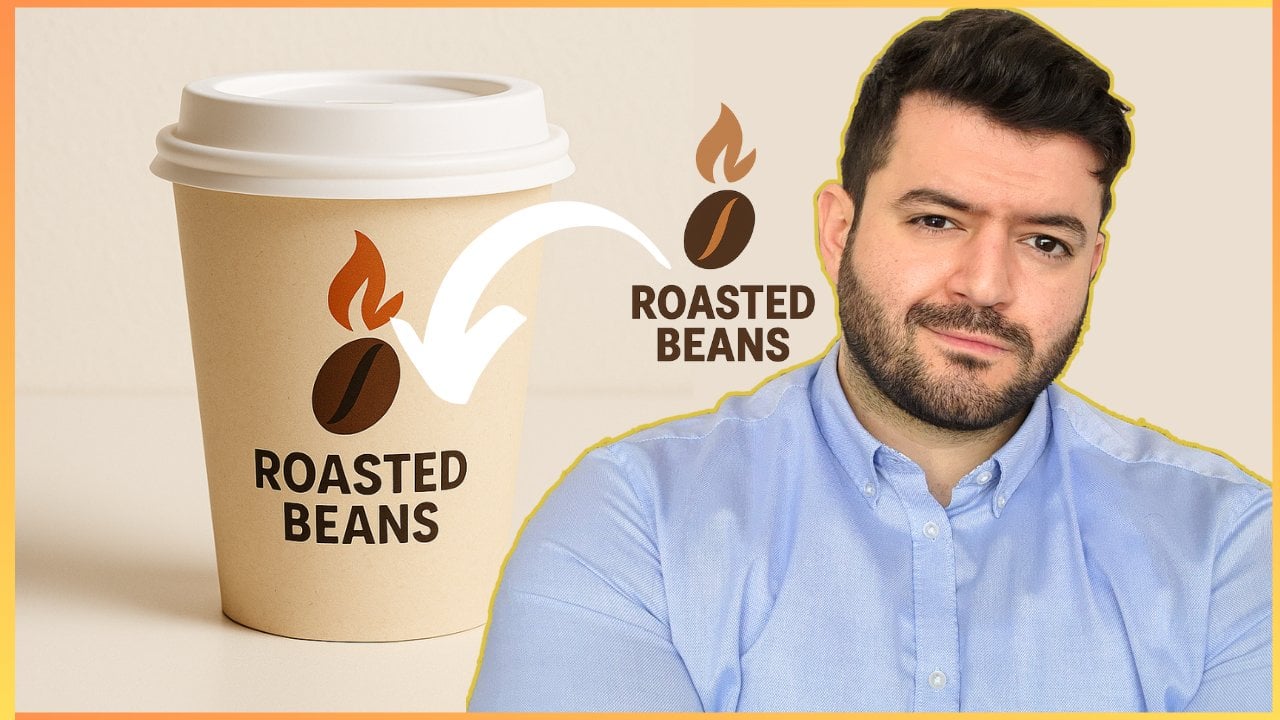
logo, and here you go. This is an actual mug reflecting
the color palettes of the brand and the logo
displayed on a realistic image, not a two D image,
not a three D image, but an actual
realistic simulation. That's very powerful,
and we're not done yet. How about were able to see the logo on the actual
product, let's say, coffee beans or take
away bags or boxes, or any utensils or material that you're using
as part of the business. I'm going to mention
proceed with another example for
the takeaway items. Here we go. Including
bags, including cups, including any
napkins, for example, I usually take from
a coffee shop. So I'm going to see from a customer engagement
point of view, how does the logo work? This includes the
customer experience. Are they basically
connected with the brand? In addition to the
day to day items that you use as part
of your business. This applies to any
business, by the way. Are you dealing with
some sort of materials? How do they look
like in reality? And here you go. Take a look at this professionally looking
result. This is good to go. We're able to see the
logo or a sample logo or a draft of the logo displayed on the takeaway items as well. This is picture perfect. So I truly hope that you
understand at this current stage the power of this integration in which you are able
to create a logo, find an idea, find
the inspiration, develop the concept, and
go from an idea to a full on showcasing application
for the logo on products, as part of the engagement
with the customers, as part of the engagement
with the audience, and their engagement
with the product, as well as any materials that you are using
such a logo with, whether online or offline.
7. Wrapping Up: Impressive, right? I truly hope that you found
the class helpful. If it helped you level up your
knowledge by at least 1%, it's a job well done, and look forward to
receiving your feedback on the current class
and make sure that you follow my profile for the latest releases and updates, and I'll see you
in the next class.
 Engr. Hussein Attié, Entrepreneur I Engineer I Educator