Transcripts
1. Hello!: Hi, woman and welcome. If you've been looking for a
creative project that's fun, relaxing and easy to keep up with, this is
the class for you. I'm Ashuni an artist and
illustrator based in UK. Online, I'm known
as Print Ms kaa. If you've seen my work before, then you probably already know how much I love Adobe Fresco. I've created multiple
skin share classes on this amazing tool because
I genuinely love it, and I want more people
to feel excited and comfortable and
confident using this tool. Over the next five days, we're going to be creating
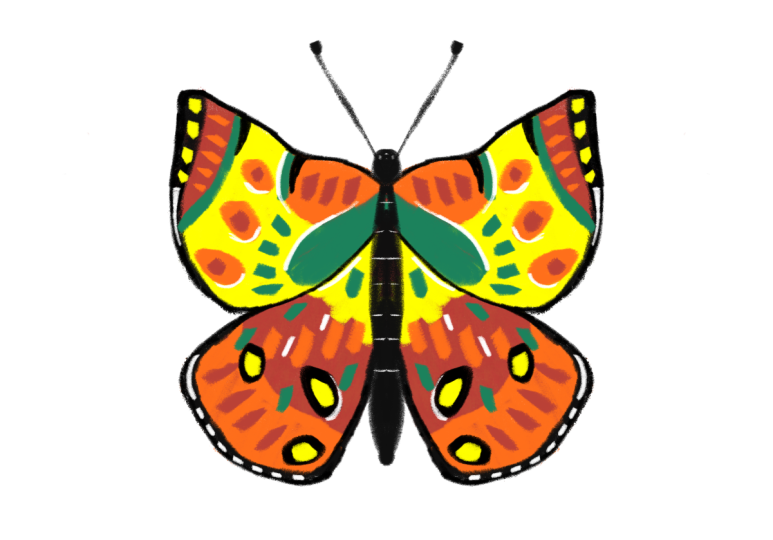
five beautiful butterflies using this amazing tool. And the goal here
isn't perfection. It's really about building
a playful creative habit that just keeps you creating even when life
finds a little busy. Each day we'll explore a different butterfly
using different colors, brushes, and techniques
using Adobe Fresco. I will provide sketches,
color palettes, reference images, and everything that you need to create
these butterflies. Along the way, you'll practice sketching simple
butterfly shapes, experimenting with
color palettes, using symmetry tool, using reference images, and
creating patterns. By end of five days, you'll have a collection
of butterfly artworks, but more importantly, you'll
have creative momentum. Sometimes that's
the hardest part. Simply continuing
to make things. Grab your iPad, open
up your Adobe Fresco, and let's draw some
beautiful butterflies. See you in the glass.
2. Setting up and Look into New UI: So this video is all about setting up your
workspace and taking a look at the new Fresco
UI or the user interface. So this is how your
page looks like. When you click on Home,
this is how it looks like, and things have
changed a bit here, but, you know, they're
basically same. Everything else
looks exactly same. If you click on your files, it'll show all your files
and folders as well. So when you're creating
a folder in this class, you need to go into your
files and create a folder. We are going to be saving
all our artwork in a special folder that you're going to create
called butterfly. So to create that, click on your files and
click on this button here called New folder and give
whatever name you want. And then click on Save. And once you have done that, you have to click
on that folder. And you are going to draw all
your butterflies in here. You can use this
arrow to go out. If you do create something outside that folder and
you want to move it in, you can also do this and move. But if you are multiple,
you can always select and move to, and then you can move it to
any folder that you want. So let's look at the UI now. Click on Create New digital
and current screen size. This is the basic size that we're going to use
for all our artwork. So basically you all your tools now have moved to the top bar. Frustrating, I know, but
you're going to work with it. So this is basically where
all your brushes are, and we're going to
use that obviously. This is one of the main things
that we're going to use. The three types of brushes Pixel Live and Vector have
all been merged here now, so yeah, you have to click
on that to access them. But that's fine. This is
the color palette section. Resins will show all
the colors that you're currently using on this
artboard, on this file. As soon as you move out,
you will lose those colors. That means that when
you open a new file, you won't have those
colors over there. Your only way to make sure
that you carry the colors to a new artboard is
to make sure it's in your color library. And I do have quite a
bit of libraries here, and I will show you
in the next lesson, how to get colors here
from Adobe Color. This is a brush setting, so this is to increase
and decrease size. Usually, if I forget to
mention the brush size, just zoom in here and see what I have and you'll see the size. You can click and hold
to change the size, I use this up and down
button to do that, as well. This is the size.
This is the flow. That means it tells
you how opaque or how transparent
your brush is. So you can use that.
This is the smoothing. It's basically like
how easy flowing. If it's too high,
it flows so well, but I wouldn't
recommend keeping it too high because there'll be
a significant lag in that. You're not going to
use these things, and this is the setting. If your brush doesn't
behave the way you want it to or the way that my
brush is behaving, just click on this
reset button here and it'll take you back the
original setting so that, you know, you start
from scratch. This is where you
add your images. You can add it from photos
or from files as well. Whatever you download
depends on where it is, you know, use one
of those options. And everything else I cover
in the tutorial as well, so you don't really have
to worry about that. This is for layers. Again, this is for symmetry. You get it over here,
you turn it on. You have options for symmetry. So I'll see you in
the next lesson. I'll tell you how to
get the colors in.
3. Exporting artwork: Now I'll show you how
to export your artwork. So when you have
your artwork ready, you can click on your Share
button Publish and Export. If you want to export
a PNG or a JPEG, click on Export As, and then you can just
give a name here and use a PNG or
JPEG and Export. If you want to export it
without a background, make sure you go to this
bottom layer here and hide it. And now when you export it, use a PNG to make sure you
get a transparent background. If you want to watch
the Time labs, you can click on
Preview Time labs, and then it'll show you all
the things that you have done during, you
know, the artwork. So these are the
ways in which you can export your artwork.
4. Color Library: In this lesson, I'm going to show you how to get the colors into your color library
over here that is under A. And the color library
that I'm going to be using is called butterflies, and it has all the
colors in there. So how do I get that? I want you to open a browser and I want you to go
into Adobe color. This is what
color.adobe.com looks like, and then I want you to
sign in to your Adobe ID. And this is really
important because your Fresco and the
colour dot Adobe ID should be exactly the same. Otherwise, whatever you add to your libraries is not
going to get added. There's a link in the
resources section. Go ahead and click on the link, and then it's going
to take you to a page where you can see
all the color palettes. And once you're there, click
on this blue ad button, and it's going to add
it to your library. And after that, give it
a few minutes sometimes. And when you open Fresco, go to home and make sure
this is if you do like this, sometimes it gets updated, and you will see a
circle going on. And then when you click in here and go to your
colors and go to A, you should see your folder or a library called butterflies, and all your colors
will be in here. And that's it. That's
how easy it is to get the colors into
your Adobe library. You can use that color.adobe.com to look for more
themes and colors, and you just have to add
it to your libraries. That way, it is, yeah, amazing.
5. Class project: It's time for the class project. So your class project is
to create a collection of five butterfly
illustrations using the exercises from each lesson. Feel free to experiment
with different brushes, textures, color palettes
and styles as you go. When you're finished, upload your favorite butterfly artwork
as a project cover image. Maybe a collage or a gallery showing all five butterflies. And if you're up for it, maybe a few sentences about your creative process or your favorite exercises
from the glass. But most importantly,
have fun and enjoy the process of creating consistently over five days. Oh, a side note. If you're stuck or
need further help, please reach out, and I'll
be happy to help you. Alright, hope you have fun.
6. Day 1: Draw from a Sketch: So let's start with
our first butterfly. So I'm going to go into the
folder that we just created, and I'm going to make
all my files here. So click on Create New. And let's go into digital, and you can do square or
also current screen size. Depends on what you like. I'll do current screen size because then it looks
a little better on the screen. There you go. Let's go to our
symmetry tool here. Go to symmetry and turn this on. Now we're going to use
reflective symmetry. That's the first one
and click this back. So the symmetry line is ready, and now you can go
ahead and sketch. If you don't feel
like sketching, I'll provide the initial
sketch for this butterfly, so go ahead and bring it in. You can do that by clicking on this plus button
here for images. Going into photos and selecting that particular butterfly and it'll load immediately
right in the center. But it might be
too tiny if it is, use only the corner edges. And when you're doing that,
make sure you hold down this button and pull it up so that it becomes
bigger from the center. There you go. And
then click on Done. If you don't see
this touch button, you can go to Serix
and touch shortcut. Make sure it's turned on. Now, sketch is already here, and once you have the sketch, you need to go into levels here and make this
into multiply. And you can reduce the
opacity to whatever you want. So now I have already
gotten this sketch, but if you didn't want
to do this sketch, you can always start drawing
with the symmetry, too. Let's just use the
sketch for this one, and maybe we can draw the
next butterflies on our own. All right. So I want
you to go into colors. And click on A, and
you should be able to see a folder called
as butterflies. So when you click
on this, right now, I can only see one theme over here because I haven't drawn
the other butterflies yet. But when this whole
class is finished, and when you get access to this library
called butterflies, you will see a lot more
color themes here. So we're going to use
this thing right now, the blue and yellow one, and so you can pick
colors from here. And we can start off with blue. I'm going to choose this blue
here, not the dark blue. You can choose
either of the blues. I just had to give five colors, so I decided to
just add one more. Brushes, go to your brushes. And in here, we will
go into pixel brushes. And for this particular drawing, I'm going to go into dry
media and then hard pastel. Once you see this
brush, click on this star button here,
so it favorites it. And when it favorites something, it's easy to access it
later on if you want. So we're going to
select the hard pastel. So once you've selected your
brush for the size, it's 91. You can click and hold and type in any size that you want, or you can also use this slider. I'm going to make
it maybe about 60s. When I say 60 when it's 62, doesn't mean that you
have to keep it at 62. Can keep it anywhere
around that number. And we're not going
to change any other setting for
this brush because I think it works perfectly
fine with the rest, plus for a new layer, and we're going to
start just coloring. And you see, when I start
coloring on one side, it automatically covers on
the other side as well. And yeah, that's amazing. So we're going to color
this up like that. One thing you should know about this particular brush is
as you increase the size, like if I make it see the edges, they are more rough edges. So if you feel like
your butterfly, you would like it with
these kind of edges, then go ahead and increase
the size a little bit, um, you know, so
that it looks nicer. But if you want clean edges, then keep it a bit
lower so that, um, yeah, it looks
nice that way. Now I'm going to click on Plus and we're going to
choose the yellow. And let's quickly add this here. By the way, at this point, if you feel like you
can't see this yet, so you don't know
where you're drawing, click and hold and bring
it all the way up. And now you can see clearly where you're
going to draw it. So go back to that layer, don't forget that and put
the color in like this. There you go. I think I want
to color this part as well. So plus, and I'm going
to make this as well. You might wonder why am
I coloring everything in a different layer
where I could have easily done that
in the same layer. The whole idea behind doing your artwork in
different layers is to make sure that you have maximum control possible
with your artwork. That is, later on, if you want to change any
colors or make adjustments, you don't have to worry about messing up the
whole draw like, for example, later on, I feel like, I didn't
want this yellow here. I wanted it to be pink. So all you can do is
you can just hide this layer and create
a new layer and draw your pink layer
or sometimes you can also recolor this
particular layer. So yeah, that works
pretty awesome as well. So that's why it's better to have everything in new layers so that Fresco allows you to have as many layers as you want. So make use of that feature and try to draw everything
on a separate layer. I always do that, and I think everybody should
be doing that as well. Alright, so I'm going to go ahead and pick a
different layer, and I want to add
the blue again. But this time, I
want to add it here. Oops. This was hidden, so I can do this and unhide it. Or you can use your two
finger tap to undo something. It's like this that undos everything and the three
finger tap to redo something. That's a redo button. So
you could do that as well. So I'm just going to undo
this and plus a new layer, and we have selected the blue, so this should work
perfectly fine. Next plus. And we're going to
add the black now. So for this, I do want to use the heart past brush
for the black. There is one more brush if you go into pixel brushes again, and then you go into charcoal, there's one brush
called charcoal pencil, which I think is amazing. I love using it all the time, so you should try it as well. So once you have that, we're going to go ahead
and add some details here. Oops, sorry. Undo that
and go back to black. You can select here
or this black. I's a bit different black,
I guess, from that. So yeah. So the brush is set at 58. I haven't changed
any other setting. If any of your
brushes don't work the exact way as mine and you don't know
what you're doing wrong, you can always go here and
click on this button here, which resets the brush. So when you do that, it'll just go back to the
default setting, even the size changes
to the default setting. So you could do
that, and, you know, you'll get the exact brush
that I have simple as that. So yeah, I'm in charcoal pencil, and I'm going to increase
it a little bit because I want to color a larger
area really quickly. And yeah, the best way to do that is to increase the size. So I'm going to go
ahead and color this and don't worry
about the fact that it is coming about this layer right now because we're going
to fix that in our own way, and I'll show you exactly
how to do that, as well. We'll just color this. And
you see the bottom here. It's okay, here, it's not
exactly roundish, is it? And that's on purpose because
the brushes like that, so it's going to give
that nice um yeah, um, shape to that. That means it's like this. It's you see how angled it is. So that is very nice. And once you have that, we're
going to click and hold, and I'll bring it behind that yellow layer so that
the yellow pops out. So now I'm going to hide
the sketch for a bit, use your eye button
here to hide it. The reason I'm doing this is I want to see how
everything looks like. And it's always good to stop and check your artwork to
make sure that everything looks like the way you want it to rather than doing it in the end and getting
all frustrated. So I'm going to unhide that. Now I'll go about this yellow
layer, this yellow layer. If you don't know
what layer is where, you just click on that layer
and use the eye button, and then when you
bring it back in, you can see which layer
you're working with. So plus, and we're going
to make this one here. You could still use
the hot pastel brush. There's nothing wrong
with that, actually. But I thought it would be nicer to have a different kind
of brush once in a while, you know, experiment now plus, and I'm going to give the
body of the butterfly. Well, drawing the body
of the butterfly, make sure that you
draw on one side, because you don't really need
to draw on the other side. Going to reduce
this to about 30s because it's easier to control. And I think I will draw
it on a different layer, so two fingertaps to undo, and I'm going to bring
this all the way up. You don't have to
do that. You just go up here and click on N here. And let's just color this in. And we're going to go
here and add this one. Now let's add these bits here. So plus we have two black blobs. And then we have two
blue blobs over here. We can do this on
the same layer. I think it should be
okay. Okay, there you go. The yellow, I'm not happy
with how it is over here. So I'm going to go
into my eraser. And eraser, you have options to choose different
different kinds of brushes. So if there was a hot paste or, maybe I would have chosen that, but I don't have that, so I'm just going
to try with this and see how it looks
like. That looks fine. So I've chosen gritty circle. And the size is 28, and I haven't changed
anything else. So I'm just going to
go ahead and delete, I mean, erase some things off. But you see how the edges
are being retained, you know, the weird shape. So it's good to have that
because the butterflies, you know, they are like, not clean cut and don't look like. Yeah. So they're
yeah, there you go. And maybe on the yellow, I want to add more yellow. Over here, I want the yellow
to extend a little bit. One option is to have
the yellow layer on top, but it's too high
up, and I don't want to use the eraser
to erase it off. Or should we? Why
not? Let's do that. We could use the eraser
to erase off stuff. Because we do have one of
these nicer erasers, don't we? And you can give it this
rusty kind of look. And you see some white
spaces peeking through. So what we're going to do is
go back to our brush, and, um, oh, sorry, we're
in the wrong brush. We need to go to hot pastel. So I'm going to go into recents. This is where you can
see the recent brushes. I'll go to Hart pastel and
I'll colour this in like that. Now I'm going to
go into my sketch, hide it because now you can see how your butterfly
actually looks like, and it's time to add some
further details to this. Let's do that. I feel like I want
the black to come up a little bit in certain
places, so I could go back, use the eraser toe, and try
to do this a little bit. But if you feel
like you don't like the look of it, don't do that. Use your brush. That's right, so Okay, and now we're going to add some
extra bits everywhere. I want to start with yellow. We'll go all the way to the top. For tiny tiny bits
and pieces over here, I have yellow, and I'm going
to use hart paste too. But let me reduce the size
to about 49. Let's see. Yeah, that should work.
It's 49, so about 50, so I'm going to go ahead and add something with this motion, and then maybe one here. Perfect. Now let's
take some black, I guess, and add a
couple of them here. And now I need to add
these ice over here. Plus, it's not ice. You know, some
butterflies have things to scare other animals. So this is something
like that. So, plus, we're going to use white now. Let's go ahead and
use the white. And let's make that. And you could use the charcoal pencil
here as well to make it tiny if you feel
like it's too much. And Okay. And if you want slight
without pressure, I guess, you can give that, or if you don't want to do
it, you don't have to do it. I'm still not happy with
this part over here, so I'm going to go back
into my yellow plus, and I will choose blue. And then I'm going
to add a bit like that plus Okay, there you go. And if you feel like
you don't like it, you can always do ch like that. So now, your butterfly is ready. If you want to export it
as an individual element, make sure to check out
how to export artwork. And if you want to make
it into a pattern, wait till we finish
all other butterflies. I'll see you in the next one.
7. Day 2: Drawing from Scratch: So now, are you ready to
draw the second butterfly? Let's begin. I'll go
back into my folder. So in here, I'll
click on Create New, and I'll go into digital
and current screen size. I'll go into my symmetry and turn this on and make
sure it's in reflective. This butterfly is rather simple. So I do have a
sketch for you guys, but I will show you
how I draw as well, so you can decide
to either bring in the sketch or
draw it yourself. For sketching, I always like to use my charcoal pencil that is, again, under charcoals
and charcoal pencil. You can also click on
your favorites and it'll show all your
favorites brushes. So I'll click Charcoal Pencil. It's around 36. It doesn't matter for sketching, actually. So I'm going to make
a head and a body. You think it's too big, maybe
make a thin, slender body. Okay. And I'm going to draw
on one side like that, and I want this to be something
like that. Of course. There you go. Butterfly
shape is ready. You can always fix
this, actually, so maybe make it a bit lower like that or
leave a bigger gap. It's totally up to you. I'll go into levels,
and I'll just reduce the opacity so that I can see what's happening
with the sketch. I'll go into the layer below
that and click on plus. So for the color palette for
this is under butterflies, and you can see that
reddish, pinkish, orangish colors, that's what
we're going to use for this. We'll start off with black. And again, you can use any
brushes that you want. It's totally up to you. For this one, I'm going
to use hot paster, and then I'm going to
use something called this contacron both
under dry media. So we'll start off
with hot past. And keep whatever size you want, and you just want to color in basically the shape
of the butterfly. You see it easily colors in. If you're one of those
people who's wondering, why don't I just draw the
outline and use the fill tool? There's multiple reasons for it. First of all, I'm
using a pixel brush. So when I use a pixel brush, if I have something like
this and I use a pix and brush for the film
tool and fill it in, there is going to be a gap. You can increase this
to close the gap, but still it doesn't work
that great all the time. And the second reason is when I use the fill tool and fill it, it just fills on one side, the other side does not
work in symmetry tool. So in symmetry, the fill
tool does not work on both or how many other sides your symmetry tool has because you have multiple versions here. So you'll have to go in
and fill each one of them. That is if the elements
are quite separated. But if the elements are like this and you go to the fill tool and fill
it, it does get filled. Again, I'm using a pixel brush, and usually with pixel brushes, I rarely use fil tool. Unless it's a huge thing, I do use a fill tool, and I try to increase the margin here like
this so that it kind of brings the thing back. And then I use my brush to color in just the
outline so it fills up. Okay, that's that was a little bit of a diversion
from our butterfly. So I'm just going to
go ahead and draw my base butterfly now
and alcalicon plus. And now I want to go and check this dark reddish thing
color that I have. And now I want to make
strokes that go like that. And you see it's going outside.
Don't worry about that. And we're going to make strokes that go outside
like this as well. Don't put too much pressure
because I want a little bit of texture coming
through in some places. And yeah, we're going to retain
some black in the edges, so keep it that way. And now you see that the red has gone outside these lines, and that is not what we wanted. So what we're going
to do is we're going to click on this
tiny button here, which is called
the clipping mask. What this does is now whatever
we draw on this layer is going to show up only where there's
something underneath. That means wherever you
have this black region, you're going to see this color. If it goes outside
this black region, it's going to show up. So that is what clipping
mask is all about. And clipping mask, you can make as many layers as you want. So if I make one
more now, one more. So whatever I draw
on this layer, it's going to again take this as the base layer
and not this one. Both of these layers are
based on this layer. So if I have, say, this color here and
if I draw a line, so it's going to show up
on the red and the black, but mostly because it
follows the black. So if I remove this, no. If I remove this, you can see
the lines come out, right? So when I do clipping mask, it gets clipped to only this
area, whatever this is. So let me just clear this. You can always click
and clear layer. Now I'm going to choose
this bright orange right here and we're going
to add some like that. Again, if it comes out, don't
bother about it too much. And don't add too much pressure. When you add pressure, you
get this nice opaque thing. When you don't have pressure,
it comes like that, and that is what we want
for this butterfly, right? And that should look fine. And yeah, doing it
in circular motion. Now, let's click on
PAs and add a body. And for this, I'm
going to choose the charcoal pencil
and the black color. And we're going to draw this the charcoal pencil because
it has better control. The edges are much more
crispier than the hart paste. And we're going to draw that. And this Okay, there you go. And while I'm at it,
I'm going to click on Plus and add a bit of an outline to my butterfly only where the colored part is, mainly because it'll make the colors pop and
it'll look much better. Like that. Fix with her. And let me just go ahead
and uncheck the sketch, and this is how your
butterfly looks like now. Let's go ahead and
do the other parts. Wait a minute. I'm going to
add this and make it a bit. Like that. Okay. So now let's go ahead
here and click on Plus. And we're going to choose the lightest orange
that we have. And I want you to go into dry
media and contact crayon. And this one is set at 1:41. Everything else is
default settings. I haven't changed anything. So I'm going to go ahead and
add some strokes like this. And this one, I'm
going to go ahead and add strokes in this way. And I and up here, it's going to go that way. That means it follows the
shape of the butterfly. You know what I
mean? There you go. You want longer and
shorter strokes so that draw on any side than
you're comfortable with. If you're more comfortable
drawing on the right side, then go ahead and draw
on the right side. So you should make
sure that you're drawing whichever
side you're more, you know, comfortable
with. All right. I'm going to go back into
this darker, kind of red, and we're going to add some more here because that's
a very pretty color. I kind of like this.
It's too dark, so we're going to add that. And maybe a wait. Let's see. We'll add a new layer, and we'll add that here. Hmm. Should we make it one? Let's make it one. This
wasn't the original plan, but I just decided it
looks much better. And the dark color plus. And we're going to add some here with that as
well because why not? There you go. And I can go ahead and add
some more of this. Or do you think black
would look good? Wait a minute. I'll undo that. I'll use a different layer, and oh That's how it looks
like. Do you think it's good? Do you think it's
better that way? I'm going to make this body a little crumpy because you see, it's not as crumply
as the other one was, and now it gives a nice
little crunchy, um, whatever edge, you can do
that for here as well, because I think
that looks nicer. So plus, yeah, it makes
it look a lot darker, and I think I like that. If you want to add, you can add white.
Let's see how it looks. Uh oh. Here and there, not too much. And Yep. Yeah, you can add the
white if you feel like. Otherwise, you can
leave it as it is. And, um, our second
butterfly is ready, as well. Let's
make our next one.
8. Day 3: Make it colourful: Now it's time to create
our third butterfly, so I'll go back into the folder, create new digital and
current screen size. Let's do a symmetry
on, and we're ready. I'm going to bring
in a sketch for this just because I don't
feel like sketching. So let's go ahead
and bring it in. And I want to increase the size, so hold your touts and
then make it bigger. And if it goes outside,
bring it bank down. Click on Done. I'll go ahead and do this multiply and
reduce the opacity. Good. You're all
set. Let's begin. So the color palette
for this is going to be under butterflies and the top one with
the green color. So yeah, we're going to have
some green in our butterfly, and hopefully it'll look nice. So I'm going to go below this sketch layer just so that I can see the
sketch, you know. And we're going to start
off with the green. Or should we start off
with the main color? Maybe let's do the main
color that is this color, and we'll go to dry media, and I'm going to use a pastern
square because why not? And we're going to
go ahead and draw. We're just going to go ahead
and color this bit in. I want to make this
nice shape here. I mean, color is ready. And don't worry about the edges because
we're going to put a border for this because I think that looks
much better that way. And now I'm going to click Plus, and I want to draw a a shape. So I'll go into charcoal
and charcoal pencil, and I will choose black. And I'm going to mark the
areas where I want my design, just so that it's
much easier when I'm coloring and
won't get confused. So I want to make this
as the green bit. And if you want, I'll
include this in the sketch, you know, and maybe have an
area over here like that. Maybe bigger. I don't
know, something like that. And this one maybe around here. And this could be a
different color as well. And then here like that, maybe add extra black
things here like that, and then have some
other color here and have this because I kind of like adding
those elements into it. Maybe we can make the
green a bit bigger. And this may be like that
and have one or two, I guess, something like this. And I think, yeah, that
should work perfectly fine. So I'm going to go
ahead and reduce the opacity and just
make this into a fol. And I'll include
it in this get so that you don't have to
worry about this at all. Now, let's go back and plus, and we're going to
add the green bit, go and select green. I'm going to use good old
Trusty charcoal pencil to get this done. I'm going to color
it in like this. And I realize that
I like to have the body of the
butterfly before I draw stuff because it kind of gives me an idea of how the
butterfly actually looks like. For example, now, it seems
like it's all blending in, and it annoys me so much. So I'm going to go out and use a black and make a body. I need not be like, you know, final version of the body, but it's just I don't know. I like to have
something up there. Now, plus, and we're going
to choose this light orange. And I'm going to add this
orange to basically here. And I'm adding in this angle. Do you see the angle
and how I'm scribbling? The reason I'm doing
that is so that I get this zag at motion, and you see the ziag
motion is very tiny. So you can undo that and
increase this to 70. You still see a zig zag motion, but it's a bit bigger, right? That looks nicer, I guess. And then I'm going
to add this here. And don't worry.
I'm going outside. I know, but we're going
to use a clipping mask. I'll go all the way down
and crypt it onto the base. Now plus, and we can
give the other colors. I want to do the yellow, so let's go ahead
and take the yellow, and let's put in
the yellow here. If you want again, you
can clip it so we can clip so you don't have to worry about going outside the lines. That's very useful. And just make sure you don't
get onto this wing here. Otherwise, you should
be good. There you go. And we have something here, so I'll click on plus and I feel like I want to give it a bit
of a thing like that. You can clip that as well. That doesn't make
much of a difference, to be honest, so it's okay. Next, let's give plus, and let's choose black because
we can add this part here where we have to go all
the way down like this. And again, I want to
make it clipping mass, so I'm gonna bring it
all the way down here. Clip to this edge
here like that. And we definitely
want some over here. So how do we do that? We can do it this way, I guess, the orange is over there, so
it's probably coming on top. Yeah, there you go. And we
need a bit thicker here. And taper it off like that. Oops, went to the
other yellow bit. Be careful with that. There you go. And let's add extra bits and decorative
pieces to this now. So let's go all the way
up above this green layer because we have to add some
decorative stuff right now. So let's go ahead and
take out this orange and, uh let's colour it
in all three of it. And we will also make some. Oh, let's make it a new
layer because we never mess with the existing
layers. Like that. If you feel like this actually
doesn't look so great, you can always straighten it out because I'm getting
a feeling like, probably not a good idea
to keep it like that. And then's choose some
darker color that one here. And where am I? Here, so no. Go up here. And we're going to add a bit like that just so that
it looks a bit wonky. And then maybe three
like this here. So like that there. And maybe we should give some
over here as well, I guess. Let's go to green,
again different layer. Let me reduce this to
about 50s, I guess. Again, gonna mark
this like that. So maybe like this. Think it's okay.
I'm not too sure. And I'm going to add
some here just outside. And Let's then add this orange and
plus we're going to make something like that. Let's choose black
because I wanted to give black here
and over here. It's a bit of an odd place, isn't it? And maybe here. And then have it
colored with yellow. And have some yellow here
as well. That looks fine. Now, I'm going to go below yellow and plus because I'm going to add
the black outline there, so go to black and go
to add it here on top. You can reduce the
size so that you get nice crispier
edges here like this. And since it is just
below the yellow layer, it'll come out nicely as well. And we're going to
add this outline here so that it goes
and joins the body. You don't have to give an
outline to every butterfly, but I feel like sometimes some butterflies look
a lot better when they have a nice
outline like this. Okay. And, of
course, on the top. You might have to put a bit of pressure to get
those thick lines. If it isn't working so great, you can increase the size or
decrease it even further, and then maybe you'll
get a much better. Now I'm going to go ahead
and hide the sketch just to see if I missed anything or
if anything needs any work. And I think everything
looks fine. I'm going to go into white. You can also do yellow, and that might look
better as well, because yellow is already
here in this artwork. But I feel like I need
some white because, um, I'm going to go ahead and add a bit of this kind
of thing here. See, the green is a bit out, so maybe if you want, you
can go fix that thing. I'm not going to do
that because I'm lazy. And then here, you can make
this part a bit thicker. So that you can add these
white blobs easily. And I'm going to add
some white bits here, and here as well on top. And up here. And then we're going to
add a bit here as well. Go and right below
this black line, not on the black line,
right below the black line. And up here. And I want to take
some black new layer. In here, I want to add
and bit here like that. We'll take some white. We'll go about the body, and then we'll try to
add some like that. If you want, you can add
an I. It's up to you. And there you go. Our third butterfly is ready.
9. Day 4: Draw form a reference: Okay, so the next butterfly, we're going to use an
image as a reference, and I'm going to show
you how to do that. Again, click on Create New. It's good to digital and
current screen size. I have an image for you guys. Go ahead and download it
from the Link Willow. Click on this button here. Go to photos if you have
your image saved in photos. Otherwise, sometimes when
you download things, it gets stored in files, so you can also go
there and pick it up. Mine is in photos. I'm going to go ahead
and bring it in. So here's my image, and I'm going to make sure I increase the
size a little bit, maybe a little bit more. Maybe this big, yeah. And then I'll slowly turn it to make sure that
it is somewhat, you know, matches
the current screens, and I'll click on Done. Next, I'm going to go
into this thing here. Let me just uncheck all
of these and turn on the symmetry and make sure your butterfly or reflective
symmetries turn on. Now what I'm going to do
is go back to the image. And if you feel like
it's not really aligned, go to your transform tool here and you can move
this a little bit. And if you feel like
it's not aligned in the sense that
they're not uniform, you can move it as well. But we're going to
leave it at this because we'll be drawing
only on one side, so the other side will automatically be,
you know, symmetric. So yeah, click on Done. I'm going to go into levels, and I'm going to reduce the
layer opacity a little bit. Let's go to brushes, and I have my charcoal pencil
again in favorites. I'll just pick that up. You
can go ahead and bring it, get it under your pixel
brushes and charcoal brushes. The size is at 20, and
that should be great. The flow, make sure it's very high because
when you keep it too low, you see, you have
to really press and you can barely see it. So if you keep it high,
you'll get nice dark lines, and that's what we
need. So keep it high. Can also click and
hold here and type in. Now we're just going to go
ahead and trace on this. Yep. That's it. And you can turn the
two finger to undo. You can turn the artboard,
however you want. Here, I'm going to
make it like this. And obviously we have this here, and I want you just mark
in the major colors, color changes that you
see. There you go. Now, let's go ahead to
the image layer and uncheck it so that we
don't need it anymore. And we'll go back
to our layer and reduce the opacity. Plus. Okay, so the color palette
for this is you can go in here and you will see
this pink and light blue, yellow, blue color palette. So we're going to
use that for this. Again, you can use any
brush that you want, and it'll be fun to explore with new kinds
of brushes as well. So go ahead and experiment. There is something
called old fence, which gives this really
nice textuy one. You can find that under so
I'm going to go into ink, and I'm thinking of
taking something like ink roller and experimenting
it with a little bit. So we'll go ahead and choose
this pink, nice little pink. And, mind you, we are choosing these colors because I'm trying
to maintain a little bit of uniformity with
other butterflies because I want to make it
into a pattern in the end. But you don't have to do that. You can make your butterflies colorful with different colors, or you can mimic the
colors in this photograph itself and use that. So let me just tell
you what I mean by using the colors
from the photograph. So when you bring in an image, it automatically creates a
color palette for you guys. So if you go in here
and go to Resens, you'll see this color
palette that it creates. So you can use that
color palette to make your butterfly look exactly like the one in the photograph. And if this is not showing up, you go to your settings,
go to app settings. And in here, you have something called Auto Create
color palette. You should be in
general, by the way. And it should be turned
on. If it's turned on, as soon as you get any image in, it automatically creates
a color palette for you. Okay, I've put my pink. I'm going to go ahead
and put in some yellow. I'll go back to here. And you guys should be an expert by now that everything should
be on a different layer. So I'm going to go
ahead and add this. S, I'm adding some
light strokes. I really like the texture
that's coming through, and I'm going to try and
retain it a little bit. There you go. Plus, I'm going to add the central part,
that's the black. You can make it brown,
like in the image as well, and I'm going to go
into I'm going to click this star for
the incrolla so it's available under a favorite
so let's make this. Let's see how it looks like. And then plus, and I'm
going to go back to my ink roller because
I like it's a lot. And then let's choose some
white over here, shall we? Choose white. You're gonna
make this like that. Wait, I think that didn't
come out that great. Okay. And obviously, we need
here. That should look good. And, um, maybe a bit here.
And that should be fine. A little bit here, but I want it below the yellow, so let's see how it works. Okay, I think that's good. Like that. Let me just
check if it looks good. Not bad. I could work with it. Now plus, and we're
going to add some black. And you could use Ikroller, but let's reduce the size. Oh, by the way, it was at 90s. Like I said, the brush
settings here does not matter as much for most of the things because it really depends on how comfortable
you are with that. Going to add some
here and maybe here. If you want to use the
image as a reference, I should have told
this earlier, I guess, unhide this, make this all the way up and use
the transform tool. And we're going to reduce it, and we'll keep it
right up here in d. So now you have an
idea how this looks like, and then you can copy that or
make it exactly like that. You see, I'm trying to mimic it. I have the white, and I try to add some black
bits to it and stuff. But it's not exactly the same, but I am trying to kind of make it look a little
like that, at least. So there's a huge
black spot over here, which I think will look
good on the butterfly. And this as well. And now let's add some
bits and pieces over here. I'm going to go ahead and
choose blue light blue. And let's see if
this looks good. No, it's too light, so I'm going to use the dark blue here. And this doesn't have anything, but I thought it'll be nice
to make your own stuff. And I kind of like adding
these spots everywhere. Because I don't know. It just makes things look nice, I guess. That's a bit too much. But I add it right
next to the black, Lego and a blue eye here. Maybe a little bit there.
Something like that, I guess, let's add
a bit here as well. And maybe here. There you go. And I'll go back into
charcoal pencil. I'm going to add a bit here. But you see the charcoal
pencil strokes are smaller, so it's perfect to
draw this like this. I'm going to uncheck
the sketch because I feel like it's not
helping me a lot. I'll also uncheck the image because I don't need it anymore. So go here and plus, and I want the light
blue right now, and I'm still on the
charcoal pencil, by the way. And I'm going to use maybe, you know, I'll go
back to the incrolla. I want some of the
Ikrolla things here, and I'm going to add a
bit of this up here. No, let's not make
it over there. A bit like that.
Something like this. And I do want a white
because I've added white to the other butterflies. So I think, like, it may be nicer if I have
something here as well. And Add a bit here. No there because
it's going to get mixed. And then I just going to
fix a little bit of this, and that should be okay. Now for the final part, I want to make the
edges a little neater, mainly because it will match
the other butterflies. So I'm going to go ahead
and match it a little. Am I on a knee
layer? Yeah, okay. So I'm right now on top of this, but my plan is to put this
layer in the bottom so that it doesn't kind of
affect the you know, for example, here, it looks very weird
because it's on top. So just to make sure such
things don't happen, I'm going to transfer it to the bottom layer
in the end, like, after I finish
drawing, because it's much easier when your layers
on top, and you can see. Okay, that looks good, so I'm going to click and hold and move it
all the way down. If your layers are
too many and you can't do and it's
not going down, you can just do this with your other finger and then,
you know, pop a tact. Let's choose some white, and I'm still on
Oh, what happened? Where did these lines go? Oh, the whites were
on this layer, so everything got converted. Okay, so probably I have to undo that unfortunately
because I had put the whites and the other things on the same layer.
That's not a good thing. Or I could do I could
go to my Lasso tool. I'll choose a lasso,
make sure you are on that layer where
you didn't want that, you know, the elements to be. And I'm going to quickly draw around what I feel like I
should cut out of this area. And make sure you join
it. There you go. Click and cut selection, click and paste selection. So now it's on a
different layer. Like, if you uncheck that, you can see these are
on a different layer. It did take a bit of the blue over there,
but that's fine. Now I can click here and
move all the way down. What was there? I did miss some elements,
but that's okay. We're just gonna put it
back. We don't want to make it more complicated
than it should be. And I'm going to go back
into a different layer. And I have white here, and I'm going to just add
some more high, you know, some more things
because I feel like these things here could actually take a
bit more elements. And I want some light blue, as well, 'cause it really
looks quite empty, doesn't it? So add a bit. I don't know if I
need to add that. I don't like it, so I'm just
going to leave it at that. And There you go. I want pink over here. How did I miss that?
Let's take some pink. I think it was on
a different layer. Anyway, we've lost some of that, so I'm going to add some here
to make it look colorful. And I think I'm quite
happy with this. So I don't know if I want to add a black, you know, outline. I'll probably add it
now, and I'll check. I'm using the charcoal pencil. And I'm going to add it. I feel like it's probably much nicer without that, but okay, but I wanted to make sure
that this goes in like that. Okay. There you go. And one more butterfly is ready. So let's draw the next one now.
10. Day 5 - Create your own version: Okay, so let's do the next one. And in this one,
I'm going to show you how to use a
reference image, but you can create an
entirely different butterfly. Make sure you are in your butterfly folder,
click on Create New. Let's go to digital and
current screen size. First, let's get in
our reference image. Click Photos. So this is the reference image, and as I told you, you
can increase the size. And turn it around
and click on Done. Click symmetry, turn it on. Now go back to that, use
your transform tool, move it to the
center and align it. So it's a little in the center. It does not matter
because sometimes the photos are not symmetric, so it's okay. Click on Done. You're going to
reduce the opacity. Use one of the sketching
tools like charcoal pencil, keep it at whatever
sun you want, and we're going to draw. So this is the body, and you want to retain as
much details as possible. Don't worry, I will share
the sketch for this as well. So if you're not happy with
how you're sketching it, you can always
refer to my sketch. So this is one area. There's a tiny area here, and then there are these blobs, and then you can just like that. I'm going to add a bit of, you know, a bit more
here like that. Let me quickly finish
sketching this. Okay, so I'm done
with the sketching. I actually brought
in my sketch that I had because it was like, I didn't want to do
everything like this. So anyway, we will
hide the image layer, and we'll just have the sketch. So as you saw the butterfly, you can also create
exactly that. So this is the butterfly that I created using the
reference image, and I try to make it exactly
almost exactly like that, and I've used your heart
paste tool brushes, which gives you this
kind of texture. So you can go ahead and try to paint exactly like that as well. But for me, like I said, I want the color palettes
to be on a brighter side. So I've chosen my own colors, and I've made it look like this. So this is what we're
going to be painting today instead of the
original butterfly. So I'm going to
reduce the sketch, the opacity of the
sketch so that it's much easier and plus, and we can choose
any brush you want. I could choose the same brushes, but I want to give it a
different look, I guess. I'll go into comics and I'll choose something
called Vintage inks. This is a very nice brush. And, um, yeah, we'll use that. So the color palette
that we're going to be using is this one. That's dark green, light green, and some of these colors, I don't think we'll
use this dark green. Maybe. I don't
know. But anyways, we are definitely going
to use these colors. So let's start. And I'm going to use this
color here and give it at least to the nice
little edges here. And we going to
you set like that, and you can increase the size. You can try to use
the fill tool, and it seems to work almost. So I'm going to increase this, and you see it's
closing up more, more. Shall we try more? Okay.
That worked, so that's good. And I'm going to
do the same here, so it fills as well. Perfect. Now, plus. And let's choose green
light green color and then a separate layer. And again, I'm going
to use the same brush, and I want this to
be around here. So we're going to oops, that's too big, so reduce it. So we're going to That's
too small, increase it. Wow. I think the
pressure matters, yes. It's a pressure sensitive brush. So I'm going to go
ahead and do this. That's a bit too much, I guess. And we'll just do this. So this thing gets covered. And obviously, we're
going to cover this out and color this in. You can use the
field tool again. No problem at all, but
I want to color this. I really like coloring, so let's just do that. Okay. And now I will choose and then we're going to add this
up here like this. We want to make it
so that it covers. You don't have to
cover this part, by the way, but it's okay. So let's just do that. And plus, let's put the yellow, this yellow and and we're going to make a hot
kind of a thing here, I guess, and we're going
to colour this off. It's okay if it goes
outside the edge here. So we'll color this bit with green because we forgot green, you can go to the
green layer itself and then color that in. So now I want to go ahead
and make everything into a clipping mask like this so it all gets
clipped to the red layer. And we'll go ahead and add
the body for the butterfly. So now what we are left with is we can hide
this and check. Perfect. And I'm going to
go ahead and add plus, and I'm going to add
these things here. So that was yellow, and you want your
brush to be smaller. And we're going to add
this here and we'll move it below the green layer,
so don't worry about it. There you go. And we're
going to click and hold and move it below the green
layer. And there it is. Now, plus, let's pick this. I want you to add strokes like that in that
angle, actually. So you don't put
any pressure and then put a lot of
pressure like that. There you go. That's good. I'm going to go on top of
this layer here and plus, and I'm going to add some
dots or polka dots here. And I feel like I need
to give some outline to this green part. So
let's go on top. Let's choose this colour
and reduce the size. We want it very tiny. This I think is too tiny. Let's try this. Yes,
16 seems to work. Oh, maybe we'll start
from the bottom. Then make sure you
give the outline along the green And I think that should be good. Let's uncheck the sketch. That's perfect. And as with all other
things that we drew, I have to give a black
outline to this. So I'm going to go ahead
and plus and choose black. I didn't use the
dark green at all, so if you feel like you
want the dark green for this butterfly,
go ahead and do that. Going to go ahead. Oops.
It's sometimes really hard to not have shaky hands. So if you struggle with smooth lines like
I'm doing right now, you can increase the
smoothness here. Oh, it's already full. Okay. Okay, that was not
a good suggestion, but I just thought that'll work. There you go. And this
butterfly is ready, as well. So next, I'm going
to show you how you can convert this into a pattern.
11. Let’s make a pattern: So we have five butterflies
that we have drawn, and now it's time
to convert this into a seamless pattern
or create a pattern tile. So before we start that, we have to prep our
butterfly files. So what we're going to do is
go into a butterfly file. And then we're going to select all the layers that
make up this butterfly. So go back all down, go back to the lowest layer
and make sure you don't select the background layer and you don't select
the sketch layer. Everything else that makes up this butterfly needs
to be selected. So click on these three buttons, select multiple, and we're
going to select everything. And click on this folder icon.
Now this is a butterfly. To make sure that you've
selected everything, you can just uncheck
it and see that. Perfect. So we're going to make this for all
the butterflies. And once you have this ready, you're going to click on click and copy layer group.
Now we'll go back. You'll be in the same folder, click on Create New
and click on Square. It could be either small square. I'm going to click
on a four k square, but it has to be a square. Now you click and paste layer
group and click on done. So once it's here, now we're
going to go ahead and bring in all the butterflies
the same way. First group them into a group and then
bring the group here. Why are we not merging it? Wouldn't it be much more simpler to have a merged butterfly. But that would
negate the purpose of actually drawing everything
on a separate layer. So we just group it
because once you group it, if you want to edit any layer, you can just double
click and go inside. So that's the best part
of grouping the layers. So I'm on the last
butterfly now. It will take longer to open the file because
it is quite huge. And paste layer group. Done. So now you have
all the butterflies, and here you can merge
them into a single one. So click and merge
layers in group. So why did we merge it
here, but not there? Because that is our backup. That is where our
original file is, and this is going
to be a playground, or this is where we experiment. And if something goes wrong, we always have something
to go back to. So we're going to merge layers
in group for all of these. Now they're individual
butterflies. So you click on something,
you can move it. So what I'm going
to do now is use my transform tool and move all the butterflies
or arrange them on the artboard. Let's
go ahead and do that. You can choose to have them in the same direction
or you can rotate it and make have some
other direction. It's totally up to you how
you want your pattern to be I'm still trying to think
how I want my design to be, so probably like this. And since your butterflies
are not of the same size, don't expect too much
uniformity, I guess. Or maybe this is smaller. So we're going to put this here and arrange this and
bring it back here. Okay, I think I like
how this is looking, and this is Okay, it might not look uniform,
but that is what I want. You can adjust things here. But don't try to increase
or decrease the size too much because then it
reduces the quality. So you want to keep it as
it is and click on Done. It says it's going to crop, but there's nothing to crop, so it's completely okay. So now I'm going to
group this together. Again, click, select multiple, and we're going to
group this as one. I'll click and
duplicate layer group. So I'm going to
hide this off now. This is, again, my backup. Now I'm going to go here and choose any brush doesn't matter, actually, and choose some
bright color red or whatever. We're going to okay,
move this here. We're going to mark this
part here like that. Just the corners. All right. And it doesn't do it on that because we
were not on a layer, so I'll just go inside
and put it on top here. Perfect. Okay, so click
and duplicate layer group. So we have two of these now. So I'm going to move one to the left and the other
one to the right. So before we do this, I want you to go ahead and
make sure under your snapping, you have the alignment
guides turned on because it really
helps you see the center. So click and keep moving
until you feel a snap. There you go. Done. Continue. Now, go to the other
one and again, use the transform tool. And we're going to go ahead
and bring it so that it goes and snaps over here. Perfect. Click on
Done and continue. So this cuts off
the butterflies. So that's why we have a backup
so that we can copy and paste a butterfly if
you want it again. So I'm going to go
ahead and double click and I'm going to delete that
layer which had the mark. So you can double click, click and delete the layer. So it's done. Now you
can merge all of these, but I'm just going to go ahead and put it in all
in the same folder. What I did, I clicked and put it in the same folder,
so it's grouped up. It's same as using this to select multiple
and grouping as well. So it's absolutely the same. So I'm going to go ahead here, and I want this butterfly again, I guess, click and copy layer. We'll go out, go here, click and paste layer. So what I did was I just got the butterfly from before,
and I'm putting it here. I'm going to make it exactly
at the center. That's it. And click on D. I'm not going to make any
other changes now, so I'm going to go
ahead and put it in so that this is marched. Again, let's go ahead. And plus, let's mark another one of these. So the reason I
brought this butterfly in because there
was a blank space, that was just to fill the space. All right. So go back. Now, click and
duplicate layer group. And if you're finding
this very confusing, I have some Skillshare
classes on how to make patterns
with Adobe Fresco. So go ahead and check it out. So now what we're going
to do is we're going to move one up and one down. So let's choose this now, transform tool, and we're
going to move this up. Don't move this left and right. You have to concentrate
on it going up and we're going
to move this down. Done, continue. Now we'll go in and delete that marked layer from
both these files. Okay, so you have this ready. And if you mode, you can
add some things here, but I'm not sure. Maybe I'll add a tiny one of these pretty
butterflies, I guess, maybe again, copy layer, go back and then paste layer. And I'm going to reduce this, but I'm going to
hold this so that it reduces from the center. There you go and click on Done, and I'm going to put this
here and this one here. And I'm going to duplicate this. I'll hide that. And this one, I'm going to merge
layers in group. So now, this is
your pattern tile. I feel like there is going to be a bit of white space
here and here, but I guess that's okay. We should have thought about
it while making the pattern. Anyway, once I have this, I'm going to duplicate this
again maybe four times. And we're going to check this
out to see how it looks. We're going to put this up here, put that up there, put it up here and
put this down here. Cliconton. So this is basically your pattern
that you've created. And when you're creating
these patterns, you usually can see where
the blank spaces are. Maybe we should have
left this all alone, and then it would
have been nice. But this is how you
create a pattern, and once you want to export
it without a background, you hide this one, and then you can export
this as you want. If you want to add a background, you just plus and fill it in with whatever
color you want. And if you want to upload it to websites and stuff
like Redbubble, where they create patterns. If you give the patent tile, then this one single thing
is your pattern tile. That is this is
your pattern tile, so you just export this as an SWG or a PNG and
then upload it, and it'll automatically
create a pattern. I know here the
butterflies didn't match, but I do have another
pattern that I created, which I want to show
it to you guys. So this is a pattern
that I created. I made the butterflies
a lot smaller. I've used some of the
similar butterflies. I've used some of
this. I've used this. So this one, which is a
different color palette, and this looks a bit
different as well. But I have used
these butterflies, and I have created patterns
with this as well. So it's just about checking for the empty spaces and trying
to fill it in with stuff. If you don't want it to be
filled with just butterflies, you could always go in and put in flowers in the blank spaces. That'll look pretty,
too. So, yeah, that's the end of
this butterflies drawing session with Fresco,
and I hope you had fun. I can't wait to see what
projects you create. Don't forget to upload it in the project section. See
you in the next class.
 Ashwini Pandeshwar, Artist, master procrastinator