Transcripts
1. What you will learn and build: Hey there, and welcome to the
class. Am flutters and say. And in this class, we're going
to build something small, simple, and really satisfying. A simple to do app
using Flutter. You will learn how to create
a new flutter project, work with stateful widgets, use ist tiles and List view Builder to
show tasks dynamically, handle user input with a
pop up dialog, and finally, make your app fully
functional with adding, deleting, and checking
of the tasks. By the end of this class, you won't just have
a working to do app. You will have a deeper
understanding of how flutter apps actually
think and update. This class is perfect
for beginners, especially if you have
just started learning flutter and want to
practice building layouts, using widgets, and
managing simple app logic. There is no rush,
no pressure here. You can follow at your own pace. I'll walk you through every step and explain why we are
doing what we are doing. All you need is flutter installed and your
favorite code editor. I'll be using VS code, but you can choose Android
Studio if you prefer. Now let's talk about
your class project. At the end of this class, you will create your
very own version of the Tu Do app,
customized by you. Here's what you will do.
You will have to add your own theme icons
or layout tweaks, make it feel like your app. Add one new feature, something small but creative, maybe task priorities or date. When you're finished, share a screenshot or short recording of your app in the
class project section. I would love to see
what you create. So grab your tea or coffee,
open your terminal, and let's start building
your very first to do app in flutter.
Let's get started.
2. Setting up your Project: All right. Let's
set up our project. Open your terminal, and
navigate to your desktop. Here I have all my
projects inside flutter project and
type in, flutter, create simple to
do and hit end up. Once it's done, navigate
inside the project folder. Now let's open that in code. Let's close this. Let's
maximize our cod editor. Perfect. Now inside
the lip folder, let's open up the main dot
dart and clear everything out. Let's start fresh by importing the flutter, material package. Import package, flutter,
material dot dart. Now let's write
our main function. Void main. Then we'll say Runap const simple to Let's close that. Next, we will create a stateless
widget for our app root. I'll say class, and
I'm just going to copy this extends stateless widget. And here, I'll say const. Simple to do super dot key. Then we'll say, All right, build, and we'll
get rid of this. And we'll say return,
material app. Let's save that.
Great. Now let's give our material app a few
basic details like a color, color scheme, and a home screen. So inside this, we'll say title. I want to call this
as simple to do. Then we'll remove
the Debug banner, and then we'll add the
theme. That is them data. Here we'll say use
material three is true. Then I'm going to
say seed color. Is going to be colors that
blue. Let's save that. After this, we'll say home const home screen.
Let's save that. Awesome. Now we will need to create a new widget
called homescreen. This one will have
a state full widget because all our app
logic like adding, deleting, and managing task
will happen right inside it. We'll build that together
in the next lesson.
3. Creating the HomeScreen: All right. Let's build
our home Screen with it. We can start by
creating a class called Homescreen extends
State full Widget. And inside that we can say
const home screen superdt key. And here, we'll say at
O right, create state. Here, the state full
widget is home screen, and we'll get rid of
all of these items here and we'll create a private home screen state. Let's go ahead and build this. Class, home screen
state extends state, here we're going to take
this homescreen inside this, we're going to say at all, build and we're going
to remove this, we're going to
return a scaffold. Save that. Perfect. Now that we have the scaffold, let's go ahead and run the app. I'm going to run
it as Windows app, but you can choose any
platform you like, Android, IOS or web. So let's go ahead
and create that. All right, let's go
ahead and arrange this. And we're going to
compress this this much. Right now is just a blank
screen, and that's okay. We'll start adding
to it step by step. Let's add our APA first. Inside the scaffold,
we'll say APA, APA we'll use the title. And you use a cost called text, and I'll call this
as simple to do. Save that and you can see the
simple to do appears here. Let's see more of the code. Now, inside this
after the title, I'm going to add
background color. The background color is
going to be them dot of dot color scheme dot primary. Save that. And let's just duplicate this and we'll call
this as foreground color, and this is going
to be on primary. Say that. Nice. We have got
our app part showing up now, a simple title and a color
scheme that matches our theme. In the next lesson, we'll
start adding our list, and you will see
how the two items will appear and work inside it.
4. Creating a Basic ToDo List: Okay. Now, every to item in our app is going
to be a list style. A list tile has
three main parts, leading that is usually
for icons and checkboxes, title and subtitle, where
we can show our main text, trailing, often used for actions like edit
or delete buttons. Let's see how that works. Inside the scaffold,
we're going to say body, and I'm going to add a column. And inside that column, I'm going to add a list
tile and let's save that. Right now, we have
just one tile. Let's fill it up
with some content. Inside the list tile, I'm going to add leading. I'm going to set that to Cs, and here we'll add an icon. We'll call this icon as icons dot Checkbox let's save that. After that, let's add a title. The title can be a text widget here we'll call this
as Hello World. Let's say that. I'm going
to add that to const. Now let's add a subtitle. After this, we'll say
subtitle, say const, text widget and we can say hello world, subtitle. Say that. Now you can see we have the
leading and the content. The next thing what
you want to add is trailing that
comes at the end. Here we can say const, icons that delete.
Let's save that. I can see we also got
that delete button here. Now, if I click on this,
I think actually happens. That's because we
have not added the on tap function. So let's
go ahead and add that. We'll say on tap. And here, we can add
a simple message. So let's say if I tap on this, I want to put a scaffold
message over here, which is a snag bar, which says hello
world was tapped. So here, what we
can do is we can say scaffold messenger dot off dot show Snack Bar. And here we can say
const, Snack Bar, and we can set a text
widget here which says, Hello world was tapped. And let's save that. So you need to close this
and let's save that. Okay, so now if I tap on this, you can see we get
a snap bar message. Perfect. Now, if you look
at the live preview, you will see that we have
a checkbox on the left. We have a title and subtitle, and then we have a delete
icon on the right. And when we tap on it, we see a small message pops up at the bottom showing
our snack bar. Now, if we want many
of these styles, we could just duplicate this. So let's go ahead and try that. So I'm just going
to copy this and paste it like five times. Yes, that works. But the problem is, these are all static. If we have dozens or
hundreds of items, this would use up
a lot of memory. Instead, Flutter gives us
something much more efficient, the list Wave builder. That's what we'll explore
in the next lesson.
5. Working with ListView: Okay, now let's see how
the list we Builder works. For the list We
Builder to do its job, we first need a list of items. Since we don't have
any actual tasks yet, we'll generate a
few for testing. At the very top over here, let's create that list. So here we're going to say
final underscore tasks, and we'll set that to
list that generate. And here we need a length
I set that to fi and the generator is
going to be Index, and it's going to be
by default to false. It's save that. What we're
doing here is creating a list of five items and each one that starts
with a value falls, meaning not checked yet. Now let's use this
list inside our body. First, let's get to our code and you can see
we have this column here. We don't need this
column anymore. Let's go ahead and delete that. And then now we can write in List weave Builder and we'll get rid of the things
that we have inside here, we can type in item count. Now, we already have the items, that is the tasks, and we just need to
get the length of it. That's the item count. Now we need item Builder. For the item builder, we can use Context index. Inside this, we can
return the list tile. Remember what we used to
get inside the list style. We need to have leading,
we need to have title, and we need to have trailing
and then the on tap thing. So inside the list style, now you can add in leading, which is going to
be a checkbox now, and the value is
going to be tasks, and then you can just
call in the index. Now on change, what
do we need to do? So on change, what we
can do is we can take in a value and we
can set state here. So we can change the tasks
index value to negative. Or just reverse it, vice versa. Now you have the checkboxes. We have five checkboxes. Now you can check that
individually and uncheck them too. We got the checkbox.
Now, after the leading, what we need is the title. I'll say title, since we don't have any content
for the title yet, I'm just going to add a text
widget which says this is a task of dollar index. Okay. So if I save this, you can see this says task one, task zero, task two,
three, four, like that. And now we can say
and is set two. And now we can actually
get the true false thing. Now for that, what we
can do is we can put the dollar sign, use
the flower brass, and inside this we can say
tasks and then get the index. So now you can see it will
automatically switch. So if I tap here, it
will change to true. If I again uncheck that, it changes to false. So the tapping doesn't work
yet, so we'll add that later. For now, the check boxes
do work and we can change the value of our title
here based on our check. Now, after the title, what we can do is we can
add in the trailing. For the trailing, I'm going
to add an icon button. So on pressed what I
want is to set a state. The state is that I want to take the items inside the tasks, and we need to remove
at their index. Now, we need to add in the icon. So the icon is
going to be const. I'm going to call this as
icon icons dot Delete. It's save that. Now you can see, we got this delete button. So when I check this, it changes to true and
I Ilic can delete, that item will be deleted. But all right, let's go
ahead and run this again. And we have five items now. And if you check
the library view, you will see that we have
five items and each of that has a checkbox
and a delete button. You can toggle them
and also remove them. But if you check them, nothing really changes
visually. Let's fix that. What I want is
when I check this, I want a strike
through on this text. Let's go ahead and
do that. This is our text and what we can do here is we can
give in a comma. Let's say style. Then
we'll use the textile. And now, inside this textile, we can say decoration. And here we can actually
check the value of the tasks. So that is tasks and
then get the index. If it is true, we're going
to say text decoration. Dot line through. Or we can say text
decoration, dot, none. Let's save that. So now you can see we can
see a line through. So every time I uncheck this, that line through is
going to go away, and if I check this, you're going to get a
line through there. Now, we have added
this tile but still tapping on this doesn't
change anything yet. So let's make the whole
tile tappable too. So if you scroll down after the trailing
that is over here, we can say on tap. Now on tab, I'm going to set state and here
we're going to say tasks Index is equal
to naught tasks index. Basically, we are doing vice
versa, and there we go. Now, when you tap on the task, the text gets a line
through effect. But let's make it even better. Let's gray out the text
when the task is completed. So now, after this
text decoration here, we're going to say color, and then we'll look
for the tasks. Index. And if it's true, we're going to say
colors that great. Or we'll say colors dark
black. Let's save that. Now you can see the checked
list will have a great text. So right now, we can check
and uncheck the tasks. We can strike and also
remove the strike on check, and then we can actually
delete the task too. Pretty awesome, right?
But here's the thing. These tasks are auto generated. In the next lesson,
you will learn how to add new tasks based
on user input. In.
6. Creating Real Data for our ToDo App: Alright, it's time to start
working with real data, not auto generated stuff. To do that, let's create
an object for our tasks. This will help us manage
each tasks more easily. For that, let's
scrawl the way up. And before this here, we're going to say class, I'm going to call this as task. And inside this,
we're going to use a variable with a string, and we'll call this as title. So this is where our title will be stored or the task itself. And here we can set a bullion, and set that two is done. Now we can call that task, and then we can say
required this title. And we're going to
take this dt is done, and by default, I'm going
to set that to falls. Save that. Nice and simple. Each task will have a title
and a flag called Es done, which will be false
by default now. So now let's use this
task object in our state. So inside the home screen state, comment out the existing
variable that we created. And right above that, we will add final and we'll call a list, and the type is task. And we'll name that as tasks. We'll set that to an empty list. Perfect. Now, we
just need to update our list Builder code to
work with the new structure. Everywhere where we're using
underscore tasks index, we will now refer
it to underscore task index dot Is done. So now if you scroll down, you can see we have here
underscore tasks index. So here, all we have
to do is say is done, and same thing goes
here, is done. And here we'll say is done. It's clawed a little bit more, and you can see here,
we have this index. So I said that is done,
and same thing goes here. That is is done. And same here too, is done. And I think we have one more
somewhere. Which is here. That is, it's done. And same thing goes
here too. Save that. If you see this error,
don't worry about it. We're going to fix
this. So just go through once more and check
if something is missing. If everything is working fine, you can go ahead and
rebuild your app. Okay? So now everything is gone. So if you see here, I think, so we need
to update Title two. So here we are seeing just
this, which is static, and I'm going to replace
that with underscore tasks. I'll say index dot
title, let's say that. Awesome. Everything is now
connected to our task model. So we are one step closer to building a real to do this tab. Now, we need a way for the
user to add new tasks. At the bottom here
inside the scaffold, we can add a floating
action button. So we'll call this as
floating action button. And on press, right now, we'll set a plank function because we don't
have anything yet. And here, we can set a child
and this is going to be Cs, and we can add an icon. Icons we'll say icons dot add. Save that. Now here
at the bottom, you can see we have a button. Let's make this a
rounded button. Here, let's say shape is circle border and
let's save that. I can see we have
a round button. But right now, this round
button doesn't do anything yet. Next, we will make it open
a small pop up dialog where the user can type in new task and add it to the list. We'll do that in
the next lesson. Y.
7. Adding a Popup to Create Tasks: All right. Now, when the user
clicks on this plus button, we want a pop up to appear where they can type in new
task. Let's make that happen. First, inside the
floating action button, let's call it function named
underscore, show pop up. Let's save that. Now, let's go ahead and create
that function. I'm just going to copy this, scroll all the way up and
right after our variable here, I'm going to create a
void with that function. And here we will say, show dialog and
inside the builder, we will use a context then we will return
a alert dialog. Let's save that. Now
inside that alert dialog, right now, if you click this, you can see we just
get this gray screen. That means the alert
dialog is working, but we just need to add
content inside that. The first thing that we
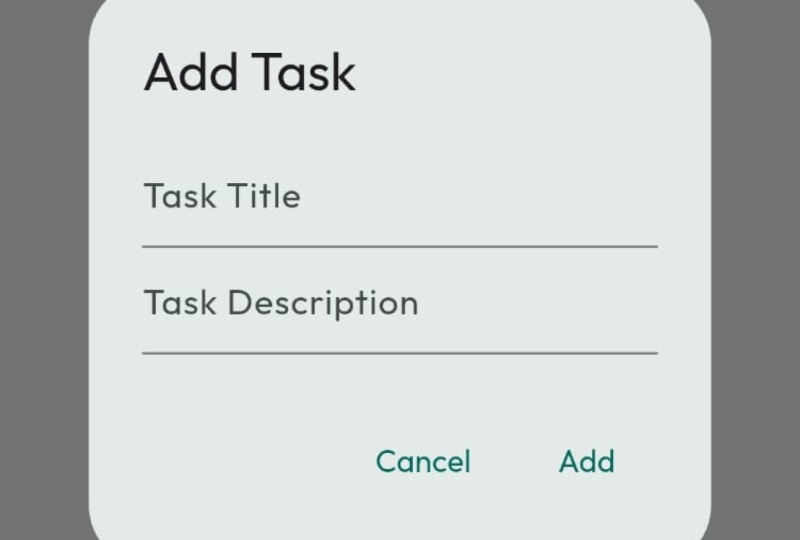
need to add is the title. So I'm going to add that
to Cs and say text, and we will call
this as at task. Style is a little bit. So we'll say style textile
and set the font size to 16 and set the font weight
to font weight W 500. Save that. If I click
on this plus button, you can see that
Attask title appears. And after the title, the next thing that we need is the content for this alert box. Here, we're going to add
a cost with a text field. This text field can have a decoration for
now and we'll call that decoration as
input decoration and it's going to have a hint text. That hint text will be add
your task here and save that. Now let's try to
check that again. Let's click on this plus button. Now you can see we can see
that text field over here. So now, after the content, we can add actions, a button which can
actually do something. So here we're going
to add a text button. Right now, we don't have
a function for this, so we're just going to
create a blank function. And here, we can add a
text which says a task. Now, this is not
going to change, so I'm going to set that
to const. I'll say that. Now if I click on
this plus button, you can see we have add task
and here the user can add in his task and then there's an
Add task button. All right. The thing now is that
even if the user clicks on this type something
clicks on add, nothing's going to happen. We need to capture that input
and add it to our list. To do that, we will need to use a text editing controller. Now, right below our
tasks that is over here, we're going to say final
text editing controller. I'm going to say controller. Gonna said that
too. Text editing control. Let's save that. Now here, in the text field, I'm going to say controller. We can say underscore
controller. Now, if you can't see
the highlighting here, automatically, that's
because we added the cons here. So
let's remove that. And now we should be
able to see that. So now you can see we got the controller. Let's save that. So now, when the user types in these details and
hits on the ad task, we'll be able to
capture those details. All right. Now when the user types something
inside the text, that's going to
get stored inside the underscore
controller dot TXT. In the next lesson, we will make the at Task button actually take that task and create a new task object and display
it instantly in our list. That's where our todo app
really starts to come alive.
8. Making the Add Task Button Work: All right, it's time
to make things happen. Let's make our add Task
button actually do something. First, let's connect
the button to a new function called Add task. First, I'm going to remove this and I'm going to
call this as AdTask. Save that. Now, let's copy this here right
after this pop up, we're going to say
void add task. Now, we need to check
if the controller that we added does not
have any empty spaces. For that, we'll say I and
here we can say controller, dot text, dot trim. Now, this is what
is going to remove all the blank spaces
inside the text. We also need to check if it's empty and everything is fine, we're going to return. Then we're going
to say set state, and then we're going to take the tasks and then we're going to add
something inside it. What we're going to add,
we're going to add the task. The title would be Controller, TD dot CRM Let's close them. All right. Now let's test this. Let's click on this plus button, and let's type something. I'll call this as Hello world. Let's click on a Task. There it is. The task shows
up right in the list. But notice something, the
pop up doesn't close and the text field still hold the
old text. Let's fix that. In your at task function, what we're going to do is first, we're going to tell the controller to clear
everything when it's done. Then once it's cleared, we need to go back to
our previous page. To do that, we'll say
navigator dot PAC. That's it. Now let's rebuild our app. I'll click on this and
we can say, Hello world. Let's click on at task. Now you can see the
pop up is gone, and you can see the Hello
world task and I can check it. I can uncheck it. I can tap it. I can again untap that and I can actually
delete this task. The best part if I get
back to this plus button, if I click on this plus button, the old text is gone, and now we are ready
to take in new tasks. Let's add a few more.
Let's say five. So here I'm going to call
this as task it task one, click on add,
create another one. I'm going to call
this as task two. Let's create another one.
We'll call this as task three. Task four, and then
finally, task five. That's it. So now you can
actually check these tasks. You can tap them. You can also delete them if you want to. Our simple to do app is
now fully functional.
9. Recap and Class Project: Alright, we did it. You built your very own simple to
do app from scratch. Let's take a quick
moment to look back at everything you have
learned in this class. We started by creating our flutter project and
setting up basic structure. Then we explored list
tiles and learn how to share data neatly with
icons, titles, and actions. After that, we learned
List weave Builder, which helped us build lists
efficiently and dynamically. We also learned how to use
a state full widget and use the set state function to update our UI whenever
the data changes. Then we took things further. We created our own task model, use a text editing controller
to capture the user input, and added a pop up dialog where the user can type new tasks. Finally, we made what to
do app fully functional. You can now add tasks, mark them as done, uncheck them, and delete them. That's a lot of
progress for one class. You should be proud
of this. Now it's time for your class project. Here's what I want you to do. Add your own personality
to this app. Try changing the
color scheme, fond, or icons, make it
feel like it's yours. Add one more small feature. Something creative, maybe a date picker or a task priority. It doesn't have to be complex. It just needs to be yours. And when you're done, share a screenshot or screen recording of your finished app in
the class project section. Tell us what you added, what you changed, and what
you enjoyed the most. I'll see you in the
next class where we'll build something even
more beautiful together. Until then, keep coding, keep experimenting,
and keep having fun.
 Flutter Sensei, Teaching Flutter from Scratch