Transcripts
1. What you will learn and build: Hey, everyone. Welcome. Am
freosens and in this class, you will learn how to build a daily planar app
that is persistence, which means this time, the data will be stored
permanently on device. In this hands on class, we're going to bridge
the gap between simple UI and functional
data driven applications. We'll start by setting up
our project foundation and building a clean modern
interface using material three. You learn how to manage complex user inputs by
implementing custom date and time pickers and how to keep your code clean using
dedicated help or logic. As we progress,
we will deep dive into local database
management with Hive. You will learn how to create custom type adapters to
store complex data models, implement a persistent
theme goggle, so your app remembers
your preference for light and dark mode
even after a restart. Organize and display
data efficiently using group less and
dynamic sorting toggles, perform full crud operations, allowing users to add, edit, and delete
notes seamlessly. Before we get started, make sure that you have
installed the latest version of flutter and VS code on your PC. Your project for this
class is to build the Dani Planner app from
scratch following the lessons. To complete the project,
you should set up the flutter environment
and the hive database. Create a nodes model and generate the necessary
database adapters. Build the UI for adding
and editing nodes, including date and
time selection logic. Implement the theme toggle and
the sorting functionality, the ascending and descending to manage how nodes are displayed. Once finished,
share a screenshot of your final app in
the project gallery. Also, feel free to get
creative by adding your own custom theme colors or showcasing a long list
of organized tasks. Now, before we jump in, make sure to hit that follow
button on my profile. That way, you'll be the
first to know when I drop the new flutter classes. So
what are you waiting for? Let's get started.
2. Project Set up & App Foundation: All right, let's get started. The first thing we are
going to do is create a brand new flutter project
for our daily planner App. So let's open our terminal, and let's navigate
to the desktop. Let's navigate to our
flutter projects. And here, we'll
create a new project we'll call the SAS, flutter, create, daily planner
and hit Enter. Now let's go inside
that daily planner, and we're going to
open that with VSCode. I'm going to close
everything else. And let's open the main dot dot f. Now here we are going to clear everything
inside this file, so we can build the
app from scratch. Once everything is cleared, you can go ahead
and add the code. So we'll say import, package, flutter, material dot dot. Then we'll say void main. Then we'll say Run app, const, my app, then
we'll close this. Copy this, say class, my app, extends
stateless, rigid. Inside this we'll say
const myApp, Superdt key. And then we'll say
at all right build and we'll remove
all of these items, you're going to return a
material then inside this, we're going to say title. I'm going to call the
title as Daily planner. Then we're going to set the
debug banner to follows. We'll say them data, and we'll use material three. We'll use the color
scheme from seed, called colors dot blue. I'll set the brightness to brightness dot light.
I'll save that. Once that is done, we're
going to call in our home. I'm going to call this
as const home screen. Let's save that. All right, this is our
material app wrapper. Right now I'm keeping things
intentionally simple. You will notice I haven't
added dark mode or any advanced theming yet,
and that's on purpose. When we integrate Hive later, we will properly handle themes
and persistent settings. For now, this gives us a
clean foundation to build on. In the next lesson,
we'll start building the home screen UI for
our daily planner app.
3. Creating the Home Screen & Connecting it to the App: Okay, inside the lift folder, let's create a new
folder called screens. So here we can just
call this as screens. Now, inside that folder, let's create a new file, and we'll call this file
as home screen dot, dot. This is where our home
screen UI will live. Now, let's start building
the UI for our home screen. So inside the
homescreen dot dot, we can start adding import, package, flutter,
material dot dot. Here we'll say
class, home screen, extends, State four with gt. And we can say const, home screen, superdt key. They say at all, create state. And I'm going to copy this home screen,
paste it over here, and this is going to be
underscore home screen state. And let's save that.
Now, let's take this undiscovered
home screen state. I'll say class, paste
a extense state. The state is home screen. And here we'll see at all right, build and inside the build, we'll return a scaffold. Here, you'll notice that we have created a state ful widget. That's because this
screen will soon handle dynamic data like adding
and updating tasks. So it makes sense to prepare
for that from the beginning. Now let's head back
to main dot dot. And then here we're going
to import that home screen. Let's say package,
daily planner. Let's say screens, home
screen, and let's say that. As soon as you do this, you will see that the error here is gone. Now we can run the app. You can go here and can just
click on this button. You can run it in an
Android emulator, browser or any
platform you prefer. I'm going to run it on Windows since it's faster
for development. All right, so you
seem to have started. So let's close this and
we're going to align this right beside this one.
And let's collapse this. Awesome. The app is running, but it's completely blank right
now, and that's expected. We have only set up
the structure so far. In the next lesson,
we'll start adding the real UI components like the app bar and the
floating action button, and that's where the app
will start to feel alive.
4. Adding AppBar, FAB: Awesome. Now it's time to start adding some UI
components to our app. So inside the
homescreen dot dot, we have this scaffold. So inside that scaffold, the first thing we
will add is the app. So here, we'll say app, app on, and we'll set
the title to a cost. I'm going to call
this a text wechir. And here we can say day planner. Then let's add in some
background color. That's a background color theme of dot color scheme,
dot primary container. Then we'll add the
foreground color. That's going to be them
dot of dot color scheme, dot on primary container.
And let's save that. Now that we have the app, let's go ahead and add the
floating action button. So we'll say floating
action button, the floating action
button on pressed, we're just going
to leave it blank, and here we'll add the child. The child is going
to be a const with an icon called icons dot add. Let's save that.
Now you can see, we have the floating
action button. What we can do is we can actually change
the shape of that. We'll call this as
circular border so it looks the rounded one. Alright, we have the
app bar on the top, a floating action
button at the bottom. The app finally looks like a real application instead
of a blank screen. Right now, the
floating action button doesn't do anything,
and that's fine. When we tap this button, the goal is to take the
user to a new screen. That screen will be
our ad not screen. In the next lesson,
we'll create a custom not screen where the user
will be able to pick date, select time, add a title, and write some
content of the note. That's where our daily panner
really starts taking shape.
5. Creating the Add Note Screen and Nav: All right. Now, inside
the Screens folder, let's create a new file
and we'll call this as add note dot dt. Inside this file, we're going to import a package called flutter, material dot dart and
we'll add the class called add Note extends
State full widget. And here's going to
say const, add note, superdt key and I'll say at, all right, create state. I'm going to take this note, paste it over here and
get rid of these things. I'll call this as underscore,
add note, screen. Or actually add note
state. And I'll save that. I'm going to take this
one, and I'll say class, add not state extends, state, and we'll call
this as Add nut. And here, we'll
see at all right, build, it's going to
return a scaffold. That All right. Now let's get back to
our home screen state. So I'm just going to
move this over here. We already have called the app bar and the floating
action button here. So instead of
rewriting everything, we'll reuse this structure. So I'm just going to copy this, get back to our ad note, then pit it over here. So here, we'll call this
as add note. Save that. And let's get back over here and I'm going to
copy this one too. And then right after this
one, I'm just going to paste. And what we'll do now
is instead of this ad, we'll call this as save. Now, let's get back
to our home screen. And now let's connect our ad not screen to our home screen. So what we're going to
do here is on press, we're going to say
navigator dot perch and the route is going to be material page route and the builder is going to be Add Nod screen.
And let's close this. Now if I tap on this one, you can see I come
to add Nodescreen. Now you can see that we have a new appr and a save button. Now, inside the save button, what we're going to do
is we're going to say navigator dot and
I'll save that. Now if I hit on this saveton, I'll be taken back
to the Hong screen. In the next lesson, we'll start building the actual input UI. Inside this add node screen, we will add a date time button. We will add text field for node title and the node content. That's where the screen
starts to look good.
6. Building The Add Note UI: All right. Now it's time
to add the real stuff. Inside the add node screen, we will start by
building the UI first. We'll focus only
on the layout now. Logic will come later. Now, inside the add node dot, dot, after the app, we're going to add the body. And here, we'll add padding. I'm going to call
this as H inset. I'm going to set that to 16. And here, I'll say child. And for the child, we're
going to add a column. That column we have children. And let's just scroll
this a little bit. In that children, the
first thing that we will have is an elevated button. We'll keep this plank for
now and in the child, we'll add a text field
called Pick date. A safe fan. Now you can see that we got
the pick date button. So after this, what
we're going to do is we're going to add a sized
box with a width of eight. Then we'll add another
elevated button. And for this one, we'll call
a text widget and we'll call this as click time
and save that. You can see that came
one below the other. So we want that one
beside the other. So what we can do is we can take these and I'm going to cut that. I'm going to add in
a row widget here. And inside that, I'm going
to paste my elevated button. So now they will come
one beside the other. So once that is
done, after the row, I'm going to add a sized
box with a height of eight. And then I'm going
to add a text field. You can see, we got
the text field here. For this text field, we're
going to set a decoration. That's going to be
input decoration. And we will add a
label for this, and that label is
going to be title. And let's save that. I can
see we got the title there. Let's add another sized box. I'm just going to copy
this, paste it over here. And now let's add
another text field. S text field. I'm going
to say decoration, input decoration, and
we'll set the label. As content. I say that
I can see we got this. But we want the content
to be in full height. So for this, what
we'll do is we'll wrap this one with a expanded widget. Okay. And here, we're going
to say expands is true. And then we're going to
say Mx lines is null. So now you can see we
got that in full height. We don't want this
border at the bottom. So for that, what we can
do is we can say powder. S input, border is none. So now that border is gone, and we want this
content label to align with the title over here. So what we can do here is we can say align label with hint. We're going to set that to true. Save that, and that's going
to go back to the top. Alright. Now we have buttons
to pick date and time. We have text wheel for the title and a larger text
wheel for the content. The UI is clean, simple, and already very usable. Right now, these buttons
don't do anything, and that's completely fine. We're intentionally separating
the UI and the logic, so things don't get confusing. In the next lesson, we'll add the logic for opening
the date picker, opening the time picker, and handling Am and PM properly. And that's when the screen
becomes fully interactive.
7. Adding Date Picker Functionality: Alright. Now let's add some functionality
to our date picker. First, inside the ad node
date that is over here. Let's create a variable to
store the selected date. For that, we'll call
this as date time. I call this as selected date. We're using the
nullable date time because at the beginning,
no date is selected. Now let's create a function
to open the date picker. This function will
return a future void. That simply means this function
will run asynchronously, and it will only complete
after the user picks the date. Now after this variable,
we can say future void. And here we'll say pick date. And here we're going
to call this as a sink and we'll create
a variable called picked and it's going to
await show date picker. And let me close this.
Now, the first thing that we're going to
need is a initial date. I'll say initial date, and I'll set that to
datetime dot now. The initial date will
be today's date. And for the first date, we'll set that to 2001, and for the last date, we'll set that to 2,100. Now here, we need to
create the FML statement. We'll say I Picked
is not equal to no. Then we can set state. Call this as selected dates
equals to let's save that. Now, let's connect this function to our PIC date function. If you scroll down,
you can see we have this button called Pig
date and we're going to replace this with Pig date. Let's save. Now, if
I cliconPig date, you can see, we get this
beautiful material calendar. Alcon, okay. So
nothing shows up here. And that's completely
fine because now the date is stored, but it's not visible yet. Let's display the selected
date inside the button. To do that, what we can do is we can get rid of this text here, and here we'll say if selected
date is equals to null, then we can say peg date. If it's not null, then we'll have to
display something, right? So here, we're going to display selected date.
And let's save that. And there we got the default
date which we selected. Now, if you look
at this pre weave, you will notice
the date appears, but it's long and messy format. We don't want that. We only
need day, month, and here. Let's format that manually. So for it, what are we
going to do is here, we're going to say D day. If I say that, you
can see says four. Now let's add in
a separator here. And then we will call in the
same thing again that is selected date dt
month. Save that. I can see we got one
because it's January. Then I'm going to put
another forward slash, and then we'll say selected
date done here says 41 2026. The date is now clean, readable and exactly
what we wanted. It's not very pretty
yet, and that's okay. We'll polish the UI later. For now, the important thing
is the date picker works, the selected date is stored, and it is visible in the UI. The next lesson, we'll
add the time picker.
8. Adding Time Picker Functionality: Alright. Now let's add the functionality
for the date picker. First, inside the ad node state. That is over here. We will create a variable to
store the selected date. And for this, we'll call this
as time of day and set that to selected time, save that. Just like the date,
this is nullable because no time is
selected at the beginning. Now let's create the function
that opens the time picker. So after the pick
date function here, we're going to say future void, that's going to be pick time. And we'll call this as a sink. And here we'll say final
picked is equals to a weight. Show time picker. And
let me close this. And here, the initial
time is time of day.net. And after this,
we're going to say I picked is not equal to no. Then we'll say set state Let's say selected time
is equals to picked. Let's say that. Next, connect this function to the PiT button, which we have over here, and we will call this pick Time. If I click on Pick time, you can see we get
the time here, and you will notice
something strange. The pick time looks a bit weird. It shows both 12 hours
and the 24 hours. This issue usually happens
on the desktop platforms. On Android, it works
fine by default. Let's fix this so it works
properly on all platforms. If you scroll back top, we have this pick time and
we'll update that into this. So for we'll do is
we'll say builder here, we're going to return
a media query. And for the data, you're
going to see media query, d off, dot copy width. Then we'll say, always use 24 hours format is
to false. I'll save. And now let's pick time again. Now the time pickle looks
correct on Windows as well. Next, let's display the selected
time inside the button. Let's click on K
and scroll down, and here we have pick time. So here, we'll say selected
time is equal to no. Then we're going to
say pick time or else, we're going to say
dollar selected time. And if I say that, you
can see it just says time of day and shows
the 24 hour format. And we can do the
same thing here. So what we can do is we
can say hour, I save that. You can see it says 14, then we can give a column
here. Let's open another one. I'll say selected time dot
minute and let's save that. You can see it shows the minute. And now we need to
display the AMPM thing. So here, we'll just
say selected time. But that period, dot name. Save that. So now you can
see whether it's AM or PM. Now the selected time
shows correctly, and everything works as
expected. But notice something. Just to handle date and time, we're already writing a lot of logic directly inside the UI. This works, but it's not clean, and we don't want messy code. In the next lesson, we'll create a helper method that
cleans up the logic, improves formatting, and makes our UI code look
much easier to read. That's where our code starts
to look professional. A
9. Cleaning date and time logic: Alright. Now it's time
to bring in the helpers. Before we start, there's something important you
need to understand. So far, we have been using
time of day to store time. That works fine for the UI, but time of day is a pluto
type and not a pure darn time. And later, when we use Hive, it won't support
the time of day. So instead of storing
the time as time of day, we will convert it into date Why didn't we
do this earlier? Because earlier we were
only building the UI. And now we are preparing the app to talk to the database.
That's the difference. So first thing, let's open
up the pub spect dot YAML. And in the dependencies, we're going to add entel
let's scroll down. Let's find it. That's over
here, and let's save that. This will let the
flutter fix the package. Next, we need to
create the helper. So inside the lib folder, we're going to create
another folder. I'm going to call
this as helpers. In inside this, I'm
going to create a file called daytime helper. Dot dot. And let's coapsees.
So first thing what we'll do here is we're going
to import that package. That's int. Now, what
we need is a string. Okay, and that's going
to be format, date. It's going to take in date
time as a type for date, and then we're going to
return a date format. And the date format that
we want to return is day, month, followed
by a Ca and year. And we want to format
that with the date. I'll save that. Now let's
create another helper for time. That's string format time. And instead of
taking time of day, it is going to take date time. We'll call this as time. And here we're going to create a variable to get
the current time. For this, we'll say
now date t now. And then we'll get the current date,
actually current time. And that's going to be
date time now dot here, now dot now dot
month, now dot day. And then this is where
the things change. We want time dot hour, and then we want
time dot minute. Okay. And next, we need to return
that return date format. And the format that we want is our minute and that AMPM thing. And here, we'll say format, current time let's save that. These helper functions will keep our UI code clean and readable. Now let's get back to add node dot dt and we're going
to import that helper. So here, we'll say
import package, daily planner, then we have
here helpers, daytime helper. Now, let's go ahead and
first update the PIC date. So all you have to do is
just call all the way down, and you can see this
is the PITate, right? So what we can do is you can get rid of this entire thing. Okay, and we don't
need this one too. We can get rid of this one too. And we'll say format date and
the date is selected date. Save that and look at that. We have this beautiful date now. And let's do the same
thing with the time too. Now, before we do that, we need to change the variable type. So this is going to
become date time. Now we need to update the pick time too,
which is over here. You can see we already
have an error. So what we're going to do
here is we're going to say final now is equals to date time dot N. And here, selected time will be date time, and that's going to
be now dot year, now dot month, now dot day, and then picked dot hour and picked dot minute
and save that. Now, let's scroll all the way down to our time picker here. I'm going to get
rid of this one. And here we'll say four
minute time is selected time. And let's say that.
Again, she says, time of day is not a sub
type of datetime, right? So what we can do here is we
can just hard refresh this. And now you can click
on this new note. Let's pick the date. Let's pick the time and look at that. Now, it shows the
time correctly. Great. Now we have
clean date formatting, clean time formatting,
database friendly data types, and much cleaner UI code. In the next lesson, we will take this data and store
it inside a model. That's where everything
starts coming together.
10. Creating The Note Model & Validation: Alright. Now let's create a model to define how
our data will be stored. Let's open the lip folder, and here we'll create
another folder. We'll call this as model. It's actually going
to be mode loads. And inside this,
we're going to create a file called note dot dot. Now here, let's create a class. Called note. And inside that, I'll say final string. And the first thing
that we need is the title. Let's
create another one. This is also a string, and we'll call this as content. Next, we're going to
create another variable, and this is going
to be date time. And that's going to be date. Let's create another variable. This will also be date
time called time. Now, you're going to
create a constructor, so const note and inside that, we'll say require
this dog title. Required this dot content, required this dot date, required this dot time.
And let's save that. This node class represents
a single planner entry. Each node has a title, a content, a date, and a time. Now later in the app, we'll be grouping notes by date. For that, we only need the
date part without the time. So let's add a getter. So right after this constructor, we'll say date time,
get date only. I'll call this as
datetime S date dot here, date, dot, month and date
dot day. I'll save that. This makes grouping
much easier for later. Now, let's go back
to add no dot dot. At this point, we
already have date, time, title field,
and content field. But we don't have the
validation yet. Let's fix that. So if you scroll down over here, what are you going
to do is we're going to create a function. I'm going to call this
function as add note. And here we'll say I selected
date is equal to no. Then we're going to say
is scaffold messenger, dot F shows snack bar. It's going to hold a const
called Snack Br with a text widget and we'll call
this as date is required, and that's close that. So we're going to return that. And then let's add another one. I'm just going to copy this, paste it over here,
and this is going to be selected time. We'll just change the
date to time, save that. Right now, we can't read the
title and content values. So let's go ahead and
add those controllers. So here, right after
this date time, I'm going to say final
text editing controller. I'll call this as title. But and said that too,
text editing controller. And let's duplicate that, and this is going to
become underscore content. Let's say that. Since controllers hold
memory, we must dispose them. So for that, we'll say
at all right, dispose, and then we're going
to dispose title, dot, dispose, and content
dot, dispose say that. Now we need to update
the text viels. So we scroll down, this
is our first text field. So here, all we
have to do is say controller is underscore title. And for the next one that is controller is underscore
content. Let's save that. Now, update the
ad node function. If we scroll all the
way up, you have this. I'm just going to copy
this page over here, and we need to get
rid of this one. We'll say title,
the text is empty, and there's going to be title. And let's just copy that
and paste it again, and this is now going
to become content. And this will be content.
Let's save that. If all the validation pass, we need to create a
note to send it back. So for that, what
we'll do is here, we'll say navigator dot pump. Okay. Now, to create that note, all I have to do is
just type in note. And see here we get that
note from the model. Hit Ender. And you can see
it fills in the details. So we need to add the title. So that is title dot text. And for this one, this is
content dot text, and for date, it's going to be selected date, and for time, it's going to be selected time and save that. Now the only thing
that needs update is our floating action button, which is over here. So what we're going to do is going to get rid of this one, and we'll add that to add note. Now, let's check
this one by one. If I click on save, can see it says
title is required because date and time
are already selected. So let's fill in the details. I'm going to call
this as node one. Let's hit on save says
content is required. So I'm going to say node one. Content, save that and it
takes us to the home screen. Well, we are sending
the data successfully, but we can't see it yet. That's because the
homescreen doesn't know how to display that notes. In the next lesson, we'll build the homescreen logic
to receive notes, group them by date, and
display them in a clean list. That's where everything
comes together.
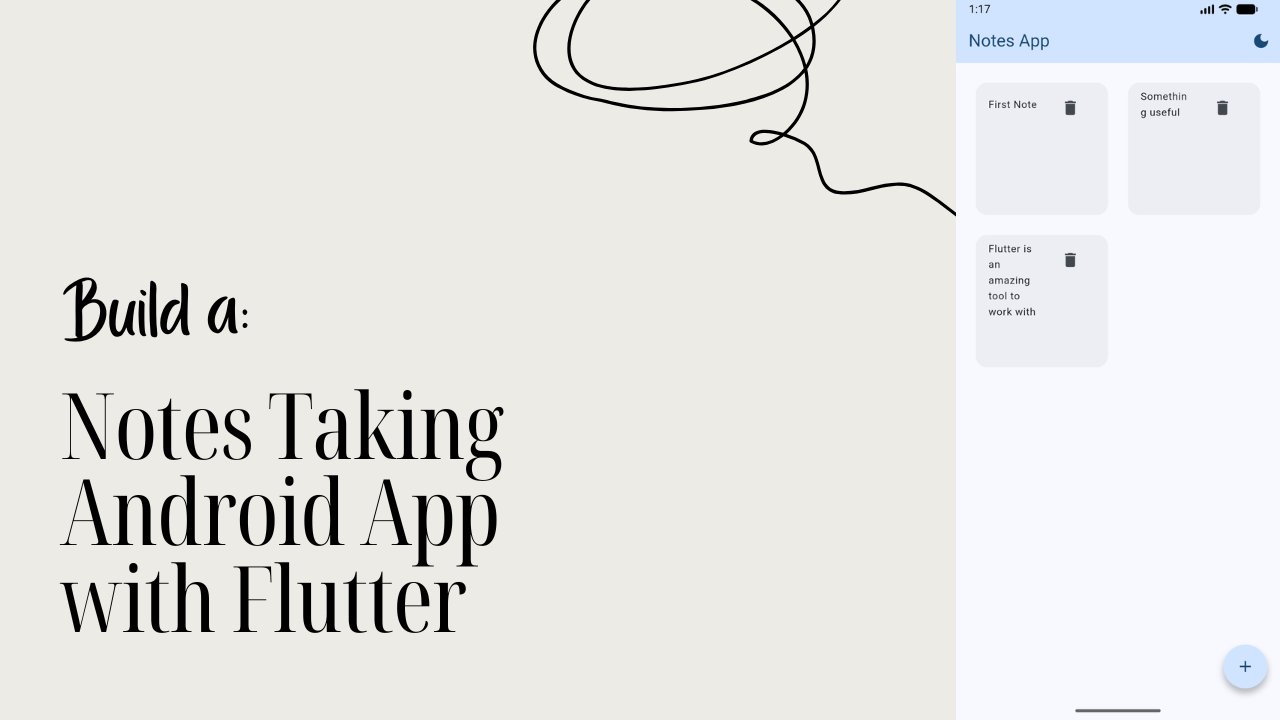
11. Displaying Notes on HomeScreen: Okay, now it's time to
work on our home screen. The first thing we need is
a place to store our notes. Open homescreen dot and scroll all the way to
to Homescreen state. And here, we'll create a
video called final list. And this list we'll have a type. The type is the node
type that we created, and it's going to hold notes, and that's going to
be empty for now. This list will hold all the nodes coming from
the add node screen. Now, let's update the
floating action button so it can receive the data when we come back from
the Add node screen. So if we scroll
all the way down, you can see here we have this on press and here it
will say a sink. And I'm going to take
all of this, cut this, and we'll say final new note and we're going to set that
to avoid and page this. And we're going to check that. So if the new note is
not equal to null, then we can say set State
underscore nodes dot add, we're going to add the new node. Let's save that. So what's happening here? We
open the add node screen, we wait for it to
return the data, and if the node is returned, we add it to our list. Since we want to group
the nodes by date, we'll use a package. Let's go to Pubspec dot YAML. And here in the dependencies, we're going to add
another package. We're going to call this as
grouped list and save that. Now, back in home
screen dot dot, let's add a body
to our scaffold. That's over here,
we'll say body. And we'll say if the
notes dt is empty, then we're going to
create a const with a center Wichet which
will have a child with the text Wichet which says no notes added yet. Okay. Now, if the nodes are added, we're going to show
a grouped list. And you can see it already
takes in some stuff, but before that, we
need to add the type. So the type we want is note, and we want date time. The elements it will
look for is notes. And then we want to group
that by date, right? So where is that date
located is inside the notes. So here, we're going to say
note and then we'll say, note that date only. Now we need to
create the separator builder group separator builder is going to take in a value. The value is date, and it's going to output a padding with a
edge and set all of 16 and then it's going to
have a child with a text, and that text is format
date with the date. Let's save that. And finally, what we need is a item builder. And that item builder is
going to be the note. And what we can do here
is we can actually return the list tile here. And the list style for
now has a title with a text widget called note
dot title. Let's save that. And now before adding more
details, let's test this. Let's go ahead and
re run the app. Now let's create a note here. Let's select the date, time. We call this as note one. And here will say
node one content. And let's save that. And see, we got the
date separated note. Perfect. The grouping works. Now let's make the
list look better. Inside the grouped list weave, you can see we have
this date thing, which is actually formatting. So what we can do is
here we can say style. I'm going to call
the text style set the font weight to
font weight W 500. Okay, so it's going
to look big there. The next thing here in the tile, we're going to add
the tile color. So the color has
to be a little bit lighter so that it can easily work with the dark mode, too. And for this, what
we're going to do is for the tile color, we'll say thin Dart off dot color scheme,
dot surface container. And you see, we have the
light gray color over there. Next, let's add this subtitle. So we'll say subtitle
will be a text widget. And here that's going
to be note dot T. Now, the node dot time
has to be formatted. So we'll say format time, that is node dot time. You can see we see
the time there. Let's make it a bit smaller. So what we can do
is here we can say style text style, phone size. I'm going to set that to 12. So that's going to make
it a little bit smaller. Now let's add a delete button. After the subtitle, we'll say trailing icon button on pressed, we're going to
leave that for now. And for the icon, we'll say icon,
icons, dot, delete. Let's save that. We've got the delete button too. Now, let's make this workable. So what we can do here
is we can say set date, and we're going to take
that node dot remove and we're going to
remove the note. And let me just cost this. Let's test that. I'm going
to click here Delete, and that's going to
remove the note. And when there is
nothing there, it's going to say no notes at yet. Great. Everything now works. We can now add note, we can delete a note. We can add notes on different dates. Everything
works perfectly. Your notes are now
grouped by date, cleanly displayed
and fully infactor. In the next lesson, we'll build the edit note screen so users can update
the existing nodes.
12. Editing Notes by Reusing the Add Note Screen: All right. Now let's work on the editing part of our
app. The idea is simple. When a user taps on a node, we want to open the
Edit Node screen. But before we do that, we
need an edit screen first. Now, here's the fun
part. We don't need to build a new
screen from scratch. We already have a
add node screen, and it does almost
everything we need. So all we have to do is, let's go to add Node dot, dot, and then we just need
to duplicate that, and we'll call this as
dit, note dot, dot. I'll save that. Now, if you just
scroll all the way up, we just need to
update some things. So that is this one
is going to be edit. Note. Okay. And then
we'll take this one. We'll change that
to Edit node state, and same thing happens here. Save that. Now, if we
scroll a little bit down, you can see we have this title. I'm going to change that
to Edit node. Save that. And also, here we are
adding the node, right? So we'll call this as edit. Note. Now scroll
all the way down, change this to edit,
note. That's it. Now comes the most
important part. When we tap on the note, we want its title content, date and time to be sent from home screen to
the edit screen. We can do this easily by passing the note through
the constructor. For that, if you scroll
all the way up over here, what are you going
to do is going to create a variable with a type note called note. Okay. And here, we'll say
required this dot note. Now we need to prefill the UI with the
existing node data. So inside the edit node state, what we'll do here is
right after this all right dispose at right in it state. And here we need to get
rid of this comment, and we're going to
take in some details. So we have the title here. The text will have widget
dot node dot title. Then we need the content, which is a text, which will take in Widget
dot n dot content. The next thing that we
need is selected date is going to be Widget
D no dot date. And same thing for the time too. So we'll say widget
do no dot time. That's it. Edit screen now automatically shows
the existing data. Now, let's get back
to the home screen. And now, if you scroll
to the list tile here, you can see we have the trailing
and after the trailing, that is the icon button, let's add a on tap button. So on tap, we want
to run a function. That function is going
to be a sink and it'll have a variable
called updated note. And that's going to avoid
navigator dot perch Okay. And it's going to take in material page route
with the builder, and the builder is edit note. And it takes in the
node automatically, so you don't have to
worry about that. Now we need to check this. So we'll say F updated
note is not equal to null. Then we're going
to say set state, and we're going to create a
variable here called index, it's going to find
the nodes index of the note that
will be the index. And then we'll say notes, and we're going to
find that index, and we're going to assign
that to updated note. And let's save that.
Now let's test the app. Let's get over here.
As click on new. I'm going to pick date. I'm
going to pick some time. I'm going to call this as
Node one, Node one, content. As click on save. You can see we got
that note one, and let's add another
date, actually. So to set that to the next day. The time is going to be six, and we'll call this as note two. Note two content. And let's save
that. I can see we got two notes grouped by date. And just to test it, we're going to add another date for today. So we're going to add that over here with a different time now. I'm going to call
this as note three. Note three. Content. And let's save that. All right, it is grouping.
Now you can see, actually, we can hover two. That's because we
enable the on tab. Now let's update the note one. I'm going to call this as dated. As C save you can
see it says updated. Now let's update the node three, content. We'll say updated. I'm going to change the
date time actually to 6:00 P.M. Let's say that and you
can see it shows 6:00 P.M. It's updated. And also, you can see the updated
content here. Just like that, we have fully working app that can add notes, edit nodes, delete notes, and group them by date. This completes the part
one of our real app. In the Part two, we will move into the database
side of things. In the next lesson, you
will learn how to use hive to store this data locally
and make it persistent.
13. Integrating Hive & Persisting App Theme: Alright, it's time to integrate
Hive into our project. H will help us store data locally even after
the app is closed. To add Hive, what we can do is the first thing and go
to PubSak dot YAML. And then in the dependencies, we're first going to add Hive. Okay. And then
we're going to add Hive flutter and save that. Now go main dot dt. And actually, I'm going to
close all of these files so that you can see better
and understand this better. Okay, so inside
the main Dot tart, since Hive needs an
async initialization, update the main
function like this. We're going to set
that to async. And what we can do here
is right after this one, we will say widgets flutter
binding dot sure initialized. Okay. And then we'll use a
wit hive now in a type hive, make sure you select
the hive flutter. Dt in it, flutter.
Let's say that. What this does is it ensures the flutter
widgets are initialized. Hive is ready before
the app starts. Now, before running the app, let's open a hive box to
store the app settings. So right after this,
we're going to say wait, hive dot open box, and we'll call this box
settings. Let's save that. Now our settings box
is ready to use. Now, we need to listen
to the hive changes. So inside the Mapp, we'll need to update
this all built widget. So what we can do here is we're going to
create a variable. I'm going to call
this as settings Box. And here, we'll take that
box that we created. That is hive dot Bx and
the box name is settings. Save that. I can see it shows an error
that's completely fine. Now, instead of directly running the material app over here, we will wrap it with a
value listenable builder. This allows our app to rebuild automatically when the
hive data changes. So what we will do is we'll take this entire material app and
we're going to cut this. Okay, don't delete it, cut it. Now what we can do is we can type in value
listenable Builder. And here in this
value listenable, we're going to take in the setting sparks and we'll
set that to listenable. Okay. And here, the builder going to
set that to this one. So here, the value is a box
and the child is nothing, so we're just going to
ignore that part here, and here we need to
return something. So what we're going to do is
we're going to return now paste the material app
that you cut before. Okay? So now let's say this. Now, we are returning the
material app, right? Before returning
that material app, let's read a value
from the hive. So inside the builder, which is over here, we're
going to create a variable. That variable is final is dark. Okay. And when I get the box, this is the same box
that we added over here. Okay? That's box dot get, and we're going to get a value. Es toque. Now, this doesn't exist.
We are adding it. Okay? And the value by
default is going to be false. Okay. Now, we need to update the material app to
support both themes, the light theme and
the dark theme. Now, you can see here we already wrote the light theme, right? So now we need to
write the dark theme. That is, them data use
material three is true. Then we can say the color scheme is color scheme from seed, say colors dot blue, and the brightness is
brightness dot dark. Okay. Now we're going
to set the theme mode. So the theme mode here,
we're going to check. Es dark. If it's true, we're going to say
the mode, don't dark. If it's false, we're
going to say the mode, don't light. Save that. Now let's re run the app. So let's re run this over here. I can see still shows an error. That's because this is storing some extra data
which we don't want. So instead, I'm going to start the running app and re run
this entire app again. And now we have this app. So what we can do is we
can put this over here. Now, by default, the app to
default is set to falls. So falls means light theme, so it is showing us
the light theme, but we don't see any
errors right now. In the next lesson, we'll
add a toggle button, so users can switch between light theme and dark theme and we'll store that
preference in hive.
14. Adding a Persistent Theme Toggle: All right. Now, all we need is a toggle button to switch between light mode
and dark mode. Since our theme logic
already lives in Hive, this part is actually
very simple. Now, from here, we need to go to homescreen dot and
scroll all the way up. And inside this build
method or here, first, we need to access
the settings box and then listen to its changes. So what we're going
to do here is we're going to say final, call this as settings box. That's going to be Hive. And we're going to get that box called settings as close time. And you see this
entire scaffold, we're going to take
this entire scaffold. I'm going to cut that,
not delete, but cut it. I'll say value listenable
builder settings box dot listenable. And the builder is going
to be a box with child. And then we're going to
return this scaffold. Scroll all the way up. Okay, so this is the scaffold
that we are returning. Now before we return this, we need to check if
the dark mode exists. So we'll say final is dark, and we're going to
say box dot get, and we are getting is dark. And default value is false. So let's make sure
that this name is same as the one
that we set over here. Okay? So that is the same name. So now what we need to do is we need to just
create a toggle. So this is the button. Okay, so we need
to add a button. So here, I'm going to
call this as actions, and inside this, we'll
say icon button. Which will be blank for now, and we'll set the icon to
icons to refresh for now. Now, inside this press
we will say box dot, but to get a value here first. That is the As dark. And the value is not
ADRC and save that. See, there is no set state here. Okay, so now if I click this, we can switch between
light mode and dark mode. We need to change the icon based on the data
that we have here. So what we can do is we
can get rid of this, and we'll say if Etok is true, we're going to say
icon dot Light Mode, or we can say icons
dot dark mode. Save that and you can see, we have that light
mode, dark mode thing. Okay, so let's put that to dark mode now
because by default, it was set to light mode, and let's stop the app. Okay? And let's get back to home, and let's
read on that again. Now, since it's persistent, it has to be in dark mode
already. And there we go. It is in dark mode. That means our data
is now persistent. So what's happening
here? We read the Es dark value from Hive. When the button is pressed,
we toggle the value. Hive notifies the listeners, Material app rebuilds the Material app
rebuilds automatically. The theme switches instantly. And since Hive stores
the value locally, the theme choice persists even
after restarting the app. And just like that, we now have a persistent
them switcher in our app. In the next lesson, we'll move into the real power of Hive. We'll create a complex box and start storing our
notes permanently.
15. Creating Hive Adapters for The Note Model: All right. Now it's time
for the real stuff. So far we have been storing
simple values in hive, like bullions for theme. But our node model contains
multiple data types. Yes, we could store
everything as dynamic, but why do that when we already have a strongly
typed model, right? To store custom objects in hive, Flutter needs to understand
their structure. For that, we use hive adapters. Now, what we can do here
is instead of writing the hive adapter for ourselves,
we can generate that. Let's go to perp spec dot YML. And in the dev dependencies, we're going to add Hive,
underscore generator. And then we will add build
Runner. And let's save that. Now, you see that you
will get this error. The error basically says that this version is not compatible
with the hive generator. So we will have to
shift to 2.4 0.13. Let's go ahead and do
that. I'll say 2.4 0.13, and let's save that. Yes. And now that error code is zero so we don't
have any errors. Let's close this. Now,
these packages help us generate the code
automatically for our model. So let's say this. And now inside our models, we have no dot, dot. Let's open that up.
And at the very top, what we're going to do is
we're going to import hive. I'm going to say
import package, hive. That is Hive dot dot. Then we will need
to generate a file. That file will be no dot G
dot dart and let's save that. Now, we need to update
the note model. So first thing, what
we'll do is we'll set up a column for the main
node. That is this one. So for this, we'll say at hive and you can see here we have
something called hive type. I'm going to set the
hive type to zero. Remember, it always
starts from zero. Okay? And after that, we need to set up some fields. So we'll say at hive
and that is a field, and the index is zero. I'm going to set another one,
say at hive Field is one, and this is going to be at hive. Field is two. And then at hive, field is three and save that. Here's what this does. At Hive type tells hive that this
is a storable object. Type ID uniquely
identifies this model. Hive field defines how
each field is stored. Once these are set, Hive knows exactly how to serialize and
deserialize a note. Now, we need to
open the terminal. And from here, I'm going
to go to Command Prompt. And then now we need to
run the built runner. To run the built runner, we'll say flutter, pub, run, build, runner,
build, then hit Enter. Now, once it finishes, you'll see that the
error here is gone. So now if you open this, you can see that file is now generated. That's your hive adapter. Now, we need to
register that adapter. Let's go to main dot dot,
I'm going to close this. And here at the very top, after the innit flutter, what we're going to do
is we're going to say hive dot register adapter
and the adapter that we want is note adatress right over here, and
that's closed time. And we'll remove
this extra line. This does Hive. Hey,
whenever you see a note, here's how to handle it. At this point, Hive
understands our note model. The adapter is generated
and registered. We are ready to store
nodes properly. In the next lesson, we'll
create hive box for notes. Store notes inside it and load them automatically
on App startup. That's when persistence
becomes real.
16. Storing Notes Permanently using Hive: Alright. Now we need to add another hive box this
time for our notes. Let's do that first.
In your main dot right after the settings, we'll add another await. We'll call this as
hive dot open Box, and we'll call
this box as nodes. Now, this is not a single
value box like settings, so it contains multiple values. So here we need to
specify the type. So the type here is note.
And let's save that. Now we have opened
a box called nodes, and it stores the
data of type note. Now let's move to the
home screen dart, which is over here. Because this is where
all the magic happens. Now here at the very top, if we scroll a little bit down, you can see we have
this built method. Inside that built method, right below the settings box, let's add another
final notes box. And that's going to
be hive dot box. And now this one
has a type called note and this one is called
notes. And let's save that. If we see that error,
don't worry about it. Now we have access to our notes baox which already contains the
persistent data. Now, this is important. We already have a working body. So instead of
rewriting everything, let's cut the entire
body and keep it in a node app or
somewhere else safe. We'll bring it back and
replace the things one by one. So if you scroll down, you
can see we have this body. I'm going to take this
entire body until here. Okay, and I'm just
going to cut that. And we'll open a notepad and I'm going to
paste it over here. Let's keep that safe. I'm
just going to minimize that. Now here, what we're
going to do is we're going to call in a body, and this body will have a
valueless number builder. The valueless number builder
that we need right now is the notes booxTt listenable. Okay? And the builder is
going to be box, and the child is going to be, Oh, let's ignore that for now. And here, we'll say return. And actually, instead of return, what we can do is
we can actually do the INS statement here. So we'll say if the
box that we have here is empty, we'll
output something. We'll return a center chat, which has a child called text, and that text will say
no notes added yet. And let's close that. And now, if the box is empty, we will need to convert that
stored notes into a list. To do that right after
the If statement, what we're going to do is
we're going to say final. We'll say nodes.
List is equals to, say px dot values, dot two list. So now all the values that we have inside that will be
converted into a list. Now we'll bring back
the old grouped list UI that we cut earlier. So what we can do is
we can just return, and now we can get to our notepad and you can see
this grouped list weave. I'm just going to take that and then we'll just
paste it here. I'll save that. And
let's minimize this. We'll keep that open
so that in case if any error happens,
we can fix it. So we're right now here in
the grouped list weave. Now we will replace
items one by one. The first thing that you
will see here is notes. We're going to replace
that with note list. Now we need to replace
the delete logic. If we scroll down, you can
see the next thing that we have is the icon button,
which the delete logic. We don't need set state anymore, so we're going to
get rid of that. We first need an
index to delete. So we'll say notes
list index of note. Okay. And all we
have to do is get the box to delete at the index. Let's save that. Now the next thing that we
have is the update logic. So all of this is fine, but here's where's the
actual updating happening. So I'm going to get
rid of this and here we'll say final index. Is equals to, we'll say notes
list dot index of note. And then all we have to do is
park dot put at the index, and the value that we want
to put is updated note. And save that. Finally, now we need to update the floating
action button. So here's the thing. So we already have a working
procedure here, so all we have to do is just
replace this set state. So let's get rid
of that set state. And here we'll say notes
box dot add you note. That's it. Now, let's rerun the app and you can see that we
have a tiny issue here. Okay, so this one
is useless now, so we can get rid of that. And now we can actually
rerun the app. You can see the
errors are now gone. Our doc mode is still on. So now let's go ahead and
test it. Let's add a note. I'm going to pick a date.
I'm going to pick a time. I'm going to call
this as Node one, node one, content,
and click on Save. Let's add it. Let's
click on this one, and we'll call this as
update or update TD. Just click on save,
it's updated, and let's do the
same thing here. Let's say updated, save that,
and that's updated too. Now we need to check
if this is persistent. So I'm going to stop
the running app and then run it again. All right, we got the app and the best part, the note stays. That means it is
persistent. That's it. We have successfully
replaced temporary in memory state with
persistent high storage without rewriting the entire UI. This is exactly how real
re factors are done. In the next lesson, we will add a simple toggle button where we can sort the list from
old to latest or vice versa.
17. Sorting Notes with ASC & DESC Toggle: Alright. Let's make
this our final lesson. So far, our nodes
are grouped by date, and they're ordered in
descending order by default. Right now, let's go ahead
and hardcore something. So if you scroll down, sorry, let's go to home screen. And if you scroll down here, you can see we have this
group list Builder. And here, I'm going
to add something, call this as order, and that's going to be
grouped list order dot TSE. Okay, so now let's
add in some details. Okay, I'm going to pick date. I'm going to add some
other date. Some time. I'm going to call this as
note to note to content. I'm going to save that. I'm
going to choose another date. Maybe a previous
one from last year. Okay? And let me just go
into some random date. I'm going to call this as Node
three content. Let's see. Okay, so now you can see that the latest
one is on the top, the middle one is here
and the old one is here. So basically, it is
descending order. Okay, so what we want now
is to have a toggle effect. Okay? So basically
what we're doing, we are actually
forcing in one order. Let's give the use
of the control. We will add a toggle button at the top to switch
between newest, that is the descending order, the oldest, that is
the ascending order. Just like theme, this persistent will be saved permanently. We will reuse our
existing setting sparks. We'll store a bullin called
es DESC that's Es descending. If it's true, it's
going to descend, if it's false, it's
going to be ascending. Let's go to our home screen
dot dot here where we had this value listenable builder we're going to add
another final, and I'm going to call
this as Es DESC. I'll set that to box dot Get I'm going to
set that toes DESC. And default will be set to true. And let's save that. And now we need to add the tagle button. So here we already
have the actions. So right before this, I'm going to add another one, call this as icon button. And we'll leave this
however it is right now, and we'll set the icon
to icons dot ARR upward. Let's save that. Okay, so you
can see that we have this. Now inside this, what
we can do is we can say bag DP and we're going
to take Es DESC. And the value,
whatever the value that we have for es DESC, we're going to just go in the opposite
direction of that one. And here, what we can do
now is we can set that. So here we can say is DESC true. We're going to say Icons
Dt, arrow, upward. Else, actually, this is going
to be like arrow downward. Else, you can say
icons, dot, arrows. Upward, and let's save that. All right. Snow you can
see it's already taken from new to old. Okay? So if I click on this one, it's going to go
from old to new. But nothing happened
when I click this. Only the toggle thing happened,
nothing changed here. In order to change this, we can make use of this one inside our valuonable
builder over here. So you can see we
have this one, right? So what we can do is
we can just cut this and we can say Es DESC, then we're going
to put this one. If not, we're going
to put ascending. I save that. Now it changes. So if I click this, you can
see the entire order shifts. With this final touch, your app can now add
notes, edit nodes, delete nodes, group
nodes by date, sort notes both ways,
persist everything locally. Remember user
preferences, and this is a complete real
world flutter app.
18. Recap and Class Project: Congratulations.
You just crossed the final line and build a fully functional
persistent daily planner app using flutter and Hive. Throughout this class, we didn't just build a
pretty interface. We implemented a real
world database solution. Have mastered creating
custom type adapters, handling crowd
operations, and building a persistent theme that
follows the user's preference. These are the exact kinds of fundamental skills like managing state and permanent storage, that will carry over into every professional mobile
development project you touch from here on out. Take a moment to look at
what you have created. You now have a working
app that lives on your device and remembers
what you tell it. That is a huge milestone in
your development journey. Now, for your class project, I want you to take the code we have written and
make it your own. Complete the app by ensuring all the hive adapters are registered and sorting
logic is fully functional. Once you are happy with it, take a screenshot or a quick screen grab of
your app in action, especially showing
off the theme toggle or a well organized
list of notes, and upload it to the
project gallery below. Seeing your work is the
best part of teaching, and it helps build more
projects like this. I am Flosense and it has been a genuine pleasure guiding
you through this build. If you found this class helpful, please leave it a review. It really helps me keep
creating these guides for you. If you want to stay updated on my latest classes and
new flatter taps, be sure to follow
me on Skillshare. Until then, keep coding, keep building, and I'll
see you in the next class.
 Flutter Sensei, Teaching Flutter from Scratch