Transcripts
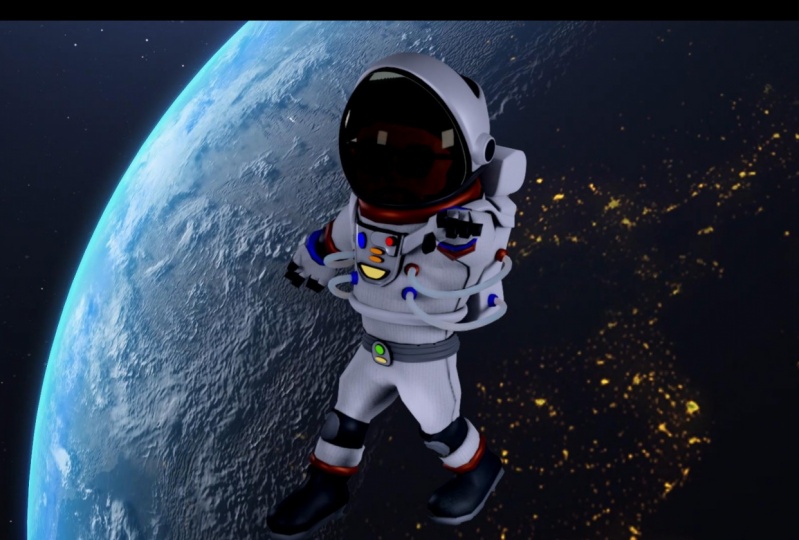
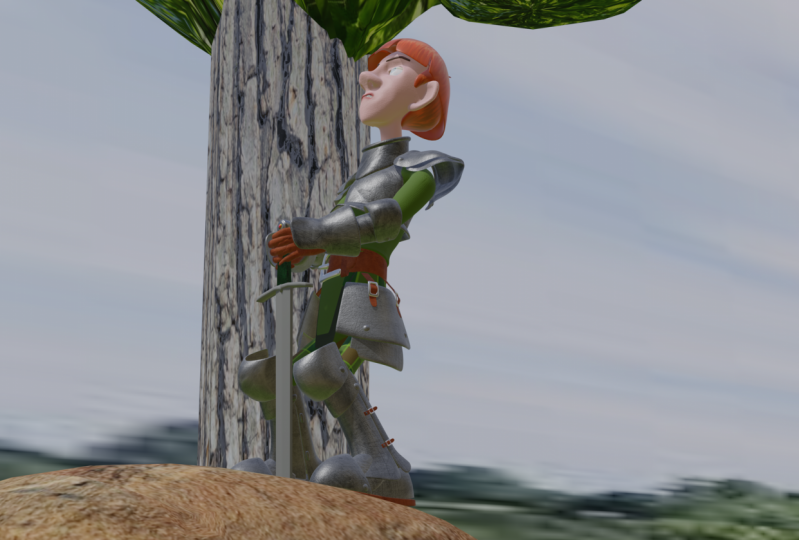
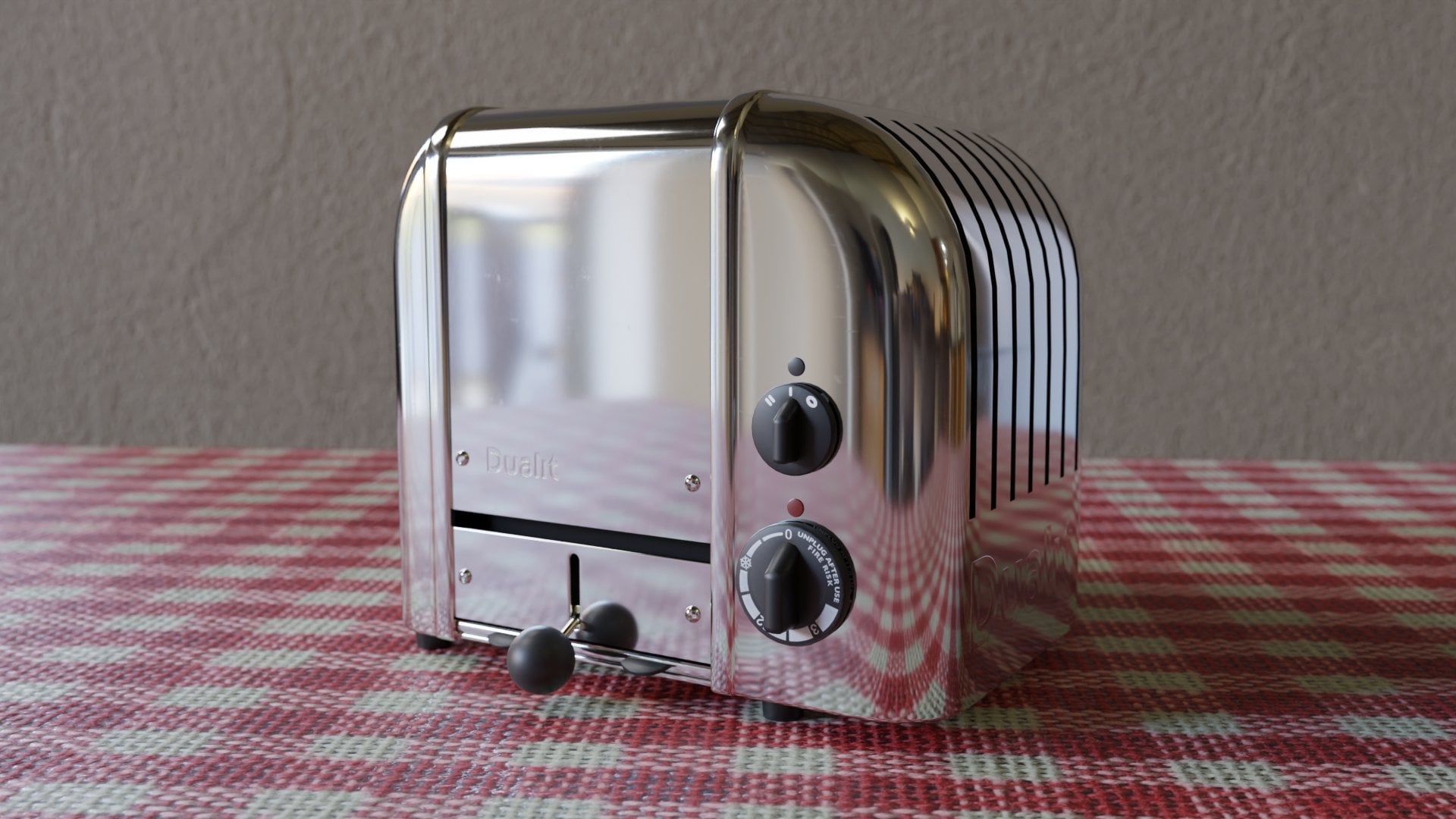
1. 001 Welcome to the Course: Welcome to Blender 2.8 character creation. I'm Daryn Lyle, and in this course we're going to create this character, starting from a single polygon and going through the modeling text, oring rigging and final rendering. If you don't have much experience with blender or blender 2.8, don't worry about it. In the next video, we will go through a brief introduction that will get you up to speed quickly and ready for character creation. And creating a character is a great way to get to know Blender, because it covers so many different aspects of the program will cover things like sculpting , creating transparent materials and rigging and lighting. Very few types of projects cover such a broad range of topics. Now I do want to mention that this course was created before the final release of Blender 2.8, so development versions were used both Alfa and Beta versions, and blender evolved a bit over the time this course was created. I tried to stay up to date with each new version as they came out, but that means there are a couple of things that changed over the length of the course. The most obvious change that you'll see is that these tabs over here in the properties panel go from being at the top of the panel here horizontally to hear the side vertically. I think this arrangement makes more sense, and I see why they did it. But in videos three through 13 the tabs are arranged at the top, and then at video 14 you'll see them move to being vertical here along the side. Now the panels and what they do or the same. It's just that the tabs are rearranged. In addition, there are few menu items that change and maybe move slightly, and a couple of times we come across a bug or a quirk in the software. But it's nothing that slows us down and often in the next video, the newest version has fixed the problem. In addition, in videos three through 13 the screen cast keys. So if I hit the n key here, you can see the display of what keys on pushing here in videos three through 13. The screen display is over here and doesn't work as well. It wasn't Intel. The code change around video 14 that I was able to find a screen display that worked pretty well. And then the remaining 80. Some odd videos used the screen display over here. Now, attached to each video, you'll find the blender scene that was used for that video. You can download these at any point in the course and take a look at my progress. Also, there are other resource files, like reference images and textures that can be found with the first video of a new section . It's an exciting time in the history of Blender. Version 2.8 has added some amazing new tools to an already great foundation, and character creation is a great way to get to know them. So in the next video, let's briefly explore the fundamentals of Blender 2.8.
2. 002 A Brief Introduction to Blender 2 8: Blender 2.8 is an exciting new milestone in the history of Blender. And with any big release comes a lot of changes. So what I'm gonna do for this video is assumed no knowledge of blender whatsoever. So we're just gonna begin right from scratch when you open up Blender 2.8 for the first time. And when you do, you get this new splash screen, and here you can choose what you're going to select objects with either the left mouse button or the right and four years. For more than a decade, the default has been to choose objects with the right mouse button. But that was different from 99% of the software out there. So for 2.8, they now have blender defaulting to the left mouse button so you can choose whichever you like here and there some other settings here that we can also choose. But I'm gonna go ahead and click next and jump right into the navigation. Now we can choose what kind of file we want here, or we can just click outside the splash screen and close that so were initially presented with a three D object, a camera and a light, and this large window here in the center is the three D view. To navigate around this view, you can press the middle mouse button and click and drag, and it will tumble around. You can also press shift in the middle mouse button and you can pan, and you can also press control in the middle mouse button and drag the mouse, and you can zoom in and out. Then you can also scroll the mouse wheel as well, to zoom in and out to select objects. As we said, you can select with the left mouse button, you can click on an object and to de select that you can click outside the object so I can click on the Cube and highlight it and then click outside to de select it. Now I can also select everything with the a key here, where I can de select everything with all to A. In addition, with this button selected, you can click and drag a frame around objects to select them. So I've selected now the light in the cube, or I can select the light and the camera and to add an object to the selection. We compress, shift and drag or click on it as well. Now, if we only want to see the cube here, we can select, say the camera and delight and delete themselves. Select the camera old shift and click the light, and then I'll just press the delete button. And if I wanted to zoom into this particular object right here, I compress the period key on the number pad and that will zoom in and that will focus the tumble around that object. Now, if I deleted this object just hit delete and I wanted to create a new object, we can always press shift A and bring up the ad menu here. Or, of course, there's the ad menu appear as well, and I can go to mesh and create another cube right here. Now, if I want to move this object around in the three d view, I can come over here to the move, rotate and scale tools here. So if I click on the move tool, we get this move Gizmo. I can move this up port in the Y axis or in the X axis so you can see the red, green and blue axes here, and those correspond to these here X, y and Z. And as you can see, if I click on one, it will view the scene from one of those axes. So if I click on the Z axis, it will spin around to the top view. And on the X axis it'll spin around to the right Ortho graphic view. And if I tumble around here, you can see we go back to the user perspective. You Now we can switch between that Ortho graphic or very flat view and the perspective view by pressing the five key on the number pad. There it is. So now you can see everything is kind of flat with really no perspective here. And then if I hit the five key Weaken, go back to the perspective. You here now with these over here, you can click, rotate, and you get a rotate gizmo weaken click on one of these axis and say, Spin it around the Y axis here, and we can also click on scale. And here we can click and drag on one of these axes safe. Stretch it out in the y axis as well. And if we want to undo any of our actions, of course, we can press control Z and go back to the original position of the Cube. Now we can also view are objects from the X, y and Z axes by pressing keys on the number pad. So the one key on the number pad takes us to the front view. The three key takes us to the right Ortho graphic view, and the seven key takes us to the top Ortho graphic view. If I click the middle mouse button and tumble around here, we go back to our perspective now. So far, we've just been working with our object in an object mode so you can see appear we've got object mode. We can click on this menu, and you've got several other modes that you can use to work with your object and will be dealing with ah, texture painting, wait, painting and sculpting as the course goes on. But for now, I wanted to mention edit mode, and if I click this, you can see we get a lot of other tools here, and our object changes in a kind of subtle way I'm gonna press all to a to de select everything. And here you can see the basic components of any object their three components of any object. There's Vertex or the Vergis ease of an object. And those air just the points that defined the connection of to arm or edges. So we've got eight vergis ease on this cube now. There's also edges. Of course, if we switch to edge select, you can see Over here. We've got Vertex, Select Ed Select and face Select. And we can also switch between these with one to or three keys on the keyboard. So if I hit the two key now we can select edges Here I hit the one key weaken, Select a vertex it the two key weaken, Select an edge. And if I hit the three key weaken, select a face. And up here, of course, we've got the vertex edge and face menus, so every object is or every polygon object I should say is created from these three components. Virtus ease edges and faces. So of course, we can scale and rotate and move our objects. But if we want to create something with any detail. We really need to go into edit mode. There are, of course, many tools that you can use in edit mode and will be covering quite a few of them. But the two main tools that I think you can use to create really almost anything are the extrude tools and the loop cut tools you confined extrude over here on the menu here. And the loop cut you confined here. But the shortcut keys for these ar e for extrude and control are for Luke. Cut. So now, with this face selected, what I'm gonna do is come over here to the move tool right here. And once we do that, we get a move gizmo, and I'm gonna click and drag on this and bring it down. Maybe not that for maybe I'll bring it down to about right there. And I'm gonna tumble around here and click on this base here and bring this up so it kind of sits on the grid. There, you can see it's kind of sitting on top of that grid. So now I can take this face here and let's say I want to create something like a candlestick What I can do is I can hit E for extrude and I can pull up and then I can click to confirm the tool. Now, I could scale this in. I could come over here to the scale tool and click here. And now if I click and drag on this little circle right here, I can scale that in. I can scale it in or out. No, scale it in just a bit like this. And then I can go back to the move tool and pull it down a bit. Let's do that now. There are shortcut keys for the move. Rotate and scale tools they are. If you hover over the button here, the shortcut key for the move tool is G for grab and move. The shortcut for the rotate tool is our and the shortcut for the scale tool is s. So if we then want to extrude again, I'll hit E and I'll pull up just a little bit with the mouse and then I'll click. And then to scale that in I'll hit s and then scale that in like this. Now we can scale this up again. I'll hit E and drag up. There we go. And now maybe I'll add a little flair here. To this, I can hit B and click to extrude, and then I'll hit s and scale out like this. And then maybe I can hit E and pull up in e and then s and scale in. And then I can hit e and pull up again, something like this. And then maybe we could create the top here where the candle is going to go in. So I could press E and then s and scale out. Maybe I'll bring this up just a little bit like this, and then I'll hit E and pull up. And then maybe I should just press e and hit s and scale in. And then maybe I could pull down just a bit. Let me hit E and I'll pull down just a little bit. There we go. So now we've got a very basic candlestick Now, In addition, we can also use that Luke cut tool here. And you can see that the shortcut keys control are so maybe I'll press control. Are you could see as I hover over an area, I get some indication of where that loop that edge loop is going to be placed. So maybe I could put one here. And then I can drag the mouse and move it around and I can click here and that will place it there. And then maybe a press control are and click and then drag and then click again. Let's do that up here too. Click, Click again and then I'll press control are and drag and click again right here. Now that creates geometry that Aiken do something with. So let me switch to face mode here. You can see I'm an edge mode. If I hit the three key, I switched to face mode and now I can select thes faces all the way around. I'll press shift and click, shift and click all the way around here. And then I want to press the period key and zoom into it. Now I can hit e and click and then I'm gonna scale in. I'm gonna hit s and scale in. So just to create a little detail there, I'll do the same thing over here. I'll click here, shift click all the way around and then I'll hit E and s and maybe scale in like this. There we go. So now we have a very basic candlestick. Now I want to get back to object mode so I can maybe create another object, say the candle so I can come over here and I can pull this menu down. But instead, what I'll do is just hit the tab key and the tab key switches us between object mode and edit mode. So I just hit the tab key to go back to object mode. Now what? I'm gonna do it. Just create the candlestick and all I need to do is just press shift a and let's go to mesh and cylinder. I'll click here and there it is. So now let's go over to the move tool drag up and I want to scale down. So I'll hit the S key and scale it down till it's about the right size. Let's move it down into place here and see if it is the right size. I just hit the period key, and that looks pretty good. So now what I want to do is just make it taller. What I can do is tab into edit mode. Go to face mode. I can hit the three key to do that, and I'm just going to click on this face at the top of the cylinder and just click and drag up. And maybe it's a candle that's about I don't know this tall. There we go. I can tap back into object mode and there we go. We've got a very basic candle and candlestick. Then we can combine these together into one object. Currently, we have two objects you can see over here in the outline. Er, in this collection, we've got the cube and the cylinder. That's what they were called when we created them. We can combine these together by selecting one, then pressing shift and selecting another and then pressing Control J to combine them or join them together. Now they're all one object you can see over here. We only have one object. It's been called Cube, but we can change that by just double clicking on it. And let's call this candle stick. There we go. Now we can maybe ah, move it over and duplicated to make two. To duplicate, I confess shift D and then click and now, I could just come over here and grab, say, the X axis and drag it over. Then we have two candles. Notice that it's just called the 2nd 1 Candlestick 001 It'll just keep adding that on every time we duplicate the object, we could go ahead and create a table for these to be on to. Why don't we press shift a and go to mesh and Cube and let's scale this down in the Z axis , you can see the blue axis. Here is the Z axis. So to scale just in the Z axis with these shortcut key, weaken, press s and Z And now when we move the mouse, it'll Onley scale in the Z axis. So maybe let's make it about this thick. And we can also do the same thing with the why and the XO s Why scale that out and then s ex scale this out. There we go. So there's a table. We could take our to candle sticks here and pull them up. So there, sitting just on the table here and then I'll shift. Select that tabletop and let's just drag it all up here. Here we go now let's take this table and I don't know, at a few legs, What let's do is just press shift d and then click and I'll drag this down and then press s and scale in a bit. There we go. So we've just got kind of an under piece for the table. And now let's ah, create the legs. Oprah shift a mesh cube. I'll get s and scale it down a bit and then I'll hit S and Z and let's scale it up about like that. Let's say now, let's go to that front view with the one key on the num pad right there and I'll just move this over and move it up some a little too tall, isn't it? So maybe we could press s and Z and scale it down some and then move it to here. All right, Now let's press shift D and duplicated. And now we can slide it in the X axis by pushing the X key. Now you just slide it over like that. So now we'll take these too. This one and this one. And move it over a bit. Se Teoh here and now with these two selected. Let's go ahead and duplicate and move him over here. So let's press shift D And then why? And now they can only be moved in the Y axis and will pull him over here. There we go. And to de select all press salt a again. And there we go. Now we've got a banquet table with two candlesticks. So it's pretty amazing what you can create with just creating objects, moving, scaling and then in edit mode, just extrude and Luke cut. Now, as I say, we'll learn more tools as we go, but with just those fundamental building blocks, just those fundamental tools. It's amazing how much you can create. And lastly, what I'm gonna do is clean up the outline. Er, here I want to do is just select all the pieces of the table, all the legs, this piece in the top, and then I'm gonna combine it all together as well with Control J. And now let's come over here. And instead of Cube, let's call it table. All right. Well, I hope that's helped to kind of introduce you to Blender 2.8 in the next video, we'll begin by bringing in the reference images for our character
3. 003 Importing Reference Images edit: all right, here we are in a brand new scene. And before we begin modeling the character, I'd like to bring in some reference images so that we can have a front view and a side view here in the view port to help us while we're modeling. First of all, I'm gonna get rid of all of these. Let's just press the a key and hit X and delete. So we have a clean stage to begin with to bring in our reference images. What I'm gonna do is create a couple of empties on empty is just a position in three D space. It has no size. It has no texture. It's just ah, position. That's all it is. So what I'm gonna do is press shift a and then I'll come down here to empty and you can see different kinds of empties here. But right down here in the bottom, this is the one we want. We want image. So I click that and there you go. There is our empty. Now we want to import an image into this and place it so we can view it while we're modeling. To do that, I'm gonna come over here to this panel right here. The data panel. Click on that. And right here we can choose to open our image. And I'm gonna come over here to my character Sheets folder and I'll click on this little icon right here so we can see the images. And so there we have our full character sheet here, but we also have front and side views of the different versions of our character. What I'm gonna do is begin with this mirror front 01 I'm just gonna select that and hit open image, and there it is. So it's kind of flat on the ground. We don't really want it like that. Well, let's do is rotate it 90 degrees around the X axis here. So to do that, all press are X 90 and hit. Enter And there we go. So now we've got the character in place here. Let's also bring in another empty and put the side view in. Before I do that, I'll just go to the move tool, and let's just drag this back of ways. I'll just pull it back around here for now. And now let's press shift a and go to image again, and this time I'll click open and let's bring in that side. View Mira side, 01 right here and open that. And there it is. So now all press are X 90 and that will turn it upright, but we also need to turn it in the Z axis. So let's try rz 90 here and that'll turn it like that. All right, so that's good. Let's move this back like that as well. Now I'd like to bring them up to sit on the stage, in other words, so her feet are standing on the grid here. But I also want to get her to be the right size. So I think this character is going to be about 1.6 meters tall. So let's first create a reference object that's 1.6 meters tall. Which is what is that about five foot three or something like that? And then we can match these images to that object and get her the right size. Okay, so let's press shift a and let's bring in a cube right here. And if I hit the n key, we can see that the Cube is two meters by two meters. So let's in the Z axis. Let's just type in 1.6 meters and hit. Enter. And so that's about how tall we want her to be. And let's also change the X and the Y. Let's change this 2.2 and maybe point to hear a swell. So there we go. There is how tall we want her to be. And if I press the one key and the five key now we can go toe Ortho graphic view and I can take this and drag it up and set it on the grid here. Now we can't see the line through here currently because that images in the way let me just take this and drag it up here so we can see the X axis a little bit better. So with this object selected, all press G and Z, and then I'll drag up just a little bit and maybe you'll even hold the shift key down toe, make it move a little bit slower, and I'll just get it. So it sits right on that x axis and we go. All right, So now if I get the one key. I know that that's how big our character needs to be. So if I select that image now, we can't really see your Let's come over here to the empty panel right here, the object panel. And if we come down here to view port display, we can choose in front and she'll appear in front of all the objects. Okay, so now we need to scale her up. So she is the proper size to do that. I can come back over here to this data panel right here, and we can click and drag on this size field and will just drag up like this, and we're almost there. Then I can take the why offset here and click and drag tell. She's kind of standing on the ground. It's scaled up just a little bit. I'll also hold that shift key to slow the movement down and maybe click and drag on the Why Something like that. Okay, that looks pretty good. What we have here, we've got 1.8 for the size. Let me come back over here too. The object panel and I'll turn off in front. And there we go, so that's a pretty good size for her right there. All right, so let's also put her right on the grid. She's back in the Y. 2.19 meters here. Let's just type in two and put it right on that two meter mark. That isn't absolutely required. I just wanted to do that to clean that up a bit. Okay, so now we've got the side view. Let's hit the three key and in Ortho graphic view. I'll then click on the in front check box right here and let's go over to that panel here and let's type in. What do we have? 1.8, I believe. And we can click and drag on the why and drag her up and not bad, but I don't think it's quite right. Let's turn off in front. Yeah, I feel like we can bring it down just a little bit. Let me click and drag in this size field and bring her down just a bit like this. Yeah, OK, there we go. All right, so let's then tumble around, and there we have our two images. I'll hit the five key to go back to prospective mode. Now let's go ahead and lock thes off so we don't accidentally move them while we're modeling. If you come over here to the outline, or you can see that in the collections here there is our empty one and empty here. So this empty is the front view. Let's go ahead and just type in front, and this empty here is the side view will change that side. And this is the reference object. I don't think I spelled that correctly. I will adjust that here in a minute. Now what let's do is let's create a new collection by right clicking and choosing new, and we'll call this reference images here and I'll just take the front and I'll drag it into that new collection and the side, and I'll drag it in there. Now, let's open that up and we can see our images in here. I'm gonna turn off the select ability here. So if I click this icon here, I can no longer select that in the view port, so I won't accidentally click on it and move it around. When I'm modeling, I'll do the same thing here so we don't accidentally move that as well. And then this one here, I think I'll just hide this for now. I'll just click on the icon right here and close that. All right, so now we have the reference images in our view port. Oh, there's one more thing I want to do. I'm gonna take the side over here and let's then move it to negative two in the X right there. So it matches up with the other one just to be clean and tidy about it. All right, I'm gonna save my scene. Alright? With those in our view port. Now, let's come over here to the modeling screen layout and hear what I like to do is create a screen layout where we can see both of our images at the same time. So what I'll do is I'll come over here to this top little corner right here until the cursor turns to across and I'll just grab that and drag. And now we've created a new window here. We'll hit the T key and close this panel. And I hit the T key in close that panel as well. And now what we can do is hit the three key and the five key and go to our side view. And here is our character image on the side view. And then over here, let's hit the one key and the five key and we'll zoom in here and there is our front view of our character. And now we can begin working on the modeling of the head and see what's happening in both views. And you know what? One last thing. Let's some reduce the brightness of these just a little bit. There gonna be a little bit too bright for me as we begin to model, so I'll select the front view over here. Go to this panel right here, and let's then come down here to the transparency and let's type in 0.3. There we go, and that makes it so. It isn't quite so bright now. I'll do that with the side and 0.3, and there we go. All right, so in the next video, what we'll do is we'll begin creating what I call the loop mask for the face, which is just a two dimensional polygon structure and then after that, will begin pulling it out into three dimensions. So that's coming up next
4. 004 Beginning the Face: Well, now that we have our screen set up, let's bring in our first object or press shift A and let's bring in just a polygon plane And there it is, in the center of the grid. I'll just kind of tumble around here, and all we want to do is turn this and place it right up between the nose and the lip. That's where we're going to start. So what I'm gonna do is press are X, And if I rotate it this way, you can see in the upper left hand corner the degrees. So if I go this way, that's positive. So why don't I just type in our x 90 and that will turn it in the positive 90 degrees here also, let's go ahead and scale it down. I'll hit the s key and scale it down quite a bit. And then let's go back to the front view with one key and I'm gonna hit the T key and come over here to the tools panel and I'm just going to click move so I can get the gizmos here , and I'm just gonna grab this and drag it straight up, OK, So now that we have this, I'm gonna hit the period key to zoom into it and let's go to a wire frame will hit the Z key and choose wire frame here. And then I'll hit the s key and scale it down and let's get it into place. So it looks like the image here is a little bit off. If I tab into edit mode and press control are and insert an edge loop right down the center here, I'm just gonna hit the enter key to times to make sure that that new edges right down the center and then to change from Vertex Select to Face Select. I'm just gonna press the three key. And now I'm gonna selected this face right here and delete it. Hit the X key and delete faces. All right, so now we know that that right there, this line and that cursor right there, that's the center or what should be the center of the face. So what I needed new is move this image just a little bit over so that it is lined up right here at the center of the face. All right, so let's go back to that front image. Then I'll come over here and click in the outline. Er, I'll click the front view and here, under this data panel right here. I just want to move this in the X just a little bit. You can see how If I just click that arrow, it moves it just a slight bit. Maybe something like this. So that line right there is right down the center of the lips Or do I need to go back? Let me select the front again over here in the out liner and just click here. I guess I want to go right there. Yeah, let's go right there. And what let's also do is turn on the mirror modifier. I'm gonna come over here to the modifiers panel with the polygon selected M click on Add modifier and choose Mirror, and I wanna make sure that I'm mirroring in the X axis. And I also want to turn on clipping, which means that any point that comes in the center will clip or merge together with its pair. All right, so now that we have that, if I tab into edit mode and hit the one key again. Now, if I select this and hit the G, you can see it moves the same on both sides. So that's good. That's what we want. And I also want to take this one down. I'm gonna hit the tiki again and go to move. So I get that little gizmo whenever I select something here. So now what we can do is just begin to select edges and extrude around the mouth on down, around to the chin, and the other side will also mirror what we're doing. All right, maybe I'll take this point and just move it right at the top of the lip. Right there. There we go. So we have that right there. Now, if I select these two points which will select that edge, of course I can hit the e key and extrude and move this out a bit. And then I'll take this point and move it up to the tip of or the edge of the nose right here and we go. And then if I select this edge again, I could move this right to here. I can extrude and move that to here. Maybe take this point and move it out a bit like that. Maybe in the more like this, There we go and then I'll take this edge again and extrude and let's move it right down to the edge or the corner of the mouth. And I can take this point and move it right on down to here. Let's say Okay, so now we have that top row of polygons there and you can tell that my image here my drawing isn't exactly symmetrical, and that's fine. We're just going to keep an eye on one side here and let the other side do its thing. So select this edge and I'll hit E and I'll bring this down and then I'll take this and move it out. Oh, something like this, Let's say and maybe I should actually move this one back so it's more close to the corner here. Let's do that and I'll move this 12 here. Okay, so now if we select this one, I'll hit E. And let's move that right down to this corner of the mouth right there. And then we can hit E and connect these together. So if I move this in, you can see. It kind of connects together, right like that. And I can move this one in as well, and then click. And now those are merged together. There we go. All right, so now we've got the area around the mouth. You can see over here in the side view that the polygons air here along the centre line, and that's and that's okay. We're gonna be pulling those out point by point here in a bit. All right, that's good. So now let's take these points here and let's just hit E and move these straight up like this. And these air gonna be that kind of bottom part of the nose where the nostrils are going to be. And what I want to do with this one right here is I'm gonna take this point and I want to move it down. So it's in line with these other points like this. So I'm really taking a two edged piece right here, these two edges and I'm kind of turning it into three edges. Okay, so now if I select this and I'm gonna control click this point right here and that selects everything in between. I can hit E and bring these up now kind of like this to the top part of the curve of the nose there. And let's move this out a bit. There we go. Now, one thing I didn't do is I can come over here in the mirror. Modifier and Aiken turn on the edit cage for the other side. If I click here, I can see the points on the other side and that could be helpful. So I'll go ahead and leave that on now to continue on up the nose. Let's take these points right here. I'm just going to select these three points or two edges and I'm gonna hit E and move these up and in just a bit so we can kind of go between the eyes like this. And maybe I'll grab these here and move them out just a bit like this and we go and then we want to continue on up to just above the eyes right up here. So let's hit e and bring these up to say here, and this part is gonna curve up above the eyebrows or in line with the eyebrows. I should say not above them, but right along and here. So what I can do is take this and kind of begin toe curve that up just a bit. So this edge line is gonna curve up and follow along with the eyebrows there. Okay, so it looks like this is a little bit wide. I'm gonna go ahead and maybe select these points here and move all of this in just a little bit. This particular character, the eyes air so big that we need a little bit more room in here. All right, so now what we need to do is do the same thing we did hear around the mouth. We need to do that around the eye. So I'm gonna hit the two key to t go toe edge, select and select that edge there. And then what I'll do is I'll just it e and extrude out like this now will hit the one key to go back to Vertex Select. And I'll just take this point and move it down to here and take this point and kind of move it up to here like this. I'm trying to get these in the corner of the eyes and it very well could be that I need to move all of these down just a bit so I can get those in there. Let me try that. Move these down. Just a hair and all of this to here. So these air some very big guys and fairly close together, So we're kind of have toe kind of squeeze things in here. Here we go. Okay, so now that we have this, we've got these edges here. I'm going to keep again. We've got these edges that we can begin to extrude around the eye. So let's try and do that with, say, three polygons. If I hit E and move this out like this, I mean with one key and grab this point and move it down just a bit like this. Now let's select these points and hit e and move these up. And maybe this Congar go out like this. And then these points can be extruded out to here. We may need mawr edges around the eye, though. This such a big guy, we may need more resolution there, but for now, let's go ahead and hit e and do the corner in the same kind of way we did around the mouth . And then let's go down to here, Let's say and I'll pull this straight down like this and then let's come back up extrude to here and let's pull this one up like this because we need to get that up into here. Can we go? Maybe this doesn't need to come down quite so far. And as you can tell, there's a lot of adjustment that you conduce as you're pulling these out and everything, so feel free to go back and adjust as you're going. All right, So now what I'm gonna do is go ahead and connected these up and I'm gonna hit the two key to go to edge select mode, and I'll select this edge and shifts like this edge. And then I'll just hit the F key and that will fill that face there. All right, so now that we have the loops around the eyes and the mouth in the next video, what we'll do is we'll begin to connect them up, will begin to extend those loops on around the mouth, down to the chin and on around the eyes, out to the edge of the head
5. 005 Establishing the Face Loops: Now we need to begin extending these loops on down around the mouth and down here around the mouth, down to the chin. So let's begin working on that. I'll just press the two key to go to edge select and then I'll select this edge. Endless press e and let's just begin taking this edge on around the mouth. So I'm just going to continue hitting E and moving down and hitting our and rotating it and G and moving it just continuing to do this on down around the mouth. And then I'll connect him up and then do a bit of adjusting. So I'm just going to get this one down to here and one more all hit E and slam those together. And there we go. So now what let's do is merge these together. I'll just press the one key to go back to Vertex mode, and let's use the merge tool to get thes together. I can just click this one and shift click this one and then I'll press Ault M. And we can choose to merge those two at the last ones selected. There we go. So let's just go around and do this ult m at last all to m at last. So let's just keep doing this right here and here. Now we can select these points and kind of bring them in line with what we want to do here . So I don't think these need to be out quite a sfar like this, so we can kind of adjust the shape and width of the loops here. So what we're looking for here is let me press the three key to go to face select. I'm gonna press Alton, click and edge between two of the faces, and it'll select that face loop there. And that's what we're trying to do. We're trying to create these kinds of loops around the eyes and the mouth, right. So we wanna take this loop right here and continue it on down around here to the bottom of the chin. All right, so let's go ahead and do that. I'll press the two key to go to edge select, and then what we can do, actually is we could take these edges right here and then just hit the F key, and we could do the same thing with these here f key. There we go. Now let's take this and continue on down, so I'll get E and let's bring this down. I'm gonna it the r key and rotated. It s key. Shrink it down a bit and move it down to here. And then I'll hit the e key and move here are and rotate and just keep going on down, kind of like this. There we go. All right, So once again, I'll hit the one key. Select these points all tm and all too am all the way down here. So then what we can do once we get thes hooked up is of course, we can go back and move thes points around the way we need them to be. So for this one, I maybe just need to come down to the bottom of the chin right here and I'll hit G and move this one around, and ah, we could take this just kind of move these around a bit. Now look at the way the edges are here. I just wanna mention this of press Alton. Click and edge. You can see this edges kind of radiating out from the mouth kind of in a sunburst pattern. And that's and that's kind of what we want. We want these kind of, um, edges to kind of flow out all around the mouth. Now, we need to do this again, beginning with this edge up here. So I'll hit the two key and select that edge and then we'll hit e and keep going down like this and are s right and keep this going down here and then he e on. We're just gonna do the same thing, moving this around and extending it down. Now, this part is probably going to be the part that's going to be underneath the chin. So we're probably not going to see this. It's gonna be behind here, but for now, since we're just working in two dimensions, I'm gonna put it below. So let's get this connected up. Select thes points all TEM at last and then go through and do a little bit of adjusting for all of these. So say this point. We can bring this up pretty close here in this one here, and let's make sure these air kind of radiating out in a fairly straight line. It doesn't have to be exactly straight. But, you know, just generally out like this. We don't actually gonna pull these out like this. So they So they go out toward the edge of the face just a little bit more. This is such a wide and rounded face that we kind of need to extend it a little bit more than we would in just a normal, realistic character. All right, let's do one mawr. Let's do one more extended out. And you know what we could do? Let's try something a little bit different. Let's select this point and I'll ah select thes points down here along here and yeah, up to here and what I'm gonna do is just hit E and I'll pull out just a bit and you can see how the point at the bottom at the chin, even though I pulled out, it stays in the center, and that's because we have clipping on over in the modifier panel. All right, so I'm just gonna pull him out just a bit like this. And then, of course, we need to do more adjusting. Of course, we always do. So let me bring these out like this kind of to the edge of the head or cheeks here. And I'll bring this one in pretty tight because, as I said, those are gonna be underneath the chin, I believe, or behind the chin. So something like this. There we go. All right, so now we have the loot mask, and that's the basic framework of the loops of the face. And we've done this because we want the face to to form and move as much like the human faces weaken. Get so the structure of the muscles of the human face is very similar to this. If we take a look at face muscles, let's just see what we confined here and go to images. You can see that there's thes circles around the eyes and the mouth. Here, let me see if I can find one here. Yes, So what we're doing is we're trying to simulate those circles around the eyes and the mouth . And if we can do that, then when we animate the face, the deformation czar more believable. So that's all we're doing. That's why we're going through this whole process to make sure we've got these edge loops in place. to make sure we have things like this and this and this and this. All right, so we have these edge loops in the same way they are here. But now that we've done this, you can see that it's only two dimensions. If I tumble around here, you can see we've only got a flat face. So in the next video, what we'll do is we'll come over here to the side view and will begin pulling these points out into three dimensions to begin creating the structure of the face.
6. 006 Completing the Loop Mask: Okay, Now we can begin to see how our side view image is placed. Just like when we added a polygon, we were able to see that our front image was a little bit off. As we pull these points out into three D, we're going to see if this image for the side view is office. Well, so what I'm gonna do is I'm gonna hit the one key and go to Vertex mode, and I'm gonna select one vertex at the tip of the nose and I'm gonna pull this out and there we go. We can see that that is not quite in alignment with the tip of the nose. I'll press the Z key and choose wire frame for this view as well. Now we could also take, say, the top of the lips here and pull that out as well. And that's off too. So let's go ahead and work on the side view before we go any further. What I'll do is I'll come over here to the outline er and select the side view, and nothing happens because I'm in object mode. Still tab back into object mode. And now let's come over here and choose the side view. And if we come over here to the image panel right here, let's go ahead and maybe play with the Y axis a bit. Let's maybe take this down. No, let's take it up. Here we go to go this way until these are pretty well lined up with the tip of the nose and the top of the lips. So that looks pretty good to me. I think that'll work. Now I'm going to select the object again and tab back into edit mode. Now, it isn't gonna be perfect, but I think this is going to help keep our model a line from the front and the side views here. All right, So what let's do now is let's just begin from the top in the middle right here, and I just want to grab that point and pull it out toe where it should be in the side view . As you can tell, I can't really choose any points here from the side view, and and that's why I'm beginning over here in the front view and then clicking and then dragging here in the side just so I can cleanly select each point, and I'm just going to bring them out one by one. It's a little tedious. It's true. But I think this particular method of character modeling, at least beginning this way, allows you to really make sure and get those edge loops in place before you go any further . So I'm gonna grab the bottom lip and move that out. Now the bottom lips pretty off. So maybe we should go down one more. Let me tab back into object mode. Choose the side view and let's Ah, let's click here and move that, Yeah, we can't really get it in alignment. Quite right. Let's try 1.81 Let's try this and then let's move it down in the why again and see if we can get that kind of line up. Maybe something like this. Let's go ahead and go with this and see how it works. I'm gonna select the object again, and now kind of pull these out a little bit more like this. So they're kind of on the edge or the outside edge of the drawing and a move this out. Yeah, so these aren't quite in alignment, but that's Okay. All right, let's go and grab this one here at the chin and bring this down and we'll grab this one and bring this out. And this one and what I think let's do is let's begin moving these back along the chin here . So I'll take this one and will begin moving this back along the chin and this one at the very bottom. I might even bring this up a bit like this to kind of curve along that chin There. There we go. Let's see how that works. All right, so that's the center line. Let's now go to the next row along here and we'll just go down and begin pulling these out as well. So I'm gonna pull that out about their and pull this out to about here. Just one at a time. You don't need to hurry through it. Just get them in place as best you can. Here. This one is going to go around the nostril right there. And here we have the upper lip right here and the lower lip right here. And we'll do the same for these here along the bottom of the chin. These need to curve back toward the neck. So this one can come in here, Let's say and this one down here, I'll move forward again, and then I'll maybe move it up just a bit since we want it to be kind of down in here. All right, so we've done this row and this row. Let's now go here and let's begin pulling these out. So this one's going to go right around in here, Let's say and we don't really know exactly where it's going to go until we get everything pulled out and look at our character again in the three d view, the perspective. You rather than Ortho graphic. All right, so let's move this to here. Um, I'm gonna go ahead and grab this corner. It's not exit exactly in line with that row, but I think that will be fine. I'll move this one out like that. Okay, so we've grabbed these. Let's go ahead and go on down to here. Pulled this one out like this. Pull this one out of that one's already out. Okay, so we've come down to here. Well, let's go ahead and go back up. And let's, um, go to here. So this woman is up here around the front of the eyebrows like that, I think. And we could maybe move this one back. Well, let's go ahead and take this and move it forward. Like that. Or back, I guess. And then this one, Let's move it out. That's at the top corner of the eye. So that'll be appear and thes down here are in the corner of the eye, so those are kind of hidden behind the pupil. So I'll just kind of move those in behind the pupil there. And this one here is at the bottom of the eye. So we'll move that there. We might as well just go ahead and do the eye here. Let's just do this. Get this arranged around the eye like this. These air, the corner of the eye back here. Ah, the top of the eye. Right here. There we go. So that allows us to get that in place. Let's go ahead and bring some others out. So do we have this one? Yeah. How about this one? No, we don't have that one. Yes, let's bring that out. And, um, this one should be kind of at the top of the nostril. Part of the nose will bring that there. Okay, we've got that one. All right, so let's bring thes out. Now, this is going to go around the mouth here. This is the lips. And as you can see, the lips air off here, and that's that's okay. Let's go ahead and keep working with this. The images air never going to be exact because, well, I drew them by hand, so it's not, um Ah, perfect rendition of it in the two views, by any means. Okay, So you know what? I'm gonna bring this back just a bit. Now that I look at thes, I may bring these back just a little bit like this. Now, let's begin to come up here and let's work on this. So this is kind of at that point of the cheek here, and this one is going to come out in between those two in between here and here, so let's get that in place. It looks like this one here could come back a bit like this. All right, so now let's select this one, and that's kind of at the bottom corner of the eye here. And this one here is gonna be kind of back like this. Maybe a little farther back. Let's try it like this. We go. And this Now we can bring this forward to here. All right? We're doing pretty well here. I'm gonna save the file and let's keep going. Let's see, What else do we need to do? Well, we need to bring these here along the side of the mouth like that. And that may be even be able to be pushed up a little bit farther like this. And as I said, you really can never tell exactly where these points are going to need to be until you get the mask all complete in three dimensions. Then you can begin pulling points around to really bring the character personality out. All right, I'm gonna move these forward now when they're gonna angle back toward the neck or the ear. Have you pulled these back a little bit more like this? Let's see how this works and see this one now. Okay. So I could maybe go like this. Okay? I'll have to come back to this area and see how we're doing. once I get the others pulled out. All right, Let's Ah, grab this one now and bring this one forward. And ah, here's one we need to bring forward. All right? Yeah. I'll just move these for just a bit like this. Okay, Now. Ah, So what else do we need to bring forward here? We need to bring this one. Okay, let's bring this one. So it's kind of even with this area here, and Ah, this one looks pretty good where it is. And that one's OK where it is, too. Okay, so I think we've got him pretty well in place now, just going to kind of move these back a bit. All right? I think we've got him pulled out, at least in a preliminary position. Here. Here's the fun part, though. Let's take a look at this in perspective. You So I'm gonna go back to the layout view right up here and let's take a look at this. I'll hit the period key to zoom in and let's tumble around and take a look. And it, as expected, looks terrible. That always happens with this stage of the process. And really, it's because things were just too angular, so you can see how the mouth here is way too angular. The bottom lip is, um, the line of the forehead is too angular, so everything needs to be kind of pulled out and rearranged while we're seeing it in the three d view. So in the next video, what let's do is go back to edit mode here in the three D View and begin pulling these points forward and sideways and begin trying to, with as few Vergis ease as possible, to get it shaped more like our character. So that's coming up next.
7. 007 Adjusting the Face: Now we need to work on pulling points around to be sure that our character looks the way we want it to help us in this. What I'm gonna do is add a new modifier minute, add a subdivision surface modifier, and this will allow me to see it in a way that's a little closer to the way it's actually gonna be in the end rather than this blocky, polygon kind of thing we have now. So what I'll do is I'll, uh, come over here to the modifiers panel, and we already have a mirror modifier. I'll go ahead and add a new modifier right here and we'll add a subdivision surface and you can see that kind of smooths it up. I'll take the views on the modifier up to two metal, smooth it up even more, and then to get rid of all of the little blocking this there. Let's come over here to object and turn on shade. Smooth. There we go. So now we've got a pretty good, smooth version of our object. If I tap into edit mode, though, you can see that the polygons air still pretty faceted. So what? I can do is turn on the edit cage here on the subdivision surface modifier, and that will move the points onto the curved mesh. All right, so now we can begin to move these points around a little better and see what effect we're having. All right, let's some come down here to the mouth, first of all, and instead of this V shape here, we want a nice curve for the mouth. So if I select a point and then click on, move over here, we can get the little transform gizmo, and then I'll just begin moving these forward and around trying Teoh reshape the mesh so it looks a little more like our character. And for this character, I really wanted to be kind of cute and appealing. So we've got a lot of work to do to get to that point. I think someone to pull these up, um, and just kind of pull this up a little bit, too. Round out the features, Some I didn't hear. Okay, now that we've done that, we need to begin pulling these forward probably quite a bit like this. And, um, I could probably take this point and move it down. So this is just the part where we're gonna just go around, keep tumbling around the mesh and trying to find ways to get it to be a little bit mawr, like the character we want. And there's really no single way to do this. I mean, it's it's just pulling points around until you can get the right look to the character. This kind of is the artistic part. So, um, it's hard to say exactly what you should do for your particular character, but we'll just keep going here, and hopefully what I'm doing can help you with your character as well. So I'm gonna move all these up quite a bit and you can see as I do it begin to kind of round out the face a little bit more. Let's go take a look at the forehead and I'll begin moving this forward. You can see if I hit Ault and click this edge. You can see that it's, um, not exactly the shape that we'd want. I hit the two key there so we can see the edges. So if I go back here, let's some begin moving these forward like this and kind of round out the forehead a little bit more like this. We go and let me go to the side view all press three and five and let's go ahead and pull these out to the edge of the drawing here like this. We go just trying to get these more in line with our character drawing and let's work on the chin down here. Let's move these forward. And then we're probably gonna have to come back to these points and pull these around as well. So I'll move these down around the chin like this. Okay, so now we tumble back, and yet we're gonna need to move forward a bit like this. Maybe I'll begin moving these forward as well down here, and I'll hit the five key so I can see it in perspective again. Doing this in Ortho graphic view can really give a false sense of where the points are. So perspective, you is probably the best way to view this. While you're trying to get the basic shape in place, let's move these forward a bit again. Yeah, I need to kind of get these points in line right in here. like this groups crap. This one here and now this. I think we really need to get in a different place. Let me pull this forward. Maybe even pull it out a bit. And we go and I can maybe take this point and move it in and then take this top of the nostril part and move that out a bit. Like that s so that kind of collapse. Is that in a bit? Um and then we could maybe pull that in just a hair as well. Now, what let's do is let's go ahead and go to a different shading view here if we come up here were currently on the solid shading view. Let's switch to this look, Dev. And when we do that, we get a little bit more of a shining material on this. And I think that will help As we move things around a bit, let's give this a try, weaken, see some highlights a little better and get a little bit better sense of what we're doing. So that's looking pretty good. Let me tab into edit mode. But we still got Maurin here that we need the cheeks to be a little bit fuller and more youthful. I think she ah, is a pretty young character here, So we want to pull this forward. And also, as I said, we wanted to be cute and appealing. Or at least I do. If you want to make a different kind of a look to your character, that is just fine. But for this one, I'm gonna try and make it cute and appealing. That's my goal. We'll see how I do here. I'm gonna move this forward and down just a bit and ah, move this forward. And I think I also probably need to pull things out of it. Let me go to that front view. One in five. Yeah, and I'm gonna begin moving these out a bit. Just so it's a little bit wider like this, and I'll begin pulling this out as well. Here we go. All right. Now press five to go back to perspective. And let's keep going here. If I tab in object mode is looking pretty good. I think I need to bring the I part forward just a bit. Here, let's try and bring this forward some this. Okay, so it's Tab into object mode and take another look. We're not doing too bad. I feel like maybe I could bring this in just a bit like this. Well, it's hard to say. Just gonna bring this out and we go and maybe bring this. And now I just pulled that out, Of course. So I'm going back and forth with a lot of this, but that's what happens. A lot is you have to kind of play with it and see what you can get. This is just kind of, you know, testing and seeing what we can get here. Also, I think I'm gonna bring this forward the eyes forward just a bit because we're gonna be putting the eyeballs in there, and they're going to need to mold around that sphere of the eyeball. All right, we're looking pretty good. Um, maybe I'll pull this out so it's a little bit wider here, and I could maybe pull this in a bit there. Let's try that. The nose still needs more work, but, um, I'm just trying to keep the poly count as low as possible while doing this part or this stage of the modeling, because the fewer points you have, the easier it is to move things around and make a difference. Okay, so now at this point, let's go ahead and switch to another display material. We can come over here to the shading menu and were currently once again in the look, Dev. So let's go back to solid view. And now for come here too shading again. We can switch to the mat caps if we click this Now, we've got yet another material to take a look at, and this is good to try and figure out what needs to be done here. So I'm gonna move these like this. That kind of tells me I need to move that forward just a bit. Yeah, So and Aiken begin to kind of move these in a hair. Let's see how that works. And as you can see it, you can tab between object mode and edit mode to try and figure out how it's looking. So I want kind of a puffy cheek here, not too much, but ah, a little bit more than I have. All right. I think we're getting there. It's There's of course, still more to dio that we're going to be doing this for quite some time. You know, as we go, every time we add a new part to the character, we're gonna be coming back to the previous parts and taking a look at it and seeing what we can do. Now, as I spend around, you can see that the nose here is clipping. And if you want weaken, alleviate that problem by pressing the N key and coming over here to the clip start and changing it from 0.1 to say 0.1 just having it. So it has to be quite a bit closer to the camera to clip. All right, so now let's take a look at it in one mawr view. Let's go to shading and click on the icon here, and maybe we can change it to something else. We can change it to this mad cap and take a look at it. Yeah, I think we're at least good enough so we can move on. So in the next video, what let's do is let's begin extruding the forehead up and over the top of the head
8. 008 Creating the Top of the Head: to continue the modeling up over the forehead and the top of the head. Let's ah, change this back. I kind of like toe work with this. Ah, Matt, Cap. Here. Let's try this one. Yeah, I kind of like this one. We can see a little bit more shading to it. Let's try this. Let's see how this works. So to begin, I'm gonna tab into edit mode, and what we need to do is select this top edge, this top edge right along in here. Now, I don't need all of this. I want to press the two key and D Select this edge here and maybe de select this one here. So we just have this very top part right here. Now, let's go to the side view here with three and the five key and we can work on it extruding up like this. However, you know, what we ought to do is let's go back to our modeling tab. We've created this for a reason and we should go ahead and use it because we can keep an eye on both the front and the side at the same time. Now I'll switch over to my shading. Let's just try this again. I'm gonna go back to the mat cap here, and I'm gonna middle mouse button click and drag this bar over so I can change here and change the shading to this. Let's try this. So I think this is the madcap I wanted. So let's try it on. And we can always switch back and forth between wire frame and solid by hitting the Z key. All right, so let's give this a try. I think I will just begin by hitting the e key and extruding this edge up like this and I can see as soon as I did that, that this lineup here is not quite correct. You can see how it's kind of angled again. So I'm gonna need to correct this before we go any further, because the more I would extrude, the harder it would be to fix. So it's really more efficient to fix it right up front. So I'm just gonna take these points and begin to kind of move them up, maybe even move them out a bit and try and get a nice curve to this forehead here. In addition, I'm gonna try and begin spreading them out just a bit. Begin moving these out in the X axis just a bit. Because by the time we get up and over the top of the head, I really need all of these polygons, all of these edges to be the same width. So if we begin now, we can get those all in place By the time we get up to the back of the head also, maybe I'll take this point and control. Click this point and let's maybe flattened this in the Z axis just a bit. I'll press S and Z and we can begin to kind of flatten it out there. We don't need it quite so much. I want to kind of do it, uh, slowly over the next several extrusion. But I I thought we should begin that now. So I'm gonna continue trying to set up or pull these back so they're a little bit mawr curved like a forehead. There we go. So I think let's give this a try. Think that's beginning to be a little bit mawr curved. So I'll go back to the three key here to go to the side view. And, ah, I'll select this point and control. Click the point in the middle and then I'll hit the two key and that'll switch me over to edge mode. And let's give this another try. I'll also press the Z key and go toe wire frame over here on the side just to see how we're doing. And I'll hit the e key and let's pull up and back just a bit to kind of follow along with the line of the forehead and then I'll press S and Z over here in the in the front view and kind of flatten that up just a bit. I may press the one key and grab a couple points and maybe pulled these out of it. So once again, just continuing to adjust as we go. So now I'm gonna go ahead and take the time to pull these out just a little bit more. So we're beginning to get these things to be about the same width, and then I'll select the center point control. Click that point right there at the two key for edge mode, and then let's try it again. I'll hit E and I'm gonna pull back a bit. So it goes along that forehead, and we don't really have an image here of the actual head. So I'm gonna have to kind of imagine what I was thinking here. As I drew this, it is perhaps preferable to go ahead and do, ah, line drawing of the head when you're doing the character sheet. But frankly, I just forgot about it, so I didn't get that. Didn't get that done. So let's now work a little bit mawr on the forehead again. We need to kind of come back and adjust thes points just a bit because I think it's a little bit too wide right now. So I'm just going to try and a just a few of these points, maybe move some things back a bit. Try and get those edges to flow evenly and gradually to the next extrusion. All right, so let's give this. Ah, a look. I think we're doing pretty well there. Okay, so I'm gonna go back to the front view here and back to the side view hero. It's already in place. Okay, So hit the two key like this edge control, click this edge and Let's try this again. Now, I'm gonna need to angle this. Rotate this a bit as we go back. So let me press the S and the Z key here in the in the front view to kind of flatten this up just a little bit. And then in the side view, I'm gonna the r key and turn this just a little bit like this. So we're gonna angle it and turn it as we go over the top of the head. And also, at this point in time, you can go back and press Ault and click and edge and hit G and move things around here is well, all right, let's go ahead and select this edge again. I pressed Ault and click that and then maybe I'll just go ahead and hit extrude again and pulled this up. Say, into here. Let's hit our and rotate it just a bit. There we go. I don't want to flatten it in anymore. I do want this to now curve around the head like this, the way we have it. So I think this looks pretty good for now. I'm gonna go ahead and hit E and extrude this out again. And for this I'll hit are and turn it a bit like this. I could hit S and Z and actually expand it out like this. You can see how it begins to kind of narrow it in the front view. If we need to do that, you can kind of narrow it a bit. All right. And also, I can once again go back and adjust thes if I need to. All right, So let's grab this one again, all to click, and I'll hit E and pull this back and I'll hit our turn it a bit and we go Also, I'm gonna hit Z over here in the front view so I can see where the points are, where the edges are here, through the face. Now it's once again hit e and extrude and pull back. Um, I'm gonna turn it quite a bit now and I'll go ahead and scale in the while press s and why ? And let's scale that out just a little bit like that. We could also press the one key and select this point here and maybe bring this out just a bit like this. So it's even with this part of the mesh Thea front part along the temple. And then let's select this again, go to edges and hit again. And let's pull this down like this. It are now. What I should do is go back and take a look at this. I haven't been adjusting the width of these very well as I've been going along. So let me come back here and they're really not too bad. Actually, that's that's good to see. I'll hit the one key and let's just maybe, ah, come in here and just move these around just a little bit. I just want to hit G and kind of move this out. Just a hair. Expand this out just a bit, just so we can get them a little bit farther apart. We're kind of expanding amount just a little bit there. Okay, So back to the side view and I'll press Ault and click thes hit the two key for the edge select mode. And, um, I think we could go ahead and extrude again. Let's do that. Come down here a ways. So let's hit me one more time here and just kind of bring this down right about here. Okay, so now that we've gotten this far, we need to kind of take a minute and look at our edges and see how they're they're lining up. Because ultimately, we're gonna have to close all this off, right? We're gonna have to connect all this up. And what we want to do is see if we've got the proper edges to do that. So I'm gonna alter click this edge for just a moment and kind of move this up a bit. And let's say that this is gonna be the top edge of the side of the head and we're gonna have kind of, ah, row of polygons coming down like this. If so, then this edge and this edge can match up. I'm gonna z key so we can see this a little bit better. And this edge and this edge could match up. In other words, we could connect thes across here and this one and this one could match up. Okay, that's good. What about this one and this one? Yeah, And this one And this one maybe could match up. Which means maybe we should take this up just a little bit more like this. And maybe we should take this edge up just a little bit more like this. There we go. So we've got this edge in this edge lining up. So all I'm doing is just making sure I've got the proper amount of edges along here, so they all match up when we need to connect them. Now, if you don't have the proper number of edges here, what you can do is you can always add and remove edges. So of course, you could press control are and add an edge in here or anywhere along here, wherever you need an edge or if you have too many edges. You can always remove an edge by selecting it like this with, say, salt and click right. And then you can just hit X and choose. Dissolve edges, and that will remove the edge as well. So using both control are and dissolve edges. You can get the number of edges in place here so that you have the correct number of edges lined up in ready to go when we connect up the side of the head. So let's go back over to the layout tab for just a moment and let's take a look at our model now. I think we I see kind of a problem here in that. It kind of looks like the eyes air collapsed in. And I think what I'd like to do before I go any further is create the eyeballs, put him in here and get the eyelids molded to the eyeballs to those spheres. And I think that will help us as we continue on and connect up the side of the head, etcetera. So in the next video, let's go ahead and work on creating the eyeballs.
9. 009 Modeling the Eyes: before we start in the eyes. Let's do a little cleanup over here in the outline. Er, currently, I've got my head model here. It's just called plane, cause we began it with a polygon plain, and it's still under the reference Images collection. So let's right click out here and create a new collection. And let's just call this, Um, let's just call this character and I'll call this ah body so we know what that is, and I'll just drag this down to the character collection and then we could just call this reference up here. All right, so that's a little bit better organized. Let's go ahead and take this collection and hide it with the I icon right here. So we turn off our images. All right, so now what we can do is begin creating the eye down here in the center of the grid with cursor here. If your cursor isn't here, you can always press shift s and choose cursor to center. Then let's press shift a and go to add mesh and let's create a UV sphere. And when we create a default UV sphere, we're going to get 32 segments in 16 rings. We don't need quite this many segments. Maybe I'll take this down to 16 like that. Let's give this a try. All right, So now let's rotated in the X axis with our X 90 And now let's go ahead and create the inner part of the eye. So we're going to create the pupil or the iris and the cornea, which is the clear material around the eye. If we go to Google and we type in I and we take a look at the images here, Um, let's go back. Looks like this here. Let's take a look at this. So in this image, you can see that there's two parts to the I. One is this interior part that holds the pupil and the iris right in here. And then there's a cornea right on top of here. That kind of bulges out. So the inner eye is kind of flat, the outer I kind of bulges out. So we're gonna create both of those objects here. All right, so let's go back. And for this, this is going to be the inner eye or the pupil. Let's go ahead and call this um, let's call this pupil that. And then let's make a duplicate of this. I'll press shift D and hit enter. And now we want to change. This will call this the cornea. Here we go and I'll go ahead and hide the body object for now here. All right, So the cornea, let's go ahead and hide. This is Well, I'll click the icon there. And now for the pupil. Let's go to the side view with the three Key and the five Key And then I'll press the Z key here and let's go toe wire frame. All right, so tab into edit mode and go to Vertex Select by pressing the one key also will de select this with all to a Now I think the pupil is going to be this part right here. The pupil in the iris is going to be this part. So what we need to do is flatten this up and if we scaled now, if we just hit s and why we could kind of flatten it and move those points out of it. And I don't want that. So what I'm gonna do is press Ault and click this edge loop right here. And I want to move that cursor to the center of this selection. So press shift s and let's move the cursor to selected here. And then what we need to do is actually change the pivot point or the place where we're gonna scale. And to do that, we can come up here and change our pivot point from median to three d cursor. Now, when we do the scaling, that's going to be the point from which we're going to scale. So let me hit the period key, and then I'll hit three key again. Now let's take all of these. I'm gonna press alter a and then the Beaky and I'm the border. Select all of this now free press s and why we can scale in at that edge. We could even make it a little bit con cave if we wanted. But ah, I think I'll just make it pretty flat. Kind of like that. There we go. Now, if I go back to solid view with the Z key, we can see it here. So ultimately we're going to smooth this. And if we do that, we're gonna lose some of this edge some of the sharpness of this edge here. So if I come over here to add a modifier and add a subdivision surface modifier, you can kind of see what I mean here by how we're kind of losing that edge. I'll also come up here to object and shades smooth just so we can see it and you can see what I mean. We've kind of lost that edge there. So if I tap back into edit mode and let's turn on the edit cage here so the points are flush against the smooth object. Now let's add some edges here so we can keep that corner with so we can keep that edge. So press control are, and let's add an edge here. I'll also add an edge in here like this. And now if we go back in and see that a little better. So all we're doing is we're just adding a couple of edges so that that remains kind of sharp. All right, so now what we need to do is create an edge here for the pupil, and if you press control are you can add an edge loop through quads through four sided polygons. But what I really need to do is add an edge through these triangles here. And if I press control are and try and add an edge here, you can see I can't. It has to be out here through four sided polygons. So how do I create an edge loop in three sided polygons? Well, we can kind of cheat. I'm gonna hit the escape key there. And if I hit the three key to go to face mode and then if I hit the sea key for Circle Select, I can click and drag all of these faces to select them. Now, if I hit the escape key, I can get out of that. And then when I can do is press the e key and click and then I'll hit s and scale in a bit . And now you can see I'm pretty much adding a new edge loop inside that circle of tries. So instead of inserting an edge loop, what I've done is just extruded and scaled in. There we go. So I think I want the pupil of the eye to be about that big. Let's say now let's go ahead and extrude this in, I'll hit E and pull that in. And since we've got the subdivision surface on its kind of gloppy, you can see that edge is kind of rounded and soft. So let's add some edge loop, suppress control are and add an edge loop. Here, I'll press control are again and maybe add one up here. Let's go ahead and add one way down there inside as well and push that in to get a nice edge down in there. All right, so now we've got that whole in the iris, which is the people. All right, so that looks pretty good. Let's do a similar thing for the cornea, but for the cornea, we were gonna want to push it out. So let's go ahead and reveal the cornea again over here. And if I go to three and the Ortho graphic view here and I'm gonna press Z and Goto wire frame, what we want to do is select that cornea and make it a little bit bigger than the pupil. And before I do that, I'm gonna go ahead and add a subdivision surface modifier to it. Take the views up to And also I want to change that pivot point from three D cursor to the median point. Now, I just want to scale this up just a little bit. I'm maybe even hold the shift key just a bit like that. Alter a and let's tumble around and see if we can see it. It's kind of hard to see. Let me take a look at it here. So I've just selected the inside And, um, if I hit the n key, let's Ah, this is one point. Oh, and so I've taken this upto 1.3 Oh, let's select this and maybe I'll take it to 1.25 really getting very detailed there. So now if I select the pupil Yeah, it's a little bit tighter in there. So there we go so you can see that the cornea is just slightly bigger than the in. Arrive thin the pupil. Okay, that's good. So let's go ahead and go with that. So now if I go back to solid mode, I'll go ahead and select object and shades smooth for this as well. I'll turn on a just edit cage and will tab into edit mode. All right, I'll press all to a to de select. And now what I need to do is, instead of pulling in, I need to pull out or push out. So let's go through the same kind of process now will hit three key, and I'm gonna select this edge here. And since we made this a little bit bigger, that edges moved a bit. So what I'm gonna do is move the cursor to it again with shift eths and cursor to selected . Now I want to go ahead and select all of those points. I'll go to wire frame, go to Vertex mode, and I'll hit the B key and border Select all of these. Now we want to push thes out a bit, so I'll switch to three d cursor and then let's press s and why? And let let's push out just a bit like this, just a little bit. There we go. So now if I go back to solid mode, there we go. It's just pushed out a little bit. We could also add an edge in here if we wanted to. Maybe we could add an edge right here and then take that and scale it out just a little bit kind of bulge that some now weaken tab back into object mode and you can see that just bulges it out just a little bit. And what that will do is kind of catch the light in the scene, and it will reflect the light as well as being transparent. Now, if you take a look at this and I don't know if you can see that they're kind of you can kind of see the edges of the triangles in there, and that probably won't be a problem. But if we want toe smooth that up just a little bit, what we can do, it's coming here to edge mode and weaken, delete every other edge along this circle and turn this from triangles, two quads, and that helps a little. So let's give that a try. I'm gonna just select every other edge alone here like that and press X and dissolve edges . And now those air quads, and it doesn't quite pull quite as much now, so it's a little bit smoother, so that's a non optional thing that you can do to kind of smooth that up a bit. All right. So now that we have this created in the next video, what let's do is let's move this up into the head, get it positioned inside correctly, and then we'll begin molding the eyelids around the eyeball.
10. 010 Placing the Eyes: to put the eyeball in the head. Let's go ahead and select every piece of the eye, the cornea and the pupil, and then I'll go ahead and bring back the body or turn on the visibility for it here and there it is. So we've got some work to do here, so I'll hit the S key now and scale these down. The problem I'm seeing, though, is we're currently scaling from the three D cursor and I'd like to scale from the actual pivot points of the objects. So let's come up here and change this to a median point. And now we're scaling from the pivot points of the selected object. Now let's select the cornea and let's also select then the pupil. And as we can see when we do that, that pivot point stays right where it is in the same place. And that's because we're using that same object. Or we used that same object to create both the inner I and the out arise. So we want to make sure that those pivot points are right in the same place, so that when we scale these two else like them both again here So when we scale these two, they scale in coordination with each other. All right, I'll bring the I up. Let's hit the period key and zoom in a bit and ah, then I'll just hit the S key and scale in some. Or we're gonna need to try and figure out how big this I should be. I think what I'll do is go back over to the modeling screen layout over here and here. I'll hit the Z Key and let's Goto solid mode here and Z and solid here. I don't want this to be in edit mode. Still hit the tab key to go back to object mode. And we're not seeing the reference images right now because I have those turned off as well . Let's turn the visibility of those back on right here. And then we can begin trying to get this eyeball in the correct place with the correct size . I think I'm gonna scale this up just a bit and let's move it over here, and maybe we should go back to wire frame. I'll hit the Z key and go back to a wire frame here and here so we can see these a little better. And now I can kind of center this, um and maybe hit the s key and scale it down. Just a bed. It's kind of hard to tell, but this is why we're doing this. We need to get it in place. Here we go so that we can begin molding the eyelids to the I. All right, let's get this may be right about Let's try this right about here. Let's say then what I'll do is go back to solid mode here. And now that we have this relatively in place, let's now come back over to the head. Let's like the head and now weaken tab back into edit mode. And here I'll hit the one key to go to Vertex mode. Now weaken, begin toe, actually mold the mesh of the face to the I. So let's select this one and let's just move it out a bit until it's kind of outside of the eye. Here, let's take this one and maybe move it in some like this and ah, maybe these we can move back toward the I like this and we're trying to kind of seal it off or trying to mold the island. So they kind of seal the I in here without going too far into the eye. Of course. And I'm just moving things out on the Y Axis currently will move things around in the X here pretty soon. So I think we've got that pretty well in place. So now I think we are gonna have to move things around in the X. If I move that forward, some you can see, it kind of pulls out from the I there. Let me move this back. All right. I think we're getting there. Looks like we've got thes. Maybe we could pull these back just a little bit and maybe this one, and you can see how it's kind of pulling away from the eye here. We may need to move the I. We may do need to make it a little bit bigger, and maybe I'll go back to that layout tab here and now it's tumble around and see if we can see anything that we can do here. I think maybe I will go back and select that I and also the pupil here the cornea and the pupil and maybe even I think let's make it a little bit bigger. I'm gonna hit the s key and just make it just the tiniest bit bigger like this. See if that works a little bit better and then select the head and tap into edit mode. And now it's keep going here and now I'm kind of pulling the points around in the X axis just to see if I can get it toe fit on the eyeball just a little bit better. All right, so now we've got the eyelids fairly conformed to the I. Let's now take that I and merit over. So actually, what I'll do is just select the pupil because I'm gonna hide the cornea for just a little bit. And let's just select that pupil and what I'll do is go ahead and mirror it over. So to do that, I'm gonna need to bring that pivot point to the center of the grid. Let's scroll back and you have the cursor isn't quite at the center of the grid, So let's go ahead and do that. I'll press shift s and let's take a cursor to the center right here. And then let's move this pivot point to the cursor, so I'll come up here to object and then I'll go to origin and let's move the origin to the three D cursor. And we're just doing this temporarily so we can mirror this over to the other side. Now that that cursor is in the center, that's the point around which it's going to mirror. So let's come back over here to the modifiers panel and let's go ahead and click. Add modifier and mirror and there we have our eye on the other side, so that's going to give us a better sense of what the face is going to look like. As we continue to model, I'll select the face, and, as you can see in my reference image, the eyelid just come to the very top of the pupil there. Or the iris, I should say. So let's work on that real quick. Let's just take this the top eyelid right here. Let's just bring these down just a little bit. I'll go ahead and bring him down in the Z, maybe pull them out in the why. Just a little bit and let's try and get these in place. Maybe I'll bring this down. Bring this up here like this. Just so the eyelids kind of cover that very top of the iris. There. There we go. All right, so now we've got the eyelids pretty much in place. It looks a Ziff. Um, the irises here aren't as big as they are in my drawing, and that's I don't think a bad thing. Um, I think it looks a little bit better with the iris is the way they are. She looks a little bit like deer in headlights here. Um, so let's see how this works. We can always change it if we need to, But now that we have the eyeballs in place, our next task should be to go ahead and finish up the side of the head, maybe even begin on the neck and then come back and do a little more adjusting around the eyebrows, the eyelids, and even extrude these eyelids in toward the head. So they seal up the eyes and we don't see in to the head through a space between the eyelids and the I. All right, So in the next video, what we'll do is we'll begin working on connecting up the side of the head
11. 011 Creating the Side of the Head and Neck: to work on the side of the head. I've moved back over here to the modeling tab and let's hit the two key to go toe edge mode and what I want to do is begin connecting up the side of the head. And as we talked about earlier, I've kind of matched up my edges here so that they'll a line properly as we try and extrude these out. I think what off do first is I'll just select this edge right up here at the top and I'll just hit E and I'll move it down a bit and you can see it over here. Kind of needs to come out some right along here and then maybe I'll do that again up. Pull this up just a bit and I'll hit E and pull that down one more time and then we should be able to connect up this edge. Let's say in this edge I'll just select those two and hit F and that will connect those up in this edge in this edge and hit F and that will connect those up, then appear I construct one edge right here and hit F and one edge right here and head f Now these air triangles, of course, but they're going to be under the hair, and there's not much animation happening on those, so I think we'll be okay, keeping them as triangles. Now we can just do this again. I'll just select this edge e and bring it down and make sure it's in the proper place over here from the front view and then just select this edge and this edge and hit F and this edge and this one and hit F is well, and that's all it is. So I'll just do that again. E bring it down, Select this edge and this f this edge and this f There we go. All right, let's do it one more time. Bring it down to here and then connect these up. This and this. Now, if I select this here, I can press f But this is going to need to be connected up to here. So I'll hit the one key and select this point and this point and then press Ault M and I can merge these at the last point selected. So I'll do that. There we go. And then I can get the two key go back to edge mode and just like maybe these two and hit f to close that up. All right, so we've got that pretty well in place Now, we're probably going to have to come back and do some point pulling to get these in line and kind of curve the way we we want them. But for now, let's extend this edge right here. I'm gonna press Ault and click that edge. Let's extended this edge on down to here. So here, let me hit the Z key, and then I'll hit the four key to go to wire frame and I want to de select these edges right here. I'm gonna hit the three key on the number pad to go back to the side view. So to de select of these edges, what I'd like to do is just press the sea key and you can just click and drag with this circle select tool to select things. Now I'm gonna hit the right mouse button to get out of that tool. But then if I come back and press shift and click Aiken de Select and I'll go ahead and de select these here. All right, so I get out of that tool. And now with this edge selected, what I'm gonna do is extrude down. I'll hit E and pulled down a bit and maybe I'll flatten it in the Z s and Z and flatten it a bit there. Let's maybe scale it in the why s and why and scale it in just a bit. And let's bring it forward like this Maybe right into here. I think we need to move things here in the front view. Let me ah, hit the Z key and the four key and let's ah, maybe move things just a bit in the Ex Im that click and drag just to bring that in just a little bit. And then we need to connect it up Here is well, so I'll hit the one key to go back to Vertex mode and I'll select this and shift. Select that point and press ault m and choose at last, and that connects those up. All right, let's take a look at it now hit Z and six and then tumble around. Yeah, we're looking pretty good, but the problem I think we have is that we've got some points that are a little bit too close here, so we're getting kind of an edge. You can see that right in here. So we'll have to go through and do some point pulling and that's that's to be expected. So I'll just kind of begin moving some of these points around just a little bit now. Ultimately, we're gonna have to get this opening to B'more Oven Oval to be more of a circle so we can extrude the neck down. We have a long way to go from this edge right here. May tumble around over here down to this small opening, so we can also begin to kind of move these together as well. So let's maybe once again grab this and move it in just a bit. But if we dio, you can see how these kind of collapse here at the back of the head. So maybe let's undo that with Control Z, and then let's move the pivot point. Well, you can see we already have the cursor in the center of the grid still, so let's just change our point of scaling and come up here to the three D cursor right here for the pivot point. And now let's go ahead and scale in the Excel Press s and X. And let's then scale in like this so you get a little bit more of an oval like that. All right? Now, some of these, of course, are gonna have to be pulled out, pulled in, etcetera. Let me switch back to median point here, and we could pull some of these out like this. All right, so now we hit the three key to go back to the side view. What we could do is begin to take this whole edge now like the two key and begin to extrude this down and scale it down quite a bit so that it's beginning to be the shape and size we need for the neck. So let's give it a try. I'm gonna hit the e key and let's pull this out like this. Let's scale it in with the s key. Let's also hit the R key and turn it a bit. I'll hit the S and Z key and scale it in the Z so it kind of flattens up rotated a bit. You can see I'm just kind of trying to get the basic shape before I bring it back up to where it should be. Now, once again, we can change our pivot point of the three d cursor and maybe hit s and X and scale in the X just a bit like this. There we go. Now we can hit G and move this back up. So we're just trying to get that shape that we want for the neck. All right, let me hit our and maybe turn it a bit. But before I do that, I need to switch back to a median point. Now, there are shortcut keys. Of course, for this three D cursor and median point. If we get the period key, you can see we get our pie menu here and weaken. Then hit six for the three d cursor and eight for the median point. So I'll just hit eight, and that will bring it back here to the selection will hit our and rotate this just a bit, moving into place like this. Now that we have this done, we can begin to extrude the neck down. But before we do. Let's make sure that opening is actually a Noval. Let me tumble around here, and it's not quite a very good looking oval yet or or circle. Let's come back over here to the layout tab. Let's do that. And over here, let's tumble around and take a look at this. Now we selected and tab back into edit mode. Weaken. See, we've got a bit of work to do, and I'll hit the period key on the NUM pad to frame it up. And then I'll just begin selecting some of these points. And, yes, you can just manually grab these and move them around. There's no shame in that. It has to be done sometimes. So I'm just gonna move these around just a little bit till we get a little bit more of, Ah, circle shape that we'd want for the neck. All right, I think that's a little bit better. Let's give that a try. I'll go ahead and press Alton. Click that edge and select that whole thing. I'll let the two key to go toe edge mode and let's give this a try. Well, I see a little issue here. I'm just gonna pull that out just a little bit. Okay, here we go. Now I'll go back to my modeling screen layout up here. I'll go back to the side view with three Key and then let's go ahead and begin extruding this down toward the body. All right, so let's it e and pull it down and I'll hit the period key and let's switch to three D cursor. Let's select a point up here in the center. Um, I'll hit the one key and let's select um, say this point right here and let's move the cursor to that cursor to selected. And then we could move that cursor into the center of the neck if we wanted to. So if I hit the n key, we can use this three d cursor field here and move it in the Y axis. You can see here that the Y axis is going this way in the side view. So maybe if I came in here and just clicked on the little arrow here and just moved that right into here like this, let's do that. I could also move it up in the Z just a little bit like that. So then when I selected this whole edge right in here, right there Now I can scale from the three D cursor right here when they hit the n key to close that up and I'll hit the s key and scale in like this. Here we go. Medial hit the r key to turn it a bit And let's go like this. Maybe we'll hit the s and the Z and flatten it up and then rotated again back. Kind of like that. There we go and then lets it e again and move this down and maybe even scale it out. Just it like that. There we go. So of course, we can scale it down even farther if we want to get it closer to this. But I think it's looking pretty good. Go ahead and leave it about like that. All right, let's go back to our layout tab. Let's take a look at it. Yeah, I think that's looking pretty good. We've got work to do here, of course, because we've really pulled this in quite a bit so we can hit the period key, go back to a median point, then begin pulling things out like this to try and re establish a good shape for the face here. So in the next video, what let's Dio is try and pull some points out around here. Also, try and reshape the eyebrows and the eye lids, and then maybe we'll even work on extruding the ears as well.
12. 012 Modeling the Ears: before we work on the years, let's do a little point pulling and get this a little bit Mawr the way we'd want it. Let me go to the front view. I'm just gonna hit the one key and the five key and I can see here now. If I get the two key to go to edge mode, I can see that. I kind of need to pull this out just a bit. You can see that it's not quite in line with the drawing and maybe all grab this and pull this out a bit. So just here in the front view, I'll just try and line it up a little bit better to the reference image. And then let's to go do that on the side view as well. So hit the three key and let's take a look at this now. We don't have much information back here in terms of how it should look under the hair and that's fine. We can kind of make a guess and now that I have this edge selected, if I hit it and pull out, just pull that one part out. I'd like toe pull out this whole area proportionally. So to do that, I can use the proportional editing tool. I can come up here and enable it. The shortcut key is the okey. If I press the okey, that will turn it on as well. And then if I hit G, we can see him moving the whole head around. And that's because the influences really big. Let me scroll out again here, and I'll hit the geeky. There's the influence. You can see it there. So I'm gonna scroll the mouse wheel and scroll that down quite a bit. And then I'll just exit out of that world, hit the escape key and zoom back in so he can see it. Now. If I hit the G key, there's the influence, and now you can see that I can pull that edge out to about where I want it. And then I can scroll the mouse wheel and have it pull out other edges around it proportionally. So maybe I'll pull it out about like this. Yeah, let's try that. All right, And then let's Ah, while the proportional editing tool is still on, let's take a look at some of these points back here it looks like it's ah, a little bit flat back here. So I'm gonna press the one key and maybe select at this point. And if I hit the G and X now, I can kind of pull this out just to bid and kind of scroll that out and kind of bulge it out the way I want it. Now, maybe grab this one and kind of move it back. But now let's hit G and wine. Then scroll that in a bit. So it isn't. Pull it quite as much. Well, let me just go ahead and turn off the proportional editing to it'll. I'll hit the okey. And now I'm just gonna drag that back. There we go. And then I'll kind of realign some of these so they flow a little smoother. And, ah, you know, I could even insert another edge loop here so we don't have this long, thin polygon here. We kind of want to try and keep him a little bit more square. So if I press control are maybe I can insert an edge loop right in here. We can try that. I'll hit the two key to go to edge mode. We could try and scale it out in the X with s and ex and move that out just a little bit like that. So this process is going to go on As we go through the entire model, you do one thing. You go back and adjust, you do another, you go back and adjust. And that's just the way it is. That's just the way it it works. Now we can also slide these edges to say, If I selected this edge, I could hit the geeky two times. I could slide things in and out like this, just a pet. So there's a lot of ways you can make adjustments here. I think that looks pretty good for now, although I think I'd like to maybe take this one and just move it down just a little bit. So we get more of, Ah, sharp corner there at the end of the I. All right, so let's think about the ear now. I'll go back to my modeling tab here right here and let's hit the Z key and go toe wire frame and let's think about where we want to put the years now in my drawing. I put them way back, and that isn't really where we're going to want them. I don't think we're gonna want a more up in here. So hit the three key to go to face mode and I'll select these two faces. Let's see how this is gonna work. I'll hit Z and select solid, and I just want to tumble around and see how this looks. Is that gonna be okay or do I need to move him up here like this? I feel like this is too far. This I feel like this is a little bit better. So let's go with this. And ultimately, it's just about your feeling as to how the character should look and the proportions of the character. So since you're gonna be making your own characters, these air gonna have to be decisions that you make. But I think that's pretty cool because it's up to you. It's It's It's your character. So let's go ahead and extrude this out. I'm gonna press the Z key and go toe salad mode over on the front view as well, so I'm gonna hit the e key and let's just click and that I'm a drag straight out in the X kind like this. Now I feel like we're gonna need another extrusion there. So what I'm gonna do is pull this back just a bit and hit the IKI again and pull that out. So we have some geometry there in the middle, I'll click this edge, but I'm in face mode so that won't work out, press cult A and then hit the two key and all to click this edge to Slick that whole edge loop and I'll pull this back in some and we go back to face mode and select these and let's pull these back in just a little bit as well. Maybe I'll scale in the Z s and Z and bring that in just a bit and we go. All right, So now we could take Ah, maybe these edges right down here and he had that one edge there and just pull it straight down just a bit and maybe grab that edge and pull it back up like that. Maybe we could grab this edge here and bring it up. So we're just trying to get a basic shape to the ear So now that we have this, what we can do is maybe pull it back a bit. Also like this edge and maybe this edge here going grab this one and pull these back a bit like this. And I feel like the whole thing needs to be laid down a little flatter on her head. So let's go toe face mode and select thes faces here. And then I'll press control plus on the number pad and expand that selection a bit. Maybe all press control minus and come back. And then let's rotate around the Z. Let's try this on a press R and Z and rotated around the Z just a bit. Pull it back some. So I'm just trying to reshape this just a little bit. Here we go. So I'm just pulling points, pulling edges to try and get it the shape that I want Now we could also go in here to these faces and we could give them an extrusion. Here. Let's try this. I'm gonna go back to the side view here and in here. We could hit the e key and click and then hit the s key and scale in quite a bit. And then in here we could maybe pull back just a bit like this. And in addition, let's go ahead and add an edge loop in here with control are right in here. There we go. Now, we could maybe scale that in and pull that back out just a bit. So we're just beginning to get some geometry in there so we can play with how deep it is and add a little more detail. We could maybe come in here and pull these around a bit to try, and maybe we could pull these n push him out. So it just depends on what you're looking for. Maybe I could grab this one and pull it in like this. There we go. So ultimately, it's about what you want. I'll tap back into object mode at the three key here, the one key over here, and it looks to me like we're still a little bit too narrow here on the forehead. So maybe we'll hit that Okey the G key and scroll out a bit. I kind of pull out just a little bit like this and we go something like that. Let's see how that works. All right, I'm gonna go back to this layout tab and let's take a look. Now here. If I hit the five key to go to perspective, you and then I'm gonna also turn off the reference images right up here. Now, we can kind of see a problem here in the browse. And so I think what I want to do is grab these and just moving forward just bit. I'm gonna turn proportional editing off with the okey. Just begin moving things around here and try and figure out where these brows should be, where they should go. Maybe this can come in. Maybe this is too far out. Maybe it can come out like this. So it's just a matter of playing around until you kind of get the look that you're after. And as I do this, I'm trying to keep the edge flow fairly smooth and uniform. Yeah, that's beginning to look a little bit better over here on the brow. Although we've still got these that need to come out more and kind of curve a bit, I think every go something like that. Let's see how this works better. I think, Let's ah, maybe move this back. So it's just a matter of continuing. Teoh pull points tumble around. Look at it from all different angles, every oblique angle you can think of from the bottom from the top. You want to be sure it looks good. It looks the way you want it from all angles, all right. And before the next video, I may go ahead and pull some points around as well. But then what let's do is work on the characters, nostrils and the lips.
13. 013 Creating the Nostrils: Well, I did a little point pulling to try and get the shape of the head more the way I want it. There's some pulling here, a the top of the nose at the bridge of the nose. And that's because we've got these points here with five edges going into them. And any time you have this five point star, you're gonna have some problems with pulling. But I think once we begin to add some edge loops around the eye and maybe even another edge up here along the brow, I think that will be alleviated. But I don't want to add any more edges than I need. What? I'm still working with the basic shape of the character. So the fewer points you have at this point in time, the easier it is to change the proportions and shape. Once you get more edges in here, then it makes it a lot harder. All right, well, let's go ahead and maybe work on the nostrils. Now if I come down here and I'll hit the three key to go to face mode and hit the period Kenwood zoom in. You would think if you selected these faces here that the nostrils could go right in here, Right? But actually, you really need this extra edge on the inside of the nostril. This edge right here. So what I'm gonna do is just select this right here and we're gonna extrude the nostrils up into here, and we're going to do a lot of pulling and rearranging as we go. But it usually works best from this one face. All right, so let's give it a try. I'm gonna hit e and click, and now you can see that we've got a mess, right? So let's take this face and kind of move it in some like this and we can now take this point and kind of move it back just a bit like that, because we're gonna want that little indentation at the top of the lip here. Now, let's begin to take these points and move them in a bit and rearrange some of these. So they kind of work a little bit better. Once we get just a little bit of rearranging here. What I'll do is I'll go ahead and extrude this up again. So let me bring this in like that. We could even select this face and bringing in a little bit tighter if we won't. If we wanted to, then I could grab this point and move it up. So I'm just switching from edge mode to Vertex to face mode with 12 and three keys. Okay, so now we're getting a little bit closer to what we want. I think this part of the nose tends to be flat going up into the nostril. So let's grab this one more time now and lets it e and I'm gonna click, and then I'm gonna drag straight up here like this. Now, we've got this area here, and as I said, this needs to be flat along this line right in here. So I'm gonna go kind of move this back and move this up a bit like this. There we go. Now, I can come in here and begin to re arrange some of this to get this a little bit closer to what we want. I may need to bring this side down some. So once again, this is just a matter of kind of pulling and pushing and seeing what you can get out of this And also it's a matter of kind of having some confidence that you can make it. Work is sometimes when you do the initial extrude for something like this, you take a look at it and you wonder how am I going to get that tow work? But you can. It just takes a little time. All right? I'm gonna grab this face right here once again, and I'm gonna go to the side view five key for Ortho Graphic view. I'm gonna hit Z key and go toe wire frame. And now I can kind of see what I'm doing in here. All right, So hit E and I'm just gonna bring this up again, maybe move it back a bit, Something like this. Now look at this. Now, I've moved this end, so they've collapsed in to the middle because we have the mirror modifier on over here, But also, they've collapsed together, and I can't pull them apart because I've got clipping on. So any time points come together in the center, they're going to clip and become one. So to pull that apart, I can maybe choose to uninsulated or de select clipping. And let's now pull it apart a bit like this. Maybe I can hit our rotate that a bit. There we go. Maybe I can also select this edge and its scale and bring that down a bit. Now I can come back over here in turn, clipping on. So if you ever have any points that clip together in the middle and you don't want that, you can always just turn clipping off and pull them apart. All right, so it z and go back to solid, and that's looking pretty good. I'm hit the five key to go to perspective you and I'll tab back into object mode. So we're beginning to get there now because we've got so few points in here. We've got some strangeness happening, and that's okay when once again, you really need to try and get the shape that you want with his few points as possible. Before you begin adding a whole lot of edge loops, and that's a ah temptation. That's easy to give in to. So I'm just pulling some points here, see what I can do with this and maybe even ah, pull these points out a bit like that. There we go. Let's see how we're doing. Okay, so it looks a little too much. It looks a little, um, pushed up and, like, the the nostrils are just too big, so I'm gonna start bringing them down a bit. Let's see how this looks getting there. This looks like it could maybe come up in these look like maybe they could come out and down just a smidge. So, as I said, get it as close to what you want as you can before you begin adding a whole lot of edge loops because we'll begin doing that here pretty soon. I'm gonna grab this point here and maybe move it back and in some, just a bit. And then I'll take this and move it back out. Yeah, we're getting there. It's still it's still pulling quite a bit around the nostril Here. There we go. I think we're getting a little bit better now, So I'm gonna be working on this more will. What we'll do is we'll add some or edge loops to it here. Pretty soon we may need an edge loop right around here, but before I add that I'm gonna work on the characters lips first. So why don't we? In the next video? Let's work on the lips and then we can begin adding edge loops to clean up some of these artifacts around the nose and the eyes.
14. 014 Beginning the Lips: to create the lips. Let's go over to our modeling tab here and I'll zoom in and let's hit the two key. And then Ault click the edge around the lips and you can see here in the side view the lips are a little bit off from the reference image, but they're pretty well in place for the front view. So I'm gonna go ahead and leave them where they are. I think it will work out OK here. So to do this, what let's do is with this edge selected, let's begin hitting E to extrude and then scaling in until we get to the center of the lips . And then once we do that, we're gonna need to extrude back and into the head here to create the inside of the mouth. It's all gonna be connected. Let's give it a try. I'm gonna press E and then I'm gonna click. And what I'll do is I'll begin scaling in the zeal I'll hit S and Z, and I'll scale down just a bit. Now we need to begin to pull some of these out so you can see how this here is a lot farther in than it should be. So let's start bringing this out just a bit. Kind of pull that out just a little bit and maybe I'll hit the one key and then grab this point and and move it out just a bit. Aziz. Well, so we kind of get a little bit more of ah shaped like we have in the reference image here. If I hit Z and go to salad mode, you can see it here. Let's do the same thing over here, Weaken, tumble around and take a look at it like that. All right, so I think we're doing pretty well. Let's go back to the front view with the one key on the num pad and then let's hit the two key on the keyboard to then be able to select this edge. And now it's tried again. Let's hit e and click, and then I'm gonna hit s and Z and scale in like this. Now, once again, I need to pull this out. I'm gonna grab this edge and maybe this edges Well, begin pulling that out just a little bit. So it appears to me that this is about where they're going to meet right in here. Let the Z key again and goto wire frame. Yes. So it looks like we maybe should have one more extrusion here before they meet. I could also take some of these edges here and begin pulling these in just a bit as well. Maybe grab this point and pull it in. So as you can see, once again, it's extruding and then readjusting constantly doing that. So maybe we could begin with this down a little bit further here. Also, I think I'd like to pull in the sides. Let me tumble around here and let's take a look at this. Yeah, You see how this edges varied tight against the edge right here, right next to it. Maybe we should grab that edge and begin bringing it in just a bit like this. So it isn't quite so tight against that edge there. And you can if you need to bring it out or in wherever you think yours is gonna be best. I think I just needed to bring it in just a little bit. Alright, let's try this again. I'll press Ault and click that now We could also maybe grab these and bring them in just a bit if you need to There. But I think maybe that's about right. I'll go back to the side view and hear what? Let's dio I mean Z key again. Hear what let's do is hit e and I'm gonna press s and Z move that in just a bit. I'm gonna also move it in in the X X is just a little bit like that and I'm gonna pull back into the heads. Let me show you what I mean. I'm gonna hit Z and wire frame and now I'm gonna pull back in just a bit like this at the same time Moment, it s and Z and bring these together just a bit like that. So you see how are beginning to bring that? And now we're gonna have to adjust these quite a bit. I think probably bring those in a little, but we're getting there now. We can begin to shape and mould with lips the way we want them. So let's say we've got this coming down a bit like that just a little bit. Maybe we've got this edge can come up a bit this edge that can come down, so we're just kind of getting it right to the point where they're just about to meet. We probably don't want them to go too far together because we're gonna need to extrude these in pretty soon, as I said into the mouth. But let's come in here and begin doing a little bit of adjusting. I think what I'll do is go back to the layout tab here and let's zoom in and kind of work on this here. Yes, so I think we've got a little bit of work to do. Let me get the one key and all go to Vertex mode, and with this weaken begin maybe grabbing some of these and Aiken tumble around inside. If I'm in perspective, you hear Aiken tumble around here and maybe I'll begin to pull some of these out. Bring these out from the inside of the mouth. We we don't need them to go all the way out. We just could maybe pull these out a little bit more like this. At the same time, we might be able to bring some in, so it's just a matter of going through and trying to kind of shape and massage this area until we kind of get it the way we want it tumble back out. Let's take a look at it. Getting there. Yeah, we're getting a little bit better. So some of this area, these points maybe a little bit too close together and therefore causing kind of, ah, sharp edge here. So maybe we can grab that and kind of move it down a bit. Same with this. Move it away So we don't get any sharp edges. Yes, that we're getting there so you can see how we've just done a couple of extrusion zand dunce, um, pulling and pushing on the points to get the shape of the lips. Here they come. Move this in just a bit. Maybe I'll move this in and up just a little bit like this. So just kind of tumble around and see what you can find. See what areas just aren't looking quite right to you began Kind of pulling them around and seeing what you can do. Let me tab in the object mode and take a look at it. We're getting there. Yeah. So this area right in here is just a little bit too close together. So we just need to adjust thes points as well as kind of Move them apart a bit. Maybe I can bring these up a little bit up like this, Maybe bring these down. So the farther away points are, the smoother the curve will be between them. The closer we get them, the tighter the edge. So sometimes you can just kind of move points away a bit to smooth out an area. All right, maybe I congrats. Some of these in here. Whole amount, Just a bit like this. There we go. And as you can see him tabbing in object mode periodically just to see how it looks without the wire frame. Here we go. Maybe we could bring Maybe we could bring this in just a bit. Let's see if that works at all. I don't know that out just a bit. Yeah, okay. That's beginning to work. We go? Yes. So we're beginning to get just that basic shape to the lips. Now, before we do too much more work here, let's go ahead and begin extruding into the mouth. But let's ah, well, let me grab this here. Let me just grab this. I see. Now, as I tumbled around just a little bit of an issue there. I'd like to pull that out just a bit and maybe pull these down just a bit. I'm gonna hit G two times and slide these down just a bit like that. Yeah, something like that. All right. Yeah, that's looking. Okay. I'm gonna go ahead and save this with control s. And now let's go back to the modeling screen layout and I'll hit the one key on the NUM pet over here. Good. A wire frame. And then let's come in here and get to key on the keyboard to go to edge mode, and I'll select that edge right there. Now, what we need to do is extrude this and push it in. Let's give it a try. I'm gonna hit e and click. And now I'm gonna take this and I'm just gonna push in like this just a little bit. And then what let's do is do that again. And as we push in, we're gonna scale back out. Let's give it a trial hit D click. I'm gonna push in, and then I'm gonna hit s and Z and scale out like this just a bit. Let's see how this worked. Didn't quite work like I'd hoped. Let me get the Z key and go to solid Modo. Let's go back to our perspective Layout. Let me hit the three key here. Let's go back to that layout tab here, and let's tumble around inside and see what happened. Okay? It looks like we've got overlapping me tab into here, and yeah, it looks like what we need to do. I'm gonna hit the period key on the num pad. It looks like what we need to do is just begin pulling some points around here. So let me Ah, bring that up and let's bring this one up. And what I want to do is just begin shaping this in a way that is gonna be able that we're gonna be able to pull it back and create the inside of the mouth. So let me just move this up like this and I'm going down a bit. This There we go. So I'll hit Ault. Click with two key, and now you can see how that looks on the inside. So It's been pushed in from the lips. We've extruded the lips out from this area, right? We've extruded them in and pulled some points to try and get that basic shape. And then we've grabbed this edge and extruded in and pulled back a couple times. Now what we're going to be able to do is from this edge extrude in to create the inside of the mouth as well as down into the throat. So in the next video, we'll begin working on that.
15. 015 Extruding the Inner Mouth: to create the inside of the mouth. Let's go back to the modeling tab here and I'll hit the Z key and go toe wire frame. And let's just take a look at this as we extrude back into the head here. So what I'm gonna do is with this edge still selected, I'm gonna hit the e key and I'm gonna pull back just a little bit. And I'm going to scale up in the Z S and Z and we go. And then we ought to expand this out just a little bit, so it becomes a little bit wider. Maybe I'll just hit the G key and move out a bit like this, just a little bit like that. And then I'll press the one key and then let's begin moving these around a bit. So maybe I'll grab this one and let's hit the t key and go to the move tool. There we go. And let's let's move this up just a bit and I'll grab this one and we just wanted to kind of move these a bit, so we get a nicer shape to it. I just wanna move these around a bit once again. Every time we extrude, we go back and do some adjustments. Okay? So also, I think what I'm gonna do is scaling the why. It's beginning to kind of bulge out this way, and we're gonna want these edges to be fairly vertical as we move back into the head here. So I'll press s and why. And let's scale that in just a bit like that. There we go. All right, so let's begin again. Here we go. Let's hit E and pull back. Now, let's scale up in the Z s and Z. There we go. We could move out again in the X just a little bit like that. Maybe I'll move it up some, and now it's scaling the Why again s and why push that in like that. Okay, we're getting there now. Let's keep going on back. That's it. E And push in like that. S and Z scale up just a bit more like that. Yes. And why? And scale in like that? There we go. So now we're beginning to get the basic shape with one key. And let's do a little bit of adjusting again. Let's go like this Maybe that one could move up the hair. So there we go. That's looking pretty good. Let's all to click that edge again. Hit the two key. Now, let's keep going here. Let's it e pull back scale up in the Z and I think this is probably a stall is it's gonna be right here. So we'll just move back a couple of times and then begin scaling it down in the Z again. So I'll hit s and wide kind of flatten that up and then let's go again. E pull back. All right, So now what I'm gonna do is I'm gonna move in just a bit in the X, Begin doing that as well as moving down in the Z s and Z and kind of scaling down just a bit like that. Here we go. Let's do it again, S and Z scale it down. Let's move it in the X just a bit like this. Just a little bit Now we can do that again. Let's it e and pull these back S and Z And now let's begin turning it. I'm gonna hit are and begin turning it just a bit. But also I want this to be more circular now. So instead of just moving it in the X because as you can see, if I move it in the exits going to collapse in the center there and we don't want that again, so I don't want to do is scale it from the center. So maybe I could select a point here in the center and move that cursor to it. Press shift s and moved the three d cursor to the selected component right here. So move the cursor there that I select that edge again right here. And then I can change the pivot point. So if you come up here, we can see that we're currently at the median point. I can change this to the three D cursor. And now when we scale, we scale from this point right here. So if I hit s and X now, we begin to scale. From that point, here we go. We can begin to bring that in without the center ones here collapsing. There we go. All right, so now let's give it another try. Let's it e and bring this back like this, and we want this to kind of go down the next so that when the characters mouth is open, we can't see to the back here. We can't see out the back of the mouth. So let's go ahead and turn this down and look at what's happening here. I'm turning it at that three d cursor. So what let's do is switch back to median point. If I hit the period key, we get the pie menu here that can allow us to go back to the median point here. Now, if I turn it, you can see it's going to rotate at that point. Now, once again, if I need to go back to the three d cursor I hit the period key again. Choose a three D cursor and there we are Now, Aiken, scale in the X again s and X And bring those in. There we go now. Hit E and bring this down. Hit the period key. Go to median point the r key, Rotate it and we can probably leave it right about there. I'll just hit E and bring it down one more time and A s and scale it town a bit like that. We don't need much more than that. Let me just scale this down right here. And there we go. So I don't think there's any chance of us ever seeing all the way down to the end here, So I think that will be good now, while we're here, Let's go ahead and create the tongue. We're gonna use a different way to create the gums and the teeth. But for now, while we're here, let's go ahead and create the tongue to do that. Let's just go to face mode by hitting the three key and then I'll select this face right here, which will select these two. Because we have the mirror modifier on. And from here, let's just extrude up and toward the front of the mouth. Here, I'll hit E and just pull up. There we go and maybe I'll get G and move it. Hit are rotated just a bit like this, right? So now if we hit E and pull out again, I'll hit G now and forward like this. Let's now grab that edge. I'm gonna hit the two key and grab this edge right here. And maybe we can bring this out just a bit like this. Maybe we can bring that one out just a bit like that, just a little bit wider. And then the three key to go to face mode and grab that again. And then just one more time. Let's it e hips. And then I'll hit the g key here. Maybe we can shrink it down, Sam Mullet s and shrink it down a bit. It are rotated a bit and then let's all to click this edge. It'll hit s and scale that in just a pit. So there we go. All right, so now we've got this kind of area for the tongue. Maybe I'll scale it in a bit again. And I'm just kind of coming in here and hitting g and moving these around until I kind of get the tongue right where I want it. Something like this. I could maybe scale it down a little bit more, Maybe bring it out, Samil. Bring it out in the X just a bit. So let's go back to that layout tab. And if we tap into edit mode, weaken and a scroll in here and let's take a look at that tongue, it's kind of difficult to see. I'll hit the Z key and go toe wire frame and maybe we could select on edge here. Maybe this edge here and we could I kind of pull this out because I think it needs to be a little bit wider here. I'll just hit G and move that out just a bit like this. And maybe we could even select this edge here and hit G and kind of move that back like that. So we just get better shape to the tongue. There. There we go. That looks pretty good. Okay, so we've got the lips and the inner mouth. Maybe in the next video, what we should do is go ahead and work on the gums and the teeth.
16. 016 Creating the Gums: to create the teeth. I think I'm gonna need to bring in a reference image. I I don't really have in my head how teeth should look. So let's bring in a reference image that I found online. I'm just gonna go over here between these two windows and click and drag to create a new window right here. And then I'm gonna change this window to, Ah, UV image editor right here and now I can bring a picture in here and use it for reference. What were modeling? So we'll just go to image and click open, and I'm gonna browse to the Reference Images folder. And here is that teeth diagram that I found out on Google and this is it. This is just an image that shows us the teeth and the names of them, just so we can, you know, talk about them and use the proper names and have an idea of what we're talking about here Before we begin creating any of the teeth, I think we need to create the gums and the gums are gonna be done a little bit differently . We're gonna create those as their own object. And in fact, the gums and the teeth are gonna be parented together as one object. So the top gum and the top teeth will be one object and the bottom gum and the bottom teeth are going to be one object. And when we get to the rigging stage, when we actually create the bones inside the characters body, there will be bones for both the top teeth and the bottom teeth and will be able to move those around as needed. So first of all, let's begin with the gums. To do that, I'm gonna hit the seven key on the num pad and then the five key to go to the top. Ortho graphic funeral hit Z and Goto wire frame. And the first thing we should do is go ahead and just create a cube. I'm gonna press shift s and move the cursor to the world origin just to make sure it's there. And then a press shift A and will bring in a mesh cube and there we go. And there it is. It's kind of kind of big, so I'll hit s and scale it way down here like that, and I'll hit the period key on the num pad. Zoom in and this is going to be our gums. So I'm gonna move this forward and hit s and scale it down like this. So this is gonna be the center of the gums. We're gonna add a mirror modifier to this, and we're going to extrude this out around so it kind of molds around the gums here. So let's tap into edit mode and hit control are and I'm gonna add an edge loop right down the center and then I'm gonna hit enter two times to make sure that edges right down the center. And then I'm gonna hit the three key to go to face mode and I'll hit the be key to go to Border Select and I'll click and drag and select these faces on the side Now hit X and delete faces. There we go. Now we have just half the cube, and from here we can go ahead and come over to the modifiers panel here and click, add modifier and add a mirror modifier. Now it's a mere ing in the X axis. So that's why we can see it here along the X axis now tab into edit mode, and we could turn on the edit cage right here so that we can see it on the other side. Okay, so now we want to begin extruding around here. And to me, this seems maybe a little bit too thick, so I'll just grab a face and kind of pull in like that. And then from here, let's go ahead and begin extruding this. I mean, just select this face it, gonna pull that out. There we go. So something like that. All right. So I'll hit e to extrude and then click and then I'll hit G and move that out, and then that's it are and turn it a bit e click g. Move that out. Our turn it e click g so you can see a pattern here and turn it a bit. And then e and I move this out like this, and maybe we'll turn that a bit like that. Okay, so maybe I could even ault click one of these edges and kind of bring these out just a bit like this. Yes. So let's see how this works. We may have to do a little bit of re arranging, but I think that'll work. Okay, let's now hit the three key from Take a look at it here. Now we can see that we're way down on the grid. We need to move this up into the head. So let's do that. Let the one key. Now let's zoom out and let's just bring this up into the head right up here and we go hit the period key to zoom in. So let's say, uh, let's say we want it to be right about here, but the three key and let's take a look at it. Maybe it needs to be a little bit closer. Who could higher up? So one of the hard things about creating teeth for three D character is getting the teeth close enough to the lip. Our lips actually rest right on our teeth, so it's always difficult to get that close enough. If we click on the head and tap into Edit Mill, you can see what I I mean here. You can still see the teeth there, right, but here meet three key. Let's see if we can maybe get the gums moved up just a bit, so let's hit the G key and move these up. If you'll tumble around here and just click on edges here, maybe I can like this. Let's try. That'll hit the three key. Let's move these up some. So I'm just trying to get the gums, the the lips narrow enough to be sure that the teeth can fit in just behind them. All right, let's tab back into object mode, and that's like the teeth. Now let's come over here and add a subdivision surface modifier or click add modifier. Subdivision surface. Let's take the views up to And then we could also come over here and go toe object and smooth shade here, enough we tab into edit mode. We can turn on the edit cage here so we can see the modifier in edit mode. And if we go to face mode, we can begin to maybe select thes faces on the top. They're kind of hard to select sometimes. And then maybe else like this one here. Okay, so those are the top faces. So I hit X faces and delete those. All right, so now we can see these. Let me get the five key to Goto perspective, you and now you can see inside here. That's what the gums look like inside the mouth. All right, so it's tab back into object mode, and we're gonna be able to put the teeth here or insert them up into the gums. All right, so now let's take a look at making the gums for the bottom teeth. Let's go back to the side view and Ortho Graphic. I'll hit the Z Key and go to a wire frame. And let's just duplicate this with Shift D and then I'll bring this down and now it's spin it around the y axis, so it aims up. Let's press are why 1 80 and then hit. Enter. There we go. So now we've got this for the bottom teeth quality. Five. Key to Goto perspective. You again and there it is. Inside there, you can kind of see it here. It looks like it's a little bit high up. Maybe we could bring it down. Some like this. Here we go still, maybe a little bit too high. Let's bring it down. Maybe back some, because the bottom teeth are kind of behind the front teeth. All right, so Let's Ah, let's work with this. I think that's gonna work out pretty well now. What let's do is select both of these gums. And let's just isolate these to work on the teeth and to do that too hideaway. Everything that isn't selected. We can press shift H and that will hide everything away, accepted things that we've selected. So in the next video, what we'll do is we'll begin adding some cubes here to create the teeth and inserting them into the gums, both for the top and the bottom.
17. 017 Beginning the Teeth: Now let's begin creating the teeth and let's begin right here on this central incisor. Let's just begin there. If I scroll out, Looks like the cursor is here in the center of the grid. I could just press shift s to make sure and click cursor to world origin just to ensure that it's there. And then let's press shift a mesh and cube. There we go. So it's a little big again. I'm gonna go in and scale it down quite a bit and I'll hit the period key to zoom in. And now let's try and figure out how we can get this kind of a shape. And to do that, I think we're gonna want to use the subdivision service modifier again. I'm gonna hit s and why and kind of scale in like this and S and X and scaling like this, some kind of getting that basic shape there. And then let's come over here to the modifier panel and click subdivision surface increased of used to and let's come up here to object and shade smooth. OK, so now we've got this. Let's now tab into edit mode. And also let's turn on the edit cage here so we can see the modifier in edit mode. The press also ate a de selected in. There it is. Let's add an edge right in here with control are and it's click and cook again. So there's an edge. That kind of gives us this basic shape here at the bottom of the tooth. I'm gonna kind of move it down just a bit like this, and then maybe I'll take it. I'll move it forward just a bit too kind of. Give it that curve, that front curve on the tooth there. I think that looks pretty good. We could also maybe hit the three key going to face mode and select these two faces and maybe bring them in just a little bit to make it a little bit thinner. There we go. Something like that. Let's just try this for now. Weaken. Do Maura, adjusting as we need once we get the tooth up into the gums. But for now, let's just take this up, scale it down and let's select. I'm gonna select All of these are healthy, a key and hit period key to zoom in so we can see them all and then I'll select the tooth and let's bring it in here and it s scaled down. Move it right up in here. So that's about what we're looking for. But, um, it's kind of a little bit too much in the center when they kind of move this to one side. I'm going with one key in the five key and let's just move it to the side a bit like this, right to there. And then while we're here, before we do anything else, I'm just gonna press shift d and duplicate this and move it over and hit s and kind of scale that down just a little bit because you can see that lateral incisor is just a little bit smaller than the central. So it's good and scale that down a bit, and then we need to kind of turn these to match the curve of the gums. So for this one, let's Ah, let's hit rz and kind of turn it just a little bit like that. Let's try that. And then for the lateral incisor, we're gonna need to move that back a bit, move it in a hair, and then Let's hit R and Z and turn this one just so it's kind of in line with the gums as well. There we go. So now let's go ahead and work on the next one would be the canine right here, and that was just a little bit sharper than the rest. It's still fairly thin, I think, and we may be able to just use one of these. Well, let's try it and see. I'm gonna press shift D and let's just kind of move this over and let's see if this is going to work. I'm gonna it the period key to zoom in and let's tab into edit mode and then right in here . Let's just take this one face and let's just hit the S key and scale it in, See how that works there. It's not too bad. Let's see if we can select this edge here and maybe move it down a bit like that right in here. Oh, that control our maybe add another edge loop right here. I'll bring this back into the gums like this and let's move it over some and move it out and hit rz and kind of spend that around a bit and it looks like it's just a little bit bigger. So I'm gonna bring it down just a bit and then move it back into the gums like this. So there we have our 1st 3 teeth right there. The next ones are going to be the pre molars and the molars and these air a slightly different shape. These air more cube like So I think what I'm gonna do is begin with a whole new object, another cube. So I'll zoom out here and with that three d curse are still at the center of the grid. I'll go ahead and press shift A and Mesh and Cube. And then let's scale this down and let's work on this now MITHI five key to go back to perspective mode. And just now we want to look at this first pre Moeller and it looks to me like maybe a little bit taller like this, let's say and um, let's also down here, I'm gonna add some resolution to this. So with this whole thing selected, I'm gonna press the w key. And here we get a tool called subdivide. If I click that now you can see it adds resolution in here on the object. Now we can increase or decrease the number of cuts here. I can click and increase this, but I think all I need is just one cut here. One cut for each of the edges here. So now that I've got that, I'll hit the one key and select that one Vertex and maybe just dragged that up. Let's try this now. With that, I'm gonna add another subdivision service modifier and I'll take the views up to and I'll goto object and shade smooth. So there we've got the beginnings of maybe that first pre Moeller. It's difficult to Stell. Let me ah, grab these faces up top and just pull them up a bit like this. And, ah, let's try this. I'm not sure if this is quite going toe work, but let's give it a try. There's only one way to find out from the scale this down and bring it up into the mouth here and let's go ahead and it s and scale it down a bit. Move this forward and let's try and put this in place. Now I think it needs to be a little bit smaller. Move it up and right up in here. I think what I'm gonna do, it's bring it up into place, scale it down just a little bit more, get it generally in the right area, and then I'm gonna have to spend it around here. So let's say, um I hit R and Z and kind of spin it like this and then let's move it back. Try and get it in line with the gum here R and Z and these are, of course, cartoon teeth were not going for a riel realistic character here. You know, this is Ah, this is a cartoon character. So I'm kind of leaving a whole lot of detail out, but I think we can still get a fairly good representation of teeth. So ultimately, now what we can do is for the second pre Moeller and then the three molars going back here . I think we'll just be able to duplicate this and scale it as needed. I think maybe this one doesn't need to be quite this thick. Let's go ahead and select these faces here, and maybe from the top view will just hit G and pull these in a bit like this. Maybe we can do that. Yeah, let's try that. And then, as I said from this, we're gonna be able to duplicate and create the other mowers as well, I think. All right, So what let's do is in the next video, let's work on creating the rest of the teeth here, and then we'll work on mirroring thes over to the other side.
18. 018 Finishing the Teeth: moving on to the second pre molar. We can just take this, of course, and duplicate it and move it over. Let's Ah, let's just do that. Hit the seven key in the five key and let's just press shift d and grab this and move it back and let's rotate it and kind of get it in places. Well, now it looks like it may be a little bit smaller, so maybe we could just it s and scale that in some. Now we need to deal with these 1st 2nd 3rd molars in back and these air far enough back where I think we can just duplicate and just make them all the same. So let me just grab this first pre moulder again and go back to the top few. And let's just press shift d and move this back and let's put these in place. Now you can see from here that we're gonna need to extend the gums of bed, aren't we? Let's go ahead and do that. I'll, uh, select the gum tab back into edit mode. 1st 3 Key. Select that face and let's go to the top view and it looks like we could probably extruded out one more time. I'll hit E and let's move this out like this. Here we go Now. We've got a little bit of a smoothing problem up here on top, but that's because we've got this top face here and we don't need that. So let's just delete that with X. And then let's go back and selected that tooth and let's just duplicate and move it back here and hit our and rotate that a bit. And then let's do it one more time. Shifty. There we go. All right, so we may need to pull the the the guns back just a little bit more. Let's go and do that. It's like that one face and pull him back just a bit. There we go. All right, so there we have the basics of our teeth. Now, you could, of course, if you wanted to, you could always come in here and select some of the faces in here and, you know, make them a little bit different from each other. You could maybe take this one and scale it down a bit. You could maybe take that one and pull it up a bit, so you can of course, make them so they aren't quite as uniform. But now that we have our teeth here, what we need to do is duplicate them and mirror them over to the other side. Well, before we do anything, let's go ahead and just make these all one object. Let's just select all of these right here together. And then let's press control J and joined them into all one object. Now that we've done that, we can marry them over to the other side. And to do that we'd want that origin, the origin of that new object in the center of the grid. So let's now move that origin. I'll come up here to object and let's go toe origin. And then let's move the origin to the three D cursor. And there it is. Now it's come over here and let's add a mirror modifier right here and we go on. Let's zoom in here and let's take a look at it. Well, we've got some strangeness happening here now, don't we? We are actually supposed to be mirroring in the X axis, but it looks like is mirroring in the Y axis. So what's going on there? Well, one of the problems I think we have is if I hit the N key, you can come up here and you can see that there is rotation on that object. In fact, it's turned almost 90 degrees, which is exactly what we're getting. We're getting a problem where it's mirroring 90 degrees off of the access that we want. So what let's do is let's apply the rotation here and get this back to zeros. We should also go ahead and apply the scale as well. You can see that here in the scale, we've got 0.5 instead of one point. Oh, so let's change this and this all at the same time to apply the rotation and scale will press control a and then we'll choose rotation and scale. And there we go. Now our teeth and they are in the proper place and you can see that our rotation is at zero and our scale is at one, and that's exactly what we want. So there you go. Now you've got the teeth in the gums on both sides. Now you can see we have a bit of ah problem here we have a bit of ah, merge problem between the two front teeth and the way we can fix that is we can just come down here to this merge limit field and just click and drag and drag that down to zero. And there we go. So now we've got those. So they aren't clipping Weaken tab into edit mode and select all of these here. And we can move these back and forth a bit till they just barely touched like this. There we go. Then we can take all of these and mirror them down to the bottom. But before we do that, we need this really to be all one object. So let's go ahead and select it and let's hit, apply and apply the mirror modifier here. Now this is all one object. Let's go ahead and bring that origin back up here to the actual geometry. I'll goto object origin, an origin to geometry. Now what let's do is let's duplicate this and merit in the Z axis. So let's try this. I'm gonna press shift D and hit enter, and then, if we come over here to object, mirror we can mirror this in the Z axis, so I'll choose Z Global and then all press enter. And now if we just grab this and move it down, you can see we have our teeth, but they've been flipped over. Now we can do is we can move them back and insert them into this gum object that we have on the bottom. Now, of course, they're not going to be as big on the bottom part of the mouth as they are on on the top. And we can always scale that down just a bit. We can just hit s and scale it in just a bit like that, but then we're also gonna have to do a bit of work to scale down these front teeth here. We could also maybe press s and X and scale amount in the X like this. So they kind of match up a little bit better on the bottom of the tea that we could take this and press s and X and scale this out as well. Like this and we go. And also it looks like we need toe grab a face here and just extrude this back a bit like that. And then Slick, this face here, No, down here, I should say, There we go and delete that one. There we go. All right, so now what we need to do is just select the teeth here at the bottom. I'll turn on the edit cage right here. And if we tab into edit mode now, we can select one of these, Let's say and just drink it, shrink it down quite a bit. So it s just bring that down a bit, move it down like that Same thing here. I'll hover over the tooth and hit the L key. And that will select all these selected components are all the connected components. And I'll scale that down. Bring that down. And maybe we could going to kind of bring him into the center here. I'll do that with the L Key is well there. And then we can kind of move things in a bit. Let me ah, select everything. And then I'll hover over this and press shift. L and that will de select that and shift l there. And then maybe we could press s and X and bring everything in just a bit. Just a little bit. All right, So there we have our teeth. They kind of look like a pair of dentures and that's OK for now. At least weaken the work. With this, I can move a few around here and there can make him connect up a little better. We turn on the cage here and I'll hover over this one and pressed the l key and maybe move it down a bit. There we go. So now we have our teeth. We can bring back our character now and see if we've got any problems with the gums or the teeth sticking out of the mouth. So to do that, we can press Ault H That'll bring everything back now. Yes, it looks like we've got a little bit of overhang here. So let's see if we can figure this out. Press the two key and then Alton click that and that selects that whole edge. But all we really need is just this area right here. We can just bring this in just a little bit like this and we go, let's see if we need to do that up here is Well, it's like this? No, it looks like that's in pretty well there. So that's as I've mentioned. That's kind of the problem you have with the teeth is that you've got to kind of find a right balance between how far forward they are and making sure you're not having the gums or the teeth pushing out through the lips or the face. But I think we're okay right now. So let me go back to solid view. Hit the five key to go to perspective. You and we can kind of zoom all the way in here and take a look at the teeth and the tongue . And there we go. Yeah, so I think we're pretty much there for the teeth. I think that looks pretty good. Let's go ahead and save our blender file now and in the next video. I think what let's do is let's begin working on the eyelids and begin adding a little bit more geometry so that our islands can mold around the eye and also so we don't have any areas where we can accidentally see into the head between the I and the skin, so we'll work on that coming up next
19. 019 Modeling the Eye Lids: Now that we're done with the teeth, I don't think we'll need this image anymore. I'll go ahead and come over here and hover over thes two windows and right click and choose join area and then I'll just drag up and click, and there we go. But actually, I didn't need to do that because what I wanted to who was bring in another image. So what I should have done is just go to UV image editor and just go to Image open. Here, let me go back to the reference images, and here I've added an eyelids image. So let's open that up and there we go. So the main thing I need to keep in mind here is this fold right here above the eyelid and also this small bulge just below the island. So as we create or extrude the eyelid back into the eye, as well as creating some extra edge loops or resolution around the eye, what we're shooting for is this kind of a shape. So let's see what we can do. I'm gonna press the end key to close that panel there, and, um, before we begin actually what I might do. What I'd like to do is get a point right in here of Vertex right in here, and I'm not sure if I need to pull this edge down and then add one up here or add an edge right in here. And I'm afraid that if I add on edge right in here, it's going to make this too sharp the way we've seen before, the closer edges or points to get together the curve becomes an edge, becomes quite sharp. And since this is a cartoony character, I really don't want that. So what? I'm a do. Let's just take these edges here and I'll hit G two times and that will slide. That will turn on the slide tool. I must slide this down just a little bit like this, and then maybe let's try and add an edge loop right in here. Let's see what happens. Click and click again. OK, so we've changed the dynamics of the face and that's what happens. That's okay. We can work with it a bit to kind of pull these in a bit and maybe take this one and pull it in a a bit. And maybe even take these and move them down a bit. I'll hit G 22 times again and move that down event. Let's see if that works. Better. Grab. This'll point to and slide that down and we go. Now, we could maybe take these and slide these up, so I'm just trying to arrange the Vergis is here to get a little bit mawr bulge to this part of the nose right in here. Sometimes you just gotta kind of carefully add on edge and see what you can get. I'll just move this up just a bit like this, like this. And then we'll take these and move these up just a bit. Maybe we can get a softer curve to the nose there on the tip. And then, yeah, now we're getting a little bit more of a curve. Ah, a gentle curve around the nostril than we were before. I think that's what I'm after. Something like that. Let's see how this works. I'll tab back into object mode and yeah, I think we're getting there. That's kind of what I was hoping for. Let me move this out just a little bit. Yeah, but I still think that this whole piece right here could come up just a bit. Let's see how that works. Maybe I could grab this and pull it down a bit. So it once again it's just a matter of adding or extruding and then going back in and re adjusting until you can get the shape that you want. And the beauty of this is you've always got the undue tool. You can always push control Z and go back. All right, so there's more we can do there. But let's work on the eyelids tab into edit mode again, and I'll go ahead and press control are and let's add an edge loop right here. Click. And now I want to begin to move this back just a bit. So I'm pulling it back to get this overlap here on the top of the eye, and it isn't going to be extremely pronounced. Perhaps not as pronounced is this, but we do want it to come back just a bit so that we get a little bit of an overlap there like this. It's tab into object voting to see how we're doing. Okay, so we're doing OK, but I need to move these forward like this and maybe in a bit. And also, we want this bit of ah, bulge on the bottom as well. So pull that in just a bit. And so we're really just kind of taking this edge and pulling it back around the eye around the eyeball. We may need one mawr edge to emphasize what we're doing here. I mean, grab this point. I think I've There it is. Pull that out a bit and I'll hit the two key to go to edge mode. Not kind of bring us up. Maybe we could bring this forward. Now it looks like we need one mawr edge to kind of give it more of a of a bulge. So I'm gonna press control are and click and add an edge here, and then I'm gonna pull it forward. So we get a little bit more of a curve there. All right. I'm gonna tab into edit mode to see Howard doing. We're actually not doing too bad. Of course it's a little bit Teoh too extreme there. We're gonna need to work to pull this out some. So once again, let's pull things apart. Pull the edges apart from each other so that they aren't quite as sharp. Right? So just pull that out just a bit like this. Maybe I'll bring that forward some. Let's see how we're doing. A little bit better up there. Maybe all begin pulling some points down like this. So once again, adding an edge loop or extruding, whatever you're doing, toe add geometry. You add geometry and go back and adjust. All right. I've got too much of a bag under her eyes here. She looks kind of tired, so we need to move that out a bit. Merry go. So we're beginning to smooth that out just a bit. Once again, just polling edges apart from each other. So you get a smoother curve between the two or a smoother transition between the edges. I'm gonna grab a couple of these points and begin pulling these back out just a bit and see what we can get here. I think I'd like to pull some of this down just a little bit more and maybe these down and in just a bit. Let's try that. There we go. So I've pulled these points out just a bit and tried to smooth that transition between these points just a bit. So they flow a little bit more smoothly from here. Down to here. Now, the next thing I want to do is move the eye or the eyelid into the eyes. So we still have the gap between the eyeball in the eyelid. If we select this edge right here, we can extrude this back and kind of moulded to the shape of the eyeball. So if I hit the e key and click and then I move this kind of straight back like this and see how I can seal off that eyeball there. And in addition, if we spin around into the eye, you kind of see where it is. So let me go toe wire frame, and you can kind of see that it's creating kind of a suction cup around the eye so that you can't see in through the gap between the head and the I. There we go. So now there's a little more weaken do here. We can begin taking these faces and maybe moving them forward a bit, moving them down a little bit, kind of once again moulding them to the I like this. Yes. So now we're getting a little bit mawr of that eyelid flap. Maybe a little bit of bold around the bottom of the eye. But at the very least, we have more geometry so that when we rigged, the character will actually have some geometry toe come down and closed the I will need that in the rigging stage. All right, so now that we've got the eyelids pretty well in place, we've really got the basic structure of the head pretty much established. So I think now we can move on toe working on the body of the character and in the next section, that's what we'll do.
20. 020 Extruding the Torso: All right. Well, now that we're starting on the torso, I can go ahead and come back here and join this window back so we can close up that image. And now what let's do is continue on with the extruding from the neck. We extruded down from the head to create the neck. And now all we're going to do is just begin down here. I'll press Ault and click that edge to select all of those edges. And now we can begin extruding down based on our reference images. So I'll go back to the modeling tab here and let's zoom out a bit and let's begin working on this area here. Now all we're going to do first is just deal with the torso here. Then we'll come back and create the arms and the legs. But for now, let's just begin with the torso. So it looks like our edges pretty much in a good shape here. I'm just gonna scale out in the why here and over here looks pretty good. And now, from here, let's begin just extruding down toward the shoulders so I'll press e and click, and then I'm gonna hit G and I'm gonna move out just a bit. But when I do, you can see that it's pulling these points apart from the center again and we don't want that. So let's undo that with control Z. And now what we should do is center the origin here of our selection. In other words, what we're going to need to do is bring that cursor into the center again and change the pivot point to the cursor. So what I'll do is just select a point here in the center aisle, press shift s and let's move the cursor to the selected component right here. Now that that's in the center, we can change our pivot point up here to three d cursor, or we can just see it the period key and then choose three d cursor. All right, so now we're scaling and rotating from this point, we're going go back to edge mode all to click that edge. And now if I press s and X, you can see it scales out from that point. So now let's move this down and lets it s and X and scale it out like this. There we go. Maybe we can move it up just a bit. There we go. Now, we're also gonna need to scale it in the why. So what we can do here is hit the period key again and go back to a median point. Now, if I hit s and why we can scare out in the why move it a bit. So it begins to conform to the reference image. And just like before, we can always go back to a previous edge, maybe hit G two times and move that up. Or we can just drag it straight up here as well. To try and get this in line with the image now will hit the period key. Go to three D cursor S and X, and maybe skilled at in a bit. I'll click this edge and move it up a little bit, Maybe press s and X and scale it in. So you can see how we can just begin to adjust. Not only the one we've extruded, but also the edges above that. Okay, so now that we have this done, let's keep going. I'll press e and bring this down and I'll pull it out just a little bit like this. And over here, all press, period. And the eight key you can see, we've got a short cut of eight. Here. I'll hit eight. And now we press s. And why? To get that in line with the image. And over here we compress period. And six, The shortcut here is six. So I'll hit that. Now we compress s and X and scale that out a bit. Maybe move it up a little. So now let's keep going. I'll hit E pulled down scale out S and X. Now let's come over here and push Period and eight. Yes, And why scale out? I need to come back in and realign some of these. So let me all to click this. Now that looks good. Let me grab this one well hit period and six again and then s and X and pull that out. Just a bet. Let's grab this one. Do the same thing s and X and pull that out. Maybe move it up. A hair. Same thing over here. That's the next. So we're just trying to get these in line with the image just a little bit better now as you can see I'm not exactly in line with the shoulders. Once we get this torso done, then we can begin extruding the arms. And once we've extruded the arms, then we can come back and realign the shoulders just a bit. So don't worry too much about coming straight out like this. At this point in time, we'll come back and work on the shoulders. So let's keep on going. Let's hit E. And I'm just gonna pull straight down and then maybe, ah, pull out of it. And then I'll hit period and six s and X and pulled out just a bit more. Not a whole lot more, because this is gonna want to come down and be in line with the rib cage here. Over here. I'll hit period and eight s. And why scale that out a bit? And maybe I'll even press S and Z and begin toe kind of flatten that up. Some like that. All right, here we go. Zoom out just a bit and let's keep on going. I'll hit E and pulled down again, and maybe I'll bring it in just a bit since we need to line it up here and then, Ah, looks like I'm gonna need to press s and why, and scale it out in the side view and bring it forward just a bit. I think the front view looks OK. So I'll go ahead and hit E again and bring that down. And in just a smidge, just a little bit. And then maybe I'll switch to the three d cursor with period and six and then press s and X and scale these in just a bit. I think that's OK. Well hit period and eight again to go back to the median point. All right, so now let's keep going. Let me scale out again here. All right, So now we hit E and pulled down just a bit. I will hit s and z two. Flatten that up some push s and why? And we go And then I'll also bring these in just a little bit like this about like that. Here we go again. Bring that down. I think that looks OK in the front. Let's bring it in in the why? And we go extrude again. Bring this down this yes and why? And we go now. It looks like I've got a little bit more of a indentation here than I have in the mesh. So let me just say it s and why and skill that in just a bit. And then I'll move it forward a bit like this. So you got a little bit more of a curve there. We may be able to scale these out of debt. So it once again after the extrusion going back readjusting. All right, let's take this and ah, let me go down Once again. Let me bring this in a bit. There we go. It e and bring this down. So this is kind of where the hips are right here, and I'll move that back a bit. Okay, so that looks pretty good. And then now let's come down into the hips. And we're just gonna come down, maybe two more extrusion to right around in here. So e, bring this down like this. I'll move this back, and it looks like we're gonna need to press s and y and scale out just a bit. I'm gonna move this into place like that and then yeah, I think Let's do one. Maurel hit e and just bring it down just a little bit about like this. And then for this we may just want to press s and y and bring that in just a hair like this . Okay. All right. So let's go take a look at how it is in the three d view. I'll go back to the layout tab, and there it is. So it's kind of Ah, undefined blob at this point in time and that's fine. We're gonna come back and work on it a bit more. We're going to do things like, um, for the spine will begin to take some of these edges in right, instead of having it push out, we want toe push those in just a bit. We're gonna work on the shoulders a bit. We may need to actually pull some of these in a hair, but I think we've got a pretty good base shape for the torso now. And what let's do in the next video is let's work on the hips and the openings for the legs , and then maybe begin extruding the legs down to the ankles.
21. 021 Creating the Legs: to continue on down into the hips here. I think what let's do is instead of selecting this edge of impress Alton, click here instead of selecting this whole edge. I think all we need is this edge right here. So let me hit Z and Goto wire frame so we can see that. And then, just like we selected one edge here and it's smeared over to the other side or to come back to the back of the character and select this edge as well. So shift click that. So now we've got these four edges selected. So hit Z and go back to solid. And now let's go over to our modeling tab and let's zoom in here. I'll hit the period key here and the period key over here. And now what let's do is begin extruding this down and it's going to come down under and between the legs just like a diaper. So let's give that a try. I'm gonna hit e and click, and then I'm gonna just drag straight down and there we go. Now I need to scale this in just a bit or push it in just a bit. I should say, And then over here in the side view, let's it s and why? And let's scale that in some so you can see what we're gonna be doing here. We're gonna be extruding down, pulling in and then ultimately connecting them down underneath here. So let's try that one more time, E and I'm gonna click and I would just go to drag down in the sea. I'm gonna grab this and push it in just a little bit more over here. I'm gonna go too far because it looks like the backsides gonna collapse a little too much. But let's come over here and it s and why and scale that in just a little bit more like this. And let's do one more I'll hit E and then dragged down and I'm gonna hit s and why? And really scale these in quite close together like this. All right. I think what I want to do then is tumble around some to go back to the layout tab and I want to tumble around down here and take a look. So now I think what I need to do is maybe pull this back out just a little bit. So maybe in the X axis here, I'll pull that back out just a bit. And yeah, I think that looks pretty good. However, I think I want one more extrusion and then a connection here, but I'm gonna do it in a little bit different way. Let's try this. I'm to select all of these edges, and then I'm just going to hit the F key and that will create a face between those two edges. Now, I think let's go ahead and press control are and add an edge loop right in the center there . Okay, so now maybe push g twice and I'll slide that back a bit and this one in g twice and slide that back. Okay, so now I'm just trying to get a similar number of edges along here on the inside right along here, as I have out here on the outside. Now, it isn't going to be perfect, but I'm just trying to get a similar number of edges. So, actually, let's press Ault and click this. And if we come down here to the bottom right of the screen, we can see we have 16 edges selected and that's pretty good. That's That's a good number, I think for the leg geometry, because ultimately we're going to be extruding this edge down for the legs. So the geometry that we have here is going to dictate what we have on the legs as we create those. Okay, so now that we have that, we need to make sure that this is more of an oval or or circle, and we need to make sure that our polygons air pretty much the same size and just looking at it here, I think they are. I mean, we could maybe hit g twice and slide this back up kind of a range our polygons a little bit better. But generally speaking, I think they're pretty well sized here. Maybe I grabbed this one and hit G twice and slide that so ultimately you're gonna want to have the polygons be generally the same size all the way around, and you're gonna want them to be in more of a circle. So I'm gonna press the one key and I'm just going to come in here and begin moving things around just a little bit to try and make it a little bit more of a circle. Maybe I'll bring this down. Some will go to the front view here with one and the five key and kind of click and drag and bring these down just to kind of re shape this. So it's just the way we want it. Before we extruded out now, gonna flip around to the back side and I'm gonna press control one to do that oppressed Z and go to a wire frame. Let's tab into edit mode. Yeah, so maybe I'll grab this one here, control one and drag this one down a bit like this. It looks like that when I'm coming around here with control one, I'm getting blocked by the reference image, so I'll just turn those off for just a minute so I can see it a little better. There we go. So maybe I'll move this down like this. Okay, I think we're pretty much ready to begin extruding down, so I'll go back to edge mode all all to click on edge here so we select that whole thing. I'll bring back the reference images here, and let's go back to our modeling tab and let's begin extruding these down for the legs. All right, so first of all, what let's do is hit e and I'm just gonna drag way out like this, and that doesn't look real pretty, and that's okay. What we're gonna do is we're gonna hit, are and turn it a bit. We're gonna hit S and Z and scale it in quite a bit like that and also will hit s and scale it in a bit. Now that we've kind of cleaned it up, made it a little more. Even now we can hit G and bring it back up here, rotated and get it kind of in place here. That was just a way for us to kind of clean up the lines of that particular edge a little better, because if we tumble around now, you can see it's it's in a pretty good shape here, But perhaps we can go back to the layout tab and just take a look at it and make sure it's a pretty good shape. Well, in fact, we could maybe come in here and begin moving some of this around and just trying to figure out if we've got a fairly good shape. It looks like I could make this a little bit rounder in a press. Alton, click all of these. So I'm just taking a look at the basic shape of it. Okay, I think that's looking pretty good. So let's go back to the modeling tab. Will hit two to go toe edge mode. And here we could maybe hit g and move this forward just a bit like this. So it matches the drawing just a little bit better. I'm not seeing the gizmo here. I'm gonna hit the T key and click on move and then hit the Tiki again to close that. Now I'm gonna hit E and move down again. I will turn it just a bit. Scale it in just a smidge kind of Move it to where I want it. Now, Once again, let's go back to the previous edge and hit G and move this around just a bit as well. So as we're going down, we're going to be making this edge a little bit flatter as we go now. In addition, we could begin selecting Maybe these edges here, I'll hit the sea key and Middle mouse button click and drag to de select those. And then maybe I'll grab these edges and just pull them down a bit. Select this edge and maybe pull it down a bit. So I'm just trying to redirect or re shape this area right down here. All right, so let's select this edge now. Move it forward a smidge and then let's try again. What's it, e And bring it down. We'll hit our Internet of it and maybe even s and Z and flatten it. It s and scaled in a bit and move it where it needs to be. It looks like this is pretty good. So I don't think I need to do too much here on the side view. And here we go again. E bring it down, Maybe bring it down right to the top of this area here, scale it in just a little bit. Move it in the y and press s and y and scaled in the Why Just a bet like this. All right, let's do that again. Press E and move this down to right here. This is where the knees going to be in any time. We have a joint we're gonna need at least three edges. So this is one edge in the center. This is another edge right up here. And now we're gonna put another edge below the knee as well, so that when we bend at this point right here, we're gonna have edges on either side to kind of hold the shape when the bend happens. All right, so now let's it e and pull this down. Scaled in a bit. I'll move this back. Here we go up a smidge like this. OK, so now we've got our three edges for our joint right here. That's good. Now let's keep going on down toward the ankle. So if we select this edge here, that's it. E and moved down like this and in the side view, we want to kind of hint at that. Caf? So maybe I'll go right about here. And we could maybe come in the express s and X and scale in just a bit. And I'll go ahead and leave it like that in the side view. And now let's hit E. Bring this down like this, maybe to the calf, to the bottom of the curve of the calf. There s a next Bring that in and maybe I'll press s and y And bring that in just a bit. There we go. Now, let's it again. Bring this down to say here, let's scale this in quite a bit in the X. And let's scale them quite a bit in the why as well. Actually, we may want to come up right here at the bottom of the calf that maybe the better place to put that edge. So press s and y and scale in there. There we go. Now it's it, E. And I guess we could go right down to the ankle right here. I'm gonna press s and scale in just a bit here, and Ah, I think we're okay down here as well. Okay, so let's come back and take a look at that. It looks to me like there's a problem right here. I feel like I need to pull this out just a bit like this. All right, well, let's go back to that layout tab and see how we did click here and zoom out. And there we go. So now we've got the beginnings of the legs and Of course, you're going to see that. There's quite a bit of things that we probably need to pull around here. It looks to me like this needs to be pulled out. We need to kind of even out the edge flow here like this. And of course, we're gonna also need to work on the buttocks here. We're going to need to do the same thing that I was talking about on the back. So if we go toe edge mode, you can see that we've kind of pulled these in a bit. We're gonna have to do that same thing down here. We don't need to do Ah, whole lot, but just enough to kind of hint that and we go, we've got an indentation. There must have been the object mode and see. So now we can begin pulling out a bit like this around that indentation, and it may take a little bit of point pulling to get this the way we want it. Almost gonna take a few of these and kind of move them in toward this center just a bit like this. In addition, we may need to come down here to the calves and work on those as well. But at least for now, I think that's looking pretty good. Let's turn back on the images here. I'll hit the five key to go back to perspective mode. And yeah, we're gonna need to do a little bit more in terms of smoothing this out, cleaning this up around the hips and the knees. But for right now, I think that's looking okay. And I think in the next video, what let's do is come up here and begin extruding the arms out of the shoulders in the same way that we did the legs. So that's coming up next.
22. 022 Modeling the Arms and Adjusting Ponits: for the arms were really going to do pretty much the same thing as the legs were gonna find a few faces that weaken, delete and then extrude that out for the arm. So let's tab into edit mode here, and I'm gonna hit the three key to make sure we're in face mode. And, um, maybe these three Excuse me, these four faces right here should be what we need. So let's hit the three key on the NUM pad and then the five key and let's hit Z and Goto wire frame. And yeah, it looks like these four faces line up pretty well for the arm hole here in the reference image. So why don't we go ahead and use these? I'll hit Z again and go back to solid mode and let's go ahead and hit the X key for delete . Or actually, we can hit the delete key for delete. Now delete those faces. Now let's go back to that side view and wire frame. And let's go to Vertex mode with the one key, and let's begin to kind of move these around to get the basic shape that were after so once again We want to try and prepare the opening here for extrusion for extruding before we begin doing a whole lot of extruding because, as we've said, it's more difficult to go back and fix it. Then it is to actually do it at the beginning. All right, so now that we have that shape, I'll go ahead and take the two key to go to edge mode and then I'll go to Salad and let's press Ault and click this edge right here. Now we've got a bit of it on overlap here, and I think we're gonna have to deal with that pretty soon. Maybe I'll go ahead and grab these edges and kind of pull them out just a bit here and, yeah, we are gonna have to do some rearranging here and maybe I'll go ahead and pull these edges out just a little bit like this. All right, so now let's hit that Ault click for those edges and let's go back to our modeling screen layout so we can see everything here and now We're just gonna extrude out and try and follow the reference image as best we can. Just like the legs here Let's begin with an extrusion. Let's hit E and pull out. And now let's kind of flatten it up and get it Mawr ready to extrude So all press s and X and let's scale it and flatten it just a bit and we go, we could move it up some we could hit G and move this up some and maybe s and scale it in just a bit. Now we're going to be able to grab this edge here and pull up right in here and pull up a bit for the shoulder like that. And then we could maybe select this edge again and let's now begin extruding this out. All right, so now let's go ahead and hit e and extrude out like this, and I'll scale in a bit. And we may want this to be more of a circle as we get closer to the elbow. So maybe L press s and Z and scale in a bit like this. So it kind of flattens it a bit and then scale back out. So we're just were trying to get it to be more of an oval. By the time we hit the elbow and the forearm, and then we're gonna flatten it again horizontally once we hit the wrist here. All right, so now let's create those three edges that we need for any joint Licit e. And I'm gonna bring it down right here. It feels like that this line on my drawing is a little bit higher than the elbow. Let's, um I plan on making the elbow say right in here hit S and Z and scale that down just a little bit more. Scale it back out a bit and we go. So now we're just getting it to the point where it's, ah, circle here. And then let's extrude that out, scale it down just a bit. Maybe. And this is where the elbow is actually going to bend. And then let's extrude back out like that, and I'm gonna scale out just a little bit to get that forearm shape. And then let's hip e and extrude down to maybe kind of middle of the forearm and I'm gonna hit s and scale that down a bit in the front view again. And now we need to begin getting it down to um, or flattened oval for the wrist here. So I think maybe I'll go ahead and press s and Z again and scale just a bit and then scale it out again like that. So we're beginning to flatten it just a bit and then I'll hit E and pull down to about right here middle of the wrist and I'll hit S and Z and will scale it down in that axis and then scale it down in all axes or all axes with the S key. So let's take a look at that. Let's go back to the layout tab and we'll take a look at that. Well, it's not bad, but it's also not great. So we do need to do quite a bit of point pulling, um, and get the transition into the arm a little bit prettier. Um, weaken, begin moving these out of bet like this and also on the back as well. We're gonna need to pull these out a little bit more again and maybe these as well, but I think we're doing pretty well. What I'd like to do, though, is make a little bit more of a sign or a landmark where the elbow is gonna be. So if I go to Vertex mode with one key and I click there, that's really where the elbow is gonna be. I think so. A couple things. What let's do is first of all, bend the arm just a bit because we're gonna have to have the rig bent just a little bit for both the arm and the leg. And we'll, of course, deal with this more once we rigged the character. But that's because of inverse Canham attics and in verse, Kinnah Matics allows blender to bend the arm kind of automatically. We grab the wrist of the character and move it around, and the arm bends and moves to accommodate the position of the rest. Will Blender needs to know which way to bend, and what we do is we give just a little bit of an extra bend, a little bit of a hint as to which direction the inverse can a Matic should bend. This will all make more sense once we get to the rigging stage. But just know each joint needs kind of to be pre bent for the rigging process. So what I'm gonna do is press shift s and move the cursor to the selected right here. And then I'm gonna select all of this forearm and bend it just a bit at that three d cursor . So I'll go to the top view with the seven key on the num paddle, go to wire frame and let's just select all of these faces right here at the B, key and Border. Select all of this and see how the pivot point is here. We want the pivot point to be a three D cursor. So let's just come up here moving to the three D cursor. And now, if we hit our, it'll rotate at that point. So we just want a little tiny bend like that. And then what I think we should also do is bend it just slightly at the shoulder. So as we put the hand on, it's gonna be more straight here. So let's come over here, press Ault and click between two of the faces, press shift s and cursor to selected. Then let's go back to that top view. And now let's some press Alton click between these two faces, and then we can press control plus and expand that selection on up to the shoulder here. Now, if we hit our, we can rotate this back just a little bit so that that risk there is pointing out along the X axis. All right, let's see how we did. It s and solid view all today to de select. Yeah, something like that. So there's just a little bit of, ah, bend there, but we still have the risk coming out on the X axis so that we can connect the hand a little easier. Okay, I'll go ahead and press the five key to go back to perspective, maybe a press shift s and move the cursor back to the world origin. And now we can kind of take a look at this. I'll press the tab key and see what we need to do. So you can see in here They're these problems, these kind of indentations here along the front of the arm. In addition, you've got this area in the shoulder that could probably be fixed. So let's give that a try. I'm gonna go to the front view and goto wire frame and let's see if we can do a little bit mawr with the shoulder area here, a press, the one key to go to Vertex mode. And I'll also come up here and let's turn on proportional editing, right? Appear all click enable. The shortcut key, of course, is the okey. But what I'm gonna do is select a point right up here and I'll hit the G key and we can't really see the influence here. So let me zoom out a bit and then lets it g again. There it is, right down there. And Oh, look at what I'm doing. My influence circle here is coming from the three D cursor. Well, that makes sense, because let me hit escape. That makes sense because we've got our pivot point at the three D cursor. So let me change it to median point again. Now, if we hit G and scroll in now, we can see the influence there on the shoulder So it zoom in now and hit g. And if we move to where we want it to be, say right in here and then scroll in or out, we can kind of move the mesh to where we need it. So maybe I kind of want it like this, and then I'll select this and it g and move that up and then scroll out and in and see how Aiken to there. Yeah, not bad about this one again. Let's scroll that in and move it down. Just a pit. There we go. So we're getting it closer to the way we have it in the reference image. You can, of course, use this for any place on the character. If you see there's a place in the head that needs to be moved out or in, you can do that here as well. With the proportional editing tool, let's go down here and see if there's any problems along the torso. Maybe I'll grab this and move this out just a bit. We can do that. And of course, this would be a great time to go through and adjust some of the points on the legs and maybe on the back. So let's grab this and move this out just a bit. There we go. Let me go to the side view with the three key, and I noticed right back here that this maybe could come back just a bit like this and then I'll scroll out to kind of make it a little bit more smooth. That transition a little smoother along the back. There, Right there. Yeah, that looks pretty good. Let's go down. Maybe down here, we could do a little bit of work. How about if we select a point here and kind of move this up like this? And then maybe we could grab this and move this end? Let's see how this works. Yeah, something like that. And maybe grab this point. So just go around. I think this is a very good opportunity now to kind of go through the model front and back or front inside, I should say and kind of move points around, scroll in and out with the proportional editing tool to try and get the model the way you want it, the way it looks good in terms of the reference image. So let me just get that there. Let's come down here. It looks like these air pretty good down here. Yeah, I think we're doing pretty well. If you move this outer in just Yeah, there we go. Move that out just a bit. Maybe I'll move that in just a hair. There we go. All right, let's take a look at it. Tumble around. Go back to solid. Hit the five. Key for perspective. You and all tab back into object mode. Yeah, I think we're getting there. You can see there's still kind of an indentation here at the root of the arm. I'm gonna need to go in and work on that a bit. Smooth that out. Once again, spreading edges out can help smooth that transition. So maybe I could ah, grab these edges and hit G two times. Let's turn off the proportional editing tool. All just hit the okey to turn that off And then let's hit G two times here. Slide that out a bit. Then we maybe we couldn't move it, so kind of smooth that area out just a little bit. See how we're doing here. All right, A little bit better. Still got something in there that we need to work on, and I will probably go ahead and work on that before the next video. But maybe I could take this edge and slide it down a little bit, mortgage twice and slide it down just a little bit more like that. Let's try that. Yeah, we're getting there. Okay. So it looks like we're in a good place now to begin working on the hands. And once we work on the hands, we can use part of the hand to begin on the feet as well. So we'll begin that coming up next.
23. 023 Beginning the Fingers: Creating the hands for any character can be kind of tricky. We're gonna try and do a cartoony hand yet still have it be relatively realistic. In other words, we're going to go ahead and have five fingers. It's going to look and animate just like a normal hand instead of, say, a cartoony, three fingered or four fingered hand. We're gonna try and do it fairly realistic, but we're also going to try and connect it to the body here. And if I press Alton, click this edge you can see way down here. The number of edges is eight. So we're gonna have to create a hand that has five fingers and can be connected to the arm here with only eight edges. So we need to keep that in mind as we're creating this. Now let me tab back into object mode, and I believe I need a better reference image than I have here on the hands in this particular drawing. So I think what I'll do is under reference images. I will go ahead and disabled the visibility for these two images. Now let's come back in and create some new images for the hand reference. Now I've got a couple of photographs that we're going to use some that I found out on the Internet, and we're just going to use them as a guide. So the first thing let's do is press shift a and bring in on empty and bring in an empty foreign image. Now, if we come over here and select the Object Data tab right here, we can click open and go search for that image. So here, in the reference images, we've got a hand back, and that's not the back view that may not be the best name for That's the top of the hand for the top view, which is the back of the hand. So maybe that wasn't the best name for, but let's go ahead and bring that in. I'll click open and there it is. So as you can see, it's just a Nim ege, and we're not going to try and make it realistic. We're just gonna use this as a guide now that we have that in to make it a little bit easier to work, I'm gonna go ahead and hide the character image right here are the character object Let's give this new empty image a name. We'll call it a hand top. How's that? And maybe let's take this and pull it down just a bit like this. OK, so now let's press shift a and bring in another empty image and for this one will once again click open, and this one will use the hand front. We also have an image with the palm Here. Let me click this button right here so we can see it. We have an image with the Palm if you need that. I don't think we'll be using that in this project. But I'll click open and that brings that in. Now let's turn it all press are X 90 and turn it 90 degrees in the X axis, and I'll also pull it back a bit. Now we have them here. It's true, but let's also go over to that modeling tab. And over here, if I zoom out a bit, you can see we have this one here in the front view right here. But in the right view, we don't have any image set up. So what we actually need to do is go to the top view. All hit the seven key on the num pad. And now we're here in the top view. So now we've got these two images in our modeling layout that'll help us create the hand in the same way we did the body. Um, I do believe, though. Let me select this one here and let me go back to that object data tab. The icon has changed because we have an image in there, but for the transparency, I think I'll just take it down 2.3 and also all click this one here and take this down. 2.3 is Well, there we go. Now, I'll come over here and let's make sure I don't accidentally select one of these and move it around. Let's change the name as well. I'll call this hand front and will disable the select ability here, right here in here so we don't accidentally move it around. All right. I think we are ready to bring in a cylinder, and what we're gonna do is just create the middle finger here, and then we're just gonna duplicate it for all the other fingers. So let's press shift a Bring in a mesh cylinder and let's zoom out a bit so we don't really need 32 sides that we change this to eight right here and let's take it down. So it's quite a bit smaller. Let's Ah, typing 0.1 meter and maybe we could type in 0.2 meters there and we have a cap fill on it. In other words, there's a top and bottom to this cylinder, and we don't really need that. We don't need an in gun there. Let's just choose nothing and okay, I think that is what we want. Let's now press Ah, our 90 over here in the front view and let's move it into place. I'll scale it down a bit. Move it over. Let's Ah, scaled in the S S and X here we go on, move that forward just a bit. All right. And maybe I'll move this up right in here like this. Okay, so now we have a cylinder that's going to be at some point in time, our finger let's to have into edit mode and press control are and let's click and then drag and put a edge right there on the knuckle and maybe another one right down here on this knuckle and ah, let's tumble around real quick. I'm gonna hit the period key to zoom in on all all to click this edge to slick that edge loop and maybe scale it in just a hair. All right, let's go back to that top view and maybe all click this one and scale it in with the s key Just a bit. And ah, maybe we could even take this one old click and scale it out just a bit like that. Yeah, something like that. Now, let's work on closing up the front of this right in here. So if I all click this edge right here but the period key, that'll zoom it in for me. I mean Z and solid. And we need to fill this in here. So we have a fingertip to do that. I'm gonna select these two edges and right down here these two edges like that, and then let's hit E s and Z. And then I can move the mouse and scale these in. So I've extruded and then I'm scaling in the Z so they come right close to each other right there. Now, if we get the one key to go to Vertex mode, let's select to Vergis ease press all to M and shoes at center and were merging these points together at the center point Between the two of them, I m center and we go. Now, let's take these points here and press all Tim and merge these at the last point selected, which will move it out to the edge there. So it's like this one first and then that one in all to em at last. Okay, so now we have the tip of the finger. Now with that, let's go ahead and create the edge to define the fingernail. Go back to the top. You with the seven key and wire frame, and let's press control are. And let's put that edge right there where the fingernail should go. Now, I'm gonna go back to the layout tab to create the fingernail just so we can see it a little bit better. So if I tab into edit mode again, what I'm gonna do is use these two faces right here to create the fingernail. I think I'm gonna take these two points right here and kind of scale them back out just a little bit in the Why so s And why scale these out just a little bit said it kind of goes straight. There we go. And then this face and this face Now let's hit e and click And then I'm gonna scale in just a smidge I'm gonna hit s and hold the shift key down and scale in just a little bit like this And then I'm gonna hit the and extrude down I'm gonna click and pull down just a bit in the Z axis. Then what I'm gonna do is hit e And this time I'm gonna pull up back up out of that hole just a bit, and then I'm gonna scale out of it s and scale out just a little bit like that. There we go. And you may wonder why in the world I would do that. It's because once we put a subdivision surface modifier on this, it actually kind of works. So let's give it a try. I'm gonna go over here to the add modifiers panel and let's choose subdivision surface. Now, take the views up to two, and I'll come over here to object and let's go to shade. Smooth. There we go. So now you can see we're beginning to get a little bit of a fingernail shaped there. We could probably take this up a little bit more when I pull that up just a little bit more like this. There we go. Yeah, And then with let's also do is take this front part right here and here. That may be a little bit too high. Let me pull this down just a little bit like this. And then we'll take those front faces right there and let's extrude those out. All hit e. And let's just pull that out like this and we go, let's see how that works. All right, so now we're beginning to get a little bit more of a fingernail kind of a shape. But now I want to bring this in some. I want to take, um, this edge right here and this edge right here and kind of bring these in just a bit with s . And why Kind of like that, and we go and maybe even take this edge and pull it forward. Some so we get a little bit more curve there. Here we go. Now we can also come in here and grab this edge. Oh, maybe just this top one here and drag that forward just a bit. And let's also turn on the edit cage here. Let's go click this button So the cage conforms to the subdivided mesh and maybe move that back a bit. We could maybe take this and move it down a little bit. All right, so there's the beginnings of a finger in the next video will come in and add a little more detail around the knuckles and here underneath. And then what we'll do is use this one finger to duplicate and create the rest.
24. 024 Continuing the Fingers: since this is a fairly young, cartoony character. I don't want a whole lot of wrinkles on the fingers like this. Um, however, I think I would like the creases on the bottom of the finger here. So let's go ahead and work on those and not worry about the wrinkles on the top to do the creases at the bottom of the finger. I think what I'll do is tab into edit mode. And as you can see, I've downloaded a new version, a new development version of Blender here of 2.8. And now we can see the subdivided mesh, the polygons that would be used if we applied this subdivision surface modifier to this object. We can reduce that a bit by clicking here and taking the views down to one. So I'll go toe edge mode and this right here. This edge right here, I believe, is where we would want this indentation. I'm gonna go ahead and turn off the visibility of the subdivision service modify for just a minute. And what we need to do once again is create three edges for every bend, just like the joints for the elbow and the knees here on the finger joints. We also need three edges to make sure that when the joint bends, the mesh doesn't collapse around the bend. So let's go ahead and add those edges here before we begin working on those indentations. So I'll press control are and let's insert one here and maybe one right in here and then appear Let's do the same. I'll add one right here. And once again, I'm doing this with the subdivision service modifier turned off just because it's easier to place the edges when we do that. So let me put one right here and right here. Okay, so there we have our three edges for each of the joints. Now, what let's do is let's come around here to the bottom and let's maybe select a couple of edges here. I'm gonna hit the period key and zoom in. Let's select four edges on the bottom, this middle edge here where the joint is and to create. Let me zoom in over here to this image here to create these little indentations. What I'm gonna do is split the edge and add a little bit of extra geometry in there. So let me hit the period key again. Now what I'm gonna do with those four edges selected, I'll come up here to edge and we can go to edge split. Now, you can also press control e and go to the same menu here, so I'll choose Edge split now It doesn't appear that too much has happened. But if we select this edge and this edge and move it one way or the other Yes, so we could move it This way. You can see we've kind of split that out. I'll take this edge in this edge and kind of pull it back just a little bit. And this is where that indentation is going to go. So what I'll do is I'll select this edge and this edge right here and impress the F key, and that will create a face between those. And then I'll select this one and this one and hit the F key. And now we've got to extra faces in there. But we need to be able to pull that up to create an indentation. So let's press control are and insert an edge loop writing here. There we go. Now we can come over here and select an edge on this triangle. It isn't really a triangle because it's got four sides. It is a quad. But let's hit the F key here and fill that. And then let's select an edge over here and at the F key and fill that as well. So now we can take these two and just drag him up just a little bit. We don't want it the face to become non plainer. Here. You can see it pulling up so much that it begins to overlap itself. We don't want that, but if we pull it just a little bit, we can get it toe look kind of like that. All right, so let's turn on that subdivision surface modifier and then tab back into object mode and you can see here. We've got just a little bit of a crease there at the bottom of the finger. OK, so let's tab back in. Turn off the modifier and let's do this over here like this. All zoom in with period key and then once again, let's press control e and go to edge split and then let's select this edge and this edge and let's pull it around. It looks like we need to go this way. Okay? And then here and once again will select Thies to hit the F key Thes two f will insert an edge loop right in here And then we'll select an edge Hit f Select an edge Hit f And there we go. So now we've got those indentations at the joint of the finger. Now, if we go back to our subdivision surface modifier and turn that on, you can see we've got those edges in there. Now there's a little bit of bulging here. We could ah, pull this point in a bid if we wanted to, but I think what I'm gonna do is wait just a minute. And I think I'll probably expand these joints out just a bit and that may solve that issue . So if I take this and I may be pulled up just a bit and also scale in the why s and why, and I'm just gonna scare up just a little tiny bit just a little bit And maybe over here too. So right here all to click this edge and I'll bring it up just a bit. And I'll scale in the why, but a little too much There. There we go. So I've got just a little bit of a bulge in the joint there. Just a little bit. I mean, bring that back in here. Maybe bring this one back out just a bit. There we go. Let's see how that worked. All right? I can take the views up to two now. We can take a look at that. Yeah, so I think we're doing all right there. Now, what let's do is use this finger and duplicate it to create the others. So let's go back to the top view with the Seven Key and the five Key. And then what let's do is move the pivot point here to this edge right back here, right here. And then I'll press shift s and let's move the cursor to the selected components. There we go. And now we just need to move this pivot point to that cursor. So let's come up here. Goto object Goto origin, and we'll move the origin to the three d cursor. There we go. So now we can scale and rotate from this point as we duplicate and create the other fingers . So go ahead, press shift D and move this over here, rotated a bit and then I'll press s and scale it down until it gets about the right size here, something like that. Let's try that again. Shift D will move it over here. The press are, Then we'll hit s and scale it down. So it's about the right size here. There we go. All right, So now let's do the index finger all press shift D and moved that Teoh here rotated just a bit. That hit s and scale down until we have the index finger. All right, so now, now we're going to need to begin thinking about how to extrude these fingers, these individual fingers down into the hand. I think the first order of business is for us to go ahead and combine these all in the one object. So let's just select them all and then to combine an object or combine multiple objects into one, we compress control J. And that will make them all one object. So you can see here right here. This is our fingers object so I can go ahead and maybe change this and call it hand and we don't need it in the reference image collections. Let's move it up into that scene collection at the very top and that will move it out of any of our groups here. We'll, of course, be putting it back into the character collection. But at least for now, let's keep it here out on its own, all right, so now what let's do is connect these up. We can tab into edit mode, and I'm gonna go ahead and turn off the subdivision views for now and let's go toe edge mode. And what let's do is let's just select like, let's say this edge in this edge and let's hit the F key again to join those together. And let's do that for each one of these. This edge right here, let's hit F and we'll do it here and here and f and that joins them all together. And now what let's do is all to click this edge and that will select this entire edge all the way around. Now, if we go back up to our top view, you can see that this is the edge. We're going to begin extruding back for the hand, but let's go ahead and begin working on that in the next video.
25. 025 Extruding the Hand: just like we did for the other edges when we began extruding. We need to come in here and adjust thes edges so that we don't have to do a lot of adjustment after the fact. So let's go ahead and kind of move some of these into place. Maybe it'll take these edges and just move them up just a bit like this. Kind of like that. We could probably do that with these edges. Here, let me grab these, hit the seven key and move these up just a bit like that. And I think that looks pretty good. Yeah, let's go ahead and work with that. I'll all click this edge now and let's begin extruding these back. But to do that, let's go over to the modeling tab here so we can kind of see both views at the same time. Maybe all tab back into object mode and move this up just a little bit like this. There we go. So once again, what we're going to be doing is moving back toward the wrist, and as we do each time, we're gonna try and flatten up and rearrange each extrusion as we go. So we've seen this before. It's just that this with hand is a little bit more complicated, a little bit more unusually shaped than the previous ones for the arm and leg. So let's give it a try. First of all, I think what I'll do is with this selected, I'm just going to scale in the Z, um, hit S and Z and just scaling this he just a little bit to kind of pull that up just a tad. And then I'm gonna hit E and pull back here in the in the top view just a little bit. Maybe like this, and I'll go ahead and press s and X over here and the in the top view and kind of flatten that up just a little bit and hit our and turn it and we go just a little and then over here in the side view or excuse me, the front view, I'll hit SNZ and scale those up. Just bet. Now let's come back and do a little bit more rearranging of the edges. So I'm just gonna tumble around here and hit the period key, and I just want to bring begin bringing these up right here. Just moving these up just a bit. These edges right here because that web between our fingers kind of angles upward as it goes back toward the hand. And maybe we could also take these edges here and pull him down just a bit like this. We don't need to keep that jagged line there at the bottom of the hand. There we go. So let's work with that. All right? So now let's all click these. I'll go back to the front view with the one key and let's do it again. Let's now hit E and I'll pull back in the top view just a bit and lets it s an X and flatten that up. Some it are in Turn it. I'm gonna move it just a bit, maybe even scale out in the why now s and why. And I'm gonna hold the shift key down just so I don't go too quickly. Move that out just a bit and we go. All right. Now let's do the same thing again. Let's tumble around and begin moving some of these edges up again so that we get it a little bit more in line. Maybe something like this. Grab that edge. Let's move this up like that and let's move this up, Aziz. Well, so we're gonna get this a little bit flatter as we go back. Maybe I'll press the one key and go to Vertex mode. And let's grab these right here and let's just pull him down. Just a smidge. So we were beginning to flatten that top part out as well. All right, so I'll press Ault and click that edge once again. Go back to the front view and here we go again. So I'll hit E and pull back. Now, at this extrusion, I think we need to begin thinking about how we're going to get all of these edges down to just eight edges at the wrist. That's gonna be kind of a challenge. So with this selected, if we go down here, we can look under the edges. We've got 32 edges around this opening here. We've got to somehow take this down to just what 1/4 of that, Right. So we need to begin thinking about collapsing some of these edges down. I'm gonna hit snx and flatten that just a bit it are and turn it a bit. And I'm gonna also hit s and Z and scale this up just a bit like this and also bring it down. And then I want to tumble around and kind of move these back so they're a little bit more straight. So let's I'm just gonna grab some of these and just point by point, move some of these up. So we've got it a little bit flatter in this area here, maybe move these down just a bit, so we don't need to do too much. Just bring these up just a bit. Grab some of these, Pull these up. Okay, So now let's think about collapsing some of these edges. What I should do is come up here to the top, and I think in between the fingers is a good opportunity to collapse some of these edges. Let's go back to the layout tab and tab into edit mode and let's take a look at this. So between the fingers here we have an edge. Right? And we could maybe take these three points right here between the fingers and we could collapse those down into one slips, press Ault M and merge those at the center point of those three vergis ease. There we go. Let's do that. Over here is Well, maybe I'll take. Um maybe I'll do these three. Ault em at center. Okay. And then let's do these three here. There we go. If we all click that edge again, we can see we've taken it down to 26 edges. Okay, that's pretty good. Now on the bottom. Let's look at the edges. Um, in line with the fingers themselves. Let's Ah, let's turn off the reference images for just a moment, are turn off the top in the front. Well, I guess all we need is the top to be turned off currently, so we could do the three at each of the fingers. But I think what let's do is let's do the two between the fingers. For now, let's press all to em and then at center and ah, let's come over here. Maybe these two between these fingers here and ah, these two here. Cult em at center. All right, so we've collapsed. Everything kind of between the fingers. All all click here. Now we're down to 23 edges Okay, well, we're getting there slowly but surly. All right, let's go back to the modeling town and let's turn on our top hand image again. Okay, so now let's begin again. Let's hit E and extrude back a little bit more. All hit E fullback s and X kind of flatten it up just a bit. We'll turn it just a smidge. It s And why scale out just a bit so kind of doing quite a few things here to get this in place. I also want to come back over here and move that down a bit as well as scale again in the Z S and Z. Let's pull that up just a bit like this. Now it's also once again go in and flatten up that hand a bit more. So maybe we could take this edge and move it up. This are point. Excuse me. Move these up. Ah, let's move these up here and get him in line with those. There we go. Okay, So now let's once again select that edge and let's go over to the layout tab and see what we can do to try and collapse. Some of these what's once again, We've got 23 edges. Let's see what else we can do. Well, we could begin collapsing some of the ones between these that we already dead. So let's select those two and at center on may be these two at center. And maybe let's go with these two here. All Tim at center. We could work a little bit more on the bottom. Maybe. Let's see if there's anything. Maybe we could collapse a couple of kind of on the edges here. Maybe we could come over here and collapsed these and maybe over here and collapsed thes. Let's try that. Okay, let's see how many we have were down to 18. We still have tend to go. All right, well, let's go ahead and do another extrusion and see where we are. So once again, back here in the modeling tablets, it e and pull back. And over here, I'll pull this back down. Let's scale again in the Z. So we're kind of getting the meaty part of the hand here on the poem. Maybe I'll begin to scale in just a bit in the why s and why, and begin to scale in just a smidge. Pull that up there. So we're kind of beginning to angle it back toward the wrist here. Like that. All right, so now let's go and take a look at what we can do. Toe collapse a few more of these edges. Let's go ahead and begin working on these. Let's press all to m and collapsed those and maybe these. It looks to me that I might be able to collapse this here. Let's try. Well, maybe I'll do the ones on the top. Here. Maybe. Let's go with this. When? Here. All to em. Here. Let's try this one here and Ah, yeah, I guess. Let's try this one here. See how that works. So let's test it again. I'll click that edge and we're down to 13. Okay? We're getting there. I think so. Let's go ahead and try it again. I'm gonna hit E and pull back. I'm gonna press s and X to kind of flatten that up just a bit, Miss Press s and why? And scale it in a smidge. I'll move it back up like this. Okay? We probably want to bring it down again. Just a little bit like that, but I think we're gonna begin curving it back up toward the risk now. And let's go see what we can do about collapsing things again. Ah, we're at 13. So maybe we should began collapsing some of these whole Tim. Um, maybe this one. Okay, let's let's all click that we're down to 11. Okay? What more can we do now, huh? Um, I'm a little reluctant to collapse these because I want to keep kind of that side of the hand that allows it to curve. Um, we could do this when? I guess. Let's try this old M. Okay, let's click that and we're down to 10. Okay? We're getting close now. Let's hit E again here and move it back. I want to scale in the X snx. Can you see how we've kind of turned the edges as we went? So they're going to be flat once we get here to the wrist and s And why? And scale that in a bit. Move that up. Some like this. I think this looks pretty good here. This turning of the hand there. Let's maybe bring that down. Just a smidge. Maybe we could even scale back in the Z just a little bit now and then pull that up. Just a hair. So now we're getting that curve there. All right. Now, can we find any more to take away? Were at 10 edges and we need eight. So can we find any more? I guess these two here is a possibility. Let's try it and see all to em and that. All right, so now we're at nine. All the others look pretty good. I wish I didn't have toe collapsed anymore, but I think I'm gonna need to I guess the best bet for now would be to collapse these two down here, huh? Well, let's give it a try. All to em at center. Okay, Now we're down to eight edges. So if we go back to the modeling tab now, we can hit E and bring this out like this. We can scale it in the why, and we go. We can also scale it in the Z just a bit. Bring that back up like that, and there we go. So now that hand looks ready to be connected to the body. If we come over here in turn on the subdivision surface modifier. We can see how it looks currently, and it doesn't look too bad. We may be ableto do a little bit of work down here. I feel like the pads right down here on the bottom of the hand aren't really working for us that we kind of need select this edge and bring it down some. So if I select this point and maybe control, click this point right here. Now, if we pull that down, maybe we can kind of puff up that tad underneath the fingers there. Yeah, Okay. That kind of helped. Ultimately, we're gonna want to connect this to the arm. But I think in the next video, what let's do is let's begin working on the thumb.
26. 026 Modeling the Thumb: to create the thumb. We can once again use this finger and duplicated and then bring it over here on this side and connected to the hand. But I don't think we need the whole finger. So let's tab into edit mode here. And, um, I think all we need is this part of the finger. So let's go to the top view and Ortho graphic view and I'll goto wire frame here and then maybe I'll go to face mode and I'll hit the Beaky and all border. Select this area right there. So this is what we want. I'll go ahead and press shift D and hit enter. And then with that selected, I'll go ahead and press the peaky and the peak. He brings up the separate menu, and Aiken separate this part of the finger out from the rest of the object right here. Now, if we tap back into object mode, we can select that one piece, and that now is its own object. When they go back to solid mode here and now, we can take this, hit the G key and just move it over here and put it in place. The pivot point is still quite a bit away from the actual objects. So let's change that. Let's come over here and all click this edge right here and endless press shift s move the cursor to the selected. And then let's move the origin right here to the three d cursor. Now that's right at the base of that finger. So that will help us move and align this a little better. So let's go back to the top view. And really what we need to do is hit our and move it and then we'll hit G. And let's Ah, let's bring it down a bit here because it looks like in the front view that we can kind of line it up here. So let's line up the view with the tip of the finger and just hit our and kind of turn it a bit like this and we can kind of place it. Oh, maybe I should turn it just a little bit like this and we auto move it out a bit like this . So I'm just trying to look at it in all views. We can always come over here to the modeling tab and look at it here. Yeah, I think that's looking pretty good. What I would like to do, though, is kind of scale it up. Just a bit may be scaled up like this, so it's a little bit bigger for the thumb. There we go, and maybe I'll move this out like this. All right, so now we need to actually connect it up with the hand. We go back to this tab now. Now we need to actually find a place that it's going to connect with. So let's choose the hand and let's tap into edit mode. And where is it going to connect up the best here? If we go to the top view, it looks to me like probably these faces right here and maybe these faces right here are our best bet in terms of connecting up the thumb. So let's go ahead and delete. These are just hit the delete key and delete faces. And then let's make sure that these air all one object, I'll go ahead and select the hand, Select the thumb and press control J. Now they're all one object, and when we tab into edit mode now, we can see it all in edit mode. So now that we have this and this is eight edges and if I all click right here, we've got eight edges. There's well, so we've got the proper amount of edges. Maybe we could press all shift and select this edge right here. Maybe we could just bridge these together. If we hit the F key. That won't quite do it. It'll just close up those holes. So, Control z, to undo that, even though we used the F key to close individual polygons, we need the bridge tool to connect these up. So the bridge tool we can access if we go to Control E. And here in the edge menu, we've got bridge edge loops. So let's go ahead and click that and see what happens now. It connected it and it did pretty well actually. What weaken do over here is we can increase the number of cuts going across. And so there we've added to. But it's not quite working like we'd hoped here. We could change our interpellation to linear to try that. And that helps. We could also come over here and click and drag and the twist field and that'll rearrange those. It doesn't look like we're really doing any good here. I'm gonna put that back to zero. We could maybe click here and turn one way. Turn the other. Now, if we go to negative two, that's not bad. That kind of helps. All right, so now that we have this, let's go ahead and begin pulling some points around and seeing if we can get it shaped a little better. So down here, I believe if we go to Vertex mode weaken, begin pulling around some of the points down in here, Maybe move some points around here. And we can begin rearranging these to have the edge flow move or flow a little better through here, and they'll grab this and pull it down a bit. So it just may take a little time to come through and do a little point pulling and see what you can get. I think what I'll do is maybe it g twice here and slide that Vertex back like this and we go and maybe to get this joint right here, maybe what I'll do is I'll add one extra edge right in the middle here. Maybe if I all click this edge and hit G twice and slide this down just a bit, maybe I can press control are and insert an edge loop right in here. And then maybe I could take these points and begin kind of pulling them out just a bit to get this kind of a shape. I don't want it to be quite that prominent, but still, I think we could pull those out just a bit and get at least hint at that shape there. Let me try this. Then we go. Now, this little web here, I think we could get by coming in here and rearranging some of the points in here. Maybe grab this point in here and pull it out. There we go. And once again, it's just a matter of pulling points around and seeing what you condone can get here. Looks like there's a point in there that I may need to bring out. Yeah, there's a point hidden in there that I think I could bring out there. And maybe one Maurin here. There we go. That helps. All right, so there we go. We've got a good beginning to the thumb. I think now I'm seeing some problems here in this area right in here. So we hit the period key and kind of frame that up. You can see these right in here. We've got the indentations, but there's also this little area that kind of pushes out as well, and I'm not really fund of that. So I think what we could do. Let's give this a try. Let's select this edge or this Vertex and let's drag that in. And also, let's take this one and drag that into Now let's see how that works. Yeah, that really cleans that up. So just pulling those points in toward the center kind of helps clean up that little pinched area right in there. So we could maybe take this point in this point. And even though this isn't quite in line with the y axis, we could press s and scale those in just a bit like that. Yeah, if we could do the same for all of these. So I'll go through and I'll grab all of these and Pullum in now for the pinky over here. If you take a look at these, if I select these, you can see that they're not in line with the Y axis now. What we can do is we can change our transform orientation here from Global to say normal. And now you can see that that is in line with those points So I can click on the scale tool over here and then click and drag and kind of dragged those in like that so you can change your transform orientation if you've got some components like thes furnaces that aren't exactly in line with the global axis, I'll grab these and once it can kind of drag him in and these and Dragon men all right, so I'll go through and do a few more of those before the next video. But in that next video, I think it's going to be time for us to take this hand up and scale it down and try and connect it to the arm of the character
27. 027 Connecting the Hand: will. The next order of business is to get the hand connected up to the arm. And as we've said, what we have here is eight edges right here. We can see down here eight. And that should be the same number of edges that we have. A pithy arm. Oh, and by the way, I went ahead and downloaded the newest update of the newest development Build for Blender 2.8. And now when I turn on the edit cage, it reacts as expected without all the extra lines there. So that was just a momentary hiccup in the development cycle, I guess. So what let's do is now, with this edge selected, let's move the origin of this object to here. So I'll press shift s and move the cursor to selected. And then I'll tad back into object mode and come up here to object and set origin an origin to three D cursor. There we go. Now we can rotate and scale from this point and just like the fingers, this is going to help us a lot in placing the hand. All right, so let's go ahead and zoom out a bit here and Ah, I guess we can go ahead and bring our character back. I'll turn that on and there she is now. We don't need the hands here For now. Let's turn those off and maybe I'll bring back the front and side view of the character. So now we just need to do a little bit of moving around here. So I'll go to the front view and let's just hit G and move it up, and that's a little bit out of proportion. Let's go ahead and scale it down a bit and I'll zoom in and I'll use the reference image as just a rough guide. But ultimately, we're gonna have to trust our instincts. Here in the three D world. You can get things perfectly aligned to a reference image, and still, it may not look good in the three D world. So ultimately, we're gonna have toe put the images aside and make it look the way we want it. But for now, the reference images are doing their job. I think so. I go ahead and go to a wire frame here and let's ah, see what we can do. So I think this is Yeah, Probably going to want to connect right about here and I'll go ahead and scale that in just a bit more. Let's take a look at it from the top and see what we can do here. And it looks like it's a little bit wide here, so I just want to scale it in the Y axis, suppress s and why and scale it. And it's kind of scaling in a strange way, isn't it? It's kind of skewing and pulling in, so that isn't quite working. I think one of the reasons why this is because we need to apply the scale. So if I hit the n key to open up this panel over here, we can see that the scale isn't uniform. It's 0.82 point 38 too. So we really need this scale here to be uniform, to be able to scale out here in the way we want. So we can't just zero these out by hand. We actually have to apply the scale. Tell Blender that this is the default scale for this object. And to do that, we can press control a now, in addition to the scale we can also apply the rotation. And I think we may want to do that while we're here is well, so let's press control a and choose rotation and scale. Now the rotation is zero and the scale are all uniform at one point. Oh, now let's try it again. Let's press s And why in scaling and see how now that's a much cleaner scale. So maybe I'll bring it down just a little bit. I'll go and scale down like this to s. And why again, Try and put it in place here. Maybe I'll press s and X and kind of bring it in like this. Yes, I'm just trying to find that right balance of size and width. And it may be, as I said, a little different than the actual image itself. And that's fine. I'm gonna go ahead and tumble around and actually go to the perspective. You with the five key here and I'll go ahead and turn off the images. I just feel like they were throwing me off. I want to take a look at it as it is here, Some of scale that up just a little bit more. Yeah, I think that's pretty good. I may go with this. I mean, undo or de select that. Well, I think it's pretty good. We may need to readjust as time goes on, and I may want to scale up just a little bit more like this. Let's try this. Yeah, that's feeling pretty good. And ultimately, it really is just a feeling. How is it going to feel to you? Is it correct? Perceptually within the three D world Here we can, of course, go back to those images and go to that front view and see that it's a little bit off here from the image. But where that size of hand kind of worked on the image, it doesn't seem to work for me too well in the three D view, and that's fine. That is fine. All right, so let's go ahead now and connect this hand up. So what I'll do is I'll go ahead and select the body and hand. Now, if I select the body and then the hand, let's take a look at what happens when I press control J Control J. So what happened is the body was added to the hand object. And since the hand object didn't have a mirror modifier on it, that side of the character went away. So if I pressed Control Z to go back now, let's try it. If we select the hand and then the body, let's press control J. And now what happens is were adding the hand to the body and we get the mirrored hand over here is well, so it just depends on what you want or what is needed for your particular object when you join objects. All right, so now what let's do is let's tab into edit mode. And now, for the moment of truth here, let's go ahead and bridge these two edge loops. So here we have our edge loops and they look like they're lining up pretty well, actually, in terms of the edges here. So maybe this won't be too bad. Let's see. I'll press control, eat and let's choose bridge edge loops and there we go. Now we could if we wanted come down here, and under the number of cuts, we could just add one. And what that would do is give us the three edges we need for any joint let me come over here and turn off the subdivision surface modifier for just a minute. There we go. Now we can see we've got just a little bit of a problem here. Why don't we turn? Bring this down like this? Yes. So we do need that extra cut. But actually, I think we need to create it back here, so let's try that. Let's just press control are and bring it here. Let's try that. Okay, So now if we turn that subdivision surface back on, there we go. All right. So let's go back to our front view and turn on that front image and let's hit Z and Goto wire frame. Now we can kind of see where the wrist should bend, and in fact, it looks a Ziff. I'm gonna hit G two times and slide this back just a bit. It almost looks as if this is where it should be bending that, doesn't it? So it kind of looks like we've got our three edges here, here and here. UBS all shift click here. Yeah, so it looks like we have our three edges. We actually don't need this one. So what? Let's do is press salt and click that. Then let's choose X. And instead of deleting edges, we want to dissolve the edges. Because if we just hit delete, let's take a look at what happens. That's what happens. So let me go back to solid. We get that kind of reaction, and that's not what we want. Let's undo that with Control Z. So if we dissolve the edges, then it will just dissolve and keep all the faces there. And that's what we want. All right. So hit G two times and moved that back. Just a smidge. Now let's go back to the wire frame and see how we're doing. Yeah, I think that's gonna work out pretty well. So maybe we could bring this in just a hair G twice. Slide that in just a little bit. There we go. All right, so I think we're good in terms of bending at that edge there. And, of course, since we added the hand to the character object, the hand is also there on the other side. All right, so now that we have our character's hands in place, the next thing we should do is work on the feet and we're going to cheat just a little bit and use once again one of the fingers to begin the feet, and that's coming up next.
28. 028 Beginning the Foot: for the feet were going to do a couple of things we're gonna duplicate, say the thumb and move it down for the big toe. And then we'll duplicate that for the rest of the toes. And also we're going to extrude down from the ankle into the hell and then forward toward the toes here as well. So it's very similar to the process of the hands. But there are some differences, so let's go ahead and begin with extruding down from the ankle. I'll go to the side view here and maybe you go to a wire frame and let's take a look at this. I don't need that three D cursor there, and I think I'll just come upto overlays and uncheck three d cursor from that'll. Just make it go away, so I don't have to deal with it for now. All right, so let's grab this edge here. And what let's do is extrude this down and we're gonna then turn it to create the heel and the middle of the foot. It looks like our image here is a little bit off, and that's to be expected. Actually, let some come up here to the side view. Let's select that and maybe I'll turn that back on. And now if we select it, I'll tab and object mode and selected. Now, if we come in here to the object data tab and we can offset the why just a bit. Let's see what happens if we click here and move it up just a little bit. May assume in here. I'm just clicking this arrow right here. There we go. That's all we need. So I just wanted it to be more flat on the three d grid here. That's going to, of course, make it a little off on the rest of the body, but that's OK because we've already done that. All right, so now let's come down here and I'll go ahead and select the character again. I'll disabled the selection of that image plane and let's tab into edit mode. And now let's grab this edge and let's begin extruding down toward the hell I'll hit E. And I'll bring this down like this and maybe l scale out in the Why s and why, and we go just a little bit. In addition, I think what I want to do is come over here to that modeling screen layout. So we've got a front view here and let's hit the three key to go to our side view here. All right, So now we could probably scale in in the X s annex and I'll just hold the shift key down just to bring that in just a bit, Have you move it over a smidge. Here we go. And then let's extrude again. I'll hit E and pulled down And this time I'm gonna not only scale in the why with us and why, but I'm gonna also turn it on it the r key and kind of turn it a bit. So it's kind of in line. You can see with the back and the top of the foot, and that's what we're gonna do. We're gonna kind of turn it a bit. Then we'll extrude the back few edges down to the ground and then we'll select that whole edge and extrude forward. No, Here, let's go ahead and work on that. So if I take this right here and let's extrude it down, I'd say one more time. Let's try one more time E and pull that down and s And why scale it out a bit? Let's turn it just a smidge again and try and get this in place. Maybe something like that. There we go. Now we could go ahead and scale these out a bit, too. We could hit s and X and kind of pull this out just a little bit since the hell maybe flares out a little bit beyond the ankle. Now, what let's do is just select thes back edges. So if I tumble around here, let's select maybe these edges right in here when we hit the Z key and wire frame so we can see them a little bit better and I'll tumble around maybe. Ah, here we go. So I've got eight edges here selected at the back of the foot. So now if I go back to the side view now, what let's do is just extrude straight down, so I'll hit E and I'm just gonna pull straight down like this and we go and then I'll hit S and Z flatten him up a bit and I'll pull that down to about right there. I don't want to go all the way to the bottom yet? Well, we may given extra extrusion to the bottom here in a bit. However, I could maybe select that edge there with all to click and hit s and X, And maybe scale that out smidge again. Maybe Let's also select this edge here. And let's scale that out just a little bit. Not a whole lot. We don't need it to come out a whole lot, because that is still the hell. All right, so now that we've done this, we can maybe take this edge and move it forward a bit, and this would move it back of it just to kind of make them a little more even. And then let's press Ault and click this edge right here. That front edge. All right, And then this begin extruding forward and also kind of flattening that edge up. So it's more vertical as we go forward. So I'll hit E and pull this out of it, right? And then I'm gonna hit s and why? And scale that in just a little bit, right? And then s and Z and scale that up just a bit. Maybe not that much. Something like this. There we go. All right. I think the width of the foot for this extrusion is probably okay right there. But as we go forward, we're gonna need to expand it out because the ball of the foot is a little bit wider there . So let's just grab that edge again. It e pull forward This time was it s lips. Let's it s NZ. Let me re select that. Kind of I lost my edge there. Uh oh S and Z yes. And why beginning to flatten that up just a bit and we go, Maybe I'll bring it back out in the Z just a little bit. Yeah, something like that. Okay, now I think we can scale out a bit in the X like this. Okay, now, let's keep going. But we're not gonna go too much further here because we're gonna want to bring the toes down and get those in place. So we know how maney edges we need or we have to deal with connecting all this back up. So, in fact, I think I'll just do one mawr extrusion here. Kind of like that. I'll scale out in the X with s and X just a little bit. Then maybe I'll grab this edge here and it s and Z and kind of flatten that up a bit. There we go. Now I think we can connect the bottom of the foot, and then we can get a sense of how maney edges we have that we need to match up with the toes. Now. It isn't gonna be a small is eight like on the arm. So it's gonna be a little bit better, but it's still gonna be fewer edges than we have for the toes. So what? Let's do Let me go back to the layout tab here, Tam, into edit mode. Go back to solid view. And I think what I should probably do is maybe de select four of these edges back here. Let's try this. And how many edges do we have here? We've got 10. So that should be five on each side. Yep. Now let's go ahead and just bridge thes. Let's press Ah, Control E and then will bridge edge loops. There we go. So now we've got that. I'm going to scale this out a bit. Snx So we kind of have this. I'm gonna go back to that side view. I'm gonna pull that down. Some like this and we go just a little bit. Now we need to connect these up and create edges in here to match these. So if I see, I've got 123 edges up here. If I press control are and then scroll the mouse wheel toe, add a couple of edges there, then I'll click and click again. Now we should be able to match these up. So let's see if I hit this one and this one in press F this in this and f this and f and this and f let's try that. We don't have to do quite a bit of rearranging and adjusting our points to get things like the arch of the foot and the curve of the heel and things like that. I'm gonna grab thes faces here and pull them down just a bit. Kind of like that. Okay, so now that we have this in place, let's see how many edges it actually is. So it looks like it's 14 edges, so we don't have to go down to eight. We have to go down to 14. That's still not really easy. Um, there are a couple things we could do. We could do something, like insert an edge loop right around here, and that would add a little bit of resolution to it. So, you know, we get, ah, 16 edges. So now our next task will be to duplicate the thumb and bring it down as the big toe and place the toes and then connected all up and will begin that in the next video.
29. 029 Finishing the Feet: All right, let's go up and grab the thumb right up here. Maybe I'll go to face mode and let's maybe all to click this face loop right there and then I'll press control. Plus and that will expand the selection out. Maybe. Let's, um That may be all we need right here. Let's go and select that. And then let's ah, duplicate this so I'll press shift D hit. Enter now with this duplicated right here, I'll press the peaky and separated out by selection. And there we go. Now, let's go ahead and tab back into object mode. So, like this, let's get the origin back into the center of the geometry. Here, I'll goto object set origin and origin to geometry. Now remember, this has a mirror modifier on it. So let's come over to the modifiers panel and just remove that mirror there. We don't need that. All right, so now what I'm gonna do is just rearrange it so it moves a little bit easier. So what I'm gonna do is just go to that top view and turn it, go to the front view and turn it just a bit like this and get it in line with the global axis just because it's a little bit easier to manage. If we do this, There we go. Now let's do is go ahead and apply the rotation again. Um, and I'll go ahead and apply the scale as well. So you can see the rotation is all kinds of non uniform here. So let's just press control a and choose rotation and scale. And now let's go ahead and click this edge right back here and we go and I'll just move the cursor to it. I'll press shift s cursor to selected. Oh, and we need to bring back our cursor here. Let's do that. There it is. And then let's go ahead and tab back into object mode and set the origin here to the three D cursor. Okay, Now go ahead and get rid of that three d cursor again. So now let's take this down and put it in place by the foot. I'll go over to the side view. Let's just bring it down and kind of place it right here and we go. So this is going to be our big toe now. Of course, we don't need it to have that long of, ah, fingernail. So let's get rid of these here. I think I'll maybe just grab these two faces and once again press control. Plus, I'll hit X and delete faces. Then we should probably fill this again. So what let's do is just select these edges here like this, just thes and hit the F key, and then we'll select one of these and hit efforts. Well, all right, let's switch back to solid mode. And there we've got our toe. Um, we could do a couple things here. I think we could probably scale it out in the S just a bit. Maybe we could grab this and kind of scale it in just a bit. We could probably grab some faces on the bottom and maybe kind of pull those down just a bit like this. So just kind of making it look a little bit mawr like a big toe. Um, just whatever you think is needed, I think I just need to pull some of these out just a bit. Kind of make it a little bit more meaty. Here we go. All right, So there we have a big toe. Um, the next thing we need to do is begin duplicating off for the other toes. Now let's go back over here, and maybe I'll make this just a tad bit bigger. Kind of put it here and let's just press shift D and move this over here like this. Kind of scale it down a bit like that and the toes kind of angle toward the pinky just a bit. So we'll be sure and do that. Will duplicate this one again and kind of angle this one down. Make it a little bit smaller. Maybe this one can be a little bit bigger. Maybe you could even scale in the why. So it's a little bit longer like this. There we go and let's grab this toe and duplicated with shifty, scale it down a smidge and then the little pinky toe. Let's make this one quite a bit smaller like that. Okay, now that we've done that, let's go through and connect them up. So to do that, we need to make sure they're all one object. I'll select all of these press control J. Now. We could maybe work on these and connect them up But I think what I want to do because I keep hitting this part of the foot when I tumble around let's isolate these by pressing the division key on the num pad and that isolates thes so they're the only thing in the scene. Everything else is still there. It's just that these are the only ones visible. So now we'll tab into edit mode. And I think what I want to do is maybe go here. I'll hit f and here it f s. So I want to actually do two edges instead of one, like we did on that hand crab, thes and thes. And then we're gonna once again try and figure out how many edges we have and how many edges we have to go down to. So there we go. Now that we have those all connected Lis all click Thies to select him and we've got 32 so we've got to go from 32 down to 16. Okay, well, that's maybe doable. We'll give it a try. Um, What I think I will do, though what I didn't do is I didn't move each one of these down toward the ground as I duplicated them. They really need to be flat on the ground like this. So what I'm gonna do real quick is maybe tab into edit mode and go toe wire frame. And maybe I'll hit the border, select tool here and just select all of these and maybe just pull this down and then maybe border select. These just kind of pull each one down just a bit like this. And then maybe this one here. All right, so you can, of course, do this as you've duplicate them. It would be a little bit easier, I think. But now we have those. And once again, we need to go from 32 edges down to 16. So hit that division key again to come out of local mode and let's go ahead and grab that edge and begin extruding back toward the other part of the foot. So let's maybe go to the side view here, and what I'll do is I'll hit E and pull back. And for this I want toe scale in the Z. Quite a bit. Kind of like this. And maybe move it down a bit. There we go and I'll go ahead and pull it back a smidge. I'll go ahead and do another extrusion. Before I began to kind of flatten that. And before we beat, we begin to actually collapse some points down S and C and I move these up again that forward s and why and scale to flatten it up a bit. Now let's move it back. Okay, so now let's go in and see if we can find some places to collapse. Um, edges. And once again, I think the easiest places air gonna be between the toes. So press all tm and at centre and let's begin collapsing some of these right in here like this. And let's also do that underneath here. Let's come into the parts between the toes and do these as well. And I think once we do this, we're gonna get pretty close, actually. All right, so let's all click that edge and see what we have. When we were down to 24 that helped quite a bit. Um, let's go ahead and begin flattening this up just a bit. So I wanna kind of pull everything and get them a little bit flatter, and I may want to begin pulling some of these points out a bit, too. Okay, let's go ahead and select that edge again. Let's go back to the side view and let's go ahead and hit e and extrude back again. Once again, I'll hit S and Z and scale in the sea And ah, that's kind of put that on the ground. Maybe I can move this one down some. We don't need it so far up maybe these as well. So I'm gonna press s and why? And flatten that up a bit again. Let's go back to the top view All hit the five key to go to perspective. And, um, this time, what do you think? Maybe we should go ahead and begin collapsing these in here like this? Ah, maybe this here. And let's try this here. Yeah, so I'm kind of leaving one in between each of the collapses And let's do this up here to let's take this in this and this and this. And maybe this and this. All right, Now let's see where we are. We are at 18. And over here we are at 16. So I think we're pretty much there this is good. Um, I'm gonna go ahead and do one more extrusion here. Come back here. Go to Ortho. Graphic view. I feel like we can move these up a bit. Something like this. Yeah, Let's try that. And let's go ahead and select this edge. E Pull back s and Z scale up a bit. Okay. Now, let's see if we confined to more places where we can collapse things. Well, it looks like we might be able to collapse thes here. Although that would, um, kind of flatten that curve there. And that's a nice curve that we have over there. Let's just do one down here like this were at 17 now, and I guess we could just do one up here. It doesn't really matter. This is a pretty flat area, so let's try that. So now we're down to 16 on both edges, so let's go ahead and select the toes and shift. Select the body, and then we'll press control J and combine those. Now we've got our toes over here on the other side because the body has the mirror modifier on it and we added the toes to the body. So now What let's do is go in and tap into edit mode, and we need to begin to arrange this part of the foot just a bit so that we can connect it up with the rest of the toes here. I think what I'll do is once again extrude this back and then maybe scale in the Z and ah, kind of bring that up just a bit like this. Then let me take this edge and flatten it s And why get that a little flatter like this? Maybe move that back a bit. If I hovered over a component here and pressed the L key that will select all linked components. And then I can press s and X and scale out just a little bit here. And then once again, I'm gonna select that whole thing with the l key and move it just a bit this way, like this. There we go. And then maybe I can scale this and in the X s and X and kind of scale that in a pit. All right, so now what? Let's do it. Let's go ahead and give this a try. I'm gonna select that edge there and then all shift. Click this edge here. And then let's give it a trial Press control E and bridge edge loops. And there we go. Now, it's kind of curving here, isn't it? The edge flow isn't really great. So I'm gonna need to do some work here, so I'm really gonna have to just come in here with Vertex mode and just hit G twice and begin sliding things around here like this. And I need to come up here and do some work up here is well, so maybe I'll just kind of begin moving these around a bit just to try and get, as I said, a better edge flow So the the edges flow more evenly a little smoother along the foot here . All right, so as you as you can see, I've got some work to do here, and I will work on this a little bit more between now in the next video, I just need to meet to pull some of these down and then, of course, to pull some of these up just to get it a little bit more angled. So let's just select thes face loops here and then What we can do is come up here to Vertex and we can choose smooth Vergis ease and that will just kind of smooth that angle up a bit . It already looks a lot better. We could, ah, do it twice here. That looks pretty good. Yeah, So I think we're getting there. There's probably more than I could do pulling some points here around the toes and also pull up here in the arch of the foot. In addition, you'll probably want to go through and find where the ankle is going to be. Maybe maybe we have an ankle bone here and maybe, ah, one up here. Let's say like this. And maybe we could just hit S and X and kind of scale those out just a little bit to kind of hint at the ankle bones there. We might want to pull some in like this. So as you can see, creating the feet is very similar to creating the hands, placing the fingers and the toes and then extruding to connect to the wrist or the ankle
30. 030 Beginning the Body Suit: So since the last video I've gone through and just tried to smooth out a couple of the transitions between, say, the torso and the arms. And the way I've done that is just selecting faces once again like this, let's say and maybe select thes and then just coming up here to Vertex and choosing smooth vergis ease and that just kind of smooth these out just a bit. I don't want that quite that smooth there, but that's really all I've been doing. And then, of course, adjusting a few vergis ease as well. If we come around here, we can see that these Vergis ease here are kind of pulled out a little bit from the center here. I'd like them to go a little bit mawr straight down along the back. I've pulled these in here so you can see what I mean. But let's go around here and pull these in, and it's a whole lot easier to do when you do not have the subdivision surface modifier turned on. So let's come over here and just turn it off right here. Now you can really see how pronounced that turn is there, and we really don't want that. We want to be ableto kind of, bring these in and straighten them up along the length of the back and maybe even pull him out some here. So I'm just going to go through and do this. Maybe I'll hit G two times and then it can slide it along that edge. So it's a good idea to go through the model at this point in time and really try and find places where the poly flow isn't quite what you'd want isn't quite right and really try and get it in place now before we move on, all right. I've kind of pulled points here to train, get the's a little bit more even. I think that's a little bit better here. Now let's go ahead and turn on the subdivision service modifier again and take a look at it . Yeah, I think that's probably looking a little bit better. Now we can do is come in here and just pull in a bit for the spinal column. Maybe all ah, begin here and just pull in a bit in like this just a little bit. Not a whole lot. We don't need a whole lot there. Here we go. Let's take a look at that. Yes, So we're just trying to hint at the spine there. There we go. Just a little bit. And still, I think there's a little bit more we could do with the arms over here. I feel like these air kind of collapsed in so we could come through and pull these out of it. I'll turn the subdivision surface modifier off again, just toe. Be able to see it a little bit better. I just want that transition to flow fairly evenly from the back of the shoulders along the back of the arm. Here, when we dose, let's see how that works. We'll turn it back on Tab Beck and Object mode and yeah, that's looking a little smoother there. And that's really all we need to do is just go through the model and try and find places where you can realign the edge flow and smooth out transitions. And since this is a cartoony character, that's that's pretty important. I think. All right, well, let's now work on creating the suit here. This kind of body suit that she'll wear maybe inside the space station for wherever she is , where she is, where she doesn't have the space suit on. So I think all we need to do is just come through and select edges to match the outline of the suit. So let me go back to a wire frame so we can see here. And I think all we need to do is just begin selecting some of these edges. I'm gonna click between two faces to select that face loop, and then I'll just press control plus kind of move that out of it, and then control minus, there's we just get kind of to the edge of their mental press. Ault shift and click and just began selecting a few other face loops. Let's go back to solid mode here and ah, all shift click here and here. Maybe. Let's see if that's the right place. It looks like we need one more up like that. Okay, now, maybe we could select these here now, in here. If we did these. If I press all shift, click and click that it had extend out here into the hand and we don't want that something , undo that and what I'll do is I'll just press the sea key and that will turn on the circle . Select, and I'll just click and drag in here. And then I'll right click to turn that off and come back here and hit the sea Key and get those. Now let's come down here and all Shift click thes and we'll just keep moving on down until we get all of these selected. All right, I think we have everything selected. Let's go back to that front view and hit wire frame. We can see if we've got this in the right place. Yeah, I think that's pretty good. So with this now selected, let's go ahead and split this out from the main part of the body from all the other parts of the body to do that, Let's press P and separate by selection. And there we go. Now that is its own object. So we can just select this one piece and that is the suit. So let's give it a name. Come down here. It looks like we've got this one right here. So this is the suit. Let's call this Ah, bodysuit about that. Let's do that. Now we can begin adding some details to this to make it look a little bit more like a suit . Some of this, of course, will come through as textures. But we can do a little bit of this here in the modeling. So maybe over here, um, for the cuffs around the wrist. Maybe we could do a little bit of work here to build this up. Let's see, um, first of all, I guess what let's do is expand this up some. Maybe I'll press control our insert and edge loop in here. And maybe what I'll also do is select this edge here and kind of pull it forward a bit where it's supposed to be and maybe scale it out some. We'll hit the s key and skill got out a bit like this, and we tell. And maybe we could scale this one up a bit as well. That and then maybe what we could do is grab these faces and thes faces and let's just try and extrude these out just a bit. So let's just press e and hit. Enter and then let's expand this out fat in this up some by coming down here and clicking here or we could press Ault s. Let's go ahead and do that whole press Ault s, and that will help expand that out just a little bit like this. Just a tad like this. I'm just moving the mouse out like this. All right? Now it's grabbed this and move it back a bit, and it looks like we didn't get any smoothing in here. Let's ah, tab into object mode and go to object shades smooth. That'll help that. All right, so let's see how we did there. Yeah, it looks like this could be a little bit smaller. Maybe we bring that down some like this. So now we just need to do a little bit of adjusting. Aiken, bring this in some, maybe select this and bring this out some skill. This in just a bit. Now we could take that hand and tab into edit mode, slick that edge and maybe hit e and extrude this back just a little bit. So it moves back into that cuff and let's just make sure we're okay. Here. Let's select this and hit the period key. Let's see how it looks. So I guess what we could do is maybe scale this in a bit and move it around until it's chest fitting right around that wrist. There we go. All right? Yeah. So that looks pretty good. So now let's go down and do that for the leg down here. I will select that face. Lupin, zoom in with period key. And I don't think I want it to be this low down on the foot. So let's just move that up. Maybe skill that in. Flatten it in the Z some. There we go. Let's go to that front view. Yes. So I think we're in the right ballpark here. That's good. All right, So what let's do is maybe move this one up to here and then let's take this whole thing right here and let's extrude licit e I'll press Ault s. Let's kind of expand that out a bit. Now we could come in and take these edges and move them around until we get what we're looking for. Here, maybe grab this edge, move it down a bit. Once again, we've got this issue with the shading. We could just go back to object mode and say smooth shade. There um, OK, so I think now let's take this foot and let's go back to the front view. It's tab into edit mode. Grab that edge right there, scale it in just a bit. And let's extrude that up into the cuff there. Here we go. All right, so there we have the cuffs on the suit. Now, I think we may also need some detail for the area around the neck. We're gonna have to readjust the neck here as it goes down into the suit. And then we may want to do a little bit of modeling as well for the knee pads, the shoulders, etcetera. So we'll work on that in the next video.
31. 031 Finishing the Body Suit: Let's no work on the neck. Let's do pretty much the same thing that we did with the arms and the leg cuffs here. But let's just take a look at the neck now. It looks to me like we could maybe take this and bring it down a bit like this, and it looks like we could take some of these and bring them down as well. Let's do that kind of get it more in line with the actual drawing if we can. Maybe I'll grab this one here and bring it down a bit as well. Let's try this. So I'm just rearranging here, that's all. Now what we need to do is actually work on the neck here. It looks to me like this could come down a bit, so I think I'll expand this out, just pull out in the X just a bit and then I'll hit E and extrude so we can pull that down into the suit like this. Now let's go back to the suit and get it toe fit around the neck. I'll go back to solid view and yeah, let's Ah, grab this edge right in here. Yep. That's what we want and all. Maybe bring it down and maybe expanded out just a bit. Let's let's grab the X. Just bring it out like this. This edge forward a little bit too much. Maybe I'll bring it back some like this. Let's go to the side view. Yeah, I need to kind of rearrange this a bit, so let's bring this back a bit. All right? So I think what I'll do is maybe grab this edge right here and extruded in. I'll just e And then it s and extrude that in a bit and maybe pull it down some. So we get a little bit of an indentation. There we go. And then maybe I'll take this edge, bring it in a bit, and let's go ahead and select these faces and let's hit e and extrude these out just a little bit. And then I'll press Ault s and fatten them up just a bit like this. Go. Let's try. That s so now we get a little bit of ah hint of a collar there. I think that's what we needed. Now let's think about say, this belt type thing here. I don't want to extrude out of this because it's going to cause a little bit of problems trying to get it angled up like I have this kind of curved around here. So I think what I'll do is add a completely new object and then used the shrink wrap modifier to mold it to the existing suit. So let's go ahead and press shift a and let's bring in ah, cylinder. And we don't need a cat Phil for the top or the bottom. So I'll take that away and then let's scale down. It S and Z and scale down. It looks like I had my cursor in the wrong place. So even when the cursor isn't here, the object still pops in wherever that cursor is. And that's fine. Let's just hit the in key and go to the location fields and just drag select all of them. Type in zero hit, enter and there we go. So now we it s and let's bring this up and put it around the character here. Now what we can do is we can use the shrink wrap modifier to shrink it to the suit. So this object is currently called bodysuit. We need to remember that. So I'll select this. Add a modifier. Let's come in and choose shrink wrap here and then in the target, we can choose bodysuit And there we go. Now it's shrunk to the suit. We can tab into edit mode and turn on the edit cage here so we can see it. And in addition, what we should do, Let me go to wire frame here. What we should do is turn on the proportional editing tool here and then if we hit G and Z , we can now kind of slide this up and expand our selection out. So it kind of moves up proportionally kind of like this. And then maybe we could grab this and take it down some. Let's try this. I will hit G and Z and move this down a bit like this. You can see how it moves around as we scroll the mouse wheel. There we go. That looks pretty good. Let's take a look at it. Looks like we could maybe move this up just a little bit more like this. Let's try that. Yeah. Okay, so now that we have this in place, we can maybe extrude this out or even pull it out with the offset here like this. So now that we've got that offset built in, what we can do is go ahead and apply it here. But we got a tab into object mode and click, apply. And then if we go back to edit mode and all click of this edge here, we could extrude this in, I'll hit e click and it s and scale that in. And then let's do this same thing here e click s skill that in. So now we have our belt. Let's also apply a subdivision surface modifier to this. Take the views up to and let's turn on smooth shade. Here. Now we can do is press control, are scroll the mouse wheel, wants insert to edge loops and then lets it s and Z and expand those out a bit. Well, that's not gonna Burke. Let's just select one of these and hit G two times and slide it up toward the top. Since it's a little bit curved, it doesn't really work when we scale it. So I'll just hit G two times here and move that down like that. Let's look at that pretty good. Let's take a look at the wire frame here and I think what we could do It maybe is go ahead and press S and Z here and scaled out just a bit like this. Yeah, let's try that. We could also do a similar thing for the knee area. Let's go ahead and try that. Ah, let's go ahead and create a new cylinder. All press shift s and move that cursor to the origin and then press shift a and create a new cylinder. And let's scale that down and go to the front view here. And let's put this around the knee like this and let's move it back a little bit here. So, yeah, it looks like we moved the side image up, but we didn't move the front one, so we'll just be sure, and Onley used the front one here. All right, so now that we've got this, let's go ahead and add a bit of resolution to this because it's going to need to mold around the knee a bit. We need a few more edge loop, so let's press control are and maybe, let's add three. Click that. All right, So now let's add a shrink wrap modifier here and we'll choose bodysuit And there we go. All right, let's go back to solid. Let's maybe increase the offset a bit to pull it out, and we go. So now what we can do is go ahead and hit. Apply here, will turn on or all add a subdivision surface modifier and it looks like it's smoothed already. That's good. Now we can take these edges here and hit E and scale in and here and hit the and scale in now we could probably add a couple of edge loops toe hold that like this. There we go. So now also, we could do some work to get this piece right here. So where should that be? I wonder. I'm gonna hit the sea key and go to face mode and let's and maybe, let's select. I don't know, some in here. Maybe we should expand that out just a little bit like this, and I could de select these here. All right, so now what let's do is let's it e. And maybe we could scale in a bit, and then maybe we could bring these out. Just a hair like this. Let's try that. Let's see what happens. I'm not too bad. Okay, so now we could do is instead of marrying this over, we could just add a mirror modifier to it. Let's just select the whole body suit and just add it to that. I'll press control J. And it will add it to the bodysuit and apply the mirror modifier on it. Anyway, there we go. So, yeah, I think that's probably all we need to do in the modeling part for the suit. Everything else we can probably do as a texture. Okay, well, in the next part of the Siri's here, what we're gonna do is begin working on the actual spacesuit. So we're gonna bring in all new reference images, create a whole new mash and also use our sculpting tools to create the space suit.
32. 032 Beginning the Space Suit: well, I think now is a good time to begin working on the spacesuit. We have the body and the body suit pretty well done. Let's go ahead and begin working on that space suit to do that, though I think what I'm gonna do is change the images in the reference images here. So let's come over here to the Reference Images collection and, ah, for the front one right here. I'll go ahead and turn on the select ability, and then I'll click there and in the object data tab here I can come in. And instead of this mirror front 01 I think what I'll do is just click here to open a new image, and I'll click this to see the actual images. And I think what we're gonna want is this mirror front three. This has got the stay suit and what they call the stupid helmet in the drawing. So let's go ahead and work on this one. I'll open this, and there it is. So let's go ahead and hide or turn off the select ability for that one. Turn on the select ability for the side, click on that one and Let's bring in the other image. And that is this Mirror aside. Three. So let's bring that one in. There we go. So now we've got these ready to go for the spacesuit? One thing I do want to do, though, is readjust this side view. Recall. We moved it up when we were working on the feet, and I just wanna bring this back down. So in the why here, let's just click and bring this back down. I don't know, something like this that should probably work. Okay, All right. So now we're going to do pretty much what we did for the body itself. But instead of beginning up at the head, we don't really need to do that. I'm gonna begin here at the torso. And so I think what let's do is with this cursor at the origins. Just press shift a and let's create a cylinder and for the cylinder. Let's take it down to maybe 16 sides here and we don't need any cat fills. Turn those off and then let's just kind of place it around the stomach area here, so I'll just scale that down and bring it up. And let's just put it right in here so I'll scale it down to about, say, like this and then I'll tab into edit mode, go to Vertex mode and let's just hit the Beaky and Border selected. These points down here, and I just want to bring him up to about where the belt is and then scale that down. Oh, we have the proportional editing tool on. I'm just gonna hit the okey to turn that off and let's kind of scale this in. I'm gonna keep an eye on this side here and then for this one up here, I'll just drag this down kind of where the bottom of the arms are going to be. And then from here, we could just hit extrude and I'll just drag straight up like this. I'll go back to that side view and it looks like we're a little bit off here. I'll go ahead and pull it back, and here we could begin to kind of adjust these points all hit s and y and kind of skill those in Oh, it looks like we could maybe scaled these and as well like this. And for this up here we could go ahead and rotate this and kind of bring it up Where that connecting pieces for the helmet. We could do that. And also Then I'll just press control are and insert another edge loop in here and ah, let's get this one kind of in place and we go. And so this one could maybe scale in just a bit as well. Something like that. Okay, let's take a look at the front view Now I'll go back to solid view. Now, what let's do is let's insert maybe an edge loop here because once again, we want to make all of our polygons relatively the same size. We don't want anyone row being that much bigger than the rest, especially since we're gonna be using this space suit base mesh to actually do some sculpting. Now, we've got a place where we could actually delete these faces and extrude them out to create the arm. However, I think what I do need to do is add one mawr edge loop. Um, maybe I'll bring this up and just add one mawr edge loop may be right in here like this. Let's go ahead and select these right here and let's just hit X and delete faces. And then let's go to Vertex mode and just kind of pull these around until we get more of Ah rounded opening here. And you may notice that I'm not worrying about the other side. You can see that over here. We still have the faces on here, and that's because I'm gonna delete half and then mayor it over at some point. So I'm just kind of ignoring the other side for now. All right, so let's take this edge now and I'll go back to the front view and let's just extrude one time to get it started. So hit E and pull out and then I'll press S and X and scale in the X to kind of flatten it up and then I'll scale it in just a bit. We could actually now come over here and select these edges and just move these up a bit like this. And then let's grab this and kind of move these up like that. There we go. Now we could go ahead and just hit E and drag all the way out to here to where the glove begins. and may be scaled that down a bit. So now I'll hit control are and insert three edge loops here. And for this. Maybe I'll take this edge loop here and kind of pull it back a little bit and then maybe take thes two and pull them back. Just a smidge like this. Just so we have that slight bend again. And in fact, we could even maybe select these faces here and kind of take all of these and maybe moving back a just a bit like this. There we go. So there we have the basic geometry for the arm for the spacesuit. Let's, um, as I mentioned, Let's cut this in half and then mirror it over. I'll go to the front view and wire frame, and we're already in face mode, so I'll just hit the Beaky and Border. Select all of this here, and then I'll hit X and delete faces. Now we can take this right here and married over to the other side so I'll just come over to the modifiers tab, add modifier mirror and we go and I'll go ahead and turn on and clipping as well. All right, so that seems to have sealed up pretty well while we're here. Let's go ahead and work on. Ah, cleaner transition from the back to the back of the arm. Kind of like we did with the arm itself. Let's just kind of begin to move some of this back a bit and we go, So it just transitions a little smoother there. In addition, we can probably grab these and move these up, Aziz. Well, then we go. All right, so now we've got the basic JAMA tree of the torso here. Let's go ahead and grab this edge right here. Maybe I'll come over here in turn on the edit cage here so we can see it on the other side . And ah, let's go ahead and extrude down, maybe to right about here. So let's hit E. I'm just gonna drag straight down, and then maybe one more like this and we go. Now, what we're gonna do is select just one edge on the front and the back and will then extrude those down, creating that kind of a diaper again to create the hips and the opening for the legs. So let's go to the side view here. And let's just, um, well, I think first of all, what we should do is move this into place here. Let's kind of take this and move that back a bit. And then now let's crab these edges here go to the side view wire frame and then know that one didn't quite get That's the one I want. And then now let's hit E and move down just a bit. We'll scale in the why s and why. Maybe we could go back to our modeling screen layout. That might be a little bit easier if we did that, then we go now. We could take this point right here and kind of move it in like that. Then we could grab all of these points with the Beaky. Oh, we should bring that in as well. Let's do that. Okay, now let's grab it all with the Beaky analysts hit E and pulled down. And let's scale in the why just a bit again like this. Let's bring these two points and all border select him, so we select both the front and the back. Let's bring that in a bit, and then let's select them all again and we go e bring them down scale in the why, So we're kind of bringing him down like that Now we could once again grab these points right here and bring those in. We could actually maybe take this and move it forward some. It looks like these are going in a little bit too quickly there, something like that. And if the's maybe could come out like that, well, let's take a look at how many edges we have here. I'm going to go back to that layout view and let's just take a look at how many edges we have here. Let's don't click this edge and right down here, we've got 12. Okay, so if we connected these up right now, we'd have 13. But then, if we added an edge loop between them, we'd have 14. So let's give that a trial. It's grab this face and this face and hit the F key. And then let's press control are and click and then bring that down just a bit like that. Let's try this now. We could go back to our front view and begin shaping this a little better, So if we hit the be key to select the front and the back Virtus ease here. We could maybe pull those down. We could maybe grab this one right here. Maybe I'll grab this point here and pull it down some. And I think I could also grab all of these and just bring them up. It's a hair like this. Yeah, so let's take a look at that, all right? I think that's looking pretty good. Now in the next video, what let's do is select that edge and begin extruding down for the legs.
33. 033 Creating the Sole of the Boot: for the legs of the space suit. Let's just go ahead and select that edge once again, just like we did with the body. And we're gonna begin extruding this down so I'll hit E and a pullout and let's hit our and turn it a bit and it s and Z and scale it in, flatten it up in the Z and then we can turn it again and bring it back up like this. There we go. We could even maybe bring this area in just a bit. I mean, grab these edges right in here and let's just maybe bring that down just a bit like this. Just kind of curve that a bit. There we go. And that looks pretty good. Let's go to our modeling screen layout here and take a look at it. It looks pretty good from the front. Ah, the side. We could maybe scale in the Why a bet and bring that forward just like that. All right, let's extrude again. Let's bring this down like this so it begins to flatten up a little bit more. Scale it in kind of like this. And once again, I'm trying to get polygons that are about the same size we may need to do a little bit of adjusting or adding edge loops up in here. But for now, I'm gonna try and keep these generally the same size as they're going down toward the boots . It looks like here we could maybe move this forward just a bit and let's do this again. Let's it e and pulled down. I'll press S and Z and scale in the Z to flatten that up skilled in a bit. And let's put it right up here on top of that gray area around the knee and, ah, let's pull this forward. There we go. So now from here, I'm just gonna hit e and click and then drags straight down for now, and they pull that back just a bit like this. And over here, we could maybe pull that in the X and scaled in just a hair. So now we've got this and all we've really got to do is just insert an edge loop. Now, control are right here and put that in the center. And once again, those are our three edge loops right here around the knee than he will bend. At that point, we may need to add more geometry for the knee pad here, but let's keep going on down the leg to get to the boot here. And so let's just hit E and I'll pull straight down again. Down to this area were a little bit off in terms of the front and the side. I'll come down here not like that. I'll split the difference as that sound and maybe scale in the wind just a bit. And we go and then let's add an edge loop in here and scale this out just to kind of give it a little bit Mawr volume there. We could also maybe grab this one and scale this one out just a little bit A swell. So we have a little bit of differentiation between this part and the grey area around the knees. All right, so now that we're to the boots, what we should do now is begin from the bottom up. What I'd like to do is create the souls of the boots and then begin extruding up to meet this area here. So let's work on that. First of all, I think what I'll do is create a circle. So let's go back to our layout, tab and all. Maybe hide most of this, if not all of this. So let's, um yeah, let's just go ahead and hide our character completely now, this guy right here, if I come over here to the outline er and press the period key, that will bring up the object that selected in the three D view and that's what it is right here. So let me change the name to space suit and we need to move this into the character seen collection. Let's do that and I'll hide it and looks like we've got this one right here that's still out on its own. This is Oh, this is the belt. Let's just take this and drag it into the character seen collection as well. There we go. So now we've got things a little more organized. Now let's begin here with a circle press shift a and go to mesh and circle right here. Now we've got 32 sides. I don't think we need all 32 of those. We could probably get away with 12. Let's try that. And there it is. So now if we tab into edit mode and go to Vertex mode, we can see that those are the sides of the circle and that's what we want. So now let's scale this down and let's go to our side view and kind of scale this down to the point where we get it about the right size. Now I've got the boots currently below the grid because the feet come to the grid and the souls of the boot extend beyond the feet. So I've got this down a little bit far, but that's OK. We'll work with it for now, like this. I'm gonna scale this down. So it's about the size of the boot and then let's go to the front view. Let's move it over to one side here, and I'll scale it in the X s and X kind of move that in like this. OK, so now we've got this right here, and what we need to do is just mold it. So it's kind of the shape of a boot, so I'll tap back into object mode and just gonna begin kind of moving these around. Just get a basic outline of what the boot might look like. I'll hit the seven key to go to the top view. All right, there we go. I've made them kind of big and chunky. Maybe like a space boot should be. And so let's go ahead and select these now and I'll go back to the side view. And from here, what let's do is let's just kind of mold this to the shape of the boot here. What we can do is maybe goto wire frame. And how about if we border? Select this just to make sure we get the front and the back Vergis is there and we can just hit G and start moving these up a bit. We could also press the okey and hit G, and now we have the proportional editing tool enabled here. Maybe we could grab these and move these up a bit. We don't need to do a whole lot with this. Just, ah, a little bit. I think we'll do all right. So let's say we've got that now. What we can do is select everything and then extrude down to get the sole of boots. So let's it e and then I'll just drag straight down like this. I'll go to solid mode here. Yeah, so that's about what we want there. Let's now go back to a wire frame and let's hit with De Select and grab these and maybe pull them down a bit. Now we could insert an edge loop and have this area and here for the hell. So let's let's do that. Let's insert an edge loop here and maybe we'll also insert an edge loop right back. Here is Well, there we go. And now we could take these and pull them up a bit. We could maybe grab these and pull him forward a bit. So we're just trying to get the basic layout of the boot. If we go to the front view, we could maybe scale these out a little more. Let's hit s and X and kind of pull them out like that. And then let's go ahead and close it off on the bottom so we could select all of these edges here. Now we should do is maybe de select a couple. I'm gonna de select this edge in this edge and this one in this one now Let's take a look at how many edges we have down here. We have 10. So that means they will line up pretty well. I think so. Let's go ahead and do that oppress e and click. And then I'll press s and X And I'll scale in a bit like this so we can connect to these up . Now we could press s and X and bring them in a little bit closer together, and we could go through and connect each point here too. But one little way we could do that is to press control e and bridge edge looped. And then we could add a cut here like this. Change the blend path to linear. Then I could come in and select this edge and all shift, Click this edge and then hit X and dissolve edges. And now we've got one edge there. So that's sometimes a little quicker than actually going through point by point and merging them together. All right, so let's now select this edge and hit f. And then we could do the same thing down here, select an edge and hit f, and that'll close those up. So now these two points here. Maybe all skilled him in the why. Just a go like that. There we go. Now we've got our basic sole of the boot laid out. So in the next video, what let's do is begin from the soul extruding up to create the boot.
34. 034 Modeling the Boots: before we continue with the boot. Let's go over here and give it a good name so we know what it is, and I'll just grab it and drag it into the main seen collections area. So we have it out here and then let's tab back into edit mode and select that top edge there. And now what we can do is begin extruding up to create the toe and then the hell and on up to the top of the boot. To do that, though, I think I'm gonna go to my quad view here. Let's go toe control Ault Q. And that gives us the quad view. I'll also press the T key to get rid of that. And now we've got our perspective. You hear our top view and our front and our sign. So I think this can help us create the boot as we extruded on up what I'll begin with. First, it's kind of an edge around the soul here. I'll just hit E and then I'll scale in just a little bit like this. Here we go, and then what let's do is go ahead and hit he again, and I'm gonna pull up just a smidge just a little bit, and I'll hit s and scale back out just a little like this. There we go. Now let's go ahead and begin extruding up. What I'll do is select a couple of edges up here to begin with. Let's say I'll grab these and then lets it e and extrude up like this. And then let's do that again. I'll hit E and pull up like this. We could probably now bring these points in a bit like this. We could also bring them down a hair like this because we're gonna angle this, turn it up over the toe like that. All right, so let's grab those two edges again. And then let's hit E and pull it up again like this up over that toe. Turn it a bit, bring it down some, and we could kind of do a little bit of adjusting here. Kind of bring these down and in place like this. We should probably grab these and bring him in just a bit like that and then select that edge again and I'll go ahead and turn it up one more time, so I'll hit e and bring it forward. Turn it from there. Let's go ahead and begin moving the other parts up a swell. So let me just pull these up a little bit. Now, what let's do is start bringing this part up. So let's select, um, the edges around here. I'm gonna press Ault and click this edge right there. And I don't need these Isle de Select these and I don't want the's right now either. Let's go ahead and bring these up now. So I'll hit the pull these up and maybe I'll scale out in the X just a little bit like this . And then I'm gonna connect these up. I'll just select Thies to Vergis, ease and press all to m and choose at center just to connect these up when we go and then let's try it again. Let's ah selected this edge here, and I'll extrude these up one more time like this and I'll bring these in a bit. AES and X we're gonna bring them in just a smidge like that, and then I want to connect up these points again. So here and here and this time I'll do at last like this and I'll bring this one down to this one here, all to him at last, and then thes faces here, right here. They're gonna need to connect up, and I could take thes and move these all the way back like this. But I still wanted to curve like this. And what I think I need to do is go ahead and create an edge loop right in here. I'm gonna press control, are click and create an edge loop right there and then these faces here. Now I can move back just a bit and then I want to select these edges and move those back a bit as well. Some removed these back like this and what I'm doing is just connecting these up here. So what I want to do is just select this edge in this edge and hit F, And then I want to come around here and do the same thing here like this. And then we can just select an edge here and hit F in an edge here and hit F, and that closes that up. Now, I don't mind having a triangle there because that's not where the shoes going to bend. It's gonna bend back here at this edge right here. So I don't mind having a triangle there. All right, so now let's do is go ahead and extend it on up. I'll select this edge here. Actually, let me select these forages right here, and then we just want to extrude and move that up like this. So now this is going to connect with this. So I'll take this point in this and choose all to m at last, and then I'll take this one over here, do the same thing on the other side. All Tim at last. All right. I will go ahead and select these edges back here, so I'm gonna It's like this edge. And then I'll press control and click an edge on around like this. Then let's go ahead and move this up. Let's hit he and extrude this up and then we'll connect these together. So let's select this and this. Hold em at last, and let's connect up this and this all. Tim at last now we probably want to bring these in a bit. I'll go ahead and slick this edge in this edge and let's scaled in the X. Bring that an event like this and I could probably bring thes points in as a well right here. Yes, an X like that. I think what I'll do is bring this part up one more time. This here, I'll bring this up one more time to here, and then we'll select this whole edge and begin extruding up for the top of the boots. So I'll hit E and pull this back. Let's say to here and now these points like this should come down like that, and this point should come down here like this. So let's grab this point and this all. Tim at last, and we'll do this one, this one and this all to him at last. Now we can select this whole edge and begin extruding up some. Actually, before I do that, maybe I will select these two points. Let's move these up like this. There we go. And maybe we could select these two points as well. And let's move these back a bit like this, just like we did for the arms and the legs. I'm trying to just readjust the points for this extrusion hole before we extend it on up. So let me. It s an X there, and then we can select this and begin extruding these up. So I'll hit e and move that up. What's it S and Z and kind of flatten it a bit. What? Skill it in. Move it back down. There we go. Now we can begin to move this up a little bit more. I'll hit E bring it up. Let's scale it out on the X a bit in the front view. And let's maybe move it back in the why s and y and scale it out a little bit in the Why. Let's try that. Okay? And then let's go ahead and hit e and bring this up and let's go and just bring it all the way up to the top. Here. I'll hit S and X and scale out and live for the while its scale out in a lie and kind of bring it back like that. All right, so now we've got the basic layout of the boot. Let's go ahead and create that top rim. Now I'll select this edge right here, and I'll really get it a lot. Flatter Lis S and Z and let's really get that pretty flat. Now let's go ahead and from this edge, let's just extrude and then scale out. And then let's hit E and pull straight up like this. And then let's hit E and scale in like this. So it just got that rim up there on the top of the boot like that. All right, let's go back to our main view with control on cue and there is our boot. Let's bring back the character here and let's take a look at how that's going to fit in. I think that's gonna fit in actually pretty well. We're going to need to do a bit of adjusting here with the boot, maybe move it over a bit, realign it with the leg. But I think, yeah, I think that will work pretty well. All right, so in the next video, what let's do is also block out the rim around the top and will begin creating the basic geometry for the gloves
35. 035 Creating the Glove: for the glove of the spacesuit. I'd like to do something a little bit different than we did on the actual hand itself. So to begin with, I wanna bring the three d cursor up here. I'm just gonna press shift s and bring cursor to selected here. And then I want to press, shift a and bring in a cube. And of course, it's huge. So let's scale it down and will begin the glove with this as kind of the palm of the hand. Let's go to the front view and just bring it into place here. So maybe something like this, and I'll maybe scale it in a bit. Let's go to the top view, and it may be a little bit hard to tell exactly how big we need this at this point. But let's give it a try. Something like that. And I'll also bring it in in the X just a little bit like this. All right, so now what let's do is for the fingers. Let's press control are and let's scroll the mouse wheel and go ahead and add three edge loops here. And I think let's go ahead and create to edge loops here. Then what let's do is begin pulling these faces out to create the fingers. Now they're kind of big and and bulky. So let's begin changing the shape of this just a little bit. So maybe let's grab these faces down here and let's bring these up. And, ah, we could probably grab this edge here and bring it up. And I'm just going to try and change the shape of this just a little bit before we extrude the fingers out. Maybe something like this just a little bit of a curve here on. Maybe we can bring these up like this. Something like that. Um, maybe I'll move it over a bit like this. In addition, I think maybe I'll bring these up just a little bit more something like this. Okay, now, what let's do is grab these faces here and actually let me get the tiki to bring back this area. And what I want to do is turn on the extrude region, and then I can just select each one and pull it out. So if I click here and I can just grab this little gizmo here and pull out and then I can pull out this one and pull out this one and pull out this one. Now each of these are its own object or or its own extrusion. So I can kind of pull this one out of bed and maybe this one out so you can see they split out just a little bit like that. All right, so then what let's do is go ahead and select all of these and I'll go to the front view. Let's hit G and move these forward a bit. Maybe we'll scale them down in the Z just a little bit g and move it up. And then with this still selected, we can pull out and then hit g and move it down just a bit like that, maybe snc again. There we go. Now I'll go back to the move tool, and we still need to do some work here. Of course. Let's ah see if we can grab this face and pull it in kind of need. Hold these in a bit like this. There we go. And ah, we could also maybe take thes edges down here if you pull him up a bit and even pull him in some like that now for the thumb. I'd like to pull out. Maybe this face right here, So maybe I'll just take all of this and move it back some and just used this one here. Let's go to that top view and I'll hit E and pull out and then hit G and move and turn and scale to get it kind of like this. We should probably pull it down some I could scale in the Z, maybe like this, And let's try that again. I'll it e and kind of move this out. We should probably move it down. I'll go to the front view and let's see, yeah, maybe I'll grab this edge and pull it down some and scale it out a bit. Then grab that face and pull it down. Kind of like this. And then maybe we could turn it in the Z our Z and turn it a bit and maybe turn it in the why or at least just hit our and turn it here like this. Maybe let's do that. I don't even turn it of it There. There we go. Now what I'd like to do is also insert an edge loop ride in here. And what that will do is allow me to grab these edges and move him out. Just a bit like this. Kind of pull him out just a bit. You'll do the same thing down here with these. Go to the top view and just pull out just a bit like this. Here we go, and then I'll maybe go into each one of these and go to for text mode and just kind of round him out just a little bit. I mean, I know they're very blocking and squares, but we could kind of round him out a little bit. Let's try that. And this one here, we could pull in quite a bit since it's since it's the pinky here. We could pull that in quite a bit. We don't need it to be quite so big. And of course we could come through and begin pulling some points around. Maybe else, like to this point and control, click this and it could bring it up. Same thing up here. Maybe we could bring these up like this, so just you know, you can go through and do a little bit of adjusting. Um, in the same way we could maybe grab these edges and go to the top view and kind of pull these forward just a bit. And maybe down here we could grab these and pull these out just a bit like this, So you may need to do a little bit of adjusting. I know I always do. Also underneath here, we could come in and kind of pull down for the palm of the hand, just a bit like this. Push in up in through here. So just see what you can come up with. Here we go and maybe even take these and pull him out a bit like this, these may be could come in and down. Now, we need to think about how it's going to connect up, and it's actually not going to really connect. I'm just going to bring this over the sleeve part. Kind of like I did down here with the pants. Let me go in and select these in here just with the Circle Select Tool. And I'll delete thes pressing X and choosing faces. And we really need this to be more of a rounded area because we're gonna have this round kind of connection peace between the two. So what I can do, I guess, is go ahead and pull this back right here just a little bit for now and then for here. But I'd like to do is round these off a bit. And of course, we could come through and individually move these around the way we've done before. But I want to show you an add on that's pretty useful called the loop tools. And if you come over here to edit and preferences and come over to add ons, if you type in a loop, you can see usually this add on here loop tools. It comes with blender, and I've got to do is just put a check mark in the box here to enable it. And you can see its location is in the three D view, and you can get to it with the W key here, the specials menu. So let's give that a try. I'm gonna close this. And once we've enabled the add on in our preferences, we can press the w key to access it. So with this edge selected all press w And here it is loop tools. And within this main menu option, we've got bridge, circle, curve, flatten. What I want is circle. So I'm just gonna click this and now you can see it's turned that into a pretty nice circle . You can, of course, come through and choose different methods, but this is actually working pretty good. So what I'll do is I'll just come in here and I'll scale this out a bit. Let's go to the top view when Maybe I could move it over a bit like this, scale it in, And then if I extrude out E and I'll pull out this way now all scale out of it. And there we go. So now we've got more of Ah rounded area here where we can create that connection. Peace. Let me go to the front view and let's go to wire frame. All right, so I think I'll take the glove and gonna move it out just a bit like this. Then we go. And then if I move this back just a bit, I'll go ahead and create that peace now. So let's go to extrude and then I'll scale up with Es Ki straight out like that, and then I'll extrude again and click and drag in the acts like this and then e and scale in like this. OK, so now we've got that piece. We're gonna need to fit it to the sleeve a little bit better here, So let's take a look at this. Um, I guess one of the things I can do is just bring the glove down a bit like this. Now, let's give that a try. Yeah, that looks like it's inserting into their pretty well, however, we may need to expand or scale this in and then expand this out. So maybe I'll go ahead with this face loop selected. I'll go and scale that out just a bit. Move it back, select this edge and move it back a bit. So we're just trying to get these connected up a little bit better. There we go. Okay. So now that we have the glove there, I'm gonna go ahead and save, and what we can do is select the boot and shift, select the glove, and then select the space suit. And now, if we join these all together with Control J. It will join the glove and the boots to the suit and that will go ahead and mirror those over. We're not going to use the subdivision surface here for the spacesuit. We're actually going to use a multi resolution modifier and with that will be able to sculpt more detail and get more of these folds and bulges throughout the suit.
36. 036 Continuing the Space Suit: Let's go ahead and work on this helmet ring right here and get that out of the way. I'll just click these edges here and then let's just extrude this up just a little bit, so I'll hit B. Let's just scale out just a little bit like this and then lets it e and bring this up something like this. And then we'll go ahead and extrude and bring these in. We could maybe move them a bit like this. From that, I think we auto extrude down as well. So let's give that a try. Pull that down like this. So for now, let's go ahead and go with that. We may need to do a little bit more on the interior here because we're going to see inside the suit, so there may be more we need to do in there, but I think we ought to continue working on the hard surface parts of the spacesuit now. So the white part here on the suit is going to be ah, sculpted. We're gonna use blenders sculpting tools to create the bulges and folds on the suit. But we need these hard surface items on here first so we can kind of Bill o the suit around those to make it look like those pieces, air squeezing or pushing in on the suit. So let's start working on these. I think what we need to do is this breastplate the belt and then the Kneepads and elbow pads. I think we need to work on those to all of these are gonna be things that the suit has to kind of mold around. All right, so let's, um, let's work on this breastplate here to do that. Let me go to the side view and let's take a look at it here. It looks like it's just a cube here, and then we'll add some extra items on the front. So let's just go ahead and begin with this. I'll press shift a and let's goto a cube and just scale it in and put it in place real quick. So here's kind of the basic size and position of it. Let's go around it a front view here and take a look. Yes, so I think that's probably what we want. Let's tab into edit mode and select this face and kind of bring it in and, um, Then let's go to the front view now and let's take a look at it in wire frame. So it looks to me like we need to maybe bring this out just a little bit more here. And once again, I'm gonna line up this side here and let the other side B. I think for each one of these indentations or Ben's, we probably need an edge loop. So let's put an edge loop here and let's put an edge loop. Maybe right here, and then maybe we could grab this down here. Let's scale this in like this, and we just kind of get this roughly in place here. Maybe this part needs toe come in a bit. Let's try this. Maybe I need to bring that in. Yeah, I think that's looking pretty good. The problem that I see now is that we really wanted to bend just a little bit, or maybe just push in a little more. Let's let's bring it in a little bit more like this. Then what we could do is let's insert some edge loops here. I'll insert three like this and let's grab this edge loop and this edge loop and maybe these. I guess we'll just grab all of this here. Let's pull these back just a little bit like this. And then let's grab these and pull these back as well. Let's just see how it looks. Pull these back like that. All right, let's give that a try. Um, I've moved this side a little bit more than the other side, so we are gonna have to go ahead and delete half and then add a mirror modifier to its Let's go ahead and do that here and delete. And then we'll just add a mirror to it. Choose clipping, and we've got some issues here. You can see there's some problems here, so we just need to move these until they snap like so and then what we can do as well is delete the back parts of this. So let's just hit that division key on the num pad and come back here and delete some of these. We don't need all of this. Let's hit the division key again. There we go. So now we've got the basic outline of that. Now let's work on a few of these pieces. Let's create kind of that rim around the piece and then this inset in here it's Zoom in and I will go ahead and create edge loops, maybe one down here and one along here like this. Let's take this edge and G two times and slide it out just a bit. So we have a little bit farther out like this. And then what we can do is go ahead and select these faces here, all the way around like this. Actually, let me grab that one piece here, hit g again and slide that over like that. There we go. Now we can select these faces along here and let's extrude these out. So I'll hit E and then I'm just gonna drag straight out in the why just a little bit like that. And then let's also create this inset right in here. I think this goes in. I have I have an idea that this kind of goes in, Let's let's try this. I'm gonna put this right here, select these pieces here, and I'll hit E and I want to pull straight in. And now what I want to do is flatten them up, so I'll hit s and why? And just a little bit. There we go and maybe pull that back. Something like that. There we go. So I just wanted a little piece in there like that. And then inside here, there's gonna be another piece. I will select a point and then move the cursor to the selected so that when we create a new object, it's going toe pop into that point. So let's then press shift a and I'll go to Mesh Cube. We'll scale in quite a bit. And what I want to do with this is create this little piece right here. And for that once again, weaken, delete the face on the back. Since we won't need that and then what I'll do is just scale in the why quite a bit. So just bring it up. I'll keep it in the center cause we need it in the center and I'll pull that out just a bit . Let's go ahead and pull it out to here, and then we can select this face down here. Skill that in a bit like that, Then we could select this face and go ahead and hit e and scale in there we go. And then I'll go ahead and hit E and pull in like this. Now, we're beginning to get that basic shape there. I'm gonna bring it down and put it in here. And I think also I need to insert an edge loop here and then grab these points in here. I'll just ah, go to wire frame, hit with one key, and then I'll just control left, click and drag to last. So those points and then just drag him down just a bit like this. There we go. Now, there are a couple of other pieces in here. I think this right here should be maybe a cylinder. So let's begin with a cylinder right here. I'll change the Vergis ease, Teoh, Let's change it to 16. I'll change the cat Phil to triangle fans so I can split it in half easily. And then all rotated around the x r x 90 And as I said, I want toe split this in half. So what let's do is take the be key in face mode and just drag. Select this. Oh, no. I want this side here. I'm gonna drag select this side and delete here his ex and delete faces. Now, what I want to do is scale this in and move it to this point right here, right in here. So I wanna scale this in. So I'm just kind of scaling this down to get this part right in here, and then I can extrude this out. So let's there we go. So let's get this in place. And then we can now get rid of these faces back here. Moved this edge forward just a bit. We don't need it so far in. And then let's select these edges right here. This And now if we go back to that front view, we can extrude these in the X straight over here like this, maybe turn it a bit. Can we go? And then we can insert an edge loop right here, select this face and hit extrude and bring that down like this. So we should probably go ahead and fill this. We can get rid of this here, and we should probably go ahead and extrude this and fill these points here. So grab those halt in to merge, and at last and we go, then we've got that piece in place. We can bring it back and maybe put it in here. Let's give it a try. We're probably gonna have to turn it a bit, aren't we? I think what I'll do is move that origin to the geometry and press rz and rotated a bit. Maybe move that in we go. Now. What I need to do is match this side up and I'm having a little trouble seeing it since everything's the same color. One thing we can do is come over here to shading and we can turn on random. And that just gives us some random colors here for the different objects and that can help us line things up. So if we tab into edit mode, maybe we could ah, select this face and kind of move it over like this face kind of move it over, select this edge, moving over so we can kind of see where they're supposed tow line up here. So we're moving along here. Were beginning to block in the breast piece. We have just a couple more pieces to put in maybe three or four more pieces, and then we can also come down and begin working on the belt
37. 037 Working on the Breast Plate and Belt: Let's see if we can finish up this plate here. Ah, I guess. Let's just do a little cylinder for this right here. It's press shift day and bring in a cylinder. I'll take it down to 12 sides, Triangle fan. And then, um, probably don't need the faces on the bottom again. Let's delete those, and we could turn it in the X and scale down and bring that up into here. Now we could ah goto wire frame here and move this up skillet down a bit, maybe like that, and let's see what we can do with this. I think instead of the random colors for a minute here, I'm gonna change back to the single material. But I'll turn on cavity, and that kind of helps separate things out just a little bit. So now let's ah, grab these faces here. I just want to scale in a small bit like that. We could bring this edge in some, and I think for me I just want to grab these and extrude and then scale in and then extrude and push in. And then let's extruded in again and scale in, and then I just want to bring this back out like this. Something like that. Yeah. And then I'll bring it into here like this, and let's see how that's gonna work. Okay? Yeah, I think that will be fine. Um, a couple things here at while we're here, I can see that Maybe this edge can be moved in a bit like this. So they're gonna be some things that you'll just want to go through in tweak here. Maybe this edge can be pulled in like that, A moving kind of quickly. So there may be things that I'll have to go back and adjust. So now let's take a look. There just two pieces here. Those look to be like cubes. Let's go ahead and select a point and move the cursor to it, and then press shift a and bring in another cube. Scale it in quite a bit and also ill, uh, remove that face in the back. I like to do that. Just because I feel like that reduces a lot of the extra geometry. And also, if we're going to UV map, these pieces which I don't know that we will these particular ones, But if we do that just makes our lives a lot easier. And maybe I'll just take this and scale it out a bit like this. And then maybe I'll duplicate this and just move it over here, turn it 90 degrees, and then I congrats these points and bring them down like this. Grab these points and bring them up. And then let's just grab, uh, this point here with Beaky with border selection. Just pull that out like that. Now it looks like I have this a little bit too far out right here. So maybe we could tab into edit mode and bring that and some Let's just try that. I don't know if this is gonna throw anything else off, but let's try this for now and we go. It's really not fitting in here. Very well. Let me do that. In fact, what I'll do is I'll move this in here and I'll make an executive decision here to ah, duplicate this and move it in the Z like this. And I will combine them all into one with controlled Jay. But when I do, if I recall, there is a modifier on this one. Yeah, there's a mirror modifier on this one, so we'll need to apply the mirror modifier here before we add all these other objects to it . Let's go ahead and hit, apply, and now we can select these other objects and join them all together with Control J. Then, once we've done that, let's go ahead and click on shades smooth here, and that's kind of a mess. But let's go over to our object data, and what we can do here is in the normal section weaken, turn on auto smooth. And now, if we take this slider, let's drag it all the way down to zero. And that's the way it looks when it's unsmiling. So let's click and drag in this field and begin taking this degrees field up until things are kind of smoothed the way we want. So if we keep going here, yeah, it looks like that's about how I'd want it right here for everything. Accepted this piece, and to get that piece, I'd have to take it all the way up to 89 or so. So I wanna just do it for these pieces down here. Let's see. I'm gonna drag it like that. Okay? so that's smooth those pieces out pretty well. It's just this piece here that's having some issues. So what I'll do is I'll go ahead and split that out. I'll hit the peaky and go to selection and I'll slip. I'll split that out now. With that split out, I'll go in de select everything and just select that one piece. Now it's click and drag in the auto smooth, and you can see it's only affecting this piece. So let's bring it down to Well, it looks like it wants to be around 85 or so. Let's also begin on the belt here. I'm gonna move this back to the world origin, and what I want to do is just bring in a cylinder and then mold it to the spacesuit so it fits around the space suit nice and snug. So let's go ahead and bring in a cylinder. And for this cylinder, I'll go ahead and take it up to maybe ah, well, let's go ahead and take it up to 32 again and for the triangle fan. We don't need anything here. And then let's scaled in the Z scaled in like this and bring it up to about where it's supposed to be on the character here. There we go. So let's try and get it out just a little bit like this. Now what let's do is a playa solidify modifier to this, to have it mold to the object. So let's come over here to the modifiers tab. Click add modifier and excuse me, I meant shrink wrap. Let's shrink wrap it here, so will shrink it to that. And what we need to do is select this object in this object. If I hit the period key over here in the outline er is called space suit or s a P C suit. Let me change that P a. There we go spacesuit. And so what we need do is in the modifiers tab here in the shrink wrap modifier. I'll choose Target and we can choose spacesuit. Let's do that now. It moulds to the space suit, and that looks pretty good. But let's click and drag on this offset to pull it out just a little bit like that. There we go. So now it's pulled out from the suit just a bit now, before we do anything Let's go to the side view here and let's get it in line with the reference image. So let's go ahead and apply the modifier here. Now let's go back and give that a try. S and Z There we go. And then let's grab these up here and do a similar thing. SNZ and what kind of scale those in like that. What we can do now is just grab, say the top here. Let's it e and scale in like this. And then let's Ault click this bottom edge and scale in extrude and scale in like that. Once again, we can use a cylinder to create this object here. Let's do that real quick. A press shift a and bring in a cylinder. Let's take it down to Ah, maybe 18. I don't know. Let's give it a try. Let's add a triangle. Fan to it. Let's turn it in. The X axis are X 90 I will get rid of these faces back here with Seiki and Circle Select. Now we can go to the front view and let's go ahead and delete half of this. I will go to wire frame and let's press the Beaky and let's delete half of this like this, and then let's bring it in and scale it down and put it in place in here like this. I'll go into edit mode and select everything, and then I just kind of scale up just a little bit like this. We go. So we want something about like this. I want to keep it in the center here, so it's kind of hard to see exactly how we're doing in terms of the curve. But I think that's OK. It's going to go back to our solid view. Let's scale in the why quite a bit. We don't need that like that. Bring that back out here and then we can maybe just extrude that down. Let's ah, grab these points here right in here. Let's go ahead and scale those and then we should be able to extrude them straight down like this. And then we should probably fill in the bottom, I think. Yep. So let's go ahead and just hit the F key down here and, ah, we kind of need an edge right down the center. Let's hit the K key and knife. A new edge right here and hit. Enter. So there we go. We've got that edge there. Okay, so now maybe I better tilted a bit. Let's take a look at it from the Yeah, I think I better tilted just a bit to go like this and bring that in. All right. I think we're getting there. It may need to come up a little bit more. It may need to be a little bit taller than that. I could switch to local transformation here and go to the scale tool and then just click and drag and extend that up just a bit and then back to move and we could drag it up. So it's even with the bottom there like that. There we go. We've got a couple more pieces to put in here, but I think also we need to begin working on the knee pads and the elbow pads.
38. 038 Finishing the Breastplate and Belt: Well, let's just add these couple of pieces here on the belt buckle and then will maybe try and smoothies and even use a little bit of beveling to make the edges a little nicer. So let's just do the same thing we did before. Um, in fact, I'll just go ahead and create a new cylinder here. I was contemplating just duplicating that other one. But if you notice now that I'm here in edit mode when I press shift A I only get the mesh, so I'm actually gonna add an object to this object. It's gonna be all the same object, just two different pieces. So I'll click this. And now this cylinder, What I can do is change it to a triangle fan. I can reduce the number of sides. What I'll also do is go ahead now and hit the sea key and get rid of faces down here. We'll just get rid of those. And now if I hover over this object and just press the l key, it will only select that if I get the a key, it will also select the belt buckle. But we can now press are x 90 and turn it, and then we can scale it down and put it into place. This is just another way of creating objects. If you plan to combine the objects together any way, you can also create them here in edit mode. I'll change to global transformations and let's scale it down some more and let's see where it is on the drawing. Here, go to wire frame and I'm just gonna bring it up to about right here and scale it out once again. I'm not going to try and place it on the image simply because the image isn't centred. So I'm not gonna try and do that. And so maybe something like this, let's try that. And ah, scaled in the Why bring it back And do I need something? Um, inside here, some sort of detail. It looks a Ziff. This has nothing there, but I'd kind of like something there. So let's, um, think about what we might want here. If we just select these faces, maybe we could extrude and scale them in a bit extrude and pushed them in a bit. And then what I'm gonna do is go to the side view here and I'll go toe water frame and I'm just gonna try and make a little curve. So what I mean by that is I just want it kind of curved here, curving out. So I'll hit e and why and pulled out a bit. And then I'm gonna scale in and then e and why? And pull out and scale in. We don't need that far out and then e and why and then scale in some more like this. So I'm just trying to get a little bit of a curve there. Let's go back to edge mode and I'll just move these back just a bit like this. Can't really get that edge here. So I'll have to come around here. There we go and move that back just a bit. And of course, we need that one point. Can't forget about him. Here we go. So now we go back to salad mode. We have just a little bit of a curve there, and I don't know that I want it quite that much. So I'll select that will hit s and wind kind of flatten everything in just a little bit and we go and then pull it back some. And then we're probably gonna need to turn it now, aren't we? So let's go ahead and do that. That's it. Our and just turn it just a little bit. And I'll hold that shift key down as well to kind of slow the rotation there. Yeah, so that's all I really wanted. And so hopefully when we smooth, that will get kind of Ah, a nice curve There. Now, the next thing is just this piece right back right back here. No, he down here, right here. And I think maybe a good idea would just be to grab one of these and duplicated. So what we can do here is just grabbed this piece tab into edit mode in once again, hover over one of the components of this piece and hit the l Key, and that will only select that peace. Then we can press shift D and enter and duplicated and then drag it down. And now we want to split this out as its own objects. So I'll hit the peaky and separate this out by selection. All right, so let's tam back into object. Moments like that and Now I need to move that origin into the center of the geometry. To do that, I'll just come up to object, set origin and origin to geometry. Now it's come back over here and try and move it into place. So let's just ah, see how it looks in the drawing here. Oh, I better move it into the center, right? And then let's see how it looks here. Let me skilled in the why pull it in. We probably need to turn it, go ahead and hit our and turn it just a little bit. So it's kind of in line like this, and we go go back to local transform orientation and move it back in in line with the object itself. Now we can then come around here and see how we're doing. All right. I think that's pretty good. I feel like we need one more thing around the buckle. I feel like we've got something here we need, like a rim around it. I know it isn't in the drawing, but, you know, sometimes you want to just add something, so let's go back to that circle Select tool with C key and just select these and I'm in local transformation. So my gizmo is in line with the object, and that's good. We wanna make sure that that's the case and I'll hit E. And then I'll hit s scale in just a bit. And now let's hit E and push in just a bit. Just a little tiny bit we could even come out to if we wanted. I don't know. Would that be better now? I'm not sure. Now I don't know what to do, so I'll just go like this. Yeah, that gives it just a bit of a rim there. So I'll add this to this object Control J. And, um, let's go ahead and smooth it and see how it looks. I'll go to object and shade smooth, and we've got quite a bit that we could work on there. Let's go back to our object data panel. Goto auto smooth with Take it all the way down to zero and then we can begin bringing it up slowly. So a click and drag in that field. Let's see Howard how we do here. So now the curve is fairly smooth. That's not bad, actually. So around 49 50 degrees is pretty good, all right, let's also do that for this. Let's see what happens if we do that for this. In fact, what let's do is let's add it to the buckle object with that selected Let's shift, select this and then let's press control J and will add that. So I need to go ahead and add Ah, smooth there. Now let's click and drag and see what happens here. Yeah, actually, this is not too bad. So if we go up to around 50 so the belts moves at around 25 then the rest of it smooth around 45 or 50. So let's just, ah, take it to 50 degrees. There we go. Yeah, Stop, then. Now, as we said, I think what I want to do is use the bevel tool to begin rounding off some of these edges. And once we do, we may be able to combine this piece back with the breastplate. So let's just see what we can do here. I'm gonna select this and tab into edit mode, and then I'm just gonna begin selecting some edges. I'm gonna all to click here and just all the way around. Actually, before I do that, look at these right here. There are a little bit thin. I feel like I could pull these out just a little bit. Let's try this. I'm gonna go back to face mode and select these, and I'll make sure go to global transform orientation. I just want to bring these out just a little bit, that just to make him a little bit thicker, kind of to match the others. Yeah, something like that. Okay, so now let's go back to edge mode and let's begin selecting some of these edges all the way around this piece, maybe the inside and on the outside here. And let's, um, let's go ahead and bevel these edges now, before I do let me tap back into object mode and hit the N key. And let's take a look at the scale and the rotation, and currently they aren't applied. We have different values in these fields, so let's go ahead and press control A and let's apply the rotation in scale, and that zeros these out and makes the scale ones. And that's good. That's what we want for the bevel tool So now I'm gonna press control be and I'll bring at this out. I'll move the mouse just a little bit. And then I'll even press the shift key to move even slower. There we go, and then you can see we've got just one segment here. Maybe I'll increase the number of segments to two or three. Let's try three. Let's see how this works, Tam. Back into object mode. Yes, So you can begin to see that kind of rounds off the curves here. And that makes it look I think a little bit better. Let's do that with a few of the others Here, let me select these edges here. And let's also do that with these objects down here, endless press control B and slowly move the mouse out. And we're gonna give these a bit of a curve, too. Yeah, there we go. Yeah, I think that looks better. It just looks more interesting and realistic, honestly. So let's try it with this up here. Let's get this and this and this and let's do that with these edges control be, Hold the shift key down and just move the mouse very slowly out like this all right? Yeah, that looks better. What about this? Here. Let's try this. Um, this one. It looks like we could do edges here and here. Let's do that first, and then we can do these up here. Let's try that. Let's see which order we need to do these and I'll press control be and shift and drag the mouse here like that. And then these up here. Maybe this and this. Let's see, what we can do with this was press control. Be and pull these out and see what happens. Yeah, that's not gonna work. Let's not do that. We're gonna have to do it all the way across. So let's try this. So it's got both the inside and the outside in here. Let's try this. I'll get the other side as well. Alter, shift, click. There we go. Let's press control be and try this. Yeah, that worked a little bit better. Okay, so we've got those rounded off. Let's do this object now and then Let's see if we can put him back together. Now. I added this to kind of control the smoothing. I don't think we're going to need this anymore. Let's let's hit X and dissolve edges there. And then let's select this this and this, and let's hit control be and pull these out. No, it's not. Let me see if I need to apply the scale and rotation. Sure enough, I do. So let me press control a and rotation and scale. And now if I go back and press control be, let's see what happens. Yeah, it works a lot better now and let's turn the segments down to tube. We don't need three in there. I don't think Yeah, that looks pretty good. So now let's try and add this to this piece. I'll select this Impress Control J. And sure enough, that adds it to that. And it it looks pretty good. Yes, So the beveling helped us combine those pieces together, and that's and that's good. So let's now quickly do this down here. We could, um, bevel all of these edges. Let's make sure we've got the rotation and scale applied. We do not. So let's go ahead and do that. And then let's just go ahead and select these edges. We'll get these. Ah, let's do this And this. Let's also get this and this all the way around. I've just pushed Ault and shift and clicked all those edges. And let's just now press control be and pull everything out and see what happens. Yeah, that's not too bad. I was. Take that up to three. Now, let's go back to object mode. Yeah. See, that just adds a little bit of a curve there on all the edges so it can catch the highlights in the scene, catch the light in the scene, and that's kind of nice. Now, one thing I'm seeing here is this right here my tab into edit mode and select this. It looks like I have an extra edge here, and I'm not sure when that happened. You probably have seen me do that, but I'm not sure when this happened, but it's probably a good idea to go ahead and clean it out and delete it. So I'm gonna press X. And this time I think I'm gonna need to use delete Vergis ease. And there we go. OK, so that's that looks a little better. Yes, that's a good clean up thing to do. All right, so I think we've got the breastplate and the belt pretty well set. We may, of course, change things a bit as we go is we work on Mawr of the suit. But now, maybe in the next video we'll get to the knee pads and the elbow pads.
39. 039 Creating the Knee and Elbow Pads: So as I mentioned, we're going to be sculpting on this spacesuit, and we want these objects here to be their own objects, at least during the sculpting phase. So we can kind of puff out the spacesuit around these objects, and the same goes for the knee pads and the elbow pads. So to create thes, we're gonna need to split this out into its own objects. Let's tab into edit mode and all go to face mode and all click between these two faces and shift all click to get that, and then we're gonna split this out. So let's just press the peaky and then separate by selection. And now that's its own objects. So if we tap back into object mode and select that now, we can see that's just its own object. And what I will do for now, as I'll come over to the modifiers panel and go ahead and remove the mirror modifier, we don't need that currently. And also I think I'm gonna get rid of the character mesh just for a while while we're doing this so it it doesn't poke through here, And to do that, I can come over in turn off the visibility here for the character seen collection. But when I do that, if we take a look at this when I do that, everything will go away Because our space suit and the knee pad here are also in this scene collection. So just for a little bit of clean up, let's go ahead and right click here and click new and let's call this space suit. Okay, So now we can take these items here, the actual space suit this year, the knee pad and begin dragging these down into this collection. Now, there are other parts of the spacesuit as well. Like this piece here that needs to be brought down into this collection. But if I click on it, I don't see it over here. What I can do is hit the period key on the number pad, and that will direct me to that object in there. It is. So I can change the name of this to breastplate, and then we can go ahead and drag this it down as well down in here. Ah, same thing with this one. Looks like Here it is. This is the belt. But we already have a belt, don't we? Yeah. So let's say space suit. I felt let's drag that down into here. Um, I think everything else is taken care of for now. And I think also we're going to need to split out these trim pieces at the glove, the top of the boots and the connection to the helmet. We're probably gonna need to split those out into their own objects as well for the sculpting phase. But for now, let's go ahead and come down here to the knee pad again. And now if we come over here to the character and hide this now, it just hide the character that's in this scene collection here. All right, so now we can maybe twirl that up and there we go. There's the objects for our space suit. We could call this knee pad. There we go. And also now we're gonna need to extend the suit on down into here. So if we select the suit and go say to the side view here and wire frame, let's now select that edge. Maybe skilled in a bit. And let's just hit E and pull it into the knee pad we can do the same thing down here. I'll just hit E and pull that up just a bit. I'm not having anything underneath here because when the knee Ben's will probably get some overlap. If we had the spacesuit continue on underneath here, we'd get some overlap of the spacesuit poking out through the knee pad. So now let's go back to the knee pad. And while we're here, let's go ahead and maybe grab this edge and we can pull it out just a bit like this. We could also take this whole thing and we could maybe use our shrink, fat and tool. So if we tap into edit mode and hit the a key, we could press Ault s. Remember, that's the tool down here so we could press all to s and just click and drag and kind of extend that out just a bit. So it's a little fuller around the knee there. And then we could maybe select this edge and hit E and s and then extrude and scale that in and same thing down here. Let's it e and s and scale that in a swell, so that just kind of closes that area off now for the actual knee pad part itself. This part here, How should we do that? Well, I think what I want to do is actually begin with a cube. So let me just select a point here, and what I'll do is I'll bring the cursor to it cursor to selected. And then let's go ahead and press shift. A and I will create a cube and I'll hit s and scale it way down we go, and I'll also bring it out. And once again, let's get rid of the face in the back right back here. Get rid of that. Now. What we can do is put it in place. I'll go ahead and go to this front view here. So it looks like I've turned off my reference images, so I'll turn that on, but I need to turn off the hands. Let me turn these off here. Okay, So now what I'll do is I will kind of scale this in the X and Z and get it about the right size. Maybe like this, let's say and then let's come over here and go ahead and add a subdivision surface modifier to this, and we aren't going to keep it on this because I am trying to create this entire space suit without a subdivision surface modifier. So we can, at some point bake a normal map of the sculpted information and apply it to a lower resolution model. So I'm gonna go ahead and add a modifier subdivision surface, and here we are. Now it's beginning to take that oval shaped there, so that's good. That's what we want. I will probably take it up one more subdivision, so I'll click in the views here and take that up to two. There we go. I'll go back to solid mode, and now it's bring it into here and let's see how it's beginning to look. It's looking okay. Maybe I can bring it here. Maybe we can scale it up just a little bit. Mawr like that. Maybe I could scale it in the why to kind of flatten it a bit like this. There we go, and then maybe which should also kind of bend around the knee here. So let's maybe drag this back in a little bit more. Oh, and we should also angling event. Let's turn it so it matches the angle of the knee pad here. Here we come. Now what we can do is go ahead and apply our subdivision surface modifier to bacon, this geometry. So if we tab into edit mode currently we just see that basic cube, right? What we want to do is go ahead and apply this geometry so we can actually work with these edges. So I'll come over here and click, apply. And now if I tap into edit mode, we can see all the edges here. If I select, say this edge in the middle and if I hit the okey to turn on here the proportional editing now I can hit Ah, the G key and the Y key. And I can pull this out. But I can also scroll the mouse wheel and change the amount of influence that the one selected Edger there or this selected edges is having. So maybe it pulls it out about like this. Let's say I see so you can see it's kind of curving it out just a bit there. Now we could maybe move that back in, and now we could even come over here to object and shade smooth and get that little bit smoother there. We could do that with this as well like that. And then we could bring them together. So lets us like this one and shifts like that and controlled J. So now it's all one object. It isn't looking too good with this kind of artifact ing happening here. A to bottom. But what we can do is once again go to our object data panel. And we can go into the normals area and begin changing the angle under auto smooth. So we could maybe dragged that up a bit like this. Kind of smooth that out some. We can still see an edge here. Let's kind of drag it up a little bit more. There we go. Something like that. Now, I also want to say give it a little bit of ah, oven edge here. Maybe I'll take this right here. Add an edge loop hit s and scale it out, and then maybe pull it forward just a bit and see what happens here. Yeah, so that gives it just a bit of an edge there. However, I feel like I want to smooth at a little bit Mawr. So before I go to the elbow pad here, let me just zoom in here again and we've got the angle at 47 degrees, I kind of want to smooth out this edge here just a bit. Let's see if I can. I can drag this up and have that kind of smooth out just a bit. And then we have that. So if I bring it back some, there we go. So maybe if I have it around 75 or so, that'll help. Yeah, let's give that a try. OK, so for the elbow, let's do the same thing. I'll come up here right up here, let's say and zoom in with the period key. And once again, let's just select a row of faces like this and let's split this out. So I'll hit peaky and separate by selection. And then I'll tap back into object mode and select that new elbow pad there tab into edit mode. Selected all impress old s and lets puff that up just a bit like that. And then if I go to edge mode and select this edge, maybe I can press P and s and skill that in and then over here e and s and skill that in. Okay, so we've got that. Now let's also go to the top view here and maybe wire frame here. And we should select this edge here of the actual suit itself and hit e and then pull that in. So it's just underneath via Bella pad. Then let's do that here as well. So we'll move that in and maybe scale it down just just a bit. So we have some overlap there. Alright. So back to solid view. And I think that's really all I'm gonna do for this. I may actually, you can see how Here it comes in here, just a little bit at the elbow. Maybe I'll go ahead and do that real quick. Um, I can just select say, this edge here and maybe scaling the X just a little bit and maybe grab these two and scale in the X, just a smidge. And then back here, maybe I can grab this edge with all to click and scale on the X out here is Well, there we go. Just kind of expand that out just a bit maybe I could pull that back some. There we go. Okay, so we now have just the basics of the elbow pad and the knee pad. I could go ahead and mirror this object while I'm here. Let's go and do that mirror. So that's over there. So now will be able to sculpt around these and bulge the suit around them so they look like they're kind of squeezing the suit here. All right, so in the next video, I will go ahead and let's break off these pieces at the top of the boot and the glove and the connection to the helmet. Let's go ahead and split those off as their own pieces before we begin the sculpting of the suit. But then we can begin looking at the suit, making sure we have enough geometry. We probably will insert a few edge loops up in here, and we'll do a little bit of adjusting to make sure that it's going to scope the way we want it. So that's coming up next
40. 040 Preparing to Sculpt: as I mentioned, I think we're going to need to split these pieces out. Say this top piece right here. Let me just go to face mode and all to click here, and then I'll hit the period keyed to zoom in. I think we're just going to need to split this piece out from the rest of the suit, and it's because we want this to be more of a hard surface object. And we want to be able to have our sculpting information kind of bulge around this piece as well. And we're going to be using the multi resolution modifier for sculpting instead of dying Toppo. And the reason why I will be doing that is because when using Dine Toppo disco popped, you then have to read Apologize your object, recreate the low polygon object over the high resolution sculpted object. And I'd rather not do that. Since we've built this low polly version here of the space suit, I want to use this to be able to apply the high resolution sculpted detail to this with a normal map. If I wasn't planning on animating this, sure, I'd use dine Toppo and not worry about it. It would be millions of Polly's, but it wouldn't matter so much because I wouldn't be animating it. But since I'm planning on rigging this and actually animating it, I want the suit to be fairly low, Polly. So it will move smoothly in the three d view when I'm animating. So I'm gonna go ahead and just selected that face Lupin Press Control Plus And I'm just going to expand this selection out a couple times to say right here and then I'm gonna get the peaky and separate it once again by selection. Then I can in object mode, select that. And now here we have our object and it looks to me like this edge, let me go to edge mode, this edge and this edge can come down a bit. If I go to the side view here, you can see how it's kind of pulled up a bit, so I think I should probably just pull that down a hair like this. So it's a little bit straighter. Um, and I could also take this and move it up. If I needed to Something like this. You can see how it's a little bit off on the image here. I mean, I could move that up if if needed, but I'm not sure if we're gonna actually needed to be that high. But we can go ahead and do that. All right, So we have that. Now, let's go ahead and split these off as well. So if we tap into edit mode and I'll just select this face Lupin, zoom in now, weaken press Control plus and expand that selection. So there we go. Now we can hit P and separate it, and now it's its own object. Now, in addition, what I should probably do is go ahead and come in here and select this edge just like we did before and maybe bring it in a bit. Actually, I'll pull this out skilled in just a little bit and then hit E and pull this end to here. I can then kind of scale that in just a bit like this. I could also grab this edge and pull it back a bit like this. There we go. And I could take this and we can actually widen it out a bit if I hit the s key. And so were scaling from the origin center that's down there. So we need toe move the pivot point to the objects that we can come up here to object. Set origin, an origin to geometry. Now that that's here, we can get s and ex and move that out just a bit like that. All right, so we've got those done. Let's also come down here and work on this piece for the boot. Um, I will select this face loop and let's once again do the same thing. However, let me take this right here. And let's scale that in quite a bit like that. Now we can grab this press control plus and let's go ahead and hit P and separate. Now we can take this and work with it on its own. Um, and I think what let's do is go ahead just like we did for the glove. And let's just take this and maybe move it up just a bit like this. So it's a little bit bigger. There we go. All right, Now that we've got those in place, those air, all their own objects, will be able to sculpt around them a little easier in addition. At least for now, we may want to split the heels out because those are going to be a fairly hard surface, while this other is going to be kind of a soft, folded, sculpted material. So we could actually come down here and split these out as well. So let me zoom into here. And if we came in here and went to edge mode and just selected this edge in here, let me go to the wire frame so we can see it. If we just selected that edge there, we could then split it out by that edge. So if I pressed Control E and choose edge split now that edge has been split so that if I come in here and just hover over one of these and hit the Elke, it will only select the souls of the boots. And in doing that, let's go ahead and split that out. Let's hit the peaky and selection, and now these are their own object. We will combine all of this back together, Of course, at the very end of the process, Once we're all done sculpting and we've baked out a normal map, then what will be able to do is combine all these pieces back together and apply the normal map to the low resolution version of the space suit here. All right, so one more thing we should do before we begin sculpting is we should think about making sure that the polygons are pretty much all the same size and pretty much square. So in looking at it to me, these look a little bit too big and rectangular to sculpt on. So I'm gonna go ahead and press control are and just add an edge loop through here. And I think probably one through here is well, will be good. Um, down in here, the's maybe a little bit. Ah, Rectangular as well. We could probably do well to add a couple of edge loops down here. And I think maybe through here is well, so now we can actually kind of puff. He's out just a bit. Let me hit the G key twice and slide this down and maybe puff it out just a bit. Same thing with this one. Here we go. Just so we have some geometry in that area. When we begin to sculpt there we go. All right. I think that's looking pretty good. We might be able to take this edge here and hit G two times and kind of slide it up, even it out just a bit back here on the back. Okay, So now we have split out pretty much all of the areas that are going to be sculpted, and it's all in one object. It's all the boots, the suit, the gloves, they're all one object. So then we can use thescore up tools to just sculpt on this object. To do that, we could, of course, go over to the sculpting tab. And when we do that, we see that it looks like this. And the reason why is we need to apply the mirror modifier for this object. So if we come over here to the mirror modifier weaken, just click, apply. And there we go. So now we can see the whole thing. Now what let's do is go ahead and add that multi resolution modifier right here. Add that and then we'll just begin to click subdivide to begin toe add resolution to it and smooth it out some. So I'll click it once, twice Let's go ahead and hit that for three times. That's looking pretty good. We could even go up to four if we wanted. Let's try that. There we go. Let's see how that looks. Yeah, that's looking pretty good. And you can see how it knocks itself down to a lower resolution as we tumble around here. And that helps things move a little quicker in the view port. So there we go. All right, So what let's do in the next video is actually begin working on the scoped information?
41. 041 Beginning the Legs: now since the last video, I noticed a bit of a problem. If you look here, we've got that cuff between the glove and the suit right here. But over here it's gone. And the interesting thing about that is we still have the mirror modifier on it, and I just wanted to go ahead and point this out. So let's go back to the layout tab. And if I choose this object right here, you can see that over here in the modifiers panel, we do have a mirror modifier, except that it isn't marrying over its empty over here. So why is that? Well, the reason is is because we moved the origin. Whenever you add a mirror modifier, it mirrors around the origin of the object. And if you recall because I wanted to scale it out a bit, I moved that origin to the geometry to the center of the object. So if we want the mirror modifier toe work properly again, we're gonna have to move that origin back to the center of the grid. To do that, let's make sure that the cursor is there in the center of the grid by pressing shift s and going to cursor to world origin. And then I'll go back to object set origin and origin to three D cursor. Now look at it. You can see over here it's now being mirrored properly. So that's all that was is just when you move the origin of the object, it will always mirror around wherever that origin is. So even though the mirror modify was here, we still had a problem anyway. So let's go back to our sculpting view over here and notice that our suit is back to its blocky, polygon, unsmiling moved view as if the multi resolution modifier was never applied. And if we look over here, we don't see a multi resolution modifier, and that's because the suit isn't selected. So let's go back to layout, select the suit, then go over to sculpting. Now that multi rez modifier here is applied to the suit. So you just have to be sure that everything is in place. Everything is selected properly and mirrored properly before you come over here to the sculpting tab. All right, so a couple of things here, First of all, I'm a come over here and just pull these out so we can see them gonna drag this out so we can actually see the names of the brushes. Thes air are sculpt brushes. And over here, I'm gonna come up to symmetry lock. And let's just see what we have here. We have the ex mirror on, and although that would be convenient to be able to sculpt on one side and have the other side be the same thing, I don't think it would look quite right. It would look a little too symmetrical, so I'm gonna go ahead and turn that off. So as we sculpt, we won't get the same thing on the other side. Now, I'm not really sure how a spacesuit is supposed to look in terms of the folds and bulges in the suit. So I need to bring in a reference image. I'm gonna come over here and just drag down right here, create a new window, And let's change this to an image editor here and I'll go ahead and click image and open. And in my reference images folder right here, I've put a couple of space suit images that I found out on the Internet. I'm gonna come up here and click on this guy right here to see the thumbnails and ah, let's see which ones we want to use here. Um, let me take a look at this one. I'll open the image here, and this is a pretty big image. I found. This is off of the NASA website, I believe, and it's just got some good detail in terms of wrinkles and folds. So I can use this when I think, um, maybe for the legs. But let me open up a new window here and let's bring in another image. I'll just go to an image editor and once again, open and let's see what we confined. Also think I have one mawr here? Yeah, so let's open that. And for this we might be able to see some fairly good detail for the arms. So I think it's a good idea to always have some sort of reference image in front of you as your sculpting, modeling whatever, whether it be the images here that we've drawn the front and side views, or even images to help you sculpt and get realistic folds in the suit, I think it's good to always just have some sort of a reference image in front of you. All right, so I'm gonna go ahead and pull out my wakame tablet, my pen and tablet. This is a way calm in two O's tablet. It's It's a small one. You don't need something tremendously big or fancy to do anything like this, but I would say that a pen and tablet really help when your sculpting, because you can have a lot more control over what you're doing. So if you are using a pen and tablet, um, the way you tumble is to click and drag with the pen. And when I say click, I mean, hold down the button on the pin and tap on the tablet and move the pan and you can tumble around. You can also hold the button, press the control key on the keyboard and move the pen, and that will zoom in and out. And you can also hold the button on the Penn Press, the shift key and that will pan so control and shift and also the button on the pin itself . So perhaps the first thing I'll do is maybe begin down here at the boots. I mean, you just zoom in down here and we can work on the boots Now, In addition, you may want to be able to center up your view around a particular area. So let's say I want to tumble around this toe right in here. Maybe I want to tumble around here. What I can do is just click once very lightly here and then press the period key on the NUM pad and that will then frame that area up that I clicked on. So I'll tumble around that now. I can also let's say I want to Now come up here and tumble around this up here, Let's say one tumble around. Say this thumb. If I tumble, you can see I'm not tumbling around that I'm still tumbling around the toe. If I just come here and click once with the pen and then press that period key now I'll frame that up, and now I'm tumbling around that point here. That thumb is staying in the centre as I tumble around, so that's just a good little tip to kind of frame your view up as your sculpting. So if I press shift in pan. You can see I'm having trouble getting down here. So what I'll do is just come over here. Touch wants hit that period key. Zoom in and there we go. All right, So what I'll do is just use this draw brush currently. And when I do that, I can just click and drag and see. It creates a nice fold there as I do that, uh, let me undo this. If I want to increase the size of the brush, I can come up here to the radius and click and drag, and you can see it becomes bigger or smaller, depending on the size of the radius. You can also press the F key and then move the pen just above the tablet and you can increase the size and decrease the size, and then you can just click to set the size. In addition, you have the strength here. So if I take the strength all the way up to one and click and drag and see, it's very strong. If I take that strength all the way down. Well, not all the way down, but maybe 2.2. There you can see it's very kind of a light, sculpt their control z to undo those two for a short cut key. To change the strength, you can press shift f and now you can bring your pin back and forth above the tablet and change the strength from one all the way into zero all the way out like this, and then click and set the strength. Now there are, of course, lots of other types of brushes over here, and we'll be going through A few of these were not going to use every single one. I rarely use every single brush for anyone project, but will, of course, deal with things like the draw brush, that smooth brush. We may work with the inflate brush, maybe pinch. So for now, those air pretty much all the ones will be using. All right, So let's begin down here, and what I'm gonna do is zoom in here and I just want to kind of cut in a couple of places and make this area above the boot look like it's kind of billowing and folding in around this top piece. Now I just clicked and dragged to pull out to cut in I could do the same thing, but press the control key so control and click and you can see how that pushes in. All right, All right. So let's undo those again. So what I can do is just kind of hit the f key and make maybe make my brush a little bit bigger. Shift f maybe make it a little bit nuts of strong. Maybe like that, that I can come here and press control and kind of cut in just a little bit above the boot there. And then maybe Aiken, bring the brush down with the f key. Change the strength that maybe a little bit stronger that I can pull out appear like this. So it's just a matter of trying to find the right combination of pushing toll that you want to try and get a sense of folds and creases here in the space suit. So maybe I'll try that. I'm gonna go ahead and kind of cut in and pull out so often times just as a general rule of thumb. If you're gonna have something pushing out, you're also gonna have something pushing in. So I tend to try and do a little bit of both pushing out and pushing in. So let's just go around here and do that. So it kind of cut in and pull out. Well, maybe maybe I kind of pull out. Here we go. Cut in, pull out, cut in. Appear, um, maybe pull out here. And in addition, once you get some of these in place, what you can do is come back and kind of smooth them up a bit. So you don't have to just keep it the way it is. Once you lay down a few with strokes, let me cut in. Here. Do this. Yeah, that Maybe a bit too much. There. There we go. So let's say I've got this area kind of the way I wanted. Of course, we're always gonna have more to do Here. Let me cut in here with the control key. Bring that out up here. So now if we have it like this and we think, Well, that's just a little too much. Maybe I went a little bit too overboard there, and it's it's just too busy. What I can do is come over here to the smooth brush and let's maybe 0.5 strength here. And then I'll just kind of used the pen to kind of drag across thes and just smooth them out of it. It just takes away some of the of the definition here, so it isn't quite so harsh. So that's generally what I do is go in, try and cut in quite a bit. Makesem, fairly harsh creases and then go through and smooth it up a bit. All right, so what I'll do is come in here and let's do this part underneath the knee pad. So maybe if I kind of come in here not quite that much kind of bellow this out just a bit in here, too. Something like this. There we go. And then that looks, I think, Okay, for now, we're gonna have to work on this some more, I think. But that looks okay. Let's now go over here and do the same thing over here. But because I have that X axis turned off, it isn't going to be the exact same. And that's what I wanted. I didn't want these two to be exactly the same. So through here, let's just try and add a few of these kind of pulled out and push in. Maybe a little more up here. Cut into that some. And as I mentioned, I can go through then and smooth it out a bit. Make this a little bit bigger. Smooth that out some. So it doesn't look too harsh. It has some smooth curves to it. All right, so there we go. We've just begun that bottom part of the boot area, and this is basically the process. I'm gonna be going through using the draw, both pulling out and pushing in using this smooth. Maybe I'll work with the inflate or the pinch, but that's generally the process. So in the next video, let's go on and see if we can do a little bit more with the rest of the pants.
42. 042 Sculpting the Upper Legs and Hips: for the top, the pants. I think I need to turn on the symmetry again. But I'd like to do is just work on these parts right here and then work on more of the folds and indentation. So let's come back up to symmetry lock and turn that on. Now, if we zoom in a bit here, I don't have the f key and reduce the size. If we draw here Oh, well, we have the smooth to alone. Let's go back to draw here. Now if we click and draw, you can see that we're drawing on both sides. So let me undo this. And what I'd like to do is maybe use a different tool. How about the layer tool? Or maybe even the clay strips? Let's see how this works. And I'd like to just make some sort of ah, differentiation between the leg and the hips here and with both sides on here or with the symmetry on, Let's come over here and let's try this. I'm just gonna begin here and move out like this and you can see we're beginning to get something there. That's kind of like that, but I don't really like how jagged that is. So let's Ah, let's grab this and move it up. And we could what? I could turn the quality of just one here. But then I could also subdivided again. So if we have this, let's subdivide it one more time. And now it's click and drag and see how we do here. We're doing a little bit better there. Yeah, so let's go ahead and use this clay strips. And if I click and drag here, we'll just go like this. And now let's go to the side view and let's continue this on around here like this, and I kind of missed it there. So I'll undo that. And here from the back, I'll kind of go up like this. And now let's see if we can connect these to yell hit the three key and now we can connect these two and then we're gonna need to try and smooth this up a bit. So first of all, what I'll do is maybe use the pinch tool and come in here and just drag right on the edge of this to kind of clean up and ah, tighten up the edge here Now these jagged areas are really where the polygons aren't is evenly spaced or aren't flowing as well as as the other parts. But that's okay. We can kind of clean this up with the pinch tool. Just a little bit right in here. And now let's go back to the back with control one. We can go to the back of the character and use that pinch brush again to try and clean up some of those edges just a little bit. There we go. With that done, we can also come over to the smooth tool and just smooth this out just a little bit. Let me hit that one key again and with a smaller brush here, I'm just going to come in and smooth this out just a little bit without tearing up the edges there. I don't want to smooth out the edges, but maybe I can just bring this in and smooth. It's up just a little bit. There we go. So I'll just go through and do this all the way around. All right, so now we have some sort of ah of a definition between the leg and the hips, and that's good. We also have this piece right here or this kind of detail right there. Let's see if we can work on that. See if we can create something that would kind of hinted that maybe we should go back to the draw brush and really take that strength down quite a bit. And let's go back to the front of you with the one key and, ah, if we come over here and let's see if we can go to a wire frame and just see through it, see, it kind of comes down and then into almost the center of the of the leg there. All right, so let's go back to solid and let's just see if weaken, click and drag and kind of draw in here. No, I like it a little bit smaller. Not quite a strong maybe. Bring that strength down just a little bit more, and then click and drag and just turn it like that. Yeah, it may take a couple of times for me to get this, and that's okay. Not quite what I want almost there. Yeah, I think something like that. That's probably good. And then I want to take the scrape tool right here and zoom in and kind of scrape that top of this. Or maybe the flatten tool. Maybe I'll do that. Let's try that flattened tool right here. And I just want to kind of flatten the top there, right? And then maybe even go back to the pinch tool and do a little pinching right along the edge there. All right, so now we have those parts or those detail pieces in it looks like I might be ableto coming here and smooth that just a little bit right here. There we go. Now that we have those pieces in, we can go ahead and turn the X symmetry off Right over here. I'll turn the X mere off there. And now we can go in and use our draw brush to get a little bit more of these folds and creases in the suit. So if we come down here, I'm gonna tap one time there and then hit the period key on the num pet, and that'll frame that area up right here, and then we can come in and just begin doing what we've already done before. And I'm gonna try and do it not quite as heavily as I did down here. This is, I think, okay, because it's between the knee pad and the boot, But up here, I don't think it would wrinkle quite so much. So let me just very lightly come in here and start doing some larger creases. Larger bulging of the fabric here. Right through here, maybe. And right in here. And, ah, let's bring this on around like this. Maybe we could have one back here and something up in here. Maybe I'll reduce the size of it here and put a few creases back in here. This on. Then I'll hold the control key and kind of cut in just under those same thing in here. All kind of cut underneath here and cut underneath here. There we go. So just not quite as much. But I wanted just a little bit of wrinkles in there. Yeah. Now let's work on the other side to, you know, increased the size of the brush just a bit and come in here and do the same thing. Cut in where you feel it's appropriate and we go. So that's the upper legs. I also feel like I need a little bit more up here in the crotch. Er, just so we have a little bit of wrinkles going on in here. All right? And let's see about on the back here. Maybe we could kind of bring some out like this, and I'll cut in there just a bit and maybe something like this. Can we go? Let's try this. And then maybe something up here. So I'm just kind of playing around and seeing what I can come up with. You may want to take a little more time than I'm doing here, but it's actually kind of fun to do. I think you can really get some good detail and some good wrinkles and folds with this kind of thing. All right. Okay. I think that's pretty good. I might try one right across here. Let me bring that down one right across here. Here we go. Let's try that. All right. I think that's looking pretty good for now. We may want to do a little bit more around in here. I may want to come through and smooth it. Now let me the smooth and I'll increase the size of the brush. Let's take the strength down because I don't want to accidentally smooth these out too much . So let's just come in here and do a little bit of smoothing around in here. Not a lot. And Ah, maybe some back here. All right, I'm gonna hit the five. Key to go to perspective. You. And there we go. So All right, I think we're getting there from here. What let's do in the next video is go ahead and begin working on the torso and the arms, continuing to use our sculpting tools.
43. 043 Sculpting the Torso and Arms: So it occurs to me as we begin taking a look at the upper part of the character that I probably need to clean up the elbow pads here before we begin sculpting on this sleeves around them. So I think what I'll do is come over to the layout tab again and go ahead and just select the elbow pads. And I think what I want to do is add a subdivision service modifier to them and just kind of make sure they're the right size and shape before I begin sculpting on the sleeves. So let's go ahead and add subdivisions, surface modifier to these and I've got subdivisions at one. Let's go ahead and keep the views at one, and I'll goto object and let's click on shades smooth. And that kind of cleans that up. Now you can see Once I did that, it kind of shrunk it up, and it's not connecting with the sleeve, and that's kind of what I was worried about. So let's tap into edit mode and let's press control are and add a couple of edge loops here just to kind of sharpen the edges just a bit there and Maybe we should come back here as well and I'll click on this edge and then control click on this edge over here and that will select that whole edge across the object. Maybe pull out a bit. Let's try that. Just, you know, to signify that that's where the elbow is. Um, maybe we can also take this edge of in a press, ault, and click this edge and press s and X and kind of scale in just a bit. There kind of get that squished infield there. So that's all I wanted to do was just kind of increased the size of it just a bit. Maybe I'll tab into edit mode and then press s and ex select all of it and kind of expanded out just a bit. So maybe even I should take this sleeve here and select this edge, and it s and kind of scale it out some and be moving back event. So just try and fit the sleeve around that elbow pad a little bit better. Yeah, I better do that. I just thought I'd do that before I began sculpting. Now this sleeve here or this Ah, spacesuit. The upper part here with sleeves isn't mirrored. So I should probably come over here and go ahead and do the same thing with these edges. Just maybe scale them up a bit. There we go. And maybe let's just select this edge. And I just want to scale it out just a bit, so it kind of puffs it out. Kind of like we're seeing here. I want to get that in the actual geometry before we begin sculpting. Maybe not quite that much of me go back in just a bit. There we go. So I just wanted to make sure that those kind of puffed out areas were there in the actual geometry as well, and not just in the sculpt. All right, so now let's go back to that sculpting tab and we can begin again. So let's go back to our draw brush and let's make sure we're here on the space suit yet. And let's ah, let's just begin doing a very similar thing as we did before, keeping an eye on our images over here and how they're folding, increasing and even on our reference image over here. So let's ah, just begin. So let me hit the f key and do that, and that will just kind of begin coming in here and bringing some of this out, cutting in and trying to build up the details of the suit. So maybe I'll just kind of come in here and get a couple of these in. Maybe a couple underneath here, coming out. Let's make this a little bit smaller now and cut in there a little bit bigger. Come through here. So just try and change up the size of your brush periodically as your as your sculpting to kind of get some sort of of differentiation between the sculpts between the strokes and just come on through and have some fun with it. It's kind of fun, I think, to just create these kinds of creases and folds. Um, I do a lot of undoing as I'm going through here, so don't be afraid to do to do that. Maybe I'll do some in here like I did before on the other side. And let's go to the back and see what we can do here. Um, back here, maybe we've got some things happening under the arms. Let's try that Maybe we've got some creases going in here like this and maybe over on the other side as well. And then we can extend the creases from the side. We could maybe bring these back some and cut in into here. Maybe back in here is Well, maybe this piece up here is kind of pulling these a little tight. So if I shrink this down some, maybe we've got some creases coming out like this. And of course, I'll come back and smooth this out some. This is, of course, way to way too much, but I like to kind of just get a general idea of what I'm doing or what's going to be here and then and then come back and smooth it out some. Yeah, a lot of this is just too much. I'll come over here to the smooth brush and go ahead and just smooth this back. That's just that's just too much. But we can add. Or we could keep some of that up near the rim there. That isn't too bad. And I'll go back to the draw brush and let's try a couple of things coming down. Maybe we could try this? I don't know. Let's try this. If that's gonna work, it might. We can't go like this. Maybe there's one comes in here. Ah, maybe I'll make that a little bit bigger. Let's try this now. Smooth it out again. Make the brush a little a little bit bigger. Smooth that out some so it isn't quite so prominent there. There we go now for the arms. Let's come back around and start on the arms, this area around the elbow pad here. So let's just imagine that this elbow pad is really squeezing this area. So let's kind of begin with the drop brush. Let's begin inserting some of this here and we go. Let's go around to the other side and get some of that over here like this. Some of this and I really encourage you to just play around with this and feel free to use that undue control. Zia's as much as you want, because it's kind of fun to just play around and see what you can come up with. Um, let's also under the arms. Let's begin doing a few of these in here like this, and maybe under here and then we could begin doing some of the same things we did around the helmet rim here like we did in the back. So reduce the size of the brush of bed and kind of come in here and pull these out like this. Let's see how this works. We're gonna need to do some smoothing in here. That's a little too much. But let's go ahead and do the other side as well. Before we cut that back any get one in here and then let's do the under the arms here and then we'll come back and smooth all that out. Me, uh, get the's going in here. I'll cut into there and maybe one under here. Let's also do some coming out of here like this into their behind that panel. This. Okay, so now let's go in and do a little bit more smoothing. I haven't done much over here, but let's go ahead and take this and smooth this back just a little bit. I'm gonna press very lightly as I go in here, kind of smooth that out, just pull it back. So it's not quite so prominent there. There we go. It looks like I need a little bit more in the arm here. Over here. I'm still on smooth. Let me do that. Let's do that Here. Here we go. All right, So now we've got that in place. What I'll do before the next video is I'll go ahead and finish up what I did here, over on this side, and maybe even add some of that to the cuff area here around the glove. So maybe I'm gonna hover over here and tap, and then I'll press the period key on the num pad and that'll frame this area up, and it looks like I need to come in here and do some work around the glove connection as well. So maybe I'll work on that between now and the next video as well. But what I would suggest is for you to go through an ad, your creases and folds in here. And then in the next video, what let's do is let's come back down and work on the boots, and then we'll come back up and work on the gloves. So that's coming up next
44. 044 Sculpting the Boots: you know, now that I look at it before we begin on the boots, let's go ahead and do the same thing with Thea Cuffs here and maybe on the boots that we did with the Ebola pets. They are just looking so much better now that we've smoothed them up a bit and these were still pretty blocky. So let's go ahead and do that. I'm gonna go back to the layout tab and select that cuff there, and I'll hit the period key on the num pad. And now let's zoom in and let's go ahead and add a subdivision surface modifier to this kind of like we did here, and let's then see if we can get this in shape. And so it's looking a little better. So while had a modifier subdivision surface, let's go to object and shade smooth. And now let's tab into edit mode and let's add a few edges toe. Hold these corners here, or to make them a little bit sharper, so I'll just press control are and Dragsholm edges in like this. I could also come out here and do it on the outside as well metal. Hold those edges just a little bit tighter. Let's do that. And then So that looks pretty good. Let's not go back to that sculpting tab now. We can also I just wanted to mention we don't have to go back to the sculpting tab or the UV editing tab. We can always just change things here. Like instead of object mode, we could go to sculpt mode, and we have all of our sculpt tools here. We could change the madcap or material in the view port to that reddish color that we have in the other view, so we don't have to switch back and forth to these tabs. But I just find it a lot easier because everything is already all set up for me. So I'll just go back to that sculpting tab and there we go. Now we can see how that's going to look and what we could do. It looks like we could maybe take this and kind of move it out a bit. It looks like we've got We could maybe pull this out some, pull that over and down and do that on the other side as well. Kind of Connect these up a little bit better. I think I was moving kind of quickly and didn't really take the time to fit these together . All right, so now let's go down and do that for the boots, and then we can actually begin sculpting on them. So zoom in down here and let's go ahead and add a subdivision service modifier. Let's turn on shades smooth tab into edit mode. And then we'll begin adding a few edge loops in here just like we did before. And we could also scale that out as well. So if we tab into edit mode and select everything, we could then scale it out a bit like this. There we go. All right, So let's go back to that sculpting tab and now our cuffs around the glove and the top of the boot look just a bit better. You know, if we're gonna work on the boots, look at the souls of the boots here. We should probably go ahead and do that for this. Down here is Well, huh? Let's go ahead and do that. I'll select this and let's add a subdivision service modifier shades smooth, and let's begin adding those extra edges toe. Hold them toe, hold it in place a little bit better. I'll add once a writing here. Ah, yeah, I could add one there. And maybe we could add one right in here. Let's try that. Ah, let's see. Maybe we should add one here. Let's try that. That gives us that angle there a little bit better. And then I probably need to scale this up. So I'm gonna have into edit mode and select all and maybe scale it up just a little bit like this. Then we may have to do a little bit of work getting all of this to fit back onto that soul just a little bit better so we could begin moving these points in just like we did up there with the arms and hands and kind of get these so they fit onto the sole of the shoe just a little bit better. I think what I'll also do is grab that edge right inside there and scale that in a little bit more. So what I'll do is just select the soul and then hit the division key on the num pad and that will isolate that object and then if I tab into edit mode, let's Ah, select this interior edge right here and just scale that in some like this. There we go, so that will help close up any gaps. And then I'll hit the division key again on the keyboard. And there we go. So now we've got any gaps. Closed up a bit, and I'll begin moving this back in again. There we go. And now let's go back to the sculpting tab right over here. And let's take a look at what we can do with our boots for these. I don't want a whole lot going on. Um, I think just some wrinkles right here where the foot Ben's maybe ah, little bit back here and maybe a little bit around the toe. Let's see what we can do. So first of all, I'll go over to the draw brush again, and let's just ah, maybe tap right here and hit that period key to frame it up. And now let's just ah, work on some creases right in here. We'll shrink the brush down with the F key. I've got the strength here around 0.3. Let's see how that works And maybe we could just begin doing a few strokes across the top and see what we can get. So let me just kind of do this and maybe cut in between them like this. Have you went up here? Yeah. So I think that will probably work. We go, I'll try it on the other side as well. Maybe I'll change the shape of the brush or excuse me the size of the brush. Just a little bit to give it a slightly different look on the other side. And then I'll shrink the brush down again to do the cuts. Something like this. Let's try this. Maybe bring that back like that. Maybe we could bring these down a bit here. Like this. Ah, a little too far. There we go. Something like that. And then let's Ah, come around here. And maybe we could do a few little wrinkles on the back. I'm gonna press control one to go to the back view. And that'll hit the five key to Goto Ortho graphic view. And then right in here maybe a little bit smaller. Let's do a few in here. See how this works. We go OK, and then maybe a couple on the top of the toes because you know, the toes bend here a to that point. So let's go ahead and do this. I guess I'll need the brush fairly small here. So let's bring it down to about here. And let's then just kind of try a few smaller strokes down here to try it. You don't know until you try about this. Yeah, that doesn't look too bad there. I think I'll come in and smooth around here on the side. Let's go to the smooth brush with the F key. Make that a little bit bigger. Maybe smoothies transitions back a bit into the boot, so they aren't quite so harsh right along in here. Maybe I'll take the strength of the smooth up a bit, and we go. And maybe on these others, I can smooth the transition into the the rest of the boot just a little bit. All right, I'm hit the five key to Goto perspective, you and let's see how we did. Yeah, I don't think that's too bad. Um, I may want to do a little bit more underneath here. I don't know if it's really gonna show up in here. Let me see. Maybe if I just did something like this only go back to the draw in here. Let me just pull out and see how that looks. That's that might kind of work if I did a couple of things in there. So once again, just try it and see you oftentimes don't really know if something is gonna work until you just go ahead and try. So maybe a couple of things up top here like this to see how that works. Yeah. Adds a little bit of detail, a little bit of interest up there around the cuffs. And maybe I'll go ahead and do that back here is Well, maybe one down here like that. Maybe one up here. Okay. So I think that's pretty good. Let's go ahead and go with that for now. And, um, in the next video, what let's do is we'll go ahead and come up here and work on the gloves
45. 045 Sculpting the Gloves: If we take a look at the gloves, you can see that the fingers are kind of collapsed currently into a point when I really want them to be more rounded like they are in the drawing here. So to get a better sense of how the fingers should be, I think what I need to do is come back to the layout tab and in the layout tab you can see the fingers here unsmiling moved, and they're a little bit rounder. But I think there's more work that could be done. What I'd like to do is be able to see in edit mode the smoothing happening so I can adjust it and get a better sense of what it's going to look like. Remember how I said that in this view? We could switch it from object mode to sculpt mode and wouldn't have to go back to the tab here? Well, let's go ahead and just do that. Let's switch it to sculpt mode and see what happens now. If I do that, you can see that collapsing how it's collapsing like in the other tab. But if I tap into edit mode, we don't see that smoothing. We don't see the collapsing, so there's not really a way that I can adjust it here in edit mode and see what's happening in the multi rez modifier. Okay, so if I can't do that, then maybe I could use something else to kind of simulate what I might see here in the multi Reds modifier. To do that, let's go back to object mode. And what we can do is use, at least temporarily, the subdivision surface modifier to get the same kind of look that we have with the multi rez. So here, let's come over here to the ad modifier menu and add a subdivision service modifier. And when we do that, you can kind of see that same kind of collapsing, right? So if I switch over to the sculpt mode, you see it here. If I switch back to object mode, you see it here, and what's happening is when I'm in object mode, I'm using the subdivisions surface modifier, and when I'm in sculpt mode, I'm using the multi rez modifier. So I'm just kind of using the quirks of blender to try and get a view so I can see it and modify it while I'm in edit mode. So once again, this subdivision surface modifier here is just a temporary thing while I do some editing, so I'll tap into edit mode. And now you can see I've got both that smoothing that's happening similar to the multi rez and the edit cage here in edit mode so I can see what I'm working on. All right, So what I want to do is let's let me just hit the period key and kind of zoom in to this point here. And what I'd like to do is just add a couple of edge loops here to get this kind of curve that we see on the fingers over here. So maybe I'll actually take this edge right here and let's just pull it down. Maybe I'll use this, pull it down a bit and maybe, and we go. So I'm just trying to get a curve that I like. There we go. So I'm gonna tab back into object mode, And yes, so now you've got this mawr rounded curve that's similar to what we have in the reference drawing. Okay, so that's all I'm doing is just using these subdivisions surface modifier just so I can view it a little better and get it the way I want it to look, when we do go back to the multi rez. All right. So I'm gonna take these two here, this and this, and kind of pull him up a bit. Go. And then maybe this one back here, Maybe I could take thes two and pulling back. Let's try that. Maybe take these two and scale him in the while. It's kind of spread him out some. Yes. So I'm gonna go through now and do this same thing for all the other fingers, and then we'll go back to the sculpt tab and see how it looks. All right, I've got those fingers done. Now, let's take a look at the thumb. I think we can just basically do the same thing here at an edge loop. Um, and then just begin kind of molding this to how it should look. It probably should look good from this angle, right? We should probably select these and let's pull this out a bit and I'll take these and pull them out a bit like this. And then Let's take these and let's move these back a bit like this and we go. Alright, let's try that. Yes. So let's go ahead and see how it looks now from the perspective of the multi rez. So let's go back to that sculpting tab and here we go. So now we've got the smoothing happening with the multi rez modifier, and the fingers are now not collapsing quite as much as they were were getting a little bit more of that kind of thing. We want from the the reference image there. But I want to go back to here and try one more thing. I feel like that. All of these on the bottom, all of these edges on the bottom can come down just a little bit. Let me do this. Kind of like that. All right, so now let's go back sculpting tab and yeah, that gave those a little bit more thickness. Okay, so now that we've done that, now we can begin sculpting on this. Keep in mind, I will need to go back and do this for the other side as well. But I'll do that after this video before the next one Okay, so now I'll switch over to my pen and tablet and let's do a little bit of sculpting here. Well, maybe zoom in to here just to take a look at these gloves here. Yeah, we've got some some nice folds and wrinkles around the the knuckles of the fingers. I'm not doing these tips here. I'm not gonna worry about that. But I like what's going on here in the great part. So let's go ahead and work on that. What I'll do is I'll come over here and just tap right here very gently and hit the period key, and that will frame this part up into the center of our view. And now let's ah, come over to the draw brush good strength, brush down with the F key just a bit. And let's see what we can do here. I'll maybe just kind of add some wrinkles in here, something like that. And maybe is some on top. Aziz. Well, and I'll just kind of go through and see what I can come up with. That's all you can really do is just kind of see what's going to work and what isn't. Maybe we'll do that around in here is well, we can go ahead and take away this subdivision surface modifier. I mean, I'll need it when I do the other hand, but at least for now, I'll go ahead and take that away because it is a bit confusing and now will open this up here. Yeah, that's a little bit better. All right, here we go on. Now, I'll kind of get some wrinkles in down. Here is, well, cutting in pulling out, just like we've done before. All right, now I'll come in and start working on the other fingers as well. I'll go ahead and just do the tops of all the fingers, and then I'll come back and do the bottoms as well. So let's just begin up here and let's do some back here and let's get some around the knuckle on the pinky and some back here is well. And then let's, um, come down here under neath and do these. All right, so now let's work on the thumb here. I'm gonna go ahead and change my point of view. I'll just tap here and hit that period key again. That'll frame up thumb and Let's just do some work here. Cutting in, pulling out, using that control key, Teoh cut in and just kind of follow the contours of the glove and the fingers. Do not add a nice bulge down here. And remember, I'm gonna be coming back and smoothing all of this out. Quite a bit. Gonna go? It's to get some here on the top. Maybe I could take a look at this here and just get a sense of what might work. So let's kind of get some of this in here like this. I'm just using bigger wrinkles, a bigger brush for this part back. Here we go. And then we need to go back and smooth everything, so come over to smooth and adjust the brush. I'm at about 0.4 here for my strength on the smoothing. And let's just come back and kind of smooth some of this out. I don't want toe take too much of it back around the fingers. I think that would be where the majority of the wrinkles would be. But I still want to pull some back and smooth it in a bit. And maybe I feel like I need a little bit more in here. So come in here with the draw brush and bring some out here like this and go back to my smooth Smooth up some of that there, There we go. So I'm gonna need to come back over here and do the same thing. And yes, I could have turned on the X mirror and had Blender do the same thing over here that I was doing on this club. But I really want, um, a difference between the two sides. I don't want them to be exactly the same. I don't think they would be exactly the same. So I'm gonna need to come back and do that same thing over here on the other side. So I will do that before the next video. At which time, I think what let's do is work on that helmet collar, the collar around the neck that will connect to the helmet. And also, we need to work on some of these details right back in here. This strip and these seems around the shoulders. And we're going to do that in the same way that we did these details down here around the hips
46. 046 Finishing the Sculpting: Well, let's go ahead and clean up this helmet ring here. I'll go back to the layout tab and it's just select that. And I think all we need to do is once again add a subdivision surface modifier and then smooth it up. And we may need to add some edge loops and maybe scale it back up some. But first of all, let's go ahead and just apply this mirror modifier. I've got clipping turned on, so just click apply, and now that is all one piece. Now it's come back and add a subdivision surface Modifier will keep the views that one for now, and I'll go ahead and go to shade smooth. Now let's tab into edit mode and let's add a few edge loops here, so I'll click and add an edge loop ear, and then control are and add an edge loop here. And maybe we should also do that on the top. Let's do that here. And ah, maybe down here is well now, if we tap back into object mode, we can see it's a little bit smaller than it was, so let's bring the cursor or the origin of this object into the center of the geometry by going to object Set origin, origin to geometry. There we go. Now we can scale this back out to the size that we want it maybe something like that. All right, so I think that looks pretty good for now. Those have all been cleaned up the cuffs on the gloves and the boots as well as here for the helmet connection. Now let's work on those design pieces here. This gray stripe in these seems here once again, we're just gonna do pretty much the same thing that we did with the hips. So let's go over to the sculpting tab. Oh, I need to select the spacesuit. I'll just come back over to the layout tab and selected here. We could always come over here to the outline er and selected as well here. But let's go to sculpting. Now let's work on these pieces here. I think what let's do is let's go back to that clay strips brush right here and let's see if we can create a strip across here. Or maybe we should create this seems first, why don't we do that? Well, let's create this seems first because it connects the two seems so to do that, let's go to the draw tool. And then let's come up here to symmetry and let's turn on the X mirror. So theoretically, if we draw on this side, it will happen on this side as well. All right, so let's go to the front view and hit the five key for Ortho graphic view. And now let's go ahead and take our brushed down fairly small here. And in addition, I think what I'm gonna do is change the curve of the brush. In other words, how curved or flat the brush is at the top of the stroke. So if we come up here to curve right here, you can see that this is one side of the curve. This is the bottom of the stroke that's connecting to the mesh, and this is the top here. This is really only half of it. You can think of it as extending on to the other side as well. So here's the full curve, and this is just half of it. So we can select this flat curve here, and that will give us more of a flat top or a flat surface to the stroke. Let's come over here and give it a test. So if I click and drag, you can see it's very much like the clay strips. But we've actually done it through the curve of the brush. So I think this is the way I'm gonna try and do it. I'm gonna go ahead and bring this up to about 0.5 and I'll bring the brush size down just a little bit like that and I'll just begin up here and then come down right under the arms. Let's give it a try. There we go. That's not quite right. I'm gonna give it another try here. Like that. Yeah, that looks a little bit better. Now. I'm gonna come back to the other side, control one for the back of the object, and let's then begin up here and do the same thing down like this. And then let's see if we can connect him up underneath the arm. Well, they are pretty well connected. Actually, that's that. That wasn't too bad. So let's go ahead and connect that up. All right, so that should have happened on both sides and Sure enough it did. That's good. So now what we can do is use this flattened curve that we have up here to create that strip across here. Let's go ahead and take the brush size up quite a bit. And now let's just draw straight across at the top of this panel and let's see what happens . There we go now. I've done it using the ex mirror. So it happened on both sides. I'm not too pleased with that. I think I want it a little bit smaller and a little bit higher, so let's undo it. Let's take it down just a little bit. So it's not quite so big. I felt like that. And then I'm gonna begin and try and come up a little bit higher here. Here we go, Here we go. That's not too bad. Let's see if that will work. I think it just might. OK, so now what we can do is we can go back that flattened brush. Now I think I'll turn off the symmetry here, and then I'll just be able to go right across here, kind of flatten it up just a little bit. Then maybe I could use that pinch tool. And let's try and tighten up the edges just a bit on the top and on the bottom this and over here. There we go. And then let's go back to the smooth rush and let's just do a little bit of smoothing on the top of this like this. There we go, so you can leave that texture on there if you want. If you like that, that's fine. I think I'm gonna smooth it back just a little bit. All right, so there we go. We've got those sculpted design elements on the top here, across the top of the chest plate of seems as well as down here at the connections between the legs and the hips. Now it does look like I'm a little bit separated here. This top ring is a little bit separated from the mesh of the suit. Let's go over to the layout tab and see what we can see here. Yeah, it does look like it split apart as I scale this up a bit. So what? Let's do. First of all, it is, let's go ahead and turn on smoothing for this object. I'll go over to object and shade smooth. There we go. And then let's tab into edit mode and let's see if we can just take this edge here and maybe move it up just a bit and get it. So it's a little bit closer to this object. So I think what I'll do is just drag it straight up for now. And then let's come back to the ring object and maybe I'll scale it down just a little bit . Maybe I have it just a little bit too big. Something like that. There we go. So that begins to connect those up just a little bit better. It looks like I'm gonna have to come in and do a little bit of point pulling around here to get these things in line. And that's fine. That happens. So we may do a little bit mawr with this as we go, Maybe I'll grab thes here, pull back just a bit. So they so that cleans that area up just a bit. There we go. And lastly, I think what I'd like to do is come down here to the knee pads and these, I think, could do with ah subdivision surface modifier here is Well, let's give it a try. I'm gonna add a subdivision surface modifier, and I'll keep the views at one. And already that's beginning to look quite a bit better. So I may end up using them like that. We will probably have to apply that, but I think that looks pretty good. All right. I think we're coming right along. Let me go back to the sculpting tab and let's take a look at it here. Yeah, I think we're coming along. We can now come back and turn on the character here and there she is. We can see her inside the suit. So I think the next order of business now is to go ahead and begin creating the cap, the helmet, and let's see if there's anything else. I'm gonna go ahead and press image and open and let's take a look in here. I need to go back to the character sheets. And so here we are with the front and the side view. I'm just gonna open up the Oh, I'll open up the side view here and let's just take a look at this. I'm gonna press control space bar, and that'll make that full screen. So for our next part of the Siri's, I think what we'll do is we'll work on this helmet and also the cap underneath, so that's coming up next in the next part of our course.
47. 047 Beginning the Helmet: before we work on the helmet, I think we need to do a little housekeeping here. First of all, we need to change the images that are in our empty plains here. So let's enable the select ability of these right over here. I'll turn this on and this on, and now we can select them here. Once we do that, we can come over to the object Data tab right here for this empty and we can change the image. So I'll go ahead and click open here and let's click on this icon so we can see the images and for the front. I think I want this one here with the helmet. Let's go ahead and click on that and open. And there we go. Now for this one over here. Let's do the same thing. And for this I'll click on the side mirror aside four here. So open that up. There we go. So now we have the correct reference images in place for us to do the modeling. Let me come back over here in UNSA Lecter, these select ability, or turn that off there. In addition, I think what I'm gonna do is go ahead and hide the character. So right here, I'll turn off the visibility for the character and at least to begin with. Maybe I'll go ahead and turn off the spacesuit as well. I'll just hide that whole collection. So now I think Let's just begin with the bottom part of the helmet, The part that meets and connects with this bracket here. So this piece right in here, what I'll do to begin is go to the quad view a press control Ault Que and that will bring us to the quad view here. So we have the top view front side, and we also have our perspective. You here. So what I'll do is go ahead and press shift a and bring in a cylinder. And for this 32 Vergis is is fine. I'll turn off the cap Phil here. So we don't have that. I'll also hit the Z key and go toe wire frame just so we can see through it and I'll select it. Hit the s key and let's scale it down and kind of put it in place here, right up here. Go ahead and scale it in the Z s and Z, and then we can maybe scale it out a bit here and kind of put it in place. So we're going to need it to tilt a bit, and that's fine. Let's go ahead and do that. I'll hit the R key and turn it and let's just begin right about in here and will want to extrude this out and up to get the bottom part of the helmet right here. So tab into edit mode and hit the two key for edge mode and all to select this edge right here. And then let's begin extruding this up. Now it looks to me like our front image and our side image are a little bit off. So before we do anything else, let me bring up the front image just a bit. So I'll come back over to our front view, turn on the select ability. So Aiken, select it and then let's come over here to the why and just click on the arrow here and let's bring this up just a little bit. Maybe something like this. There we go. Something like that. OK, so now let's turn off that select ability. Select our object and tab back into edit mode. All right, from here, let's go ahead and hit e and will extrude up. Perhaps I should change from global to local orientation. So our move gizmo is in line with the tilted object and I'll bring this up just a bit. And then I'll hit the S key and scale out and then maybe move this down just a bit like this. So I'm kind of scaling out in line with the object. Here we go. And now let's hit E and I'll pull up again. Maybe one more time, right into here. And let's scale that out as well. Like so And then let's hit E and let's pull up one more time to maybe right about here and let's scale out here. There we go Now. I think I need to do a little bit of adjusting here. It looks to me like this edge right here, if I alter click that I need to scale that in just a bit and maybe the other one as well. So, of course, as we go, we always have to come back and do a little bit of adjusting, and that's fine. So now that we have that, let's go ahead and select thes edges along here. What I'll do is I'll select the whole thing again. And then I'll hit the sea key and middle mouse button, click and drag and de select this area here. But I'll hit E and let's move this up and kind of angle it back just a bit like this. And now maybe I'll scale out a bit in the X s and X. And let's scale out just a bit like this. Now it's a little bit wide here on the sides in the front view. Let's keep going and see how it is once we're through extruding here, so I'll hit E. And let's angle this up like this and maybe scale this in the why. Just a bit like this, all right, And then let's scale back out in the X just a bit, so it flares out some. All right, so let's hit the Z and go back to solid view. I'll press control Ault Q. And let's now see how we're doing here, so it doesn't look too bad. Um, I am wondering if I need to bring this in in the X just a bit. So let's go back to control all Q and wire frame. And let's go ahead and see if we can scale this in just a bit without losing the circular nature of that original part here. So with this edge selected, what I'll do is just press control. Plus, and I'm gonna go down and select the edges, maybe to hear, and then let's hit S and X, and I'll scale in just a bit here. And then what I'm gonna do is press control minus and reduce that selection and then scale in just a little bit more control minus and scale in a little bit. Maurin the X And that's all I'm gonna do here. Yeah, I think that helps. Maybe we could do just a tad more with each of these down here near the bottom. I'll just scale these in just a little bit. Try and get that basic shape a little bit closer to the reference image. There we go. All right, so now we have this piece, I'm gonna press control on cue again and go back to solid mode. And so there we go. We're gonna keep that like that for now. And what we'll do in the next video is begin creating a sphere to build this underlying gray piece, that spherical gray piece of the helmet.
48. 048 Continuing the Helmet: Well, clearly, we have more to do here with this base piece of the helmet. We're probably gonna need to smooth it, add thickness, etcetera. But before we begin to do any of that, let's go ahead and work on the rest of it. Let's work on this. Ah, great part now And these kind of cross beams. I guess we could call them on the helmet here. So let's go over to the side Ortho graphic view and I'm gonna press the Z key and go to a wire frame. And let's just bring in a sphere. This is spherical, right? So let's just bring in a sphere. I'll press shift A and create a UV sphere, and what I'll do is I'll turn it in the X axis are X 90 and let's scale it down and let's try and fit it with this gray part right in here. So I'll just bring it up, zoom in with period key and just gonna move it and scale it until I get it about the right size. I feel like maybe it needs to be a little bit bigger here, and I'm just, I think, maybe right in here is what we want about like that. And I'm just looking at this great part, that's all. Now we're gonna need Teoh cut out this part from the sphere and to do that to make it a little easier. Let's turn it in the X axis. So these edges lineup kind of with this part of the helmet right here. So just pushed the r key and rotate it just a bit and let's see if we can get it. Oh, I'm gonna kind of move it around again. Kind of like this. Maybe so we've got these edges kind of going in line with this part of the helmet. So if I tap into edit mode and go to face mode with the three key now we can begin selecting some of these face loops here. So I think maybe I will do I want to do it. Do I want to cut it off a this point? Or at this point, I don't know. All right, so what I'm gonna do is I'm just gonna all to click between these two faces here to select that whole loop there, and then I'm gonna press control plus and I would expand it up. Mm. Maybe do about right here. Let's try this because it connects pretty well with this right here with that piece that we've already created. So I'll hit the X key and delete faces. All right, so there we've got that. Let's go ahead and tumble around and see how that looks. All right, so we've got that in there. We may need to go to the front view and let's take a look at it here. It very well could be that we need to expand this area down at the bottom just to give us a little bit more of this shape here cause the sphere is curving in and the helmet seems to be flaring out just a little bit along here. So if we tap into edit mode and go to Vertex mode, let's see what we can do here. Probably the thing to do. If I want to move this point out, some is, maybe split it and add a mirror modifier. And then whatever we do on one side, we can do on the other. So let's go ahead and go to face mode and border select one side of this. Looks like we need to select a fume or in here like that. Then let's go ahead and delete thes. And now we can mirror this over. So if we come over here to the modifiers panel and mirror Okay, there we go. We've got that mirrored over. I'm gonna go ahead and turn on clipping. Now, how are we going to expand this out? Perhaps if I select on edge here maybe, Ah, this edge or this edge right here and we use our proportional editing tool. Let's try that. So I'll go to wire frame, and with this selected, I'll go ahead and press the okey to turn on that proportional editing tool here and then to pull out in the X, I'll just push G and X. Now let's pull this out some. You can see it happening on the other side as well. And now I'm gonna scroll the mouse wheel and expand that out just a little bit like this. I'll push all Z to give us a, um, a wire frame solid view so we can kind of see it Maurin a solid view and that doesn't look too bad. However, I feel like I need to kind of move these out as well. So but let's do it. Let's push G and X And then we'll kind of pull out again here and maybe expand out a little bit more like this. We can kind of choose points and edges and just kind of see what we can get once again G and X and maybe ill. Pull this out a bit like this and we go. So now let's actually go to, ah, solid view here, let's take a look at it. So that's not looking too bad. I like what we're getting at the top here, but not really at the bottom. So let's work on expanding these out just a bit here. So I'm just gonna begin moving these out just a little bit, keeping that proportional editing tool on. So if I need to expand the influence, I can like kind of like that, and that helps a little bit. All right, so now that we've got the basic structure of that, what we need to do is work on these cross pieces and to do that, I think I'm just gonna begin with the actual geometry of this and duplicate and pull it off . So what let's do is go back to that side view here and go to base mode. And once again, I'll just select a few of these edges here a few of these face loops Let me go back to wire frame and press all Z so we can see through it. And I think I just want to duplicate this and expand it out. So before I do, though, I'm gonna apply the mirror modifier just so I can do this over the whole thing. So I'm gonna click Apply here. Now go back to that side view. And with this selected all press shift D and hit enter. And now I can take this and expand it out. So if I press Ault s to turn on the shrink, fat and tool, I can kind of expand this out like this. Let's see how we're doing here once again, all to s. And I'm gonna expand it out just a little bit more like this. Let's see how we're doing. Yeah, I think that's pretty good. So now we need to work on the pieces, going back to the back of the head to do that. I may just create a new cylinder that comes off of here, or I could even just duplicate this and then turn it. But I think I want a brand new cylinder. So let's let's go ahead and work on that. I'll tab back into object mode, press shift A and let's create a cylinder right here. And I do not want a Capt. Phil on this. So we'll turn this off right here, and I probably don't need 32 sides, although that's what I created the cylinder with. So let's go ahead and leave that for now. Scale in the Z quite a bit and scale this down on Let's take this up and see if we can put it in place. So I kind of tilt it with the R key and bring it here about like this. And if we take a look at it here, I'm going to try and get it. So it's angling out of our main piece here, and to do that, I'm currently in local view so I can hit the Z key or the S key and see and scale in the local axes what I need to do is get it. So it's in line here. And so it has theatre pro pri. It number of faces, so I can connect it up easily. So let's just kind of arranged this here like this. Okay, let me go back to the wire frame and Ah, well, it looks a little bit too thick there. So let me scale back down in the Z like this. And if we move this about like this, let's say I'm I'm going to make it a little bit more angled here. Now I've got to figure out how Maney edges I'm going to need here. So it looks to me like I could use to So see, there's one row of faces there and one row of faces there. I could scale it down to be that thick, or I could scale it up to be this thick. Let's do that. Let's get it a little bit thicker. I kind of like that. Like this. There we go. So now what we need is 123 sections in this part right here. So if I tab into edit mode and press control are scroll the mouse wheel wants and click and click again. Now we've got those three segments in there and weaken. Just delete this area right in here. So I'm gonna press control and click and drag and last So this area right there. So let's see if that's what we want yet I think that's what we want There. It looks like I could select these over here like that. All right, so let's hit X and delete those faces. Now what I'd like to do is just connect them up. So what let's do is first of all, grab this piece with the L Key, so I'll hover over here and hit Pielke. Then I'll press P and separate this out as its own object like that. Then I can select this and this new piece here. Press control J. Now they're all one object. So when I tab in the object mode, this is what I get. Now let's connect these up. I'll select this one and this one. I'll tell em at last, and I'll just go through and do that for all of these. All right, so that connects that all up. Very good. Now let's take a look at what else we need to do here. We also need another one down here. What I'll do for that is just select these here. I will control, click and last. So this area shift d duplicate that. Move it down. And for this, we really only need, um the top two rows. Maybe I'll select thes and delete them. And we probably don't need this year and this. Yes, let's get rid of these. That And as you can see, I'm just building this up, and then we're gonna add thickness to these using these solidify modifier. But for now, let's, um, take this edge and let's begin moving it in. So I'll go to the wire frame here, and you can see how it's kind of bending or curving. I want to kind of just move that in like this. And also, I want to move this in like this. These air gonna need to hide underneath here. So we're gonna need to come in like that, maybe move this up. Let's see how this works. We're gonna have to connect that up. I know. So it may be a little bit awkward there. There we go. And this whole edge may need to tilt a bit. You know, we could press r and X and tilt this so it's more in line with this year. So we're gonna need to do a little bit of work to connect these up, get them in place and have it look good. And maybe these could come back to connect up with this Here. There we go. All right, so let's give this a try. I'm gonna go ahead and connect this with this cult em this with this, right? Let's check it. Yep. Bolt em at last. And this with this. There we go. Now we're gonna need to do some serious pulling in and rearranging. Let me go back to Global and will begin pulling in, rearranging, getting things hidden away the way they're supposed to be like this. So now we've got these put together, so they're generally in the right shape. We're gonna need to do quite a bit of deleting here to get these to fit inside this. So if we go to ah, face mode and hit that see key and circle. Select weaken. Begin selecting kind of brushing and selecting these This area that we're going to need to delete and we could go ahead and hit X and delete faces there. And then we're going to need to work on getting these inserted into the base piece as well as adding thickness to this so that all of this isn't just paper thin. So let's begin working on that in the next video as well as we may be able to work on these ear pieces on the sides of the helmet as well.
49. 050 Finishing the Helmet: So let's go ahead and get those ear pieces on. What I'll do is just create a cylinder here it shift a and ah, cylinder right here. Let's go ahead and give it a ah Capt Phil of a triangle fan. And let's take the ah sides down to Let's take it down to 16. Let's try that. Okay, Now let's turn it are why 90? Um and we don't need probably the caps on one side. At least. Let's ah, it the sea key and select these and delete them. Delete those faces. I will scale it down. And let's go back to that side view and see if we can put it in place. Here we go. Let's bring it up here and I'll scale it down to about the size that we want. Something like this. Let's try this. Go back to the front view, bring it into place here, scale in the X, and we go something like this. And now let's give it a try. Let's take a look at it here. It looks like we're gonna need to tilt it to put it on there. But for now, what I'm gonna do is work on it just while it's still in the global axis. I'm going to do that and then we can turn it. So what I think I want is just a little kind of an angled piece here. So maybe what I'll do is just select these bases here like this. Let's zoom in with the period key, and what I'll do is just extrude straight out. And then I'll scale in just a bit. And then I think I'll extrude straight out again and then maybe scale in just a little bit more like this. Let's see how that works, Okay? And then let's go ahead and smooth it and maybe even add a bevel to it. Here. Let's try that. First, let's all to click this edge and, of course, apply the scale and then we'll press control. Be and expand that out just a little bit and then we'll add a few segments in there. Let's see how that works, Okay, I think that's pretty good. Let's go ahead and smooth. It now shades smooth, and I think I'll come over here to the object data panel in turn on auto smooth and see what I can get with just this. I kind of like an edge right there. I kind of like this edge. So I may try and keep it. Let's see. Ah, looks like under 40 or 35 degrees gives me that edge. And I kind of kind of like that. All right, so let's Ah, press r and Z and turn it a bit like this. We may need to tilt it a bit around the why so are and why. And let's tilt it in like this just a little bit. And let's see how that works now to mirror it over to the upside. What we can do is just bring that origin to the center of the grid. So let's go toe object and set origin to the three D cursor. And now let's go ahead and just see if we can merit over here with the ad modifier and mirror, and it isn't doing anything. So perhaps we need to press control a and apply the rotation and scale here, and sure enough, it then pops over to the other side there. Okay, so now we've got that in place. Let's work on the ah face panel. The glass that will ultimately be see through. Let's go back to the side view and let's go ahead and create another sphere with Shift A and U V sphere And let's see if we can put this in place a swell, so I'll scale it down and let's move it up here. And I think we're gonna have to have it be fairly big and something like this. Maybe not quite that big. And we go. It looks like that might fit in there pretty well, huh? Let's take a look. Looks like it's a little big in the front. Let's Ah, skill that in the X s and X kind of bring it in just a little bit here, like this, Yeah, S O S and X. And we can kind of bring it in like this. We're going to need to do once again, some more adjusting around the edges. But I think that's looking pretty good. We could go back to the side view here and let's go back to a wire frame and are we gonna need to tilt it? I think we are. So let's just tilt it a bit with the R key like this and then we can begin deleting this area back here. So what I'll do once again is just hit that see key and let's just circle select drag and, ah, select as many of these as we can in here and will press control three to come over here to the other side to the left or the graphic, and I'll hit the sea Key and let's click and drag and select all of these bases that we think we're gonna need to delete here. We could even do some down here if we want, Like this. Maybe we delete these. Yeah, let's work on that to down here. And if we go to the wire frame, we can see that we still need to grab some of these down here and maybe even a few of these up here. I mean, go to the solid view here, and I cant see these underneath here. So what let's do is just tab into edit mode, and for the time being, I'll just select this here and hit the H key to hide it. Now we can go back to edit mode here and select these pieces right in here are these faces right in there. Okay, let's give this a try. Elit X and delete faces. And there's our face shield for the helmet. Let's bring back that helmet. I'll press Ault h and bring that back so we can see it. Okay, If we select this piece right here, let's go ahead and smooth it. Object shades smooth. And there we go. So now what we can do is begin adjusting the pieces to bring them in just a bit. So they connect up or fit into that base just a little bit better. So let's, um let's select this edge right here. And maybe we could scale that in in the X like so. And we also may need to do a little work to bring this in on the front here. Maybe we could just hit g and bring that in like that. Let's try this. All right, so we've got that piece generally in place. Let's ah, just take a look at it with wire frame. If we come over here to our object panel right here, we can come down here and choose display, as currently it's at textured. But we could then change this tow wire and we could then see the wire frame in there like that and kind of be able to see through it, so that gives us kind of an idea of what it might look like once we get our clear texture on it. I think the last thing I'd like to do is maybe duplicate this and move it up. So it looks like there's kind of, ah, hard surface piece connecting this. Let's just try it and see if it works. I'm gonna press shift D and just move this up a bit, and then I'm gonna just scale it down like this. Kind of move this into place like that? Yeah, I think it needs to be a little bit smaller and ah, maybe move it back a bit and up a hair. And I like this to fit around this piece down here. So what I'll probably need to do is just select that whole face loop there and move it around until I can get it kind of fitting in this piece here. I may need to scale it in and move it back a bit, and I may need to grab this edge right here, all to click this edge and move it around. So it fits in there just a little bit better, all right? And the last thing I'll do, at least for now, is select all of these pieces and join them together into one object so that we have a helmet object that we can use and, um, hide a little better. Oh, let me, ah, apply the mirror modifier here. This. It also looks like there's a subdivision surface modifier on this. Let's go ahead and apply that at one view will do that. Then all of these now have no subdivision surface on them, but they do have solidify. So let's go ahead and apply those. It was that and here's that. So then we could go ahead and come through and select all of these here and this one here and then with all of the selected list press control J. And that will create its own object. And for this, let's see if we can now find this. I'll hover over the outline er and press the period key, and that will bring this up right here. So let's call this helmet and let's take it down into the, uh, spacesuit collection right here. There we go. And that is our helmet. Okay, So what let's do now is let me hide the spacesuit and just take a look at the character. What let's do now is create the little hat, the little cap on her head that Ah, they call it a Snoopy cap as well as these little headpiece microphones right here connected to the cap. So we'll begin working on that in the next section.
50. 049 Adding Thickness to the Helmet: Well, as I said, there's a little more adjusting we could do here. And maybe I'll begin with this. So let me just grab a this point and this point, and I'm just going to scale them out in the X with S and X and just kind of bring these out just a bit. There's of course, all kinds of adjusting we could do here, but for now, I'm just going to select something like this edge and it s and X and kind of scale out just a little bit like that. And then let's see how we're doing here. We're getting there, and then we could maybe select this and begin moving the's in here like this S and X and bring those in same thing with this, and we could split this off and then mayor it over. But just for now, I'm gonna go ahead and just bring these in just a little bit. All right, So now we've got those generally in place there, a few little stragglers here that are still sticking out, and I'll probably go in and just those a little bit between videos, and that will be fine. This is just stuff that has to be done. First of all, what let's do is let's begin going ahead and smoothing these and adding thickness and see how it looks. So for this, I will go ahead and go to object and shade smooth. We can, of course, come down here to the object data panel. Turn on auto, smooth and play with this a bit to see how how much we can clean up of those of those artifacts. So it looked to me like, if I go even up over 90 degrees, it looks pretty good. I can come back down something like this, like 45 degrees 50 degrees. I could come back like this to about 20 degrees, so it really depends on kind of what you want out of this. Um, I think I'm gonna go ahead and take it up to around 50 degrees, and that looks pretty good. Now I'm gonna add solidify modifier year in the modifiers panel will go to add, modify and solidify. Now, before I begin dragging the thickness out, let's go ahead and click on even thickness and let's press control a and apply the scale and you can see how that evens out the thickness when we do that. So now I'll come over here and click in the thickness and let's add some here. I'm gonna once again hold that shift key and kind of bring that out like that. Okay, so now let's go ahead and do the same thing with this piece. I'm gonna press object shades smooth, and that looks pretty good as is. And then I'll go ahead and add a solidify modifier. Let's press control and apply the scale. Let's turn on even thickness and our click and drag and let's see what we can get here and then. So let's come over here to the object data. Turn on auto smooth and that already looks quite a bit better. Yeah, let's go ahead and just keep it above 30 there. Now, this area in here, it looks like this is a little bit too far out. We might be able to bring some of this in once again with our proportional editing tool, but let's go ahead and smooth this piece here and see how we're doing object shades smooth , and we could add thickness to this as well. Let's go ahead and try that. I'll go to add modifier, solidify. I'll press control A and apply the scale. Turn on even thickness and I'll click and drag and see how we're doing. So we could bring these in just a bit like this. Maybe a little bit too much. It looks like we need to bring our others back a bit. But if we brought it out to about here and then selected this piece and brought this back so it isn't quite as prominent in there like that. And then Oh, let's go ahead and adjust in normals here, Let's go into our object data panel once again and turn on auto smooth. And yeah, that helps quite a bit right there. Just clean up those those edges. All right? So, yeah, I think we're getting there. That's looking pretty good. Um, once again, this area here is it looks like it's bulging out a little bit too much. So if we selected it and maybe just selected this edge and let's go to local transformation Yeah, there we go. And we can push in with this and weaken, turn on our proportional editing tool click enabled here and Let's give this a try. So I'll press G and why? And now if we move this in just a bit, that Yeah, OK, let's try that again, G. And why? And move it in. So it connects with that, and then we can scroll out. Ah, don't want to go too far there. And then we could maybe grab this year and ah oh, maybe all shift, click this edge here and we can begin maybe moving these in and scaling them in a swells. So how about G and move them in? And then we turn off the proportional editing tool and scale them in the X. Like this could try that we might have to do the same thing for these here. So it's just a matter of going through and trying to kind of adjust everything until you get it just the way you want it. It's trying to add Yeah, we're getting there. We're getting there. Okay. Now, what we may need to do is move this back a bit. Me, grab the thickness and move that back a hair. So I think we're getting there. This is beginning to work. Um, we're gonna need to do some more pulling Teoh get Thies to fit into each other. And also I don't want this back here to be cutting into the back of her head. So we may need to use Ah Boolean to cut that out So it matches the circular nature of the helmet here. But in the next video, what let's do is go ahead and work on the glass or the plastic, whatever it is, the clear part of the helmet in the front. And as I said, we'll work on the ears as well.
51. 051 Starting the Snoopy Cap: well to begin the Snoopy cap. Of course, the first thing we're gonna need to do is change the reference images. So let's go ahead and work on that. I'll come over here to the reference images collections and let's ah enable the select ability here and let's choose this one. And, of course, over here in our object data tab, we can change the image here. So let me click open and let's go take a look at what we have. Ah, I think what we're gonna want is this Number three Mira, front three. Let's open that up. There we go. And this one over here, we'll open up the ah side view of number three here. All right, so there we have our reference images. Let's go ahead and turn off the ability to select those. And now we need to kind of figure out how are we going to begin this? Are we going to begin with a cube with a sphere, or maybe just select faces on the character's head and duplicate them and pull them out? And that will give us maybe a head start on the particular shape of the cap. So let's take a look at that. I'll tab into edit mode and let's Ah, select the head with the L Key and then I'll hit the period key and zoom in. So I think we could probably go to face mode with three key wire frame with the Z key. And let's take a look at this now. We've got a lot of small dots here, and that's because of our subdivisions service modifier. If we reduce this, you can see we reduce the number of dots. Um, and in addition, if we just turn it off completely, so weaken, turn off display modifier in the view port like this, and and that will give us a better sense of the actual polygon. All right, so let's, um, begin by maybe pressing the sea key. And let's begin by selecting faces of the model here that we think might be good to duplicate to help us create that cap. So I'll just maybe come through here and select these. The cap comes down all the way down into here, so maybe we should grab these here. Maybe we could come down and we really don't need the ear. Of course, since we're not gonna be seeing that through the cap. All right, let's take a look at solid mode here. So, yeah, maybe we want this one and Ah, yes. So I think that's pretty good. We're probably gonna have to extend it even further down, But let's see how this works. And keep in mind, this has the mirror modifier on it here. So whatever we do on one side happens on the other. Well, let's go ahead and duplicate this and pull it out from the head some. So I'll press shift D and I'll hit Enter. And now it's split it out as its own object. I'll press the peaky and choose separate vice selection. And now, if we tap back into object mode, we can see it here. All right, So now what let's do is let's tab into edit mode, select this whole thing. And maybe let's try pressing Ault s to engage this shrink fattened tool. Let's try this altar s and I'm gonna move the mouse out just a bit like this, and we go, so we're beginning to get there. Let's go back to that side view and see how we're doing in wire frame mode, so we've pulled it out pretty well for the top. I don't think we need to much more there, But I think maybe back here, we need some and back here, we need to pull it out some. So let's once again use that proportional editing tool. I'll just hit the okey to turn it on. And then if I hit G, you can see the influence here. I'll pull that out and then kind of expand the selection a bit like this. There we go, and then maybe I'll grab a face here and hit G. Let's move this out and scroll the influence out of it so you can see what I'm doing. I'm just moving things out to match the reference image, that's all. Let's go to Vertex mode and all select, Say this Vertex here and let's move this down and begin to get these in line with the reference images. Well, so maybe, Ah, this one here. Scroll in and move and then scroll out and you could see it kind of move to match the reference image there, and let's grab this one and move it back a bit. How about this one. We can move it forward a bit like this. Yeah, and so you may just need to go through and try and move these points around a bit until you get it generally the right shape for the reference image. So maybe I'll move this out like that. There we go. All right, let's take a look at it in solid mode now. There we go. So that's got us pretty close. Let's go to that front view and see how we're doing here. I think everything is doing pretty well from here. Of what we should probably do is close off the gaps for the ears and then extrude out to create these pieces here. So let's try that. I'm gonna go back to solid mode and I'm gonna select the character here. It looks like we've got Well, let's see where the cap ended up. It looks like it ended up here in the character seen collection. Let's get it out of there. Here it is here. So let's call this. Let's call this cap. Here we go. And I'm just gonna drag it up onto the scene collection right up on top. And now we haven't outside of all of our other collections. I'll go ahead and turn off the character. There. Now, let's see about closing this off. Ah, what do we need to do here? Well, I'll hit the okey to turn off the proportional editing tool just for a minute. And if we just kind of move these around a little bit, you can kind of get a sense of what we need to do here. We just need to close this off here. So if I select these three edges right here and hit the f key that'll close that off. And now that I have four edges here, I can just select one and hit the F key, and that'll close that office. Well, I feel like back here we should move these edges up a bit. So what I'll do is hit G two times and that will turn on this slide to alike and kind of slide that up like that. This point right here. I should hit G two times as well, and I can slide that up there, and maybe we can do that. A couple more places like this. All right, so we've closed off that part of the ear. We should probably go around now and just get the cap in the general shape that we need it . Currently, we've got these kind of sticking out. We probably don't need those to come out so far like this and like this. So now is a good time to try and get this in shape before we do any extruding. I think I'm gonna go ahead and border select this edge down here and maybe it s and Z and kind of border. Select or excuse me, flatten these up like this. There we go. And these points can probably come in a bit. So as I said, now is a good time just to go through, try and clean this up some try and get it to the correct shape that we want it before we begin doing our extruding here. So let me go to solid view here, and I'll begin. Just tryingto clean up the edges here, make sure the edge flow is relatively smooth going through here. All right, so now that we've gotten it generally in the right shape, what we can do is select the faces that we need to extrude this kind of ear piece. Let's work on that. I'll come over here to wire frame, Let's go to face mode and it looks like we could maybe select some faces in here like this . This one looks a little bit oddly shaped here. Let's see how that works. So what I'll do is I'll go ahead and go to the front view here and hit the period key to zoom in and I'll hit E. And then I'm just gonna drag straight out like this and maybe even scale in just a bit like this. Now let's go to that solid view and see what we've done here. So this is the general shape that we have. We're gonna need to do some modifications here, and that's okay. We can take things like, Ah, these edges here and begin moving them out and around. So we just have a little bit of point pulling to do to get it in a general shape that we think will work. Um, thes these up here might be interesting to see if we could get he's down a little bit like this. Let's see what we can do, and I'll maybe go to Vertex mode and begin pulling these in some. Looks like these need to be pulled out of it. This So once again, once you get that general based geometry, then it's up to you to just move the points around to get the general shape that you want. We move that down a bit, and I might also take thes edges and move these with G two times and slide them down a bit and then select these and hit she two times and slide down. There we go. All right, so we're getting there. I think we're getting there. One of the tests is going to be if we had a subdivision service modifier to this. Let's go ahead and try that and see what we think and see how much work we actually have to do. And also we need to do the interior we're going to, of course, extrude the edges in, or maybe even used the solidify modifier to connect the cap to the head. But before we do that, let's go ahead and add a subdivision surface modifier here, and we already have one on here. From when we duplicated these off of the head. So I'm gonna turn this back on like this, and there we go. Yeah, we're getting a pretty good shape to this. That's pretty pretty nice. Um, Weaken, take some of these edges and begin moving them around. Try and build up the shape that we want, but I think this is looking pretty good. Yeah. Okay, so in the next video, what let's do is let's work on giving this some thickness and connecting it to the head.
52. 052 Continuing the Snoopy Cap: before we had thickness to this. Let's bring back our character over here in the outline. Er, let's just unhygienic character collection. And with this we can begin to add thickness and fit it to the character. So let's select the character and turn the subdivision surface modifier back on. So the skin's a little smoother there, and then we can come in and do a little bit of adjusting on the actual cap. So it looks like we're intersecting with the face just a little bit here, and we could maybe a just a few of the points around here. But generally speaking, what we need to do is add thickness and bring that in. So it connects with the face or connects with the head. To do that. Let's select an edge or the edge all the way around here. And let's just extrude that edge and bring it in. If we tap into edit mode and go to edge mode with the two key, I'll press Ault and click and edge here. And then let's press all shift and click that edge there, and so we've got all those edges selected. So now what let's do is go ahead and it e and extrude these in. So I'll hit E and I'm gonna click. And now what I'm gonna do is go ahead and just hit the s key and scale these in. So we're gonna need to do some pulling around of points. Of course, we always have to do that. Um and so I begin down here and just kind of begin moving these out. Some of these need to come in a bit. Maybe we could move this in and down some. And what I'll need to do is just come through here and begin moving points around. So the cap actually fits onto the head, so I'll just begin moving some points around and seeing what I can get here. All right, let's go to the side view and wire frame and let's take a look at it. So it looks like we're conforming to the cap pretty well here. We may be able to grab some of these edges down here and bring them down a bit like this, But generally speaking, I think we're doing pretty well. Maybe I should grab some of these points and pull them down. Just a bit as well down here. And also we want this point back here, these points in the back to come forward and connect with the head as well. So let's just grab a few points and begin bringing them forward. All right, let's go to the front view and see how we're doing here. I'll hit the Z key again and go toe wire frame, and it looks like we've got some work to do to try and conform this a little bit better to the reference image we could maybe select. Um, Let's go to solid here. Maybe we could select some faces down here and begin moving these down a bit. Let's try this so I'll hit the okey to turn on proportional editing and then I'll hit the G key and let's move these out of it. Looks like we don't need to bring everything else out like that. There we go, something like this. Now let's come around and blitz select. Maybe these edges here and do the same thing. So I'll hit G and kind of pull these out of it like this. And these edges here. So once again, just pulling points around to try and match the basic shape of the reference image. Maybe I congrats this and move this in a bit like that. All right, now up top here. It looks like we need to move some of these down. So maybe I'll select these faces here and begin moving these down a bit. Let's take a look. Yeah, we could move these down. Thanks. So that might help. Let's try this. Yeah. Now it looks like we just need to do some point pulling to be sure that the shape of the cap is still in place. We just need to kind of move some points around. So tumble around every which way you can every from every angle, and try and get the shape of it just the way you want it. You can see here that maybe we need to bring these out just a bit like this and up here. Maybe we could bring these in some fit like that. How are we doing here? Let's tab back into object mode and go to perspective mode. We'll zoom in with that period key and let's tumble around and see how we're doing. Not doing too bad. I think there's some areas down here I could pull around. Yeah, I think we're doing pretty well. What I'd like to do as well is you see this triangle here? There's some pulling happening here. What I could do is maybe extend this edge down and maybe have the triangle happened here so we could use the knife tool to create a new edge. And then we could remove or dissolve this edge here. Well, let's give that a try just to help this edge flow work a little better around the front edge of the of the cap here, I feel like it's pulling just a little bit too much. Anytime you have a point with more than four edges coming into it, you can see here we have five. There's a chance that you're gonna have some pulling and and deforming and right here along the edge I don't want that. So let's give this a try. I'm gonna press the k key and I get this little knife icon and I'm just gonna click here and then click on each of these edges and create a new edge coming down. Maybe right about here. Let's see how it works right there. And then once I've done that, I'll just press the enter key, and that creates a new edge there. Now let's do is come in here and you see how we have two triangles here. Well, that means, of course, it's just a square with an edge going down the middle. So let's dissolve this edge all press X and choose. Dissolve edges and there we go. So now we have a nicer edge flow going along the front rim of the cap there, and we've moved our triangle down to here, where hopefully it won't do too much damage. Yeah, I think that cleans this area up quite a bit. All right. I'll select the character and hit the period key and let's zoom out a bit and see how we're doing. I think that's looking pretty good. I think the only thing I really want to do is bring this edge here forward and end some. I just want to bring it forward and maybe bring it in just a bit like this. It just looks to me like that was kind of sticking out just a little too much. Let's now take a look at the wire frame here. Yeah, I think that's doing pretty well. And maybe we could also bring He's down in here like this. Let's try this. So in the next video, what let's do is let's begin working on the microphones here, coming out of the ear pieces of the Snoopy cap.
53. 053 Modeling the Cap Mics New: to create the headset microphones here. I think all we really need is just a cube, and then we can begin extruding out to create the mouthpiece. So what I'll do is I'll just press shift a and bring in a cube and I'll scale it down quite a bit and let's just move this up and kind of put it in place and see what we can get. So I'll scale it quite a bit and I'll hit that period key to zoom in and let's try and put this in place. I'll go to the side view with the three key and go toe wire frame and let's Ah, it's not exactly in the right location here, but that's okay. We can kind of work with it. What I'm gonna do is go ahead and created here this and then we'll move it into place. I just want to be able to see it a little bit better, so I'll select this base here and just well, I've still got the proportional editing tool on. I'll hit that okey to turn it off and then I'll press s and scale down a bit. Let's also turn on the local transformation orientation so I can move this back and forth in line with the object now and I'll scale this out and just kind of begin putting this where it is on the reference image, as I said Will Then once we get this done, will then move it up to the ear piece of the model itself. Now I'll take this face again and let's hit E and extrude and I'll scale it down just a bit . Maybe like this. And then let's extrude out. I don't get G. And I'm just going to do this by hand. I'm gonna it are and extrude and g just kind of do this by hand up front Here extrude click g Move this forward, maybe scale it down a bit extrude click g and just keep moving forward here till we get something like this. Let's try this. Feel like I could scale one of these edges in just a bit like this. All right, so let's take a look at this. It's gonna be just straight on, right? We don't have any curve on it yet, and I feel like it. Maybe a little bit too thick. You see how this is just a little bit thinner. So let's scaling the X like this. There we go. Now let's go ahead and put it in place. I'm probably not gonna need this face back here, so let's delete that. And then let's move it up into place. Once again, I have my transform orientation in local so I can move it in line with the object, and I'll just kind of move it in to the object like this. So we may need Teoh select edges and move them around like this to get it inserted into that ear piece. And we'll scale these in a bit. There we go. Maybe move it in some. Okay, so now what we can do is begin turning this towards the mouth. So to do that, I think what I'll do is go to the top view and wire frame. Oh, and I've got this hand image here. Let's turn this off. There we go. We can turn those off over here in the collections and ah, maybe I'll bring back the character so I can see the front of the face. And if we tap into edit mode here now, I can begin Just moving these around a bit. And all I really want to do is just kind of stretch thes around and I'll press ault and click and edge like this, and I just want to kind of stretch it around, turn it a bit. Not a lot. I don't need it to be a whole lot here. Just a little bit. I'm pressing Ault and clicking an edge and then just moving it around for the end. I should go to face mode and click that base there, and then we can just kind of turn it like this. No, we can, of course, add other edges if we wanted to tow, make it a little bit smoother. And maybe I should do that and we go. So, yeah, let's go ahead and just add an edge here and control our and at an edge here. Now, we could maybe move this out of bed and just kind of curve it a little bit more. So however you feel, you know you wanna do that. All right, let's take a look at it now. Yes. So we're getting there, I think. Now I need to just angle it down a bit. So let's go to the side view and wire frame. And now I could probably take, um, let's go to Vertex mode and what I'll do is just press control and click and lasso point so that I can move them around a little easier. So maybe I take this and move it down some all to a control click drag and move these down . Or I could continue with Ault clicking and edge an edge mode. So however you want to do that, but sometimes you just need Teoh grab some points, Gramps images and move him around a bit. And that's all I'm doing here is just moving them around a bit. I'll switch back to global transformation and just move these down a bit like this. All right, let's take a look. Okay, I think we're getting there. What we conduce now is maybe add just a little bit of a piece in here like it's a microphone. So let me select this, and I'm gonna move it out just a bit, maybe turn it a smidge like this, and then maybe I'll select this piece right in here. And let's just, um, switch back to local transformation. Well, we're not quite in line with that face. Let's try normal orientation. And now that is a little bit more aligned to the face there. Let's hit E and pull that out and then I'll scale that in some. So it's just like it's a little part where the the microphone speakers should be something like that. All right, now let's work on smoothing it up a bit, so it looks a little nicer. We can come over here and add a subdivision surface modifier. Maybe I'll turn on the edit cage here and then let's tap into edit mode. And I feel like I need to, um, do a little bit of work to get it to hold its shape. So if I press control are and add maybe to edge loops appear on on the top, you can see how that begins to hold its shape there. And maybe if I add two in here, something like that. There we go and ah, we could also add an extra one or extra to writing here like this. Just scrolling the mouse wheel toe, add or increase the number of cuts. Okay, so we've got that. And maybe back here, let's ah, add an edge loop here, bring that down and maybe add an edge loop Here. There we go. And let's, of course, come over here and go toe object and shades smooth. And that cleans that up quite a bit. All right, so we've got that piece. Now let's Ah, put it over on the other side. I'll take this piece, that microphone piece there. I'll switch back to Global orientation here. And then let's move the origin of this object to the center of the grid where the three d cursor is. We can be sure that three D cursor is there in the center of the grid. If we press shift, see, and that'll frame everything up and move that cursor to the center of the grid, then what we can do is go to object set, origin, origin, the three d cursor. Let's, of course, apply the rotation and scale here with control A and rotation and scale. And then let's come over here to add modifier mirror. And there is the other one on the other side. Now we could, of course, moved this in a bit. We could tilt them a bit. Maybe let's do that. Let's Ah, let's tilt it just a bit. Let's tab into edit mode and maybe I'll select this edge right back here. Move the cursor to it with shift s cursor to selected. And then when we select all of this, we could change our pivot point for this selection or the origin of this selection to that three D cursor by coming up here and changing our pivot point to three D cursor. Now, if we rotate this object around, say the Z axis suppress our NZ will turn it at that point. So maybe we can bring it in just a little bit like this. So it's kind of turning in toward the mouth a little bit more. Maybe not quite that much less push our NZ and well, we could bring it back out just a little bit like this. Yeah, so maybe that's kind of turned in a bit like that. So notice what I did there I moved the pivot point or the origin of the selection while still keeping the pivot point of the object. Move this. Let me go back to median point. While still keeping the actual origin of the object at the center of the grid because if I would have just moved the origin up to hear the mirror would have been happening around this point. So instead of moving that origin of the object, I just moved the origin or the pivot point of the selection to do the rotation. And that's the beautiful thing about Blender. And this three d cursor is that you conduce do both of those things. You can have the origin of the object in one place and the pivot point of a selection in another. So in the next video, I think what let's do is work on the chin strap for the cap.
54. 054 Creating the Chin Strap: to create the chinstrap. We could, of course, begin with the Cube or some other primitive object. But I think what let's do is do the chinstrap in kind of the same way that we did the cap by selecting a few of the faces on the chin and then duplicating them, creating a new object and then extruding back toward the helmet or the camp. So let's select the character and then I'll just I'll select an edge here on the chin and zoom in with the period key. Now what let's do is let's figure out what faces we want to duplicate for that chin strap is to enough. Well, maybe I'll do three. Maybe these, I think, would be the best. So let's go ahead and just press shift D and then enter. And then I'm gonna press the peaky to separate out that selection. There we go. Now it's it's own objects. So if we tap back into object mode and select just that, there we have it. Now. I think I'm gonna bring it out just a bit like this, and I'll bring it down some. Let's go to that side view and take a look at it with wire frame. Yeah, it looks like it comes out just a bit like that. All right, so now what I'll do is begin working on extruding this out. So let's go to edge mode. And I think what I'll do is just grab these edges here and begin extruding back toward the cap. So if I come over here to the side view, I can extrude back, but I'm gonna need to curve it around the face. So I think maybe that quad view is what we need. Let's press control Alta Que. And now we can see it in four different views. Tumble around here and hit the five key swing Go to perspective mode. Let's see if we can see it in solid mode Pretty well. Yeah, this is pretty good. All right, so I'm gonna hit e, and I'm gonna extrude this way and kind of bend it around in the front and also in the side view here, Maybe it the r key and rotated a bit of the s key and scale it in some kind of turn it like this. All right, so now I want it. Teoh, extend back up toward the cap. So if I hit E and pull back, it's going into the face. Now will pull that back out like this. Let's then Ah, maybe rotated this way. So I'm just kind of going along the length of the cheek here, maybe rotated like this. There we go, Something like that. And I'm gonna rotate it a bit this way as well. And then I'm gonna hit s and kind of scale it in because this is where we need it to be. More of a strap. I think. So. I'll hit E and pull it toward the cap again and pull it back out in the front view. Let's take a look at it here in the perspective. You okay? I think we're doing all right. Now let's hit E and pull it back into the cap and maybe scale it down a bit more like that . Okay, so we have the general shape there. I think what I like to do is do a little bit of adjusting, so maybe I'll bring this edge out. Um, maybe I'll go to Vertex mode and kind of begin pulling these up a little bit. I think I could probably pull some of this back a bit like this. So it's just a matter of grabbing some points, pulling them around to get the basic shape that you want. All right, so now that I've got that, what I want to do is maybe add an edge loop right in here, kind of give it a little bit mawr differentiation between the actual chin part and the strap connecting to the cap right there. All right. Now, what let's do is let's give this a bit of thickness. So just like we've done before, I'm gonna use thesis Elit. If I modifier for this, maybe I'll tumble around. First, let me go back to our three d view with control Alta Que are all or are single view here. And let's go toe edge mode and just Ault click some of these edges and begin moving them around until we get them in place where we want them along the length of the face here. So grab these, and I'm just moving a man just a little bit. I think there's some points in here that I'd like to grab and pull out, so I'll press control and click and drag and last. So those points and go back to solid view and then just pull these out. So it's just a little bit farther out in the cap. There we go. All right, So now let's go ahead and try or solidify modifier and see what happens. I'm gonna press control a and apply the rotation and scale. I'll go to modifier, solidify, and then let's click on even thickness and I'll click and drag in the thickness field and let's see what we can get here. Yes, so we can pull it in just a little bit like this. That gives it some thickness around the strap there, and that's what we want. Let me bring this in some, all right, we're getting there. The thing that we're going to need to do is bring that strap in or bring that chin part in a little bit more because we have it as close as we want on the cheeks there. I think that's a so much as we want for that. So what let's do now is apply a couple of these modifiers so that we can work with the interior geometry of the chin strap of the chin guard here. So to do that, if I begin applying the modifiers from the bottom of the stack, I think we're gonna have some problems. We tend to want to apply from the top of the stack down. So just as an example, if I hit this solidify modifier the apply button here, well, one. I need to be an object mode. But if we hit this apply, let's take a look at what happened. You can see we've got some artifact ing here where the mirror is happening, and that's not what we want. So it's press control Z to go back. And if we instead come up here to the mirror modifier and apply from here, that now looks pretty good. Now let's try and move the solidify up above the subdivision surface, and then let's apply that solidify right there. Now we've got those too modifiers applied without too much artifact ng. I think so. But I want to do is grab these edges here and let's just go to that side Ortho graphic view and wire frame and let's just take this and pull it up toward the chin like this to be turning a bit like that. Then let's grab these here. This and this and this. And remember, we have applied the mirror modifier. So we need to grab both sides here, and then I'll just move this forward or up toward the chin like this. There we go. Something like that. Yeah. So we've just got these kind of hold in toward the chin there. Now, we could also do these as well. Let's try this. I just want to come in here and grab these like this, and maybe I'll scale on the X and then bring them up. That let's see how that works. Yes. So we're getting a little bit mawr cushion in here around the chin. We could maybe all to click and shift all click these edges and bring those in as well. So we do the entire edge loop all the way around, and there we go. So we're getting it. Yeah, I think that works pretty well. Let's take a look. Yes, if there we go. We've got a chin strap for her. Now let me go back to perspective. You and there we go. All right?
55. 055 Beginning to Organize the Model: Well, now that we've pretty much completed most of the modeling, I think now it's time to turn to UV mapping. And before we begin UV mapping there a couple of things we need to do one is just to organize the model. Um, we've just been creating objects kind of willy nilly here, not really naming them or joining them together in any consistent way. So we're gonna need to do some organization here. In addition, we need to think about what needs UV mapping. Now, I'm not gonna be taking this model outside of blender. What I want to do with it is create, oppose render and image and return table, etcetera. So I need to UV map this entire character if I were going to be taking it out to another program, like a game engine or a render er or anything else other than blender. Having said that, I do want to apply some textures to it to give it a little bit more detail. And those textures air gonna be coming from two dimensional images. So because we're going to be applying two dimensional images to a three d object, we need to UV map All right, so let's begin by figuring out what the final product is going to be. And I think the final product for me is going to be her in the space suit with the helmet on. Kind of posed in a scene. So because of that, I don't really need the body underneath. We went through it so we could see how to create a body. But ultimately, I'm not going to need that. And leaving it there would just add more work in the rigging and posing and animation, uh, parts of the process. So I'm going to probably get rid of that character under neath while leaving the head so we can see that if I hide the helmet here. So this is kind of what I want to end up with here, including the helmet as well. So how do we do this? Well, we're gonna need to combine all of these objects into one for the space suit because it's gonna be a whole lot easier to rig on object, That's all. One piece, um, all one object rather than multiple pieces. But I have with this particular object with the spacesuit object, I've got a multi resolution modifier on it. And that's a very special thing that, I mean, increase our resolution back up to five the way we sculpted it. This if I accidentally delete or remove or apply this, I will lose this information, and I don't want to do that. So just in case I'm going to duplicate this and put it off in a collection, maybe we'll create a whole new collection here. All right, click and create a new collection, and we'll just call it extras. And these are just the things that we want to keep but may not want to use on a regular basis here. So what I'm gonna do is take this and just press shift D and hit enter. And now if we come over here to the outline er and hit the period key, we can see that here it is. That's are duplicated suit. So what I'm gonna do is just take that and drag it into the extras and drop it there. Okay, so now I can turn off the extras and you can see it. It goes away. So if I turn it on and hit the g key there it is. There's our duplicate of our scoped information. Okay, I'm just gonna turn it off here. That's just I'm just doing that just to be safe. Because as I said, if I accidentally screw this up over here, all that scoped information goes away. Now, another thing in terms of keeping your files safe is saving versions. You've probably noticed over time that I've been saving versions of this file as we go. I'm up here too. 055 now. And the way I do that is I usually just press control Shift s. And then once I'm here, I hit the plus key. And that increments the number of the file because I began with the file name that had a number on it here with 001 Now I congest press control. Shift s get the plus key and hit enter and I've saved it as a new version. So I would really suggest getting into the habit of hitting that well, First of all, control asked to be sure and savior seen or on a Mac command death and then saving versions as well. Control shift s plus key in Turkey control shift s plus key in Turkey. You get really used to that. And any time you're about to do something meaningful significant that could mess something up, be sure and save a new version so you can always go back. All right, So, having said all that, let's go ahead and do some clean up here. I'm gonna take this cap will begin here at the top, and I'm gonna begin toe, combine these. So here's my cap here. I also have this piece and the chinstrap, and I'd like to get them all into one object. So it looks like I've got a subdivision surface modifier on the chin strap. I've got a subdivision surface modifier and a mirror modifier on the microphones, and I've got a mirror and a subdivision on the helmet. So what I need to do is apply the mirror modifiers here, get those out of the way. So with the mirror on the top of the stack, I'll click, apply. And then I'll come down here to this to the microphones. And let's move that mirror modifier up to the top with this arrow here. Now with it on top. Let's go ahead and hit. Apply and then that chin strap just has a subdivision. Okay, so now that we've got them all with the same modifier combination, Aiken, select them all. Press control J. And now here's our new cap. Now, I selected the actual camp last, So it held the name. I'll take that capital, Move it up to the ah spacesuit here. So we've gotten that taken care of. Next. Let's work on the face. Allah. Ah, I see here that it's got a mirror modifier on it. That's fine. Let's go ahead and apply that. I'll make sure that clipping is on its at the top of the stack and I'll hit. Apply now. Let's take a look at the eyes. I've got the eyes here. Um, we've got a mirror modifier and subdivision on it. That's fine. But let's move that mirror to the top of the stack right here. And then let's click apply. Here we go. Now we've got the two eyes as one object, and we need to split them out. So if I tab into edit mode and if I just hover over this one I and hit the Elke now we'll hit p two separate this selection and I'll tab back in object mode now these air to objects . So I'm gonna select this object. And what should we call this? Well, I think I left. Let's hit the period key And the outline. Er and here it is. Let's call this, Um, let's call this I inner underscore. L no, that would be the right I 100 score are about that. There we go. Now let's try this one. And here we have I inner underscore l There we go. So now we have our eyes in place. What I would also like to do is move the origin of these back to the center of them. To do that, though I think what I'll do is maybe select both of these and I'll hide everything except the eyes. And to do that, I'll press shift H. Now that gives me only what was selected. So with say this, I hear all tab into edit mode and let's go to a wire frame. And I think if I go to the side view, I think the center can be found right about here right where that edge loop is. So let's move the origin of this object to that point. Hope s shift s and move the cursor to the selection and fight tab back in object mode. You can see that if I zoom out here, the origin is way down here. Let's move that origin now to the three D cursor. And now the origin is in the center of that. I we're gonna need that because we're gonna parent this at that point to a bone to the eye bone. What's tab into edit mode here. Let's go to that side view and let's find where the center is in here. Okay, there it is. Now let's press shift s cursor to selected. Let's go back to object mode and set the origin to the three D cursor. All right, so we've got those in place. Now, let's go ahead and bring everything else back. I'll press all to H to bring everything back. We don't need the helmet. I'll hide that. We don't need all of the reference images. So what we could do? We could actually get rid of these objects here. We could delete the hand here in the hand, top gear and just have these back here. That's fine. So I'll hide the reference images again. All right, so we have those eyes, the inner eyes. What about the outer ride? Remember those? Um, let's go take a look at that. Maybe I'll select this I and press shift h and hide everything. And then where is that? Here it is. Cornea. So let's bring this back. I've got this hidden here. Let's bring this back and let's take a look at it. And it's a little bit off, isn't it? Out throughout all the process of working on this, I've kind of thrown the position of the cornea off heaven. I So what let's do is let's move this object. So So the origin is at the three D cursor. So I'm gonna move this whole object so that the origin is at the three D cursor and instead of coming up here to set origin, but I actually need to do is snap it to that point. So shift s to bring up the snap menu, and then what I want to do is selection to cursor, and that will pop it into that point right there. Now what I need to do is expand this out, Scale it up a bit so that it fits around the inner eye. So I'll just hit the s key and bring that out just a little bit like that. There we go. So let's see how that works, but tumble around. Oh, it's the wrong one, isn't it? Oh, it's because the cursor was still over there. Well, okay, weaken. We can fix that. Let's, um, bring the cursor over here cursor to selected. Grab this shift s and let's move that selection to the cursor. That's what happened. The cursor was still in the place from the other eye. All right, let's go to the side view and see how we're doing here. I'm gonna select that in her eye and let's just make sure we're just outside. Yeah, I think that's gonna be good. You see how that outer eye that corny is just outside the inner I and that's good. All right, so now that we moved that, we still need to mirror it over, which means we're gonna have to move that cursor again. We're gonna have to move that origin, so I'm gonna press shift s cursor to world origin. Set origin to three d cursor. Then I'm gonna come over here and add a mirror. There it is. And then I'm gonna hit. Apply. There we go. So now we've got these two corneas thes two out. Arise in the proper place tab into edit mode like this one. Hit P and selection. Now let's give them names. This one right here, I'm gonna turn off that inner eye. This one here, we're going to call I outer Underscore l and this one We will call I outer. Underscore. Are there We go. So we have all our eyes in place and labeled Ready to go. The last thing we need to do is move these back to the center of the objects. So to do that, I probably need to probably shouldn't have moved that cursor. But to do that, I think we can just select this here, move the cursor to it, and then we can move the origin to it as well. There we go. Let's do the same thing over here. Move the cursor and we'll move the origin here. Okay, so we have all of the eyes in place. I'm gonna press Ault h to bring everything back. Once again, I'll hide that helmet. Okay, so we have the eyes, the head and the Snoopy cap. Pretty much organized and in place. What let's do in the next video is continue working on the organization of the suit and the body.
56. 056 Finishing the Organization: All right, let's start working on this suit. Now. I don't want to combine the sculpted part of the suit with the other parts quite yet. What I'm gonna need to do is bake out a normal map, captured this high resolution information before I apply it, or combine it with other object. So just to clean things up a bit, I think what I will do is go ahead and combine all the other objects other than the sculpted part of the suit. So say, like the shoe soles and this ring here, let me zoom in a little bit here. Nobody else like the shoe soles, this ring, the knee pads and the belt and the plate and combine all of these. However, I'm dealing with the same problem I did before with the cap. So if I take a look at the shoe soles, I can see that I've got a mirror as well as a subdivision. So I'm gonna apply the mirror modifier here at the top of the stack. And I've got a subdivision surface modifier with the view of one. Okay, let's remember that this one as well I've got a mirror, so I'll apply that once again. Said division one. Okay, the knee pads. Same thing. Apply the mirror. Okay. How about the belt here? Well, we don't have any modifiers whatsoever here. Okay, What about this breastplate? Once again, No modifier. So that makes these different than the ones we had down here, right? How about the elbows? OK, we've got a mirror modifier and this ring here, we've got a mirror modifier that I will apply as well. Oh, and this ring here that we just have a subdivision surface modifier on. All right, So if I were to combine all of these things, one of two things would happen. One is all of the things that have a subdivision surface modifier that modifier would would be wiped out, would just be deleted, or a subdivision surface modifier would be applied to the things that do not have it and shouldn't have it. So how do we get all these things to be the same in terms of the modifiers? Well, for me, I think for this particular instance, I'm gonna apply the seven divisions surface modifier for all the things that already have one to get rid of that modifier so we can combine it with these things as well. And ultimately, we're gonna do that same thing for the suit. So I'm gonna take all of these things like the shoe soles and apply the subdivision surface modifier. So if I hit the tab key, you can see down here that this is the geometry of the object. Currently, it's pretty blocky. So if we apply that subdivision surface modifier now we can see that that's our geometry. It's increased the resolution a bit, but it's cleaned it up some. So I'm gonna go ahead and go through and apply the subdivision surface modifiers for all of these objects here, All the ones that have them here. And let's get this one here. There we go. Okay, So now all of these objects do not have a modifier on them at all, which means I can freely combine these and everything will be just fine. So I'm gonna select all of these things and press control J. And that combines them all. Now it did it, but look at what happened here. We're getting some artifact ing here only, and that's because we need to go back and adjust the degrees in the auto, smooth under normals. All of these still have shades smooth applied. It's just that we need to go back here to the object data panel, Turn on auto smooth. And there we go. That pretty much cleaned it up just by turning that on now, we can, of course, adjust this a bit if we need to do that. But it really seems like around 30 was just fine. All right, so there we have those pieces combined. I'm gonna call this spacesuit accessories. I'll just call him. Yeah, there we go. All right, so now we've got those combined. The last thing I think I want to do in terms of organizing the model at this stage is to delete the part of the body that we just don't need. So let's, um, select the body here, actually, right down here. There we go, and I'll go to the front view with one and five and let's go to the wire frame, and then I'll tab into edit mode. And here is the body, and we're not gonna need pretty much all of this. Let me go back to the modifiers panel and let's take the views down. Toe one. Well, it's even turn off the subdivision surface modifier for now, we'll just take it down to zero. So I don't want to have to rig this body as well as the space suit. Actually, let me come over here and hide the reference images here. So what I can do is delete the part that just aren't going to be seen. And those are probably everything down here, right? We're not going to see really below here, down into that suit. So I'll just press control plus arrow and kind of move these up, maybe two here. And let's delete these. I'm gonna hit pecs and elite faces. There we go. Now, I think what I'll do is maybe select these over here and hit control plus and expand these out to maybe right about here. I don't think I'm gonna need anything beyond here. In fact, maybe I'll even just go One more. Here we go. So I'll delete all of these X and delete faces. And there we go. So now we've got just the part that I think we're gonna need inside here, so we can still see that part and that's I think all we're gonna need. In addition, we also have the hands and the feet in there as part of the same object of the head. Let's take a look at this as well. Goto wire frame, and we don't need any of these either. So I'm gonna tab into edit mode and with the Beaky border, select this. Delete that same thing over here. Delete that and then let's get these down here and there we go. So now we only have the face, the shoulders and the suit to contend with when we do the rigging and that's good, the easier we can make it on ourselves in the rigging process, the better off we'll be. So let's do a little bit of organizing here again with this part, the shoulders on increase the subdivisions upto one again, and once again we need to apply the mirror modifier. I've got clipping turned on, so let's go ahead and apply that now with the head and the shoulders. Here, we can combine these two so I'll select the shoulders shift. Select ahead unless press control J. And now that's all. One object. Let's go over here and find that it will probably be in the characters. But let's hit period key. And there it is. Let's call this head. It's head and shoulders, but that's fine. All right, so now let's see what else we confined here. What are these cubes? We need to figure out what these things are. So will select one. It's goto wire frame at the period key. And this is the gums of the upper teeth. All right, so let's, um let's call this what it is real quick, so we know what it is. Let's call it Ah, Gums and ah, what is this? That looks like it's gums lower and these will change. We're gonna combine these together here in just a moment. I just want to be sure I have these correct. Before I begin to do anything, this is teeth lower, and this is teeth upper. Okay, so we have these all named. That's good. What I do need to do is combine the gums and the teeth so well, let's do is choose gums, upper shift click teeth upper. And then I'm gonna press control J. And that combines them into one object. However, look at what happened? Something happened there. Let's hit control Z and go back now. What let's do is figure out why that happened. So why that happened is because we have a mirror modifier here that I didn't apply. So let's turn on clipping and apply this. Okay? And then what about the teeth upper? Let's take a look at those those have a subdivision of To Take that down to one gums upper as a subdivision of 20 so we could keep that. Let's go ahead and keep that if that's what we thought it needed. So the gums upper and the teeth upper have Subdivision of two. Okay, that's fine. So let's select the gums upper shifts like the teeth upper and Control J. And that combines them together and makes them part of that teeth, upper group or object because we selected that object last. All right, so let's do that again. Here. Gums lower. We need to apply a mirror modifier with clipping. Now we've got that selected teeth lower. Yep, that has a subdivision of to Let's Press Control J. And there we go. So now we've got teeth lower and teeth upper with both the gums and the teeth, and that's what we want. That's good. Okay, Now we also have a belt object here. What happened here? Oh, that belt object was separate from the body suit. Okay, well, let's just hit X and delete that. We don't need that. All right, so let's go back. And how we doing now? We've got the inner eye, the outer I We've got the head teeth. This is good. We've got the cap and the helmet as its own object. We've got the space suit cloth, the part with all the sculpting on, and I'm gonna go ahead and call that cloth spacesuit cloth so we know what that is. That's the one with the multi rez on it. So we need to protect that. And then the ah, spacesuit accessories here. All right, so I think we're to the point now where we can actually begin thinking about UV mapping the pieces of the character that are going to need textures. And I think that's going to be the suit with the cloth, the head, the eyes, the inner rise and the cap. So let's begin working on all that coming up next
57. 057 UV Mapping the Suit: All right, So now let's start thinking about UV mapping, and I think we're only going to need to UV map a couple of objects because I really don't need much more than just materials on a good part of this. But one thing I am in a need, a texture on is the suit here. The suit with the cloth because that high resolution information is going to be baked out to a normal map, which is a two dimensional image. So I know we're going to need this. So to UV map this first of all, just take the previews down on the multi resolution modifier all the way to zero just so we can move around the view port a little easier. And secondly, let's go over to the U. V editing tab right here. And what that does is it takes the selected object into edit mode, and it brings up a UV editor. Let me, ah, gram this and take that all the way to one side. And actually it did not. This is an image editor. We need a UV editor right here. So now that we have our object and edit mode over here and a UV editor here we can begin selecting edges and creating seems by which the mesh will be cut and laid out into two dimensions. So actually, lemme tab back into object mode and just select that object the suit. And then I'm gonna press shift h and that will hide everything except the suit, and that will make our job a little easier. Here. Let's tap into edit mode. And now we need to think about how we would cut this out, how we would split this up so we can lay the suit flat. Kind of as if we're taking a costume, were cutting it up and laying it flat on the floor. Well, for me, I think probably I would, um, cut it here. All press Ault and click and edge here. And then I'll press Ault shift and clicking edge here and I can see that we're probably gonna need Seems here. So what I'll do is I'll press control e to bring up the edges menu and I'll choose Mark seem And there we go. If I hit all to H two d, select that you can see I've got this red line now, which is marking that seem as to where that's gonna be cut when we actually do the UV unwrap. So where else are we gonna need a seem? Well, I think I'm gonna want to seem right down here. A press. Alton, click this and that will create a seem right here. Control E Mark. Seem. There we go. So we have seems here in here. I'm gonna need to cut them up here. So all to click here and all shift click here and then Control E and Mark seem here. So now that I've got all those seems cutting it right down the middle there, if I just select this ah torso area, I'll hover over and pushed the Elke. You can see the UV map that was originally from the Cube or whatever we began with. I guess that would have been a cylinder. Whatever we began this object with already had a UV map on it. But as we've extruded and changed it over time, the UV map here has become pretty much useless. So what we need to do now that we've created this seems has just selected all press the U key to bring up the UV mapping menu, and then I'm just going to click unwrapped. And there we go. Now we have these two UV islands laid out flat that we can apply two dimensional images to . If I come up here, you can see we've got Vertex Edge, Face and Island. If I choose Island Aiken, select one of these and hit G and move it around or hit are and turn it so we can work with each one of these as their own unique UV island. All right, so now that we have those, let's work on, um, other parts of the model here, let's go down and work on these parts of the leg. So down here, I think I just need to split it out in one place. So if I just select this edge here and maybe the corresponding edge here and press control E and Mark seem we can cut this part of the model right here and then open it up at that seem so let me press the l key. Pielke here. Now let's press you and unwrapped. And that looks pretty good. Actually, you know what I didn't do up front is. I don't think I applied the rotation and scale to this. Let's go back and make sure that that has been done. Let's hit the N key and no rotation, but we do have scale here. They are uniforms, so it's kind of working for us. But I think what we need to do is go ahead and press control a and choose rotation and scale in that, then applies the scale here. I think we're OK with what we've done because the scale was uniform. But, ah, let's go ahead and keep going and see how we do so back here. I think for the boots we don't have any bottoms on the boots because the souls are a separate object. But let's select this edge and an all shift Select this edge. So let's create a scene back here. I'll press control E and Mark seem and there we go Now. If we selected these two objects with the L key, it you and unwrap, that looks pretty good, I think All right, let's go up here and ah, let's do the same thing with these. So let's ah, let's press all to click this edge and maybe all shift. Click this edge down here and let's create a seam here. And then let's select these two pieces and see how they look. You unwrap. Yeah, that looks pretty good. And, ah, now for the gloves. Let's, um, think about how we want to do this. I think I'll just split it top and bottom. Kind of like I split the suit front and back. Let's just ault click on this edge, and that should select it all the way around there. Yep. Control e mark. Seem okay. And then over here, let's try this won't click. Does that do it yet? That pretty much does that. So control E Mark seem there as well. Okay, let's Ah, select these two gloves and just test these out. Let's see how these look. You and unwrapped. Yeah, that looks pretty good. All right. Now what we need to do is combine them all together within this 0 to 1 space. This square here if I hit the a key, disliked everything you can see. It's all a jumble. It's all a mess, right? Everything is overlapping and we do not want that. So to fix that, we could Now, with all this selected, we could hit you and unwrap. And then it will re unwrap everything within the 0 to 1 space. We could do that, Sure. But also, here's a trick. You can hit the a key to select everything over here in the UV editor and then up here under U. V s. We've got these two tools here. One is average island scale and one is pack Island. Average island scale will change the scale of all of these UV islands to match the scale of each of these objects. So this torso area is much bigger than, say, these pieces down here on the leg. But currently those leg pieces over here are bigger than the torso. So we need to change the scale, average the scale over all of these UV islands. So if we click that average island scale, it will then make everything proportionally the same size as it is over here in the three D view. Now that we've done that, let's go to U V's and pack islands which will pack all these islands into the 0 to 1 space . And there we go. All right. I think that will work out pretty well. Let's now bring everything else back with Ault H And of course, that brings back everything. So let's, um we actually have a reference object collection up here. I don't think we need that anymore. All right. Click that and choose delete hierarchy, and that will delete the collection and everything in it. We, of course, don't need the reference images right now. I can turn those off, and I'm gonna turn the helmet off right here. And in addition are extras came back. Let's ah, hide the extras away there. All right, so now that we have everything back in place here, um, we did lose our material. If you recall, I'm gonna middle mouse button click and drag up here. And if you recall, we had a a madcap on this. So click shading and click Madcap. And this is the one. Yeah. This is the one I think we had selected. There are, of course, many others in here if you want to change and use any of these others, but I kind of like this one here. All right, so in the next video, let's work on UV mapping the Snoopy cap
58. 058 UV Mapping the Cap: Well, now let's move on to the cap here and let's see what we can do with this. I think I'll only need a texture for this part of the cap. Just the part on her head. I don't think I'll need Ah texture for the microphones or the chin strap. So let's just work on this part here tab and edit mode, and I'll just select this part with the L Key here. And then, um, I think we could probably just UV map it the way it is now. But just like with many other tools in Blender, I think I better apply the rotation and scale to this. Currently, if we have the n key, we can see the scale is uniform. But it's pretty far from one, and we do have rotation here. So let's just press control a and rotation and scale. And now let's go back and let's try and UV map it. You can see when I select it over here. I'm just gonna hit the a key over here. This is all that's left of the original UV map that came on the primitive that we began this with which I think for the head was just a polygon plane. But let's go ahead and press you and unwrap and see what happens. Yeah, that's not bad. Now one of the things we need to make sure of is that our UV maps or UV islands aren't stretched in any way. Now. If I come over here to this unwrapped panel here that pops up when we unwrapped an object, I can switch between angle based and conform all. And there's a slight difference here to how the U. V's are laid out. Granted, it is turned a bit, but you can also see it's a different shape. We'll just slightly so what we should do is try and figure out if this has minimal stretch to it. So to test whether or not we have stretching, we're gonna need to add a texture. And if we're going to add a texture, we need to add a material because textures are not applied directly toe objects that applied to materials. So we assign a material to an object and then we apply a texture to the material. So let's go ahead and open this up. I'm just going to create a new window right up here. And I'm gonna change this to a Shader editor right here. I'm gonna hit the in key to close that panel. Now we need to create a new material for this object for this cap object. So I'll just come up here and click here to add a new material. And there we go. There is our principal be sdf shader and our material output. So, as I said, a material is assigned to an object and a texture is applied to a material. So what we can do is we can apply on image texture to this material. So I'll press shift A here in the note editor and apply a texture, an image texture to this material right here. And I'll connect the color to the base color in the shader. So now we have this empty texture node feeding into our material feeding into this principle be sdf shader. All right, so what are we gonna put in this empty image note? Well, what we can do is create a new texture right down here in the UV editor. We can create a new image by clicking new, and when we do that we get this panel, and here we can give it a name, so I'll call this UV test pattern. And the size for this particular test pattern doesn't really matter so much. So I'm just gonna leave it at 10. 24. And instead of a blank image for the generated type, which would just be a black image. I'm gonna change this to a UV grid right here. All right, so now it's click OK and see what we get. And there it is, so you can see what we have. Now we've got this image of a checker pattern and will be able to see once we apply this checker pattern to the object, we'll be able to see if any of the squares air stretched or pulled into being rectangles. And now that we've created this UV test image, we need to put that image here in the empty image texture node. So to do that, I can click open and browse to it, or I can click on this little menu right here and come down and click on the UV test pattern. Here we have all the images that have been loaded into our seen here. But we want this one right here. And there we go. So now we have our UV test pattern feeding into the material that we've created for the cap . Now, what we need to do is just change our view here so we can see that image, texture. What I'm gonna do is middle mouse button, click and drag this bar appear to come over to our shading tabs. And I want to just switch to the look, dev display. So I click here and there we go. Now you can see that texture pattern on our object. I'll tap into object mode so we can take a look at it. And currently it looks like the squares here at the front are a lot smaller than the squares here at the back. I'm going to say that that's not gonna be too much of a problem. They're all pretty much square. We're not seeing any huge stretching, so they're rectangular here because all I'm gonna do is put a white texture on the top and black on the sides. I don't think the difference in size here on the front and back are going to be too much of a problem. So what I'm saying is I think it I think it might work. So let's go ahead and go with this and see how we dio I'll come back up here and switch over to my solid display. All right, so now we have the cap. UV mapped. So in the next video, let's begin working on UV mapping the head.
59. 059 UV Mapping the Head: Now we can use the same process to test the UV map of the head as well. We can use this same material and test pattern when we're working on the head. Um, what we should probably do is just change this material name just so we know what it is. I'll just call it UV test pattern as well. And then let's select the head and to isolate this instead of pressing shift H to hide everything else. But we can also do is hit the division key on the num pad, and that will isolate the selected object. So here we just have the head isolated from everything else. All right, so let's select the head and tab into edit mode and to UV map. This what I think we should do is try and hide our seems under the cap, and we can come back to the back of the head here and press ault and click. We'll let me go to edge mode with two key and Press Ault and click and ends right here, and that will select the edge all the way up the front. We don't need it that far. All turn on the Circle Select Tool with the Sea key here. Yeah, let's do that. And let's middle mouse button, click and drag to delete or to de select these edges here, Go back up like this and, ah, let's see how far we need to go. I think we can go just to hear I think that will still be underneath the cap. Or maybe let's go back to here. Let's let's just go to here and then let's also kind of create a T pattern. This way. I'll select edges going across the top of the head for that T pattern. And then let's press control. E and Mark seems here. So this particular T pattern is often times what you'll see when people are UV mapping ahead. It's kind of a convenient way to split it open there. All right, so we've got that. But also I think we need to work on the interior of the mouth as well. So let's go ahead in perspective view here. Let's tumble around and try and see the inside of the mouth. Let me select an edge, and I'll hit the period key to kind of zoom in, and we're kind of getting a clipping problem here. You can see how it's clipping. So what we can do to solve that is we can press the end key and right here under view. We've got a clip start and a clip end. The clips start is at 0.1 meters. We probably couldn't take this to say, Let's try 0.1 meters. Yeah, and that helps. So it doesn't clip so close to the camera there. All right, so let's, um Well, let's select an edge. Maybe right along here, inside the lips to separate the lips out from the inside of the mouth. So I'll press Control e and Marcus seem here, and then we could probably open up the top of the mouth. Here is Well, maybe we could select Ah, this edge here and then these going back along the top of the inner mouth. Let's try that just right back along here and on press control, Lea and Mark seem there as well. All right, so let's see how this works. I will cover over the head and press the L key, and then I'll hit you and unwrap. Oh, wait. Before I do well, let me go back over to this panel here with the N key and let's tab back into object mode. That's right. We've got Ah, the scale is a little off here. Let's ah, press control A and select rotation and scale. Now we've got ones here and zeros in the rotation. That's what we want. So now it's Tab back into edit mode and press you and click on unwrapped. Now it's a key over here and see what we have, so that's pretty good. Actually, we've got the inner mouth split out from the head and we've got the head laid out fairly cleanly. I think. Let's ah hit you and unwrap again. So I get this panel right down here and let's change from angle base to conform. All well, that flips it upside down, which is fine, but that actually may look a little bit better. Let's see, go back to angle based and conform away. Well, that's not too bad. What let's do is let's assign that material to this, and then let's switch back and forth between the two and see how we do. So I come over here to this menu item right here and I'll select that existing UV test pattern material that will apply it to this object. Now it's Ah, middle mouse button. Click and drag this bar over here and let's go over to the look, Dev, here and there we can see our test pattern. All right, so now that we've done that, let's ah, click back and forth between conform all an angle based, but these air pretty small back here, that's a little bit better. It almost seems like conform als a little bit better. This may be the way we want to go. I'm not gonna worry about UV mapping the shoulders because I'm just gonna add a material to that. So, yeah, this Maybe, um, what we want to do here, I'll tap into object mode, and there it is. Things were pretty small down here on the neck. I don't think that's gonna be a problem. And also, we've got visible seem here at the back and at the top, but once again, that's gonna be underneath the cap. So I think we're okay. All right, I'm gonna switch back to solid display, and then I'll also press the division key on the num pad to bring everything else back. All right, Well, while we're here with the head, let's go ahead and work on the eyes. So maybe I will come over here and ah, choose the I inner l and let's hit the division key again, and that will isolate this. Let's press control a and apply the rotation in scale. Let's now tab into edit mode. And let's see what we can do about unwrapping this now. How do we do this? Well, a good way to do this sometimes is just to select some edges going toward the back. So let's say I select these edges here. I'm gonna press control. Click on that there, and that will connect those. And then maybe I'll press shift. Click here to select that one as well, and then control and this edge and that'll select everything in between. And then, ah, let's do shift, select dear. And then control. Click there. Ah, shift. Click here and then control. Click here. All right, so we have I've got one extra one there. I've got all of these selected on press control. E and Mark seem, Then what let's do is let's press the a key. Disliked everything. Chris, you and unwrap. I'll come over here and hit the a key so we can see it. All right, That's not bad. Let's do it again so we can get that panel up again. Here we go. Conform away, angle based. And there's really no difference whatsoever. So it just doesn't matter. It also that's looking pretty good. All right, So we could choose that other I and do the same thing, Or we could mayor it over. Just depends on how much work you think either of them are. Um, to mirror this over, we'd have to move the pivot point to the center of the grid. Myriad over. Split it out into a new object to give it a new name, etcetera. But there is another way. Let's give this a try. I'm gonna hit the division key again to bring everything else back. And for this all, go ahead and select the other I and hit the division key again so you can see the two here . So we've got this one that has a UV map. We've got this one that still has the old UV map of this sphere. When we first created it. So this isn't gonna work for us. What we can do is we can transfer one UV map to the other. To do that, I'll select this object shift, select the one with the UV map, press control L and then choose Transfer UV maps. Now let's see how we did. I'll select this object to have and edit mode, and we've got a new UV map. Now that's a lot easier. So now that we have the objects that we need UV maps on UV mapped, what let's do is take a look at how we can use the UV map for the spacesuit. To bake a normal map of that high resolution, sculpt information and then apply that normal map back to the low Polly object.
60. 060 Baking a Normal Map: Now that we have a UV map for our spacesuit, we can work on baking out a normal map or capturing that sculpt information into a two dimensional image. Remember that if we go over here to the modifiers panel and increase the preview here, we can see that scoped information. What I'd like to do is bake this out to a normal map so that we can reduce the poly count of the object of the space suit and apply that sculpt information to that. But there are a few things we need to set up first. Before we try this, we need to create an image for the normal map to bake to. And, of course, if we're going to have an image, we need to have a material right, so we need to create a material for the space suit. We can do that over here in the Note editor, or we can come over here to the materials panel down here and created Here is, well, it's the same thing. I'll just click new and let's call this space suit cloth. Now that we have a material, let's go ahead and create that image. We don't need this UV test pattern image. So I'll just hit the X here and then let's create a new one with new and just like we did before. Let's give it a name on call this space suit and I'm gonna use in O. R for normal map, I'll create the image a little bit bigger instead of 10. 24. I'll make it to K at 2048 dear. And then I'll keep it blank. Instead of using that UV grid, we're just gonna need a blank one, so we'll click. OK, And there we go. There is our blank image that we're going to use to bake the normal map information on two . All right, so if we come over here, we can increase our resolution again. And to actually do the bake, we're going to need to be in the render panel. I'll go there, and the newer evey render engine doesn't exactly have the bake functionality that we need. We really need to use the more mature render engine at this point, uh, cycles. So once we choose that, you can see we've got a bake panel down here a the very bottom and down here we can choose what kind of bake we're going to do. We've have it here at combined. Um and that pretty much combines all of these together. What we want is normal, so I'll choose that. And oftentimes, when you're doing ah, normal map bake, you would use two objects. One would be the low Polly object. The other would be the high poly object, and they'd be right on top of each other in the same place in three D space. And when you did that, you'd choose this. Selected to active, you would select both objects. The 1st 1 you select would be the selected, and the 2nd 1 you select would be the active. So the active would be the low Polly object. We're not going to do that. We're gonna bake it straight from the multi rez information so we can just come down here and click bake. But actually, there is one thing we haven't done yet. We haven't taken this image and put it up here in the note editor. So let's do that. Let's come over here and press shift A and under texture. Let's choose an image texture again. And in here. Let's just pull down this menu and choose our spacesuit. Normal map image. There we go. So it just needs to be in here. It doesn't even need to be hooked up. It all just here in the note. Editor. All right, so the last thing I'm gonna do before I hit Bake is I'm gonna turn off clear image. And what this will do is it will take away anything here at all, make it clear, and then put the normal map down on it. I kind of want to keep this black background, so I'm gonna turn this off. All right? So if I tab into edit mode, you can see that here is the UV map of our space suit and these UV islands air where the sculpt information are gonna be baked onto All right, so I'll tap back into object mode. I'll come down here and I'll click Bake. You can see the percentage happening down here at the bottom of the screen and we wait and there we go. That didn't take too long. So I'll go ahead and press control space bar and make this full screen. And now if we zoom in. You can see that there's all that sculpt information that we created earlier all baked down into a single image, and that's kind of nice. So I'll press control space bar again. And so now what do we do with this? Well, what we can do is now we can reduce the geometry of the space suit and apply the two dimensional image to it. So we don't have as many polygons in the scene as we do now. Currently, if we look way down here, we've got ah, over two million tries over a 1,000,000 faces and more than a 1,000,000 Vergis is so we're seeing is kind of heavy. If we started to rig this and try an animated, it might bogged down our computer with all the information happening here in the three D view. So what we can do is go back to the multi rez modifier here and we can reduce the amount of resolution we have. Say I take it down to one, and now we've gone down from over a 1,000,000 faces to just over 47,000. That's not bad. That's quite a bit of a reduction. So let's give this a try and see if it works. Let's now come over here to the note editor and what I want to do is plug this in right here to the normal socket. To do that, I'm gonna need a normal map node, so I'll press shift A and under vector, I'll come in here and choose normal map. It was dropped that right here. Now it's got a yellow color socket that it looks like we could connect to here. And it's also got a blue normal socket that we could connect to here. Now, In addition, I'd like to come over here and change this from color to non color data. And we go so we don't have, like, a color image per se. We just have the normal map. All right, so we still can't see anything, but that's because we're in the wrong display. If I middle mouse button click and drag up here, I can slide that bar over and let's come over here to the look Dev display. I'll click there and we can begin to see it here. You can see the information in there. It's kind of bright, and we still have our checker pattern here. If I select these, we can begin to remove this UV test pattern from each of these. All select the head and hit the X. Here is well, now, if we select this again, we can maybe take the base color down a little bit. I'll click here and drag the slider down. Simon, you can see it change color here. They can see this isn't gonna be the color it's going to be. But I'm just doing this so we can see some of this information. We could also make it a little bit stronger by coming over here and under the strength. Maybe putting it too. Try that. Yes. You can begin to see that scoped information here. On here on the space suit. Now what? We could dio let me go ahead and take this base color back up just a little bit. We don't need it quite that dark and we go. So what we can do now is weaken. Basically, get rid of the multi rez information. It's down to one. We could take it down to zero, but I think I wanted it one because we get a little curvature here the ah, if we take this all the way down to zero, you can see how blocky the toes are. And the fingers are, too. If I take it back upto one, that gives it a little bit more resolution. So if I tap back into edit mode, you can see here's the current geometry. That's what it would look like at preview zero. What I'm gonna do is I'm gonna apply it at one, and that will add a little bit of extra geometry to it. So I'll come over here, I'll click, apply. And remember, we still have our extras down here. If there's any problem, we could tell me to bring this back. So I'm gonna click, apply. And now if we tap into edit mode, this is our geometry. That geometry now has been applied over here to the UV map and here to the space suit model itself. So there we go. Now we're getting the sculpt information from the high resolution sculpting that we did on an object that's much lower polygon than if we would leave it at Level five in the multi rez modifier because we've come down from over a 1,000,000 to just over 47,000. That's not too bad. Now, there is one more thing we need to do that It's very blender specific, and that is to save our image file. If I come up here and go to file save that will save this blender scene file here. But it won't save this image file. You can see here on the image menu. It has a little ass tricks that's telling us that this image has not yet been saved to the hard drive. So even though I saved my scene here, if I exited out of blender, if I closed the program, this image file will go away and I'll have to come back and re bake it. So be careful here. This is very blender specific, and it can get really annoying if you forget about it. So what you need to do is come over here and go to image save as and then browse to say you're textures folder and save this spacesuit normal on to your hard drive. And there we go. Now you can see the ass tricks here is gone, and that means it has been saved to your hard drive. So please remember that it's very blender specific and it can be very annoying. But it's something that just has to be done. All right, well, in the next section, what let's do is begin to add materials and adjust those materials for the rest of the model.
61. 061 Assigning Materials for the Suit: before we begin adding the materials, we can go ahead now and combine the spacesuit cloth with the accessories. You can see that we've got no modifier here and for the accessories and no modifier here. So now we can combine them to do that. Let me go back to the layout tab here, and what I'll do is I'll select the accessories shift, select the suit, and I'll just press control J. And now they're all combined into one. I can change the name of the space suit over here to just spacesuit. And of course, we're going to need to go back and play with that normals setting over here. So let me just turn on auto smooth. And there we go. We could even maybe drag some of this up just a little bit. I see some artifacts, kind of under the arms there, and we could kind of drag this up a bit and see what we get. That's not bad. There, There we go. So now we have the spacesuit as all one object, and once again we're only down to around 47,000 faces. Which four animation within blender is actually pretty good So let's start adding our materials to the objects. To do that, I want to be able to see the reference image so I can kind of match the colors to the image . So what I often times do is create a new window, something like this, and I will bring in the reference image here. And then I'll be able to sample colors directly off the reference image to create the material colors for the model. So let's ah, come up here and change to an image editor and then I'll click open and browse to my character sheets. And let's just, um, Well, let's bring in this one here. Yeah, let's bring that one in. We make this a little bit smaller here like this, and then we can use the color here to create the color for the materials. I will. Ah, bring this up a bit. Maybe I can collapse thes and bring this up some and go to the materials panel here. Now, we have one material for all of this called spacesuit cloth. And we're gonna need more than that, Aren't we were gonna need materials for all of these other things. All of the little accessories and connections, etcetera. So, for example, um, the little connection pieces for the gloves, the helmet, the boots Let's work on those. So to do that, I'll tab into edit mode and I'll de select everything. And we can go ahead and come over here and create a new material slot for this object so we can assign multiple materials to an object by assigning the materials to different faces. So let me just click the plus here and let's create a new material. And for this material, let's just call this Ah, read cause I'm just gonna use red here for these pieces. I'll just select this piece here, and we can assign this material to that piece so I can click a sign. And what I want to do is change the color here. So I'll click on the base color. I'll click on the eyedropper and I'll come in here and just click on the red here and now if we go over to our look death all dragged this over and go to the look Dev, we can see that that's now a red color. Now you may be wondering what is all this going on here? All this artifact happening on the suit? Well, what's happening is all of these here are still part of the spacesuit cloth, so it's getting its information from that normal map. Let's take a look and let me go back over here and I'll go to that shader editor and it's still getting its information from the normal map as well as its color information. So all of these U V's here are still based on all of those original primitive objects. Remember those to remember how we saw that there was wacky UV maps still on the objects? Let me go to the UV editor here So you can see here if I select just this object there is of the U. V s up here. And so it's getting its information from the normal map from the base color, and it's just putting it all into this little line of U. V s. And that's why it's looking so strange. So as we apply other materials to this, it's gonna clean that all up. So don't worry too much about what we're seeing currently until we have all the other materials on. Okay, let me just join all these windows back together. Ah, right. Click join area and I'll drag the arrow up to here. There we go. OK, so don't worry too much about it. We're gonna supplant or replace all of these materials so they'll look good when we're all done. So let's go ahead and do this one here. So if we select this object right here and then select the red material and click a sign, There we go. So we're already cleaning those up. Okay, so let's now go to this one. And Ah, we just need these two down here, right? And then we can just click a sign. Okay, There we go. So now let's some work on the elbow pads and Kneepads. I'll select this one, and I'll select this one with the l key. This and this. And then let's go ahead and create a new material slot. We'll click on new to create a new material, and we'll call this Ah, dark grey. It looks like there are several different types of gray in here. And let's go ahead and click on the base, color the eyedropper and click on one of these right here. Now we can click a sign and that assigns that color all of those pieces as well. You know, also, there's this kind of interior of the helmet clip. Let's Ah, go in here and take a look at that. If I, um, Ault clicked between two faces here, right there to select that whole ring and then press control Plus to expand that up. Now, I'd like to assign those faces to this dark green material. I'll come over here and I'll click a sign, and there we go. So that assigns that material to those faces. Okay, What else? Um, let's work on. Ah, well, how about the souls of the boots as well? Let's go ahead and select these and then click for the dark Grey. Let's click a sign and we go. Okay, so we have that. How about the knee pads? Here? You can see the normal map happening on these, but we don't want that DUI. So let's just click here in here with the L Key. Let's create a new materials slot, a new material, and let's call this medium grey. Let's do that and let's click a sign. There we go Oh, and we need to give it a color. Let's do that. I'll click the eyedropper and click right in here. There we go. Okay. You know, we could also come back up to the space suit and grab this color here. There we go. Um, and then let's see what else? Um, well, we need the belt. Right? Let's do this. I will tap into edit mode, and let's select the belt here and this. And this is, um, looks like a lighter grey. Maybe Let's create a whole new material slot here. Call it light gray. And we go and then will I dropped her the color here, and then we'll click a sign. And there we go. All right, and then on we need these pieces here. These are gonna be like a medium grey. Let's just grab these and will choose the medium grey and click a sign. Then we go, um, and thes up here. Let's go ahead. And a sign our base material to these. So it looks to me like this could be a light gray. Let's try this or click a sign, then, um, this and this Maybe one of these could be a medium Great. I've got one here, but to hear So let's call this a medium grey. And then let's call these two a darker gray. Let's do that. At least for now. Let's just see how it's gonna work. Um, and then this thing list little, little circular thing. I don't know exactly what I was thinking here, but let's ah, select that, and I'll hit the period key to zoom in. So maybe, um, let's say this whole thing should first be a dark grey. I'll click a sign and then let's select these faces here and let's create a new material slot and let's call it Brown, probably the only brown here. And then let's ah, sample the color there and then let's click a sign and there we go. So no, you got that. I don't know if that's the way it's really gonna be in the end, we'll see. But let's go ahead and go with it for now. All right, we're coming along, assigning our base materials in the next video. Let's go ahead and working on a signing. The materials for the head, the cap and the eyes
62. 062 Assigning Materials to the Head: for the head. We should apply materials to the cap and the microphones and the chin strap. So let's do that. Um, for this cap here, let's Ah, go ahead and select it. And let's go over to the materials panel and let's create a new material here. I'll call it, Um, let's call it Cap Main, and we really don't need to apply a material per se to it because we're going to be applying a texture at some point. But I'll go ahead and just grab the eyedropper here and maybe give it a dark color like that for now. But I can't use that material down here as well. I can only use it on the cap because I am going to be assigning a texture to this. And I don't want that texture to bleed over onto the other objects, just like we saw with the suit. And that's why I tried to emphasize earlier that materials are assigned objects, but textures are assigned to materials, right? So as long as we give these things separate materials, the textures won't bleed over into the other parts. So over here what we need to do is a sign different materials. Now we can use the ones we've already used. So let's say, um, for this here, let's Ah, crab. The two mikes here. And we could, um, create a new material slot. And then we could just grab, say, the dark grey material here and apply that to those. And then we could also just grab these faces here and these faces here like that, and we could assign I did a little too much there. There we go. We could then a sign the light grey material to these. So I'll create a new material slot for this object for the cap object and then weaken. Pull this down and choose a light gray and then click a sign. There we go. Oh, I don't think I clicked a sign for the microphones, but how do I go back and figure out if I did well, here's a neat way to do it. What you can do is when you select a material, you can come over here and choose select, and it will show you what faces are part of that material. So if I click select, you can see here is the light gray and then I'll click de select. Now if I click the dark gray and click select, you can see there isn't anything there. But if I come up here to the cap main and click select Ah, there we go. So I didn't click a sign. So I'm gonna need to do that. I'll, uh, all to click this and I'll shift on click this and then on press control plus and will expand the selection on up to right here. And now we can click a sign with the dark gray. There we go. Then. If we d selected and come back over here and click select Now we can see we have it so you can use thes select and de select to figure out what you've done and haven't done yet. Okay, so down here, I need to do a similar thing for this. It looks like I've got a dark grey and a light gray here. So if I choose thes here and press control plus, let's move it out to say, here, let's assign the dark gray to these dear and then let me, um, I'll select this and this and then let's press control plus and expand that down to there. And then I'll choose the light grey and a sign here. There we go. Okay, so if we go through this again, let's choose the cap main and select Good. That's what we want. De select. And the dark gray Good. And the light gray. Good. Okay, so we've got the cat pretty much done, at least for the base materials. We're gonna have to come back to all of this and apply the textures to the objects or to the faces that we've UV mapped. All right, so let's take a look at the head here. We can go ahead and create a new material here, and we'll call this head. Skin will do that. Now we can grab the base color here, click the eyedropper and just click the face. And then I will give us some approximation of a skin color. It's not looking too good here in the current view port, but that's OK. We'll just give that a little bit more of Ah, well, just make that a little bit darker. Um, also down here, I need to select this and a sign of material to the ah the bodysuit down here as well, so I'm not remembering what color that was. It looks like it's just a gray here. Was that correct? Let me just click open and let's take a look at it. Year. Let's take a look at this. Oh, so I've got a darker gray here and then a lighter grey here. Okay, What? We can do that, Um, maybe let's select this row of faces and oh, I could kind of come in like that. Let's try this. Let's select those faces and let's create a new material slot new material and we'll call this, um I don't know. Let's call this shirt collar so we'll know what it is. And, ah, let's sample that color. I don't know if I got that. Let me try that again. There we go, and then I'll click a sign and then, you know, maybe this is just the same color. Maybe this is just the medium grey that we should be using. Let me I go back and I'll use that medium. Grey. Let's do that. There we go. And then this part down here, I want to choose this and expand this up. Select these. And then let's create a new material slot new material. And let's use Thea the light gray for this. There we go. Oh, and a sign. Here we go. Okay, so we've got those in place. Um Oh, we also need the inside of the mouth. So I'm in perspective views. So I should be able to kind of zoom in here and tumble around inside the mouth and Ah, here. What we need to do is select the inside of the mouth, but not the rest. So one way we could do that is to hover over the inside of the mouth, press the Elke, and when the select linked comes up, shoes seem now, we could choose material. But if I could choose seem that will just cut it off at that scene. And that's what we want. Okay, so for this, um, let's create a new material slot. New material. Let's call this Ah, mouth inner. And ah, we just need kind of ah, reddish color for this right now. Nothing too fancy. I'll just make it kind of a kind of a dark red and click a sign. But there we go. Then we should also apply this to the gums. So if we select the gums here, well, let's choose this one. We need to assign materials to the teeth. So actually, let me choose these two here in here. Then I'm gonna hit the division key so we can see only the teeth. And, ah, let's go ahead and create materials for this is, Well, I'll click new. And let's call this teeth like that and this white color was will be just fine for that. Let's tab into edit mode and choose the gums. And let's create a new material slot. And for this, let's assign that mouth inner and a sign and we go. So let's do the same thing over here. Let's Ah, pull this down. Shoes, teeth. Here we go and let's create a new material slot and let's choose mouth inner. Now it's tab into edit mode, shoes, the gums and a sign that to the gums. There we go. Okay, so now let's hit the division key on the keyboard and bring that back. We have the inner mouth, the teeth, the head, the cap. Um, I think what we're also gonna need is the eyes. So If we select the eyes over here, let me bring this down and let's see where we are. Here. So this is I outer. We're gonna need a material for I outer and a material for I inner. So with this selected, let's go ahead and click new and we'll go ahead and call this I outer and let me select. Ah, this one here. And a sign that to that by outer. All right, now we need the I enter new I inner and let's select the other one and give that the same material. There we go. Well, I think we've established the basic materials of all of our objects so far. Now what we need to do is go in and adjust the speculator ity, the roughness, the metallic, whatever of each of the materials you can see down here. Of course, that we've got metallic speculum, her roughness. We should go through and begin to adjust each of these for all of the different materials. So let's work on that in the next video
63. 063 Adjusting the Materials: when we adjust our materials were going to be basically adjusting a couple of values over here. In the principle be SDF shader we're gonna be adjusting maybe the color again, the metallic value, the speculum, her and the roughness. There are other things here that we can do, but those are the main things were going to be adjusting and because material and lighting really go hand in hand to give us visual cues about a particular object. We're also gonna want to think about what kind of HDR image we have here in the background . If we come up here to shading here in the look dev display, we can see that we have an HDR image here. This is a spherical image of a forest scene, I think, and if we click here, you can see others available to us. This is the one that's here by default and it's just called forest. We also have other ones here. We could choose city or courtyard and you can see how each one of these changes the quality of the light as we go through them. This one is ah, interior night and you can also click and drag on the rotation and spin that sphere around so you can see how your material looks under different lighting conditions. So not only can you change the actual image, but you can rotate that sphere around the object. So here's a studio lighting set up. That's kind of nice. And what else do we have here? We've got sunrise, and also we've got sunset. You can also add your own HDR images to this. If you click here on the little gear, you can then come in here and install your own HDR eyes so you can get thes from various websites. But you can also get them from cloud dot blender dot org's on the blender cloud. But let me close this. So what do we want to use here? I kind of like this studio lighting for now. Just as I begin to adjust the materials, I kind of like this because it kind of feels to me like she's out in space for some reason , I don't know why just kind of has that feel to it. So whichever one you want to use is fine, and also, as you adjust the materials, you should probably also switch between them to see how your materials are holding up. So let's switch back to, um, another reference image here. And Oh, you know what? Looking at this reminds me that we forgot to work on the helmet. We should probably assign materials to the helmet. Let me open image here. Yeah, let's do that. So if I come over here to the outline er under spacesuit, let's turn on the helmet here. Yeah, it's OK. So we need to do that. Um, I will tab into edit mode. Let me choose the helmet first and tab and edit mode. And, um, let's begin working on this. So we just need to go through the same process here. Um, I will go ahead with the helmet selected and just click new and call this helmet main. Let's do that. And that just applies that material to everything. That first material you apply just applies to everything. And if we tab into edit mode, um, let me select the glass here. I I will go ahead and create a new material slot. Let's call this helmet glass and ah, once we do that, we can go ahead and hide this. I'll just press the H key to hide that. Now we can come in here and begin working on the materials in here. So I guess inside here, maybe this material should be that kind of medium grey, so we could create a new material slot. Bring in that medium grey here and click a sign. Here we go. Then. We should probably get this down here. Oh, and it looks like we have a little bit of bleed through for the chin strap. Will have to work on that. But for now, let's just select this piece right here. And that, too looks like a medium grey. I'll click a sign. There we go. And these may change because the actual surface qualities of the medium grey here may be different than what we need for the medium grade down here. So I may have to split those out. We'll see. I may be able to get away with just keeping one material for all of it, but let's select these and, ah, select these here and let's create a new material slot and give that a light gray here. New material slot light gray and a sign Okay, so there we go for that, Um and also, you know what? While I'm here, let me do something I've thought about. But I think what I'm gonna do is grab this. Just select that whole piece with the L key. And I'm just gonna hit G and move that up around a bit. I just kind of want to move it up here like this. Let's see how this works. Yeah, I think that works a little bit better. And in addition. Okay, I'm gonna get a little off topic here, but while we're here and thinking about it, I want to select these edges here. I want to give these a little bit of the devil. And that's the beautiful thing about working here in Blender. You can go ahead and do things at different times. Even though we're working on the materials, we can still go back and do a little bit of adjusting. That's okay. I'm gonna select all of those edges, and I'd like to give them just a little bit of a devil. So let's tab back into object mode and hit the n key. And we've got scale is okay. Rotation is a little bit off. Let me press control a and apply the rotation and scale. Then what I'll do is come in here and press control be and let's drag that out a bit like this. And then I'll add a few segments here, just like we've done before. And there we go. Yeah, I think I just wanted a little bit of a bevel there. Yeah, Okay, that's good. So do we have everything for the helmet? Um, this piece here, this, um, glass piece. We will add a transparent material to it when we do the final render. Let me press ault age to bring that back. Then we go and ah, go ahead. And press control s too. Save that, and then I'll hide the helmet away. Here. There we go. Okay. So now let's think about once again the quality of our materials here. I'm gonna select the suit and tab into edit mode and for the spacesuit cloth. Let me select this. I don't think I wanted to be quite this shiny, So I'm gonna scroll up here, and, um, I think I'm gonna reduce thesis, speculate or ity. So it's more of ah cloth it isn't Have quite so much of, ah, shine to it. And ah, maybe I could also increase the roughness just a bit too. You can see if I bring the roughness all the way down and the speculator ity up, You can see I get this bright hard highlight on it and it looks like, um, hard plastic. But also, if I take the speculator ity down and bring up the metallic Look at what happens here, I get a reflection of the HDR I so you can make it almost ah, mirror as well. But once again, I don't need that. So let me bring this speculum up just a little bit. Not a lot kind of like this. And then bring the roughness up and kind of dispersed those highlights just a bit. So it feels a little bit more dull and cloth like something like this. Yeah, So I want something like that. Now I'm gonna apply a texture to it. That's why we UV mapped it. But I just wanted to get it to approximately the right quality of material there. The red pieces on the suit, I think should be more metallic, so I'm gonna choose red. And over here, I'm gonna take Thea. Speculate down and bring up the metallic. Yeah, and then maybe if I reduce the roughness here, that's a little bit too much. But if I drag it back and disperse those highlights, that's kind of nice there. Maybe the metallic could come down a bit. So really, just kind of play with it and see what you want out of it. If I switch the, um hdr I to see how we're doing, maybe I'll choose interior here. That's a little bit too bright. Let me ah, switch over to the courtyard and weaken. Take a look at it there. Yeah, I think that's ok. And to the city. Yeah, I think that's all right. So I'm gonna go back to this studio. Here we go now for this elbow pad for the dark Grey. I don't think I wanted this shiny. I see. This is kind of ah, rubber materials. So maybe, um, let's choose that dark gray and let's maybe decreased thes speculate or ity We can increase the roughness on it. Let me click in here and I'm gonna rotate the hdr I around. So we get mawr of the light on the front here. That all right, um, let's come in here and work on this panel here. So for this, we've got a medium grey here. Um, I think I'd like this to be a little bit more plastic. We're doing pretty good on, and actually let me take this speculator t down. All right, So I think what I want is something I don't want it quite like that. Let me take it. Felt like this. Let's say yeah, something like that. All right, um, about the light, grey. Let's take a look at this. What I want from this Well, probably I think I'd like a little bit more shine out of the light grey. So maybe reduce the roughness. Maybe even increase the speculator iti just a bit. So it's got a little bit more shine to it. Let's try this. All right. So let's take a look at the skin. Now. We're gonna do a little more text oring on this, but for now, we could probably go ahead and adjust this a little bit better. So let's go back to the skin. And, um, we could bring the speculator ity down quite a bit and maybe adjust the roughness some as well. And I could even maybe, ah, change the color just a bit. And we go something like that and for the inner mouth. How was that looking? Let's, um, tab into edit mode and let's choose, select and then it the period he and zoom into that and tumble around here. Now let's take a look at that. That's a little bit too shiny, I think. So let's scroll up and let's reduce the speculator here. Increase the roughness. Something like that. Maybe. Let's try that. And what about the teeth? We should take a look at the teeth as well. So if we select the teeth, select that material here. And, ah, let's reduce the roughness just a little bit and give it a little bit more. Shine there and we go In addition, let's also hide the outfit. Arise for just a minute Here, select those in her eyes and let's just give this a little bit more of ah shine. I will ah reduce the roughness just a bit, so we get a little bit more. Have a speculum highlight on that. We will of course, be doing more once we apply the texture. Let's now bring back the helmet quick. And, ah, with the helmet main, we could probably add a little bit of metallic to it. Let's try that. And the glass. I don't think I've assigned to that glass yet. Let's do that. There we go. And, ah, the medium gray and the light grey we've already worked on. So I think that's OK, all right. I think we've got our materials. Pretty much set were, of course, going to adjust them as we introduce other kinds of lighting and set up our scene. But in the next section, let's go ahead and begin applying some textures to the objects that we've you be mapped.
64. 064 Adding Textures to the Suit and Eyes: Let's now look at how we can apply textures to our objects. And I think I'd like to begin with the actual space suit itself. This cloth part. I don't have anything specific that I want to use. What I'd like to do is go out to the blender cloud and take a look at what they have, so I've got the blender cloud here, this cloud dot blender dot org's It's a subscription service. It's about $10 a month, and not only do you get a lot of cool things with it, but you also support the development of blender. So I think it's a win win situation. So please subscribe if you haven't, if you're able and want to help support the development of blender. So here in the library section, we've got textures and HDR eyes. There are a lot of other HDR eyes here that we can use in our look Dev and also in our final render. So check these out these air really nice, But if we go back to textures, this is what I want to take a look at. I'd like to look under fabrics and see if there's some sort of texture fabric that I can use as kind of texture detail for the spacesuit itself. So something kind of like this, but not quite that pronounced, um, this or even this this might This might work. Let me see what else they have here. No, Let me see if there's anything down here. What about this? No, I don't think so. So I think that one I saw up here, this is probably pretty good. Let's try this. It's only 7 68 but, um, I think it might work. Let's give it a try. I'm gonna click here, and will. It has both a color image and a normal map, but I think I only want the color. So I'm gonna click download, and I'm gonna put it in. Well, yeah, I'll just put it in in my textures here with the normal map for the suit. I'll just click save. And also, while we're here, we had to take a look at the textures for eyes. Let me click here under eyes and see what they have. Um, I kind of wanted green eyes, but I'm not real font of that. Ah, this looks kind of good I like this. Let's try this. I'm gonna click here. Yeah, I'll download this and see what we have here. And while I'm here, I'll go ahead and try this other one year. Maybe this one. Yeah. Let me grab this one as well, and we'll just see which one works the best. There we go. Okay. So now let's go back to blender and see if we can apply some of these. All right, back in blender here. I think I'll go over to the shading tab. Let's try this if the period key and zoom in and let's see if we can use this screen layout to, ah, apply our textures. So here we have our material for the light grey here. If I shows a different material down here, it would actually apply it to the object. And what we need to do is come over to the materials panel and choose things from here. And let's choose the spacesuit cloth over here. And what we want to do is apply a new image texture node to the base color right here. So what let's do is press shift, a go to texture, image, texture. And here's our new image texture node. Let's go find that fabric texture that we want. I'll click here and let's go to our our textures And here it is, right here. I'll click open and then let's apply it to the base color. And there it is. And the first thing we notice is it's a little big, isn't it? So we want to adjust the size of this. To do that, we're gonna have to add a few extra nodes over here on this side of the texture. So I'll press shift A and one of the ones we want is a mapping node under vector right here . And in addition, we want to tell this mapping what kind of coordinates are going to be used for this? So in a press shift, A and, um, under the input, we can choose this texture coordinate, and we wanted to use a UV map. So let's take this UV to the victor. Then we connect these two vectors up here. Now we should be able to control the size of the texture with scale here in the mapping node. So if I click and drag these three fields to choose them all at once. Let me try five and enter. Let's see what happens here. Yes, so you see, it's beginning to shrink that down just a bit. That's not too bad. Maybe I'll try. Ah, six. Here, let's try this. Yeah, let's go with that. For now. I think that looks pretty good. So you can see now I've got both the normal map adding some of the wrinkles and then the texture, adding a little bit of the detail here. All right, that's not too bad. Let's Ah, tab into edit mode, and I'll hit the L key here to choose this. Let me switch this over here to a UV image editor, and I'll also come down and choose these and this. We could choose the gloves and the boots so we get all of that UV map there. And if we come over here and open up that fabric, you can see what it's what it's doing here. It's being applied within this 0 to 1 space so that any of the UV islands within this square are getting this texture applied. All right, so we've got that pretty well done. Let's, um well, let's think about the eyes. Now let's Ah, go take a look at those. So we'll choose the i Inter l I enter our and let's hit that division key on the num pad And there we go. And let's see if we can work on knees so we don't need that fabric texture over here. What we do want is an image texture for the I. So let's press shift a and we're gonna bring in another image texture right here. We'll click open and we'll go find that in our textures. And which one do we want to try here? Well, let's try the small one. First, let me try this one and see what we think. So I've brought that in Oh, click on color and connected to the base color and we can see it here. Something is happening, but it's not looking great, is it? So what let's do is I'm gonna tab into edit mode and I'm gonna bring in that texture right here. Scroll down. Where is Oh, it's up at the top. Here it is. So had that. Now what we need to do is figure out how to arrange the UV map. So it fits properly over the texture. So what we can do is we can it g and move this around. You can see it move there like this, and then we need to scale it in. So if I scale it up, if I scale it bigger, you can see the iris shrink on the object itself. There like this. It's take a look at that that's getting better. Think I wanted to scaled down a little bit more here so that black is only on the inside and inside the pupil there. So let's selected again. It s over here in the UV editor and scale down. So maybe we get it about like this. Let's try that. Let me, ah, bring back our character real quick. Um, I'll hit the division key. All right, well, let's go ahead and work with that for now. I don't I think that's pretty good. Actually. What I'm wondering about is this piece over here Why this is so ugly at this point in time . So, as I said, we are dealing with a beta version of blender, but I'm not sure if that's what is going on, but I think a good way to fix this is just to mirror this over again, and we know how to do that. Let's go here. And ah, what we can do is just delete this. I select this one. Move the origin to the three D cursor object set origin three D cursor and then come over here to the modifiers panel and just click mirror dear. I'll move that mirror to the top of the stack. Click. Apply then let's split it out as its own object. Select this it p and separate by selection. Now we can re name it. Underscore are and there we go. So we have that I back in place, so I'm not sure what was happening. But there's usually a solution like that. Just brute force married over again. Okay, so now we have the textures for our eyes and for the suit in place. In the next video. Let's work on a little bit different technique for applying a texture when we work on the Snoopy cap
65. 065 Texturing the Snoopy Cap: to create the texture for the Snoopy cap. I'm going to use a little bit different process than I did for the suit and for the eyes for the eyes. We altered the UV map to fit the texture here of the I and for the suit, we use the scale in the mapping node to change how many times the texture repeats within the zero on the space. What will do Nano is will actually take a UV map out to a paint program to create a and we'll adjust the textures to fit the UV map instead of scaling and adjusting the UV map to fit the texture. So let's give this a try. First of all, I'm gonna go ahead and close the I texture here in the UV editor and, ah, let's choose the cap. You know what I'm thinking? I want to get rid of this white background. If we come over here to shading, we can click and drag on the background here and take that all the way down. Yeah, I kind of like that a little bit better. Okay, so let's select the cap. Let's tab into edit mode, and I'm just gonna with the l key Select just that cap. Main part. So here is the UV map and this is the UV map we're gonna take to Creed A and apply the textures to it there in Crete. But to make my life a little easier, I'm gonna rotate this just a bit, so it's easier to work with there. So I'll just push our 90 and turn it 90 degrees and then I'll hit G and just kind of, ah, center it up. It s kind of scale it down. So it fits here within the 0 to 1 space because this is the only part that we're going to be able to output to another program. Whatever fits in this space here now that we have the UV map adjusted, let's come up here to the menu. Let's go to UV and let's export UV layout. I'll click this and we see we're gonna be exporting a PNG. That's good. That's what we want the size of it. I'll go ahead and make two k that 2048 by 2048. And let's also find where we're gonna put it. Let's put it in the Textures folder again. And let's call this cap you weise. There we go, all right, and let's export that. Now let's go over to create a and opening up there here in Crete. I'll go to file and open and browse to that textures folder. And here it is. Here's the cap U V s. I'll open that, and there it is. So let's go ahead and call this. U. V s over here, and I will also go ahead and turn on the lock so we can't accidentally move or change it. Now I think in that white part down the centre, I'd like that texture that we used for the suit. So I'm gonna go ahead and go to file and open. And let's bring this in a swell into a new tab here. And then I'll also want to see a reference image for this. So let's go to our character sheets and I'll bring in this one here, this front three. So we have that here. Okay, let's now take this fabric and copy it and move it into the U. V s file. So a press control A to select everything. Control, See, to copy come over here and I'll press control V and there it is. So I'm gonna go ahead and call this fabric over here in the layers. And now let's come over here to the move tool and let's move it into place. I think I need it about right here, but let me Ah, I'll press enter and then I'll take that fabric and I'll move it down below the UV so we can kind of see the U. V s over it. So let's take this and move it. I think I'm gonna move it about Oh, about right here, Let's say and then what I'll do is I'll duplicate this weaken duplicate in Crete A with control J. And then I'm gonna click and hold the shift key down and drag over so I can move this right to here. And then, um, I guess I'll need another one. I'll press control J, click and shift and move this over here like this as well. There we go. So let me select all of these over here in the layers, and I'll just kind of move them so they well, this just kind of took up the whole thing now, didn't it? So that's fine. Now let's duplicate this. I'll press control J and click and hold the shift key down and dragged down now. And I'm just gonna fill this whole thing with this fabric control J Click shift drag. And there we go. Okay, so we have all of that. It's kind of a mess over here in the layer stack. So let's choose one of these and then shift. Select this one so it chooses all of them. And then I'll right click and let's choose merge here. Or we could have pressed control E splits. Merge them all down into one. So we have that. Now let's create a new layer here. Click that and for this layer, let's come over here and use this elliptical selection tool. And what I want to do here is just create the curve. Create the outline of the dark part of the cap. See this? This part here. So before I do anything, maybe I'll go ahead and lock the fabric layer as well, so I don't accidentally mess that up. And then, with this lair, selected the Empty Lear I'll click on the elliptical tool and um Well, maybe it needs to be right about here, and I'll just kind of drag and pull this down. So it goes around the back of that year, cap like this? No. Let me try that again. Control, shift A to de select. I want to move up a little bit more and try that out here. Like this? Yeah, something like this. There we go. All right, so I want it like that. Okay, so now with this selected with this selection in place, want to go ahead and hide the other layers here, and then I want to sample the color I want to put in here. So let's go over to the mirror front tab here, go to the eyedropper and let's grab this color right there. So I've got that color loaded up in the color picker. Let's come back over here and choose the fill tool right here. And then let's click in here and there we go. So now if we bring back our other layers here. All right. So let me press control, shift A to de select that. Now what let's do is go to the move tool and I wanna duplicate this layer and then flip it . So with the layer selected, I'm gonna press control J to duplicate it. Now, with the new ones selected, I'm gonna come over here to layer, transform and mirror layer horizontally, and there it is over there. All right, so I think that's about it. Let's, um, turn off the U. V s here. Let's come over here to file and save as. And I want to go ahead and save this as a credo file first. So I'm gonna change, save as type to create a and I'll click. Save. Now I want to go ahead and export this out as an image texture. So I'll go to file export and let's change our Type two p and G here, and I'm gonna call this instead of cap U V's. I'm gonna call this cap C o L for color map. All right, and then I'll click save and OK, All right. Well, let's go. Give it a try now Here in blender Aiken, bring in that texture here in the note editor by pressing shift A and going to texture and image texture. And then here let's click open and browse to that. I put it in the textures folder. So let's grab this that cap C o l and open that. And then let's connected here to the base color. And there it is. Let's Ah, hit the tab key to go to object mode and it's looking pretty good. It looks like I have kind of Ah, a line here, which I think means I didn't get my texture squares close enough together. But I can go back and and fix that. What we can also do is change the color here. So let me, ah, zoom out just a bit and we could add another node in here to alter the color just a bit. So if I press shift A I could go to color, we could bring in an RGB curves node. So bring that in and I'm gonna drop it right here, and it'll automatically connect it up. Now, what I can do is click here in the middle to create a new point. And then if I drag it down this way, it makes it darker. And if I drag it down up here, it makes it lighter. So I just want to bring it down just a little bit like this. There was a little bit darker than it. Waas. Yeah, something like that. Now, we're gonna also do that with the suit. If we wanted to do that, we could insert an RGB Curves node right in here as well. So this press shift a color rgb curves, Drop it in here, create a node right there in the center, and then we could take it. Kind of drag it down just a bit. Make it a little bit a little bit darker. Like that? Yeah. Okay, so I should go back and fix this, huh? All right, let's go back to create a Yeah, I think there it is right there. So I just didn't get those 1st 2 squares together. Quite right. So what? Let's do it. Let's go ahead and hide this. Let's grab this again. It's still selected here. I can see So this press control see, Let's paste it in here. Let's take it down under neath the ear pieces here and let's begin duplicating this and filling this again. So what I'll do is I'll just press control J and I mean zoom in and a click and a press shift and let's drag it over here and I just want to be sure it's right in line there. Let's try this. There doesn't appear to be a line there. That's good. Okay, so let's do this again. Control J. Zoom in here. Click shift, drag and make sure it's right on there by this. Anything there? No, that looks all pretty seamless. That's good. So let's now take all of these and let's press control J. And then let's click and shift and dragged down and we'll try and get all of these in place without any seem lines in here. Okay, so now let's go file export, and I will go ahead and overwrite this file and saving at again. Yes, and OK, all right, Let's go back to Blender. All right, back in Blender. We don't want to add it to the suit. We want to select the hat here and let's come over here and let's remove the old one. Bring in the new one textures and let's bring in the cap color map again. And there we go. That looks quite a bit better. Well, good. We're coming right along. Let's some in the next video work on text. Oring the face
66. 066 Beginning to Texture the Face: to create the textures for the face. Instead of bringing in an already made two D image, like for the space suit or creating an image in an external paint program like we did for the cap here, we're gonna actually create the texture in blender using blenders, own texture, paint features. Now, even with this new version of Blender, the texture paint functionality isn't really as full as one might hope. It certainly isn't like working with Creed a or photo shop or something like that. This is another example of something being very blender specific, but let's give it a try, and hopefully you can use it in your workflow. So what I'm gonna do first is, um, select the head here and I want to go over to the U V editing area and I'll go ahead and close this cap texture and I'll select everything for the head. Let's zoom in here. So for this, even though this is a fairly good UV map, it's oriented in a way that might make it hard for me to work on. So what I'm gonna do is go to islands, select here and select this island and rearrange it so it works a little better for me. Actually, Before I do that, I'll take these two and just hit G and move them off to the to the side. We don't really need them. I'm just gonna move them out of the 0 to 1 space here because this is what I wanna work on here. So I'm gonna take this and I'll press are 180 to rotate the island 180 degrees and hit Enter. And then I'll kind of put it here in the center and maybe scale it up a bit to maximize the resolution. So now it's gonna be a little easier for me to work with. Let's go over to the texture paint tab. Here we go. So I'm gonna zoom in and try and arrange this screen layout a little bit more to my liking , so I will Ah, close. This are closed, This texture I'll make sure I'm in paint mode over here, and I will create a new window right here. And this window will be a shader editor. So all grab this and choose Shader editor here. And here is the material for the inner mouth that's not quite the one we want. So I'm gonna go over to the materials panel here and choose this head skin. That's the one that we want. That's the one that we're going to be working on here now. If I go back to this panel right here this active tool tab right here currently I can't see any of the texture paint tools. I'm in texture paint here, and I'm on the texture paint tab, but I'm not seeing anything here. What I can do is just click on one of these here, and that brings up our texture paint tools. So this tab is context sensitive. So oftentimes, if you do something else, this will and go away, and these tools up here will go away, and all you have to do is just come back and choose them. Choose a button and it'll come back. All right, So now that we're here, what we're going to do is create new texture slots, and they will automatically pop up here in the Shader editor and we will arrange them. So weaken do a few layers of painting. Now. It's not quite the same as layers in Creed a, but it's manageable. So let's take a look at it. The first thing I'll do is come over here and go to the look Dev display here so we can see it a little bit more as it's going to look in the final render. And the second thing I'm gonna do is turn off overlays. Let me show you what happens when I do this. We can actually see the material and will be able to see the textures. This is gonna be important if you find that you're having problems seeing all the layers this overlays, you should be sure and turn this overlays off, and that will usually solve the problem. So let's come down here and click on the plus to create a new texture slot. And here we can choose a lot of different kinds of texture paint layers. We can paint bump and metallic and speculator, but we're gonna want the base color here. So I'll just click this and let's give it a name. I will call it. Um I'll call it head base color, and I want to make this a to K image. So I'm going to just type in times two and then hit the tab key. And that will automatically take that 2048 the times to get enter. And there we go. We can set this layer to any color we want, and it will fill the whole layer here the 0 to 1 space. But I think for what I want, But this I'm just gonna choose black. So I'm just going to click and drag all the way down here, and then I'm gonna click. OK, now notice what has happened. We've got that texture already loaded here in a new image texture node in the shader editor and already connected to the principal be SDF. So now what we could do is we could fill this color with whatever color we want. Say, a skin color. So what let's do is come over here to the fill tool right here and then let's come down here to the color palette, and I'm just going to click and I'm gonna drag and I'm gonna get it generally on that skin color. I could bring up a new image here and sample that color again, but I'm going to try it like this. I'm just gonna choose a color. I'm gonna take this strength up to one point. Oh, all the way. 100%. And then I'm gonna come over here and just click on the head, and there we go. Now we have that color filled over the entire face. Let's see how it looks over here in the textures. If I pull this menu down, I can see this head base color here and there it is. So we've filled everything within that You ve island with that color. Now, remember our issue with saving to the hard drive with the normal map. The same applies here. We need to save this image. Save as. And I'm gonna take it to my textures folder here, and I'll just keep it head color head, base color. That's fine. So now it's saved. We do not see an Asterix there. That's good. All right. Notice that my tools went away here. So I'll click again on one of the buttons and bring him back. Let's now create a layer to add some color to the lips. So I'll click here to create a new texture slot. We'll use a base color again. Will use black again and we'll click. Okay. Oh, and we need to give it a new name. Let's call this, Um, let's call this lips color and I'll click. OK, now you can see it here. It's popped into our shader editor. It hasn't yet been applied or connected to anything, so let's do that. What I'll do is create a a mixed note here. So let's press shift A and will go to color and let's use ah, mix RGB node. Let's bring that in and drop that in right on that connection and that will connect it up. Now let's switch it to add here. And what let's do is go ahead and bring in this color right here. And there we go. So now we've got the skin color and the blank lips texture combined into the shader. So what let's do is go over to the lips color here and you can see it's blank. So what let's do is let's begin adding some color here. I'll click on the draw brush here and let's zoom in and see what we can do. It looks like we've got some clipping issues here. I'll hit the N key and let's go to clip, start and type in 0.1 Let's see if that helps. Yep, That helped. Okay, No. Maybe I'll tab into edit mode and just choose one or two faces here and at the period key so I can zoom in and tumble around here. Now, tab back into edit mode. And now what we can do is begin to paint some of the color of the lips while also zoom in down here so we can see the lips here. All right, I'm gonna switch over to my wakame tablet with a so I can have a little bit more control with a pen and tablet. What I'm gonna do is go back to my fill real quick. And since I have this color here, I'm gonna create a new palette for this so I can save that color, come down here and click new. So that creates a new palette. And when I do that, it creates thes plus minus buttons up here. So if I click the plus now, it will save that color, and I can always come back to it.
67. 067 Finishing the Face Textures: So now let's go back to the brush here and let some select this color again. And then from this color, I'm gonna drag down into the red a bit like this. There we go. All right, We have the strength at 0.7. That's OK. Let's give that a try, because we're going to be able to dissolve or fade between one and the other here. So we're gonna I'll leave it at about 10.5 for now. But we can add or subtract it with this slider here. So Oh, also, let's go ahead and go down and turn on symmetry down here, Way down here at the bottom, I'll turn on X symmetry. So what we do on one side happens on the other, and then I'll come down here and I'll just begin to kind of paint and you can see it coming through here on all kind of come down in the here, maybe paint this a little bit more like this. There we go. So now I could come over here. I'll hit the F key to reduce the brush size, and I'm just gonna go ahead and paint what's left over here. You can see some polygons or some U V s that haven't been painted on the inside. So I'll go ahead and get those panted as well over here on the image editor. So there we got. We've got that kind of taken care of. Now I can click here and kind of increase or decrease the look of this. Um, I think what I want to do is maybe maybe I'll take the strength up a little bit Mawr and let's add just a little bit more to this. I don't want too much more, but just a little bit more to this. And I don't want it to look like she's really put on a lot of lipstick here. I just kind of wanted to be a natural color. So let's see if we can do this. Oops. And now I've kind of gone over the edge here. I need toe cut that back. I need to erase that. So what I can do is in either of you, I can press the control key and then brush in a race here. Now it doesn't look like it's happening symmetrically. There we go. So let's see how this looks That's not too bad. I think I'd like a little bit more on the top lip. Let me add a little bit more on the top. All right, let's see how that works. Yeah, that's not too bad. I think I like that, actually. So now we can come in here and adjust bit here. There we go. And maybe I'll do some clean up over here and just add a little bit more inside on the lips here. Okay, So now let's go ahead and press control s and save. Now let's add another layer for just some highlight detail around the eyes and on the nose and the cheeks just a little bit of color around the face. So what I'll do is I'll hit the be key to border, select these nodes here, and then I'll hit G and slide them over here that now let's come back over here to our texture slots. Open this up a bit and let's click new or the plus here, let's choose base color here and ah, let's once again make it black and let's give it a new name. We should call it. Um, I'll call this red highlights or no, maybe a cheeks color. I'll do that. There we go. And then let's click. OK, That once again creates a new node. Let's drag it over here and I'm just going to line it up with this one. And what we need to do is create yet another mix rgb. So let's press shift a color mix. RGB drop it on this one. Connect this up and there we go. Oh, and we need to change this to an ad. Here we are. There we go. Okay, So now let's add some color to the cheeks and, um maybe around the eyes. So let me, first of all, save this lips color. I'll go to image save as and I'll save it to the hard drive. That's good. Now let's come back over here and drop down menu and let's find cheeks color. There it is. Zoom in a bit. And for this Oh, I better click the brush to bring back the tools here. While we have this color still here, I'm gonna go ahead and save it to the palate so I can always come back to it for this. I think I'd like to make it a little bit. Mawr read. Here, try that. And maybe I'll bring the read down a bet here. Let's bring it a little bit darker like this. Let's just see how this works. Um Oh, and that wanted to show you remember I talked about that overlays. Let me show you what happens if we don't turn it off. I mean, just dragged us down. If we turn this overlays back on, you can see that we can see only one texture slot at a time so we can see the head, head base You can see the lips or we can see the cheeks But we can't see them all at once. So if you're having this problem and it can be frustrating, try turning off the overlays and that should help you see everything all at once. All right, So what? I'm gonna dio I've still got my symmetry turned on, I believe. Yep. Right here. So what I'm gonna do is just, um, try and paint a little bit of color around the eyes, the nose, the cheeks etcetera. So I'll increase the size of the brush with the F key and them Let's just try this. I'm gonna try and add some color in here so you can see what's happening over here. I'm just adding a little bit of color here around the eyes. I want Ah, some color on the nose writing here like this. Maybe some on the chin down here. Bad. Um, let's do some on the cheek. So we had a Maybe I'll increase the size here and kind of go like this just a little bit. I don't want too much here, and I can always come in here and play with the factor right here. Increase that or decrease it. So if I increase it, Yeah, it's looking pretty good. I don't want to do it too much. Let me get a little bit over the top of the nose there. That and maybe a little bit more on cheeks. Here. Here we go. OK, so now I can bring it up all the way. Take it all the way down so you can kind of see it's just a very subtle thing. It just gives it a little bit more color on the face, that's all. That's all I wanted. And there we go. So now let's go back to image save as I will save this image cheeks color. And now, if you do any more changes, let's say I, uh, I come back in here and maybe do one more swipe at the chin here like this. No, I better turn on the the texture tools there, and then I'll do a swipe on the chin like that. Now that image has an ass tricks here, but since we've saved them all, we have saved them all to the hard drive once. So what we can do is come back over here and click on this, save all images. So what that will do if we click that that'll just save all those images all at once, as long as you've already saved them one time to the hard drive. So that makes it a little bit easier once you've done the work of saving them manually at least one time. All right, so there you go. That is one way to add texture here in blender, using blenders, texture paint tools. As I said, it's not as feature rich as something like Rita or Photoshopped, but it's worth playing around with and seeing if it will work for you.
68. 068 Texture Painting Details on the Suit: Well, at the risk of totally over doing this, I'd like to try one more thing. I realize that in my original image there was, ah, a couple of details here for the seams and these kind of gray stripes along here. And if you recall, I went ahead and sculpted that information when we were doing our sculpting. But I haven't gone back and given it any color. And I'm not sure I need to looking at it here. It doesn't really jump out at me that it isn't there, per se, but I kind of like to try it. I'm kind of like to see what I can do, but I know it's gonna tap into some of the quirks and difficulties of blender texture painting. But even so, I think I'd like to try it. And, you know, I don't have to use it. I can just delete the texture and not use it. It's not going to permanently destroy anything, I hope, but let's give it a try. So first of all, what I need do is just choose the actual spacesuits. So I'm gonna switch back from texture paint toe object mode here and just select the suit. If I turn on the overlays, you can see that I have the spacesuit selected. We'll turn that back off now. And you can also see that over here. I've got spacesuit cloth material become over here. We can see that here in the materials. All right, So let's switch back to texture paint mode right here. And because we're dealing with a beta, there are some display issues. I often times have to kind of click back and forth between the views to get it to refresh. So you may see me doing that quite a bit here. Now. Also, notice that the U. V s for the space suit are a jumbled mess, and that's because we haven't moved into the islands or done in a UV mapping for all the accessories, all the other parts other than the actual suit cloth. Now that's not a problem, because we've split our suit out into multiple materials and we only have textures applied to the spacesuit cloth. We don't have anything assigned to the red or the dark grey, medium gray, light, gray or brown. So we're not using these U. V s for anything so they can be there without being a problem. However, when we come over to the texture, paint tools, those appear here. So what I'd like to do is just select those, move them out of the 0 to 1 space so we can only see the spacesuit cloth U V s. Let's go ahead and try this. I'm gonna go over the UV editing screen layout here and with the spacesuit here in edit mode. I'll go over to the materials panel and I'm just going to select the spacesuit cloth. Here we go. And that gives us on Lee the U. V's for the space suit. Great. But what I want is everything else. So what I'm gonna do is press control. I Teoh invert the selection, Control I. And there we go. There is everything else Now. What I can do is hit the a key and hit the G key and move those aside out of the 01 space. Now let's go back to our texture paint tab here and now we can see. Let me refresh the view. There we go. Now we can see with that space suit selected on Lee. The U V s for the suit cloth are here in the 0 to 1 space by zoom out. You can see I've moved those over here. All right, so now let's do what we've been doing and trying Add a few texture slots so that we can do some painting on These seems so I'll hit the brush to bring back my tools here. And you can see we've got our normal map and our fabric pattern here already in the texture slots. All right, so let's select. Um, let's select this in this and I'll hit the g key and move these aside here. Um, I guess we don't really need these in play. All kind of move these out of the way to. That's our normal map. So what let's do is let's create a new texture slot. Put that image note here and we'll add a mix rgb node and see what we can get. All right, so I'll come over here, had a texture slot, the base color. I'm gonna call this suit detail one, and I'll go ahead and increase the size of this. I'll type in times two 2048 and I'll change the color to black and click. Ok, All right. So there is our texture node right here. I will create with shift a, um mixed RGB node drop that here connected up and will change this to add. There we go. Now, One thing that's gonna be strange about this is that keep in mind, these textures that were creating are black and black is being seen as an alpha channel. Black is being seen as clear. So if we tried to create these seems by painting them black, that isn't going to work. Let me go back over here. You can see it. I've got kind of a black here and gray here. This is a little bit darker than the suit. And then the black seems well. The problem is, if we try and paint black, it isn't going to show up once again. One of the strange quirks of blender texture painting. So what we have to do is kind of tricked blender into doing what we wanted to do. What I'm gonna do is press shift a and bring in an RGB curves node right into here like this. Now, remember that when we were adjusting the RGB note over here. If we dragged down this way, it makes it darker. And if we drag this way, it makes it lighter. So what we're actually going to do is make it lighter and then take the factor down quite a ways down here. So I'm gonna take it down to I don't know, negative 0.8 or something like that. All type in negative, 0.8. Let's just do that. All right, So now we've got this set up. Let's see if we can actually paint anything. So I'm gonna hit the one key five key. Zoom in here and let's take a look at this Seem I'll scroll down here and let's create a new color. Um, I just kind of wanted to be black, so I'll click here and I'll drag the RGB values upto one. Then I'll click and drag this down. So it's pretty close to black here. All right, so now if we come in here and paint this, I'm just gonna click and drag right here. You can see we get a fairly dark stroke. So if I click here and drag this up a bit, see what happens? Yeah, we're getting it fairly dark there. I can click and drag here, and it'll go away because it's going toward black. But if we take it up toward white, we can see we get that. So I'm gonna undo this real quick. There we go. All right. So decrease the size of my brush. Oh, and I've still got symmetry on. So when I paint on one side, it happens on the other. With this black selected, I will actually go ahead and create a new palette color here. And let's give this a trial. It's just click and drag and we can come up with, and then I'll come down here in the back and try and just go along that seam, see how it works. All right, let's see what we think. Okay? We could work with that. Let me bring the the factor down. Some refreshed the screen. Yeah, that actually that might work. Let's go back to the layout tab here. I kind of see it all in one. Yeah, actually. Well, kind of blends in with everything. That's I think that's okay. Let's go ahead and give it a try. If I don't like it in the future. I can always just delete those nodes out of the shader editor. So let's go back to texture paint and let's ah, work on part down here on the pants. So got this area right, dear. This right here. Let me just add this, that I can press control and click and drag and and erase if I need to. But there we have that. Ok, so now what we need to do is create a different shade of gray up here. So once again, let's come up here. Get the be key. I will, uh, border select these g and move them over. Now let's do this again. Let's go back. I'll click on the brush to bring back my paint tools and I'm gonna press control s and save the scene. Let's hit the plus here, choose another base color. I will call this Ah, suit details, too. And let's also change that color to black right here when we go and click. OK, here it is. Here. I'll move that to here. Now let's create another mix RGB with shift a color mix RGB drop it in here and add the color there and we'll change it to add. Okay. Now, in addition, we need to add ah rgb curves. Note again. Drop it in here. Drag this up to here and then let's dry. I'll just type in point. Ah, negative 0.8 Here. There we go. So now let's create a new color ID like this color to be a little bit lighter. Not quite as dark. Is the last one here something like this. And so let's then go up here. I'm gonna go to the brunt. Ortho Graphic view. All right, let's give it a try. I'm just going to click and drag across here and see what happens. Well, that's not quite what I wanted, but I think weaken, Adjust it here. Let's see. Or we could also adjust here. Yeah, maybe here's the way to go. All right. And then let's come down and paint these here on the on the legs. So I'm just gonna once again just click and drag along that sculpted seem here Once again, I can press control and click and do a little bit of erasing like this. Now one hit the three key go to the side view and let's see. Well, we can kind of see it here. And then let's go back here the race with control key and then I'll just continue on back here. All right, there we go. So now let's try and adjust this a bit so it works a little bit better or kind of the way. I I was hoping, Let's try, um I will bring the RGB curves down once again, maybe make those a little bit more gray. And then, um, maybe I could come over here and make these a little bit darker like that. All right, What save. And then let's go back to the layout tab and see what we've done. Well, you know what it kind of just blends in. Um, I think it kind of works, so I may go with it. So that's just yet another application of the way you can create new texture slots and add additional texture paint to your existing textures.
69. 069 Modeling the Eyelashes: Well, now that we've gone through the UV mapping and text oring sections of the course, I thought now would be a good time to go ahead and do the characters, eyelashes, eyebrows and bangs. I've waited to this point because I think it makes more sense to do this all in one, rather than splitting it up between modelling, UV mapping and text oring the way we have for the model as a whole. So let's begin with just the characters eyelashes. I'm gonna select, say the eye and hit the period key and zoom in. And if we select the head, we can see that we're on subdivision level one here, and it's looking a little blocky. Even though we're doing pretty well with our polygon count, I feel like this is a little bit too low, so I'm gonna go ahead and increase this to two. Yeah, and that Smoothes things up quite a bit, so let's go ahead and go with that. For now. I think that's probably the way we need to do it, but let's tab into edit mode, and I think I just want to select, say, some sort of face or edge here at the top of the eye and then all press shift s and move the cursor to the selected It's tab back into object mode. And now I'm just gonna begin with a polygon plain, and what I'm gonna do is create ah, polygon plane mesh that's kind of going to stand in for the eyelashes were then going to go into Creed a paint the eyelashes and we're going to apply those textures to the mesh using an Alfa Channel. So we'll be able to see through the mesh between the eyelashes, and it will kind of give the effect of the character having eyelashes without using a whole lot of extra polygons. So let's press shift a and let's create a polygon plane and, ah, I'll scale it way down and zoom in. And now let's use this to create a mesh along the upper eyelid. Let me get it kind of in place here. Maybe pull this out. Oh, let's try and get it may be right about here. Also, ill tab into edit mode, maybe grabbing edge and and move it in like this. We go. Okay, so now what we want to do is use this polygon plane to begin to extrude out in either direction. So let's just say we want to Ah, maybe go out. I'm maybe go to that front view. Or actually, you know, what we should do is maybe go to the quad view all press control alta que And here we go. Now we can kind of see it in a couple of different views. So I'm gonna look at it from the bottom here, and then we can see it from the front and the side here. Okay, So let's hit e and click and hit G and kind of move this out, me minimize this window here and ah, let's now pull this back into the eyelid and then let's try again with this selected Let's hit e and Click and G and move this down here. I'll slide that back into the I like that. All right, that looks pretty good. I think what I'm gonna try is let me try and press rz and rotate this a bit in the Z axis just a little bit like that, Okay? And then let's hit e and she and I'll pull this down to about right here. Let's slide it back into the island. There we go. So now we've got that part in place. Let's come over here and let's continue this on toward the corner of the eye. Here, Um, I look at it from above here, and let's then e g move down this way. Pull it back into the eyelid there, extrude again here and keep going down. Let's see how far we think we need to take this. How far do eyelids or eyelashes usually go? Probably one mawr. Let's try that like this. Now we can kind of go through and begin selecting a few of these edges and pulling them in , moving them around, getting them in the right place. Okay, so now let's take this outer edge all. It's like this edge and press control and click here, and that will select everything in between. And let's hit e and extrude these out. And then I'm gonna pull them up like this. Okay, so now I'll press control all que toe go back to my single view and now we need to begin moving these around toe shaped the eyelids the way they need to be or the eyelash. Excuse me. Um, I think these on the ends are gonna need to come out more like this. And I think these you're gonna need to come in more like this. We go something like that. They may need to come in a little bit more, but we'll know more once we actually get the textures on them. So now that we've got that, let's go ahead and work on the bottom eyelashes as well. We bring these back like this. Okay, so now let's do the same on the bottom. I don't have into edit mode and select one of the edges. And let's press shift s cursor to selected. Now let's do it again. Let's ah, create a polygon plane shift day plain. And let's scale this way in a swell like this. And then let's go through the same process down here. We need to create the basic polygon form that we're gonna be using for the eyelashes. Down here is well, so let's go into edge mode and let's begin doing the same thing. All press control all que and select an edge here. And then let's hit E click G and move this out like this. Pull it back in and just do this all the way around the lower part of the eye. Okay, so now let's grab that front edge just like we did top like that one control Click this and that selects all the edges in between. Let's go ahead and press E and G and bring these out, and I'll also bend them down just a bit like this. And then we may need to come through and just move a few points and like this to get those in place as well. All right. As I said, we're not gonna know exactly where this should go or how this should be shaped until we get the actual the textures on press control out. Q. And bring these back. Let's go ahead and combine these. I'll select them both and press controlled J. And then let's come over here. And where are they? Here it is. Let's call these. I lashes. I'll also smooth them object shades smooth. There we go. Now we need to UV map. Um, to do that, let's go over to our UV editing screen, lay out and we can remove some of this stuff here and I will select everything and let's zoom in with the period key. Um, I think what I should do. Let's go ahead and apply the rotation and scale. Let's hit the in key and see. Yeah, we should do that. Control a rotation and scale. And then let's tap into edit mode, Slick everything. Let's press you and unwrapped. And there we go. That doesn't look too bad, but I kind of see an issue here. If I go to island, select and select this and I turn it. And here it is. Let's say it looks to me like this part is this part over here. I want it to be flipped over through the other side. Like if I select a face here, you can see this is where it is. I actually wanted to be over here. So how do we flip that over now? This one? Let's see which one we have over here. Here's this base. Okay, So if I select this one and turn it like this and select this base here Yeah, that's correct. That's the way it should be. So this one's OK here, but this one has flipped. Why is that? Well, let's take a look. I think the reason why is because we're actually looking at the back of the polygons here from the front. When I created the polygon plane, the front of the polygons were on the top. So if we maybe go over to this view here, this solid mode, we can't really see too much of a difference. Here. Let me go back to our studio shading, and now you can see a difference. You can see that this is a little bit darker than the one on the bottom. All right, so how do we fix that? And how do we really know that that's the case if we're here in our looked of you Well, one way to do that is if we tap into edit mode and we go here to our overlays. Let me just slide this over. If we pull this down and go all the way to the bottom, we have this thing called normals. And this is just an imaginary line perpendicular to the front of the polygon. So if I turn on this year, this is ah, display face normals. You see, I get these lines here. Now, let me shrink them down just a little bit. Um, we can shrink him down some. I may be shrinking down to about 0.4 so you can see on the bottom eyelash the normals air coming up out of the top. And that's good. That's what we want. But look at this one. The normals were coming out out of the top here as well. And we want them coming out of this way. Right, cause this is the direction we're going to see the texture most of the time. So to flip those over what we can do is just hover over this and press the L key, and then we can come over to mesh normals, flip normals. There we go. Now you can see they're all coming out in the correct direction. All right, so now that we have that done, we can select them all, press you and unwrapped. Now look at what we have here. Let's turn this one like this. Endless. Turned this one like this. And what do we have here if I slick this? Yep. That's on the correct side. And if I select this, yes, that's on the correct side as well. Okay, so that's what we want. We want these arranged. Or at least that's what I want. I would like them arranged in a way that would make it easiest to paint and to understand what I'm painting in Creed A as possible within the UV map here. So let me zoom in and just kind of arrange this a little bit. I think I'll select them and scale them down just a little bit. So I can fit that upper eyelash in there. Yeah, so there we go. Now we've got our UV map all set up here. I can turn off the normals now. So in edit mode, I can just go toe overlays and turn this off right here. Now, what I can do is export thes You've es out so we can take him into creator. And just like we did the last time, I can go to U V s export UV layout. I'll put it in my textures. I've got it. A 10 24. That should be fine since either since these air so small and I'll call this, um, eyelashes. You've ease. There we go. And out they go. All right. So in the next video, what let's do is begin painting our eyelashes in Creed a
70. 070 Texturing the Eyelashes: Okay, I've opened the UV map here in Crete, and I'll go ahead and just call this you these Over here, I'll lock the layer and let's go and create a new layer right here and I'll drag it down below the U V s. And now switch over to my way. Come pen and tablet and go to the brush tool right here. Now, if I test this, I'm just going to click and drag here as I drag up. You can see it kind of goes to a point there, and that kind of looks like an eyelash. And that's the way I'm going to do this. I'm gonna lips. I hit Ah, shift middle mouse button here and and rotated the canvas. But I can go to view canvas reset canvas rotation if I go there and that'll help. Okay, so now what I can do is just begin using the brush tool here to try and drag up and create the eyelashes. So if I just click and drag, you can see I can kind of make an eyelash there. Let's try this. I'm gonna maybe make my brush just a little bit bigger with the bracket keys. There we go. Which going to click and drag U S O. I'll get it here. There we go. Something like this. That's kind of what I'm I'm looking for. I want to stay within the UV Island here at the top. I don't want to go beyond the top, but I Congar Oh, and cross over the bottom there cause this is the part that's going to be in the eyelid, so I can do that. So what I'll do is I'll just begin kind of creating some of these eyelash strokes and seeing what I can get out of this. Alright, so I've got a few more down here. Here we go. Let's try that. Okay, so now that is going to be what you're going to see on this polygon plain, and we're going to be able to see through in between the eyelashes. I'm gonna press shift middle mouse button again and kind of rotate this all the way around here like that and then do the same thing here with the bottom eyelashes. Maybe I should, um, reduce the brush size just a bit with the bracket keys. And let's give this a try. All right, let's give that a try. And as I mentioned before, I can go to ah, view canvas reset canvas rotation and that will bring that back the way it waas. We can turn off the U. V s here, and there are eyelashes. And let's go ahead and export this out and see what it looks like. Well, before I do that, actually, let me go ahead and just save as a creed a file. Here, let me go. Ah, file, Save as and change this decree tha right here and I'll call this eyelashes c o l or a color map. And now let's do the exporting Moscow file export. And let's make this a PNG Looks like we already have it. And then let's put it in our textures folder and save it out. All right, let's go. Give it a try here in blender. Let's give the eyelashes a new material. All come over here into the materials panel and click new. Let's call this some eye lashes, and now let's create an image texture. Note here with shift a texture, image, texture, we can connect it up and we can click open and find that eyelashes color map right here in our textures folder and I'll go ahead and open it up here. I'll pull this down and go toe eyelashes color here. Okay, so here it is. And we can kind of see it here, but not really. We want to be able to see through this part. That's black. So in the node Editor, over here, we're gonna have to add a few extra nodes. Let me pull this down. Maybe even pull this over a bit like this. And we're gonna need to mix with our main principled shader here, a transparent node. So let's press shift a and go to Shader and transparent be SDF right here. I'll put that right up here. And what we want to do is we want to mix these two together while using the Alfa Channel the invisible part of the file to tell it what should be invisible. So let's press shift a and bring in a mix Shader. I'll drop that here. And let's now connect the transparent be stf here. Actually, I'll put it here and put that principle be sdf on the bottom node right there And then what want to do is into the factor socket. We want to take the Alfa, so click here and drag that right there, and that should do it. But it doesn't do it, so why not? Well, let's take a look at this. Let me show you a little bit of strangeness here for Ah, the cycles editor. Let's go back to our render panel here and let's change the render engine from E V two cycles and let's go over to that render display here. We don't have any lights or HDR eyes in here, but even though it is kind of dark, you can still see that we can see through that Alfa Channel. But if we switch our render engine back TV, we can't. So why is that? Well, there's one more thing we need to do any V. To get this to work, we need to come over to the material panel of our eyelashes right of here to the materials and come down to settings. And we want to change our blend mode from opaque to the Alfa blend. And there we go. All right, so if we de select that now, we can see our our eyelashes there a little bit angled here. You can see that. It's kind of kind of choppy there. What let's do is let's select that and let's go to our modifiers panel and let's add ah, subdivision surface modifier, and that will help smooth that up a bit. Yes, so now we get a nicer curve there. So now that we have this, let's go back to the layout view and let's do a little bit of adjusting here. Let's take, um, some of the points here and we can begin moving things around to get it adjusted the way we want. So maybe I'll grab this edge here and just pull this down just bit like this. We could kind of rearrange some of this so the textures look the way we want them to. Yeah, I'll just kind of grabbed a few edges and do this. All right. Now let's take a look at the top. Um, I feel like maybe this over here needs to be a little bit bigger, and this needs to come in a little bit more snug toward the eyes. It looks like they both could. So maybe all select thes faces and just kind of pull them in a bit and bring him up a bit. Yeah, something like this. Maybe I can grab these edges here. Kind of do that and we go. So you just may need to go through and do a little bit of adjusting now that we have the textures on here to get it the way you want. And these, maybe they could be a little bit bigger like this while bringing these in Just a hair like this, though. Just go through and make a few a few adjustments. Okay, so let's just say that this is the way we want it. It's actually not looking too bad. What we should do is go back to the shading panel and let's turn down that speculum her roughness. Let's even turn that sheen tent down just so we don't get any glare off of that. Okay, now what? Let's dio is take this. Let's move that cursor back to the center of the grid with shift see, and then we can take the origin of this and said it to the three D cursor. We can press control a and apply the rotation and scale And then we can come up here and add a mirror modifier to this. And there we go there, we've got our eyelashes. So that's just a very low polly way that you can add eyelashes to your characters. And this is something that we're going to go ahead and do for the eyebrows and even the bangs as well. I'm gonna move these over just a bit, and it looks like these could actually come up like this. All right, so now in the next video, well, let's do is basically recreate the same process. We're gonna create a polygon plane for the eyebrows and then take that UV map into creator and do our texture painting there for the eyebrows.
71. 071 Beginning to Texture the Eyebrows new: All right, let's see what we can do with the eyebrows If I select the head once again and just find a point to snap the cursor to, let's just say shift s and cursor to selected for that particular point. Now we can go ahead and press shift a and bring in a polygon plane again. This time, I'll rotated around the X axis like this, so we be sure and get the front facing forward, and I'll scale it down and begin putting it in place. Now where should it go? We could probably bring the reference image back. Let's do that. Let's bring that front view back and go to wire frame and let's then kind of place it here . I'll scale it down and maybe I'll get it right about here. Let's do that. Turn it and let's kind of Here we go. So now let's tab into edit mode and I'll go ahead and select that edge. And now let's do a similar thing. Extruding and pulling out may be scaling down some rotating, and I'm gonna make this a little bit bigger than the actual eyebrow just to give us some room to paint extrude like this and kind of match the general shape of the image here and maybe one mawr right down here. And let's scale that down like that. Okay, Now what I want to do is add an edge loop writing here and then let's pull it out. Let's pull it out. Some like this Now we can do is take this whole thing right here, bring it back and put it on the head here. So let me go back to our our look, Dev, and I'll kind of bring it back until it just connects here. Now, let's go ahead and bring it back in So I will say Select this edge here and let's zoom in. And so maybe I could ah, rotate this a bit and bring it in so it kind of connects like that on Let's grab this one here, do the same thing. Maybe I'll turn it in the x r X, turn it like that. Bring it in. And ah, we'll just go through and do this for each one of these. When we come, uh, grab this one. Actually, what I'll do is I'll just grab these bases here and take these back. So we were a little bit closer like this. And then let's grab these edges here and take them back. Looks like we may need another edge between those. It's a little curve around the head. A little bit better. Well, at an edge, a loop here. And then bring this one out like this. So there. We've got the basic shape of the eyebrow. Um, I could maybe bring this out a little, Bring this out a little bit like that. So that's what we need to UV map and then take into created and see how we're gonna do this . Let me bring this down some here, remove that cursor out of the way. Or we could always come up here to the overlays and disabled the three d cursor altogether right there. All right, so yeah, I think that's pretty good. We may need to add a couple of more edges in here so we can bring them out a little bit more like this. And once again, we're not gonna know really exactly how it's going to be until we get the texture on it. So let's go ahead and take it. And let's smooth, it j smooth. And now let's go ahead and UV map it. So let's select it. Go over to our UV editing and here we go. I'll get rid of this particular texture here. And then let's go ahead and press control A. Apply the rotation and scale, select everything here in edit mode and hit you and unwrapped. Now let's see how we did and because we made sure the front of the polygons were facing forward. It looks like our eyebrow is correctly oriented here. So we can then maybe scale it down a bit and get it right in here. All right, so yeah, let's give this a try. Let's Ah, export this out. I'll go to UV Export UV layout and we should make sure the size is what we want. I've got it here a 10 24. That's fine. Let's take this into textures and let's call this eyebrows, U V s and export. All right, now we can open it up in Creed A. Here in Crete, I'll go to file and open. Let's go to our textures. And here it is. Here's our eyebrows, U V s. There it is. Let's once again go ahead and call this U V s and lock it. We'll create a new layer drag this down below the U V's layer. Before I begin painting here. I feel like I need to bring in some sort of ah reference image because I'm not really sure exactly. I don't have in my head what an eye row should look like. So I want to bring in a reference image to do that here in Crete of what you can do is come over here to this little pen and it's the reference images tool. And if we click on that and then come over here to the tool options, we can bring in a reference image right here. So if I click on this, I have here in my reference Images folder. I've got an image here that I've that I grabbed off of Google and I'll open that, and here it is. I can click and drag and move this around. I can make it bigger or smaller. As long as I'm here in this tool. I'll maybe make it a little bit bigger here so I can kind of see it like this and then maybe I'll move this down and zoom in. There we go. So let's try this here. I'll keep an eye on this down here and I'll try and do some painting up here. So let's go back over to the brush tool and I'll go over to my color selector here so I can see that now. Currently, if I draw on this, you can see that's the color I have. Let's come over and grab this color picker right here and maybe find a color right down here. Ah, something like this, Maybe. No. Let's try something like this. No, I'm trying to get a good color in here that I can work with. Yeah, that's not too bad. I'd like to make it maybe a little bit darker. So let's just kind of move this a little bit darker like this. And I want to kind of paint the darker layers. First, I'll bring the size of the brush down with be bracket keys and, um, let's see what we can do here. What do we have? Yeah, that's not bad. Let me make it a little bit bigger. Let's see here. So what I'm gonna do is kind of begin and try and get some of these in here and lay down a darker layer and then come in and do some highlights. No, let's. Ah, if we can get some of these in here like this and then move on through kind of It looks like it kind of curves here. Maybe like this, and then on back like this.
72. 072 Finishing the Eyebrow Textures new: All right, so there we've got kind of a basic outline of the darker colors. Maybe let's add a new layer here on top of that layer. And maybe this time I'll reduce the opacity and flow just a little bit. And, um, maybe reduced the size of the brush a bit. And also, let's maybe find a lighter color. So I'll grab that eyedropper here again and maybe Ah, maybe I'll try and grab a color right in here. Let's see how that works it the Beaky and try that. So, yeah, that looks pretty good. Actually, I think I'll go ahead and leave the A passage and flow up all the way and then I'll adjust the opacity over here in the layer. Let's see how that works, so I'll just come through and begin adding some more in here. All right, let's work with that. Let's go ahead and create a new layer, and then let's find something even a little bit lighter. So maybe I'll grab something right here. How? That's pretty bright. Let's see if it works at all. Maybe I'll reduce the brush size just a little bit more and let's see what happens here. That's pretty bright, but we can reduce that capacity, remember? So let's give this a try and see if it we'll work for us. Just try and throw in some highlights here. All right, so now let's see what we can do. Let's take the opacity for the layer we just did and bring that down some, maybe about like this. And then let's also take the A pass ity down for the one below that. Let's see if that helps at all. Maybe that might work, so I feel like I need to go back and add a little bit more of that underlying darker color . So instead of doing it on that original layer, I'm gonna go ahead and add a new layer in here and I'll grab that color again. Maybe right there. And let's work on this now. The brush is quite a bit thinner than it was, so let's see if we can, and some in here kind of ah, base layer kind of fill in some of those gaps, and I'll take the opacity of that layer down just a little bit as well. See if that helps any. All right, I feel like I need one more brown layer on the very top. Let's try that. So I'll add a new layer here. Let's see if we can find a nice brown. Maybe let's see if we can find this. Oh, let me move this a little bit more. Maybe something like this. Let's try this. It that be key and let's see what we can do here. Once again, I think I'll take the size of the brush down a bit. It's not quite the way I want it. Maybe something like this. Let's see how this works. But that adds a little bit more brown. This may just be too much. I may be doing too many colors all at once here, but let's give it a try and see. And then we can adjust the brightness and the color in blender as well. All right, and I'll reduce the opacity just a bit, just to see what happens. All right. That may just be too much, too many colors all at once, But I'd kinda like to try it just to see how it works. I mean, we could actually take away a couple of colors here and just go with something like this. Maybe I'll leave that grayish one out and let's see how this works. All right, I'll go back to the reference image tool and tool options, and let's just get rid of that for the time being. And then let's go ahead and save this out. I'll go ahead and save the Creator file, and then let's Goto file and export and let's export it out as a PNG and here in our textures, eyebrows. Color is probably a good way to go. So let's hit, save and OK, and now let's go back to Blender. All right, here in Blender. Let's go ahead and give this a new material. Click New and let's call this eyebrows. We will then bring in an image node here and connected up. Then let's click open and browse to the textures folder. Eyebrows color. Open that up and there we see it there. Now let's do the same thing we did for the eyebrows or the eyelashes and set up a transparent shader here, a mixed node here. We'll set these up and then we'll bring the Alfa over and connected up here. All right. Once again, we still don't see it there and also weaken. Bring our speculum down and the roughness and the tent. We can bring all of that down now remember, let's go over to the settings and change the blend mode from opaque to Alfa blend. All right, see how we did here? Actually, it's not too bad. Um, it seems a little high. It's the way it was in the reference image. But now that we're here, it seems a little high. But let's work on the color of it first. So let's see if we can make this a little bit darker here. Let's drop in an RGB curves node right in here. Let's press shift a and go to color and RGB curves and dropped that in right there. And then, if you recall, we can drop a point here, and if we drag it this way, it becomes lighter. And if we drag it this way, it becomes a little bit darker. So we have a little control over that weaken, kind of make it the color that we want. So let's maybe bring it down a little bit darker. Let's try that and ah, let's also mirror it over, and then we'll begin to adjust the placement. So with our eyebrows selected, let's press shift, see and bring that cursor into the center of the grid. And then let's move that origin to the three d cursor. Let's press shift a rotation and scale, and then let's come over here to the modifiers panel and add a mirror modifier. There we go. So now what we can do is come in here, select this guy, select the eyebrow here and began doing a little bit of adjusting to get it to where we want it. So we could maybe, um, just select, say, these faces here and begin kind of bringing down like this, moving it around, getting it the way we want it say, like this Maybe Let's try that. Yeah, So I think we're getting there. I think, Let me go in. Turn off the image here and now we need to just work on it here. So what I'll probably do is do a little bit of adjusting and rearranging here until I can get it the way I I want it. But then I think in the next video, what let's do is begin working on modeling the planes that will use for the bangs of the character as well
73. 073 Modeling and UV Mapping the Bangs new: what? We're going to go through a similar process, if not slightly more involved for the bangs, just like before. The first thing we have to do is get the Polygon planes in place, so I'll just select the head. Find a point here that I can maybe snapped cursor to. And then let's go ahead and create a polygon plane here to begin the modeling up. A shift, a mesh plain. And here we go. So I'll just scale this way down and I'll turn it in the x r X and turn it here and maybe scale it down a little bit farther and get it up in place, kind of around where the hair is gonna be coming out of the cap. You know, we go. So now let's go take a look at that reference image from the front and see if we can kind of get a sense of where we should be putting this. I'll come over here to the reference images and turn them on. And here's that front one. Let's go to the front view and wire frame so it looks like we kind of need this to come down and maybe curve just a bit like this. Let's go ahead and tab into edit mode, and maybe I can just kind of move this out a bit and maybe take this and begin extruding it down to almost a point here. So let's hit E and then G and move this down and turn it to be, scale it in some and then we'll do the same thing here. Turn it just a bit. Scale it in. And maybe let's pull this down to here and scale that in like that. Let's try this. There we go. And then let's go ahead and add an edge right down the center so we can kind of pull that middle part out, and it would allow us to maybe grab this and bring it down for a point. All right, so let's go back and see how much work we have to do to get this in shape. Well, quite a bit. Okay. So let's grab this center edge and pull it out some, okay? And then we can begin moving these points around to get it kind of in place and it coming out of the cap here. And once again, we aren't going to know exactly what we need until we get the textures on here. But at least for now, we can kind of get things generally in place. So let me grab thes and kind of put these right here. Maybe this right here could come out some. Yeah, it looks like we've got that cutting into the had just a little bit too much. And then we could maybe bring these out, and this looks like it's a lot out just a little bit too far. So maybe I'll bring that back in like this. All right, So we've got that now generally in place. What we can do now is duplicate this and move it around to get the other parts of the bang . So what we want to do is just duplicate it and modify it for the others. I'll go to the front view here and let me just go toe wire frame to see what we need. 1234 maybe five. Let's try it. A press shift D kind of move this over here and then Ah, we could maybe spin it. You know what? Let's do. Let's change the orientation to transform orientation from global to local. Let's try this. And then we could maybe spending around the why, like this kind of get that generally in place. I'll tell you what I'll do. I'll go ahead and move the cursor here and then moved the origin to that point and we go now. I should be able to scale from that point a little easier. So maybe I could rotate around the Z kind of try and put that in place. Okay? And then let's go ahead and duplicate this. So I'm just trying to keep an eye on this back here as I go. Um, let's try it again. Let's shifty and let's move this and then let's rotate in the why maybe bring it back out some. We could maybe scale it down a bit. Rotate in the X, maybe. Let's try that. And we could kind of pull it out and will go back and adjust thes point by point, you know, in edit mode. Once we get the textures on, I just want to get the general shape and size of these things in first. All right, so it looks like we need a couple more here going back and out of the side here. So let's go ahead and duplicate, and I'll slide this over. We could maybe rotated around the Z and kind of tilted a bit. Let's zoom in here and maybe our Why like this? Bring that out. So just doing quite a bit of moving, rotating, scaling things like that. Okay, there we go. So maybe one mawr. Let's try this. Let's get duplicate this and get it over here. And then let's bring it out, rotated some, maybe rz and turn it like this. And then our why and kind of turn it like this. Well, I may have to do some point pulling here. Oh, well, it looks like we got it generally in place, I think. There. All right, so we've got that. It looks like maybe there's one more. Let me see. Ah, yeah, one mawr right here. So let's see if we can get that one in place. And then we'll think about UV mapping these So shift D and let's move this into place over a year. And I don't know if I wanted that far away from the others. What's give it a try let's see kind of difficult to tell, but I think that might work. I think I will come in here and, ah, select a couple of these and maybe turn him and move them just a bit like this, all right, I think that's looking pretty good. We could, of course, come in and move some of these points around, get them a little bit closer toe underneath the hat. But I think what I want to do is wait until we get those textures on and see how that works . All right, so what? Let's do it. Let's go ahead and join these all together into one object. Press Control J. And let's come over here and give it a name. Looks like Here it is. Let's call this bangs and then let's go ahead and come over here to the U V editing screen layout here. And let's select them all well, before we do anything less, press control A and apply the rotation and scale. And then let's select them all over here, impress you and unwrap. And there they are. So of course I'd like them spun around, so it's easy to paint. I'd like toe dragged down to create the hair strokes. So press are 180 toe spin that around 180 degrees. And let's ah, scale this in just a little bit to make sure they all bit in that 01 space right there. And now we can export thes out to create a in the same way we've done before, so I'll just make sure and select all of them. Go to U. V s Export UV layout. Let's take it in tow textures. I think I'll increase the size here to 2048. So it's a two K image and, ah, let's call this bangs. You've ease and there we go. Let's export this. Now Let's go over to create a and open them up there. Here in Crete, I'll click open file and let's come over here to the textures and here's our bangs. U V s right here and there we go. I'll go ahead and name the layer U V s and ah, lock it. We'll create a new layer and drag it down underneath. And in addition, I'll go over here to my reference images tool enable that come over here to tool options, and I'll go ahead and bring in that same image we had before for the eyebrows. Because I want the skin color or the hair color. Excuse me to be similar to the eyebrows, of course. And Ah, so I'll just kind of bring this in here. Well, put it right over here. Okay, so in the next video, what let's do is begin painting the bangs.
74. 074 Texturing the Bangs: now to paint thes. Let's go to the ah, brush tool here, and let's just test this. All right, so that's the color we have. Let's, um, come over here to the eyedropper and let's find a a darker color. Something I don't know. This purple isn't working for me. Let me spend it around to more of a brown and maybe something like this. Kind of Ah, a darker Brown like this. Men, Let's come over here. And ah, test it. I'll hit the Beaky. Okay, let me make that a little bit bigger with the bracket keys. Let's try this. Yes. So let's begin putting down some strokes here for the base dark earlier now. So I'm just gonna come in here and begin and of just arching these strokes down toward the tip of the UV island here like this and try and build up a ah, a base of color. Trying to stay within the UV islands, of course, has always kind of difficult is you're doing this, but it kind of needs to be done. So you don't have a lot of hairs clipping out of the edges here. All right, I'm just going to train, fill in some of here at the base and bring it down like this. Okay, so now we have kind of a base image that we can work with. One of the things that we can do now is we can just take this and duplicated and move it over a bit. So let's try that. What I'll do is just press control J and then go to the move tool here and just move this over like that. Then what we can do is go to this tool here, the transform tool here, and we can just begin dragging this out. Sheering it just a little bit like that. You could make a little bit wider. Turn it back this way so you can kind of warp and stretch it to fit the next UV island if you want. Let's try that again. I'll just press control J. And I'm gonna go through and do this and add this particular layer to all of these UV islands just kind of stretching and shearing and turning and twisting and scaling until I get it just about the way I want it like this. Let's ah, grab. Oh, let's grab that 1st 1 now and let's duplicate that again. And then I'll bring this one down like this. And let's put this one in place. That one looks pretty good, just as is so That's not too bad. All right, let's do the same thing over here. Maybe shared this one just a little bit like that. Wind it out and we just need one more. Let's do that. Looks like it could be a little bit smaller. What I can do is take all of these. Now select all of them over here in the layers panel and press control e. And that will merge them all together. And then I can call these, Um, let's call this base and we go And, um, now we can begin to add the next layer. So I'll had a new layer on top of that and let's go to the eyedropper and let's find a colored a little bit lighter than we had. So maybe this one. Yeah, that's a little bit lighter. Let's, um, click here and bring it a little bit lighter like this. Something like that. Okay, Now let's Ah, zoom in and start again, creating the next layer. Oh, reduce the size of the brush. And let's just begin taking these. And I'm painting at full capacity because I know I can reduce the capacity of the layers over here, so I'm not gonna worry too much about that now. So we'll do the same thing. Just come in and try and create some hair strokes in here. Things like this. Think I'm gonna alter the strokes just a bit for each one, So I'm just gonna Oops. I turned the image again. Recent canvas. And I'm just gonna come over here and begin doing a little bit mawr custom ones for each one. They're not that hard to do. So I'm just gonna add a few here. We can, of course, change the opacity on this if we want faded back a little bit or bring it up a little bit darker. Yeah. So it was something like that, and I think I need kind of more of just a straight brown now. Also, one thing we can do to if we want to make that background layer a little darker, we could take this base layer. We could press control J. And that will add a new a new layer there. And then we could take this and just move it slightly. We could just kind of maybe go like this, See how we just barely move it. And it kind of adds more depth to it, or at least mawr of a background color. All right, so let's add a new layer here and ah, let's try and pick a color. I don't know one like this. Maybe let's see what this is. Still a little bit too dark. Let's bring it a little bit lighter, dear. So maybe I'll reduce thesis eyes of the brush just a little bit more, and then we'll come in here and do the same kind of thing. All right, so what let's do is go ahead and press control J. And I'll come over here, move this over that enter and then we'll go to that tool and stretch this out some see what we can get with this. See what we can do there. Okay, Now it's press control J. And move it over again. This one doesn't look too bad, so I'll just go ahead and go with that. Okay, So now let's find where all those are again, Um, that's that. So this is, um here is our mid tone. So let's call this mids. And then here are all the lighter brown. So let's grab these and press control E and we'll call these lights that now we can play with the A pass ity. Let's give this a try and see how it works. We can always come back and alter it, redo it, add some more layers, some more paint strokes, etcetera. But for now, let's go ahead and take it into Blender and see what we can dio. I'll go ahead and come over here and go to file and export and let's go to our textures folder and we'll call this Bangs CEO well, for color map and save that out here in Blender. Let's give our hair planes a material well. Also, I think we need to smooth them. Let's go toe objects, shades smooth here and then let's add a new material over here in the materials panel. New, and we'll call this bangs. There we go. Over here, we can add a image node, texture, image, texture. Right here we can connect it up and all click open and let's go find that image bangs color . There we go. Well, we can see it, but we need to work on the transparency again while we're here. Let's go ahead and turn these all down. We don't need these. Now Let's set up our transparency. So if you recall what we did is we added a transparent shader right here. We added a mix. Shader right here will put the transparent shader here on the top and then we'll take the Alfa into the factor socket. But as you recall, that's not enough. We have to go over here to our settings in the material here. And let's change the blend mode from opaque to Alfa blend. And there we go. OK, so now we've got it set up so we can see through it. I think we do need to do a little bit of adjusting here, moving points around. We could also recall that we can add a color rgb curves note right here, and we could take this and drag it down to make it a little bit darker to match the eyebrows a little bit better. Something like this. Okay, so now what we need to do is go into edit mode and begin dragging these around to get these in line with what we want the shape of the bangs to be. So maybe we want to kind of move these over like this. See how you can kind of arrange these just a bit. Go now. We could also select these. Let's select all of this and over here, here, let's bring in our bangs color map here. We could also come over here and begin moving the U. V's around as well. So maybe we could take Let's see this one here. Lets grab the UV select and grab a UV. And if we you can see how we can move the hair around as well it within the UV island so you can move things here if you want, and you can move things over here as well. All right, well, there may be more I want to do with that, but actually, that's not too bad. Let me go over to the layout here and ah, let's hide the image. Yeah, actually, that's not too bad. I think that'll work. I just need to pull some out appear along the top and rearrange this. So we're not seeing through that quite a ZMA uh, Chhiri. You see how we're kind of seeing skin through there? I just need to pull that up a bit. But other than that, I think the basic shape and size is pretty good. Well, I think that pretty much takes care of this section for the eyelashes, eyebrows and the bangs. In the next section, let's begin working on rigging the character so we can move and poser.
75. 075 Preparing the Character for Rigging: before we begin rigging the character, I think we need to take a moment and once again do a little more housecleaning. Um, we've got quite a few objects over here. We've still got some extra things in our out liner that we may not need. And also, I think we need to combine mawr of the objects together. So we're dealing with this few objects as possible when we're rigging. So, first of all, the things we don't really need any more at this stage of the game is the reference images . So I'll come over here and right click and let's choose delete hierarchy. And that will not only delete the scene collection, but all of the objects within it. Also, I think down here for the extras we don't need these anymore. We have them in other files since I've been saving in increment ID versions here. So I don't think we need this anymore. I'll go ahead and delete that. Now we've got the suit here and we've got the head and we've got the cap and I think we need to combine all of these. You can bind multiple objects of a character to a rig. But I think for this first time through it is just gonna be easier if we do as few object as possible. So I'm gonna take a look at the face here or the head, and we've got the views that to do. We need them. Do we need it that high? And, yeah, it looks like I just don't like that blocking this thes edges around the eyes when we have it at Subdivision One. So I'm gonna bring it back up to two. I like that curve there. Um, what about the cap with a cap? I currently have it, too. Why is that? Well, I think it was because I think I was taking a look at this line here. And if I reduce this, you can begin to see some of the edges here. And I don't think I like that. So let me increase that back to two. And generally speaking of viewers, attention is going to be on the eyes and the face and the head. So if you're going to add extra resolution to a character, that's probably a good place to do it. You can see, of course, that I've left a lot of these other things, kind of blocky and lo Polly. And I'm doing that on purpose just because I kind of feel like people won't really be noticing too much. And I want to be able to keep my poly count fairly low below 100,000 for sure. Here in blender at least for my computer. If you have a super powerful computer, you may be able to go up to who knows what. But for me, I know I need to keep the ah faces below 100,000 or so. Okay, so what I need to do to be able to combine these objects, the head and the cap to the suit that has no modifiers whatsoever. I need to go ahead and apply the subdivision surface modifier. That's on each of these. So for the head, I'll go ahead and click, apply here. And if we tap into edit mode, you can see now that resolution is quite a bit higher. But I think that will be OK. I'm gonna come over here for the caps and click apply here and there we go. Now we can take the cap and the head and suit and let's press control J. And now there's air. All one object. So if now I tab into edit mode, you can see they're all one object, and we can see the mess here. Now we don't need the seams anymore. So I think what I'll do is I'll go ahead and select everything and press control. E and I will clear. Seems right here. Here we go. OK, and now let's Ah, so this is our character, right? Ear? Isn't that correct? Yes. This is our character. So I'm just gonna call this Mira, because that's the name of the character. Okay, um and I can take this and move it up into the characters seen collection. Now, the eyelashes, um, are going to be up here in the character seen collection as well. And in fact, we can probably combine the eyelashes, eyebrows and bangs to the main character as well. So zoom in here. I will go ahead and select the bangs and I'll select the eyebrows and see if I can grab these. There we go. And the eye lashes right here and then all shift. Select that character and then controlled J. And that will add everything to the character like that. Oh, and look at what I did. I did not apply thesis objection surface modifier or the mirror modifier, and therefore those got blown away to match the character. So let's undo that. Controls E go back. There we go now. So I need to come in here and let's go ahead and apply the mirror. And I've got the subdivisions at once. Let's apply that the eyelashes. I have a mirror here. I'm gonna take that up to the top of the stack, click, apply, and then click thesis UB divisions. And I've got this it to do. I need that it too. Let's tested here. Yeah, I kind of do. You can see the jagged nous there. Okay, so I kind of do need that it too. So I click, apply. And what about the bangs there? Okay, so I've got the eyebrows, the eyes, eyelashes and the bangs, and then we'll select the character shift, Select that press control J. And there we go. There, all now part of that same character here, that same object that mirror object. Now what else do we need? Well, we've got the eye, Inner I outer And the teeth. Well, those I think I'm gonna keep as separate objects because those are things we're gonna parent to particular bones of the rig. We don't need to combine those with the rest of the character. Uh, what about the helmet? Well, let's bring that back here, okay? The helmet. I did change a bit when we were off screen. So I did add a subdivision surface modifier to this and then applied it. So it's a little bit more high poly than probably the last time you saw it. So I did just the same thing. I applied to subdivision surface modifier. I believe I kept it at one, and I applied it. So that's all I did for that. So we are now at for this whole character now, everything here except the outer, I let me bring these back. All right, So now for the whole character, everything together here we are under 80,000 faces, and I think that's gonna be good in terms of posing and moving the character around once it's rigged. I don't think it will slow down my computer too much. All right, so let me hide the helmet and we're gonna hide the I outer objects there. And so this character, this object as well as the teeth in the eyes are the object that we're going to be rigging in this section. All right, I think that is it. Oh, actually, there's one more thing I wanted to do, and I've taken away the reference images. Here, let me let me just bring one back real quick and I want to show you what I want to do. One more thing I'd like to do. I forgot about this. Let me bring back uh, Let's bring back this one here. These right here, the little details on the belt. I just want to add something to hint at that. So let's go back in here. And what I want to do is just, ah, press control are and make some edges here. I'm just scrolling the mouse wheel. And then let's see if this is enough. Let me go to face mode and all Alta, click this row of edges and then shift. All click this and this. Yeah, So I think what I'm gonna do is just extrude these in. I'll just hit e and enter. And then I'm gonna scale them in. Let me change my transform orientation to global. And then I'm gonna press s to scale. And then I'm gonna fess shift Z to turn off the Z axis, and that will allow me just to push in in the Y in the X. I just want to push in just a little bit. Yes, maybe not even that something like that. There we go. And then what I want to do is add a little bit of, ah, bevel. I'll go to edge mode and just select these edges here like this. And then I'll press control be pull out just a little bit. Not quite that much. And then about like that, and then I'll increase the number of segments. Let's try this. See if that's too much. No, I think that's pretty good. And then let's select these bases once again. And now let's go over to the materials panel and we'll choose medium grey and click a sign . See how that works. Yeah. See, I just wanted something there to give us that hint of those things there. All right, I'm gonna go ahead and close this. There we go so you can make adjustments or changes like this at any point in the process. But I wanted to get that done before the rigging because once you regain character, it's really a little more difficult to go in and make those kinds of changes. So if you want to make any changes, now is the time to do it before we begin the rigging process.
76. 076 Creating the Armature and Adjusting Joints: to rig the character. What we're going to do is create an underlying armature or skeleton that will then influence the mesh. The Vergis ease here on the character. So each one of these points if I go to Vertex mode, each one of these points will have some sort of influence will be influenced by a bone. Say this point here may be influenced by the upper arm bone, the clavicle and one of the chest bones. And it's the balance between those influences that really allow the deformation of the character to seem realistic. So let's go ahead and begin adding that skeleton or that are mature. To do that, we can press shift A and come over here to armature, and we're gonna use thehuffingtonpost meta rig. Now this is a script or an ad on that's been created for blender. And if you don't see that here but you can do is come over here to edit and preferences, and in this window you can choose add owns and then come over here to the search field and just type in rig. And there it is. So what we want is this rig. If I add on I've got to Do is just place a check mark here and then click Save preferences . And then you should see when you come back here when you press shift a armature human meta rig All right, so now that we have that in the menu, let's go ahead and click it. And there it is. So there's the rig. We're going to align to the character and that will control the mesh. And the Vergis is of the character itself. Now we need to change the size of the character, of course. Make it smaller, make the head bigger, etcetera and recall if we hit the n key, we've got the rotation and scale over here. The rotation and scale are very important for rigging. We want our character toe have zero rotation and scale of all ones, and we want the rig toe. Have that as well. We want to make sure that this is the case because we don't want to introduce extra rotation into the rig. So much of what we're doing when we're animating is rotating the bones in a certain way. We don't want to add additional rotation to that. So instead of just scaling from here like this. And when I do that, you can see it changes the scale here. I'll press control Z to get out of that. What we want to do is tab into edit mode here, and then we'll scale it from here. Now, if I do it from here, you can see it scales at the median point of the selection. And that isn't what we want. We want to come up here and change our pivot point to the three d cursor, which should be down here in the center of the grid. If it isn't press shift, see to get it there. Okay, so now that we've got our pivot point of the three d cursor and our rig and edit mode, we can then hit s and scale it down until it's about the right size. Now, we can't really see it inside the character here so we can come over to the object panel here and choose in front. If we choose this now, we can see the rig through the character. All right. So I'm gonna go to the front of you and Ortho graphic and just take a look at this by scale it down or up. I kind of want thes shoulders to be right around in here. Maybe a little bit lower like that. The knees air already looking pretty good. The hips are gonna need to come down. And, of course, the head's gonna need to come up and be scaled out quite a bit. This is kind of a cartoony character with a big head here, but generally speaking, I think that's pretty good. That's about as good as we're going to get with just scaling it. What we're gonna do now is to take each individual point here and move it around to place it within the character. So first of all, let's go back to a median point for our pivot points and let's come over here to armature options. And let's turn on ex mirror right here. So now if we choose one of the joints here and hit G and move it now, they're going to move on both sides. Okay, so the first thing I'd like to do is get the hips in place and what I think I need is I need this point right here to be all the way down to the bottom of the crotch here. So I'm going to select this bone and shift. Select all of these, including these here. And then I'm gonna come over to my transform tool, my move tool, actually, and click and drag here and just drag these all the way down to about right here. All right? We could also take one of these and just hit G and move it out a bit. So it's kind of more in the center of that leg opening here. Also, I think I want to take this and move it straight down to maybe about here. So since we've got this kind of hard belt in this hard surface breastplate, we don't want anything to bend in the middle of these. So I'm not gonna put a joint in the middle of either one of these. So, like this one here, I just want to move it to the top of that breastplate right there. And maybe we could take this one and move it Kind of right in here. And maybe I could even take this one and move it up into here. Some. There we go. So I'm just trying to not place a joint in the middle of these hard surface objects. All right, let's go to the side view. Let's hit the three key and take a look at this. Now it looks like we could just hit the a key and move this whole thing back, so it's more in line with the character. So I'm gonna grab this and move it all the way back, kind of. So the ankle is where it should be here, and it looks like it's lining up pretty well along the center of the character While we're here, Let's go ahead and work on the feet. Oh, click this and hit G and kind of move it forward toward the front of the knee. We need tohave, this angle, this kind of bent joint here for the leg because when we turn on inverse canna Matics, that's gonna be important here, and we'll talk about that when we get to that point. But for now, just know that any Lim like this is going to need that tiniest of extra bend here. Okay, let's take the ankle and let's move it into place. I'll hit G and kind of move it up like this. This here is going to be where the toe is gonna bend at the ball of the foot. So I'm gonna hit G and move this one right about year, cause I think this is about where it's going to bend, and then I'll take this point and just move it all the way up to the front of the sole of the shoe. So this should be about where the toes or the foot is going to bend. And this bone right here this thing needs to be where the tip of the hell is so right back here at this corner. So I'm gonna hit G and move that right back here like this. And that's going to allow the foot to roll back on that hell, OK, so also, let's go to the front view while we're here. And maybe let's hit the Beaky and Border, select this whole area of the foot and just move it to the center of the foot about like that. And then maybe we could take the knees and move them out just a bit. Actually, I'll take that hip in just a bit now, too so it's a kind of a straight line down the leg. Okay, so we've got the legs and the hips, torso, even pretty much in place. Now let's grab, say this shoulder and move it into place. I think I want it to be a little bit more like this. So the Ben's gonna happen right out in here like that. Let's now take this whole area right here. I'm gonna hit the Beaky and Border, select this whole area all of these and hit g and move these up This ult aided de select. And then I'll border select all of this again and hit G and moved D's up where I think that wrist is gonna bend. I can hit the seven key to kind of get a sense of where that is. Here. Notice. I've got a bend here at the elbow. That's that's good. We want that back to the front view. Let's go ahead and de select everything and then border. Select this and then I'm gonna hit the r key and just rotate it. And then I would move it back up into place like this, and we're gonna need to work on placing all the fingers here, and we'll do that in its own video because that's kind of convoluted. So now let's go back over here and let's see what we can do here for these clavicle bones. I think what I want to do is move these forward. So I'm just gonna take this right here and move it kind of all the way forward like this, which kind of sticking out of a suit just a little bit. And this, I think, can come out and forward as well. So let's kind of move that out to here like that. When we go and now I'll go to the side view here and let's take a look at where the where the neck bonus placed and it looks pretty good. I think. Maybe let me go toe wire frame here. Think maybe I'll take it and move it back just a little bit like this and grab this one and move it back some, too. So it's kind of in the center of the neck there. So now what I need to do is scale this area up, so it fits the character's face a little better. So what? I want to do is take this point right here and I'm press shift s and move the cursor to that point. Then what I'm gonna do is press control and left, click and last. So this area right here to select all of that and then move the pivot point or change the pivot point to three D cursor. Now, when I scale it up, I'll hit s and scaled up. It'll scale from that point, and I'm gonna scale it up to about right. Like, Oh, I'm gonna get it right about here. Let's say now I'm gonna switch this back to median point and then I want to select all of these bones and move them forward of it. So I'll once again control left, click last. So select all of these and then hit G and moving forward. So they kind of fit right in here just a little bit better. I might be able to scale it up even just a little bit more things like this. Let's see how that works. Let me go back to our solid mode here. All right? That's working pretty well. What I should do is pull him out a bit, So let's ah, border select all of this side. I'm just gonna click and drag right in here. Select all of this, so I don't need this any shift. Select this. Okay, now I'm just gonna drag out like this. There we go. Okay, that helps a little bit. Just make it a little bit wider. And then what I should do is take this point here and take it all the way to the top of the head like this, and then let me go back to a wire frame. I don't know if you can see it, but right in here is the ears. This right here is the ear bones, and we don't really need these cause Three years are going to be hidden away. But if you wanted to, you can select all of these by just hovering over it and hitting the Elke and that will select all the linked bones there and then hit she and kind of move him out the ears here. And from here, we could take him and just move them back a bit like this. You kind of see the years there. All right, So as I said, I'm not gonna use those at all, But they're there in even though there there, you don't have to use them or anything. Okay, so now we have most of the bones generally in place. It's looking pretty good. Now. We need to go back and adjust the hands and the face in more detail, and we'll do that beginning in the next video.
77. 077 Placing the Joints of the Hands: Now I want to reiterate at this point that we are doing all of the moving and Skilling and edit mode here on the rig so that the scale is all ones and the rotation is all zeros. If for some reason you happen toe change the scale or the rotation of it, you can always press control A and apply the rotation in scale in object mode to the rig. Either way, it needs to be applied before we actually generate the rig from these bones. So I just wanted to mention that before we go any further, all right, let's Tab back into edit mode and let's come over here and work on the hand now for the hands. Let me select one and hit the period Kita zoom in here so we can tumble around. We really want to be able to put these joints at a place where there's an edge. So let me if I go back to object mode and go to solid mode here, we really need to be able to see the edges. If I tab into edit mode, you can see all the edges here, so we want to be able to put a joint say right here along this edge and a joint right here and maybe a joint down here so that the fingers convention at an edge. But we can't see the edges here in object mode unless we come over here to our view port display under the object panel here and we can turn on wire frame. But if we do that, you can see it's kind of clue g here. We can't really see all of the edges so we can come over here and click all edges. And now we can see the edges as if we were in edit mode. But we're in object mode so that we can go and select the rig and then tab into edit mode for that. There we go. So now this is what we want to do. This is the way we wanna work here. I'm gonna go to the top view with the seven key, and I'm just going to select these three joints right here and hit G. But now let me mention this. You see how it's pulling away here? There are some joints where there are two joints in here. If I select this and hit G. You can see I can pull that away. So oftentimes what you'll need to do is select a joint and then shift. Click it again, so you'll select both of the joints in there, and then you can move them around his one. If, however, you select one, let's say and move it out like that to get it back. What you can do is just use that three D cursor by pressing shift s cursor to selected, then select this point and press shift s and snapped the selection to the cursor, and that pops it back in. So quite a few of these joints need to be overlapping like this. So if you happen to pull one out, be sure and snap it back together. All right? So I'm gonna select this one and then shift. Select that, and then shifts like these as well. Now I'm gonna move that down into this edge right here. You can see that edge right there. Then these two I'm gonna move forward. Maybe I'll move it right here and this. Maybe I'll move this too right here. And bring that one forward like that. So you can see we've got a joint at an edge right here and right here and right here. And then we've got this tip just coming out, just barely out the front. All right, so now if we tumble around, it's not looking too good here. And it's kind of hard to see if we're if we're on the side view here. It's kind of hard to see with all these other joints in place, we can see it here, since it's Thea 1st 1 were doing. But what we can do is we can take this and weaken, select it all. And then we can press shift age to hide everything that isn't selected. Actually, let me go ahead and select this 12 apps. This one right here. So we have that whole joint chain selected and then offer a shift h and now that hides everything so we can now come in and move these around to where we think they should be. So let's say we want it to be right about here and right about like this. And remember, I talked about that joint being slightly bent. You can see here, I've got this kind of slight bend in the joint chain here as well. Let me select these two, and I'm moving up a bit. Me? Bring this one down. A hair, Something like this. Yeah, there we go. And you can see here that this one is missing its joint here at the top, and that happens when you hide it. Um, if you do move it around a bit, it will still be there when Ewan hide it. So let me show you what I mean all to h. It'll be there when Ewan hide it. But, um, what I can do is grab that joint and kind of move it over a bit. Kind of get it in place here in line with that joint chain for the index finger. Okay, so we have that. Now. What let's do is let's work on the next one. I'll go ahead and select this whole chain here and then impress all H and let's put these in place Now. Now, remember, I have my ex mirror turned on, so whatever I'm doing on one side should be happening over here on the other as well. Let's ah make sure that by pressing Ault h and let's come over here. And sure enough, that index finger is in place, just like the other side. Okay, so let's come over here now and let's select this joint chain for the middle finger right here. Shift H. And now let's put these in place. So let's grab this when I'm gonna click it twice because that has those two joints in it, and I'm gonna grab it and move it up just a bit. And then let's, um, maybe go to the top view to see if we can put these in place along the center of the finger sauce like these two. And maybe this is the joint we want. And then this here, let's see if this will work. Go to the side view. No, I don't think this is in the correct place. Let's try this again. Let's move this up to say here. I think there we go. So we've got Oh, now this is the Okay. So I had it. Here's the problem. Looking at the index finger, and that's not what I want to look at. I want to look at the middle finger, so let's go toe wire frame and I don't know if that helps me too much. Kind of hard to see, isn't it? So, yeah, I think I was correct. I think that was correct before let's put this in place there. So if we go back, yeah, that's along. That It's so when I went to the side view, I was looking at the edges of the index finger instead of the middle. All right, so let's press salt H Now, let's Ah, grab, Let's grab the pinky first and move it into place. Let's grab all of these. Move this over here. Like this, Maybe move this. But we're a bit all right. So now let's grab all of these and press shift H and that will just work with ease. Okay, so we grab these two here, moving forward. This one, maybe two here. And this went out to here like this. Now, let's go to that side view. And instead of pressing one, let's press ah, control one to go to the back view here. And then we congrats. These and kind of pull him up a bit like so. And maybe I'll grab this one and move it just to the tip right there. Okay, so that looks pretty good. Old age to bring everything back. Let's select the joint chain of the ring finger, go to the top view, and then let's move this into place. So let's put this joint right here. This looks pretty good where it is. Now let's move these into place. So let's bring this. Ah, to that edge right there. But I didn't do that. Very well. Let me bring that forward. And this one. Congar to this it right here. Try this. Okay, Now go ahead and select all these press shift H and let's see how we did. OK, we still got some work to do here. Let's bring this up to here. Ring that after here. And let's bring this up to the tip right there. Okay? Now, since I moved this one kind of oddly look at how it's kind of turned off axis of these others, that's what's called the role of the bone. And we can adjust that too, if we want. And in fact, we probably should let me press all to H and let's bring everything back. Oh, before I do that, let me just bring these over to the thumb right over here. So the thumb, um, we could select thes and bring thes forward. Maybe this and bring this forward. Let's see what we have here. Um, yes. So this joint could be right here on this edge and this joint, Maybe on this edge like this, Let's give this a try. There we go. Okay. So let's say that we want to fix that role here and check all the other roles as well. What we can do is, let's ah, let's select this one here. That's when we want to take a look at and let's change from global to local transformation mode. And let's go to the Rotate Tool here. No, let's change to normal. I think that's what we want. Yes, normal transform orientations. That's what we want. So now you can see this red X axis and how it's kind of skewed. We can come over here to the role field right here if we pushed the n key and we can click and drag in that field and roll that bone and tell that X axis is pointing straight up at us. So let's try that again here I'll hit a click and drag an role and do that. And then we can select this one and roll this one as well. So there, pointing straight up at us when we're here in the top. Ortho graphic view. Alright, let's try this one. We can roll that and let's roll this one. You can see how we get each of those X axes aligned perpendicular to our Ortho graphic view here. All right, let's go. Here. That looks OK. That looks pretty good. What about here? That looks pretty good as well. This one. Maybe we could roll a little bit this way. Same here. And this one here. We could do that. Now the thumb bends a little bit differently. The top of the thumb is really over here on the side. Isn't it kind of kind of angled, kind of facing up slightly. This one's pretty good. I think we auto align everything to match this one. So let's take this and roll this like that. And let's take this one and roll this like this. There we go. All right. Well, that takes care of that hand in the next video. What let's do is work on the bones of the face
78. 078 Adjusting the Joints of the Face: now for the face. I don't think we're going to need all of these edges. So let me tab back in object mode. Select the character and let's turn off all edges and wire frame. We don't need that. If we go back to edit mode for the armature here, we can begin to pull these individual joints forward and back to rest just on the surface of the face. Now, we can't tell if it's doing that here since we have it in front. So let's turn this off. Now we can see that they're all underneath. If we press all Z, we can kind of see through it here. And we could take these. Let me turn on, move the move tool here and also switched back to global transform orientations. Now, if I take this and just pull it out, you can see as it comes out of the mess, you can see that that difference there. So what we're gonna need to do is place all of these so that they're in the correct place and that they just barely stick out of the mesh. We want him just barely sticking out of the polygons now we can also create a new window for this. So let's say we grab here and drag this over. I'll hit T here and then we could maybe go to look deaf here like this so we can kind of see it with all the textures as well. So let me ah, like this. So there we go. So now we can see that this is called cheek, and it probably should be over here more at the peak of the cheek like this. Here we go. And then this here, We could take this and move this down and move it forward in the Y axis to about year. So it's kind of at the top of the nose here. These at the nose. We could move these around a bit. So, as you can see, what I'm doing is I'm using this view to kind of choose the joints and to see what's under here and this view over here to kind of pull them out to just so they're outside of the mesh. So let's say this one here, I could maybe pull this out a bit and then pull it forward. So it's just on the edge of the nostrils. Maybe right about there. This one here, of course, needs to be at the tip of the nose. That's pretty much where it is. Maybe all. Move it back in so you can see what happened here. Look, it came apart. So let me press control Z that came apart from this bone here. So let me shift selected and then try and pull up, and now they all go together. So just keep that in mind if one pulls apart from the other, this one down here, we could move this to the bottom of the nose right in here. And it's kind of hard to tell what's going on here. So let's go over to this view and see here. We can see that there's a whole bone under there. Maybe if I move that down to here this and let's grab just that tip and bring it back up into here like that. There you go. Now let's go up to the top of the nose up here. We could see that this right here needs to come up. There we go. This and then we also have one here that could come forward like this. Now look at what happened again. It separated out from those other joints. So let me press control Z and move that back. Now I will shift. Select that. I was trying to select all of them and move it out. It didn't work when we try that again. So let's select this. See if we can get all of those. There we go. So we've got that. Now we need to take these brows here. This you can see there's a forehead joint here, and this bone here is called brow. But this bone here is also called brow. So we've got to that we need to do this collection of bones right here on it. The l key to select thes this collection of bones right here. I'd like to take that up to where the eyebrow is. And this collection of bones right here thes these need to come up above the eyebrow. And in fact, all of these right here are for the forehead. So we need to take all of these pretty far up. So I'm gonna grab this bone right here. You can see it there, and I'm gonna bring it up and it split out from that joint. So I'll shift. Click here like that. And now let's bring it up. There we go. And I'm gonna bring it up pretty high. Bring it out some here. I'm gonna bring this in like this. There we go. So I'm gonna grab this joint and shift, Click it like that, and then bring it up, Bring it out. There we go. And I want it to be up above the eyebrow like this. There we go. Like that, Then this one here. Lets do the same thing here, Bring that up quite a ways and bring it out. And we go. And this one. Now, this is kind of Ah, tricky one, because we've got three joints going into it, so it's kind of hard to select, so I'm gonna shift selected again. Let's hit G and C. OK, now I've got it. So it's all connected there. So it's all moving together and lets move that up into the side of the I kind of like this . Let's move that back. Now. I could move this back some that. Yeah, I think we need to move that down. Some, like this at the corner of the eye right there. Which means we could take this one and move it down. Some is as well like this. There we go. Okay, so now that we have that kind of circle around the eye, you can see this Here, let me a So you can see there's kind of this circle around the eye here. All of these here are for the temple and the jaw, and we're gonna need to bring those out as well. But while I'm here, I'm gonna go ahead and grab this right here. I'm gonna hover over and press the Elke and this. I want to bring up and out and try and align it to the eyebrow. Right here. Go that period key and zoom in. And this is what we want to do here. We want to bring this up and bring it back out. And let's see if we confined here. That go. So we're gonna need Teoh. Grab these here. Okay, Let's move that out like this to the edge of the eyebrow right here. That and then we can grab these and move them into place. Kind of distribute them evenly across the eyebrow here like this once again. So they're just barely poking out from the mesh. I think what I'd like to do is take this one right here. Let's move it up just a little bit. Something like that. There we go. Okay. Now, since we've moved these up appear, what we should do is move the, um, forehead bones back out of the mesh as well. You can see that these things kind of leaning into the head like this. These air going to need to be out on the surface of the forehead as well. So let's start working on this. I'm gonna bring this up and forward. You see, as it comes out there, maybe bring this forward like that. There we go. And then the next one right in here, you can see that there. Let me bring this up and forward. There it is. There. Bring it back here. Okay. And then this one back here, this one's leaning way back in. So let's grab the joint of this and bring it up and bring it forward like this. Let's move this over back like this. There we go. So it looks like this one here should probably move over like that. Now we need to work on those jawbones. We've got thes jawbones inside here. You can see them here that need to come out. Let's select this and this. And let's bring these out on the X axis until we can see him pop out of the head Over here . There we go. Now this. If you choose that point right there or that joint, you can see it's called Temple. So that actually needs to come up here right where the temple would be. Let me hit Thea three and five Key. And I'm gonna move that right over here to where that temple is right there. And then let's move it in. Oh, it It already is right where we need it to be, right? Just sticking out of the mesh. That's good. This one should come in. So it's in the mesh to however, this one is kind of a special one. So this one is called Temple and this one is called Jaw and we need to take the joint between the temple and the jaw and move it to the place where the jaw is going to actually hinge open. That's this one right here. So if we go to the side view, if you kind of feel at the base of your ear below your ear where your jaw is, you can kind of feel where that joint is. That opens the mouth. Your jaw hinges at that point, and it's probably around right in here. It's kind of hard to see me go here. It's probably right around in here. And that is what we want that joint to represent. And I think I need to move it in some right into here. And then this joint right here that needs to come in as well. Let me move it forward just a bit and bring it in. So it sits just inside the mesh here or just outside right there. Okay. Like bad. Okay, so we could also take this one and move it back just a bit like this. Okay, So that joint this one right there between the temple and the jaw, that's where the hinge of the jaw needs to be. So we've got this bone right in here. This joint right in here, that's the cheek. And it needs to come out. Where? At? About here. You can see just so it sticks out of the skin as well. So you've got this one here, which is cheek tea. And you've got this one here, which is cheek. Be so the top and the bottom of the cheek for these two joints here. All right. We've got the joints pretty well in place for the jaw and the eyes and the browns. We still need to do the eyelids and the mouth as well as the chin, the teeth and the tongue. So let's work on those in the next video.
79. 079 Placing the Joints for the Mouth and Eyes: Now, let's work on the mouth. We can select maybe one of these bones and zoom in. And this area here are these bones here, of course. Need to coincide with the characters. Lips. You can see it's called Lip t lip Be. So we need to move these around just a little bit here. Maybe even all select. Um, he's right here. All of these, and we'll just kind of move these down a bit up. I'm moving outside of that there. That's not good. Let me control Z and me shift, select thes. And try that again. There we go. Now we're moving it all in one. We do need to move these back a bit. So they're just coming out of the geometry right here like that. Looks like we could bring that up. Put that there. So we just need to go through and kind of place each of these joints on the lips, get them kind of evenly distributed around the lips for each of the joints here. And this one here lets good and put this on the corner of the mouth. All click that a couple times to select all of those pieces Let's move it back quite a bit . And over in the corner of the mouth right in here, That Okay, um, this one right here needs to come down below the bottom lip and weaken place. That right? Kind of in that indentation right there. These we should move back a bit as well. Let me go to the side view over here so we can kind of see what we're doing. I'll place this here, this here. And for this one, I might move this back just a little bit back into here. Let's say yeah, something like this. Now, let's take a look at the inside of the mouth. We've got bones in here for the tongue and the teeth. We need to place those. And it's kind of hard to see, actually, sometimes. So what let's do is maybe select the bone for the top teeth. Let's Ah, if I select this one, you can see its teeth T. And if I go to the side view here and see, there's the top teeth right there and I just wanna move that So this is right kind of at the top of the teeth front of the gums and maybe move this back. So it's just the right length there. And this one here, that's teeth be. So let's select that. And, um, it looks like the gums and the teeth right here. We've got this thing sticking out of the bottom lip here, I think. Oh, that's the microphone. So that's OK. That's not a problem there. Let's hit G and move this up into right about here and grab this and pull that. So it's just at the back of the gums there. Okay, so we've got the teeth in place. We may need to actually move that tooth that bottom teeth bone down a bit. So we're not intersecting with the tongue bone, but let's place the tongue bones first, and then let's see how we're doing. So here's the first tongue bone. It looks like we could maybe move that up into right about here. And this part right here needs to be at the base of the tongue, so it looks like we could move these quite a bit. I mean, grab these and move these up, and then this one can move up into here at the base of the gum and keep in mind, I'm moving around here in the right Ortho graphic view. So I'm keeping everything in line or in the center of the character, because I'm here in the right Ortho graphic view. Um, yeah, it looks like now, as I said, I'm gonna have to move this down. I'd like to move this down just a little bit year like that. So we don't have these quite intersecting and it's really not gonna be a problem. I don't think, but I just want to be sure and have some separation there between the two. Okay. I think that takes care of the mouth. Let's now go up and see if we can work on the eyelids here for the eyelids. What we need to do is place these joints right around the edge of the eye right around the island, kind of where the eyelashes are. So to do that, I'm gonna first select lips. Let's select this bone here with the l key so we can select all of it. And I'm gonna bring that out and maybe scale it up some. Let's just bring it out some. Maybe I'll turn it in the Z our Z and rotate it there and then bring it up and have put it in the center of the eye. This and then maybe we could just it s and scale that up just a bit. And we go, So just to get it a little bit closer before we begin pulling each joint out. So for this, let's go ahead and put this in the corner of the eye. And yes, it pulled apart. So let's controls the shift. Click that and now let's try up. Didn't get it. So maybe I'll select this bone here and then shift click here. And now if we move that, there we go, that helps. All right, So let's move that back into the corner of the eye right back here. And then we can begin going around and placing each of these joints on the eyelids. So right around in here and maybe this back to here, that let's grab this one and move it down and back into corner of the eye right in here. Now it's grabbed. This one, the last one. Let's go ahead and bring this back and up and put it right on that eye. lid there up at the top as well. You know, I think I maybe should take this. There we go a little bit farther down like that. Okay, so now we've got all of these pretty well in place, kind of evenly distributed there. Okay. And of course, since we've had X mirror on over here, the other side has gone into places. Well, now it looks to me like these here, I might take thes and move them up a bit and these up into here a bit. It just feels like these need to be a little bit higher up in the forehead. Maybe like this. And now we need to place this bone right here in the center of the eyes. So me open this view up a little bit more again, and this bone right here now there it is. That's the one. So this is i dot l And this bone has to go in the exact center of not only the eye, but the outer eye as well. We're gonna parent both these eyes, the inner and the outer to that bone once we generate the rig. And these will control the rotation of the eyes within the eyelid. So the base of this bone has to be exactly in the center of the eye. So, first of all, what I'm gonna do is make sure that the three D cursor is here in the center of the eye. Let's tab back into object mode and then select that I right here. So we've got the eye inner l selected how it's tab and edit mode. Goto edges and the center of this. I should be right in here where that edges. However, remember that when we mirrored it, we moved the origin down to the center of the grid. So that's why we don't have the origin up here. Now. We should move that origin to the center here. So let's press shift s and cursor to selected right there. So that moved the cursor there tab into object mode and then come up here to object. Set origin, origin to three d cursor. There we go. So now we've got that one in place. While we're doing this. Let's go ahead and do the other one. I'll select this one here and let's tab into edit mode. Let's select that edge that same edge that we did over here, which would be right about here, I believe. Let's see. Yeah, I think that's what we want right there. So I'll press shift s cursor to selected Tavington. Object mode. Set origin origin to three D cursor. Okay, so now we have those, too Origins in the correct place. Let's begin here with the left eye. I will press shift s and move that cursor to the selected, which is going to be at the origin of this object. Now, let's go back to object mode for the rig. I'll select it. There we go. And then tab into edit mode. Take this bone right here and press shift s and snap. It snapped the selection to the cursor right there. Now you can see the base of that bone is right where the cursor is, and that's the center of the object. So let's now go to the right Ortho graphic view. And let's just select that Alice, select that there. There we go, and I'm gonna pull it out. It's just coming out of the I there. You can see it right in here. There it is. Okay, so let's do the same thing over on the other side and ill. It looks like we're good because, Well, ex mirror was on so that other bone moved over here as well. So we're good, Okay? No. Do we have everything we want in place for the face? Now we've got the jaws Theme, eyes three. I bones, the lips, the teeth, the tongue, the chin. It looks like we've got everything in place for the face. Let me go ahead and right click here enjoin area and click there. Let's see if we've got everything we need. Let's turn on in front. So we've got the feet and the character. You know what we may need to do? Let me go back to the side view here. And one thing that I didn't deal with, So what I'd like to do is move the character up. So she's standing on the grid floor on this y axis here and kind of down below this now. So what I need to do is select everything, the character and the rig and move it up. So the bottom of the feet are right on this green line, right on the y axis. Now I can select the character and the rig here. But the problem is, is we've got a couple of things hidden that we need to move up a swell. So like this, I, Outer Ellen are I need to enable these and also the helmet I need to enable this. So now that we've got all of this here, we should select everything. Just hit the a key and select everything. And now let's come down here and press G and Z and let's just move everything straight up tell she's standing on the grid right there. Okay, so now everything should have moved up along with us, right? Let's go ahead and turn the helmet off. For now, it's ID that away, and it looks like the outer eyes came along as well. Let's go ahead and hide these. Okay, Now what let's do is insure. We've got everything applied the way we want it. So if I select the character currently the location has some values in it. The rotation is zero. Scale is ones. Let's go ahead and press shift s and move that cursor to the world origin and then with the character selected Lis Select object set origin an origin to three D cursor. And there we go. Now we've got the location. All zeroes. That's good. Let's go ahead and select the character now or excuse me, the rig. And we've got some value here in the Z because we've pulled it up some. So what we need to do is move that origin here, back down to the three D cursor. So let's go. Object set origin to three D cursor. And now we've got zeroes there. That's good. Okay, so the other things like the helmet. If we bring this back, we can select this. The helmet. The origin is in the center of the helmet. That's fine. Um, the outer eyes here, we're going to need to move those origins. I believe at some point in time. No, that's still in the center there. And that's still in the center there. That's good. Okay, so those haven't moved. Go and hide those away now. So now we've got all of the objects, all of the rig, the character, the other objects all in place and ready for us to generate the rig. So in the next video, that's what we'll do
80. 080 Generating the Rig and Binding the Mesh: Now that we have all of our joints in place for the meta rig, you can see that here in the outline, er we can create the actual rig with all of the bones and objects that were going to be using to actually control the character. So to do that, let's select the meta rig. And what we'll do is we'll come over here to the object data panel for the armature. And if we scroll all the way down here, we have this button called Generate Rig. Now, before we do that, there's one more thing I wanna tweak here. I did notice that this joint right here, if I go to the front Ortho graphic view and I'm gonna go ahead and go to the global transform orientations and what I noticed is that this joint right here is kind of bending down, and then this is going back up and what this is going to do, I've learned over doing this a few times is that this will change the orientation of that hand control. So there will be when we generate the rig, there will be a hand control here. And if we leave this angle here, it will be skewed. It will be turned and it doesn't really change things. It's just annoying to me. So I'm going to take this and I'm a move it up and try and get it in line with these other joints here. Kind of like this. Yeah, I think that looks pretty good, and I'll mention that when we generate the rig and I'll show you what control I'm talking about. Okay, so now that I've got that, I think everything else looks pretty good to me. There's always issues and things we have to deal with as we go, but I think this looks pretty good. So what let's do is let's select this meta rig. Let's save our scene a press control S and just save the scene, and then I'll come down here and click on Generate Rig and let's see what happens. So, depending on the speed of your computer, it may take a little while to generate. The rig looks like minds going to think for a little bit, but when it's all done, you should see something that looks like this. There we go. So this is the actual rig that will use to control the character You can see over here in the outline. Er it's created quite a few objects and things over here. So we've got a widgets seen collection that's here. Then we've got the meta rig that we were just working with, and we've got the actual rig here. So for the meta rig, I can go ahead and hide this in the three D view and in the render view. And here is the rig. Now I can select this and come over here and choose in front, and now we can see it through the character, and you can kind of see what was happening here. Many of the joints we replacing were holders for these control objects and where they would go. So if you come up here and switch from object mode to pose mode, you can see now here are all the control objects for the rig. Oh, that one hand control that I was talking about is this one here. If we zoom into this, you can see how it's kind of flat here. How it's it's a little bit skewed, but not too bad. If we would have left that bone kind of angled down. This would have been turned a bit kind of off axis, and it would have looked a little strange, but as it is, it's slightly turned, but I think it will be okay. All right. So what this will do is this will allow us to say, Grab that hand bone here and hit G, And if we move this down, we can see we can move the hand and the arm follows along. Now, this is inverse canna Matics. When you select one control at the end of a chain at the end of the arm or the leg and move it around and the joints then follow along and try and keep up. Same thing happens down here with the foot control. If we click here and hit G, we can move this and you can see how all the other parts of the leg kind of comes along for the ride. Now, forward Kenna Matics actually is when we select say something like this and then we hit our and move this like this, this one individual joint, so we could maybe take, um, this part of the arm and turn it. And then we take this part of the arm and go like that. So we have to bend or move the arm from the shoulder from the base forward down the chain. That's why it's called Ford Cinematics. Let me press Control Z and undo this or Weaken. Select a control here at the end of the chain. And if we hit G and move this now it's moving and adjusting things inversely up the chain in verse. Kinnah Matic. So that's the difference between the two types of movement on a character rig. Let me hit control Z undo that. So what I'm going to be doing is I'm gonna be setting up the rig, so it's completely inverse can a Matic. So it only uses inverse canna Matics for the arms and the legs. So to do that, what we can do is hit the n key and down here now, way down here at the bottom of the panel is this collection of buttons for the rig layers. Now we can turn things on and off from here. So, like all of the controls for, say, the face are controlled up here so we can turn them off. Turn off the primary controls, the secondary controls and all the rest So we can turn those often on here. And if you watch these layers over here, you can see that what we're actually doing is turning the layers off and on over here. These don't have labels on them, so we really don't know what they are. That's why we have all the names over here. So I want to turn off the F K or Ford Can a Matic tools here because I'm not going to use them. So over here, you can see we've got arm L f K. And if I turn this off, you can see that this green thing will go away. So I'll turn this off here. That takes that away. Um, I can turn it off over here as well. Arm RFK. I don't need that. And for the legs down here leg L f K leg RFK. So I'm just gonna turn those off for me personally, it's just easier to move the arms and legs around using I k. You can use either or both, but I just want to clean up the rig and remove things that I'm not going to be using and other things I won't be using are these tweaks. So these tweaks, um right here. So these little spheres are for if you need to stretch and bend the limbs like in a very cartoony looney Tunes kind of way. Um, I don't want to do that. You can also hit g and, like, stretch the arms out like this. And I don't want to do that either. This is a more realistic character that I don't think I need that kind of stretch for, so I can come over here to the end panel and select one of these i k handles in turn off the stretch. So I click and I drag and take the i K stretch to zero. Now, if I hit G and move that I k handle, it'll come off of the hand and that's okay, but the hand won't stretch along. So that's what I That's what I want. I'm gonna select this one and take the I k stretch all the way down, and I'm gonna select the feet I k handles here and take the stretch here all the way down to zero as well, so I don't want those there now. These things here, as I said, are if you want to stretch or bend a limb and I don't want to do that, so I'm gonna remove these as well. And those were called the tweaks. So I'll just take away the torso. Tweak arm tweaks, man. The leg tweaks, so I don't need those either. Oh, and there's also finger tweaks right there. All right, now what we need to do is bind the character to the rig. So the rig actually controls and moves the character to do that, let me hit the in key to close that panel. To do that, we're gonna have to be able to select two different types or modes of objects. We've got the rig here in pose mode, but we also need to be able to select the character in object mode. So say, if I'm here in pose Modi, try and click on the character you can see trying to click on the character. I could even come over here and click on Mira in the outline er, and it still won't select it because it's a different mode, and this is very good when you're animating and you wanna make sure you only select the rig and not the object. However, here in this stage of the process, we really need to be able to select two types. So what I can do is come over here to edit and I can uncheck this block object modes. And once I do that uncheck that you can see now it's unchecked. Now I can actually select the character. I just clicked twice, and then I can shift Click one of the controls on the rig. And now I've selected both the character and the rig. So, to recap, I just selected the character. And then shift clicked one of the controls on the rig. So now they are both selected with the rig being selected last. And then I'm gonna press control p two parent or to bring up this parent menu. And what we're gonna do is we're going to use armature to form, and we're going to choose with automatic weights. Now, what this is going to do real quick is it's going to look at every single vertex of the object and trying a sign an influence to it from each of the bones. The problem is, is if it ever finds a duplicated Vertex one Vertex right on top of the other. It can throw an error. So I'll tell you what. Let's do. Let's canceled out of this real quick. Let's just select the character. I'm gonna click on it twice here to just select that character. And what let's do is let's tap into edit mode. Now I'm gonna select everything with the a key, and what I'll do is I'm going to open up the Vergis Ease menu with Control V. Now you can also get to it up here. But what we want to do is we want to remove any double vergis ease. So, as I said, if this armature binding process finds any Vergis is one right on top of the other, it'll confuse it and won't be able to do anything. So I'm gonna go ahead and click this, and now it says removed. Zero Vergis is, and that's good. That means we had no duplicated. Vergis is one right on top of the other. That's good. So let's now tab back into object mode, and with this selected will then shift click one of the control objects on the rig. And now let's breast control P and go to armature to form with automatic weights. And let's once again see what happens, all right, and here we are. It really doesn't appear that anything's actually happened. However, if we come over here and let's select maybe this and control right here and then I'll press G and we can see we've got movement. Now the movement isn't looking too good. We're going to need to adjust the weights of of the character like let's grab this here down at the bottom of the foot and hit G and move that up. That's not looking too bad there. We could also select this here the torso control and hit G and move this down on. You can see as we do. The eyes don't follow along and the teeth to. We have a bit of work to do, but that's okay. That's what's supposed to happen, and I can select this at the top of the head, and it are two times to kind of free rotate and in that around, and that seems to work pretty well. So it's actually looking like we've got our character bound to the rig, and that's good. But the next step now is making sure that it's all deforming, believably and the way we want it. So in the next video, we'll begin working on that.
81. 081 Parenting the Eyes and Teeth: before we begin working on the influence or the weights of the character here, let's go ahead and parent the objects that we need to parent to specific bones like the eyes. So if we select on, I hear I'm gonna click over here on the rig to just select the rig. And then with that second zoom in so I can kind of zoom into the I close here. Now, what we need to do recall is we've got that bone in here that we placed and we were gonna parent the I to it. Well, we can't really see the bone currently because all of the bones have been converted to these control objects. So how are we going to do that? Well, what we need to do is come over here to the armature object data panel. So I need to select just one of the controls here on the armature. If I could do that well, let me come over here and just select the rig in the in the outline are here. Now, over here at the object data panel, we can look at the layers Now, remember that in the end panel here we had all the buttons here to control all the layers, but it doesn't have anything to let us see the actual bones behind the scenes. So we're gonna have to kind of do a bit of testing to figure out which layer has the bones for the I. So what I can do is I can hold the shift key down and click on a layer here and turn it on and turn it off and you can see I've got this is the tweaks of the arm over here, and that's not quite what we want. So hold the shift key down and click that to turn that off. Now, if you know, right there it is right there. So if you accidentally select one of these without holding the shift key, here's what will happen like this. Everything goes away and now you don't know which ones were selected and which ones weren't . And you panic and don't worry about it. Just press control Z, and it'll take you back to the way they were selected before. Okay, so if I hold the shift key down and tried this one No, that's not it. I'm looking for the eye bone to pop in here. That's what I want to see. So how about this one here? No, about this one. Whoa! No, that's not it. Well, I do see an eye bone here, but that's actually not the one I want. This is an organizational bone. You can see that. Org here. So let's press shift and click that in. Turn that off here. Actually gonna press ault a to de select that and then shift. Click this and turn that off. Let's try this one here. Okay? I think we're getting closer. Let's see. Ah, I think this may be it. Let's select this one here. Yeah, this may be it. Let me a shift. Click this here. Yep. I think this is Ah, deformed bones here. Okay, so we we have d e f here. These air the deformed bones that will move the mesh that thes control objects are tied to . And that's fine, but I think we were correct back here. Let's shift. Click this one. Yep. That's the one we want this little bone right here called m c h i dot l. And it has this little tiny bone sticking up at the end. That's the one that we want. That's the one that we want a parent. This I to So I need to select the I. So what I'm gonna do is come over here and choose I inner l There it is. And then I want a shift. Click this bone right here with the little one pointing up. So I'm gonna shift. Click this, and there we go. So now we have both the i selected. You could see it here and the bone. And once again, I'm gonna press control, P. But this time I'm gonna choose Bone because we're parenting the I to the bone. So I'll click here and now it went away. Where to go? Well, let's just open this here and turn on. Keep transform. And there we go. Now it pops back to where it's supposed to be. All right. So let's do this with the other one here. I'm gonna press alter a and I'm gonna select the I in her are. And then I'm gonna shift. Click that bone right there. That has the little one sticking up. Oh, and that's the one we want. Okay, so now I've got those two selected control P bone, and sometimes the eye pops away with keep transform checked. What you can do is just uncheck it and check it again and it'll come back. All right, But now we've got those parented. What I'm gonna do is shift Click this layer once again to turn it off. And now, if we selected this control right out here, this eyes control and hit g and move it around. You can see the eyes come along. So now we actually have control of the eyes. And that's good. That's what we want. Now we need to do the same thing for the outer eyes as well. Let's go ahead and do that. So I'll turn on the I outer l right over here. I'll select it. Let's go back to the rig. Actually, I better go ahead and select that and go back to object data panel and I'll shift. Click this layer right there. Now, let's go ahead and select that I outer and let's come in here and shift and click that bone right there. Let me get it again. Shift click. There it is. Okay. Control P bone click the keep transform. There we go. Alright, let's try it again. Come over here. Select I outer. I'll go ahead and turn it on so we can see it. I'll select this bone here, Shift and click. This shouldn't click it one more time, and there it is. Now it's press control. P bone. Keep transform. Turn it off. Turn it back on. And there we go. Okay, So now let's turn off this layer over here. Shift. Click that. And then I'm gonna go to solid mode here just so I can see that a little bit better. And then if I select this and hit G and move that around Yeah, you can see that now the outer eye is following that as well. Okay, good. So I'll go ahead and turn those off for now because we don't need those quite yet And go back to the look, Dev. And there we go. So now we've got the eyes parented. The next thing we need to do is parent of the teeth and the teeth are going to need to be parented to these bones right here. Now you can see that when I select this you've got this dotted line. And that's a relationship line. And we don't need those on. There are I don't I can come over here to overlays and we can turn off relationship lines and that will just hide those away so we don't see them. The view is already cluttered enough. I don't need mawr in the view to be a distraction. Okay, so with these now, we need to do a similar thing. What we need to do is come over and choose, Say, the teeth upper right here. I'll select that. You can see those highlighted in here. Maybe I'll actually go to that solid view and then press all Z so we can kind of see inside here. All right, so there we can see the teeth. I wanna press all dizzy and turn that x ray off. And I'm gonna kind of tumble into here in perspective, and I'm going to see if I can get to that bone, which is a little bit hard to get to right in here. Okay. So with the teeth selected, I'm gonna try and Chris shift and click that teeth bone. There it is. And then I want to press control p choose bone and then keep transform. There we go. All right, So now if I select that bone right there and hit G, I should be able to move that around and then and then escape out of it. There we go. All right. For the lower teeth. Let's select that object and to make it a little easier to select that bone, Maybe I'll hide the mirror character right here. And then let's see if we can find that bone here. Here it is. So let me press shift and click this. And then with this selected here, I'm gonna click it one more time. Now it's press control, P choose bone. And now let's choose this. Keep transform again. And then if we select that bone and hit G, that'll move that around there. Now let's bring the mirror character back and we go and let's hit G and move that bone around again. That means we can move the teeth. That's good. That's what we want. All right, so there we go. There we have our teeth and our eyes parented. Now, if we select this control at the top of the head and hit are two times we can rotate it and you can see that the eyes and the teeth move along with it. You can see there's a problem with the ah suit connection to the helmet here. But we're gonna work on that here pretty soon. Press control Z to go back to their All right. So now we have all of the objects parented that need to be parented. Now we want to work on the influence or the weights of the bones on the mesh.
82. 082 Adjusting Weights of the Face: Okay, well, now let's start working on adjusting the influence or the bone waits on the character. And blender has a good system for visually representing the amount of influence or the weight on the character. So let's say we select the mesh here. We can come over to the object mode menu here and choose weight paint. And what that will do is change the character blue so we can actually see the influence of the bones on the mesh. And blue is no influence and red is the most influence. And you can see down here that we've got some color here on the toe. But we don't really know why. Why do we have that there? Well, that's because of that particular bone is selected. We can't see that because that Rigler hasn't been enabled. So let's go back to object mode here and let's select the rig. And then we need to come back over here to this layers area the way we did before when we were working on the I. So the eyes we saw was this layer here, right? If I shift, select that now we can see that's where the I bones were. That's not what we want, what we want. I mean, de select that and I'm gonna select this one right here. That layer has all the deformed bones on it and noticed down here that toe bone is selected . That's why we could see the weights in weight paint mode. Okay, so now that we've enabled these bones, let's select the character. I'll click it again to select it. And then let's go to wait paint mode. And now we can see Here is the influence and here's the bone that's actually doing the influencing. So if I select this bone here, you can see that it's influencing this area. If I select this one here, you can see the influence there. So, as I said, red is the most influence and blue is the least. So what blenders done is it's gone through and tried to figure out where the influence should be, based on where the Vergis ease are and where the bones are. So if we come, I don't know up here, let's say and look at the shoulder. You can see there's the influence there, but let's come up to the head and all the controls for the face. And let's take a look at these. So first of all, let's select the head bone here, and you can see that this is what's being influenced by this bone here. We don't have a whole lot of influence on that hat on that cap, and I think we need mawr. Now. All of these bones here are parented to this bone. So if we select this control of at the top and hit are two times, we can rotate that. You can see those face bones are parented to that head bone. Even though there isn't a whole lot of influence happening on the face here from the main head bone, they're still moving around because of these bones here. Now here's the influence coming from thes bones here, and we're going to need to adjust the's a little bit better, a little bit more refined and ah, detailed. So let's begin, say, with this cap, we don't really need these forehead bones to be influencing the cap up here, right? So what we need to do is be able to select individual vergis, ease and assign the weights or the influence to individual bones What we can do is say, let's select this bone here. And what I'd like is toe, have all of this hat be influenced by the bone here. To do that, I'm gonna tab into edit mode, and I'm gonna hover over the hat and pushed the l key, and that will select all of the cap. Now, I can come over to this object data panel here and open up the Vertex groups. Now, the last bone I selected is highlighted here, the spine six. So let me tab back into weight paint mode. You can see here is the head Bone's selected. It's called Spine six. All right, so if I tab back into edit mode, you can see it selected over here. These are the Vertex groups. These air, the vergis ease that are influenced by this particular bone. So anything in this group in this Vertex group will be influenced by that bone, and it will be influenced at any weight I choose, so I can choose to have it be 100% or 50% or 25% whatever. So what I want is I'm going to apply 100% influence to all of the vergis ease I have selected here to do that, I can just come over here and click a sign. Now, let's take a look at it in wait paint mode. I'll tab back in and you can see that entire hat is just bright red. That means all of that is now being influenced by this spine. Six. Okay, that's what I want. However, these bones here are still influencing it as well, and I don't want that. So if I select this bone here, I can see that I've got quite a bit of influence here. I don't want the hat toe move all the way back here when this forehead control is moved. So once again, with this bone selected Aiken tab back into edit mode and since all this is still selected , I can come over here and you can see that the forehead l two is the one that I selected last. Now I can just click, remove, and then let's tab back into weight paint mode. And now that's gone. All right, so in this way, we can add and remove. Vergis is out of these Vertex groups, which are what are influenced by each of the bones. So let's do this one here. Now. This bone is influencing not just the forehead, and you can see a little bit of the hat, but also this piece of hair and I don't want that. I want the forehead to move underneath the hair. So what let's do is tab back into edit mode. I'll remove the hat from that group right here, and then I'll diesel ect the hat and just hover over that piece of hair and remove that as well. In fact, I can go ahead and read and hover over all of these pieces of hair and hit L and select all of them and just be sure that all of them are removed from that forehead bone. All right, let's tab back into weight paint mode, and you can see now just the forehead is being influenced. All right, let's choose this one here. Well, we have some hair issues, right? So let's go ahead and tab into edit mode. Remove that with select the next one. Remove that. Let's select the next one. Remove that and this one and remove that. Okay, now we've removed all of those from being influenced by these bones here. Now let's go back and make sure that the cap is removed as well. So I'll press all to a select the cap with the L key. Now, let's see that's been removed. Okay, let's try this one here. I'll make sure this is removed. This one like this. You see, you can see some influence here and some influence here. Yeah, let's go ahead and remove these and remove these. Okay, so there we go. We've got the influence of the forehead bones pretty much taken care of. So this is our process we're going to be going through and making sure that the influence of all of the bones here is the way we want it to be. So let's now try the brow bones here. Let's take this bone here. That looks OK to try this one that's getting some influence into the hair there. Let's let's go ahead and select all of these airplanes again. And then let's just come through and remove these from each of the bones here. So this one removed this one. Let's remove here. This one, uh, that doesn't look too bad, but I'll go ahead. And just just to make sure we don't have any influence happening on the hair. Oh, look at that. Okay, let's remove that. Good about this one. Quite a bit there. Yeah, Let's remove that. And how about here? Well, let's go ahead and remove that too. And this over here shouldn't have any, but I'll go ahead and remove it, just in case. So now we've got all of the top brow bones and the forehead bones removed from inning influence on the hair planes. How about these? Here are these having any influence? Doesn't look like they're influencing the hair planes. But now we need to make sure they're gonna influence the eyebrows in the correct way. And it looks like we've got the eyebrows pretty well. What we can do now is Weaken select one of these controls. Say this control here and we can hit G and move that around there and see how it's going to work. Yeah, it looks like we've got He's pretty good. Yeah. So I think these will probably work out. Okay, if we select this one and move this, that that kind of moves the brows a little bit slower. That's fine. Now we can use the same process for the microphones here. If we say choose one of the bones here, any of these here and take a look at this, I think we can see you See how this is slightly ah, lighter blue than the others here than the rest. That means we have some influence happening from these bones. And I don't want if we move one of these. I don't want that microphone to be moving around when she talks when she opens her mouth. So we need to remove influence from the microphone area as well. Let's take this bone right here. Let's tab into edit mode. It's de select everything and then press the L key here, and I'm going to impress the Elke over here as well, just to select both of these at the same time. And then if we come over here to the Vertex groups, we can remove the any influence from that bone there, and then we can select this bone and remove influence here. Now we're going to need to do that for the hat as well, I guess. Right? Let's remove that. I guess we could go ahead and just select the hat as well. Let's do that. Let's hit the Elke and then, Yeah, the let's remove influence from here that. But now we can see that isn't influencing either the hat or the microphone. That's good. Let's go ahead and remove this again. Since we have the hat included in that now and this is okay, let's see this or anything else. We could go ahead and remove influence here. Yeah, this one is influencing this quite a lot. So let's remove that. That helped. What about this one here yet? Quite a lot there, too. You can see that That microphone is all green there. So let's remove that. Okay, so let's go around to the other side as well. We're gonna need to do those with the other side that we select this bone. Yeah, I could see that green there. Let's remove that. So I'll just go through and select all the bones and near the microphone and the cap and just remove these. How about this here? Oh, that's quite a lot. Remove that here. What else? You know, we could try this. Okay, so now that we've gone through and removed the influence from things or from parts that we do not want to move around when the faces animated. Now, in the next video, what we should do is go back and actually check the controls and see how they deform the face.
83. 083 Testing the Face Controls: now that we've done the work to separate the facial or the forehead controls on the brow controls from the bangs. Now we need to take a look at what is actually going to be controlling them. The same goes for the microphones. Remember how I said that the facial bones air parent into the head bone and the skin or the characters faces being influenced by the facial bones? But once we take that influence away, what's going to be controlling it? So if I select this head bone right up here and I hit are two times to go toe free rotate. Now, if we rotate the head, you can see that not only the bangs, but the microphones are just staying where they are. And that's because we've removed all the influence of the face bones from them, and therefore there's nothing else to influence them. So what we need to do is just make sure they're being influenced. Make sure they have the proper weight from the head bone, just like we did with the cap. So with this head bone selected, I will tap into edit mode. I'm the select all of the hair planes here like this. And then I want to select the microphones as well. And then what we can do is come over here and click a sign at 100%. There we go. So now if we tap back into wait paint mode, select that head control up at the top and if we rotate the head around now, you can see that everything comes along. So now we have everything pretty much being influenced by what needs to be influencing. Um, Now, let's go back to object mode and to pose mode for the rig and take a look at the controls again. So let me, ah, switch here to object mode and then I'm gonna select the rig now, here in pose mode right here. We can take a look at what the controls are actually doing. Let me turn off this layer here so we don't see the deformed bones. And I'll also come over here to the look dev display so we can see our textures on here. Now we can do is we can actually come in and take a look at some of these controls. So say, like this control here, If I hit G and move it around. This is what I get. So we have to think is that what we want is that the kind of deformation that that particular control should be having? We can take a look at this one here, lets say and hit G and move that down. And maybe we could grab this and move this down, and so we can begin to kind of play with these controls and see if they're actually doing what we want them to do. So maybe if I wanted her to be angry, I could kind of go like this and move these around like this, right? That's kind of silly, but, um so you can begin to play with the controls and see if it's going to work the way you want it to work. Maybe I could take this control and bring it down like this and maybe like this so you could play with how the eyelids, our deforming here, this control here is the master I control. You can hit G and move the whole I around like that. Now, when you want to go back to the default pose position, you can press control Z, But sometimes you've gone so far that you don't know how far you need to go back. What you can do is select everything or select just one or two. But I like to just select all the controls. And then you can press Ault G to clear the transformation or the movements and you compress alter our to clear the rotations and Ault s to clear the scale so I'll press all G and that will move everything back to the way it waas. So if you rotate something Ah, let's see, maybe the head here I'll select the head control appear. And if I rotate this so what I could do is then press Ault are and bring that back. So all G and all our brings the character back to its default pose. All right, so these air looking pretty good weaken go through and do a few more Here we can look at the nostril and maybe the cheek here, and we can take a look at the jawbone as well. So here's that jaw controlled. You remember when we used that joint between the temple in the jaw to kind of place where the jaw should hinge back here near the year. Well, that's what this control does if we go to the rotate tool here and click and drag that rotates that down from that joint and opens the mouth. So there we go. We can begin to see the inside of the mouth. I'm gonna take this control and this control, and I'm just going to scale him out. I'm gonna hit s and X kill, not a bit. Then I can also just hit g and bring him down some so we can kind of see the teeth inside the mouth. Here. We can also take a look at the tongue. So let's see if the tongue got bound properly to the correct bones. If we selected this control here, that's the tongue master. So you can move that around in. The whole tongue will follow. You can select any one of these and hit G and move that around as well. So these air all the controls for the tongue. You can also grab these teeth controls here and since we've parented them to the bone to the head bone directly, you can hit G and move these around wherever you want. So if if the teeth need to be up a little bit like this or whatever in your pose or your animation, you have the freedom to do that here with the way the rig is now, you can also take this and you can hit our and rotate the Gen back and forth like this if you wanted create, like a chewing motion. So these are all looking pretty good. Even the chinstrap seems to be moulding to the face pretty well. So what I'm gonna do here is I'm gonna hit a and select everything, and then I'm gonna press fault g alter our and that will take us back to that default pose so you can play around with some of these controls like this. Control here is the nose master. You can hit G and kind of move that around sheikhoun, wiggle the nose. You've also got the ear controls in here. Now they don't do a whole lot because we didn't really assign the proper weight to them to do much. But I wasn't planning on doing very much with these anyway. And the eyes, of course, are controlled by this control right here. And what's great about this particular rig is that not only do you have a NYSE control here , but the eyelids move slower. Move along with the eyes at a little bit slower pace. So the eyelids really look like they're moving along with the eye muscles. And that's a nice trick to do that manually, to build all of this manually on your own. That's a lot of work. So I like that they have all this already in place for you. All right, so I don't see anything hugely wrong with the face. Currently, I think I'm gonna go ahead and go with that. For now. What we do need to do is adjust this area down here because every time I select the head and move it, you can see that this part comes along. And this really should be, Ah, hard surface, like a metallic ring on the suit and shouldn't be moving around as the character moves, whether it be the head or the arms or anything. So let me select everything here, and all TGI Ault are, and I think we need to work on removing weights and deciding the proper weight to this ring on the neck. Here
84. 084 Adjusting the Neck and Chest Weights: so to do that, let's go ahead and select the character. I'm gonna go back to the solid view, and then I will go back to wait paint mode and let's select. Oh, I didn't turn on the deform bones. Let's go do that. Um, I need to come out of weight paint mode to do that. Let's select the rig and come over here. Was it this layer here? Yeah, so let's get our deformed bones back in place so we can see what's doing the influencing. Then let's select the character again and go back to wait paint mode. And here we go. So now we can see that we don't have much happening from this bone on that ring, and we don't have much happening from this bone either. In fact, I think this ring should be completely controlled, exclusively influenced from this bone right here. I don't think it should have any influence from anywhere else. Make Onley when this bone moves, should this ring move. I think the problem, though, is a lot of these bones down here like this chin bone. You can see how much influence it's having here, and there may be others down here as well, yet like this one here, this jaw bone, these air influencing that as well. So we need to remove some of the influence from these. And also we've probably got yet we've got influence from the shoulder bone, the clavicle. So we've got quite a bit of influence to remove here, So let's begin. Um, well, let's begin with his shoulder bones. I'll just keep that selected and tam into edit mode. I'll de select everything and then just hit the L key for that ring there. And you know what it should. Also, none of these polygons here should be influencing should be influenced by any of the bones as well. It should stay connected to the ring. So what if we selected this ring of faces here kind of ones that are going up in there? And then let's also hit the L key on that ring, and let's try and make sure that all of this is influenced only by this bone here. So with the upper arm selected, I'm just going to click remove tab back into wait paint mode, dear, Let's have into edit mode. We move tap back all right. Um, Let's what else did we owe the job, Bones? Let's try this one. Yep. So I'm just gonna go through and remove the influence from these on that ring there. And maybe this one here? Yep. What about this one? Oops. This one here. It's hard to tell A go ahead and hit. Remove there, just to be sure. Let's ah, do this one. Hard to tell. I'll go ahead and remove it. Yeah, I think we've got a little bit there. Alright, What else? What about this bone in here? No, we're looking pretty good there and there, and they're okay, but this bone here the spine to we need to go ahead and add complete influence from this bone. So if I tab into edit mode now, with all this still selected, I'll click a sign at 100%. Now we've got that bone influencing all of that. All right, let's go ahead and select this bone or this control here, right here. This is the chest control, and I can hit are two times here for free. Rotate and try this. All right, so we've got that being controlled by that. That's pretty good We're still getting some pulling away from the ring there, aren't we? I think maybe I had to go in and select this row right year. And let's, um, remove some from that as well. So if we select that, yeah, we've got some going on up into there, so let's ah, remove this. See what happens. Yeah, that removes some of that up in there. All right, so let me grab this bone and do the same thing over here. Looks like Aiken do a little bit more here. Oh, we forgot to do these. Let me do this one and this one removing from there. And do we have any more down here we could do? Let's maybe try and remove some from here. All right, so let's see how we're doing. Now, let's select that chest control right here and hit are twice and move around. Yeah, I think that's holding together pretty well. Now, Um, the problem I see now is that that ah, chest plate here needs to also be assigned pretty much completely to this bone here. Right? And we don't have that currently, um, we've got a lot of influence coming from the clavicle here, right here, but not a lot coming from here. So let's try and work on this in the same way we did the ring. Ah, first of all, let's just go ahead. And while we're here, let's assign everything to this bone cell tab back into edit mode. And I just used the L key here. Let's Ah, select this. This just everything That's part of the chest plate here. And then let's click a sign for spine too, right here. All right, let's go back. Yep. So that's good. Now we need to just, ah, remove influence from these things here, so let's just ah, remove and let's remove here. These are the breast controls, and we're not gonna be using them. So I'm just going to remove everything from here is well, remove. It's like this one. Yeah, Remove. Um, what else? Let's see if there's anything from here. No, into the arms. It doesn't look like they stretched down that far. How about this here? We may have a little bit of influence here. I'm gonna go ahead and just quick remove their for that. So now if we select this chest control right here, and maybe move it around Me. Hit are twice. We can move it up and down and it's holding that just plate pretty well. So I think we're doing pretty good with that. We could begin now coming down out here to the hands and begin adjusting the waits for the fingers, the hand and the arms. So in the next video, why don't we begin doing that?
85. 085 Painting the Weights of the Hand: before we work on the weights of that hands, let's be sure that symmetry is turned on. Let's come up here and go toe symmetry and let's turn on ex mirror here so that whatever we do on one side happens on the other for the fingers, we can come in and select individual bones here and we can see the weights that air happening for each of the bones. We can click here in here and see each of them. It looks like they've done pretty well. Actually, the influence for each of the bones seemed to be pretty well contained, um, around the specific bone. So these look pretty good Now we can also come in here and grab the finger controls and just hit our and rotate that down. And you can see how rotating that first finger bone also rotates the other two, which is really nice. So those actually looked pretty good. We could go back to object mode and then select the rig here and then in pose mode here for the rig. We could do a bit of testing on this. We could click on, rotate and change our transform orientations to normal and we could then test these out. We could begin toe kind of click each of these and rotate them down and see how they're doing. And they look pretty good. Here we go. So, yeah, that that looks pretty good. Ah, I'll hit a disliked everything and then press alter our Now this control right up here. This is for the spread of the fingers. You can see it's called Palm. If I hit are here, you can see the fingers spread out some. But look at what happens over here at the wrist. It's moving that as well. So let's take a look at this. Let me, Ah, press Ault are to take that back. I'm gonna select the mesh and then go back to wait paint mode and let's see what's happening with this. If I selected this bone, you can see that the influence comes all the way down into here and we don't really want that. And the trick that we used ah, back here for these hard surface items or thes things like the ring on the suit, the microphones and those kind of things won't really work for this particular kind of adjustment. So what we can do here is actually use the painting feature in weight paint mode. So if we come in here and go to our context sensitive panel here, right here, just like we did when we were texture painting, we've got things like strength radius. We can change the brush type here from draw to multiply or add or subtract so very much like texture, paint mode, weaken paint the weights of our character here. So for this bone, this palm four that selected we can remove some of the weight around the risk. So to do that, let's come over here. And instead of draw, let's go to subtract. And now we've got the strength. I'm gonna take the strength upto I don't know 0.7 or so, and let's see how that works. And I'm gonna hit the f key just like in texture paint mode to change the size of the brush . Maybe about like this, And then we can come in here and click and drag, and you can see how I can reduce the amount of influence of weight here by just painting. And what we're doing here is were actually interactive. Leach changing the strength of the weights in the Vertex group. So remember, So if I tab back into edit mode and go to the object data tab, what we're doing is we're actually readjusting the weights here within that Vertex group, but we're doing it Inter actively here with the brush just like texture painting. So let me see if I can get a little bit more off here and then we'll test that again. All right, So let's ah like that. Nah, ominous. Selected that control again and I'll hit the period key to zoom in. And now let's hit our and see what happens. So now you can see we're not really moving the wrist much anymore. It all. However, now we've got this kind of ah, hard break here, right? You can see that there. So if I select that bone again now we can do a little bit of painting to try and ease that transition from here to the rift. So it's a little bit smoother, so it doesn't have that sharp break there. So let's try that to do that, I'll come back over here to my context sensitive area and for this instead of subtract. I will click here and I'll use mix. And also, this weight now needs to be brought up here as well. So we've got both the strength and the amount of weight that we're painting. So maybe I'll bring this to about 0.4. There you can see it begins, toe lay down like that. So now you can kind of soften that transition from the glove to the wrist. Let me, ah, take the strength down and I'm also gonna take the weight down as well. And there you go. So now we've got that transition a little bit smoother, a little bit more curved into the rift. So if I select this control again and hit are you can see this is what happened. Yeah, that's a little bit more smooth in the transition between the hand and the risk. Alright, What I'm gonna do is select everything and own press alter are just to make sure that everything's back in place. And now let's take a look at this 12 I think we may have the same problem here in that if we get the r key and move this, let me select this control. Here we go. Hit the r key and move in. You can see we've got kind of the same problem happening. So what let's do is select that bone and let's do a similar thing here. So what I'll do is I'll go to subtract and I'll take the weights all the way down, and I'll just begin subtracting this from what I already have. Here, let me Ah, let me hit the F key and increase the size of that brush. And let me just take some of the weights away from here like this. Just painting those away like that. All right, let's see how we're doing here. Let me hit. Select that control and hit our doing better. We can still work on that sleeve there on that ring around the wrist. I think what I'm gonna do here is try and add a little bit of influence right in here so we don't get that hard bend. Maybe I'll actually take a little bit away when I come back to my subtract. See what I can do here. Yeah, so just take a little bit of that away. There we go. So we have that smoother transition so it doesn't break quite is hard there. We still get it, someone we go way back. But I don't think we're going to go that far back. So select everything, all our And now let's take a look at that ring. So we've got the hand bone here, the wrist here. I think this ring should be pretty much exclusively controlled by this bone right here. Everything. It should all be influenced by this bone, and I don't think any of these should be influencing it at all. So what? Let's do it. Let's do the same thing we've done before. Let's just select this. And in addition, I'll go ahead and select this row of bases in this row and let's make sure those are all being influenced by that one bone right here. So with that selected, let's now come over to our object data panel with the weights at 100% and we'll just click a sign. Okay, so there we go. That's quite a lot there. Let's see if that's going to work or not. I'll hit the art. Actually, I'll select this hand bone right here or that. Hand control and they'll hit our and that's actually pretty good. But it's pulling out some in here, so we'd have to go in and figure out why that is happening right in here. It looks like this is being influenced a little bit too much by this bone. So with this one selected here, or maybe this one, I it's the thumb bone here. So with this selected, let's remove that from the thumb bone right here. Let's remove. And there it goes. So it went back in there. We've got some in here, too happening. Yeah, we've got quite a bit of influence here from that thumb bone, so I'll go ahead and select everything here again and will remove it from the thumb bone and that will allow it to go back into shape. All right, so if we select that hand control again and hit our that's looking pretty good, let's press alter our and get that back in its original position. And then let's come up here and press the R key and rotate this some that's not looking too bad. Actually, it's not pulling away from the ring or anything. That's that's pretty good. All right, so with the hands pretty well in order, let's Ah, in the next video, let's work on the arms
86. 086 Painting Weights for the Elbows and Knees: Let's take a look at how the arm bends here. If we grab this control this hand control here and I'm gonna go to the top view with seven and five and I'm gonna zoom in here and let's take a look at this. We've got a pretty good Grady int going from a lot of influence here with all the red and the orange and kind of gradually tapering off into the blue or the green and the blue. And that looks pretty good, but let's give it a test and see if we like it. So I'm just gonna grab the hand control g and bend it here. And what I can see that I'm not really fond of is the way this is cutting into that elbow peace. I'd like the elbow piece to kind of bend or fold in along with this rather than the arm pieces cutting into it. So let me press all g and then what let's do is let's think about what we can do to keep this from cutting in. I'm gonna go to the front view on that the period key here, and I think what we can do is remove some of the weights here and remove some of the weights here that may allow this to bend a little bit better. So let's take this one first and go to that context sensitive tab here. Now let's go to subtract. I'm already there and let's take the weight all the way down. Got the strength around 0.5, will hit the F key and make the brush a little bit bigger. And then I think I just want a paint back here and remove some of this from this bone here . And then I'll kind of tumble around and try and get these edges here is well and then me see maybe right about like this. Let's try this and then I'll do this side as well. So let me remove some from here is well, So all I'm doing is just clicking and dragging kind of painting or erasing the weights from this bone. OK, so now let's go back to the top view. Let's grab that hand control influence it g and moved that. Okay, so now it's following along with the arm pieces a little bit better, but now it's cutting into itself, so I think what I need to do is somehow soften that edge a bit, make it a little bit more gradual from one to the other. So let's select that again and hit the one key. And so this transition here is is a little bit too harsh. So we're going from kind of a bright green into a blue too quickly. So what I could do is come in here and maybe use the mixed brush. And let's bring the weight back, maybe to something like Point to, and I've got the strength at 0.5. Let's see how that works. Let me take the brush down just a bit. I just want to add a little bit in here. That's bets all not a lot. Let me do that over here. To see this one is really quite a drastic transition here. So maybe if I just add a little bit in here like this kind of soften that transition up just a little bit, let's see how this works, all right, so let's go back to the top view, select that hand bone and hit G. And yes, so now it's beginning to actually bend a little bit more as if it's kind of cloth or or whatever that material would be. And I think that's a little bit better. I like that quite a bit better than the arms cutting in. All right, so that's pretty good. What about the elbow part back here? You can see it's kind of pushing out just a little bit there. I wonder if weaken do anything for that. I'm repressed all G and let me go to the back view someone a press control one spin around to the back view. So maybe we could do a similar thing here. So we subtract on the opposite side of each of the bones like this, and then smooth out that Grady in between it. Well, let's try that again. I'm gonna, um, go to subtract, take the way it all the way down, and let's try this again. I'm gonna just kind of remove some of the weights here. Maybe get it on this edge here like this and get in there. All right. And then if we press control one again, then if we see like this one, let's now try and remove some from here, and we may not need to soften the transition too much since his since it'll be bending at the elbow there. I don't know. All right, let's see how we're doing. I'll hit that seven key again. Select the hand control. Let's see how we're doing. Well, I think it's bending a little bit better now. Of course, if we go away in like this, we're gonna cut into it. But I'm not too concerned about that. I think getting it to this point is pretty good. Yeah, I think that's holding it just a little bit better. Maybe in fact, what we could do. Let me go back to the back view with Control one. And maybe we could even increase how much influence it's having here. So what if we go toe ad, increase the weights to like 0.25? Maybe put this at 0.5. Let's add a little bit of weight writing here to see what happens. And, you know, sometimes you just have to kind of try it and see, because I'm not really sure what's gonna happen here. So let's give it a try, and then I'll select this one here. Let's add some weight in here just see if we can hold this down. Ah, a little bit Mawr as it's being bent. Okay. So, back to the top view. Select that hand bone hit G. And what do you think? Well, I don't know if it did too much, but I think it's a little bit better. Kind of hard to tell, though, but I do like this part in here, how it's collapsing together as if it's actual fabric rather than these pieces cutting into it. I do like that. So let's go impress all G and get that back to the default pose. And let's go take a look at the bend in the knee here. If we come down here and grab this control and let's just hit G and bend up, we're getting well. We're getting quite a lot of the same kind of thing, aren't we? These are not only cutting in, but they're pulling out here. So let's trying to the same thing we just did. I'm gonna go Ault G here, select this And so let me go to the back view Control one. So what let's do once again is subtract the area from the opposite bone here, So subtract. Take the weight down and I will try and remove waits here, see if that helps. And then down here as well. Not sure if the same trick is going to work for the knees, as we did with the elbows, but let's give it a try. Now Let's go back to the side view. Select that foot control hit G. And yeah, it's beginning to do a little bit better, Right? The knee pad is kind of holding its shape here and here, but once again we're cutting in in the center of it. So o g control one. And let's try and soften that transition again the way we just did. So maybe I'll go back to mix, give it a little bit of weight, and let's try and just kind of soften this transition just a little bit. Now. What I'm seeing as I'm painting here is I'm seeing it come across on this other side, and that's not what we want. We don't want tohave wait from this bone over here, so it appears to me that my symmetry isn't working properly. Symmetry and wait paint mode should paint the same waits for the opposite bone on the other side of the X axis. Not for the actual bone you have selected. So it looks like they're still working this out here in the beta version. I think I better go ahead and turn this off for now. I may have to do all of this on both sides without the symmetry, so yeah, Let me, um, go back to subtract and get rid of all of this here. I don't want this. So once again, using a beta version, you sometimes come across these issues, but it it isn't totally insurmountable in that we just have to to the same thing on the other side. So let me Ah, go back to mix. Bring this up some and let's try it again. OK, so it isn't painting over there now. That's good. Let's go ahead and get this transition a little bit better. Let's use the mix again and kind of soften that transition up just a little bit. Now let's go back to the side view, select that leg bone and let's hit G and yeah, that's actually looking pretty good. I think I could maybe soften that transition up just a little bit Mawr, but that's looking pretty good. In fact, what what I'll do is I'll go ahead and bend it just a bit like that. Leave it there and let's try and zoom in and maybe do a little bit of painting while it's bent here and see what we can accomplish. Maybe I'll increase the wait just a bit. And then let's just kind of paint in here, see if we can softened that transition up just a little bit. There we go. Yeah, that's nice. All right, Let me grab that again. Yeah, that's a little bit better. I like that. Okay, well, we're getting there. Um, I think I'm gonna have to go back and check thesis IMA tree for the hands and arms. I'm afraid that, um I may have to remove the weights and try again and do it manually on both sides. Let me select this. Go to the front of you and I'll hit G. And Yep. Sure enough, so the symmetry isn't working. My apologies. What I can do to fix that is I can actually select the bone here, and we can just use the same tricks we used for the helmet and the microphone. We can actually tab into edit mode. Go to wire frame. I'm gonna de select everything, hit the Beaky, and I'll just border. Select that whole area. Now if we come over to the object data panel, that forearm is selected and I'll just click. Remove, and that removes some of them. Now let's go back and select this one tab back into edit mode and remove here and there we go, hopefully in the version you're currently using its hopefully a newer version than the one I'm using here. Hopefully, the symmetry is working for you. But what let's do in the next video is let's work on the torso, the back and this belt and hips, and what I'll do before the next video is all go through and do the other side of the character of the arms and the legs manually as well.
87. 087 Weight Painting the Torso and Hips: Well, now, let's take a look at the torso and see if we need to do any work there. I'm gonna grab the hand bone here and go to the front view, and I just want to grab it and bring it down. I don't want to split the and control out like this. I wanted to just have a little bit of a been there and then hit our and rotate that down. And then I'll grab this hand bone here, do the same thing, bring it down, give it a little bit of, Ah, bend. Here it are. And bring that down. Okay, so now we can kind of see how it's going to look when her arms air down and I don't mind the front too much. It's Yeah, look at the back back here. It's got this very hard edge again, and I don't think we want that. So let's see if we can soften that up with our weight painting tools again. I'm gonna select this upper arm bone, and I think this is kind of where the problem is happening. So let's come over and I've got it on mix. That looks pretty good maybe I'll take Thea wait down to around 0.3. I've got the strength around 0.5. And let's see if we can just kind of paint in here and kind of smooth out some of this transition here, so it isn't quite so harsh. Well, it looks like maybe I need to work on softening the weights in here. Yeah, let's work on this as well. We've got that very hard line there. So let me work on mixing this a bit. See if we can smooth it up from selecting the chest bone. Here is Well, yeah, So it looks like if I give it a little bit more weight. Um, from that chest bone, it seems to help smooth that out some. We don't want too much. Maybe I will remove some of the weights from this. Let's try that. No, Remove some here. Yeah, I think removing it from the arm bones helps quite a bit. Let me do that. So, as you can see, sometimes you've just got to play around and see what needs to be be done. Sometimes you just don't know fully what needs to happen until you give it a try. I'm gonna do a little bit more of Ah, mix over here. No, I don't want to get into that ring there. I don't want to do that. Add some in here you have. So it really looks like the trick is to remove it from the being influenced by the arm bones. And then to give it a little bit more from the ah, chest bone. That spine too. So, yeah, that's looking quite a bit better now. We don't have that hard break in the back there, so I could probably add a little more weight in here. I'll go ahead and use mix again. Maybe I don't know. 0.7 or something. And kind of add some in here is well, that we have this bone kind of influencing this area down. And here where, where? I think it should right down in here. Okay. All right. I think we're getting there. We could probably even add a little bit more weight and to hear end up into here. There we go, because we have weights coming down from the clavicle, so that helps. And we also have weights that air bleeding out from the upper arm into here and that's good toe. Have multiple bones interacting where something deforms where that like the shoulder Ben's You want smooth transitions and therefore you're gonna need weights from multiple bones. Let's now take a look at that belt. I'm gonna first of all, select one of the controls on the rig and hit the a key. And then I'm gonna press all TGI cult are and that will take everything back to where it was. Now let's look at the belt here. So if I select this one, really, that whole belt should be completely influenced by this one bone. I don't think we want much influence from anything else. So let's just go ahead and do this. I'll tab into edit mode and I'll hit the Elke and then over here in the object data panel, let's just at 100% and spine one. Let's just click a sign. There we go. So now that is fully influenced by this. I think we need these as well. So let me Ah, I'm gonna go ahead and select these three things here and let's click a sign. There we go. So everything there is being influenced by this one bone. So if we ah, let's take this control, man, I'll hit G and I'll move it down some, and we're kind of stretching. Oh, look at what happened over here. We need to take a look at why this is happening to actually, this might be interesting. Let's take a look at why this is happening. So if we select this look at that, that must have been selected as well. So we don't want that. I'll, uh, go back to edit mode. Good. A wire frame border. Select all of this. Now, let's come over here and remove. There we go. That helps. So sometimes that happens. I must have had that selected when I selected all of this here. Um, with this brought down this torso control brought down, we can now take a look at this. Now, this right here is our hips controlling weaken. It are. And we can kind of swing that back and forth and do a hula dance, and that looks pretty good. Actually, the belt is moving pretty well with that bone, so I think we're good there. All right, I'm gonna hit the a key and once again press all G All our and I think one of the last things we need to do is come over here and enable the helmet and we need to parent that helmet and we need to think about where we want to do it, because we could parent it to the head bone. But I don't think we want to do that because if we did that, it would move apart from this ring here. And we really want it to move in conjunction with this bone here, right? So we want, I think, to parent that helmet to the chest bone to the same bone that the ring is influenced by. So let's go ahead and bring that back. I'll on hide it here and let's select the helmet and then shift. Select that chest bone here and then one more time. There we go and let's do the same thing we've done before. Let's press control P and let's parent it to the bone that we have selected. There we go. And of course, it went away. Over here, let's click on, Keep transform and there we go. So now if we select part of the rig, say the ah torso control and move this. You can see that helmet comes along. Let's try this. What's, um, the end of that like this? That's looking pretty good, but we've got the head coming out of helmet in the back. When we go forward, let me do this. Not too bad up front. But what about in back? I'm gonna hit are twice and and we've got the head coming back. Threw it in the back. Now, we're not gonna be moving all that much, but I'd kind of like to see why that is. And I think if we go ahead and hide the helmet and choose the head bone and hit the n key, let's come down here and we've got these controls called head follow and neck follow. And what this will do is you can adjust how much the head follows when you bend the torso. So let's say I been the torso like this. You can see how the head is staying upright, staying level to the ground as we rotate that torso. But if we take the neck, follow all the way up and the head follow all the way up and then we hit the R key, You see, now the head bends down with the torso here so that I think probably if we turn the helmet on now and hit are well, that head pulls out a little too much. But if we bring these down a bit, you can see we can kind of bring this back in just a bit like this so you can really adjust how much the head moves when you turn that chest bone like that. So anyway, that maybe something that you want to play with this head follow and the neck follow if you want to keep the head inside the helmet for any extreme moves, All right, let me Ah, select everything and press all g all our and then I'll go ahead and hide the helmet again . Well, I think we're almost there, but I think we should probably take a look at the foot roll control and see if we need to do any weight painting or adjusting for the boots
88. 088 Adjusting the Weights of the Boots: So now these controls down here at the heels These right down here. Do you remember when we place that bone right here at the very corner of the heel right down here? That's what this was for. So if we take this control and we hit our weaken role that foot up and we can pull it back like that on that hell, right. But look at how it's pulling apart from the sole of the shoe right here. We need to work on this. And once again, that's just a matter of making sure that the correct bones have the right amount of influence on the mesh. So if we take a look at this bone here, um, you can see that it's got quite a bit of influence way down here in the heel. And this one here has some influence. And this one here. So we need to basically concentrate the influence of the hell, I think. And the back of the boot probably to this bone right here. So what let's do is let's let's first of all, select this bone and I'll tab into edit mode, and I'll just hit the Elke and select this. And let's just remove this from that bones influence. I'll just come over here and click Remove, and that pulled it back some. That helps some. Let's go take a look at this one here. We don't want to take all of the weight away from this, but we could probably paint away some. Let's go to our tab here to go to our brush settings and let's subtract. I've got to wait all the way down and one for the strength. It's just click and drag here and let's try and take some weight away. Yeah, look at how it's coming back toward the heel of the boot as we take this away, but that's I think this is probably the main thing we want to do here, Bring this back like this. Bring these back here. So, yeah, I'm just gonna subtract all of this here, and that really goes a long way to connecting that back up. But I think also let's take this bone and let's paint this a little bit better. So let's, um, come back here. Let's go toe ad and I'm just going to take this up to strength of 100%. And let's just give this 100% here. Let's see what happens. Yeah, OK, so now let's test it again. Let's select that control and lets it are and rotate this up and back down. Yeah, I think that helps. I've got a bit of a break here. A bit of Ah, harsh edge. Let me go to the side view again and just rotate this back up and you can see that kind of harsh edge. So I should probably, um, add a little bit more in here. Maybe I'll try and go to mix and bring that down some. And the strength found someone just kind of add that in here. Kind of maybe ease that back on that transition there. Yeah, I think that helps. Okay, so that's really what we need to do for the hell there for that foot. Roll control. I think that helped quite a bit. I'll go ahead and select everything and then press all G and all our. And now let's go ahead and maybe posed the character and see if we can Any problems that we need to go back and fix. Um, I'm gonna turn off. I'll click on one of the controls here and turn off the deformed bones. So let me come out of, um, wait, paint mode, and now click on it. Okay, here we go. So this is what we want right here. Let's turn this layer off and there we go. Now we've got the rig, as it will be when were actually posing or animating. I'll go ahead and turn. Look, Dev, back on so we can see our textures. And so now we can go through and just kind of test this out kind of see if we can maybe make oppose and see what's wrong, because there's always going to be something wrong that we need to tweak or fix. I'm gonna go back to Global here for the transformed orientations and let's just see what we can do. Let's just see if I bring this down a bit and maybe maybe bring it forward Now, maybe Aiken, roll that foot board. I haven't done the foot roll on the other side yet, but that's okay. Let's go do the rotate tool and kind of role that forward some. Then maybe I can take this leg, and I'm just I'm just trying to oppose it. So we kind of take it through its paces here. Maybe I'll bring this up like this. We can maybe, ah, take this and bring it up. And like this, maybe like she's gonna step up onto something here. Maybe I'll rotate that down. Bring it up. There we go. Ah, the hands we need toe grab those. And controls. And maybe Ah, maybe we can move him down and maybe forward some like this. So I'm just playing around, just kind of making a pose, seeing how it works, seeing what needs to be fixed. Because, as I said, there's always, you know, something that needs to be tweaked or fixed. Maybe I'll bring this hand down like this. Turn it. Bring this forward. Yeah, Rotate that forward. We could come in and grab the chest control and maybe, Ah, bring that forward a bit. This Maybe I'll bring that back a bit. Rotate the hand back. Maybe I can select the head control and hit are two times and kind of rotated around like this. Let's test out the I control like that. They don't come in here and ah, maybe play with rotating the fingers in. So maybe if I take these controls right here, you can select all of them here and then with the rotate tool, I'll switch it to normal and click and drag on the X axis here, and we can rotate all those in and we go maybe take this one and bring this one in things like that. There we go. Maybe I could do the same thing over here. Let's try that. Collect all of these, drag that in. And then let's grab that thumb and pull that into just a bit like that. There we go. Take these legs and move them around. Now I do want to mention that, um, if you do, If you moved the legs out like this, let's say and you want thes knees to point out or point in a different direction. That's what these are for. Here you can take thes and rotate these around and kind of point them in the direction that you need. So let's say I want to point that knee in that direction. It's like this arrow here and kind of point that knee in this direction like that, then you can also take the feet here as well and kind of rotate them in a particular direction. So maybe ah could spin that around like this and this foot control. And maybe I'll spend that around. I like that. There we go. So there she is, kind of ah, kind of inaction pose. Hopefully, you can come up with something else a little better than that. Um, but it's a good exercise to go through just to see what might need to be tweaked. What might need to be fixed in terms of the weights, the deformation, XYZ and that kind of thing. So give it a try, see what you need to do. Like, uh, this here, like in here. You can see how the suit is cutting through the belt. I might need to adjust that a bit. Kind of a silly pose. She looks like she's sneaking up on somebody. But as I said, go through the process of just posing the character, and it's a great way to see where you might need to do a little bit more tweaking for the weights and the deformation. And once you're done, you can, of course, select everything here and then press all TGI and alter our and that brings you back to the default pose.
89. 089 Posing the Character: Well, now that we have our character modeled, textured and rigged, we can go ahead and maybe create a scene for her. What I've done is you can see over here I've created four simple objects over here and put them in an environment seen collection. And if we enable this, you can see that it's just basically part of a sphere that's been kind of squished a cube here that I've extruded a couple of sides out and added a subdivision surface modifier. And also I've created this a polygon plane where I've added quite a few edge loops here and then just selected edges and pulled them in and out selected points and pulled them up and down just to kind of get this sense that this that it's a kind of fabric flag here just to give it that basic kind of shape and those of the objects that I've created. Oh, also, and the flagpole here I just created cylinder and then extruded a few edges up to create this little piece on the top. So I've just created these four items so we could begin to pose our character and light and render it now as you can see. Also, I've kind of cleaned up the outline. Er, I've created a scene collection for the rig and dragged all of those objects in here or all of those collections, actually. And then also I've moved the helmet up into the character seen collection and removed that space suit seeing collection. So I've just done a little housekeeping. But what we can do is we can come over here and go to our look, Dev, and you can also see the textures I've put on the objects as well. So this is just a texture that I downloaded from the blender cloud for both the sphere or the ground and the rock I have. You ve mapped the sphere and the rock and applied the texture just like we did for a lot of the textures on the character. And also I created an image here in Creed A and then applied this texture, and I'll include all of this in the resource files for the course. So what I'd like to do now is create a background and some lights pose her. So she's kind of got one foot on the rock and is holding the flag. And also we need to create the materials for the helmet, glass and the eyes as well. But I think first things first, let's go ahead and pose her and get her in place, and then we'll begin bringing everything else in. So to do the posing, I'm gonna go ahead and go to, Ah, solid mode because as I was doing the test posing earlier, the textures were really slowing it down. So I'll just go with this for now. And now that we're just to the posing part, what we should probably do is come over here to edit and lock object mode. So while we're in impose mode, we can't accidentally select another kind of object. That'll be helpful. So let's just go ahead and begin posing the character here. I'm gonna go to the side view and just hit G and move that leg up and maybe rotated and put it right up here on the rock. Maybe I can ah, bring it over like this and maybe we could actually tilt it to So just hit our and tilted a bit. Maybe move it back down here like this. So just trying to find a good place for the foot there. And then I can use this arrow right here to rotate the knee. So maybe if I come up here like this, I can kind of move the knee out of it like that. And in addition, why don't we go ahead and go to the rotate tool and local transformation? And I just want to grab that Z axis and just kind of spend the foot around like that. Okay, so we've got that now, maybe we ought to move this foot out a bit. So I'm gonna grab this and just move slide that foot out. And we need to take this torso now and bring it down and around like this. Let me go to the side view now, and let's slide that foot back. I'll go back to Global and lets just slide the foot back like this and maybe those hips. We should probably take the hips and rotate those as well. The hips are probably gonna turn like this just a bit when that foot is up there. Now let's maybe move that hands in place. So if we take the hand and then just hit G and move it down. You probably want it. I don't know, somewhere around in here. And I'm just going to try and find a good place where it's kind of a comfortable place for her to hold the flag. Kind of like this. Let me go to the top view, Rotate this like that and then we'll rotate it down. Yeah, I better go to the side of you. Actually, I could go to normal transformation into the rotate tool and that will help me rotated on axis for the object itself. So maybe we want it about, like, this. Spin it like this. And also maybe we could take this elbow and Pacific turn it down just a bit like this. There we go. And I will now bring in the flag just a little bit closer. I'll select flag. Oh, I can't select the flag because we've turned on block object modes. So what I'll do is I'll go over to object mode here now and select these go to global transformation. Let's move this over so it can kind of fit in her hand here. So move it right about there, and then maybe we Congrats. that hand again and move it back just a bit. Let's do that. All right, so we've got the hand kind of in place there. That's good. Let's go ahead and select all of these knuckle controls right in here. And let's go to normal transformation and I'll just click and drag on that X axis again. And let's get that in place and I can grab the thumb and move this down a bit. Move it out. A hair kind of like that. There we go. Ah, the next thing. Let's grab this other hand and put it in place. Let me just go to the front view here and ah, I'll just take this down. This rotated like this and I could maybe turn this and then we could kind of bend the fingers just a little bit so they look a little more relaxed. Let's do that. Have you all been that in like this? And then the pinky I can kind of bring in like this Bring finger, middle finger like this. OK, And then you probably want to turn this up. Try this. I'm just trying to position the fingers so they look relaxed. You know. Okay, Um, also, I think probably if she's grabbed that pull there, and she may that made turn Just a bit like this. Maybe the head should probably be. I think I like her toe. Look up and away. Like, I think we'll probably maybe have the camera, you know, kind of down a bit like this. Perhaps let me hit the five key here. So maybe she should be looking up and away. She kind of is, if we're down like this, if you take this, all I'll hit are two times and just kind of have, er gazing up into the great expansive stars. Maybe something like that. And come move this knee out just a bit. And also, I think I'd like to move this or spin this, but around a bit, but I kind of twisted it there. I didn't mean to do that. Let me grab that again. Try that again. There we go. And then I'll go back to global and move and just kind of slide that out just a bit and maybe bring this whole thing down. Just a hair. There we go. Okay. So now we have are generally posed where we wanted to be. I think that's pretty good. What let's also do is bring back that helmet and make sure her head isn't sticking out. Well, it kind of is, isn't it? We've got some sticking out there in the back. Let's see if we can Ah, adjust that with that head follow year. Let's see if we can do anything for that. Um, you can see it poking through here. Let me try. No, the neck really doesn't do it for us, nor the head. So it looks like I'm gonna have to actually change the position of the head just a little bit because I do want to be ableto spin around and see the back of her head. Here, let me turn off the helmet for just a minute and then let's kind of move that forward, and I'm gonna tilt it this way just a bit and let's see what happens here. Yeah, well, that just to pound did it. Okay. All right. So now we have are pretty well positioned. What let's do in the next video is let's begin creating the background and the lighting for the scene.
90. 090 Lighting the Scene: the first thing I like to do when setting up any kind of lighting is to establish where the camera's gonna be first. And then once we do that, we can really understand how much lighting we're going to need. So let's go ahead and press shift a and let's create a camera right here. And there it is. I'm just gonna drag it forward here and I'm gonna hit the n key and let's take away some of the rotation here. So I'm just going to click and drag an here and then type zero and hit Enter, and that will point the cameras straight down. Now I'm gonna press are x 90 and bring it back up. So it's pointing toward the character. You can also hit s and scale it down a bit, so it isn't quite so big in the view here. Now what let's do is view the scene through the camera. We can do that by hitting the zero ke on the number pad right here and then if we want to move the view around or move the camera as we're looking through the camera, we can come over here and choose lot camera to view. And now we can just do our normal movement with our views, just like we would in the three D view and just move the camera around until we get it about the way we like it. I'm gonna turn off the helmet for just a minute so I can see where she's looking. And, ah, let's see if I can Maybe I kind of wanna have it be something kind of like this. Yeah, let's Let's try this for now. At least that's a pretty good place to begin. I'll turn off the lot camera view and then tumble around. And now here we go. So this is our camera placement. Now Let's then go ahead and turn on our textures here. Here we go. And here, let's hit zero again. And we can kind of see what it looks like now. Okay, this hand may not be quite in the right position, but we can work on that now that we kind of have our camera in place. But what let's do now is bring in a background image now, just like there are hdr I images here in the look Dev Weaken, bring in an HDR I image here and the rendered view as well. And what I've done is I've actually gone out to the NASA website and downloaded a couple of star fields. So let's try one in here. I'm gonna go to the world tab right here and under surface. I'm gonna click, use nodes and then under the color. I'm gonna click here, and I'm gonna choose an environment texture. And that's what we want to bring in now. The reason why it's pink, of course, is because there is no texture in here yet. So let's click open. And if we go to the textures folder, you'll see some star map images in here and we've got a four K image and eight K and a 16 k I'm gonna go with E eight K image and see how that works. Click open. And there we go. Now we've got a star field in here. I'll hit that zero key again, and that looks pretty good. Actually, Now it isn't giving us much light on our subject the way the look Dev would do mainly because it's mostly a black image. But we can go ahead and add other light to it to kind of compliment it. So let's go over here and I will create a new light or press shift A and let's go to light and I'm gonna create a sunlight. And here we go. So currently, the sunlight is pointing straight down and for a sunlight, it doesn't matter where you put it. It will always point straight down, no matter where it is. All that matters is the rotation. So I'm just going to go to the side view here and hit our and rotated back some like that. And then maybe I will ah press r and Z and rotated in the Z axis just to turn it. It's a little bit like that. No, I don't think I want it like that. Let me hit zero. Yeah, let me do rz again and let it go this way with it, like this. Something like that. Okay, so that's pretty bright. Let's, um, come over here and under the object data tab here. Let's take the strength down from 10. Let's try five. Let's try that, OK, maybe three. Yeah, something like that. Now let's add a little bit of fill light This is a good key light. In fact, let's come over here to the sun here. I've got it in the environment, and what we should probably do is create a whole new scene collection. And let's call it lights and let's grab that sunlight and move it into here. Then I'll change the name and I'll call it Key Light. There we go. Now let's create a fill light coming from over here from the other side, so I'll press shift a and let's create an area light right here. Case. Let's move that up and let's kind of move this into place. I'm gonna move it over here and to the side, kind of like this. And then I will go to the front view and hit R and rotated toward the character and then the seven key and rotated toward the character there like that. So we have it kind of pointing at the character, All right, so that's also too bright. So let's bring this power down from 10 watts. Let's try to. Was that a problem I'm having here? Is that even though we've got the lights coming from above, we don't see any shadows like under the nose, and we kind of need to be able to see that to do that. Let's come down here and let's spend down the shadows section and let's turn on contact. Shadows do that. And let's also do the same thing for the key light. Let me, uh, turn on contact shadows here as well. That helps. So now we've got those shadows happening underneath the nose there. Um, I think I may turn the sunlight just a bit more like this. Let's try this. I'll go back and I'll hit zero. Well, it's a little bit too much. Um, let me hit zero and then I'm gonna press are in X and our next kind of rotate it down a bit . You can see that shadow over the eye growing as we turn that down. And I didn't I just wanted to kind of reduce that just a bit kind of like that. And it seems a little too hot still, so let's go back up. This is the sun. Maybe we can take the strength to and for the area light. Let's change that to still. Okay, so we have these now, These particular lights in. I also want to be able to create a, um, a turntable animation. And if we do that, the camera will spin around here in the back. So I think I better create an area light back there, too. A back light. So with this area light selected, I'm just gonna press shift D and duplicated bring it back here. This press are and spend that around here, I probably don't need it quite so bright. So let me turn it down to one. You're like that. There we go. So we just have a little bit of light happening on the back there as well. Okay, so now let's go back to our camera view. All hit the zero key and all to a to de select the light. And so that's generally the pose and the camera position. It's not looking too bad. Let's enable the helmet. And let's take a look at this. Yeah, so I think that'll work. Okay, The next thing we should do now that we have all this set up, is to actually create the material for the helmet, glass and the eyes. So they are transparent and reflective. So we'll do that next
91. 091 Setting Up the Transparent Glass Material: so to create the material for the helmet glass here. What we should probably do. Oh, let me change this, Phil. 0012 backlight. There we go. And we should go ahead and select the helmet. Go to the materials panel here and let me Ah, bring this up so we can see it. And if we choose helmet glass here in the material slots Now, what we can do is adjust these settings so this becomes transparent and reflective. So the first thing we should do is just click and drag on the transmission here and take that all the way Toe one. And we should take the speculator all the way down and the roughness all the way down and the sheen tent. Just take that all the way down. Now you can see we've got this very reflective glass here, but we can't see into it. So what we need to do is scroll down to the bottom of this panel here under settings, we need to change the blend mode to additive that we're beginning to see her there. And then let's change the transparent shadow. Too opaque. There we go, swimming and see in there a little bit better now. What we can do is come over here to the E V render panel right here and let's turn on screen space reflections here, and that helps give us a little bit more reflection as well. All right, so we can see her there, through the glass. Let's hit that zero key and it looks to me like we can see the area light in the reflection and that's okay, but I don't think it's quite what I want. I think that's a little bit too square and too much, so we should do a couple things. First of all, let's go back to that object data channel and let's select the fill light here right here. And we can change the shape of the light from square to a disc and that will at least make it more round, which may be a little bit more palatable. But you know, I'm not. I'm still not to bond of that. I think I may just want to take that up. So with the fill light selected, I'm just gonna hit G and Z and let's move that up some. It's kind of out of view. Yeah, like that. Okay, now we need to go to year and let's rotate it back down and rotated back down in the side view as well, just to get it pointed at her and all. Go to the top view here, too. There we go. Okay. Yes. So that gets it out of the frame or out of the, uh out of the reflections on the helmet there. All right, let's do the same thing for the eyes. Let's go ahead and turn on the I outer, l and R and let's select one of those and go to the material panel. And over here, once again, let's take down the speculum her, the roughness, the sheen tent. And then let's turn the transmission all the way up. Now it's come down to settings and change this from opaque to additive. And there we go. Well, let's zoom in and see how we're doing here. Yeah, that's pretty good. We get kind of a glint on the eye from that cornea from that outer eye. We get kind of a reflective material there. Yeah, that's that's kind of nice. Okay, so now that we have all of this in place. I think there are a couple of more tweaks I'd like to do. So I feel like I want the eyes to be looking up a little bit. Mawr screen left. So I go back to the rig, enable the visibility of the rig here, Then I'm gonna select it and switch over to pose mode. Now, if I grab that, I control, let me just hit G and move it this way. Some and just see if I don't know if I can get it a little bit more to my liking here about this. Now, that's a little bit too much. It's hard to see through all the other things. Let's try this. Yeah, that's kind of nice. Okay, so I like that. Let me turn the rig back on. And now I want to play with this hand control here. I just wanna lift this up just a bit and maybe rotated some. Well, that's not quite working for me. Maybe we try the elbow here, maybe try and move that down a bit. See how that works. Then let's rotate this it like this, Okay? Yeah, something like that. Let's see how that works. Let me turn the rig off again. Get the zero key. Yeah, I think that's okay. I'm just trying to get and of Ah, relaxed bend to the arm there. That's all I'm trying to do. All right, so let's go ahead and tumble around or just move around here and see if there's anything we can see. Any problems? Um, one thing I do see is that when we're behind the flag, the blender logo, his backwards, it usually this points to the left. And over here, of course, because it's the backside. It points to the right. And do we care? Do we care enough to do something about that? Well, why not? Why know why don't we try and do something about that? Let me just take this. And what I'm gonna do is just duplicate it and then I'll flip the U. V s for this one on the back. Let me take this and just move it forward a hair. Then I will go to the top view and just duplicate this with shift D. Then I'm gonna pull it back just a little bit that Okay, so now we've got to in there Oh, and by the way, the different color wire frame you can do over here. By selecting random under shading, you can go single or random, so it's kind of neat that you can do that. Let me go back to the look, Dev and let's take this one right that's yeah, this blag 001 Let's go over to U V editing and ah, let's turn on the look, Dev. Let's select those U. V S. And I can also select the blender flag over here. Blag design. There it is. Now what I'm gonna do is I'm just gonna scale it so it flips itself. So just hit a and all press S and X and let's just scale it so it flips around like that. Kind of a cheat, huh? But it works. Let's see how it works. So now that's pointing to the left, and that's pointing to the left. And there's a little bit of space between them, but I don't think anyone's ever going to see that. Let's give it a try here. Let's see. I'll go to the rendered view at the five key zero key. All right, so now let's just start spinning around here. You think anybody is ever going to see that? I don't think so. If they do, I'm impressed. So we could even bring it a little bit closer back in if we wanted that where we go. So it's a cheat, I know, but frankly, that's part of the fun of it, I think. All right. So I think in the next video, what let's do is let's work on setting up a turntable animation so the camera spends majestically around the character that's coming up next.
92. 092 Animating the Camera: Okay, well, let's now try and animate that camera so it spends around her here. I'll tumble out of that and let's go to the salad view. So things move around a little quicker. What we need to do is take this camera and rotate it around that center point. I've just built everything around the center point of the grid here. And even though we've done quite a bit of moving the pivot point or the origin of an object to the three D cursor this time, what I'm gonna do is actually create an empty place it here in the center of the grid and then parent the camera to the empty. And then what we'll do is we'll just animate the empty to spend the camera around our scene . So first of all, I think I'll just grab this camera here and drag it out outside of all the other scene collections. And then I'll just come over here and press shift a and let's create an empty playing axes . And there it is. So that's just a position in space. That's all it is. There it is. So what we're gonna do is use that to parent the camera. So what let's do now is we can select are empty. It looked like it got put here under the lights. Let's just pull that out there. There we go And let's call this camera, Tibbett. There we go. That's what will be animating. So what let's do is select that camera here and then we can shift. Select the camera, pivot here in the outline er And then let's press control P weaken, select object. And we can choose. Keep transform here, too, if we like. But what that's going to do now is if we select the camera pivot and we press R and Z, you can see that as I turn the empty so goes the camera. So that's what we want. Now that we've done that, we need to be able to animate that pivot point. So let's come over here to the animation tab, and over here I'll just hit the zero key so we can see the camera point of view here and down here is our dope sheet, where we can see the key frames when we create them for the camera or for the camera pivot . I should say Let's make sure that camera pivot is selected right over here. There it is. And then what let's do is go ahead and covering over the three D view all press I and that will bring up the insert key frame menu. And I'm gonna insert a rotation key frame here at frame one, and you can see what happens. We insert our key frames in the dope sheet here. Now, usually the animation frame rate is set to 24 frames per second. But if we come over here to the output tab, I'm gonna change the 24 to 30. Since that's closer to our video frame rate, we could change it to 29 97 But frankly, thirties, just easier to calculate. So I usually put it there. The next thing we should do is kind of figure out how long our spin around the character is going to take. So at 30 frames a second, if we wanted to take 10 seconds, then that's gonna be 300 frames, right? Let me Ah, click here and kind of zoom out. And let's, um, change are in frame. We've got start and in frames down here for our animation. Let's change the end, Teoh 600. So that will be 20 seconds and I'm gonna click here and drag, and that will kind of zoom us out so we can see the whole thing. So now I'll click and drag here and drag this up to frame 300 right there. And then what let's do is let's come up here. Hit the n key Weaken seethe rotation fields here, and what I want to do is rotate in the Z axis 359 degrees, so just shy of 360 degrees. So with that pivot point still selected here, I'm gonna press R and Z, and I'm gonna spin this thing around until I can see over here in the Z axis or in the Z field here in the Z rotation field. I wanted to be 359 right there. Click. Okay, so now we've rotated that around. Now I'll hit the I key and insert another rotation key frame here. All right, so let's now see what happens. I'll click down here to go back to the beginning, and then I'll hit the space bar and Let's see what happened so you can see it's turning around here. You can see it around here, and that's looking pretty good. However, you can tell what happens. Let me just change the inner frame to 300 again like this. And the problem I'm seeing here is that it's beginning and ending slowly. We've got ease in and ease out, already built into the graph curves. So if I hit that, you can see how it kind of begins slowly and then gets up to speed. And then once it gets all the way around here, it begins to slow down a bit until we're here, right? So we don't want that. We wanted just to go continuously through the animation to change that. Let's go over from the dope sheet. Two. Over here in animation. Here's the dope sheet. Let's go to the graph editor. So here in the graph editor, I can press control and middle mouse button, and if I kind of move around a bit, I can kind of squish and stretch until I can see the whole thing here. So, as I said, I'm just pressing control and then clicking and dragging on the middle mouse button. So here is the graph of our animation. If I hit the space bar again, you can see how it's moving around the Z axis. This blue is R Z axis. So what I want to do is scroll this down and I'm gonna hide the Y in the X. I don't need to see those so I can select this point here and this point here. Those There are two key frames on the rotation axis here. And the problem is, is we've got this kind of slow curve in and then that kind of slow curve out and we just wanted to be straight. So to do that, I'm gonna hit the a key and select everything. And then I'm gonna come over here to key, and we want to change our interpellation mode to linear right here and now you can see that's just a straight line. So it's just going to stay at the same speed all the way through the animation. If I hit the space bar, you can see there it there it goes. And it's just staying steady at the same speed. Okay, so now what we need to do is continue this on ad infinitum through infinity so we can create an animation as long as we want, and it will keep going around and around. So currently, if we exported this, we'd only have an animation. 300 frames long, 10 seconds. And let's say I want a 22nd animation of it going around twice. So to do that, of course, I can just go down here to 300 type in 600. That'll be 20 seconds. And here we go. So now, right, I've got a 22nd animation from here to here. But the problem is, the animation quits here. If I begin it here and it's just gonna come to a stop and just stay here for the last 10 seconds, I wanted to repeat to do that, we can hit the N key and we can open up this panel here and we can go to the modifiers tab . And just like our three d model, we can add modifiers to that like subdivision, surface, mirror, solidify, etcetera. We have modifiers here for a graph so I can pull this down and I can choose the cycles modifier. It's going to make the graph cyclic, so I will click that. And there we go. I don't even have to do anything. It just repeats it forever, both before and after. All right, so now if I go back to the beginning and hit the space bar now, it's just going to go around and around 10 seconds at a time and just play infinitely. Now we're only going to record or render out 20 seconds of this. But that's all I want. If I wanted more, I could certainly just render out more. But that's all I need, all right, so now I'll hit the space bar again. So now we need to actually render it out before I do, though, let me, ah, switch over to my render view over here and let me just make this a little bit bigger and let's try this. Let's just see. Let's just see how it looks. My computer may have a little trouble keeping up with this, but let's see if it'll work. I'll hit the space bar and there it goes, Yeah, so I think I think that's looking pretty good. The background moves pretty quickly. I could slow the animation down, but I think 10 seconds is fine and there we go. It begins again. Okay,
93. 093 Rendering the Animation: Now we need to render it out. We have in the output field. Here are resolution of ah, 1920 by 10. 80 and 100%. And that's good. That's what we want. We've got our frame start at one and our end at 600. That's good, too. We also need to tell Blender where we want to put all these files. Because what this is going to do, miss, it's gonna create 600 PNG image files that we then have to compile together to actually create a video file. Now we could, of course, come over here and render out a Navy I raw just a video file directly. But if anything happens, if the computer crashes in the middle of the render, then we'd have to begin all over again. Whereas if we just render individual frames if, say, my computer happens to crash it frame 200. I've still got those 199 images on my hard drive. I can just come in here, reset the start animation at 200 and off I go. Aiken, just begin rendering again without really losing anything. So let's now put this in a particular place. I will put it in a renders folder. I'll just create a new folder and call this Render frames right here and I'll click except . But now we have that going to that folder. All right, now let's go over here and I better save my scene. I'll press control ass just to make sure it's saved. And then I'll go to render and render animation. And there it goes. So it looks like it's doing each frame in about 2 to 3 seconds. So it's gonna take a little while and we'll come back when it's done. All right. The render is done. Let's go ahead and close this window. And what I need to do now is convert those 600 images, those 600 p and G frames to a singular movie file. And to do that, we can use blenders. Video sequence editor. Now, there are tabs up here to do almost everything except video editing. So what we need to do is create a new tab up here. I'll come up and click the plus sign right here, and we can choose video editing right here. Now if we open that up, we've got a new tab and we've got the video sequence editor, the preview window here and the sequencer down here. Let's go take a look at all of our frames To do that. I'll goto ad and let's choose image sequence and I'll go to that render Frames folder and here we go. Here are all the frames that we created during the rendering process. Now what I'll do is just hit the a key to select all of them and then all click add image strip. And now if I zoom out a bit, you can see it was placed where my play head was. So I just need to click this and move it back to say Frame one because that's where I want it. And here is my video sequence, the sequence of images. And with this selected, I'll just press G and move it down to frame one right here. There we go. But now I could just scroll the mouse wheel and move that to here. Now if we hit the space bar, it will play all of our images. Now it's kind of choppy here because the computer is having trouble keeping up with everything it needs to do. But what we can do now, let me go back to frame one. All right, Here. What we can do now is go ahead and export this out as a movie. So just like we did before in the output panel Here, let me open this up. Some we can now create. Instead of a PNG, we can create something like an A V i raw. We can also create a Neff MPEG etcetera us. But I'm gonna go ahead and choose an A V i raw since I'm here on a Windows machine, and then I'm gonna go ahead and change my output destination, and I'll just put it here in this folder. Click Accept. And now, once again, I just need to go up to render and render animation. And there it goes again, and this time it's gonna go a little quicker. And this time it's going to actually create a single video file. All right, our video file has been created. Let's go and close this window and let's go take a look at that on our hard drive. Here it is. On the drive. It's just called 01 toe 600. We can always change the name there, but I'll just click on that. And there is our video file. Yeah, I think that's looking pretty good. So there you go. And there is our video file.
94. 094 Conclusion and Thank You: Well, we've come a long way Since creating the first polygon of our character. We've completed the modeling of the body in the space suit. We've worked on sculpting, UV mapping, created materials and applied textures. We rigged the character, set up lights and a camera, and we've rendered out a turntable animation. I want to thank you for joining me on this journey. I hope it's been helpful. I've certainly enjoyed it. I love going through this amazing process and seeing a character come to life. And I hope to see your characters come to life very soon, too. Well, thanks again and take care.
 Darrin Lile, Blender Foundation Certified Instructor