Affinity Designer V2 for iPad | Realistic Torn Paper Effect | Tracey Capone | Skillshare

Playback Speed


1.0x


  • 0.5x
  • 0.75x
  • 1x (Normal)
  • 1.25x
  • 1.5x
  • 1.75x
  • 2x

Affinity Designer V2 for iPad | Realistic Torn Paper Effect

teacher avatar Tracey Capone, Illustrator, Photographer & Designer

Watch this class and thousands more

Get unlimited access to every class
Taught by industry leaders & working professionals
Topics include illustration, design, photography, and more

Watch this class and thousands more

Get unlimited access to every class
Taught by industry leaders & working professionals
Topics include illustration, design, photography, and more

Lessons in This Class

    • 1.

      Affinity in 15 Torn Paper in Designer Intro

      0:43

    • 2.

      Affinity in 15 Torn Paper in Designer Lesson

      12:49

  • --
  • Beginner level
  • Intermediate level
  • Advanced level
  • All levels

Community Generated

The level is determined by a majority opinion of students who have reviewed this class. The teacher's recommendation is shown until at least 5 student responses are collected.

208

Students

13

Projects

About This Class

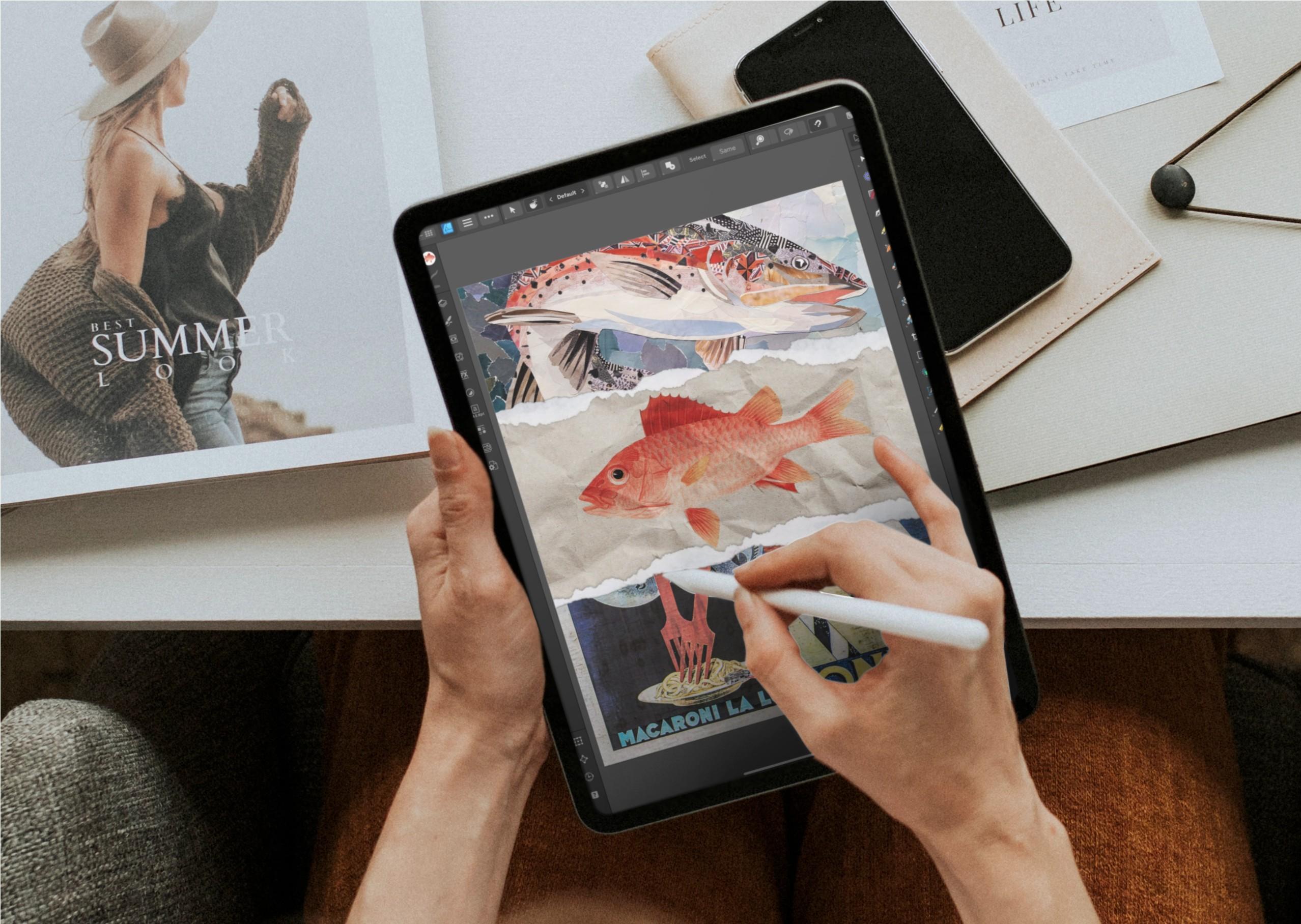
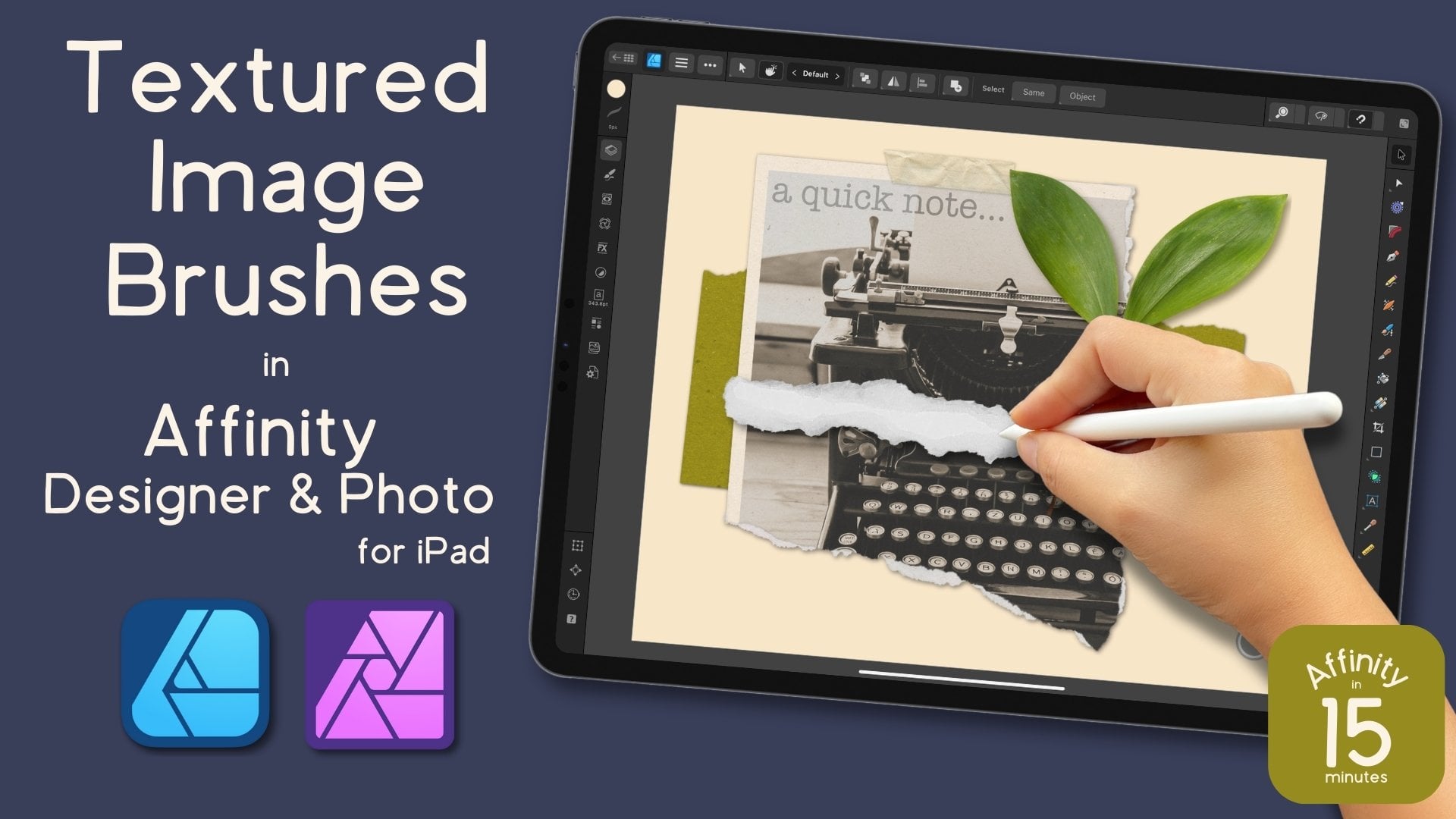
Welcome to Affinity in 15, a series where we'll create quick projects in Affinity Designer, Photo or Publisher. In this lesson, I'll show you how to create a fun, realistic torn paper effect using Designer for iPad. Best of all, everything is created using non-destructive edits, so you can save your design as a template to use over and over, and easily adjust your elements with a few adjustments to the masks.

Hi there! I'm Tracey, an artist, designer and Affinity pro. I love learning the ins and outs of the Affinity suite so that I can make the tools do what I need them to do (even if it's not always what they were intended to do).

In this series of classes, complementing my longer form classes here on Skillshare, I'll share everything I know about the three apps, both the desktop and iPad versions, in bite size classes, so that you walk away with a quick, fun project and tons of knowledge so you can work efficiently, and effectively, on your own.
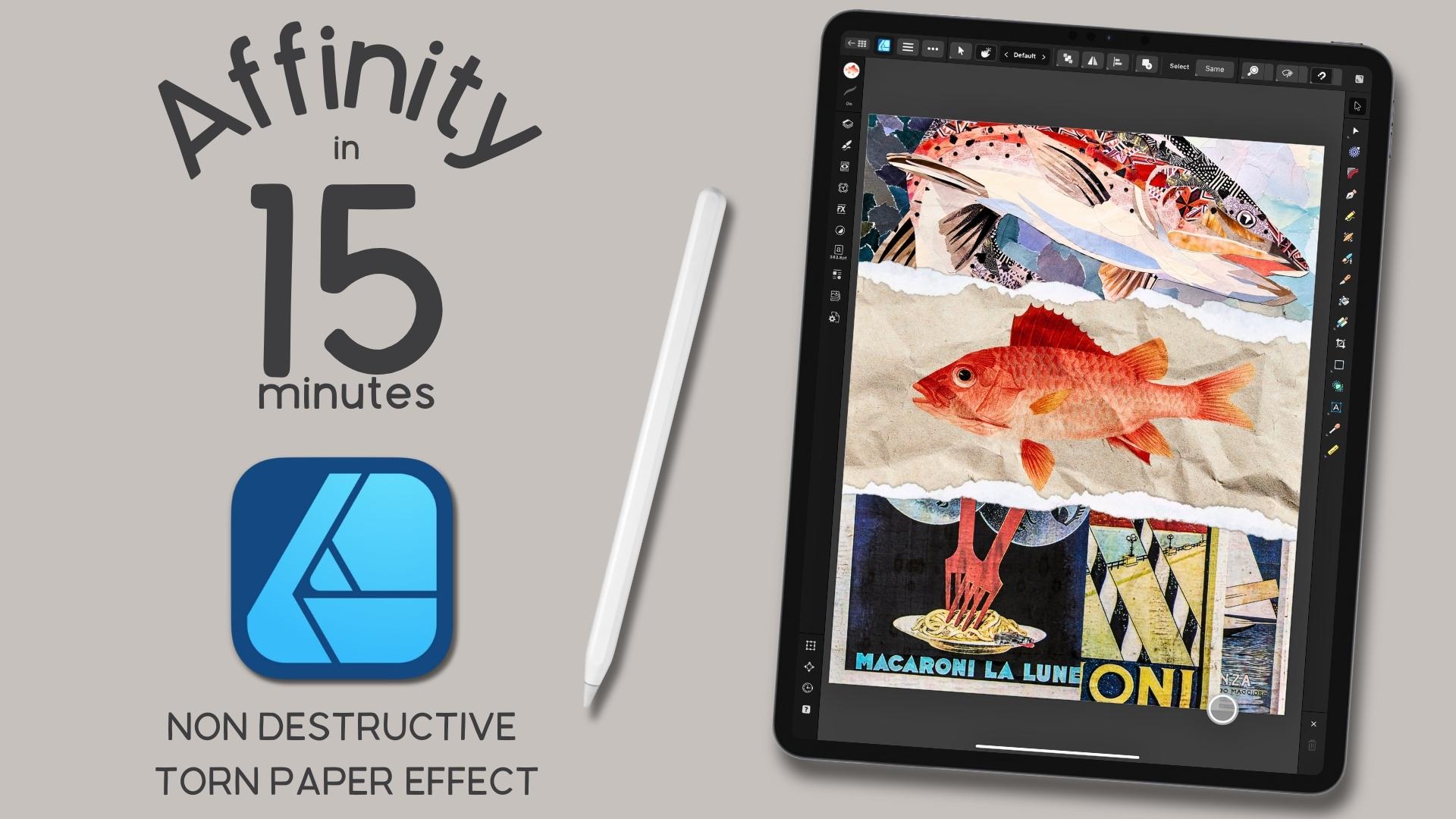
  • How to create masks using pixel selections. I'll show you how to create pixel selections from transparent pngs of real torn cardboard, with it's jagged edges, and little fibers, and turn them in to editable masks.
  • How to use the Gradient tool to add solids, gradients and bitmap textures. This allows you to add fills from the Stock Studio, Assets panel, and your external files, quickly and efficiently.
  • How to use the vector crop tool. Sometimes, clipping masks aren't an option, but how can you deal with things hanging outside the canvas?  I'll show you how to use the vector crop tool (psst... it's not just for vectors!) to crop right up to the edges of the canvas, even if they're sitting diagonally.
  • How, and more importantly, where to add shadows to the torn paper. The paper texture isn't enough. So let's add some shadows to our torn paper to give it that extra boost of realism.
  • How to use blend option shifts, in tandem with blend mode changes, to dial in the opacity, and vibrance, of your colors. Using blend option shifts, in addition to blend modes, can help you achieve laser focus on the luminance values of individual light and dark points in your illustration.
  • How to stack duplicate layers, and use different blend modes. This can help you add a boost of color in to your illustration, without affecting the blend mode shifts you've already added.
  • How to save your final design as a template to use over and over. Working non-destructively with vectors means you can work more efficiently. The more efficiently you work, the more time you save, and that's more time to create!

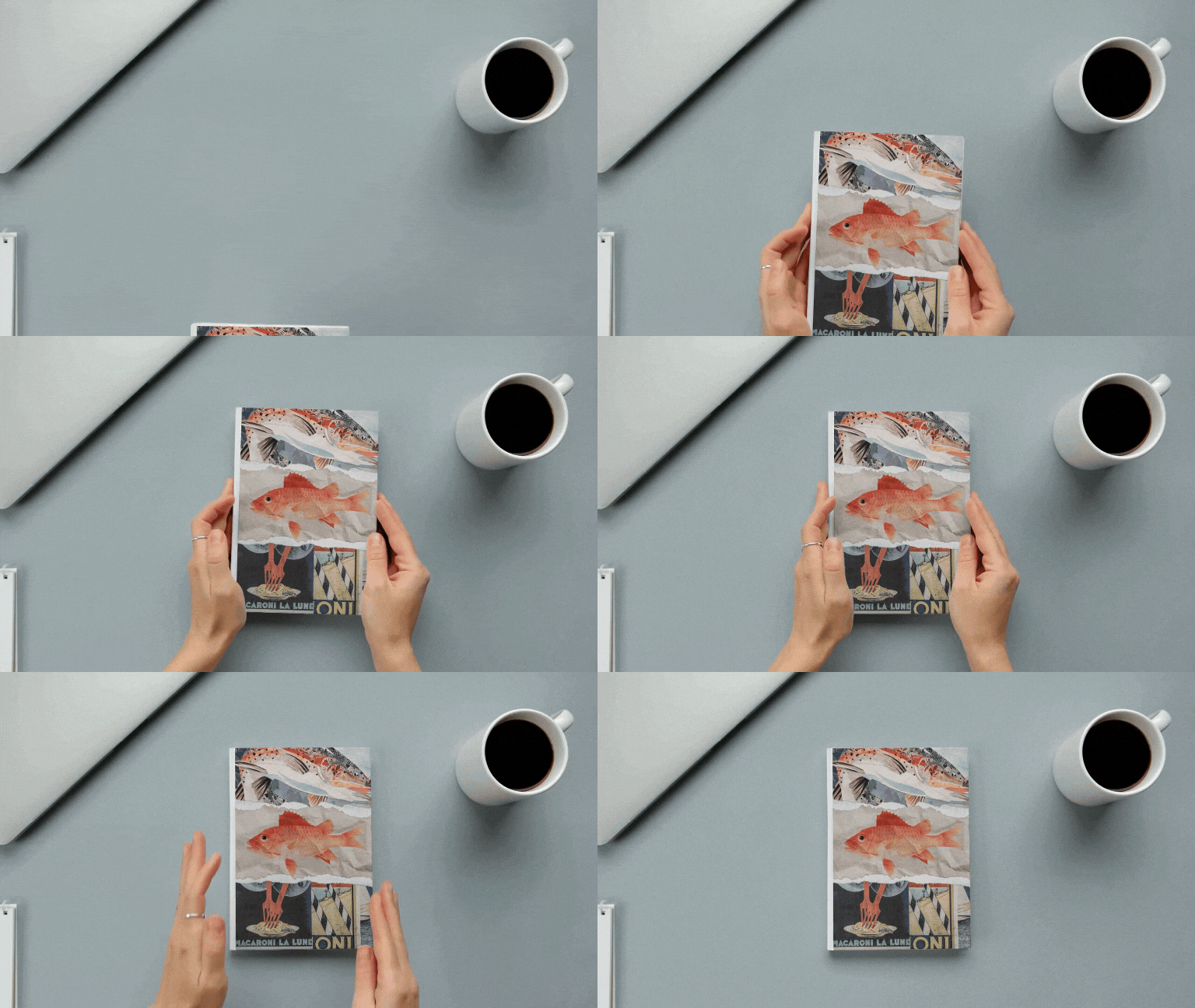
By the end of class, you'll have a handful of tools in your creative Affinity arsenal that will help you create designs well beyond the torn paper illustration we're creating in class.  Plus, what you create in the class can be used for anything from wall art to print on demand products!

I'm using the iPad version of Affinity Designer V2. However, if you're on the desktop version of Designer, you're welcome to join the class. As long as you know where the tools are located on the iPad, you can easily follow along.

Please note... While this class is taught in Designer, the same process also applies to Affinity Photo and Publisher.

This class is beginner friendly, all are welcome, even seasoned Affinity users. Please note though, it does assume some familiarity with Designer V2 for iPad, as I will not be reviewing the user interface during class. If you are brand new to the app, I recommend watching  a beginner class in Designer first, to get the most out of this one.

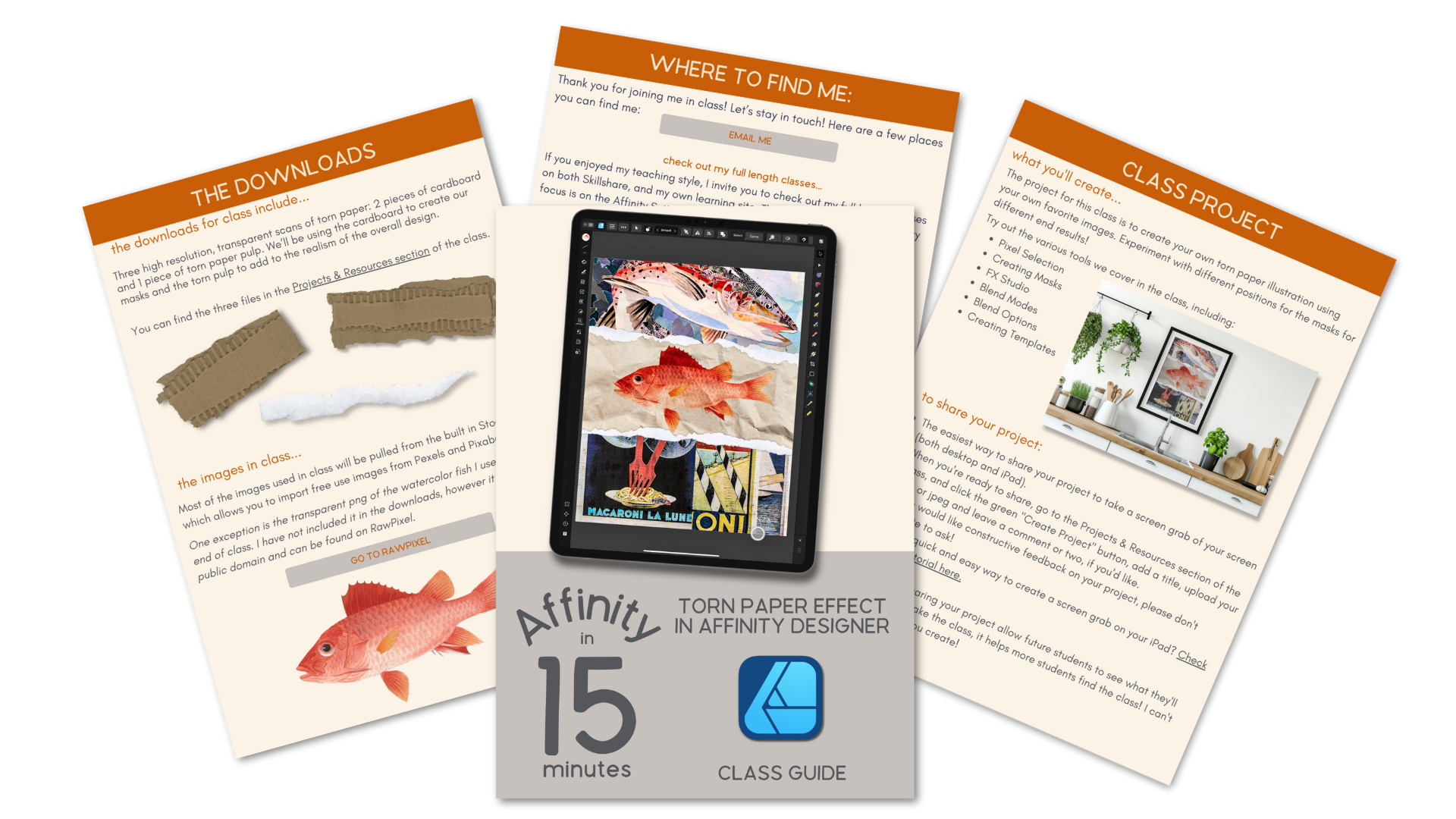
You will receive three high resolution, transparent pngs that I created especially for the class. I will show you how to use the two torn pieces of cardboard to create a pixel mask and how to add an additional touch of realism to your torn paper creation with the scan of torn paper pulp. 

Everything else for the class will come from the built in Stock Studio, where you can pull free use images for your designs.


Hi there! I'm Tracey. I'm an illustrator, designer, and  photographer located in the Chicagoland area. You can find more information about me, and my work in my full profile. (find the link above) I've been a full time artist for over a decade, after leaving the corporate world behind in 2011. In addition to teaching, I am a full time creator who sells my work on my own site, as well as print on demand sites like Spoonflower, Etsy and more. 

I've been using Affinity products for the last several years and love to learn as much as I can about the tools so I can not only use them the way they were intended to work but make them work for me; and I love sharing that knowledge with my students! I've had the privilege of being spotlighted by Serif, the company who created the app, twice as a go to teacher for their apps. You can find links to the spotlight articles, as well as a Creative Session I've created for their YouTube channel, on my profile page.

If you have any questions about the class, or would like feedback on your project, please feel free to let me know in the Discussion section of class, or by emailing me at hello@traceycapone.com.

I look forward to seeing you in class!

Music Credit: "Coffee Stop," by Aves on artlist.io (license on file)

Meet Your Teacher

Teacher Profile Image

Tracey Capone

Illustrator, Photographer & Designer

Top Teacher

Hello and welcome to my Skillshare channel! I'm so happy you're here!

My name is Tracey. I'm an illustrator, photographer, teacher and self-proclaimed digital art nerd who loves all the apps, and sharing everything I know. Being able to help students understand more complex applications, like Affinity Designer, and hearing about that moment of clarity when everything came together for them is truly satisfying.

not just the how, but also the why... I believe understanding why I take certain approaches, or use particular tools, will help you absorb what you learn and better prepare you to work on your own later. to embrace the perfectly imperfect... in my mind, it's the best way to develop that sometimes elusive creative voice!

and finally... See full profile

Level: All Levels

Class Ratings

Expectations Met?
    Exceeded!
  • 0%
  • Yes
  • 0%
  • Somewhat
  • 0%
  • Not really
  • 0%

Why Join Skillshare?

Take award-winning Skillshare Original Classes

Each class has short lessons, hands-on projects

Your membership supports Skillshare teachers

Learn From Anywhere

Take classes on the go with the Skillshare app. Stream or download to watch on the plane, the subway, or wherever you learn best.

Transcripts

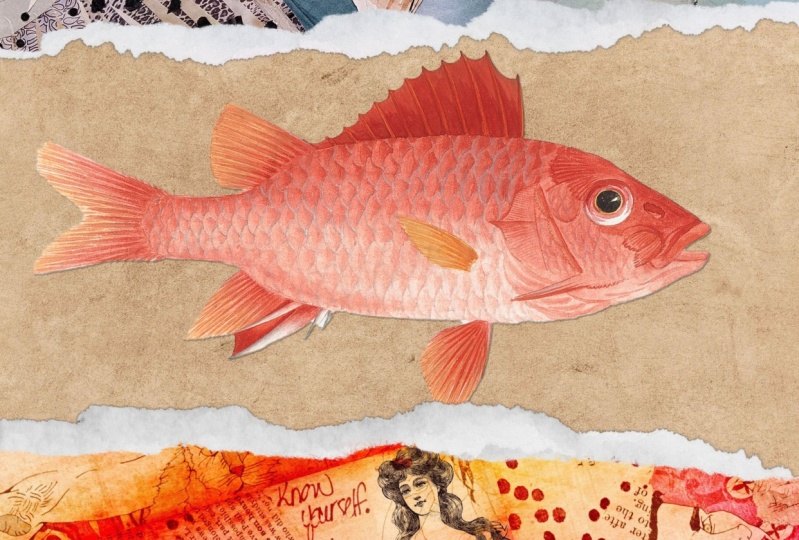
1. Affinity in 15 Torn Paper in Designer Intro: Hey, everyone. In this installment of Affinity and 15, I'm going to show you how to make this realistic torn paper effect and designer for iPad. It's a fun way to create collage art and designer, and the best parties we're working on destructively, using ectors, masks, effects, and blend option shifts. So you can create a template from this to use over and over and you can easily adjust the shapes for a completely different layout each time. Now, while I am using the iPad version of designer, if you're on the desktop version, you can easily follow along as long as you know where the tools are located. You can also create this using Affinity Photo and publisher. So are you ready? Let's get started. 2. Affinity in 15 Torn Paper in Designer Lesson: I do want to mention that my screen is set for left handed persons, so our tools might be opposite of one another, but they work exactly the same. I am going to use textures, and I do plan to print this. So I've set up a 16 by 20 inch canvas at 300 DPI, and my color space is RGB because I'll be printing it myself. It's more canvas than I need, but it's always better to go larger and scale down than to go too small and have to scale up because you'll potentially run into issues with pixelation. Go ahead and set up whatever size works best for you, but if you do plan to print it, just think ahead to the largest size you plan to print and set your canvas accordingly. I've already created four rectangles that span the canvas using the rectangle tool. The bottom two are going to be for a background texture and image, and the top two are going to be my torn paper masks. Speaking of which, in the downloads, I provided three isolated PNGs that I've created out of torn cardboard and paper. Going to use the two pieces of art cardboard to create the masks, and we'll use the paper tear to add that bit of white pulp that stays behind when you tear a piece of thick printed paper. So let's start with the masks. I'm going to go to my documents menu at the top and choose place. And from my files, I'm going to choose those three PNGs. And whenever you pull multiple objects in using the place tool, you'll get this list on the side. You can either tap to add them or drag them out and just do that until the window disappears. Now I don't need this layer, so I'm going to turn it off for now and focus on creating the masks. I want to focus more on the placement towards the inside of the canvas than the outside because the outside is automatically going to be straightened by the edges of the canvas. I want those nice jagged lines along the inside of each mask. So I'm going to start with this one here. I'm just going to bring it down and scale it up. I'm not worried about hitting the bottom of the canvas. I just want to make sure that I at least cover the top here. I'm going to bring that down right about there. I need to make sure I have plenty of room for the image in the middle, as well. And for this one, I like the jagged edge along this bottom here. I'm just going to scale this up. And maybe bring it down a little bit and perhaps tilt it. Alright, I'm ready to create my masks, and I need a pixel selection from both of these. I can't do that here in the designer persona, though, so I'm going to go to the top here and tap on the icon and choose pixel. With that layer still selected, I'm going to hold my finger down on the canvas and choose selection from layer. And you can see that when I do that, it's going to create a selection to the bounds of the canvas wherever the card cardboard is sitting. Now I no longer need that layer. I'm going to delete it. The selections going to remain, and with this torn paper top layer selected, I'm going to hit Plus and mask layer. And that's going to mask away everything outside of the selection. More importantly, if I zoom in, since this is a selection of a transparent PNG, it went up to the very edges of those tears and it's also included the little fibers which lends that old torn paper effect. So I just need to do the other side. But this one's a little trickier. I'm going to go ahead and create my selection. You can see that it's created the selection where the cardboard is sitting, but there's points where it's not, and I need to correct that. So I'm going to delete that cardboard layer. Again, the selection remains, and I'm going to grab my freehand selection tool. I want to make sure that in the contextual menu at the top, add is selected. I'll start outside of the canvas, and I'm just going to draw around those spots that haven't reached the edge of the canvas until I get back to the point where I started. And that's going to add to my selection. So now I have a complete selection. I can select that blue layer. I'll go to the top and again, choose mask. And now I have both of my torn paper masks in place. I'm back at the designer pistona and I'm ready to bring in my images, both of which are going to come from the stock Studio. I'm going to select my gradient tool, and in my layers panel, I'm going to select this top layer. I'll go to my stock studio, and I'm keyed in collage. I'm going to use two collage illustrations, starting with this one in the Pixabay category. Now, the reason I like using the gradient tool is that it allows me to easily place my shape inside and I can just scale this up and down and move it to where I want it. I can always come back and adjust it if I need to, but I actually like how this one's looking, so I'm going to leave that as is. I just need to make sure that the other one is in place. And I'm going to do the off camera since you just saw me do this, and I'll come right back. Okay, my two images are in place, and I want to add shadows to these, but I'm going to place the white pulp layers first. I'm going to turn this one back on. And I actually want this to sit behind my mask layers. It's just going to sort of peek out from the bottom. I'm going to drag this one down here and I'm going to let it hang over the canvas a little bit. Maybe scale this up. I need to complete the other side. So I'm going to hold my finger down and duplicate, and I'll just flip this and maybe bring it over here. I'm going to duplicate both of those shapes, and then I'm going to flip them vertically and drag them up. I just want to adjust these a little bit just so that they don't look exactly like the ones in the bottom. So I've just flipped that. Maybe I'll bring that down here. And this one, I'm just going to pull up a little bit. Right now, obviously, I have stuff hanging off the side of the canvas. And normally I could take these, I could clip them inside of one of these two images. But I'm going to be making blend option changes to those, and whatever you do to the parent layer is going to happen to the child layers as well. So I can't clip them. Instead, I'm going to use the vector crop tool. But here's the issue with that. If I select, say, this one here, which is actually diagonal and select my vector crop tool, you can see that when I drag in the edge of the canvas, a little bit is still left over because it was diagonal. So what I want to do is select that shape as well as the other one, and I'm going to group those. That's going to create a nice horizontal shape to work with. You might wonder if using the cycle selection blocks will work for this, and it doesn't. So that's why I'm grouping that. I'll go ahead to my crop tool and I'm going to drag in, and you can see it snaps nicely to the sides of the canvas, and I'm all set. So I'm going to do the same thing to the other two. I'll select these two, group them up, grab my crop tool, and just move them in. Alright, before I add my background image and texture, I want to add some shadows to these torn papers just to give it a little boost to realism. Now, if this were real life, there wouldn't be a shadow under this pulp area. There would actually be a slight shadow between the printed part and the pulp. So I'm going to start with this top layer. I'll go to my FX, toggle on outer shadow and tap. And you can see, it's already started one, and I don't want to go too far with this because it's paper and it's not necessarily set up high. I'm going to leave the offset where it is and maybe bring the radius up just to touch to about six or so. I'm going to bring the opacity and the intensity up a little. I want it to be a nice tight line, and when I zoom back out, I think that looks good. I just want to toggle on scale with object just in case I scale this up and down. I don't create any issues with my effects. Now I want to go back and grab my top pulp here. I'm going to add the same effect. I'm going to add a little bit of a deeper shadow because it's going to be sitting on texture and I want it to be seen. So again, I'll toggle on the outer shadow. And this time, I am going to bring the offset out a little bit. You can either use the slider or just use your Apple pencil to pull it down to where you want it. I'm going to bring the radius up just to touch. And I think this time I'm actually going to bring the opacity down. And once again, I want to scale with object. Now, this is non destructive. If I need to adjust it at all, I can always do that. I'm going to go ahead and finish the bottom part off camera, and then I'll come back and we'll finish up the background. My shadows are in place, and again, I may need to adjust them, but I'm going to call them done for right now and focus on adding my background image and texture. So that's broken out into two layers. I'm going to turn this top one off and focus on the texture first. I'll select my gradient tool again, and under the stock studio, I've keyed in paper. I want to make sure that that texture layer is selected, and I'm going to tap on that crumpled paper texture there. I'm going to scale this up because I don't want the crumples to be too distracting. So I'll just move that maybe right about here. And then I'm going to go back to my layers and turn on the image layer. Now, I want to replace this solid with a transparent PNG of a fish that I've downloaded from Raw pixel. So again, with my gradient tool, this time, I'm going to go to the contextual menu and choose Bitmap. And from my files, I'll choose that fish. Now, I want to flip this because I don't want it running in the same direction as the fish on the top. So with my move tool engaged, I'll go to the contextual menu at the top and choose flip horizontal. Now, I think I'm going to scale this down a little bit. No pun intended. I'll grab my gradient tool. And I'm just going to bring that to right about there. Now, the problem with doing that as you can see that because this creates a pattern because I use the bitmap, it's bringing in part of the tail and part of the mouth from the fish before and after it. The easiest way to remove those is to go back to the pixel persona. Once again, I'll grab my freehand selection tool. I'll make sure that add is selected, and I'm just going to draw around both of those. Now, I want to mask those away, not mask everything outside of that. So I'm going to flip my selection. I'll hold my finger down and choose invert pixel selection. With that layer selected, once again, I'll add a mask, and now they're gone, so I can deselect that. I'm back in the designer persona, and I want to make a few more final changes to this. Right now, it just looks like that fish is just sitting on top of that texture. So what I'm going to do is I'm going to start just playing with the blend modes of it. I like linear burn, but I feel like it's one too dark, and you still can't see the texture coming through. So I'm going to go to the ellipsis at the top and go to the bottom of that box and choose source. This is going to impact the light and dark values of the actual fish layer, not the texture beneath. I'm going to pull out some of the light value it's going to bring the opacity down, and you can see that the texture from beneath is coming through. The problem with that is it's also muted the top. So I want to bring some of that back. I'll go to the other side, and I'm going to start dragging this one to the right. Now, this is a little bit flat. I want to give it a little bit of pop, so I'll go back to my layers. I'm going to duplicate that layer, and I'm going to change the blend mode of that to either overlay or soft light. Overlay is a little too much, but I could also bring the opacity down. Let's see what that looks like. My torn paper illustration is complete, and I'm ready to export this. I can just choose export from the documents menu, choose my file type, and choose where I want to save it. But what I really want to show you is because we've worked completely non destructively, this is a great candidate to save as a template because it means you can use it time and time again and make adjustments. So let me show you one I've created. What I've done is taken this back to somewhat of an original state. I've taken all of the images and all the textures out. I've left the masks in place along with the shadows because all of those are non destructive, I can pull in a copy. I can add new images. I can move my masks around, and I can very easily adjust my shadows. To save this as a template, just go up to the documents menu and choose Export as template and save it like any other file. When you're ready to use it, you'll just choose new from template. Find that file, and what it's going to do is create a copy of that original. So you can make any changes you need to do this without impacting that. It's one of the benefits of working with vectors non destructively is you can use these over and over, saving yourself lots of time. Thank you so much for joining me here. In this affinity in 15, there are many more to come, so stay tuned. I'd love to see what you create, so please consider sharing your project to the class projects and resources section. And if you have any questions, please let me know in the discussion for the class. Thanks again for joining me, and I'll see you in the next affinity in 15.